
Lyric LCP300-L - Régulateur HONEYWELL - Free user manual and instructions
Find the device manual for free Lyric LCP300-L HONEYWELL in PDF.


| Product Type | Security and Home Automation Gateway |
| Brand | Honeywell |
| Model | Lyric LCP300-L |
| Dimensions (Approx.) | 6.5 x 5.5 x 1.2 in (165 x 140 x 30 mm) |
| Weight (Approx.) | 1.2 lbs (0.54 kg) |
| Power Supply | AC with rechargeable battery backup |
| Battery Backup | Rechargeable, lasts up to several hours on battery |
| Display | Touchpad with status shield, LEDs and numeric keypad |
| Communication | Wi-Fi (2.4 GHz) for local control; optional cellular for remote monitoring |
| Z-Wave Support | Z-Wave Plus, up to 72 devices, supports door locks, thermostats, lights, garage doors, etc. |
| Maximum Z-Wave Nodes | 232 |
| Video Support | Up to 8 Wi-Fi cameras, live viewing and naming |
| Smart Scenes | Up to 100 automated scenes (Anytime, Scheduled, Triggered) |
| Arming Modes | Away, Home, Custom, Night, Instant, Quick Arm, Auto Home |
| Emergency Types | Fire, Police, Medical (silent/audible) |
| User Codes | Master, Guest, Duress, up to 47 additional user codes |
| False Alarm Prevention | Entry/exit delays, exit alarm, alarm reporting delay, silent exit, quick exit |
| Maintenance | Care and cleaning with soft cloth; battery replacement; communication module replacement |
| Security Features | Tamper detection, alarm memory, keypad lockout, two-way voice verification |
| Warranty | Two-year limited warranty |
| Compliance | FCC Part 15, Industry Canada ICES-003, Z-Wave certified |
Frequently Asked Questions - Lyric LCP300-L HONEYWELL
User questions about Lyric LCP300-L HONEYWELL
0 question about this device. Answer the ones you know or ask your own.
Ask a new question about this device
Download the instructions for your Régulateur in PDF format for free! Find your manual Lyric LCP300-L - HONEYWELL and take your electronic device back in hand. On this page are published all the documents necessary for the use of your device. Lyric LCP300-L by HONEYWELL.
USER MANUAL Lyric LCP300-L HONEYWELL
User Reference Guide
Your Honeywell security system is designed for use with devices manufactured or approved by Honeywell for use with your security system. Your Honeywell security system is not designed for use with any device that may be attached to your security system's control or other communicating bus if Honeywell has not approved such device for use with your security system. Use of any such unauthorized device may cause damage or compromise the performance of your security system and affect the validity of your Honeywell limited warranty. When you purchase devices that have been manufactured or approved by Honeywell, you acquire the assurance that these devices have been thoroughly tested to ensure optimum performance when used with your Honeywell security system.
Lyric™ Lock
Your system supports advanced features designed to keep it functioning optimally. These capabilities include: the ability to interact with Honeywell and your dealer's network for the setup and programming of its features, support for remote software updates and the ability (when enabled by your monitoring dealer) to enhance your security by preventing an unauthorized takeover of the system by another monitoring company. In the event that your dealer has enabled the feature to prevent an unauthorized takeover and you wish to authorize a new company to take over your system, you may request that Honeywell remotely disable this feature. Honeywell will require documentation that you have attempted to contact your existing security dealer and that they have failed to respond, or failed to agree to your request.
TABLE OF CONTENTS
OVERVIEW 5
About This Guide....5
Basic System Functions....6
Security Features....8
False Alarm Prevention....9
GETTING STARTED....11
Gateway Menu Modes....11
Operating your system using the Gateway Touchpad....12
System Status Shield....12
System Alert 12
System Sounds 13
Arming Options and LEDs 13
Switching Arming Modes....13
Emergency Options....13
Operating your Gateway using the MyHome Gateway App 15
Home Menu Overview 15
The Tools Menu Overview 16
SECURITY 17
Security Menu Overview....17
Arming the System....17
Disarming the System....20
User Code Error....20
Bypassing Protection Zones....20
Entry and Exit Delays....21
Emergency Alarms....22
Chimes/Voice Annunciations 23
Audio Alarm Verification (Two-Way Voice)....24
AUTOMATION: Z-WAVE AND OTHER DEVICES....25
Working with Z-Wave Devices....25
Adding Z-Wave Devices (Include)....26
Deleting Z-Wave Devices (Exclude) 28
Advanced Tools....29
Failed Devices (Failed Nodes) 30
Important Notes About Z-Wave Devices....30
Garage Doors 33
AUTOMATION: SMART SCENES 34
Smart Scenes and User Access 34
Creating a Smart Scene using the MyHome Gateway App....35
Hold 38
Run....38
Show (Review)......38
VIDEO....39
Viewing and Naming Cameras....39
Adding a Camera....39
Video Recovery 40
USERS AND SECURITY CODES....41
User Codes 41
Duress Code 41
Adding Users and Assigning Codes 42
Changing Security Codes or the Duress Code 42
Deleting a User 42
User Settings....43
SYSTEM SETTINGS....44
Brightness/Volume 44
Wi-Fi (Network) Configuration....44
Software Updates....45
Events 46
Paired Devices....46
Testing Sensors (Walk Test) 47
Testing Communications....48
Reboot 48
MAINTENANCE....49
Care and Cleaning 49
Battery Replacement....49
Communication Module Replacement .... 51
MYHOME GATEWAY SYMBOLS 52
WIRELESS KEYS....53
Key Assignments 53
SiXFOB Wireless Key Status Indications....53
EVENT LOG CODES....54
GLOSSARY 56
FIRE/CO ALARM SYSTEM 57
In Case of Fire 57
In Case of Carbon Monoxide Alarm....57
Silencing a Fire/Carbon Monoxide Alarm 57
NATIONAL FIRE PROTECTION ASSOCIATION SMOKE DETECTOR RECOMMENDATIONS....58
Emergency Evacuation 59
REGULATORY AGENCY STATEMENTS....60
TWO YEAR LIMITED WARRANTY 67
LIMITATIONS OF THIS ALARM SYSTEM 68
OWNER'S INSURANCE PREMIUM CREDIT REQUEST....69
Overview
The Lyric™ Gateway combines a security system and home automation with flexibility to operate your system locally using Wi-Fi® connection or remotely over the internet using mobile (smart) devices and easy to use Apps.
Your system can include wireless sensors to provide burglary protection and smoke and combustion detectors to provide early fire and carbon monoxide (CO) warnings (if installed).
Your Gateway system monitors sensors and system status to initiate alarms and generate alerts. The system can also send alarm and status messages to a central monitoring station via the cellular phone network or the Internet, if programmed to do so.
Convenient methods of operating the Gateway include the following:
• The Gateway's touchpad
- Your Total Connect™ Remote Services account (for local and remote access)
- The MyHome™ Gateway App (for local access)
- Optional wireless keys (key fobs), Lyric keypads and smart devices.
Download and install the free MyHome Gateway™ and Total Connect™ Apps from your smart device's App Store.
NOTE: The MyHome Gateway App requires connection to the Gateway via the premise's Wi-Fi router (Ethernet cable or Wi-Fi). The Total Connect App requires internet or cellular connection for remote access to the Gateway.
Note for Android Mobile Device Users: Before using the MyHome Gateway App, disable Power Saving mode on your device. Failure to do so may cause the app to lose connection to the Gateway if the mobile device enters power save mode.
About This Guide
Throughout the User Reference Guide, icons help you easily identify which control options are available for different system features:
This icon

Means, you can operate the feature...
from the Gateway touchpad.
locally from your smart device using the MyHome Gateway App.
locally or remotely from your computer, or smart device using your Total Connect Remote Services account.
For smart devices, download the Total Connect App.
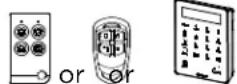
Optional wireless keys (key fobs), Lyric keypads or smart devices
In the Operating your Gateway with the MyHome Gateway App section, various menu commands are also listed for operating different system features. For example, if you see:
Home > Security > Tools > Users
This means: From the MyHome Gateway App Home screen, select Security.
From the Security menu, select Tools.
From the Tools menu, select Users.
Note that the illustrations in this document may differ slightly from your system.
Basic System Functions
Security



Press
Arm in Home mode
ARMED
Home
and enter your user code
Arm in Away mode
ARMED
Away
and enter your user code
Disarm system & silence alarms
Disarmed
and enter your user code. Repeat to silence alarms/alerts
Emergency
Emergency
Then press:

Fire

Police

Medical
notifies the monitoring company of the emergency type (if programmed to do so)

Press
Access Security features

on the Home screen
Arm in Away mode

and enter your user code
Arm in Home mode

and enter your user code
Disarm system & silence alarms

and enter your user code. Repeat to silence alarms/alerts
Emergency (Panic)
[Not available from the MyHome Gateway App]
Use the Gateway Touchpad Emergency options or, if programmed to do so, use your wireless key (key fob) to signal an emergency.
Video


Press

on the Home screen to view and configure Wi-Fi cameras
Control Panel Settings


Press

(Settings) on the Home screen
Gateway key brightness
Select Brightness and use the slider
Gateway volume
Select Panel Volume and use the slider
Voice announcements volume
Select or deselect VOICE
Chime volume (count-down beeps, other sounds)
Select or deselect CHIME

Press
Operate & manage Z-Wave ^® devices

on the Home screen
Create & manage Smart Scenes

on the Home screen
Common Master User Functions


Press

(Security) then Tools) and enter your e.
Master User

(Users)
Add, delete or modify user codes

(Events)
View a list of System Events

(Advanced) and select Walk Test or Comm. Test
System tests

(Paired Devices)
View a list of mobile (smart) devices paired to your Gateway

(Network Config)
Network (Wi-Fi) Configuration
Security Features
NOTES: • For the Gateway to report alarms over the internet, your Wi-Fi network MUST have power at all times.
- You must arm your security system in order for it to sound alarms.
| Sensors and Zones | Your system's sensors are assigned to numbered zones that correspond to areas of your home. For example, the sensor on an entry/exit door might be assigned to Zone 03, a device in a bedroom to Zone 06, and so on.When alarms or trouble conditions occur, you can find information about the zone number and a description of the sensor involved using the MyHome Gateway App.[Home > Security > Tools . Master User Code > Events] |
| Fire Protection | Fire protection is always active when the system is operating normally. An alarm sounds if a fire condition is detected. See Fire/CO Alarm System for important information about fire protection, smoke detectors and planning emergency exit routes. |
| Carbon Monoxide | Carbon monoxide (CO) detectors, if installed, are always active and sound an alarm if a carbon monoxide condition is detected. See Fire/CO Alarm System for more information. |
| Burglary Protection | Gateway provides HOME and AWAY burglary protection.HOME mode protects windows and exterior doors, allowing you to move around inside your home without setting off an alarm. (This mode may be referred to As STAY mode in Total Connect.)AWAY mode protects the entire premises, including interior motion detectors, if present.Both modes offer an entry delay period that allows you to reenter the home without setting off an alarm. For long periods such as vacations, the entry delay can be turned off while arming the system.Gateway also allows you to Bypass selected sensors before arming the system.The system also features Chime mode, which can alert you to the opening of protected doors and windows while the system is disarmed. |
| Security (User) Codes | A user code is required when arming or disarming and for some other functions.When the system is installed, you are asked to choose a personal 4-digit security code, known as the “Master User code”.Other users can be added, typically with less control over the system than the Master User. See Users and Security Codes. |
| User Code Error (Keypad Lockout) | If six invalid user codes are entered, the system locks out additional code entry attempts for 15 minutes. Additional user code entry attempts will not be accepted until the lock out period ends.NOTE: The system can be Quick Armed while in Lockout mode, but cannot be disarmed. |
| Alarms | When there is an Alarm, the system's sounders turn on: Internal sounders on the Gateway Touchpad and any smart devices running the MyHome Gateway App; also any externals sirens (if used).The Gateway Touchpad's status shield and Alert blink red. when open, the MyHome Gateway App screen indicates Alarm and shows the zone(s) where the alarm has occurred.After 15 seconds, the sounder stops temporarily and the system begins voice announcements of relevant zone information. After the zones are announced, the system's sounder resumes sounding. Alarm sounds and voice announcements alternate until the system is disarmed or until alarm bell timeout occurs.If the system is connected to central monitoring, an alarm message is sent.To silence the sounder, disarm the system. The zone(s) causing the alarm remain displayed on the MyHome Gateway App screen, indicating Memory Of Alarm an Alarm is held in memory. See Clearing an Emergency Alarm for more about clearing alarm memory. |
| Audio Alarm Verification | Allows your central monitoring station to listen to or talk with individual(s) on the premises (if programmed to do so). |
False Alarm Prevention
Many false alarms are caused by minor problems, such as a door or window left open when exiting the home. Gateway includes several features to help prevent false alarms. Note that some are optional or must be programmed by the installer. Disabling these features may increase security, but may also increase the chance of false alarms.
Your installer can help you decide how to use and customize these features. A brief explanation of false alarm prevention features follows, along with advice on what to do if false alarms occur.
| Entry Delay | When the system is armed, Entry Delay is the time period allowed to disarm the system with a user code after an entry door is opened. Failure to disarm the system during the Entry Delay causes an alarm. The delay period is set by your installer. |
| Exit Delay | When arming the system, the Exit Delay period begins, allowing household members to exit through entry/exit doors without triggering an alarm. Entry/exit doors must be closed before the exit delay ends. The delay period is set by your installer.After a false alarm, disarm the system and contact your monitoring company. They will verify your security code or password, preventing unnecessary calls for emergency response. |
| Exit Time Restart | If you leave the premises and enter again before the exit delay has expired, the exit delay restarts, giving you more time to leave without causing an alarm.With 10 seconds left to exit, the Gateway begins beeping quickly, indicating that an alarm will occur if you don't exit or disarm the system immediately.If this occurs, disarm the system and arm it again when you are ready to leave. |
| Exit Delay Restart/Reset | You can restart the Exit Delay by pressing Restart Timer on the MyHome Gateway App screen. |
| Alarm Reporting Delay | Gateway is programmed to wait for a brief period between sounding a burglary alarm on the premises and sending an alarm message to your monitoring company. This delay allows you to disarm the system before an alarm message is sent in error. |
| Exit Alarms | False alarms can be caused by leaving the house and forgetting to close the door. If this happens, Gateway sounds an alarm and displays an Exit Error.The alarm reporting delay gives you time to disarm the system before an alarm message is sent. |
| Silent Exit Press | Silent Exit on the MyHome Gateway App screen to mute the beeping sound for exit countdowns in most situations. Voice confirmation of arming status is not muted. Silent Exit doubles the Exit Delay time. |
| Quick Exit Press | Quick Exit on the MyHome Gateway App screen when the system has been armed and someone needs to leave the premises. This restarts the exit delay, allowing you to exit the premises without having to disarm and re-arm the system. |
Getting Started
Your installer will have set up your system and helped you install the MyHome Gateway™ App on at least one mobile (smart) device. Up to 8 mobile devices can be used to manage your System Security, Automation, Smart Scenes, Video and Settings:
How to add smart devices to your system using the MyHome Gateway App
- Download the Honeywell MyHome Gateway App to the mobile device(s) that will be used to control your system
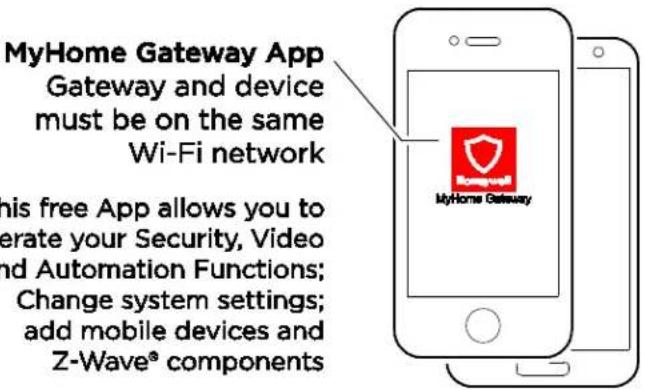
- Ensure each smart device is connected to the same local Wi-Fi network as the Gateway (check Settings > Wi-Fi on the device).
- Launch the MyHome Gateway App on a device and tap Enroll App to begin the enrollment process.
- Enter your Master user code and 2 1 on the Gateway Touchpad.
- The App will display a six-digit enrollment number. Enter that number on the Gateway Touchpad.
- When prompted, enter a valid user code on the MyHome Gateway App screen to complete the enrollment. The screen will confirm the enrollment success and open the App Home screen.
Refer to the Operating your Gateway with the MyHome Gateway App section in this User Reference Guide to operate your system with the MyHome Gateway App.
Gateway Menu Modes
The Gateway Menu Mode provides options to add and delete smart devices from your system or change the system Wi-Fi network.
To access the Menu Mode options: when the System is disarmed and the numbers are off, enter the Master user code and the two-digit code for the desired mode option.
Enter...
Mode Option
Master Code + 11
Use this option to hear the list of available menu mode options.
Master Code + 20
Use this option to delete all enrolled MyHome Gateway Apps from your Gateway.
NOTE: You will need to re-enroll any devices you want to use to operate your Gateway with the MyHome Gateway App.
Master Code + 21
Use this option to enroll or re-enroll devices with the MyHome Gateway App in your Gateway
Master Code + 31
Enters the Gateway in Access Point mode; used to change your Wi-Fi setup if your network connection/router changes.
Operating your system using the Gateway Touchpad
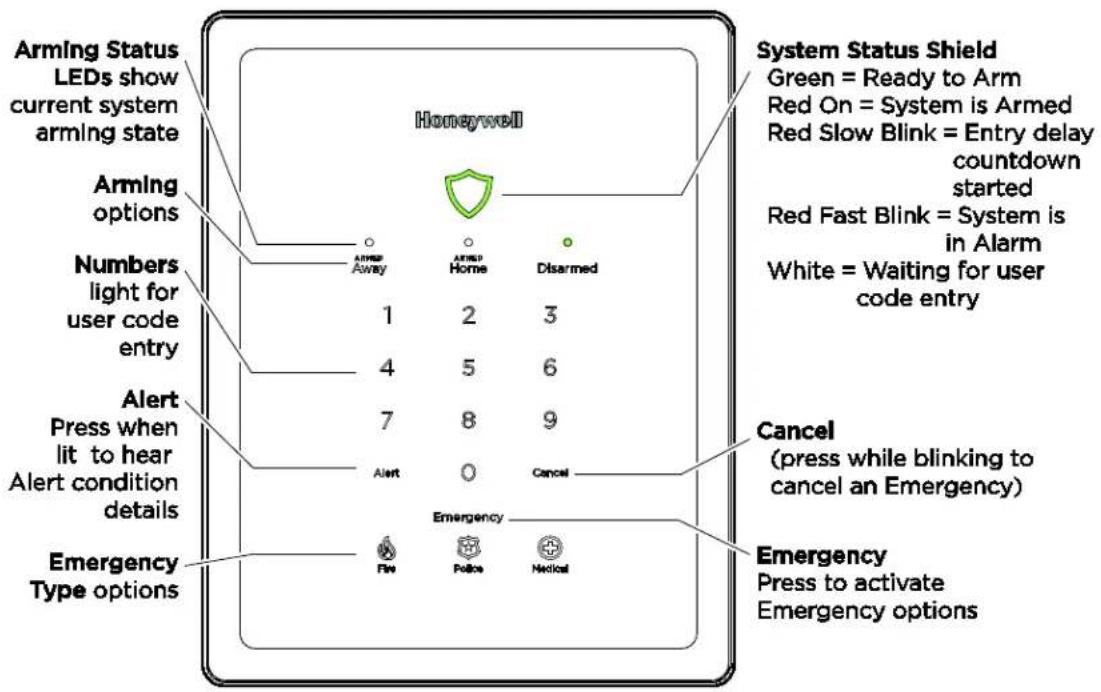
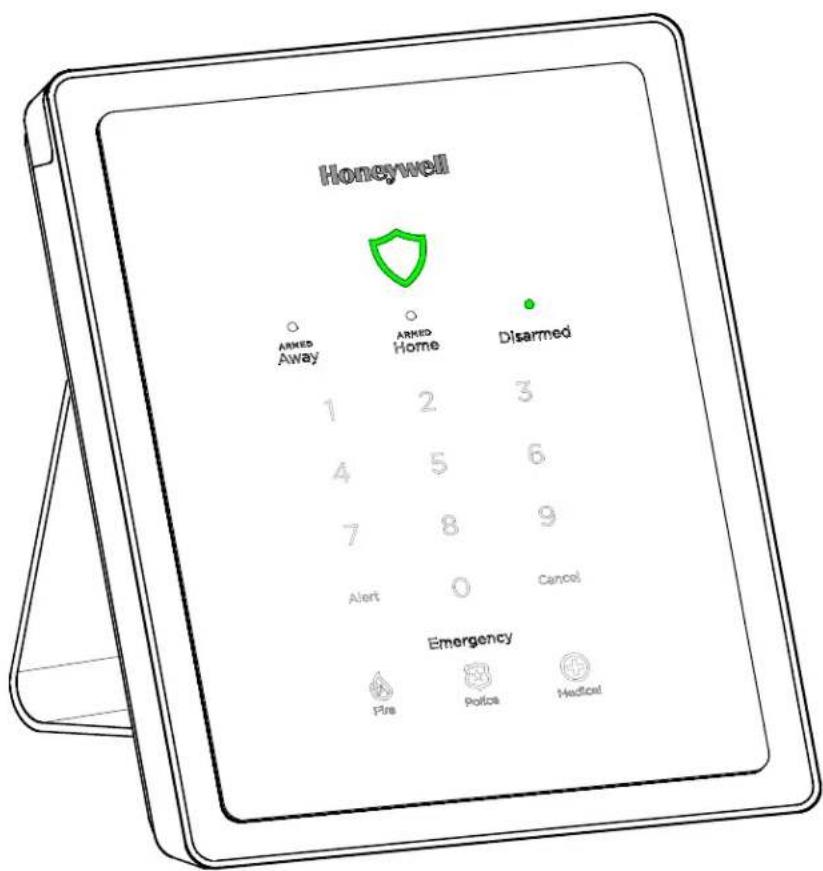
The Gateway Touchpad is designed to operate your basic security features. It also allows you to quickly see your system status by which items on the Touchpad are lit.
The Status Shield and arming options are always lit and color coded to show system status at a glance. Emergency is also always lit, so it is easy to find, when needed. The other options on the touchpad light only when needed.
System Status Shield
The Status Shield indicates system status with these behaviors:

Green, steady
System is ready to be armed

Red, steady System is armed
Red, blinking slowly
Entry delay countdown started; enter your user code to disarm the system
Red, blinking rapidly
System is in Alarm
If programmed to do so, two-way Voice Communication may be active when the system is in Alarm. [See your installer to program this feature.]

White, steady System is in user code entry mode
See the
Emergency section for information on silent alarms.
System Alert
If the system experiences a condition, such as AC power loss, connectivity or a communication problem, the Alert blinks.
Press Alert and the Gateway announces the system Alert condition and suggested actions.
NOTE: If the Gateway loses AC power, Alert begins to blink slowly after 15 minutes on battery backup and all other lights on the Gateway are off. In this situation, although the Emergency light is off, Emergency functions remain available.
System Sounds
If you hear... It means...
Beeping The Gateway touchpad is being pressed to enter codes or other functions; or an entry/exit delay is in process.
System sounders or sirens The system is in Alarm. Alarm volume is not adjustable.
NOTES: • The system volume is adjustable through the MyHome Gateway™ App for voice announcements, chimes and most sounds
- A beep every 45 seconds indicates one of your wireless devices has a low battery condition. Use the MyHome Gateway App to see which device(s) need new batteries.
Arming Options and LEDs
Press any of the arming options and the numbers light. Basic security functions include:
To...
Arm in Away mode (typically when no one is home)
Arm in Home (Stay) mode (typically when someone is home)
Quick Arm without a code in Away mode or Home mode
Disarm the system
Press
ARMED
Away and enter your user code

ARMED
Home and enter your user code

ARMED
Away or Home
For 3 seconds
Disarmed and enter your user code

Switching Arming Modes
You can easily switch between arming modes without having to first disarm the system. When the system is armed or while arming or disarming, simply press the desired arming option and enter your user code. (This feature is available only from the Gateway Touchpad or a Wireless Key.)
Auto-Home Mode Operation: If your system is programmed to do so, it will automatically arm in Home mode if you select Armed Away but no one opens an exit-delay door.
Emergency Options
Depending on your system set up, when an Emergency Type option is pressed, emergency messages can be sent to your monitoring company (if programmed to do so).
Refer to the Emergency Alarms section of Operating your Gateway with the MyHome Gateway App for additional details.
Press
Then...
Emergency

Fire

Police

Medical
The system Emergency Type options appear.
The system sends an emergency message to the monitoring company, if programmed up to do so.
Cancel
Press Cancel when it is blinking to cancel the Emergency before it is sent.
To Cancel and Clear an Emergency Alarm that has been triggered
| 1 | 2 | 3 | Enter your User Code The Alarm will silence and the system will announce the status. |
| 4 | 5 | 6 | |
| 7 | 8 | 9 | Check for alarm details on MyHome Gateway App or Total Connect Remote Services. |
| 0 | Cancel | Enter a User Code again to clear alarms. | |
| User Code | |||
Operating your Gateway using the MyHome Gateway App

Use the MyHome Gateway™ App to manage your System Security, Automation, Smart Scenes, Video and Settings:
Home Menu Overview
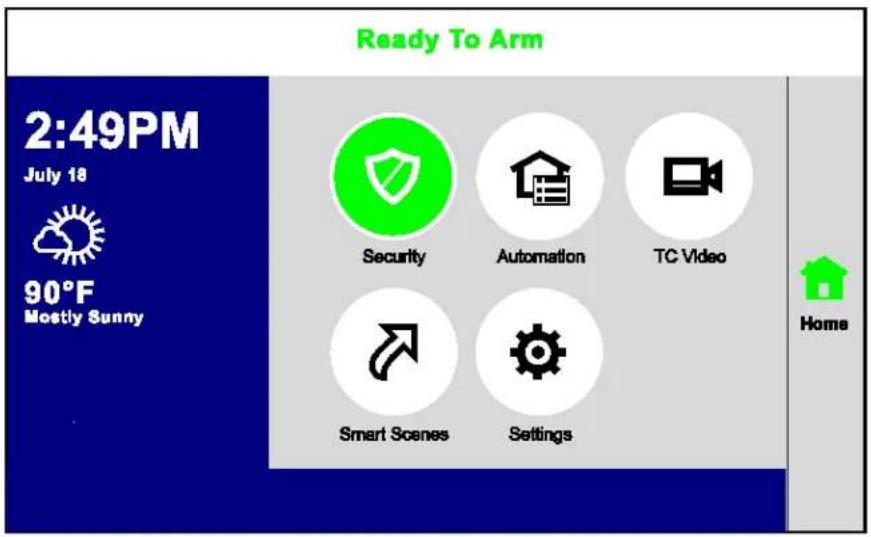
NOTE: Pressing Home from any screen returns you to this Home screen.
Option

Security
Allows you to...
Operate and manage the security features and access other features of your Gateway system.
To Navigate, Press...
and select from the options on the next screen.

Automation
Manually operate your Z-Wave devices
Add or delete Z-Wave Devices

and select the device

then\and

See the Automation section for details

Video
View and configure system cameras; manage video recovery functions

See Video section for details

Smart Scenes
View and run automation scenes to operate your system for convenience, comfort, energy savings and security*

and enter your Master User Code. See the Smart Scenes section for details.

Settings
Adjust the Gateway touchpad and LED brightness and the announcements and chime volume

See the Systems Settings section for details.
The Tools Menu Overview
Home > Security > Tools
NOTE: The Master User code is required to access Tools.
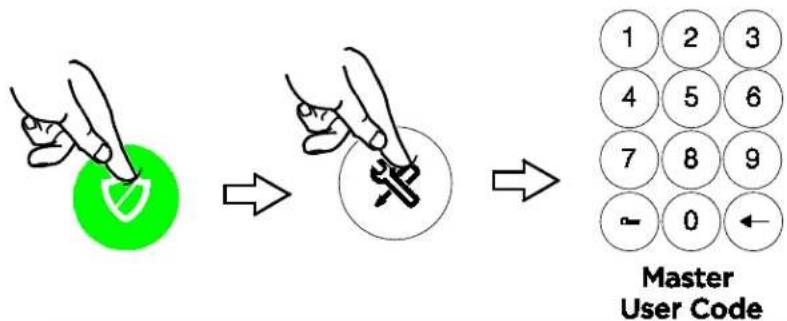
flowchart
graph LR
    A["User Icon"] --> B["Inserted Device"]
    B --> C["Conversion to Grid"]
    C --> D["Master User Code with 1-0 pointer"]
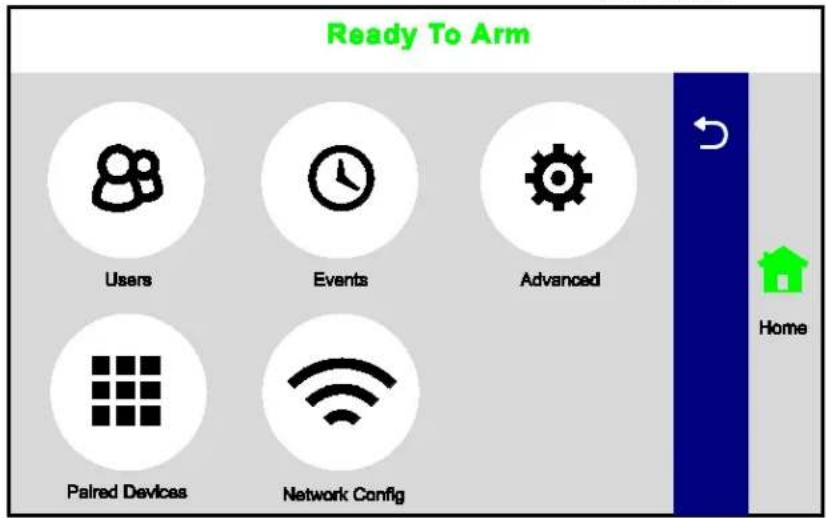
This menu offers access to most of Gateway's important settings and maintenance functions.:
Option

Users

Events

Advanced

Paired Devices

Network Config
Allows you to...
Add/remove users, control user's access to system features. The Master User code is required. See Users and Security Codes for details.
View system event logs. See Events.
Access to software upgrades, tests and user maintenance functions. Includes features found in the Maintenance and System Settings sections.
Manage smart devices paired to your Gateway. See Paired Devices.
Configure Wi-Fi connection to the Gateway. See Wi-Fi (Network) Configuration.

(Back Arrow)
Return to the previous screen or menu.
Security
Home > Security
IMPORTANT
If the Gateway is beeping rapidly when you enter the premises, an alarm has occurred and an intruder may still be nearby.
LEAVE IMMEDIATELY and CONTACT THE POLICE from a safe location.
Security Menu Overview
NOTES: • For the Gateway to report alarms over the internet, your Wi-Fi network MUST have power at all times.
- You must arm your security system in order for it to sound alarms.
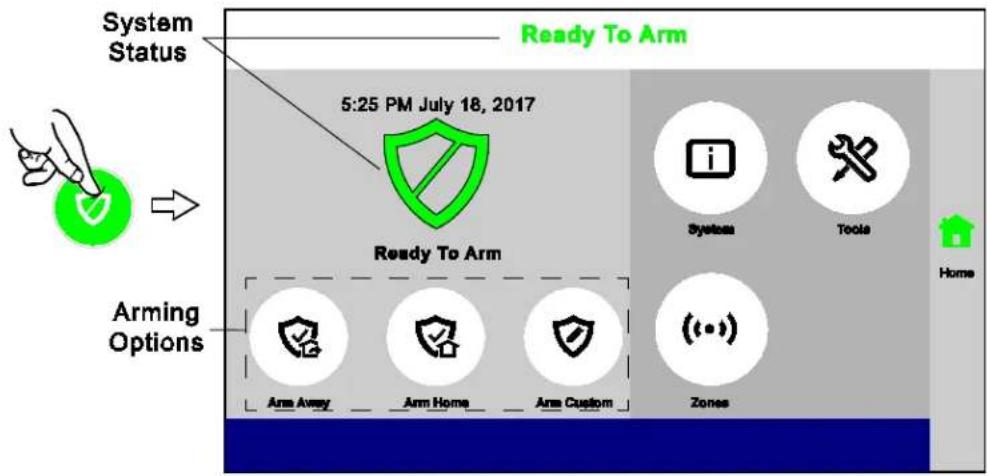
flowchart
graph TD
    A["System Status"] --> B["Arming Options"]
    B --> C["5:25 PM July 18, 2017"]
    C --> D["Ready To Arm"]
    D --> E["Arms Away"]
    D --> F["Arm Home"]
    D --> G["Arms Custom"]
    D --> H["Zones"]
    I["System"] --> J["Software Icon"]
    K["Tools"] --> L["Cross Icon"]
    M["Home"] --> N["(••)"]
    style A fill:#99CCFF
    style B fill:#99CCFF
    style C fill:#99CCFF
    style D fill:#99CCFF
    style E fill:#99CCFF
    style F fill:#99CCFF
    style G fill:#99CCFF
    style H fill:#99CCFF
    style I fill:#99CCFF
    style J fill:#99CCFF
    style K fill:#99CCFF
    style L fill:#99CCFF
    style M fill:#99CCFF
    style N fill:#99CCFF
The MyHome Gateway App displays the system arming status, top and center of the screen:
Ready to Arm = the system is ready to be armed.
Not Ready To Arm-Fault = one or more zones are faulted. The system cannot be armed until all zone faults are fixed or bypassed.
Armed [Home, Away, Custom, etc.] = the system is armed, and arming mode description.
Arming the System
Before arming your system, all protected doors, windows, and other protection zones should be closed or bypassed (see Bypassing Protection Zones).
To change the volume of countdown sounds and security status voice announcements, see System Settings.
Arming states include
Arm Away

For times when no one is home; protects all perimeter and interior zones.
Arm Home

For times when the house is occupied; protects only perimeter zones.
Arm Custom

Arms the system with pre-selected zones bypassed.
Bypass

This feature allows you to arm the system while intentionally leaving selected zones unprotected.
Arm Night

For times when the house is occupied; protects perimeter zones and selected interior motion sensors if used. Other interior zones are unprotected. Enabled by your installer and only used with interior motion sensors.
Instant For times when Entry/Exit doors
are not expected to open at all.
Entry Delay is eliminated. When the system is armed, an alarm occurs immediately if an exterior door is opened.
Quick Arm
Used to arm the system in any mode without entering a user code, if programmed
NOTE: A user code is always needed to disarm the system.
Auto Home
If you arm the system in the “Away” mode but no one exits, the alarm system automatically changes to the “Home” mode. This helps to prevent unwanted alarms when someone remains on the premises. Disarm the system and Arm Away again when you are ready to leave. This option is enabled by your installer.
Arm Away
Security > Arm Away
By default, this mode's exit delay countdown is accompanied by a beeping sound.
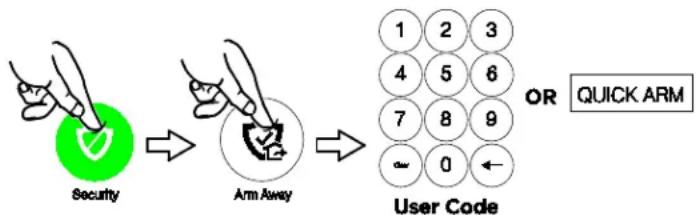
flowchart
graph LR
    A["Security"] --> B["Arm Away"]
    B --> C["User Code"]
    C --> D["QUICK ARM"]
For a silent exit, press Silent Exit first.
- The system beeps twice and announces “Armed Away; exit now”. The exit delay countdown begins.
- Press Restart Timer if you need more time to leave.
- Leave the premises and close the door before the countdown ends.
- The system arms in Away mode. (Door and window sensors and interior motion sensors are active.)
Arm Home
Security > Arm Home
By default, this mode's exit delay countdown is silent.
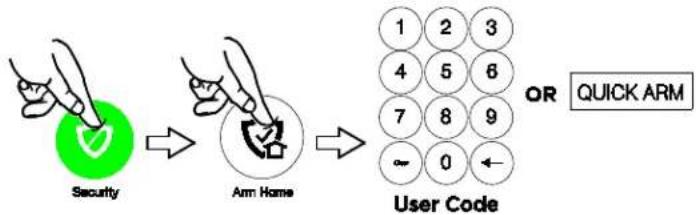
flowchart
graph LR
    A["Security"] --> B["Arm Home"]
    B --> C["User Code"]
    C --> D["OR QUICK ARM"]
- The system beeps three times and announces "Armed Home; exit now". The exit delay countdown begins.
- Press Restart Timer if you need more time to leave.
- The system arms in Home mode. Door and window sensors are active, but interior motion sensors are not active.
Arm Custom
Security > Arm Custom
Use this option to pre-set zones for bypass when arming the system. You can also enable or disable the entry delay.
-
Select Arm Custom to display a list of zones.
-
Select the zones you wish to bypass when arming the system.
-
Select Arm Custom on the zone list screen.
-
A numerical keypad appears.
Select Entry Delay if desired. (See Instant Mode for more about disabling Entry Delay.)
-
Arm the system by entering a user code.
-
The exit delay countdown begins.
-
If leaving, leave the premises and close the door.
Bypassed zones are left unprotected.
NOTE: The next time Arm Custom is used, the same zones that were previously selected are highlighted on the zone list screen. If desired, select different zones for custom arming.
Instant Mode
Security > Arm Custom
In Instant mode, an alarm occurs immediately when a protected Entry/Exit is opened. There is no delay during which a code can be entered to disarm the system.
-
Select Arm Custom to display the zone list screen.
-
If any zones have been previously set for bypass, deselect them.
-
Press Arm Custom.
-
When the keypad appears, de-select Entry Delay.
-
Enter a user code to arm the system and leave the premises during exit delay.
Arm Night
Security > Arm Home
Arm Night must be enabled by your security installer.
-
Select Arm Home to display the keypad.
-
Select Arm Night and then enter a user code.
-
The system beeps and announces "Armed Night Home mode". Exit delay begins. Press Restart Timer if you need more time to leave.
-
The system arms in Arm Night mode. Doors and windows and pre-selected interior zones are active.
Disarming the System
Security > Disarm
NOTE: Disarming the system also silences audible alarms and trouble alerts.
IMPORTANT SECURITY NOTICE
Your wireless key (key fob) is similar to your keys or access card. If lost or stolen, another person can compromise your security system. Immediately notify your Dealer/Installer of a lost or stolen wireless key. The Dealer/Installer will then remove the wireless key programming from the security system.
To disarm your security system:
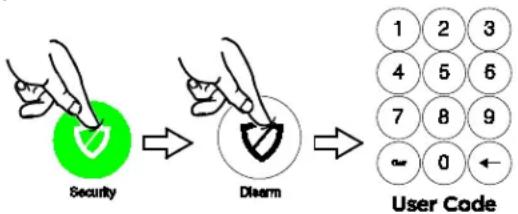
flowchart
graph LR
    A["Security"] --> B["Disarm"]
    B --> C["User Code"]
- The system beeps and announces “Disarmed”, followed by alerts about system readiness, if any. The announcement
- “Check system” indicates a faulted sensor or problems in the Gateway itself.
In most situations, if a valid user code is not entered within 30 seconds of pressing Disarm, the Home screen reappears, and the system remains armed.
NOTES: • If a valid code is not entered by the time the entry delay ends, an alarm occurs.
- The Guest code and the Installer code can only disarm the system if that code was used to arm the system. If the Quick Arm option has been used, neither the Guest Code nor Installer Code can disarm the system.
User Code Error
When the screen displays User Code Error, it means too many invalid user codes have been entered. The system will not accept additional user code entries for 15 minutes (lockout period).
Bypassing Protection Zones
Any zones with faults must be addressed before arming the system.
Bypass allows arming the system while intentionally leaving selected zones unprotected.
Bypassed zones will not trigger an alarm.
NOTES: • Fire and Carbon Monoxide (CO) and Emergency zones cannot be bypassed.
- Bypassed zones are automatically un-bypassed when the system is disarmed.
To Bypass zones:
- Before arming the system, press Zones on the Security menu. A list of your system's zones appears. Faulted (open) zones are shown in red or orange. Press Select on the bottom, right of the screen to choose which zone list to view (All, Alarm, Trouble, Fault or Bypassed zones).
Use the up and down arrows to scroll through the list of zones.
- Select the zone(s) to be bypassed.
- Press BYPASS at the bottom of the screen. A keypad appears.
At the bottom of the screen, you can Bypass Faulted, which selects all zones with faults or other issues.
Press Select All to toggle through options for selecting zones.
- Enter a user code. The zone list reappears with the Bypass icon shown for the affected zones.
- Arm the system as usual.
Press Clear Bypass to un-bypass any previously bypassed zones.
Entry and Exit Delays
NOTE: Entry and exit delay times are programmed by your installer. There is room to jot them down in Your System Information, near the end of this guide.
Entry Delay
Entry delay allows time to disarm the system when entering the premises. If the system is not disarmed before the entry delay period ends, an alarm occurs. If programmed, the Gateway beeps during the entry delay period as a reminder to disarm the system.
Two different entry delay periods can be programmed. The first is for the primary entrance, typically, the front door. The second can be used for a secondary entrance, where more time might be needed to walk to the Gateway to disarm the system.
Exit Delay
Exit delay begins immediately after the system is armed, providing time to leave through the designated exit door without causing an alarm. In most situations, the MyHome Gateway App screen displays a countdown of the remaining time. The exit door must be closed before the end of the exit delay.
Typically, the system beeps slowly when counting down to Arm Away and the beeping speeds up during the last 10 seconds of the delay period. The exit beeps cannot be silenced unless Silent Exit is selected.
Restart Exit Delay
The Restart Timer option appears only if the option has been programmed by the installer.
Exit delay can be restarted once.
Exit Alarm
This option helps minimize false alarms sent to the monitoring company. Exit Alarm is always enabled.
Exit delay begins whenever the system is armed.
- If an exterior door or protected interior zone is faulted during the exit delay (and remains faulted when the exit delay ends), an exit alarm occurs and an entry delay countdown begins.
- If the system is disarmed before the entry delay ends, the alarm sound stops and the message Alarm Exit Error and any faulted zones appear.
- No message is sent to the monitoring company. Any open zones must be secured before the exit alarm condition can be cleared.
To clear the display, press Disarm and enter a security code.
- If the system is not disarmed before the entry delay ends, and an entry/exit door or interior zone is still open, the alarm sound continues and an Exit Alarm message is sent to the alarm monitoring company, along with a “Recent Close” message (the Recent Close option is always enabled).
- The message Alarm Exit Error appears. Faulted zones are also displayed. The alarm will continue to sound until the system is disarmed or timeout occurs.
To stop the alarm, disarm the system. The message Not Ready to Arm-Fault will be displayed. Faulted zones continue to be displayed.
To clear the display, press Disarm and re-enter the security code.
An exit alarm ("Alarm - Entry Exit") also occurs if an entry/exit door or interior zone is faulted within two minutes after the end of the exit delay.
Emergency Alarms
Available Emergency modes may vary, depending on the options programmed by your installer.
IMPORTANT
Use the Gateway Touchpad to trigger an Emergency. An Emergency can be canceled or cleared from the Gateway Touchpad, the MyHome Gateway App or Total Connect.
Activating an Emergency Alarm
- Press Emergency on the Gateway.
- Press the appropriate Emergency type option on the Touchpad.
Depending on the Emergency mode selected, an alarm tone sounds and the appropriate alarm icon appears on the MyHome Gateway screen.
Pressing Police can send a silent message to your monitoring company if programmed to do so. Verify this setting with your installer.
Common Emergency Types

Fire
Alerts the monitoring company that a fire condition exists. (Displays Fire Alarm 995 Main Fire on m)

Police
Alerts the monitoring company that a police emergency exists. (Displays Alarm 999 Police, default is silent)

Medical
If programmed, alerts the monitoring company to other types of emergency. (Displays Alarm 996 Main Medical)

Local
Activates sirens and sounders on premises without alerting the monitoring company. (Displays zone 998)
Types of Emergency Alarms
| Silent emergency (silent alarm) | Sends an alarm signal to the monitoring company, but triggers no audible alarms or display (on either the Gateway Touchpad or MyHome Gateway screen.) Requires connection to a monitoring company. |
| Audible emergency (audible alarm) | Sends an emergency message to the monitoring company, if connected. A loud, steady tone sounds at the Gateway and external sounders if connected, and an alarm appears on the MyHome Gateway App screen. |
| Personal emergency or Aux alarm | Sends an emergency message to the monitoring company if connected and sounds at the Gateway and MyHome Gateway App, but not at external sounders. An alarm icon appears on MyHome Gateway. |
| Fire alarm | Sends a fire alarm message to the monitoring company if connected. A unique tone sounds at the Gateway and MyHome Gateway and external sounders are activated if connected. A Fire alarm icon appears on MyHome Gateway. |
| Local alarm | If programmed, activates the sirens and sounders on the premises without sending a message to the monitoring company. |
Cancelling an Emergency Alarm from MyHome Gateway
Depending on the type of Emergency alarm in effect, a keypad may appear immediately after the alarm is initiated.
- Enter a user code to cancel the alarm.
- The audible alarms stop and Alarm Cancel appears.
If a silent alarm has been activated and the Home screen is displayed:
- Select Security on the Home screen. Typically, a Disarm icon appears; a Security status message such as "Alarm" may be displayed.
- Press Disarm and enter a user code.
- The screen changes to the normal Security menu.
Clearing an Emergency Alarm
After an Emergency alarm is cancelled, the Gateway continues to display zone information associated with the alarm (this feature is known as Memory of Alarm).
To cancel and silence the alarm, enter a user code.
To clear memory of alarm on the screen, enter the user code again.
Memory of alarm can also be dismissed with these steps:
- Cancel and silence the alarm with a user code as above.
- Select Zones on the Security menu. The zone number associated with the type of alarm appears.
- Press Clear Alarms at the bottom of the screen.
- Enter a user code. The Zones screen displays "No items to display!"
- Press ↻ to return to the Security menu or press the Home button.
Chimes/Voice Annunciations
IMPORTANT
The Chime feature is intended for convenience and is not intended for life safety purposes or pool alarm and does not meet the requirements of UL 2017.
Volume/Mute
Home > Settings
NOTES: • Chime and voice volume/muting can only be changed when the system is disarmed.
- Voice annunciations are controlled by enabling or disabling Chimes.
- Voice annunciations should not be confused with Gateway's Two-Way Voice (Audio Alarm Verification) feature.
Gateway can give audible notifications when a protected zone opens while the system is disarmed. With Chime enabled, the Gateway sounds three beeps (or a selectable tone) when a protected zone is opened. If programmed, a voice announcement also sounds.
- On the Home screen, select Settings.
- Select Chime to enable chime sounds and voice annunciations. To mute all, de-select. For chime sounds only, de-select Voice.
- Adjust volume with the slider.
- Press Save.
Selectable Chime Sounds
Chime sounds are set and changed by your installer.
Tones can be selected only for door, window and motion sensors; sounds associated with smoke and CO detectors cannot be changed.
Audio Alarm Verification (Two-Way Voice)
This feature allows your central monitoring station to listen to or talk with individual(s) on the premises when an alarm has occurred (if programmed).
NOTES: • System announcements are disabled when this feature is active.
- Fire and CO alarms will prevent Audio Alarm Verification from operating.
- New Fire or CO alarms will terminate Audio Alarm Verification operation.
- Burglar alarms occurring during Audio Alarm Verification operation do not interrupt operation and are reported immediately after operation concludes.
- Audio Alarm Verification modes are controlled by the central station.
Automation: Z-Wave and Other Devices
Home > Automation
IMPORTANT
Automation can ONLY be used for lifestyle enhancement. It must not be used for personal safety or property protection.
Working with Z-Wave Devices
NOTE
Z-Wave automation functionality is supplementary only and has not been evaluated by compliance agency.
Z-Wave technology is designed to automate devices in a home control network. The Lyric™ Gateway is a security enabled Z-Wave Plus device that uses encrypted Z-Wave Plus messages to communicate to other Z-Wave Plus products; it also supports Z-Wave Network Wide Inclusion (NWI) Mode.
The Gateway and Z-Wave devices added to your system are linked together in a wireless network. Each device in the network is assigned a unique address and cannot be activated by a neighbor's Z-Wave controller. The Z-Wave network supports multiple controllers, allowing remote control of Z-Wave devices throughout the home.
This product can be included and operated in any Z-Wave network with other Z-Wave certified devices from other manufacturers and/or other applications.
All non-battery operated nodes within the network will act as repeaters, regardless of vendor, to increase the network reliability.
NOTES: • Z-Wave Grouping Identifier of Gateway is 1 and used for the Lifeline association.
- The maximum number of devices that can be added to the group is 1.
- Any received BASIC commands will be ignored.
- In some cases, a Z-Wave device might not report its status to the Gateway and/or Total Connect when an action is initiated at the device itself (ex. Thermostat low battery message or manual change of thermostat status). This varies with the manufacturer.
Press Automation on the Home screen. The Automation (Z-Wave Device) Management screen appears, initially displaying categories of Z-Wave devices. (Your MyHome Gateway App's display may differ from these illustrations.)
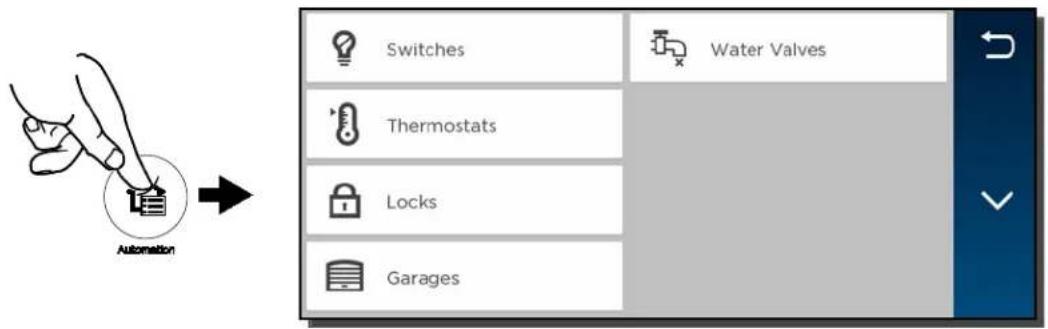
This screen may also display "Press to see Failed Devices". See Failed Devices (Failed Nodes) for more information.
Press the Down arrow ( ) for more options:
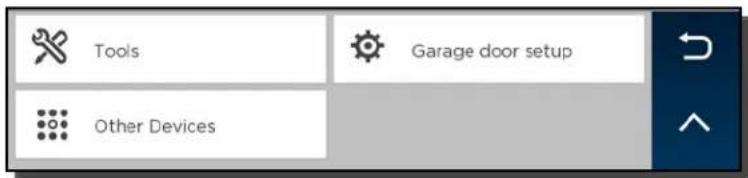
Working with Z-Wave Devices (Continued)
Consult your installer about the options available in your system.
Selecting a device category opens a list of devices in that category. An example of the Switch category is pictured.
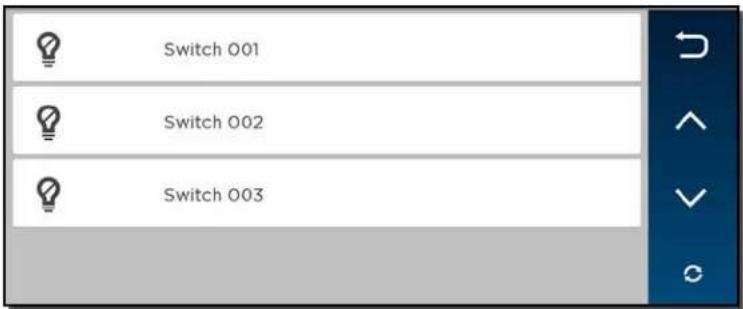
For most devices, status is indicated by the color of the icon.
The Refresh button updates device status indications on the display.
Operating Z-Wave Devices Manually
- On the Z-Wave Device Management screen, select one of the device categories.
- Select the device you wish to operate. Controls appear.
- The options shown will vary with your device: Lighting controls might offer an On/Off button or a slide control for dimmers, Thermostats may display temperature set points and energy-saving features.
- Operate the device as desired.
- Press ↩ to return to the previous screen.
Adding Z-Wave Devices (Include)
NOTE: When adding a device, it may be necessary to perform the Exclude procedure before the device can be Included successfully.
- On the Z-Wave Device Management screen, press the Down arrow (V).
- Press Tools.
- Options appear, including Include Devices, Exclude Devices and Advanced Tools. (View Failed Devices and Replace Failed Devices may also appear.)
- Select Include Devices. After the Gateway enters Inclusion mode, the screen displays "Ready to Include Device. Press function button on the device".
- Press the device's Function button within 60 seconds. (Note that the location of the Function button and inclusion process varies with the device you are adding. See the device's instructions.)
The panel displays "Device Found. Please Wait".
- To include additional devices, repeat step 5. OR
Press Abort to complete the Inclusion process.
- Press ↩ to return to the previous screen.
Including Light Switches or Outlet Modules
Install the receptacle, wall switch or lamp/appliance module before Including it in your system. Refer to the device's instructions for more information about installation.
Z-Wave switches and outlet modules may vary. Refer to the device's instructions to ensure that it is Included properly in your system.
Including Door Locks
Assemble the lock, connect necessary cables and install batteries according to the device's instructions. Be sure the door lock's orientation/handedness is correct.
Z-Wave door locks vary. Refer to the device's instructions to ensure that it is Included properly and to program a user code.
After Inclusion, install the lock within recommended Z-Wave range (see Wireless Range for more information).
NOTES:
- Program the 4-digit user code into the Gateway. When programming user codes into the Gateway, determine if the user will have access to the Z-Wave lock. If so, the user code will be transferred to the lock.
- If using a lock with Smart Scenes, automatic locking/re-locking features should be disabled.
- Due to Low Power Inclusion Mode of secure devices, Include the Z-Wave Lock first, if not using an Inclusion Tool/Remote Control. The lock should be installed before including other devices.
- During operation, the system will display “JAMMED” and will revert to “Unlocked” status if a jammed lock is detected.
Including Thermostats
Install and test the thermostat before Including it in your system. Refer to the device's instructions for more information about installation.
IMPORTANT
Honeywell is not responsible for property damages due to improper setting of thermostat modes. It is recommended to have a professionally trained HVAC technician install the thermostat.
NOTES:
- Some thermostats do not update temperature status automatically.
- When using Z-Wave thermostat control on the Gateway, the thermostat's scheduling feature should not be used.
- When the HOLD button on the MyHome Gateway's thermostat control screen is highlighted, Z-Wave scenes driven by Smart Scenes will not affect thermostat operation. Additionally, if your system is connected to remote services, the remote 7-day schedules will also not affect thermostat operation.
- For threshold monitoring to be configurable on the remote services and/or a Z-Wave thermostat, the respective zones must first be assigned with a response type in zone programming. Threshold monitoring is not available on all thermostats.
- Both Zones for each respective thermostat must be programmed (for example, Zone 180 & 181 for thermostat #1, Zone 182 & 183 for thermostat #2 and Zone 184 & 185 for thermostat #3).
- When temperature is represented in Celsius, Gateway matches the temperature increment of the particular thermostat for Heat, Emergency Heat and Cool set points. Increments can be one degree or half degree, depending on the thermostat.
- If Celsius scale is used in the thermostat, the Gateway must also be set to Celsius scale.
- For thermostats that support Multilevel Sensor Command Class, press the current air temperature to show the sensor type and value, even though not supported.
- If the Energy Saving mode is set, the MyHome Gateway displays Energy Saving Heat/Cooling Setpoint Temperatures that are programmed at the thermostat.
- An additional “Energy Saving” function in the thermostat is used to set/unset the Energy Saving mode.
Gateway Z-Wave Thermostat Functions
| Button | Function |
| Mode | Select between HEAT, COOL and OFF; other options may also be available, such as AUXILIARY mode, if supported. |
| Fan | Select between ON, CIRCULATE and AUTO. |
| HOLD | Allows temporary override of programmed Smart Scenes that may operate the thermostat. |
| NORMAL | Allows selected thermostat to run programmed Smart Scenes. |
| NO SCHED | Prevents Smart Scenes from operating the selected thermostat |
| Threshold Monitoring | Enable/Disable Threshold Monitoring Feature (if available) |
| Saving Off-Saving On | Enables/disables the thermostat's Energy Saving Schedule Function. |
| EDIT | Used to edit Thermostat name. |
| BACK | Used to return to Thermostats screen. |
Thermostat Energy Saving Mode
| 1. | On the Z-Wave Device Management screen, select Thermostats. |
| 2. | Select the desired thermostat from the displayed list. |
| 3. | On the thermostat control screen, press the “Saving Off” button OR “Saving On” to activate or deactivate the thermostat’s Energy Saving Schedule Function when a heating or cooling operation is selected. |
Deleting Z-Wave Devices (Exclude)
To delete (Exclude) a Z-Wave device:
- On the Z-Wave Device Management screen, press the Down arrow (V).
- Press Tools.
- Select Exclude Devices.
- The panel enters Exclusion mode. Next, the panel displays "Ready to Exclude device. Press the function button on device."
- Press the device's Function button.
The device is excluded from the system and its information is displayed. - To delete another device, press Exclude on the right side of the screen.
- Press ↩ to return to the previous screen(s).
Editing Z-Wave Device Names
- On the Z-Wave Device Management screen, select the category that includes the device you want to rename.
- Select the device in the displayed list.
The device's controls appear, showing the device's default name. - Press Edit on the right side of the screen.
A keyboard appears on the screen. - Use the keyboard to enter a custom name up, to 14 characters.
- Save the device's new name.
- Press ↩ to return to the previous screen(s).
Advanced Tools
- From the Z-Wave Device Management screen, press the Down arrow (V) and then Tools.
- Select Advanced Tools.
- Enter the Master User code. The Advanced Tools screen appears:
| View Enrolled Devices | View Enrolled Controllers |
| Factory Default Controller | Pri. Controller Shift to Secondary |
| Locking Door | Learn |
| All Devices Off | All Devices On |
View Enrolled Devices
Press to display Z-Wave device information: System Index/name, Secured or Non-Secured, device type, device ID, manufacturer, node number.
View Enrolled Controllers
Press to display controller information: Primary or Secondary, Z-Wave Library Rev., Home ID, device type, device ID, node number, manufacturer, Secured or Non-Secured.
Factory Default Controller
Press to delete all Z-Wave nodes in the Gateway, and reset the Gateway's Home ID. When prompted, press Yes to confirm.
Important! Defaulting the Controller does not delete/Exclude individual Z-Wave devices. Therefore, each device must be Excluded before being added/Included in the Gateway again. Also, if the controller is used as a secondary controller in the network, use the above procedure to default the controller only when the primary controller is missing or otherwise inoperable.
Pri. Controller Shift to Secondary
Press to designate another controller (such as a Z-Wave remote control) as the Primary Controller.
When the panel displays "Shifting", start the "Learn" function on the secondary controller.
NOTE: The primary to secondary controller shift feature is disabled as both function as Static ID Servers (SIS) so the shifting option is not necessary.
Locking Door
Press to have your system arm automatically when a Z-Wave door lock is locked. Press repeatedly to select the desired arming option: Home mode, Away mode, Arm without Auto-Home (Stay) mode or Disabled. Then press Save.
Learn
This function is usually performed on a control panel or Z-Wave remote control being added to the system as a secondary controller OR on a secondary controller being designated as Primary.
NOTE: Be sure to Default Controller or Exclude all devices before using the "Learn" function.
Press after starting the Include or Shift Control function on the primary controller.
Advanced Tools (Continued)
All Devices Off
Press to manually turn off all Z-Wave devices. (See the following Note.)
All Devices On
Press to manually turn on all Z-Wave devices. (See the following Note.)
NOTE: All Devices On/Off commands broadcast messages over the Z-Wave network and are intended for testing device communication. They should not be used for basic operation as each Z-Wave device reacts differently to these commands and unintended results may occur. For Example:
- Some Z-Wave enabled thermostats may enter or exit their Setback (or energy saver) modes.
- Z-Wave enabled water valves will open (enabling water flow), however, the All Devices Off command is not processed.
Failed Devices (Failed Nodes)
When the system tries to operate a Z-Wave device that has no AC power or other problems, it is identified as a Failed Device. The system may take up to a minute after the operation to detect the failure.
Failed Z-Wave devices are also indicated by a ⚠ symbol on the Z-Wave Device Management screen or the 🏱 symbol appears in gray on the Home screen.
To view Failed Devices:
- On the Z-Wave Device Management screen, select View Failed Devices OR press the Down arrow (√), Tools and then View Failed Devices.
- The device's information is displayed. If multiple devices are listed, use the up and down arrows at right to view the entire list.
NOTE: When troubleshooting, first make sure that power has been restored.
- If a device is defective or otherwise unavailable, use the Fix All option. Press Fix All and "This will delete all failed nodes" appears. Press Yes to confirm.
Devices deleted with Fix All must be added to the system again. See Adding Z-Wave Devices (Include).
To Replace Failed Devices:
- From the Z-Wave Device Management screen, press the Down arrow (V), then Tools.
- Press Replace Failed Devices.
- When a failed device is highlighted and the "Replace" button is selected, the screen displays "Entering Inclusion Mode. Please Wait...". Next, "Ready to include device, select the function button on the device" appears.
- Within one minute press the device's Function button or activate the switch, as applicable. If the module has been successfully enrolled, the panel displays "Device Found! Please Wait". After successfully including a device, the device is removed from the failed devices list.
Important Notes About Z-Wave Devices
WARNING: NOT FOR USE WITH MEDICAL OR LIFE SUPPORT EQUIPMENT!
Z-Wave enabled devices should never be used to supply power to, or control the On/Off status of medical and/or life support equipment.
Wireless Range
This device complies with the Z-Wave ^* standard of open-air, line of sight transmission distances of 328 feet (100 meters). Actual performance in a home depends on the number of walls between the controller and the destination device, the type of construction and the number of Z-Wave enabled devices installed in the control network.
Important Notes About Z-Wave Devices (Continued)
Note that Z-Wave home control networks are designed to work properly alongside wireless security sensors, Wi-Fi, Bluetooth and other wireless devices. Some 900MHz wireless devices such as baby cams, wireless video devices and older cordless phones may cause interference and limit Z-Wave functionality.
Things to consider regarding RF range:
- Each wall or obstacle (refrigerators, large TVs, etc.) between the remote and the destination device can reduce the maximum range of 100 feet by approximately 25-30%.
- Brick, tile or concrete walls block more of the RF signal than walls made of wooden studs and drywall.
- Wall mounted Z-Wave devices installed in metal junction boxes will suffer a significant loss of range (approximately 20%) since the metal box blocks a large part of the RF signal.
Additional Z-Wave Information
• Gateway can control up to 72 Z-Wave devices.
- The system supports a maximum of 232 nodes. Note that a node is created every time a device is Included, even if the device is being re-added to the system after being Excluded. This can cause the number of nodes in the system to exceed the number of actual devices.
- If the limit of 232 nodes is met and you need to add or re-Include more Z-Wave devices, use the Factory Default Controller function. Be aware that defaulting the controller deletes all of the system's nodes, requiring all devices to be Included again. Node numbers can be viewed by selecting Automation > Tools > Advanced Tools > View Enrolled Devices. Remember that the system may require the Master User code for access to Advanced Tools.
- The system is not aware of door locks being enabled with any temporary user shutdown feature such as Vacation Mode. The system will continue to unlock a door if programmed to do so via Smart Scenes.
- Z-Wave door locks with thumbturns: Certain models allow a brief period in which the thumbturn can be operated manually before the device locks automatically. Locks of this type are not recommended for use with Smart Scenes.
Z-Wave Compatibility
Z-Wave devices vary; follow the instructions provided with the specific device when including and excluding devices into your Z-Wave network.
NOTE: Not all Z-Wave devices have been tested. Some functions may produce unpredictable results.
| Door Locks | Thermostats |
| Yale® Real Living Push-Button Lever Lock | Honeywell Z-Wave Thermostat (ZWSTAT) |
| Yale Real Living Touchscreen Lever Lock | Wayne Dalton Z-Wave Thermostat |
| Yale Real Living Push-Button Deadbolt Lock | Trane® Z-Wave Thermostat |
| Yale Real Living Touchscreen Deadbolt Lock | Residential Control Systems Thermostat(Model TZ45) |
| Schlage® Link Deadbolt Lock | Intermatic InTouch Thermostat (Model CA8900) |
| Schlage Link Lever Lock | Radio Thermostat Company of America(Model CT30, CT32, CT100, CT101 and CT110) |
| Kwikset® Smartcode Lever lock | Water Valve |
| Kwikset Smartcode Deadbolt Lock | FortrezZ WV-01 Wireless Z-Wave Water Valve |
| Siren | Window Shades |
| FortrezZ SSA1/SSA2 Wireless Siren & Strobe Alarm | Somfy® ILT Series |
| Appliance | Lights (continued) |
| HomeManageables Appliance Module | GE Wireless Lighting Control Switches |
| Wayne Dalton Small Appliance Module | GE Wireless Lighting Control Plug-In Appliance Modules |
| GE® Wireless Lighting Control Plug-In Appliance Module | Cooper Plug-in Lighting Switch Module (Model RFAPM) |
| Cooper In-Wall Duplex Receptacle Module (Model RF9505-TDS) | AEON Labs Lamp/Dimmer Module (Model DSC06106-ZWUS) |
| Lights | Remotec Lamp Dimmer Module (Model ZDS-100US) |
| Leviton®/ViziaRF+® Switches | Intermatic In-Wall Receptacle (Model HA01) |
| Leviton/ViziaRF+ Dimmers | |
| Leviton/ViziaRF+ Plug-In Appliance Modules | |
| GE Wireless Lighting Control Dimmers |
EXISTING NETWORK NOTE: Z-Wave products from other manufacturers can be included (added) into the Gateway network. Z-Wave devices that are always powered can serve as repeaters regardless of manufacturer.
USE OF THESE PRODUCTS IN COMBINATION WITH NON-HONEYWELL PRODUCTS IN A WIRELESS MESH NETWORK, OR TO ACCESS, MONITOR OR CONTROL DEVICES IN A WIRELESS MESH NETWORK VIA THE INTERNET OR ANOTHER EXTERNAL WIDE AREA NETWORK, MAY REQUIRE A SEPARATE LICENSE FROM SIPCO, LLC. FOR MORE INFORMATION, CONTACT SIPCO, LLC OR IPCO, LLC AT 8215 ROSWELL RD., BUILDING 900, SUITE 950, ATLANTA, GA 303350, OR AT WWW.SIPCOLLC.COM OR WWW.INTUSIQ.COM
Garage Doors
Home > Automation > Garages
Garage door operation from the Gateway requires installation of a garage door control kit. Consult your security professional for more information.
The Gateway can remotely operate and monitor as many as four garage doors. The system can be armed when the garage door is opened. After it is closed, the zone will be monitored without providing burglary protection.
The Gateway can automatically close garage doors if left open for more than a given time period (Close in) or at a specified time (Close at). Garage doors can also be programmed for monitoring only.
IMPORTANT
Do not use Gateway's garage door automation with any garage door opener that lacks the safety features required by U.S. federal safety standards (this includes any garage door opener model manufactured before January 1, 1993). A garage door opener that cannot detect an object and stop and reverse the door does not meet current U.S. federal safety standards. Your garage door opener also must signal before unattended door operation. For more information please consult your garage door opener manual.
NOTE: Press Switches on the Z-Wave Device Management menu to configure new Z-Wave binary garage door openers. Ask your security professional for more information.
Garage Door Operation from the Gateway
- On the Home screen, select Automation.
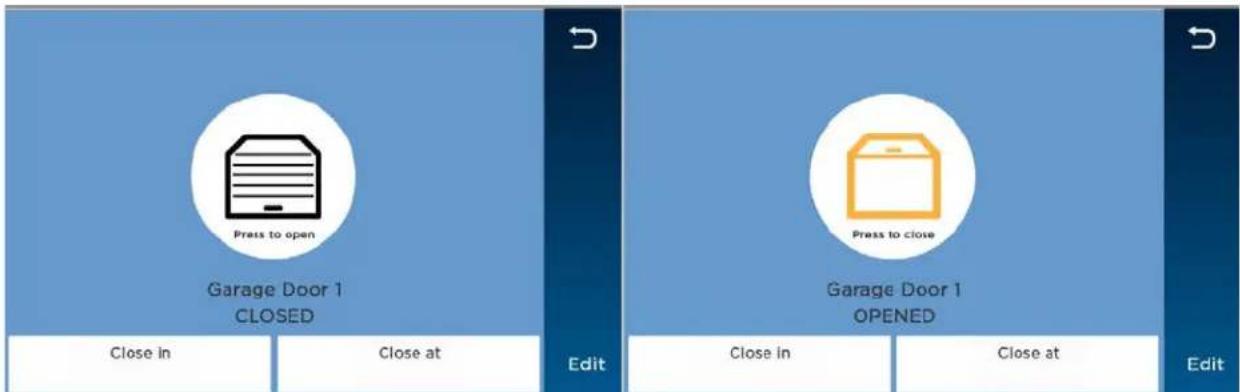
- On the Z-Wave Device Management menu, press Garages. The MyHome Gateway App screen displays the Open/Closed status of your connected garage doors.
- Select the garage door you wish to operate.
- Press the button in the middle of the screen to open or close the garage door.
flowchart
graph TD
    A["Press to open\nGarage Door 1\nCLOSED"] --> B["Edit"]
    C["Press to close\nGarage Door 1\nOPENED"] --> D["Edit"]
    style A fill:#f9f,stroke:#333
    style C fill:#f9f,stroke:#333
    style B fill:#ccf,stroke:#333
    style D fill:#ccf,stroke:#333
| Close in Use the keypad to set a specific time to wait before an open garage door closes automatically (maximum 12 hours and 59 minutes). Use leading zeroes when entering a number of hours less than 10 (“09:15” or “00:45”). Press Done to save. | |
| Close at Use the keypad to set a specific time of day that an open garage door closes automatically. Remember to specify AM or PM. Press Done to save. | |
| Edit | Press to rename the selected garage door. Use the on-screen keypad and press Save. |
NOTE: The Gateway does not support the status LED on the garage kit's relay module (Honeywell 5877).
Automation: Smart Scenes
Home > Smart Scenes
Smart Scenes are used to automate Gateway functions for comfort, energy savings and security. Multiple settings can be put into effect with a single command. For example, selected lights can respond to a door opening or movement in the middle of the night. Climate settings can be controlled by your schedule and the security system can disarm automatically for expected visitors or babysitters. Selected functions can be restricted to the homeowner, and limited access given to children or guests.
IMPORTANT
When the Gateway is connected to a remote services account (e.g. Honeywell Total Connect™), Smart Scenes can be created and modified ONLY via remote services.
Smart Scenes can be created, deleted or edited ONLY by the Master User. See Smart Scenes and User Access for more about types of users and their access to different functions.
Three types of Smart Scene can automate combinations of security and lifestyle settings:
- Anytime: Initiated by users.
- Triggered: Initiated by the system in response to user-defined conditions.
- Scheduled: Initiated by the system's calendar and clock.
Smart Scenes are frequently used in pairs. For example, a Smart Scene might be set to operate multiple devices, turning on lights and opening blinds or shades. A second Smart Scene could be used to return these devices to their off or closed states.
NOTES: • As many as 100 Smart Scenes can be created-
- You can modify (Edit), manually start (Run)* and review (Show)* Smart Scenes prior to operation.
- Scheduled* and Triggered Smart Scenes can be paused with the Hold function.
- Setup details vary with each type of Smart Scene.
- Many options in Smart Scenes can be pressed repeatedly to toggle through different option choices.
- The system treats security actions such as Arm Away, Arm Home or Disarm separately from changes to lifestyle devices such as lights, locks and thermostats.
- Options that offer operations with both will display them in separate categories called Security and Devices.
* Smart Scenes options such as Run, Show and placing Scheduled scenes on Hold can also be done using the MyHome Gateway App.
Smart Scenes and User Access
NOTES: • The Master User designates which types of user have access to each Smart Scene. See Users and Security Codes for more information on different types of users.
- Smart Scenes can be created, deleted or edited ONLY by the Master User.
- The Add New button is available only to the Master User.
From the MyHome Gateway App, Master users can Run and Show all Smart Scenes. Regular users can Run and Show Smart Scenes created for Regular Users and Guests as well as those designated "All Users". Guests can Run and Show Smart Scenes created for Guests as well as those designated "All Users".
To work with Smart Scenes:
- Select Smart Scenes on the Home screen. A keypad appears.
- Enter a user code to display the Smart Scenes menu. From here, Smart Scenes can be created* or viewed by type.
* If your system is not set up with Total Connect remote services, Smart Scenes can be created and deleted using the MyHome Gateway App as described below.
Smart Scenes and User Access (Continued)
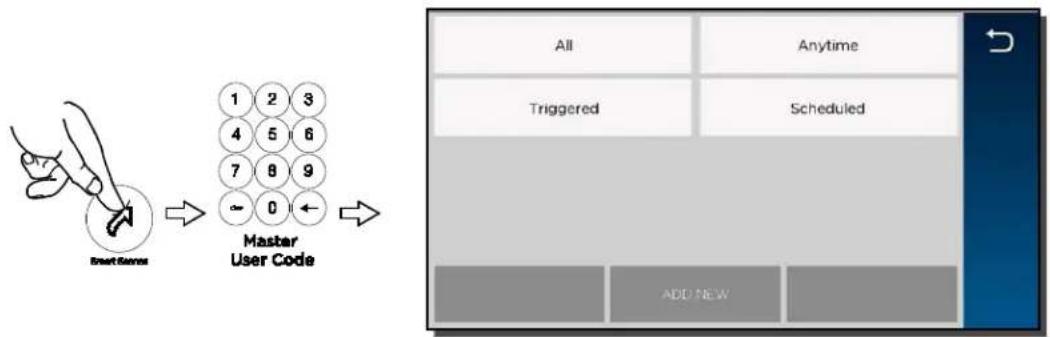
flowchart
graph LR
    A["Smart Game"] --> B["Master User Code"]
    B --> C["All"]
    B --> D["Anytime"]
    B --> E["Triggered"]
    B --> F["Scheduled"]
    C --> G["ADD NEW"]
    D --> G
    E --> G
    F --> G
Creating a Smart Scene using the MyHome Gateway App
Creating any Smart Scene involves these settings:
- Name
• The type of trigger that initiates the Smart Scene
• The type of user who can manually run the Smart Scene
• The resulting action(s) that take place when the triggering events or conditions occur
NOTE: Creating a Smart Scene should begin with giving it a Name.
- Select Add New. (The default name that appears may differ from the illustration.)
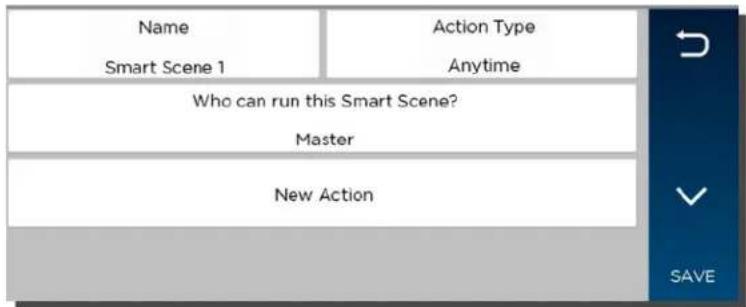
- Press Name.
- Use the onscreen keyboard to enter a name and Save it.
-
Select the type of user who can run the Smart Scene. Choices include:
-
Master
- Regular Users
-
Guest
-
Press Action Type to toggle through the types of Smart Scene.
a. Anytime: Go to Step #6.
b. Scheduled: Go to Step #7.
c. Triggered: Go to Step #8.
-
Select Anytime. These options appear:
-
Name
- Action Type
• Who can run this Smart Scene? (User type) - New Action
a. Press New Action to define the system's response when the Smart Scene is triggered.
b. When settings are complete, press ↻ until the Smart Scene appears with its name displayed.
c. Press Save. Press ↩ to return to the main Smart Scenes menu.
7. Select Scheduled.
a. Select the type of user who can run the Smart Scene.
b. Select Scheduled to display clock and calendar settings.
c. Set a time when the Smart Scene will start. Be sure to specify AM or PM.
You can select Sunrise or Sunset instead of setting a time on the clock. Selecting Sunrise or Sunset overrides the clock controls.
NOTE that updated Sunrise and Sunset times may depend on the system's connection to the internet or cellular phone network. Ask your installer for more information.
d. Set the days of the week for the Smart Scene to take place.
e. Press Save. The schedule settings are displayed.
f. Press New Action to define the response when the scheduled time occurs (see Step #8).
g. Press ↩ to return to the Smart Scenes menu.
8. Select Triggered Action. These options appear:
| Name | Action Type Triggered |
| User | |
| Event Zone Type | Restore Zone Type |
| Trigger | Zone or Device |
| System Operation | New Action |
Smart Scenes can be started by one or a combination of the following options:
- Event Zone Type
- Restore Zone Type
- Trigger
- System Operation
NOTE: Event Zone Type, Restore Zone Type and Trigger can be different kinds of conditions.
For example, a given Smart Scene can be triggered by a Fire alarm OR by an Entry/Exit event. Smart Scenes can also be triggered by Trouble conditions (Trouble as the Trigger in one of the system's zones).
Device-related events (such as Light On, Light Off, Door Locked, Door Unlocked) set the button at right to Device. Choices depend on the devices installed in your system.
a. Event Zone Type starts the Smart Scene in response to any event (Fault, Trouble or Alarm) in any protected Zone of a specific zone type. Select the desired option. Typical zone types include:
- Entry/Exit (front and back doors)
- Perimeter (typically window sensors)
- Interior Follower (typically motion sensors)
- Day/Night (Usually assigned to sensitive areas where immediate notification of an entry is always wanted.)
• 24 Hour Silent (Emergency (Panic) button)
• 24 Hour Audible (Emergency (Panic) button) - Silent Burglary (typically a sensor)
- Fire No Verification (smoke detector)
- Fire With Verification (smoke detector)
• Carbon Monoxide (CO detector)
NOTE: Your system may include Zones that do not offer every Zone Type response.
b. Restore Zone Type starts the Smart Scene when any zone with the selected Zone Type returns to its normal state (such as a door closing). The options are the same as Event Zone Type options.
NOTE: Event Zone Type and Restore Zone Type are separate settings. For example, a given Smart Scene can be triggered by a Fire Alarm (Fire No Verification as the Event Zone Type) OR by an open door closing (Entry/Exit as the Restore Zone Type).
c. Trigger starts the Smart Scene in response to a Fault, Trouble or Alarm in a particular zone or changes to connected devices.
A note about triggering events:
Any change in the state of a security system zone is known as a Fault. Faults can include Trouble and Alarm conditions. Trouble can include low battery or loss of communication with the device. Alarm conditions include zone faults while the system is armed and fire/CO detectors. Fault, Trouble and Alarm conditions can be used to trigger a Smart Scene.
Fault: Any change in the state of a sensor triggers the Scene.
Trouble: Only Trouble conditions trigger the Scene
Alarm: Only Alarm conditions trigger the Scene.
Choosing one of these events sets the button at right to display Zone options.
Smart Scenes can also be triggered by changes in connected devices such as lights and locks. These events include:
Light On
Light Off
Door Locked
Door Unlocked
Choosing one of these events sets the button at right to display Device options.
d. Choose Zone or Device, depending on your selection of a Trigger above. Security zone sensors or devices such as lights and locks are listed.
e. Select the zone or device and Save.
f. System Operation starts Smart Scenes in response to security-related events. Options include:
- Arm Away
- Arm Home
- Disarm
- Any Burglary Alarm
- Bell Timeout (end of the programmed time for which an alarm sounds)
- Start of Entry Delay
• End of Exit Delay - Any Fire Alarm
g. Select New Action to define the response when the triggering event occurs.
NOTE: The 24 Hour Silent Alarm or 24 Hour Auxiliary Alarm Zone types will not trigger the selected Smart Scene if the Any Burglary Alarm option is programmed.
-
New Action defines the response when the triggering event occurs. This includes users manually running Anytime Smart Scenes, the time of Scheduled Smart Scenes and the conditions for Triggered Smart Scenes. You can choose both Security and automation device responses. The Security choices are:
-
Arm the system in Away mode.
- Arm the system in Home mode.
- Disarm the system.
a. After choosing a Security setting, press ↩ and then Save.
b. If you choose to work with Devices, a list of the system's automation devices appears.
c. Select one or more devices and set the device's desired operation. (For example, set switches to on or off, or locks to locked or unlocked.)
d. After adding a device and its desired operation to the Smart Scene, press Save. Other available devices are displayed again so that they can be added to the Smart Scene.
NOTE: In most situations, specific Security and Device information is displayed by pressing the Down arrow.
-
Press Save.
-
Press ↩ to return to the Smart Scenes menu.
Hold
Hold allows Scheduled and Triggered Smart Scenes to be temporarily suspended.
A Scheduled Smart Scene can be put on Hold before programmed operations take place.
- Select a Scheduled or Triggered Smart Scene.
- Press Hold. The button is highlighted, and programmed operation will not take place.
To remove a Hold:
- On the Smart Scenes menu, enter a user code with access to the desired Smart Scene.
- Select the Smart Scene and un-highlight Hold. Programmed operation will resume.
Run
Smart Scenes can be manually started with the Run button. The Smart Scene's results are displayed when the programmed operations have been performed.
NOTE: The Run option can be used to check the outcomes of Scheduled Smart Scenes and Triggered Smart Scenes, regardless of programmed triggers.
- Select the Smart Scene.
- Press Run. The system performs the programmed operations and the results are displayed. Successful operations are displayed with device information and a check mark. Failed operations are displayed with an empty circle.
Show (Review)
Use the Show button to see the programmed details of a Smart Scene without running it.
- Select the Smart Scene.
- Press Show. The scene's category, authorized users and included devices are displayed.
Video
Home > Video
The Gateway can display live video from as many as eight Wi-Fi-connected cameras.
NOTE: Gateway and its cameras must be on the same Wi-Fi network.
IMPORTANT
If the Gateway loses AC power, the Video function is disabled to minimize drain on the backup battery.
If power is lost while you are watching Wi-Fi cameras on the Gateway, video display may continue briefly before being suspended.
When power is restored, the Gateway looks for available cameras. See Video Recovery.
Remember that interruption of AC power to your Wi-Fi cameras and your router can also affect the Video function, even if the Gateway has AC power.
Viewing and Naming Cameras
- Press Video on the Home screen. Video appears in windows or the cameras appear in a list.
OR
The system may scan for cameras; when the scan is complete, the camera list appears.
From these screens, you can:
- Press ↩ to return to the Home screen.
• View live video. - Name cameras.
-
Add cameras to the system.
-
Select one or more cameras (as many as four) in the list.
-
When multiple cameras are available, you may select as many as four.
- Selected cameras are highlighted and the Display option appears.
- You can also press Scan to search for other available cameras.
-
Press a camera's name again to de-select it.
-
Select Display to see video from the selected camera(s).
-
Select Camera List to return to the list view.
-
With multiple cameras displayed, you can select one to work with by tapping its video window.
-
Viewing a single camera displays its details, which vary with the camera selected.
For all compatible cameras, you can:
- Name the camera. Select Name above the video display or Edit at right.
- Press Save on the on-screen keyboard.
- Press to show the camera full-screen.
- Press to return to the detail view.
Some cameras offer additional options such as pan/tilt and built-in lighting.
Adding a Camera
• Make sure that the camera is on the same Wi-Fi network as the Gateway system.
• Install the camera according to its instructions.
With the camera installed:
- View or list cameras as above.
- Press Scan. The system looks for available cameras.
- When the new camera is found, you can name it as described above.
Video Recovery
Home > Security > Tools > Network Config
If video from remote cameras is lost or becomes distorted, the system can attempt to reset video streaming. By default, Gateway automatically begins to recover video about 60 seconds after Network (Wi-Fi) communication has been restored.
The default setting is automatic video recovery. You may set recovery to begin only by user intervention (Manual Video Recovery).
- Press Security on the Home screen.
- Select Tools. Enter the Master User's security code.
- Press Network Config.
-
Press Configure Network.
-
Select Automatic Video Recovery repeatedly to choose between automatic and manual operation.
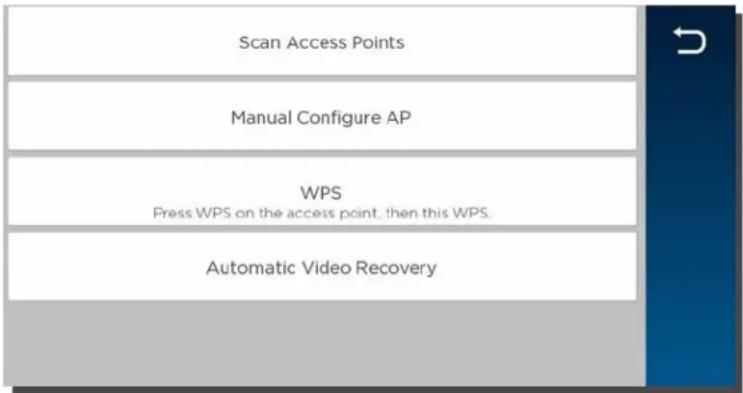
flowchart
graph TD
    A["Scan Access Points"] --> B["Manual Configure AP"]
    B --> C["WPS\nPress WPS on the access point, then this WPS."]
    C --> D["Automatic Video Recovery"]
- Press ↩ to return to the Tools menu.
Users and Security Codes
Home > Security > Tools > Users
Gateway uses 4-digit codes to restrict certain functions to selected users. A special 4-digit code can be set to trigger the system's Duress function.
User codes can be used interchangeably when performing system functions (a system armed with one user's code can be disarmed by another user's code), with the exception of the Guest Code described below.
All users are automatically assigned a user number, which cannot be changed. Do not confuse these user numbers with user codes.
User Codes
Master User
This code is usually set when the system is installed, and can be changed later. Typically, the Master User is a household member who can perform all system functions.
Only the Master User can add and remove users or modify their settings. Settings include assigning security codes and user names.
Only the Master User can create Smart Scenes. Access to Smart Scenes for other users is controlled by the Master User.
User
Typical users are household members and other authorized persons who can arm and disarm the security system, with controlled access to other system features.
Guest
Visitors and others who are authorized to arm/disarm the system only at certain times or on a temporary basis.
The Guest's user code can be used to arm the system, but cannot disarm it unless the system was armed using the Guest code. The Guest's user number is 47.
Duress Code
IMPORTANT
The Duress function requires connection to an alarm monitoring service.
Household members and authorized visitors can enter this code if forced to disarm or arm the system under threat. When the Duress code is entered, the Gateway and keypads appear to behave normally, but the system silently notifies your alarm monitoring service. The Duress Code's user number is 48.
NOTES: • A security code cannot be assigned more than once. If an existing code is entered, the system displays the warning User code not accepted! If this occurs, press OK to return to user settings and assign a different code.
- The system should be disarmed before you work with user codes.
- Limited-access users such as guests and cleaning staff should not be instructed on system functions other than those they will be using.
- The number of user codes supported by a Z-Wave door lock can vary between manufacturers. To ensure compatibility with Gateway, set the length of the Master User code on the door lock to be greater than four digits.
Adding Users and Assigning Codes
- On the Home screen, press Security.
- Press Tools, and enter the Master User code.
- Select Users. Existing Users are displayed, along with the Guest and Duress code listings. Four asterisks appear on each listing that has a security code already established. See User Settings for full details.
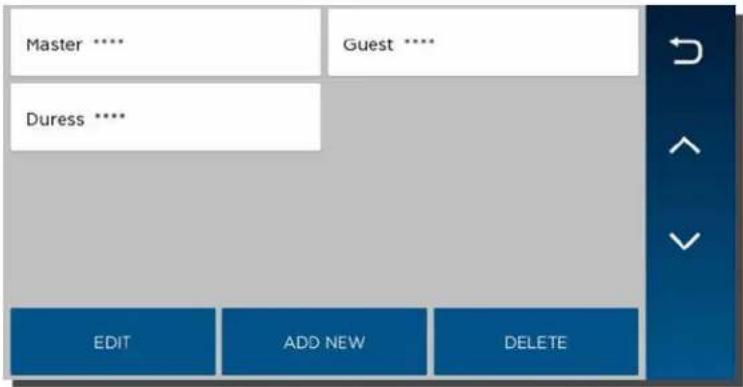
- Create and change settings in the menu shown here (the details may vary):
| Name User 3 | 03 |
| User Code | Z-wave Lock Control No |
a. Create User: Press Add New and a new user screen like the one pictured above appears. Set the details as desired.
b. Define/Change Guest Settings: Press Guest and then Edit.
c. Set/Change Duress Code: Press Duress and then Edit. Enter a 4-digit code.
- Save after making settings. The list of user codes reappears.
- Press ↩ to return to the Tools menu.
Changing Security Codes or the Duress Code
The Master User can change other users' names and security codes as well as delete users from the system.
- Access the Users screen as shown above.
- Select one of the listed users.
- At the bottom of the screen, press Edit. User details appear. Note that a user's number in the system, seen at upper right in the user details, cannot be changed.
Deleting a User
The Master user can delete secondary users from the system.
- Select one of the listed users.
- At the bottom of the screen, press Delete. Gateway requests confirmation.
- Press Yes.
User Settings
User Name
Newly-created users are given a default name. To customize a user's name:
- Press Name at upper left on the display. A keyboard appears.
- Press Clear to delete the default name.
- Enter the desired name, using as many as 10 characters.
- Save. User details appear.
- Press Save again. The list of users appears, displaying your changes.
User Code
Newly-created users have no security code. To assign a code:
- Press User Code. A keypad appears.
- Press Clear if you are changing an existing code.
- Enter a four-digit code.
- Press Done. User details appear.
- Save. The list of users appears.
Users and Z-Wave Lock Control
NOTE: This option appears only if Z-Wave devices are connected.
Each user can be given the ability to disarm the system by entering their code to open a Z-Wave lock.
When creating or editing a User:
- Set Z-Wave Lock Control to Yes. Z-Wave Unlocking Door appears.
- Select Disarm.
- Press Save.
With this setting, entering a user code at any Z-Wave door lock in the system unlocks the door and disarms the security system.
System Settings
Brightness/Volume
Home > Settings
Adjust voice and system sounds with the Volume slider. System sounds include zone alert chimes and countdown beeps.
Adjust the Gateway touchpad brightness with the Brightness slider.
NOTES: • As the sliders move, the Gateway previews changing volume and brightness levels.
• Voice annunciations are controlled by enabling or disabling Voice and Chime.
Wi-Fi (Network) Configuration
Home > Security > Tools > enter Master User Code > Network Config
Manage your system's router here. Remember that the Gateway, all mobile devices used to operate the Gateway and all Wi-Fi cameras must be on the same network.
To View or Join Available Wi-Fi Networks
- On the Tools menu, select Network Config then Configure Network. A list of Wi-Fi options appears.
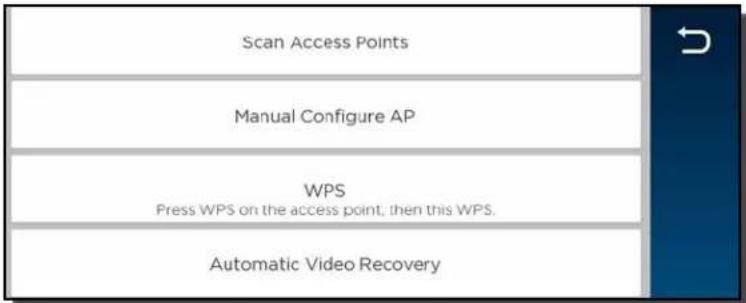
flowchart
graph TD
    A["Scan Access Points"] --> B["Manual Configure AP"]
    B --> C["WPS\nPress WPS on the access point, then this WPS."]
    C --> D["Automatic Video Recovery"]
- Press Scan Access Points. A list of available networks is displayed. Use the up and down arrows to scroll through the list. Press 5 to return to the previous screen.
- Select the desired network and press Edit. The network information is displayed. If a password is required, press Key and enter the password.
- Press Save.
- Press JOIN.
- Press ↩ to return to the previous screen.
Manually Configure Access Point
IMPORTANT
The Security setting below must match the security protocol used by your network router.
- On the list of Wi-Fi options, press Manual Config AP. The Wi-Fi enrollment menu appears. (Fields include Network Type, which cannot be changed.)
- Press SSID Name.
- Enter the network's name.
- Press Save.
- Press Security.
- Choose the same security protocol as your router. Options include Open, WPA/WPA2 and WPA2. (WEP is not supported.)
-
If a password is required, press Key, and enter the password.
-
Press Join. A confirmation screen appears.
- Press OK and Save.
- Press ↩ to return to the previous screen.
Join a WPS Network
- On the MyHome Gateway App, have the list of Wi-Fi options ready. Don't press any buttons yet.
- Press the WPS button on the access point device or router.
- On the list of Wi-Fi options, press WPS. The MyHome Gateway App displays "Please Stand by for WPS Operation".
- If the operation is successful, the MyHome Gateway App displays "Device has been successfully added to the network". Press OK.
If the operation is not successful, the MyHome Gateway App displays “Failed Operation. Device not added to the network.” Press OK and try again.
Automatic/Manual Video Recovery
If video from remote cameras is lost or becomes distorted, the system can attempt to reset video streaming. By default, Gateway automatically begins to recover video about 60 seconds after Wi-Fi communication has been restored.
The default setting is automatic video recovery. You may set recovery to begin only by user intervention.
- On the list of Wi-Fi options, toggle between Automatic Video Recovery and Manual Video Recovery.
- Press ↩ to return to the Tools menu.
Software Updates
Home > Security > Tools > Advanced
Gateway
Software updates for the Gateway are published periodically. Certain critical updates are installed automatically.
You can see the current version of the Gateway's software at Security > Tools > Advanced > System Information.
IMPORTANT
After a new SiX ^TM series sensor or key fob is enrolled in your system, the new device's software should be updated. This ensures that you are using the most up-to-date version of the software.
Key Fob Firmware (Wireless Keys)
SiX ^TM Series wireless keys:
We recommend that you have the key fob handy so you can work with it as instructed during this procedure.
- On the Advanced menu, press Update Keyfob Firmware.
- Press Start and follow the instructions on the screen.
- Press Stop when the update is complete.
- Press to return to the Advanced menu.
Other types of wireless key:
Ask your installer about updating your system's other wireless keys.
Events
Home > Security > Tools > Events
The Gateway keeps a log of system events such as:
- Arm/Disarm
• Alarm, Trouble and Fault
• Changes in status of Z-Wave devices
The system can save up to 6000 events. When the log is full, the oldest 2000 entries are deleted to make room for logging new events.
Logs can be viewed at the MyHome Gateway App or on Total Connect Remote Services.
See Event Log Codes for a list of logged events and how they are displayed.
Viewing Events
- On the Tools menu, press Events. The MyHome Gateway App Events screen lists all events, sorted chronologically.
- Press All to select different sorting options (Alarm, Trouble, Bypass, Open or Close or Non-Security).
- Select All on the list to return to the view of all events.
Paired Devices
Home > Security > Tools > Paired Devices
This menu displays the MAC ID of mobile devices connected to Gateway via the MyHome Gateway app.
The MAC ID is listed here when the app is first configured for use with Gateway.
To disconnect a device, touch its listing on the screen and press Delete.
The MyHome Gateway App requests confirmation; press Yes to proceed.
Testing Your System
NOTE: TESTING SHOULD BE PERFORMED WEEKLY.
Before testing, the system should be disarmed and all protected doors and windows closed. The systems should be in Ready to Arm state.
No alarm messages are sent to your alarm monitoring company during these tests.
Press Tools and enter the 4-digit Master User code. Press Advanced.
| System Information | Walk Test |
| Install Cellular Module | Comm. Test |
| Install Backup Battery | Reboot |
| Update Sensor Firmware | Update Keyfob Firmware |
Testing Sensors (Walk Test)
Home > Security > Tools > Advanced > Walk Test
Start by pressing Walk Test.
The Gateway's internal sounder loudly sounds and Walk Test - Home to Quit appears. The Gateway then beeps every 30 seconds as a reminder that the system is in Test mode.
Note that Walk Test mode automatically quits after 4 hours.
Doors and Windows Open each protected door and window in turn and listen for three beeps or the set device chime from the Gateway. If programmed to do so, each zone's voice descriptor is heard. Identification of protection points with problems should appear on the MyHome Gateway App screen. Notifications of problem zones clear when the door or window is closed.
Motion Sensors Walk in front of each sensor and listen for three beeps and/or voice descriptors. The device's identification should appear on the display when it is activated. The display clears when no motion is detected.
NOTE: If wireless motion detectors are in use, there is a 3-minute delay between activations, which helps preserve battery life.
Fire/Carbon Monoxide sensors Follow the manufacturer's instructions to test these devices. When a device is activated, its identification should appear on the MyHome Gateway App screen.
IMPORTANT
When testing smoke detectors, keep the Gateway in test mode for at least one minute (60 seconds) after testing the detector to avoid sending unwanted alarm messages to your central station monitoring company.
If there is a problem with any sensor (no confirming sounds, no display), notify your service company.
When all sensors have been checked (and doors and windows closed), no zone identification numbers should be displayed.
Finish by pressing Home and entering the Master User code.
Testing Communications
Home > Security > Tools > Advanced > Comm. Test
These tests check the system's cellular network and internet (Wi-Fi/Ethernet) connections.
On the Advanced menu, press Comm. Test. The options may vary with the devices installed in your system. Select the desired option to test connectivity and/or send test messages to the Central Station.
If the test is successful, the MyHome Gateway App screen displays Service OK or ACK Received. Details of the test may be shown.
Test Ethernet Checks internet connectivity without sending test messages.
Send Any Sends test messages via all available connections.
Send Cellular Message Sends test messages via cellular network.
Send Ethernet Message Sends test messages via internet.
Finish by pressing to run a different test or by pressing Home. Enter the Master User code if prompted.
Reboot
Home > Security > Tools > Advanced > Reboot
Press Reboot to restart the Gateway if required. The system requests confirmation ("Are You Sure?"). Press Yes to proceed.
Maintenance
The Gateway is designed to require little maintenance. However, testing your system is strongly recommended, and regular cleaning is suggested.
• Test the system weekly.
• Test your system after any alarm occurs.
See Testing Your System for more information.
Care and Cleaning
- Do not slam sensor-protected doors or windows.
- Keep dust from accumulating on the Gateway and sensors, particularly motion sensors and smoke or carbon monoxide detectors.
- The Gateway and sensors should be cleaned carefully with a soft, dry cloth. Do not clean the components with water or any other liquids.
Battery Replacement
Home > Security > Tools > Advanced > Install Backup Battery
IMPORTANT
Replace the battery pack when the Security menu displays Low Battery with no zone number specified.
Use only batteries recommended by the installer or the manufacturer.
Disarm the system before changing the Controller's battery pack.
Remember that you must enter the Master User code for access to the Tools menu.
Gateway
- On the MyHome Gateway App, navigate to the Advanced menu and select Install Backup Battery. A confirmation request appears; press Yes and leave the battery installation procedure screen open.
- If mounted on a wall, remove the screw from the rear cover and separate the Gateway from the rear cover.
- If using a desk stand, remove the desk stand from the back of the Gateway, then remove the bottom screw and separate the Gateway from the rear cover.
- Unplug the power cord (and Ethernet cable, if used) from the back of the Gateway.
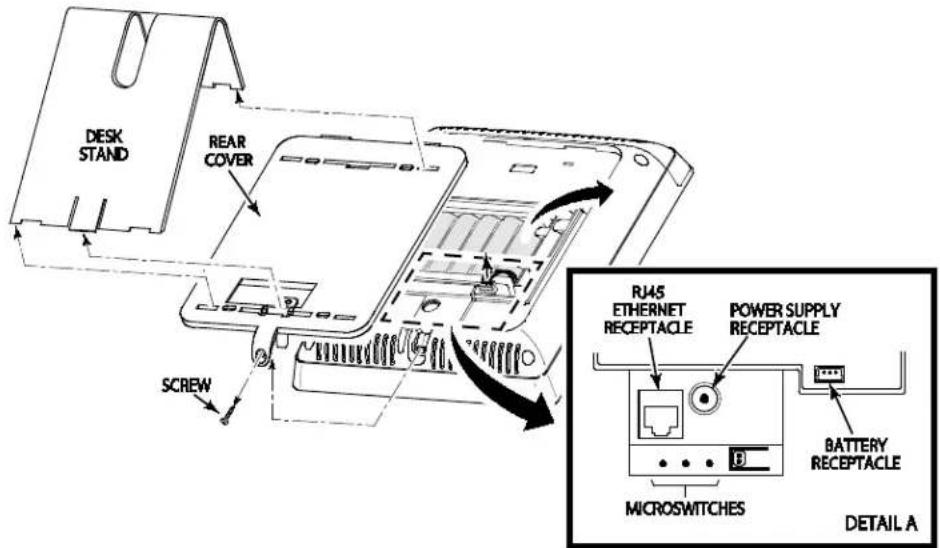
-
Disconnect the battery pack from the battery receptacle, raise the battery retainer and remove the battery pack from the battery compartment.
-
Install the new battery pack in the battery compartment and secure with the battery retainer.
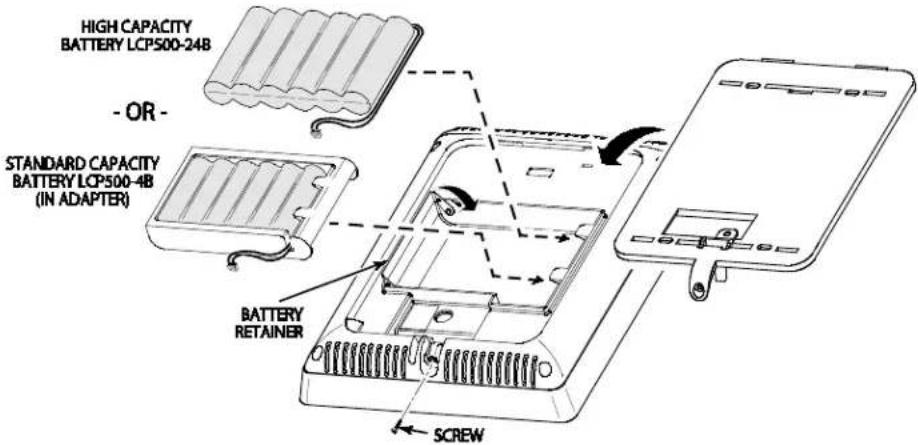
-
Connect the battery to the battery receptacle inside the battery compartment.
-
Reattach the rear cover to the Gateway and secure it in place with the screw.
-
Plug the power cord (and Ethernet cable, if used) back into the receptacle(s).
-
Return the Controller to its mounting location (on the wall, or reattach the desk stand).
-
On the MyHome Gateway App screen, press OK on the battery installation procedure screen. The system confirms "Battery successfully installed".
-
Press OK. The system returns to the Advanced menu.
-
Press ↩ to return to the previous screen(s).
Sensors
Clear sensor low-battery warnings by entering a user code on the Controller. Follow the sensor's battery replacement instructions.
NOTES: For SiX™ series sensors and wireless keys, remove the battery and wait about 10 seconds before installing the replacement battery.
Communication Module Replacement
Home > Security > Tools > Advanced > Install Cellular Module
Refer to the illustrations below and follow these steps to replace a communication module:
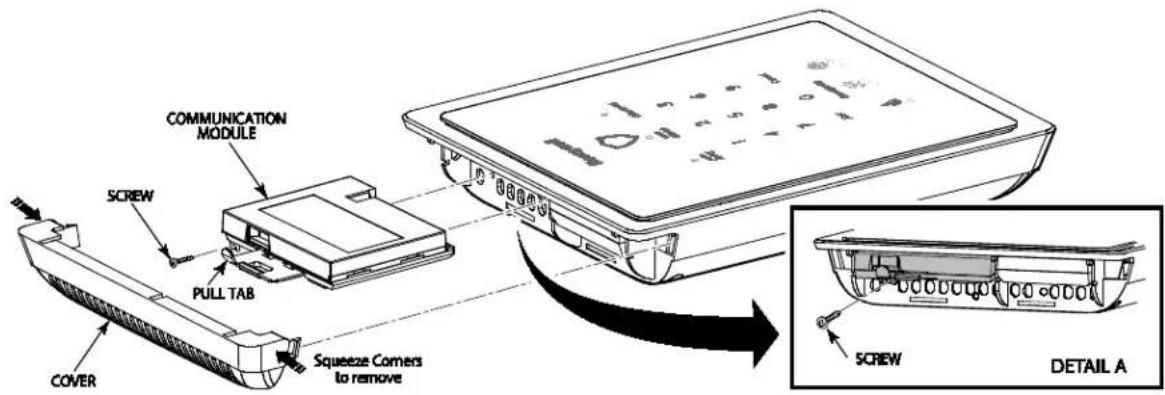
- Make sure the system is disarmed.
- From the MyHome Gateway App, select Security, then Tools.
- Enter the 4-digit Master User code.
- Select Advanced, then Install Cellular Module.
Follow the on-screen instructions for changing the module.
- Squeeze inward on the corners of the top cover and remove the top cover as shown.
- Use the Communication Module pull tab to remove the old module.
- Insert the replacement Communication module as shown.
- Press OK on the MyHome Gateway App screen and the system confirms installation.
- Press OK. The system returns to the Advanced menu.
- Reboot the Gateway (see Reboot for details).
MyHome Gateway Symbols
Zone numbers, location and other information may be displayed with status indications.
Failure and Trouble indications and panel Emergency indications appear in red.
System Status and Security
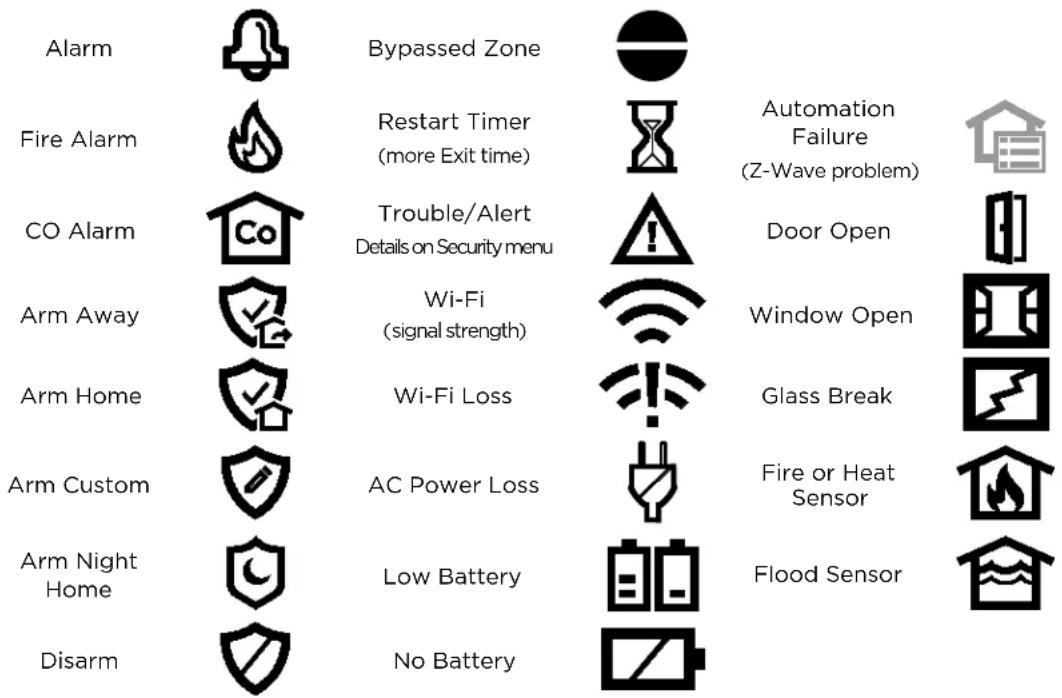
Features/Various
Icons may appear in red or orange to indicate device status. Problems involving Z-Wave devices are indicated by the Automation icon appearing in gray on the Home screen.
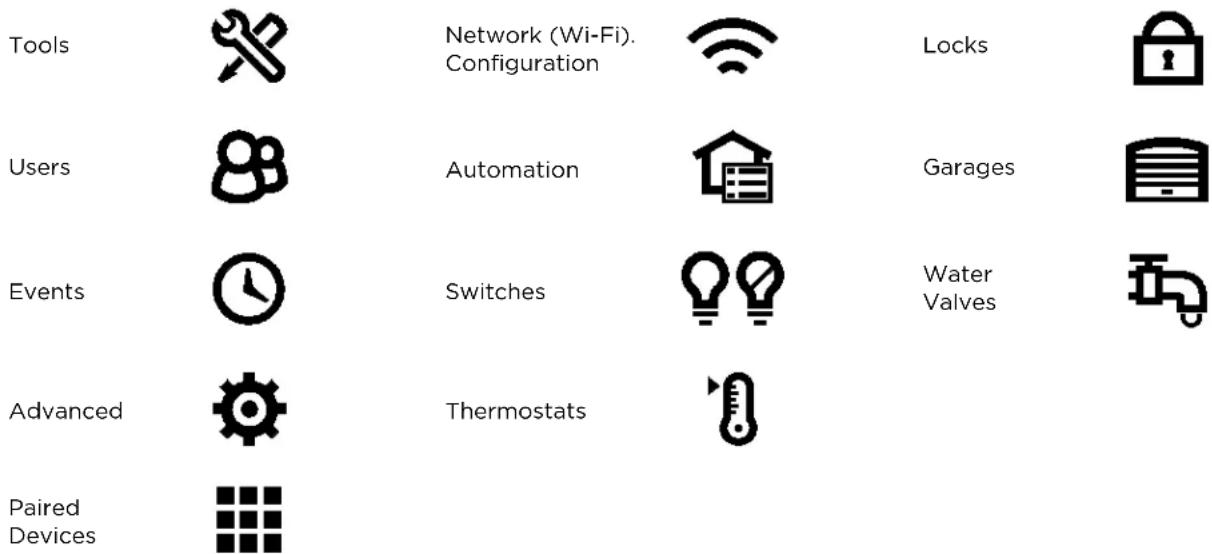
Date and Time Gateway's clock and calendar are updated via the Gateway's network connections.
Wireless Keys
Key Assignments
Your wireless keys (key fobs) are set up by your installer. It is advisable to write down each button's preprogrammed function in the space below.
NOTES: • One or more buttons may have been programmed for Emergency function. • To activate a button function, press and hold the button for 1-2 seconds.
| 5800 Series wireless key | |
| Button A:____ | 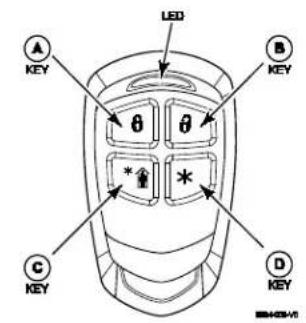 |
| Button B:____ | |
| Button C:____ | |
| Button D:____ | |
| SiXTM Series wireless key | |
| Button 1:____ | 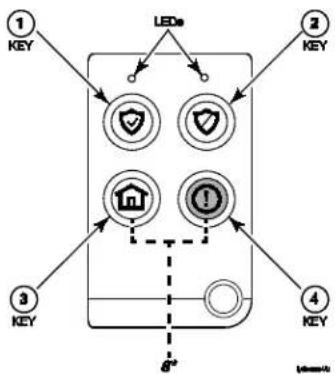 |
| Button 2:____ | |
| Button 3:____ | |
| Button 4:____ | |
| Button 8*:____(press and hold BOTH buttons to activate) |
SiXFOB Wireless Key Status Indications
Press and release any key for system status. Status is indicated by the LEDs at the top of the key fob.
| Green LEDs | Red LEDs | Sounder | System Status |
| Rapid Flash - Alternating about 8-20 seconds, then ON for 3 seconds | Off | Chirp for confirmation | Device Enrollment |
| Off | ON 2-3 seconds | 2 Beeps | System Armed (any mode) |
| Off | Slow Flash for 2-3 seconds | 4 Beeps | Alarm in progress or System is in Audible Emergency (Panic) Mode |
| ON 2-3 seconds | Off | 1 Beep | Disarmed, Ready to Arm |
| Slow Flash for 2-3 seconds | Off | Silent | Disarmed, Not Ready to Arm |
| Flash once (both LEDs) | Off | Silent | RF Transmission |
| Off | Off | 1 Second beep | Not Hearing from Controller |
| Rapid Flash for 2 seconds | Off | Silent | Deleting wireless key from system |
Event Log Codes
The Gateway's Event Log can record and display as many as 6000 system events. Events are stored locally in the Gateway, in chronological order and sent to your monitoring company as needed. When the maximum number of stored events is reached, the oldest 2000 entries are deleted to make room for logging new events.
The type of events that can be recorded is selectable; refer to the Gateway Installation and Reference Guide's Programming section. The Events and CID Codes displayed vary with your system's options. The tables below provide definitions of the events/codes that may be transmitted to the Central Station and/or displayed by the MyHome Gateway App.
Note: If the Gateway's backup battery is exhausted after AC power is lost, any system activity occurring after Low Battery notification is not saved. Additionally, the Gateway will revert to the status condition as before the low battery notification.
| Contact ID® Event Log Codes | ||
| CID Code | Definition | Event Log Display |
| 110 | Alarm, Fire | Fire |
| 121 | Alarm, Duress | Duress |
| 122 | Alarm, Silent | Silent |
| 123 | Alarm, Audible | Audible |
| 131 | Alarm, Perimeter | Perimeter |
| 132 | Alarm, Interior | Interior |
| 134 | Alarm, Entry/Exit | Entry/Exit |
| 135 | Alarm, Day/Night | Day Night |
| 137 | Alarm, Tamper | Tamper |
| 145 | Expansion Module Tamper | Expansion Module Tamper |
| 146 | Silent Burglary | Silent Burglary |
| 150 | 24-Hour Non-Burglary | 24 Hour Non-Burglary |
| 162 | Carbon Monoxide Detected | Carbon Monoxide Detected |
| 301 | Trouble, AC Loss | AC Loss |
| 302 | Trouble, Low System Battery | Low system battery |
| 305 | Trouble, System Reset | System Reset |
| 308 | System shutdown | System shutdown |
| 316 | System Tamper* | System Tamper |
| 341 | Trouble, Case Tamper | Cover Tamper |
| 344 | Trouble, RF Receiver Jam Detect | RF Jam Detect |
| 350 | Long Range Radio Reset | Long Range Radio Reset |
| 353 | Trouble, Long Range Radio Transmitter Fault | Comm. Trouble |
| 354 | Failure to Communicate Event | Failure to Communicate Event |
| 373 | Trouble, Fire Trouble | Fire trouble |
| 374 | Trouble, Exit Error Alarm | Exit error alarm |
| 380 | Trouble, Sensor | Sensor trouble |
| 381 | Trouble, Loss of Supervision RF | Superv Loss-RF |
| 383 | Trouble, Sensor Tamper | Sensor Tamper |
Continued next page
| Contact ID® Event Log Codes | ||
| 384 | RF Low Battery | RF Low Battery |
| 401 | Open/Close by User | Arm Away/Disarmed |
| 403 | Open/Close Automatic | Automatic O/C (or Scheduled Arming) |
| 406 | Cancel | Cancel |
| 407 | Remote Arm/Disarm Remote Arm/Disarm | |
| 408 | Quick Arm | Quick arm |
| 441 | Armed Home | Arm Home/Disarmed |
| 455 | Auto-Arm Failed | Auto-arm Failed |
| 459 | Recent Close | Recent Closing |
| 461 | Wrong Code Entry Wrong Code Entry | |
| 570 | Zone/Sensor Bypass | Zone Bypass |
| 601 | Manual Trigger Test Report | Manual Trigger Test Report |
| 602 | Periodic Test Report | Periodic test report |
| 606 | Listen-in to follow | Listen-in to follow |
| 607 | Walk Test | Walk Test Mode |
| 623 | Event 90% Full | Event Log 90% Full |
| 627 | Program Mode Entry | Program mode entry |
| 628 | Program Mode Exit | Program mode exit |
| 654 | System Inactivity | System Inactivity |
| 655 | Reset Master Code | User Code |
*If APL is enabled, AlarmNet 360 ^TM will generate a special comm. fail message (E316) if it does not hear from a unit within 15 minutes after a delayed alarm is delivered. This message is meant to alert the Central Station that the system has been tampered with and may have been compromised.
Central Station Messages
The following messages are sent by the Gateway internal cellular or Wi-Fi devices for the conditions listed below.
| Alarm Condition | Alarm Code | Restore Code |
| Power On / Reset | E33900950 | |
| Primary Communication Path Supervision | E350C0951 | R350C0951 |
| Secondary Communication Path Supervision | E350C0952 | R350C0952 |
| Test | 555555559 |
Glossary
| Zone | Specific areas of protection in your home. Sensing devices are assigned to these numbered Zones, with designations such as front door, kitchen window, etc. Zone numbers appear on the display when an alarm or fault occurs. |
| Disarm | Turns off the security portion of the system. Silences alarms and trouble indicators. |
| Arm Away | Enables all exterior and interior security protection provided by door and window sensors and motion detectors. |
| Arm Home | Enables exterior protection; sounds an alarm if protected doors or windows are disturbed. Allows bypassing of selected zones, permitting movement within the home without unwanted alarms. |
| Arm Custom | Allows authorized users to arm the system with selected zones bypassed or with entry delays disabled. |
| Quick Arm | Allows household members to arm the system without entering a user code. This feature can only be enabled by an authorized user. |
| Quick Exit | Allows an outside door to be opened for a set time period. This feature is used for checking the mailbox, retrieving the newspaper, etc. |
| Bypass | Allows authorized users to exclude selected protection zones when arming the system. |
| Emergency | Special keys on the controller activate sounders on the premises and optionally send alert messages in various types of emergency. Connection to a central monitoring service is required for outside emergency calls. |
| Duress | Special code that can be entered into the system instead of a normal user code. Sends a silent call for assistance while the Gateway appears to behave normally. Requires connection to a central monitoring service. |
| Z-Wave | |
| Controller The | primary controller is the main device used to set up and control the Z-Wave network. There can only be one primary controller and it must be used to add/Include or delete/Exclude devices. A primary controller can be a portable device such as a hand-held remote, a permanently mounted control panel, a Z-Wave enabled PC or a Z-Wave enabled Ethernet router/bridge.A secondary controller cannot be used to add or delete devices. If the secondary controller is the same model as the primary, it will have all of the primary's capabilities, but cannot be used to add or delete devices. |
| Include | Including a device pairs it with the Gateway so the two can communicate. In this document, the term Include is used interchangeably with “Add”. |
| Exclude | When a device is Excluded, it is removed from the system. Excluding the device also removes the network pairing from the device's memory. In this document, the term Exclude is used interchangeably with “Delete”. |
Important Note: A device must be Excluded before it can be moved to another network or re-Included after using the Defaulting the Controller option.
Fire/CO Alarm System
Your fire alarm system (if installed) is active 24 hours a day, providing continuous protection. In the event of an emergency, the installed smoke, heat and/or carbon monoxide detectors will automatically activate your security system, triggering a loud, intermittent tone from the Gateway and the mobile device when using the MyHome Gateway App. The sound alternates with the voice announcement, sounding every 15 seconds. A “FIRE” or “CO” message will announce on the Gateway, or appear on the MyHome Gateway screen and remain on until you silence and clear the alarm display.
In Case of Fire
- Should you become aware of a fire emergency before your detectors sense the problem, go to the Gateway touchpad and press Emergency and then press Fire. The alarm will sound and an alarm will be transmitted to the central station (if programmed to do so).
- Evacuate all occupants from the premises.
- If flames and/or smoke are present, leave the premises and notify your local Fire Department immediately.
- If no flames or smoke are apparent, investigate the cause of the alarm. The zone number of the zone(s) in an alarm condition will appear on the MyHome Gateway screen.
In Case of Carbon Monoxide Alarm
- If a high level of carbon monoxide is detected you should evacuate all occupants from the premises and immediately move to a location where fresh air is available, preferably outdoors.
- From a safe area, contact your central monitoring company for further instructions.
Silencing a Fire/Carbon Monoxide Alarm
- Silence the alarm by entering the Master User code.
- To clear the alarm, enter the Master User code again.
- If the MyHome Gateway App screen indicates a trouble condition after entering the Master User code a second time, check that smoke detectors are not responding to smoke- or heat-producing objects in their vicinity. Should this be the case, eliminate the source of heat or smoke.
- If this does not remedy the problem, there may still be smoke in the detector. Clear it by fanning the detector for about 30 seconds.
- When the problem has been corrected, clear the display by entering Master User code again.
National Fire Protection Association Smoke Detector Recommendations
With regard to the number and placement of smoke and heat detectors, we subscribe to the recommendations contained in the National Fire Protection Association's (NFPA) Standard #72 noted below.
Early warning fire detection is best achieved by the installation of fire detection equipment in all rooms and areas of the household. The equipment should be installed as follows: A smoke detector installed outside of each separate sleeping area, in the immediate vicinity of the bedrooms and on each additional story of the family living unit, including basements and excluding crawl spaces and unfinished attics.
In addition, the NFPA recommends that you install heat or smoke detectors in the living room, dining room, bedroom(s), kitchen, hallway(s), attic, furnace room, utility and storage rooms, basements and attached garages.
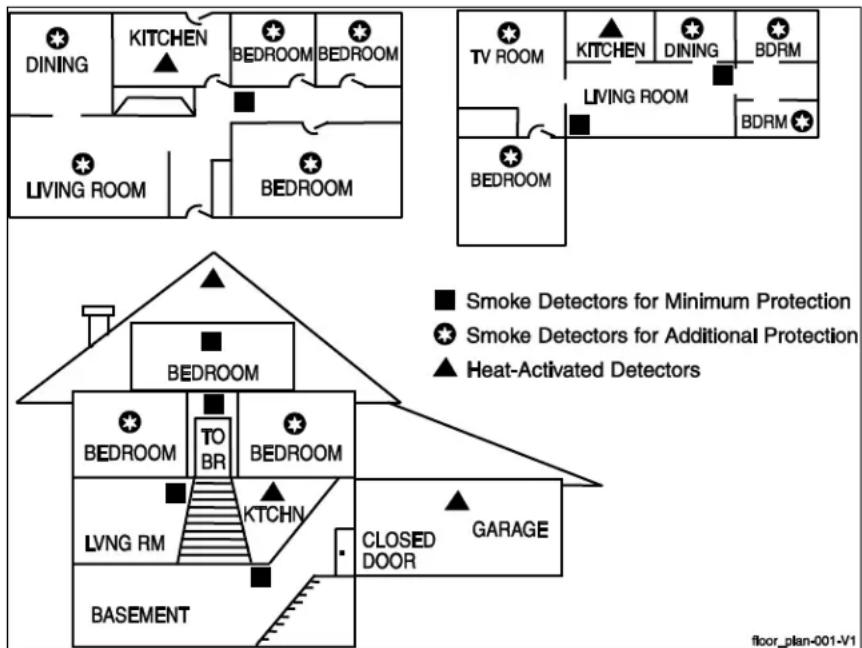
Emergency Evacuation
Establish and regularly practice a plan of escape in the event of fire. The following steps are recommended by the National Fire Protection Association:
- Position your detector or your interior and/or exterior sounders so that they can be heard by all occupants.
- Determine two means of escape from each room. One path of escape should lead to the door that permits normal exit from the building. The other should be an alternative escape, such as a window, should your path to that door be unpassable. Station an escape ladder at such windows if there is a long drop to the ground.
- Sketch a floor plan of the building. Show windows, doors, stairs and rooftops that can be used to escape. Indicate escape routes for each room. Keep these routes free from obstruction and post copies of the escape routes in every room.
- Assure that all bedroom doors are shut while you are asleep. This will prevent deadly smoke from entering while you escape.
- Try the door. If the door is hot, check your alternate escape route. If the door is cool, open it cautiously. Be prepared to slam the door if smoke or heat rushes in.
- When smoke is present, crawl on the ground. Do not walk upright, since smoke rises and may overcome you. Clearer air is near the floor.
- Escape quickly; don't panic.
- Establish a place outdoors, away from your house, where everyone can meet and then take steps to contact the authorities and account for those missing. Choose someone to assure that nobody returns to the house — many die going back.
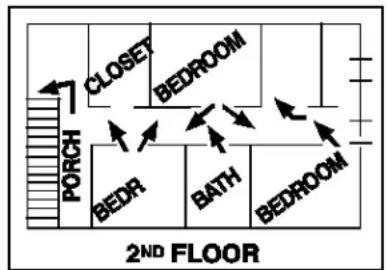
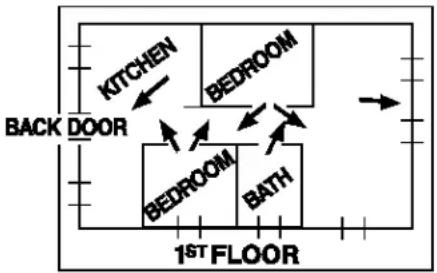
flowchart
graph TD
    A["KITCHEN"] --> B["1st FLOOR"]
    C["BEDROOM"] --> B
    D["BATH"] --> B
    E["BACK DOOR"] --> B
    B --> F["→"]
    style A fill:#f9f,stroke:#333
    style C fill:#f9f,stroke:#333
    style D fill:#f9f,stroke:#333
    style E fill:#f9f,stroke:#333
    style F fill:#ccf,stroke:#333
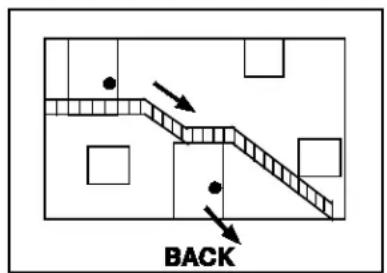
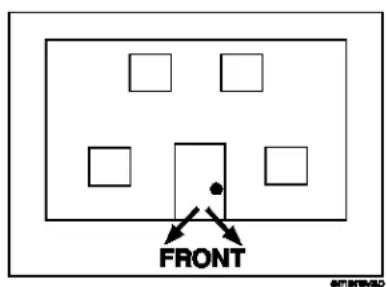
Regulatory Agency Statements
FEDERAL COMMUNICATIONS COMMISSION (FCC) & INDUSTRY CANADA (IC) STATEMENTS
The user shall not make any changes or modifications to the equipment unless authorized by the Installation Instructions or User's Manual. Unauthorized changes or modifications could void the user's authority to operate the equipment.
CLASS B DIGITAL DEVICE STATEMENT
This equipment has been tested to FCC requirements and has been found acceptable for use. The FCC requires the following statement for your information:
This equipment generates and uses radio frequency energy and if not installed and used properly, that is, in strict accordance with the manufacturer's instructions, may cause interference to radio and television reception. It has been type tested and found to comply with the limits for a Class B computing device in accordance with the specifications in Part 15 of FCC Rules, which are designed to provide reasonable protection against such interference in a residential installation. However, there is no guarantee that interference will not occur in a particular installation. If this equipment does cause interference to radio or television reception, which can be determined by turning the equipment off and on, the user is encouraged to try to correct the interference by one or more of the following measures:
- If using an indoor antenna, have a quality outdoor antenna installed.
- Reorient the receiving antenna until interference is reduced or eliminated.
- Move the radio or television receiver away from the receiver/control.
- Move the antenna leads away from any wire runs to the receiver/control.
- Plug the receiver/control into a different outlet so that it and the radio or television receiver are on different branch circuits.
- Consult the dealer or an experienced radio/TV technician for help.
INDUSTRY CANADA CLASS B STATEMENT
This Class B digital apparatus complies with Canadian ICES-003.
This device complies with Part 15 of the FCC Rules, and RSS-210 of Industry Canada. Operation is subject to the following two conditions: (1) This device may not cause harmful interference, and (2) This device must accept any interference received, including interference that may cause undesired operation.
The antenna(s) used for this transmitter must be installed to provide a separation distance of at least 7.8 in (20 cm) from all persons and must not be co-located or operated in conjunction with any other transmitter except in accordance with FCC multi-transmitter product procedures.
MISE EN GARDE
IMPORTANT NOTE ABOUT EXTERNAL ANTENNAS
If an external cellular radio antenna is used, the antenna may be installed or replaced ONLY by a professional installer.
TO THE INSTALLER
The external antenna must not exceed a maximum directional gain (including cable loss) of 3.2 dBi at 850 MHz and 2.3 dBi at 1900 MHz.
Your System Information
Your local Honeywell dealer is the person best qualified to service your alarm system. Arranging a program of regular service is advisable.
Security Company/Installer:
Name:
Address:
Phone:
| DELAY DURATIONS AND ARMING OPTIONS | ||
| Exit Delay time | ||
| Entry Delay time 1 | ||
| Entry Delay time 2 | ||
| NIGHT HOME enabled zones | ||
| QUICK ARM enabled? Yes No | ||
| SYSTEM USERS | |||
| Keep track of authorized system users in the chart below. This record should be kept secure by the Master User. | |||
| User # | User Code | Comment/Description | |
| 02 (preset) | Master User | Can add and modify Users.Can add, modify, edit and run all Smart Scenes. | |
| 47 (preset) | Guest | The Guest user code can be used to arm the system, but cannot disarm it unless the system was armed using the Guest code. | |
| 48 (preset) | Duress | Enter this code if forced to disarm/arm the system under threat. System appears to behave normally, but silently notifies alarm monitoring service. | |
| 03 | |||
| 04 | |||
| 05 | |||
| 06 | |||
| 07 | |||
| 08 | |||
| 09 | |||
| 10 | |||
| 11 | |||
| 12 | |||
| 13 | |||
| 14 | |||
| SMART SCENES | |
| Name | Description |
| Z-Wave Devices | ||
| Type | Name | Location |
Notes
Notes
Notes
TWO YEAR LIMITED WARRANTY
Honeywell International Inc., acting through its Security & Communications business (“Seller”), 2 Corporate Center Drive, Melville, New York 11747 warrants its products to be free from defects in materials and workmanship under normal use and service, normal wear and tear excepted, for 24 months from the manufacture date code; provided, however, that in the event the Buyer presents a proper invoice relating to the purchased product and such invoice bears a date later than the manufacture date, then Seller may at its discretion, reflect the warranty period as commencing at invoice date. Except as required by law, this Limited Warranty is only made to Buyer and may not be transferred to any third party. During the applicable warranty period, Seller will repair or replace, at its sole option and as the exclusive remedy hereunder, free of charge, any defective products.
Seller shall have no obligation under this Limited Warranty or otherwise if the product:
(i) is improperly installed, applied or maintained;
(ii) installed outside of stated operating parameters, altered or improperly serviced or repaired by anyone other than the Seller/Seller's Authorized Service/Repair Center;
(iii) damage is caused by outside natural occurrences, such as lightning, power surges, fire, floods, acts of nature, or the like; or
(iv) defects result from unauthorized modification, misuse, vandalism, alterations of serial numbers, other causes unrelated to defective materials or workmanship, or failures related to batteries of any type used in connection with the products sold hereunder.
Exceptions to Warranty With Respect to Honeywell Products listed below:
Hardware Contacts and PIRs - Seller warrants parts for hardwire contacts and PIRs in accordance with the terms of the above limited warranty for a period of five (5) years from the manufacture date code.
EXCLUSION OF WARRANTIES, LIMITATION OF LIABILITY
THERE ARE NO WARRANTIES OR CONDITIONS, EXPRESS OR IMPLIED, OF MERCHANTABILITY, OR FITNESS FOR A PARTICULAR PURPOSE OR OTHERWISE, WHICH EXTEND BEYOND THE DESCRIPTION ON THE FACE HEREOF. TO THE FULLEST EXTENT PERMITTED BY LAW, IN NO CASE SHALL SELLER BE LIABLE TO ANYONE FOR ANY (i) CONSEQUENTIAL, INCIDENTAL, INDIRECT, SPECIAL, OR PUNITIVE DAMAGES ARISING OUT OF OR RELATING IN ANY WAY TO THE PRODUCT AND/OR FOR BREACH OF THIS OR ANY OTHER WARRANTY OR CONDITION, EXPRESS OR IMPLIED, OR UPON ANY OTHER BASIS OF LIABILITY WHATSOEVER, EVEN IF THE LOSS OR DAMAGE IS CAUSED BY SELLER'S OWN NEGLIGENCE OR FAULT AND EVEN IF SELLER HAS BEEN ADVISED OF THE POSSIBILITY OF SUCH LOSSES OR DAMAGES. Any product description (whether in writing or made orally by Seller or Seller's agents), specifications, samples, models, bulletin, drawings, diagrams, engineering sheets or similar materials used in connection with the Buyer's order are for the sole purpose of identifying the Seller's products and shall not be construed as an express warranty or condition. Any suggestions by Seller or Seller's agents regarding use, applications, or suitability of the products shall not be construed as an express warranty or condition unless confirmed to be such in writing by Seller. Seller does not represent that the products it sells may not be compromised or circumvented; that the products will prevent any personal injury or property loss by burglary, robbery, fire or otherwise, or that the products will in all cases provide adequate warning or protection. Buyer understands that a properly installed and maintained alarm may only reduce the risk of a burglary, robbery or fire without warning, but it is not insurance or a guarantee that such will not occur or will not cause or lead to personal injury or property loss. CONSEQUENTLY, SELLER SHALL HAVE NO LIABILITY FOR ANY PERSONAL INJURY, PROPERTY DAMAGE OR OTHER LOSS BASED ON ANY CLAIM AT ALL INCLUDING A CLAIM THE PRODUCT FAILED TO GIVE WARNING. However, if Seller is held liable whether directly or indirectly for any loss or damage with respect to the products it sells, regardless of cause or origin, its maximum liability shall not in any case exceed the purchase price of the product, which shall be fixed as liquidated damages and not as a penalty, and shall be the complete and exclusive remedy against the Seller. Should your product become defective during the warranty, please contact your installer to facilitate repair or replacement with Seller pursuant to the terms hereof. Seller reserves the right to replace any defective product under warranty with new, refurbished, or remanufactured product.
Limitations of This Alarm System
WARNING!
While this system is an advanced design security system, it does not offer guaranteed protection against burglary or fire or other emergency. Any alarm system, whether commercial or residential, is subject to compromise or failure to warn for a variety of reasons. For example:
- Intruders may gain access through unprotected openings or have the technical sophistication to bypass an alarm sensor or disconnect an alarm warning device.
- Intrusion detectors (e.g. passive infrared detectors), smoke detectors, and many other sensing devices will not work without power. Battery operated devices will not work without batteries, with dead batteries, or if the batteries are not put in properly. Devices powered solely by AC will not work if their AC power supply is cut off for any reason, however briefly.
- Signals sent by wireless transmitters may be blocked or reflected by metal before they reach the alarm receiver. Even if the signal path has been recently checked during a weekly test, blockage can occur if a metal object is moved into the path.
• A user may not be able to reach a panic or emergency button quickly enough. - While smoke detectors have played a key role in reducing residential fire deaths in the United States, they may not activate or provide early warning for a variety of reasons in as many as 35% of all fires, according to data published by the Federal Emergency Management Agency. Some of the reasons smoke detectors used in conjunction with this System may not work are as follows. Smoke detectors may have been improperly installed and positioned. Smoke detectors may not sense fires that start where smoke cannot reach the detectors, such as in chimneys, in walls, or roofs, or on the other side of closed doors. Smoke detectors also may not sense a fire on another level of a residence or building. A second floor detector, for example, may not sense a first floor or basement fire. Moreover, smoke detectors have sensing limitations. No smoke detector can sense every kind of fire every time. In general, detectors may not always warn about fires caused by carelessness and safety hazards like smoking in bed, violent explosions, escaping gas, improper storage of flammable materials, overloaded electrical circuits, children playing with matches, or arson. Depending upon the nature of the fire and/or the locations of the smoke detectors, the detector, even if it operates as anticipated, may not provide sufficient warning to allow all occupants to escape in time to prevent injury or death.
- Passive Infrared Motion Detectors can only detect intrusion within the designed ranges as diagrammed in their installation manual. Passive Infrared Detectors do not provide volumetric area protection. They do create multiple beams of protection, and intrusion can only be detected in unobstructed areas covered by those beams. They cannot detect motion or intrusion that takes place behind walls, ceilings, floors, closed doors, glass partitions, glass doors, or windows. Mechanical tampering, masking, painting or spraying of any material on the mirrors, windows or any part of the optical system can reduce their detection ability. Passive Infrared Detectors sense changes in temperature; however, as the ambient temperature of protected area approaches the temperature range of 90° to 105°F, the detection performance can decrease.
- Alarm warning devices such as sirens, bells or horns may not alert people or wake up sleepers if they are located on the other side of closed or partly open doors. If warning devices sound on a different level of the residence from the bedrooms, then they are less likely to waken or alert people inside the bedrooms. Even persons who are awake may not hear the warning if the alarm is muffled from a stereo, radio, air conditioner or other appliance, or by passing traffic. Finally, alarm warning devices, however loud, may not warn hearing-impaired people or waken deep sleepers.
- Communication paths needed to transmit alarm signals from a premises to a central monitoring station may be out of service or temporarily out of service. Communication paths are also subject to compromise by sophisticated intruders.
- Even if the system responds to the emergency as intended, however, occupants may have insufficient time to protect themselves from the emergency situation. In the case of a monitored alarm system, authorities may not respond appropriately.
- This equipment, like other electrical devices, is subject to component failure. Even though this equipment is designed to last as long as 10 years, the electronic components could fail at any time.
The most common cause of an alarm system not functioning when an intrusion or fire occurs is inadequate maintenance. This alarm system should be tested weekly to make sure all sensors and transmitters are working properly.
Installing an alarm system may make one eligible for lower insurance rates, but an alarm system is not a substitute for insurance. Homeowners, property owners and renters should continue to act prudently in protecting themselves and continue to insure their lives and property.
We continue to develop new and improved protection devices. Users of alarm systems owe it to themselves and their loved ones to learn about these developments.
OWNER'S INSURANCE PREMIUM CREDIT REQUEST
This form should be completed and forwarded to your homeowner's insurance carrier for possible premium credit.
A. GENERAL INFORMATION:
Insured's Name and Address: ____
Insurance Company: Policy No.:
Lyric™ Gateway
Other ____
Type of Alarm: □ Burglary
Fire
Both
Installed by: ____ Serviced by: ____
Name
Name
Address
Address
B. NOTIFIES (Insert B = Burglary, F = Fire)
Local Sounding Device ____ Police Dept. ____ Fire Dept. ____
Central Station □ Name: ____
Address:
Phone: ____
C. POWERED BY: A.C. with Rechargeable Power Supply
D. TESTING: □ Quarterly □ Monthly □ Weekly □ Other ____
E. SMOKE DETECTOR LOCATIONS
Furnace Room
□ Kitchen □ Bedrooms
Attic
Basement
Living Room
□ Dining Room
Hall
F. BURGLARY DETECTING DEVICE LOCATIONS:
Front Door
Basement Door
Rear Door
All Exterior Doors
1st Floor Windows
All Windows
Interior Locations
☐ All Accessible Openings, Including Skylights, Air Conditioners and Vents
G. ADDITIONAL PERTINENT INFORMATION:
Signature: Date:
Ref: LCP300-L/LCP300-LC

800-21670 10/16 Rev A
Honeywell
2 Corporate Center Drive, Suite 100
P.O. Box 9040, Melville, NY 11747
Copyright © 2016 Honeywell International Inc.
www.honeywell.com/security
- User Reference Guide
- Lyric™ Lock
- TABLE OF CONTENTS
- OVERVIEW 5
- GETTING STARTED....11
- SECURITY 17
- AUTOMATION: Z-WAVE AND OTHER DEVICES....25
- AUTOMATION: SMART SCENES 34
- VIDEO....39
- USERS AND SECURITY CODES....41
- SYSTEM SETTINGS....44
- Overview
- About This Guide
- Basic System Functions
- Security
- Press
- ARMED
- Home
- Away
- Disarmed
- Emergency
- Video
- Control Panel Settings
- Common Master User Functions
- Security Features
- False Alarm Prevention
- Getting Started
- How to add smart devices to your system using the MyHome Gateway App
- Gateway Menu Modes
- Enter...
- Mode Option
- Operating your system using the Gateway Touchpad
- System Status Shield
- System Alert
- System Sounds
- Arming Options and LEDs
- To...
- Switching Arming Modes
- Emergency Options
- Then...
- Cancel
- Operating your Gateway using the MyHome Gateway App
- Option
- Allows you to...
- To Navigate, Press...
- The Tools Menu Overview
- IMPORTANT
- Security Menu Overview
- Arming the System
- Arming states include
- Arm Away
- Arm Home
- Arm Custom
- Instant Mode
- Arm Night
- Disarming the System
- IMPORTANT SECURITY NOTICE
- User Code Error
- Bypassing Protection Zones
- Entry and Exit Delays
- Entry Delay
- Exit Delay
- Restart Exit Delay
- Exit Alarm
- Emergency Alarms
- Activating an Emergency Alarm
- Common Emergency Types
- Types of Emergency Alarms
- Cancelling an Emergency Alarm from MyHome Gateway
- Clearing an Emergency Alarm
- Chimes/Voice Annunciations
- Volume/Mute
- Selectable Chime Sounds
- Audio Alarm Verification (Two-Way Voice)
- Automation: Z-Wave and Other Devices
- Working with Z-Wave Devices
- NOTE
- Working with Z-Wave Devices (Continued)
- Operating Z-Wave Devices Manually
- Adding Z-Wave Devices (Include)
- Including Light Switches or Outlet Modules
- Including Door Locks
- NOTES:
- Including Thermostats
- Deleting Z-Wave Devices (Exclude)
- Editing Z-Wave Device Names
- Advanced Tools
- View Enrolled Devices
- View Enrolled Controllers
- Factory Default Controller
- Pri. Controller Shift to Secondary
- Locking Door
- Learn
- Advanced Tools (Continued)
- All Devices Off
- All Devices On
- Failed Devices (Failed Nodes)
- To view Failed Devices:
- To Replace Failed Devices:
- Important Notes About Z-Wave Devices
- Wireless Range
- Important Notes About Z-Wave Devices (Continued)
- Things to consider regarding RF range:
- Additional Z-Wave Information
- Z-Wave Compatibility
- Garage Doors
- Garage Door Operation from the Gateway
- Automation: Smart Scenes
- Smart Scenes and User Access
- Smart Scenes and User Access (Continued)
- Creating a Smart Scene using the MyHome Gateway App
- Select Scheduled.
- Select Triggered Action. These options appear:
- Hold
- Run
- Show (Review)
- Home > Video
- Viewing and Naming Cameras
- OR
- Adding a Camera
- Video Recovery
- Users and Security Codes
- User Codes
- Master User
- User
- Guest
- Duress Code
- Adding Users and Assigning Codes
- Changing Security Codes or the Duress Code
- Deleting a User
- User Settings
- User Name
- User Code
- Users and Z-Wave Lock Control
- System Settings
- Brightness/Volume
- Home > Settings
- Wi-Fi (Network) Configuration
- To View or Join Available Wi-Fi Networks
- Manually Configure Access Point
- Join a WPS Network
- Automatic/Manual Video Recovery
- Software Updates
- Gateway
- Key Fob Firmware (Wireless Keys)
- Events
- Viewing Events
- Paired Devices
- Testing Your System
- Testing Sensors (Walk Test)
- Testing Communications
- Reboot
- Maintenance
- Care and Cleaning
- Battery Replacement
- Sensors
- Communication Module Replacement
- MyHome Gateway Symbols
- Features/Various
- Wireless Keys
- Key Assignments
- SiXFOB Wireless Key Status Indications
- Event Log Codes
- Central Station Messages
- Glossary
- Fire/CO Alarm System
- In Case of Fire
- In Case of Carbon Monoxide Alarm
- Silencing a Fire/Carbon Monoxide Alarm
- National Fire Protection Association Smoke Detector Recommendations
- Emergency Evacuation
- Regulatory Agency Statements
- FEDERAL COMMUNICATIONS COMMISSION (FCC) & INDUSTRY CANADA (IC) STATEMENTS
- CLASS B DIGITAL DEVICE STATEMENT
- INDUSTRY CANADA CLASS B STATEMENT
- MISE EN GARDE
- IMPORTANT NOTE ABOUT EXTERNAL ANTENNAS
- TO THE INSTALLER
- Your System Information
- Security Company/Installer:
- Notes
- TWO YEAR LIMITED WARRANTY
- Limitations of This Alarm System
- WARNING!
- OWNER'S INSURANCE PREMIUM CREDIT REQUEST
- GENERAL INFORMATION:
- NOTIFIES (Insert B = Burglary, F = Fire)
- POWERED BY: A.C. with Rechargeable Power Supply
- SMOKE DETECTOR LOCATIONS
- BURGLARY DETECTING DEVICE LOCATIONS:
- ADDITIONAL PERTINENT INFORMATION:
Brand : HONEYWELL
Model : Lyric LCP300-L
Category : Régulateur