72352 - Computer and Peripheral Cables iPort - Free user manual and instructions
Find the device manual for free 72352 iPort in PDF.


| Product Type | Computer Peripheral Cable |
| Brand | iPort |
| Model | 72352 |
| Connector Type | USB-A Male to USB-C Male |
| Length | 1.5 meters (59 inches) |
| Cable Jacket Material | PVC |
| Conductor Material | Oxygen-free copper |
| Weight | 50 grams |
| Data Transfer Speed | Up to 5 Gbps (USB 3.0) |
| Charging Current | Up to 3A |
| Voltage Rating | 5V |
| Compatibility | PC, Mac, laptops, tablets, smartphones and USB-C peripherals |
| Primary Functions | Data sync and charging |
| Shielding | Aluminum foil and braided shield |
| Maintenance | Wipe with a dry or slightly damp cloth; do not use chemicals |
| Safety Compliance | CE, RoHS |
| Repairability | Non-repairable; replace if damaged |
| Color | Black |
| Connector Plating | Gold-plated contacts |
| Operating Temperature | -10°C to 60°C |
Frequently Asked Questions - 72352 iPort
User questions about 72352 iPort
0 question about this device. Answer the ones you know or ask your own.
Ask a new question about this device
Download the instructions for your Computer and Peripheral Cables in PDF format for free! Find your manual 72352 - iPort and take your electronic device back in hand. On this page are published all the documents necessary for the use of your device. 72352 by iPort.
USER MANUAL 72352 iPort
natural_image
Black IPORT device with a circular top and base, no visible text or symbols on the device body.72352 - BaseStation - Black
72353 - BaseStation - White
IPORT CONNECT PRO BaseStation Install Manual
Thank you for purchasing the all new IPORT CONNECT Platform. We hope you enjoy this revolutionary new system and if at any time you need more assistance please contact IPORT Tech Support via Online chat or through our help desk online.
- IPORT Team
Whats in box:
1 - IPORT CONNECT BaseStation
1 - IPORT Power Supply - 25V 1.5A DC. 2.1 mm x 5.5 mm connector.
4 - Mounting Screws
1 - IPORT Security Tool
1 - Info Card
Product Info Page - www.iportproducts.com/cpbase
Glossary of Terms:
- BaseStation - The main mounting station on a solid surface where the IPORT CONNECT Case mounts and charges.
- Security Weight - The bottom removable portion of the BaseStation which can be secured to a table or desk.
- BaseStaion Cable Housing - The removable plastic DC cover.
- Cable Retention Clip - The small metal clip on the bottom of the BaseStation used to h the DC or Cat 5 Cable in place.
- BaseStation Security Lock - The small round lock on the back of the BaseStation used to actuate the lock to secure the Case to the BaseStation.
Using the Provided DC Power Adapter
- Remove BaseStation and Power Supply from the box and place on a table.
- Insert the DC barrel plug into the bottom of the BaseStation.

natural_image
Line drawing of a handheld electronic device with ports and buttons (no text or symbols)3. Rotate the Cable retention clip over the DC cable.

natural_image
Technical line drawing of a mechanical assembly with no visible text or symbols-
Plug in the IPORT DC Power Adapter into the wall.
-
Place the BaseStation in the desired location and attach the IPORT CONNECT PRO Case onto the BaseStation to charge in portrait or landscape.

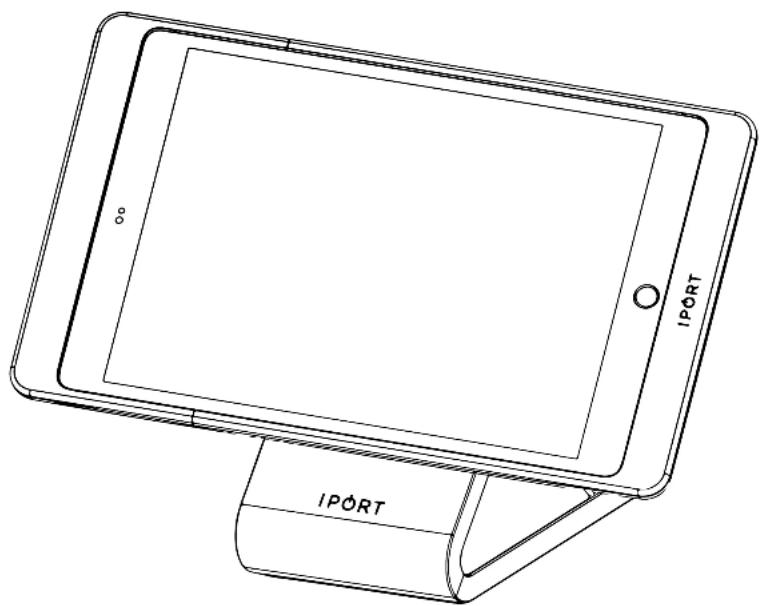
Upgrading the BaseStation to PoE
- Remove PoE+ Upgrade from the box and place on a table.
- Insert the IPORT Security Tool into the small holes in the back of the BaseStation foot. Rotate the tool counterclockwise until it stops. Repeat for the second hole.

natural_image
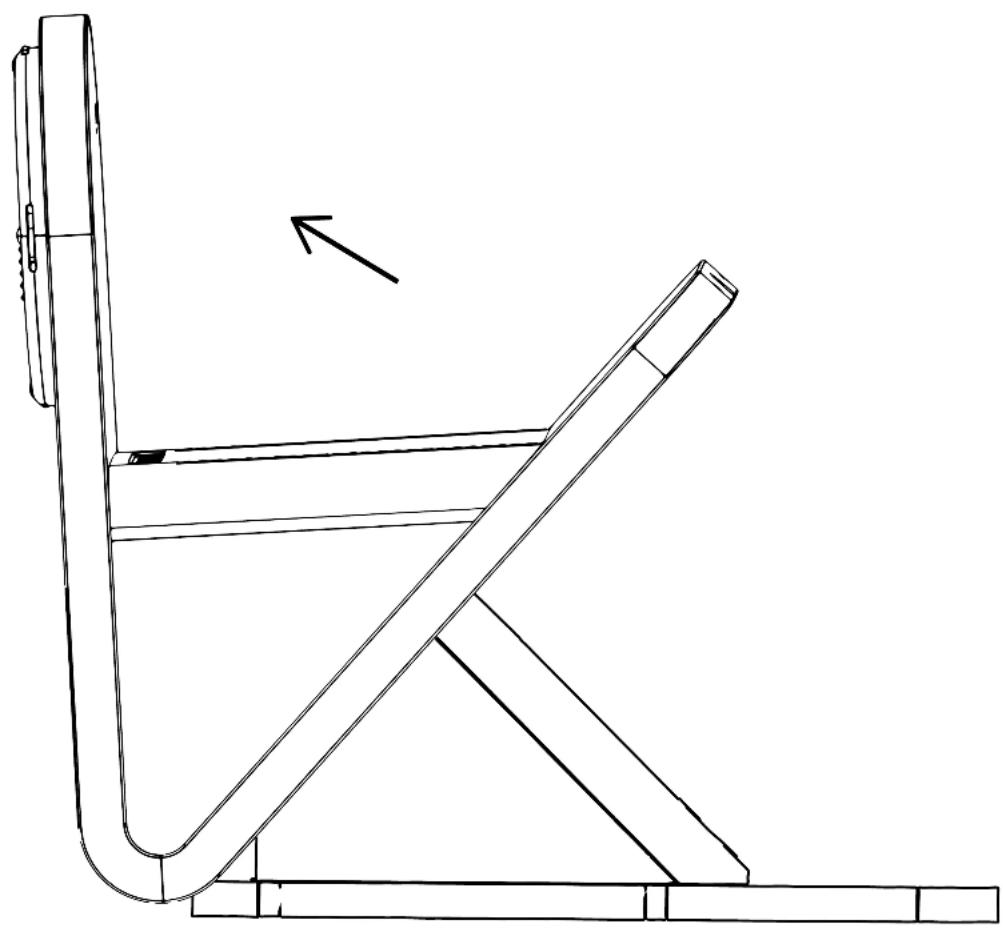
Line drawing of a handheld electronic device with a cable inserted into its base (no text or symbols)3. Tilt the BaseStation forward to allow the BaseStation weight to come out of the bottom of the BaseStation.
Use caution as the BaseStation weight is very heavy.
natural_image
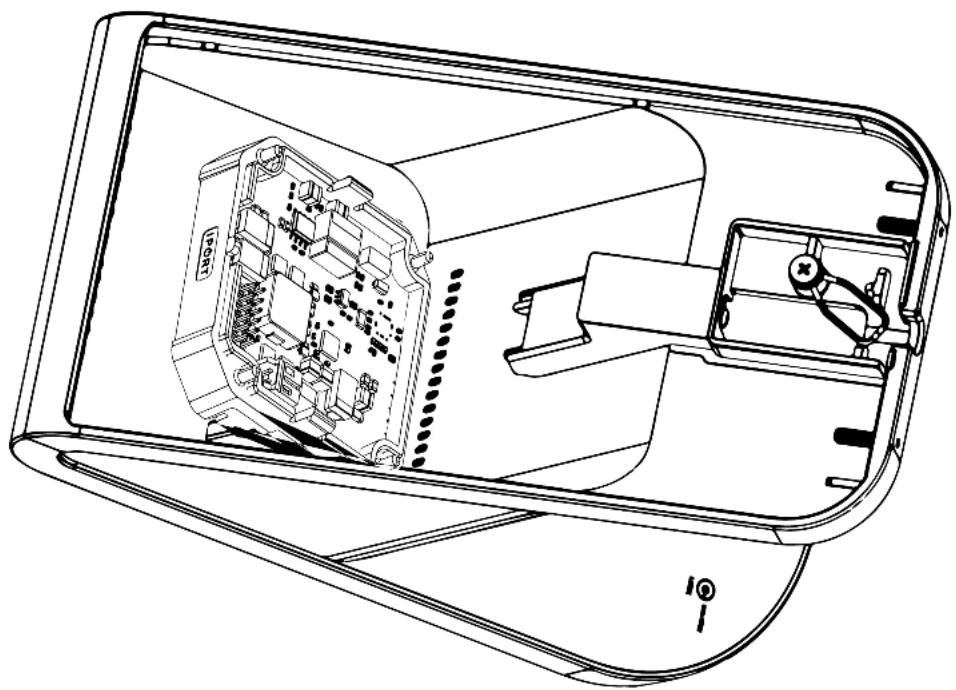
Line drawing of a chair support structure with an arrow indicating direction (no text or symbols)4. Disconnect the DC Barrel cable if installed and pop out the BaseStation Cable Housing cover.
natural_image
Technical line drawing of an electronic device showing internal components and wiring (no text or symbols)
natural_image
Technical line drawing of a device interior showing internal components and wiring (no text or symbols)- Remove the DC Barrel cable from the BaseStation Cable Housing and disconnect the cable from the IPORT DC Adapter.

natural_image
Technical line drawing of a mechanical assembly with an arrow indicating assembly direction (no text or symbols present)
natural_image
Technical line drawing of an electronic device casing with internal components and a cable connector (no text or symbols)6. Attach the IPORT CONNECT PoE+ Upgrade Adapter to the IPORT DC Adapter as shown:

natural_image
Technical line drawing of a device showing internal components and wiring (no text or symbols)
natural_image
Technical line drawing of a device interior showing internal components and wiring (no text or symbols)7. Run a Cat 5 Cable through the cable housing and attach to the PoE + Splitter.

natural_image
Technical line drawing of a device interior showing internal components and wiring (no text or symbols)
natural_image
Technical line drawing of a device interior showing internal components and wiring (no text or symbols)- Run the Cat 5 cable in the Cable Retention Channel and rotate the Cable Retention clip over the Cat 5 Cable.

natural_image
Technical line drawing of a mechanical component with a central vertical seam and mounting holes (no text or symbols)
natural_image
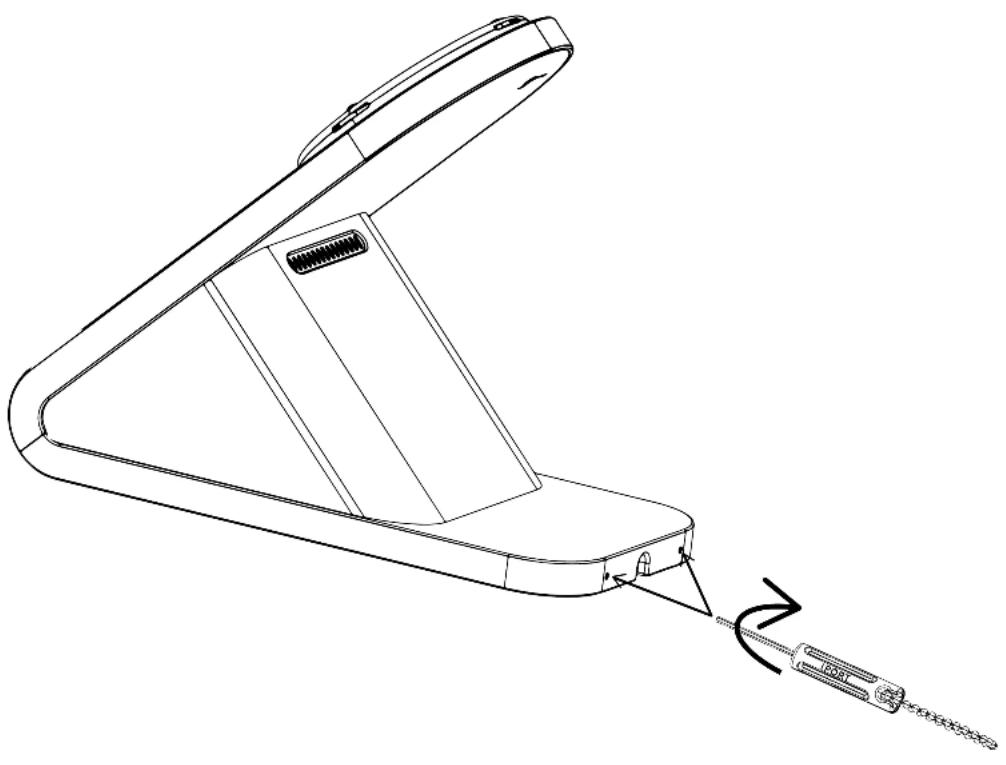
Technical line drawing of a mechanical component with no visible text or symbols- Reassemble the BaseStation back onto the BaseStation Weight and tighten the Security Screws rotating clockwise.
natural_image
Line drawing of a handheld electronic device with a cable being inserted into it (no text or symbols)- Connect the other end of the Cat 5 Cable to a PoE+ Switch or an IPORT PoE Injector 72106 (sold separate).
BaseStation Security Features - Securing the Base to a Table.
- Remove BaseStation from the box and place on a table.
- Insert the IPORT Security Tool into the small holes in the back of the BaseStation foot. Rotate the tool counterclockwise until it stops. Repeat for the second hole.

natural_image
Line drawing of a handheld electronic device with a cable inserted into it (no text or symbols)BASESTATION
3. Tilt the BaseStation forward to allow the BaseStation Weight to come out of the bottom of the BaseStation.
Use Caution as the BaseStation Weight is very heavy.

natural_image
Line drawing of a chair with a vertical post and horizontal arm, showing structural details (no text or symbols)- Place the BaseStation Weight in the desired location for securing the BaseStation. Use a pencil to mark the four mounting locations. Make sure the rectangle notch is facing where the back of the BaseStation will be positioned.
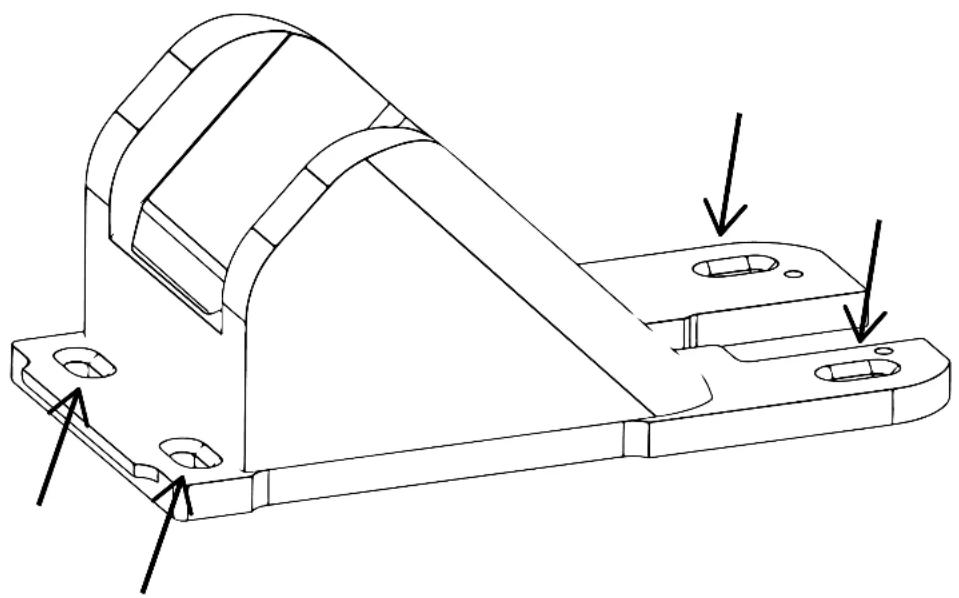
natural_image
Technical line drawing of a mechanical bracket component with mounting holes and a curved internal cavity (no text or symbols)-
Remove the BaseStation Weight and drill a pilot hole in the center of the marked locations.
-
Use the four provided screws to secure the BaseStation Weight to the desired surface.
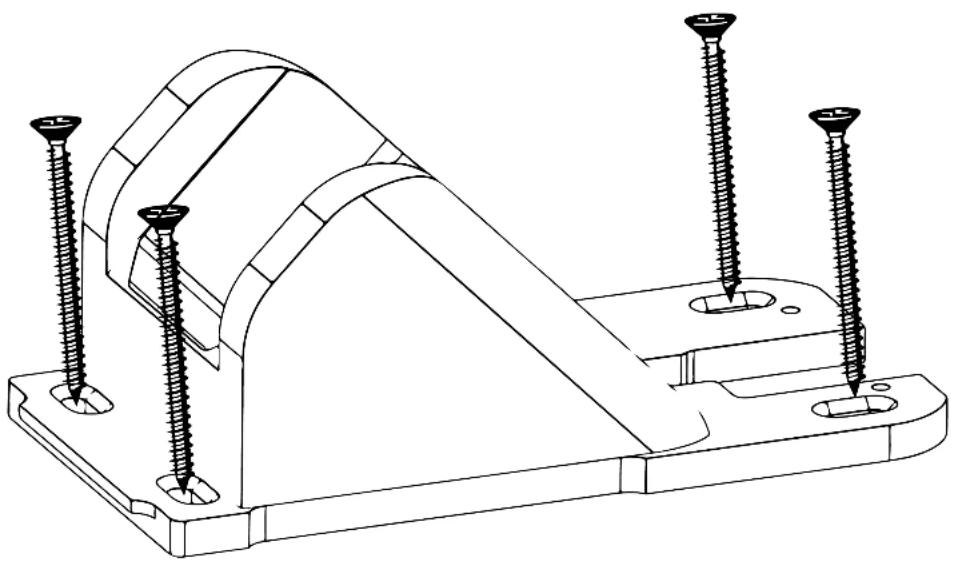
natural_image
Technical line drawing of a mechanical bracket with four screws inserted (no text or symbols)- Reinstall the BaseStation by hooking the front of the BaseStation foot the to front of the BaseStation weight and then placing the back of the BaseStation down on the weight.

natural_image
Line drawing of a chair with an arrow pointing to the seat (no text or symbols present)- Insert the IPORT Security Tool into the small holes in the back of the BaseStation foot. Rotate the tool Clockwise until it stops. Repeat for the second hole.

natural_image
Line drawing of a handheld device with a cable being inserted, showing internal components and a wire (no text or symbols)BaseStation Security Features - Securing the Case to the BaseStation.
- Place the Case onto the BaseStation in the final orientation desired (Portrait or Landscape) NOTE the case can not be rotated once it is locked in place.

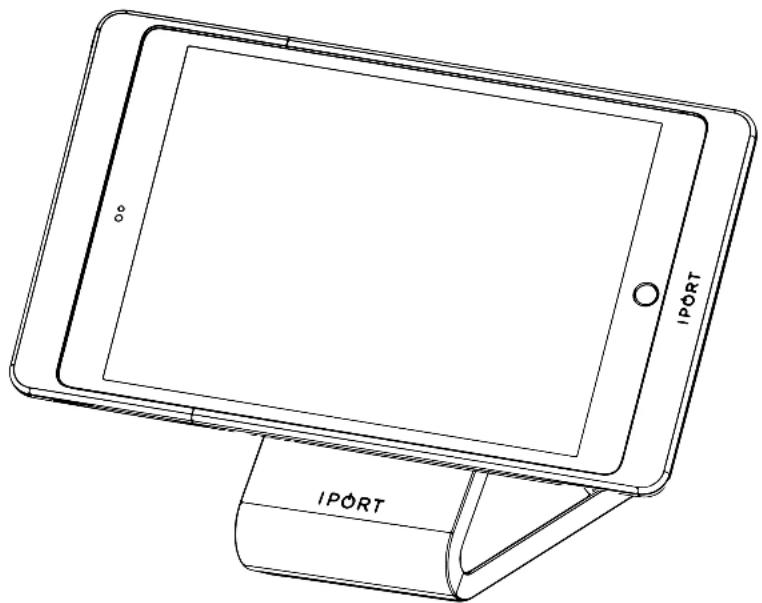
natural_image
Line drawing of a tablet device with IPORT branding, showing front and side views (no text or symbols on the device itself)- To lock the Case to the BaseStation, insert the IPORT Security tool into the back of the BaseStation and rotate the tool clockwise with the red indicator facing the Lock icon.

natural_image
Technical line drawing of a mechanical device with a lever and base, no text or symbols present- To unlock the Case from the BaseStation, insert the IPORT Security tool into the back of the BaseStation and rotate the tool counterclockwise with the red indicator facing the Unlock icon.

natural_image
Technical line drawing of a mechanical device with a lever and base mount (no text or symbols)- IPORT CONNECT PRO BaseStation Install Manual
- Whats in box:
- Glossary of Terms:
- Using the Provided DC Power Adapter
- Rotate the Cable retention clip over the DC cable.
- Upgrading the BaseStation to PoE
- Tilt the BaseStation forward to allow the BaseStation weight to come out of the bottom of the BaseStation.
- Disconnect the DC Barrel cable if installed and pop out the BaseStation Cable Housing cover.
- Attach the IPORT CONNECT PoE+ Upgrade Adapter to the IPORT DC Adapter as shown:
- Run a Cat 5 Cable through the cable housing and attach to the PoE + Splitter.
- BaseStation Security Features - Securing the Base to a Table.
- BaseStation Security Features - Securing the Case to the BaseStation.
Brand : iPort
Model : 72352
Category : Computer and Peripheral Cables