
SW-164 MK2 - Smartwatch DENVER - Free user manual and instructions
Find the device manual for free SW-164 MK2 DENVER in PDF.


| Product type | Smartwatch |
| Brand | Denver |
| Model | SW-164 MK2 |
| Dimensions (case) | Approx. 4.5 × 3.8 × 1.2 cm |
| Weight | Approx. 50 g |
| Display | 1.4-inch color touch screen |
| Battery type | Rechargeable lithium-ion, 250 mAh |
| Battery life | Up to 7 days in normal use |
| Connectivity | Bluetooth 5.0 |
| Sensors | Accelerometer, heart rate monitor, pedometer |
| Water resistance | IP68 (immersion up to 1.5m for 30 min) |
| Compatibility | iOS 10+ and Android 5+ |
| Main functions | Notifications, activity tracking, sleep, heart rate, pedometer, stopwatch |
| Charging | Magnetic charger included |
| Strap | Interchangeable silicone, width 22 mm |
| Available colors | Black, Silver |
| Warranty | 2 years |
| Care and cleaning | Wipe with a soft dry cloth. Avoid chemical products. |
| Safety | Do not expose to excessive heat. Remove before showering or bathing. |
| Spare parts and repairability | Spare strap available. For other repairs, contact Denver customer service. |
Frequently Asked Questions - SW-164 MK2 DENVER
User questions about SW-164 MK2 DENVER
0 question about this device. Answer the ones you know or ask your own.
Ask a new question about this device
Download the instructions for your Smartwatch in PDF format for free! Find your manual SW-164 MK2 - DENVER and take your electronic device back in hand. On this page are published all the documents necessary for the use of your device. SW-164 MK2 by DENVER.
USER MANUAL SW-164 MK2 DENVER
If the user manual is not printed in your local language, then please visit our website to see if it is available online for the device you have. Our website address is: www.denver.eu
Safety information
Please read the safety instructions carefully before using the product for the first time and keep the instructions for future reference.
-
This product is not a toy. Keep it out of reach of children.
-
Warning: This product includes lithium polymer battery.
-
Keep product out of the reach of children and pets to avoid chewing and swallowing.
-
Product operating and storage temperature is from -5 degree Celsius to 40 degrees Celsius. Under and over this temperature might affect the function.
-
Never open the product. Touching the inside electrics can cause electric shock. Repairs or service should only be performed by qualified personnel.
-
Do not use for water depth below 2 meters!
-
Please remove the Smart watch in case of any leakage or excessive heat from the product to avoid burns or rash.
-
Only charge with the supplied USB cable.
-
Using other accessories than the ones delivered with the product can cause abnormal functionality.
-
Bluetooth wireless technology operates within a range of about 10 m (30 feet). The maximum communication distance may vary depending on the presence of obstacles (people, metal objects, walls, etc.) or the electromagnetic environment.
-
Microwaves emitting from a Bluetooth device
may affect the operation of electronic medical devices.
1. Quick start guide Overview
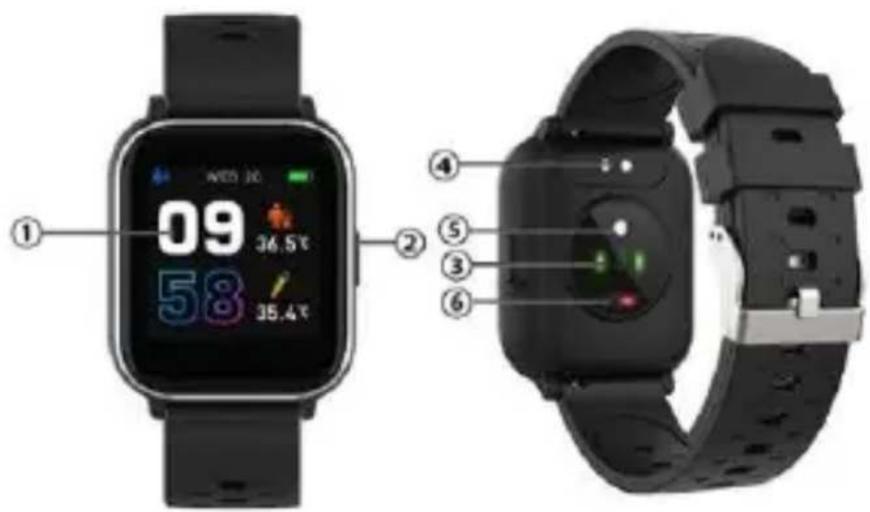
- Touch screen
- Function button
- Heart rate sensor
- Charging plate
- Temperature sensor
- Blood oxygen sensor
To charge the smart watch,
connect the charging clip of the USB cable to the charging plate on the back of the smart watch. If successfully connected, the charging icon appears on the screen.
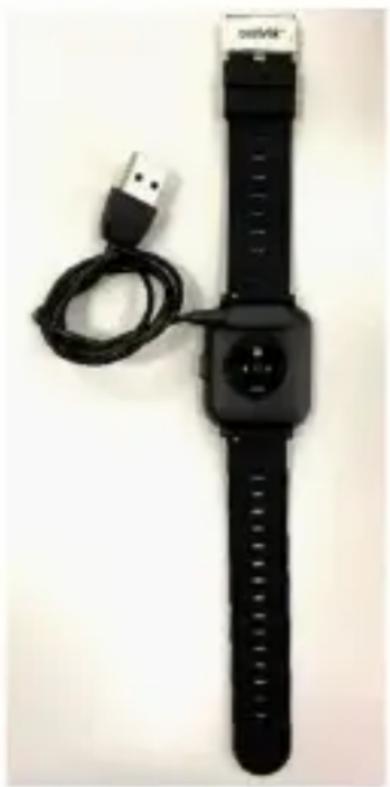
natural_image
Black smartwatch with USB cable and connector, no visible text or symbols on the device itselfInstall "Denver Smart Home" app on the phone Search and install the
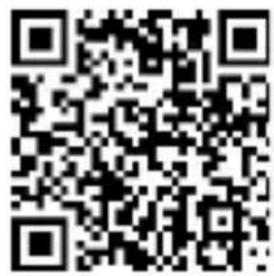
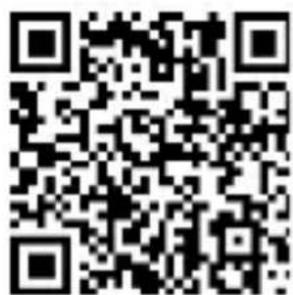
"Denver Smart Home" app from Google Play or App Store. Or scan the following QR code to directly install the app. Please note, Denver Smart Home app can be used under network.
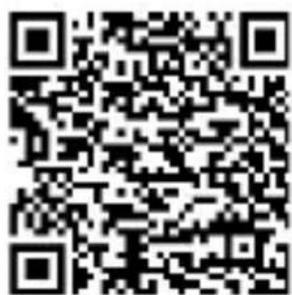
Android
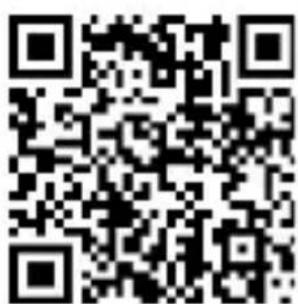
IOS
Connect the smart watch with mobile phone
-
Turn on Bluetooth on your mobile phone.
-
Tap the icon of DENVER SMART HOME app to open it.
-
Add device.
- Auto scan your smart watch and then pair.
Unbind the smart watch with mobile phone
- Open the “Denver Smart Home” app on your smart phone.
- Long press your device.
- Remove your device.
Operation introduction
- You can raise your hand or press the function button to light the screen.
- Press and hold the watch face screen, then
slide left or right to change the watch face.
- Press and hold the function button to turn on the smart watch when powered off.
2. How to use
- Turn on: Press and hold the function button for 3 seconds.
- Go to menu screen: Slide left in the watch face screen.
- Select a function: Click on the icon.
- Exit the menu: Slide the screen from left to right.
- Return to the watch face:
Short press the function button in any screen.
- Check messages: Slide from left to right in the watch face screen.
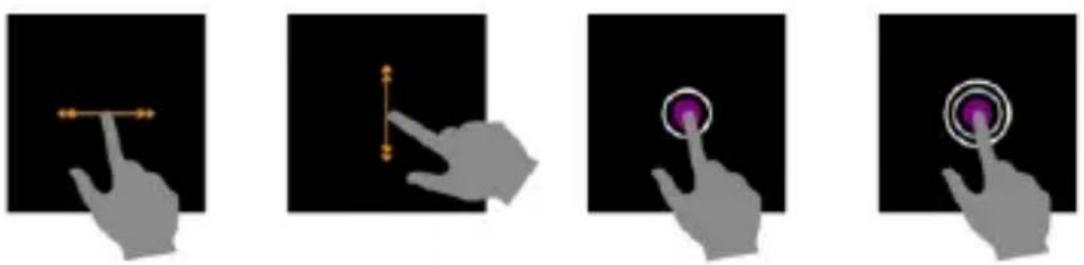
natural_image
Four grayscale images showing a hand interacting with a finger, demonstrating touch and click actions (no text or symbols)- Menu navigation
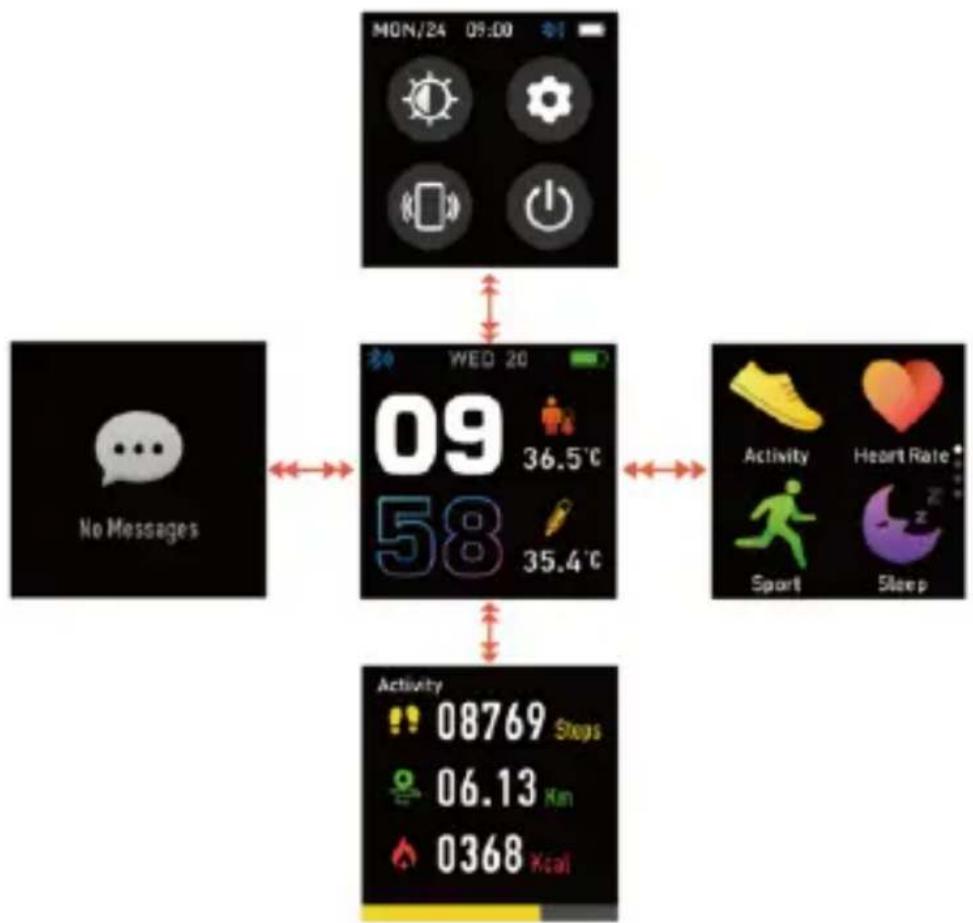
flowchart
graph TD
    A["MON/24 09:00"] --> B["NO Messages"]
    B --> C["09 58"]
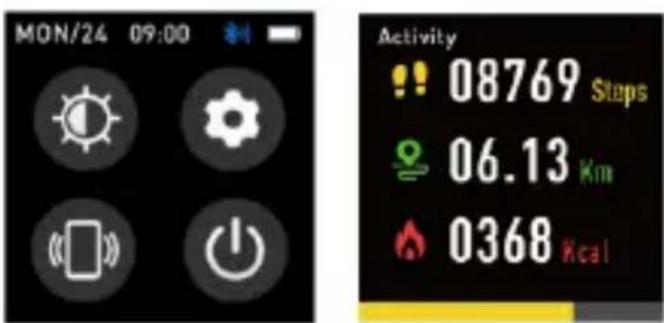
    C --> D["Activity 08769 Steps"]
    C --> E["Activity 06.13 Km"]
    C --> F["Activity 0368 kcal"]
    G["WED 20"] --> C
    H["Heart Rate"] --> C
    I["Sport"] --> C
    J["Sleep"] --> C
ENG-9
After turning on the smart watch, the watch face screen is displayed.
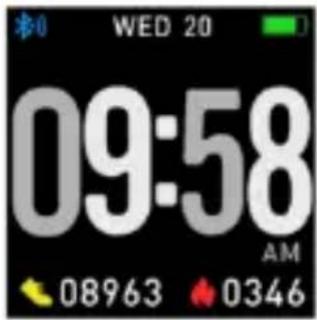
When the watch face screen is displayed:
- Go to the menu screens
a. Slide left in the watch face screen to enter the menu screens.
b. Slide up and down to switch the menu screens.
c. Tap the icon to enter the sub menu. Slide from left to right to return to the previous menu.
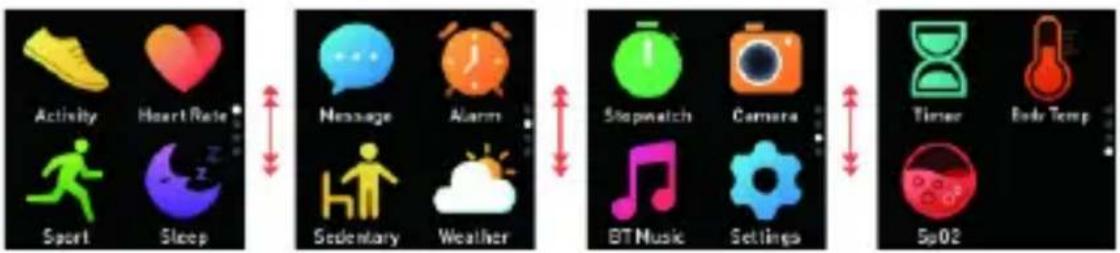
flowchart
graph LR
    A["Activity"] --> B["Heart Rate"]
    C["Sport"] --> D["Sleep"]
    E["Message"] --> F["Alarm"]
    G["Sedentary"] --> H["Weather"]
    I["Stopwatch"] --> J["Camera"]
    K["BT Music"] --> L["Settings"]
    M["Timer"] --> N["Body Temp"]
    O["Sp02"] --> P["Balance"]
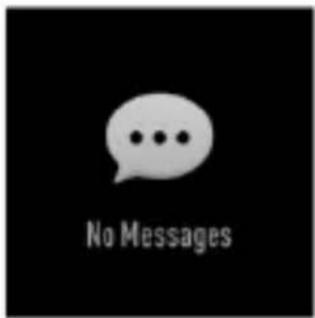
- Go to the messages shortcut screen Slide from left to right in the watch face screen.
- Go to other shortcuts screen Slide up and down in the watch face screen.
ENG-11
4. Functions
Watch face screen
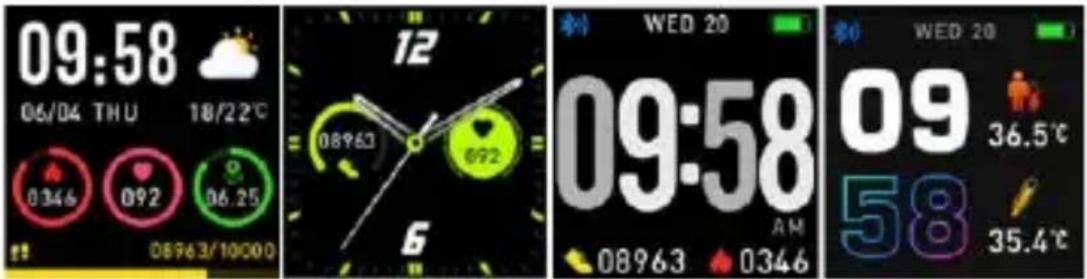
You can press the function button to go to the watch face screen quickly.
If you want to change the watch face of your smart watch, press and hold the current watch face for 3 seconds, then slide left and right to go through the different watch faces and choose the one you like.
Shortcut
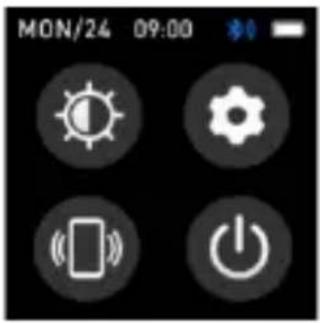
- Screen brightness You can tap the brightness icon to adjust (+/-) the screen brightness.
• Find phone If your smart watch is connected with Denver Smart Life Plus app, you can find your phone by tapping this icon and your phone will ring.
- Shut down You can shut down your smart watch by tapping this icon.
- Settings
You can go settings quickly by tapping this icon.
Multi-Sport
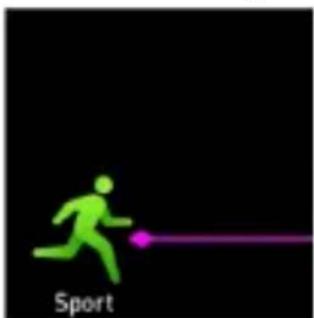
natural_image
Green silhouette of a running person with a purple motion line, labeled 'Sport' at the bottom (no other text or symbols)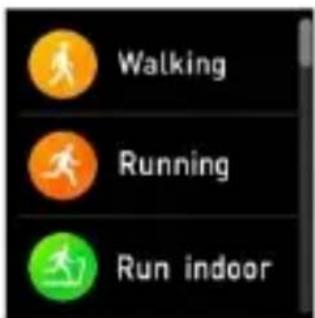
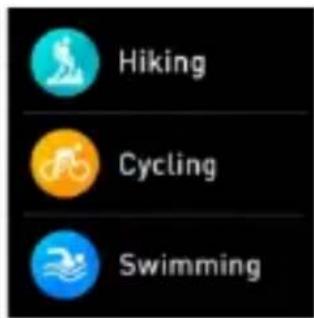
Tap this icon to enter the multi-sport mode. The smart watch has multiple sports modes: walking, running, cycling, run indoor, hiking, swimming and more. Choose a sport mode you want, and then do sports. The smart watch records your exercise data.
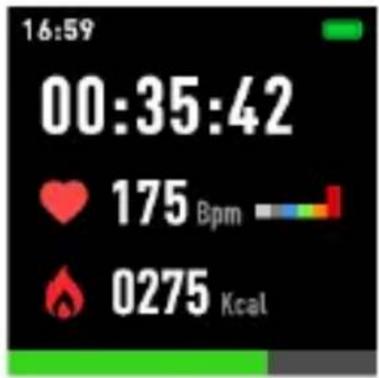
If you want to end the sports, slide the screen to right and tap the “√” icon to finish your sports and save the data. The smart watch displays your exercise data. If you’ve connected your smart watch with the “Denver Smart Life Plus” app via Bluetooth, you can also check your exercise data in the app.
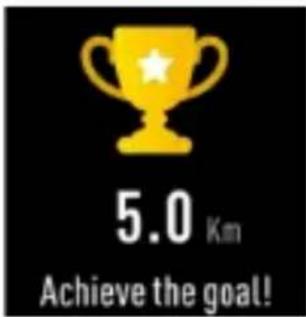
Note: Too little exercise data will not be saved.
Body temperature monitor
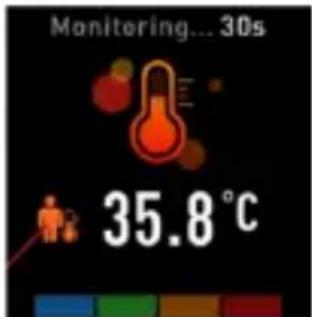
Tap the body temperature icon to monitor your current body temperature.
To exit the body temperature monitor, slide the screen to right. Please notice – this is not medical grade. If you are unsure, always use a standard
thermometer.
Measurement tolerance 0.4 degrees Celsius.
Blood oxygen monitor
natural_image
Simple diagram showing a red spherical object with internal circles and a purple line extending from it, labeled 'Sp02' at the bottom (no other text or symbols)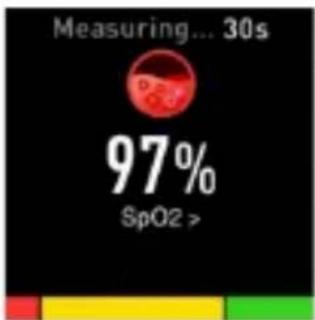
Tap the blood oxygen icon to monitor your current blood oxygen. To exit the blood oxygen monitor, slide the screen to right.
Heart rate monitor
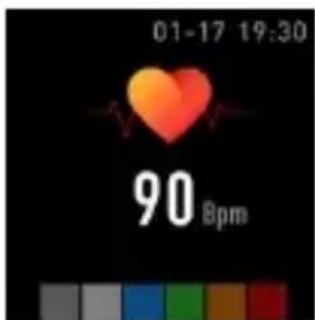
Tap this icon to monitor
your current heart rate. To exit the heart rate monitor, slide the screen to right.
If you’ve connected your smart watch with the “Denver Smart Life Plus” app via Bluetooth, you can also check your heart rate data in the app.
Sleep monitor
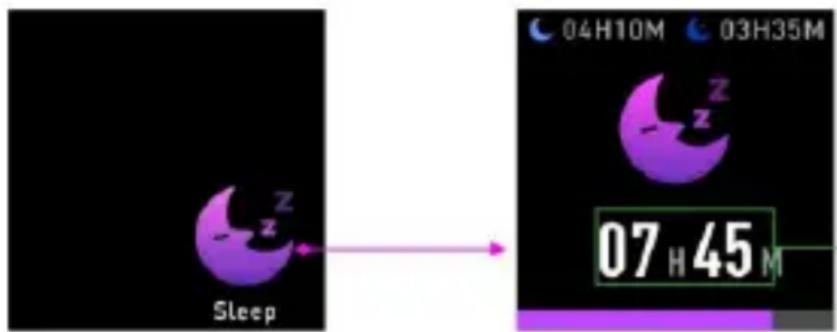
The smart watch automatically monitors your sleep between 9:00 p.m. and 9:00 a.m.
When you get up the next day, the smart watch displays your sleep report about the time of total sleep, light sleep and deep sleep. If you’ve connected your smart watch with the “Denver Smart Life Plus” app via Bluetooth, you can also check more detailed sleep report in the app.
Alarm
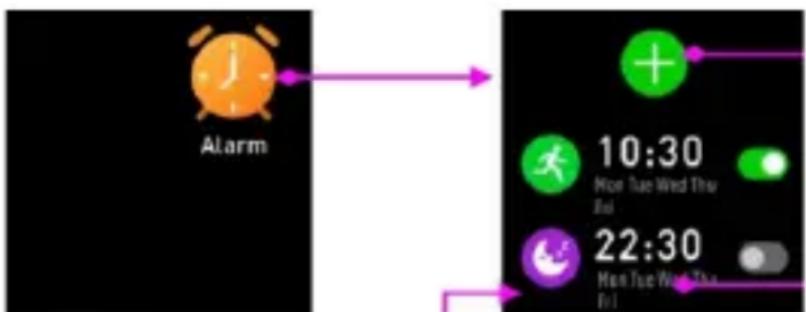
flowchart
graph LR
    A["Alarm"] --> B["10:30 Mon Tue Wed Thu Fri"]
    B --> C["22:30 Mon Tue Wed Thu Fri"]
You can set reminders in both “Denver Smart Life Plus” app and smart watch
itself. When alarm time is up, the alarm icon is animated and the smart watch vibrates.
Messages
Slide the watch face from left to right, and then you can check your phone calls, SMS, QQ, WeChat, Whatsapp, Facebook and Twitter notifications, etc. The messages will be automatically deleted after reading.
Weather
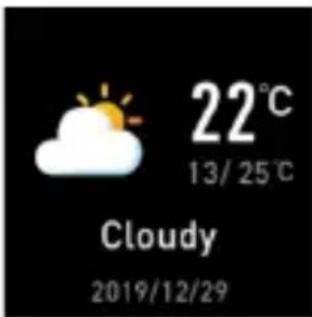
If you’ve connected your smart watch with the “Denver Smart Life Plus” app via Bluetooth, the smart watch displays the weather forecast.
Camera
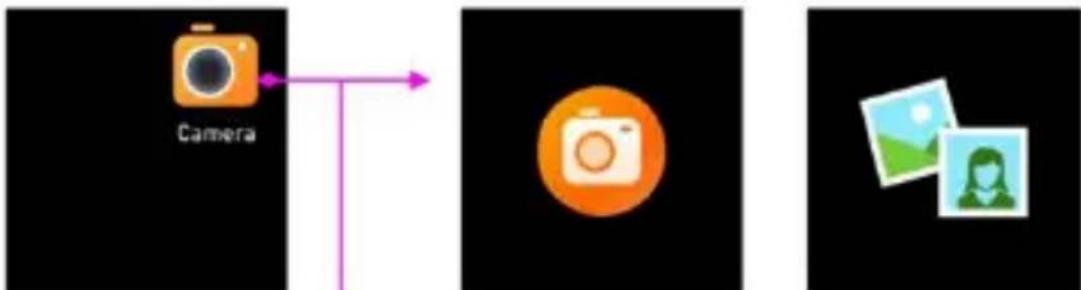
flowchart
graph LR
    A["Camera"] --> B["Photo"]
    B --> C["Image"]
After connecting with the app, you can take pictures remotely from your smart watch.
Music playback control
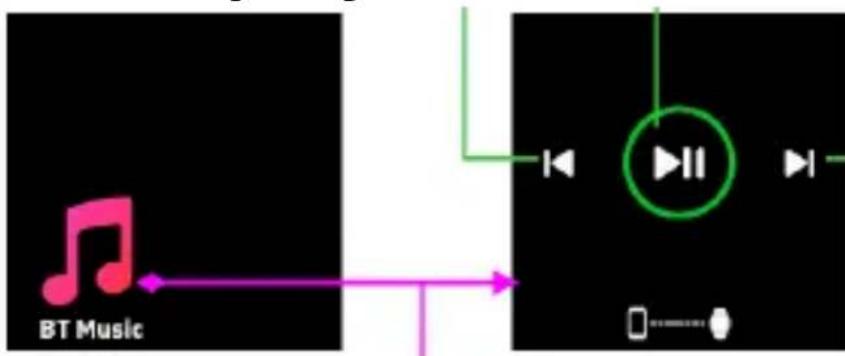
flowchart
graph LR
    A["BT Music"] --> B["Play Button"]
    B --> C["Mobile Device"]
Tap the BT music icon to enter the music playback control interface.
You can select the previous/next song, and play/pause music. To exit music playback control, slide the screen from left to right.
Sedentary reminder
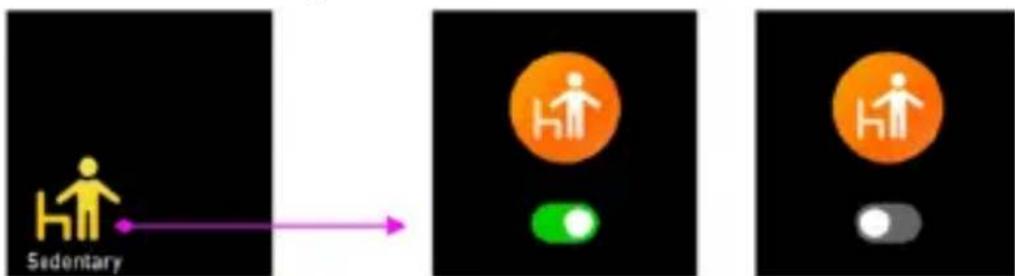
flowchart
graph LR
    A["Sedentary"] --> B["Active State"]
    B --> C["State: H with orange circle"]
    B --> D["State: Green dot with light green arrow"]
    B --> E["State: Orange circle with white human figure"]
Go to the “Settings” in the “Denver Smart Life Plus” app to set the time intervals (minutes), start time and end time. Turn on/off sedentary reminder on smart watch or app.
Slide the screen to right to exit.
Settings
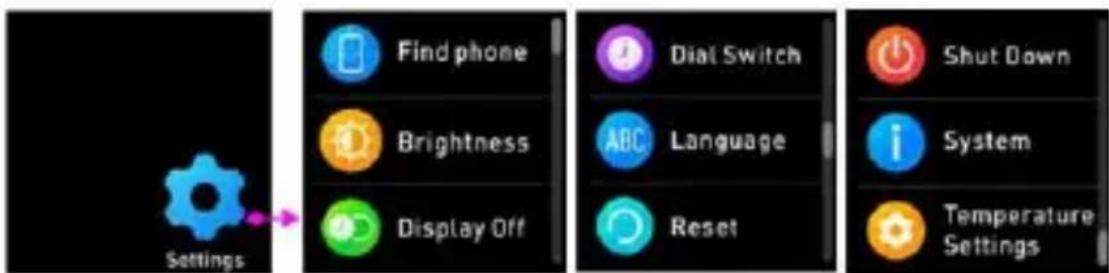
Tap this icon to enter the settings menu.
- Find phone
If your smart watch is connected with Denver Smart Life Plus app, you can find your phone by tapping this icon and your phone will ring.
- Dial Switch Tap the icon and then slide left and right to go through the different watch faces and choose the one you like.
- Screen brightness You can tap the brightness icon to adjust (+/-) the screen brightness.
- System
You can check the system of your smart watch by tapping this icon.
● Languages You can set language here.
- Shut down You can shut down your smart watch by tapping this icon.
- Reset You can reset your smart watch by tapping this icon.
● Display Off You can set time to turn off display.
- Temperature settings You can set temperature type and unit here.
Please notice - All products are subject to change without any notice. We take reservations for errors and omissions in the manual.
ALL RIGHTS RESERVED, COPYRIGHT DENVER A/S
Electric and electronic equipment and included batteries contains materials, components and
substances that can be hazardous to your health and the environment, if the waste material (discarded electric and electronic equipment and batteries) is not handled correctly.
Electric and electronic equipment and batteries is marked with the crossed out trash can symbol, seen below. This symbol signifies that electric and electronic equipment and batteries should not be disposed of with other household waste, but should be disposed of separately.
As the end user it is important that you submit your used batteries to the appropriate and designated facility. In this manner you make sure that the batteries are recycled in accordance with legislature and will not harm the environment.
All cities have established collection points, where electric and electronic equipment and batteries can either be submitted free of charge at recycling stations and other collection sites or be collected from the
households. Additional information is available at the technical department of your city.
Hereby, DENVER A/S declares that the radio equipment type SW-164 is in compliance with Directive 2014/53/EU. The full text of the EU declaration of conformity is available at the following internet address: www.denver.eu, and then click the search icon on top line of website. Write model number: SW-164. Now enter product page,
and red directive is found under downloads/other downloads.
Operating Frequency Range:
2.402GHz—2.480GHz
Max Output Power: 4.0dBm
Warning Lithium battery
inside
DENVER A/S
Omega 5A, Soeften
DK-8382 Hinnerup
Denmark
www.facebook.com/denver.eu
natural_image
Abstract geometric logo with a stylized white letter 'D' inside a black hexagon (no text or symbols)denver
SW-164 SMARTWATCH
Bedienungsanleitung
www.denver.eu

www.facebook.com/denver.eu
DEUTSCH
Sicherheitshinweise
natural_image
Black smartwatch with USB cable and connector, no visible text or symbolsAndroid
IOS
natural_image
Four grayscale images showing a hand interacting with a finger, demonstrating touch and click actions (no text or symbols)natural_image
Abstract geometric logo with a stylized letter 'D' inside a hexagonal shape (no text or symbols)denver
SW-164 SMARTWATCH
www.denver.eu
www.facebook.com/denver.eu
DANSK
natural_image
Black wristwatch with attached USB cable and connector (no visible text or symbols)Android
IOS
Forbind smarturet til telefonen
natural_image
Hand cursor pointing at a finger with a horizontal arrow on the index finger (no text or symbols)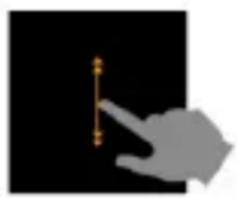
natural_image
Silhouette of a hand pointing at a vertical line on a black background (no text or symbols)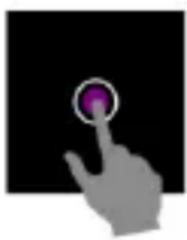
natural_image
Hand cursor clicking a purple button on a black background (no text or symbols)
natural_image
Silhouette of a hand pressing a button with a purple circular icon (no text or symbols)natural_image
Abstract geometric logo with a stylized white letter 'D' inside a black hexagon (no text or symbols)denver
SW-164 SMARTWATCH
Gebruiksaanwijzing
natural_image
Three smartwatches displaying digital temperature readings (no readable text or symbols)www.denver.eu

www.facebook.com/denver.eu
NEDERLANDS
natural_image
Black smartwatch with USB cable and connector, isolated on white surface (no text or symbols visible)Android
IOS
natural_image
Hand pointing at a finger with a small orange dot on the finger line (no text or symbols)
natural_image
Hand pointing at a vertical line on a black background (no text or symbols)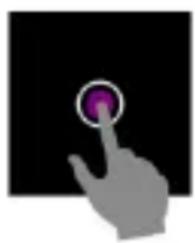
natural_image
Hand cursor clicking a purple button on a black background (no text or symbols)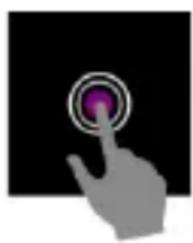
natural_image
Hand cursor clicking a purple button on a black background (no text or symbols)natural_image
Three smartwatches displaying digital app interface with time and battery readings (no readable text or symbols)www.denver.eu

www.facebook.com/denver.eu
FRANÇAIS
natural_image
Black smartwatch with USB cable attached, no visible text or symbols on the device itselfAndroid
IOS
Connector la montre intelligente au smartphone
natural_image
Hand pointing at a finger with a horizontal line and three dots on the finger (no text or symbols)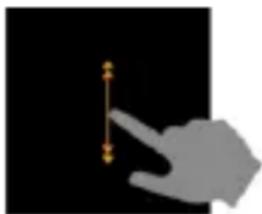
natural_image
Silhouette of a hand pointing at a vertical line with small dots, against a black background (no text or symbols)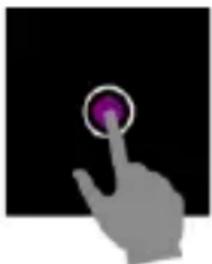
natural_image
Silhouette of a hand pressing a purple button on a black background (no text or symbols)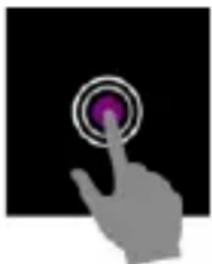
natural_image
Silhouette of a hand pressing a button with a purple circular icon (no text or symbols)natural_image
Abstract geometric logo with a stylized white letter 'D' inside a black hexagon (no text or symbols)denver
RELOJ INTELIGENTE SW-164
Guía de usuario
natural_image
Three smartwatches displaying time, battery, and weather gauge (no readable text or symbols)www.denver.eu
www.facebook.com/denver.eu
ESPAÑOL
natural_image
Black wristwatch with USB cable and connector, no visible text or symbolsAndroid
IOS
natural_image
Hand pointing at a finger with a horizontal line (no text or symbols)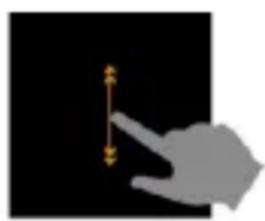
natural_image
Silhouette of a hand pointing at a vertical dimension line (no text or symbols)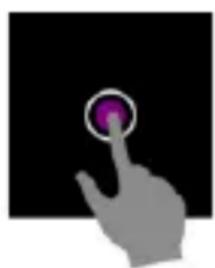
natural_image
Silhouette of a hand pressing a button with a purple circular icon (no text or symbols)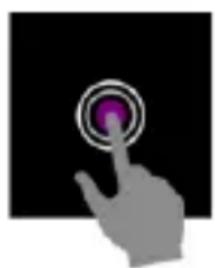
natural_image
Hand cursor clicking a purple button on a black background (no text or symbols)natural_image
Three smartwatches displaying digital app interface with time and battery readings (no readable text or symbols)www.denver.eu
www.facebook.com/denver.eu
ITALIANO
natural_image
Black smartwatch with USB cable and connector, no visible text or symbolsAndroid
IOS
Collegare lo smartwatch al telefono
natural_image
Hand pointing at a finger with a horizontal arrow, no text or symbols present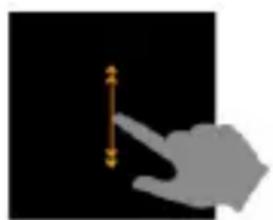
natural_image
Silhouette of a hand pointing at a vertical dimension line (no text or symbols)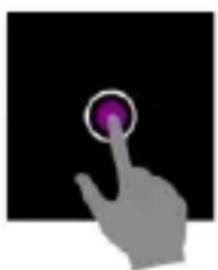
natural_image
Silhouette of a hand pressing a button with a purple circular icon (no text or symbols)
natural_image
Hand cursor clicking a purple button on a black background (no text or symbols)natural_image
Three smartwatches displaying temperature readings and usage icons, no visible text or symbols on the devices themselves.www.denver.eu

www.facebook.com/denver.eu
PORTUGUÊS
natural_image
Black wristwatch with attached USB cable and connector (no visible text or symbols)Android
IOS
natural_image
Four grayscale images showing a hand interacting with a finger, demonstrating touch and click actions (no text or symbols)natural_image
Abstract geometric logo with a stylized white letter 'D' inside a black hexagon (no text or symbols)denver
SW-164 SMARTWATCH
Användarhandbok
natural_image
Three smartwatches displaying time, battery, and app icons (no readable text or symbols)www.denver.eu
www.facebook.com/denver.eu
SVENSKA
natural_image
Black smartwatch with USB cable and control panel, no visible text or symbolsInstallera appen "Denver Smart Home" på telefonen
Android
IOS
natural_image
Four grayscale images showing hand gestures and a finger pointing at a target, no text or symbols presentnatural_image
Abstract geometric logo with a stylized white letter 'D' inside a black hexagon (no text or symbols)denver
SW-164-ÄLYKELLO
Käyttöopas
www.denver.eu
www.facebook.com/denver.eu
SUOMI
Turvallisuustiedot
natural_image
Top-down view of a black wristwatch with attached cable and USB port, no visible text or symbols.Android
IOS
natural_image
Silhouette of a hand pointing at a horizontal line with a small orange dot, against a black background (no text or symbols)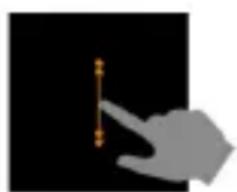
natural_image
Silhouette of a hand pointing at a vertical line on a black background (no text or symbols)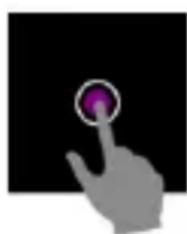
natural_image
Hand cursor clicking a purple button on a black background (no text or symbols)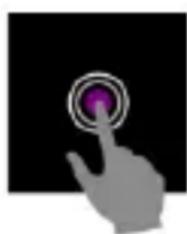
natural_image
Hand cursor clicking a purple button on a black background (no text or symbols)FIN-9
natural_image
Black wristwatch with attached USB cable and connector (no visible text or symbols)Installere Denver Smart Home appen på mobiltelefonen
Gå inn på Google Play eller
Android
IOS
Koble smartklokken til telefonen
natural_image
Hand pointing at a finger with a small dot mark on the finger (no text or symbols)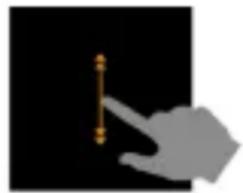
natural_image
Hand holding a pen against a black background (no text or symbols)
natural_image
Hand cursor clicking a purple button on a black background (no text or symbols)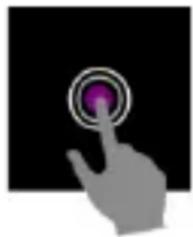
natural_image
Hand cursor clicking a purple button on a black background (no text or symbols)natural_image
Three smartwatches displaying digital temperature readings (no readable text or symbols)www.denver.eu
www.facebook.com/denver.eu
POLSKI
natural_image
Black smartwatch with USB cable and connector, no visible text or symbolsAndroid
IOS
natural_image
Hand pointing at a horizontal line with small dots, against a black background (no text or symbols)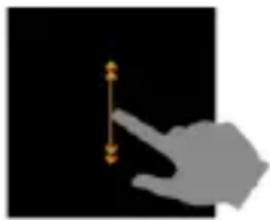
natural_image
Silhouette of a hand pointing at a vertical orange line on black background (no text or symbols)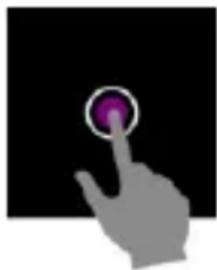
natural_image
Hand cursor clicking a purple button on a black background (no text or symbols)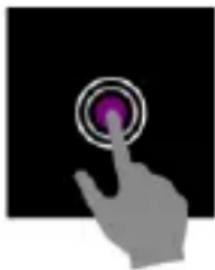
natural_image
Silhouette of a hand pressing a button with a purple circular icon (no text or symbols)(Push "2" for support)
For technical questions,
please write to:
support@denver.eu
For all other questions
please write to:
denver@denver.eu
Germany
Denver Germany GmbH
Service
Gutenbergstrasse 1
94036 Passau
Phone: +49 851 379 369 40
Repair-germany@denver.eu
Fairfixx GmbH
Repair and service
E-Mobility/Hoverboards/Ba
lanceboards, Smartphones
& Tablets)
Tel.: +49 851 379 369 69
Lurf Premium Service
GmbH
Deutschstrasse 1
1230 Wien
Phone: +43 1 904 3085
E-Mail: denver@lurfservice.
at
Benelux/France
Denver Benelux BV
Barwoutswaarder 13C+D
3449 HE Woerden
The Netherlands
Phone: +31 348 420 029
E-Mail: support-nl@denver.
eu
Spain/Portugal
Denver A/S Spain S.A
C/ Moscú,

- Safety information
- Quick start guide Overview
- Connect the smart watch with mobile phone
- Unbind the smart watch with mobile phone
- Operation introduction
- How to use
- Functions
- Watch face screen
- Shortcut
- - Settings
- Multi-Sport
- Body temperature monitor
- Blood oxygen monitor
- Heart rate monitor
- Sleep monitor
- Alarm
- Messages
- Weather
- Camera
- Music playback control
- Sedentary reminder
- Settings
- denver
- Bedienungsanleitung
- Sicherheitshinweise
- SW-164 SMARTWATCH
- Forbind smarturet til telefonen
- Gebruiksaanwijzing
- Connector la montre intelligente au smartphone
- Guía de usuario
- Collegare lo smartwatch al telefono
- Användarhandbok
- Installera appen "Denver Smart Home" på telefonen
- Turvallisuustiedot
- Installere Denver Smart Home appen på mobiltelefonen
- Koble smartklokken til telefonen
- Germany
- Benelux/France
- Spain/Portugal
Brand : DENVER
Model : SW-164 MK2
Category : Smartwatch