 ManualGo.com
KW-NT300 - GPS Car Stereo JVC - Free user manual and instructions
Find the device manual for free KW-NT300 JVC in PDF.



Download the instructions for your GPS Car Stereo in PDF format for free! Find your manual KW-NT300 - JVC and take your electronic device back in hand. On this page are published all the documents necessary for the use of your device. KW-NT300 by JVC.
USER MANUAL KW-NT300 JVC
KW-NT500HDT / KW-NT300
ESPAÑOL This HD Radio receiver enables: For customer Use: Enter below the Model No. and Serial No. which are located on the top or bottom of the cabinet. Retain this information for future reference. Model No. Serial No.
LVT2277-001A
[J] ENGLISH Thank you for purchasing a JVC product. Please read all instructions carefully before operation, to ensure your complete understanding and to obtain the best possible performance from the unit.
IMPORTANT FOR LASER PRODUCTS
1. CLASS 1 LASER PRODUCT
2. CAUTION: Do not open the top cover. There are no user serviceable parts inside the unit; leave all servicing to
qualified service personnel.
3. CAUTION: (For U.S.A.) Visible and/or invisible class II laser radiation when open. Do not stare into beam.
(For Canada) Visible and/or invisible class 1M laser radiation when open. Do not view directly with optical instruments.
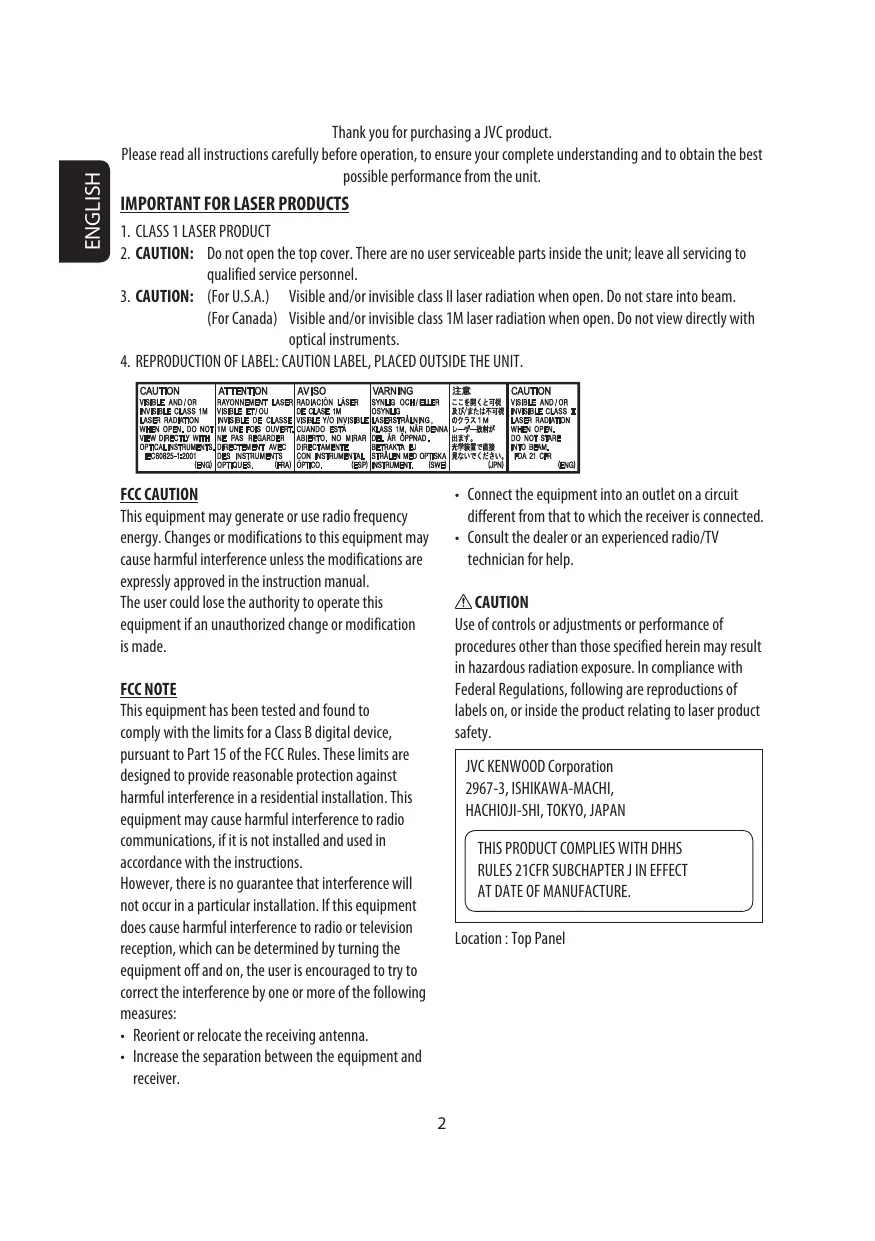
4. REPRODUCTION OF LABEL: CAUTION LABEL, PLACED OUTSIDE THE UNIT.
- Connect the equipment into an outlet on a circuit different from that to which the receiver is connected.
- Consult the dealer or an experienced radio/TV technician for help. FCC CAUTION This equipment may generate or use radio frequency energy. Changes or modifications to this equipment may cause harmful interference unless the modifications are expressly approved in the instruction manual. The user could lose the authority to operate this equipment if an unauthorized change or modification is made. CAUTION Use of controls or adjustments or performance of procedures other than those specified herein may result in hazardous radiation exposure. In compliance with Federal Regulations, following are reproductions of labels on, or inside the product relating to laser product safety. FCC NOTE This equipment has been tested and found to comply with the limits for a Class B digital device, pursuant to Part 15 of the FCC Rules. These limits are designed to provide reasonable protection against harmful interference in a residential installation. This equipment may cause harmful interference to radio communications, if it is not installed and used in accordance with the instructions. However, there is no guarantee that interference will not occur in a particular installation. If this equipment does cause harmful interference to radio or television reception, which can be determined by turning the equipment off and on, the user is encouraged to try to correct the interference by one or more of the following measures:
- Reorient or relocate the receiving antenna.
- Increase the separation between the equipment and receiver. JVC KENWOOD Corporation 2967-3, ISHIKAWA-MACHI,
HACHIOJI-SHI, TOKYO, JAPAN
THIS PRODUCT COMPLIES WITH DHHS
RULES 21CFR SUBCHAPTER J IN EFFECT
AT DATE OF MANUFACTURE. Location : Top Panel
(For USA) CAUTION: This device and its antenna(s) must not be co-located or operating in conjunction with any other antenna or transmitter. End user cannot modify this transmitter device. Any unauthorized modification made on the device could avoid the user’s authority to operate this device. (For Canada) “The installer of this radio equipment must ensure that the antenna is located or pointed such that it does not emit RF field in excess of Health Canada limits for the general population, consult Safety Code 6, obtainable from Health Canada’s website www. hc-sc.gc.ca/rpb” The term “IC:” before the radio certification number only signifies that Industry Canada technical specifications were met. This device complies with RSS 210 of Industry Canada “IC”. “Operation is subject to the following two conditions: (1) this device may not cause interference, and (2) this device must accept any interference, including interference that may cause undesired operation of the device”. WARNINGS: To prevent accidents and damage
- DO NOT install any unit or wire any cable in a location where; – it may obstruct the steering wheel and gearshift lever operations. – it may obstruct the operation of safety devices such as air bags. – it may obstruct visibility.
- DO NOT operate the unit while driving. If you need to operate the unit while driving, be sure to look around carefully.
- The driver must not watch the monitor while driving. [European Union only]
ENGLISH Cautions on the monitor:
- The monitor built in this unit has been produced with high precision, but it may have some ineffective dots. This is inevitable and is not malfunction.
- Do not expose the monitor to direct sunlight.
- Do not operate the touch panel using a ball-point pen or similar tool with the sharp tip. Touch the buttons on the touch panel with your finger directly (if you are wearing a glove, take it off).
- When the temperature is very cold or very hot... – Chemical changes occur inside, causing malfunction. – Pictures may not appear clearly or may move slowly. Pictures may not be synchronized with the sound or picture quality may decline in such environments. ENGLISH For safety...
- Do not raise the volume level too much, as this will block outside sounds, making driving dangerous.
- Stop the car before performing any complicated operations. [Hold] Temperature inside the car... If you have parked the car for a long time in hot or cold weather, wait until the temperature in the car becomes normal before operating the unit. When replacing/rotating the tires: It is required to clear all the accumulated calibration data which is important for accurate navigation. To clear the data, ☞ page 37.
- Make sure you remove the disc so that it does not fall. How to read this manual:
Illustrations of KW-NT500HDT are mainly used for explanation. < > indicates the variable screens/menus/operations/settings that appear on the touch panel. [ ] indicates the buttons on the touch panel. Illustrations in this manual are examples and may differ from the actual display.
- ENGLISH How to forcibly eject a disc ENGLISH Contents How to forcibly eject a disc p. 5
- AV Operations p. 42
- Common operations on source screen p. 42
- Selecting the playback source ...................................................................42
- Turning off the AV source .........................................................................42 Listening to the HD Radio™ broadcast (For KW-NT500HDT)...................43
- Changing HD Radio reception mode .........................................................45
- Storing stations in memory ......................................................................45
- Selecting a preset station ..........................................................................46
- Reducing the interference ........................................................................46
- Bookmarking the song ..............................................................................47
- Displaying the list of bookmarked songs ..................................................47
- Deleting the bookmark .............................................................................47
- Tagging/purchasing your favorite songs from iTunes Store ......................48 Listening to the radio (For KW-NT300) ................................................50
- Storing stations in memory ......................................................................50
- Selecting a preset station ..........................................................................51
- Reducing the interference ........................................................................51 Disc operations .................................................................................52
- Playable disc types ....................................................................................53
- Selecting playback modes ........................................................................57
- Settings for the disc playback ...................................................................58 SD/USB operations ............................................................................59 iPod/iPhone operations.....................................................................63
- Selecting a track/video from menu on the iPod/iPhone ............................67 iHeartRadio operations .....................................................................69 Pandora® internet radio operations ...................................................73 Listening to the SiriusXM Radio..........................................................75
- Activating subscription .............................................................................75
ENGLISH Arranging your route ........................................................................31
- Changing the sequence of the destination/via points ...............................31
- Adjusting the vehicle position ..................................................................32 Editing registration of home/favorite points ......................................33 ENGLISH Bluetooth Operations .............................97 Information for using Bluetooth® devices ...........................................97 Using Bluetooth device .....................................................................98
- Registering a Bluetooth device .................................................................98
- Change the PIN code ...............................................................................100
- Connecting/disconnecting a registered Bluetooth device .......................100
- Deleting a registered Bluetooth device ...................................................100 Using Bluetooth mobile phone ........................................................101
- Receiving a call .......................................................................................101
- Adjusting the volume of calls/earpiece ...................................................101
- Switching between handsfree mode and phone mode ...........................102
- Making a call ..........................................................................................102
- Copying the phone book .........................................................................103
- Searching for a phone number from phone book ....................................103
- Deleting the phone number memory in the unit ....................................104
- About mobile phone compatible with Phone Book Access Profile (PBAP) ....................................................................................................104
Rear View Camera Operations............. 108 Using a rear view camera.................................................................108
- Activating the rear view camera .............................................................108
- Displaying the picture from the rear view camera ..................................108 (Eject) button/Security indicator Flashes when the unit is turned off if you have enabled the security indicator. (☞ page 84) Disc loading slot Screen (touch panel) /DISP OFF button Displays the map for the current location. (☞ page 14) Turns off/on the screen.[Hold] (☞ page 11) button Displays the destination menu screen. (☞ page 14) button Displays the screen for the current source. /SOURCE/Volume knob
- Adjusts the audio volume.
- Displays the source screen. (☞ page 15)
- Turns off the AV function.[Hold] (☞ page 42) 8 microSD card slot 9 AUX input terminal
Basic operations When you turn on the unit for the first time, the initial setup screen appears. 1 Turn on the ignition switch. The power of the unit is turned on. 2 Select the language you want for the display and the voice guidance. Turning on the power
Turn on the ignition switch.
- When displaying the map screen for the first time after turning on the power, the screen below appears. Press [OK] to use the map screen.
- You can also select the system language through <Settings> - <System> - <Region> <Language>. (☞ page 82) Set the installation settings (1), then press [OK] (2).
- The power is turned off when the ignition switch is turned off. Turning off/on the screen Press and hold to turn the screen off. Touch the screen to turn it on again. State/ Province Time Zone * DST * Camera Input * Select the State or Province where you are now. Select your residential area for automatic clock adjustment by GPS signal. Select [Auto] if your residential area is subject to Daylight Saving Time. Select [On] when connecting the rear view camera to the CAMERA IN jack.
- You can erase the clock display while the screen is turned off. (<Clock on Video/Screen-Off>, ☞ page 83)
- You can also change these settings through <Settings> - <System>. (☞ page 83, 84)
ENGLISH Installation settings ENGLISH Basic operations Operations on the touch panel Ex.: Album list When items on the menu are not available Plays back all items in the next lower layer Non-available items will be shaded Scrolling the track/song information To change the page of menu/list When all the text is not shown at once... Menu Changes the page
- Note that when driving, the album name and artist name are not displayed, and the song name does not scroll. Characters you can use List Ex.: Folder/track list Changes the page Skips the list up or down
3 Touch the feature you want to assign to the Using the Quick menu button. Quick menu is assigned a set of frequently used features, which is user-changeable. It is activated from the current position screen. You can also change these settings through <Settings> - <System>-<Others> <Shortcut Button>. Extending/shortening the auto antenna
1 Press the volume knob. 2 Press [ ] or [
Assigning different features
2 Touch the button you want to configure. Press [ ] to extend the antenna, and press ] to shorten the antenna.
- If you turn off the unit the antenna is shortened, then “Antenna remote is turned off” is displayed the next time the unit is turned on. Touch <OK> to clear the message.
ENGLISH Basic operations ENGLISH Switching screens Navigation mode ■ Map screen ■ Destination Menu Use this screen to search for a destination using one of the available search methods. ■ Settings Menu ■ Function Menu Use this screen to change the detailed settings and get information about the navigation system. Use this screen to get information about your destination and the travel route. While driving at a speed greater than 3 mi (5 km/h), some screens are not available.
AV mode ■ AV screen Displays the screen for the current AV source. [Press] ■ Source selection screen Use this screen to select an AV source. The AV control bar is displayed on the map screen. You can perform AV source operations using the AV control bar. Erases the AV control bar
ENGLISH Switching screens ENGLISH Navigation System Safety instructions/information for the Navigation System SAFETY INSTRUCTIONS Terms of licence Use of the Navigation System is only permitted if the traffic conditions are suitable and you are absolutely sure that no risk, obstruction or inconvenience will be incurred to you, your passengers or other road users. The requirements of the Road Traffic Regulations must always be followed. The destination must not be entered while driving the car. The Navigation System serves solely as an aid to navigation. It never releases the drivers from their duties to drive carefully and to make own judgement in road traffic. Inaccurate or incorrect instructions may happen to be given due to changing traffic conditions. The actual road signs and traffic regulations must therefore always be observed. In particular, the Navigation System cannot be used as an aid to orientation when visibility is poor. This Navigation System must only be used for its intended purpose. The volume of the car radio/ Navigation System must be adjusted so that external noise is still audible. You are granted a non-exclusive licence to use the database for your personal purposes. The present licence does not authorise the granting of sublicenses. Use of the data is only permitted in this specific JVC system. It is forbidden to extract or make further use of significant parts of the database content, or to duplicate, modify, adapt, translate, analyse, decompile or reverse-engineer any part thereof. Navigation guidance is performed, based on the database, therefore, it may not be applicable to the current situation because of changes in traffic conditions (e.g. changes in tollroads, principal roads, one-way traffic, or other traffic regulations). In this case, observe the current traffic signs or regulations.
- Traffic signs should be observed carefully while driving using the Navigation System. Navigation System is only an aid. Driver must always decide whether or not to heed the information provided. JVC does not accept liability for erroneous data provided by the Navigation System.
- Traffic guidance is restricted to passenger vehicles only. Special driving recommendations and regulations for other vehicles (e.g. commercial vehicles) are not included.
- Do not operate the unit while driving. Information/icons on the map
WARNING:
Map content, including names and appearance of streets and bridges, POI (Point Of Interest) information, etc. may be inaccurate. If the traffic rules displayed by the unit are different from the actual traffic rules, obey the actual traffic rules. Road traffic regulations always take priority when a vehicle is being driven in traffic. Navigation System is only an aid. Errors may occur in individual data items/ entries. At all times, the driver must decide whether or not to heed the information provided. JVC does not accept liability for erroneous data provided by the Navigation System.
- The information on the map (such as street name, the POI information, and speed limit) may not be always displayed (for example, if the System does not have the information of the position).
- Home ( ) and favorite point ( ) icons are displayed after home/favorite points are registered.
- POI icons are displayed on the map depending on the <POI Icon> setting (☞ page 19) and the map scale is between 80 ft (25 m) and 500 ft (150 m).
- POI icons may not be displayed correctly when the System displays the wide area of map. In this case, zoom in the map to display the detailed map.
ENGLISH Basic operations About the current position screen Your position Current time POI (Point Of Interest) (☞ “List of POI icons”, page 41) Home (☞ pages 20 and 33) Favorite points (☞ pages 20 and 33) Zoom buttons (☞ page 18) Shows the AV control bar (☞ page 15) Shows the quick menu (☞ page 13) Current street To change the map view About the 3D map 3D Map The three dimensional map is displayed in “heading up”.
- When the scale is set between 80 ft (25 m) and 200 ft (65 m), the street map is displayed only when the data is provided.
- When the 3D Map view is selected and the street map is displayed, the map is shown in the three dimensional virtual style depicting how the surrounding buildings etc. look like. 2D North Up The map view is oriented with north “upwards”, as in usual paper maps. 2D Heading Up The map rotates so that you are always displayed heading “upwards”.
- You can also change the map view through - <Settings> - <Navigation> - <Map> - <View Mode>. (☞ page 38)
ENGLISH Basic operations To change the map scale 1 Display the zoom buttons and scale buttons. The position you touched is centered on the map.
Zoom in (only for 3D map) Touch the arrow to rotate the map 360 degrees You can also zoom in and out by sliding the slider. Zoom out (cursor) Target position of operation
- When the AV control bar is displayed, slider is not shown. Direction and distance of the destination from your current position
- Touch and hold the map to keep scrolling the map.
- If you touch and hold the map near the cursor, the map keeps scrolling slowly. To display your current position Press
To display/hide POI icons on the map To display/hide Favorite icons on the map 1 Press
- <Settings> - <Navigation>. 3 Select categories (1) of POI which you want - <Settings> - <Navigation>. 3 Select categories of Favorite Icons that you to be displayed on the map. want to be displayed on the map.
- When you press an item, it is highlighted. When you press again, the selection is canceled.
- If you press [More], you can select sub-categories.
- If you press [Off], selected POI icons are not displayed. If you press [On], selected POI icons are displayed.
- When you press an item, it is highlighted. When you press again, the selection is canceled.
- If you press [Off], selected POI icons are not displayed. If you press [On], selected POI icons are displayed.
ENGLISH Basic operations ENGLISH Registering your home/favorite points You can register up to 300 favorite points (including one home). To register as your home
1 Scroll the map to select the position you want to select as a destination.
- To search the destination using <Destination> menu, ☞ pages 21 to 25.
Notice: If you have already registered a destination as your home, a confirmation message is displayed when you select . Select [Yes] to save the new destination as your home. The previous home destination is moved to the unclassified category. To register as your home
- To edit the registration, ☞ page 33.
- To search from register points, page 21.
Setting a destination by scrolling the map 1 Scroll the map to select the position you 1 Press 2 Select a method to search for a destination. want to select as a destination. (☞ page 18)
Home * Goes to your home.
- To register your home, ☞ page 20.
- To start guidance, ☞ page 26. Favorites * Searches from your favorite points.
- To register your favorite points, ☞ page 20.
- To edit the information about the favorite points, ☞ page 33.
- To start guidance, ☞ page 26. Previous * Searches from the history of previous destinations and via points.
- You can select a place from the last 50 destinations and via points.
- To delete the history, ☞ page 28. Address Searches by an address. (☞ page 23) Searches for POIs around your current Vicinity position, the destination, or via point(s). (☞ page 24) POI Name Searches for POIs by name. (☞ page 24) Phone Searches by a telephone number. (☞ page 25) Coordinates Searches by coordinates of the destination. (☞ page 25) If there are several POIs on the selected position, press [ ] to switch to the next POI. 3 The search result is displayed. Returns to step 2
- To set the search result as the destination and start guidance, ☞ page 26.
- Selectable only when at least one place is registered.
ENGLISH Searching for a place ENGLISH Searching for a place About search screens and input screens Read through the following instructions for using search screens and input screens before using <Destination> menu. To enter names, addresses State/Province selecting screen You can change the State/Province if the selecting button appears on the screen. Number of matches
- When there are more than 1000 matches, “1000+” is displayed and only the first 1000 matches are displayed.
- If you enter a name and the answer is given in [number], it is the number of perfect matches. Press: Deletes the last character Hold: Deletes all characters List of matches When you press [List] on the input screen, the list of matches appears. Select desired item from the list. Enters a space Displays the list of matches (☞ “List of matches” on the right) Displays other keyboards
- For available characters, ☞ page 12.
- When the number of matches is 5 or less, the list of matches automatically appears.
- Buttons vary depending on the input item.
- For some input screens, available characters are automatically narrowed down as the System searches its database for matches.
- Lower cases are not available.
4 Enter the house number, then press [OK].
- If you don’t know the number of house for the selected street, you can select [Middle of Road] or [Intersection]. 2 Enter the city name, then select from the list. (☞ page 22) Changes State or Province Specifies the crossing street to select intersection on the street Selects the center of the street
- If the house number you entered is not found in the database, the map with the nearest house number is displayed. The search result is displayed.
- To start guidance, ☞ page 26. Displays the list of matches 3 Enter the street name, then select from the list. (☞ page 22) Selects the center of the city Displays the list of matches
ENGLISH Searching for a place ENGLISH Searching for a place POI near a place/route <Vicinity> From the list of POI <POI Name> The System has a huge database of POIs (Point Of Interest), such as restaurants, gas stations, hospitals, etc. You can search for a POI around the place where you are now. While guided, you can also search for a POI near the destination or via point
2 Enter the POI name, then select from the list. (☞ page 22)
2 Select a category for the POI. Changes State or Province Displays the list of matches Switches locations for search (Present location via point destination)
- If you press [More], you can select sub-categories. 3 Select a POI from the list. Displays POI based on their distance Displays POI in alphabetical order Press to select a category of POI The System displays up to 1000 POIs. When you press [Category], [More] is displayed. By pressing [More], you can select sub-categories. The search result is displayed.
- To start guidance, ☞ page 26. The search result is displayed.
- To start guidance, ☞ page 26.
By telephone number <Phone> 2 Enter the telephone number, then select from the list. (☞ page 22) press [OK]. Displays the list of matches The search result is displayed.
- To start guidance, ☞ page 26. The search result is displayed.
- To start guidance, ☞ page 26.
ENGLISH Searching for a place ENGLISH How you are guided Starting guidance to the destination or via point 1 Select a destination or via point. (☞ pages 21
to 25) To set as destination The estimated time and distance to the destination are displayed. [Fastest]: [Shortest]: [Freeway]: The recommended route. The shortest route. The recommended route by the most use of freeways. [Avoid Freeways]: The recommended route by the least use of freeways. Displays all above four routes at once. [All]:
- Route select screens always displayed using the 2D North up map view regardless of the current map view setting. (☞ page 17) The System starts calculating. To set as via point You can add the via points only after selecting your destination. To cancel guidance, ☞ page 28. ] before selecting a destination or
- If you press [ via point, you can search for a POI around where you searched for by category. The System starts calculating.
Changing route options 1 Press
Recalculating the route after changing route options - <Settings> - <Navigation>. 1 Press
3 Set options. Priority Toll Road Ferry - <Function> Select the priority for route calculation ([Fastest]: the recommended route/ [Shortest]: the shortest route/ [Freeway]:the recommended route by the most use of freeways/[Avoid Freeways]: the recommended route by the least use of freeways.) Select whether to use ([Use]) or avoid ([Avoid]) these types of options for route calculation. The estimated time and distance to the destination are displayed. [Fastest]: [Shortest]: [Freeway]: The recommended route. The shortest route. The recommended route by the most use of freeways. [Avoid Freeways]: The recommended route by the least use of freeways. Displays all above four routes at once. [All]:
- Route select screens always displayed using the 2D North up map view regardless of the current map view setting. (☞ page 17)
ENGLISH How you are guided ENGLISH How you are guided Adjusting the volume of the voice guidance Delete previous destinations 1 Press
4 Select items to delete (1), and delete them (2). Selected items are highlighted.
- You can also adjust the volume through - <Settings> - <Navigation> - <Guide> <Guidance Volume>. (☞ page 39) Canceling guidance 1 Press
Selects/deselects all items A confirmation message appears.
About route guidance screen Direction, distance, and estimated time of arrival (ETA) at the destination ( ) or a via point ( )
- Press to switch the information between the final destination and the nearest via point. Distance to the next turn Next street Next turn to make The second turn to make (if any) Route to take Shows AV control bar Lanes to take (Appears when coming within 1.2 mi (2 km) of it.) Current street Guidance at turns When you approach a turn, the System guides you with voice guidance and indications on the screen.
- Guidance voice comes out only through the front speakers (FRONT OUT of A/O cable). To hide the magnified map, touch the magnified map. To show it again, press
What if I miss a turn? Don’t worry. The System calculates a new route quickly. Magnified map
- You can select whether or not to display the magnified map through - <Settings> - <Navigation> - <Guide> - <Magnified View>. (☞ page 39)
- When you reach the area approximately within 90 ft (30 m) around the destination/via point, the Navigation System considers you to have reached your destination/via point.
ENGLISH How you are guided ENGLISH How you are guided Getting information on your route and places If via points are set, select a desired via point to check its detailed information. To check the entire route - <Function>. 1 Press
To confirm how your trip will go <Simulation> To check the information on the destination and via points
Drive simulation starts. Changes the speed of the drive simulation (x1/x2/x3) Cancels the simulation and resume guidance
Changing the sequence of the destination/via points
- Highways are always used to calculate the route if distance to a destination exceeds a certain distance.
- If the destination cannot be reached without using highways, ferries, or toll roads, they are used to calculate the route without respect to the <Route> settings. (☞ page 27) 1 Press
To delete a via point - <Function>. In step 4 on the left, select the item to delete ] (2), then press [Recalculate] (1), press [ (3).
The System starts calculating the new route.
- To start guidance, ☞ page 26. 4 Press the desired order of the selected point (1, 2), then press [Recalculate] (3).
The System starts calculating the new route.
- To start guidance, ☞ page 26.
ENGLISH Arranging your route ENGLISH Arranging your route Adjusting the vehicle position If you find your current position is displayed on a wrong place on the map, use this setting to correct your position. 1 Press
4 Move the cursor to the position where you want to set as current position.
- To adjust the direction of the vehicle, press [Direction] and go to step 5.
- If you do not want to adjust the direction, press [OK]. - <Settings> - <Navigation>.
5 Adjust the direction.
6 Edit the information.
A Displays the name editing screen C Displays the category selection screen B Displays the phone number editing screen
- You can use up to 48 characters. Displays other keyboards
- For available characters, ☞ page 12. 4 Select the category for the favorite point to edit. Enters a space B To edit the phone number 5 Select one to edit. Press: Deletes the last character Hold: Deletes all characters C To change the category Select a new category for the favorite point. A confirmation message appears when you select the Home category.
ENGLISH Editing registration of home/favorite points This function is available on KW-NT500HDT only, not equipped with on KW-NT300. You can use the information services provided by Total Traffic HD NETWORK service (from HD Radio) and Total Traffic CONNECT service (from iHeartRadio). JVC cannot assume responsibility for the completeness or accuracy of the information. Using the traffic information service Traffic information on the map
- Traffic icons are displayed on the map when its scale is between 80 ft (25 m) and 0.6 mi (1 km) with <Traffic Icon> setting activated. (☞ table on the right)
- Congestion lines are displayed when the scale is between 80 ft (25 m) and 2.5 mi (4 km). How traffic information is reflected in navigation The traffic information is reflected in navigation differently according to <Traffic> setting. 1 Press - <Settings> - <Navigation>.
Traffic Icon Traffic Flow Traffic icon (☞ page 35) Show Congestion lines appear on the map. Hide Traffic icons are not displayed on the map. Bypass Traffic (green): When receiving information from HD radio (red): When receiving information from iHeartRadio Congestion
Hybrid TTN+ Mode (from iHeartRadio) * ENGLISH Using information service (Only for KW-NT500HDT) All Recalcurate the route when you approach a traffic event. The System does not take traffic information into account for the route. Receive news and traffic information. Hide Congestion lines do not appear on the map. Show Traffic icons are displayed on the map. Off News Receive only news information. Traffic Receive only traffic information. Off No information is received.
- Hybrid TTN+ Mode receives news and real-time traffic information from the iHeartRadio, when you are out of HD radio coverage.
- For details on iHeartRadio, ☞ page 69
- When receiving traffic information, launch iHeartRadio and connect your iPod touch/iPhone to the system in advance.
This function is available on KW-NT500HDT only, not equipped with on KW-NT300. Checking the traffic information On the map From <Traffic List> 1 Touch the traffic icon. 1 Press
- <Function>. 3 Select a list (1), then a traffic alert (2).
[All]: Lists all the information. [On Route]: Lists the information on your route.
- If there are several POIs on the selected position, select one from the list. – The list appears only when <Traffic Icon> is set to [Show]. (☞ page 34) Details of the selected alert are displayed. List of traffic icons Traffic jam Roadworks Light Traffic Narrow lanes Windy Other caution event Road is blocked or closed Snow Accident Slippy People on Roadway Animals on roadway
ENGLISH Using information service (Only for KW-NT500HDT) ENGLISH Using information service (Only for KW-NT500HDT) This function is available on KW-NT500HDT only, not equipped with on KW-NT300. Using the information service To display the information screen To bookmark favorite items 1 Press
You can store (up to 5 bookmarks) favorite items on the bookmark list. ]: Displays the bookmark list. ]: Adds the selected item to the bookmark list. - <Function>. To delete the item from the bookmark list
2 Select items to delete (1), then delete them (2). The selected items are highlighted. Selects/deselects all items
- The contents of the screen depend on the broadcast.
ENGLISH Checking the information of the navigation system Sensor Status 1 Press
- <Settings>. - <Settings>.
- If the rear view screen is displayed when shifting the gear to the reverse (R) position, the reverse gear signal is detected (<On>). w Information service being received (Traffic or Area information; only for KW-NT500HDT) Version of the software Version of the map database Serial number Speed pulse rate GPS antenna connection status <OK>: GPS antenna is detected (the figure shows the number of GPS satellites being received). <NG>: GPS antenna is not detected Status of the gyroscope Status of calibration *1 <Learning>: The system has started learning calibration data. <Learned>: Though learning is almost complete, the system is still learning to make the calibration data more accurate. Resets the calibration data. Reset the data if you replace the tires or if the current position is displayed far from the actual position Connection status of the illumination control lead <On>: The illumination signal is detected. Connection status of the parking brake lead <On>: The parking brake is engaged. Connection status of the reverse gear signal lead <On>: Reverse gear signal is detected. *1 About calibration The calibration is a function conducted in order to display the current position more accurately using signals from GPS and the internal sensors. Even after calibration status changed to <Learned>, the system will keep learning to make the current position more accurate.
- The calibration does not function without the connection of GPS antenna and the speed signal lead. For the connection, ☞ Installation/Connection Manual (separate volume).
- Driving under various conditions completes the calibration faster. If <Learning> remains on the screen for a long period, check the connection of the GPS antenna and the speed signal lead.
- While learning is going on, the current position may not be displayed correctly .
- <Settings>. Switches the category by pressing the corresponding tab Menu items View Mode POI Icon ☞page 19 Favorite Icon ☞page 19 Vehicle Icon Color configuration
Change the color of the map for the day and night screens. Press [Enter] to display the adjustment screen. Night Map Mode: Auto: Switches to the night screen when you turn on the headlights. The illumination control lead connection must be completed. (☞Installation/Connection Manual) On: Fixes to the night color screen. Off: Fixes to the Day color screen.
- Day map Color/Night map Color: Select from 3 colors. Select whether to show or hide the current street name on the map. Show, Hide (☞page 29) Select whether to show or hide the speed limit icon ( ) on the map. Show, Hide Select whether to show or hide the tracks you have driven. Show, Hide You can delete the drive tracks memorized by the system. Press [Delete], then a confirmation message appears. Map ENGLISH Current Street Name Speed Limit Sign Drive Tracks Delete Drive Tracks Initial: Underlined (☞page 17) Menu items Guidance Volume Attention Tone Guide Traffic Lane 3D Junction View Priority Toll Road Ferry Traffic Flow Traffic Icon Bypass Traffic Hybrid TTN+ Mode Scale Unit Others Traffic (Only for KW-NT500HDT) Route Magnified View Vehicle Position Selectable settings Initial: Underlined Adjust the volume of the voice guidance and voice alert. (The adjustment does not affect the audio volume.) 1 to 20; Initial 10 Select whether to use the attention tone, which is played before the voice guidance. On, Off Select whether to use the voice guidance. On, Off The System sounds an alarm when you exceed the speed limit of the current road by the set value. Press [+] or [−] to select the value. The unit (“km/h” or “mph”) follows the <Scale unit> setting. Off, 3mph (5km/h), 6mph (10km/h), 10mph (15 km/h), 15mph (25km/h), 20mph (35km/h) Select whether to display the traffic lanes on the map. On, Off Select whether to display 3D junction view on the map. On, Off Select whether to display the magnified view on the map. On, Off Fastest, Shortest, Freeway, Avoid Freeways (☞page 27) Use, Avoid (☞page 27) Use, Avoid (☞page 27) Select whether to show or hide the congestion line on the map. Show, Hide (☞page 34) Select whether to show or hide the traffic icon on the map. Show, Hide (☞page 34) Select whether to use the function to bypass the congestion ahead. On, Off (☞page 34) All, News, Traffic, Off (☞page 34) Select the measuring units for distance.
- The unit setting you find at your first access to the menu varies depending on your State/Province selection in the initial settings. km, mile ☞page 32
ENGLISH Additional information
- The route calculated by the System is one of the possible routes to your destination. The route is not always the most appropriate one.
- If no-exit roads (only entering the rotary from the roads is allowed) exist on the rotary, the no-exit roads can neither be shown in the route guidance on the display nor counted in the route guidance voice message.
- The following phenomena may occur even if the System is working correctly... – It may guide to a closed road or to a route requiring a U-turn. – It may not guide to your destination if there is only a narrow road or no road to your destination. – It may show a different road name. – It may not ask you to turn at a junction even if you need to. – It may give guidance different from the actual road conditions. – It may give incorrect distance information. How you are guided
- If GPS signal reception is poor, navigation guidance may not be correct.
- The System may not receive GPS signals in the following places... – in a tunnel or parking lot in a building – under an overhead road – in a place surrounded by high buildings or by closely standing trees
- Make sure to connect reverse signal lead (☞ Installation/Connection Manual); otherwise, your current position may not be displayed correctly.
- The position of your car may not be detected correctly in the following cases... – when driving on a road close to the other one (e.g. a highway and ordinary road running in parallel) – when turning at an almost straight fork in the road – when driving on a gridiron road – after taking a ferry, etc. – when driving on a steep mountain road – when driving on a spiral road – when turning left or right after running on a long straight road – when driving in a zigzag line on a broad road – when starting your car shortly after starting the engine – when driving for the first time after installing the unit – when changing tires or attaching chains on the tires – when tire slip occurs continuously and frequently – after driving on areas other than a road (e.g. private lands or parking lots) – after driving in underground or tower type parking lots – after rotating your car on a turntable – after frequent stops and starts in a congestion – when the accuracy of GPS is deteriorated intentionally – when driving on a road constructed recently
List of POI icons Gas Station Entertainment Community Parking Casino Child Service Restaurant Museum Education Coffee/Desserts Bar/Nightclub Government/Administration Coffee/Pastries Theater Health/Safety Desserts/Smoothie Others Insurance Finance Legal Service Recreation ATM Bowling Center Multimedia Bank Golf Course Police/Fire Service Outdoor Post Office Ski Resort Religious Shopping Beauty Theme Park/Exercise Book Store Zoo Auto Parts/Service Convenience Store Others Dealer/Service Department Store Hotel/Accommodation Electronics Travel Automotive Motorcycle Dealer Used Car Dealer Fashion/Apparel Agency/Info Rental Furniture Air Transportation Others Grocery Store Airport Home Improvement City Finder Liquor/Wine/Beer Ground Transportation Music/Video Pharmacy Sporting Goods Store Service Others Medical Animal Health Emergency Barber Shop Hospital Beauty Salon Lab/OtherFacility Photo Physician Rental
ENGLISH Additional information ENGLISH AV Operations Common operations on source screen To show <Source> screen, press the volume knob. <Source> screen KW-NT500HDT KW-NT300 Selects the source (☞ below) Turns off the AV source (☞ below) Selecting the playback source
- You can erase the clock display while a video source is played back. (<Clock on Video/Screen-Off>, ☞ page 83) Turning off the AV source HD Radio (For KW-NT500HDT) Tuner (For KW-NT300) SiriusXM DISC USB iPod iHeartRadio Pandora BT Audio AV-IN Front AUX Switches to the HD Radio. (☞ pages 43 to 49) Switches to the radio. (☞ pages 50 to 51) Switches to the SiriusXM radio broadcast. (☞ pages 75 to 79) Plays a disc. (☞ pages 52 to 58) Plays files on a microSD card. (☞ pages 59 and 62) Plays files on a USB device. (☞ pages 59 and 62) Plays an iPod/iPhone. (☞ pages 63 to 68) Switches to the iHeartRadio. (☞ pages 69 to 72) Switches to Pandora® internet radio. (☞ pages 73 to 74) Plays a Bluetooth audio player. (☞ page 106) Using other external components. (☞ page 80) Switches to an external component connected to the AUX input terminal on the monitor panel. (☞ page 80)
[Hold] AV source is turned off.
- To activate the AV function, press the volume knob [Hold]. Or press the volume knob, then select a playback source.
You can tune in to both conventional and HD Radio broadcasts. About HD Radio Technology
- Digital, CD-quality sound. HD Radio Technology enables local radio stations to broadcast a clean digital signal. AM sounds like today’s FM and FM sounds like a CD.
- Program Service Data: Contributes to the superior user experience of HD Radio Technology. Presents song name, artist, station IDs, HD2/HD3 Channel Guide, and other relevant data streams.
- Adjacent to traditional main stations are extra local FM channels. These HD2/HD3 Channels provide new, original music as well as deep cuts into traditional genre.
- iTunes® Tagging provides you the opportunity to discover a wide range of content and the means to “tag” that content for later review and purchase from the iTunes® Store.
- Visual information related to content being played on your HD Radio receiver, such as Album Art, historical photographs, still art from live broadcasts, among other related content.
- With Digital Traffic, real-time traffic is delivered dramatically faster and with more useful data than other available sources.
- With the Bookmark feature, you can save in the memory of your HD Radio receiver information that you have heard and want to be sure to remember. Your JVC receiver will present this information to you via a listing on your radio display. Bookmark also presents QR Codes from advertisers on your radio display. Using a smartphone QR Code app, you can directly link to that advertiser’s website or other related information stored in the QR Code image.
- Your JVC receiver Channel Guide provides listings of HD Radio stations (including HD2/HD3 Channels) in your local market. On radios with touch screens, you may tune directly to HD Radio channels simply by touching the desired program on the display.
- Many HD Radio stations offer more than one channel of programming. This service is called multicasting.
- To find HD Radio stations in your area, visit <http://www.hdradio.com/>.
ENGLISH Listening to the HD Radio™ broadcast (For KW-NT500HDT) ENGLISH Listening to the HD Radio™ broadcast (For KW-NT500HDT)
- HD: Lights when receiving an HD Radio broadcast Band • ST: Lights when receiving an FM stereo broadcast Station frequency currently tuned in Station Call Sign and channel number for the HD Radio broadcast PTY code for the HD Radio broadcast Only when receiving HD Radio station: the song information currently received Displays the album artwork or the station logo*. For only FM
- The station logo is displayed when there is no album artwork. If there is no artwork or station logo available, the default artwork is displayed.
- When tuning into an HD Radio Multicast sub-channel directly (such as from the preset list), “Linking” appears for a while. [Band] Selects the band. [4] [¢] • Searches for a station. Press: Auto search Hold: Manual search
- Selects a sub-channel when receiving HD Radio Multicast channels. Selects a preset station. [Tag] ☞ page 48 [Guide] Displays the list of HD Radio stations receivable at the current position. Switches between preset list screen
and tuner source screen.
Searches for HD Radio stations only.
Bookmarks the current song. You can display a list of bookmarks on the screen of this unit. (☞ page 47) ☞ pages 45 to 48 [Mode]
Changing HD Radio reception mode Storing stations in memory While receiving an HD Radio broadcast, you can change the reception mode — digital or analog.
- This setting cannot take effect for the conventional FM/AM stations. Automatic presetting—SSM (Strong-station Sequential Memory)
You can preset six channels for each band.
A confirmation message appears. Auto Digital Analog Local stations with the strongest signals are searched and stored automatically. Switches between digital and analog audio automatically.
- In the case when the radio station forces the reception mode to analog, the HOLD indicator flashes. Tunes to digital audio or analog audio only.
- HOLD indicator lights. To stop searching, press [4] or [¢].
- During SSM search, all stations including conventional stations are searched and stored for the selected band.
- The setting automatically returns to [Auto] when you tune into another broadcast.
ENGLISH Listening to the HD Radio™ broadcast (For KW-NT500HDT) ENGLISH Listening to the HD Radio™ broadcast (For KW-NT500HDT) Manual presetting Selecting a preset station 1 Tune in to a station or channel you want to preset. (☞ page 44) Band The station frequency you want to preset
2 Display the preset list. Also changes preset stations Reducing the interference 3 Select a preset number. [Hold]
Increases the tuner selectivity to reduce interference noises between adjacent stations. (Stereo effect may be lost.) Subject to the interference from adjacent stations, but sound quality will not be degraded and the stereo effect will remain. ENGLISH Listening to the HD Radio™ broadcast (For KW-NT500HDT) Bookmarking the song You can bookmark the current song.
- The bookmark information is displayed only for the items with the information recorded.
- If you have your device read the QR code, the bookmark information will be transferred to the device.
- When the bookmark information is long and not fully displayed, touch the icon to scroll and display the rest. Displaying the list of bookmarked songs Deleting the bookmark
2 Select items to delete (1), then delete them (2). 3 Press the bookmark you want to view. Selects/deselects all items. A confirmation message appears.
- When you press an item, it is highlighted. When you press again, the selection is canceled.
ENGLISH Listening to the HD Radio™ broadcast (For KW-NT500HDT) Tagging/purchasing your favorite songs from iTunes Store Some HD Radio broadcasts provide PSD (Program Service Data) for a song. You can tag the song and store its PSD while listening to the song. By using the tagging function, you can easily purchase the songs from iTunes Store. Step 1: Tagging the song While receiving a song with PSD... Notes on storing tagged PSDs
- When pressing [Tag] within 10 seconds before or after the PSD changes (while the TAG indicator flashes), the tags for two songs are stored.
- You cannot tag a song in the following cases: – When the broadcast currently received does not support the iTunes Tagging or does not support PSD. – When stored PSDs on the unit exceeds 100. – When the song is already tagged. – While transferring the tagged PSDs to your iPod/ iPhone is in progress. Lights up while receiving a song with PSD The tagged PSD is stored on the unit.
- When iPod/iPhone is connected, the tagged PSD is automatically transferred to the iPod/iPhone. Go to “Step 3: Purchasing songs from iTunes Store (☞ page 49)” to purchase the song.
- You can enjoy iTunes Tagging with the following types of iPod/iPhone models: – iPod classic – iPod nano (6th Generation) – iPod nano (5th Generation) – iPod nano (4th Generation) – iPod nano (3rd Generation) – iPod touch (4th Generation) – iPod touch (3rd Generation) – iPod touch (2nd Generation) – iPod touch (1st Generation) – iPhone 4S – iPhone 4 – iPhone 3GS – iPhone 3G – iPhone To check/delete the PSDs stored on the unit
The number of stored PSDs/max storage Deletes all PSDs from the unit
- When you press here, a confirmation message appears. If you press [Yes], all PSDs are deleted.
Step 2: Transferring the tagged PSD to your iPod/iPhone Step 3: Purchasing songs from iTunes Store
- iTunes 7.4 or later version is required to purchase the tagged songs.
- For details about iPod/iPhone and iTunes, refer also to the instructions supplied with the iPod/iPhone or visit <http://www.apple.com/>. 1 Connect the iPod/iPhone to the PC. 2 Synchronize the iPod/iPhone to the iTunes. The tagged PSDs are transferred to PC, and iTunes displays the list of the tagged songs.
- After the data transfer is completed, the stored PSDs are automatically deleted from the iPod/ iPhone. Connect the iPod/iPhone to the unit. (☞ page 63) The tagged PSDs are transferred automatically to your iPod/iPhone. “Tags transferred to iPod” appears during transmission.
- After the data transfer is completed, the tagged PSDs are automatically deleted from the unit.
- Your iPod/iPhone must have 64 KB free space, which is required for transferring a tagged PSD.
ENGLISH Listening to the HD Radio™ broadcast (For KW-NT500HDT) ENGLISH Listening to the radio (For KW-NT300) Lights when receiving an FM stereo broadcast Band Station frequency currently tuned in The PS (station name) for FM RBDS when PS signal is coming in PTY code for the FM RBDS Buttons for selecting preset stations/presetting stations. The frequencies for the preset stations are displayed (preset names are displayed if station names are registered). [Band] Selects the band.
[Mode] [4] [¢] Searches for a station. Press: Auto search Hold: Manual search Selects a preset station. Appears only when FM is selected as the source. (☞ pages 50 to 51) Storing stations in memory You can preset six channels for each band. Automatic presetting—SSM (Strong-station Sequential Memory)
A confirmation message appears. Local stations with the strongest signals are searched and stored automatically. To stop searching, press [4] or [¢].
- During SSM search, all stations including conventional stations are searched and stored for the selected band.
Manual presetting Selecting a preset station 1 Tune in to a station or channel you want to
preset. (☞ page 50) Select a preset number. [Hold] Also changes preset stations Reducing the interference
Increases the tuner selectivity to reduce interference noises between adjacent stations. (Stereo effect may be lost.) Subject to the interference from adjacent stations, but sound quality will not be degraded and the stereo effect will remain. ENGLISH Listening to the radio (For KW-NT300) ENGLISH Disc operations To insert a disc 1 Insert a disc. To eject a disc Label side
- You can eject a disc when playing another AV source.
- If the ejected disc is not removed within 15 seconds, the disc is automatically inserted again into the loading slot to protect it from dust.
- If the disc cannot be ejected, ☞ page 5. The source changes to “DISC” and playback starts. Caution on volume setting: Discs produce very little noise compared with other sources. Lower the volume before playing a disc to avoid damaging the speakers by the sudden increase of the output level.
- If a disc does not have any disc menu, all tracks on it will be played repeatedly until you change the source or eject the disc. If “ ” appears on the screen, the unit cannot accept the operation you have tried to do.
- In some cases, without showing “ ”, operations will not be accepted. When playing back a multi-channel encoded disc, the multi-channel signals are downmixed.
Playable disc types Disc type Recording format, file type, etc. Playable
DVD DVD Video (Region Code: 1) *
- DTS sound cannot be reproduced or output from this unit. DVD Audio DVD-ROM DVD Recordable/Rewritable DVD Video (DVD-R/-RW *2, +R/+RW *3) DVD-VR *4
- DVD Video: UDF bridge MP3/WAV
- MP3/WAV: ISO 9660 level 1, JPEG level 2, Romeo, Joliet DivX/MPEG1/MPEG2/MPEG4 DVD+VR DVD-RAM Dual Disc DVD side Non-DVD side CD/VCD Audio CD/CD Text (CD-DA) VCD (Video CD) DTS-CD SVCD (Super Video CD) CD-ROM CD-I (CD-I Ready) CD Recordable/Rewritable CD-DA (CD-R/-RW) MP3/WAV
- ISO 9660 level 1, level 2, Romeo, WMA/AAC Joliet JPEG DivX/MPEG1/MPEG2 MPEG4 *1 If you insert a DVD Video disc of an incorrect Region Code, “Region code error” appears on the screen. *2 DVD-R recorded in multi-border format is also playable (except for dual layer discs). DVD-RW dual layer discs are not playable. *3 It is possible to play back finalized +R/+RW (Video format only) discs. “DVD” is selected as its disc type when a +R/+RW disc is loaded. +RW double layer discs are not playable. *4 This unit cannot play back contents protected with CPRM (Content Protection for Recordable Media).
ENGLISH Disc operations ENGLISH Disc operations Watching DVD Video/DVD-VR (DVD Video playback screen) (Skipping/searching (1), show the operating buttons (2)) Audio format Playback mode Disc type Title no./Chapter no./ Playing time [Angle] [Audio] [Subtitle] [Menu] [Top Menu] Starts playback/pauses. Stops playback. Press: Selects chapter. Hold: Reverse/forward search . (Search speed: x2 ] x10) Selects view angle. Selects audio language. Selects subtitle language. Displays the disc menu.
[Mode] Hides/displays the operating buttons on the screen. Adjusts the picture. (☞ page 82) Displays the menu selecting screen. (☞ below) Selects repeat playback mode. (☞ page 57) Changes the settings for disc playback. (☞ page 58) Using the menu selecting screen [5] [∞] [2] [3] Selects the menu items. [Enter] Confirms the selection. [Return] Returns to the previous menu. Caution for DualDisc playback The Non-DVD side of a “DualDisc” does not comply with the “Compact Disc Digital Audio” standard. Therefore, the use of Non-DVD side of a DualDisc on this product may not be recommended.
VR playback mode—VR-PROG Audio format (program) or VR-PLAY (playlist) Disc type Program no. (or Playlist no.)/Chapter no. (or file no.)/Playing time Seek bar [3 / 8] Starts playback/pauses. [7] Stops playback. [4] [¢] Press: Selects chapter. Hold: Reverse/forward search . (Search speed: x2 ] x10) [Audio] Selects audio channel (ST: stereo, L: left, R: right). [Subtitle] Shows (ON)/hides (OFF) the subtitle. [Playlist] Displays the Playlist.
- For details about DVD-VR format and Playlist, refer to the instructions supplied with the recording equipment. Hides/displays the operating buttons on the screen. Adjusts the picture. (☞ page 82)
Selects repeat playback mode. (☞ page 57) [Mode] Changes the settings for disc playback. (☞ page 58) [Program List] Displays the Original Program list.
ENGLISH Disc operations ENGLISH Disc operations Listening to music Disc (CD/MP3/WAV/WMA/AAC) Playback mode Disc type Seek bar Track no./Playing time The track information appears when it is recorded. [3 / 8] Starts playback/pauses. [4] [¢] Press: Selects track. Hold: Reverse/forward search.
MP3/WAV/WMA/AAC
Playback mode Selects playback modes. (☞ page 57) Changes the settings for disc playback. (☞ page 58) Folder no./Track no./ Playing time Tag data appears only when it is recorded. (Current folder name and file name appear if not recorded.) While playing, “Jacket picture” is shown if the file has the tag data including “Jacket picture”. * Starts playback/pauses. Press: Selects track. Hold: Reverse/forward search . ] Selects folder.
- “Jacket picture” is not shown on the AV control bar.
Selects playback modes. (☞ page 57) Changes the settings for disc playback. (☞ page 58) Displays Folder/Track Lists. (☞ page 12) Playing Recordable/Rewritable discs
This unit can recognize a total of 5 000 files and 250 folders (a maximum of 999 files per folder). Use only “finalized” discs. This unit can play back multi-session discs; however, unclosed sessions will be skipped while playing. Some discs or files may not be played back due to their characteristics or recording conditions.
ENGLISH Disc operations Selecting playback modes For CD/MP3/WAV/WMA/AAC For DVD/DVD-VR Playback mode Playback mode Selects Random playback mode Selects Repeat playback mode Selects Repeat playback mode
- You cannot activate the repeat mode and the random mode at the same time. Repeats current chapter. Repeats current title.
- For DVD-VR: CHAP. PROG. TRACK DISC Repeats current chapter. Repeats current program (not available for Playlist playback). Repeats current track. Randomly plays all tracks.
- For MP3/WAV/WMA/AAC: Repeats current track. TRACK FOLDER Repeats all tracks of the current folder. FOLDER Randomly plays all tracks of current folder, then tracks of next folders.
- Press the button repeatedly until the desired playback mode is selected. To cancel, press the button repeatedly until the indicator disappears.
- Press the button repeatedly until the desired playback mode is selected. To cancel, press the button repeatedly until the indicator disappears.
ENGLISH Disc operations Settings for the disc playback Selectable settings Initial: Underlined Select the initial disc menu language; Initial English. (☞ also page 87) Select the initial audio language; Initial English. (☞ also page 87) Select the initial subtitle language or erase the subtitle (Off); Initial Off. (☞ also page 87) Set the audio dynamic range of DVD video. Though the dynamic range decreases in the order of Wide > Normal > Dialog, spoken words such as dialog become clearer and easier to understand. Wide, Normal, Dialog Select the monitor type to watch a wide screen picture on the external monitor. ◆ 16:9 ◆ 4:3 LB (Letterbox) ◆ 4:3 PS (PanScan) The Monitor Type setting also determines how videos are displayed on the unit.
This unit can play the MP3/WMA/AAC/FLAC/MPEG4/MPEG4-AVC H.264/WMV files stored in microSD card/USB mass storage class device.
- All tracks in the microSD card/USB device will be played repeatedly until you change the source.
- Make sure all important data has been backed up. Playing back microSD card Playing back USB device You can connect a USB mass storage class device such as a USB memory, Digital Audio Player, etc. to the unit.
- You cannot connect a computer to the USB ( terminal of the unit.
- When connecting a USB device, refer also to its instructions. 1 Connect the “USB” device. 1 Insert a microSD card.
USB cable Push in the microSD card until you hear a clicking sound. Select “SD” as the source. To eject the microSD card Push in the microSD card lightly. Do not remove the microSD card during the playback. Change the source from SD to other media, then remove the microSD card.
- Up to 4 USB devices can be connected to the USB cable of this unit via a USB hub.
- When multiple USB devices are connected, you can select the USB device to play by pressing the [ ] on the USB playback screen. (☞ pages 61 and 62) Select “USB” as the source. ENGLISH SD/USB operations ENGLISH SD/USB operations Caution: USB
- Do not connect 2 or more USB hubs to the USB cable of the unit. USB USB HUB USB USB USB
- If you connect a USB device with large consumption current to the USB hub, it may not operate. In this case, connect the device directly to the USB cable.
- When connecting via a USB hub, connect the USB hub to the USB cable first, then connect the USB device to the USB hub.
- Avoid using the USB device if it might hinder your safety driving.
- Disconnect a USB device while playback is paused or another source is selected.
- Electrostatic shock at connecting a USB device may cause abnormal playback of the device. In this case, disconnect the USB device. Turn off the unit, then turn on again.
- Do not leave a USB device in the car, expose to direct sunlight, or high temperature to avoid deformation or cause damages to the device.
- You can connect USB devices and iPod/iPhone to the same USB hub.
- This unit cannot recognize a USB device whose rating is other than 5 V and exceeds 1 A.
- USB devices equipped with special functions such as data security functions cannot be used with the unit.
- Depending on the shape of the USB devices and connection ports, some USB devices may not be attached properly or the connection might be loose.
- This unit may be unable to play back some USB devices or some files due to their characteristics or recording conditions.
- While playing from a USB device, the playback order may differ from other players.
- This unit may be unable to play back some USB devices or some files due to their characteristics or recording conditions.
- This unit may not play back files in a USB device properly when using a USB extension cord.
- This unit cannot assure proper functions or supply power to all types of the devices.
- This unit can play back microSD or microSDHC.
ENGLISH SD/USB operations Listening to audio files Source type (“SD” or “USB”) Seek bar Folder no./Track no./ Playing time While playing, “Jacket picture” is shown if the file has the tag data including “Jacket picture”. Tag data appears only when it is recorded. (Current folder name and file name appear if not recorded.) Starts playback/pauses. Press: Selects track. Hold: Reverse/forward search. ] Selects folder. Selects Random playback mode. *1 *2 FOLDER: Randomly plays all tracks of the folder. Selects Repeat playback mode. *1 *2 TRACK: Repeats current track. FOLDER: Repeats all tracks of the current folder. [List]
Displays Folder/Track Lists. (☞ page 12) Appears only when the source is USB. Selects the USB device to play when multiple USB devices are connected. If the USB device is large-capacity, it may take some time to switch to the selected device. *1 To cancel random or repeat mode, press the button repeatedly until the indicator disappears. *2 You cannot activate the repeat mode and the random mode at the same time.
- This unit can recognize a total of 9 999 folders (a maximum of 999 files per folder).
ENGLISH SD/USB operations Watching video files (Video file playback screen) (Skipping/searching (1), show the operating buttons (2)) Source type (“SD” or “USB”) Seek bar Current folder name and file name Folder no./Track no./ Playing time Starts playback/pauses. Press: Selects chapter. Hold: Reverse/forward search . ] Selects folder. Selects Random playback mode. *1 *2 FOLDER: Randomly plays all tracks of the folder. Selects Repeat playback mode. *1 *2 TRACK: Repeats current track. FOLDER: Repeats all tracks of the current folder.
Displays the Playlist. Appears only when the source is USB. Selects the USB device to play when multiple USB devices are connected. If the USB device is large-capacity, it may take some time to switch to the selected device. Hides/displays the operating buttons on the screen. Adjusts the picture. (☞ page 82) *1 To cancel random or repeat mode, press the button repeatedly until the indicator disappears. *2 You cannot activate the repeat mode and the random mode at the same time.
- You can control the following iPod/iPhone models: – iPod classic – iPod nano (6th Generation) – iPod nano (5th Generation) – iPod nano (4th Generation) – iPod nano (3rd Generation) – iPod nano (2nd Generation) – iPod nano (1st Generation) – iPod touch (4th Generation) – iPod touch (3rd Generation) – iPod touch (2nd Generation) – iPod touch (1st Generation) – iPhone 4S – iPhone 4 – iPhone 3GS – iPhone 3G – iPhone Playing back iPod/iPhone 1 Connect iPod/iPhone For connections, refer also to the Installation/ Connection Manual.
- Use the following cables: – To listen to the music: USB 2.0 cable (accessory of the iPod/iPhone) – To watch the video: USB Audio and Video cable for iPod/iPhone—KS-U49 (not supplied) USB 2.0 cable (accessory of the iPod/iPhone)
KS-U49 (not supplied) 2 Select “iPod” as the source.
- Up to 4 iPods/iPhones can be connected to the USB cable of this unit via a USB hub. KS-U49 (not supplied) HUB iPod USB 2.0 cable
- When multiple iPods/iPhones are connected, you can select the iPod/iPhone to play by pressing the [ ] on the iPod/iPhone playback screen. (☞ pages 65 to 66)
ENGLISH iPod/iPhone operations ENGLISH iPod/iPhone operations Setting the iPod control mode Caution: iPod Control Mode Head Mode Controls playback from this unit. iPod Mode Controls audio/video playback from the iPod/iPhone.
- Playback information is shown. External Allows any audio/video signals from Mode iPod/iPhone.
- No information is shown.
- When you turn on this unit, the iPod/iPhone is charged through the unit. However, when connected via a USB hub, the iPod/iPhone is not charged.
- Do not connect 2 or more USB hubs to the USB cable of the unit. Head Mode HUB iPod iPod HUB
- When connecting via a USB hub, connect the USB hub to the USB cable first, then connect the iPod/iPhone to the USB hub. Do not connect the USB hub with iPod/iPhone connected.
- You can connect USB devices and iPod/iPhone to the same USB hub.
- If you use a USB 2.0 cable (accessory of the iPod/ iPhone) or a USB hub, do not leave it inside the car. iPod Mode iPod mode indicator appears. External Mode External mode indicator appears.
- When using iPod nano (1st Generation), only Head mode is selectable.
ENGLISH iPod/iPhone operations
- The operations explained in this manual are under Head mode (☞ page 64). Listening to the music in the iPod/iPhone The speed of audio books Track no./Total track number/Playing time Playback mode While playing, Artwork (the picture displayed on the screen of iPod/iPhone) is shown if the song contains the Artwork. Tag data appears only when it is recorded [3 / 8] Starts playback/pauses. [4] [¢] Press: Selects track. Hold: Reverse/forward search. [List] Displays the Music menu on the iPod/iPhone. (☞ page 67) Selects Random playback mode. * SONGS: Functions the same as “Shuffle Songs (Videos)”. ALBUMS: Functions the same as “Shuffle Albums”. Selects Repeat playback mode. *
ONE: Functions the same as “Repeat One”.
Changes the iPod control mode. (☞ page 64) Selects the speed of audio books.
X1/2 Selects the iPod/iPhone to play when multiple iPods/iPhones are connected.
- To cancel random or repeat mode, press the button repeatedly until the indicator disappears.
- When playing back a track containing Artwork , operating buttons temporarily disappear while loading its Artwork. Notice: When operating an iPod/iPhone, some operations may not be performed correctly or as intended. In this case, visit the following JVC web site: <http:// www3.jvckenwood.com/english/car/> (English website only)
ENGLISH iPod/iPhone operations Watching the video in the iPod/iPhone To watch the video, select an item from the list. (☞ page 67) (Skipping/searching (1), shows the operating buttons (2)) (iPod/iPhone playback screen) Track no./Total track number/Playing time Playback mode Seek bar Tag data appears only when it is recorded [3 / 8] Starts playback/pauses. [4] [¢] Press: Selects video. Hold: Reverse/forward search. [List] Displays the Video menu on the iPod/ iPhone. (☞ page 67) Selects Random playback mode. *
SONGS: Functions the same as “Shuffle Songs (Videos)”. ALBUMS: Functions the same as “Shuffle Albums”. Selects Repeat playback mode. *
ONE: Functions the same as “Repeat One”.
Hides/displays the operating buttons on the screen. Adjusts the picture. (☞ page 82) Changes the iPod control mode. (☞ page 64) Selects the iPod/iPhone to play when multiple iPods/iPhones are connected.
- To cancel random or repeat mode, press the button repeatedly until the indicator disappears.
Selecting a track/video from menu on the iPod/iPhone
See page 68 2 Select the menu (Music or Video) (1), a category (2). Music menu: Select the item in the selected layer until a desired track starts playing. Corresponding icon lights in blue. ( : Music /
- Available categories depend on the type of your iPod/ iPhone. *1 These categories are shown in the language selected on your iPod/iPhone.
ENGLISH iPod/iPhone operations ENGLISH iPod/iPhone operations Searching for items in the selected category by alphabet 1 Press [List].
3 Display the first character of the title of the item you want to search for (1), then search for an item (2). Press the character button repeatedly until the desired item is displayed.
- Only available characters are selectable.
- When selecting other character than the alphabet, press [#]. 4 Select the desired item from the list.
What is iHeartRadio? iHeartRadio is an iPod touch/iPhone application that can deliver access to over 750 local radio stations in both AM and FM, as well as commercial-free and artist-programmed channels. All stations are streamed in highquality AAC format.
Install the latest version of the iHeartRadio application to your iPod touch/iPhone. Start the iHeartRadio application by your iPod touch/iPhone. Connect the iPod touch/iPhone to the unit (☞ page 63). Select “iHeartRadio” as the source.
- When iHeartRadio is selected as the source at the first time and when the unit is turned on with no stations added to [Favorites] in the [Station List], iHeartRadio is stopped. To start iHeartRadio, touch [Stations] and choose the stations that can be received. If stations have been added to [Favorites], a song from the favorites list starts playing when the unit is turned on. Receiving traffic information Channel number*1 Station name 7 : Sound off Song information Displays the album artwork or the station logo.*2 [3 / 7] Turns the sound on and off. [4] [¢] Selects the previous/next favorite station. [Random] Randomly selects a station. [Stations] Displays the Station List. (☞ page 70)
Storing your favorite stations. (☞ page 71) Tags the current song. (☞ page 72) *1 The channel number is the number of the Favorite station according to its registration order. *2 The station logo is displayed when there is no album artwork or the iHeartRadio application is stopped. If there is no artwork or station logo available, the default artwork is displayed.
ENGLISH iHeartRadio operations ENGLISH iHeartRadio operations Searching from the Station List You can use the Station List screen to search for stations. 1 Press [Stations]. Searching for stations in All Cities category by alphabet 1 Press [Stations].
- It may take time to display lists with many items. 2 Select the station type. 4 Display the first character of the station you want to search for (1), then search for a station (2).
- Favorite stations that were stored with the unit are displayed in the Favorite list. Select the desired station. Press the character button repeatedly until the desired station is displayed.
- Only available characters are selectable. 5 Select the desired station from the Station List.
To delete the station from the favorite list Storing your favorite stations 1 Press [Stations]. 2 Select the favorites. The station currently being listened to is added to the [Favorites] station list.
- A maximum of 100 stations can be added to the [Favorites] station list.
- Stations are added to the end of the [Favorites] station list. The [ ] button is not available when listening to a station that has already been stored as a favorite.
4 Select items to delete (1), and delete them (2). The selected items are highlighted. Selects/deselects all items A confirmation message appears.
ENGLISH iHeartRadio operations ENGLISH iHeartRadio operations Tagging songs and purchasing songs from the iTunes Store iHeartRadio provides tag information for each song. 2 Purchase the song from the iTunes Store. 1 Press [Tag]. While listening to a song with tag information: 1 Connect the iPod touch/iPhone to the computer. 2 Synchronize the iPod touch/iPhone to iTunes. Tagged information is transferred to the computer and a list of tagged songs is displayed in iTunes. After the tag information is transferred, the stored Tag information are automatically deleted from the iPod touch/iPhone. “Tags transferred to iPod” appears. The tag information is transferred to iPod touch/ iPhone, and the Tag button is grayed out (is inactive).
About Pandora® internet radio The requirements for listening to Pandora are as follows:
- Use an Apple iPhone or iPod touch running under iOS3 or later.
- Search for “Pandora” in the Apple iTunes App Store to find and install the latest version of the Pandora® application on your device.
- In the application on your device, log in and create an account with Pandora. (If you are not already a registered user, an account can also be created at www.pandora.com.)
- Internet connection by 3G, EDGE, or WiFi.
- iPod touch/iPhone connected to this unit with a USB 2.0 cable (accessory of the iPod/iPhone) or a KS-U49.
- Pandora® is available only in the U.S.
- Because Pandora® is a third-party service, the specifications are subject to change without prior notice. Accordingly, compatibility may be impaired or some or all of the services may become unavailable.
- Some functions of Pandora® cannot be operated from this unit.
- For issues using the application, please contact Pandora at pandora-support@pandora.com
Install the latest version of the Pandora® application to your iPod touch/iPhone. Start the Pandora® application by your iPod touch/iPhone. Connect the iPod touch/iPhone to the unit. (☞ page 63) Select “Pandora” as the source.
ENGLISH Pandora® internet radio operations ENGLISH Pandora® internet radio operations Thumb up/down indicator The picture data is displayed if available from the current content. [Stations]
Displays the Station List. (☞ below) ] Selects thumbs up/thumbs down.
- If thumbs down is selected current track is skipped. Selecting station from the Station List Appears when Quick Mix function is activated (All tracks in the registered stations are played randomly) Appears when the station is shared To sort the Station List [By Date] [A to Z] Sorts the list in reverse chronological order. Sorts the list in alphabetical order.
Bookmarks the artist. Bookmarks the current track. Starts/pauses playback. Skips the current track.
- Not available when the Pandora skip limit is reached. Before operating, connect the SiriusXM tuner (not supplied) to the expansion port on the rear of the unit. (☞ Installation/Connection Manual) Activating subscription 1 Select “SiriusXM” as the source. SiriusXM Tuner starts updating all the SiriusXM channels. 2 Check your Radio ID. Radio ID is labeled on the casing of the SiriusXM Tuner or the bottom of the SiriusXM Tuner unit.
- You can also display the Radio ID on the screen by tuning in to Channel 0. – To hide the ID display, select any channel other than “0”. 3 Contact SiriusXM on the internet at www.siriusxm.com/activatenow and enter the required information, or call 1-866-635-2349. Once activated, the unit can then be tuned to one of the available channels. Signal Reception indicator Band Preset number Channel number Channel name Category name The text information currently received [Band] Selects the band. SXM1 SXM2 [List] SXM3 [4] [¢] Press: Selects a channel. Hold: Changes the channel rapidly. – While searching, invalid and unsubscribed channels are skipped. Selects a preset channel.
Displays the Category/Channel List. (☞ page 76) Selects a channel directly. (☞ page 77) Switches between preset list screen and tuner source screen. Changes the settings of the reception restrictions. (☞ pages 77 to 79) ENGLISH Listening to the SiriusXM Radio ENGLISH Listening to the SiriusXM Radio Storing channels in memory Selecting on the list You can preset six channels for each band.
1 Tune in to a station you want to preset. (☞ page 75) 2 Display the preset list. 2 Select a channel. Select a category 3 Select a preset number you want to store. [Hold] Selecting preset channels 1 Display the preset list. 2 Select a preset number. Also changes preset channels
2 Enter a 4-digit new code number (1), then Selecting a channel directly Press: Deletes last character Hold: Deletes all characters 2 Enter the channel number (1), then press [OK] (2). 3 Enter the same code, then press [OK]. 4 Select the category, then the channel you want to activate the channel locking. Setting the reception restrictions Setting the channel locking You can set the channel locking in order to, for example, restrict children from receiving adult channels. Setting the lock code and the channels to lock
- No lock code is set at factory shipment. 1 Display <Channel Locking> screen.
If you want to set locking to multiple channels, repeat step 4. Press to finish. ENGLISH Listening to the SiriusXM Radio ENGLISH Listening to the SiriusXM Radio
- When you try to receive a channel or select a channel directly by entering the channel number with the channel locking activated, the lock code input screen appears and you cannot receive the channel until you enter the correct code. Adding/changing channel locking 1 Display <Channel Locking> screen. Changing the lock code 2 Enter your lock code number (1), then press [OK] (2). Press: Deletes last character Hold: Deletes all characters 2 Enter the current code number (1), then press [OK] (2). Press: Deletes last character Hold: Deletes all characters 3 Select the category, then the channel you want to add/change the channel locking. 3 Enter the new code number (1), then press [OK] (2). Press: Deletes last character Hold: Deletes all characters The icon appears in front of the channel name with the channel locking activated. To cancel selection, select the channel with the icon. To clear the selection of channels with the channel locking activated Skipping the unwanted channels If you do not want to receive some channels, you can skip them. Setting the channel skipping 1 Activate the channel skip function. On <Mode> screen. 2 Enter your lock code number (1) , then Press [OK] (2). 2 Select the category, then the channel you Press: Deletes last character Hold: Deletes all characters want to skip. A comfirmation message appears.
- Repeat this step if you want to skip multiple channels. Press to finish. To clear the selection of channels for channel skipping A confirmation message appears.
ENGLISH Listening to the SiriusXM Radio ENGLISH Using other external components AV-IN Front AUX You can connect an external component to the LINE IN/VIDEO IN jacks. (☞ Installation/Connection Manual) 1 Connect an external component. 1 Select <AV-IN> as the source. 2 Turn on the connected component and start playing the source. 2 Select <Front AUX> as the source. AV-IN video screen 3 Turn on the connected component and start playing the source. The following buttons appear while playing video with <AV-IN> selected as the source. Hides/displays the operating
buttons on the screen. Adjusts the picture. (☞ page 82)
- Select an appropriate setting on <Front AUX Input>. (☞ page 84) You can change the illumination color of the buttons on the monitor panel. 1 Press Saving your own adjustments - <Settings>.
- When variable color illumination is selected, you cannot adjust the color.
1 After selecting a color in step 5 on the left...
3 Save the adjustment into User1 or User2. 5 Select a color. Your own color stored (☞ right) Variable color illumination
- Illumination color changes gradually.
ENGLISH Changing illumination color Aspect ratio settings Picture/aspect ratio adjustment 4:3 signal 16:9 signal Full: For 16:9 original pictures Regular: For 4:3 original pictures Auto:
- Aspect ratio is automatically For “DISC” only selected to match to the incoming signals. You can adjust the picture quality and change the aspect ratio for video source, except for the picture quality for SD/USB and the aspect ratio for rear view camera. 1 Display the adjustment menu.
- For videos on “SD” and “USB”, Original, Regular, and Full are selectable. 2 Adjust the picture (1) and change the aspect ratio (2). Adjusts the brightness see right Adjusts the color Adjusts the tint When Original is selected, the signal is shown so it is played back at the largest possible image without changing the aspect ratio. Adjusts the contrast System settings items Switches the category by pressing the corresponding tab Region ENGLISH Settings for video playback Selectable settings Initial: Underlined Select the language used for on-screen information and voice guidance. English, Español, Français 12 Hours, 24 Hours
Region DST (Daylight Saving Time) Adaptive Volume Audio Guidance Mute Reverse Audio Reduction Start Up Sound Level Illumination color Clock on Video/Screen-Off Display Dimmer Brightness: Day Brightness: Night (when Dimmer is [On]) Off-axis Viewing Selectable settings Initial: Underlined Select your residential area from one of the following time zones for clock adjustment. Hawaii (UTC–10:00), Alaska (UTC–09:00), Pacific (UTC–08:00), Mountain (UTC–07:00), Central (UTC–06:00), Eastern (UTC–05:00), Atlantic (UTC–04:00), Newfoundland (UTC–03:30) Activate this if your residential area is subject to DST. Auto : Activates daylight saving time. Off : Cancels. When this function is activated, the System automatically increases the volume level (both for guidance and for audio) as the car speeds up. Off, Min, Mid, Max Muting: Mutes AV source sound when navigation voice guidance starts. Att.: Attenuates AV source sound when navigation voice guidance starts. Off: Cancels muting or attenuation. On: Attenuates AV sounds when you shift the gear to the reverse (R) position. In addition, appears on the display. Off: Cancels. Starts the unit with the volume lower than when the system was turned off, then turn it up back to the previous level. Off, Low, Mid, High ☞ page 81 On: The clock time is displayed while video source is played back or the screen is turned off. Off: Cancels. Auto: Dims the screen and the button illumination when you turn on the headlights. On: Activates dimmer. Off: Cancels.
- The illumination control lead connection is required. (☞ Installation/ Connection Manual) Adjust the display brightness. –5 to +5; Initial +5 (when Dimmer is On: Initial +1) Adjust if the screen is hard to see due to the installation angle or position. 1 to 4; Initial 2
ENGLISH System settings items ENGLISH System settings items Menu items Antenna Remote Connection Front AUX Input Selectable settings Initial: Underlined Auto: Antenna remote output is always on. Manual: Allows user to turn on/off antenna remote output. (☞ page 13) The setting varies depending on the installation settings (☞ page 11). On, Off (☞ page 108) You can determine the use of the LINE IN and VIDEO IN jacks. AV: Select when connecting an AV component such as a camcorder. Audio: Select when connecting an audio component such as a portable audio player. Off *: Select when no component is connected. When set to Off, <AVIN> cannot be selected. On: Select when connecting an audio component to the AUX input terminal on the monitor panel. Off *: Select when no audio component is connected. When set to Off, <Front AUX> cannot be selected. On: Activates the key-touch tone. Off: Cancels. Displays the screen to assign your most frequently used features to shortcut buttons. (☞ page 13) If you enable the security indicator, it flashes when the unit is turned off as an antitheft measure. On, Off (☞ page 10). Initialize all settings you have made. Press [Restore] to initialize the settings.
- When restoring the settings, adjust the settings on installation setting screen (☞ page 11). This setting will be deactivated and disappear from the menu when the System detects the first car movement. On, Off
- Not selectable when the input is selected as the source.
Playable Audio/video files Extension code Audio format Video format
DVD USB SD * MP3 WMA AAC WAV FLAC AAC MP3 WMA
- This unit can play back only microSD or microSDHC. For CD and DVD, see also “Playable disc types”. (☞ page 53) ż: Playable ×: Not playable
- .wav file – Format: RIFF waveform Audio Format (Linear PCM only) – Bit rate: 16 bit – Sampling frequency: 44.1 kHz – Channel: Monaural/Stereo – Tag: RIFF LIST chunk
- DRM/multichannel incompatible
- .fla/.flac file – Format: flac format – Compression level: 0/1/2/3/4/5/6/7/8 – Bit rate: 16 bit – Sampling frequency: 8/16/22.05/24/32/44.1/48 kHz – Channel: Monaural/Stereo – Tag: Vorbis Comment compatible
- .avi/.mp4 file H.264/AVC – Format: MPEG4 AVC/H.264 – Profile & Level: Baseline profile – Picture size: 720×480 (30 fps) – Video bit rate: Max 8 Mbps – Audio format: AAC – Audio bit rate: 32 to 320 kbps (VBR compatible) – Audio sampling frequency: 32/44.1/48 kHz
- .mp3 file – Format: MPEG 1/2 Audio Layer 3 – Bit rate: 32 kbps to 320 kbps (VBR compatible) – Sampling frequency: 16/22.05/24/32/44.1/48 kHz – Joint stereo: compatible – ID3 tag: 1.0 /1.1 /2.2 /2.3 /2.4 *1 30 characters *2 128 characters
- .wma file – Format: Windows Media Audio Standard L3 Profile – Bit rate: 32 to 320 kbps – Sampling frequency: 16/22.05/32/44.1/48 kHz – WMA-Tag: 64 characters
- DRM/Professional/Lossless/Voice incompatible
- .m4a file – Format: MPEG 2/4 AAC-LC HE-ACC V1 – Bit rate: 32 to 320 kbps/VBR – Sampling frequency: 16/22.05/32/44.1/48 kHz – Tag: iTunes m4a metadata
- DRM/multichannel incompatible. Only AAC files created with iTunes are playable.
ENGLISH Additional information ENGLISH Additional information MPEG4 – Format: ISO MPEG4 – Profile: Simple profile – Picture size: 720×480 (30 fps) – Video bit rate: Max 8 Mbps – Audio format: MP3 – AAudio bit rate: 32 to 320 kbps (VBR compatible) – Audio sampling frequency: 32/44.1/48 kHz
- .wmv file – Format: Windows Media Video Version9 MP@ML – Picture size: 720×480 (30 fps) – Video bit rate: Max 8 Mbps – Audio format: WMA – Audio bit rate: 32 to 320 kbps – Audio sampling frequency: 32/44.1/48 kHz Notice:
- Some audio/video files are unplayable depending on the file format.
- If CD-DA and audio files are recorded on a single disc, only CD-DA tracks are playable.
Sound signals emitted through the rear terminals Through the analog terminals (Speaker out/FRONT OUT/REAR OUT) 2-channel signal is emitted. When playing multi-channel encoded disc, multi-channel signals are downmixed.
- DTS sound cannot be reproduced. Language codes (for DVD language selection) Code Language Code Language Code Language Code Language Code Language
Afar Abkhazian Afrikaans Ameharic Arabic Assamese Aymara Azerbaijani Bashkir Byelorussian Bulgarian Bihari Bislama Bengali, Bangla Tibetan Breton Catalan Corsican Czech Welsh Bhutani Greek Esperanto Estonian Basque Persian Finnish Fiji Faroese Frisian Irish Scots Gaelic Galician Guarani Gujarati Hausa Hindi Croatian Hungarian Armenian Interlingua Interlingue Inupiak Indonesian Icelandic Hebrew Japanese Yiddish Javanese Georgian Kazakh Greenlandic Cambodian Kannada Korean (KOR) Kashmiri Kurdish Kirghiz Latin Lingala Laothian Lithuanian Latvian, Lettish Malagasy Maori Macedonian Malayalam Mongolian Moldavian Marathi Malay (MAY) Maltese Burmese Nauru Nepali
Norwegian Occitan (Afan) Oromo Oriya Panjabi Polish Pashto, Pushto Quechua Rhaeto-Romance Kirundi Rumanian Kinyarwanda Sanskrit Sindhi Sangho Serbo-Croatian Singhalese Slovak Slovenian Samoan Shona Somali Albanian Serbian Siswati Sesotho Sundanese Swahili Tamil Telugu Tajik Thai Tigrinya Turkmen Tagalog Setswana Tonga Turkish Tsonga Tatar Twi Ukrainian Urdu Uzbek Vietnamese Volapuk Wolof Xhosa Yoruba Zulu ENGLISH Additional information ENGLISH Sound Settings Setting the Sound You can set the audio effects and sound quality in the vehicle here. Set the sound when the AV source is selected. This cannot be set when the AV source is turned off (on standby). 1 Press
Setting Fader/Balance - <Settings>. You can set the right and left, and front and rear volume balance here. 1 Press
- <Settings> - <Sound>. 3 Set each item. 3 Touch the position to be balanced. Sets the subwoofer level The following items can be set. Menu items Fader/Balance Description Sets the right and left, and front and rear volume balance. (☞ right) Position Sets the listening position. (☞ page 91) Equalizer Sets the sound quality. (☞ page 93) Audio Effects Sets the audio effects. (☞ page 94) Speaker Settings Sets the speaker configuration. (☞ page 89) Vehicle Type Sets the vehicle type. (☞ page 89) Volume Adjust Sets the volume of each AV source equal. (☞ page 94) Others Sets the built-in amp. (☞ page 96) You can also adjust the right / left balance by touching or , and adjust front / rear balance by touching or . Touching [Center] sets the right and left, and front and rear balance at the center.
Setting the vehicle type Setting the speaker configuration You can set the vehicle type here. 1 Press
- <Settings> - <Sound>. You can set the vehicle’s speaker configuration here. 1 Press
- <Settings> - <Sound>. 3 Select a vehicle type. 3 Touch a speaker to be set. The Digital Time Alignment (DTA) suitable for the selected vehicle type is set. If you want to adjust the sound in more detail, set the listening position. (☞ page 91) 4 Touch or next to <Location> to set the speaker’s position.
ENGLISH Setting the Sound ENGLISH Setting the Sound To change the crossover frequency of the speakers: 5 Touch or next to <Size> to set the size of the speaker. Set the crossover frequency between the front/rear speakers and the subwoofer, slope (attenuation rate) and phase of the subwoofer.
If the size is unknown, select <6-1/2”>. If there is no speaker, select <None>.
- <None> (without speaker) cannot be set for the size of the front speaker. Only for the front speaker, touch or next to <Tweeter> to set the size of the tweeter. 2 Touch the button for the speaker where you want to change the crossover frequency.
- When <Size> is set to <None> for the subwoofer, Crossover cannot be adjusted for the subwoofer.
- When <Size> is set to <None> for the rear speaker, Crossover cannot be adjusted for the rear speaker. 3 Touch or to set each item of the front (or rear) speaker and subwoofer.
4 Only when you select the front speaker and Setting the listening position the size of the tweeter is set for the front speaker in the speaker settings, touch or to set the tweeter output level. You can select the listening position here to set a better sound field for the people inside the vehicle. Before setting this listening position, be sure to set the vehicle type. (☞ page 89) 1 Press
- <Settings> - <Sound>. 5 Only when the subwoofer is selected, touch [Reverse] (reverse phase) or [Normal] (normal phase) to set the phase. 3 Select a listening position.
- With the front/rear speaker, the <Frequency> blocks the component lower than the frequency of the front/rear speaker. With the subwoofer, this frequency blocks the component higher than the frequency of the subwoofer. Using this function prevents the output of the low range component of the front/rear speaker and the output of the high range component of the subwoofer. When <Through> is set, this function is set to OFF.
- <Slope> is the attenuation rate when the sound of the band set at the cutoff frequency is blocked. The attenuation rate per octave (oct) is set in dB. When you change the output level (Gain) for each speaker or the tweeter, the entire tone curve for the speaker moves up or down. Adjust the output balance of all speakers. The Digital Time Alignment (DTA) suitable for the selected listening position is set. The DTA value can be fine-tuned. (☞ page 92) The DTA is a function that adjusts the virtual position of the speaker so that the distance from the actual listening position to each speaker is the same.
ENGLISH Setting the Sound ENGLISH Setting the Sound To fine-tune the DTA for the listening position: You can fine-tune the DTA so it best fits the actual listening position.
1 Select a listening position. 2 Touch [Customize]. 3 Touch the button of the speaker to be adjusted. 4 Touch
of <Delay> or <Level>and adjust it. When using <Delay> to adjust the DTA, input the actually measured distance. In this case, when <All Seats> is selected in Position, specify the distance from the center of all seats, and when <Front All> is selected, specify the distance from the midpoint between the right and left seats.
Furthermore, if <Level> is used for the adjustment, adjust the DTA while listening to the sound. Repeat steps 3 and 4 to set all of the speakers.
- When the sizes of the rear speaker and subwoofer are set to <None>, the DTA of those speakers cannot be adjusted.
- If you touch [Reset] in step 4, a confirmation message appears. If you touch [Yes], all speaker adjustments of the listening position under adjustment are returned to the default settings. Setting the preset equalizer The preset equalizer can be set by source here. 3 Trace the equalizer curve on the screen you want to set. 1 Select a source you want to set and press - <Settings> - <Sound>.
You can touch to select the frequency and touch to set the level. 3 Select a genre of the preset equalizer and 4 Touch [Save]. touch it. Touching [Reset] displays a confirmation message. Touching [Yes] resets the equalizer curve to the default setting. To set the user equalizer: You can change the curve of the preset equalizer or set your own original equalizer curve. 5 Select the destination. 1 Select a source you went to set, and press - <Settings> - <Sound> - <Equalizer>.
ENGLISH Setting the Sound ENGLISH Setting the Sound Setting the volume of each source equal Setting the audio effects You can set various audio effects here. Set the audio effects when the AV source is selected. They cannot be set when the AV source is turned off (on standby). Set the volume of each source equal against the volume of CD (include music file DVD disc). 1 Press
- <Settings> - <Sound>. 1 Press
- <Settings> - <Sound>. 3 Press
3 Press or of the present source and adjust the volume. of each item and adjust it.
- Touching [Reset All] displays a confirmation message. Touching [Yes] resets the level adjustments of all source level to ±0.
- When setting the volume for AV-IN or Front AUX, adjust the volume for Audio-IN on the screen. 4 Press The following items can be set. Menu items Bass Boost Loudness Space Enhancer Sound Stage Elevation Road Noise Compensation Audio Contrast Digital Track Expander Selectable settings Description Initial: Underlined Sets the level that the bass is boosted.
Off Turns Bass Boost off. High Compensates bass and treble when insufficient in quiet audio segments. Low That level can be set here. Off Sets Loudness to Off. Large Creates the effect of a virtual space that is larger than the actual vehicle interior. Medium The size of a virtual space can be set here. Small
- When FM or AM is selected as the source, Space Enhancer cannot be set. Off Sets Space Enhancer to Off. High Creates an effect of hearing the sound from the higher place than the actual position of the speakers. Mid The position (height) of the virtual speakers can be set here. Low Off
Off High Mid Low Off
Off Sets Sound Stage Elevation to Off. Increases the volume of little sounds that can be easily washed out by road noise and boosts the bass. That level can be set here. Sets Road Noise Compensation to Off. Sharpens vague sounds to make the audio more realistic. That level can be set here. This function is effective for the compressed music data. Sets Audio Contrast to Off. Reproduces the natural sound of sources by restoring data that was lost and waves that were changed in audio compression to their original states. This function is effective for compressed music data. Sets Digital Track Expander to Off.
ENGLISH Setting the Sound ENGLISH Setting the Sound Setting the hardware Setting the subwoofer level Sets the built-in amplifier output. You can set the subwoofer level here. 1 Press
1 Press 2 Press [ - <Settings> - <Sound>. ] or [ ] to adjust the subwoofer level (-50 to +10 initial:0). 3 Press an option. Amplifier - <Settings> - <Sound>.
Off Turns the built-in amplifier on. Turns the built-in amplifier off.
Information for using Bluetooth® devices
- United States of America
- This unit is compatible with secure simple pairing (SSP) of Bluetooth Ver.2.1+EDR.
- Some operations are not available while driving. When you perform operations, stop your car in a safe place.
- Some Bluetooth devices may not be connected to this unit depending on the Bluetooth version of the device.
- This unit may not work for some Bluetooth devices.
- Connecting condition may vary depending on circumstances around you.
- When the unit is turned off, the device is disconnected. Bluetooth profile Bluetooth Information: This unit supports the following Bluetooth profiles;
- HFP (Hands-Free Profile) 1.5
- OPP (Object Push Profile) 1.1
- PBAP (Phonebook Access Profile) 1.0
- A2DP (Advanced Audio Distribution Profile) 1.2
- AVRCP (Audio/Video Remote Control Profile) 1.3 If you wish to receive more information about Bluetooth, visit the following JVC web site: <http://www3.jvckenwood.com/english/car> (English website only) Bluetooth is a short-range wireless radio communication technology for the mobile device such as mobile phones, portable PCs, and other devices. The Bluetooth devices can be connected without cables and communicate with each other. The countries where you may use the Bluetooth® function To check the connection status of a Bluetooth device indicator appears when a Bluetooth device is connected
ENGLISH Bluetooth Operations ENGLISH Using Bluetooth device Registering a Bluetooth device To connect a Bluetooth device for the first time 1 Operate the Bluetooth device to turn on its Bluetooth function. Select “JVC Navi” on the Bluetooth device. When you connect a Bluetooth device to the unit for the first time, make pairing between the unit and the device. Pairing allows Bluetooth devices to communicate with each other.
- Once you register a Bluetooth device, the device remains registered until the registration is deleted. (☞ page 100)
- Up to 5 devices can be registered in total.
- Only one device for Bluetooth phone and one for Bluetooth audio can be connected at a time.
- To use the Bluetooth function, you need to turn on Bluetooth function of the device. When the PIN code or input screen is displayed on the Bluetooth device, go to A. When the pass key or PIN code confirmation screen is displayed on the Bluetooth device, go to B. According to the Bluetooth device to register to the unit, there are two ways for registration.
1 When the unit recognizes the Bluetooth 1 When the unit recognizes the Bluetooth device you want to connect, the following screen appears. Enter the PIN code of the unit shown on the screen to the Bluetooth device. The default setting is “0000”. device you want to connect, the following screen appears. Press [Pair]. Some Bluetooth mobile phones do not display this screen. In this case, check the PIN code of the unit, and then enter it to the Bluetooth device. To check the PIN code, see page 100. When registration is completed, the BT icon appears on the screen of the unit. When registration is completed, the BT icon appears on the screen of the unit.
ENGLISH Using Bluetooth device ENGLISH Using Bluetooth device Change the PIN code 1 Press
- <Settings> - <Bluetooth>. Connecting/disconnecting a registered Bluetooth device 1 Press - <Settings> - <Bluetooth>. 2 To connect PIN code (initial: 0000) Select the device you want to connect. Press: Deletes last character Hold: Deletes all characters : mobile phone / : audio player / and audio player : both mobile phone To disconnect Disconnect the device currently connected to the unit.
A confirmation message appears. Deleting a registered Bluetooth device Select a device whose registration you want to delete on the list (step 2 above) of registered devices. A confirmation message appears.
Receiving a call When a call comes in/making a call... On map screen: The mobile phone control bar appears. Adjusting the volume of calls/ earpiece Decrease Increase Ends/rejects the call Call information See below
- Phone operation is not available while the picture from the rear view camera is displayed (☞ page 108).
- This adjustment does not affect the volume level of the other sources. When <Auto Answer> is set to <On> This adjustment does not affect the microphone volume. It is adjusted automatically. The unit answers the incoming call automatically. (☞ page 107) Hiding/displaying the control bar
ENGLISH Using Bluetooth mobile phone ENGLISH Using Bluetooth mobile phone Switching between handsfree mode and phone mode Using the phone book/call lists While talking...
Each time you press the button, the talking method is switched. The corresponding indicator is highlighted ( : handsfree mode / : phone mode). ] From dialed call list. ] From received call list. ] From missed call list. From phone book.
- For copying the phone book, ☞ page 103.
- For searching for a number, ☞ page 103.
- The call may end automatically when switching to the phone mode, depending on the type of mobile phone. Making a call 1 Press
- If your mobile phone is compatible with Phone Book Access Profile (PBAP), ☞ page 104. Making a call while operating on the navigation system
- You can display this screen from Destination Info. (☞ page 30) Press: Deletes last character Hold: Deletes all characters
- You can enter up to 30 numbers.
Copying the phone book You can copy the phone book memory of a mobile phone into the unit (up to 500 memories). 1 Press
Searching for a phone number from phone book
2 Display the first character of the name you want to search for (1), then search for a name (2).
Press the character button repeatedly until the desired item is displayed.
- Only available characters are selectable.
- When selecting other character than the alphabet, press [#]. 3 Select the phone number to call from the list. Numbers of the phone book memories copied 5 Operate the target mobile phone.
- Refer to the instruction manual supplied with your mobile phone.
- To cancel the transfer, press [Finish]. 6 Finish the procedure. The phone book memory is copied from the mobile phone.
ENGLISH Using Bluetooth mobile phone ENGLISH Using Bluetooth mobile phone Deleting the phone number memory in the unit 1 Display the phone book/call list you want to delete. (☞ page 102)
About mobile phone compatible with Phone Book Access Profile (PBAP) When your mobile phone supports PBAP, phone book and call lists are automatically copied to the unit.
- Phone book: up to 5 000 entries
- Dialed calls, received calls, and missed calls: up to 50 entries each To display the phonebook/call lists of the mobile phone or the unit Phone: Connected mobile phone System: Unit 3 Select the items to delete (1), then delete them (2). Selects/deselects all items
A confirmation message appears.
] Switch to unit ] Switch to mobile phone 5 Press [ ](store from the phone book) or Preset dial
Store phone numbers in preset dial in advance. (☞ see below) 1 Press
Delete selected preset dial 3 Select the number you want to dial. When you store from the phone book Press the number to store in the preset dial. Storing phone numbers in preset dial 1 Press
When you store using the numeric keypad
Press: Deletes last character Hold: Deletes all characters
Hold: Adds “+” 4 Select the button to store the number.
ENGLISH Using Bluetooth mobile phone ENGLISH Using Bluetooth audio player
- To activate “BT Audio” for source selection, ☞ page 107.
- To register a new device, ☞ page 98.
- To connect/disconnect a device, ☞ page 100. Battery reminder (only when the information comes from the device) Playback mode Track no./Playing time Tag data (current track title/artist name/album title)
- The operating buttons, indicators and information displayed on the screen differ depending on the connected device. [3] [8] [4] [¢]
Starts playback. Pauses. Press: Selects track. Hold: Reverse/forward search. ] Selects the group. (Works only when the device supports the function.) Selects Random playback mode. *2 Selects Repeat playback mode. *2 Displays the Bluetooth device connection screen. (☞ page 100) *1 Seek bar is not operable with BT Audio. *2 To cancel random or repeat mode, press the button repeatedly until the indicator disappears.
Menu items Phone Connection Audio Connection PIN Code Device Name Device Address BT Audio Auto Connect Auto Answer
Selectable settings Initial: Underlined Connect: ☞ page 100 Disconnect: ☞ page 100 Connect: ☞ page 100 Disconnect: ☞ page 100 Displays the PIN code of the unit.
- To change the PIN code, press [Change], enter a new PIN code, then press [OK]. (☞ page 100) Shows the device name (JVC Navi) to be shown on the Bluetooth device. Shows the MAC address of the unit. On: Select when playing the Bluetooth audio device using “BT Audio” as the source. Off: Select when playing back iPod/iPhone using “iPod” as the source. On: The connection is automatically established with the last connected Bluetooth device when the unit is turned on. Off: Cancels. On: The unit answers the incoming calls automatically. Off: The unit does not answer the calls automatically. Answer the calls manually.
ENGLISH Bluetooth device settings ENGLISH Rear View Camera Operations Using a rear view camera
- To use a rear view camera, the reverse gear signal lead connection is required. For connecting a rear view camera, ☞ Installation/Connection Manual. Activating the rear view camera 1 Press To deactivate the rear view camera, select [Off] for <Camera Input>. Displaying the picture from the rear view camera The rear view screen is displayed when you shift the gear to the reverse (R) position. To display the operating buttons, touch the screen. Caution message Hides/displays the operating buttons on the screen. Adjusts the picture. (☞ page 82)
[Bottom][Top] Adjusts the position of the caution message.
ENGLISH Others Initializing the settings You can initialize all settings of the unit to the factory default values. 1 Press - <Settings>.
A confirmation message appears.
ENGLISH Setting the security lock You can set the startup security lock as an antitheft measure. 6 Enter the same security code again, then press [OK]. To set the security code 1 Press - <Settings>.
- After setting the security code, entering the security code is necessary each time you turn on the unit. 4 Press around for about 3 seconds. Press: Deletes the last character Hold: Deletes all characters
To clear the security code - <Settings>. 1 Press
5 Enter the security code you set, then press [OK].
4 Press around for about 3 seconds.
ENGLISH Setting the security lock ENGLISH References Maintenance Caution on cleaning the unit To keep discs clean Do not use any solvent (for example, thinner, benzine, etc.), detergent, or insecticide. This may damage the monitor or the unit. Recommended cleaning method: Gently wipe the panel with a soft, dry cloth. A dirty disc may not play correctly. If a disc does become dirty, wipe it with a soft cloth in a straight line from centre to edge.
- Do not use any solvent (for example, conventional record cleaner, spray, thinner, benzine, etc.) to clean discs. To play new discs Moisture condensation New discs may have some rough spots around the inner and outer edges. If such a disc is used, this unit may reject the disc. To remove these rough spots, rub the edges with a pencil or ball-point pen, etc. Moisture may condense on the lens inside the unit in the following cases:
- After starting the heater in the car.
- If it becomes very humid inside the car. Should this occur, the unit may malfunction. In this case, eject the disc and leave the unit turned on for a few hours until the moisture evaporates. How to handle discs When removing a disc from its case, press down the centre holder of the case and lift the Centre holder disc out, holding it by the edges.
- Always hold the disc by the edges. Do not touch its recording surface. When storing a disc into its case, gently insert the disc around the centre holder (with the printed surface facing up).
- Make sure to store discs into the cases after use. Do not use the following discs: Single CD—8 cm (3-3/16”) disc Unusual shape Warped disc Sticker and sticker residue Transparent or semi-transparent on its recording area What appears to be trouble is not always serious. Check the following points before calling a service center.
- For operations with the external components, refer also to the instructions supplied with the adapters used for the connections (as well as the instructions supplied with the external components). General Symptoms Remedies/Causes No sound comes out of the speakers.
- Adjust the volume to the optimum level.
- Check the cords and connections. The screen is dark.
- The temperature of the monitor is low. According to the characteristics of liquid crystal display, the screen may be darker than usual if the monitor temperature is low when it is turned on. Turn on the power and wait for some time until the temperature comes up. The brightness returns to normal.
- Brightness is set to dark. Adjust the display brightness. (☞ page 83) The screen is not clear and legible. Sunshine from the windshield may cause this symptom.
- Adjust the picture. (☞ page 82)
- The brightness and contrast change when viewed from different angles.
- Adjust the <Off-axis Viewing>. (☞ page 83) The power does not turn on. The fuse has blown out. Check the cords are not shortcircuiting, then replace the fuse with a new one of the same capacity. The unit does not work at all. Turn off, then turn on the unit. The touch panel does not respond properly.
- Keep your hands and the touch panel clean and dry.
- Eliminate static electricity and do not place magnetic items near the unit.
- Leave the unit until the temperature becomes stable in the car.
- A rubber mat on the floor may cause this symptom. In this case, do not use the rubber mat. Navigation guidance or AV source is hard to listen to. “System startup failed.” The System cannot start up. Turn off, then turn on the unit. “WIRING ERROR Please check wiring then restart unit.” A speaker cord has shorted or it has come in to contact with the car chassis. Wire or insulate the speaker cord as appropriate, then restart the unit. See also the Installation/Connection Manual. Continued on the next page
ENGLISH Troubleshooting/error messages ENGLISH Troubleshooting/error messages Navigation Symptoms Remedies/Causes You cannot operate some functions of an AV source on the map screen. On the map screen, you can operate some limited functions of the current source only. Press AV and operate the source on the AV screen. Route calculation seems to have stopped. Route calculation may take long depending on the route. Wait for a while. Navigation voice cannot be heard from the speakers. The <Voice Guide> is set to <Off>. Set it to <On> (☞ page 39). The current position displayed on the map remains wrong for more than 30 minutes. Check the connection of the following leads. – GPS antenna – Speed signal lead If any disconnection is found, connect the lead again.
- If no problems are found with connections, reset the calibration data by selecting <Sensor Status> <Calibration> - <Reset>. (☞ page 37) The distance and estimated time in the guidance are inaccurate or the current position is not displayed correctly after replacing/ rotating the tires. Perform <Sensor Status> - <Calibration> - <Reset> to clear the accumulated calibration data. (☞ page 37) The night color of the map is not displayed.
- The <Night Map Mode> is set to <Off>. Set it to <Auto>. (☞ page 38)
- The illumination control lead connection is not completed. Have the lead connected at your dealer correctly. The calibration is not completed. Check the connection of the speed signal lead and the GPS reception. Check the connection of the GPS antenna. “GPS antenna error. Please check connection.” “Route calculation failed.” “Speed pulse not detected. System works as GPS only mode until speed pulse is detected.” “Selected coordinates are out of map area. Please input again.” Failed to calculate the route. The destination/via point is too far from any road. Select another destination/via point where is close to a road. Check the connection of the speed signal lead. The coordinates you have entered are not available. Input the coordinates again.
HD Radio reception (KW-NT500HDT) AV (General) Symptoms No sound comes out of the speakers. Remedies/Causes Check the connection. (☞ Installation/Connection Manual) Files cannot be played back.
- Check the playable file format. (☞ page 85)
- Add appropriate extension codes to the file names. Video files cannot be played back. Some video files are unplayable depending on the software that created the file. No picture is shown. No picture is shown while the car is in motion. Noise is generated. The track or video played back is not a playable file format. Skip to another file. Tracks or video are not played back as you have Playback order may differ from the one played back using intended them to play. other players. Elapsed playing time is not correct. This sometimes occurs during playback. This is caused by how the tracks or video are recorded. Tag information of track or song, etc. is not displayed correctly. Special characters not supported by the unit are not displayed correctly. ”No Files” Check the playable file format. (☞ page 85) The audio data in this video file cannot be played back. ”Error” The track played back is not a playable file format. Skip to another file. Static noise while listening to the radio. Connect the antenna firmly. Sound quality changes when receiving HD Radio stations. No sound can be heard.
- The antenna is shortened. When <Antenna Remote> is set to <Manual>, press [ ] to extend the antenna. (☞ page 84)
- <Analog> is selected when receiving all digital broadcast of HD Radio station. Select <Digital> or <Auto>. (☞ page 45)
- <Digital> is selected when receiving weak digital signals or receiving conventional radio broadcast. Select <Analog> or <Auto>. (☞ page 45) Continued on the next page
ENGLISH Troubleshooting/error messages Troubleshooting/error messages Symptoms The song cannot be tagged. Remedies/Causes The HD Radio broadcast does not support iTunes Tagging function or the broadcast does not contain PSD. You can tag the PSD only when the TAG indicator lights up on the screen. “Memory Full. Connect iPod.” You are trying to store the 101st PSD in the unit. Transfer the tagged PSDs to iPod/iPhone or delete all tagged PSDs from the unit. “iPod not support tagging.” The connected iPod/iPhone is not compatible with iTunes Tagging. (☞ page 48) “Tags transfer failed.” The iPod/iPhone is disconnected during data transfer. “iPod full. Tags can not be stored.” The memory of the iPod/iPhone is full. Disc can be neither recognized nor played back. Eject the disc forcibly. (☞ page 5) Eject the disc forcibly. (☞ page 5)
- Recordable/Rewritable discs cannot be played back.
- Tracks on the Recordable/Rewritable discs cannot be skipped.
- Insert a finalized disc.
- Finalize the discs with the component which you used for recording. For details about finalizing, refer to the manual that came with the component. Playback does not start.
- Insert the disc correctly again.
- The format of files is not supported by the unit.
- Record the tracks using a compliant application on the appropriate discs. (☞ page 53)
- Add appropriate extension codes to the file names. Takes a long time to start playback of files. The disc has many folders/files/layers. The unit first checks all the files in the disc. If many files are recorded on the disc, it may take a long time to start playback. Sound and pictures are sometimes interrupted or distorted.
- Condensation formed inside the unit. Eject the disc and leave the unit for a while (about an hour) and play again.
- Stop playback while driving on rough roads.
- The unit is installed at an angle exceeding 30˚ vertically. Install the unit at an angle of less than 30˚ vertically.
- Install the unit again firmly. No playback picture is shown and caution message about parking brake appears on the screen, even when the parking brake is engaged. Parking brake lead is not connected properly. (☞ Installation/Connection Manual) “Read error”
- A disc is inserted upside down. Replace the disc.
- A disc has no playable files. Disc A disc has got stuck during ejection.
- Eject the disc forcibly. (☞ page 5)
- Check the disc. iPod/iPhone Remedies/Causes “Region code error” Region code is not correct. (☞ page 53) USB device cannot be recognized.
- The USB connector is not connected correctly. Connect the USB connectors of the USB devices and USB cables firmly.
- Multiple USB hubs are connected to the USB cable. If you connect a USB device using multiple USB hubs, the files in the USB device cannot be played back. Connect only one USB hub.
- Multiple USB devices are connected and a false device is selected. Select the appropriate USB device to play on the screen. (☞ page 61) Playback does not start. The format of files is not supported by the unit. While playing a track, sound is sometimes interrupted. The tracks are not properly copied into the microSD card/ USB device. Copy tracks again, and try again. The iPod/iPhone does not turn on or does not work.
- Check the connection.
- Reset iPod/iPhone using the switch on the device rather than using the reset displayed in the iPod/iPhone menu.
- Multiple USB hubs are connected to the USB cable. If you connect iPod/iPhone using multiple USB hubs, the files in the iPod/iPhone cannot be played back. Connect only one USB hub.
- If you have connected multiple iPods/iPhones, switch to the iPod/iPhone you want to play.
- Turn off the iPod/iPhone, then turn on again. iPod/iPhone cannot be recognized. The iPod/iPhone connecting cable is not connected properly or iPod/iPhone is not functioning correctly. If iPod/iPhone is not recognized after connecting the cable properly, reset the iPod/iPhone. No operations are available on iPod/iPhone.
- You connected iPod/iPhone to the unit with the headphones etc. connected. Disconnect iPod/iPhone from the unit, disconnect all devices from iPod/iPhone, then connect the iPod/iPhone to the unit again.
- The iPod/iPhone control mode is set to <Head Mode>. Switch to <iPod Mode> when operating on iPod/iPhone. (☞ page 64) Continued on the next page
- “Loading Error” SD/USB Disc Troubleshooting/error messages ENGLISH Troubleshooting/error messages SiriusXM Radio iPod/iPhone Symptoms Remedies/Causes Sound is not played back when iPod/iPhone is selected as the source. iPod is connected as a Bluetooth audio player. Set <BT Audio> to <Off>. (☞ page 107) Sound is distorted. Deactivate the equalizer either on this unit or the iPod/iPhone. Video is not played back. Check the connection of USB Audio and Video cable (KSU49, not supplied). iPod/iPhone cannot be charged. Connect iPod/iPhone directly to the unit without using a USB hub. “No Signal” Make sure the Satellite radio antenna is mounted outside the vehicle. Move vehicle to an area with a clear view of the sky. “Check Antenna”
- Check the Satellite radio antenna connection and make sure it is firmly attached to the tuner.
- Check the Satellite radio antenna cable to see whether it is bent or broken. If the antenna cable is damaged, replace it. “Check Tuner” The communication is disconnected or an error occurs. Wait for a while. “Channel Not Available” Selected channel is no longer available or is unauthorized. Select another channel or continue listening to the previous channel. “Ch Unsubscribed” Selected channel is not part of your current subscription plan. Call 1-866-635-2349 to subscribe. “Subscription updated. Press [OK] to continue.” Your subscription is updated. Press [OK] button to continue. “Subscription updated. Switch to the AV screen Your subscription is updated. To continue, switch to the to continue.” AV screen and then press [OK] button.
- Turn on the external component if it is not on.
- Connect the external component correctly.
- Check whether <AV Input> setting is correct for <AVIN>. (☞ page 84) No sound can be heard.
- Turn on the external component if it is not on.
- Connect the external component correctly.
- Check whether <Front AUX> setting is set to <ON>. (☞ page 84) Front AUX AV-IN No sound and video can be played back.
Rear view camera Bluetooth iHeartRadio Symptoms Remedies/Causes Total Traffic Network Service information cannot be received from iHeartRadio. Confirm that the location services feature on the iPhone or iPod touch is turned on.
- Next, confirm that location services for iHeartRadio is turned on.
- Set Hybrid TTN+ Mode to any setting other than Off. (☞ page 34) “App Not Connected” Start iHeartRadio on the iPod touch or iPhone that is connected to the navigation system. “Content Not Available” Selected station is not being broadcast. “Request Timed Out” iPod touch or iPhone not connected. Confirm connection. “Stream Stopped” Data cannot be received from iHeartRadio server. Internet connection is not good enough. Bluetooth device cannot be registered. Enter the correct pass key or PIN code. Echo or noise occurs. Adjust the microphone unit position. Phone sound quality is poor.
- Reduce the distance between the unit and the Bluetooth mobile phone.
- Move the car to the place where you can get a better signal reception. The sound is interrupted or skipped while using • Reduce the distance between the unit and the a Bluetooth audio player. Bluetooth audio player.
- Disconnect the device connected for Bluetooth phone.
- Turn off, then turn on the unit.
- (When the sound is not yet restored) connect the player again. The connected audio player cannot be controlled. Check whether the connected audio player supports AVRCP (Audio Video Remote Control Profile). The unit does not responde when you tried to copy the phone book to the unit. You may have tried to copy the same entries (as stored) to the unit. “Memory full.” You have tried to copy a 501st phone book entry. Delete unwanted names before copying. The rear view screen is not displayed when the gear is shifted to the reverse (R) position.
- Check <Camera Input> setting. (☞ page 84)
- Check the connection.
ENGLISH Troubleshooting/error messages Design and specifications are subject to change without notice. If a kit is necessary for your car, consult your telephone directory for the nearest car audio speciality shop. NAVIGATION SYSTEM System & Service Signal-to-Noise Ratio L1, C/A code Global Positioning System Standard Positioning Service 12-channel multi-channel reception system 1 575.42 MHz –130 dBm 1/second, continuous Polarization Right Handed Circular Polarization Dimensions (approx.) (W × H × D)
30.4 mm × 11.7 mm × 35.5 mm
(1-1/4 inches × 1/2 inch × 17/16 inches) Cable (approx.)
5.0 m (16.4 feet)
20 W RMS × 4 Channels at 4 Ω and ≤ 1% THD+N 80 dBA (reference: 1 W into 4 Ω) Load Impedance Equalizer Control Range Frequencies Reception System Reception Frequency Sensitivity Update Rate GPS Antenna Power Output AMPLIFIER ENGLISH Specifications Audio Output Level LINE OUT (F OUT/R OUT), SUBWOOFER Video Output (composite) VIDEO OUT Other Terminals Level Line-Out Level/Impedance Output Impedance 4 Ω (4 Ω to 8 Ω allowance)
62.5 Hz, 100 Hz, 160 Hz, 250 Hz, 400
Hz, 630 Hz, 1 kHz, 1.6 kHz, 2.5 kHz, 4 kHz, 6.3 kHz, 10 kHz, 16 kHz ±9 dB
2.5 V/20 kΩ load (full scale)
1 kΩ USB ( ), LINE IN, AUX, VIDEO IN, iPod VIDEO, CAMERA IN, Antenna input, MIC
OE REMOTE, SXM
USB microSD DVD/CD Frequency Range FM Tuner AM Tuner Signal Detection System Frequency Response Dynamic Range Signal-to-Noise Ratio Wow and Flutter Compatible File System Max Capacity Data Transfer Rate USB Standards Data Transfer Rate Compatible Device Compatible File System Max. Current
Usable Sensitivity: 50 dB Quieting Sensitivity: Alternate Channel Selectivity (400 kHz): Frequency Response:
87.5 MHz to 107.9 MHz
530 kHz to 1 710 kHz
8.3 dBf (0.7 μV/75 Ω)
14.3 dBf (1.4 μV/75 Ω)
65 dB 20 Hz to 20 000 Hz (HD Radio broadcast) 40 Hz to 15 000 Hz (Conventional broadcast) Stereo Separation: 70 dB (HD Radio broadcast) 50 dB (Conventional broadcast) Capture Ratio
3.5 dB
Sensitivity: 13 μV Selectivity: 80 dB Frequency Response: 40 Hz to 15 000 Hz (HD Radio broadcast) Stereo Separation: 70 dB (HD Radio broadcast) Non-contact optical pickup (semiconductor laser) DVD, fs=48 kHz/96 kHz
16 Hz to 20 000 Hz 98 dB 100 dB Less than measurable limit FAT 32/16/12 SDHC 32 Gbytes Maximum 10 Mbps USB 2.0 High Speed High Speed: Maximum 480 Mbps Full Speed: Maximum 12 Mbps Low Speed: Maximum 1.5 Mbps Mass storage class FAT 32/16/12 DC 5 V
ENGLISH Specifications Specifications Version Output Power Service Area Profile Bluetooth 2.1 + EDR certified +4 dBm Max. (Power class 2) Within 10 m (10.9 yd) HFP (Hands-Free Profile) 1.5 OPP (Object Push Profile) 1.1 PBAP (Phonebook Access Profile) 1.0 A2DP (Advanced Audio Distribution Profile) 1.2 AVRCP (Audio/Video Remote Control Profile) 1.3 Screen Size
6.1 inch wide liquid crystal display
Number of Pixel 1 152 000 pixels: 800 × 3 (horizontal) × 480 (vertical) Drive Method TFT (Thin Film Transistor) active matrix format Aspect Ratio 16:9 (wide) Power Requirement Operating Voltage DC 14.4 V (11 V to 16 V allowance) Grounding System Negative ground Allowable Storage Temperature –10°C to +60°C (14°F to 140°F) Allowable Operating Temperature 0°C to +40°C (32°F to 104°F) Dimensions (W × H × D) Installation Size (approx.) 182 mm × 111 mm × 175 mm
- With trim plate and (7-3/16” × 3-15/16” × 6-15/16”) sleeve attached Panel Size (approx.) 188 mm × 117 mm × 7 mm (7-7/16” × 4-5/8” × 5/16”) Mass (approx.)
2.7 kg (6.0 lbs) (including trims/sleeve)
libFLAC Copyright © 2000,2001,2002,2003,2004,2005,2006,2007,2008,2009 Josh Coalson All rights reserved THIS SOFTWARE IS PROVIDED BY THE COPYRIGHT HOLDERS AND CONTRIBUTORS “AS IS” AND ANY EXPRESS OR IMPLIED WARRANTIES, INCLUDING, BUT NOT LIMITED TO, THE IMPLIED WARRANTIES OF MERCHANTABILITY AND FITNESS FOR A PARTICULAR PURPOSE ARE DISCLAIMED. IN NO EVENT SHALL THE COPYRIGHT HOLDER OR CONTRIBUTORS BE LIABLE FOR ANY DIRECT, INDIRECT, INCIDENTAL, SPECIAL, EXEMPLARY, OR CONSEQUENTIAL DAMAGES (INCLUDING, BUT NOT LIMITED TO, PROCUREMENT OF SUBSTITUTE GOODS OR SERVICES; LOSS OF USE, DATA, OR PROFITS; OR BUSINESS INTERRUPTION) HOWEVER CAUSED AND ON ANY THEORY OF LIABILITY, WHETHER IN CONTRACT, STRICT LIABILITY, OR TORT (INCLUDING NEGLIGENCE OR OTHERWISE) ARISING IN ANY WAY OUT OF THE USE OF THIS SOFTWARE, EVEN IF ADVISED OF THE POSSIBILITY OF SUCH DAMAGE.
END-USER TERMS The Map Data Disc (“Data”) is provided for your personal, internal use only and not for resale. It is protected by copyright, and is subject to the following terms (this “End-User License Agreement”) and conditions which are agreed to by you, on the one hand, and NAVTEQ North America, LLC (“NT”) and its licensors (including their licensors and suppliers) on the other hand. The Data for areas of Canada includes information taken with permission from Canadian authorities, including: © Her Majesty the Queen in Right of Canada, © Queen’s Printer for Ontario, © Canada Post Corporation, GeoBase ®. NT holds a non-exclusive license from the United States Postal Service ® to publish and sell ZIP+4 ® information. © United States Postal Service ® 2011. Prices are not established, controlled or approved by the United States Postal Service ®. The following trademarks and registrations are owned by the USPS: United States Postal Service, USPS, and ZIP+4.
TERMS AND CONDITIONS
Personal Use Only. You agree to use this Data for the solely personal, non-commercial purposes for which you were licensed, and not for service bureau, time-sharing or other similar purposes. Accordingly, but subject to the restrictions set forth in the following paragraphs of this End-User License Agreement, you may copy this Data only as necessary for your personal use to (i) view it, and (ii) save it, provided that you do not remove any copyright notices that appear and do not modify the Data in any way. Except as otherwise set forth herein, you agree not to otherwise reproduce, copy, modify, decompile, disassemble or reverse engineer any portion of this Data, and may not transfer or distribute it in any form, for any purpose, except to the extent permitted by mandatory laws. You may transfer the Data and all accompanying materials on a permanent basis if you retain no copies and the recipient agrees to the terms of this EndUser License Agreement. Multi-disc sets may only be transferred or sold as a complete set as provided to you and not as a subset thereof. Restrictions. Except where you have been specifically licensed to do so by NT and without limiting the preceding paragraph, you may not (a) use this Data with any products, systems, or applications installed or otherwise connected to or in communication with vehicles capable of vehicle navigation, positioning, dispatch, real time route guidance, fleet management or similar applications; or (b) with or in communication with, including without limitation, cellular phones, palmtop and handheld computers, pagers, and personal digital-assistants or PDAs. Warning. This Data may contain inaccurate or incomplete information due to the passage of time, changing circumstances, sources used and the nature of collecting comprehensive geographic data, any of which may lead to incorrect results. No Warranty. This Data is provided to you “as is”, and you agree to use it at your own risk. NT and its licensors (and their licensors and suppliers) make no guarantees, representations or warranties of any kind, express or implied, arising by law or otherwise, including but not limited to, content, quality, accuracy, completeness, effectiveness, reliability, fitness for a particular purpose, usefulness, use or results to be obtained from this Data, or that the Data or server will be uninterrupted or error-free. Disclaimer of Warranty: NT AND ITS LICENSORS (INCLUDING THEIR LICENSORS AND SUPPLIERS) DISCLAIM ANY WARRANTIES, EXPRESS OR IMPLIED, OF QUALITY, PERFORMANCE, MERCHANTABILITY, FITNESS FOR A PARTICULAR PURPOSE OR NON-INFRINGEMENT. Some States, Territories and Countries do not allow certain warranty exclusions, so to that extent the above exclusion may not apply to you.
ENGLISH Disclaimer of Liability: NT AND ITS LICENSORS (INCLUDING THEIR LICENSORS AND SUPPLIERS) SHALL NOT BE LIABLE TO YOU IN RESPECT OF ANY CLAIM, DEMAND OR ACTION, IRRESPECTIVE OF THE NATURE OF THE CAUSE OF THE CLAIM, DEMAND OR ACTION ALLEGING ANY LOSS, INJURY OR DAMAGES, DIRECT OR INDIRECT, WHICH MAY RESULT FROM THE USE OR POSSESSION OF THIS DATA; OR FOR ANY LOSS OF PROFIT, REVENUE, CONTRACTS OR SAVINGS, OR ANY OTHER DIRECT, INDIRECT, INCIDENTAL, SPECIAL OR CONSEQUENTIAL DAMAGES ARISING OUT OF YOUR USE OF OR INABILITY TO USE THIS DATA, ANY DEFECT IN THIS DATA, OR THE BREACH OF THESE TERMS OR CONDITIONS, WHETHER IN AN ACTION IN CONTRACT OR TORT OR BASED ON A WARRANTY, EVEN IF NT OR ITS LICENSORS HAVE BEEN ADVISED OF THE POSSIBILITY OF SUCH DAMAGES. Some States, Territories and Countries do not allow certain liability exclusions or damages limitations, so to that extent the above may not apply to you. Export Control. You agree not to export from anywhere any part of the Data provided to you or any direct product thereof except in compliance with, and with all licenses and approvals required under, applicable export laws, rules and regulations. Entire Agreement. These terms and conditions constitute the entire agreement between NT (and its licensors, including their licensors and suppliers) and you pertaining to the subject matter hereof, and supersedes in their entirety any and all written or oral agreements previously existing between us with respect to such subject matter. Governing Law. The above terms and conditions shall be governed by the laws of the State of Illinois, without giving effect to (i) its conflict of laws provisions, or (ii) the United Nations Convention for Contracts for the International Sale of Goods, which is explicitly excluded. You agree to submit to the jurisdiction of the State of Illinois for any and all disputes, claims and actions arising from or in connection with the Data provided to you hereunder. Government End Users. If the Data is being acquired by or on behalf of the United States government or any other entity seeking or applying rights similar to those customarily claimed by the United States government, this Data is a “commercial item” as that term is defined at 48 C.F.R. (“FAR”) 2.101, is licensed in accordance with this End-User License Agreement, and each copy of Data delivered or otherwise furnished shall be marked and embedded as appropriate with the following “Notice of Use”, and be treated in accordance with such Notice:
NOTICE OF USE
CONTRACTOR (MANUFACTURER/ SUPPLIER) NAME: NAVTEQ
CONTRACTOR (MANUFACTURER/SUPPLIER) ADDRESS: 425 West Randolph Street, Chicago, IL 60606. This Data is a commercial item as defined in FAR 2.101 and is subject to the End-User License Agreement under which this Data was provided. © 2011 NAVTEQ. All rights reserved. If the Contracting Officer, federal government agency, or any federal official refuses to use the legend provided herein, the Contracting Officer, federal government agency, or any federal official must notify NAVTEQ prior to seeking additional or alternative rights in the Data. © 2011 NAVTEQ. All Rights Reserved.
(For USA) CAUTION: This device and its antenna(s) must not be co-located or operating in conjunction with any other antenna or transmitter. End user cannot modify this transmitter device. Any unauthorized modification made on the device could avoid the user’s authority to operate this device. (For Canada) “The installer of this radio equipment must ensure that the antenna is located or pointed such that it does not emit RF field in excess of Health Canada limits for the general population, consult Safety Code 6, obtainable from Health Canada’s website www.hc-sc. gc.ca/rpb” The term “IC:” before the radio certification number only signifies that Industry Canada technical specifications were met. This device complies with RSS 210 of Industry Canada “IC”. “Operation is subject to the following two conditions: (1) this device may not cause interference, and (2) this device must accept any interference, including interference that may cause undesired operation of the device”. [Solo Unión Europea]
- Digital, CD-quality sound. HD Radio Technology enables local radio stations to broadcast a clean digital signal. AM sounds like today’s FM and FM sounds like a CD.
- Program Service Data: Contributes to the superior user experience of HD Radio Technology. Presents song name, artist, station IDs, HD2/HD3 Channel Guide, and other relevant data streams.
- Adjacent to traditional main stations are extra local FM channels. These HD2/HD3 Channels provide new, original music as well as deep cuts into traditional genre.
- iTunes® Tagging provides you the opportunity to discover a wide range of content and the means to “tag” that content for later review and purchase from the iTunes® Store.
- Visual information related to content being played on your HD Radio receiver, such as Album Art, historical photographs, still art from live broadcasts, among other related content.
- With Digital Traffic, real-time traffic is delivered dramatically faster and with more useful data than other available sources.
- With the Bookmark feature, you can save in the memory of your HD Radio receiver information that you have heard and want to be sure to remember. Your JVC receiver will present this information to you via a listing on your radio display. Bookmark also presents QR Codes from advertisers on your radio display. Using a smartphone QR Code app, you can directly link to that advertiser’s website or other related information stored in the QR Code image.
- Your JVC receiver Channel Guide provides listings of HD Radio stations (including HD2/HD3 Channels) in your local market. On radios with touch screens, you may tune directly to HD Radio channels simply by touching the desired program on the display.
- Muchas de las emisoras de HD Radio ofrecen más de un canal de programación. Este servicio recibe el nombre de “multicasting”.
- Para localizar las emisoras HD Radio en su área, visite www.hdradio.com <http://www.hdradio.com/>.
ESPAÑOL About HD Radio Technology ESPAÑOL Dual Disc CD/VCD MP3 WMA AAC WAV FLAC AAC MP3 WMA
iTunes Tagging (KW-NT500HDT) iPod/iPhone Radio SiriusXM “Channel Not Available” “App no conectada.” “Contenid. no disp.” 4 Ω (tolerancia de 4 Ω a 8 Ω) 62,5 Hz, 100 Hz, 160 Hz, 250 Hz, 400 Hz, 630 Hz, 1 kHz, 1,6 kHz, 2,5 kHz, 4 kHz, 6,3 kHz, 10 kHz, 16 kHz ±9 dB 2,5 V/20 kΩ de carga (plena escala) 1 kΩ NTSC 1 Vp-p/75 Ω USB ( ), LINE IN, AUX, VIDEO IN, VIDEO de iPod, CAMERA IN, Entrada de antena, MIC
OE REMOTE,SXM
USB microSD DVD/CD (For USA) CAUTION: This device and its antenna(s) must not be co-located or operating in conjunction with any other antenna or transmitter. End user cannot modify this transmitter device. Any unauthorized modification made on the device could avoid the user’s authority to operate this device. (For Canada) “The installer of this radio equipment must ensure that the antenna is located or pointed such that it does not emit RF field in excess of Health Canada limits for the general population, consult Safety Code 6, obtainable from Health Canada’s website www.hc-sc. gc.ca/rpb” The term “IC:” before the radio certification number only signifies that Industry Canada technical specifications were met. This device complies with RSS 210 of Industry Canada “IC”. “Operation is subject to the following two conditions: (1) this device may not cause interference, and (2) this device must accept any interference, including interference that may cause undesired operation of the device.” Identification des parties [+ Rapide] : [+ Court] : [Autoroute] : [+ Rapide] : [+ Court] : [Autoroute] : 5 Ajustez la direction.
Services socio-culturels Parking Casino Station Sports d’hiver Religion Shopping Beauté Parc d'attractions/Exercice Librairie Zoo Pièces automobiles/Entretien Superette Autres Concessionnaire/Entretien Grand magasin Hôtel/Accommodement Electronique Voyages Centre auto
- Digital, CD-quality sound. HD Radio Technology enables local radio stations to broadcast a clean digital signal. AM sounds like today’s FM and FM sounds like a CD.
- Program Service Data: Contributes to the superior user experience of HD Radio Technology. Presents song name, artist, station IDs, HD2/HD3 Channel Guide, and other relevant data streams.
- Adjacent to traditional main stations are extra local FM channels. These HD2/HD3 Channels provide new, original music as well as deep cuts into traditional genre.
- iTunes® Tagging provides you the opportunity to discover a wide range of content and the means to “tag” that content for later review and purchase from the iTunes® Store.
- Visual information related to content being played on your HD Radio receiver, such as Album Art, historical photographs, still art from live broadcasts, among other related content.
- With Digital Traffic, real-time traffic is delivered dramatically faster and with more useful data than other available sources.
- With the Bookmark feature, you can save in the memory of your HD Radio receiver information that you have heard and want to be sure to remember. Your JVC receiver will present this information to you via a listing on your radio display. Bookmark also presents QR Codes from advertisers on your radio display. Using a smartphone QR Code app, you can directly link to that advertiser’s website or other related information stored in the QR Code image.
- Your JVC receiver Channel Guide provides listings of HD Radio stations (including HD2/HD3 Channels) in your local market. On radios with touch screens, you may tune directly to HD Radio channels simply by touching the desired program on the display.
- Beaucoup de stations HD Radio offrent plus d’un canal de programmes. Ce service est appelé muliplex.
- Pour en savoir plus sur les stations HD Radio dans votre région, consultez le site <http://www.hdradio.com/>.
FRANÇAIS About HD Radio Technology Préréglage automatique—SSM (Strongstation Sequential Memory)
Préréglage automatique—SSM (Strongstation Sequential Memory)
KS-U49 (non fourni) HUB iPod Câble USB 2.0 MP3 WMA AAC WAV FLAC AAC MP3 WMA
Kirghiz Latin Lingala Laotien Lithuanien Latvian, Letton Malagasy
“Mémoire pleine. Connecter iPod.” “Channel Not Available”
- This item incorporates copy protection technology that is protected by U.S. patents and other intellectual property rights of Rovi Corporation. Reverse engineering and disassembly is prohibited.
- microSDHC Logo is a trademark of SD-3C, LLC.
- Pandora, the Pandora logo, and the Pandora trade dress are trademarks or registered trademarks of Pandora Media, Inc., used with permission. NAVTEQ Maps is a trademark of NAVTEQ. ©2011 NAVTEQ. All rights reserved. Copyright © 2005 Nuance Communications, Inc. All rights reserved. Nuance and the Nuance logo are trademarks and/or registered trademarks of Nuance Communications, Inc., and/or its subsidiaries in the United States and/or other countries. All other trademarks are properties of their respective owners. Copyright © 2005 Nuance Communications, Inc. Tous droits reserves. Nuance et le logo Nuance sont des marques commerciales deposees par Nuance Communications, Inc. et ou ses partenaires aux Etats-Unis et/ou dans d’autres pays. Les autres marques sont des marques deposees par leurs proprietaires respectifs. Only for KW-NT500HDT:
- Total Traffic HD Network® and iHeartRadio® are registered marks and Total Traffic Connect™ is a mark of Clear Channel Broadcasting, Inc. in the United States and other countries. Such marks are used under license.
- HD Radio Technology manufactured under license from iBiquity Digital Corporation. U.S. and Foreign Patents. HD Radio™ and the HD, HD Radio, and “Arc” logos are proprietary trademarks of iBiquity Digital Corp.
- Journaline® technology licensed by Fraunhofer IIS. http://www.journaline.info
- iTunes is a trademark of Apple Inc.
Having TROUBLE with operation? Please turn off the unit, then turn on again. Still having trouble?? USA ONLY Call 1-800-252-5722 http://www.jvc.com We can help you! EN, SP, FR © 2012 JVC KENWOOD Corporation 0212NSHCREJEIN