B-COMM ERP 5 - Clock Dormakaba - Free user manual and instructions
Find the device manual for free B-COMM ERP 5 Dormakaba in PDF.


| Product Type | Time and Attendance Terminal / Clock |
| Brand | Dormakaba |
| Model | B-COMM ERP 5 |
| Category | Clock |
| Dimensions (approx.) | 150 x 100 x 50 mm (5.9 x 3.9 x 2.0 in) |
| Weight (approx.) | 0.5 kg (1.1 lb) |
| Power Supply | 5V DC or PoE (Power over Ethernet) |
| Display | LCD, backlit |
| Communication Interfaces | TCP/IP, RS485, USB (for configuration) |
| User Capacity | Up to 5,000 users |
| Transaction Storage | Up to 100,000 events |
| Key Features | Time recording, attendance management, access control integration, alarm clock functions |
| Installation | Wall mount |
| Operating Temperature | 0°C to 50°C (32°F to 122°F) |
| Humidity | 5% to 95% non-condensing |
| Maintenance | Clean with a soft, dry cloth. Do not use solvents. |
| Security | Password-protected administrator access |
| Spare Parts | Available through Dormakaba authorized service providers |
| Repairability | Professional service required for internal repairs |
| Certifications | CE, RoHS, FCC (depending on region) |
| Warranty | 2 years (manufacturer) |
| Software Compatibility | Dormakaba B-COMM ERP software, third-party ERP systems |
Frequently Asked Questions - B-COMM ERP 5 Dormakaba
User questions about B-COMM ERP 5 Dormakaba
0 question about this device. Answer the ones you know or ask your own.
Ask a new question about this device
Download the instructions for your Clock in PDF format for free! Find your manual B-COMM ERP 5 - Dormakaba and take your electronic device back in hand. On this page are published all the documents necessary for the use of your device. B-COMM ERP 5 by Dormakaba.
USER MANUAL B-COMM ERP 5 Dormakaba
natural_image
Two business professionals reviewing a blue folder on a balcony with glass railings and a modern building in the background (no visible text or symbols)Kaba b-comm ERP 5 –
SAP ERP
Solutions for SAP users
Time & attendance
Shop floor data
collection
Access control
SAP and dormakaba – a successful partnership
We have had a close partnership with SAP for more than 25 years. Each of the partners focuses on its core competencies – SAP on the ERP system as a whole, and dormakaba on the data registration needed for this purpose. The result is successful, certified sub-systems for time registration, shop floor data collection and access control. The dormakaba solutions can be fully integrated into your SAP system and run completely automatically in the background. Through the consistent further development of our SAP interfaces, we
always support the latest communication technologies from SAP. Our aim is to offer the user an optimum solution for data registration under SAP. This is made possible via the close cooperation with SAP. The feedback from our customers shows that we have the right strategy. Many of the above 1700 active SAP customers justify their decision by saying, "with dormakaba we are always up-to-date". You should also test out this claim with us!
Index
04 Why you should choose us as SAP partner 14 Kaba Workforce Center HR leave request
05 Certified data exchange with SAP 15 Kaba Workforce Center HR instruction & room reservation
06 Communication with dormakaba 16 Shop floor data collection – secure yourself a competitive advantage
07 What the solution can do for you 18 More efficiency with shop floor data collection
08 Time registration – time is money 19 What our modules do for shop floor data collection
10 Kaba Workforce Center HR cockpit 22 Access control – so that you are safe
11 Kaba Workforce Center HR employee 24 What our modules do for access control
12 Kaba Workforce Center HR reception 25 Kaba CATS – interface – Data to all areas
13 Kaba Workforce Center HR manager 26 Our services – the basis for a good partnership
Why you should choose us as an SAP partner
Advice
Qualified application consultants work with you and your SAP consultant to develop your individual solution. In addition, there is a highly-motivated team specialising in SAP interfaces, communication and the technology of our terminals at your disposal.
Internationality
We work internationally. This sets us apart from the others. There are over 1700 dormakaba installations in the SAP market spread all around the world. In more than 60 countries around the globe, on all continents, satisfied SAP users are our customers. Our branches on location and our partner companies ensure comprehensive customer service.
Software
Kaba b-comm ERP 5 – SAP ERP is constantly adjusted to new programme developments from SAP and is therefore kept up-to-date. In addition to this, with a variety of useful modules, we offer you a modular system of highly flexible software solutions to supplement and optimize your application.
Hardware
Thanks to new internet technologies, we have integrated the terminal functions and data processing into one innovative overall system. The applications of our new terminals communicate with websites and databases. This means that you can be flexible in terms of the type of your installation (on premises or hosted).
Protection of investment
In the development of new terminal series, the compatibility of one terminal series with the next terminal family has top priority. In this way, we ensure that you can use a mixture of your existing and new terminals together and therefore protect your investment for many years to come.
Partner alliances
If your requirements go beyond what is standard, we can meet your needs with our partner solutions.
Quality
dormakaba develops and produces all components with a quality management system certified as per DIN EN ISO 9001:2008. With modern development methods and procedures, our committed employees have dedicated themselves to the aim of continuing to meet quality requirements in the future without compromise.
What you get from us
Support with the design of your solution thanks to competent advice and drafting.
Optimally adjusted hardware and software components. This means that we guarantee lasting functional reliability for you.
High quality installation and skilled support at any time. This means that you minimize your implementation costs.

Certified data exchange with SAP
Kaba b-comm ERP 5 – SAP ERP is a software solution for time registration, shop floor data collection and access control. It is tailor-made for connection to the SAP ERP modules HCM (Human Capital Management), PP (Production Planning), PP-PI (Process Industry), PM (Plant Maintenance), PS (Project System), CO (Controlling) and CATS (Cross Application Time Sheet).
Interface
The development specially tailored to SAP requirements offers you optimum integration into your system environment and is certified for the SAP HR-PDC and PP-PDC interface. This means that the solution also enables communication to SAP applications via ALE (Application Link Enabling), SAP XI Server and XML (Extensible Markup Language).
Testing
The dormakaba solution relieves the parent SAP system of key tasks and work. To do this, it manages the necessary dialogues with the connected registration devices and verifies the incoming data in the manner certified by SAP.
Technology
Thanks to a modern, browser-based user interface, Kaba b-comm ERP 5 – SAP ERP offers a user-friendly solution for data registration. The software supports the Microsoft Server operating system and the Microsoft SQL Server and Oracle databases.
The system structure
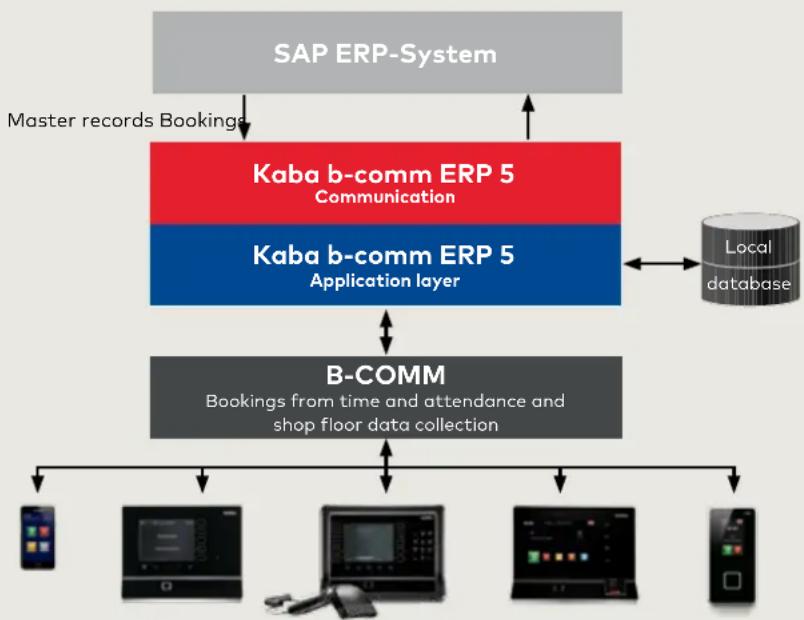
flowchart
graph TD
    A["SAP ERP-System"] -->|Master records Bookings| B["Kaba b-comm ERP 5 Communication"]
    B --> C["Kaba b-comm ERP 5 Application layer"]
    C --> D["B-COMM"]
    D --> E["Bookings from time and attendance and shop floor data collection"]
    E --> F["Local database"]
    F --> C
    style A fill:#ccc,stroke:#333
    style B fill:#ff9,stroke:#333
    style C fill:#666,stroke:#333
    style D fill:#888,stroke:#333
    style E fill:#cccc,stroke:#333
    style F fill:#ffffff,stroke:#333
Terminals and mobile devices

natural_image
Two business professionals in a modern office setting, smiling and engaged in conversation (no visible text or symbols)Communication with dormakaba
The implementation of data registration systems requires integration into IT structures. Your data must be recorded, transferred and processed securely. Our terminals and components with modern communication technologies are ideally suited for this purpose.
For the configuration of a registration system, use new or existing networking and cabling, modern interfaces and uniform parameter setting and programming of the products. For the integration into your IT structures under various operating systems, connection to all popular computer systems and integration into networks, we provide a high-performance communication solution in the form of Kaba b-comm ERP 5.
This ensures the connection of time registration and shop floor data collection, as well as access control, to your SAP ERP system. The basis of this software is the SAP-certified interface which ensures that data is transferred smoothly between the individual SAP modules and the registration devices. The system works autonomously in the background. This interface will always be kept up-to-date during new SAP programme developments.
What the solution can do for you
Tailor-made SAP connection:
- The solution was specially developed for SAP connections and therefore offers optimum integration into this system environment.
- Your customer requirements can be included and implemented quickly and easily.
- You have a responsible contact at dormakaba who deals with hardware, software and the installation.
- Kaba b-comm ERP 5 makes previously required external time and data registration systems superfluous. This means that you avoid double provision of data.
Automated system operation:
- You do not have to get involved with on-going operation and can concentrate on your core tasks.
- Kaba b-comm ERP 5 works in the background once the system is started.
Other benefits:
- The web-based interface, with the authorization management integrated into Kaba b-comm ERP 5, allows access to important information from anywhere 24 hours a day.
- Recorded data is saved in a database and is secure against third party access.
- You can expand the system individually with additional dormakaba modules.
- With a Kaba b-comm system, you can receive master data from several independent SAP systems and report the relevant recording data.
You reduce your costs for
- Software maintenance
- Release changes for third-party software and
- Training for the system manager on the database version
Time registration – time is money
Time is money – this expression is still true, now more than ever. Therefore effective time registration is an absolute necessity in any company. Register operational presence times easily, quickly and conveniently on ergonomically designed terminals and make them available for further processing, all with our time registration solution.
Employees book their working time and at the end of the month they get a correct pay slip. dormakaba works with SAP to ensure this. You select the right device for you from our wide range of time and attendance terminals, and then you can forget about time registration for a long time. This is because our terminals have a long service life and do their work reliably for many years.
The solution is suitable for all SAP users who want to record working times and process them in SAP ERP. Kaba b-comm ERP 5 – time registration includes the device management,
alarm management and the booking and master data overview. The booking validation is carried out according to the SAP SE requirements.
Additional modules expand the possibilities in terms of time registration according to the role employee, reception or manager.
HR employee HR reception HR manager

11:19
Thursday June 11,2015

Apps
KABA


[Figure]
Q
目
U
Kaba Workforce Center HR cockpit
Our optional software modules are combined together under Kaba Workforce Center. They are running directly in the web browser and do not need to be installed on your computer. The Kaba b-comm ERP 5 registration screens are designed to be modern, clear and very user-friendly. The user is able to use the application very quickly and intuitively. All modules are available in multiple languages, which is a huge advantage for companies operating internationally.
The Kaba Workforce Center – HR cockpit consists of the three licences HR employee, HR reception and HR manager.
HR employee
The "HR employee" licence authorizes the user to access the modules WebTerminal, personalized booking overview and HTML time sheet. The "Time registration" module is required, and its number of users must at least match the number of HR employees. This means that each employee can always keep an eye on their times.
HR reception
The "HR reception" licence covers the visitor and contractor management, the presence and absence overview and the allocation of replacement badges. With the "HR reception" package, your reception employees have all the tools necessary to be able to provide information and greet visitors.
HR manager
The "HR manager" includes the functions for "HR employee" and "HR reception". With the "Supervisor HR" function, your HR officers manage the time resource effectively in your teams. This is because the HR manager has access to the booking overview and the master data of the employees assigned to them.

natural_image
Two business professionals shaking hands in an office setting (no visible text or symbols)
natural_image
Interior office scene with three people interacting at a service counter, no visible text or signage
natural_image
Man in business suit sitting at office desk with computer and pen holder (no visible text or symbols)Kaba Workforce Center
HR employee
WebTerminal: time recording on the computer
With the WebTerminal, you can register your presence and absence times quickly, easily and intuitively directly on the computer. As standard, the same coloured function keys are available as for the stationary recording terminals. In addition, the WebTerminal can be configured as desired. It is possible to set up both your own functions and symbols, and also your own background images. The employee is shown their time bookings and personal time accounts. In combination with "Kaba leave request", supervisors are informed of additional bookings by e-mail. There is therefore no need for manual registration of additional bookings in your SAP system, thus reducing your work.
Booking Viewer: bookings at a glance
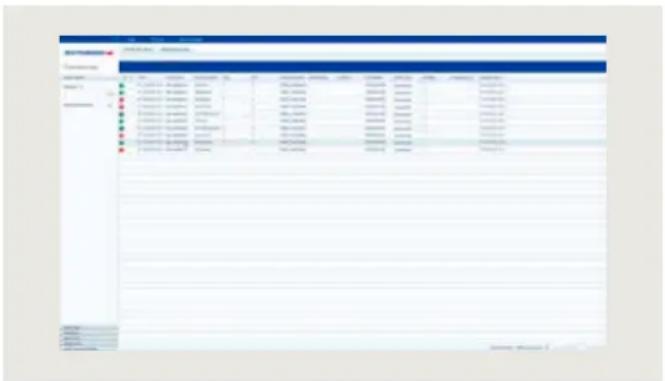
In this module you get an overview of all your bookings from time registration, to shop floor data collection right through to access control.
HTML time sheet: my times at the touch of a button
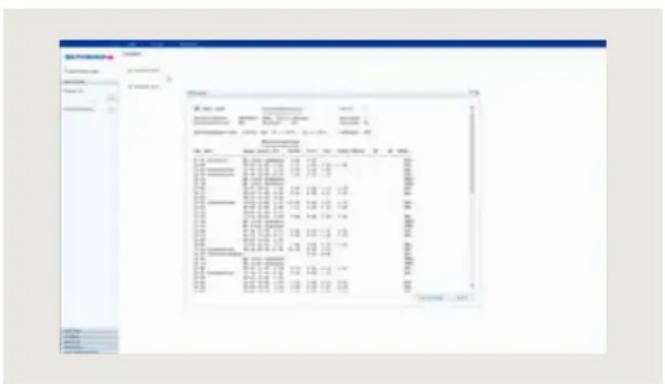
Every employee in your company can display (and print out) their personal time sheet on a computer or an information terminal and consult the human resources department if necessary. This means that you can clarify problems in the dialogue with the employee at an early stage. There is also no need for the time-consuming distribution of time sheets.

Kaba Workforce Center
HR reception
Visitor Management: a warm welcome for visitors
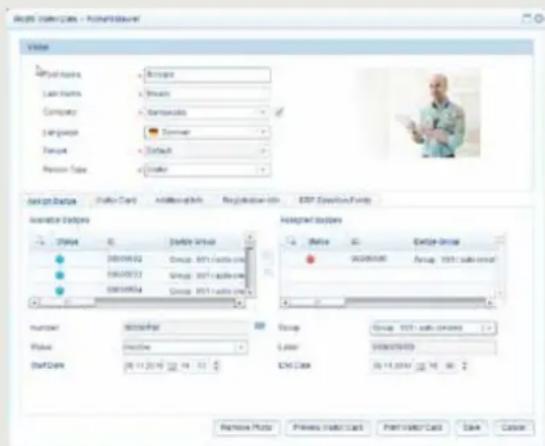
Visitor Management is a module for visitor and contractor management. It allows you to manage badges and print visitor passes independently of SAP. This means that someone who is not a company employee can participate in the existing time registration and/or access control systems in the company without their data ending up in the SAP system.
Clearly structured screens ensure simple, time-saving recording. Once saved, data can be used for further visits. Individual reports, e.g. the number of visitors, can be called up at any time.
The Visitor Management module offers:
• pre-registration of visitors by your employees
- recording of visitor data as soon as the visitor enters the company premises
- management of visitor badges and issuing of visitor passes
- an overview of visitors' presence status
- badge management for contractors, such as cleaning companies or service providers
Attendance Board: presence at a glance
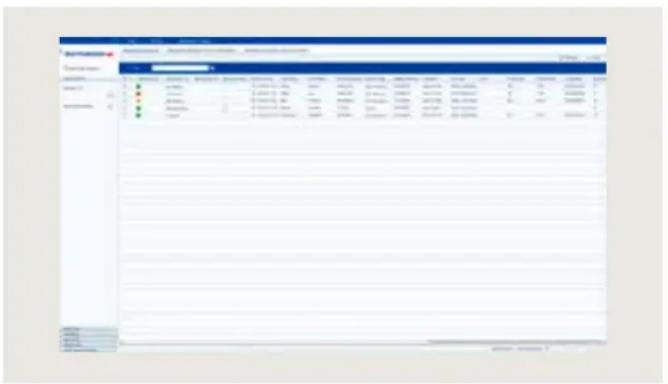
The colour-coded presence overview allows you to see which employees are present or absent at a glance. Using this overview, the telephone switchboard can always provide correct information, for example. It is possible to respond to unexpected absences quickly. The Attendance Board forms the basis for the evacuation list (roll call). In the event of an emergency, the system provides the rescue teams with emergency lists containing the names and information on the last known whereabouts of missing persons.
Kaba Workforce Center
HR manager
HR Supervisor: bookings under control
This module allows supervisors to record, correct and release the HR bookings of their employees before they are transferred to the SAP system. The bookings are only loaded once the data has been released. This prevents errors from entering the SAP system in the first place, thus avoiding any complex reworking. In addition, supervisors always have a precise overview of the presence of their employees.

The HR manager licence contains all modules from HR reception and HR employee, as well as the HR supervisor function with access to the booking overview and master data.
Fissler
www.fissler.de
"The Kaba b-comm ERP sub-system works smoothly. We are very satisfied with the solution from dormakaba."
Rainer Lübke, IT team leader at Fissler
Kaba Workforce Center
Leave request
In this web-based application, employees can create, display or change their own presences and absences or start approval processes conveniently at their computer. It is easy to make and manage, e.g. holiday and flexitime applications or applications for business trips and seminars. This paper-free procedure speeds up the processes for approving applications and provides time and cost savings.
The Kaba Workforce Center "Leave request" consists of the three licences leave request employee, leave request manager and leave request for terminal (Kaba terminal 97 00).
Leave request employee
The licence provides authorization to plan, create and edit presence and leave requests for yourself and to call up absence allocations from the SAP ERP info types 5 or 2006. It also contains the display of SAP info fields, e.g. for flexitime information, as well as calling up the team calendar. With the licence, the user is also authorized to use the optional Kaba leave request app on the Kaba terminal 97 00.

Leave request manager
In combination with the Kaba Workforce Centre "Time registration", the booking display and the HTML time sheet for assigned employees are also included. With the "Leave request manager" module, the supervisor is able to view, approve or reject leave requests from their assigned employees. This means that they always have an overview of all absences in their team.
Leave request for terminal
The Kaba Workforce Center "Leave request for terminals" enables presence and absence registration on the Kaba Terminal 97 00. It requires the Kaba b-comm ERP 5 software package and a user licence for "Leave request employee" for each user. This means that all employees can actually make leave requests easily, quickly and paper-free.


Kaba Workforce Center Instruction & room reservation
Kaba Workforce Center instruction
With Kaba Workforce Center "Instruction", medial contents are created in Kaba b-comm ERP 5 and provided to the employees and visitors on the Kaba Terminal 97 00. The contents can be displayed in a purely informative manner or as an interactive quiz. As many instructions can be created as required.
Kaba Workforce Center instruction for terminal
With the Kaba "Instruction" app, the contents of the "Instruction" software module are shown on the Kaba Terminal 97 00.
Kaba Workforce Center room reservation
You plan and reserve rooms and resources for meetings and customer visits. We take this information from your system in a customer-specific manner and store it in our database for display on the Kaba terminal 97 00.
The Kaba "Room reservation for terminal" app makes this data available to you.


Kaba Workforce Center room reservation for terminal
The Kaba "Room reservation for terminal" app displays current room reservations online on the Kaba terminal 9700. It is possible to configure which rooms are displayed for each terminal. A reservation can be set from the inactive status to enabled on the terminal. In this case the colour of the entry also changes.

natural_image
Two business professionals in a modern office setting, one pointing at a computer screen (no visible text or symbols)
natural_image
Man in business suit interacting with a touchscreen device in an office setting (no visible text or symbols)Shop floor data collection – secure your competitive advantages
With the help of shop floor data collection you can constantly screen and optimize your cost structures and production processes. As a company, you always want to know how busy your manufacturing line is, where you are with orders and what the individual orders are costing you. For that you need precise figures. An SFDC system can provide you with exactly that information.
It records all relevant order data, which is then promptly made available to the SAP system. This means you can avoid duplicated data recording and maintenance. Analyses in the SAP system ensure constant transparency.
Registration automation
Team
Multiple machine operation
Time synchro- nization
Simulation tool

natural_image
Blurred outdoor scene with indistinct yellow and gray shapes (no visible text or symbols)
natural_image
Blurred industrial warehouse interior with shelves and workers (no visible text or symbols)
natural_image
Industrial warehouse interior with metal tray and blue pallets (no visible text or symbols)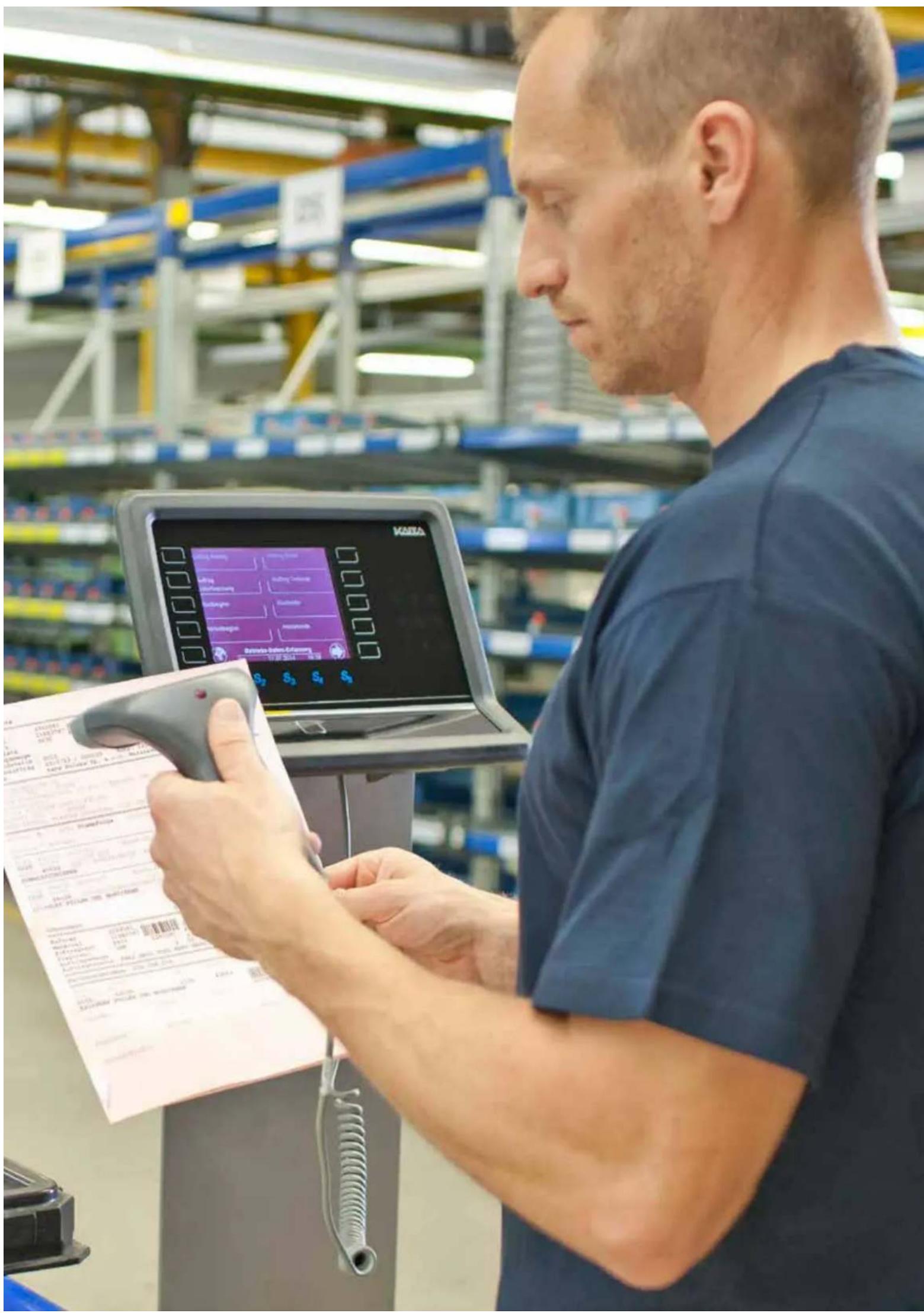
More efficiency with shop floor data collection
Kaba b-comm ERP 5 – SAP ERP is a modular sub-system for order data collection and supplements the SAP modules PP, PM, PS, CS and CATS. The shop floor data arising during production is collected, validated and transferred to the relevant SAP modules. The handover is carried out, among other methods, via the PP-PDC interface certified by SAP.
The system provides convenient and simple dialogues which are tailored to the employee and require very little training time. This reduces recording time and means incorrect entries can be avoided.
The dormakaba solution includes
- recording times for setting up, processing and shutting down,
• reporting on yield, rejects and reason, - checking for under/over-supply,
• time recording event and pay slip-related registration, - changing work place,
- status tracking via work process and person,
- processing of one work process by several persons and
- reporting of fault reasons in the event of unplanned interruptions.
All bookings are validated and then go into the SAP ERP system. After this, the processes are updated in SAP and a comparison with the order data is carried out. Constant synchronization guarantees a high level of data security, and the data is always up to date. Data maintenance and calculation exclusively takes place in SAP ERP.
Kaba b-comm ERP 5 – SAP ERP is open for customer-specific extensions and also integrates QM, MDC or access control systems.
Advantages at a glance
- Up-to-date information about order progress and status at all times
- Improvements in the production process and shorter throughput times
- Reduction of overhead costs and idle times
- Better adherence to deadlines and increased customer satisfaction
- Precise data for calculations
What our modules do for shop floor data collection
In addition to the standard scope described, there is a whole range of useful supplementary modules which make your SFDC system even more effective.
The registration automation module
Automatic start, interruption and end of an order: fewer bookings
With this module dormakaba closes the gap between HCM and SFDC. This is because with a time registration booking your employees automatically start or end the most recently edited order. If an employee books an interruption, e.g. at the start of a break, then the current order is also automatically interrupted.
This module decreases the entry steps, saves time and reduces incorrect entries. This means that data feedback becomes even easier and gaps between registrations are a thing of the past.
Order change: simple and convenient
This function makes your order registration easier and more convenient, because active orders from PP, PM, PS or CATS are automatically ended when a new order is started. This reduces the registration work, in particular for short work processes.
Automatic report for standard process: Allocating idle times
This allows you to automatically record the "unassigned times" of an employee. These are added to an overhead order which is created for the particular employee. You can decide the time from which unassigned times should be calculated. If the employee exceeds the specified relevant period between their arrival and starting a job or between finishing a job and starting their next one, the non-productive time is added to the defined overhead order. This allows idle times to be automatically classified and "filled" with an activity. As a result, you can ensure maximum concordance between the recorded order times and the amount of time that the employee was actually present.
"We now have real-time confirmation of shop floor data and consequently improved production transparency because we have up-to-date information on the progress of our orders and the order status at all times. Overall, we are extremely satisfied with the system and our cooperation with dormakaba. The advice from dormakaba was very professional and practical and has given us a suitable system."
Eberhard Schimmele, Head of IT
Südzucker AG
www.suedzucker.de
"We wanted a modern system for time registration and shop floor data collection, that could be operated with one medium and would integrate well into our SAP system. dormakaba was the only company which could offer everything from a single source. The dormakaba products are downwards compatible and a secure investment. The manufacturer can guarantee worldwide implementation and support for us."
Frank Trinks, Project Manager at Südzucker
What our modules do for shop floor data collection
The module team
Group work
With the "group work" function, Kaba b-comm ERP 5 enables prompt or subsequent login to one or more steps for several employees. A differentiation is made between dynamic and static groups. Dynamic groups are created directly on the dormakaba terminal. Static groups are edited in SAP ERP and the settings are transferred to Kaba b-comm ERP 5. Quantity messages can be provided as an individual message or overall message, e.g. when the last employee leaves the group. Integration into the multiple machine operation and time synchronization modules is supported.
Collective registration: reduces registration work
dormakaba has developed the additional module "Collective registration" for quick registration of order data, as well as time and quantity feedback. With this solution, the user is able to quickly and easily report times and quantities from an existing pool of orders. Order packages are compiled here for each employee and work station. You therefore reduce the registration work and avoid incorrect entries. Several collective packages can be registered for each employee. The orders may originate from the SAP modules PP, PS and PM, and the registered data are automatically fed back to there.
The time synchronization module
Order times versus working times
With this module you can compare the logged order times with the presence times of one or more employees at a later date. You set the correction period yourself using parameters. An SAP module provided by dormakaba determines the correction times in the background and then sends the amended times directly to the PP, PS or PM module as a wage slip. The dormakaba multiple machine operation module is required for the time synchronization. You benefit from the direct integration into SAP T&A.
The simulation tool module
Reduces test work
This test tool simulates your individual data collection and feedback process and therefore helps you to reduce your test work considerably during implementation, release change or extensions. The different "Registration scenarios" can be pre-defined as "Use cases" in Excel and then run automatically. The simulation of the registration dialogues can either take place in "real time" or alternatively can be carried out "directly". Booking sequences over several days and shifts are entered in real time and simulated during this time. In the case of direct execution, the bookings are made directly at the current time. At the end of the tests, the tool checks whether deviations have occurred and provides them to you in an overview for analysis.
Calculate proportionate times
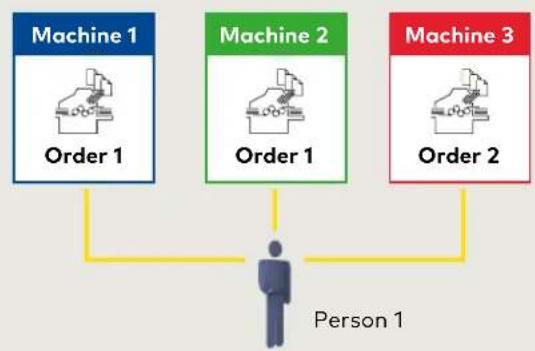
If several employees are working on an order at the same time or one employee is operating several machines at the same time, then you need this module in order to be able to correctly determine the time actually spent.
The solution, developed by dormakaba as an extension for the SAP modules PP, PM and PS, uses the registered time events (start/end) to determine the services used for the multiple machine operation and multiple order processing. It calculates your net times for various services such as working time, machine time, set-up time etc., and transfers the calculated time to the SAP system as a "wage slip".
This means that you can divide machine times appropriately in the event of multiple machine processing. In this case the running times of the machine and the processing time of the person are calculated proportionately accord-
ing to the number of orders and machines running and added to the orders.
Even in the event of multiple order processing, in which several orders are processed by one person on one or more machines, the working time can be divided according to various requirements. In this case it is possible to automatically deduct the break times according to the SAP working time planning.
flowchart
graph TD
    A["Machine 1\nOrder 1"] --> C["Person 1"]
    B["Machine 2\nOrder 1"] --> C["Person 1"]
    D["Machine 3\nOrder 2"] --> C["Person 1"]

bar_stacked
| Machine | Order 1 | Order 2 | Person time | | :--- | :--- | :--- | :--- | | Machine 1 | 8 h | 3 h | 22 h | | Machine 2 | 8 h | 3 h | 22 h | | Machine 3 | 6 h | 2 h | 22 h | 8:00 Break 1: 17:00 Machine time Order 1 Machine time Order 1 Machine time Order 2 Person timeMachine time per order = 100 % Person time per order split (in-line or per default) Option: automatic break deduction
Access control – so that you are safe
Who has access where, when and for how long? How can I ensure that only selected persons have access to certain parts of the company?
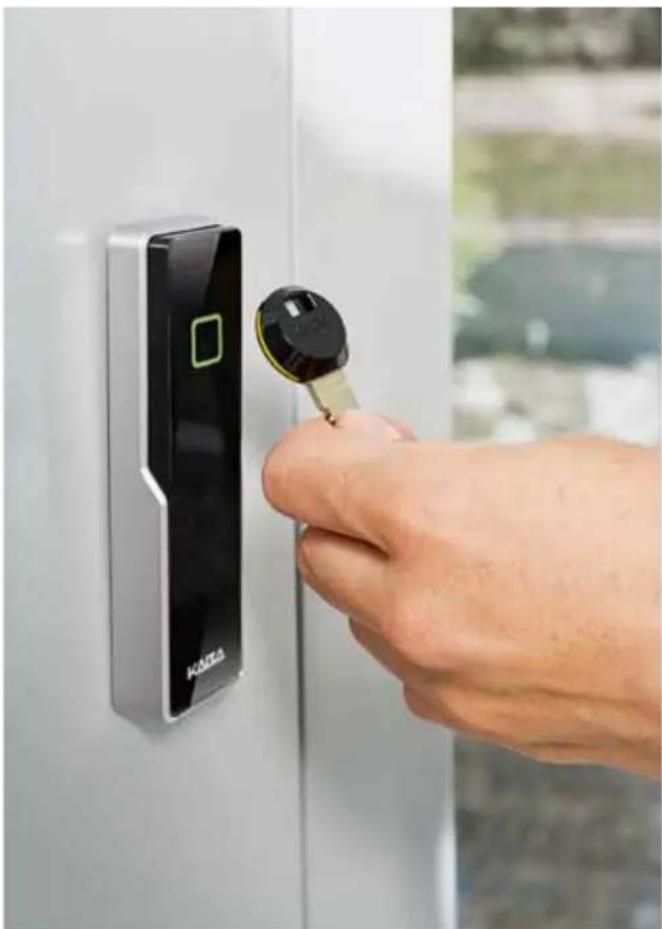
Security aspects and uniform authorization management are increasingly important in companies. By using access control from dormakaba, you control the monitored access to the company premises, buildings and rooms. We offer you the right solution for the appropriate hardware. All products can be intelligently combined and easily integrated into your SAP system.
Kaba EACM
Kaba exos 9300
Kaba exos
Connector
RECARO
Aircraft Seating
GmbH & Co. KG
www.recaro-as.com
"We were looking for an international manufacturer for time registration and access, which is able to provide worldwide maintenance and support and which has a certified interface to SAP HCM. In the access control area, it should be possible to include rooms without direct cabling. dormakaba was one of only a few who could offer everything."
Jens Hoffmann from the IT System Administration at Recaro Aircraft Seating

natural_image
Woman in light blue shirt opening a glass door, viewed from behind (no text or symbols visible)What our modules can do for access control
Kaba EACM: efficient access organization in SAP
Kaba EACM (Enterprise Access Control Management) is directly integrated into your SAP ERP system. You assign the access rights and profiles of the employees simply and conveniently in your SAP system using the employee's role (location, workstation, qualification etc.) Employees can also apply for new access rights using the SAP workflow. The access components communicate directly with your SAP solution and no longer need any "middleware" software to do so. This saves you time and money as less work is required for administrative tasks and maintenance, and the process is less complex in general.
Kaba exos 9300: comprehensive access management
If you wish to organize access control outside of SAP, then you have the option of using the access management system Kaba exos 9300. Kaba exos 9300 is an integrated access management system which takes a holistic approach to security. This gives you the flexibility to coordinate and easily manage all access rights from one central location or from several locations. The system offers a range of scalable and smart modules which can be easily adapted to your specific needs, including authorization management, visitor management, car park management and much more.
Kaba exos Connector: simple data exchange
This interface provides you with the SAP master data for the validation of access bookings for your Kaba exos access system. A web service is responsible for receiving the master records and balances. This means that the Kaba exos access system is always in a position to take master records from Kaba b-comm ERP 5 and process them. The interface also takes over the bookings from the terminals, to then validate them via the Kaba b-comm ERP 5 solution.
natural_image
Hand inserting a key into a KASLA smartphone door panel (no text or symbols visible)
Kaba CATS interface – Data to all areas
With the interface to SAP CATS, dormakaba offers you an optimum data flow for the registered times to the relevant target module in SAP ERP:
• presence and absence times to HCM
- internal order data and statistical figures to CO
- feedback to PM/CS and PS
- feedback for production orders to PP.
The employees record their time or order data on the dormakaba terminals or via a WebTerminal. The dormakaba module calculates the time spent and reports this to CATS.
If errors occur, such as a forgotten booking, then you can edit these directly and conveniently in the SAP system with the "CATS troubleshooting".
The "CATS absence registration" and "CATS PP interface" are available as optional software modules. They expand the possible uses for SAP CATS.
Advantages at a glance
• Full integration into the SAP world
- All work services are only registered once
- Redundant data management is avoided
- Operating processes are simplified
- Checking data in real time guarantees that the data is accurate
- Easy, convenient, customer-specific user interface to the registration devices
Orientated towards the SAP modules
• Human capital management (HCM)
- Controlling (CO)
- Project system (PS)
• Plant maintenance and customer service (PM/CS)
• Production planning (PP)
Our services – the basis for a good partnership
Our aim is to support you with a comprehensive range of services over the course of a long-term partnership, from the initial contact to advice, right through to the planning and timely implementation of your project.
Organization consultation
When designing a complete solution, we provide you with advice in line with your individual requirements. This applies for the SAP modules PP, PM, PS, HCM and CATS.
Project planning
We provide you with the know-how required to implement a comprehensive, and perhaps even international project. We're with you through the whole process, from the on-site inspection and the recommendation of organizational structures, right up to the planning of the steps necessary for timely project implementation.
Installation and putting into operation
Our technicians install your terminals, implement the SAP interface, carry out customizing and put the system into operation. Your employees will be informed about and acquainted with the circumstances. Once successful test runs have been completed, the entire system is handed over.
Training
We offer you a comprehensive range of training sessions on the technology and use of terminals, the communication software Kaba b-comm ERP 5 – SAP ERP, and the additional modules. Of course, we will draw up an individual training plan for you.
Maintenance
We have an extensive servicing organization available for carrying out maintenance of the installations. Highly-qualified technicians will be available on site within a guaranteed response time. Around the world we guarantee customer support via our own companies and service partners in the area. The spare part express service and repairs service minimize downtime.
Hotline service
Our hotline employees will be happy to respond to any questions you may have about our products and the SAP interface. A rapid and professional response will ensure your system remains stable and highly available.
Our services
• Organizational consultancy
- Project planning
• Installation and putting into operation
- Training
- Maintenance
- Hotline service

natural_image
Side profile of a person wearing a gray coat, standing indoors near a window with red lighting (no visible text or symbols)
natural_image
Profile view of a woman in business attire, looking down slightly (no visible text or symbols)
- Kaba b-comm ERP 5 –
- SAP ERP
- Solutions for SAP users
- SAP and dormakaba – a successful partnership
- Index
- Why you should choose us as an SAP partner
- Advice
- Internationality
- Software
- Hardware
- Protection of investment
- Partner alliances
- Quality
- What you get from us
- Certified data exchange with SAP
- Interface
- Testing
- Technology
- Communication with dormakaba
- What the solution can do for you
- Tailor-made SAP connection:
- Automated system operation:
- Other benefits:
- You reduce your costs for
- Time registration – time is money
- Kaba Workforce Center HR cockpit
- HR employee
- HR reception
- HR manager
- Kaba Workforce Center
- WebTerminal: time recording on the computer
- Booking Viewer: bookings at a glance
- HTML time sheet: my times at the touch of a button
- Visitor Management: a warm welcome for visitors
- Attendance Board: presence at a glance
- HR Supervisor: bookings under control
- Fissler
- Leave request
- Leave request employee
- Leave request manager
- Leave request for terminal
- Kaba Workforce Center Instruction & room reservation
- Kaba Workforce Center instruction
- Kaba Workforce Center instruction for terminal
- Kaba Workforce Center room reservation
- Kaba Workforce Center room reservation for terminal
- Shop floor data collection – secure your competitive advantages
- More efficiency with shop floor data collection
- The dormakaba solution includes
- Advantages at a glance
- What our modules do for shop floor data collection
- The registration automation module
- Automatic start, interruption and end of an order: fewer bookings
- Order change: simple and convenient
- Automatic report for standard process: Allocating idle times
- Südzucker AG
- The module team
- Group work
- Collective registration: reduces registration work
- The time synchronization module
- Order times versus working times
- The simulation tool module
- Reduces test work
- Calculate proportionate times
- Access control – so that you are safe
- What our modules can do for access control
- Kaba EACM: efficient access organization in SAP
- Kaba exos 9300: comprehensive access management
- Kaba exos Connector: simple data exchange
- Kaba CATS interface – Data to all areas
- Orientated towards the SAP modules
- Our services – the basis for a good partnership
- Organization consultation
- Project planning
- Installation and putting into operation
- Training
- Maintenance
- Hotline service
- Our services
Brand : Dormakaba
Model : B-COMM ERP 5
Category : Clock