
VRC-23 - Headphones DENVER - Free user manual and instructions
Find the device manual for free VRC-23 DENVER in PDF.


| Product Type | VR Headset with Integrated Headphones |
| Brand | Denver |
| Model | VRC-23 |
| Connectivity | Bluetooth (remote controller) |
| Compatibility | iOS & Android smartphones |
| Power Source | Remote: CR2032 battery (included) |
| Lens Adjustment | Interpupillary distance (left/right) and focus (forward/backward) |
| Phone Holder | Adjustable with rubber pads to avoid button pressing |
| Audio | Built-in headphones with 3.5mm jack input |
| Control Modes | Music, Video, Game, VR, Mouse, Self-timer |
| Recommended Age | 13 years and older |
| Safety | Not for use in moving vehicles; take breaks every 30 minutes |
| Cleaning | Wipe lenses with soft dry cloth; avoid solvents |
| Spare Parts | Rubber pads for phone buttons (3 pcs included) |
| Dimensions (approx.) | 200 x 150 x 100 mm |
| Weight (approx.) | 300 g |
Frequently Asked Questions - VRC-23 DENVER
User questions about VRC-23 DENVER
0 question about this device. Answer the ones you know or ask your own.
Ask a new question about this device
Download the instructions for your Headphones in PDF format for free! Find your manual VRC-23 - DENVER and take your electronic device back in hand. On this page are published all the documents necessary for the use of your device. VRC-23 by DENVER.
USER MANUAL VRC-23 DENVER
natural_image
Line drawing of a rectangular device with a grid-patterned interior and handle (no text or symbols)Please read this user manual before use.
www.denver-electronics.com
HEALTH & SAFETY WARNINGS:
TO REDUCE THE RISK OF PERSONAL INJURY, DISCOMFORT. PLEASE ENSURE THAT ALL USERS OF THE DENVER VRC-22 READ THE WARNINGS BELOW CAREFULLY BEFORE USING THE DENVER VRC-22.
Before Using the DENVER VRC-22:
Read and follow all setup and operating instructions provided in the DENVER VRC-22 user manual.
Don't use the DENVER VRC-22 model when you are tired or are stressed out as this can increase your susceptibility to adverse symptoms.
We recommend seeing a doctor before using the DENVER VRC-22 if you are pregnant, elderly, have pre-existing binocular vision abnormalities or psychiatric disorders, or suffer from a heart condition or other serious medical condition.
Seizures:
Some people may suffer from dizziness, seizures, epileptic seizures or blackouts triggered by light flashes or patterns, and this may occur while they are watching TV, playing video games or while using VR glasses, even if they have never experienced this before. Such seizures are more common in children and young people below the age of 20. Anyone who has had a seizure, loss of awareness, or other symptom linked to an epileptic condition should consult a doctor before using the DENVER VRC-22.
Children:
The DENVER VRC-22 should not be used by children under the age of 13, as young children are in a critical period in visual development. Adults should monitor children (age 13 and older) who are using or have used the DENVER VRC-22 closely for any of the symptoms described above, and should limit the time children above 13 years spend using the DENVER VRC-22 to make sure they take breaks during use. Prolonged use should be avoided, as this could negatively impact hand-eye coordination, balance, and multi-tasking ability.
Danger of Suffocation:
Don't let kids under 3 years play with the DENVER VRC-22 as they can get strangled in the headmount bands.
General Precautions:
- Only use the DENVER VRC-22 in a safe environment.
- Be aware of your surrounding before using it. Use of the DENVER VRC-22 may cause loss of balance.
- For safe experience please be seated while using it.
- Never wear the DENVER VRC-22 while in a moving vehicle such as a car, bus, or train, as this can increase your susceptibility to adverse symptoms.
- Take at least a 10 to 15 minute break every 30 minutes, even if you don't think you need it.
Rubber Bumpers:
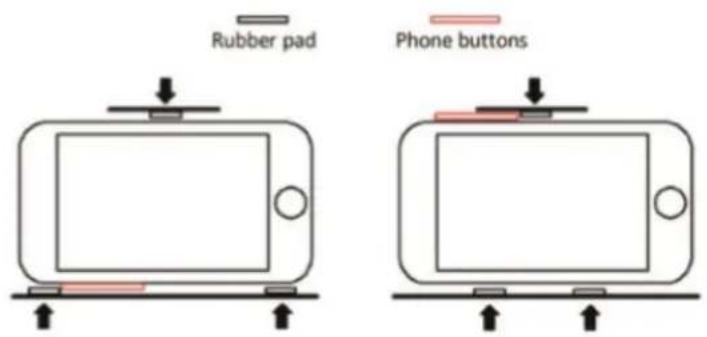
In order to prevent pushing phone buttons during operation we have included 3 pcs. rubber pads. Please stick the rubber pads on the phone holder according to the positions of the phone buttons. See below.
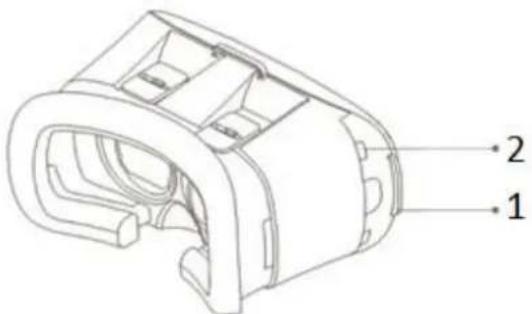
Functions:

- This adjust the distance to the lenses. Adjust by pushing forward or backwards.
- Adjust lenses to match your pupils. Adjust by pushing left or right.
- Left side headphone insert.
- The front can slide open to use the phone camera.
Sliding Panel:
-
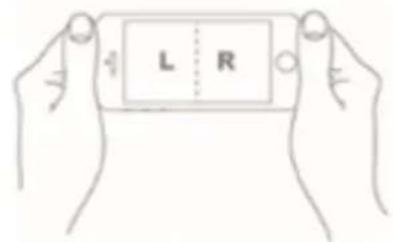
Take out the holder – Insert the phone in the holder and slide in holder again.
-
You can insert earphone cable here.
Using the VR Glasses:
1
2

natural_image
Technical line drawing of a mechanical component with an arrow indicating direction (no text or symbols)- Please make sure the App or movie is in Split screen mode before inserting the phone into the phone department.
- Release the phone holder from the right side of the VR glasses and insert the phone.


natural_image
Line drawing of a VR headset with two circular lenses and a handle (no text or symbols)- Make sure the phone is centered in the holder.
4

natural_image
Line drawing of a person wearing a VR headset with motion lines indicating speed (no text or symbols)
natural_image
Simple line drawing of a person wearing a VR headset (no text or symbols)- If the VR APP and your phone support gyroscope function. Then you can control the viewing angle by tilting your head.
VR programs for your phones.
Search after "VR" in iOS APP store, Google Play store and in youtube. Please notice that not all VR programs will work with your phone and VR glasses.
Examples for APPS/VR games:
VR Crazy bike race
VR sniper
VR roller coaster
Google street view for 360° video from all your favorite spots around the world
Please notice that we cannot guarantee availability for above games/APPS for future. Please note that we do not make support for these APPS/Games.
Bluetooth Remote Controller
Operation Manual Android / IOS
Bluetooth paring
Hold the On-off Key till LED of the remote light on, then the Bluetooth Remote is ready for pairing. Search the model no. VRC-22 Remote in your device and get paired.
A: Music Mode. Video Mode
- @+A is for Music Mode. The volume is controlled with the joystick in standard mode. A for pause or play; C/D for volume.
- Some brands of mobile phones support video playing in music mode, A for play, pause and touch & hold for fast forward.
B: Game Mode (Landscape)
- @+B is for landscape gamepad game mode. The direction is controlled by the joystick,
D for shooting, A for taking off. It depends on keyboard set of different brands of mobile phone.
C: VR Mode, Self-timer Mode, Video Mode
- @+C switches to VR Mode. When playing game, the direction is controlled by joystick, the front side key for shooting and taking off.
- @+C switches to Self-timer Mode. Some brands of mobile phone possibly do not support self-timer. Mouse mode self-timer is advised to be switched by @+D.
- @+C switches to Video Mode when the joystick control fast-forward-fast-backward. Some brands of mobile phone possibly do not support volume control.
D: Mouse Mode, Self-timer Mode
- @+D switches to Mouse Mode when the joystick controls mouse, C/D for volume and A/B for confirm and quit.
- When some brands of mobile phone are not to be used under the self-timer mode, the mouse mode is suggested.
E: Apple IOS System
It need to switch the side key to IOS direction to realize mobile connection due to the unopened IOS system. The C key is for self-timer and C/B for the volume up and down, A for mute.
G: Simple operation instruction
Please open battery cover, look up bottom of battery cover by Phone Torch to see simple application operation if remote is connected to Android phone, the standard keyboard is not shown, if you need this, please turn off the remote. Please note that this remote control only works for certain apps and games, It cannot be used for all apps and games.
Key Description

Change between Android and Apple

ALL RIGHTS RESERVED, COPYRIGHT DENVER ELECTRONICS A/S
DENVER®
www.denver-electronics.com


Electric and electronic equipment and included batteries contains materials, components and substances that can be hazardous to your health and the environment, if the waste material (discarded electric and electronic equipment and batteries) is not handled correctly.
Electric and electronic equipment and batteries is marked with the crossed out trash can symbol, seen below. This symbol signifies that electric and electronic equipment and batteries should not be disposed of with other household waste, but should be disposed of separately.
As the end user it is important that you submit your used batteries to the appropriate and designated facility. In this manner you make sure that the batteries are recycled in accordance with legislature and will not harm the environment.
All cities have established collection points, where electric and electronic equipment and batteries can either be submitted free of charge at recycling stations and other collection sites, or be collected from the households. Additional information is available at the technical department of your city.
Imported by:
DENVER ELECTRONICS A/S
Omega 5A, Soeften
DK-8382 Hinnerup
Denmark
www.facebook.com/denverelectronics
Hereby, Inter Sales A/S, declares that this model DENVER VRC-22 is in compliance with the essential requirements and other relevant provisions of Directive 2014/53/EU.
A copy of the Declaration of Conformity may be obtained at
Inter Sales A/S
Omega 5A, Soeften
DK-8382 Hinnerup
Denmark


- HEALTH & SAFETY WARNINGS:
- Before Using the DENVER VRC-22:
- Seizures:
- Children:
- Danger of Suffocation:
- General Precautions:
- Rubber Bumpers:
- Using the VR Glasses:
- Bluetooth Remote Controller
- Operation Manual Android / IOS
- Bluetooth paring
- A: Music Mode. Video Mode
- B: Game Mode (Landscape)
- C: VR Mode, Self-timer Mode, Video Mode
- D: Mouse Mode, Self-timer Mode
- E: Apple IOS System
- G: Simple operation instruction
- DENVER®
Brand : DENVER
Model : VRC-23
Category : Headphones