
Smart Speaker - Smart Speaker MOTOROLA - Free user manual and instructions
Find the device manual for free Smart Speaker MOTOROLA in PDF.


| Type of product | Smart Speaker |
| Brand | Motorola |
| Model | Smart Speaker |
| Dimensions (H x W x D) | 6.7 x 4.3 x 4.3 inches (17 x 11 x 11 cm) |
| Weight | 1.2 lbs (550 g) |
| Power supply | AC adapter, 5V / 2A |
| Connectivity | Wi-Fi 802.11 b/g/n, Bluetooth 4.2 |
| Voice assistant | Google Assistant / Amazon Alexa (compatible) |
| Speaker type | Full-range driver with passive radiator |
| Microphone | Far-field voice recognition with noise cancellation |
| Main functions | Music streaming, voice commands, smart home control, alarms, timers |
| Music services | Spotify, Apple Music, Amazon Music, YouTube Music, Pandora |
| Smart home compatibility | Philips Hue, Nest, SmartThings, and others |
| Care and cleaning | Wipe with a soft dry cloth; avoid liquids |
| Safety warnings | Keep away from water and heat sources; do not disassemble |
| Spare parts | Not available; device is not user-serviceable |
| Repairability | Contact authorized service center for repairs |
| Operating temperature | 32°F to 95°F (0°C to 35°C) |
| Storage temperature | -13°F to 113°F (-25°C to 45°C) |
| Package contents | Smart Speaker, power adapter, quick start guide |
Frequently Asked Questions - Smart Speaker MOTOROLA
User questions about Smart Speaker MOTOROLA
0 question about this device. Answer the ones you know or ask your own.
Ask a new question about this device
Download the instructions for your Smart Speaker in PDF format for free! Find your manual Smart Speaker - MOTOROLA and take your electronic device back in hand. On this page are published all the documents necessary for the use of your device. Smart Speaker by MOTOROLA.
USER MANUAL Smart Speaker MOTOROLA
We'll guide you through attaching and using your Motorola Smart Speaker with Amazon Alexa.
In this guide:
- "Attach and remove your Moto Mod"
- "Charge your Smart Speaker and Phone"
- "Smart Speaker with Amazon Alexa overview"
• "What can you do with Alexa?"
• "Smart Speaker Light Ring" - "Moto Mod settings"
• "Other Smart Speaker features" - "Want more?"
Attach and remove your Moto Mod™
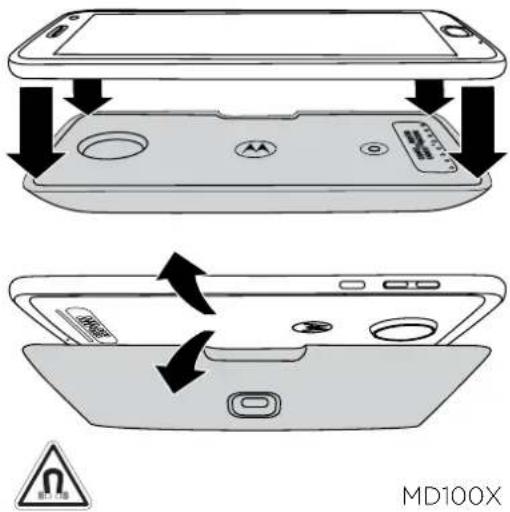
Align the sides of your phone with the sides of the Smart Speaker Moto Mod until they snap together. When connected you feel a vibration, see a message on your screen, and hear a sound.
Note: Make sure your phone's camera lens aligns with the hole in the Smart Speaker and the connectors are clean and dry. Also, remove your phone case if you use one.
To remove your Smart Speaker Moto Mod, lift up your phone from the side pick out area.
Note: Smart Speaker can be used with all Moto Z devices.

motorola

amazon alexa
SMART SPEAKER
Charge your Smart Speaker and Phone
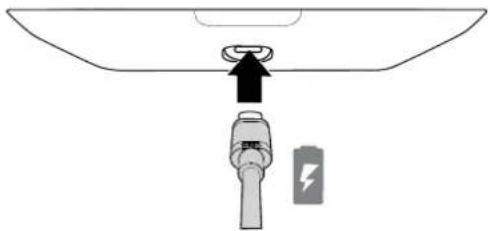
To charge, connect your Smart Speaker to a power outlet with a USB-C charger. Your Smart Speaker can be placed on a table (battery check button face up) to be used as a charging dock for your phone. Simply attach your phone to the Smart Speaker to charge the phone and the Moto Mod simultaneously.
Note: You can also charge your Moto Mod by plugging the charger into the phone when the Moto Mod is attached. However, the fastest way to charge your Moto Mod is to plug the charger into your Moto Mod.
Tip: Your phone and Smart Speaker will continue to charge if you turn your phone off.
Note: Charge before use. Fully charge your Moto Mod using the charger that came with your phone. Using other chargers with a USB-C connector is not recommended and can slow charge speed. Avoid incompatible USB-B (micro USB) chargers and uncertified adapters and cables, as they may damage your device.
Charge levels
Press the battery check button to check the charge level. The LEDs indicate the charge level.
| LEDs Charge % | |
| 4 75 to 100 | |
| 3 50 to 74 | |
| 2 25 to 49 | |
| 10 to 24 |
natural_image
Diagram of a battery plug inserted into a container with an upward arrow indicating direction (no text or symbols)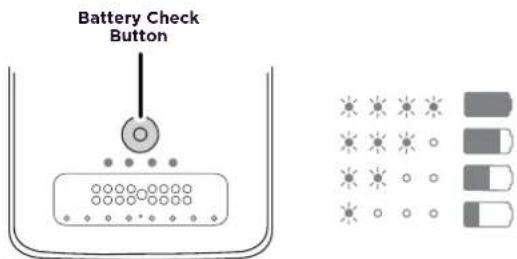
Smart Speaker with Amazon Alexa overview
Your Motorola Smart Speaker lets you access Amazon Alexa from anywhere, whether in a hotel room or in your backyard. Play music, get news, ask questions, and more.
The built-in speakers add powerful stereo sound to your phone. Four powerful microphones ensure Alexa hears you from across the room or even over loud music. Combined with your phone's display, you can now see what Alexa has to say, such as your shopping lists, calendar, and weather forecasts.
Setup
Set up your Smart Speaker to use Alexa
1 Attach the Smart Speaker to your phone to start set up.
2 Download and install the 🎨 Moto Alexa app from Play Store, by tapping GET APP.
3 After install, swipe right to continue set up.
4 When prompted, tap Allow to give Alexa access to your phone and to record audio.
5 Tap Got it to launch Moto Alexa app.
6 Login to your Amazon account when prompted.
7 After login, tap Use Location when prompted and Allow to give access. This enables Alexa to provide location based information, such as local weather.
8 Accept the Motorola Privacy Policy.
9 Decide if you want only your voice or anyone's voice to talk to Alexa. If you choose Only me, you will need to train Alexa to recognize your voice before you can use hands-free voice activation. See "Train your voice".
Note: You can change this setting later, go to 📄 Moto Alexa > Settings
For Moto Alexa help, on your phone swipe up ^> Settings > Moto Mods > Help
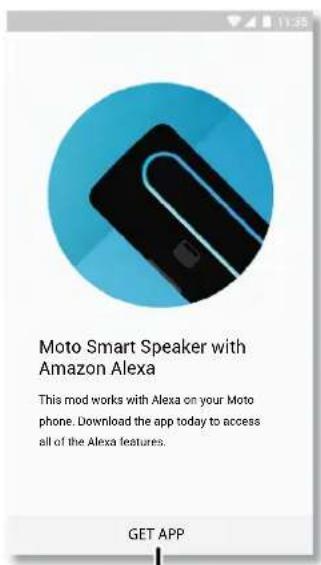
Tap to install & get started.
What can you do with Alexa?
Ask Alexa a Question
1 Say "Alexa" followed by your question or request. When Alexa is listening for a command, you'll see a blue light ring on the Smart Speaker and your phone's display.
2 When you are done speaking, Alexa will respond. Depending upon the question, you will hear both a response and see relevant info on your phone's display.
Note: If you are having trouble, go to 📍 Moto Alexa > Settings > and check Voice Activation is enabled.
Tip: Also, enable Show on lock screen to talk to Alexa even if your phone is locked.
Here's some things you can ask Alexa:
• "Alexa, what's the weather?"
• "Alexa, play my playlist; dinner music."
• "Alexa, what are some top-rated restaurants?"
• "Alexa, set a timer for 20 mins."
• "Alexa, play my flash briefing."
• "Alexa, show my calendar."
Ask Alexa to Play Music
1 If not already set up, go to music.amazon.com to set up your Amazon account for Amazon Music services.
2 Say "Alexa" followed by the artist, song, or playlist you'd like to hear.
Note: The Moto Alexa app works with Amazon music services, such as Prime Music or Amazon Music Unlimited.
Ask Alexa to do more
You can set up Moto Alexa to read books, learn skills, and work with some smart home devices. To do this, download and install the Amazon Alexa app from Play Store.
For Amazon Alexa help. go to www.amazon.com/alexsupport.
Note: Not all Amazon Alexa features available on Amazon Echo devices are supported. To see a list of what's supported, go to www.motorola.com/smartspeakerlcaxafeatures.
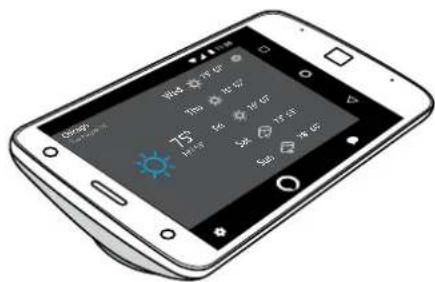
Use Alexa on your phone (without the Smart Speaker attached)
Alexa can respond even when the Smart Speaker is not attached to your phone, as long as you are standing near your phone. You'll need to train Alexa to recognize your voice. See "Train your voice".
Note: Alexa may not hear you over music or in other loud environments without the Smart Speaker attached.
Disable Alexa Voice Activation
To disable voice activation, tap on the Moto Alexa app. When this is disabled, the light ring on the Smart Speaker and your phone's display will turn red and pulse slowly, to let you know that Alexa cannot listen or respond. To enable voice activation tap
Note: Even with voice activation disabled, you can still ask Alexa a question, tap in the Moto Alexa app and talk. When your question is complete, voice activation will remain disabled until it's enabled again.
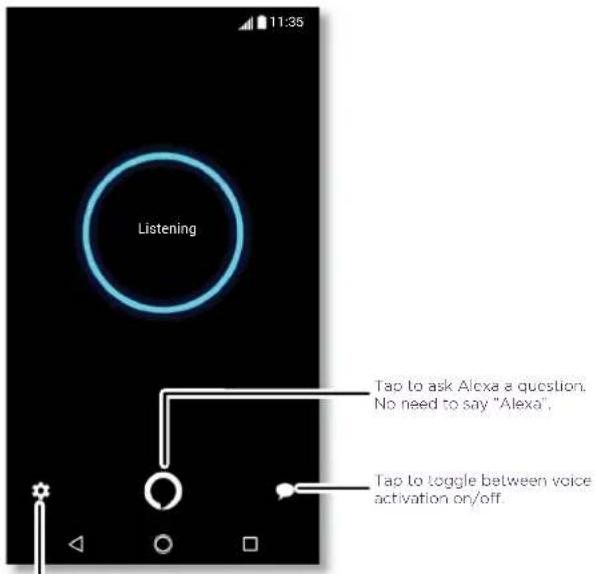
Tap to see settings.
Train your voice
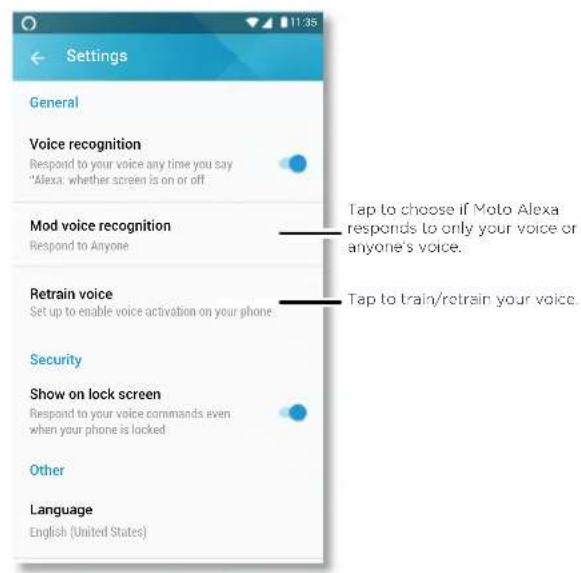
To train Alexa to recognize your voice, tap ⚙ Settings > Train voice. You will be asked to say a series of statements to help Alexa learn your voice.
Note: You'll need to train Alexa to recognize your voice, if you want to use voice commands on your phone when your Smart Speaker is not attached.
Retrain your voice
To retrain your voice or delete the existing voice training, tap ⚙ Settings > Retrain voice. You will be asked to say a series of statements to help Alexa learn your voice.
Set language
To set or change the language, tap Settings > Language.
Enable Alexa Voice Activation when display is locked
To enable Alexa to respond to your voice commands when your phone is locked, tap Settings > Show on lock screen.
Sign Out or Switch Amazon Account
To sign out of your Amazon account, or switch which Amazon account is used with your Smart Speaker, tap 📋settings > Sign out.
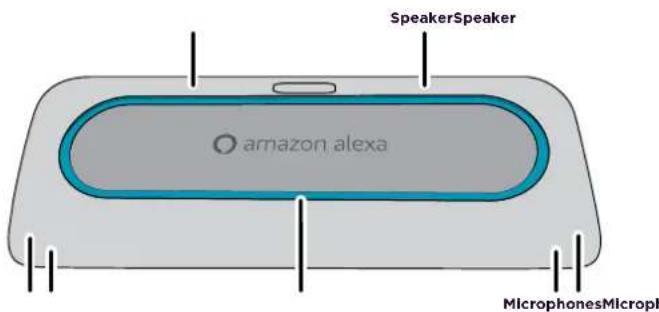
Smart Speaker Light Ring
The colors on the Smart Speaker's light ring change based on Alexa's status, such as when it's listening, thinking, and speaking. Here's the explanation of each color and behavior:
| Color/Action Behavior | |
| Cyan and blue alternating. Smart Speaker is starting up. | |
| All lights off. Voice activation is enabled, Alexa is waiting for your request. | |
| Blue with cyan at bottom center of speaker. | Alexa is listening to your request. |
| Cyan, moderate pulse. Alexa is busy processing your request. | |
| Cyan and blue alternating. Alexa is responding to your request. | |
| Red, slow pulse. Voice activation is disabled. Alexa is not listening for requests. | |
| Orange, slow pulse. There was an error processing your request. | |
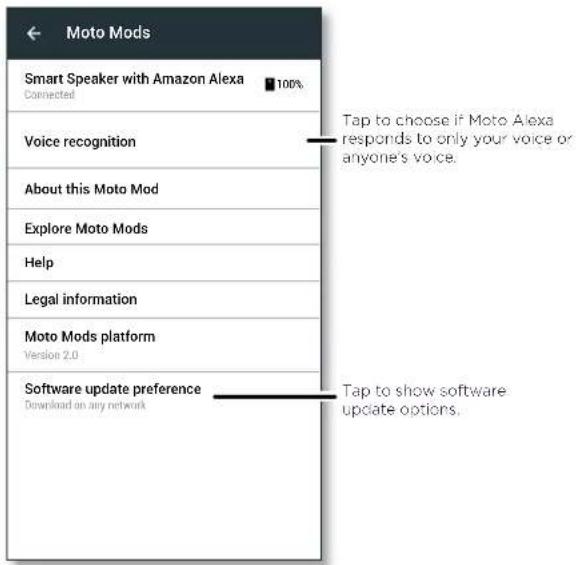
Moto Mod settings
Find it: On your phone swipe up ▲> ⚙ Settings > Moto Mods
Tip: To quickly access settings on your phone, swipe the status bar down with two fingers and tap Moto Mods > MORE SETTINGS.
Note: Your Smart Speaker needs to be attached to your phone to access settings specific to that Moto Mod, such as software updates. Software updates happen frequently, so your phone may look a little different.
Update Smart Speaker
Update notifications for your Smart Speaker will be sent to your phone automatically when it's attached to your phone. To manually check for an update, on your phone swipe up ▲ Settings > Moto Mods > About this Moto Mod > Software updates
Restart Smart Speaker
If you are having issues with your Smart Speaker, you can restart it. Tap About this Moto Mod > Restart Moto Mod.
Install Moto Alexa app
If you didn't get a chance to install the Moto Alexa app during set up, you can install it. Tap About this Moto Mod > Available downloads and tap 📂 Moto Alexa to install.
Other Smart Speaker features
Use your Moto Mod as a speaker
Your Smart Speaker adds powerful stereo sound, just attach it to your phone. Even if you are not using Alexa, you can play music or watch videos, or use it as a speakerphone for louder, hands-free voice calls.
Use as a speakerphone
1 While on a phone call, press Speaker to hear audio through the Moto Mod speaker.
2 Control the volume by using the volume buttons on the side of your phone.
Tip: Your Smart Speaker is equipped with four far-field microphones, it works great for calls with multiple people in the room who are speaking from a distance.
Want more?
- Go to www.motorola.com/mymotomods for tutorials, videos, and more.
- Moto Mods are sold separately. View the complete collection at www.motomods.com.
- Get the Moto Z Market app to learn about and purchase new Moto Mods. From your phone's home screen, swipe up > Play Store to buy and download apps.
Copyright & Trademarks
Motorola Mobility LLC
222 W. Merchandise Mart Plaza
Chicago, IL 60654
www.motorola.com
Certain features, services and applications are network dependent and may not be available in all areas; additional terms, conditions and/or charges may apply. Contact your service provider for details.
All features, functionality, and other product specifications, as well as the information contained in this guide, are based upon the latest available information and believed to be accurate at the time of printing. Motorola reserves the right to change or modify any information or specifications without notice or obligation.
Note: The images in this guide are examples only.
MOTOROLA, the stylized M logo, MOTO, and the MOTO family of marks are trademarks or registered trademarks of Motorola Trademark Holdings, LLC. I'NOVO is a trademark of Lenovo. Google, Android, Google Play and other marks are trademarks of Google Inc. microSD Logo is a trademark of 5D-3C, LLC. All other product or service names are the property of their respective owners. © 2017 Motorola Mobility LLC. All rights reserved.
Product ID: Motorola Smart Speaker with Amazon Alexa
Manual Number: 68XXXXX763-A