
Connect - Uncategorized IHOME - Free user manual and instructions
Find the device manual for free Connect IHOME in PDF.


| Product Type | Smart Plug |
| Dimensions | 3.5 x 2.1 x 1.2 inches |
| Weight | 0.15 lbs |
| Power Supply | 120V AC, 15A |
| Wireless Connectivity | Wi-Fi 2.4GHz 802.11 b/g/n |
| Compatibility | Amazon Alexa, Google Assistant, Apple HomeKit (via bridge) |
| Main Functions | Remote on/off, scheduling, timer, voice control, energy monitoring |
| App Required | iHome Connect app (iOS/Android) |
| Installation | Plug into wall outlet, connect to Wi-Fi via app |
| Maintenance & Cleaning | Wipe with dry cloth; keep away from moisture |
| Safety Certifications | FCC, ETL listed |
| Operating Temperature | 32°F to 104°F (0°C to 40°C) |
| Maximum Load | 15A / 1800W resistive |
| Warranty | 1 year limited |
| Included Components | Smart plug, quick start guide |
Frequently Asked Questions - Connect IHOME
User questions about Connect IHOME
0 question about this device. Answer the ones you know or ask your own.
Ask a new question about this device
Download the instructions for your Uncategorized in PDF format for free! Find your manual Connect - IHOME and take your electronic device back in hand. On this page are published all the documents necessary for the use of your device. Connect by IHOME.
USER MANUAL Connect IHOME
App-enhanced Start Guide
Welcome to iHome+apps
This guide contains all the information you need to get from setup to a great night of sleep.
Contents
iHome+Sleep
5 Overview
7 Home Screen
8 App Alarms
10 Bedtime & Wakeup Settings
11 Sleep Stats
13 Overnight News
14 Social Media Messages
15 Reminders
16 Settings
17 Problems?
iHome+Radio
19 Overview
21 RadioTime Channel Indexing
22 Syncing with iHome+Sleep
23 Sleep and Wake to iHome+Radio
24 Problems?
App-enhanced Devices
27 Overview
28 iHome Device Alarms
29 iHome Device Settings
30 Button Shortcuts
31 Firmware Updates
32 Problems?
Troubleshooting
34 Common Problems
37 Learn More
iHome+Sleep
Use independently as iOS alarm app or with iHome App-enhanced solutions for charging & audio performance
We cannot ensure compatibility if you use with iHome systems that are not app-enhanced or with other speaker docks.
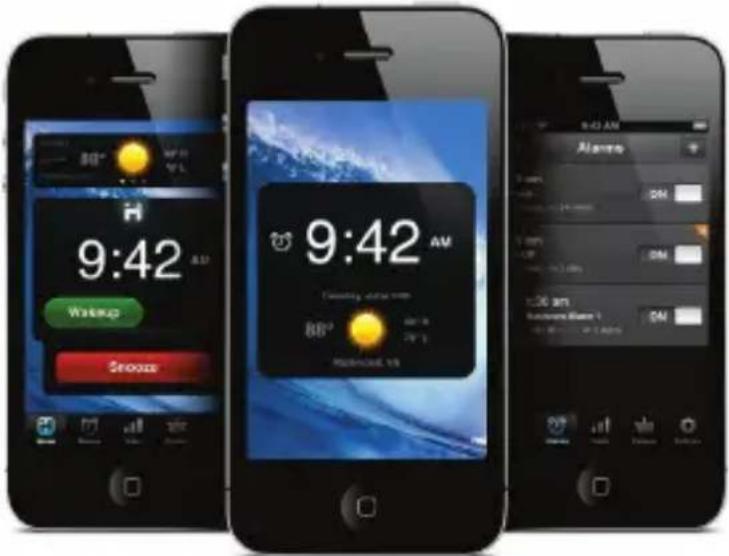
iHome+Sleep
iHome+Sleep is a FREE music alarm clock app for iPad, iPhone, and iPod touch. Featuring a full screen clock with weather, iPod controls, photo backgrounds, personalized bedtime and wakeup settings, and much more.

Music alarm clock
Choose hi-fi tones or music playlists from your entire iPod library

SMTWTFS

Weekday alarm
Program alarms to repeat for any day of the week combo: never, everyday, weekday, weekend & custom
Weather widget
Quickly view the current weather or forecast for the day ahead before you go to sleep
iOS Optimized
Graphics and interface is designed for iPad and retina display screen resolutions
Sure Alarm
Alarm works even when screen is locked

Sleep stats
Track sleep habits including average bedtime, hours of sleep, snooze, and more

Connect & Share
Facebook Connect & Twitter integration enables users to send bedtime and wakeup messages & updates

Overnight News
Wakeup to a recap of your friend and follower messages posted while you were sleeping

Wake-to Radio
Purchase iHome+Radio and sync your favorite internet radio stations to wake up to in the morning.
Set up, download, and launch
- Download and install iHome+Sleep from the App Store
- Launch iHome+Sleep music alarm clock app
NOTE: iHome+Sleep is only available for the iPad, iPhone, and iPod touch.

natural_image
Abstract icon of a stylized human figure in a seated pose on a dark background (no text or symbols)iHome+Sleep
FREE download

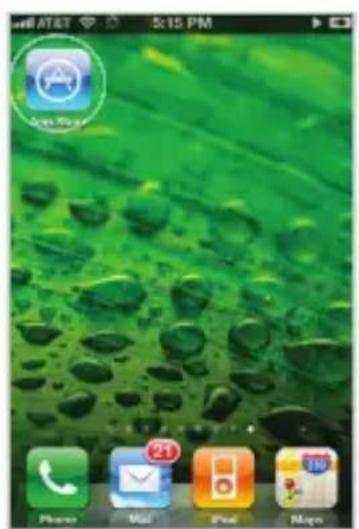
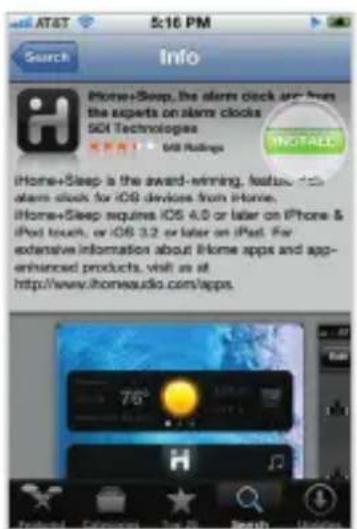
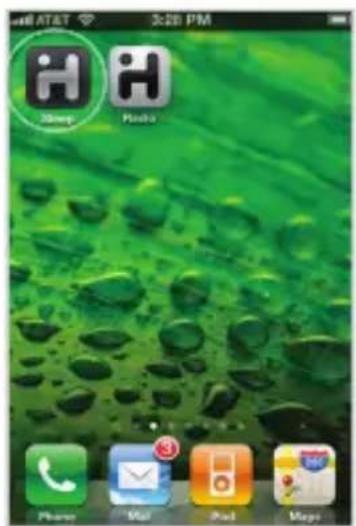
Visit the App Store Download Launch & Enjoy!
Home Screen
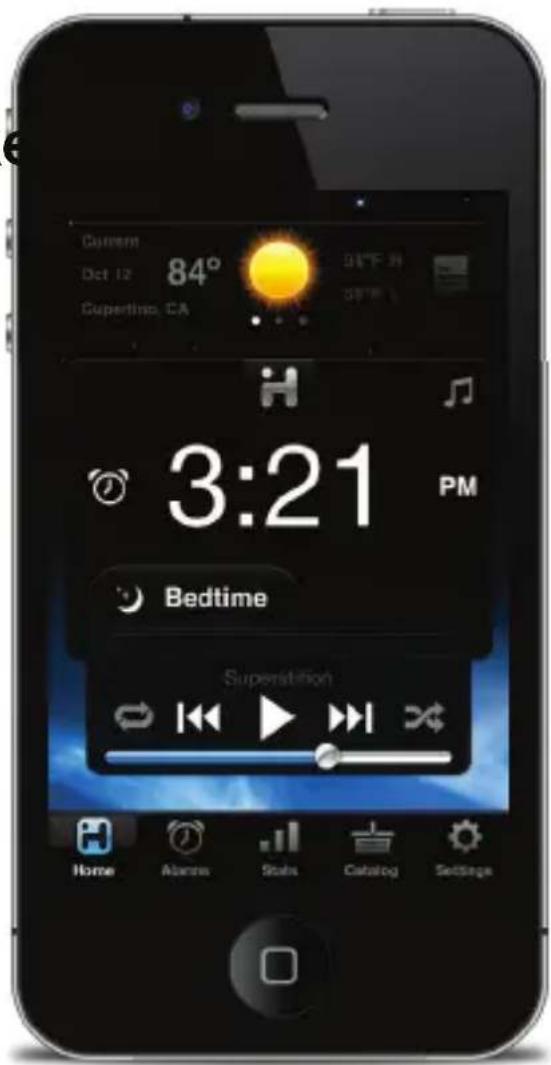
Launching iHome+Sleep will bring you to the clock home screen from which you can control and access all other settings
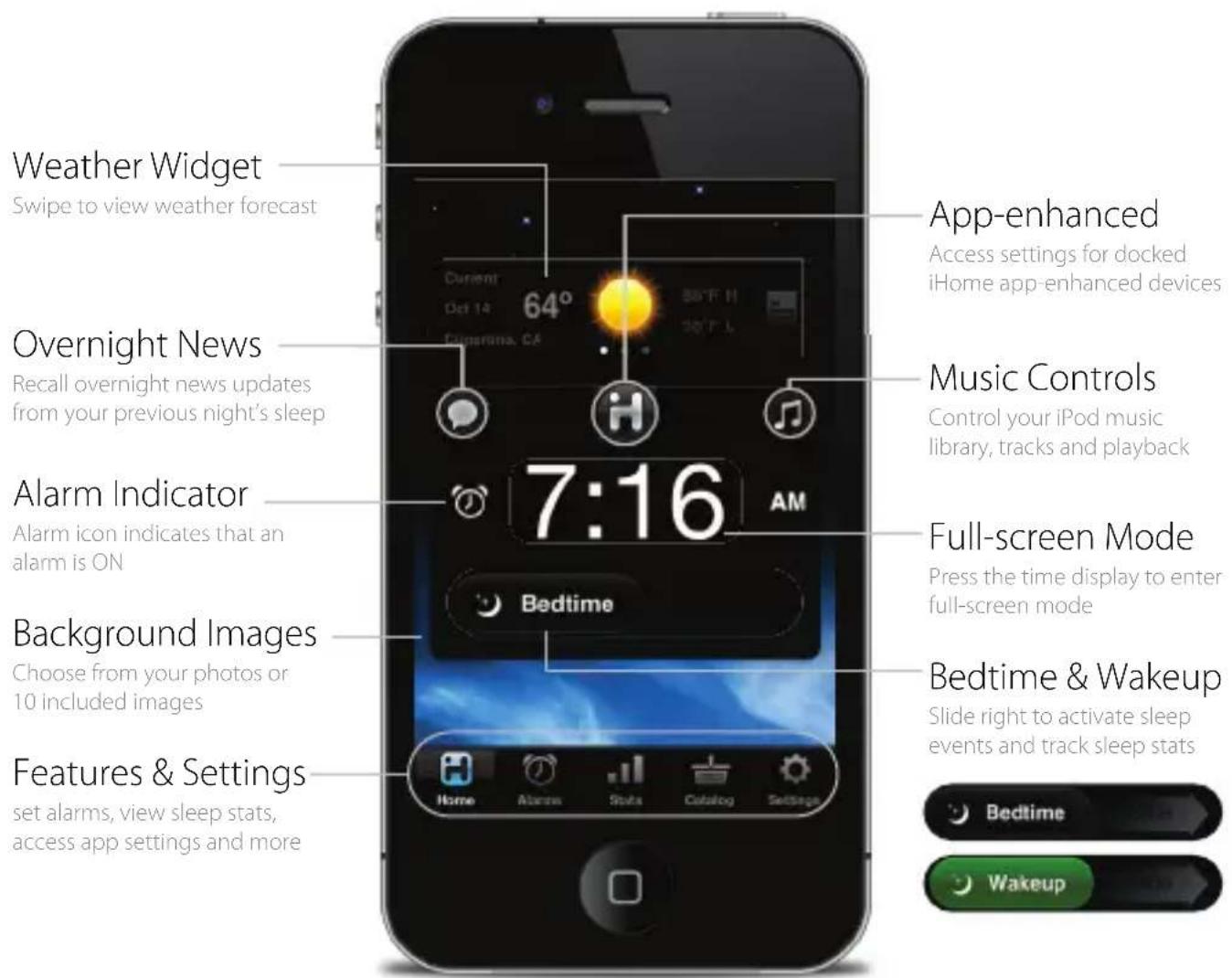
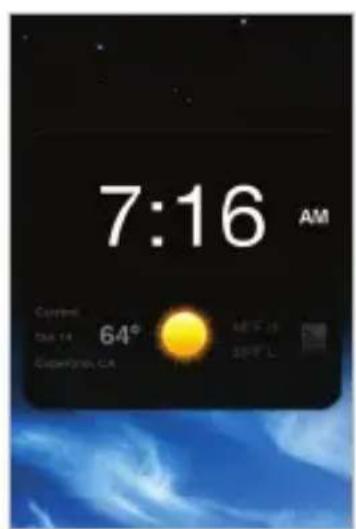
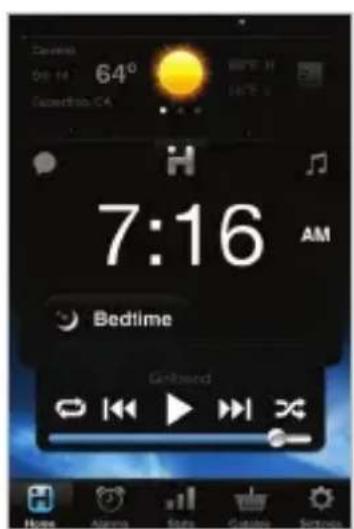
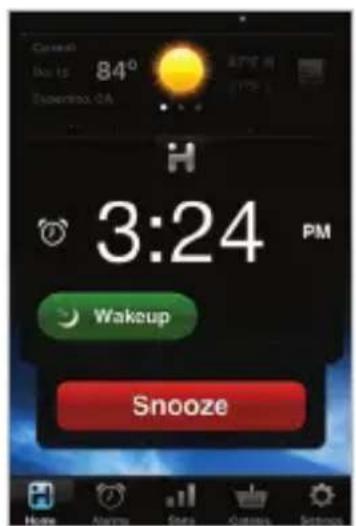
Full-screen Mode Music Controls Sounding Alarm
App Alarms
iHome+Sleep has app alarms that work independently of app-enhanced hardware device alarms, offering more interactive settings and features for you to enjoy
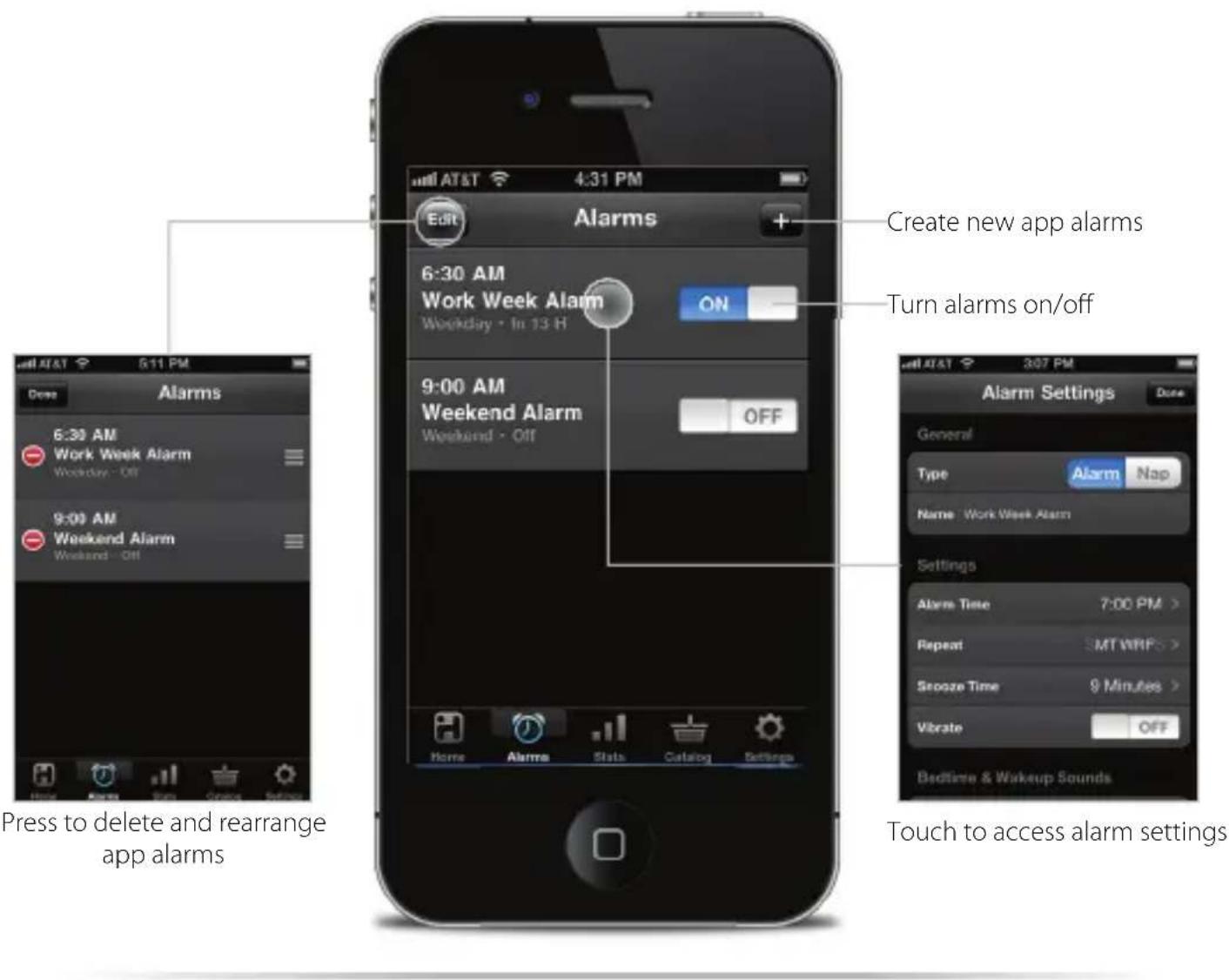
NOTE: App alarms may not sound if you do not leave iHome+Sleep in the foreground. While we do support multi-tasking, background alarms is a beta feature of iOS4.0 (or later) and your alarm will not always sound depending on if your iOS device is used with a charger or used with an iPod speaker system. We recommend using app-enhanced device alarms as backups when using our app with our app-enhanced devices.
Alarm Settings
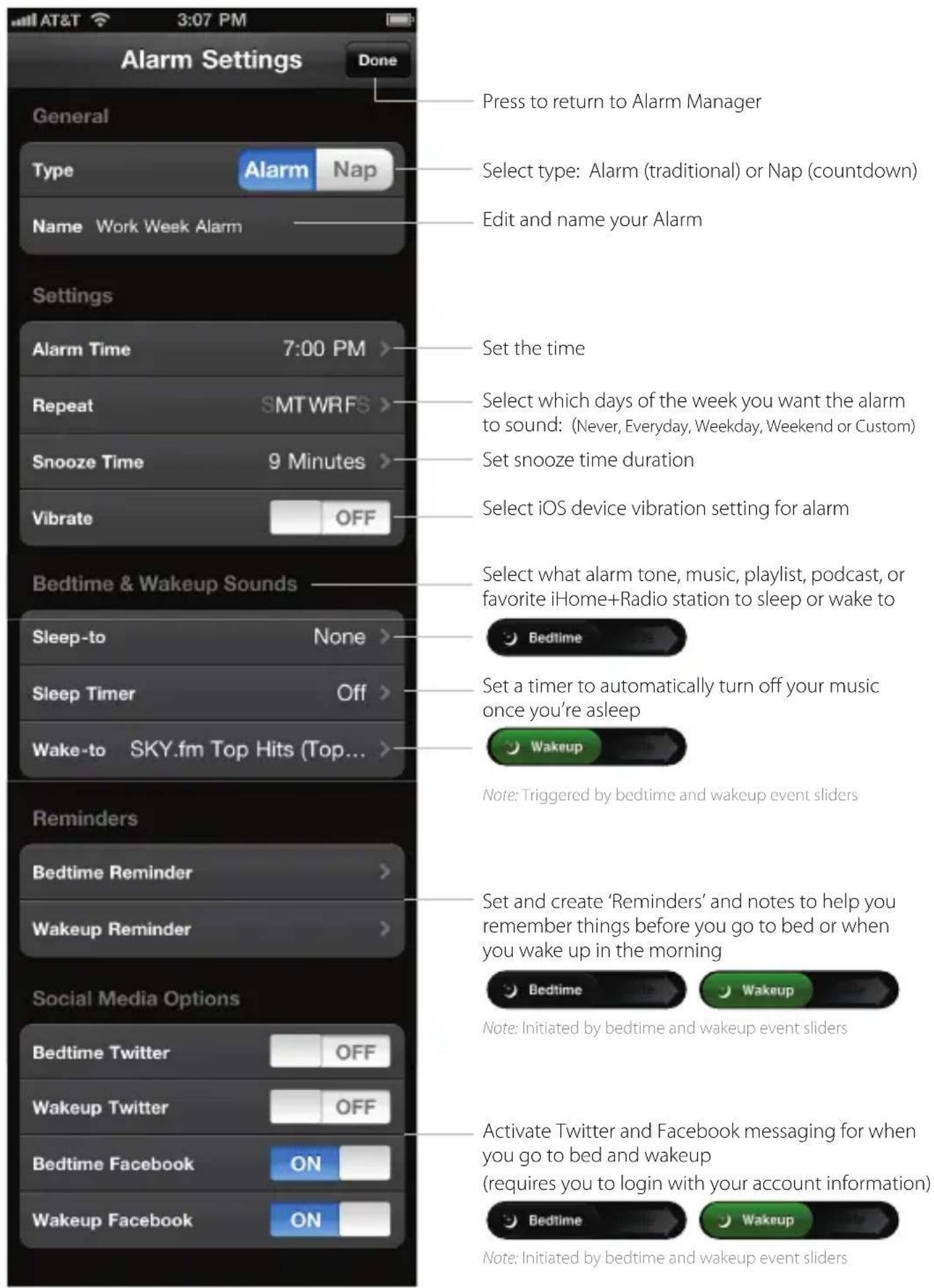
Press to return to Alarm Manager
Select type: Alarm (traditional) or Nap (countdown)
Edit and name your Alarm
Set the time
Select which days of the week you want the alarm to sound: (Never, Everyday, Weekday, Weekend or Custom)
Set snooze time duration
Select iOS device vibration setting for alarm
Select what alarm tone, music, playlist, podcast, or favorite iHome+Radio station to sleep or wake to

Set a timer to automatically turn off your music once you're asleep

Note: Triggered by bedtime and wakeup event sliders
Set and create 'Reminders' and notes to help you remember things before you go to bed or when you wake up in the morning

Note: Initiated by bedtime and wakeup event sliders
Activate Twitter and Facebook messaging for when you go to bed and wakeup (requires you to login with your account information)

Note: Initiated by bedtime and wakeup event sliders
Bedtime & Wakeup Events
Trigger pre-configured alarm and sleep profiles to easily manage your daily sleep cycle
Bedtime Wake
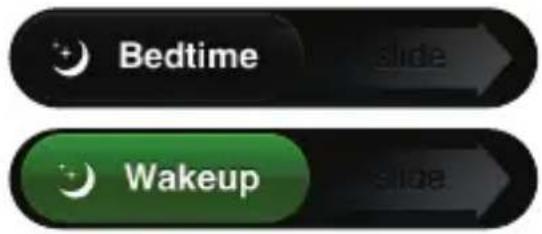
Slide 'Bedtime' when you're ready to go to sleep...
- Sleep Stats - starts a log of the time you went to bed and starts calculating sleep duration
- Triggers any bedtime music profiles and playlists you have set to fall asleep to
- Triggers Bedtime events
- Twitter messages
- Facebook messages
- 'Reminder' messages
- Bedtime screen dimmer

Slide 'Wakeup' when you're ready to start the day...
- Turns off a sounding alarm and resets it for the next specified time
- Sleep Stats - completes a log of the time you woke up and calculates sleep duration
- Triggers Wakeup events
- Twitter messages
- Facebook messages
- 'Reminder' messages
- Overnight News
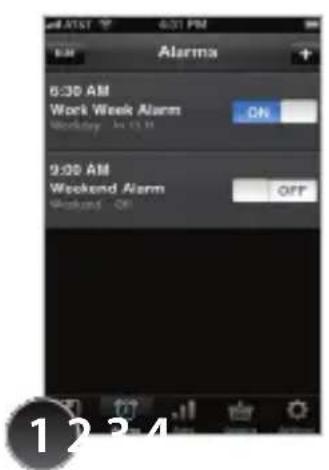
Create an alarm with your bedtime & wakeup settings and turn it ON
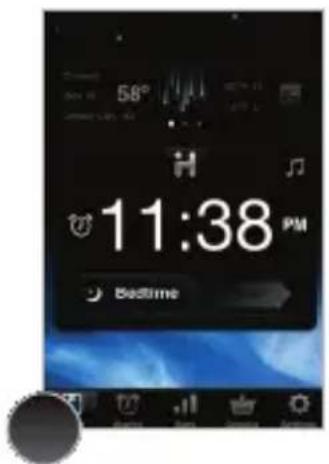
Slide 'Bedtime' when you are ready to go to sleep
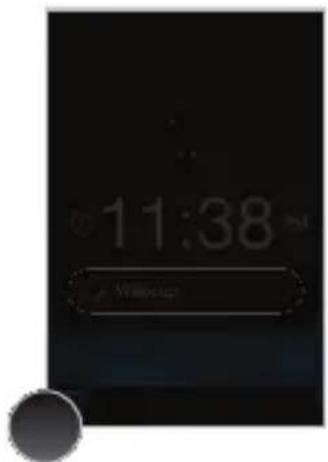
Bedtime dimmer settings will be activated to your preferred brightness while sleeping (control within 'Settings')
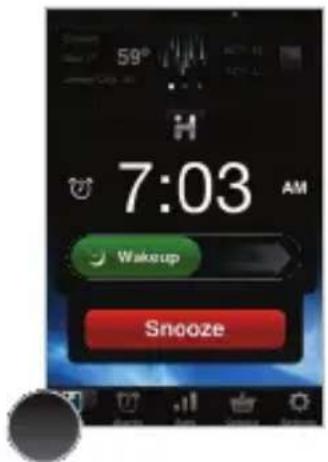
Slide 'Wakeup' when your alarm is sounding and you are ready to start your day
Sleep Stats
You spend a third of your life sleeping...iHome+Sleep lets you record and monitor your sleep habits over time, learning interesting information about yourself
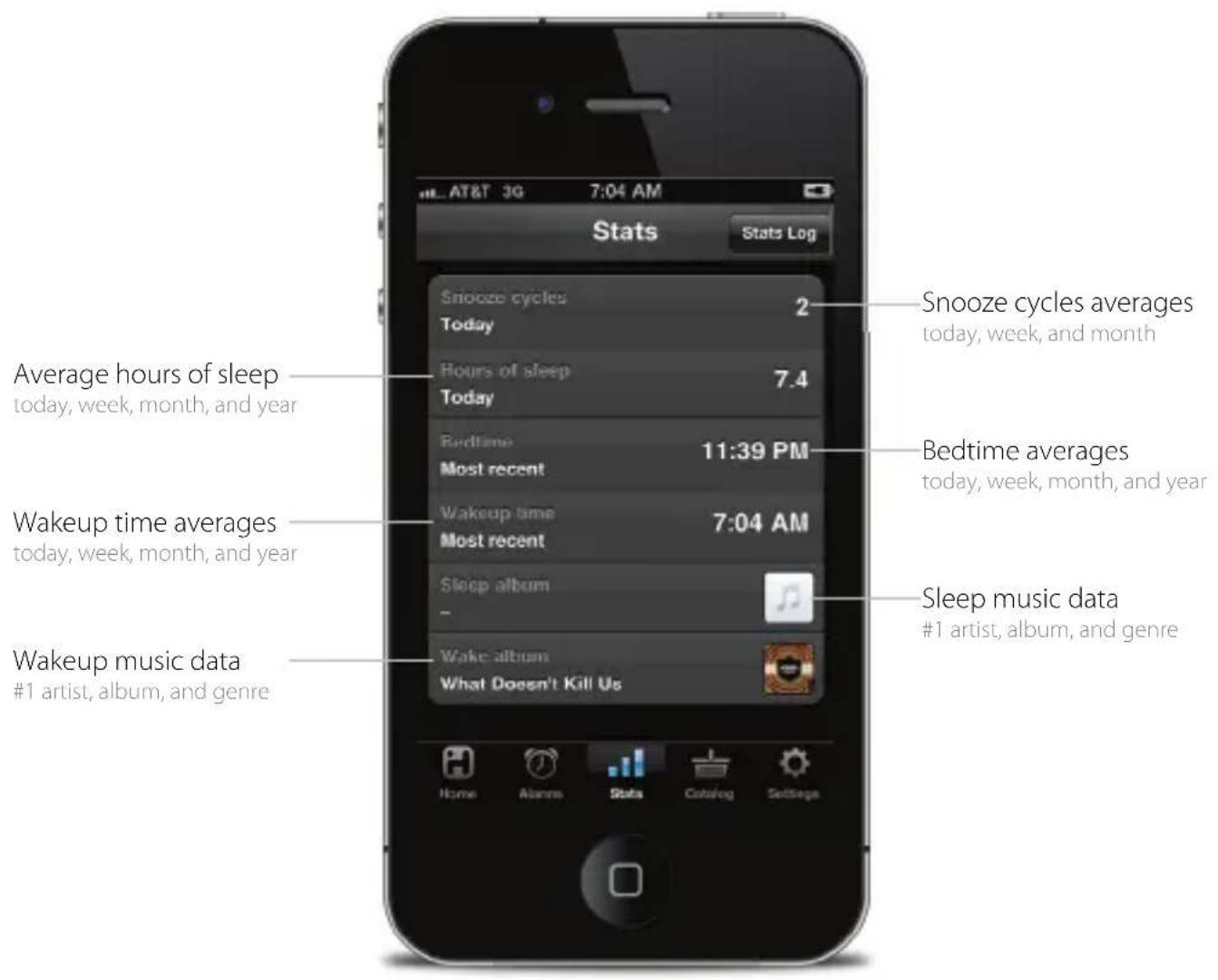
Use those sliders!
Slide right to switch between bedtime and wakeup event modes. The duration between these events is used to calculate your sleep stats
Stats Log
You can delete individual events and erroneous data sets for more accurate stats
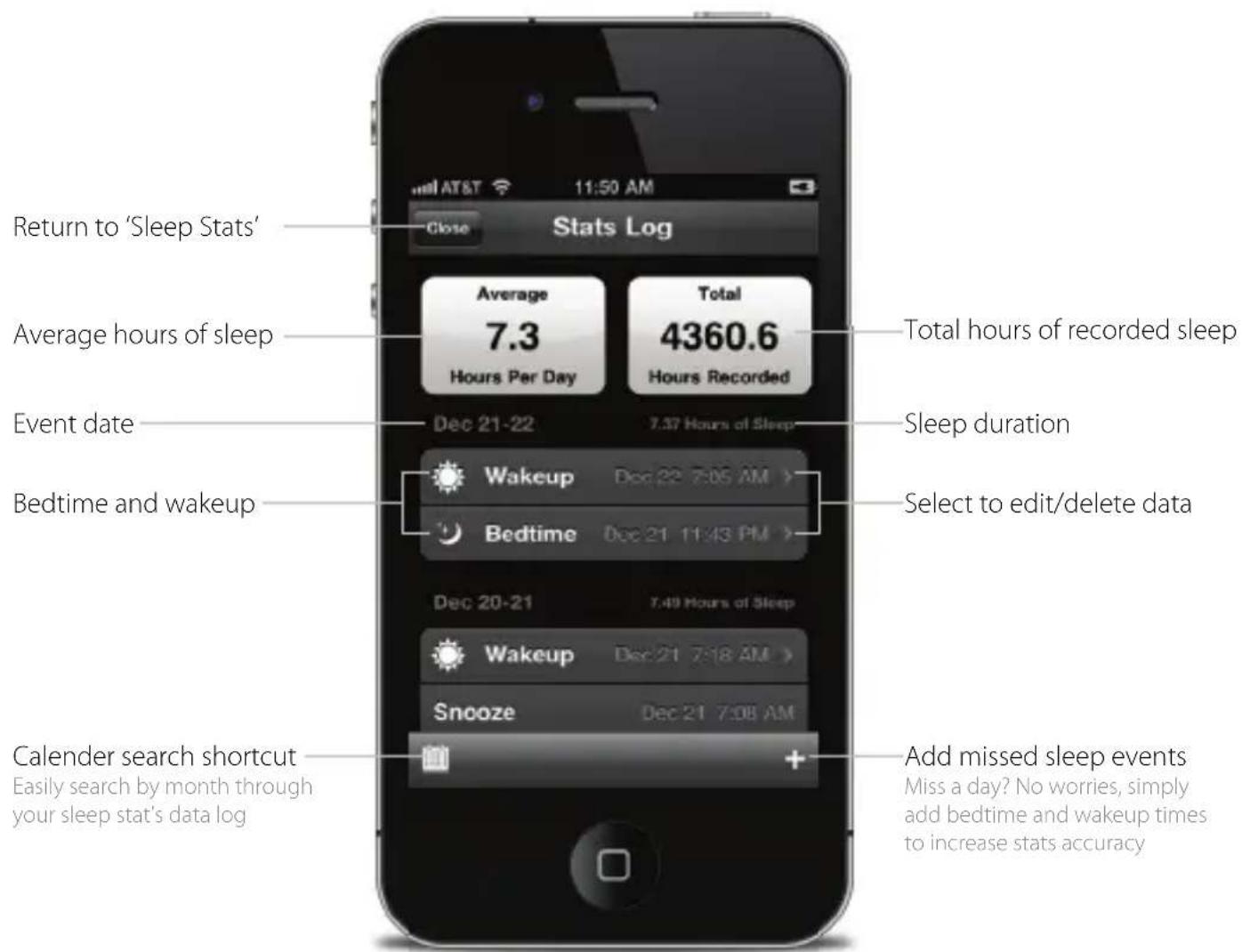
NOTE: Sleep stats was designed as a simple way to learn more about your own sleep habits. We will continue to improve and refine how we calculate this data and hope you enjoy the ability to edit and delete individual sleep events to increase the accuracy and usefulness of the sleep stats feature.
Overnight News
Wakeup to Facebook & Twitter status and news updates of what you missed while you were sleeping
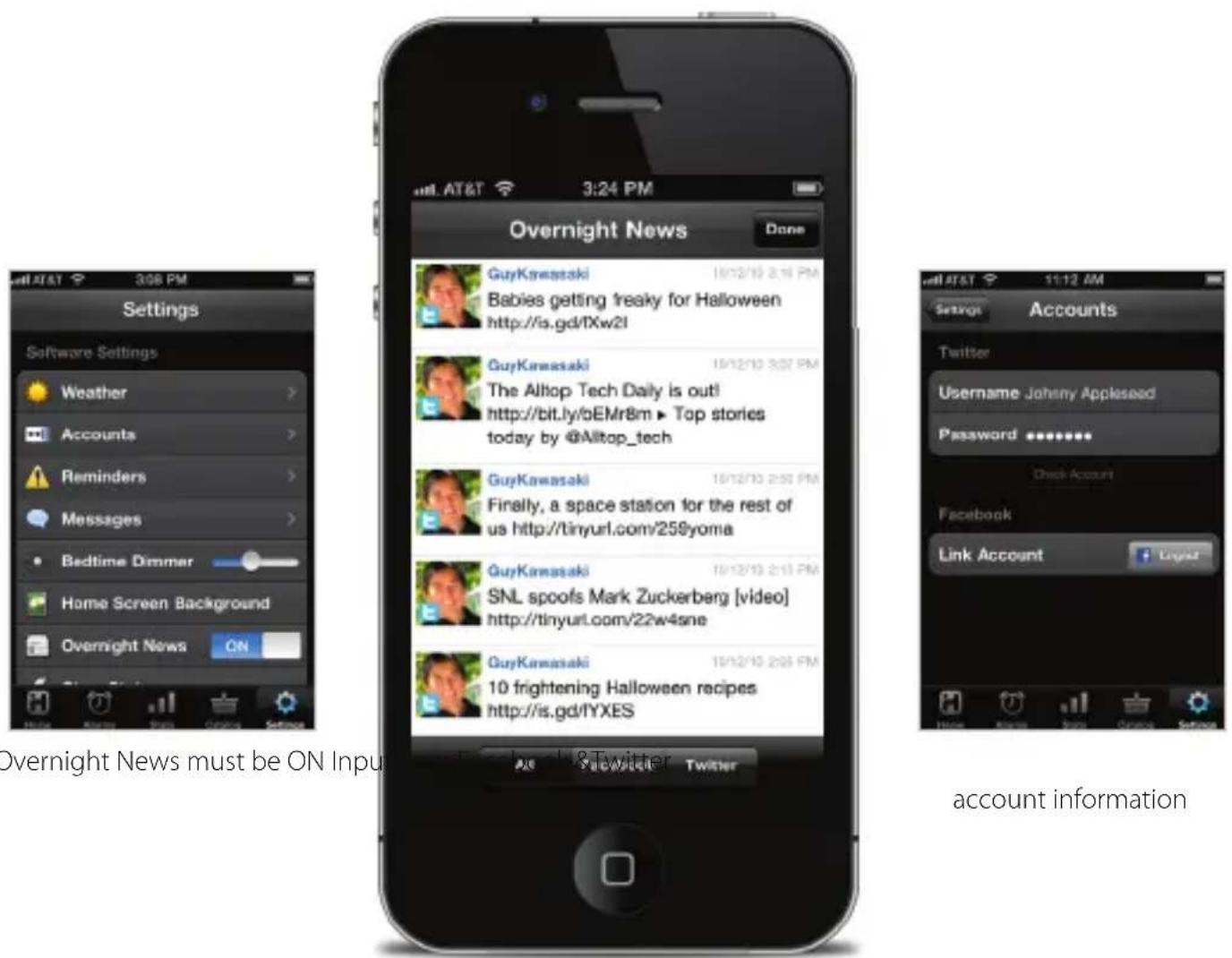
Activating Overnight News
Overnight News only supports news feeds from your Facebook & Twitter friends/followers. In order for this feature to work you must have a valid Facebook or Twitter account and you must input your login information under 'Accounts' in app settings.
Want to wake up to news content?
Many popular blogs today, and news websites also have Twitter accounts which reflect top stories, breaking news, and replicate the traditional function of RSS feeds. So all you have to do is sign up for Twitter, and follow some news-based Twitter accounts!
Some of our favorites are:
@engadget, @cnn, @nytimes, @yahoonews, @bbcnews, @reuters, @tuaw
Social Media Messages
Facebook Connect & Twitter integration enable you to create, save, customize, and send messages to your friends from bed when you initiate bedtime and wakeup events
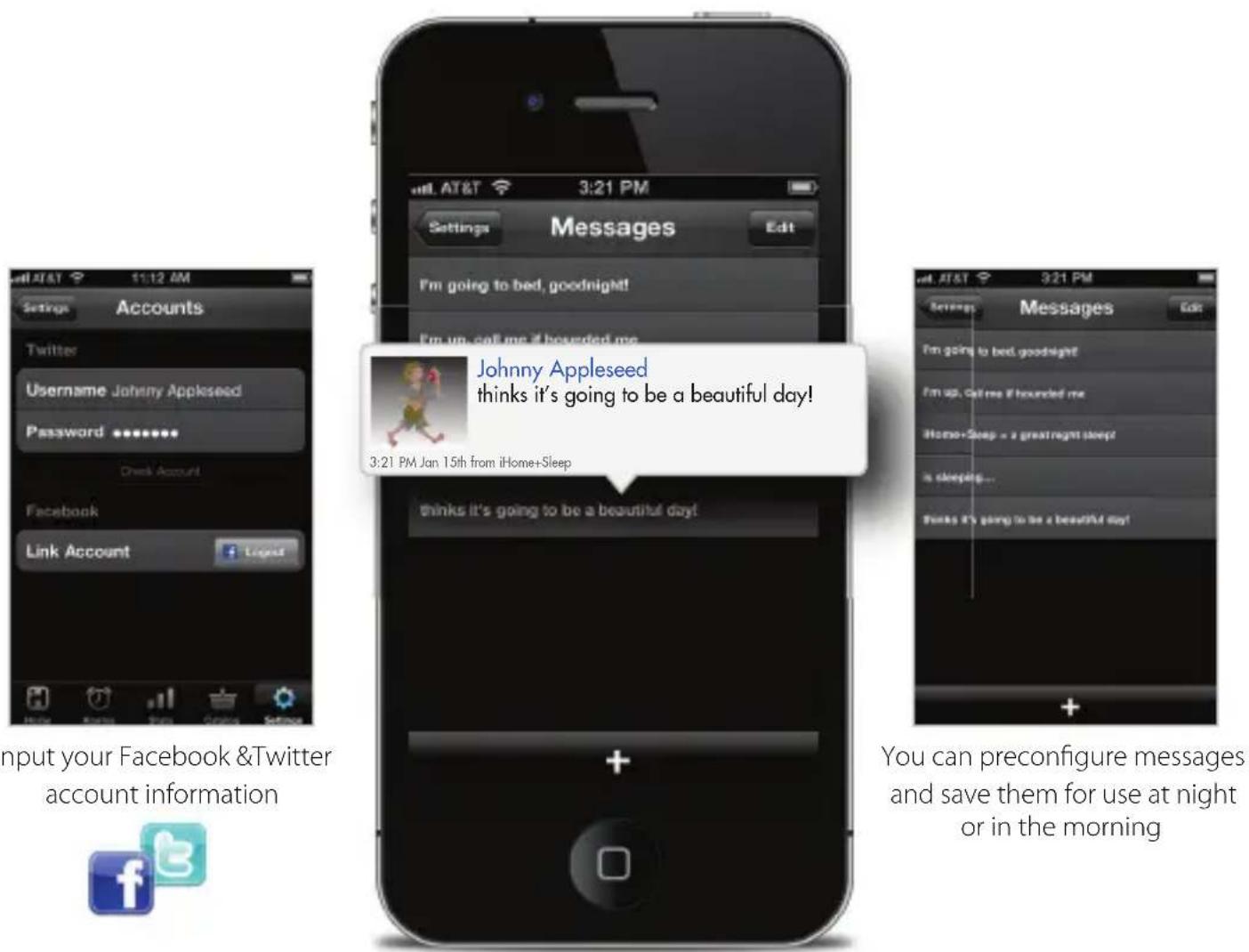
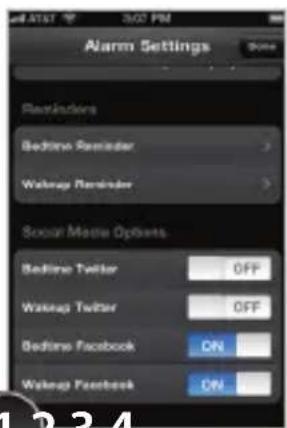
Create an alarm with social media activated
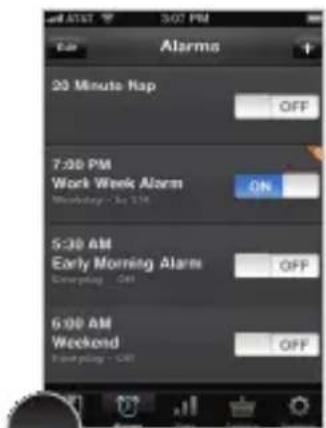
Verify that the alarm is ON. Active Facebook & Twitter messaging is indicated by the ▼ tab.
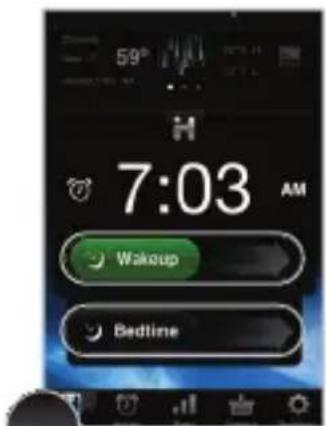
Start message mode by sliding wakeup or bedtime slider
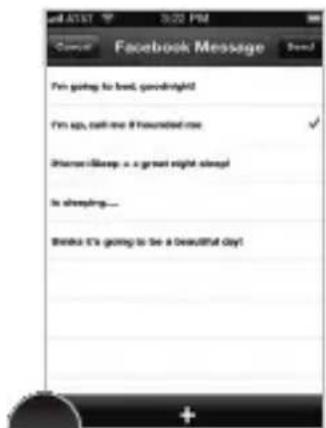
The message menu appears. Select an existing status message or create a new one to share with your friends
Reminders
When life gets hectic, it's helpful to have a way to help you remember the little things before you head out the door in the morning or before you call it a night
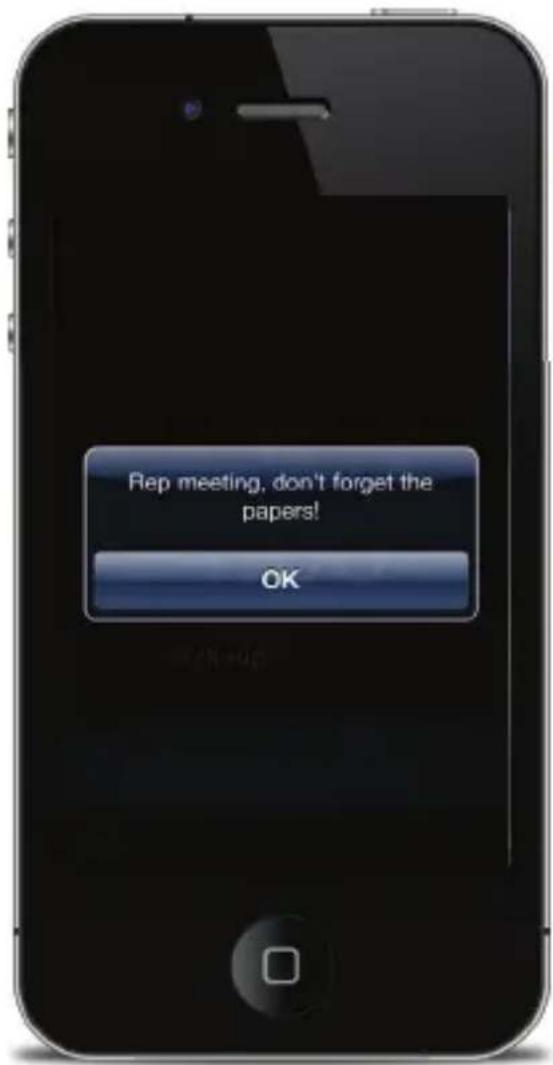
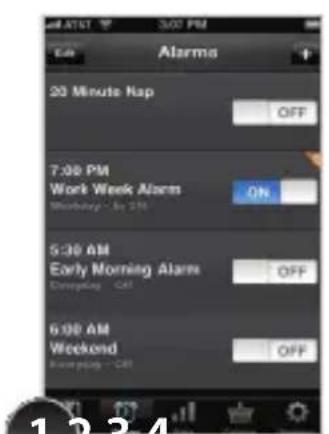
12
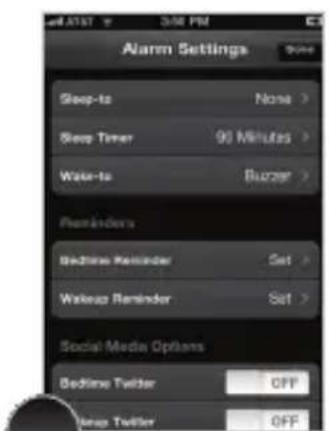
Create and turn on an alarm Select a reminder within the alarm select 'Bedtime Reminder' or 'Wakeup Reminder'
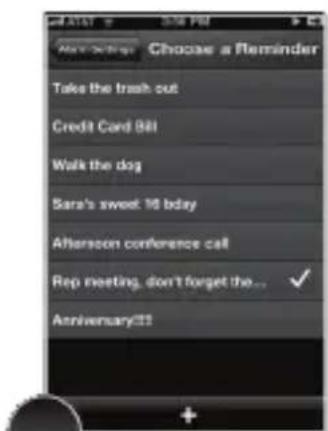
to create a new reminder
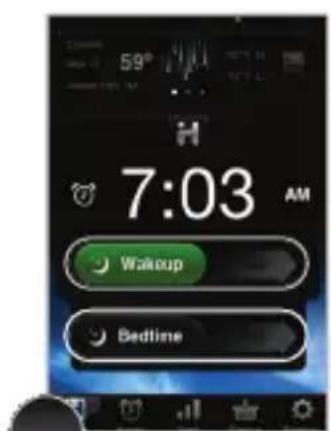
Reminder pop-up is initiated by wakeup or bedtime slider and will show your message so you don't forget
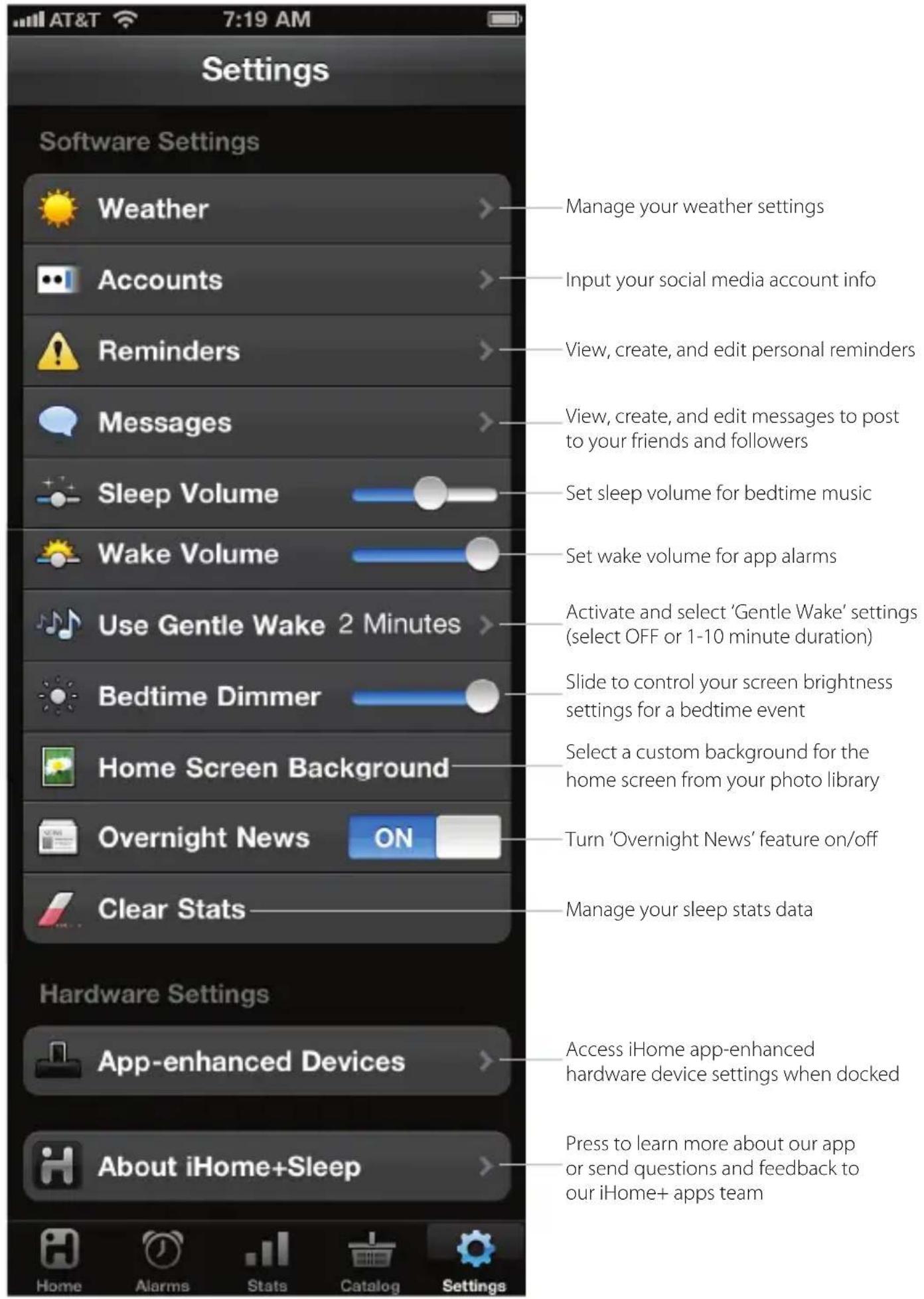
App Settings
Problems?
If you are experiencing problems with iHome+Sleep, try these quick steps:
- Close and restart app. For iPod touch, iPhone, or iPad running 4.0 or later, this means closing the app by double pressing the iOS device's home button to bring into view all the apps that are active, scroll to app, press & hold app icon and select “-” to close.
- Update app on the App Store. Visit the App Store to see if there is an update available for your app. Update if needed.
- Upgrade the software on your iPad/iPhone/iPod to the latest version by connecting it to a computer with iTunes installed and checking through iTunes that your unit has the most recent software. Update if needed.
- Reset your iPad/iPhone or iPod. The process can differ depending on your model. Please see the user manual or the Apple web site for details. Typically, holding the sleep button and the home button on a newer iPad, iPhone or iPod will reset it.
- If all else fails, delete and re-download the app. Sometimes an application has problems while installing or updating and it is necessary to delete the app and try it again. Please note that sleep stats and alarm settings will be lost when deleted.
If these steps do not solve your issue:
skip to: Troubleshooting
visit us at: www.ihomeaudio.com
email us at: apps@ihomeaudio.com
iHome+Radio
Use independently as an internet radio app with your iOS device or with iHome Speaker Docks for charging & audio performance
A Wi-Fi network is recommended to ensure the best station reception available
www.ihomeaudio.com/discover/apps
![HOME Favorites Recent Music Sports Talk Minority Search KEXP-FM Positive Vibrations (KEXP) all users are remaining Minority Minority Search KEXP-FM Send to us to PowerShares Scene Fill Groupy Bead... Scene Fill Mission Condc... 92.51 KEXP-FM [India] 84.51 CBS [Adult Cons... 93.51 MQEB-FM [Canada... Go!Radio Bluesgrass [UK... 1 Power Hit Hop Hop [UK...](/content/2026/05/826295/images/4a63d0ff3bf15d790d043730b97d9bcb61326c7b5bd2ab94c3256442e5749618.jpg)
iHome+Radio
Internet radio music app for iPhone and iPod touch. Purchase and download today to enjoy thousands of radio stations no matter where you live.
Thousand of Internet Radio Stations
Connects you to tens of thousands of internet music, talk, sports and news stations from around the world
Add Radio to Any Speaker
Add endless radio music to any iHome speaker solution. Simply launch iHome+Radio and let the party begin.
Sync with iHome+Sleep
Wake to your favorite music, talk, sports, and news iHome+Radio stations

iOS 4.0 Optimized
Multi-tasking background audio support allows you to listen to your app while surfing the web, playing games, and more
natural_image
Black and white photo of a smartphone charging at an electronic device (no visible text or symbols)iHome App-enhanced
Works with iHome App-enhanced products for easy interaction and control of hardware settings and firmware updates
Set up, download, and launch
- Download and install iHome+Radio from the App Store
- Launch iHome+Radio internet radio app
NOTE: iHome+Radio is designed for iPhone and iPod touch with iOS4.0

natural_image
Abstract geometric icon with a stylized letter 'H' in black on a light gray background, no text or symbols present.iHome+Radio
pay to download

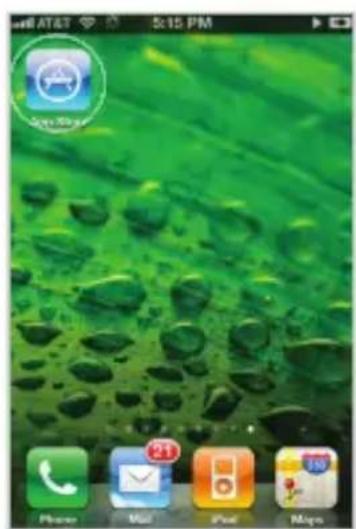
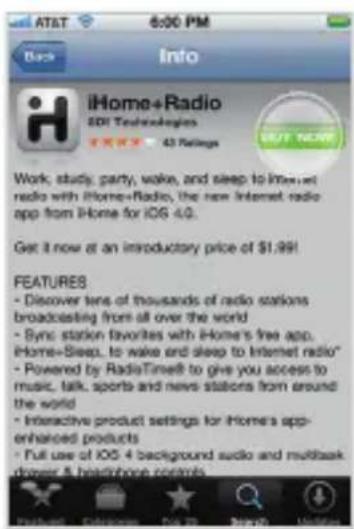
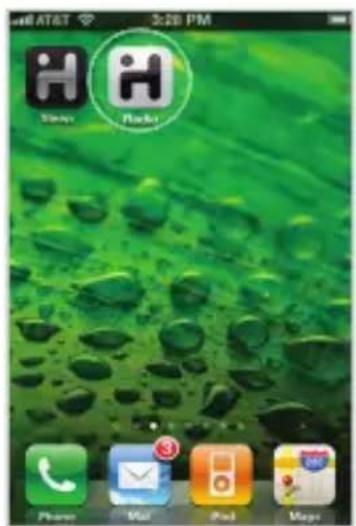
Visit the App Store Download Launch & Enjoy!
Radiotime channel indexing
iHome+Radio uses RadioTime for channel indexing and allows you to sync with user presets stored on Radiotime.com
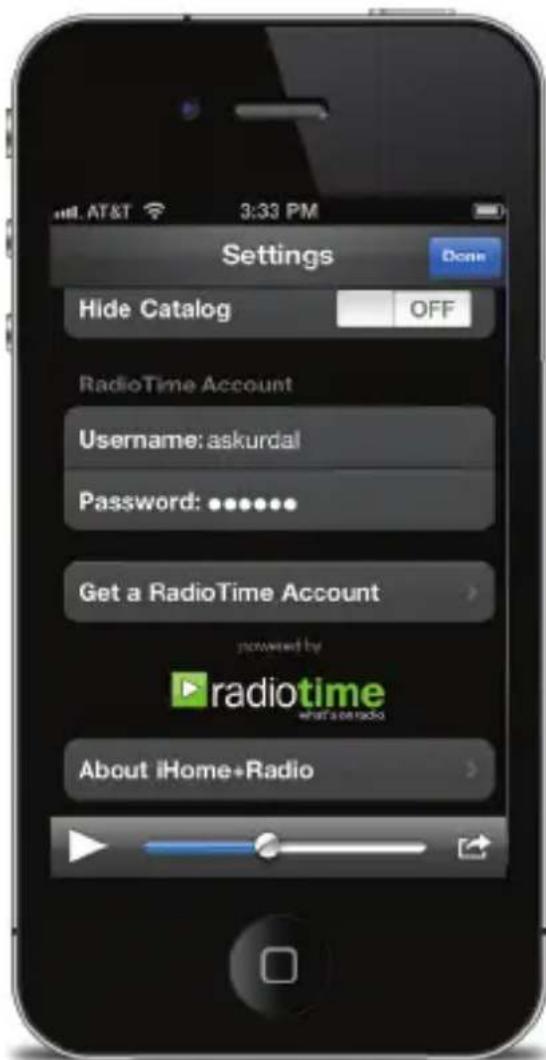
NOTE: iHome+Radio currently supports Radiotime-listed stations in the MP3, AAC, and QT formats only. Stations with formats other than MP3, AAC, and QT will NOT sync as favorites with Radiotime.com.
Syncing with iHome+Sleep
Syncing is easy and allows you to sleep and wake to your favorite iHome+Radio internet stations!
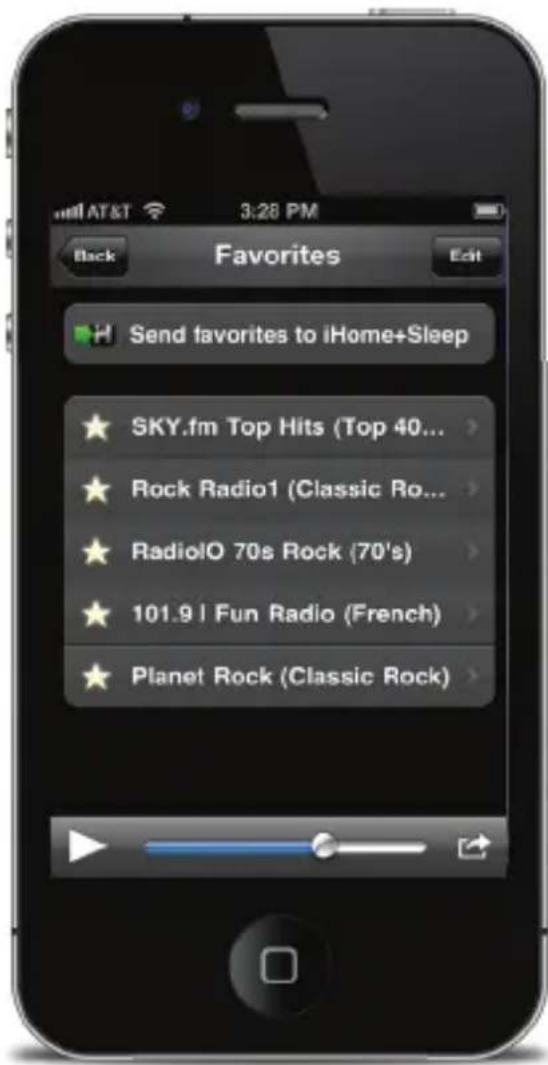
NOTE: You can only sync stations already saved in 'Favorites' prior to synchronization. If you add favorite stations after you sync, they will not be selectable from iHome+Sleep until you sync again.
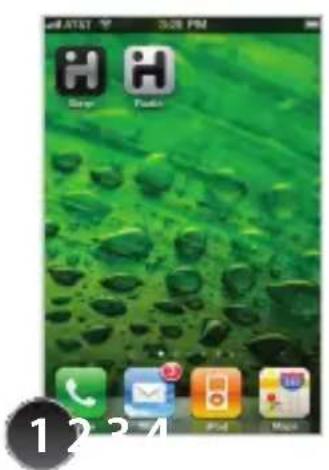
You must have both iHome+Radio and iHome+Sleep
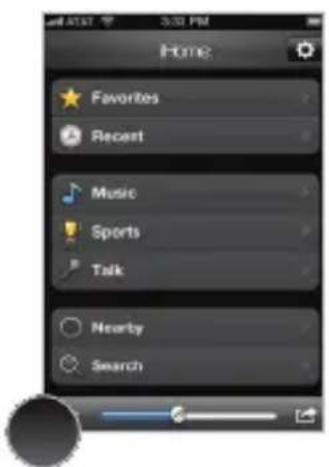
Launch iHome+Radio and access 'Favorites'
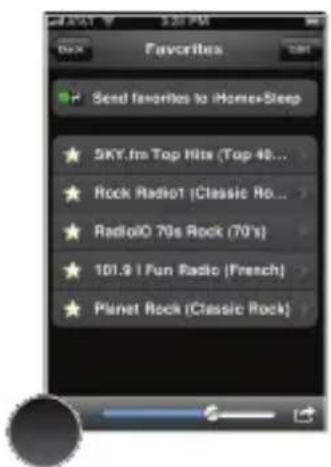
Select 'Send favorites to iHome+Sleep'
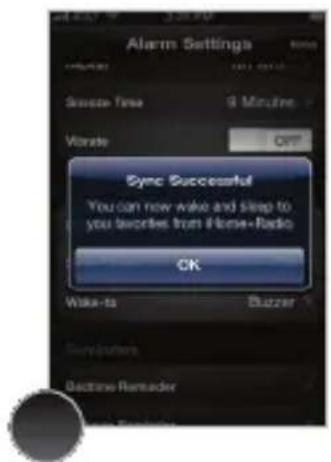
iHome+Sleep will be launched and a pop-up message will confirm that your favorites were successfully synced
Sleep and wake to iHome+Radio
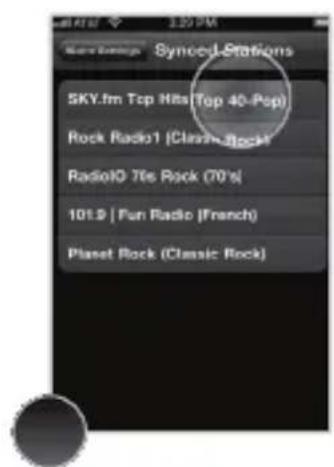
Once your favorite internet radio stations are synced, all you have to do is select ‘Radio’ for your bedtime or wakeup sounds with iHome+Sleep app alarms
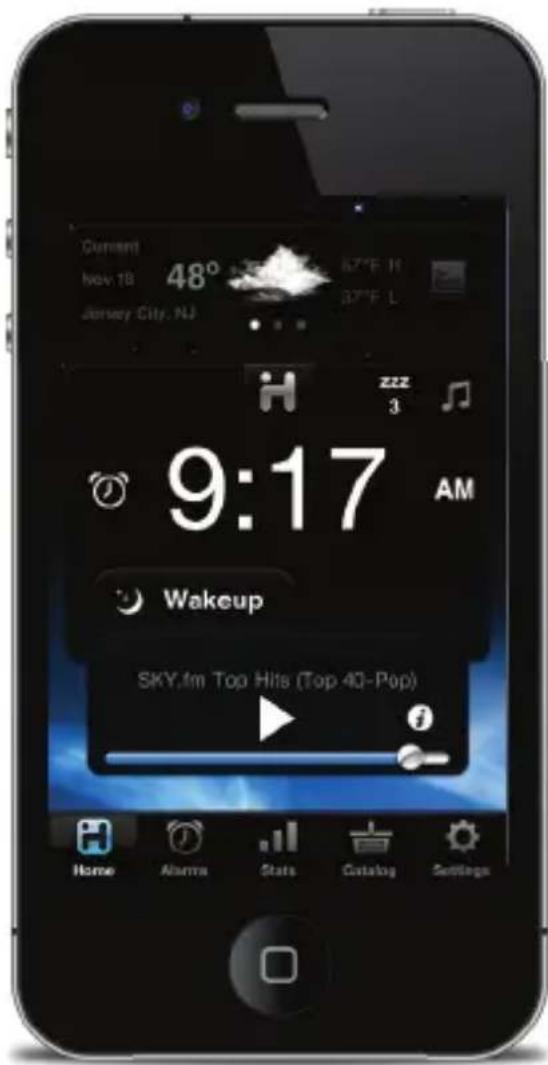
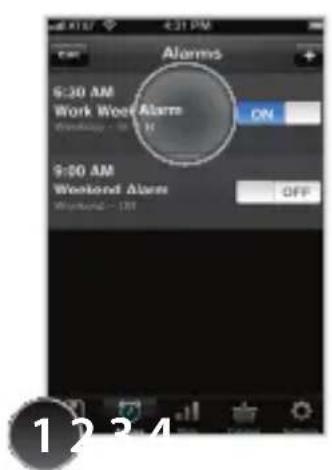
Launch iHome+Sleep and edit an active alarm
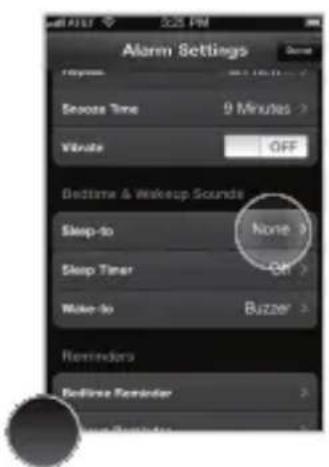
Sounds within 'Alarm Settings'
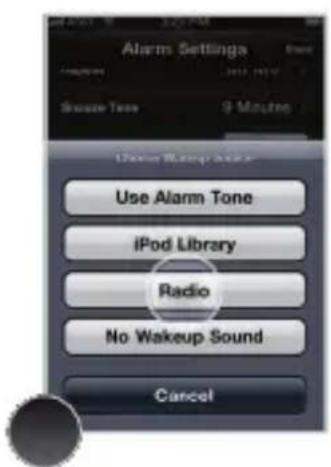
Select 'Radio' as sourceSelect BedtimeSelect from Myakust of synced stations to sleep or wake to
Problems?
If you are experiencing problems with iHome+Radio, try these quick steps:
- Close and restart app. For iPod touch, iPhone, or iPad running 4.0 or later, this means closing the app by double pressing the iOS device's home button to bring into view all the apps that are active, scroll to app, press & hold app icon and select “-” to close.
- Update app on the App Store. Visit the App Store to see if there is an update available for your app. Update if needed.
- Upgrade the software on your iPad/iPhone/iPod to the latest version by connecting it to a computer with iTunes installed and checking through iTunes that your unit has the most recent software. Update if needed.
- Reset your iPad/iPhone or iPod. The process can differ depending on your model. Please see the user manual or the Apple web site for details. Typically, holding the sleep button and the home button on a newer iPad, iPhone or iPod will reset it.
- If all else fails, delete and re-download the app. Sometimes an application has problems while installing or updating and it is necessary to delete the app and try it again. Please note, your iTunes account will not be billed again for an app your have already purchased.
If these steps do not solve your issue, keep reading on the next page.
Problems continued...
Still having an issue?
- Multi-tasking audio - iHome+Radio requires iOS4.0 or later in order to support multi-tasking background audio support that allows you to listen to internet radio while surfing the web or using other apps.
- iPad - iHome+Sleep is primarily designed for use on the iPhone and iPod touch. While you can download to an iPad running iOS4.2 or later, the interface is not optimized for iPad screen resolution.
- Poor Station Reception - We recommend using a Wi-Fi network and selecting stations with the greatest signal strength available when using iHome+Radio. Station reception is affected by the strength of your iPhone's data connection, the Wi-Fi network connection, the bandwidth of the selected internet radio station, and issues with RadioTime's indexing. Visit www.radiotime.com for issues with available stations.
- Doesn't support my local AM/FM broadcast radio station - iHome+Radio currently supports Radiotime-listed internet radio stations in the MP3, AAC, and QT formats only. Visit www.radiotime.com for station listings. In the US, many popular local radio stations owned by Clear Channel are only available via the free iHeartRadio app.
If these steps do not solve your issue:
skip to: Troubleshooting
visit us at: www.ihomeaudio.com
email us at: apps@ihomeaudio.com
App-enhanced Devices
Use independently as dedicated iPod Speaker Docks for charging, audio performance, and dedicated alarms or with iHome+apps for advanced features.
www.ihomeaudio.com/ihome+apps
The enhanced experience for iOS
The iHome you know and love, now with a touch of apps. Charge. Wake. Sleep. Connect.
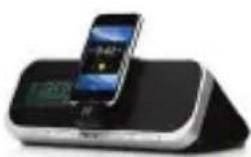
natural_image
Exterior view of a black and white electronic device with a smartphone on top (no visible text or symbols)iA5
App-enhanced alarm clock for iPhone and iPod
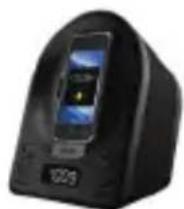
iA63
Alarm clock FM radio with rotating dock
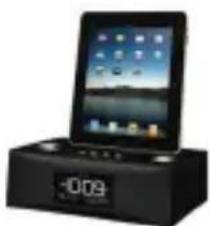
natural_image
Black electronic device with a display showing a grid of app icons and a digital clock showing -0.09 (no readable text or symbols on the device body)iA63 iA100
Alarm clock radio for iPad, iPhone, and iPod
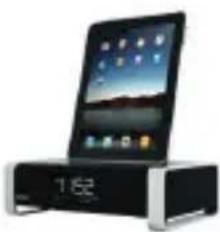
natural_image
Black and white electronic device with a digital display showing a screen and a 1:52 time read (no visible text or symbols on the device body)Bluetooth alarm clock radio for iPad, iPhone, and iPod
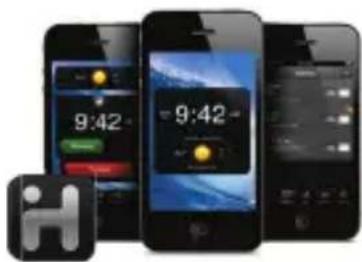
iHome+Sleep
Download this FREE music alarm clock app and turn your app-enhanced speaker into an advanced bedside system.
Control hardware settings via the rich iOS interface and use our apps to directly update the firmware of select models.
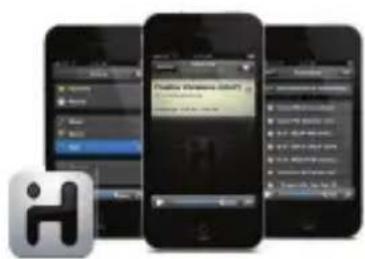
iHome+RadioHardware
When local radio is not enough, connect to thousands of internet radio stations around the world.
App-enhanced Device Alarms
Docking your iPad, iPhone or iPod touch to an App-enhanced alarm clock when iHome+Sleep is running will bring into view the available device alarms in addition to app alarms
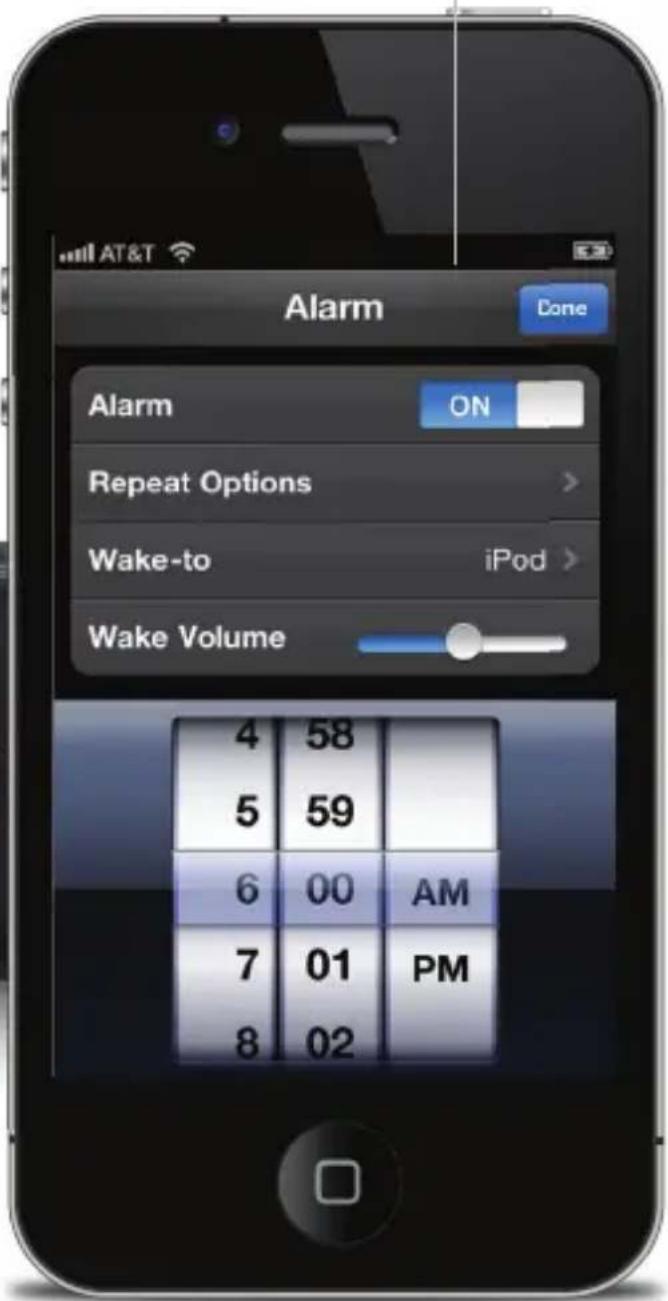
Device Alarm Settings
Press to view and change device alarm settings. iHome device alarms are not subject to iOS app alarm system and connections errors, acting as backup alarms that will sound no matter what to make sure you are up in the morning
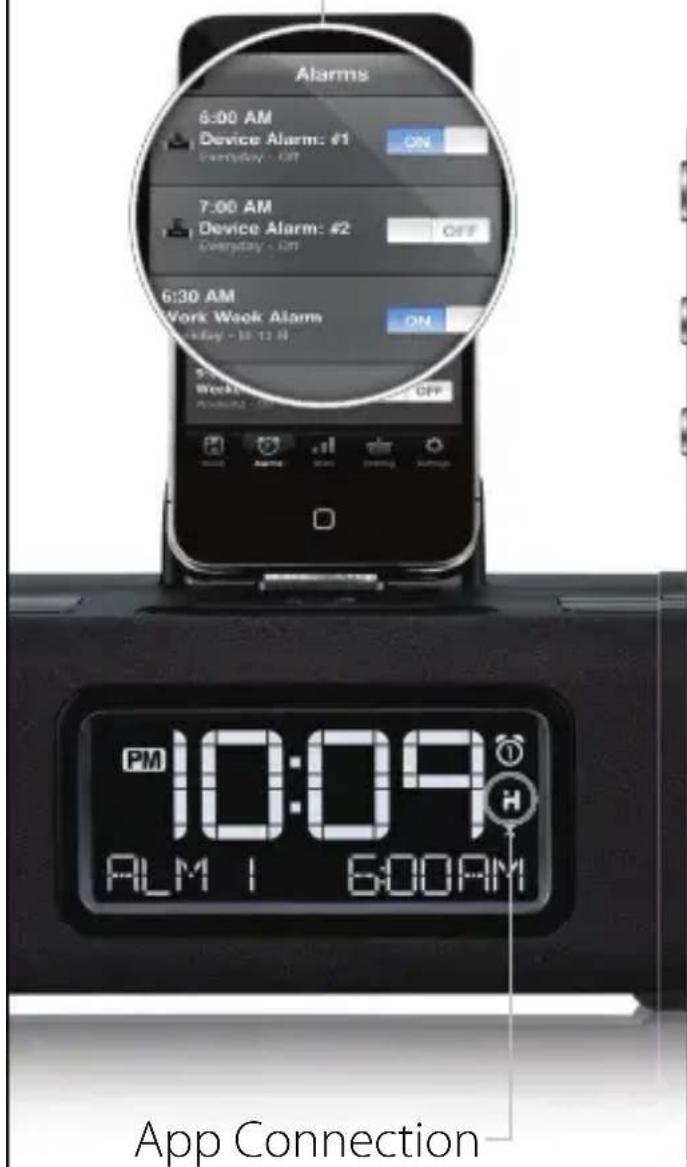
You can only access App-enhanced device alarms and hardware settings when this icon is displayed.
App-enhanced Device Settings
iHome App-enhanced products also allow you to easily interact with and control all of the physical hardware buttons and functions
natural_image
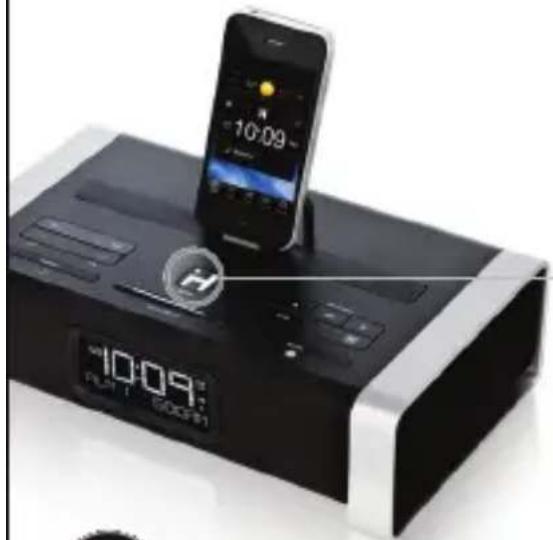
Black and white photo of an outdoor electronic device with a smartphone, clock, and app interface (no readable text or symbols)1 Press & hold POWER/ H button 2 sec. on App-enhanced device
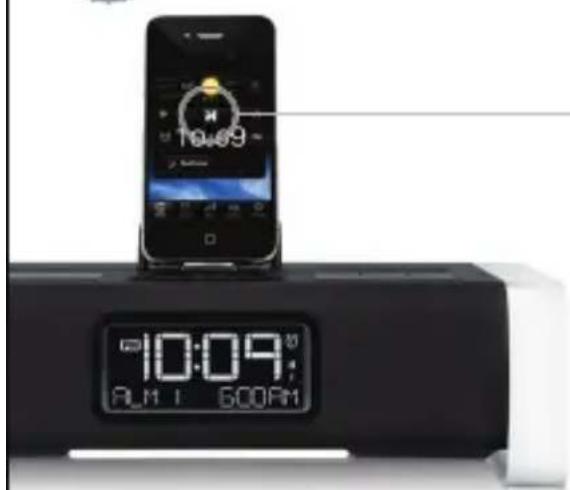
2 Press glowing 📤 button on app home screen
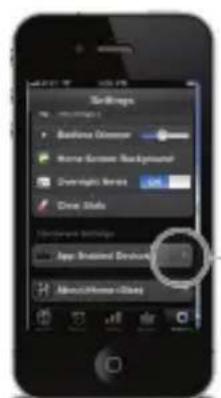
Device Settings
Use any of the 3 methods for accessing iHome app-enhanced device settings for clock controls, alarms, snooze timers, mode selection, radio tuning, eq settings and more...
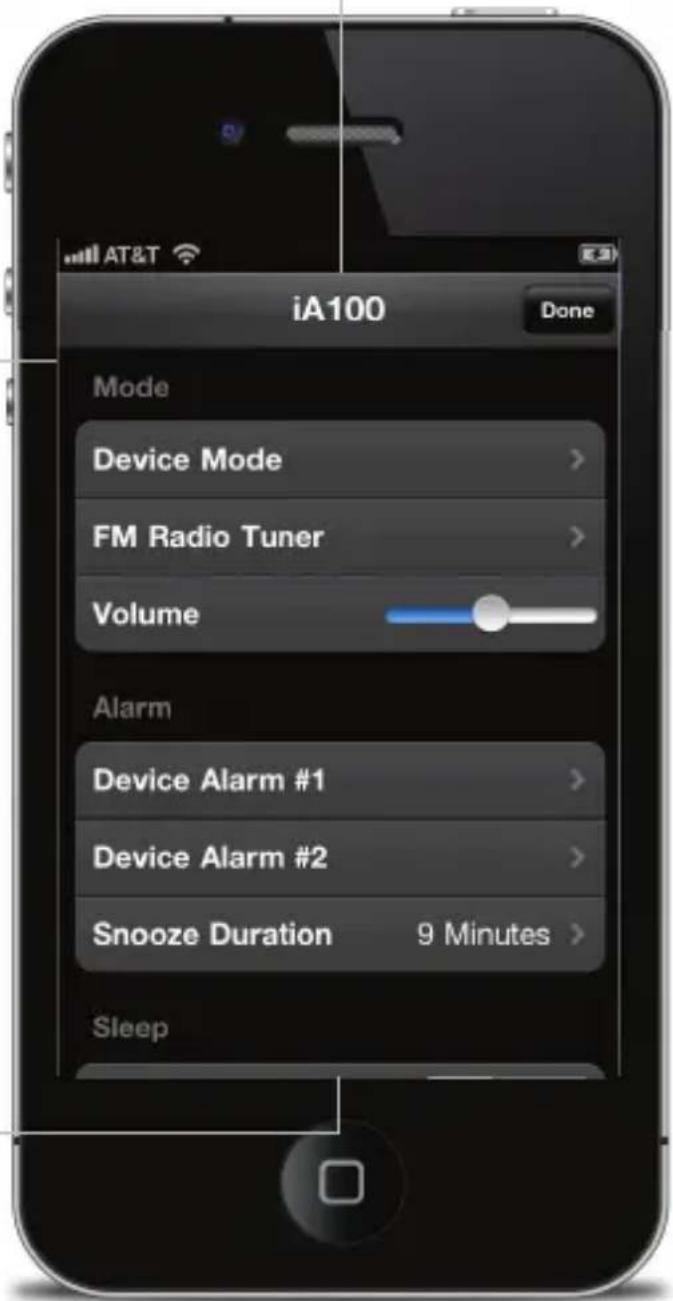
App interface button shortcuts
In the morning or at night you can also use device buttons to access and control device functions
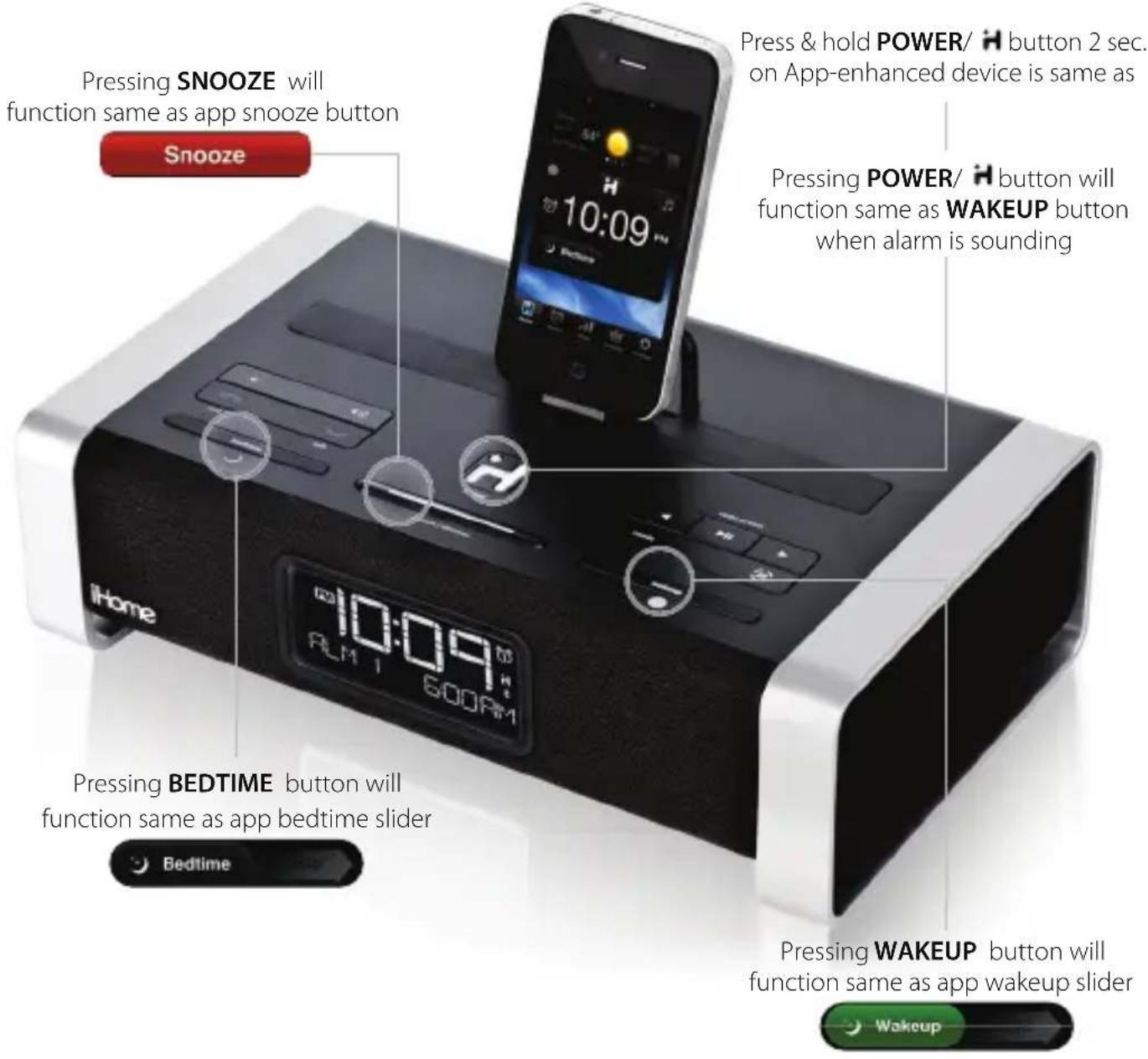
NOTE: iHome+Sleep must be running and iOS device docked or connected via bluetooth with the app-enhanced device
Firmware Updates
Many iHome app-enhanced products let you update the unit's firmware using iHome+Sleep to ensure your product is functioning as intended
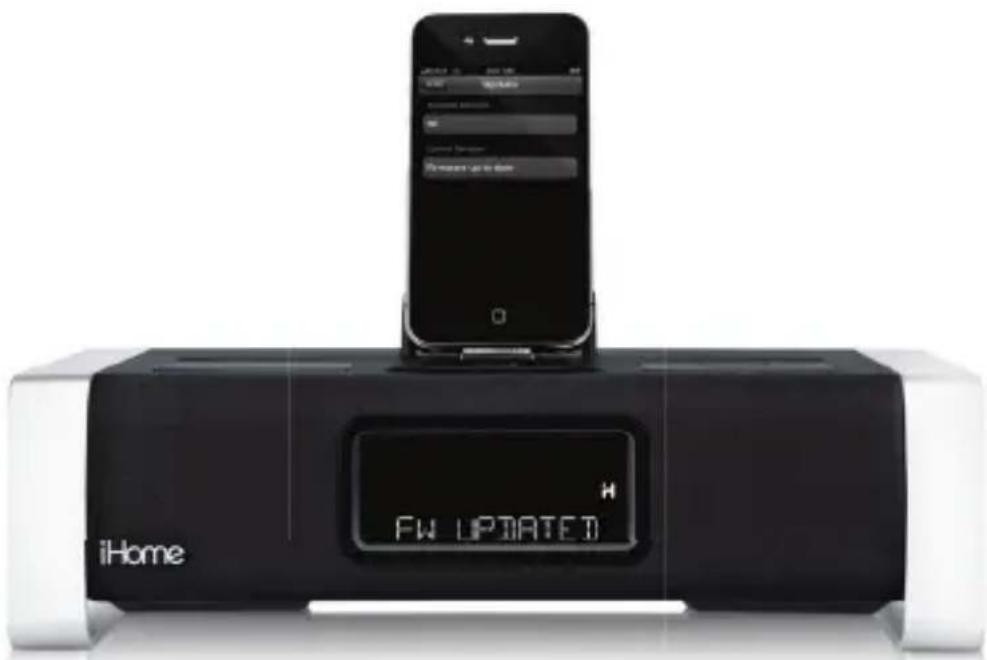
The app-enhanced device will beep twice when firmware is done being updated. If firmware update is unsuccessful, repeat steps 1-4 (below).
NOTE: iOS device must be docked to update your device's firmware. iA5 and other iHome systems that are not app-enhanced are not firmware upgradeable. If you have the latest firmware, app will show "Firmware up to date".
WARNING: Do not undock your iOS device while installing your firmware update. Doing so may require you to unplug the AC adaptor and remove battery backup to restore to default firmware programming.
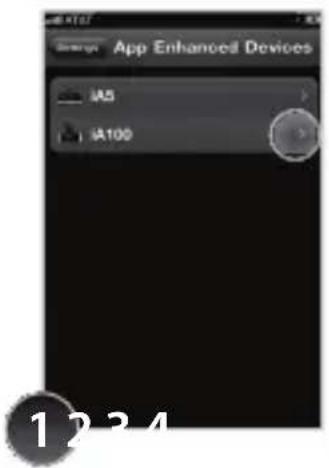
Select devices settings for your app-enhanced product
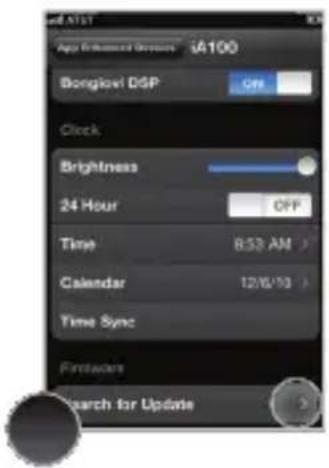
Scroll to bottom menu item and select 'Search for Update'
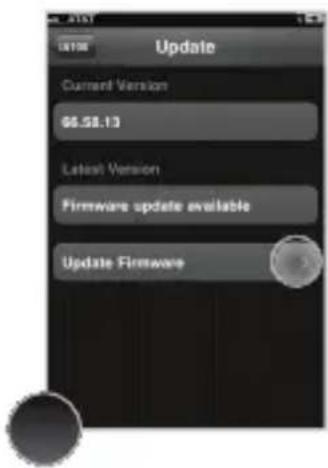
If a Firmware update is available, select 'Update Firmware'
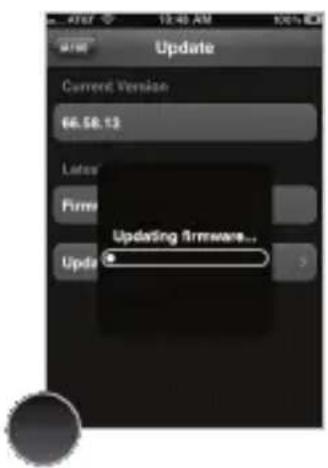
The update will start automatically, be sure not to remove your iOS device during the update
Problems?
If you are experiencing problems with your iHome device, try these quick steps:
- Upgrade the software on your iPad, iPhone or iPod to the latest version by connecting it to a computer with iTunes installed and checking through iTunes that your unit has the most recent software. Update if needed.
- Reset your iPad/iPhone/iPod. The process can differ depending on your model. Please see the user manual or the Apple web site for details. Typically, holding the sleep button and the home button on a newer iPad, iPhone or iPod will reset it.
- Upgrade the firmware on your iHome unit to the latest version by connecting it to a iPad, iPhone or iPod touch with our iHome+Sleep or iHome+Radio app installed, select Settings> App enable devices > Firmware and check that your unit has the most recent software. Update if needed. Only iHome app-enhanced models support firmware updates.
- Reset your iHome unit. Remove backup batteries and unplug the unit from the power source. Leave the unit for about 15 minutes to ensure that all electronic charges have dissipated from the unit. Replace batteries and reconnect to power source. For units with a reset port or button, press the reset button or insert a paper clip or similar into the reset port then release/remove.
If these steps do not solve your issue, keep reading or:
visit us at: www.ihomeaudio.com
email us at: apps@ihomeaudio.com
call a customer service representative at 1-800-288-2792
Troubleshooting
© SDI Technologies Inc. All rights reserved. iHome and the iHome+Sleep logo are trademarks of SDI Technologies Inc., registered in the U.S. and other countries.
www.ihomeaudio.com/
Troubleshooting
1. My app is crashing:
Crashes can happen for reasons in and out of our control.
Sometimes they just happen, and you can reload the app, and never see it again.
If your app is crashing, there are three methods for fixing the problem.
A) Update the Firmware of your iOS device.
B) Update app on the App Store.
C) Delete & re-download the app.
Sometimes there is an error with a file download, during installation, or when updating an app. When this happens the only way to fix it is by deleting and re-downloading the app. You will lose all the data programmed and stored in the app if deleted.
2. Overnight News doesn't work:
Overnight News only supports news feeds from your Facebook & Twitter friends/followers. In order for this feature to work you must have a valid Facebook or Twitter account and you must input your login information under 'Accounts' in app settings. We use Facebook Connect and Twitter client servers and do not store or share user passwords or account information.
3. My alarm did not sound at the specified time:
A. iOS4.0 Multi-tasking limitation for Background Alarms - App alarms may not sound if you do not leave iHome+Sleep in the foreground. While we do support iOS 4.0 multi-tasking, background alarms is a beta feature and your alarm will not always sound depending on if your iOS device is used with a charger or used with an iPod speaker system. When iHome+Sleep is used in the background the alarm is limited to a single minute of push notification alerts. To ensure the most reliable alarms we recommend using app-enhanced device alarms or keep iHome+Sleep in the foreground.
B. Silent Alarm or Volume - Make sure that the alarm is not set to Silent or that the volume of the iOS device is not set at 0
C. Improper Setup - iPhone is not docked properly or iHome App-enhanced system's AC adaptor is not plugged into a working outlet or into the power jack on back of unit.
D. non iHome App-enhanced Speaker Docks - If you dock your iPod or iPhone into a speaker dock overnight that is not an App-enhanced iHome sstem, the speaker dock must be powered ON all night to hear your alarms in the morning. Because of Apple requirements for devices that both charge and play audio, the iPod/iPhone/iPad's built-in speakers are deactivated and will cause your alarm not to sound if you do not leave the power ON. This is another reason why we suggest customer's use iHome App-enhanced Speaker Systems to make sure you don't have to remember to leave the power on before going to bed.
4. My weather widget says "weather unavailable":
The weather feed requires a phone signal (cannot be in 'airplane' mode) OR an active WiFi signal to work. To get your weather feed to function, press the "refresh" icon.
To eliminate the notification, users can turn off the weather widget by selecting the Weather item in the Software Settings section of the Settings page.
6. iHome+apps iOS device support:
The iHome+Sleep App only works with iPad, iPhone and iPod touch running iOS 3.0 or later. It will not work with nano, shuffle, or the iPod classic.
For iPod touch, we recommend the 2G or later. The first generation iPod touch does not have an integrated speaker and so iHome+Sleep alarms can only sound while docked or plugged into a speaker.
Learn More
For more questions or to learn more visit:
visit us at: www.ihomeaudio.com
email us at: apps@ihomeaudio.com
call a customer service representative at 1-800-288-2792

- App-enhanced Start Guide
- Welcome to iHome+apps
- Contents
- iHome+Sleep
- iHome+Radio
- App-enhanced Devices
- Troubleshooting
- Music alarm clock
- Weekday alarm
- Weather widget
- iOS Optimized
- Sure Alarm
- Sleep stats
- Connect & Share
- Overnight News
- Wake-to Radio
- Set up, download, and launch
- Home Screen
- App Alarms
- Bedtime & Wakeup Events
- Bedtime Wake
- Use those sliders!
- Stats Log
- You can delete individual events and erroneous data sets for more accurate stats
- Activating Overnight News
- Want to wake up to news content?
- Social Media Messages
- Reminders
- Problems?
- Thousand of Internet Radio Stations
- Add Radio to Any Speaker
- Sync with iHome+Sleep
- iOS 4.0 Optimized
- iHome App-enhanced
- Radiotime channel indexing
- Syncing with iHome+Sleep
- Sleep and wake to iHome+Radio
- Problems continued...
- Still having an issue?
- The enhanced experience for iOS
- iHome+RadioHardware
- App-enhanced Device Alarms
- Device Alarm Settings
- App-enhanced Device Settings
- Device Settings
- App interface button shortcuts
- Firmware Updates
- My app is crashing:
- Overnight News doesn't work:
- My alarm did not sound at the specified time:
- My weather widget says "weather unavailable":
- iHome+apps iOS device support:
- Learn More
Brand : IHOME
Model : Connect
Category : Uncategorized