MasterConsole MCD-108-DUAL - Switch Raritan - Free user manual and instructions
Find the device manual for free MasterConsole MCD-108-DUAL Raritan in PDF.


User questions about MasterConsole MCD-108-DUAL Raritan
0 question about this device. Answer the ones you know or ask your own.
Ask a new question about this device
Download the instructions for your Switch in PDF format for free! Find your manual MasterConsole MCD-108-DUAL - Raritan and take your electronic device back in hand. On this page are published all the documents necessary for the use of your device. MasterConsole MCD-108-DUAL by Raritan.
USER MANUAL MasterConsole MCD-108-DUAL Raritan
MasterConsole® Digital DUAL
Dual Display Cat5 KVM switches
User Guide
v1.0
Copyright © 2020 Raritan, Inc.
MCD-DUAL-UserGuide-0A-v1.0
November 2020
255-20-0011-00
This document contains proprietary information that is protected by copyright. All rights reserved. No part of this document may be photocopied, reproduced, or translated into another language without express prior written consent of Raritan, Inc.
© Copyright 2020 Raritan, Inc. All third-party software and hardware mentioned in this document are registered trademarks or trademarks of and are the property of their respective holders.
FCC Information
This equipment has been tested and found to comply with the limits for a Class A digital device, pursuant to Part 15 of the FCC Rules. These limits are designed to provide reasonable protection against harmful interference in a commercial installation. This equipment generates, uses, and can radiate radio frequency energy and if not installed and used in accordance with the instructions, may cause harmful interference to radio communications. Operation of this equipment in a residential environment may cause harmful interference.
VCCI Information (Japan)
Raritan is not responsible for damage to this product resulting from accident, disaster, misuse, abuse, non-Raritan modification of the product, or other events outside of Raritan's reasonable control or not arising under normal operating conditions.
If a power cable is included with this product, it must be used exclusively for this product.

text_image
CE cUL US 1F61 LISTED I.T.E.Contents
Chapter 1 Introduction 1
Overview 1
Features....2
Package Contents 2
Specifications....2
Front View 4
Rear View 4
Chapter 2 Installation 6
Console Connection....6
Select Proper MDCIMs or MDUTPs 7
Computer Connection 8
Chapter 3 Hotkeys 11
Hotkey Summary Table 11
Chapter 4 On-Screen Display Interface
Login Screen 14
Selection Menu 14
2nd-tier Selection Menu 15
Setup 16
User Configuration 18
Port Access Setup....19
Contents
Viewing Firmware Version 20
Port Configuration....20
Video Adjustment....20
Chapter 5 Borderless Mouse Switching 21
Setup 21
Enable Borderless Mouse Switching 23
Using Mouse Switching 24
Chapter 6 KVM Extension 25
Console Extension 25
PC/Server Extension 27
Chapter 7 Maintenance 29
Firmware Upgrade Procedures 29
Resetting to Factory Defaults....33
Appendix A Disclaimer 34
FCC Statement....34
Index 35
Chapter 1 Introduction
natural_image
Two black rectangular electronic devices with visible internal components and branding (no readable text or symbols)In This Chapter
Overview....1
Features....2
Package Contents 2
Specifications....2
Front View 4
Rear View....4
Overview
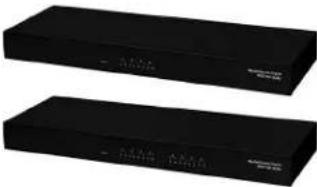
MCD-DUAL switch MCD-104-DUAL and MCD-108-DUAL is a series of KVM (keyboard/video/mouse) switch that enables you to control multiple computers from a single set of keyboard, mouse, and dual-monitor. Connect the keyboard, mouse, monitor, and all computers to an MCD-DUAL switch and you will be able to switch among computers connected to the MCD-DUAL switch. If cascading MCD-DUAL switches to form a two-tier MCD-DUAL system, the number of accessible computers can be expanded up to a maximum of 16 (MCD-104-DUAL)/64 (MCD-108-DUAL) computers. MCD-DUAL switch features the use of standard Category 5 (Cat5) unshielded twisted-pair (UTP) cables for connecting computers. In terms of operation, it provides a friendly OSD (On-Screen Display) interface for simple system configuration.
Features
• Console : dual DVI-I (analog & digital) + 2x USB Type-A
- Support high video resolution up to 1920 x 1200@60Hz (VGA), 1920 x 1080@60Hz
- Channel select: 4/8 port two colors of LEDs to indicator each port operation status (Green-PC select/White-Online)
• Support 2 tiers cascade to access max. 16/64 computers
- Borderless Mouse Switching function to easily switch channels by moving mouse cursor
- User privileges allow one administrator to set different channel access rights to maximum of 15 user accounts
• Power switch with lighting: Inter socket
• CAT5 Connector: 8/16 RJ45 ports
- Supports MDCIMs: DVI / HDMI / DP (CAT5 distance max. 45 meter/150 feet)
• Supports MDUTP Cables: VGA + Audio (2/4/6/15 meter)
- Operate with hotkeys on-screen-display menus
- Auto-Skip function to bypass inactive channels; Auto-Scan computers at variable rates
- Firmware upgradeable
- Rack-mountable
• Backward compatibility with all type of CIMs:
■ MDCIM-DVI/HDMI/DP
■ MDUTP20-VGA/ MDUTP40-VGA/ MDUTP60-VGA/ MDUTP150-VGA
Note: CAC and USB Touch screen are NOT supported.
Package Contents
• MCD-DUAL KVM Switch x 1
- Power Cord x 1
- Rackmount Kit x 1 (including brackets and associated screws)
• DVI-I to VGA Adapter x 2
- Quick Setup Guide x 1
Specifications
| Model Name | MCD-104-DUAL | MCD-108-DUAL |
| Console Connections 1 1 |
Chapter 1: Introduction
| Computer Connections (Dual View) 4 8 | ||||
| Console Selection | Hot-Key | |||
| OSD menu | ||||
| Connectors | Console Port | Keyboard 1 x USB Type A Female (White) | ||
| Mouse 1 x USB Type A Female (White) | ||||
| Video | 2 x DVI-I Female (White) | |||
| Audio 1 x 3.5mm Audio Jack (Black) | ||||
| Computer Ports | Direct | 8 x RJ45 Female (Black) | 16 x RJ45 Female (Black) | |
| Maximum | 16 (Cascade) | 64 (Cascade) | ||
| Firmware Upgrade 1 x micro USB Female | ||||
| Reset button port 1 x Tact Switch | ||||
| Power | 1 x AC Socket with light power switch | |||
| LEDs | Operation Indication | Online | 4 (White) | 8 (White) |
| Selected | 4 (Green) | 8 (Green) | ||
| Power | Power-On | 1 (White) | ||
| Video Resolution | 1920 x 1200@60Hz (VGA),1920 x 1080@60Hz (DVI),DDC2B | |||
| Power | Maximum Input Power Rating | AC 100-240V, 1.5A | ||
| Power Consumption | DC 12V/5.42A (65W) | |||
| Environment | Operating Temp. 0-50°C | |||
| Storage Temp. | -20°C-60°C | |||
| Humidity | 0-80% RH, Non-condensing | |||
| Physical | Housing | Metal | ||
| Weight | 1830g | 1860g | ||
| Dimension (L x W x H) | 440 x 150 x 44mm | |||
| Safety | CE/FCC/VCCI/UL | |||
| MTBF | 140,689 hours | 105,038 hours | ||
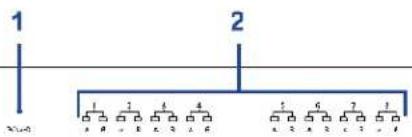
Front View
text_image
1 2 1 1 4 4 5 6 7 1 x x x x x x x x x x x x x x x x x x x x x x x x x x x x x x x x x x x x x x x x x x x x x x x x x x x x x x x x x x x x
| 1 | Power LED | ■ White LED lights on after powering on the MCD-DUAL. |
| 2 | Channel LEDs | ■ "inactive" channels with LEDs light off.■ "active" channels with White LEDs light on.■ "being accessed" channels with Green LEDs light on. |
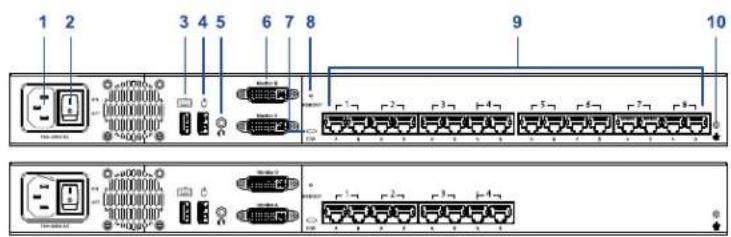
Rear View
text_image
1 2 3 4 5 6 7 8 9 10Chapter 1: Introduction
| 1 | Power Socket | Connect the power cord. |
| 2 | Power Switch | Toggle the power on or off. |
| 3 | USB Port (keyboard) | Connect a USB keyboard. |
| 4 | USB Port (mouse) | Connect a USB mouse. |
| 5 | Audio Output Port | Connect audio input devices, such as speakers or headphone. |
| 6 | 2 x DVI-I Connector(Monitor A/ Monitor B) | Connect monitors. OSD will show on Monitor A only.(If your monitor does not have a DVI connector, an appropriate video converter or adapter is required.) |
| 7 | Firmware Upgrade Connector | Connect a computer for upgrading the MCD-DUAL's firmware. |
| 8 | Reboot Button | Reboot this KVM switch. |
| 9 | Channel Ports | Connect to computers, each channel with 2x RJ45 ports. |
| 10 | Chassis Ground | An easy-to-connect chassis ground to prevent any electrical shock. |
Chapter 2 Installation
Note: Please turn off all MCD-DUAL and computers before system installation.
In This Chapter
Console Connection....6
Select Proper MDCIMs or MDUTPs 7
Computer Connection 8
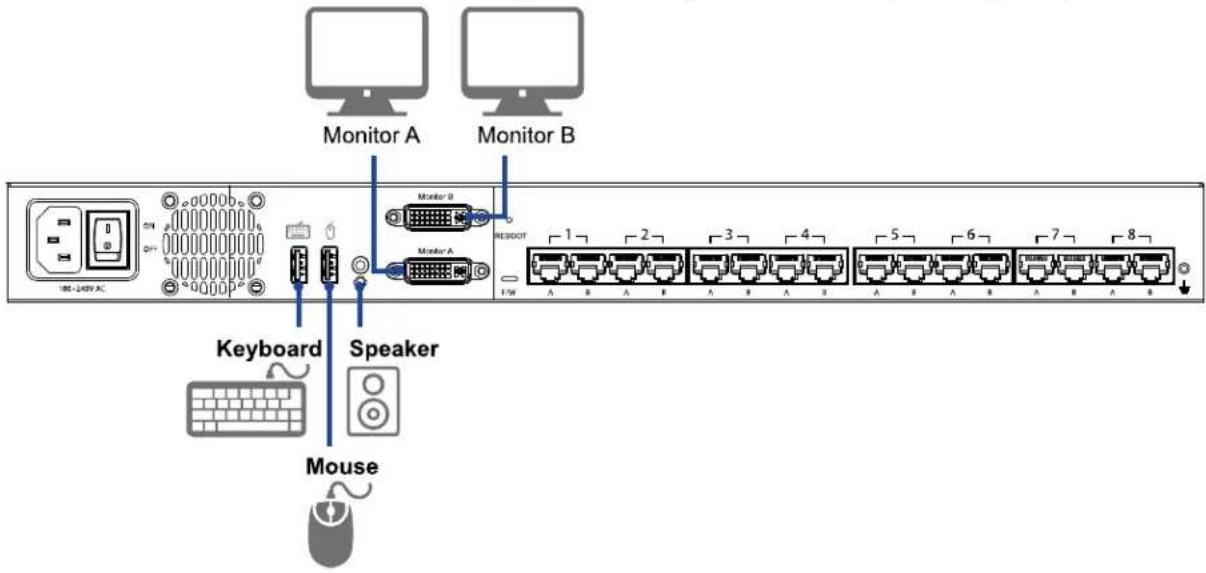
Console Connection
Connect a USB keyboard/mouse, speaker and monitors to the connectors on the MCD-DUAL. (If using a VGA monitor, a DVI-I to VGA adapter is required.)
text_image
Monitor A Monitor B 1/4W 1 2 3 4 5 6 7 8 Keyboard Speaker MouseSelect Proper MDCIMs or MDUTPs
Choose appropriate MDCIMs or MDUTP cables according to your computer's video port and audio requirements.
| MCD CIM type | Video type | Audio transmission |
| MDUTP cables | VGA | Support analog audio |
| MDCIM-HDMI | HDMI | Support digital audio |
| MDCIM-DVI | DVI | NO support |
| MDCIM-DP | Display Port | NO support |
Note: If the MDCIM or MDUTP cable you purchase is not compatible with the video port on your computer, the alternative solution is to use a video converter or adapter to connect MDCIM or MDUTP.
Computer Connection
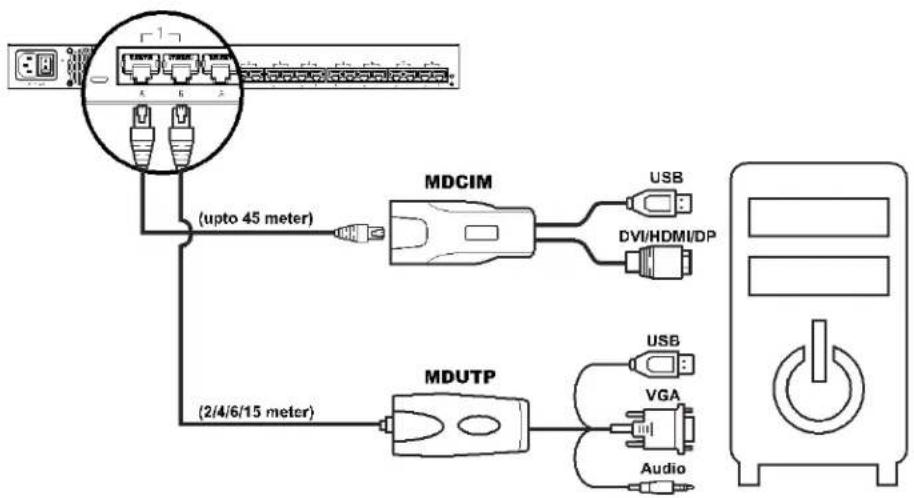
One-tier Connection
- Plug the MDCIM or MDUTP cable's USB connectors into one of the computer's USB ports.
- Plug the MDCIM or MDUTP cable's video connectors into the computer's video ports.
- Optionally, plug the MDUTP cable's audio connector into the computer's audio output port.
- Connect the MDCIM to MCD-DUAL by using a standard network patch cable (Cat5e/6 UTP). The MDUTP is combined with a standard network patch cable; you can use it to connect with MCD-DUAL directly.
- Repeat the above steps to connect more computers.
Note:
Please make sure the MDCIM or MDUTP must connect to the same channel of MCD-DUAL.
The signals of USB keyboard/mouse and audio are transmitted via "RJ45 Port A" only.
For single-monitor connection, please make sure the MDCIM or MDUTP must connect to "RJ45 Port A".
For both single-monitor and dual-monitor connections, please make sure the computer's audio output is set for the MDCIM or MDUTP which is connected to "RJ45 Port A".
flowchart
graph TD
    A["Terminal 1"] -->|up to 45 meter| B["MDCIM"]
    A -->|up to 45 meter| C["MDUTP"]
    B --> D["USB"]
    B --> E["DVI/HDMI/DP"]
    C --> F["USB"]
    C --> G["VGA"]
    C --> H["Audio"]
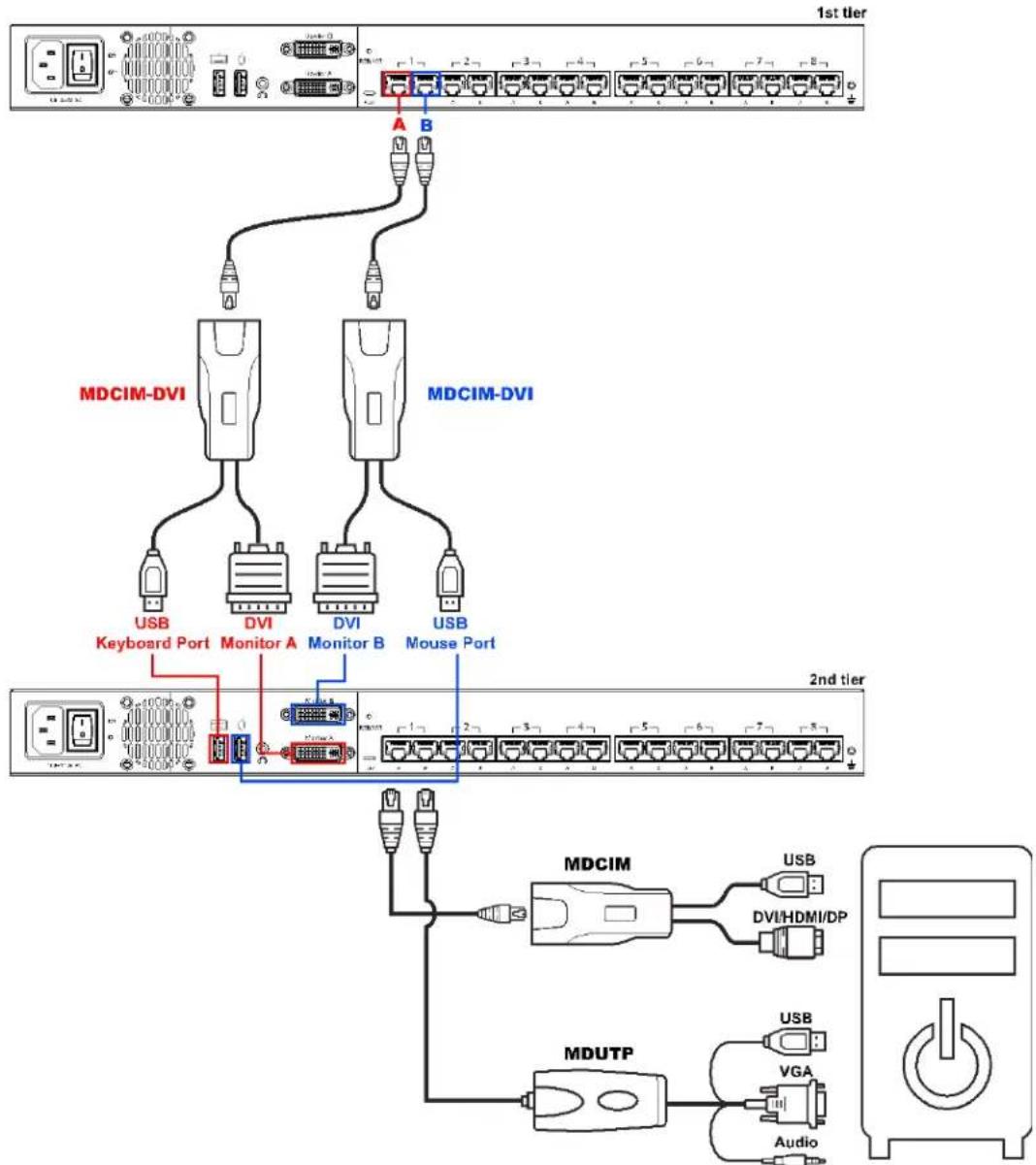
Two-tier Connection
Step A
- Plug the MDCIM-DVI cable's USB connectors into the 2nd-tier MCD-DUAL's USB Keyboard port.
- Plug the MDCIM-DVI cable's DVI connectors into the 2nd-tier MCD-DUAL's Monitor A port.
- Connect the MDCIM-DVI to "Channel 1: RJ45 Port A" of the 1st-tier MCD-DUAL by using a standard network patch cable (Cat5e/6 UTP).
Step B
- Plug the MDCIM-DVI cable's USB connectors into the 2nd-tier MCD-DUAL's USB Mouse port.
- Plug the MDCIM-DVI cable's DVI connectors into the 2nd-tier MCD-DUAL's Monitor B port.
- Connect the MDCIM-DVI to "Channel 1: RJ45 Port B" of the 1st-tier MCD-DUAL by using a standard network patch cable (Cat5e/6 UTP).
Step C
- Repeat the above steps to connect more 2nd-tier MCD-DUAL
- Repeat the steps of "One-tier Connection" to connect more computers.
Chapter 2: Installation
flowchart
graph TD
    A["1st tier"] --> B["MDCIM-DVI"]
    B --> C["USB"]
    B --> D["DVI"]
    B --> E["DVI"]
    B --> F["USB"]
    B --> G["Monitor A"]
    B --> H["Monitor B"]
    B --> I["Mouse Port"]
    J["2nd tier"] --> K["MDUTP"]
    K --> L["MDCM"]
    L --> M["USB"]
    L --> N["DVI/HDMI/DP"]
    K --> O["Audio"]
    style A fill:#f9f,stroke:#333
    style J fill:#f9f,stroke:#333
    style K fill:#ccf,stroke:#333
    style L fill:#cfc,stroke:#333
    style M fill:#fcc,stroke:#333
    style N fill:#fcc,stroke:#333
    style O fill:#cff,stroke:#333
Chapter 3 Hotkeys
In This Chapter
Hotkey Summary Table....11
Hotkey Summary Table
Hotkeys are executed using only the keyboard.
The default hotkey is [Scroll Lock] and can be changed in OSD menu.
Keying Hotkey command must be completed with 6 seconds, or it will be aborted if exceeding.
Hotkey Summary Table
| # | Hotkey Command | Function | Description |
| 1 | Hotkey > Hotkey > Hotkey Enter OSD | Press the hotkey three times to trigger the OSD. With the default hotkey "Scroll Lock", you should press: Scroll Lock > Scroll Lock > Scroll Lock | |
| 2 | Hotkey > Hotkey > N + Enter Access Channel N | Press 'Hotkey' twice, then the channel number, and press Enter.For example, to access channel 3, press the following keys: Scroll Lock > Scroll Lock > 3 > Enter | |
| 3 | Hotkey > Hotkey > C > Enter See Video Adjustment (on page 20) | Adjust a Channel Video of First-tier MCD-DUAL | Press the hotkey twice, then the letter "C" and finally press Enter.With the default hotkey "Scroll Lock", you should press: Scroll Lock > Scroll Lock > C > Enter |
| 4 | Hotkey > Hotkey > D > Enter See Video Adjustment (on page 20) | Adjust a Channel Video of Second-tier MCD-DUAL | Press the hotkey twice, then the letter "D" and finally press Enter.With the default hotkey "Scroll Lock", you should press: Scroll Lock > Scroll Lock > D > Enter |
| 5 | Hotkey > Hotkey > H > Enter See Borderless Mouse Switching (on page 21) | Mouse Cursor Calibration | Make sure Borderless Mouse Switching is on.Press the hotkey twice, then the letter "H" and finally press Enter.With the default hotkey "Scroll Lock", you should press: Scroll Lock > Scroll Lock > H > Enter |
| 6 | Ctrl > Ctrl | Access the next or prior "active" channel | Make sure there is no OSD shown onscreen.To select the next "active" channel, press the RIGHT 'Ctrl' key twice. Ctrl > CtrlTo select the prior "active" channel, press the LEFT 'Ctrl' key twice. Ctrl > Ctrl |
| 7 | Ctrl + Shift + F10 + Enter See Resetting to Factory Defaults (on page 33) | Resetting to Factory Defaults | Press F4 to log out and show the Login screen.Press Ctrl + Shift + F10 then press Enter to proceed with the factory reset. |
| 8 | Ctrl + F1See Login Screen (on page 14) | Modify Keyboard Language Layout | Press F4 to log out and show the Login screen.Press Ctrl + F1 to modify the keyboard language layout. (EN33,FR08,GR09)Press the language number, then the "ESC" to finish the setting. For example, to choose English Keyboard, press the following keys: 33 > ESC |
Chapter 4 On-Screen Display Interface
After turning on the device, the login screen displays. For initial login, use the built-in administrator account and password. You CANNOT remove the built-in administrator and user accounts, but you can change their passwords or rename any user accounts. Only the administrator can rename user accounts or change passwords.
- Administrator Account:
Default name: admin
Default password: raritan
- User Accounts: Default names: user001 through user015; Default passwords are NOT available.
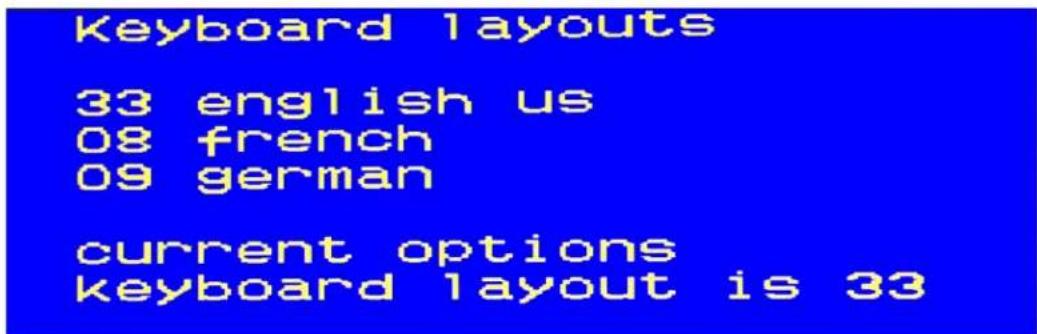
Note: Before logging into the OSD, set your keyboard language layout.
text_image
Keyboard layouts 33 english us 08 french 09 german current options keyboard layout is 33-
Press Ctrl + F1 to modify the keyboard language layout. (33: English US, 08: French, 09: German)
-
Press the language number, then the "ESC" to finish the setting. For example, to choose "English US "Keyboard, press the following keys: 33 > ESC
In This Chapter
Login Screen 14
Selection Menu....14
Setup....16
Viewing Firmware Version....20
Port Configuration....20
Video Adjustment....20
Login Screen
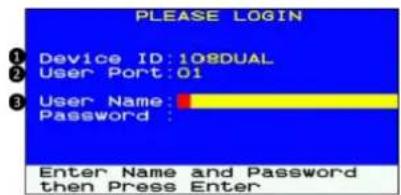
After turning on the device, the login screen displays. For initial login, use the built-in administrator account and password.
text_image
PLEASE LOGIN Device ID:108DUAL User Port:01 User Name: Password: Enter Name and Password then Press Enter| ▪ 1 | Device ID The model name of your device. | |
| ▪ 2 | User Port | The ID number of your console |
| ▪ 3 | User Name (16 Characters Long)Password (8 Characters Long) | The fields for entering user credentials. The user name and password can consist of any of combination letters and numbers. |
Selection Menu
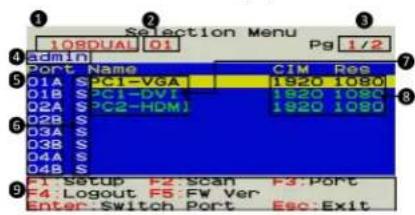
After the successful login, the Selection Menu displays.
text_image
Selection Menu 10SDUAL 01 Pg 1/2 admin Port Name CIM Res 01A S C1-VGA 1920 1080 01B S C1-DVI 1920 1080 02A S C2-HDM 1920 1080 02B S 03A S 03B S 04A S 04B S F1 Setup F2 Scan F3:Port F4:Logout F5:FW Ver Enter:Switch Port Esc:Exit| ▪ 1 | Model Name | Your MCD-DUAL's model name |
| ▪ 2 | Selected Channel | The number of the channel that is being accessed |
| ▪ 3 | Page Information | The current page number and total pages |
| ▪ 4 | Login ID | The currently used login ID |
| ▪ 5 | Channel Numbers Channel numbers of current page | |
| ▪ 6 | Borderless Mouse Switching Status | When the function is enabled, the letter "S" will appear. You can press the S key on the keyboard to switch this function. |
| ▪ 7 | Channel Names Available channel names of current page. The channel connected with a 2nd-tier MCD-DUAL will be marked with the symbol "+". | |
| ▪ 8 | CIM Resolution | The current resolution setting of MDCIM or MDUTP |
| ▪ 9 | Operation Keys | Frequently-used keys for operating the current OSD |
2nd-tier Selection Menu
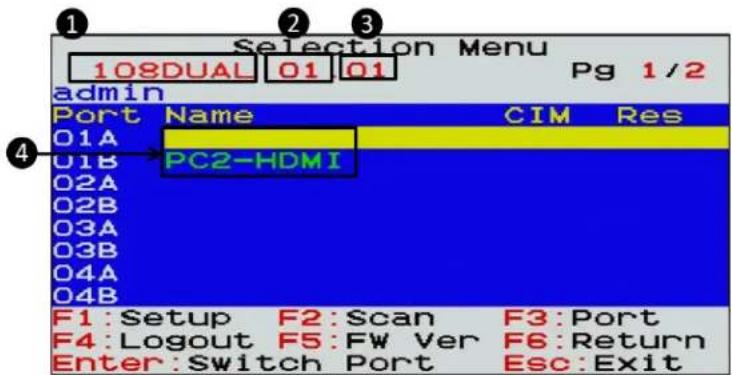
After selecting any channel with a 2nd-tier MCD-DUAL connected, the Selection Menu of that switch appears.
text_image
Selection Menu 108DUAL 01 01 Pg 1/2 admin Port Name CIM Res 01A 01B PC2-HDMI 02A 02B 03A 03B 04A 04B F1: Setup F2: Scan F3: Port F4: Logout F5: FW Ver F6: Return Enter: Switch Port Esc: Exit| ▪ 1 | Model Name | Your 1st-tier MCD-DUAL's model name |
| ▪ 2 | 1st-tier Channel | The channel number of the 1st-tier MCD-DUAL where the 2nd-tier MCD-DUAL is connected |
| ▪ 3 | Selected 2nd-tier Channel | The channel number of the 2nd-tier MCD-DUAL that is being accessed |
| ▪ 4 | 2nd-tier Channel Names | 2nd-tier channel names |
Setup
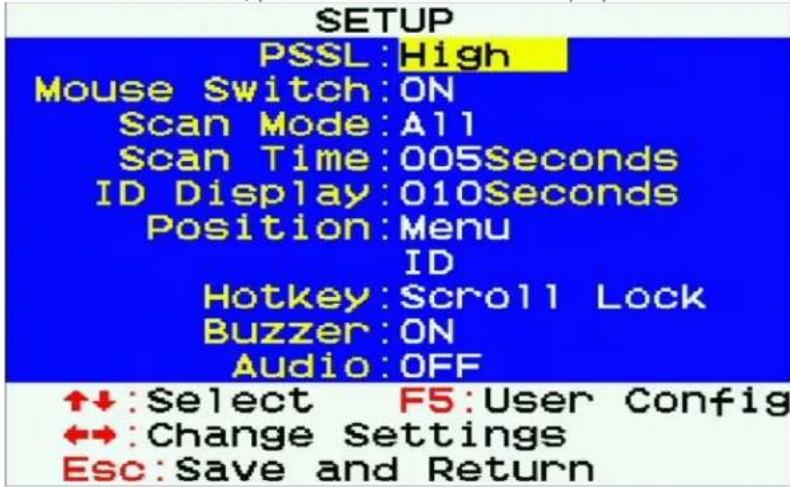
On the Selection Menu, press F1. The SETUP Menu displays.
text_image
SETUP PSSL:High Mouse Switch:ON Scan Mode:All Scan Time:005Seconds ID Display:010Seconds Position:Menu ID Hotkey:Scroll Lock Buzzer:ON Audio:OFF ↑↓:Select F5:User Config ↔:Change Settings Esc:Save and Return| ▪ Field | Options/Values Function | |
| ▪ PSSL | High/ Middle / Low PSSL: Adjust the sensitivity level of borderless mouse switching. | |
| ▪ Mouse Switch | ON or OFF Turn on or off the borderless mouse switching function of the MCD-DUAL switch. | |
| ▪ Scan Mode | All, or PC ON This determines which servers will be scanned after activating the channel scan function.▪ All: All channels are scanned.▪ PC ON: Only active channels are scanned. | |
| ▪ Scan Time | 5 to 255 seconds (at an interval of 5 seconds) | This determines how long each channel's video is displayed during the channel scan. |
| ▪ ID Display | 5 to 25 seconds, or ALL | This determines how long each channel's ID appears onscreen after selecting any channel. |
| ▪ Position | Menu, or ID Select Menu or ID in order to adjust its position on the screen.-Menu: Main OSD pages, such as Selection Menu and the login screen.-ID: Channel ID. | |
| ▪ Hotkey | Scroll Lock, Caps Lock, or Num Lock | This determines the hot key used for:-Triggering the OSD.-Selecting a channel when the OSD is not shown. |
| ▪ Buzzer | ON or OFF | Turn on or off the buzzer of the MCD-DUAL switch. |
| ▪ Audio | ON or OFF | Turn on or off the Audio Function of the MCD-DUAL switch. |
User Configuration
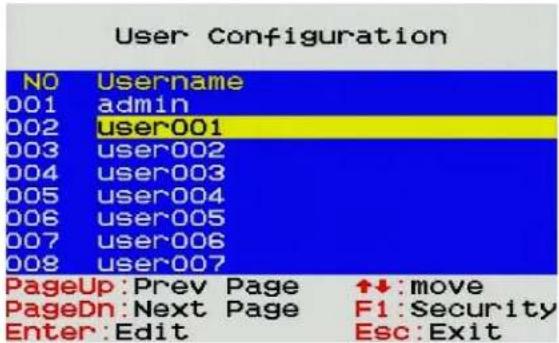
On the SETUP Menu, press F5. The User Configuration Menu displays. MCD-DUAL provides one administrator and 15 user accounts.
text_image
User Configuration NO Username 001 admin 002 user001 003 user002 004 user003 005 user004 006 user005 007 user006 008 user007 PageUp:Prev Page ↑↓:move PageDn:Next Page F1:Security Enter:Edit Esc:Exit- Note: Operation Key "F1" is not available to setup admin's Port Access right.
- Press ↑ or ↓ to select the desired user. Press Page Up or Page Down if the desired user is not shown on the current page.
- Press Enter, and that user's password change page displays. Then follow either procedure below.
- After finishing the user accounts changes, press Esc to exit the User Configuration page.
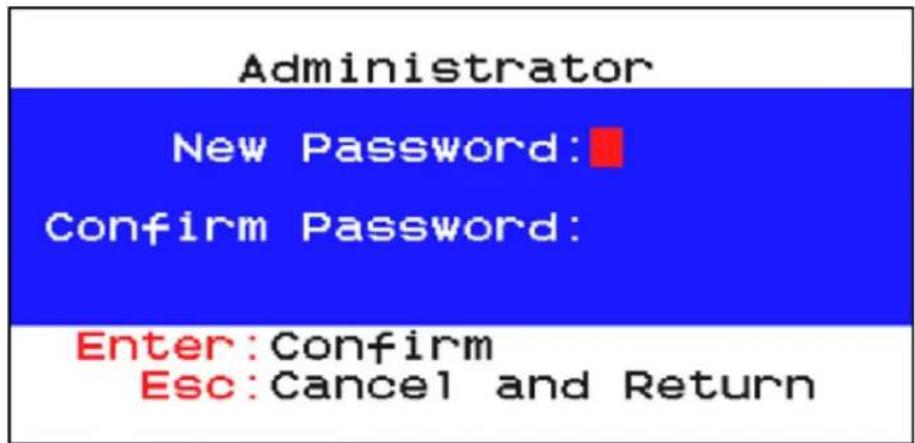
To change the administrator's password
- In the New Password field, type the new password, and press Enter. A password comprises up to 8 characters.
- Re-type the password and press Enter. To abort the changes, press Esc instead.
text_image
Administrator New Password: Confirm Password: Enter:Confirm Esc:Cancel and ReturnImportant: It is strongly recommended to change the admin password. Make a note of it and keep it in a secure place. If you forget the password, contact the local dealer for RMA service.
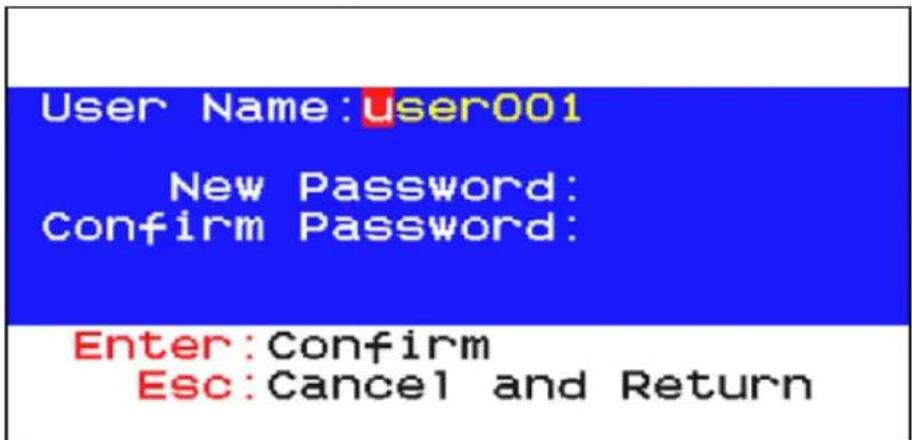
To rename a user account and/or change the password:
- To rename it, type the new name in the User Name field, and press Enter. The name can comprise up to 16 characters. To keep the user name unchanged, simply press Enter without typing any characters.
- In the New Password field, type the new password, and press Enter. A password comprises up to 8 characters.
- Re-type the password, and press Enter. To abort the changes, press Esc instead.
text_image
User Name:user001 New Password: Confirm Password: Enter:Confirm Esc:Cancel and ReturnImportant: It is recommended to note down all user names and passwords, and keep the data in a secure location.
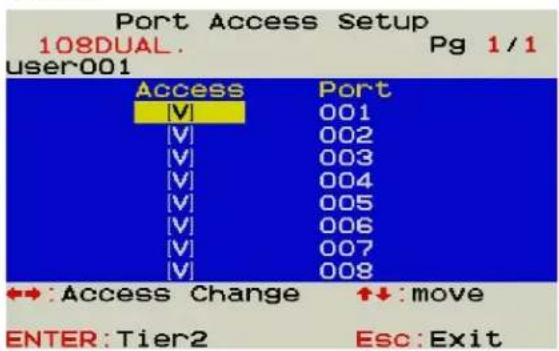
Port Access Setup
On the User Configuration Menu, press F1. The User Port Access Setup Menu displays.
text_image
Port Access Setup 108DUAL. user001 Pg 1/1 Access Port V 001 V 002 V 003 V 004 V 005 V 006 V 007 V 008 ↔:Access Change ↑↓:move ENTER:Tier2 Esc:ExitViewing Firmware Version
Press F5 on the Selection Menu page. The firmware information displays.
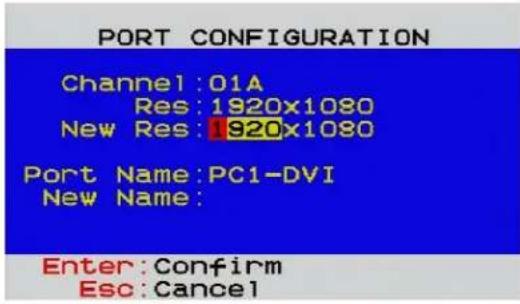
Port Configuration
On the Selection Menu, press F3. The Port Configuration Menu displays.
text_image
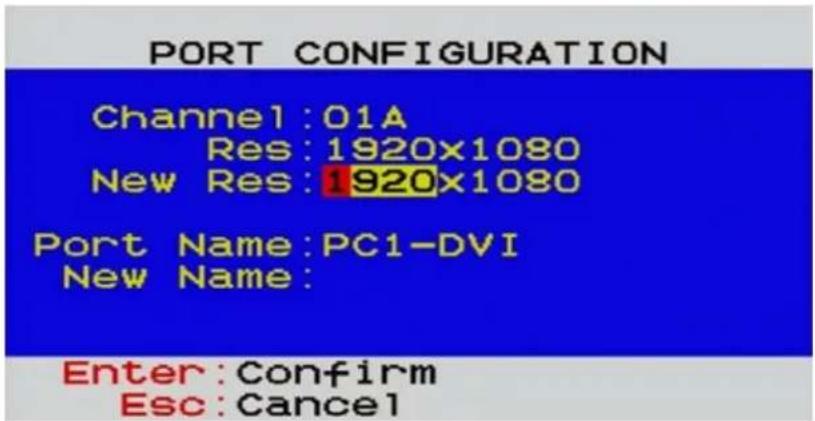
PORT CONFIGURATION Channel: 01A Res: 1920x1080 New Res: 1920x1080 Port Name: PC1-DVI New Name: Enter: Confirm Esc: CancelNote: Before enabling borderless mouse switching, you must set the port's resolution the same as the corresponding computer video output.
Video Adjustment
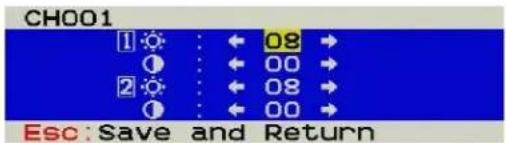
You can adjust the brightness and contrast of the channel that is being accessed.
- Select the desired channel to have its video shown on the screen.
-
Press the hot key twice, then the letter "C" or "D" and finally press Enter. For example, with the default hot key "Scroll Lock", press:
-
Scroll Lock > Scroll Lock > C > Enter (Adjust a Channel Video of First-tier MCD-DUAL)
-
Scroll Lock > Scroll Lock > D > Enter (Adjust a Channel Video of Second-tier MCD-DUAL)
-
The following video properties appear onscreen.
-
Press ↑ or ↓ to select the brightness or contrast.
- Press ← or → to adjust the value of brightness or contrast.
text_image
CH001 1 ⚙ : ← 08 → 2 ⚠ : ← 00 → 2 ⚡ : ← 08 → Esc: Save and ReturnChapter 5 Borderless Mouse Switching
The function is for channel switching by the mouse cursor hitting the left or right edge of display borders, and then the MCD-DUAL will switch to prior or next channel.
Note1: Default setting is OFF. Borderless mouse switching is only available for 1st-tier computers.
Note2: Once the computer is powered back on from Hibernate Mode or reset the port's resolution, you have to calibrate the mouse cursor again by pressing Hotkey > Hotkey > H > Enter.
In This Chapter
Setup....21
Enable Borderless Mouse Switching....23
Using Mouse Switching....24
Setup
Before enabling this function, you must do the following 1 setting on the MCD-DUAL and 3 settings on your computer.
Port Configuration:
- Press the hotkey three times to trigger the OSD.
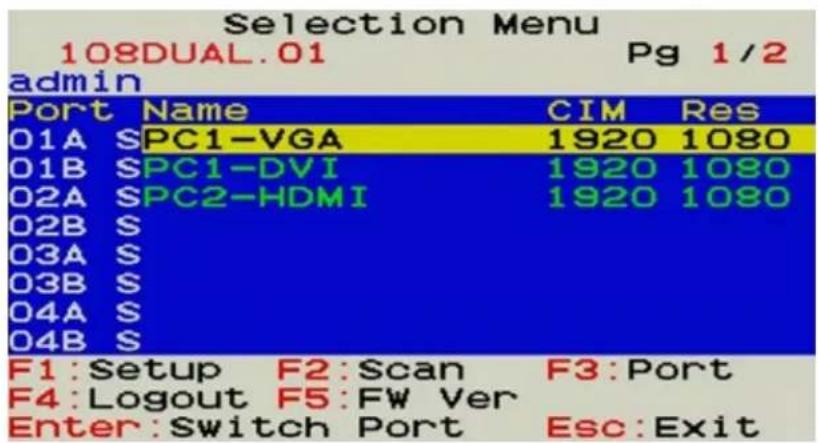
- On the Selection Menu, press F3. The Port Configuration Menu displays.
text_image
Selection Menu 108DUAL.01 Pg 1/2 admin Port Name CIM Res O1A SPC1-VGA 1920 1080 O1B SPC1-DVI 1920 1080 O2A SPC2-HDMI 1920 1080 O2B S O3A S O3B S O4A S O4B S F1:Setup F2:Scan F3:Port F4:Logout F5:FW Ver Enter:Switch Port Esc:Exit- Set the port's new resolution as same as the corresponding computer video output.
text_image
PORT CONFIGURATION Channel:01A Res:1920x1080 New Res:1920x1080 Port Name:PC1-DVI New Name: Enter:Confirm Esc:Cancel- Calibrate the mouse cursor after each port's resolution reset by pressing Hotkey > Hotkey > H > Enter.
In the Display Settings:
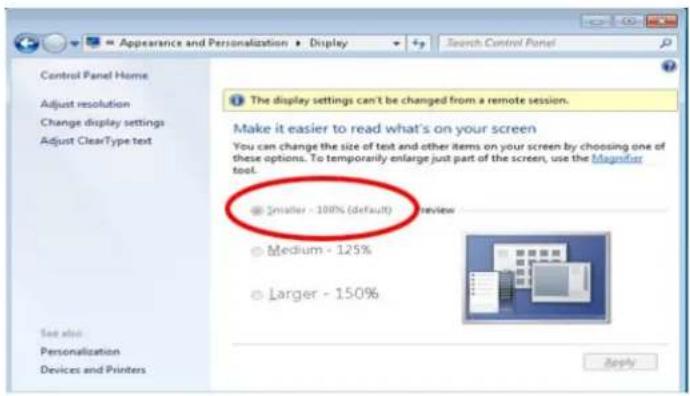
- Change Display Setting to "Smaller - 100%"
text_image
Appearance and Personalization ▶ Display Search Control Panel Control Panel Home Adjust resolution Change display settings Adjust ClearType text The display settings can't be changed from a remote session. Make it easier to read what's on your screen You can change the size of test and other items on your screen by choosing one of these options. To temporarily enlarge just part of the screen, use the Magnifier tool. ● Smaller - 100% (default) review ○ Medium - 125% ○ Larger - 150% See also Personalization Devices and Printers ApplyChapter 5: Borderless Mouse Switching
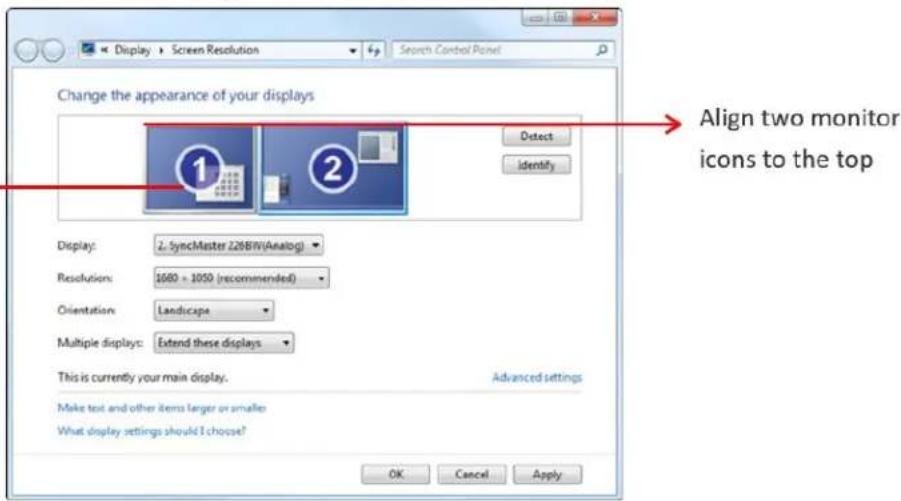
- Choose "Adjust Resolution", then drag the primary monitor icon to the left and make sure the corresponding video output is connected to the "RJ45 Port A". Finally align these two monitor icons to the top.
This monitor is connected to the "RJ45 Port A"
text_image
Change the appearance of your displays Display: 2. syncMaster 126BW(Analog) Resolutions: 1000 x 1050 (recommended) Orientation: Landscape Multiple displays: Extend these displays This is currently your main display. Advanced settings Make text and other items larger or smaller What display settings should I choose? OK Cancel Apply Align two monitor icons to the topIn Mouse Settings:
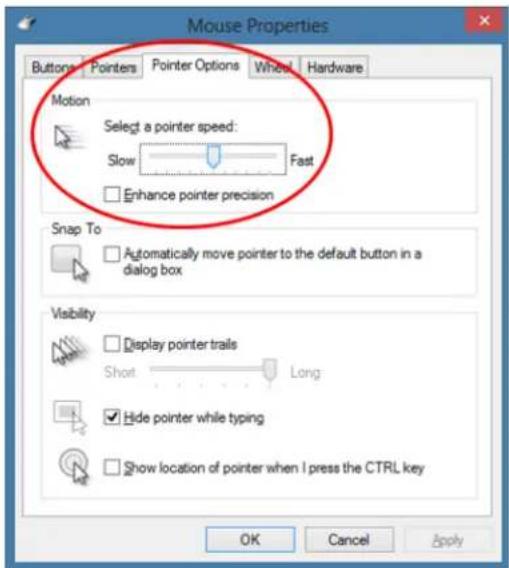
- Adjust Pointer Speed in the middle value to and turn off Enhance Pointer Precision.
text_image
Mouse Properties Buttons Pointers Pointer Options Wheel Hardware Motion Select a pointer speed: Slow Fast Enhance pointer precision Snap To Automatically move pointer to the default button in a dialog box Visibility Display pointer trails Short Long Hide pointer while typing Show location of pointer when I press the CTRL key OK Cancel ApplyEnable Borderless Mouse Switching
- Login as administrator in the MCD-DUAL OSD.
(*Only administrator can turn ON/OFF Borderless Mouse Switching.)
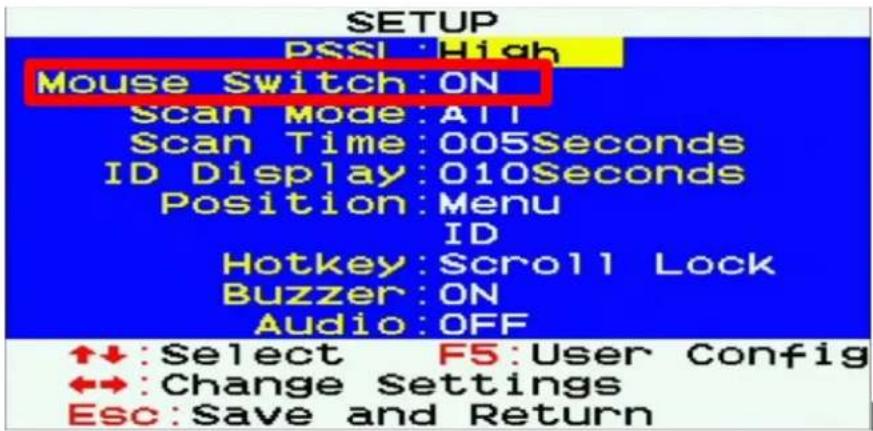
- On the Selection Menu, press F1, then the SETUP Menu displays.
- Turn on borderless mouse switching.
text_image
SETUP PSSL: High Mouse Switch:ON Scan Mode:ATI Scan Time:005Seconds ID Display:010Seconds Position:Menu ID Hotkey:Scroll Lock Buzzer:ON Audio:OFF ↑↓:Select F5:User Config ↔:Change Settings Esc:Save and ReturnUsing Mouse Switching
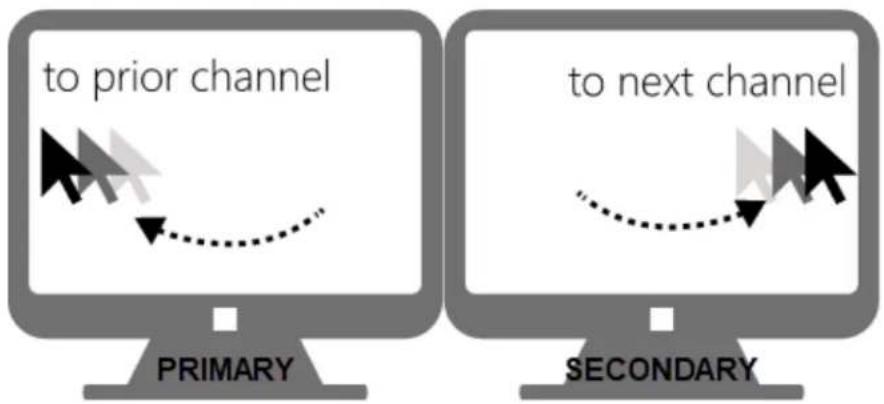
- Move the mouse cursor hitting the left of monitor border, and then the MCD-DUAL will switch to prior channel.
- Move the mouse cursor hitting the right side of monitor border, and then the MCD-DUAL will switch to next channel.
- Monitor A on the MCD-DUAL should be connected to the primary monitor and Monitor B on the MCD-DUAL should be connected to the secondary monitor.
flowchart
graph TD
    A["Primary"] --> B["to prior channel"]
    C["Secondary"] --> D["to next channel"]
Chapter 6 KVM Extension
The Cat5 Reach DVI HD KVM extender can locate the user up to 330 feet (100 meters) apart from a PC/server and KVM switch. There are two types of Cat5 Reach DVI HD devices: one is the transmitter (C5R-DVI-HD-TX), and the other is the receiver (C5R-DVI-HD-RX).
This chapter explains how to connect the Cat5 Reach DVI HD as console or server extensions for the MCD-DUAL.
In This Chapter
Console Extension....25
PC/Server Extension 27
Console Extension
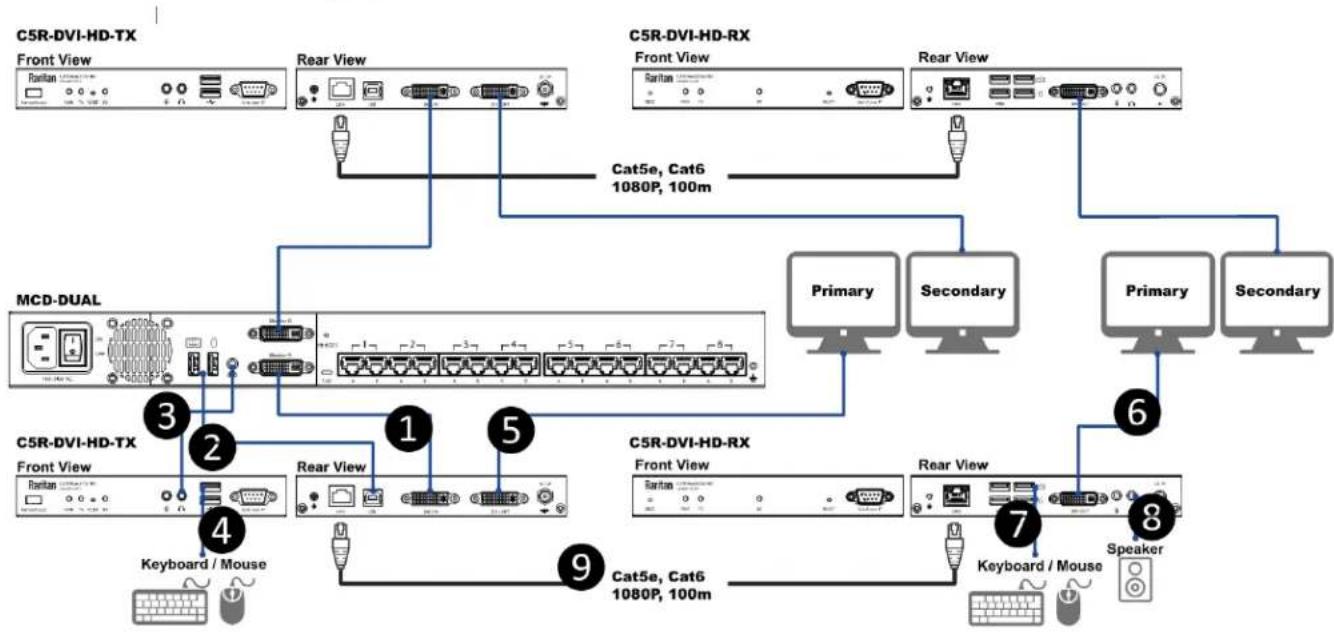
Primary Monitor Connection
- Use a DVI cable to connect the DVI port (Monitor A) of the MCD-DUAL and DVI-IN port of the first C5R-DVI-HD-TX.
- Use a USB type A-B cable to connect either USB mouse or keyboard port of the MCD-DUAL and the USB port of the first C5R-DVI-HD-TX.
- Connect the speaker port of the MCD-DUAL and the speaker port of the first C5R-DVI-HD-TX with an audio cable
- Plug a USB keyboard and a USB mouse into the USB ports of the first C5R-DVI-HD-TX.
- Plug the primary DVI monitor (for local console) into the DVI-OUT port of the first C5R-DVI-HD-TX.
- Connect the primary DVI monitor (for remote console) to the DVI-OUT port of the first C5R-DVI-HD-RX.
- Plug a USB keyboard and a USB mouse into the USB ports of the first C5R-DVI-HD-RX.
-
Plug a speaker into the USB port of the first C5R-DVI-HD-RX.
-
Use a Cat5e/6 cables up to 330 feet (100 meters) long to connect the transmitter and receiver. Plug either end of the cable into the RJ-45 LINK ports.
flowchart
graph TD
    A["C5R-DVI-HD-TX Front View"] --> B["Rear View"]
    B --> C["Cat5e, Cat6 1080P, 100m"]
    D["C5R-DVI-HD-RX Front View"] --> E["Rear View"]
    E --> F["Primary Secondary"]
    G["MCD-DUAL"] --> H["3"]
    G --> I["2"]
    G --> J["1"]
    G --> K["5"]
    G --> L["9"]
    M["C5R-DVI-HD-TX Front View"] --> N["4"]
    M --> O["Rear View"]
    O --> P["Cat5e, Cat6 1080P, 100m"]
    Q["C5R-DVI-HD-RX Front View"] --> R["7"]
    Q --> S["Rear View"]
    S --> T["Speaker"]
    U["Keyboard / Mouse"] --> V["9"]
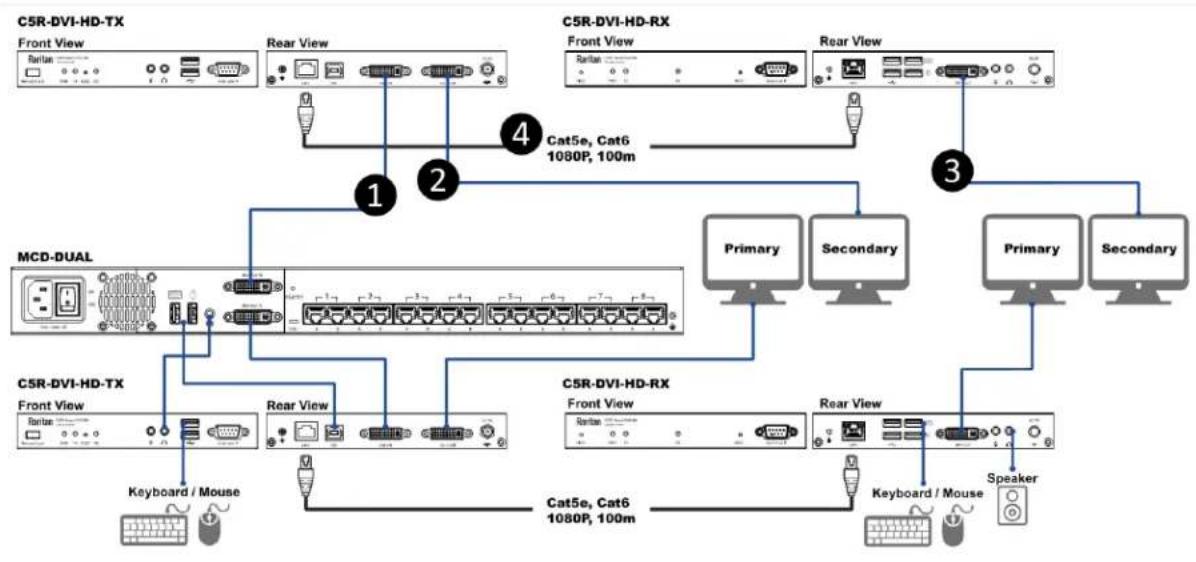
Secondary Monitor Connection
- Use a DVI cable to connect the DVI port (Monitor B) of the MCD-DUAL and DVI-IN port of the second C5R-DVI-HD-TX.
- Plug the secondary DVI monitor (for local console) into the DVI-OUT port of the second C5R-DVI-HD-TX.
-
Connect the secondary DVI monitor (for remote console) to the DVI-OUT port of the second C5R-DVI-HD-RX.
-
Use a Cat5e/6 cables up to 330 feet (100 meters) long to connect the transmitter and receiver. Plug either end of the cable into the RJ-45 LINK ports.
flowchart
graph TD
    A["C5R-DVI-HD-TX"] -->|1| B["Front View"]
    A -->|2| C["Rear View"]
    A -->|3| D["C5R-DVI-HD-RX"]
    A -->|4| E["Cat5e, Cat6 1080P, 100m"]
    A -->|5| F["Primary"]
    A -->|6| G["Secondary"]
    A --> H["Speaker"]
    I["MCD-DUAL"] -->|1| J["Front View"]
    I -->|2| K["Rear View"]
    I -->|3| L["C5R-DVI-HD-TX"]
    I -->|4| M["C5R-DVI-HD-RX"]
    I --> N["Primary"]
    I --> O["Secondary"]
    P["Keyboard / Mouse"] --> Q["Front View"]
    P --> R["Rear View"]
    P --> S["C5R-DVI-HD-TX"]
    P --> T["C5R-DVI-HD-RX"]
    P --> U["Speaker"]
    V["Keyboard / Mouse"] --> W["Front View"]
    V --> X["Rear View"]
    V --> Y["C5R-DVI-HD-TX"]
    V --> Z["C5R-DVI-HD-RX"]
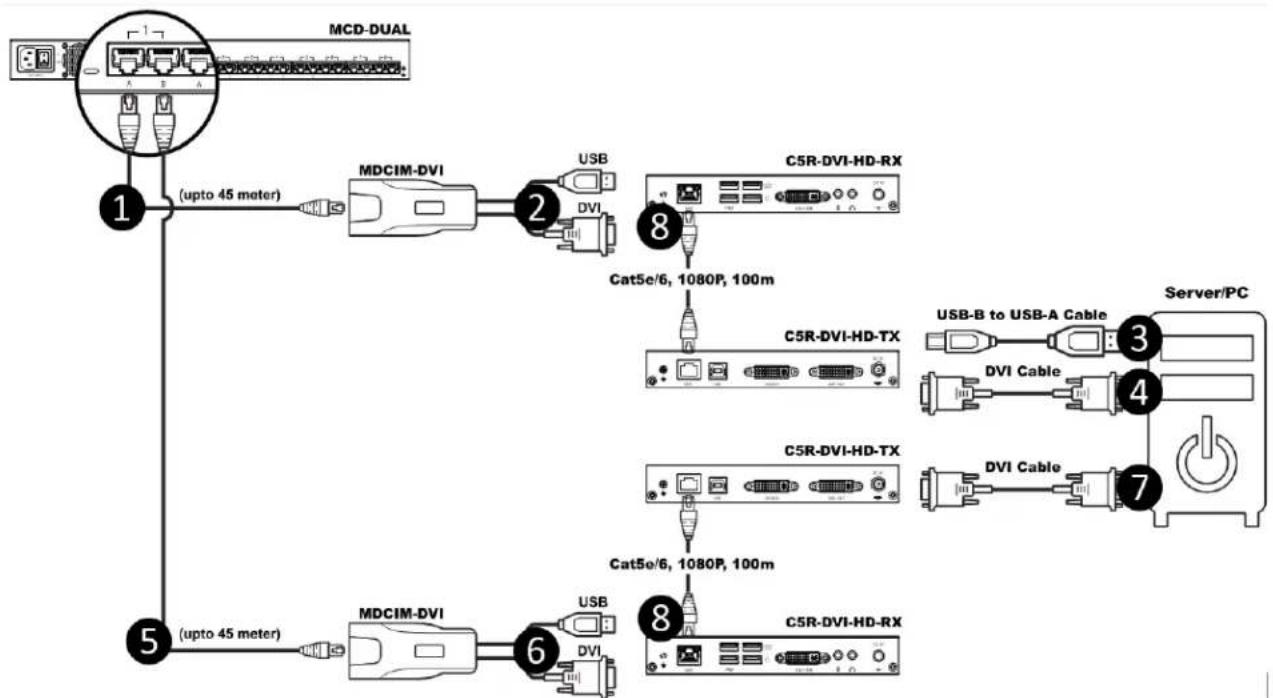
PC/Server Extension
- Primary Video Output Connection:
a. Connect the first MDCIM-DVI to the "RJ45 Port A" of MCD-DUAL by using a standard network patch cable (Cat5e/6 UTP).
b. Plug the first MDCIM-DVI's USB and DVI connectors into the USB and DVI ports of the first C5R-DVI-HD-RX.
c. Connect the USB ports of the PC/server and the first C5R-DVI-HD-TX with a USB type A-B cable.
d. Use a DVI cable to connect the DVI port of the first C5R-DVI-HD-TX and primary DVI output port of the PC/server.
- Secondary Video Output Connection:
a. Connect the second MDCIM-DVI to the "RJ45 Port B" of MCD-DUAL by using a standard network patch cable (Cat5e/6 UTP).
b. Plug the second MDCIM-DVI's DVI connector into the DVI port of the second C5R-DVI-HD-RX.
c. Use a DVI cable to connect the DVI port of the second C5R-DVI-HD-TX and secondary DVI output port of the PC/server.
d. Use Cat5e/6 cables up to 330 feet (100 meters) long to connect the transmitters and receivers. Plug either end of the cable into the RJ-45 LINK ports.
flowchart
graph TD
    A["MCD-DUAL"] -->|1 (upto 45 meter)| B["MDCIM-DVI"]
    B -->|2 USB DVI| C["C5R-DVI-HD-RX"]
    C -->|8 Cat5e/6, 1080P, 100m| D["C5R-DVI-HD-TX"]
    D -->|9 Cat5e/6, 1080P, 100m| E["C5R-DVI-HD-TX"]
    E --> F["Server/PC"]
    F --> G["DVI Cable"]
    F --> H["DVI Cable"]
    F --> I["DVI Cable"]
    style A fill:#f9f,stroke:#333
    style B fill:#ccf,stroke:#333
    style C fill:#cfc,stroke:#333
    style D fill:#fcc,stroke:#333
    style E fill:#cff,stroke:#333
    style F fill:#ffc,stroke:#333
    style G fill:#fcc,stroke:#333
    style H fill:#fcc,stroke:#333
    style I fill:#fcc,stroke:#333
Chapter 7 Maintenance
In This Chapter
Firmware Upgrade Procedures....29
Resetting to Factory Defaults ....33
Firmware Upgrade Procedures
The KVM switch provides the firmware upgrade for the following functions:
- USB Host: Update for USB host chip on KVM switch. The firmware filename for USB Host is MCD_USB_HOST_xxx.usb.
- OSD: Update for on-screen-display functions. The firmware filename for OSD is MCD_OSD_xxx.osd.
To update the firmware:
- Disconnect all the KVM cable between KVM and computer.
- Disconnect all the keyboard and mouse plugged on KVM.
- Disconnect the cable between KVM and monitor.
- Apply AC power cord to the KVM.
- Execute the firmware update utility "Prog.EXE".
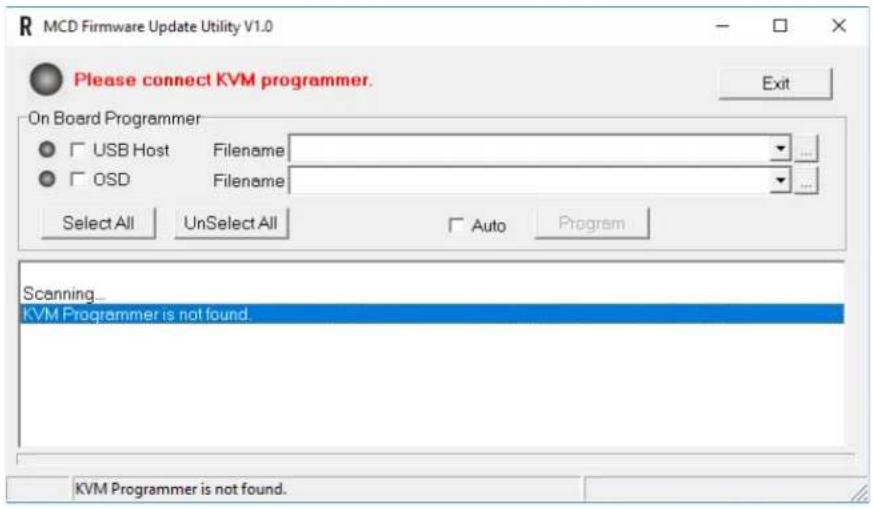
text_image
MCD Firmware Update Utility V1.0 Please connect KVM programmer. Exit On Board Programmer USB Host Filename OSD Filename Select All UnSelect All Auto Program Scanning_ KVM Programmer is not found. KVM Programmer is not found.- Use the micro-USB cable to connect KVM firmware update port and the USB port of computer which runs the firmware update utility.
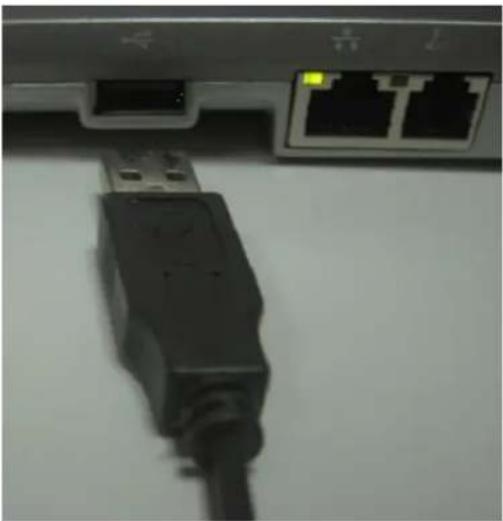
natural_image
Close-up of a USB port connector with two Ethernet ports and a black USB cable (no visible text or symbols)- The utility will scan the KVM programmer automatically.
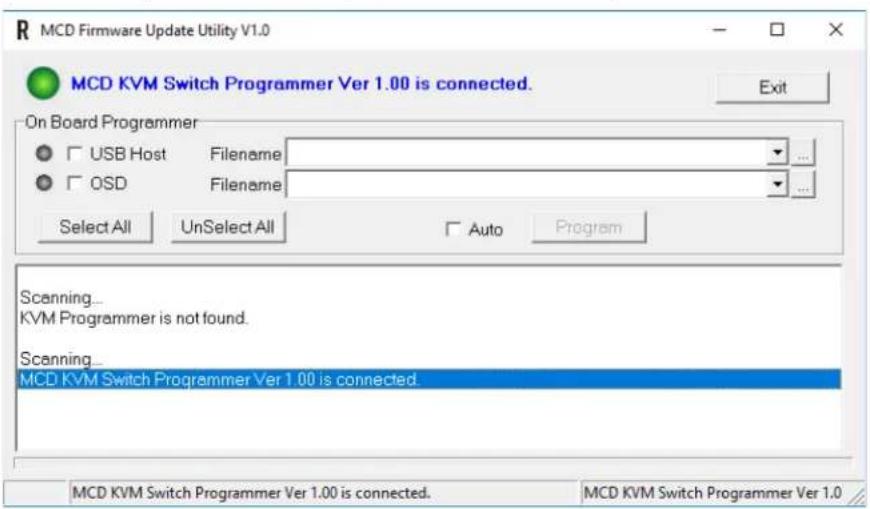
text_image
MCD Firmware Update Utility V1.0 MCD KVM Switch Programmer Ver 1.00 is connected. On Board Programmer USB Host Filename OSD Filename Select All UnSelect All Auto Program Scanning... KVM Programmer is not found. Scanning... MCD KVM Switch Programmer Ver 1.00 is connected. MCD KVM Switch Programmer Ver 1.00 is connected. MCD KVM Switch Programmer Ver 1.0- Select the target by enabling the check box, for example "USB Host", and click the file browsing button to select the firmware file to update.
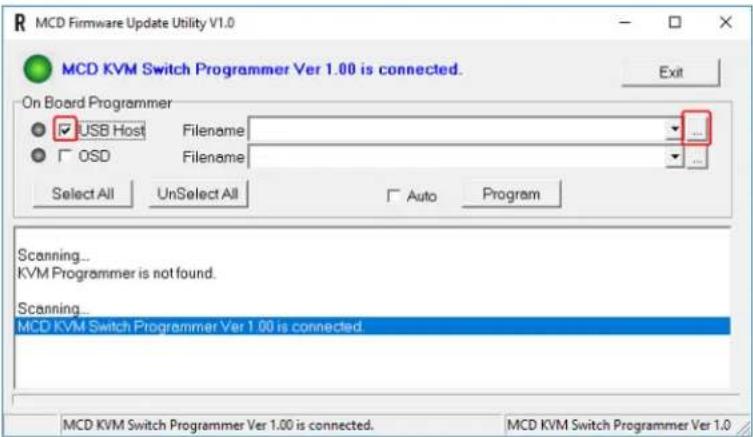
text_image
MCD Firmware Update Utility V1.0 MCD KVM Switch Programmer Ver 1.00 is connected. On Board Programmer USB Host Filename OSD Filename Select All UnSelect All Auto Program Scanning... KVM Programmer is not found. Scanning... MCD KVM Switch Programmer Ver 1.00 is connected. MCD KVM Switch Programmer Ver 1.00 is connected. MCD KVM Switch Programmer Ver 1.0- Select the firmware file to update.
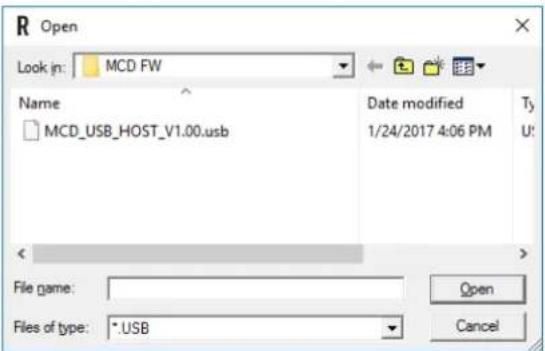
text_image
R Open Look in: MCD FW Name MCD_USB_HOST_V1.00.usb Date modified 1/24/2017 4:06 PM Ty U: File name: Files of type: *.USB Open Cancel- Click the "Program" button to start firmware programming.
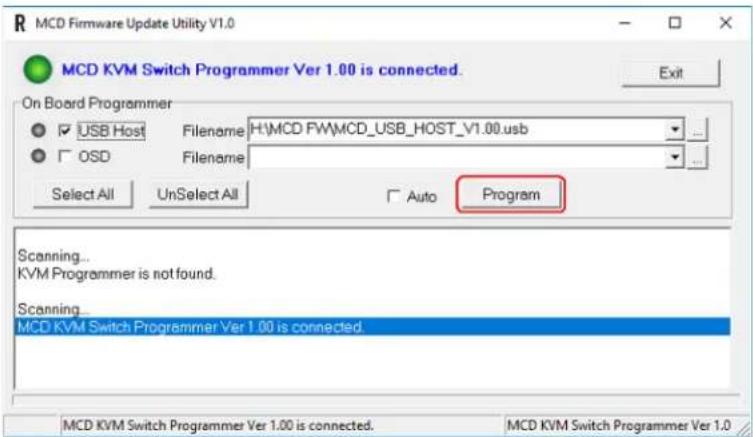
text_image
MCD Firmware Update Utility V1.0 MCD KVM Switch Programmer Ver 1.00 is connected. On Board Programmer USB Host Filename H:\MCD FW\MCD_USB_HOST_V1.00.usb OSD Filename Select All UnSelect All Auto Program Scanning... KVM Programmer is not found. Scanning... MCD KVM Switch Programmer Ver 1.00 is connected. MCD KVM Switch Programmer Ver 1.00 is connected. MCD KVM Switch Programmer Ver 1.0- A status bar is shown under the panel to indicate the update progress.
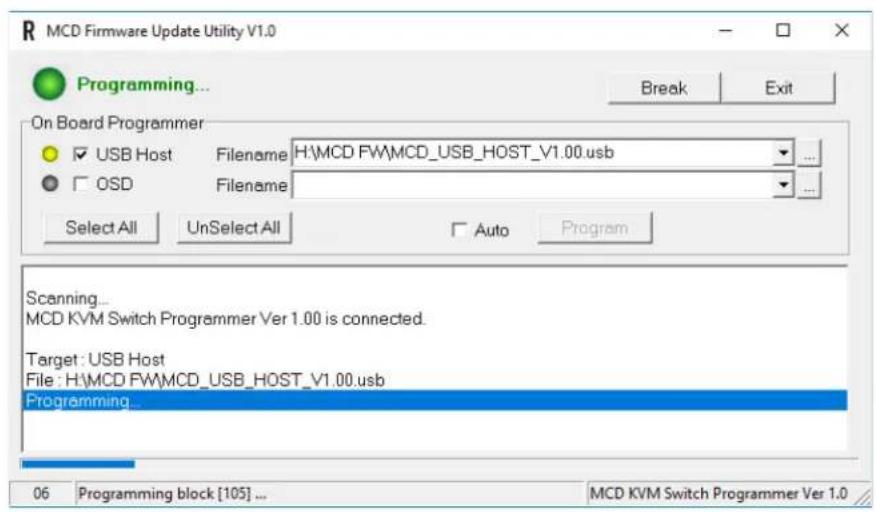
text_image
MCD Firmware Update Utility V1.0 Programming... On Board Programmer ✓ USB Host Filename H:\MCD FW\MCD_USB_HOST_V1.00.usb □ OSD Filename Select All UnSelect All Auto Program Scanning... MCD KVM Switch Programmer Ver 1.00 is connected. Target: USB Host File: H:\MCD FW\MCD_USB_HOST_V1.00.usb Programming... 06 Programming block [105] ... MCD KVM Switch Programmer Ver 1.0- The firmware is updated successfully.
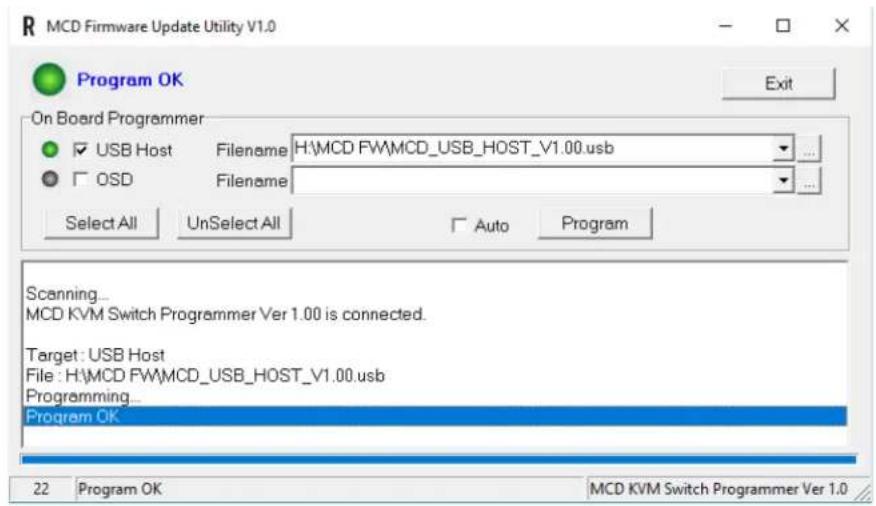
text_image
MCD Firmware Update Utility V1.0 Program OK On Board Programmer ✓ USB Host Filename H:\MCD FW\MCD_USB_HOST_V1.00.usb □ OSD Filename Select All UnSelect All Auto Program Scanning... MCD KVM Switch Programmer Ver 1.00 is connected. Target: USB Host File: H:\MCD FW\MCD_USB_HOST_V1.00.usb Programming... Program OK 22 Program OK MCD KVM Switch Programmer Ver 1.0Chapter 7: Maintenance
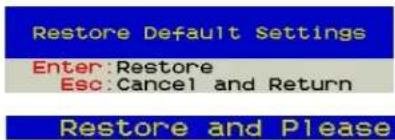
- After updating, you must restore the device. Power on the device, then press "Ctrl+Shift+F10" before log-in
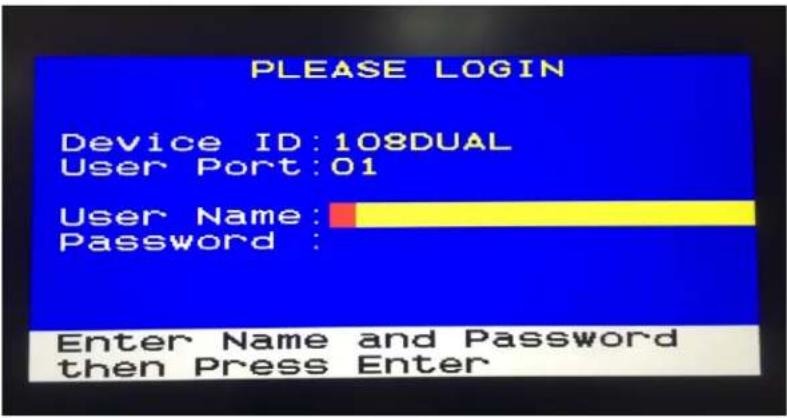
text_image
PLEASE LOGIN Device ID:108DUAL User Port:01 User Name: Password : Enter Name and Password then Press Enter- Press "Enter" to restore the device.
text_image
Restore Default Settings Enter:Restore Esc:Cancel and Return Restore and PleaseResetting to Factory Defaults
- Press F4 to log out and show the Login screen.
- Press Ctrl + Shift + F10. The following message appears.
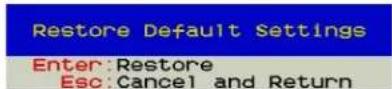
- Press Enter to proceed with the factory reset. The following message appears. Wait until the Login screen re-appears, indicating the reset is completed.
Restore and Please Wait
Appendix A Disclaimer
Information in this document is subject to change without notice. The manufacturer does not make any representations or warranties (implied or otherwise) regarding the accuracy and completeness of this document and shall in no event be liable for any loss of profit or any other commercial damage, including but not limited to special, incidental, consequential, or other damages.
No part of this document may be reproduced or transmitted in any form by any means, electronic or mechanical, including photocopying, recording or information recording and retrieval systems without the express written permission of the manufacturer.
All brand names and product names used in this document are trademarks, or registered trademarks of their respective holders.
In This Chapter
FCC Statement 34
FCC Statement
This device generates and uses radio frequency and may cause interference to radio and television reception if not installed and used properly. This has been tested and found to comply with the limits of a Class B computing device in accordance with the specifications in Part 15 of the FCC Rules. These specifications are designed to provide reasonable protection against such interference in a residential installation. However, there is no guarantee that interference will not occur in a particular installation. If this device does cause harmful interference to radio or television reception, which can be determined by plugging the device in and out, the user can try to correct the interference by one or more of the following measures:
• Reorient or relocate the receiving antenna.
- Increase the separation between the device and receiver.
- Connect the computer into an outlet on a circuit different from that to which the receiver is connected.
- Consult the dealer or an experienced radio/TV technician for help.
CE / FCC

Index
2
2nd-tier Selection Menu • 15
B
Borderless Mouse Switching • 12, 21
C
Computer Connection • 8
Console Connection • 6
Console Extension • 25
D
Disclaimer • 34
E
Enable Borderless Mouse Switching • 23
F
FCC Statement • 34
Features • 2
Firmware Upgrade Procedures • 29
Front View • 4
H
Hotkey Summary Table • 11
Hotkeys • 11
|
Installation • 6
Introduction • 1
K
KVM Extension • 25
L
Login Screen • 12, 14
M
Maintenance • 29
0
On-Screen Display Interface • 13
Overview • 1
P
Package Contents • 2
PC/Server Extension • 27
Port Access Setup • 19
Port Configuration • 20
R
Rear View • 4
Resetting to Factory Defaults • 12, 33
S
Select Proper MDCIMs or MDUTPs • 7
Selection Menu • 14
Setup • 16, 21
Specifications • 2
U
User Configuration • 18
Using Mouse Switching • 24
V
Video Adjustment • 12, 20
Viewing Firmware Version • 20