Platinum200 - Detector K40 - Free user manual and instructions
Find the device manual for free Platinum200 K40 in PDF.


User questions about Platinum200 K40
0 question about this device. Answer the ones you know or ask your own.
Ask a new question about this device
Download the instructions for your Detector in PDF format for free! Find your manual Platinum200 - K40 and take your electronic device back in hand. On this page are published all the documents necessary for the use of your device. Platinum200 by K40.
USER MANUAL Platinum200 K40
*PLATINUM 360_200 OWNERS .qxp_Layout 1 3/23/20 3:13 PM Page 1
K40
Table of Contents
Wake-Up Sequence 4
Receiving Alerts....5-7
Radar Alert Sequence 5
Laser Alert Sequence ....5
Laser Settings 6
Manual Laser Defuser Shut Down 6
Alerts from Non-Police Signals 7
K-Band Filter 7
Traffic Sensor Filter 7
MultaRadar (MRCD/CT) Photo Radar .....7
Auto Volume 7
Special Features/Functions 8-15
LED Dim 8
Highway|City|Filter/|Auto 8
K-Band Narrow|Wide|Extended 9
Ka-Band Narrow|Wide 9
Ka-Band Filter 9
Quiet Ride 10
Mute Functions....10
Mark to Mute 11
Mark to Alert 12
Speed Monitor 12-13
Customizable Settings 13-15
Remote Control 16-17
Add-On Options/Expert Remote Control .....18
Troubleshooting Guide ....19
Warranty/Guarantees....20
3
K40
Wake-Up Sequence
(using factory default settings)
K40
Receiving Alerts
Your K40 system will be ready for use following this automatic Wake-Up sequence:
- Start your vehicle – Your K40 system is designed to turn on automatically every time your vehicle is started.
- Wake-Up Sequence – Both front and rear alert LED's in your dash will flash (Platinum200 systems have one alert LED). The voice will announce, "K40 Scan, Active", you will then hear alerts for X, K, Ka-Band, and laser.
Wake-Up Options can be changed in the Menu, page 14. - Wake-Up Long: default and as described above.
- Wake-Up Short: LED's will flash and you will hear an abbreviated audible sequence of three beeps.
-
Wake-Up Silent: an LED only sequence (no audible).
-
GPS Connection – After locating available satellites, the K40 system will announce, "GPS Connected".
NOTE: If you don't hear and/or see the Wake-Up sequence, press and release the power button ⏻ on the K40 remote control.
NOTE: If you are in a location that prevents connection with GPS satellites (e.g. parking garage), your K40 system will still protect you from all radar and laser threats (laser protection only available with optional Laser Defuser installed). Once you drive to an unobstructed location, the GPS will connect and you will hear, "GPS Connected".
Your K40 system provides a combination of audio and visual alerts to warn you when radar signals are detected.
Radar Alert Sequence
Your K40 system detects all North American police radar signals (X, K, and Ka-Band). When a signal is identified:
- The K40 Platinum360 will announce the direction of the signal's source, either front or rear, along with the police radar band detected. K40 Platinum200 systems will only announce the band detected (this assumes the factory default "Voice On" setting has not been changed).
- Signal strength and proximity to the radar source will be identified as a series of Geiger counter-like tones. The faster the tone, the closer you are to the source. Each police radar band alert has its own distinctive tone.
Laser Alert Sequence
(only for K40 systems that include Laser Defusers ^8 )
When your K40 system detects a laser signal:
- A voice announces, "Laser" (this assumes the factory default "Voice On" setting has not been changed).
- You will then hear a distinct and urgent audio tone.
- LED(s) will pulse rapidly for the duration of the alert.
Laser Settings
The optional Laser Defuser can be configured to one of three operational settings:
| Defuser Settings | Description Recommended Use | |
| Constant Transmit | For as long as the Laser Defuser is receiving a police laser gun signal, it will continuously transmit back to the gun. This is the factory default setting. Alert Tone: standard laser alert tone. | •Gives you more time to decelerate.•Higher potential for jamming all the way to the laser gun location. |
| Pulse Transmit | Upon receiving a police laser signal, the Laser Defuser will transmit a jamming signal for up to five seconds, then switches to Receive Only mode for 30 seconds. Alert Tones: standard laser alert tone for five seconds. Drops to a lower pitch laser alert tone when in Receive Only mode. | •Gives you time to reduce speed. Officer will then be able to obtain speed to eliminate the suspicion of “jamming” where use of jammers is restricted.•Tone notifies you while a jamming signal is being transmitted and when Laser Defuser changes to Receive Only. |
| Receive Only | The Laser Defuser will only detect police laser. No jamming signal will be emitted. Alert Tone: lower pitch laser alert tone. | •For notification only. Officer will immediately obtain a speed reading on your vehicle in this setting. |
Manual Laser Defuser Shut Down
During a Police Laser Encounter
Press and release Ⓜ MUTE button to automatically switch the Laser Defuser(s) to Receive Only for 30 seconds during a laser encounter. This gives you the option to control the duration of jamming signal being transmitted by the Laser Defusers.
Alerts from Non-Police Signals
Your K40 system is sensitive enough to detect signals generated by non-police sources such as automatic doors, traffic flow sensors, and radar based safety features. To learn how to minimize non-police alerts, please read about TRAFFIC SENSOR FILTER (below), FILTER options (page 8), QUIET RIDE (page 10), and MARK TO MUTE (page 11).
K-Band Filter
Your K40 system rejects alerts from most vehicles on the road equipped with radar-based safety features, such as collision avoidance. Police radar reception and detection range are unaffected by this feature.
-Traffic Sensor Filter
(factory default off)
Your K40 system can reject alerts from traffic flow sensors usually encountered during highway driving (limited use areas). This feature can be enabled through the Menu (page 14).
MultaRadar (MRCD/CT) Photo Radar
(factory default off)
Your K40 system is capable of alerting to MRCD/CT photo radar devices (limited use areas). This feature can be enabled through the Menu (page 15). **LATE 2020 RELEASE**
Auto Volume
(factory default on)
Your K40 system will automatically reduce volume every three seconds until it reaches the "Low" setting. This feature can be disabled through the Menu (page 14).
*PLATINUM 360_200 OWNERS .qxp_Layout 1 3/23/20 3:13 PM Page 6
K40
Special Features/Functions
LED DIM
- Press and release DIM button on remote control to adjust LED brightness to accommodate various driving environments. The setting will save automatically.
Five LED Brightness Options:
- "Day" - Brightest LED setting.
- "Dusk" - Medium LED setting (factory default).
- "Night" - Dimmest LED setting.
- "Auto" - LED(s) adjust automatically from three seconds in "Day", three seconds in "Dusk", and the duration of the alert in "Night".
- "Off" - LED(s) will not illuminate, you will still receive full audio alerts.
NOTE: "Off" reverts to "Night" upon K40 system Wake-Up.
Highway|City|Filter|Auto
- Press and release CITY HWY button on remote control to change the setting at any time. Your K40 system offers four levels of radar sensitivity to accommodate various driving situations.
| Settings Sensitivity Recommended Use | ||
| 1. Highway (factory default) | Maximum range and sensitivity on all North American police radar signals (X, K, and Ka-Band). | For highway travel or in any area in which you are unfamiliar with the types of radar used. |
| 2. City | Decreases range and sensitivity on X, K, and Ka-Bands. | When traveling in an urban area with minimal non-police radar signals. |
| 3. Filter | X-Band off. Further range and sensitivity reduction of K and Ka-Band. | When traveling in a congested traffic area with a high concentration of non-police radar signals. |
| 4. Auto | Adjusts range and sensitivity on radar bands based on vehicle speed.0-45 mph-Filter setting sensitivity.46-55 mph-City setting sensitivity.56 mph+Highway setting sensitivity. | Less sensitivity in low speed situations and more range and sensitivity in higher speed situations. |
K-Band Narrow|Wide|Extended
Select the range of police radar frequencies your K40 system scans. This feature can be customized through the Menu (page 14).
- K Narrow scans the primary frequencies of police radar guns being used.
- Scans 24.080-24.200GHZ
- K Wide scans a little above and below the standard range of frequencies police radar guns can use. This is the factory default setting.
- Scans 24.026-24.285GHZ
- K Extended scans radar frequencies further below the standard range of speed enforcement technology that may be used in your area now or in the future.
- Scans 23.950-24.285GHZ
-Ka-Band Narrow|Wide
Select the range of police radar frequencies your K40 system scans. This feature can be customized through the Menu (page 14).
- Ka Narrow scans the primary frequencies of police radar guns being used.
- Scans 33.7-33.9GHZ and 34.6-34.8GHZ and 35.4-35.6GHZ
- Ka Wide scans the entire possible range of frequencies police radar guns can use. This is the factory default setting.
- Scans 33.4-36.00GHz
Ka-Band Filter
Enables filtration of Ka-Band non-police radar signals, e.g. other radar detectors and satellite broadcast bands (factory default off). Use in high-traffic areas. Does not affect police radar detection range. This feature can be enabled through the Menu (page 14).
Quiet Ride
The Quiet Ride function will automatically silence all radar and laser alerts when traveling under a speed selection of your choice between 5-75 mph in 5 mph increments, or 10-120 kph in 10 kph increments.
Visual alerts are unaffected by Quiet Ride settings.
The factory default setting for Quiet Ride is "20 mph".
Activating/Adjusting Quiet Ride
- Press and release QUIET RIDE button on remote control to activate the Quiet Ride menu. Voice will announce the current setting, e.g. "Quiet Ride 20", or the current speed setting.
- Press and release ▲ or √ buttons to adjust the speed settings on Quiet Ride. Any selected speed setting indicates Quiet Ride is on.
- When you have made your desired Quiet Ride speed selection, stop scrolling and voice will announce, "Quiet Ride Set".
NOTE: Locations that you have "Marked to Alert" (page 12) are unaffected by Quiet Ride settings.
-Mute Functions
Your K40 system provides two options to mute audio alerts (both voice and tones):
- Press and release Ⓜ button to mute audio for 30 seconds or the duration of the alert. Voice will announce, "Mute On".
- Press and hold MUTE button for three seconds to mute audio for 5 minutes. Voice will announce "Extended Mute On". Press and hold MUTE button for three seconds to turn Extended Mute off.
- To turn the voice and tone alerts off, press and release button until voice announces, "Volume Off". You will continue to receive visual alerts.
10 11
Mark to Mute
The Mark to Mute function allows you to mute any stationary radar band/laser alert from a non-police source (e.g. an automatic door) in a specific GPS location.
Using Mark to Mute
- Press and release 📂 button to mute a specific radar band/laser alert. A signal must be present in order to mark a location for mute.
- A voice announces that a specific radar band/laser alert has been muted (e.g. "K Muted").
- You will no longer receive audible alerts for the muted radar band/laser alert when within a 1,500 ft. radius of the muted location.
- You can string multiple muted locations together to extend the 1,500 ft. radius.
- You will still receive visual alerts from the alert LED(s).
- All other radar bands/laser alerts remain unaffected.
To remove a previously muted radar band/laser alert from your database:
- Press and release Ⓜ button while in the marked location.
- Voice announces that a specific radar band/laser alert has been removed (e.g. "K Muted Removed").
To remove ALL stored muted radar bands/laser alerts:
- Press and hold Ⓜ button for ten seconds at any time.
• Voice announces, "All Muted Locations Cleared".
Mark to Alert
The Mark to Alert function saves specific GPS locations to create a personal database of areas where increased awareness is desired, such as school zones, speed traps, or red light cameras.
- Press and release Ⓐ button when you want to mark a location for alert.
• Voice announces, "Marked to Alert".
In the future you will be alerted as follows:
| When you arrive... You will | hear... |
| ...within a radius of 1500 feet of a ... marked location and the alert LED(s) | “Approaching Marked Location” will flash twice |
| ...at a marked location ...a single “Bing” tone and the alert LED(s) will flash once | |
To remove a previously marked location from your database:
- Press and release Ⓙ button while in the marked location.
• Voice announces, "Marked Location Removed".
To remove all alert locations:
- Press and hold MA button for 10 seconds at any time.
• Voice announces, "All Alert Locations Cleared".
Speed Monitor
Speed Monitor alerts you when a preselected speed is exceeded. Speed Monitor can be set to any speed between 40-100 mph in 5 mph increments or 60-160 kph in 10 kph increments. The factory default setting for Speed Monitor is "Off".
Activating/Adjusting Speed Monitor
- Press and hold CITY HWY button for three seconds until the voice announces, "Speed Monitor".
- Press and release △ or ▽ button to adjust the Speed Monitor speed setting. When you have chosen your desired Speed Monitor setting, stop scrolling and the voice will announce, "Speed Monitor Set".
When driving and the Speed Monitor speed is exceeded:
- The K40 system will emit a continuous "Bing Bong" tone and the alert LED(s) will flash.
- The alerts will continue until the vehicle's speed is reduced to below the Speed Monitor speed setting.
To change the factory preset features and customize your K40 system for the way you drive, follow the instructions below or call a K40 Consultant at 800.323.5608.
To change settings:
- Press and release MENU button to enter the MENU. The voice will announce "Menu", and then announce the first customizable option and its current status.
- Press and release MENU button to scroll through the options until you reach the feature you want to change.
- Press and release + or - button to change an existing setting. Voice will announce change.
To save your settings and exit:
- Press and hold MENU button for three seconds, or wait 10 seconds and the system will automatically save your preferences.
• The voice will announce "Exit".
| Menu Options(in sequential order) | Factory Default Setting(voice confirmations) | Description | ||
| Platinum 200 System | Platinum 360 System | |||
| 1 | Voice Type "Female | Voice" "Female | Voice" Choose male | male or female voice for audio alerts. |
| 2 | Audible Voice "Voice On" "Voice On" For all initial audio alerts: "Voice On" uses voice; "Voice Off" uses tones only. | |||
| 3 | Wake-Up "Wake-Up"Sequence second sequence. | Up Long""Wake-Up Long" | Up Long" | "Wake-Up Long" is standard 5"Wake-Up Short" uses an abbreviated sequence."Wake-Up Silent" lights only, no audible. |
| 4 | Auto Volume "Auto On" | Volume "Auto On" | Volume Automatically reduces volume every 3 seconds. | |
| 5 | -Band Selectivity | "K Wide" | "K Wide" | *K Wide scans the standard range of K-Band frequencies that police radar guns can use.K Narrow scans the primary K-Band frequencies of police radar guns being used.K Extended scans radar frequencies above and below the standard range of speed enforcement technology that may be used in your area now or in the future. |
| 6 | Ka-Band Selectivity | "Ka Wide" | "Ka Wide" | *Ka Wide scans the entire possible range of Ka-Band frequencies that police radar guns can use.*Ka Narrow scans the primary Ka-Band frequencies of police radar guns being used. |
| 7 | Ka Band Filter | "Ka Filter Off" | "Ka Filter Off" | Enables filtration of Ka-Band non-police radar signals. |
| 8 | Traffic Sensor Filter | "Traffic Sensor Filter Off" | "Traffic Sensor Filter Off" | Enables filtration of K-Band radar signals from traffic flow sensors. |
| Menu Options(in sequential order) | Factory Default Setting(voice confirmations) | Description | ||
| Platinum 200 System | Platinum 360 System | |||
| 9 | MRCD/CT | MRCD Off | MRCD Off | Enables MRCD/CT photo radar detection. |
| 10 | MRCD/CT Filter | MRCD Filter Off | MRCD Filter Off | Reduces false alerts when MRCD/CT detection is enabled. |
| 11 | Front Radar | "Radar On" | "Front Radar On" | Allows user to turn off front radar receiver. |
| 12 | Front X-Band | "X-Band On" | "Front X-Band On" | Enables the detection of X-Band radar from front receiver. |
| 13 | Front K-Band | "K-Band On" | "Front K-Band On" | Enables the detection of K-Band radar from front receiver. |
| 14 | Front Ka-Band | "Ka-Band On" | "Front Ka-Band On" | Enables the detection of Ka-Band radar from front receiver. |
| 15 | Rear Radar N/A | "Rear Radar On" | Allows user to turn off rear radar receiver. | |
| 16 | Rear X-Band | N/A | "Rear X-Band On" | Enables the detection of X-Band radar from rear receiver. |
| 17 | Rear K-Band | N/A | "Rear K-Band On" | Enables the detection of K-Band radar from rear receiver. |
| 18 | Rear Ka-Band | N/A | "Rear Ka-Band On" | Enables the detection of Ka-Band radar from rear receiver. |
| 19 | Optional Laser Defuser | "Laser On" | "Laser On" | Enables the Laser Defuser. "Off" disables the Laser Defuser. |
| 20 | Laser Settings | "Laser Constant Transmit" | "Laser Constant Transmit" | Enables Laser Defuser for Con-stant Transmit, Pulse Transmit, or Receive Only. |
| 21 | mph/kph | "mph" | "mph" | Choose miles per hour or kilometers per hour. |
| 22 | Factory Reset | "Factory Reset" | "Factory Reset" | Returns the system to its origi-nal factory default settings. |
| 23 | Exit | "Exit" | "Exit" | •Automatically exit menu after 10 seconds if no button is pressed.•Press and hold [MFG] button for three seconds.•Press the .button when "exit" is announced. |
*PLATINUM 360_200 OWNERS .qxp_Layout 1 3/23/20 3:13 PM Page 14
K40
Remote Control
text_image
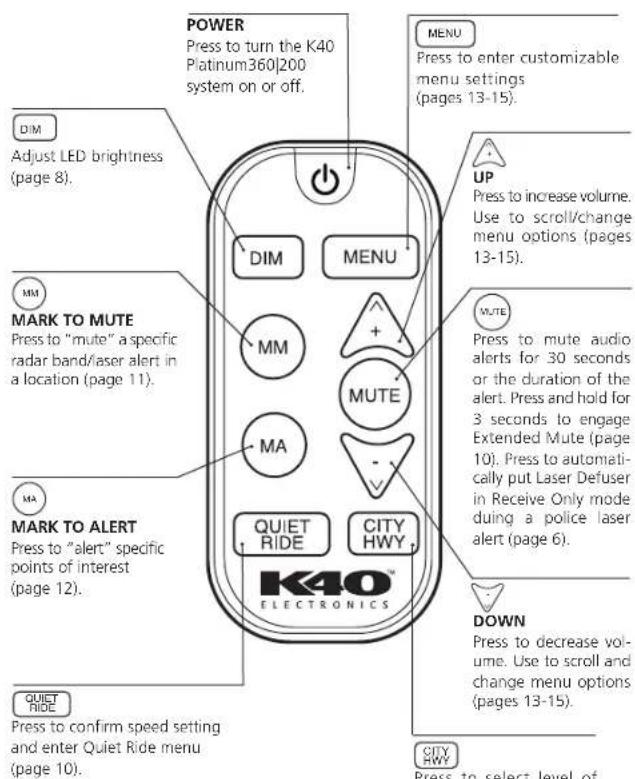
POWER Press to turn the K40 Platinum360200 system on or off. DIM Adjust LED brightness (page 8). MARK TO MUTE Press to "mute" a specific radar band/laser alert in a location (page 11). MARK TO ALERT Press to "alert" specific points of interest (page 12). QUIET RIDE Press to confirm speed setting and enter Quiet Ride menu (page 10). MENU Press to enter customizable menu settings (pages 13-15). UP Press to increase volume. Use to scroll/change menu options (pages 13-15). MUTE Press to mute audio alerts for 30 seconds or the duration of the alert. Press and hold for 3 seconds to engage Extended Mute (page 10). Press to automat- ically put Laser Defuser in Receive Only mode duing a police laser alert (page 6). DOWN Press to decrease vol- ume. Use to scroll and change menu options (pages 13-15). CITY HWY Press to select level of16
text_image
OPEN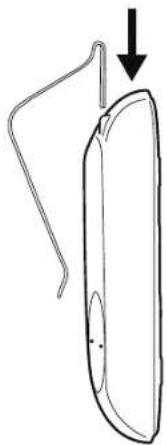
natural_image
Simple line drawing of a curved object with an arrow pointing downward (no text or symbols)To Change Remote Battery:
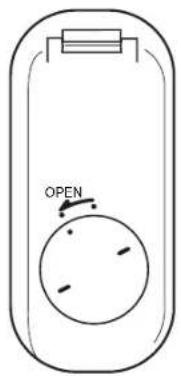
Unlock and remove battery door by turning the cover counterclockwise as shown.
Insert battery with + symbol side facing the + symbol side of the battery door cover.
Requires use of a CR2032 cell battery.
To Use Supplied Visor Clip:
Insert the supplied clip into the back of the remote control as shown. Press firmly until it clicks.
*PLATINUM 360_200 OWNERS .qxp_Layout 1 3/23/20 3:13 PM Page 16
K40
Add-On Option
(sold separately)
K40
Troubleshooting Guide
Expert Remote Controller
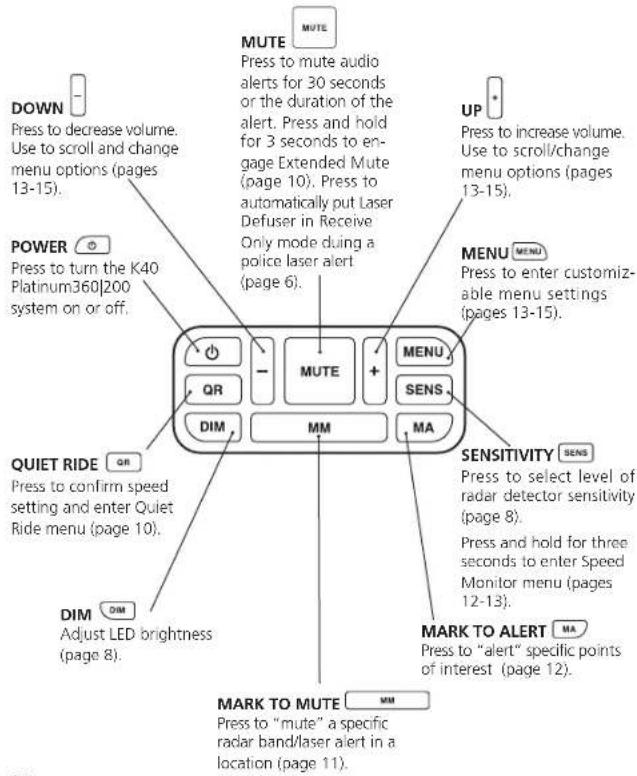
System control at your fingertips with a professionally installed, backlit control, designed to look like it was factory installed. Contact your dealer for details.
text_image
DOWN Press to decrease volume. Use to scroll and change menu options (pages 13-15). POWER Press to turn the K40 Platinum360|200 system on or off. QUIET RIDE Press to confirm speed setting and enter Quiet Ride menu (page 10). DIM Adjust LED brightness (page 8). MARK TO MUTE Press to "mute" a specific radar band/laser alert in a location (page 11). MUTE Press to mute audio alerts for 30 seconds or the duration of the alert. Press and hold for 3 seconds to en- gage Extended Mute (page 10). Press to automatically put Laser Defuser in Receive Only mode during a police laser alert (page 6). UP Press to increase volume. Use to scroll/change menu options (pages 13-15). MENU Press to enter customiz- able menu settings (pages 13-15). MUSU MENU SENS SENSITIVITY SENS Press to select level of radar detector sensitivity (page 8). Press and hold for three seconds to enter Speed Monitor menu (pages 12-13). MARK TO ALERT Press to "alert" specific points of interest (page 12).Need some help? Call us at 800.323.5608 for assistance and to customize your settings.
| Problem Possible Cause Solution | ||
| K40 system doesn't turn on and go through Wake-Up sequence after starting car. | K40 system turned off. | Press and release power button on remote control. |
| K40 system doesn't respond to remote control. | Battery is dead in remote control. | Replace battery in remote control with CR2032 battery. |
| Alert lights flash but no alert sound is heard. | Vehicle in Mark to Mute location. | Check Mark to Mute settings (page 11). |
| Vehicle speed is below Quiet Ride setting. | Check Quiet Ride setting (page 10). | |
| K40 system volume off. | Check K40 system volume settings (page 16). | |
| K40 system has excessive single "Bling" alerts. | Vehicle is in area of numerous marked points of interest. | Check Mark to Alert setting (page 12). |
| K40 system has excessive "Bing Bong" alerts. | Vehicle speed is above Speed Monitor setting. | Check Speed Monitor setting (page 12). |
| Erratic or frequent radar alerts. | High concentration of non-police radar sources. | Check Traffic Sensor Filter (page 7), MRCD (page 7), Filter Mode (page 8), Quiet Ride (page 10), and Mark to Mute (page 11) settings. |
18
19
*PLATINUM 360_200 OWNERS .qxp_Layout 1 3/23/20 3:13 PM Page 18

Register your K40 system today to activate your guarantees:
One-year warranty
The K40 Platinum360|200 is covered by a one year "repair or replace" limited warranty. This coverage begins on date of purchase and applies to manufacturing defects in product, materials and workmanship only. Installation, removal, or re-installation is not covered.
Guaranteed immunity from speeding tickets
If you get a radar speeding ticket within one year of purchase, we'll reimburse you for the full cost of the ticket.*
Guaranteed performance
If your K40 system does not outperform any other radar detector you've owned, return it within 30 days for a full product credit.
Guaranteed from theft
If your K40 Platinum360|200 is ever stolen, we'll replace the stolen product.**
*Offer not valid for speeding ticket violations incurred in school or construction zones, or connected with a DUI or DWI.
**Requires proof of purchase and a police report.
Register your K40 system online today by visiting https://www.k40.com/radar-detectors-laser-jammers/product-registration/
Product subject to one or more of the following patents:
U.S. Patents 7,298,248 B2
5,001,777
RE39,038
RE40,653
RE41,905
Other patents pending
FCC IDS: W75-M2K-Y25 W75-RL-RCU II
This device complies with part 15 of the FCC Rules. Operation is subject to the following two conditions: (1) This device may not cause harmful interference, and (2) this device must accept any interference received, including interference that may cause undesired operation.
In addition, any changes or modifications to this product, which are not expressly approved by K40 Electronics in writing, could void the user's authority to operate this product.
*PLATINUM 360_200 OWNERS .qxp_Layout 1 3/23/20 3:13 PM Page 20
K40
Our Promise
TO EXCEED...
Customer expectations through the pride and dedication of our strong team of caring and talented employees by being the "Model of Excellence" in the entire industry on every level — from innovative product design and flawless manufacturing to knowledgeable sales and total customer service.
TO PROVIDE...
The most superior and progressive radar detectors and laser jamming solutions on the worldwide market with guaranteed performance by delivering tomorrow's solutions today through the most advanced technology systems and state-of-the-art radar detection defense.
TO ENSURE...
The total commitment of our entire staff to all customers before, during, and after the sale with personalized direct 24/7 customer support — and going the extra mile with product selection and usage assistance in step with individual needs to achieve the most dependable radar detection performance and success.