I-BMW-T - Uncategorized DICE - Free user manual and instructions
Find the device manual for free I-BMW-T DICE in PDF.


User questions about I-BMW-T DICE
0 question about this device. Answer the ones you know or ask your own.
Ask a new question about this device
Download the instructions for your Uncategorized in PDF format for free! Find your manual I-BMW-T - DICE and take your electronic device back in hand. On this page are published all the documents necessary for the use of your device. I-BMW-T by DICE.
USER MANUAL I-BMW-T DICE
for selected BMW/Mini Cooper vehicles
Installation Guide/User Manual

SILVERLINE
Copyrights and Trademarks
Copyright 2008 DICE Electronics, LLC.
The DICE Electronics logo is a trademark of DICE Electronics, LLC.
iPod is a trademark of Apple, Inc.
All rights reserved.
Printed in the U.S.A

Table of contents
Copyrights and trademarks 2
Icon legends 3
Warning and safety 4
Product registration 5
Integration kit contents 6
Supported iPod models 7
DIP switches 8
DIP switch settings 9
Installation 10
DSP installation 13
iPod audio source 14
Text display settings 14
Charging 15
iPod hierarchy 15
Operating the interface 16
Browsing function 18
Auxiliary audio source 19
Troubleshooting 21
Disclaimer and warranty 23
Icon legends

Turn jog dial

Turn jog dial repeatedly

Press button
Press button repeatedly

Scroll
Warning and safety!
Please read these instructions carefully before proceeding. Failure to follow instructions may result in improper operation or injury. Neither DICE Electronics, LLC. nor Apple Inc., its regional offices, distributors or resellers take any responsibility for any damage or injury as a result of using the integration kit.
- Do not open, disassemble or alter the interface in any way.
- Do not insert anything into the casing.
- Do not cut or try to alter cables in any way and always use the correct connections.
- Only operate unit when stationary or ask passengers to operate it for you.
- Do not allow the Apple iPod to distract you from driving.
- Exercise good judgement and keep your eyes on the road at all times.
- Do not expose unit to extreme temperatures, humidity or shock.
- Keep the unit and iPod away from fluids.
- Keep away from children! - Interface components may contain small parts, can be broken or disassembled and components may become loose from vibration and heat. Small components and packaging materials may be a chocking hazard when handled by children.


Congratulations on your purchase
Thank you for purchasing the DICE integration kit for iPod. Please review our user manual and installation guide before operating the unit. This interface was designed and manufactured to seamlessly integrate with your vehicle's factory entertainment system.
Product registration
In order to validate your warranty period and to receive telephone or online support, you MUST register your DICE product.
To register your DICE product, please complete the following steps:
- Visit http://www.diceelectronics.com/register
- Complete the product registration form.
- Submit the form.
- Save the registration/support/warranty sheet in a safe place for future reference.
If you are unable to complete the registration via Internet, Please call DICE Electronics at 1-888-342-3999

Integration kit contents
1 Vehicle specific interface unit
1 Vehicle specific harness
1 iPod docking cable
1 User manual
text_image
DICE:: DICE interface for iPod for selected BMW/Mini Cooper vehicles Interface Guide/Doc Manual SilverLIFE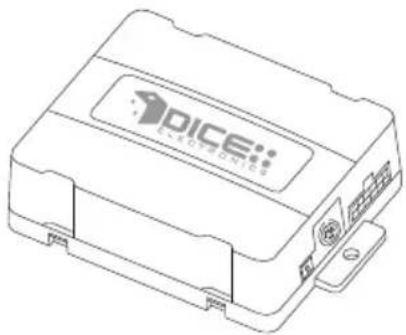
natural_image
Line drawing of a DICE Electronics device casing with no visible text or symbols on the body (pure technical lines)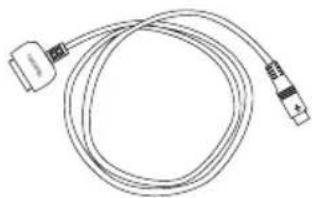
natural_image
Line drawing of a USB cable with connector (no text or symbols)
natural_image
Line drawing of a multi-core cable with connectors and connectors (no text or symbols)Supported iPod models and firmware version requirements
FW:3.1.1

iPod
4th generation 20GB 40GB
FW:1.2.1

iPod
5th generation (video) 30GB 60GB 80GB
FW:1.3.1

iPod nano
1st generation 1GB 2GB 4GB
FW:1.2.1

iPod
4th generation color display 20GB 30GB 40GB 60GB
FW:1.4.1

iPod mini 4GB 6GB
FW:1.1.3

iPod nano
2nd generation (aluminum) 2GB 4GB 8GB
FW:1.0.3
iPod classic 80GB 160GB
FW:1.0.3

iPod nano 3th generation (video) 4GB 8GB
FW:1.1.1
iPod touch 8GB 16GB 32GB
For the latest firmware versions and models not listed, please contact your authorized dealer or DICE Electronics, LLC.
Dip switches
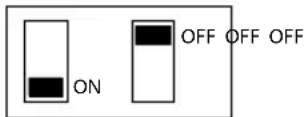
The configuration switches located on the DICE module are used to set the operation of the interface by the installer. Incorrect dip switch settings may cause the DICE interface not to work properly or not to operate at all. Disconnect the vehicle harness from module and cycle ignition off for 50 seconds after changing the switches!
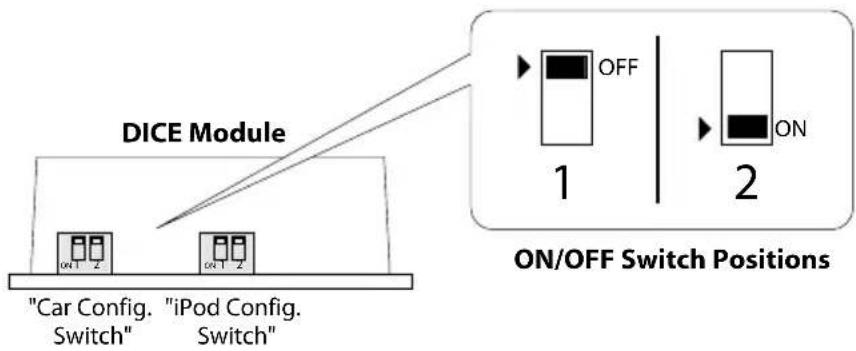
flowchart
graph TD
    A["Car Config. Switch"] --> B["iPod Config. Switch"]
    C["iPod Config. Switch"] --> D["iPod Config. Switch"]
    E["ON/OFF Switch Positions"] --> F["OFF 1"]
    G["ON/OFF Switch Positions"] --> H["ON 2"]
Dip switch settings
| Car configuration switches | |||
| Selected emulation | |||
| CD changer 1 CD changer 2 | |||
| Dip switch 1 | Dip switch 2 | Dip switch 1 D | ip switch 2 Dip |
| OFF OFF | ON OFF | ||
| Recommended forlate modelBusiness CD and Navigation radiosystems. | This setting is to be used onearlymodel Business CD and Businesscassette head units.This modeprovides slower text refreshing toallow flawless operation of theseradios.Note:The 1st buttonpress only clears the Text fromthe radio, the 2nd executes thecommand. | ||
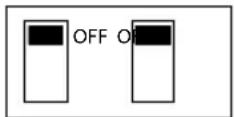
Default
| iPod configuration switches | |||
| Selected emulation | |||
| "Locked" "iPod" | |||
| tch 1 Dip switch | ch 2 Dip switch | 1 Dip switch | 2 |
| OFF OFF | ON ON | ||
| It is best selected when Text display is supported by the radio. After connecting the iPod you will see the DICE logo on the screen. After the initialization the iPod will be locked for an increased interface functionality. | It is best selected when Text display is not supported by the radio. Track numbers and times are not synchronized between the iPod and radio. Because there is less data transfer between the iPod and radio, this mode has the fastest response time. Content is selected on the iPod. | ||
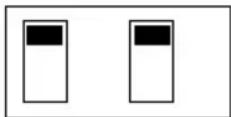
Default
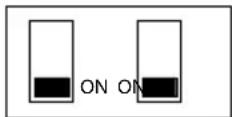

Installation
Installation should only be performed by a qualified professional. Beware of sharp edges to avoid injury and exercise caution when removing trims as they may break. The module should be placed at an accessible location to allow AUX cable to be connected, such as in the glove box, the center consoles, under the front seat or in the trunk.
1 Pull vehicle into service bay.
2 Open trunk and access trunk area.
3 Disconnect both battery terminals. These cables must be disconnected during installation to ensure proper initialization of the DICE module when it is connected.
4 CD changer cable will be on left hand side on most models (in trunk).
Some models are different:
X3 CD Changer cable is located underneath carpeting under the center console.
Z4 CD Changer interface is located between seats, underneath subwoofer.
Mini Cooper/Cooper S CD Changer interface is located on right hand side of vehicle (trunk area).
5 Remove carpet and side cover to gain access to CD Changer BUS harness. If CD Changer is present, it will need to be disconnected and/or removed.

During installation, make sure that the 3 pin connector from the vehicle does not have a brown wire in the middle. The 3 pin connector of the phone pre-wiring is identical looking to the 3 pin connector of the CD changer pre-wiring! Do not use the 3pin connector that has a brown wire in the middle, but locate the one that has the brown wire on the side! Incorrect connection will result in permanent damage to the unit and will not be covered by warranty!
6 Locate both the 3-pin & 6-pin connectors in the trunk area. If the CD Changer is present, disconnect the cables and set aside. If no CD Changer is present, the cables will be bundled and tucked away in the rear trunk area.

Some vehicles will have the CD Changer wiring in a protective sheath which may make it more difficult to locate. Cars sold outside the USA may not be pre-wired for trunk install.
7 Connect both 3-pin and 6-pin cables to the BMW specific harness.
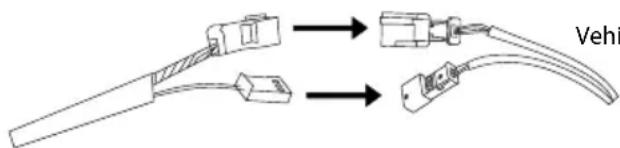
text_image
VehiVehicle specific harness3-pin and 6-pin BMW cable

8 Fold down rear seats (if applicable) and route the 5m extension cable to the rear seat bottom cushion.
9 Remove bottom seat cushion by lifting up and route wiring underneath.
10 Route the remainder of the interface cable in the best possible location (e.g. under the door sill or under the drivers seat.
11 Connect the vehicle specific connector and the iPod docking cable to the module. Apply cable ties to secure the cables.
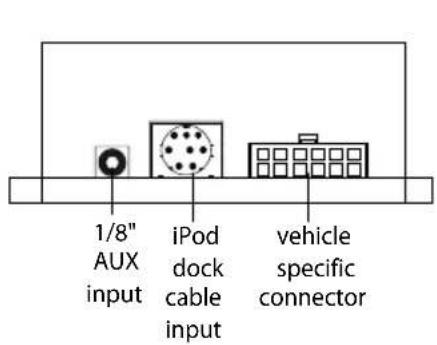
text_image
1/8" AUX input iPod dock cable input vehicle specific connector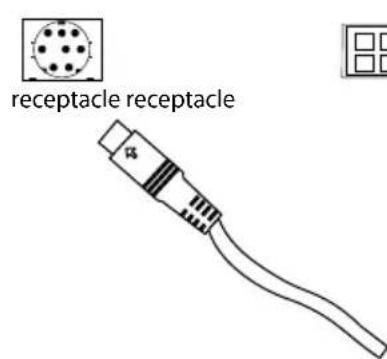
text_image
receptacle receptacle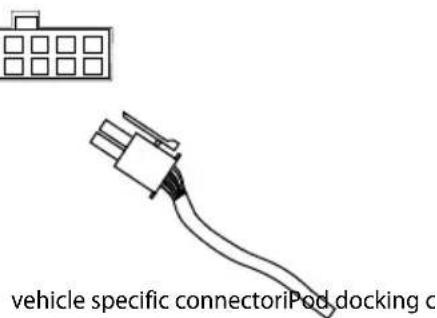
text_image
vehicle specific connectoriPod docking cDSP integration
If your vehicle has Digital Signal Processing (DSP), the purchase of a DICE DSP kit may be necessary.
To see if your vehicle has DSP look for a bare metal coax cable and a 3-pin connector. If you don't find a coax cable and find a 6-pin connector along with a 3-pin connector, your vehicle doesn't need this DSP kit.
Connector location
| 3-pin connector | [CVHHV] |
| DSP amplifier | [CBBB] |
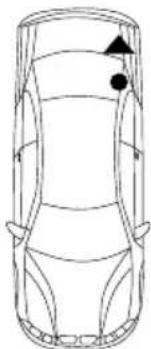
natural_image
Top-down line drawing of a car with directional arrows and a black dot on the side (no text or symbols)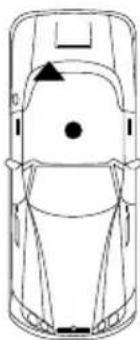
natural_image
Top-down line drawing of a car viewed from the side, showing front and rear views with no text or symbols.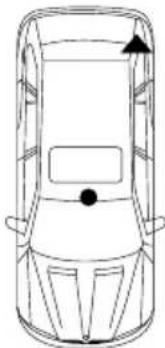
natural_image
Top-down line drawing of a car viewed from the side (no text or symbols)BMW 5 series and X5 BMW Z4 BMW X3
iPod audio source
Text display settings
Make sure to select the appropriate text display setting during the initial setup of the DICE kit. To configure text display on BMW radios, press DISC 6 then select a Track number that corresponds to the designated display:
| Track # | Text Displayed On | Application | Characters |
| 99 | No Text | All | ---- |
| 01 | Radio | 3-Series/Z3/Z4/X3/'04-K1200 | 12 |
| 02 | Navigation | All with nav. | 15 |
| 03 | Cluster/OBD | 5-Series/7-Series/X5 w/o nav. | 20 |
| 04 | MID | alternate for 5-Series/7-Series/X5 | 11 |
| 05 | Alternate Location | All with nav. | 8 |
| 06 | Alt Locat.(large font) | All with nav. | 8 |
| 07 | Resume Text | Use if text does not resume after phone call | ---- |
| 08 | Motorcycle | 05+ K1200 | 12 |
| 09 | No Text | All | ---- |
iPod hierarchy
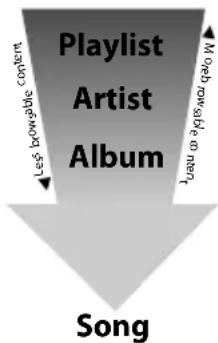
By default, the interface creates a Playlist having a name that is the same as the name of the iPod. This Playlist is the very first on the list of Playlists shown while browsing in Playlist mode. This Playlist contains all the songs on the iPod. Once another Playlist is active an Artist may be selected within that Playlist using the Artist Mode. Albums by the selected Artist and within the selected Playlist may be selected in Album Mode. "ALL ARTIST" and "ALL ALBUM" designate all available content in those categories.
text_image
Playlist Artist Album Les bposable content Laqu ou agyis, non qualique My play SongCharging
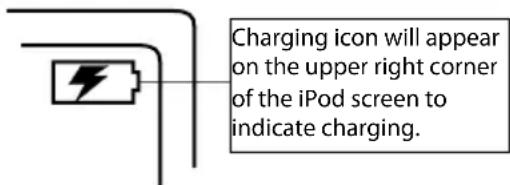
The interface automatically charges the battery of the iPod when connected and the key is in the ACC/ON position.
text_image
Charging icon will appear on the upper right corner of the iPod screen to indicate charging.Operating the interface
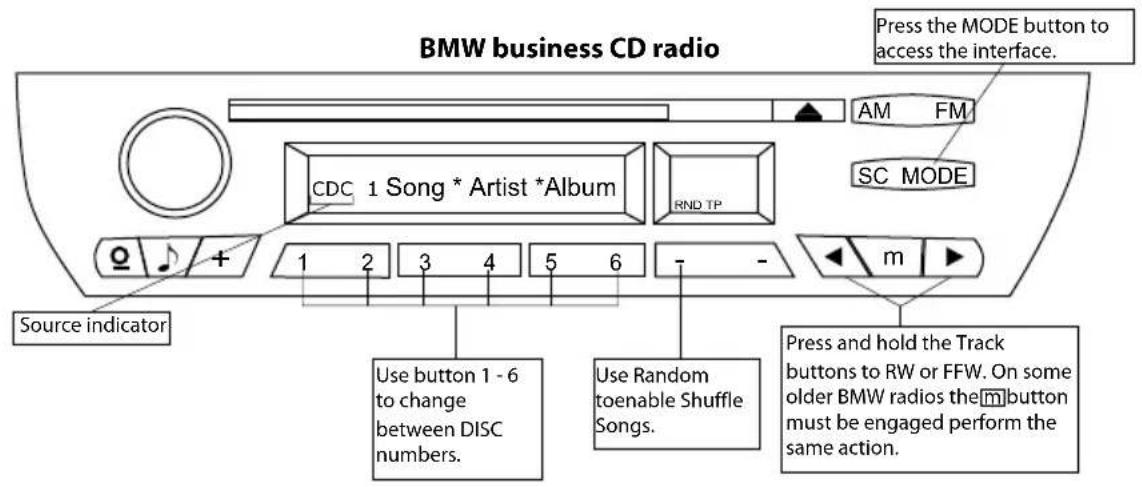
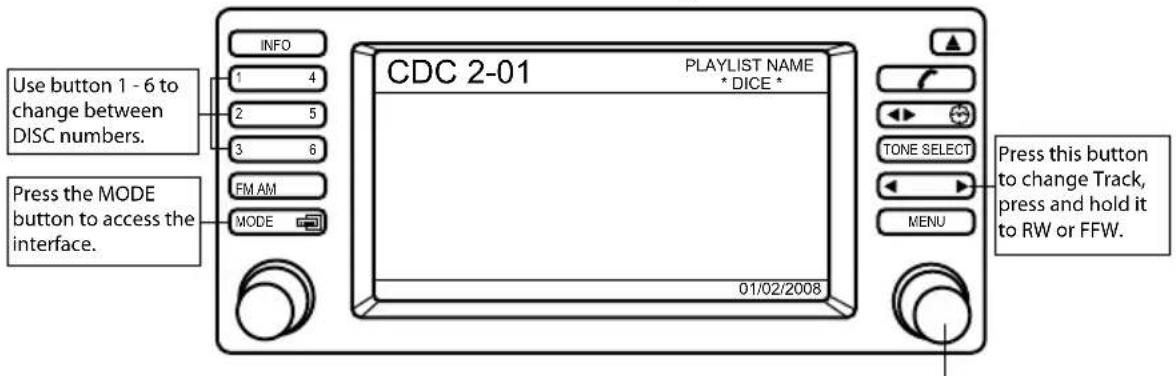
Press the MODE button to access the DICE interface for iPod and its features. Pressing this button repeatedly will cycle through sources present in your vehicle. When the iPod audio source is active (DISC 5, Track 1), use the Track button to select next/previous Song.
text_image
BMW business CD radio Press the MODE button to access the interface. AM FM CDC 1 Song * Artist *Album RND TP SC MODE Q + 1 2 3 4 5 6 - - m Source indicator Use button 1 - 6 to change between DISC numbers. Use Random to enable Shuffle Songs. Press and hold the Track buttons to RW or FFW. On some older BMW radios the m button must be engaged perform the same action.BMW radio with Navigation
text_image
USE button 1 - 6 to change between DISC numbers. Press the MODE button to access the interface. INFO 1 4 2 5 3 6 FM AM MODE CDC 2-01 PLAYLIST NAME * DICE * TONE SELECT MENU Press this button to change Track, press and hold it to RW or FFW. 01/02/2008Turn the jog dial to change Track. Note that a 9 second timeout is engaged once any of the alternate display buttons are pressed. If exiting from any of these sub-screens without waiting for the normal timeout, you MUST wait for 9 seconds before being able to use the jog dial again to navigate content.
DICE Silverline browsing function - DISCS
The DICE Silverline integration kit features content browsing. After connecting the iPod, select the desired browsing mode by pressing the appropriate DISC button. Press or turn the Track button repeatedly to browse contents; 1 second after releasing the button, your selection is executed.
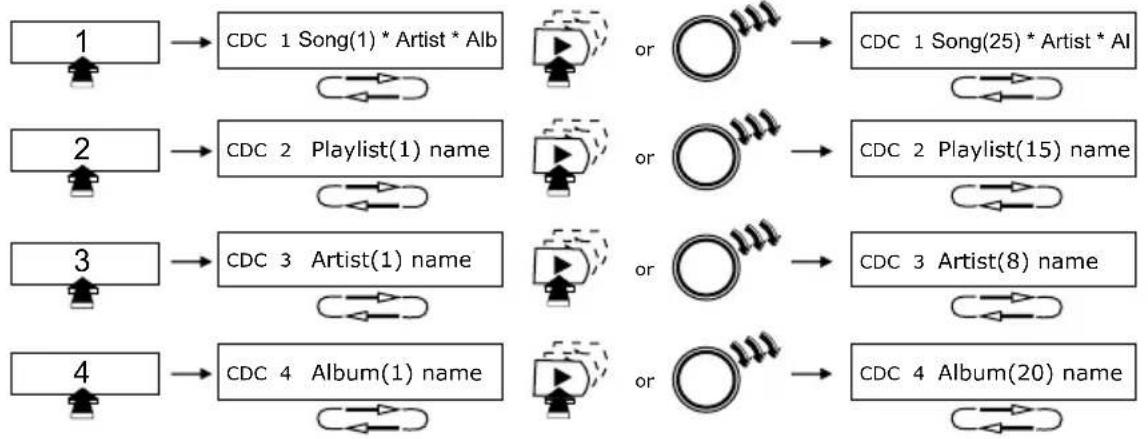
flowchart
graph LR
    A["1"] --> B["CDC 1 Song(1) * Artist * Alb"]
    C["2"] --> D["CDC 2 Playlist(1) name"]
    E["3"] --> F["CDC 3 Artist(1) name"]
    G["4"] --> H["CDC 4 Album(1) name"]
    B --> I["or"]
    D --> J["or"]
    F --> K["or"]
    H --> L["or"]
    I --> M["CDC 1 Song(25) * Artist * AI"]
    J --> N["CDC 2 Playlist(15) name"]
    K --> O["CDC 3 Artist(8) name"]
    L --> P["CDC 4 Album(20) name"]
In DISC 5, you can select the audio source (iPod/AUX1), in DISC 6, you can set Text display and view firmware version information.
Auxiliary audio source
Connections
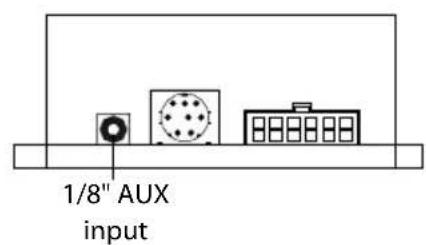
The interface is equipped with a 1/8" AUX jack connection to connect an auxiliary device, such as an MP3 player, DVD player or other audio source. To access the AUX audio source, select DISC 5, Track 2 or Preset 5, Channel 2.
text_image
1/8" AUX input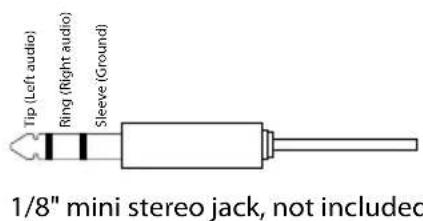
text_image
Tip (Left audio) Ring (Right audio) Sleeve (Ground) 1/8" mini stereo jack, not includedMaking the adjustments
While listening to the auxiliary device, adjust the volume (gain), bass, mid and treble by turning the Tune dial or pressing the Seek button. DISC/Preset 1-4 modes select what adjustment the Tune/Seek buttons perform. See illustration on page 20.
AUX Source Settings
The auxiliary input has settings for gain, bass, mid and treble in order to optimize sound.
Volume (Gain) should be adjusted if the audio level from the auxiliary device is too low or to high. If you hear distorted audio while playing the auxiliary device, you need to reduce (-) the gain. If you notice that the audio is too quiet then the gain setting should be increased (+). Default settings are "50" ("68" for gain) and values may be adjusted in increments between 01-99. Bass, Mid and Treble should be adjusted to compensate for the acoustic presets of the radio.
Note: If you are using an AUX device that is using the vehicle's power source and not its own battery, you may have to use a GROUND-LOOP isolator to avoid grounding and engine noise.
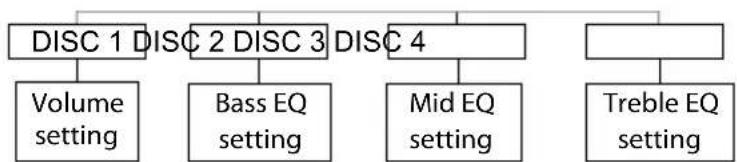
flowchart
graph TD
    A["DISC 1"] --> B["Volume setting"]
    C["DISC 2"] --> D["Bass EQ setting"]
    E["DISC 3"] --> F["Mid EQ setting"]
    G["DISC 4"] --> H["Treble EQ setting"]
Troubleshooting
| Problem Solution | |
| Cannot select CD changer source. | Check DIP switch settings (refer to p.9). With the ignition OFF disconnect vehicle harness from module for 50 |
| Radio/NAV display only shows DISC and Track number, but there is no iPod control. | Select DISC 5 and make sure it is set to Track 01. |
| Radio/ steering wheel controls do not operate iPod. | Reset iPod and make sure most recent iPod firmware is installed. |
| No text display. | Make sure DIP switch settings are correctly set for text display. (Refer to p.9 for dip switch settings.) Note that early model Mini Cooper vehicles do not support Text. |
Troubleshooting
| Problem Solution | |
| No audio from iPod source. Reset the iPod. | |
| iPod does not charge. Check all connections. See if iPod | charges while connected to computer or wall charger. |
| Music is distorted or sound level is too low. Check and make sure all EQ and BASS boost options are turned off on your iPod. | |
| Correct DIP switch settings, but still no text display. Select | DISC 6 to set text output to the correct location. (Refer to p.14 for Text display settings.) |
Disclaimer and warranty
Important disclaimer, please read!
Unauthorized reproduction or reverse engineering is strictly prohibited! Intellectual property included is distributed under specific license agreement with respective owners and is licensed only, not sold. No warranty, explicit or implied, is stated. Neither DICE Electronics, LLC., nor any of its agents, distributors, dealers or vendors shall be liable for damages.
IN NO EVENT SHALL DICE ELECTRONICS' LIABILITY EXCEED THE PRICE PAID FOR THE PRODUCT FROM DIRECT, INDIRECT, SPECIAL, INCIDENTAL, OR CONSEQUENTIAL DAMAGES RESULTING FROM THE USE OF THE PRODUCT, ITS ACCOMPANYING SOFTWARE OR ITS DOCUMENTATION.
Warranty and Support
Products carry a 90 day limited warranty that protects you from defects in material and workmanship of products sold by DICE Electronics, or its authorized agents, distributors and dealers. The warranty period begins the day product is purchased by the end user. Product found to be defective during the warranty period or period by Electronic charge unless warranty is void.
Unauthorized attempt of repair or alteration of the product in any way immediately voids this warranty. Warranty does not extend to cosmetics or finish. A DICE product specialist must determine that defect is present in the product and issue an RMA. Be sure that all wiring is connected as described in the user manual and all related equipment is functioning properly. DICE Electronics disclaims any liability for other incurred damages resulting from product defects. Any expenses in the removal and reinstallation of products are not covered by this warranty.
If experience any problems or need help, please contact your local dealer or call 888-342-3999 , or visit our support site at http://www.diceelectronics.com/support.

DICE:
ELECTRONICS
BMW/Mini Cooper compatible integration for iPod
www.diceelectronics.com
BMW-iPod 2008-02
SILVERLINE