ManualGo.com
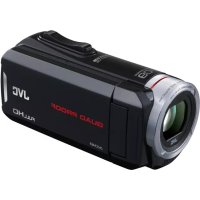
GR-DVP7 - Camcorder JVC - Free user manual and instructions
Find the device manual for free GR-DVP7 JVC in PDF.


Download the instructions for your Camcorder in PDF format for free! Find your manual GR-DVP7 - JVC and take your electronic device back in hand. On this page are published all the documents necessary for the use of your device. GR-DVP7 by JVC.
USER MANUAL GR-DVP7 JVC
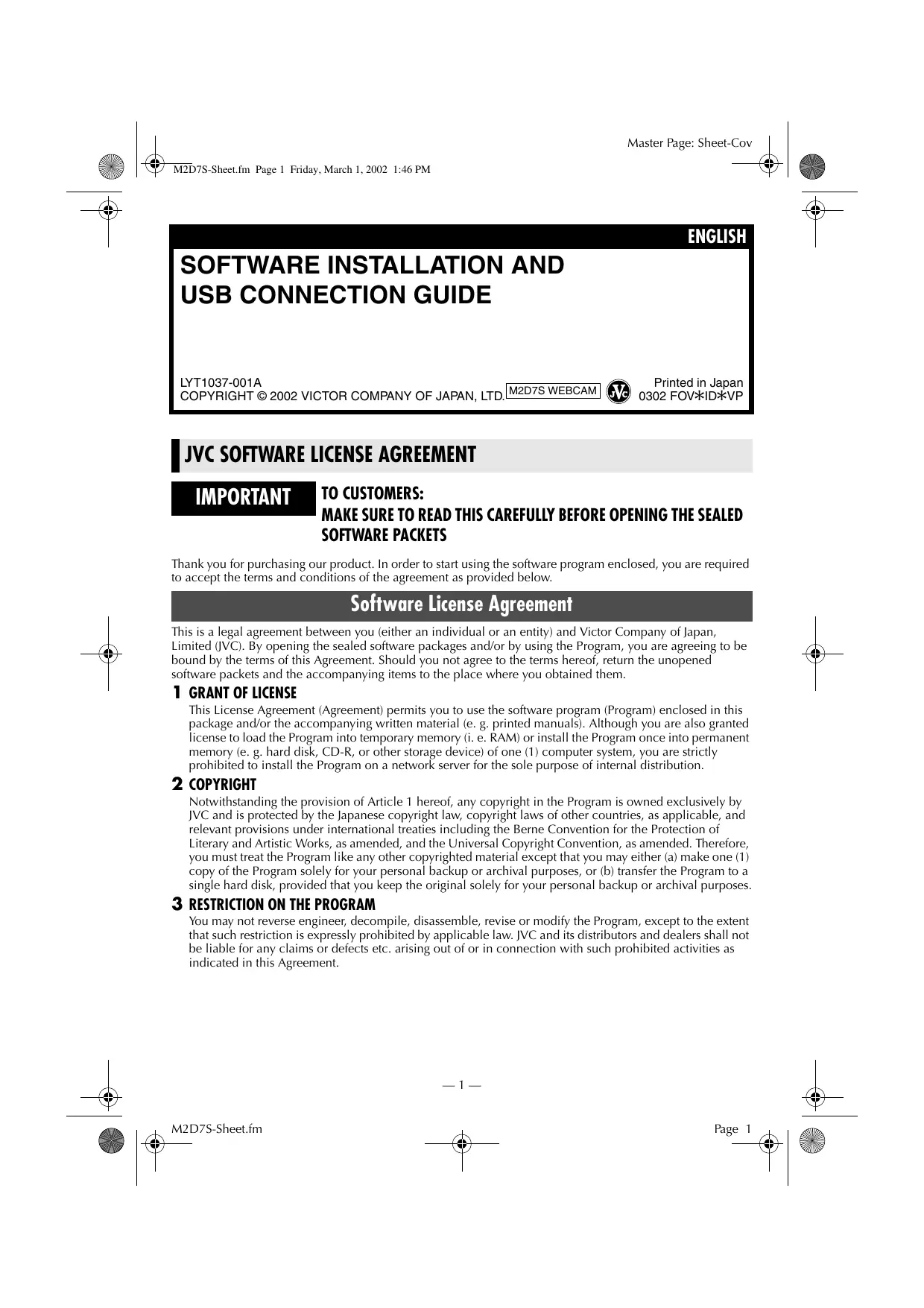
lc SOFTWARE LICENSE AGREEMENT IMPORTANT RGO MAKE SURE TO READ THIS CAREFULLY BEFORE OPENING THE SEALED SOFTWARE PACKETS Thank you for purchasing our product. In order to start using the software program enclosed, you are required to accept the terms and conditions of the agreement as provided below. Software License Agreement This is a legal agreement between you (either an individual or an entity) and Victor Company of Japan, 7" Limited (VC). By opening the sealed software packages and/or by using the Program, you are agreeing to be 7" / bound by the terms of this Agreement. Should you not agree to the terms hereof, return the unopened / software packets and the accompanying items to the place where you obtained them.
This License Agreement (Agreement) permits you to use the software program (Program) enclosed in this package and/or the accompanying written material (e. g. printed manuals). Although you are also granted license to load the Program into temporary memory (i. e. RAM) or install the Program once into permanent memory (e. g. hard disk, CD-R, or other storage device) of one (1) computer system, you are strictly prohibited to install the Program on a network server for the sole purpose of internal distribution. 2 COPYRIGHT Notwithstanding the provision of Article 1 hereof, any copyright in the Program is owned exclusively by JVC and is protected by the Japanese copyright law, copyright laws of other countries, as applicable, and relevant provisions under international treaties including the Berne Convention for the Protection of Literary and Artistic Works, as amended, and the Universal Copyright Convention, as amended. Therefore, you must treat the Program like any other copyrighted material except that you may either (a) make one (1) copy of the Program solely for your personal backup or archival purposes, or (b) transfer the Program to a single hard disk, provided that you keep the original solely for your personal backup or archival purposes.
3 RESTRICTION ON THE PROGRAM
You may not reverse engineer, decompile, disassemble, revise or modify the Program, except to the extent that such restriction is expressly prohibited by applicable law. JVC and its distributors and dealers shall not be liable for any claims or defects etc. arising out of or in connection with such prohibited activities as indicated in this Agreement.
Master Page: Right NS 5 y | 7 M2bs-Sheertim Page 2 Monday, January 28, 2002 3:00 PM SA Æ OTHER RESTRICTIONS You may not rent, lease or transfer the Program to any third party nor let such à party use the Program 5 LIMITED WARRANTY JVC warrants that any media in which the Program is embodied (e.g. floppy discs, CD-ROM, etc.) are free from any defects in materials and workmanship for a period of thirty (30) days from the date of your purchase and that any hardware accompanying the Program is also free from defects to the extent provided in the attached Warranty Form. JVC entire liability and your exclusive remedy in connection with the Program shall be, at JVC option, either (a) return ofthe price paid, or (b) replacement of defective Program media.
You are permitted by PIXELA, Inc., according to the following use consent conditions of this use consent contract (henceforth, “this contract”) to the nonexclusive, nontransferable right to use the software program thenceforth, “this program”) and its add-ons, such as the user guide. Consented matter You are granted the nonexclusive, nontransferable right to install and use one copy of this program on à single computer. The primary user of this program may copy parts thereof for backup purposes, with all usage rights, as set forth in this contract, remaining exclusive to the primary user. Prohibited matter This program cannot be used on a network. When it is used by two or more computers on à network, a royalty is required to be paid to PIXELA, Inc. for each additional computer. Third person use or the use of this program by the method of re-use consent, transfer, distribution, loan, or others, is not allowed. You may not correct, alter, reverse engineer, decompile, or disassemble all or part of this program. You may not allow a third person to perform such an act. Termination of contract When a customer reproduces this program or its add-ons without permission or breaks the above- mentioned consent conditions, this contract is automatically terminated, and other legal action may be taken by PIXELA, Inc. Upon termination of this contract, this program, its add-ons, and all duplicates thereof, shall be returned to PIXELA, Inc., or abandoned. NS SA 4, M2D7S-Sheet.fm
É 7 M2D7S-Sheetfm Page 3 Monday, January 28, 2002 3:00 PM Guarantee and exemption from responsibility This program, its add-ons, and the productions thereof, may not conform to your specific purpose, notwithstanding any representations, express or tacit. Moreover, PIXELA, Inc. does not guarantee that the functions of this program will agree with your needs, or that there are neither discontinuities nor errors in the functions of this program. PIXELA, Inc. does not take any responsibility for direct or indirect loss or damage accompanying or related to the use of this program, nor for any disputes arising between the customer and any third party related to use of this program or caused by this program. CAUTION: e Operate this equipment according to the operating procedures described in this manual. + Use only the provided CD-ROM. Never use any other CD-ROM to run this software. © Do not attempt to modify this software. Changes or modifications not approved by JVC could void user authority to operate the equipment. How to handle a CD-ROM e Take care not to soil or scratch the mirror surface (opposite to the printed surface). Do not write anything or put a sticker on either the front or back surface. If the CD-ROM gets dirty, gently wipe it with a soft cloth outward from the center hole using a circular motion. e Do not use conventional disc cleaners or cleaning spray. + Do not bend the CD-ROM or touch its mirror surface. e Do not store your CD-ROM in a dusty, hot or humid environment. Keep it away from direct sunlight «You can find the latest information (in English) on the provided software program at our world wide web server at http://www.jve-victor.co.jp/english/index-e.html I Notice for Users Use of this software is authorized according to the terms of the software license. When contacting the nearest JVC office or agency in your country about this software (refer to the JVC Worldwide Service Network at httpz/www.jve-victor.co.jp/englishAvorldmap/ndex-e.htmi), please fill out the following and have the appropriate information ready. Product Name Model Problem Error Message Manufacturer Model ODesktop [CJlaptop CPU
Memory MB Available Hard Disk Space MB Please note that it may take some time to respond to your questions, depending on their subject matter. JVC cannot answer questions regarding basic operation of your PC, or questions regarding specifications or performance of the OS, other applications or drivers.
Master Page: Right Ni Ni L: 6 Ÿ7 M2D7S-Sheet.fm Page 4 Friday, March 1, 2002 2:10 PM 4 I Operating Environment A camcorder can be connected to a PC that satisfies the following requirements. Windows® os 2 Windows® 98 (pre-installed), Windows® 98 Second Edition (98SE) (pre-installed), Windows® Millennium Edition (Me) (pre-installed), or Windows® 2000 Professional (pre-installed) {Operation is not guaranteed on a PC that has been upgraded from Windows® 95.) CPU :_ Intel MMX® PentiumP, at least 200 MHz RAM : At least 64 MB recommended Free hard disk space: At least 10 MB for installation, at least 500 MB recommended Connector : USB connector Display : Must be capable of displaying 800 x 600 dots with 16-bit color ATTENTION: ndows XP Users: Please visit http://www.jve-victor.co.jp/english/download/index-e.html for additional information mFor ImageMixer In addition to the requirements above, the following requirements must be satisfied to use ImageMixer. os :_ The same as above requirements. However, Windows” 98 cannot be used when you connect a camcorder to the PC with a USB cable. L. Windows” 98, Windows” 98$SE cannot be used when you connect a camcorder to the PC with a IEEE 1394 (DV) cable. CPU 2 For capturing video via a USB cable or IEEE1394 (DV) cable, Intel Pentium III°, at least 500 MHz, at least 800 MHz recommended Free hard disk space: At least 250 MB for installation, at least 1 GB recommended Connector : 1EEE1394 (i.LINK) connector Macintosh Hardware : iMac, iBook, Power MacintoshG3, Power MacG4, Power BookG3 or G4 equipped with a USB connector os : Mac OS 9.0.4 to 9.1 RAM : At least 64 MB recommended Free hard disk space: At least 100 MB for installation, at least 1 GB recommended Miscellaneous : QuickTime 4 or later The system requirements information above is not a guarantee that the provided software will work on all personal computers meeting those requirements. « Microsoft® and Windows” are either registered trademarks or trademarks of Microsoft Corporation in the United States and/or other countries. « Macintosh is a registered trademark of Apple Computer, Inc. « Other product and company names included in this instruction manual are trademarks and/or registered trademarks of their respective holders. NS SA 4, M2D7S-Sheet.fm
5 | MD7S-Sheertm Page 5 Monday, January 28, 2002 3:00 PM Ï Software Installation (Windows®) Follow the procedure described below to install the software. Quit any other software you are using, (Check that there are no other application icons on the status bar.) T Load the provided CD-ROM in the PC. After a moment, the [Setup] screen appears. © Ifthe [Setup] screen does not appear, double-click [My Computer] and then double-click the CD-ROM icon. From the [Setup] screen, you can install the following softwares. USB Mass Storage Class driver This driver allows your PC to read and write memory cards in the camcorder. NOTE: Be sure not to connect the USB cable between the camcorder and the PC before installing the driver. USB Stream driver This driver allows you to record camcorder audio and video output on your PC's hard disk instead of camcorder's video tape. You can also use the camcorder to conduct a video conference over the Internet. NOTE: Be sure not to connect the USB cable between the camcorder and the PC before installing the driver. PIXELA ImageMixer 1.0 This application is used to capture still images and video clips from a camcorder through a USB connector or IEEE1394 (i.LINK) connector, and is also used to manage and edit the still images and video clips. Digital Photo Navigator 1.0 This application is used to capture still images and convert them into a variety of formats. G.726 decoder This is an audio decoder for video clips created by the camcorder (extension “.asf”). Adobe” Acrobat” Reader 5.0 This application is used to read PDF files. 2 Click [Install] on the right side of the desired software. {The following is the example of Digital Photo Navigator.) ILicense Agreement] screen appears. En GE) Pr hePRGE Diane rt aprem tri Em rene ae CS RE a pr mt Dove am mega Aer Mavconre CES es DE 7 Click [Yes].
Master Page: Right É 1 M2D7S-Sheet.fm Page 6 Monday, January 28, 2002 3:00 PM É Then, [Choose Destination Location] screen appears. nr ais Click INext]. Next, [Select Program Folder] screen appears. Sonore lé Click [Next]. ISetup Status] screen appears. Wait for a moment until the installation is finished. When the installation is finished, [Digital Photo Navigator Setup] screen appears and asks you if you want to create the icon on the desktop. If you need it, click [Yes]. If not, click [Nol.
Master Page: Right NS 5 Si | 7 Mobis-sheefm Page 7 Monday, January 28, 2002 3:00 PM SA 3 When the message asking whether it is OK to restart the PC appears, click [Yes]. The PC restarts, and after a moment the [Setup] screen from step 1 appears. 4 Repeat steps 2 and 3 to install all of the desired software. Installing [PIXELA ImageMixer 1.0] When the error message below appears while installing ImageMixer, click [OK] to complete installation. nagement Client Updates (x} Command line option syntax error, Type Command /? for Help NOTES: © The Digital Photo Navigator and PIXELA ImageMixer instruction manual is included on the CD-ROM in PDF format. Double-click the [JVC] folder and then double-click the [Docs] folder. Open the “Start.pdf” file and click the button of the desired language. Note that Adobe” Acrobat” Reader must be installed to read PDF files. © For details on how to use Windows® NetMeeting” or iVisit, refer to “Appendix” in the Digital Photo Navigator instruction manual on the CD-ROM. e When installing the [PIXELA ImageMixer 1.0], select the desired language in the [Choose Setup Language] screen. ef you perform installation of a software that is already installed, uninstallation will start. In this case, perform the installation again after uninstallation is finished. e When you install USB Stream driver with Windows” 2000, a warning message dialog box on digital signature may appear. In this case, click [OK] to continue installation because this problem has no effect on the use of the driver. NS SA 4, M2D7S-Sheet.fm
Master Page: Right Ni Ni L ls Ÿ7 M2D7S-Sheet.fm Page 8 Monday, January 28, 2002 3:00 PM 4 4 À Ï Updating [Device Manager] (Windows®) If the camcorder is connected to the PC with the USB cable before installing [USB Mass Storage Class driver] or [USB Stream driver], the installation might not be performed properly. In this case, follow the procedure described below to update the [Device Manager] and install [USB Mass Storage Class driver] and [USB Stream driver] properly. NOTE: Disconnect any other USB audio devices from PC before performing the following procedure. Installing [USB Mass Storage Class driver] T Use the USB cable to connect the camcorder to the PC. (7 pg. 9) 2 Select [Start] - [Settings] — [Control Panel]. Double click the [System] icon. 3 Windows® 98SE/Me: Select the [Device Manager] tab. Windows® 2000: Select the [Hardware] tab and click [Device Manager]. 4 Delete [DV camera] or [JVC] in [Other devices]. 5 Disconnect the USB cable from the camcorder. Restart the PC. 6 Load the provided CD-ROM in the PC. Install [USB Mass Storage Class driver]. ( Z Use the USB cable to connect the camcorder to the PC. Device driver is installed. 8 Confirm the [Removable Disk] icon is displayed in [My Computer]. Installing [USB Stream driver] T Use the USB cable to connect the camcorder to the PC. (7 pg. 9) 2 Select [Start] - [Settings] — [Control Panel]. Double click the [System] icon. 3 Windows® 98SE/Me: Select the [Device Manager] tab. Windows® 2000: Select the [Hardware] tab and click [Device Manager]. 4 Delete [USB Audio devices] in the [Sound, video and game controllers]. + Delete [DV camera] or [JVC] in [Other devices]. 5 Disconnect the USB cable from the camcorder. Restart the PC. 6 Load the provided CD-ROM in the PC. Install [USB Stream driver]. (7 pg. 5) Z Use the USB cable to connect the camcorder to the PC. Device driver is installed. e Windows” 2000: When a warning message dialog box on digital signature appears, click [OK] to continue installation. 8 Confirm the following devices are displayed in [Device Manager] by performing steps 2 - 3. © UVC Web Camera] in [Imaging Devices] © IVC DVCamera USB Microphone] in [Sound, video and game controllers| NS SA M2D7S-Sheet.fm Page 8 J @ + ; TT: LA LA LA
Master Page: Right Ni Ni L ls KŸ7 M2D7S-Sheet.fm Page 9 Monday, January 28, 2002 3:00 PM 4 Ï Connections (Windows Connecting the USB cable Connect the USB cable to copy still image and video clip files in a memory card to the PC or to use ImageMixer in capturing video in real time.
To USB connector To USB connector Cars (Il Camcorder USB cable 7/20 T Do assure safety, make sure all units are turned off before making any connections. 2 Use the USB cable to connect the camcorder to the PC. e We recommend that you use the AC Adapter. NOTES: e When the USB cable is connected, turning on or off the camcorder or switching the VIDEO/MEMORY mode on the camcorder causes malfunctions of the PC. el you connect the camcorder to the PC through a USB hub, compatibility issues betveen the hub and the PC may result in instability in the operation of the PC. Ifthis happens, connect the camcorder directly to the PC, not through the hub. e Do not use an extension USB cable. Connecting the DV cable Connect the DV cable to use ImageMixer in capturing video from tape. ‘To IEEE1394 To DV connector connector LE else DV cable
T Do assure safety, make sure all units are turned off before making any connections. 2 Use the DV cable to connect the camcorder to the IEEE1394 connector on the PC. e We recommend that you use the AC Adapter. NOTE: When the DV cable is connected, turning on or off the camcorder or switching the VIDEO/MEMORY mode on the camcorder causes malfunctions of the PC. NS SA
5 | 7 MDs-Sheerfm Page 10 Thursday, January 3 Avicving the Contents of a Memory Card (Windows® 1,2002 1:21 PM T install [USB Mass Storage Class driver]. (7 pg. 5) 2 Connect the camcorder to the PC with a USB cable. (: pg. 9) 3 Make sure that there is a memory card in the camcorder. 4 Set the camcorder to the memory card playback mode. e Refer to the camcorders instruction manual for details. IUSB MODE] appears on the camcorder's LCD monitor. 5 Double-click the [My Computer] The [Removable Disk] icon whicl memory card in the camcorder appears in the [My Computer] window. NOTE: icon on the desktop. h represents the IRemovable Disk] icon does not appear if USB Mass Storage Class driver is notinstalled properly. In this case, refer to “Updating [Device Manager] (Windows°®)" € pg. 8).
Double-click the [Removable Disk] icon. Master Page: Right
The following folders are automatically created in the memory card. Different file types are stored in different folders.
Removable Disk (E:) Still images 1 © © ©
+ — Sound effects DEL Still images {extension “.jpg") Video clips {extension “asf”) Sound effects {extension “mp3” [T00JVCGR] Folders within the [DCIMI folder Folders within the [DCVI] folder folder within the [DCSD] folder Video clips e The [DCSDI folder is displayed only when the camcorder is equipped with Digital Sound Effects function and sound effects is stored in the memory card. NOTES: «Saving the wrong kind of files in a memory card or deleting files or folders from à memory card can cause problems with the operation of the camcorder. When it is necessary to delete à file from a memory card, delete it through the camcorder. e Never disconnect the USB cable while the message [ACCESSING FILES] is displayed on the camcorder's LCD monitor. e lé you are using a brand new memory card, you need to initialize the memory card with the camcorder first. You may not be able to copy files from the memory card to the PC without doing so. For owners of camcorders equipped with Digital Sound Effect functon; The CD-ROM contains digital sound files (data saved on the provided memory card at the factory). When the memory card has been formatted, follow the step below to save the files on the memory card. + Copy the “DCSD” folder on the CD-ROM into the root directory (volume) of the memory card 4, M2D7S-Sheet.fm
Master Page: Right Ni Ni L ls Ÿ7 M2D7S-Sheet.fm Page 11 Monday, January 28, 2002 3:00 PM 4 4 À Jcopving Files to the PC (Windows®) Still image and video clip files that are stored in a memory card can be copied to the PC and played back on the PC. À Double-click the [My Computer] icon on the desktop. ——— If the camcorder is connected to the PC correctly, the r DE IRemovable Disk] icon appears. 2 Double-click the [Removable Disk] icon. The folders in the memory card appear. 3 Double-click the destination folder. 4 Select the folder to be copied, and then drag and drop that folder in the destination folder. © To copy still images: Copy the folder within the [DCIM] folder. e To copy video clips: Copy the folder within the [DCVI] folder. The message [ACCESSING FILES] appears on the LCD monitor of the camcorder, and the folder is copied from the memory card to the PC. NOTE: a) Never disconnect the USB cable while the message IACCESSING FILES] is displayed on the camcorders LCD où monitor. Ï Playing Back Files on the PC (Windows®) Still images Use an application that can handle the JPEG file format. To view a still image, double-click the still image file {extension jpg”). Video dips (Only for the camcorder equipped with E-Mail Use the Windows Media Player (version 6.4 or later). You can download the Windows Medial* Player from the Microsoft web site at: http://www.microsoft.com/ If you cannot play back a video clip file (extension “.asf”) that you have opened with the Windows Media" Player, connect to the Internet and then try opening the file. The software that is needed in order to play back the file will be downloaded automatically, and then the file will be played back. If the video clip plays but without the audio, install the G.726 decoder from the CD-ROM.
Master Page: Right Ni Ni L ls Ÿ7 M2D7S-Sheet.fm Page 12 Monday, January 28, 2002 3:00 PM 4 4 À Ï Disconnecting the USB Cable (Windows®) Before loading or unloading memory cards or turning off the PC, first disconnect the USB cable and turn off the camcorder. When using Windows® 98/98SE 1 Confirm that the message [ACCESSING FILES] is not currently displayed on the LCD monitor of the camcorder. € Ifthe message [ACCESSING FILES] is currently displayed, wait until it disappears before proceeding, 2 Double-click the [My Computer] icon on the desktop. lfthe camcorder is connected to the PC correctly, the [Removable Disk] icon appears. 3 Right-click the [Removable Disk] icon in the [My Computer] window. À 3 menu appears. = Open 4 Click [Eject] in the menu. The [Removable Disk] icon disappears. sa e lfthe icon does not disappear, wait for a while, and then proceed to step 5. Connie 5 Disconnect the USB cable. Sberng © lfany message appears, click [OK]. Fomst 6 Set the Power Switch on the camcorder to “OFF”. Crete Short The camcorder turns of. —
When using Windows® 2000 /Me À Confirm that the message [ACCESSING FILES] is not currently displayed on the LCD monitor of the camcorder. à € Ifthe message [ACCESSING FILES] is currently displayed, wait until it disappears before proceeding, 2 Double-click the [Unplug or Eject Hardware] icon in the status bar. The [Unplug or Eject Hardware] dialog box appears. 3 Select JVC DV Camera Storage] or [USB Disk], and then click [Stop]. © Windows® 2000 © Windows® Me FE Fe {Sekect he device pou ment ta urphug or aire. and er Gick Stop When LA, Select he desice pou vent ta urplgareiret. and ben cick Stap When Vérone nobles ouai li sale loc 20 ump be device from your SZ Véredons node gouthal sale Lo da 30 np be cc ram your
The [Stop a Hardware device] dialog box appears.
ae dre fm Page 13 Friday, March 1, 2002 1:53 PM Master Page: Right
= A / 7 4 Click [OK]. © Windows" 2000 e Windows” Me z1x| x Cr dv be songe. Ce Oise Ce ds tobe pe ho ct. near apte na des, lits 28 Vedette pion ace Ah dec 25 esta Pare et esta De note eV [JVC DV Camers Secra0s [ÆFUSB Din IScers oime Gi Œuc Grau & QUE GA DUT US baie Cora Cl 5 A message indicating that the device can be safely removed appears. Click [OK]. 6 Disconnect the USB cable. Z Set the Power Switch on the camcorder to “OFF”. The camcorder turns off. I Connections (Macintosh) Connect the USB cable to copy still image and video clip files in a memory card to the PC or to use ImageMixer in capturing video in real time. To USB To USB Ÿ q 7 connector comnector = 7s USB cable T Do assure safety, make sure all units are turned off before making any connections. 2 Use the USB cable to connect the camcorder to the PC. e We recommend that you use the AC Adapter. NOTES: + When the USB cable is connected, tuming on or off the camcorder or switching the VIDEO/MEMORY mode on the camcorder causes malfunctions of the PC. © lf you connect the camcorder to the PC through a USB hub, compatibility issues between the hub and the PC may result in instability in the operation of the PC. If this happens, connect the camcorder directly to the PC, not through the hub. + Do not use an extension USB cable. 2 —13— ;
. M2D7S-Sheet.im Page 13 4
Master Page: Right Ni Ni L ls Ÿ7 M2D7S-Sheet.fm Page 14 Monday, January 28, 2002 3:00 PM 4 I Software Installation (Macintosh) Follow the procedure described below to install the software. Quit any other software you are using. T Load the provided CD-ROM into the PC. Double click the CD-ROM icon. 2 Double-click the [ImageMixer] folder in the CD-ROM. Imageher 3 Double-click the [Setup Menul icon. The installer starts up. 4 Select [USB Driver] or [PIXELA ImageMixer]. To install [USB Driver], click the [USB Driver] icon. To install [PIXELA ImageMixerl, click the desired language icon. Follow the instructions which appear on the screen. SetupMenu NOTES: © The PIXELA ImageMixer instruction manual is included on the CD-ROM in PDF format. Double-click the [Docs] folder. Open the “Start.pdf” file and click the button of the desired language. Note that Adobe” Acrobat” Reader must be installed to read PDF files. The Installer of Adobe® Acrobat” Reader is included within the [Reader] folder on the CD-ROM. e For details on how to use iVisit, refer to “Appendix” in the Digital Photo Navigator instruction manual on the CD-ROM Iviewing the Contents of a Memory Card (Macintosh) T Connect the camcorder to the PC with a USB cable. (7 pg. 9) 2 Make sure that there is a memory card in the camcorder. 3 Set the camcorder to the memory card playback mode. e Refer to the camcorder‘s instruction manual for details. [USB MODE] appears on the camcorder's LCD monitor. The memory card icon appears on the desktop. © The name of the memory card icon is “untitled”. We recommend that you name the icon to tell it from the other removable disks or folders.
Master Page: Right NS 5 Si | 7 MDrs-Sheetfm Page 15 Thursday, January 31, 2002 1:22 PM SA 4 Double-click the memory card icon on the desktop. The folders in the memory card appear. The following folders are automatically created in the memory card. Different file types are stored in different folders. Still images Sound effects Video clips | l | | Suntitied À HE fem, 1.5 MB avatabte oct 0050 ocvi + à Still images 2 Folders within the [DCIMI folder {extension “jpg”) Video clips 2 Folders within the [DCVI] folder (extension “.asf”) Sound effects 2 1100JVCGRI folder within the [DCSDI folder {extension “.mp3”) © The [DCSD] folder is displayed only when the camcorder is equipped with Digital Sound Effects function and sound effects is stored in the memory card L NOTES: « Saving the wrong kinds of files in a memory card or deleting files or folders from a memory card can cause problems with the operation of the camcorder. When it is necessary to delete a file from a memory card, delete it through the camcorder. © Never disconnect the USB cable while the message [ACCESSING FILES] is displayed on the camcorder's LCD monitor. © lf you are using a brand new memory card, you need to initialize the memory card with the camcorder first. You may not be able to copy files from the memory card to the PC without doing so. For owners of camcorders equipped with Digital Sound Effect functon; The CD-ROM contains digital sound files (data saved on the provided memory card at the factory). When the memory card has been formatted, follow the step below to save the files on the memory card. + Copy the “DCSD” folder on the CD-ROM into the root directory (volume) of the memory card —_15— 4, M2D7S-Sheet.fm Page 15 4 J
Master Page: Right Ni Ni L: 6 Ÿ7 M2D7S-Sheet.fm Page 16 Monday, January 28, 2002 3:00 PM 4 4 À I Copying Files to the PC (Macintosh) Still image and video clip files that are stored in a memory card can be copied to the PC and played back on the PC. 1 Double-click the memory card icon on the desktop. The folders in the memory card appear. 2 Double-click the destination folder. 3 Select the folder to be copied, and then drag and drop that folder in the destination folder. © To copy still images: Copy the folder within the [DCIM] folder. « To copy video clips: Copy the folder within the [DCVII folder. The message [ACCESSING FILES] appears on the LCD monitor of the camcorder, and the folder is copied from the memory card to the PC. NOTE: Never disconnect the USB cable while the message IACCESSING FILES] is displayed on the camcorders LCD monitor. I Playing Back Files on the PC (Macintosh) Still images Use an application that can handle the JPEG file format. To view a still image, either double-click the still image file (extension ”.jpg’), or drag and drop the file on the application icon Video dips (Only for the camcorder equipped with E-Mail Clip Recording function) > Use the Windows Media!" Player for Mac {version 6.4 or later). You can download the Windows Media" Player for Mac from the Microsoft web site at: http://www.microsoft.com/ I Disconnecting the USB cable (Macintosh) Before loading or unloading memory cards or turning off the PC, first disconnect the USB cable and turn off the camcorder. T Drop the memory card icon on the desktop into the [Trash] icon. e lfthe confirmation message appears, click [OK]. 2 Confirm that the message [ACCESSING FILES] is not currently displayed on the LCD monitor of the camcorder. e lfthe message [ACCESSING FILES] is currently displayed, wait until it disappears before proceeding. 3 Disconnect the USB cable. 4 Set the Power Switch on the camcorder to “OFF”. The camcorder turns off. —16— NS SA M2D7S-Sheet.fm Page 16 JL e + ; >| ®