
Kanabo HG156616E - Laptop HYUNDAI - Free user manual and instructions
Find the device manual for free Kanabo HG156616E HYUNDAI in PDF.


| Product Type | Laptop |
| Brand | Hyundai (Kanabo) |
| Model | Kanabo HG156616E |
| Dimensions | 386.9 x 270 x 35.6 mm |
| Weight | Approx. 2.5 kg (estimated) |
| CPU | Intel Core i7-7700HQ (2.60 GHz, up to 3.80 GHz) |
| GPU | NVIDIA GeForce GTX 1060 (6 GB GDDR5) |
| Memory | 8 GB DDR4 2400 MHz (expandable) |
| Storage | 2.5" SATA HDD (7/9.5 mm support) |
| Display | 15.6" FHD (1920x1080), 16:9 |
| Webcam | HD webcam with digital microphone |
| Audio | Built-in 2 speakers (2W each), Azalia codec |
| Keyboard | 15.6" full-size with numeric keypad, RGB backlight |
| Touchpad | PS2 touchpad (92x52 mm) with two buttons |
| I/O Ports | 1x DC-in, 2x USB 2.0, 3x USB 3.0, 1x USB 3.1 Type-C, 1x RJ45, 1x Card Reader (2-in-1), 1x DP, 1x HDMI, 2x Audio |
| Wireless | M.2 2230 Wi-Fi (802.11a/b/g/n/ac) |
| LAN | 10/100/1000 Mbps Ethernet |
| Battery | Removable 6-cell Li-ion (10.95V/4300mAh or 10.8V/4400mAh) |
| Power Adapter | 180W or 150W, 100-240V AC |
| Operating Temperature | 5°C to 35°C |
| BIOS | AMI Aptio, UEFI/Legacy support |
| Security | Administrator and user passwords, Secure Boot |
| Maintenance & Cleaning | Clean with soft dry cloth; avoid liquids; keep vents clear |
| Spare Parts & Repairability | Accessible HDD/RAM/SSD/WLAN compartment; removable battery |
Frequently Asked Questions - Kanabo HG156616E HYUNDAI
User questions about Kanabo HG156616E HYUNDAI
0 question about this device. Answer the ones you know or ask your own.
Ask a new question about this device
Download the instructions for your Laptop in PDF format for free! Find your manual Kanabo HG156616E - HYUNDAI and take your electronic device back in hand. On this page are published all the documents necessary for the use of your device. Kanabo HG156616E by HYUNDAI.
USER MANUAL Kanabo HG156616E HYUNDAI
The information in this user's manual is protected by copyright laws, all parts of this manual, including the products and software described in it, can not be reproduced, transmitted, transcribed, stored in a retrieval system, nor translated into any language.
THE MANUFACTURER OR RESELLER SHALL NOT BE LIABLE FOR ERRORS OR OMISSIONS CONTAINED IN THIS MANUAL AND SHALL NOT BE LIABLE FOR ANY CONSEQUENTIAL DAMAGES, WHICH MAY RESULT FROM THE PERFORMANCE OR USE OF THIS MANUAL.
The illustrations in this user's manual are for reference only. Actual product specifications may vary with territories.
The information in this user's manual is subject to change without notice.
TABLE OF CONTENTS
Notice 2
Preface 5
1.1 Regulations Information......6
1.2 Safety Instructions....7
1.3 Conventions for this Manual....8
1.4 Release History ...... 9
Getting to know the basics 10
2.1 Product Specification.... 11
2.2 Preparing your Computer 15
2.3 Product Overview ...... 16
Getting started 24
3.1 AC Adapter....25
3.2 Knowing the Keyboard 26
3.2.1 For keyboard users.... 27
3.3 Using the touchpad / clickpad.... 30
3.3.1 Windows 10 Touchpad Usage.... 31
BIOS setup 32
4.1 About BIOS Setup 33
4.1.1 When to Use BIOS Setup ?......33
4.1.2 How to Run BIOS Setup ?......33
4.2 BIOS Setup Menu.... 34
4.2.1 Main Menu.... 36
4.2.2 Advanced Menu 38
4.2.3 Security Menu.... 40
4.2.4 Boot Menu 41
4.2.5 Exit Menu.... 42
Chapter 1
Preface
1.1 Regulations Information
CE compliance
This device is classed as a technical information equipment (ITE) in class B and is intended for use in living room and office. The CE-mark approves the conformity by the EU-guidelines:
- EMC Directive 2014/30/EU,
- Low Voltage Directive 2014/35/EU(equals A2 : 2013) ,
- R&TTE Directive 1999/5/EC

The unit can be operated at an ambient temperature of max. 35^ C ( 95^ F). Do not subject it to temperatures below 5^ C ( 41^ F) or above 40^ C ( 104^ F).
CAUTION: RISK OF EXPLOSION IF BATTERY IS REPLACED BY AN INCORRECT TYPE DISPOSE OF USED BATTERIES ACCORDING TO THE INSTRUCTIONS.

PREVENTION OF HEARING LOSS

CAUTION: Listening to music at high volume levels and for extended durations can damage one's hearing. In order to reduce the risk of damage to hearing, one should lower the volume to a safe, comfortable level, and reduce the amount of time listening at high levels. Headsets should comply with EN 50332-2 requirements.
1.2 Safety Instructions
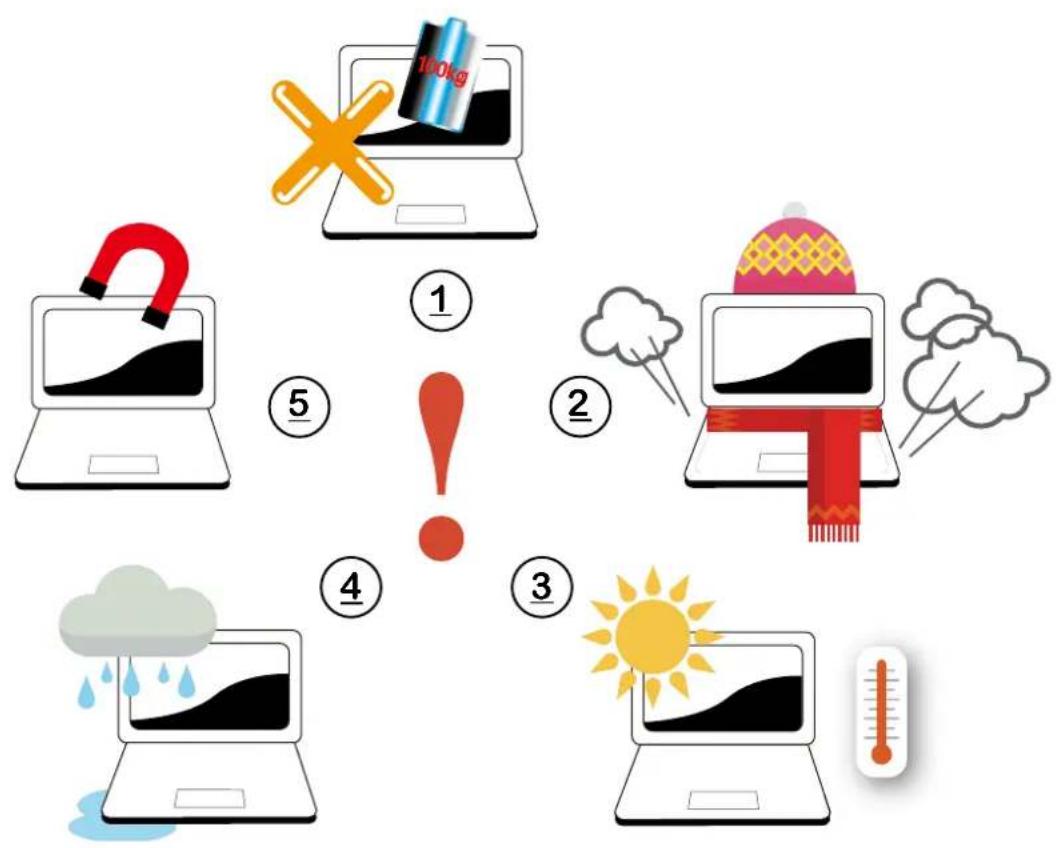
Do not apply heavy pressure to the computer or subject it to any form of strong impact as this can damage the computer's components or otherwise cause it to malfunction.
2 Never cover or block the air vents including those located at the base of the computer. Never cover your computer or AC adaptor with any object.
3 To keep your computer in prime operating condition, protect your work area from direct sunlight.
4 Do NOT expose to or use near liquid, rain, or moisture. Do NOT use the modem during electrical storms.
Do not use or expose this device around magnetic fields as magnetic interference may affect the performance of the device.
1.3 Conventions for this Manual

CAUTION : This message contains important information that must be followed for safe operation.

NOTE : This message contains information for special situations.
1.4 Release History
Version Date Revision
1.0 06.2017
Initial release
Chapter 2
Getting to know the basics
2.1 Product Specification
This User's Manual provides technical information of instructions and illustrations on how to operate this notebook for the customer. Please read this manual carefully before using this notebook.
• Physical Characteristic
Dimension
386.9 × 270 × 35.6mm
- CPU
■ Support Processor
KBL-H, 4+2
• GPU
■ Support Processor
N17E-G1 1060, 192bits
- Memory
DDR4
DDR4 2400MHz
- Storage
HDD
2.5" SATA HDD support
7/9.5mm
• I/O Port
DC-in x 1
USB 2.0 x 2 + 3.0 x 3
3.1 x 1 (Type C, no Audio and Video support)
RJ45 x 1
Card Reader x 1 (2 in 1 Card reader connector type)
DP port x 1
HDMI x 1
Audio ot & Mic in x 2
Quick launch button x 1 (FAN full speed ON/OFF)
- Audio
Audio Codec
Azalia standard support, D3 mode support
Speaker/MIC
Build-in 2 speakers
Speaker : 2W/each
Digital Microphone support w/ Cammera
- Input
Keyboard
15.6" KB with RGB backlight support, full KB size w/ numeric keys
Pointing Device
PS2 Touch Pad with 2 buttons 92X52mm
- Display
LCD
15.6" FHD, 16:9, Glare or AG
- Communication Port
LAN
10/100/1000 Mb/Sec
Wireless LAN
M.2 2230 w/ PCIE interface
IEEE802.11a/b/g/n/ac support
- Webcam
HD webcam
HD webcam with D-MIC*1
- Power
AC Adapter
Automatics Voltage adjustment between 100 and 240VAC 50/60Hz, 180 Watts (19.5V/9.23A), 3 Pins or Automatics Voltage adjustment between 100 and 240VAC 50/60Hz, 150 Watts (19V/7.89A), 3 Pins
Battery
Li-ion Battery (Power), 18650, SW Gas Gauge IC, Hard pack, removable 6 cells, 10.95V/4300mAh (3S2P) or Li-ion Battery (Normal), 18650, SW Gas Gauge IC, Hard pack, removable 6 cells, 10.8V/4400mAh (3S2P)

CAUTION: MODEL IS DESIGNED TO USE WITH THE
DC INPUT: 19.5V/9.23A or 19V/7.89A
Please use the match adapter basing on the rating of BIOS, to avoid overheat and abnormal of adapter.
2.2 Preparing your Computer
A Connect the AC adaptor's DC output plug to the DC IN jack.

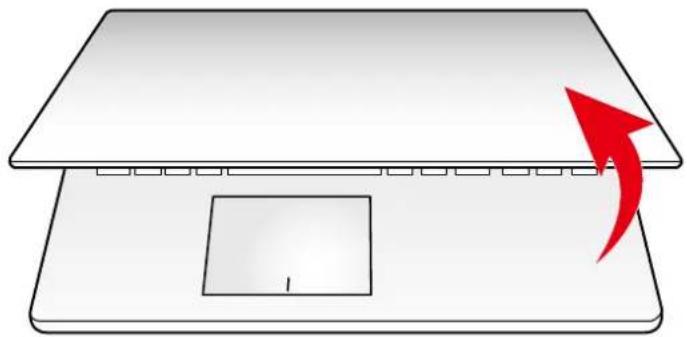
B The display panel can be opened to a wide range of angles for optimal viewing.
natural_image
Simple line drawing of a laptop with a red arrow pointing to the front panel (no text or symbols)C Press the power button to turn on your notebook computer.
![F5 ×60 F6 ×10 F7 ×10 F8 ×40 F9 ×40 F11 ○* F12 ○* PinSc SvsNu Insun SedJX DEL % 5 6 8 7 8 [ ] 9 0 - - + = BACKSPACE R T Y U I O P { } [ ] \](/content/2026/05/820731/images/90ec1dccc6a7f3f68f9d3211a12c05732e937b555cff0b90970de915f9c7adbf.jpg)
2.3 Product Overview
Please become familiar with each component before you operate the computer.
Top-Open View

NOTE: The product's color, I/O port, indicator location, and specification will depend upon the actually shipping product.
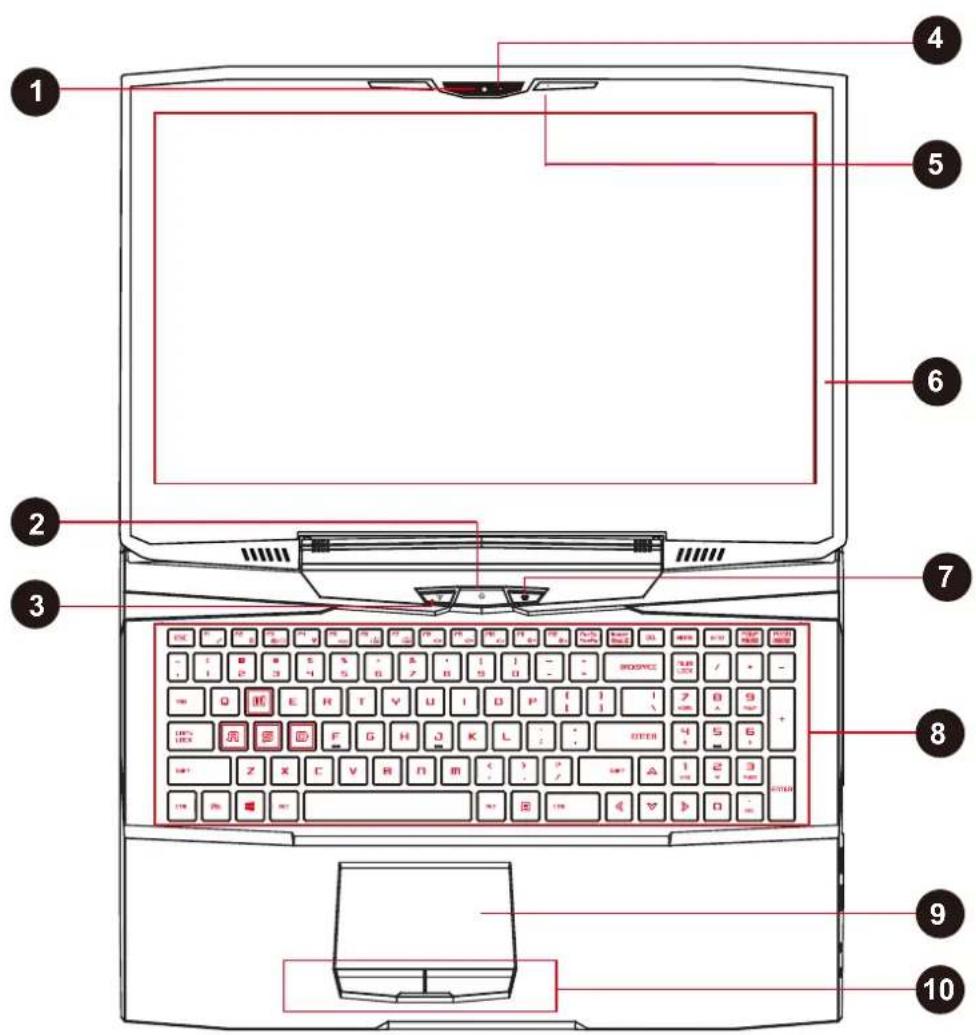

CAUTION: When you are not using the computer, keep the LCD-screen closed to protect it from dust.
1 Webcam
A device that allows you to record video or take photographs with your computer.
2 Power Button
Press this button to turn the computer's power on or off.
Power On: RED
Suspend: Pulse Red (Pulse speed follow KB back-light)
Charging: Orange, @Power On: Red
Battery Low (<6%): interlaced Blinking Orange & Red
3 WIFI CONTROL BUTTON
4 Camera Status LED
The Camera Status LED shows the Camera status.
5 Microphone
Built-in microphone.
6 LCD screen
Displays of your notebook
7 SCREEN CONTROL BUTTON
8 Keyboard
The keyboard provides keys with comfortable travel.
9 Touchpad/Click pad
Touch-sensitive pointing device which functions like the mouse.
10 Left and right touchpad/Clickpad buttons
The left and right buttons function like the left and right buttons on a standard mouse.
Bottom Side View

NOTE: The product's thermal vent will depend upon the actually shipping product.
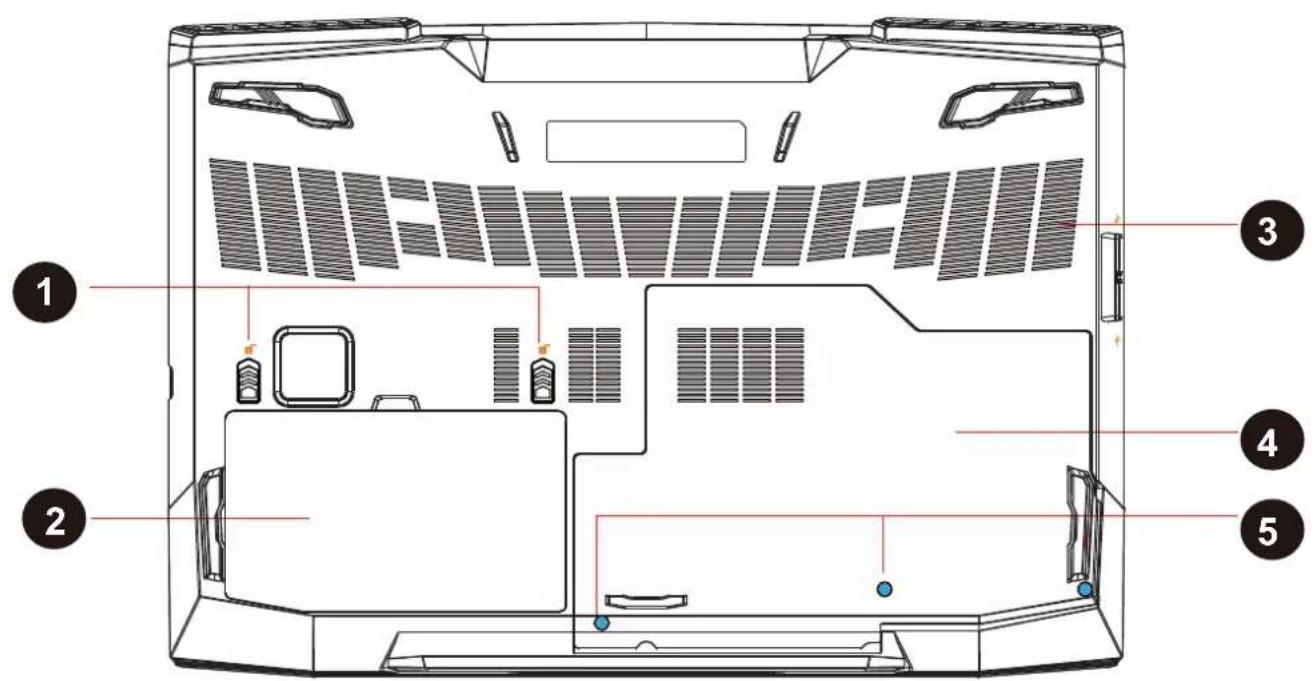

CAUTION: Do not put the computer on your LAP or other Parts of the body to avoid injury from the heat.
1 Battery Lock 1 and 2 - Spring
The spring battery lock 1 and 2 are used to keep the battery pack secured.
Lock 1
Switch lock 1 by manual to lock or unlock.
Lock 2
When the battery pack is inserted, lock 2 will automatically lock. To remove the battery pack, lock 2 must be held in the unlocked position.
2 Battery Module
3 Vents
The thermal vents help the processor to avoid overheating.
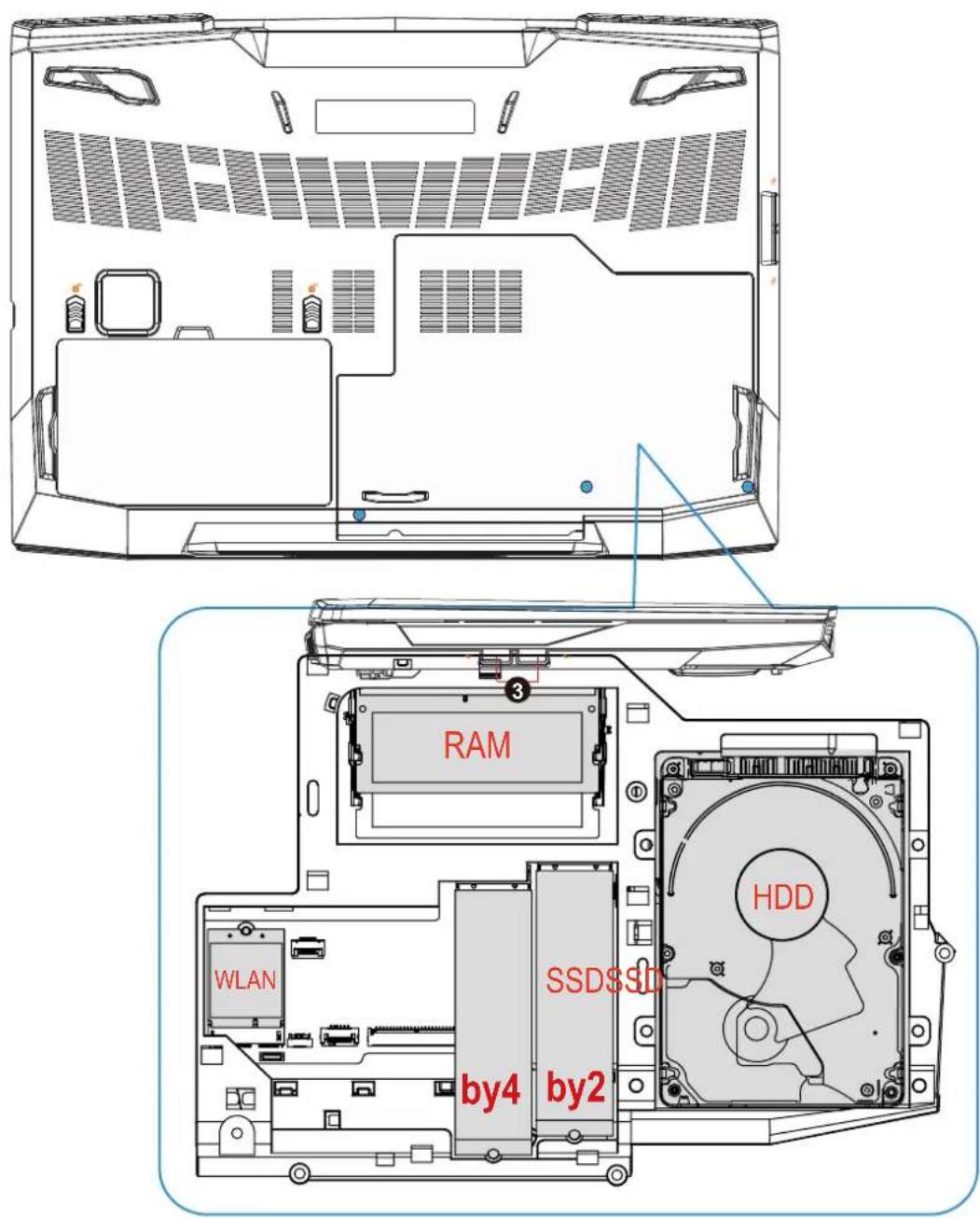
4 HDD / RAM / SSD / WLAN Compartment Cover
The cover can be took off to install or remove the HDD / RAM / SSD / WLAN.
5 HDD / RAM / SSD / WLAN Compartment Cover Screws
Screw or release these four screws to install or remove the HDD / RAM / SSD / WLAN Compartment Cover. (Please refer to the HDD / RAM / SSD / WLAN Compartment View on the next page.)
HDD / RAM / SSD / WLAN Compartment View (Optional)
Left Side View

natural_image
Technical line drawing of a vehicle chassis with labeled components (no text or symbols present)Right Side View
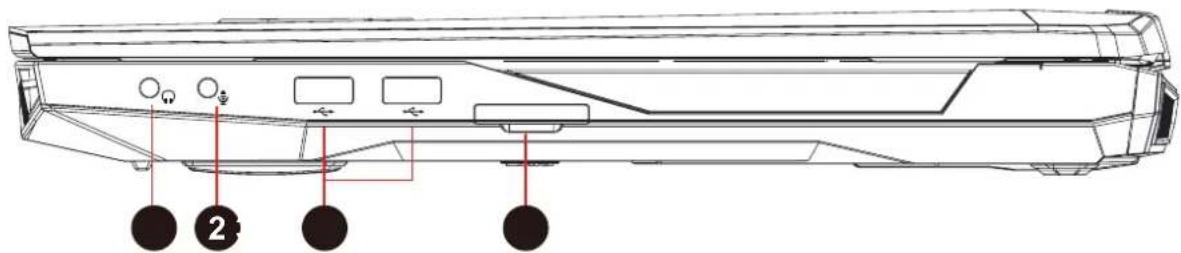
1 Audio Out Jack
Connects amplified speakers, headphones or microphone into this jack.
2 Mic In Jack
Connects amplified speakers, headphones or microphone into this jack.
3 USB Ports
Connects an USB device.
(such as USB Zip drive, keyboard or mouse) into this jack.
4 2 in 1 Card Reader
Insert Memory Card.
Front Side View

natural_image
Technical line drawing of a multi-level electronic device with no visible text or symbols1 Stereo speakers
Produce stereo sound.
Back Side View
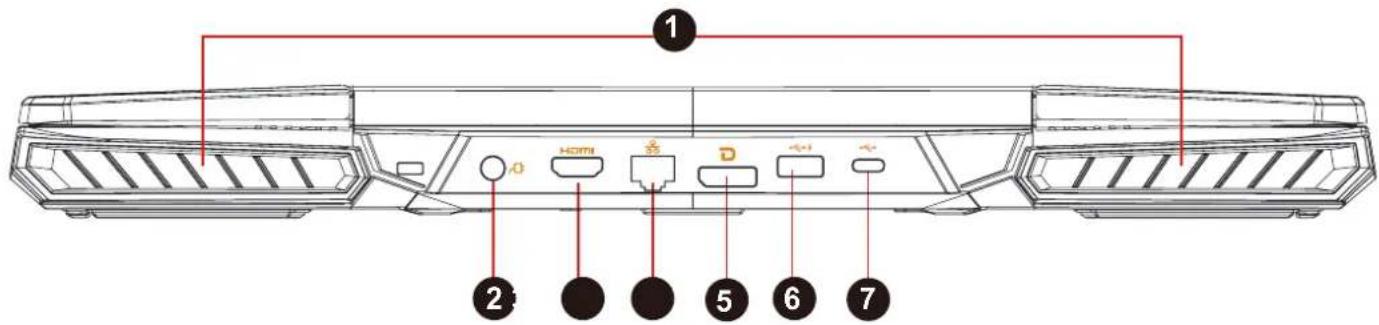
① Vents
The thermal vents help the processor to avoid overheating.
2 Power Connector
Connects the AC adapter into this connector.
3 HDMI port HDMI
Supports high-definition digital video connections.
4 Network Jack
This jack lets you connect to a LAN.
5 Display Port D
Connected to the screen, or home theater system.
6 USB Port ss→4
Connects an USB device (such as USB Zip drive, keyboard or mouse) into this jack.
-Intelligent charging 1.8A function for external USB device in power off mode.
7 USB Port ss
Connects an USB device (such as USB Zip drive, keyboard or mouse) into this jack.
Chapter 3
Getting started
3.1 AC Adapter
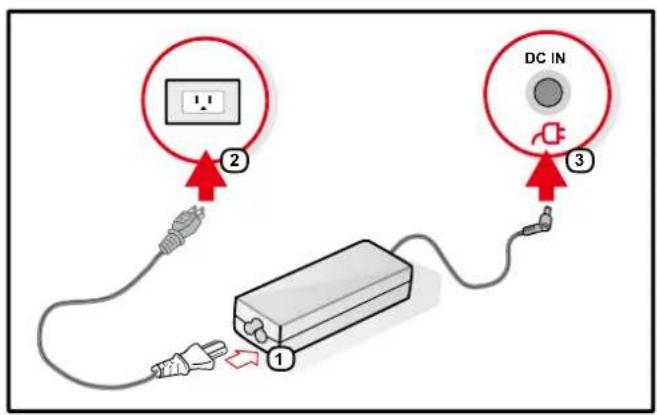
Please be noted that it is strongly recommended to connect the AC adapter and use the AC power while using this notebook for the first time. When the AC adapter is connected, the battery is being charged immediately. Attach the AC adaptor when you need to charge the battery or you want to operate from AC power. It is also the fastest way to get started, because the battery pack will need to be charged before you can operate from battery power.
Note that the AC adapter included in the package is approved for your notebook; using other adapter model may damage either the notebook or other devices attached to it.

natural_image
Line drawing of a rear panel with connectors and ports, no text or symbols present
CAUTION: Do not use inferior extension cords as this may result in damage to your notebook. The notebook comes with its own AC adapter. Do not use a different adapter to power the computer and other electrical devices.

NOTE: The power adapter may become warm to hot when in use. Be sure not to cover the adapter and keep it away from your body. Your adapter might look different depend on your region.
3.2 Knowing the Keyboard
The following defines the colored hot keys on the Keyboard.
The colored commands can only be accessed by first pressing and holding the function key while pressing a key with a colored command.
![ESC F1 z' F2 6 F3 e/o F4 ¥ F5 ×8 F6 i8 F7 i9 F8 iX F9 iX F10 iX F11 O* F12 O* ParSc SvaRa Insert BdUk DEL HOME END PGUP FULLER PGON REPRO - + - ! 1 E 2 3 $ 4 % 5 & 6 & 7 [ 9] - + = + BACKSPACE NUM LOCK / * - TAB Q W E R T Y U I O P { [ ] | \ 7 HOME 8 A 9 PGUP + CAPS LOCK A S D F G H J K L : : : ENTER 4 < 5 - 6 > SHIFT Z X C V B N M < , > ? / SHIFT A 1 END 2 ✓ 3 PON ENTER CTRL R5 ALT ALT CTRL < ▼ ▶ 0 DEL](/content/2026/05/820731/images/842fd67dad3c8e7cddab4081124a0dde341e01fb0a78e86ce599fc2cbaa5ab27.jpg)

NOTE: The number of keys available on your keyboard will depend on which country/region your computer is configured for.
3.2.1 For keyboard users
To activate these functions, press the hot key associated with the desired function as below :
Function Keys
| Function DescriptionKeypad | ||
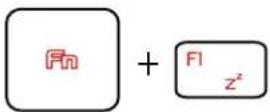 | Suspend: | Press this key combination (Fn+F1) to enter sleep mode. |
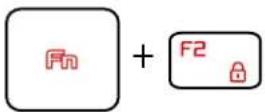 | Home Lock/On: | Press this key combination (Fn+F2) to turn Home Lock/On . |
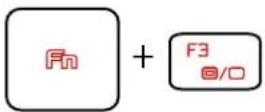 | LCD/CRT/HDMI mode: | Press this key combination (Fn+F3) to enter LCD/CRT/HDMI mode. Changes Display Mode: LCD only, LCD+ CRT, CRT only, HDMI+CRT, HDMI only, LCD+HDMI simultaneously. |
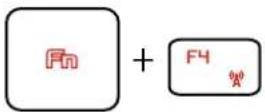 | RADIO on/off: | Press this key combination (Fn+F4) to turn all radios on or off. |
 | Touch pad: | Press this key combination (Fn+F5) to enter Touch pad mode. |
Function Keys
| Function DescriptionKeypad | ||
 | Keyboard Brightness down: | Press this key combination (Fn+F6) to decrease brightness of Keyboard. |
 | Keyboard Brightness up: | Press this key combination (Fn+F7) to increase brightness of Keyboard. |
 | MUTE: | Press this key combination (Fn+F8) to enter MUTE mode. |
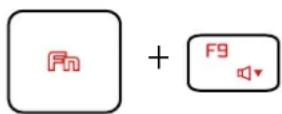 | Volume down: | Press this key combination (Fn+F9) to enter Volume down mode. |
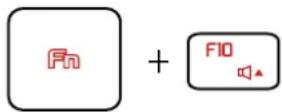 | Volume up: | Press this key combination (Fn+F10) to enter Volume up mode. |
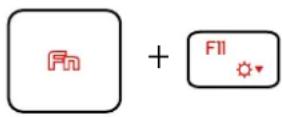 | Brightness down: | Press this key combination (Fn+F11) to decrease brightness of LCD display. |
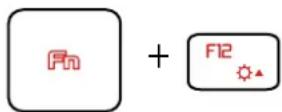 | Brightness up: | Press this key combination (Fn+F12) to increase brightness of LCD display. |
Function Keys
| Function DescriptionKeypad | ||
 | Search Charm : (Optional) | Press this key combination (Windows logo key+Q) to open the search charm and search apps. |
 | Settings Charm : (Optional) | Press this key combination (Windows logo key+I) to open the settings charm. |
 | Share Charm : (Optional) | Press this key combination (Windows logo key+H) to open the share charm. |
 | Devices Charm : (Optional) | Press this key combination (Windows logo key+K) to open the devices charm. |
3.3 Using the touchpad / clickpad
The touchpad / clickpad is a rectangular electronic panel located just below your keyboard. You can use the static-sensitive panel of the touchpad / clickpad and slide it to move the cursor. You can use the buttons below the touchpad as left and right mouse buttons.
Press the left ① and right ② buttons located on the edge of the touchpad / clickpad to make selections and run functions. These two buttons are similar to the left and right buttons on a mouse. Tapping on the touchpad / clickpad produces similar results.
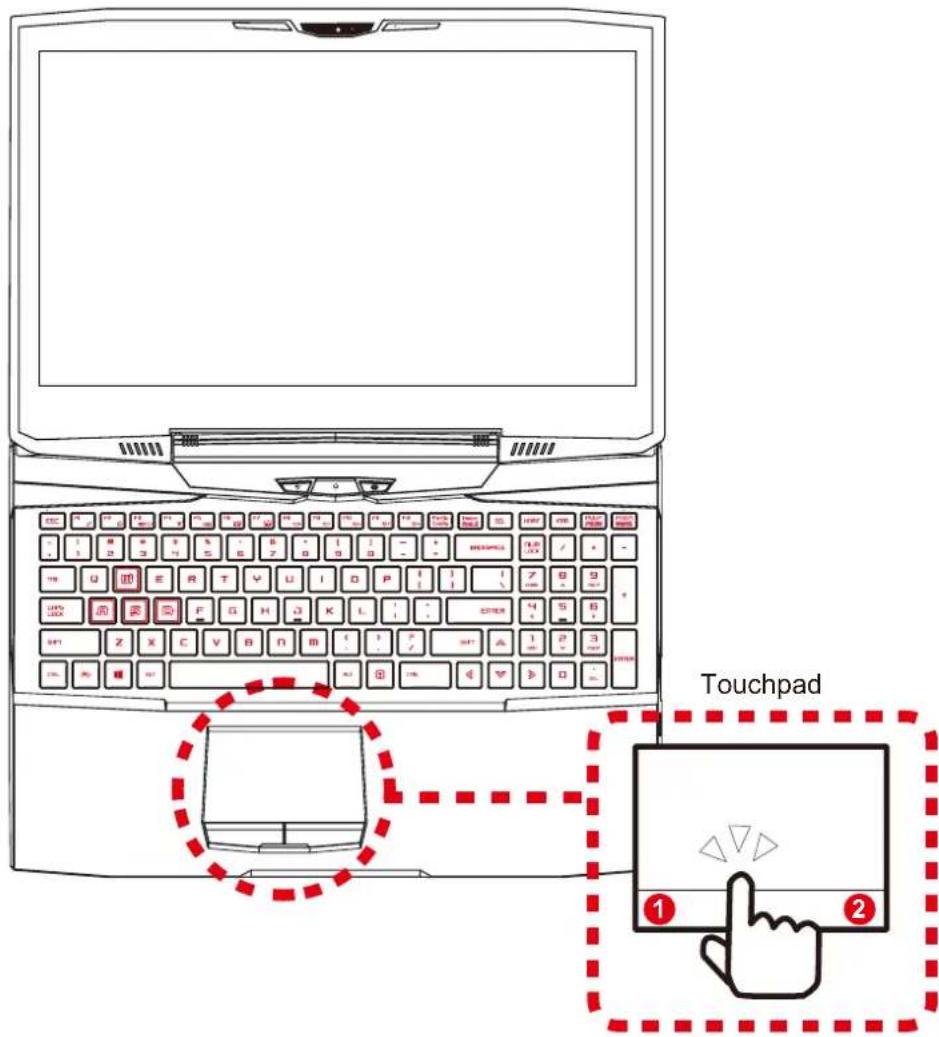
3.3.1 Touchpad Usage
Touch Pad Gesture
Modern touchpad gesture:
A modern touchpad should support the core touch gestures described in the following table.
| Item | Gesture name | Gesture |
| 1 | one finger |  left click/double click left click/double click |
| 2 |  move cursor move cursor | |
| 3 |  tap+slide tap+slide | |
| 4 | two finger | 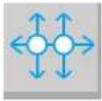 scroll/pan scroll/pan |
| 5 |  pinch/zoom pinch/zoom | |
| 6 | three finger | 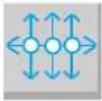 multitasking gesture multitasking gesture |
Chapter 4
BIOS setup
4.1 About BIOS Setup
4.1.1 When to Use BIOS Setup?
You may need to run the BIOS Setup when:
- An error message appears on the screen during the system booting up and is requested to run SETUP.
- You want to change the default settings for customized features.
- You want to reload the default BIOS settings.
4.1.2 How to Run BIOS Setup?
To run the BIOS Setup Utility, turn on the notebook and press the [Del] key during the POST procedure.
If the message disappears before you respond and you still wish to enter Setup, either restart the system by turning it OFF and ON, or simultaneously pressing [Ctrl]+[Alt]+[Del] keys to restart.
Be noted that the screen snaps and setting options in this chapter are for your references only. The actual setting screens and options on your Notebook may be different because of BIOS update.
The setup function only can be invoked by pressing [Del] or [F2] key during POST that provide a approach to change some setting and configuration the user prefer, and the changed values will save in the NVRAM and will take effect after the system rebooted. The setup uses a menu interface to allow the user to configure their system and the features are briefly listed as follow.
Press [F7] key for Boot Menu.

NOTE : The drivers, BIOS and utilities bundled in the support DVD may vary by models and are subject to change without notice.
4.2 BIOS Setup Menu
Once you enter the BIOS Setup Utility, the Main Menu will appear on the screen. Select the tags to enter the other menus.
Main Menu
Show system overview about memory size, setting of system time and date.
Advanced Menu
To select the XD feature enable or disable XD feature only work with Intel platform + Windows.
Security Menu
Install or clear the password settings for supervisor and user.
Boot Menu
Configure Settings during System Boot.
EXIT Menu
Save or discard the changes before leaving the BIOS Setup Menu.
4.2.1 Main Menu
![Aptio Setup UTILITY - Copyright (C) 2017 American Regatrends, Inc. Main Advanced Security Tool Exit System Information System Time [04 09:16] System Note [Tue 01/01/21/05] 8103 Version N.1.04 EC Version D.91.00 Build Date and Time 06/06/2017 11:24:30 Manufacturer Name Standard Product Name Standard Serial Number Standard Asset Tag Standard GUID Number 000200030004W005W006X007000000F5 Ethernet MAC Address B0:257A/20TAF=44 Processor Processor Type Intel(R) Core(TM) (7-77)00HQ CPU @ 2.60GHz Processor Speed 2800 MHz Total Memory 0192 MB Memory Frequency 2133 MHz WE Information WE FM Version 11.6.10.119% WE Firmware SKU Consumer SKU Adapter Type 103 A Version 2.18.1253 Copyright (C) 2017 American Regatrends, Inc.](/content/2026/05/820731/images/8398bfdebf777a7034dc38899c172ff667abfa032930475bdf8251c2321a33e3.jpg)
- System Time
This item allows you to set the system time. The system clock will go on no matter you shut down the PC or get into sleep mode. The time format is [hour:minute:second].
Use [+] or [-] to configure system Time.
- System Date
This item allows you to set the system date. The date format is [day:month:date:year].
Use [ENTER], [TAB] or [SHIFT-TAB] to select a field.
| Day | Day of the week, from Sun to Sat, which is determined by BIOS (read-only). |
| Month (Month) | The month from 01 (January) to 12 (December). |
| Date (Date) | The date from 01 to 31. |
| Year (Year) | The year can be adjusted by users. |
- Total Memory
This allows you to see the total amount of memory.
4.2.2 Advanced Menu
![Optio Setup Utility - Copyright (C) 2017 American Megatrends, Inc. Main Advanced Security Boot Exit Advanced Setting OS Support [UEFI OS] Make on LAN [Disabled] Cold Boot Keep Devices Status [Enabled] SATA Device SATA Mode Selection [AHCI] Serial ATA Port 0 Empty Serial ATA Port 1 Empty Serial ATA Port 2 TEAM TIMQU1106 (60,058) Serial ATA Port 3 Empty NVMe Device NVMe Controller 1 Empty NVMe Controller 2 Empty Intel Virtualization Technology [Enabled] If select UEFI OS, it will support UEFI Mode compatible OS, otherwise, when select Legacy OS, it can support Legacy mode OS +: Select Screen +: Select Item Enter: Select +/-: Change Opt. F1: General Help F2: Previous Values F3: Optimized Defaults F4: Save & Exit ESC: Exit Version 2.18.1263. Copyright (C) 2017 American Megatrends, Inc.](/content/2026/05/820731/images/cd40b1802025e6b30ca070aa578b0be97aea47522908ba439a7f461885dc0d62.jpg)
OS Support
UEFI/Legacy
If select UEFI OS, it will support UEFI Mode compatibles OS, otherwise, when select
Legacy OS, it can support Legacy mode OS
Wake on LAN
Enable/Disable
Integrated LAN to wake the system.
SATA Mode Selection
AHCI/RAID
Select AHCI/RAID mode
NVMe Device
It will show NVMe info.
Intel Virtualization Technology
When enabled, a VMM can utilize the additional hardware capabilities provided by Vanderpool Technology.
4.2.3 Security Menu
![Aptic Setup Utility - Copyright (C) 2017 American Megatrends, Inc. Main Advanced Security Boot Exit Security Settings Access Level Administrator Administrator Password Not Installed User Password Not Installed Change Administrator Password Change User Password Password Login Control [Both] Secure Boot Active System Mode User Secure Boot [Enabled] Delete all Secure Boot variables HDD Security Configuration: P2:TEAM TIMBQ11064GHD104 Set Setup Administrator Password ++: Select Screen T4: Select Item Enter: Select +/-: Change Opt. F1: General Help F2: Previous Values F3: Optimized Defaults F4: Save & Exit ESC: Exit Version 2.18.1263. Copyright (C) 2017 American Megatrends, Inc.](/content/2026/05/820731/images/1c58d9d06de624dc5360d78593f03aabd186fb4aa9de43d7f742ee88d4731364.jpg)
- Change Administrator Password
When this item is selected, a message box shall appear on the screen as below:
Enter New Password
Type a maximum of 20-digit password and press [Enter].
The password typed now will replace any previously set password from CMOS memory. You may also press [ESC] to abandon new password setting.
Select Change User Password to give or to abandon password setting same as Change Administrator Password item above.
Note that Administrator Password field allows users to enter and change the settings of the BIOS SETUP UTILITY, while User Password field only allows users to enter the BIOS SETUP UTILITY without having the authorization to make any change.
The Password Check item is used to specify the type of BIOS password protection that is implemented.
To clear a set Administrator Password/ User Password, just press [Enter] under Change Administrator Password/ Change User Password field when you are prompted to enter the password. A message box will pop up confirming password will be disabled. Once the password is disabled, the system will boot and user can enter setup without entering password.
4.2.4 Boot Menu
![Aotio Setup Utility - Copyright (C) 2017 American Megatrends, Inc. Main Advanced Security Boot Exit Boot Configuration Launch CSM [Disable] LAN Remote Boot [Enabled] Boot Option Priorities Boot Option #1 [UEFI USB Key: SanDisk, Partition 1] Boot Option #2 [UEFI USB Hard Disk] Boot Option #3 [UEFI USB CD/DVD] Boot Option #4 [UEFI USB Floppy] Boot Option #5 [UEFI Hard Disk:Windows Boot Manager] Boot Option #6 [UEFI Network: IP4 Realtek PCIe GBE Family Controller] Boot Option #7 [UEFI CD/DVD] ▶ UEFI USB Key Drive BBS Priorities ▶ UEFI Hard Disk Drive BBS Priorities ▶ UEFI NETWORK Drive BBS Priorities Enable/Disable CSM Support. ++: Select Screen !!: Select Item Enter: Select +/-: Change Opt. F1: General Help F2: Previous Values F3: Optimized Defaults F4: Save & Exit ESC: Exit Version 2.18.1263. Copyright (C) 2017 American Megatrends, Inc.](/content/2026/05/820731/images/28dbb1f215fa1128431be19008b9d8e7534b24d43ed51216e79799a92748e10c.jpg)
- Boot Configuration
Configure Settings during System Boot.
• LAN Remote Boot [Disable]: Boot from LAN or not. - Set Boot Priority (1st/2nd/3rd/..... Boot) Specifies the boot sequence from the available devices. A device enclosed in parenthesis has been disabled in the corresponding type menu.
- Hard Disk Drive / USB HardDisk Drive Specifies the Boot Device Priority sequence.
4.2.5 Exit Menu
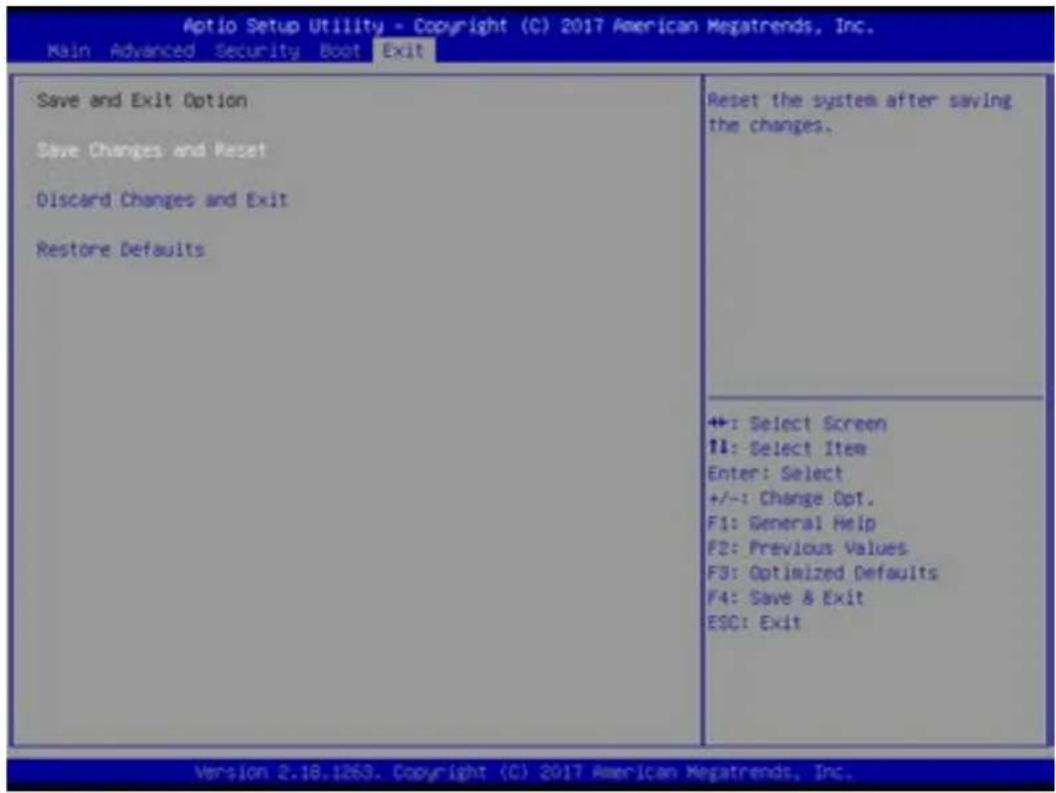
- Save Changes and Reset
Exit system setup after saving the changes.F4 key can be used for this operation. - Discard Changes and Exit
Exit system setup without saving any changes.
ESC key can be used for this operation. - Restore Defaults
Restore/Load Defaults values for all the setup options.
F3 key can be used for this operation.
- TABLE OF CONTENTS
- Notice 2
- Preface 5
- Getting started 24
- BIOS setup 32
- Chapter 1
- Preface
- Regulations Information
- CE compliance
- PREVENTION OF HEARING LOSS
- Safety Instructions
- Conventions for this Manual
- Release History
- Version Date Revision
- Chapter 2
- Getting to know the basics
- Product Specification
- • I/O Port
- - Audio
- Audio Codec
- Speaker/MIC
- - Input
- Keyboard
- Pointing Device
- - Display
- LCD
- - Communication Port
- LAN
- Wireless LAN
- - Webcam
- HD webcam
- - Power
- AC Adapter
- Battery
- Preparing your Computer
- Product Overview
- Top-Open View
- Webcam
- Power Button
- WIFI CONTROL BUTTON
- Camera Status LED
- Microphone
- LCD screen
- SCREEN CONTROL BUTTON
- Keyboard
- Touchpad/Click pad
- Left and right touchpad/Clickpad buttons
- Bottom Side View
- Battery Lock 1 and 2 - Spring
- Battery Module
- Vents
- HDD / RAM / SSD / WLAN Compartment Cover
- HDD / RAM / SSD / WLAN Compartment Cover Screws
- HDD / RAM / SSD / WLAN Compartment View (Optional)
- Left Side View
- Right Side View
- Audio Out Jack
- Mic In Jack
- USB Ports
- 2 in 1 Card Reader
- Front Side View
- Stereo speakers
- Back Side View
- ① Vents
- Power Connector
- HDMI port HDMI
- Network Jack
- Display Port D
- USB Port ss→4
- USB Port ss
- Chapter 3
- Getting started
- AC Adapter
- Knowing the Keyboard
- 3
- For keyboard users
- Using the touchpad / clickpad
- Touchpad Usage
- Touch Pad Gesture
- Chapter 4
- BIOS setup
- About BIOS Setup
- When to Use BIOS Setup?
- How to Run BIOS Setup?
- BIOS Setup Menu
- Main Menu
- Advanced Menu
- Security Menu
- Boot Menu
- EXIT Menu
- Main Menu
- - System Time
- - System Date
- - Total Memory
- Advanced Menu
- Security Menu
- Enter New Password
- Boot Menu
- Exit Menu
Brand : HYUNDAI
Model : Kanabo HG156616E
Category : Laptop