
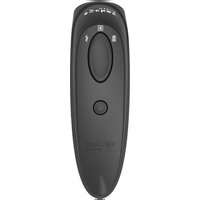
DuraScan D760 - Barcode Reader Socket Mobile - Free user manual and instructions
Find the device manual for free DuraScan D760 Socket Mobile in PDF.


| Product Type | 2D/1D Barcode Scanner |
| Model | DuraScan D760 |
| Dimensions (L x W x H) | 5.2 x 1.5 x 1.6 in (132.2 x 37.1 x 40.1 mm) |
| Weight | 4.0 oz (112.5 g) |
| Battery Type | 1400 mAh Lithium-Ion |
| Charge Time | 6 hours |
| Battery Life (Standby) | Over 20 hours |
| Active Scan Time (Full Charge) | 85,000 scans within 9 hours (2 scans/sec) or 17,000 scans within 9 hours (1 scan/4 sec) |
| Wireless Technology | Class 1 Bluetooth v2.1 + EDR with 56-bit encryption |
| Wireless Range | 330 ft (100 m) line of sight |
| Scanner Type | 1D/2D Linear Imager |
| Supported Symbologies (1D) | Codabar, Code 39, Code 93, Code 128, EAN-13/JAN, EAN-8/JAN, GS1 Databar, GS1 Databar Expanded, GS1 Databar Limited, GS1-128, Interleaved 2 of 5, ISBT 128, UPC A, UPC E, and more (see manual) |
| Supported Symbologies (2D) | Aztec, Data Matrix, Maxicode, Micro PDF417, PDF417, QR Code, and more |
| Special Feature (D760) | OCR Typeface: OCR-A, OCR-B, MICR-E13B, US currency serial number; Passport scanning (2-line) |
| Bluetooth Modes | Basic Mode (HID), Application Mode (SPP), Application Mode (MFi-SPP for iOS) |
| Antimicrobial | Yes – additive in external surfaces |
| Sealing | IP54 (dust and water resistance) |
| Drop Specification | Multiple 5 ft drops to concrete |
| Operating Temperature | -4° to 122° F (-20° to 50° C) |
| Cleaning | Wipe with cloth dampened with isopropyl alcohol or water; do not immerse or use bleach |
| Power Connection | USB Type (5V 1A); charging via computer USB not recommended |
| Optional Accessories | Charging cradle, charging stand, charging dock, AC power supply, international adapters |
| Compatible OS | Android 4.0.3+, Apple iOS, Windows 7/8/10, Mac OS X 10.4+ |
| Warranty | 1 year (battery and consumables: 90 days) |
Frequently Asked Questions - DuraScan D760 Socket Mobile
User questions about DuraScan D760 Socket Mobile
0 question about this device. Answer the ones you know or ask your own.
Ask a new question about this device
Download the instructions for your Barcode Reader in PDF format for free! Find your manual DuraScan D760 - Socket Mobile and take your electronic device back in hand. On this page are published all the documents necessary for the use of your device. DuraScan D760 by Socket Mobile.
USER MANUAL DuraScan D760 Socket Mobile
natural_image
Orange remote control device with black buttons and a 'socket mobile' label (no additional text or symbols)D740/D760 USERGUIDE
DURASCAN®
Bluetooth® wireless technology
barcode scanner
Model D740/D760
www.socketmobile.com
TABLE OF CONTENTS
Package Contents 4
Product Information 5
How to Charge the Battery 7
Optional Charging Accessories 8
Powering on/off 9
Scanning Barcodes 10
Bluetooth Connection Modes 11
How to setup your scanner:
Download our Companion App for Apple® and Android Device 13
Can't use Companion App?
How to setup your scanner in Basic Mode
- Basic Mode 14
How to setup your scanner in Application Mode:
- Apple ^ 15
- Android 17-18
- Windows (option 1) or Android 17
- Windows (option 2) or Android 7.0 and lower 19
Auto Scan Mode 20
Bluetooth Unpairing 22
Factory Reset 23
Restore Method 24
TABLE OF CONTENTS
Bluetooth Reconnection 25
Status Indicators 26-29
Product Specifications 30-31
Helpful Resources 32
Battery Warning, Safety, Compliance, Warranty 33-43
Command Barcodes 44-49
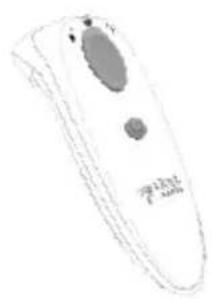
natural_image
Illustration of a remote control device with a black button and a white body (no text or symbols visible)DuraScan D740/D760
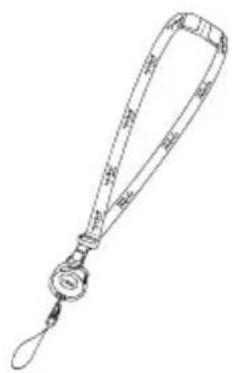
natural_image
Line drawing of a lanyard with attached belt and handle (no text or symbols)Lanyard
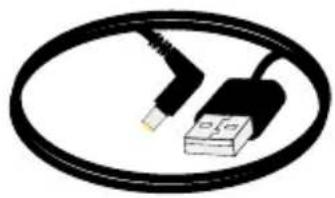
natural_image
Black cable with a USB connector, enclosed in an oval frame (no text or symbols visible)Charging Cable
Insert Card
Thank you for choosing Socket Mobile! Let's get started!
© 2018 Socket Mobile, Inc. All rights reserved. Socket ^® , the Socket Mobile logo, SocketScan ^® , DuraScan ^® , Battery Friendly ^® are registered trademarks or trademarks of Socket Mobile, Inc. Microsoft ^® is a registered trademark of Microsoft Corporation in the United States and other countries. Apple ^® , iPad ^® , iPad Mini ^® , iPhone ^® , iPod Touch ^® , and Mac iOS ^® are registered trademarks of Apple, Inc., registered in the U.S. and other countries. The Bluetooth ^® Technology word mark and logos are registered trademarks owned by the Bluetooth SIG, Inc. and any use of such marks by Socket Mobile, Inc. is under license. Other trademarks and trade names are those of their respective owners.
Made with antimicrobial additives for protection against harmful microbes.
Socket Mobile's barcodes scanners can be wiped clean with a cloth dampened with isopropyl alcohol or water. Or, the barcode scanners can be wiped clean with a Sani-Cloth.
Warning: DO NOT IMMERSE IN WATER (scanner's mechanics could be damaged) DO NOT USE BLEACH FOR CLEANING (scanner's material property may be affected)
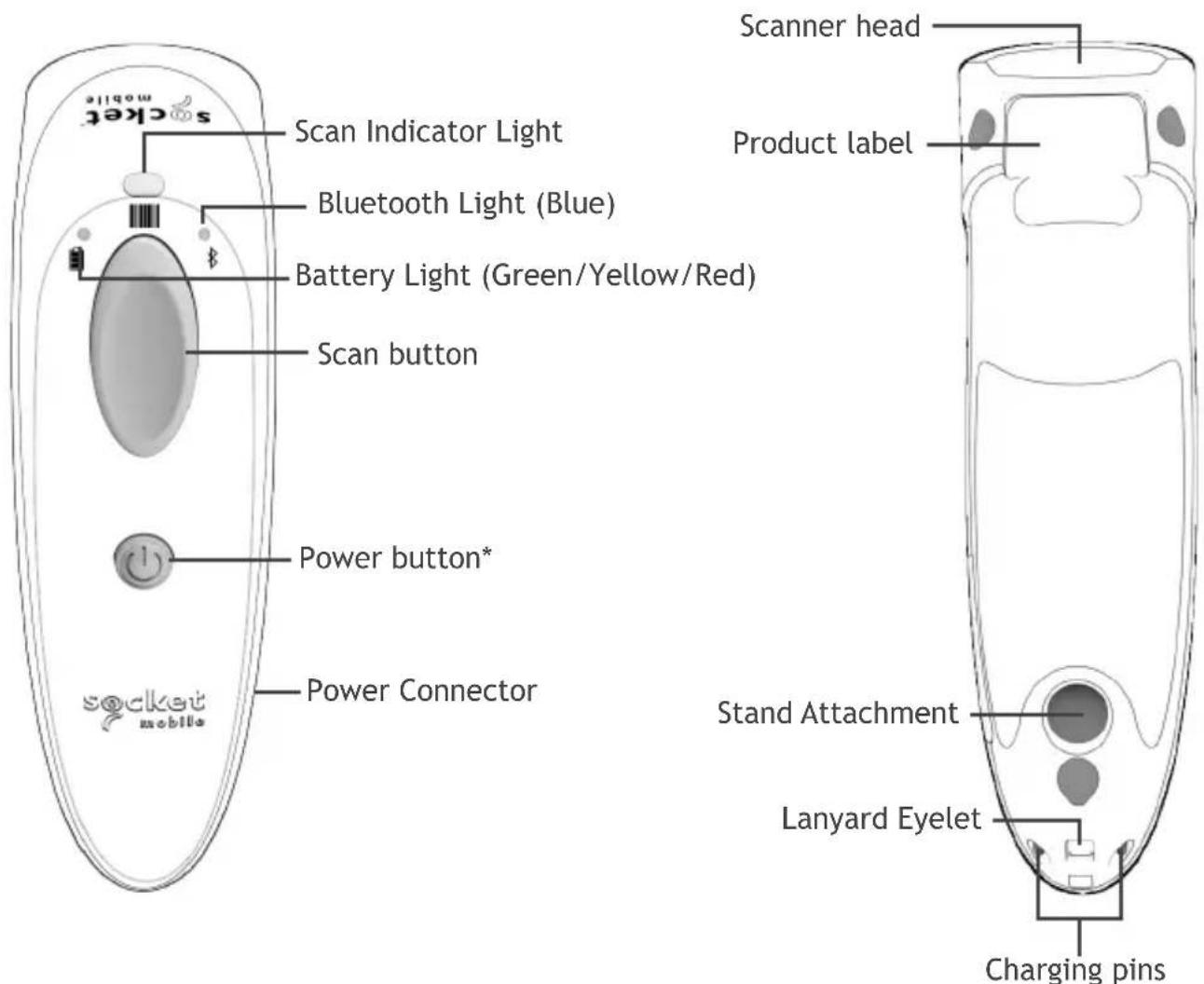
*Also used to display the on-screen keyboard in Basic Mode (iOS only).
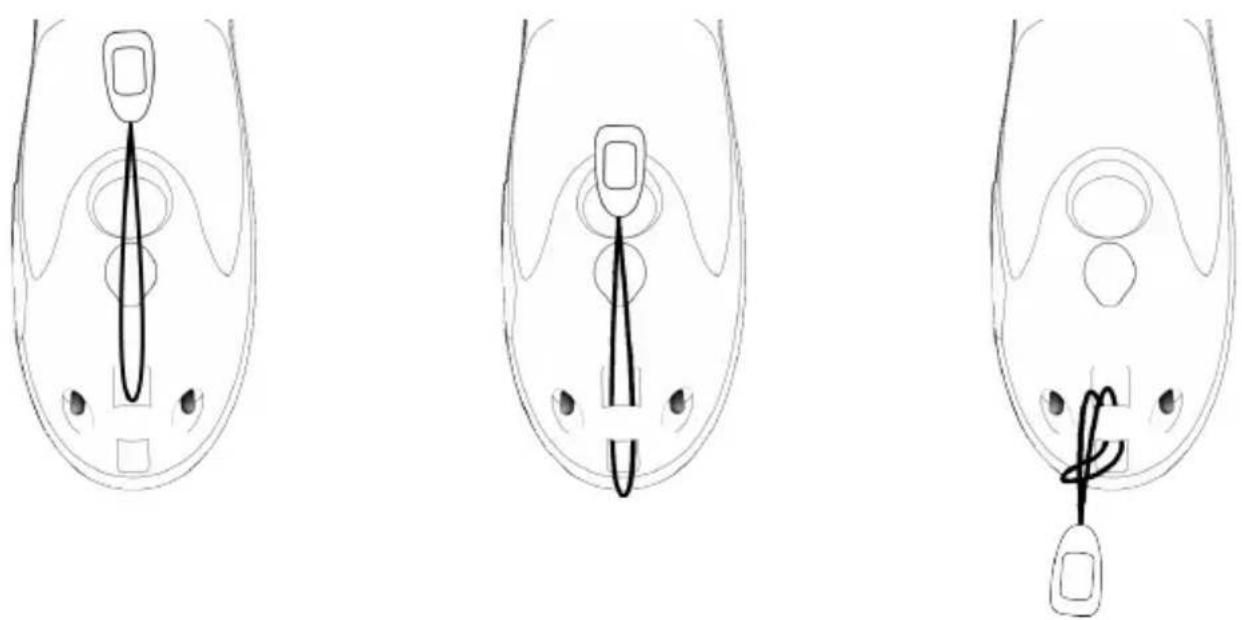
How to Attach the Lanyard (optional)
- Detach the string loop of the tether from the lanyard.
- Feed the string loop through the eyelet.
- Pull tight so the string loop is secure.
- Reattach the string loop to the tether from the lanyard.
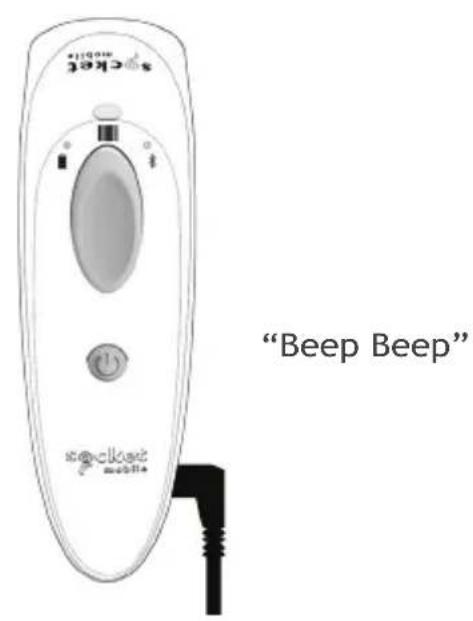
The scanner must be fully charged before first use. Please allow 6 hours uninterrupted charging for the initial battery charge. The scanner will stop charging once the battery is full (no overcharging occurs).
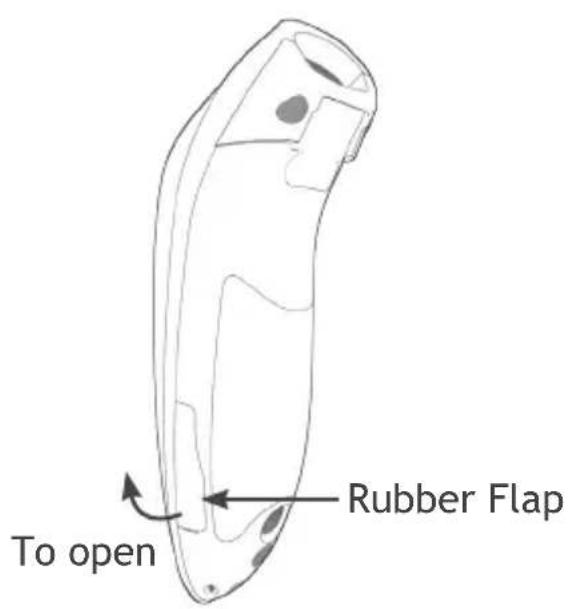
Lift the rubber flap to access the power connector.
• Yellow/Amber Light = Charging
- Green Light = Fully charged

Important:
Charging from a computer USB port is not recommended.
Available separately
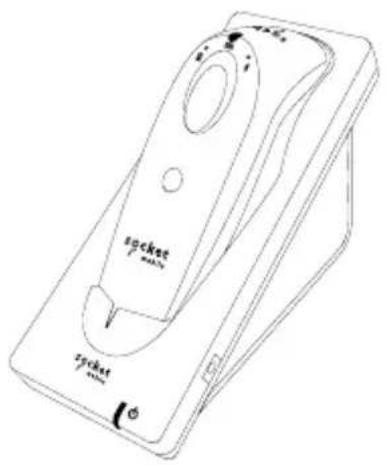
natural_image
Line drawing of a pocket watch device with no visible text or symbols on the device itself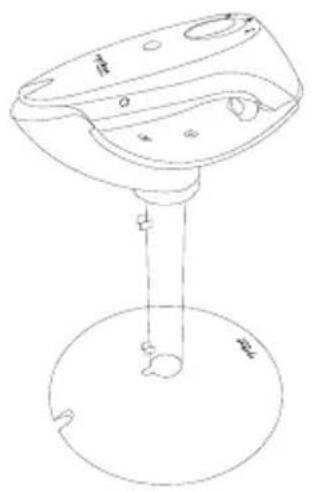
natural_image
Line drawing of a mechanical device with a base and top component (no text or symbols)Charging Cradle Charging Stand
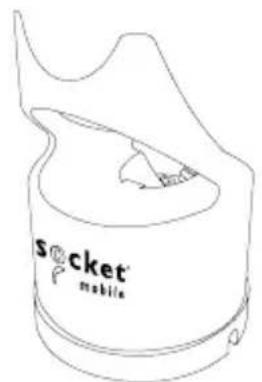
natural_image
Line drawing of a pocket watch with no text or symbolsCharging Dock
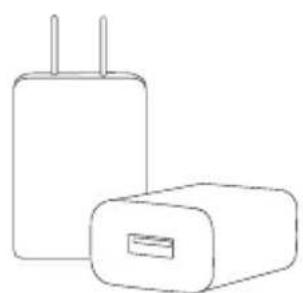
natural_image
Line drawing of two rectangular electronic devices with power leads (no text or symbols)AC Power Supply
International Adapters
available
For all optional accessories visit our Socket Store.
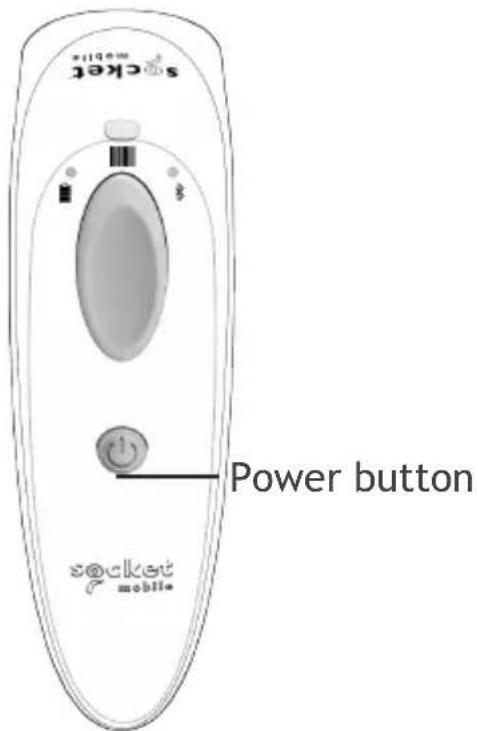
Powering On:
Press and hold down the small power button until the Battery light turns on and the scanner beeps twice (low-high).
natural_image
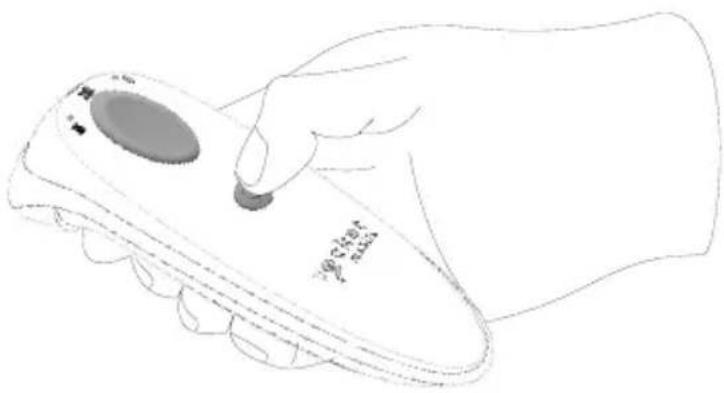
Line drawing of a hand holding a handheld electronic device with a knob (no text or symbols visible)Powering Off/ Disconnecting:
Press and hold down the small power button until the scanner beeps twice (high-low) and lights turn off.
The scanner will power off automatically if device is not connected within 5 minutes. Scanner connected to a device will power off within 2 hours if idle/inactive.
D740/D760
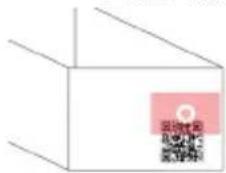
2D/1D Barcode
Aim at the center.
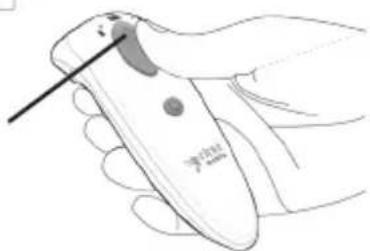
Scan button
natural_image
Line drawing of a hand holding a handheld device with a pen inserted (no text or symbols visible)D760 only
Passport
Aim at the center.
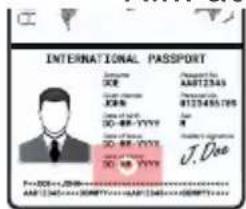
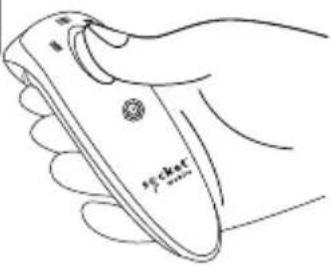
Scanning Barcodes
- Hold the scanner a few inches from the barcode.
- Aim, press and hold the scan button.
By default, the scanner will beep, vibrate, and the scan indicator will flash green to confirm a successful scan. The D760 default is setup to scan 2-line passports.

Caution: Do not stare directly into the scanner light beam.
Connect your scanner using one of the following Bluetooth connection modes:
Bluetooth Connection Profiles

| Bluetooth Mode Description | |
| Basic Mode (HID)(Default)*Human Interface Device Profile | NO software installation requiredConnects to most devicesGood for barcodes containing small amounts of dataScanner interacts with host device like a keyboard |
| Application Mode(SPP)Serial Port Profile | For Android or WindowsSoftware installation is requiredMore efficient and reliable data communications for barcodes containing lots of dataIf you have an application that supports Socket Mobile Scanners this is the mode recommended |
| Application Mode(MFi-SPP)Apple Specific Serial Profile | For iOS DevicesMust use with an App developed to work with iOS devicesSoftware installation is requiredIf you have an iOS application that supports Socket Mobile Scanners this is the mode you want to use |
*By default, the scanner is set to Basic Mode (HID).
Operating System Connection Options
| Operating Systems (OS) | Devices | Bluetooth HID Support | Bluetooth SPP Support | Bluetooth Apple Serial Specific (MFi Mode) |
| Android | Android 4.0.3 & later | Yes Yes N/A | ||
| Apple iOS | iPod, iPhone, & iPad | Yes N/A Yes | ||
| Windows PC | Windows 7, 8, 10 Yes | Yes N/A | ||
| Mac OS | Mac OS X 10.4 to 10.XMac Books, Mac Mini, & iMac | Yes No N/A | ||
Note: To switch from one mode to the other you must remove the pairing information from both devices - host computer and the scanner. (see unpairing procedure on page 22)
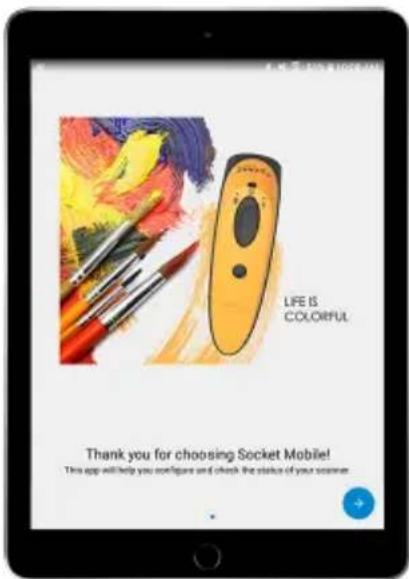
To assist in scanner setup & configuration Download the Companion App for free!
Socket Mobile's Companion App will help you configure and check the status of your Socket Mobile barcode scanners.
- Easy to follow instructions for pairing scanners in Application Mode
- Verify scanner status
- Check warranty and register scanners
Learn more about Application Mode.

Download on the
App Store
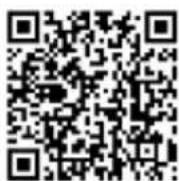
Scan this QR code with your mobile device to download our new app!

GET IT ON
Google Play
Scan this QR code with your mobile device to download our new app!
Made for
iPod iPhone iPad

Connect Device in Basic Mode
In this mode the scanner functions and communicates similar to a keyboard. Therefore, the scanner will work with Notes, and any other application that supports an active cursor.
- Power on the scanner. Make sure the scanner is discoverable (unpaired).
- Go to Settings | Bluetooth.
- Make sure the device has Bluetooth "On" and scan for devices.
- In the list of found devices, tap D740 or D760 [xxxxxx] to Pair.
- The scanner will connect to the host device.
- The scanner will beep once after it has connected.
*If you have trouble connecting or pairing with host device, turn host device's Bluetooth off/on, and/or perform factory reset on the scanner (see page 50).
Now you are ready to scan barcodes!
Connect Apple iOS device in Application Mode
Please check with your scanner application vendor or visit www.socketmobile.com/appstore to confirm your scanner-enabled application supports the scanner.
If you are using the scanner with an Apple iOS device and a scanner-enabled Application that does not provide instructions how to connect your scanner, please use the following steps.
- Power on the scanner. Make sure the scanner is discoverable (unpaired).
- To change the profile to Application Mode scan this barcode. The scanner will beep 3 times.
Use with iPad, iPod touch, and iPhones.
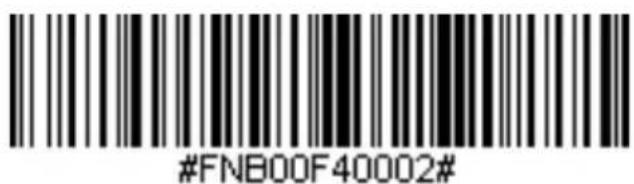
(Scanning this barcode changes the connection mode)
-
Go to Settings | Bluetooth.
-
Make sure the device has Bluetooth "On" and scan for devices.
APPLICATION MODE
- In the list of found devices, tap D740 or D760 [xxxxxx] to Pair.
- The scanner will connect to the host device.
- The scanner will beep once after it has connected.
Now you are ready to scan barcodes!

Application Mode (SPP) for Windows (option 1) or Android
(Auto Connect - No configuration required for Application pairing)
-
Power on the scanner. Make sure the scanner is discoverable (unpaired). The Blue light should be blinking fast.
-
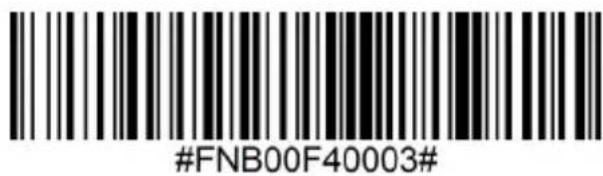
Scan the barcode to change the profile to Application Mode (SPP).
-
Turn on Bluetooth on the Android device. Go to Settings > Bluetooth. A Bluetooth Devices search will begin.
-
Tap Socket D760[xxxxxx] in the list of other devices found. After a few seconds the status will change to “Connected” and the LED will stop blinking and turn solid blue.
Note: The characters in brackets are the last 6 characters of the Bluetooth Address.
- Launch your scanner-enabled Application. The scanner will beep once indicating that it is connected to the appropriate application.
Now you are ready to scan barcodes!

Application Mode (SPP) for Android for D740 Rev. B and below
(Auto Connect - No configuration required for Application pairing)
-
Power on the scanner. Make sure the scanner is discoverable (unpaired). The Blue light should be blinking fast.
-
Scan the barcode to change the profile to Application Mode (SPP).
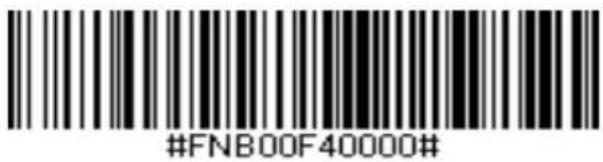
-
Turn on Bluetooth on the Android device. Go to Settings > Bluetooth. A Bluetooth Devices search will begin.
-
Tap Socket D760[xxxxxx] in the list of other devices found. After a few seconds the status will change to "Connected" and the LED will stop blinking and turn solid blue.
Note: The characters in brackets are the last 6 characters of the Bluetooth Address.
- Launch your scanner-enabled Application. The scanner will beep once indicating that it is connected to the appropriate application.
Now you are ready to scan barcodes!

Connect Windows (option 2) PC in Application Mode
Note: Make sure you have administrative privileges.
- Download the latest SocketScan 10 software from Socket Mobile's support web page.
- Follow the on-screen instructions to install the software.
- In SocketScan 10 Settings, select an incoming Bluetooth serial COM port.
Note: If there is none, please click Ports to create at least one new incoming COM port in Bluetooth settings.
-
Power on the scanner. Make sure the scanner is available to be connected to Bluetooth (unpaired).
-
Launch SocketScan 10 and click on the SocketScan 10 icon in the task tray. In the pop-up menu, click Socket EZ Pair.
-
Scan the barcode that appears on the screen.
-
open the Bluetooth settings, add and pair the scanner manually. (If prompted for a passkey, enter 0000)
-
Open SocketScan. From EZ pair, you will have the pre-paired Bluetooth option. The scanner is available to be clicked to pair.
Now you are ready to scan barcodes.
Automatically scan a barcode when seated in the Charging Dock or Charging Stand.
- Pair and connect the *2D scanner to your host device prior to placing the scanner in Auto Mode.
- Scan the barcode to confirure the scanner to operate in Auto Mode. The barcode is included on the bottom of the Charging Dock and Charging Stand.
Once the scanner is in Auto Mode, it will switch to automatic scanning when it detects power coming from the charging pins of the Dock or Stand. Place a barcode in the scanners field of view and the scanner will automatically scan it.
Note: The scanner will not turn off when it's in Auto Mode and is in the Dock or Stand under AC power.
*Supported 2D Scanners: 7Qi, 7Xi, D740, D750, D760 and S740
Auto Scan (In the Charging Stand)
| Action Behavior | Notification | |||
| Beep Pattern Light Activity Vibrate | ||||
| Place Scanner in the Stand Scan auto mode | Scanner switches to Auto Scan mode | High-high tone confirms proper seating* | Battery Status Light is Disabled | None |
| Place a barcode in the Scanners Field of View | Decode Bar Code 1 Beep when Data successfully scanned | Green Light blinks (while scanning) | None | |
Going from Auto Scan Mode to Normal Scanning Mode (Mobile Mode)
- Remove the scanner from the Dock or Stand.
- Press the scan button to enable Mobile Mode.
When the scanner is removed from the Dock or Stand, it will remain in Auto Mode until you press the scan button.
Note: When disconnected from the Charging Dock or Stand, the battery will drain faster.
Mobile Mode (Not in the Charging Stand)
| Action Behavior | Notification | |||
| Beep Pattern Light | Activity Vibrate | |||
| Remove the Scanner from the Stand and press the Scan button | Scanner switches to Mobile Mode | None Battery Status | Light is Enabled | Enabled |
| Press the Scan button Decode Code | Bar Code | 1 Beep when Data successfully scanned | Green Light blinks (while scanning) | Vibrate when Data successfully scanned |
Note: This procedure will put the scanner in discoverable mode.
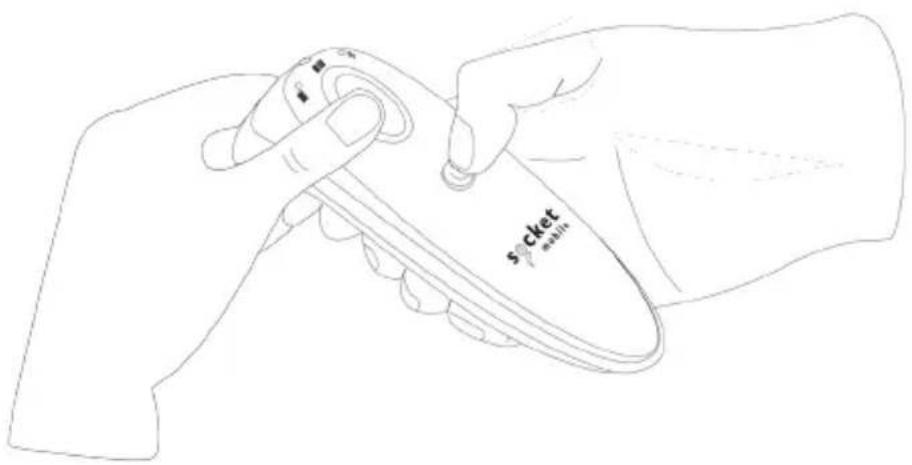
Step 1: Unpairing the scanner: Delete the Bluetooth Pairing

If the scanner is paired with a device, unpair it before trying to connect to a different device.
a. Power on the scanner.
b. Press and hold the scan button, then press and hold the power button.
The scanner will unpair and automatically power off. The next time you power on the scanner, it will be discoverable.
Step 2: Remove or forget the scanner from the Bluetooth list on the host device.

Important: Both steps above must be done to complete the unpairing.
Factory Reset will restore the DuraScan to Factory Default settings.
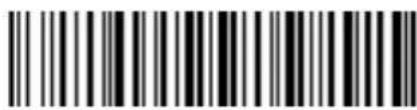
Scan this barcode
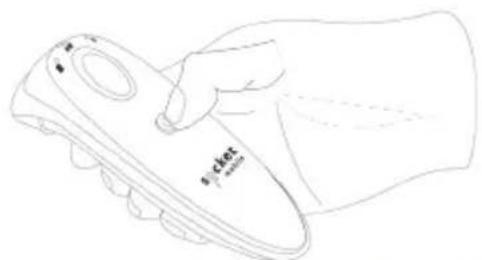
Or follow the steps below to manually reset the scanner:
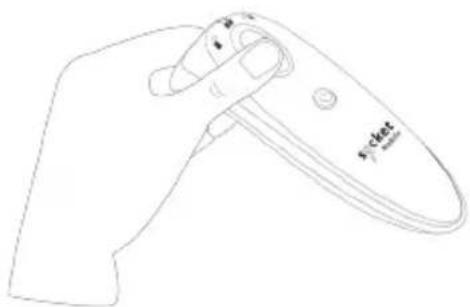
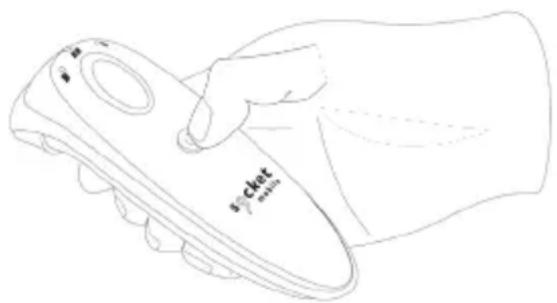
- Power ON the scanner.
natural_image
Line drawing of a hand holding a small electronic device (no text or symbols visible)- Press and hold the scan button.

- Tap the power button once while continuing to press the scan.
natural_image
Line drawing of a hand holding a small object with no visible text or symbols- Keep holding the scan button until you hear a beep and then release (about 15 seconds). Your scanner will beep 5 times and power off.
Note: If you follow this sequence but release the scan button too early the Factory Reset will fail.
NOTE: If your scanner remains in an unresponsive state after following the Factory Reset, use the Restore Method.
The Restore Method should be the last attempt used to revive an unresponsive scanner. It will reinitialize the core hardware.
- Make sure your scanner is OFF.
- Press and hold the power button until the LED light goes on then off (about 15 seconds).
natural_image
Line drawing of a smartphone and a remote control with signal waves (no text or symbols)Automatic Reconnections
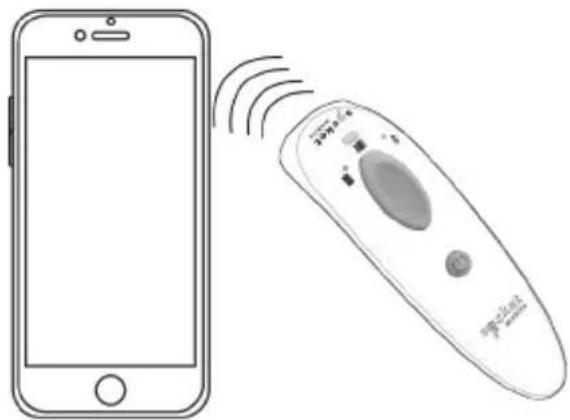
Each time you power on the scanner, it will automatically try to connect to the last device it was connected to.
• Make sure the device is in range with Bluetooth turned on.
- Pressing the scan button will initiate the attempts to connect.
- If using Application Mode, make sure the Scanner-enabled Application is launched or running.
- If a connection is made, the blue light will stop blinking and turn solid.
- If a connection is not made after several attempts, the scanner will emit a long beep (and the blue light will turn off).
- Press the scan button to re-initiate the connection process.
| Battery Charging when plugged into Power Supply | LED Activity Meaning | |
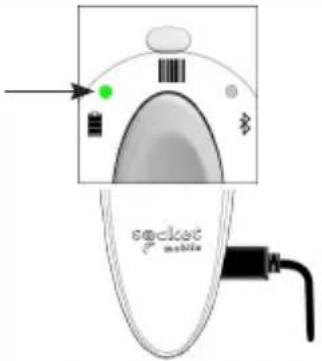 | Blinking Yellow Charging the battery | |
| Solid Green Battery is full | ||
| Battery Status When not connected to power supply | LED Activity Meaning | |
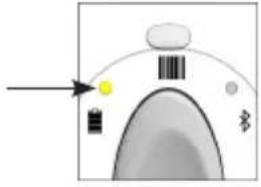 | Solid Green | Battery capacity from 100% to 25% |
| Solid Yellow | Battery capacity from 25% to 10% | |
| Solid Red | Warning - Battery capacity below 10% | |
| Blinking Red | Charge immediately! The battery level is critically low. | |
| Bluetooth LED | Activity Meaning | |
Bluetooth 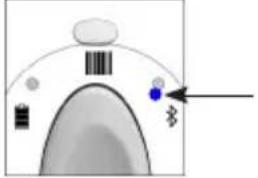 | Quick Blinking Blue (2 blinks every second) | Discoverable - waiting for a host Bluetooth connection. |
| Slow Blinking Blue (1 blink every second) | Scanner is attempting to connect to the last known host device. After 1 minute of blinking, scanner will stop searching. | |
| No Light - No Activity | Scanner has attempted to connect and failed. Press scan button to try again. | |
| Solid Blue Scanner Connected | ||
| Scan/Read LED | Activity Meaning | |
Scan/Read 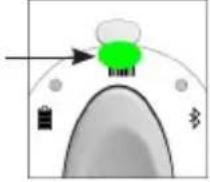 | Blink Green Once Good | Scan/Read |
| Blink Red Once Bad Scan/Read | ||
| Solid Red - for as long as power button is pressed | Power Button Pressed | |
| Beep Pattern Sound Meaning | ||
| Low-High Tone Power On | ||
| High-Low Tone Power Off | ||
| 2 Even Tones Power | Supply detected and scanner started charging | |
| 1 Low Beep (iOS only) | Scanner's keyboard toggle feature is enabled | |
| 1 Beep Scanner connected to device and is ready to scan barcodes | ||
| 1 Beep Data successfully scanned | ||
| 2 Beeps (same tone) | Scanner disconnected | |
| 1 Long Beep Scanner gave up searching for a host | ||
| 3 Beeps (escalating tone) | Scanner has been reconfigured (the command scanned successfully) | |
| 3 Beeps (escalating tone followed by long tone) | The command barcode did NOT work! (Verify if the command barcode used is valid for your scanner and try again) | |
| Vibrate Meaning | ||
| Vibrate Data successfully scanned | ||

Command Barcodes are available on pages 45-50 to modify the LED, beep, and vibrate settings.

If you are using a scanner-enabled application, typically the application provides settings for LED, beep, and vibrate settings.
Configuration Settings
| Time after powering on Scanner Bluetooth mode | |
| 0-5 minutes Discoverable and connectable | |
| 5 minutes If connection is not made, scanner powers off | |
| 2 hours If your scanner is connected but not used it will power off in 2 hours. When scan button is pressed the timer is reset. | |
| Specifications D740/D760 | |
| Dimensions (L x W x H) 5.2" x 1.5" x 1.6" (132.2 x 37.1 x 40.1 mm) | |
| Total Mass 4.0 oz (112.5 g) | |
| Antimicrobial | Antimicrobial additive in external surfaces |
| Battery 1400 mAh Lithium - Ion Battery | |
| Charge Time 6 Hours | |
| Battery Life - Per Full Charge | Standby time: over 20 hoursActive Scan Time: 85,000 scans within 9 hours (based on 2 scans every 1 second) or 17,000 scans within 9 hours (based on 1 scan every 4 seconds)Note: Battery life varies depending on operating conditions. |
| Bluetooth Version | Class 1 Bluetooth v2.1 + EDR with 56 bit data encryption |
| Wireless Range 330ft (100 m) line of sight | |
| Scanner Type 1D/2D Barcode Linear Imager | |
| Specifications | D740 D760 | |
| Default Symbologies | 1D Symbologies: Codabar, Code 39, Code 93, Code 128, EAN-13/JAN, EAN-8/JAN, GS1 Databar, GS1 Databar Expanded, GS1 Databar Limited, GS1-128, Interleaved 2 of 5, ISBT 128, UPC A, UPC EO2D Symbologies: Aztec, Data Matrix, Maxicode, Micro PDF417, PDF417Postal Codes: Australia Post | 1D Symbologies: Codabar, Code 39, Code 93, Code 128, EAN-13/JAN, EAN-8/JAN, GS1 Databar, GS1 Databar Expanded, GS1 Databar Limited, GS1-128, Interleaved 2 of 5, ISBT 128, UPC A, UPC EO2D Symbologies: Aztec, DataMatrix, Maxicode, Micro PDF417, PDF417Postal Codes: Australia PostOCR Typeface: OCR B Passport - 2 lines |
| Supported Symbologies | 1D Symbologies: Bookland EAN, Chinese 2 of 5, Codabar, Code 11, Code 39, Code 93, Code 128, Composite CC-A/B, Composite CC-C, Composite TLC, Discrete 2 of 5, EAN-13/JAN, EAN-8/JAN, GS1 Databar, GS1 Databar Expanded, GS1 Databar Limited, GS1-128, Interleaved 2 of 5, ISBT 128, ISSN EAN, Matrix 2 of 5, MSI, UPC/EAN/JAN, UPC A, UPC EO2D Symbologies: Aztec, Data Matrix, Maxicode, Micro PDF417, MicroQR, PDF417, QR CodePostal Codes: Australia Post, Han Xin, Japan Postal, KIX Code, Maxi-code, Netherlands, UPU FICS Posta, US Planet, US Postnet, USPS 4CB/One Code/Intelligent Mail | 1D Symbologies: Bookland EAN, Chinese 2 of 5, Codabar, Code 11, Code 39, Code 93, Code 128, Composite CC-A/B, Composite CC-C, Composite TLC, Discrete 2 of 5, EAN-13/JAN, EAN-8/JAN, GS1 Databar, GS1 Databar Expanded, GS1 Databar Limited, GS-128, Interleaved 2 of 5, ISBT 128, ISSN EAN, Matrix 2 of 5, MSI, UPC/EAN/JAN, UPC A, UPC EO2D Symbologies: Aztec, Data Matrix, Maxicode, Micro PDF417, MicroQR, PDF417, QR CodePostal Codes: Australia Post, Han Xin, Japan Postal, KIX Code, Maxicode, Netherlands, UPU FICS Posta, US Planet, US Postnet, USPS 4CB/One Code/Intelligent MailOCR Type Face: OCR-A, OCR-B, MICR-E13B, US currency serial number |
| Supported Language Settings [in Basic Mode (HID)] | English, French, German, Spanish | |
| Systems/BatteryChargingRequirement | USB Type 5V 1A | |
| Ambient Light | From 0 to 100 000 luxFrom pitch black to direct sun light | |
| OperatingTemperature | -4° to 122° F (-20° to 50°C) | |
| StorageTemperature | -40° to 158° F (-40° to 70°C) | |
| RelativeHumidity | 95% at 140° F (60°C) (non-condensing), 4 days | |
| Sealing IP54 (Ingress Protection rating for dust and water) EN60529 | ||
| DropSpecifications | Multiple 5 ft. drops to concrete | |
| TumbleSpecification | 250 cycles at 1.64 ft. (0.5 m) (500 drops), IEC60062-2-31 | |
HELPFUL RESOURCES
Technical Support & Product Registration:
support.socketmobile.com
Phone: 800-279-1390 +1-510-933-3020 (worldwide)
Warranty Checker:
socketmobile.com/support/warranty-checker
Socket Mobile Developer Program:
Learn more at: socketmobile.com/developers
The User Guide and Command Barcodes can be download at:
socketmobile.com/support/downloads

WARNING: Failure to follow these safety instructions could result in fire or other injury or damage to the barcode scanners or other property.
Carrying and Handling the DuraScan barcode scanners: The Socket Mobile barcode scanner contains sensitive components. Do not disassemble, open, crush, bend, deform, puncture, shred, microwave, incinerate, paint, or insert foreign objects into this unit.
Do not attempt to disassemble the product. Should your unit need service, contact Socket Mobile technical support at support.socketmobile.com/
Changes or modifications of this product, not expressly approved by Socket Mobile may void the user's authority to use the equipment.
Do not charge the DuraScan barcode scanner using an AC adapter when operating the unit outdoors, or in the rain.
Operating Temperature - this product is designed for a maximum ambient temperature of 50^ degrees C or 122^ degrees F.
Pacemaker Disclaimer: For now, we do not have specific information on the effect(s) of vibration or devices with Bluetooth wireless technology on pacemakers.
Socket Mobile cannot provide any specific guidance.
Individuals who are concerned with using the barcode scanner should immediately turn the device off.
FCC ID: T9J-RN41-3

Federal Communication Commission Interference Statement
This equipment has been tested and found to comply with the limits for a Class B digital device, pursuant to Part 15 of the FCC Rules. These limits are designed to provide reasonable protection against harmful interference in a residential installation. This equipment generates, uses and can radiate radio frequency energy and, if not installed and used in accordance with the instructions, may cause harmful interference to radio communications. However, there is no guarantee that interference will not occur in a particular installation.
If this equipment does cause harmful interference to radio or television reception, which can be determined by turning the equipment off and on, the user is encouraged to try to correct the interference by one of the following measures:
- Reorient or relocate the receiving antenna.
- Increase the separation between the equipment and receiver.
- Connect the equipment into an outlet on a circuit different from that to which the receiver is connected.
- Consult the dealer or an experienced radio/TV technician for help.
FCC Caution: To assure continued compliance, any changes or modifications not expressly approved by the party responsible for compliance could void the user's authority to operate this equipment. (Example - use only shielded interface cables when connecting to computer or peripheral devices).
FCC Radiation Exposure Statement
This equipment complies with FCC RF radiation exposure limits set forth for an uncontrolled environment. This equipment should be installed and operated with a minimum distance of 20 centimeters between the radiator and your body. This device complies with Part 15 of the FCC Rules. Operation is subject to the following two conditions:
- This device may not cause harmful interference, and
- This device must accept any interference received, including interference that may cause undesired operation
IC ID: 6514A-RN413

Industrie Canada
Industry Canada
This device complies with Industry Canada license exempt RSS standard(s). Operation is subject to the following two conditions: (1) this device may not cause interference, and (2) this device must accept any interference, including interference that may cause undesired operation of the device.
CE Marking & European Union Compliance

Products intended for sale within the European Union are marked with a CE Mark, which indicates compliance to applicable Directives and European Normes (EN), as follows. Amendments to these Directives or ENs are included: Normes (EN), as follows:
Applicable Directives:
- Bluetooth Products: R&TTE Directive 2014/53EW
• Low Voltage Directives: 2014/35/EU, and 2006/95/EC
• EMC Directive: 2004/108/EU
• Rotts Directive: 2011/65/EU
• WEEE Directive: 2012/19/EU
SAFETY: EN 60950-1: 2006/A11
:2009/A1
:2010/A12
:2011/A2:2013
Telec Marking Compliance
R211-161214

Products intended for sale within the country of Japan are marked with a Telec mark, which indicates compliance to applicable Radio Laws, Articles and Amendments.
This device contains a rechargeable Lithium-Ion battery.

Stop charging DuraScan barcode scanners if charging isn't completed within the normal specified time (approx. 6 hours).
Stop charging the battery if the DuraScan barcode scanner case becomes abnormally hot, or shows signs of odor, discoloration, deformation, or abnormal conditions is detected during use, charge, or storage.
Stop using the DuraScan barcode scanner if the enclosure is cracked, swollen or shows any other signs of mis-use. Contact Socket Mobile support for an RMA.
Your device contains a rechargeable Lithium-Ion battery which may present a risk of fire or chemical burn if mistreated. Do not charge or use the unit in a car or similar place where the inside temperature may be over 60 degrees C or 140 degrees F.
- Never throw the battery into a fire, as that could cause the battery to explode.
- Never short circuit the battery by bringing the terminals in contact with another metal object. This could cause personal injury, or fire, and could also damage the battery.
-
Never dispose of used batteries with other ordinary solid wastes. Batteries contain toxic substances.
-
Dispose of used batteries in accordance with the prevailing community regulations that apply to the disposal of batteries.
- Never expose this product or the battery to any liquids.
- Do not shock the battery by dropping it or throwing it.
If this unit shows any type of damage, such as bulging, swelling or disfigurement, discontinue use and promptly dispose.
Product Disposal
Your device should not be placed in municipal waste. Please contact Socket Mobile support for an RMA.

Caution: DO NOT STARE DIRECTLY INTO THE LED BEAM.
LED DEVICE:
The DuraScan D700, D740, D750 and D760 contain a LED-type scan engine.

For the LED version of this engine, the following applies:
- Complies with IEC/EN 62471 (EXEMPT GROUP)
- LED output is in the 630-670nm range (visible red).
- LED devices are not considered to be hazardous when used for their intended purpose.
The following statement is required to comply with US and international regulations:
Caution: Use of controls, adjustments or performance of procedures other than those specified herein may result in hazardous LED light exposure.
CE MARKING AND EUROPEAN UNION COMPLIANCE
Testing for compliance to CE requirements was performed by an independent laboratory. The unit under test was found compliant with all the applicable Directives, 2004/108/EC and 2006/95/EC.
WASTE ELECTRICAL AND ELECTRONIC EQUIPMENT
The WEEE directive places an obligation on all EU-based manufacturers and importers to take-back electronic products at the end of their useful life.
RoHS STATEMENT OF COMPLIANCE
This product is compliant to Directive 2011/95/EC.
NON-MODIFICATION STATEMENT
Changes or modifications not expressly approved by the party responsible for compliance.
CONFORMS TO THE FOLLOWING EUROPEAN DIRECTIVES
Low Voltage Directives: 2014/35/EU
RED Directive: 2014/53/EU
EMC Directive: 2014/30/EU
RoHS Directive: 2011/65/EC
WEEE Directive: 2012/19/EC
Supplementary Information:
Safety: EN 60950-1: 2006/A11:2009, A12:2011, A1:2010, A2:2013
ETSI EN 300 328
ETSI EN 301 489




Socket Mobile Incorporated (Socket) warrants this product against defects in material and workmanship, under normal use and service, for one (1) year from the date of purchase. Product must be purchased new from a Socket Authorized Distributor or Reseller. Used products and products purchased through non-authorized channels are not eligible for this warranty support.
Warranty benefits are in addition to rights provided under local consumer laws. You may be required to furnish proof of purchase details when making a claim under this warranty.
Consumables such as batteries, removable cables, cases, straps, and chargers: 90-day warranty.
For more warranty information, please visit: socketmobile.com/support/downloads
Scan command barcode(s) to quickly configure the Scanner.

Make sure the scanner is not connected to a device before scanning a command barcode! See page 22 for unpairing instructions.
For a complete set of command barcodes, download the Command Barcodes Sheet: https://socketmobile.com/support/downloads
| Auto Mode and Mobile Mode | |
| Auto Scan ModeScanning this bar code will enable the scanner to enter Auto Scan Mode when placed in Socket Mobile's Charging Dock or Stand. Auto Scan Mode command barcode is also printed on the product label.#FNB 41FBA50003# | 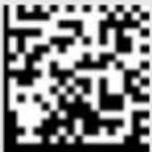 #FNB 41FBA50003# #FNB 41FBA50003# |
| Mobile Mode - Normal (default)*Scanning this bar code will enable the scanner to enter Mobile Mode. It will always be in manual scan mode even when placed in the dock or stand.#FNB 41FBA50000# | 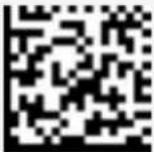 #FNB 41FBA50000# #FNB 41FBA50000# |
For More details on Auto Scan Mode and Mobile Mode, see page 19.

Important! Make sure the scanner is not connected to a host computer or device before scanning a command barcode!
| Bluetooth Connection Modes | |
| Basic Mode (HID) (default) Configures the Scanner to Human Interface Device (HID) mode as a Keyboard class device#FNB00F40001# | 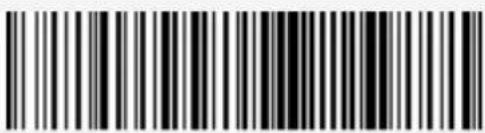 |
| Application Mode (MFi-SPP) for Apple iOS devices Configures scanner to work with an application.#FNB00F40002# | 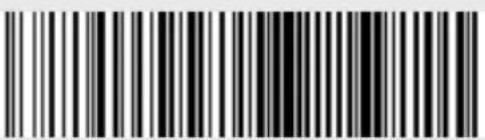 |
| Application Mode (SPP) for Windows or Android 8.0 and later (Auto Connect - No configuration required for Application pairing)#FNB00F40003# | 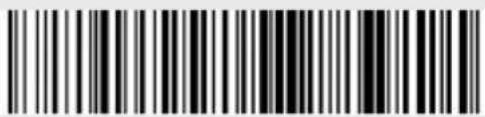 |
| Application Mode (SPP) for Windows or Android version 7.0 and lower Configures scanner to Serial Port Profile.#FNB00F40000# | 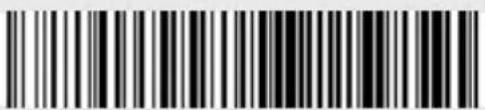 |
For busy days on the job, try using the Active Mode to keep you moving faster. Avoid the hassle of turning the scanner on again and reconnecting to your host device.
Scan one of the barcodes below and reconfigure the scanner to remain on longer.
Note: Turn off the host device's Bluetooth prior to scanning one of the alternate timer barcodes. Then turn the Bluetooth back on.
*These settings drain the battery faster. It is assumed you will charge the scanner within a 24-hour period or overnight. If you don't, the scanner's battery will drain completely.
| Bluetooth Connection Modes | |
| Scanner Always On* Configures the scanner to never power off.#FNB012100000000# |  |
| Continuous Power for 8 hours*Scan Barcode to configure the scanner to remain on for 8 hours.#FNB012101E001E0# |  |
Bluetooth Connection Modes
| Continuous Power for 4 hours*Scan Barcode to configure the scanner to remain on for 4 hours.#FNB012100F000F0# |  |
| Return Scanner to Default SettingTurns the scanner off when it is not in use - 3 to 5 minutes after being disconnected from host device.#FNB012100780005# | 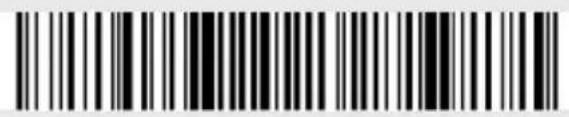 |

Important! Make sure the Scanner is not connected to a host computer or device before scanning a command barcode!
| Beep Settings | |
| Beep after scanner Decodes Data ON (default) | |
| Enables scanner to beep to indicate successful scans. |  |
| #FNB0119E00010003 0078004B# | |
| Beep after scanner Decodes Data OFF | |
| Disables scanner from beeping to indicate successful scans. |  |
| #FNB01190E0001000 00078004B# | |
| Vibrate Settings | |
| Vibrate ON (default)Enables scanner to vibrate to indicate successful scans.#FNB01310001000100FA0000# | 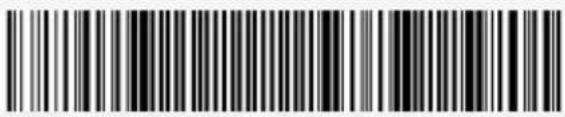 |
| Vibrate OFFDisables scanner from vibrating to indicate successful scans.#FNB013100010000# | 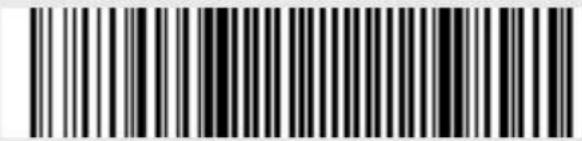 |
| Factory Default | |
| Factory ResetRevert all settings tofactory defaults. The scannerwill power off after scanningthis barcode.#FNB00F0# | 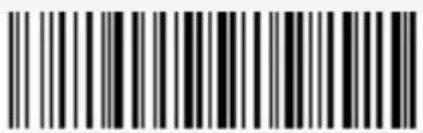 |
For more command codes go to: https://socketmobile.com/support/downloads
Extend Your Warranty...

Receive Priority Service and Personal Care.
You have 60 Days from purchase date to enroll in a SocketCare Service Program!
For detailed information visit: https://socketmobile.com/socketcare
- Bluetooth® wireless technology
- barcode scanner
- Model D740/D760
- TABLE OF CONTENTS
- How to setup your scanner:
- Can't use Companion App?
- How to setup your scanner in Basic Mode
- Thank you for choosing Socket Mobile! Let's get started!
- How to Attach the Lanyard (optional)
- Important:
- Available separately
- Charging Cradle Charging Stand
- Powering On:
- Powering Off/ Disconnecting:
- Scanning Barcodes
- To assist in scanner setup & configuration Download the Companion App for free!
- Connect Device in Basic Mode
- Connect Apple iOS device in Application Mode
- APPLICATION MODE
- Application Mode (SPP) for Windows (option 1) or Android
- Application Mode (SPP) for Android for D740 Rev. B and below
- Connect Windows (option 2) PC in Application Mode
- Automatically scan a barcode when seated in the Charging Dock or Charging Stand.
- Going from Auto Scan Mode to Normal Scanning Mode (Mobile Mode)
- Step 1: Unpairing the scanner: Delete the Bluetooth Pairing
- Step 2: Remove or forget the scanner from the Bluetooth list on the host device.
- Automatic Reconnections
- HELPFUL RESOURCES
- Technical Support & Product Registration:
- Warranty Checker:
- Socket Mobile Developer Program:
- Federal Communication Commission Interference Statement
- FCC Radiation Exposure Statement
- CE Marking & European Union Compliance
- Applicable Directives:
- Telec Marking Compliance
- Product Disposal
- Extend Your Warranty...
Brand : Socket Mobile
Model : DuraScan D760
Category : Barcode Reader