
ThinkSystem SR530 - Server LENOVO - Free user manual and instructions
Find the device manual for free ThinkSystem SR530 LENOVO in PDF.


| Product Type | 1U Rack Server |
| Brand | Lenovo |
| Model | ThinkSystem SR530 (Machine Types: 7X07, 7X08) |
| Height | 43.0 mm (1.7 inches) |
| Width (with rack latches) | 482.0 mm (19.0 inches) |
| Width (without rack latches) | 434.4 mm (17.1 inches) |
| Depth (with rack latches and power supply, without bezel) | 778.3 mm (30.7 inches) |
| Maximum Weight | 16.0 kg (35.3 lb) |
| Processor | Up to two Intel Xeon Scalable processors, LGA 3647 socket, up to 20 cores each |
| Memory | 12 DIMM slots; up to 768 GB DDR4 (RDIMM/LRDIMM); supports 8 GB, 16 GB, 32 GB RDIMM and 64 GB LRDIMM |
| Internal Drive Bays | Up to four 3.5-inch hot-swap SAS/SATA, up to four 3.5-inch simple-swap SATA, up to eight 2.5-inch hot-swap SAS/SATA, up to two M.2 drives |
| RAID Support | RAID 530-8i, 730-8i, 930-8i, or 930-8e adapter; supports JBOD, RAID 0, 1, 5, 6, 10, 50, 60 |
| Power Supply | Up to two hot-swap redundant power supplies: 550W AC 80 PLUS Platinum, 750W AC 80 PLUS Platinum, or 750W AC 80 PLUS Titanium |
| System Fans | Four fans (one processor) or six fans (two processors); hot-swappable |
| Management | Lenovo XClarity Controller with dedicated network port; supports IPMI, KVM, firmware updates |
| Front I/O | One VGA, one XClarity Controller USB, one USB 3.0, operator information panel with status LEDs |
| Rear I/O | One VGA, two USB 3.0, two Ethernet RJ-45, one XClarity Controller network, optional LOM adapter with two additional Ethernet ports, optional serial port |
| PCIe Slots | Up to three PCIe slots (x8 or x16) on riser cards; low-profile or full-height cards supported |
| Operating Environment | ASHRAE class A2: 10-35°C, A3: 5-40°C, A4: 5-45°C; max altitude 3050 m; relative humidity 8-80% (A2) |
| Safety Compliance | IEC 60950-1; includes safety inspection checklist and grounding requirements |
| Warranty | Limited warranty; details at datacentersupport.lenovo.com/warrantylookup |
| Spare Parts Availability | CRU/FRU parts listed in manual; order via datacentersupport.lenovo.com by serial number |
Frequently Asked Questions - ThinkSystem SR530 LENOVO
User questions about ThinkSystem SR530 LENOVO
0 question about this device. Answer the ones you know or ask your own.
Ask a new question about this device
Download the instructions for your Server in PDF format for free! Find your manual ThinkSystem SR530 - LENOVO and take your electronic device back in hand. On this page are published all the documents necessary for the use of your device. ThinkSystem SR530 by LENOVO.
USER MANUAL ThinkSystem SR530 LENOVO
natural_image
Hexagonal grid pattern with colored hexagons (black, green, blue, orange, red, yellow) arranged in a curved sequence (no text or symbols)Machine Types: 7X07 and 7X08
Note
Before using this information and the product it supports, be sure to read and understand the safety information and the safety instructions, which are available at:
http://thinksystem.lenovofiles.com/help/topic/safety_documentation/pdf_files.html
In addition, be sure that you are familiar with the terms and conditions of the Lenovo warranty for your server, which can be found at:
http://datacentersupport.lenovo.com/warrantylookup
First Edition (August 2017)
© Copyright Lenovo 2017.
LIMITED AND RESTRICTED RIGHTS NOTICE: If data or software is delivered pursuant to a General Services
Administration "GSA" contract, use, reproduction, or disclosure is subject to restrictions set forth in Contract No. GS-35F-05925
Contents
Safety....iii
Safety inspection checklist ..... iv
Chapter 1. Introduction ..... 1
Specifications....2
Firmware updates....6
Configuring the LAN over USB interface manually. 8
Installing the LAN over USB Windows device driver....8
Tech Tips 9
Security advisories ..... 9
Power on the server ..... 10
Power off the server ..... 10
Chapter 2. Server components ..... 11
Front view....11
Operator information panel ..... 13
Rear view 15
Rear view LEDs ..... 19
System board components ..... 21
System board switches and jumpers ..... 23
System board LEDs ..... 24
Internal cable routing....25
VGA connector 26
Front I/O assembly. 28
RAID super capacitor module ..... 29
Backplanes. 30
Parts list. 33
Power cords 36
Chapter 3. Hardware replacement procedures.... 37
Installation Guidelines ..... 37
System reliability guidelines ..... 38
Working inside the server with the power on . . 39
Handling static-sensitive devices ..... 39
Rack latches replacement. 40
Remove the rack latches ..... 40
Install the rack latches ..... 42
Security bezel replacement ..... 44
Remove the security bezel....44
Install the security bezel. . . . . . . . . . 46
Top cover replacement ..... 48
Remove the top cover 48
Install the top cover 50
Air baffle replacement ..... 51
Remove the air baffle . . . . . . . . . . 51
Install the air baffle . . . . . . . . . . . . 53
RAID super capacitor module replacement . . . . 54
Remove a RAID super capacitor module . . . 54
Install a RAID super capacitor module ..... 55
System fan replacement ..... 56
Remove a system fan. 56
Install a system fan. 58
Front I/O assembly replacement ..... 59
Remove the front I/O assembly ..... 59
Install the front I/O assembly ..... 60
Hot-swap drive backplane replacement ..... 61
Remove the backplane for four 3.5-inch hot-swap drives....61
Install the backplane for four 3.5-inch hot-swap drives....62
Remove the backplane for eight 2.5-inch hot-swap drives....63
Install the backplane for eight 2.5-inch hot-swap drives....65
Simple-swap drive backplate assembly
replacement....66
Remove the simple-swap drive backplate assembly 66
Install the simple-swap drive backplate assembly 67
Hot-swap drive replacement....68
Remove a hot-swap drive ..... 69
Install a hot-swap drive ..... 70
Simple-swap drive replacement ..... 71
Remove a simple-swap drive....72
Install a simple-swap drive. 74
DIMM replacement 75
Remove a DIMM. 75
DIMM installation rules 77
Install a DIMM ..... 81
CMOS battery replacement ..... 83
Remove the CMOS battery ..... 83
Install the CMOS battery 85
TCM replacement (for China only). ..... 87
Remove the TCM (for China only) ..... 87
Install the TCM (for China only) ..... 88
Hot-swap power supply replacement ..... 89
Remove a hot-swap power supply. . . . . . 89
Install a hot-swap power supply ..... 95
PCIe adapter replacement. 101
Remove a PCIe adapter....101
Install a PCIe adapter....102
Riser card replacement ..... 103
Remove a riser card ..... 103
Install a riser card ..... 105
M.2 backplane and M.2 drive replacement . . . 107
Remove the M.2 backplane and M.2 drive. . . 107
Adjust the retainer on the M.2 backplane . . . 109
Install the M.2 backplane and M.2 drive. . . . 110
Serial port module replacement ..... 113
Remove the serial port module ..... 113
Install the serial port module ..... 115
LOM adapter replacement ..... 116
Remove the LOM adapter ..... 116
Install the LOM adapter ..... 117
Processor and heat sink replacement ..... 118
Remove a processor and heat sink ..... 118
Install a processor and heat sink ..... 121
System board replacement ..... 126
Remove the system board ..... 126
Install the system board ..... 128
Update the Universal Unique Identifier
(UUID). 129
Update the DMI/SMBIOS data ..... 130
Enable TPM/TCM 132
Enable UEFI Secure Boot ..... 134
Complete the parts replacement ..... 135
Chapter 4. Problem
determination .....137
Event logs 137
General problem determination procedures ..... 139
Resolving suspected power problems . . . . 139
Resolving suspected Ethernet controller
problems 140
Troubleshooting by symptom ..... 140
Power on and power off problems. . . . . . 141
Memory problems ..... 142
Hard disk drive problems ..... 143
Monitor and video problems ..... 145
Keyboard, mouse, or USB-device
problems 146
Optional-device problems ..... 147
Serial-device problems ..... 149
Intermittent problems....149
Power problems....150
Network problems ..... 150
Observable problems....151
Software problems. 153
Appendix A. Getting help and technical assistance .....155
Before you call 155
Collecting service data....156
Contacting Support ..... 157
Appendix B. Notices....159
Trademarks....160
Important notes....160
Particulate contamination ..... 160
Telecommunication regulatory statement. . . . . 161
Electronic emission notices ..... 161
Taiwan BSMI RoHS declaration. . . . . . . 162
Taiwan import and export contact information . . . 162
Index .....165
Safety
Before installing this product, read the Safety Information.
Safety inspection checklist
Use the information in this section to identify potentially unsafe conditions with your server. As each machine was designed and built, required safety items were installed to protect users and service technicians from injury.
CAUTION:
This equipment must be installed by trained service personnel, as defined by the NEC and IEC 60950-1, Second Edition, the standard for Safety of Information Technology Equipment. Lenovo assumes you are qualified in the servicing of equipment and trained in recognizing hazards in products with hazardous energy levels.
Important: Electrical grounding of the server is required for operator safety and correct system function. Proper grounding of the electrical outlet can be verified by a certified electrician.
Use the following checklist to verify that there are no potentially unsafe conditions:
- Make sure that the power is off and the power cord is disconnected.
- Check the power cord.
- Make sure that the third-wire ground connector is in good condition. Use a meter to measure third-wire ground continuity for 0.1 ohm or less between the external ground pin and the frame ground.
- Make sure that the power cord is the correct type.
To view the power cords that are available for the server:
a. Go to:
http://lesc.lenovo.com
b. In the Customize a Model pane:
1) Click Select Options/Parts for a Model.
2) Enter the machine type and model for your server.
c. Click the Power tab to see all line cords.
- Make sure that the insulation is not frayed or worn.
- Check for any obvious non-Lenovo alterations. Use good judgment as to the safety of any non-Lenovo alterations.
- Check inside the server for any obvious unsafe conditions, such as metal filings, contamination, water or other liquid, or signs of fire or smoke damage.
- Check for worn, frayed, or pinched cables.
- Make sure that the power-supply cover fasteners (screws or rivets) have not been removed or tampered with.
Chapter 1. Introduction
The ThinkSystem SR530 is a general-purpose dual-socket 1U rack server that is great for various IT workloads, include web hosting, entry cloud, and virtualization. It is ideal for small and medium-size business (SMB) customers to run many kinds of applications by offering the latest technology to support multi-core processors, faster memory speed, flexible input/output (I/O) options and tiered system management.
The server comes with a limited warranty. For details about the warranty, see: https://datacentersupport.lenovo.com/us/en/documents/ht100742
For details about your specific warranty, see: http://datacentersupport.lenovo.com/warrantylookup
Identifying your server
When you contact Lenovo for help, the machine type and serial number information helps support technicians to identify your server and provide faster service.
The machine type and serial number are on the ID label on the right rack latch in the front of the server.
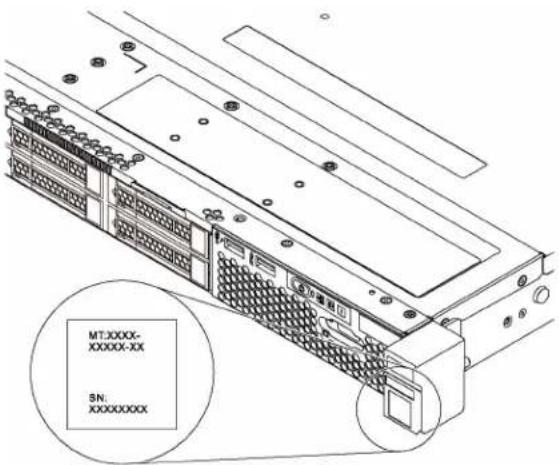
Figure 1. Location of the ID label
XClarity Controller network access label
The XClarity Controller network access label is attached on the top side of the pull-out information tab. After you get the server, peel the XClarity Controller network access label away and store it in a safe place.
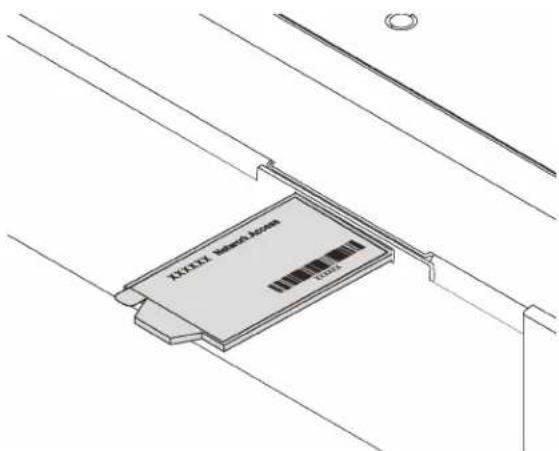
Figure 2. Location of the XClarity Controller network access label
Quick response code
The system service label, which is on the top cover, provides a quick response (QR) code for mobile access to service information. Scan the QR code with a mobile device and a QR code reader application to get quick access to the Lenovo Service web site for this server. The Lenovo Service Information Web site provides additional information for parts installation and replacement videos, and error codes for server support.
The following illustration shows the QR code.
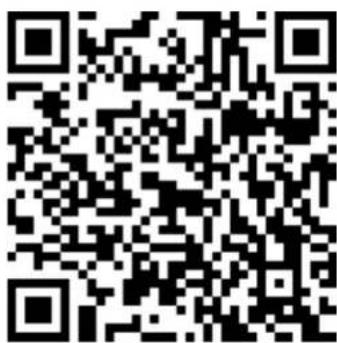
Figure 3. QR code
Specifications
The following information is a summary of the features and specifications of the server. Depending on the model, some features might not be available, or some specifications might not apply.
Table 1. Server specifications
| Specification | Description |
| Dimension | Form factor: 1UHeight: 43.0 mm (1.7 inches)Width:- With rack latches: 482.0 mm (19.0 inches)- Without rack latches: 434.4 mm (17.1 inches)Depth: 778.3 mm (30.7 inches)Note:The depth is measured with rack latches and power supply installed, but without security bezel installed. |
| Weight | Up to 16.0 kg (35.3 lb), depending on your configuration |
| Processor (depending on the model) | Up to two Intel®processorsDesigned for Land Grid Array (LGA) 3647 socketScalable up to 20 coresFor a list of supported processors, see:http://www.lenovo.com/serverproven/ |
| Memory | Minimum: 8 GBMaximum: 768 GB- 384 GB using registered DIMMs (RDIMMs)- 768 GB using load-reduced DIMMs (LRDIMMs)Type:- RDIMM or LRDIMM- Single-rank, dual-rank, or quad-rank- PC4-21300 (DDR4-2666), operating speed depends on the processor model and UEFI operating modeSlots: 12 DIMM slotsSupports (depending on the model):- 8 GB, 16 GB, and 32 GB RDIMMs- 64 GB LRDIMMsFor a list of supported DIMMs, see:http://www.lenovo.com/serverproven/ |
| Internal drives Drives supported | by your server vary by model.Up to four 3.5-inch hot-swap SAS/SATA drivesUp to four 3.5-inch simple-swap SATA drivesUp to eight 2.5-inch hot-swap SAS/SATA drivesUp to two M.2 drives |
| PCIe slots Depending on the server model, your server supports up to three PCIe slots.For more information about the PCIe slots, see “Rear view” on page 15. | |
| Input/Output (I/O) features | Front panel:One VGA connector*One XClarity Controller USB connectorOne USB 3.0 connectorRear panel:One VGA connectorTwo USB 3.0 connectorsTwo Ethernet connectors (RJ-45)One XClarity Controller network connectorTwo Ethernet connectors on the LOM adapter*-One serial port** Available on some models |
| RAID adapters (depending on the model) | A RAID 530-8i SAS/SATA adapter that supports JBOD mode and RAID levels 0, 1, 5, 10, and 50A RAID 730-8i SAS/SATA adapter that supports JBOD mode and RAID levels 0, 1, 5, 10, and 50 (only available in China)A RAID 930-8i SAS/SATA adapter that supports JBOD mode and RAID levels 0, 1, 5, 6, 10, 50, and 60A RAID 930-8e SAS/SATA adapter that supports JBOD mode and RAID levels 0, 1, 5, 6, 10, 50, and 60 |
| System fans | One processor: four system fansTwo processors: six system fansNote:If your server is installed with one processor, four system fans (fan 1 to fan 4) are adequate to provide proper cooling. However, you must keep the locations for fan 5 and fan 6 occupied by fan fillers to ensure proper airflow. |
| Power supplies Up to two hot-swap power supplies for redundancy support.550-watt ac 80 PLUS Platinum750-watt ac 80 PLUS Platinum750-watt ac 80 PLUS Titanium | |
| Electrical input | Sine-wave input (50–60 Hz) requiredInput voltage low rangeMinimum: 100 V acMaximum: 127 V acInput voltage high range:Minimum: 200 V acMaximum: 240 V acNote: For server models with 750-watt ac 80 PLUS Titanium power supplies, the 100–127 V ac input voltage is not supported.CAUTION:240 V dc input (input range: 180-300 V dc) is supported in China ONLY. Power supply with 240 V dc input cannot support hot plugging power cord function.Before removing the power supply with dc input, please turn off server or disconnect dc power sources at the breaker panel or by turning off the power source. Then, remove the power cord. |
| Environment The server is supported in the following environment:Air temperature:- Operating:ASHRAE class A2: 10–35°C (50–95°F); when the altitude exceeds 900 m (2953 ft), the maximum ambient temperature value decreases by 1°C (1.8°F) with every 300 m (984 ft) of altitude increase.ASHRAE class A3: 5–40°C (41–104°F); when the altitude exceeds 900 m (2953 ft), the maximum ambient temperature value decreases by 1°C (1.8°F) with every 175 m (574 ft) of altitude increase.ASHRAE class A4: 5–45°C (41–113°F); when the altitude exceeds 900 m (2953 ft), the maximum ambient temperature value decreases by 1°C (1.8°F) with every 125 m (410 ft) of altitude increase.Server off: 5–45°C (41–113°F)- Shipping or storage: -40–60°C (-40–140°F)Notes: Your server complies with ASHRAE class A2 specifications. The server performance might be impacted when the operating temperature is outside the ASHRAE A2 specifications. Depending on the hardware configuration, some server models comply with ASHRAE class A3 and class A4 specifications. To comply with ASHRAE class A3 and class A4 specifications, the server models must meet the following hardware configuration requirements at the same time:Two power supplies must be installed.No system fan fails.Maximum altitude: 3050 m (10 000 ft)Relative humidity (non-condensing):Operating:ASHRAE class A2: 8%–80%; maximum dew point: 21°C (70°F)ASHRAE class A3: 8%–85%; maximum dew point: 24°C (75°F)ASHRAE class A4: 8%–90%; maximum dew point: 24°C (75°F)- Shipping or storage: 8%–90% | Particulate contaminationAttention: Airborne particulates and reactive gases acting alone or in combination with other environmental factors such as humidity or temperature might pose a risk to the server. For information about the limits for particulates and gases, see “Particulate contamination” on page 160. |
Firmware updates
Several options are available to update the firmware for the server.
You can use the tools listed here to update the most current firmware for your server and the devices that are installed in the server.
Note: Lenovo typically releases firmware in bundles called UpdateXpress System Packs (UXSPs). To ensure that all of the firmware updates are compatible, you should update all firmware at the same time. If you are updating firmware for both the Lenovo XClarity Controller and UEFI, update the firmware for Lenovo XClarity Controller first.
Important terminology
- In-band update. The installation or update is performed using a tool or application within an operating system that is executing on the server's core CPU.
- Out-of-band update. The installation or update is performed by the Lenovo XClarity Controller collecting the update and then directing the update to the target subsystem or device. Out-of-band updates have no dependency on an operating system executing on the core CPU. However, most out-of-band operations do require the server to be in the S0 (Working) power state.
- On-Target update. The installation or update is initiated from an Operating System executing on the server's operating system.
- Off-Target update. The installation or update is initiated from a computing device interacting directly with the server's Lenovo XClarity Controller.
- UpdateXpress System Packs (UXSPs). UXSPs are bundled updates designed and tested to provide the interdependent level of functionality, performance, and compatibility. UXSPs are server machine-type specific and are built (with firmware and device driver updates) to support specific Windows Server, Red Hat Enterprise Linux (RHEL) and SUSE Linux Enterprise Server (SLES) operating system distributions. Machine-type-specific firmware-only UXSPs are also available.
See the following table to determine the best Lenovo tool to use for installing and setting up the firmware:
| Tool | In-band update | Out-of-band update | On-target update | Off-target update | Graphical user interface | Command-line interface | Supports UXSPs |
| Lenovo XClarity Provisioning ManagerLimited to core system firmware only. | √ √ | √ √ | |||||
| Lenovo XClarity ControllerSupports core system firmware and most advanced I/O option firmware updates | √ √ | √ √ | |||||
| Lenovo XClarity Essentials OneCLISupports all core system firmware, I/O firmware, and installed operating system driver updates | √ √ | √ √ | |||||
| Lenovo XClarity Essentials UpdateXpressSupports all core system firmware, I/O firmware, and installed operating system driver updates | √ √ | √ √ | |||||
| Lenovo XClarity AdministratorSupports core system firmware and I/O firmware updates | √ √ | √ √ |
The latest firmware can be found at the following site:
http://datacentersupport.lenovo.com/us/en/products/servers/thinksystem/sr530/7X07/downloads
• Lenovo XClarity Provisioning Manager
From Lenovo XClarity Provisioning Manager, you can update the Lenovo XClarity Controller firmware, the UEFI firmware, and the Lenovo XClarity Provisioning Manager software.
Note: By default, the Lenovo XClarity Provisioning Manager Graphical User Interface is displayed when you press F1. If you have changed that default to be the text-based system setup, you can bring up the Graphical User Interface from the text-based system setup interface.
Additional information about using Lenovo XClarity Provisioning Manager to update firmware is available at:
http://sysmgt.lenovofiles.com/help/topic/LXPM/platform_update.html
- Lenovo XClarity Controller
If you need to install a specific update, you can use the Lenovo XClarity Controller interface for a specific server.
Notes:
- To perform an in-band update through Windows or Linux, the operating system driver must be installed and the Ethernet-over-USB (sometimes called LAN over USB) interface must be enabled.
Additional information about configuring Ethernet over USB is available at:
http://sysmgt.lenovofiles.com/help/topic/com.lenovo.systems.management.xcc.doc/NN1ia_c_configuringUSB.html
- If you update firmware through the Lenovo XClarity Controller, make sure that you have downloaded and installed the latest device drivers for the operating system that is running on the server.
Specific details about updating firmware using Lenovo XClarity Controller are available at: http://sysmgt.lenovofiles.com/help/topic/com.lenovo.systems.management.xcc.doc/NN1ia_c_manageserverfirmware.html
- Lenovo XClarity Essentials OneCLI
Lenovo XClarity Essentials OneCLI is a collection of command line applications that can be used to manage Lenovo servers. Its update application can be used to update firmware and device drivers for your servers. The update can be performed within the host operating system of the server (in-band) or remotely through the BMC of the server (out-of-band).
Specific details about updating firmware using Lenovo XClarity Essentials OneCLI is available at: http://sysmgt.lenovofiles.com/help/topic/toolsctr_cli_lenovo/onecli_c_update.html
- Lenovo XClarity Essentials UpdateXpress
Lenovo XClarity Essentials UpdateXpress provides most of OneCLI update functions through a graphical user interface (GUI). It can be used to acquire and deploy UpdateXpress System Pack (UXSP) update packages and individual updates. UpdateXpress System Packs contain firmware and device driver updates for Microsoft Windows and for Linux.
You can obtain Lenovo XClarity Essentials UpdateXpress from the following location: https://datacentersupport.lenovo.com/us/en/solutions/ht503692
- Lenovo XClarity Administrator
If you are managing multiple servers using the Lenovo XClarity Administrator, you can update firmware for all managed servers through that interface. Firmware management is simplified by assigning firmware-compliance policies to managed endpoints. When you create and assign a compliance policy to managed endpoints, Lenovo XClarity Administrator monitors changes to the inventory for those endpoints and flags any endpoints that are out of compliance.
Specific details about updating firmware using Lenovo XClarity Administrator are available at:
http://sysmgt.lenovofiles.com/help/topic/com.lenovo.lxca.doc/update_fw.html
Configuring the LAN over USB interface manually
To perform a firmware update through the operating system using Lenovo XClarity Essentials OneCLI, the Lenovo XClarity Controller must be configured to use the LAN over USB interface. The firmware update package attempts to perform the setup automatically, if needed. If the automatic setup fails or if you prefer to set up the LAN over USB manually, use one of the following procedures.
Additional information about using the Lenovo XClarity Controller to enable LAN over USB is available at:
http://sysmgt.lenovofiles.com/help/topic/com.lenovo.systems.management.xcc.doc/NN1ia_c_configuringUSB.html
Installing the LAN over USB Windows device driver
When you install a Windows operating system, there might be an unknown RNDIS device in the Device Manager. Lenovo provides a Windows INF file that identifies this device.
Complete the following steps to install ibm_rndis_server_os.inf:
Note: You only have to perform these steps if the compute node is running a Windows operating system and the ibm_rndis_server_os.inf file has not been previously installed. The file only has to be installed once. It is required by Windows operating systems to detect and use the LAN over USB functionality.
Step 1. Click Administrative Tools → Computer Management → Device Manager and find the RNDIS Device. Click Properties → Driver → Reinstall driver. Point the server to the \Windows\inf directory where it can find the ibm_rndis_server_os.inf file and install the device.
Step 2. Click Administrative Tools → Device Manager. Right-click Network adapters and select Scan for hardware changes. A small pop-up confirms that the Ethernet device is found and installed. The New Hardware Wizard starts automatically.
Step 3. When you are prompted Can Windows connect to Windows Update to search for software?, select No, not this time. Click Next to continue.
Step 4. When you are prompted what do you want the wizard to do?, select Install from a list or specific location (Advanced). Click Next to continue.
Step 5. When you are prompted Please choose your search and installation options, select Don't search. I will choose the driver to install. Click Next to continue.
Step 6. When you are prompted Select a hardware type, and then click Next, select Network adapters. Click Next to continue.
Step 7. When you are prompted with the statement Completing the Found New Hardware Wizard, click Finish. A new local area connection appears. If the message This connection has limited or no connectivity is displayed, ignore this message.
Step 8. Return to the Device Manager. Lenovo USB Remote NDIS Network Device appears under Network Adapters.
Step 9. Use the Lenovo XClarity Controller interface to view or set the IP address for the LAN adapter.
Additional information about using the Lenovo XClarity Controller to configure LAN over USB is available at:
http://sysmgt.lenovofiles.com/help/topic/com.lenovo.systems.management.xcc.doc/NN1ia_c_configuringUSB.html
Tech Tips
Lenovo continually updates the support website with the latest tips and techniques that you can use to solve issues that you might have with your server. These Tech Tips (also called retain tips or service bulletins) provide procedures to work around issues related to the operation of your server.
To find the Tech Tips available for your server:
- Go to http://datacentersupport.lenovo.com and navigate to the support page for your server.
- Click How-tos & Solutions.
Expand Symptom to choose a category for the type is problem that you are having.
Security advisories
Lenovo is committed to developing products and services that adhere to the highest security standards in order to protect our customers and their data. When potential vulnerabilities are reported, it is the responsibility of the Lenovo Product Security Incident Response Team (PSIRT) to investigate and provide information to our customers so they may put mitigation plans in place as we work toward providing solutions.
Power on the server
After the server performs a short self-test (power status LED flashes quickly) when connected to input power, it enters a standby state (power status LED flashes once per second).
The server can be turned on (power status LED on) in any of the following ways:
- You can press the power button.
- The server can restart automatically after a power interruption.
- The server can respond to remote power-on requests sent to the Lenovo XClarity Controller.
For information about powering off the server, see "Power off the server" on page 10.
Power off the server
The server remains in a standby state when it is connected to a power source, allowing the Lenovo XClarity Controller to respond to remote power-on requests. To remove all power from the server (power status LED off), you must disconnect all power cables.
To place the server in a standby state (power status LED flashes once per second):
Note: The Lenovo XClarity Controller can place the server in a standby state as an automatic response to a critical system failure.
- Start an orderly shutdown using the operating system (if supported by your operating system).
- Press the power button to start an orderly shutdown (if supported by your operating system).
- Press and hold the power button for more than 4 seconds to force a shutdown.
When in a standby state, the server can respond to remote power-on requests sent to the Lenovo XClarity Controller. For information about powering on the server, see “Power on the server” on page 10.
Chapter 2. Server components
Use the information in this section to learn about each of the components associated with your server.
Front view
The front view of the server varies by the model.
- Front view of server models with 3.5-inch drive bays
- Front view of server models with 2.5-inch drive bays
The following illustrations show the front views of server models with hot-swap drives. Depending on the model, your server might look slightly different the illustrations.
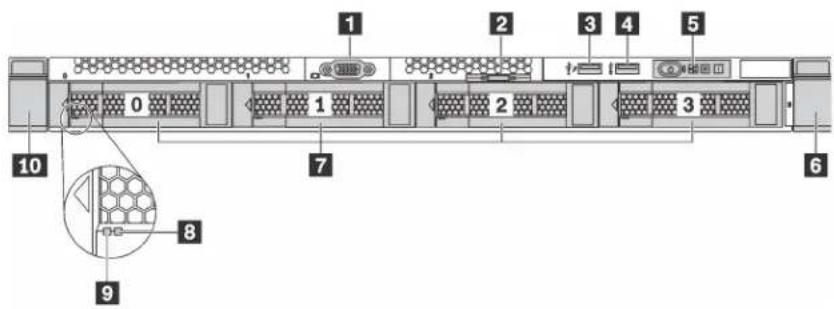
Figure 4. Front view of server models with 3.5-inch drive bays
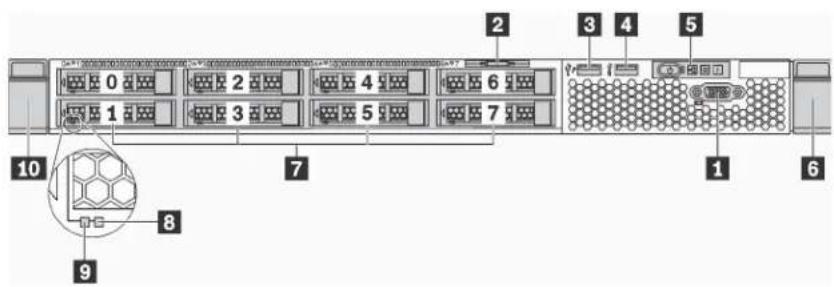
Figure 5. Front view of server models with 2.5-inch drive bays
Table 2. Components on the front of the server
| Callout Callout | |
| 1 VGA connector (available on some model) | 2 Pull-out information tab |
| 3 XClarity Controller USB connector | 4 USB 3.0 connector |
| 5 Operator information panel | 6 Rack latch (right) |
| 7 Drive bays | 8 Drive status LED (yellow) |
| 9 Drive activity LED (green) | 10 Rack latch (left) |
1 VGA connector (available on some models)
Used to attach a high-performance monitor, a direct-drive monitor, or other devices that use a VGA connector.
2 Pull-out information tab
The Lenovo XClarity Controller network access label is attached on the pull-out information tab.
☒ XClarity Controller USB connector
Depending on the setting, this connector supports USB 2.0 function, XClarity Controller management function, or both.
- If the connector is set for USB 2.0 function, you can attach a device that requires a USB 2.0 connection, such as a keyboard, a mouse, or a USB storage device.
- If the connector is set for XClarity Controller management function, you can attach a mobile device installed with the application to run XClarity Controller event logs.
- If the connector is set to have both functions, you can press the ID button for three seconds to switch between the two functions.
4 USB 3.0 connector
Attach a USB-compatible device, such as a USB keyboard, USB mouse, or USB storage device.
5 Operator information panel
For information about the controls and status LEDs on the operator information panel, see “Operator information panel” on page 13.
6 10 Rack latches
If your server is installed in a rack, you can use the rack latches to help you slide the server out of the rack. You also can use the latches and screws to secure the server in the rack so that the server cannot slide out, especially in vibration-prone areas. For more information, refer to the Rack Installation Guide that comes with your rail kit.
7 Drive bays
The number of the installed drives in your server varies by model. When you install drives, follow the order of the drive bay numbers.
The EMI integrity and cooling of the server are protected by having all drive bays occupied. The vacant drive bays must be occupied by drive fillers.
8 Drive status LED
9 Drive activity LED
Each hot-swap drive has two LEDs.
| Drive LED | Status | Description |
| 8 Drive status LED (right) | Solid yellow | The drive has an error. |
| Blinking yellow (blinking slowly, about one flash per second) | The drive is being rebuilt. | |
| Blinking yellow (blinking rapidly, about four flashes per second) | The RAID controller is locating the drive. | |
| Drive LED Status Description | ||
| 9 Drive activity LED (left) | Solid green | The drive is powered but not active. |
| Blinking green The drive is active. | ||
Operator information panel
The operator information panel of the server provides controls and LEDs.
The following illustration shows the operator information panel of the server.
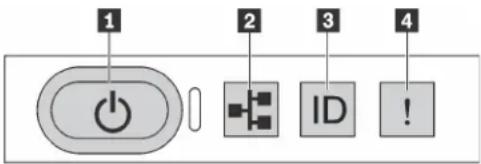
Figure 6. Operator information panel
Table 3. Components on the operator information panel
| Callout Callout | |
| 1 Power button with power status LED | 2 Network activity LED |
| 3 System ID button with ID LED | 4 System error LED |
■ Power button with power status LED
You can press the power button to power on the server when you finish setting up the server. You also can hold the power button for several seconds to power off the server if you cannot shut down the server from the operating system. The power status LED helps you to determine the current power status.
| Status Color Description | ||
| Solid on Green | The server is on and running. | |
| Slow blinking (about one flash per second) | Green The server is | off and is ready to be powered on (standby state). |
| Fast blinking (about four flashes per second) | Green The server is | off, but the XClarity Controller is initializing, and the server is not ready to be powered on. |
| Off None There is no ac power applied to | the server. | |
2 Network activity LED
The network activity LED on the operator information panel helps you identify the network connectivity and activity.
| Status Color | Description | |
| On Green | The server is connected to a network. | |
| Blinking | Green The networks | s connected and active. |
| Off | None The server is disconnected from the network. | |
■ System ID button with ID LED
Use this system ID button and the blue system ID LED to visually locate the server. A system ID LED is also located on the rear of the server. Each time you press the system ID button, the state of both the system ID LEDs changes. The LEDs can be changed to on, blinking, or off. You can also use the Lenovo XClarity Controller or a remote management program to change the state of the system ID LEDs to assist in visually locating the server among other servers.
If the XClarity Controller USB connector is set to have both the USB 2.0 function and XClarity Controller management function, you can press the ID button for three seconds to switch between the two functions.
4 System error LED
| Status Color | Description Action | ||
| On | Yellow An error has been detected on the server.Causes might include but not limited to the following errors:The temperature of the server reached the non-critical temperature threshold.The voltage of the server reached the non-critical voltage threshold.A fan has been detected to be running at low speed.A fan has been removed.The power supply has a critical error.The power supply is not connected to the power. | Check the event log to determine the exact cause of the error.For information about troubleshooting, see “Troubleshooting by symptom” on page 140 . | |
| Off None The server is off or the server is on and is working correctly. | None. | ||
Rear view
The rear of the server provides access to several components, including the power supplies, PCIe adapters, serial port, and Ethernet connectors.
- "Rear view of server models with three PCIe slots" on page 15
- "Rear view of server models with two PCIe slots" on page 17
Rear view of server models with three PCIe slots
The following illustration shows the rear view of server models with three PCIe slots. Depending on the model, your server might look slightly different from the illustrations in this topic.
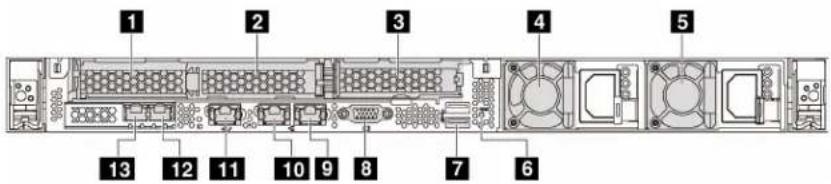
Figure 7. Rear view of server models with three PCIe slots
Table 4. Connectors on the rear of the server
| Callout Callout | |
| 1 PCIe slot 1 on riser 1 assembly | 2 PCIe slot 2 on riser 1 assembly |
| 3 PCIe slot 3 on riser 2 assembly | 4 Power supply 1 |
| 5 Power supply 2 (available on some models) | 6 NMI button |
| 7 USB 3.0 connectors | 8 VGA connector |
| 9 Ethernet connector 2 (RJ-45) | 10 Ethernet connector 1 (RJ-45) |
| 11 XClarity Controller network connector | 12 Ethernet connector 2 on the LOM adapter (available on some models) |
| 13 Ethernet connector 1 on the LOM adapter (available on some models) |
PCIe slots on riser 1 assembly
Your server supports two types of riser cards for riser 1 assembly.
- Type 1
- Slot 1: PCIe x8 (x8, x4, x1), low-profile
- Slot 2: PCIe x16 (x16, x8, x4, x1), low-profile
- Type 2
- Slot 1: PCIe x8 (x8, x4, x1), low-profile
- Slot 2: ML2 x8 (x8, x4, x1), low-profile
3 PCIe slot on riser 2 assembly
Your server supports two types of riser cards for riser 2 assembly.
- Type 1: PCIe x8 (x8, x4, x1), low-profile
- Type 2: PCIe x16 (x16, x8, x4, x1), low-profile
Note: Type 2 is supported only when two processors are installed.
4 Power supply 1
5 Power supply 2 (available on some models)
The hot-swap redundant power supplies help you avoid significant interruption to the operation of the system when a power supply fails. You can purchase a power supply option from Lenovo and install the power supply to provide power redundancy without turning off the server.
On each power supply, there are three status LEDs near the power cord connector. For information about the LEDs, see “Rear view LEDs” on page 19.
6 NMI button
Press this button to force a nonmaskable interrupt (NMI) to the processor. By this way, you can blue screen the server and take a memory dump. You might have to use a pen or the end of a straightened paper clip to press the button.
7 USB 3.0 connectors (2)
Attach a USB-compatible device, such as a USB keyboard, USB mouse, or USB storage device.
8 VGA connector
Used to attach a high-performance monitor, a direct-drive monitor, or other devices that use a VGA connector.
9 Ethernet connector 2
10 Ethernet connector 1
Used to attach an Ethernet cable for a LAN. Each Ethernet connector has two status LEDs to help you identify the Ethernet connectivity and activity. For information about the LEDs, see “Rear view LEDs” on page 19.
If the LOM adapter is not installed, Ethernet connector 1 can be set as XClarity Controller network connector. To set Ethernet connector 1 as XClarity Controller network connector, start Setup utility, go to BMC Settings → Network Settings → Network Interface Port and select Shared. Then, go to Shared NIC on and select Onboard Port 1.
14 XClarity Controller network connector
Used to attach an Ethernet cable to manage the system using XClarity Controller.
12 Ethernet connector 2 on the LOM adapter
13 Ethernet connector 1 on the LOM adapter
The LOM adapter provides two extra Ethernet connectors for network connections.
Ethernet connector 1 on the LOM adapter can be set as XClarity Controller network connector. To set the Ethernet connector as XClarity Controller network connector, start Setup utility, go to BMC Settings → Network Settings → Network Interface Port and select Shared. Then, go to Shared NIC on and select PHY Card.
Rear view of server models with two PCIe slots
The following illustrations show the rear view of the server models with two PCIe slots. Depending on the model, your server might look slightly different from the illustrations in this topic.
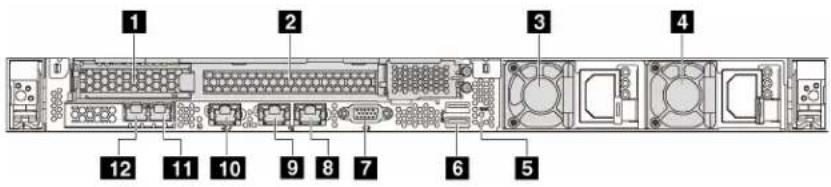
Figure 8. Rear view of server models with two PCIe slots
Table 5. Connectors on the rear of the server
| Callout Callout | |
| 1 PCIe slot 1 on riser 1 assembly | 2 PCIe slot 2 on riser 1 assembly |
| 3 Power supply 1 | 4 Power supply 2 (available on some models) |
| 5 NMI button | 6 USB 3.0 connectors |
| 7 VGA connector | 8 Ethernet connector 2 (RJ-45) |
| 9 Ethernet connector 1 (RJ-45) | 10 XClarity Controller network connector |
| 11 Ethernet connector 2 on the LOM adapter (available on some models) | 12 Ethernet connector 1 on the LOM adapter (available on some models) |
12 PCIe slots on riser 1 assembly
Your server supports two types of riser cards for riser 1 assembly.
- Type 1
- Slot 1: PCIe x8 (x8, x4, x1), low-profile
- Slot 2: PCIe x16 (x16, x8, x4, x1), full-height, half-length
- Type 2
- Slot 1: PCIe x8 (x8, x4, x1), low-profile
- Slot 2: ML2 x8 (x8, x4, x1), low-profile
3 Power supply 1
4 Power supply 2 (available on some models)
The hot-swap redundant power supplies help you avoid significant interruption to the operation of the system when a power supply fails. You can purchase a power supply option from Lenovo and install the power supply to provide power redundancy without turning off the server.
On each power supply, there are three status LEDs near the power cord connector. For information about the LEDs, see “Rear view LEDs” on page 19.
5 NMI button
Press this button to force a nonmaskable interrupt (NMI) to the processor. By this way, you can blue screen the server and take a memory dump. You might have to use a pen or the end of a straightened paper clip to press the button.
6 USB 3.0 connectors (2)
Attach a USB-compatible device, such as a USB keyboard, USB mouse, or USB storage device.
VGA connector
Used to attach a high-performance monitor, a direct-drive monitor, or other devices that use a VGA connector.
8 Ethernet connector 2
9 Ethernet connector 1
Used to attach an Ethernet cable for a LAN. Each Ethernet connector has two status LEDs to help you identify the Ethernet connectivity and activity. For information about the LEDs, see “Rear view LEDs” on page 19.
If the LOM adapter is not installed, Ethernet connector 1 can be set as XClarity Controller Network connector. To set Ethernet connector 1 as XClarity Controller Network connector, start Setup utility, go to BMC Settings → Network Settings → Network Interface Port and select Shared. Then, go to Shared NIC on and select Onboard Port 1.
10 XClarity Controller network connector
Used to attach an Ethernet cable to manage the system using XClarity Controller.
11 Ethernet connector 2 on the LOM adapter
12 Ethernet connector 1 on the LOM adapter
The LOM adapter provides two extra Ethernet connectors for network connections.
Ethernet connector 1 on the LOM adapter can be set as XClarity Controller Network connector. To set the Ethernet connector as XClarity Controller Network connector, start Setup utility, go to BMC Settings → Network Settings → Network Interface Port and select Shared. Then, go to Shared NIC on and select PHY Card.
Rear view LEDs
The rear of the server provides system ID LED, system error LED, network LEDs, and power supply LEDs.
The following illustration shows the LEDs on the rear view of server models with three PCIe slots. The LEDs on the rear view of server models with two PCIe slots are the same.
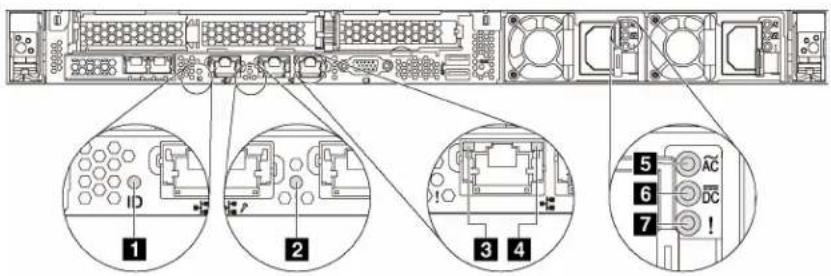
Figure 9. Rear view LEDs
Table 6. LEDs on the rear view of the server
| Callout Callout | |
| 1 System ID LED | 2 System error LED |
| 3 Ethernet link LED | 4 Ethernet activity LED |
| 5 Power input LED | 6 Power output LED |
| 7 Power supply error LED |
1 System ID LED
The blue system ID LED helps you to visually locate the server. A system ID LED is also located on the front of the server. Each time you press the system ID button, the state of both the system ID LEDs changes. The LEDs can be changed to on, blinking, or off. You can also use the Lenovo XClarity Controller or a remote management program to change the state of the system ID LEDs to assist in visually locating the server among other servers.
2 System error LED
The system error LED helps you to determine if there are any system errors. For details, see "System error LED" on page 14.
3 Ethernet link LED
4 Ethernet activity LED
Each Ethernet connector has two status LEDs.
| Ethernet status LED | Color Status | Description | |
| 3 Ethernet link LED | Green On Network link is established. | ||
| None Off Network link is disconnected. | |||
| 4 Ethernet activity LED | Green Blinking Network link is connected and active. | ||
| None Off The server is disconnected from a LAN. | |||
56 Power supply LEDs
Each hot-swap power supply has three status LEDs.
| LED Description | |
| 5 Power input LED | Green: The power supply is connected to the ac power source.Off: The power supply is disconnected from the ac power source. |
| 6 Power output LED | Green: The server is on and the power supply is working normally.Blinking green: The power supply is in the zero-output mode (standby). When the server power load is low, one of the installed power supplies enters into the standby state while the other one delivers the entire load. When the power load increases, the standby power supply will switch to active state to provide sufficient power to the system.The zero-output mode is enabled by default. To disable zero-output mode, start the Setup utility, go to System Settings → Power → Zero Output and select Disable. If you disable the zero-out mode, both power supplies will be in the active state.Off: The server is powered off, or the power supply is not working properly. If the server is powered on but the LED is off, replace the power supply. |
| 7 Power supply error LED | Yellow: The power supply has failed. To resolve the issue, replace the power supply.Off: The power supply is working normally |
System board components
The illustration in this section shows the component locations on the system board.
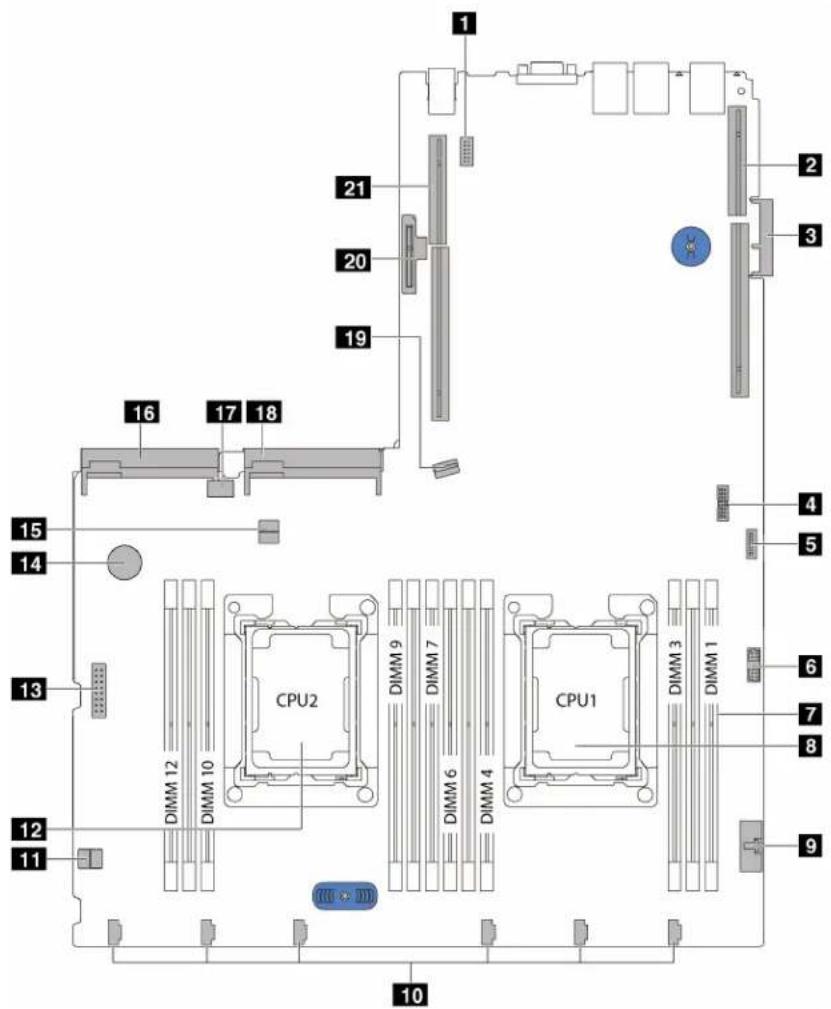
Figure 10. System board components
| Callout Callout | |
| 1 Serial-port-module connector | 2 Riser 1 slot |
| 3 LOM adapter connector | 4 Trusted Cryptography Module (TCM) connector (for China only) |
| 5 Front USB connector | 6 Front VGA connector |
| 7 DIMM slots | 8 Processor 1 socket |
| 9 Operator-information-panel connector | 10 System fan connectors |
| 11 Cable retainer | 12 Processor 2 socket |
| 13 Backplane power connector | 14 CMOS battery |
| 15 Cable retainer | 16 Power supply 2 connector |
| 17 Internal USB connector | 18 Power supply 1 connector |
| 19 SATA 0-3 connector | 20 M.2 module slot |
| 21 Riser 2 slot |
System board switches and jumpers
The following illustration shows the location of the switches and jumpers on the server.
Note: If there is a clear protective sticker on the top of the switch blocks, you must remove and discard it to access the switches.
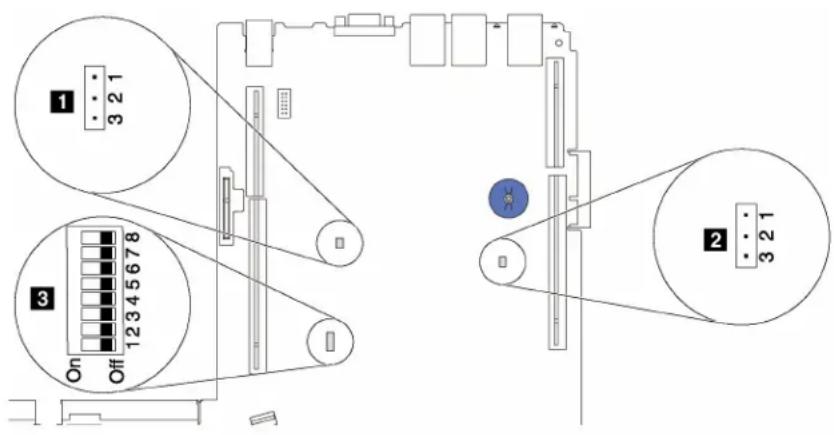
Figure 11. System-board switches and jumpers
Table 7. Jumpers and switches on the system board
| Jumper/Switch name Jumper/Switch number Jumper/Switch setting | ||
| 1 TPM*/TCM* physical presence jumper | JP6 | • Pins 1 and 2: The jumper is in default setting.• Pins 2 and 3: TPM/TCM physical presence is asserted. |
| 2 Clear CMOS jumper | JP3 | • Pins 1 and 2: The jumper is in default setting.• Pins 2 and 3: Clear the real-time clock (RTC) registry. |
| 3 SW6 switch block | SW6(including switches 1, 2, 3, 4, 5, 6, 7, 8) | All the switches are in the Off position by default.• Switches 1, 3, 4, 5, 6, 7, and 8: Reserved.• Switch 2: Override power-on password switch.Changing position of this switch overrides the power-on password.Changing position of this switch does not affect the administrator password. |
* TPM: Trusted Platform Module
* TCM: Trusted Cryptography Module (for China only)
Important:
- Before you move the switches and jumpers, turn off the server. Then, disconnect all power cords and external cables. Do not open your server or attempt any repair before reading and understanding the following information:
- http://thinksystem.lenovofiles.com/help/topic/safety_documentation/pdf_files.html
- "Handling static-sensitive devices" on page 39
- Any system-board switch or jumper block that is not shown in the illustrations in this document are reserved.
System board LEDs
The following illustrations show the light-emitting diodes (LEDs) on the system board.
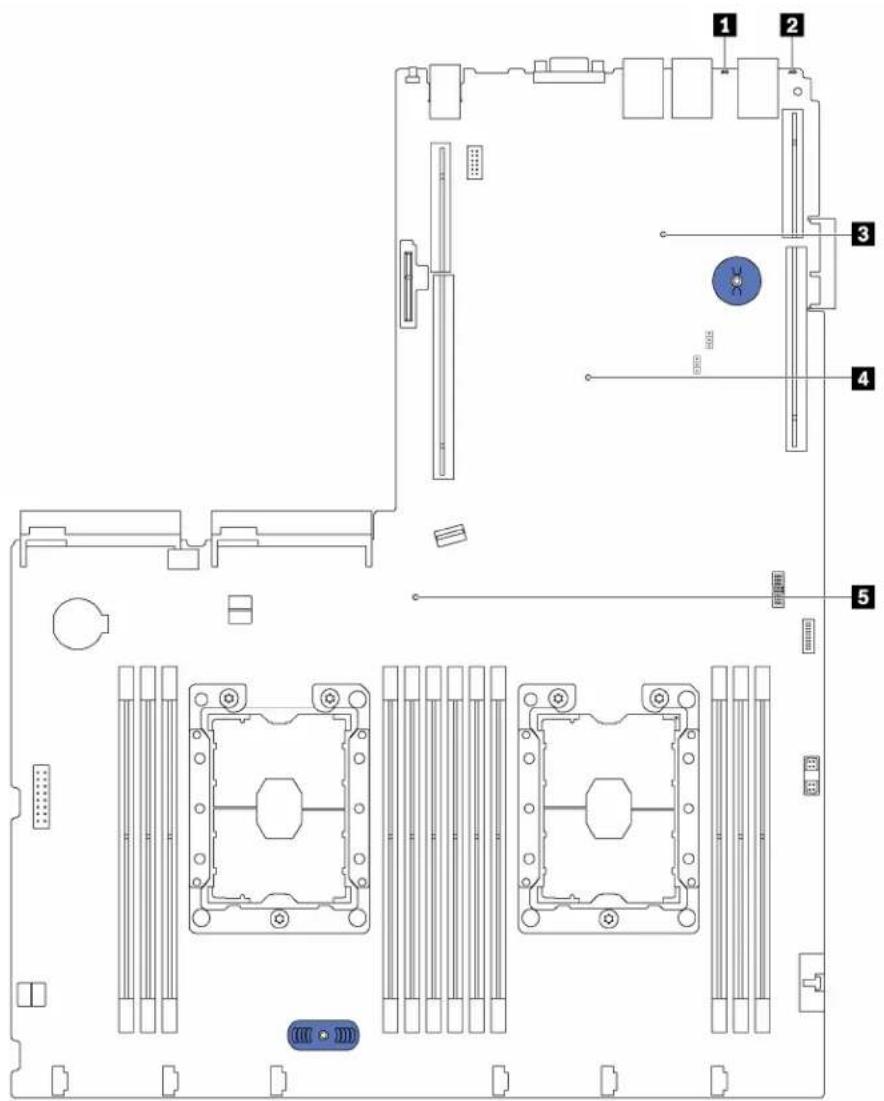
Figure 12. System board LEDs
Table 8. LEDs on the system board
| Callout Callout | |
| 1 System error LED | 2 System ID LED |
| 3 XClarity Controller heartbeat LED | 4 Field-Programmable Gate Array (FPGA) error LED |
| 5 System power LED |
Internal cable routing
Some of the components in the server have internal cables and cable connectors.
To connect cables, observe the following guidelines:
- Power off the server before you connect or disconnect any internal cables.
- See the documentation that comes with any external devices for additional cabling instructions. It might be easier for you to route cables before you connect the devices to the server.
- Cable identifiers of some cables are printed on the cables that come with the server and optional devices. Use these identifiers to connect the cables to the correct connectors.
- Ensure that the relevant cables pass through the cable clips.
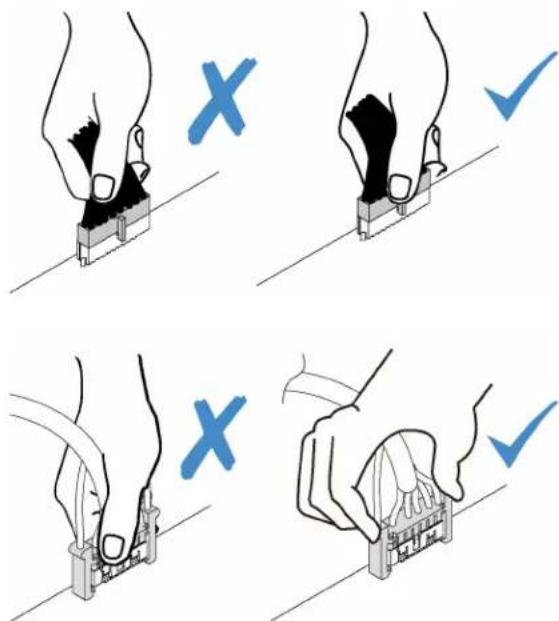
Note: Disengage all latches, release tabs, or locks on cable connectors when you disconnect cables from the system board. Failing to release them before removing the cables will damage the cable sockets on the system board, which are fragile. Any damage to the cable sockets might require replacing the system board.
VGA connector
Use this section to understand the cable routing for the video graphic adapter (VGA) connector.
Note: The VGA connector is available on some models.
Server models with 3.5-inch drive bays
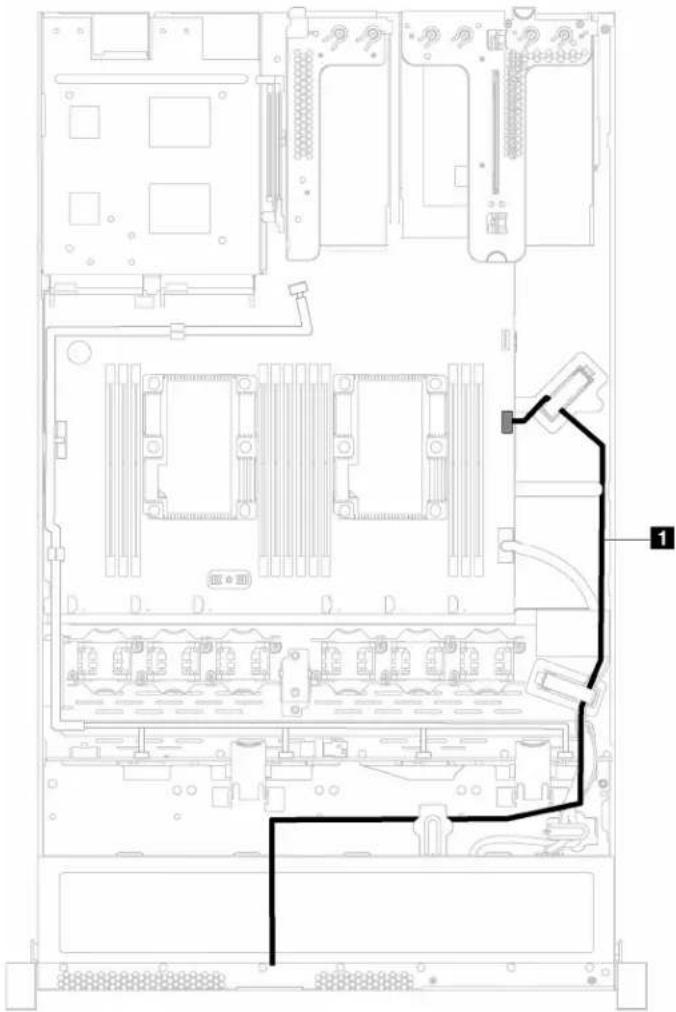
Figure 13. VGA connector cable routing
| From To | |
| 1 VGA cable Front VGA connector on the system board | |
Server models with 2.5-inch drive bays
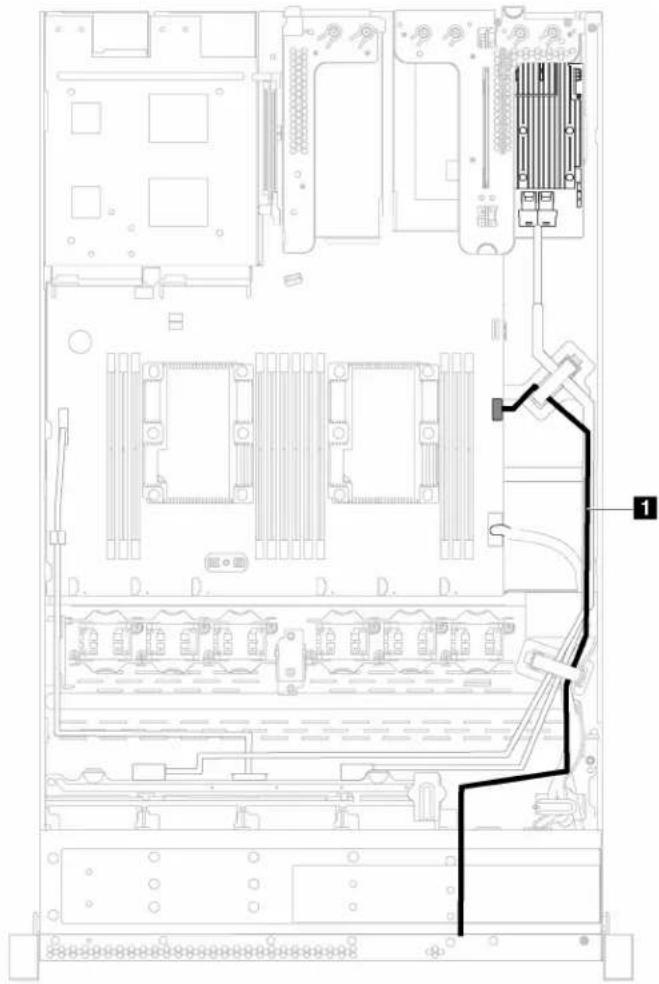
Figure 14. VGA connector cable routing
| From To | |
| 1 VGA cable Front VGA connector on the system board | |
Front I/O assembly
Use this section to understand the cable routing for the front I/O assembly.
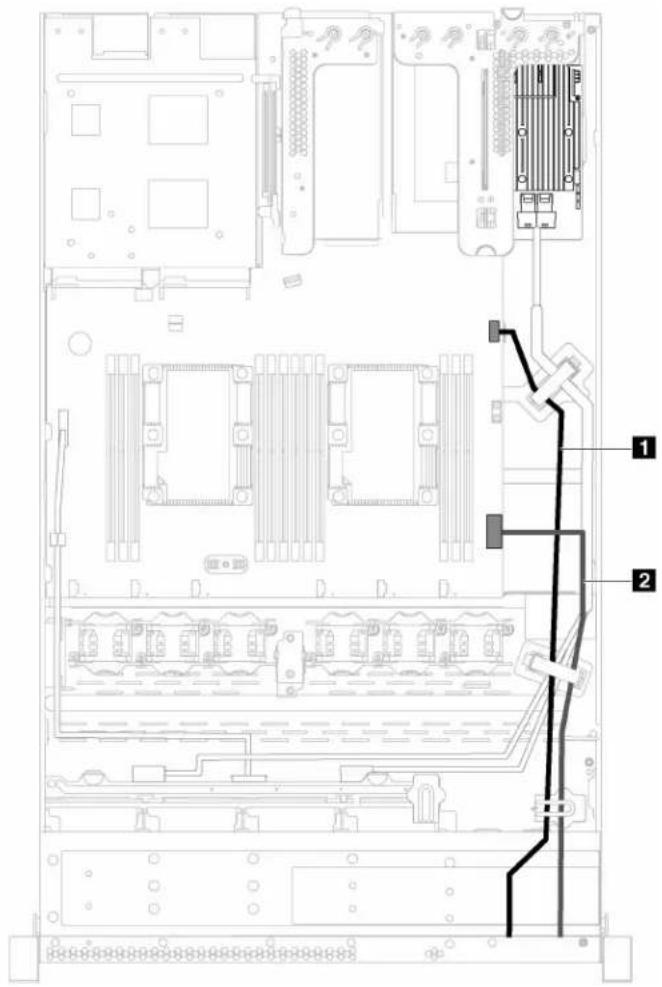
Figure 15. Cable routing for the front I/O assembly
| From To | |
| 1 Front USB cable Front USB connector on the system board | |
| 2 Operator-information-panel cable | Operator-information-panel connector on the system board |
RAID super capacitor module
Use this section to understand the cable routing for RAID super capacitor modules.
Your server supports up to two RAID super capacitor modules.
Scenario 1: the second RAID adapter in PCIe slot 2 Scenario 2: the second RAID adapter in PCIe slot 3
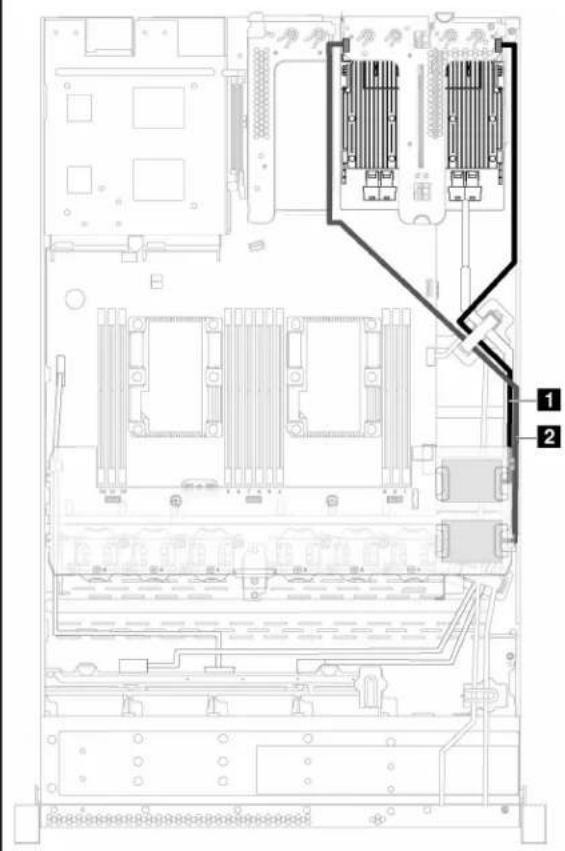
1 Cable routing for RAID super capacitor module 1
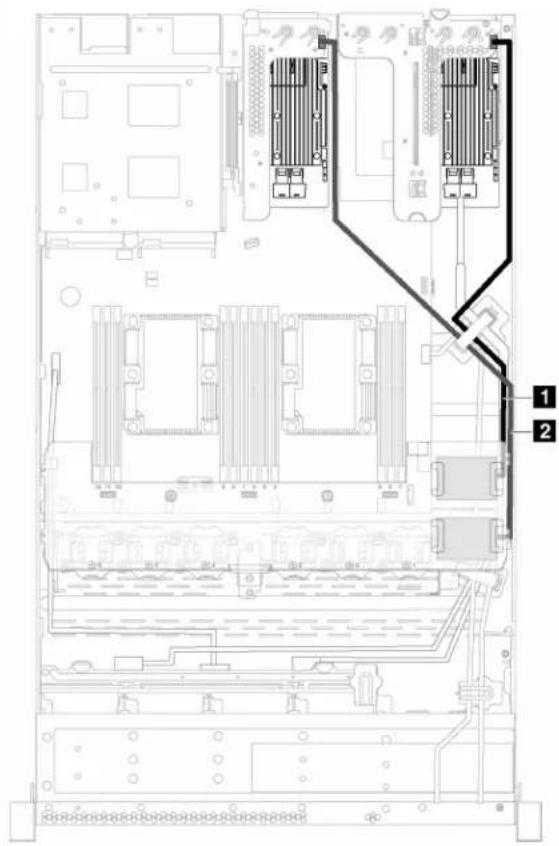
2 Cable routing for RAID super capacitor module 2
An extension cable is provided for each RAID super capacitor module for connection.
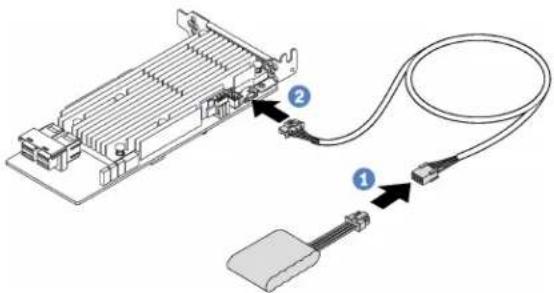
Figure 16. Connecting the RAID super capacitor module to the RAID adapter
Backplanes
Use this section to understand the cable routing for the backplanes.
Server model with eight 2.5-inch hot-swap drives
Use this section to understand the internal cable routing for the server model with eight 2.5-inch hot-swap drives.
The following illustration shows the cable routing for the server model with eight 2.5-inch hot-swap drives.
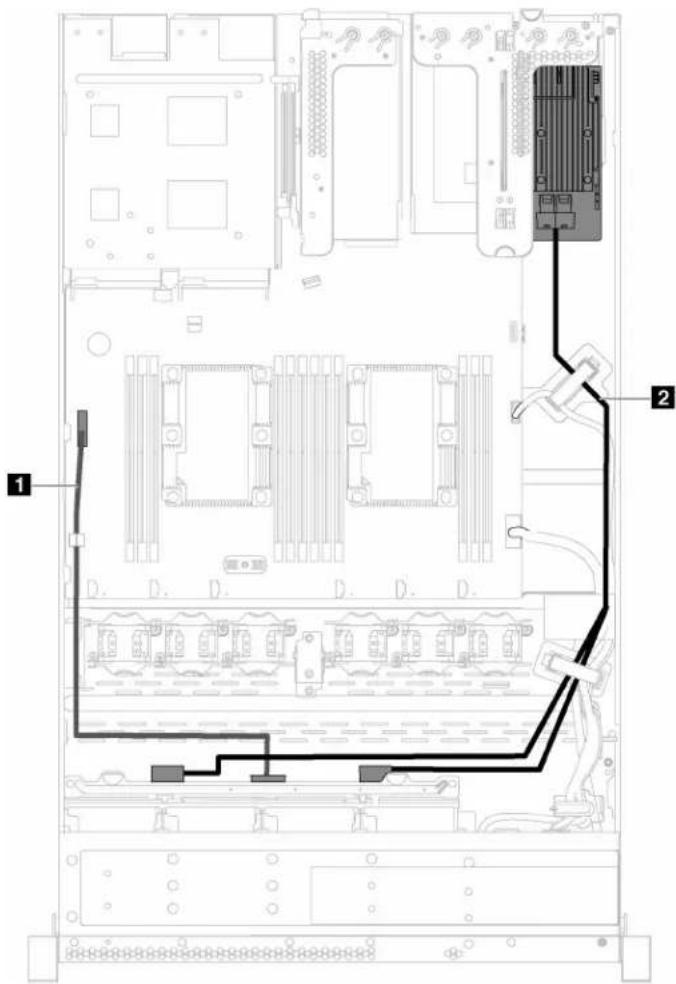
Figure 17. Cable routing for the server model with eight 2.5-inch hot-swap drives
| Cable | From To | |
| 1 Power cable | Power connector on the backplane | Backplane power connector on the system board |
| 2 SAS signal cable | SAS 0 and SAS 1 connectors on the backplane | C0 and C1 connectors on the HBA/RAID adapter |
Server model with four 3.5-inch hot-swap drives
Use this section to understand the internal cable routing for the server model with four 3.5-inch hot-swap drives.
The following illustration shows the cable routing for the server model with four 3.5-inch hot-swap drives.
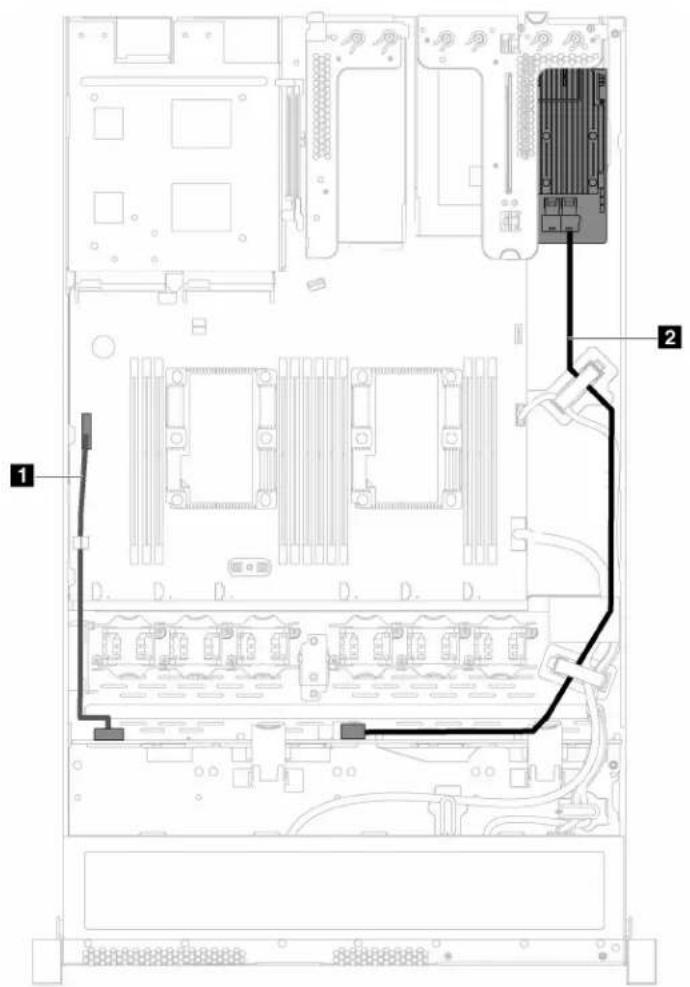
Figure 18. Cable routing for the server model with four 3.5-inch hot-swap drives
| Cable From To | ||
| Power cable | Power connector on the backplane | Backplane power connector on the system board |
| SAS signal cable | SAS 0 connector on the backplane C0 connector on the HBA/RAID adapter | |
Server model with four 3.5-inch simple-swap drives
Use this section to understand the internal cable routing for the server model with four 3.5-inch simple-swap drives.
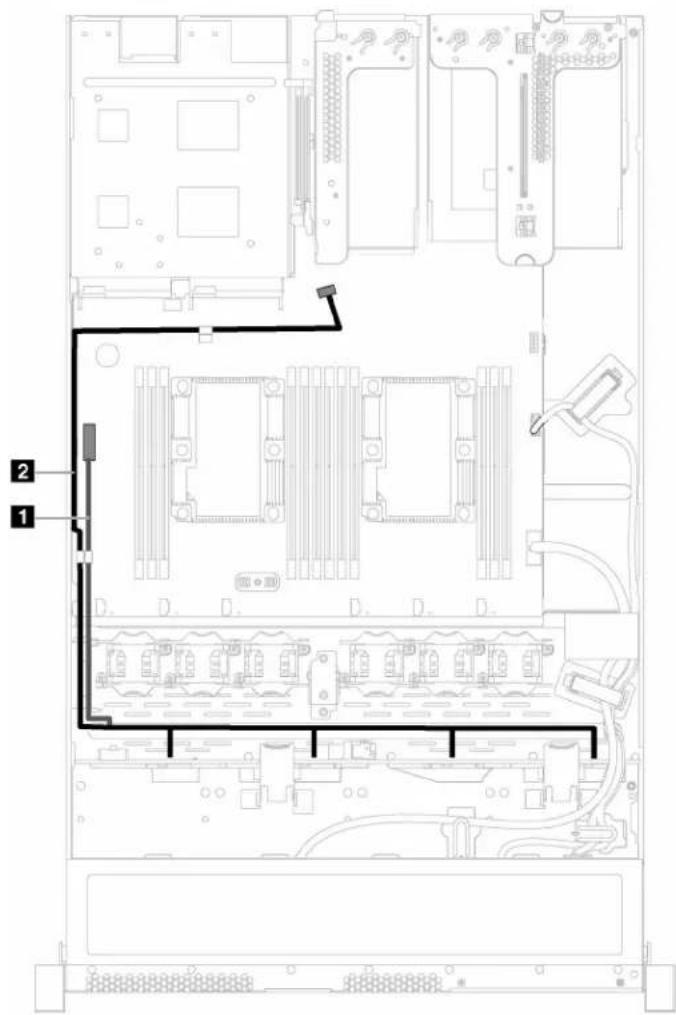
Figure 19. Cable routing for the server model with four 3.5-inch simple-swap drives
The simple-swap drive backplate assembly comes with a power cable and a SATA signal cable.
| From To | |
| 1 Power cable of the backplate assembly | Backplane power connector on the system board |
| 2 SATA signal cable of the backplate assembly | SATA 0-3 connector on the system board |
Parts list
Use the parts list to identify each of the components that are available for your server.
For more information about ordering the parts shown in Figure 20 "Server components" on page 33:
- Go to http://datacentersupport.lenovo.com and navigate to the support page for your server.
- Click Service Parts.
- Enter the serial number to view a listing of parts for your server.
Note: Depending on the model, your server might look slightly different from the following illustration. Some of the components might not be available on your server.
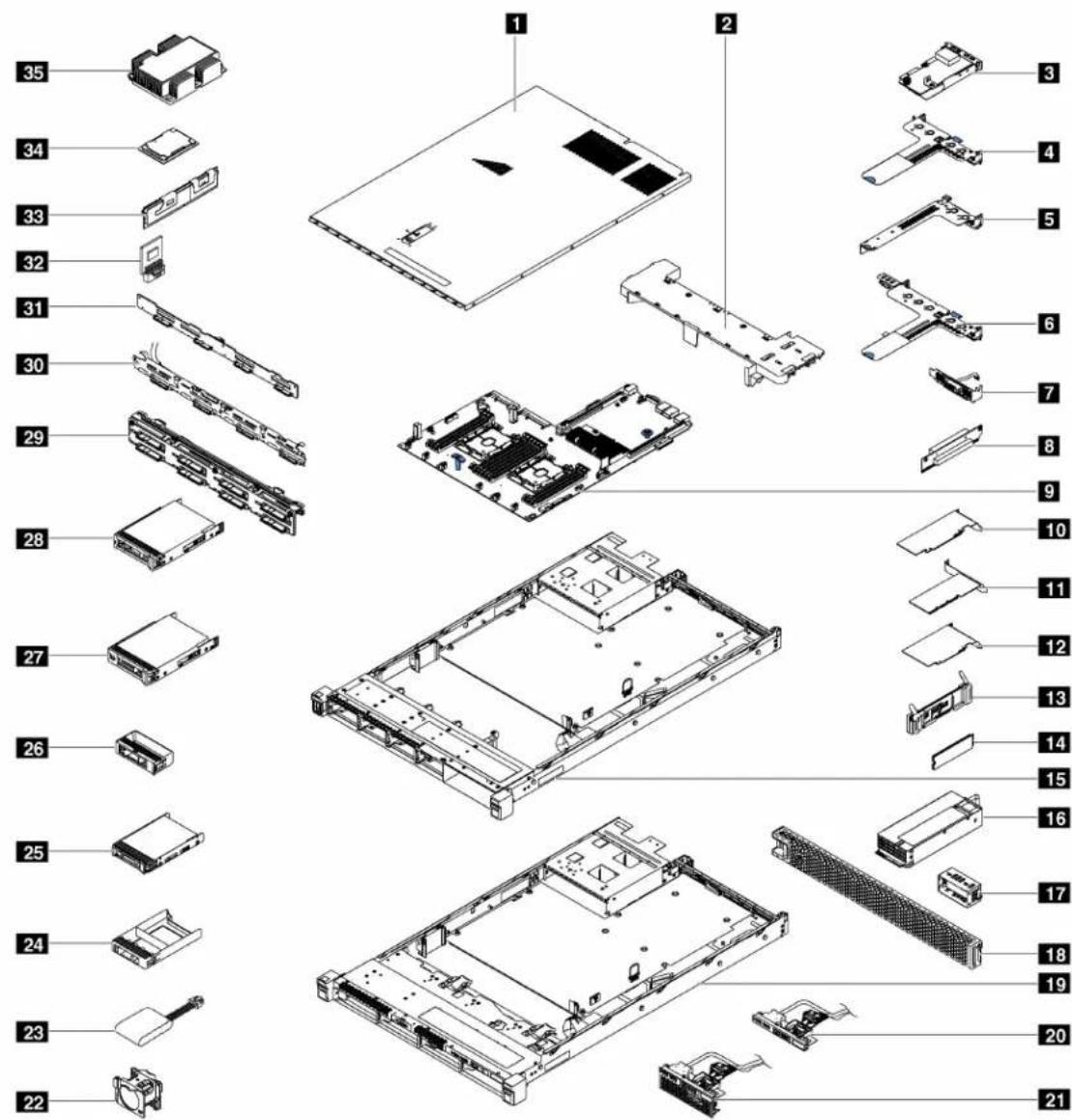
Figure 20. Server components
The parts listed in the following table are identified as one of the following:
- Tier 1 customer replaceable unit (CRU): Replacement of Tier 1 CRUs is your responsibility. If Lenovo installs a Tier 1 CRU at your request with no service agreement, you will be charged for the installation.
- Tier 2 customer replaceable unit: You may install a Tier 2 CRU yourself or request Lenovo to install it, at no additional charge, under the type of warranty service that is designated for your server.
- Field replaceable unit (FRU): FRUs must be installed only by trained service technicians.
- Consumable and Structural parts: Purchase and replacement of consumable and structural parts (components, such as a cover or bezel) is your responsibility. If Lenovo acquires or installs a structural component at your request, you will be charged for the service.
Table 9. Parts listing
| In-dex | Description | Tier 1 CRU | Tier 2 CRU | FRU | Consuma-ble and Structural parts |
| For more information about ordering parts:1. Go to http://datacentersupport.lenovo.com and navigate to the support page for your server.2. Click Service Parts.3. Enter the serial number to view a listing of parts for your server. | |||||
| 1 | Top cover | √ | |||
| 2 | Air baffle | √ | |||
| 3 | LOM adapter | √ | |||
| 4 | Riser 1 bracket (two low profile) | √ | |||
| 5 | Riser 2 bracket (one low profile) | √ | |||
| 6 | Riser 1 bracket (one low-profile and one full-height half-length) | √ | |||
| 7 | Serial port module | √ | |||
| 8 | Riser card | √ | |||
| 9 | System board | √ | |||
| 10 | Low-profile PCIe adapter | √ | |||
| 11 | ML2 adapter | √ | |||
| 12 | Full-height half-length PCIe adapter | √ | |||
| 13 | M.2 backplane | √ | |||
| 14 | M.2 drive | √ | |||
| 15 | Chassis with eight 2.5-inch drive bays | √ | |||
| 16 | Power supply | √ | |||
| 17 | Power supply filler | √ | |||
| 18 | Security bezel | √ | |||
| 19 | Chassis with four 3.5-inch drive bays | √ | |||
| 20 | Front I/O assembly for server models with 3.5-inch drive bays | √ | |||
| 21 | Front I/O assembly for server models with 2.5-inch drive bays | √ | |||
| 22 | System fan | √ | |||
| 23 | RAID super capacitor module | √ | |||
| 24 | 2.5-inch drive filler | √ | |||
| 25 | 2.5-inch hot-swap drive | √ | |||
| 26 | 3.5-inch drive filler | √ | |||
| 27 | 3.5-inch simple-swap drive | √ | |||
| 28 | 3.5-inch hot-swap drive | √ | |||
| 29 | Backplane for eight hot-swap 2.5-inch drives | √ | |||
| 30 | Simple-swap drive backplate assembly | √ | |||
| 31 | Backplane for four hot-swap 3.5-inch drives | √ | |||
| 32 | TCM (only for China) | √ | |||
| 33 | DIMM | √ | |||
| 34 | Processor | √ | |||
| 35 | Processor heat sink | √ | |||
Power cords
Several power cords are available, depending on the country and region where the server is installed.
To view the power cords that are available for the server:
- Go to:
http://lesc.lenovo.com
- In the Customize a Model pane:
a. Click Select Options/Parts for a Model.
b. Enter the machine type and model for your server.
- Click the Power tab to see all line cords.
Notes:
- For your safety, a power cord with a grounded attachment plug is provided to use with this product. To avoid electrical shock, always use the power cord and plug with a properly grounded outlet.
- Power cords for this product that are used in the United States and Canada are listed by Underwriter's Laboratories (UL) and certified by the Canadian Standards Association (CSA).
- For units intended to be operated at 115 volts: Use a UL-listed and CSA-certified cord set consisting of a minimum 18 AWG, Type SVT or SJT, three-conductor cord, a maximum of 15 feet in length and a parallel blade, grounding-type attachment plug rated 15 amperes, 125 volts.
- For units intended to be operated at 230 volts (U.S. use): Use a UL-listed and CSA-certified cord set consisting of a minimum 18 AWG, Type SVT or SJT, three-conductor cord, a maximum of 15 feet in length and a tandem blade, grounding-type attachment plug rated 15 amperes, 250 volts.
- For units intended to be operated at 230 volts (outside the U.S.): Use a cord set with a grounding-type attachment plug. The cord set should have the appropriate safety approvals for the country in which the equipment will be installed.
- Power cords for a specific country or region are usually available only in that country or region.
Chapter 3. Hardware replacement procedures
This section provides installation and removal procedures for all serviceable system components. Each component replacement procedure references any tasks that need to be performed to gain access to the component being replaced.
For more information about ordering parts:
- Go to http://datacentersupport.lenovo.com and navigate to the support page for your server.
- Click Service Parts.
- Enter the serial number to view a listing of parts for your server.
Note: If you replace a part, such as an adapter, that contains firmware, you might also need to update the firmware for that part. For more information about updating firmware, see "Firmware updates" on page 6.
Installation Guidelines
Before installing components in your server, read the installation guidelines.
Before installing optional devices, read the following notices carefully:
Attention: Prevent exposure to static electricity, which might lead to system halt and loss of data, by keeping static-sensitive components in their static-protective packages until installation, and handling these devices with an electrostatic-discharge wrist strap or other grounding system.
- Read the safety information and guidelines to ensure that you work safely.
- http://thinksystem.lenovofiles.com/help/topic/safety_documentation/pdf_files.html
- "Handling static-sensitive devices" on page 39
- “Working inside the server with the power on” on page 39
- Make sure the components you are installing are supported by the server. For a list of supported optional components for the server, see http://www.lenovo.com/serverproven/.
- When you install a new server, download and apply the latest firmware. This will help ensure that any known issues are addressed, and that your server is ready to work with optimal performance. Go to ThinkSystem SR530 Drivers and Software to download firmware updates for your server.
Important: Some cluster solutions require specific code levels or coordinated code updates. If the component is part of a cluster solution, verify that the latest level of code is supported for the cluster solution before you update the code.
- It is good practice to make sure that the server is working correctly before you install an optional component.
- Keep the working area clean, and place removed components on a flat and smooth surface that does not shake or tilt.
- Do not attempt to lift an object that might be too heavy for you. If you have to lift a heavy object, read the following precautions carefully:
- Make sure that you can stand steadily without slipping.
- Distribute the weight of the object equally between your feet.
- Use a slow lifting force. Never move suddenly or twist when you lift a heavy object.
-
To avoid straining the muscles in your back, lift by standing or by pushing up with your leg muscles.
-
Make sure that you have an adequate number of properly grounded electrical outlets for the server, monitor, and other devices.
- Back up all important data before you make changes related to the disk drives.
- Have a small flat-blade screwdriver, a small Phillips screwdriver, and a T8 torx screwdriver available.
- To view the error LEDs on the system board and internal components, leave the power on.
- You do not have to turn off the server to remove or install hot-swap power supplies, hot-swap fans, or hot-plug USB devices. However, you must turn off the server before you perform any steps that involve removing or installing adapter cables, and you must disconnect the power source from the server before you perform any steps that involve removing or installing a riser card.
- Blue on a component indicates touch points, where you can grip to remove a component from or install it in the server, open or close a latch, and so on.
- Orange on a component or an orange label on or near a component indicates that the component can be hot-swapped if the server and operating system support hot-swap capability, which means that you can remove or install the component while the server is still running. (Orange can also indicate touch points on hot-swap components.) See the instructions for removing or installing a specific hot-swap component for any additional procedures that you might have to perform before you remove or install the component.
- The Red strip on the drives, adjacent to the release latch, indicates that the drive can be hot-swapped if the server and operating system support hot-swap capability. This means that you can remove or install the drive while the server is still running.
Note: See the system specific instructions for removing or installing a hot-swap drive for any additional procedures that you might need to perform before you remove or install the drive.
- After finishing working on the server, make sure you reinstall all safety shields, guards, labels, and ground wires.
System reliability guidelines
Review the system reliability guidelines to ensure proper system cooling and reliability.
Make sure the following requirements are met:
- When the server comes with redundant power, a power supply must be installed in each power-supply bay.
- Adequate space around the server must be spared to allow server cooling system to work properly. Leave approximately 50 mm (2.0 in.) of open space around the front and rear of the server. Do not place any object in front of the fans.
- For proper cooling and airflow, refit the server cover before you turn the power on. Do not operate the server for more than 30 minutes with the server cover removed, for it might damage server components.
- Cabling instructions that come with optional components must be followed.
- A failed fan must be replaced within 48 hours since malfunction.
- A removed hot-swap fan must be replaced within 30 seconds after removal.
- A removed hot-swap drive must be replaced within two minutes after removal.
- A removed hot-swap power supply must be replaced within two minutes after removal.
- Every air baffle that comes with the server must be installed when the server starts (some servers might come with more than one air baffle). Operating the server with a missing air baffle might damage the processor.
- All processor sockets must contain either a socket cover or a processor with heat sink.
- When more than one processor is installed, fan population rules for each server must be strictly followed.
Working inside the server with the power on
You might need to keep the power on with the server cover removed to look at system information on the display panel or to replace hot-swap components. Review these guidelines before doing so.
Attention: The server might stop and loss of data might occur when internal server components are exposed to static electricity. To avoid this potential problem, always use an electrostatic-discharge wrist strap or other grounding systems when working inside the server with the power on.
- Avoid loose-fitting clothing, particularly around your forearms. Button or roll up long sleeves before working inside the server.
- Prevent your necktie, scarf, badge rope, or long hair from dangling into the server.
- Remove jewelry, such as bracelets, necklaces, rings, cuff links, and wrist watches.
- Remove items from your shirt pocket, such as pens and pencils, in case they fall into the server as you lean over it.
- Avoid dropping any metallic objects, such as paper clips, hairpins, and screws, into the server.
Handling static-sensitive devices
Review these guidelines before you handle static-sensitive devices to reduce the possibility of damage from electrostatic discharge.
Attention: Prevent exposure to static electricity, which might lead to system halt and loss of data, by keeping static-sensitive components in their static-protective packages until installation, and handling these devices with an electrostatic-discharge wrist strap or other grounding system.
- Limit your movement to prevent building up static electricity around you.
- Take additional care when handling devices during cold weather, for heating would reduce indoor humidity and increase static electricity.
- Always use an electrostatic-discharge wrist strap or other grounding system, particularly when working inside the server with the power on.
- While the device is still in its static-protective package, touch it to an unpainted metal surface on the outside of the server for at least two seconds. This drains static electricity from the package and from your body.
- Remove the device from the package and install it directly into the server without putting it down. If it is necessary to put the device down, put it back into the static-protective package. Never place the device on the server or on any metal surface.
- When handling a device, carefully hold it by the edges or the frame.
- Do not touch solder joints, pins, or exposed circuitry.
- Keep the device from others' reach to prevent possible damages.
Rack latches replacement
Use this information to remove and install the rack latches.
Remove the rack latches
Use this information to remove the rack latches.
Before removing the rack latches:
- If you have installed the security bezel, remove it. See "Remove the security bezel" on page 44.
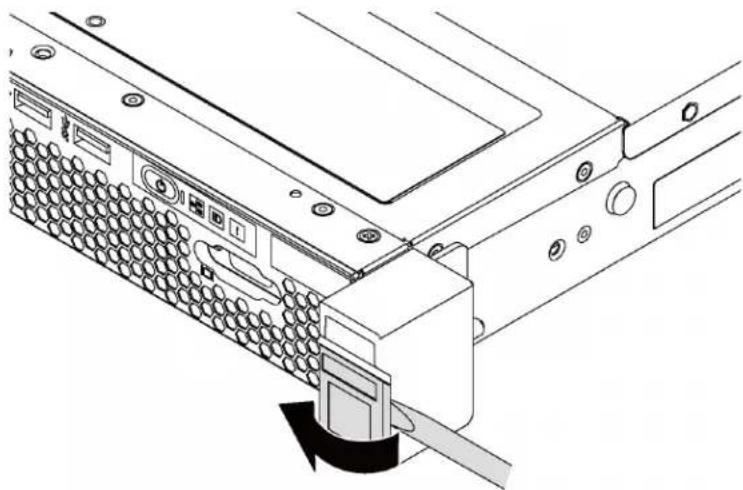
- Use a flat-blade screwdriver to remove the ID label plate on the right rack latch and place it in a safe place.
natural_image
Technical line drawing of a computer rack with a cable connector and directional arrow indicating motion (no text or symbols)Figure 21. ID label plate removal
To remove the rack latches, complete the following steps:
Watch the procedure. A video of the removal process is available:
- Youtube: https://www.youtube.com/playlist?list=PLYV5R7hVcs-AQrHuDWK6L3KtHWc6maY_O
- Youku: http://list.youku.com/albumlist/show/id_50437162
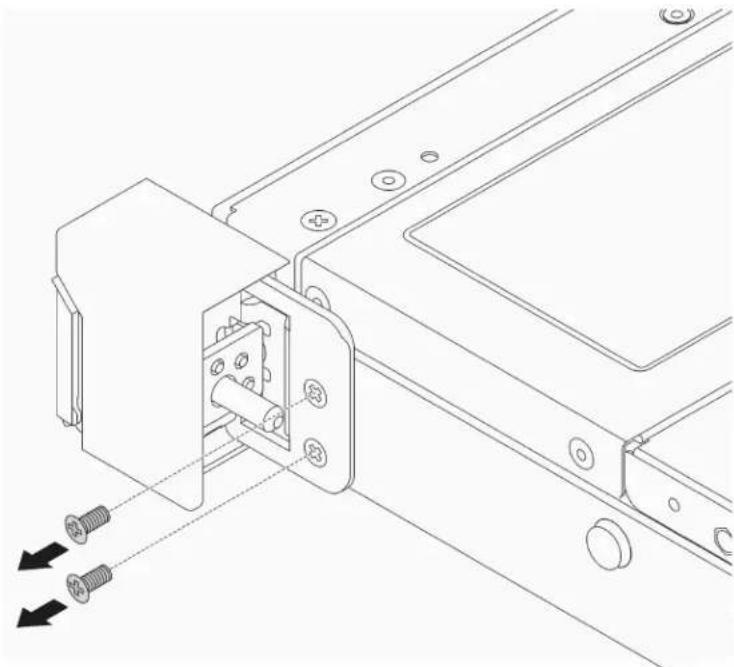
Step 1. On each side of the server, remove the two screws that secure the rack latch.
natural_image
Technical line drawing of a mechanical assembly with screws and mounting holes (no text or symbols)Figure 22. Rack latch screws removal
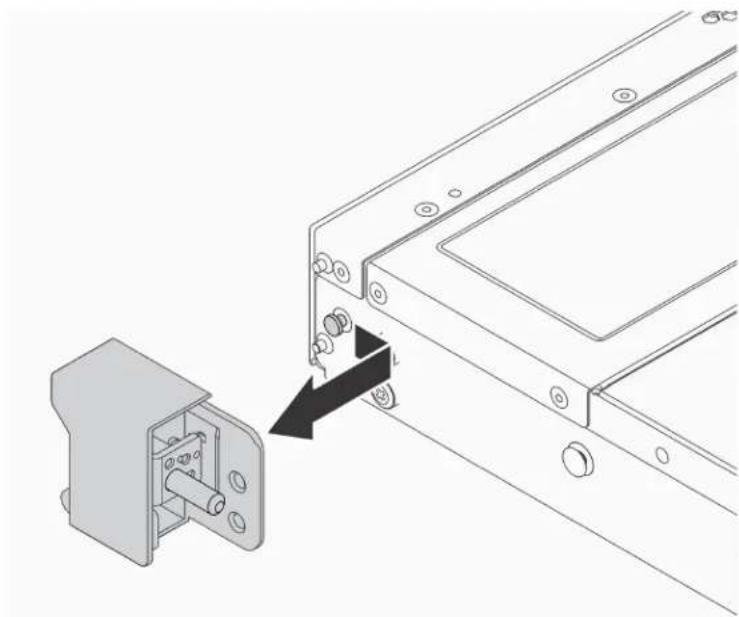
Step 2. On each side of the server, remove the rack latch from the chassis as shown.
natural_image
Technical line drawing of a mechanical assembly with a bracket and mounting bracket (no text or symbols)Figure 23. Rack latch removal
If you are instructed to return the old rack latches, follow all packaging instructions and use any packaging materials that are provided.
Install the rack latches
Use this information to install the rack latches.
To install the rack latches, complete the following steps:
Watch the procedure. A video of the installation process is available:
- Youtube: https://www.youtube.com/playlist?list=PLYV5R7hVcs-AQrHuDWK6L3KtHWc6maY_O
- Youku: http://list.youku.com/albumlist/show/id_50437162
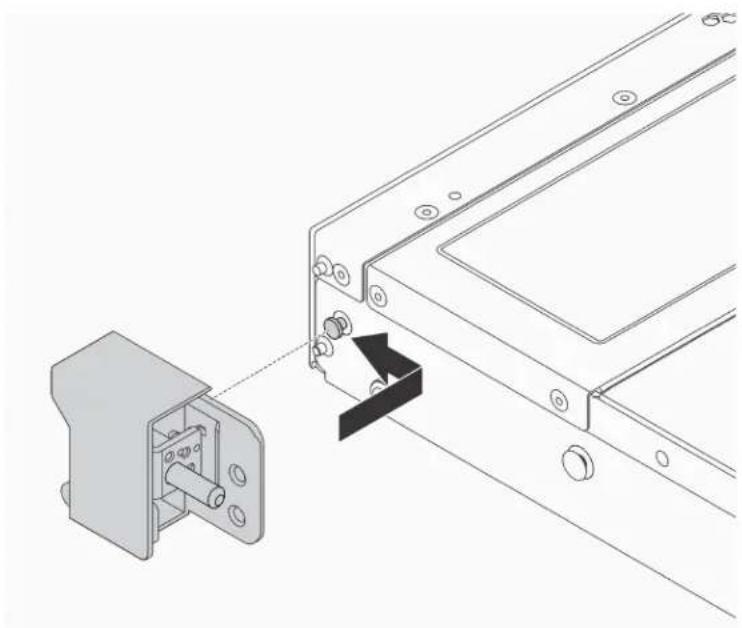
Step 1. On each side of the server, align the rack latch with the pin on the chassis; then, press the rack latch onto the chassis and slightly slide it forward as shown.
natural_image
Technical line drawing showing a mechanical assembly with a bracket and a separate component (no text or symbols)Figure 24. Rack latch installation
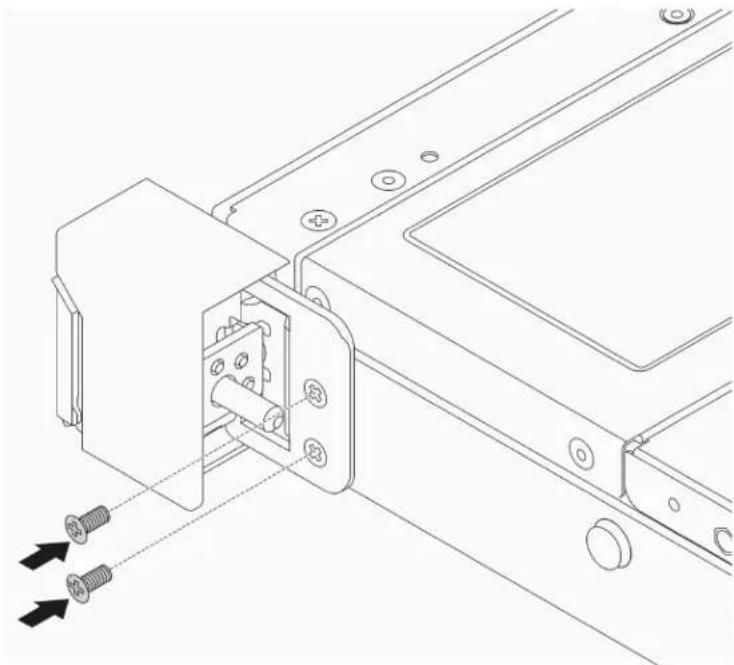
Step 2. Install the two screws to secure the rack latch on each side of the server.
natural_image
Technical line drawing of a mechanical assembly with screws and mounting brackets (no text or symbols)Figure 25. Rack latch screws installation
After installing the rack latches:
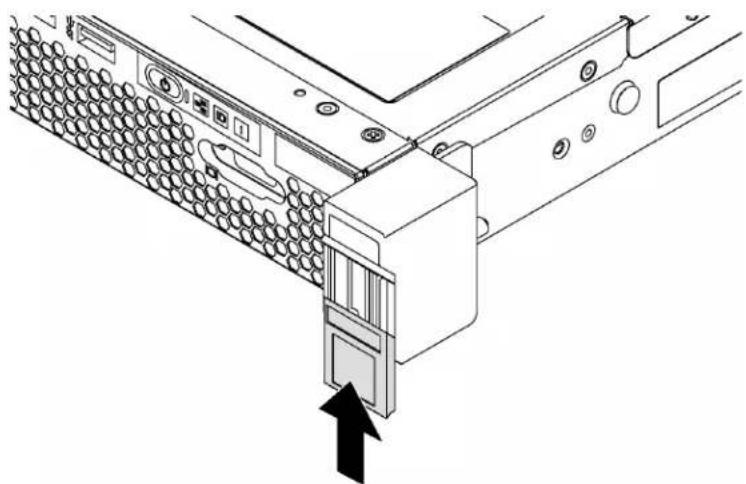
- Install the ID label plate to the right rack latch as shown.
natural_image
Diagram of a computer tower with a CD drive and an arrow indicating a location or connection point (no text or symbols present)Figure 26. ID label plate installation
- Complete the parts replacement. See "Complete the parts replacement" on page 135.
Security bezel replacement
Use this information to remove and install the security bezel.
Remove the security bezel
Use this information to remove the security bezel.
To remove the security bezel, complete the following steps:
Watch the procedure. A video of the removal process is available:
- Youtube: https://www.youtube.com/playlist?list=PLYV5R7hVcs-AQrHuDWK6L3KtHWc6maY_O
- Youku: http://list.youku.com/albumlist/show/id_50437162
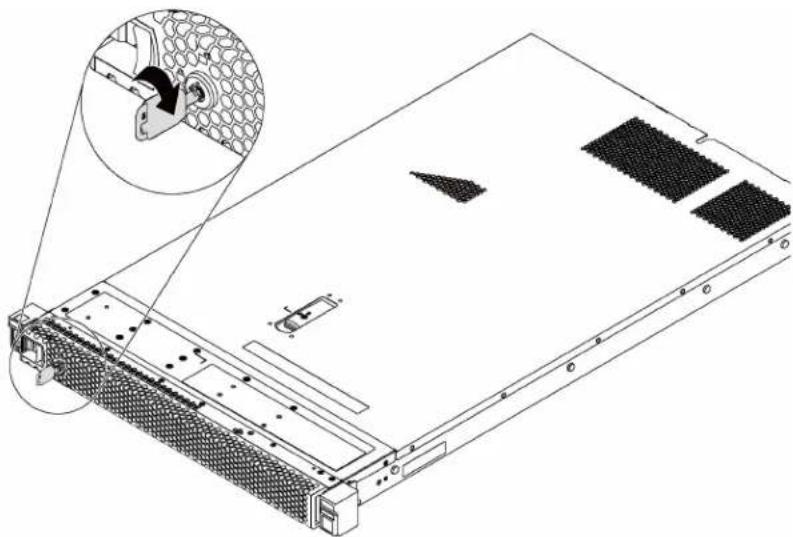
Step 1. Use the key to unlock the security bezel.
natural_image
Technical line drawing of a server rack with an inset showing a meshed component (no text or symbols)Figure 27. Security bezel unlock
Step 2. Press the blue release latch 1 and pivot the security bezel outward to remove it from the chassis.
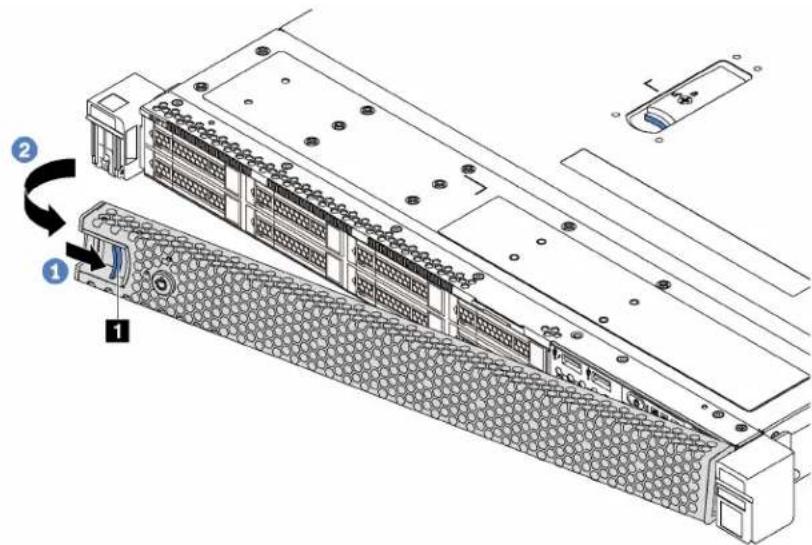
Figure 28. Security bezel removal
Attention: Before you ship the rack with the server installed, reinstall and lock the security bezel into place.
Install the security bezel
Use this information to install the security bezel.

Read the Installation Guidelines
Attention: Before you ship the rack with the server installed, install and lock the security bezel into place.
Before installing the security bezel, if you have removed the rack latches, reinstall them. See "Install the rack latches" on page 42.
To install the security bezel, complete the following steps:
Watch the procedure. A video of the installation process is available:
- Youtube: https://www.youtube.com/playlist?list=PLYV5R7hVcs-AQrHuDWK6L3KtHWc6maY_O
- Youku: http://list.youku.com/albumlist/show/id_50437162
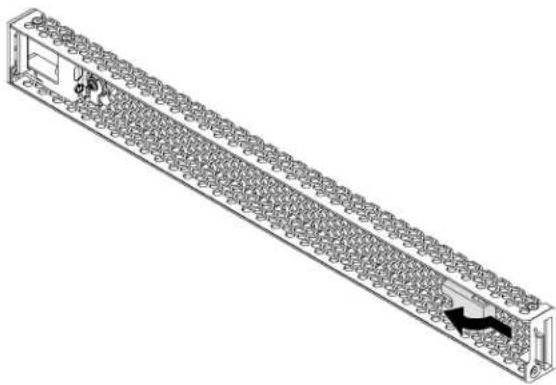
Step 1. If the key is held inside the security bezel, remove it out of the security bezel.
natural_image
Technical line drawing of a long rectangular structure with internal grid pattern and a small inset showing a person walking (no text or symbols)Figure 29. Key removal
Step 2. Insert the tab on the security bezel into the slot on the right side of the chassis. Then, press the blue release latch 1 and pivot the security bezel inward until it clicks into place.
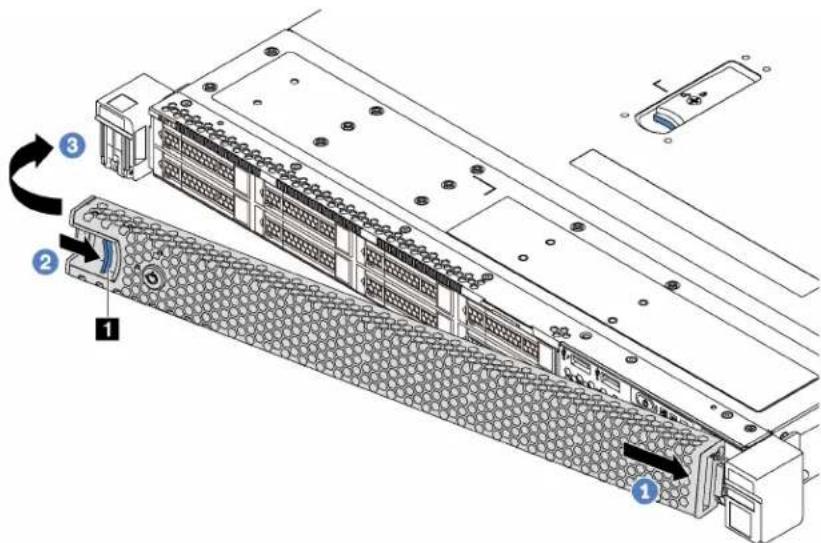
Figure 30. Security bezel installation
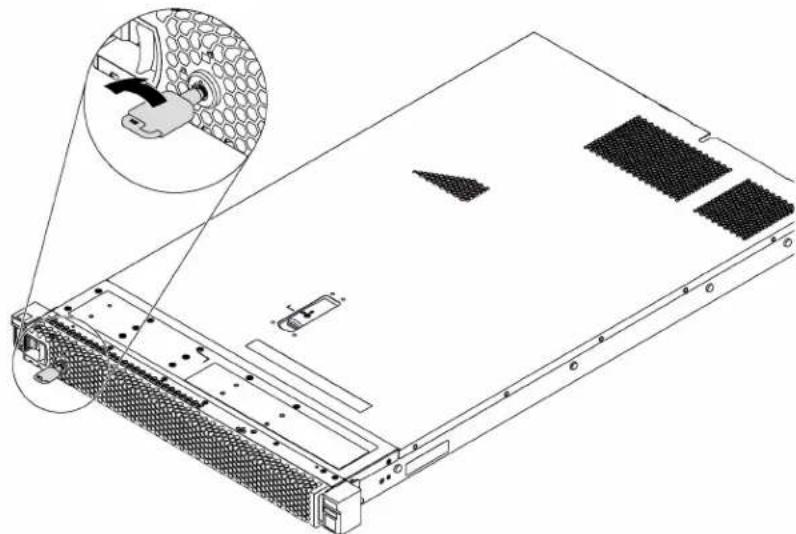
Step 3. Use the key to lock the security bezel.
natural_image
Technical line drawing of a server rack with an inset showing a mechanical component (no text or symbols present)Figure 31. Security bezel lockup
Top cover replacement
Use this information to remove and install the top cover.
S033

CAUTION:
Hazardous energy present. Voltages with hazardous energy might cause heating when shorted with metal, which might result in spattered metal, burns, or both.
S014

CAUTION:
Hazardous voltage, current, and energy levels might be present. Only a qualified service technician is authorized to remove the covers where the following label is attached.
Remove the top cover
Use this information to remove the top cover.

Read the Installation Guidelines

Power Off the server for this task

ATTENTION: Static Sensitive Device Ground package before opening
To remove the top cover, complete the following steps:
Watch the procedure. A video of the removal process is available:
- Youtube: https://www.youtube.com/playlist?list=PLYV5R7hVcs-AQrHuDWK6L3KtHWc6maY_O
- Youku: http://list.youku.com/albumlist/show/id_50437162
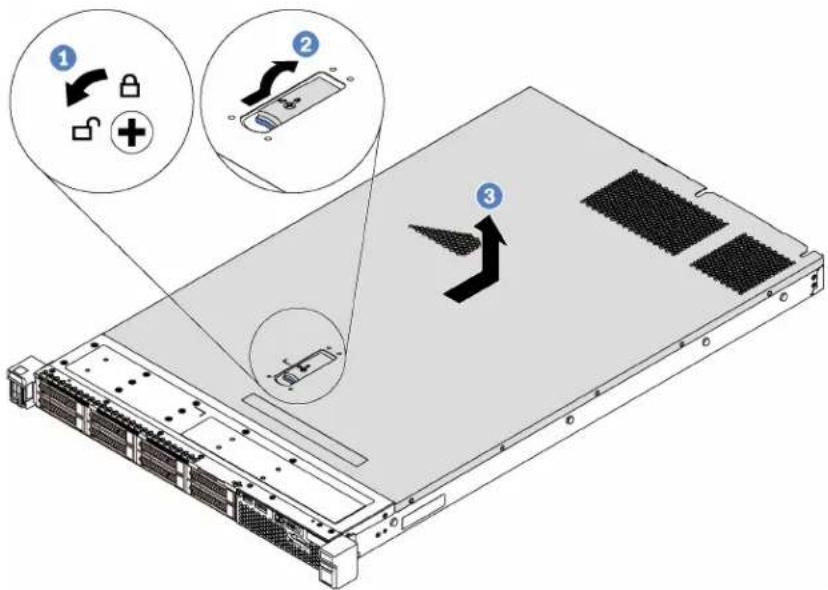
Figure 32. Top cover removal
Step 1. Use a screwdriver to turn the cover lock to the open position.
Step 2. Press the blue button on the cover latch and open the cover latch.
Step 3. Slide the cover to the rear until it is disengaged from the chassis. Then, lift the cover off the chassis and place it on a flat clean surface.
Attention:
- Handle the top cover carefully. Dropping the top cover with the cover latch open might damage the cover latch.
- For proper cooling and airflow, install the top cover before you power on the server.
Install the top cover
Use this information to install the top cover.

Read the Installation Guidelines
Power Off
the server
for this task

ATTENTION: Static Sensitive Device Ground package before opening
Before installing the top cover:
- Ensure that all cables, adapters, and other components are installed and seated correctly and that you have not left loose tools or parts inside the server.
- Ensure that all internal cables are correctly routed. See "Internal cable routing" on page 25.
- If you are installing a new top cover, attach the service label to the new top cover first if necessary.
Note: A new top cover comes without a service label attached. If you need a service label, order it together with the new top cover. The service label is free of charge.
To install the top cover, complete the following steps:
Watch the procedure. A video of the installation process is available:
- Youtube: https://www.youtube.com/playlist?list=PLYV5R7hVcs-AQrHuDWK6L3KtHWc6maY_O
- Youku: http://list.youku.com/albumlist/show/id_50437162
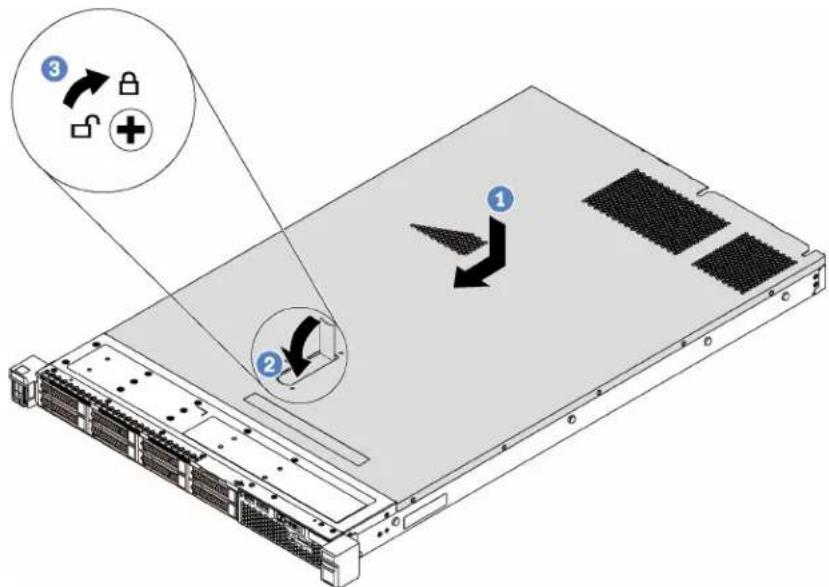
Figure 33. Top cover installation
Note: Before you slide the top cover forward, ensure that all the tabs on the top cover engage the chassis correctly. If the tabs do not engage the chassis correctly, it will be very difficult to remove the top cover later.
Step 1. Ensure that the cover latch is in the open position. Lower the cover onto the chassis until all tabs on both sides of the cover engage with the guides on both sides of the chassis.
Step 2. Pivot the cover latch and slide the cover forward until the cover snaps into position. Ensure that the cover latch is completely closed.
Step 3. Use a screwdriver to turn the cover lock to the closed position.
After installing the top cover, complete the parts replacement. See “Complete the parts replacement” on page 135.
Air baffle replacement
Use this information to remove and install the air baffle
S033

CAUTION:
Hazardous energy present. Voltages with hazardous energy might cause heating when shorted with metal, which might result in spattered metal, burns, or both.
S017

CAUTION:
Hazardous moving fan blades nearby.
Remove the air baffle
Use this information to remove the air baffle.

Read the Installation Guidelines
Power Off the server for this task
To remove the air baffle, complete the following steps:
Watch the procedure. A video of the removal process is available:
- Youtube: https://www.youtube.com/playlist?list=PLYV5R7hVcs-AQrHuDWK6L3KtHWc6maY_O
- Youku: http://list.youku.com/albumlist/show/id_50437162
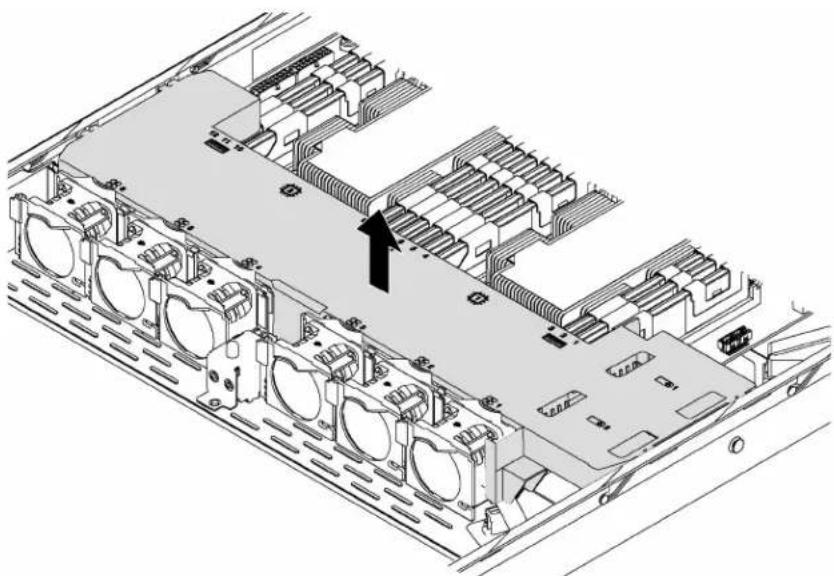
natural_image
Technical diagram of an internal server rack with multiple ports and a highlighted connection point (no text or labels)Figure 34. Air baffle removal
Step 1. Remove the top cover. See "Remove the top cover" on page 48.
Step 2. If the server has a RAID super capacitor module installed underneath the air baffle, disconnect its cable from the extension cable.
Step 3. Grasp the air baffle and carefully lift it out of the server.
Attention: For proper cooling and airflow, install the air baffle before you power on the server. Operating the server without an air baffle might damage server components.
Install the air baffle
Use this information to install the air baffle.

Read the Installation Guidelines
Power Off
the server
for this task
Before installing the air baffle:
- Ensure that the retaining clips on each end of the DIMM connectors are closed.
- If you want to install a RAID super capacitor module, install it onto the air baffle first. See "Install a RAID super capacitor module" on page 55.
To install the air baffle, complete the following steps:
Watch the procedure. A video of the installation process is available:
- Youtube: https://www.youtube.com/playlist?list=PLYV5R7hVcs-AQrHuDWK6L3KtHWc6maY_O
- Youku: http://list.youku.com/albumlist/show/id_50437162
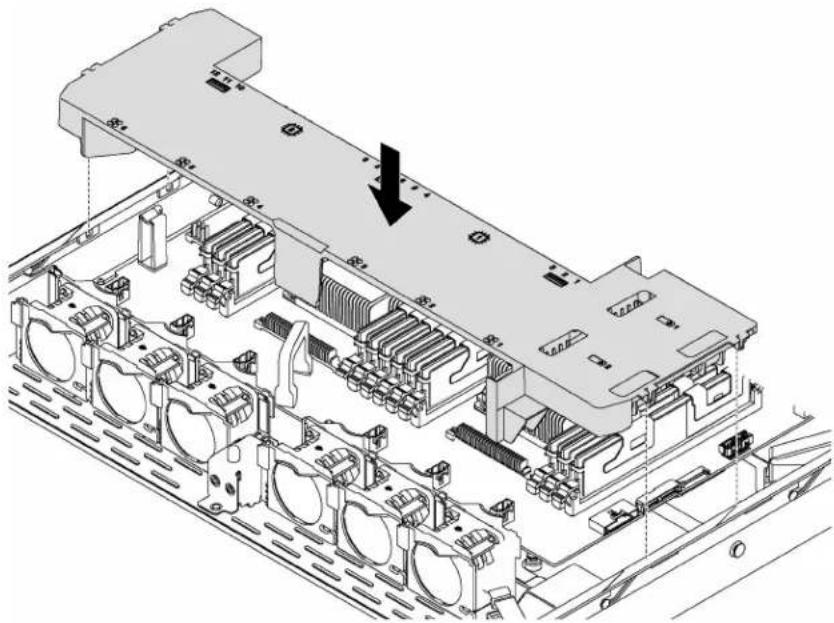
natural_image
Technical diagram of an electronic device chassis with internal components and a black arrow indicating a specific component (no text or symbols present)Figure 35. Air baffle installation
Step 1. Align the tabs on both sides of the air baffle with the corresponding slots on both sides of the chassis.
Step 2. Lower the air baffle into the server and press the air baffle down until it is securely seated.
After installing the air baffle:
- If you have installed a RAID super capacitor module, connect it to the RAID adapter using the extension cable that comes with the RAID super capacitor module. See "Internal cable routing" on page 25.
- Complete the parts replacement. See "Complete the parts replacement" on page 135.
RAID super capacitor module replacement
Use this information to remove and install a RAID super capacitor module.
Your server supports up to two RAID super capacitor modules. The RAID super capacitor holders are located underneath the air baffle.
Remove a RAID super capacitor module
Use this information to remove a RAID super capacitor module.

Read the Installation Guidelines
Power Off
the server
for this task

ATTENTION: Static Sensitive Device Ground package before opening
Before removing the RAID super capacitor module:
- Remove the top cover. See "Remove the top cover" on page 48.
- Locate the RAID super capacitor module, and disconnect its cable. The RAID super capacitor holders are located underneath the air baffle.
- Remove the air baffle and turn it over. See "Remove the air baffle" on page 51.
To remove the RAID super capacitor module, complete the following steps:
Watch the procedure. A video of the removal process is available:
- Youtube: https://www.youtube.com/playlist?list=PLYV5R7hVcs-AQrHuDWK6L3KtHWc6maY_O
- Youku: http://list.youku.com/albumlist/show/id_50437162
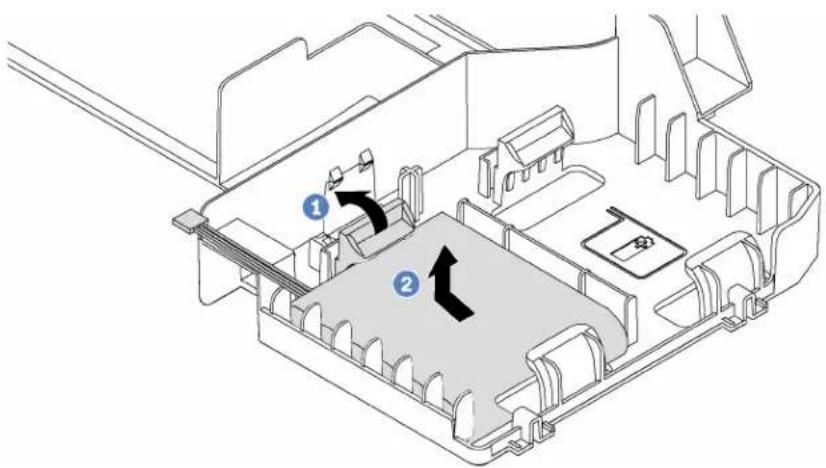
Figure 36. RAID super capacitor module removal
Step 1. Gently pivot the retaining clip as shown.
Step 2. Lift the RAID super capacitor up and remove it from the holder.
If you are instructed to return the old RAID super capacitor module, follow all packaging instructions and use any packaging materials that are provided.
Install a RAID super capacitor module
If your server has a RAID adapter with a super capacitor connector, you can install a RAID super capacitor module in your server.

Read the Installation Guidelines
Power Off
the server
for this task

ATTENTION: Static Sensitive Device Ground package before opening
Before installing the RAID super capacitor module:
- Remove the top cover. See "Remove the top cover" on page 48.
- Remove the air baffle and turn it over. See "Remove the air baffle" on page 51.
-
Locate the RAID super capacitor holder.
-
Touch the static-protective package that contains the new RAID super capacitor module to any unpainted surface on the outside of the server. Then, take the new RAID super capacitor module out of the package and place it on a static-protective surface.
To install the RAID super capacitor module, complete the following steps:
Watch the procedure. A video of the installation process is available:
- Youtube: https://www.youtube.com/playlist?list=PLYV5R7hVcs-AQrHuDWK6L3KtHWc6maY_O
- Youku: http://list.youku.com/albumlist/show/id_50437162
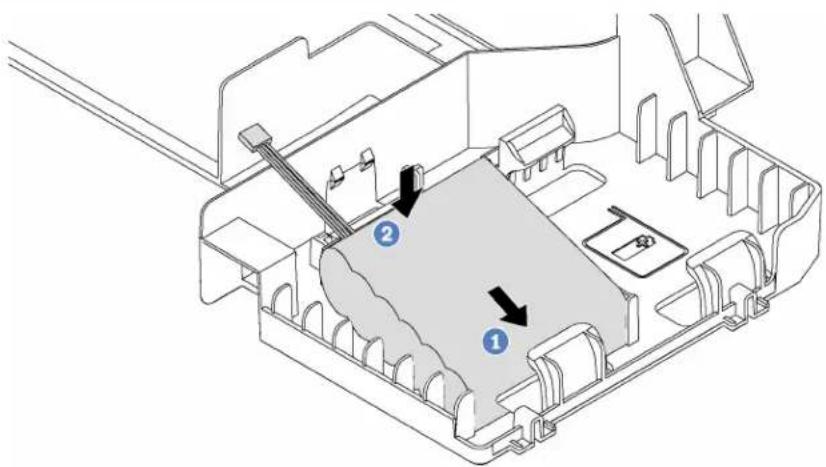
Figure 37. RAID super capacitor module installation
Step 1. Insert the RAID super capacitor module into the retaining clip at one side as shown.
Step 2. Press the RAID super capacitor module down on the other side until it snaps into place.
Step 3. Connect the RAID super capacitor module to the RAID adapter using an extension cable. See "Internal cable routing" on page 25.
Step 4. If your server has two RAID adapters each with a super capacitor connector, you can continue to install the second RAID super capacitor module.
After installing the RAID super capacitor module, complete the parts installation. See “Complete the parts replacement” on page 135.
Use this information to remove and install a system fan.
S033

CAUTION:
Hazardous energy present. Voltages with hazardous energy might cause heating when shorted with metal, which might result in spattered metal, burns, or both.
S009

CAUTION:
To avoid personal injury, disconnect the fan cables before removing the fan from the device.
S002

CAUTION:
The power control button on the device and the power switch on the power supply do not turn off the electrical current that is supplied to the device. The device also might have more than one power cord. To remove all electrical current from the device, ensure that all power cords are disconnected from the power source.
Remove a system fan
Use this information to remove a system fan.

Read the Installation Guidelines
Power Off the server for this task

ATTENTION: Static Sensitive Device Ground package before opening
Before removing a system fan:
- Remove the top cover. See "Remove the top cover" on page 48.
- Remove the air baffle. See "Remove the air baffle" on page 51.
To remove a system fan, complete the following steps:
Watch the procedure. A video of the removal process is available:
- Youtube: https://www.youtube.com/playlist?list=PLYV5R7hVcs-AQrHuDWK6L3KtHWc6maY_O
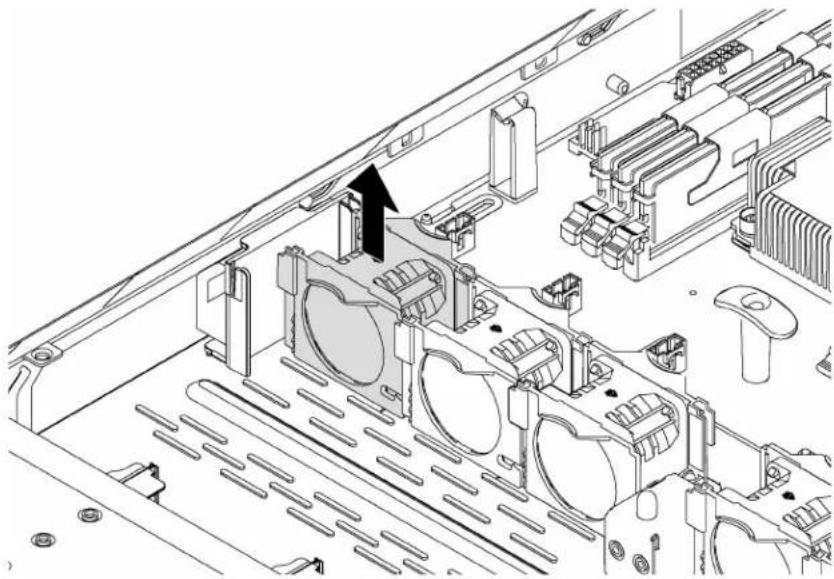
natural_image
Technical line drawing of an electronic device interior showing internal components and a black arrow indicating a specific component (no text or symbols present)Figure 38. System fan removal
Step 1. Disconnect the system fan cable from the system board.
Step 2. Grasp the system fan with your index finger and thumb and carefully lift it straight up.
After removing the system fan:
-
Install a new fan to cover the fan bay.
-
If you are instructed to return the old system fan, follow all packaging instructions and use any packaging materials that are provided.
Use this information to install a system fan.

Read the Installation Guidelines
Power Off
the server
for this task

ATTENTION: Static Sensitive Device Ground package before opening
Before installing a system fan, touch the static-protective package that contains the new system fan to any unpainted surface on the outside of the server. Then, take the new system fan out of the package and place it on a static-protective surface.
To install a system fan, complete the following steps:
Watch the procedure. A video of the installation process is available:
- Youtube: https://www.youtube.com/playlist?list=PLYV5R7hVcs-AQrHuDWK6L3KtHWc6maY_O
- Youku: http://list.youku.com/albumlist/show/id_50437162
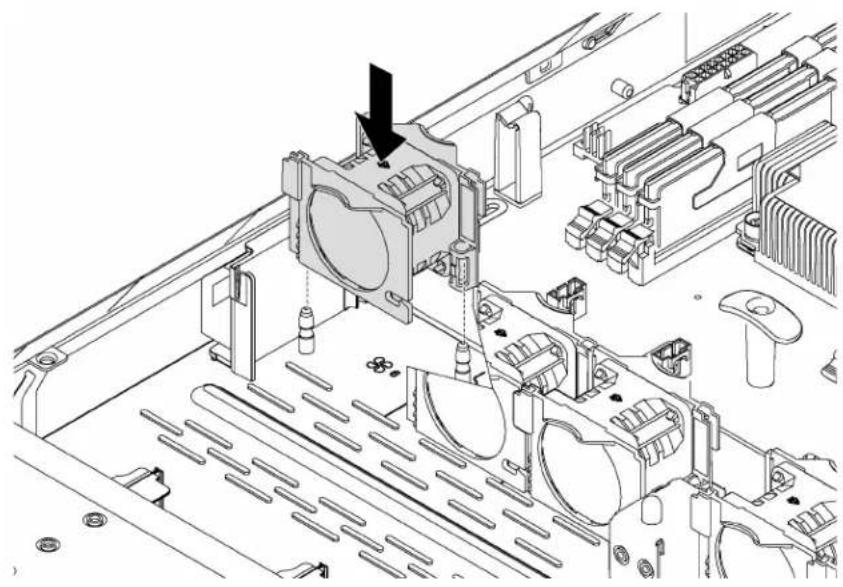
natural_image
Technical line drawing of an electronic device internal structure with no visible text or symbolsFigure 39. System fan installation
Step 1. Align the support holes of the system fan with the two pins in the chassis, and press it straight down until it is seated into place.
Note: Ensure that the system fan cable is at the side next to the system board.
Step 2. Connect the system fan cable to the system fan connector on the system board.
After installing the system fan, complete the parts replacement. See "Complete the parts replacement" on page 135.
Front I/O assembly replacement
Use this information to remove and install the front I/O assembly.
Remove the front I/O assembly
Use this information to remove the front I/O assembly.

Read the Installation Guidelines
Power Off
the server
for this task

ATTENTION: Static Sensitive Device Ground package before opening
Before removing the front I/O assembly:
- Remove the top cover. See "Remove the top cover" on page 48.
- If the security bezel is installed, remove it. See "Remove the security bezel" on page 44.
- Disconnect cables of the front I/O assembly from the system board.
To remove the front I/O assembly, complete the following steps:
Watch the procedure. A video of the removal process is available:
- Youtube: https://www.youtube.com/playlist?list=PLYV5R7hVcs-AQrHuDWK6L3KtHWc6maY_O
- Youku: http://list.youku.com/albumlist/show/id_50437162
Table 10. Front I/O assembly removal
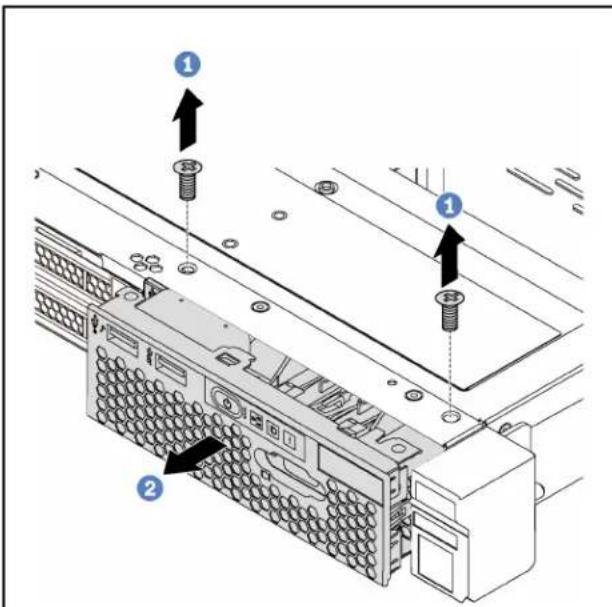
Figure 40. Server models with 2.5-inch drive bays
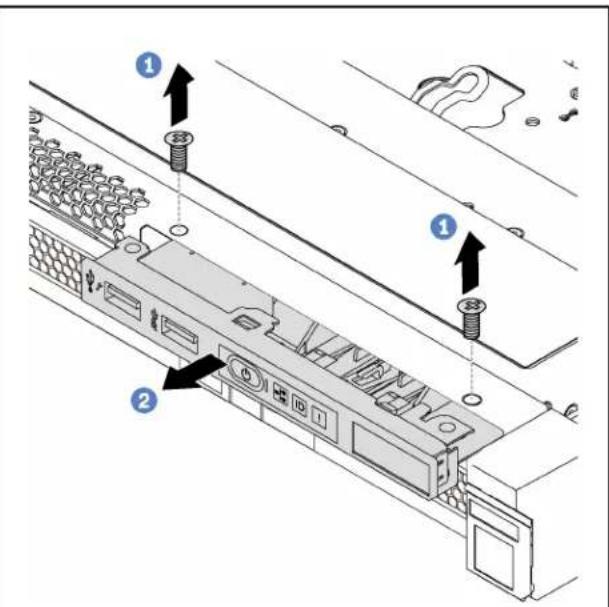
Figure 41. Server models with 3.5-inch drive bays
Step 1. Remove the screws that secure the front I/O assembly.
Step 2. Slide the front I/O assembly out of the assembly bay.
If you are instructed to return the old front I/O assembly, follow all packaging instructions and use any packaging materials that are provided.
Install the front I/O assembly
Use this information to install the front I/O assembly.

Read the Installation Guidelines
Power Off
the server
for this task

ATTENTION: Static Sensitive Device Ground package before opening
Before installing the front I/O assembly, touch the static-protective package that contains the new front I/O assembly to any unpainted surface on the outside of the server. Then, take new the front I/O assembly out of the package and place it on a static-protective surface.
To install the front I/O assembly, complete the following steps:
Watch the procedure. A video of the installation process is available:
- Youtube: https://www.youtube.com/playlist?list=PLYV5R7hVcs-AQrHuDWK6L3KtHWc6maY_O
- Youku: http://list.youku.com/albumlist/show/id_50437162
Table 11. Front I/O assembly installation

Figure 42. Server models with 2.5-inch drive bays
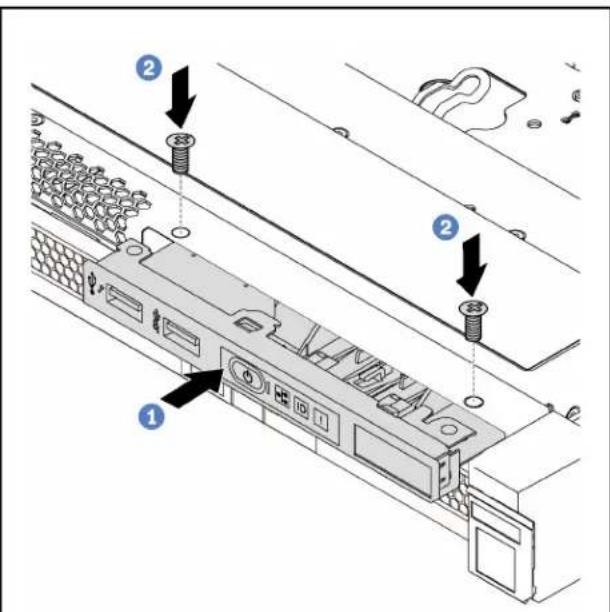
Figure 43. Server models with 3.5-inch drive bays
Step 1. Insert the front I/O assembly into the assembly bay.
Step 2. Install the screws to secure the front I/O assembly in place.
Step 3. Connect the cables of the front I/O assembly to the system board. See "Internal cable routing" on page 25.
After installing the front I/O assembly, complete the parts replacement. See “Complete the parts replacement” on page 135.
Hot-swap drive backplane replacement
Use this information to remove and install the hot-swap drive backplane.
Remove the backplane for four 3.5-inch hot-swap drives
Use this information to remove the backplane for four 3.5-inch hot-swap drives.

Read the Installation Guidelines
Power Off
the server
for this task

ATTENTION: Static Sensitive Device
ground package before opening
Before removing the backplane:
- Remove the top cover. See "Remove the top cover" on page 48.
- Record the cable connections on the backplane and then disconnect cables from the backplane.
- Remove all the installed drives and drive fillers (if any) from the drive bays. See "Remove a hot-swap drive" on page 69.
To remove the backplane, complete the following steps:
Watch the procedure. A video of the removal process is available:
- Youtube: https://www.youtube.com/playlist?list=PLYV5R7hVcs-AQrHuDWK6L3KtHWc6maY_O
- Youku: http://list.youku.com/albumlist/show/id_50437162
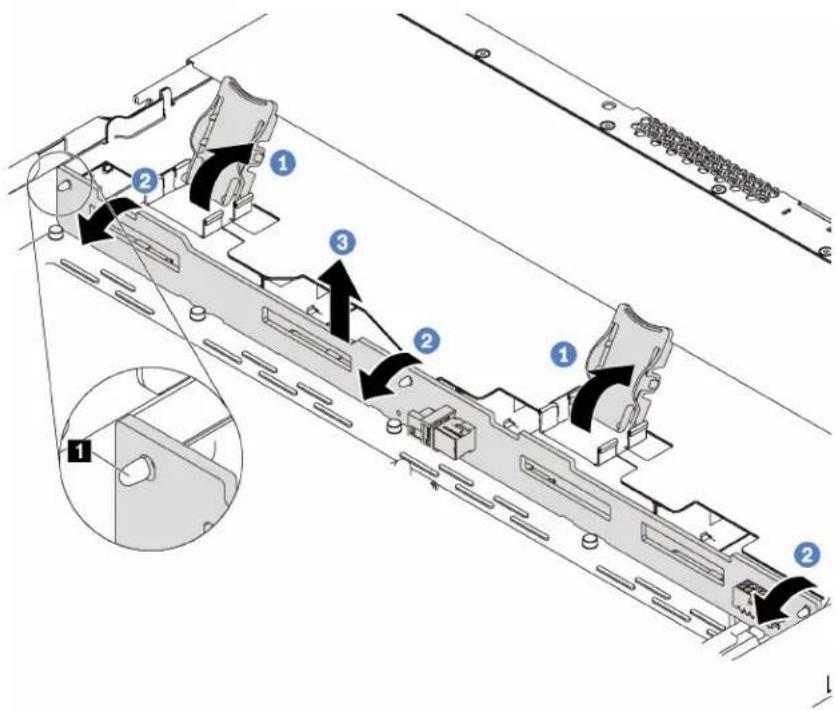
Figure 44. Backplane removal
Step 1. Open the release latches that secure the backplane.
Step 2. Pivot the backplane backward slightly to release it from the three pins 📁 on the chassis.
Step 3. Carefully lift the backplane out of the chassis.
If you are instructed to return the old backplane, follow all packaging instructions and use any packaging materials that are provided.
Install the backplane for four 3.5-inch hot-swap drives
Use this information to install the backplane for four 3.5-inch hot-swap drives.

Read the Installation Guidelines
Power Off
the server
for this task

ATTENTION:
Static Sensitive Device
Ground package before opening
Before installing the backplane, touch the static-protective package that contains the new backplane to any unpainted surface on the outside of the server. Then, take the new backplane out of the package and place it on a static-protective surface.
To install the backplane, complete the following steps:
Watch the procedure. A video of the installation process is available:
- Youtube: https://www.youtube.com/playlist?list=PLYV5R7hVcs-AQrHuDWK6L3KtHWc6maY_O
- Youku: http://list.youku.com/albumlist/show/id_50437162
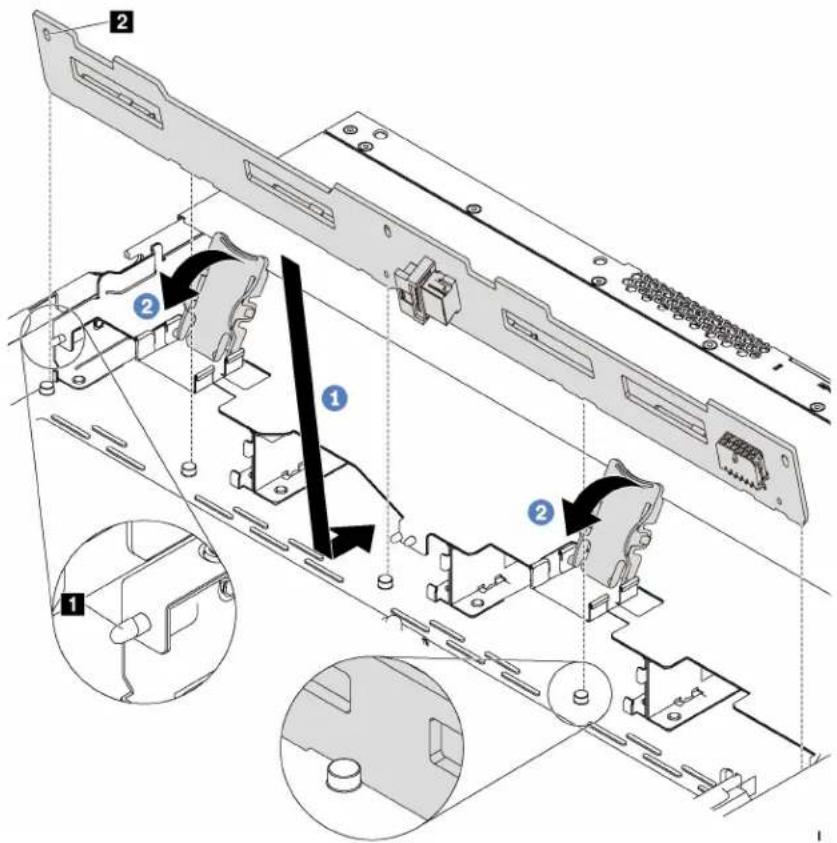
Figure 45. Backplane installation
Step 1. Align the backplane with the chassis and lower it into the chassis. Put the backplane into place with it leaning backward slightly so that the three pins on the chassis pass through the three holes in the backplane.
Step 2. Close the release latches to secure the backplane in place.
After installing the backplane:
- Connect cables to the backplane. See "Internal cable routing" on page 25.
- Reinstall all the drives and drive fillers that you removed. See "Install a hot-swap drive" on page 70.
- Complete the parts replacement. See "Complete the parts replacement" on page 135.
Remove the backplane for eight 2.5-inch hot-swap drives
Use this information to remove the backplane for eight 2.5-inch hot-swap drives.

Read the Installation Guidelines
Power Off the server for this task

ATTENTION: Static Sensitive Device Ground package before opening
Before removing the backplane:
- Remove the top cover. See "Remove the top cover" on page 48.
- Record the cable connections on the backplane and then disconnect cables from the backplane.
- Remove all the installed drives and drive fillers (if any) from the drive bays. See "Remove a hot-swap drive" on page 69.
To remove the backplane, complete the following step:
Watch the procedure. A video of the removal process is available:
- Youtube: https://www.youtube.com/playlist?list=PLYV5R7hVcs-AQrHuDWK6L3KtHWc6maY_O
- Youku: http://list.youku.com/albumlist/show/id_50437162
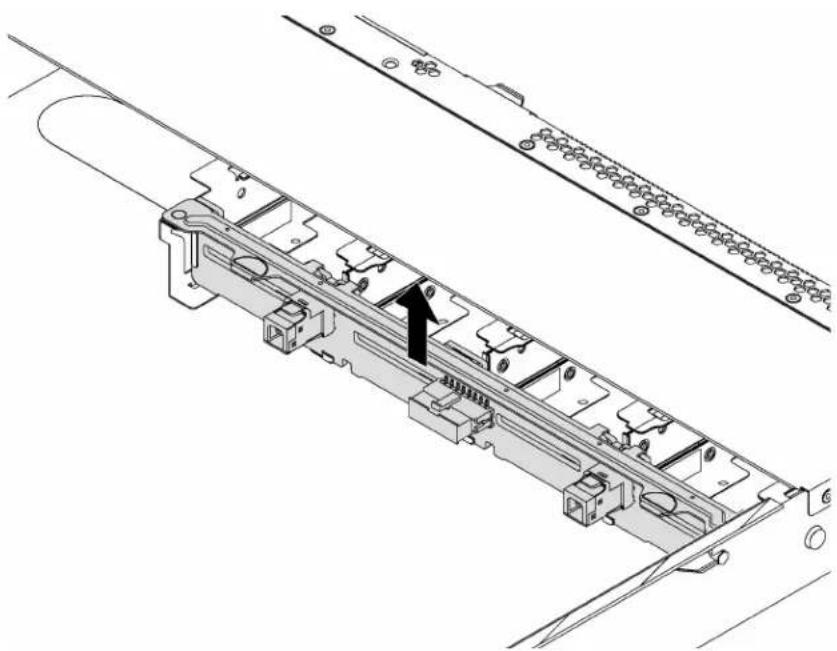
natural_image
Technical line drawing of a mechanical assembly with no visible text or symbolsFigure 46. Backplane removal
Step 1. Grasp the backplane and carefully lift it out of the chassis.
If you are instructed to return the old backplane, follow all packaging instructions and use any packaging materials that are provided.
Install the backplane for eight 2.5-inch hot-swap drives
Use this information to install the backplane for eight 2.5-inch hot-swap drives.

Read the Installation Guidelines
Power Off
the server
for this task

ATTENTION: Static Sensitive Device Ground package before opening
Before installing the backplane, touch the static-protective package that contains the new backplane to any unpainted surface on the outside of the server. Then, take the new backplane out of the package and place it on a static-protective surface.
To install the backplane, complete the following steps:
Watch the procedure. A video of the installation process is available:
- Youtube: https://www.youtube.com/playlist?list=PLYV5R7hVcs-AQrHuDWK6L3KtHWc6maY_O
- Youku: http://list.youku.com/albumlist/show/id_50437162
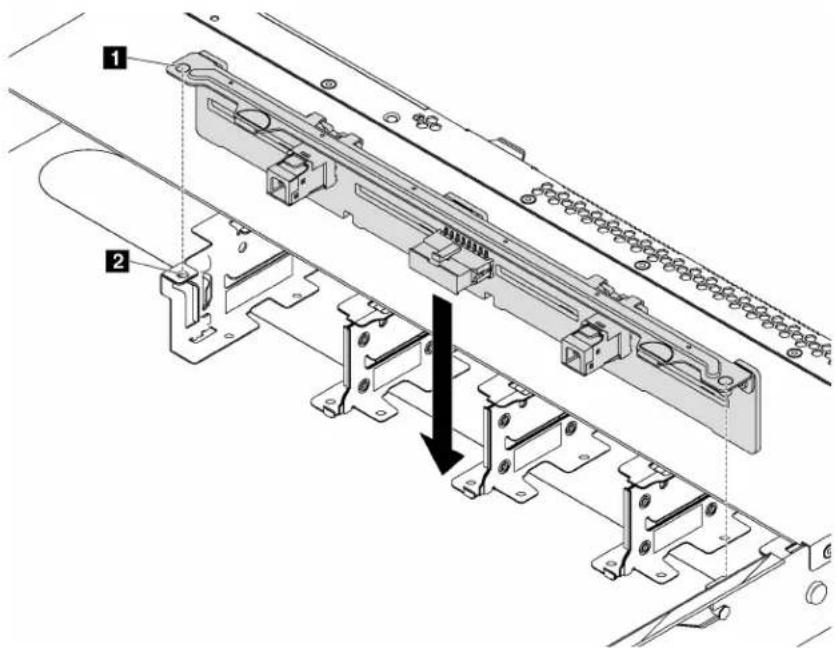
Figure 47. Backplane installation
Step 1. Align pins 1 on the backplane with the holes 2 in the chassis.
Step 2. Lower the backplane into the chassis. Ensure that the pins pass through the holes and the backplane is fully seated in place.
After installing the backplane:
- Connect cables to the backplane. See "Internal cable routing" on page 25.
- Reinstall all the drives and drive fillers that you removed. See "Install a hot-swap drive" on page 70.
- Complete the parts replacement. See "Complete the parts replacement" on page 135.
Simple-swap drive backplate assembly replacement
Use this information to remove and install the simple-swap drive backplate assembly.
Remove the simple-swap drive backplate assembly
Use this information to remove the simple-swap drive backplate assembly.

Before removing the simple-swap drive backplate assembly:
- Remove the top cover. See "Remove the top cover" on page 48.
- Record the cable connections and disconnect cables of the simple-swap drive backplate assembly.
- Remove all the installed drives and drive fillers (if any) from the drive bays. See "Remove a simple-swap drive" on page 72.
To remove the simple-swap drive backplate assembly, complete the following steps:
Watch the procedure. A video of the removal process is available:
- Youtube: https://www.youtube.com/playlist?list=PLYV5R7hVcs-AQrHuDWK6L3KtHWc6maY_O
- Youku: http://list.youku.com/albumlist/show/id_50437162
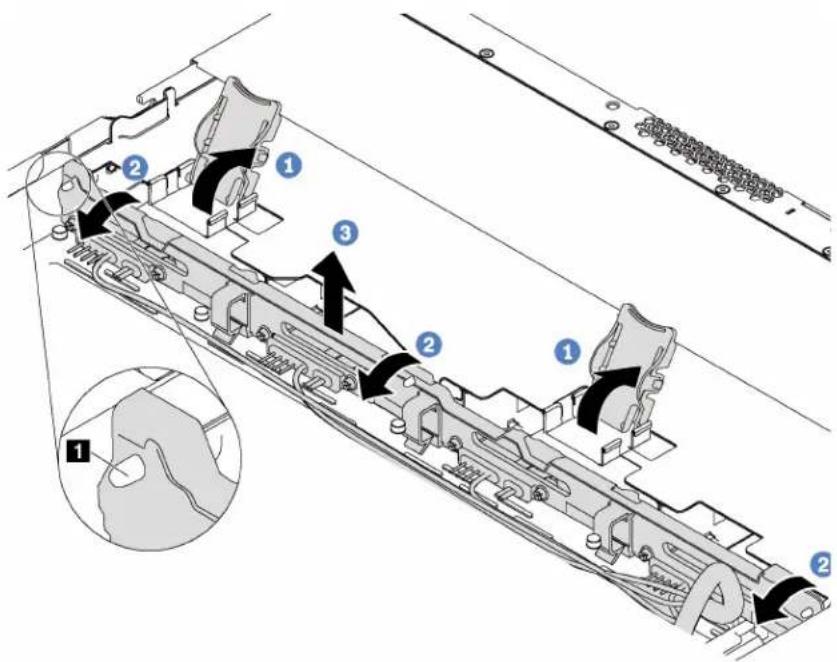
Figure 48. Simple-swap drive backplate assembly removal
Step 1. Open the release latches that secure the simple-swap drive backplate assembly.
Step 2. Pivot the simple-swap drive backplate assembly backward slightly to release it from the three pins on the chassis.
Step 3. Carefully lift the simple-swap drive backplate assembly out of the chassis.
If you are instructed to return the old simple-swap drive backplate assembly, follow all packaging instructions and use any packaging materials that are provided.
Install the simple-swap drive backplate assembly
Use this information to install the simple-swap drive backplate assembly.

Read the Installation Guidelines

Power Off the server for this task

ATTENTION: Static Sensitive Device
ground package before opening
Before installing the simple-swap drive backplate assembly, touch the static-protective package that contains the new backplate assembly to any unpainted surface on the outside of the server. Then, take the new backplate assembly out of the package and place it on a static-protective surface.
To install the simple-swap drive backplate assembly, complete the following steps:
Watch the procedure. A video of the installation process is available:
- Youtube: https://www.youtube.com/playlist?list=PLYV5R7hVcs-AQrHuDWK6L3KtHWc6maY_O
- Youku: http://list.youku.com/albumlist/show/id_50437162
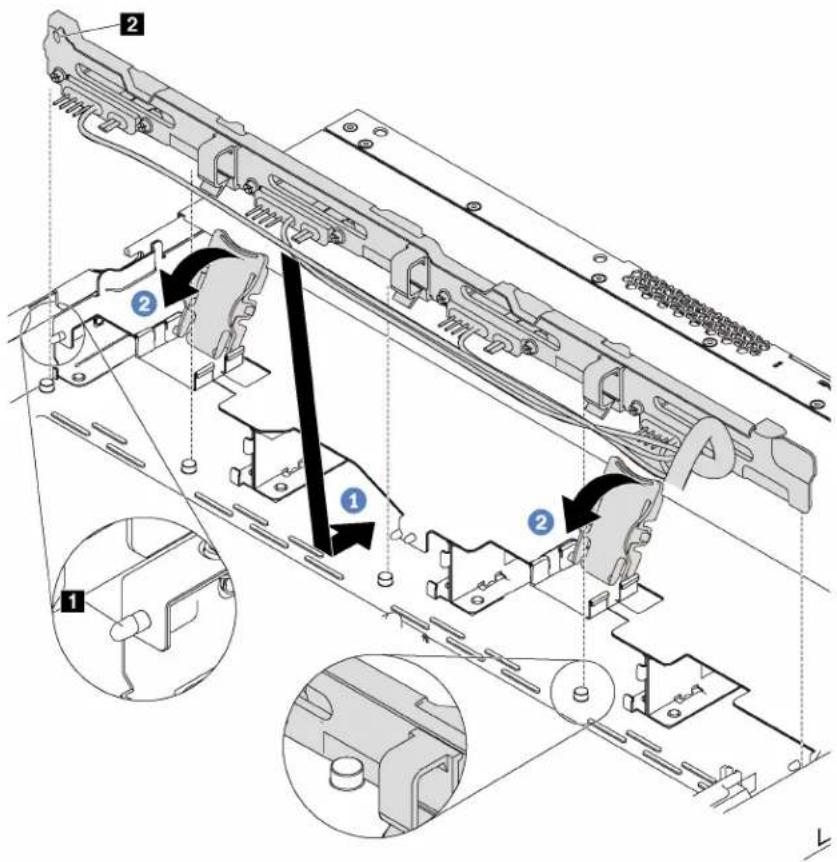
Figure 49. Simple-swap drive backplate assembly installation
Step 1. Align the simple-swap drive backplate assembly with the chassis and lower it into the chassis. Put the assembly into place with it leaning backward slightly so that the three pins on the chassis pass through the three holes in the assembly.
Step 2. Close the release latches to secure the simple-swap drive backplate assembly in place.
After installing the simple-swap drive backplate assembly:
-
Connect cables of the simple-swap drive backplate assembly to the system board. See "Internal cable routing" on page 25.
-
Reinstall all the drives and drive fillers that you removed. See "Install a simple-swap drive" on page 74.
-
Complete the parts replacement. See "Complete the parts replacement" on page 135.
Hot-swap drive replacement
Use this information to remove and install a hot-swap drive. You can remove or install a hot-swap drive without powering off the server, which helps you avoid significant interruption to the operation of the system.
Notes:
- The term "hot-swap drive" refers to all the supported types of hot-swap hard disk drives (HDDs) and hot-swap solid-state drives (SSDs).
- Use any documentation that comes with the drive and follow those instructions in addition to the instructions in this topic. Ensure that you have all the cables and other equipment that are specified in the documentation that comes with the drive.
- The electromagnetic interference (EMI) integrity and cooling of the server are protected by having all drive bays covered or occupied. The vacant bays are either covered by an EMI-protective panel or occupied by drive fillers. When installing a drive, save the removed drive filler in case that you later remove the drive and need the drive filler to cover the place.
- To avoid damage to the drive connectors, ensure that the top cover is in place and fully closed whenever you install or remove a drive.
Remove a hot-swap drive
Use this information to remove a hot-swap drive.

Read the Installation Guidelines

ATTENTION: Static Sensitive Device Ground package before opening
Before removing a hot-swap drive:
-
Ensure that you have back up data on your drive, especially if it is part of a RAID array.
-
Before you make changes to drives, drive controllers, drive backplanes, or drive cables, back up all important data that is stored on the drives.
-
Before you remove any component of a RAID array, back up all RAID configuration information.
-
Remove the security bezel. See "Remove the security bezel" on page 44.
Attention: To ensure that there is adequate system cooling, do not operate the server for more than two minutes without either a drive or a drive filler installed in each bay.
To remove a hot-swap drive, complete the following steps:
Watch the procedure. A video of the removal process is available:
- Youtube: https://www.youtube.com/playlist?list=PLYV5R7hVcs-AQrHuDWK6L3KtHWc6maY_O
- Youku: http://list.youku.com/albumlist/show/id_50437162
Step 1. Slide the release latch to the left to open the drive tray handle.
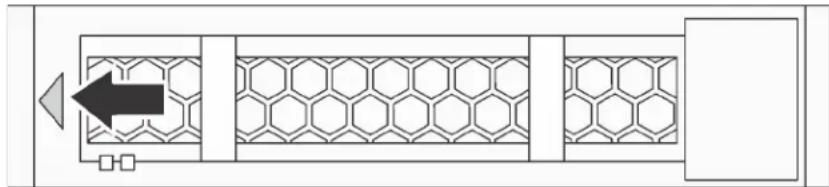
natural_image
Diagram of a mechanical or electrical component with hexagonal lattice pattern and directional arrow (no text or symbols)Figure 50. Opening the drive tray handle
Step 2. Grasp the handle and slide the drive out of the drive bay.
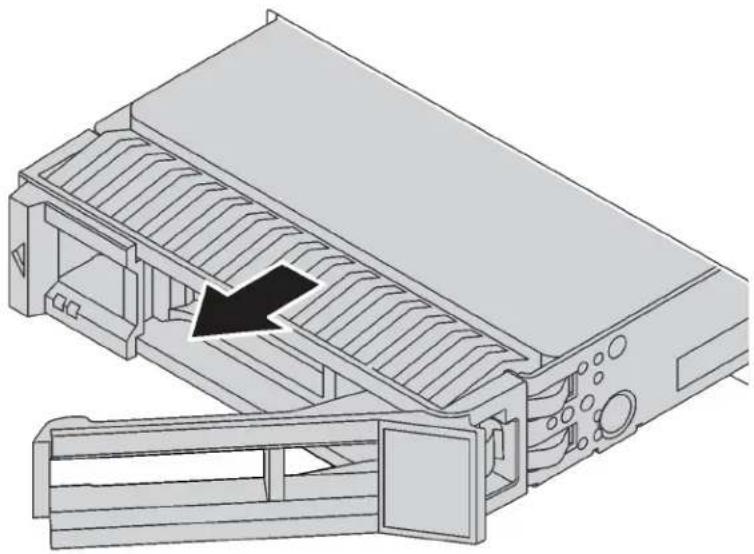
natural_image
Technical illustration of a mechanical device with internal channels and a black arrow indicating a specific component (no text or symbols present)Figure 51. Sliding the drive out of the drive bay
Step 3. Install a drive filler or a new drive to cover the drive bay.
If you are instructed to return the old drive, follow all packaging instructions and use any packaging materials that are provided.
Install a hot-swap drive
Use this information to install a hot-swap drive.

Read the Installation Guidelines

ATTENTION: Static Sensitive Device Ground package before opening
Notes:
- For a list of supported drives, see http://www.lenovo.com/serverproven/.
- The drive bays are numbered to indicate the installation order (starting from number "0"). Follow the installation order when you install a drive. See "Front view" on page 11.
-
You can mix drives of different types and different capacities in one system, but not in one RAID array. The following order is recommended when installing the drives:
-
Drive type priority: SAS SSD, SATA SSD, SAS HDD, SATA HDD
- Drive capacity priority: the lowest capacity first
- The drives in a single RAID array must be the same type, same size, and same capacity.
Before installing a hot-swap drive:
- If there is a drive filler installed, remove it and keep it in a safe place.
- Touch the static-protective package that contains the new drive to any unpainted surface on the outside of the server. Then, take the new drive out of the package and place it on a static-protective surface.
To install a hot-swap drive, complete the following steps:
Watch the procedure. A video of the installation process is available:
- Youtube: https://www.youtube.com/playlist?list=PLYV5R7hVcs-AQrHuDWK6L3KtHWc6maY_O
- Youku: http://list.youku.com/albumlist/show/id_50437162
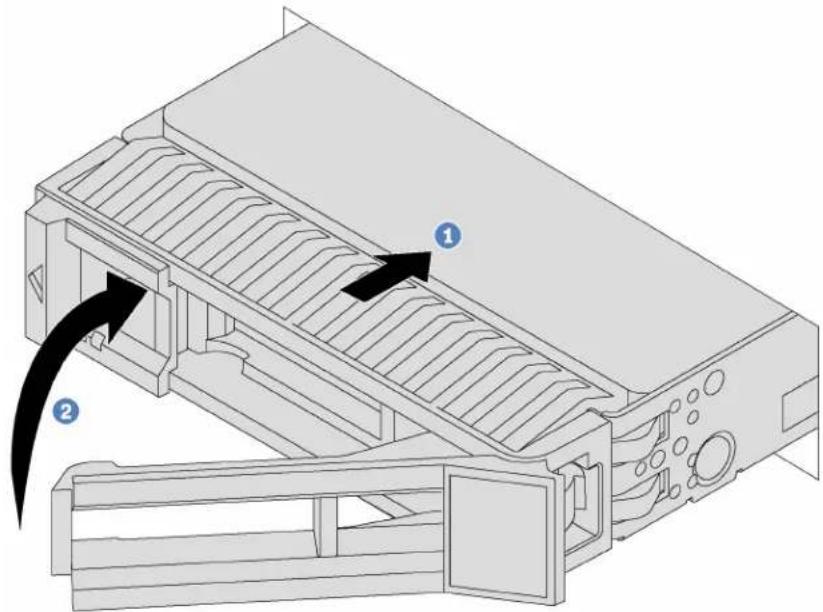
Figure 52. Hot-swap drive installation
Step 1. Ensure that the drive tray handle is in the open position. Slide the drive into the drive bay until it snaps into position.
Step 2. Close the drive tray handle to lock the drive in place.
Step 3. Check the drive status LED to verify that the drive is operating correctly.
- If the yellow drive status LED is lit continuously, that drive is faulty and must be replaced.
- If the green drive activity LED is flashing, the drive is being accessed.
Step 4. Continue to install additional hot-swap drives if necessary.
After installing all drives:
- Reinstall the security bezel. See "Install the security bezel" on page 46.
- Configure RAID information if necessary.
Simple-swap drive replacement
Use this information to remove and install a simple-swap drive.
Notes:
- The term “simple-swap drive” refers to all the supported types of simple-swap hard disk drives (HDDs) and simple-swap solid-state drives (SSDs).
- You must power off the server before installing or replacing a simple-swap drive.
- Use any documentation that comes with the drive and follow those instructions in addition to the instructions in this topic. Ensure that you have all the cables and other equipment that are specified in the documentation that comes with the drive.
- The electromagnetic interference (EMI) integrity and cooling of the server are protected by having all drive bays covered or occupied. The vacant bays are either covered by an EMI-protective panel or occupied by drive fillers. When installing a drive, save the removed drive filler in case that you later remove the drive and need the drive filler to cover the place.
- To avoid damage to the drive connectors, ensure that the top cover is in place and fully closed whenever you install or remove a drive.
Remove a simple-swap drive
Use this information to remove a simple-swap drive.

Read the Installation Guidelines

Power Off the server for this task

ATTENTION: Static Sensitive Device Ground package before opening
Before removing a simple-swap drive:
-
Ensure that you have back up data on your drive, especially if it is part of a RAID array.
-
Before you make changes to drives, drive controllers, drive backplanes, or drive cables, back up all important data that is stored on the drives.
-
Before you remove any component of a RAID array, back up all RAID configuration information.
-
Remove the security bezel. See "Remove the security bezel" on page 44.
Attention: To make sure that there is adequate system cooling, do not operate the server for more than two minutes without either a drive or a drive filler installed in each bay.
To remove a simple-swap drive, complete the following steps:
Watch the procedure. A video of the removal process is available:
- Youtube: https://www.youtube.com/playlist?list=PLYV5R7hVcs-AQrHuDWK6L3KtHWc6maY_O
- Youku: http://list.youku.com/albumlist/show/id_50437162
Step 1. Use a screwdriver to unlock the handle lock. The handle opens automatically.
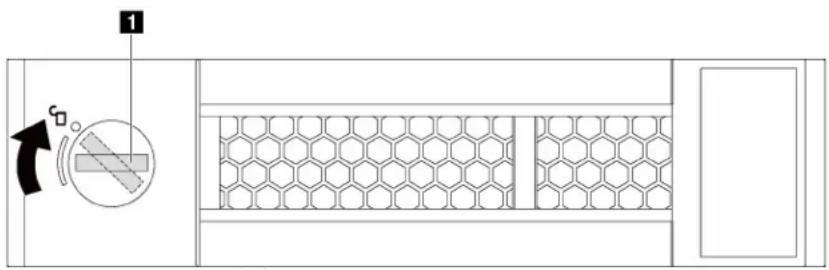
Figure 53. Opening the drive tray handle
Step 2. Grasp the handle and slide the drive out of the drive bay.
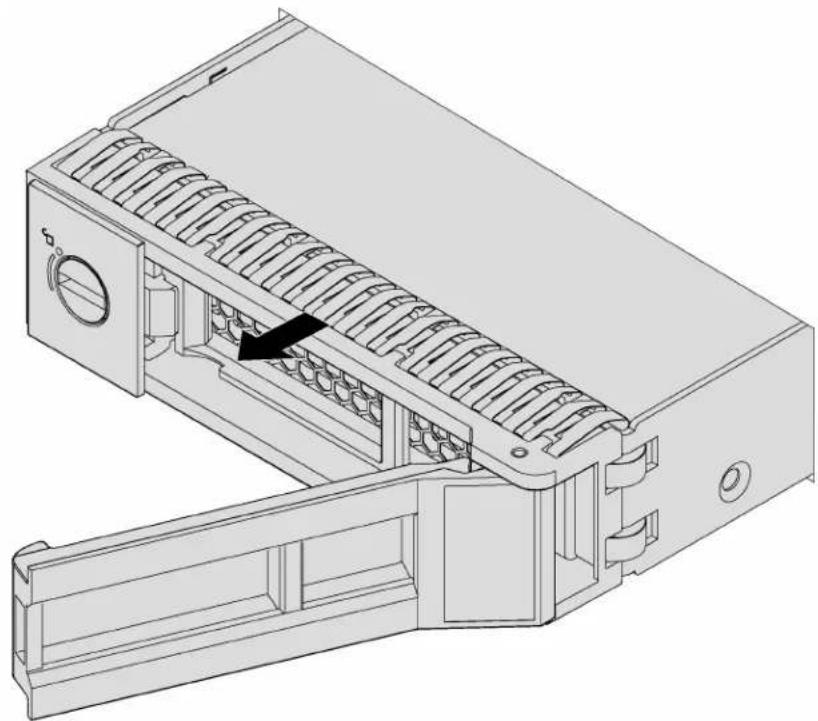
natural_image
Technical line drawing of a mechanical device with internal channels and a black arrow indicating a component (no text or symbols present)Figure 54. Sliding the drive out of the drive bay
Step 3. Install a drive filler or a new drive to cover the drive bay.
If you are instructed to return the old drive, follow all packaging instructions and use any packaging materials that are provided.
Install a simple-swap drive
Use this information to install a simple-swap drive.

Read the Installation Guidelines
Power Off the server for this task

ATTENTION: Static Sensitive Device Ground package before opening
Notes:
- For a list of supported drives, see http://www.lenovo.com/serverproven/.
- The drive bays are numbered to indicate the installation order (starting from number "0"). Follow the installation order when you install a drive. See "Front view" on page 11.
- You can mix drives of different types and different capacities in one system, but not in one RAID array. The following order is recommended when installing the drives:
- Drive type priority: SATA SSD, SATA HDD
- Drive capacity priority: the lowest capacity first
- The drives in a single RAID array must be the same type, same size, and same capacity.
Before installing a simple-swap drive:
-
If there is a drive filler installed, remove it and keep it in a safe place.
-
Touch the static-protective package that contains the new drive to any unpainted surface on the outside of the server. Then, take the new drive out of the package and place it on a static-protective surface.
To install a simple-swap drive, complete the following steps:
Watch the procedure. A video of the installation process is available:
- Youtube: https://www.youtube.com/playlist?list=PLYV5R7hVcs-AQrHuDWK6L3KtHWc6maY_O
- Youku: http://list.youku.com/albumlist/show/id_50437162
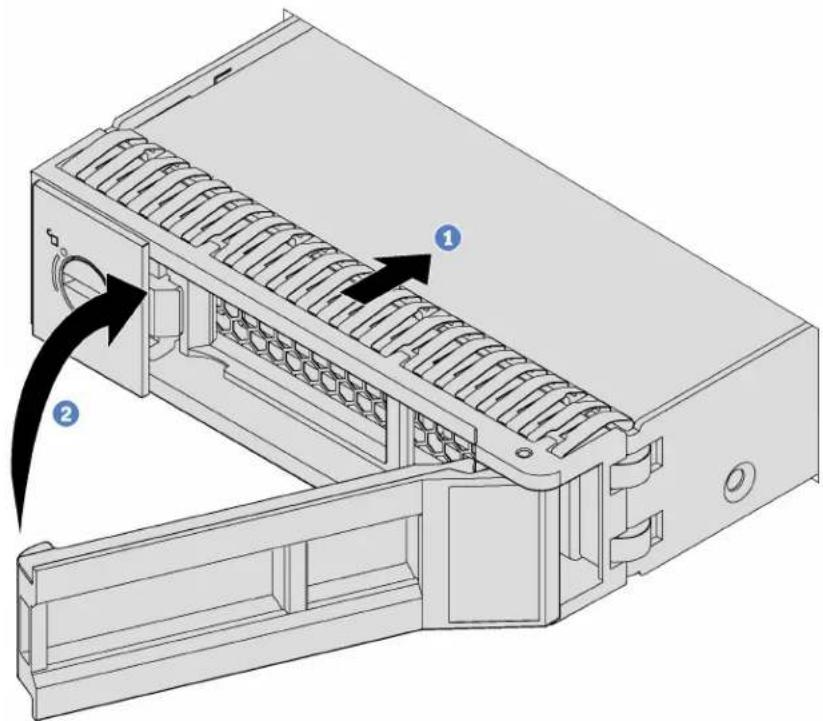
Figure 55. Simple-swap drive installation
Step 1. Ensure that the drive tray handle is in the open position. Slide the drive into the drive bay until it snaps into position.
Step 2. Close the drive tray handle to lock the drive in place.
Step 3. Continue to install additional simple-swap drives if necessary.
After you have installed all drives:
- Reinstall the security bezel. See "Install the security bezel" on page 46.
- Power on the server.
- Configure RAID information if necessary.
DIMM replacement
Use this information to remove and install a DIMM.
Remove a DIMM
Use this information to remove a DIMM.

Read the Installation Guidelines
Power Off
the server
for this task

ATTENTION: Static Sensitive Device Ground package before opening
Attention:
- Disconnect all power cords for this task.
- DIMMs are sensitive to static discharge and require special handling. In addition to the standard guidelines for Handling static-sensitive devices:
- Always wear an electrostatic-discharge strap when removing or installing DIMMs. Electrostatic-discharge gloves can also be used.
- Never hold two or more DIMMs together so that they touch. Do not stack DIMMs directly on top of each other during storage.
- Never touch the gold DIMM connector contacts or allow these contacts to touch the outside of the DIMM connector housing.
- Handle DIMMs with care: never bend, twist, or drop a DIMM.
Before removing a DIMM:
- Remove the top cover. See "Remove the top cover" on page 48.
- Remove the air baffle. See "Remove the air baffle" on page 51.
To remove a DIMM, complete the following steps:
Watch the procedure. A video of the removal process is available:
- Youtube: https://www.youtube.com/playlist?list=PLYV5R7hVcs-AQrHuDWK6L3KtHWc6maY_O
- Youku: http://list.youku.com/albumlist/show/id_50437162
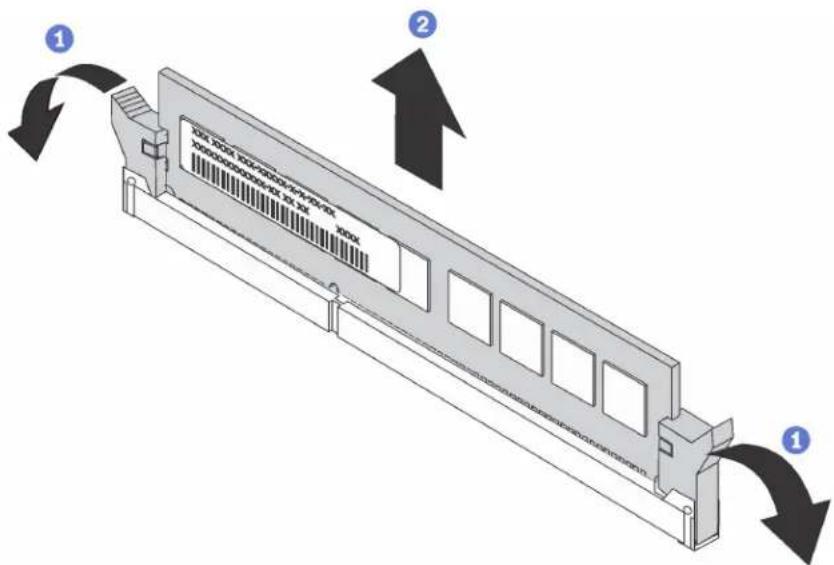
Figure 56. DIMM removal
Step 1. Open the retaining clips on each end of the DIMM slot.
Attention: To avoid breaking the retaining clips or damaging the DIMM slots, handle the clips gently.
Step 2. Grasp the DIMM at both ends and carefully lift it up to remove it from the slot.
Step 3. Install a DIMM filler or a new DIMM to cover the slot.
If you are instructed to return the old DIMM, follow all packaging instructions and use any packaging materials that are provided.
DIMM installation rules
DIMMs must be installed in a specific order based on the memory configuration that you implement on your server.
Your server has 12 DIMM slots and it has the following features:
- Your server supports up to 6 DIMMs when one processor is installed, and up to 12 DIMMs when two processors are installed.
- Each slot supports 8 GB, 16 GB, and 32 GB DDR4 RDIMMs with Error Checking and Correcting (ECC) technology.
• Each slot supports 64 GB DDR4 LRDIMMs with ECC technology. - The minimum system memory is 8 GB (only one processor installed and only one 8 GB RDIMM installed in the CPU1 DIMM3 slot).
-
The maximum system memory is as follows:
-
384 GB using RDIMMs (two processors installed and one 32 GB RDIMM installed in each of the 12 DIMM slots)
- 768 GB LRDIMMs (two processors installed and one 64 GB LRDIMM installed in each of the 12 DIMM slots)
For a list of supported DIMM options, see: http://www.lenovo.com/serverproven/
Notes: Before installing a DIMM, ensure that all DIMMs to be installed must be the same type. Your server supports the following types of DIMMs:
• DDR4 RDIMM with ECC technology
• DDR4 LRDIMM with ECC technology
The following illustration helps you to locate the DIMM slots on the system board.
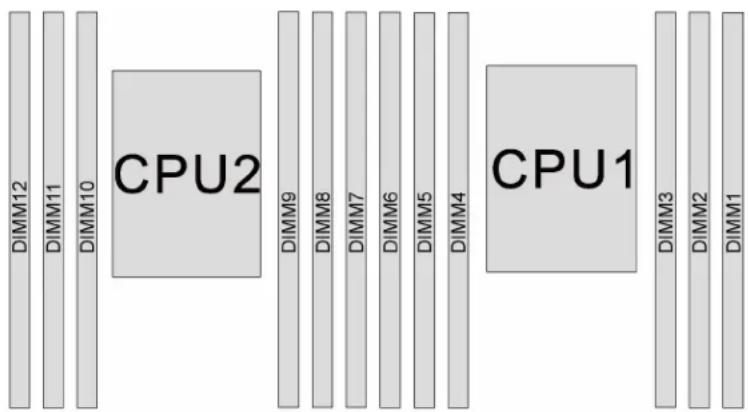
Figure 57. DIMM slots on the system board
The following memory configurations are available:
- "Independent mode" on page 78
- "Mirroring mode" on page 79
- "Rank sparing mode" on page 79
Independent mode
Independent mode provides high performance memory capability. You can populate all channels with no matching requirements. Individual channels can run at different DIMM timings, but all channels must run at the same interface frequency.
The following table shows the DIMM population sequence for independent mode when only one processor (CPU1) is installed.
Note: If there are three identical DIMMs to be installed for CPU1, and the three DIMMs have the same Lenovo part number, install the three DIMMs in slots 1, 2, and 3.
Table 12. Independent mode with one processor
| Total DIMMs | Processor 1 | Total DIMMs | |||||
| 6 5 4 3 2 1 | |||||||
| 1 3 1 | |||||||
| 2 4 3 2 | |||||||
| 3 4 3 2 3 | |||||||
| 4 5 4 3 2 | 4 | ||||||
| 5 5 4 3 2 | 1 5 | ||||||
| 6 6 5 4 3 | 2 1 6 | ||||||
The following table shows the DIMM population sequence for independent mode when two processors (CPU1 and CPU2) are installed.
Notes:
- If there are three identical DIMMs to be installed for CPU1, and the three DIMMs have the same Lenovo part number, install the three DIMMs in slots 1, 2, and 3.
- If there are three identical DIMMs to be installed for CPU2, and the three DIMMs have the same Lenovo part numbers, install the three DIMMs in slots 7, 8, and 9.
Table 13. Independent mode with two processors
| Total DIMMs | Processor 2 Processor 1 | Total DIMMs | |||||||||||
| 12 | 11 | 10 | 9 | 8 | 7 | 6 | 5 | 4 | 3 | 2 | 1 | ||
| 2 | 9 | 3 | 2 | ||||||||||
| 3 | 9 | 4 | 3 | 3 | |||||||||
| 4 | 10 | 9 | 4 | 3 | 4 | ||||||||
| 5 | 10 | 9 | 4 | 3 | 2 | 5 | |||||||
| 6 | 10 | 9 | 8 | 4 | 3 | 2 | 6 | ||||||
| 7 | 10 | 9 | 8 | 5 | 4 | 3 | 2 | 7 | |||||
| 8 | 11 | 10 | 9 | 8 | 5 | 4 | 3 | 2 | 8 | ||||
| 9 | 11 | 10 | 9 | 8 | 5 | 4 | 3 | 2 | 1 | 9 | |||
| 10 | 11 | 10 | 9 | 8 | 7 | 5 | 4 | 3 | 2 | 1 | 10 | ||
| 11 | 11 | 10 | 9 | 8 | 7 | 6 | 5 | 4 | 3 | 2 | 1 | 11 | |
| 12 | 12 | 11 | 10 | 9 | 8 | 7 | 6 | 5 | 4 | 3 | 2 | 1 | 12 |
Mirroring mode
In mirroring mode, each DIMM in a pair must be identical in size and architecture. The channels are grouped in pairs with each channel receiving the same data. One channel is used as a backup of the other, which provides redundancy.
Note: All DIMMs to be installed must be the same type with the same capacity, frequency, voltage, and rank.
The following table shows the DIMM population sequence for mirroring mode when one processor (CPU1) is installed.
Table 14. Mirroring mode with one processor
| Total DIMMs | Processor 1 | Total DIMMs | |||||
| 6 5 4 3 2 1 | |||||||
| 2 3 2 2 | |||||||
| 3 3 2 1 3 | |||||||
| 4 5 4 3 2 4 | |||||||
| 6 6 5 4 3 2 1 6 | |||||||
The following table shows the DIMM population sequence for mirroring mode when two processors (CPU1 and CPU2) are installed.
Table 15. Mirroring mode with two processors
| Total DIMMs | Processor 2 Processor 2 | Total DIMMs | |||||||||||
| 12 11 | 10 9 8 | 7 6 5 4 3 | 2 | 1 | |||||||||
| 4 | 9 8 | 3 2 | 4 | ||||||||||
| 5 | 9 | 8 | 3 | 2 | 1 | 5 | |||||||
| 6 | 9 | 8 | 7 | 3 | 2 | 1 | 6 | ||||||
| 8 | 11 | 10 | 9 | 8 | 5 | 4 | 3 | 2 | 8 | ||||
| 9 | 9 | 8 | 7 | 6 | 5 | 4 | 3 | 2 | 1 | 9 | |||
| 10 | 11 | 10 | 9 | 8 | 6 | 5 | 4 | 3 | 2 | 1 | 10 | ||
| 12 | 12 | 11 | 10 | 9 | 8 | 7 | 6 | 5 | 4 | 3 | 2 | 1 | 12 |
Rank sparing mode
In rank sparing mode, one rank of a DIMM works as the spare rank for the other ranks on the same channel. The spare rank is not available as system memory.
Notes:
- All DIMMs to be installed must be the same type with the same capacity, frequency, voltage, and number of ranks.
- Single-rank DIMMs do not support rank sparing mode.
Table 16. Rank sparing mode with one processor
| Total DIMMs | Processor 1 | Total DIMMs | |||||
| 6 5 4 3 2 1 | |||||||
| 1 3 1 | |||||||
| 2 4 3 2 | |||||||
| 3 4 3 2 3 | |||||||
| 4 5 4 3 2 4 | |||||||
| 5 5 4 3 2 1 5 | |||||||
| 6 6 5 4 3 2 1 6 | |||||||
The following table shows the DIMM population sequence for rank sparing mode when two processors (CPU1 and CPU2) are installed.
Table 17. Rank sparing mode with two processors
| Total DIMMs | Processor 2 Processor 1 | Total DIMMs | |||||||||||
| 12 | 11 | 10 | 9 | 8 | 7 | 6 | 5 | 4 | 3 | 2 | 1 | ||
| 2 | 9 | 3 | 2 | ||||||||||
| 3 | 9 | 4 | 3 | 3 | |||||||||
| 4 | 10 | 9 | 4 | 3 | 4 | ||||||||
| 5 | 10 | 9 | 4 | 3 | 2 | 5 | |||||||
| 6 | 10 | 9 | 8 | 4 | 3 | 2 | 6 | ||||||
| 7 | 10 | 9 | 8 | 5 | 4 | 3 | 2 | 7 | |||||
| 8 | 11 | 10 | 9 | 8 | 5 | 4 | 3 | 2 | 8 | ||||
| 9 | 11 | 10 | 9 | 8 | 5 | 4 | 3 | 2 | 1 | 9 | |||
| 10 | 11 | 10 | 9 | 8 | 7 | 5 | 4 | 3 | 2 | 1 | 10 | ||
| 11 | 11 | 10 | 9 | 8 | 7 | 6 | 5 | 4 | 3 | 2 | 1 | 11 | |
| 12 | 12 | 11 | 10 | 9 | 8 | 7 | 6 | 5 | 4 | 3 | 2 | 1 | 12 |
Install a DIMM
Use this information to install a DIMM.

Read the Installation Guidelines
Power Off the server for this task

ATTENTION: Static Sensitive Device Ground package before opening
Attention:
- Disconnect all power cords for this task.
-
DIMMs are sensitive to static discharge and require special handling. In addition to the standard guidelines for "Handling static-sensitive devices" on page 39:
-
Always wear an electrostatic-discharge strap when removing or installing DIMMs. Electrostatic-discharge gloves can also be used.
- Never hold two or more DIMMs together so that they touch. Do not stack DIMMs directly on top of each other during storage.
- Never touch the gold DIMM connector contacts or allow these contacts to touch the outside of the DIMM connector housing.
- Handle DIMMs with care: never bend, twist, or drop a DIMM.
Before installing a DIMM:
- Touch the static-protective package that contains the new DIMM to any unpainted surface on the outside of the server. Then, take the new DIMM out of the package and place it on a static-protective surface.
- Locate the DIMM slot on the system board by referring to "DIMM installation rules" on page 77. Ensure that you observe the installation rules and sequence.
To install a DIMM, complete the following steps:
Watch the procedure. A video of the installation process is available:
- Youtube: https://www.youtube.com/playlist?list=PLYV5R7hVcs-AQrHuDWK6L3KtHWc6maY_O
- Youku: http://list.youku.com/albumlist/show/id_50437162
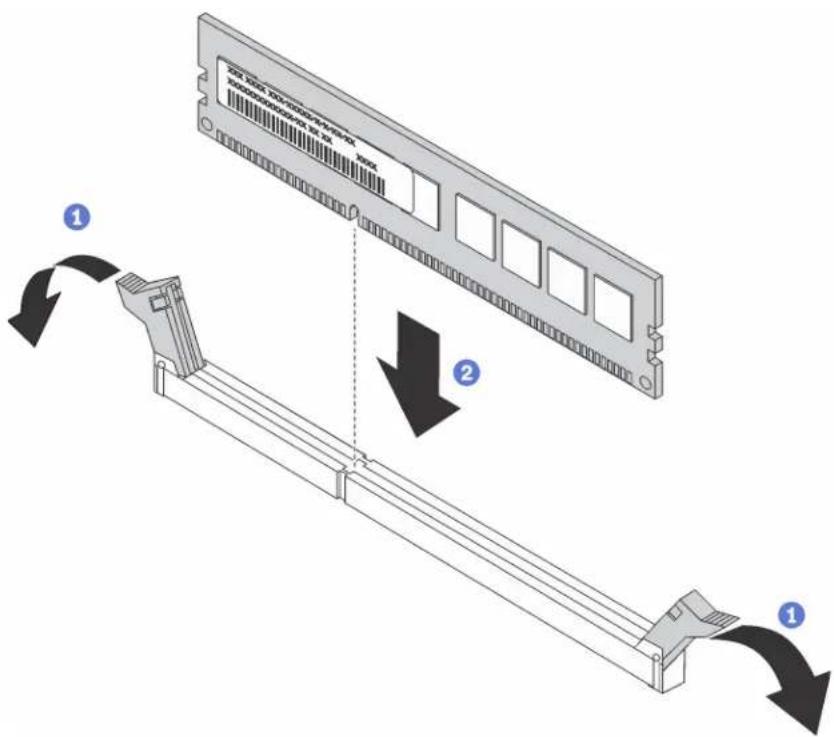
Figure 58. DIMM installation
Step 1. Open the retaining clips on each end of the DIMM slot.
Attention: To avoid breaking the retaining clips or damaging the DIMM slots, open and close the clips gently.
Step 2. Align the DIMM with the slot, and firmly press both ends of the DIMM straight down into the slot until the retaining clips snap into the locked position.
Note: If there is a gap between the DIMM and the retaining clips, the DIMM has not been correctly inserted. Open the retaining clips, remove the DIMM, and then reinsert it.
After installing a DIMM, complete the parts installation. See "Complete the parts replacement" on page 135.
CMOS battery replacement
Use this information to remove and install the CMOS battery.
Remove the CMOS battery
Use this information to remove the CMOS battery.

Read the Installation Guidelines
Power Off
the server
for this task

ATTENTION: Static Sensitive Device Ground package before opening
The following tips describe information that you must consider when removing the CMOS battery.
- Lenovo has designed this product with your safety in mind. The lithium CMOS battery must be handled correctly to avoid possible danger. If you replace the CMOS battery, you must adhere to the following instructions.
Note: In the U.S., call 1-800-IBM-4333 for information about battery disposal.
- If you replace the original lithium battery with a heavy-metal battery or a battery with heavy-metal components, be aware of the following environmental consideration. Batteries and accumulators that contain heavy metals must not be disposed of with normal domestic waste. They will be taken back free of charge by the manufacturer, distributor, or representative, to be recycled or disposed of in a proper manner.
- To order replacement batteries, call 1-800-IBM-SERV within the U.S., and 1-800-465-7999 or 1-800-465-6666 within Canada. Outside the U.S. and Canada, call your support center or business partner.
Note: After you replace the CMOS battery, you must reconfigure the server and reset the system date and time.
S004

CAUTION:
When replacing the lithium battery, use only Lenovo specified part number or an equivalent type battery recommended by the manufacturer. If your system has a module containing a lithium battery, replace it only with the same module type made by the same manufacturer. The battery contains lithium and can explode if not properly used, handled, or disposed of. Do not:
- Throw or immerse into water
• Heat to more than 100°C (212°F)
• Repair or disassemble
Dispose of the battery as required by local ordinances or regulations.
S002

CAUTION:
The power control button on the device and the power switch on the power supply do not turn off the electrical current that is supplied to the device. The device also might have more than one power cord. To remove all electrical current from the device, ensure that all power cords are disconnected from the power source.
To remove the CMOS battery, complete the following steps:
Watch the procedure. A video of the removal process is available:
- Youtube: https://www.youtube.com/playlist?list=PLYV5R7hVcs-AQrHuDWK6L3KtHWc6maY_O
- Youku: http://list.youku.com/albumlist/show/id_50437162
Step 1. Remove the top cover. See "Remove the top cover" on page 48.
Step 2. Locate the CMOS battery, see "System board components" on page 21.
Step 3. Press the battery clip as shown and carefully lift CMOS battery out of the socket.
Attention: Do not tilt or push the CMOS battery using excessive force. Failing to remove the CMOS battery properly might damage the socket on the system board. Any damage to the socket might require replacing the system board.
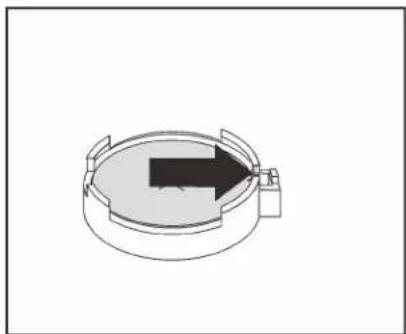
natural_image
Diagram of a circular mechanical component with an arrow indicating direction (no text or symbols)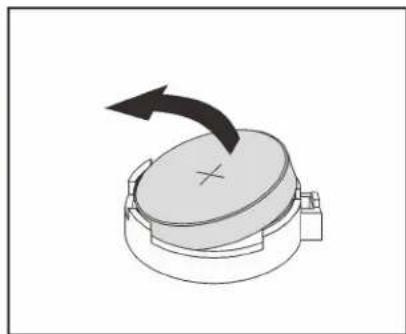
natural_image
Diagram of a mechanical component with a rotating arrow indicating rotation (no text or symbols)Figure 59. CMOS battery removal
After removing the CMOS battery:
- Install a new CMOS battery.
- Dispose of the CMOS battery as required by local ordinances or regulations.
Install the CMOS battery
Use this information to install the CMOS battery.

Read the Installation Guidelines
Power Off
the server
for this task

ATTENTION: Static Sensitive Device Ground package before opening
The following tips describe information that you must consider when installing the CMOS battery.
- Lenovo has designed this product with your safety in mind. The lithium battery must be handled correctly to avoid possible danger. If you install the CMOS battery, you must adhere to the following instructions.
Note: In the U. S., call 1-800-IBM-4333 for information about battery disposal.
- If you replace the original lithium battery with a heavy-metal battery or a battery with heavy-metal components, be aware of the following environmental consideration. Batteries and accumulators that contain heavy metals must not be disposed of with normal domestic waste. They will be taken back free of charge by the manufacturer, distributor, or representative, to be recycled or disposed of in a proper manner.
- To order replacement batteries, call 1-800-IBM-SERV within the U.S., and 1-800-465-7999 or 1-800-465-6666 within Canada. Outside the U.S. and Canada, call your support center or business partner.
Note: After you install the CMOS battery, you must reconfigure the server and reset the system date and time.
S004

CAUTION:
When replacing the lithium battery, use only Lenovo specified part number or an equivalent type battery recommended by the manufacturer. If your system has a module containing a lithium battery, replace it only with the same module type made by the same manufacturer. The battery contains lithium and can explode if not properly used, handled, or disposed of. Do not:
- Throw or immerse into water
• Heat to more than 100°C (212°F)
• Repair or disassemble
Dispose of the battery as required by local ordinances or regulations.
S002

CAUTION:
The power control button on the device and the power switch on the power supply do not turn off the electrical current that is supplied to the device. The device also might have more than one power
cord. To remove all electrical current from the device, ensure that all power cords are disconnected from the power source.
To install the CMOS battery, complete the following steps:
Watch the procedure. A video of the installation process is available:
- Youtube: https://www.youtube.com/playlist?list=PLYV5R7hVcs-AQrHuDWK6L3KtHWc6maY_O
- Youku: http://list.youku.com/albumlist/show/id_50437162
Step 1. Touch the static-protective package that contains the new CMOS battery to any unpainted surface on the outside of the server. Then, take the new CMOS battery out of the package and place it on a static-protective surface.
Step 2. Install the new CMOS battery. Ensure that the battery is seated in place.
Attention: Do not tilt or push the CMOS battery using excessive force. Any damage to the socket might require replacing the system board.
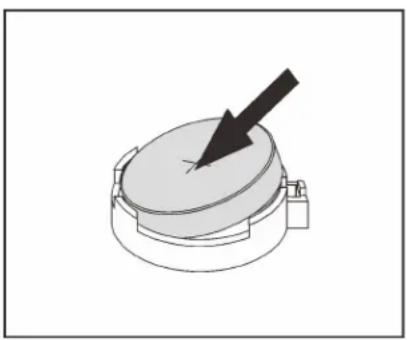
natural_image
Diagram of a mechanical component with a black arrow pointing to a circular feature (no text or symbols)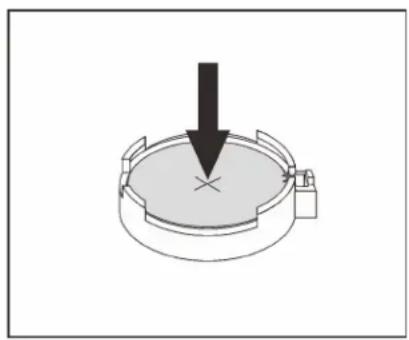
natural_image
Diagram of a circular mechanical component with a downward arrow indicating force or direction (no text or symbols)Figure 60. CMOS battery installation
After installing the CMOS battery:
- Complete the parts installation. See "Complete the parts replacement" on page 135.
- Use the Setup utility to set the date, time, and any passwords.
TCM replacement (for China only)
Use this information to remove and install the TCM.
Remove the TCM (for China only)
Use this information to remove the TCM.

Read the Installation Guidelines
Power Off the server for this task

ATTENTION: Static Sensitive Device Ground package before opening
To remove the TCM, complete the following steps:
Watch the procedure. A video of the removal process is available:
- Youtube: https://www.youtube.com/playlist?list=PLYV5R7hVcs-AQrHuDWK6L3KtHWc6maY_O
- Youku: http://list.youku.com/albumlist/show/id_50437162
Step 1. Remove the top cover. See "Remove the top cover" on page 48.
Step 2. Locate the TCM connector on the system board, press the release latch on the TCM, and lift it straight up.
Note: Carefully handle the TCM by its edges.
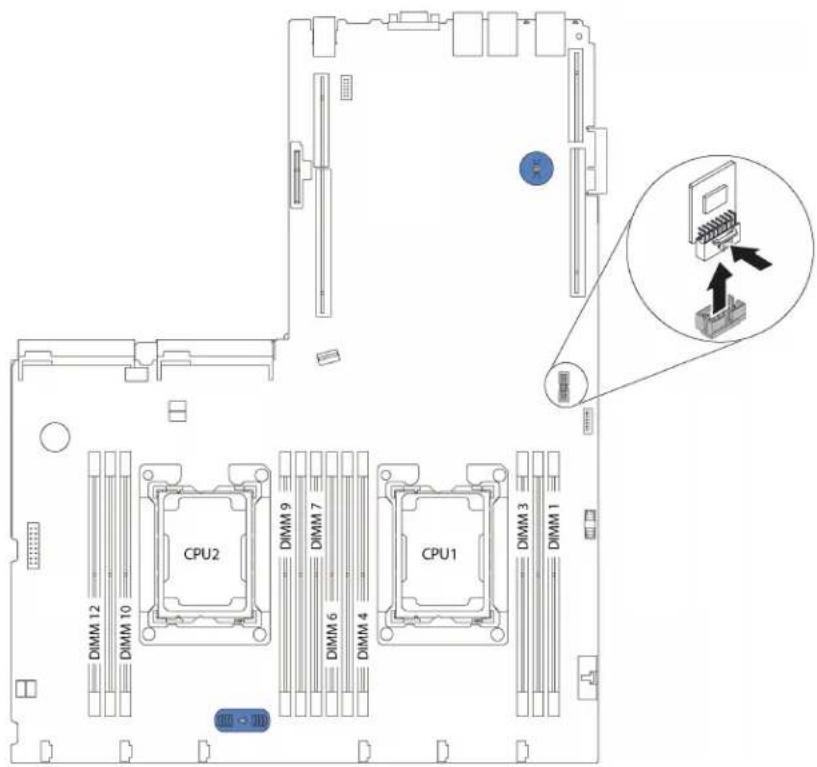
Figure 61. TCM removal
If you are instructed to return the old TCM, follow all packaging instructions and use any packaging materials that are provided.
Install the TCM (for China only)
Use this information to install the TCM.

Read the Installation Guidelines
Power Off
the server
for this task

ATTENTION: Static Sensitive Device Ground package before opening
Before installing the TCM, touch the static-protective package that contains the new TCM to any unpainted surface on the outside of the server. Then, take the new TCM out of the package and place it on a static-protective surface.
To install the TCM, complete the following steps:
Watch the procedure. A video of the installation process is available:
- Youtube: https://www.youtube.com/playlist?list=PLYV5R7hVcs-AQrHuDWK6L3KtHWc6maY_O
- Youku: http://list.youku.com/albumlist/show/id_50437162
Step 1. Locate the TCM connector on the system board.
Step 2. Insert the TCM into the TCM connector on the system board.
Note: Carefully handle the TCM by its edges.
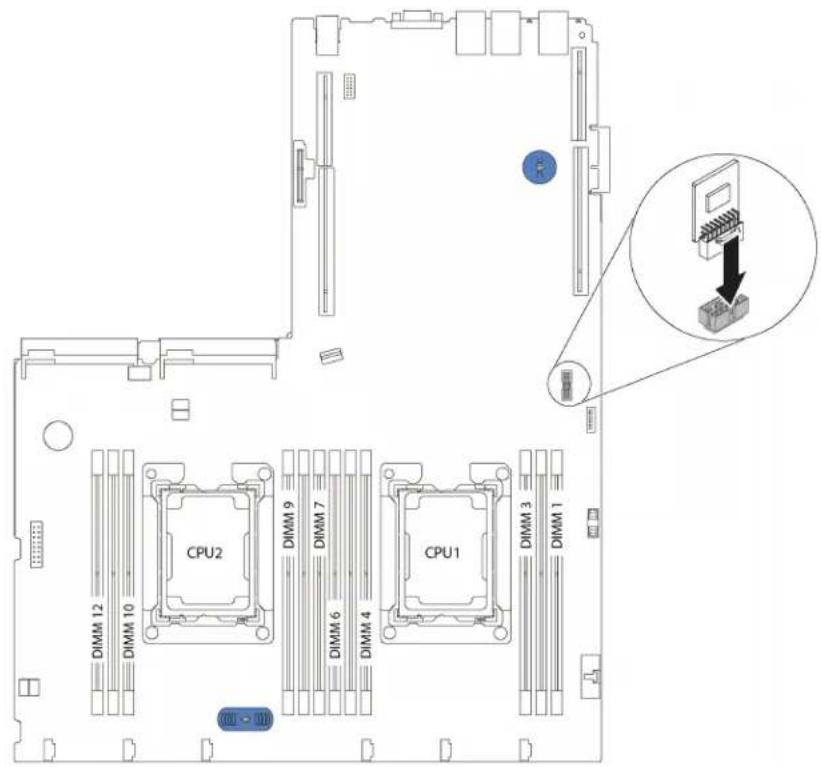
Figure 62. TCM installation
After installing the TCM, complete the parts replacement. See "Complete the parts replacement" on page 135.
Hot-swap power supply replacement
Use this information to remove and install the hot-swap power supply.
Remove a hot-swap power supply
Use this information to remove a hot-swap power supply.

Read the Installation Guidelines

ATTENTION: Static Sensitive Device Ground package before opening
S035

CAUTION:
Never remove the cover on a power supply or any part that has this label attached.
Hazardous voltage, current, and energy levels are present inside any component that has this label attached. There are no serviceable parts inside these components. If you suspect a problem with one of these parts, contact a service technician.
S002

CAUTION:
The power control button on the device and the power switch on the power supply do not turn off the electrical current that is supplied to the device. The device also might have more than one power cord. To remove all electrical current from the device, ensure that all power cords are disconnected from the power source.
S001

Electrical current from power, telephone, and communication cables is hazardous.
To avoid a shock hazard:
- Do not connect or disconnect any cables or perform installation, maintenance, or reconfiguration of this product during an electrical storm.
- Connect all power cords to a properly wired and grounded electrical outlet.
- Connect to properly wired outlets any equipment that will be attached to this product.
- When possible, use one hand only to connect or disconnect signal cables.
- Never turn on any equipment when there is evidence of fire, water, or structural damage.
- Disconnect the attached power cords, telecommunications systems, networks, and modems before you open the device covers, unless instructed otherwise in the installation and configuration procedures.
- Connect and disconnect cables as described in the following table when installing, moving, or opening covers on this product or attached devices.
To Connect: To Disconnect:
- Turn everything OFF.
- First, attach all cables to devices.
- Attach signal cables to connectors.
- Attach power cords to outlet.
-
Turn device ON.
-
Turn everything OFF.
- First, remove power cords from outlet.
- Remove signal cables from connectors.
- Remove all cables from devices.
XXXW~AC


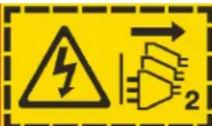
XXXW~AC
Figure 63. Hot-swap power supply label on the cover
Attention: This type of power supply is hot-swap only when two power supplies are installed for redundancy. If only one power supply is installed, you must power off the server before removing the power supply.
The following tips describe the information that you must consider when you remove a power supply with dc input.
CAUTION:
240 V dc input (input range: 180-300 V dc) is supported in China ONLY. Power supply with 240 V dc input cannot support hot plugging power cord function. Before removing the power supply with dc input, please turn off server or disconnect dc power sources at the breaker panel or by turning off the power source. Then, remove the power cord.
CAUTION:
NEVER CONNECT AND DISCONNECT THE POWER SUPPLY CABLE AND EQUIPMENT WHILE YOUR EQUIPMENT IS POWERED ON WITH DC SUPPLY (hot-plugging). Otherwise you may damage the equipment and result in data loss, the damages and losses result from incorrect operation of the equipment will not be covered by the manufacturers' warranty.

警告:
Never remove the cover on a power supply or any part that has this label attached.
Hazardous voltage, current, and energy levels are present inside any component that has this label attached. There are no serviceable parts inside these components. If you suspect a problem with one of these parts, contact a service technician.
S019

CAUTION:
The power-control button on the device does not turn off the electrical current supplied to the device. The device also might have more than one connection to dc power. To remove all electrical current from the device, ensure that all connections to dc power are disconnected at the dc power input terminals.
S029

Electrical current from power, telephone, and communication cables is hazardous.
To avoid a shock hazard:
- Do not connect or disconnect any cables or perform installation, maintenance, or reconfiguration of this product during an electrical storm.
- Connect all power cords to a properly wired and grounded power source.
- Connect to properly wired power sources any equipment that will be attached to this product.
- When possible, use one hand only to connect or disconnect signal cables.
- Never turn on any equipment when there is evidence of fire, water, or structural damage.
- Disconnect the attached ac power cords, dc power sources, network connections, telecommunications systems, and serial cables before you open the device covers, unless you are instructed otherwise in the installation and configuration procedures.
- Connect and disconnect cables as described in the following table when you install, move, or open covers on this product or attached devices.
To Connect: To Disconnect:
- Turn OFF all power sources and equipment that is to be attached to this product.
- Attach signal cables to the product.
- Attach power cords to the product.
- For ac systems, use appliance inlets.
- For dc systems, ensure correct polarity of -48 V dc connections: RTN is + and -48 V dc is -. Earth ground should use a two-hole lug for safety.
- Attach signal cables to other devices.
- Connect power cords to their sources.
-
Turn ON all the power sources.
-
Turn OFF all power sources and equipment that is to be attached to this product.
-
For ac systems, remove all power cords from the chassis power receptacles or interrupt power at the ac power distribution unit.
-
For dc systems, disconnect dc power sources at the breaker panel or by turning off the power source. Then, remove the dc cables.
-
Remove the signal cables from the connectors.
-
Remove all cables from the devices.
To remove a hot-swap power supply, complete the following steps:
Watch the procedure. A video of the removal process is available:
- Youtube: https://www.youtube.com/playlist?list=PLYV5R7hVcs-AQrHuDWK6L3KtHWc6maY_O
- Youku: http://list.youku.com/albumlist/show/id_50437162
Step 1. If the server is in a rack, adjust the cable management arm (CMA) to gain access to the power supply.
If you have installed the 1U CMA Upgrade Kit for Toolless Slide Rail or Toolless Slide Rail Kit with 1U CMA, do the following:
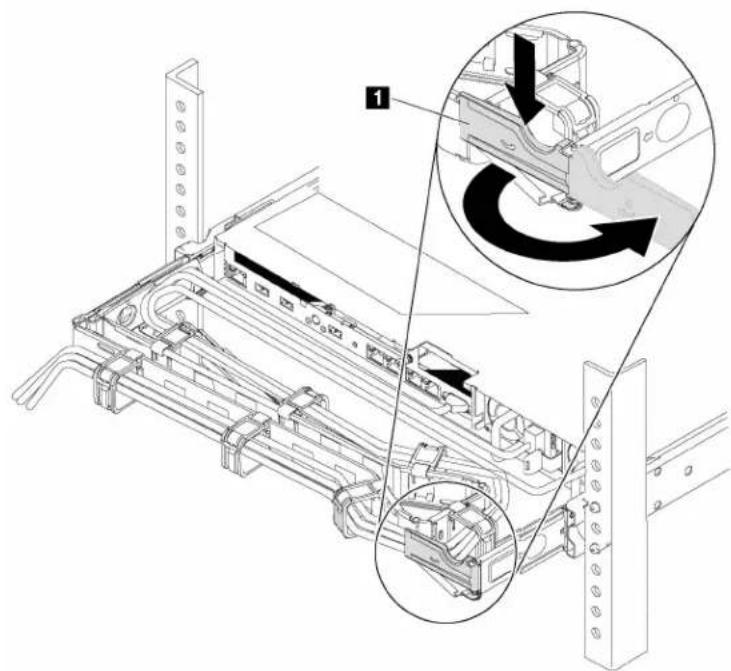
Figure 64. CMA adjustment
a. Press down the stop bracket and rotate it to the open position.
b. Rotate the CMA out of the way to gain access to the power supply.
Step 2. Disconnect the power cord from the hot-swap power supply.
Note: If you are replacing two power supplies, do the power supply replacement one by one to ensure that the power supply to the server is not interrupted. Do not disconnect the power cord from the secondly replaced power supply until the power output LED for the firstly replaced power supply is lit. For the location of the power output LED, refer to "Rear view LEDs" on page 19.
Step 3. Press the release tab toward the handle and carefully pull the handle at the same time to slide the hot-swap power supply out of the chassis.
Notes: Slightly pull the power supply upwards when sliding the power supply out of the chassis, if you have installed one of the following CMA kits:
• 1U CMA Upgrade Kit for Toolless Slide Rail
- Toolless Slide Rail Kit with 1U CMA
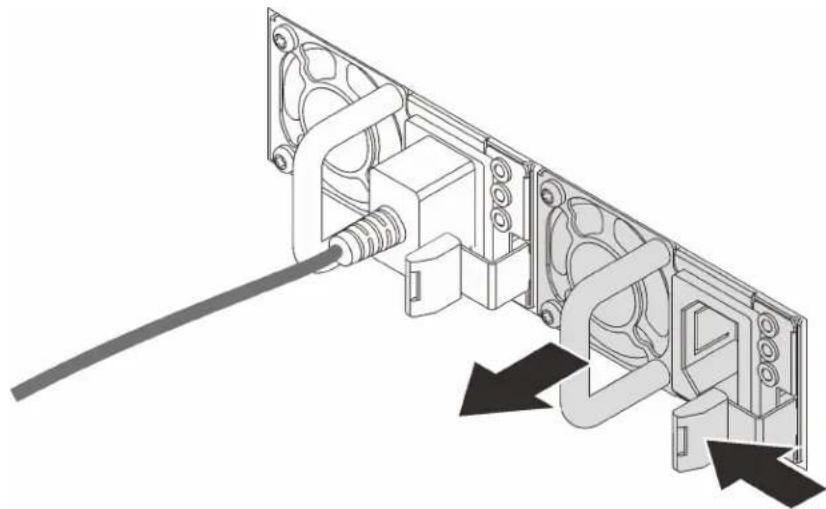
natural_image
Technical line drawing of an electrical connector with cable and tubing (no text or symbols)Figure 65. Hot-swap power supply removal
After removing the power supply:
• Install a power supply filler or a new power supply to cover the power supply bay.
Important: To ensure proper cooling during normal server operation, both of the power supply bays must be occupied. This means that each bay must have a power supply installed; or one has a power supply installed and the other has a power supply filler installed.
- If you are instructed to return the old power supply, follow all packaging instructions and use any packaging materials that are provided.
Install a hot-swap power supply
Use this information to install a hot-swap power supply.

Read the Installation Guidelines

ATTENTION: Static Sensitive Device Ground package before opening
The following tips describe the type of power supply that the server supports and other information that you must consider when you install a power supply:
- The standard shipping has only one power supply installed in the server. For redundancy and hot-swap support, you must install an additional hot-swap power supply. Certain customized models might be shipped with two power supplies installed.
- Ensure that the devices that you are installing are supported. For a list of supported optional devices for the server, go to: http://www.lenovo.com/serverproven/
Notes:
- Ensure that the two power supplies installed on the server have the same wattage.
- If you are replacing the existing power supply with a new power supply of different wattage, attach the power rating label that comes with this option onto the existing label on the top cover near the power supply.
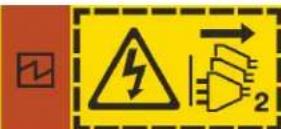
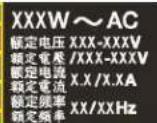
Figure 66. Hot-swap power supply label on the cover
S035

CAUTION:
Never remove the cover on a power supply or any part that has this label attached.
Hazardous voltage, current, and energy levels are present inside any component that has this label attached. There are no serviceable parts inside these components. If you suspect a problem with one of these parts, contact a service technician.
S002

CAUTION:
The power control button on the device and the power switch on the power supply do not turn off the electrical current that is supplied to the device. The device also might have more than one power cord. To remove all electrical current from the device, ensure that all power cords are disconnected from the power source.
S001


DANGER
Electrical current from power, telephone, and communication cables is hazardous.
To avoid a shock hazard:
- Do not connect or disconnect any cables or perform installation, maintenance, or reconfiguration of this product during an electrical storm.
- Connect all power cords to a properly wired and grounded electrical outlet.
- Connect to properly wired outlets any equipment that will be attached to this product.
- When possible, use one hand only to connect or disconnect signal cables.
- Never turn on any equipment when there is evidence of fire, water, or structural damage.
- Disconnect the attached power cords, telecommunications systems, networks, and modems before you open the device covers, unless instructed otherwise in the installation and configuration procedures.
- Connect and disconnect cables as described in the following table when installing, moving, or opening covers on this product or attached devices.
To Connect: To Disconnect:
- Turn everything OFF.
- First, attach all cables to devices.
- Attach signal cables to connectors.
- Attach power cords to outlet.
-
Turn device ON.
-
Turn everything OFF.
- First, remove power cords from outlet.
- Remove signal cables from connectors.
- Remove all cables from devices.
The following tips describe the information that you must consider when you install a power supply with dc input.
CAUTION:
240 V dc input (input range: 180-300 V dc) is supported in China ONLY. Power supply with 240 V dc input cannot support hot plugging power cord function. Before removing the power supply with dc input, please turn off server or disconnect dc power sources at the breaker panel or by turning off the power source. Then, remove the power cord.
CAUTION:
NEVER CONNECT AND DISCONNECT THE POWER SUPPLY CABLE AND EQUIPMENT WHILE YOUR EQUIPMENT IS POWERED ON WITH DC SUPPLY (hot-plugging). Otherwise you may damage the equipment and result in data loss, the damages and losses result from incorrect operation of the equipment will not be covered by the manufacturers' warranty.

警告:
Never remove the cover on a power supply or any part that has this label attached.
Hazardous voltage, current, and energy levels are present inside any component that has this label attached. There are no serviceable parts inside these components. If you suspect a problem with one of these parts, contact a service technician.
S019

CAUTION:
The power-control button on the device does not turn off the electrical current supplied to the device. The device also might have more than one connection to dc power. To remove all electrical current from the device, ensure that all connections to dc power are disconnected at the dc power input terminals.
S029

Electrical current from power, telephone, and communication cables is hazardous.
To avoid a shock hazard:
- Do not connect or disconnect any cables or perform installation, maintenance, or reconfiguration of this product during an electrical storm.
- Connect all power cords to a properly wired and grounded power source.
- Connect to properly wired power sources any equipment that will be attached to this product.
- When possible, use one hand only to connect or disconnect signal cables.
- Never turn on any equipment when there is evidence of fire, water, or structural damage.
- Disconnect the attached ac power cords, dc power sources, network connections, telecommunications systems, and serial cables before you open the device covers, unless you are instructed otherwise in the installation and configuration procedures.
- Connect and disconnect cables as described in the following table when you install, move, or open covers on this product or attached devices.
To Connect: To Disconnect:
- Turn OFF all power sources and equipment that is to be attached to this product.
- Attach signal cables to the product.
- Attach power cords to the product.
- For ac systems, use appliance inlets.
- For dc systems, ensure correct polarity of -48 V dc connections: RTN is + and -48 V dc is -. Earth ground should use a two-hole lug for safety.
- Attach signal cables to other devices.
- Connect power cords to their sources.
-
Turn ON all the power sources.
-
Turn OFF all power sources and equipment that is to be attached to this product.
-
For ac systems, remove all power cords from the chassis power receptacles or interrupt power at the ac power distribution unit.
-
For dc systems, disconnect dc power sources at the breaker panel or by turning off the power source. Then, remove the dc cables.
-
Remove the signal cables from the connectors.
-
Remove all cables from the devices.
To install a hot-swap power supply, complete the following steps:
Watch the procedure. A video of the installation process is available:
- Youtube: https://www.youtube.com/playlist?list=PLYV5R7hVcs-AQrHuDWK6L3KtHWc6maY_O
- Youku: http://list.youku.com/albumlist/show/id_50437162
Step 1. Touch the static-protective package that contains the new power supply to any unpainted surface on the outside of the server. Then, take the new power supply out of the package and place it on a static-protective surface.
Step 2. If the server is in a rack, adjust the CMA to gain access to the power supply bay.
If you have installed the 1U CMA Upgrade Kit for Toolless Slide Rail or Toolless Slide Rail Kit with 1U CMA, do the following:
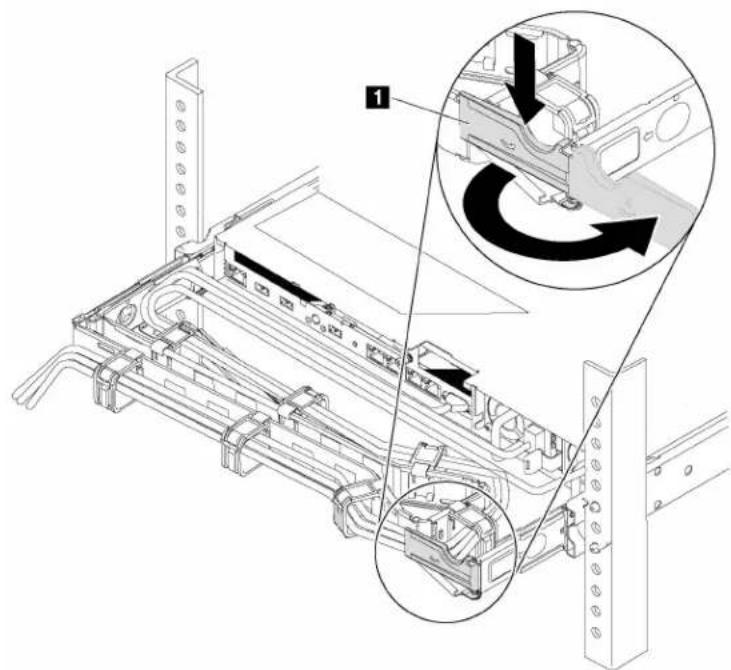
Figure 67. CMA adjustment
a. Press down the stop bracket and rotate it to the open position.
b. Rotate the CMA out of the way to gain access to the power supply bay.
Step 3. If there is a power supply filler installed, remove it.
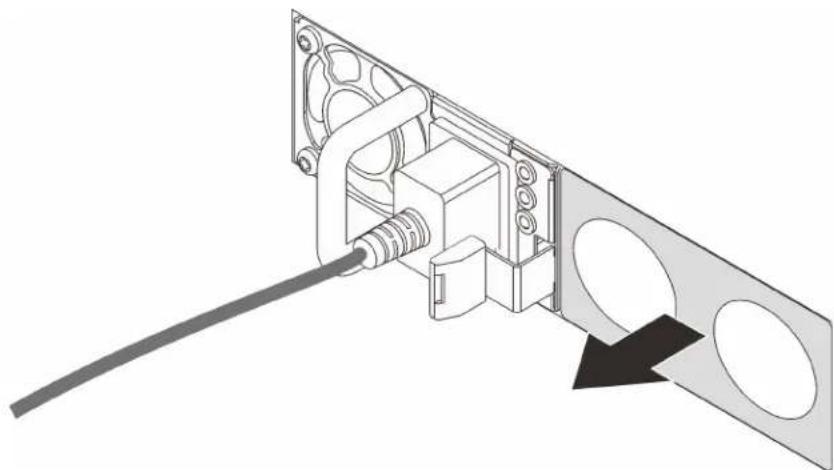
natural_image
Diagram of an electrical connector with a cable inserted, showing internal components and a directional arrow (no text or symbols)Figure 68. Hot-swap power supply filler removal
Step 4. Slide the new hot-swap power supply into the bay until the release latch clicks into place.
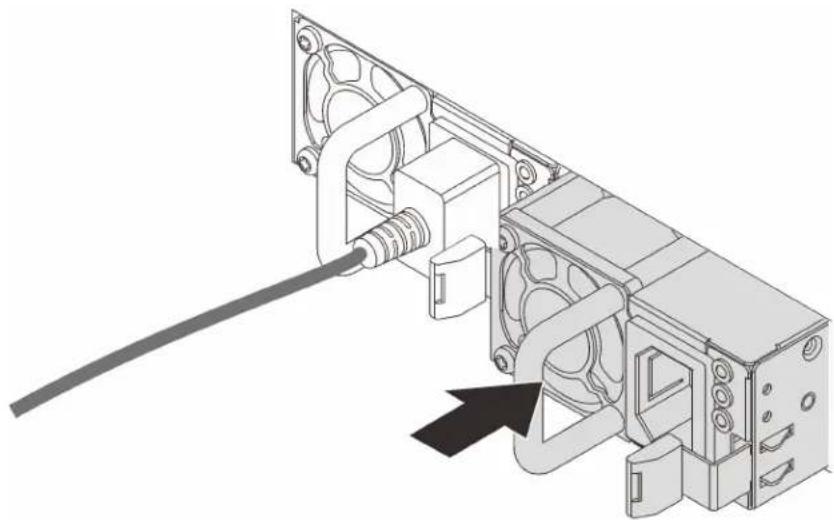
natural_image
Technical illustration of an electronic device with a cable inserted into a housing (no text or symbols visible)Figure 69. Hot-swap power supply installation
After installing the power supply:
- Connect the power cord to the new power supply and ensure that it is connected to a properly grounded electrical outlet.
- If the server is powered off, power on the server. Ensure that both the power input LED and the power output LED on the power supply are lit, indicating that the power supply is operating properly.
PCIe adapter replacement
Use this information to remove and install a PCIe adapter.
The PCIe adapter can be a host bus adapter (HBA), a PCIe RAID adapter, an Ethernet adapter, and any other supported PCIe adapters. For information about the PCIe slots and supported PCIe adapters, see “Rear view” on page 15.
Notes:
- Depending on the specific type, the PCIe adapter might look different from the illustrations in this topic.
- Use any documentation that comes with the PCIe adapter and follow those instructions in addition to the instructions in this topic.
Remove a PCIe adapter
Use this information to remove a PCIe adapter.

Read the Installation Guidelines
Power Off
the server
for this task
ATTENTION: Static Sensitive Device Ground package before opening
Before removing a PCIe adapter:
- Remove the top cover. See "Remove the top cover" on page 48.
- Remove the riser assembly. See "Remove a riser adapter" on page 103.
To remove a PCIe adapter, complete the following steps:
Watch the procedure. A video of the removal process is available:
- Youtube: https://www.youtube.com/playlist?list=PLYV5R7hVcs-AQrHuDWK6L3KtHWc6maY_O
- Youku: http://list.youku.com/albumlist/show/id_50437162
Table 18. PCIe adapter removal
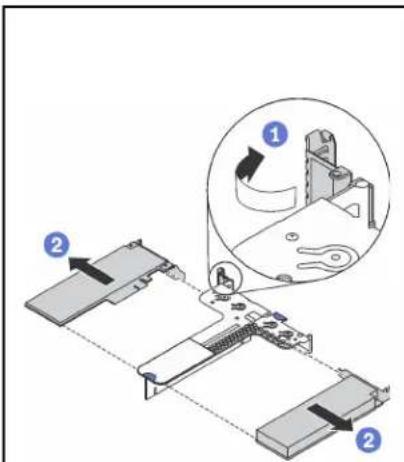
Figure 70. Riser 1 assembly (LP+LP)
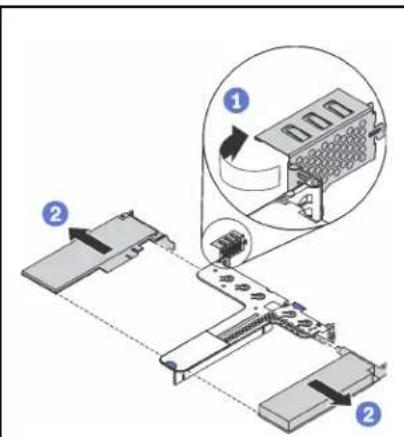
Figure 71. Riser 1 assembly (LP +FHHL)
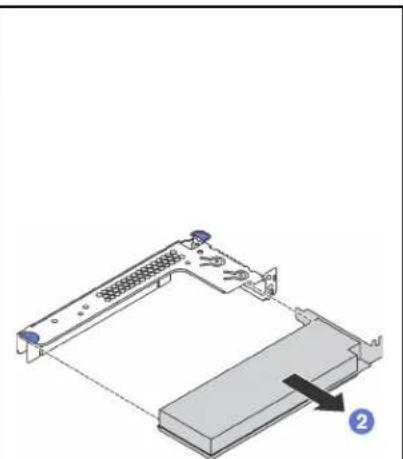
natural_image
Technical line drawing of a computer hard drive with labeled component (no text or symbols)Figure 72. Riser 2 assembly (LP)
Step 1. (Skip this step for riser 2 assembly.) Pivot the latch on the riser bracket to the open position. Step 2. Grasp the PCIe adapter by its edges and carefully pull it out of the PCIe slot on the riser card.
If you are instructed to return the old PCIe adapter, follow all packaging instructions and use any packaging materials that are provided.
Install a PCIe adapter
Use this information to install a PCIe adapter.

Before installing a PCIe adapter,
- Locate the correct PCIe slot for the PCIe adapter. For information about the PCIe slots and supported PCIe adapters, see "Rear view" on page 15.
- Touch the static-protective package that contains the new PCIe adapter to any unpainted surface on the outside of the server. Then, take the new PCIe adapter out of the package and place it on a static-protective surface.
To install a PCIe adapter, complete the following steps:
Watch the procedure. A video of the installation process is available:
- Youtube: https://www.youtube.com/playlist?list=PLYV5R7hVcs-AQrHuDWK6L3KtHWc6maY_O
- Youku: http://list.youku.com/albumlist/show/id_50437162
Table 19. PCIe adapter installation
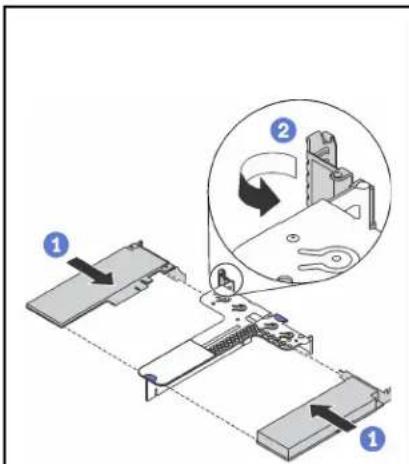
Figure 73. Riser 1 assembly (LP+LP)
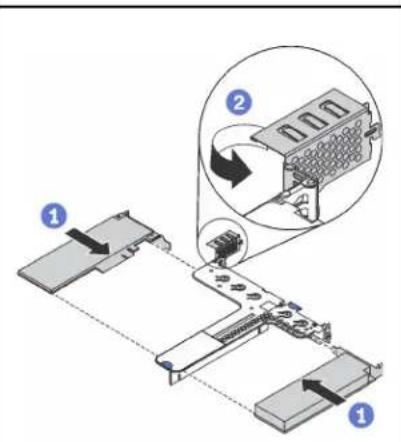
Figure 74. Riser 1 assembly (LP +FHHL)
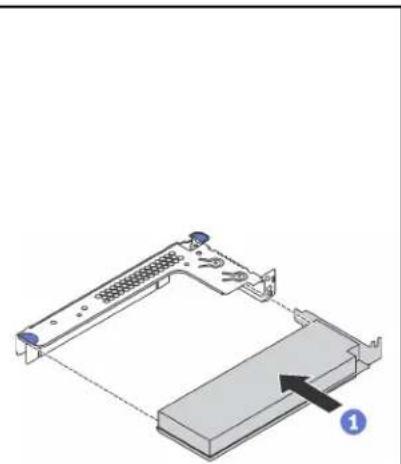
natural_image
Technical diagram of a computer hardware component with a highlighted section and numbered label (1), showing no readable text or symbols.Figure 75. Riser 2 assembly (LP)
Step 1. Align the PCIe adapter with the PCIe slot on the riser card. Then, carefully press the PCIe adapter straight into the slot until it is securely seated and its bracket also is secured.
Step 2. (Skip this step for riser 2 assembly.) Pivot the latch on the riser bracket to the closed position.
After installing the PCIe adapter:
- Reinstall the riser assembly. See "Install a riser adapter" on page 105.
- Complete the parts replacement. See "Complete the parts replacement" on page 135.
Riser card replacement
Use this information to remove and install a riser card.
Your server comes with one of the following riser assembly configurations:
Configuration 1
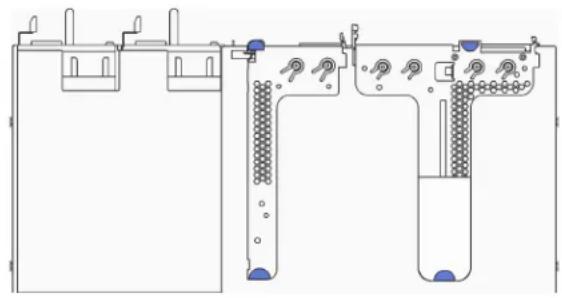
natural_image
Technical line drawing of a mechanical or fluidic device with no visible text, numbers, or symbols.• Riser 1 assembly: LP + LP
- Riser 2 assembly: LP (available on some models)
Configuration 2
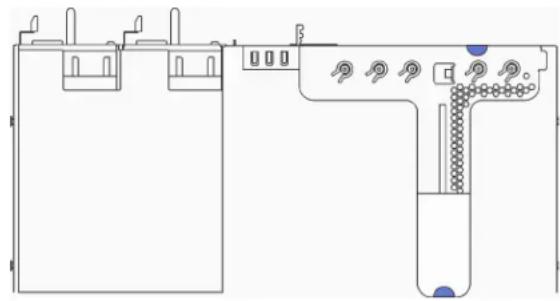
natural_image
Technical line drawing of a mechanical assembly with no visible text or symbols• Riser 1 assembly: LP + FHHL
For information about the supported riser cards for each configuration, see "Rear view" on page 15.
There are three types of riser assemblies. The removal and installation procedure of the riser card is similar for all types of riser assemblies. The following procedures are based on the riser assembly in configuration 2.
Remove a riser card
Use this information to remove a riser card.

Read the Installation Guidelines

Power Off
the server
for this task

ATTENTION: Static Sensitive Device Ground package before opening
To remove a riser card, complete the following steps:
Watch the procedure. A video of the removal process is available:
- Youtube: https://www.youtube.com/playlist?list=PLYV5R7hVcs-AQrHuDWK6L3KtHWc6maY_O
- Youku: http://list.youku.com/albumlist/show/id_50437162
Note: The riser assembly you want to remove might be different from the illustrations below, but the removal method is the same.
Step 1. Remove the top cover. See "Remove the top cover" on page 48.
Step 2. Grasp the riser assembly by its edges and carefully lift it up.
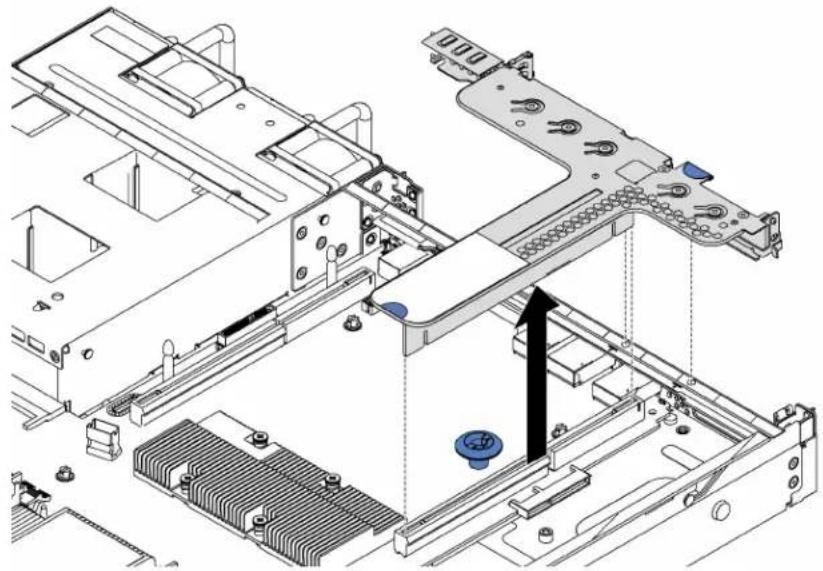
natural_image
Technical diagram of a mechanical assembly with no visible text or symbolsFigure 76. Riser assembly removal
Step 3. If there is any PCIe adapter installed on the riser card, record the cable connections first. Then, disconnect all cables from the PCIe adapter and completely remove the riser assembly out of the chassis.
Step 4. Remove the PCIe adapter that is installed on the riser card. See "Remove a PCIe adapter" on page 101.
Step 5. Remove the two screws that secure the riser card to the bracket. Then, remove the riser card.
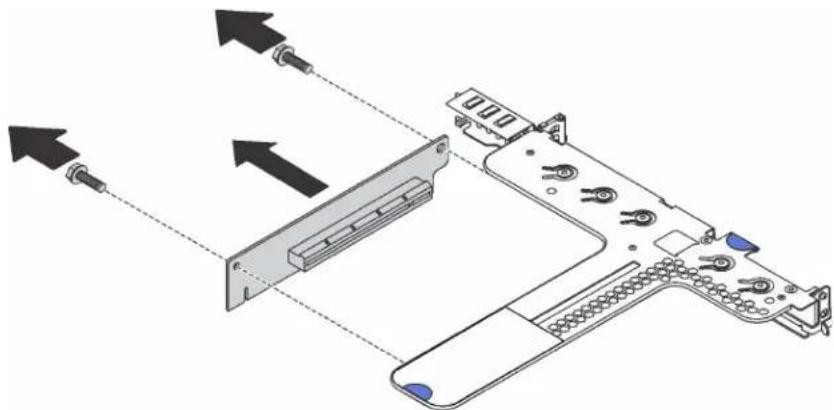
natural_image
Diagram of a computer chassis with connectors and memory slots, showing directional arrows indicating assembly or movement (no text or symbols present)Figure 77. Riser card removal
If you are instructed to return the old riser card, follow all packaging instructions and use any packaging materials that are provided.
Install a riser card
Use this information to install a riser card.

Read the Installation Guidelines
Power Off
the server
for this task

ATTENTION: Static Sensitive Device Ground package before opening
To install a riser card, complete the following steps:
Watch the procedure. A video of the installation process is available:
- Youtube: https://www.youtube.com/playlist?list=PLYV5R7hVcs-AQrHuDWK6L3KtHWc6maY_O
- Youku: http://list.youku.com/albumlist/show/id_50437162
Note: The riser assembly you want to install might be different from the illustrations below, but the installation method is the same.
Step 1. Touch the static-protective package that contains the new riser card to any unpainted surface on the outside of the server. Then, take the new riser card out of the package and place it on a static-protective surface.
Step 2. Align the screw holes in the new riser card with the corresponding ones in the bracket. Then, install the two screws to secure the riser card to the bracket.
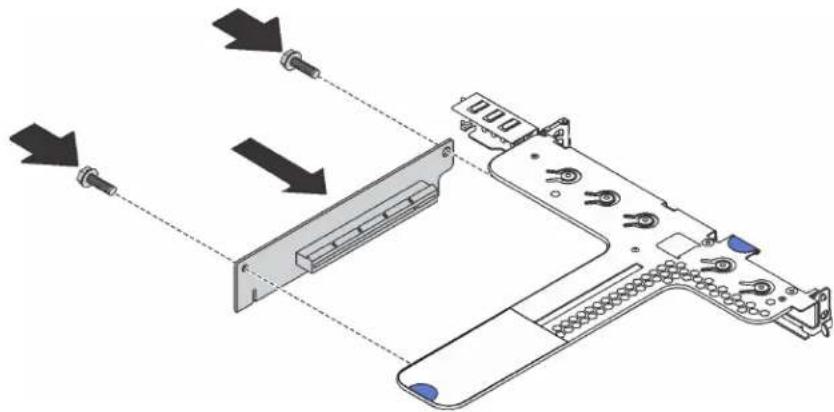
natural_image
Diagram of a computer monitor with cable connectors and drive slots, showing assembly lines without any text or symbols.Figure 78. Riser card installation
Step 3. Install a PCIe adapter on the riser card. See "Install a PCIe adapter" on page 102.
Step 4. Connect cables to the PCIe adapter on the riser card. See "Internal cable routing" on page 25.
Step 5. Position the riser assembly on the chassis. Align the two pins on the bracket with the two holes in the chassis and align the riser card with the riser slot on the system board. Then, carefully press the riser assembly straight down into the slot until it is fully seated.
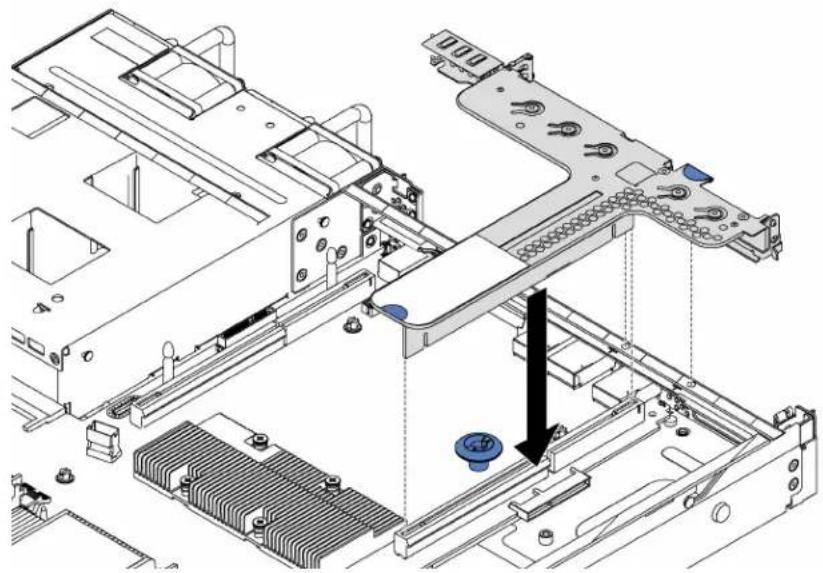
natural_image
Technical diagram of a mechanical assembly with cooling fan, heat sink, and housing (no text or labels)Figure 79. Riser assembly installation
After installing the riser card, complete the parts replacement. See "Complete the parts replacement" on page 135.
M.2 backplane and M.2 drive replacement
Use this information to remove and install the M.2 backplane and M.2 drive (an assembled M.2 backplane and M.2 drive is also known as M.2 module).
Remove the M.2 backplane and M.2 drive
Use this information to remove the M.2 backplane and M.2 drive.

Read the Installation Guidelines
Power Off
the server
for this task

ATTENTION: Static Sensitive Device Ground package before opening
Before removing the M.2 backplane and M.2 drive:
- Remove the top cover. See "Remove the top cover" on page 48.
- For easier operation, remove the riser assembly next to the M.2 backplane. See "Remove a riser adapter" on page 103.
To remove the M.2 backplane and M.2 drive, complete the following steps:
Watch the procedure. A video of the removal process is available:
- Youtube: https://www.youtube.com/playlist?list=PLYV5R7hVcs-AQrHuDWK6L3KtHWc6maY_O
- Youku: http://list.youku.com/albumlist/show/id_50437162
Step 1. Grasp the M.2 backplane at both ends and pull it straight up to remove it from the system board.
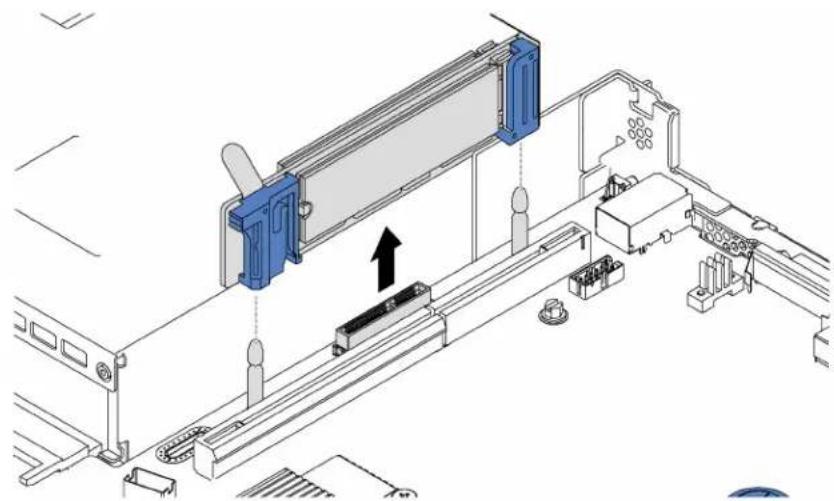
natural_image
Technical diagram of a mechanical assembly with blue components and an arrow indicating direction (no text or symbols)Figure 80. M.2 backplane removal
Step 2. Remove the M.2 drive from the M.2 backplane.
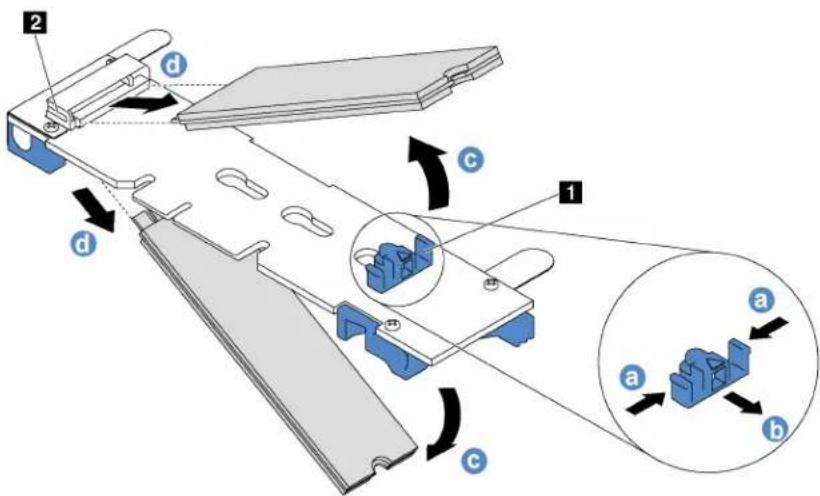
Figure 81. M.2 drive removal
a. Press both sides of the retainer
b. Slide the retainer backward to loosen the M.2 drive from the M.2 backplane.
Note: If the M.2 backplane has two M.2 drives, they will both release outward when you slide the retainer backward.
c. Rotate the M.2 drive away from the M.2 backplane.
d. Pull it away from the connector 2 at an angle of approximately 30 degrees.
If you are instructed to return the old M.2 backplane or M.2 drive, follow all packaging instructions and use any packaging materials that are provided.
Adjust the retainer on the M.2 backplane
Use this information to adjust the retainer on the M.2 backplane.
Before adjusting the retainer on the M.2 backplane, locate the correct keyhole that the retainer should be installed into to accommodate the particular size of the M.2 drive you wish to install.
To adjust the retainer on the M.2 backplane, complete the following steps:
Watch the procedure. A video of the adjustment process is available:
- Youtube: https://www.youtube.com/playlist?list=PLYV5R7hVcs-AQrHuDWK6L3KtHWc6maY_O
- Youku: http://list.youku.com/albumlist/show/id_50437162
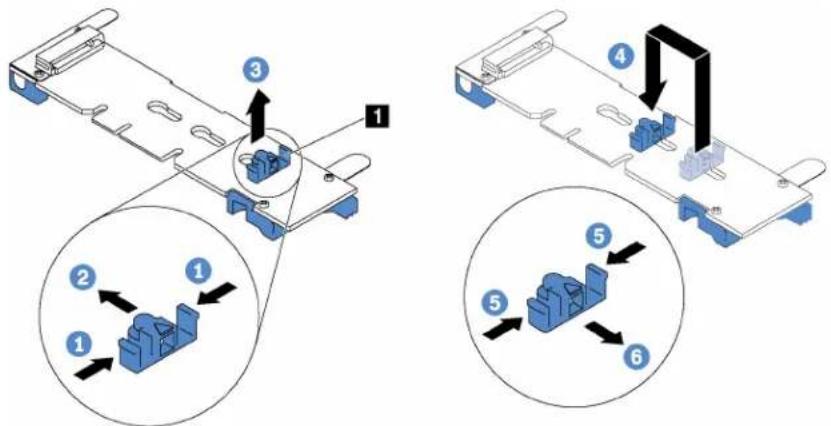
Figure 82. M.2 retainer adjustment
Step 1. Press both sides of the retainer
Step 2. Move the retainer forward until it is in the large opening of the keyhole.
Step 3. Take the retainer out of the keyhole.
Step 4. Insert the retainer into the correct keyhole.
Step 5. Press both sides of the retainer.
Step 6. Slide the retainer backwards until it is seated in place.
Install the M.2 backplane and M.2 drive
Use this information to install the M.2 backplane and M.2 drive.

Read the Installation Guidelines
Power Off
the server
for this task

ATTENTION: Static Sensitive Device Ground package before opening
Before installing the M.2 backplane and M.2 drive:
- Touch the static-protective package that contains the new M.2 backplane and M.2 drive to any unpainted surface on the outside of the server. Then, take the new M.2 backplane and M.2 drive out of the package and place them on a static-protective surface.
- Adjust the retainer on the M.2 backplane to accommodate the particular size of the M.2 drive you wish to install. See "Adjust the retainer on the M.2 backplane" on page 109.
- Locate the connector on each side of the M.2 backplane.
Notes:
- Some M.2 backplanes support two identical M.2 drives. When two M.2 drives are installed, align and support both M.2 drives when sliding the retainer forward to secure the M.2 drives.
• Install the M.2 drive in slot 0 first.
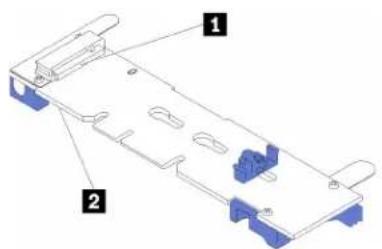
1 Slot 0
2 Slot 1
Figure 83. M.2 drive slot
To install the M.2 backplane and M.2 drive, complete the following steps:
Watch the procedure. A video of the installation process is available:
- Youtube: https://www.youtube.com/playlist?list=PLYV5R7hVcs-AQrHuDWK6L3KtHWc6maY_O
- Youku: http://list.youku.com/albumlist/show/id_50437162
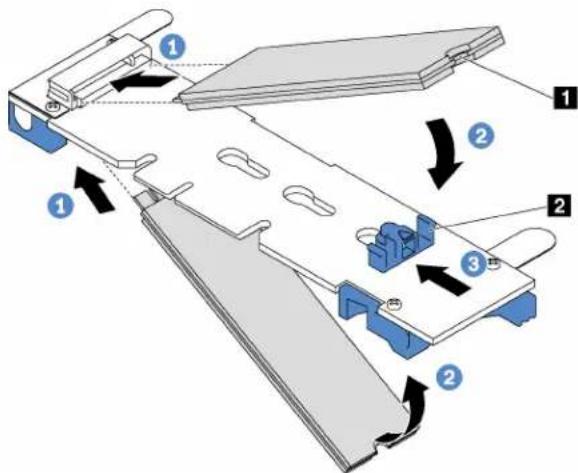
Figure 84. M.2 drive installation
Step 1. Insert the M.2 drive at an angle of approximately 30 degrees into the connector.
Note: If your M.2 backplane supports two M.2 drives, insert the M.2 drives into the connectors at both sides.
Step 2. Rotate the M.2 drive down until the notch 1 catches on the lip of the retainer 2
Step 3. Slide the retainer forward (toward the connector) to secure the M.2 drive into place.
Attention: When sliding the retainer forward, ensure that the two nubs on the retainer enter the small holes on the M.2 backplane. Once they enter the holes, you will hear a soft "click" sound.
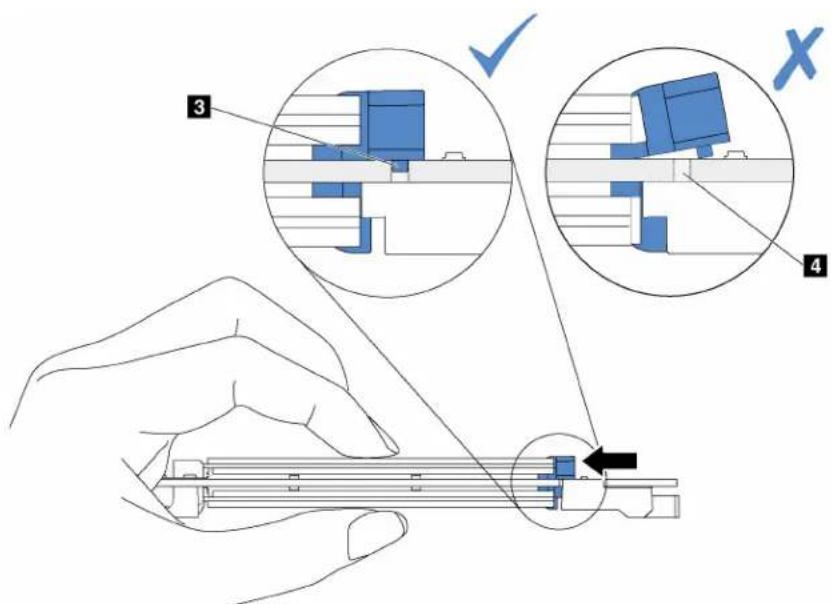
Step 4. Align the blue plastic supports at each end of the M.2 backplane with the guide pins on the system board. Then, insert the M.2 backplane into the M.2 slot on the system board and press it down to fully seat it.
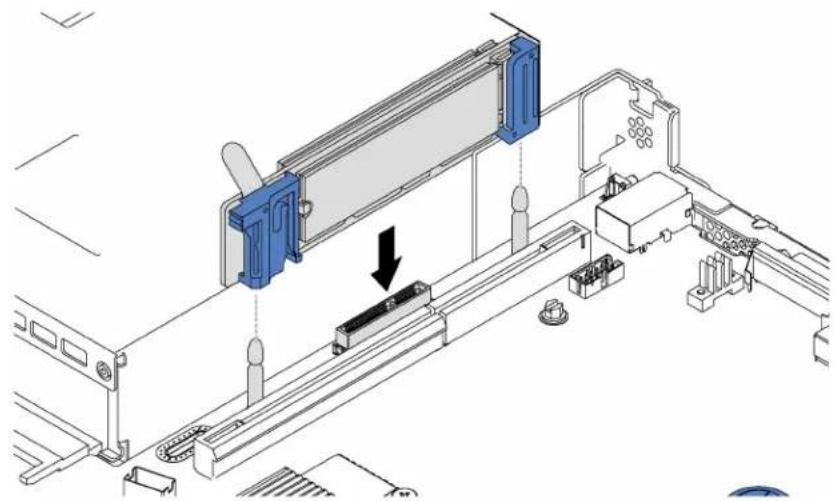
natural_image
Technical diagram of a mechanical assembly with blue components and a black arrow indicating a component (no text or symbols present)Figure 85. M.2 backplane installation
After installing the M.2 drive and M.2 backplane:
- Reinstall the riser assembly next to the M.2 backplane. See "Install a riser adapter" on page 105.
- Complete the parts replacement. See "Complete the parts replacement" on page 135.
Serial port module replacement
Use this information to remove and install the serial port module.
Note: The serial port module is available only on some models.
Remove the serial port module
Use this information to remove the serial port module.

Read the Installation Guidelines
Power Off
the server
for this task

ATTENTION: Static Sensitive Device Ground package before opening
To remove the serial port module, complete the following steps:
Watch the procedure. A video of the removal process is available:
- Youtube: https://www.youtube.com/playlist?list=PLYV5R7hVcs-AQrHuDWK6L3KtHWc6maY_O
- Youku: http://list.youku.com/albumlist/show/id_50437162
Note: The serial port module might be installed on riser 1 assembly or riser 2 assembly. The following steps are based on the scenario that the serial port module is installed on riser 2 assembly. The removal procedure is the same for the serial port module installed on riser 1 assembly.
Step 1. Remove the top cover. See "Remove the top cover" on page 48.
Step 2. Disconnect the cable of the serial port module from the system board.
Step 3. Grasp the riser 2 assembly with the serial port module and carefully lift the riser assembly out of the server.
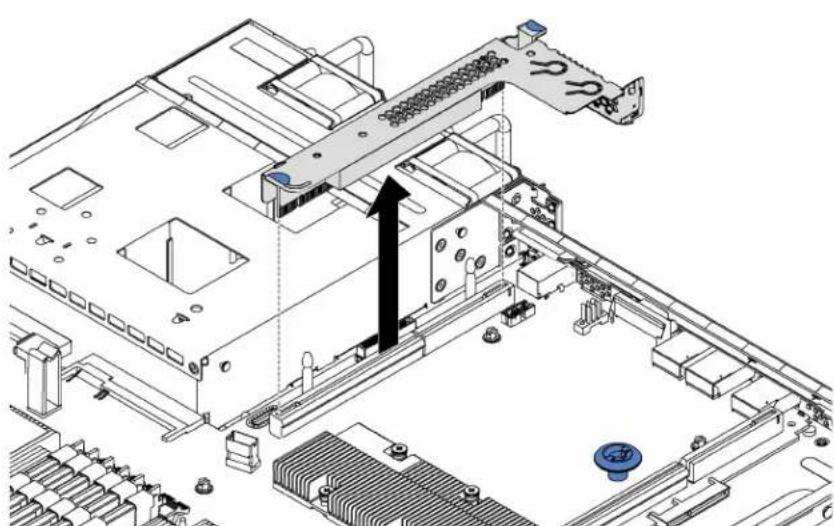
natural_image
Technical diagram of a computer motherboard with an arrow indicating a component or connection (no text or symbols present)Figure 86. Riser assembly removal
Step 4. Slide the serial port module out of the bracket.
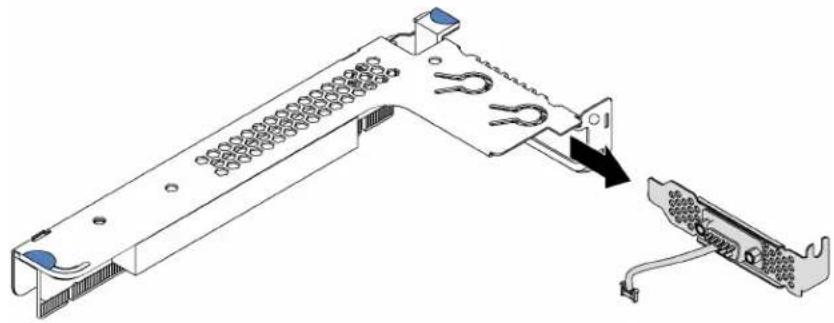
natural_image
Technical line drawing of a computer hardware component with a separate view showing a cable connector (no text or symbols present)Figure 87. Serial port module removal
After removing the serial port module:
- Install a new serial port module, a filler, or a PCIe adapter to cover the place.
- If you are instructed to return the old serial port module, follow all packaging instructions and use any packaging materials that are provided.
Install the serial port module
Use this information to install the serial port module.

Read the Installation Guidelines
Power Off
the server
for this task

ATTENTION: Static Sensitive Device Ground package before opening
Before installing the serial port module, touch the static-protective package that contains the new serial port module to any unpainted surface out of the server. Then, take the new serial port module out of the package and place it on a static-protective surface.
To install the serial port module, complete the following steps:
Watch the procedure. A video of the installation process is available:
- Youtube: https://www.youtube.com/playlist?list=PLYV5R7hVcs-AQrHuDWK6L3KtHWc6maY_O
- Youku: http://list.youku.com/albumlist/show/id_50437162
Note: The serial port module can be installed on riser 1 assembly or riser 2 assembly. The following steps are based on the scenario that the serial port module is to be installed on riser 2 assembly. The installation procedure is the same for the serial port module to be installed on riser 1 assembly.
Step 1. Locate the riser assembly and remove it from the server.
Step 2. If the riser assembly is covered with a PCIe slot bracket, remove the bracket first. Then, install the serial port module into the riser assembly.
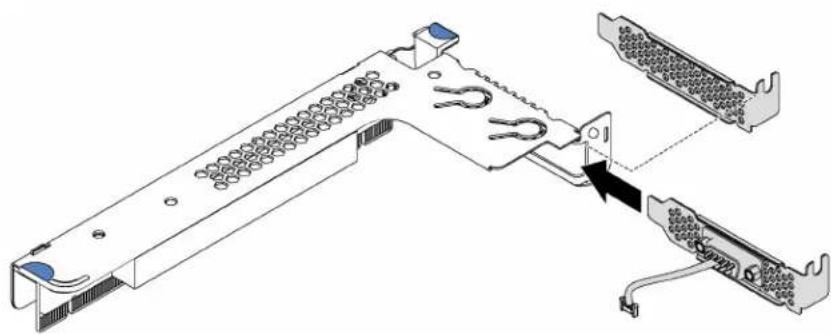
natural_image
Technical diagram of a computer hardware component with connectors and a close-up view showing internal structure (no text or symbols)Figure 88. Serial port module installation
Step 3. Insert the riser assembly into the riser slot on the system board. Ensure that the riser assembly is fully seated.
Step 4. Connect the cable of the serial port module to serial-port-module connector on the system board. To locate the connector, see "System board components" on page 21.
After installing the serial port module, complete the parts replacement. See “Complete the parts replacement” on page 135.
LOM adapter replacement
Use this information to remove and install the LOM adapter.
Remove the LOM adapter
Use this information to remove the LOM adapter.

Read the Installation Guidelines
Power Off
the server
for this task

ATTENTION:
Static Sensitive Device
Ground package before opening
Before removing the LOM adapter:
- Remove the top cover. See "Remove the top cover" on page 48.
- If riser 1 assembly is installed, remove it to access the LOM adapter slot.
To remove the LOM adapter, complete the following steps:
Watch the procedure. A video of the removal process is available:
- Youtube: https://www.youtube.com/playlist?list=PLYV5R7hVcs-AQrHuDWK6L3KtHWc6maY_O
- Youku: http://list.youku.com/albumlist/show/id_50437162
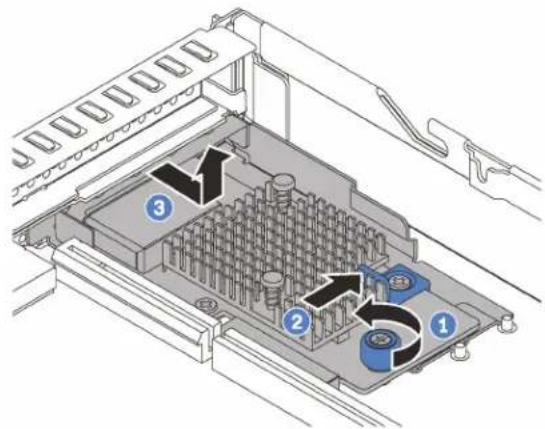
Figure 89. LOM adapter removal
Step 1. Loosen the thumbscrew that secures the LOM adapter.
Step 2. Push the LOM adapter out of the connector on the system board.
Step 3. Slide the LOM adapter forward as shown and lift the LOM adapter out of the chassis.
If you are instructed to return the old LOM adapter, follow all packaging instructions and use any packaging materials that are provided.
Install the LOM adapter
Use this information to install the LOM adapter.

Read the Installation Guidelines
Power Off
the server
for this task

ATTENTION: Static Sensitive Device Ground package before opening
Before installing the LOM adapter:
- If riser 1 assembly is installed, remove it to access the LOM adapter slot.
- Touch the static-protective package that contains the new LOM adapter to any unpainted surface on the outside of the server. Then, take the new LOM adapter out of the package and place it on a static-protective surface.
- If the server comes with a LOM adapter slot bracket, remove it carefully with a tool. Store the bracket in case that you later remove the LOM adapter and need the bracket to cover the place.
CAUTION:
Use a tool to remove the LOM adapter slot bracket to avoid injury.
To install the LOM adapter, complete the following steps:
Watch the procedure. A video of the installation process is available:
- Youtube: https://www.youtube.com/playlist?list=PLYV5R7hVcs-AQrHuDWK6L3KtHWc6maY_O
- Youku: http://list.youku.com/albumlist/show/id_50437162
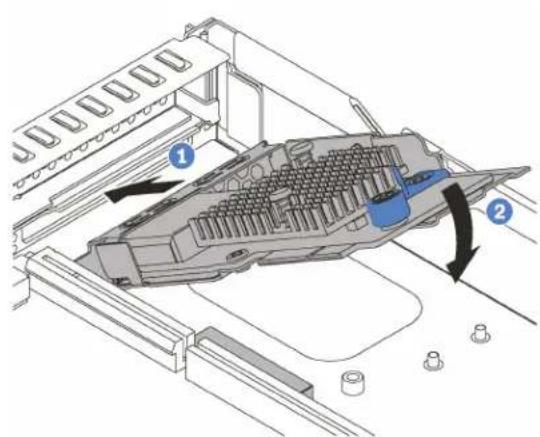
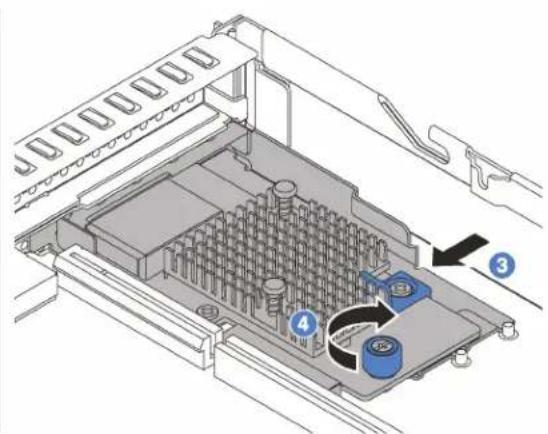
Figure 90. LOM adapter installation
Step 1. Insert the LOM adapter into the rear of the chassis at an angle as shown.
Step 2. Lower the LOM adapter and slide it to the rear of the chassis until the LOM adapter stops.
Step 3. Push the LOM adapter as shown to insert it into the connector on the system board.
Step 4. Tighten the thumbscrew to secure the LOM adapter.
After installing the LOM adapter, complete the parts replacement. See “Complete the parts replacement” on page 135.
Processor and heat sink replacement
Use the following procedures to replace an assembled processor and heat sink, known as a processor-heat-sink module (PHM), a processor, or a heat sink.
Attention: Before you begin replacing a processor, make sure that you have an alcohol cleaning pad (part number 00MP352) and blue thermal grease (part number 01KP765). Do not use gray thermal grease (part number 41Y9292) when replacing a ThinkSystem SR530 processor.
Important: The processor in your server can throttle, temporarily lowering speed to reduce heat output, in response to thermal conditions. In instances where the throttling period is of extremely short duration (100 ms or less), the only indication will be an entry in the event log. In these instances the event can be ignored and processor replacement is not required.
Remove a processor and heat sink
This task has instructions for removing an assembled processor and heat sink, known as a processor-heat-sink module (PHM), a processor, and a heat sink. All of these tasks require a Torx T30 driver.

Read the Installation Guidelines

Power Off the server for this task

ATTENTION: Static Sensitive Device Ground package before opening
Attention:
- Each processor socket must always contain a cover or a PHM. When removing or installing a PHM, protect empty processor sockets with a cover.
- Do not touch the processor socket or processor contacts. Processor-socket contacts are very fragile and easily damaged. Contaminants on the processor contacts, such as oil from your skin, can cause connection failures.
- Remove and install only one PHM at a time. If the system board supports multiple processors, install the PHMs starting with the first processor socket.
- Do not allow the thermal grease on the processor or heat sink to come in contact with anything. Contact with any surface can compromise the thermal grease, rendering it ineffective. Thermal grease can damage components, such as electrical connectors in the processor socket. Do not remove the grease cover from a heat sink until you are instructed to do so.
Before you remove a PHM:
Note: The heat sink, processor, and processor retainer for your system might be different than those shown in the illustrations.
- Remove the top cover. See "Remove the top cover" on page 48.
- Remove the air baffle. See "Remove the air baffle" on page 51.
- Remove any parts and disconnect any cables that might impede your access to the PHM.
Complete the following steps to remove a PHM.
Watch the procedure. A video of the removal process is available:
- Youtube: https://www.youtube.com/playlist?list=PLYV5R7hVcs-AQrHuDWK6L3KtHWc6maY_O
- Youku: http://list.youku.com/albumlist/show/id_50437162
Step 1. Remove the PHM from the system board.
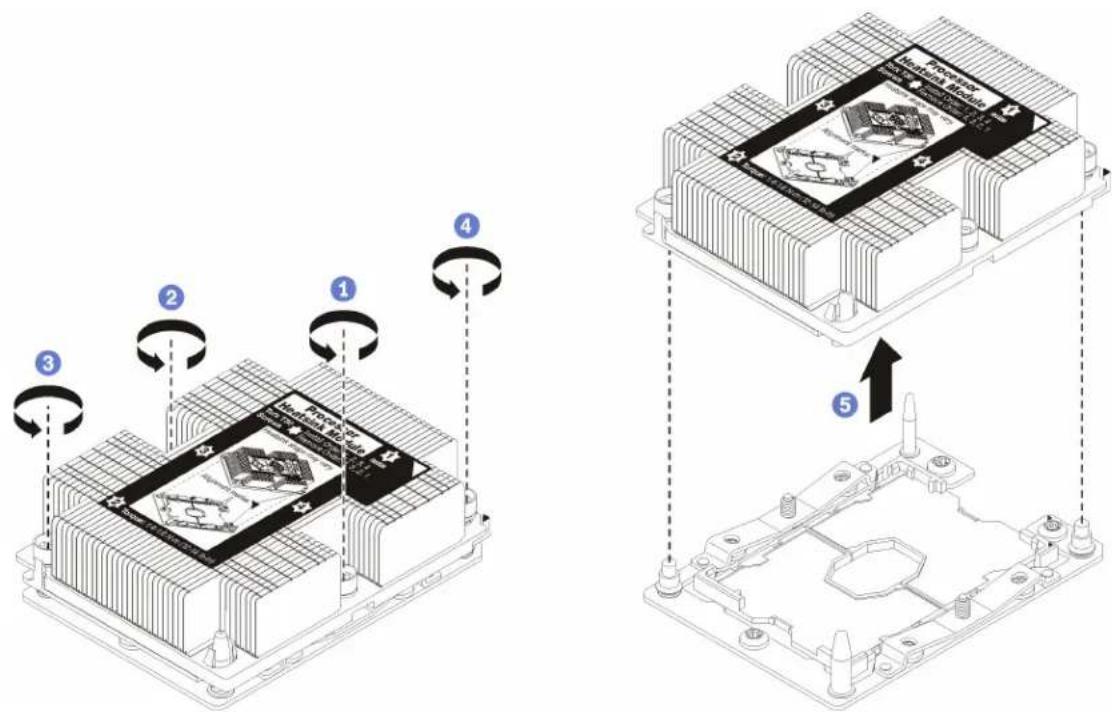
Figure 91. Removing a PHM
Attention: To prevent damage to components, make sure that you follow the indicated loosening sequence.
a. Fully loosen the Torx T30 captive fasteners on the processor-heat-sink module in the removal sequence shown on the heat-sink label.
b. Lift the processor-heat-sink module from the processor socket.
After you remove a PHM:
- If you are removing the PHM as part of a system board replacement, set the PHM aside.
- If you are replacing the processor or heat sink, separate the processor and its retainer from the heat sink.
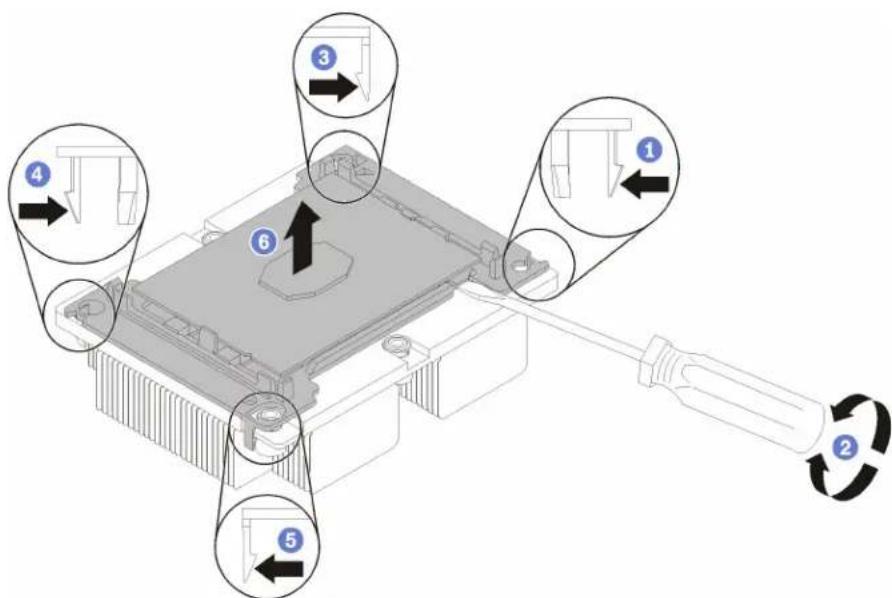
Figure 92. Separating a heat sink from a processor
-
Press the retaining clip at the corner of the processor retainer closest to the pry point; then, gently pry this corner of the retainer away from the heat sink with a flat-bladed screwdriver, using a twisting motion to break the processor-to-heat-sink seal.
-
Release the remaining retaining clips and lift the processor and retainer from the heat sink.
-
After separating the processor and retainer from the heat sink, hold the processor and retainer with the thermal-grease side down and the processor-contact side up to prevent the processor from falling out of the retainer.
Note: The processor retainer will be removed and discarded in a later step and replaced with a new one.
- If you are replacing the processor, you will be reusing the heat sink. Wipe the thermal grease from the bottom of the heat sink using an alcohol cleaning pad.
- If you are replacing the heat sink, you will be reusing the processor. Wipe the thermal grease from the top of the processor using an alcohol cleaning pad.
If you are instructed to return the processor or heat sink, follow all packaging instructions and use any packaging materials that are provided.
Install a processor and heat sink
This task has instructions for installing an assembled processor and heat sink, known as a processor-heat-sink module (PHM), a processor, and a heat sink. All of these tasks require a Torx T30 driver.

Read the Installation Guidelines

Power Off
the server
for this task

ATTENTION: Static Sensitive Device Ground package before opening
Attention:
- Each processor socket must always contain a cover or a PHM. When removing or installing a PHM, protect empty processor sockets with a cover.
- Do not touch the processor socket or processor contacts. Processor-socket contacts are very fragile and easily damaged. Contaminants on the processor contacts, such as oil from your skin, can cause connection failures.
- Remove and install only one PHM at a time. If the system board supports multiple processors, install the PHMs starting with the first processor socket.
- Do not allow the thermal grease on the processor or heat sink to come in contact with anything. Contact with any surface can compromise the thermal grease, rendering it ineffective. Thermal grease can damage components, such as electrical connectors in the processor socket. Do not remove the grease cover from a heat sink until you are instructed to do so.
Notes:
- PHMs are keyed for the socket where they can be installed and for their orientation in the socket.
- See http://www.lenovo.com/serverproven/ for a list of processors supported for your server. All processors on the system board must have the same speed, number of cores, and frequency.
-
If you are going to install one of the following processors, replace your heat sink with a performance heat sink (part number: SH47A11842 or SH47A11794):
-
Intel Xeon Platinum 8156 4C 105W 3.6 GHz processor
– Intel Xeon Gold 5122 4C 105W 3.6 GHz processor - Intel Xeon Gold 5120T 14C 105W 2.2 GHz processor
- Intel Xeon Gold 6126T 12C 125W 2.6 GHz processor
- Intel Xeon Gold 6130T 16C 125W 2.1 GHz processor
– Intel Xeon Gold 6128 6C 115W 3.4 GHz processor (supported later) - Intel Xeon Gold 6138T 20C 125W 2.0 GHz processor (supported later)
- Before you install a new PHM or replacement processor, update your system firmware to the latest level. See "Firmware updates" on page 6.
- Installing an additional PHM can change the memory requirements for your system. See “DIMM installation rules” on page 77 for a list of processor-to-memory relationships.
- Optional devices available for your system might have specific processor requirements. See the documentation that comes with the optional device for information.
Before you install a PHM:
Note: The heat sink, processor, and processor retainer for your system might be different than those shown in the illustrations.
- Remove the existing PHM, if one is installed. See "Remove a processor and heat sink" on page 118.
Note: Replacement processors come with both rectangular and square processor retainers. A rectangular retainer comes attached to the processor. The square retainer can be discarded.
- If you are replacing a heat sink, replace the processor retainer. Processor retainers should not be reused.
a. Remove the old processor retainer.
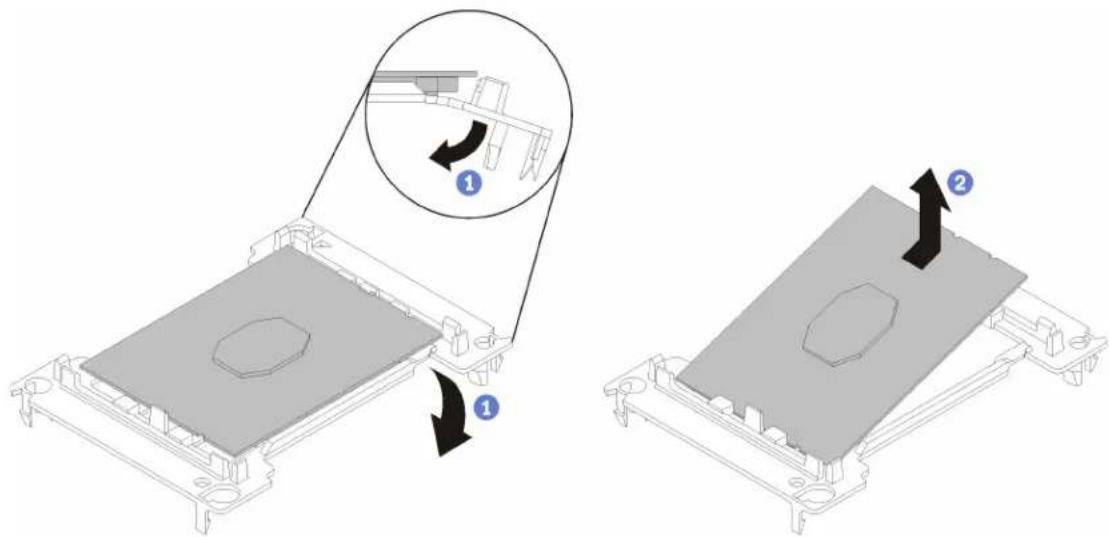
Figure 93. Removing a processor retainer
Note: When the processor is out of its retainer, hold the processor by the long edges to prevent touching the contacts or the thermal grease, if it is applied.
With the processor-contact side up, flex the ends of the retainer down and away from the processor to release the retaining clips; then, remove the processor from the retainer. Discard the old retainer.
b. Install a new processor retainer.
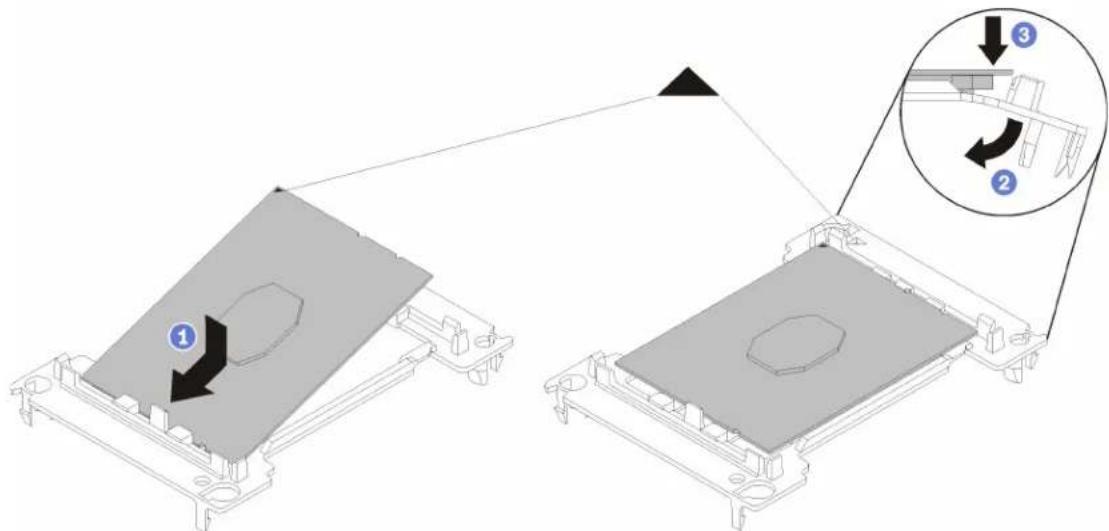
Figure 94. Installing a processor retainer
1) Position the processor on the new retainer so that the triangular marks align; then, insert the unmarked end of the processor into the retainer.
2) Holding the inserted end of the processor in place, flex the opposite end of the retainer down and away from the processor until you can press the processor under the clip on the retainer.
To prevent the processor from falling out of the retainer after it is inserted, keep the processor-contact side up and hold the processor-retainer assembly by the sides of the retainer.
3) If there is any old thermal grease on the processor, gently clean the top of the processor using an alcohol cleaning pad.
- If you are replacing a processor:
a. Remove the processor identification label from the heat sink and replace it with the new label that comes with the replacement processor.
b. Apply new thermal grease (1/2-syringe, 0.65 g) to the top of the new processor.
Attention: Use only blue thermal grease (part number 01KP765) when replacing the processor. Do not use gray thermal grease (part number 41Y9292).
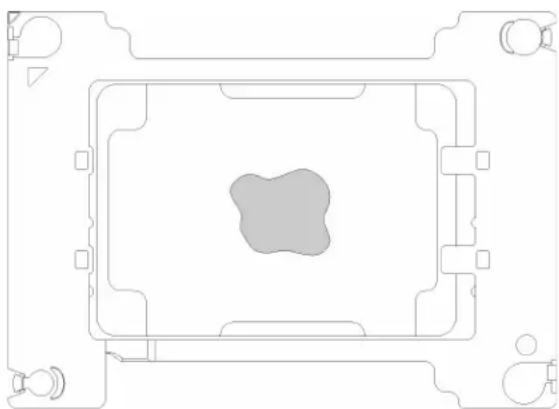
natural_image
Top-down architectural floor plan showing a central gray area with surrounding furniture and structural elements (no text or labels)Figure 95. Thermal grease application
1) Carefully place the processor and retainer on a flat surface with the processor-contact side down.
2) Apply half a syringe of thermal grease, approximately 0.65 g, to the center of the processor top.
- If you are replacing a heat sink, remove the processor identification label from the old heat sink and place it on the new heat sink in the same location. The label is on the side of the heat sink closet to the triangular alignment mark.
If you are unable to remove the label and place it on the new heat sink, or if the label is damaged during transfer, write the processor serial number from the processor identification label on the new heat sink in the same location as the label would be placed using a permanent marker.
- Assemble the processor and heat sink, if these components are separate.
Notes:
- If you are replacing a processor, install the heat sink onto the processor and retainer while the processor and retainer are in the shipping tray.
- If you are replacing a heat sink, remove the heat sink from its shipping tray and place the processor and retainer in the opposite half of the heat sink shipping tray with the processor-contact side down. To prevent the processor from falling out of the retainer, hold the processor-retainer assembly by its sides with the processor-contact side up until you turn it over to fit in the shipping tray.
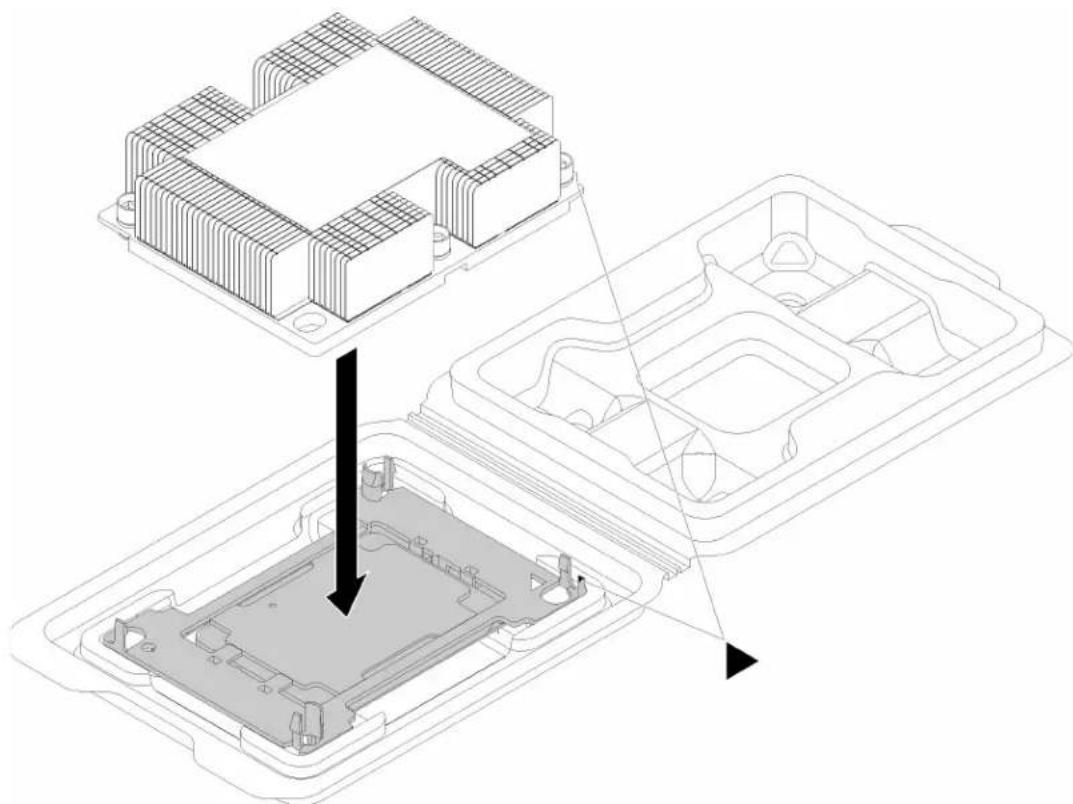
natural_image
Technical line drawing of an electronic component assembly, showing internal structure and mounting points (no text or symbols)Figure 96. Assembling a PHM in the shipping tray
a. Align the triangular marks on the processor retainer and the heat sink or align the triangular mark on the processor retainer with the notched corner of the heat sink.
b. Insert the processor-retainer clips into the holes on the heat sink.
c. Press the retainer into place until the clips at all four corners engage.
Complete the following steps to install a PHM.
Watch the procedure. A video of the installation process is available:
- Youtube: https://www.youtube.com/playlist?list=PLYV5R7hVcs-AQrHuDWK6L3KtHWc6maY_O
- Youku: http://list.youku.com/albumlist/show/id_50437162
Step 1. Remove the processor socket cover, if one is installed on the processor socket, by placing your fingers in the half-circles at each end of the cover and lifting it from the system board.
Step 2. Install the processor-heat-sink module on the system board.
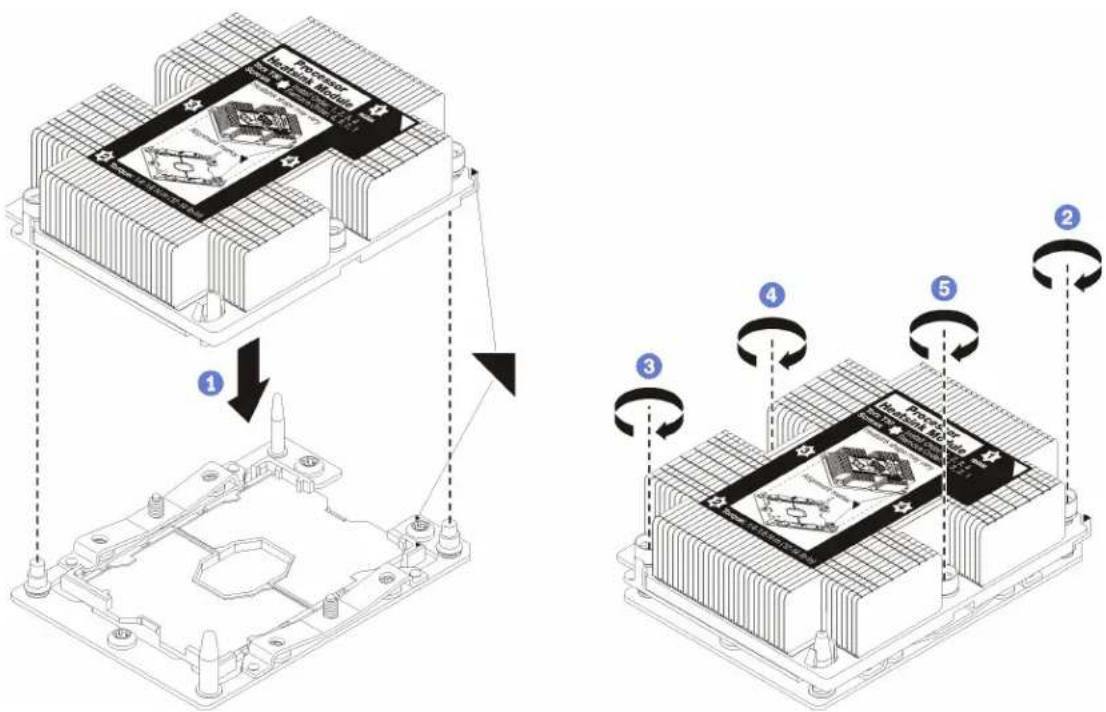
Figure 97. Installing a PHM
a. Align the triangular marks and guide pins on the processor socket with the PHM; then, insert the PHM into the processor socket.
Attention: To prevent damage to components, make sure that you follow the indicated tightening sequence.
b. Fully tighten the Torx T30 captive fasteners in the installation sequence shown on the heat-sink label. Tighten the screws until they stop; then, visually inspect to make sure that there is no gap between the screw shoulder beneath the heat sink and the processor socket. (For reference, the torque required for the nuts to fully tighten is 1.4 — 1.6 newton-meters, 12 — 14 inch-pounds).
After you install a PHM:
- Complete the parts replacement. See "Complete the parts replacement" on page 135.
System board replacement
Use this information to remove and install the system board.
S017

CAUTION:
Hazardous moving fan blades nearby.
S012

CAUTION:
Hot surface nearby.
Remove the system board
Use this information to remove the system board.

Read the Installation Guidelines

Power Off the server for this task

ATTENTION: Static Sensitive Device Ground package before opening
Before removing the system board:
- Remove the top cover. See "Remove the top cover" on page 48.
- Record where the cables are connected to the system board; then, disconnect them.
Attention: Disengage all latches, cable clips, release tabs, or locks on cable connectors beforehand. Failing to release them before removing the cables will damage the cable connectors on the system board. Any damage to the cable connectors may require replacing the system board.
-
Remove any of the following components that are installed on the system board and put them in a safe, static-protective place. See the related topics in Chapter 3 "Hardware replacement procedures" on page 37.
-
Air baffle
- System fans
- Processor-heat-sink module (PHM)
Note: Do not disassemble the PHM.
• DIMMs
- CMOS battery
- PCIe adapters
- Riser assembly
- M.2 backplane
- LOM adapter
• TCM (for China only)
- Pull out the power supplies a little bit. Ensure that they are disconnected from the system board.
To remove the system board, complete the following steps:
Watch the procedure. A video of the removal process is available:
- Youtube: https://www.youtube.com/playlist?list=PLYV5R7hVcs-AQrHuDWK6L3KtHWc6maY_O
- Youku: http://list.youku.com/albumlist/show/id_50437162
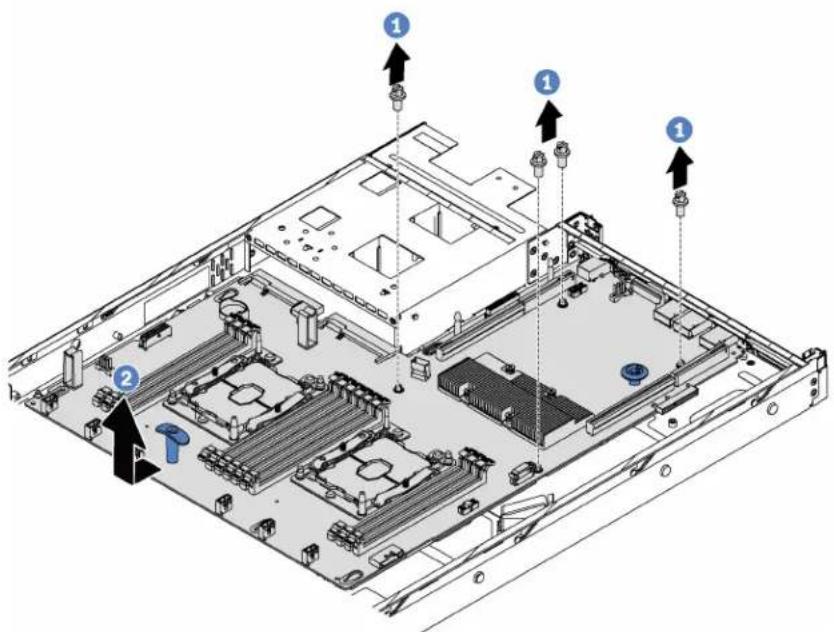
Figure 98. System board removal
Step 1. Remove the screws that secure the system board, and put the screws in a safe place.
Step 2. Hold the blue lift handles on the system board, slightly pull the system board towards the front of the server, and lift the system board upwards. Then, remove the system board from the server carefully.
If you are instructed to return the old system board, follow all packaging instructions and use any packaging materials that are provided.
Install the system board
Use this information to install the system board.

Read the Installation Guidelines
Power Off
the server
for this task

ATTENTION: Static Sensitive Device Ground package before opening
Before installing the system board, touch the static-protective package that contains the new system board to any unpainted surface on the outside of the server. Then, take the new system board out of the package and place it on a static-protective surface.
Watch the procedure. A video of the installation process is available:
- Youtube: https://www.youtube.com/playlist?list=PLYV5R7hVcs-AQrHuDWK6L3KtHWc6maY_O
- Youku: http://list.youku.com/albumlist/show/id_50437162
To install the system board, complete the following steps:
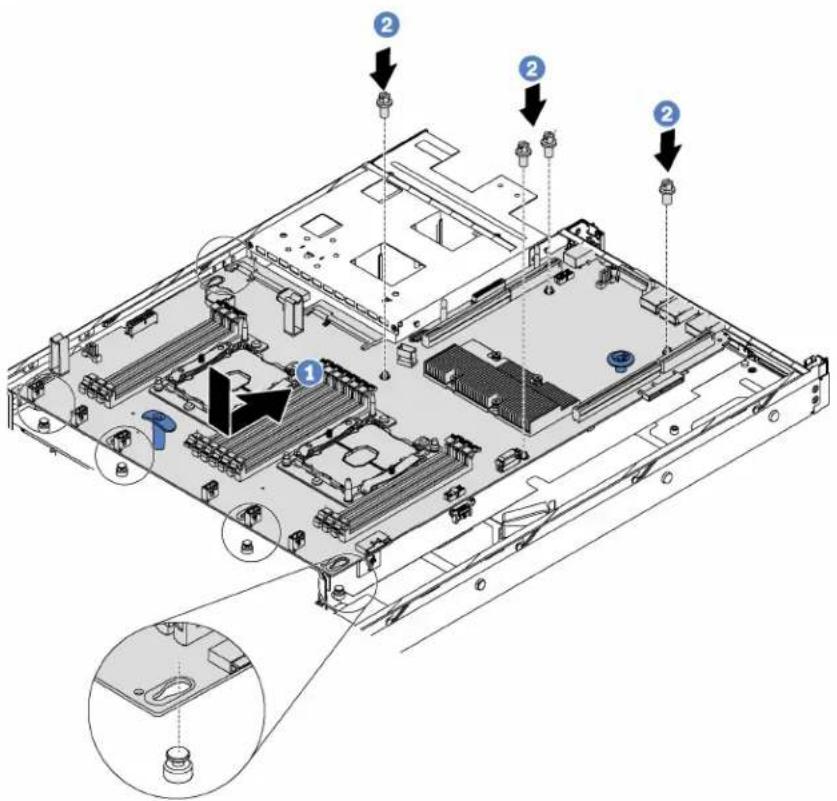
Figure 99. System board installation
Step 1. Hold the blue lift handles on the system board carefully and align the holes in the system board with the corresponding mounting studs on the chassis as shown. Then, slide the system board to the rear of the server. Ensure that the rear connectors on the new system board are inserted into the corresponding holes in the rear panel.
Step 2. Install the screws to secure the system board.
After installing the system board:
- Push the power supplies into the bays until they click into place.
- Install any components that you removed from the failing system board. See the related topics in Chapter 3 "Hardware replacement procedures" on page 37.
- Complete the parts replacement. See "Complete the parts replacement" on page 135.
- Update the Universal Unique Identifier (UUID). See "Update the Universal Unique Identifier (UUID)" on page 129.
- Update the SMBIOS/DMI information. See "Update the DMI/SMBIOS data" on page 130.
- Enable TPM/TCM. See "Enable TPM/TCM" on page 132.
- Optionally, enable Secure Boot.
Update the Universal Unique Identifier (UUID)
The Universal Unique Identifier (UUID) must be updated when the system board is replaced. Use the Lenovo XClarity Essentials OneCLI to update the UUID in the UEFI-based server. Lenovo XClarity Essentials OneCLI is an online tool that supports several operating systems; make sure that you download the version for your operating system.
Notes: You can use Lenovo XClarity Provisioning Manager to update the UUID for the server:
- Start the server and press F1 to display the Lenovo XClarity Provisioning Manager system setup interface.
- From the System Summary page, click Update VPD.
- Update the UUID.
To download Lenovo XClarity Essentials OneCLI, go to the following site:
https://datacentersupport.lenovo.com/us/en/solutions/HT116433
Lenovo XClarity Essentials OneCLI sets the UUID in the Lenovo XClarity Controller. Select one of the following methods to access the Lenovo XClarity Controller and set the UUID:
- Online from the target system, such as LAN or keyboard console style (KCS) access
- Remote access to the target system (LAN based)
Step 1. Copy and unpack the OneCLI package, which also includes other required files, to the server. Make sure that you unpack the OneCLI and the required files to the same directory.
Step 2. After you have OneCLI in place, use the following command syntax to set the UUID:
onecli config set SYSTEM_PROD_DATA.SysInfoUUID
Where:
[access_method]
The access method that you selected to use from the following methods:
- Online authenticated LAN access, type the command:
Example that does not use the user ID and password default values:
onecli config set SYSTEM_PROD_DATA.SYsInfoUUID
Example that uses the user ID and password default values: onecli config set SYSTEM_PROD_DATA.SysInfoUUID
- Online KCS access (unauthenticated and user restricted):
You do not need to specify a value for access_method when you use this access method.
Example:
onecli config set SYSTEM_PROD_DATA.SysInfoUUID
Note: The KCS access method uses the IPMI/KCS interface, which requires that the IPMI driver be installed.
- Remote LAN access, type the command:
Note: When using the remote LAN access method to access Lenovo XClarity Controller using the LAN from a client, the host and the bmc_external_ip address are required parameters.
[--bmc bmc_user_id:bmc_password@bmc_externaln_ip]
Where:
bmc_external_ip
The external BMC (Lenovo XClarity Controller) LAN IP address. There is no default value. This parameter is required.
bmc_user_id
The BMC (Lenovo XClarity Controller) account (1 of 12 accounts). The default value is USERID.
bmc_password
The BMC (Lenovo XClarity Controller) account password (1 of 12 accounts). The default value is PASSWORD (with a zero 0 not an O).
Example that does not use the user ID and password default values:
onecli config set SYSTEM_PROD_DATA.SYsInfoUUID
[--bmc bmc_user_id:bmc_password@bmc_internal_ip]
Example that does use the user ID and password default values:
onecli config set SYSTEM_PROD_DATA.SysInfoUUID
Step 3. Restart the Lenovo XClarity Controller.
Step 4. Restart the server.
Update the DMI/SMBIOS data
The Desktop Management Interface (DMI) must be updated when the system board is replaced. Use the Lenovo XClarity Essentials OneCLI to update the DMI in the UEFI-based server. Lenovo XClarity Essentials OneCLI is an online tool that supports several operating systems; make sure that you download the version for your operating system.
Notes: You can use Lenovo XClarity Provisioning Manager to update the asset tag for the server:
- Start the server and press F1 to display the Lenovo XClarity Provisioning Manager system setup interface.
- From the System Summary page, click Update VPD.
- Update the asset tag information.
To download Lenovo XClarity Essentials OneCLI, go to the following site:
https://datacentersupport.lenovo.com/us/en/solutions/HT116433
Lenovo XClarity Essentials OneCLI sets the DMI in the Lenovo XClarity Controller. Select one of the following methods to access the Lenovo XClarity Controller and set the DMI:
- Online from the target system, such as LAN or keyboard console style (KCS) access
- Remote access to the target system (LAN based)
Step 1. After you have Lenovo XClarity Essentials OneCLI in place, type the following commands to set the DMI:
onecli config set SYSTEM_PROD_DATA.SysInfoProdName <m/t_model> [access_method]
onecli config set SYSTEM_PROD_DATA.SysInfoSerialNum <s/n> [access_method]
onecli config set SYSTEM_PROD_DATA.SysEncloseAssetTag <asset_tag> [access_method]
Where:
<m/t_model>
The server machine type and model number. Type mtm xxxxyyy, where xxxx is the machine type and yyy is the server model number.
<s/n>
The serial number on the server. Type sn zzzzzzz, where zzzzzzz is the serial number.
<asset_method>
The server asset tag number. Type asset aaaaaaaaaaaaaaaaaaaaaaaaaaaaaaaa, where aaaaaaaaaaaaaaaaaaaaaaaaaaaaaaaaaaaaaa is the asset tag number.
[access_method]
The access method that you select to use from the following methods:
- Online authenticated LAN access, type the command: [--bmc bmc_user_id:bmc_password@bmc_internal_ip]
Where:
bmc_internal_ip
The BMC (Lenovo XClarity Controller) internal LAN/USB IP address. The default value is 169.254.95.118.
bmc_user_id
The BMC account (1 of 12 accounts). The default value is USERID.
bmc_password
The BMC account password (1 of 12 accounts). The default value is PASSWORD (with a zero 0 not an O).
Note: If you do not specify any of these parameters, OneCLI will use the default values. When the default values are used and OneCLI is unable to access the Lenovo XClarity Controller using the online authenticated LAN access method, OneCLI will automatically use the unauthenticated KCS access method.
Examples that do use the user ID and password default values:
onecli config set SYSTEM_PROD_DATA.SysInfoProdName <m/t_model>
onecli config set SYSTEM_PROD_DATA.SysInfoSerialNum <s/n>
onecli config set SYSTEM_PROD_DATA.SysEncloseAssetTag <asset_tag>
- Online KCS access (unauthenticated and user restricted): You do not need to specify a value for access_method when you use this access method.
Note: The KCS access method uses the IPMI/KCS interface, which requires that the IPMI driver be installed.
The following commands are examples of not using the user ID and password default values:
onecli config set SYSTEM_PROD_DATA.SysInfoProdName <m/t_model>
onecli config set SYSTEM_PROD_DATA.SysInfoSerialNum <s/n>
onecli config set SYSTEM_PROD_DATA.SysEncloseAssetTag <asset_tag>
- Remote LAN access, type the command:
Note: When using the remote LAN access method to access Lenovo XClarity Controller using the LAN from a client, the host and the bmc_external_ip address are required parameters.
[--bmc bmc_user_id:bmc_password@bmc_external_ip]
Where:
bmc_external_ip
The external BMC (Lenovo XClarity Controller) LAN IP address. There is no default value. This parameter is required.
bmc_user_id
The BMC account (1 of 12 accounts). The default value is USERID.
bmc_password
The BMC account password (1 of 12 accounts). The default value is PASSWORD (with a zero 0 not an O).
Examples that do use the user ID and password default values:
onecli config set SYSTEM_PROD_DATA.SysInfoProdName
onecli config set SYSTEM_PROD_DATA.SysInfoSerialNum --host
onecli config set SYSTEM_PROD_DATA.SysEncloseAssetTag
Step 2. Restart the server.
Enable TPM/TCM
The server supports Trusted Platform Module (TPM), Version 1.2 or Version 2.0.
Note: For customers in the People's Republic of China, TPM is not supported. However, customers in the People's Republic of China can install a Trusted Cryptographic Module (TCM) adapter (sometimes called a daughter card).
When a system board is replaced, you must make sure that the TPM/TCM policy is set correctly.
CAUTION:
Take special care when setting the TPM/TCM policy. If it is not set correctly, the system board can become unusable.
Set the TPM/TCM policy
By default, a replacement system board is shipped with the TPM/TCM policy set to undefined. You must modify this setting to match the setting that was in place for the system board that is being replaced.
You can set the TPM/TCM policy from Lenovo XClarity Provisioning Manager.
Complete the following steps to set the TPM/TCM policy.
Step 1. Start the server and when prompted, press F1 to display Lenovo XClarity Provisioning Manager.
Step 2. If the power-on Administrator password is required, enter the password.
Step 3. From the System Summary page, click Update VPD.
Step 4. Set the policy to one of the following settings.
- TCM enabled - China only. Customers in the People's Republic of China should choose this setting if a TCM adapter is installed.
- TPM enabled - ROW. Customers outside of the People's Republic of China should choose this setting.
- Permanently disabled. Customers in the People's Republic of China should use this setting if no TCM adapter is installed.
Although the setting undefined is available as a policy setting, it should not be used.
Assert Physical Presence
Before you can assert Physical Presence, the Physical Presence Policy must be enabled. By default, the Physical Presence Policy is enabled with a timeout of 30 minutes.
If the Physical Presence Policy is enabled, you can assert Physical Presence through the Lenovo XClarity Controller or through hardware jumpers on the system board.
Notes: If the Physical Presence Policy has been disabled:
- Set the hardware Physical Presence jumper on the system board to assert Physical Presence.
- Enable the Physical Presence Policy using either F1 (UEFI Settings) or Lenovo XClarity Essentials OneCLI.
Assert Physical Presence through the Lenovo XClarity Controller
Complete the following steps to assert Physical Presence through the Lenovo XClarity Controller:
-
Log in to the Lenovo XClarity Controller interface.
For information about logging in to the Lenovo XClarity Controller, see:
http://sysmgt.lenovofiles.com/help/topic/com.lenovo.systems.management.xcc.doc/dw1lm_c_chapter2_openingandusing.html -
Click BMC Configuration → Security and verify that Physical Presence is set to assert.
Assert Physical Presence through the hardware
You can also assert hardware Physical Presence through the use of a jumper on the system board. For more information about asserting hardware Physical Presence through the use of a jumper, see “System board switches and jumpers” on page 23
Set the TPM version
To set the TPM version, Physical Presence must be asserted.
For information about accessing the Lenovo XClarity Controller interface, see:
http://sysmgt.lenovofiles.com/help/topic/com.lenovo.systems.management.xcc.doc/dw1lm_c_chapter2_openingandusing.html
To set the TPM version:
- Download and install Lenovo XClarity Essentials OneCLI.
a. Go to http://datacentersupport.lenovo.com and navigate to the support page for your server.
b. Click Drivers & Software.
c. Navigate to the version of Lenovo XClarity Essentials OneCLI for your operating system and download the package.
- Run the following command to set the TPM version:
Note: You can change the TPM version from 1.2 to 2.0 and back again. However, you can toggle between versions a maximum of 128 times.
To set the TPM version to version 2.0:
OneCli.exe config set TrustedComputingGroup.DeviceOperation "Update to TPM2.0 compliant" --bmc userid:password@ip_address
To set the TPM version to version 1.2:
OneCli.exe config set TrustedComputingGroup.DeviceOperation "Update to TPM1.2 compliant" --bmc userid:password@ip_address
where:
: are the credentials used to access the BMC (Lenovo XClarity Controller interface) of your server. The default user ID is USERID, and the default password is PASSWORD (zero, not an uppercase o)
For more information about the Lenovo XClarity Essentials OneCLI set command, see:
http://sysmgt.lenovofiles.com/help/topic/toolsctr_cli_lenovo/onecli_r_set_command.html
- Alternatively, you can use the following Advanced Settings Utility (ASU) commands:
To set the TPM version to version 2.0:
asu64 set TPMVersion.TPMVersion "Update to TPM2.0 compliant" --host
To set the TPM version to version 1.2:
asu64 set TPMVersion.TPMVersion "Update to TPM1.2 compliant" --host
where:
and are the credentials used to the BMC (Lenovo XClarity Controller interface) of your server. The default user ID is USERID, and the default password is PASSWORD (zero, not an uppercase o)
Enable UEFI Secure Boot
Optionally, you can enable UEFI Secure Boot.
Physical Presence must be asserted if you are going to enable UEFI Secure Boot. See “Assert Physical Presence” on page 133.
For information about accessing the Lenovo XClarity Controller interface, see:
http://sysmgt.lenovofiles.com/help/topic/com.lenovo.systems.management.xcc.doc/dw1lm_c_chapter2_openingandusing.html
There are two methods available to enable UEFI Secure Boot:
• From Lenovo XClarity Provisioning Manager
To enable UEFI Secure Boot from Lenovo XClarity Provisioning Manager:
- Start the server and when prompted, press F1 to display Lenovo XClarity Provisioning Manager.
- If the power-on Administrator password is required, enter the password.
- From the UEFI Setup page, click System Settings → Security → Secure Boot.
- Enable Secure Boot and save the settings.
• From Lenovo XClarity Essentials OneCLI
To enable UEFI Secure Boot from Lenovo XClarity Essentials OneCLI:
- Download and install Lenovo XClarity Essentials OneCLI.
To download Lenovo XClarity Essentials OneCLI, go to the following site: https://datacentersupport.lenovo.com/us/en/solutions/HT116433
- Run the following command to enable Secure Boot:
OneCli.exe config set SecureBootConfiguration.SecureBootSetting Enabled --override --bmc <userid>:<password>@<ip_address>
where:
-
-
For more information about the Lenovo XClarity Essentials OneCLI set command, see: http://sysmgt.lenovofiles.com/help/topic/toolsctr_cli_lenovo/onecli_r_set_command.html
Complete the parts replacement
Use this information to complete the parts replacement.
To complete the parts replacement, do the following:
- Ensure that all components have been reassembled correctly and that no tools or loose screws are left inside your server.
- Properly route and secure the cables in the server. See "Internal cable routing" on page 25.
- If you have removed the top cover, reinstall it. See "Install the top cover" on page 50.
- Reconnect external cables and power cords to the server.
Attention: To avoid component damage, connect the power cords last.
-
Update the server configuration.
-
Download and install the latest device drivers: http://datacentersupport.lenovo.com
- Update the system firmware. See "Firmware updates" on page 6.
- Update the UEFI configuration.
- Reconfigure the disk arrays if you have installed or removed a hot-swap drive or a RAID adapter.
Chapter 4. Problem determination
Use the information in this section to isolate and resolve issues that you might encounter while using your server.
Lenovo servers can be configured to automatically notify Lenovo Support if certain events are generated. You can configure automatic notification, also known as Call Home, from management applications, such as the Lenovo XClarity Administrator. If you configure automatic problem notification, Lenovo Support is automatically alerted whenever a server encounters a potentially significant event.
To isolate a problem, you should typically begin with the event log of the application that is managing the server:
- If you are managing the server from the Lenovo XClarity Administrator, begin with the Lenovo XClarity Administrator event log.
- If you are managing the server from the Chassis Management Module 2, begin with the Chassis Management Module 2 event log.
- If you are using some other management application, begin with the Lenovo XClarity Controller event log.
Event logs
An alert is a message or other indication that signals an event or an impending event. Alerts are generated by the Lenovo XClarity Controller or by UEFI in the servers. These alerts are stored in the Lenovo XClarity Controller Event Log. If the server is managed by the Chassis Management Module 2 or by the Lenovo XClarity Administrator, alerts are automatically forwarded to those management applications.
Note: For a listing of events, including user actions that might need to be performed to recover from an event, see the Messages and Codes Reference, which is available at http://thinksystem.lenovofiles.com/help/topic/7X07/pdf_files.html
Lenovo XClarity Administrator event log
If you are using Lenovo XClarity Administrator to manage server, network, and storage hardware, you can view the events from all managed devices through the XClarity Administrator.
Logs
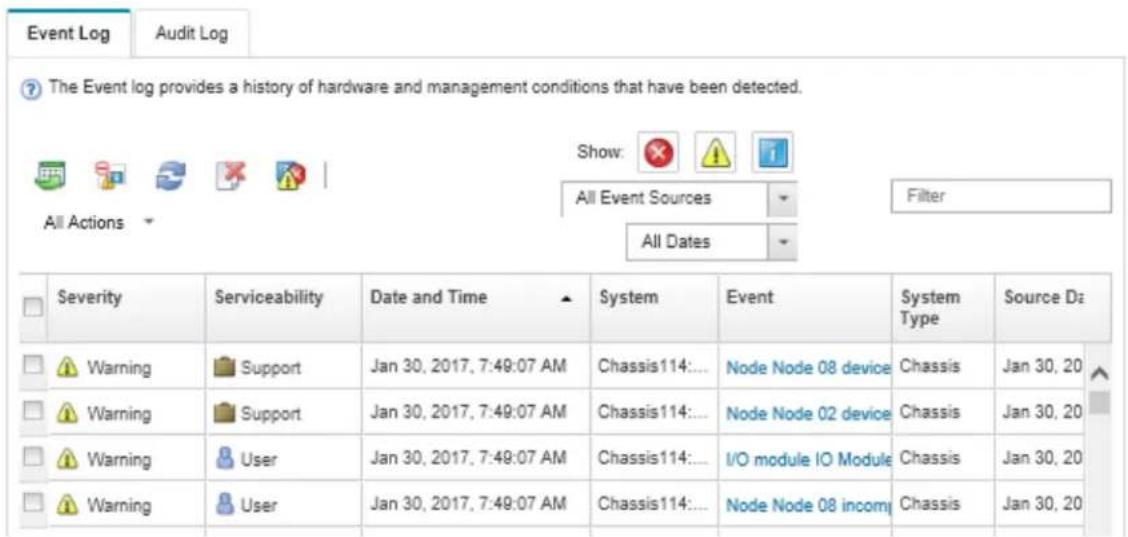
Figure 100. Lenovo XClarity Administrator event log
For more information about working with events from XClarity Administrator, see:
http://sysmgt.lenovofiles.com/help/topic/com.lenovo.lxca.doc/events_vieweventlog.html
Lenovo XClarity Controller event log
The Lenovo XClarity Controller monitors the physical state of the server and its components using sensors that measure internal physical variables such as temperature, power-supply voltages, fan speeds, and component status. The Lenovo XClarity Controller provides various interfaces to systems management software and to system administrators and users to enable remote management and control of a server.
The Lenovo XClarity Controller monitors all components of the server and posts events in the Lenovo XClarity Controller event log.
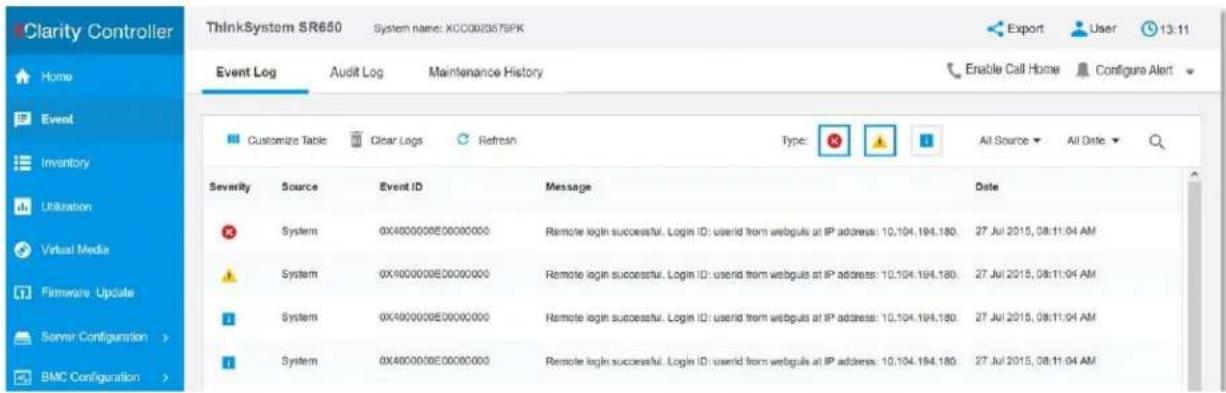
Figure 101. Lenovo XClarity Controller event log
For more information about accessing the Lenovo XClarity Controller event log, see:
http://sysmgt.lenovofiles.com/help/topic/com.lenovo.systems.management.xcc.doc/event_log.html
General problem determination procedures
Use the information in this section to resolve problems if the event log does not contain specific errors or the server is inoperative.
If you are not sure about the cause of a problem and the power supplies are working correctly, complete the following steps to attempt to resolve the problem:
- Turn off the server.
- Ensure that the server is cabled correctly.
- Remove or disconnect the following devices, one at a time, until you find the failure. Turn on and configure the server each time you remove or disconnect a device.
- Any external devices
- Surge-suppressor device (on the server)
• Printer, mouse, and non-Lenovo devices - Each adapter
- Storage drives
- DIMMs until you reach the minimum configuration that is supported for the server
Note: The minimum configuration required for the server to start is one processor and one 8 GB DIMM.
- Turn on the server.
If the problem is solved when you remove an adapter from the server, but the problem recurs when you install the same adapter again, suspect the adapter. If the problem recurs when you replace the adapter with a different one, try a different PCIe slot.
If the problem appears to be a networking problem and the server passes all system tests, suspect a network cabling problem that is external to the server.
Resolving suspected power problems
Power problems can be difficult to solve. For example, a short circuit can exist anywhere on any of the power distribution buses. Usually, a short circuit will cause the power subsystem to shut down because of an overcurrent condition.
Complete the following steps to diagnose and resolve a suspected power problem.
Step 1. Check the event log and resolve any errors related to the power.
Note: Start with the event log of the application that is managing the server. For more information about event logs, see “Event logs” on page 137.
Step 2. Check for short circuits, for example, if a loose screw is causing a short circuit on a circuit board.
Step 3. Remove the adapters and disconnect the cables and power cords to all internal and external devices until the server is at the minimum configuration that is required for the server to start. See “Specifications” on page 2 to determine the minimum configuration for your server.
Step 4. Reconnect all ac power cords and turn on the server. If the server starts successfully, reseat the adapters and devices one at a time until the problem is isolated.
If the server does not start from the minimum configuration, replace the components in the minimum configuration one at a time until the problem is isolated.
Resolving suspected Ethernet controller problems
The method that you use to test the Ethernet controller depends on which operating system you are using. See the operating-system documentation for information about Ethernet controllers, and see the Ethernet controller device-driver readme file.
Complete the following steps to attempt to resolve suspected problems with the Ethernet controller.
Step 1. Make sure that the correct device drivers, which come with the server are installed and that they are at the latest level.
Step 2. Make sure that the Ethernet cable is installed correctly.
- The cable must be securely attached at all connections. If the cable is attached but the problem remains, try a different cable.
- If you set the Ethernet controller to operate at 100 Mbps or 1000 Mbps, you must use Category 5 cabling.
Step 3. Determine whether the hub supports auto-negotiation. If it does not, try configuring the integrated Ethernet controller manually to match the speed and duplex mode of the hub.
Step 4. Check the Ethernet controller LEDs on the rear panel of the server. These LEDs indicate whether there is a problem with the connector, cable, or hub.
- The Ethernet link status LED is lit when the Ethernet controller receives a link pulse from the hub. If the LED is off, there might be a defective connector or cable or a problem with the hub.
- The Ethernet transmit/receive activity LED is lit when the Ethernet controller sends or receives data over the Ethernet network. If the Ethernet transmit/receive activity is off, make sure that the hub and network are operating and that the correct device drivers are installed.
Step 5. Check the LAN activity LED on the rear of the server. The LAN activity LED is lit when data is active on the Ethernet network. If the LAN activity LED is off, make sure that the hub and network are operating and that the correct device drivers are installed.
Step 6. Check for operating-system-specific causes of the problem, and also make sure that the operating system drivers are installed correctly.
Step 7. Make sure that the device drivers on the client and server are using the same protocol.
If the Ethernet controller still cannot connect to the network but the hardware appears to be working, the network administrator must investigate other possible causes of the error.
Troubleshooting by symptom
Use this information to find solutions to problems that have identifiable symptoms.
To use the symptom-based troubleshooting information in this section, complete the following steps:
-
Check the event log of the application that is managing the server and follow the suggested actions to resolve any event codes.
-
If you are managing the server from the Lenovo XClarity Administrator, begin with the Lenovo XClarity Administrator event log.
- If you are using some other management application, begin with the Lenovo XClarity Controller event log.
For more information about event logs, see "Event logs" on page 137.
-
Review this section to find the symptoms that you are experiencing and follow the suggested actions to resolve the issue.
-
If the problem persists, contact support (see "Contacting Support" on page 157).
Power on and power off problems
Use this information to resolve issues when powering on or powering off the server.
- "Embedded hypervisor is not in the boot list" on page 141
- “The power button does not work (server does not start)” on page 141
- "Server does not power on" on page 142
- "Server does not power off" on page 142
Embedded hypervisor is not in the boot list
Complete the following steps until the problem is solved.
- If the server has been installed, moved, or serviced recently, or if this is the first time the embedded hypervisor is being used, make sure that the device is connected properly and that there is no physical damage to the connectors.
- See the documentation that comes with the optional embedded hypervisor flash device for setup and configuration information.
- Check http://www.lenovo.com/serverproven/ to validate that the embedded hypervisor device is supported for the server.
- Make sure that the embedded hypervisor device is listed in the list of available boot options. From the management controller user interface, click Server Configuration → Boot Options.
For information about accessing the management controller user interface, see the XClarity Controller product documentation:
http://sysmgt.lenovofiles.com/help/topic/com.lenovo.systems.management.xcc.doc/dw1lm_c_chapter2_openingandusing.html - Check http://datacentersupport.lenovo.com for any tech tips (service bulletins) related to the embedded hypervisor and the server.
- Make sure that other software works on the server to ensure that it is working properly.
The power button does not work (server does not start)
Note: The power button will not function until approximately 1 to 3 minutes after the server has been connected to ac power.
Complete the following steps until the problem is resolved:
- Make sure that the power button on the server is working correctly:
a. Disconnect the server power cords.
b. Reconnect the server power cords.
c. Reseat the operator information panel cable, and then repeat steps a and b. - If the server starts, reseat the operator information panel.
-
If the problem remains, replace the operator information panel.
-
Make sure that:
-
The power cords are correctly connected to the server and to a working electrical outlet.
-
The LEDs on the power supply do not indicate a problem.
-
Reseat the power supplies.
-
Replace each power supply, restarting the server each time:
• DIMMs
- Power supplies
- If you just installed an optional device, remove it, and restart the server. If the server starts, you might have installed more devices than the power supply supports.
Server does not power on
Complete the following steps until the problem is resolved:
- Check the event log for any events related to the server not powering on.
- Check for any LEDs that are flashing amber.
- Check the power LED on the system board.
- Reseat the power supply.
- Replace the power supply.
Server does not power off
Complete the following steps until the problem is resolved:
- Determine whether you are using an Advanced Configuration and Power Interface (ACPI) or a non-ACPI operating system. If you are using a non-ACPI operating system, complete the following steps:
a. Press Ctrl+Alt+Delete.
b. Turn off the server by pressing the power button and holding it down for 5 seconds.
c. Restart the server.
d. If the server fails POST and the power button does not work, disconnect the power cord for 20 seconds; then, reconnect the power cord and restart the server.
- If the problem remains or if you are using an ACPI-aware operating system, suspect the system board.
Memory problems
Use this information to resolve issues related to memory.
- “Displayed system memory less than installed physical memory” on page 142
- "Multiple rows of DIMMs in a branch identified as failing" on page 143
Displayed system memory less than installed physical memory
Complete the following steps until the problem is resolved:
Note: Each time you install or remove a DIMM, you must disconnect the server from the power source; then, wait 10 seconds before restarting the server.
-
Make sure that:
-
No error LEDs are lit on the operator information panel.
- Memory mirrored channel does not account for the discrepancy.
- The DIMMs are seated correctly.
- You have installed the correct type of DIMMs.
- If you changed the DIMMs, you updated the memory configuration in the Setup utility.
- All banks of memory are enabled. The server might have automatically disabled a memory bank when it detected a problem, or a memory bank might have been manually disabled.
-
There is no memory mismatch when the server is at the minimum memory configuration.
-
Reseat the DIMMs, and then restart the server.
-
Run memory diagnostics. When you start a server and press F1, the Lenovo XClarity Provisioning Manager interface is displayed by default. You can perform memory diagnostics from this interface. From the Diagnostic page, click Run Diagnostic → Memory test.
-
Check the POST error log:
-
If a DIMM was disabled by a systems-management interrupt (SMI), replace the DIMM.
-
If a DIMM was disabled by the user or by POST, reseat the DIMM; then, run the Setup utility and enable the DIMM.
-
Reseat the DIMM.
-
Restart the server.
Multiple rows of DIMMs in a branch identified as failing
- Reseat the DIMMs; then, restart the server.
- Remove the lowest-numbered DIMM pair of those that are identified and replace it with an identical known good DIMM; then, restart the server. Repeat as necessary. If the failures continue after all identified DIMMs are replaced, go to step 4.
- Return the removed DIMMs, one at a time, to their original connectors, restarting the server after each DIMM, until a DIMM fails. Replace each failing DIMM with an identical known good DIMM, restarting the server after each DIMM replacement. Repeat step 3 until you have tested all removed DIMMs.
- Replace the lowest-numbered DIMM of those identified; then, restart the server. Repeat as necessary.
- Reverse the DIMMs between the channels (of the same processor), and then restart the server. If the problem is related to a DIMM, replace the failing DIMM.
- (Trained technician only) Replace the system board.
Hard disk drive problems
Use this information to resolve issues related to the hard disk drives.
- "Server cannot recognize a hard drive" on page 143
- "Multiple hard drives fail" on page 144
- "Multiple hard drives are offline" on page 144
- "A replacement hard disk drive does not rebuild" on page 144
- “Green hard disk drive activity LED does not represent actual state of associated drive” on page 145
- "Yellow hard disk drive status LED does not represent actual state of associated drive" on page 145
Server cannot recognize a hard drive
Complete the following steps until the problem is solved.
- Observe the associated yellow hard disk drive status LED. If the LED is lit, it indicates a drive fault.
- If the LED is lit, remove the drive from the bay, wait 45 seconds, and reinsert the drive, making sure that the drive assembly connects to the hard disk drive backplane.
- Observe the associated green hard disk drive activity LED and the yellow status LED:
- If the green activity LED is flashing and the yellow status LED is not lit, the drive is recognized by the controller and is working correctly. Run the diagnostics tests for the hard disk drives. When you start a server and press F1, the Lenovo XClarity Provisioning Manager interface is displayed by default. You can perform hard drive diagnostics from this interface. From the Diagnostic page, click Run Diagnostic → HDD test.
- If the green activity LED is flashing and the yellow status LED is flashing slowly, the drive is recognized by the controller and is rebuilding.
- If neither LED is lit or flashing, check the hard disk drive backplane.
-
If the green activity LED is flashing and the yellow status LED is lit, replace the drive. If the activity of the LEDs remains the same, go to step Hard disk drive problems. If the activity of the LEDs changes, return to step 1.
-
Make sure that the hard disk drive backplane is correctly seated. When it is correctly seated, the drive assemblies correctly connect to the backplane without bowing or causing movement of the backplane.
- Reseat the backplane power cable and repeat steps 1 through 3.
- Reseat the backplane signal cable and repeat steps 1 through 3.
-
Suspect the backplane signal cable or the backplane:
-
Replace the affected backplane signal cable.
-
Replace the affected backplane.
-
Run the diagnostics tests for the hard disk drives. When you start a server and press F1, the Lenovo XClarity Provisioning Manager interface is displayed by default. You can perform hard drive diagnostics from this interface. From the Diagnostic page, click Run Diagnostic → HDD test.
Based on those tests:
- If the adapter passes the test but the drives are not recognized, replace the backplane signal cable and run the tests again.
- Replace the backplane.
- If the adapter fails the test, disconnect the backplane signal cable from the adapter and run the tests again.
- If the adapter fails the test, replace the adapter.
Multiple hard drives fail
Complete the following steps until the problem is solved:
- View the Lenovo XClarity Controller event log for events related to power supplies or vibration issues and resolve those events.
- Make sure that the device drivers and firmware for the hard disk drive and server are at the latest level
Important: Some cluster solutions require specific code levels or coordinated code updates. If the device is part of a cluster solution, verify that the latest level of code is supported for the cluster solution before you update the code.
Multiple hard drives are offline
Complete the following steps until the problem is solved:
- View the Lenovo XClarity Controller event log for events related to power supplies or vibration issues and resolve those events.
- View the storage subsystem log for events related to the storage subsystem and resolve those events.
A replacement hard disk drive does not rebuild
Complete the following steps until the problem is solved:
- Make sure that the hard disk drive is recognized by the adapter (the green hard disk drive activity LED is flashing).
- Review the SAS/SATA RAID adapter documentation to determine the correct configuration parameters and settings.
Green hard disk drive activity LED does not represent actual state of associated drive
Complete the following steps until the problem is solved:
- If the green hard disk drive activity LED does not flash when the drive is in use, run the diagnostics tests for the hard disk drives. When you start a server and press F1, the Lenovo XClarity Provisioning Manager interface is displayed by default. You can perform hard drive diagnostics from this interface. From the Diagnostic page, click Run Diagnostic → HDD test.
- If the drive passes the test, replace the backplane.
- If the drive fails the test, replace the drive.
Yellow hard disk drive status LED does not represent actual state of associated drive
Complete the following steps until the problem is solved:
- Turn off the server.
- Reseat the SAS/SATA adapter.
- Reseat the backplane signal cable and backplane power cable.
- Reseat the hard disk drive.
- Power on the server and observe the activity of the hard disk drive LEDs.
Monitor and video problems
Use this information to solve problems related to a monitor or video.
- "Incorrect characters are displayed" on page 145
- "Screen is blank" on page 145
- "Screen goes blank when you start some application programs" on page 146
- “The monitor has screen jitter, or the screen image is wavy, unreadable, rolling, or distorted.” on page 146
- “The wrong characters appear on the screen” on page 146
Incorrect characters are displayed
Complete the following steps:
- Verify that the language and locality settings are correct for the keyboard and operating system.
- If the wrong language is displayed, update the server firmware to the latest level. See "Firmware updates" on page 6.
Screen is blank
- If the server is attached to a KVM switch, bypass the KVM switch to eliminate it as a possible cause of the problem: connect the monitor cable directly to the correct connector on the rear of the server.
- The management controller remote presence function is disabled if you install an optional video adapter. To use the management controller remote presence function, remove the optional video adapter.
-
If the server installed with the graphical adapters while turning on the server, the Lenovo logo displays on the screen after approximately 3 minutes. This is normal operation while the system loads.
-
Make sure that:
- The server is turned on. If there is no power to the server.
- The monitor cables are connected correctly.
- The monitor is turned on and the brightness and contrast controls are adjusted correctly.
-
Make sure that the correct server is controlling the monitor, if applicable.
-
Make sure that corrupted server firmware is not affecting the video; see "Firmware updates" on page 6.
-
Observe the LEDs on the system board; if the codes are changing, go to step 6.
-
Replace the following components one at a time, in the order shown, restarting the server each time:
a. Monitor
b. Video adapter (if one is installed)
c. (Trained technician only) System board
Screen goes blank when you start some application programs
-
Make sure that:
-
The application program is not setting a display mode that is higher than the capability of the monitor.
- You installed the necessary device drivers for the application.
The monitor has screen jitter, or the screen image is wavy, unreadable, rolling, or distorted.
- If the monitor self-tests show that the monitor is working correctly, consider the location of the monitor. Magnetic fields around other devices (such as transformers, appliances, fluorescents, and other monitors) can cause screen jitter or wavy, unreadable, rolling, or distorted screen images. If this happens, turn off the monitor.
Attention: Moving a color monitor while it is turned on might cause screen discoloration.
Move the device and the monitor at least 305 mm (12 in.) apart, and turn on the monitor.
Notes:
a. To prevent diskette drive read/write errors, make sure that the distance between the monitor and any external diskette drive is at least 76 mm (3 in.).
b. Non-Lenovo monitor cables might cause unpredictable problems.
-
Reseat the monitor cable.
-
Replace the components listed in step 2 one at a time, in the order shown, restarting the server each time:
a. Monitor cable
b. Video adapter (if one is installed)
c. Monitor
d. (Trained technician only) System board
The wrong characters appear on the screen
Complete the following steps until the problem is solved:
- Verify that the language and locality settings are correct for the keyboard and operating system.
- If the wrong language is displayed, update the server firmware to the latest level. See "Firmware updates" on page 6.
Keyboard, mouse, or USB-device problems
Use this information to solve problems related to a keyboard, mouse, or USB device.
- "All or some keys on the keyboard do not work." on page 146
- "Mouse does not work." on page 147
- "USB-device does not work." on page 147
All or some keys on the keyboard do not work.
- Make sure that:
- The keyboard cable is securely connected.
- The server and the monitor are turned on.
- If you are using a USB keyboard, run the Setup utility and enable keyboardless operation.
- If you are using a USB keyboard and it is connected to a USB hub, disconnect the keyboard from the hub and connect it directly to the server.
- Replace the keyboard.
Mouse does not work.
-
Make sure that:
-
The mouse cable is securely connected to the server.
- The mouse device drivers are installed correctly.
- The server and the monitor are turned on.
-
The mouse option is enabled in the Setup utility.
-
If you are using a USB mouse and it is connected to a USB hub, disconnect the mouse from the hub and connect it directly to the server.
-
Replace the mouse.
USB-device does not work.
-
Make sure that:
-
The correct USB device driver is installed.
-
The operating system supports USB devices.
-
Make sure that the USB configuration options are set correctly in system setup.
Restart the server and press F1 to display the Lenovo XClarity Provisioning Manager system setup interface. Then, click System Settings → Devices and I/O Ports → USB Configuration.
- If you are using a USB hub, disconnect the USB device from the hub and connect it directly to the server.
Optional-device problems
Use this information to solve problems related to optional devices.
- "External USB device not recognized" on page 147
- "PCIe adapter is not recognized or is not functioning" on page 147
- “A Lenovo optional device that worked previously does not work now.” on page 148
- “A Lenovo optional device that was just installed does not work.” on page 148
- “A Lenovo optional device that worked previously does not work now.” on page 148
External USB device not recognized
Complete the following steps until the problem is resolved:
- Make sure that the proper drivers are installed on the compute node. See the product documentation for the USB device for information about device drivers.
- Use the Setup utility to make sure that the device is configured correctly.
- If the USB device is plugged into a hub or the console breakout cable, unplug the device and plug it directly into the USB port on the front of the compute node.
PCIe adapter is not recognized or is not functioning
Complete the following steps until the problem is resolved:
- Check the event log and resolve any issues related to the device.
- Validate that the device is supported for the server (seehttp://www.lenovo.com/serverproven/).
- Make sure that the adapter is installed in a correct slot.
- Make sure that the proper device drivers are installed for the device.
- Resolve any resource conflicts if running legacy mode (UEFI).
- Check http://datacentersupport.lenovo.com for any tech tips (also known as retain tips or service bulletins) that might be related to the adapter.
- Ensure any adapter external connections are correct and that the connectors are not physically damaged.
Insufficient PCIe resources are detected.
If you see an error message stating “Insufficient PCI Resources Detected,” complete the following steps until the problem is resolved:
- Remove one of the PCIe adapters.
- Restart the system and press F1 to display the Lenovo XClarity Provisioning Manager system setup interface.
- Click UEFI Setup → System Settings → Devices and I/O Ports → MM Config Base; then, modify the setting to the lower memory capacity. For example, modify 3 GB to 2 GB or modify 2 GB to 1 GB.
- Save the settings and restart the system.
- The action for this step will differ based on whether or not the reboot is successful.
- If the reboot is successful, shut down the solution and reinstall the PCIe card you removed.
- If the reboot failed, repeat step 2 to step 5.
A Lenovo optional device that was just installed does not work.
1. Make sure that:
- The device is supported for the server (see http://www.lenovo.com/serverproven/).
- You followed the installation instructions that came with the device and the device is installed correctly.
- You have not loosened any other installed devices or cables.
-
You updated the configuration information in system setup. When you start a server and press F1 to display the system setup interface. Whenever memory or any other device is changed, you must update the configuration.
-
Reseat the device that you just installed.
-
Replace the device that you just installed.
A Lenovo optional device that worked previously does not work now.
- Make sure that all of the cable connections for the device are secure.
- If the device comes with test instructions, use those instructions to test the device.
- If the failing device is a SCSI device, make sure that:
- The cables for all external SCSI devices are connected correctly.
- The last device in each SCSI chain, or the end of the SCSI cable, is terminated correctly.
-
Any external SCSI device is turned on. You must turn on an external SCSI device before you turn on the server.
-
Reseat the failing device.
-
Replace the failing device.
Serial-device problems
Use this information to solve problems with serial ports or devices.
- “Number of displayed serial ports is less than the number of installed serial ports” on page 149
- "Serial device does not work" on page 149
Number of displayed serial ports is less than the number of installed serial ports
Complete the following steps until the problem is solved.
- Make sure that:
• Each port is assigned a unique address in the Setup utility and none of the serial ports is disabled.
- The serial-port adapter (if one is present) is seated correctly
-
Reseat the serial port adapter.
-
Replace the serial port adapter.
Serial device does not work
-
Make sure that:
-
The device is compatible with the server.
- The serial port is enabled and is assigned a unique address.
-
The device is connected to the correct connector.
-
Reseat the following components:
a. Failing serial device.
b. Serial cable.
- Replace the following components:
a. Failing serial device.
b. Serial cable.
- (Trained technician only) Replace the system board.
Intermittent problems
Use this information to solve intermittent problems.
- "Intermittent external device problems" on page 149
- "Intermittent KVM problems" on page 150
- "Intermittent unexpected reboots" on page 150
Intermittent external device problems
Complete the following steps until the problem is solved.
-
Make sure that the correct device drivers are installed. See the manufacturer's website for documentation.
-
For a USB device:
a. Make sure that the device is configured correctly.
Restart the server and press F1 to display the Lenovo XClarity Provisioning Manager system setup interface. Then, click System Settings → Devices and I/O Ports → USB Configuration.
b. Connect the device to another port. If using a USB hub, remove the hub and connect the device directly to the compute node. Make sure that the device is configured correctly for the port.
Intermittent KVM problems
Complete the following steps until the problem is solved.
Video problems:
- Make sure that all cables and the console breakout cable are properly connected and secure.
- Make sure that the monitor is working properly by testing it on another compute node.
- Test the console breakout cable on a working compute node to ensure that it is operating properly. Replace the console breakout cable if it is defective.
Keyboard problems:
Make sure that all cables and the console breakout cable are properly connected and secure.
Mouse problems:
Make sure that all cables and the console breakout cable are properly connected and secure.
Intermittent unexpected reboots
Note: Some correctable errors require that the server reboot so that it can disable a device, such as a memory DIMM or a processor to allow the machine to boot up properly.
- If the reset occurs during POST and the POST watchdog timer is enabled, make sure that sufficient time is allowed in the watchdog timeout value (POST Watchdog Timer).
To check the POST watchdog time, restart the server and press F1 to display the Lenovo XClarity Provisioning Manager system setup interface. Then, click BMC Settings → POST Watchdog Timer.
- If the reset occurs after the operating system starts, disable any automatic server restart (ASR) utilities, such as the Automatic Server Restart IPMI Application for Windows, or any ASR devices that are installed.
- See the management controller event log to check for an event code that indicates a reboot. See “Event logs” on page 137 for information about viewing the event log.
Power problems
Use this information to resolve issues related to power.
System error LED is on and event log "Power supply has lost input" is displayed
To resolve the problem, ensure that:
- The power supply is properly connected to a power cord.
- The power cord is connected to a properly grounded electrical outlet for the server.
Network problems
Use this information to resolve issues related to networking.
- “Cannot wake server using Wake on LAN” on page 150
- "Could not log in using LDAP account with SSL enabled" on page 151
Cannot wake server using Wake on LAN
Complete the following steps until the problem is resolved:
- If you are using the dual-port network adapter and the server is connected to the network using Ethernet 5 connector, check the system-error log or IMM2 system event log (see "Event logs" on page 137), make sure:
a. Fan 3 is running in standby mode, if Emulex dual port 10GBase-T embedded adapter is installed.
b. The room temperature is not too high (see "Specifications" on page 2).
c. The air vents are not blocked.
d. The air baffle is installed securely.
- Reseat the dual-port network adapter.
- Turn off the server and disconnect it from the power source; then, wait 10 seconds before restarting the server.
- If the problem still remains, replace the dual-port network adapter.
Could not log in using LDAP account with SSL enabled
Complete the following steps until the problem is resolved:
- Make sure that the license key is valid.
- Generate a new license key and log in again.
Observable problems
Use this information to solve observable problems.
- “The server immediately displays the POST Event Viewer when it is turned on” on page 151
- “Server is unresponsive (POST is complete and operating system is running)” on page 151
- "Server is unresponsive (cannot press F1 to start System Setup)" on page 152
- "Voltage planar fault is displayed in the event log" on page 152
- "Unusual smell" on page 153
- "Server seems to be running hot" on page 153
- "Cracked parts or cracked chassis" on page 153
The server immediately displays the POST Event Viewer when it is turned on
Complete the following steps until the problem is solved.
- Correct any errors that are indicated by the light path diagnostics LEDs.
-
Make sure that the server supports all the processors and that the processors match in speed and cache size.
You can view processor details from system setup.
To determine if the processor is supported for the server, see http://www.lenovo.com/serverproven/. -
(Trained technician only) Make sure that processor 1 is seated correctly.
-
(Trained technician only) Remove processor 2 and restart the server.
-
Replace the following components one at a time, in the order shown, restarting the server each time:
a. (Trained technician only) Processor
b. (Trained technician only) System board
Server is unresponsive (POST is complete and operating system is running)
Complete the following steps until the problem is solved.
- If you are in the same location as the compute node, complete the following steps:
- If you are using a KVM connection, make sure that the connection is operating correctly. Otherwise, make sure that the keyboard and mouse are operating correctly.
- If possible, log in to the compute node and verify that all applications are running (no applications are hung).
- Restart the compute node.
- If the problem remains, make sure that any new software has been installed and configured correctly.
- Contact your place of purchase of the software or your software provider.
- If you are accessing the compute node from a remote location, complete the following steps:
- Make sure that all applications are running (no applications are hung).
- Attempt to log out of the system and log back in.
-
Validate the network access by pinging or running a trace route to the compute node from a command line.
a. If you are unable to get a response during a ping test, attempt to ping another compute node in the enclosure to determine whether it is a connection problem or compute node problem.
b. Run a trace route to determine where the connection breaks down. Attempt to resolve a connection issue with either the VPN or the point at which the connection breaks down. -
Restart the compute node remotely through the management interface.
-
If the problem remains, verify that any new software has been installed and configured correctly.
-
Contact your place of purchase of the software or your software provider.
Server is unresponsive (cannot press F1 to start System Setup)
Configuration changes, such as added devices or adapter firmware updates, and firmware or application code problems can cause the server to fail POST (the power-on self-test).
If this occurs, the server responds in either of the following ways:
- The server restarts automatically and attempts POST again.
- The server hangs, and you must manually restart the server for the server to attempt POST again.
After a specified number of consecutive attempts (automatic or manual), the server to reverts to the default UEFI configuration and starts System Setup so that you can make the necessary corrections to the configuration and restart the server. If the server is unable to successfully complete POST with the default configuration, there might be a problem with the system board.
You can specify the number of consecutive restart attempts in System Setup. Restart the server and press F1 to display the Lenovo XClarity Provisioning Manager system setup interface. Then, click System Settings → Recovery and RAS → POST Attempts → POST Attempts Limit. Available options are 3, 6, 9, and disable.
Voltage planar fault is displayed in the event log
Complete the following steps until the problem is solved.
- Revert the system to the minimum configuration. See "Specifications" on page 2 for the minimally required number of processors and DIMMs.
- Restart the system.
- If the system restarts, add each of the items that you removed one at a time, restarting the system each time, until the error occurs. Replace the item for which the error occurs.
- If the system does not restart, suspect the system board.
Unusual smell
Complete the following steps until the problem is solved.
- An unusual smell might be coming from newly installed equipment.
- If the problem remains, contact Lenovo Support.
Server seems to be running hot
Complete the following steps until the problem is solved.
Multiple compute nodes or chassis:
- Make sure that the room temperature is within the specified range (see "Specifications" on page 2).
- Check the management processor event log for rising temperature events. If there are no events, the compute node is running within normal operating temperatures. Note that you can expect some variation in temperature.
Cracked parts or cracked chassis
Contact Lenovo Support.
Software problems
Use this information to solve software problems.
- To determine whether the problem is caused by the software, make sure that:
- The server has the minimum memory that is needed to use the software. For memory requirements, see the information that comes with the software.
Note: If you have just installed an adapter or memory, the server might have a memory-address conflict.
- The software is designed to operate on the server.
- Other software works on the server.
-
The software works on another server.
-
If you receive any error messages while you use the software, see the information that comes with the software for a description of the messages and suggested solutions to the problem.
- Contact your place of purchase of the software.
Appendix A. Getting help and technical assistance
If you need help, service, or technical assistance or just want more information about Lenovo products, you will find a wide variety of sources available from Lenovo to assist you.
On the World Wide Web, up-to-date information about Lenovo systems, optional devices, services, and support are available at:
http://datacentersupport.lenovo.com
Note: This section includes references to IBM web sites and information about obtaining service. IBM is Lenovo's preferred service provider for ThinkSystem.
Before you call
Before you call, there are several steps that you can take to try and solve the problem yourself. If you decide that you do need to call for assistance, gather the information that will be needed by the service technician to more quickly resolve your problem.
Attempt to resolve the problem yourself
You can solve many problems without outside assistance by following the troubleshooting procedures that Lenovo provides in the online help or in the Lenovo product documentation. The Lenovo product documentation also describes the diagnostic tests that you can perform. The documentation for most systems, operating systems, and programs contains troubleshooting procedures and explanations of error messages and error codes. If you suspect a software problem, see the documentation for the operating system or program.
You can find the product documentation for your ThinkSystem products at the following location:
http://thinksystem.lenovofiles.com/help/index.jsp
You can take these steps to try to solve the problem yourself:
- Check all cables to make sure that they are connected.
- Check the power switches to make sure that the system and any optional devices are turned on.
- Check for updated software, firmware, and operating-system device drivers for your Lenovo product. The Lenovo Warranty terms and conditions state that you, the owner of the Lenovo product, are responsible for maintaining and updating all software and firmware for the product (unless it is covered by an additional maintenance contract). Your service technician will request that you upgrade your software and firmware if the problem has a documented solution within a software upgrade.
- If you have installed new hardware or software in your environment, check http://www.lenovo.com/serverproven/ to make sure that the hardware and software is supported by your product.
- Go to http://datacentersupport.lenovo.com and check for information to help you solve the problem.
- Check the Lenovo forums at https://forums.lenovo.com/t5/Datacenter-Systems/ct-p/sv_eg to see if someone else has encountered a similar problem.
You can solve many problems without outside assistance by following the troubleshooting procedures that Lenovo provides in the online help or in the Lenovo product documentation. The Lenovo product documentation also describes the diagnostic tests that you can perform. The documentation for most systems, operating systems, and programs contains troubleshooting procedures and explanations of error
messages and error codes. If you suspect a software problem, see the documentation for the operating system or program.
Gathering information needed to call Support
If you believe that you require warranty service for your Lenovo product, the service technicians will be able to assist you more efficiently if you prepare before you call. You can also see http://datacentersupport.lenovo.com/warrantylookup for more information about your product warranty.
Gather the following information to provide to the service technician. This data will help the service technician quickly provide a solution to your problem and ensure that you receive the level of service for which you might have contracted.
- Hardware and Software Maintenance agreement contract numbers, if applicable
• Machine type number (Lenovo 4-digit machine identifier) - Model number
- Serial number
- Current system UEFI and firmware levels
- Other pertinent information such as error messages and logs
As an alternative to calling Lenovo Support, you can go to https://www-947.ibm.com/support/servicerequest/Home.action to submit an Electronic Service Request. Submitting an Electronic Service Request will start the process of determining a solution to your problem by making the pertinent information available to the service technicians. The Lenovo service technicians can start working on your solution as soon as you have completed and submitted an Electronic Service Request.
Collecting service data
To clearly identify the root cause of a server issue or at the request of Lenovo Support, you might need collect service data that can be used for further analysis. Service data includes information such as event logs and hardware inventory.
Service data can be collected through the following tools:
- Lenovo XClarity Provisioning Manager
Use the Collect Service Data function of Lenovo XClarity Provisioning Manager to collect system service data. You can collect existing system log data or run a new diagnostic to collect new data.
- Lenovo XClarity Controller
You can use the Lenovo XClarity Controller web interface or the CLI to collect service data for the server. The file can be saved and sent to Lenovo Support.
- For more information about using the web interface to collect service data, see http://sysmgt.lenovofiles.com/help/topic/com.lenovo.systems.management.xcc.doc/NN1ia_c_servicesandsupport.html.
- For more information about using the CLI to collect service data, see http://sysmgt.lenovofiles.com/help/topic/com.lenovo.systems.management.xcc.doc/nn1ia_r_ffdccommand.html.
- Lenovo XClarity Administrator
Lenovo XClarity Administrator can be set up to collect and send diagnostic files automatically to Lenovo Support when certain serviceable events occur in Lenovo XClarity Administrator and the managed endpoints. You can choose to send diagnostic files to Lenovo Support using Call Home or to another service provider using SFTP. You can also manually collect diagnostic files, open a problem record, and send diagnostic files to the Lenovo Support Center.
You can find more information about setting up automatic problem notification within the Lenovo XClarity Administrator at http://sysmgt.lenovofiles.com/help/topic/com.lenovo.lxca.doc/admin_setupcallhome.html.
• Lenovo XClarity Essentials OneCLI
Lenovo XClarity Essentials OneCLI has inventory application to collect service data. It can run both in-band and out-of-band. When running in-band within the host operating system on the server, OneCLI can collect information about the operating system, such as the operating system event log, in addition to the hardware service data.
To obtain service data, you can run the getinfor command. For more information about running the ggeettiinnffobhttp:seesmgt.lenovofiles.com/help/topic/toolsctr_cli_lenovo/onecli_r_getinfor_command.html.
Contacting Support
You can contact Support to obtain help for your issue.
You can receive hardware service through a Lenovo Authorized Service Provider. To locate a service provider authorized by Lenovo to provide warranty service, go to https://datacentersupport.lenovo.com/us/en/serviceprovider and use filter searching for different countries. For Lenovo support telephone numbers, see https://datacentersupport.lenovo.com/us/en/supportphonelist. In the U.S. and Canada, call 1-800-426-7378.
In the U.S. and Canada, hardware service and support is available 24 hours a day, 7 days a week. In the U.K., these services are available Monday through Friday, from 9 a.m. to 6 p.m.
China product support
To contact product support in China, go to: http://support.lenovo.com.cn/lenovo/wsi/es/ThinkSystem.html
You can also call 400-106-8888 for product support. The call support is available Monday through Friday, from 9 a.m. to 6 p.m.
Taiwan product support
To contact product support for Taiwan, call 0800-016-888. The call support is available 24 hours a day, 7 days a week.
Appendix B. Notices
Lenovo may not offer the products, services, or features discussed in this document in all countries. Consult your local Lenovo representative for information on the products and services currently available in your area.
Any reference to a Lenovo product, program, or service is not intended to state or imply that only that Lenovo product, program, or service may be used. Any functionally equivalent product, program, or service that does not infringe any Lenovo intellectual property right may be used instead. However, it is the user's responsibility to evaluate and verify the operation of any other product, program, or service.
Lenovo may have patents or pending patent applications covering subject matter described in this document. The furnishing of this document is not an offer and does not provide a license under any patents or patent applications. You can send inquiries in writing to the following:
Lenovo (United States), Inc.
1009 Think Place
Morrisville, NC 27560
U.S.A.
Attention: Lenovo VP of Intellectual Property
LENOVO PROVIDES THIS PUBLICATION "AS IS" WITHOUT WARRANTY OF ANY KIND, EITHER EXPRESS OR IMPLIED, INCLUDING, BUT NOT LIMITED TO, THE IMPLIED WARRANTIES OF NON-INFRINGEMENT, MERCHANTABILITY OR FITNESS FOR A PARTICULAR PURPOSE. Some jurisdictions do not allow disclaimer of express or implied warranties in certain transactions, therefore, this statement may not apply to you.
This information could include technical inaccuracies or typographical errors. Changes are periodically made to the information herein; these changes will be incorporated in new editions of the publication. Lenovo may make improvements and/or changes in the product(s) and/or the program(s) described in this publication at any time without notice.
The products described in this document are not intended for use in implantation or other life support applications where malfunction may result in injury or death to persons. The information contained in this document does not affect or change Lenovo product specifications or warranties. Nothing in this document shall operate as an express or implied license or indemnity under the intellectual property rights of Lenovo or third parties. All information contained in this document was obtained in specific environments and is presented as an illustration. The result obtained in other operating environments may vary.
Lenovo may use or distribute any of the information you supply in any way it believes appropriate without incurring any obligation to you.
Any references in this publication to non-Lenovo Web sites are provided for convenience only and do not in any manner serve as an endorsement of those Web sites. The materials at those Web sites are not part of the materials for this Lenovo product, and use of those Web sites is at your own risk.
Any performance data contained herein was determined in a controlled environment. Therefore, the result obtained in other operating environments may vary significantly. Some measurements may have been made on development-level systems and there is no guarantee that these measurements will be the same on generally available systems. Furthermore, some measurements may have been estimated through extrapolation. Actual results may vary. Users of this document should verify the applicable data for their specific environment.
Trademarks
Lenovo, the Lenovo logo, and ThinkSystem are trademarks of Lenovo in the United States, other countries, or both.
Intel and Xeon are trademarks of Intel Corporation in the United States, other countries, or both.
Microsoft and Windows are trademarks of the Microsoft group of companies.
Linux is a registered trademark of Linus Torvalds.
Other company, product, or service names may be trademarks or service marks of others.
Important notes
Processor speed indicates the internal clock speed of the processor; other factors also affect application performance.
CD or DVD drive speed is the variable read rate. Actual speeds vary and are often less than the possible maximum.
When referring to processor storage, real and virtual storage, or channel volume, KB stands for 1 024 bytes, MB stands for 1 048 576 bytes, and GB stands for 1 073 741 824 bytes.
When referring to hard disk drive capacity or communications volume, MB stands for 1 000 000 bytes, and GB stands for 1 000 000 000 bytes. Total user-accessible capacity can vary depending on operating environments.
Maximum internal hard disk drive capacities assume the replacement of any standard hard disk drives and population of all hard-disk-drive bays with the largest currently supported drives that are available from Lenovo.
Maximum memory might require replacement of the standard memory with an optional memory module.
Each solid-state memory cell has an intrinsic, finite number of write cycles that the cell can incur. Therefore, a solid-state device has a maximum number of write cycles that it can be subjected to, expressed as total bytes written (TBW). A device that has exceeded this limit might fail to respond to system-generated commands or might be incapable of being written to. Lenovo is not responsible for replacement of a device that has exceeded its maximum guaranteed number of program/erase cycles, as documented in the Official Published Specifications for the device.
Lenovo makes no representations or warranties with respect to non-Lenovo products. Support (if any) for the non-Lenovo products is provided by the third party, not Lenovo.
Some software might differ from its retail version (if available) and might not include user manuals or all program functionality.
Particulate contamination
Attention: Airborne particulates (including metal flakes or particles) and reactive gases acting alone or in combination with other environmental factors such as humidity or temperature might pose a risk to the device that is described in this document.
Risks that are posed by the presence of excessive particulate levels or concentrations of harmful gases include damage that might cause the device to malfunction or cease functioning altogether. This specification sets forth limits for particulates and gases that are intended to avoid such damage. The limits must not be viewed or used as definitive limits, because numerous other factors, such as temperature or moisture content of the air, can influence the impact of particulates or environmental corrosives and gaseous contaminant transfer. In the absence of specific limits that are set forth in this document, you must implement practices that maintain particulate and gas levels that are consistent with the protection of human health and safety. If Lenovo determines that the levels of particulates or gases in your environment have caused damage to the device, Lenovo may condition provision of repair or replacement of devices or parts on implementation of appropriate remedial measures to mitigate such environmental contamination. Implementation of such remedial measures is a customer responsibility.
Table 20. Limits for particulates and gases
| Contaminant Limits | |
| Particulate | The room air must be continuously filtered with 40% atmospheric dust spot efficiency (MERV 9) according to ASHRAE Standard 52.2 ^1 .Air that enters a data center must be filtered to 99.97% efficiency or greater, using high-efficiency particulate air (HEPA) filters that meet MIL-STD-282.The deliquescent relative humidity of the particulate contamination must be more than 60% ^2 .The room must be free of conductive contamination such as zinc whiskers. |
| Gaseous | Copper: Class G1 as per ANSI/ISA 71.04-1985 ^3 Silver: Corrosion rate of less than 300 Å in 30 days |
| ^1 ASHRAE 52.2-2008 - Method of Testing General Ventilation Air-Cleaning Devices for Removal Efficiency by Particle Size. Atlanta: American Society of Heating, Refrigerating and Air-Conditioning Engineers, Inc. ^2 The deliquescent relative humidity of particulate contamination is the relative humidity at which the dust absorbs enough water to become wet and promote ionic conduction. ^3 ANSI/ISA-71.04-1985. Environmental conditions for process measurement and control systems: Airborne contaminants. Instrument Society of America, Research Triangle Park, North Carolina, U.S.A. | |
Telecommunication regulatory statement
This product may not be certified in your country for connection by any means whatsoever to interfaces of public telecommunications networks. Further certification may be required by law prior to making any such connection. Contact a Lenovo representative or reseller for any questions.
Electronic emission notices
When you attach a monitor to the equipment, you must use the designated monitor cable and any interference suppression devices that are supplied with the monitor.
Additional electronic emissions notices are available at:
http://thinksystem.lenovofiles.com/help/index.jsp
Taiwan BSMI RoHS declaration
Taiwan import and export contact information
Contacts are available for Taiwan import and export information.
physical presence 133
B
backplane for eight 2.5-inch hot-swap drives
removing 63
replacing 65
backplane for four 3.5-inch hot-swap drives
removing 61
replacing 62
backplanes 30
C
cable routing
front I/O assembly 28
RAID super capacitor module 29
VGA connector 26
cable routing for the server model with eight 2.5-inch hot-swap drives 30
cable routing for the server model with four 3.5-inch hot-swap drives 31
cable routing for the server model with four 3.5-inch simple-swap drives 32
CMOS battery
install 85
remove 83
replacing 83
collecting service data 156
completing
parts replacement 135
configuring
LAN over USB manually 8
contamination, particulate and gaseous 160
cover
installing 50
removing 48
replacing 48
CPU
installing 121
removing 118
replacing 118
creating a personalized support web page 155
custom support web page 155
D
devices, static-sensitive
handling 39
DIMM
removing 75
replacing 75
DIMM installation order 77
DIMM installation rules 77
DIMM, install 81
E
enable
TPM 132
Ethernet
controller
troubleshooting 140
Ethernet controller problems
solving 140
event logs 137
F
firmware updates 6
front I/O assembly
installing 60
removing 59
replacing 59
G
gaseous contamination 160
general problem determination procedures 139
Getting help 155
guidelines
options installation 37
system reliability 38
H
handling static-sensitive devices 39
hard disk drive
installing 70
replacing 68
hard disk drive problems 143
hard disk drives
removing 69
hardware service and support telephone numbers 157
heat sink
installing 121
removing 118
replacing 118
help 155
hot-swap drive
installing 70
replacing 68
hot-swap drive backplane
replacing 61
hot-swap drives
removing 69
hot-swap power supply
remove 89
replacing 89
hot-swap power supply, install 95
|
important notices 160
install
CMOS battery 85
hot-swap power supply 95
installation
guidelines 37
installation guidelines 37
installing
CPU 121
DIMM 81
front I/O assembly 60
hard disk drive 70
heat sink 121
hot-swap drive 70
LOM adapter 117
microprocessor 121
microprocessor heat sink module 121
PCIe adapter 102
PHM 121
processor 121
processor-heat-sink module 121
rack latches 42
riser card 105
security bezel 46
serial port module 115
simple-swap drive 74
system board 128
system fan 58
TCM 88
top cover 50
insufficient PCIe resource
solving 147
intermittent problems 149
internal cable routing 25
introduction 1
K
keyboard problems 146
L
LAN over USB
configuring manually 8
Windows driver installation 8
LOM adapter
installing 117
removing 116
replacing 116
M
M.2 backplane and M.2 drive
installing 110
removing 107
replacing 107
memory
problems 142
memory modules
removal 75
microprocessor
installing 121
removing 118
replacing 118
microprocessor heat sink module
installing 121
removing 118
replacing 118
monitor problems 145
mouse problems 146
N
network
problems 150
notes, important 160
notices 159
0
observable problems 151
operator information panel 13
optional-device problems 147
P
particulate contamination 160
parts list 33
parts replacement, completing 135
PCIe
troubleshooting 147
PCIe adapter
installing 102
removing 101
replacing 101
PHM
installing 121
removing 118
replacing 118
power off the server 10
power on the server 10
power problems 139
problem determination 137
problems
Ethernet controller 140
hard disk drive 143
intermittent 149
keyboard 146
memory 142
monitor 145
mouse 146
network 150
observable 151
optional devices 147
PCIe 147
power 139, 150
power on and power off 141
serial-device 149
software 153
USB device 146
video 145
processor
installing 121
removing 118
replacing 118
processor heat sink module
replacing 118
processor-heat-sink module
installing 121
removing 118
R
rack latches
installing 42
removing 40
replacing 40
RAID super capacitor module
removing 54
replacing 54–55
rear view 15
remove
CMOS battery 83
hot-swap power supply 89
removing
air baffle 51
backplane for eight 2.5-inch hot-swap drives 63
backplane for four 3.5-inch hot-swap drives 61
CPU 118
DIMMs 75
front I/O assembly 59
hard disk drive 69
heat sink 118
hot-swap drive 69
LOM adapter 116
microprocessor 118
microprocessor heat sink module 118
PCIe adapter 101
PHM 118
processor 118
processor-heat-sink module 118
rack latches 40
RAID super capacitor module 54
riser card 103
security bezel 44
serial port module 113
simple-swap drive 72
simple-swap drive backplate assembly 66
system board 126
system fan 56
TCM 87
top cover 48
removing, memory modules 75
replacing
air baffle 51, 53
backplane for eight 2.5-inch hot-swap drives 65
backplane for four 3.5-inch hot-swap drives 62
CMOS battery 83
CPU 118
front I/O assembly 59
hard disk drive 68
heat sink 118
hot-swap drive 68
hot-swap drive backplane 61
hot-swap power supply 89
LOM adapter 116
M.2 module 107
memory module 75
microprocessor 118
microprocessor heat sink module 118
PCIe adapter 101
PHM 118
processor 118
processor heat sink module 118
rack latches 40
RAID super capacitor module 54–55
riser card 103
security bezel 44
serial port module 113
simple-swap drive 71
simple-swap drive backplate assembly 66–67
system board 126
system fan 56
TCM 87
top cover 48
retainer on M.2 backplane
adjustment 109
riser card
installing 105
removing 103
replacing 103
S
safety iii
safety inspection checklist iv
Secure Boot 134
security advisories 9
security bezel
installing 46
removing 44
replacing 44
serial port module
installing 115
removing 113
replacing 113
serial-device problems 149
server components 11
server power on or power off problems 141
service and support
before you call 155
hardware 157
software 157
service data 156
simple-swap drive
installing 74
replacing 71
simple-swap drive backplate assembly
removing 66
replacing 66–67
simple-swap drives
removing 72
software problems 153
software service and support telephone numbers 157
solving
Ethernet controller problems 140
insufficient PCIe resource 147
solving power problems 139
specifications 2
static-sensitive devices
handling 39
support web page, custom 155
system board
installing 128
removing 126
replacing 126
system board components 21
system board LEDs 24
system board switches and jumpers 23
system fan
installing 58
removing 56
replacing 56
system reliability guidelines 38
T
Taiwan BSMI RoHS declaration 162
Taiwan import and export contact information 162
TCM 132
installing 88
removing 87
replacing 87
TCM policy 132
tech tips 9
telecommunication regulatory statement 161
telephone numbers 157
top cover
installing 50
removing 48
replacing 48
TPM 132
TPM 1.2 133
TPM 2.0 133
TPM policy 132
TPM version 133
trademarks 160
troubleshooting 145, 147, 153
by symptom 140
hard disk drive problems 143
intermittent problems 149
keyboard problems 146
memory problems 142
mouse problems 146
network problems 150
observable problems 151
power on and power off problems 141
power problems 150
serial-device problems 149
symptoms-based troubleshooting 140
USB-device problems 146
video 145
Trusted Cryptographic Module 132
Trusted Platform Module 132
U
UEFI Secure Boot 134
update firmware 6
updating
DMI/SMBIOS 130
Universal Unique Identifier (UUID) 129
USB-device problems 146
V
video problems 145
W
Windows driver, LAN over USB 8
working inside the server
power on 39
Lenovo™