
CM400 - Computer and Peripheral Cables NETGEAR - Free user manual and instructions
Find the device manual for free CM400 NETGEAR in PDF.


| Product Type | Cable modem |
| Brand | NETGEAR |
| Model | CM400 |
| Dimensions | 5.8 x 3.8 x 1.8 in (147 x 96 x 30 mm) |
| Weight | 0.44 lb (0.19 kg) |
| Power Adapter | Input: 110–120V, 47–60 Hz; Output: 12V DC, 1A |
| Ethernet Port | 1 Gigabit Ethernet (10/100/1000) RJ-45 |
| Coaxial Connector | 1 F-type female connector |
| DOCSIS Standard | DOCSIS 3.0, backward compatible with DOCSIS 2.0 |
| Maximum Speed | Up to 340 Mbps |
| IPv6 Support | Yes |
| LED Indicators | Power, Downstream, Upstream, Internet, Ethernet |
| Reset Button | Yes, on back panel |
| Default IP Address | 192.168.100.1 |
| Default Login | Username: admin; Password: password |
| Memory | 8 MB Flash, 64 MB RAM |
| Operating Temperature | 32° to 104°F (0° to 40°C) |
| Operating Humidity | 90% maximum relative humidity, noncondensing |
| Certifications | CableLabs certified for U.S. cable Internet services |
| Package Contents | Cable modem, power adapter, Ethernet cable, coaxial cable, feet (for vertical placement) |
Frequently Asked Questions - CM400 NETGEAR
User questions about CM400 NETGEAR
0 question about this device. Answer the ones you know or ask your own.
Ask a new question about this device
Download the instructions for your Computer and Peripheral Cables in PDF format for free! Find your manual CM400 - NETGEAR and take your electronic device back in hand. On this page are published all the documents necessary for the use of your device. CM400 by NETGEAR.
USER MANUAL CM400 NETGEAR
High Speed Cable Modem
Model CM400
User Manual
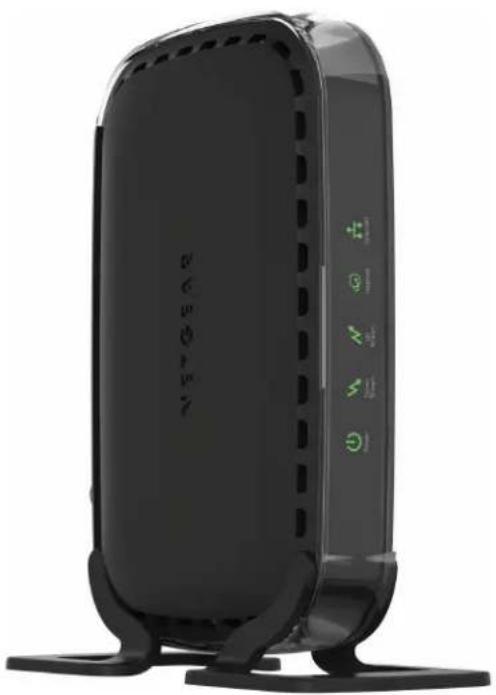
natural_image
Black wireless router device with visible ports and control buttons (no text or symbols on body)September 2017
202-11412-03
350 East Plumeria Drive
San Jose, CA 95134
USA

natural_image
Abstract geometric composition with overlapping colored triangles (no text or symbols)CM400 High Speed Cable Modem
Support
Thank you for purchasing this NETGEAR product. You can visit www.netgear.com/support to register your product, get help, access the latest downloads and user manuals, and join our community. We recommend that you use only official NETGEAR support resources.
Conformity
For the current EU Declaration of Conformity, visit http://kb.netgear.com/app/answers/detail/a_id/11621.
Compliance
For regulatory compliance information, visit http://www.netgear.com/about/regulatory.
See the regulatory compliance document before connecting the power supply.
Trademarks
© NETGEAR, Inc., NETGEAR and the NETGEAR Logo are trademarks of NETGEAR, Inc. Any non-NETGEAR trademarks are used for reference purposes only. EAR logo are trademarks of NETGEAR, Inc. Any non-NETGEAR trademarks are used for reference purposes only.
Contents
Chapter 1 Hardware and Internet Setup
Unpack Your Cable Modem 5
Front Panel 5
Back Panel....6
Product Label 7
Attach the Feet 7
Cable Your Cable Modem.... 8
Install and Activate Your Cable Modem....9
Activate Your Internet Service 9
Activate Your Internet Service With Comcast XFINITY....10
Perform a Speed Test 11
Connect Your Cable Modem to a Router After Installation and Activation ... 12
Chapter 2 Manage and Monitor
Log In to the Cable Modem 14
Specify the Cable Connection Starting Frequency 14
View Cable Modem Initialization....15
View Cable Modem Status....15
View and Clear Event Logs 16
Change the admin Password 17
Reboot the Cable Modem 17
Reset the Cable Modem to Factory Default Settings 18
Use the Reset Button on the Back Panel 18
Use the Factory Reset Software Button 19
Chapter 3 Troubleshooting
Use LEDs to Troubleshoot 21
Cannot Log In to the Cable Modem 21
Troubleshoot the Cable Internet Connection 22
Appendix A Technical Specifications
Hardware and Internet Setup
1
The NETGEAR CM400 High Speed Cable Modem provides a connection to high-speed cable Internet with speeds up to 340 Mbps. ^1 The cable modem is certified by all major cable Internet providers. A Gigabit Ethernet port provides fast access and downloads. The cable modem supports IPv4 and IPv6 address assignment by cable Internet providers.
This chapter covers the following topics:
- Unpack Your Cable Modem
- Front Panel
- Back Panel
- Product Label
- Attach the Feet
• Cable Your Cable Modem
• Install and Activate Your Cable Modem - Connect Your Cable Modem to a Router After Installation and Activation
Unpack Your Cable Modem
Your package contains the following items.
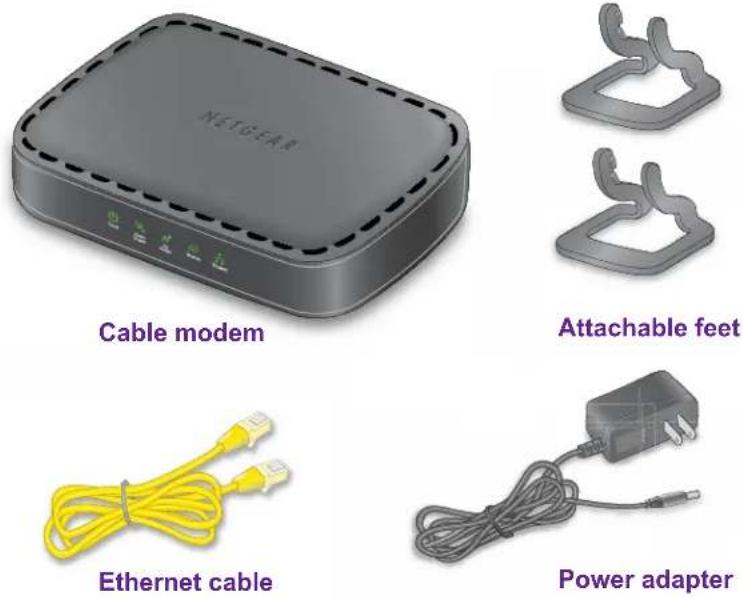
Figure 1. Package contents
Front Panel
The cable modem provides status LEDs on the front.
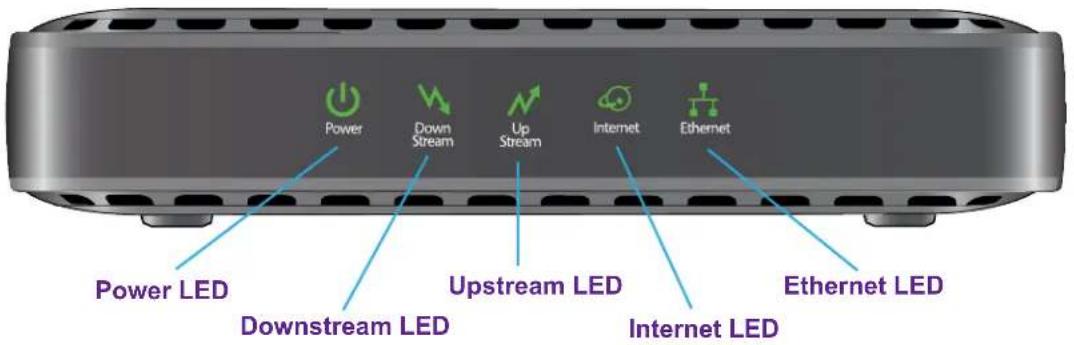
Figure 2. Cable modem front view
You can use the LEDs to verify status and connections. The following table lists and describes each LED on the front panel of the cable modem.
Table 1. LED descriptions
| LED Description | |
Power | Green. Power is supplied to the cable modem.Off. No power is supplied to the cable modem. |
Downstream | Solid amber. One downstream channel is locked.Solid green. T wo or more downstream channels are locked.Blinking green. The cable modem is scanning for a downstream channel.Off. No downstream channel is locked. |
Upstream | Solid amber. One upstream channel is locked.Solid green. T wo or more upstream channels are locked.Blinking green. The cable modem is scanning for an upstream channel.Off. No upstream channel is locked. |
Internet | Solid green. The cable modem is online.Blinking green. The cable modem is synchronizing with the cable provider's cable modem termination system (CMTS).Off. The cable modem is offline. |
Ethernet | Green. A powered-on device is connected to the Ethernet port at 1000 Mbps.Amber. A powered-on device is connected to the Ethernet port at 10/100 Mbps.Blinking green or amber . The Ethernet port is processing traffic.Off. No device is connected to the Ethernet port. |
Back Panel
The back panel provides the connections and button shown the following figure.
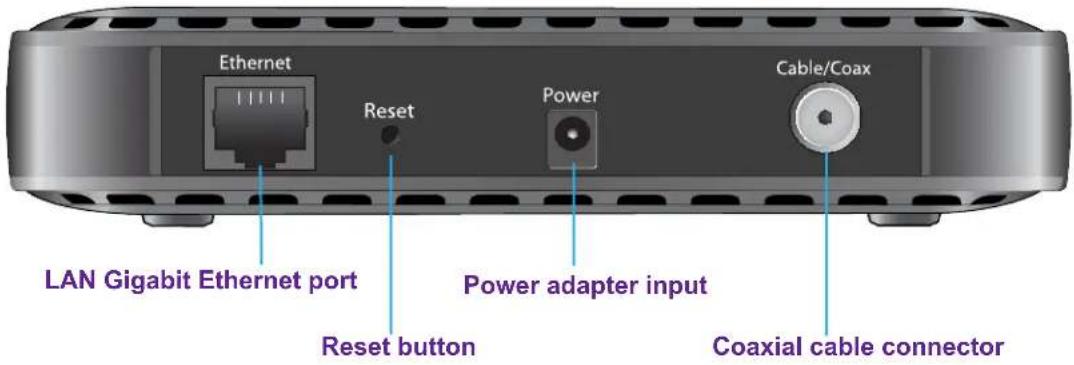
Figure 3. Cable modem back panel
Product Label
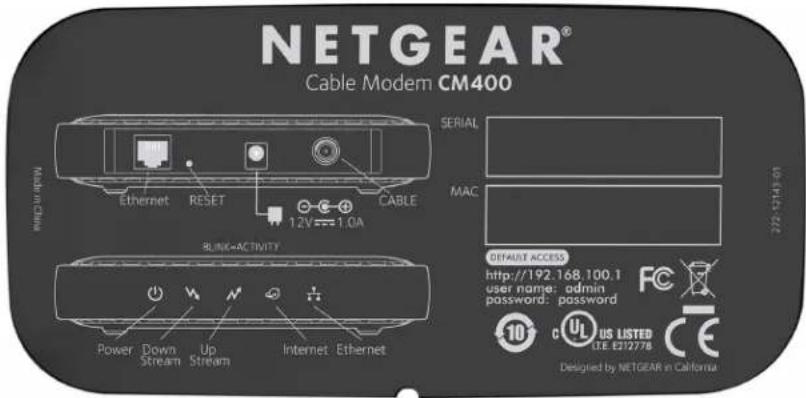
The product label on the bottom of the cable modem displays the serial number and MAC address of the cable modem and login information, including the default IP address, default user name, and default password.
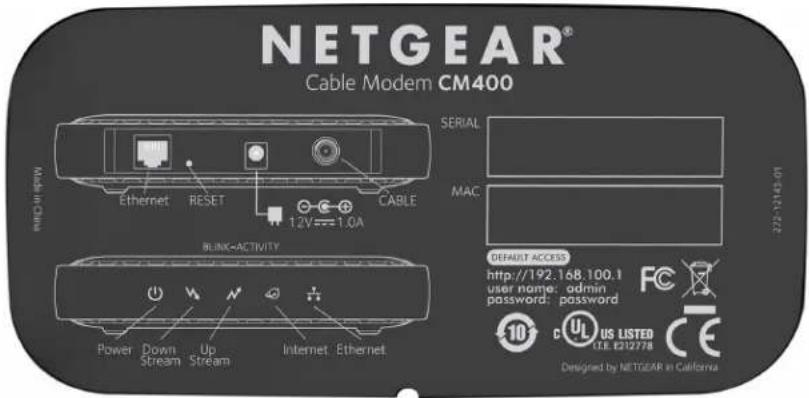
Figure 4. Product label
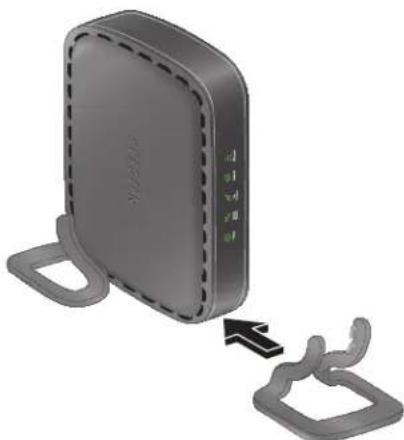
Attach the Feet
The cable modem functions well in either a horizontal or vertical position.
If you prefer to place the cable modem in the upright (vertical) position, attach the feet that come with the cable modem.
To attach the feet:
- Hold the cable modem in the upright position with the left side of the cable modem pointing down
- Snap the feet onto the cable modem.
natural_image
3D rendering of a gray wireless router with attached black connector (no text or symbols visible)Figure 5. Attaching the feet
Cable Your Cable Modem
The cable modem provides a connection between your cable Internet provider's network and your computer, router, or WiFi router.
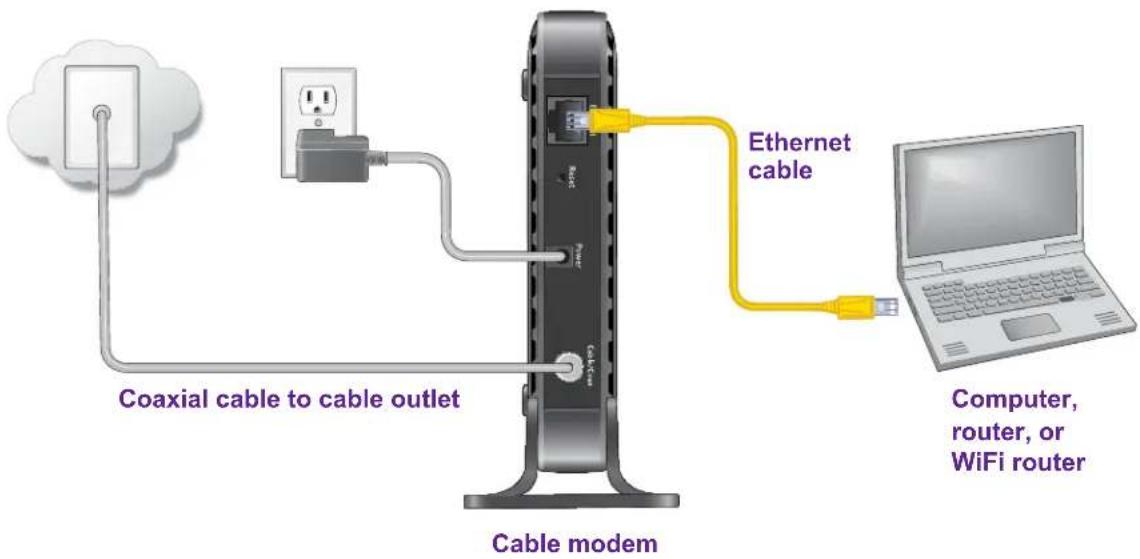
Figure 6. Cabling the cable modem
To cable your cable modem:
- Connect a coaxial cable.
Use the coaxial cable that your cable company provided to connect the cable port on the cable modem to a cable wall outlet or a line splitter. Make sure that the cable is tightly connected.
Note: If Comcast XFINITY is your cable Internet provider, Comcast XFINITY recommends connecting your cable modem directly to a cable wall outlet.
- Turn off the computer to which you intend to connect the cable modem.
- Use the Ethernet cable provided in the package to connect the Gigabit Ethernet port on the cable modem to an Ethernet port on the computer.
- Turn on the computer.
- Connect the power adapter provided in the package to the cable modem and plug the power adapter into an electrical outlet.
When the startup procedure is completed, the Power LED lights green. - Wait for the cable modem to come online.
CM400 High Speed Cable Modem
It takes at least 10 minutes for the cable modem to come online on the network. During this time, the LED behavior is as follows:
- The Downstream LED lights amber when one downstream channel is locked.
- The Downstream LED lights green when more than one downstream channel is locked.
• The Upstream LED lights amber when one upstream channel is locked.
• The Upstream LED lights green when more than one upstream channel is locked.
• After the cable modem registers with your cable Internet provider, the Internet LED lights green.
Even though an Internet connection is established, Internet service is available only after you set it up with your cable Internet provider.
For information about how to set up your Internet service, see Activate Your Internet Service on page 9.
Install and Activate Your Cable Modem
The cable modem provides a connection between your cable Internet provider's network and your computer, router, or WiFi router.
Activate Your Internet Service
Before you activate your Internet service, collect the following information:
• Y our cable Internet provider account information
• Cable modem model number, which is CM400
• Cable modem serial number
• Cable modem MAC address
Your cable modem's serial number and MAC address are on the cable modem label.
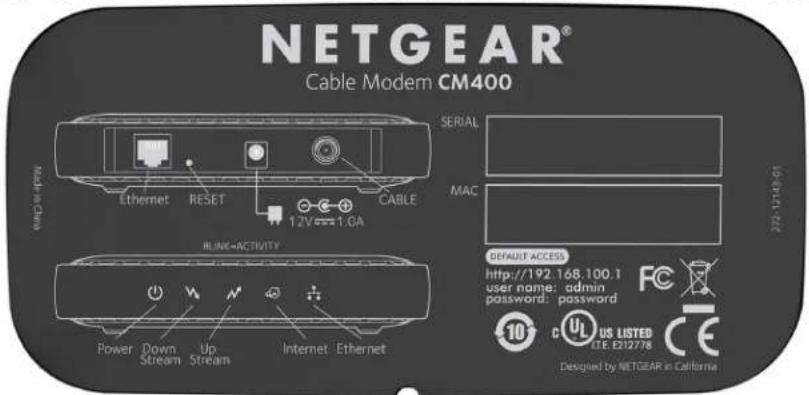
To activate your Internet service:
- Visit your cable Internet provider's website and follow the onpage instructions to activate your Internet service.
| Cable Internet Provider Contact Information | |
| Bright House Networks(Spectrum) | http://support.brighthouse.com1-855-222-0102 |
| Cablevision(Optimum) | http://www.cablevision.comhttps://install.optimum.com/JointInstall/Telephone number depends on your region.Note:When you attempt to contact Cablevision online, you are directed to the Optimum web page. Optimum is a brand name of Cablevision. |
| Charter(Spectrum) | https://install.charter.com1-800-892-4357 |
| Comcast XFINITY https://www.comcast.com/activatehttp://www.xfinity.com/internetsetuphttp://www.xfinity.com/internetsupport1-855-OK-BEGIN (1-855-652-3446)1-800-XFINITY (1-800-934-6489)For more information, see Activate Your Internet Service With Comcast XFINITY on page 10. | |
| Cox https://activation.cox.net/selfactivation/start.cox1-888-556-1193 | |
| Mediacom https://maestro.mediacomcc.com/walledgarden/page/login.jsp1-844-2SIMPLE (1-844-274-6753) | |
Note: Your cable Internet provider's contact information might change. You can also find the contact information in your monthly Internet service billing statement.
- If you are unable to activate your Internet service using the instructions on your cable Internet provider's website, call your cable Internet provider for support.
Activate Your Internet Service With Comcast XFINITY
Activate your Internet service by using Comcast XFINITY's self-activation process. If you are unable to self-activate your cable modem, call Comcast XFINITY customer service. After you complete the setup, perform a speed test.
Before you start the self-activation process, collect the following information:
• XFINITY account number
CM400 High Speed Cable Modem
• The phone number associated with your XFINITY account
• XFINITY login information (your email address or user name and password)
• Cable modem model number, which is CM400
• Cable modem serial number
• Cable modem MAC address
Your cable modem's serial number and MAC address are on the cable modem label.
To set up your Internet connection with Comcast XFINITY's self-activation process:
- Close all web browsers.
- Launch a web browser.
You are redirected to the XFINITY self-activation page. If you are not redirected to the XFINITY self-activation page, visit http://www.comcast.com/activate. - Provide your XFINITY credentials and complete the self-activation process.
This process might take up to 15 minutes, during which the cable modem reboots twice. - If you are unable to activate your cable modem using the XFINITY self-activation process, call 1-855-OK-BEGIN (1-855-652-3446) or 1-800-XFINITY (1-800-934-6489).
Perform a Speed Test
To determine the accurate Internet speed, visit the speed test website of your cable Internet provider and perform a speed test.
If your actual speed is lower than your subscribed speed, contact your cable Internet provider.
Connect Your Cable Modem to a Router After Installation and Activation
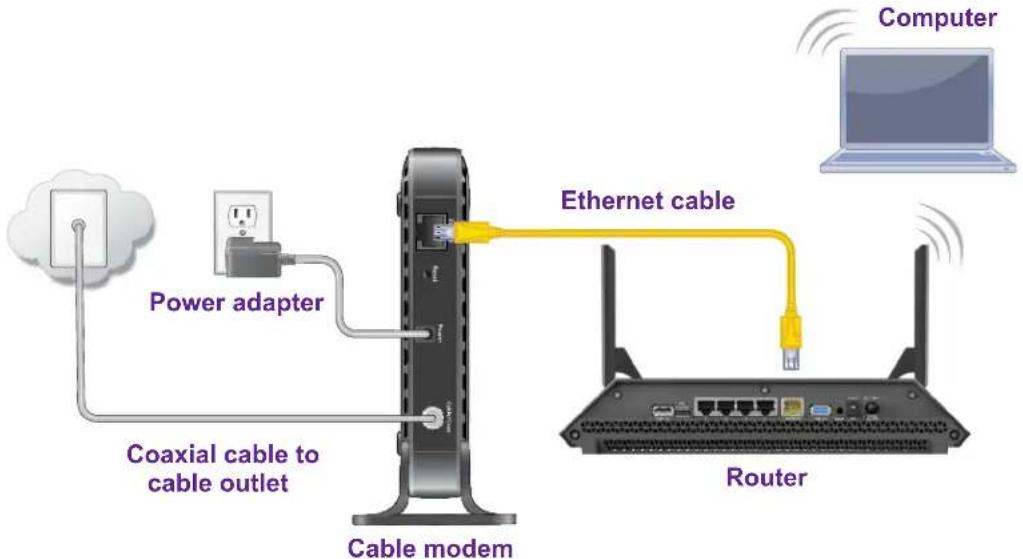
During the installation and activation, you must connect the cable modem directly to a computer. After installation and activation, you can connect the cable modem to a router.
flowchart
graph TD
    A["Power adapter"] --> B["Cable modem"]
    C["Coaxial cable to cable outlet"] --> B
    D["Router"] --> E["Ethernet cable"]
    F["Computer"] --> G["Wireless Device"]
Figure 7. Connect the cable modem to a router
To connect your cable modem to a router after installation and activation:
- Reboot the cable modem by unplugging the power cable from the cable modem and plugging it back in.
Note: Do not disconnect the cable modem from the cable outlet.
When the startup procedure is completed, the Power LED lights green.
Wait for the Internet LED to stop blinking and light solid green.
-
Use an Ethernet cable to connect the Ethernet port on the cable modem to the W AN or Internet port on the router.
-
Power on the router.
Wait until the router is ready.
- Connect a computer to the router over a WiFi connection or with an Ethernet cable to a LAN port on the router.
After you set up the cable modem, you do not need to log in to the cable modem for normal operation. However, you can log in to the cable modem to change some very limited settings and monitor the cable modem. In the unlikely situation that you experience problems with the cable connection and cannot get an Internet connection, technical support might ask you to log in to the router.
This chapter contains the following sections:
- Log In to the Cable Modem
- Specify the Cable Connection Starting Frequency
• View Cable Modem Initialization
• View Cable Modem Status
• View and Clear Event Logs - Change the admin Password
- Reboot the Cable Modem
- Reset the Cable Modem to Factory Default Settings
Log In to the Cable Modem
After you set up the cable modem, you do not need to log in to the cable modem for normal operation.
To log in to the cable modem, you must use a web browser such as Microsoft Internet Explorer 5.0 or later, Firefox Mozilla 2.0 or later, Safari 1.4 or later, or Google Chrome 11.0 or later.
To log in to the cable modem:
- Launch a web browser from a computer that is attached over an Ethernet cable to the cable modem or from a computer that is connected to a WiFi router that is attached over an Ethernet cable to the cable modem.
- Type http://192.168.100.1.
A login page displays.
- Enter the cable modem user name and password.
The user name is admin. The default password is password. The user name and password are case-sensitive.
The BASIC Home page displays.
Specify the Cable Connection Starting Frequency
The starting frequency for the cable connection is automatically generated. For most Internet connections, you do not need to specify this information. If you need to enter a starting frequency, contact your Internet provider.
To change the starting frequency:
- Launch a web browser from a computer that is attached over an Ethernet cable to the cable modem or from a computer that is connected to a WiFi router that is attached over an Ethernet cable to the cable modem.
- Type http://192.168.100.1.
A login page displays.
- Enter the cable modem user name and password.
The user name is admin. The default password is password. The user name and password are case-sensitive.
The BASIC Home page displays.
- Select Cable Connection.
The Cable Connection page displays.
-
In the Starting Frequency field, type a number.
-
Click the Apply button.
Your change takes effect.
View Cable Modem Initialization
You can track the initialization procedure of the cable modem and get details about the downstream and upstream cable channel. The time is displayed after the cable modem is initialized.
The cable modem automatically goes through the following steps in the provisioning process:
- Scans and locks the downstream frequency and then ranges the upstream channels.
- Obtains a WAN IP address for the cable modem.
- Connects to the Internet.
To view the status of the cable modem initialization:
- Launch a web browser from a computer that is attached over an Ethernet cable to the cable modem or from a computer that is connected to a WiFi router that is attached over an Ethernet cable to the cable modem.
- Type http://192.168.100.1.
A login page displays.
- Enter the cable modem user name and password.
The user name is admin. The default password is password. The user name and password are case-sensitive.
The BASIC Home page displays.
- Select Cable Connection.
The Cable Connection page displays.
The Startup Procedure section displays the initialization progress.
The Downstream Bonded Channels section displays the status of each channel.
- To see the Upstream Bonded Channels section and system time, scroll down.
View Cable Modem Status
You can view some basic information about the cable modem.
To view cable modem status:
- Launch a web browser from a computer that is attached over an Ethernet cable to the cable modem or from a computer that is connected to a WiFi router that is attached over an Ethernet cable to the cable modem.
- Type http://192.168.100.1.
A login page displays.
- Enter the cable modem user name and password.
The user name is admin. The default password is password. The user name and password are case-sensitive.
The BASIC Home page displays.
- Select ADVANCED.
The ADVACNED Home displays.
The Cable Information pane displays the following:
- Hardware Version. The version of the cable modem model.
- Firmware Version. The version of the cable modem firmware.
- Cable Modem Serial Number. The serial number of the cable modem.
- CM Certificate. The status of the cable modem certificate. If Not installed displays as the status, contact your cable Internet provider.
For information about using the Reboot button, see Reboot the Cable Modem on page 17.
For information about using the Factory Reset button, see Reset the Cable Modem to Factory Default Settings on page 18.
View and CClear Event Logs
Event logs capture important cable modem events.
To view and clear the event logs:
- Launch a web browser from a computer that is attached over an Ethernet cable to the cable modem or from a computer that is connected to a WiFi router that is attached over an Ethernet cable to the cable modem.
- Type http://192.168.100.1.
A login page displays.
- Enter the cable modem user name and password.
The user name is admin. The default password is password. The user name and password are case-sensitive.
The BASIC Home page displays.
- Select ADVANCED > Administration > Event Log.
The Event Log page displays.
The Event Log page shows the following information:
• Time. The time the event log entry was recorded.
- Priority. The severity for the event log entry.
• Description. A description of the event log entry.
- To refresh the log page, click the Refresh button.
- To clear the log entries, click the Clear Log button.
Change the admin Password
You can change the default password that is used to log in to the cable modem with the user name admin.
To change the password for the user name admin:
- Launch a web browser from a computer that is attached over an Ethernet cable to the cable modem or from a computer that is connected to a WiFi router that is attached over an Ethernet cable to the cable modem.
- Type http://192.168.100.1.
A login page displays.
- Enter the cable modem user name and password.
The user name is admin. The default password is password. The user name and password are case-sensitive.
The BASIC Home page displays.
- Select ADVANCED > Administration > Set Password.
The Set Password page displays.
- Type the old password.
- Type the new password in the Set Password field.
- Type the new password in the Repeat New Password field.
- Click the Apply button.
Your change takes effect.
Reboot the Cable Modem
Rebooting the cable modem disconnects all computers from the cable modem's local area network (LAN). After the cable modem is finished booting and reestablishes a connection with the cable provider's network, the devices reconnect to the cable modem's LAN.
To reboot the cable modem:
- Launch a web browser from a computer that is attached over an Ethernet cable to the cable modem or from a computer that is connected to a WiFi router that is attached over an Ethernet cable to the cable modem.
- Type http://192.168.100.1.
A login page displays.
- Enter the cable modem user name and password.
The user name is admin. The default password is password. The user name and password are case-sensitive.
The BASIC Home page displays.
- Select ADV ANCED.
The ADVANCED Home page displays.
- In the Cable Information pane, click the Reboot button.
A confirmation message displays.
- Click the OK button.
The cable modem reboots.
Reset the Cable Modem to Factory Default Settings
To reset the cable modem to factory default settings, you can use either the Reset button on the back panel of the cable modem or the Factory Reset software button. However, if you changed the default password to access the cable modem and lost the password, you must use the Reset button on the back panel.
After you reset the cable modem to factory default settings, the user name is admin, the password is password. The LAN IP address is always 192.168.100.1. You cannot change this LAN IP address.
Use the Reset Button on the Back Panel

CAUTION:
This process erases all settings that you configured in the cable modem.
To reset the cable modem to factory default settings:
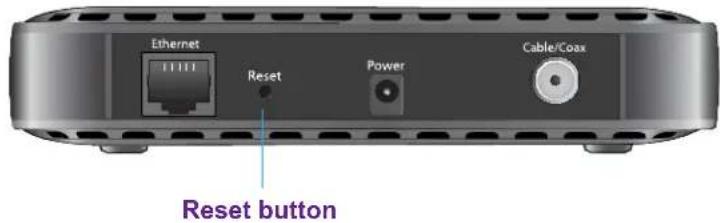
- On the back of the cable modem, locate the Reset button.
-
Using a straightened paper clip, press and hold the Reset button for about seven seconds until all LEDs blink.
-
Release the Reset button.
The configuration is reset to factory default settings. When the reset is complete, the cable modem reboots. This process takes about one minute.

WARNING:
To avoid the risk of corrupting the firmware, do not interrupt the reset. For example, if you are connected to the web management interface, do not close the browser, click a link, or load a new page. Do not turn off the cable modem.
Use the Factory Reset Software Button

CAUTION:
This process erases all settings that you configured in the cable modem.
To erase the settings:
- Launch a web browser from a computer that is attached over an Ethernet cable to the cable modem or from a computer that is connected to a WiFi router that is attached over an Ethernet cable to the cable modem.
- Type http://192.168.100.1.
A login page displays.
- Enter the cable modem user name and password.
The user name is admin. The default password is password. The user name and password are case-sensitive.
The BASIC Home page displays.
- Select ADVANCED.
The ADVANCED Home page displays.
- In the Cable Information pane, click the Factory Reset button.
A confirmation message displays.
- Click the OK button.
The configuration is reset to factory default settings. When the reset is complete, the cable modem reboots. This process takes about one minute.

WARNING:
To avoid the risk of corrupting the firmware, do not interrupt the reset. For example, do not close the browser, click a link, or load a new page. Do not turn off the cable modem.
Troubleshooting
3
This chapter provides information about troubleshooting your cable modem.
The chapter includes the following sections:
- Use LEDs to Troubleshoot
- Cannot Log In to the Cable Modem
- Troubleshoot the Cable Internet Connection
Note: NETGEAR provides helpful articles and documentation at support.netgear.com.
Use LEDs to Troubleshoot
The following table provides help when you are using the LEDs for troubleshooting.
Table 2. Troubleshooting with LEDs
| LED Behavior Action | |
| All LEDs are off when the cable modem is plugged in. | Make sure that the power cord is properly connected to your cable modem and that the power supply adapter is properly connected to a functioning power outlet.Check that you are using the 12 VDC power adapter from NETGEAR for this product.If the error persists, a hardware problem occurred. Contact technical support. |
| All LEDs stay on. | Clear the configuration of the cable modem to its factory defaults. This operation sets the IP address of the cable modem to 192.168.100.1.If the error persists, a hardware problem occurred. Contact technical support. |
| Ethernet LED is off for a port with an Ethernet connection. | Make sure that the Ethernet cable connections are secure at the cable modem and at the computer, router, or WiFi router.Make sure that power is turned on to the connected hub or computer.Be sure that you are using the correct cable. |
| Internet LED is off and the cable modem is connected to the cable wall jack. | Make sure that the coaxial cable connections are secure at the cable modem and at the wall jack.Make sure that your cable Internet provider provisioned your cable Internet service. Your provider can verify that the signal quality is good enough for cable modem service.Remove any excessive splitters that you installed on your cable line. Run a “home run” back to the point where the cable enters your home. |
Cannot Log In to the Cable Modem
If you cannot access the cable modem from computer that is connected to the cable modem or to a router that is connected the cable modem, check the following:
- If your computer is connected to the cable modem with an Ethernet cable, check the connection.
- Make sure that your computer's IP address is on the same subnet as the cable modem. The IP address of your computer must be in the range of 192.168.100.2 to 192.168.100.254.
- Make sure Java, JavaScript, or ActiveX is enabled in your browser. If you are using Internet Explorer, click the Refresh button to make sure that the Java applet is loaded.
- T ry quitting the browser and launching it again.
- Make sure that you are using the correct login information. The cable modem user name admin is lowercase (Caps Lock is off). The default password is password.
If the cable modem does not save changes you made, do the following:
- When entering configuration settings, be sure to click the Apply button before moving to another page, or your changes are lost.
- Click the Refresh or Reload button in the web browser. The changes occurred, but the web browser might be caching the old configuration.
Troubleshoot the Cable Internet Connection
If your cable modem cannot access the Internet but the Internet LED lights green, register the cable MAC address or device MAC address of your cable modem with your cable Internet provider (see Activate Your Internet Service on page 9).
The following table lists the technical specifications for the cable modem.
Table 3. Technical specifications
| Feature Specification | |
| Power adapter • Input: 1 | 10–120V, 47–60 HzOutput: 12 VDC, 1A |
| Physical specifications | Dimensions: 5.8 x 3.8 x 1.8 in. (147 x 96 x 30 mm)W eight: 0.44 lb (0.19 kg) |
| Environmental • Operating temperature: 32° to 104°F (0° to 40°C)Operating humidity: 90% maximum relative humidity , noncondensing | |
| Interface • Local: 10/100/1000 | RJ-45 Gigabit Ethernet portInternet: Coaxial cable connectorDOCSIS 3.0: Backward compatible with DOCSIS 2.0 |
| Memory • 8 MB Flash | 64 MB RAM |
| Certifications CableLabs certified for U.S. cable Internet services | |

- High Speed Cable Modem
- CM400 High Speed Cable Modem
- Support
- Conformity
- Compliance
- Trademarks
- Contents
- Chapter 1 Hardware and Internet Setup
- Chapter 2 Manage and Monitor
- Chapter 3 Troubleshooting
- Appendix A Technical Specifications
- Hardware and Internet Setup
- 1
- Unpack Your Cable Modem
- Front Panel
- Back Panel
- Product Label
- Attach the Feet
- To attach the feet:
- Cable Your Cable Modem
- To cable your cable modem:
- Install and Activate Your Cable Modem
- Activate Your Internet Service
- To activate your Internet service:
- Activate Your Internet Service With Comcast XFINITY
- To set up your Internet connection with Comcast XFINITY's self-activation process:
- Perform a Speed Test
- Connect Your Cable Modem to a Router After Installation and Activation
- To connect your cable modem to a router after installation and activation:
- Log In to the Cable Modem
- To log in to the cable modem:
- Specify the Cable Connection Starting Frequency
- To change the starting frequency:
- View Cable Modem Initialization
- View Cable Modem Status
- View and CClear Event Logs
- Change the admin Password
- To change the password for the user name admin:
- Reboot the Cable Modem
- To reboot the cable modem:
- Reset the Cable Modem to Factory Default Settings
- Use the Reset Button on the Back Panel
- CAUTION:
- To reset the cable modem to factory default settings:
- WARNING:
- Use the Factory Reset Software Button
- To erase the settings:
- Troubleshooting
- 3
- Use LEDs to Troubleshoot
- Cannot Log In to the Cable Modem
- Troubleshoot the Cable Internet Connection
Brand : NETGEAR
Model : CM400
Category : Computer and Peripheral Cables