
UniFi UAP-AC Outdoor - Access Point Ubiquiti Networks - Free user manual and instructions
Find the device manual for free UniFi UAP-AC Outdoor Ubiquiti Networks in PDF.


| Product Type | Outdoor Wireless Access Point |
| Model | UniFi UAP-AC Outdoor |
| Dimensions | 353 x 46 x 30 mm (13.9 x 1.8 x 1.2 in) |
| Weight | 235 g (8.3 oz) |
| Power Supply | 24V Passive PoE (included adapter) |
| Power Consumption | 8W max |
| Wireless Standards | 802.11a/b/g/n/ac |
| Frequency Bands | 2.4 GHz and 5 GHz |
| Maximum Data Rate | 2.4 GHz: 300 Mbps, 5 GHz: 867 Mbps |
| Antenna Type | Dual-band, 2x2 MIMO, integrated omni |
| Mounting | Wall or pole mount (included) |
| Weatherproof Rating | IP65 |
| Operating Temperature | -30 to 70°C (-22 to 158°F) |
| Management | UniFi Controller software (included) |
| Security | WPA2, WPA, WEP, guest portal, VLAN |
| LED Indicators | 4 LEDs for power, LAN, and wireless status |
| Interfaces | 1x 10/100/1000 Ethernet (RJ45) |
| Maintenance | Factory reset button, firmware upgrade via controller |
| Spare Parts | PoE adapter, mounting brackets sold separately |
| Repairability | Not user-serviceable; contact support |
| General Information | Designed for outdoor use, supports mesh and VLAN |
Frequently Asked Questions - UniFi UAP-AC Outdoor Ubiquiti Networks
User questions about UniFi UAP-AC Outdoor Ubiquiti Networks
0 question about this device. Answer the ones you know or ask your own.
Ask a new question about this device
Download the instructions for your Access Point in PDF format for free! Find your manual UniFi UAP-AC Outdoor - Ubiquiti Networks and take your electronic device back in hand. On this page are published all the documents necessary for the use of your device. UniFi UAP-AC Outdoor by Ubiquiti Networks.
USER MANUAL UniFi UAP-AC Outdoor Ubiquiti Networks
Chapter 1: Software Installation....1
Introduction....1
System Requirements ....1
Network Topology Requirements....1
Software Installation....1
Chapter 2: UniFi Cloud....5
Introduction....5
UniFi Cloud Key 5
UniFi Cloud Account....12
Chapter 3: Using the UniFi Controller Software....17
Navigation Bar 17
Common Interface Options....17
Chapter 4: Dashboard ....33
Internet 34
Gateway/Router....34
Local Area Network....35
Wireless Local Area Network....35
Chapter 5: Map....37
Adding Custom Maps....37
Adding a Google Map ....38
Placing Devices on the Map....39
Map Display Options ....40
Setting the Map Scale ....41
Chapter 6: Devices ....43
All....43
Gateway/Switches....44
APs 45
Phones....48
Properties....48
Chapter 7: Clients ....51
All....51
Wireless....52
Wired 53
Properties....53
Chapter 8: Statistics ....55
Clients (Total) 56
Quick Look....56
Current Usage - Top Access Points 56
Recent Activities....56
Filter 57
Chapter 9: Insights ....59
Known Clients....59
Rogue Access Points....60
Past Connections....61
Past Guest Authorizations ....61
Switch Stats....62
Remote User VPN....64
Dynamic DNS 64
Port Forward Stats....64
Chapter 10: UniFi Security Gateway Details ...... 67
Properties....67
UniFi Security Gateway – Details 68
UniFi Security Gateway – Statistics....69
UniFi Security Gateway – Networks 69
UniFi Security Gateway – Configuration....70
Chapter 11: UniFi Switch Details .....75
Properties....75
UniFi Switch – Details....76
UniFi Switch – Ports 77
UniFi Switch – Configuration....79
Chapter 12: UniFi Access Point Details ....83
Properties....83
UniFi Access Point – Details....84
UniFi Access Point – Users ....87
UniFi Access Point – Guests ....88
UniFi Access Point – Configuration....88
Chapter 13: UniFi VoIP Phone Details .....95
Properties....95
UniFi VoIP Phone – Details .....95
UniFi VoIP Phone – Configuration....96
Chapter 14: Client Details....97
Properties....97
Wireless Client – Details 97
Wireless Client – Statistics .....98
Wireless Client – History 98
Wireless Client – Configuration 99
Wired Client – Details.... 100
Wired Client – Statistics.... 100
Wired Client – History 101
Wired Client – Configuration.... 101
Chapter 15: Hotspot Manager .... 103
Guests 103
Payments and Transactions.... 104
Vouchers....104
Operator Accounts 105
Appendix A: Portal Customization 107
Overview....107
Enabling Portal Customization.... 107
Viewing the Default Portal.... 107
Setup 108
Appendix B: UniFi Discovery Utility 111
Overview....111
Launching the UniFi Discovery Utility 111
UniFi Discovery Utility Interface....111
Appendix C: Mobile Apps 115
Overview....115
UniFi EasySetup App 115
UniFi EDU App 117
Appendix D: Contact Information.... 119
Ubiquiti Networks Support 119
Table of Contents UniFi Controller User Guide
Chapter 1: Software Installation
Introduction
Thank you for purchasing the Ubiquiti Networks® UniFi® Enterprise System. The UniFi devices are bundled with the UniFi Controller software, which allows you to manage your UniFi network using a web browser.
This User Guide is for use with version 4.8.7 or above of the UniFi Controller software.
System Requirements
• Linux, Mac OS X, or Microsoft Windows 7/8/10
- Java Runtime Environment 1.6 (1.8 or above recommended)
- Web Browser: Mozilla Firefox, Google Chrome, Microsoft Edge, or Microsoft Internet Explorer 10 (or above)
Network Topology Requirements
-
A DHCP-enabled network (so any device can obtain an IP address)
• One of the following: -
UniFi Cloud Key
- A management station running the UniFi Controller software, located either on-site and connected to the same Layer-2 network, or off-site* in a cloud or NOC
- For the public address system capability of the UAP-AC-EDU: A compatible Android™ or iOS device located on the same Layer-2 network as the UniFi Controller and UniFi APs
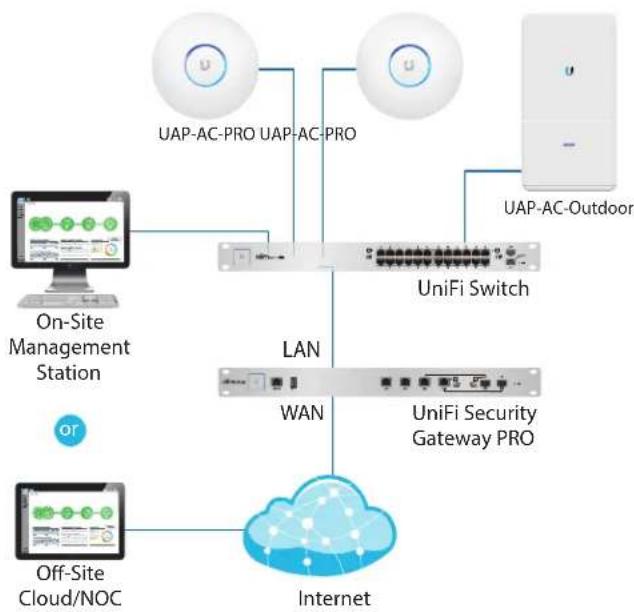
flowchart
graph TD
    A["On-Site Management Station"] --> B["UniFi Switch"]
    C["Off-Site Cloud/NOC"] --> D["Internet"]
    B --> E["UAP-AC-PRO UAP-AC-PRO"]
    D --> F["UNiFi Security Gateway PRO"]
    B --> G["UAP-AC-Outdoor"]
    D --> H["WAN"]
Sample Network Diagram
* Requires Layer-3 adoption. For details, refer to: http://ubnt.link/UniFi-Layer3-Adoption
Ubiquiti Networks, Inc.
All UniFi devices support off-site management controllers.
Follow the instructions in this chapter after you install the hardware, which is described in the Quick Start Guide.
Software Installation
Download the latest version of the UniFi Controller software at downloads.ubnt.com/unifi
Follow the instructions for your specific computer or device type.
UniFi Cloud Key Users
If you have the UniFi Cloud Key, please refer to "UniFi Cloud Key" on page 5 for more information.
UniFi Cloud Users
If you have a UniFi cloud account, please refer to "UniFi Cloud Account" on page 12 for more information.
Linux Users
Additional details on portal customization can be found in our community site at: http://ubnt.link/UniFi-Blog
Mac Users
- Launch UniFi.pkg.
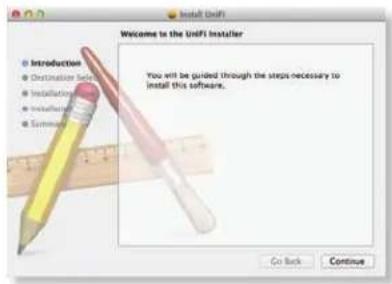
- Click Continue and follow the on-screen instructions to install the software.
text_image
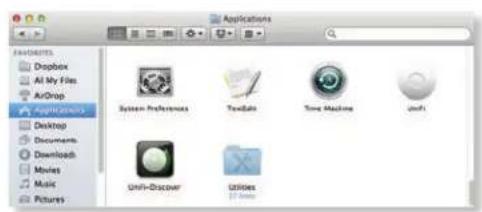
Welcome to the UniFi Installer Introduction Destination Selection Installation Installation Summary You will be guided through the steps necessary to install this software. Go Back Continue- Go to Go > Applications and double-click the UniFi icon.
text_image
Applications System Preferences Texts Time Machine Unit Unity-Discover Utilies 21 MinutesProceed to "Configuring the UniFi Controller Software" on page 2.
Chapter 1: Software Installation UniFi Controller User Guide
PC Users
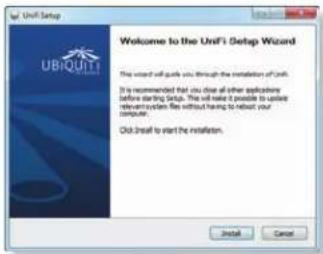
- Launch UniFi-installer.exe.
- Click Install.
text_image
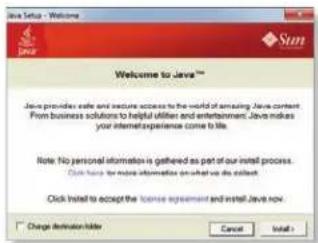
UniFi Setup Wizard Welcome to the UniFi Setup Wizard This wizard will guide you through the installation of UniFi. It is recommended that you close all other applications before starting Setup. This will make it possible to update relevant system file without having to reboot your computer. Click to start to start the installation. Install Cancel- If your computer doesn't have Java 1.6 or above installed, you will be prompted to install it. Click Install to continue.
text_image
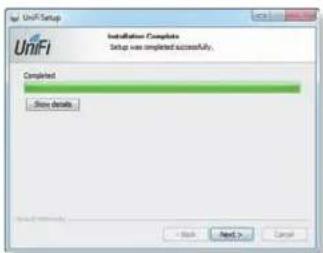
Java Setup - Welcome Welcome to Java™ Java provides safe and secure access to the world of amazing Java content. From business solutions to helpful utilities and entertainment. Java makes your internet experience come to life. Note: No personal information is gathered as part of our install process. Click here for more information on what we do collect. Click installed to accept the license agreement and install Java now. Change destination holder Cancel Install>- Click Next.
text_image
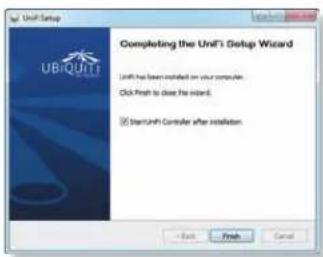
UniFi Setup Installation Complete Setup was completed successfully. Completed Show details Back Next > Cancel- Ensure that the Start UniFi Controller after installation option is checked and click Finish.
text_image
Unit4 Setup Completing the Unit4 Setup Wizard Unit4 has been installed on your computer. Click Print to close the window. ✓ StartUnit4 Controller after installation. OK Finish Cancel
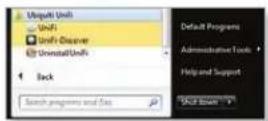
Note: The UniFi Controller software can also be launched from Start > All Programs.
Configuring the UniFi Controller Software
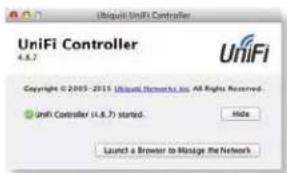
- The UniFi Controller software startup will begin. Click Launch a Browser to Manage Wireless Network.
text_image
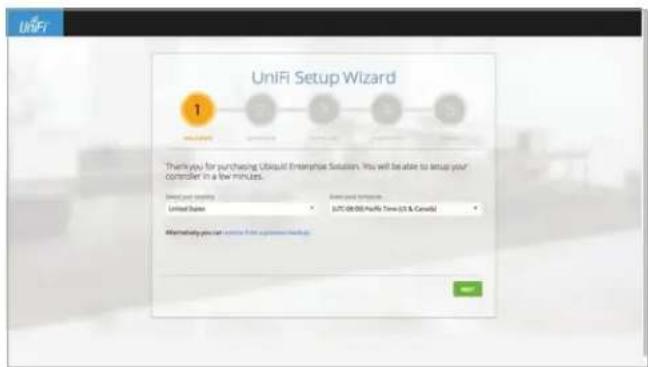
Ubiqui UniFi Controller 4.8.7 Copyright © 2005-2015 Ubiqui UniFi Inc. All Rights Reserved. UniFi Controller (4.8.7) started. Hide Launch a Browser to Manage the Network- Select your country and time zone. Alternatively, you can click restore from a previous backup to use a file that contains your backup settings. Click Next.
text_image
UniFi Setup Wizard 1 Thank you for purchasing Ubiquiti Enterprise Solution. You will be able to setup your controller in a few minutes. Select your account: United States Options your service: U2C OR 90% Pacific Time (US & Canada) Alternatively you can create this business setup.
Note: U.S. product versions are locked to the U.S. Country Code to ensure compliance with FCC regulations.
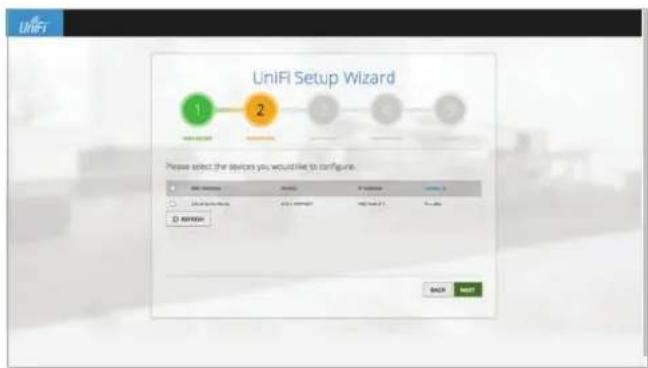
- Select the devices that you want to configure and click Next.
text_image
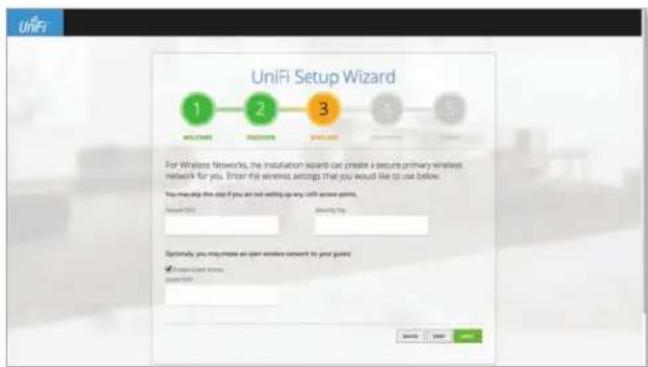
UniFi Setup Wizard 1 2 Please select the devices you would like to configure. OK Cancel OK Cancel OK Cancel OK Cancel OK Cancel BACK Next- The UniFi Setup Wizard will create a secure primary wireless network for your devices. Perform the following steps:
text_image
UniFi Setup Wizard 1 WELCOME 2 INSTALLING 3 INSTALLING 4 5 For Wireless Networks, the installation island can create a secure primary wireless network for you. Stream the wireless settings that you would like to use below. You may also this step if you are not setting up any WiFi access points. Network ID: 011 Something by: Optimize, you may create an open wireless network to your gain? Connect Wi-Fi Access SUPPORTa. Enter the wireless network name (SSID) in the Secure SSID field.
b. Enter a passphrase to be used for your primary network in the Security Key field.
c. To enable guest access, select Enable Guest Access, and enter a guest network name in the Guest SSID field.
d. Click Next.
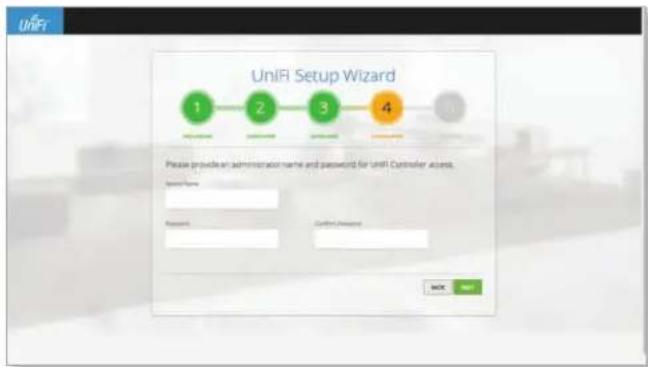
- Enter an admin name in the Admin Name field and password in the Password field to use when accessing the management interface as a super admin. Confirm your password in the Confirm Password field. Click Next.
text_image
UniFi Setup Wizard Please provide an administrator name and password for UniFi Controller access. Special Name: Password: Confirmed Password: OK Next
Note: Only the super admin – not any site admin – can view devices that are Pending Approval and then adopt them on the UniFi Controller. Ensure that you save the super admin login information for future use.
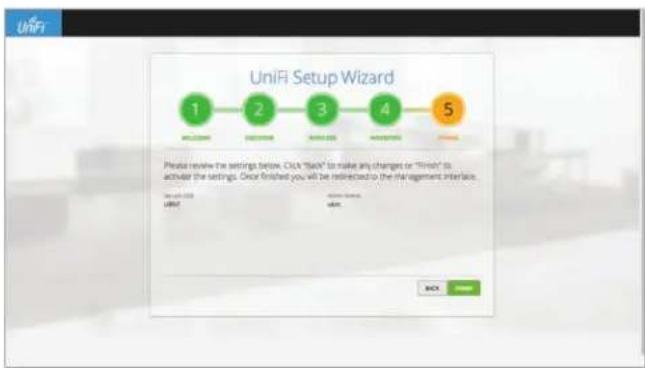
- Review your settings. Click Finish to save your settings or click Back to make changes. Once the wizard is finished, the browser will be redirected to the management interface.
text_image
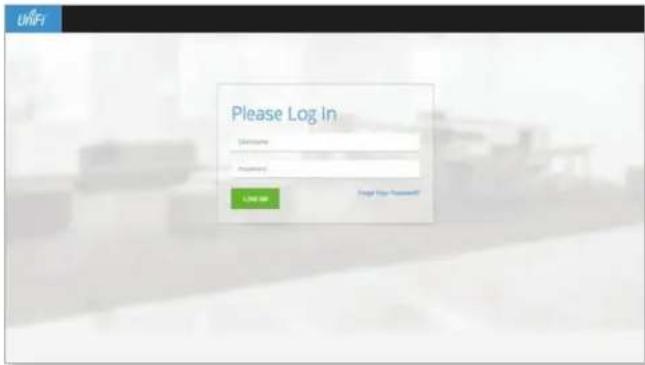
UniFi Setup Wizard 1 WELCOME 2 CUSTOMER 3 CUSTOMER 4 CUSTOMER 5 Please review the settings below. Click "Back" to make any changes or "Finish" to activate the settings. Once finished you will be restructured to the management interface. Search URL: UNFI Add: Status: OK CancelCongratulations, your wireless network is now configured.
A login screen will appear for the UniFi Controller management interface. Enter the admin name and password that you created and click Login.
text_image
Please Log In Welcome Password: Log In Send Info Password:0!Proceed to "Using the UniFi Controller Software" on page 17 for information on using the UniFi Controller software.
Chapter 1: Software Installation UniFi Controller User Guide
Chapter 2: UniFi Cloud
Introduction
You can access the UniFi Controller via the UniFi Cloud Key and/or the UniFi cloud account. This chapter describes the following:
- UniFi Cloud Key
• "UniFi Cloud Account" on page 12
UniFi Cloud Key
The UniFi Cloud Key includes the pre-installed UniFi Controller software.
System Requirement
Web Browser: Google Chrome, Mozilla Firefox, Microsoft Edge, or Microsoft Internet Explorer 10 (or above)
Network Topology Requirement
A DHCP-enabled network (for the UniFi Cloud Key to obtain an IP address)
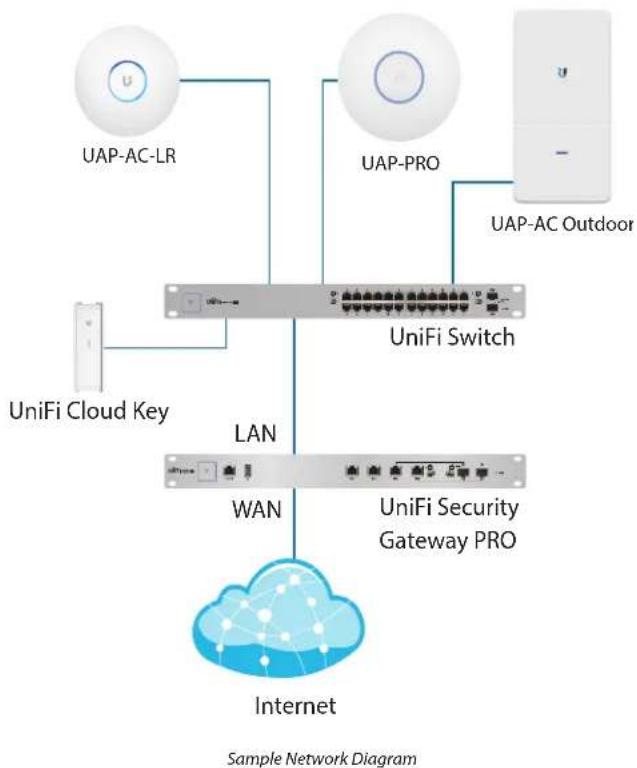
flowchart
graph TD
    A["UAP-AC-LR"] --> B["UniFi Switch"]
    C["UAP-PRO"] --> B
    D["UAP-AC Outdoor"] --> B
    E["UniFi Cloud Key"] --> B
    B --> F["LAN"]
    B --> G["WAN"]
    H["UniFi Security Gateway PRO"] --> G
    I["Internet"] --> G
    style A fill:#f9f,stroke:#333
    style C fill:#f9f,stroke:#333
    style D fill:#f9f,stroke:#333
    style E fill:#ccf,stroke:#333
    style F fill:#cff,stroke:#333
    style G fill:#cff,stroke:#333
    style H fill:#ffc,stroke:#333
    style I fill:#ffc,stroke:#333
Software Installation
After you follow the hardware installation instructions in the UniFi Cloud Key Quick Start Guide, use one of the following methods to launch the software:
- If you are using Chrome, go to the Chrome Instructions section (recommended).
- If you are using a different web browser, go to "Instructions for Other Web Browsers" on page 7.
Chrome Instructions
- Ensure that your host system is on the same Layer-2 network as the UniFi Cloud Key.
- Launch the Chrome web browser and type https://unifi.ubnt.com in the address field. Press enter (PC) or return (Mac).

- Enter the username and password for your UBNT account. Click Sign In.
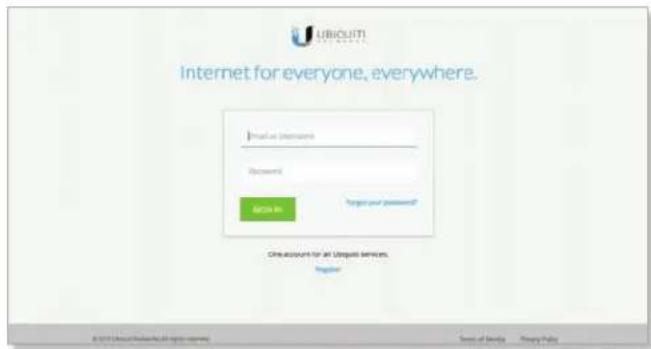
text_image
UBICUITI Internet for everyone, everywhere. Internet for everyone Password Password GET IN Target your password? Get account for an Ubiquitii service, Register- Click Find Cloud Key.
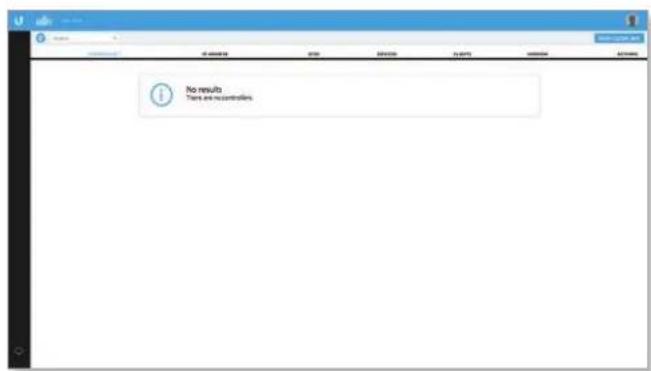
text_image
No results There are no controllers.
Note: The default fallback IP address of the UniFi Cloud Key is 192.168.1.30.
- If the Ubiquiti® Device Discovery Tool is already installed, proceed to step 7. If the tool is not installed, you will be prompted to add it. Proceed to step 6.
Chapter 2: UniFi Cloud UniFi Controller User Guide
6. To install the tool:
a. Click Install.
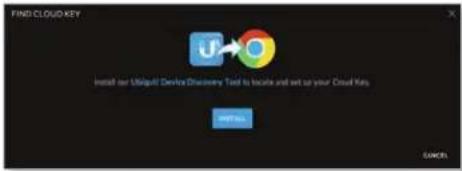
text_image
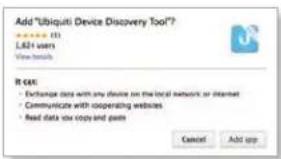
FIND CLOUD KEY Install our Startup Device Discovery Teed to locate and set out your Cloud Key OK/Cancelb. Click Add app to confirm.
text_image
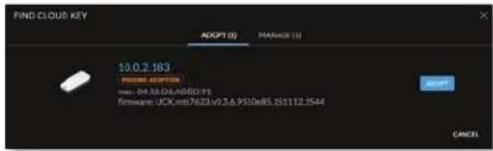
Add "Ubiquiti Device Discovery Tool"? L621 users View details R GAS • Exchange data with any device on the local network or internet • Communicate with cooperating websites • Read data you copy and pasts Cancel Add app- The Ubiquiti Device Discovery Tool will search for the UniFi Cloud Key. Select it to continue.
text_image
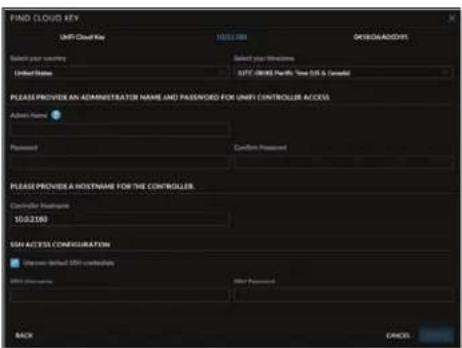
FIND CLOUD KEY ADOPT (S) CHANGE (U) 10.0.2.183 PHONE ADOPT user: 0635000000000000 Firmware: UCKcntd7623.v9.3.6.950e85.15112.3544 CANCE- Configure the UniFi Controller:
a. Select the appropriate country.
b. Select the appropriate time zone.
c. Enter an admin name in the Admin Name field and a password in the Password field to use when accessing the management interface.
d. Confirm your password in the Confirm Password field.
e. Keep the IP address or enter a hostname in the Controller Hostname field.
f. If you want to set up an SSH login for management access to the UniFi Cloud Key, then select Use non-default SSH credentials. Enter a username in the SSH Username field, and enter a password in the SSH Password field.
g. Click Submit to save your changes.
text_image
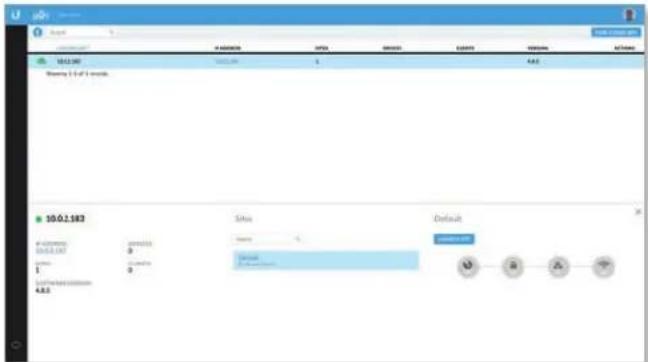
FIND CLOUD KEY UNFI Cloud Key 1002.088 DOWNLOAD/ADD/9 Select your country Select your structure United States SPTC (ORGE) Parfs: New SIS & Canada PLEASE PROVIDE AN ADMINISTRATOR NAME AND PASSWORD FOR UNIFI CONTROLLER ACCESS Active Name Password Confirm Password PLEASE PROVIDE A HOSTNAME FOR THE CONTROLLER Controller Hostname 10.0.2180 SAN ACCESS CONFIGURATION Show down Default LAN credentials Other credentials Offer Password BACK CHECK- Wait for the UniFi Controller to be adopted, and then select it.

text_image
admin 2013-04-06 4 minutes 4 hours 9 minutes 5 minutes 4 minutes 4 minutes 4 minutes 4 minutes 4 minutes 4 minutes 4 minutes 4 minutes 4 minutes 4 minutes 4 minutes 4 minutes 4 minutes 4 minutes 4 minutes 4 minutes 4 minutes 4 minutes 4 minutes 4 minutes 4 minutes 4 minutes 4 minutes 4 minutes 4 minutes 4 minutes 4 minutes 4 minutes 4 minutes 4 minutes 4 minutes 4 minutes 4 minutes 4minutes- Click Launch Site.
text_image
10.0.2.183 Site Default #000000 #000000 #000000 #000000 #000000 #000000 #000000 #000000 #000000 #000000 #000000 #000000 #000000 #01.1.183 Time Time Date Date Date Date Date Date Date Date Date Date Date Date Date Date Date Date Date Date Date Date Date Date Date Date Date Date Date Date Date Date Date Date Date Date Date Date Date Date Date Date Date Date Date Date Date Date Date Date Date Date D P A TA login screen will appear for the UniFi Controller management interface. Enter the admin name and password that you created and click Login.
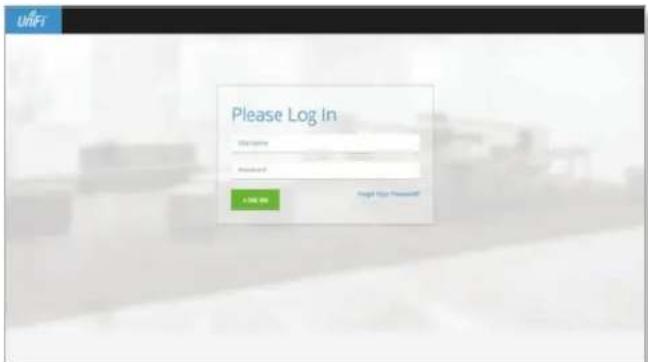
text_image
Please Log In Login Password: Password: A: 500 MHz Crypt Key Password:Proceed to "Using the UniFi Controller Software" on page 17 for information on using the UniFi Controller software.

Note: A future feature will enable backup of the UniFi Controller database and configuration on the included microSD card.
Instructions for Other Web Browsers
- Ensure that your host system is on the same Layer-2 network as the UniFi Cloud Key.
- The UniFi Cloud Key is set to DHCP by default, so it will try to automatically obtain an IP address. Assign a specific IP address to the UniFi Cloud Key, or check the DHCP server for its IP address.

Note: The default fallback IP address of the UniFi Cloud Key is 192.168.1.30.
- Launch the web browser. In the address field, type https://followed by the appropriate IP address. Press enter (PC) or return (Mac).

- Click Manage to run the UniFi Setup Wizard.
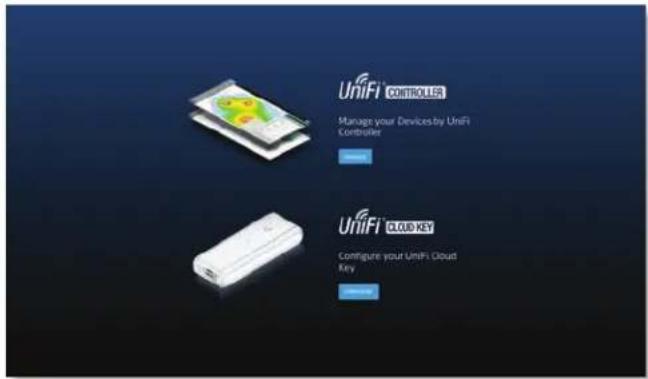
text_image
UNIFI CONTROLLER Manage your Devices by UniFi Controllers Unifi CLOUD KEY Configure your UniFi Cloud Key
Note: You can click Configure to change the settings of the UniFi Cloud Key (refer to "UniFi Cloud Key Configuration" on page 8 for more information). The default login is ubnt/ubnt or root/ubnt.
- The UniFi Setup Wizard screen appears. Alternatively, you can click restore from a previous backup to use a file that contains your backup settings. Click Next.
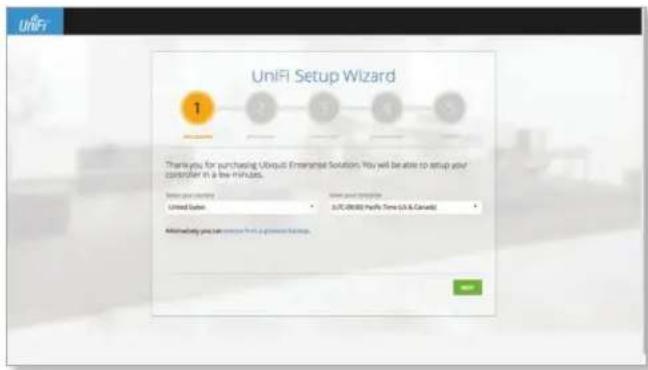
text_image
UniFi Setup Wizard 1 Thank you for purchasing Ubiquiq Enterprise Solutions. You will be able to setup your controller in a few minutes. Enter your computer United States Enter your computer AUTC 08:00 (Payfe Time (U.S & Canada)) Additionally you can remove how a power has come.
Note: U.S. product versions are locked to the U.S. Country Code to ensure compliance with FCC regulations.
- Select the devices that you want to configure and click Next.
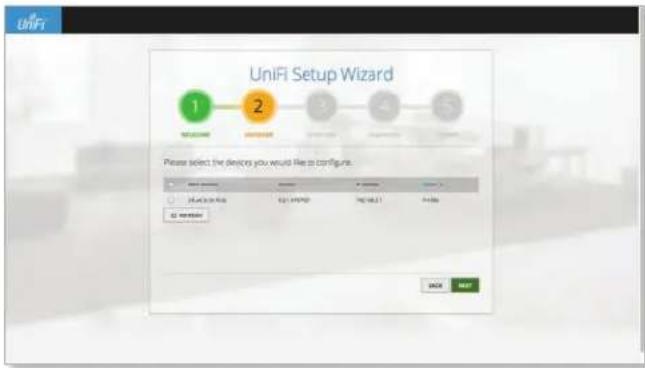
text_image
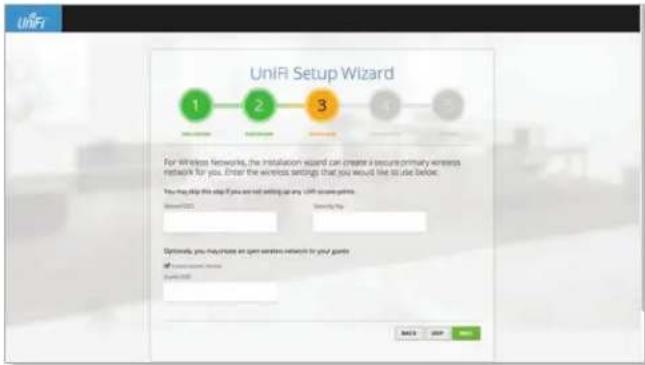
UniFi Setup Wizard 1 2 3 4 5 WELCOME WELCOME Please select the devices you would like to configure. OK Cancel OK Cancel- The UniFi Setup Wizard will create a secure primary wireless network for your devices. Perform the following steps:
text_image
UniFi Setup Wizard 1 2 3 4 5 For wireless networks, the installation wizard can create a secure primary wireless network for you. Enter the wireless settings that you would like to use before. You may also step if you are not setting up any UniFi setup point. Select: 0.01 Cancel: 0.01 Options, you may choose an open wireless network for your games. of wireless network Select: 0.01 OK Help Nexta. Enter the wireless network name (SSID) in the Secure SSID field.
b. Enter a passphrase to be used for your primary network in the Security Key field.
c. To enable guest access, select Enable Guest Access, and enter a guest network name in the Guest SSID field.
d. Click Next.
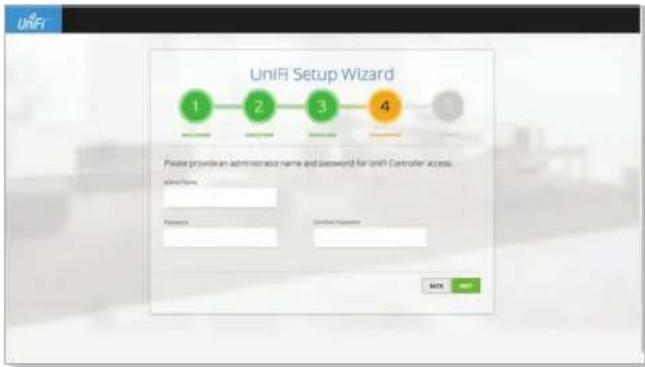
- Enter an admin name in the Admin Name field and password in the Password field to use when accessing the management interface as a super admin. Confirm your password in the Confirm Password field. Click Next.
text_image
UniFi Setup Wizard 1 2 3 4 Please provide an administrator name and password for UniFi Controller access. Admin Name: Password: Confirm Password: OK CancelChapter 2: UniFi Cloud UniFi Controller User Guide

Note: Only the super admin – not any site admin – can view devices that are Pending Approval and then adopt them on the UniFi Controller. Ensure that you save the super admin login information for future use.
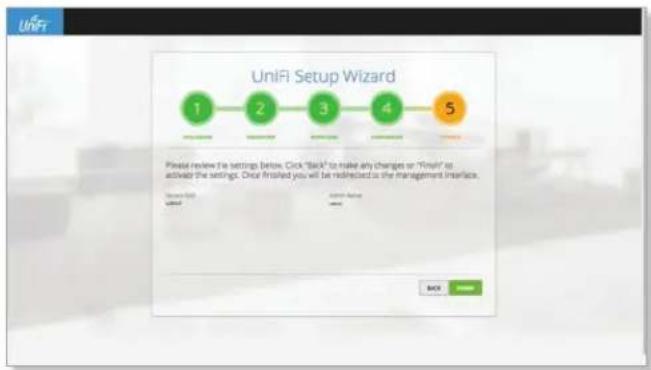
- Review your settings. Click Finish to save your settings or click Back to make changes. Once the wizard is finished, the browser will be redirected to the management interface.
text_image
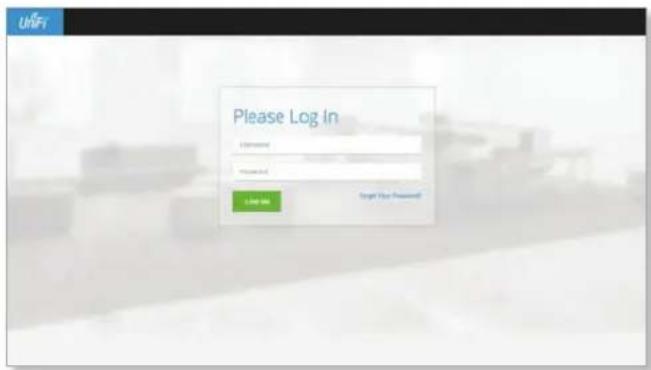
UniFi Setup Wizard 1 2 3 4 5 Please review the settings below. Click "Back" to make any changes or "Finish" to activate the settings. Once finished you will be redirected to the management interface. Close Back USE Cancel Active CloseCongratulations, your wireless network is now configured. A login screen will appear for the UniFi Controller management interface. Enter the admin name and password that you created and click Login.
text_image
Please Log In Login Password Password 1.50 sec Target Key Password!Proceed to "Using the UniFi Controller Software" on page 17 for information on using the UniFi Controller software.

Note: A future feature will enable backup of the UniFi Controller database and configuration on the included microSD card.
UniFi Cloud Key Configuration
Login Instructions
- Ensure that your host system is on the same Layer-2 network as the UniFi Cloud Key.
- The UniFi Cloud Key is set to DHCP by default, so it will try to automatically obtain an IP address. Assign a specific IP address to the UniFi Cloud Key, or check the DHCP server for its IP address.

Note: The default fallback IP address of the UniFi Cloud Key is 192.168.1.30.
- Launch the web browser. In the address field, type https:// followed by the appropriate IP address. Press enter (PC) or return (Mac).

text_image
https://-
You have two options:
-
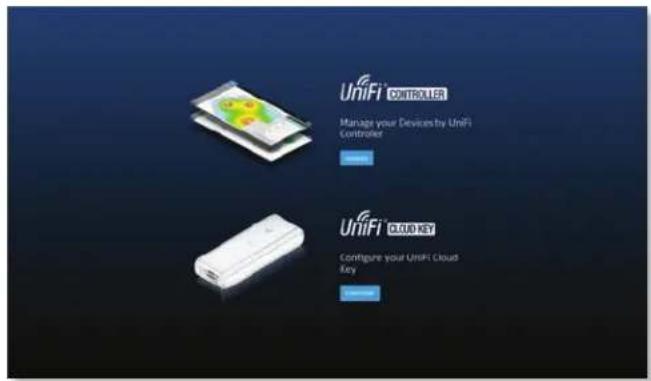
Manage Click Manage to access the UniFi Controller. Proceed to "Using the UniFi Controller Software" on page 17 for more information.
- Configure Click Configure to change the settings of the UniFi Cloud Key.
text_image
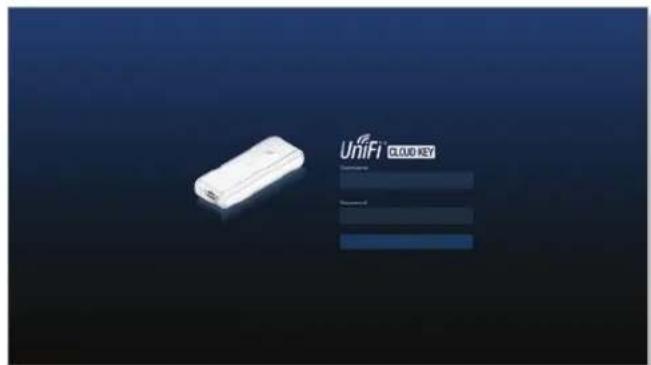
UniFi® CONTROLLER Manage your Devices by UniFi Controller Unifi® O.D. KEY Configure your UniFi Cloud Key- After you click Configure, enter the Username and Password (the default login is ubnt/ubnt). Then click Login.
text_image
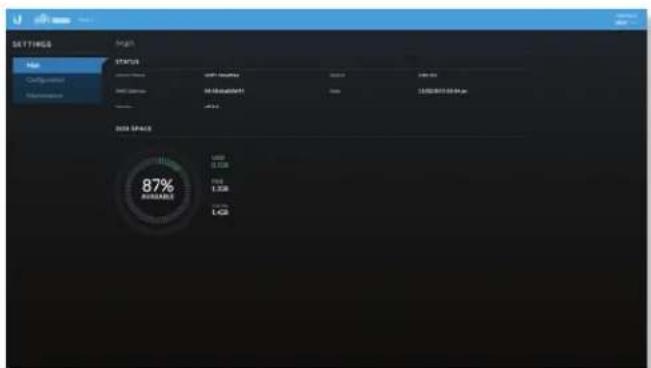
UNIFI CLOUD KEYThe Main screen will appear.
Navigation Bar
The UniFi Cloud Key configuration consists of three primary pages:
• "Main" on page 9
- "Configuration" on page 10
• "Maintenance" on page 10
text_image
SETTINGS Main Configuration Parameters Height STATUS Current Status: 100% Current Progress: 100% Current Progress: 100% DOOR SPACE 87% DOOR SPACE 100% 2.536 4.00 1.306 1.00Username
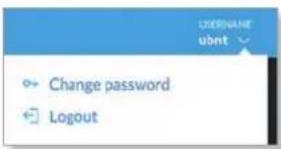
At the top right of each screen, click the Username to display the Change Password and Logout options:
text_image
Change password LogoutChange password To change the password, click Change password. The Change Password screen will appear:
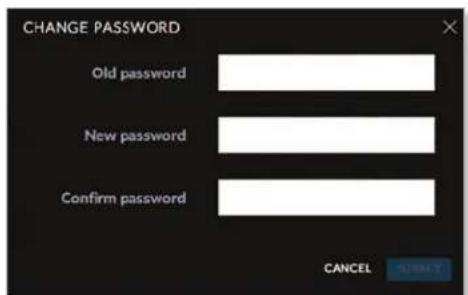
text_image
CHANGE PASSWORD Old password New password Confirm password CANCEL- Old password Enter the current password (the default is ubnt).
- New password Enter the new password.
- Confirm Password Enter the new password again.
- Submit Click Submit to apply changes.
- Cancel Click Cancel to discard changes.
Logout To manually sign out of the UniFi Cloud Key configuration, click ← Logout
Main
The Main screen displays basic status information about the UniFi Cloud Key.
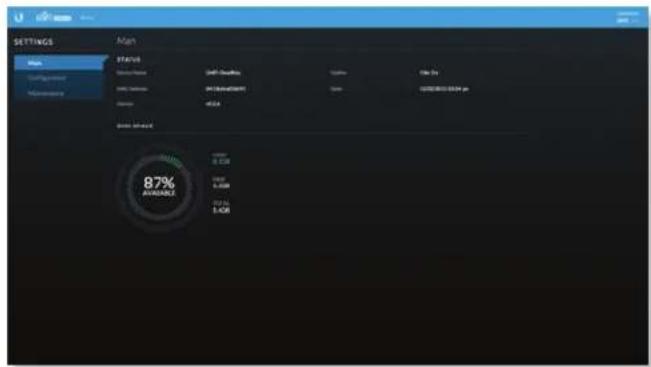
text_image
SETTINGS Main START Name Name: DHT-000000000000000000000000000000000000000000000000000000000000000000000000000000000 87% AVAILABLEStatus
Device Name Displays the hostname or alias of the UniFi Cloud Key.
MAC Address Displays the MAC address or hardware identifier of the UniFi Cloud Key.
Version Displays the version number of the UniFi Cloud Key firmware.
Uptime Displays the duration of time the UniFi Cloud Key has been running.
Date Displays the current date and time.
Disk Space
Available Displays the percentage of available disk space.
Used Displays the amount of used disk space.
Free Displays the amount of available disk space.
Total Displays the total amount of disk space.
Configuration
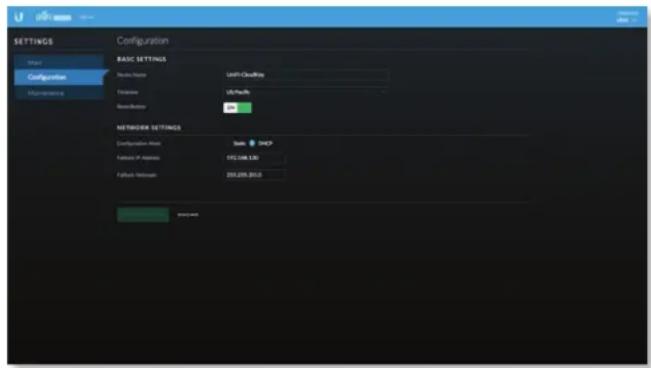
The Configuration screen allows you to configure the basic and network settings of the UniFi Cloud Key.
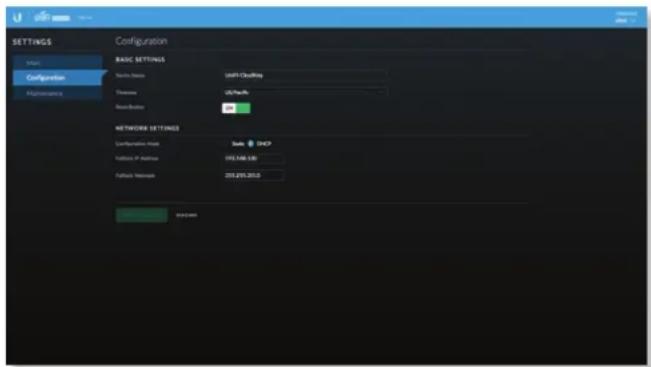
text_image
SETTINGS Logic Configuration Maintenance Configuration BASIC SETTINGS Data Device Data Delivery Duration Duration Base Button Network Settings Components Model Status: DHCP Status: IP Address 105.148.130 Network Network 259.255.2015 WINCOMEBasic Settings
Device Name Enter a descriptive name or identifier for the UniFi Cloud Key. Also known as a host name.
Time Zone Select the appropriate time zone.
Reset Button Use of the hardware Reset button on the UniFi Cloud Key is enabled by default. To prevent an accidental reset to default settings, click to toggle Off.
Network Settings
Configuration Mode Select the Internet connection type for your service: Static or DHCP.
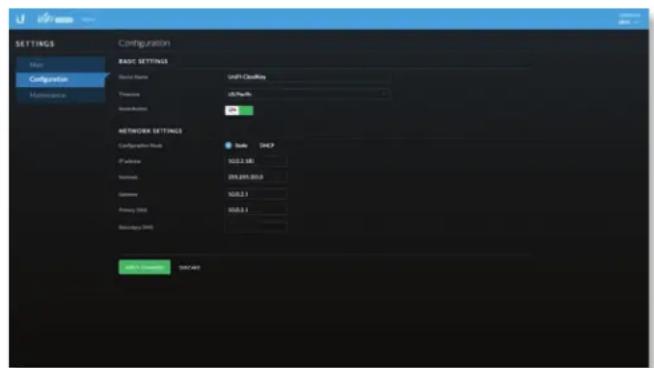
- Static The service provider assigns fixed network settings to your service for manual entry. Enter the following information:
- IP address Enter the Internet IP address of the UniFi Cloud Key.
- Netmask Enter the subnet mask of the UniFi Cloud Key.
- Gateway Enter the IP address of the network's gateway router.
- Primary DNS Enter the IP address of the network's primary DNS server.
- Secondary DNS Enter the IP address of the network's secondary DNS server.
text_image
SETTINGS Main Configuration Maintenance Configuration Basic SETTINGS Home Name: u811.Couffay Telephone: 0579466 Network ID: 0579466 NETWORK SETTINGS Configuration Path: Scale: DHCP IP address: 102.2 MB Network: 203.200.000.0 Germany: 102.2.1 Primary (DB): 102.2.1 Baseline (BNT) USB Options: DHCP- DHCP The use of the Dynamic Host Configuration Protocol (DHCP) is the default. The UniFi Cloud Key automatically acquires network settings from the network's DHCP server.
- Fallback IP Address Enter the IP address for the UniFi Cloud Key to use if an external DHCP server is not found.
- Fallback Netmask Enter the netmask for the UniFi Cloud Key to use if an external DHCP server is not found.
text_image
SETTINGS Share1 Configuration Macromaining Configuration BASIC SETTINGS Basic Settings Link CheckUp Update Web/Port6 Macromaining NETWORK SETTINGS Configuration Address Scale: 0.0000000000000000000000000000000000000000000000000000000000000000000000000000000000000000000000000000 Networks Default IP Address 192.548.136 Default Network 255.255.2613 ParametersApply Changes Click Apply Changes to save changes.
Discard Click Discard to cancel changes.
Maintenance
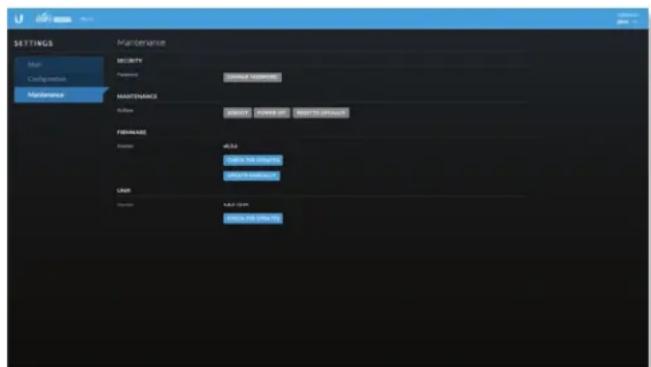
The Maintenance screen contains administrative options, so you can change the password, reboot the UniFi Cloud Key, power it off, reset it to factory defaults, upgrade the UniFi Cloud Key firmware, or upgrade the UniFi Controller software.
text_image
SETTINGS Multi Configuration Maintenance Maintenance SECURITY Preparing ORDER CODE MAINTINANCE FilePath ORDER CODE MAINTINANCE FINDUARID Access 4-50 WRITE NAME WRITE NAME LIME Default LIME NAME WRITE NAMESecurity
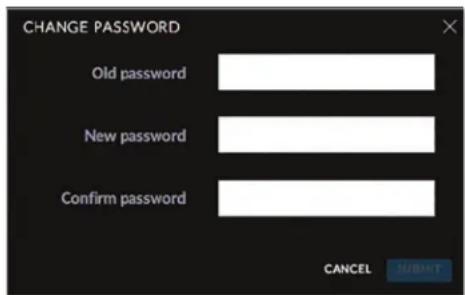
Password To change the password, click Change Password. The Change Password screen will appear:
text_image
CHANGE PASSWORD Old password New password Confirm password CANCEL NUBMIT- Old password Enter the current password (the default is ubnt).
- New password Enter the new password.
- Confirm Password Enter the new password again.
- Submit Click Submit to apply changes.
- Cancel Click Cancel to discard changes.
Maintenance
Reboot Click Reboot to powercycle the UniFi Cloud Key.
Power Off Click Power Off to turn off the UniFi Cloud Key.
Reset to Defaults Click Reset to Defaults to reset the UniFi Cloud Key to its factory default settings. This option will reboot the UniFi Cloud Key, and all factory default settings will be restored.

Note: We recommend that you back up your UniFi Controller configuration (refer to "Backup" on page 31 for more information) before resetting the UniFi Cloud Key to its defaults.
Firmware
Version Displays the version number of the UniFi Cloud Key firmware.
Check for Updates Click Check for Updates to see if there is a newer firmware version. If there is, then you can follow the on-screen instructions to upgrade now.
Update Manually Click Update Manually to update the firmware. The Please Confirm Update screen will appear.
You have two options:
- upload file If you have the firmware saved in a specific location, then click Select File to browse for the file.
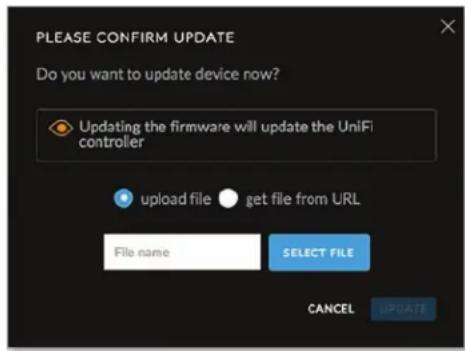
text_image
PLEASE CONFIRM UPDATE Do you want to update device now? Updating the firmware will update the UniFi controller upload file get file from URL File name SELECT FILE CANCEL UPDATE- get file from URL If you know the URL of the firmware's location, then enter it in the URL field.
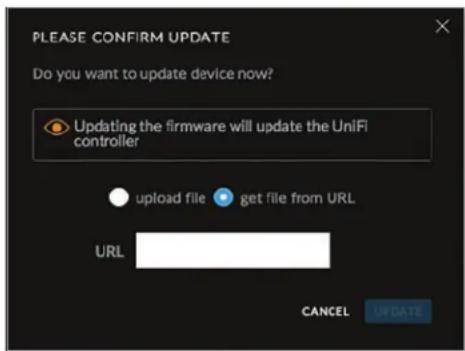
text_image
PLEASE CONFIRM UPDATE Do you want to update device now? Updating the firmware will update the UniFi controller upload file get file from URL URL CANCEL UPDATE- Update Click Update to proceed with the update.
- Cancel Click Cancel to skip the update.

Note: Updating the UniFi Cloud Key firmware will also update the UniFi Controller software. We recommend that you back up your UniFi Controller configuration (refer to "Backup" on page 31 for more information) before updating the UniFi Cloud Key firmware.
UniFi
Version Displays the version number of the UniFi Controller software.
Check for Updates Click Check for Updates to see if there is a newer software version. If there is, then you can follow the on-screen instructions to upgrade now.

Note: We recommend that you back up your UniFi Controller configuration (refer to "Backup" on page 31 for more information) before upgrading.
Chapter 2: UniFi Cloud UniFi Controller User Guide
UniFi Cloud Account
You must be a super admin for initial cloud management. Once cloud access is enabled by the super admin, then any other admin can also enable cloud access.

Note: The cloud account is also known as the Single Sign-On (SSO) account.
Login Instructions
- Launch the Chrome web browser and type https:// followed by the appropriate Controller Hostname/IP address as specified in "Settings >Controller" on page 30. Press enter (PC) or return (Mac).

text_image
https://unifi.yourdomain.com- Enter the username and password for your UBNT account. Click Sign In.
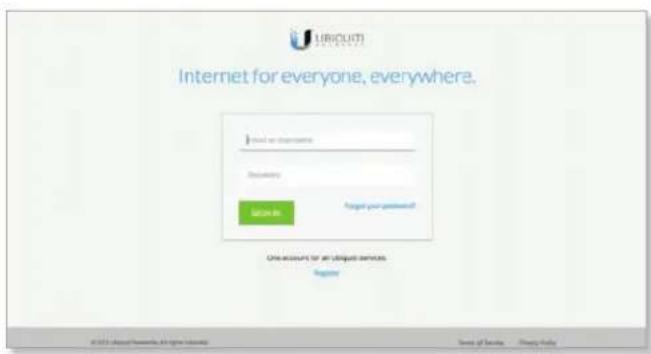
text_image
UNIWI Internet for everyone, everywhere. Login or password Password: GET-03 Target your password? One account for an eligible service Register © 2017 © www.uniwi.org
Note: If you do not have an account, click Register and follow the on-screen instructions.
A list of UniFi Controllers will appear.
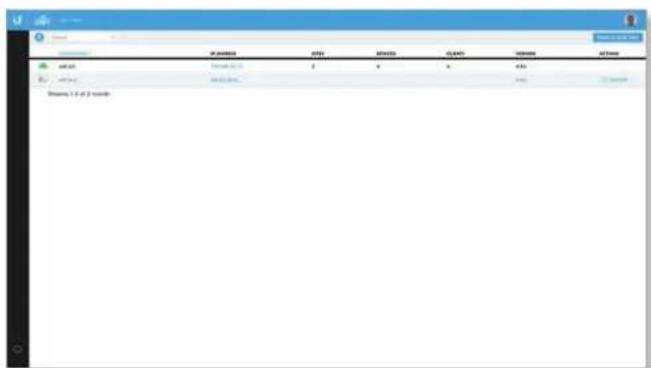
text_image
P-00000 PTS1 SPN000 CLMT0 UNIVIN AD/Time ad.pds 2 4 6 8 10 12 14 16 18 20 22 24 26 28 30 32 34 36 38 40 42 44 46 48 50 52 54 56 58 60 62 64 66 68 70 72 74 76 78 80 82 84 86 88 90 92 94 96 98 100# Displays the number of UniFi Controllers. Search ^a Enter the text you want to search for. Simply begin typing; there is no need to press Enter. You can click any of the column headers to change the list order.
(icon) Displays the icon corresponding to the device running the UniFi Controller. Green indicates an active UniFi Controller. Gray indicates an inactive UniFi Controller.

UniFi Cloud Key

Computer
Controller Displays the hostname, alias, or MAC address of the device running the UniFi Controller. You can click the name to get additional details at the bottom of the screen. (Go to "Additional Details" on page 13 for more information.)
IP Address Displays the IP address of the device running the UniFi Controller.
Sites Displays the total number of sites managed by the UniFi Controller.
Devices Displays the total number of devices managed by the UniFi Controller.
Clients Displays the total number of clients on the sites managed by the UniFi Controller.
Version Displays the software version number of your UniFi Controller.
Actions Click a button to perform the desired action:
- Remove Click → REMOVE to remove the UniFi Controller from your cloud account.
Chat At the lower left of the screen, click 🔒 to open a window for online chat support.
Admin
At the top right of the screen, click to display the My Account and Sign Out options:
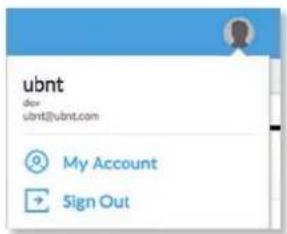
text_image
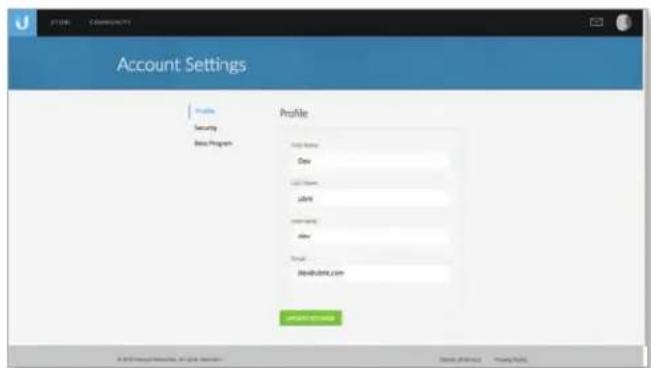
ubnt dbv ubnt@ubnt.com My Account Sign OutMy Account To change your account settings and/or password, click The Account Settings screen will appear:
text_image
Account Settings Profile Help Name: Draw Add Items: info Create name: mail: Email: bndshire.com create this accountThere are three pages available:
• Profile Access your account settings:
- First Name Enter your first name.
- Last Name Enter your last name.
- Username Enter your login username.
- Email Enter the email address of your cloud account.
- Update Settings Click to apply your changes.
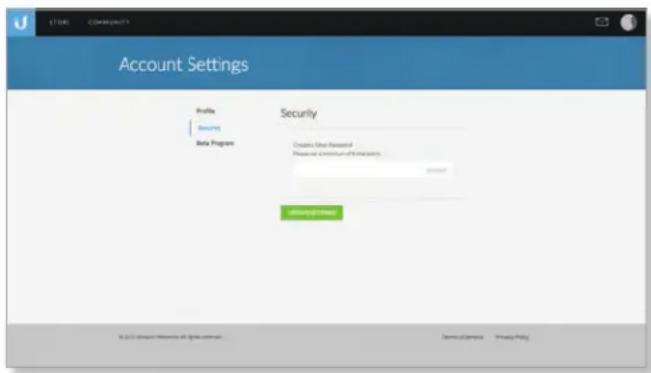
• Security Change your account password:
- Create a New Password Enter a new password with at least eight characters.
- Update Settings Click to apply your changes.
text_image
Account Settings Profile Security Data Program Security Create Our Forward Please use continuum of Information. Access Access to Home © 2013 Account Reviews © Spring.com Cancel/Cancel Privacy Policy- Beta Program Follow the on-screen instructions if you want to join the beta program.
Sign Out To manually sign out of the cloud account, click Sign Out.
Find Cloud Key
To add a UniFi Cloud Key, click Find Cloud Key at the top right of the screen. The Find Cloud Key screen will appear:

text_image
FIND CLOUD KEY ADOPT (1) MANAGE (1) 10.0.2.183 PRESIDENT ADOPTION mac: D4.18.D6.A00D:P1 firmware: UCK.mh7623.v5.3.6.9510e85.151112.1544 ADOPT CANCELAdopt
IP address Displays the IP address of the UniFi Cloud Key.
(status) Displays the status information: Pending Adoption.
mac Displays the MAC address or hardware identifier of the UniFi Cloud Key.
firmware Displays the firmware version number of the UniFi Cloud Key.
Adopt Click to adopt the UniFi Cloud Key. Refer to step 8 of "Chrome Instructions" on page 5 for more information.
Cancel Click to exit this screen.
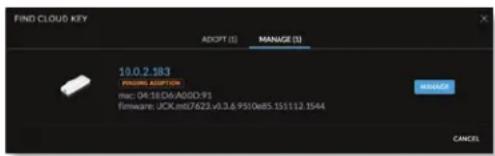
Manage
text_image
FIND CLOUD KEY ADOPT (1) MANAGE (1) 10.0.2.183 PRESERVING ADDITION mac: 04.18.D6:A00D:91 Firmware: UCX.mdb7623.v0.3.6.9510e85.151112.1544 MANAGE CANCELIP address Displays the IP address of the UniFi Cloud Key.
(status) Displays the status information: Adopted or Pending Adoption.
mac Displays the MAC address or hardware identifier of the UniFi Cloud Key.
firmware Displays the firmware version number of the UniFi Cloud Key.
Manage Click to configure the UniFi Cloud Key. Refer to "UniFi Cloud Key Configuration" on page 8 for more information.
Cancel Click to exit this screen.
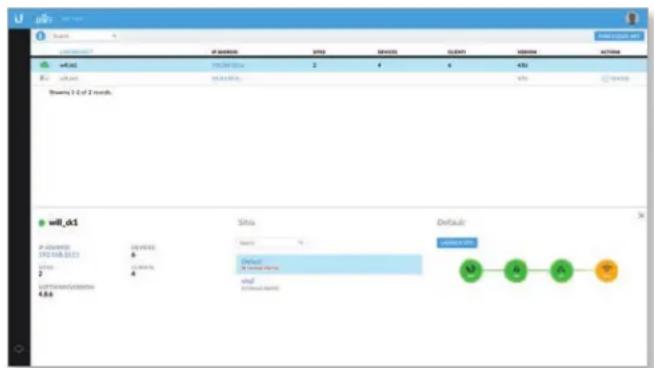
Additional Details
Select a UniFi Controller to display more information at the bottom of the screen.
text_image
wll_ck1 2-000000 192.348.3513 2 4 6 7 8 9 10 11 12 13 14 15 16 17 18 19 20 21 22 23 24 25 26 27 28 29 30 31 32 33 34 35 36 37 38 39 40 41 42 43 44 45 46 47 48 49 50 51 52 53 54 55 56 57 58 59 60 61 62 63 64 65 66 67 68 69 70 71 72 73 74 75 76 77 78 79 80 81 82 83 84 85 86 87 88 89 90 91 92 93 94 95 96 97 98 99 100- (icon) Green indicates an active UniFi Controller. Gray indicates an inactive UniFi Controller.
- (controller_name) Displays the Controller Hostname/IP address as specified in "Settings > Controller" on page 30.
- IP Address Displays the IP address of the device running the UniFi Controller.
- Sites Displays the total number of sites managed by the UniFi Controller.
- Software Version Displays the software version number of your UniFi Controller.
• Devices Displays the total number of devices managed by the UniFi Controller. - Clients Displays the total number of clients on the sites managed by the UniFi Controller.
Sites
- Search Enter the text you want to search for. Simply begin typing; there is no need to press Enter.
- (site_name) Displays the name of the site. You can click the name to get additional details on the right.
- (_Unread Alerts) Displays the number of unread alerts. (site_name)
- Launch Site Click Launch Site to access the UniFi Controller. Proceed to "Using the UniFi Controller Software" on page 17 for more information.
- (map) Displays a visual representation of your network's status. The status of each dashboard node is indicated by color:
- Green Green indicates that the node is active and all devices are online.

flowchart
graph LR
    A["WWW"] --> B["WANLAN"]
    B --> C["Warehouse"]
    C --> D["VLAN"]
- Red Red indicates one of the following:
• WWW Internet connectivity is down.
• WAN The UniFi Security Gateway is offline.
• LAN One or more Switches are offline.
• WLAN More than half of the APs are offline.

flowchart
graph LR
    A["WWW"] --> B["WANLAN"]
    B --> C["VLAN"]
- Orange Orange indicates that half or fewer than half of the APs are offline.

Note: Orange is not applicable to the WWW, WAN, and LAN nodes.
- Gray Gray indicates that there are no devices available for that node.
You can place the mouse over each node icon to display basic status information.
- WWW The basic details of the Internet connection are displayed.
| GATEWAY | 10.1.0.1 |
| DNS | 10.1.0.110.1.0.169 |
| IP | 10.1.0.143 |
| UPTIME | 19m 38s |
| LATENCY | 3 ms |
| UP | 171 B/s |
| DOWN | 4.67 KB/s |
- Gateway Displays the IP address of the service provider's gateway.
• DNS Displays the IP addresses of the Domain Name System (DNS) servers.
• IP Displays the Internet IP address of the UniFi Security Gateway.
• Uptime Displays the length of time the Internet connection has been active. - Latency Displays the amount of time it takes a packet to travel from the UniFi Security Gateway to the service provider's gateway.
- Up Displays the upload rate of your Internet connection.
- Down Displays the download rate of your Internet connection.
- WAN The basic details of the UniFi Security Gateway connection are displayed.
| LAN IP | 192.168.10.1 |
| CLIENTS | 4 |
| UP | 272 B/s |
| DOWN | 6.00 KB/s |
• LAN IP Displays the local IP address of the UniFi Security Gateway.
- Clients Displays the total number of local clients.
- Up Displays the upload rate of the UniFi Security Gateway.
- Down Displays the download rate of the UniFi Security Gateway.
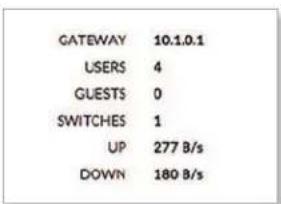
- LAN The basic details of the wired network(s) are displayed.
text_image
GATEWAY 10.1.0.1 USERS 4 GUESTS 0 SWITCHES 1 UP 277 B/s DOWN 180 B/s- Gateway Displays the IP address of the service provider's gateway.
- Users Displays the number of clients connected to the wired network.
• Guests Displays the number of clients connected to the guest wired network.
- Switches Displays the number of UniFi Switches connected to the wired network.
- Up Displays the upload rate of the wired network(s).
- Down Displays the download rate of the wired network(s).
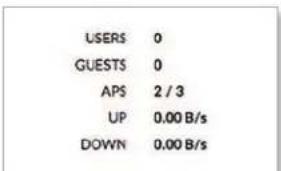
- WLAN The basic details of the wireless network(s) are displayed.
text_image
USERS 0 GUESTS 0 APS 2 / 3 UP 0.00 B/s DOWN 0.00 B/s- Users Displays the number of clients connected to the primary wireless network(s).
• Guests Displays the number of clients connected to the guest wireless network(s).
- APs Displays the number of APs in the primary wireless network(s) and the number of APs in the guest wireless network(s).
- Up Displays the upload rate of the wireless network(s).
- Down Displays the download rate of the wireless network(s).
Chapter 2: UniFi Cloud UniFi Controller User Guide
Chapter 3: Using the UniFi Controller Software
The UniFi Controller software has a browser-based interface for easy configuration and management.
To access the interface, perform the following steps:
- Launch the UniFi Controller application if hasn't already been started.
• Mac users: Go > Applications > UniFi
- Windows users: Start > All Programs > Ubiquiti UniFi
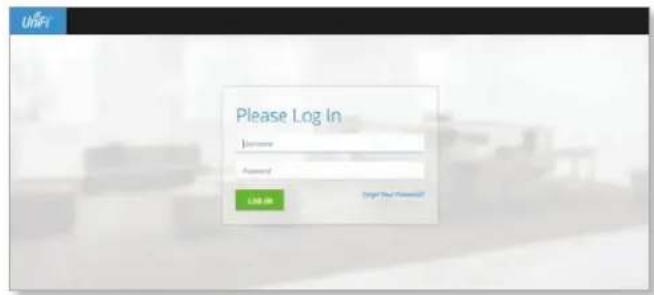
- The UniFi login screen will appear. Enter the username and password in the appropriate fields and click Log In.
text_image
Please Log In Login Password LOG IN Target Your License? UnFiNavigation Bar
The UniFi software consists of six primary pages. This User Guide covers each page with a chapter. For details on a specific page, refer to the appropriate chapter.
"Dashboard" on page 33

"Map" on page 37

"Devices" on page 43

"Clients" on page 51

"Statistics" on page 55

"Insights" on page 59
Common Interface Options
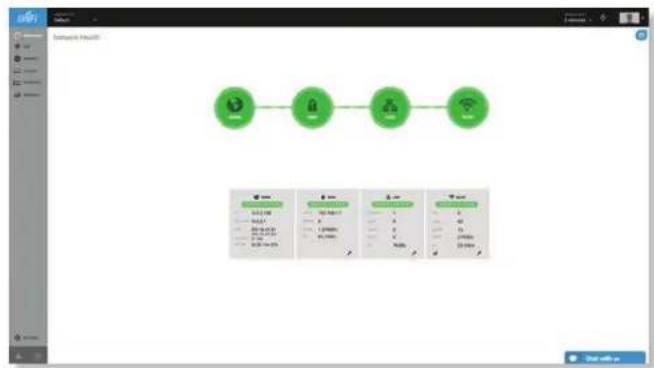
The common interface options are accessible from all tabs in the UniFi interface.
flowchart
graph LR
    A["Component 1"] --> B["Component 2"]
    B --> C["Component 3"]
    C --> D["Component 4"]
Refresh
Click the refresh button to update the on-screen information. Select the refresh interval: 15 seconds, 1 minute, 2 minutes (default), 5 minutes, or Never.
Admin
At the top right of the screen, click to display the Change Password and Sign Out options:
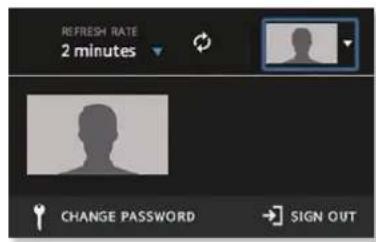
text_image
REFRESH RATE 2 minutes CHANGE PASSWORD SIGN OUTChange Password To change the login name and/or password, click 📄 My Password screen will appear:
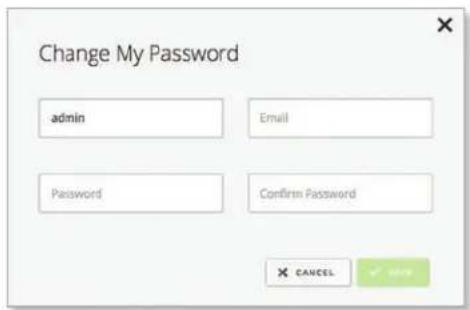
text_image
Change My Password admin Email Password Confirm Password × CANCEL ✓ OK- Admin Enter the admin name.
- Email Enter the email address of the admin account.
- Password Enter the new password.
- Confirm Password Enter the new password again.
- Save Click to apply changes.
- Cancel Click × CANCEL to discard changes.
Sign Out To manually sign out of the UniFi Configuration Interface, click SIGN OUT
Site
The UniFi Controller can manage multiple UniFi networks, which are called sites. Each site has its own configurations, maps, statistics, guest portals, and site administrator accounts. The multiple sites are logically separated, and the initial site is named Default.
Current Site To create a new site, click the drop-down arrow to display the drop-down menu.
Click Add Site, and the Add Site screen will appear:
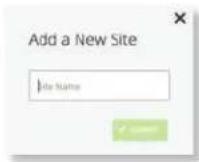
- Site Name Enter a name that describes the site. It will be used in the Current Site drop-down menu.
- Submit Click √ SUBMIT to save changes.
Properties
The Properties tab is hidden by default. To display it, click the properties icon.
Information about each selected device appears as a popup within this tab. The information varies depending on the device type. For more information, see the appropriate chapter:
• "UniFi Security Gateway Details" on page 67
• "UniFi Switch Details" on page 75
- "UniFi Access Point Details" on page 83
• "UniFi VoIP Phone Details" on page 95
- "Client Details" on page 97
Controls and Live Chat
At the bottom left of the screen, there are three controls:
- SETTINGS
- Alerts (see "Alerts" on page 32)
• Events (see "Events" on page 32)
At the bottom right of the screen, there is the live chat tab. Click Chat with us to open a window for online chat support.
Settings
The tab displays a list of available sub-tabs:
- Site Site-related settings.
- Wireless Networks Wireless network and group setup, including Zero Handoff Roaming.
• Networks Wired network setup.
• Guest Control Guest portal and policies. - Admins Admin accounts and privileges.
- User Groups User group settings.
- VoIP VoIP setup.
- Extensions VoIP extension, group, and conference options.
- Controller Identity, discovery, and email server settings.
• Cloud Access Cloud login credentials. - Maintenance System configuration backup, system configuration restore, and support files.
Settings > Site
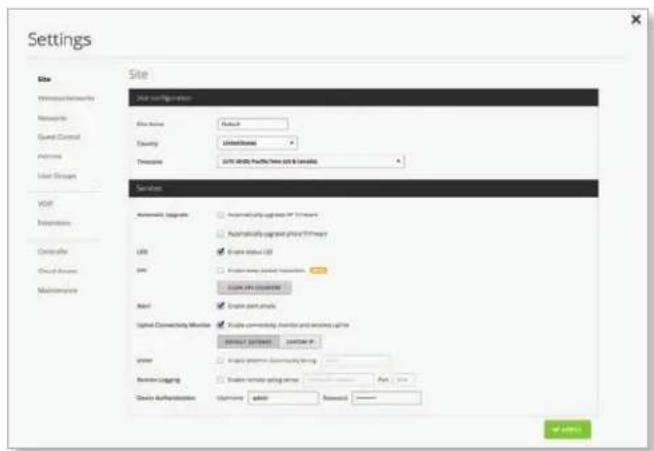
Configure the site-specific settings. To switch sites, select a different site from the Current Site drop-down menu at the top of any screen.
text_image
Settings Site Wireless Security Networks Guest Control Actions User Groups VOP Intensions Controller Cloud Access Maintenance Site name: Wireless Site location: Default Security: Limited/None Threshold: 2015.04.06 (PwDC) Time Grid & Network Services Automatic Linkages Automatically update or update Automatically update or update URL Create URL: 100 URL Create network connection Create URL: 100 Word Create word links Digital Connectivity Monitor Create community coordinates and switches links SERVICE (SUPPORT) Connection to: user Create software Community group Remove ogging Create remote going server Device Configuration Options dialog AccessSite Configuration
Site Name Change the name of the site.
Country Select the appropriate country.
Time Zone Select the appropriate time zone.
Services
Automatic Upgrade When enabled, the following options will automatically upgrade your firmware when an update is available.
• Automatically upgrade AP firmware Select this option to automatically upgrade firmware on the APs.
• Automatically upgrade phone firmware Select this option to automatically upgrade firmware on the Phones.
LED When enabled, the LED on the UniFi device will light up. When disabled, the LED will turn off.
DPI (Beta) Deep Packet Inspection (DPI) is more advanced than conventional Stateful Packet Inspection (SPI) filtering for traffic analysis. Ubiquiti's proprietary DPI engine includes the latest application identification signatures to track which applications (and IP addresses) are using the most bandwidth.
- Clear DPI Counters Click to delete all collected DPI data. Click Confirm or Cancel.
Alert Select this option to enable alert emails, which will be sent to the email addresses of the administrators.
Uplink Connectivity Monitor It monitors the uplinks of the managed APs, either wired or wireless, by checking to see if the gateway/custom IP can be reached. The monitor and wireless uplink capability are enabled by default.
- Default Gateway Enabled by default. All managed APs will use the gateway of the AP that is providing IP information, either by DHCP or Static designation.
- Custom IP Click to specify an IP address.
- Uplink IP Address All managed APs will use the IP address you enter.
SNMP Select this option to activate the SNMP (Simple Network Monitor Protocol) agent. SNMP is an application layer protocol that facilitates the exchange of management information between network devices. Network administrators use SNMP to monitor network-attached devices for issues that warrant attention.
- Community String Specify the SNMP community string. It is required to authenticate access to MIB (Management Information Base) objects and functions as an embedded password. The device supports a read-only community string; authorized management stations have read access to all the objects in the MIB except the community strings, but do not have write access. The device supports SNMP v1. The default is public.
Remote Logging Enable to define a remote syslog server.
- Remote IP Address Enter the IP address of the syslog server.
- Port Enter the port number of the syslog server. The default is 514.
Device Authentication This option protects SSH access to the UniFi devices. All devices in the same site share the same SSH username and password. You can also make changes:
- Username Enter the new username.
- Password Enter the new password.
Apply Click √ APPLY to save changes.
Settings > Wireless Networks
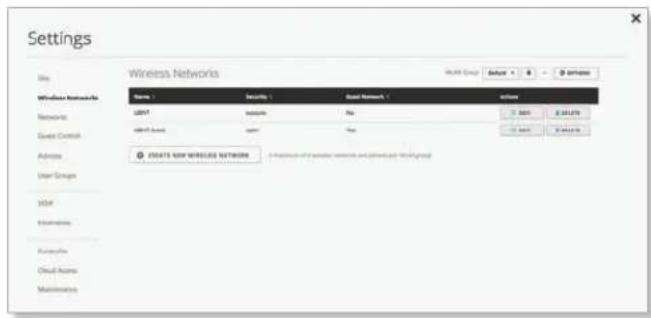
Configure the wireless networks for each site. You can have up to four wireless network names or SSIDs per WLAN group.
text_image
Settings Wireless Networks Wireless Networks Name: Security: Default Access LGBT security No 3.000 2.000 Internet Access Open Yes 3.000 2.000 Access © 6475 NSW WIRELESS NETWORKS • Protection of the power network and access for this groupWLAN Group The Default WLAN group is automatically created.

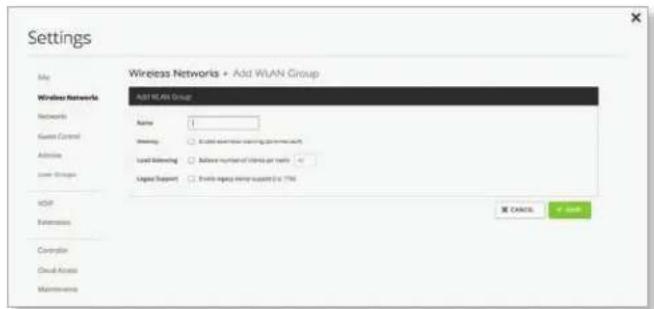
Add a New WLAN Group To add a new WLAN group, click the button. Go to the Add or Edit a WLAN Group section.
Add or Edit a WLAN Group
text_image
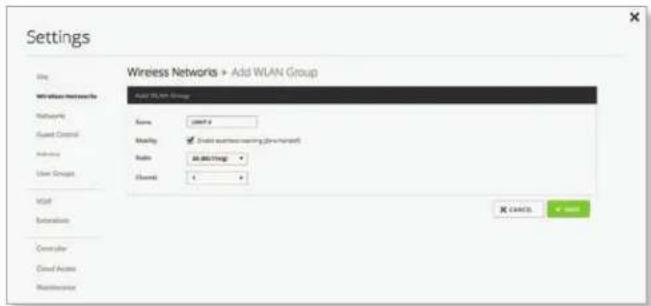
Settings Wireless Networks • Add WAN Group Add WAN Group Name: Meeting □ 仅限用户输入的要添加的要连接器 Load Monitoring □ Lower number of cables per user Legal Support □ Lower logp mode output to a TSM OK Cancel < Back- Name Enter or edit a descriptive name for the WLAN group.
- Mobility To enable seamless roaming (Zero Handoff), select the checkbox.

Note: The UAP-AC, UAP-AC-Outdoor, UAP-AC-LITE, UAP-AC-LR, UAP-AC-PRO, and UAP-AC-EDU do not support Zero Handoff Roaming.
When you enable this option, multiple Access Points (APs) act as an AP cluster, appearing as a single AP. The wireless client detects only one AP, so it seamlessly roams from AP to AP – there is no need to re-negotiate. The APs determine which AP has the best connection and should serve the client. They use multicasting to communicate so they must be wired in the same Layer 2 domain.
Zero Handoff Roaming does not support wireless uplinks and can only be used on a secured network. It is also not meant for all scenarios. For example, if there is too much load or interference, then Zero Handoff Roaming may not be appropriate for your scenario.
text_image
Settings Wireless Networks > Add WLAN Group Add Wi-Fi Group Name: comit a Modality: State wireless network (non-mail) Ratio: 0.0167 (log) Channel: 1 OK Cancel CancelConfigure the following options:
- Radio Select the appropriate radio, 2G or 5G.
- Channel Select the channel that all of the APs will use for Zero Handoff Roaming.
Load Balancing (Not available if you enabled the Mobility option.) Select this option to balance the number of clients you specify per radio. Then enter the number of clients in the field provided.
Legacy Support (Not available if you enabled the Mobility option.) By default, legacy devices, such as 802.11b devices, are excluded. Select this option if you want to support legacy devices.
Save Click to apply changes.
Cancel Click × CANCEL to discard changes.
For each WLAN group, you have the following:
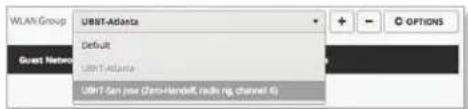
- Remove a WLAN Group To remove a WLAN group, select it from the drop-down menu, and then click the button.
text_image
WLAN Group UBIT-Atlanta Default UBIT-Atlanta UBIT San Jose (Zee-Hannoff, radio ng, channel 6)- Options To make changes, select the WLAN group from the drop-down menu, and then click Go to "Add ____ or Edit a WLAN Group" on page 19.
Wireless Networks
Name Displays the wireless network name or SSID.
Security Displays the type of security being used on your wireless network.
Guest Network Indicates whether or not the network is a guest network.
Actions Click a button to perform the desired action:
- Edit Click to make changes to the wireless network settings. Go to the Create or Edit a Wireless Network section in the next column.
- Delete Click ⬆ DELETE to remove the wireless network.
Create Wireless Network Click 📍 CREATE WIRELESS NETWORK to add a wireless network. Go to the Create or Edit a Wireless Network section in the next column.
Create or Edit a Wireless Network
text_image
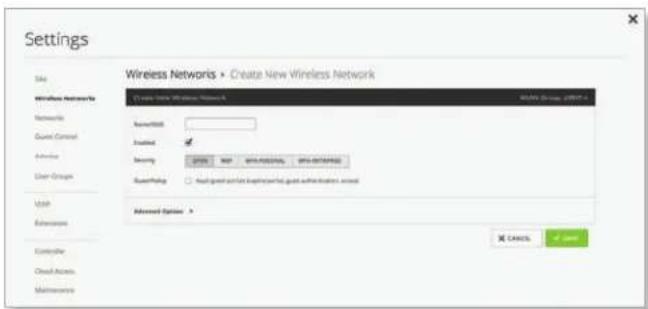
Settings Wireless Networks • Create New Wireless Network Site Wireless Networks Networks Guest Control Adverses User Group User Advanced Controller Closed Access Maintenance Name: 0001 Created: Security: 0001 Security Help: No help or any help or any help or any help or any help or any help or any help or any help or any help or any help or any help or any help or any help or any help or any help or any help or any help or any help or any help or any help or any help or any help or any help or any help or any help or any help or any help or any help or any help or any help or any help or any help or any help or any help or any Help Advanced Options > OK Cancel ✓ Good- Name/SSID Enter or edit the wireless network name or SSID.
- Enabled Select this option to make this network active.
• Security Select the type of security to use on your wireless network.
- Open This option is typically only used on the guest network. When enabled, wireless network access is open to anyone without requiring a password.
- WEP WEP (Wired Equivalent Privacy) is the oldest and least secure security algorithm. WPA™ security methods should be used when possible.

- WEP Key Enter a WEP encryption key in hexadecimal format. You can enter a 64-bit or 128-bit key:
Type Hex
64-bit 10 Hexadecimal Characters
(0-9, A-F, or a-f)
Example: 00112233AA
Note: You can use 5 printable characters, which will be translated to the corresponding HEX code.
128-bit 26 Hexadecimal Characters
(0-9, A-F, or a-f)
Example:
00112233445566778899AABBCC
Note: You can use 13 printable
characters, which will be translated to the corresponding HEX code.
• Key Index Specify which Index of the WEP Key to use. Four different WEP keys can be configured at the same time, but only one is used. Select the effective key: 1, 2, 3, or 4.
- WPA-Personal WPA or Wi-Fi Protected Access was developed as an encryption method stronger than WEP. WPA-Personal requires a passphrase to connect to the wireless network.

• Security Key Enter the passphrase that users will use to connect to the wireless network.
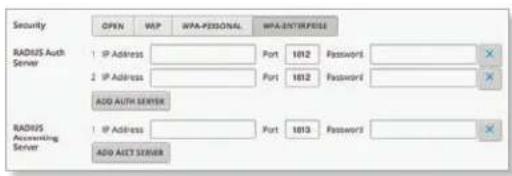
- WPA-Enterprise WPA Enterprise uses a RADIUS server to authenticate users on the wireless network.
text_image
Security OPEN VIP WPA-PEDIONAL WPA-ENTERPRISE RADIUS Auth Server 1 IP Address Port 1012 Passwords 2 IP Address Port 1012 Passwords ADD AUTH SERVER RADIUS Accounting Server 1 IP Address Port 1013 Passwords ADD AICT SERVER- RADIUS Auth Server Provide the following information about the RADIUS authentication server:
• IP Address Enter the IP address.
• Port Enter the port number. The default is 1812.
- Password Enter the password.
- Delete Click the delete × icon to remove this authentication server.
- Add Auth Server If you have another authentication server, click this option and complete the IP Address, Port, and Password fields.
• RADIUS Accounting Server Provide the following information about the RADIUS server:
• IP Address Enter the IP address.
• Port Enter the port number. The default is 1813.
- Password Enter the password.
- Delete Click the delete ✗ icon to remove this accounting server.
- Add Acct Server If you have another accounting server, click this option and complete the IP Address, Port, and Password fields.
- Guest Policy Select this option to enable guest access policies on this wireless network.
Advanced Options
text_image
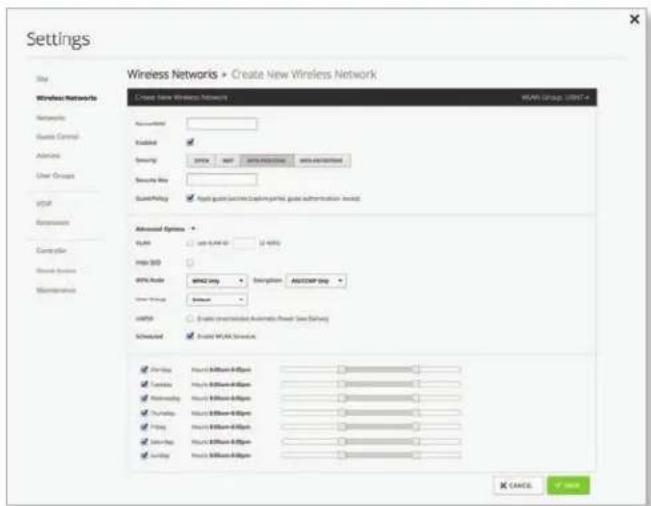
Settings Wireless Networks > Create New Wireless Network Site Wireless Networks Networks Guest Control Admins User Groups gpt Accession Computer Stream Device Maintenance Create New Wireless Network WAN Group: LINITI Accounting Enabled Security Security Web Security Policy ✓ Request before Existing portal, access information request. Advanced Options Status ✓ With LAN ID: 12-4000 Impact SDD OFFS Mode: WAN Only Description: ACCOMP Help User Group: External UNITS ✓ Enable wireless network-based power use delivery Scheduled ✓ Expand WLAN Services Printing: Hertz: 800000000000000000000000000000000000000000000000000000000000000000000000000000000000000000 ✓ Textiles: Hertz: 850000000000000000000000000000000000000000000000000000000 ✓ Networking: Hertz: 850000000000000000000000000000000000000000000 Hertz: 85555555555555555555555555555555555555555555555555555555555555555555555 Hertz: 863333333333333333333333333333333333333333333333333333333333333333333 Hertz: 864111111111111111111111111111111111111111111111111111111111111111111111111111111111111111111111111111129777777777777777777777777777777777777777777777777777777777777777777777777777777777777777777777777777788888888888888888888888888888888888888888888888888888888888888888888888888888889999999999999999999999999999999999999999999999999999999999999999999999999999999999999999999999999999A CANCE ✓ Cancel- VLAN To use a VLAN, select Use VLAN ID and enter the VLAN ID number.
- Hide SSID Select this option if you don't want the wireless network name or SSID to be broadcast.
- WPA Mode (Available if WPA security is enabled.) Select the appropriate WPA method: Both, WPA1 Only, or WPA2 Only (default).
- Encryption Select the appropriate encryption method: Auto, TKIP Only, or AES/CCMP Only (default).
- User Group Assign wireless users to a specific user group. For more information about user groups, see "Settings > User Groups" on page 28.
- UAPSD Disabled by default. Unscheduled Automatic Power Save Delivery. Select this option to enable the power save mode of Wi-Fi devices.
- Scheduled Select Enable WLAN Schedule to restrict wireless access to the schedule you set.
- Monday-Sunday Select the days you want to schedule.
- Hours Use the sliders to select the start and end times of the day's wireless access.
- Save Click √ SAVE to apply changes.
- Cancel Click × CANCEL to discard changes.
Settings > Networks
Configure the networks for each site.
text_image
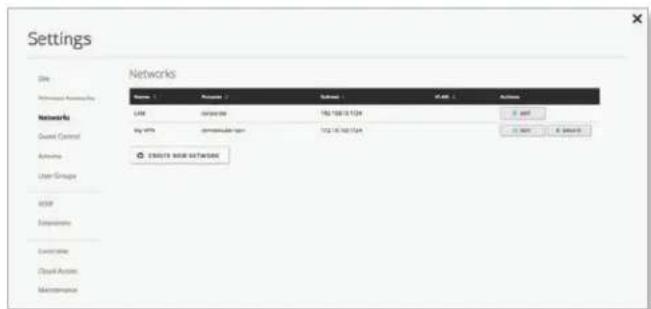
Settings Site Networks Networks LAM IP address IP address (1234) IP address IP address (1234) IP address IP address Internet User Groups Color Categories Customize Cloud Access MaintenanceNetworks
Name Displays the network name.
Purpose Displays a description of this network.
Subnet Displays the IP address and prefix size.
VLAN Displays the VLAN ID, if applicable.
Actions Click a button to perform the desired action:
- Edit Click EDIT to make changes to the network settings. Go to "Create or Edit a Network" on page 22.
- Delete (Not available for the default network.) Click to remove the network.
Create New Network Click 📍 CREATE NEW NETWORK to add a network. Go to "Create or Edit a Network" on page 22.
Create or Edit a Network
text_image
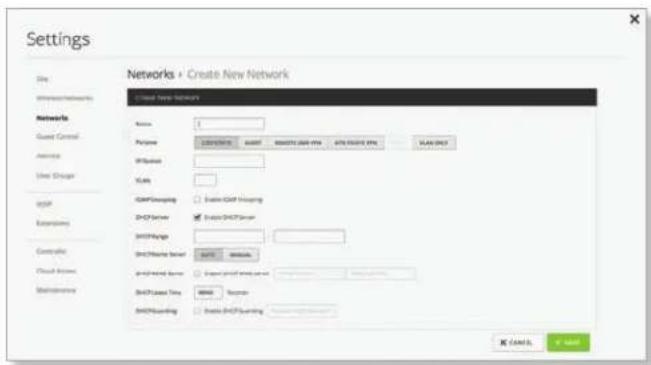
Settings Site Networks Guest Control Access User Group API External Controller Cloud Server Maintenance Networks + Create New Network Close New Network Name: Purpose: COMPRETEN URL: 0000000000000000000000000000000000000000000000000000000000000000000000000000000000000000000000000 XLP/SPN USB USB/SPN/SPN USB/SPN/SPN USB/SPN/SPN USB/SPN/SPN USB/SPN/SPN USB/SPN/SPN USB/SPN/SPN USB/SPN/SPN USB/SPN/SPN USB/SPN/SPN USB/SPN/SPN USB/SPN/SPN USB/SPN/SPN USB/SpN/SPN USB/SpN/SPN USB/SpN/SPN USB/SpN/SPN USB/SpN/SPN USB/SpN/SPN USB/SpN/SPN USB/SpN/SPN USB/SpN/SPN USB/SpN/SPN USB/SpN/SPN USB/SpN/SPN USB/SpN/SPn USB/SpN/SPn USB/SpN/SPn USB/SpN/SPn USB/SpN/SPn USB/SpN/SPn USB/SpN/SPn USB/SpN/SPn USB/SpN/SPn USB/SpN/SPn USB/SpN/SPn USB/SpN/SPn USB/SpN/SPn USB/ SpN / SPn / SPn / SPn / SPn / SPn / SPn / SPn / SPn / SPn / SPn / SPn / SPn / SPn / SPn / SPn / SPn / SPn / SPn / SPn / SPn / SPn / SPn / SPn / SPn / SPn / SPn / SPn / SPn / SPn / SPn / SPn / SPn / SPn / SPn• Name Enter or edit the network name.
- Purpose Select the most appropriate description: Corporate, Guest, Remote User VPN, Site-to-Site VPN, Voice, or VLAN Only. Then follow the instructions for your selection:
Corporate or Guest Network
text_image
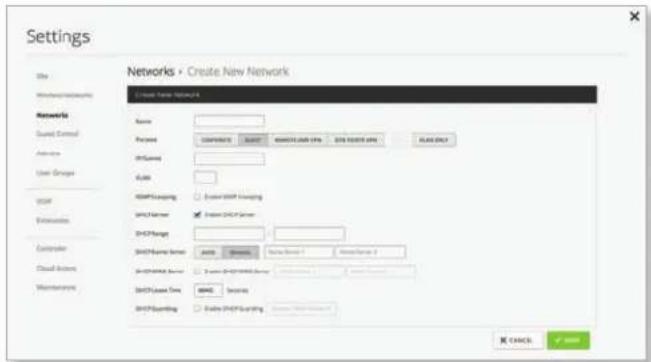
Settings Site Networks Networks Guest Control Active User Groups OSR Networks Custom Cloud Systems Maintenance Networks > Create New Network Create New Network Name: Recipient: DNS(Sared) Address: HSPF Management DNS Name: DNS Manager DNS Manager DNS Manager DNS Manager DNS Manager DNS Manager DNS Manager DNS Manager DNS Manager DNS Manager DNS Manager DNS Manager DNS Manager DNS Manager DNS Manager DNS Manager DNS Manager DNS Manager DNS Manager DNS Manager DNS Manager DNS Manager DNS Manager DNS Manager DNS Manager DNS Manager DNS Manager DNS Manager DNS Manager DNS Manager DNS Manager DNS Manager DNS Manager DNS Manager DNFS Account DNS Account DNS Account DNS Account DNS Account DNS Account DNS Account DNS Account DNS Account DNS Account DNS Account DNS Account DNS Account DNS Account DNS Account DNS Account DNS Account DNS Account DNS Account DNS Account DNS Account DNS Account DNS Account DNS Account DNS Account DNS Account DNS Account DNS Account DNS Account DNS Account DNS Account DNS Account DNS Account DNS Account DNS Accounts• IP/Subnet Enter the IP address and prefix size.
• VLAN (Not available for the default Corporate network, LAN.) Enter the VLAN ID.
- IGMP Snooping Select this option to monitor IGMP (Internet Group Management Protocol) traffic and thereby manage multicast traffic.
- DHCP Server Enabled by default. The local DHCP server assigns IP addresses to DHCP clients on the network.
- DHCP Range Enter the starting and ending IP addresses of the range in the fields provided.
- DHCP Name Server Configure the name or DNS (Domain Name System) server setting.
- Auto Enabled by default. Name servers are automatically assigned by the DHCP server.
- Manual Select this option to manually select name servers.
-
Name Server 1/2 Enter the IP address of the name server in each field.
-
DHCP WINS Server Select this option to designate WINS (Windows Internet Naming Service) server(s).
- WINS Server 1/2 Enter the IP address of the WINS server in each field.
- DHCP Lease Time The IP addresses assigned by the DHCP server are valid only for the duration specified by the lease time. Increasing the time ensures client operation without interruption, but could introduce potential conflicts. Decreasing the lease time avoids potential address conflicts, but might cause more slight interruptions to the client while it acquires a new IP address from the DHCP server. Enter the number of seconds.
- DHCP Guarding Disabled by default. Select this option to detect and block unauthorized DHCP servers.
- Trusted DHCP Server IP Enter the IP address of the trusted DHCP server.
- Save Click √ SAVE to apply changes.
- Cancel Click × CANCEL to discard changes.
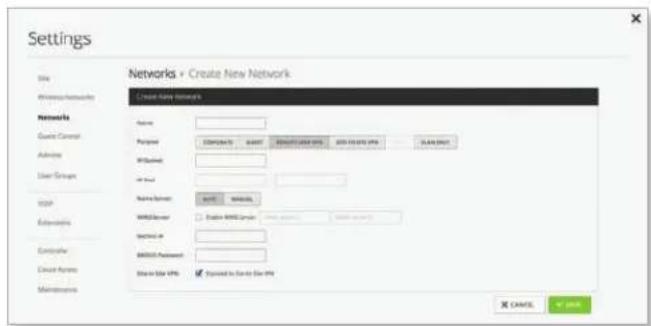
Remote User VPN
text_image
Settings Site Windows Networks Networks Guest Control Advice User Groups IDP Parameters Controller Email Account Email Account Email Account Email Account Email Account Email Account Email Account Email Account Email Account Email Account Email Account Email Account Email Account Email Account Email Account Email Account Email Account Email Account Email Account Email Account Email Account Email Account Email Account Email Account Email Account Email Account Email Account Email Account Email Account Email Account Email Account Email Account Email Account Email Account- IP/Subnet Enter the IP address and prefix size.
- IP Pool The starting and ending IP addresses of the pool automatically appear after you complete the IP/Subnet field.
-
Name Server Configure the name or DNS (Domain Name System) server setting.
-
Auto Enabled by default. Name servers are automatically assigned by the DHCP server.
- Manual Select this option to manually select name servers.
- Name Server 1/2 Enter the IP address of the name server in each field.
- WINS Server Select this option to designate WINS (Windows Internet Naming Service) server(s).
- WINS Server 1/2 Enter the IP address of the WINS server in each field.
- RADIUS IP Enter the IP address of the RADIUS server, which is used for authentication.
- RADIUS Password Enter the password of the RADIUS server.
UniFi Controller User Guide
- Site-to-Site VPN Enabled by default. The remote user can access the site's resources as well as the resources of any other VPNs connected to the site. If you disable this option, then the remote user can only access the site's resources.
- Save Click √ SAVE to apply changes.
- Cancel Click × CANCEL to discard changes.
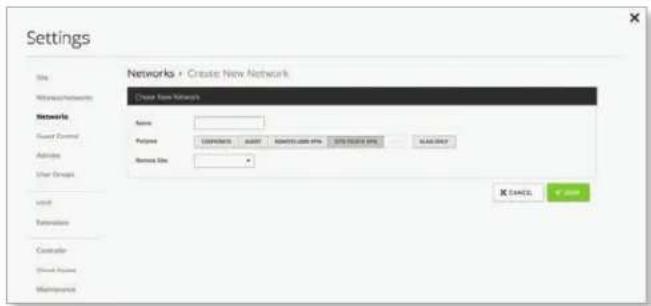
Site-to-Site VPN
text_image
Settings Site Networks Networks Guest Control Adaptive User Groups Used Retrieves Controller Direct Privacy Maintenance Networks • Create New Network Create New Network Name: Password: CODR0015 24497 80000000000 80000000000 80000000000 80000000000 Network Size: • X CANCEL Y DOWN- Remote Site Select the appropriate site from the drop-down list.

Note: If you have admin privileges for the local and remote sites, then you can view and select sites.
- Save Click √ SAVE to apply changes.
- Cancel Click × CANCEL to discard changes.
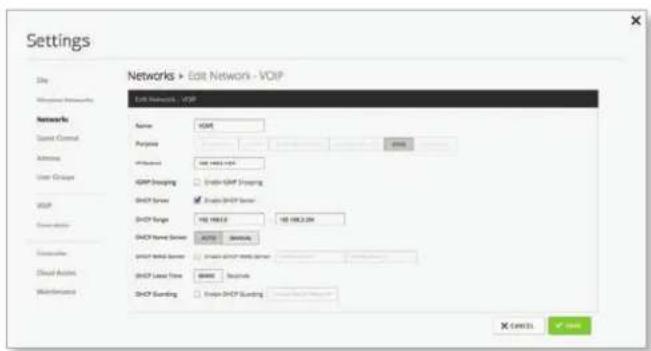
Voice
text_image
Settings Site Wireless Networks Networks > Edit Network - VoIP Exit Networks - VoIP Name: VoIP Purpose: OFF/RESET: 100 MHz GMP Coding: ✓ Enable VoIP Coding SCHP Server ✓ Enable SCHP Server SCHP Range: 100 MHz 100 MHz 2.0V SCHP Fixed Server ✓ Enable SCHP Fixed Server SCHP Local Time: 60000000000000000000000000000000000000000000000000000000000000000000000000 X CNTC1 ✓ CancelIf you enable VoIP, then the UniFi Controller automatically creates a Voice network; otherwise this network option is not available.
- IP/Subnet Enter the IP address and prefix size.
- IGMP Snooping Select this option to monitor IGMP (Internet Group Management Protocol) traffic and thereby manage multicast traffic.
- DHCP Server Enabled by default. The local DHCP server assigns IP addresses to DHCP clients on the network.
- DHCP Range Enter the starting and ending IP addresses of the range in the fields provided.
- DHCP Name Server Configure the name or DNS (Domain Name System) server setting.
- Auto Enabled by default. Name servers are automatically assigned by the DHCP server.
Chapter 3: Using the UniFi Controller Software
- Manual Select this option to manually select name servers.
- Name Server 1/2 Enter the IP address of the name server in each field.
- DHCP WINS Server Select this option to designate WINS (Windows Internet Naming Service) server(s).
- WINS Server 1/2 Enter the IP address of the WINS server in each field.
- DHCP Lease Time The IP addresses assigned by the DHCP server are valid only for the duration specified by the lease time. Increasing the time ensures client operation without interruption, but could introduce potential conflicts. Decreasing the lease time avoids potential address conflicts, but might cause more slight interruptions to the client while it acquires a new IP address from the DHCP server. Enter the number of seconds.
- DHCP Guarding Select this option to detect and block unauthorized DHCP servers.
- Trusted DHCP Server IP Enter the IP address of the trusted DHCP server.
- Save Click ✓ SAVE to apply changes.
- Cancel Click × CANCEL to discard changes.
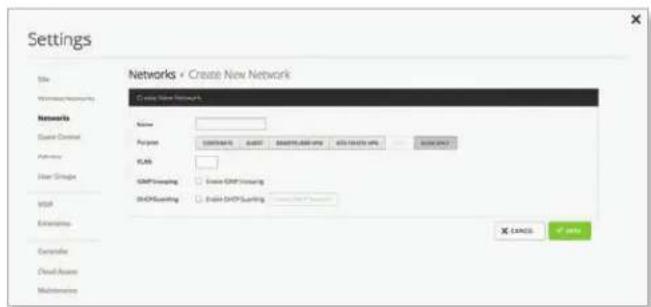
VLAN Only
text_image
Settings Site Networks Create New Network Networks Name Payment USD/GBP EUR/USD/GBP USD/GBP USD/GBP USD/GBP USD/GBP USD/GBP USD/GBP USD/GBP USD/GBP USD/GBP USD/GBP USD/GBP USD/GBP USD/GBP USD/GBP USD/GBP USD/GBP USD/GBP USD/GBP USD/GBP USD/GBP USD/GBP USD/GBP USD/GBP USD/GBP USD/GBP- VLAN Enter the ID number of the VLAN. Devices belonging to the same VLAN communicate as if they were attached to the same wire. Every VLAN ID represents a different VLAN. The VLAN ID range is 2 to 4009.
- IGMP Snooping Select this option to monitor IGMP (Internet Group Management Protocol) traffic and thereby manage multicast traffic.
- DHCP Guarding Select this option to detect and block unauthorized DHCP servers.
- Trusted DHCP Server IP Enter the IP address of the trusted DHCP server.
- Save Click ✓ SAVE to apply changes.
- Cancel Click × CANCEL to discard changes.
Settings > Guest Control
The Guest Control screen displays the following sections:
• Guest Policies (see below)
• "Hotspot" on page 25 (for Hotspot authentication)
• "Access Control" on page 27
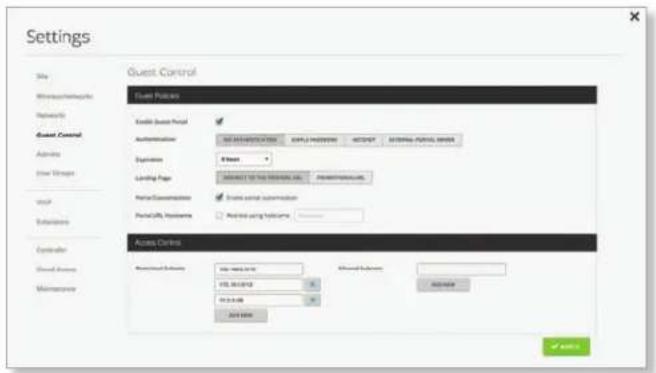
text_image
Settings Site Winthrop/Networks Networks Guest Control Admins User Groups Work Setations Controller Guest Features Guest Control Enable Guest Panel Automation: NET MANAGEMENT Explain: 0.0000 Listing Page: ACCESS TO THE CONTROL Panel Portal Consistency: Portal Security Properties: Android using libraries Access Details Accessed Software: Web page: 10.0 USB: 56.0 GB USB: 0.0 GB Add Import Add Export Add New Add New Add New Add NewGuest Policies
Enable Guest Portal Disabled by default. When disabled, guests can access the Internet without entering a password or accepting the Terms of Use. When this option is enabled, you can control the Guest Portal.
Authentication When the Guest Portal is enabled, the authentication options will appear:
- "Authentication > No Authentication" on page 24
- "Authentication > Simple Password" on page 24
- "Authentication > Hotspot" on page 25
- "Authentication > External Portal Server" on page 27
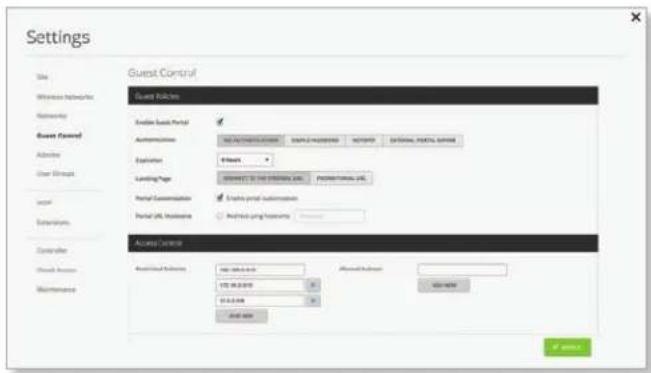
Authentication > No Authentication
Select this option if guests are not required to log in, but must accept the Terms of Use. You must also select Enable Guest Portal under Settings > Guest Control to enforce selection of the Terms of Use by the guest. See "Guest Policy" on page 21 for more information.
text_image
Settings Site Wireless Networks Networking Guest Covered Address User Groups Local Extensions Controller Cloud Access Maintenance Guest Controls Enable Book Portal AutoAccessories Options to Download Help Optional Portal Support Expiration 8 Weeks Loading Page SELECT TO THE ORDERING URL Pre]| | | | | | | | | Portal Communication Portal URL Hostless ■ Enable Print Customization Access Options Accession Options: http://www.163.com/ 175 06.2.2010 01.0.2.2010 Send Email Affiliated Booktop Add New OK Cancel OK CancelExpiration Specify the guest login expiration after a designated period of time: 8 hours, 24 hours, 2 days, 3 days, 4 days, 7 days, or User-defined, which can be designated in minutes, hours, and days.
Landing Page After accepting the Terms of Use, guests are redirected to the landing page. Select one of the following options:
- Redirect to the original URL After accepting the Terms of Use, guests are directed to the URL they requested.
- Promotional URL After accepting the Terms of Use, guests are redirected to the URL that you specify. Ensure that the URL begins with http://. Example: http://www.ubnt.com
Portal Customization Select this option to have customized portal pages appear in place of the default login pages. See "Portal Customization" on page 107 for details on setting up custom portal pages.
Portal URL Hostname Select this option to enter and use a hostname for the portal URL in place of the default IP address. Paired with an SSL certificate, this ensures that site certificates are displayed as trusted in the guest browser. Example: www.ubnt.com
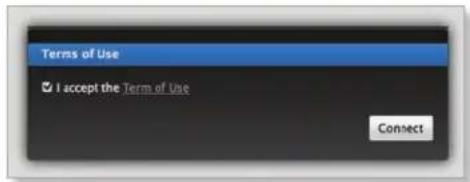
When logging in with No authentication, guests will be required to accept the Terms of Use before gaining access to the Internet.
text_image
Terms of Use ✓ I accept the Term of Use ConnectAuthentication > Simple Password
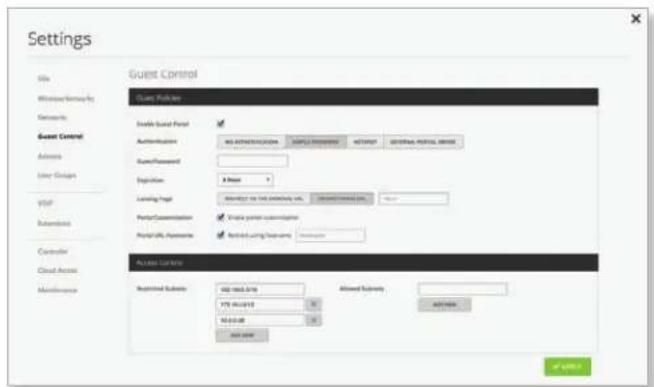
Select this option if guests are required to enter a simple password and accept the Terms of Use. You must also select Enable Guest Portal under Settings > Guest Control to enforce password entry and selection of the Terms of Use by the guest. See "Guest Policy" on page 21 for more information.
text_image
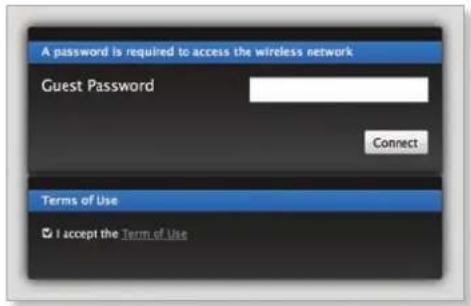
Settings Site Windows/Networks Networks Guest Control Access User Groups VSP Parameters Controller Cloud Access Maintenance Guest Controller Guest Provider Enable Student Panel Authentication: No Authentication Configure UserForm Authentication: Authentication: Authentication: Authentication: Authentication: Authentication: Authentication: Authentication: Authentication: Authentication: Authentication: Authentication: Authentication: Authentication: Authentication: Authentication: Authentication: Authentication: Authentication: Authentication: Authentication: Authentication: Authentication: Authentication: Authentication: Authentication: Authentication: Authentication: Authentication: Authentication: Authentication: Authentication: Authentication: Authentication: Telephone Telephone Email Email Email Email Email Email Email Email Email Email Email Email Email Email Email Email Email Email Email Email Email Email Email Email Email Email Email Email Email Email Email Email Email Email Email Email Email Email Email Email Email Email Email Email Email Email Email Email Email Email email email email email email email email email email email email email email email email email email email email email email email email email email email email email email email email email email email email email email email email email email email email email email email email email email email emailGuest Password Enter a password that guests must enter before accepting the Terms of Use and connecting to the Internet.
Expiration Specify the guest login expiration after a designated period of time: 8 hours, 24 hours, 2 days, 3 days, 4 days, 7 days, or User-defined, which can be designated in minutes, hours, and days.
Landing Page After accepting the Terms of Use, guests are redirected to the landing page. Select one of the following options:
- Redirect to the original URL After accepting the Terms of Use, guests are directed to the URL they requested.
- Promotional URL After accepting the Terms of Use, guests are redirected to the URL that you specify. Ensure that the URL begins with http://Example: http://www.ubnt.com
Portal Customization Select this option to have customized portal pages appear in place of the default login pages. See "Portal Customization" on page 107 for details on setting up custom portal pages.
Portal URL Hostname Select this option to enter and use a hostname for the portal URL in place of the default IP address. Paired with an SSL certificate, this ensures that site certificates are displayed as trusted in the guest browser. Example: www.ubnt.com
When logging in with Simple Password authentication, guests will be required to enter the Guest Password and accept the Terms of Use before gaining access to the Internet.
text_image
A password is required to access the wireless network Guest Password Connect Terms of Use ✓ I accept the Term of UseAuthentication > Hotspot
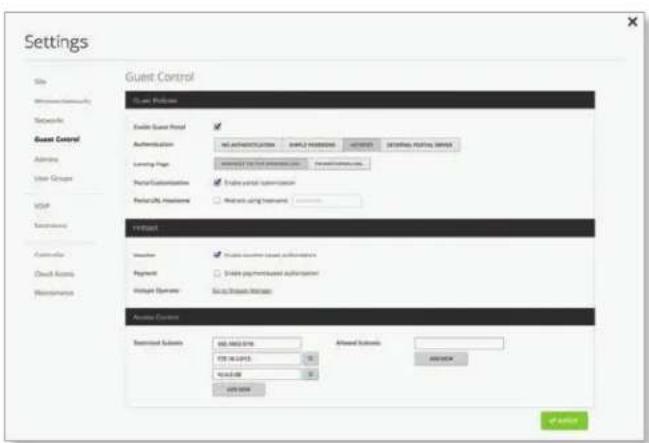
Select this option to enable Hotspot functionality, including the ability to customize portal login pages and bill customers using major credit cards or other supported methods. You must also select Enable Guest Portal under Settings > Guest Control to enforce voucher entry, payment, and selection of the Terms of Use by the guest. See "Guest Policy" on page 21 for more information.
text_image
Settings Site Wireless Community Networks Guest Control Options User Groups VOSP Accessories Controller Direct Access Maintenance Guest Control Guest Control Enable Guest Panel Authentication: NO AUTHORITY SUPPORTS ACCESS DETAILS, POSTS, SERVICE Language Page: Microsoft SQL Server Services Portal Customization: Enable portal customization Personal/SSL Features: Methods using hardware Virtual Provider: Provide user manual authentication Registered: Provide payment/repaid permission Manager Operator: Set to Group Accounts Active Options Restricted Subnets: 468 MHz 5Hz FTR 16 LTR3 10.0 Hz 0.000 Add Options Allowed Subnets: Analog: 2.0MHz AND/OR: 0.000 If ActiveLanding Page After accepting the Terms of Use, guests are redirected to the landing page. Select one of the following options:
- Redirect to the original URL After accepting the Terms of Use, guests are directed to the URL they requested.
- Promotional URL After accepting the Terms of Use, guests are redirected to the URL that you specify. Ensure that the URL begins with http:// (example: http://www.ubnt.com).
Portal Customization Select this option to have customized portal pages appear in place of the default login pages. See "Portal Customization" on page 107 for details on setting up custom portal pages.
Portal URL Hostname Select this option to enter and use a hostname for the portal URL in place of the default IP address. Paired with an SSL certificate, this ensures that site certificates are displayed as trusted in the guest browser. Example: www.ubnt.com
Hotspot
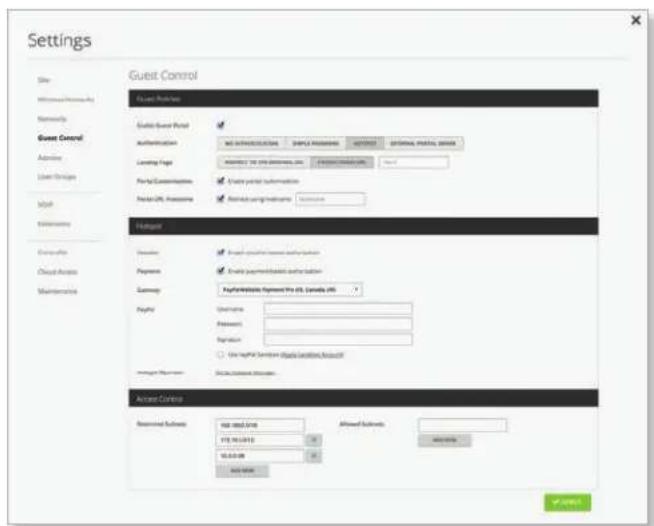
When Hotspot authentication is selected, the Hotspot section is displayed.
text_image
Settings Site User/Access Networks Guest Control Admins User Groups Model Information Computer Cloud Access Maintenance Guest Control Guest Address Guest Guest Point Authentication: NO INFORMATION SIMPLE PASSWORD NOTICE OPTIONAL POSTAL SYSTEMS Language Page: ADDRESS TO 2019 BUSINESS INC. POSTAL SUMMARY Portal Communications Create portal information Portion URL: https://www.guest.com/ Status using https://www.guest.com/ History Actions Search quarterly subscription via button Payment Enable payment/basic subscription Summary: PayPalable Payment To 5, Canada5 PayPal Service: Payment: Regulator: Use payPal Service (Share Options, Amount) Manager Review: Social Security Updates Access Controls Restricted Software: USB: 3.68 GB USB: 10.16 GB USB: 0.00 GB Allowed Software: Accept Note Accept NoteSelect the Voucher or Payment method of authorization:
- Voucher Use Hotspot Manager to create vouchers (including distributable code, duration values, and use restrictions). See "Hotspot Manager" on page 103.
- Payment Set up payment-based authentication. If you select this option, then the Gateway option will appear.
- Gateway (Available only for payment-based authentication.) You have multiple options:
- PayPal™ Website Payment Pro (US, Canada, UK) Use your PayPal Website Payments Pro account. To manage payments and transactions, use Hotspot Manager and see "Hotspot Manager" on page 103.
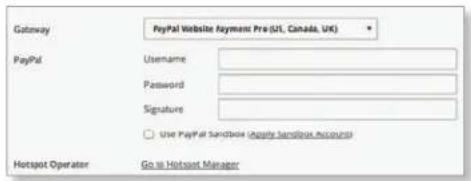
text_image
Gateway PayPal Website Payments Pre (U1, Canada, UK) PayPal Username Password Signature Use PayPal Sandstone (supply sandbox account) Hotspot Operator Go to Hotspot ManagerEnter the PayPal account details:
- Username Enter the corresponding Username.
- Password Enter the corresponding Password.
• Signature Enter the corresponding Signature for the PayPal account that will receive payments. - Use PayPal Sandbox For PayPal testing purposes, select this option. Then click Apply Sandbox Account to set up or access your PayPal Sandbox Test Environment.
- Stripe (US, Canada) Use your Stripe account. To manage payments and transactions, use Hotspot Manager and see "Hotspot Manager" on page 103.
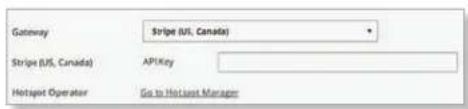
text_image
Gateway Stripe (US, Canada) Stripe (US, Canada) AP\Key Hotspot Operator Go to Hotspot ManagerEnter the Stripe account detail:
• API Key Enter the live secret API key.

Note: We recommend that you perform a test transaction with the test secret API key first before using the live secret API key.
- Quickpay (Europe) Use your Quickpay account. To manage payments and transactions, use Hotspot Manager and see "Hotspot Manager" on page 103.
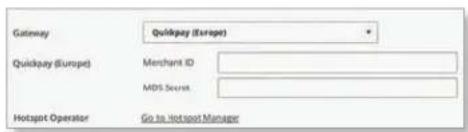
text_image
Gateway Quickpay (Europe) Quickpay (Europe) Merchant ID: MDS Secret: Hotspot Operator Go to Hotspot ManagerEnter the Quickpay account details:
- Merchant ID Enter the ID for your merchant account.
• MD5 Secret Enter the MD5 secret key. - Authorize.Net (US, Canada) Use your Authorize.Net account. To manage payments and transactions, use Hotspot Manager and see "Hotspot Manager" on page 103.
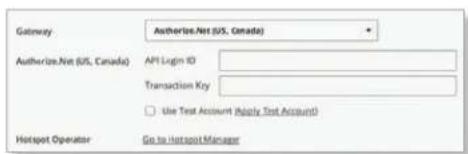
text_image
Gateway Authorities.Net (US, Canada) Authorization.Net (US, Canada) API Login ID Transaction Key Use Test Account (Apply Test Account) Hotspot Operator Go to Hotspot ManagerEnter the Authorize.Net account details:
- API Login ID Enter the API login ID used to identify yourself as an authorized user.
- Transaction Key Enter the key used to authenticate transactions.
- Use Test Account For Authorize.Net testing purposes, select this option. Then click Apply Test Account to set up or access your Authorize.Net test account.
- Merchant Warrior (Australia, New Zealand) Use your Merchant Warrior account. To manage payments and transactions, use Hotspot Manager and see "Hotspot Manager" on page 103.
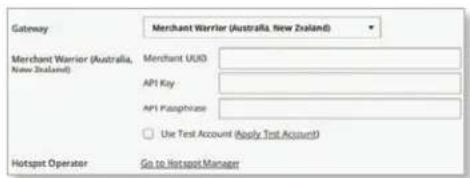
text_image
Gateway Merchant Warrior (Australia, New Zealand) Merchant Warrior (Australia, New Zealand) Merchant UUSD API Key API Passphrase Use Test Account (Apply Test Account) Hotspot Operator Go to Hotspot ManagerEnter the Merchant Warrior account details:
- Merchant UUID Enter the ID for your merchant account.
• API Key Enter the API key.
• API Passphrase Enter the API passphrase. - Use Test Account For Merchant Warrior testing purposes, select this option. Then click Apply Test Account to set up or access your Merchant Warrior test account.
- IPpay™ (US, Canada) Use your IPpay account. To manage payments and transactions, use Hotspot Manager and see "Hotspot Manager" on page 103.
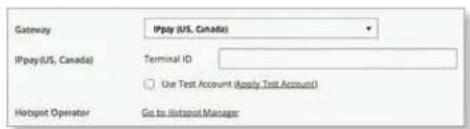
text_image
Gateway IPpay (US, Canada) IPpay(US, Canada) Terminal ID Use Test Account (Apply Test Account) Hotspot Operator Go to Hotspot ManagerEnter the IPpay account details:
• Terminal ID Enter the terminal number for your merchant account.
- Use Test Account For IPpay testing purposes, select this option. Then click Apply Test Account to set up or access your IPpay test account.
- Hotspot Operator Click Go to Hotspot Manager to manage Wireless Guests, Payments/Transactions, Vouchers, and Operator Accounts. See "Hotspot Manager" on page 103.
UniFi Controller User Guide
When logging in with voucher-based Hotspot authentication, guests will be required to enter the voucher number and accept the Terms of Use before gaining access to the Internet.
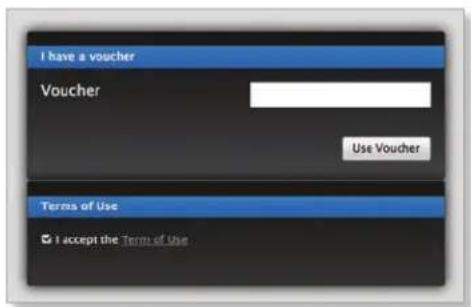
text_image
I have a voucher Voucher Use Voucher Terms of Use I accept the Term of UseWhen logging in with payment-based Hotspot authentication, guests will be required to select the package type, click the payment choice, and accept the Terms of Use before gaining access to the Internet.
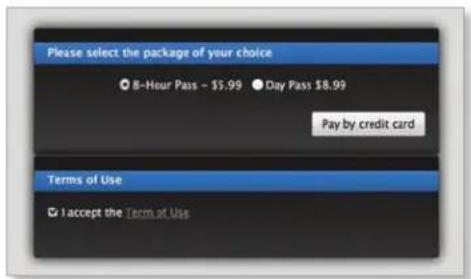
text_image
Please select the package of your choice ● 8-Hour Pass - 5.99 ● Day Pass8.99 Pay by credit card Terms of Use ● I accept the Term at UseAuthentication > External Portal Server
Select this option if you are using an external server to host a custom guest portal.
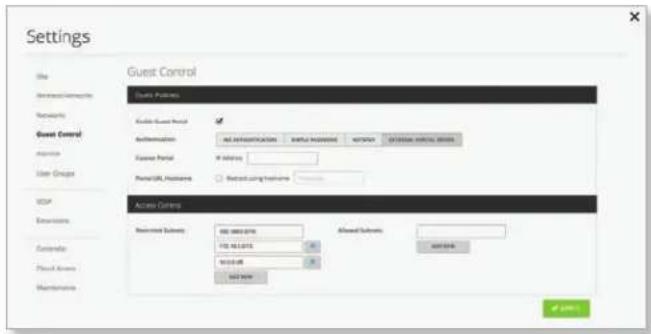
text_image
Settings Site Deserted Networks Networks Guest Control Access Points Enable Guest Process Authentication: No. 10000000000000000000000000000000000000000000000000000000000000000000000000000000000000 License Panel: No. 1688-5132 Access Code: Add new Active Controls Received Subsets: 1688-5132 176-5132 186-5132 Add new Allowed Subsets: Add new OK OKCustom Portal Enter the IP address in the IP Address field.
Portal URL Hostname Select this option to enter and use a hostname for the portal URL in place of the default IP address. Paired with an SSL certificate, this ensures that site certificates are displayed as trusted in the guest browser. Example: www.ubnt.com
Chapter 3: Using the UniFi Controller Software
Access Control
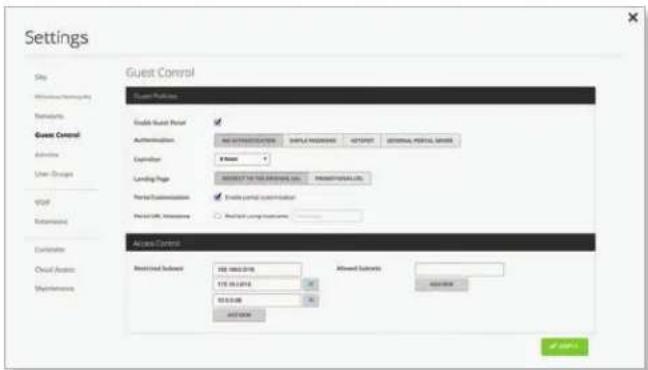
text_image
Settings Site User/Location/Reporting Networks Guest Control Activities User Groups VSP Automotive Custom Service Mydromotion Guest Control Guest Process Create Guest Portion Authentication:No
Routing Page:SELECT NET AIR ADDRESS, LLC.
Portal/Personal Site: Portal Customization Pre-USB, User(s)Select portal customization
Pre-USB, User(s) Access Control Default Subtotal: 102.1663.078 175.04.2474 93.05.038 ADD FREE Allowed Subtotal: ADD FREE ADD FREE All UsersRestricted Subnets Enter any subnets that you don't want guests to be able to access. Click the delete icon to remove a subnet from this list.
- Add New Click Add New to add more restricted subnets.
Allowed Subnets Enter any subnets that you want guests to be able to access. Click the delete icon to remove a subnet from this list.
- Add New Click Add New to add more allowed subnets.
Apply Click √ APPLY to save changes.
Settings > Admins
You can create administrator accounts that are site-specific; these site administrators can only see the sites they manage and cannot see any devices that are Pending Approval.
The super admin account is created during the Setup Wizard and has global admin (read/write) access; this super admin account cannot be revoked or re-invited. Only the super admin – not any site admin – can view devices that are Pending Approval and then adopt them on the UniFi Controller.

Note: Ensure that you save the super admin login information for future use, including the adoption of new devices.
To create operator accounts for the Hotspot Manager, see "Operator Accounts" on page 105.
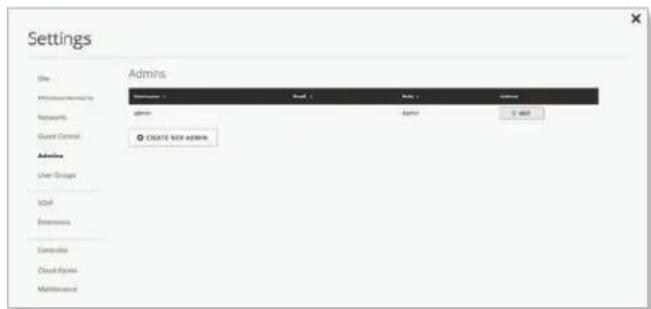
text_image
Settings Admins Name: Staff: 1 Policy: 2 Security: Name: Staff: 3 Policy: 4 Security: 5 Admissions Create key adminis User Groups IDP Extensions Computer Cloud Apps MaintenanceUsername Displays the name of the administrator.
Email Displays the email address of the administrator.
Role Displays the permissions level: Admin (read/write access) or Read Only.
Actions Click a button to perform the desired action:
- Revoke Click ✗REVOKE to remove the selected account.
- Re-invite Click RE-INVITE to re-send an invitation to a pending account.
- Edit Click EDIT to make changes.
Create New Admin Click 📍 CREATE NEW ADMIN to add a new site admin. Go to the Create or Edit an Admin section.
To create operator accounts for the Hotspot Manager, see "Operator Accounts" on page 105.
Create or Edit an Admin
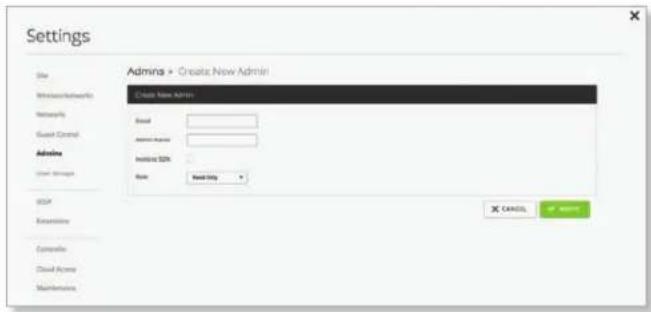
text_image
Settings Site Windows Networks Networks Guest Control Admins User Strings QQF Extensive Compatible Cloud Access Maintenance Admins > Create New Admin Create New Admin Send Send Request Institute SDK Rate Send Only CANCEL Cancel- Email Enter the email address of the new administrator.
- Admin Name Enter the name of the new administrator.
- Invite to SDN Select this option to allow the new administrator access to SDN (Software-Defined Networking) settings. The new administrator must use his or her own cloud account (linked to the same email address) to manage the UniFi Controller. The admin who issued the invitation can select which role the new administrator will have with respect to the UniFi Controller.
- Role Select Administrator (read/write access) or Read Only.
- Invite Click √ INVITE to send an email invitation.
- Cancel Click × CANCEL to discard changes.
Settings > User Groups
Configure user groups on this screen. The default user group is named Default and has no bandwidth limits.
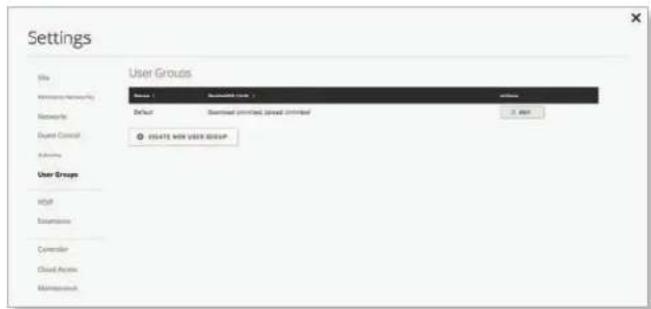
text_image
Settings File User Groups Name: Microsoft user Default Spread printed, spread printed 2.466 © ISOLATE NEW USER GROUP User Groups http Extrusive Controller Cloud Active MaintenanceUser Group Settings
Name Displays the name of the user group.
Bandwidth Limit Displays the upload and download limits.
Actions Click a button to perform the desired action:
- Edit Click EDIT to make changes to the user group settings. Go to the Create or Edit a User Group section.
- Delete Click DELETE to delete the user group. (The Default user group cannot be deleted.)
Create New User Group Click 📍 CREATE NEW USER GROUP to create a new user group. Go to the Create or Edit a User Group section.
Create or Edit a User Group
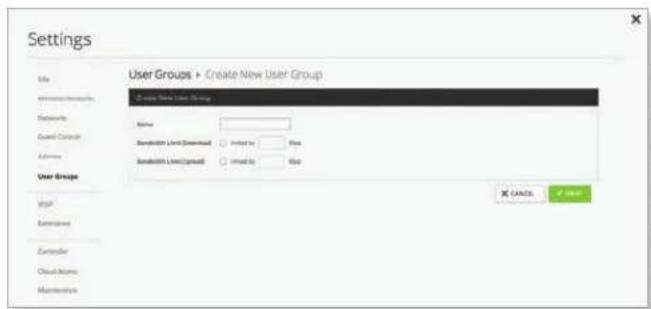
text_image
Settings User Groups • Create New User Group Name Bandwidth Level(Dessead) Implied to: Base Bandwidth Level(Small) Implied to: Base User Groups Stop Extensions Controller Cloud Active Maintenance X CANCEL # User- Name Enter or edit the name of the user group.
- Bandwidth Limit (Download) Select to limit the download bandwidth. Enter the maximum in Kbps.
- Bandwidth Limit (Upload) Select to limit the upload bandwidth. Enter the maximum in Kbps.
- Save Click ✓ SAVE to apply changes.
- Cancel Click × CANCEL to discard changes.
See "Wireless Client – Configuration" on page 99 or "Wired Client – Configuration" on page 101
for information on how to assign a user or guest to a user group.
Settings > VoIP
Enable the VoIP feature and configure the VoIP settings of the UniFi Controller.
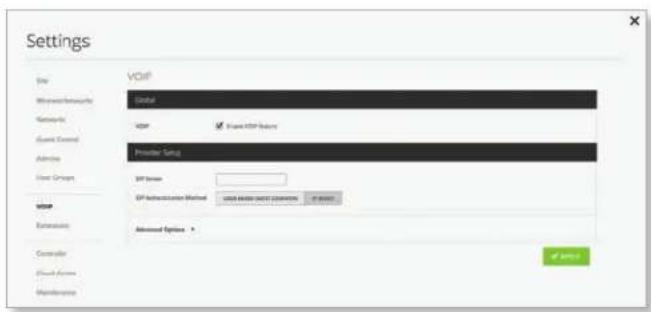
text_image
Settings Site Wiprocatheoretical Networks Guest Control Advice User Groups VoIP Extensions Controller Cloud Server Maintenance VoIP Global VoIP ✓ Select VoIP Buttons Provider Setup SP Device SP Networkcenter Method: www. VoIP.NET.COM.COMPUTER - IP DOWN Advanced Options > ✓ SelectGlobal
VoIP Select this option to enable the VoIP feature.
Provider Setup
SIP Server Enter the IP address of the SIP (Session Initiation Protocol) server.
SIP Authentication Method Select the authentication method used for your SIP account:
- User-Based (Most Common) If your VoIP system uses a dynamic IP address, then select this option.
- Advanced Options Click the ▼arrow to display the following:
- Outbound Proxy Enter the URL or IP address of the SIP proxy server.
- SIP Voicemail Enter the URL or IP address of the SIP voicemail server.
- IP-Based If your VoIP system uses a static IP address, then select this option.
- Advanced Options Click the ▼arrow to display the following:
- Outbound Proxy Enter the URL or IP address of the SIP proxy server.
- SIP Voicemail Enter the URL or IP address of the SIP voicemail server.
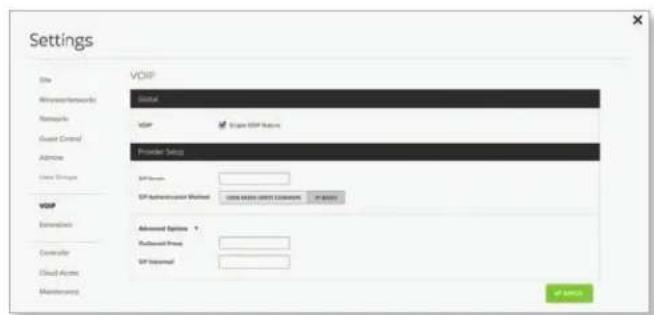
text_image
Settings Site Micronetworks Networks Guest Control Admins User Timestamps VoIP Externals Controller Cloud Access Maintenance VoIP Global VoIP Organ VoIP Options Frontier Setup SP Design SP Authentication Method: www.essencev.com/2018-00000000000000000000000000000000000000000000000000000000000000000000000000000000000000000000000 Advanced Options: Default Press SP Internal if any- Apply Click √ APPLY to save changes.
Settings > Extensions
The Extensions tab appears if VoIP is enabled.
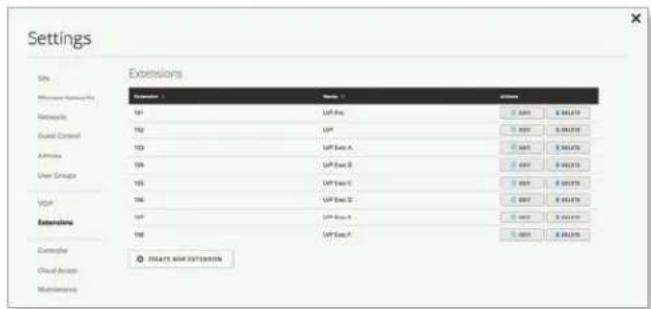
text_image
Settings Site Extensions Name 1 Size 2 Software 名称: ISO LVP Pro 0.000 0.000 Reaport: ISO LVP 0.000 0.000 Guard Control ISO LVP Dev A 0.000 0.000 Attributes: ISO LVP Dev B 0.000 0.000 User Groups ISO LVP Dev C 0.000 0.000 Type: ISO LVP Dev D 0.000 0.000 Extensions: ISO LVP Dev E 0.000 0.000 Controller ○ CREATE NEW EXTENSIONExtension Displays the number of the extension.
Name Displays the name of the extension.
Actions Click a button to perform the desired action:
- Edit Click EDIT to make changes to the extension settings. Go to the Create or Edit an Extension section.
- Delete Click ⬆ DELETE to delete the extension.
Create New Extension Click 📍 CREATE NEW EXTENSION to add a new extension. Go to the Create or Edit an Extension section.
Create or Edit an Extension
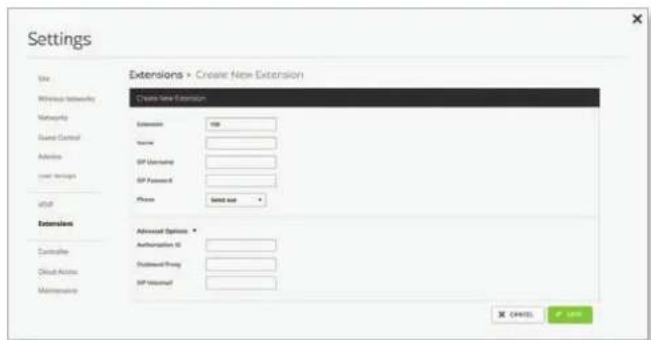
text_image
Settings View Windows Networking Networking Sound Control Actions User Settings altif Extensions Controller Cloud Active Maintenance Extensions > Create New Extension Share New Extension Extensions 100 Password SP Password SP Password # Phone Install out Advanced Options * Authorization ID Shutdown Proxy SP Password OK Cancel Cancel- Extension Enter the extension number. The default is 101.
- Name Enter a name for the extension.
- SIP Username (Only available if you are using User-Based SIP authentication.) Enter the username for your SIP account.
- SIP Password (Only available if you are using User-Based SIP authentication.) Enter the password for your SIP account.
- Phone Select the MAC address of the appropriate UniFi VoIP Phone.
- Advanced Options Click the Arrow to display the following:
- Authorization ID (Only available if you are using User-Based SIP authentication.) Enter the username used for authorization or authentication.
- Outbound Proxy Enter the URL or IP address of the SIP proxy server.
- SIP Voicemail Enter the URL or IP address of the SIP voicemail server.
- Save Click ✓ SAVE to apply changes.
- Cancel Click × CANCEL to discard changes.
Settings > Controller
Configure the system settings of the UniFi Controller.
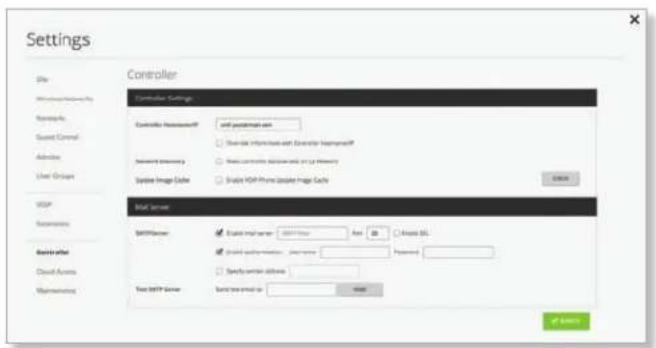
text_image
Settings Site Controller Settings Controller Settings: and password mask □ Download Information and Controller Environment Network Security: This is currently installed on the Internet System Image Cable: Analyze TCP Phone Update Image Cable Web Server SMTPServer: Enable Web Server: HTTP User: Anti-Blue □ Download information: password: Password: □ Specify server address: Test SMTP Server: Send you email to: OKController Settings
Controller Hostname/IP Enter the hostname or IP address of the UniFi Controller.

Note: When alert emails are sent out, the Controller Hostname/IP will be specified in the Controller URL at the bottom of every message.
• Override inform host with Controller
Hostname/IP An inform host URL is used for layer-3 device adoption using the UniFi Discovery Utility. Select this option to override the inform host URL. Then enter the appropriate hostname or IP address.

Note: The default inform port is 8080. (You can customize this in system.properties.)
Network Discovery When enabled, this option allows UniFi to be discoverable via UPnP. This option is disabled by default.
Update Image Cache Disabled by default. Select this option to enable the automatic update of the cached VoIP phone image.
Mail Server
When enabled, UniFi will send email alerts triggered by disconnected UniFi devices. Specify the administrator email address when you create an account under "Settings > Admins" on page 27.
SMTP Server Select this option to enable emails.
- Enable mail server Enter the outgoing (SMTP) mail server name.
- Port The default is 25. If Secure Sockets Layer (SSL) is enabled, then the port number will automatically change to 465.
- Enable SSL You can enable SSL to enhance secure communications over the Internet.
- Enable authentication Select this option to enable authentication.
- Username Enter the username required by the mail server.
-
Password Enter the password required by the mail server.
-
Specify sender address Select this option to specify the sender email address. Enter the email address that will appear as the sender of the email alert.
- Test SMTP Server Enter an email address and click Send to test the mail server setup.
Apply Click √ APPLY to save changes.
Settings > Cloud Access
Set up the login for cloud access.
text_image
Settings Site Cloud Access Wireless Networks DOUBLE CLOUD ACCESS Networks Ground Control Adaptive Lower Struggers VSP Extensions Controller Cloud Access MaintenanceEnable Cloud Access Click ☑ ENABLE CLOUD ACCESS to configure the login. The Cloud Login Credentials screen will appear.
Cloud Login Credentials
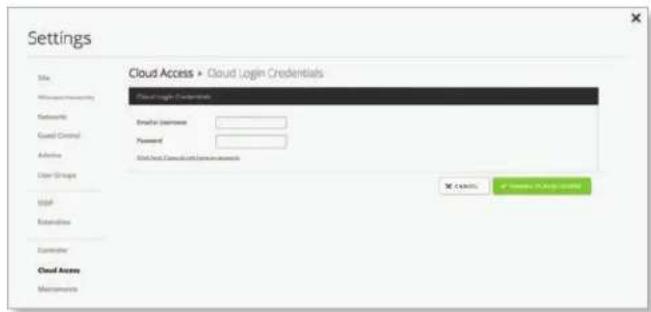
text_image
Settings Site Cloud login Credentials Networks Email: Email Password: Send to Cloud Login Credentials Access User Groups Add Extensions Controller Cloud Access Maintenance- Email or Username Enter the email address or username of your UBNT account.
- Password Enter the password of your UBNT account.
- Click here if you do not have an account If you do not have a UBNT account, click here to visit this link: https://account.ubnt.com/register
Follow the on-screen instructions to set up a UBNT account.
- Enable Cloud Access Click ✓ ENABLE CLOUD ACCESS to save changes.
- Cancel Click × CANCEL to discard changes.
Controller Cloud Access
If the login for cloud access is configured, then the Controller Cloud Access screen will appear:
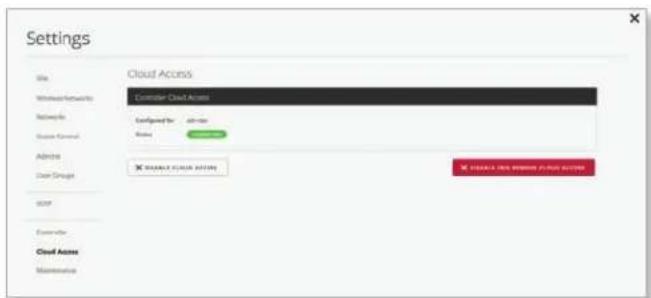
text_image
Settings Site Wireless Network Networks Server Control Address User Groups HTTP Connector Cloud Access Maintenance Cloud Access Controller Cloud Access Configured for: all rights Name: Windows © **** CLOUD ACCESS © **** CLOUD ACCESS ◆ ◆ ◆ ◆ ◆ ◆ ◆ ◆ ◆ ◆ ◆ ◆ ◆ ◆ ◆ ◆ ◆ ◆ ◆ ◆ ◆ ◆ ◆ ◆ ◆ ◆ ◆ ◆ ◆ ◆ ◆ ◆ ◆ ◆ ◆ ◆ ◆ ◆ ◆ ◆ ◆ ◆ ◆ ◆ ◆ ◆ ◆ ◆ ◆ ◆ ◇ ◆ ◆ ◆ ◆ ◆ ◆ ◆ ◆ ◆ ◆ ◆ ◆ ◆ ◆ ◆ ◆ ◆ ◆ ◆ ◆ ◆ ◆ ◆ ◆ ◆ ◆ ◆ ◆ ◆ ◆ ◆ ◆ ◆ ◆ ◆ ◆ ◆ ◆ ◆ ◆ ◆ ◆ ◆ ◆ ◆ ◆ ◆ ◆ ◆ ◉Configured for Displays the username or email address of your UBNT account.
Status Displays "Connected" if cloud access is active.
Disable Cloud Access Click ✗ DISABLE CLOUD ACCESS to disable cloud access.
Disable and Remove Cloud Access Click
✗ DISABLE AND REMOVE CLOUD ACCESS to disable cloud access and remove the cloud login credentials.

Note: Enabling or disabling cloud access will affect cloud access for all admins on that UniFi Controller.
Settings > Maintenance
The Maintenance screen contains administrative options, so you can customize logs, manage system backups, and download configuration information to assist in support issues.
If your UniFi Controller is running on a UniFi Cloud Key, you can use the Maintenance tab to upgrade the UniFi Cloud Key firmware, upgrade the UniFi Controller software located on the UniFi Cloud Key, reboot the UniFi Cloud Key, power it off, or reset it to factory defaults.
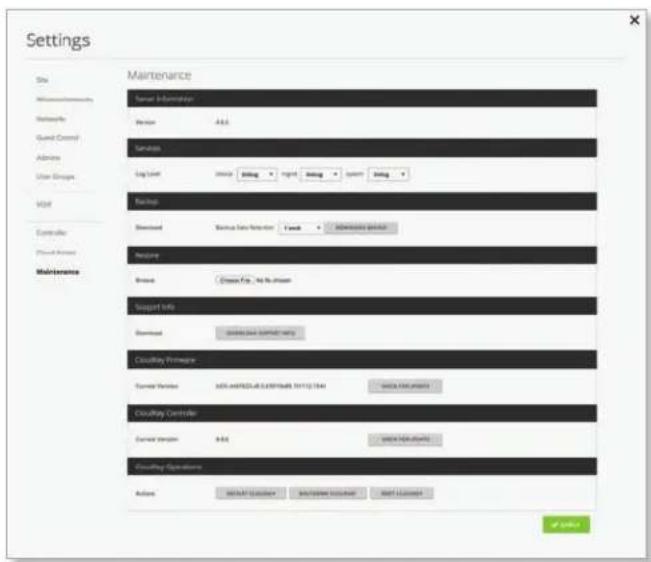
text_image
Settings Site Maintenance Networks Guard Control Admins User Groups Visit Controller Phone Privacy Maintenance Maintenance Server Information Version A:0.0 Server Log time Event pricing right pricing system pricing Backup Streamed Network Data Provider Cash Advanced software Backup Stream Closer No. No stream Support Info Streamed network support via Cloudify Provider Current Version 1054-049236-049236/049236/049236/049236/049236/049236/049236/049236/049236/049236/049236/049236/049236/049236/049236/0 Cloudify Controller Current version B:0.0 Cloudify Server Active Select Server Perform User Print Start License OK SaveServer Information
Version Displays the software version.
Services
Log Level You can customize the support information that is collected:
- device Select the level of severity required to trigger device log entries: Normal, More, or Debug. The default is Normal.
- mgmt Select the level of severity required to trigger management log entries: Normal, More, or Debug. The default is Normal.
- system Select the level of severity required to trigger system log entries: Normal, More, or Debug. The default is Normal.
Backup
Download You can download a backup of your settings and data retained for the duration you specify.
Backup Data Retention Select the time duration of the backup: 1 week, 30 days, 60 days, 90 days, 180 days, 365 days, or All time. The default is 1 week.
Download Backup Click this option to download a file that contains all of your settings so you can restore them later if you choose.
Restore
Browse Click Choose File to select a backup file that you've already downloaded. Follow the on-screen instructions to restore settings from the selected file.
Support Info
Download Click this option to download a file to your computer with information about your configuration. You can email this file to our support team.
Cloud Key Firmware
Current Version Displays the version number of the UniFi Cloud Key firmware.
Available Update If there is an available update, then the available firmware version number is displayed. Click Apply Update to upgrade the firmware.
Check for Update Click this option to see if there is a newer firmware version. If there is, then you can follow the on-screen instructions to upgrade now.

Note: We recommend that you back up your UniFi Controller configuration (refer to the Backup section for more information) before upgrading.
Cloud Key Controller
Current Version Displays the version number of the UniFi Controller software.
Available Update If there is an available update, then the available software version number is displayed. Click Apply Update to upgrade the software.
Check for Update Click this option to see if there is a newer software version. If there is, then you can follow the on-screen instructions to upgrade now.

Note: We recommend that you back up your UniFi Controller configuration (refer to the Backup section for more information) before upgrading.
Cloud Key Operations
Restart Cloud Key Click this option to powercycle the UniFi Cloud Key.
Shut Down Cloud Key Click this option to turn off the UniFi Cloud Key.
Reset Cloud Key Click this option to reset the UniFi Cloud Key to its factory default settings. This option will reboot the UniFi Cloud Key, and all factory default settings will be restored.

Note: We recommend that you back up your UniFi Controller configuration (refer to "Backup" on page 31 for more information) before resetting the UniFi Cloud Key to its defaults.
Apply Click √ APPLY to save changes.
Alerts
The Alerts tab displays a list of important events, along with the corresponding date, time, and message. When there is a new alert, a red icon displaying the number of new alerts appears.

text_image
A 100% 100% 100% 100% 100% 100% 100% 100% 100% 100% 100% 100% 100% 100% 100% 100% 100% 100% 100% 100% 100% 100% 100% 100% 1 2 3 4 5 6 7 8 9 10 11 12 13 14 15 16 17 18 19 20 21 22 23 24 25 26 27 28 29 30 31 32 33 34 35 36 37 38 39 40 41 42 43 44 45 46 47 48 49 50 51 52 53 54 55 56 57 58 59 60 61 62 63 64 65 66 67 68 69 70 71 72 73 74 75 76 77 78 79 80 81 82 83 84 85 86 87 88 89 90 91 92 93 94 95 96 97 98 99 100Show archived alerts Select this option to display all of the archived alert messages.
Archive All Click Archive All to archives all of the alert messages.
Search °You can enter text that you want to search for. Simply begin typing; there is no need to press Enter.
Archive Click to archive the selected alert message.
Clicking an Alert Device Link
The messages have clickable links (white text on a blue background) for client and UniFi devices:
• "UniFi Security Gateway Details" on page 67
• "UniFi Switch Details" on page 75
- "UniFi Access Point Details" on page 83
• "UniFi VoIP Phone Details" on page 95
- "Client Details" on page 97
Events
The Events tab displays a list of recent events, along with the corresponding date, time, and message.
You can apply one of the following filters:
• All Display all of the recent events.
- Admin Only display recent events for the administrator.
• LAN Only display recent events for the wired network.
- WLAN Only display recent events for the wireless networks.
within Filter recent events based on the time period you specify. Select 1 hour, 8 hours, 24 hours, 2 days, 7 days, 2 weeks, or 1 month.
Search "You can enter text that you want to search for. Simply begin typing; there is no need to press Enter."
Clicking an Event Device Link
The messages have clickable links (white text on a blue background) for client and UniFi devices:
• "UniFi Security Gateway Details" on page 67
• "UniFi Switch Details" on page 75
- "UniFi Access Point Details" on page 83
• "UniFi VoIP Phone Details" on page 95
- "Client Details" on page 97
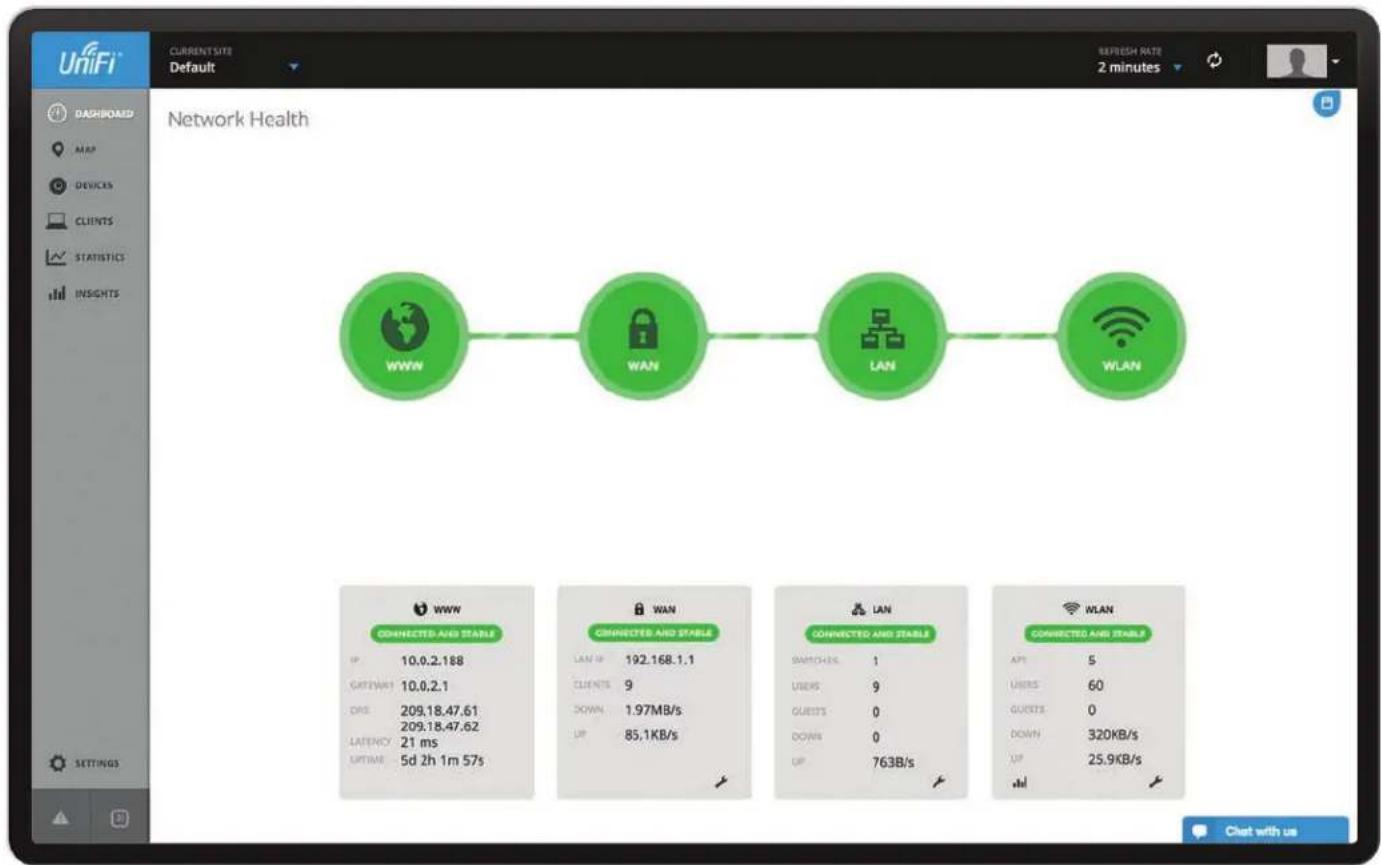
flowchart
graph LR
    A["WWW"] --> B["WAN"]
    B --> C["LAN"]
    C --> D["WLAN"]
Chapter 4: Dashboard
The Dashboard screen provides a visual representation of your network's status. Basic information is provided for each node:
• "Internet" on page 34
• "Gateway/Router" on page 34
• "Local Area Network" on page 35
• "Wireless Local Area Network" on page 35
Green Green indicates that the dashboard node is active and all devices are online.
- Speed Test If your WAN connection is active, then you can place the mouse over the WWW icon to display the test.
- Start Now Click Start Now to run the test.
text_image
Speedtest STARTNOW WWWAfter the Speed Test is complete, the following will be displayed:
• Duration of the average Ping round-trip time
- Download speed
- Upload speed
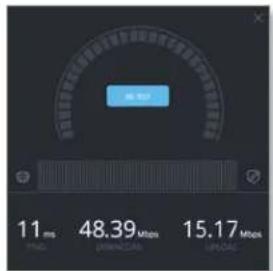
text_image
OK 11 ms 48.39 MWh 15.17 Mpa- Re-Test Click Re-Test to run the test again.
Red Red indicates one of the following:
- www Internet connectivity is down.
• WAN The UniFi Security Gateway is offline.
• LAN One or more Switches are offline. - WLAN More than half of the APs are offline.

flowchart
graph LR
    A["WWW"] --> B["WANLAN"]
    B --> C["WiW"]
    C --> D["WLAN"]
Orange Orange indicates that half or fewer than half of the APs are offline.

Note: Orange is not applicable to the WWW, WAN, and LAN nodes.
Gray Gray indicates that there are no devices available for that dashboard node.
Internet
The basic details of the Internet connection are displayed.
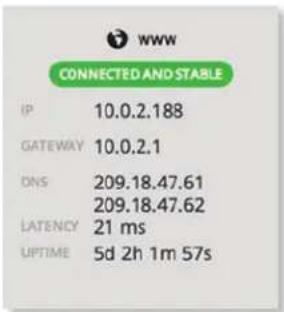
text_image
www CONNECTED AND STABLE IP 10.0.2.188 GATEWAY 10.0.2.1 DNS 209.18.47.61 209.18.47.62 LATENCY 21 ms UPTIME 5d 2h 1m 57sStatus Displays the status of the node: Connected and Stable, Unreachable, or No Data Available.
IP Displays the Internet IP address of the UniFi Security Gateway.
Gateway Displays the IP address of the service provider's gateway.
DNS Displays the IP addresses of the Domain Name System (DNS) servers.
Latency Displays the amount of time it takes a packet to travel from the UniFi Security Gateway to the service provider's gateway.
Uptime Displays the length of time the Internet connection has been active.
Gateway/Router
The basic details of the UniFi Security Gateway are displayed.
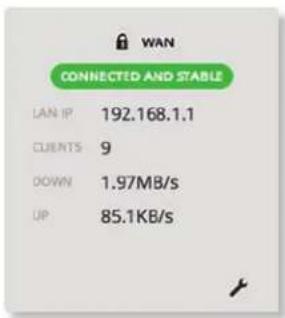
text_image
WAN CONNECTED AND STABLE LAN IP 192.168.1.1 CLIENTS 9 DOWN 1.97MB/s UP 85.1KB/sStatus Displays the status of the node: Connected and Stable, Gateway Down, Unreachable, or No Data Available.
LAN IP Displays the local IP address of the UniFi Security Gateway.
Clients Displays the total number of local clients.
Down Displays the download rate of your Internet connection.
Up Displays the upload rate of your Internet connection.
Configuration Click the configuration ↗ icon to edit the configuration. Go to "UniFi Security Gateway Details" on page 67 for more information.
If the DPI feature is enabled (refer to "Settings > Site" on page 18 for more information), then you can place the mouse over the WAN icon for a top-level view of DPI categories with the bandwidth usage broken down by percentages.
Place the mouse over a specific category to view the download and upload bandwidth usage.
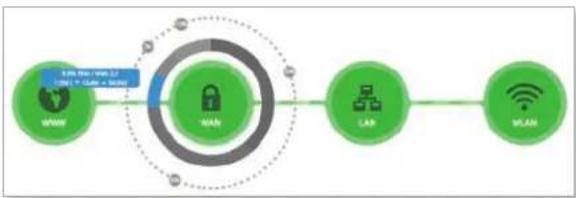
flowchart
graph LR
    A["Network"] --> B["Lock"]
    B --> C["Lear"]
    C --> D["Wi-Fi"]
    style B fill:#99ccff,stroke:#333
    style C fill:#99ccff,stroke:#333
    style D fill:#99ccff,stroke:#333
Click a specific category to view a deeper level of details, the subcategories with the bandwidth usage broken down by percentages.
Place the mouse over a specific subcategory to view the download and upload bandwidth usage.
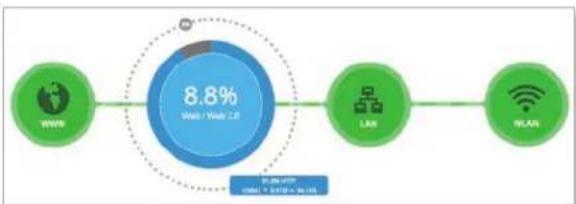
flowchart
graph LR
    A["WiFi"] --> B["8.8% Web/Web IoT"]
    C["LAN"] --> B
    D["WLAN"] --> B
Click the subcategory to open the Statistics tab of the
UniFi Security Gateway screen. For more information, go to "UniFi Security Gateway – Statistics" on page 69.
Local Area Network
The basic details of the wired network(s) are displayed:
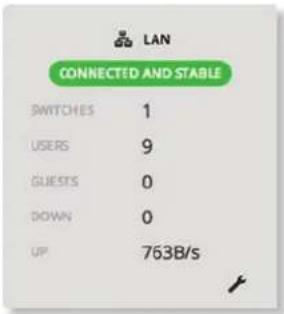
text_image
LAN CONNECTED AND STABLE SWITCHES 1 USERS 9 GUESTS 0 DOWN 0 UP 763B/sStatus Displays the status of the node: Connected and Stable, Switch Down, Unreachable, or No Data Available.
Switches Displays the number of UniFi Switches managed on this site.
Users Displays the number of clients connected to the wired network.
Guests Displays the number of clients connected to the guest wired network.
Down Displays the download rate of the wired network(s).
Up Displays the upload rate of the wired network(s).
Configuration Click the configuration icon to edit the configuration. Go to "Settings > Networks" on page 21 for more information.
Wireless Local Area Network
The basic details of the wireless network(s) are displayed.
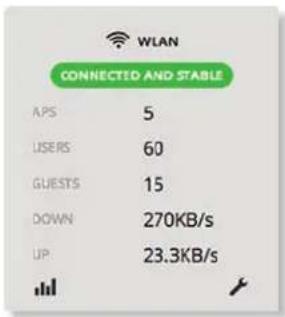
text_image
WLAN CONNECTED AND STABLE APS 5 USERS 60 GUESTS 15 DOWN 270KB/s UP 23.3KB/sStatus Displays the status of the node: Connected and Stable, Devices Down, Unreachable, or No Data Available.
APs Displays the number of APs managed on this site.
Users Displays the number of clients connected to the primary wireless network(s).
Guests Displays the number of clients connected to the guest wireless network(s).
Down Displays the download rate of the wireless network(s).
Up Displays the upload rate of the wireless network(s).
Graph Click the graph icon to view detailed status information. Go to "Statistics" on page 55 for more information.
Configuration Click the configuration icon to edit the configuration. Go to "Settings > Wireless Networks" on page 19 for more information.
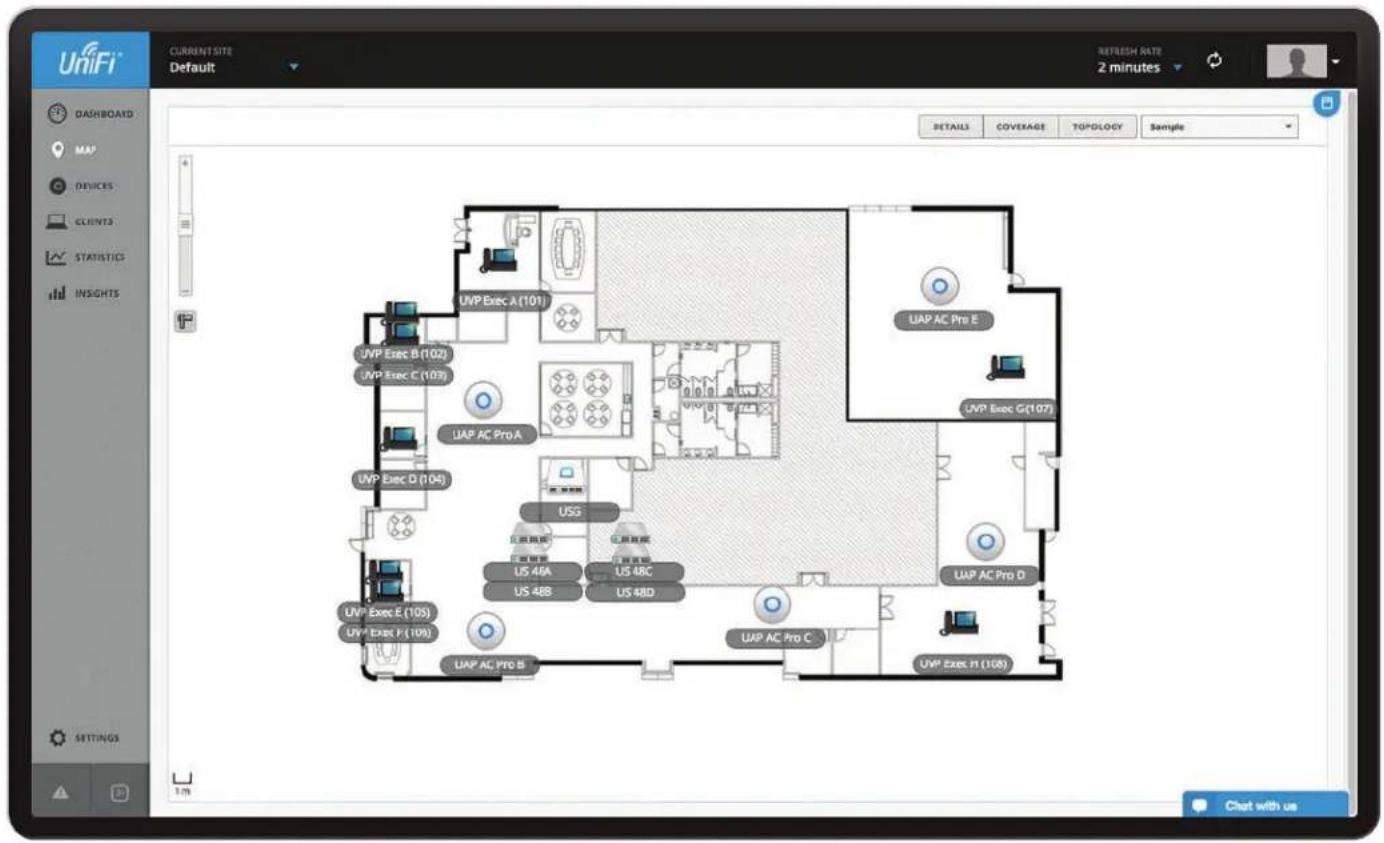
text_image
UniFi CURRENT SITE Default REFRESH RATE 2 minutes DETAILS COVERAGE TOPOLOGY Sample DASHBOARD MAP DEVICES CLIENTS STATISTICS INSIGHTS UVP Exec A(101) UVP Exec B(102) UVP Exec C(103) UAP AC Pro A UVP Exec D(104) USG US 46A US 48B US 48C US 48D UAP AC Pro E UVP Exec G(107) UAP AC Pro D UVP Exec E(105) UVP Exec F(106) UAP AC Pro C UVP Exec H(108) 1m Chat with usChapter 5: Map
The UniFi Controller software allows you to upload custom map images of your location(s) or use Google Maps ^™ for a visual representation of your UniFi network. When you initially launch the UniFi Controller application, a default map is displayed. The legend at the bottom of the map shows the scale of the map.
Adding Custom Maps
To add a custom map, you must first create the image using an illustration, image editing, or blueprint application that exports a file in .jpg, .gif, or .png file format.
Once you've created the map, you can upload it to the UniFi Controller software:
- Click the drop-down menu at the top right of the screen and then click CONFIGURE MAPS
text_image
Screenshot of a software interface displaying a floor plan with labeled rooms and annotations in Chinese.- Click
√ ADD A MAP
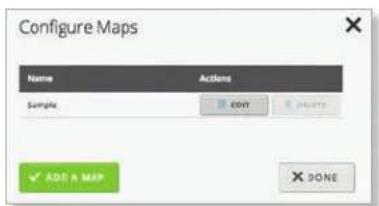
text_image
Configure Maps Name Actions Sample EDIT CHANGE ✓ ADD & MAP ✗ DONEChapter 5: Map
UniFi Controller User Guide
- Locate the file to use as a map (valid file formats are .jpg, .gif, and .png) and then click Open. If you do not want to upload a file, click Cancel.
text_image
Downloads Name One Number Size Find Set Added File1 File2 File3 File4 File5 File6 File7 File8 File9 File10 File11 File12 File13 File14 File15 File16 File17 File18 File19 File20 File21 File22 File23 File24 File25 File26 File27 File28 File29 File30 File31 File32 File33 File34 File35 File36 File37 File38 File39 File40 File41 File42 File43 File44 File45 File46 File47 File48 File49 File50 File51 File52 File53 File54 File55 File56 File57 File58 File59 File60 File61 File62 File63 File64 File65 File66 File67 File68 File69 File70 File71 File72 File73 File74 File75 File76 File77 File78 File79 File80 File81 File82 File83 File84 File85 File86 File87 File88 File89 File90 File91 File92 File93 File94 File95 File96 File97 File98 File99 Save Print- Enter a map name in the field provided and click ✓ DONE.

Note: If the map is incorrect, click Select a different map and try again.
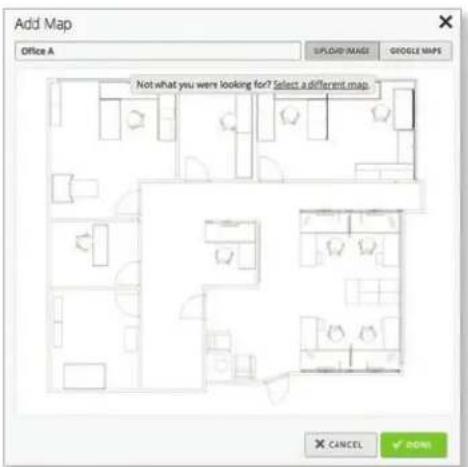
text_image
Add Map Office A UPLOAD IMAGE GOOGLE MAPS Not what you were looking for? Select a different map. X CANCEL ✓ 00%Adding a Google Map
To add a Google Map to the UniFi Controller software Map view:
- Click the drop-down menu at the top right of the screen and then click CONFIGURE MAPS.
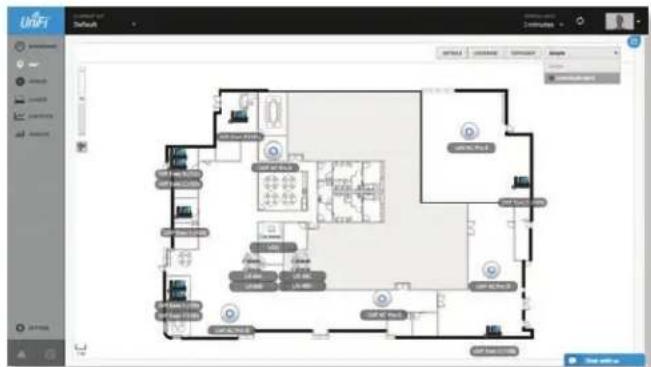
text_image
Screenshot of a 3D floor plan or architectural layout design software interface, showing room layouts and labeled zones.- Click
√ ADD A MAP
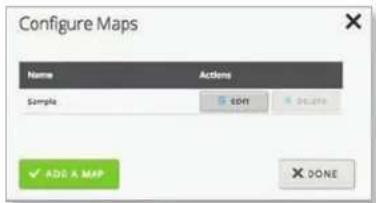
text_image
Configure Maps Name Actions Sample 5 CM 90.276 ✓ ADD & MAP ✗ DONE- Click Cancel.

text_image
Edit Networks Delete Delete Delete Delete Delete Delete Delete Delete Delete Delete Delete Delete Delete Delete Delete Delete Delete Delete Delete Delete Delete Delete Delete Delete Delete Delete Delete Delete Delete Delete Delete Delete Delete Delete Delete Delete Delete Delete Delete Delete Delete Delete Delete Delete Delete Delete Delete Delete Delete Delete 删除 Add... Remove... Save... Help...- Enter a map name in the Description field and click Google Maps.
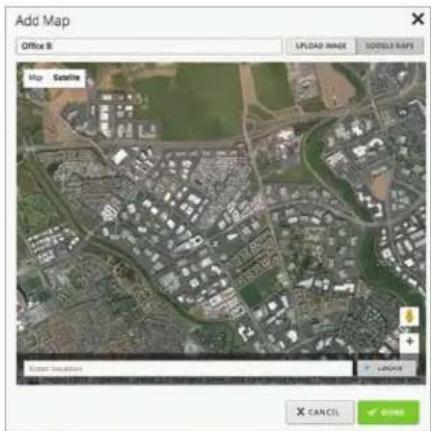
text_image
Add Map Office 8 UPLDAD RANGE ODDLLE RAYS Map Satellite Water Displacement GNC X CANCEL OK- The default view is Satellite view, which allows the use of labels.
Use the tools to navigate the map or zoom in/out.
Click Labels to display street and location names.
In the Location field, enter an address or the latitude and longitude of a specific location. Then click LOCATE.
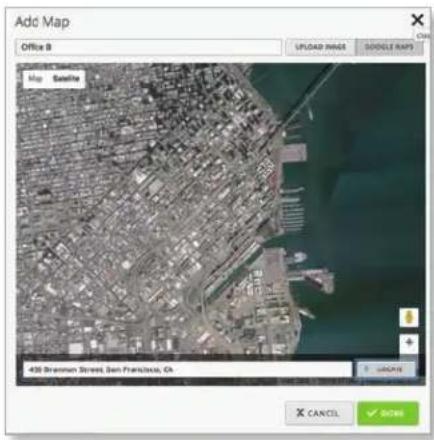
text_image
Add Map Office B UPLAID IMAGE GOOGLE NAME Map Satellite 436 Stramon Street, San Francisco, Ch UPCEN X CANCEL ✓ GONEYou can also click Map, which looks like a street map. Click Terrain to display geographic markers.
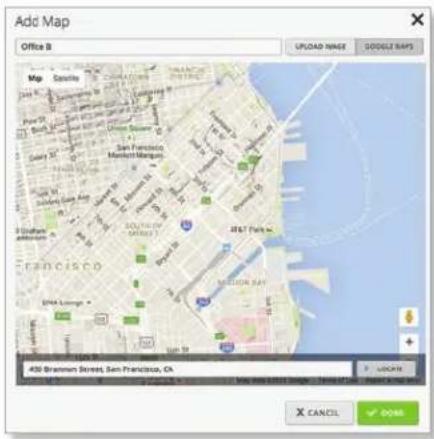
text_image
Add Map Office B UPGDA NAGE DOCUIT RAPS Map Cassette 100% 200% 300% 400% 500% 600% 700% 800% 900% 1000% 1100% 1200% 1300% 1400% 1500% 1600% 1700% 1800% 1900% 2000% 2100% 2200% 2300% 2400% 2500% 2600% 2700% 2800% 2900% 3000% 3100% 3200% 3300% 3400% 3500% 3600% 3700% 3800% 3900% 4000% 4100% 4200% 430 Brammum Street, San Francisco, CA X CANCEL ✓ OINSClick √ DONE to save the map.
You can adjust the zoom using the + and - buttons.
Placing Devices on the Map
- Click Unplaced Devices at the lower right.
- Drag each device icon from the Unplaced Devices list to the appropriate location on the map.
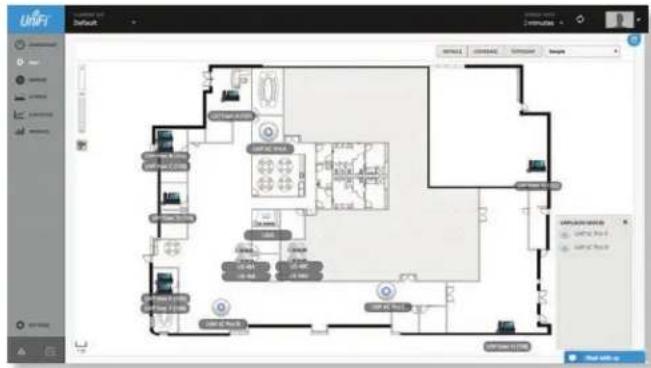
text_image
Screenshot of a software interface showing a floor plan with labeled rooms and control panelsThe device icon will appear in the area that you placed it.

text_image
UNIFI UNIFI UNIFI UNIFI UNIFI UNIFI UNIFI UNIFI UNIFI UNIFI UNIFI UNIFI UNIFI UNIFI UNIFI UNIFI UNIFI UNIFI UNIFI UNIFI UNIFI UNIFI UNIFI UNIFI UNIFI UNIFI UNIFI UNIFI UNIFI UNIFI UNIFI UNIFI UNIFI UNIFI Unif you can use this system. - 1. To you use this system. - 2. To you use this system. - 3. To you use this system. - 4. To you use this system. - 5. To you use this system. - 6. To you use this system. - 7. To you use this system. - 8. To you use this system. - 9. To you use this system. - 10. To you use this system. - 11. To you use this system. - 12. To you use this system. - 13. To you use this system. - 14. To you use this system. - 15. To you use this system. - 16. To you use this system. - 17. To you use this system. - 18. To you use this system. - 19. To you use this system. - 20. To you use this system. - 21. To you use this system. - 22. To you use this system. - 23. To you use this system. - 24. To you use this system. - 25. To you use this system. - 26. To you use this system. - 27. To you use this system. - 28. To you use this system. - 29. To you use this system. - 30. To you use this system. - 31. To you use this system. - 32. To you use this system. - 33. To you use this system. - 34. To you use this system. - 35. To you use this system. - 36. To you use this system. - 37. To you use this system. - 38. To you use this system. - 39. To you use this system. - 40. To you use this system. - 41. To you use this system. - 42. To you use this system. - 43. To you use this system. - 44. To you use this system. - 45. To you use this system. - 46. To you use this system. - 47. To you use this system. - 48. To you use this system. - 49. To you use this system. - 50. To you use this system. - 51. To you use this system. - 52. To you use this system. - 53. To you use this system. - 54. To you use this system. - 55. To you use this system. - 56. To you use this system. - 57. To you use this system. - 58. To you use this system. - 59. To you use this system. - 60. To you use this system. - 61. To you use this system. - 62. To you use this system. - 63. To you use this system. - 64. To you use this system. - 65. To you use this system. - 66. To you use this system. - 67. To you use this system. - 68. To you use this system. - 69. To you use this system. - 70. To you use this system. - 71. To you use this system. - 72. To you use this system. - 73. To you use this system. - 74. To you use this system. - 75. To you use this system. - 76. To you use this system. - 77. To you use this system. - 78. To you use this system. - 79. To you use this system. - 80. To you use this system. - 81. To you use this system. - 82. To you use this system. - 83. To you use this system. - 84. To you use this system. - 85. To you use this system. - 86. To you use this system. - 87. To you use this system. - 88. To you use this system. - 89. To you use this system. - 90. To you use this system. - 91. To you use this system. - 92. To you use this system. - 93. To you use this system. - 94. To you use this system. - 95. To you use this system. - 96. To you use this system. - 97. To you use this system. - 98. To you use this system. - 99. To you use this system.Status
The device icon indicates the UniFi model (not all icons are shown below):

UniFi AP AC

UniFi AP Pro, UniFi AP AC Lite/LR/Pro

UniFi AP/AP LR

UniFi AP AC Outdoor

UniFi AP Outdoor+

UniFi AP Outdoor5

UniFi Security Gateway

UniFi Security Gateway Pro

UniFi 24-Port Switch

UniFi 48-Port Switch

UniFi VoIP Phone/Pro

UniFi VoIP Phone Executive
The LED color of the icon indicates the device status.
- Blue/Green Indicates the device is connected.
- Red/Orange Indicates the device is disconnected. A disconnected ✕ icon also marks the device icon.
Options
Click a UniFi icon to reveal options. Click the UniFi icon again to hide them.
8 Lock Lock the device icon to its current location.
Details Display the Details screen. For more information, go to the appropriate chapter:
• "UniFi Security Gateway Details" on page 67
• "UniFi Switch Details" on page 75
- "UniFi Access Point Details" on page 83
• "UniFi VoIP Phone Details" on page 95
Statistics (Available for the UAP-AC-LITE, UAP-AC-LR, UAP-AC-PRO, and UAP-AC-EDU only.) Displays the RF Environment screen. For more information, go to "RF Environment" on page 86.
Remove Remove the device icon from its location.
Map Display Options
The Map screen can display the devices with the following options:

Each device is displayed with its names. If no custom label is applied, the device's MAC address will be displayed.
To change a name applied to a device, refer to Alias in the appropriate section:
- "UniFi Security Gateway – Configuration" on page 70
- "UniFi Switch – Configuration" on page 79
- "UniFi Access Point – Configuration" on page 88
- "Create or Edit an Extension" on page 29 (to change the name of a UniFi VoIP Phone)

text_image
Screenshot of a 3D floor plan software interface showing room layouts and labeled zones in Chinese.Details Displays the applicable information: transmit/receive channel, signal strength, supported standards, device name, MAC address, number of users connected, and number of guests connected.
You can apply one of the following filters:
• 2G Displays the 2.4 GHz information.
• 5G Displays the 5 GHz information.
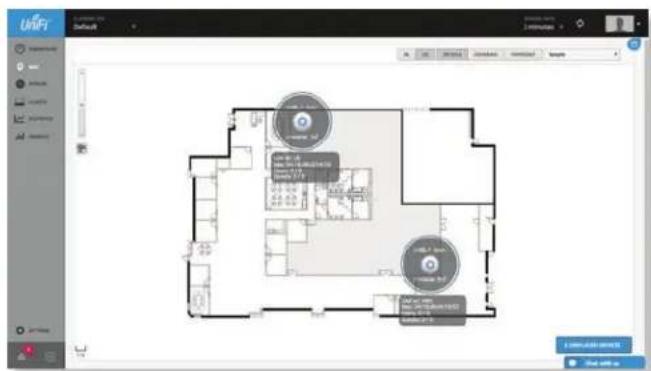
text_image
UNIFI Default 1.0000000000000000000000000000000000000000000000000000000000000000000000000000000000000 UNIFI 2.5 UNIFI 3.5 UNIFI 4.5 UNIFI 5.5 UNIFI 6.5 UNIFI 7.5 UNIFI 8.5 UNIFI 9.5 UNIFI 10.5 UNIFI 11.5 UNIFI 12.5 UNIFI 13.5 UNIFI 14.5 UNIFI 15.5 UNIFI 16.5 UNIFI 17.5 UNIFI 18.5 UNIFI 19.5 UNIFI 20.5 UNIFI 21.5 UNIFI 22.5 UNIFI 23.5 UNIFI 24.5 UNIFI 25.5 UNIFI 26.5 UNIFI 27.5 UNIFI 28.5 UNIFI 29.5 UNIFI 30.5 UNIFI 31.5 UNIFI 32.5 UNIFI 33.5 UNIFI 34.5 UNIFI 35.5 UNIFI 36.5 UNIFI 37.5 UNIFI 38.5 UNIFI 39.5 UNIFI 40.5 UNIFI 41.5 UNIFI 42.5 UNIFI 43.5 UNIFI 44.5 UNIFI 45.5 UNIFI 46.5 UNIFI 47.5 UNIFI 48.5 UNIFI 49.5 UNIFI 50.5 UNIFI 51.5 UNIFI 52.5 UNIFI 53.5 UNIFI 54.5 UNIFI 55.5 UNIFI 56.5 UNIFI 57.5 UNIFI 58.5 UNIFI 59.5 UNIFI 60.5 UNIFI 61.5 UNIFI 62.5 UNIFI 63.5 UNIFI 64.5 UNIFI 65.5 UNIFI 66.5 UNIFI 67.5 UNIFI 68.5 UNIFI 69.5 UNIFI 70.5 UNIFI 71.5 UNIFI 72.5 UNIFI 73.5 UNIFI 74.5 UNIFI 75.5 UNIFI 76.5 UNIFI 77.5 UNIFI 78.5 UNIFI 79.5 UNIFI 80.5 UNIFI 81.5 UNIFI 82.5 UNIFI 83.5 UNIFI 84.5 UNIFI 85.5 UNIFI 86.5 UNIFI 87.5 UNIFI 88.5 UNIFI 89.5 UNIFI 90.5 UNIFI 91.5 UNIFI 92.5 UNIFI 93.5 UNIFI 94.5 UNIFI 95.5 UNIFI 96.5 UNIFI 97.5 UNIFI 98.5 UNIFI 99.5 UNIFI 100.0Coverage Displays a visual representation of the wireless range covered by any APs.
You can apply one of the following filters:
• 2G Displays the 2.4 GHz information.
• 5G Displays the 5 GHz information.
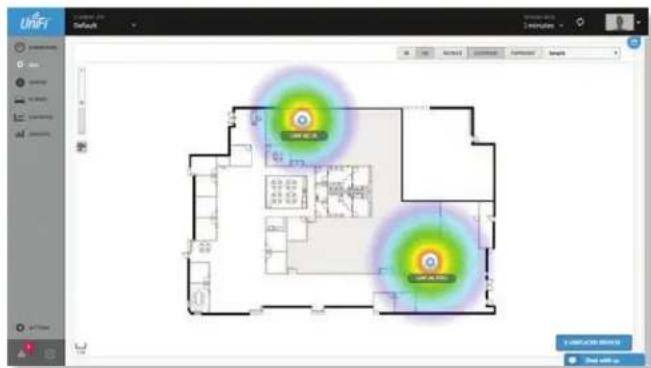
text_image
UNIFI Default 1 minute OK Cancel Change Adjust Change Help UNIFI 1.0 UNIFI 2.0 UNIFI 3.0 Start withTopology Displays a visual representation of the network configuration and connections between any APs. A dashed line will indicate the wireless AP and its uplink to a wired AP.
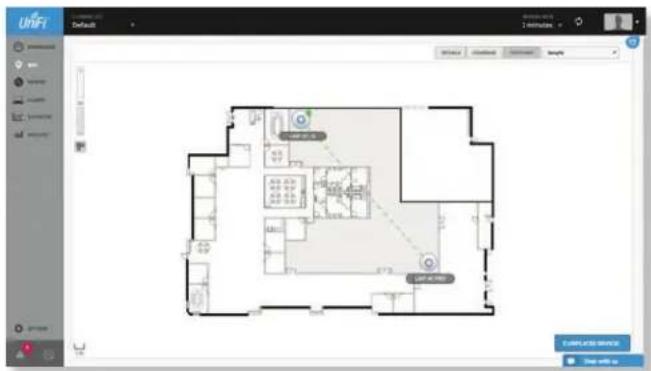
text_image
UNIFI Default 2 minutes 1 minute 0 min 1 min 2 min 3 min 4 min 5 min 6 min 7 min 8 min 9 min 10 min 11 min 12 min 13 min 14 min 15 min 16 min 17 min 18 min 19 min 20 min 21 min 22 min 23 min 24 min 25 min 26 min 27 min 28 min 29 min 30 min 31 min 32 min 33 min 34 min 35 min 36 min 37 min 38 min 39 min 40 min 41 min 42 min 43 min 44 min 45 min 46 min 47 min 48 min 49 min 50 min 51 min 52 min 53 min 54 min 55 min 56 min 57 min 58 min 59 min 60 min 61 min 62 min 63 min 64 min 65 min 66 min 67 min 68 min 69 min 70 min 71 min 72 min 73 min 74 min 75 min 76 min 77 min 78 min 79 min 80 min 81 min 82 min 83 min 84 min 85 min 86 min 87 min 88 min 89 min 90 min 91 min 92 min 93 min 94 min 95 min 96 min 97 min 98 min 99 min 100 min(Map) If multiple maps have been uploaded, you can select which map you want to view using this option.

text_image
Sample Sample Office A City Office City Office with Terrain CONFIGURE MAPSConfigure Maps Click ⚙ CONFIGURE MAPS to add maps or edit the current map(s).
Zoom Slider Use to zoom the map detail in and out.
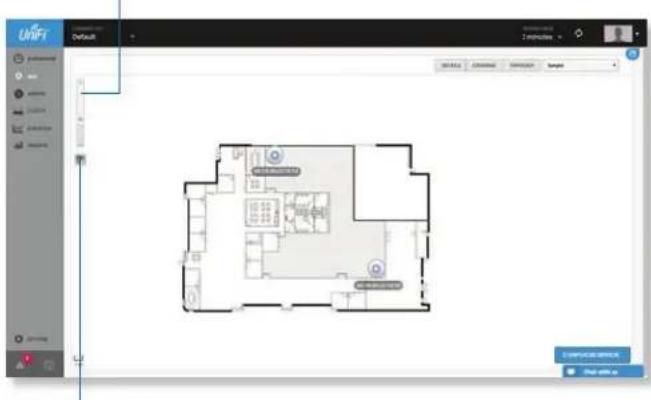
text_image
UNIFT Default 2 minutes SERVICE CONTROL SERVICE Storage UNIFT Service Data fileSet Map Scale Use this option to define the scale of the map. You will draw a line and define the distance that the line represents.
Setting the Map Scale
- Click the set map scale button.
- Click and hold to draw a line in the area that you want to use to set the scale of the map. If you need to redraw the line, just click and hold again to draw a new line.
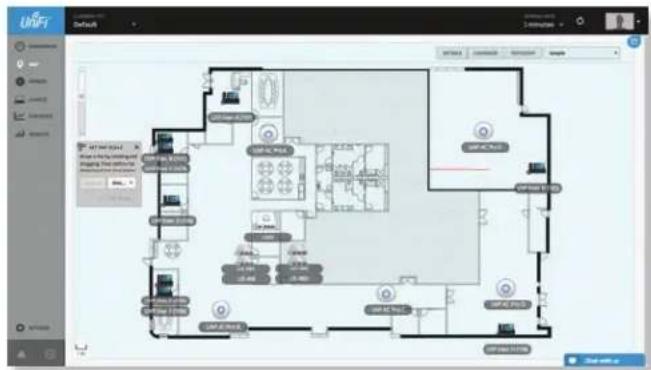
text_image
URAFT Default 100% 200% 300% 400% 500% 600% 700% 800% 900% 1000% 1100% 1200% 1300% 1400% 1500% 1600% 1700% 1800% 1900% 2000% 2100% 2200% 2300% 2400% 2500% 2600% 2700% 2800% 2900% 3000% 3100% 3200% 3300% 3400% 3500% 3600% 3700% 3800% 3900% 4000% 4100% 4200% 4300% 4400% 4500% 4600% 4700% 4800% 4900% 5000% 5100% 5200% 5300% 5400% 5500% 5600% 5700% 5800% 5900% 6000% 6100% 6200% 6300% 6400% 6500% 6600% 6700% 6800% 6900% 7000% 7100% 7200% 7300% 7400% 7500% 7600% 7700% 7800% 7900% 8000% 8100% 8200% 8300% 8400% 8500% 8600% 8700% 8800% 8900% 9000% 9100% 9200% 9300% 9400% 9500% 9600% 9700% 9800% 9900% 100 1 2 3 4 5 6 7 8 9 1 2 3 4 5 6 7 8 9 1 2 3 4 5 6 7 8 9 1 2 3 4 5 6 7 8 9 1 2 3 4 5 6 7 8 9 1 2 3 4 5 6 7 8 9 1 2 3 4 6 7 8 9 1 2 3 4 6 7 8 9 1 2 3 4 6 7 8 9 1 2 3 4 6 7 8 9 1 2 3 4 6 7 8 9- Enter the distance that the line represents in the Distance field. By default, the distance is specified in meters but you can switch to feet using the drop-down menu on the right. Click √ SET SCALE.
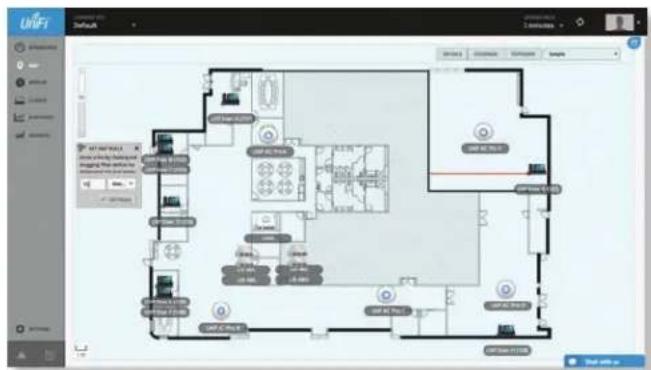
text_image
UNIFI Default 100% OFF OFF 300000000 OFF 300000000 OFF 300000000 OFF 300000000 OFF 300000000 OFF 300000000 OFF 300000000 OFF 300000000 OFF 300000000 OFF 25000000 OFF 25000000 OFF 25000000 OFF 25000000 OFF 25000000 OFF 25000000 OFF 25000000 OFF 25000000 OFF 25000000 OFF 25,5,5,5,5,5,5,5,5,5,5,5,5,5,5,5,5,5,5,5,5,5,5,5,5,5,5,5,5,5,5,5,5,5,5,5,5,5,5,5,5,5,5,5,5,5,5,5,5,5,5The legend at the bottom of the map shows the new scale of the map.
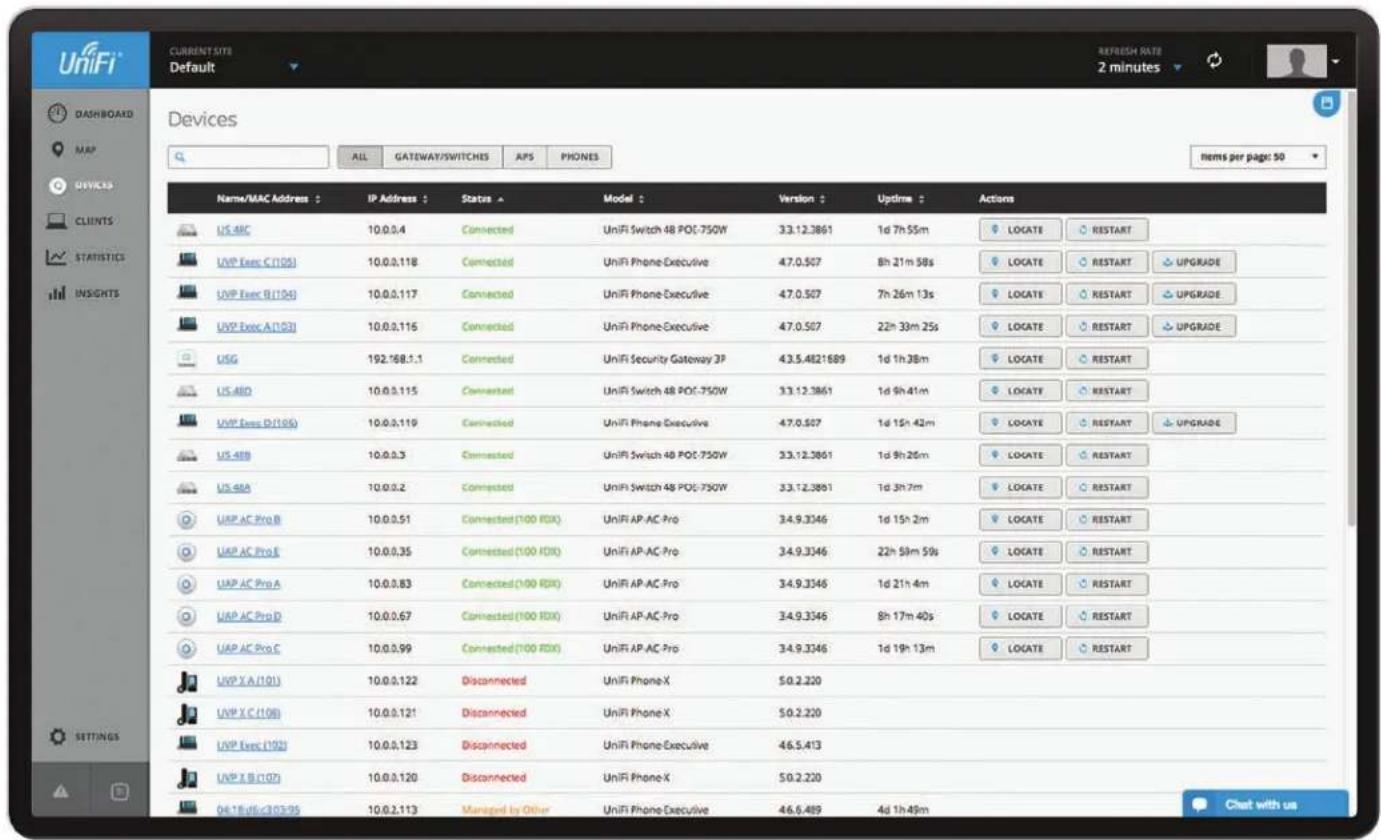
text_image
DASHBOARD MAP DEVICES CLIENTS STATISTICS INSIGHTS Devices ALL GATEWAY/SWITCHES APS PHONES Items per page: 50 Name/MAC Address : IP Address : Status : Model : Version : Uptime : Actions US-4MC 10.0.0.4 Connected UniFi Switch 48 POC-750W 33.12.3861 1d 7h 55m LOCATE RESTART UVP Exec C (105) 10.0.0.118 Connected UniFi Phone Executive 47.0.507 8h 21m 58s LOCATE RESTART UPGRADE UVP Exec B (104) 10.0.0.117 Connected UniFi Phone Executive 47.0.507 7h 26m 13s LOCATE RESTART UPGRADE UVP Exec A (103) 10.0.0.116 Connected UniFi Phone Executive 47.0.507 22h 33m 25s LOCATE RESTART UPGRADE USG 192.168.1.1 Connected UniFi Security Gateway 3P 43.5.4821689 1d 1h 38m LOCATE RESTART US-ABD 10.0.0.115 Connected UniFi Switch 48 POC-750W 33.12.3861 1d 9h 41m LOCATE RESTART UVP Exec D (106) 10.0.0.119 Connected UniFi Phone Executive 47.0.507 1d 15h 42m LOCATE RESTART UPGRADE US-4BB 10.0.0.3 Connected UniFi Switch 48 POC-750W 33.12.3861 1d 9h 26m LOCATE RESTART US-4BA 10.0.0.2 Connected UniFi Switch 48 POC-750W 33.12.3861 1d 3h 7m LOCATE RESTART UAP AC Pro B 10.0.0.51 Connected (100 FDX) UniFi AP-AC-Pro 34.9.3346 1d 15h 2m LOCATE RESTART UAP AC Pro E 10.0.0.35 Connected (100 FDX) UniFi AP-AC-Pro 34.9.3346 22h 59m 59s LOCATE RESTART UAP AC Pro A 10.0.0.83 Connected (100 FDX) UniFi AP-AC-Pro 34.9.3346 1d 21h 4m LOCATE RESTART UAP AC Pro D 10.0.0.67 Connected (100 FDX) UniFi AP-AC-Pro 34.9.3346 8h 17m 40s LOCATE RESTART UAP AC Pro C 10.0.0.99 Connected (100 FDX) UniFi AP-AC-Pro 34.9.3346 1d 19h 13m LOCATE RESTART UVP X A (101) 10.0.0.122 Disconnected UniFi Phone-X 50.2.220 UVP X C (108) 10.0.0.121 Disconnected UniFi Phone-X 50.2.220 UVP Exec (192) 10.0.0.123 Disconnected UniFi Phone Executive 46.5.413 UVP X B (107) 10.0.0.120 Disconnected UniFi Phone-X 50.2.220 04:18:46:203:95 Managed by Other UniFi Phone Executive 46,6,489 4d 1h 49m Chat with usChapter 6: Devices
The Devices screen displays a list of UniFi devices discovered by the UniFi Controller. You can click any of the column headers to change the list order.
Search ^a Enter the text you want to search for. Simply begin typing; there is no need to press Enter.
You can apply one of the following primary filters:
• All Displays all UniFi devices.
• Gateway/Switches Displays all UniFi Security Gateways and Switches.
• APs Displays all UniFi APs.
- Phones Displays all UniFi VoIP Phones. (Enable VoIP using "Settings > VoIP" on page 29.)
If the APs filter is applied, then another filter is available:
- Overview Displays the number of clients, amount of data downloaded, amount of data uploaded, and channel setting.
- Config Displays the WLAN and radio settings for the 2.4 GHz and 5 GHz radio bands.
• Performance Displays the number of 2.4 GHz and 5 GHz clients, overall transmit rate, overall receive rate, transmit rates in the 2.4 GHz and 5 GHz radio bands, and channel setting.
Items per page Select how many results are displayed per page: 10, 50, 100, or 200.
The columns of information vary depending on which primary filter (All, Gateway/Switches, APs, or Phones) is applied.
If there is more than one page of entries to display, click the navigation controls or page numbers at the bottom right of the screen to display different pages.
All
All UniFi device types are displayed.
(icon) Displays the icon corresponding to the UniFi device (not all icons are shown below):
UniFi AP AC
UniFi AP Pro, UniFi AP AC Lite/LR/Pro
UniFi AP/AP LR
UniFi AP AC Outdoor
UniFi AP Outdoor+
UniFi AP Outdoor5
UniFi Security Gateway
UniFi Security Gateway Pro
UniFi 24-Port Switch
UniFi 48-Port Switch
UniFi VoIP Phone/Pro
UniFi VoIP Phone Executive
If displayed, the LED color of the device icon indicates the device status.
• Blue/Green Indicates the device is connected.
- Red/Orange Indicates the device is disconnected or not managed by this site (Pending Approval or Managed by Other).
Name/MAC Address Displays the hostname, alias, or MAC address of the UniFi device. You can click the name to get additional details. For more information, see the appropriate chapter:
• "UniFi Security Gateway Details" on page 67
• "UniFi Switch Details" on page 75
• "UniFi Access Point Details" on page 83
• "UniFi VoIP Phone Details" on page 95
IP Address Displays the IP address used by the UniFi device.
Status Indicates the device status: Connected, Disconnected, Pending Approval, Adopting, Upgrading, Managed by Other, or Isolated (APs only).
Only the super admin – not any site admin – can view devices that are Pending Approval and then adopt them on the UniFi Controller.

Note: The super admin account was created during the initial installation; for more information, see "Configuring the UniFi Controller Software" on page 2.
Model Displays the model name of the UniFi device.
Version Displays the version number of the UniFi device's firmware.
Uptime Displays the duration of time the UniFi device has been running.
Actions Click a button to perform the desired action:
- Locate For most devices, click ● LOCATE to flash the LED on the physical device and the device's icon on the Map tab so you can locate it. The LED will flash until the Locate button is clicked again. (The icon on the Map tab will flash three times and stop.)
If the device is a Phone, then click LOCATE to ring the Phone and flash the Phone's icon on the Map tab so you can locate it. The Phone will ring until you click Locate again. (The icon on the Map tab will flash three times and stop.)
- Restart Click 📍 RESTART to restart the selected device.
- Upgrade If a software upgrade is available for the device, click ◆ UPGRADE to install the latest UniFi firmware on the device. The Status will appear as Upgrading until the process is complete and the device reconnects to the UniFi Controller software.
- Adopt Click + ADOPT to adopt a device that appears as Pending Approval for its status. The Status will appear as Adopting until the device is connected.
Gateway/Switches
All UniFi Gateway and Switch devices are displayed.
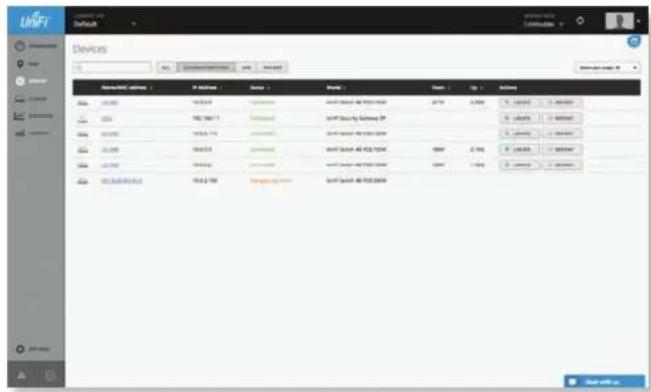
text_image
UNIFI Devices Network: UNIFI Type: 10000000000000000000000000000000000000000000000000000000000000000000000000000000000000000 Network: UNIFI Type: 10000000000000000 Network: UNIFI Network: UNIFI Network: UNIFI Network: UNIFI Network: UNIFI Network: UNIFI Network: UNIFI Network: UNIFI Network: UNIFI Network: UNIFI Network: UNIFI Network: UNIFI Network: UNIFI Network: UNIFI Network: UNIFI Network: UNIFI Network: UNIFI Network: UNIFI Network: UNIFI Network: UNIFI Network: UNIDI Network: UNIDI Network: UNIDI Network: UNIDI Network: UNIDI Network: UNIDI Network: UNIDI Network: UNIDI Network: UNIDI Network: UNIDI Network: UNIDI Network: UNIDI Network: UNIDI Network: UNIDI Network: UNIDI Network: UNIDI Network: UNIDI Network: UNIDI Network: UNIDI Network: UNIDI Network: UNI Network: UNI Network: UNI Network: UNI Network: UNI Network: UNI Network: UNI Network: UNI Network: UNI Network: UNI Network: UNI Network: UNI Network: UNI Network: UNI Network: UNI Network: UNI Network: UNI Network: UNI Network: UNI Network: UNI Network: UNII Network: UNII Network: UNII Network: UNII Network: UNII Network: UNII Network: UNII Network: UNII Network: UNII Network: UNII Network: UNII Network: UNII Network: UNII Network: UNII Network: UNII Network: UNII Network: UNII Network: UNII Network: UNII Network: UNII Network: UNIII Network: UNIII Network: UNIII Network: UNIII Network: UNIII Network: UNIII Network: UNIII Network: UNIII Network: UNIII Network: UNIII Network: UNIII Network: UNIII Network: UNIII Network: UNIII Network: UNIII(icon) Displays the icon corresponding to the UniFi device (not all icons are shown below):

UniFi Security Gateway

UniFi Security Gateway Pro

UniFi 24-Port Switch

UniFi 48-Port Switch
The LED color of the device icon indicates the device status.
• Blue Indicates the device is connected.
- Red Indicates the device is disconnected or not managed by this site (Pending Approval or Managed by Other).
Name/MAC Address Displays the hostname, alias, or MAC address of the UniFi device. You can click the name to get additional details. For more information, see the appropriate chapter:
- "UniFi Security Gateway Details" on page 67
• "UniFi Switch Details" on page 75
IP Address Displays the IP address used by the UniFi device.
Status Indicates the device status: Connected, Disconnected, Pending Approval, Adopting, Upgrading, or Managed by Other.
Only the super admin – not any site admin – can view devices that are Pending Approval and then adopt them on the UniFi Controller.

Note: The super admin account was created during the initial installation; for more information, see "Configuring the UniFi Controller Software" on page 2.
Model Displays the model name of the UniFi device.
Down Displays the total amount of data downloaded by the UniFi device.
Up Displays the total amount of data uploaded by the UniFi device.
Actions Click a button to perform the desired action:
- Locate Click ● LOCATE to flash the Status LED on the Gateway/Switch and its icon on the Map tab so you can locate it. The LED will flash until the Locate button is clicked again. (The icon on the Map tab will flash three times and stop.)
- Restart Click ⬆ RESTART to restart the selected device.
- Upgrade If a software upgrade is available for the device, click ✿ UPGRADE to install the latest UniFi firmware on the device. The Status will appear as Upgrading until the process is complete and the device reconnects to the UniFi Controller software.
- Adopt Click + ADOPT to adopt a device that appears as Pending Approval for its status. The Status will appear as Adopting until the device is connected.
APs
You can apply one of the following filters to display different status information:
- Overview Displays the number of clients, amount of data downloaded, amount of data uploaded, and channel setting.
- Config Displays the WLAN and radio settings for the 2.4 GHz and 5 GHz radio bands.
• Performance Displays the number of 2.4 and 5 GHz clients, overall transmit rate, overall receive rate, 2.4 and 5 GHz transmit rates, and channel setting.
On any sub-tab, you can initiate a rolling upgrade of the firmware for all APs.
Start Rolling Upgrade Click ⚙ START ROLLING UPGRADE to begin automatically upgrading APs, one by one, except for wirelessly uplinked APs, which are intentionally excluded from upgrading.
Overview
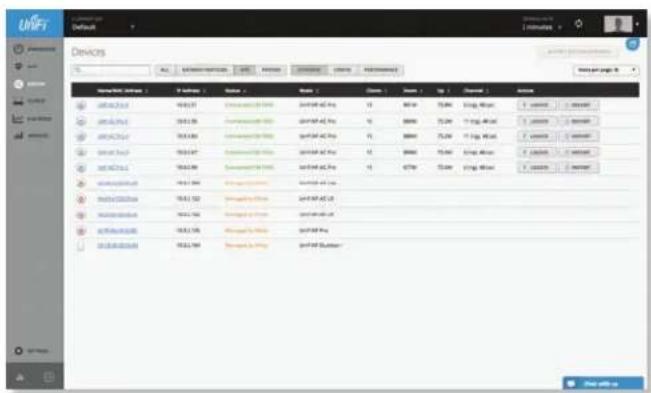
text_image
UNIFI Devices File Edit View Insert Tools Help Window Help Window Help Name: UNIFI Device | File Path | Status | Status | Count | Number | Up | Down | Active UNIFI 2.0.1 UNIFI 2.0.2 UNIFI 2.0.3 UNIFI 2.0.4 UNIFI 2.0.5 UNIFI 2.0.6 UNIFI 2.0.7 UNIFI 2.0.8 UNIFI 2.0.9 UNIFI 2.1.0 UNIFI 2.1.1 UNIFI 2.1.2 UNIFI 2.1.3 UNIFI 2.1.4 UNIFI 2.1.5 UNIFI 2.1.6 UNIFI 2.1.7 UNIFI 2.1.8 UNIFI 2.1.9 UNIFI 2.2.0 UNIFI 2.2.1 UNIFI 2.2.2 UNIFI 2.2.3 UNIFI 2.2.4 UNIFI 2.2.5 UNIFI 2.2.6 UNIFI 2.2.7 UNIFI 2.2.8 UNIFI 2.2.9 UNIFI 2.3.0 UNIFI 2.3.1 UNIFI 2.3.2 UNIFI 2.3.3 UNIFI 2.3.4 UNIFI 2.3.5 UNIFI 2.3.6 UNIFI 2.3.7 UNIFI 2.3.8 UNIFI 2.3.9 UNIFI 2.4.0 UNIFI 2.4.1 UNIFI 2.4.2 UNIFI 2.4.3 UNIFI 2.4.4 UNIFI 2.4.5 UNIFI 2.4.6 UNIFI 2.4.7 UNIFI 2.4.8 UNIFI 2.4.9 UNIFI 2.5.0 UNIFI 2.5.1 UNIFI 2.5.2 UNIFI 2.5.3 UNIFI 2.5.4 UNIFI 2.5.5 UNIFI 2.5.6 UNIFI 2.5.7 UNIFI 2.5.8 UNIFI 2.5.9 UNIFI 2.6.0 UNIFI 2.6.1 UNIFI 2.6.2 UNIFI 2.6.3 UNIFI 2.6.4 UNIFI 2.6.5 UNIFI 2.6.6 UNIFI 2.6.7 UNIFI 2.6.8 UNIFI 2.6.9 UNIFI 2.7.0 UNIFI 2.7.1 UNIFI 2.7.2 UNIFI 2.7.3 UNIFI 2.7.4 UNIFI 2.7.5 UNIFI 2.7.6 UNIFI 2.7.7 UNIFI 2.7.8 UNIFI 2.7.9 UNIFI 2.8.0 UNIFI 2.8.1 UNIFI 2.8.2 UNIFI 2.8.3 UNIFI 2.8.4 UNIFI 2.8.5 UNIFI 2.8.6 UNIFI 2.8.7 UNIFI 2.8.8 UNIFI 2.8.9 UNIFI 2.9.0 UNIFI 2.9.1 UNIFI 2.9.2 UNIFI 2.9.3 UNIFI 2.9.4 UNIFI 2.9.5 UNIFI 2.9.6 UNIFI 2.9.7 UNIFI 2.9.8 UNIFI 3. Status: UNIFI Status(icon) Displays the icon corresponding to the AP model (not all icons are shown below):
UniFi AP AC
UniFi AP Pro, UniFi AP AC Lite/LR/Pro
UniFi AP/AP LR
UniFi AP AC Outdoor
UniFi AP Outdoor+
UniFi AP Outdoor5
The LED color of the icon indicates the device status.
- Blue/Green Indicates the device is connected.
- Red/Orange Indicates the device is disconnected or not managed by this site (Pending Approval or Managed by Other).
Name/MAC Address Displays the hostname, alias, or MAC address of the AP. You can click the name to get additional details; see "UniFi Access Point Details" on page 83 for more information.
IP Address Displays the IP address of the AP.
Status Displays the connection status.
• Connected The AP is physically wired to the network.
- Connected (100 FDX) The AP is physically wired to the network at 100 Mbps in full-duplex mode.
- Connected (wireless) The AP is wirelessly uplinked to a physically wired AP.
- Disconnected The AP is unreachable by the UniFi Controller software.
- Isolated A managed AP is unable to locate its uplink.
- Managed by Other The AP is not in the default state but it is not controlled by the UniFi Controller.
- Pending Approval The AP is in the default state and is available for adoption.
Only the super admin – not any site admin – can view devices that are Pending Approval and then adopt them on the UniFi Controller.

Note: The super admin account was created during the initial installation; for more information, see "Configuring the UniFi Controller Software" on page 2.
Model Displays the model name of the UniFi device.
Clients Displays the number of clients connected to the AP.
Down Displays the total amount of data downloaded by the AP.
Up Displays the total amount of data uploaded by the AP.
Channel Displays the transmit/receive channel being used by the AP. The radio band is represented as (ng) for 2.4 GHz and (na)/(ac) for 5 GHz.
Actions Click a button to perform the desired action:
- Locate Click LOCATE to flash the LED on the AP and the AP's icon on the Map tab so you can locate it. The LED will flash until the Locate button is clicked again. (The icon on the Map tab will flash three times and stop.)
- Restart Click ⬆ RESTART to restart the selected device.
- Upgrade If a software upgrade is available for the device, click ✿ UPGRADE to install the latest UniFi firmware on the device. The Status will appear as Upgrading until the process is complete and the device reconnects to the UniFi Controller software.
- Adopt Click + ADOPT to adopt a device that appears as Pending Approval for its status. The Status will appear as Adopting until the device is connected.
Config
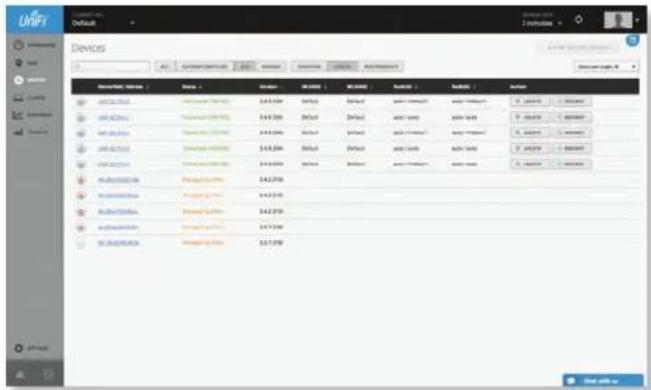
text_image
UNIFT Default Devices 12.1.1.1.1.1.1.1.1.1.1.1.1.1.1.1.1.1.1.1.1.1.1.1.1.1.1.1.1.1.1.1.1.1.1.1.1.1.1.1.1.1.1.1.1.1.1.1.1.1.1. 12.1.1.1.1.1.1.1.1.1.1.1.1.1.1.1.1.1.1.1.1.1.1.1.1.1.1.1.1.1.1.1.1.1.1.1.1.1.1.1.1 Description: Windows Name Name Position Microsoft Microsoft Microsoft Microsoft Microsoft Microsoft Microsoft Microsoft Microsoft Microsoft Microsoft Microsoft Microsoft Microsoft Microsoft Microsoft Microsoft Microsoft Microsoft Microsoft Microsoft Microsoft Microsoft Microsoft Microsoft Microsoft Microsoft Microsoft Microsoft Microsoft Microsoft Microsoft Microsoft Microsoft Microsoft Microsoft Microsoft Microsoft Microsoft Microsoft Microsoft Microsoft Microsoft Microsoft Microsoft Microsoft Microsoft Microsoft Microsoft Microsoft MS Microsoft Windows Microsoft Windows Microsoft Windows Microsoft Windows Microsoft Windows Microsoft Windows Microsoft Windows Microsoft Windows Microsoft Windows Microsoft Windows Microsoft Windows Microsoft Windows Microsoft Windows Microsoft Windows Microsoft Windows Microsoft Windows Microsoft Windows Microsoft Windows Microsoft Windows Microsoft Windows Microsoft Windows Microsoft Windows Microsoft Windows Microsoft Windows Microsoft Windows Microsoft Windows Microsoft Windows Microsoft Windows Microsoft Windows Microsoft Windows Microsoft Windows Microsoft Windows Microsoft Windows Microsoft Windows(icon) Displays the icon corresponding to the AP model (not all icons are shown below):
UniFi AP AC
UniFi AP PRO, UniFi AP AC Lite/LR/Pro
UniFi AP/AP LR
UniFi AP AC Outdoor
UniFi AP Outdoor+
UniFi AP Outdoor5
The LED color of the icon indicates the device status.
- Blue/Green Indicates the device is connected.
- Red/Orange Indicates the device is disconnected or not managed by this site (Pending Approval or Managed by Other).
Name/MAC Address Displays the hostname, alias, or MAC address of the AP. You can click the name to get additional details; see "UniFi Access Point Details" on page 83 for more information.
Status Displays the connection status.
• Connected The AP is physically wired to the network.
- Connected (100 FDX) The AP is physically wired to the network at 100 Mbps in full-duplex mode.
- Connected (wireless) The AP is wirelessly uplinked to a physically wired AP.
- Disconnected The AP is unreachable by the UniFi Controller software.
- Isolated A managed AP is unable to locate its uplink.
- Managed by Other The AP is not in the default state but it is not controlled by the UniFi Controller.
- Pending Approval The AP is in the default state and is available for adoption.
Only the super admin – not any site admin – can view devices that are Pending Approval and then adopt them on the UniFi Controller.

Note: The super admin account was created during the initial installation; for more information, see "Configuring the UniFi Controller Software" on page 2.
Version Displays the version number of the UniFi AP's firmware.
WLAN 2G Displays the name of the WLAN group using the 2.4 GHz radio band.
WLAN 5G Displays the name of the WLAN group using the 5 GHz radio band.
Radio 2G Displays the channel and TX power settings used in the 2.4 GHz radio band.
Radio 5G Displays the channel and TX power settings used in the 5 GHz radio band.
Actions Click a button to perform the desired action:
- Locate Click LOCATE to flash the LED on the AP and the AP's icon on the Map tab so you can locate it. The LED will flash until the Locate button is clicked again. (The icon on the Map tab will flash three times and stop.)
- Restart Click 📍 RESTART to restart the selected device.
- Upgrade If a software upgrade is available for the device, click ✿ UPGRADE to install the latest UniFi firmware on the device. The Status will appear as Upgrading until the process is complete and the device reconnects to the UniFi Controller software.
- Adopt Click + ADOPT to adopt a device that appears as Pending Approval for its status. The Status will appear as Adopting until the device is connected.
Performance
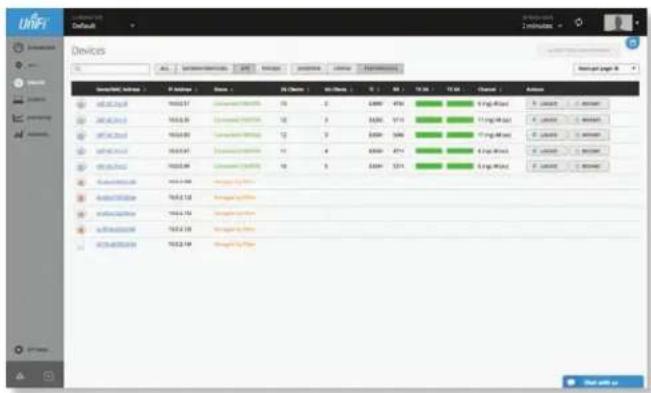
text_image
UNIFI Default Devices File Edit View Insert Tools Help Tools Window Help Tools Help Tools Help Tools Help Tools Help Tools Help Tools Help Tools Help Tools Help Tools Help Tools Help Tools Help Tools Help Tools Help Tools Help Tools Help Tools Help Tools Help Tools Help Tools Help Tools Help Tools Help Tools Help Tools Help Tools Help Tools Help Tools Help Tools Help Tools Help Tools Help Tools Help Tools Help Tools Help Tools Help Tools Help Tools Help Tools Help Tools Help Tools Help Tools Help Tools Help Tools Help Tools Help Tools Help Tools Help Tools Help Tools Help Tools Help Tools Help Tools Help Tools Help TMs UNIFI 2013-01 UNIFI 2013-02 UNIFI 2013-03 UNIFI 2013-04 UNIFI 2013-05 UNIFI 2013-06 UNIFI 2013-07 UNIFI 2013-08 UNIFI 2013-09 UNIFI 2013-10 UNIFI 2013-11 UNIFI 2013-12 UNIFI 2013-13 UNIFI 2013-14 UNIFI 2013-15 UNIFI 2013-16 UNIFI 2013-17 UNIFI 2013-18 UNIFI 2013-19 UNIFI 2013-20 UNIFI 2013-21 UNIFI 2013-22 UNIFI 2013-23 UNIFI 2013-24 UNIFI 2013-25 UNIFI 2013-26 UNIFI 2013-27 UNIFI 2013-28 UNIFI 2013-29 UNIFI 2013-30 UNIFI 2013-31 UNIFI 2013-32 UNIFI 2013-33 UNIFI 2013-34 UNIFI 2013-35 UNIFI 2013-36 UNIFI 2013-37 UNIFI 2013-38 UNIFI 2013-39 UNIFI 2013-40 UNIFI 2013-41 UNIFI 2013-42 UNIFI 2013-43 UNIFI 2013-44 UNIFI 2013-45 UNIFI 2013-46 UNIFI 2013-47 UNIFI 2013-48 UNIFI 2013-49 UNIFI 2013-50 UNIFI 2013-51 UNIFI 2013-52 UNIFI 2013-53 UNIFI 2013-54 UNIFI 2013-55 UNIFI 2013-56 UNIFI 2013-57 UNIFI 2013-58 UNIFI 2013-59 UNIFI 2013-60 UNIFI 2013-61 UNIFI 2013-62 UNIFI 2013-63 UNIFI 2013-64 UNIFI 2013-65 UNIFI 2013-66 UNIFI 2013-67 UNIFI 2013-68 UNIFI 2013-69 UNIFI 2013-70 UNIFI 2013-71 UNIFI 2013-72 UNIFI 2013-73 UNIFI 2013-74 UNIFI 2013-75 UNIFI 2013-76 UNIFI 2013-77 UNIFI 2013-78 UNIFI 2013-79 UNIFI 2013-80 UNIFI 2013-81 UNIFI 2013-82 UNIFI 2013-83 UNIFI 2013-84 UNIFI 2013-85 UNIFI 2013-86 UNIFI 2013-87 UNIFI 2013-88 UNIFI 2013-89 UNIFI 2013-90 UNIFI 2013-91 UNIFI 2013-92 UNIFI 2013-93 UNIFI 2013-94 UNIFI 2013-95 UNIFI 2013-96 UNIFI 2013-97 UNIFI 2013-98 UNIFI 2013-99 UNIFI 2014-00(icon) Displays the icon corresponding to the AP model (not all icons are shown below):
UniFi AP AC
UniFi AP PRO, UniFi AP AC Lite/LR/Pro
UniFi AP/AP LR
UniFi AP AC Outdoor
UniFi AP Outdoor+
UniFi AP Outdoor5
The LED color of the icon indicates the device status.
- Blue/Green Indicates the device is connected.
- Red/Orange Indicates the device is disconnected or not managed by this site (Pending Approval or Managed by Other).
Name/MAC Address Displays the hostname, alias, or MAC address of the AP. You can click the name to get additional details; see "UniFi Access Point Details" on page 83 for more information.
IP Address Displays the IP address of the AP.
Status Displays the connection status.
- Connected The AP is physically wired to the network.
- Connected (100 FDX) The AP is physically wired to the network at 100 Mbps in full-duplex mode.
- Connected (wireless) The AP is wirelessly uplinked to a physically wired AP.
- Disconnected The AP is unreachable by the UniFi Controller software.
• Isolated A managed AP is unable to locate its uplink. - Managed by Other The AP is not in the default state but it is not controlled by the UniFi Controller.
- Pending Approval The AP is in the default state and is available for adoption.
Only the super admin – not any site admin – can view devices that are Pending Approval and then adopt them on the UniFi Controller.

Note: The super admin account was created during the initial installation; for more information, see "Configuring the UniFi Controller Software" on page 2.
2G Clients Displays the number of clients connected to the AP using the 2.4 GHz band.
5G Clients Displays the number of clients connected to the AP using the 5 GHz band.
TX Displays the overall TX (transmit) rate.
RX Displays the overall RX (receive) rate.
TX 2G Displays the overall TX rate for the 2.4 GHz radio band. The different colors represent different types of packet activity:
| Color Packet Activity | |
| Packets sent | |
| Packets retried | |
| Packets not sent due to likely interference | |
TX 5G Displays the overall TX rate for the 5 GHz radio band. The different colors represent different types of packet activity:
| Color Packet Activity | |
| Packets sent | |
| Packets retried | |
| Packets not sent due to likely interference | |
Channel Displays the transmit/receive channel being used by the AP. The radio band is represented as (ng) for 2.4 GHz and (na)/(ac) for 5 GHz.
Actions Click a button to perform the desired action:
- Locate Click 🔒 LOCATE to flash the LED on the AP and the AP's icon on the Map tab so you can locate it. The LED will flash until the Locate button is clicked again. (The icon on the Map tab will flash three times and stop.)
- Restart Click 📍 RESTART to restart the selected device.
- Upgrade If a software upgrade is available for the device, click ✿UPGRADE to install the latest UniFi firmware on the device. The Status will appear as Upgrading until the process is complete and the device reconnects to the UniFi Controller software.
- Adopt Click + ADOPT to adopt a device that appears as Pending Approval for its status. The Status will appear as Adopting until the device is connected.
Phones
VoIP is available with UniFi Controller version 4.6 or higher.
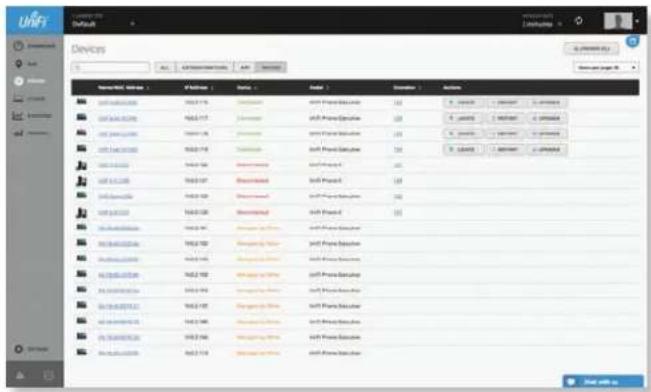
text_image
Device Name: Dutah - File Name | File Type | Status | Mode | Description | Accession 1.0000000000000000000000000000000000000000000000000000000000000000000000000000000000000000000000000000 1.001.2.24.2.25.2.26.2.27.2.28.2.29.2.30.2.31.2.32.2.33.2.34.2.35.2.36.2.37.2.38.2.39.2.40.2.41.2.42.2.43.2.44.2.45.2.46.2.47.2.48.2.49.2.50.2.51.2.52.2.53.2.54.2.55.2.56.2.57.2.58.2.59.2.60.2.61.2.62.2.63.2.64.2.65.2.66.2.67.2.68.2.69.2.70.2.71.2.72.2.73.2.74.2.75.2.76.2.77.2.78.2.79.2.80.2.81.2.82.2.83.2.84.2.85.2.86.2.87.2.88.2.89.2.90.2.91.2.92.2.93.2.94.2.95.2.96.2.97.2.98.2.99.2.100 111 111 111 111 111 111 111 111 111 111 111 111 111 111 111 111 111 111 111 111 111 111 111 111 111 111 111 111 111 111 111 111 111 111 111 111 111 111 111 111 111 111 111 111 111 111 113 133 333 333 333 333 333 333 333 333 333 333 333 333 333 333 333 333 333 144 444 444 444 444 444 444 444 444 444 444 444 444 444 444 555 555 555 555 555 555 555 555 555 555 555 555 555 666 666 666 666 666 666 666 666 666 666 666 777 777 777 777 777 777 777 777 777 777 777 888 888 888 888 888 888 888 888 888 999 999 999 999 999 999 999 999 Dutah Dutah Dutah Dutah Dutah Dutah Dutah Dutah Dutah Dutah Dutah Dutah Dutah Dutah Dutah Dutah Dutah Dutah Dutah Dutah Dutah Dutah Dutah Dutah Dutah Dutuh Dutuh Dutuh Dutuh Dutuh Dutuh Dutuh Dutuh Dutuh Dutuh Dutuh Dutuh Dutuh Dutuh Dutuh Dutuh Dutuh Dutuh Dutuh Dutuh Dutuh Dutuh Dutuh Dutuh Dutuh Dutu Dutu Dutu Dutu Dutu Dutu Dutu Dutu Dutu Dutu Dutu Dutu DutuUpgrade All Click to begin automatically upgrading the firmware of all Phones.
(icon) Displays the icon corresponding to the Phone (not all icons are shown below):
UniFi VoIP Phone/Pro
UniFi VoIP Phone Executive
Name/MAC Address Displays the hostname, alias, or MAC address of the Phone. You can click the name to get additional details; see "UniFi VoIP Phone Details" on page 95 for more information.
IP Address Displays the IP address used by the Phone.
Status Indicates the device status: Connected, Disconnected, Pending Approval, Adopting, Upgrading, or Managed by Other.
Only the super admin – not any site admin – can view devices that are Pending Approval and then adopt them on the UniFi Controller.

Note: The super admin account was created during the initial installation; for more information, see "Configuring the UniFi Controller Software" on page 2.
Model Displays the model name of the UniFi device.
Extension Displays the extension of the Phone. You can click the extension to get additional details; see "UniFi VoIP Phone – Details" on page 95 for more information.
Actions Click a button to perform the desired action:
- Locate Click LOCATE to ring the Phone and flash the Phone's icon on the Map tab so you can locate it. The Phone will ring until you click Locate again. (The icon on the Map tab will flash three times and stop.)
-
Restart Click ⬆ RESTART to restart the selected device.
-
Upgrade If a software upgrade is available for the device, click ◆ UPGRADE to install the latest UniFi firmware on the device. The Status will appear as Upgrading until the process is complete and the device reconnects to the UniFi Controller software.
- Adopt Click + ADOPT to adopt a device that appears as Pending Approval for its status. The Status will appear as Adopting until the device is connected.
Properties
The Properties tab is hidden by default. To display it, click the properties 📋 icon. The Properties tab appears on the right side of the Devices screen.
Information about each selected device appears as a popup within this tab. The information varies depending on the device type.
For more information, see the appropriate chapter:
• "UniFi Security Gateway Details" on page 67
• "UniFi Switch Details" on page 75
- "UniFi Access Point Details" on page 83
• "UniFi VoIP Phone Details" on page 95
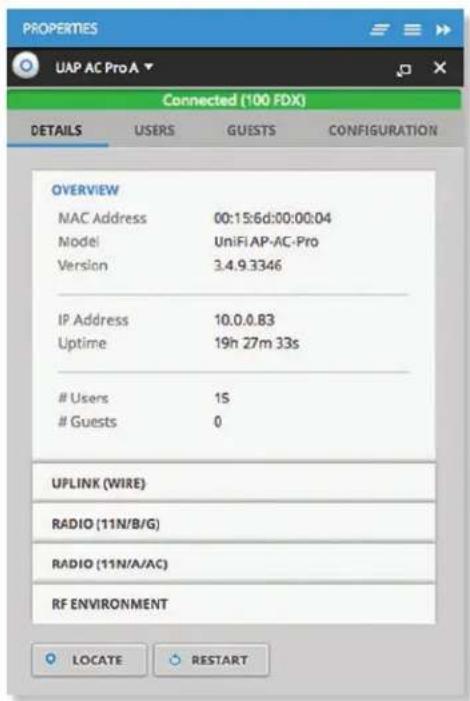
text_image
PROPERTIES UAP AC Pro A ▼ Connected (100 FDX) DETAILS USERS GUESTS CONFIGURATION OVERVIEW MAC Address 00:15:6d:00:00:04 Model UniFi AP-AC-Pro Version 3.4.9.3346 IP Address 10.0.0.83 Uptime 19h 27m 33sUsers 1S
Guests 0
UPLINK (WIRE) RADIO (11N/B/G) RADIO (11N/A/AC) RF ENVIRONMENT LOCATE RESTARTClose Click to close the Properties tab and device popups.
Minimize Click ☐ to close and re-open the device popups.
text_image
PROPERTIES UAP Outdoor 2.4 GHz ▶ UAP Outdoor+ ▶ UAP Outdoor 5 GHz ▶ UAP AC Outdoor ▶Each row displays the following:
- (icon) Displays the icon of the device (the icon will vary depending on the model).
- Name/MAC Address Displays the hostname, alias, or MAC address of the device.
- Display Click to display the device information.
- Detach Click to display the same information in a separate popup screen that can be moved anywhere within the browser screen.
- Close Click to close the Properties tab and device popups.
Hide Click to hide the Properties tab but allow the device popups to remain accessible from this tab.
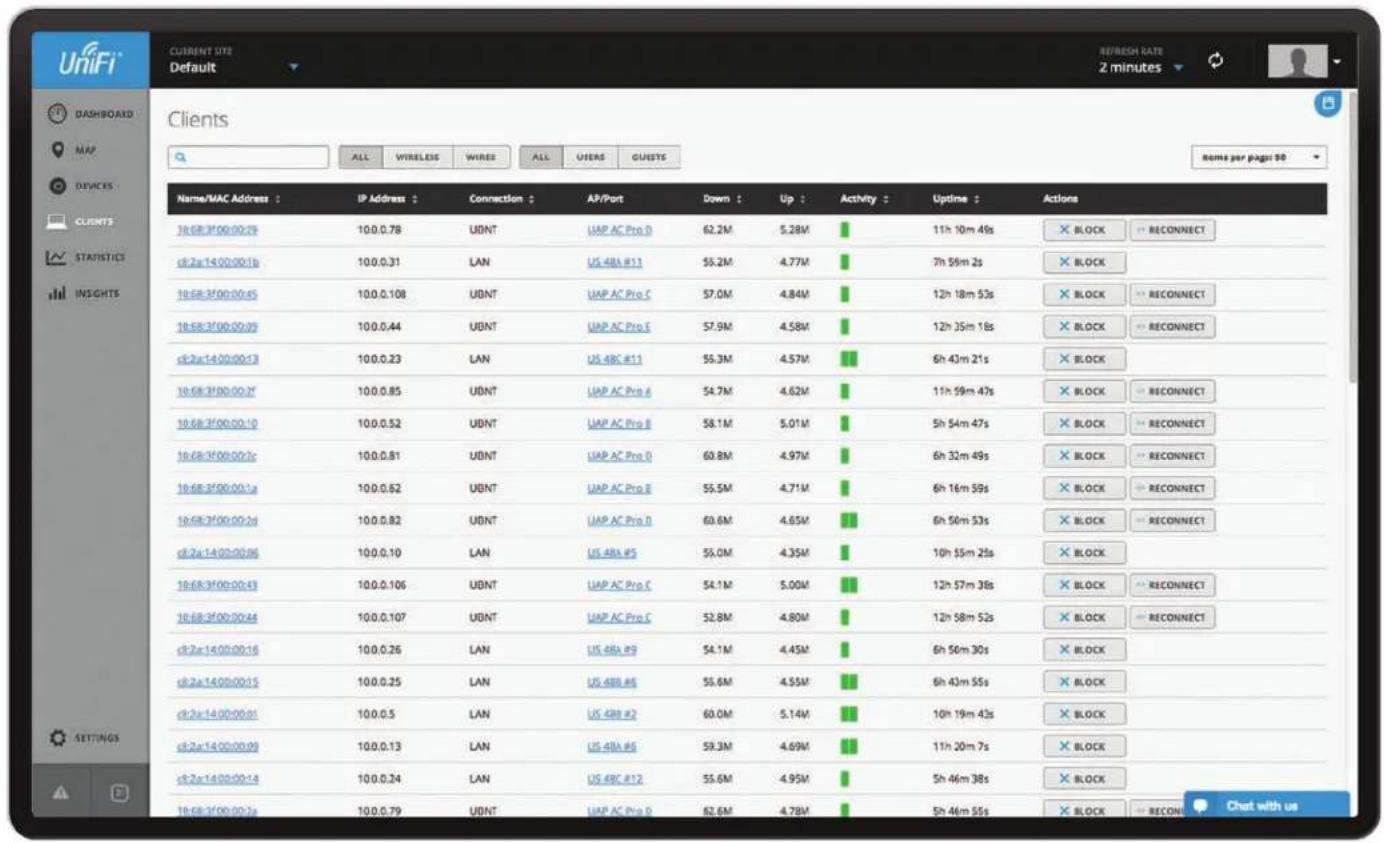
text_image
UniFi CURRENT SITE Default REFRESH RATE 2 minutes Clients Name/MAC Address : IP Address : Connection : AP/Port Down : Up : Activity : Uptime : Actions 16:68:3100:00:29 100.0.78 UBNT UAP AC Pro D 62.2M 5.28M 11h 10m 49s BLOCK RECONNECT c12a:1400:00:1b 100.0.31 LAN US 48A #11 55.2M 4.77M 7h 59m 2s BLOCK 16:68:3100:00:45 100.0.108 UBNT UAP AC Pro C 57.0M 4.84M 12h 18m 53s BLOCK RECONNECT 16:68:3100:00:09 100.0.44 UBNT UAP AC Pro E 57.9M 4.58M 12h 35m 18s BLOCK RECONNECT c12a:1400:00:13 100.0.23 LAN US 48C #11 55.3M 4.57M 6h 43m 21s BLOCK 16:68:3100:00:27 100.0.85 UBNT UAP AC Pro A 54.7M 4.62M 11h 59m 47s BLOCK RECONNECT 16:68:3100:00:10 100.0.52 UBNT UAP AC Pro B 58.1M 5.01M 5h 54m 47s BLOCK RECONNECT 16:68:3100:00:2c 100.0.81 UBNT UAP AC Pro O 60.8M 4.97M 6h 32m 49s BLOCK RECONNECT 16:68:3100:00:1a 100.0.62 UBNT UAP AC Pro B 55.5M 4.71M 6h 16m 59s BLOCK RECONNECT 16:68:3100:00:2d 100.0.82 UBNT UAP AC Pro O 60.6M 4.65M 6h 50m 53s BLOCK RECONNECT c12a:1400:00:36 100.0.10 LAN US 48A #5 55.0M 4.35M 10h 55m 2fs BLOCK 16:68:3100:00:43 100.0.106 UBNT UAP AC Pro C 54.1M 5.00M 12h 57m 38s BLOCK RECONNECT 16:68:3100:00:44 100.0.107 UBNT UAP AC Pro C 52.8M 4.80M 12h 58m 52s BLOCK RECONNECT c12a:1400:00:16 100.0.26 LAN US 48A #9 54.1M 4.45M 6h 56m 30s BLOCK c12a:1400:00:15 100.0.25 LAN US 48B #6 55.6M 4.55M 6h 43m 55s BLOCK c12a:1400:00:31 100.0.5 LAN US 48B #2 60.0M 5.14M 10h 19m 43s BLOCK c12a:1400:00:39 100.0.13 LAN US 48A #5 59.3M 4.69M 11h 20m 7s BLOCK c12a:1400:00:4a 100.0.24 LAN US 48C #12 55.6M 4.95M Sh 46m 38s BLOCK 16:68:3100:00:2a 100.0.79 UBNT UAP AC Pro D 62.6M 4.78M Sh 46m 55s BLOCK RECONNECT Chat with usChapter 7: Clients
The Clients screen displays a list of network clients. You can click any of the column headers to change the list order.
Search ^a Enter the text you want to search for. Simply begin typing; there is no need to press Enter.
You can apply one of the following primary filters:
• All Displays all clients, regardless of connection type.
• Wireless Displays all wireless clients.
• Wired Displays all wired clients.
A secondary filter is available:
• All Displays all users and guests.
- Users Only displays users.
• Guests Only displays guests.
Items per page Select how many results are displayed per page: 10, 50, 100, or 200.
The columns of information vary depending on which primary filter (All, Wireless, or Wired) is applied.
If there is more than one page of entries to display, click the navigation controls or page numbers at the bottom right of the screen to display different pages.
All
Name/MAC Address Displays the hostname, alias, or MAC address of the connected client. You can click the name to get additional details; refer to "Client Details" on page 97 for more information.
IP Address Displays the IP address used by the client.
Connection Indicates which local network is used. If the connection is wireless, then this displays the wireless network name or SSID.
AP/Port Indicates which AP or switch port is used.
Down Displays the total amount of data downloaded by the client.
Up Displays the total amount of data uploaded by the client.
Activity Displays the level of activity for each client.
| Bars Activity Level (Bytes per second) | |
| Idle | |
| 500 | |
| 8000 | |
| 64000 | |
| 512000 | |
| 2048000 | |
Uptime Displays the amount of time the client has been connected for this session.
Actions Click a button to perform the desired action:
- Block Click ✗ BLOCK to block this client from accessing the network.
- Reconnect Click → RECONNECT to reconnect a wireless client. You can click → RECONNECT to kick out a client, which usually reconnects back quickly; this is useful for troubleshooting or resolving a problematic wireless connection.
- Unauthorize/Authorize (Available for Guests only.) Click ✗ UNAUTHORIZED to remove authorization of guest access and disconnect the guest, or click for AUTHORIZE guests pending authorization.
Wireless
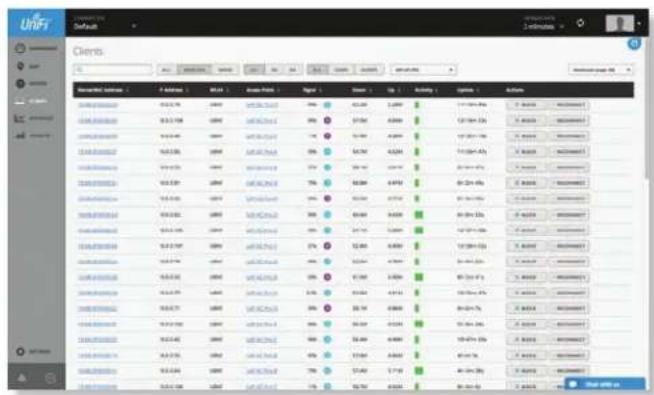
Frequency band If the Wireless filter is applied, then the Frequency band filter is available:
• All Displays all wireless clients.
• 2G Only displays 2.4 GHz clients.
• 5G Only displays 5 GHz clients.
AP Select the AP whose clients you want displayed. Each option in the drop-down list also indicates the number of wireless clients in parentheses.
Name/MAC Address Displays the hostname, alias, or MAC address of the connected client. You can click the name to get additional details; refer to "Client Details" on page 97 for more information.
IP Address Displays the IP address used by the client.
Status (Displayed when the Guests filter is applied.) Displays Authorized for all authorized guests or Pending for guests pending authorization.
WLAN Displays the name of the wireless network.
Access Point Displays the name of the connected AP.
Signal Displays the signal strength level and signal type:
| Icon Clients Mode | |
| ac | 5 GHz (802.11ac) Active |
| ac | 5 GHz (802.11ac) Power Save |
| n | 5 GHz (802.11n) Active |
| n | 5 GHz (802.11n) Power Save |
| n | 2.4 GHz (802.11n) Active |
| n | 2.4 GHz (802.11n) Power Save |
| g | 2.4 GHz (802.11g) Active |
| g | 2.4 GHz (802.11g) Power Save |
| b | 2.4 GHz (802.11b) Active |
| b | 2.4 GHz (802.11b) Power Save |
Down Displays the total amount of data downloaded by the client.
Up Displays the total amount of data uploaded by the client.
Activity Displays the level of activity for each client.
| Bars Activity Level (Bytes per second) | |
| Idle | |
| 500 | |
| 8000 | |
| 64000 | |
| 512000 | |
| 2048000 | |
Uptime Displays the amount of time the client has been connected for this session.
Actions Click a button to perform the desired action:
- Block Click ✗ BLOCK to block this client from accessing the network.
- Reconnect Click RECONNECT to reconnect a wireless client. You can click RECONNECT to kick out a client, which usually reconnects back quickly; this is useful for troubleshooting or resolving a problematic wireless connection.
- Unauthorize/Authorize (Available for Guests only.) Click ✗ UNAUTHORIZED to remove authorization of guest access and disconnect the guest, or click for AUTHORIZE guests pending authorization.
Wired
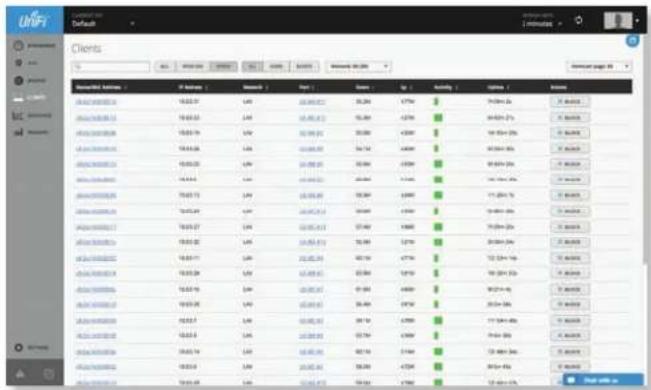
text_image
clients % January 2018 January 2019 January 2020 January 2021 January 2022 January 2023 January 2024 January 2025 January 2026 January 2027 January 2028 January 2029 January 2030 January 2031 January 2032 January 2033 January 2034 January 2035 January 2036 January 2037 January 2038 January 2039 January 2040 January 2041 January 2042 January 2043 January 2044 January 2045 January 2046 January 2047 January 2048 January 2049 January 2050 January 2051 January 2052 January 2053 January 2054 January 2055 January 2056 January 2057 January 2058 January 2059 January 2060 January 2061 January 2062 January 2063 January 2064 January 2065 January 2066 January 2067 January 2068 January 2069 January 2070 January 2071 January 2072 January 2073 January 2074 January 2075 January 2076 January 2077 January 2078 January 2079 January 2080 January 2081 January 2082 January 2083 January 2084 January 2085 January 2086 January 2087 January 2088 January 2089 January 2090 January 2091 January 2092 January 2093 January 2094 January 2095 January 2096 January 2097 January 2098 January 2099 January 2100Network If the Wired filter is applied, then the Network filter is available. Each option in the drop-down list also indicates the number of wired clients in parentheses.
• All Displays all wired clients.
- (name) Select the network whose clients you want displayed.
Name/MAC Address Displays the hostname, alias, or MAC address of the connected client. You can click the name to get additional details; refer to "Client Details" on page 97 for more information.
IP Address Displays the IP address used by the client.
Network Indicates which local network is used.
Port Displays the name of the network device and port number used by the client. You can click the name to get additional details; refer to "UniFi Switch Details" on page 75 for more information.
Down Displays the total amount of data downloaded by the client.
Up Displays the total amount of data uploaded by the client.
Activity Displays the level of activity for each client.
| Bars Activity Level (Bytes per second) | |
| Idle | |
| 500 | |
| 8000 | |
| 64000 | |
| 512000 | |
| 2048000 | |
Uptime Displays the amount of time the client has been connected for this session.
Actions Click a button to perform the desired action:
- Block Click ✗ BLOCK to block this client from accessing the network.
- Unauthorize/Authorize (Available for Guests only.) Click ✗ UNAUTHORIZED to remove authorization of guest access and disconnect the guest, or click for Ukraine for guests pending authorization.
Properties
The Properties tab is hidden by default. To display it, click the properties icon. The Properties tab appears on the right side of the Clients screen.
Information about each selected client appears as a popup within this tab. The information varies depending on whether the client is wired or wireless:
• "Wireless Client – Details" on page 97
• "Wired Client – Details" on page 100
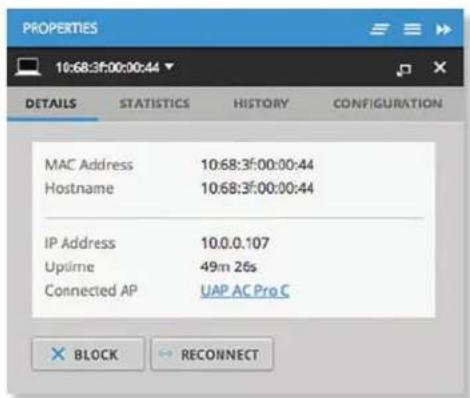
text_image
PROPERTIES 10:68:3f:00:00:44 DETAILS STATISTICS HISTORY CONFIGURATION MAC Address 10:68:3f:00:00:44 Hostname 10:68:3f:00:00:44 IP Address 10.0.0.107 Uptime 49m 26s Connected AP UAP AC Pro C BLOCK RECONNECTClose Click ☐ to close the Properties tab and client popups.
Minimize Click to close and re-open the client popups.
text_image
PROPERTIES 10:58:3f:00:00:42 c8:2a:14:00:00:18 10:58:3f:00:00:48 c8:2a:14:00:00:17Each row displays the following:
• (icon) Displays the icon of the device.
- Name/MAC Address Displays the hostname, alias, or MAC address of the client.
- Display Click to display the client information.
- Detach Click 📋 to display the same information in a separate popup screen that can be moved anywhere within the browser screen.
- Close Click to close the client popup.
Hide Click ▶ to hide the Properties tab but allow the client popups to remain accessible from this tab.
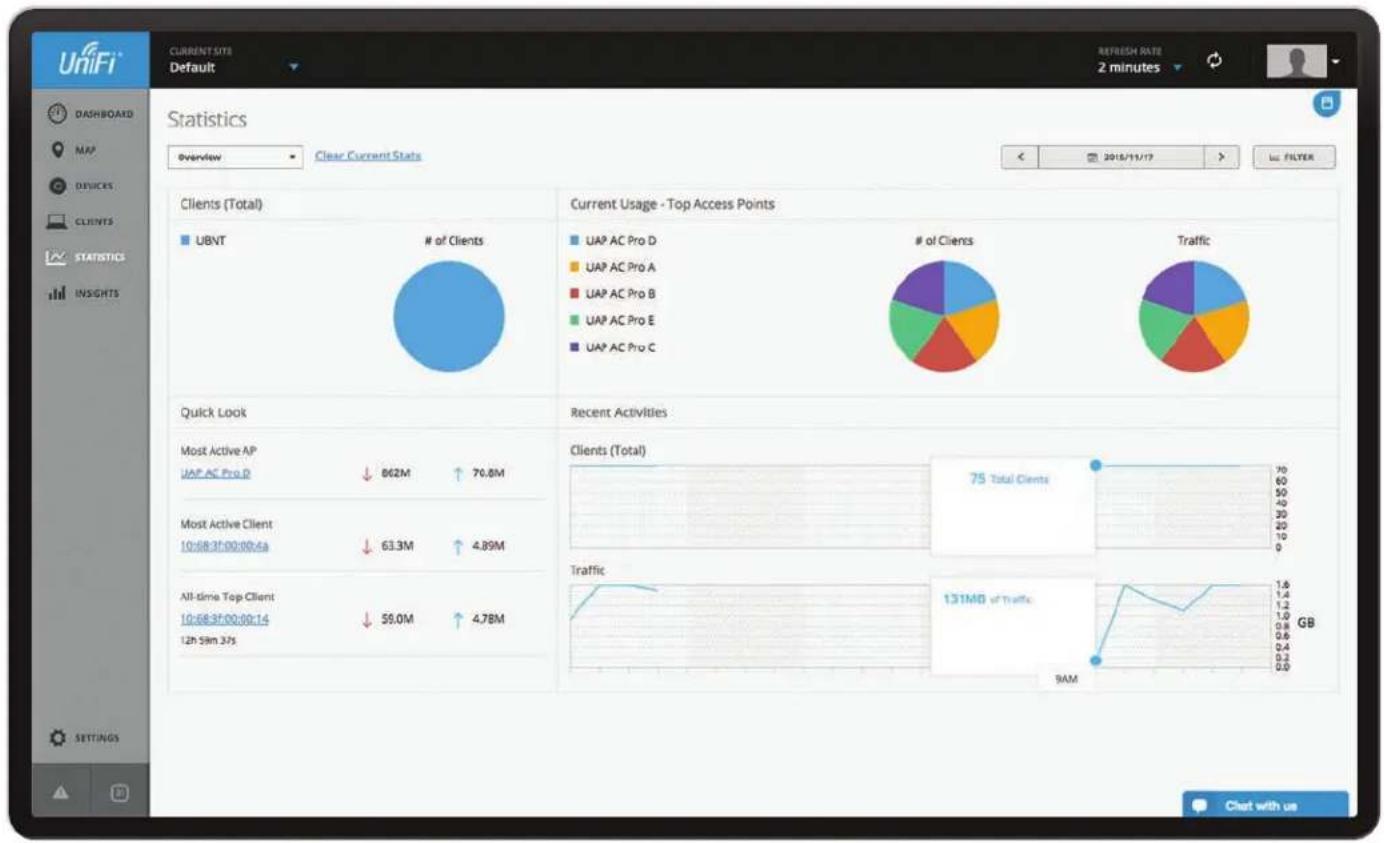
pie
| Category | Value | |---|---| | Clients (Total) | 862M | | # of Clients | 70.8M | | Quick Look | - | | Most Active AP | - | | UAP AC Pro D | - | | Most Active Client | - | | 10:68:37:00:00:4a | 63.3M | | All-time Top Client | 59.0M | | 12h 5Nm 37s | 4.7BM | | Current Usage - Top Access Points | - | | # of Clients | - | | Traffic | - | | UAP AC Pro D | - | | UAP AC Pro A | - | | UAP AC Pro B | - | | UAP AC Pro E | - | | UAP AC Pro C | - | | Recent Activities | - | | Clients (Total) | 75 Total Clients | | Traffic | 131MB of Traffic (GB) at 9AM, 9AM, 9AM, 9AM, 9AM, 9AM, 9AM, 9AM, 9AM, 9AM, 9AM, 9AM, 9AM, 9AM, 9AM, 9AM, 9AM, 9AM, 9AM, 9AM, 9AM, 9AM, 9AM, 9AM, 9AM, 9AM |Chapter 8: Statistics
The Statistics screen provides a visual representation of the clients and network traffic connected to your managed UniFi network.
pie
| Category | Value | | :--- | :--- | | Left | 100 | | Center | 200 | | Left | 50 | | Center | 100 | | Left | 50 | | Center | 100 | | Right | 100 | | Right | 50 | | Right | 100 | | Right | 50 |Overview The default view.
Clear Current Stats Reset the current statistics to start over.
Time and Date At the top right of the screen, you can filter by date and time period. You can also change the duration interval by toggling between 24 Hour and Month.
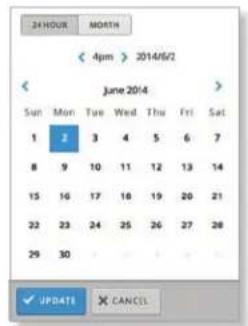
text_image
24HOUR MORTH < 4pm > 2014/6/2 June 2014 Sun Mon Tue Wed Thu Fri Sat 1 2 3 4 5 6 7 8 9 10 11 12 13 14 15 16 17 18 19 20 21 22 23 24 25 26 27 28 29 30 ✓ UPDATE ✗ CANCEL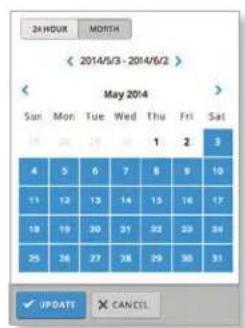
text_image
24 HOUR MONTH < 2014/5/3 - 2014/6/2 > May 2014 Sun Mon Tue Wed Thu Fri Sat 1 2 3 4 5 6 7 8 9 10 11 12 13 14 15 16 17 18 19 20 21 22 23 24 25 26 27 28 29 30 31 ✓ UPDATE ✗ CANCEL- Update Click √ UPDATE to apply the new filter.
- Cancel Click × CANCEL to discard changes.
Clients (Total)
pie
| Category | Value | |---|---| | Light | 100% | | Dark | 100% |# of Clients A visual pie chart represents the client distribution amongst the APs. Place the mouse cursor over the chart for the number of clients per network.
Quick Look
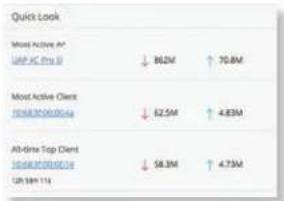
text_image
Quick Look Most Active A UP JC Pro B ↓ 862M ↑ 70.8M Most Active Cler 01/03/2020/04a ↓ 62.5M ↑ 4.83M All-One Top Cler 01/03/2020/04a ↓ 58.3M ↑ 4.73M Up 10m 11xMost Active AP
The details of the most active Access Point are displayed:
Name or MAC address You can click this link to open the AP Details screen. See "UniFi Access Point Details" on page 83 for additional information.
Download Displays the total amount of data downloaded by the AP.
Upload Displays the total amount of data uploaded by the AP.
Most Active Client
The details of the most active client in current use are displayed:
Name or MAC address You can click this link to open the Client Details screen. See "Client Details" on page 97 for additional information.
Download Displays the total amount of data downloaded by the client.
Upload Displays the total amount of data uploaded by the client.
All-Time Top Client
The details of the all-time, most active client are displayed:
Name or MAC address You can click this link to open the Client Details screen. See "Client Details" on page 97 for additional information.
Uptime Displays the duration of time the client has been connected.
Download Displays the total amount of data downloaded by the client.
Upload Displays the total amount of data uploaded by the client.
Current Usage - Top Access Points
The details of the most active Access Points in current use are displayed.
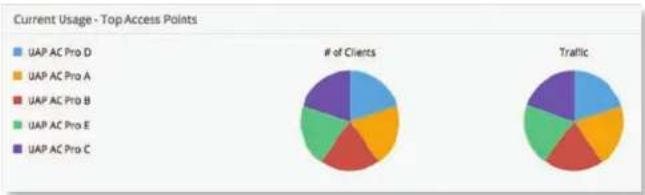
pie
Current Usage - Top Access Points | Category | # of Clients | Traffic | |---|---|---| | UAP AC Pro D | 10 | 10 | | UAP AC Pro A | 10 | 10 | | UAP AC Pro B | 10 | 10 | | UAP AC Pro E | 10 | 10 | | UAP AC Pro C | 10 | 10 |# of Clients A pie chart represents the client distribution on the most active Access Points. Place the mouse cursor over the chart for the number of clients per specified AP.
Traffic A pie chart represents traffic on the most active Access Points. Place the mouse cursor over the chart for the amount of traffic per specified AP.
Recent Activities
The details of recent network activities are displayed.
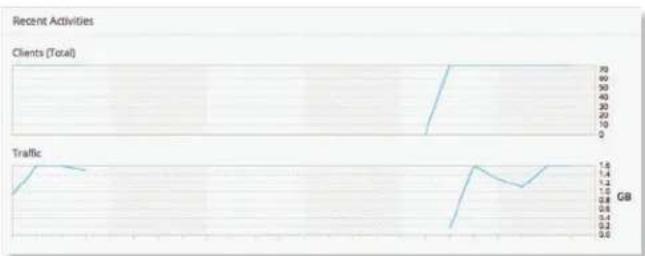
line
| Category | Clients (Total) | Traffic (GB) | |---|---|---| | 1 | 0 | 0.6 | | 2 | 30 | 1.4 | | 3 | 70 | 1.2 | | 4 | 70 | 0.8 | | 5 | 70 | 0.6 | | 6 | 70 | 0.4 | | 7 | 70 | 0.2 | | 8 | 70 | 0.6 | | 9 | 70 | 1.6 | | 10 | 70 | 1.4 | | 11 | 70 | 1.2 | | 12 | 70 | 0.8 | | 13 | 70 | 0.6 | | 14 | 70 | 0.4 | | 15 | 70 | 0.2 | | 16 | 70 | 0.6 | | 17 | 70 | 1.6 | | 18 | 70 | 1.4 | | 19 | 70 | 1.2 | | 20 | 70 | 0.8 | | 21 | 70 | 0.6 | | 22 | 70 | 0.4 | | 23 | 70 | 0.2 | | 24 | 70 | 0.6 | | 25 | 70 | 1.6 | | 26 | 70 | 1.4 | | 27 | 70 | 1.2 | | 28 | 70 | 0.8 | | 29 | 70 | 0.6 | | 30 | 70 | 0.4 | | 31 | 70 | 0.2 | | 32 | 70 | 0.6 | | 33 | 70 | 1.6 | | 34 | 70 | 1.4 | | 35 | 70 | 1.2 | | 36 | 70 | 0.8 | | 37 | 70 | 0.6 | | 38 | 70 | 0.4 | | 39 | 70 | 0.2 | | 40 | 70 | 0.6 | | 41 | 70 | 1.6 | | 42 | 70 | 1.4 | | 43 | 70 | 1.2 | | 44 | 70 | 0.8 | | 45 | 70 | 0.6 | | 46 | 70 | 0.4 | | 47 | 70 | 0.2 | | 48 | 70 | 0.6 | | 49 | 70 | 1.6 | | 50 | 70 | 1.4 | | 51 | 70 | 1.2 | | 52 | 70 | 0.8 | | 53 | 70 | 0.6 | | 54 | 70 | 0.4 | | 55 | 70 | 0.2 | | 56 | 70 | 0.6 | | 57 | 70 | 1.6 | | 58 | 70 | 1.4 | | 59 | 70 | 1.2 | | 60 | 70 | 0.8 | | 61 | 70 | 0.6 | | 62 | 70 | 0.4 | | 63 | 70 | 0.2 | | Note: The actual values for 'Clients (Total)' and 'Traffic' are not provided in the code; they are estimated based on the given code format.Clients (Total) A graph displays the number of clients connected during the selected time period. Place the mouse cursor over an hour or day to display the exact number.

line
| Clients (Total) | Value | | --------------- | ----- | | Total | 75 |Traffic A graph displays the network traffic during the selected time period. Place the mouse cursor over an hour or day to display the specific amount of data.

line
| Time | Traffic (MB) | GB | |------|--------------|----| | 9MM | 0.4 | 0.0 | | | 131MB | GB |Filter
You can view the number of clients and amount of traffic by device. The Filter drop-down list displays managed devices by name or MAC address and amount of traffic.
Click the appropriate device from the Filter drop-down list.
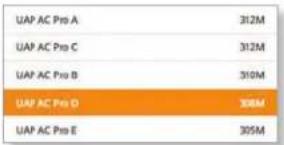
other
| Product | Sales (M) | |---|---| | UAP AC Pro A | 312 | | UAP AC Pro C | 312 | | UAP AC Pro B | 310 | | UAP AC Pro D | 308 | | UAP AC Pro E | 305 |A second line that is color-coded to the selected device appears in the time period selected.
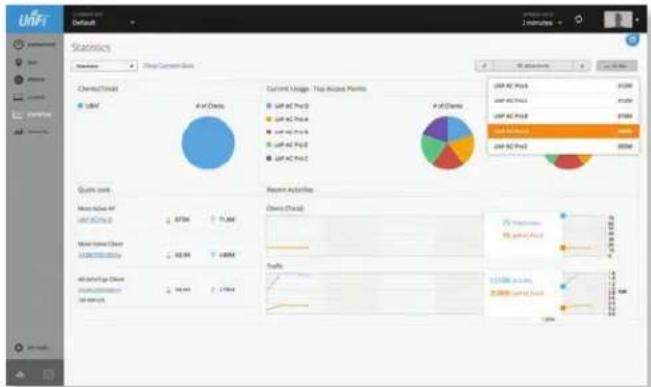
pie
Statistics | Company | Current Usage (Total Access Points) | | :--- | :--- | | UPAC Pte3 | 10000 | | UPAC Pte4 | 10000 | | UPAC Pte5 | 10000 | | UPAC Pte6 | 10000 | | UPAC Pte7 | 10000 | | UPAC Pte8 | 10000 | | UPAC Pte9 | 10000 | | UPAC Pte10 | 10000 | | UPAC Pte11 | 10000 | | UPAC Pte12 | 10000 | | UPAC Pte13 | 10000 | | UPAC Pte14 | 10000 | | UPAC Pte15 | 10000 | | UPAC Pte16 | 10000 | | UPAC Pte17 | 10000 | | UPAC Pte18 | 10000 | | UPAC Pte19 | 10000 | | UPAC Pte20 | 10000 | | UPAC Pte21 | 10000 | | UPAC Pte22 | 10000 | | UPAC Pte23 | 10000 | | UPAC Pte24 | 10000 | | UPAC Pte25 | 10000 | | UPAC Pte26 | 10000 | | UPAC Pte27 | 10000 | | UPAC Pte28 | 10000 | | UPAC Pte29 | 10000 | | UPAC Pte30 | 10000 | | UPAC Pte31 | 10000 | | UPAC Pte32 | 10000 | | UPAC Pte33 | 10000 | | UPAC Pte34 | 10000 | | UPAC Pte35 | 10000 | | UPAC Pte36 | 10000 | | UPAC Pte37 | 10000 | | UPAC Pte38 | 10000 | | UPAC Pte39 | 10000 | | UPAC Pte40 | 10000 | | UPAC Pte41 | 10000 | | UPAC Pte42 | 10000 | | UPAC Pte43 | 10000 | | UPAC Pte44 | 10000 | | UPAC Pte45 | 10000 | | UPAC Pte46 | 10000 | | UPAC Pte47 | 10000 | | UPAC Pte48 | 10000 | | UPAC Pte49 | 10000 | | UPAC Pte50 | 10000 | | UPAC Pte51 | 10000 | | UPAC Pte52 | 10000 | | UPAC Pte53 | 10000 | | UPAC Pte54 | 10000 | | UPAC Pte55 | 10000 | | UPAC Pte56 | 10000 | | UPAC Pte57 | 10000 | | UPAC Pte58 | 10000 | | UPAC Pte59 | 10000 | | UPAC Pte60 | 10000 | | UPAC Pte61 | 10000 | | UPAC Pte62 | 10000 | | UPAC Pte63 | 10000 | | UPAC Pte64 | 10000 | | UPAC Pte65 | 10000 | | UPAC Pte66 | 10000 | | UPAC Pte67 | 10000 | | UPAC Pte68 | 10000 | | UPAC Pte69 | 10000 | | UPAC Pte7You can place your mouse over an hour or day to display the number of clients and amount of data in total and per the selected device.
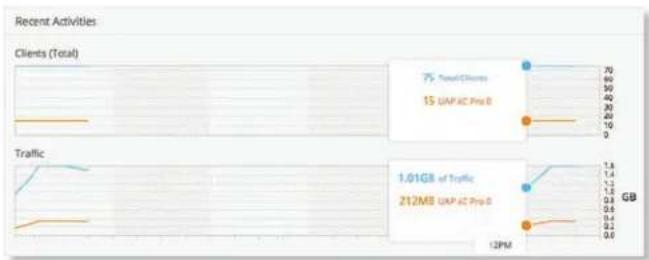
line
| Metric | Value | |--------|-------| | Total Clients | 75 | | 15 UAPAC Pro D | 15 | | Traffic | 1.01GB of Traffic | | 212MB UAPAC Pro D | 212MB | | 12PM | 0.6 | | GB | 1.8 |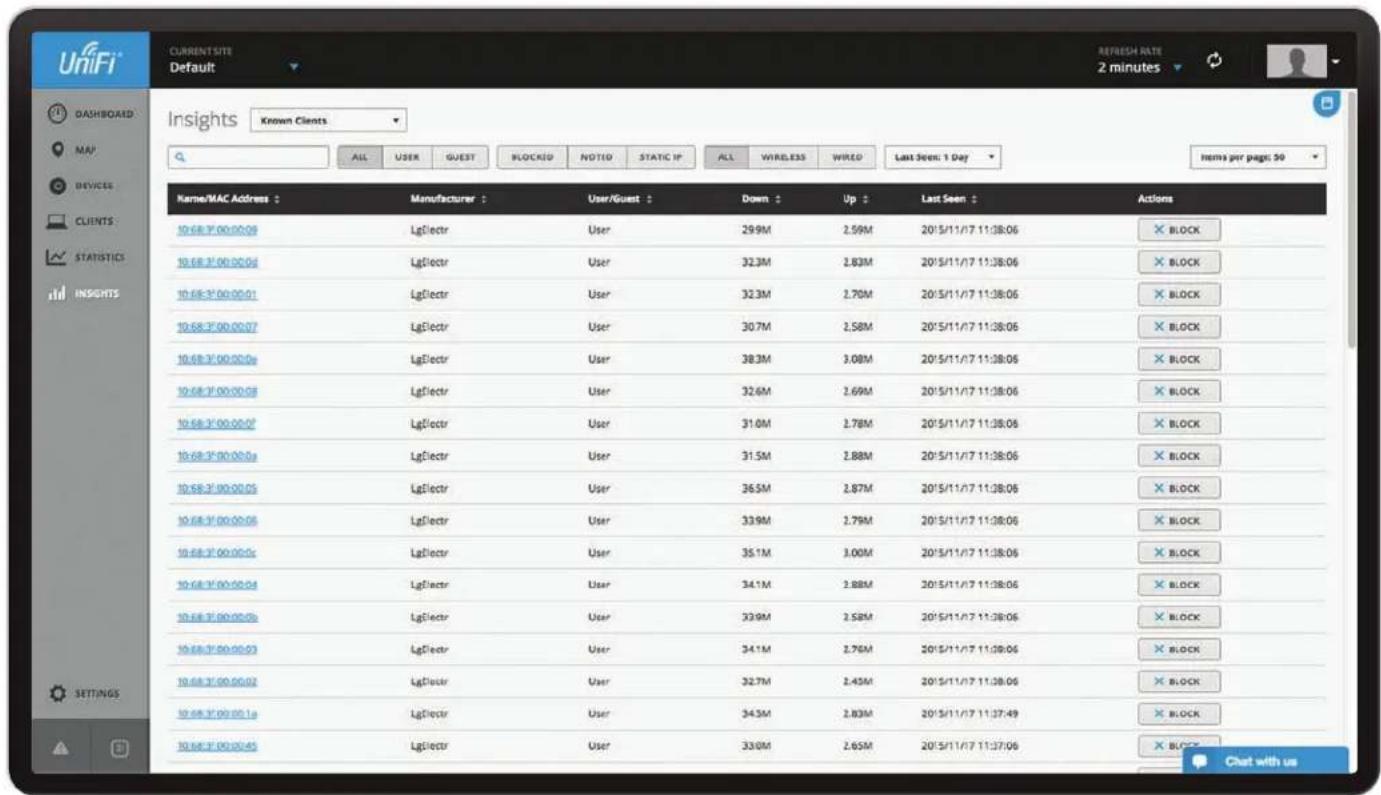
text_image
Unifi® CURRENT SITE Default REFRESH RATE 2 minutes INSIGHTS Known Clients ALL USER GUEST BLOCKID NOTID STATIC IP ALL WIRELESS WIRED Last Seen: 1 Day Items per page: 30 Name/MAC Address : Manufacturer : User/Guest : Down : Up : Last Seen : Actions 10.68.3'00:00:09 LgElectr User 29.9M 2.59M 20/5/11/7 11:38:06 × BLOCK 10.68.3'00:00:04 LgElectr User 32.3M 2.83M 20/5/11/7 11:38:06 × BLOCK 10.68.3'00:00:01 LgElectr User 32.3M 2.70M 20/5/11/7 11:38:06 × BLOCK 10.68.3'00:00:07 LgElectr User 30.7M 2.58M 20/5/11/7 11:38:06 × BLOCK 10.68.3'00:00:0a LgElectr User 38.3M 3.08M 20/5/11/7 11:38:06 × BLOCK 10.68.3'00:00:08 LgElectr User 32.6M 2.69M 20/5/11/7 11:38:06 × BLOCK 10.68.3'00:00:07 LgElectr User 31.0M 2.78M 20/5/11/7 11:38:06 × BLOCK 10.68.3'00:00:0a LgElectr User 31.5M 2.88M 20/5/11/7 11:38:06 × BLOCK 10.68.3'00:00:05 LgElectr User 36.5M 2.87M 20/5/11/7 11:38:06 × BLOCK 10.68.3'00:00:06 LgElectr User 33.9M 2.79M 20/5/11/7 11:38:06 × BLOCK 10.68.3'00:00:0c LgElectr User 35.1M 3.00M 20/5/11/7 11:38:06 × BLOCK 10.68.3'00:00:04 LgElectr User 34.1M 2.88M 20/5/11/7 11:38:06 × BLOCK 10.68.3'00:00:0b LgElectr User 33.9M 2.58M 20/5/11/7 11:38:06 × BLOCK 10.68.3'00:00:03 LgElectr User 34.1M 2.76M 20/5/11/7 11:38:06 × BLOCK 10.68.3'00:00:02 LgElectr User 32.7M 2.45M 20/5/11/7 11:38:06 × BLOCK 10.68.3'00:00:1a LgElectr User 34.3M 2.83M 20/5/11/7 11:37:49 × BLOCK 10.68.3'00:00:49 LgElectr User 33.9M 2.65M 20/5/11/7 11:37:06 × BLOCK Settings Chat with usChapter 9: Insights
The Insights screen displays different kinds of status information. Eight filters are available:
- Known Clients Displays information about detected clients.
- Rogue Access Points Displays information about wireless devices not managed by the UniFi Controller.
- Past Connections Displays information about previous client connection sessions (for example, a client can have multiple sessions from different days).
- Past Guest Authorizations Displays information about the authorization of previous guest connections.
- Switch Stats Displays information about the status, ports, PoE, and traffic activity of the UniFi Switches.
- Remote User VPN Displays information about the remote user VPN connections.
• Dynamic DNS Displays information about the use of DDNS services. - Port Forward Stats Displays information about the port forwarding entries used by the UniFi Security Gateway.
These sub-tabs share common options:
Search °Enter the text you want to search for. Simply begin typing; there is no need to press Enter.
Items per page Select how many results are displayed per page: 10, 50, 100, or 200.
On any sub-tab, you can click any of the column headers to change the list order.
If there is more than one page of entries to display, click the navigation controls or page numbers at the bottom right of the screen to display different pages.
Known Clients
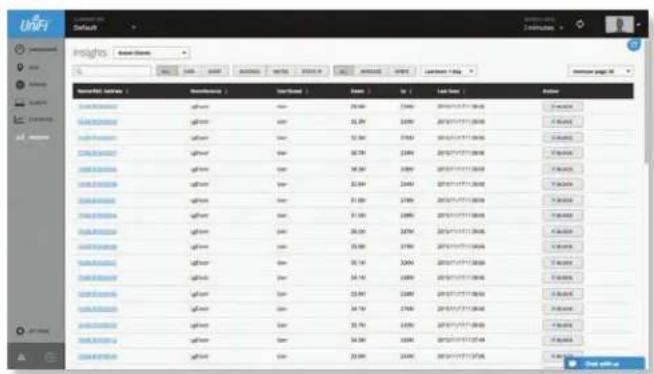
text_image
Insights Search Engine Search Engine 1.00000000000000000000000000000000000000000000000000000000000000000000000000000000000000000000000000 1.2.1.2.2.2.2.2.2.2.2.2.2.2.2.2.2.2.2.2.2.2.2.2.2.2.2.2.2.2.2.2.2.2.2.2.2.2.2.2.2.2.2.2.2.2.2.2.2.2.2.2.2.3 1.4.1.2.2.2.2.2.2.2.2.2.2.2.2.2.2.2.2.2.2.2.2.2.2.2.2.2.2.2.2.2.2.2.2.2.2.2.2.2.2.2.2.2.2.2.2.3 1.6.1.2.2.2.2.2.2.2.2.2.2.2.2.2.2.2.2.2.2.2.2.2.2.2.2.2.2.3 1.8 17 18 19 19 19 19 19 19 19 19 19 19 19 19 19 19 19 19 19 19 19 19 19 19 19 19 19 19 19 19 19 19 19 19 19 19 17 18 19 19 19 19 19 19 19 19 19 19 19 19 19 19 19 19 19 19 19 19 19 19 19 19 19 19 19 19 18 19 19 19 19 19 19 19 19 19 19 19 19 19 19 19 19 19 19 19 19 19 19 19 18 20 19 19 19 19 19 19 19 19 19 19 19 19 19 19 19 19 19 19 18 35 35 35 35 35 35 35 35 35 35 35 35 35-35-35-35-35-35-35-35-35-35-35-35-35-35-35-35-35-35-35-35-35-35-35-35-35-35-35-35-35-35-35-35-35-35-4 45-45-45-45-45-45-45-45-45-45-45-45-45-45-45-45-45-45-45-45-45-45-45-45-45-45-45-45-45-45-45-45-45-45-3 46-46-46-46-46-46-46-46-46-46-46-46-46-46-46-46-46-46-46-46-46-46 47-47-47-47-47-47-47-47-47-47-47-47-47-47-47-47-47-47-47 -777777777777777777777777777777777777777777777777777777777777777777777777777777777777You can apply one of the following primary filters:
• All Display all users and guests.
- User Only display users.
• Guest Only display guests.
A secondary filter is available:
- Blocked Only display blocked clients.
- Noted Only display clients whose configurations include notes. (See "Wireless Client – Configuration" on page 99 or "Wired Client – Configuration" on page 101 for more information.)
• Static IP Only display clients using static IP addresses.
A tertiary filter is available:
• All Display all clients, regardless of connection type.
• Wireless Display all wireless clients.
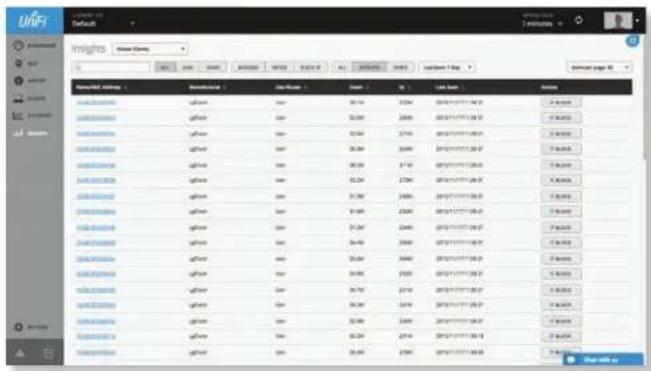
text_image
INSFT Insights Current Data 12 March 2015 2 March 2016 3 March 2017 4 March 2018 5 March 2019 6 March 2020 7 March 2021 8 March 2022 9 March 2023 10 March 2024 11 March 2025 12 March 2026 13 March 2027 14 March 2028 15 March 2029 16 March 2030 17 March 2031 18 March 2032 19 March 2033 20 March 2034 21 March 2035 22 March 2036 23 March 2037 24 March 2038 25 March 2039 26 March 2040 27 March 2041 28 March 2042 29 March 2043 30 March 2044 31 March 2045 32 March 2046 33 March 2047 34 March 2048 35 March 2049 36 March 2050 37 March 2051 38 March 2052 39 March 2053 40 March 2054 41 March 2055 42 March 2056 43 March 2057 44 March 2058 45 March 2059 46 March 2060 47 March 2061 48 March 2062 49 March 2063 50 March 2064 51 March 2065 52 March 2066 53 March 2067 54 March 2068 55 March 2069 56 March 2070 57 March 2071 58 March 2072 59 March 2073 60 March 2074 61 March 2075 62 March 2076 63 March 2077 64 March 2078 65 March 2079 66 March 2080 67 March 2081 68 March 2082 69 March 2083 70 March 2084 71 March 2085 72 March 2086 73 March 2087 74 March 2088 75 March 2089 76 March 2090 77 March 2091 78 March 2092 79 March 2093 80 March 2094 81 March 2095 82 March 2096 83 March 2097 84 March 2098 85 March 2099 86 March 2100• Wired Display all wired clients.
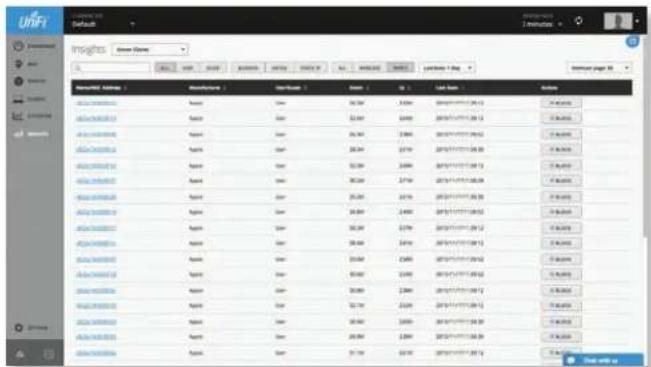
text_image
Unifi Default Insights Green Name Name: 100000000000000000000000000000000000000000000000000000000000000000000000000000000000000000 Selected by: Database name: Database name: Database name: Database name: Database name: Database name: Database name: Database name: Database name: Database name: Database name: Database name: Database name: Database name: Database name: Database name: Database name: Database name: Database name: Database name: Database name: Database name: Database name: Database name: Database name: Database Name: Database Name: Database Name: Database Name: Database Name: Database Name: Database Name: Database Name: Database Name: Database Name: Database Name: Database Name: Database Name: Database Name: Database Name: Database Name: Database Name: Database Name: Database Name: Database Name: Database Name: Database Name: Database Name: Database Name: Database Name: Database NAME : Database NAME : Database NAME : Database NAME : Database NAME : Database NAME : Database NAME : Database NAME : Database NAME : Database NAME : Database NAME : Database NAME : Database NAME : Database NAME : Database NAME : Database NAME : Database NAME : Database NAME : Database NAME : Database NAME : Database NAME : Database NAME : Database NAME : Database NAME : Database NAME : Database NAME: Database NAME : Database NAME : Database NAME : Database NAME : Database NAME : Database NAME : Database NAME : Database NAME : Database NAME : Database NAME : Database NAME : Database NAME : Database NAME : Database NAME : Database NAME : Database NAME : Database NAME : Database NAME : Database NAME : Database NAME : Database NAME : Database NAME : Database NAME : Database NAME : Database Name : Database NAME : Database NAME : Database NAME : Database NAME : Database NAME : Database NAME : Database NAME : Database NAME : Database NAME : Database NAME : Database NAME : Database NAME : Database NAME : Database NAME : Database NAME : Database NAME : Database NAME : Database NAME : Database NAME : Database NAME : Database NAME : Database NAME : Database NAME : Database NAME : Database Name: Database NAME: Search with usLast Seen Filter the results on the page based on the date the client was last seen. Select 1 Day, 3 Days, 7 Days, 2 Weeks, 1 Month, 2 Months, or 1 Year.
Name/MAC Address Displays the hostname, alias, or MAC address of the connected client. You can click the name to get additional details; see "Client Details" on page 97 for more information.
Manufacturer Displays the name of the device manufacturer.
User/Guest Indicates whether the client is/was connected to a primary or guest network.
Down Displays the total amount of data downloaded by the client.
Up Displays the total amount of data uploaded by the client.
Last Seen Displays the last date and time the client was connected.
Actions Click a button to perform the desired action:
- Block Click ✗ BLOCK to block this client from accessing the network.
- Reconnect Click 📄 RECONNECT to reconnect a wireless client. You can click 📄 RECONNECT to kick out a client, which usually reconnects back quickly; this is useful for troubleshooting or resolving a problematic wireless connection.
- Unauthorize/Authorize (Available for Guests only.) Click ✗ UNAUTHORIZED to remove authorization of guest access and disconnect the guest, or click for AUTHORIZE guests pending authorization.
Rogue Access Points
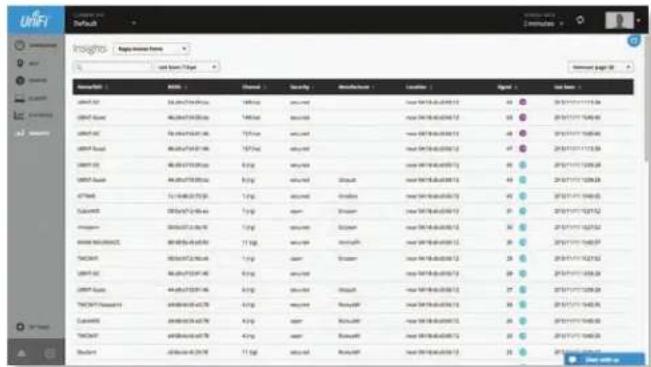
text_image
UKIFT Insights - Multiple Items and from Page Name: UKIFT Name: UKIFT Name: UKIFT Name: UKIFT Name: UKIFT Name: UKIFT Name: UKIFT Name: UKIFT Name: UKIFT Name: UKIFT Name: UKIFT Name: UKIFT Name: UKIFT Name: UKIFT Name: UKIFT Name: UKIFT Name: UKIFT Name: UKIFT Name: UKIFT Name: UKIFT Name: UKIFTLast Seen Filter the results on the page based on the time the AP was last seen. Select 1 Day, 3 Days, 7 Days, 2 Weeks, 1 Month, 2 Months, or 1 Year.
Name/SSID Displays the name of the wireless network.
BSSID Displays the MAC address of the AP's wireless interface.
Channel Displays the channel setting that the AP was detected on.
Security Displays the security status indicating whether encryption is used.
Manufacturer Displays the name of the AP manufacturer.
Location Displays the name of the closest AP managed by the UniFi Controller. You can click the name to get additional details on the AP.
Signal Displays the signal strength level and signal type:
| Icon Clients Mode | |
| ac | 5 GHz (802.11ac) Active |
| ac | 5 GHz (802.11ac) Power Save |
| n | 5 GHz (802.11n) Active |
| n | 5 GHz (802.11n) Power Save |
| n | 2.4 GHz (802.11n) Active |
| n | 2.4 GHz (802.11n) Power Save |
| g | 2.4 GHz (802.11g) Active |
| g | 2.4 GHz (802.11g) Power Save |
| b | 2.4 GHz (802.11b) Active |
| b | 2.4 GHz (802.11b) Power Save |
Last Seen Displays the last date and time the AP was connected.
Past Connections
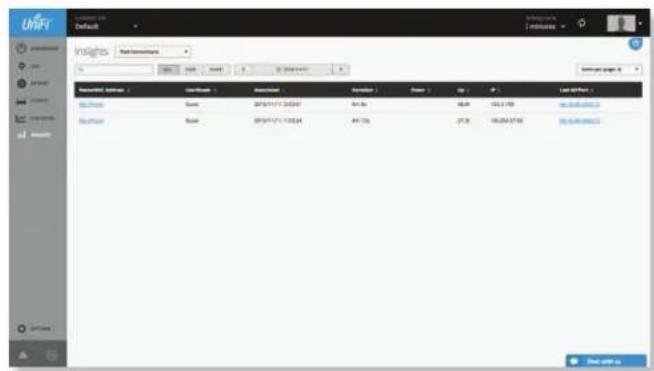
text_image
UNIFI Default Unifinals Reinforcement S S S S S S S S S S S S S S S S S S S S S S S S S S S S S S S S S S S S S S S S S S S S S S S S S S N N N N N N N N N N N N N N N N N N N N N N N N N N N N N N N N N N N N N N N N N N N N N N N N N N SYou can apply one of the following filters:
• All Display all users and guests.
- User Only display users.
• Guest Only display guests.
Time and Date You can filter by time and date period. You can also change the duration interval by toggling between 1 Hour, 24 Hour, and 7 Days.
text_image
T HOURS 13 NOISE 1/04/15 ( 2014/1/2) November 2014 Sat Mon Tue Wed Thu Fri Sat 1 2 3 4 5 6 7 8 9 10 11 12 13 14 15 16 17 18 19 20 21 22 23 24 25 26 27 28 29 30 ✓ UPDATE X CAME:- Update Click √ UPDATE to apply the new filter.
- Cancel Click × CANCEL to discard changes.
Name/MAC Address Displays the hostname, alias, or MAC address of the connected client. You can click the name to get additional details; see "Client Details" on page 97 for more information.
User/Guest Indicates whether the client is/was connected to a primary or guest network.
Associated Displays the date and time the client first connected.
Duration Displays the length of time the client was connected.
Down Displays the total amount of data downloaded by the client.
Up Displays the total amount of data uploaded by the client.
IP Displays the last known IP address of the client.
Last AP/Port Displays the name or MAC address of the last AP used by the wireless client or the last port used by the wired client. You can click the device name for more information; refer to "UniFi Access Point Details" on page 83 or "UniFi Switch Details" on page 75.
Past Guest Authorizations
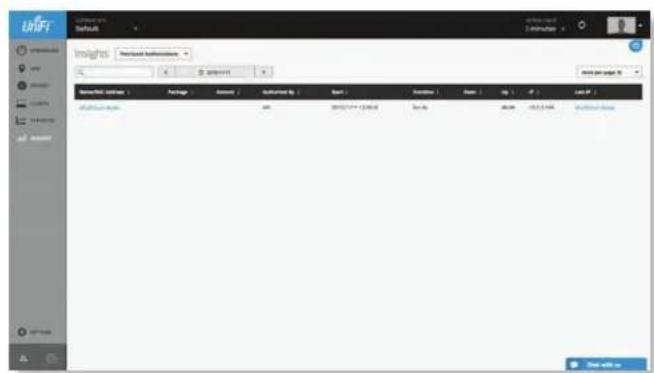
Time and Date You can filter by time and date period. You can also change the duration interval by toggling between 1 Hour, 24 Hour, and 7 Days.
text_image
1 HOURS 24 HOURS 1 DAY 2014/11/1 November 2014 Sun Vom Tue Wed Thu Fri Sat 1 2 3 4 5 6 7 8 9 10 11 12 13 14 15 16 17 18 19 20 21 22 23 24 25 26 27 28 29 30 OK CREATE CABO:- Update Click √ UPDATE to apply the new filter.
- Cancel Click × CANCEL to discard changes.
Name/MAC Address Displays the hostname, alias, or MAC address of the previous guest.
Package Displays the name of the guest access package.
Amount Displays the amount paid by the guest.
Authorized By Displays the name of the authorizing body.
Start Displays the start date and time of the session.
Duration Displays the length of time the guest was connected.
Down Displays the total amount of data downloaded by the guest.
Up Displays the total amount of data uploaded by the guest.
IP Displays the last known IP address of the guest.
Last AP/Port Displays the name or MAC address of the last AP used by the wireless guest or the last port used by the wired guest. You can click the device name for more information; refer to "UniFi Access Point Details" on page 83 or "UniFi Switch Details" on page 75.
Switch Stats
You can apply one of the following primary filters:
- Switch Displays the ports of all UniFi Switches or a specific Switch.
- Link Status Displays the ports of the specified status:
- All Displays all ports.
- Connected Displays all connected ports.
- Disconnected Displays all disconnected ports.
Once you have applied the primary filters, then apply a secondary filter:
- Overview Displays the general status information of each port.
- PoE Displays the specific PoE configuration and status of each port.
- Counters Displays the specific TX and RX rates for each port.
Overview
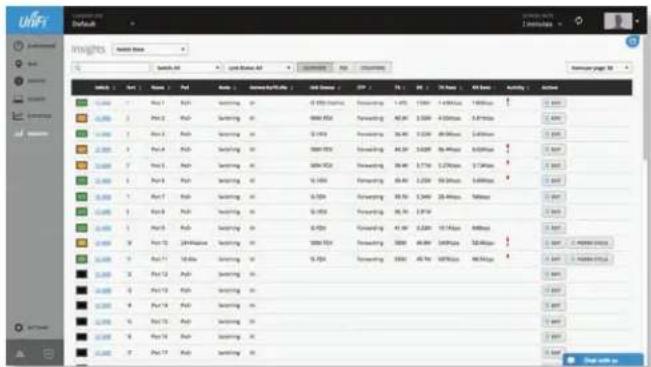
text_image
USEFI Default USEFI #VALUES #VALUES #VALUES #VALUES #VALUES #VALUES #VALUES #VALUES #VALUES #VALUES #VALUES #VALUES #VALUES #VALUES #VALUES #VALUES #VALUES #VALUES #VALUES #VALUES #VALUES #VALUES #VALUES #VALUES #VALUES #VALUE5 #VALUE5 #VALUE5 #VALUE5 #VALUE5 #VALUE5 #VALUE5 #VALUE5 #VALUE5 #VALUE5 #VALUE5 #VALUE5 #VALUE5 #VALUE5 #VALUE5 #VALUE5 #VALUE5 #VALUE5 #VALUE5 #VALUE5 #VALUE5 #VALUE5 #VALUE5 #VALUE5 #VALUE5 #VALUE10 #VALUE10 #VALUE10 #VALUE10 #VALUE10 #VALUE10 #VALUE10 #VALUE10 #VALUE10 #VALUE10 #VALUE10 #VALUE10 #VALUE10 #VALUE10 #VALUE10 #VALUE10 #VALUE10 #VALUE10 #VALUE10 #VALUE10 #VALUE15 #VALUE15 #VALUE15 #VALUE15 #VALUE15 #VALUE15 #VALUE15 #VALUE15 #VALUE15 #VALUE15 #VALUE15 #VALUE15 #VALUE15 #VALUE15 #VALUE15 #VALUE15 #VALUE15 #VALUE15 #VALUE15 #VALUE15 #VALUE10 #VALUE10 #VALUE10 #VALUE10 #VALUE10 #VALUE10 #VALUE10 #VALUE10 #VALUE10 #VALUE10 #VALUE10 #VALUE10 #VALUE10 #VALUE10 #VALUE10 #VALUE10 #VALUE10 #VALUE10 #VALUE10The ports display their status:
Indicates a 10/100 Mbps connection.
Indicates 10/100 Mbps connection with PoE.
Indicates a 1000 Mbps connection.
Indicates 1000 Mbps connection with PoE.
■ Indicates the convection is disabled (no network or VLAN is enabled).
■ Indicates no connection (the network or VLAN is enabled, but the port is not in use).
Switch If Switch: All is selected, then this displays the hostname, alias, or MAC address of the UniFi Switch. You can click the name to get additional details. For more information, see "UniFi Switch Details" on page 75.
Port Displays the port number.
Name Displays the name of the port.
PoE Displays the PoE setting:
• Disabled PoE is disabled.
• 24V Passive 24V passive PoE is enabled.
- PoE+ 802.3at/af devices can be plugged in and automatically receive PoE.
Mode Displays the operation mode:
- Switching The default mode.
- Mirroring The network traffic of this port will receive the mirrored traffic from the port selected in "Port Configuration" on page 77.
- Aggregate This port is part of an aggregate link. A port channel, also known as a Link Aggregation Group (LAG), combines multiple links into a single logical link (single IP address) for load balancing and/or redundancy.
Networks/VLANs Displays the networks/VLANs that the port belongs to.
Link Status Displays the connection speed and duplex mode.
STP Displays the STP (Spanning Tree Protocol) mode.
TX Displays the amount of data transmitted.
RX Displays the amount of data received.
TX Rate Displays the transmit rate.
RX Rate Displays the receive rate.
Activity Displays the level of activity. The different colors represent different types of packet activity.
| Color Packet Activity | |
| TX rate | |
| RX rate | |
You can place your mouse over the Activity icon to display the specific TX or RX rate.
Actions Click a button to perform the desired action:
- Edit Click ☑ EDIT to make changes to the port settings. For more information, see "UniFi Switch Details" on page 75.
- Power Cycle If applicable, click POWER CYCLE to power cycle the port.
PoE
You can apply the PoE Mode filter:
- All Displays all ports using any PoE Mode setting.
- Enabled Displays all ports set to PoE+ or 24V Passive.
• Power On Displays all ports with PoE detected.
• Passive Displays all ports set to 24V passive PoE. - Disabled Displays all ports with PoE disabled.
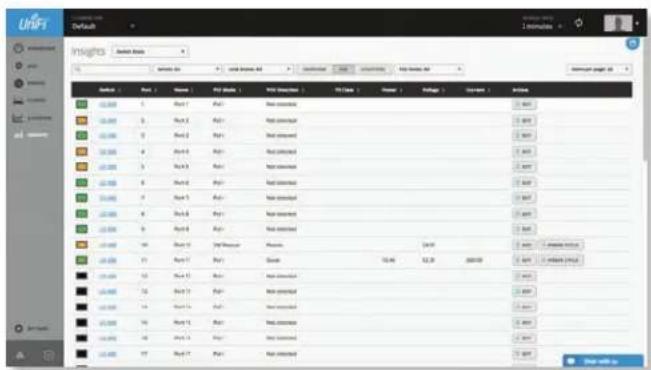
text_image
INSIGHTS Main Data Sub End Main Data Sub End Sub End Sub End Sub End Sub Sub Sub Sub Sub Sub Sub Sub Sub Sub Sub Sub Sub Sub Sub Sub Sub Sub Sub Sub Sub Sub Sub Sub Sub Sub Sub Sub Sub Sub Sub Sub Sub Sub Sub Sub Sub Sub Sub Sub Sub Sub Sub Sub Sub Sub Sub Sub Sub Sub EndThe ports display their status:
Indicates a 10/100 Mbps connection.
Indicates 10/100 Mbps connection with PoE.
Indicates a 1000 Mbps connection.
Indicates 1000 Mbps connection with PoE.
■ Indicates the convection is disabled (no network or VLAN is enabled).
■ Indicates no connection (the network or VLAN is enabled, but the port is not in use).
Switch If Switch: All is selected, then this displays the hostname, alias, or MAC address of the UniFi Switch. You can click the name to get additional details. For more information, see "UniFi Switch Details" on page 75.
Port Displays the port number.
Name Displays the name of the port.
PoE Mode Displays the PoE setting:
• Disabled PoE is disabled.
• 24V Passive 24V passive PoE is enabled.
- PoE+ 802.3at/af devices can be plugged in and automatically receive PoE.
PoE Detection Displays the PoE status:
- Not detected No 802.3at/af device is detected.
• Passive 24V passive PoE is enabled.
• Good An 802.3at/af device is plugged in and automatically receiving PoE.
PD Class Displays the PD (Powered Device) class of the detected device, if applicable; this indicates its power requirements.
Power Displays the power output in watts, if applicable.
Voltage Displays the voltage output, if applicable.
Current Displays the current output in amperes, if applicable.
Actions Click a button to perform the desired action:
- Edit Click ☑ EDIT to make changes to the port settings. For more information, see "UniFi Switch Details" on page 75.
- Power Cycle If applicable, click POWER CYCLE to power cycle the port.
Counters
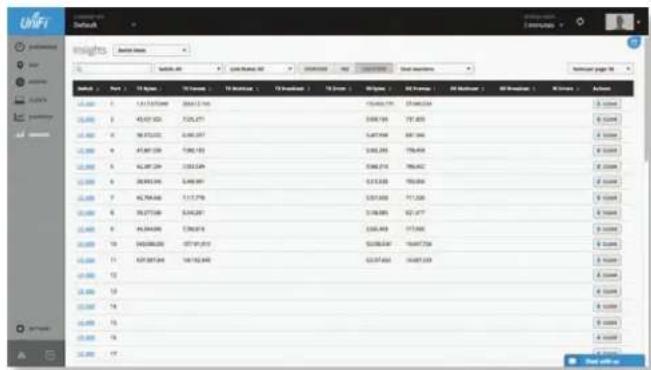
text_image
UNIFI Unifinal Insights Subtotal values Subtotal value Subtotal value Subtotal values Subtotal values Subtotal values Subtotal values Subtotal values Subtotal values Subtotal values Subtotal values Subtotal values Subtotal values Subtotal values Subtotal values Subtotal values Subtotal values Subtotal values Subtotal values Subtotal values Subtotal values Subtotal values Subtotal values Subtotal values Subtotal values Subtotal values Subtotal values Subtotal values Subtotal = 100.0000000000000000000000000000000000000000000000000000000000000000000000000000000000000000000000000000 Subtotal Month Year Month Value Year Value Year Value Year Value Year Value Year Value Year Value Year Value Year Value Year Value Year Value Year Value Year Value Year Value Year Value Year Value Year Value Year Value Year Value Year Value Year Value Year Value Year Value Year Value Year Value Year Value Year Value Year Value Year Value Year Value Year Value Year Value Year Value Year Value YearValueClear counters Select one of the following:
• All Resets all counters to zero.
- (switch_name) Resets the counters of the selected UniFi Switch to zero.
Switch If Switch: All is selected, then this displays the hostname, alias, or MAC address of the UniFi Switch. You can click the name to get additional details. For more information, see "UniFi Switch Details" on page 75.
Port Displays the port number.
TX Bytes Displays the number of bytes transmitted.
TX Frames Displays the number of frames transmitted.
TX Multicast Displays the number of multicast packets transmitted.
Chapter 9: Insights
UniFi Controller User Guide
TX Broadcast Displays the number of broadcast packets transmitted.
TX Errors Displays the number of error packets transmitted.
RX Bytes Displays the number of bytes received.
RX Frames Displays the number of frames received.
RX Multicast Displays the number of multicast packets received.
RX Broadcast Displays the number of broadcast packets received.
RX Errors Displays the number of error packets received.
Actions Click a button to perform the desired action:
- Clear Click CLEAR to reset the port counters to zero.
Remote User VPN
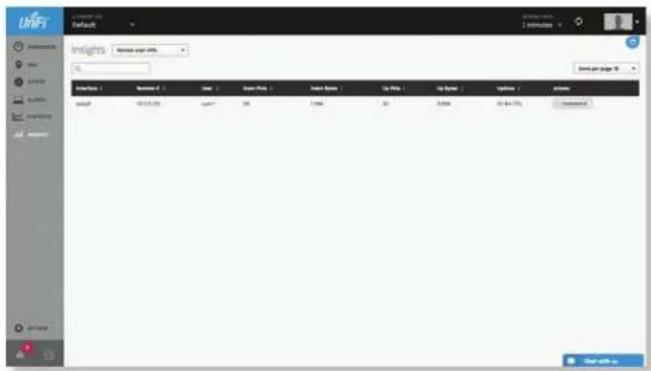
text_image
UNIFI Default Insights Name: Unifc user profile 123400000000000000000000000000000000000000000000000000000000000000000000000000000000000000000 Name: Unifc user profile 12340000000000000000 Size: 168 Value: 1796 Value: 25 Value: 3264 Value: 36.54-37% Value: 42.54-43% Value: 46.54-47% Value: 52.54-53% Value: 56.54-57% Value: 62.54-63% Value: 66.54-67% Value: 72.54-73% Value: 76.54-77% Value: 82.54-83% Value: 86.54-87% Value: 92.54-93% Value: 96.54-97% Value: 102.54-103% Value: 112.54-114% Value: 122.54-125% Value: 132.54-136% Value: 142.54-147% Value: 152.54-158% Value: 162.54-169% Value: 172.54-179% Value: 182.54-189% Value: 192.54-199% Value: 202.54-212% Value: 212.54-219% Value: 222.54-228% Value: 232.54-237% Value: 242.54-248% Value: 252.54-259% Value: 262.54-268% Value: 272.54-279% Value: 282.54-288% Value: 292.54-299% Value: 302.54-312% Value: 312.54-319% Value: 322.54-328% Value: 332.54-337% Value: 342.54-348% Value: 352.54-359% Value: 362.54-368% Value: 372.54-379% Value: 382.54-388% Value: 392.54-399% Value: 402.54-412% Value: 412.54-419% Value: 422.54-428% Value: 432.54-437% Value: 442.54-448% Value: 452.54-459% Value: 462.54-468% Value: 472.54-479% Value: 482.54-488% Value: 492.54-499% Value: 502.54-512% Value: 512.54-519% Value: 522.54-528% Value: 532.54-537% Value: 542.54-548% Value: 552.54-559% Value: 562.54-568% Value: 572.54-579% Value: 582.54-588% Value: 592.54-599% Value: 602.54-612% Value: 612.54-619% Value: 622.54-628% Value: 632.54-637% Value: 642.54-648% Value: 652.54-659% Value: 662.54-668% Value: 672.54-679% Value: 682.54-688% Value: 692.54-699% Value: 702.54-712% Value: 712.54-719% Value: 722.54-728% Value: 732.54-737% Value: 742.54-748% Value: 752.54-759% Value: 762.54-768% Value: 772.54-779% Value: 782.54-788% Value: 792.54-799% Value: 802.54-812% Value: 812.54-819% Value: 822.54-828% Value: 832.54-837% Value: 842.54-838% Value: 852.54-839% Value: 862.54-848% Value: 872.54-859% Value: 882.54-868% Value: 892.54-879% Value: 902.54-888% Value: 912.54-899% Value: 922.54-918% Value: 932.54-927% Value: 942.54-936% Value: 952.54-945% Value: 962.54-953% Value: 972.54-961% Value: 982.54-969% Value: 992.54-978% Value: 1002.54-1017%Interface Displays the interface being used.
Remote IP Displays the IP address of the remote user.
User Displays the username of the remote user.
Down Pkts Displays the amount of data downloaded as packets.
Down Bytes Displays the amount of data downloaded as bytes.
Up Pkts Displays the amount of data uploaded as packets.
Up Bytes Displays the amount of data uploaded as bytes.
Uptime Displays the duration of time the VPN tunnel has been active without interruption.
Actions Click a button to perform the desired action:
- Terminate Click to end the VPN tunnel.
Dynamic DNS
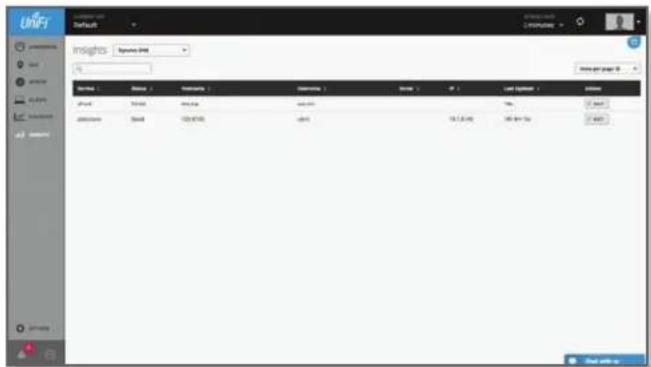
text_image
UNIFI Settings Insights Synapse: UNIFI Name: 1 Description: Description Type: Last Options: Options aView Bend Cable dView 10.2.045 10.2.045 10.2.045 10.2.045 10.2.045 10.2.045 10.2.045 10.2.045 10.2.045 10.2.045 10.2.045 10.2.045Service Displays the name of the DDNS service.
Status Displays the status of the latest DDNS update.
Hostname Displays the hostname registered with the DDNS service.
Username Displays the username of the DDNS account.
Server Displays the IP address or hostname of the DDNS server that should receive DDNS updates.
IP Displays the WAN (public) IP address of the hostname.
Last Updated Displays the duration of time since the hostname IP address was last updated.
Actions Click a button to perform the desired action:
- Edit Click EDIT to make changes to the UniFi Security Gateway settings. For more information, see "UniFi Security Gateway Details" on page 67.
Port Forward Stats
You can apply one of the following primary filters:
• All Displays all port forwarding entries.
- User-Defined Displays the user-defined port forwarding entries.
- UPnP Displays the UPnP port forwarding entries.
All
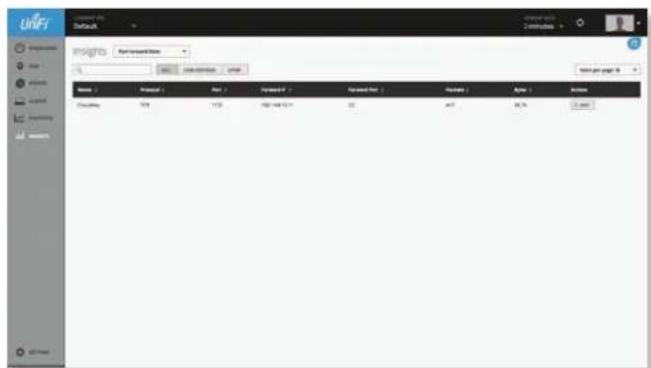
text_image
UNIFI Default Insights Form: 100000000000 Model Unifinal Page Standard F: Standard F: Number Alpha Version C:\Users\123\123\123\123\123\123\123\123\123\123\123\123\123\123\123\123\123\123\123\123\123\123\123\123\123\124 Model Unifinal Page Standard F: Standard F: Number Alpha Version C:\Users\123\123\123\123\123\123\123\123\123\123\123\123\123\123\123\123\123\123\124Name Displays the name of the port forwarding entry.
Protocol Displays the protocol that will be forwarded.
Port Displays the port or ports that will be forwarded to the LAN. Also known as the external port(s).
Forward IP Displays the destination IP address that will receive the forwarded port traffic.
Forward Port Displays the destination port or ports that will receive the forwarded port traffic. Also known as the internal port(s).
Packets Displays the number of packets transferred.
Bytes Displays the number of bytes transferred.
Actions Click a button to perform the desired action:
- Edit Click EDIT to make changes to the UniFi Security Gateway settings. For more information, see "UniFi Security Gateway Details" on page 67.
User-Defined
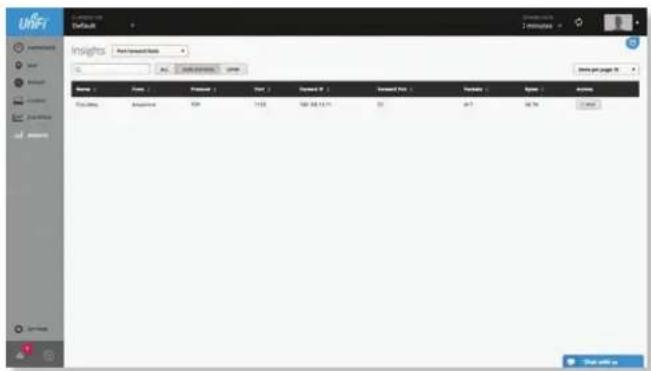
text_image
UNIFI Unifirsts - Not Forward Book File Edit View Insertion Help Name: Print Format: Format Size: 100 Description: Standard Type Standard Type: Standard Type Type: Normal Encoding: Annotation ID: 100 Date: 2015-04-13 Time: 0.7 Balance: 0.0000Name Displays the name of the port forwarding entry.
From Displays the source IP address, if specified.
Protocol Displays the protocol that will be forwarded.
Port Displays the port or ports that will be forwarded to the LAN. Also known as the external port(s).
Forward IP Displays the destination IP address that will receive the forwarded port traffic.
Forward Port Displays the destination port or ports that will receive the forwarded port traffic. Also known as the internal port(s).
Packets Displays the number of packets transferred.
Bytes Displays the number of bytes transferred.
Actions Click a button to perform the desired action:
- Edit Click ☑ EDIT to make changes to the UnFi Security Gateway settings. For more information, see "UniFi Security Gateway Details" on page 67.
UPnP
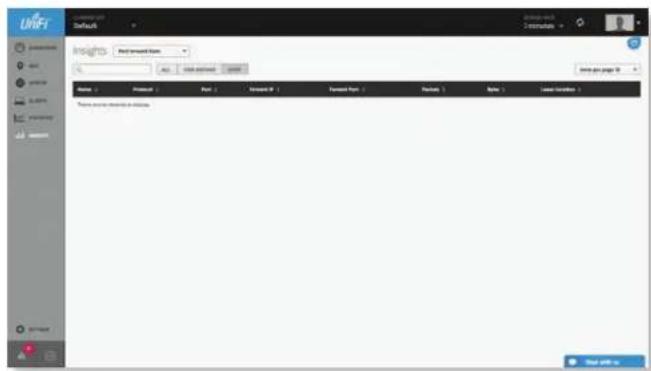
text_image
UNIFI Default Insights Find Forward Form Add Search Add Search Name: Product Page 1 Search ID: Search Form Notes: New Location Search result to search Start add-inName Displays the name of the port forwarding entry.
Protocol Displays the protocol that will be forwarded.
Port Displays the port or ports that will be forwarded to the LAN. Also known as the external port(s).
Forward IP Displays the destination IP address that will receive the forwarded port traffic.
Forward Port Displays the destination port that will receive the forwarded port traffic. Also known as the internal port.
Packets Displays the number of packets transferred.
Bytes Displays the number of bytes transferred.
Lease Duration Displays the uptime of the port forwarding entry.
Chapter 10: UniFi Security Gateway Details
The UniFi Security Gateway hyperlink opens the UniFi Security Gateway's Details window either in the Properties tab or as a separate popup window. You can always dock this window in the Properties tab or detach it as a separate window.
The top of the window displays the device icon and name (or MAC address).
Properties
The Properties tab is hidden by default. To display it, click the properties icon. The Properties tab appears on the right side of the screen.
Information about each selected device appears as a popup within this tab.
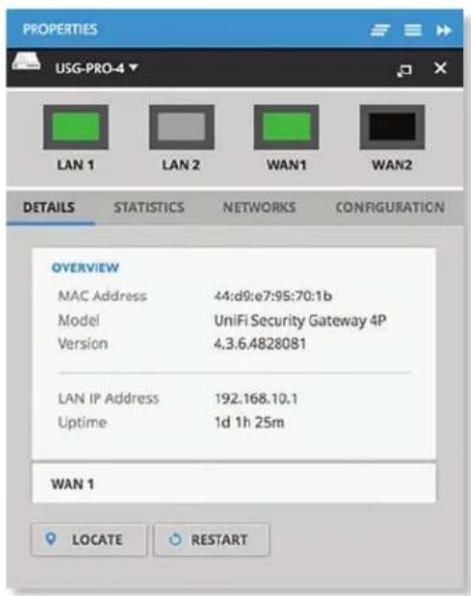
text_image
PROPERTIES USG-PRO-4 LAN 1 LAN 2 WAN1 WAN2 DETAILS STATISTICS NETWORKS CONFIGURATION OVERVIEW MAC Address 44:d9:e7:95:70:1b Model UniFi Security Gateway 4P Version 4.3.6.4828081 LAN IP Address 192.168.10.1 Uptime 1d 1h 25m WAN 1 LOCATE RESTART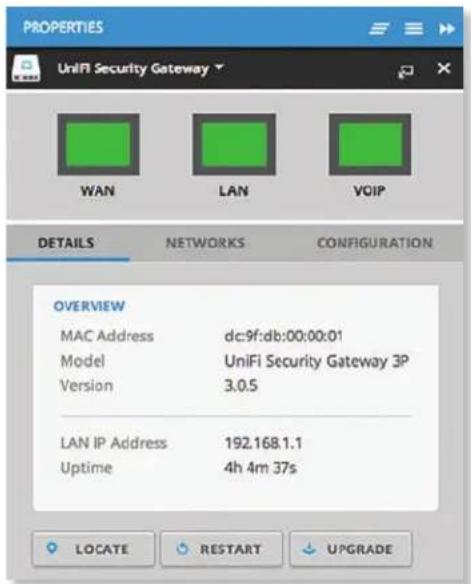
text_image
PROPERTIES UniFi Security Gateway WAN LAN VOIP DETAILS NETWORKS CONFIGURATION OVERVIEW MAC Address dc:9f:db:00:00:01 Model UniFi Security Gateway 3P Version 3.0.5 LAN IP Address 192.168.1.1 Uptime 4h 4m 37s LOCATE RESTART UPGRADEClose Click to close the Properties tab and device popups.
Minimize Click to close and re-open the device popups.
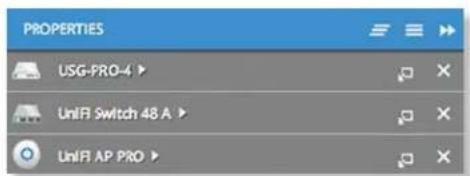
text_image
PROPERTIES USG-PRO-4 UniFI Switch 48 A UniFI AP PROEach row displays the following:
- (icon) Displays the icon of the device (the icon will vary depending on the model).
- Name/MAC Address Displays the hostname, alias, or MAC address of the device.
- Display Click to display the device information.
- Detach Click to display the same information in a separate popup screen that can be moved anywhere within the browser screen.
- Close Click to close the device popup.
Hide Click to hide the Properties tab but allow the device popups to remain accessible from this tab.
If you are using the USG-PRO-4 model, then the upper part of the detached popup screen has four icons:
• LAN1
• LAN2
• WAN1
• WAN2
If you are using the USG model, then the upper part of the detached popup screen has three icons:
• WAN
• LAN
• VOIP (enabled in "Settings > VoIP" on page 29)
A green icon indicates an active port, and a black icon indicates no activity. A gray icon indicates a disabled port (VoIP requires UniFi Controller v4.6 or higher).
There are four clickable tabs:
- "UniFi Security Gateway – Details" on page 68
- "UniFi Security Gateway – Statistics" on page 69
- "UniFi Security Gateway – Networks" on page 69
- "UniFi Security Gateway – Configuration" on page 70
The bottom of the window has three buttons:
- Locate Click ● LOCATE to flash the Status LED on the Gateway and the Gateway's icon on the Map tab so you can locate it. The LED will flash until the Locate button is clicked again. (The icon on the Map tab will flash three times and stop.)
- Restart Click ⬆ RESTART to restart the Gateway.
- Upgrade If a software upgrade is available for the Gateway, click ✿UPGRADE to install the latest UniFi firmware on the Gateway. The Status will appear as Upgrading until the process is complete and the Gateway reconnects to the UniFi Controller software.
UniFi Security Gateway – Details
Click Details to display the device specifics, LAN/WAN connection details, and uptime.
Overview
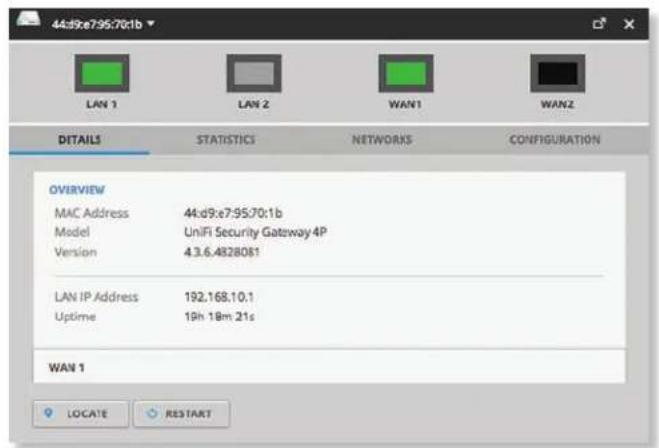
text_image
44:d9:e7:95:70:1b LAN 1 LAN 2 WAN1 WANZ DETAILS STATISTICS NETWORKS CONFIGURATION OVERVIEW MAC Address 44:d9:e7:95:70:1b Model UniFi Security Gatzway 4P Version 4.3.6.4828081 LAN IP Address 192.168.10.1 Uptime 19h 18m 21s WAN 1 LOCATE RESTARTOverview
MAC Address Displays the MAC address or unique hardware identifier of the Gateway.
Model Displays the model name of the Gateway.
Version Displays the version number of the Gateway's firmware.
LAN IP Address Displays the local IP address of the Gateway.
Uptime Displays the duration of time the Gateway has been running without interruption.
WAN
The number of WAN sections will vary depending on the number of active WAN ports.
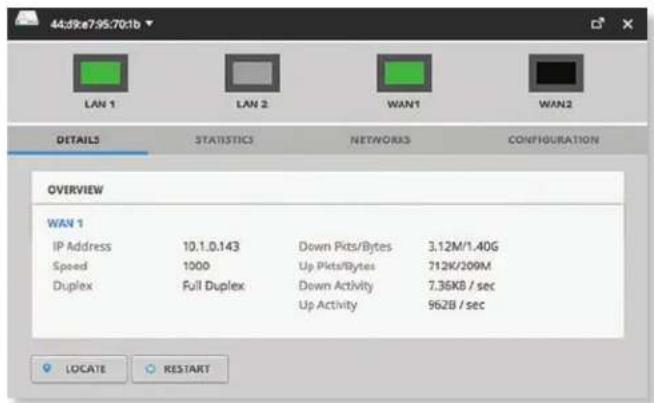
text_image
44:d9e7:95:70:1b LAN 1 LAN 2 WAN1 WAN2 DETAILS STATISTICS NETWORKS CONFIGURATION OVERVIEW WAN 1 IP Address 10.1.0.143 Down Pits/Bytes 3.12M/1.40G Speed 1000 Up Pits/Bytes 712K/209M Duplex Full Duplex Down Activity 7.36KB / sec Up Activity 962B / sec LOCATE RESTARTOverview
IP Address Displays the WAN (public) IP address of the WAN interface.
Speed Displays the connection speed in Mbps.
Duplex Displays the mode, Full Duplex or Half Duplex.
Down Pkts/Bytes Displays the amount of data downloaded as packets and bytes.
Up Pkts/Bytes Displays the amount of data uploaded as packets and bytes.
Down Activity Displays the level of download activity in Bytes per second.
Up Activity Displays the level of upload activity in Bytes per second.
UniFi Security Gateway – Statistics
Click Statistics to display the bandwidth usage information, which is available if the DPI feature is enabled (refer to "Settings > Site" on page 18 for more information).
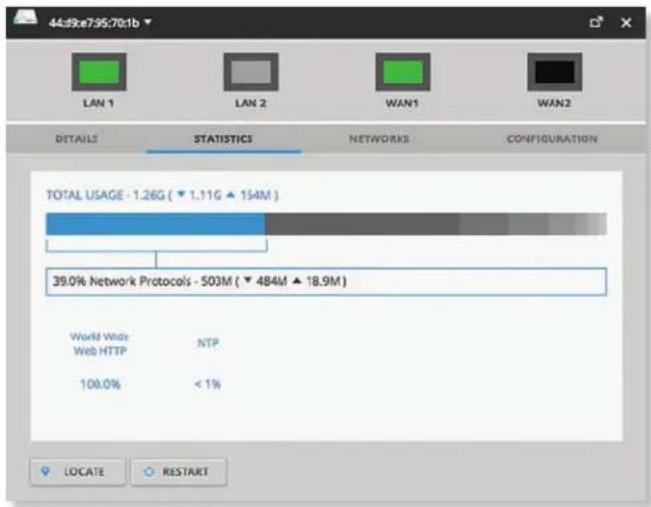
text_image
44d9e735:701b LAN 1 LAN 2 WAN1 WAN2 DETAILS STATISTICS NETWORKS CONFIGURATION TOTAL USAGE - 1.26G ( ▼ 1,11G ▲ 154M ) 39.0% Network Protocols - 503M ( ▼ 484M ▲ 18.9M ) World Wide NTP Web HTTP 100.0% < 1% LOCATE RESTARTTotal Usage Displays the following:
• Total bandwidth usage
• Total download bandwidth usage
• Total upload bandwidth usage
(DPI category) Displays the following:
• Percentage of total bandwidth used
- DPI category name
• Total bandwidth usage
- Download bandwidth usage
- Upload bandwidth usage
(DPI subcategory) Displays the following:
- DPI subcategory name
• Percentage of bandwidth used within the DPI category
You can click the DPI subcategory to view the DPI subcategory usage broken down by client:
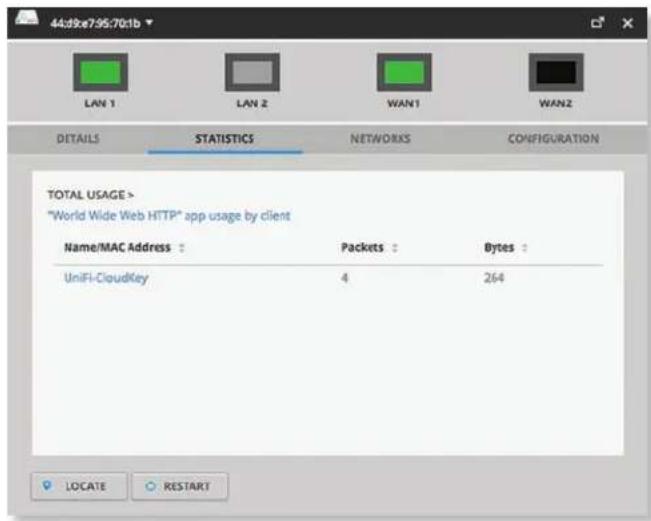
text_image
44d9e7:95:70:1b LAN 1 LAN 2 WAN1 WAN2 DETAILS STATISTICS NETWORKS CONFIGURATION TOTAL USAGE > *World Wide Web HTTP* app usage by client Name/MAC Address : Packets : Bytes : UniFi-CloudKey 4 264 LOCATE RESTART- Name/MAC Address Displays the hostname, alias, or MAC address of the connected client. You can click the name to get additional details; see "Client Details" on page 97 for more information.
- Packets Displays the number of packets transferred.
- Bytes Displays the number of bytes transferred.
UniFi Security Gateway – Networks
Click Networks to display the network name, IP address, TX and RX throughput, and number of clients.
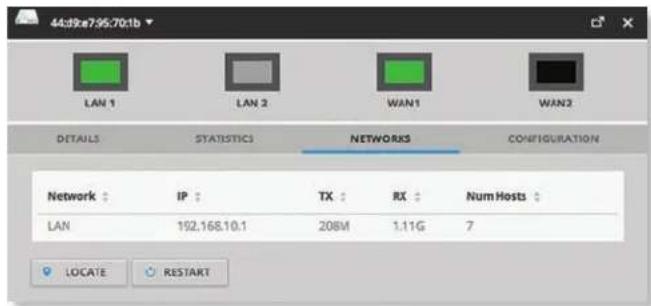
text_image
44d9e7:95:70:1b LAN 1 LAN 2 WAN1 WAN2 DETAILS STATISTICS NETWORKS CONFIGURATION Network : IP : TX : RX : Num Hosts : LAN 192.168.10.1 208M 1.11G 7 LOCATE RESTARTNetwork Displays the name of the network.
IP Displays the local IP address of the network.
TX Displays the outgoing (transmit) throughput.
RX Displays the incoming (receive) throughput.
Num Hosts Displays the number of clients on the network.
UniFi Security Gateway – Configuration
Click Configuration to configure the alias, WAN settings, and port forwarding entries. You can also move the Gateway to another site.
Config
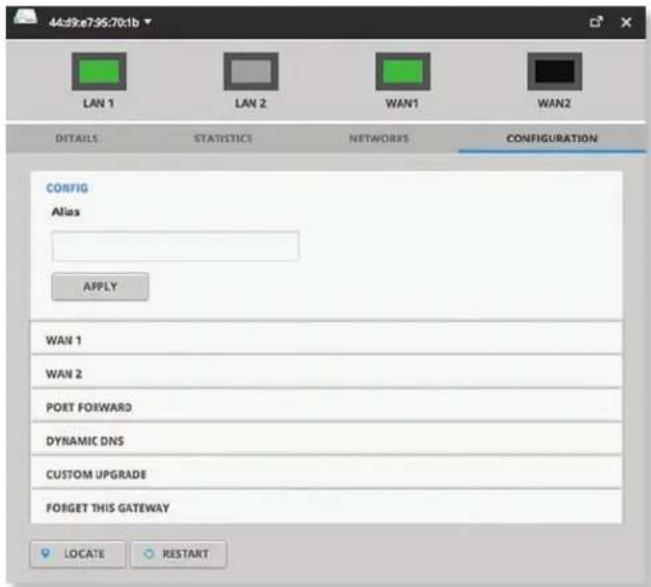
text_image
44d9e795701b LAN 1 LAN 2 WAN1 WAN2 DETAILS STATISTICS NETWORKS CONFIGURATION CONFIG Alias APPLY WAN 1 WAN 2 POST FORWARD DYNAMIC DNS CUSTOM UPGRADE FORGET THIS GATEWAY LOCATE RESTARTAlias Displays the customizable name or identifier of the Gateway. The Alias is also known as the host name.
Apply Click Apply to save the change.
WAN 1/2
Connection Type Select the Internet connection type for your service.
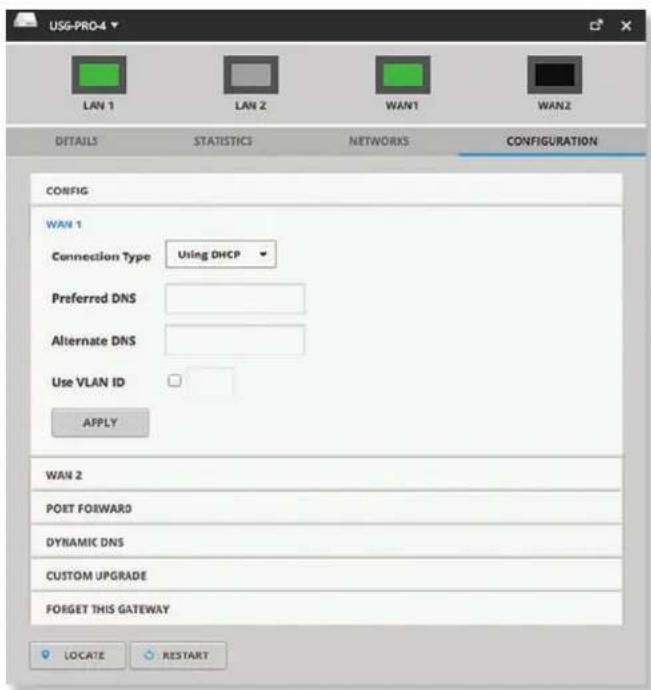
text_image
USG-PRO-4 LAN 1 LAN 2 WAN1 WAN2 DETAILS STATISTICS NETWORKS CONFIGURATION CONFIG WAN 1 Connection Type Using DHCP Preferred DNS Alternate DNS Use VLAN ID APPLY WAN 2 PORT FORWARD DYNAMIC DNS CUSTOM UPGRADE FORGET THIS GATEWAY LOCATE RESTART- Using DHCP The use of the Dynamic Host Configuration Protocol (DHCP) is the default. The Gateway automatically acquires network settings from the service provider's DHCP server.
- Preferred DNS Enter the IP address of the service provider's primary DNS server.
-
Alternate DNS Enter the IP address of the service provider's secondary DNS server.
-
Use VLAN ID To use a VLAN, select Use VLAN ID and enter the VLAN ID number.
- Apply Click Apply to save changes.
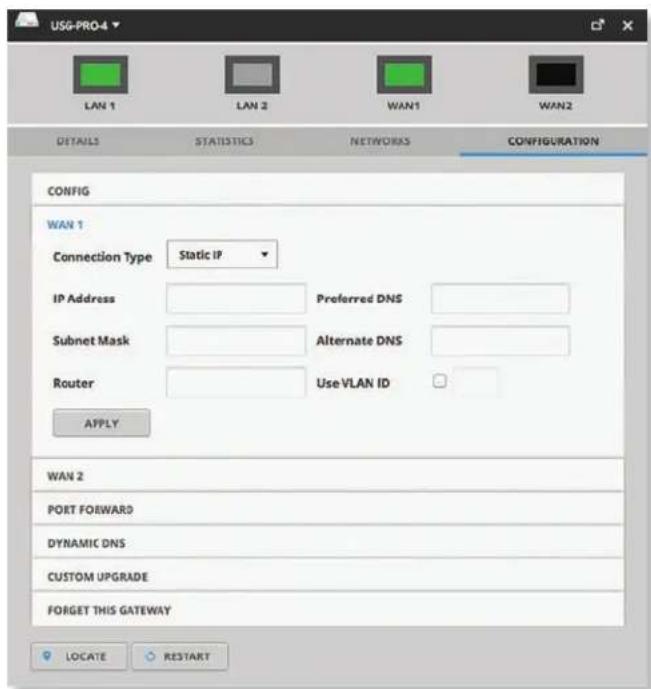
text_image
USG-PRO-4 LAN 1 LAN 2 WAN1 WAN2 DETAILS STATISTICS NETWORKS CONFIGURATION CONFIG WAN 1 Connection Type Static IP IP Address Preferred DNS Subnet Mask Alternate DNS Router Use VLAN ID APPLY WAN 2 PORT FORWARD DYNAMIC DNS CUSTOM UPGRADE FORGET THIS GATEWAY LOCATE RESTART- Static IP The service provider assigns fixed network settings to your service for manual entry. Enter the following information:
- IP Address Enter the Internet IP address of the Gateway.
- Subnet Mask Enter the subnet mask of the Gateway.
- Router Enter the IP address of the service provider's gateway router.
- Preferred DNS Enter the IP address of the service provider's primary DNS server.
-
Alternate DNS Enter the IP address of the service provider's secondary DNS server.
-
Use VLAN ID To use a VLAN, select Use VLAN ID and enter the VLAN ID number.
- Apply Click Apply to save changes.
UniFi Controller User Guide
Chapter 10: UniFi Security Gateway Details
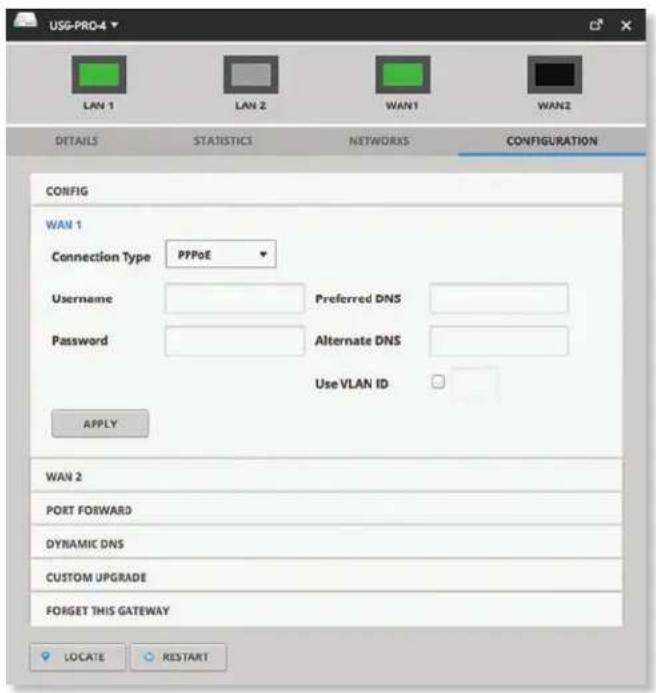
text_image
USG-PRO-4 LAN 1 LAN 2 WAN1 WAN2 DETAILS STATISTICS NETWORKS CONFIGURATION CONFIG WAN 1 Connection Type PPPoE Username Preferred DNS Password Alternate DNS Use VLAN ID APPLY WAN 2 PORT FORWARD DYNAMIC DNS CUSTOM UPGRADE FORGET THIS GATEWAY LOCATE RESTART- PPPoE Point-to-Point Protocol over Ethernet (PPPoE) is a virtual private and secure connection between two systems that enables encapsulated data transport. Enter the following information:
- Username Enter the username used to connect to the PPPoE server.
- Password Enter the password used to connect to the PPPoE server.
- Preferred DNS Enter the IP address of the service provider's primary DNS server.
- Alternate DNS Enter the IP address of the service provider's secondary DNS server.
- Use VLAN ID To use a VLAN, select Use VLAN ID and enter the VLAN ID number.
- Apply Click Apply to save changes.
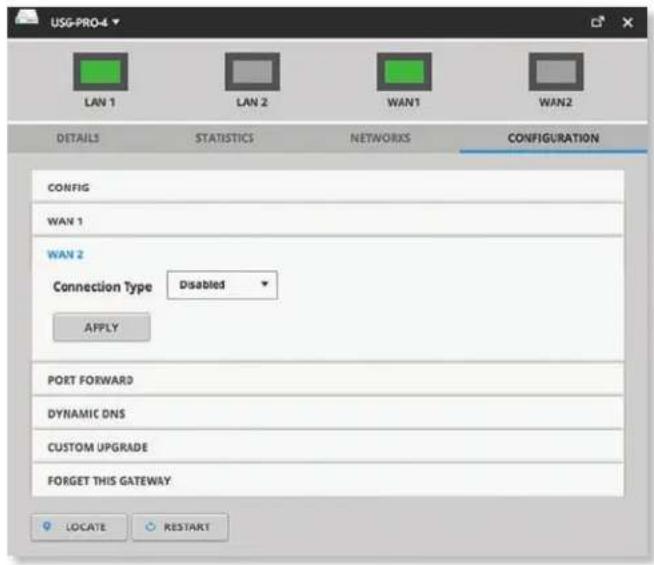
text_image
USG-PRO-4 LAN 1 LAN 2 WAN1 WAN2 DETAILS STATISTICS NETWORKS CONFIGURATION CONFIG WAN 1 WAN 2 Connection Type Disabled APPLY PORT FORWARD DYNAMIC DNS CUSTOM UPGRADE FORGET THIS GATEWAY LOCATE RESTART- Disabled If you are not using the WAN 2 port, then select Disabled.
- Apply Click Apply to save your change.
Port Forward
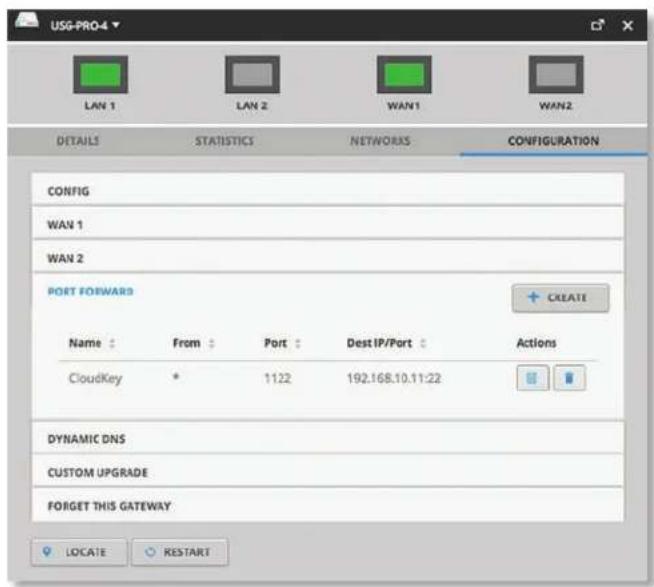
text_image
USG-PRO-4 LAN 1 LAN 2 WAN1 WAN2 DETAILS STATISTICS NETWORKS CONFIGURATION CONFIG WAN 1 WAN 2 PORT FORWARD + CREATE Name From Port Dest IP/Port Actions CloudKey * 1122 192.168.10.11:22 DYNAMIC DNS CUSTOM UPGRADE FORGET THIS GATEWAY LOCATE RESTARTCreate Click + CREATE to add a new entry. Go to "Create or Edit Port Forwarding Entry" on page 72.
Name Displays the name of the port forwarding entry.
From Displays the source IP address, if specified.
Port Displays the port or ports that will be forwarded to the LAN. Also known as the external port(s).
Dest IP/Port Displays the destination IP address and port(s) that will receive the forwarded port traffic. Also known as the internal port(s).
Actions Click a button to perform the desired action:
- Edit Click to edit the port forwarding entry.
- Delete Click to delete the port forwarding entry.
Create or Edit Port Forwarding Entry
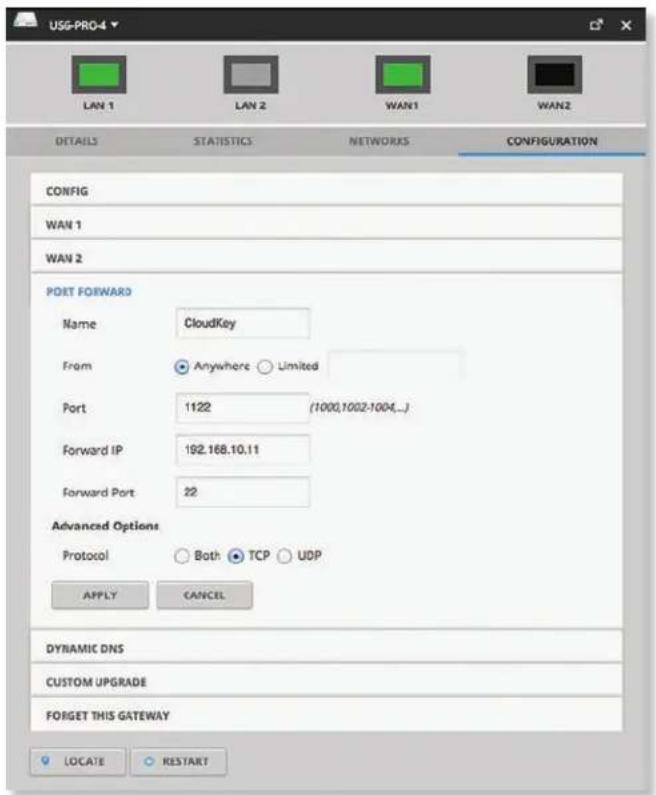
text_image
USG-PRO-4 LAN 1 LAN 2 WAN1 WAN2 DETAILS STATISTICS NETWORKS CONFIGURATION CONFIG WAN 1 WAN 2 PDET FORWARD Name CloudKey From Anywhere Limited Port 1122 (1000,1002-1004...) Forward IP 192.168.10.11 Forward Port 22 Advanced Options Protocol Both TCP UDP APPLY CANCEL DYNAMIC DNS CUSTOM UPGRADE FORGET THIS GATEWAY LOCATE RESTARTName Enter a name to identify this port forwarding entry.
From The default is Anywhere, which accepts traffic from any source IP address. To specify a source IP address, select Limited and enter the source IP address in the field provided.
Port Enter the port or ports that will be forwarded to the LAN (also known as the external port or ports). You can identify the port or ports by name, number, and/or range. To specify multiple ports, use a comma-separated list (example: 20-23,554).
Forward IP Enter the LAN IP address that will receive the forwarded port traffic.
Forward Port Enter the port or ports that will receive the forwarded port traffic (also known as the internal port). You can identify the port or ports by name, number, and/or range. If you do not specify this port, then the original destination port of the traffic will be used.
Advanced Options
Protocol Select the protocol that will be forwarded: Both, TCP, or UDP.
Apply Click Apply to save changes.
Cancel Click Cancel to discard changes.
Dynamic DNS
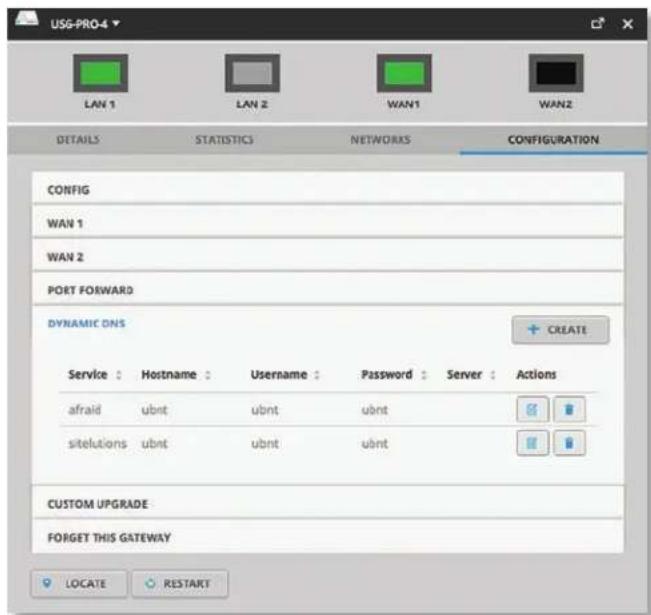
text_image
USG-PRO-4 LAN 1 LAN 2 WAN1 WAN2 DETAILS STATISTICS NETWORKS CONFIG WAN 1 WAN 2 PORT FORWARD DYNAMIC DNS + CREATE Service : Hostname : Username : Password : Server : Actions afraid ubnt ubnt ubnt sitelutions ubnt ubnt ubnt CUSTOM UPGRADE : FORGET THIS GATEWAY LOCATE RESTARTCreate Click + CREATE to add a new entry. Go to the Create or Edit DDNS Entry section on the next page.
Service Displays the name of your Dynamic DNS (DDNS) service provider.
Hostname Displays the host name of the device.
Username Displays the user name of the DDNS account.
Password Displays the password of the DDNS account.
Server Displays the address of your DDNS server.
Actions Click a button to perform the desired action:
- Edit Click to edit the DDNS entry.
- Delete Click to delete the DDNS entry.
Create or Edit DDNS Entry
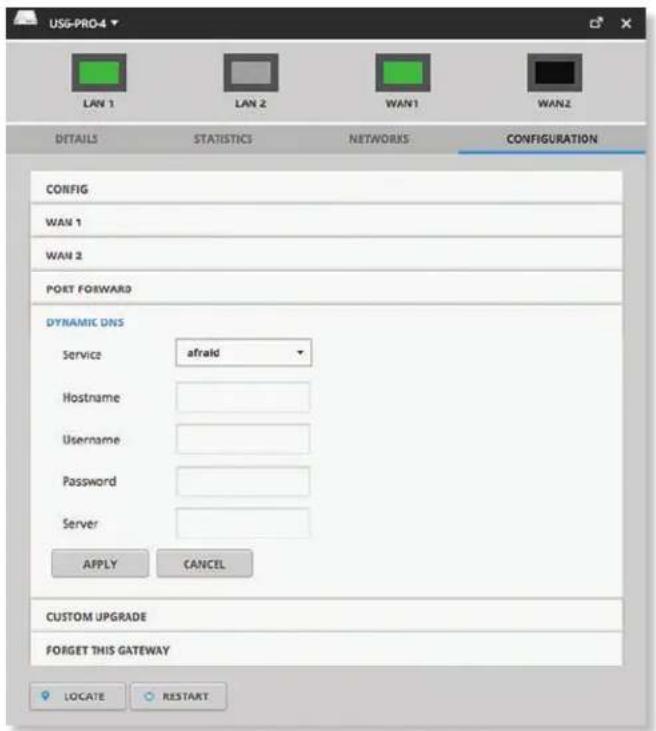
text_image
USG-PRO-4 LAN 1 LAN 2 WAN1 WAN2 DETAILS STATISTICS NETWORKS CONFIGURATION CONFIG WAN 1 WAN 2 PORT FORWARD DYNAMIC DNS Service afraid Hostname Username Password Server APPLY CANCEL CUSTOM UPGRADE FORGET THIS GATEWAY 9 LOCATE ○ RESTARTService If available, select your DDNS service provider from the drop-down list.
Hostname Enter the host name of the device, which has to be updated on the DDNS server. For example: sample.ddns.com
Username Enter the user name of the DDNS account.
Password Enter the password of the DDNS account.
Server Enter the address of your DDNS server.
Apply Click Apply to save changes.
Cancel Click Cancel to discard changes.
Custom Upgrade
For firmware upgrades, the UniFi devices retrieve the latest firmware from the Ubiquiti website. To specify firmware saved in a custom location, select this option.
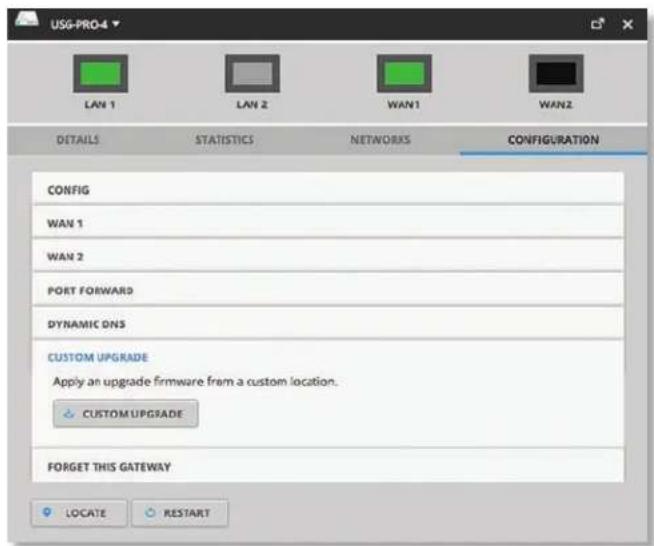
text_image
USG-PRO-4 LAN 1 LAN 2 WAN1 WAN2 DETAILS STATISTICS NETWORKS CONFIGURATION CONFIG WAN 1 WAN 2 PORT FORWARD DYNAMIC DNS CUSTOM UPGRADE Apply an upgrade firmware from a custom location. CUSTOM UPGRADE FORGET THIS GATEWAY LOCATE RESTARTCustom Upgrade Click ✅ CUSTOM UPGRADE to upgrade the firmware from a location you specify.
Forget This Gateway
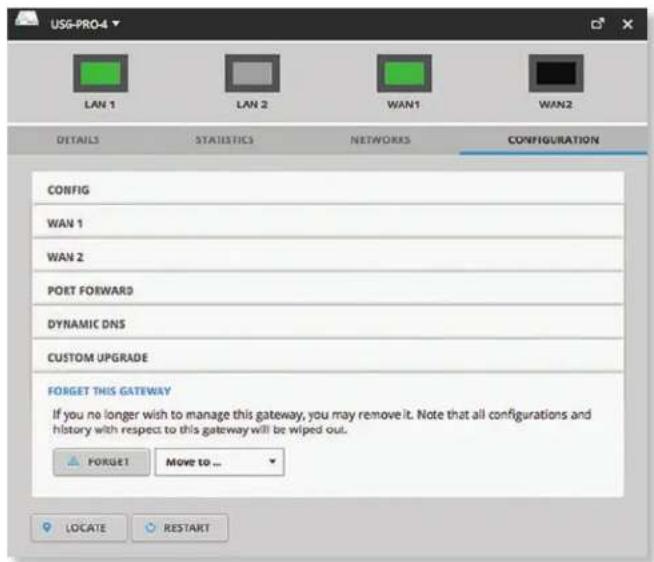
text_image
USG-PRO-4 LAN 1 LAN 2 WAN1 WAN2 DETAILS STATISTICS NETWORKS CONFIGURATION CONFIG WAN 1 WAN 2 PORT FORWARD DYNAMIC DNS CUSTOM UPGRADE FORGET THIS GATEWAY If you no longer wish to manage this gateway, you may remove it. Note that all configurations and history with respect to this gateway will be wiped out. FORGET Move to ... LOCATE RESTARTForget Click FORGET to remove the Gateway from management by the UniFi Controller software and reset it to factory default settings.

Note: Use caution when clicking Forget. This will restore the Gateway to factory default settings while it is in a Connected state.
Move to To move the Gateway, select another site from the drop-down menu.
Chapter 11: UniFi Switch Details
A UniFi Switch hyperlink opens the UniFi Switch's Details window either in the Properties tab or as a separate popup window. You can always dock this window in the Properties tab or detach it as a separate window.
The top of the window displays the device icon and name (or MAC address).
Properties
The Properties tab is hidden by default. To display it, click the properties icon. The Properties tab appears on the right side of the screen.
Information about each selected device appears as a popup within this tab.
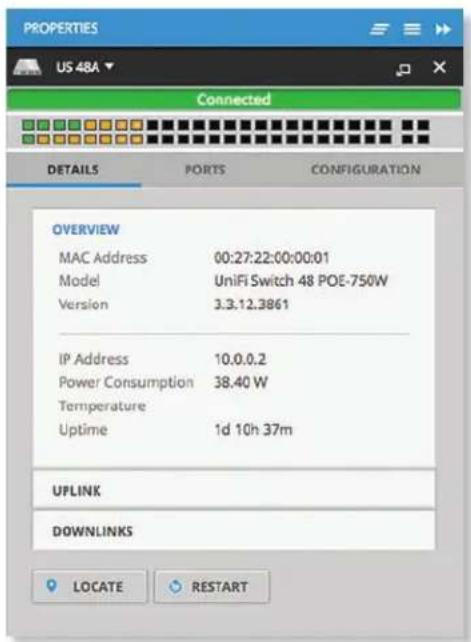
text_image
PROPERTIES US 48A ▼ Connected DETAILS PORTS CONFIGURATION OVERVIEW MAC Address 00:27:22:00:00:01 Model UniFi Switch 48 POE-750W Version 3.3.12.3861 IP Address 10.0.0.2 Power Consumption 38.40 W Temperature Uptime 1d 10h 37m UPLINK DOWNLINKS LOCATE RESTARTClose Click to close the Properties tab and device popups.
Minimize Click to close and re-open the device popups.
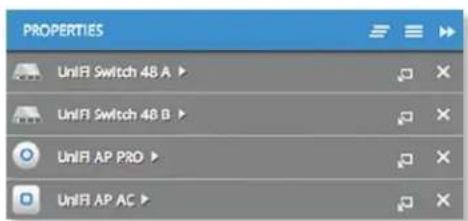
text_image
PROPERTIES UnIFI Switch 48 A ▶ UnIFI Switch 48 B ▶ UnIFI AP PRO ▶ UnIFI AP AC ▶Each row displays the following:
- (icon) Displays the icon of the device (the icon will vary depending on the model).
- Name/MAC Address Displays the hostname, alias, or MAC address of the device.
- Display Click to display the device information.
- Detach Click 📋 to display the same information in a separate popup screen that can be moved anywhere within the browser screen.
- Close Click ✗ to close the device popup.
Hide Click ▶ to hide the Properties tab but allow the device popups to remain accessible from this tab.
The top part of the window displays the connection status:
- Pending Approval Default state, available for adoption.
• Connected Indicates a managed connection. - Managed by Other Not in the default state but not controlled by the current UniFi Controller.
• Disconnected Indicates no connection.
The ports display their status:
Indicates a 10/100 Mbps connection.
Indicates 10/100 Mbps connection with PoE.
Indicates a 1000 Mbps connection.
Indicates 1000 Mbps connection with PoE.
■ Indicates no connection.
Place your cursor over a port to view the following:
• Port Displays the port number.
• Name Displays the name of the port.
- Status Displays the connection speed and duplex mode.
• TX Displays the amount of data transmitted.
- RX Displays the amount of data received.
- PoE (Not applicable to the SFP ports.) Displays the PoE setting:
- Off PoE is disabled.
- 24V Passive 24V passive PoE is enabled.
- _W Power output is displayed in watts.
- PoE+ 802.3at/af devices can be plugged in and automatically receive PoE.
• Networks/VLANs Displays the networks/VLANs that the port belongs to.
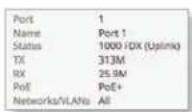
There are three clickable tabs:
• "UniFi Switch – Details" on page 76
• "UniFi Switch – Ports" on page 77
- "UniFi Switch – Configuration" on page 79
The bottom of the window has three buttons:
- Locate Click ◆ LOCATE to flash the System LED on the Switch and the Switch's icon on the Map tab so you can locate it. The LED will flash until the Locate button is clicked again. (The icon on the Map tab will flash three times and stop.)
- Restart Click 📍 RESTART to restart the Switch.
- Upgrade If a software upgrade is available for the Switch, click UPGRADE to install the latest UniFi firmware on the Switch. The Status will appear as Upgrading until the process is complete and the Switch reconnects to the UniFi Controller software.
UniFi Switch – Details
Click Overview to display the device specifics, connection details, and uptime.
Overview
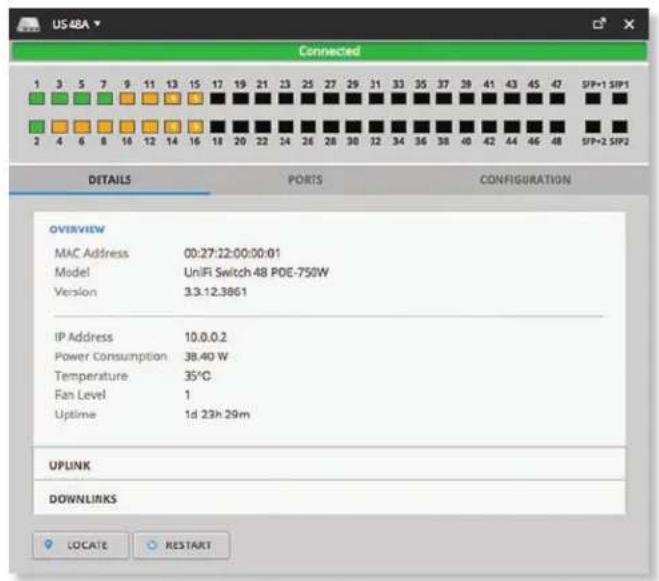
text_image
US 48A Connected 1 3 5 7 9 11 13 15 17 19 21 23 25 27 29 31 33 35 37 38 41 43 45 47 SFP+1 SFP1 2 4 6 8 10 12 14 16 18 20 22 24 26 28 30 32 34 36 38 40 42 44 46 48 SFP+2 SFP2 DETAILS PORTS CONFIGURATION OVERVIEW MAC Address 00:27:22:00:00:01 Model UniFi Switch 48 POE-750W Version 3.3.12.3861 IP Address 10.0.0.2 Power Consumption 38.40 W Temperature 35°C Fan Level 1 Uptime 1d 23h 29m UPLINK DOWNLINKS LOCATE RESTARTMAC Address Displays the MAC address or unique hardware identifier of the Switch.
Model Displays the model name of the Switch.
Version Displays the version number of the Switch's firmware.
IP Address Displays the IP address of the Switch.
Power Consumption Displays the amount of power used by the Switch.
Temperature Displays the general temperature of the Switch.
Fan Level If the Switch has a fan, then the Fan Level, from 1 to 3, is displayed. If the Switch does not have a fan, then the Fan Level is not displayed.
Uptime Displays the duration of time the Switch has been running without interruption.
Uplink
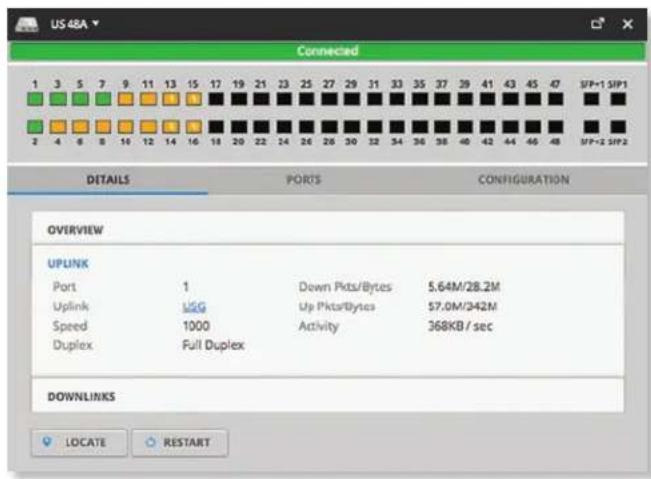
text_image
US 48A Connected 1 3 5 7 9 11 13 15 17 19 21 23 25 27 29 31 33 35 37 39 41 43 45 47 SFP-1 SFP1 2 4 6 8 10 12 14 16 18 20 22 24 26 28 30 32 34 36 38 40 42 44 46 48 SFP-2 SFP2 DETAILS PORTS CONFIGURATION OVERVIEW UPLINK Port 1 Down Pkts/Bytes 5.64M/28.2M Uplink USG Up Pkts/Bytes 57.0M/342M Speed 1000 Activity 368KB/sec Duplex Full Duplex DOWNLINKS LOCATE RESTARTPort Displays the port number.
Uplink Displays the name or MAC address of the uplink device. You can click the name to get additional details.
Speed Displays the connection speed in Mbps.
Duplex Displays the mode, Full Duplex or Half Duplex.
Down Pkts/Bytes Displays the amount of data downloaded as packets and bytes.
Up Pkts/Bytes Displays the number of packets and total bytes uploaded by the device.
Activity Displays the level of activity in Bytes per second.
Downlinks
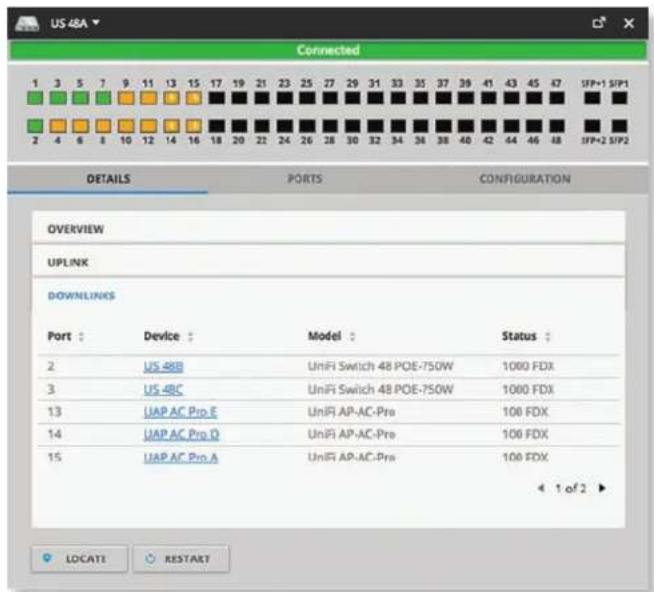
text_image
US 48A Connected 1 3 5 7 9 11 13 15 17 19 21 23 25 27 29 31 33 35 37 39 41 43 45 47 SFP+1 SFP1 2 4 6 8 10 12 14 16 18 20 22 24 26 28 30 32 34 36 38 40 42 44 46 48 SFP+2 SFP2 DETAILS PORTS CONFIGURATION OVERVIEW UPLINK DOWNLINKS Port : Device : Model : Status : 2 US 48B UniFi Switch 48 POE-7SOW 1000 FDX 3 US 48C UniFi Switch 48 POE-7SOW 1000 FDX 13 UAP AC Pro E UniFi AP-AC-Pre 100 FDX 14 UAP AC Pro D UniFi AP-AC-Pre 100 FDX 15 UAP AC Pro A UniFi AP-AC-Pre 100 FDX 1 of 2 LOCATI RESTARTPort Displays the number of the connected port.
Device Displays the name or MAC address of the downlink device. You can click the name to get additional details.
Model Displays the model number of the downlink device.
Status Displays the connection speed and duplex mode.
UniFi Switch – Ports
Click Ports to display the port name, status, TX and RX throughput, PoE setting, and networks/VLANs.
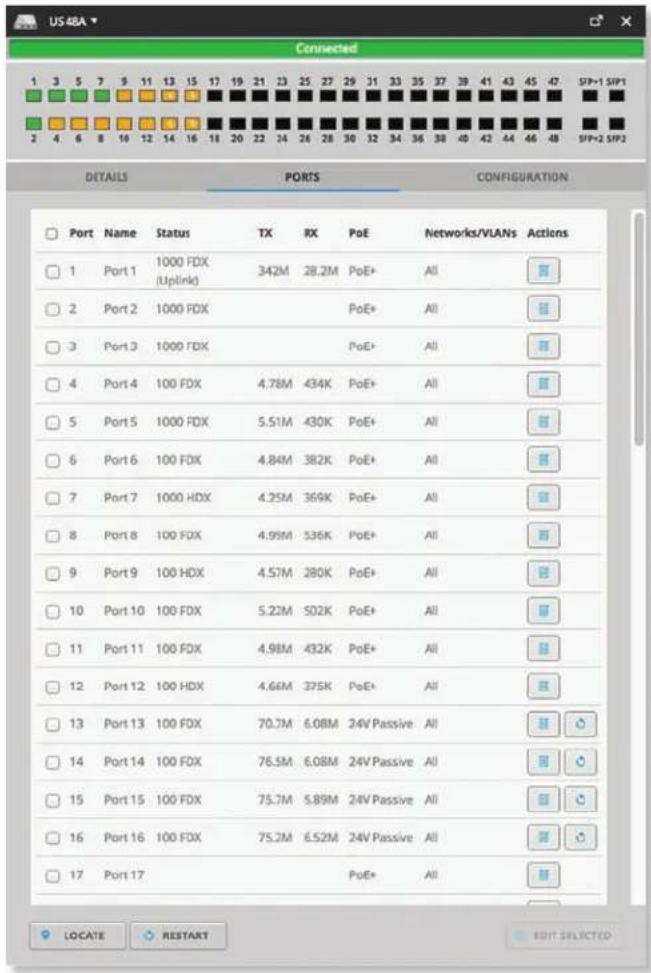
text_image
Connected 1 3 5 7 9 11 13 15 17 19 21 23 25 27 29 31 33 35 37 39 41 43 45 47 SFP+1 SFP1 2 4 6 8 10 12 14 16 18 20 22 24 26 28 30 32 34 36 38 40 42 44 46 48 SFP+2 SFP2 DETAILS PORTS CONFIGURATION Port Name Status TX RX PoE Networks/VLANs Actions 1 Port 1 1000 FDX (Uplink) 342M 28.2M PoE+ All 2 Port 2 1000 FDX 3 Port 3 1000 FDX 4 Port 4 100 FDX 4.78M 434K PoE+ All 5 Port 5 1000 FDX 5.51M 430K PoE+ All 6 Port 6 100 FDX 4.84M 382K PoE+ All 7 Port 7 1000 HDX 4.25M 369K PoE+ All 8 Port 8 100 FDX 4.99M 536K PoE+ All 9 Port 9 100 HDX 4.57M 280K PoE+ All 10 Port 10 100 FDX 5.22M 502K PoE+ All 11 Port 11 100 FDX 4.98M 432K PoE+ All 12 Port 12 100 HDX 4.64M 375K PoE+ All 13 Port 13 100 FDX 70.7M 6.08M 24V Passive All 14 Port 14 100 FDX 76.5M 6.08M 24V Passive All 15 Port 15 100 FDX 75.7M 5.89M 24V Passive All 16 Port 16 100 FDX 75.2M 6.52M 24V Passive All 17 Port 17 LOCATE RESTART EDIT SELECTEDPort Displays the port number.
Name Displays the name of the port.
Status Displays the connection speed and duplex mode.
TX Displays the amount of data transmitted.
RX Displays the amount of data received.
PoE Displays the PoE setting:
- Off PoE is disabled.
• 24V Passive 24V passive PoE is enabled. - _W Power output is displayed in watts.
- PoE+ 802.3at/af devices can be plugged in and automatically receive PoE.
Networks/VLANs Displays the networks/VLANs that the port belongs to.
Actions Click a button to perform the desired action:
- Edit Click ☐ to change the port configuration. Proceed to the following section, Port Configuration.
- Powercycle (Available only if the connected devices uses PoE.) Click 🔔 to restart the connected device.
Port Configuration
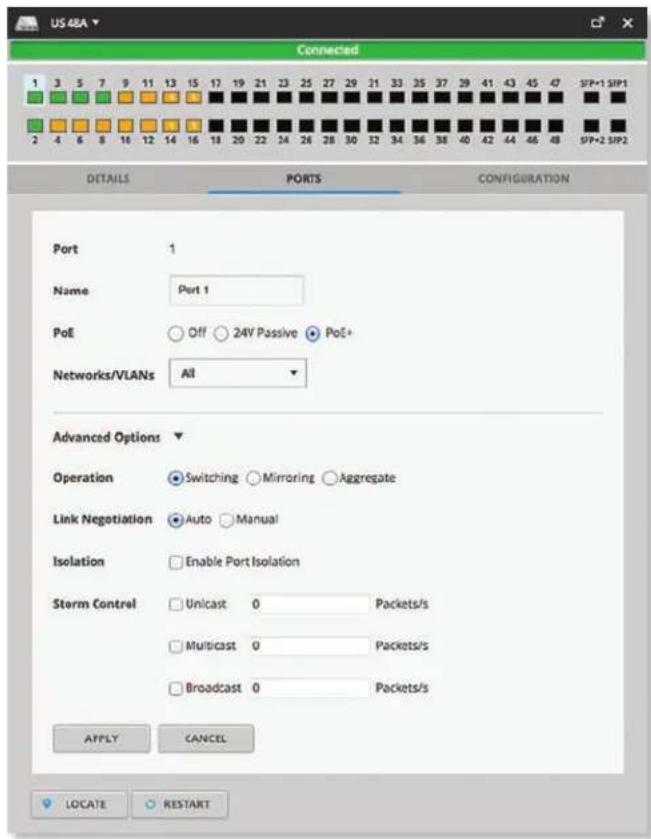
text_image
US 48A Connected 1 3 5 7 9 11 13 15 17 19 21 23 25 27 29 31 33 35 37 39 41 43 45 47 SFP+1 SFP1 2 4 6 8 10 12 14 16 18 20 22 24 26 28 30 32 34 36 38 40 42 44 46 48 SFP+2 SFP2 DETAILS PORTS CONFIGURATION Port 1 Name Port 1 PoE Off 24V Passive PoE+ Networks/VLANs All Advanced Options Operation Switching Mirroring Aggregate Link Negotiation Auto Manual Isolation Enable Port Isolation Storm Control Unicast 0 Packets/s Multicast 0 Packets/s Broadcast 0 Packets/s APPLY CANCEL LOCATE RESTART- Port Displays the number of the port.
- Name Displays the customizable name or identifier of the port.
-
PoE All ports are set to auto-sensing PoE+ by default.
-
Off Disable PoE.
- 24V Passive Select this option to power devices that support 24V passive PoE.

Note: Before activating 24V passive PoE, ensure that the connected device supports PoE and the supplied voltage.
- PoE+ 802.3at/af devices can be plugged in and automatically receive PoE.
- Networks/VLANs Select the appropriate network or VLAN, or select Disabled to disable this port. The default is All.
- Advanced Options Click the icon to display the following:
• Operation Select the operation mode for this port.
- Switching The default mode.
- Link Negotiation Keep the default, Auto, or select Manual to specify the duplex and speed:
• Full Duplex (Available for RJ45 ports only.)
Full-duplex transmission is enabled by default.
- Link Speed For RJ45 ports, select the appropriate speed: 1000 Mbps, 100 Mbps, or 10 Mbps. For SFP+ ports, select the appropriate speed: 10 Gbps or 1000 Mbps. For SFP ports, select 1000 Mbps.
- Isolation Select this option to create a Private VLAN (Virtual Local Area Network). Isolated ports cannot communicate directly with each other.
-
Storm Control Monitor the unicast, multicast, and/or broadcast traffic for this port. If the specified type of traffic on this port exceeds the threshold rate you specify, then the UniFi Switch drops the excess traffic.
-
Unicast Select this option to monitor unicast traffic. Enter the threshold value in packets per second.
- Multicast Select this option to monitor multicast traffic. Enter the threshold in packets per second.
- Broadcast Select this option to monitor broadcast traffic. Enter the threshold in packets per second.
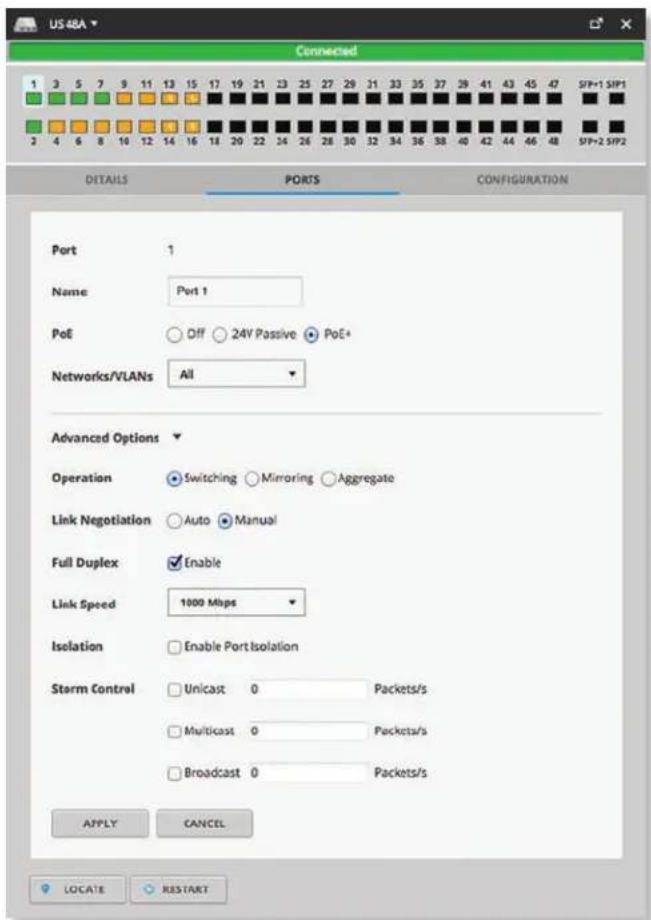
text_image
US 48A Connected 1 3 5 7 9 11 13 15 17 19 21 23 25 27 29 31 33 35 37 39 41 43 45 47 SFP+1 SFP1 2 4 6 8 10 12 14 16 18 20 22 24 26 28 30 32 34 36 38 40 42 44 46 48 SFP+2 SFP2 DETAILS PORTS CONFIGURATION Port 1 Name Port 1 PoE Off 24V Passive PoE+ Networks/VLANs All Advanced Options Operation Switching Mirroring Aggregate Link Negotiation Auto Manual Full Duplex Enable Link Speed 1000 Mbps Isolation Enable Port Isolation Storm Control Unicast 0 Packets/s Multicast 0 Packets/s Broadcast 0 Packets/s APPLY CANCEL LOCATE RESTART- Mirroring The network traffic of this port will receive the mirrored traffic from the port listed below for analysis:
- Mirroring Port Enter the number of the port that will be mirrored.
- Link Negotiation Keep the default, Auto, or select Manual to specify the duplex and speed:
• Full Duplex (Available for RJ45 ports only.)
Full-duplex transmission is enabled by default.
- Link Speed For RJ45 ports, select the appropriate speed: 1000 Mbps, 100 Mbps, or 10 Mbps. For SFP+ ports, select the appropriate speed: 10 Gbps or 1000 Mbps. For SFP ports, select 1000 Mbps.
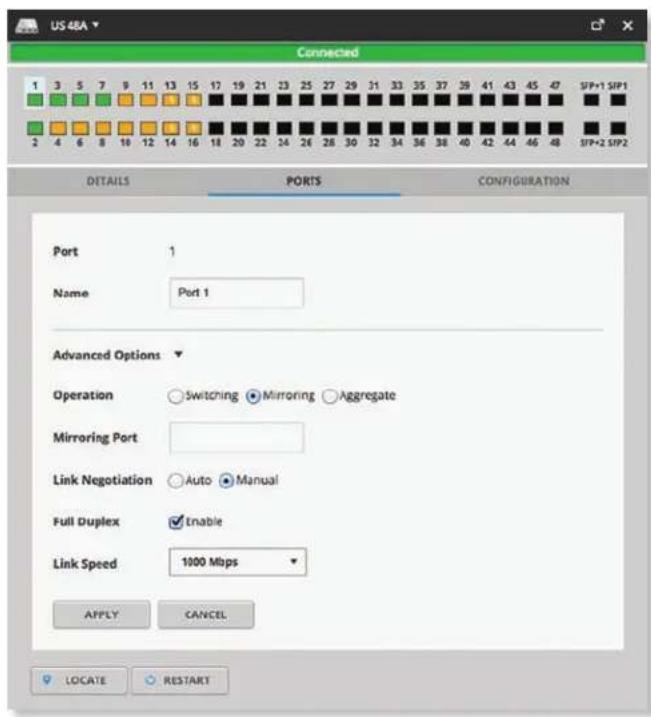
text_image
US 48A Connected 1 3 5 7 9 11 13 15 17 19 21 23 25 27 29 31 33 35 37 39 41 43 45 47 SFP+1 SFP1 2 4 6 8 10 12 14 16 18 20 22 24 26 28 30 32 34 36 38 40 42 44 46 48 SFP+2 SFP2 DETAILS PORTS CONFIGURATION Port 1 Name Port 1 Advanced Options Operation ○Switching ●Mimroring ○Aggregate Mirroring Port Link Negotiation ○Auto ●Manual Full Duplex ✓Enable Link Speed 1000 Mbps APPLY CANCEL LOCATE ○ RESTART- Aggregate A port channel, also known as a Link Aggregation Group (LAG), combines multiple links into a single logical link (single IP address) for load balancing and/or redundancy. If you select this option, then this port becomes the start port of the aggregate link.
- Aggregate Ports Enter the end port number of the LAG. (Two to four ports are permitted per LAG.)
- Link Negotiation Keep the default, Auto, or select Manual to specify the duplex and speed:
• Full Duplex (Available for RJ45 ports only.)
Full-duplex transmission is enabled by default.
- Link Speed For RJ45 ports, select the appropriate speed: 1000 Mbps, 100 Mbps, or 10 Mbps. For SFP+ ports, select the appropriate speed: 10 Gbps or 1000 Mbps. For SFP ports, select 1000 Mbps.
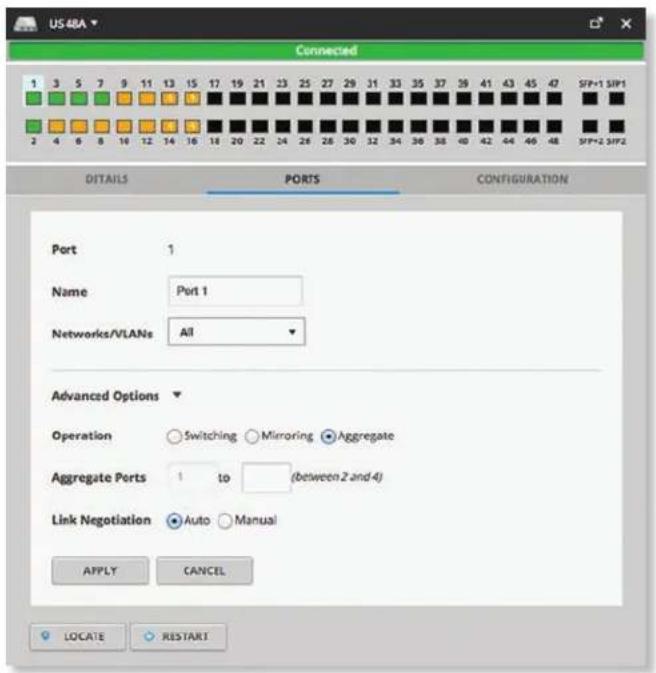
text_image
US 48A Connected 1 3 5 7 9 11 13 15 17 19 21 23 25 27 29 31 33 35 37 39 41 43 45 47 SFP-1 SIP1 2 4 6 8 10 12 14 16 18 20 22 24 26 28 30 32 34 36 38 40 42 44 46 48 SIP-2 SIP2 DITAILS PORTS CONFIGURATION Port 1 Name Port 1 Networks/VLANs All Advanced Options Operation ○Switching ○Mirroring ●Aggregate Aggregate Ports 1 to (between 2 and 4) Link Negotiation ●Auto ○Manual APPLY CANCEL LOCATE ●RESTART- Apply Click Apply to save changes.
- Cancel Click Cancel to discard changes.
UniFi Switch – Configuration
Click Configuration to configure the alias, network/VLANs, services, and network settings. You can also move the Switch to another site.
Alias
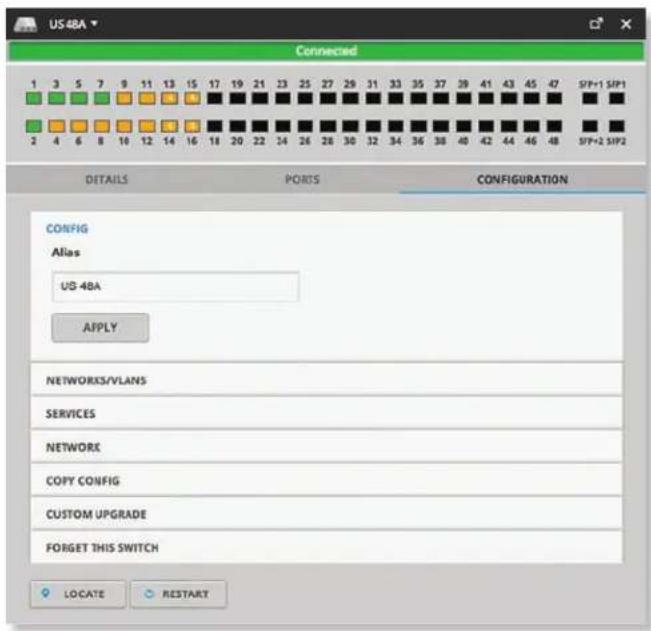
text_image
US 4BA Connected 1 3 5 7 9 11 13 15 17 19 21 23 25 27 29 31 33 35 37 39 41 43 45 47 SFP+1 SFP1 2 4 6 8 10 12 14 16 18 20 22 24 26 28 30 32 34 36 38 40 42 44 46 48 SFP+2 SFP2 DETAILS PORTS CONFIGURATION CONFIG Alias UD-4BA APPLY NETWORKS/VLANS SERVICES NETWORK COPY CONFIG CUSTOM UPGRADE FORGET THIS SWITCH LOCATE RESTARTAlias Displays the customizable name or identifier of the Switch. The Alias is also known as the host name.
Apply Click Apply to save changes.
Networks/VLANs
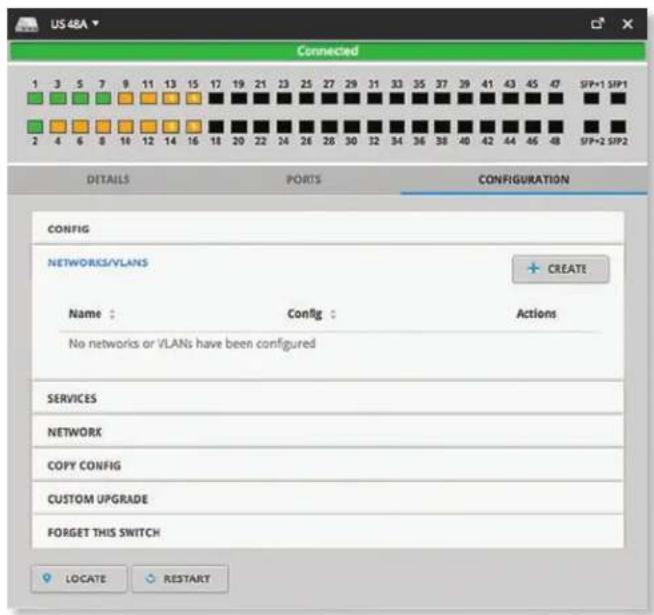
text_image
US 48A Connected 1 3 5 7 9 11 13 15 17 19 21 23 25 27 29 31 33 35 37 39 41 43 45 47 SFP+1 SIP1 2 4 6 8 10 12 14 16 18 20 22 24 26 28 30 32 34 36 38 40 42 44 46 48 SFP+2 SIP2 DETAILS PORTS CONFIGURATION CONFIG NETWORKS/VLANS Name : Config : Actions No networks or VLANs have been configured SERVICES NETWORK COPY CONFIG CUSTOM UPGRADE FORGET THIS SWITCH LOCATE RESTARTCreate Click + CREATE to add a new entry. Go to "Create New Network/VLAN" on page 80.
Name Displays the name of the network/VLAN.
Config Displays the configuration: Native (____) or Customized. (Networks may be created in "Settings > Networks" on page 21.)
Actions Click a button to perform the desired action:
- Edit Click to edit the network/VLAN entry.
- Delete Click to delete the network/VLAN entry.
Create New Network/VLAN

text_image
US 48A Connected 1 3 5 7 9 11 13 15 17 19 21 23 25 27 29 31 33 35 37 39 41 43 45 47 SFP+1 SIP1 2 4 6 8 10 12 14 16 18 20 22 24 26 28 30 32 34 36 38 40 42 44 46 48 SIP+2 SIP2 DETAILS PORTS CONFIGURATION CONFIG NETWORKS/VLANS Name Native Network (none) Tagged Networks LAN VOIP APPLY CANCEL SERVICES NETWORK COPY CONFIG CUSTOM UPGRADE FORGET THIS SWITCH LOCATE RESTART- Name Enter a name to identify this network/VLAN.
- Native Network A native network has a Port VLAN Identifier (PVID), which identifies the default VLAN. A switch assigned to a native network participates in the VLAN of that native network.
The Switch accepts tagged and untagged packets in the ingress direction, and the untagged packets are assigned to the VLAN of the native network. For example, if the PVID is VLAN 30, then all untagged packets are assigned to VLAN 30. In the egress direction, the native network packets are stripped of the VLAN 30 header and exit as untagged packets.
This table lists how the packets are handled:
| Packet Type | Ingress Action Egress | ||
| Tagged Accepted Remains tagged Sent out as tagged | |||
| Untagged Accepted Assigned to VLAN of native network | VLAN header removed and sent out as untagged | ||
Each physical port can have multiple networks attached; however, only one of them can be native (untagged). Select the appropriate native network. (Additional networks may be created in "Settings > Networks" on page 21.)
- Tagged Networks For a Switch belonging to a tagged network, the packets will be tagged in both ingress and egress directions. For example, the native network is LAN with VLAN 1 as the PVID. The switch is connected to an AP with two tagged networks:
• VLAN 20: corporate
- VLAN 30: guest
This table lists how the packets are handled:
| Packet Type | Ingress Action Egress | |
| Untagged Accepted Assigned to VLAN 1 VLAN header removed and sent out as untagged | ||
| Tagged as VLAN 20 | Accepted Remains tagged Sent out tagged as VLAN 20 | |
| Tagged as VLAN 30 | Accepted Remains tagged Sent out tagged as VLAN 30 | |
The proper use of VLANs isolates the traffic of each VLAN. The guest traffic on VLAN 30 will be kept separate from the traffic on the corporate network.
Select the appropriate tagged network. (Use "Settings > Networks" on page 21 to create more networks.)
- Apply Click Apply to save changes.
- Cancel Click Cancel to discard changes.
Services
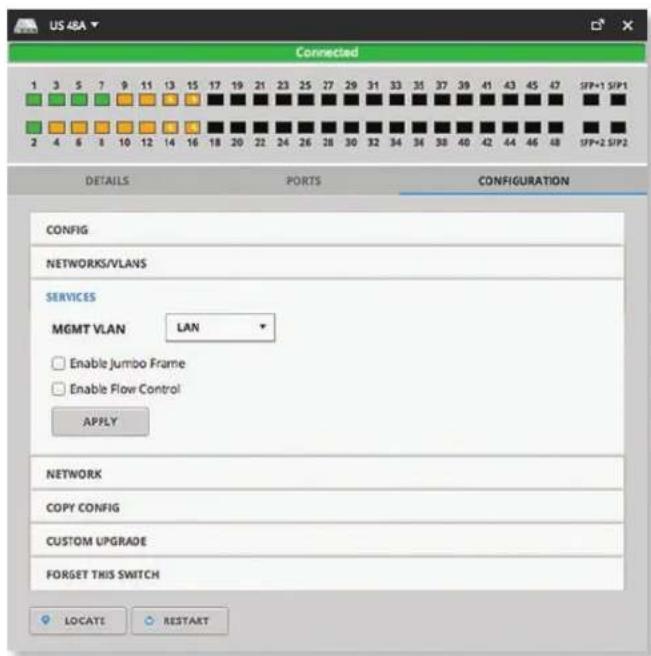
text_image
US 48A Connected 1 3 5 7 9 11 13 15 17 19 21 23 25 27 29 31 33 35 37 39 41 43 45 47 SFP+1 SFP1 2 4 6 8 10 12 14 16 18 20 22 24 26 28 30 32 34 36 38 40 42 44 46 48 SFP+2 SFP2 DETAILS PORTS CONFIGURATION CONFIG NETWORKS/VLANS SERVICES MGMT VLAN LAN Enable Jumbo Frame Enable Flow Control APPLY NETWORK COPY CONFIG CUSTOM UPGRADE FORSET THIS SWITCH LOCATE RESTARTMGMT VLAN A network group defines the management VLAN for the Switch. Select the appropriate network group.
Enable Jumbo Frame Disabled by default. The Maximum Transmission Unit (MTU) is the maximum packet size (in bytes) that a network interface can transmit. A jumbo frame is larger than the standard Ethernet frame with an MTU of 1500. Jumbo frames are typically used for Gigabit Ethernet connections. If you enable this option, then this port handles jumbo frames and forwards them.
Enable Flow Control Disabled by default. Flow Control allows the port to manage data rates in case the sending and receiving devices use different data transmission rates.
Apply Click Apply to save changes.
Network
Configure IP Select the Internet connection type for your service.
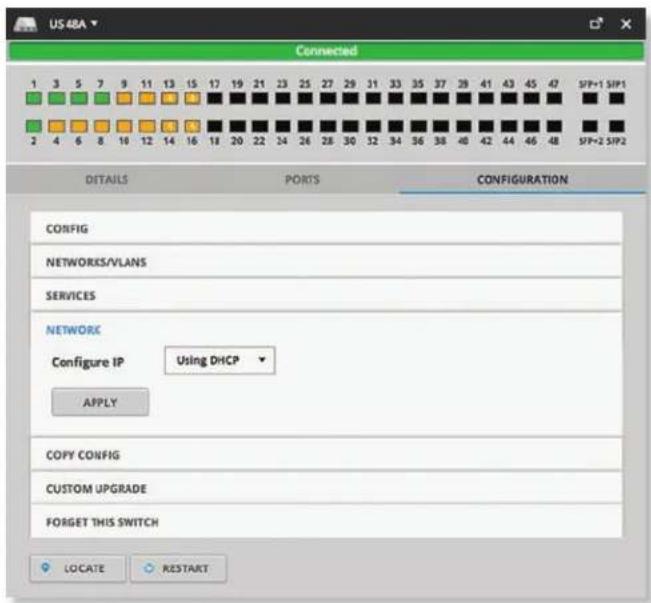
text_image
US 48A Connected 1 3 5 7 9 11 13 15 17 19 21 23 25 27 29 31 33 35 37 38 41 43 45 47 SFP+1 SFP1 2 4 6 8 10 12 14 16 18 20 22 24 26 28 30 32 34 36 38 40 42 44 46 48 SFP+2 SFP2 DETAILS PORTS CONFIGURATION CONFIG NETWORKS/VLANS SERVICES NETWORKS Configure IP Using DHCP APPLY COPY CONFIG CUSTOM UPGRADE FORGET THIS SWITCH LOCATE RESTART- Using DHCP The use of the Dynamic Host Configuration Protocol (DHCP) is the default. The Switch automatically acquires network settings from the network's DHCP server.
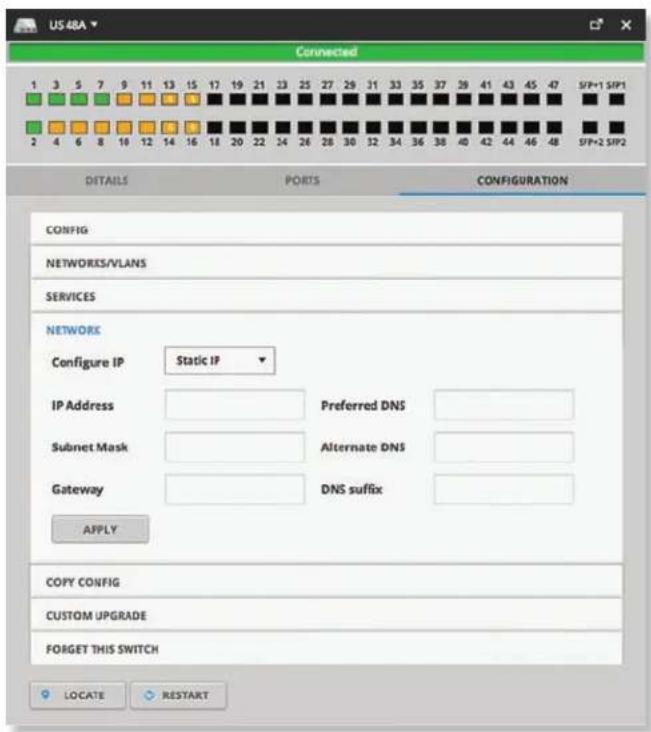
text_image
US 48A Connected 1 3 5 7 9 11 13 15 17 19 21 23 25 27 29 31 33 35 37 39 41 43 45 47 SFP+1 SFP1 2 4 6 8 10 12 14 16 18 20 22 24 26 28 30 32 34 36 38 40 42 44 46 -48 SFP+2 SFP2 DETAILS PORTS CONFIGURATION CONFIG NETWORKS/VLANS SERVICES NETWORK Configure IP Static IP IP Address Preferred DNS Subnet Mask Alternate DNS Gateway DNS suffix APPLY COPY CONFIG CUSTOM UPGRADE FORGET THIS SWITCH LOCATE RESTART- Static IP Assign fixed network settings to the Switch. Enter the following information:
- IP Address Enter the IP address for the Switch.
- Subnet Mask Enter the subnet mask of the Switch.
- Gateway Enter the IP address of the gateway (for example, the UniFi Security Gateway).
- Preferred DNS Enter the IP address of the primary DNS server.
- Alternate DNS Enter the IP address of the secondary DNS server.
- DNS Suffix Enter the Fully Qualified Domain Name (FQDN) without the hostname.
- Apply Click Apply to save changes.
Copy Config
If you have settings that you want to apply to multiple Switches, use this option to copy the configuration.
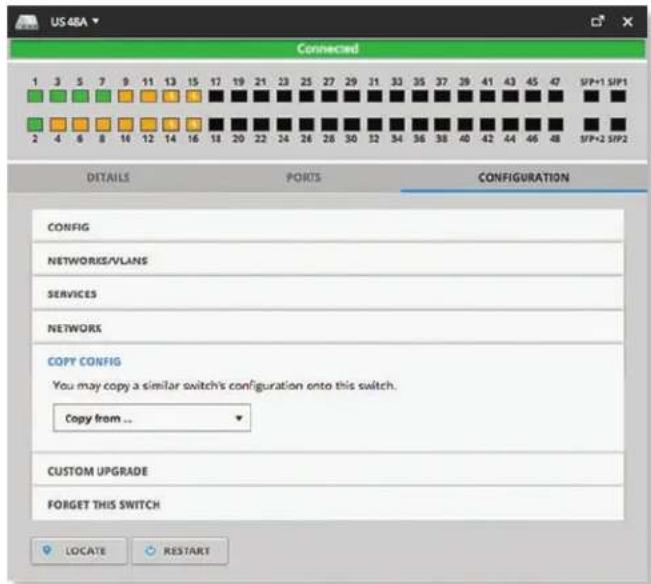
text_image
US 46A Connected 1 3 5 7 9 11 13 15 17 19 21 23 25 27 29 31 33 35 37 39 41 43 45 47 SFP+1 SFP1 2 4 6 8 10 12 14 16 18 20 22 24 26 28 30 32 34 36 38 40 42 44 46 48 SFP+2 SFP2 DETAILS PORTS CONFIGURATION CONFIG NETWORKS/VLANS SERVICES NETWORKS COPY CONFIG You may copy a similar switch's configuration onto this switch. Copy from ... CUSTOM UPGRADE FORGET THIS SWITCH LOCATE RESTARTCopy from Select the appropriate Switch whose configuration will be copied to this Switch. Then click Confirm to overwrite its current configuration with the configuration of the selected Switch.
Custom Upgrade
For firmware upgrades, the UniFi devices retrieve the latest firmware from the Ubiquiti website. To specify firmware saved in a custom location, select this option.
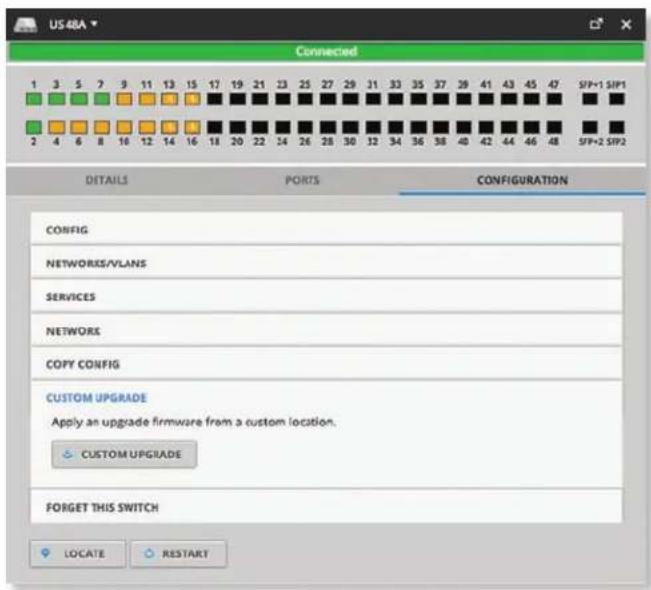
text_image
US 48A Connected 1 3 5 7 9 11 13 15 17 19 21 23 25 27 29 31 33 35 37 39 41 43 45 47 SFP+1 SIP1 2 4 6 8 10 12 14 16 18 20 22 24 26 28 30 32 34 36 38 40 42 44 46 48 SFP+2 SIP2 DETAILS PORTS CONFIGURATION CONFIG NETWORKS/VLANS SERVICES NETWORKS COPY CONFIG CUSTOM UPGRADE Apply an upgrade firmware from a custom location. CUSTOM UPGRADE FORGET THIS SWITCH LOCATE RESTARTCustom Upgrade Click ✅ CUSTOM UPGRADE to upgrade the firmware from a location you specify.
Forget This Switch
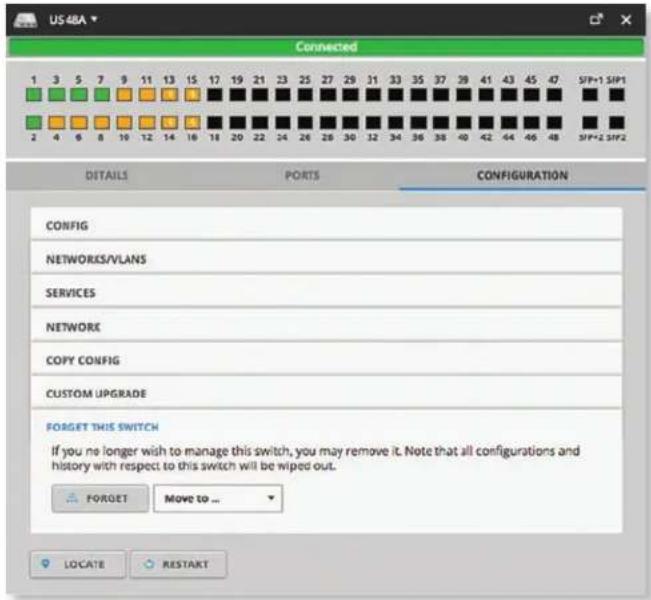
text_image
US 48A Connected 1 3 5 7 9 11 13 15 17 19 21 23 25 27 29 31 33 35 37 29 41 43 45 47 SFP+1 SFP1 2 4 6 8 10 12 14 16 18 20 22 24 26 28 30 32 34 36 38 40 42 44 46 48 SFP+2 SFP2 DETAILS PORTS CONFIGURATION CONFIG NETWORKS/VLANS SERVICES NETWORK COPY CONFIG CUSTOM UPGRADE FORGET THIS SWITCH If you no longer wish to manage this switch, you may remove it. Note that all configurations and history with respect to this switch will be wiped out. FORGET Move to ... LOCATE RESTARTForget Click FORGET to remove the Switch from management by the UniFi Controller software and reset it to factory default settings.

Note: Use caution when clicking Forget. This will restore the Switch to factory default settings when it is in a Connected state.
Move to To move the Switch, select another site from the drop-down menu.
Chapter 12: UniFi Access Point Details
A UniFi AP hyperlink opens the UniFi AP's Details window either in the Properties tab or as a separate popup window. You can always dock this window in the Properties tab or detach it as a separate window.
The top of the window displays the device icon and name (or MAC address).
Properties
The Properties tab is hidden by default. To display it, click the properties icon. The Properties tab appears on the right side of the screen.
Information about each selected device appears as a popup within this tab.
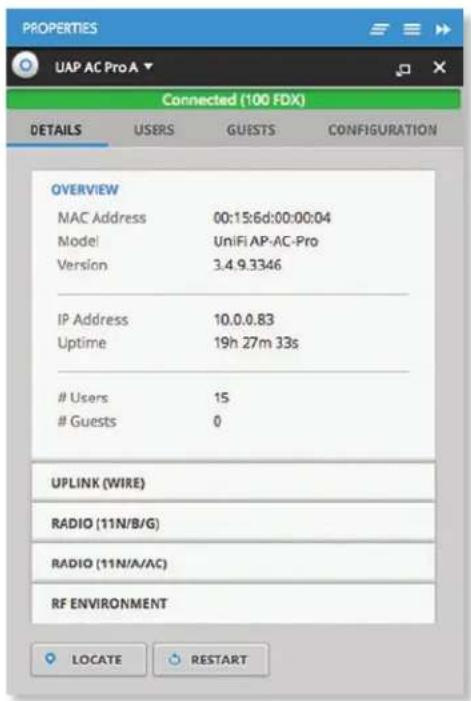
text_image
PROPERTIES UAP AC Pro A ▼ Connected (100 FDX) DETAILS USERS GUESTS CONFIGURATION OVERVIEW MAC Address 00:15:6d:00:00:04 Model UniFi AP-AC-Pro Version 3.4.9.3346 IP Address 10.0.0.83 Uptime 19h 27m 33sUsers 15
Guests 0
UPLINK (WIRE) RADIO (11N/B/G) RADIO (11N/A/AC) RF ENVIRONMENT LOCATE RESTARTClose Click to close the Properties tab and device popups.
Minimize Click to close and re-open the device popups.
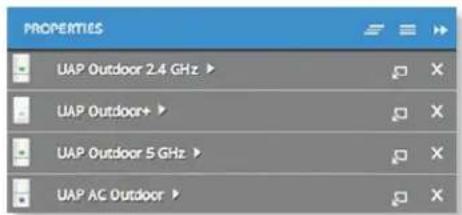
text_image
UAP Outdoor 2.4 GHz UAP Outdoor+ UAP Outdoor 5 GHz UAP AG OutdoorEach row displays the following:
- (icon) Displays the icon of the device (the icon will vary depending on the model).
- Name/MAC Address Displays the hostname, alias, or MAC address of the device.
- Display Click ▶ to display the device information.
- Detach Click to display the same information in a separate popup screen that can be moved anywhere within the browser screen.
- Close Click to close the device popup.
Hide Click ▶ to hide the Properties tab but allow the device popups to remain accessible from this tab.
The upper part of the window displays the connection status:
- Pending Approval Default state, available for adoption.
- Connected Indicates a wired connection.
- Connected (wireless) Indicates a wireless connection.
- Managed by Other Not in the default state but not controlled by the current UniFi Controller.
-
Isolated To establish a connection to the UniFi Controller, perform one of the following actions:
-
Reconnect the AP to the gateway or router.
- Connect an Ethernet cable from the Secondary Ethernet Port (if available) of the isolated AP to the Secondary Ethernet Port (if available) of another UniFi AP that is connected to the gateway or router.
- Establish a wireless uplink to a wired AP.
- Disconnected To establish a connection to the UniFi Controller, perform one of the following actions:
- Reconnect the AP to the gateway or router.
- Connect an Ethernet cable from the Secondary Ethernet Port (if available) of the isolated AP to the Secondary Ethernet Port (if available) of another UniFi AP that is connected to the gateway or router.
- Establish a wireless uplink to a wired AP.
There are four clickable tabs:
- "UniFi Access Point – Details" on page 84
- "UniFi Access Point – Users" on page 87
- "UniFi Access Point – Guests" on page 88
- "UniFi Access Point – Configuration" on page 88
The bottom of the window has three buttons:
- Locate Click to flash the LED on the AP and the AP's icon on the Map tab so you can locate it. The LED will flash until the Locate button is clicked again. (The icon on the Map tab will flash three times and stop.)
- Restart Click 📍 RESTART to restart the AP.
- Upgrade If a software upgrade is available for the AP, click ⚙️UPGRADE to install the latest UniFi firmware on the AP. The Status will appear as Upgrading until the process is complete and the AP reconnects to the UniFi Controller software.
UniFi Access Point – Details
Click Overview to display the device specifics, connection details, uptime, and user statistics.
Overview
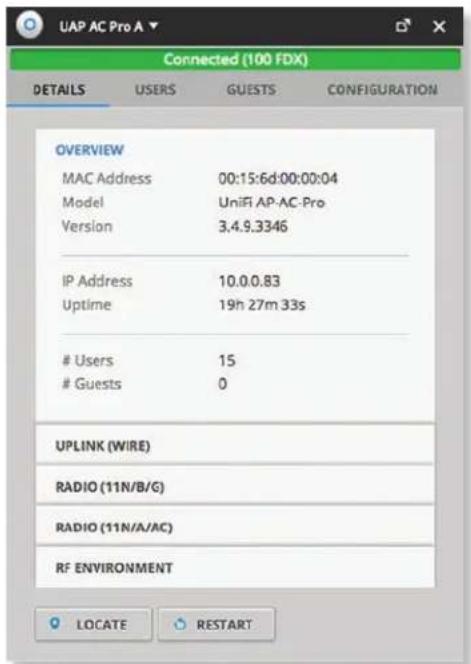
text_image
Connected (100 FDX) DETAILS USERS GUESTS CONFIGURATION OVERVIEW MAC Address 00:15:6d:00:00:04 Model UniFi AP-AC-Pro Version 3.4.9.3346 IP Address 10.0.0.83 Uptime 19h 27m 33sUsers 15
Guests 0
UPLINK (WIRE) RADIO (11N/B/G) RADIO (11N/A/AC) RF ENVIRONMENT LOCATE RESTARTMAC Address Displays the MAC address or unique hardware identifier of the AP.
Model Displays the model name of the AP.
Version Displays the version number of the AP's firmware.
IP Address Displays the IP address of the AP.
Uptime Displays the duration of time the AP has been running without interruption.
# Users Displays the number of users connected to the primary network.
# Guests Displays the number of users connected to the guest network.
Uplink (Wire)
If your AP has a wired uplink connection, click Uplink (Wire) to display details about the wired uplink.
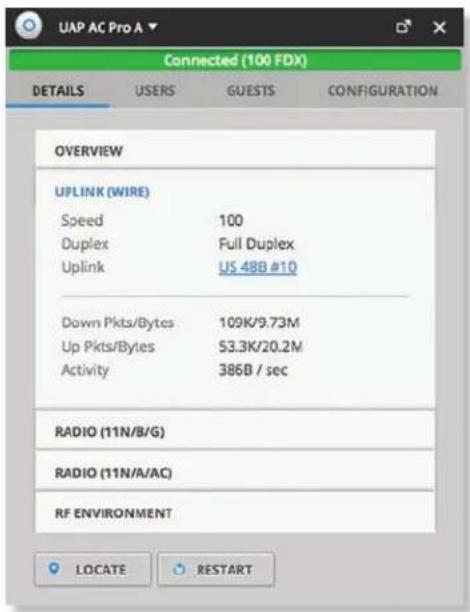
text_image
UAP AC Pro A Connected (100 FDX) DETAILS USERS GUESTS CONFIGURATION OVERVIEW UPLINK (WIRE) Speed 100 Duplex Full Duplex Uplink US 48B #10 Down Pkts/Bytes 109K/9.73M Up Pkts/Bytes 53.3K/20.2M Activity 386B / sec RADIO (11N/B/G) RADIO (11N/A/AC) RF ENVIRONMENT LOCATE RESTARTSpeed Displays the connection speed in Mbps.
Duplex Displays the mode, Full Duplex or Half Duplex.
Uplink Displays the name, alias, or MAC address of the switch or other uplink device being used by the AP. You can click the name to get additional details on the device.
Down Pkts/Bytes Displays the amount of data downloaded as packets and bytes.
Up Pkts/Bytes Displays the amount of data uploaded as packets and bytes.
Activity Displays the level of activity in Bytes per second.
Uplink (Wireless)
If your AP has a wireless uplink connection, click Uplink (Wireless) to display details about the wireless uplink.
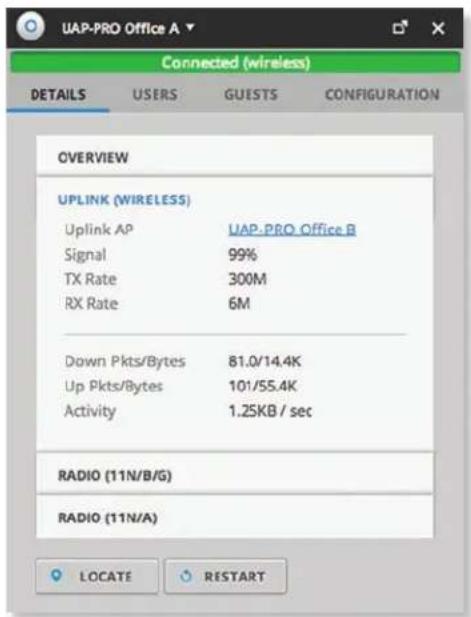
text_image
UAP-PRO Office A Connected (wireless) DETAILS USERS GUESTS CONFIGURATION OVERVIEW UPLINK (WIRELESS) Uplink AP UAP-PRO Office B Signal 99% TX Rate 300M RX Rate 6M Down Pkts/Bytes 81.0/14.4K Up Pkts/Bytes 101/55.4K Activity 1.25KB / sec RADIO (11N/B/G) RADIO (11N/A) LOCATE RESTARTUplink AP Displays the name, alias, or MAC address of the uplink AP. You can click the name to get additional details on the uplink AP.
Signal Displays the percentage of signal strength between the two APs.
TX Rate Displays the transmit rate.
RX Rate Displays the receive rate.
Down Pkts/Bytes Displays the amount of data downloaded as packets and bytes.
Up Pkts/Bytes Displays the amount of data uploaded as packets and bytes.
Activity Displays the level of activity in Bytes per second.
Downlink
The wireless APs currently connected to the wired AP are displayed.
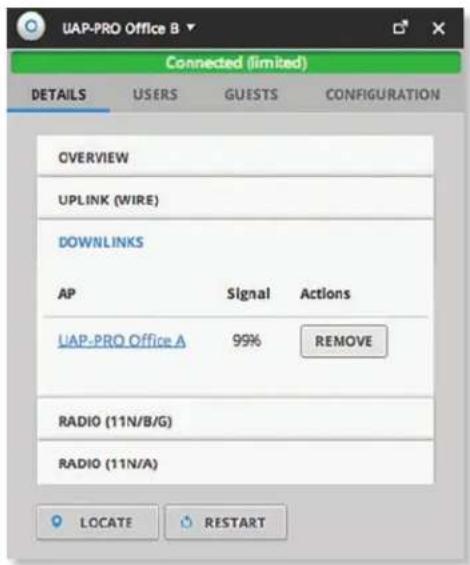
text_image
UAP-PRO Office B Connected (limited) DETAILS USERS GUESTS CONFIGURATION OVERVIEW UPLINK (WIRE) DOWNLINKS AP Signal Actions UAP-PRO Office A 99% REMOVE RADIO (11N/B/G) RADIO (11N/A) LOCATE RESTART
Note: Downlinks will only be visible under the Details tab when a wireless AP is connected.
AP Displays the name, alias, or MAC address of the downlink AP. You can click the name to get additional details on the device.
Signal Displays the percentage of signal strength between the two APs.
Actions Click a button to perform the desired action:
- Remove Remove the wireless AP from the wired AP.
Radio (11N/B/G) or Radio (11N/A/AC)
Click Radio (11N/B/G) or Radio (11N/A/AC) to display the channel and transmit/receive statistics.
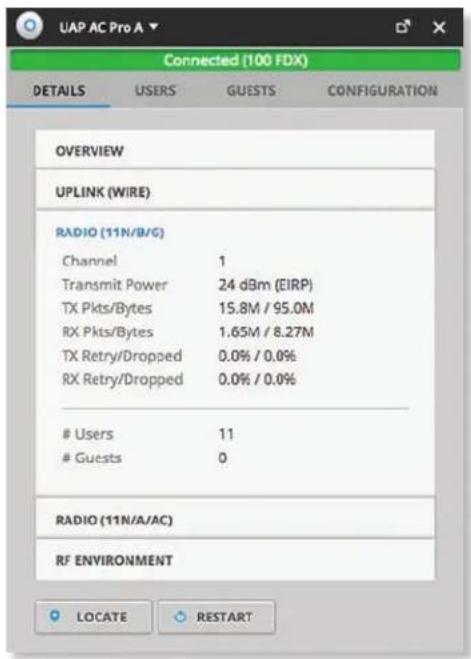
text_image
UAP AC Pro A Connected (100 FDX) DETAILS USERS GUESTS Ol CONFIGURATION OVERVIEW UPLINK (WIRE) RADIO (11N/B/G) Channel 1 Transmit Power 24 dBm (EIRP) TX Pkts/Bytes 15.8M / 95.0M RX Pkts/Bytes 1.65M / 8.27M TX Retry/Dropped 0.0% / 0.0% RX Retry/Dropped 0.0% / 0.0%Users 11
Guests 0
RADIO (11N/A/AC) RF ENVIRONMENT LOCATE ○ RESTART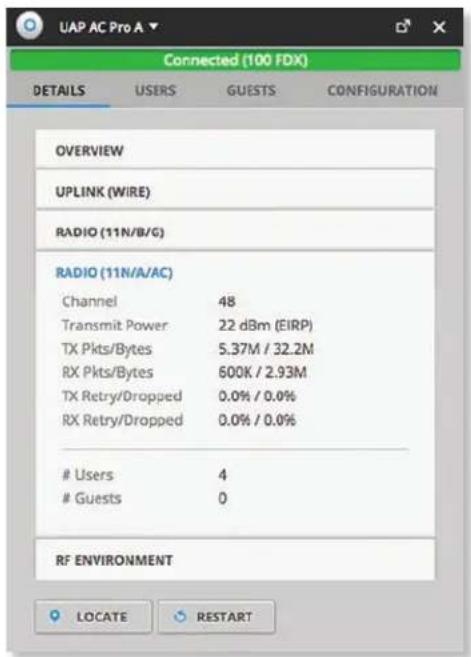
text_image
UAP AC Pro A Connected (100 FDX) DETAILS USERS GUESTS CONFIGURATION OVERVIEW UPLINK (WIRE) RADIO (11N/B/G) RADIO (11N/A/AC) Channel 48 Transmit Power 22 dBm (EIRP) TX Pkts/Bytes 5.37M / 32.2M RX Pkts/Bytes 600K / 2.93M TX Retry/Dropped 0.0% / 0.0% RX Retry/Dropped 0.0% / 0.0%Users 4
Guests 0
RF ENVIRONMENT LOCATE RESTARTChannel Displays the channel being used.
Transmit Power Displays the EIRP in dBm.
TX Pkts/Bytes Displays the amount of data transmitted as packets and bytes.
RX Pkts/Bytes Displays the amount of data received as packets and bytes.
TX Retry/Dropped Displays the percentage of transmit packets that needed to be re-sent and the percentage of packets that were dropped.
RX Retry/Dropped Displays the percentage of receive packets that needed to be re-sent and the percentage of packets that were dropped.
# Users Displays the number of users connected to the primary network.
# Guests Displays the number of guests connected to the guest network.
RF Environment

Note: Only the UAP-AC-LITE, UAP-AC-LR, UAP-AC-PRO, and UAP-AC-EDU support spectral analysis.
Click RF Environment for spectral analysis to help in channel selection and planning.
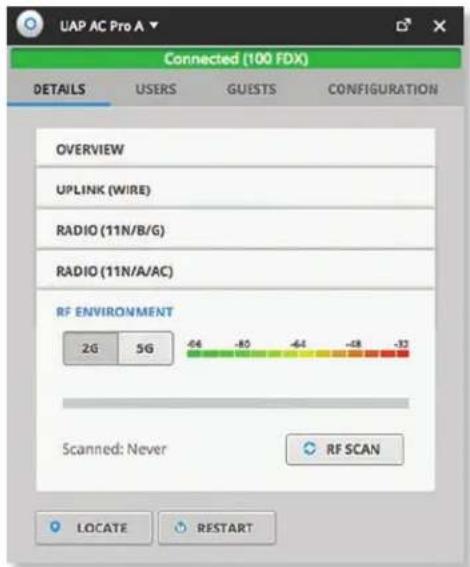
text_image
UAP AC Pro A Connected (100 FDX) DETAILS USERS GUESTS OlNConfiguration OVERVIEW UPLINK (WIRE) RADIO (11N/B/G) RADIO (11N/A/AC) RF ENVIRONMENT 2G 5G -64 -80 -64 -48 -33 Scanned: Never RF SCAN LOCATE RESTART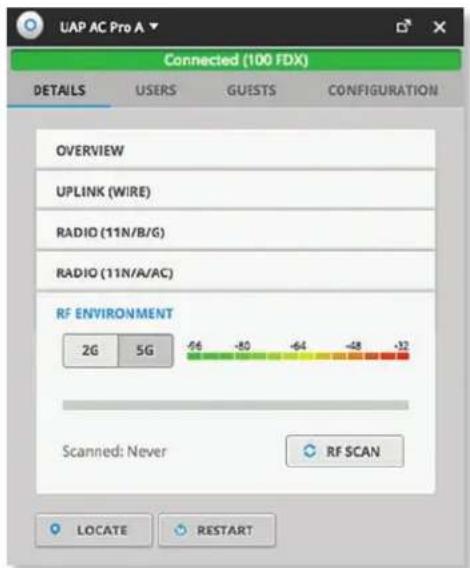
text_image
UAP AC Pro A Connected (100 FDX) DETAILS USERS GUESTS CONFIGURATION OVERVIEW UPLINK (WIRE) RADIO (11N/B/G) RADIO (11N/A/AC) RF ENVIRONMENT 2G 5G -66 -80 -64 -48 -32 Scanned: Never RF SCAN LOCATE RESTART2G/5G Select the frequency band you want to analyze.
RF Scan Click RF SCAN to scan the RF environment and then click Confirm to continue.

Note: The RF scan may take more than five minutes. All clients using this AP will be disconnected, and the AP will be offline for the duration of the scan.
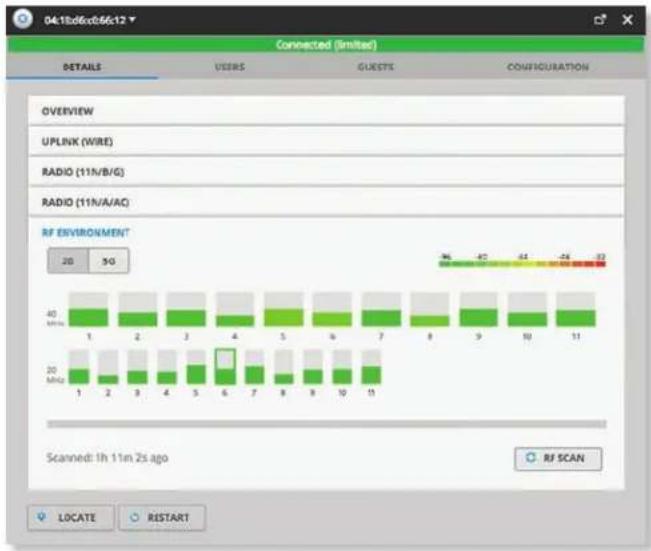
bar
| Time (MHz) | 1 | 2 | 3 | 4 | 5 | 6 | 7 | 8 | 9 | 10 | 11 | |---|---|---|---|---|---|---|---|---|---|---|---| | 20 MHz | Green | Green | Green | Green | Green | Green | Green | Green | Green | Green | Green | | 40 MHz | Green | Green | Green | Green | Green | Green | Green | Green | Green | Green | Green | | Scanned: 1h 11m 2s ago. RF SCAN.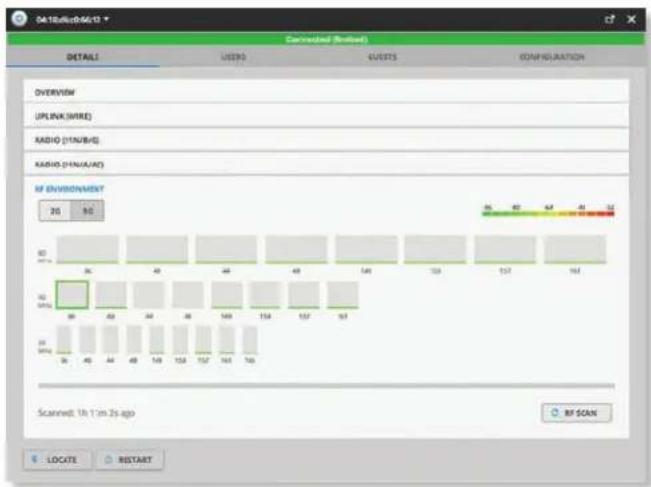
bar
| Category | Value | |---|---| | UPLINK (MRE) | 36 | | RADIO (11N/B/E) | 40 | | RADIO-HNA/AC | 44 | | RADIO (15N/A/AC) | 48 | | RADIO (15N/A/AC) | 541 | | RADIO (15N/A/AC) | 559 | | RADIO (15N/A/AC) | 577 | | RADIO (15N/A/AC) | 597 | | RADIO (15N/A/AC) | 616 | | RADIO (15N/A/AC) | 740 | Scanned: 1h 1m 2s ago BY SCAN LOCATE RESTARTEach bar graph represent a channel option and its color-coded level of interference (from green at -96 dBm to red at -32 dBm).
__MHz The 2.4 GHz results are displayed in channel widths of 20 and 40 MHz. The 5 GHz results are displayed in channel widths of 20, 40, and 80 MHz.
_ Displays the corresponding channel number for each channel width option.
(outlined) The current channel is outlined.
Place your cursor over a channel option to view the following:
- Channel _ Displays the channel number and frequency range.
- Utilization Displays the percentage of the frequency range already in use.
• Interference Displays the level of interference.
• Interference Types Displays the type of interference being detected.
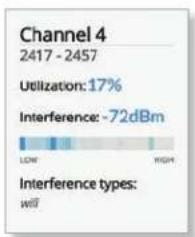
text_image
Channel 4 2417 - 2457 Utilization: 17% Interference: ~72dBm LOW HIGH Interference types: willScanned Displays the duration of time since the last scan.
UniFi Access Point – Users
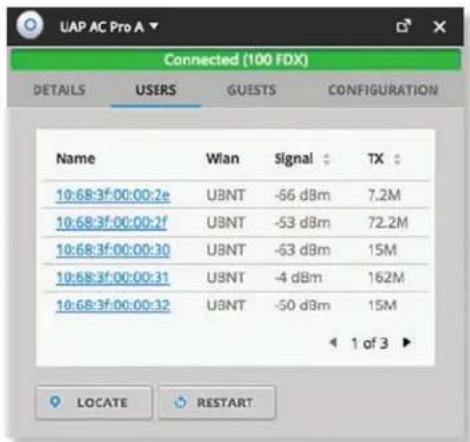
text_image
UAP AC Pro A Connected (100 FDX) DETAILS USERS GUESTS CONFIGURATION Name Wlan Signal TX 10:68:3f:00:00:2e UBNT -56 dBm 7.2M 10:68:3f:00:00:2f UBNT -53 dBm 72.2M 10:68:3f:00:00:30 UBNT -53 dBm 15M 10:68:3f:00:00:31 UBNT -4 dBm 162M 10:68:3f:00:00:32 UBNT -50 dBm 15M 1 of 3 LOCATE RESTARTName Displays the hostname, alias, or MAC address of the connected client. You can click the name to get additional details; see "Client Details" on page 97 for more information.
WLAN Displays the name or SSID of the wireless network in use.
Signal Displays the percentage of signal strength between the user and AP.
TX Displays the transmit rate.
UniFi Access Point – Guests
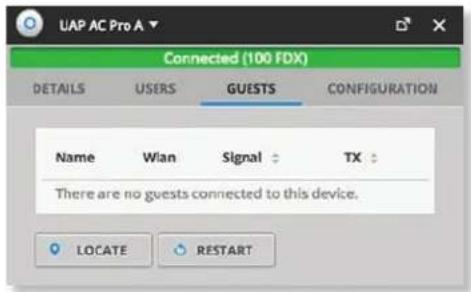
text_image
UAP AC Pro A Connected (100 FDX) DETAILS USERS GUESTS Ol CONFIGURATION Name Wlan Signal TX There are no guests connected to this device. LOCATE RESTARTName Displays the hostname, alias, or MAC address of the connected guest. You can click the name to get additional details; see "Client Details" on page 97 for more information.
WLAN Displays the name or SSID of the wireless network in use.
Signal Displays the percentage of signal strength between the guest and AP.
TX Displays the transmit rate.
UniFi Access Point – Configuration
Change device configuration settings.
Alias
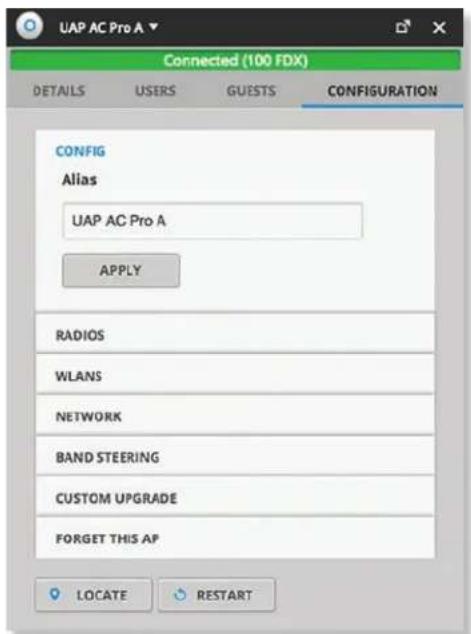
text_image
UAP AC Pro A Connected (100 FDX) DETAILS USERS GUESTS CONFIGURATION CONFIG Alias UAP AC Pro A APPLY RADIOS WLAIS NETWORK BAND STEERING CUSTOM UPGRADE FORGET THIS AP 9 LOCATE RESTARTAlias Enter or edit the customizable name or identifier of the AP. The Alias is also known as the host name.
Apply Click Apply to save the change.
Radios
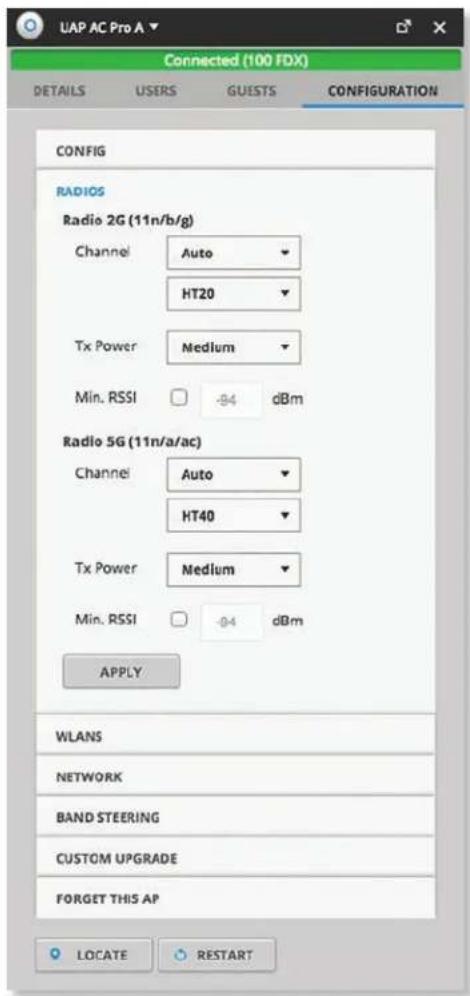
text_image
UAP AC Pro A Connected (100 FDX) DETAILS USERS GUESTS CONFIGURATION CONFIG RADIOS Radio 2G (11n/b/g) Channel Auto HT20 Tx Power Medium Min. RSSI -94 dBm Radio 5G (11n/a/ac) Channel Auto HT40 Tx Power Medium Min. RSSI -04 dBm APPLY WLANS NETWORK BAND STEERING CUSTOM UPGRADE FORGET THIS AP LOCATE RESTARTChannel Select the appropriate settings:
- Auto/(channel number) Select a channel number or keep the default, Auto.
- HT20/HT40/HT80 Select HT20 for 20 MHz operation, HT40 for 40 MHz operation, or HT80 for 80 MHz operation in the 5 GHz band.

Note: If the AP is part of a Zero Handoff WLAN Group, then the Channel settings cannot be changed.
TX Power By default the transmit power is set to Auto. You can also manually select the following:
• High The highest TX power available.
• Medium Halfway between High and Low.
- Low The lowest TX power available.
- Custom Custom setting that you specify in the field provided.
- Antenna Gain (Only available for Outdoor models) Specify the antenna gain.
- Min. RSSI (Not available for Zero Handoff.) Disabled by default. Select this option and enter a minimum threshold. For UniFi, RSSI is synonymous with SNR. If the client signal falls below the specified threshold, then the AP kicks out the client, allowing it to reconnect with a more suitable AP.

Note: If the AP is part of a Zero Handoff WLAN Group, the Min. RSSI setting cannot be changed.
Apply Click Apply to save your changes.
WLANs
You can deploy multiple wireless networks organized into WLAN groups on different APs.
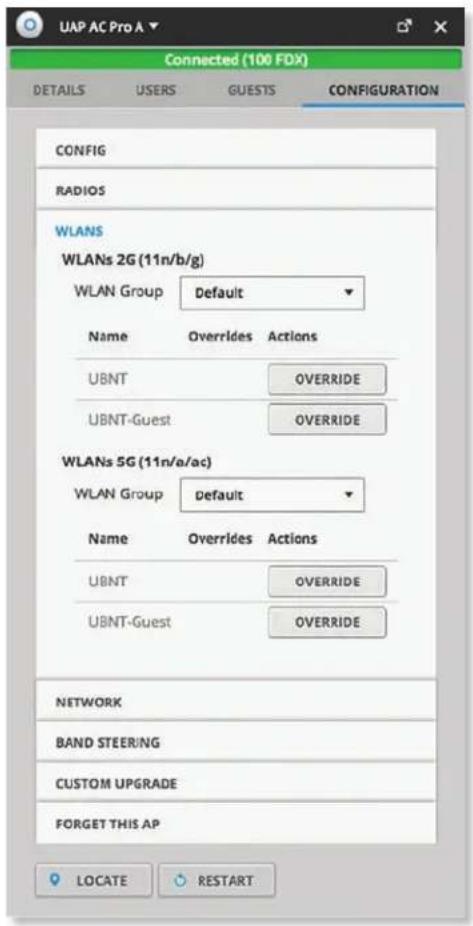
text_image
UAP AC Pro A Connected (100 FDX) DETAILS USERS GUESTS CONFIGURATION CONFIG RADIOS WLAIS WLAIS 2G (11n/b/g) WLAN Group Default Name Overrides Actions UBNT OVERRIDE UBNT-Guest OVERRIDE WLAIS 5G (11n/a/ac) WLAN Group Default Name Overrides Actions UBNT OVERRIDE UBNT-Guest OVERRIDE NETWORK BAND STEERING CUSTOM UPGRADE FORGET THIS AP LOCATE RESTARTWLAN Group Select the appropriate group.
Name Displays the network name or SSID of the available wireless network.
Overrides Displays the SSID override information applied to the wireless network.
Actions Click a button to perform the desired action:
- Override Click Override to enable a VLAN (Virtual Local Area Network), set the VLAN ID, and enter the SSID override name to apply to the wireless network.

Note: The Override option is not available for a Zero Handoff WLAN Group.
Override
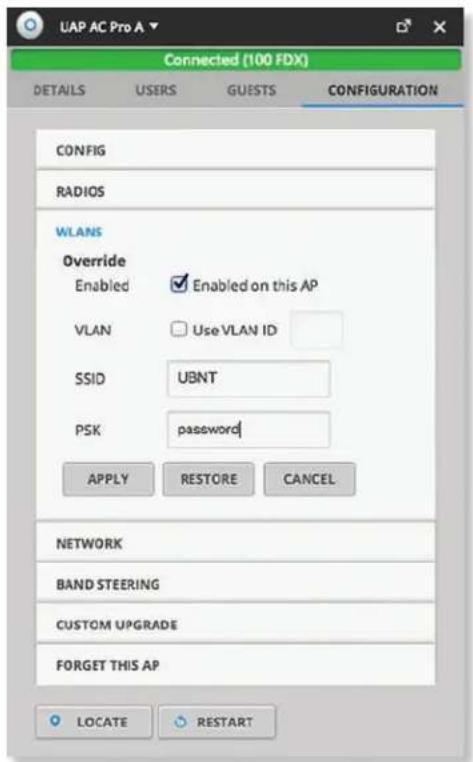
text_image
UAP AC Pro A Connected (100 FDX) DETAILS USERS GUESTS CONFIGURATION CONFIG RADIOS WLAIS Override Enabled Enabled on this AP VLAN Use VLAN ID SSID UBNT PSK password APPLY RESTORE CANCEL NETWORK BAND STEERING CUSTOM UPGRADE FORGET THIS AP LOCATE RESTARTEnabled Select the checkbox to enable the WLAN for use. VLAN Select the checkbox to enable the VLAN.
- Use VLAN ID The VLAN ID is a unique value assigned to each VLAN on a single device. Enter a value between 2 and 4095. For example, in a large deployment where there are multiple buildings, you can use a different VLAN ID for each building while all of the VLANs remain on the same corporate network.
SSID Enter the SSID override name to apply to the wireless network.
PSK If the WPA-Personal security option has been applied to the WLAN under Settings > Wireless Networks, then the Pre-Shared Key (PSK) for the SSID specified will automatically appear in this field.
Actions Click a button to perform the desired action:
- Apply Click Apply to save changes.
- Restore Click Restore to remove any overrides that were applied to the selected wireless network.
- Cancel Click Cancel to discard changes.
Network
Configure IP Select the Internet connection type for your service.
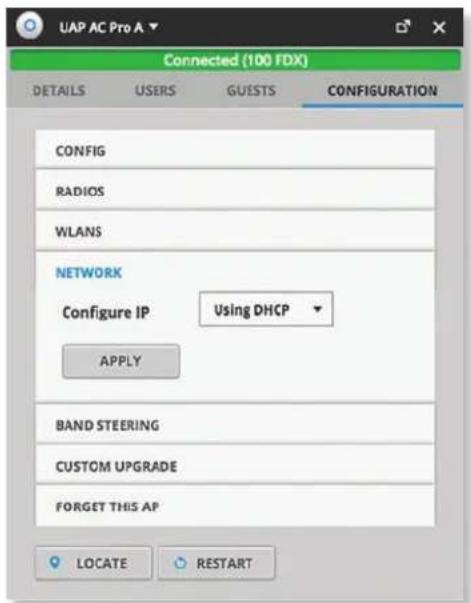
text_image
UAP AC Pro A Connected (100 FDX) DETAILS USERS GUESTS CONFIGURATION CONFIG RADIOS WLAIS NETWORK Configure IP Using DHCP APPLY BAND STEERING CUSTOM UPGRADE FORGET THIS AP LOCATE RESTART- Using DHCP Enabled by default. The AP automatically acquires network settings from the network's Dynamic Host Configuration Protocol (DHCP) server.
-
Static IP Assign fixed network settings to the AP. Enter the following information:
-
IP Address Enter the IP address for the AP.
- Subnet Mask Enter the subnet mask of the AP.
- Gateway Enter the IP address of the gateway (for example, the UniFi Security Gateway).
- Preferred DNS Enter the IP address of the primary DNS server.
- Alternate DNS Enter the IP address of the secondary DNS server.
- DNS Suffix Enter the Fully Qualified Domain Name (FQDN) without the hostname.
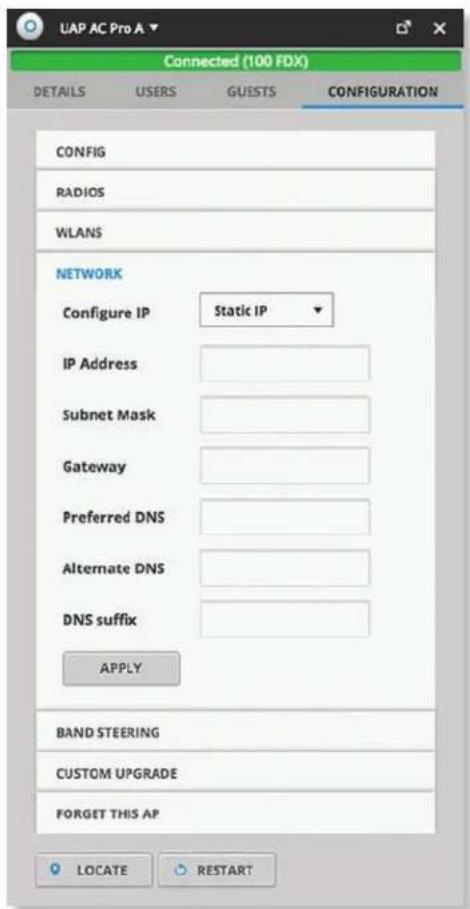
text_image
UAP AC Pro A Connected (100 FDX) DETAILS USERS GUESTS CONFIGURATION CONFIG RADIOS WLAIS NETWORK Configure IP Static IP IP Address Subnet Mask Gateway Preferred DNS Alternate DNS DNS suffix APPLY BAND STEERING CUSTOM UPGRADE FORGET THIS AP LOCATE RESTART- Apply Click Apply to save changes.
Band Steering
2.4 GHz networks are typically more congested due to support of legacy clients and multiple sources of 2.4 GHz interference, including Bluetooth devices. Band steering can help distribute the load on 2.4 GHz and 5 GHz networks by steering dual-band clients to the 5 GHz band when appropriate.
Some dual-band clients are band-steering unfriendly for various reasons and are marked as such by the AP. Such clients are not steered to any band even when conditions would justify it.

Note: Only the UAP-PRO, UAP-AC-LITE, UAP-AC-LR, UAP-AC-PRO, and UAP-AC-EDU models support band steering.
If enabled, the UniFi band steering policy takes two criteria into account:
• channel utilization metrics
• signal quality measurements, including RSSI
The AP steers the client to the optimal band during association (not after association). If both bands or neither band is overloaded, the AP does not perform band steering; instead, the client chooses a band.
If the 2.4 GHz band is overloaded, and the RSSI of the client is above the threshold for association on the 5 GHz band, then the AP will steer the client to the 5 GHz band by withholding probe responses.
If the client still attempts to associate on the 2.4 GHz band, the AP will send auth failure frames in response to auth requests from the client.
If the 5 GHz band is overloaded and the 2.4 GHz band is not, then clients are steered to the 2.4 GHz band (RSSI is not a factor). The RSSI thresholds are 30 dBm or better for the 5 GHz band. For example, if the 2.4 GHz network has low utilization, then the Steer to 5G option does not steer all clients to 5 GHz.
All APs must use the same SSID for the 2.4 GHz and 5 GHz bands. For example, if you have multiple WLANs in your default WLAN group, you cannot override the 5 GHz SSID name in one of the WLANs and still use band steering on the other two WLANs. All APs must use band steering – or none of them do.
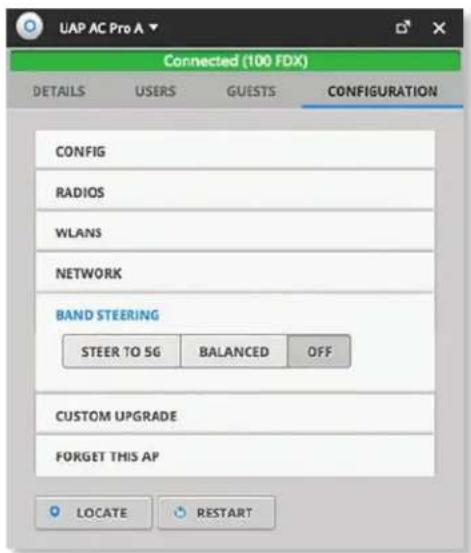
text_image
UAP AC Pro A Connected (100 FDX) DETAILS USERS GUESTS CONFIGURATION CONFIG RADIOS WLAANS NETWORK BAND STEERING STEER TO 5G BALANCED OFF CUSTOM UPGRADE FORGET THIS AP LOCATE RESTART- Steer to 5G Select this option to steer clients to the 5 GHz band at a lower channel utilization threshold than the Balanced option. The threshold is not a single value; instead it is a function of two values: the 2.4 GHz channel utilization and 5 GHz channel utilization.
- Balanced (Not available for the UAP-PRO.) Select this option to steer clients to the 5 GHz band channel at a higher channel utilization threshold than the Steer to 5G option.
- Off Keep the default, Off, if you do not want to use band steering.
Wireless Uplinks
When an AP is not connected by a wire, the Wireless Uplinks section lists potential uplink APs that can be selected to establish a wireless connection.
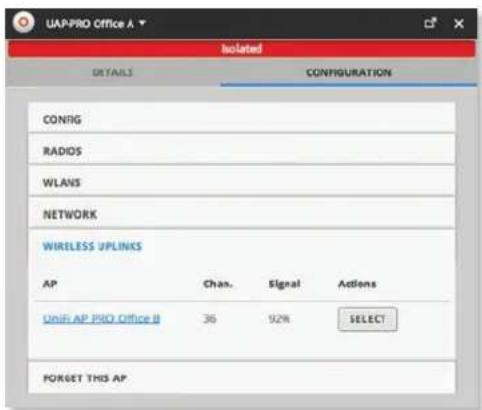
text_image
UAPPRO Office A * Isolated DETAILS CONFIG RADIOIS WLAWS NETWORK WIRELESS UPLINKS AP Chan. Signal Actions UNIF AP PRO Office B 36 92% SELECT FORGET THIS AP.AP Displays the hostname, alias, or MAC address of the potential Uplink AP. You can click the name to get additional details.
Channel Displays the channel in use for wireless communication.
Signal Displays the percentage of signal strength.
Actions Click a button to perform the desired action:
- Select Click Select to connect the wireless AP to the wired AP.
- Remove Click Remove to disconnect the wireless AP from the wired AP.

Note: An AP can only uplink to another AP using the same radio band. For example, the UAP-Outdoor 5G can only uplink to another UniFi AP using the 5 GHz radio band.
Custom Upgrade
For firmware upgrades, the UniFi devices retrieve the latest firmware from the Ubiquiti website. To specify firmware saved in a custom location, select this option.
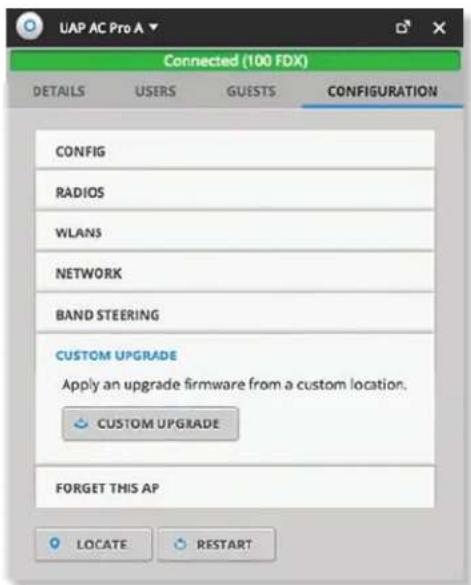
text_image
UAP AC Pro A Connected (100 FDX) DETAILS USERS GUESTS CONFIGURATION CONFIG RADIOS WLAIS NETWORK BAND STEERING CUSTOM UPGRADE Apply an upgrade firmware from a custom location. CUSTOM UPGRADE FORGET THIS AP LOCATE RESTARTCustom Upgrade Click ✅ CUSTOM UPGRADE to upgrade the firmware from a location you specify.
Forget This AP

text_image
UAP AC Pro A Connected (100 FDX) DETAILS USERS GUESTS CONFIGURATION CONFIG RADIOS WLAIS NETWORK BAND STEERING CUSTOM UPGRADE FORGET THIS AP If you no longer wish to manage this AP, you may remove it. Note that all configurations and history with respect to this access point will be wiped out. FORGET Move to ... LOCATE RESTARTForget Click FORGET to remove the AP from management by the UniFi Controller software and reset it to factory default settings.

Note: Use caution when clicking Forget. This will restore the AP to factory default settings when it is in a Connected state. Do not use the Forget option when the AP is in an Isolated or Disconnected state. If you do, the only way to make the AP accessible from the UniFi Controller is to take it down and connect by wire.
Move to To move the AP, select another site from the drop-down menu.
Access Point - Isolated/Disconnected
When an AP is in an Isolated or Disconnected state, you can re-establish a connection to the UniFi Controller software using one of three methods:
- Reconnect the AP to the gateway/router.
- Connect an Ethernet cable from the Secondary Ethernet Port (if available) of the isolated AP to the Secondary Ethernet Port (if available) of another UniFi AP that is connected to the gateway/router.
- Establish a wireless uplink to a wired AP. See the Wireless Uplinks section to find, select, and connect to a wired AP.
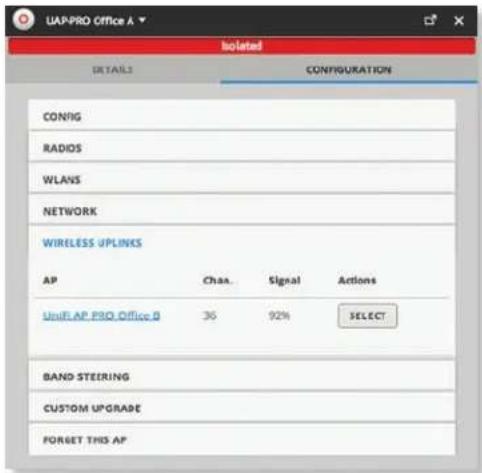
text_image
UAP-PRO Office A Isolated DETAILS CONFIG RADIOS WLAWS NETWORK WIRELESS UPLINKS AP Casn.Signal Actions UniFLAP PRO Office B 36 92% SELECT BAND STEERING CUSTOM UPGRADE FORGET THIS APIn an Isolated or Disconnected state, the Map tab displays the AP icon with a red/orange LED and disconnected icon.
The LED on the actual device will be steady green or blue with occasional flashing. This AP doesn't provide any wireless service.

Note: Do not use the Forget this AP option when the AP is in an Isolated or Disconnected state. If you do, then the only way to make the AP accessible from the UniFi Controller is to take it down and connect it by wire.
Access Point - Managed by Other
The Managed by Other state indicates that the AP is not in the default state but it is not controlled by the UniFi Controller.
Overview
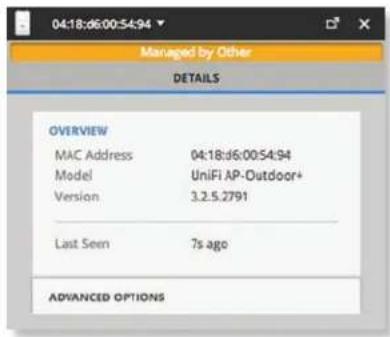
text_image
04:18:d6:00:54:94 Managed by Other DETAILS OVERVIEW MAC Address 04:18:d6:00:54:94 Model UniFi AP-Outdoor+ Version 3.2.5.2791 Last Seen 7s ago ADVANCED OPTIONSMAC Address Displays the MAC address of the AP.
Model Displays the model number.
Version Displays the version of software used on the AP.
Last Seen Displays the amount of time that has passed since the Access Point was last seen.
Advanced Options
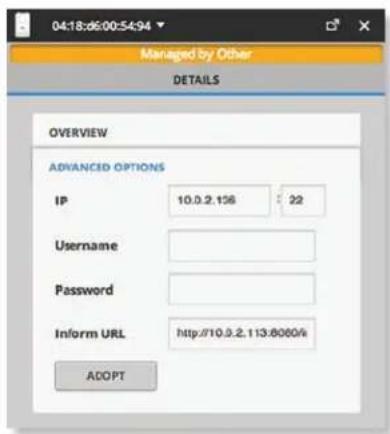
text_image
04:18:06:00:54:94 Managed by Other DETAILS OVERVIEW ADVANCED OPTIONS IP 10.0.2.156 22 Username Password Inform URL http://10.0.2.113:8060/k ADOPTIP Displays the IP address and SSH port of the AP.
Username Enter the SSH Username for management access. This is the Device Username you configured in "Settings > Site" on page 18.
Password Enter the SSH Password for management access. This is the Device Password you configured in "Settings > Site" on page 18.
Inform URL This tells the AP where to look for the UniFi Controller. The URL will be automatically displayed but you may need to verify its accuracy as the system may have multiple interfaces.
Adopt Click Adopt to adopt the AP so you can manage it using the UniFi Controller software.
Access Point - Pending Approval
The Pending Approval state indicates that the Access Point is in the default state and is available for adoption.
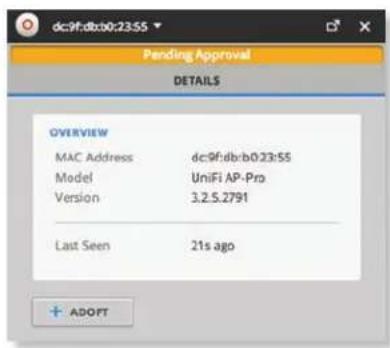
text_image
dc:9f:db:b0:23:55 Pending Approval DETAILS OVERVIEW MAC Address dc:9f:db:b0:23:55 Model UniFi AP-Pro Version 3.2.5.2791 Last Seen 21s ago + ADOPTMAC Address Displays the MAC address of the AP.
Model Displays the model number.
Version Displays the version of software used on the AP.
Last Seen Displays the amount of time that has passed since the AP was last seen.
Adopt Click Adopt to adopt the AP so you can manage it using the UniFi Controller software.
Chapter 13: UniFi VoIP Phone Details
A UniFi VoIP Phone hyperlink opens the UniFi VoIP Phone's Details window either in the Properties tab or as a separate popup window. You can always dock this window in the Properties tab or detach it as a separate window.
The top of the window displays the device icon and name (or MAC address).
Properties
The Properties tab is hidden by default. To display it, click the properties icon. The Properties tab appears on the right side of the screen.
Information about each selected device appears as a popup within this tab.
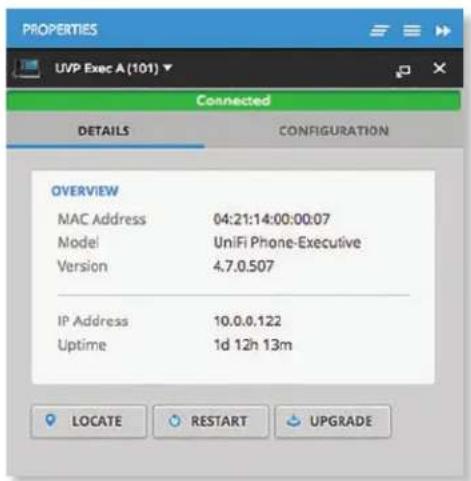
text_image
PROPERTIES UVP Exec A (101) Connected DETAILS CONFIGURATION OVERVIEW MAC Address 04:21:14:00:00:07 Model UniFi Phone-Executive Version 4.7.0.507 IP Address 10.0.0.122 Uptime 1d 12h 13m LOCATE RESTART UPGRADEClose Click to close the Properties tab and device popups.
Minimize Click to close and re-open the device popups.
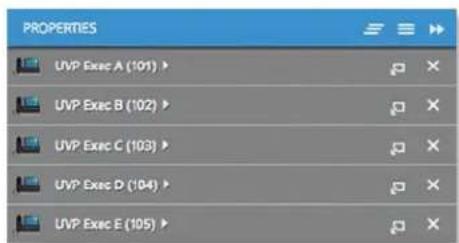
text_image
PROPERTIES UVP Exec A (101) > UVP Exec B (102) > UVP Exec C (103) > UVP Exec D (104) > UVP Exec E (105)Each row displays the following:
- (icon) Displays the icon of the device (the icon will vary depending on the model).
-
Name/MAC Address Displays the MAC address of the device or the extension name and number.
• Display Click to display the device information. -
Detach Click to display the same information in a separate popup screen that can be moved anywhere within the browser screen.
- Close Click to close the device popup.
Hide Click to hide the Properties tab but allow the device popups to remain accessible from this tab.
The top part of the window displays the connection status:
- Pending Approval Default state, available for adoption.
- Connected Indicates a managed connection.
• Disconnected Indicates no connection.
There are two clickable tabs:
- Details
- "UniFi VoIP Phone – Configuration" on page 96
The bottom of the window has three buttons:
- Locate Click LOCATE to ring the Phone and flash the Phone's icon on the Map tab so you can locate it. The Phone will ring until you click Locate again. (The icon on the Map tab will flash three times and stop.)
- Restart Click ⬆ RESTART to restart the Phone.
- Upgrade If a software upgrade is available for the Phone, click ◆ UPGRADE to install the latest UniFi firmware on the Phone. The Status will appear as Upgrading until the process is complete and the Phone reconnects to the UniFi Controller software.
UniFi VoIP Phone – Details
The Overview displays the device specifics and uptime.
Overview
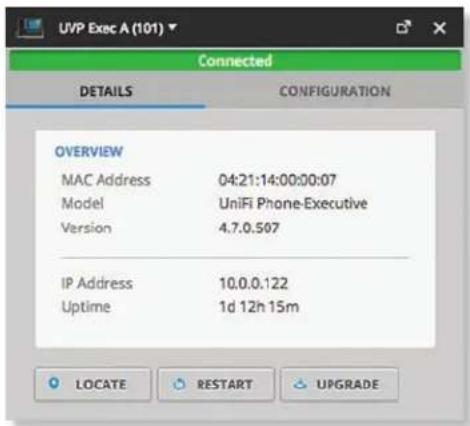
text_image
UVP Exec A (101) Connected DETAILS CONFIGURATION OVERVIEW MAC Address 04:21:14:00:00:07 Model UniFi Phone-Executive Version 4.7.0.507 IP Address 10.0.0.122 Uptime 1d 12h 15m LOCATE RESTART UPGRADEMAC Address Displays the MAC address or unique hardware identifier of the Phone.
Model Displays the model name of the Phone.
Version Displays the version number of the Phone's firmware.
IP Address Displays the IP address of the Phone.
Uptime Displays the duration of time the Phone has been running without interruption.
UniFi VoIP Phone – Configuration
Click Configuration to reset the Phone to its factory default settings. To make other changes, go to "Create or Edit an Extension" on page 29 for more information.
Forget This Phone
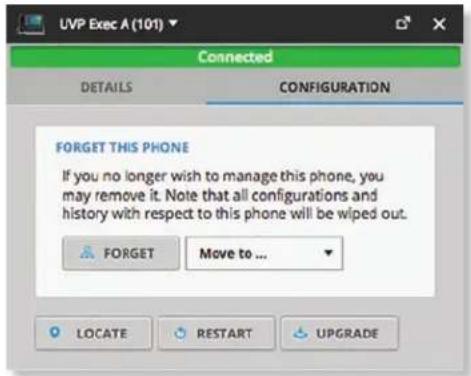
text_image
UVP Exec A (101) Connected DETAILS CONFIGURATION FORGET THIS PHONE If you no longer wish to manage this phone, you may remove it. Note that all configurations and history with respect to this phone will be wiped out. FORGET Move to ... LOCATE RESTART UPGRADEForget Click FORGET to remove the Phone from management by the UniFi Controller software and reset it to factory default settings.

Note: Use caution when clicking Forget. This will restore the Phone to factory default settings when it is in a Connected state.
Chapter 14: Client Details
A client hyperlink opens the client's Details window either in the Properties tab or as a separate popup window. You can always dock this window in the Properties tab or detach it as a separate window.
The top of the window displays the client icon and name (or MAC address).
Properties
The Properties tab is hidden by default. To display it, click the properties icon. The Properties tab appears on the right side of the screen.
Information about each selected client appears as a popup within this tab. The information varies depending on whether the client is wired or wireless:
- Wireless Client – Details
• "Wired Client – Details" on page 100
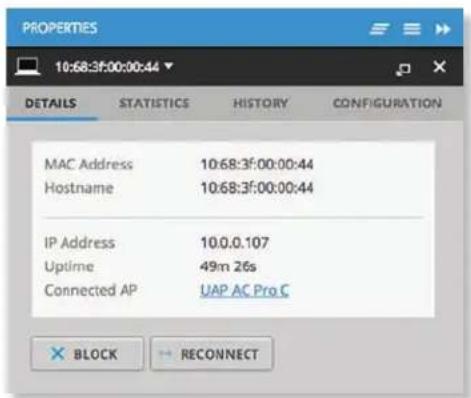
text_image
PROPERTIES 10:68:3f:00:00:44 DETAILS STATISTICS HISTORY CONFIGURATION MAC Address 10:68:3f:00:00:44 Hostname 10:68:3f:00:00:44 IP Address 10.0.0.107 Uptime 49m 26s Connected AP UAP AC Pro C BLOCK RECONNECTClose Click to close the Properties tab and client popups.
Minimize Click to close and re-open the client popups.
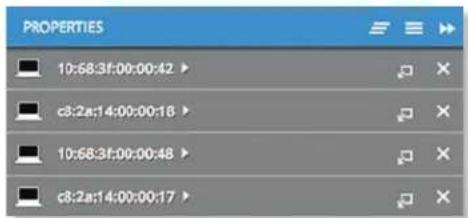
text_image
PROPERTIES 10:68:3f:00:00:42 c8:2a:14:00:00:18 10:68:3f:00:00:48 c8:2a:14:00:00:17Each row displays the following:
- (icon) Displays the icon of the device.
- Name/MAC Address Displays the hostname, alias, or MAC address of the device.
- Display Click to display the client information.
- Detach Click to display the same information in a separate popup screen that can be moved anywhere within the browser screen.
- Close Click to close the client popup.
Hide Click to hide the Properties tab but allow the client popups to remain accessible from this tab.
There are four clickable tabs:
- Details
• Statistics
• History - Configuration
The bottom of the window has three buttons:
- Block Click ✗ BLOCK to block this client from accessing the network.
- Reconnect Click ✉ RECONNECT to reconnect a wireless client. You can click ✉ RECONNECT to kick out a client, which usually reconnects back quickly; this is useful for troubleshooting or resolving a problematic wireless connection.
- Unauthorize/Authorize (Available for Guests only.) Click ✗ UNAUTHORIZED to remove authorization of guest access and disconnect the guest, or click for AUTHORIZE guests pending authorization.
Wireless Client – Details
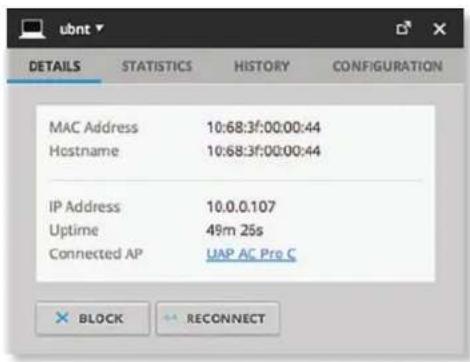
text_image
DETAILS STATISTICS HISTORY CONFIGURATION MAC Address 10:68:3f:00:00:44 Hostname 10:68:3f:00:00:44 IP Address 10.0.0.107 Uptime 49m 25s Connected AP UAP AC Pre C BLOCK RECONNECTMAC Address Displays the MAC address or unique hardware identifier of the client.
Hostname Displays the customizable name or identifier of the client.
IP Address Displays the IP address of the client.
Uptime Displays the duration of time the client has been connected.
Connected AP Displays the hostname, alias, or MAC address of the UniFi AP. You can click the name to get additional details; see "UniFi Access Point Details" on page 83 for more information.
Wireless Client – Statistics Overview
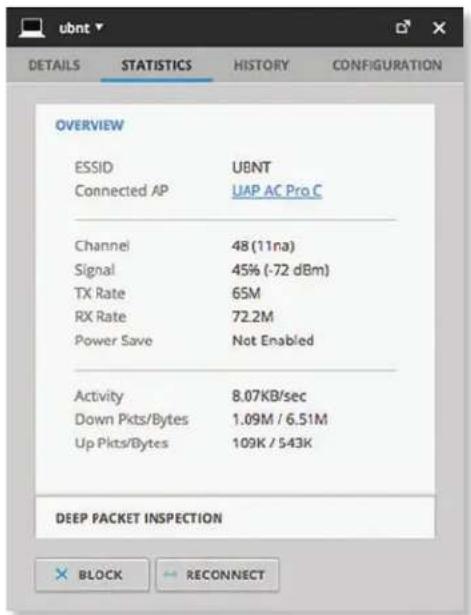
text_image
DETAILS STATISTICS HISTORY CONFIGURATION OVERVIEW ESSID UBNT Connected AP UAP AC Pro C Channel 48 (11na) Signal 45% (-72 dBm) TX Rate 65M RX Rate 72.2M Power Save Not Enabled Activity 8.07KB/sec Down Pkts/Bytes 1.09M / 6.51M Up Pkts/Bytes 109K / 543K DEEP PACKET INSPECTION BLOCK RECONNECTESSID Displays the name of the wireless network.
Connected AP Displays the name or MAC address of the AP being used by the client. You can click the name to get additional details on the AP.
Channel Displays the channel being used.
Signal Displays the percentage of signal strength between the AP and client.
TX Rate Displays the transmit rate.
RX Rate Displays the receive rate.
Power Save Displays the status of the power save mode.
Activity Displays the level of activity in Bytes per second.
Down Pkts/Bytes Displays the amount of data downloaded as packets and bytes.
Up Pkts/Bytes Displays the amount of data uploaded as packets and bytes.
Deep Packet Inspection
The Deep Packet Inspection information is available if the DPI feature is enabled (refer to "Settings > Site" on page 18 for more information).
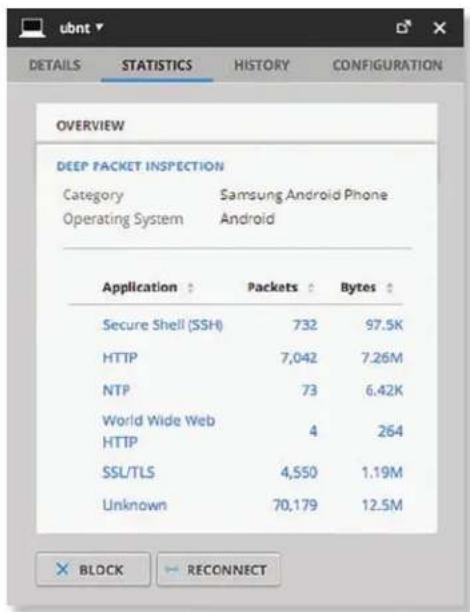
text_image
DETAILS STATISTICS HISTORY CONFIGURATION OVERVIEW DEEP PACKET INSPECTION Category Samsung Android Phone Operating System Android Application Packets Bytes Secure Shell (SSH) 732 97.5K HTTP 7,042 7.26M NTP 73 6.42K World Wide Web 4 264 HTTP SSL/TLS 4,550 1.19M Unknown 70,179 12.5M BLOCK RECONNECTCategory Displays the type of device.
Operating System Displays the name of the operating system.
Application Displays the name of the application.
Packets Displays the amount of data uploaded and downloaded as packets.
Bytes Displays the amount of data uploaded and downloaded as bytes.
Wireless Client – History
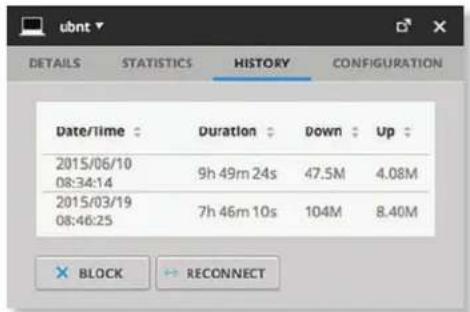
text_image
ubnt DETAILS STATISTICS HISTORY CONFIGURATION Date/time : Duration : Down : Up : 2015/06/10 9h 49m 24s 47.5M 4.08M 08:34:14 2015/03/19 7h 46m 10s 104M 8.40M 08:46:25 BLOCK RECONNECTDate/Time Displays the date and time of the connection.
Duration Displays the duration of the connection.
Down Displays the total amount of data downloaded by the client.
Up Displays the total amount of data uploaded by the client.
Wireless Client – Configuration Config
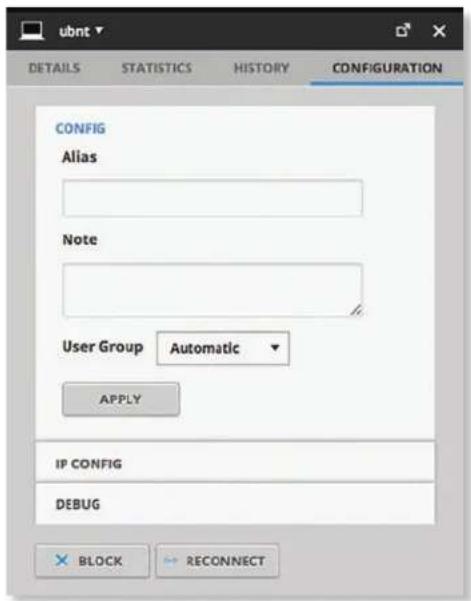
text_image
ubnt DETAILS STATISTICS HISTORY CONFIGURATION CONFIG Alias Note User Group Automatic APPLY IP CONFIG DEBUG BLOCK RECONNECTAlias Allows you to change the hostname of the client.
Note Allows you to enter comments about the client. Once saved, the client will be designated as a "Noted" client on the Insights > Known Clients tab.
User Group Allows you to assign the client to a User Group. User Groups are set up under the Settings tab >User Groups option (see "Settings >User Groups" on page 28 for more information). The default User Group is Automatic.
Apply Click Apply to save changes.
IP Config
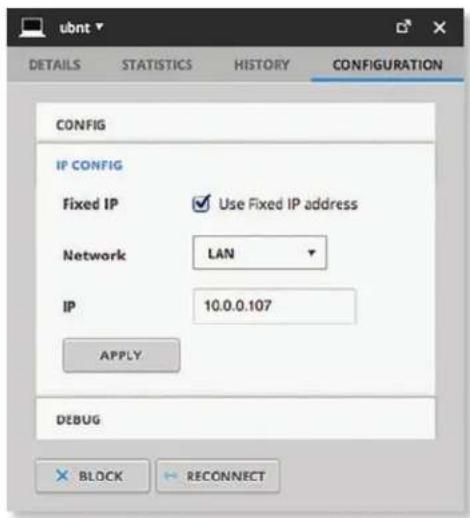
text_image
ubnt DETAILS STATISTICS HISTORY CONFIGURATION CONFIG IP CONFIG Fixed IP Use Fixed IP address Network LAN IP 10.0.0.107 APPLY DEBUG BLOCK RECONNECTFixed IP Select this option to assign a static IP address to the client, and configure the settings below. If you want the local DHCP server to assign an IP address to the client, remove the checkmark.
• Network Select the appropriate network from the drop-down list.
• IP Enter the local IP address.
Apply Click Apply to save changes.
Debug
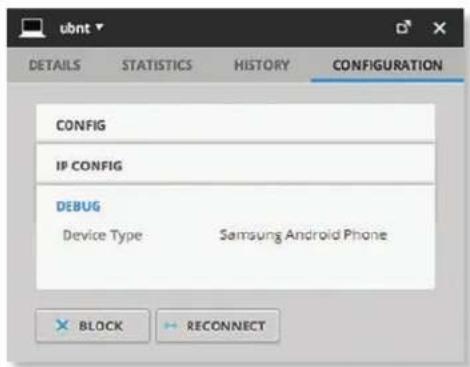
text_image
DETAILS STATISTICS HISTORY CONFIGURATION CONFIG IP CONFIG DEBUG Device Type Samsung Android Phone BLOCK RECONNECTDevice Type Displays the type of device.
Wired Client – Details
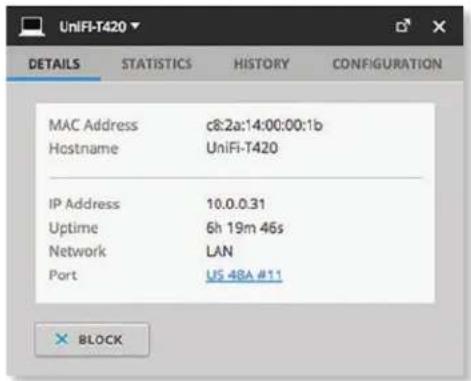
text_image
MAC Address c8:2a:14:00:00:1b Hostname Unifi-T420 IP Address 10.0.0.31 Uptime 6h 19m 46s Network LAN Port US 48A #11 BLOCKMAC Address Displays the MAC address or unique hardware identifier of the client.
Hostname Displays the customizable name or identifier of the client.
IP Address Displays the local IP address of the client.
Uptime Displays the duration of time the client has been connected.
Network Displays the network used by the client.
Port Displays the name and port of the UniFi device being used by the client. You can click the name to get additional details on the UniFi device.
Wired Client – Statistics
Overview
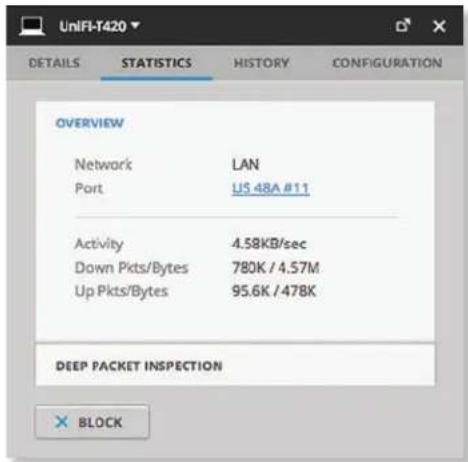
text_image
UniFI-T420 DETAILS STATISTICS HISTORY CONFIGURATION OVERVIEW Network LAN Port US 48A #11 Activity 4.58KB/sec Down Pkts/Bytes 780K / 4.57M Up Pkts/Bytes 95.6K / 478K DEEP PACKET INSPECTION BLOCKNetwork Displays the network used by the client.
Port Displays the name and port of the UniFi device being used by the client. You can click the name to get additional details on the UniFi device.
Activity Displays the level of activity in Bytes per second.
Down Pkts/Bytes Displays the amount of data downloaded as packets and bytes.
Up Pkts/Bytes Displays the amount of data uploaded as packets and bytes.
Deep Packet Inspection
The Deep Packet Inspection information is available if the DPI feature is enabled (refer to "Settings > Site" on page 18 for more information).
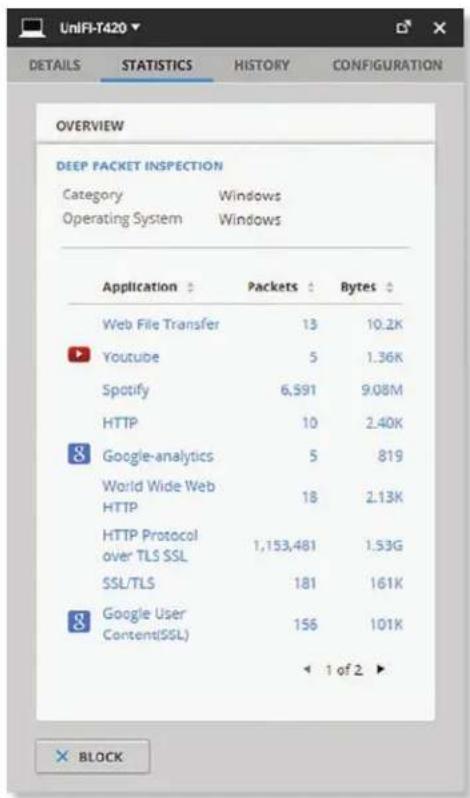
text_image
UNIFI-T420 DETAILS STATISTICS HISTORY CONFIGURATION OVERVIEW DEEP PACKET INSPECTION Category Windows Operating System Windows Application Packets Bytes Web File Transfer 13 10.2K Youtube 5 1.36K Spotify 6,591 9.08M HTTP 10 2.40K Google-analytics 5 819 World Wide Web HTTP 18 2.13K HTTP Protocol over TLS SSL 1,153,481 1.53G SSL/TLS 181 161K Google User Content(SSL) 156 101K 1 of 2 BLOCKCategory Displays the type of device (one example is Windows).
Operating System If available, displays the name of the operating system (examples include Windows 10, Windows 8, Windows 7).
Application Displays the name of the application.
Packets Displays the amount of data uploaded and downloaded as packets.
Bytes Displays the amount of data uploaded and downloaded as bytes.
Wired Client – History
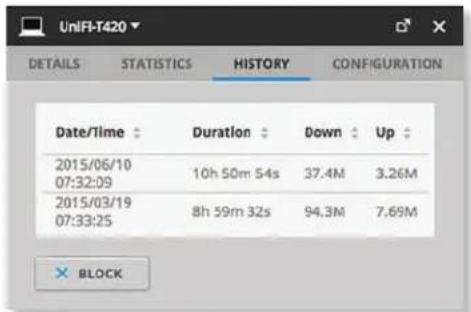
text_image
Unifi-T420 DETAILS STATISTICS HISTORY CONFIGURATION Date/Time : Duration : Down : Up : 2015/06/10 10h 50m 54s 37.4M 3.26M 07:32:09 2015/03/19 8h 59m 32s 94.3M 7.69M 07:33:25 × BLOCKDate/Time Displays the date and time of the connection.
Duration Displays the duration of the connection.
Down Displays the total amount of data downloaded by the client.
Up Displays the total amount of data uploaded by the client.
Wired Client – Configuration
Config
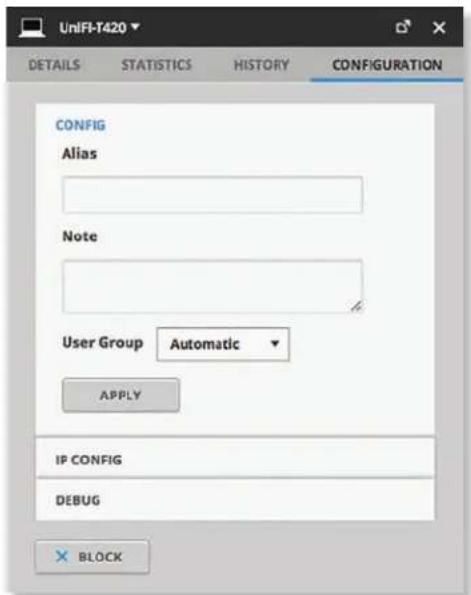
text_image
UniFI-T420 DETAILS STATISTICS HISTORY CONFIGURATION CONFIG Alias Note User Group Automatic APPLY IP CONFIG DEBUG BLOCKAlias Allows you to change the hostname of the client.
Note Allows you to enter comments about the client. Once saved, the client will be designated as a "Noted" client on the Insights > Known Clients tab.
User Group Allows you to assign the client to a User Group. User Groups are set up under the Settings tab > User Groups option (see "Settings > User Groups" on page 28 for more information). The default User Group is Automatic.
Apply Click Apply to save changes.
IP Config
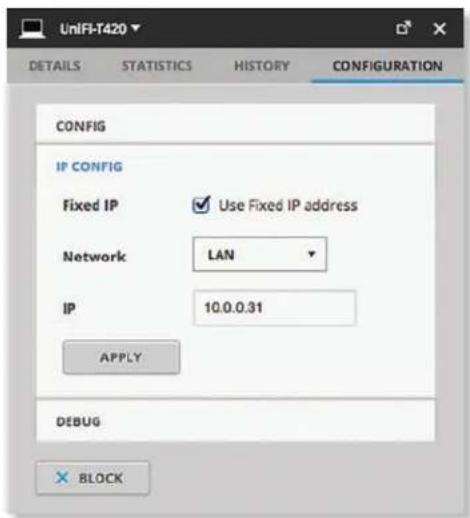
text_image
UniFI-T420 DETAILS STATISTICS HISTORY CONFIGURATION CONFIG IP CONFIG Fixed IP Use Fixed IP address Network LAN IP 10.0.0.31 APPLY DEBUG BLOCKFixed IP Select this option to assign a static IP address to the client, and configure the settings below. If you want the local DHCP server to assign an IP address to the client, remove the checkmark.
• Network Select the appropriate network from the drop-down list.
• IP Enter the local IP address.
Click Apply to save changes.
Debug
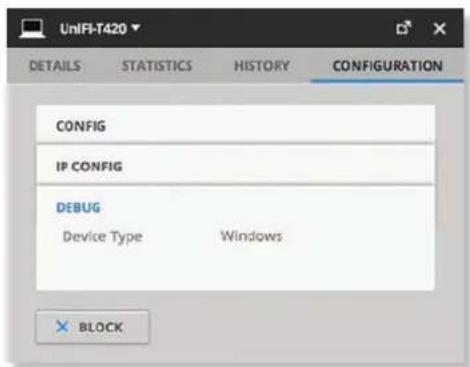
text_image
UniFI-T420 DETAILS STATISTICS HISTORY CONFIGURATION CONFIG IP CONFIG DEBUG Device Type Windows BLOCKDevice Type Displays the type of device.

text_image
UniFi GUESTS PAYMENTS VOUCHERS OPRATORS REFRESH RATE 2 minutes Guests Show: 2 weeks items per page: 50 Name (MAC Address) : Package Amount : Authorized By : Download : Upload : Status : Actions [0x0x9x7x1x4x5x6] API 48.8K Expired DISCONNECT EXTEND Chat with usChapter 15: Hotspot Manager
The Hotspot Manager includes four main tabs when accessed by the UniFi Controller super admin account. For details on a specific tab, refer to the appropriate section.

Guests

"Payments and Transactions" on page 104

"Vouchers" on page 104

"Operator Accounts" on page 105
Only admins with read/write access to the UniFi Controller can create operator accounts for the Hotspot Manager. Operator accounts are designed for use by hotels or other businesses to service guests and have no access to other UniFi administrative features. Operator accounts will have access to three tabs after login: Guests, Payments, and Vouchers.
Items per page Select how many results are displayed per page: 10, 50, 100, or 200.
On any sub-tab, you can click any of the column headers to change the list order.
If there is more than one page of entries to display, click the navigation controls or page numbers at the bottom right of the screen to display different pages.
To access the Hotspot Manager, go to Settings > Guest Control, and click Go to Hotspot Manager. See "Hotspot" on page 25 for more information.
If you create a bookmark for the Hotspot Manager, ensure that you include the site name in the URL, which should be in this format:
https://unifi.yourdomain.com:8443/hotspot/s/site_name
Guests
The Hotspot's active guests are displayed.
text_image
UMOFT Guests Name: UMO (English) Date: 2 March Amount: 100% Authorized: 100% Description: Language: Name: Address: URL: http://u.mcp.net/ URL: http://u.mcp.net/ URL: http://u.mcp.net/ URL: http://u.mcp.net/ URL: http://u.mcp.net/ URL: http://u.mcp.net/ URL: http://u.mcp.net/ URL: http://u.mcp.net/ URL: http://u.mcp.net/ URL: http://u.mcp.net/ URL: http://u.mcp.net/ URL: http://u.mcp.net/ URL: http://u.mcp.net/ URL: http://u.mcp.net/ URL: http://u.mcp.net/ URL: http://u.mcp.net/ URL: http://u.mcp.net/ URL: http://u.mcp.net/ URL: http://u.mcp.net/ URL: http://u.mcp.net/ URL: http://u.mcp.net/ URL: http://u.mcp.net/ URL: http://u.mcp.net/ URL: Total: 367.000.000 Source: UMO 2 minutes Notes are page 9. © 2018-04-2018Search ☉Enter keywords in the Search field to find a specific guest based on Name/MAC Address, Package, Amount, Authorized By, or Status value.
Show Filter by time duration: last 24 hours, 3 days, 7 days, 2 weeks, 30 days, and 120 days.
Name [MAC Address] Displays the guest's device name or MAC address.
Package Displays the description of the package that was purchased (if applicable).
Amount Displays the amount paid for access (if applicable).
Authorized By Displays the authorization method. If there is no authorization, then None is displayed.
Download Displays the total amount of data downloaded.
Upload Displays the total amount of data uploaded.
Status Displays the remaining session time for the guest. Displays Expired if there is no remaining session time.
Actions Click a button to perform the desired action:
- Disconnect Immediately disconnect the selected guest.
- Extend Click EXTEND to extend a guest's session for an additional 24 hours. For example, if you click it three times, you will extend guest access for three more days.
Payments and Transactions
The Hotspot's payments and transactions are displayed.
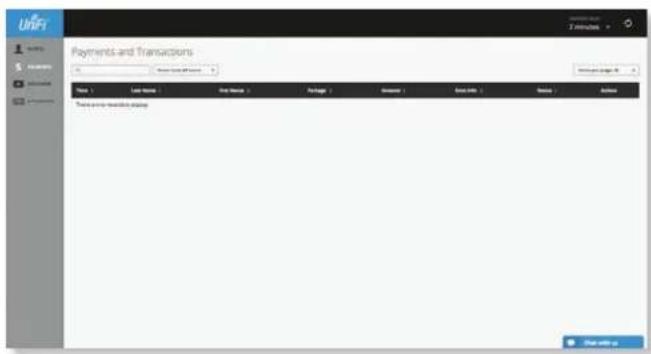
text_image
Payments and Transactions Name: Last Name: First Name: Package: Amount: Save Date: Date: Save Button: This are more common data.Search ^a Enter keywords in the Search field to find a specific voucher based on Time, Name, Package, Amount, Extra Info, or Status value.
Show Filter by time duration: last 24 hours, 3 days, 7 days, 2 weeks, 30 days, and 120 days.
Time Displays the date and time of the transaction.
Last Name Displays the user's last name.
First Name Displays the user's first name.
Package Displays the description of the package.
Amount Displays the amount of the transaction.
Extra Info If the user paid by credit card, the Extra Info field will display the type of credit card and the last four digits of the credit card used. If the user paid by an alternative method such as PayPal, the Extra Info field may display information such as the email address associated with the PayPal account.
Status Displays the status of the transaction.
Actions Click a button to perform the desired action:
- Refund Click the Refund button to refund the selected customer if necessary.
Vouchers
Create vouchers that include distributable codes, duration values, and use restrictions.
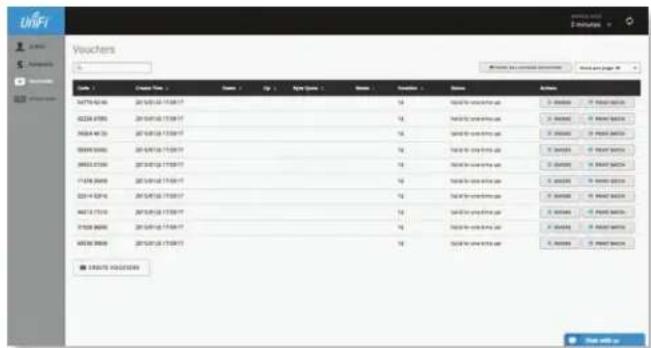
text_image
Vouchers Date / Date Type / Name / Up / Apply Options / Name / Description / Name / Amount S4751-02-06 2019/03/18 17:00:17 02224-07-05 2019/03/18 17:00:17 05264-06-20 2019/03/18 17:00:17 05544-03-02 2019/03/18 17:00:17 06623-07-04 2019/03/18 17:00:17 17-07-2008 2019/03/18 17:00:17 22-14-22-16 2019/03/18 17:00:17 04-12-17-16 2019/03/18 17:00:17 27-02-26-06 2019/03/18 17:00:17 06-30-26-06 2019/03/18 17:00:17 ■ USDUSD USDUSD ■ USDUSD USDUSDSearch ^9 Enter keywords in the Search box to find a specific voucher based on Code, Create Time, Note, Duration, or Status value.
Print all Unused Vouchers Click ⚙️ PRINT ALL UNUSED VOUCHERS to send a page to your printer with the codes and durations of unused vouchers.
Code Displays each active voucher code.
Create Time Displays the date and time a voucher was created.
Down Displays the maximum download bandwidth allowed.
Up Displays the maximum upload bandwidth allowed.
Byte Quota Displays the maximum amount of data transfer allowed per session.
Note Displays any notes that were added using the Notes option during voucher creation.
Duration Displays the duration of minutes, hours, or days that the voucher enables the user to access the Internet.
Status Indicates whether the voucher is valid for a single use or multiple uses. Displays Expired if the voucher is no longer valid. Displays the number of times used and time until expiration for multi-use vouchers.
Actions Click a button to perform the desired action:
- Revoke Click ✗ REVOKE to immediately deactivate the selected voucher.
- Print Batch Click PRINT BATCH to print the batch of vouchers created at the same time.
Create Vouchers To create a batch of vouchers, click and complete the following:
- Create ____ Enter the number of vouchers to create.
- One time/Multi-use Select how often the voucher can be used: One time or for Multi-use.
- vouchers for _ Select how long the voucher is valid: 8 hours, 24 hours, 2 days, 3 days, 4 days, 7 days, or User-defined. If you select User-defined, enter a number and specify day, minute, or hour.
- Bandwidth Limit (Download) Select to limit the download bandwidth. Enter the maximum in Kbps.
- Bandwidth Limit (Upload) Select to limit the upload bandwidth. Enter the maximum in Kbps.
- Byte Quota Select to limit the amount of data transfer allowed per session. Enter the maximum in megabytes.
- Notes Enter any notes specific to this batch of vouchers.
- Create Vouchers Click ✓ CREATE VOUCHERS to create the vouchers as specified.
- Cancel Click × CANCEL to discard changes.
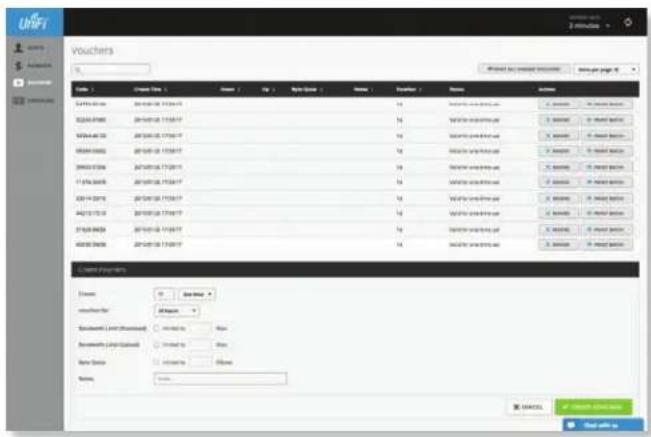
text_image
Vouchers File 1 Name / Type 2 Account Name Name Account Name Author Address: 04/05/18 17:30:17 Address: 04/05/18 17:30:17 Address: 04/05/18 17:30:17 Address: 04/05/18 17:30:17 Address: 04/05/18 17:30:17 Address: 04/05/18 17.30:17 Address: 04/05/18 17.30:17 Address: 04/05/18 17.30:17 Address: 04/05/18 17.30:17 Address: 04/05/18 17.30:17 Address: 04/05/26 17.30:17 Address: 04/05/26 17.30:17 Address: 04/05/26 17.30:17 Address: 04/05/26 17.30:17 Address: 04/05/26 17.30:17 Address: 04,05,06,08,09,10,11,12,13,14,15,16,17,18,19,20,21,22,23,24,25,26,27,28,29,30,31,32,33,34,35,36,37,38,39,40,41,42,43,44,45,46,47,48,49,50,51,52,53,54,55,56,57,58,59,60,61,62,63,64,65,66,67,68,69,70,71,72,73,74,75,76,77,78,79,80,81,82,83,84,85,86,87,88,89,90,91,92,93,94,95,96,97,98,99 Address: 04/05/18 17:30:17 Address: 04/05/18 17:30:17 Address: 04/05/18 17:30:17 Address: 04/05/18 17.30:17 Address: 04/05/18 17-30:17 Address: 04/05/18 17.30:17 Address: 04/05/18 17.30:17 Address: 04/05/18 17.30:17 Address: 04/05/18 17.30:17 Address: 04/05/36 17.30:17 Address: 04/05/36 17.30:17 Address: 04/05/36 17.30:17 Address: 04/05/36 17.30:17 Address: 04/05/36 17.30:17 Address: 04 / 2 / 2 / 2 / 2 / 2 / 2 / 2 / 2 / 2 / 2 / 2 / 2 / 2 / 2 / 2 / 2 / 2 / 2 / 2 / 2 / 2 / 2 / 2 / 2 / 2 / 2 / 2 / 2 / 2 / 2 / 2 / 2 / 2 / 2 Address Description: Address: Name: Access Name: Address Name: Address Name: Address Name: Address Name: Address Name: Address Name: Address Name: Address Name: Address Name: Address Name: Address Name: Address Name: Address Name: Address Name: Address Name: Address Name: Address Name: Address Name: Address Name: Address Name: Address Name: Address Name: Address Name: Address Name: Address Name: Address Name: Address Name: Address Name: Address Name: Address Name: Address Name: Address Name: Address Name: Address Names: Access Names: Access Names: Access Names: Access Names: Access Names: Access Names: Access Names: Access Names: Access Names: Access Names: Access Names: Access Names: Access Names: Access Names: Access Names: Access Names: Access Names: Access Names: Access Names: Access Names: Access Names: Access Names: Access Names: Access Names: Access Names: Access Names: Access Names: Access Names: Access Names: Access Names: Access Names: Access Names: Access Names: Access Bans: Access Bans:Operator Accounts
(Only available for admins with read/write access to the UniFi Controller). Create Operator Accounts that can log in to Hotspot Manager to manage guests, payments or transactions, and vouchers.
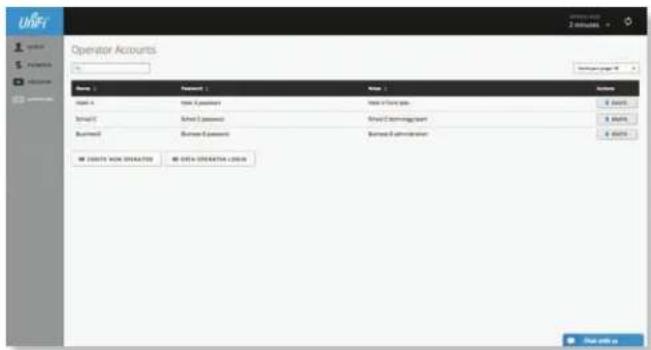
text_image
Operator Accounts Name: Password: Name: Address: Name: 1 Name: 2 Email: 1 Email: 2 Business Card: 1 Business Card: 2 © ODOTA WORK OPERATIONS © ODOTA WORK OPERATIONS & COGSSearch ^a Enter keywords in the Search field to find a specific operator account based on Name, Password, or Notes value.
Name Displays the name of the operator.
Password Displays the password.
Notes Displays any descriptive notes.
Actions Click a button to perform the desired action:
- Delete Click DELETE to remove an operator account.
Create New Operator To create a new operator account, click ON CREATE NEW OPERATOR and complete the following:
- Account Name Enter a name for the operator. The Account Name should use A-Z, a-z, or 0-9. Spaces and symbols are allowed but not recommended.
- Password Enter a password for the operator. The Password has to start with A-Z, a-z, or 0-9. The other characters can only be printable ASCII characters.
- Notes (Optional) Enter a note to identify or describe the operator.
- Create Operator Click ✓ CREATE OPERATOR to create the new operator account.
- Cancel Click × CANCEL to discard changes.
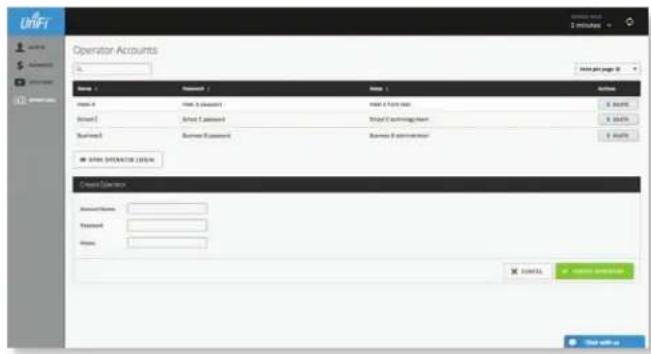
text_image
Operator Accounts Name: Address: Name: Address: Name: Address: Address: Address: Address: Address: Address: Address: Address: Address: Address: Address: Address: Address: Address: Address: Address: Address: Address: Address: Address: Address: Address: Address: Address: Address: Address: Address: Address: Address: Address: Address: Address: Address: Address: Address: Address: Address: Address: Address: Address: Address: Address: Address: Address: Address: Address: Address: Address: Address: Address: Access Access Access Access Access Access Access Access Access Access Access Access Access Access Access Access Access Access Access Access Access Access Access Access Access Access Access Access Access Access Access Access Access Access Access Access Access Access Access Access Access Access Access Access Access Access Access Access Access Access AccessOpen Operator Login Click ☒ OPEN OPERATOR LOGIN to test the operator credentials.
If you create a bookmark for the Hotspot Manager, ensure that you include the site name in the URL, which should be in this format:
https://unifi.yourdomain.com:8443/hotspot/s/site_name
The UniFi Hotspot Manager login screen will appear. Enter the username and password in the appropriate fields and click LOG IN.
Chapter 15: Hotspot Manager
UniFi Controller User Guide
text_image
Hotspot Manager Login Username Password LIST INOnly the Guests, Payments, and Vouchers tabs will appear.
Appendix A: Portal Customization
Overview
With Portal Customization, the UniFi Controller software allows complete branding of a portal implementation, allowing you to "white label" your wireless Internet service as if you had developed it yourself.
In order to provide the maximum flexibility in your branding effort, the UniFi Controller software provides total access to the portal directory on the system in which it is installed.
This open architecture allows you to include unlimited content while keeping development simple through the use of plain .html (hand code or use any editor of your choice). Testing is simple and immediate; simply reload changes from any browser.
Enabling Portal Customization
By default, Portal Customization is disabled in all Guest Portal implementations. See "Settings > Guest Control" on page 24 for more information on enabling the Guest Portal for the following authentication and landing page options: No authentication, Simple Password, and Hotspot.
To enable Portal Customization, perform the following steps:
- Go to Settings and click Guest Control.
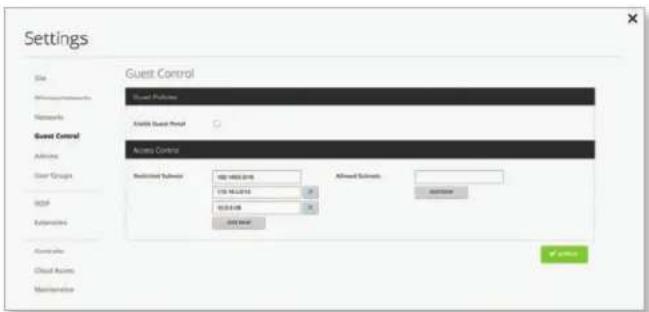
text_image
Settings Site Minisupgrades Networks Guest Control Access Control Restricted Subnet: http://www.2016/173-96-0194 01.0.0.08 01.0.0.08 Allowed Subnet: Add to Add to Add to Add to Add to Add to Add to Add to Add to Add to Add to Add to Add to Add to Add to Add to Add to Add to Add to Add to Add to Add to Add to Add to Add to Add to Add to Add to Add to Add to Add to Add to Add to Add to All Guest Control Only Guest Control Options Active Active Active Active- Select Guest Portal to enable it, and then select an authentication method.
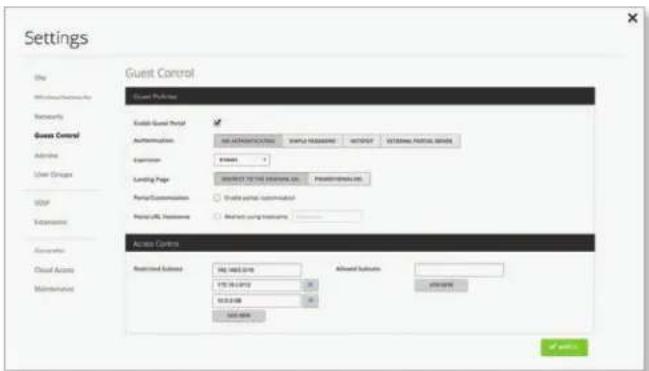
text_image
Settings Site Withing/Passives/Play Networks Guest Control Enable Guest Portal Authentication: Expression: Routing Page: Routing Protocol: Routing Destination: Routing Destination: Access Controls Restricted Subtotal: URL: 10.00000000 URL: 10.00000000 Allowed Subtotal: ALLOW: ALLOW: OK- Select Portal Customization to enable it, and then click √ APPLY.
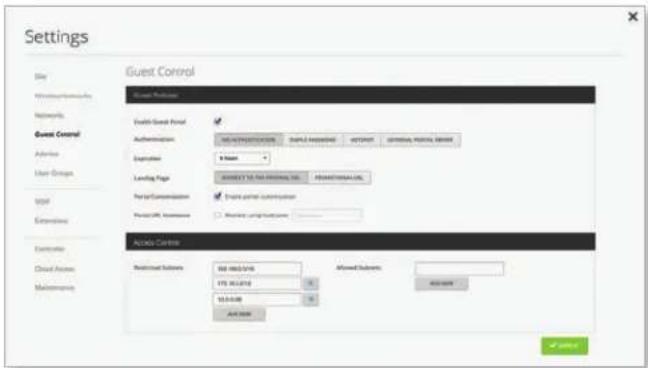
text_image
Settings Site Wireless Security Networks Guest Control Advice User Group Vpp Extending Estimate Cloud Access Maintenance Guest Control Guest Parameters Guest Guest Panel Authentication: • NET INPRODUCTION • SAMPLE INFORMATION • HTTP/IP • OPTIONAL CONTROL SERVICE Exploration: • Name Loading Page: • ACCESS TO THE OFFICEING URL • PROFESSIONAL URL Portal/Consultation: • Temporary portal customization Please call to continue: Active Connection Additional Subsets: 000-000-S/TS 175-862439 10.5.0.00 All Users: Allowed Subsets: ACCESS Add User: CancelViewing the Default Portal
Once Guest Portal and Portal Customization are enabled, connect to the Guest Network SSID as shown below, depending on your platform.
Windows
-
Go to Connect to Network.
-
Windows 8 Go to the Settings menu and click the Network icon.
-
Windows 10/7 Right-click the Network icon.
-
Select the Guest Network SSID and click Connect.
-
Depending on the security type applied to the network, enter the security key or password. Click OK or Connect.
- Launch your web browser and you will be directed to the default portal page for the authentication type configured on the Guest Portal (see "Settings > Guest Control" on page 24 for screenshots of default portal pages by authentication method).
Mac
- Click the AirPort icon in the menu bar (top right side of the screen).
- Select the Guest Network SSID and click Connect.
- Depending on the security type applied to the network, enter the security key or password. Click OK.
- Once connected, the AirPort iron will change from gray to solid black. The number of black lines indicates the signal strength.
- Launch your web browser and you will be directed to the default portal page for the authentication type configured on the Guest Portal (see "Settings > Guest Control" on page 24 for screenshots of default portal pages by authentication method).
Setup
The html and css files are located on the system that the UniFi Controller software has been installed on. The files are in the following locations:
Mac
/Applications/UniFi.app/Contents/Resources/data/sites/
Windows
For specific instructions on accessing the files, refer to the specific operating system:
• Mac
• "Windows" on page 109
Mac
- Navigate to Go > Applications.
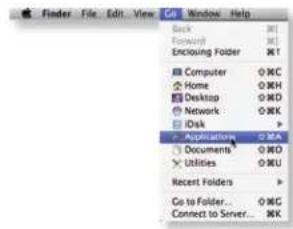
text_image
Finder File Edit View Get Window Help... Back Forward Enclosing Folder Computer Home Desktop Network Disk Applications Documents Utilities Recent Folders Co to Folder... Connect to Server... KK- Control-click the UniFi application and then click Show Package Contents.
text_image
Open Show Package Contents Move to Trash Get Info Compress "Unifi" Burn "Unifi" to Date... Duplicate Make Alias Quick Look "Unifi" Copy "Unifi" Clean Up Selection Show View Options Label:- Double-click the Contents folder to open it.
text_image
UnFi.app FONERITES Dropbox Final Resources Review Working Logos guides Desktop Applications Pictures Documents Download / SHARES DEVICES Mai's Mact...- Double-click the Resources folder to open it.
text_image
Contentx Favorites Dropbox Final Resources Review Working Logos guides Desktop Applications Pictures Documents Downloads J SAPES DEVICES Mac's Macs...- Double-click the data folder to open it.
text_image
Resources FAMOUNTES Dropbox Final Resources Review Working Orders guides Desktop Applications Pictures Documents Download J SHARES BEIJING Mac's Macs... bn data di jms lib rojs ram www.abcnet.abc www.cns webpages work- Double-click the sites folder to open it.
text_image
data FAVANTES Dropbox Final Resources Review Working Logos guides Desktop Applications Pictures Documents Download j SHARES DEVICES Mac's Mac... Backup db devices keystore system properties- Double-click the folder whose name matches the site ID (for example: /manage/s/
text_image
FATRIFORITIES Dropbox Final Resources Review Working Maps guides Desktop Applications Pictures Documents Download J DEVICES Mat's Mack...- Double-click the portal folder to open it.
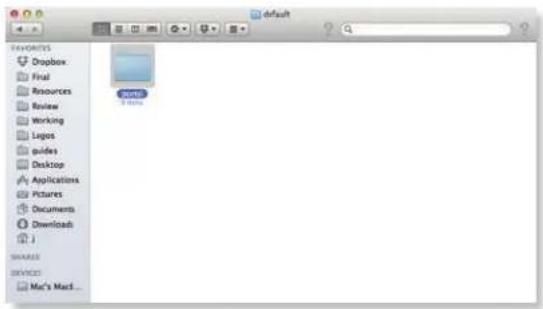
text_image
default FLOURITES Dropbox Final Resources Review Working Lugos guides Desktop Applications Pictures Documents Downloads ... WARES DEVICES Mac's Macd...- You have several files that you can customize in the portal folder (these are described in the Customizable Default Files section).
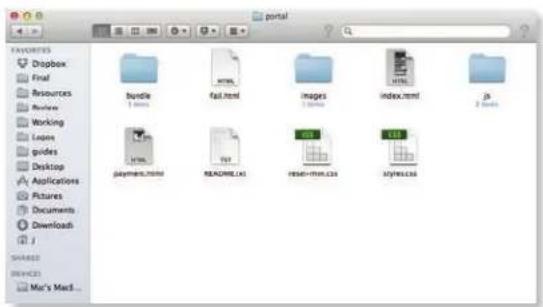
text_image
FATUROVES Dropbox Final Resources Review Working Lapos guides Desktop Applications Pictures Documents Downloads / SHARES BEIJING Mai's MacI... bundle 1 item HTML fail.html images 1 item index.html js 2 items payments.html READIRE.LAI HESR-RIM.CSI styles.CSI- To customize the voucher, double-click the bundle folder to open it.
text_image
FATORES Dropbox Final Resources Review Working Lagos guides Desktop Applications Pictures Documents Downloads Junee SHARES REMARKS June's Modi...- You can customize voucher.css and voucher.html to fit your needs.
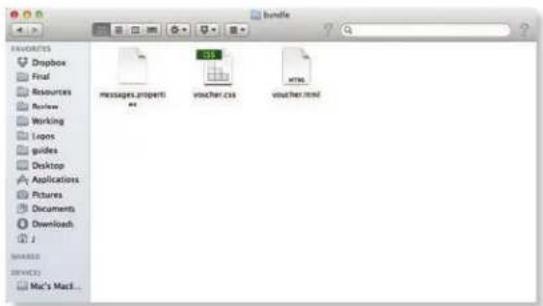
text_image
bundle FAVOCERES Dropbox Final Resources Review Working Logos guides Desktop Applications Pictures Documents Download J MARKETS BEVERES... Mac's MacI...Windows
The Windows files are located in the following location:
Customizable Default Files
The following default customizable html and css files are located in the portal folder:
- index.html Main landing page that displays pricing to the guest.
- payment.html Used to submit credit card information. It requires https and also serves as an example of an additional .html page.
- fail.html Displayed when there is an error handling a guest login.
- reset-min.css Standardizes the rendering of HTML elements across browsers.
- styles.css Controls the style of HTML elements.
The following default files are located in the bundle folder:
- voucher.html Page for vouchers.
- voucher.css Standardizes the rendering of HTML elements across browsers.
- messages.properties You can edit this file using a text editor such as TextEdit. This file defines package costs, duration of access, duration of a free trial period, package titles, and how the charge will appear on a customer's credit card account. Error messages are also defined by this file.
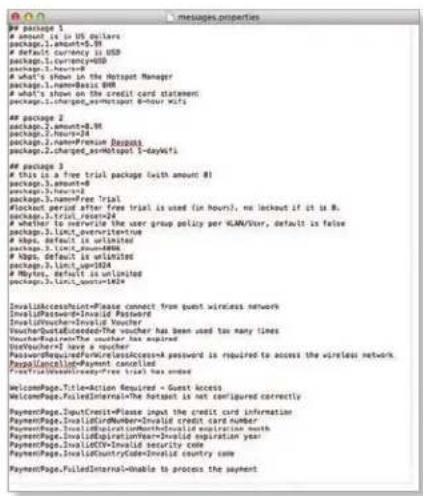
text_image
package 1
amount is to US dollars
package.1.amount=5.38default currency is USD
package.1Currency=USDamount=0
what's shown in the Hotspot Manager
package.1.nameBasis USDwhat's shown on the credit card statement
package.1.charpets_avmtotaport 6-hour Wtpackage 2
package.1.amount=8.98 package.2,hours=24 package.2.namePremium Package package.2.charpets_avmtotaport 5-dayWtpackage 3
this is a free trial package (with amount #1)
package.3.amount=6 package.3,hours=2 package.3.nameFree Trial package.3 Hertz after free trial is used (in hours), no lockout if it is R. package.3.credit resen=24whether to rewrite the user group policy per WLAN/Vskr, default is false
package.3.Lint1overwrite:#ehttps, default is unlimited
package.3.Lint1amount=888https, default is unlimited
package.3.Lint1+CNP=1004https, default is unlimited
package.3.Lint1_overwrite=16x InvalidAccessPoint=Please connect from guest wireless network InsolipPassword=Invalid Password InvalidUser=Invalid Voucher Voucher=DefaultUserThe voucher has been used to many lines Voucher=UserThe voucher has expired UserUsed Have a voucher PasswordRequired=FireWirelessAccessPassword is required to access the wireless network PasswordCancellation=Payment cancelled FreeTrain/Read=Request traffic has expired WelcomePage.Title=Action Required = Guest access WelcomePage.FulledInternal=The hotspot is not configured correctly PaymentPage.InputCrest=Please input the credit card information PaymentPage.InalCircNumber=Invalid credit card number PaymentPage.InalCircDuration=Invalid expiration time PaymentPage.InalCircExpirationYear=Invalid expiration year PaymentPage.InalCirc=Invalid security code PaymentPage.InalCircCountryCode=Invalid country code PaymentPage.FulledInternal=Unable to process the paymentAdditional details on portal customization can be found in our community site at: http://ubnt.link/UniFi-Portal-Customization
Appendix B: UniFi Discovery Utility
Overview
The Ubiquiti UniFi Discovery Utility includes tools that allow the discovery and management of UniFi APs. It is installed automatically as part of the UniFi Controller software installation process. See "Software Installation" on page 1 for more information.
Launching the UniFi Discovery Utility
Mac Users
From the Finder, click Go > Applications and double-click the UniFi-Discover.app icon.
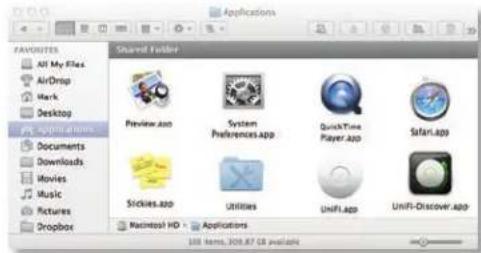
text_image
FONDETER All My Files AirDrop Mark Desktop SAPID TARGET Documents Downloads Movies Music Pictures Dropbox Shared Folder Preview.app System Preferences.app QuickTime Player.app Star1App Stickles.app Utilities UniFi.app UniFi-Discover.app Macintosh HD Applications 100 items, 309.87 GB availablePC Users
For most versions of Windows, go to Start > All Programs > Ubiquiti UniFi and double-click the UniFi-Discover icon.
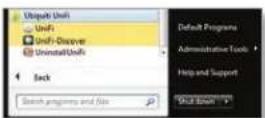
For Windows 8, go to the Start menu and double-click the UniFi-Discover icon.
text_image
ubmt Shift-Discount Shift Disk Startup Component Windows Services Windows Firewall with AdvancedUniFi Discovery Utility Interface
Upon launch, the UniFi Discovery Utility listens to Layer-2 broadcast/multicast beacons from UniFi APs in both a factory default state and an unmanaged state (adopted but unable to contact the UniFi Controller software).
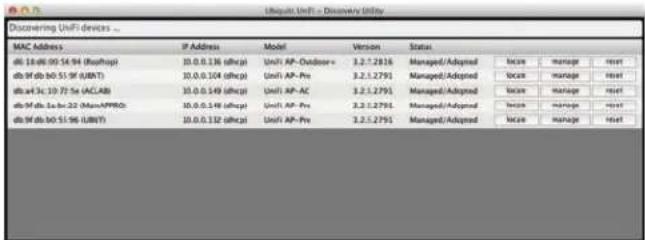
text_image
Unit4: Unit1 - Discovery Utility Discovering Unit4 devices ... MAC Address IP Address Model Version Status db 18:06:00 54.94 (Routhup) 30.0.0.136 (shc.p) Unit4 AP-Outdoor= 3.2.1.2816 Managed/Adopted locar manage reset db bf db b0 51.96 (UBNT) 30.0.0.104 (shc.p) Unit4 AP-Pre 3.2.1.2791 Managed/Adopted locar manage reset db at 3c 10:72:5e (ACLAB) 30.0.0.149 (shc.p) Unit4 AP-AC 3.2.1.2791 Managed/Adopted locar manage reset db bf db 1a:8e-32 (ManAPPRO) 30.0.0.149 (shc.p) Unit4 AP-Pre 3.2.1.2791 Managed/Adopted locar manage reset db bf db b0 51.96 (UBNT) 30.0.0.132 (shc.p) Unit4 AP-Pre 3.2.1.2791 Managed/Adopted locar manage resetMAC Address Displays the MAC address and alias of the AP. The alias is displayed in parentheses if it has been specified; see "UniFi Access Point – Configuration" on page 88 for details.
IP Address Displays the IP address of the AP and the method used by the AP to obtain an IP address. The method is displayed as DHCP or Static in parentheses.
Model Displays the model name of the AP.
Version Displays the firmware version installed on the AP.
Status Displays the current status of the AP: Pending, Managed/Adopted, Login Failed, or IP Unreachable.
There are three buttons available:
- "Locate" on page 112
• "Manage" on page 112
- "Reset" on page 113

Note: To reboot the AP, click one of the buttons listed above and proceed to "Reboot" on page 113.
Locate
Locate the AP. The following window will appear:
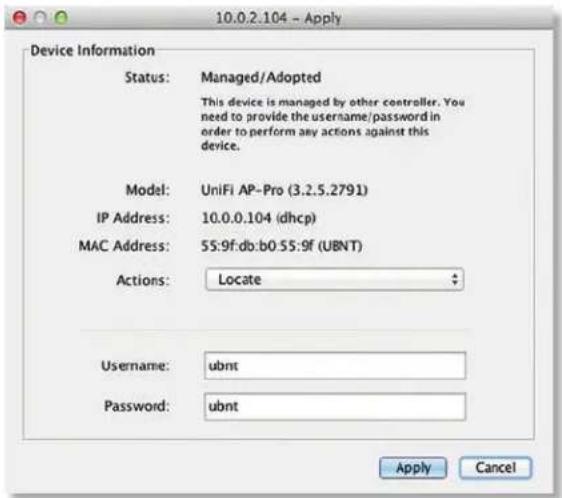
text_image
10.0.2.104 - Apply Device Information Status: Managed/Adopted This device is managed by other controller. You need to provide the username/password in order to perform any actions against this device. Model: UniFi AP-Pro (3.2.5.2791) IP Address: 10.0.0.104 (dhcp) MAC Address: 55:9f:db:b0:55:9f (UBNT) Actions: Locate Username: ubnt Password: ubnt Apply CancelActions If you clicked the Locate button, then Locate is automatically selected.
Username If required, enter the device username.
Password If required, enter the device password.
Apply Click Apply to locate the AP. The LED on the AP will flash so that it can be differentiated from the other APs.
Manage
Set the inform URL, allowing the AP to be managed by the UniFi Controller software running in a NOC or in the cloud. (See "Network Topology Requirements" on page 1 for a visual representation of this configuration.) The following window will appear:
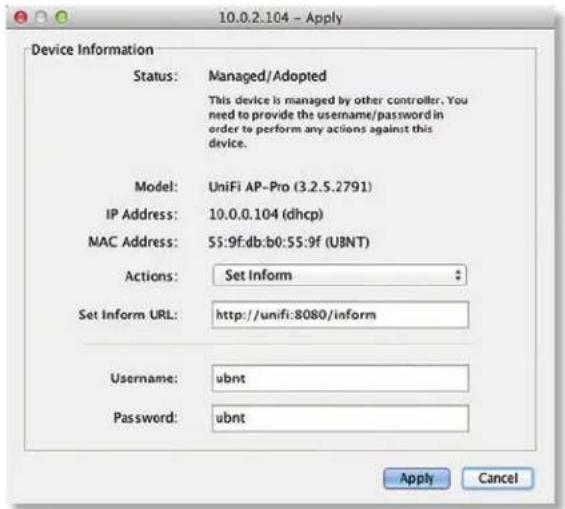
text_image
10.0.2.104 - Apply Device Information Status: Managed/Adopted This device is managed by other controller. You need to provide the username/password in order to perform any actions against this device. Model: UniFi AP-Pro (3.2.5.2791) IP Address: 10.0.0.104 (dhcp) MAC Address: 55:9f:db:b0:55:9f (UBNT) Actions: Set Inform Set Inform URL: http://unifi:8080/inform Username: ubnt Password: ubnt Apply CancelActions If you clicked the Manage button, then Manage is automatically selected.
Set Inform URL Enter the URL, port, and path to the UniFi Controller software.
Username If required, enter the device username.
Password If required, enter the device password.
Apply Click Apply to save the inform URL.
Reset
Reset the AP to factory default settings. The following window will appear:
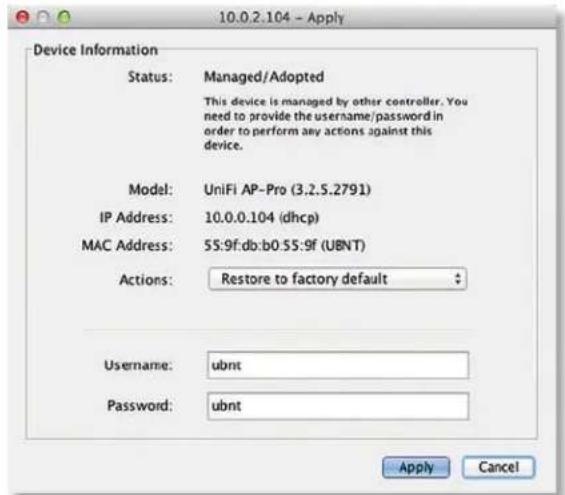
text_image
10.0.2.104 - Apply Device Information Status: Managed/Adopted This device is managed by other controller. You need to provide the username/password in order to perform any actions against this device. Model: UniFi AP-Pro (3.2.5.2791) IP Address: 10.0.0.104 (dhcp) MAC Address: 55:9f:db:b0.55:9f (UBNT) Actions: Restore to factory default Username: ubnt Password: ubnt Apply CancelActions If you clicked the Reset button, then Restore to factory default is automatically selected.
Username If required, enter the device username.
Password If required, enter the device password.
Apply Click Apply to reset the AP to factory default settings.
Reboot
To reboot the AP, click any of the buttons (Locate, Manage, or Reset) on the UniFi Discovery Utility screen. The following window will appear:
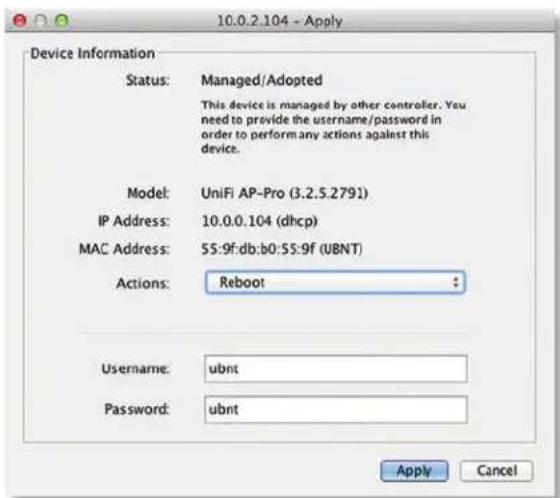
text_image
10.0.2.104 - Apply Device Information Status: Managed/Adopted This device is managed by other controller. You need to provide the username/password in order to perform any actions against this device. Model: UniFi AP-Pro (3.2.5.2791) IP Address: 10.0.0.104 (dhcp) MAC Address: 55:9f:db:b0:55:9f (U8NT) Actions: Reboot Username: ubnt Password: ubnt Apply CancelActions Select Reboot from the drop-down menu.
Username If required, enter the device username.
Password If required, enter the device password.
Apply Click Apply to reboot the AP.
Appendix C: Mobile Apps
Overview
Ubiquiti Networks offers two UniFi mobile apps:
- UniFi EasySetup App You can use a mobile device to provision a UniFi AP for basic functionality without configuring a UniFi Controller.
- UniFi EDU App You can use the UAP-AC-EDU to broadcast announcements with clarity from your mobile device. Refer to "UniFi EDU App" on page 117 for more information.
UniFi EasySetup App
The Android version can set up any UniFi AP. The iOS version can set up the UAP-AC-LITE, UAP-AC-LR, UAP-AC-PRO, or UAP-AC-EDU. A future upgrade will enable the iOS version to set up any UniFi AP.
Requirements
- An Ethernet connection from the UniFi AP to the LAN with DHCP
-
Firmware version 3.4.4.3231 or higher
• A compatible Android or iOS device
The following instructions describe the Android version of the app; however, the iOS version is similar. -
Download the UniFi AC EasySetup App from the App Store (iOS) or the UniFi EasySetup App from Google Play™ (Android).

-
Launch the app, and use one of the following options:
-
Log In Enter the Username and Password of your Ubiquiti Single Sign-On (SSO) account. Tap Log In.
- Register To register for an SSO account, tap Register.
- Continue If you do not want to back up or restore configurations, you can skip the login and tap Continue.
text_image
UBIQUITI NETWORKS Single SignOn Account an SSO Account will allow you to save a backup of your configuration files in the cloud as well as give you access to a host other features and tools. Username Password Forgot your password? LOG IN Register or Continue- The app will search for new devices. Tap the UniFi AP on the device list and go to step 5.
If a new device is not detected, you have two options:
- Scan QR Code Tap Scan QR Code and go to step 4.
- Wi-Fi Settings Tap Wi-Fi Settings and connect to your Wi-Fi network. Then the app will run a search again.
text_image
UniFi AC Wi-Fi network is not connected Connect to your Wi-Fi network or scan QR code. QR Code Setup If you don't have any wireless network, you can easily install your first UniFi AP by scanning QR code on its back side. SCAN QR CODE Wi-Fi Settings- Scan the QR code on the back of the UniFi AP, or tap You can enter your ID manually to type the case-sensitive MAC address.

Note: For Android, the mobile device automatically connects to the helper SSID. For iOS, manually copy and paste the helper SSID and password.
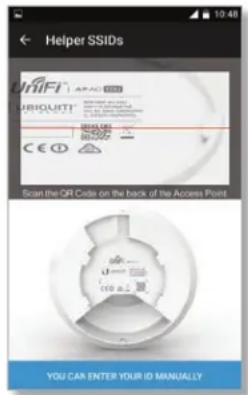
text_image
Helper SSIDs Ubiquiti™ scan the QR Code on the back of the Access Point YOU CAN ENTER YOUR ID MANUALLY- Create a device login using the Username and Password fields. Select the appropriate Country Code and tap OK.
- On the Config screen, you can change UBNT (the default device name) to a descriptive name.
Configure the following settings for each radio:
- Channel
- Select a channel number or keep the default, Auto.
-
Select the appropriate channel width.
-
TX Power The default is Auto. Select High, Medium, or Low.
- Name/SSID Enter the name of the wireless network.
- Enabled Enable or disable wireless functionality.
• Security Select the security method you want to use.
• Security Key Enter the passphrase.
Tap Apply Settings.
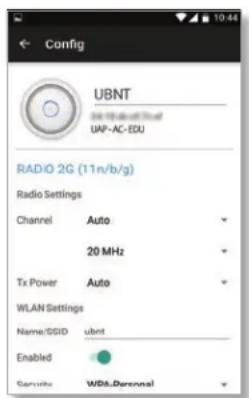
text_image
Config UBNT UAP-AC-EDU RADIO 2G (11n/b/g) Radio Settings Channel Auto 20 MHz Tx Power Auto WLAN Settings Name/SSID ubnt Enabled Security WBA-Personal- Tap Continue.
text_image
Settings Applied CONTINUE-
Scroll down the Config screen to access the following:
-
Firmware Upgrade Install the latest firmware on the UniFi AP. (Not available if the latest firmware is already installed.)
- Forget This AP Remove the UniFi AP from management by the UniFi EasySetup App and reset it to factory default settings. All configurations and history associated with this UniFi AP will be deleted.
- Restart Power cycle the UniFi AP.
- Locate Flash the LED indicator on the UniFi AP.
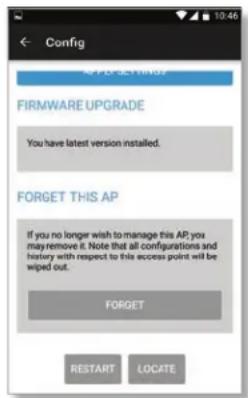
text_image
Configuration FIRMWARE UPGRADE You have latest version installed. FORGET THIS AP If you no longer wish to manage this AP; you may remove it. Note that all configurations and history with respect to this access point will be wiped out. FORGET RESTART LOCATE- Return to the UniFi AC screen. Tap the overflow icon in the upper-right corner, and then tap Settings. (The Scan QR code option adds another UniFi AP.)
text_image
UniFi AC Settings UBNT Scan QRcode 142.168.1.29 UP-AC-EBU-
The Settings screen offers the following options:
-
Secure Shell (SSH) Login Username Change the username of the device login.
- SSH Login Password Change the password of the device login.
• Country Code Change the country selection. - Single Sign-On (SSO) Username Change the username of the SSO account.
- SSO Password Change the password of the SSO account.
• Automatic Configuration Backup Enable or disable automatic backup of the current configuration. - Back Up Now Back up the current configuration.
- Restore Restore the previously saved configuration.
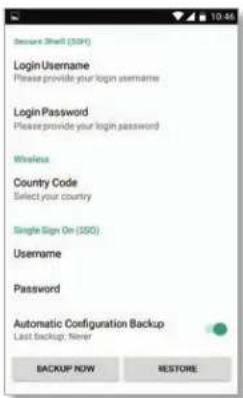
text_image
Secure Shell (304) LoginUsername Please provide your login username LoginPassword Please provide your login password Wireless Country Code Select your country Single Sign On (SSO) Username Password Automatic Configuration Backup Last Backup: Never BACKUP NOW RESTOREScroll down further to view the UniFi Controller settings:
- Controller mode Enable or disable use of the UniFi EasySetup App with a UniFi Controller.
- Address Enter the IP address of the UniFi Controller.
- Port Enter the port number of the UniFi Controller.

Note: The Controller settings are not available in the iOS version; however, they will be available in a future upgrade.
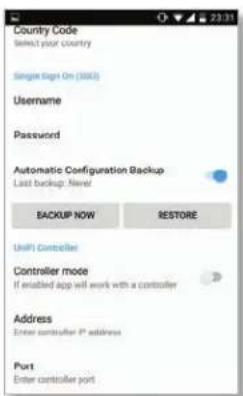
text_image
Country Code Select your country Single Sign On (3003) Username Password Automatic Configuration Backup Last backup: Never BACKUP NOW RESTORE UNIFI Controller Controller mode If enabled app will work with a controller Address Enter controller port address Port Enter controller portThe UniFi EasySetup App configures basic features accessed via a mobile device. Advanced features require the UniFi Controller software.
UniFi EDU App
Use the UniFi EDU app to broadcast announcements from the UAP-AC-EDU.
Requirements
- UniFi Controller software v4.8.7 or higher
-
A compatible Android or iOS device located on the same Layer-2 network as the UniFi Controller and UniFi APs
The following instructions describe the Android version of the app; however, the iOS version is similar. -
Download the UniFi EDU app from the App Store (iOS) or Google Play (Android).

- Launch the app.
- Tap Discover Controller.

Note: Tap Advanced to manually enter the IP address instead. Then tap Connect and go to step 5.

text_image
UniFi EXU SAC Cyber Advertising Ltd. AvvRout- Tap the UniFi Controller you want to use.
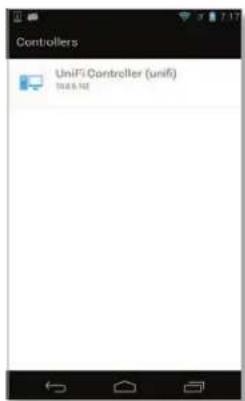
text_image
Controllers UniFi Controller (unifi) 10.0.5.142- Enter the Username and Password, and then tap Log In.
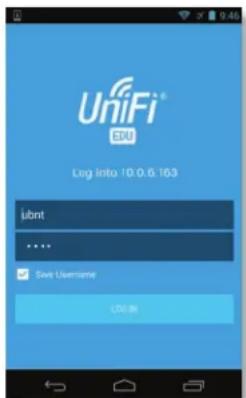
text_image
UniFi SBU Log into 10.0.6.163 libnt **** Save Username LOG Name- Tap the site of your UniFi AP AC EDU devices.
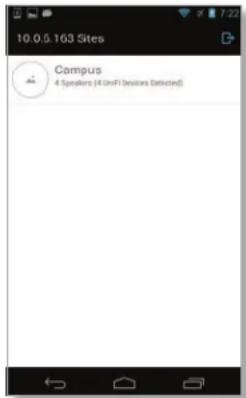
text_image
10.0.5.163 Sites Campus 4 Speakers (4 UniFi Devices Detected)- After the app checks the status of the speakers, select the ones you want to use, and tap Broadcast.

Note: Use the slider control to adjust the volume for each speaker.
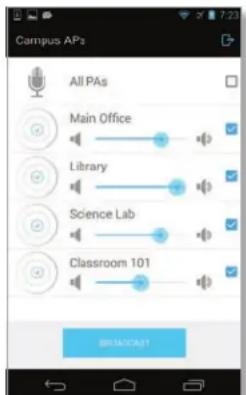
text_image
Campus APs All PAs Main Office Library Science Lab Classroom 101- After the speakers initialize, begin the announcement. Tap Stop Broadcasting to end the announcement.
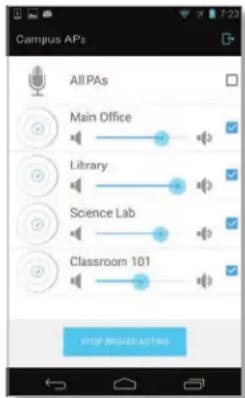
text_image
Campus APs All PAs Main Office Library Science Lab Classroom 101 STOP BROADCASTINGThe speakers will automatically shut down when you stop broadcasting.
Appendix D: Contact Information
Ubiquiti Networks Support
Ubiquiti Support Engineers are located around the world and are dedicated to helping customers resolve software, hardware compatibility, or field issues as quickly as possible. We strive to respond to support inquiries within a 24-hour period.
Ubiquiti Networks, Inc.
2580 Orchard Parkway
San Jose, CA 95131
www.ubnt.com
Online Resources
Support: ubnt.link/UniFi-Support
Community: community.ubnt.com/unifi
Downloads: downloads.ubnt.com/unifi

natural_image
Abstract logo design featuring a stylized letter 'U' with blue and gray curved elements (no text or symbols)www.ubnt.com