PixelPro ZN-MDI243M-IR - Security Camera Ganz - Free user manual and instructions
Find the device manual for free PixelPro ZN-MDI243M-IR Ganz in PDF.


User questions about PixelPro ZN-MDI243M-IR Ganz
0 question about this device. Answer the ones you know or ask your own.
Ask a new question about this device
Download the instructions for your Security Camera in PDF format for free! Find your manual PixelPro ZN-MDI243M-IR - Ganz and take your electronic device back in hand. On this page are published all the documents necessary for the use of your device. PixelPro ZN-MDI243M-IR by Ganz.
USER MANUAL PixelPro ZN-MDI243M-IR Ganz
Before connecting, operating or adjusting this product, read this instruction booklet carefully and completely
SAFETY INSTRUCTIONS
1) Read these instructions.
2) Keep these instructions.
3) Heed all warnings.
4) Follow all instructions.
5) Do not use this apparatus near water.
6) Clean only with a dry cloth.
7) Do not block any of the ventilation openings. Install in accordance with the manufacturer's instructions.
8) Do not install near any heat sources such as radiators, heat registers, stoves, or other apparatus that produce heat.
9) Only use the attachments/accessories specified by the manufacturer.
10) Use only with a cart, stand, tripod or bracket specified by the manufacturer, or sold with the apparatus. When a cart is used, use caution when moving the cart/apparatus combination to avoid injury from tip-over.

natural_image
Silhouette of a person climbing a ladder inside a circle (no text or symbols)12) Unplug this apparatus during lightning storms or when unused for long periods of time.
13) Refer all servicing to qualified service personnel. Servicing is required when the apparatus has been damaged in any way, such as power supply cord or plug is damaged, liquid has been spilled or objects have fallen into the apparatus, the apparatus has been exposed to rain or moisture, does not operate normally, or has been dropped.
CALIFORNIA USA ONLY
This Perchlorate warning applies only to primary CR (Manganese Dioxide) Lithium coin cells in the product sold or distributed ONLY in California USA. "Perchlorate Material - special handling may apply, See www.dtsc.ca.gov/hazardouswaste/perchlorate."
Caution
Danger of explosion if battery is incorrectly replaced.
Replace only with the same or equivalent type.
These servicing instructions are for use by qualified service personnel only. To reduce the risk of electric shock does not perform any servicing other than that contained in the operating instructions unless you are qualified to do so.
In USA and Canada, Use Class 2 Power Supply Only
Contents
1. PRODUCT FEATURES .... 4
2. ACCESSING THE CAMERA....9
2.1 ACCESS FROM A BROWSER 9
2.2 ACCESSING THE CAMERA FROM THE INTERNET....10
2.3 ADJUSTING THE IMAGE ANGLE....10
2.4 THE LIVE VIEW PAGE....10
2.5 VIDEO STREAM TYPES 11
2.6 HOW TO STREAM H.264 11
3. THE SETUP .... 12
4. ANALOG OUTPUT .... 13
4.1 ANALOG OUTPUT SETUP....13
5. VIDEO ....13
5.1 CODEC 13
5.2 CAMERA 16
5.2.1 Exposure Control 16
5.2.2 Day & Night Control 17
5.2.3 White Balance Control 17
5.2.4 Image Property Control....17
6. LIVE 18
6.1 SETUP....18
6.2 PRIVACY MASKING....19
7. FTP....20
7.1 FTP > CONFIG....20
7.2 FTP > EVENT 20
7.3 FTP > PERIODICAL 21
8. EVENT 22
8.1 EVENT > MOTION 22
8.2 EVENT > MAPPING 23
9. NETWORK....24
9.1 NETWORK > IP SETUP....24
9.2 NETWORK > SERVICE PORT 26
9.3 NETWORK > RTP 26
9.4 NETWORK > E-MAIL 27
9.5 NETWORK > DDNS....27
9.6 NETWORK > UPNP 28
10. SYSTEM 29
10.1 SYSTEM > USER 29
10.2 SYSTEM > DATE & TIME 30
10.3 SYSTEM > MAINTENANCE....31
10.4 SYSTEM > INFORMATION....33
11. DIMENSION (MM)......34
12. SPECIFICATION......35
1. Product Features
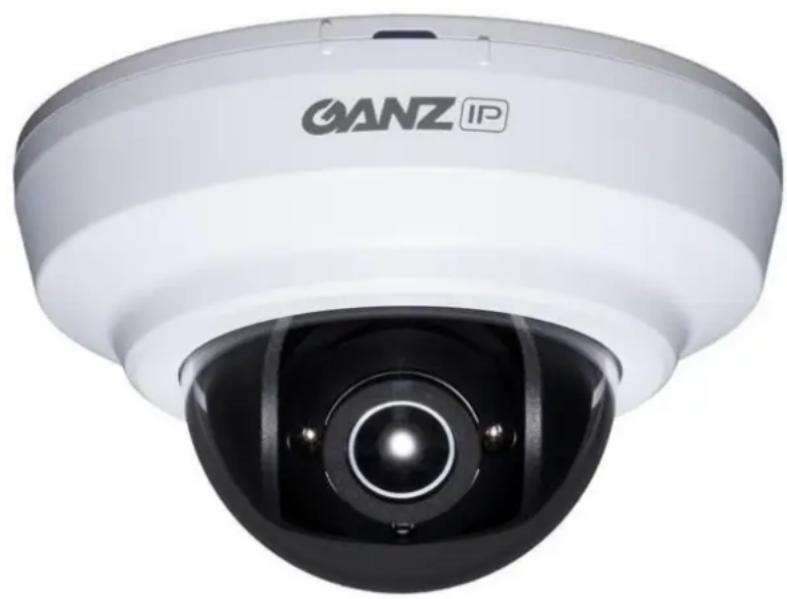
The GANZ PixelPro (ZN-MDI243M-IR)) is a high performance H.264 network camera, designed for demanding security installations. It delivers crisp, clear images, disclosing every detail, thanks to its top quality Megapixel progressive CMOS sensor and advanced image processing.
Supported by the industry's largest base of video management software, the GANZ PIxelPro provides the perfect solution for securing bank offices, airports and other facilities, and for traffic surveillance, over IP based networks.
The optimal Power over Ethernet (IEEE 802.3af) support power to the camera to be delivered via the network, eliminating the need for a power outlet and reducing installation costs. Steady power could be guaranteed with a central Uninterruptible Power Supply (UPS).
natural_image
Front view of a GANZ IP security camera (no visible text or symbols on the device body)The GANZ PixelPro offers a comprehensive set of network security and management features.
This includes support for port based network control (IEEE802.1X), which allows the camera to be connected to a network secured with this control, and HTTPS encryption, which provides a secure channel between camera and application. It also enables authentication of the video source. Video products are efficiently managed with the powerful GANZ PixelPro Camera Management tool, which is provided on the Installation CD which comes with each GANZ PixelPro camera.
text_image
Technical diagram of a mechanical device with numbered components labeled 1 to 4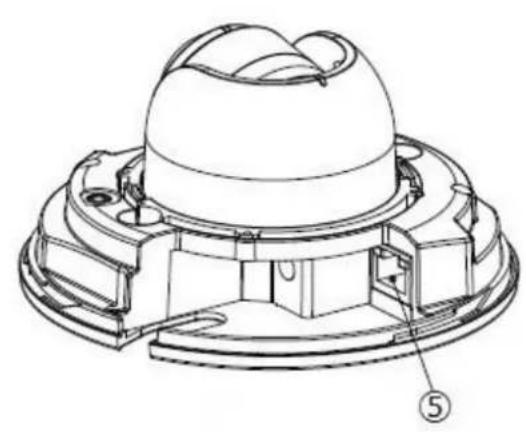
natural_image
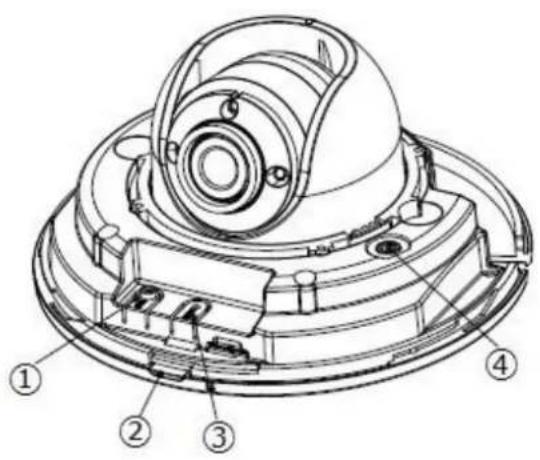
Technical line drawing of a mechanical component with a dome-like top and internal cavities (no text or symbols)1. Control Button
This button has 3 functions by pressing time.
1) Switch NTSC / PAL format (less than 1 second)
2) System reboot (around 5 seconds)
3) Factory Default Reset (More than 10 seconds)
2. Status LED
| LED Color | Indication | System Status |
| Green | On | Steady for correct power and activity. |
| Flash | Camera is booting up. | |
| Unlit | - | No network connection established.When no or incorrect power is supplied. |
| Red | On | Camera reset is started. |
| Flash | Factory Default is started. |
3. Reset Button
Press this button to restore the camera.
4. Video output for service monitor
This analog video output is available.
5. Network connector
The GANZ PixelPro (ZN-MB243M) connects to the network via a standard network cable, and automatically detects the speed of the local network segment (10BaseT/100BaseTX Ethernet). This socket could also be used to power the GANZ PixelPro via Power over Ethernet (PoE). The camera auto-senses the correct power level when using a PoE (Class 2) switch, router or injector.
Installation Preparation
1) Remove Dome Cover
- Please turn counterclockwise the dome cover by grasping the bottom of the camera.

text_image
LOCK UNLOCK LOCK UNLOCK2) Adjustment Image position
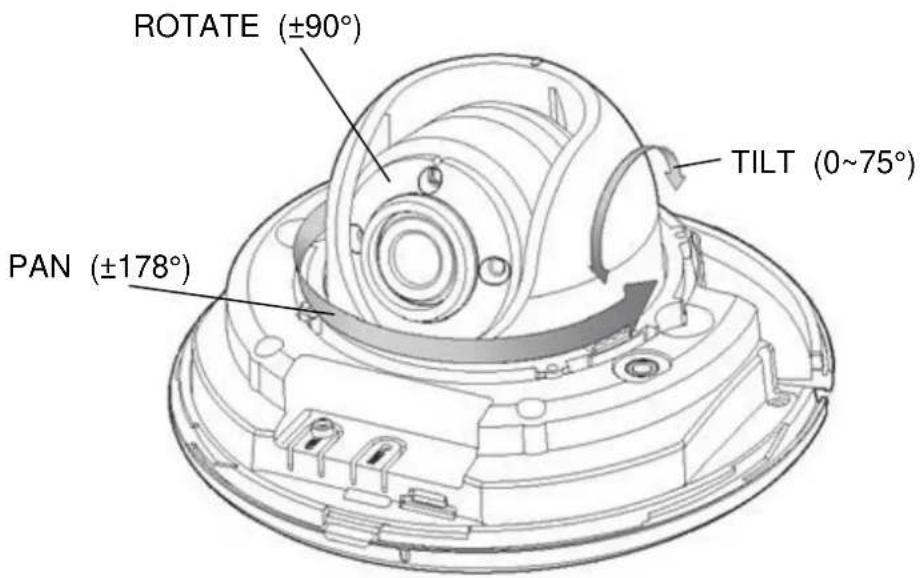
text_image
ROTATE (±90°) TILT (0~75°) PAN (±178°)Mounting to a Ceiling / Wall
Secure the camera to ceiling or wall with supplied tapping screws like below.
1) In Ceiling Mount
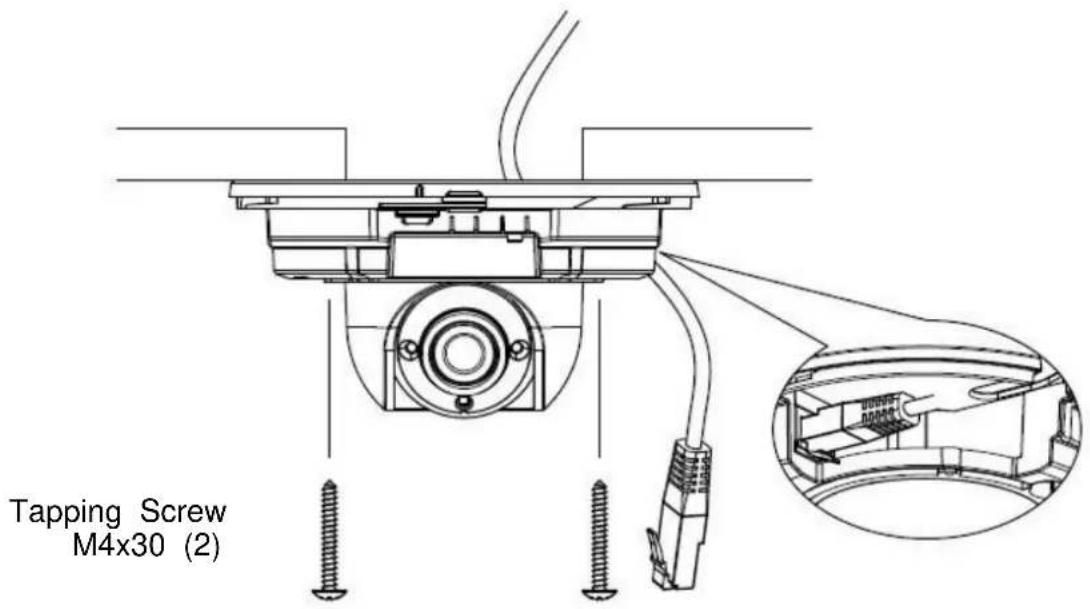
text_image
Tapping Screw M4x30 (2)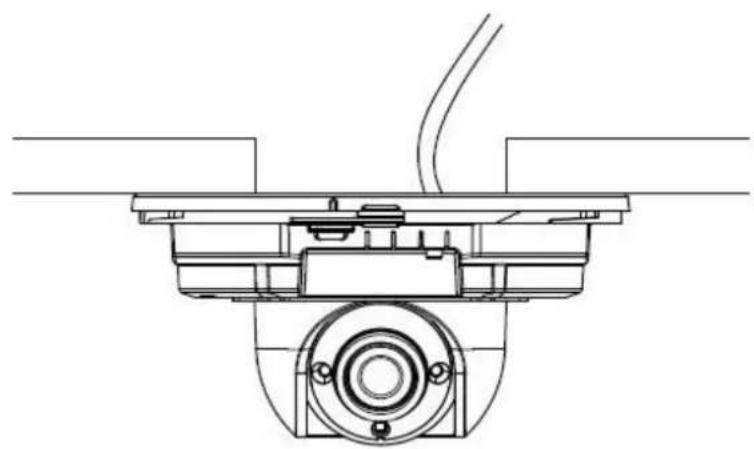
natural_image
Technical line drawing of a mechanical assembly with no visible text or symbols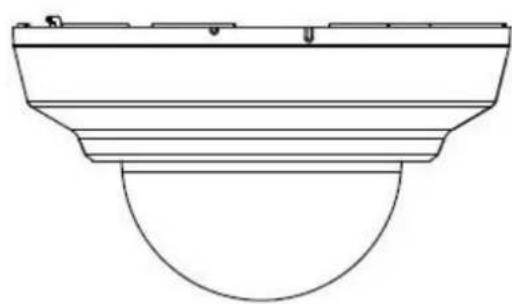
natural_image
Pure technical line drawing of a mechanical component or bracket (no text or symbols)2) Surface Mount
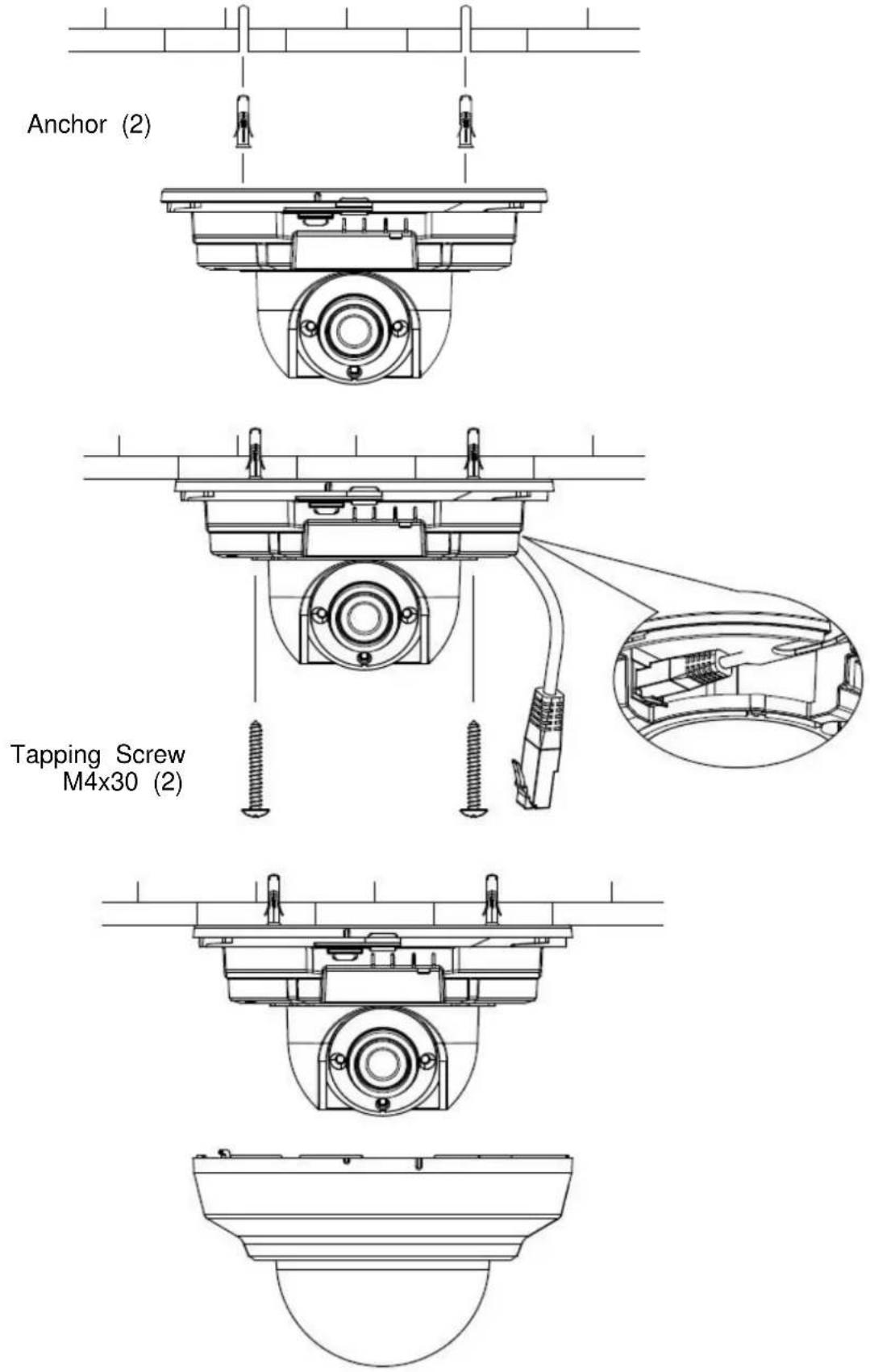
text_image
Anchor (2) Tapping Screw M4x30 (2)2. Accessing the Camera
Follow the instructions in the GANZ PixelPro Installation Guide to install the camera.
The GANZ PixelPro could be accessed with most standard operating systems and browsers. The recommended browser is Internet Explorer for Windows with other operating systems.
2.1 Access from a browser
- Start a browser (Internet Explorer)
- Enter the IP address or host name of the camera in the Location/Address field of your browser. Press Enter.
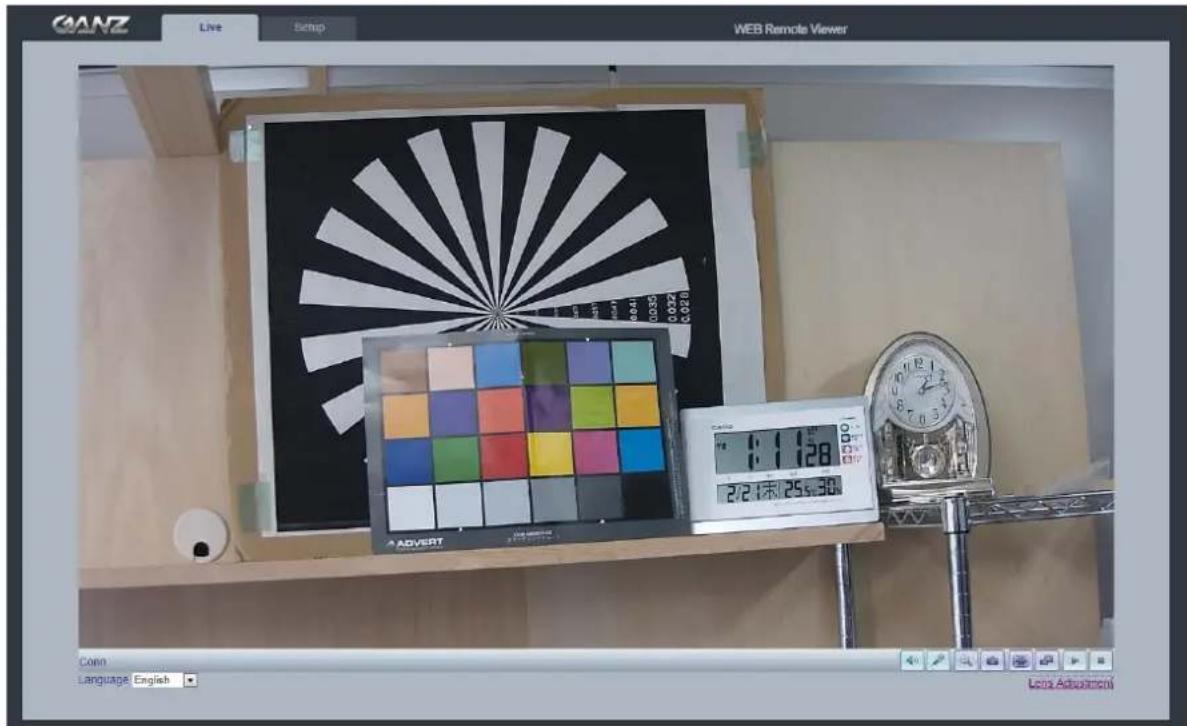
text_image
GANZ Live Setup WEB Remote Viewer 2/21:00 25:30 ADVERT Time: 1:128 27:14:00 25:30 Language: English Lens Adjustment- Login dialog will appear when the camera is accessed for the first time.
- The default user name is ADMIN, and password is 1234.
- The camera's Live View page is now displayed in your browser.
Note: The layout of the live view page in the camera may have been customized to meet specific requirements. Consequently, some of the examples and functions featured here may differ from those displayed on your own Live View page.
2.2 Accessing the camera from the Internet
Once installed, the camera is accessible on the local network (LAN). Configure the router/firewall to allow incoming data traffic to access the camera from the Internet. For security reasons this is usually done on a specific port. Please refer to the documentation for router/firewall for further instructions.
2.3 Adjusting the Image angle
To adjust the image angle.
- Open the Live View page in your web browser.
- Select the Setup tab, and open the Analog output page.
- Select the 'Video Format'.
- Connect supplied video monitor cable to video output connector, then connect it to analog monitor with coaxial cable.
- Adjust lens position.
Or otherwise check the image from the Live View page on your web browser.
- Adjust lens position.
2.4 The Live View page

Enable/Disable PC Speaker output

Enable/Disable PC Microphone input

Digital Zoom

Snap Shot

Full Screen

Video Stream change: First stream ⇔ Second stream

Play: Click this button by manually to start the stream

Stop: Click this button by manually to stop streaming
NOTE: It is possible that not all the buttons described below will be visible unless the Live View page has been customized to display them.
2.5 Video stream types
H.264 protocols and communication methods
- RTP (Real-time Transport Protocol) is a protocol that allows programs to manage the real-time transmission of multimedia data, via unicast or multicast.
- RTSP (Real Time Streaming Protocol) serves as a control protocol, to negotiate the type of transport protocol to use for the stream. RTSP is used by a viewing client to start a unicast session.
- UDP (User Datagram Protocol) is a communications protocol that offers limited service for exchanging data in a network which uses the Internet Protocol (IP). UDP is an alternative to the Transmission Control Protocol (TCP). The advantage of UDP is that, it is not required to deliver all data and may drop network packets when there is network congestion. This is suitable for live video, as there is no point in re-transmitting old information that will not be displayed anyway.
- Unicasting is communication between a single sender and a single receiver over a network. This means that the video stream goes independently to each user, and each user gets own stream. A benefit of unicasting is, in case one stream fails, it only affects one user.
- Multicasting(Will be supported)is bandwidth-conserving technology that reduces bandwidth usage by simultaneously delivering a single stream of information to multiple network recipients. This technology is used primarily on delimited networks (intranets), as each user needs an uninterrupted data flow and should not rely on network routers.
2.6 How to stream H.264
Deciding on the combination of protocols and methods to use depends on your viewing requirements, and on the properties of your network. Setting the preferred method(s) is done in webpage.
RTP+RTSP
This method (actually RTP over UDP and RTSP over TCP) should be your first consideration for live video, especially when it is important to always have an up-to-date video stream, even if some images are lost due to network problems. This could be configured as multicast or unicast.
RTP/RTSP/Multicasting (Will be supported) provides the most efficient usage of bandwidth, especially when there are large numbers of clients viewing simultaneously. Note however, that a multicast broadcast could not pass a network router unless the router is configured to allow this. For example, It is impossible to multicast over the Internet.
RTP/RTSP/Unicasting should be used for video-on-demand broadcasting, so that there is no video traffic on the network until a client connects and requests the stream. However, as more and more unicast clients get connected, the traffic on the network will increase and may cause congestion. Although there is a maximum of 10 unicast viewers, note that all multicast users combined count as 1 unicast viewer.
RTP/RTSP
This unicast method is RTP tunneled over RTSP. This could be used to exploit the fact that it is relatively simple to configure firewalls to allow RTSP traffic.
3. The Setup
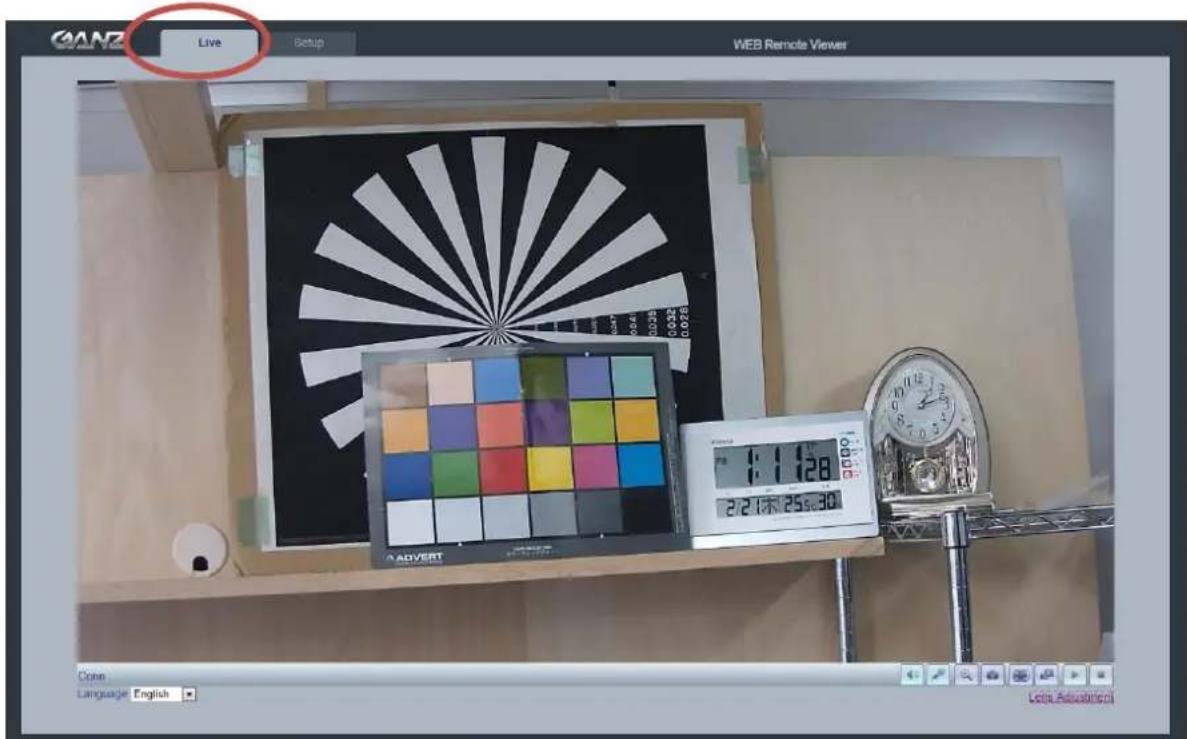
The GANZ PixelPro is configured from the Setup link, which is available on the top left hand side in the web interface. This configuration could be done by:
- Administrators, who have unrestricted access to all settings under the Setup tab.
Accessing the Setup link from a browser
- Start your web browser and enter the IP address or host name of the camera into the address bar.
- The Live View page is now displayed. Click on the Setup tap.
text_image
GANZ Live Setup WEB Remote Viewer 2:21:30 25:30 Advert Clons Language English Leta. Education4. Analog output
text_image
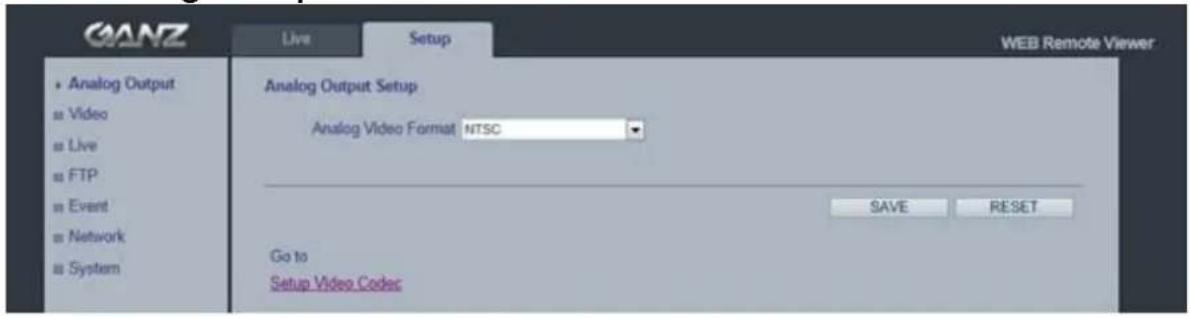
GANZ Live Setup WEB Remote Viewer Analog Output Video Live FTP Event Network System Analog Output Setup Analog Video Format NTSC SAVE RESET Go to Setup Video Codec4.1 Analog Output Setup
Analog output allows selection of output format of the analog BNC output from the camera. NTSC, PAL: Analog Output is selectable.
5. Video
The following descriptions show examples of some of the features available in the GANZ PixelPro.
5.1 Codec
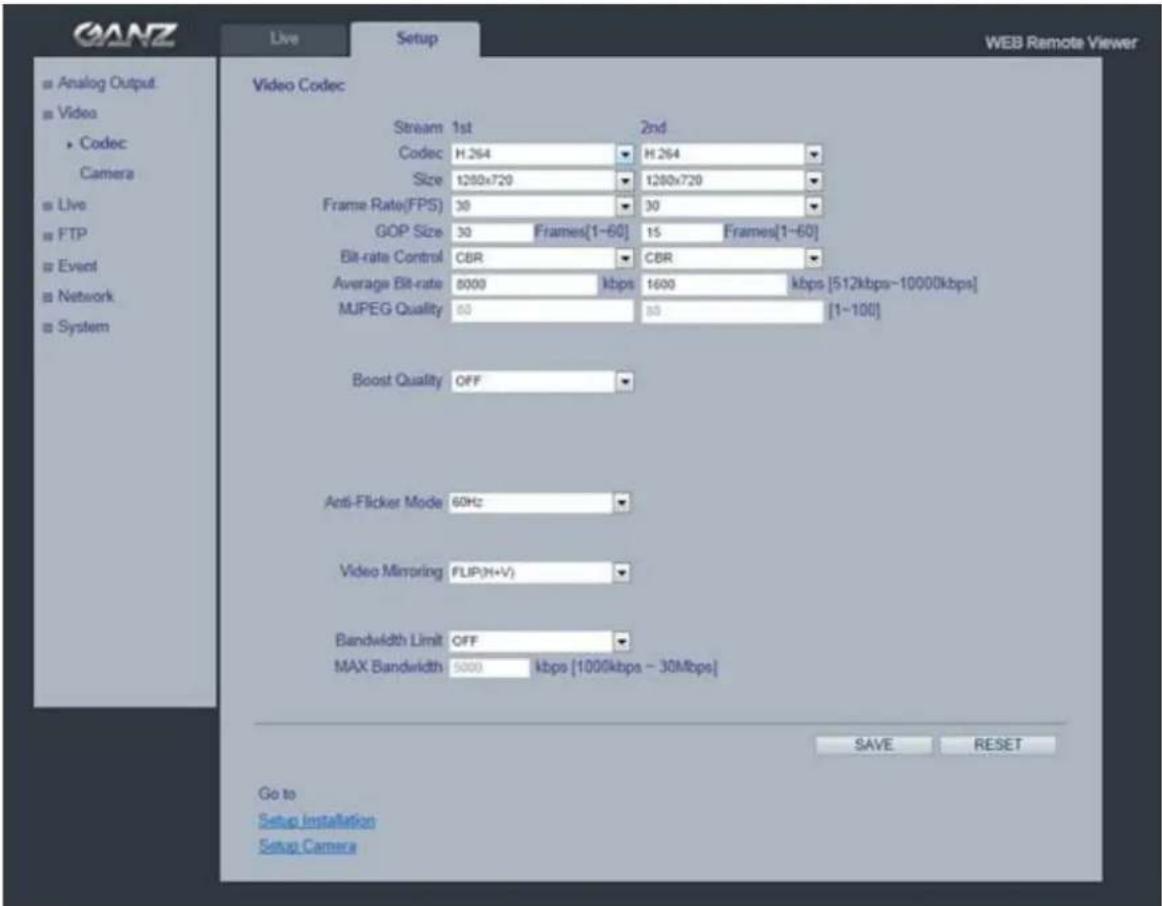
These are the tools for adjusting the H.264 settings and controlling the video bit rate.
text_image
GANZ Live Setup WEB Remote Viewer Video Codec Stream 1st 2nd Codec H.264 H.264 Size 1280x720 1280x720 Frame Rate(FPS) 30 30 GOP Size 30 Frames[1~60] 15 Frames[1~60] Bit-rate Control CBR CBR Average Bit-rate 8000 kbps 1600 kbps [512kbps~10000kbps] MUPEG Quality 60 80 [1~100] Boost Quality OFF Anti-Flicker Mode 60Hz Video Mirroring FLIP(H+V) Bandwidth Limit OFF MAX Bandwidth 5000 kbps [1000kbps ~ 30Mbps] GO to Setup Installation Setup Camera SAVE RESETH.264
This is a video compression standard that makes good use of bandwidth and which could provide high-quality video streams at less than 1 Mbit/s.
The H.264 standard provides scope for a large range of different coding tools for use by various applications in different situations, and the GANZ PixelPro provides certain subsets of these tools.
Using H.264, it is also possible to control the bit rate, which in turn allows the amount of bandwidth usage to be controlled. CBR (Constant Bit Rate) is used to achieve a specific bit rate by varying the quality of the H.264 stream. While using VBR (Variable Bit Rate), the quality of the video stream is kept as constant as possible, at the cost of a varying bit rate.
Motion JPEG
This format uses standard JPEG still images in the video stream. These images then are displayed and updated at a rate sufficient to create a stream that shows constantly updated motion.
The Motion JPEG stream uses considerable amounts of bandwidth, but also provides excellent image quality and access to every individual image contained in the stream.
Multiple clients accessing Motion JPEG streams could use different image settings.
Codec
H.264 / MJPEG
Size
Video output resolution. See the next page for the output resolution table.
Frame rate
1\~30fps in normal mode (1\~15fps for slow shutter mode)
Note: If the slow shutter mode is turned on and the low light condition is met, the frame rate is automatically goes down. In this case, the frame is half of the normal mode.
GOP Size
1 \~ 60 frames
Bit-rate control (CBR or VBR)
When using H.264 compression, if there is only limited bandwidth available, a constant bit rate(CBR) is recommended, although this may compromise image quality. Use a variable bit rate(VBR) for the best possibly image quality.
Average Bit-rate (512Kbps \~ 10Mbps)
Recommended bit rate for D1: 800Kbps \~ 1Mbps
Recommended bit rate for 1.3M(720p): 3Mbps \~ 4Mbps
Recommended bit rate for 2.0M(1080p): 6Mbps \~ 8Mbps
Anti-Flicker mode (Flicker less mode)
60Hz:NTSC
50Hz:PAL or flicker-free mode(to use the camera in locations lit by fluorescent lighting).
Video Mirroring
Select Video Mirroring mode NONE/ HORIZONTAL / VERTICAL / FLIP(H+V)
Bandwidth Limit
Limit the bandwidth that the GANZ PixelPro can use during a network connection.
Max Bandwidth
Specify the maximum bandwidth that the GANZ PixelPro can use during a network connection.
< Output resolution table for PixelPro>
| First Stream | Second Stream | |||||||
| 1920x1080 | 704x480 | 640x480 | 640x360 | 640x352 | 352x288 | 352x240 | 320x240 | - |
| 1280x1024 | 704x480 | 640x480 | 640x360 | 352x288 | 352x240 | 320x240 | - | - |
| 1024x768 | 704x480 | 640x480 | 640x360 | 352x288 | 352x240 | 320x240 | - | - |
| 1280x720 | 1280x720 | 704x576 | 704x480 | 640x480 | 640x360 | 352x288 | 352x240 | 320x240 |
| 704x576 | 704x576 | 640x480 | 640x360 | 352x288 | - | - | - | - |
| 704x480 | 704x480 | 640x480 | 640x360 | 352x240 | - | - | - | - |
| 640x480 | 640x480 | 320x240 | - | - | - | - | - | - |
| 640x360 | 640x360 | 320x240 | - | - | - | - | - | - |
| 352x288 | 352x288 | - | - | - | - | - | - | - |
| 352x240 | 352x240 | - | - | - | - | - | - | - |
| 320x240 | 320x240 | - | - | - | - | - | - | - |
5.2 Camera
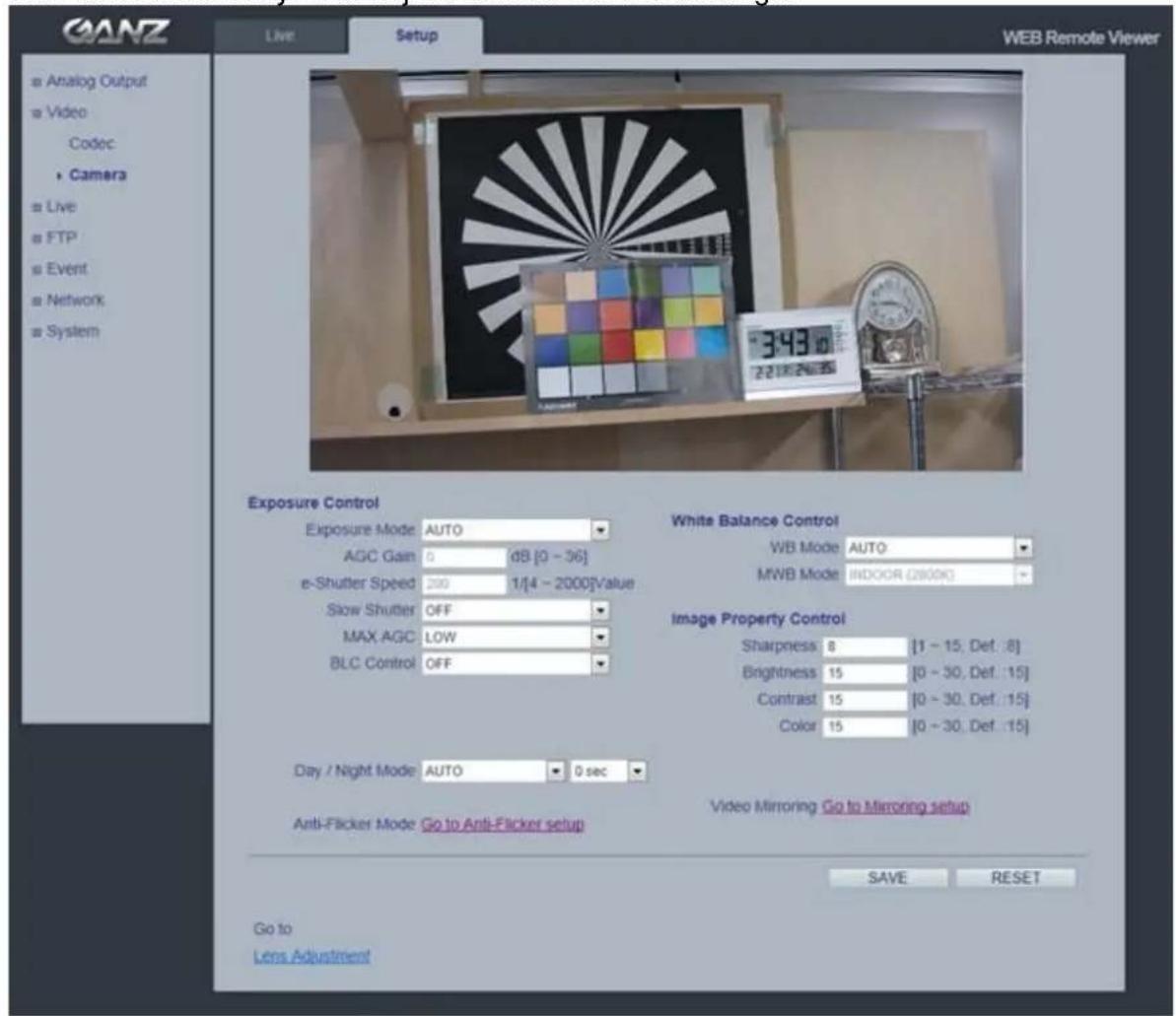
This section allows you to adjust various camera settings.
text_image
GANZ Live Setup WEB Remote Viewer Analog Output Video Codec Camera Live FTP Event Network System Exposure Control Exposure Mode AUTO AGC Gain 0 dB [0 - 36] e-Shutter Speed 200 1/[4 - 2000]Value Slow Shutter OFF MAX AGC LOW BLC Control OFF White Balance Control WB Mode AUTO MWB Mode INDOOR (2000K) Image Property Control Sharpness 8 [1 - 15, Def: .8] Brightness 15 [0 - 30, Def: .15] Contrast 15 [0 - 30, Def: .15] Color 15 [0 - 30, Def: .15] Anti-Flicker Mode AUTO 0 sec Video Mirroring Go to Mirroring setup Video Mirroring Go to Anti-Flicker setup SAVE RESET Go to Lens Adjustment5.2.1 Exposure Control
Enable AE (Auto Exposure)
ON: Use this setting for automatic exposure control.
OFF: Use these settings to control camera exposure manually.
To compensate for poor lighting conditions, you can adjust the Color level, Brightness, Sharpness, Contrast and Exposure control.
NOTE: When AE is enabled, some of the submenus (AGC Gain, e-Shutter Speed) will be disabled.
Slow shutter mode
For low light conditions, turn on slow shutter mode.
Max AGC Gain
For low light conditions, adjust to a higher value, such as 30dB.
BLC Control (Back Light Compensation)
The BLC adjusts the exposure of scenes with strong backlight in the center-bottom of the image. When the image background is too bright, or the subject too dark, backlight compensation makes the subject appear clearer. The settings for low light behavior determine how the camera behaves sat low light levels. These settings affect video image quality and how much noise is in the images.
5.2.2 Day & Night Control
Day & Night Mode
Auto/Day/Night- If set to Auto, the camera will automatically switch according to the current lighting conditions.
5.2.3 White Balance Control
WB Mode
ON: ATW (Automatic White balance)
OFF: MWB (Manual White balance)
The White balance adjustment setting is used to make the colors in the image appear consistent, compensating for the different colors present in different light sources.
The GANZ PixelPro camera can be set to automatically identify the light source and compensate for its color temperature. If necessary, the type of light source could be set manually..
5.2.4 Image Property Control
Modify the video signal parameters, such as: Brightness, Sharpness, Contrast, and Color.
Sharpness (Default: 8, Range: 1\~15)
Brightness (Default: 15, Range: 0\~30)
Contrast (Default: 15, Range: 0\~30)
Color (Default: 15, Range: 0\~30)
6. Live
text_image
GANZ Live Setup WEB Remote Viewer Analog Output Video Live Setup Privacy Mask FTP Event Network System Viewer Setup LiveView Protocol RTP over RTSP (TCP) Buffering Time 0 x 1/30sec. [0~90: 0 ~ 3sec. ] Viewer OSD Setup Resolution OFF Date/Time OFF Event State OFF SAVE RESET6.1 Setup
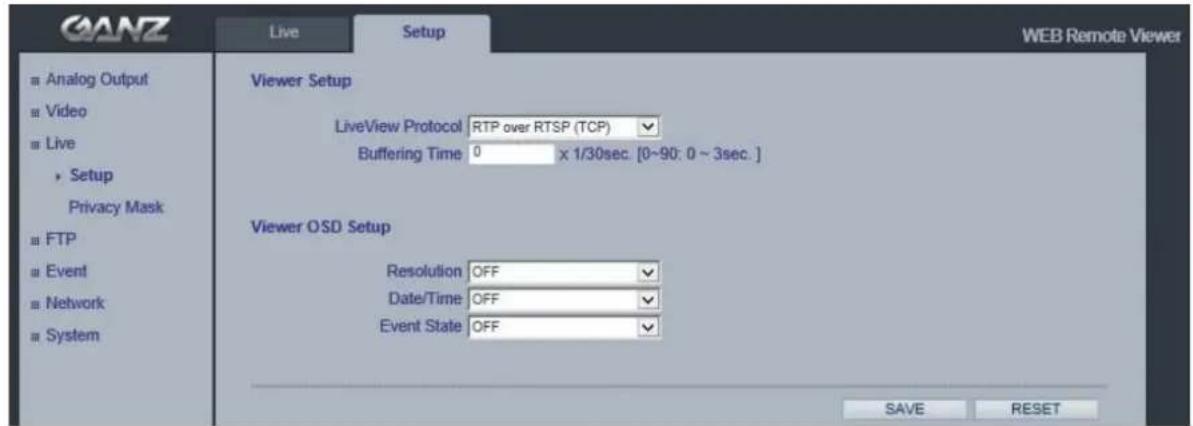
The GANZ PixelPro could support 10 simultaneous users. In case of multicast, the GANZ PixelPro could support unlimited number of users. If supported on the network, consider using multicasting, as the bandwidth consumption will be much lower.
Viewer Setup
LiveView Protocol
RTP Unicast (UDP) / RTP Multicast (UDP) / RTP over RTSP (TCP)
Buffering Time (frame based)
Determines (0 \~ 90) x 1/30 sec (0 \~ 3sec)
Viewer OSD Setup
Date : Determines whether the date is displayed.
Resolution : Determines whether the camera title is displayed.
Event State : Determines whether the event state is shown on display window.
6.2 Privacy Masking
text_image
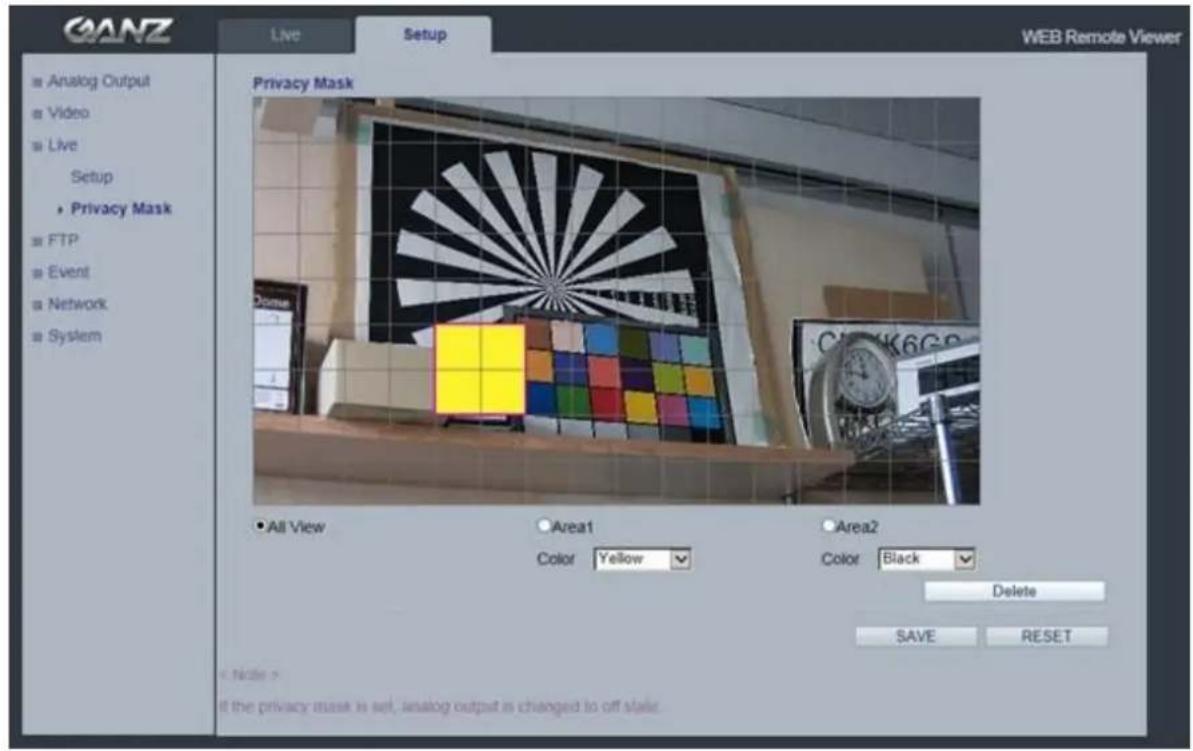
GANZ Live Setup WEB Remote Viewer Analog Output Video Live Setup Privacy Mask FTP Event Network System Privacy Mask All View Area1 Color Yellow Area2 Color Black Delete SAVE RESET Note > if the privacy mask is set, analog output is changed to off slate.This uses masking to hide sections that you do not want to appear in the shooting screen. A maximum of 2 locations can be set.
Mask Area
All View : Shows the masking area both Area 1 and 2.
Click the Masking Area 1 or 2 to make a masking.
Mask color
Sets the mask color
Black, White, Light Gray, Dark Gray, Yellow, Red, Blue, Green
Mask Creation Procedure
- Click Privacy Mask in the Live menu.
- Select Area1 or 2 to activate a setup window.
- Set the Mask Color in the drop-down list.
- Click the Masking window, and select an area that you want to specify the masking area.
- Click Save.
Note: When the Privacy Masking is set, analogue output will be changed to off state automatically.
* Privacy masking is available from FW1227 and later.
7. FTP
7.1 FTP > Config
text_image
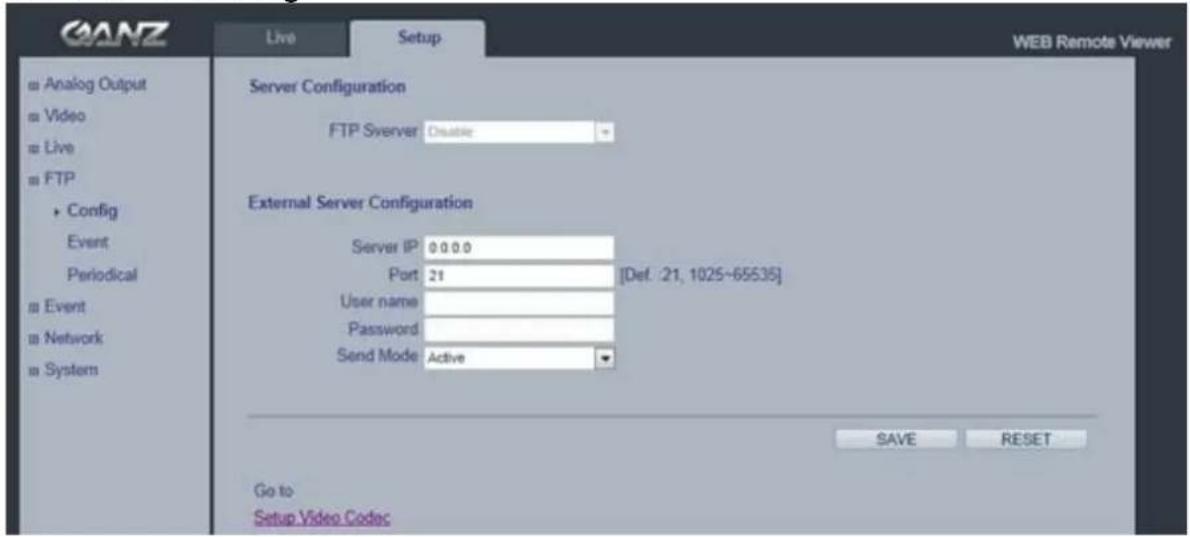
GANZ Live Setup WEB Remote Viewer Server Configuration FTP Server Disable External Server Configuration Server IP 0.0.0.0 Port 21 [Def. 21, 1025-65535] User name Password Send Mode Active SAVE RESET Go to Setup Video CodecServer Configuration (This function is N/A on this model)
External Server Configuration
It is setting page to transmit the still shot to remote sites, using the FTP server. Specify the external FTP server information such as IP address, port number, Username and password.
Note :
When the first stream is set to 1920x1080, please set the 2nd stream to MJPEG or H.264 with resolution less than 352x288. If 2nd stream is set to H.264 greater than 640x352, 30fps streaming is not guaranteed due to performance limitation.
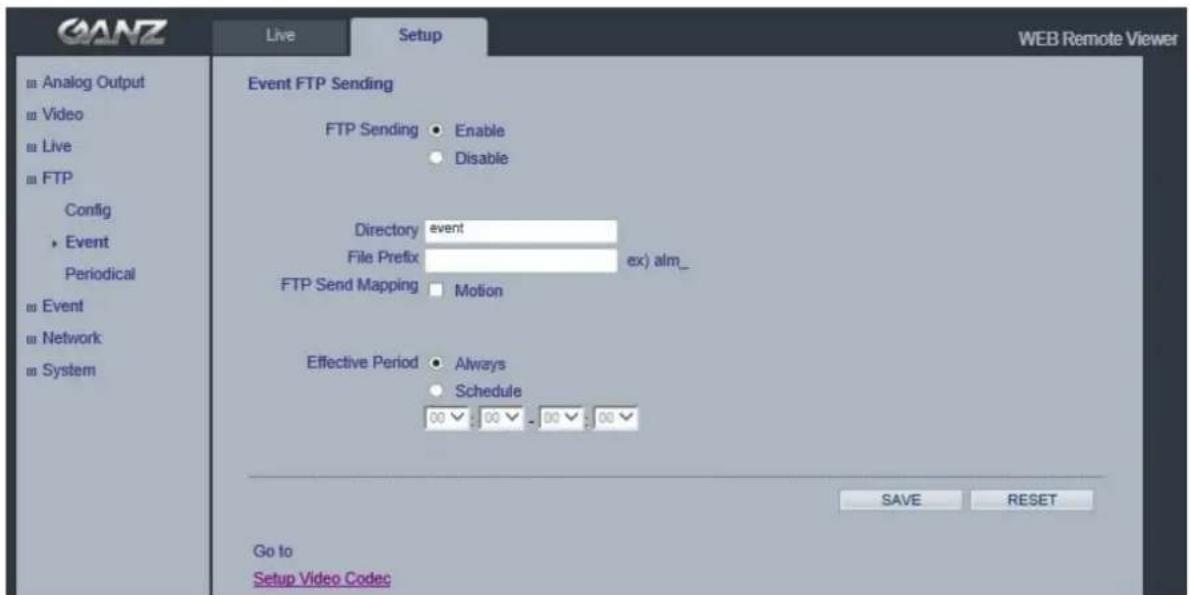
7.2 FTP > Event
text_image
GANZ Live Setup WEB Remote Viewer ■ Analog Output ■ Video ■ Live ■ FTP Config Event Periodical ■ Event ■ Network ■ System Event FTP Sending FTP Sending Enable Disable Directory event File Prefix ex) alm_ FTP Send Mapping Motion Effective Period Always Schedule 00 00 00 00 SAVE RESET Go to Setup Video CodecEvent FTP Sending
It enables FTP transmission triggered by event.
Directory : This folder will be created into external FTP server automatically.
File Prefix : The file name will start from this prefix.
Mapping : You can specify event mapping for Event FTP.
Effective Period : You can specify “Always” or “Schedule”
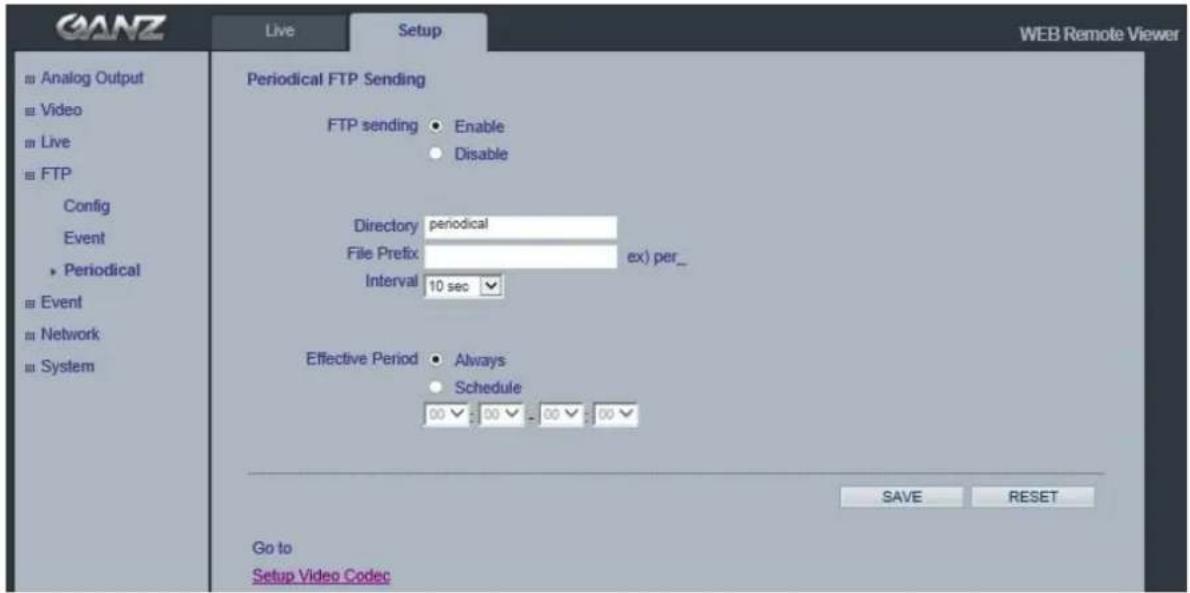
7.3 FTP > Periodical
text_image
GANZ Live Setup WEB Remote Viewer Periodical FTP Sending FTP sending Enable Disable Directory periodical File Prefix ex) per_ Interval 10 sec Effective Period Always Schedule 00 00 00 00 SAVE RESET Go to Setup Video CodecPeriodical FTP Sending
It enables FTP transmission periodically.
Directory : This folder will be created into external FTP server automatically.
File Prefix : The file name will start from this prefix.
Interval: You can specify interval time for uploading to FTP.
Effective Period : You can specify "Always" or "Schedule"
- Event
8.1 Event > Motion
Motion Detection
Motion detection is used to generate an alarm whenever movement either occurs or stops in the video image. A maximum of 4 windows could be configured.
Area Sensitivity : 1(low) \~ 10(High) – The higher the number is, the higher the sensitivity level becomes.
Configuring Motion Detection
- Click Motion Detection in the Event Config menu.
- Select an Area from Area1 to 4 to activate a Motion setup window.
- Click the Motion window, and select an area that you want to specify the Motion area.
- Select sensitivity value (1 \~ 10) in the drop-down list.
Any detected motion within an active window is then indicated by red shade onto the Activity window. - Click Save.
Note: Using the motion detection feature may decrease the camera's overall performance.
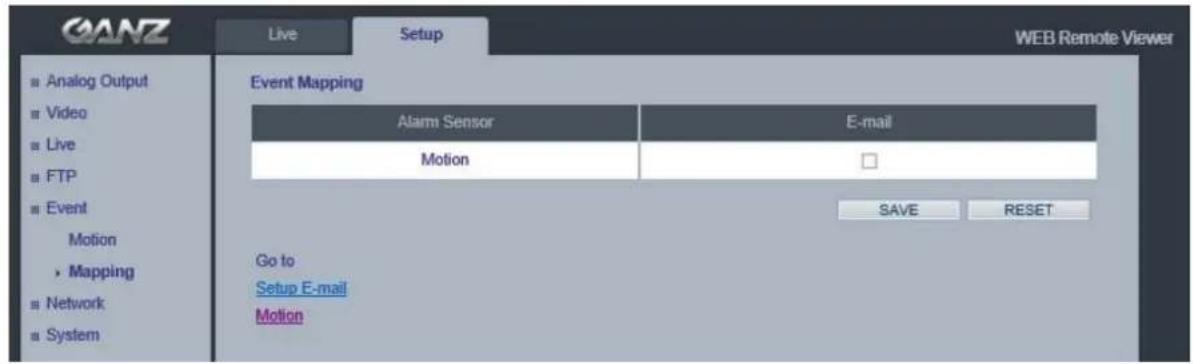
8.2 Event > Mapping
text_image
GANZ Live Setup WEB Remote Viewer ■ Analog Output ■ Video ■ Live ■ FTP ■ Event Motion ► Mapping ■ Network ■ System Event Mapping Alarm Sensor E-mail Motion □ SAVE RESET Go to Setup E-mail MotionIt is possible to define conditions that would cause the camera to respond with certain actions. A triggered event happens as a result of a trigger, which could be motion detection.
For example,
E-mail could be sent by video motion detection.
9. Network
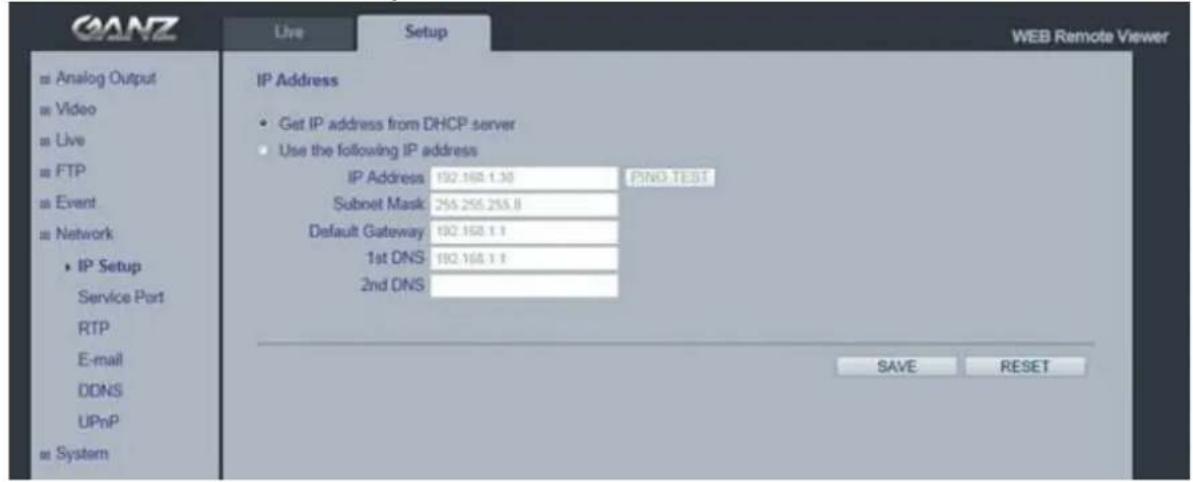
9.1 Network > IP Setup
text_image
GANZ Live Setup WEB Remote Viewer ■ Analog Output ■ Video ■ Live ■ FTP ■ Event ■ Network • IP Setup Service Port RTP E-mail DDNS UPnP ■ System IP Address • Get IP address from DHCP server • Use the following IP address IP Address 192.168.1.30 PING.TEST Subnet Mask 255.255.255.8 Default Gateway 192.168.1.1 1st DNS 192.168.1.1 2nd DNS SAVE RESETNetwork Settings
Click the Setup > Network > IP Setup to see the current network settings.
IP Address Configuration -
The GANZ PixelPro supports both IP version 4 and IP version 6 (IPv6 will be supported in V3.00). Both versions may be enabled simultaneously, and at least one version should be always enabled.
When using IPv4, the IP address could be set automatically via DHCP, or a static IP address could be set manually. If IPv6 is enabled, your camera receives an IP address according to the configuration in the network router.
There are also options for setting up notification of changes in the IP address, and for using the Internet Dynamic DNS Service.
Notes: • To receive notification whenever the camera's IP address changes (via e.g. DHCP), configure the options for notification of IP address change. See Services below. • If your DHCP server could update a DNS server, you could access the GANZ PixelPro by a host name which is always the same, regardless of the IP address.
DNS Configuration
DNS (Domain Name Service) provides the translation of host names to IP addresses on your network.
- 1st DNS server
Enter the IP address of the primary DNS server for your network.
•2nd DNS server
Enter the IP of the Secondary DNS, which is used if the Primary DNS server is unavailable.
How to assign IP address
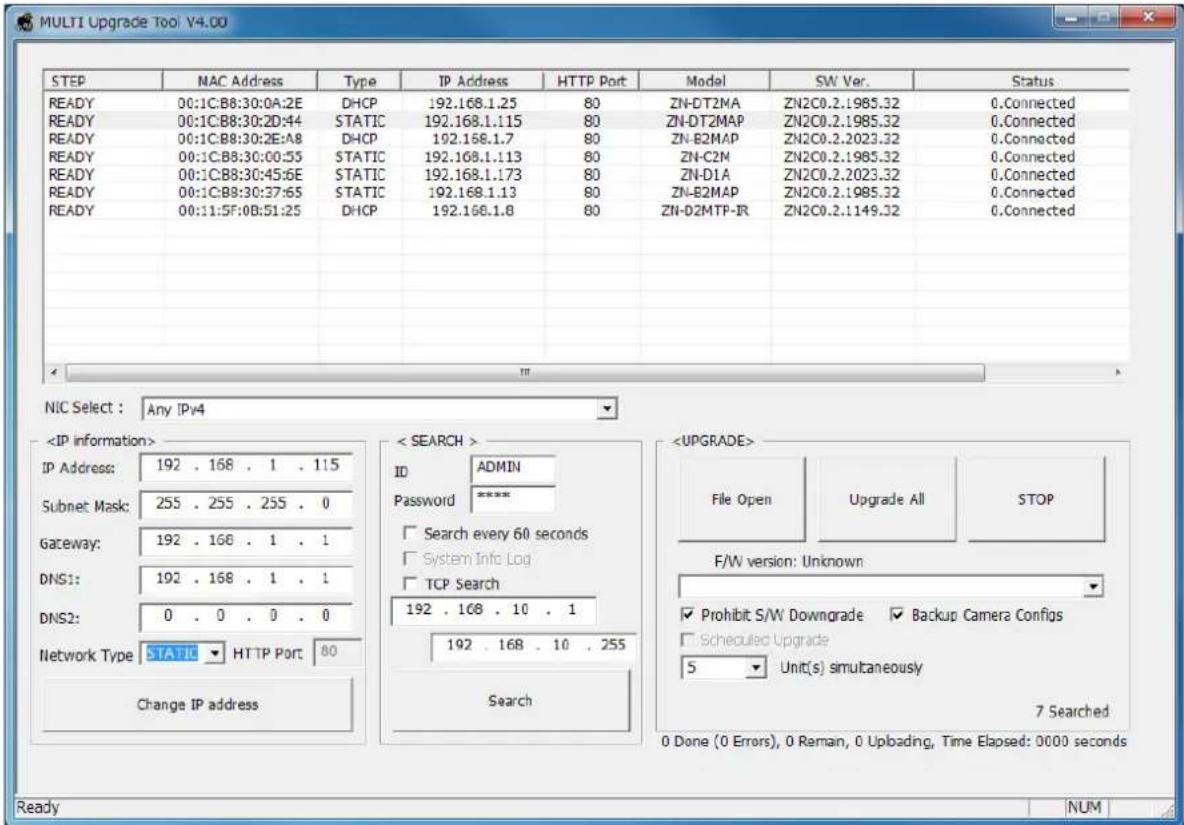
Default setting is set to "DHCP" and "UPnP" function is set to ON. If your network has DHCP server and UPnP function is enabled on your PC, you can find the network camera in "My network".
If DHCP server is not available in your network, please assign IP address as following process.
text_image
MULTI Upgrade Tool V4.00 STEP NAC Address Type IP Address HTTP Port Model SW Ver. Status READY 00:1C:B8:30:0A:2E DHCP 192.168.1.25 80 ZN-DT2MA ZN2C0.2.1985.32 0-connected READY 00:1C:B8:30:2D:44 STATIC 192.168.1.115 80 ZN-DT2MAP ZN2C0.2.1985.32 0-connected READY 00:1C:B8:30:2E:A8 DHCP 192.168.1.7 80 ZN-B2MAP ZN2C0.2.2023.32 0-connected READY 00:1C:B8:30:00:55 STATIC 192.168.1.113 80 ZN-C2M ZN2C0.2.1985.32 0-connected READY 00:1C:B8:30:45:6E STATIC 192.168.1.173 80 ZN-D1A ZN2C0.2.2023.32 0-connected READY 00:1C:B8:30:37:65 STATIC 192.168.1.13 80 ZN-B2MAP ZN2C0.2.1985.32 0-connected READY 00:11:5F:0B:51:25 DHCP 192.168.1.8 80 ZN-DZMTP-IR ZN2C0.2.1149.32 0-connected NIC Select : Any IPv41) Execute "MultiUpgradeTool.exe", it will search the camera on the network.
2) After the camera is listed in camera list, select the camera.
3) Type in the all network information.
4) Click "Change IP address" button to set network settings to the camera.
When you double-click the camera within the list, the default web browser (Internet Explorer or compatible equivalent) will open and automatically connect to the camera.
9.2 Network > Service Port
text_image
GANZ Live Setup WEB Remote Viewer Service Port HTTP Port 80 [Def. 80, 1-65535] RTSP Port 554 [Def. 554, 1-65535] Port Forwarding Port Forwarding AUTO DEL External IP SAVE RESET Analog Output Video Live FTP Event Network IP Setup Service Port RTP E-mail DDNS UPnP SystemService Port
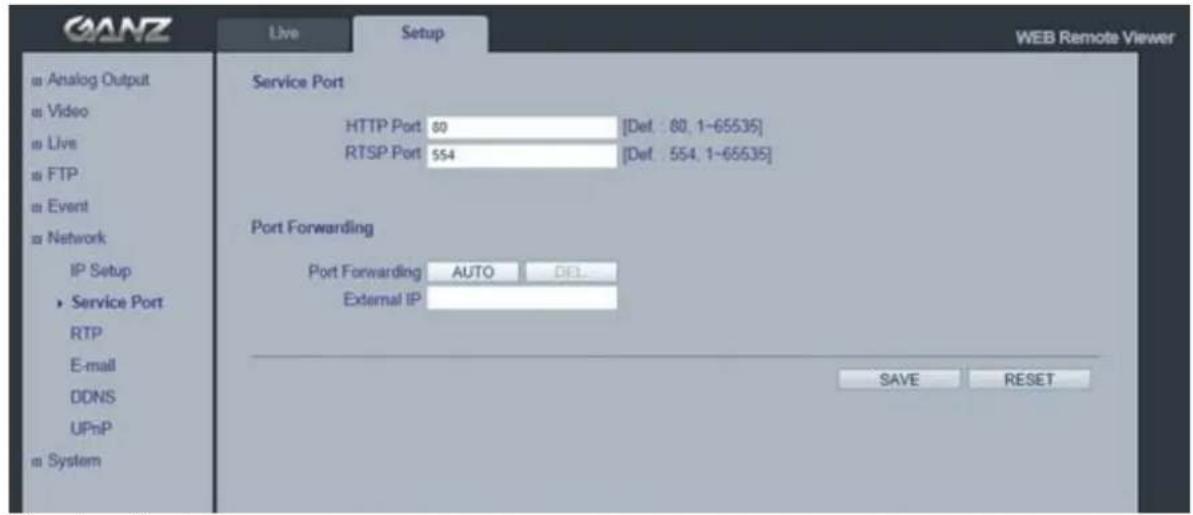
HTTP port- The default HTTP port number (80) could be changed to any port within the range 1-65535. This is useful for simple port mapping.
RTSP port- The RTSP protocol allows a connecting client to start an H.264 stream. Enter the RTSP port number to use. The default setting is 554.
NOTE: After changing the default port numbers, the user can use the "MultiUpgradeTool.exe" to search and connect automatically.
9.3 Network > RTP
text_image
GANZ Live Setup WEB Remote Viewer Analog Output Video Live FTP Event Network IP Setup Service Port RTP E-mail DDNS UPnP System RTP Port Range Start Port 50000 [1024-65524] End Port 60000 [1035-65535] Multicast Setup 1st Stream IP 239.11.116.80 Video Port 0 [0, 1024-65534: even value only] Audio Port 0 [0, 1024-65534: even value only] TTL s [1~255] 2nd Stream IP 224.11.116.80 Video Port 0 [0, 1024-65534: even value only] Audio Port 0 [0, 1024-65534: even value only] TTL s [1~255] SAVE RESETRTP port range, Multicast Setup
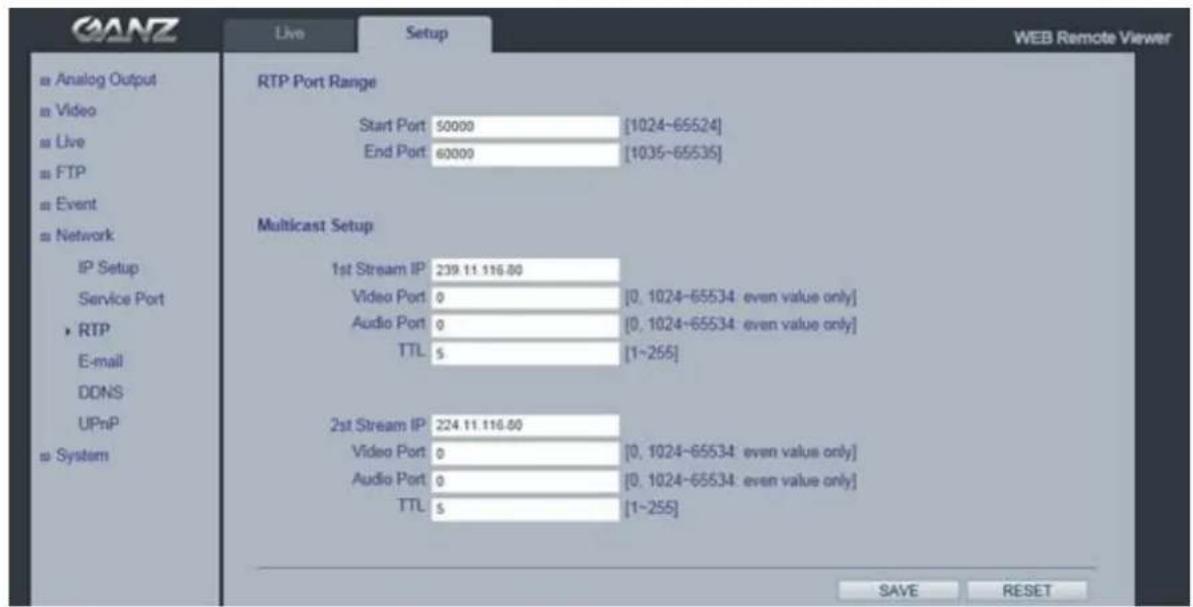
These settings are the IP address, port number, and Time-To-Live value to use for the video stream(s) in multicast H.264 format.
Only certain IP addresses and port numbers should be used for multicast streams.
9.4 Network > E-mail
text_image
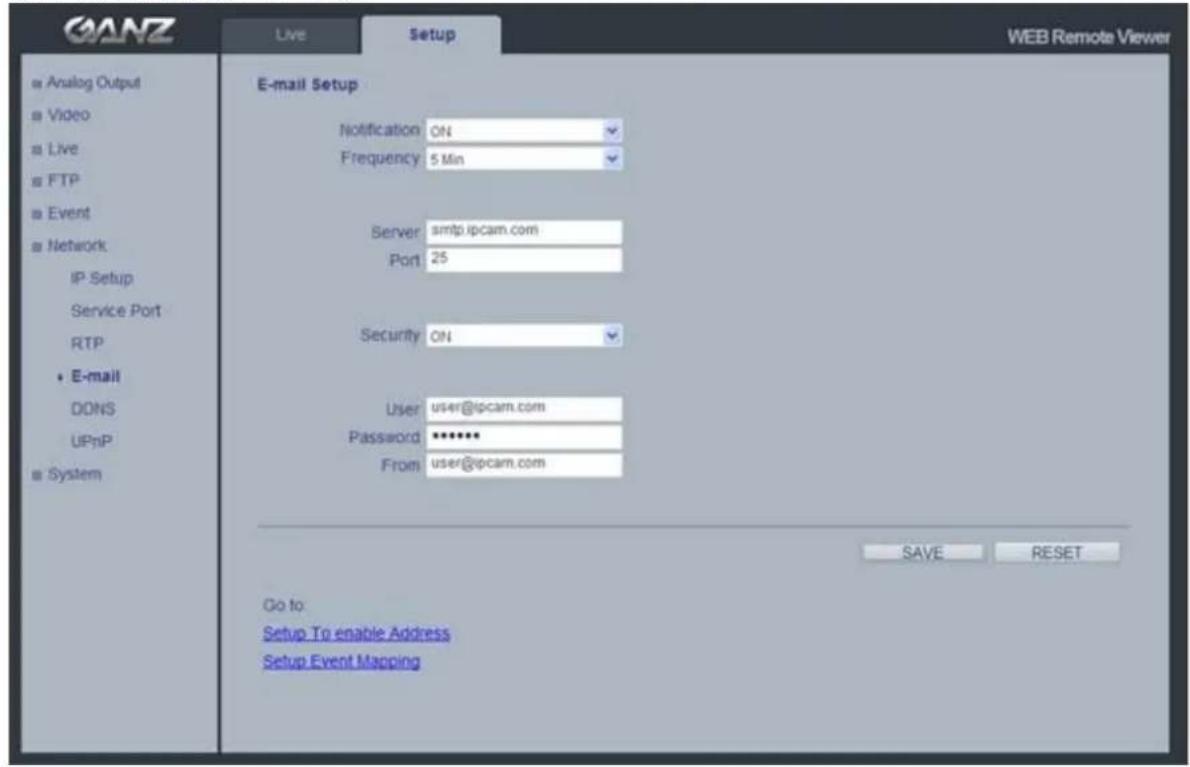
GANZ Live Setup WEB Remote Viewer Analog Output Video Live FTP Event Network IP Setup Service Port RTP E-mail DONS UPnP System E-mail Setup Notification ON Frequency 5 Min Server smtp.ipcam.com Port 25 Security ON User user@ipcam.com Password ****** From user@ipcam.com SAVE RESET Go to: Setup To enable Address Setup Event MappingYou must turn Notification to 'On' and then enter the host names or addresses for your mail servers in the fields provided, to enable the sending of event and error email messages from the camera to predefined addresses via SMTP.
Note1)
Frequency : Mail server may register the sender to SPAM list when frequency is set to "1 Min". It may be better to set "5 Min" for safe side.
Note2)
From : Specify the name who sent e-mail notification. It may be better to use e-mail format like as aaa@bbbb.com. Some e-mail server will refuses it.
9.5 Network > DDNS
text_image
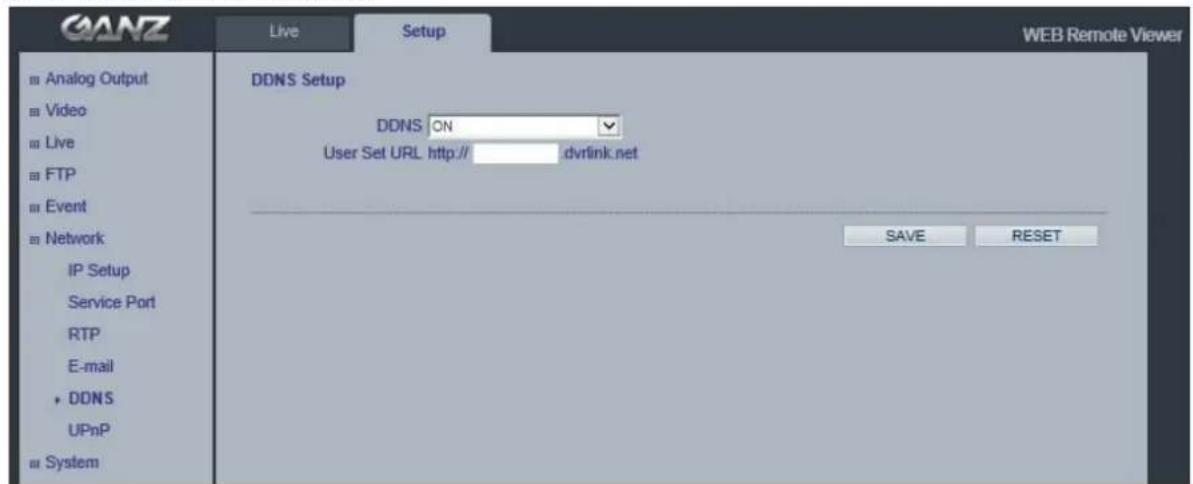
GANZ Live Setup WEB Remote Viewer Analog Output Video Live FTP Event Network IP Setup Service Port RTP E-mail DDNS UPnP System DDNS Setup DDNS ON User Set URL http:// dvrtink.net SAVE RESETHow to setup the DDNS:
1) DDNS set to ON.
"mac address.dvrlink.net" is registered to the DDNS server.
User can connect to the camera with: "http://mac address.dvrlink.net".
2) DDNS set to ON and user inputs "user-defined name".
"mac address.dvrlink.net" and "user-defined name.dvrlink.net" are both registered together.
User can connect to the camera using either:
"http://mac address.dvrlink.net" or "http://user-defined name.dvrlink.net".
If "user-defined name" is already registered, an error message is shown, try a different name.
9.6 Network > UPnP
Universal Plug & Play (UPnP) allows you to find the IP camera automatically on your network.
In order to be able to detect the camera automatically, you must enable the UPnP function on both the camera and on your PC.
Camera : Set UPnP to "ON"
PC : Open "Control Panel" >"Network Connection" Select "Advanced" >"Optional Networking Components..."
Select "Network Services" and click "Details". Then select "UPnP user Interface"
10. System
10.1 System > User
Access the camera and the Configure Root Password dialog appears.
Enter the User name: ADMIN and password is 1234.
To changed password or add a user click SETUP > SYSTEM > USER. Fill the User ID,
Password and E-mail server. Select Group. Then press ADD button and click SAVE.
Note: The default administrator user name ADMIN is permanent and could not be deleted or altered.
10.2 System > Date & Time
text_image
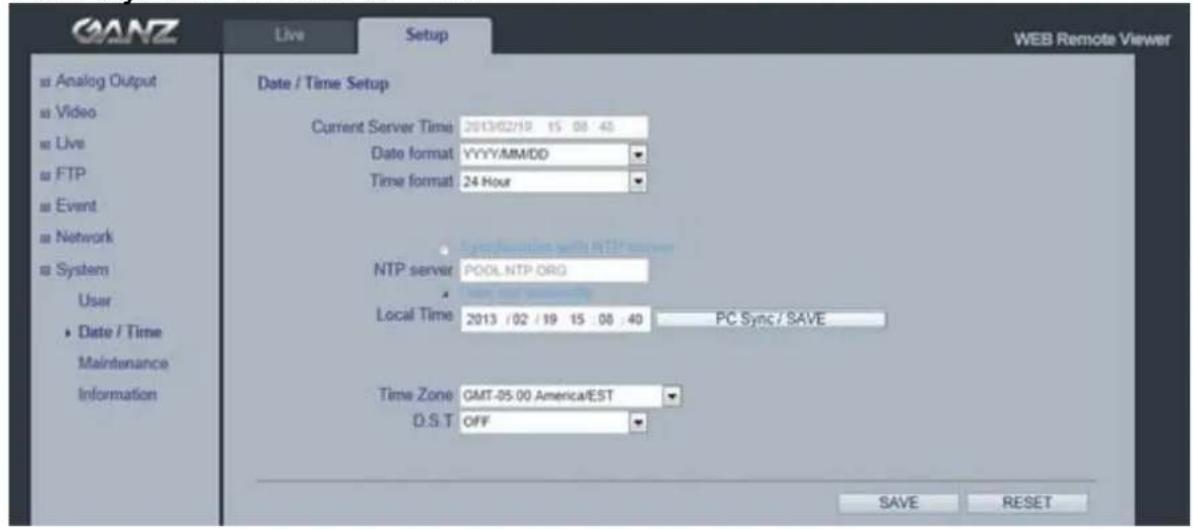
GANZ Live Setup WEB Remote Viewer Date / Time Setup Current Server Time 2013/02/18 15:00:40 Date format YYYY/MM/DD Time format 24 Hour NTP server POOL NTP ORG Local Time 2013 /02 /19 15:00:40 PC Sync / SAVE Time Zone GMT-05.00 America/EST D.S.T OFF SAVE RESETDate & Time Format - specify the formats for the date and time (12h or 24h) displayed in the Live View video streams. Use the predefined formats or use your own custom date and time formats.
Network Time Server - the camera will obtain the time from an NTP server every 60 minutes. Specify the NTP server's IP address or host name.
Time zone setup – Select your time zone from the drop-down list.
D.S.T (Daylight Saving Time) - ON/OFF
10.3 System > Maintenance
text_image
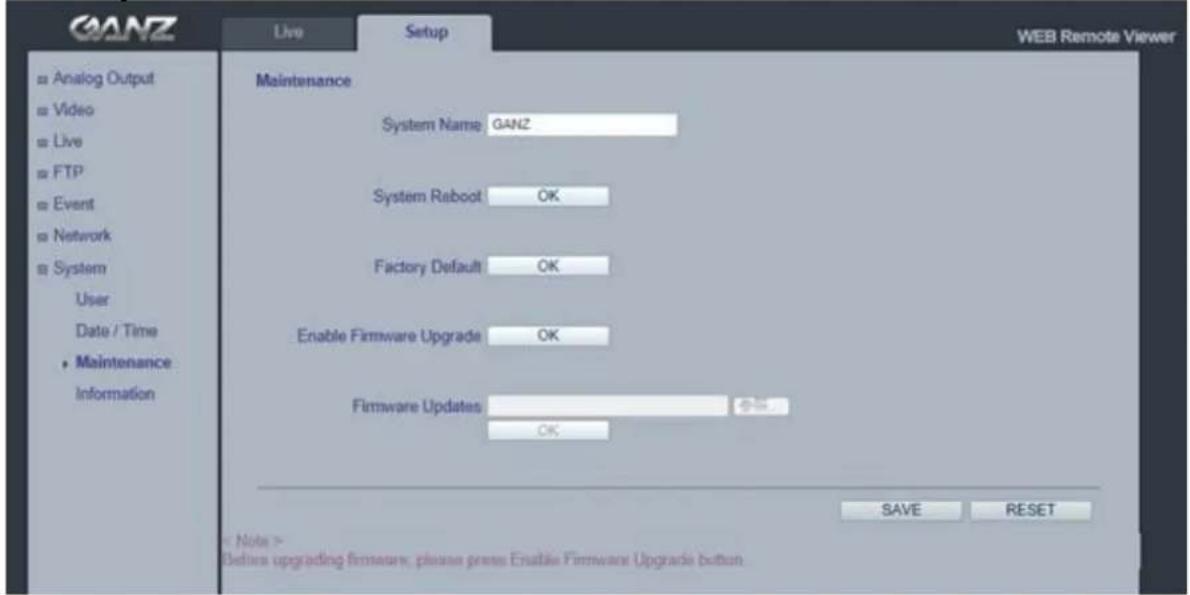
GANZ Live Setup WEB Remote Viewer Analog Output Video Live FTP Event Network System User Date / Time Maintenance Information Maintenance System Name GANZ System Reboot OK Factory Default OK Enable Firmware Upgrade OK Firmware Updates OK SAVE RESET < Note > Before upgrading firmware, please press Enable Firmware Upgrade buttonSystem Name
Choose a system name to identify the camera when using e-mail notifications.
System Reboot
Reboot the camera.
Factory Default
To reset the camera settings to the original factory default settings.
Enable Firmware Upgrade / Firmware Updates
To upgrade Firmware of the camera, follow the instruction below.
NOTE: Preconfigured and customized settings should be saved before the firmware is upgraded.
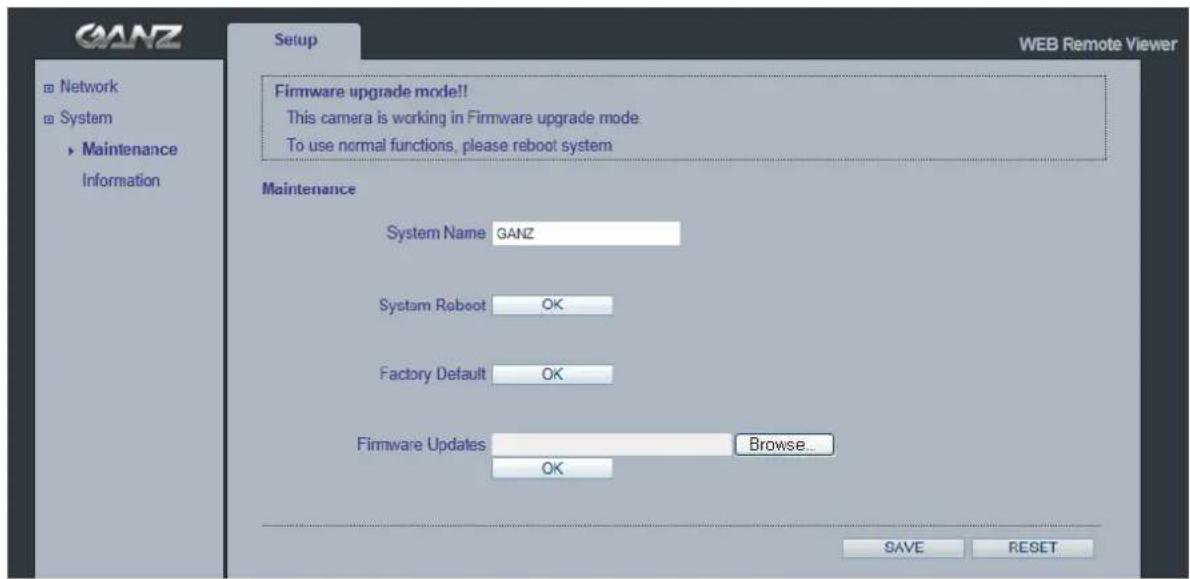
1) Enable Firmware Upgrade mode with clicking "OK" of Enable Firmware Upgrade menu.
2) The camera automatically switches to Firmware Upgrade mode.
Changing to Firmware Update Mode...

3) When Firmware upgrade menu is displayed, browse to the desired firmware file on your computer. Click OK.
text_image
GANZ Network System Maintenance Information Setup WEB Remote Viewer Firmware upgrade mode!! This camera is working in Firmware upgrade mode. To use normal functions, please reboot system Maintenance System Name GANZ System Reboot OK Factory Default OK Firmware Updates Browse... OK SAVE RESETNOTE: Do not disconnect power to the unit during the upgrade. The unit will restart automatically after the upgrade has completed. (1\~5 minutes)
System Reset (Factory Default Reset)
There are two ways to reset the camera back to factory default. holding down about 10-20 sec the reset button on the Camera
Using the web browser:
- Go to SETUP > System > Maintenance.
- Click Factory Default Button and wait 1 minute for camera to reboot.
Using the Reset Button:
- Holding down 10-20 sec the reset button on the Camera.
- Release your finger on the reset button, waiting about 1 minute for camera reboot
NOTE: The unit will now have the default IP address from a DHCP server. Use the "MultiUpgradeTool.exe" to discover and connect to the camera.
10.4 System > Information
| GANZ | Live | Setup | WEB Remote Viewer |
| ■ Analog Output ■ Video ■ Live ■ FTP ■ Event ■ Network ■ System User Date / Time Maintenance ► Information | System Information | ||
| S/W Version | ZN2C0.2.1227.32 | ||
| Model Name | ZN-MD/243M-IR | ||
| MAC Address | 00:11.5F.0B.C0.88 | ||
| IP Address | 192.168.1.169 | ||
| Subnet Mask | 258.258.255.0 | ||
| Default Gateway | 192.168.10.1 | ||
| 1st DNS | 192.168.1.1 | ||
| 2nd DNS | 0.0.0.0 | ||
| DDNS Server | DVRLINK.NET | ||
System Information
You can confirm the system information if the camera here.
11. Dimension (mm)
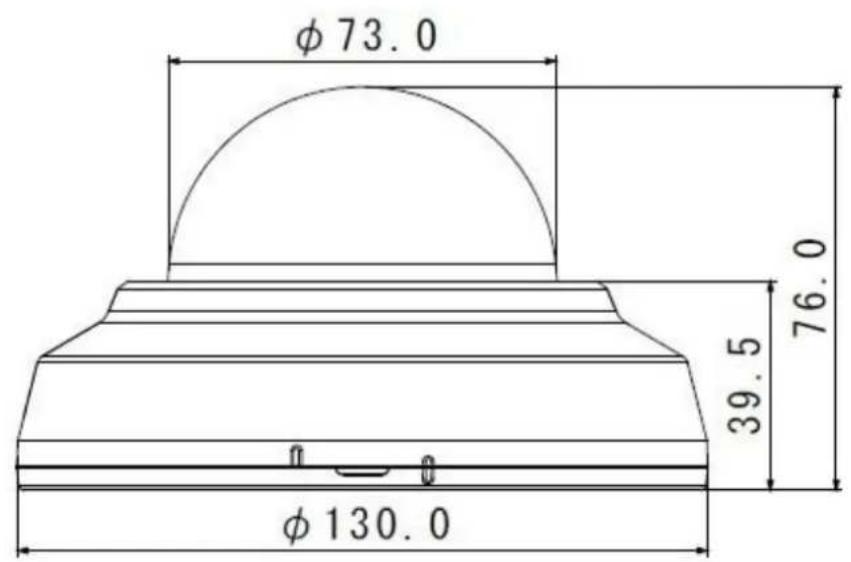
text_image
φ73.0 39.5 76.0 φ130.0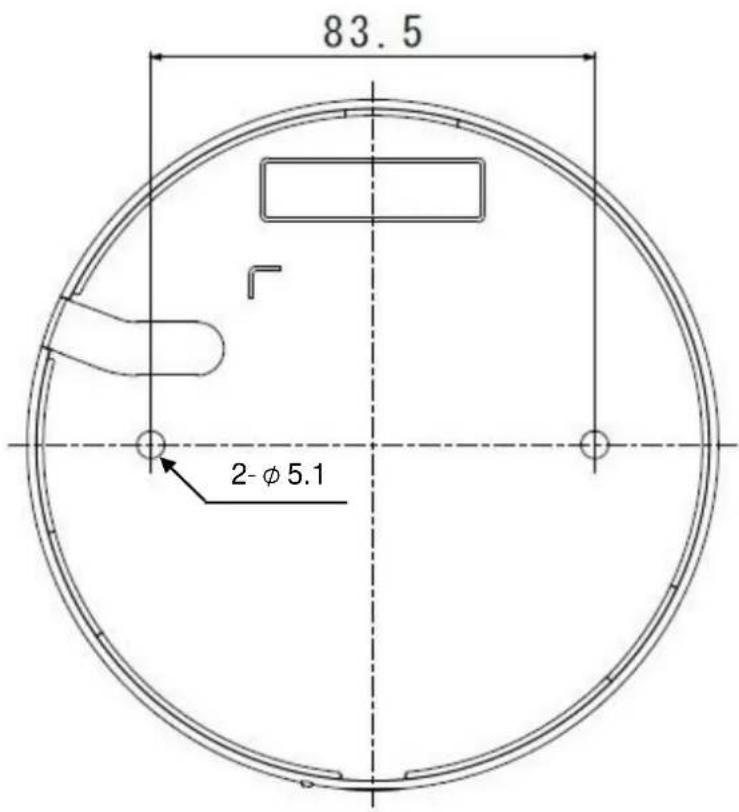
text_image
83.5 2-φ 5.1- Specification
| Product Features | H.264 / MJPEG Network Camera | |
| Dual Stream | ||
| Motion Triggered Alarm | ||
| Multi Language GUI support | ||
| ONVIF Compliant | ||
| 1/2.8" Sony IMX122 CMOS Sensor | ||
| On The Fly supported @ GOP/Bitrate/FPS stetting | ||
| 2D DNR. (Depends on CODEC configuration) | ||
| DPC(Defective Pixel Correction) on the fly | ||
| True Day & Night | ||
| Analog Hybrid Output(Installation Only) | ||
| 2 IR LEDs | ||
| Privacy Masking | ||
| CAMERA | Image Sensor | 1/2.8" Sony IMX122 CMOS Sensor |
| Max. Resolution | 1920 x 1080 | |
| Effective Pixels | 1984(H) x 1225(V) | |
| Effective Image Size | 5.56mm(H) x 3.43mm(V), 6.53mm(Diagonal) | |
| White Balance | ATW / MANUAL(PRESET) | |
| Electronic Zoom | 2 ~ 10x(Client Software) | |
| AGC | Yes | |
| BLC | Yes | |
| Iris | Fixed Iris F2.0 | |
| Shutter Speed | 1/4, 1/10, 1/12.5, 1/15, 1/20, 1/25, 1/30, 1/50, 1/60, 1/100, 1/120, 1/240, 1/480, 1/960, 1/1024, 1/2000s | |
| Slow Shutter | 2x, 4x, 8x | |
| Lens | Fixed lens f=4 mm, F2.0 | |
| Angle of View | Horizontal: 84.4°, Vertical: 50.3 | |
| Day & Night | Removable IR Cut Filter | |
| S/N ratio | 48.8 dB or more | |
| Min. illumination | 0 lux with IR LED ON; B/W0.63 lux(F2.0, 50IRE); Color | |
| Privacy Masking | 2 Areas | |
| ANALOG (Installation Only) | Video Signal | NTSC / PAL selectable |
| Monitor Output | Composite Output(BNC), 75 ohm 1Vpp | |
| Scanning Frequency | NTSC: (H) 15.734 kHz, (V) 59.94 Hz | |
| PAL: (H) 15.625 kHz, (V) 50 Hz | ||
| AUDIO | In/Out | - |
| - | ||
| CODEC | - | |
| NETWORK | Network | 10BASE-T, 100BASE-TX, RJ45 |
| Image Compression | H.264 | |
| MJPEG : Image quality: 100 Steps(Q value) | ||
| Resolution | 1920 x 1080(Full HD), 1280 x 1024(SXGA), | |
| 1024x768(XGA), 1280 x 720(720p) | ||
| 640 x 480(VGA), 640 x 360(HVGAW), 320 x 240(QVGA) | ||
| 704x480/576(4CIF), 352x240/288(CIF) | ||
| Protocol | IPv4, HTTP, SMTP, UPnP, DNS, | |
| RTSP, DDNS, RTP, TCP, UDP, RTCP | ||
| DHCP, ARP, ICMP,IGMP, NTP | ||
| Frame Rate | 1 fps ~ 25 fps / 1 fps ~ 30 fps | |
| Web Browser | Internet Explorer 7.0 or above | |
| Firefox | ||
| Chrome | ||
| Smart Phone (iOS, Android) | ||
| Security | Password Protection | |
| SDK(API) | HTTP based API ONVIF Profile S | |
| VMD | User set 4 ROI (Region Of Interest) | |
| 10 Step Sensitivity | ||
| Alarm Trigger | VMD | |
| Alarm Event | E-mail notification, FTP transfer, Video streaming with alarm status @ V2.0 | |
| POWER | Power Source | PoE: IEEE 802.3af compliant |
| Power Consumption | 70mA @ DC48V, Max 3.4W (IR OFF)100mA @ DC48V, Max 4.8W (IR ON) | |
| PoE class | Class 2 | |
| OTHER SPECIFICATIONS | Micro SD Card | - |
| External I/O Terminals | - | |
| IR Number | 2 IR LEDs | |
| Ambient Temperature (Not Cold Start) | -10°C ~ 40°C(14°F~113°F) | |
| Ambient Humidity | less than 90%, Non-condensing | |
| Materials | Poly Cabonate | |
| Weight | 295g | |
| Dimensions(W x H x D) | 130(Φ) x 76(L) mm | |

natural_image
Symbol of a trash bin crossed with no text or numbers, representing waste sorting or disposal (no text present)
English
Disposal of your old appliance
- When this crossed-out wheeled bin symbol is attached to a product it means the product is covered by the European Directive 2002/96/EC.
- All electrical and electronic products should be disposed of separately from the municipal waste stream via designated collection facilities appointed by the government or the local authorities.
- The correct disposal of your old appliance will help prevent potential negative consequences for the environment and human health.
- For more detailed information about disposal of your old appliance, please contact your city office, waste disposal service or the shop where you purchased the product.
Français/French
Commack, NY 11725, U.S.A.
http://www.computarganz.com
CBC (AMERICA) CORP.
Los Angeles Division
21241 South Western Avenue,Suite 160
Torrance, CA 90501, U.S.A.
http://www.computarganz.com
Europe
CBC EUROPE GmbH
Düsseldorf
Hansaallee 191
D-40549 Düsseldorf, GERMANY
http://www.cbc-europe.com
CBC EUROPE GmbH UK Branch
London
7/8. Garrick Industrial Centre.
Irving Way, London NW9 6AQ.U.K.
http://www.cbceurope.com
CBC (EUROPE) S.r.l.
Milan
Via E. Majorana, 2
20834-Nova Milanese(MB), ITALY
http://www.cbceurope.it/cctv
CBC (Poland) Sp.zo.o.
Warszawa
Ul.Krasinskiego 41A
01-755 Warszawa
http://www.cbcpoland.pl
CBC Co., Ltd. MOSCOW REP OFFICE
Moscow
Office 503B, Entrance#3, Building 1.
World Trade Center, 12 Krasnopresnenskaya nab., Moscow,
123610, RUSSIA
http://www.cbc.ru
China
CBC(Beijing) Trading CO.,LTD.
Beijing
Room B905-A, Tian Yuan Gang Center,
No.C2 Dong San Huan Bei-Lu,
Chaoyang District,
Beijing, CHINA
http://www.cbc-china.cn/
CBC (SHANGHAI) Trading CO., Ltd.
Shanghai
Room 1801, GIFC, No.1438 HongQiao Road, Changning
District, Shanghai, CHINA
http://www.cbc-china.cn/
CBC (GUANGZHOU) Trading CO., Ltd.
Guangzhou
Room 1207, CITIC Praza, No.233 Tian He North
Road, Guangzhou City, Guangdong Province,
CHINA
http://www.cbc-china.cn/
CBC (H.K.) CO., LTD.
Hong Kong
Unit 2101, 21/F., Tower 6,
China Hong Kong City, 33 Canton Road,
Tsim Sha Tsui, Kowloon, Hong Kong, CHINA
http://www.cbc-china.cn/
Asia
CBC. S PTE LTD.
Singapore
15 Jalan Kilang Barat, #04-03
Frontech Centre, SINGAPORE 159357
http://www.cbcsingapore.com/
CBC (Thailand) Co., Ltd.
Bangkok
23rd Floor, ITF Tower 2, 140/53-55
Silom Road, Suriyawongse,
Bangrak, Bangkok 10500
THAILAND
http://www.cbcthailand.com/
CBC Corporation (India) Private Limited
Mumbai
2F BWing, Marwah Centre,
Krishanlal Marwah Marg.
Andheri East, Mumbai 400 072, INDIA
PT. CBC PRIMA
Jakarta
MidPlaza II Building, 12th Floor.
JLJend.Sudirman Kav. 10-11
Jakarta Pusat, 10220, INDONESIA
T-CBC (TAIWAN) CO., Ltd.
Taiwan
Room D, 10th Floor, No.365 Fushing N. Rd.,
Taipei, 10543, TAIWAN, R.O.C.