Reveal - Earphones BlueParrott - Free user manual and instructions
Find the device manual for free Reveal BlueParrott in PDF.


User questions about Reveal BlueParrott
0 question about this device. Answer the ones you know or ask your own.
Ask a new question about this device
Download the instructions for your Earphones in PDF format for free! Find your manual Reveal - BlueParrott and take your electronic device back in hand. On this page are published all the documents necessary for the use of your device. Reveal by BlueParrott.
USER MANUAL Reveal BlueParrott
natural_image
Line drawing of two medical or laboratory devices with no visible text or symbolsBC
VXi BlueParrott® Reveal™ User Guide
blueparrott
TABLE OF CONTENTS
Safety Information ....3
Package Contents......4
Glossary of Terms....5
Headset Overview......6
Charging the Headset 7
- Battery Power Indicators
• Operation While Using the Charger/Adapter
Getting Started 9
- On/Off/Standby
- Pairing with a Phone
- NFC (One-Touch) Pairing
-Regular Pairing
- Wearing and Adjusting the Reveal
- Making/Taking Calls
Advanced Features and Functions......14
- Multiple Device Pairing
- Multipoint Mode
-
Proximity Pairing
• Additional Features and Functions -
Last Number Redial
- Call Waiting/Rejecting a Call
- Rejecting a Call
- Phone Voice Control (e.g. Siri® or Google Now™)
-Muting
-Transferring Audio
– Turning Headset Indicator Lights On/Off - Resetting Headset Paired Devices List
Functions & Indicators Table....18
SAFETY INFORMATION
IMPORTANT SAFETY NOTE: Prolonged exposure to high volume levels can damage your hearing. To avoid injury, set the volume to the lowest comfortable level. If you experience ringing in your ears, or voices sound muffled, stop using the headset. Avoid turning up the volume to block noisy surroundings. It's possible for your ears to adapt to volume that is too high, and this could result in permanent hearing damage without any noticeable discomfort.
- Check with local and state laws regarding cell phone/headset usage while operating a motor vehicle.
- Do not immerse any part of this product in water.
- Plastic bags and small parts may cause choking if ingested. Keep them away from small children and pets.
- Use only the power cords included with this product.
- Avoid temperatures exceeding 140^ (will cause equipment failure).
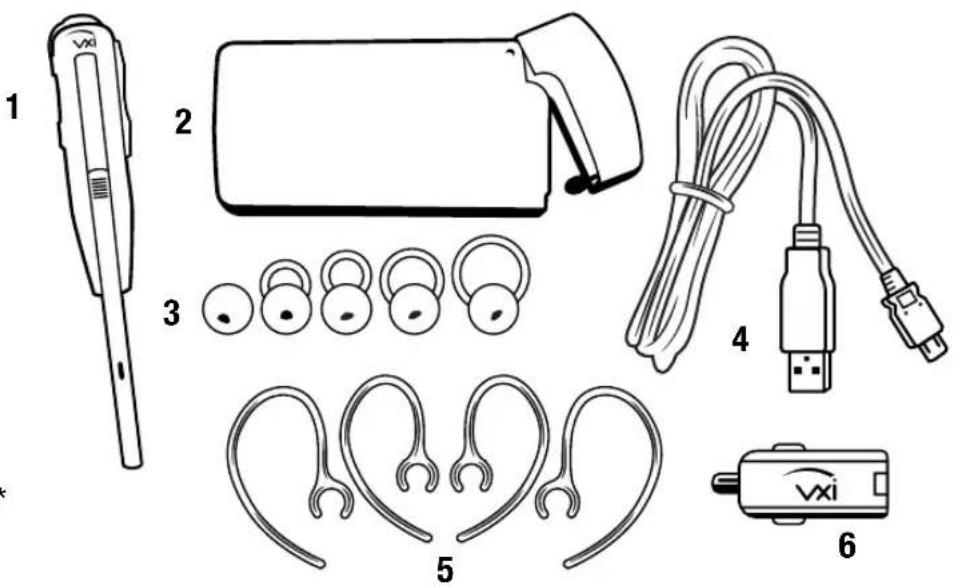
PACKAGE CONTENTS
- BlueParrott® Reveal™ Headset
- Carrying Case
- 5 Contoured Ear Buds (multiple sizes)
- USB Charging Cable
- 4 Ear Hooks (2 left, 2 right)
- Auto Adapter
- Quick-Start Guide*
- Warranty and Compliance Insert* *Not pictured.
text_image
Diagram showing six labeled components of a wearable device, including a pen, earbuds, USB cable, and Vxi device.Images are not shown to scale.
GLOSSARY OF TERMS
- On: Headset is on, but there is no connection to the phone (red light will flash).
- MFB: Abbreviation for "Multifunction Button."
- Multipoint Mode: Multipoint Mode allows you to connect and switch between two Bluetooth devices.
- Paired: Two Bluetooth devices agree to communicate with one another.
- Standby Mode: Headset is on, Bluetooth link is active, and the user is not on a call (blue light will flash).
- Talk Mode: Headset is in use with the cell phone while the cell phone is on an active call (blue light will flash).
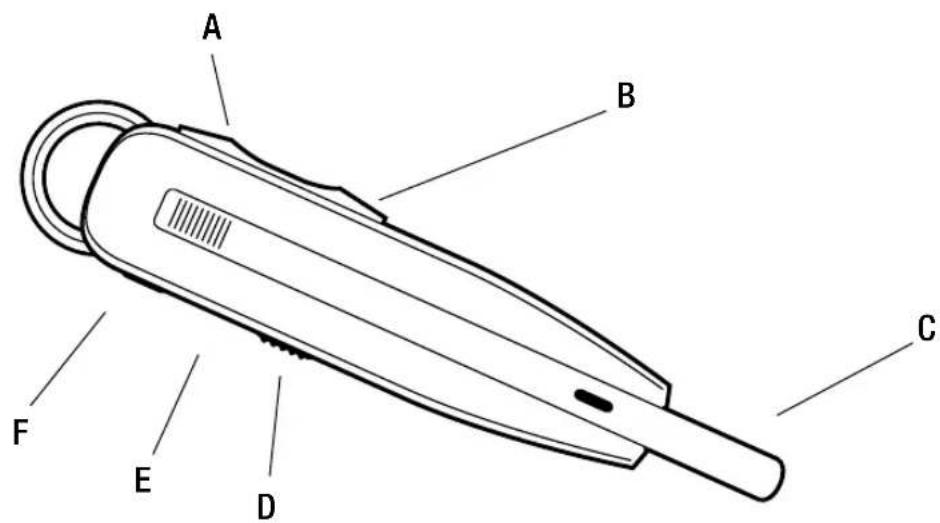
HEADSET OVERVIEW
A. Volume Up/Mute
B. Volume Down
C. Extendable Microphone Boom
D. On/Off Switch
E. Indicator Lights
F. Multifunction Button (MFB)
G. NFC Zone (pictured below)
text_image
A B C F E D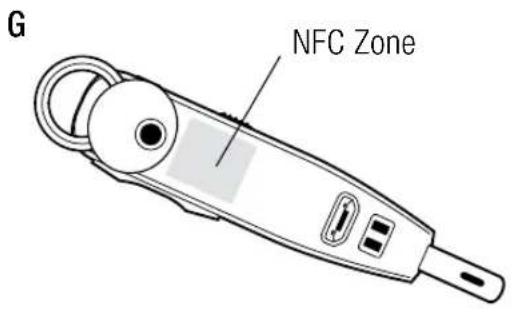
text_image
G NFC ZoneCHARGING THE HEADSET
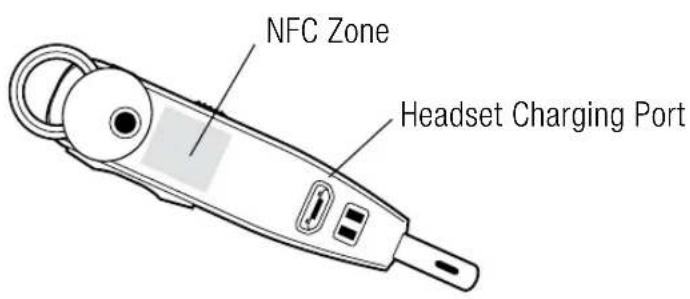
Connect USB charger cord into the headset's USB charging port. If the headset is not fully charged, the indicator will turn red. When the indicator turns blue and stays blue, the unit is fully charged. A fully discharged battery will need approximately 3.5 hours to achieve a complete charge.
Battery Power Indicators
While charging, the indicator light shows the level of battery power on your Reveal as follows:
Blue light: Fully charged. Over 7 hours' talk time.
Red light: Less than a full charge.
For best performance, keep charging the headset when not in use.
text_image
NFC Zone Headset Charging Port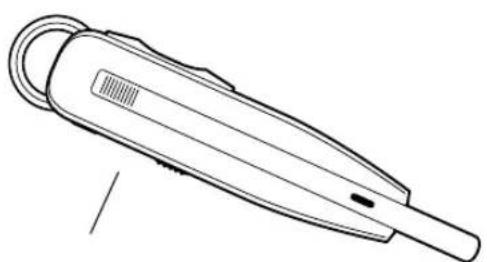
natural_image
Line drawing of a medical or laboratory device with a curved handle and bulb (no text or symbols)Indicator Light Location
CHARGING THE HEADSET (continued)
Operation While Using the Charger/Adapter
The Reveal headset should be operated from battery power only. If you connect the headset to a charger while it is turned on, it will reset and shut off. To turn it back on again, first unplug the headset from the USB charging cord, slide the switch to the “off” position (if not already done), then back to the “on” position.
NOTE: Do not attach the charger mid-call. This will cause the headset to reset, and the call will be sent back to the phone.
GETTING STARTED
On/Off/Standby
Turn Headset On: Slide the switch down towards the boom to expose a green bar in the switch cavity. The LED will flash blue three times and you will hear a voice prompt, "Power on."
Turn Headset Off (conserves battery power): Slide the switch up towards the back of the headset to expose a red bar in the switch cavity. The LED will flash red four times and you will hear a voice prompt, "Power off."
Standby Mode: Once the headset is turned on (after the initial pairing), it will attempt to connect to the last device that it was paired with, putting itself into Standby Mode.
Pairing with a Phone
NFC (One-Touch) Pairing
- Confirm that your cell phone is NFC-capable.
- Make sure that NFC is enabled on your cell phone.
- Turn the headset on.
-
Place the NFC zone of your cell phone against the NFC zone of the headset and hold together while your cell phone registers the headset.
-
Follow the prompts on your cell phone until it confirms pairing is successful.
Note: NFC and One-Touch Pairing are dependent on your cell phone. The size and sensitivity of your phone's NFC zone and how to connect the headset may vary between devices.
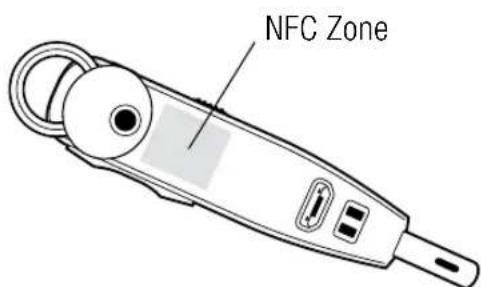
text_image
NFC ZoneGETTING STARTED (continued)
Manual Pairing
Placing Headset into Pairing Mode
When you turn the headset on for the first time, or if its pairing memory has been wiped clear, it will go into pairing mode automatically. If the headset has already been paired with another device, you will need to manually put it into pairing mode if you are not going to use NFC Pairing.
Power on the headset, then press and hold the MFB for approximately 6 seconds until you hear the audio prompt “Discovering.” The headset will be visible for pairing to devices for 120 seconds.
Pairing to a Cell Phone
- Make sure that other Bluetooth devices are turned off or out of range.
- Place the headset into pairing mode.
- Put your cell phone in Bluetooth Search/Scan Mode per the manufacturer's instructions.
- Select "VXi Reveal" to pair. (Passcode is "0000" if needed.)
- When connected, the headset will give you the voice prompt, "Your headset is connected" and the indicator light will flash blue.
GETTING STARTED (continued)
Wearing and Adjusting the Reveal
The headset is provided with the medium-loop earbud already attached. If you need to change it, peel it off and replace with the earbud of your choice.
Choose the ear bud and ear hook (if desired) that best fits your ear.
The headset can be worn on either ear, with or without the ear hook. The ear hooks are left and right specific and are marked with an “L” for left or “R” for right to show which side they are for.
To attach an ear hook, clip the "C" of the hook over the neck of the receiver.
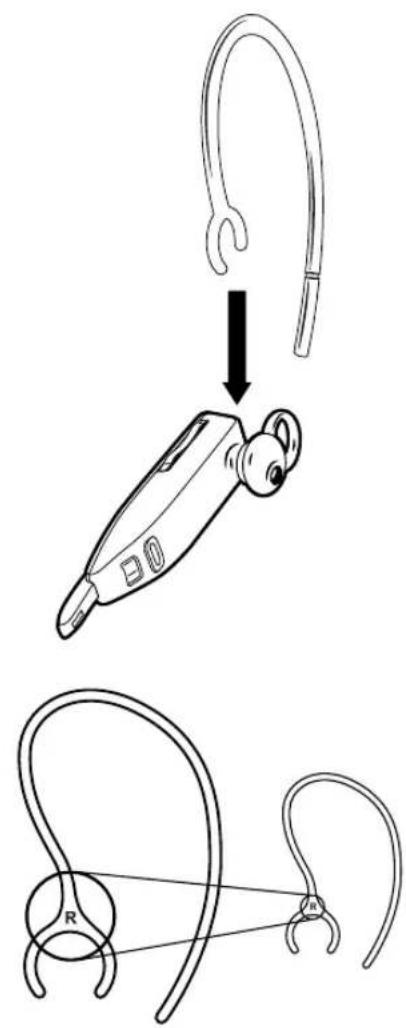
text_image
Diagram illustrating the procedure of using a handheld device to connect two types of earphones, with labels indicating 'R' and connection point.GETTING STARTED (continued)
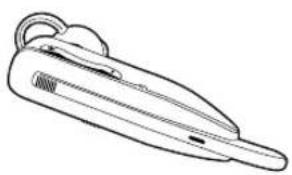
When wearing your Reveal, adjust the fit by rotating the ear bud so that the stabilizer loop (if applicable) presses against the back curve of your ear. Make sure that the boom is pointing towards the corner of your mouth.
To get the best performance from our noise-canceling technology, angle the microphone boom towards the corner of your mouth. Positioning is important; small adjustments in microphone placement can improve performance.
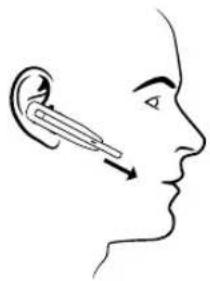
natural_image
Side profile illustration of a human ear with a needle inserted, showing airflow direction (no text or symbols)Using the Headset in High-Noise Situations
The microphone boom is extendable for greater levels of noise cancellation in noisy environments. Simply slide the boom in or out as needed.
For Noisy Environments For Normal Use (Low-Noise
natural_image
Line drawing of a single electronic device with a handle and spout (no text or symbols)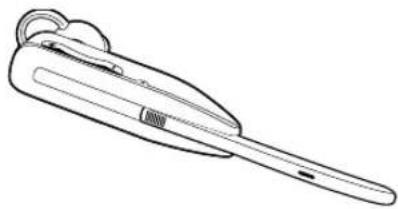
natural_image
Line drawing of a medical or laboratory device with a handle and bulb (no text or symbols)GETTING STARTED (continued)
Making/Taking Calls
The headset must be on and connected with your phone.
Making a Call
- Dial the desired number on your phone. You will hear the call in the headset.
- To end the call, press the MFB once. The call will end and the headset will enter standby mode.
Answering a Call
- When you receive a call, you will hear ring tones in the headset. Press the MFB once to answer the call.
- To end the call, press the MFB once. The call will end and the headset will enter standby mode.
Rejecting an Incoming Call
- To reject an incoming call, press and hold the MFB for two seconds. You will hear a two-note descending tone and the call will be transferred to your voicemail (if available).
ADVANCED FEATURES AND FUNCTIONS
Multiple Device Pairing and Multipoint Mode
The Reveal has pairing memory for up to 8 devices. The headset can also use Multipoint Mode, which means that it can be connected to two Bluetooth devices at the same time. You do not have to do anything to enable Multipoint Mode.
Using the Reveal in Multipoint Mode
- To use the headset in Multipoint Mode, first make sure the headset is paired with both your devices.
- With both devices in range and with their Bluetooth enabled, turn the headset on.
- As each Bluetooth device connects to the headset, you will hear the voice prompt, "Your headset is connected."
The Reveal will monitor both phones and enable you to answer a call on either one from the headset. If you are on a call and the other device receives a call, you will hear a notification in the headset.
Proximity Pairing
Proximity Pairing is an alternative method of pairing where the headset initiates the pairing process instead of your phone.
- Make sure the headset is powered on and not connected to another device.
- Set your phone so it is "Discoverable," or visible to other devices.
- Quickly press the MFB and the Volume Down button.
- You should hear the voice prompt "Discovering" in the headset.
- The headset lights should now be alternating red and blue.
- The headset initiates pairing activity, and the incoming pairing request must be accepted on the phone. NOTE: This may include entering the pin number "0000" (four zeros).
ADVANCED FEATURES AND FUNCTIONS (continued)
Additional Features and Functions
i. Last Number Redial
To redial the last number that was dialed from the cell phone, press and hold the Volume Down button for approximately 1 second. A beep will be heard and the phone will redial the last number.
ii. Call Waiting/Rejecting a Call
If you are on an active call and a second call comes in, you will hear a low tone notification in the headset. If supported by your phone, you have the following options:
- To accept the incoming call and end the active call, press the MFB once to end, and then once again to answer.
- To accept the incoming call and place the active call on hold, quickly press the MFB twice.
- To reject the incoming call, press and hold the MFB for 1-2 seconds.
iii. Rejecting a Call
To reject an incoming call when not on another call, press and hold the MFB for 1-2 seconds.
iv. Phone Voice Control (e.g. Siri® or Google Now™)
Press the MFB once while the headset is in standby mode to initiate voice command functions on your phone. Support for this is phone dependent. See your phone's user guide for more information.
ADVANCED FEATURES AND FUNCTIONS (continued)
v. Muting
The Reveal can be muted while on a call by pressing and holding the Volume Up button for 1-2 seconds. A single tone will sound as mute is engaged.
To unmute, press and hold the button again for 1-2 seconds.
While muted, a reminder tone will sound every 10 seconds.
vi. Transferring Audio
To transfer audio from the headset to the cell phone while on a call, press and hold the Volume Down button for 1-2 seconds. The audio will transfer to the phone. Repeat to transfer audio back to the headset. When audio is transferred to the phone, the light on the headset will be off until audio is transferred back to the headset.
vii. Turning Headset Indicator Lights On/Off
A quick press of the Volume Up and Volume Down buttons together will turn the headset indicator lights off. Repeat to turn the indicator lights on. When powering on the headset, the indicator lights will be in the same state as they were when last powered off.
ADVANCED FEATURES AND FUNCTIONS (continued)
Resetting Headset's Paired Devices List
This will reset or clear the headset's internal paired devices list. The headset must be on to perform this function.
- Power on the headset. It does not matter if it connects to any devices.
- Hold the headset near your ear and press and hold the Volume Up and the Volume Down buttons together for approximately 6-10 seconds until two low tones are heard.
- Power off the headset. The pairing memory is now clear and will need to be paired to any desired devices before it can be used with them.
FUNCTIONS & INDICATORS TABLES
Standby Mode Functions
| Function Button/Duration of Press | LED Indicator Audio Indicator Voice Indicator | |||
| Power On Slide switch | towards boom | 3 fast blue flashes NONE “Power on” | ||
| Power Off Slide switch | towards tail | 4 fast red flashes NONE “Power off” | ||
| Enable Pairing Mode MFB (5-6 seconds) Alternating red and blue flash | NONE “Discovering” | |||
| Volume Up Volume Up (quick press) | NONE 1 short tone | NONE | ||
| Volume Down | Volume Down (quick press) | NONE 1 short tone | NONE | |
| Phone Voice Control (Start/End) | MFB (quick press) | NONE | 1 tone | NONE |
| Last Number Redial | Volume Down (1-2 seconds) | NONE | 1 short tone | NONE |
| Disable LEDs | Volume Up/Volume Down (quick press) | NONE 1 short tone | NONE | |
| Enable LEDs | Volume Up/Volume Down (quick press) | LEDs active | 1 short tone | NONE |
FUNCTIONS & INDICATORS TABLES
Standby Mode Functions (continued)
| Function Button/Duration of Press | LED Indicator Audio Indicator Voice Indicator | ||
| Reset Paired Devices Volume Up/Volume Down (5-6 seconds) | NONE 2 low tones NONE | ||
| Disable Multipoint Mode MFB/Volume Up & Volume Down (3-4 seconds) | NONE 4 falling tones NONE | ||
| Enable Multipoint Mode MFB/Volume Up & Volume Down (quick press) | NONE 4 rising tones NONE | ||
| Establish Service Level Connection MFB (quick press) Fast blue flash 1 long tone | "Your headset is connected" | ||
| Start Proximity Pairing MFB & Volume Down (quick press) | Alternating red and blue flash | Long low tone every 5 seconds for 60 seconds | "Discovering" |
| Proximity Pairing Timeout NONE NONE 2 short tones (after 60 seconds) | NONE NONE 2 short tones (after 60 seconds) | NONE NONE 2 short tones (after 60 seconds) | NONE NONE 2 short tones (after 60 seconds) |
FUNCTIONS & INDICATORS TABLES (continued)
In-Call Functions
| Function Button/Duration of Press | LED Indicator Audio Indicator Voice Indicator | ||
| Volume Up Volume Up(quick press) | NONE 1 short tone NONE | ||
| Volume Down VolumeDown (quick press) | NONE 1 short tone NONE | ||
| Mute (On/Off) VolumeUp(1-2 seconds) | NONE 1 tone NONE | ||
| Mute Reminder NONENONE 1 tone (every 10 | seconds) | NONE | |
| Answer a Call MFB (quick press) Blue light flasheslightly slower | 2 rising tones | NONE | |
| End a CallMFB (quick press) | Blue light flasheslightly faster | 2 falling tones | NONE |
| Reject a Call*MFB(1-2 seconds) | NONE*Sends call to voicemail (if available) | 2 falling tones | NONE |
FUNCTIONS & INDICATORS TABLES (continued)
In-Call Functions (continued)
| Function Button/Duration of Press | LED Indicator Audio Indicator Voice Indicator | ||
| Transfer Audio Volume | Down(1-2 seconds) | NONE (LEDs go out until call ends, or audio is transferred back to the headset) | 1 long tone NONE |
| Answer Incoming Call, Hold Current Call | MFB(2 quick presses) | NONE NONE NONE | |
| Answer Incoming Call, End Current Call | MFB (quick press) NONE | NONE NONE | |
| Reject Incoming Call, Continue Current Call | MFB(1-2 seconds) | NONE 2 falling tones NONE | |
FUNCTIONS & INDICATORS TABLES (continued)
Notifications
| Notification Button/Duration of Press | LED Indicator Audio Indicator Voice Indicator | ||
| Mute Reminder NONE | NONE 1 tone (every 10 | NONE | |
| Headset Connects to device | NONE Blue light, fast flash NONE “ Your headset is | connected” | |
| Disconnect from Device | NONE Red light, slow flash NONE “ Your headset is | disconnected” | |
| Out of Range (Link Loss) | NONE Red light, slow flash 1 short tone NONE | ||
| Low Battery NONE Red light, 2 fast | flashes | NONE “Battery low” every 60 seconds | |
| Connect A2DP NONE Blue MFB | (quick, double-flash) | NONE “Your headset is connected” | |
| Proximity Pairing Timeout | NONE NONE 2 short tones (after | 60 seconds) | NONE |

text_image
blueparrottVXi Corporation | 271 Locust Street, Dover, NH 03820 USA
Toll Free: (800) 742-8588 | Phone: (603) 742-2888
blueparrott.com
© 2015 VXi Corporation. All rights reserved.
APN 203403B