
UL80 - Laptop ASUS - Free user manual and instructions
Find the device manual for free UL80 ASUS in PDF.


User questions about UL80 ASUS
0 question about this device. Answer the ones you know or ask your own.
Ask a new question about this device
Download the instructions for your Laptop in PDF format for free! Find your manual UL80 - ASUS and take your electronic device back in hand. On this page are published all the documents necessary for the use of your device. UL80 by ASUS.
USER MANUAL UL80 ASUS
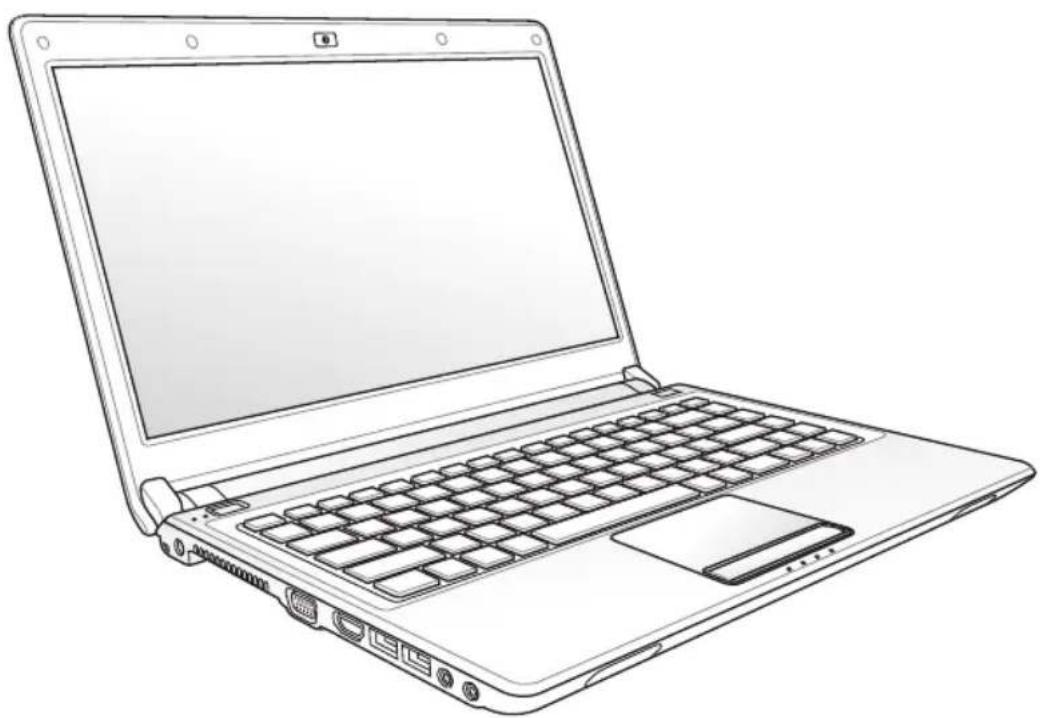
Notebook PC User Manual
natural_image
Line drawing of a laptop computer with visible keyboard, mouse, and screen (no text or symbols)June 2009
Table of Contents
Table of Contents 2
Safety Precautions 3
Preparing your Notebook PC 5
Using the Touchpad 7
Knowing the Parts 8
Right Side 8
Left Side 10
Rear Side 12
Front Side 12
Recovering Your Notebook PC 13
Using Recovery Partition 13
Using Recovery DVD (on selected models) 14
Declarations and Safety Statements ....16
Safety Precautions
The following safety precautions will increase the life of the Notebook PC. Follow all precautions and instructions. Except as described in this manual, refer all servicing to qualified personnel.

Disconnect the AC power and remove the battery pack(s) before cleaning. Wipe the Notebook PC using a clean cellulose sponge or chamois cloth dampened with a solution of nonabrasive detergent and a few drops of warm water and remove any extra moisture with a dry cloth.
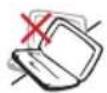
DO NOT place on uneven or unstable work surfaces. Seek servicing if the casing has been damaged.

DO NOT place or drop objects on top and do not shove any foreign objects into the Notebook PC.
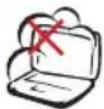
DO NOT expose to dirty or dusty environments. DO NOT operate during a gas leak.
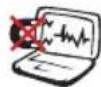
DO NOT expose to strong magnetic or electrical fields.
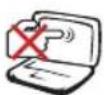
DO NOT press or touch the display panel. Do not place together with small items that may scratch or enter the Notebook PC.
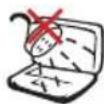
DO NOT expose to or use near liquids, rain, or moisture. DO NOT use the modem during electrical storms.
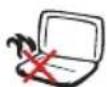
DO NOT leave the Notebook PC on your lap or any part of the body to prevent discomfort or injury from heat exposure.

Battery safety warning: DO NOT throw the battery in fire. DO NOT short circuit the contacts. DO NOT disassemble the battery.
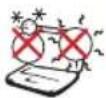
SAFE TEMP: This Notebook PC should only be used in environments with ambient temperatures between 10°C (50°F) and 35°C (95°F)
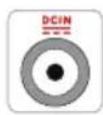
INPUT RATING: Refer to the rating label on the bottom of the Notebook PC and be sure that your power adapter complies with the rating.
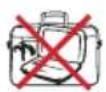
DO NOT carry or cover a Notebook PC that is powered ON with any materials that will reduce air circulation such as a carrying bag.
DO NOT use strong solvents such as thinners, benzene, or other chemicals on or near the surface.
DO NOT use damaged power cords, accessories, or other peripherals.
Incorrect installation of battery may cause explosion and damage the Notebook PC.

DO NOT throw the Notebook PC in municipal waste. This product has been designed to enable proper reuse of parts and recycling. The symbol of the crossed out wheeled bin indicates that the product (electrical, electronic equipment and mercury-containing button cell battery) should not be placed in municipal waste. Check local regulations for disposal of electronic products.

DO NOT throw the battery in municipal waste. The symbol of the crossed out wheeled bin indicates that the battery should not be placed in municipal waste.
Preparing your Notebook PC
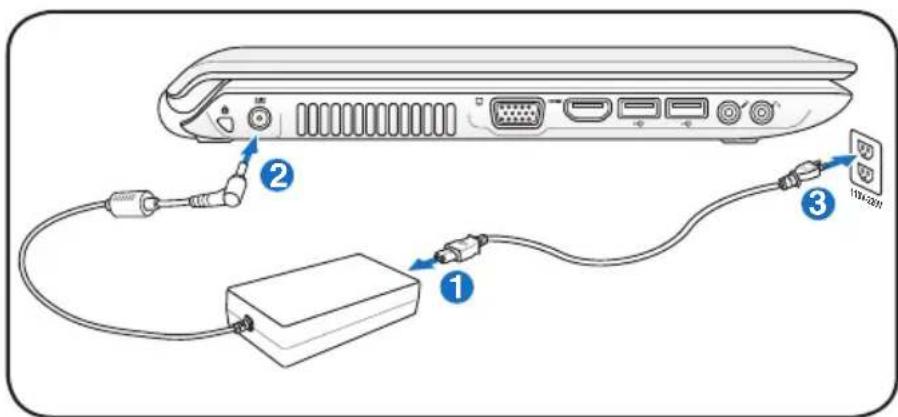
These are only quick instructions for using your Notebook PC.
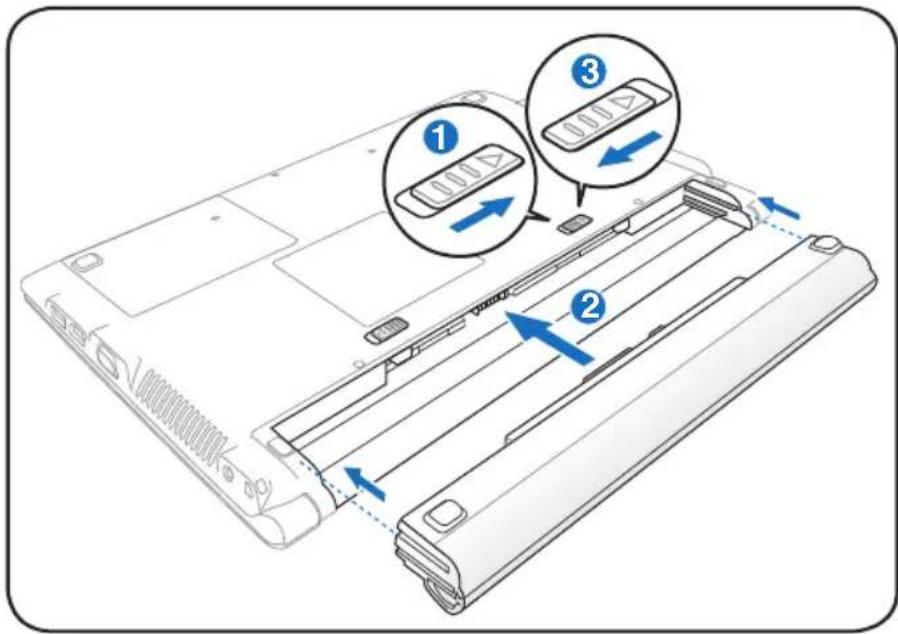
Installing the Battery Pack
text_image
Diagram of a laptop rear panel with labeled components and directional arrows indicating assembly or movement.Connecting the Power Adapter
text_image
Diagram showing cable connection between a device with labeled ports and connectorsOpening the LCD display panel
-
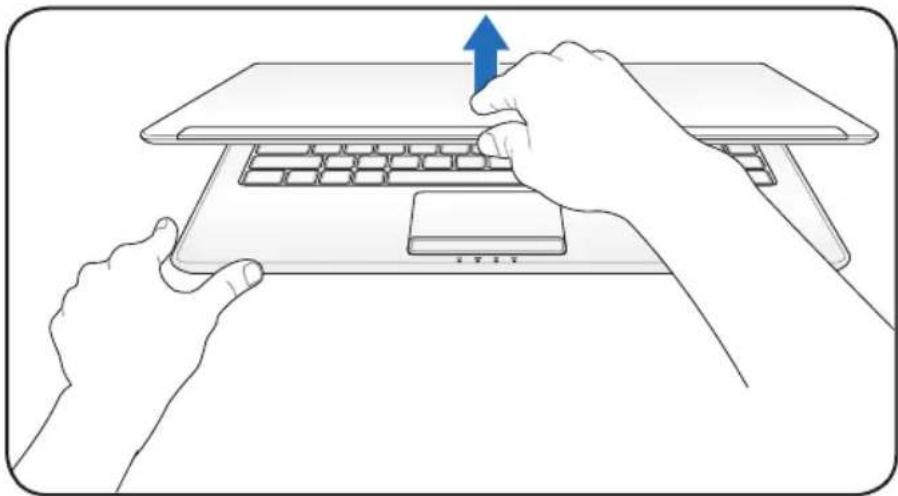
Carefully lift up the display panel with your thumb.
-
Slowly tilt the display panel forward or backward to a comfortable viewing angle.
natural_image
Line drawing of two hands typing on a laptop keyboard, one pressing up with a blue arrow (no text or symbols)Turning on the Power
-
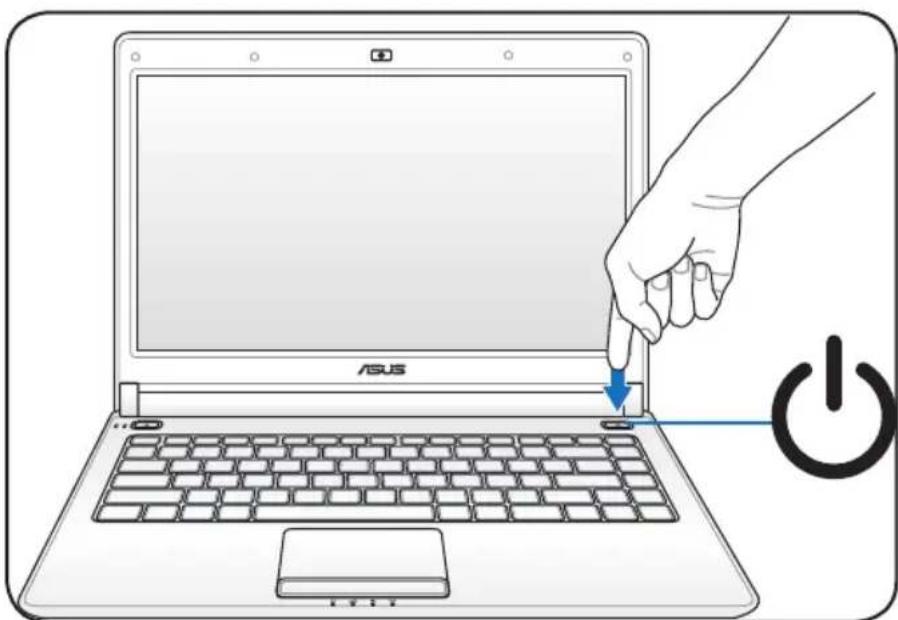
Push and release the power button located beneath the LCD display panel.
-
Use [Fn]+[F5] or [Fn]+[F6] to adjust the LCD brightness.
natural_image
Illustration of a hand pressing down on a laptop keyboard with a power button, symbolizing battery operation (no text or symbols present)Using the Touchpad
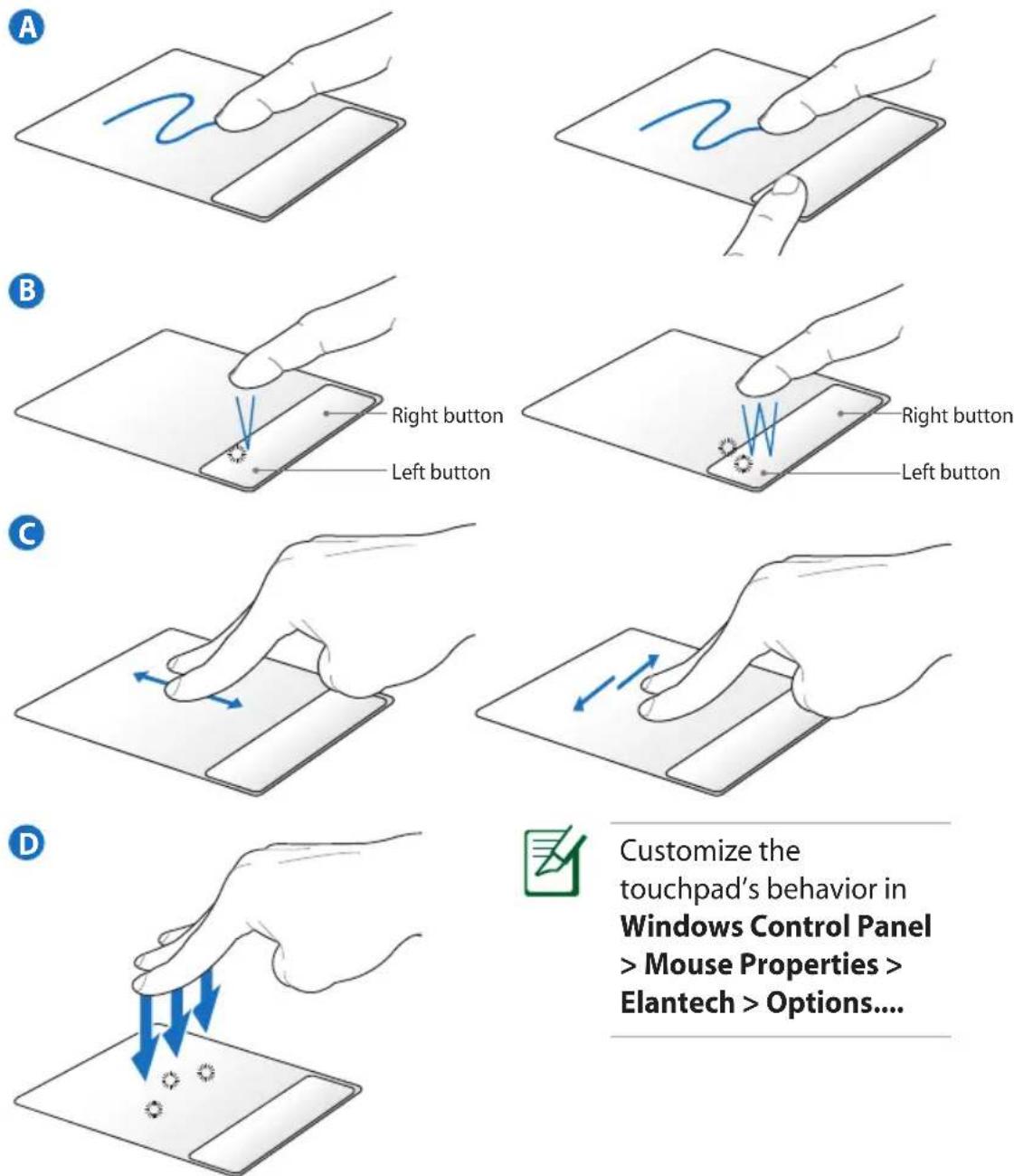
Customize the touchpad's behavior in Windows Control Panel > Mouse Properties > Elantech > Options....
A. Slide your finger across the touchpad to move the pointer. You can also hold the left button and slide your finger to drag the selected item.
B. Use the left and right buttons like a standard mouse.
C. Use two fingertips to slide up/down/left/right on the touchpad to scroll a window up/down/left/right.
D. Use three fingers to tap the touchpad. This action mimics the right-click function of a mouse.
Knowing the Parts
Right Side
text_image
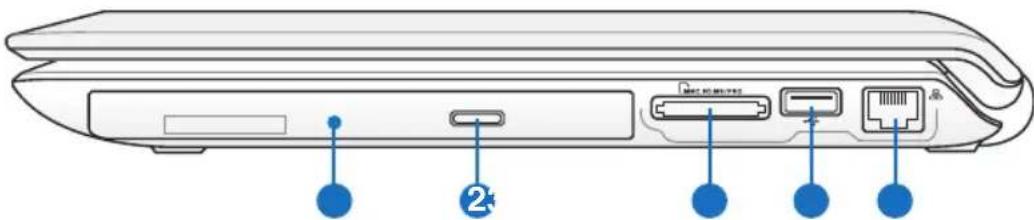
Diagram of a device rear panel with labeled ports and connectors, showing blue arrows pointing to ports 1 and 2.1 Optical Drive
The Notebook PC comes in various models with different optical drives. The Notebook PC's optical drive may support compact discs (CD) and/or digital video discs (DVD) and may have recordable (R) or re-writable (RW) capabilities. See the marketing specifications for details on each model.
2 Optical Drive Electronic Eject
The optical drive eject has an electronic eject button for opening the tray. You can also eject the optical drive tray through any software player or by right-clicking the optical drive in Windows™ Computer and select Eject.
3 Flash Memory Slot
Normally an external memory card reader must be purchased separately in order to use memory cards from devices such as digital cameras, MP3 players, mobile phones, and PDAs. This Notebook PC has a built-in high-speed memory card reader that can conveniently read from and write to many flash memory cards.
4 USB Port (2.0/1.1)
The USB (Universal Serial Bus) port is compatible with USB 2.0 or USB 1.1 devices such as keyboards, pointing devices, cameras, hard disk drives, printers, and scanners connected in a series up to 12Mbits/sec (USB 1.1) and 480Mbits/sec (USB 2.0). USB allows many devices to run simultaneously on a single computer, with some peripherals acting as additional plug-in sites or hubs. USB supports hot-swapping of devices so that most peripherals can be connected or disconnected without restarting the computer.
5 LAN Port
The RJ-45 LAN port with eight pins is larger than the RJ-11 modem port and supports a standard Ethernet cable for connection to a local network. The built-in connector allows convenient use without additional adapters.
Left Side
text_image
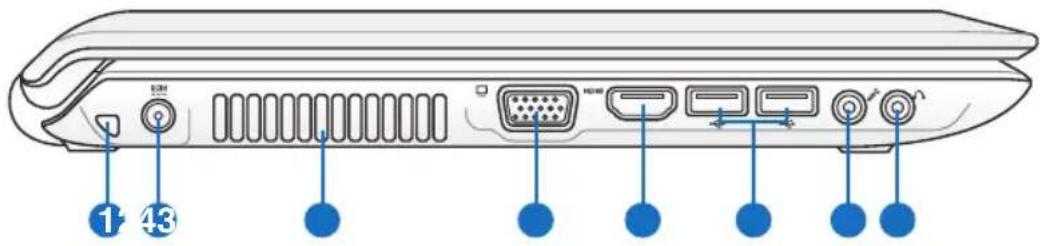
1 431 Security Port
The security port allows the Notebook PC to be secured to a fixed object with a 2 mm metal cable.
2 DCIN Power (DC) Input
The supplied power adapter converts AC power to DC power for use with this jack. Power supplied through this jack supplies power to the Notebook PC and charges the internal battery pack. To prevent damage to the Notebook PC and battery pack, always use the supplied power adapter. CAUTION: MAY BECOME WARM TO HOT WHEN IN USE. BE SURE NOT TO COVER THE ADAPTER AND KEEP IT AWAY FROM YOUR BODY.
3 Air Vents
The air vents allow cool air to enter and warm air to exit the Notebook PC.

Ensure that paper, books, clothing, cables, or other objects do not block any of the air vents or else overheating may occur.
4 □ Display (Monitor) Output
The 15-pin D-sub monitor port supports a standard VGA-compatible device such as a monitor or projector to allow viewing on a larger external display.
5 HDMI HDMI Port
HDMI (High-Definition Multimedia Interface) is an uncompressed all-digital audio/video interface between any audio/video source, such as a set-top box, DVD player, and A/V receiver and an audio and/or video monitor, such as a digital television (DTV). Supports standard, enhanced, or high-definition video, plus multi-channel digital audio on a single cable. It transmits all ATSC HDTV standards and supports 8-channel digital audio, with bandwidth to spare to accommodate future enhancements or requirements.

For models with both the integrated and discrete graphics cards, the HDMI output is available only when you select the discrete graphics card mode.
6 USB Port (2.0/1.1)
7 Microphone Input Jack
The mono microphone jack (1/8 inch) can be used to connect an external microphone or output signals from audio devices. Using this jack automatically disables the built-in microphone. Use this feature for video conferencing, voice narrations, or simple audio recordings.
8 Headphone Output Jack
The stereo headphone jack (1/8 inch) is used to connect the Notebook PC's audio out signal to amplified speakers or headphones. Using this jack automatically disables the built-in speakers.
Rear Side

natural_image
Diagram of a rectangular electronic device with a labeled component (1) at the base, showing no text or symbols on the body itself.1 Battery Pack
The battery pack is automatically charged when connected to an AC power source and maintains power to the Notebook PC when AC power is not connected. This allows use when moving temporarily between locations. Battery time varies by usage and by the specifications for this Notebook PC. The battery pack cannot be disassembled and must be purchased as a single unit.
Front Side
natural_image
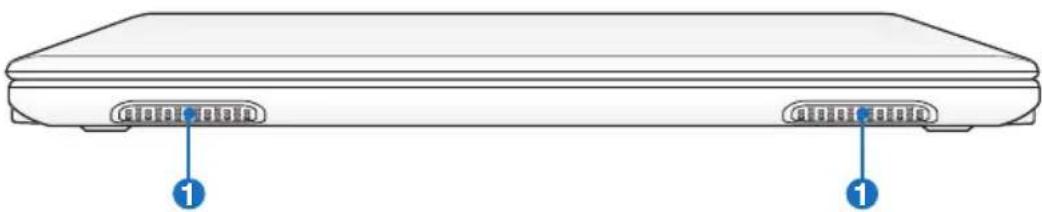
Front view of a rectangular electronic device with two labeled ports (no text or symbols beyond labels)1 Audio Speakers
The built-in stereo speaker system allows you to hear audio without additional attachments. The multimedia sound system features an integrated digital audio controller that produces rich, vibrant sound (results improved with external stereo headphones or speakers). Audio features are software controlled.
Recovering Your Notebook PC
Using Recovery Partition
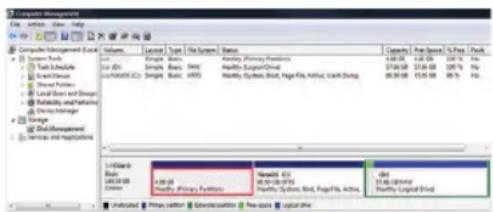
The Recovery Partition quickly restores your Notebook PC's software to its original working state. Before using the Recovery Partition, copy your data files (such as Outlook PST files) to a USB storage device or to a network drive and make note of any customized configuration settings (such as network settings).
About the Recovery Partition
The Recovery Partition is a reserved space on your hard disk drive used to restore the operating system, drivers, and utilities installed on your Notebook PC at the factory.

IMPORTANT! DO NOT delete the partition named RECOVERY. The Recovery Partition is created at the factory and cannot be
restored if deleted. Take your Notebook PC to an authorized ASUS service center if you have problems with the recovery process.
text_image
Computer Management System Tools Single Basic Binary Primary Functions 1.00.00 1.00.00 100% 1.00.00 1.00.00 100% 1.00.00 1.00.00 100% 1.00.00 1.00.00 100% 1.00.00 1.00.00 100% 1.00.00 1.00.00 100% 1.00.00 1.00.00 100% 1.00.00 1.00.00 100% 1.00.00 1.00.00 100% 1.00.00 1.00.00 100% 1.00.00 1.00.00 100% Multi-Manager System Multi-Manager System Multi-Manager System Multi-Manager System Multi-Manager System Multi-Manager System Multi-Manager System Multi-Manager System Multi-Manager System Multi-Manager System Multi-Manager System Multi-Manager System Multi-Manager System Multi-Manager System Multi-Manager System Multi-Manager System Multi-Manager System Multi-Manager System Multi-Manager System Multi-Manager System Multi-Manager SystemUsing the Recovery Partition:
- Press [F9] during bootup
- Press [Enter] to select Windows Setup [EMS Enabled]
- Read the ASUS Preload Wizard screen and click Next.
- Select a partition option and click Next. Partition options:
Recover Windows to first partition only.
This option deletes only the first partition and allows you to keep other partitions, and to create a new system partition as drive "C".
Recover Windows to entire HD.
This option deletes all partitions from your hard disk drive and creates a new system partition as drive "C".
Recover Windows to entire HD with 2 partition.
This option deletes all partitions from your hard drive and creates two new partitions "C" (60%) and "D" (40%).
- Follow the onscreen instructions to complete the recovery process.

Visit the ASUS website at www.asus.com for updated drivers and utilities.
Using Recovery DVD (on selected models)
Creating the Recovery DVD:
-
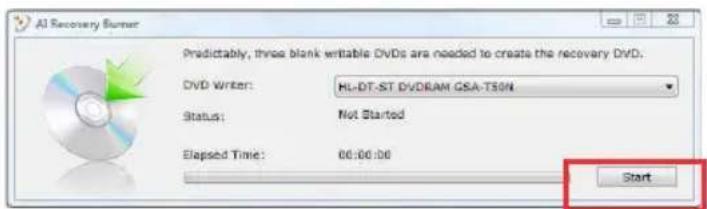
Double-click the AI Recovery Burner icon on the Window desktop.
-
Insert a blank writable DVD into the optical drive and click Start to start
text_image
AI Recovery Burner Predictably, three blank writable DVDs are needed to create the recovery DVD. DVD Writer: HL-DT-ST.DVDRAM.CSA-T50N Status: Not Started Elapsed Time: 06:00:06 Startcreating the Recovery DVD.
- Follow the onscreen instructions to complete creating the recovery DVD.

Prepare three blank writable DVDs to create the Recovery DVD.

IMPORTANT! Remove the optional secondary hard disk drive before performing system recovery on your Notebook PC. According to Microsoft, you may lose important data because of setting up Windows Vista on the wrong disk drive or formatting the incorrect drive partition. Refer to http://support.microsoft.com/kb/937251/en-us for more details.
Using the Recovery DVD:DVD::
- Insert the Recovery DVD into the optical drive. Your Notebook PC needs to be powered ON.
- Restart the Notebook PC and press [Esc] on bootup and select the optical drive (may be labeled as "CD/DVD") and press [Enter] to boot from the Recovery DVD.
- Select a partition option and click Next. Partition options:
Recover Windows to first partition only.
This option deletes only the first partition and allows you to keep other partitions, and to create a new system partition as drive "C".
Recover Windows to entire HD.
This option deletes all partitions from your hard disk drive and creates a new system partition as drive "C".
Recover Windows to entire HD with 2 partition.
This option deletes all partitions from your hard drive and creates two new partitions "C" (60%) and "D" (40%).
- Follow the onscreen instructions to complete the recovery process.

WARNING: Do not remove the Recovery disc, unless instructed to do so, during the recovery process or else your partitions will be unusable.

Visit the ASUS website at www.asus.com for updated drivers and utilities.
Declarations and Safety Statements
Federal Communications Commission Statement
This device complies with FCC Rules Part 15. Operation is subject to the following two conditions:
- This device may not cause harmful interference.
- This device must accept any interference received, including interference that may cause undesired operation.
This equipment has been tested and found to comply with the limits for a class B digital device, pursuant to Part 15 of the Federal Communications Commission (FCC) rules. These limits are designed to provide reasonable protection against harmful interference in a residential installation. This equipment generates, uses, and can radiate radio frequency energy and, if not installed and used in accordance with the instructions, may cause harmful interference to radio communications. However, there is no guarantee that interference will not occur in a particular installation. If this equipment does cause harmful interference to radio or television reception, which can be determined by turning the equipment off and on, the user is encouraged to try to correct the interference by one or more of the following measures:
- Reorient or relocate the receiving antenna.
- Increase the separation between the equipment and receiver.
- Connect the equipment into an outlet on a circuit different from that to which the receiver is connected.
- Consult the dealer or an experienced radio/TV technician for help.

The use of a shielded-type power cord is required in order to meet FCC emission limits and to prevent interference to the nearby radio and television reception. It is essential that only the supplied power cord be used. Use only shielded cables to connect I/O devices to this equipment. You are cautioned that changes or modifications not expressly approved by the party responsible for compliance could void your authority to operate the equipment.
(Reprinted from the Code of Federal Regulations #47, part 15.193, 1993. Washington DC: Office of the Federal Register, National Archives and Records Administration, U.S. Government Printing Office.)
FCC Radio Frequency (RF) Exposure Caution Statement

Any changes or modifications not expressly approved by the party responsible for compliance could void the user's authority to operate this equipment. "The manufacture declares that this device is limited to Channels 1 through 11 in the 2.4GHz frequency by specified firmware controlled in the USA."
This equipment complies with FCC radiation exposure limits set forth for an uncontrolled environment. To maintain compliance with FCC RF exposure compliance requirements, please avoid direct contact to the transmitting antenna during transmitting. End users must follow the specific operating instructions for satisfying RF exposure compliance.
Declaration of Conformity (R&TTE directive 1999/5/EC)
The following items were completed and are considered relevant and sufficient:
• Essential requirements as in [Article 3]
- Protection requirements for health and safety as in [Article 3.1a]
- Testing for electric safety according to [EN 60950]
- Protection requirements for electromagnetic compatibility in [Article 3.1b]
- Testing for electromagnetic compatibility in [EN 301 489-1] & [EN 301]
• Testing according to [489-17]
• Effective use of the radio spectrum as in [Article 3.2]
• Radio test suites according to [EN 300 328-2]
CE Mark Warning
This is a Class B product, in a domestic environment, this product may cause radio interference, in which case the user may be required to take adequate measures.
IC Radiation Exposure Statement for Canada
This equipment complies with IC radiation exposure limits set forth for an uncontrolled environment. To maintain compliance with IC RF exposure compliance requirements, please avoid direct contact to the transmitting antenna during transmitting. End users must follow the specific operating instructions for satisfying RF exposure compliance.
Operation is subject to the following two conditions:
• This device may not cause interference and
- This device must accept any interference, including interference that may cause undesired operation of the device.
To prevent radio interference to the licensed service (i.e. co-channel Mobile Satellite systems) this device is intended to be operated indoors and away from windows to provide maximum shielding. Equipment (or its transmit antenna) that is installed outdoors is subject to licensing.
Wireless Operation Channel for Different Domains
N. America 2.412-2.462 GHz Ch01 through CH11
Japan 2.412-2.484 GHz Ch01 through Ch14
Europe ETSI 2.412-2.472 GHz Ch01 through Ch13
France Restricted Wireless Frequency Bands
Some areas of France have a restricted frequency band. The worst case maximum authorized power indoors are:
- 10mW for the entire 2.4 GHz band (2400 MHz–2483.5 MHz)
• 100mW for frequencies between 2446.5 MHz and 2483.5 MHz

Channels 10 through 13 inclusive operate in the band 2446.6 MHz to 2483.5 MHz.
There are few possibilities for outdoor use: On private property or on the private property of public persons, use is subject to a preliminary authorization procedure by the Ministry of Defense, with maximum authorized power of 100mW in the 2446.5–2483.5 MHz band. Use outdoors on public property is not permitted.
In the departments listed below, for the entire 2.4 GHz band:
• Maximum authorized power indoors is 100mW
• Maximum authorized power outdoors is 10mW
Departments in which the use of the 2400–2483.5 MHz band is permitted with an EIRP of less than 100mW indoors and less than 10mW outdoors:
01 Ain 02 Aisne 03 Allier
05 Hautes Alpes 08 Ardennes 09 Ariège
11 Aude 12 Aveyron 16 Charente
24 Dordogne 25 Doubs 26 Drôme
This requirement is likely to change over time, allowing you to use your wireless LAN card in more areas within France. Please check with ART for the latest information (www.art-telecom.fr)

Your WLAN Card transmits less than 100mW, but more than 10mW.
UL Safety Notices
Required for UL 1459 covering telecommunications (telephone) equipment intended to be electrically connected to a telecommunication network that has an operating voltage to ground that does not exceed 200V peak, 300V peak-to-peak, and 105V rms, and installed or used in accordance with the National Electrical Code (NFPA 70).
When using the Notebook PC modem, basic safety precautions should always be followed to reduce the risk of fire, electric shock, and injury to persons, including the following:
- DO NOT use the Notebook PC near water, for example, near a bath tub, wash bowl, kitchen sink or laundry tub, in a wet basement or near a swimming pool.
- DO NOT use the Notebook PC during an electrical storm. There may be a remote risk of electric shock from lightning.
- DO NOT use the Notebook PC in the vicinity of a gas leak.
Required for UL 1642 covering primary (nonrechargeable) and secondary (rechargeable) lithium batteries for use as power sources in products. These batteries contain metallic lithium, or a lithium alloy, or a lithium ion, and may consist of a single electrochemical cell or two or more cells connected in series, parallel, or both, that convert chemical energy into electrical energy by an irreversible or reversible chemical reaction.
- Do not dispose the Notebook PC battery pack in a fire, as they may explode. Check with local codes for possible special disposal instructions to reduce the risk of injury to persons due to fire or explosion.
- Do not use power adapters or batteries from other devices to reduce the risk of injury to persons due to fire or explosion. Use only UL certified power adapters or batteries supplied by the manufacturer or authorized retailers.
Power Safety Requirement
Products with electrical current ratings up to 6A and weighing more than 3Kg must use approved power cords greater than or equal to: H05VV-F, 3G, 0.75mm ^2 or H05VV-F, 2G, 0.75mm ^2 .
REACH
Complying with the REACH (Registration, Evaluation, Authorisation, and Restriction of Chemicals) regulatory framework, we published the chemical substances in our products at ASUS REACH website at http://green.asus.com/english/REACH.htm.
Nordic Lithium Cautions (for lithium-ion batteries)
CAUTION! Danger of explosion if battery is incorrectly replaced. Replace only with the same or equivalent type recommended by the manufacturer. Dispose of used batteries according to the manufacturer's instructions. (English)
This product is protected by one or more of the following U.S. Patents:
7,416,423; 7,415,588; 7,413,402; 7,411,791; 7,408,855; 7,403,378; 7,400,721; 7,399,011; 7,394,533; 7,392,968; 7,388,754; 7,388,752; 7,388,743; 7,382,605; 7,382,314; 7,375,952; 7,374,433; 7,373,493; 7,369,402; 7,369,064; 7,362,568; 7,362,521; 7,362,276; 7,361,034; 7,359,209; 7,359,189; 7,355,372; 7,353,408; 7,352,586; 7,343,645; 7,342,777; 7,342,193; 7,332,990; 7,328,354; 7,327,568; 7,325,241; 7,321,523; 7,319,585; 7,304,257; 7,299,479; 7,294,021; 7,294,011; 7,293,890; 7,293,273; 7,276,660; 7,267,566; 7,261,579; 7,261,573; 7,261,331; 7,259,342; 7,257,761; 7,245,488; 7,241,946; 7,234,971; 7,233,555; 7,229,000; 7,224,657; 7,223,021; 7,218,587; 7,218,096; 7,213,250; 7,203,856; 7,193,580; 7,189,937; 7,187,537; 7,185,297; 7,184,278; 7,164,089; 7,161,541; 7,149,911; 7,148,418; 7,137,837; 7,133,279; 7,130,994; 7,125,282; 7,120,018; 7,111,953; 7,103,765; 7,100,087; 7,091,735; 7,088,592; 7,088,119; 7,086,887; 7,085,130; 7,078,882; 7,068,636; 7,066,751; 7,061,773; 7,047,598; 7,047,541; 7,043,741; 7,039,415; 7,035,946; 7,002,804; 6,980,159; 6,969,266; 6,946,861; 6,938,264; 6,933,927; 6,922,382; 6,873,064; 6,870,513; 6,843,407; 6,842,150; 6,827,589; 6,819,564; 6,817,510; 6,788,944; 6,783,373; 6,782,451; 6,775,208; 6,768,224; 6,760,293; 6,742,693; 6,732,903; 6,728,529; 6,724,352; 6,717,802; 6,717,074; 6,711,016; 6,694,442; 6,693,865; 6,687,248; 6,671,241; 6,657,548; 6,639,806; 6,622,571; 6,618,813; 6,612,850; 6,600,708; 6,561,852; 6,515,663; 6,509,754; 6,500,024; 6,491,359; 6,456,580; 6,456,492; 6,449,224; 6,449,144; 6,430,060; 6,415,389; 6,412,036; 6,407,930; 6,396,419; 6,396,409; 6,377,033; 6,339,340; 6,330,996; 6,310,779; 6,305,596; 6,301,778; 6,253,284; 6.226.741 ; ^ , ^ , ^ , ^ , ^ , ^ , ^ , ^ , ^ , ^ , ^ , ^ ,
U.S. Patent Design D563,594; D557,695; D545,803; D542,256; D538,276; D534,889; D518,041; D510,325; D510,324; D509,194; Patents Pending.
| Manufacturer ASUSTek COMPUTER INC. | |
| Address, City No. 150, LI-TE RD., PE | TOU, TAIPEI 112, TAIWANR.O.C |
| Country TAIWAN | |
| Authorized Representative in Europe | ASUS COMPUTER GmbH |
| Address, City HARKORT STR. 21-23, | 40880 RATINGEN |
| Country GERMANY | |