
28TK41EV - TV LG - Free user manual and instructions
Find the device manual for free 28TK41EV LG in PDF.


User questions about 28TK41EV LG
0 question about this device. Answer the ones you know or ask your own.
Ask a new question about this device
Download the instructions for your TV in PDF format for free! Find your manual 28TK41EV - LG and take your electronic device back in hand. On this page are published all the documents necessary for the use of your device. 28TK41EV by LG.
USER MANUAL 28TK41EV LG
natural_image
Illustration of a blank rectangular TV with no text or symbols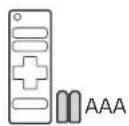

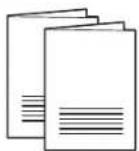


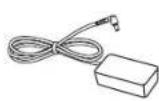
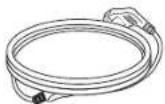

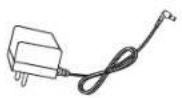

www.lg.com
Depending on country / Në varësi të shtetit / B зависимost ot странata / Ovisno o zemlji / V závislosti na regionu / Zavisno od države / Afhankelijk van het land / En función del país / Sõltub riigist / Selon les pays / Abhängig vom Land / Aváloya με τη χύρα / A seconda del Paese / Elre baiłanysty / Atkarigs no valsts / Priklausomai nuð šalies / Bo зависимost od zemjata / Orszäfgüggő / Zależnie od kraju / Dependendo do país / În funcție de țară / B зависимости ot страны / Závisi od krajiny / Odvisno od države / Залежно від країни / Mamlakatga bog'liq ravishda / ἀκδ διλίν ὕلیه ülkeye bağlı

English Read Safety and Reference.
natural_image
Line drawing of a device with a handle and control panel, no text or symbols present2

natural_image
Line drawing of a monitor with an arrow pointing to it, showing no text or symbols!
text_image
Illustration showing a person using a computer with a prohibition symbol and a hand holding a fingerprint, indicating a blocked or invalid usage scenario.22TK41*
1
natural_image
Technical line drawing of a mechanical component with a curved handle and internal compartments (no text or symbols)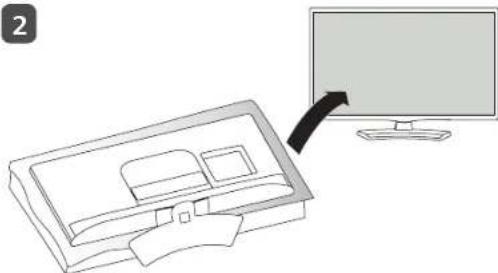
natural_image
Line drawing of a TV set with an arrow pointing to a monitor (no text or symbols present)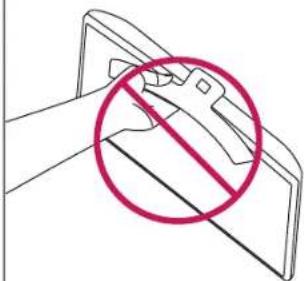
natural_image
Simple line drawing of a hand holding a device with a red prohibition symbol (no text or labels)
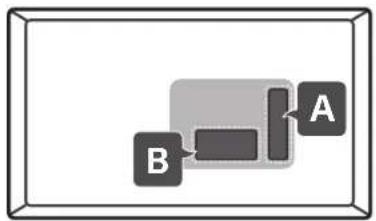
flowchart
graph TD
    A["A"] --> B["B"]

text_image
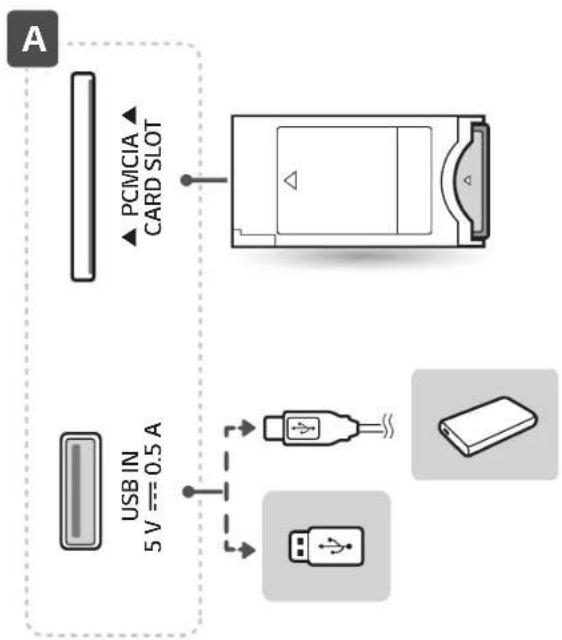
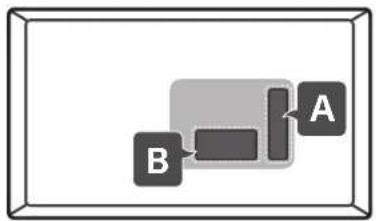
A PCMCIA CARD SLOT USB IN 5 V == 0.5 A
B-1 TK410D
flowchart
graph TD
    A["A"] --> B["B"]

natural_image
Illustration of various electronic devices including monitor, keyboard, laptop, and game controller (no text or symbols)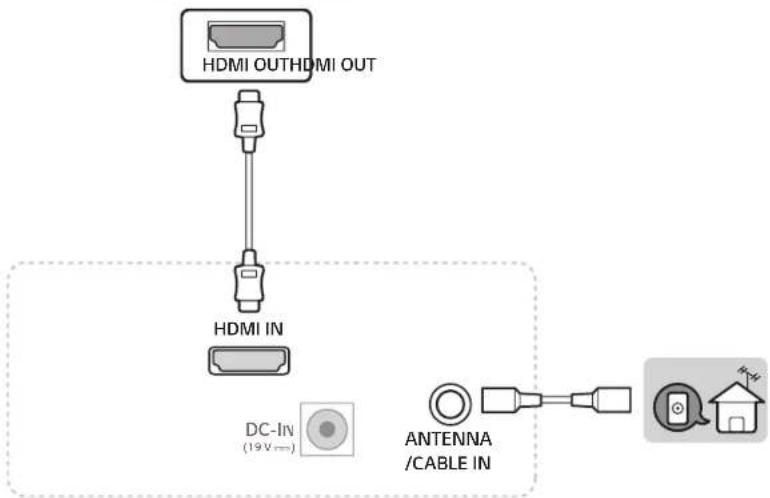
flowchart
graph TD
    A["HDMI OUT"] --> B["HDMI IN"]
    B --> C["DC-IN (19V==)"]
    C --> D["ANTENNA /CABLE IN"]
    D --> E["House icon"]
    style A fill:#f9f,stroke:#333
    style B fill:#ccf,stroke:#333
    style C fill:#cfc,stroke:#333
    style D fill:#fcc,stroke:#333
    style E fill:#cff,stroke:#333
B-2
TK410V / TK410U / TK41EV
flowchart
graph TD
    A["A"] --> B["B"]
natural_image
Illustration of five electronic devices: remote, monitor, laptop, desktop, and game controller (no text or symbols)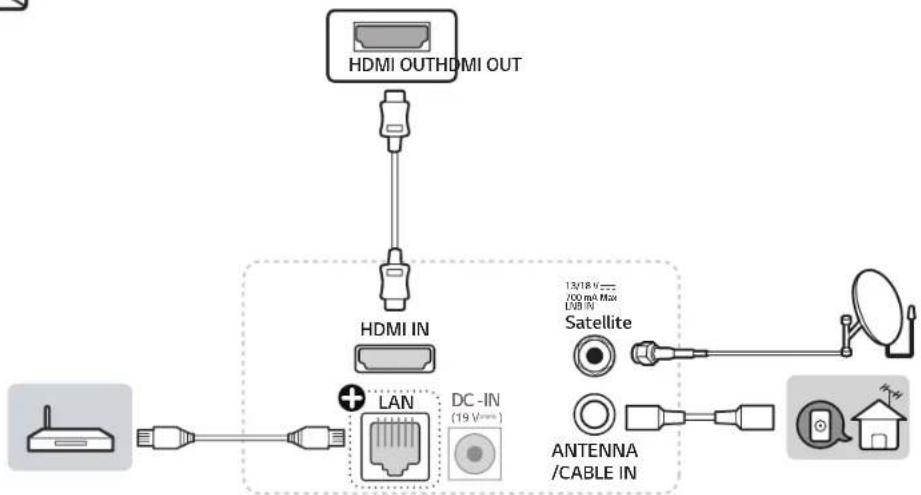
flowchart
graph TD
    A["HDMI OUTHDMI OUT"] --> B["HDMI IN"]
    B --> C["LAN"]
    C --> D["DC-IN (19 V)"]
    D --> E["Satellite"]
    D --> F["ANTENNA /CABLE IN"]
    G["Radio Station"] --> H["USB"]
    H --> I["Wireless Portugal"]
    J["Satellite"] --> K["Antenna /Cable In"]
    L["Satellite"] --> M["Antenna /Cable IN"]
    N["Satellite"] --> O["Antenna /Cable IN"]
    P["Satellite"] --> Q["Antenna /Cable IN"]
    R["Satellite"] --> S["Antenna /Cable IN"]
    T["Satellite"] --> U["Antenna /Cable IN"]
    V["Satellite"] --> W["Antenna /Cable IN"]
    X["Satellite"] --> Y["Antenna /Cable IN"]

text_image
DC-IN (19 V==) 2 3 1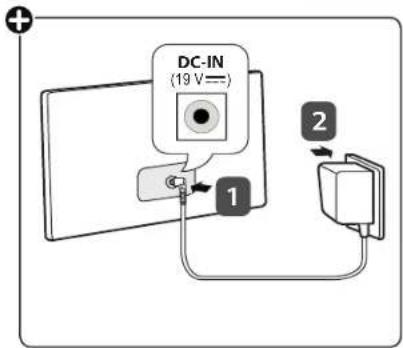
text_image
DC-IN (19 V=) 1 2
text_image
Diagram showing two steps of a device grip or adjustment, labeled 1 and 3, with arrows indicating motion.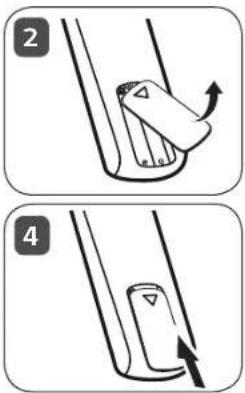
text_image
Diagram showing two steps of a mechanical or electrical component with labeled parts and directional arrows
text_image
LG Life's Good
OWNER'S MANUAL
Safety and Reference
LED TV*
*LG LED TV applies LCD screen with LED backlights.
Please read this manual carefully before operating your set and retain it for future reference.
TK410* TK41EV
TK420* TK600V
Table of contents
Licenses 3
Open source software notice information -3
Preparing----3
Lifting and moving the TV----4
Setting up the TV----4
Using the joystick button ----5
Using the button ----5
Mounting on a table----6
Mounting on a wall ----7
Connections (notifications) 8
Remote control 10
Settings 12
To see web manual----17
Maintenance----18
Troubleshooting---- 18
Specifications 19
Licenses
Supported licenses may differ by model. For more information about licenses, visit www.lg.com.

HIGH-DEFINITION MULTIMEDIA INTERFACE
The terms HDMI and HDMI High-Definition Multimedia Interface, and the HDMI Logo are trademarks or registered trademarks of HDMI Licensing Administrator, Inc. in the United States and other countries.
Manufactured under license from Dolby Laboratories. Dolby, Dolby Vision, Dolby Audio, Dolby Atmos, and the double-D symbol are trademarks of Dolby Laboratories.
Open source software notice information
To obtain the source code under GPL, LGPL, MPL, and other open source licenses, that is contained in this product, please visit http://opensource.lge.com.
In addition to the source code, all referred license terms, warranty disclaimers and copyright notices are available for download.
LG Electronics will also provide open source code to you on CD-ROM for a charge covering the cost of performing such distribution (such as the cost of media, shipping, and handling) upon email request to opensource@lge.com.
This offer is valid for a period of three years after our last shipment of this product. This offer is valid to anyone in receipt of this information.
Preparing

NOTE
• Image shown may differ from your TV.
- Your TV's OSD (On Screen Display) may differ slightly from that shown in this manual.
- The available menus and options may differ from the input source or product model that you are using.
- New features may be added to this TV in the future.
- The TV can be placed in standby mode in order to reduce the power consumption. And the TV should be turned off if it will not be watched for some time, as this will reduce energy consumption.
- The energy consumed during use can be significantly reduced if the level of brightness of the picture is reduced, and this will reduce the overall running cost.
- The items supplied with your product may vary depending on the model.
- Product specifications or contents of this manual may be changed without prior notice due to upgrade of product functions.
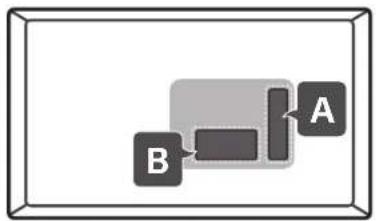
- For an optimal connection, HDMI cables and USB devices should have bezels less than 10 mm thick and 18 mm width. Use an extension cable that supports USB 2.0 if the USB cable or USB memory stick does not fit into your TV's USB port.
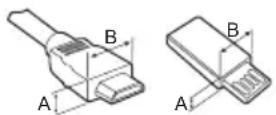
^* A ≤ 10 mm
*B ≦ 18 mm
- Use a certified cable with the HDMI logo attached. If you do not use a certified HDMI cable, the screen may not display or a connection error may occur.
• Recommended HDMI cable types
- High-Speed HDMI®/TM cable
- High-Speed HDMI®/TM cable with Ethernet

CAUTION
- Do not use any unapproved items to ensure the safety and product life span.
- Any damage or injuries caused by using unapproved items are not covered by the warranty.
Lifting and moving the TV
Please note the following advice to prevent the TV from being scratched or damaged and for safe transportation regardless of its type and size.
- It is recommended to move the TV in the box or packing material that the TV originally came in.
- Before moving or lifting the TV, disconnect the power cord and all cables.
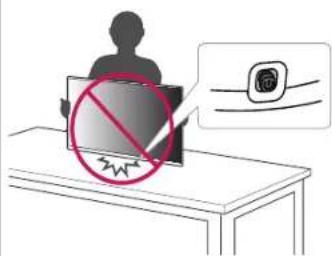
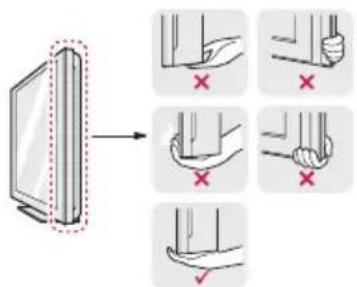
- When holding the TV, the screen should face away from you to avoid damage.

text_image
Prohibition sign with silhouette of person holding a blank sign, crossed out by red circle- Hold the top and bottom of the TV frame firmly. Make sure not to hold the transparent part, speaker, or speaker grill area.
text_image
Diagram illustrating hand positioning and grip application on a monitor, with red X marks indicating specific positions.- When transporting the TV, do not expose the TV to jolts or excessive vibration.
- When transporting the TV, keep the TV upright, never turn the TV on its side or tilt towards the left or right.
- Do not apply excessive pressure to cause flexing/bending of frame chassis as it may damage screen.

CAUTION
- Avoid touching the screen at all times, as this may result in damage to the screen.
- When handling the TV, be careful not to damage the protruding joystick button. (Depending on model)
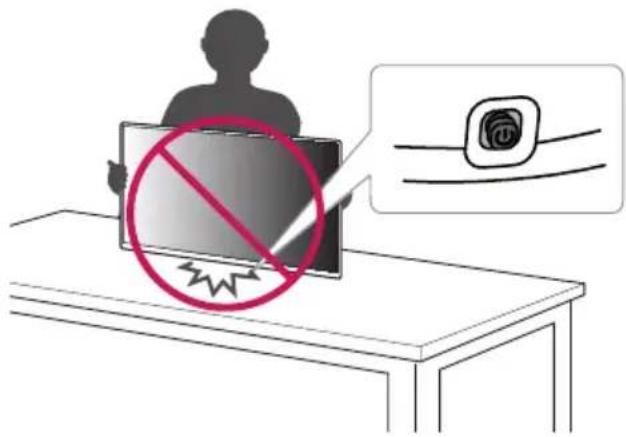
text_image
Illustration showing a person using a computer with a prohibition symbol and a fingerprint icon, suggesting a digital security or monitoring system.Setting up the TV

CAUTION
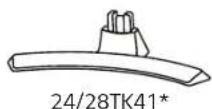
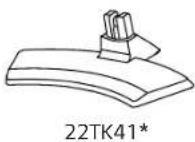
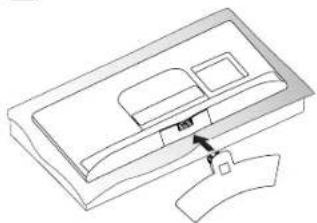
- When attaching the stand to the TV set, place the screen facing down on a cushioned table or flat surface to protect the screen from scratches.
- Do not carry the TV upside-down by holding the stand body (or stand base) as this may cause it to fall off, resulting in damage or injury.
- Do not apply foreign substances (oils, lubricants, etc.) to the screw parts when assembling the product. (Doing so may damage the product.)

NOTE
- Lift up the latch at the bottom of the stand base and detach the stand base from the TV. (Only TK410*, TK41EV)
- Remove the stand before installing the TV on a wall mount by performing the stand attachment in reverse. (Only TK420*)
• TK600 model does not require the additional assembly.
Using the joystick button
(Only TK410*, TK420*, TK41EV)
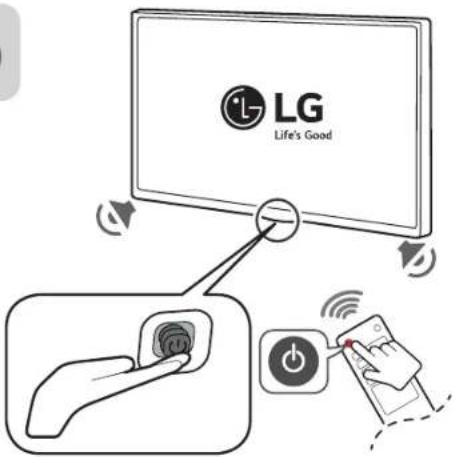
You can simply operate the TV functions, pressing or moving the button.
• Image shown may differ from your TV.
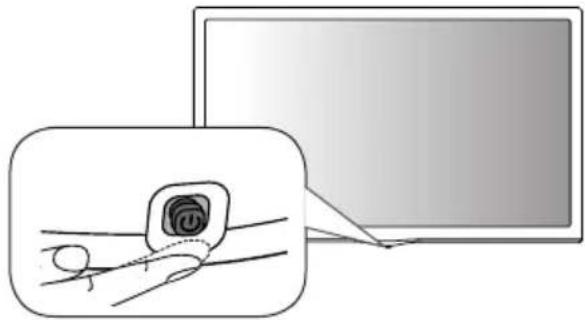
natural_image
Illustration of a hand holding a rose inside a rounded rectangle, with no visible text or symbolsBasic functions
 | Power On (Press)Power Off (Press and hold) ^1 |
 | Volume Control |
 | Programmes Control |
1 If the menu button is on the screen, pressing and holding the button will let you exit the menu.
Adjusting the menu
When the TV is turned on, press the joystick button one time. You can adjust the menu items pressing or moving the buttons.
| Turns the power off. | |
| Accesses the setting menu. | |
| Clears on-screen displays and returns to TV viewing. | |
| Changes the input source. |

NOTE
- If you press the joystick button first, you may not be able to adjust the volume level and saved programmes.

CAUTION
- When your finger over the joystick button and push it to the up, down, left or right, be careful not to press the joystick button.
Using the button
(Only 27TK600V)
• Image shown may differ from your TV.
• You can operate your TV by pressing the button.
• The button is located at the back of your TV.
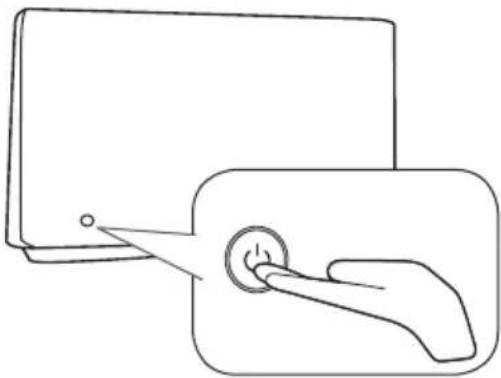
natural_image
Line drawing of a hand pressing a button on a laptop screen (no text or symbols)Basic functions
 | Power On (Press)Power Off (Press and Hold)Menu Control (Press) ^1 Menu Selection (Press and Hold) ^2 |
1 You can access and adjust the menu by pressing the button when TV is on.
2 You can use the function when you access menu control.
Adjusting the menu.
When the TV is turned on, press the button one time. You can adjust the Menu items using the button.
| Turns the power off. | |
| Changes the input source. | |
| Scrolls through the saved programmes. | |
| Adjusts the volume level. |
Mounting on a table
• Image shown may differ from your TV.
1 Lift and tilt the TV into its upright position on a table.
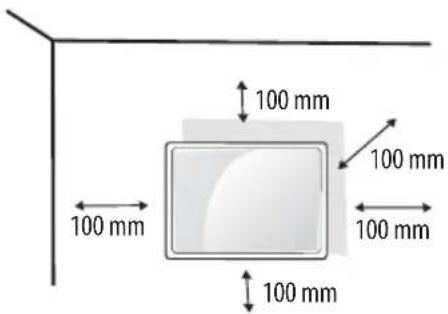
- Leave a 100 mm (minimum) space from the wall for proper ventilation.
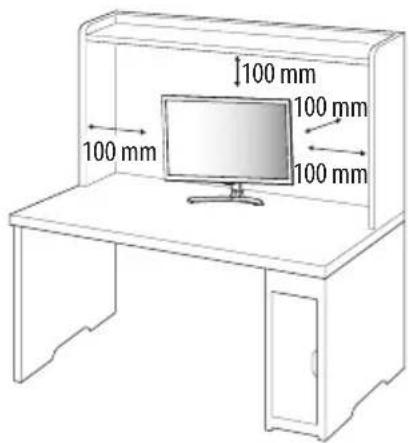
text_image
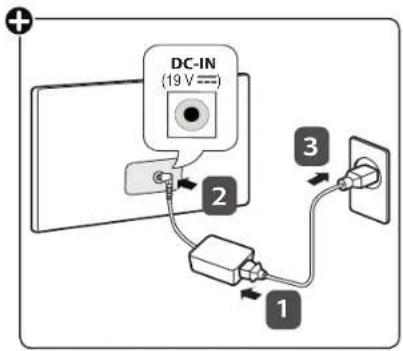
100 mm 100 mm 100 mm 100 mm2 Connect the AC-DC Adapter and power cord to a wall outlet.

CAUTION
- Do not place the TV near or on sources of heat, as this may result in fire or other damage.
- Please be sure to connect the TV to the AC/DC power adapter before connecting the TV's power plug to a wall power outlet.
Using the kensington security system
(This is not available for all models.)
• Image shown may differ from your TV.
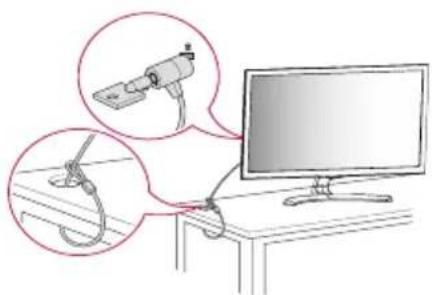
The Kensington security system connector is located at the rear of the TV. For more information of installation and using, refer to the manual provided with the Kensington security system or visit http://www.kensington.com. Connect the Kensington security system cable between the TV and a table.
text_image
Diagram showing cable installation steps with magnified views of a cable being lifted by hooks and connected to a monitor.
NOTE
- The Kensington security system is optional. You can obtain additional accessories from most electronics stores.
Mounting on a wall
For proper ventilation, allow a clearance of 100 mm on each side and from the wall. Detailed installation instructions are available from your dealer, see the optional Tilt Wall Mounting Bracket Installation and Setup Guide.
text_image
100 mm 100 mm 100 mm 100 mm 100 mmIf you intend to mount the TV to a wall, attach Wall mounting interface (optional parts) to the back of the TV.
When you install the TV using the wall mounting interface (optional parts), attach it carefully so it will not drop.
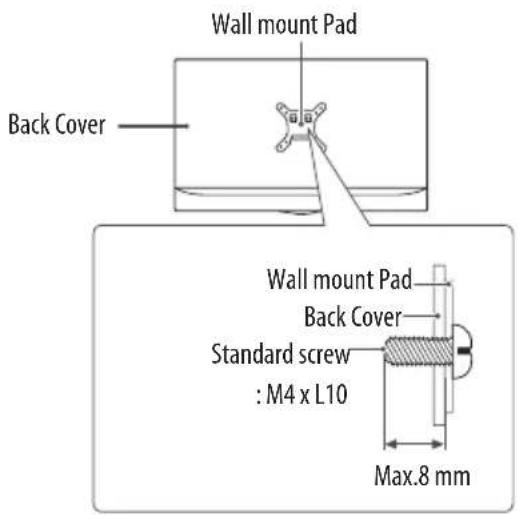
1 If you use screw longer than standard, the TV might be damaged internally.
2 If you use improper screw, the product might be damaged and drop from mounted position. In this case, LG Electronics is not responsible for it.
Separate purchase (Wall mounting bracket)
| Model | 22/24TK410*24TK420*24TK41EV | 28TK410*28TK420*27TK600V28TK41EV |
Wall mount (A x B) (mm)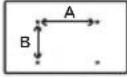 | 75 x 75 100 x 100 | |
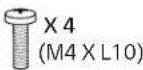
| Standard screw M4 x L10 | ||
| Number of screws 4 | ||
| Wall mount bracket(optional) | RW120 | |

CAUTION
- Must use the enclosed screw in the box. (Depending on model)
- Disconnect the power first, and then move or install the TV. Otherwise electric shock may occur.
- If you install the TV on a ceiling or slanted wall, it may fall and result in severe injury.
- Use an authorized LG wall mount and contact the local dealer or qualified personnel.
- Do not over tighten the screws as this may cause damage to the TV and void your warranty.
- Use the screws and wall mounts that meet the VESA standard. Any damages or injuries by misuse or using an improper accessory are not covered by the warranty.
- Screw length from outer surface of back cover should be under 8 mm.
text_image
Wall mount Pad Back Cover Wall mount Pad Back Cover Standard screw : M4 x L10 Max.8 mm
NOTE
- Use the screws that are listed on the VESA standard screw specifications.
- The wall mount kit includes an installation manual and necessary parts.
- The wall mount bracket is optional. You can obtain additional accessories from your local dealer.
- The length of screws may differ depending on the wall mount. Be sure to use the proper length.
- For more information, refer to the instructions supplied with the wall mount.
Connections (notifications)
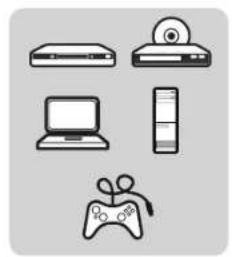
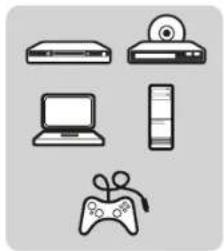
Connect various external devices to the TV and switch input modes to select an external device. For more information about an external device's connection, refer to the manual supplied with each device. Available external devices are: HD receivers, DVD players, VCRs, audio systems, USB storage devices, PC, gaming devices, and other external devices.

NOTE
• The external device connection may differ from the model.
- Connect external devices to the TV regardless of the order of the TV port.
- If you record a TV programme on a DVD recorder or VCR, make sure to connect the TV signal input cable to the TV through a DVD recorder or VCR. For more information of recording, refer to the manual provided with the connected device.
- Refer to the external equipment's manual for operating instructions.
- If you connect a gaming device to the TV, use the cable supplied with the gaming device.
- In PC mode, there may be noise associated with the resolution, vertical pattern, contrast or brightness. If noise is present, change the PC output to another resolution, change the refresh rate to another rate or adjust the brightness and contrast on the Picture menu until the picture is clear.
- In PC mode, some resolution settings may not work properly depending on the graphics card.
Antenna connection
Connect the TV to a wall antenna socket with an RF cable (75 Ω) (Not Provided).
• Use a signal splitter to use more than 2 TVs.
- If the image quality is poor, install a signal amplifier properly to improve the image quality.
- If the image quality is poor with an antenna connected, try to realign the antenna in the correct direction.
• An antenna cable and converter are not supplied.
• Supported DTV Audio : MPEG, Dolby Digital, Dolby Digital Plus, HE-AAC
Satellite dish connection
(Only satellite models)
Connect the TV to a satellite dish to a satellite socket with a satellite RF cable (75 Ω).
CI module connection
(Depending on model)
View the encrypted (pay) services in digital TV mode.
- Check if the CI module is inserted into the PCMCIA card slot in the right direction. If the module is not inserted properly, this can cause damage to the TV and the PCMCIA card slot.
- If the TV does not display any video and audio when CI+ CAM is connected, please contact to the Terrestrial/Cable/Satellite Service Operator.
Other connections
Connect your TV to external devices. For the best picture and audio quality, connect the external device and the TV with the HDMI cable. Some separate cable is not provided.
- USB port supports 0.5 A electric current. If you need more electric current in case of HDD, use the separate power adaptor.

NOTE
- Supported HDMI Audio format : Dolby Digital / Dolby Digital Plus (32 KHz, 44.1 KHz, 48 KHz), PCM (32 KHz, 44.1 KHz, 48 KHz, 96 KHz, 192 KHz) (Depending on model)
Connecting to a PC
• Image shown may differ from your TV.
Your TV supports the Plug and Play* feature and has the built-in speakers with Virtual Surround that reproduces sound clearly with a rich bass.
* Plug and Play: The function when a PC recognizes a connected device that users connect to a PC and turn on, without device configuration or user intervention.

NOTE
- If you want to use HDMI-PC mode, you must set the Input Label to PC mode.
- The OSD (On Screen Display) is displayed on the screen as shown below.
» When turning the product on in HDMI input.
» When switching to HDMI input.
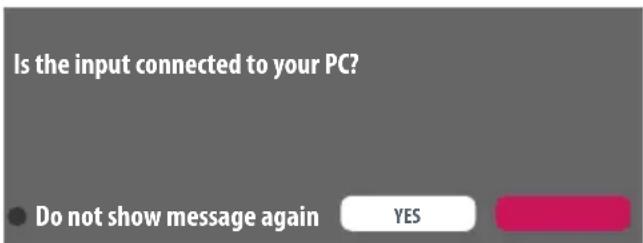
text_image
Is the input connected to your PC? • Do not show message again YES- If you select "YES" the size and image quality are optimised for your PC.
- If you select "NO" the size and image quality are optimised for the AV device (DVD player, set-top box).
- If you select "Do not show message again" this message does not appear until the TV is reset. You can change the set value in

(Home) Inputs Input Label.
- The values set for HDMI1/HDMI2 are saved independently. (Depending on model)
Network
(Depending on model - Only LpNt model)
Wired network connection
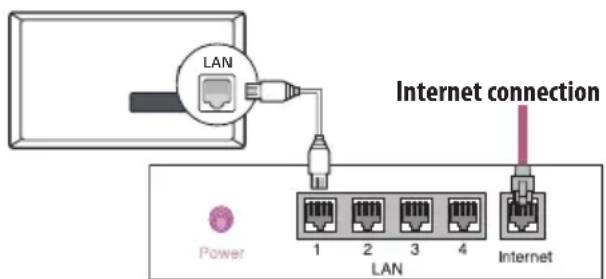
text_image
LAN Internet connection Power 1 2 3 4 LAN InternetWired router
Network setting
1 Select the ⚙️ (Settings) → NETWORK → Network Setting menu.
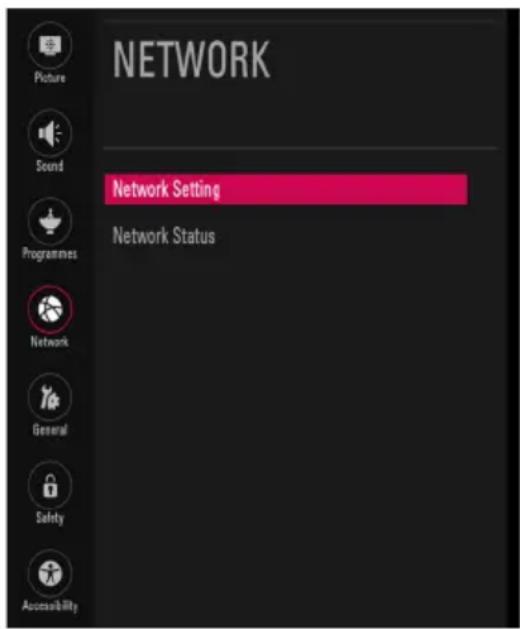
text_image
NETWORK Network Setting Network Status Picture Sound Programmes Network General Safety Accessibility2 Select the START CONNECTION.
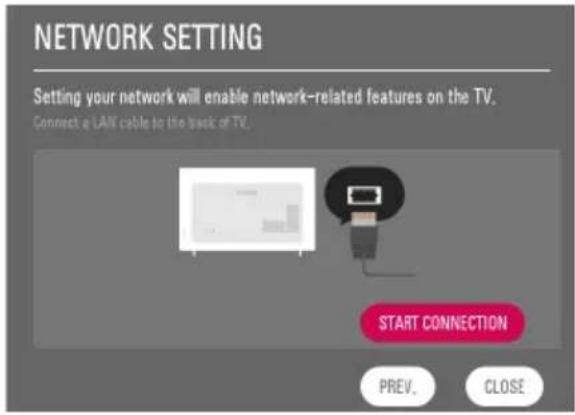
text_image
NETWORK SETTING Setting your network will enable network-related features on the TV. Connect a LAN cable to the back of TV. START CONNECTION PREV. CLOSE3 The device automatically tries to connect to the network.
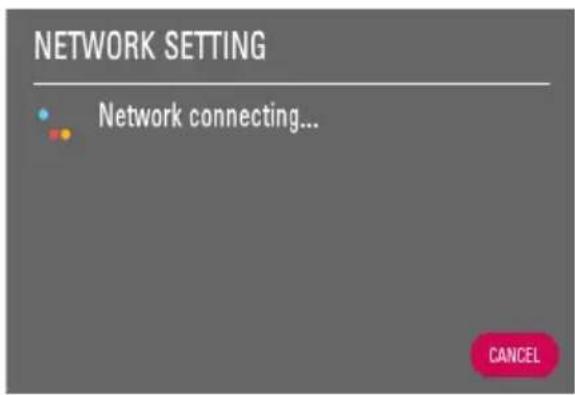
text_image
NETWORK SETTING Network connecting... CANCEL4 The connected network is displayed. Select the CLOSE to confirm the network connection.
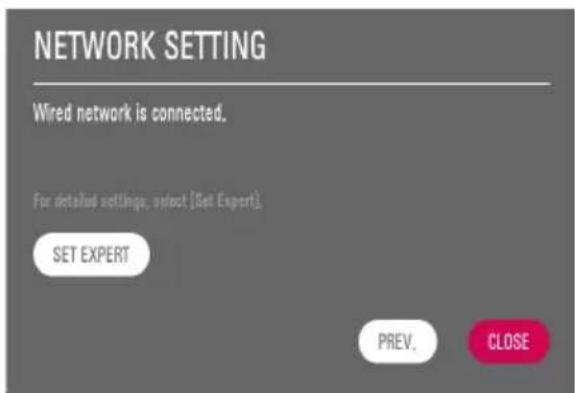
text_image
NETWORK SETTING Wired network is connected. For detailed settings, select (Set Expert) SET EXPERT PREV. CLOSERemote control
The descriptions in this manual are based on the buttons on the remote control. Please read this manual carefully and use the TV correctly.
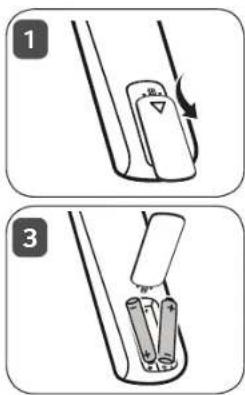
To replace batteries, open the battery cover, replace batteries (1.5 V AAA) matching the and ends to the label inside the compartment, and close the battery cover. To remove the batteries, perform the installation actions in reverse.

CAUTION
- Do not mix old and new batteries, as this may damage the remote control.
- The remote control will not be included for all sales market. Make sure to point the remote control toward the remote control sensor on the TV.
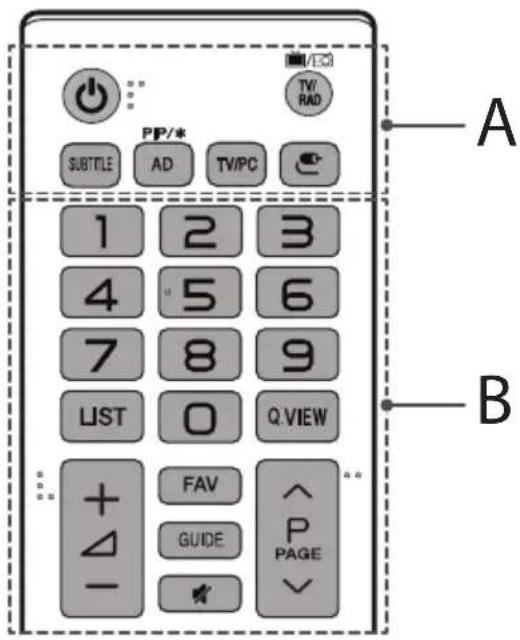
text_image
A B PP/* SUBTITLE AD TWPC Q VIEW 1 2 3 4 5 6 7 8 9 LIST 0 + FAV - GUIDE P PAGEA
(Power) Turns the TV on or off.
TV/RAD Radio, TV and DTV programme.
SUBTITLE Recalls your preferred subtitle in digital mode.
PIP/* Turns the PIP mode on or off. (Depending on model)
AD Audio descriptions function will be enabled.
TV/PC Selects TV or PC mode.
(Inputs) Changes the input source.
B
Number buttons Enters numbers.
LIST Accesses the saved programme list.
Q.VIEW Returns to the previously viewed programme.
+ adjusts the volume level.
FAV Accesses your favourite programme list.
GUIDE Shows programme guide.
(Mute) Mutes all sounds.
^P\Scrolls through the saved programmes.
^PANoves to the previous or next screen.
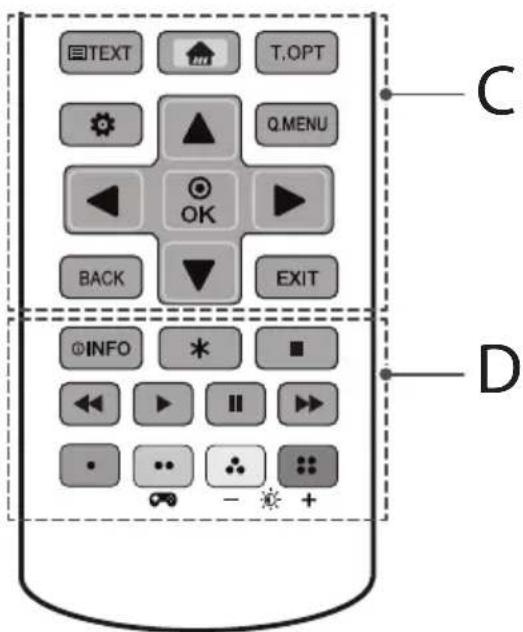
text_image
TEXT T.OPT Q MENU OK BACK EXIT INFO * ■ - - + - - +C
Teletext buttons (☐) TEXT buttons are used for teletext.
(Home) Accesses the home menu.
Settings) Accesses the settings menu.
Q.MENU Accesses the quick menus.
▲,▼,◀,▶ (Navigation buttons) Scrolls through menus or options.
- Selects menus or options and confirms your input.
BACK Returns to the previous level.
EXIT Clears on-screen displays and returns to TV viewing.
D
①INTews the information of the current programme and screen.
* Not functional.
■, ◀, ▶, Ⅱ, ▶ (Control buttons) Controls media contents.
•, , . . . These access special functions in some menus.
(Gaming Mode) Turns the gaming mode on or off.
- ⚙ + (Backlight) Adjusts the brightness of the screen by controlling the screen backlight.
!
NOTE
- On MHEG programme, you cannot adjust the backlight with the yellow or blue key.
Settings
Automatically Setting Up Programme
Settings Programmes Auto Tuning
Automatically tunes the programmes.
- If Input Source is not connected properly, programme registration may not work.
- Auto Tuning only finds programmes that are currently broadcasting.
- If Lock System is turned on, a pop-up window will appear asking for password.
To select Picture Mode
Settings Picture Picture Mode Settings Picture Mode
Select the picture mode optimized for the viewing environment or the programme.
- Vivid: Heightens contrast, brightness and sharpness to display vivid images.
- Standard : Displays images in standard levels of contrast, brightness and sharpness.
- Eco: The Energy Saver feature changes settings on the TV to reduce power consumption.
- Cinema / Game : Displays the optimum picture for movie, game.
- Sports : [Depending on model] Optimised picture mode for sport. The pitch and kits are presented in vibrant colours, with crystal-clear images even for fast movements.
- isf Expert1, 2: Menu for adjusting picture quality that allows experts and amateurs to enjoy the best TV viewing. This is the adjustment menu provided for ISF-certified picture tuning professionals. (ISF logo can only be used on ISF-certified TVs.) ISFccc: Imaging Science Foundation Certified Calibration Control
- Depending on input signal, available range of picture modes may differ.
isf expert mode is for picture tuning professionals to control and fine-tune using a specific image. For normal images, the effects may not be dramatic.
• The ISF function is only available on some models. - Changing Picture Mode may modify eEnergy Saving and Motion Eye Care settings, which can also affect energy consumption.
Fine-tuning Picture Mode
Settings Picture Picture Mode Settings
This feature allows you to adjust the selected picture mode in detail.
- Backlight: Controls the level of screen brightness by adjusting the backlight. The closer to 100, the brighter the screen.
- Contrast: Adjusts the contrast of the bright and dark areas of the picture. The closer to 100, the higher the contrast.
- Brightness: Adjusts the overall screen brightness. The closer to 100, the brighter the screen.
- Sharpness: Adjusts the sharpness of the image. The closer to 50, the sharper and clearer the image.
- Colour : Tones down or up the colours displayed on the screen. The closer to 100, the deeper the colour.
- Tint: Adjusts the colour balance between red and green displayed on the screen. The closer to Red 50, the more red the colour will be. The closer to Green 50, the more green the colour will be.
- Colour Temperature: Adjusts the colour temperature from cold to warm.
- Depending on input signal or other picture settings, the range of detailed items for adjustment may differ.
To set advanced control
(Settings) Picture Picture Mode Settings Advanced Controls / Expert Controls
Calibrates the screen for each picture mode; or adjusts picture settings for a special screen.
- Dynamic Contrast : Adjusts the contrast to the optimal level according to the brightness of the image.
- Dynamic Colour : Adjusts colours to make the image appear in more natural colours.
- Preferred Colour : Adjust the colours of skin, grass and sky to your personal preferences.
- Gamma : Sets the gradation curve according to the output of picture signal in relation to the input signal.
- Colour Gamut: Selects the range of colours that can be expressed.
- Colour Filter : Filters a specific colour spectrum in RGB colours to fine-tune colour saturation and hue accurately.
- White Balance : Adjusts the overall tone of the screen as desired.
- Colour Management System: This is a system that experts use when they adjust colour with a test pattern. They can select from six colour areas (Red / Green / Blue / Cyan / Magenta / Yellow) without affecting other colours. For normal images, adjustments may not result in noticeable colour changes.
- Depending on input signal or other picture settings, the range of detailed items for adjustment may differ.
To set additional picture options
(Settings) Picture Picture Mode Settings Picture Options
Adjusts detailed setting for images.
- Noise Reduction : Eliminates noise in the picture.
- MPEG Noise Reduction : Eliminates noise generated while creating digital picture signals.
- Black Level: Adjusts the brightness and contrast of the screen to suit the black level of the input picture by using the blackness (black level) of the screen.
• Real Cinema : Optimizes the screen for movie viewing. - Motion Eye Care: Automatically adjusts brightness and reduces image blur based on image data to reduce eyestrain.
- Depending on input signal or other picture settings, the range of detailed items for adjustment may differ.
Resetting picture settings
(Settings) Picture Picture Mode Settings Picture Reset
Resets picture settings that the user customizes. Each picture mode is reset. Select the picture mode you wish to reset.
To use Gaming Mode
Settings Picture Gaming Mode
[Available only for RGB/HDMI-PC]
This mode allows you to optimize the picture quality for games.
- DAS Mode : [Depending on model] This mode minimizes the time taken to display the video signal received from the input device to ensure faster gameplay. (The screen will flicker when turning DAS Mode On or Off.)
- DAS : Dynamic Action Sync
- Black Stabilizer : Objects can be seen more clearly on a dark screen by adjusting the black levels. Increasing the Black Stabilizer value brightens the low gray levels on the screen. (You can easily distinguish objects on a dark game screen.) Reducing the Black Stabilizer value darkens the low gray levels and increases the dynamic contrast on the screen.
- You can configure the detailed settings for Gaming Mode using the OK key on the remote control.
- You can set DAS Mode only when the frequency for vertical input is 50 Hz/60 Hz.
- When PIP is turned on, the DAS Mode is unavailable. (Depending on model)
To use Energy Saving feature
(Settings) Picture Energy Saving
Reduces power consumption by adjusting screen brightness.
• Off: Turns off the Energy Saving mode.
- Minimum / Medium / Maximum : Applies the pre-set Energy Saving mode.
- Screen Off: Screen is turned off and only sound is played. Press any button except Power button on the remote control to turn the screen back on.
- Depending on the eEnergy Saving (Maximum), you may not be able to adjust the Backlight.
In this case, navigate to ⚙ (Settings)→ Picture→ e∅ Energy Saving and set to Off or Minimum.
To use Eye Comfort Mode feature
(Settings) Picture Additional Settings Eye Comfort Mode
If you turn this option on, colour temperature will be automatically adjusted to reduce eye strain.
• On : Automatically adjusts the screen color temperature.
• Off: Turns off the Eye Comfort Mode.
Selecting Sound Mode
(Settings) Sound Sound Mode Settings Sound Mode
Adjusts TV audio to an optimal level based on a selected sound mode.
- Standard : Optimizes the sound for all types of content.
- Clear Voice : Boosts voice clarity from the TV.
- Music: [Depending on model] Optimizes the sound for music.
• Cinema : Optimizes the sound for cinemas. - Sports : [Depending on model] Optimizes the sound for sports.
• Game : Optimizes the sound for gameplay.
Adjusting audio balance
(Settings) Sound Sound Mode Settings Balance
Adjust the volume of the left and right speakers.
Using the Sound Effect function
Settings Sound Sound Mode Settings
The user can select various sound effects.
- Virtual Surround: Enjoy an immersive soundscape with the virtual multi-channel surround sound effect.
- Equalizer: Set the desired sound by adjusting the equalizer directly.
- Reset : Reset the sound effect settings.
- This is only available if Sound Mode is set to Standard.
To use TV speaker
(Settings) Sound Sound Out Internal TV Speaker
[Depending on model]
Sound is output through the TV speaker.
To use Headphone
(Settings) Sound Sound Out Wired Headphones
[Depending on model]
Sound is output through the headphone connected to the earphone/headphone port.
To synchronize audio and video
Settings Sound AVSync Adjustment
[Depending on model]
Synchronizes video and audio directly when they do not match. If you set AV Sync Adjustment to On, you can adjust the sound output (TV speakers) to the screen image.
- If you select the Bypass, Outputs the broadcast signals or the sound from external devices without any audio delay. The audio may be output before the video because of the time the TV takes to process the video input.
PIP Setting
Settings General PIP
[Depending on model]
• Mode : Shows or hides the sub-screen.
- Sub Input: Select the input on the sub-screen.
- Position: Adjusts the position of the sub-screen.
- Size: Adjusts the size of the sub-screen.
- Sound : Switches to the main screen sound or the sub screen sound.
- The PIP function is only available in the following mode:
- Main : RGB-PC Sub : DTV / ATV / HDMI
- Main : HDMI Sub : DTV / ATV / Component
• The PIP settings can also be set using MENU
- Press the PIP button on the remote control to show or hide the sub-screen.
- The PIP function is not available when SIMPLINK is activated.
Setting USB AutoRun
(Settings) General USB AutoRun
Play photos or videos of USB automatically when TV is turned on or USB is connected.
- Off: Turn off the USB AutoRun.
• Videos : Play videos of USB automatically.
• Photos : Play photos of USB automatically.
- Only plays the files in the top level folder of the USB device in sequence.
- While playing, press the or button on the remote control to end this function.
- If the files are invalid or corrupted, the following message appears before returning to the previous input status: "This file is invalid."
- When the USB device is reconnected after being disconnected during video playback, Continue watching starts automatically and resumes the video from the last viewed scene (only applies to the first video).
To use SIMPLINK
[Depending on model]
SIMPLINK is a feature that enables you to control and manage various multimedia devices conveniently via the SIMPLINK menu.
1 Connect the TV's terminal and the SIMPLINK device's HDMI output terminal using an HDMI cable.
2 Select ⚙ (Settings) → General → SIMPLINK. SIMPLINK menu window appears.
3 In SIMPLINK Setting window, set SIMPLINK function to On.
4 Configure the Auto Power Sync settings to On or Off.
5 In SIMPLINK menu window, selects the device you want to control.
- You can also set the SIMPLINK in (Home) → Inputs → SIMPLINK.
- This function is only compatible with devices with the SIMPLINK logo.
- To use the SIMPLINK function, you need to use a high-speed HDMI® cable (with CEC (Consumer Electronics Control) feature added). High-speed HDMI® cables have the No. 13 pin connected for information exchange between devices.
• If you switch to another input, the SIMPLINK device will stop.
- If a third-party device with the HDMI-CEC function is also used, the SIMPLINK device may not work normally.
- If you select or play media from a the device with a home theatre function, the HT Speaker is automatically connected.
SIMPLINK function description
- Direct Play : Plays the multimedia device on the TV instantly.
- Controlling devices with the TV remote control : Manages the multimedia device with the TV remote control.
- Main Power Off : If Auto Power Sync is set to On in the SIMPLINK settings and turn off your TV, the devices connected to your TV via SIMPLINK will also be turned off.
- Main Power On : If Auto Power Sync is set to On in the SIMPLINK settings, turning on a SIMPLINK-linked device will turn the TV on. (Behavior may vary depending on connected device.)
- Speaker : [Depending on model] Select speaker either on the home theatre unit or the TV.
To set password
Settings Safety Set Password
Sets or changes the TV password.
• The initial password is set to '0000'.
- When France is selected for Country, password is not '0000' but '1234'.
- When France is selected for Country, password cannot be set to '0000'.
To return Reset to Initial Settings
(Settings) General Reset to Initial Settings
All stored information is deleted and TV settings are reset.
The TV turns itself off and back on, and all settings are reset.
- When Lock System is in place, a pop-up window appears and asks for password.
- Do not turn off the power during initialization.
To remove the USB device
Select the connected USB HDD from (Home) Inputs and select the Eject button to disconnect the USB HDD storage device.
When you see a message that the USB device has been removed, separate the device from the TV.
- Once a USB device has been selected for removal, it can no longer be read. Remove the USB storage device and then re-connect it.
Using a USB storage device - warning
- If the USB storage device has a built-in auto recognition program or uses its own driver, it may not work.
• Some USB storage devices may not work or may work incorrectly.
- Use only USB storage devices formatted with the Windows FAT32 or NTFS File System.
- For external USB HDDs, it is recommended that you use devices with a rated voltage of less than 5 V and a rated current of less than 500 mA.
- It is recommended that you use USB memory sticks of 32 GB or less and USB HDDs of 2 TB or less.
- If a USB HDD with power-saving function does not work properly, turn the power off and on. For more information, refer to the user manual of the USB HDD.
- Data in the USB storage device can be damaged, so be sure to back up important files to other devices. Data maintenance is the user's responsibility and the manufacturer is not responsible for data loss.
My Media supporting file
• Maximum data transfer rate: 20 Mbps (Mega bit per second)
- External supported subtitle formats: *.smi, *.srt, *.sub (MicroDVD, SubViewer1.0/2.0), *.ass, *.ssa, *.txt (TMplayer), *.psb (PowerDivX)
Supported Video Formats
• Maximum: 1920 x 1080 @ 30p (Only Motion JPEG 640 x 480 @ 30p)
| Extension Codec | ||
| .asf, .wmv | Video | MPEG-4 Part2, Xvid, H.264/AVC, VC1(WMV3, WVC1) |
| Audio | WMA Standard, WMA9(Pro), MP3, AAC, AC3 | |
| .avi | Video MPEG-2, MPEG-4 Part2, Xvid, H.264/AVC | |
| Audio | HE-AAC, LPCM, ADPCM, MPEG-1 Layer I, MPEG-1 Layer II, Dolby Digital, MPEG-1 Layer III (MP3) | |
| .ts, .trp, .tp, .mts, .m2ts | Video H.264/AVC, MPEG-2, H.265/HEVC | |
| Audio | MPEG-1 Layer I, MPEG-1 Layer II, MPEG-1 Layer III (MP3), Dolby Digital, Dolby Digital Plus, AAC, HE-AAC | |
| .vob | Video MPEG-1, MPEG-2 | |
| Audio | Dolby Digital, MPEG-1 Layer I, MPEG-1 Layer II, DVD-LPCM | |
| .mp4, .m4v, .mov | Video MPEG-2, MPEG-4 Part2, Xvid, H.264/AVC | |
| Audio AAC, MPEG-1 Layer III (MP3) | ||
| .mkv | Video MPEG-2, MPEG-4 Part2, Xvid, H.264/AVC | |
| Audio | HE-AAC, Dolby Digital, MPEG-1 Layer III (MP3), LPCM | |
| motion JPEG | Video MUPEG | |
| Audio LPCM, ADPCM | ||
| .mpg, .mpeg, .mpe | Video MPEG-1, MPEG-2 | |
| Audio | MPEG-1 Layer I, MPEG-1 Layer II, Dolby Digital, LPCM | |
| .dat | Video MPEG-1, MPEG-2 | |
| Audio MP2 | ||
| .flv | Video Sorenson H.263, H.264/AVC | |
| Audio MP3, AAC, HE-AAC | ||
| .3gp | Video H.264/AVC, MPEG-4 Part2 | |
| Audio AAC, AMR(NB/WB) | ||
Supported Audio Formats
| File Format | Item Info | |
| mp3 | Bit rate 32 Kbps ~ 320 Kbps | |
| Sample freq. 16 kHz ~ 48 kHz | ||
| Support MPEG-1, MPEG-2, Layer2, Layer3 | ||
| AAC | Bit rate Free Format | |
| Sample freq. 8 kHz ~ 48 kHz | ||
| Support ADIF, ADTS | ||
| M4A | Bit rate Free Format | |
| Sample freq. 8 kHz ~ 48 kHz | ||
| Support MPEG-4 | ||
| WAV | Bit rate 64 kbps ~ 1.5 Mbps | |
| Sample freq. 8 kHz ~ 48 kHz | ||
| Support LPCM | ||
| Bit depth 8 bit / 16 bit / 24 bit | ||
| WMA | Bit rate 128 Kbps ~ 320 Kbps | |
| Sample freq. 8 kHz ~ 48 kHz | ||
| Support WMA7, WMA8, WMA9 Standard | ||
| WMA 10 Pro | Bit rate ~ 768 Kbps | |
| Channel / Sample freq. | M0: up to 2 Channel @ 48 kHz (Except LBR mode), M1: up to 5.1 Channel @ 48 kHz, M2: up to 5.1 Channel @ 96 kHz | |
| Support WMA 10 Pro | ||
| OGG | Bit rate Free Format | |
| Sample freq. 8 kHz ~ 48 kHz | ||
| Support OGG Vorbis | ||
Supported Photo Formats
| File Format Item Resolution | ||
| jpeg, jpg, jpe | Available File Type | SOF0: BaselineSOF1: Extend SequentialSOF2: Progressive |
| Photo Size | Minimum: 64 (W) x 64 (H)Maximum (Normal Type): 15360 (W) x 8640 (H)Maximum (Progressive Type): 1920 (W) x 1440 (H) | |
| BMP Photo Size | Minimum: 64 (W) x 64 (H)Maximum: 9600 (W) x 6400 (H) | |
| PNG | Available File Type | Interlace, Non-Interlace |
| Photo Size | Minimum: 64 (W) x 64 (H)Maximum (Interlace): 1200 (W) x 800 (H)Maximum (Non-Interlace): 9600 (W) x 6400 (H) | |
* BMP and PNG format files may be slower to display than JPEG.
To see web manual
To obtain detailed User Guide information, please visit www.lg.com
Maintenance
Cleaning your TV
Clean your TV regularly to keep the best performance and to extend the product lifespan.
- Make sure to turn the power off and disconnect the power cord and all other cables first.
- When the TV is left unattended and unused for a long time, disconnect the power cord from the wall outlet to prevent possible damage from lightning or power surges.
Screen, frame, cabinet and stand
To remove dust or light dirt, wipe the surface with a dry, clean, and soft cloth.
To remove major dirt, wipe the surface with a soft cloth dampened in clean water or a diluted mild detergent. Then wipe immediately with a dry cloth.
- Avoid touching the screen at all times, as this may result in damage to the screen.
- Do not push, rub, or hit the screen surface with your fingernail or a sharp object, as this may result in scratches and image distortions.
- Do not use any chemicals as this may damage the product.
- Do not spray liquid onto the surface. If water enters the TV, it may result in fire, electric shock, or malfunction.
Power cord
Remove the accumulated dust or dirt on the power cord regularly.
Preventing "Image burn" or "Burn-in" on your TV screen
- If a fixed image displays on the TV screen for a long period of time, it will be imprinted and become a permanent disfigurement on the screen. This is “image burn” or “burn-in” and not covered by the warranty.
- If the aspect ratio of the TV is set to 4:3 for a long period of time, image burn may occur on the letterboxed area of the screen.
- Avoid displaying a fixed image on the TV screen for a long period of time (2 or more hours for LCD) to prevent image burn.
Troubleshooting
Cannot control the TV with the remote control.
- Check the remote control sensor on the product and try again.
- Check if there is any obstacle between the product and the remote control.
- Check if the batteries are still working and properly installed
(⊕0, ⊕-). - -
No image display and no sound is produced.
• Check if the product is turned on.
- Check if the power cord is connected to a wall outlet.
- Check if there is a problem in the wall outlet by connecting other products.
The TV turns off suddenly.
- Check the power control settings. The power supply may be interrupted.
- Check if the Auto Power Off (Depending on model) / Sleep Timer / Timer Power Off feature is activated in the Timers settings.
- If there is no signal while the TV is on, the TV will turn off automatically after 15 minutes of inactivity.
When connecting to the PC (HDMI/RGB), 'No Signal', 'Check signal cable' or 'Unsupported Format' is displayed.
• Turn the TV off/on using the remote control.
• Reconnect the HDMI/RGB cable.
- Restart the PC with the TV on.
If TV is turned off automatically.
- If Timer Power On is enabled, the TV will be turned on at the specified time. If you do not operate the TV for two hours, the TV will be turned off automatically.
• To disable this function, use your remote control to go to
(Settings)→ Timers→ Timer Power On→ 2 Hours Auto Power Off=Off.
Specifications
Product specifications may be changed without prior notice due to upgrade of product functions.
| Models | Dimensions (W x H x D) (mm) Weight (kg) | Power consumption(Outgoing condition) | Powerrequirement | |||
| With stand Without stand With stand Without stand | ||||||
| 22TK410D22TK410V | 507.6 x 358.0 x 146.3 | 507.6 x 316.5 x 52.7 | 3.0 | 26 W 19 V 1.6 A | --- | |
| 24TK410D24TK410V24TK410U24TK41EV | 556 x 392.7 x 143.4 | 556 x 345.2 x 54.7 | 3.5 | 28 W 19 V 1.6 A | --- | |
| 24TK420V | 556 x 376.5 x 130.5 | 556 x 345.2 x 54.7 | 3.3 | 3.2 | 28 W | |
| 28TK410D28TK410V28TK410U28TK41EV | 641.5 x 444.0 x 178.8 | 641.5 x 396.3 x 59.5 | 5.0 | 28 W 19 V 1.6 A | --- | |
| 28TK420V | 641.5 x 428.7 x 159.2 | 641.5 x 396.3 x 59.5 | 4.6 | 4.5 | 28 W | |
| 27TK600V | 634.6 x 400.6 x 90.4 | 4.5 | 32 W | |||
| AC/DC Adapter | TK410*, TK420*, TK41EV | 27TK600V |
| Manufacturer: Lien ChangModel: LCAP16A-E, LCAP21AManufacturer: HonorModel: ADS-40FSG-19 19032GPG,ADS-40SG-19-3 19032G | Manufacturer: Lien ChangModel: LCAP21C | |
| In: AC 100 – 240 V ~ 50/60 HzOut: DC 19 V — — 1.7 A | In: AC 100 – 240 V ~ 50/60 HzOut: DC 19 V — — 2.1 A |
| CI module Size (W x H x D) | 100.0 mm x 55.0 mm x 5.0 mm |
| Environment condition | Operating Temperature | 0 °C to 40 °C |
| Operating Humidity | Less than 80 % | |
| Storage Temperature | -20 °C to 60 °C | |
| Storage Humidity | Less than 85 % |
(Depending on country)
| Digital TV Analogue TV | ||||
| Satellite Terrestrial Cable Terrestrial / Cable | ||||
| Television system DVB-S/S2* | DVB-TDVB-T2* | DVB-C | PAL/SECAM B/G, D/K,I,SECAM L | |
| Programme coverage 950 ~ 2,150 Mhz | VHF III: 174 ~ 230 MhzUHF IV: 470 ~ 606 MhzUHF V: 606 ~ 862 MhzS Band II: 230 ~ 300 MhzS Band III: 300 ~ 470 Mhz | 46 ~ 890 Mhz 46 ~ 862 Mhz | ||
| Maximum number of storable programmes | 6,000 2,000 | |||
| External antenna impedance 75 Ω | ||||
* Only DVB-T2/C/S2 support models.
HDMI-PC supported mode
24/28TK410*, 24/28TK420*, 24/28TK41EV
| Resolution | Horizontal frequency(kHz) | Vertical frequency(Hz) |
| 720 x 400 31.468 | 70.080 | |
| 640 x 480 | 31.469 | 59.940 |
| 37.500 | 75.000 | |
| 800 x 600 | 37.879 | 60.317 |
| 46.875 | 75.000 | |
| 1024 x 768 | 48.363 | 60.004 |
| 60.023 | 75.029 | |
| 1280 x 800 49.702 | 59.810 | |
| 1366 x 768 47.717 | 59.790 |
22TK410*
| Resolution | Horizontal frequency(kHz) | Vertical frequency(Hz) |
| 720 x 400 31.468 | 70.080 | |
| 640 x 480 | 31.469 | 59.940 |
| 37.500 | 75.000 | |
| 800 x 600 | 37.879 | 60.317 |
| 46.875 | 75.000 | |
| 1024 x 768 | 48.363 | 60.004 |
| 56.476 | 70.069 | |
| 60.023 | 75.029 | |
| 1152 x 864 67.500 | 75.000 | |
| 1280 x 720 45.000 | 60.000 | |
| 1280 x 800 49.702 | 59.810 | |
| 1280 x 1024 | 63.981 | 60.020 |
| 79.976 | 75.025 | |
| 1400 x 1050 65.317 | 59.978 | |
| 1440 x 900 55.935 | 59.887 | |
| 1600 x 900 60.000 | 60.000 | |
| 1680 x 1050 | 64.674 | 59.883 |
| 65.290 | 59.954 | |
| 1920 x 1080 67.500 | 60.000 |

NOTE
• The optimal display resolution
- 24/28TK410*, 24/28TK420*, 24/28TK41EV: 1366 x 768 @ 60 Hz.
- 22TK410*: 1920 x 1080 @ 60 Hz.
• The optimal timing in each mode is vertical frequency 60 Hz.
RGB (PC) / HDMI (PC) supported mode 27TK600V
| Resolution | Horizontal Frequency (kHz) | Vertical Frequency (Hz) |
| 720 x 400 31.468 | 70.080 | |
| 640 x 480 | 31.469 | 59.940 |
| 37.500 | 75.000 | |
| 800 x 600 | 37.879 | 60.317 |
| 46.875 | 75.000 | |
| 1024 x 768 48.363 | 60.004 | |
| 1024 x 768(Only HDMI (PC)) | 56.476 70.069 | |
| 1024 x 768 60.023 | 75.029 | |
| 1152 x 864 67.500 | 75.000 | |
| 1280 x 720 45.000 | 60.000 | |
| 1280 x 800 49.702 | 59.810 | |
| 1280 x 1024 | 63.981 | 60.020 |
| 79.976 | 75.025 | |
| 1400 x 1050 65.317 | 59.978 | |
| 1440 x 900 55.935 | 59.887 | |
| 1600 x 900 60.000 | 60.000 | |
| 1680 x 1050 | 64.674 | 59.883 |
| 65.290 | 59.954 | |
| 1920 x 1080(Only RGB (PC)) | 66.590 59.930 | |
| 1920 x 1080(Only HDMI (PC)) | 67.500 60.000 |

NOTE
• The optimal display resolution: 1920 x 1080 @ 60 Hz.
• The optimal timing in each mode is vertical frequency 60 Hz.
HDMI-DTV supported mode
| Resolution | Horizontal frequency(kHz) | Vertical frequency(Hz) |
| 720 x 480 | 31.469 | 59.940 |
| 31.500 | 60.000 | |
| 720 x 576 | 31.250 50.000 | |
| 1280 x 720 | 37.500 | 50.000 |
| 44.960 | 59.940 | |
| 45.000 | 60.000 | |
| 1920 x 1080 | 33.720 | 59.940 |
| 33.750 | 60.000 | |
| 28.125 | 50.000 | |
| 27.000 | 24.000 | |
| 33.750 | 30.000 | |
| 56.250 | 50.000 | |
| 67.430 | 59.940 | |
| 67.500 | 60.000 |
Component supported mode
27TK600V
| Resolution | Horizontal Frequency (kHz) | Vertical Frequency (Hz) |
| 720 x 480 | 15.730 | 59.940 |
| 15.750 | 60.000 | |
| 31.470 | 59.940 | |
| 31.500 | 60.000 | |
| 720 x 576 | 15.625 | 50.000 |
| 31.250 | 50.000 | |
| 1280 x 720 | 44.960 | 59.940 |
| 45.000 | 60.000 | |
| 37.500 | 50.000 | |
| 1920 x 1080 | 33.720 | 59.940 |
| 33.750 | 60.000 | |
| 28.125 | 50.000 | |
| 56.250 | 50.000 | |
| 67.432 | 59.940 | |
| 67.500 | 60.000 |
Component port connecting information
27TK600V
| Component ports on the TV Y | P_B | P_R |
| Video output ports on DVD player | Y | P_B | P_R |
| Y B-Y R-Y | |||
| Y Cb Cr | |||
| Y Pb Pr | |||
WARNING!
Never place a television set in an unstable location. A television set may fall, causing serious personal injury or death. Many injuries, particularly to children, can be avoided by taking simple precautions such as:
- Using cabinets or stands recommended by the manufacturer of the television set.
• Only using furniture that can safely support the television set. - Ensuring the television set is not overhanging the edge of the supporting furniture.
- Not placing the television set on tall furniture (for example, cupboards or bookcases) without anchoring both the furniture and the television set to a suitable support.
- Not placing the television set on cloth or other materials that may be located between the television set and supporting furniture.
- Educating children about the dangers of climbing on furniture to reach the television set or its controls.
If your existing television set is being retained and relocated, the same considerations as above should be applied.
Symbols
| ~ | Refers to alternating current (AC). |
| --- | Refers to direct current (DC). |
| Refers to class II equipment. | |
| Refers to stand-by. | |
| | | Refers to “ON” (power). |
| Refers to dangerous voltage. |

LG
Life's Good
Record the model number and serial number of the TV.
Refer to the label on the back cover and quote this information to your dealer when requiring any service.
MODEL
SERIAL