
SyncMaster B1940ER - Screen SAMSUNG - Free user manual and instructions
Find the device manual for free SyncMaster B1940ER SAMSUNG in PDF.


User questions about SyncMaster B1940ER SAMSUNG
0 question about this device. Answer the ones you know or ask your own.
Ask a new question about this device
Download the instructions for your Screen in PDF format for free! Find your manual SyncMaster B1940ER - SAMSUNG and take your electronic device back in hand. On this page are published all the documents necessary for the use of your device. SyncMaster B1940ER by SAMSUNG.
USER MANUAL SyncMaster B1940ER SAMSUNG
The color and the appearance may differ depending on the product, and the specifications are subject to change without prior notice to improve the performance.
MAJOR SAFETY PRECAUTIONS
Before You Start 1-1
Custody and Maintenance 1-2
Safety Precautions 1-3
INSTALLING THE PRODUCT
Package Contents 2-1
Installing the Stand 2-2
Installing the Stand for the Wall Mount 2-3
Connecting with a PC 2-4
Connecting an HDMI cable 2-5
Kensington Lock 2-6
Connecting Headphones 2-7
Speaker 2-8
Connecting USB 2-9
USING THE PRODUCT
Setting the Optimal Resolution 3-1
Standard Signal Mode Table 3-2
Standard Signal Mode Table 3-3
Standard Signal Mode Table 3-4
Standard Signal Mode Table 3-5
Standard Signal Mode Table 3-6
Standard Signal Mode Table 3-7
Standard Signal Mode Table 3-8
Standard Signal Mode Table 3-9
Standard Signal Mode Table 3-10
Standard Signal Mode Table 3-11
Standard Signal Mode Table 3-12
Standard Signal Mode Table 3-13
Standard Signal Mode Table 3-14
Standard Signal Mode Table 3-15
Standard Signal Mode Table 3-16
Standard Signal Mode Table 3-17
Standard Signal Mode Table 3-18
Standard Signal Mode Table 3-19
Standard Signal Mode Table 3-20
Standard Signal Mode Table 3-21
Standard Signal Mode Table 3-22
Standard Signal Mode Table 3-23
Standard Signal Mode Table 3-24
Standard Signal Mode Table 3-25
Standard Signal Mode Table 3-26
Standard Signal Mode Table 3-27
Standard Signal Mode Table 3-28
Standard Signal Mode Table 3-29
Standard Signal Mode Table 3-30
Standard Signal Mode Table 3-31
Standard Signal Mode Table 3-32
Standard Signal Mode Table 3-33
Standard Signal Mode Table 3-34
Standard Signal Mode Table 3-35
Standard Signal Mode Table 3-36
Standard Signal Mode Table 3-37
Standard Signal Mode Table 3-38
Standard Signal Mode Table 3-39
Standard Signal Mode Table 3-40
Standard Signal Mode Table 3-41
Standard Signal Mode Table 3-42
Standard Signal Mode Table 3-43
Installing the Device Driver 3-44
Product Operating Buttons 3-45
Using the Screen Adjustment Menu (OSD: On Screen Display) ... 3-46
INSTALLING THE SOFTWARE
Natural Color 4-1
MagicTune 4-2
MagicRotation 4-3
MultiScreen 4-4
TROUBLESHOOTING
Monitor Self-Diagnosis 5-1
Before Requesting Service 5-2
FAQ 5-3
MORE INFORMATION
Specifications 6-1
Power Saving Function 6-2
Specifications 6-3
Power Saving Function 6-4
Specifications 6-5
Power Saving Function 6-6
Specifications 6-7
Power Saving Function 6-8
Specifications 6-9
Power Saving Function 6-10
Specifications 6-11
Power Saving Function 6-12
Specifications 6-13
Power Saving Function 6-14
Specifications 6-15
Power Saving Function 6-16
Specifications 6-17
Power Saving Function 6-18
Specifications 6-19
Power Saving Function 6-20
Specifications 6-21
Power Saving Function 6-22
Specifications 6-23
Power Saving Function 6-24
Specifications 6-25
Power Saving Function 6-26
Specifications 6-27
Power Saving Function 6-28
Specifications 6-29
Power Saving Function 6-30
Specifications 6-31
Power Saving Function 6-32
Specifications 6-33
Power Saving Function 6-34
Specifications 6-35
Power Saving Function 6-36
Specifications 6-37
Power Saving Function 6-38
Specifications 6-39
Power Saving Function 6-40
Specifications 6-41
Power Saving Function 6-42
Specifications 6-43
Power Saving Function 6-44
Specifications 6-45
Power Saving Function 6-46
Specifications 6-47
Power Saving Function 6-48
Specifications 6-49
Power Saving Function 6-50
Specifications 6-51
Power Saving Function 6-52
Specifications 6-53
Power Saving Function 6-54
Specifications 6-55
Power Saving Function 6-56
Specifications 6-57
Power Saving Function 6-58
Specifications 6-59
Power Saving Function 6-60
Specifications 6-61
Power Saving Function 6-62
Specifications 6-63
Power Saving Function 6-64
Specifications 6-65
Power Saving Function 6-66
Specifications 6-67
Power Saving Function 6-68
Specifications 6-69
Power Saving Function 6-70
Specifications 6-71
Power Saving Function 6-72
Specifications 6-73
Power Saving Function 6-74
Specifications 6-75
Power Saving Function 6-76
Specifications 6-77
Power Saving Function 6-78
Specifications 6-79
Power Saving Function 6-80
Specifications 6-81
Power Saving Function 6-82
Specifications 6-83
Power Saving Function 6-84
Contact SAMSUNG WORLDWIDE 6-85
Correct Disposal of This Product (Waste Electrical & Electronic Equipment) - Europe only ..... 6-86
1 Major Safety Precautions
1-1 Before You Start
Icons used in this manual
| Icon Name | Meaning | |
 | Caution Indicates cases where the function may not work or the setting may be canceled. | |
 | Note Indicates a hint or tip to operate a function. | |
Using this Manual
• Make yourself fully aware of the safety precautions before using this product.
- If a problem occurs, refer to the 'Troubleshooting' section.
Copyright Notice
The contents of this manual are subject to change without prior notice for performance improvement.
Copyright © 2010 Samsung Electronics Co., Ltd. All Rights Reserved.
The copyright of this manual is reserved by Samsung Electronics, Co., Ltd.
The contents of this manual may not be partially or in whole reproduced, distributed or used in any form without the written permission of Samsung Electronics, Co., Ltd.
The SAMSUNG logo and SyncMaster are the registered trademarks of Samsung Electronics, Co., Ltd.
Microsoft, Windows and Windows NT are the registered trademarks of Microsoft Corporation.
VESA, DPM and DDC are the registered trademarks of the Video Electronics Standard Association.
The ENERGY STAR ^® logo is the registered trademark of the U.S. Environmental Protection Agency.
All other trademarks mentioned herein belong to their respective companies.
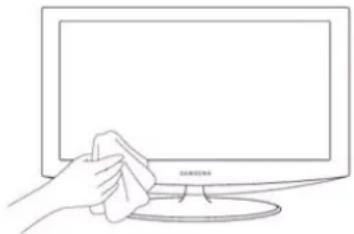
External Surface and Screen Maintenance
Clean the product with a soft dry cloth.
- Do not clean the product with an inflammable substance such as benzene or thinner or with a wet cloth. This may result in a problem with the product.
- Do not scratch the screen with your fingernails or a sharp object.
This may result in scratches or damage to the product.
- Do not clean the product directly by spraying water onto the product.
If water enters the product, it may result in fire, electric shock or a problem with the product.
- A white stain may be generated on the surface of the high-glossy model due to the inherent characteristics of the material, if a supersonic humidifier is used.
natural_image
Line drawing of a hand cleaning a flat-screen computer monitor (no text or symbols)
The appearance and the color may differ depending on the model.
Securing the Installation Space
- Keep the required distances between the product and other objects (e.g. walls) to ensure proper ventilation. Failing to do so may result in fire or a problem with the product due to an increase in the internal temperature. Install the product so the required distances shown in the figure are kept.

The appearance may differ depending on the product.
When installing the product with a stand When installing the product with a wall-mount
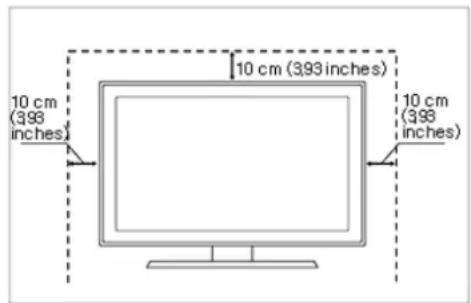
text_image
10 cm (398 inches) 10 cm (399 inches) 10 cm (398 inches)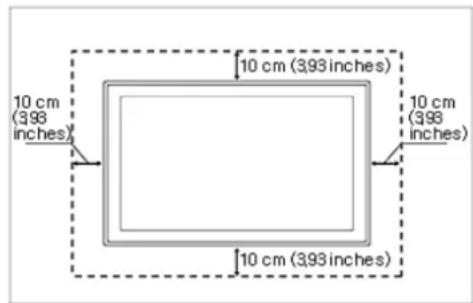
text_image
10 cm (398 inches) 10 cm (398 inches) 10 cm (398 inches)About persistent images
- Displaying a still image for a long time may create a persistent image or stain on the screen. If you do not use the product for a long time, set the power-saving mode or screen saver.
- Due to technological constraints of the panel manufacturer, the images generated by this product may appear either brighter or darker than normal for approximately 1 ppm (parts per million) pixels.
The number of sub-pixels by panel type: The number of Sub-Pixels = Max. Horizontal Resolution x Max. Vertical Resolution x 3
Example) If the maximum resolution is 1600 × 900 , the number of sub-pixels is 1600 × 900 × 3 = 4,320,000 .
Icons used for safety precautions
| Icon Name Meaning | ||
| [WTST] | Warning | Failing to follow the precautions marked with this sign, may result in a serious injury or even a fatality. |
 | Caution | Failing to follow the precautions marked with this sign, may result in a personal injury or property damage. |
Meaning of Signs

Do not perform. Must be followed.


Do not disassemble.

The power plug must be unplugged from the wall outlet.

Do not touch. Must be grounded to prevent electric shock.

Power Related

The following images are for your reference and may differ depending on models and countries.

Warning
Avoid using a damaged power cord or plug or a loose power outlet.
- Otherwise, it may result in electric shock or fire.
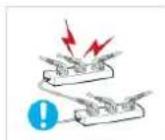
Avoid connecting multiple electric appliances to a single wall outlet.
- Otherwise, it may result in fire due to overheating of the wall outlet.
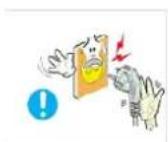
Avoid plugging in or unplugging the power supply with wet hands.
- Otherwise, it may result in electric shock.
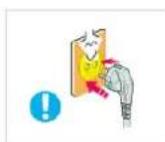
Plug the power plug in firmly.
- Otherwise, it may result in fire.
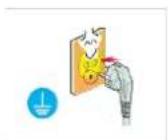
Make sure to connect the power cord to a grounded wall outlet (for insulation class 1 equipment only).
- Otherwise, it may result in electric shock or injury.
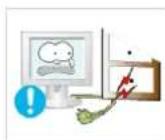
Avoid bending or twisting the power cord excessively and avoid placing heavy objects on the cord.
• Otherwise, it may result in electric shock or fire due to a damaged power cord.
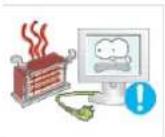
Keep the power cord and the product away from a heater.
- Otherwise, it may result in electric shock or fire.
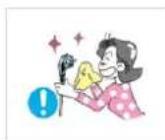
If the pins of the power plug or the wall outlet are covered in dust, clean it using a dry cloth.
- Otherwise, it may result in fire.

Caution
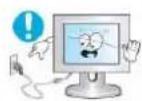
Avoid unplugging the power plug while the product is operating.
- Otherwise, it may damage the product due to electric shock.
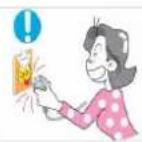
When unplugging the power plug from the wall outlet, make sure to hold it by the plug and not by the cord.
- Otherwise, it may result in electric shock or fire.

Make sure to use only the power cord supplied by our company. In addition, do not use the power cord of another electric appliance.
- Otherwise, it may result in electric shock or fire.
Connect the power plug to a wall outlet that can be easily reached.
- When a problem occurs with the product, you must unplug the power plug to cut the power off completely. You cannot cut the power off completely using only the power button on the product.
Installation Related

Warning
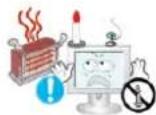
Avoid placing burning candles, mosquito-repellent or cigarettes on the product and installing the product near a heater.
- Otherwise, it may result in fire.
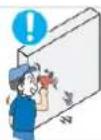
Ask an installation engineer or relevant company to install the product onto the wall.
- Otherwise, it may result in injury.
- Make sure to use the specified wall mount.
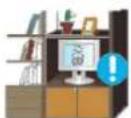
Avoid installing the product in a badly-ventilated location such as inside a bookshelf or closet.
- Otherwise, it may result in fire due to internal over-heating.
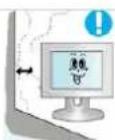
Keep a distance of at least 10 cm from the wall when installing the product for ventilation.
- Otherwise, it may result in fire due to internal over-heating.
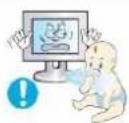
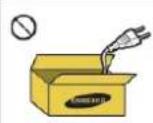
Keep the plastic bags used to pack the product away from children.
• If children place the plastic bags over their heads, they may suffocate.
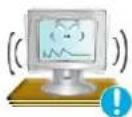
Avoid installing the product in a location that is unstable or exposed to excessive vibrations such as on an unstable or slanted shelf.
• The product may fall and this may result in damage to the product or injury.
- If you use the product in a location exposed to excessive vibrations, it may result in a problem with the product or fire.
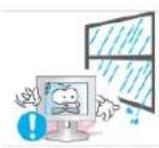
Avoid installing the product in a location exposed to dust, moisture (sauna), oil, smoke or water (rain drops) and installing it within a vehicle.
• This may result in electric shock or fire.

Avoid installing the product in a location exposed to direct sunlight and installing the product near a heat source such as a fire or heater.
• This may shorten the product life cycle or cause fire.
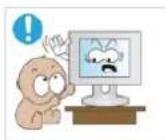
Avoid installing the product at an easily reachable height where children may reach it.
• If a child touches the product, the product may fall and this may result in injury.
- Since the front part is heavier, install the product on a flat and stable surface.

Caution

Do not let the product drop while moving it.
• This may result in a problem with the product or injury.
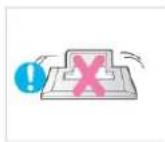
Do not place the product face down on the floor.
• This may damage the panel of the product.
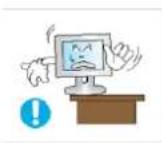
When installing the product on a console or shelf, make sure that the front of the product does not protrude out of the console or shelf.
- Otherwise, this may cause the product to fall off and result in a malfunction or injury.
• Make sure to use a cabinet or shelf suitable to the size of the product.
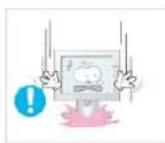
When putting the product down, handle it gently.
- Otherwise, it may result in a problem with the product or injury.
If the product is installed in a location where the operating conditions vary considerably, a serious quality problem may occur due to the surrounding environment. In this case, install the product only after consulting one of our service engineers about the matter.
- Places exposed to microscopic dust, chemicals, too high or low temperature, high humidity, such as airports or stations where the product is continuously used for a long time and so on.
Cleaning Related

Since using a surfactant, which contains a large amount of alcohol, solvent or other strong chemicals, may result in the discoloration or cracking of the product exterior or the panel surface coming off, be sure to use the recommended cleansing agent only.
You can purchase the recommended cleansing agent from a service center.
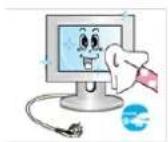
Before cleaning the product, unplug the power cord.
- Otherwise, it may result in electric shock or fire.
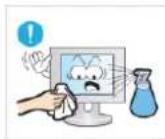
When cleaning the product, do not spray water directly over the product parts.
• Make sure that water does not enter the product.
- Otherwise, it may result in fire, electric shock or a problem with the product.

Caution
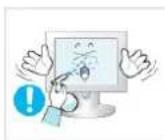
Avoid spraying cleansing agent directly onto the product.
• This may result in discoloration or cracking of the exterior of the product or the panel coming off.
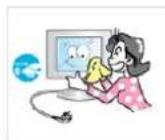
When cleaning the product, disconnect the power cord and clean the product with a soft dry cloth.
- Avoid using chemicals such as wax, benzene, alcohol, thinner, mosquito-repellent, fragrance, lubrication or cleansing agent when cleaning the product.
This may result in the exterior being deformed or the print being removed.
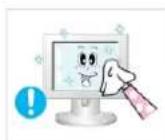
Use a soft, damp cloth with a "monitor-exclusive cleansing agent" and wipe the product with it.
- If no monitor-exclusive cleansing agent is available, dilute a cleansing agent with water at a ratio of 1:10 before cleaning the product.
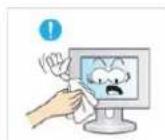
Since the exterior of the product is easily scratched, be sure to use a proper cleansing cloth. Use the cleansing cloth with a small amount of water. However, if the cloth is contaminated by alien substances, it may result in scratches to the exterior; therefore shake off any alien substances from the cloth before using it.
Usage Related

Warning
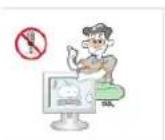
Since a high voltage runs through the product, never disassemble, repair or modify the product yourself.
- Otherwise, it may result in fire or electric shock.
- If the product needs to be fixed, contact a service center.
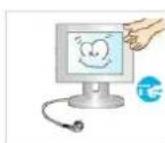
When cleaning the product, do not spray water directly over the product parts.
• Make sure that water does not enter the product.
• Otherwise, it may result in fire, electric shock or a problem with the product.
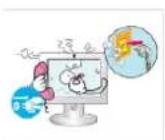
If the product generates a strange noise, a burning smell, or smoke, unplug the power plug immediately and contact a service center.
- Otherwise, it may result in electric shock or fire.

Avoid letting children to hang or climb onto the product.
- Otherwise, it may result in the product falling and this may result in injury or death.
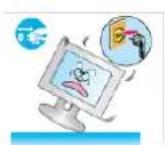
If you drop the product or the case is damaged, turn the power off and unplug the power cord. Contact a service center.
- Otherwise, it may result in fire or electric shock.
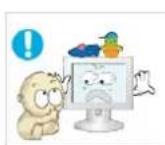
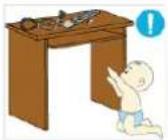
Avoid placing objects such as toys and cookies on top of the product.
- If a child hangs over the product to grab an object, the object or the product may fall and this may result in injury or even death.
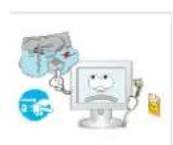
When thunder or lighting occurs, unplug the power cord and under no circumstance touch the antenna cable as this is dangerous.
- Otherwise, it may result in electric shock or fire.

Avoid dropping an object over the product or cause impact to the product.
- Otherwise, it may result in electric shock or fire.
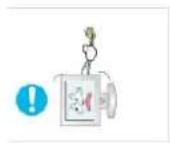
Avoid moving the product by pulling the power cord or antenna cable.
- Otherwise, it may result in electric shock, fire or a problem with the product due to damage to the cable.
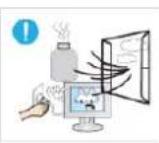
When a gas leak occurs, do not touch the product or the power plug and ventilate immediately.
• A spark may result in an explosion or fire.
- During a thunder or lighting storm, do not touch the power cord or antenna cable.
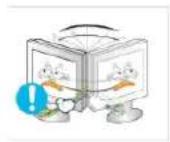
Avoid lifting up or move the product by holding only the power cord or signal cable.
- Otherwise, it may result in electric shock, fire or a problem with the product due to damage to the cable.
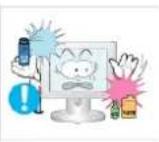
Avoid using or placing inflammable spray or objects near the product.
• This may result in an explosion or fire.

Take care not to block the vent by a table cloth or curtain.
- Otherwise, it may result in fire due to internal overheating.
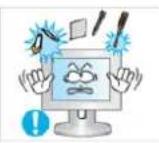
Avoid inserting metal objects such as a chopsticks, coins or hairpins, or inflammable objects into the product (the vents, ports, etc).
- If water or an alien substance enters the product, turn the power off, unplug the power cord and contact a service center.
- Otherwise, it may result in a problem with the product, electric shock or fire.
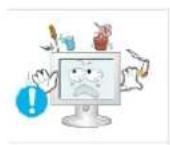
Avoid placing a liquid container such as a vase, flowerpot, beverage, cosmetics or drugs, or a metal object over the product.
- If water or an alien substance enters the product, turn the power off, unplug the power cord and contact a service center.
• Otherwise, it may result in a problem with the product, electric shock or fire.

Caution
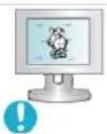
Displaying a still image for a long time may create a persistent image or stain on the screen.
- If you do not use the product for a long time, use the power-saving mode or set the screensaver to the moving picture mode.
When not using the product for a long time such as leaving your home, unplug the power cord from the wall outlet.
- Otherwise, it may cause dust accumulation and result in fire caused by overheating or short circuit or result in an electric shock.
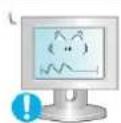
Set the appropriate resolution and frequency for the product.
- Otherwise, it may result in eye strain.

Avoid turning the product upside down or move the product holding only the stand.
• This may cause the product to fall resulting in damage to the product or injury.
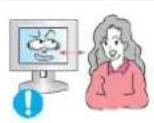
Watching the product from too close a distance continuously may damage your eyesight.
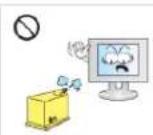
Avoid using a humidifier or cooker near the product.
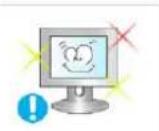
It is important to give your eyes some rest (5 minutes every hour) when viewing the product screen for long periods of time.

- Otherwise, it may result in electric shock or fire.
• This will alleviate any eye strain.
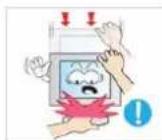
Since the display panel is hot after using it for a long time, do not touch the product.
Keep small accessories away from the children.
Take care when adjusting the angle of the product or the height of the stand.

Avoid placing a heavy object over the product.
- Otherwise, it may result in a problem with the product or injury.
- If your hand or finger is caught, you may be injured.
- If the product is tilted excessively, the product may fall and this may result in injury.
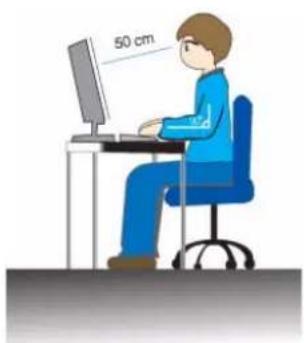
Maintaining the Correct Posture when Using this Product
natural_image
Illustration of a person sitting at a desk using a computer, with a 50 cm measurement label on the screen (no other text or symbols)Maintain the correct posture when using this product.
- Straighten your back.
- Keep a distance of 45\~50 cm from your eyes to the screen. Look down at the screen and face the screen forwards.
- Maintain the correct posture when using this product.
- Adjust the angle of the product so that light is not reflected onto the screen.
- Keep your elbow at a right angle and keep your arm level with the back of your hand.
- Keep your elbow at a right angle.
- Place your heels flat on the ground while keeping your knees at an angle of 90 degrees or higher and maintain the position of your arm so that your arm is below your heart.
2 Installing the Product
2-1 Package Contents

- Unpack the product and check if all of the following contents have been included.
- Store the packaging box in case you need to move the Product at a later stage.
Type 1
natural_image
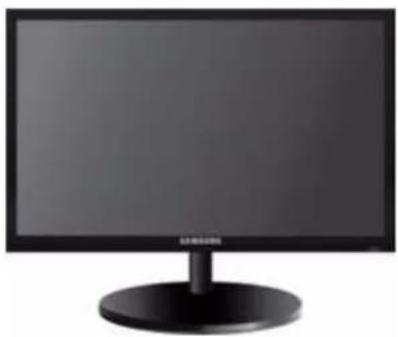
Front view of a black desktop computer monitor with a circular base (no visible text or symbols)Monitor & HAS stand
| Contents | |||
 |  |  |  |
| Installation Manual | Product Warranty(Not available in all locations) | User Manual D-Sub Cable | |
 |  | ||
| Power Cord Stand | |||
| OPTIONAL PARTS | |||
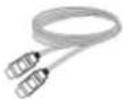 | 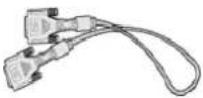 |  | 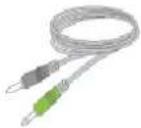 |
| HDMI Cable DVI Cable | Cleaning Cloth Stereo Cable | ||
OPTIONAL PARTS

The cleaning cloth is supplied with black high-glossy models only.
Type 2
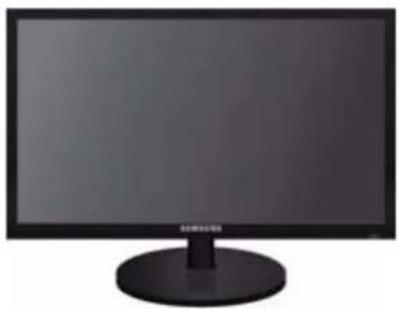
natural_image
Front view of a black desktop computer monitor with a circular base (no visible text or symbols)Monitor & Simple stand

MagicRotation program can not be provided as Simple Stand does not support Pivot function.
| Contents | |||
 |  |  |  |
| Installation Manual | Product Warranty(Not available in all locations) | User Manual D-Sub Cable | |
 |  |  | |
| Power Cord Stand Stand Connector | |||
OPTIONAL PARTS
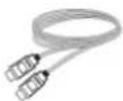
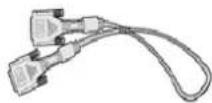
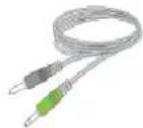

The cleaning cloth is supplied with black high-glossy models only.
Type 3
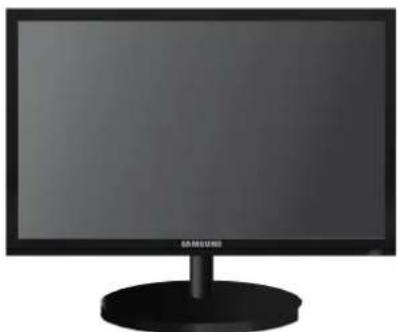
natural_image
Front view of a black Samsung monitor with a circular base (no visible text or symbols)Monitor and HAS-USB stand
| Contents | |||
 |  |  | 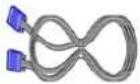 |
| Installation Manual | Product Warranty(Not available in all locations) | User Manual D-Sub Cable | |
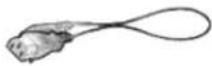 | 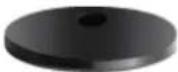 | ||
| Power Cord Stand | |||
| OPTIONAL PARTS | |||
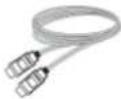 | 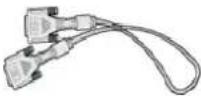 |  | 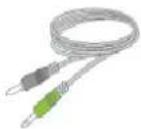 |
| HDMI Cable DVI Cable | Cleaning Cloth Stereo Cable | ||
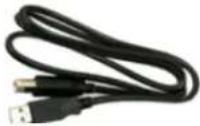 | |||
| USB Cable | |||

The cleaning cloth is supplied with black high-glossy models only.

Before assembling the product, place the product down on a flat and stable surface so that the screen is facing downwards.
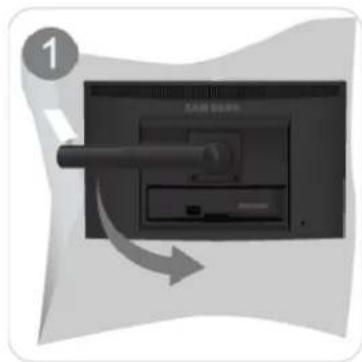
HAS stand
text_image
1 大屏电脑Place a soft cloth over the table to protect the product and place the product onto the cloth so that the front of the product is facing downwards.

Do not remove the stopper pin before installing the base.
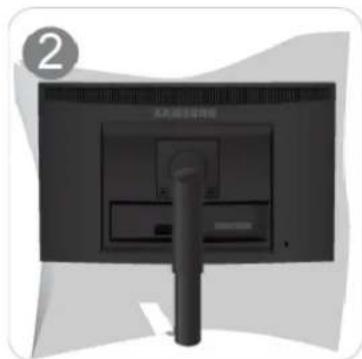
natural_image
Back view of a black monitor with a stand and a label showing '大同国际半导体' (Dongfang International Semiconductor), no other text or symbols visible.Hold the main body of the product with your hand as shown by the figure.
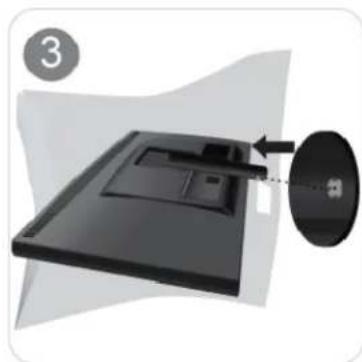
natural_image
3D illustration of a computer monitor with an arrow pointing to a screen (no text or symbols)Insert the stand base into the stand connection part in the direction shown in the figure.
natural_image
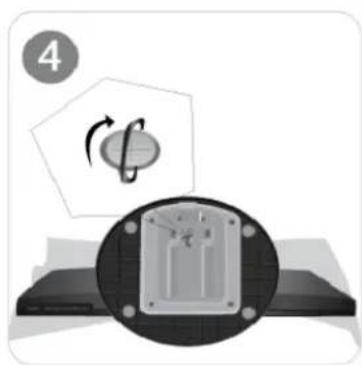
Diagram showing a mechanical component with rotation arrow and circular element, no text or symbols presentTurn the connecting screw at the bottom of the stand fully so that it is completely fixed.
text_image
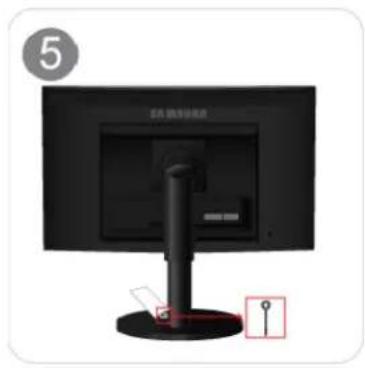
5 50000000000000000000000000000000000000000000000000000000000000000000000000000000000000000000000000000After the installation of the base, stand the monitor up as shown in the figure. Now you can remove the stopper pin to adjust the stand.
natural_image
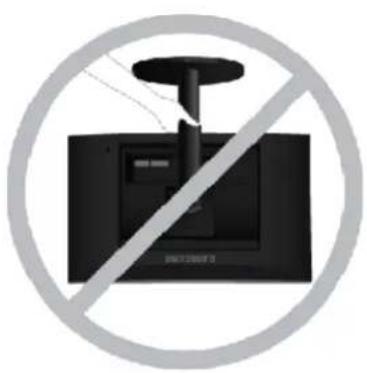
Prohibition sign showing a TV set with a radio emitting power lines, crossed out by a diagonal line (no text or symbols)- Caution
Avoid lifting the product holding only the stand.

Disassembly is in the reverse order of the assembly.
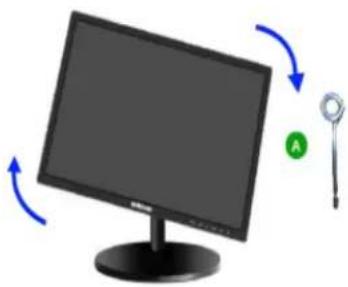
When pivot the monitor from horizontal to vertical, tilt the monitor backward to maximum first.
natural_image
Illustration of a computer monitor with a scroll wheel and a green circular icon (no text or symbols)Stand Stopper
Simple stand
natural_image
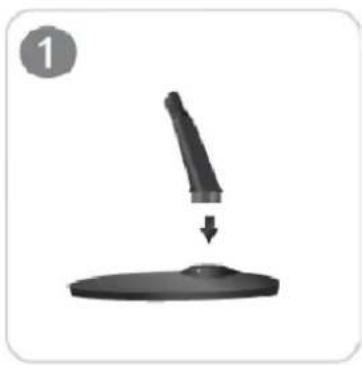
Simple diagram showing a black pen tip pressing down on a circular object (no text or symbols)Insert the Stand Connector into the Stand in the direction shown by the figure.
natural_image
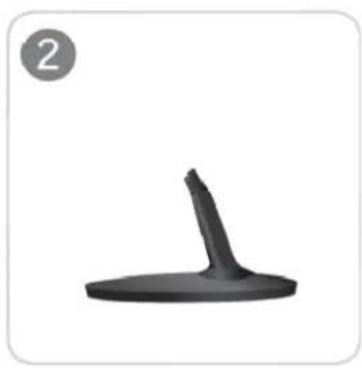
Black plastic object with a curved tip, labeled with number 2 in the top-left corner (no other text or symbols)Check if the Stand Connector is firmly connected.
text_image
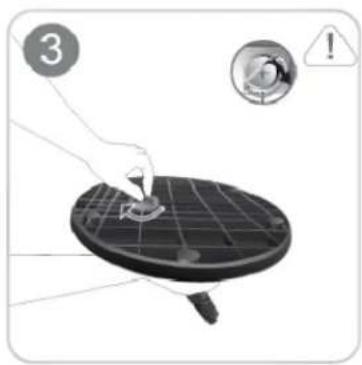
Instructional diagram showing a hand using a tool to adjust a solar panel, with warning symbols and an exclamation mark.Turn the connecting screw at the bottom of the stand fully so that it is completely fixed.
natural_image
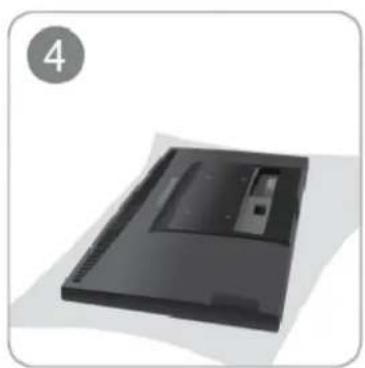
Black rectangular electronic device with a slot and label '4' in the corner (no other text or symbols)Place a soft cloth over the table to protect the product and place the product onto the cloth so that the front of the product is facing downwards.
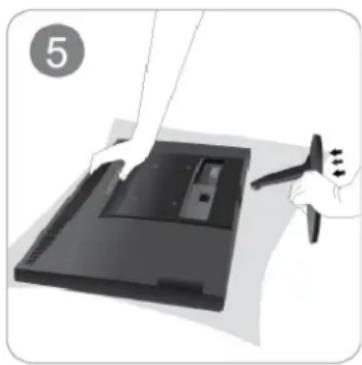
natural_image
Illustration of a hand holding a device with a tool, no text or symbols presentHold the main body of the product with your hand as shown by the figure.
Push the assembled stand into the main body in the direction of the arrow as shown in the figure.
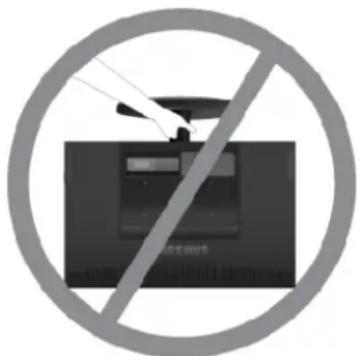
text_image
Prohibition sign with crossed-out device and Chinese text, indicating no use or prohibition of a device.- Caution
Avoid lifting the product holding only the stand.

Disassembly is in the reverse order of the assembly.
This product provides a stand mount of 75 mm x 75 mm(3.0 x 3.0 inches) that complies with the VESA specifications.
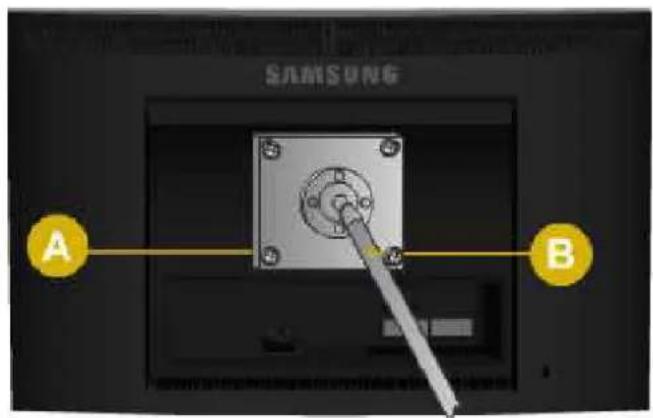
- Turn the product off and unplug the power cord from the wall outlet.
- Place a soft cloth or cushion on a flat surface to protect the panel and place the product down on the cloth so that the front of the product faces downwards.
- Separate the stand.
- Align the groove of the part of the product that is to be connected to the stand with the groove in the stand (desk-top stand, wall mount stand or another stand) and firmly fix the stand by fastening the screw.

• If you use a screw that is longer than the standard specifications, the inside of the product may be damaged.
- For wall mounts that are not compatible with the standard VESA specifications, the length of the screw may differ depending on the corresponding specifications.
- Do not use screws that are incompatible with the standard VESA specifications and do not assemble them using excessive force.
- This may result in damage to the product or injury due to the product falling.
- The company shall not be held liable for any damage or injury.
- The company shall not be held liable for any damage to the product or injury caused by using a stand that is not compatible with the specified specifications or due to an installation not performed by an authorized installation
engineer.
- When installing the product using a wall mount, purchase a wall mount that provides at least 10 cm of space from the wall.
- The company shall not be held liable for any problems caused by using a stand that is not compatible with the specified specifications.
- Use the wall mount according to the international specifications.

The connecting part may differ depending on the product model.
- Connect the product to a PC depending on the video output supported by the PC.
- When the graphics card provides D-Sub (
- Connect the [RGB IN] port of the product to the [D-Sub] port of the PC with the D-Sub cable.
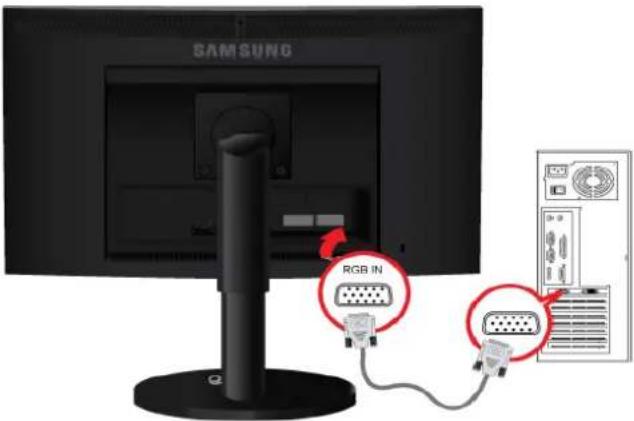
text_image
SAMSUNG RGB IN- When the graphics card provides DVI(
- Connect the [DVI IN] port of the product to the [DVI] port of the PC with the DVI cable.
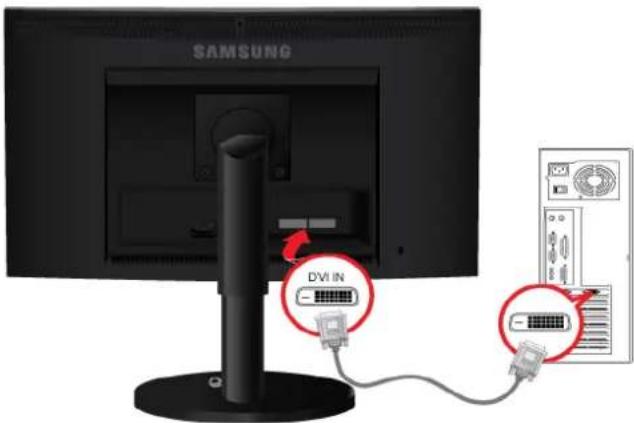
text_image
SAMSUNG DVI IN
The DVI IN terminal is supplied for the digital (DVI)-dedicated models only.
- Connect one end of the power cord to the [POWER] port of the product and connect the other end of the power cord to the 220V or 110V wall outlet.
(The input voltage is switched automatically.)
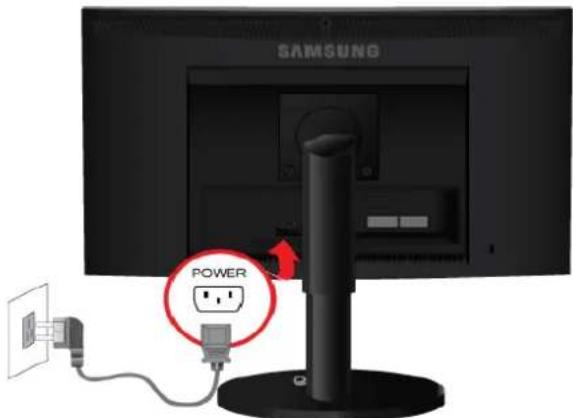
text_image
SAMSUNG POWER
When the product is connected to a PC, you can turn the product on and use it.
When both the DVI (
Digital> by pressing the[ +SOURCE
POWER ON [ | ] / OFF
Switches the Power On/Off.
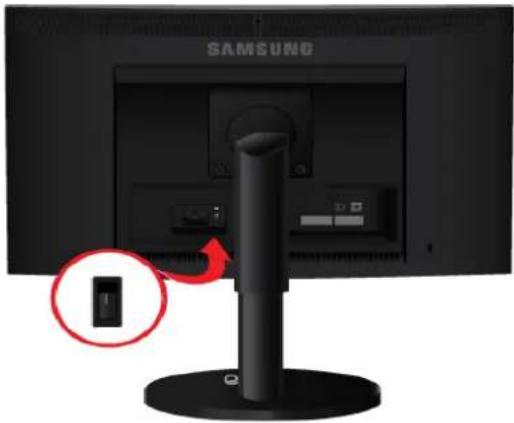
natural_image
Close-up of a Samsung TV monitor with a black screen and a red button, showing no visible text or symbols on the screen.
Some of the models with HAS stand for special region have this button. And some of the models with speaker have this button.
- Connect the [AUDIO IN] port on the rear side of the monitor to the sound card of the PC.
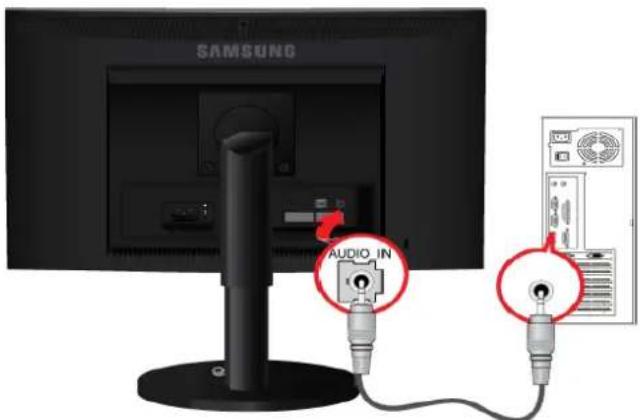
text_image
SAMSUNG AUDIO IN
Applicable to the models that have speakers only.
- Connect the HDMI output port of your digital output device to the [HDMI IN] port of the product using the HDMI cable.
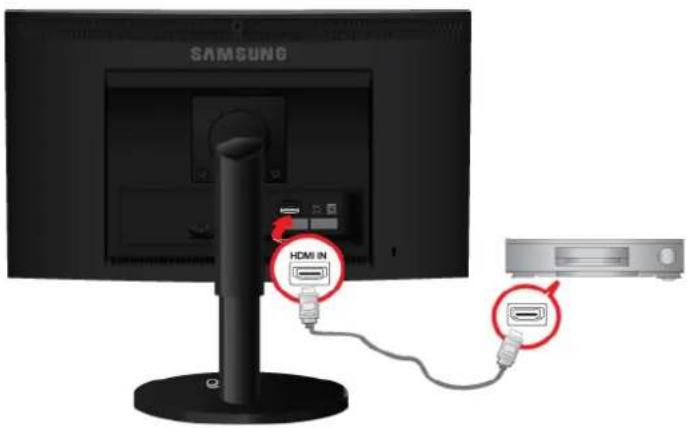
text_image
SAMSUNG HDMI IN
The HDMI IN terminal is supplied for the HDMI-dedicated models only.
2-6 Kensington Lock
Kensington Lock
A Kensington Lock is an anti-theft device that enables users to lock the product so that they can safely use it in public locations. Since the shape and usage of the locking device may differ depending on the model and the manufacturer, for more information, refer to the User Manual supplied with the locking device. You have to purchase an additional locking device.

The location of the Kensington Lock may be different depending on its model.
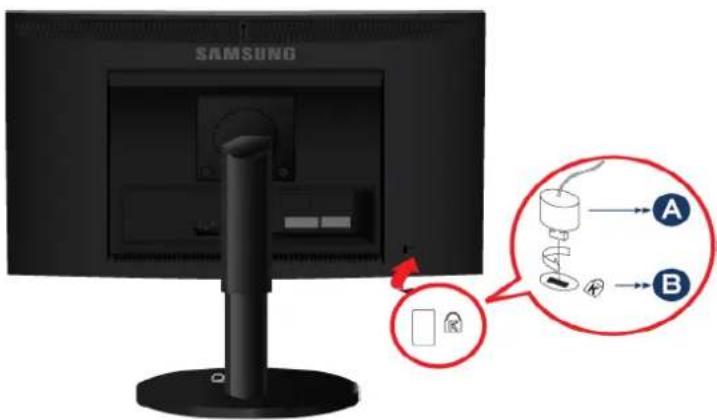
- Insert the locking part of the locking device into the hole of the Kensington lock of the product(B) and turn it in the locking
direction(
-
Connect the Kensington lock cable.
-
Tie the Kensington lock cable to a desk or heavy object.

You can purchase the locking device from an electronics store, an online shop, or our service center.
2-7 Connecting Headphones
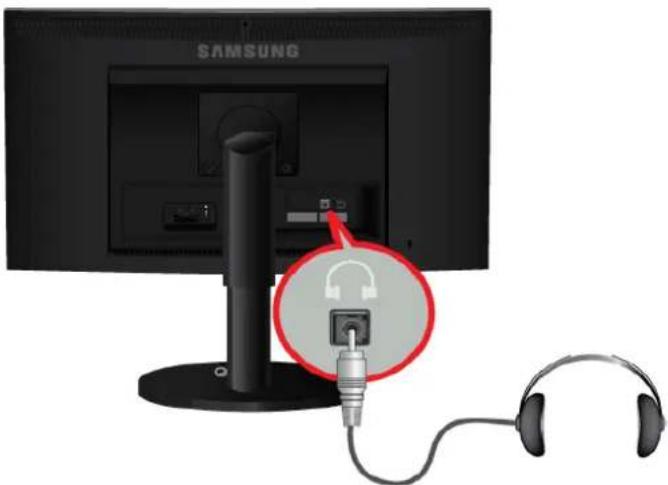
natural_image
Diagram showing a Samsung computer monitor connected to an earphone via a cable, with a red circle highlighting the connector (no text or symbols present)Connect your headphones to the Headphone connection terminal.

Applicable to the models that have speakers only.
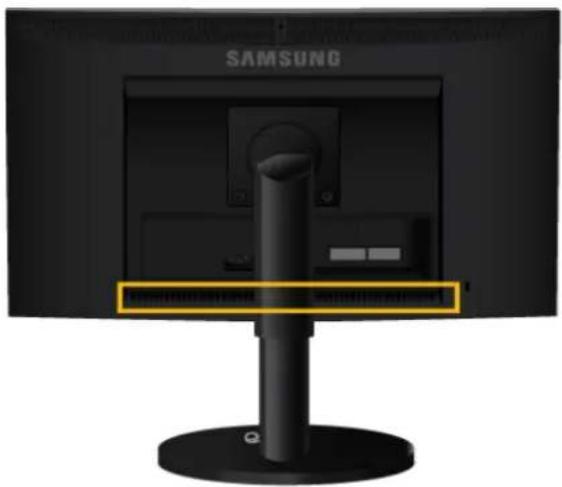
text_image
SAMSUNGYou can hear sound by connecting the soundcard of your PC to the monitor.

Applicable to the models that have speakers only.

Applicable to the stand models that have USB ports only.

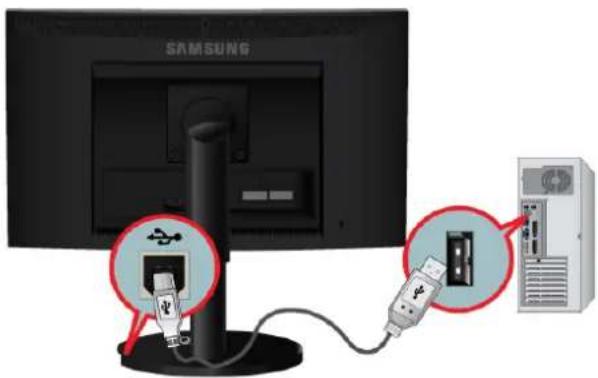
You can use a USB device such as a mouse, keyboard, Memory Stick, or external hard disk drive by connecting them to the ⏻DOWN port of the monitor without connecting them to the PC.
The ✦ USB port of the monitor supports High-Speed Certified USB 2.0.
High speed Full speed Low speed
Data Rate 480 Mbps 12 Mbps 1.5 Mbps
Power Consumption 2.5 W
2.5 W
(Max., each port)
(Max., each port)
2.5 W
(Max., each port)
text_image
SAMSUNG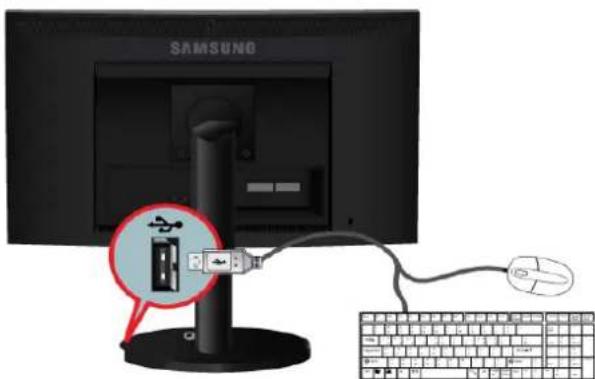
text_image
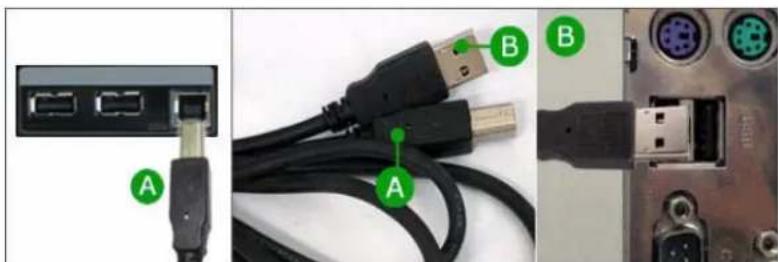
SAMSUNG- Connect the ✦ UP port of the monitor and the USB port of the computer with the USB cable.

• To use ✦ DOWN port, you have to connect the UP (Upstream Cable) to the PC.
- Make sure to use the USB cable supplied with this monitor to connect the monitor's UP port and your computer's USB port.
natural_image
Close-up of network cables and connectors showing ports, connectors, and a computer interface (no text or symbols visible)- Connect the ✦ DOWN port of the USB monitor and a USB device with the USB cable.
-
The use procedures are as the same as those for using an external device connecting to the PC.
-
You can connect and use a keyboard and mouse.
- You can play a file from a media device.
(Examples of media devices: MP3, digital camera, etc.)
- You can run, move, copy or delete the files on the storage device.
(Examples of storage devices: external memory, memory card, memory reader, HDD-type MP3 player, etc.)
- You can use other USB devices that can be connected to a computer.

- When connecting a device to the ✦ DOWN port of the monitor, connect the device using a cable appropriate to the device.
• (For the purchase of the cable and external devices, ask the service center of the corresponding product.) - The company is not liable for problems or damages to an external device caused by using an unauthorized cable for the connection.
- Some products do not follow the USB standard, and it may cause a malfunction of the device.
• If the device malfunctions even if it is connected to the computer, contact the service center of the device/computer.
3-1 Setting the Optimal Resolution
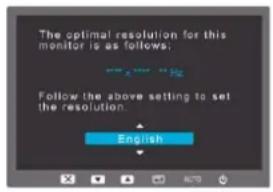
If you turn the power on after purchasing the product, a message regarding the optimal resolution setting appears on the screen. Select a language and the optimal resolution.
text_image
The optimal resolution for this monitor is as follows; Follow the above setting to set the resolution English▲/▼ : You can select a language with these buttons.
MENU : If you press this button, the message disappears.

-
The message appears up to 3 times if the resolution has not been set to the optimal resolution.
• To set the resolution to the optimal resolution -
When the PC is turned off, connect the product and the PC and turn the power on.
- Right-click over the Desktop and select 'Properties' from the pop-up menu.
- In the 'Settings' tab, set the resolution to the optimal resolution.

This product delivers the best picture quality when viewed under the optimal resolution setting. The optimal resolution is dependent on the screen size.
Therefore, the visual quality will be degraded if the optimal resolution is not set for the panel size. It is recommended setting the resolution to the optimal resolution of the product.
If the signal from the PC is one of the following standard signal modes, the screen is set automatically. However, if the signal from the PC is not one of the following signal modes, a blank screen may be displayed or only the Power LED may be turned on. Therefore, configure it as follows referring to the User Manual of the graphics card.
B1740R/B1740RX
| Display Mode | Horizontal Frequency (kHz) | Vertical Frequency (Hz) | Pixel Clock (MHz) Sync Polarity (H/V) |
| IBM, 640 x 350 31.469 70.086 25.175 +/- | |||
| IBM, 720 x 400 31.469 70.087 28.322 -/+ | |||
| MAC, 640 x 480 35.000 66.667 30.240 -/- | |||
| MAC, 832 x 624 49.726 74.551 57.284 -/- | |||
| MAC, 1152 x 870 68.681 75.062 100.000 -/- | |||
| VESA, 640 x 480 31.469 59.940 25.175 -/- | |||
| VESA, 640 x 480 37.861 72.809 31.500 -/- | |||
| VESA, 640 x 480 37.500 75.000 31.500 -/- | |||
| VESA, 800 x 600 35.156 56.250 36.000 +/+ | |||
| VESA, 800 x 600 37.879 60.317 40.000 +/+ | |||
| VESA, 800 x 600 48.077 72.188 50.000 +/+ | |||
| VESA, 800 x 600 46.875 75.000 49.500 +/+ | |||
| VESA, 1024 x 768 48.363 60.004 65.000 -/- | |||
| VESA, 1024 x 768 56.476 70.069 75.000 -/- | |||
| VESA, 1024 x 768 60.023 75.029 78.750 +/+ | |||
| VESA, 1152 x 864 67.500 75.000 108.000 +/+ | |||
| VESA, 1280 x 800 49.702 59.810 83.500 -/+ | |||
| VESA, 1280 x 800 62.795 74.934 106.500 | -/+ | ||
| VESA, 1280 x 960 60.000 60.000 108.000 +/+ | |||
| VESA, 1280 x 1024 | 63.981 60.020 108.000 +/+ | ||
| VESA, 1280 x 1024 | 79.976 75.025 135.000 +/+ | ||
Horizontal Frequency
The time taken to scan one line from the left-most position to the right-most position on the screen is called the horizontal cycle and the reciprocal of the horizontal cycle is called the horizontal frequency. The horizontal frequency is represented in kHz.
Vertical Frequency
A panel must display the same picture on the screen tens of times every second so that humans can see the picture. This frequency is called the vertical frequency. The vertical frequency is represented in Hz.

This product delivers the best picture quality when viewed under the optimal resolution setting. The optimal resolution is dependent on the screen size.
Therefore, the visual quality will be degraded if the optimal resolution is not set for the panel size. It is recommended setting the resolution to the optimal resolution of the product.
If the signal from the PC is one of the following standard signal modes, the screen is set automatically. However, if the signal from the PC is not one of the following signal modes, a blank screen may be displayed or only the Power LED may be turned on. Therefore, configure it as follows referring to the User Manual of the graphics card.
B1940M/B1940MX
| Display Mode | Horizontal Frequency (kHz) | Vertical Frequency (Hz) | Pixel Clock (MHz) Sync Polarity (H/V) |
| IBM, 640x 350 31.469 70.086 25.175 +/- | |||
| IBM, 720 x 400 31.469 70.087 28.322 -/+ | |||
| MAC, 640 x 480 35.000 66.667 30.240 -/- | |||
| MAC, 832 x 624 49.726 74.551 57.284 -/- | |||
| VESA, 640 x 480 31.469 59.940 25.175 -/- | |||
| VESA, 640 x 480 37.861 72.809 31.500 -/- | |||
| VESA, 640 x 480 37.500 75.000 31.500 -/- | |||
| VESA, 800 x 600 35.156 56.250 36.000 +/+ | |||
| VESA, 800 x 600 37.879 60.317 40.000 +/+ | |||
| VESA, 800 x 600 48.077 72.188 50.000 +/+ | |||
| VESA, 800 x 600 46.875 75.000 49.500 +/+ | |||
| VESA, 1024 x 768 48.363 60.004 65.000 -/- | |||
| VESA, 1024 x 768 56.476 70.069 75.000 -/- | |||
| VESA, 1024 x 768 60.023 75.029 78.750 +/+ | |||
| VESA, 1366 x 768 47.712 59.790 85.500 +/+ | |||
Horizontal Frequency
The time taken to scan one line from the left-most position to the right-most position on the screen is called the horizontal cycle and the reciprocal of the horizontal cycle is called the horizontal frequency. The horizontal frequency is represented in kHz.
Vertical Frequency
A panel must display the same picture on the screen tens of times every second so that humans can see the picture. This frequency is called the vertical frequency. The vertical frequency is represented in Hz.

This product delivers the best picture quality when viewed under the optimal resolution setting. The optimal resolution is dependent on the screen size.
Therefore, the visual quality will be degraded if the optimal resolution is not set for the panel size. It is recommended setting the resolution to the optimal resolution of the product.
If the signal from the PC is one of the following standard signal modes, the screen is set automatically. However, if the signal from the PC is not one of the following signal modes, a blank screen may be displayed or only the Power LED may be turned on. Therefore, configure it as follows referring to the User Manual of the graphics card.
B1940ER
| Display Mode | Horizontal Frequency (kHz) | Vertical Frequency (Hz) | Pixel Clock (MHz) Sync Polarity (H/V) | |
| IBM, 640x 350 31.469 70.086 25.175 +/- | ||||
| IBM, 720 x 400 31.469 70.087 28.322 -/+ | ||||
| MAC, 640 x 480 35.000 66.667 30.240 -/- | ||||
| MAC, 832 x 624 49.726 74.551 57.284 -/- | ||||
| MAC, 1152 x 870 68.681 75.062 100.000 -/- | ||||
| VESA, 640 x 480 31.469 59.940 25.175 -/- | ||||
| VESA, 640 x 480 37.861 72.809 31.500 -/- | ||||
| VESA, 640 x 480 37.500 75.000 31.500 -/- | ||||
| VESA, 800 x 600 35.156 56.250 36.000 +/+ | ||||
| VESA, 800 x 600 37.879 60.317 40.000 +/+ | ||||
| VESA, 800 x 600 48.077 72.188 50.000 +/+ | ||||
| VESA, 800 x 600 46.875 75.000 49.500 +/+ | ||||
| VESA, 1024 x 768 48.363 60.004 65.000 -/- | ||||
| VESA, 1024 x 768 56.476 70.069 75.000 -/- | ||||
| VESA, 1024 x 768 60.023 75.029 78.750 +/+ | ||||
| VESA, 1152 x 864 67.500 75.000 108.000 | +/+ | |||
| VESA, 1280 x 800 49.702 59.810 83.500 -/+ | ||||
| VESA, 1280 x 800 62.795 74.934 106.500 | -/+ | |||
| VESA, 1280 x 960 60.000 60.000 108.000 | +/+ | |||
| VESA, 1280 x 1024 | 63.981 | 60.020 | 108.000 | +/+ |
| VESA, 1280 x 1024 | 79.976 | 75.025 | 135.000 | +/+ |
Horizontal Frequency
The time taken to scan one line from the left-most position to the right-most position on the screen is called the horizontal cycle and the reciprocal of the horizontal cycle is called the horizontal frequency. The horizontal frequency is represented in kHz.
Vertical Frequency
A panel must display the same picture on the screen tens of times every second so that humans can see the picture. This frequency is called the vertical frequency. The vertical frequency is represented in Hz.

This product delivers the best picture quality when viewed under the optimal resolution setting. The optimal resolution is dependent on the screen size.
Therefore, the visual quality will be degraded if the optimal resolution is not set for the panel size. It is recommended setting the resolution to the optimal resolution of the product.
If the signal from the PC is one of the following standard signal modes, the screen is set automatically. However, if the signal from the PC is not one of the following signal modes, a blank screen may be displayed or only the Power LED may be turned on. Therefore, configure it as follows referring to the User Manual of the graphics card.
B1940R/B1940RX
| Display Mode | Horizontal Frequency (kHz) | Vertical Frequency (Hz) | Pixel Clock (MHz) Sync Polarity (H/V) | |
| IBM, 640x 350 31.469 70.086 25.175 +/- | ||||
| IBM, 720 x 400 31.469 70.087 28.322 -/+ | ||||
| MAC, 640 x 480 35.000 66.667 30.240 -/- | ||||
| MAC, 832 x 624 49.726 74.551 57.284 -/- | ||||
| MAC, 1152 x 870 68.681 75.062 100.000 -/- | ||||
| VESA, 640 x 480 31.469 59.940 25.175 -/- | ||||
| VESA, 640 x 480 37.861 72.809 31.500 -/- | ||||
| VESA, 640 x 480 37.500 75.000 31.500 -/- | ||||
| VESA, 800 x 600 35.156 56.250 36.000 +/+ | ||||
| VESA, 800 x 600 37.879 60.317 40.000 +/+ | ||||
| VESA, 800 x 600 48.077 72.188 50.000 +/+ | ||||
| VESA, 800 x 600 46.875 75.000 49.500 +/+ | ||||
| VESA, 1024 x 768 48.363 60.004 65.000 -/- | ||||
| VESA, 1024 x 768 56.476 70.069 75.000 -/- | ||||
| VESA, 1024 x 768 60.023 75.029 78.750 +/+ | ||||
| VESA, 1152 x 864 67.500 75.000 108.000 | +/+ | |||
| VESA, 1280 x 800 49.702 59.810 83.500 -/+ | ||||
| VESA, 1280 x 800 62.795 74.934 106.500 | -/+ | |||
| VESA, 1280 x 960 60.000 60.000 108.000 | +/+ | |||
| VESA, 1280 x 1024 | 63.981 | 60.020 | 108.000 | +/+ |
| VESA, 1280 x 1024 | 79.976 | 75.025 | 135.000 | +/+ |
Horizontal Frequency
The time taken to scan one line from the left-most position to the right-most position on the screen is called the horizontal cycle and the reciprocal of the horizontal cycle is called the horizontal frequency. The horizontal frequency is represented in kHz.
Vertical Frequency
A panel must display the same picture on the screen tens of times every second so that humans can see the picture. This frequency is called the vertical frequency. The vertical frequency is represented in Hz.

This product delivers the best picture quality when viewed under the optimal resolution setting. The optimal resolution is dependent on the screen size.
Therefore, the visual quality will be degraded if the optimal resolution is not set for the panel size. It is recommended setting the resolution to the optimal resolution of the product.
If the signal from the PC is one of the following standard signal modes, the screen is set automatically. However, if the signal from the PC is not one of the following signal modes, a blank screen may be displayed or only the Power LED may be turned on. Therefore, configure it as follows referring to the User Manual of the graphics card.
B1940MR/B1940MRX
| Display Mode | Horizontal Frequency (kHz) | Vertical Frequency (Hz) | Pixel Clock (MHz) Sync Polarity (H/V) | |
| IBM, 640x 350 31.469 70.086 25.175 +/- | ||||
| IBM, 720 x 400 31.469 70.087 28.322 -/+ | ||||
| MAC, 640 x 480 35.000 66.667 30.240 -/- | ||||
| MAC, 832 x 624 49.726 74.551 57.284 -/- | ||||
| MAC, 1152 x 870 68.681 75.062 100.000 -/- | ||||
| VESA, 640 x 480 31.469 59.940 25.175 -/- | ||||
| VESA, 640 x 480 37.861 72.809 31.500 -/- | ||||
| VESA, 640 x 480 37.500 75.000 31.500 -/- | ||||
| VESA, 800 x 600 35.156 56.250 36.000 +/+ | ||||
| VESA, 800 x 600 37.879 60.317 40.000 +/+ | ||||
| VESA, 800 x 600 48.077 72.188 50.000 +/+ | ||||
| VESA, 800 x 600 46.875 75.000 49.500 +/+ | ||||
| VESA, 1024 x 768 48.363 60.004 65.000 -/- | ||||
| VESA, 1024 x 768 56.476 70.069 75.000 -/- | ||||
| VESA, 1024 x 768 60.023 75.029 78.750 +/+ | ||||
| VESA, 1152 x 864 67.500 75.000 108.000 | +/+ | |||
| VESA, 1280 x 800 49.702 59.810 83.500 -/+ | ||||
| VESA, 1280 x 800 62.795 74.934 106.500 | -/+ | |||
| VESA, 1280 x 960 60.000 60.000 108.000 | +/+ | |||
| VESA, 1280 x 1024 | 63.981 | 60.020 | 108.000 | +/+ |
| VESA, 1280 x 1024 | 79.976 | 75.025 | 135.000 | +/+ |
Horizontal Frequency
The time taken to scan one line from the left-most position to the right-most position on the screen is called the horizontal cycle and the reciprocal of the horizontal cycle is called the horizontal frequency. The horizontal frequency is represented in kHz.
Vertical Frequency
A panel must display the same picture on the screen tens of times every second so that humans can see the picture. This frequency is called the vertical frequency. The vertical frequency is represented in Hz.

This product delivers the best picture quality when viewed under the optimal resolution setting. The optimal resolution is dependent on the screen size.
Therefore, the visual quality will be degraded if the optimal resolution is not set for the panel size. It is recommended setting the resolution to the optimal resolution of the product.
If the signal from the PC is one of the following standard signal modes, the screen is set automatically. However, if the signal from the PC is not one of the following signal modes, a blank screen may be displayed or only the Power LED may be turned on. Therefore, configure it as follows referring to the User Manual of the graphics card.
B1940W/B1940WX
| Display Mode | Horizontal Frequency (kHz) | Vertical Frequency (Hz) | Pixel Clock (MHz) Sync Polarity (H/V) |
| IBM, 640 x 350 31.469 70.086 25.175 +/- | |||
| IBM, 720 x 400 31.469 70.087 28.322 -/+ | |||
| MAC, 640 x 480 35.000 66.667 30.240 -/- | |||
| MAC, 832 x 624 49.726 74.551 57.284 -/- | |||
| MAC, 1152 x 870 68.681 75.062 100.000 -/- | |||
| VESA, 640 x 480 31.469 59.940 25.175 -/- | |||
| VESA, 640 x 480 37.861 72.809 31.500 -/- | |||
| VESA, 640 x 480 37.500 75.000 31.500 -/- | |||
| VESA, 800 x 600 35.156 56.250 36.000 +/+ | |||
| VESA, 800 x 600 37.879 60.317 40.000 +/+ | |||
| VESA, 800 x 600 48.077 72.188 50.000 +/+ | |||
| VESA, 800 x 600 46.875 75.000 49.500 +/+ | |||
| VESA, 1024 x 768 48.363 60.004 65.000 -/- | |||
| VESA, 1024 x 768 56.476 70.069 75.000 -/- | |||
| VESA, 1024 x 768 60.023 75.029 78.750 +/+ | |||
| VESA, 1152 x 864 67.500 75.000 108.000 +/+ | |||
| VESA, 1280 x 800 49.702 59.810 83.500 -/+ | |||
| VESA, 1280 x 800 62.795 74.934 106.500 | -/+ | ||
| VESA, 1440 x 900 55.935 59.887 106.500 | -/+ | ||
| VESA, 1440 x 900 70.635 74.984 136.750 | -/+ | ||
Horizontal Frequency
The time taken to scan one line from the left-most position to the right-most position on the screen is called the horizontal cycle and the reciprocal of the horizontal cycle is called the horizontal frequency. The horizontal frequency is represented in kHz.
Vertical Frequency
A panel must display the same picture on the screen tens of times every second so that humans can see the picture. This frequency is called the vertical frequency. The vertical frequency is represented in Hz.

This product delivers the best picture quality when viewed under the optimal resolution setting. The optimal resolution is dependent on the screen size.
Therefore, the visual quality will be degraded if the optimal resolution is not set for the panel size. It is recommended setting the resolution to the optimal resolution of the product.
If the signal from the PC is one of the following standard signal modes, the screen is set automatically. However, if the signal from the PC is not one of the following signal modes, a blank screen may be displayed or only the Power LED may be turned on. Therefore, configure it as follows referring to the User Manual of the graphics card.
B2240/B2240X
| Display Mode | Horizontal Frequency (kHz) | Vertical Frequency (Hz) | Pixel Clock (MHz) Sync Polarity (H/V) | |
| IBM, 640 x 350 31.469 70.086 25.175 +/- | ||||
| IBM, 720 x 400 31.469 70.087 28.322 -/+ | ||||
| MAC, 640 x 480 35.000 66.667 30.240 -/- | ||||
| MAC, 832 x 624 49.726 74.551 57.284 -/- | ||||
| MAC, 1152 x 870 68.681 75.062 100.000 -/- | ||||
| VESA, 640 x 480 31.469 59.940 25.175 -/- | ||||
| VESA, 640 x 480 37.861 72.809 31.500 -/- | ||||
| VESA, 640 x 480 37.500 75.000 31.500 -/- | ||||
| VESA, 800 x 600 35.156 56.250 36.000 +/+ | ||||
| VESA, 800 x 600 37.879 60.317 40.000 +/+ | ||||
| VESA, 800 x 600 48.077 72.188 50.000 +/+ | ||||
| VESA, 800 x 600 46.875 75.000 49.500 +/+ | ||||
| VESA, 1024 x 768 48.363 60.004 65.000 -/- | ||||
| VESA, 1024 x 768 56.476 70.069 75.000 -/- | ||||
| VESA, 1024 x 768 60.023 75.029 78.750 +/+ | ||||
| VESA,1152 X 864 67.500 75.000 108.000 | +/+ | |||
| VESA,1280 X 800 49.702 59.810 83.500 -/+ | ||||
| VESA,1280 X 800 62.795 74.934 106.500 | -/+ | |||
| VESA,1280 X 960 60.000 60.000 108.000 | +/+ | |||
| VESA, 1280 X 1024 | 63.981 60.020 108.000 | +/+ | ||
| VESA, 1280 X 1024 | 79.976 75.025 135.000 | +/+ | ||
| VESA,1440 X 900 55.935 59.887 106.500 | -/+ | |||
| VESA,1440 X 900 70.635 74.984 136.750 | -/+ | |||
| VESA,1600 X 1200 | 75.000 | 60.000 | 162.000 | ++ |
| VESA,1680 X 1050 | 65.290 | 59.954 | 146.250 | -/+ |
| VESA,1920 X 1080 | 67.500 | 60.000 | 148.500 | +/+ |
Horizontal Frequency
The time taken to scan one line from the left-most position to the right-most position on the screen is called the horizontal cycle and the reciprocal of the horizontal cycle is called the horizontal frequency. The horizontal frequency is represented in kHz.
Vertical Frequency
A panel must display the same picture on the screen tens of times every second so that humans can see the picture. This frequency is called the vertical frequency. The vertical frequency is represented in Hz.

This product delivers the best picture quality when viewed under the optimal resolution setting. The optimal resolution is dependent on the screen size.
Therefore, the visual quality will be degraded if the optimal resolution is not set for the panel size. It is recommended setting the resolution to the optimal resolution of the product.
If the signal from the PC is one of the following standard signal modes, the screen is set automatically. However, if the signal from the PC is not one of the following signal modes, a blank screen may be displayed or only the Power LED may be turned on. Therefore, configure it as follows referring to the User Manual of the graphics card.
B2240W /B2240WX
| Display Mode | Horizontal Frequency (kHz) | Vertical Frequency (Hz) | Pixel Clock (MHz) Sync Polarity (H/V) |
| IBM, 640 x 350 31.469 70.086 25.175 +/- | |||
| IBM, 720 x 400 31.469 70.087 28.322 -/+ | |||
| MAC, 640 x 480 35.000 66.667 30.240 -/- | |||
| MAC, 832 x 624 49.726 74.551 57.284 -/- | |||
| MAC, 1152 x 870 68.681 75.062 100.000 -/- | |||
| VESA, 640 x 480 31.469 59.940 25.175 -/- | |||
| VESA, 640 x 480 37.861 72.809 31.500 -/- | |||
| VESA, 640 x 480 37.500 75.000 31.500 -/- | |||
| VESA, 800 x 600 35.156 56.250 36.000 +/+ | |||
| VESA, 800 x 600 37.879 60.317 40.000 +/+ | |||
| VESA, 800 x 600 48.077 72.188 50.000 +/+ | |||
| VESA, 800 x 600 46.875 75.000 49.500 +/+ | |||
| VESA, 1024 x 768 48.363 60.004 65.000 -/- | |||
| VESA, 1024 x 768 56.476 70.069 75.000 -/- | |||
| VESA, 1024 x 768 60.023 75.029 78.750 +/+ | |||
| VESA,1152 X 864 67.500 75.000 108.000 | +/+ | ||
| VESA,1280 X 800 49.702 59.810 83.500 -/+ | |||
| VESA,1280 X 800 62.795 74.934 106.500 | -/+ | ||
| VESA,1280 X 960 60.000 60.000 108.000 | +/+ | ||
| VESA, 1280 X 1024 | 63.981 60.020 108.000 | +/+ | |
| VESA, 1280 X 1024 | 79.976 75.025 135.000 | +/+ | |
| VESA,1440 X 900 55.935 59.887 106.500 | -/+ | ||
| VESA,1440 X 900 70.635 74.984 136.750 | -/+ | ||
| VESA,1680 X 1050 | 64.674 | 59.883 | 119.000 |
| VESA,1680 X 1050 | 65.290 | 59.954 | 146.250 |
Horizontal Frequency
The time taken to scan one line from the left-most position to the right-most position on the screen is called the horizontal cycle and the reciprocal of the horizontal cycle is called the horizontal frequency. The horizontal frequency is represented in kHz.
Vertical Frequency
A panel must display the same picture on the screen tens of times every second so that humans can see the picture. This frequency is called the vertical frequency. The vertical frequency is represented in Hz.

This product delivers the best picture quality when viewed under the optimal resolution setting. The optimal resolution is dependent on the screen size.
Therefore, the visual quality will be degraded if the optimal resolution is not set for the panel size. It is recommended setting the resolution to the optimal resolution of the product.
If the signal from the PC is one of the following standard signal modes, the screen is set automatically. However, if the signal from the PC is not one of the following signal modes, a blank screen may be displayed or only the Power LED may be turned on. Therefore, configure it as follows referring to the User Manual of the graphics card.
B2240M/B2240MX
| Display Mode | Horizontal Frequency (kHz) | Vertical Frequency (Hz) | Pixel Clock (MHz) Sync Polarity (H/V) | |
| IBM, 640 x 350 31.469 70.086 25.175 +/- | ||||
| IBM, 720 x 400 31.469 70.087 28.322 -/+ | ||||
| MAC, 640 x 480 35.000 66.667 30.240 -/- | ||||
| MAC, 832 x 624 49.726 74.551 57.284 -/- | ||||
| MAC, 1152 x 870 68.681 75.062 100.000 -/- | ||||
| VESA, 640 x 480 31.469 59.940 25.175 -/- | ||||
| VESA, 640 x 480 37.861 72.809 31.500 -/- | ||||
| VESA, 640 x 480 37.500 75.000 31.500 -/- | ||||
| VESA, 800 x 600 35.156 56.250 36.000 +/+ | ||||
| VESA, 800 x 600 37.879 60.317 40.000 +/+ | ||||
| VESA, 800 x 600 48.077 72.188 50.000 +/+ | ||||
| VESA, 800 x 600 46.875 75.000 49.500 +/+ | ||||
| VESA, 1024 x 768 48.363 60.004 65.000 -/- | ||||
| VESA, 1024 x 768 56.476 70.069 75.000 -/- | ||||
| VESA, 1024 x 768 60.023 75.029 78.750 +/+ | ||||
| VESA,1152 X 864 67.500 75.000 108.000 | +/+ | |||
| VESA,1280 X 800 49.702 59.810 83.500 -/+ | ||||
| VESA,1280 X 800 62.795 74.934 106.500 | -/+ | |||
| VESA,1280 X 960 60.000 60.000 108.000 | +/+ | |||
| VESA, 1280 X 1024 | 63.981 60.020 108.000 | +/+ | ||
| VESA, 1280 X 1024 | 79.976 75.025 135.000 | +/+ | ||
| VESA,1440 X 900 55.935 59.887 106.500 | -/+ | |||
| VESA,1440 X 900 70.635 74.984 136.750 | -/+ | |||
| VESA,1600 X 1200 | 75.000 | 60.000 | 162.000 | ++ |
| VESA,1680 X 1050 | 65.290 | 59.954 | 146.250 | -/+ |
| VESA,1920 X 1080 | 67.500 | 60.000 | 148.500 | +/+ |
Horizontal Frequency
The time taken to scan one line from the left-most position to the right-most position on the screen is called the horizontal cycle and the reciprocal of the horizontal cycle is called the horizontal frequency. The horizontal frequency is represented in kHz.
Vertical Frequency
A panel must display the same picture on the screen tens of times every second so that humans can see the picture. This frequency is called the vertical frequency. The vertical frequency is represented in Hz.

This product delivers the best picture quality when viewed under the optimal resolution setting. The optimal resolution is dependent on the screen size.
Therefore, the visual quality will be degraded if the optimal resolution is not set for the panel size. It is recommended setting the resolution to the optimal resolution of the product.
If the signal from the PC is one of the following standard signal modes, the screen is set automatically. However, if the signal from the PC is not one of the following signal modes, a blank screen may be displayed or only the Power LED may be turned on. Therefore, configure it as follows referring to the User Manual of the graphics card.
B2240MW/B2240MWX
| Display Mode | Horizontal Frequency (kHz) | Vertical Frequency (Hz) | Pixel Clock (MHz) Sync Polarity (H/V) |
| IBM, 640 x 350 31.469 70.086 25.175 +/- | |||
| IBM, 720 x 400 31.469 70.087 28.322 -/+ | |||
| MAC, 640 x 480 35.000 66.667 30.240 -/- | |||
| MAC, 832 x 624 49.726 74.551 57.284 -/- | |||
| MAC, 1152 x 870 68.681 75.062 100.000 -/- | |||
| VESA, 640 x 480 31.469 59.940 25.175 -/- | |||
| VESA, 640 x 480 37.861 72.809 31.500 -/- | |||
| VESA, 640 x 480 37.500 75.000 31.500 -/- | |||
| VESA, 800 x 600 35.156 56.250 36.000 +/+ | |||
| VESA, 800 x 600 37.879 60.317 40.000 +/+ | |||
| VESA, 800 x 600 48.077 72.188 50.000 +/+ | |||
| VESA, 800 x 600 46.875 75.000 49.500 +/+ | |||
| VESA, 1024 x 768 48.363 60.004 65.000 -/- | |||
| VESA, 1024 x 768 56.476 70.069 75.000 -/- | |||
| VESA, 1024 x 768 60.023 75.029 78.750 +/+ | |||
| VESA,1152 X 864 67.500 75.000 108.000 | +/+ | ||
| VESA,1280 X 800 49.702 59.810 83.500 -/+ | |||
| VESA,1280 X 800 62.795 74.934 106.500 | -/+ | ||
| VESA,1280 X 960 60.000 60.000 108.000 | +/+ | ||
| VESA, 1280 X 1024 | 63.981 60.020 108.000 | +/+ | |
| VESA, 1280 X 1024 | 79.976 75.025 135.000 | +/+ | |
| VESA,1440 X 900 55.935 59.887 106.500 | -/+ | ||
| VESA,1440 X 900 70.635 74.984 136.750 | -/+ | ||
| VESA,1680 X 1050 | 64.674 | 59.883 | 119.000 |
| VESA,1680 X 1050 | 65.290 | 59.954 | 146.250 |
Horizontal Frequency
The time taken to scan one line from the left-most position to the right-most position on the screen is called the horizontal cycle and the reciprocal of the horizontal cycle is called the horizontal frequency. The horizontal frequency is represented in kHz.
Vertical Frequency
A panel must display the same picture on the screen tens of times every second so that humans can see the picture. This frequency is called the vertical frequency. The vertical frequency is represented in Hz.

This product delivers the best picture quality when viewed under the optimal resolution setting. The optimal resolution is dependent on the screen size.
Therefore, the visual quality will be degraded if the optimal resolution is not set for the panel size. It is recommended setting the resolution to the optimal resolution of the product.
If the signal from the PC is one of the following standard signal modes, the screen is set automatically. However, if the signal from the PC is not one of the following signal modes, a blank screen may be displayed or only the Power LED may be turned on. Therefore, configure it as follows referring to the User Manual of the graphics card.
B2240EMW
| Display Mode | Horizontal Frequency (kHz) | Vertical Frequency (Hz) | Pixel Clock (MHz) Sync Polarity (H/V) |
| IBM, 640 x 350 31.469 70.086 25.175 +/- | |||
| IBM, 720 x 400 31.469 70.087 28.322 -/+ | |||
| MAC, 640 x 480 35.000 66.667 30.240 -/- | |||
| MAC, 832 x 624 49.726 74.551 57.284 -/- | |||
| MAC, 1152 x 870 68.681 75.062 100.000 -/- | |||
| VESA, 640 x 480 31.469 59.940 25.175 -/- | |||
| VESA, 640 x 480 37.861 72.809 31.500 -/- | |||
| VESA, 640 x 480 37.500 75.000 31.500 -/- | |||
| VESA, 800 x 600 35.156 56.250 36.000 +/+ | |||
| VESA, 800 x 600 37.879 60.317 40.000 +/+ | |||
| VESA, 800 x 600 48.077 72.188 50.000 +/+ | |||
| VESA, 800 x 600 46.875 75.000 49.500 +/+ | |||
| VESA, 1024 x 768 48.363 60.004 65.000 -/- | |||
| VESA, 1024 x 768 56.476 70.069 75.000 -/- | |||
| VESA, 1024 x 768 60.023 75.029 78.750 +/+ | |||
| VESA,1152 X 864 67.500 75.000 108.000 | +/+ | ||
| VESA,1280 X 800 49.702 59.810 83.500 -/+ | |||
| VESA,1280 X 800 62.795 74.934 106.500 | -/+ | ||
| VESA,1280 X 960 60.000 60.000 108.000 | +/+ | ||
| VESA, 1280 X 1024 | 63.981 60.020 108.000 | +/+ | |
| VESA, 1280 X 1024 | 79.976 75.025 135.000 | +/+ | |
| VESA,1440 X 900 55.935 59.887 106.500 | -/+ | ||
| VESA,1440 X 900 70.635 74.984 136.750 | -/+ | ||
| VESA,1680 X 1050 | 64.674 | 59.883 | 119.000 |
| VESA,1680 X 1050 | 65.290 | 59.954 | 146.250 |
Horizontal Frequency
The time taken to scan one line from the left-most position to the right-most position on the screen is called the horizontal cycle and the reciprocal of the horizontal cycle is called the horizontal frequency. The horizontal frequency is represented in kHz.
Vertical Frequency
A panel must display the same picture on the screen tens of times every second so that humans can see the picture. This frequency is called the vertical frequency. The vertical frequency is represented in Hz.

This product delivers the best picture quality when viewed under the optimal resolution setting. The optimal resolution is dependent on the screen size.
Therefore, the visual quality will be degraded if the optimal resolution is not set for the panel size. It is recommended setting the resolution to the optimal resolution of the product.
If the signal from the PC is one of the following standard signal modes, the screen is set automatically. However, if the signal from the PC is not one of the following signal modes, a blank screen may be displayed or only the Power LED may be turned on. Therefore, configure it as follows referring to the User Manual of the graphics card.
B2340
| Display Mode | Horizontal Frequency (kHz) | Vertical Frequency (Hz) | Pixel Clock (MHz) Sync Polarity (H/V) |
| IBM, 720 x 400 31.469 70.087 28.322 -/+ | |||
| VESA, 640 x 480 31.469 59.940 25.175 -/- | |||
| MAC, 640 x 480 35.000 66.667 30.240 -/- | |||
| VESA, 640 x 480 37.861 72.809 31.500 -/- | |||
| VESA, 640 x 480 37.500 75.000 31.500 -/- | |||
| VESA, 800 x 600 35.156 56.250 36.000 +/+ | |||
| VESA, 800 x 600 37.879 60.317 40.000 +/+ | |||
| VESA, 800 x 600 48.077 72.188 50.000 +/+ | |||
| VESA, 800 x 600 46.875 75.000 49.500 +/+ | |||
| MAC, 832 x 624 49.726 74.551 57.284 -/- | |||
| VESA, 1024 x 768 48.363 60.004 65.000 -/- | |||
| VESA, 1024 x 768 56.476 70.069 75.000 -/- | |||
| VESA, 1024 x 768 60.023 75.029 78.750 +/+ | |||
| VESA,1152 X 864 67.500 75.000 108.000 +/+ | |||
| MAC,1152 X 870 68.681 75.062 100.000 -/- | |||
| VESA,1280 X 800 49.702 59.810 83.500 -/+ | |||
| VESA,1280 X 960 60.000 60.000 108.000 +/+ | |||
| VESA, 1280 X 1024 | 63.981 60.020 108.000 +/+ | ||
| VESA, 1280 X 1024 | 79.976 75.025 135.000 +/+ | ||
| VESA,1440 X 900 55.935 59.887 106.500 | -/+ | ||
| VESA,1440 X 900 70.635 74.984 136.750 | -/+ | ||
| VESA,1600 X 1200 | 75.000 60.000 162.000 +/+ | ||
| VESA,1680 X 1050 | 65.290 | 59.954 | 146.250 -/+ |
| VESA,1920 X 1080 | 67.500 60.000 148.500 +/+ | ||
Horizontal Frequency
The time taken to scan one line from the left-most position to the right-most position on the screen is called the horizontal cycle and the reciprocal of the horizontal cycle is called the horizontal frequency. The horizontal frequency is represented in kHz.
Vertical Frequency
A panel must display the same picture on the screen tens of times every second so that humans can see the picture. This frequency is called the vertical frequency. The vertical frequency is represented in Hz.

This product delivers the best picture quality when viewed under the optimal resolution setting. The optimal resolution is dependent on the screen size.
Therefore, the visual quality will be degraded if the optimal resolution is not set for the panel size. It is recommended setting the resolution to the optimal resolution of the product.
If the signal from the PC is one of the following standard signal modes, the screen is set automatically. However, if the signal from the PC is not one of the following signal modes, a blank screen may be displayed or only the Power LED may be turned on. Therefore, configure it as follows referring to the User Manual of the graphics card.
B2440L/B2440LX
| Display Mode | Horizontal Frequency (kHz) | Vertical Frequency (Hz) | Pixel Clock (MHz) Sync Polarity (H/V) |
| IBM, 720 x 400 31.469 70.087 28.322 -/+ | |||
| VESA, 640 x 480 31.469 59.940 25.175 -/- | |||
| MAC, 640 x 480 35.000 66.667 30.240 -/- | |||
| VESA, 640 x 480 37.861 72.809 31.500 -/- | |||
| VESA, 640 x 480 37.500 75.000 31.500 -/- | |||
| VESA, 800 x 600 35.156 56.250 36.000 +/+ | |||
| VESA, 800 x 600 37.879 60.317 40.000 +/+ | |||
| VESA, 800 x 600 48.077 72.188 50.000 +/+ | |||
| VESA, 800 x 600 46.875 75.000 49.500 +/+ | |||
| MAC, 832 x 624 49.726 74.551 57.284 -/- | |||
| VESA, 1024 x 768 48.363 60.004 65.000 -/- | |||
| VESA, 1024 x 768 56.476 70.069 75.000 -/- | |||
| VESA, 1024 x 768 60.023 75.029 78.750 +/+ | |||
| VESA,1152 X 864 67.500 75.000 108.000 +/+ | |||
| MAC,1152 X 870 68.681 75.062 100.000 -/- | |||
| VESA,1280 X 800 49.702 59.810 83.500 -/+ | |||
| VESA,1280 X 960 60.000 60.000 108.000 +/+ | |||
| VESA, 1280 X 1024 | 63.981 60.020 108.000 +/+ | ||
| VESA, 1280 X 1024 | 79.976 75.025 135.000 +/+ | ||
| VESA,1440 X 900 55.935 59.887 106.500 | -/+ | ||
| VESA,1440 X 900 70.635 74.984 136.750 | -/+ | ||
| VESA,1600 X 1200 | 75.000 60.000 162.000 +/+ | ||
| VESA,1680 X 1050 | 65.290 | 59.954 | 146.250 -/+ |
| VESA,1920 X 1080 | 67.500 60.000 148.500 +/+ | ||
Horizontal Frequency
The time taken to scan one line from the left-most position to the right-most position on the screen is called the horizontal cycle and the reciprocal of the horizontal cycle is called the horizontal frequency. The horizontal frequency is represented in kHz.
Vertical Frequency
A panel must display the same picture on the screen tens of times every second so that humans can see the picture. This frequency is called the vertical frequency. The vertical frequency is represented in Hz.

This product delivers the best picture quality when viewed under the optimal resolution setting. The optimal resolution is dependent on the screen size.
Therefore, the visual quality will be degraded if the optimal resolution is not set for the panel size. It is recommended setting the resolution to the optimal resolution of the product.
If the signal from the PC is one of the following standard signal modes, the screen is set automatically. However, if the signal from the PC is not one of the following signal modes, a blank screen may be displayed or only the Power LED may be turned on. Therefore, configure it as follows referring to the User Manual of the graphics card.
B2440/B2440X
| Display Mode | Horizontal Frequency (kHz) | Vertical Frequency (Hz) | Pixel Clock (MHz) Sync Polarity (H/V) | |
| IBM, 640 x 350 31.469 70.086 25.175 +/- | ||||
| IBM, 720 x 400 31.469 70.087 28.322 -/+ | ||||
| MAC, 640 x 480 35.000 66.667 30.240 -/- | ||||
| MAC, 832 x 624 49.726 74.551 57.284 -/- | ||||
| MAC, 1152 x 870 68.681 75.062 100.000 -/- | ||||
| VESA, 640 x 480 31.469 59.940 25.175 -/- | ||||
| VESA, 640 x 480 37.861 72.809 31.500 -/- | ||||
| VESA, 640 x 480 37.500 75.000 31.500 -/- | ||||
| VESA, 800 x 600 35.156 56.250 36.000 +/+ | ||||
| VESA, 800 x 600 37.879 60.317 40.000 +/+ | ||||
| VESA, 800 x 600 48.077 72.188 50.000 +/+ | ||||
| VESA, 800 x 600 46.875 75.000 49.500 +/+ | ||||
| VESA, 1024 x 768 48.363 60.004 65.000 -/- | ||||
| VESA, 1024 x 768 56.476 70.069 75.000 -/- | ||||
| VESA, 1024 x 768 60.023 75.029 78.750 +/+ | ||||
| VESA,1152 X 864 67.500 75.000 108.000 | +/+ | |||
| VESA,1280 X 800 49.702 59.810 83.500 -/+ | ||||
| VESA,1280 X 800 62.795 74.934 106.500 | -/+ | |||
| VESA,1280 X 960 60.000 60.000 108.000 | +/+ | |||
| VESA, 1280 X 1024 | 63.981 60.020 108.000 | +/+ | ||
| VESA, 1280 X 1024 | 79.976 75.025 135.000 | +/+ | ||
| VESA,1440 X 900 55.935 59.887 106.500 | -/+ | |||
| VESA,1440 X 900 70.635 74.984 136.750 | -/+ | |||
| VESA,1600 X 1200 | 75.000 | 60.000 | 162.000 | +/+ |
| VESA,1680 X 1050 | 65.290 | 59.954 | 146.250 | -/+ |
| VESA,1920 X 1080 | 67.500 | 60.000 | 148.500 | +/+ |
Horizontal Frequency
The time taken to scan one line from the left-most position to the right-most position on the screen is called the horizontal cycle and the reciprocal of the horizontal cycle is called the horizontal frequency. The horizontal frequency is represented in kHz.
Vertical Frequency
A panel must display the same picture on the screen tens of times every second so that humans can see the picture. This frequency is called the vertical frequency. The vertical frequency is represented in Hz.

This product delivers the best picture quality when viewed under the optimal resolution setting. The optimal resolution is dependent on the screen size.
Therefore, the visual quality will be degraded if the optimal resolution is not set for the panel size. It is recommended setting the resolution to the optimal resolution of the product.
If the signal from the PC is one of the following standard signal modes, the screen is set automatically. However, if the signal from the PC is not one of the following signal modes, a blank screen may be displayed or only the Power LED may be turned on. Therefore, configure it as follows referring to the User Manual of the graphics card.
B2440M
| Display Mode | Horizontal Frequency (kHz) | Vertical Frequency (Hz) | Pixel Clock (MHz) Sync Polarity (H/V) | |
| IBM, 640 x 350 31.469 70.086 25.175 +/- | ||||
| IBM, 720 x 400 31.469 70.087 28.322 -/+ | ||||
| MAC, 640 x 480 35.000 66.667 30.240 -/- | ||||
| MAC, 832 x 624 49.726 74.551 57.284 -/- | ||||
| MAC, 1152 x 870 68.681 75.062 100.000 -/- | ||||
| VESA, 640 x 480 31.469 59.940 25.175 -/- | ||||
| VESA, 640 x 480 37.861 72.809 31.500 -/- | ||||
| VESA, 640 x 480 37.500 75.000 31.500 -/- | ||||
| VESA, 800 x 600 35.156 56.250 36.000 +/+ | ||||
| VESA, 800 x 600 37.879 60.317 40.000 +/+ | ||||
| VESA, 800 x 600 48.077 72.188 50.000 +/+ | ||||
| VESA, 800 x 600 46.875 75.000 49.500 +/+ | ||||
| VESA, 1024 x 768 48.363 60.004 65.000 -/- | ||||
| VESA, 1024 x 768 56.476 70.069 75.000 -/- | ||||
| VESA, 1024 x 768 60.023 75.029 78.750 +/+ | ||||
| VESA,1152 X 864 67.500 75.000 108.000 | +/+ | |||
| VESA,1280 X 800 49.702 59.810 83.500 -/+ | ||||
| VESA,1280 X 800 62.795 74.934 106.500 | -/+ | |||
| VESA,1280 X 960 60.000 60.000 108.000 | +/+ | |||
| VESA, 1280 X 1024 | 63.981 60.020 108.000 | +/+ | ||
| VESA, 1280 X 1024 | 79.976 75.025 135.000 | +/+ | ||
| VESA,1440 X 900 55.935 59.887 106.500 | -/+ | |||
| VESA,1440 X 900 70.635 74.984 136.750 | -/+ | |||
| VESA,1600 X 1200 | 75.000 | 60.000 | 162.000 | +/+ |
| VESA,1680 X 1050 | 65.290 | 59.954 | 146.250 | -/+ |
| VESA,1920 X 1080 | 67.500 | 60.000 | 148.500 | +/+ |
Horizontal Frequency
The time taken to scan one line from the left-most position to the right-most position on the screen is called the horizontal cycle and the reciprocal of the horizontal cycle is called the horizontal frequency. The horizontal frequency is represented in kHz.
Vertical Frequency
A panel must display the same picture on the screen tens of times every second so that humans can see the picture. This frequency is called the vertical frequency. The vertical frequency is represented in Hz.

This product delivers the best picture quality when viewed under the optimal resolution setting. The optimal resolution is dependent on the screen size.
Therefore, the visual quality will be degraded if the optimal resolution is not set for the panel size. It is recommended setting the resolution to the optimal resolution of the product.
If the signal from the PC is one of the following standard signal modes, the screen is set automatically. However, if the signal from the PC is not one of the following signal modes, a blank screen may be displayed or only the Power LED may be turned on. Therefore, configure it as follows referring to the User Manual of the graphics card.
BX2240/BX2240X
| Display Mode | Horizontal Frequency (kHz) | Vertical Frequency (Hz) | Pixel Clock (MHz) Sync Polarity (H/V) | |
| IBM, 640 x 350 31.469 70.086 25.175 +/- | ||||
| IBM, 720 x 400 31.469 70.087 28.322 -/+ | ||||
| MAC, 640 x 480 35.000 66.667 30.240 -/- | ||||
| MAC, 832 x 624 49.726 74.551 57.284 -/- | ||||
| MAC, 1152 x 870 68.681 75.062 100.000 -/- | ||||
| VESA, 640 x 480 31.469 59.940 25.175 -/- | ||||
| VESA, 640 x 480 37.861 72.809 31.500 -/- | ||||
| VESA, 640 x 480 37.500 75.000 31.500 -/- | ||||
| VESA, 800 x 600 35.156 56.250 36.000 +/+ | ||||
| VESA, 800 x 600 37.879 60.317 40.000 +/+ | ||||
| VESA, 800 x 600 48.077 72.188 50.000 +/+ | ||||
| VESA, 800 x 600 46.875 75.000 49.500 +/+ | ||||
| VESA, 1024 x 768 48.363 60.004 65.000 -/- | ||||
| VESA, 1024 x 768 56.476 70.069 75.000 -/- | ||||
| VESA, 1024 x 768 60.023 75.029 78.750 +/+ | ||||
| VESA,1152 X 864 67.500 75.000 108.000 | +/+ | |||
| VESA,1280 X 800 49.702 59.810 83.500 -/+ | ||||
| VESA,1280 X 800 62.795 74.934 106.500 | -/+ | |||
| VESA,1280 X 960 60.000 60.000 108.000 | +/+ | |||
| VESA, 1280 X 1024 | 63.981 60.020 108.000 | +/+ | ||
| VESA, 1280 X 1024 | 79.976 75.025 135.000 | +/+ | ||
| VESA,1440 X 900 55.935 59.887 106.500 | -/+ | |||
| VESA,1440 X 900 70.635 74.984 136.750 | -/+ | |||
| VESA,1600 X 1200 | 75.000 | 60.000 | 162.000 | +/+ |
| VESA,1680 X 1050 | 65.290 | 59.954 | 146.250 | -/+ |
| VESA,1920 X 1080 | 67.500 | 60.000 | 148.500 | +/+ |
Horizontal Frequency
The time taken to scan one line from the left-most position to the right-most position on the screen is called the horizontal cycle and the reciprocal of the horizontal cycle is called the horizontal frequency. The horizontal frequency is represented in kHz.
Vertical Frequency
A panel must display the same picture on the screen tens of times every second so that humans can see the picture. This frequency is called the vertical frequency. The vertical frequency is represented in Hz.

This product delivers the best picture quality when viewed under the optimal resolution setting. The optimal resolution is dependent on the screen size.
Therefore, the visual quality will be degraded if the optimal resolution is not set for the panel size. It is recommended setting the resolution to the optimal resolution of the product.
If the signal from the PC is one of the following standard signal modes, the screen is set automatically. However, if the signal from the PC is not one of the following signal modes, a blank screen may be displayed or only the Power LED may be turned on. Therefore, configure it as follows referring to the User Manual of the graphics card.
BX2440/BX2440X
| Display Mode | Horizontal Frequency (kHz) | Vertical Frequency (Hz) | Pixel Clock (MHz) Sync Polarity (H/V) | |
| IBM, 640 x 350 31.469 70.086 25.175 +/- | ||||
| IBM, 720 x 400 31.469 70.087 28.322 -/+ | ||||
| MAC, 640 x 480 35.000 66.667 30.240 -/- | ||||
| MAC, 832 x 624 49.726 74.551 57.284 -/- | ||||
| MAC, 1152 x 870 68.681 75.062 100.000 -/- | ||||
| VESA, 640 x 480 31.469 59.940 25.175 -/- | ||||
| VESA, 640 x 480 37.861 72.809 31.500 -/- | ||||
| VESA, 640 x 480 37.500 75.000 31.500 -/- | ||||
| VESA, 800 x 600 35.156 56.250 36.000 +/+ | ||||
| VESA, 800 x 600 37.879 60.317 40.000 +/+ | ||||
| VESA, 800 x 600 48.077 72.188 50.000 +/+ | ||||
| VESA, 800 x 600 46.875 75.000 49.500 +/+ | ||||
| VESA, 1024 x 768 48.363 60.004 65.000 -/- | ||||
| VESA, 1024 x 768 56.476 70.069 75.000 -/- | ||||
| VESA, 1024 x 768 60.023 75.029 78.750 +/+ | ||||
| VESA,1152 X 864 67.500 75.000 108.000 | +/+ | |||
| VESA,1280 X 800 49.702 59.810 83.500 -/+ | ||||
| VESA,1280 X 800 62.795 74.934 106.500 | -/+ | |||
| VESA,1280 X 960 60.000 60.000 108.000 | +/+ | |||
| VESA, 1280 X 1024 | 63.981 60.020 108.000 | +/+ | ||
| VESA, 1280 X 1024 | 79.976 75.025 135.000 | +/+ | ||
| VESA,1440 X 900 55.935 59.887 106.500 | -/+ | |||
| VESA,1440 X 900 70.635 74.984 136.750 | -/+ | |||
| VESA,1600 X 1200 | 75.000 | 60.000 | 162.000 | +/+ |
| VESA,1680 X 1050 | 65.290 | 59.954 | 146.250 | -/+ |
| VESA,1920 X 1080 | 67.500 | 60.000 | 148.500 | +/+ |
Horizontal Frequency
The time taken to scan one line from the left-most position to the right-most position on the screen is called the horizontal cycle and the reciprocal of the horizontal cycle is called the horizontal frequency. The horizontal frequency is represented in kHz.
Vertical Frequency
A panel must display the same picture on the screen tens of times every second so that humans can see the picture. This frequency is called the vertical frequency. The vertical frequency is represented in Hz.

This product delivers the best picture quality when viewed under the optimal resolution setting. The optimal resolution is dependent on the screen size.
Therefore, the visual quality will be degraded if the optimal resolution is not set for the panel size. It is recommended setting the resolution to the optimal resolution of the product.
If the signal from the PC is one of the following standard signal modes, the screen is set automatically. However, if the signal from the PC is not one of the following signal modes, a blank screen may be displayed or only the Power LED may be turned on. Therefore, configure it as follows referring to the User Manual of the graphics card.
E1720NR/E1720NRX
| Display Mode | Horizontal Frequency (kHz) | Vertical Frequency (Hz) | Pixel Clock (MHz) Sync Polarity (H/V) |
| IBM, 640 x 350 31.469 70.086 25.175 +/- | |||
| IBM, 720 x 400 31.469 70.087 28.322 -/+ | |||
| MAC, 640 x 480 35.000 66.667 30.240 -/- | |||
| MAC, 832 x 624 49.726 74.551 57.284 -/- | |||
| MAC, 1152 x 870 68.681 75.062 100.000 -/- | |||
| VESA, 640 x 480 31.469 59.940 25.175 -/- | |||
| VESA, 640 x 480 37.861 72.809 31.500 -/- | |||
| VESA, 640 x 480 37.500 75.000 31.500 -/- | |||
| VESA, 800 x 600 35.156 56.250 36.000 +/+ | |||
| VESA, 800 x 600 37.879 60.317 40.000 +/+ | |||
| VESA, 800 x 600 48.077 72.188 50.000 +/+ | |||
| VESA, 800 x 600 46.875 75.000 49.500 +/+ | |||
| VESA, 1024 x 768 48.363 60.004 65.000 -/- | |||
| VESA, 1024 x 768 56.476 70.069 75.000 -/- | |||
| VESA, 1024 x 768 60.023 75.029 78.750 +/+ | |||
| VESA, 1152 x 864 67.500 75.000 108.000 +/+ | |||
| VESA, 1280 x 800 49.702 59.810 83.500 -/+ | |||
| VESA, 1280 x 800 62.795 74.934 106.500 | -/+ | ||
| VESA, 1280 x 960 60.000 60.000 108.000 +/+ | |||
| VESA, 1280 x 1024 | 63.981 60.020 108.000 +/+ | ||
| VESA, 1280 x 1024 | 79.976 75.025 135.000 +/+ | ||
Horizontal Frequency
The time taken to scan one line from the left-most position to the right-most position on the screen is called the horizontal cycle and the reciprocal of the horizontal cycle is called the horizontal frequency. The horizontal frequency is represented in kHz.
Vertical Frequency
A panel must display the same picture on the screen tens of times every second so that humans can see the picture. This frequency is called the vertical frequency. The vertical frequency is represented in Hz.

This product delivers the best picture quality when viewed under the optimal resolution setting. The optimal resolution is dependent on the screen size.
Therefore, the visual quality will be degraded if the optimal resolution is not set for the panel size. It is recommended setting the resolution to the optimal resolution of the product.
If the signal from the PC is one of the following standard signal modes, the screen is set automatically. However, if the signal from the PC is not one of the following signal modes, a blank screen may be displayed or only the Power LED may be turned on. Therefore, configure it as follows referring to the User Manual of the graphics card.
E1920/E1920X
| Display Mode | Horizontal Frequency (kHz) | Vertical Frequency (Hz) | Pixel Clock (MHz) Sync Polarity (H/V) |
| IBM, 640 x 350 31.469 70.086 25.175 +/- | |||
| IBM, 720 x 400 31.469 70.087 28.322 -/+ | |||
| MAC, 640 x 480 35.000 66.667 30.240 -/- | |||
| MAC, 832 x 624 49.726 74.551 57.284 -/- | |||
| VESA, 640 x 480 31.469 59.940 25.175 -/- | |||
| VESA, 640 x 480 37.861 72.809 31.500 -/- | |||
| VESA, 640 x 480 37.500 75.000 31.500 -/- | |||
| VESA, 800 x 600 35.156 56.250 36.000 +/+ | |||
| VESA, 800 x 600 37.879 60.317 40.000 +/+ | |||
| VESA, 800 x 600 48.077 72.188 50.000 +/+ | |||
| VESA, 800 x 600 46.875 75.000 49.500 +/+ | |||
| VESA, 1024 x 768 48.363 60.004 65.000 -/- | |||
| VESA, 1024 x 768 56.476 70.069 75.000 -/- | |||
| VESA, 1024 x 768 60.023 75.029 78.750 +/+ | |||
| VESA, 1366 x 768 47.712 59.790 85.500 +/+ | |||
Horizontal Frequency
The time taken to scan one line from the left-most position to the right-most position on the screen is called the horizontal cycle and the reciprocal of the horizontal cycle is called the horizontal frequency. The horizontal frequency is represented in kHz.
Vertical Frequency
A panel must display the same picture on the screen tens of times every second so that humans can see the picture. This frequency is called the vertical frequency. The vertical frequency is represented in Hz.

This product delivers the best picture quality when viewed under the optimal resolution setting. The optimal resolution is dependent on the screen size.
Therefore, the visual quality will be degraded if the optimal resolution is not set for the panel size. It is recommended setting the resolution to the optimal resolution of the product.
If the signal from the PC is one of the following standard signal modes, the screen is set automatically. However, if the signal from the PC is not one of the following signal modes, a blank screen may be displayed or only the Power LED may be turned on. Therefore, configure it as follows referring to the User Manual of the graphics card.
E1920R
| Display Mode | Horizontal Frequency (kHz) | Vertical Frequency (Hz) | Pixel Clock (MHz) Sync Polarity (H/V) |
| IBM, 720 x 400 31.469 70.087 28.322 -/+ | |||
| MAC, 640 x 480 35.000 66.667 30.240 -/- | |||
| MAC, 832 x 624 49.726 74.551 57.284 -/- | |||
| MAC, 1152 x 870 68.681 75.062 100.000 -/- | |||
| VESA, 640 x 480 31.469 59.940 25.175 -/- | |||
| VESA, 640 x 480 37.861 72.809 31.500 -/- | |||
| VESA, 640 x 480 37.500 75.000 31.500 -/- | |||
| VESA, 800 x 600 35.156 56.250 36.000 +/+ | |||
| VESA, 800 x 600 37.879 60.317 40.000 +/+ | |||
| VESA, 800 x 600 48.077 72.188 50.000 +/+ | |||
| VESA, 800 x 600 46.875 75.000 49.500 +/+ | |||
| VESA, 1024 x 768 48.363 60.004 65.000 -/- | |||
| VESA, 1024 x 768 56.476 70.069 75.000 -/- | |||
| VESA, 1024 x 768 60.023 75.029 78.750 +/+ | |||
| VESA, 1152 x 864 67.500 75.000 108.000 +/+ | |||
| VESA, 1280 x 800 49.702 59.810 83.500 -/+ | |||
| VESA, 1280 x 800 62.795 74.934 106.500 | -/+ | ||
| VESA, 1280 x 960 60.000 60.000 108.000 | -/+ | ||
| VESA, 1280 x 1024 | 63.981 60.020 108.000 +/+ | ||
| VESA, 1280 x 1024 | 79.976 75.025 135.000 +/+ | ||
Horizontal Frequency
The time taken to scan one line from the left-most position to the right-most position on the screen is called the horizontal cycle and the reciprocal of the horizontal cycle is called the horizontal frequency. The horizontal frequency is represented in kHz.
Vertical Frequency
A panel must display the same picture on the screen tens of times every second so that humans can see the picture. This frequency is called the vertical frequency. The vertical frequency is represented in Hz.

This product delivers the best picture quality when viewed under the optimal resolution setting. The optimal resolution is dependent on the screen size.
Therefore, the visual quality will be degraded if the optimal resolution is not set for the panel size. It is recommended setting the resolution to the optimal resolution of the product.
If the signal from the PC is one of the following standard signal modes, the screen is set automatically. However, if the signal from the PC is not one of the following signal modes, a blank screen may be displayed or only the Power LED may be turned on. Therefore, configure it as follows referring to the User Manual of the graphics card.
E1920N/E1920NX
| Display Mode | Horizontal Frequency (kHz) | Vertical Frequency (Hz) | Pixel Clock (MHz) Sync Polarity (H/V) |
| IBM, 640 x 350 31.469 70.086 25.175 +/- | |||
| IBM, 720 x 400 31.469 70.087 28.322 -/+ | |||
| MAC, 640 x 480 35.000 66.667 30.240 -/- | |||
| MAC, 832 x 624 49.726 74.551 57.284 -/- | |||
| VESA, 640 x 480 31.469 59.940 25.175 -/- | |||
| VESA, 640 x 480 37.861 72.809 31.500 -/- | |||
| VESA, 640 x 480 37.500 75.000 31.500 -/- | |||
| VESA, 800 x 600 35.156 56.250 36.000 +/+ | |||
| VESA, 800 x 600 37.879 60.317 40.000 +/+ | |||
| VESA, 800 x 600 48.077 72.188 50.000 +/+ | |||
| VESA, 800 x 600 46.875 75.000 49.500 +/+ | |||
| VESA, 1024 x 768 48.363 60.004 65.000 -/- | |||
| VESA, 1024 x 768 56.476 70.069 75.000 -/- | |||
| VESA, 1024 x 768 60.023 75.029 78.750 +/+ | |||
| VESA, 1366 x 768 47.712 59.790 85.500 +/+ | |||
Horizontal Frequency
The time taken to scan one line from the left-most position to the right-most position on the screen is called the horizontal cycle and the reciprocal of the horizontal cycle is called the horizontal frequency. The horizontal frequency is represented in kHz.
Vertical Frequency
A panel must display the same picture on the screen tens of times every second so that humans can see the picture. This frequency is called the vertical frequency. The vertical frequency is represented in Hz.

This product delivers the best picture quality when viewed under the optimal resolution setting. The optimal resolution is dependent on the screen size.
Therefore, the visual quality will be degraded if the optimal resolution is not set for the panel size. It is recommended setting the resolution to the optimal resolution of the product.
If the signal from the PC is one of the following standard signal modes, the screen is set automatically. However, if the signal from the PC is not one of the following signal modes, a blank screen may be displayed or only the Power LED may be turned on. Therefore, configure it as follows referring to the User Manual of the graphics card.
E1920NR/E1920NRX
| Display Mode | Horizontal Frequency (kHz) | Vertical Frequency (Hz) | Pixel Clock (MHz) Sync Polarity (H/V) |
| IBM, 720 x 400 31.469 70.087 28.322 -/+ | |||
| MAC, 640 x 480 35.000 66.667 30.240 -/- | |||
| MAC, 832 x 624 49.726 74.551 57.284 -/- | |||
| MAC, 1152 x 870 68.681 75.062 100.000 -/- | |||
| VESA, 640 x 480 31.469 59.940 25.175 -/- | |||
| VESA, 640 x 480 37.861 72.809 31.500 -/- | |||
| VESA, 640 x 480 37.500 75.000 31.500 -/- | |||
| VESA, 800 x 600 35.156 56.250 36.000 +/+ | |||
| VESA, 800 x 600 37.879 60.317 40.000 +/+ | |||
| VESA, 800 x 600 48.077 72.188 50.000 +/+ | |||
| VESA, 800 x 600 46.875 75.000 49.500 +/+ | |||
| VESA, 1024 x 768 48.363 60.004 65.000 -/- | |||
| VESA, 1024 x 768 56.476 70.069 75.000 -/- | |||
| VESA, 1024 x 768 60.023 75.029 78.750 +/+ | |||
| VESA, 1152 x 864 67.500 75.000 108.000 +/+ | |||
| VESA, 1280 x 800 49.702 59.810 83.500 -/+ | |||
| VESA, 1280 x 800 62.795 74.934 106.500 | -/+ | ||
| VESA, 1280 x 960 60.000 60.000 108.000 +/+ | |||
| VESA, 1280 x 1024 | 63.981 60.020 108.000 +/+ | ||
| VESA, 1280 x 1024 | 79.976 75.025 135.000 +/+ | ||
Horizontal Frequency
The time taken to scan one line from the left-most position to the right-most position on the screen is called the horizontal cycle and the reciprocal of the horizontal cycle is called the horizontal frequency. The horizontal frequency is represented in kHz.
Vertical Frequency
A panel must display the same picture on the screen tens of times every second so that humans can see the picture. This frequency is called the vertical frequency. The vertical frequency is represented in Hz.

This product delivers the best picture quality when viewed under the optimal resolution setting. The optimal resolution is dependent on the screen size.
Therefore, the visual quality will be degraded if the optimal resolution is not set for the panel size. It is recommended setting the resolution to the optimal resolution of the product.
If the signal from the PC is one of the following standard signal modes, the screen is set automatically. However, if the signal from the PC is not one of the following signal modes, a blank screen may be displayed or only the Power LED may be turned on. Therefore, configure it as follows referring to the User Manual of the graphics card.
E1920NW /E1920NWX
| Display Mode | Horizontal Frequency (kHz) | Vertical Frequency (Hz) | Pixel Clock (MHz) Sync Polarity (H/V) |
| IBM, 640 x 350 31.469 70.086 25.175 +/- | |||
| IBM, 720 x 400 31.469 70.087 28.322 -/+ | |||
| MAC, 640 x 480 35.000 66.667 30.240 -/- | |||
| MAC, 832 x 624 49.726 74.551 57.284 -/- | |||
| MAC, 1152 x 870 68.681 75.062 100.000 -/- | |||
| VESA, 640 x 480 31.469 59.940 25.175 -/- | |||
| VESA, 640 x 480 37.861 72.809 31.500 -/- | |||
| VESA, 640 x 480 37.500 75.000 31.500 -/- | |||
| VESA, 800 x 600 35.156 56.250 36.000 +/+ | |||
| VESA, 800 x 600 37.879 60.317 40.000 +/+ | |||
| VESA, 800 x 600 48.077 72.188 50.000 +/+ | |||
| VESA, 800 x 600 46.875 75.000 49.500 +/+ | |||
| VESA, 1024 x 768 48.363 60.004 65.000 -/- | |||
| VESA, 1024 x 768 56.476 70.069 75.000 -/- | |||
| VESA, 1024 x 768 60.023 75.029 78.750 +/+ | |||
| VESA, 1152 x 864 67.500 75.000 108.000 +/+ | |||
| VESA, 1280 x 800 49.702 59.810 83.500 -/+ | |||
| VESA, 1280 x 800 62.795 74.934 106.500 | -/+ | ||
| VESA, 1440 x 900 55.935 59.887 106.500 | -/+ | ||
| VESA, 1440 x 900 70.635 74.984 136.750 | -/+ | ||
Horizontal Frequency
The time taken to scan one line from the left-most position to the right-most position on the screen is called the horizontal cycle and the reciprocal of the horizontal cycle is called the horizontal frequency. The horizontal frequency is represented in kHz.
Vertical Frequency
A panel must display the same picture on the screen tens of times every second so that humans can see the picture. This frequency is called the vertical frequency. The vertical frequency is represented in Hz.

This product delivers the best picture quality when viewed under the optimal resolution setting. The optimal resolution is dependent on the screen size.
Therefore, the visual quality will be degraded if the optimal resolution is not set for the panel size. It is recommended setting the resolution to the optimal resolution of the product.
If the signal from the PC is one of the following standard signal modes, the screen is set automatically. However, if the signal from the PC is not one of the following signal modes, a blank screen may be displayed or only the Power LED may be turned on. Therefore, configure it as follows referring to the User Manual of the graphics card.
E1920W/E1920WX
| Display Mode | Horizontal Frequency (kHz) | Vertical Frequency (Hz) | Pixel Clock (MHz) Sync Polarity (H/V) |
| IBM, 640 x 350 31.469 70.086 25.175 +/- | |||
| IBM, 720 x 400 31.469 70.087 28.322 -/+ | |||
| MAC, 640 x 480 35.000 66.667 30.240 -/- | |||
| MAC, 832 x 624 49.726 74.551 57.284 -/- | |||
| MAC, 1152 x 870 68.681 75.062 100.000 -/- | |||
| VESA, 640 x 480 31.469 59.940 25.175 -/- | |||
| VESA, 640 x 480 37.861 72.809 31.500 -/- | |||
| VESA, 640 x 480 37.500 75.000 31.500 -/- | |||
| VESA, 800 x 600 35.156 56.250 36.000 +/+ | |||
| VESA, 800 x 600 37.879 60.317 40.000 +/+ | |||
| VESA, 800 x 600 48.077 72.188 50.000 +/+ | |||
| VESA, 800 x 600 46.875 75.000 49.500 +/+ | |||
| VESA, 1024 x 768 48.363 60.004 65.000 -/- | |||
| VESA, 1024 x 768 56.476 70.069 75.000 -/- | |||
| VESA, 1024 x 768 60.023 75.029 78.750 +/+ | |||
| VESA, 1152 x 864 67.500 75.000 108.000 +/+ | |||
| VESA, 1280 x 800 49.702 59.810 83.500 -/+ | |||
| VESA, 1280 x 800 62.795 74.934 106.500 | -/+ | ||
| VESA, 1440 x 900 55.935 59.887 106.500 | -/+ | ||
| VESA, 1440 x 900 70.635 74.984 136.750 | -/+ | ||
Horizontal Frequency
The time taken to scan one line from the left-most position to the right-most position on the screen is called the horizontal cycle and the reciprocal of the horizontal cycle is called the horizontal frequency. The horizontal frequency is represented in kHz.
Vertical Frequency
A panel must display the same picture on the screen tens of times every second so that humans can see the picture. This frequency is called the vertical frequency. The vertical frequency is represented in Hz.

This product delivers the best picture quality when viewed under the optimal resolution setting. The optimal resolution is dependent on the screen size.
Therefore, the visual quality will be degraded if the optimal resolution is not set for the panel size. It is recommended setting the resolution to the optimal resolution of the product.
If the signal from the PC is one of the following standard signal modes, the screen is set automatically. However, if the signal from the PC is not one of the following signal modes, a blank screen may be displayed or only the Power LED may be turned on. Therefore, configure it as follows referring to the User Manual of the graphics card.
E2020/E2020X
| Display Mode | Horizontal Frequency (kHz) | Vertical Frequency (Hz) | Pixel Clock (MHz) Sync Polarity (H/V) |
| IBM, 720 x 400 31.469 70.087 28.322 -/+ | |||
| VESA, 640 x 480 31.469 59.940 25.175 -/- | |||
| MAC, 640 x 480 35.000 66.667 30.240 -/- | |||
| VESA, 640 x 480 37.861 72.809 31.500 -/- | |||
| VESA, 640 x 480 37.500 75.000 31.500 -/- | |||
| VESA, 800 x 600 35.156 56.250 36.000 +/+ | |||
| VESA, 800 x 600 37.879 60.317 40.000 +/+ | |||
| VESA, 800 x 600 48.077 72.188 50.000 +/+ | |||
| VESA, 800 x 600 46.875 75.000 49.500 +/+ | |||
| MAC, 832 x 624 49.726 74.551 57.284 -/- | |||
| VESA, 1024 x 768 48.363 60.004 65.000 -/- | |||
| VESA, 1024 x 768 56.476 70.069 75.000 -/- | |||
| VESA, 1024 x 768 60.023 75.029 78.750 +/+ | |||
| VESA, 1152 x 864 67.500 75.000 108.000 +/+ | |||
| MAC, 1152 x 870 68.681 75.062 100.000 -/- | |||
| VESA, 1280 x 800 49.702 59.810 83.500 -/+ | |||
| VESA, 1280 x 800 62.795 74.934 106.500 | -/+ | ||
| VESA, 1440 x 900 55.935 59.887 106.500 | -/+ | ||
| VESA, 1440 x 900 70.635 74.984 136.750 | -/+ | ||
| VESA, 1600 x 900 60.000 60.000 108.000 +/+ | |||
Horizontal Frequency
The time taken to scan one line from the left-most position to the right-most position on the screen is called the horizontal cycle and the reciprocal of the horizontal cycle is called the horizontal frequency. The horizontal frequency is represented in kHz.
Vertical Frequency
A panel must display the same picture on the screen tens of times every second so that humans can see the picture. This frequency is called the vertical frequency. The vertical frequency is represented in Hz.

This product delivers the best picture quality when viewed under the optimal resolution setting. The optimal resolution is dependent on the screen size.
Therefore, the visual quality will be degraded if the optimal resolution is not set for the panel size. It is recommended setting the resolution to the optimal resolution of the product.
If the signal from the PC is one of the following standard signal modes, the screen is set automatically. However, if the signal from the PC is not one of the following signal modes, a blank screen may be displayed or only the Power LED may be turned on. Therefore, configure it as follows referring to the User Manual of the graphics card.
E2020N/E2020NX
| Display Mode | Horizontal Frequency (kHz) | Vertical Frequency (Hz) | Pixel Clock (MHz) Sync Polarity (H/V) |
| IBM, 640 x 350 31.469 70.086 27.175 +/- | |||
| IBM, 720 x 400 31.469 70.087 28.322 -/+ | |||
| VESA, 640 x 480 31.469 59.940 25.175 -/- | |||
| MAC, 640 x 480 35.000 66.667 30.240 -/- | |||
| VESA, 640 x 480 37.861 72.809 31.500 -/- | |||
| VESA, 640 x 480 37.500 75.000 31.500 -/- | |||
| VESA, 800 x 600 35.156 56.250 36.000 +/+ | |||
| VESA, 800 x 600 37.879 60.317 40.000 +/+ | |||
| VESA, 800 x 600 48.077 72.188 50.000 +/+ | |||
| VESA, 800 x 600 46.875 75.000 49.500 +/+ | |||
| MAC, 832 x 624 49.726 74.551 57.284 -/- | |||
| VESA, 1024 x 768 48.363 60.004 65.000 -/- | |||
| VESA, 1024 x 768 56.476 70.069 75.000 -/- | |||
| VESA, 1024 x 768 60.023 75.029 78.750 +/+ | |||
| VESA, 1152 x 864 67.500 75.000 108.000 +/+ | |||
| MAC, 1152 x 870 68.681 75.062 100.000 -/- | |||
| VESA, 1280 x 800 49.702 59.810 83.500 -/+ | |||
| VESA, 1280 x 800 62.795 74.934 106.500 | -/+ | ||
| VESA, 1440 x 900 55.935 59.887 106.500 | -/+ | ||
| VESA, 1440 x 900 70.635 74.984 136.750 | -/+ | ||
| VESA, 1600 x 900 60.000 60.000 108.000 +/+ | |||
Horizontal Frequency
The time taken to scan one line from the left-most position to the right-most position on the screen is called the horizontal cycle and the reciprocal of the horizontal cycle is called the horizontal frequency. The horizontal frequency is represented in kHz.
Vertical Frequency
A panel must display the same picture on the screen tens of times every second so that humans can see the picture. This frequency is called the vertical frequency. The vertical frequency is represented in Hz.

This product delivers the best picture quality when viewed under the optimal resolution setting. The optimal resolution is dependent on the screen size.
Therefore, the visual quality will be degraded if the optimal resolution is not set for the panel size. It is recommended setting the resolution to the optimal resolution of the product.
If the signal from the PC is one of the following standard signal modes, the screen is set automatically. However, if the signal from the PC is not one of the following signal modes, a blank screen may be displayed or only the Power LED may be turned on. Therefore, configure it as follows referring to the User Manual of the graphics card.
E2220/E2220X
| Display Mode | Horizontal Frequency (kHz) | Vertical Frequency (Hz) | Pixel Clock (MHz) Sync Polarity (H/V) |
| IBM, 640 x 350 31.469 70.086 25.175 +/- | |||
| IBM, 720 x 400 31.469 70.087 28.322 -/+ | |||
| MAC, 640 x 480 35.000 66.667 30.240 -/- | |||
| MAC, 832 x 624 49.726 74.551 57.284 -/- | |||
| MAC, 1152 x 870 68.681 75.062 100.000 -/- | |||
| VESA, 640 x 480 31.469 59.940 25.175 -/- | |||
| VESA, 640 x 480 37.861 72.809 31.500 -/- | |||
| VESA, 640 x 480 37.500 75.000 31.500 -/- | |||
| VESA, 800 x 600 37.156 56.250 36.000 +/+ | |||
| VESA, 800 x 600 37.879 60.317 40.000 +/+ | |||
| VESA, 800 x 600 48.077 72.188 50.000 +/+ | |||
| VESA, 800 x 600 46.875 75.000 49.500 +/+ | |||
| VESA, 1024 x 768 48.363 60.004 65.000 -/- | |||
| VESA, 1024 x 768 56.476 70.069 75.000 -/- | |||
| VESA, 1024 x 768 60.023 75.029 78.750 +/+ | |||
| VESA, 1152 x 864 67.500 75.000 108.000 +/+ | |||
| VESA, 1280 x 800 49.702 59.810 83.500 -/+ | |||
| VESA, 1280 x 800 62.795 74.934 106.500 | -/+ | ||
| VESA, 1280 x 960 60.000 60.000 108.000 +/+ | |||
| VESA, 1280 x 1024 | 63.981 60.020 108.000 +/+ | ||
| VESA, 1280 x 1024 | 79.976 75.025 135.000 +/+ | ||
| VESA, 1440 x 900 55.935 59.887 106.500 | -/+ | ||
| VESA, 1440 x 900 70.635 74.984 136.750 | -/+ | ||
| VESA, 1600 x 1200 | 75.000 60.000 162.000 +/+ | ||
| VESA, 1680 x 1050 | 65.290 | 59.954 | 146.250 -/+ |
| VESA, 1920 x 1080 | 67.500 60.000 148.500 +/+ | ||
Horizontal Frequency
The time taken to scan one line from the left-most position to the right-most position on the screen is called the horizontal cycle and the reciprocal of the horizontal cycle is called the horizontal frequency. The horizontal frequency is represented in kHz.
Vertical Frequency
A panel must display the same picture on the screen tens of times every second so that humans can see the picture. This frequency is called the vertical frequency. The vertical frequency is represented in Hz.

This product delivers the best picture quality when viewed under the optimal resolution setting. The optimal resolution is dependent on the screen size.
Therefore, the visual quality will be degraded if the optimal resolution is not set for the panel size. It is recommended setting the resolution to the optimal resolution of the product.
If the signal from the PC is one of the following standard signal modes, the screen is set automatically. However, if the signal from the PC is not one of the following signal modes, a blank screen may be displayed or only the Power LED may be turned on. Therefore, configure it as follows referring to the User Manual of the graphics card.
E2220N/E2220NX
| Display Mode | Horizontal Frequency (kHz) | Vertical Frequency (Hz) | Pixel Clock (MHz) Sync Polarity (H/V) |
| IBM, 640 x 350 31.469 70.086 25.175 +/- | |||
| IBM, 720 x 400 31.469 70.087 28.322 -/+ | |||
| MAC, 640 x 480 35.000 66.667 30.240 -/- | |||
| MAC, 832 x 624 49.726 74.551 57.284 -/- | |||
| MAC, 1152 x 870 68.681 75.062 100.000 -/- | |||
| VESA, 640 x 480 31.469 59.940 25.175 -/- | |||
| VESA, 640 x 480 37.861 72.809 31.500 -/- | |||
| VESA, 640 x 480 37.500 75.000 31.500 -/- | |||
| VESA, 800 x 600 37.156 56.250 36.000 +/+ | |||
| VESA, 800 x 600 37.879 60.317 40.000 +/+ | |||
| VESA, 800 x 600 48.077 72.188 50.000 +/+ | |||
| VESA, 800 x 600 46.875 75.000 49.500 +/+ | |||
| VESA, 1024 x 768 48.363 60.004 65.000 -/- | |||
| VESA, 1024 x 768 56.476 70.069 75.000 -/- | |||
| VESA, 1024 x 768 60.023 75.029 78.750 +/+ | |||
| VESA, 1152 x 864 67.500 75.000 108.000 +/+ | |||
| VESA, 1280 x 800 49.702 59.810 83.500 -/+ | |||
| VESA, 1280 x 800 62.795 74.934 106.500 | -/+ | ||
| VESA, 1280 x 960 60.000 60.000 108.000 +/+ | |||
| VESA, 1280 x 1024 | 63.981 60.020 108.000 +/+ | ||
| VESA, 1280 x 1024 | 79.976 75.025 135.000 +/+ | ||
| VESA, 1440 x 900 55.935 59.887 106.500 | -/+ | ||
| VESA, 1440 x 900 70.635 74.984 136.750 | -/+ | ||
| VESA, 1600 x 1200 | 75.000 60.000 162.000 +/+ | ||
| VESA, 1680 x 1050 | 65.290 | 59.954 | 146.250 -/+ |
| VESA, 1920 x 1080 | 67.500 60.000 148.500 +/+ | ||
Horizontal Frequency
The time taken to scan one line from the left-most position to the right-most position on the screen is called the horizontal cycle and the reciprocal of the horizontal cycle is called the horizontal frequency. The horizontal frequency is represented in kHz.
Vertical Frequency
A panel must display the same picture on the screen tens of times every second so that humans can see the picture. This frequency is called the vertical frequency. The vertical frequency is represented in Hz.

This product delivers the best picture quality when viewed under the optimal resolution setting. The optimal resolution is dependent on the screen size.
Therefore, the visual quality will be degraded if the optimal resolution is not set for the panel size. It is recommended setting the resolution to the optimal resolution of the product.
If the signal from the PC is one of the following standard signal modes, the screen is set automatically. However, if the signal from the PC is not one of the following signal modes, a blank screen may be displayed or only the Power LED may be turned on. Therefore, configure it as follows referring to the User Manual of the graphics card.
E2220NW
| Display Mode | Horizontal Frequency (kHz) | Vertical Frequency (Hz) | Pixel Clock (MHz) Sync Polarity (H/V) | |
| IBM, 640 x 350 31.469 70.086 25.175 +/- | ||||
| IBM, 720 x 400 31.469 70.087 28.322 -/+ | ||||
| MAC, 640 x 480 35.000 66.667 30.240 -/- | ||||
| MAC, 832 x 624 49.726 74.551 57.284 -/- | ||||
| MAC, 1152 x 870 68.681 75.062 100.000 -/- | ||||
| VESA, 640 x 480 31.469 59.940 25.175 -/- | ||||
| VESA, 640 x 480 37.861 72.809 31.500 -/- | ||||
| VESA, 640 x 480 37.500 75.000 31.500 -/- | ||||
| VESA, 800 x 600 35.156 56.250 36.000 +/+ | ||||
| VESA, 800 x 600 37.879 60.317 40.000 +/+ | ||||
| VESA, 800 x 600 48.077 72.188 50.000 +/+ | ||||
| VESA, 800 x 600 46.875 75.000 49.500 +/+ | ||||
| VESA, 1024 x 768 48.363 60.004 65.000 -/- | ||||
| VESA, 1024 x 768 56.476 70.069 75.000 -/- | ||||
| VESA, 1024 x 768 60.023 75.029 78.750 +/+ | ||||
| VESA, 1152 x 864 67.500 75.000 108.000 +/+ | ||||
| VESA, 1280 x 800 49.702 59.810 83.500 -/+ | ||||
| VESA, 1280 x 800 62.795 74.934 106.500 | -/+ | |||
| VESA, 1280 x 960 60.000 60.000 108.000 +/+ | ||||
| VESA, 1280 x 1024 | 63.981 60.020 108.000 +/+ | |||
| VESA, 1280 x 1024 | 79.976 75.025 135.000 +/+ | |||
| VESA, 1440 x 900 55.935 59.887 106.500 | -/+ | |||
| VESA, 1440 x 900 70.635 74.984 136.750 | -/+ | |||
| VESA, 1680 x 1050 | 64.674 | 59.883 | 119.000 | +/- |
| VESA, 1680 x 1050 | 65.290 | 59.954 | 146.250 | -/+ |
Horizontal Frequency
The time taken to scan one line from the left-most position to the right-most position on the screen is called the horizontal cycle and the reciprocal of the horizontal cycle is called the horizontal frequency. The horizontal frequency is represented in kHz.
Vertical Frequency
A panel must display the same picture on the screen tens of times every second so that humans can see the picture. This frequency is called the vertical frequency. The vertical frequency is represented in Hz.

This product delivers the best picture quality when viewed under the optimal resolution setting. The optimal resolution is dependent on the screen size.
Therefore, the visual quality will be degraded if the optimal resolution is not set for the panel size. It is recommended setting the resolution to the optimal resolution of the product.
If the signal from the PC is one of the following standard signal modes, the screen is set automatically. However, if the signal from the PC is not one of the following signal modes, a blank screen may be displayed or only the Power LED may be turned on. Therefore, configure it as follows referring to the User Manual of the graphics card.
E2220W /E2220WX
| Display Mode | Horizontal Frequency (kHz) | Vertical Frequency (Hz) | Pixel Clock (MHz) Sync Polarity (H/V) | |
| IBM, 640 x 350 31.469 70.086 25.175 +/- | ||||
| IBM, 720 x 400 31.469 70.087 28.322 -/+ | ||||
| MAC, 640 x 480 35.000 66.667 30.240 -/- | ||||
| MAC, 832 x 624 49.726 74.551 57.284 -/- | ||||
| MAC, 1152 x 870 68.681 75.062 100.000 -/- | ||||
| VESA, 640 x 480 31.469 59.940 25.175 -/- | ||||
| VESA, 640 x 480 37.861 72.809 31.500 -/- | ||||
| VESA, 640 x 480 37.500 75.000 31.500 -/- | ||||
| VESA, 800 x 600 35.156 56.250 36.000 +/+ | ||||
| VESA, 800 x 600 37.879 60.317 40.000 +/+ | ||||
| VESA, 800 x 600 48.077 72.188 50.000 +/+ | ||||
| VESA, 800 x 600 46.875 75.000 49.500 +/+ | ||||
| VESA, 1024 x 768 48.363 60.004 65.000 -/- | ||||
| VESA, 1024 x 768 56.476 70.069 75.000 -/- | ||||
| VESA, 1024 x 768 60.023 75.029 78.750 +/+ | ||||
| VESA, 1152 x 864 67.500 75.000 108.000 +/+ | ||||
| VESA, 1280 x 800 49.702 59.810 83.500 -/+ | ||||
| VESA, 1280 x 800 62.795 74.934 106.500 | -/+ | |||
| VESA, 1280 x 960 60.000 60.000 108.000 +/+ | ||||
| VESA, 1280 x 1024 | 63.981 60.020 108.000 +/+ | |||
| VESA, 1280 x 1024 | 79.976 75.025 135.000 +/+ | |||
| VESA, 1440 x 900 55.935 59.887 106.500 | -/+ | |||
| VESA, 1440 x 900 70.635 74.984 136.750 | -/+ | |||
| VESA, 1680 x 1050 | 64.674 | 59.883 | 119.000 | +/- |
| VESA, 1680 x 1050 | 65.290 | 59.954 | 146.250 | -/+ |
Horizontal Frequency
The time taken to scan one line from the left-most position to the right-most position on the screen is called the horizontal cycle and the reciprocal of the horizontal cycle is called the horizontal frequency. The horizontal frequency is represented in kHz.
Vertical Frequency
A panel must display the same picture on the screen tens of times every second so that humans can see the picture. This frequency is called the vertical frequency. The vertical frequency is represented in Hz.

This product delivers the best picture quality when viewed under the optimal resolution setting. The optimal resolution is dependent on the screen size.
Therefore, the visual quality will be degraded if the optimal resolution is not set for the panel size. It is recommended setting the resolution to the optimal resolution of the product.
If the signal from the PC is one of the following standard signal modes, the screen is set automatically. However, if the signal from the PC is not one of the following signal modes, a blank screen may be displayed or only the Power LED may be turned on. Therefore, configure it as follows referring to the User Manual of the graphics card.
E2320/E2320X
| Display Mode | Horizontal Frequency (kHz) | Vertical Frequency (Hz) | Pixel Clock (MHz) Sync Polarity (H/V) |
| IBM, 720 x 400 31.469 70.087 28.322 -/+ | |||
| VESA, 640 x 480 31.469 59.940 25.175 -/- | |||
| MAC, 640 x 480 35.000 66.667 30.240 -/- | |||
| VESA, 640 x 480 37.861 72.809 31.500 -/- | |||
| VESA, 640 x 480 37.500 75.000 31.500 -/- | |||
| VESA, 800 x 600 35.156 56.250 36.000 +/+ | |||
| VESA, 800 x 600 37.879 60.317 40.000 +/+ | |||
| VESA, 800 x 600 48.077 72.188 50.000 +/+ | |||
| VESA, 800 x 600 46.875 75.000 49.500 +/+ | |||
| MAC, 832 x 624 49.726 74.511 57.284 -/- | |||
| VESA, 1024 x 768 48.363 60.004 65.000 -/- | |||
| VESA, 1024 x 768 56.476 70.069 75.000 -/- | |||
| VESA, 1024 x 768 60.023 75.029 78.750 +/+ | |||
| VESA, 1152 x 864 67.500 75.000 108.000 +/+ | |||
| MAC, 1152 x 870 68.681 75.062 100.000 -/- | |||
| VESA, 1280 x 800 49.702 59.810 83.500 -/+ | |||
| VESA, 1280 x 960 60.000 60.000 108.000 +/+ | |||
| VESA, 1280 x 1024 | 63.981 60.020 108.000 +/+ | ||
| VESA, 1280 x 1024 | 79.976 75.025 135.000 +/+ | ||
| VESA, 1440 x 900 55.935 59.887 106.500 | -/+ | ||
| VESA, 1440 x 900 70.635 74.984 136.750 | -/+ | ||
| VESA, 1600 x 1200 | 75.000 60.000 162.000 +/+ | ||
| VESA, 1680 x 1050 | 65.290 | 59.954 | 146.250 -/+ |
| VESA, 1920 x 1080 | 67.500 60.000 148.500 +/+ | ||
Horizontal Frequency
The time taken to scan one line from the left-most position to the right-most position on the screen is called the horizontal cycle and the reciprocal of the horizontal cycle is called the horizontal frequency. The horizontal frequency is represented in kHz.
Vertical Frequency
A panel must display the same picture on the screen tens of times every second so that humans can see the picture. This frequency is called the vertical frequency. The vertical frequency is represented in Hz.

This product delivers the best picture quality when viewed under the optimal resolution setting. The optimal resolution is dependent on the screen size.
Therefore, the visual quality will be degraded if the optimal resolution is not set for the panel size. It is recommended setting the resolution to the optimal resolution of the product.
If the signal from the PC is one of the following standard signal modes, the screen is set automatically. However, if the signal from the PC is not one of the following signal modes, a blank screen may be displayed or only the Power LED may be turned on. Therefore, configure it as follows referring to the User Manual of the graphics card.
EX2220/EX2220X
| Display Mode | Horizontal Frequency (kHz) | Vertical Frequency (Hz) | Pixel Clock (MHz) Sync Polarity (H/V) |
| IBM, 640 x 350 31.469 70.086 25.175 +/- | |||
| IBM, 720 x 400 31.469 70.087 28.322 -/+ | |||
| MAC, 640 x 480 35.000 66.667 30.240 -/- | |||
| MAC, 832 x 624 49.726 74.551 57.284 -/- | |||
| MAC, 1152 x 870 68.681 75.062 100.000 -/- | |||
| VESA, 640 x 480 31.469 59.940 25.175 -/- | |||
| VESA, 640 x 480 37.861 72.809 31.500 -/- | |||
| VESA, 640 x 480 37.500 75.000 31.500 -/- | |||
| VESA, 800 x 600 37.156 56.250 36.000 +/+ | |||
| VESA, 800 x 600 37.879 60.317 40.000 +/+ | |||
| VESA, 800 x 600 48.077 72.188 50.000 +/+ | |||
| VESA, 800 x 600 46.875 75.000 49.500 +/+ | |||
| VESA, 1024 x 768 48.363 60.004 65.000 -/- | |||
| VESA, 1024 x 768 56.476 70.069 75.000 -/- | |||
| VESA, 1024 x 768 60.023 75.029 78.750 +/+ | |||
| VESA, 1152 x 864 67.500 75.000 108.000 +/+ | |||
| VESA, 1280 x 800 49.702 59.810 83.500 -/+ | |||
| VESA, 1280 x 800 62.795 74.934 106.500 | -/+ | ||
| VESA, 1280 x 960 60.000 60.000 108.000 +/+ | |||
| VESA, 1280 x 1024 | 63.981 60.020 108.000 +/+ | ||
| VESA, 1280 x 1024 | 79.976 75.025 135.000 +/+ | ||
| VESA, 1440 x 900 55.935 59.887 106.500 | -/+ | ||
| VESA, 1440 x 900 70.635 74.984 136.750 | -/+ | ||
| VESA, 1600 x 1200 | 75.000 60.000 162.000 +/+ | ||
| VESA, 1680 x 1050 | 65.290 | 59.954 | 146.250 -/+ |
| VESA, 1920 x 1080 | 67.500 60.000 148.500 +/+ | ||
Horizontal Frequency
The time taken to scan one line from the left-most position to the right-most position on the screen is called the horizontal cycle and the reciprocal of the horizontal cycle is called the horizontal frequency. The horizontal frequency is represented in kHz.
Vertical Frequency
A panel must display the same picture on the screen tens of times every second so that humans can see the picture. This frequency is called the vertical frequency. The vertical frequency is represented in Hz.

This product delivers the best picture quality when viewed under the optimal resolution setting. The optimal resolution is dependent on the screen size.
Therefore, the visual quality will be degraded if the optimal resolution is not set for the panel size. It is recommended setting the resolution to the optimal resolution of the product.
If the signal from the PC is one of the following standard signal modes, the screen is set automatically. However, if the signal from the PC is not one of the following signal modes, a blank screen may be displayed or only the Power LED may be turned on. Therefore, configure it as follows referring to the User Manual of the graphics card.
B2240MH
| DISPLAY MODE | HORIZONTAL FREQUENCY (KHZ) | VERTICAL FREQUENCY (HZ) | PIXEL CLOCK (MHZ) | SYNC POLARITY (H/V) |
| IBM,640 | X | 350 | 31.469 | 70.086 25.175 |
| IBM,720 | X | 400 | 31.469 | 70.087 28.322 |
| MAC,640 X 480 35.000 | 66.667 30.240 -/- | |||
| MAC,832 X 624 49.726 | 74.551 57.284 -/- | |||
| MAC,1152 X 870 68.681 | 75.062 100.000 -/- | |||
| VESA,640 X 480 31.469 | 59.94 25.175 -/- | |||
| VESA,640 X 480 37.861 | 72.809 | 31.500 | -/- | |
| VESA,640 X 480 37.500 | 75.000 | 31.500 | -/- | |
| VESA,800 X 600 | 35.156 | 56.250 | 36.000 | +/+ |
| VESA,800 X 600 | 37.879 | 60.317 | 40.000 | +/+ |
| VESA,800 X 600 | 48.077 | 72.188 | 50.000 | +/+ |
| VESA,800 X 600 | 46.875 | 75.000 | 49.500 | +/+ |
| VESA,1024 X 768 48.363 | 60.004 65.000 -/- | |||
| VESA,1024 X 768 56.476 | 70.069 75.000 -/- | |||
| VESA,1024 X 768 60.023 | 75.029 78.750 | +/+ | ||
| VESA,1152 X 864 67.500 | 75.000 108.000 +/+ | |||
| VESA,1280 X 800 49.702 | 59.810 83.500 | -/+ | ||
| VESA,1280 X 800 62.795 | 74.934 106.500 | -/+ | ||
| VESA,1280 X 960 60.000 | 60.000 108.000 +/+ | |||
| VESA, 1280 X 1024 | 63.981 | 60.020 | 108.000 | +/+ |
| VESA, 1280 X 1024 | 79.976 | 75.025 | 135.000 | +/+ |
| VESA,1440 X 900 55.935 | 59.887 106.500 | -/+ | ||
| VESA,1440 X 900 70.635 | 74.984 136.750 | -/+ | ||
| VESA,1600 X 1200 | 75.000 60.000 | 162.000 +/+ | ||
| VESA,1680 X 1050 | 65.290 59.954 | 146.250 | -/+ | |
| VESA,1920 X 1080 | 67.500 60.000 | 148.500 +/+ |
Horizontal Frequency
The time taken to scan one line from the left-most position to the right-most position on the screen is called the horizontal cycle and the reciprocal of the horizontal cycle is called the horizontal frequency. The horizontal frequency is represented in kHz.
Vertical Frequency
A panel must display the same picture on the screen tens of times every second so that humans can see the picture. This frequency is called the vertical frequency. The vertical frequency is represented in Hz.

This product delivers the best picture quality when viewed under the optimal resolution setting. The optimal resolution is dependent on the screen size.
Therefore, the visual quality will be degraded if the optimal resolution is not set for the panel size. It is recommended setting the resolution to the optimal resolution of the product.
If the signal from the PC is one of the following standard signal modes, the screen is set automatically. However, if the signal from the PC is not one of the following signal modes, a blank screen may be displayed or only the Power LED may be turned on. Therefore, configure it as follows referring to the User Manual of the graphics card.
B2440MH
| DISPLAY MODE | HORIZONTAL FREQUENCY (KHZ) | VERTICAL FREQUENCY (HZ) | PIXEL CLOCK (MHZ) | SYNC POLARITY (H/V) |
| IBM, 640 X 350 31.469 70.086 25.175 +/- | ||||
| IBM, 720 x 400 31.469 70.087 28.322 -/+ | ||||
| MAC, 640 x 480 35.000 66.667 30.240 -/- | ||||
| MAC, 832 x 624 49.726 74.551 57.284 -/- | ||||
| MAC, 1152 X 870 68.681 75.062 100.000 -/- | ||||
| VESA, 640 x 480 31.469 59.940 25.175 -/- | ||||
| VESA, 640 x 480 37.861 72.809 31.500 -/- | ||||
| VESA, 640 x 480 37.500 75.000 31.500 -/- | ||||
| VESA, 800 x 600 35.156 56.250 36.000 +/+ | ||||
| VESA, 800 x 600 37.879 60.317 40.000 +/+ | ||||
| VESA, 800 x 600 48.077 72.188 50.000 +/+ | ||||
| VESA, 800 x 600 46.875 75.000 49.500 +/+ | ||||
| VESA, 1024 x 768 48.363 60.004 65.000 -/- | ||||
| VESA, 1024 x 768 56.476 70.069 75.000 -/- | ||||
| VESA, 1024 x 768 60.023 75.029 78.750 | +/+ | |||
| VESA, 1152 X 864 | 67.500 75.000 108.000 | +/+ | ||
| VESA, 1280 X 800 | 49.702 59.810 83.500 | -/+ | ||
| VESA, 1280 X 800 | 62.795 74.934 106.500 | -/+ | ||
| VESA, 1280 X 960 | 60.000 60.000 108.000 | +/+ | ||
| VESA, 1280 X 1024 | 63.981 | 60.020 | 108.000 | +/+ |
| VESA, 1280 X 1024 | 79.976 | 75.025 | 135.000 | +/+ |
| VESA, 1440 X 900 | 55.935 59.887 106.500 | -/+ | ||
| VESA, 1440 X 900 | 70.635 74.984 136.750 | -/+ | ||
| VESA, 1600 X 1200 | 75.000 | 60.000 | 162.000 | +/+ |
| VESA, 1680 X 1050 | 65.290 | 59.954 | 146.250 | -/+ |
| VESA, 1920 X 1080 | 67.500 | 60.000 | 148.500 | +/+ |
Horizontal Frequency
The time taken to scan one line from the left-most position to the right-most position on the screen is called the horizontal cycle and the reciprocal of the horizontal cycle is called the horizontal frequency. The horizontal frequency is represented in kHz.
Vertical Frequency
A panel must display the same picture on the screen tens of times every second so that humans can see the picture. This frequency is called the vertical frequency. The vertical frequency is represented in Hz.

This product delivers the best picture quality when viewed under the optimal resolution setting. The optimal resolution is dependent on the screen size.
Therefore, the visual quality will be degraded if the optimal resolution is not set for the panel size. It is recommended setting the resolution to the optimal resolution of the product.
If the signal from the PC is one of the following standard signal modes, the screen is set automatically. However, if the signal from the PC is not one of the following signal modes, a blank screen may be displayed or only the Power LED may be turned on. Therefore, configure it as follows referring to the User Manual of the graphics card.
BX2340/BX2340X
| DISPLAY MODE | HORIZONTAL FREQUENCY (KHZ) | VERTICAL FREQUENCY (HZ) | PIXEL CLOCK (MHZ) | SYNC POLARITY (H/V) |
| IBM, 720 x 400 31.469 70.087 28.322 -/+ | ||||
| VESA, 640 x 480 31.469 59.940 25.175 -/- | ||||
| MAC, 640 x 480 35.000 66.667 30.240 -/- | ||||
| VESA, 640 x 480 37.861 72.809 31.500 -/- | ||||
| VESA, 640 x 480 37.500 75.000 31.500 -/- | ||||
| VESA, 800 x 600 35.156 56.250 36.000 +/+ | ||||
| VESA, 800 x 600 37.879 60.317 40.000 +/+ | ||||
| VESA, 800 x 600 48.077 72.188 50.000 +/+ | ||||
| VESA, 800 x 600 46.875 75.000 49.500 +/+ | ||||
| MAC, 832 x 624 49.726 74.551 57.284 -/- | ||||
| VESA, 1024 x 768 48.363 60.004 65.000 -/- | ||||
| VESA, 1024 x 768 56.476 70.069 75.000 -/- | ||||
| VESA, 1024 x 768 60.023 75.029 78.750 +/+ | ||||
| VESA, 1152 x 864 67.500 75.000 108.000 +/+ | ||||
| MAC, 1152 x 870 68.681 75.062 100.000 -/- | ||||
| VESA, 1280 x 800 | 49.702 59.810 83.500 -/+ | |||
| VESA, 1280 x 960 | 60.000 60.000 108.000 +/+ | |||
| VESA, 1280 x 1024 | 63.981 60.020 108.000 +/+ | |||
| VESA, 1280 x 1024 | 79.976 75.025 135.000 +/+ | |||
| VESA, 1440 x 900 | 55.935 59.887 106.500 | -/+ | ||
| VESA, 1440 x 900 | 70.635 74.984 136.750 | -/+ | ||
| VESA, 1600 x 1200 | 75.000 60.000 162.000 +/+ | |||
| VESA, 1680 x 1050 | 65.290 | 59.954 | 146.250 | -/+ |
| VESA, 1920 x 1080 | 67.500 60.000 148.500 +/+ | |||
Horizontal Frequency
The time taken to scan one line from the left-most position to the right-most position on the screen is called the horizontal cycle and the reciprocal of the horizontal cycle is called the horizontal frequency. The horizontal frequency is represented in kHz.
Vertical Frequency
A panel must display the same picture on the screen tens of times every second so that humans can see the picture. This frequency is called the vertical frequency. The vertical frequency is represented in Hz.

This product delivers the best picture quality when viewed under the optimal resolution setting. The optimal resolution is dependent on the screen size.
Therefore, the visual quality will be degraded if the optimal resolution is not set for the panel size. It is recommended setting the resolution to the optimal resolution of the product.
If the signal from the PC is one of the following standard signal modes, the screen is set automatically. However, if the signal from the PC is not one of the following signal modes, a blank screen may be displayed or only the Power LED may be turned on. Therefore, configure it as follows referring to the User Manual of the graphics card.
B1940EW
| DISPLAY MODE | HORIZONTAL FREQUENCY (KHZ) | VERTICAL FREQUENCY (HZ) | PIXEL CLOCK (MHZ) | SYNC POLARITY (H/V) |
| IBM, 640 x 350 31.469 70.086 25.175 +/- | ||||
| IBM, 720 x 400 31.469 70.087 28.322 -/+ | ||||
| MAC, 640 x 480 35.000 66.667 30.240 -/- | ||||
| MAC, 832 x 624 49.726 74.551 57.284 -/- | ||||
| MAC, 1152 x 870 68.681 75.062 100.000 -/- | ||||
| VESA, 640 x 480 31.469 59.940 25.175 -/- | ||||
| VESA, 640 x 480 37.861 72.809 31.500 -/- | ||||
| VESA, 640 x 480 37.500 75.000 31.500 -/- | ||||
| VESA, 800 x 600 35.156 56.250 36.000 +/+ | ||||
| VESA, 800 x 600 37.879 60.317 40.000 +/+ | ||||
| VESA, 800 x 600 48.077 72.188 50.000 +/+ | ||||
| VESA, 800 x 600 46.875 75.000 49.500 +/+ | ||||
| VESA, 1024 x 768 48.363 60.004 65.000 -/- | ||||
| VESA, 1024 x 768 56.476 70.069 75.000 -/- | ||||
| VESA, 1024 x 768 60.023 75.029 78.750 +/+ | ||||
| VESA, 1152 x 864 67.500 75.000 108.000 | +/+ | |||
| VESA, 1280 x 800 49.702 59.810 83.500 -/+ | ||||
| VESA, 1280 x 800 62.795 74.934 106.500 | -/+ | |||
| VESA, 1440 x 900 55.935 59.887 106.500 | -/+ | |||
| VESA, 1440 x 900 70.635 74.984 136.750 | -/+ | |||
Horizontal Frequency
The time taken to scan one line from the left-most position to the right-most position on the screen is called the horizontal cycle and the reciprocal of the horizontal cycle is called the horizontal frequency. The horizontal frequency is represented in kHz.
Vertical Frequency
A panel must display the same picture on the screen tens of times every second so that humans can see the picture. This frequency is called the vertical frequency. The vertical frequency is represented in Hz.

This product delivers the best picture quality when viewed under the optimal resolution setting. The optimal resolution is dependent on the screen size.
Therefore, the visual quality will be degraded if the optimal resolution is not set for the panel size. It is recommended setting the resolution to the optimal resolution of the product.
If the signal from the PC is one of the following standard signal modes, the screen is set automatically. However, if the signal from the PC is not one of the following signal modes, a blank screen may be displayed or only the Power LED may be turned on. Therefore, configure it as follows referring to the User Manual of the graphics card.
B2240EW
| DISPLAY MODE | HORIZONTAL FREQUENCY (KHZ) | VERTICAL FREQUENCY (HZ) | PIXEL CLOCK (MHZ) | SYNC POLARITY (H/V) |
| IBM, 640 x 350 31.469 70.086 25.175 +/- | ||||
| IBM, 720 x 400 31.469 70.087 28.322 -/+ | ||||
| MAC, 640 x 480 35.000 66.667 30.240 -/- | ||||
| MAC, 832 x 624 49.726 74.551 57.284 -/- | ||||
| MAC, 1152 x 870 68.681 75.062 100.000 -/- | ||||
| VESA, 640 x 480 31.469 59.940 25.175 -/- | ||||
| VESA, 640 x 480 37.861 72.809 31.500 -/- | ||||
| VESA, 640 x 480 37.500 75.000 31.500 -/- | ||||
| VESA, 800 x 600 35.156 56.250 36.000 +/+ | ||||
| VESA, 800 x 600 37.879 60.317 40.000 +/+ | ||||
| VESA, 800 x 600 48.077 72.188 50.000 +/+ | ||||
| VESA, 800 x 600 46.875 75.000 49.500 +/+ | ||||
| VESA, 1024 x 768 48.363 60.004 65.000 -/- | ||||
| VESA, 1024 x 768 56.476 70.069 75.000 -/- | ||||
| VESA, 1024 x 768 60.023 75.029 78.750 +/+ | ||||
| VESA, 1152 x 864 67.500 75.000 108.000 | +/+ | |||
| VESA, 1280 x 800 49.702 59.810 83.500 -/+ | ||||
| VESA, 1280 x 800 62.795 74.934 106.500 | -/+ | |||
| VESA, 1280 X 960 | 60.000 60.000 108.000 | +/+ | ||
| VESA, 1280 X 1024 | 63.981 | 60.020 | 108.000 | +/+ |
| VESA, 1280 X 1024 | 79.976 | 75.025 | 135.000 | +/+ |
| VESA, 1440 x 900 55.935 59.887 106.500 | -/+ | |||
| VESA, 1440 x 900 70.635 74.984 136.750 | -/+ | |||
| VESA, 1680 X 1050 | 64.674 | 59.883 | 119.000 | +/- |
| VESA, 1680 X 1050 | 65.290 | 59.954 | 146.250 | -/+ |
Horizontal Frequency
The time taken to scan one line from the left-most position to the right-most position on the screen is called the horizontal cycle and the reciprocal of the horizontal cycle is called the horizontal frequency. The horizontal frequency is represented in kHz.
Vertical Frequency
A panel must display the same picture on the screen tens of times every second so that humans can see the picture. This frequency is called the vertical frequency. The vertical frequency is represented in Hz.

This product delivers the best picture quality when viewed under the optimal resolution setting. The optimal resolution is dependent on the screen size.
Therefore, the visual quality will be degraded if the optimal resolution is not set for the panel size. It is recommended setting the resolution to the optimal resolution of the product.
If the signal from the PC is one of the following standard signal modes, the screen is set automatically. However, if the signal from the PC is not one of the following signal modes, a blank screen may be displayed or only the Power LED may be turned on. Therefore, configure it as follows referring to the User Manual of the graphics card.
E2420
| DISPLAY MODE | HORIZONTAL FREQUENCY (KHZ) | VERTICAL FREQUENCY (HZ) | PIXEL CLOCK (MHZ) | SYNC POLARITY (H/V) |
| IBM, 640 x 350 31.469 70.086 25.175 +/- | ||||
| IBM, 720 x 400 31.469 70.087 28.322 -/+ | ||||
| MAC, 640 x 480 35.000 66.667 30.240 -/- | ||||
| MAC, 832 x 624 49.726 74.551 57.284 -/- | ||||
| MAC, 1152 x 870 68.681 75.062 100.000 -/- | ||||
| VESA, 640 x 480 31.469 59.940 25.175 -/- | ||||
| VESA, 640 x 480 37.861 72.809 31.500 -/- | ||||
| VESA, 640 x 480 37.500 75.000 31.500 -/- | ||||
| VESA, 800 x 600 35.156 56.250 36.000 +/+ | ||||
| VESA, 800 x 600 37.879 60.317 40.000 +/+ | ||||
| VESA, 800 x 600 48.077 72.188 50.000 +/+ | ||||
| VESA, 800 x 600 46.875 75.000 49.500 +/+ | ||||
| VESA, 1024 x 768 48.363 60.004 65.000 -/- | ||||
| VESA, 1024 x 768 56.476 70.069 75.000 -/- | ||||
| VESA, 1024 x 768 60.023 75.029 78.750 +/+ | ||||
| VESA,1152 X 864 | 67.500 75.000 108.000 | +/+ | ||
| VESA,1280 X 800 | 49.702 59.810 83.500 -/+ | |||
| VESA,1280 X 800 | 62.795 74.934 106.500 | -/+ | ||
| VESA,1280 X 960 | 60.000 60.000 108.000 | +/+ | ||
| VESA, 1280 X 1024 | 63.981 | 60.020 | 108.000 | |
| VESA, 1280 X 1024 | 79.976 | 75.025 | 135.000 | |
| VESA,1440 X 900 | 55.935 59.887 106.500 | -/+ | ||
| VESA,1440 X 900 | 70.635 74.984 136.750 | -/+ | ||
| VESA,1600 X 1200 | 75.000 60.000 162.000 | +/+ | ||
| VESA,1680 X 1050 | 65.290 59.954 146.250 | -/+ | ||
| VESA,1920 X 1080 | 67.500 60.000 148.500 | +/+ | ||
Horizontal Frequency
The time taken to scan one line from the left-most position to the right-most position on the screen is called the horizontal cycle and the reciprocal of the horizontal cycle is called the horizontal frequency. The horizontal frequency is represented in kHz.
Vertical Frequency
A panel must display the same picture on the screen tens of times every second so that humans can see the picture. This frequency is called the vertical frequency. The vertical frequency is represented in Hz.

This product delivers the best picture quality when viewed under the optimal resolution setting. The optimal resolution is dependent on the screen size.
Therefore, the visual quality will be degraded if the optimal resolution is not set for the panel size. It is recommended setting the resolution to the optimal resolution of the product.
If the signal from the PC is one of the following standard signal modes, the screen is set automatically. However, if the signal from the PC is not one of the following signal modes, a blank screen may be displayed or only the Power LED may be turned on. Therefore, configure it as follows referring to the User Manual of the graphics card.
E2420NL/E2420NLX
| DISPLAY MODE | HORIZONTAL FREQUENCY (KHZ) | VERTICAL FREQUENCY (HZ) | PIXEL CLOCK (MHZ) | SYNC POLARITY (H/V) |
| IBM, 720 x 400 31.469 70.087 28.322 -/+ | ||||
| MAC, 640 x 480 35.000 66.667 30.240 -/- | ||||
| MAC, 832 x 624 49.726 74.551 57.284 -/- | ||||
| MAC, 1152 x 870 68.681 75.062 100.000 -/- | ||||
| VESA, 640 x 480 31.469 59.940 25.175 -/- | ||||
| VESA, 640 x 480 37.861 72.809 31.500 -/- | ||||
| VESA, 640 x 480 37.500 75.000 31.500 -/- | ||||
| VESA, 800 x 600 35.156 56.250 36.000 +/+ | ||||
| VESA, 800 x 600 37.879 60.317 40.000 +/+ | ||||
| VESA, 800 x 600 48.077 72.188 50.000 +/+ | ||||
| VESA, 800 x 600 46.875 75.000 49.500 +/+ | ||||
| VESA, 1024 x 768 48.363 60.004 65.000 -/- | ||||
| VESA, 1024 x 768 56.476 70.069 75.000 -/- | ||||
| VESA, 1024 x 768 60.023 75.029 78.750 +/+ | ||||
| VESA,1152 X 864 | 67.500 75.000 108.000 | +/+ | ||
| VESA,1280 X 800 | 49.702 59.810 83.500 -/+ | |||
| VESA,1280 X 960 | 60.000 60.000 108.000 | +/+ | ||
| VESA, 1280 X 1024 | 63.981 | 60.020 | 108.000 | +/+ |
| VESA, 1280 X 1024 | 79.976 | 75.025 | 135.000 | +/+ |
| VESA,1440 X 900 | 55.935 59.887 106.500 | -/+ | ||
| VESA,1440 X 900 | 70.635 74.984 136.750 | -/+ | ||
| VESA,1600 X 1200 | 75.000 60.000 162.000 | +/+ | ||
| VESA,1680 X 1050 | 65.290 59.954 146.250 | -/+ | ||
| VESA,1920 X 1080 | 67.500 60.000 148.500 | +/+ | ||
Horizontal Frequency
The time taken to scan one line from the left-most position to the right-most position on the screen is called the horizontal cycle and the reciprocal of the horizontal cycle is called the horizontal frequency. The horizontal frequency is represented in kHz.
Vertical Frequency
A panel must display the same picture on the screen tens of times every second so that humans can see the picture. This frequency is called the vertical frequency. The vertical frequency is represented in Hz.

This product delivers the best picture quality when viewed under the optimal resolution setting. The optimal resolution is dependent on the screen size.
Therefore, the visual quality will be degraded if the optimal resolution is not set for the panel size. It is recommended setting the resolution to the optimal resolution of the product.
If the signal from the PC is one of the following standard signal modes, the screen is set automatically. However, if the signal from the PC is not one of the following signal modes, a blank screen may be displayed or only the Power LED may be turned on. Therefore, configure it as follows referring to the User Manual of the graphics card.
E2420L/E2420LX
| DISPLAY MODE | HORIZONTAL FREQUENCY (KHZ) | VERTICAL FREQUENCY (HZ) | PIXEL CLOCK (MHZ) | SYNC POLARITY (H/V) |
| IBM, 720 x 400 31.469 70.087 28.322 -/+ | ||||
| MAC, 640 x 480 35.000 66.667 30.240 -/- | ||||
| MAC, 832 x 624 49.726 74.551 57.284 -/- | ||||
| MAC, 1152 x 870 68.681 75.062 100.000 -/- | ||||
| VESA, 640 x 480 31.469 59.940 25.175 -/- | ||||
| VESA, 640 x 480 37.861 72.809 31.500 -/- | ||||
| VESA, 640 x 480 37.500 75.000 31.500 -/- | ||||
| VESA, 800 x 600 35.156 56.250 36.000 +/+ | ||||
| VESA, 800 x 600 37.879 60.317 40.000 +/+ | ||||
| VESA, 800 x 600 48.077 72.188 50.000 +/+ | ||||
| VESA, 800 x 600 46.875 75.000 49.500 +/+ | ||||
| VESA, 1024 x 768 48.363 60.004 65.000 -/- | ||||
| VESA, 1024 x 768 56.476 70.069 75.000 -/- | ||||
| VESA, 1024 x 768 60.023 75.029 78.750 +/+ | ||||
| VESA,1152 X 864 | 67.500 75.000 108.000 | +/+ | ||
| VESA,1280 X 800 | 49.702 59.810 83.500 -/+ | |||
| VESA,1280 X 960 | 60.000 60.000 108.000 | +/+ | ||
| VESA, 1280 X 1024 | 63.981 | 60.020 | 108.000 | +/+ |
| VESA, 1280 X 1024 | 79.976 | 75.025 | 135.000 | +/+ |
| VESA,1440 X 900 | 55.935 59.887 106.500 | -/+ | ||
| VESA,1440 X 900 | 70.635 74.984 136.750 | -/+ | ||
| VESA,1600 X 1200 | 75.000 60.000 162.000 | +/+ | ||
| VESA,1680 X 1050 | 65.290 59.954 146.250 | -/+ | ||
| VESA,1920 X 1080 | 67.500 60.000 148.500 | +/+ | ||
Horizontal Frequency
The time taken to scan one line from the left-most position to the right-most position on the screen is called the horizontal cycle and the reciprocal of the horizontal cycle is called the horizontal frequency. The horizontal frequency is represented in kHz.
Vertical Frequency
A panel must display the same picture on the screen tens of times every second so that humans can see the picture. This frequency is called the vertical frequency. The vertical frequency is represented in Hz.

This product delivers the best picture quality when viewed under the optimal resolution setting. The optimal resolution is dependent on the screen size.
Therefore, the visual quality will be degraded if the optimal resolution is not set for the panel size. It is recommended setting the resolution to the optimal resolution of the product.
If the signal from the PC is one of the following standard signal modes, the screen is set automatically. However, if the signal from the PC is not one of the following signal modes, a blank screen may be displayed or only the Power LED may be turned on. Therefore, configure it as follows referring to the User Manual of the graphics card.
EX1920/EX1920X
| DISPLAY MODE | HORIZONTAL FREQUENCY (KHZ) | VERTICAL FREQUENCY (HZ) | PIXEL CLOCK (MHZ) | SYNC POLARITY (H/V) |
| IBM, 640 x 350 31.469 70.086 25.175 +/- | ||||
| IBM, 720 x 400 31.469 70.087 28.322 -/+ | ||||
| MAC, 640 x 480 35.000 66.667 30.240 -/- | ||||
| MAC, 832 x 624 49.726 74.551 57.284 -/- | ||||
| VESA, 640 x 480 31.469 59.940 25.175 -/- | ||||
| VESA, 640 x 480 37.861 72.809 31.500 -/- | ||||
| VESA, 640 x 480 37.500 75.000 31.500 -/- | ||||
| VESA, 800 x 600 35.156 56.250 36.000 +/+ | ||||
| VESA, 800 x 600 37.879 60.317 40.000 +/+ | ||||
| VESA, 800 x 600 48.077 72.188 50.000 +/+ | ||||
| VESA, 800 x 600 46.875 75.000 49.500 +/+ | ||||
| VESA, 1024 x 768 48.363 60.004 65.000 -/- | ||||
| VESA, 1024 x 768 56.476 70.069 75.000 -/- | ||||
| VESA, 1024 x 768 60.023 75.029 78.750 +/+ | ||||
| VESA,1366 x 768 47.712 59.790 85.500 +/+ | ||||
Horizontal Frequency
The time taken to scan one line from the left-most position to the right-most position on the screen is called the horizontal cycle and the reciprocal of the horizontal cycle is called the horizontal frequency. The horizontal frequency is represented in kHz.
Vertical Frequency
A panel must display the same picture on the screen tens of times every second so that humans can see the picture. This frequency is called the vertical frequency. The vertical frequency is represented in Hz.

This product delivers the best picture quality when viewed under the optimal resolution setting. The optimal resolution is dependent on the screen size.
Therefore, the visual quality will be degraded if the optimal resolution is not set for the panel size. It is recommended setting the resolution to the optimal resolution of the product.
If the signal from the PC is one of the following standard signal modes, the screen is set automatically. However, if the signal from the PC is not one of the following signal modes, a blank screen may be displayed or only the Power LED may be turned on. Therefore, configure it as follows referring to the User Manual of the graphics card.
EX2020/EX2020X
| DISPLAY MODE | HORIZONTAL FREQUENCY (KHZ) | VERTICAL FREQUENCY (HZ) | PIXEL CLOCK (MHZ) | SYNC POLARITY (H/V) |
| IBM, 720 x 400 31.469 70.087 28.322 -/+ | ||||
| MAC, 640 x 480 35.000 66.667 30.240 -/- | ||||
| MAC, 832 x 624 49.726 74.551 57.284 -/- | ||||
| MAC, 1152 x 870 68.681 75.062 100.000 -/- | ||||
| VESA, 640 x 480 31.469 59.940 25.175 -/- | ||||
| VESA, 640 x 480 37.861 72.809 31.500 -/- | ||||
| VESA, 640 x 480 37.500 75.000 31.500 -/- | ||||
| VESA, 800 x 600 35.156 56.250 36.000 +/+ | ||||
| VESA, 800 x 600 37.879 60.317 40.000 +/+ | ||||
| VESA, 800 x 600 48.077 72.188 50.000 +/+ | ||||
| VESA, 800 x 600 46.875 75.000 49.500 +/+ | ||||
| VESA, 1024 x 768 48.363 60.004 65.000 -/- | ||||
| VESA, 1024 x 768 56.476 70.069 75.000 -/- | ||||
| VESA, 1024 x 768 60.023 75.029 78.750 +/+ | ||||
| VESA,1152 X 864 | 67.500 75.000 108.000 | +/+ | ||
| VESA,1280 X 800 | 49.702 59.810 83.500 -/+ | |||
| VESA,1280 X 800 | 62.795 74.934 106.500 | -/+ | ||
| VESA,1440 X 900 | 55.935 59.887 106.500 | -/+ | ||
| VESA,1440 X 900 | 70.635 74.984 136.750 | -/+ | ||
| VESA,1600x 900 60.000 60.000 108.000 | +/+ | |||
Horizontal Frequency
The time taken to scan one line from the left-most position to the right-most position on the screen is called the horizontal cycle and the reciprocal of the horizontal cycle is called the horizontal frequency. The horizontal frequency is represented in kHz.
Vertical Frequency
A panel must display the same picture on the screen tens of times every second so that humans can see the picture. This frequency is called the vertical frequency. The vertical frequency is represented in Hz.

If you install the device driver, you can set up the appropriate resolution and frequency for the product. The device driver is included on the CD-ROM supplied with the product. If the supplied drive file is corrupted, please visit a service center or Samsung Electronics website(http://www.samsung.com/), and download the driver.
Related Windows 7 driver can be downloaded from Samsung Electronics website.
- Insert the driver installation CD-ROM into the CD-ROM drive.
- Click on "Windows Driver".
- Complete the remaining installation steps according to the instructions displayed on the screen.
- Select the model of your product from the model list.
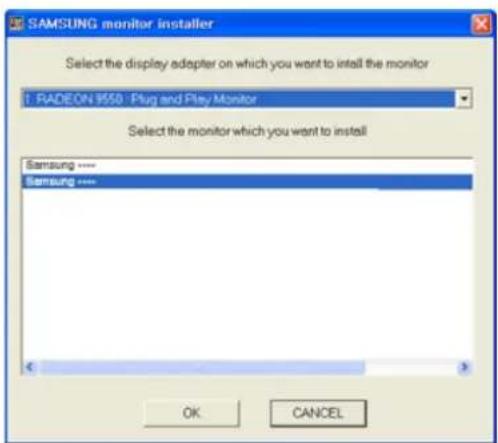
text_image
SAMSUNG monitor installer Select the display adapter on which you want to install the monitor 1. RADEON 9550 : Plug and Play Monitor Select the monitor which you want to install Samsung ---- Samsung ---- OK CANCEL- Check if the appropriate resolution and screen refresh rate are displayed in the Control Panel settings. For more information, refer to the document about the Windows operating system.
Product Operating Buttons
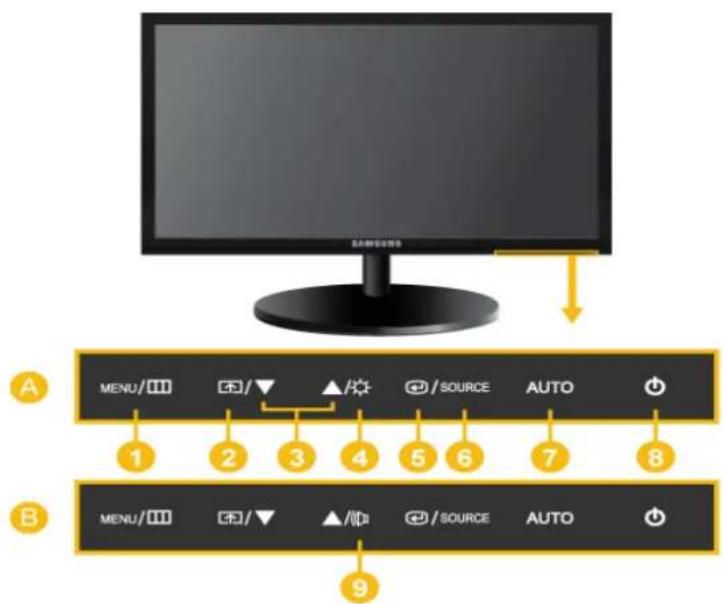
text_image
A MENU/□□□ □/▼ ▲/★ □/SOURCE AUTO 1 2 3 4 5 6 7 8 B MENU/□□ □/▼ ▲/□ □/SOURCE AUTO 9| Icon Description | ||
 | MENU/☐☐ | Press this button to view the On Screen Display (OSD).This button is also used to exit the OSD or to return to a higher-level OSD menu* OSD Adjustment LockThis function locks the OSD in order to maintain the current settings or to prevent the settings from being changed by another personOn: If you press and hold the MENU button down for 5 seconds, the OSD Adjustment Lock function is activated.Off: If you press and hold the MENU button down for 5 seconds again, the OSD Adjustment Lock function is disabled. Even if the OSD Adjustment Lock function is activated, users can adjust the brightness and contrast and can set up the adjustment function assigned to the [☐]. Even if the OSD Adjustment Lock function is activated, users can adjust the brightness and contrast and can set up the adjustment function assigned to the [☐]. |
 | ☐ | Users can set theto one of the following functions. If the user presses the[☐after setting it, the configured function will be performedPC signals :- -AV signals :- - You can set the function of theby selecting-->in the OSD. You can set the function of theby selecting-->in the OSD. |
 | ▲/▼ | Use these buttons to navigate the menu or to adjust a value in the OSD. |
 | ☀ | Use this button to control the brightness of the screen. |
| [1620] | [1894] | Activates a highlighted menu item.[C2×0] In the <Customized Key> menu, you can also use this button to sequentially switch between functions in the <Customized key> menu as desired. |
| [1×164] | SOURCE | Use this button to select a functionIf you press the [SOURCE] button when there is no OSD, the input signal (Analog/Digital/HDMI) is switched. When the input signal is switched by pressing [SOURCE] button or the product is turned on, a message displaying the selected input signal appears at the top left of the screen.[S356] · To select Digital mode, you have to connect the product and the PC with the DVI cable.· This function is not available for products with an Analog interface only. |
| [37×2] | AUTO | Press [AUTO] button to adjust the screen settings automatically[8/06] This function is only available in Analog mode.If the resolution settings are changed in the Display Properties, the AUTO adjustment function is performed. |
| [1847] | ∅ | Press this button to turn the product on or offPower LEDThis LED is turned on when the product works normally. For more information on the power-saving function, refer to the power saving function in More Information. When not using the product for a long time, unplugging the power cord is recommended to minimize power consumption. For more information on the power-saving function, refer to the power saving function in More Information. When not using the product for a long time, unplugging the power cord is recommended to minimize power consumption. |
| [2420] | [189] | When OSD is not on the screen, push the button to adjust volume. |
The Screen Adjustment Menu (OSD: On Screen Display) Structure
| Top Menus Sub | Menus | ||||
 PICTURE PICTURE | Brightness Contrast | Sharpness MagicBright Picture Mode | |||
| MagicAngle Coarse | Fine HDMI Black Level | ||||
 COLOR COLOR | MagicColor Red Green Blue Color Tone | ||||
| Color Effect Gamma | |||||
 SIZE & POSITION SIZE & POSITION | H-Position | V-Position | Image Size | Menu H-Position | Menu V-Position |
 SETUP&RESET SETUP&RESET | Reset | Language | MagicReturn | MagicEco | Off Timer On/Off |
| Off Timer Setting | Key Repeat Time | Customized Key | Auto Source | PC/AV Mode | |
 | Display Time | Menu Transparency | |||
 INFORMATION INFORMATION | |||||

Monitor functions may vary according to models. Please refer to actual product.

PICTURE
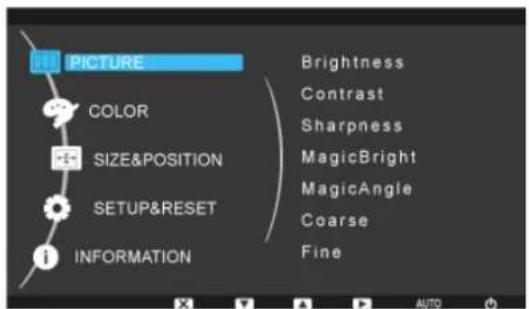
text_image
PICTURE COLOR SIZE&POSITION SETUP&RESET INFORMATION Brightness Contrast Sharpness MagicBright MagicAngle Coarse Fine AUTO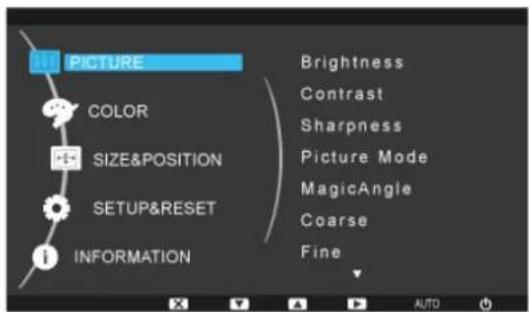
text_image
PICTURE COLOR SIZE&POSITION SETUP&RESET INFORMATION Brightness Contrast Sharpness Picture Mode MagicAngle Coarse Fine AUTO| Menu | Description |
| Brightness | Controls the screen brightness.· This menu is unavailable whenis set tomode.· This menu is unavailable whenis set. |
| Contrast | Controls the contrast of the pictures displayed on the screen· This menu is unavailable whenis set toormode.· This menu is unavailable whenis set tomode ormode.· This menu is unavailable whenis set. |
| Menu Description | |
| Sharpness | Controls the clarity of details of pictures displayed on the screenThis menu is unavailable whenis set toormode.This menu is unavailable whenis set tomode ormode.This menu is unavailable whenis set. |
| MagicBright | Provides preset picture settings optimized for various user environments such as editing a document, surfing the Internet, playing games,or movies and so on.If the preset picture modes are not sufficient, users can configure theanddirectly using this mode.This mode provides the picture setting appropriate for editing a document and surfing the Internet (text + picture).This mode provides the picture setting appropriate for playing games that include lots of graphics and that require a fast screen refresh rate.This mode provides brightness and sharpness settings similar to those of a TV for the best entertainment environment (movie, DVD, etc.).Controls the picture contrast automatically so that bright and dark pictures are balanced overall.This menu is unavailable whenoris set. |
| Picture Mode | The Monitor has four automatic picture settings (,,and)that are preset at the factory. You can activate either Dynamic, Standard, Movie or Custom. You can select Custom which automatically recalls your personalized picture settings.Select this mode to view a sharper image than in Standard mode.Select this mode when the surroundings are bright. This also provides a sharp image.Select this mode when the surroundings are dark. This will save power and reduce eye fatigue.Select this mode when you want to adjust the image according to your preferencesThis can only be set when the external input is connected through HDMI/DVI andis setto.This menu is unavailable whenoris set. |
| MagicAngle | This feature allows you to see optimal screen quality according to your viewing position.When viewing the screen at an angle from below, above or the side of the monitor, by setting the appropriate mode for each position you can obtain a similar picture quality as viewing the screen directly from the front.Set towhen viewing directly in front of the screen.-Select when viewing from the front position.-Select when viewing from a slightly lower position.-Select when viewing from the lower position.-Select when viewing from the upper position.-Select when viewing from the left or right position.-Whenis selected, settings foris applied by default.Users can set suitable picture quality as needed.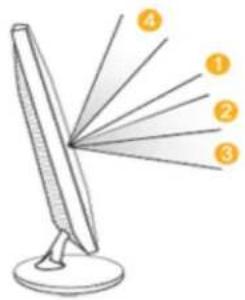 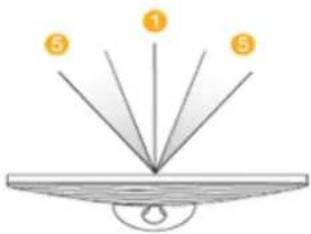 This menu is unavailable whenis set toorThis menu is unavailable whenoris set. This menu is unavailable whenis set toorThis menu is unavailable whenoris set. |
| Coarse | Removes vertical noise lines (line pattern) from the screen.The location of the screen may be changed after the adjustment. In this case, move the screen so that the screen is displayed at the center of the display panel using themenu.This function is only available in Analog mode. |
| Fine | Removes horizontal noise lines (line pattern) from the screen.If you cannot remove the noise completely with thefunction, adjust theand then use thefunction again.This function is only available in Analog mode. |
| HDMI Black Level | When watching with a DVD or set-top box connecting to the product via HDMI, image quality deterioration (black level, lower-quality contrast, lighter color tone, etc.) may occur depending on the connected external device..This function is active only when the external device is connected via.Thefunction may not be compatible with all external devices. |
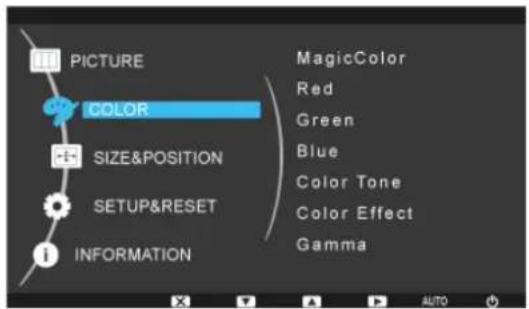
text_image
PICTURE COLOR SIZE&POSITION SETUP&RESET INFORMATION MagicColor Red Green Blue Color Tone Color Effect Gamma| Menu Description | |
| MagicColor | Expresses natural colors more clearly without changing the picture quality using proprietary digital picture quality improvement technology developed by Samsung Electronics.-Turns thefunction off.-You can compare the pictures processed bywith the original pictures.-Provides a clearer picture including areas corresponding to skin color.-Improves the chroma of pictures except for areas corresponding to skin color.This menu is unavailable whenis set.This menu is unavailable whenis set. |
| Red | You can adjust the red color value of pictures according to your preference.This menu is unavailable whenis set tomode ormode.This menu is unavailable whenis set. |
| Green | You can adjust the green color value of pictures according to your preference.This menu is unavailable whenis set tomode ormode.This menu is unavailable whenis set. |
| Blue | You can adjust the blue color value of pictures according to your preference.This menu is unavailable whenis set tomode ormode.This menu is unavailable whenis set. |
| Color Tone | You can set the color temperature according to your preference.-Sets the color temperature of the screen to a cooler color.-Sets the color temperature of the screen to the standard color temperature.-Sets the color temperature of the screen to a warmer color.-Select this menu to set the color temperature manually.If you do not like the preset color temperatures, you can manually adjust the value of RGB.This menu is unavailable whenis set tomode ormode.This menu is unavailable whenis set.This menu is unavailable whenis set. |
| Color Effect | You can change the overall atmosphere by changing the color of pictures.-Turns thefunction off.-Displays pictures in black and white.-Displays pictures in green mono color.-Displays pictures in aqua mono color.-Displays pictures in sepia mono color.This menu is unavailable whenis set.This menu is unavailable whenis set. |
| Gamma | Using this menu, you can change the intensity of the colors of medium brightness.-This menu is unavailable whenis set. |

(This is unavailable when
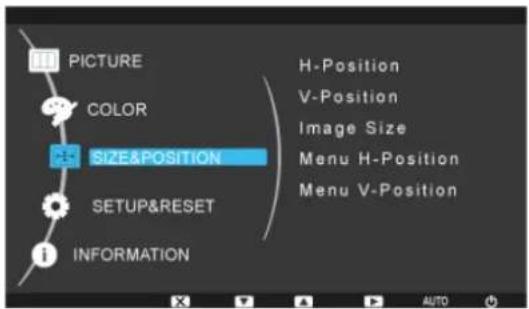
text_image
PICTURE COLOR SIZE&POSITION SETUP&RESET INFORMATION H-Position V-Position Image Size Menu H-Position Menu V-Position| Menu Description | |
| H-Position | Moves the position of the display area on the screen horizontally.·This function is only available in Analog mode.When a 720P, 1080i or 1080P signal is input in AV mode ,selectto adjust horizontal position in 0-6 levels. |
| V-Position | Moves the position of the display area on the screen vertically.·This function is only available in Analog mode.When a 720P, 1080i or 1080P signal is input in AV mode ,selectto adjust vertical position in 0-6 levels. |
| Image Size | Supplied for the wide models only such as 16:9 or 16:10.PC signals- The picture is displayed at the aspect ratio of the input signal.- The picture is displayed in full screen regardless of the aspect ratio of the input signal.A signal not in the standard mode table is not supported.If the resolution is set to the optimal resolution, the aspect ratio does not change whether theis set toor. AV signals- Displays pictures at the 4 : 3 aspect ratio.- Displays pictures at the 16 : 9 aspect ratio.- If a 720P, 1080i or 1080P signal is input in HDMI/DVI input mode, the picture is displayed as is without truncation.This can only be set when the external input is connected through HDMI/DVI andis set to.- Displays pictures at the 4 : 3 aspect ratio.- Displays pictures at the 16:10 aspect ratio.- If a 720P, 1080i or 1080P signal is input in HDMI/DVI input mode, the picture is displayed as is without truncation.It can only be selected if an external input is connected to the HDMI/ DVI terminal and theis set to.When the panel is of 16:10,the screen size options include <4:3>,, |
| Menu H-Position You | can adjust the horizontal position of the OSD. |
| Menu V-Position You | can adjust the vertical position of the OSD. |
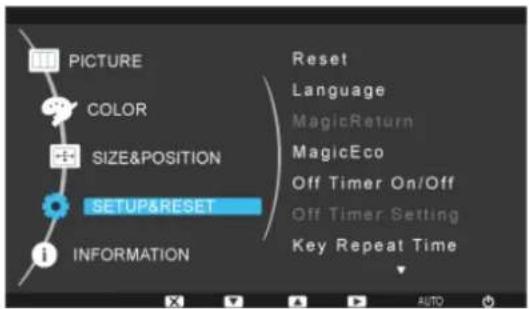
text_image
PICTURE COLOR SIZE&POSITION SETUP&RESET INFORMATION Reset Language MagicReturn MagicEco Off Timer On/Off Off Timer Setting Key Repeat Time| Menu Description | |
| Reset | Use this function to restore the visual quality and color settings to the factory defaults.·- |
| Language | Select a language for the OSD.·English, Deutsch, Español, Français, Italiano, Svenska, Русский, Português, Türkçe, Polski, MagyarThe selected language is only applied to the product OSD. This setting does not affect the other functions of the PC. |
| MagicReturn | Only works in Windows 7 and recommended when using multiple monitors.·<Off>Whenis selected, thefunction is turned off.·<On>Whenis selected, thefunction is turned on.·The function is available in Windows 7 only.When use the other OS,it is recommended to set this function to.·This function is not available for analog signal input.·This function is not available whenis set to.·This function may be unavailable for some graphics cards. These graphics cards don't support the international EDID standard.(DDWG DVI Standard) It is recommended to set this function to.·Press and hold down the▼key for 5 seconds while theOSD is displayed,will be automatically set to. |
| MagicEco | This function provides user a low power mode which is realized by lowering the current of the display panel.·<100%>When <100%> is selected, the power consumption is 100% of default setting.·<75%>When <75%> is selected, the power consumption is about 75% of default setting.·<50%>When <50%> is selected, the power consumption is about 50% of default setting.·<Power Saving Off>Whenis selected, the function is turned Off.·This menu is unavailable whenis set tomode. |
| Off Timer On/Off | You can turn the Off Timer on or off.·- |
| Off Timer Setting | Turns the power off automatically when the configured time is reached.  Whenofis selected,This function is available only. Whenofis selected,This function is available only. |
| Key Repeat Time | Controls the repeat delay of a button.You can set to<1 sec>or <2 sec>. Ifis selected, the button only responds once. |
| Customized Key | You can set the function of the Customized Key to one of the following.• PC signals :-AVsignals :- |
| Auto Source | - The monitor automatically selects an input signal.- Users have to manually select an input signal. Not applicable to analog (D-SUB)-or-digital (DVI)-dedicated models. Not applicable to analog (D-SUB)-or-digital (DVI)-dedicated models. |
| PC/AV Mode | Set to PC when connected to a PC.Set to AV when connected to an AV device.[2W28] This function does not support Analog mode.Supplied for the wide models only such as 16:9 or 16:10. |
| Display Time | The OSD automatically disappears if no action is taken by the user.You can determine the time to wait before the OSD is hidden.<5 sec>- <10 sec>- <20 sec>- <200 sec> |
| Menu Transparency | You can select the transparency of the OSD.- |
INFORMATION
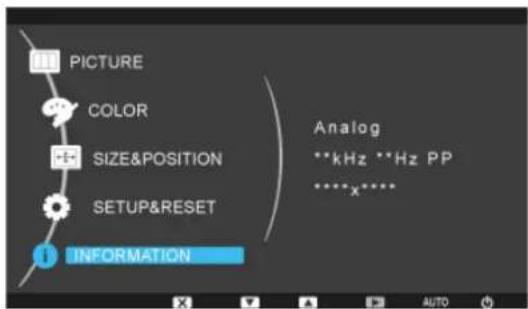
text_image
PICTURE COLOR SIZE&POSITION SETUP&RESET INFORMATION Analog **kHz **Hz PP ****x****| Menu Description | |
| INFORMATION | Shows the frequency and resolution set on the PC.[802T] For models with an Analog interface only,is not shown in the. |
4-1 Natural Color
What is Natural Color?
This software works only for Samsung products and enables adjusting the displayed colors on the product and matches the colors on the product with the colors of the printed pictures. For more information, refer to the online help of the software (F1).
The Natural Color is provided online. You can download it from the website below and install;
http://www.samsung.com/us/consumer/learningresources/monitor/naturalcolorexpert/pop_download.html
What is MagicTune?

MagicTune is a software program that helps with monitor adjustments by providing comprehensive descriptions of monitor functions and easy-to-understand guidelines.
Users can adjust the product with the mouse and the keyboard without using the operating buttons of the product.
Installing the Software
- Insert the installation CD into the CD-ROM drive.
- Select the MagicTune setup program.

If the pop-up screen for the software installation does not appear on the main screen, find and double-click the MagicTune setup file on the CD-ROM.
- Select the installation language and click [Next].
- Complete the remaining software installation steps according to the instructions displayed on the screen.

• The software may not work properly if you do not restart the computer after the installation.
• The MagicTune icon may not appear depending on the computer system and the product specifications.
- If the shortcut icon does not appear, press the F5 key.
Restrictions and Problems with the Installation (MagicTune™)
The installation of MagicTune™ may be affected by the graphics card, motherboard and the networking environment.
System Requirements
OS
- Windows 2000
- Windows XP Home Edition
• Windows XP Professional - Windows Vista 32Bit
- Windows 7 32Bit

For MagicTune™, Windows 2000 or later is recommended.
Hardware
- At least 32MB of memory
- At least 60MB of free space on the hard disk drive

For more information, refer to the website.
Removing the Software
You can only remove MagicTune™ through [Add or Remove Programs] in Windows.
To remove MagicTune ^TM , complete the following steps.
- Click [Start] select [Settings], and select [Control Panel] from the menu.
For Windows XP, click [Start], and select [Control Panel] from the menu. -
Double-click the [Add or Remove Programs] icon in the Control Panel.
-
In the [Add/Remove] window, find and select MagicTune™ so that it is highlighted.
- Click [Change or Remove Programs] to remove the software.
- Select [Yes] to start removing MagicTune™.
- Wait until a message box appears informing you that the software has been removed completely.

For technical support, the FAQ (frequently asked questions) or information about the software upgrade for MagicTune™, please visit our website.
What is MagicRotation?

MagicRotation
The MagicRotation Software from Samsung Electronics, Inc. provides the user with a rotation feature (0, 90, 180, 270 orientation) that facilitates the optimum utilization of computer display screen, better viewing and improved user productivity.
Installing the Software
- Insert the installation CD into the CD-ROM drive.
- Select the MagicRotation setup program.

If the pop-up screen for the software installation does not appear on the main screen, find and double-click the MagicRotation setup file on the CD-ROM.
- Select the installation language and click [Next].
- Complete the remaining software installation steps according to the instructions displayed on the screen.

- The software may not work properly if you do not restart the computer after the installation.
• The MagicRotation icon may not appear depending on the computer system and the product specifications. - If the shortcut icon does not appear, press the F5 key.
Restrictions and Problems with the Installation (MagicRotation)
The installation of MagicRotation may be affected by the graphics card, motherboard and the networking environment.
Limitation
- The "Display Driver" should be properly loaded for the MagicRotation to work properly. The installed "Display Driver" should be the latest driver supplied by the vendor.
-
If some applications like Windows Media Player, Real Player, etc. are not displaying movie files properly in 90, 180 and 270 orientations then do the following :
-
Close the application.
- Select the Orientation (90, 180, 270) you want to view the application.
- Relaunch the application.
In most cases this should fix the problem.
- User Applications using OpenGL and DirectDraw (3D drawing) will not function as per the orientation mode selected (90, 180, 270).
e.g. 3D games
- DOS based applications in Full Screen Mode will not function as per the orientation mode selected (90, 180, 270).
- Dual is not supported in Windows ^™ 98, ME, NT 4.0.
- MagicRotation does not provide support for 24 bits per pixel (Bit depth/Color Quality).
- If you are changing your Graphic Card it is recommended that you uninstall the MagicRotation Software before doing so.
System Requirements
os
- Windows™ 98 SE
- Windows™ Me
- Windows™ NT 4.0
-
Windows™ 2000
• Windows XP Home Edition -
Windows XP Professional
- Windows Vista 32Bit
- Windows 7 32Bit

For MagicRotation, Windows 2000 or later is recommended.
Hardware
- At least 128MB of memory(recommended)
- At least 25MB of free space on the hard disk drive
Service Packs
- It is recommended that your System has the latest Service Pack installed.
- For Windows™ NT 4.0, it is recommended to install Internet Explorer 5.0 and above with Active Desktop component.

- For more information, refer to the website.
- Windows™ is registered trademark of Microsoft Corporation, Inc.
Removing the Software
You can only remove MagicRotation through [Add or Remove Programs] in Windows.
To remove MagicRotation, complete the following steps.
- Click [Start] select [Settings], and select [Control Panel] from the menu.
For Windows XP, click [Start], and select [Control Panel] from the menu. - Double-click the [Add or Remove Programs] icon in the Control Panel.
- In the [Add/Remove] window, find and select MagicRotation so that it is highlighted.
- Click [Change or Remove Programs] to remove the software.
- Select [Yes] to start removing MagicRotation.
- Wait until a message box appears informing you that the software has been removed completely.

For technical support, the FAQ (frequently asked questions) or information about the software upgrade for MagicRotation, please visit our website.
What is MultiScreen?

MultiScreen
MultiScreen enables users to use the monitor by partitioning multiple sections.
Installing the Software
- Insert the installation CD into the CD-ROM drive.
- Select the MultiScreen setup program.

If the pop-up screen for the software installation does not appear on the main screen, find and double-click the MultiScreen setup file on the CD-ROM.
- When the Installation Wizard appears, click [Next].
- Complete the remaining software installation steps according to the instructions displayed on the screen.

- The software may not work properly if you do not restart the computer after the installation.
• The MultiScreen icon may not appear depending on the computer system and the product specifications. - If the shortcut icon does not appear, press the F5 key.
Restrictions and Problems with the Installation (MultiScreen)
The MultiScreen installation may be affected by the graphics card, motherboard and the networking environment.
Operating System
OS
- Windows 2000
• Windows XP Home Edition
• Windows XP Professional
• Windows Vista 32Bit - Windows 7 32Bit

For MultiScreen, the operating systems Windows 2000 or later is recommended.
Hardware
- At least 32MB of memory
- At least 60MB of free space on the hard disk drive
Removing the Software
Click [Start], select [Settings]/[Control Panel], and then double-click [Add or Remove Programs].
Select MultiScreen from the program list and click the [Add/Delete] button.
5-1 Monitor Self-Diagnosis

- You can check if the product is working properly using the Self-Diagnosis function.
-
If a blank screen is displayed and the Power LED blinks even if the product and the PC are properly connected, perform the self-diagnosis function according to the procedures below.
-
Turn the product and the PC off.
- Separate the signal cable from the product.
- Turn the product on.
- If the product is working properly, the
message appears.
In this case, if a blank screen is displayed again, make sure that there is no problem with the PC and the connection. The product is working properly.

Please check the following before requesting After-Sales service. If the problem continues, please contact your nearest Samsung Electronics Service Center.
| A blank screen appears / I cannot turn the product on | |
| Is the power cord connected properly? Check the connection status of the power cord. | |
| Is themessage displayed on the screen? | (Connected using the D-sub cable)Check the cable connecting the PC and the product.(Connected using the DVI cable)If the message appears on the screen even if the cable is properly connected, recheck the input signal by pressing the [+/SOURCE] button of the product. |
| Is themessage displayed on the screen? | This occurs when the signal from the graphics card exceeds the maximum resolution or the maximum frequency of the product.In this case, set up the appropriate resolution and the frequency for the product. |
| Is a blank screen displayed and does the power LED blink at a 1 second interval? | 1. This occurs when the power saving function is running.If you click the mouse or press any key, the screen will be turned on.2. This occurs when two monitors are connected,isand Magictune is running. In this case, characters on the Magictune OSD may appear corrupted. To run the Magictune, themust be set to.Please restart your PC, set thetoand run the Magictune. |
| Did you connect with a DVI cable? If you connect the DVI cable | when the PC has booted up or ifyou reconnect the DVI cable after disconnecting the cable while using a PC, the screen may not be displayed because some graphics cards do not output the video signal.In this case, reboot the PC while the DVI cable is connected. |
| Blank spaces are found at the top and bottom of the screen when an [HDMI] or [HDMI-DVI] cable is connected to the monitor and PC. | Blank spaces on the screen are not caused by the monitor.The cause of the problem is the PC or graphics card, and can be fixed by adjusting the screen size in the HDMI or DVI option of the graphics card settings menu.If the graphics card settings menu has no option to adjust the screen size, update the graphics card driver to the latest version.(Please contact the graphics card or computer manufacturer for details on how to adjust the screen settings.) |
| THE IMAGE IS TOO LIGHT OR TOO DARK. | |
| Adjust theand.(Refer to the,,)The display brightness can differ according to the mode set for. Ifis set to, the display brightness can differ according to the input signal. | |
| The on screen adjustment menu (OSD) does not appear. | |
| Did you cancel the screen adjustment? | Check if thefunction is set to Off. |
| The color is weird / The picture is displayed in black and white | |
| Is the entire screen displayed in the same color as if viewing the screen through a cellophane paper? | Check the cable connection to the computer.Reinsert the graphics card into the computer completely.Check if theis set to. |
| Is the graphics card configured correctly? | Set up the graphics card referring to the user manual. |
| The display area suddenly moves to an edge or to the center. | |
| Did you change the graphics card or the driver? | Please press the [AUTO] button to run the auto adjustment function. |
| Did you change the resolution and frequency appropriate to the product? | Set the resolution and the frequency to the appropriate values in the graphics cardrefer to the (Standard Signal Mode Table) |
| Is the graphics card configured correctly? | Set up the graphics card referring to the user manual. |
| The pictures are out-of-focus. | |
| Did you change the resolution and the frequency appropriate to the product? | Set the resolution and the frequency to the appropriate values in the graphics cardrefer to the (Standard Signal Mode Table) |
| The color is displayed in 16 bit (16 colors). The color has been changed after changing the graphics card. | |
| Did you install the device driver for the product? Windows XP: | Set the color again by selecting Control Panel→ Display → Settings.Windows Vista : Change the color settings by selecting "Control Panel" → "Appearance and Personalization"→"Personalization"→" Resolution".Windows 7 : Change the color settings by selecting "Control Panel" → "Personalization"→"Display"→"Change display settings"→"Advanced settings"→"Monitor". |
| Is the graphics card configured correctly? | Configure the color again in accordance with the new graphics card driver. |
| When I connect the monitor, the 'Unknown monitor, Plug&Play (VESA DDC) monitor found' message is displayed. | |
| Did you install the device driver for the product? | Install the device driver referring to the descriptions about the driver installation. |
| Check if all the Plug&Play (VESA DDC) functions are supported referring to the User Manual of the graphics card. | Install the device driver referring to the descriptions about the driver installation. |
| When I look at the exterior edges of the product, small alien substances appear on it. | |
| Since this product is designed so that the color has a soft appearance by coating it with a transparent material over the black edges, such things may be seen. This is not a defect of the product. | |
| A "beep, beep" sound is heard when booting the computer. | |
| If the beep sound is generated 3 or more times when booting up the computer, please request service for the computer. | |
| WHEN USING THE PRODUCT WITH A COMPUTER WHICH SUPPORTS THE HDCP (HIGH-BANDWIDTH DIGITAL CONTENT PROTECTION) FUNCTION AND THE HDCP FUNCTION DOES NOT WORK PROPERLY, PLEASE CHANGE THE RELEVANT SETTING AS FOLLOWS: | |
| Change the setting to enable the HDCP function to work properly.Changing the setting: [MENU] ->-->->In this case, the monitor's screen size is enlarged. To change the enlarged screen size, change the relevant setting as follows:Changing the setting: [MENU] ->-->->FAQ! PLEASE TRY THE FOLLOWING! | |
| How can I change the frequency of the video signal? | You have to change the frequency of the graphics card.(For more information, refer to the User Manual of the computer or the graphics card.) |
| How can I change the resolution? Windows XP: Change the resolution by selecting ControlPanel → Appearance and Themes → Display → Settings.Windows Vista: Change the resolution by selecting “Control Panel” → “Appearance and Personalization” → “Personalization” → “Resolution”.Windows 7: Change the resolution by selecting “Control Panel” → “Personalization” → “Display” → “Adjust resolution”.(For more information, refer to the User Manual of the computer or the graphics card.) | |
| How can I use the power saving function? | Windows XP: Configure it by selecting Control Panel → Appearance and Themes → Display → Screen Saver Setting or configure it in the BIOS Setup of the computer.Windows Vista: Change settings by selecting “Control Panel” → “Appearance and Personalization” → “Personalization” → “Screen Saver”. You can also use the BIOS SETUP menu on the PC.Windows 7: Change settings by selecting “Control Panel” → “Personalization” → “Screen Saver”. You can also use the BIOS SETUP menu on the PC.(For more information, refer to the User Manual of the computer or the graphics card.) |
6-1 Specifications
| MODEL NAME B1740R/B1740RX | ||
| Panel | Size 17 inches (43 cm) | |
| Display area 337.92 mm (H) x 270.336 mm (V) | ||
| Pixel Pitch 0.264 mm (H) x 0.264 mm (V) | ||
| Synchronization | Horizontal 30 ~ 81 kHz | |
| Vertical 56 ~ 75 Hz | ||
| Display Color 16.7 M | ||
| Resolution | Optimum resolution 1280 x 1024 @60Hz | |
| Maximum resolution 1280 x 1024 @75Hz | ||
| Input Signal, Terminated | RGB Analog, DVI(Digital Visual Interface) Compliant Digital RGB0.7 Vp-p ± 5%separate H/V sync, Composite, SOGTTL level (V high ≥ 2.0V, V low ≤ 0.8V) | |
| Maximum Pixel Clock 135 MHz (Analog, Digital) | ||
| Power Supply | This product supports 100 - 240 V. Since the standard voltage may differ from country to country, please check the label on the back of the product. | |
| Signal Cable | 15pin-to-15pin D-sub cable, DetachableDVI-D to DVI-D connector, Detachable | |
| Dimensions (WxHxD) / Weight (HAS stand) | 373.5 x 314.5x 68mm (14.7 x 12.4 x 2.7 inches) (Without Stand)373.5 x 330.4 x 190.0mm (14.7 x 13.0 x 7.5 inches) / 4.3 kg (9.5 lbs) (With Stand) | |
| Environmental considerations | Operating | Temperature: 50°F ~ 104°F (10°C ~ 40°C)Humidity: 10 % ~ 80 %, non-condensing |
| Storage | Temperature: -4°F ~ 113°F (-20°C ~ 45°C)Humidity: 5 % ~ 95 %, non-condensing | |
| Tilt -5°~22° | ||

Design and specifications are subject to change without prior notice.

Class B (Information Communication equipment for residential use)
This device has been registered regarding EMI for home use (Class B). It may be used in all areas. (Class B equipment emits less electromagnetic waves than Class A equipment.)
6-2 Power Saving Function
This monitor has a built-in power management system called PowerSaver. This system saves energy by switching your monitor to low-power mode when it has not been used for a certain amount of time. The monitor automatically returns to normal operation when you press a key on the keyboard. For energy conservation, turn your monitor OFF when it is not needed, or when leaving it unattended for long periods. The PowerSaver system operates with a VESA DPM compliant video card installed in your computer. Use the software utility installed on your computer to set up this feature.
| STATE NORMAL OPERATION POWER SAVING MODE POWER OFF | |||
| Power Indicator On Blinking Off | |||
| Power Consumption 20 W | Less than0.3 watts | Less than0.3 watts | |

If there is no power cut-off switch, the power consumption is "0" only when the power cord is disconnected.
| MODEL NAME B1940M/B1940MX | ||
| Panel | Size 18.5 inches (47 cm) | |
| Display area 409.8 mm (H) x 230.4 mm (V) | ||
| Pixel Pitch 0.300 mm (H) x 0.300 mm (V) | ||
| Synchroniza-tion | Horizontal 30 ~ 81 kHz | |
| Vertical 56 ~ 75 Hz | ||
| Display Color 16.7 M | ||
| Resolution | Optimum resolution 1366 x 768 @60Hz | |
| Maximum resolution 1366 x 768 @75Hz | ||
| Input Signal, Terminated | RGB Analog, DVI(Digital Visual Interface) Compliant Digital RGB0.7 Vp-p ± 5%separate H/V sync, Composite, SOGTTL level (V high ≥ 2.0V, V low ≤ 0.8V) | |
| Maximum Pixel Clock 137 MHz (Analog, Digital) | ||
| Power Supply | This product supports 100 - 240 V. Since the standard voltage may differ from country to country, please check the label on the back of the product. | |
| Signal Cable | 15pin-to-15pin D-sub cable, DetachableDVI-D to DVI-D connector, Detachable | |
| Audio Signal | Audio Input 1pin, PC Audio Signal Input | |
| Audio Output 1pin, Earphone Connector | ||
| Speaker 1Watt x 2 | ||
| Dimensions (WxHxD) / Weight (HAS stand) | 443.4 x 272.5 x 69.5 mm (17.5 x 10.7 x 2.7 inches) (Without Stand)443.4 x 323.7 x 190 mm (17.5 x 12.7 x 7.5 inches) / 4.3 kg (9.5 lbs) (With Stand) | |
| Environmental considerations | Operating | Temperature: 50°F ~ 104°F (10°C ~ 40°C)Humidity: 10 % ~ 80 %, non-condensing |
| Storage | Temperature: -4°F ~ 113°F (-20°C ~ 45°C)Humidity: 5 % ~ 95 %, non-condensing | |
| Tilt | -5°~22° | |

Design and specifications are subject to change without prior notice.

Class B (Information Communication equipment for residential use)
This device has been registered regarding EMI for home use (Class B). It may be used in all areas. (Class B equipment emits less electromagnetic waves than Class A equipment.)
6-4 Power Saving Function
This monitor has a built-in power management system called PowerSaver. This system saves energy by switching your monitor to low-power mode when it has not been used for a certain amount of time. The monitor automatically returns to normal operation when you press a key on the keyboard. For energy conservation, turn your monitor OFF when it is not needed, or when leaving it unattended for long periods. The PowerSaver system operates with a VESA DPM compliant video card installed in your computer. Use the software utility installed on your computer to set up this feature.
| STATE NORMAL OPERATION POWER SAVING MODE POWER OFF | |||
| Power Indicator On Blinking Off | |||
| Power Consumption 22 W | Less than0.3 watts | Less than0.3 watts | |

If there is no power cut-off switch, the power consumption is "0" only when the power cord is disconnected.
| MODEL NAME B1940ER | ||
| Panel | Size 19 inches (48 cm) | |
| Display area 376.32 mm (H) x 301.056 mm (V) | ||
| Pixel Pitch 0.294 mm (H) x 0.294 mm (V) | ||
| Synchroniza-tion | Horizontal 30 ~ 81 kHz | |
| Vertical 56 ~ 75 Hz | ||
| Display Color 16.7 M | ||
| Resolution | Optimum resolution 1280 x 1024 @60Hz | |
| Maximum resolution 1280 x 1024 @75Hz | ||
| Input Signal, Terminated | RGB Analog, DVI(Digital Visual Interface) Compliant Digital RGB0.7 Vp-p ± 5%separate H/V sync, Composite, SOGTTL level (V high ≥ 2.0V, V low ≤ 0.8V) | |
| Maximum Pixel Clock 135 MHz (Analog, Digital) | ||
| Power Supply | This product supports 100 - 240 V. Since the standard voltage may differ from country to country, please check the label on the back of the product. | |
| Signal Cable | 15pin-to-15pin D-sub cable, DetachableDVI-D to DVI-D connector, Detachable | |
| Dimensions (WxHxD) / Weight (HAS stand) | 417.2 x 344.9 x 70.5 mm (16.4 x 13.6 x 2.8 inches) (Without Stand)417.2 x 389.7 x 220 mm (16.4 x 15.3 x 8.7 inches) / 4.8 kg (10.6 lbs) (With Stand)Some Europe Area:417.2 x 379.7 x 220 mm (16.4 x 14.9 x 8.7 inches) / 4.8 kg (10.6 lbs) (With Stand) | |
| Environmental considerations | Operating | Temperature: 50°F ~ 104°F (10°C ~ 40°C)Humidity:10 % ~ 80 %, non-condensing |
| Storage | Temperature: -4°F ~ 113°F (-20°C ~ 45°C)Humidity: 5 % ~ 95 %, non-condensing | |
| Tilt -5°~22° | ||

Design and specifications are subject to change without prior notice.

Class B (Information Communication equipment for residential use)
This device has been registered regarding EMI for home use (Class B). It may be used in all areas. (Class B equipment emits less electromagnetic waves than Class A equipment.)
6-6 Power Saving Function
This monitor has a built-in power management system called PowerSaver. This system saves energy by switching your monitor to low-power mode when it has not been used for a certain amount of time. The monitor automatically returns to normal operation when you press a key on the keyboard. For energy conservation, turn your monitor OFF when it is not needed, or when leaving it unattended for long periods. The PowerSaver system operates with a VESA DPM compliant video card installed in your computer. Use the software utility installed on your computer to set up this feature.
| STATE NORMAL OPERATION POWER SAVING MODE POWER OFF | |||
| Power Indicator On Blinking Off | |||
| Power Consumption 22 W | Less than0.3 watts | Less than0.3 watts | |

If there is no power cut-off switch, the power consumption is "0" only when the power cord is disconnected.
| MODEL NAME B1940R/B1940RX | ||
| Panel | Size 19 inches (48 cm) | |
| Display area 376.32 mm (H) x 301.056 mm (V) | ||
| Pixel Pitch 0.294 mm (H) x 0.294 mm (V) | ||
| Synchroniza-tion | Horizontal 30 ~ 81 kHz | |
| Vertical 56 ~ 75 Hz | ||
| Display Color 16.7 M | ||
| Resolution | Optimum resolution 1280 x 1024 @60Hz | |
| Maximum resolution 1280 x 1024 @75Hz | ||
| Input Signal, Terminated | RGB Analog, DVI(Digital Visual Interface) Compliant Digital RGB0.7 Vp-p ± 5%separate H/V sync, Composite, SOGTTL level (V high ≥ 2.0V, V low ≤ 0.8V) | |
| Maximum Pixel Clock 135 MHz (Analog, Digital) | ||
| Power Supply | This product supports 100 - 240 V. Since the standard voltage may differ from country to country, please check the label on the back of the product. | |
| Signal Cable | 15pin-to-15pin D-sub cable, DetachableDVI-D to DVI-D connector, Detachable | |
| Dimensions (WxHxD) / Weight (HAS stand) | 417.2 x 344.9 x 70.5 mm (16.4 x 13.6 x 2.8 inches) (Without Stand)417.2 x 389.7 x 220 mm (16.4 x 15.3 x 8.7 inches) / 4.8 kg (10.6 lbs) (With Stand)Some Europe Area:417.2 x 379.7 x 220 mm (16.4 x 14.9 x 8.7 inches) / 4.8 kg (10.6 lbs) (With Stand) | |
| Environmental considerations | Operating | Temperature: 50°F ~ 104°F (10°C ~ 40°C)Humidity:10 % ~ 80 %, non-condensing |
| Storage | Temperature: -4°F ~ 113°F (-20°C ~ 45°C)Humidity: 5 % ~ 95 %, non-condensing | |
| Tilt -5°~22° | ||

Design and specifications are subject to change without prior notice.

Class B (Information Communication equipment for residential use)
This device has been registered regarding EMI for home use (Class B). It may be used in all areas. (Class B equipment emits less electromagnetic waves than Class A equipment.)
6-8 Power Saving Function
This monitor has a built-in power management system called PowerSaver. This system saves energy by switching your monitor to low-power mode when it has not been used for a certain amount of time. The monitor automatically returns to normal operation when you press a key on the keyboard. For energy conservation, turn your monitor OFF when it is not needed, or when leaving it unattended for long periods. The PowerSaver system operates with a VESA DPM compliant video card installed in your computer. Use the software utility installed on your computer to set up this feature.
| STATE NORMAL OPERATION POWER SAVING MODE POWER OFF | |||
| Power Indicator On Blinking Off | |||
| Power Consumption 22 W | Less than0.3 watts | Less than0.3 watts | |

If there is no power cut-off switch, the power consumption is "0" only when the power cord is disconnected.
| MODEL NAME B1940MR/B19 | 40MRX | |
| Panel | Size 19 inches (48 cm) | |
| Display area 376.32 mm (H) x 301.06 mm (V) | ||
| Pixel Pitch 0.294 mm (H) x 0.294 mm (V) | ||
| Synchroniza-tion | Horizontal 30 ~ 81 kHz | |
| Vertical 56 ~ 75 Hz | ||
| Display Color 16.7 M | ||
| Resolution | Optimum resolution 1280 x 1024 @60Hz | |
| Maximum resolution 1280 x 1024 @75Hz | ||
| Input Signal, Terminated | RGB Analog, DVI(Digital Visual Interface) Compliant Digital RGB0.7 Vp-p ± 5%separate H/V sync, Composite, SOGTTL level (V high ≥ 2.0V, V low ≤ 0.8V) | |
| Maximum Pixel Clock 135 MHz (Analog, Digital) | ||
| Power Supply | This product supports 100 - 240 V. Since the standard voltage may differ from country to country, please check the label on the back of the product. | |
| Signal Cable | 15pin-to-15pin D-sub cable, DetachableDVI-D to DVI-D connector, Detachable | |
| Audio Signal | Audio Input 1pin, PC Audio Signal Input | |
| Audio Output 1pin, Earphone Connector | ||
| Speaker 1Watt x 2 | ||
| Dimensions (WxHxD) / Weight (HAS stand) | 417.2 x 344.9 x 70.5 mm (16.4 x 13.6 x 2.8 inches) (Without Stand)417.2 x 389.7 x 220 mm (16.4 x 15.3 x 8.7 inches) / 4.8 kg (10.6 lbs) (With Stand)Some Europe Area:417.2 x 379.7 x 220 mm (16.4 x 14.9 x 8.7 inches) / 4.8 kg (10.6 lbs) (With Stand) | |
| Environmental considerations | Operating | Temperature: 50°F ~ 104°F (10°C ~ 40°C)Humidity:10 % ~ 80 %, non-condensing |
| Storage | Temperature: -4°F ~ 113°F (-20°C ~ 45°C)Humidity: 5 % ~ 95 %, non-condensing | |
| Tilt | -5°~22° | |

Design and specifications are subject to change without prior notice.

Class B (Information Communication equipment for residential use)
This device has been registered regarding EMI for home use (Class B). It may be used in all areas. (Class B equipment emits less electromagnetic waves than Class A equipment.)
6-10 Power Saving Function
This monitor has a built-in power management system called PowerSaver. This system saves energy by switching your monitor to low-power mode when it has not been used for a certain amount of time. The monitor automatically returns to normal operation when you press a key on the keyboard. For energy conservation, turn your monitor OFF when it is not needed, or when leaving it unattended for long periods. The PowerSaver system operates with a VESA DPM compliant video card installed in your computer. Use the software utility installed on your computer to set up this feature.
| STATE NORMAL OPERATION POWER SAVING MODE POWER OFF | |||
| Power Indicator On Blinking Off | |||
| Power Consumption 22 W | Less than0.3 watts | Less than0.3 watts | |

If there is no power cut-off switch, the power consumption is "0" only when the power cord is disconnected.
| MODEL NAME B1940W / B1940WX | ||
| Panel | Size 19 inches (48 cm) | |
| Display area 408.24 mm (H) x 255.15 mm (V) | ||
| Pixel Pitch 0.2835 mm (H) x 0.2835 mm (V) | ||
| Synchronization | Horizontal 30 ~ 81 kHz | |
| Vertical 56 ~ 75 Hz | ||
| Display Color 16.7 M | ||
| Resolution | Optimum resolution 1440 x 900 @60Hz | |
| Maximum resolution 1440 x 900 @75Hz | ||
| Input Signal, Terminated | RGB Analog, DVI(Digital Visual Interface) Compliant Digital RGB0.7 Vp-p ± 5%separate H/V sync, Composite, SOGTTL level (V high ≥ 2.0V, V low ≤ 0.8V) | |
| Maximum Pixel Clock 137 MHz (Analog, Digital) | ||
| Power Supply | This product supports 100 – 240 V. Since the standard voltage may differ from country to country, please check the label on the back of the product. | |
| Signal Cable | 15pin-to-15pin D-sub cable, DetachableDVI-D to DVI-D connector, Detachable | |
| Dimensions (WxHxD) / Weight (HAS stand) | 443.0 x 295.1 x 69.15 mm (17.4 x 11.6 x 2.7 inches) (Without Stand)443.0 x 337.05 x 190 mm (17.4 x 13.3 x 7.5 inches) / 4.2 kg (9.3 lbs) (With Stand) | |
| Environmental considerations | Operating | Temperature: 50°F ~ 104°F (10°C ~ 40°C)Humidity: 10 % ~ 80 %, non-condensing |
| Storage | Temperature: -4°F ~ 113°F (-20°C ~ 45°C)Humidity: 5 % ~ 95 %, non-condensing | |
| Tilt -5°~22° | ||

Design and specifications are subject to change without prior notice.

Class B (Information Communication equipment for residential use)
This device has been registered regarding EMI for home use (Class B). It may be used in all areas. (Class B equipment emits less electromagnetic waves than Class A equipment.)
6-12 Power Saving Function
This monitor has a built-in power management system called PowerSaver. This system saves energy by switching your monitor to low-power mode when it has not been used for a certain amount of time. The monitor automatically returns to normal operation when you press a key on the keyboard. For energy conservation, turn your monitor OFF when it is not needed, or when leaving it unattended for long periods. The PowerSaver system operates with a VESA DPM compliant video card installed in your computer. Use the software utility installed on your computer to set up this feature.
| STATE NORMAL OPERATION POWER SAVING MODE POWER OFF | |||
| Power Indicator On Blinking Off | |||
| Power Consumption 35 W | Less than0.3 watts | Less than0.3 watts | |

If there is no power cut-off switch, the power consumption is "0" only when the power cord is disconnected.
| MODEL NAME B2240/B2240X | ||
| Panel | Size 21.5 inches (54 cm) | |
| Display area 476.64 mm (H) x 268.11 mm (V) | ||
| Pixel Pitch 0.24825 mm (H) x 0.24825 mm (V) | ||
| Synchronization | Horizontal 30 ~ 81 kHz | |
| Vertical 56 ~ 75 Hz | ||
| Display Color 16.7 M | ||
| Resolution | Optimum resolution 1920 x 1080 @60Hz | |
| Maximum resolution 1920 x 1080 @60Hz | ||
| Input Signal, Terminated | RGB Analog, DVI(Digital Visual Interface) Compliant Digital RGB0.7 Vp-p ± 5%separate H/V sync, Composite, SOGTTL level (V high ≥ 2.0V, V low ≤ 0.8V) | |
| Maximum Pixel Clock 162MHz (Analog,Digital) | ||
| Power Supply | This product supports 100 - 240 V. Since the standard voltage may differ from country to country, please check the label on the back of the product. | |
| Signal Cable | 15pin-to-15pin D-sub cable, DetachableDVI-D to DVI-D connector, Detachable | |
| Dimensions (WxHxD) / Weight (HAS stand) | 513.2 x 309.6 x 68 mm (20.2 x 12.2 x 2.7 inches) (Without Stand)513.2 x 341.2 x 190 mm (20.2 x 13.4 x 7.5 inches) / 4.9 kg (10.8 lbs) (With Stand) | |
| Environmental considerations | Operating | Temperature: 50°F ~ 104°F (10°C ~ 40°C)Humidity: 10 % ~ 80 %, non-condensing |
| Storage | Temperature: -4°F ~ 113°F (-20°C ~ 45°C)Humidity: 5 % ~ 95 %, non-condensing | |
| Tilt -5°~22° | ||

Design and specifications are subject to change without prior notice.

Class B (Information Communication equipment for residential use)
This device has been registered regarding EMI for home use (Class B). It may be used in all areas. (Class B equipment emits less electromagnetic waves than Class A equipment.)
6-14 Power Saving Function
This monitor has a built-in power management system called PowerSaver. This system saves energy by switching your monitor to low-power mode when it has not been used for a certain amount of time. The monitor automatically returns to normal operation when you press a key on the keyboard. For energy conservation, turn your monitor OFF when it is not needed, or when leaving it unattended for long periods. The PowerSaver system operates with a VESA DPM compliant video card installed in your computer. Use the software utility installed on your computer to set up this feature.
| STATE NORMAL OPERATION POWER SAVING MODE POWER OFF | |||
| Power Indicator On Blinking Off | |||
| Power Consumption 45 W | Less than0.3 watts | Less than0.3 watts | |

If there is no power cut-off switch, the power consumption is "0" only when the power cord is disconnected.
| MODEL NAME B2240M / B2240MX | ||
| Panel | Size 21.5 inches (54 cm) | |
| Display area 476.64 mm (H) x 268.11 mm (V) | ||
| Pixel Pitch 0.24825 mm (H) x 0.24825 mm (V) | ||
| Synchronization | Horizontal 30 ~ 81 kHz | |
| Vertical 56 ~ 75 Hz | ||
| Display Color 16.7 M | ||
| Resolution | Optimum resolution 1920 x 1080 @60Hz | |
| Maximum resolution 1920 x 1080 @60Hz | ||
| Input Signal, Terminated | RGB Analog, DVI(Digital Visual Interface) Compliant Digital RGB0.7 Vp-p ± 5%separate H/V sync, Composite, SOGTTL level (V high ≥ 2.0V, V low ≤ 0.8V) | |
| Maximum Pixel Clock 162MHz (Analog,Digital) | ||
| Power Supply | This product supports 100 - 240 V. Since the standard voltage may differ from country to country, please check the label on the back of the product. | |
| Signal Cable | 15pin-to-15pin D-sub cable, DetachableDVI-D to DVI-D connector, Detachable | |
| Audio Signal | Audio Input 1pin, PC Audio Signal Input | |
| Audio Output 1pin, Earphone Connector | ||
| Speaker 1Watt x 2 | ||
| Dimensions (WxHxD) / Weight (HAS stand) | 513.2 x 309.6 x 68 mm (20.2 x 12.2 x 2.7 inches) (Without Stand)513.2 x 341.2 x 190 mm (20.2 x 13.4 x 7.5 inches) / 5.25 kg (11.6 lbs) (With Stand) | |
| Environmental considerations | Operating | Temperature: 50°F ~ 104°F (10°C ~ 40°C)Humidity: 10 % ~ 80 %, non-condensing |
| Storage | Temperature: -4°F ~ 113°F (-20°C ~ 45°C)Humidity: 5 % ~ 95 %, non-condensing | |
| Tilt | -5°~22° | |

Design and specifications are subject to change without prior notice.

Class B (Information Communication equipment for residential use)
This device has been registered regarding EMI for home use (Class B). It may be used in all areas. (Class B equipment emits less electromagnetic waves than Class A equipment.)
6-16 Power Saving Function
This monitor has a built-in power management system called PowerSaver. This system saves energy by switching your monitor to low-power mode when it has not been used for a certain amount of time. The monitor automatically returns to normal operation when you press a key on the keyboard. For energy conservation, turn your monitor OFF when it is not needed, or when leaving it unattended for long periods. The PowerSaver system operates with a VESA DPM compliant video card installed in your computer. Use the software utility installed on your computer to set up this feature.
| STATE NORMAL OPERATION POWER SAVING MODE POWER OFF | |||
| Power Indicator On Blinking Off | |||
| Power Consumption 45 W | Less than0.3 watts | Less than0.3 watts | |

If there is no power cut-off switch, the power consumption is "0" only when the power cord is disconnected.
| MODEL NAME B2240MW/B2240MWX | ||
| Panel | Size 22 inches (55 cm) | |
| Display area 473.76 mm (H) x 296.1 mm (V) | ||
| Pixel Pitch 0.282 mm (H) x 0.282 mm (V) | ||
| Synchroniza-tion | Horizontal 30 ~ 81 kHz | |
| Vertical 56 ~ 75 Hz | ||
| Display Color 16.7 M | ||
| Resolution | Optimum resolution 1680 x 1050 @60Hz | |
| Maximum resolution 1680 x 1050 @60Hz | ||
| Input Signal, Terminated | RGB Analog, DVI(Digital Visual Interface) Compliant Digital RGB0.7 Vp-p ± 5%separate H/V sync, Composite, SOGTTL level (V high ≥ 2.0V, V low ≤ 0.8V) | |
| Maximum Pixel Clock 146MHz (Analog,Digital) | ||
| Power Supply | This product supports 100 - 240 V. Since the standard voltage may differ from country to country, please check the label on the back of the product. | |
| Signal Cable | 15pin-to-15pin D-sub cable, DetachableDVI-D to DVI-D connector, Detachable | |
| Audio Signal | Audio Input 1pin, PC Audio Signal Input | |
| Audio Output 1pin, Earphone Connector | ||
| Speaker 1Watt x 2 | ||
| Dimensions (WxHxD) / Weight (HAS stand) | 510.7 x 337.75 x 68 mm (20.1 x 13.3 x 2.7 inches) (Without Stand)510.7 x 393.2 x 220.0 mm (20.1 x 15.5 x 8.7 inches) / 5.2 kg (11.5 lbs) (With Stand)Some Europe Area:510.7 x 383.2 x 220.0 mm (20.1 x 15.1 x 8.7 inches) / 5.2 kg (11.5 lbs) (With Stand) | |
| Environmental considerations | Operating | Temperature: 50°F ~ 104°F (10°C ~ 40°C)Humidity:10 % ~ 80 %, non-condensing |
| Storage | Temperature: -4°F ~ 113°F (-20°C ~ 45°C)Humidity: 5 % ~ 95 %, non-condensing | |
| Tilt | -5°~22° | |

Design and specifications are subject to change without prior notice.

Class B (Information Communication equipment for residential use)
This device has been registered regarding EMI for home use (Class B). It may be used in all areas. (Class B equipment emits less electromagnetic waves than Class A equipment.)
6-18 Power Saving Function
This monitor has a built-in power management system called PowerSaver. This system saves energy by switching your monitor to low-power mode when it has not been used for a certain amount of time. The monitor automatically returns to normal operation when you press a key on the keyboard. For energy conservation, turn your monitor OFF when it is not needed, or when leaving it unattended for long periods. The PowerSaver system operates with a VESA DPM compliant video card installed in your computer. Use the software utility installed on your computer to set up this feature.
| STATE NORMAL OPERATION POWER SAVING MODE POWER OFF | |||
| Power Indicator On Blinking Off | |||
| Power Consumption 45 W | Less than0.3 watts | Less than0.3 watts | |

If there is no power cut-off switch, the power consumption is "0" only when the power cord is disconnected.
| MODEL NAME B2240EMW | ||
| Panel | Size 22 inches (55 cm) | |
| Display area 473.76 mm (H) x 296.1 mm (V) | ||
| Pixel Pitch 0.282 mm (H) x 0.282 mm (V) | ||
| Synchronization | Horizontal 30 ~ 81 kHz | |
| Vertical 56 ~ 75 Hz | ||
| Display Color 16.7 M | ||
| Resolution | Optimum resolution 1680 x 1050 @60Hz | |
| Maximum resolution 1680 x 1050 @60Hz | ||
| Input Signal, Terminated | RGB Analog, DVI(Digital Visual Interface) Compliant Digital RGB0.7 Vp-p ± 5%separate H/V sync, Composite, SOGTTL level (V high ≥ 2.0V, V low ≤ 0.8V) | |
| Maximum Pixel Clock 146MHz (Analog,Digital) | ||
| Power Supply | This product supports 100 – 240 V. Since the standard voltage may differ from country to country, please check the label on the back of the product. | |
| Signal Cable | 15pin-to-15pin D-sub cable, DetachableDVI-D to DVI-D connector, Detachable | |
| Audio Signal | Audio Input 1pin, PC Audio Signal Input | |
| Audio Output 1pin, Earphone Connector | ||
| Speaker 1Watt x 2 | ||
| Dimensions (WxHxD) / Weight (HAS stand) | 510.7 x 337.8 x 68 mm (20.1 x 13.3 x 2.7 inches) (Without Stand)510.7 x 393.2 x 220.0 mm (20.1 x 15.5 x 8.7 inches) / 5.15 kg (11.4 lbs) (With Stand)510.7 x 403.9 x 220.0 mm (20.1 x 15.9 x 8.7 inches) / 5.15 kg (11.4 lbs) (With Has-USB Stand)Some Europe Area:510.7 x 383.2 x 220.0 mm (20.1 x 15.1 x 8.7 inches) / 5.15 kg (11.4 lbs) (With Stand) | |
| Environmental considerations | Operating | Temperature: 50°F ~ 104°F (10°C ~ 40°C)Humidity:10 % ~ 80 %, non-condensing |
| Storage | Temperature: -4°F ~ 113°F (-20°C ~ 45°C)Humidity: 5 % ~ 95 %, non-condensing | |
| Tilt | -5°~22° | |

Design and specifications are subject to change without prior notice.

Class B (Information Communication equipment for residential use)
This device has been registered regarding EMI for home use (Class B). It may be used in all areas. (Class B equipment emits less electromagnetic waves than Class A equipment.)
6-20 Power Saving Function
This monitor has a built-in power management system called PowerSaver. This system saves energy by switching your monitor to low-power mode when it has not been used for a certain amount of time. The monitor automatically returns to normal operation when you press a key on the keyboard. For energy conservation, turn your monitor OFF when it is not needed, or when leaving it unattended for long periods. The PowerSaver system operates with a VESA DPM compliant video card installed in your computer. Use the software utility installed on your computer to set up this feature.
| STATE NORMAL OPERATION POWER SAVING MODE POWER OFF | |||
| Power Indicator On Blinking Off | |||
| Power Consumption 28 W | Less than0.3 watts | Less than0.3 watts | |

If there is no power cut-off switch, the power consumption is "0" only when the power cord is disconnected.
| MODEL NAME B2340 | ||
| Panel | Size 23 inches (58 cm) | |
| Display area 509.76 mm (H) x 286.74 mm (V) | ||
| Pixel Pitch 0.2655 mm (H) x 0.2655 mm (V) | ||
| Synchronization | Horizontal 30 ~ 81 kHz | |
| Vertical 56 ~ 75 Hz | ||
| Display Color 16.7 M | ||
| Resolution | Optimum resolution 1920 x 1080 @60Hz | |
| Maximum resolution 1920 x 1080 @60Hz | ||
| Input Signal, Terminated | RGB Analog, DVI(Digital Visual Interface) Compliant Digital RGB0.7 Vp-p ± 5%separate H/V sync, Composite, SOGTTL level (V high ≥ 2.0V, V low ≤ 0.8V) | |
| Maximum Pixel Clock 164MHz (Analog,Digital) | ||
| Power Supply | This product supports 100 - 240 V. Since the standard voltage may differ from country to country, please check the label on the back of the product. | |
| Signal Cable | 15pin-to-15pin D-sub cable, DetachableDVI-D to DVI-D connector, Detachable | |
| Dimensions (WxHxD) / Weight (HAS stand) | 551 x 330.6 x 68 mm (21.7 x 13.0 x 2.7 inches) (Without Stand)551 x 388.4 x 220 mm (21.7 x 15.3 x 8.7 inches) / 5.45 kg (12 lbs) (With Stand)Some Europe Area:551 x 378.4 x 220 mm (21.7 x 14.9 x 8.7 inches) / 5.45 kg (12 lbs) (With Stand) | |
| Environmental considerations | Operating | Temperature: 50°F ~ 104°F (10°C ~ 40°C)Humidity:10 % ~ 80 %, non-condensing |
| Storage | Temperature: -4°F ~ 113°F (-20°C ~ 45°C)Humidity: 5 % ~ 95 %, non-condensing | |
| Tilt -5°~22° | ||

Design and specifications are subject to change without prior notice.

Class B (Information Communication equipment for residential use)
This device has been registered regarding EMI for home use (Class B). It may be used in all areas. (Class B equipment emits less electromagnetic waves than Class A equipment.)
6-22 Power Saving Function
This monitor has a built-in power management system called PowerSaver. This system saves energy by switching your monitor to low-power mode when it has not been used for a certain amount of time. The monitor automatically returns to normal operation when you press a key on the keyboard. For energy conservation, turn your monitor OFF when it is not needed, or when leaving it unattended for long periods. The PowerSaver system operates with a VESA DPM compliant video card installed in your computer. Use the software utility installed on your computer to set up this feature.
| STATE NORMAL OPERATION POWER SAVING MODE POWER OFF | |||
| Power Indicator On Blinking Off | |||
| Power Consumption 45 W | Less than0.3 watts | Less than0.3 watts | |

If there is no power cut-off switch, the power consumption is "0" only when the power cord is disconnected.
| MODEL NAME B2440L/B2440LX | ||
| Panel | Size 23.6 inches (59 cm) | |
| Display area 521.28 mm (H) x 293.22 mm (V) | ||
| Pixel Pitch 0.2715 mm (H) x 0.2715 mm (V) | ||
| Synchronization | Horizontal 30 ~ 81 kHz | |
| Vertical 56 ~ 75 Hz | ||
| Display Color 16.7 M | ||
| Resolution | Optimum resolution 1920 x 1080 @60Hz | |
| Maximum resolution 1920 x 1080 @60Hz | ||
| Input Signal, Terminated | RGB Analog, DVI(Digital Visual Interface) Compliant Digital RGB0.7 Vp-p ± 5%separate H/V sync, Composite, SOGTTL level (V high ≥ 2.0V, V low ≤ 0.8V) | |
| Maximum Pixel Clock 164MHz (Analog,Digital) | ||
| Power Supply | This product supports 100 - 240 V. Since the standard voltage may differ from country to country, please check the label on the back of the product. | |
| Signal Cable | 15pin-to-15pin D-sub cable, DetachableDVI-D to DVI-D connector, Detachable | |
| Dimensions (WxHxD) / Weight (HAS stand) | 570 x 342.4 x 68 mm (22.4 x 13.5 x 2.7 inches) (Without Stand)570 x 387.8 x 220 mm (22.4 x 15.3 x 8.7 inches) / 5.8 kg (12.8 lbs) (With Stand)Some Europe Area:570 x 377.8 x 220 mm (22.4 x 14.9 x 8.7 inches) / 5.8 kg (12.8 lbs) (With Stand) | |
| Environmental considerations | Operating | Temperature: 50°F ~ 104°F (10°C ~ 40°C)Humidity: 10 % ~ 80 %, non-condensing |
| Storage | Temperature: -4°F ~ 113°F (-20°C ~ 45°C)Humidity: 5 % ~ 95 %, non-condensing | |
| Tilt -5°~22° | ||

Design and specifications are subject to change without prior notice.

Class B (Information Communication equipment for residential use)
This device has been registered regarding EMI for home use (Class B). It may be used in all areas. (Class B equipment emits less electromagnetic waves than Class A equipment.)
6-24 Power Saving Function
This monitor has a built-in power management system called PowerSaver. This system saves energy by switching your monitor to low-power mode when it has not been used for a certain amount of time. The monitor automatically returns to normal operation when you press a key on the keyboard. For energy conservation, turn your monitor OFF when it is not needed, or when leaving it unattended for long periods. The PowerSaver system operates with a VESA DPM compliant video card installed in your computer. Use the software utility installed on your computer to set up this feature.
| STATE NORMAL OPERATION POWER SAVING MODE POWER OFF | |||
| Power Indicator On Blinking Off | |||
| Power Consumption 45 W | Less than0.3 watts | Less than0.3 watts | |

If there is no power cut-off switch, the power consumption is "0" only when the power cord is disconnected.
| MODEL NAME B2440/B2440X | ||
| Panel | Size 24 inches (61 cm) | |
| Display area 531.36 mm (H) x 298.89 mm (V) | ||
| Pixel Pitch 0.27675 mm (H) x 0.27675 mm (V) | ||
| Synchronization | Horizontal 30 ~ 81 kHz | |
| Vertical 56 ~ 75 Hz | ||
| Display Color 16.7 M | ||
| Resolution | Optimum resolution 1920 x 1080 @60Hz | |
| Maximum resolution 1920 x 1080 @60Hz | ||
| Input Signal, Terminated | RGB Analog, DVI(Digital Visual Interface) Compliant Digital RGB0.7 Vp-p ± 5%separate H/V sync, Composite, SOGTTL level (V high ≥ 2.0V, V low ≤ 0.8V) | |
| Maximum Pixel Clock 164MHz (Analog,Digital) | ||
| Power Supply | This product supports 100 - 240 V. Since the standard voltage may differ from country to country, please check the label on the back of the product. | |
| Signal Cable | 15pin-to-15pin D-sub cable, DetachableDVI-D to DVI-D connector, Detachable | |
| Dimensions (WxHxD) / Weight (HAS stand) | 570 x 342.4 x 68 mm (22.4 x 13.5 x 2.7 inches) (Without Stand)570 x 387.8 x 220 mm (22.4 x 15.3 x 8.7 inches) / 5.7 kg (12.6 lbs) (With Stand)Some Europe Area:570 x 377.8 x 220 mm (22.4 x 14.9 x 8.7 inches) / 5.7 kg (12.6 lbs) (With Stand) | |
| Environmental considerations | Operating | Temperature: 50°F ~ 104°F (10°C ~ 40°C)Humidity: 10 % ~ 80 %, non-condensing |
| Storage | Temperature: -4°F ~ 113°F (-20°C ~ 45°C)Humidity: 5 % ~ 95 %, non-condensing | |
| Tilt -5°~22° | ||

Design and specifications are subject to change without prior notice.

Class B (Information Communication equipment for residential use)
This device has been registered regarding EMI for home use (Class B). It may be used in all areas. (Class B equipment emits less electromagnetic waves than Class A equipment.)
6-26 Power Saving Function
This monitor has a built-in power management system called PowerSaver. This system saves energy by switching your monitor to low-power mode when it has not been used for a certain amount of time. The monitor automatically returns to normal operation when you press a key on the keyboard. For energy conservation, turn your monitor OFF when it is not needed, or when leaving it unattended for long periods. The PowerSaver system operates with a VESA DPM compliant video card installed in your computer. Use the software utility installed on your computer to set up this feature.
| STATE NORMAL OPERATION POWER SAVING MODE POWER OFF | |||
| Power Indicator On Blinking Off | |||
| Power Consumption 45 W | Less than0.3 watts | Less than0.3 watts | |

If there is no power cut-off switch, the power consumption is "0" only when the power cord is disconnected.
| MODEL NAME B2440M | ||
| Panel | Size 24 inches (61 cm) | |
| Display area 531.36 mm (H) x 298.89 mm (V) | ||
| Pixel Pitch 0.27675 mm (H) x 0.27675 mm (V) | ||
| Synchroniza-tion | Horizontal 30 ~ 81 kHz | |
| Vertical 56 ~ 75 Hz | ||
| Display Color 16.7 M | ||
| Resolution | Optimum resolution 1920 x 1080 @60Hz | |
| Maximum resolution 1920 x 1080 @60Hz | ||
| Input Signal, Terminated | RGB Analog, DVI(Digital Visual Interface) Compliant Digital RGB0.7 Vp-p ± 5%separate H/V sync, Composite, SOGTTL level (V high ≥ 2.0V, V low ≤ 0.8V) | |
| Maximum Pixel Clock 164MHz (Analog,Digital) | ||
| Power Supply | This product supports 100 - 240 V. Since the standard voltage may differ from country to country, please check the label on the back of the product. | |
| Signal Cable | 15pin-to-15pin D-sub cable, DetachableDVI-D to DVI-D connector, Detachable | |
| Audio Signal | Audio Input 1pin, PC Audio Signal Input | |
| Audio Output 1pin, Earphone Connector | ||
| Speaker 1Watt x 2 | ||
| Dimensions (WxHxD) / Weight (HAS stand) | 570 x 342.4 x 68 mm (22.4 x 13.5 x 2.7 inches) (Without Stand)570 x 387.8 x 220 mm (22.4 x 15.3 x 8.7 inches) / 5.75 kg (12.7 lbs) (With Stand)Some Europe Area:570 x 377.8 x 220 mm (22.4 x 14.9 x 8.7 inches) / 5.75 kg (12.7 lbs) (With Stand) | |
| Environmental considerations | Operating | Temperature: 50°F ~ 104°F (10°C ~ 40°C)Humidity:10 % ~ 80 %, non-condensing |
| Storage | Temperature: -4°F ~ 113°F (-20°C ~ 45°C)Humidity: 5 % ~ 95 %, non-condensing | |
| Tilt | -5°~22° | |

Design and specifications are subject to change without prior notice.

Class B (Information Communication equipment for residential use)
This device has been registered regarding EMI for home use (Class B). It may be used in all areas. (Class B equipment emits less electromagnetic waves than Class A equipment.)
6-28 Power Saving Function
This monitor has a built-in power management system called PowerSaver. This system saves energy by switching your monitor to low-power mode when it has not been used for a certain amount of time. The monitor automatically returns to normal operation when you press a key on the keyboard. For energy conservation, turn your monitor OFF when it is not needed, or when leaving it unattended for long periods. The PowerSaver system operates with a VESA DPM compliant video card installed in your computer. Use the software utility installed on your computer to set up this feature.
| STATE NORMAL OPERATION POWER SAVING MODE POWER OFF | |||
| Power Indicator On Blinking Off | |||
| Power Consumption 45 W | Less than0.3 watts | Less than0.3 watts | |

If there is no power cut-off switch, the power consumption is "0" only when the power cord is disconnected.
| MODEL NAME BX2240/BX2240X | ||
| Panel | Size 21.5 inches (54 cm) | |
| Display area 476.64 mm (H) x 268.11 mm (V) | ||
| Pixel Pitch 0.24825 mm (H) x 0.24825 mm (V) | ||
| Synchronization | Horizontal 30 ~ 81 kHz | |
| Vertical 56 ~ 75 Hz | ||
| Display Color 16.7 M | ||
| Resolution | Optimum resolution 1920 x 1080 @60Hz | |
| Maximum resolution 1920 x 1080 @60Hz | ||
| Input Signal, Terminated | RGB Analog, DVI(Digital Visual Interface) Compliant Digital RGB0.7 Vp-p ± 5%separate H/V sync, Composite, SOGTTL level (V high ≥ 2.0V, V low ≤ 0.8V) | |
| Maximum Pixel Clock 164MHz (Analog,Digital) | ||
| Power Supply | This product supports 100 - 240 V. Since the standard voltage may differ from country to country, please check the label on the back of the product. | |
| Signal Cable | 15pin-to-15pin D-sub cable, DetachableDVI-D to DVI-D connector, Detachable | |
| Dimensions (WxHxD) / Weight (HAS stand) | 513.2 x 309.6 x 68 mm (20.2 x 12.2 x 2.7 inches) (Without Stand)513.2 x 341.2 x 190 mm (20.2 x 13.4 x 7.5 inches) / 4.25 kg (9.4 lbs) (With Stand) | |
| Environmental considerations | Operating | Temperature: 50°F ~ 104°F (10°C ~ 40°C)Humidity: 10 % ~ 80 %, non-condensing |
| Storage | Temperature: -4°F ~ 113°F (-20°C ~ 45°C)Humidity: 5 % ~ 95 %, non-condensing | |
| Tilt -5° ~22° | ||

Design and specifications are subject to change without prior notice.

Class B (Information Communication equipment for residential use)
This device has been registered regarding EMI for home use (Class B). It may be used in all areas. (Class B equipment emits less electromagnetic waves than Class A equipment.)
6-30 Power Saving Function
This monitor has a built-in power management system called PowerSaver. This system saves energy by switching your monitor to low-power mode when it has not been used for a certain amount of time. The monitor automatically returns to normal operation when you press a key on the keyboard. For energy conservation, turn your monitor OFF when it is not needed, or when leaving it unattended for long periods. The PowerSaver system operates with a VESA DPM compliant video card installed in your computer. Use the software utility installed on your computer to set up this feature.
| STATE NORMAL OPERATION POWER SAVING MODE POWER OFF | |||
| Power Indicator On Blinking Off | |||
| Power Consumption 22 W | Less than0.3 watts | Less than0.3 watts | |

If there is no power cut-off switch, the power consumption is "0" only when the power cord is disconnected.
| MODEL NAME BX2440/BX2440X | ||
| Panel | Size 24 inches (61 cm) | |
| Display area 531.36 mm (H) x 298.89 mm (V) | ||
| Pixel Pitch 0.27675 mm (H) x 0.27675 mm (V) | ||
| Synchronization | Horizontal 30 ~ 81 kHz | |
| Vertical 56 ~ 75 Hz | ||
| Display Color 16.7 M | ||
| Resolution | Optimum resolution 1920 x 1080 @60Hz | |
| Maximum resolution 1920 x 1080 @60Hz | ||
| Input Signal, Terminated | RGB Analog,DVI(Digital Visual Interface) Compliant Digital RGB0.7 Vp-p ± 5%separate H/V sync, Composite, SOGTTL level (V high ≥ 2.0V, V low ≤ 0.8V) | |
| Maximum Pixel Clock 164 MHz (Analog,Digital) | ||
| Power Supply | This product supports 100 - 240 V. Since the standard voltage may differ from country to country, please check the label on the back of the product. | |
| Signal Cable | 15pin-to-15pin D-sub cable, DetachableDVI-D to DVI-D connector, Detachable | |
| Dimensions (WxHxD) / Weight (HAS stand) | 570.0 x 342.4 x 68.0 mm (22.4 x 13.5 x 2.7 inches) (Without Stand)570.0 x 387.8 x 220.0 mm (22.4 x 15.3 x 8.7 inches) / 5.1 kg (11.2 lbs) (With Stand)Some Europe Area:570.0 x 377.8 x 220.0 mm (22.4 x 14.9 x 8.7 inches) / 5.1 kg (11.2 lbs) (With Stand) | |
| Environmental considerations | Operating | Temperature: 50°F ~ 104°F (10°C ~ 40°C)Humidity:10 % ~ 80 %, non-condensing |
| Storage | Temperature: -4°F ~ 113°F (-20°C ~ 45°C)Humidity: 5 % ~ 95 %, non-condensing | |
| Tilt -5°~22° | ||

Design and specifications are subject to change without prior notice.

Class B (Information Communication equipment for residential use)
This device has been registered regarding EMI for home use (Class B). It may be used in all areas. (Class B equipment emits less electromagnetic waves than Class A equipment.)
6-32 Power Saving Function
This monitor has a built-in power management system called PowerSaver. This system saves energy by switching your monitor to low-power mode when it has not been used for a certain amount of time. The monitor automatically returns to normal operation when you press a key on the keyboard. For energy conservation, turn your monitor OFF when it is not needed, or when leaving it unattended for long periods. The PowerSaver system operates with a VESA DPM compliant video card installed in your computer. Use the software utility installed on your computer to set up this feature.
| STATE NORMAL OPERATION POWER SAVING MODE POWER OFF | |||
| Power Indicator On Blinking Off | |||
| Power Consumption 25 W | Less than0.3 watts | Less than0.3 watts | |

If there is no power cut-off switch, the power consumption is "0" only when the power cord is disconnected.
| MODEL NAME E1720NR/E1720NRX | ||
| Panel | Size 17 inches (43 cm) | |
| Display area 337.92 mm (H) x 270.336 mm (V) | ||
| Pixel Pitch 0.264 mm (H) x 0.264 mm (V) | ||
| Synchronization | Horizontal 30 ~ 81 kHz | |
| Vertical 56 ~ 75 Hz | ||
| Display Color 16.7 M | ||
| Resolution | Optimum resolution 1280 x 1024 @60Hz | |
| Maximum resolution 1280 x 1024 @75Hz | ||
| Input Signal, Terminated | RGB Analog0.7 Vp-p ± 5%separate H/V sync, Composite, SOGTTL level (V high ≥ 2.0V, V low ≤ 0.8V) | |
| Maximum Pixel Clock 135 MHz (Analog) | ||
| Power Supply | This product supports 100 – 240 V. Since the standard voltage may differ from country to country, please check the label on the back of the product. | |
| Signal Cable | 15pin-to-15pin D-sub cable, Detachable | |
| Dimensions (WxHxD) / Weight (Simple stand) | 373.5 x 314.5 x 62 mm (14.7 x 12.4 x 2.4 inches) (Without Stand)373.5 x 395.9 x 179.8 mm (14.7 x 15.6 x 7.1 inches) / 3.5 kg (7.7 lbs) (With Stand) | |
| Environmental considerations | Operating | Temperature: 50°F ~ 104°F (10°C ~ 40°C)Humidity: 10 % ~ 80 %, non-condensing |
| Storage | Temperature: -4°F ~ 113°F (-20°C ~ 45°C)Humidity: 5 % ~ 95 %, non-condensing | |
| Tilt -1°~20° | ||

Design and specifications are subject to change without prior notice.

Class B (Information Communication equipment for residential use)
This device has been registered regarding EMI for home use (Class B). It may be used in all areas. (Class B equipment emits less electromagnetic waves than Class A equipment.)
6-34 Power Saving Function
This monitor has a built-in power management system called PowerSaver. This system saves energy by switching your monitor to low-power mode when it has not been used for a certain amount of time. The monitor automatically returns to normal operation when you press a key on the keyboard. For energy conservation, turn your monitor OFF when it is not needed, or when leaving it unattended for long periods. The PowerSaver system operates with a VESA DPM compliant video card installed in your computer. Use the software utility installed on your computer to set up this feature.
| STATE NORMAL OPERATION POWER SAVING MODE POWER OFF | |||
| Power Indicator On Blinking Off | |||
| Power Consumption 20 W | Less than0.3 watts | Less than0.3 watts | |

If there is no power cut-off switch, the power consumption is "0" only when the power cord is disconnected.
| MODEL NAME E1920/E1920X | ||
| Panel | Size 18.5 inches (47 cm) | |
| Display area 409.8 mm (H) x 230.4 mm (V) | ||
| Pixel Pitch 0.3 mm (H) x 0.3 mm (V) | ||
| Synchronization | Horizontal 30 ~ 81 kHz | |
| Vertical 56 ~ 75 Hz | ||
| Display Color 16.7 M | ||
| Resolution | Optimum resolution 1366 x 768 @60Hz | |
| Maximum resolution 1366 x 768 @60Hz | ||
| Input Signal, Terminated | RGB Analog,DVI(Digital Visual Interface) Compliant Digital RGB0.7 Vp-p ± 5%separate H/V sync, Composite, SOGTTL level (V high ≥ 2.0V, V low ≤ 0.8V) | |
| Maximum Pixel Clock 89 MHz (Analog, Digital) | ||
| Power Supply | This product supports 100 - 240 V. Since the standard voltage may differ from country to country, please check the label on the back of the product. | |
| Signal Cable | 15pin-to-15pin D-sub cable, DetachableDVI-D to DVI-D connector, Detachable | |
| Dimensions (WxHxD) / Weight (Simple stand) | 443.4 x 272.5 x 63.2 mm (17.5 x 10.7 x 2.5 inches) (Without Stand)443.4 x 355 x 179.8 mm (17.5 x 14.0 x 7.1 inches) / 3.45 kg (7.6 lbs) (With Stand) | |
| Environmental considerations | Operating | Temperature: 50°F ~ 104°F (10°C ~ 40°C)Humidity: 10 % ~ 80 %, non-condensing |
| Storage | Temperature: -4°F ~ 113°F (-20°C ~ 45°C)Humidity: 5 % ~ 95 %, non-condensing | |
| Tilt -1°~20° | ||

Design and specifications are subject to change without prior notice.

Class B (Information Communication equipment for residential use)
This device has been registered regarding EMI for home use (Class B). It may be used in all areas. (Class B equipment emits less electromagnetic waves than Class A equipment.)
6-36 Power Saving Function
This monitor has a built-in power management system called PowerSaver. This system saves energy by switching your monitor to low-power mode when it has not been used for a certain amount of time. The monitor automatically returns to normal operation when you press a key on the keyboard. For energy conservation, turn your monitor OFF when it is not needed, or when leaving it unattended for long periods. The PowerSaver system operates with a VESA DPM compliant video card installed in your computer. Use the software utility installed on your computer to set up this feature.
| STATE NORMAL OPERATION POWER SAVING MODE POWER OFF | |||
| Power Indicator On Blinking Off | |||
| Power Consumption 20 W | Less than0.3 watts | Less than0.3 watts | |

If there is no power cut-off switch, the power consumption is "0" only when the power cord is disconnected.
| MODEL NAME E1920R | ||
| Panel | Size 19 inches (48 cm) | |
| Display area 376.32 mm (H) x 301.06 mm (V) | ||
| Pixel Pitch 0.294 mm (H) x 0.294 mm (V) | ||
| Synchronization | Horizontal 30 ~ 81 kHz | |
| Vertical 56 ~ 75 Hz | ||
| Display Color 16.7 M | ||
| Resolution | Optimum resolution 1280 x 1024 @60Hz | |
| Maximum resolution 1280 x 1024 @60Hz | ||
| Input Signal, Terminated | RGB Analog,DVI(Digital Visual Interface) Compliant Digital RGB0.7 Vp-p ± 5%separate H/V sync, Composite, SOGTTL level (V high ≥ 2.0V, V low ≤ 0.8V) | |
| Maximum Pixel Clock 135 MHz (Analog, Digital) | ||
| Power Supply | This product supports 100 - 240 V. Since the standard voltage may differ from country to country, please check the label on the back of the product. | |
| Signal Cable | 15pin-to-15pin D-sub cable, DetachableDVI-D to DVI-D connector, Detachable | |
| Dimensions (WxHxD) / Weight (Simple stand) | 417.2 x 344.9 x 65.5 mm (16.4 x 13.6 x 2.6 inches) (Without Stand)417.2 x 426.4 x 179.8 mm (16.4 x 16.8 x 7.1 inches) / 4.2 kg (9.3 lbs) (With Stand) | |
| Environmental considerations | Operating | Temperature: 50°F ~ 104°F (10°C ~ 40°C)Humidity: 10 % ~ 80 %, non-condensing |
| Storage | Temperature: -4°F ~ 113°F (-20°C ~ 45°C)Humidity: 5 % ~ 95 %, non-condensing | |
| Tilt -1°~20° | ||

Design and specifications are subject to change without prior notice.

Class B (Information Communication equipment for residential use)
This device has been registered regarding EMI for home use (Class B). It may be used in all areas. (Class B equipment emits less electromagnetic waves than Class A equipment.)
6-38 Power Saving Function
This monitor has a built-in power management system called PowerSaver. This system saves energy by switching your monitor to low-power mode when it has not been used for a certain amount of time. The monitor automatically returns to normal operation when you press a key on the keyboard. For energy conservation, turn your monitor OFF when it is not needed, or when leaving it unattended for long periods. The PowerSaver system operates with a VESA DPM compliant video card installed in your computer. Use the software utility installed on your computer to set up this feature.
| STATE NORMAL OPERATION POWER SAVING MODE POWER OFF | |||
| Power Indicator On Blinking Off | |||
| Power Consumption 22 W | Less than0.3 watts | Less than0.3 watts | |

If there is no power cut-off switch, the power consumption is "0" only when the power cord is disconnected.
| MODEL NAME E1920N/E1920NX | ||
| Panel | Size 18.5 inches (47 cm) | |
| Display area 409.8 mm (H) x 230.4 mm (V) | ||
| Pixel Pitch 0.3 mm (H) x 0.3 mm (V) | ||
| Synchronization | Horizontal 30 ~ 81 kHz | |
| Vertical 56 ~ 75 Hz | ||
| Display Color 16.7 M | ||
| Resolution | Optimum resolution 1366 x 768 @60Hz | |
| Maximum resolution 1366 x 768 @60Hz | ||
| Input Signal, Terminated | RGB Analog0.7 Vp-p ± 5%separate H/V sync, Composite, SOGTTL level (V high ≥ 2.0V, V low ≤ 0.8V) | |
| Maximum Pixel Clock 89 MHz (Analog) | ||
| Power Supply | This product supports 100 – 240 V. Since the standard voltage may differ from country to country, please check the label on the back of the product. | |
| Signal Cable | 15pin-to-15pin D-sub cable, Detachable | |
| Dimensions (WxHxD) / Weight (Simple stand) | 443.4 x 272.5 x 63.2 mm (17.5 x 10.7 x 2.5 inches) (Without Stand)443.4 x 355 x 179.8 mm (17.5 x 14.0 x 7.1 inches) / 3.45 kg (7.6 lbs) (With Stand) | |
| Environmental considerations | Operating | Temperature: 50°F ~ 104°F (10°C ~ 40°C)Humidity: 10 % ~ 80 %, non-condensing |
| Storage | Temperature: -4°F ~ 113°F (-20°C ~ 45°C)Humidity: 5 % ~ 95 %, non-condensing | |
| Tilt -1°~20° | ||

Design and specifications are subject to change without prior notice.

Class B (Information Communication equipment for residential use)
This device has been registered regarding EMI for home use (Class B). It may be used in all areas. (Class B equipment emits less electromagnetic waves than Class A equipment.)
6-40 Power Saving Function
This monitor has a built-in power management system called PowerSaver. This system saves energy by switching your monitor to low-power mode when it has not been used for a certain amount of time. The monitor automatically returns to normal operation when you press a key on the keyboard. For energy conservation, turn your monitor OFF when it is not needed, or when leaving it unattended for long periods. The PowerSaver system operates with a VESA DPM compliant video card installed in your computer. Use the software utility installed on your computer to set up this feature.
| STATE NORMAL OPERATION POWER SAVING MODE POWER OFF | |||
| Power Indicator On Blinking Off | |||
| Power Consumption 20 W | Less than0.3 watts | Less than0.3 watts | |

If there is no power cut-off switch, the power consumption is "0" only when the power cord is disconnected.
| MODEL NAME E1920NR/E1920NRX | ||
| Panel | Size 19 inches (48 cm) | |
| Display area 376.32 mm (H) x 301.06 mm (V) | ||
| Pixel Pitch 0.294 mm (H) x 0.294 mm (V) | ||
| Synchronization | Horizontal 30 ~ 81 kHz | |
| Vertical 56 ~ 75 Hz | ||
| Display Color 16.7 M | ||
| Resolution | Optimum resolution 1280 x 1024 @60Hz | |
| Maximum resolution 1280 x 1024 @75Hz | ||
| Input Signal, Terminated | RGB Analog0.7 Vp-p ± 5%separate H/V sync, Composite, SOGTTL level (V high ≥ 2.0V, V low ≤ 0.8V) | |
| Maximum Pixel Clock 135 MHz (Analog) | ||
| Power Supply | This product supports 100 – 240 V. Since the standard voltage may differ from country to country, please check the label on the back of the product. | |
| Signal Cable | 15pin-to-15pin D-sub cable, Detachable | |
| Dimensions (WxHxD) / Weight (Simple stand) | 417.2 x 344.9 x 65.5 mm (16.4 x 13.6 x 2.6 inches) (Without Stand)417.2 x 426.4 x 179.8 mm (16.4 x 16.8 x 7.1 inches) / 4.2 kg (9.3 lbs) (With Stand) | |
| Environmental considerations | Operating | Temperature: 50°F ~ 104°F (10°C ~ 40°C)Humidity: 10 % ~ 80 %, non-condensing |
| Storage | Temperature: -4°F ~ 113°F (-20°C ~ 45°C)Humidity: 5 % ~ 95 %, non-condensing | |
| Tilt -1°~20° | ||

Design and specifications are subject to change without prior notice.

Class B (Information Communication equipment for residential use)
This device has been registered regarding EMI for home use (Class B). It may be used in all areas. (Class B equipment emits less electromagnetic waves than Class A equipment.)
6-42 Power Saving Function
This monitor has a built-in power management system called PowerSaver. This system saves energy by switching your monitor to low-power mode when it has not been used for a certain amount of time. The monitor automatically returns to normal operation when you press a key on the keyboard. For energy conservation, turn your monitor OFF when it is not needed, or when leaving it unattended for long periods. The PowerSaver system operates with a VESA DPM compliant video card installed in your computer. Use the software utility installed on your computer to set up this feature.
| STATE NORMAL OPERATION POWER SAVING MODE POWER OFF | |||
| Power Indicator On Blinking Off | |||
| Power Consumption 22 W | Less than0.3 watts | Less than0.3 watts | |

If there is no power cut-off switch, the power consumption is "0" only when the power cord is disconnected.
| MODEL NAME E1920NW /E1920NWX | ||
| Panel | Size 19 inches (48 cm) | |
| Display area 408.24 mm (H) x 255.15 mm (V) | ||
| Pixel Pitch 0.2835 mm (H) x 0.2835 mm (V) | ||
| Synchronization | Horizontal 30 ~ 81 kHz | |
| Vertical 56 ~ 75 Hz | ||
| Display Color 16.7 M | ||
| Resolution | Optimum resolution 1440 x 900 @60Hz | |
| Maximum resolution 1440 x 900 @75Hz | ||
| Input Signal, Terminated | RGB Analog0.7 Vp-p ± 5%separate H/V sync, Composite, SOGTTL level (V high ≥ 2.0V, V low ≤ 0.8V) | |
| Maximum Pixel Clock 137 MHz (Analog) | ||
| Power Supply | This product supports 100 – 240 V. Since the standard voltage may differ from country to country, please check the label on the back of the product. | |
| Signal Cable | 15pin-to-15pin D-sub cable, Detachable | |
| Dimensions (WxHxD) / Weight (Simple stand) | 443.0 x 295.1 x 63 mm (17.4 x 11.6 x 2.5 inches) (Without Stand)443.0 x 375.0 x 179.8 mm (17.4 x 14.8 x 7.1 inches) / 3.6 kg (7.9 lbs) (With Stand) | |
| Environmental considerations | Operating | Temperature: 50°F ~ 104°F (10°C ~ 40°C)Humidity: 10 % ~ 80 %, non-condensing |
| Storage | Temperature: -4°F ~ 113°F (-20°C ~ 45°C)Humidity: 5 % ~ 95 %, non-condensing | |
| Tilt -1°~20° | ||

Design and specifications are subject to change without prior notice.

Class B (Information Communication equipment for residential use)
This device has been registered regarding EMI for home use (Class B). It may be used in all areas. (Class B equipment emits less electromagnetic waves than Class A equipment.)
6-44 Power Saving Function
This monitor has a built-in power management system called PowerSaver. This system saves energy by switching your monitor to low-power mode when it has not been used for a certain amount of time. The monitor automatically returns to normal operation when you press a key on the keyboard. For energy conservation, turn your monitor OFF when it is not needed, or when leaving it unattended for long periods. The PowerSaver system operates with a VESA DPM compliant video card installed in your computer. Use the software utility installed on your computer to set up this feature.
| STATE NORMAL OPERATION POWER SAVING MODE POWER OFF | |||
| Power Indicator On Blinking Off | |||
| Power Consumption 35 W | Less than0.3 watts | Less than0.3 watts | |

If there is no power cut-off switch, the power consumption is "0" only when the power cord is disconnected.
| MODEL NAME E1920W/E1920WX | ||
| Panel | Size 19 inches (48 cm) | |
| Display area 408.24 mm (H) x 255.15 mm (V) | ||
| Pixel Pitch 0.2835 mm (H) x 0.2835 mm (V) | ||
| Synchronization | Horizontal 30 ~ 81 kHz | |
| Vertical 56 ~ 75 Hz | ||
| Display Color 16.7 M | ||
| Resolution | Optimum resolution 1440 x 900 @60Hz | |
| Maximum resolution 1440 x 900 @75Hz | ||
| Input Signal, Terminated | RGB Analog, DVI(Digital Visual Interface) Compliant Digital RGB0.7 Vp-p ± 5%separate H/V sync, Composite, SOGTTL level (V high ≥ 2.0V, V low ≤ 0.8V) | |
| Maximum Pixel Clock 137 MHz (Analog, Digital) | ||
| Power Supply | This product supports 100 - 240 V. Since the standard voltage may differ from country to country, please check the label on the back of the product. | |
| Signal Cable | 15pin-to-15pin D-sub cable, DetachableDVI-D to DVI-D connector, Detachable | |
| Dimensions (WxHxD) / Weight (HAS stand) | 443.0 x 295.1 x 63 mm (17.4 x 11.6 x 2.5 inches) (Without Stand)443.0 x 375.0 x 179.8 mm (17.4 x 14.8 x 7.1 inches) / 3.6 kg (7.9 lbs) (With Stand) | |
| Environmental considerations | Operating | Temperature: 50°F ~ 104°F (10°C ~ 40°C)Humidity: 10 % ~ 80 %, non-condensing |
| Storage | Temperature: -4°F ~ 113°F (-20°C ~ 45°C)Humidity: 5 % ~ 95 %, non-condensing | |
| Tilt -1°~20° | ||

Design and specifications are subject to change without prior notice.

Class B (Information Communication equipment for residential use)
This device has been registered regarding EMI for home use (Class B). It may be used in all areas. (Class B equipment emits less electromagnetic waves than Class A equipment.)
6-46 Power Saving Function
This monitor has a built-in power management system called PowerSaver. This system saves energy by switching your monitor to low-power mode when it has not been used for a certain amount of time. The monitor automatically returns to normal operation when you press a key on the keyboard. For energy conservation, turn your monitor OFF when it is not needed, or when leaving it unattended for long periods. The PowerSaver system operates with a VESA DPM compliant video card installed in your computer. Use the software utility installed on your computer to set up this feature.
| STATE NORMAL OPERATION POWER SAVING MODE POWER OFF | |||
| Power Indicator On Blinking Off | |||
| Power Consumption 35 W | Less than0.3 watts | Less than0.3 watts | |

If there is no power cut-off switch, the power consumption is "0" only when the power cord is disconnected.
| MODEL NAME E2020/E2020X | ||
| Panel | Size 20 inches (50 cm) | |
| Display area 442.8 mm (H) x 249.08 mm (V) | ||
| Pixel Pitch 0.2768 mm (H) x 0.2768 mm (V) | ||
| Synchronization | Horizontal 30 ~ 81 kHz | |
| Vertical 56 ~ 75 Hz | ||
| Display Color 16.7 M | ||
| Resolution | Optimum resolution 1600 x 900 @60Hz | |
| Maximum resolution 1600 x 900 @60Hz | ||
| Input Signal, Terminated | RGB Analog, DVI(Digital Visual Interface) Compliant Digital RGB0.7 Vp-p ± 5%separate H/V sync, Composite, SOGTTL level (V high ≥ 2.0V, V low ≤ 0.8V) | |
| Maximum Pixel Clock 150 MHz (Analog, Digital) | ||
| Power Supply | This product supports 100 – 240 V. Since the standard voltage may differ from country to country, please check the label on the back of the product. | |
| Signal Cable | 15pin-to-15pin D-sub cable, DetachableDVI-D to DVI-D connector, Detachable | |
| Dimensions (WxHxD) / Weight (Simple stand) | 477.1 x 289.05 x 62 mm (18.8 x 11.4 x 2.4 inches) (Without Stand)477.1 x 368.95 x 179.8 mm (18.8 x 14.5 x 7.1 inches) / 3.95 kg (8.7 lbs) (With Stand) | |
| Environmental considerations | Operating | Temperature: 50°F ~ 104°F (10°C ~ 40°C)Humidity: 10 % ~ 80 %, non-condensing |
| Storage | Temperature: -4°F ~ 113°F (-20°C ~ 45°C)Humidity: 5 % ~ 95 %, non-condensing | |
| Tilt -1°~20° | ||

Design and specifications are subject to change without prior notice.

Class B (Information Communication equipment for residential use)
This device has been registered regarding EMI for home use (Class B). It may be used in all areas. (Class B equipment emits less electromagnetic waves than Class A equipment.)
6-48 Power Saving Function
This monitor has a built-in power management system called PowerSaver. This system saves energy by switching your monitor to low-power mode when it has not been used for a certain amount of time. The monitor automatically returns to normal operation when you press a key on the keyboard. For energy conservation, turn your monitor OFF when it is not needed, or when leaving it unattended for long periods. The PowerSaver system operates with a VESA DPM compliant video card installed in your computer. Use the software utility installed on your computer to set up this feature.
| STATE NORMAL | OPERATION POWER SAVING MODE POWER OFF | |
| Power Indicator On Blinking Off | ||
| Power Consumption 25 W | 0.3 watts 0.3 watts | |

If there is no power cut-off switch, the power consumption is "0" only when the power cord is disconnected.
| MODEL NAME E2020N/E2020NX | ||
| Panel | Size 20 inches (50 cm) | |
| Display area 442.8 mm (H) x 249.08 mm (V) | ||
| Pixel Pitch 0.2768 mm (H) x 0.2768 mm (V) | ||
| Synchronization | Horizontal 30 ~ 81 kHz | |
| Vertical 56 ~ 75 Hz | ||
| Display Color 16.7 M | ||
| Resolution | Optimum resolution 1600 x 900 @60Hz | |
| Maximum resolution 1600 x 900 @60Hz | ||
| Input Signal, Terminated | RGB Analog0.7 Vp-p ± 5%separate H/V sync, Composite, SOGTTL level (V high ≥ 2.0V, V low ≤ 0.8V) | |
| Maximum Pixel Clock 150 MHz (Analog) | ||
| Power Supply | This product supports 100 – 240 V. Since the standard voltage may differ from country to country, please check the label on the back of the product. | |
| Signal Cable | 15pin-to-15pin D-sub cable, Detachable | |
| Dimensions (WxHxD) / Weight (Simple stand) | 477.1 x 289.05 x 62 mm (18.8 x 11.4 x 2.4 inches) (Without Stand)477.1 x 368.95 x 179.8 mm (18.8 x 14.5 x 7.1 inches) / 3.95 kg (8.7 lbs) (With Stand) | |
| Environmental considerations | Operating | Temperature: 50°F ~ 104°F (10°C ~ 40°C)Humidity: 10 % ~ 80 %, non-condensing |
| Storage | Temperature: -4°F ~ 113°F (-20°C ~ 45°C)Humidity: 5 % ~ 95 %, non-condensing | |
| Tilt -1°~20° | ||

Design and specifications are subject to change without prior notice.

Class B (Information Communication equipment for residential use)
This device has been registered regarding EMI for home use (Class B). It may be used in all areas. (Class B equipment emits less electromagnetic waves than Class A equipment.)
6-50 Power Saving Function
This monitor has a built-in power management system called PowerSaver. This system saves energy by switching your monitor to low-power mode when it has not been used for a certain amount of time. The monitor automatically returns to normal operation when you press a key on the keyboard. For energy conservation, turn your monitor OFF when it is not needed, or when leaving it unattended for long periods. The PowerSaver system operates with a VESA DPM compliant video card installed in your computer. Use the software utility installed on your computer to set up this feature.
| STATE NORMAL | OPERATION POWER SAVING MODE POWER OFF | |
| Power Indicator On Blinking Off | ||
| Power Consumption 25 W | 0.3 watts 0.3 watts | |

If there is no power cut-off switch, the power consumption is "0" only when the power cord is disconnected.
| MODEL NAME E2220/E2220X | ||
| Panel | Size 21.5 inches (54 cm) | |
| Display area 476.64 mm (H) x 268.11 mm (V) | ||
| Pixel Pitch 0.24825 mm (H) x 0.24825 mm (V) | ||
| Synchronization | Horizontal 30 ~ 81 kHz | |
| Vertical 56 ~ 75 Hz | ||
| Display Color 16.7 M | ||
| Resolution | Optimum resolution 1920 x 1080 @60Hz | |
| Maximum resolution 1920 x 1080 @60Hz | ||
| Input Signal, Terminated | RGB Analog, DVI(Digital Visual Interface) Compliant Digital RGB0.7 Vp-p ± 5%separate H/V sync, Composite, SOGTTL level (V high ≥ 2.0V, V low ≤ 0.8V) | |
| Maximum Pixel Clock 162 MHz (Analog, Digital) | ||
| Power Supply | This product supports 100 - 240 V. Since the standard voltage may differ from country to country, please check the label on the back of the product. | |
| Signal Cable | 15pin-to-15pin D-sub cable, DetachableDVI-D to DVI-D connector, Detachable | |
| Dimensions (WxHxD) / Weight (Simple stand) | 513.2 x 309.6 x 61.9 mm (20.2 x 12.2 x2.4 inches) (Without Stand)513.2 x 388.5 x 200 mm (20.2 x 15.3 x 7.9 inches) / 4.1 kg (9 lbs) (With Stand) | |
| Environmental considerations | Operating | Temperature: 50°F ~ 104°F (10°C ~ 40°C)Humidity: 10 % ~ 80 %, non-condensing |
| Storage | Temperature: -4°F ~ 113°F (-20°C ~ 45°C)Humidity: 5 % ~ 95 %, non-condensing | |
| Tilt -1°~20° | ||

Design and specifications are subject to change without prior notice.

Class B (Information Communication equipment for residential use)
This device has been registered regarding EMI for home use (Class B). It may be used in all areas. (Class B equipment emits less electromagnetic waves than Class A equipment.)
6-52 Power Saving Function
This monitor has a built-in power management system called PowerSaver. This system saves energy by switching your monitor to low-power mode when it has not been used for a certain amount of time. The monitor automatically returns to normal operation when you press a key on the keyboard. For energy conservation, turn your monitor OFF when it is not needed, or when leaving it unattended for long periods. The PowerSaver system operates with a VESA DPM compliant video card installed in your computer. Use the software utility installed on your computer to set up this feature.
| STATE NORMAL OPERATION POWER SAVING MODE POWER OFF | |||
| Power Indicator On Blinking Off | |||
| Power Consumption 45 W | Less than0.3 watts | Less than0.3 watts | |

If there is no power cut-off switch, the power consumption is "0" only when the power cord is disconnected.
| MODEL NAME E2220N/E2220NX | ||
| Panel | Size 21.5 inches (54 cm) | |
| Display area 476.64 mm (H) x 268.11 mm (V) | ||
| Pixel Pitch 0.24825 mm (H) x 0.24825 mm (V) | ||
| Synchronization | Horizontal 30 ~ 81 kHz | |
| Vertical 56 ~ 75 Hz | ||
| Display Color 16.7 M | ||
| Resolution | Optimum resolution 1920 x 1080 @60Hz | |
| Maximum resolution 1920 x 1080 @60Hz | ||
| Input Signal, Terminated | RGB Analog0.7 Vp-p ± 5%separate H/V sync, Composite, SOGTTL level (V high ≥ 2.0V, V low ≤ 0.8V) | |
| Maximum Pixel Clock 162 MHz (Analog) | ||
| Power Supply | This product supports 100 – 240 V. Since the standard voltage may differ from country to country, please check the label on the back of the product. | |
| Signal Cable | 15pin-to-15pin D-sub cable, Detachable | |
| Dimensions (WxHxD) / Weight (Simple stand) | 513.2 x 309.6 x 61.9 mm (20.2 x 12.2 x 2.4 inches) (Without Stand)513.2 x 388.5 x 200 mm (20.2 x 15.3 x 7.9 inches) / 4.1 kg (9 lbs) (With Stand) | |
| Environmental considerations | Operating | Temperature: 50°F ~ 104°F (10°C ~ 40°C)Humidity: 10 % ~ 80 %, non-condensing |
| Storage | Temperature: -4°F ~ 113°F (-20°C ~ 45°C)Humidity: 5 % ~ 95 %, non-condensing | |
| Tilt -1°~20° | ||

Design and specifications are subject to change without prior notice.

Class B (Information Communication equipment for residential use)
This device has been registered regarding EMI for home use (Class B). It may be used in all areas. (Class B equipment emits less electromagnetic waves than Class A equipment.)
6-54 Power Saving Function
This monitor has a built-in power management system called PowerSaver. This system saves energy by switching your monitor to low-power mode when it has not been used for a certain amount of time. The monitor automatically returns to normal operation when you press a key on the keyboard. For energy conservation, turn your monitor OFF when it is not needed, or when leaving it unattended for long periods. The PowerSaver system operates with a VESA DPM compliant video card installed in your computer. Use the software utility installed on your computer to set up this feature.
| STATE NORMAL OPERATION POWER SAVING MODE POWER OFF | |||
| Power Indicator On Blinking Off | |||
| Power Consumption 45 W | Less than0.3 watts | Less than0.3 watts | |

If there is no power cut-off switch, the power consumption is "0" only when the power cord is disconnected.
| MODEL NAME E2220NW | ||
| Panel | Size 22 inches (55 cm) | |
| Display area 473.76 mm (H) x 296.1 mm (V) | ||
| Pixel Pitch 0.282 mm (H) x 0.282 mm (V) | ||
| Synchroniza-tion | Horizontal 30 ~ 81 kHz | |
| Vertical 56 ~ 75 Hz | ||
| Display Color 16.7 M | ||
| Resolution | Optimum resolution 1680 x 1050 @60Hz | |
| Maximum resolution 1680 x 1050 @60Hz | ||
| Input Signal, Terminated | RGB Analog0.7 Vp-p ± 5%separate H/V sync, Composite, SOGTTL level (V high ≥ 2.0V, V low ≤ 0.8V) | |
| Maximum Pixel Clock 146 MHz (Analog) | ||
| Power Supply | This product supports 100 – 240 V. Since the standard voltage may differ from country to country, please check the label on the back of the product. | |
| Signal Cable | 15pin-to-15pin D-sub cable, Detachable | |
| Dimensions (WxHxD) / Weight (Simple stand) | 510.7 x 337.75 x 62 mm (20.1 x 13.3 x 2.4 inches) (Without Stand)510.7 x 418.7 x 200 mm (20.1 x 16.5 x 7.9 inches) / 4.55 kg (10.0 lbs) (With Stand) | |
| Environmental considerations | Operating | Temperature: 50°F ~ 104°F (10°C ~ 40°C)Humidity: 10 % ~ 80 %, non-condensing |
| Storage | Temperature: -4°F ~ 113°F (-20°C ~ 45°C)Humidity: 5 % ~ 95 %, non-condensing | |
| Tilt -1°~20° | ||

Design and specifications are subject to change without prior notice.

Class B (Information Communication equipment for residential use)
This device has been registered regarding EMI for home use (Class B). It may be used in all areas. (Class B equipment emits less electromagnetic waves than Class A equipment.)
This product provides a power saving function that automatically turns the screen off when the product is not used for a predetermined period of time to reduce power consumption. If the product enters power saving mode, the power LED turns to a different color to indicate that the product is in power saving mode.
When the product is in power saving mode, the power is not turned off and you can turn the screen on again by pressing any key or clicking the mouse. However, the power saving function only works when the product is connected to a computer that provides the power saving function.
| STATE NORMAL OPERATION POWER SAVING MODE POWER OFF | |||
| Power Indicator On Blinking Off | |||
| Power Consumption 45 W | Less than0.3 watts | Less than0.3 watts | |
This monitor has a built-in power management system called PowerSaver. This system saves energy by switching your monitor to low-power mode when it has not been used for a certain amount of time. The monitor automatically returns to normal operation when you press a key on the keyboard. For energy conservation, turn your monitor OFF when it is not needed, or when leaving it unattended for long periods. The PowerSaver system operates with a VESA DPM compliant video card installed in your computer. Use the software utility installed on your computer to set up this feature.

If there is no power cut-off switch, the power consumption is "0" only when the power cord is disconnected.
| MODEL NAME E2220W /E2220WX | ||
| Panel | Size 22 inches (55 cm) | |
| Display area 473.76 mm (H) x 296.1 mm (V) | ||
| Pixel Pitch 0.282 mm (H) x 0.282 mm (V) | ||
| Synchronization | Horizontal 30 ~ 81 kHz | |
| Vertical 56 ~ 75 Hz | ||
| Display Color 16.7 M | ||
| Resolution | Optimum resolution 1680 x 1050 @60Hz | |
| Maximum resolution 1680 x 1050 @60Hz | ||
| Input Signal, Terminated | RGB Analog, DVI(Digital Visual Interface) Compliant Digital RGB0.7 Vp-p ± 5%separate H/V sync, Composite, SOGTTL level (V high ≥ 2.0V, V low ≤ 0.8V) | |
| Maximum Pixel Clock 146 MHz (Analog, Digital) | ||
| Power Supply | This product supports 100 - 240 V. Since the standard voltage may differ from country to country, please check the label on the back of the product. | |
| Signal Cable | 15pin-to-15pin D-sub cable, DetachableDVI-D to DVI-D connector, Detachable | |
| Dimensions (WxHxD) / Weight (Simple stand) | 510.7 x 337.75 x 62 mm (20.1 x 13.3 x 2.4 inches) (Without Stand)510.7 x 418.7 x 200 mm (20.1 x 16.5 x 7.9 inches) / 4.55 kg (10.0 lbs) (With Stand) | |
| Environmental considerations | Operating | Temperature: 50°F ~ 104°F (10°C ~ 40°C)Humidity: 10 % ~ 80 %, non-condensing |
| Storage | Temperature: -4°F ~ 113°F (-20°C ~ 45°C)Humidity: 5 % ~ 95 %, non-condensing | |
| Tilt -1°~20° | ||

Design and specifications are subject to change without prior notice.

Class B (Information Communication equipment for residential use)
This device has been registered regarding EMI for home use (Class B). It may be used in all areas. (Class B equipment emits less electromagnetic waves than Class A equipment.)
6-58 Power Saving Function
This monitor has a built-in power management system called PowerSaver. This system saves energy by switching your monitor to low-power mode when it has not been used for a certain amount of time. The monitor automatically returns to normal operation when you press a key on the keyboard. For energy conservation, turn your monitor OFF when it is not needed, or when leaving it unattended for long periods. The PowerSaver system operates with a VESA DPM compliant video card installed in your computer. Use the software utility installed on your computer to set up this feature.
| STATE NORMAL OPERATION POWER SAVING MODE POWER OFF | |||
| Power Indicator On Blinking Off | |||
| Power Consumption 45 W | Less than0.3 watts | Less than0.3 watts | |

If there is no power cut-off switch, the power consumption is "0" only when the power cord is disconnected.
| MODEL NAME E2320/E2320X | ||
| Panel | Size 23 inches (58 cm) | |
| Display area 509.76 mm (H) x 286.74 mm (V) | ||
| Pixel Pitch 0.2655 mm (H) x 0.2655 mm (V) | ||
| Synchronization | Horizontal 30 ~ 81 kHz | |
| Vertical 56 ~ 75 Hz | ||
| Display Color 16.7 M | ||
| Resolution | Optimum resolution 1920 x 1080 @60Hz | |
| Maximum resolution 1920 x 1080 @60Hz | ||
| Input Signal, Terminated | RGB Analog, DVI(Digital Visual Interface) Compliant Digital RGB0.7 Vp-p ± 5%separate H/V sync, Composite, SOGTTL level (V high ≥ 2.0V, V low ≤ 0.8V) | |
| Maximum Pixel Clock 164 MHz (Analog, Digital) | ||
| Power Supply | This product supports 100 - 240 V. Since the standard voltage may differ from country to country, please check the label on the back of the product. | |
| Signal Cable | 15pin-to-15pin D-sub cable, DetachableDVI-D to DVI-D connector, Detachable | |
| Dimensions (WxHxD) / Weight (Simple stand) | 551 x 330.6 x 62 mm (21.7 x 13.0 x 2.4 inches) (Without Stand)551 x 408.3 x 200 mm (21.7 x 16.0 x 7.9 inches) / 4.75 kg (10.5 lbs) (With Stand) | |
| Environmental considerations | Operating | Temperature: 50°F ~ 104°F (10°C ~ 40°C)Humidity: 10 % ~ 80 %, non-condensing |
| Storage | Temperature: -4°F ~ 113°F (-20°C ~ 45°C)Humidity: 5 % ~ 95 %, non-condensing | |
| Tilt -1°~20° | ||

Design and specifications are subject to change without prior notice.

Class B (Information Communication equipment for residential use)
This device has been registered regarding EMI for home use (Class B). It may be used in all areas. (Class B equipment emits less electromagnetic waves than Class A equipment.)
6-60 Power Saving Function
This monitor has a built-in power management system called PowerSaver. This system saves energy by switching your monitor to low-power mode when it has not been used for a certain amount of time. The monitor automatically returns to normal operation when you press a key on the keyboard. For energy conservation, turn your monitor OFF when it is not needed, or when leaving it unattended for long periods. The PowerSaver system operates with a VESA DPM compliant video card installed in your computer. Use the software utility installed on your computer to set up this feature.
| STATE NORMAL OPERATION POWER SAVING MODE POWER OFF | |||
| Power Indicator On Blinking Off | |||
| Power Consumption 45 W | Less than0.3 watts | Less than0.3 watts | |

If there is no power cut-off switch, the power consumption is "0" only when the power cord is disconnected.
| MODEL NAME EX2220 /EX2220X | ||
| Panel | Size 21.5 inches (54 cm) | |
| Display area 476.64 mm (H) x 268.11 mm (V) | ||
| Pixel Pitch 0.24825 mm (H) x 0.24825 mm (V) | ||
| Synchronization | Horizontal 30 ~ 81 kHz | |
| Vertical 56 ~ 75 Hz | ||
| Display Color 16.7 M | ||
| Resolution | Optimum resolution 1920 x 1080 @60Hz | |
| Maximum resolution 1920 x 1080 @60Hz | ||
| Input Signal, Terminated | RGB Analog, DVI(Digital Visual Interface) Compliant Digital RGB0.7 Vp-p ± 5%separate H/V sync, Composite, SOGTTL level (V high ≥ 2.0V, V low ≤ 0.8V) | |
| Maximum Pixel Clock 164 MHz (Analog, Digital) | ||
| Power Supply | This product supports 100 – 240 V. Since the standard voltage may differ from country to country, please check the label on the back of the product. | |
| Signal Cable | 15pin-to-15pin D-sub cable, DetachableDVI-D to DVI-D connector, Detachable | |
| Dimensions (WxHxD) / Weight (Simple stand) | 513.2 x309.6 x 61.9 mm (20.2 x 12.2 x 2.4 inches) (Without Stand)513.2 x 388.5 x 200 mm (20.2 x 15.3 x 7.9 inches) / 3.6 kg (7.9 lbs) (With Stand) | |
| Environmental considerations | Operating | Temperature: 50°F ~ 104°F (10°C ~ 40°C)Humidity: 10 % ~ 80 %, non-condensing |
| Storage | Temperature: -4°F ~ 113°F (-20°C ~ 45°C)Humidity: 5 % ~ 95 %, non-condensing | |
| Tilt -1°~20° | ||

Design and specifications are subject to change without prior notice.

Class B (Information Communication equipment for residential use)
This device has been registered regarding EMI for home use (Class B). It may be used in all areas. (Class B equipment emits less electromagnetic waves than Class A equipment.)
6-62 Power Saving Function
This monitor has a built-in power management system called PowerSaver. This system saves energy by switching your monitor to low-power mode when it has not been used for a certain amount of time. The monitor automatically returns to normal operation when you press a key on the keyboard. For energy conservation, turn your monitor OFF when it is not needed, or when leaving it unattended for long periods. The PowerSaver system operates with a VESA DPM compliant video card installed in your computer. Use the software utility installed on your computer to set up this feature.
| STATE NORMAL OPERATION POWER SAVING MODE POWER OFF | |||
| Power Indicator On Blinking Off | |||
| Power Consumption 22 W | Less than0.3 watts | Less than0.3 watts | |

If there is no power cut-off switch, the power consumption is "0" only when the power cord is disconnected.
| MODEL NAME B2240MH | ||
| Panel | Size 21.5 inches (54 cm) | |
| Display area 476.64 mm (H) | x 268.11 mm (V) | |
| Pixel Pitch 0.24825 mm (H) | x 0.24825 mm (V) | |
| Synchroniza-tion | Horizontal 30 ~ 81 kHz | |
| Vertical 56 ~ 75 Hz | ||
| Display Color 16.7 M | ||
| Resolution Opti-mum resolution 1920x1080 @60Hz | ||
| Input Signal, Terminated | RGB Analog, DVI(Digital Visual Interface) Compliant Digital RGB,HDMI,Audio In, Audio Out0.7 Vp-p ± 5%separate H/V sync, Composite, SOGTTL level (V high ≥ 2.0V, V low ≤ 0.8V) | |
| Maximum Pixel Clock 162 MHz (Analog, Digital) | ||
| Power Supply This product supports 100 - 240 V. Since the standard voltage may differ from country to country, please check the label on the back of the product. | ||
| Signal Cable | 15pin-to-15pin D-sub cable, DetachableDVI-D to DVI-D connector, DetachableHDMI Cable ,Detachable | |
| Audio Signal | Audio Input | 1pin, PC Audio Signal Input |
| Audio Output | 1pin, Earphone Connector | |
| Speaker | 1Watt x 2 | |
| Dimensions (WxHxD) / Weight (HAS stand) | 513.2 x 309.6 x 68mm (20.2 x 12.2 x 2.7 inches) (Without Stand)513.2 x 341.2 x 190mm (20.2 x 13.4 x 7.5 inches) / 4.9 kg (10.8 lbs) (With Stand) | |
| Environmen-tal consider-ations | Operating | Temperature: 50°F ~ 104°F (10°C ~ 40°C)Humidity: 10 % ~ 80 %, non-condensing |
| Storage | Temperature: -4°F ~ 113°F (-20°C ~ 45°C)Humidity: 5 % ~ 95 %, non-condensing | |
| Tilt | -5°~22° | |

Design and specifications are subject to change without prior notice.

Class B (Information Communication equipment for residential use)
This device has been registered regarding EMI for home use (Class B). It may be used in all areas. (Class B equipment emits less electromagnetic waves than Class A equipment.)
6-64 Power Saving Function
This monitor has a built-in power management system called PowerSaver. This system saves energy by switching your monitor to low-power mode when it has not been used for a certain amount of time. The monitor automatically returns to normal operation when you press a key on the keyboard. For energy conservation, turn your monitor OFF when it is not needed, or when leaving it unattended for long periods. The PowerSaver system operates with a VESA DPM compliant video card installed in your computer. Use the software utility installed on your computer to set up this feature.
| STATE | NORMAL OPERATION | POWER SAVING MODE | POWER OFF |
| Power Indicator On Blinking Off | |||
| Power Consumption 45W | Less than 0.3 watts Less than 0.3 watts | ||

If there is no power cut-off switch, the power consumption is "0" only when the power cord is disconnected.
| MODEL NAME BX2340/BX2340X | ||
| Panel | Size 23 inches (58 cm) | |
| Display area 509.76 mm (H) | x 286.74 mm (V) | |
| Pixel Pitch 0.2655 mm (H) x | 0.2655 mm (V) | |
| Synchroniza-tion | Horizontal 30 ~ 81 kHz | |
| Vertical 56 ~ 75 Hz | ||
| Display Color 16.7 M | ||
| Resolution Opti-mum resolution 1920x1080 @60Hz | ||
| Input Signal, Terminated | RGB Analog, DVI(Digital Visual Interface) Compliant Digital RGB0.7 Vp-p ± 5%separate H/V sync, Composite, SOGTTL level (V high ≥ 2.0V, V low ≤ 0.8V) | |
| Maximum Pixel Clock 164 MHz (Analog, Digital) | ||
| Power Supply This product supports 100 - 240 V. Since the standard voltage may differ fromcountry to country, please check the label on the back of the product. | ||
| Signal Cable | 15pin-to-15pin D-sub cable, DetachableDVI-D to DVI-D connector, Detachable | |
| Dimensions (WxHxD) / Weight (HAS stand) | 551 x 330.6 x 68 mm (21.7 x 13.0 x 2.7 inches) (Without Stand)551 x 388.4 x 220 mm (21.7 x 15.3 x 8.7 inches) / 4.9 kg (10.8 lbs) (With Stand)Some Europe Area:551 x 378.4 x 220 mm (21.7 x 14.9 x 8.7 inches) / 4.9 kg (10.8 lbs) (With Stand) | |
| Environmen-tal consider-ations | Operating | Temperature: 50°F ~ 104°F (10°C ~ 40°C)Humidity:10 % ~ 80 %, non-condensing |
| Storage | Temperature: -4°F ~ 113°F (-20°C ~ 45°C)Humidity: 5 % ~ 95 %, non-condensing | |
| Tilt | -5°~22° | |

Design and specifications are subject to change without prior notice.

Class B (Information Communication equipment for residential use)
This device has been registered regarding EMI for home use (Class B). It may be used in all areas. (Class B equipment emits less electromagnetic waves than Class A equipment.)
6-66 Power Saving Function
This monitor has a built-in power management system called PowerSaver. This system saves energy by switching your monitor to low-power mode when it has not been used for a certain amount of time. The monitor automatically returns to normal operation when you press a key on the keyboard. For energy conservation, turn your monitor OFF when it is not needed, or when leaving it unattended for long periods. The PowerSaver system operates with a VESA DPM compliant video card installed in your computer. Use the software utility installed on your computer to set up this feature.
| STATE | NORMAL OPERATION | POWER SAVING MODE | POWER OFF |
| Power Indicator On Blinking Off | |||
| Power Consumption 25W | Less than 0.3 watts Less than 0.3 watts | ||

If there is no power cut-off switch, the power consumption is "0" only when the power cord is disconnected.
| MODEL NAME B1940EW | ||
| Panel | Size 19 inches (48 cm) | |
| Display area 408.24 mm (H) x 255.15 mm (V) | ||
| Pixel Pitch 0.2835 mm (H) x 0.2835 mm (V) | ||
| Synchronization | Horizontal 30 ~ 81 kHz | |
| Vertical 56 ~ 75 Hz | ||
| Display Color 16.7 M | ||
| Resolution Optimum resolution 1440 x 900 @60Hz | ||
| Input Signal, Terminated | RGB Analog, DVI(Digital Visual Interface) Compliant Digital RGB0.7 Vp-p ± 5%separate H/V sync, Composite, SOGTTL level (V high ≥ 2.0V, V low ≤ 0.8V) | |
| Maximum Pixel Clock 137 MHz (Analog, Digital) | ||
| Power Supply This product supports 100 - 240 V. Since the standard voltage may differ from country to country, please check the label on the back of the product. | ||
| Signal Cable | 15pin-to-15pin D-sub cable, DetachableDVI-D to DVI-D connector, Detachable | |
| Dimensions (WxHxD) / Weight (HAS stand) | 443.0 x 295.1 x 69.15 mm (17.4 x 11.6 x 2.7 inches) (Without Stand)443.0 x 337.05 x 190 mm (17.4 x 13.3 x 7.5 inches) / 4.2 kg (9.3 lbs) (With Stand) | |
| Environmental considerations | Operating | Temperature: 50°F ~ 104°F (10°C ~ 40°C)Humidity: 10 % ~ 80 %, non-condensing |
| Storage | Temperature: -4°F ~ 113°F (-20°C ~ 45°C)Humidity: 5 % ~ 95 %, non-condensing | |
| Tilt | -5°~22° | |

Design and specifications are subject to change without prior notice.

Class B (Information Communication equipment for residential use)
This device has been registered regarding EMI for home use (Class B). It may be used in all areas. (Class B equipment emits less electromagnetic waves than Class A equipment.)
6-68 Power Saving Function
This monitor has a built-in power management system called PowerSaver. This system saves energy by switching your monitor to low-power mode when it has not been used for a certain amount of time. The monitor automatically returns to normal operation when you press a key on the keyboard. For energy conservation, turn your monitor OFF when it is not needed, or when leaving it unattended for long periods. The PowerSaver system operates with a VESA DPM compliant video card installed in your computer. Use the software utility installed on your computer to set up this feature.
| STATE | NORMAL OPERATION | POWER SAVING MODE | POWER OFF |
| Power Indicator On Blinking Off | |||
| Power Consumption 20 W | Less than 0.3 watts Less than 0.3 watts | ||

If there is no power cut-off switch, the power consumption is "0" only when the power cord is disconnected.
| MODEL NAME B2240EW | ||
| Panel | Size 22 inches (55 cm) | |
| Display area 473.76 mm (H) x 296.1 mm (V) | ||
| Pixel Pitch 0.282 mm (H) x 0.282 mm (V) | ||
| Synchronization | Horizontal 30 ~ 81 kHz | |
| Vertical 56 ~ 75 Hz | ||
| Display Color 16.7 M | ||
| Resolution Optimum resolution 1680 x 1050 @60Hz | ||
| Input Signal, Terminated | RGB Analog, DVI(Digital Visual Interface) Compliant Digital RGB0.7 Vp-p ± 5%separate H/V sync, Composite, SOGTTL level (V high ≥ 2.0V, V low ≤ 0.8V) | |
| Maximum Pixel Clock 146 MHz (Analog, Digital) | ||
| Power Supply This product supports 100 - 240 V. Since the standard voltage may differ from country to country, please check the label on the back of the product. | ||
| Signal Cable | 15pin-to-15pin D-sub cable, DetachableDVI-D to DVI-D connector, Detachable | |
| Dimensions (WxHxD) / Weight (HAS stand) | 510.7 x 337.75 x 68 mm (20.1 x 13.3 x 2.7 inches) (Without Stand)510.7 x 393.2 x 220 mm (20.1 x 15.5 x 8.7 inches) / 5.2 kg (11.5 lbs) (With Stand)Some Europe Area:510.7 x 383.2 x 220 mm (20.1 x 15.1 x 8.7 inches) / 5.2 kg (11.5 lbs) (With Stand) | |
| Environmental considerations | Operating | Temperature: 50°F ~ 104°F (10°C ~ 40°C)Humidity:10 % ~ 80 %, non-condensing |
| Storage | Temperature: -4°F ~ 113°F (-20°C ~ 45°C)Humidity: 5 % ~ 95 %, non-condensing | |
| Tilt | -5°~22° | |

Design and specifications are subject to change without prior notice.

Class B (Information Communication equipment for residential use)
This device has been registered regarding EMI for home use (Class B). It may be used in all areas. (Class B equipment emits less electromagnetic waves than Class A equipment.)
6-70 Power Saving Function
This monitor has a built-in power management system called PowerSaver. This system saves energy by switching your monitor to low-power mode when it has not been used for a certain amount of time. The monitor automatically returns to normal operation when you press a key on the keyboard. For energy conservation, turn your monitor OFF when it is not needed, or when leaving it unattended for long periods. The PowerSaver system operates with a VESA DPM compliant video card installed in your computer. Use the software utility installed on your computer to set up this feature.
| STATE | NORMAL OPERATION | POWER SAVING MODE | POWER OFF |
| Power Indicator On Blinking Off | |||
| Power Consumption 28 W | Less than 0.3 watts Less than 0.3 watts | ||

If there is no power cut-off switch, the power consumption is "0" only when the power cord is disconnected.
| MODEL NAME E2420 | ||
| Panel | Size 24 inches (61 cm) | |
| Display area 531.36 mm (H) | x 298.89 mm (V) | |
| Pixel Pitch 0.27675 mm (H) | x 0.27675 mm (V) | |
| Synchronization | Horizontal 30 ~ 81 kHz | |
| Vertical 56 ~ 75 Hz | ||
| Display Color 16.7 M | ||
| Resolution Optimum resolution 1920 x 1080 @60Hz | ||
| Input Signal, Terminated | RGB Analog, DVI(Digital Visual Interface) Compliant Digital RGB0.7 Vp-p ± 5%separate H/V sync, Composite, SOGTTL level (V high ≥ 2.0V, V low ≤ 0.8V) | |
| Maximum Pixel Clock 164MHz (Analog,Digital) | ||
| Power Supply This product supports 100 - 240 V. Since the standard voltage may differ from country to country, please check the label on the back of the product. | ||
| Signal Cable | 15pin-to-15pin D-sub cable, DetachableDVI-D to DVI-D connector, Detachable | |
| Dimensions (WxHxD) / Weight (Simple stand) | 570 x 342.4 x 67 mm (22.4 x 13.5 x 2.6 inches) (Without Stand)570 x 424 x 200 mm (22.4 x 16.7 x 7.9 inches) / 4.9 kg (10.8 lbs) (With Stand) | |
| Environmental considerations | Operating | Temperature: 50°F ~ 104°F (10°C ~ 40°C)Humidity: 10 % ~ 80 %, non-condensing |
| Storage | Temperature: -4°F ~ 113°F (-20°C ~ 45°C)Humidity: 5 % ~ 95 %, non-condensing | |
| Tilt | -1°~20° | |

Design and specifications are subject to change without prior notice.

Class B (Information Communication equipment for residential use)
This device has been registered regarding EMI for home use (Class B). It may be used in all areas. (Class B equipment emits less electromagnetic waves than Class A equipment.)
6-72 Power Saving Function
This monitor has a built-in power management system called PowerSaver. This system saves energy by switching your monitor to low-power mode when it has not been used for a certain amount of time. The monitor automatically returns to normal operation when you press a key on the keyboard. For energy conservation, turn your monitor OFF when it is not needed, or when leaving it unattended for long periods. The PowerSaver system operates with a VESA DPM compliant video card installed in your computer. Use the software utility installed on your computer to set up this feature.
| STATE | NORMAL OPERATION | POWER SAVING MODE | POWER OFF |
| Power Indicator On Blinking Off | |||
| Power Consumption 45 W | Less than 0.3 watts Less than 0.3 watts | ||

If there is no power cut-off switch, the power consumption is "0" only when the power cord is disconnected.
| MODEL NAME E2420NL/E2420NLX | ||
| Panel | Size 23.6 inches (59 cm) | |
| Display area 521.28 mm (H) x 293.22 mm (V) | ||
| Pixel Pitch 0.2715 mm (H) x 0.2715 mm (V) | ||
| Synchronization | Horizontal 30 ~ 81 kHz | |
| Vertical 56 ~ 75 Hz | ||
| Display Color 16.7 M | ||
| Resolution Optimum resolution 1920 x 1080 @60Hz | ||
| Input Signal, Terminated | RGB Analog0.7 Vp-p ± 5%separate H/V sync, Composite, SOGTTL level (V high ≥ 2.0V, V low ≤ 0.8V) | |
| Maximum Pixel Clock 164MHz (Analog) | ||
| Power Supply This product supports 100 - 240 V. Since the standard voltage may differ from country to country, please check the label on the back of the product. | ||
| Signal Cable | 15pin-to-15pin D-sub cable, Detachable | |
| Dimensions (WxHxD) / Weight (Simple stand) | 570 x 342.4 x 67 mm (22.4 x 13.5 x 2.6 inches) (Without Stand)570 x 424 x 200 mm (22.4 x 16.7 x 7.9 inches) / 5.05 kg (11.1 lbs) (With Stand) | |
| Environmental considerations | Operating | Temperature: 50°F ~ 104°F (10°C ~ 40°C)Humidity: 10 % ~ 80 %, non-condensing |
| Storage | Temperature: -4°F ~ 113°F (-20°C ~ 45°C)Humidity: 5 % ~ 95 %, non-condensing | |
| Tilt | -1°~20° | |

Design and specifications are subject to change without prior notice.

Class B (Information Communication equipment for residential use)
This device has been registered regarding EMI for home use (Class B). It may be used in all areas. (Class B equipment emits less electromagnetic waves than Class A equipment.)
6-74 Power Saving Function
This monitor has a built-in power management system called PowerSaver. This system saves energy by switching your monitor to low-power mode when it has not been used for a certain amount of time. The monitor automatically returns to normal operation when you press a key on the keyboard. For energy conservation, turn your monitor OFF when it is not needed, or when leaving it unattended for long periods. The PowerSaver system operates with a VESA DPM compliant video card installed in your computer. Use the software utility installed on your computer to set up this feature.
| STATE | NORMAL OPERATION | POWER SAVING MODE | POWER OFF |
| Power Indicator On Blinking Off | |||
| Power Consumption 45 W | Less than 0.3 watts Less than 0.3 watts | ||

If there is no power cut-off switch, the power consumption is "0" only when the power cord is disconnected.
| MODEL NAME E2420L/E2420LX | ||
| Panel | Size 23.6 inches (59 cm) | |
| Display area 521.28 mm (H) x 293.22 mm (V) | ||
| Pixel Pitch 0.2715 mm (H) x 0.2715 mm (V) | ||
| Synchronization | Horizontal 30 ~ 81 kHz | |
| Vertical 56 ~ 75 Hz | ||
| Display Color 16.7 M | ||
| Resolution Optimum resolution 1920x1080 @60Hz | ||
| Input Signal, Terminated | RGB Analog, DVI(Digital Visual Interface) Compliant Digital RGB0.7 Vp-p ± 5%separate H/V sync, Composite, SOGTTL level (V high ≥ 2.0V, V low ≤ 0.8V) | |
| Maximum Pixel Clock 164MHz (Analog,Digital) | ||
| Power Supply This product supports 100 - 240 V. Since the standard voltage may differ from country to country, please check the label on the back of the product. | ||
| Signal Cable | 15pin-to-15pin D-sub cable, DetachableDVI-D to DVI-D connector, Detachable | |
| Dimensions (WxHxD) / Weight (Simple stand) | 570 x 342.4 x 67 mm (22.4 x 13.5 x 2.6 inches) (Without Stand)570 x 424 x 200 mm (22.4 x 16.7 x 7.9 inches) / 5.05 kg (11.1 lbs) (With Stand) | |
| Environmental considerations | Operating | Temperature: 50°F ~ 104°F (10°C ~ 40°C)Humidity: 10 % ~ 80 %, non-condensing |
| Storage | Temperature: -4°F ~ 113°F (-20°C ~ 45°C)Humidity: 5 % ~ 95 %, non-condensing | |
| Tilt | -1°~20° | |

Design and specifications are subject to change without prior notice.

Class B (Information Communication equipment for residential use)
This device has been registered regarding EMI for home use (Class B). It may be used in all areas. (Class B equipment emits less electromagnetic waves than Class A equipment.)
6-76 Power Saving Function
This monitor has a built-in power management system called PowerSaver. This system saves energy by switching your monitor to low-power mode when it has not been used for a certain amount of time. The monitor automatically returns to normal operation when you press a key on the keyboard. For energy conservation, turn your monitor OFF when it is not needed, or when leaving it unattended for long periods. The PowerSaver system operates with a VESA DPM compliant video card installed in your computer. Use the software utility installed on your computer to set up this feature.
| STATE | NORMAL OPERATION | POWER SAVING MODE | POWER OFF |
| Power Indicator On Blinking Off | |||
| Power Consumption 45 W | Less than 0.3 watts Less than 0.3 watts | ||

If there is no power cut-off switch, the power consumption is "0" only when the power cord is disconnected.
| MODEL NAME EX1920/EX1920X | ||
| Panel | Size 18.5 inches (47 cm) | |
| Display area 409.8 mm (H) x 230.4 mm (V) | ||
| Pixel Pitch 0.300 mm (H) x 0.300 mm (V) | ||
| Synchroniza-tion | Horizontal 30 ~ 81 kHz | |
| Vertical 56 ~ 75 Hz | ||
| Display Color 16.7 M | ||
| Resolution Opti-mum resolution 1366X768 @60Hz | ||
| Input Signal, Terminated | RGB Analog, DVI(Digital Visual Interface) Compliant Digital RGB0.7 Vp-p ± 5%separate H/V sync, Composite, SOGTTL level (V high ≥ 2.0V, V low ≤ 0.8V) | |
| Maximum Pixel Clock 89MHz (Analog,Digital) | ||
| Power Supply This product supports 100 - 240 V. Since the standard voltage may differ fromcountry to country, please check the label on the back of the product. | ||
| Signal Cable | 15pin-to-15pin D-sub cable, DetachableDVI-D to DVI-D connector, Detachable | |
| Dimensions (WxHxD) / Weight (Simplestand) | 443.4 x 272.5 x 63.2 mm (17.5 x 10.7 x 2.5 inches) (Without Stand)443.4 x 355 x 179.8 mm (17.5 x 14.0 x 7.1 inches) / 3.0 kg (6.6 lbs) (WithStand) | |
| Environmen-tal consider-ations | Operating | Temperature: 10°C ~ 40°C (50°F ~ 104°F)Humidity: 10 % ~ 80 %, non-condensing |
| Storage | Temperature: -20°C ~ 45°C (-4°F ~ 113°F)Humidity: 5 % ~ 95 %, non-condensing | |
| Tilt | -1°~20° | |

Design and specifications are subject to change without prior notice.

Class B (Information Communication equipment for residential use)
This device has been registered regarding EMI for home use (Class B). It may be used in all areas. (Class B equipment emits less electromagnetic waves than Class A equipment.)
6-78 Power Saving Function
This monitor has a built-in power management system called PowerSaver. This system saves energy by switching your monitor to low-power mode when it has not been used for a certain amount of time. The monitor automatically returns to normal operation when you press a key on the keyboard. For energy conservation, turn your monitor OFF when it is not needed, or when leaving it unattended for long periods. The PowerSaver system operates with a VESA DPM compliant video card installed in your computer. Use the software utility installed on your computer to set up this feature.
| STATE | NORMAL OPERATION | POWER SAVING MODE | POWER OFF |
| Power Indicator On Blinking Off | |||
| Power Consumption 18 W | Less than 0.3 watts Less than 0.3 watts | ||

If there is no power cut-off switch, the power consumption is "0" only when the power cord is disconnected.
| MODEL NAME EX2020/EX2020X | ||
| Panel | Size 20 inches (50 cm) | |
| Display area 442.8 mm (H) x 249.075 mm (V) | ||
| Pixel Pitch 0.2768 mm (H) x 0.2768 mm (V) | ||
| Synchronization | Horizontal 30 ~ 81 kHz | |
| Vertical 56 ~ 75 Hz | ||
| Display Color 16.7 M | ||
| Resolution Optimum resolution 1600x900 @60Hz | ||
| Input Signal, Terminated | RGB Analog, DVI(Digital Visual Interface) Compliant Digital RGB0.7 Vp-p ± 5%separate H/V sync, Composite, SOGTTL level (V high ≥ 2.0V, V low ≤ 0.8V) | |
| Maximum Pixel Clock 108MHz (Analog,Digital) | ||
| Power Supply This product supports 100 - 240 V. Since the standard voltage may differ fromcountry to country, please check the label on the back of the product. | ||
| Signal Cable | 15pin-to-15pin D-sub cable, DetachableDVI-D to DVI-D connector, Detachable | |
| Dimensions (WxHxD) / Weight (Simplestand) | 477.1 x 289.05 x 62 mm (18.8 x 11.4 x 2.4 inches) (Without Stand)477.1 x 368.95 x 179.8 mm (18.8 x 14.5 x 7.1 inches) / 3.4 kg (7.5 lbs) (WithStand) | |
| Environmental considerations | Operating | Temperature: 50°F ~ 104°F (10°C ~ 40°C)Humidity: 10 % ~ 80 %, non-condensing |
| Storage | Temperature: -4°F ~ 113°F (-20°C ~ 45°C)Humidity: 5 % ~ 95 %, non-condensing | |
| Tilt | -1°~20° | |

Design and specifications are subject to change without prior notice.

Class B (Information Communication equipment for residential use)
This device has been registered regarding EMI for home use (Class B). It may be used in all areas. (Class B equipment emits less electromagnetic waves than Class A equipment.)
6-80 Power Saving Function
This monitor has a built-in power management system called PowerSaver. This system saves energy by switching your monitor to low-power mode when it has not been used for a certain amount of time. The monitor automatically returns to normal operation when you press a key on the keyboard. For energy conservation, turn your monitor OFF when it is not needed, or when leaving it unattended for long periods. The PowerSaver system operates with a VESA DPM compliant video card installed in your computer. Use the software utility installed on your computer to set up this feature.
| STATE | NORMAL OPERATION | POWER SAVING MODE | POWER OFF |
| Power Indicator On Blinking Off | |||
| Power Consumption 20 W | Less than 0.3 watts Less than 0.3 watts | ||

If there is no power cut-off switch, the power consumption is "0" only when the power cord is disconnected.
| MODEL NAME B2240W / B2240WX | ||
| Panel Size 22 inches (55 cm) | ||
| Display area 473.76 mm (H) x 296.1 mm (V) | ||
| Pixel Pitch 0.282 mm (H) x 0.282 mm (V) | ||
| Synchronization | Horizontal 30 ~ 81 kHz | |
| Vertical 56 ~ 75 Hz | ||
| Display Color 16.7 M | ||
| Resolution Optimum resolution 1680 x 1050 @60Hz | ||
| Maximum resolution 1680 x 1050 @60Hz | ||
| Input Signal, Terminated | RGB Analog, DVI(Digital Visual Interface) Compliant Digital RGB0.7 Vp-p ± 5%separate H/V sync, Composite, SOGTTL level (V high ≥ 2.0V, V low ≤ 0.8V) | |
| Maximum Pixel Clock 146MHz (Analog,Digital) | ||
| Power Supply | This product supports 100 - 240 V. Since the standard voltage may differ from country to country, please check the label on the back of the product. | |
| Signal Cable | 15pin-to-15pin D-sub cable, DetachableDVI-D to DVI-D connector, Detachable | |
| Dimensions (WxHxD) / Weight (HAS stand) | 510.7 x 337.8 x 68 mm (20.1 x 13.3 x 2.7 inches) (Without Stand)510.7 x 393.2 x 220.0 mm (20.1 x 15.5 x 8.7 inches) / 5.2 kg (11.5 lbs) (With Stand)510.7 x 403.9 x 220.0 mm (20.1 x 15.9 x 8.7 inches) / 5.2 kg (11.5 lbs) (With Has-USB Stand)Some Europe Area:510.7 x 383.2 x 220.0 mm (20.1 x 15.1 x 8.7 inches) / 5.2 kg (11.5 lbs) (With Stand)Some Europe Area:510.7 x 393.9 x 220.0 mm (20.1 x 15.5 x 8.7 inches) / 5.2 kg (11.5 lbs) (With Has-USB Stand) | |
| Environmental considerations | Operating | Operating Temperature: 50°F ~ 104°F (10°C ~ 40°C)Humidity: 10 % ~ 80 %, non-condensing |
| Storage | Storage Temperature: -4°F ~ 113°F (-20°C ~ 45°C)Humidity: 5 % ~ 95 %, non-condensing | |
| Tilt | -5°~22° | |

Design and specifications are subject to change without prior notice.

Class B (Information Communication equipment for residential use)
This device has been registered regarding EMI for home use (Class B). It may be used in all areas. (Class B equipment emits less electromagnetic waves than Class A equipment.)
6-82 Power Saving Function
This monitor has a built-in power management system called PowerSaver. This system saves energy by switching your monitor to low-power mode when it has not been used for a certain amount of time. The monitor automatically returns to normal operation when you press a key on the keyboard. For energy conservation, turn your monitor OFF when it is not needed, or when leaving it unattended for long periods. The PowerSaver system operates with a VESA DPM compliant video card installed in your computer. Use the software utility installed on your computer to set up this feature.
| STATE | NORMAL OPERATION | POWER SAVING MODE | POWER OFF |
| Power Indicator On Blinking Off | |||
| Power Consumption 45 W | Less than 0.3 watts Less than 0.3 watts | ||

If there is no power cut-off switch, the power consumption is "0" only when the power cord is disconnected.
| MODEL NAME B2440MH | ||
| Panel Size 24 inches (61 cm) | ||
| Display area 531.36 mm (H) x 298.89 mm (V) | ||
| Pixel Pitch 0.27675 mm (H) x 0.27675 mm (V) | ||
| Synchronization | Horizontal 30 ~ 81 kHz | |
| Vertical 56 ~ 75 Hz | ||
| Display Color 16.7 M | ||
| Resolution Optimum resolution 1920x1080 @60Hz | ||
| Maximum resolution 1920x1080 @60Hz | ||
| Input Signal, Terminated | RGB Analog, DVI(Digital Visual Interface) Compliant Digital RGB,HDMI,Audio In, Audio Out0.7 Vp-p ± 5%separate H/V sync, Composite, SOGTTL level (V high ≥ 2.0V, V low ≤ 0.8V) | |
| Maximum Pixel Clock 164 MHz (Analog, Digital) | ||
| Power Supply | This product supports 100 - 240 V. Since the standard voltage may differ from country to country, please check the label on the back of the product. | |
| Signal Cable | 15pin-to-15pin D-sub cable, DetachableDVI-D to DVI-D connector, DetachableHDMI Cable ,Detachable | |
| Audio Signal | Audio Input | 1pin, PC Audio Signal Input |
| Audio Output | 1pin, Earphone Connector | |
| Speaker | 1Watt x 2 | |
| Dimensions (WxHxD) / Weight (HAS stand) | 570 x 342.4 x 68 mm (22.4 x 13.5 x 2.7 inches) (Without Stand)570.0 x 398.5 x 220.0 mm (22.4 x 15.7 x 8.7 inches) / 5.75 kg (12.7 lbs) (With Has-USB Stand)Some Europe Area:570.0 x 388.5 x 220.0 mm (22.4 x 15.3 x 8.7 inches) / 5.75 kg (12.7 lbs) (With Has-USB Stand) | |
| Environmental considerations | Operating | Temperature: 50°F ~ 104°F (10°C ~ 40°C)Humidity:10 % ~ 80 %, non-condensing |
| Storage | Temperature: -4°F ~ 113°F (-20°C ~ 45°C)Humidity: 5 % ~ 95 %, non-condensing | |
| Tilt | -5°~22° | |

Design and specifications are subject to change without prior notice.

Class B (Information Communication equipment for residential use)
This device has been registered regarding EMI for home use (Class B). It may be used in all areas. (Class B equipment emits less electromagnetic waves than Class A equipment.)
6-84 Power Saving Function
This monitor has a built-in power management system called PowerSaver. This system saves energy by switching your monitor to low-power mode when it has not been used for a certain amount of time. The monitor automatically returns to normal operation when you press a key on the keyboard. For energy conservation, turn your monitor OFF when it is not needed, or when leaving it unattended for long periods. The PowerSaver system operates with a VESA DPM compliant video card installed in your computer. Use the software utility installed on your computer to set up this feature.
| STATE | NORMAL OPERATION | POWER SAVING MODE | POWER OFF |
| Power Indicator On Blinking Off | |||
| Power Consumption 45W | Less than 0.3 watts Less than 0.3 watts | ||

If there is no power cut-off switch, the power consumption is "0" only when the power cord is disconnected.

- If you have any questions or comments relating to Samsung products, please contact the SAMSUNG customer care center.
| NORTH AMERICA | ||
| U.S.A 1-800-SAMSUNG(726-7864) http://www.samsung.com | ||
| CANADA 1-800-SAMSUNG(726-7864) http://www.samsung.com | ||
| MEXICO 01-800-SAMSUNG(726-7864) http://www.samsung.com | ||
| LATIN AMERICA | ||
| ARGENTINA 0800-333-3733 http://www.samsung.com | ||
| BRAZIL 0800-124-421 | 4004-0000 | http://www.samsung.com |
| CHILE 800-SAMSUNG(726-7864) http://www.samsung.com | ||
| COLOMBIA 01-8000112112 http://www.samsung.com | ||
| COSTA RICA 0-800-507-7267 http://www.samsung.com | ||
| ECUADOR | 1-800-10-7267 | http://www.samsung.com |
| EL SALVADOR | 800-6225 | http://www.samsung.com |
| GUATEMALA | 1-800-299-0013 http://www.samsung.com | |
| HONDURAS | 800-7919267 | http://www.samsung.com |
| JAMAICA | 1-800-234-7267 http://www.samsung.com | |
| NICARAGUA | 00-1800-5077267 | http://www.samsung.com |
| PANAMA | 800-7267 | http://www.samsung.com |
| PUERTO RICO | 1-800-682-3180 http://www.samsung.com | |
| REP. DOMINICA | 1-800-751-2676 http://www.samsung.com | |
| TRINIDAD & TOBAGO | 1-800-SAMSUNG(726-7864) | http://www.samsung.com |
| VENEZUELA | 0-800-100-5303 http://www.samsung.com | |
| EUROPE | ||
| AUSTRIA | 0810 - SAMSUNG(7267864,€ 0.07/min) | http://www.samsung.com |
| BELGIUM | 02-201-24-18 | http://www.samsung.com/be (Dutch)http://www.samsung.com/be_fr(French) |
| CZECH | 800 - SAMSUNG (800-726786) | http://www.samsung.com |
| Distributor pro Českou republiku:Samsung Zrt, česká organizační složka, Oasis Florenc, Sokolovská394/17, 180 00, Praha 8 | ||
| DENMARK | 70 70 19 70 | http://www.samsung.com |
| EIRE | 0818 717100 http://www.samsung.com | |
| ESTONIA | 800-7267 | http://www.samsung.com |
| FINLAND | 030 - 6227 515 | http://www.samsung.com |
| FRANCE | 01 48 63 00 00 | http://www.samsung.com |
| EUROPE | ||
| GERMANY 01805 - SAMSUNG (726-7864,€ 0,14/Min) | http://www.samsung.com | |
| HUNGARY 06-80-SAMSUNG(726-7864) http://www.samsung.com | ||
| ITALIA 800-SAMSUNG(726-7864) http://www.samsung.com | ||
| LATVIA 8000-7267 http://www.samsung.com | ||
| LITHUANIA 8-800-77777 http://www.samsung.com | ||
| LUXEMBURG 261 03 710 http://www.samsung.com | ||
| NETHERLANDS 0900 - SAMSUNG (0900-7267864) (€ 0,10/Min) | http://www.samsung.com | |
| NORWAY 815-56 480 http://www.samsung.com | ||
| POLAND 0 801 1SAMSUNG (172678) | http://www.samsung.com | |
| 022 - 607 - 93 - 33 | ||
| PORTUGAL | 80820 - SAMSUNG (726-7864) | http://www.samsung.com |
| SLOVAKIA | 0800-SAMSUNG(726-7864) | http://www.samsung.com |
| SPAIN | 902 - 1 - SAMSUNG (902 172 678) | http://www.samsung.com |
| SWEDEN | 0771 726 7864 (SAMSUNG) | http://www.samsung.com |
| SWITZERLAND | 0848-SAMSUNG(7267864, CHF 0.08/min) | http://www.samsung.com/chhttp://www.samsung.com/ch_fr (French) |
| U.K | 0845 SAMSUNG (7267864) | http://www.samsung.com |
| CIS | ||
| ARMENIA | 0-800-05-555 | |
| AZERBAIJAN | 088-55-55-555 | |
| BELARUS | 810-800-500-55-500 | |
| GEORGIA | 8-800-555-555 | |
| KAZAKHSTAN | 8-10-800-500-55-500 | |
| KYRGYZSTAN | 00-800-500-55-500 | http://www.samsung.com |
| MOLDOVA 00-800-500-55-500 | ||
| RUSSIA | 8-800-555-55-55 | http://www.samsung.com |
| TADJIKISTAN | 8-10-800-500-55-500 | http://www.samsung.com |
| UKRAINE | 0-800-502-000 | http://www.samsung.com/uahttp://www.samsung.com/ua_ru |
| UZBEKISTAN | 8-10-800-500-55-500 | http://www.samsung.com |
| ASIA PACIFIC | ||
| AUSTRALIA | 1300 362 603 | http://www.samsung.com |
| CHINA | 400-810-5858010-6475 1880 | http://www.samsung.com |
| HONG KONG | (852) 3698 - 4698 | http://www.samsung.com/hkhttp://www.samsung.com/hk_en/ |
| INDIA 3030 8282 | 1800 1100111800 3000 82821800 266 8282 | http://www.samsung.com |
| INDONESIA 0800-112-8888 | 021-5699-7777 | http://www.samsung.com |
| JAPAN 0120-327-527 http://www.samsung.com | ||
| MALAYSIA 1800-88-9999 http://www.samsung.com | ||
| NEW ZEALAND 0800 SAMSUNG (0800 726 786) http://www.samsung.com | ||
| PHILIPPINES 1-800-10-SAMSUNG(726-7864)1-800-3-SAMSUNG(726-7864)1-800-8-SAMSUNG(726-7864)02-5805777 | http://www.samsung.com | |
| SINGAPORE 1800-SAMSUNG(726-7864) http://www.samsung.com | ||
| TAIWAN 0800-329-999 http://www.samsung.com | ||
| THAILAND 1800-29-3232 | 02-689-3232 | http://www.samsung.com |
| VIETNAM 1 800 588 889 http://www.samsung.com | ||
| MIDDLE EAST & AFRICA | ||
| BAHRAIN 8000-4726 | ||
| EGYPT | 0800-726786 | |
| JORDAN | 800-22273 | |
| KSA | 9200-21230 | http://www.samsung.com |
| QATAR | 800-2255 | |
| SOUTH AFRICA | 0860-SAMSUNG(726-7864) http://www.samsung.com | |
| SYRIA | 1825-22-73 | |
| TURKEY | 444 77 11 | http://www.samsung.com |
| U.A.E | 800-SAMSUNG(726-7864) | http://www.samsung.com |
(Applicable in the European Union and other European countries with separate collection systems)
This marking on the product, accessories or literature indicates that the product and its electronic accessories (e.g. charger, headset, USB cable) should not be disposed of with other household waste at the end of their working life. To prevent possible harm to the environment or human health from uncontrolled waste disposal, please separate these items from other types of waste and recycle them responsibly to promote the sustainable reuse of material resources.
Household users should contact either the retailer where they purchased this product, or their local government office, for details of where and how they can take these items for environmentally safe recycling.
Business users should contact their supplier and check the terms and conditions of the purchase contract. This product and its electronic accessories should not be mixed with other commercial wastes for disposal.