
ZenBook Prime UX31A - Laptop ASUS - Free user manual and instructions
Find the device manual for free ZenBook Prime UX31A ASUS in PDF.


| Product Type | Notebook PC (Laptop) |
| Brand | ASUS |
| Model | ZenBook Prime UX31A |
| Display Size | 13.3 inches (active matrix TFT LCD) |
| Power Adapter Input | 100-240Vac, 50-60Hz |
| Power Adapter Output | 19Vdc, 2.37A |
| Battery Type | Lithium-ion (rechargeable) |
| USB Ports | 1 x USB 3.0 (with USB Charger+ on selected models), 1 x USB 2.0 |
| Video Outputs | Micro-HDMI, Mini VGA (via dongle) |
| Audio Jack | Headphone output (combo with microphone) |
| Memory Card Reader | Built-in flash memory card reader (SD/MMC) |
| Wireless Connectivity | 802.11 b/g/n WLAN, Bluetooth (on selected models) |
| Built-in Camera | Yes (for video conferencing) |
| Built-in Microphone | Yes (mono) |
| Special Features | Instant On, USB Charger+, Splendid Video, Power4Gear Hybrid, multi-gesture touchpad |
| Operating Temperature | 5°C to 35°C (41°F to 95°F) |
| Cleaning Instructions | Use a soft cloth dampened with water or mild detergent; avoid solvents |
| Safety Warning | Do not block air vents; avoid using on soft surfaces; keep away from liquids |
| Recovery Method | Press F9 during boot to use recovery partition or use recovery DVD |
Frequently Asked Questions - ZenBook Prime UX31A ASUS
User questions about ZenBook Prime UX31A ASUS
0 question about this device. Answer the ones you know or ask your own.
Ask a new question about this device
Download the instructions for your Laptop in PDF format for free! Find your manual ZenBook Prime UX31A - ASUS and take your electronic device back in hand. On this page are published all the documents necessary for the use of your device. ZenBook Prime UX31A by ASUS.
USER MANUAL ZenBook Prime UX31A ASUS
Notebook PC User Manual
natural_image
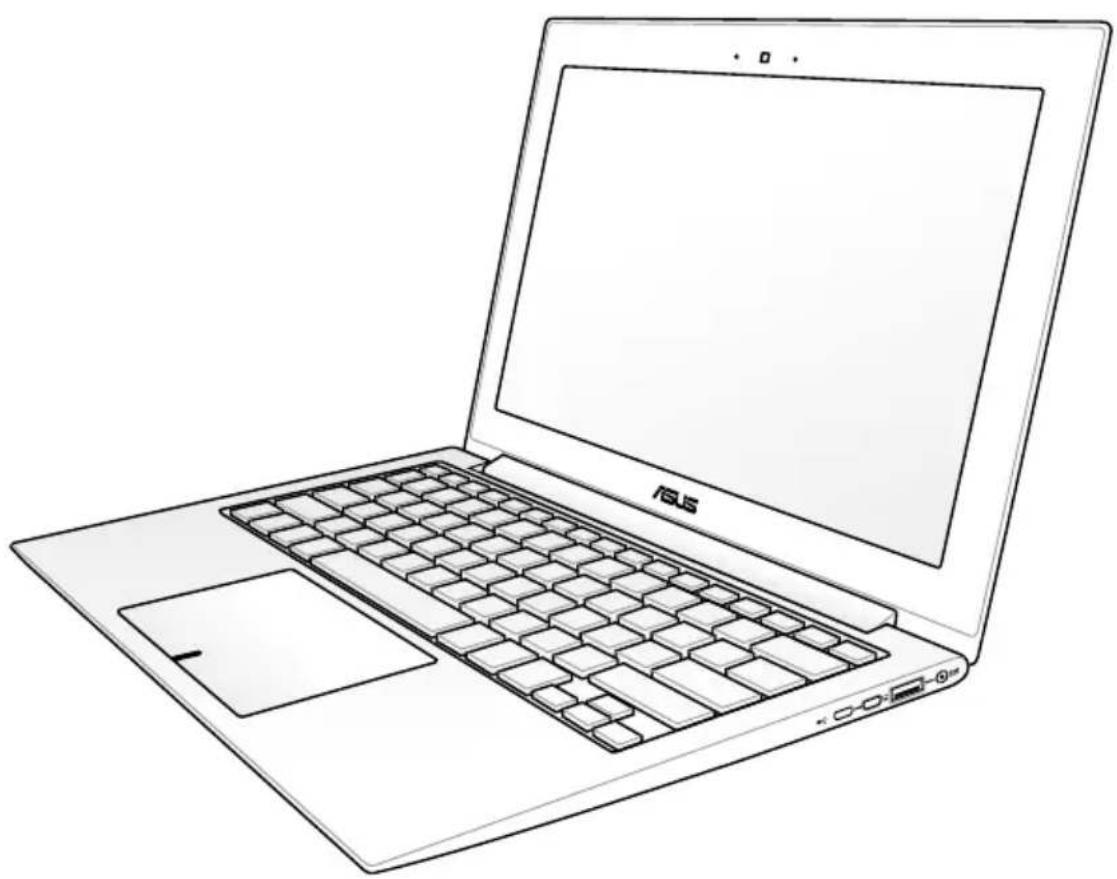
Line drawing of a laptop with visible keyboard and mouse, no text or symbols presentAugust 2011
Table of Contents
Chapter 1: Introducing the Notebook PC
About This User's Manual 6
Notes for This Manual 6
Safety Precautions 7
Preparing your Notebook PC ....11
Chapter 2: Knowing the parts
Top Side 14
Bottom Side ....17
Right Side....18
Left Side 20
Chapter 3: Getting Started
Power System 24
Using AC Power 24
Using Battery Power 26
Battery Care 26
Powering ON the Notebook PC ....27
The Power-On Self Test (POST) 27
Checking Battery Power 29
Charging the Battery Pack ....30
Power Options 31
Power Management Modes ....33
Sleep and Hibernate ....33
Thermal Power Control ....34
Special Keyboard Functions ....35
Colored Hot Keys ....35
Microsoft Windows Keys ....37
Status Indicators 38
Chapter 4: Using the Notebook PC
Pointing Device ....40
Using the Touchpad ....41
Touchpad Usage Illustrations 42
Caring for the Touchpad ....45
Automatic Touchpad Disabling ....45
Connecting External Display Monitor....48
Storage Devices 49
Flash Memory Card Reader ....49
Connections 50
Network Connection ....50
Wireless LAN Connection (on selected models) 52
Windows Wireless Network Connection ....54
Bluetooth Wireless Connection(on selected models) ....56
USB Charger+ 59
Instant On 60
Appendix
Optional Accessories ......A-2
Optional Connections ......A-2
Operating System and Software ......A-3
System BIOS Settings ......A-4
Common Problems and Solutions ....A-7
Recovering Your Notebook PC A-13
Using Recovery Partition ...... A-13
Using Recovery DVD (on selected models) ...... A-14
DVD-ROM Drive Information ...... A-16
Blu-ray ROM Drive Information(on selected models) ...... A-18
Internal Modem Compliancy A-19
Declarations and Safety Statements ...... A-23
Federal Communications Commission Statement ...... A-23
FCC Radio Frequency (RF) Exposure Caution Statement ...... A-24
Declaration of Conformity(R&TTE directive 1999/5/EC) ...... A-24
CE Mark Warning A-25
IC Radiation Exposure Statement for Canada ...... A-25
Wireless Operation Channel for Different Domains ...... A-26
France Restricted Wireless Frequency Bands ...... A-26
UL Safety Notices A-28
Power Safety Requirement A-29
TV Tuner Notices (on selected models) ...... A-29
REACH A-29
Nordic Lithium Cautions (for lithium-ion batteries) ...... A-30
Optical Drive Safety Information ...... A-31
Laser Safety Information ...... A-31
Service warning label A-31
CDRH Regulations ...... A-31
Macrovision Corporation Product Notice ...... A-32
CTR 21 Approval(for Notebook PC with built-in Modem) ...... A-33
European Union Eco-label A-35
Global Environmental Regulation Compliance and
Declaration ...... A-36
ASUS Recycling/Takeback Services A-36
Copyright Information ...... A-37
Limitation of Liability....A-38
Service and Support A-38
Introducing the Notebook PC
About This User's Manual
You are reading the Notebook PC User's Manual. This User's Manual provides information regarding the various components in the Notebook PC and how to use them. The following are major sections of this User's Manual:
1. Introducing the Notebook PC
Introduces you to the Notebook PC and this User's Manual.
2. Knowing the Parts
Gives you information on the Notebook PC's components.
3. Getting Started
Gives you information on getting started with the Notebook PC.
4. Using the Notebook PC
Gives you information on using the Notebook PC's components.
5. Appendix
Introduces you to optional accessories and gives additional information.

The actual bundled operating system and applications differ by models and territories. There may be differences between your Notebook PC and the pictures shown in this manual. Please accept your Notebook PC as being correct.
Notes for This Manual
A few notes and warnings are used throughout this guide, allowing you to complete certain tasks safely and effectively. These notes have different degrees of importance as follows:

WARNING! Important information that must be followed for safe operation.

IMPORTANT! Vital information that must be followed to prevent damage to data, components, or persons.

TIP: Tips for completing tasks.

NOTE: Information for special situations.
Safety Precautions
The following safety precautions will increase the life of the Notebook PC. Follow all precautions and instructions. Except as described in this manual, refer all servicing to qualified personnel.

Disconnect the AC power and remove the battery pack(s) before cleaning. Wipe the Notebook PC using a clean cellulose sponge or chamois cloth dampened with a solution of nonabrasive detergent and a few drops of warm water and remove any extra moisture with a dry cloth.
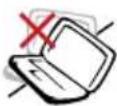
DO NOT place on uneven or unstable work surfaces. Seek servicing if the casing has been damaged.

DO NOT place or drop objects on top and do not shove any foreign objects into the Notebook PC.

DO NOT expose to dirty or dusty environments. DO NOT operate during a gas leak.
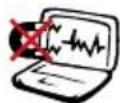
DO NOT expose to strong magnetic or electrical fields.

DO NOT press or touch the display panel. Do not place together with small items that may scratch or enter the Notebook PC.
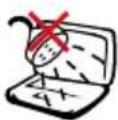
DO NOT expose to or use near liquids, rain, or moisture. DO NOT use the modem during electrical storms.

DO NOT leave the Notebook PC on your lap or any part of the body to prevent discomfort or injury from heat exposure.
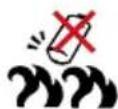
Battery safety warning: DO NOT throw the battery in fire. DO NOT short circuit the contacts. DO NOT disassemble the battery.
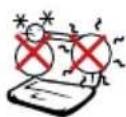
SAFE TEMP: This Notebook PC should only be used in environments with ambient temperatures between 5°C (41°F) and 35°C (95°F).
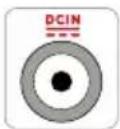
INPUT RATING: Refer to the rating label on the bottom of the Notebook PC and be sure that your power adapter complies with the rating.
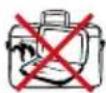
DO NOT carry or cover a Notebook PC that is powered ON with any materials that will reduce air circulation such as a carrying bag.
DO NOT use strong solvents such as thinners, benzene, or other chemicals on or near the surface.
DO NOT use damaged power cords, accessories, or other peripherals.

Incorrect installation of battery may cause explosion and damage the Notebook PC.

DO NOT throw the Notebook PC in municipal waste. This product has been designed to enable proper reuse of parts and recycling. The symbol of the crossed out wheeled bin indicates that the product (electrical, electronic equipment and mercury-containing button cell battery) should not be placed in municipal waste. Check local regulations for disposal of electronic products.

DO NOT throw the battery in municipal waste. The symbol of the crossed out wheeled bin indicates that the battery should not be placed in municipal waste.
Sound Pressure warning
Excessive sound pressure from earphones or headphones can cause hearing damage or loss. Adjustment of the volume control as well as the equalizer to settings other than the center position may increase the earphones or headphones output voltage and the sound pressure level.
DC Fan warning
Please note that the DC fan is a moving part that may cause DANGER. Ensure to keep your body from the moving fan blades.
Adapter Information
Input voltage: 100-240Vac
Input frequency: 50-60Hz
Rating output current: 2.37A
Rating output voltage: 19Vdc
Transportation Precautions
To prepare the Notebook PC for transport, you should turn it OFF and disconnect all external peripherals to prevent damage to the connectors. The hard disk drive's head retracts when the power is turned OFF to prevent scratching of the hard disk surface during transport. Therefore, you should not transport the Notebook PC while the power is still ON. Close the display panel and check that it is latched securely in the closed position to protect the keyboard and display panel.

CAUTION! The Notebook PC's surface is easily dulled if not properly cared for. Be careful not to rub or scrape the Notebook PC surfaces.
Cover Your Notebook PC
Purchase a carrying bag to protect the Notebook PC from dirt, water, shock, and scratches.
Charge Your Batteries
If you intend to use battery power, be sure to fully charge your battery pack and any optional battery packs before going on long trips. Remember that the power adapter charges the battery pack as long as it is plugged into the computer and an AC power source. Be aware that it takes much longer to charge the battery pack when the Notebook PC is in use.
Airplane Precautions
Contact your airline if you want to use the Notebook PC on the airplane. Most airlines will have restrictions for using electronic devices. Most airlines will allow electronic use only between and not during takeoffs and landings.

CAUTION! There are three main types of airport security devices: X-ray machines (used on items placed on conveyor belts), magnetic detectors (used on people walking through security checks), and magnetic wands (hand-held devices used on people or individual items). You can send your Notebook PC and diskettes through airport X-ray machines. However, it is recommended that you do not send your Notebook PC or diskettes through airport magnetic detectors or expose them to magnetic wands.
Preparing your Notebook PC
These are quick instructions for using your Notebook PC.
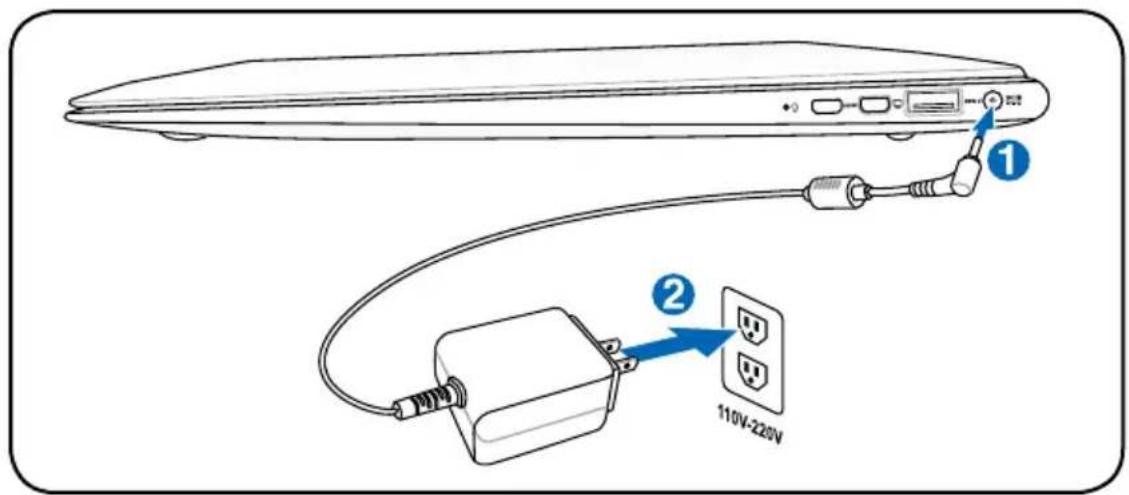
Connecting the Power Adapter
text_image
Diagram showing cable connection to a device with labeled components and a 110V-220V power outletOpening the LCD display panel
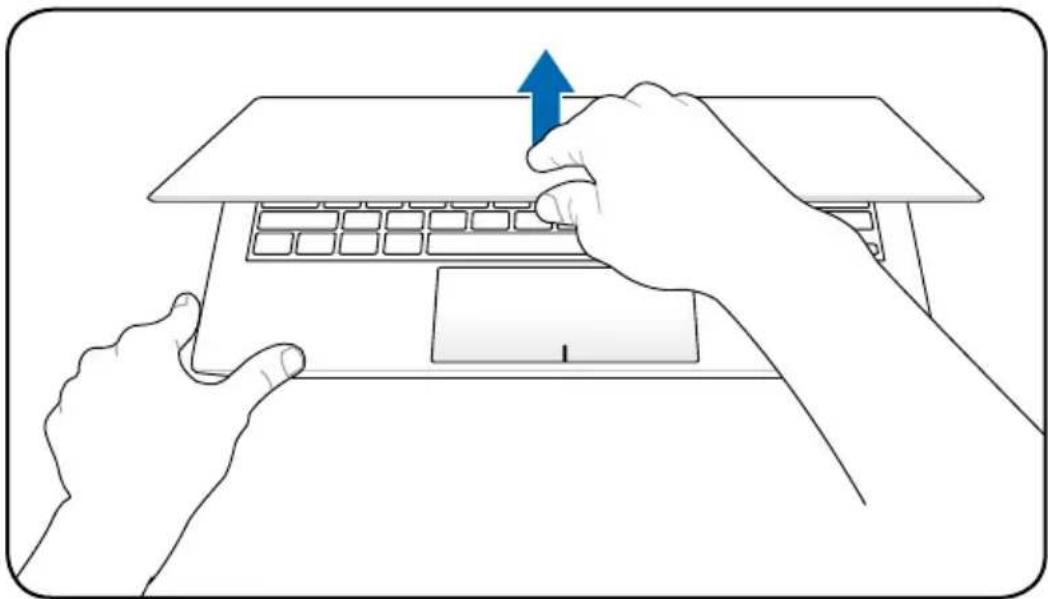
- Carefully lift up the display panel with your thumb.
- Slowly tilt the display panel forward or backward to a comfortable viewing angle.
natural_image
Line drawing of two hands typing on a laptop keyboard, with a blue upward arrow indicating the typing direction (no text or symbols present)Turning on the Power
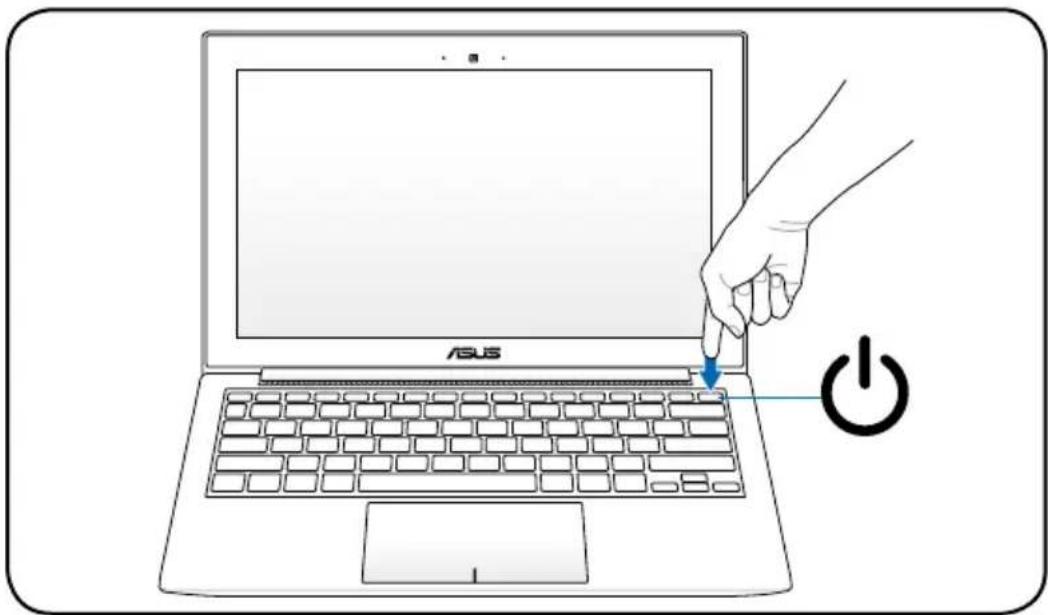
- Push and release the power button located beneath the LCD display panel.
- Use [Fn]+[F5] or [Fn]+[F6] to adjust the LCD brightness.
text_image
ASUSKnowing the parts
Top Side

The keyboard differs for each territory.
text_image
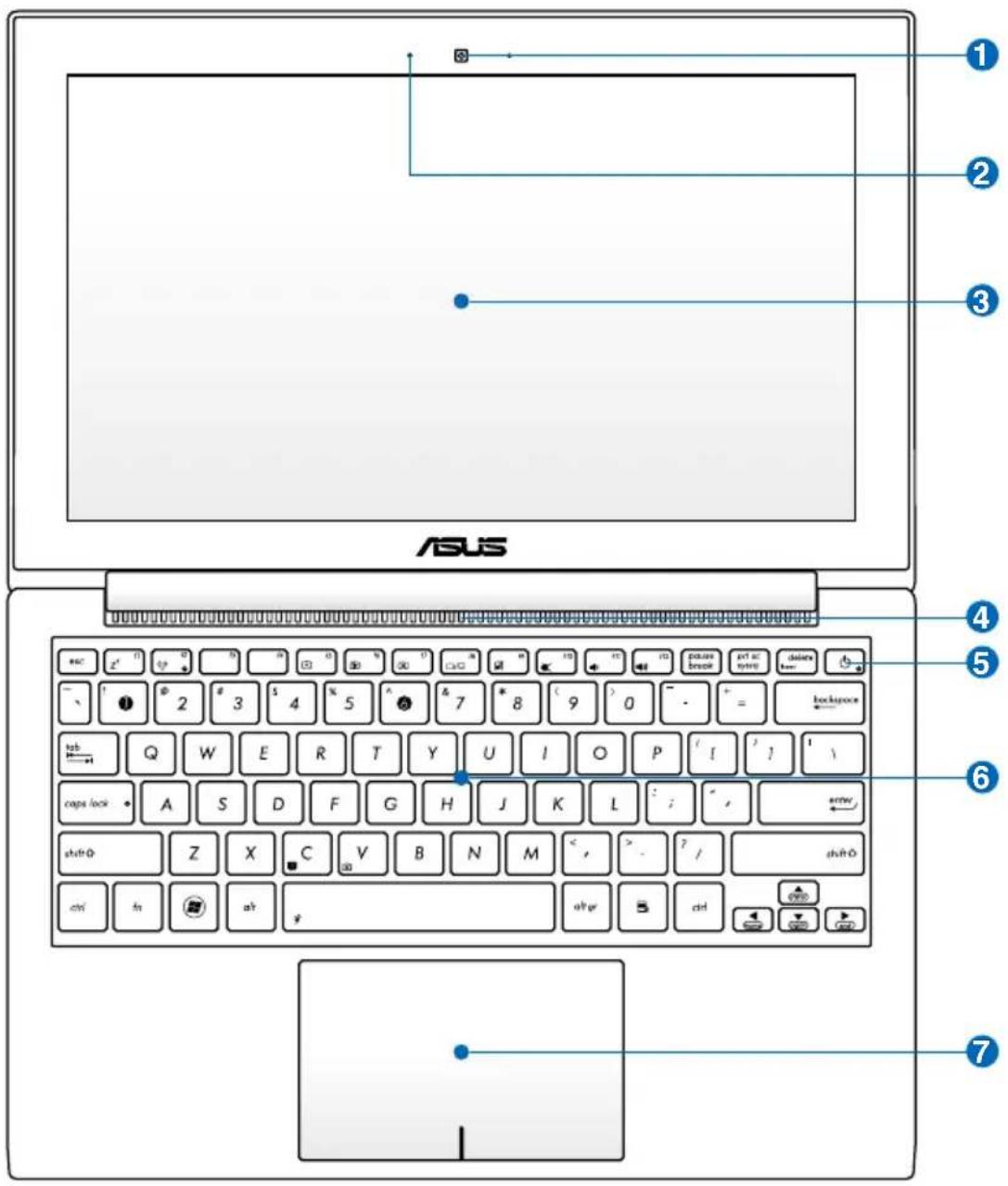
ASUS ① ② ③ ④ ⑤ ⑥ ⑦1 © Camera
The built-in camera allows picture taking or video recording. Can be used with video conferencing and other interactive applications.
2 Microphone (Built-in)
The built-in mono microphone can be used for video conferencing, voice narrations, or simple audio recordings.
3 Display Panel
The display panel functions the same as a desktop monitor. The Notebook PC uses an active matrix TFT LCD, which provides excellent viewing like that of desktop monitors. Unlike desktop monitors, the LCD panel does not produce any radiation or flickering, so it is easier on the eyes. Use a soft cloth without chemical liquids (use plain water if necessary) to clean the display panel.
4 Air Vents
The air vents allow cool air to enter and warm air to exit the Notebook PC.

Ensure that paper, books, clothing, cables, or other objects do not block any of the air vents or else overheating may occur.
5 Power Switch
The power switch allows powering ON and OFF the Notebook PC and recovering from STD. Use the switch once to turn ON and once to turn OFF the Notebook PC. The power switch only works when the display panel is opened.
6 Keyboard
The keyboard provides full-sized keys with comfortable travel (depth at which the keys can be depressed) and palm rest for both hands. Two Windows function keys are provided to help ease navigation in the Windows operating system.
7 Touchpad and Buttons
The touchpad with its buttons is a pointing device that provides the same functions as a desktop mouse. A software-controlled scrolling function is available after setting up the included touchpad utility to allow easy Windows or web navigation.
Bottom Side

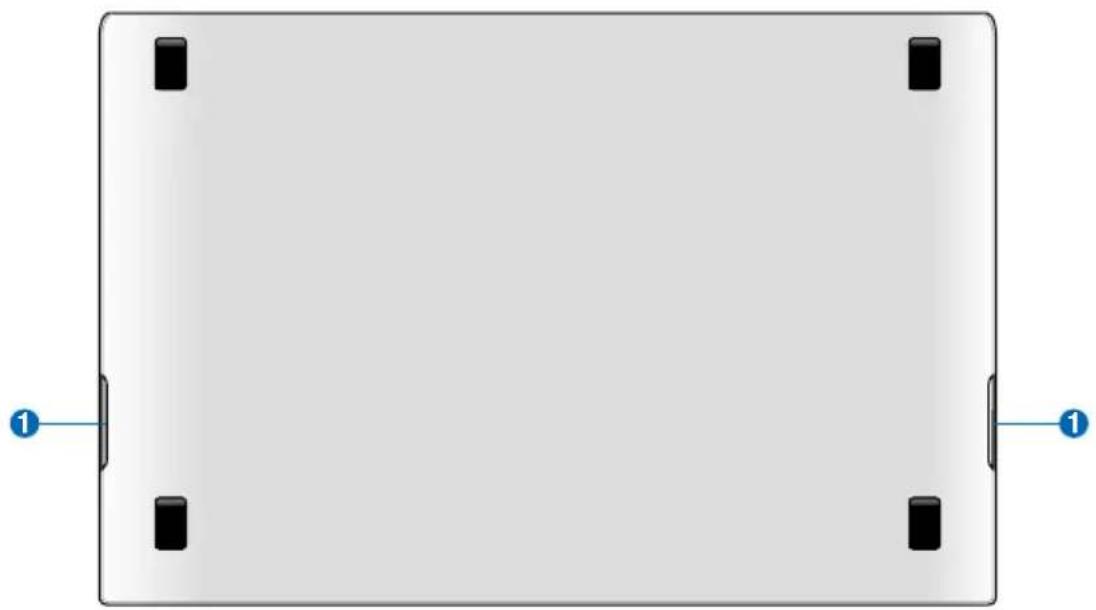
The bottom side may vary in appearance depending on model.

The battery pack size varies depending on model.
11.6" model
natural_image
Top-down view of a blank white rectangular panel with four black square buttons at corners (no text or symbols)
The bottom of the Notebook PC can get very hot. Be careful when handling the Notebook PC while it is in operation or recently been in operation. High temperatures are normal during charging or operation. DO NOT USE ON SOFT SURFACES SUCH AS SOFAS OR BEDS, WHICH MAY BLOCK THE VENTS. DO NOT PUT THE NOTEBOOK PC ON YOUR LAP OR OTHER PARTS OF THE BODY TO AVOID INJURY FROM THE HEAT.


Audio Speaker System
The built-in stereo speaker system allows you to hear audio without additional attachments. The multimedia sound system features an integrated digital audio controller that produces rich, vibrant sound (results improved with external stereo headphones or speakers). Audio features are software controlled.
Right Side
13.3" model

text_image
1 3 411.6" model

text_image
1 451 Power Indicator
The power indicator lights when the Notebook PC is turned ON and blinks slowly when the Notebook PC is in the Suspend-to-RAM (Sleep) mode. This indicator is OFF when the Notebook PC is turned OFF or in the Suspend-to-Disk (Hibernation) mode.
2 HDMI Micro-HDMI Port
HDMI (High-Definition Multimedia Interface) is an uncompressed all-digital audio/video interface between any audio/video source, such as a set-top box, DVD player, and A/V receiver and an audio and/or video monitor, such as a digital television (DTV). Supports standard, enhanced, or high-definition video, plus multi-channel digital audio on a single cable. It transmits all ATSC HDTV standards and supports 8-channel digital audio, with bandwidth to spare to accommodate future enhancements or requirements.
3 Mini VGA connector
The mini VGA connector is for the VGA dongle to connect to a standard VGA-compatible device such as a monitor or projector to allow viewing on a larger external display.
4 ss← USB Port (3.0)
The USB (Universal Serial Bus) port is compatible with USB 3.0, 2.0, or USB 1.1 devices such as keyboards, pointing devices, cameras, hard disk drives, printers, and scanners connected in a series up to 4.8Gbits/sec (USB 3.0), 480Mbits/sec (USB 2.0), and 12Mbits/sec (USB 1.1). USB allows many devices to run simultaneously on a single computer, with some peripherals acting as additional plug-in sites or hubs. USB supports hot-swapping of devices so that most peripherals can be connected or disconnected without restarting the computer.
USB Charge+ (on selected models)
Allows you to charge your mobile phones or digital audio players while your Notebook PC is sleeping, hibernating or shut down.
5 DCIN Power (DC) Input
The supplied power adapter converts AC power to DC power for use with this jack. Power supplied through this jack supplies power to the Notebook PC and charges the internal battery pack. To prevent damage to the Notebook PC and battery pack, always use the supplied power adapter.

The adapter may become warm to hot when in use. Ensure not to cover the adapter and keep it away from your body.
Left Side
13.3" model

text_image
① ② ③11.6" model

text_image
Diagram of a portable electronic device with labeled ports and ports numbered 1, 2, and 41 USB Port (2.0)
The USB (Universal Serial Bus) port is compatible with USB 2.0 or USB 1.1 devices such as keyboards, pointing devices, cameras, hard disk drives, printers, and scanners connected in a series up to 12Mbits/sec (USB 1.1) and 480Mbits/sec (USB 2.0). USB allows many devices to run simultaneously on a single computer, with some peripherals acting as additional plug-in sites or hubs. USB supports hot-swapping of devices so that most peripherals can be connected or disconnected without restarting the computer.
2 Headphone Output
This jack can be used to connect the Notebook PC's audio out signal to amplified speakers, headphones, or headphone and microphone combo devices. Plug in a headphone or microphone and follow the screen instruction to switch the audio jack function.
3 Flash Memory Slot
Normally an external memory card reader must be purchased separately in order to use memory cards from devices such as digital cameras, MP3 players, mobile phones, and PDAs. This Notebook PC has a built-in high-speed memory card reader that can conveniently read from and write to flash memory cards.
4 Mini VGA connector
The mini VGA connector is for the VGA dongle to connect to a standard VGA-compatible device such as a monitor or projector to allow viewing on a larger external display.
Getting Started
Power System
Using AC Power
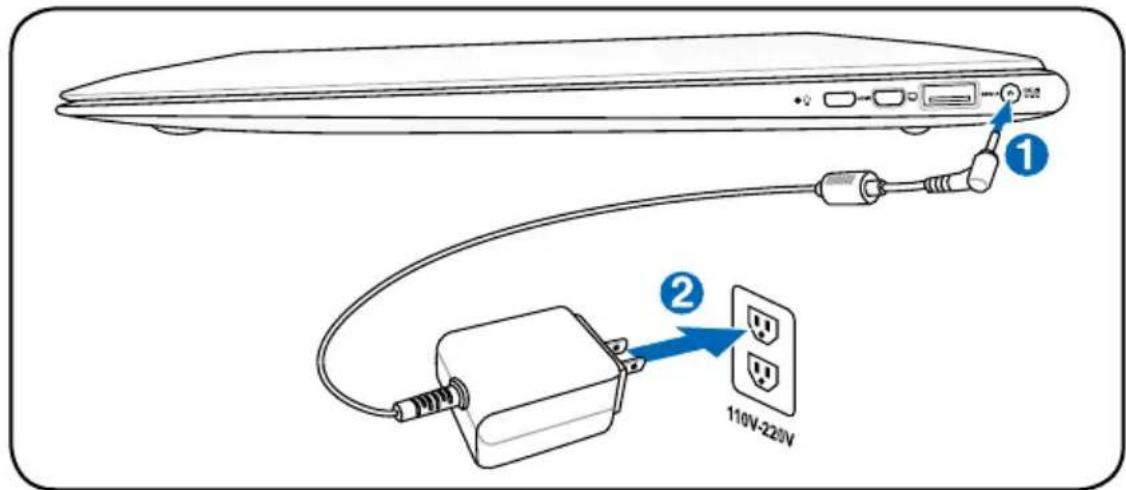
The Notebook PC power is comprised of two parts, the power adapter and the battery power system. The power adapter converts AC power from a wall outlet to the DC power required by the Notebook PC. Your Notebook PC comes with a universal AC-DC adapter. That means that you may connect the power cord to any 100V-120V as well as 220V-240V outlets without setting switches or using power converters. Different countries may require that an adapter be used to connect the provided US-standard AC power cord to a different standard. Most hotels will provide universal outlets to support different power cords as well as voltages. It is always best to ask an experienced traveler about AC outlet voltages when bringing power adapters to another country.
text_image
Diagram showing cable connection to a device with labeled components and a 110V-220V power outlet
You can buy travel kits for the Notebook PC that includes power and modem adapters for almost every country.

WARNING! DO NOT connect the AC power cord to an AC outlet prior to connecting the DC plug to the Notebook PC. Doing so may damage the AC-DC adapter.

IMPORTANT! Damage may occur if you use a different adapter to power the Notebook PC or use the Notebook PC's adapter to power other electrical devices. If there is smoke, burning scent, or extreme heat coming from the AC-DC adapter, seek servicing. Seek servicing if you suspect a faulty AC-DC adapter. You may damage both your battery pack(s) and the Notebook PC with a faulty AC-DC adapter.

This Notebook PC may come with either a two or three-prong plug depending on territory. If a three-prong plug is provided, you must use a grounded AC outlet or use a properly grounded adapter to ensure safe operation of the Notebook PC.

WARNING! THE POWER ADAPTER MAY BECOME WARM TO HOT WHEN IN USE. BE SURE NOT TO COVER THE ADAPTER AND KEEP IT AWAY FROM YOUR BODY.

Unplug the power adapter or switch off the AC outlet to minimize the power consumption when the Notebook PC is not in use.
Using Battery Power
The battery consists of a set of battery cells housed together. A fully charged will provide several hours of battery life, which can be further extended by using power management features through the BIOS setup.
Battery Care
The Notebook PC's battery, like all rechargeable batteries, has a limit on the number times it can be recharged. The battery's useful life will depend on your environment temperature, humidity, and how your Notebook PC is used. It is ideal that the battery be used in a temperature range between 10^ and 35^ (50°F and 95°F). You must also take into account that the Notebook PC's internal temperature is higher than the outside temperature. Any temperatures above or below this range will shorten the life of the battery. But in any case, the battery's usage time will eventually decrease and a new battery must be purchased from an authorized dealer for this Notebook PC.

WARNING! For safety reasons, DO NOT throw the battery in fire, DO NOT short circuit the contacts, and DO NOT disassemble the battery. If there is any abnormal operation or damage to the battery pack caused by impact, turn OFF the Notebook PC and contact an authorized service center.
Powering ON the Notebook PC
The Notebook PC's power-ON message appears on the screen when you turn it ON. If necessary, you may adjust the brightness by using the hot keys. If you need to run the BIOS Setup to set or modify the system configuration, press [F2] upon bootup to enter the BIOS Setup. Press [ESC] and you will be presented with a boot menu with selections to boot from your available drives.

Before bootup, the display panel flashes when the power is turned ON. This is part of the Notebook PC's test routine and is not a problem with the display.

IMPORTANT! To protect the hard disk drive, always wait at least 5 seconds after turning OFF your Notebook PC before turning it back ON.

WARNING! DO NOT carry or cover a Notebook PC that is powered ON with any materials that will reduce air circulation such as a carrying bag.
The Power-On Self Test (POST)
When you turn ON the Notebook PC, it will first run through a series of software-controlled diagnostic tests called the Power-On Self Test (POST). The software that controls the POST is installed as a permanent part of the Notebook PC's architecture. The POST includes a record of the Notebook PC's hardware configuration, which is used to make a diagnostic check of the system. This record is created by using the BIOS Setup program. If the POST discovers a difference between the record and the existing hardware, it will display a message on the screen prompting you to correct the conflict by running BIOS Setup. In most cases the record should be correct when you receive the Notebook PC. When the test is finished, you may get a message reporting "No operating system found" if the hard disk was not preloaded with an operating system. This indicates that the hard disk is correctly detected and ready for the installation of a new operating system.
Self Monitoring and Reporting Technology
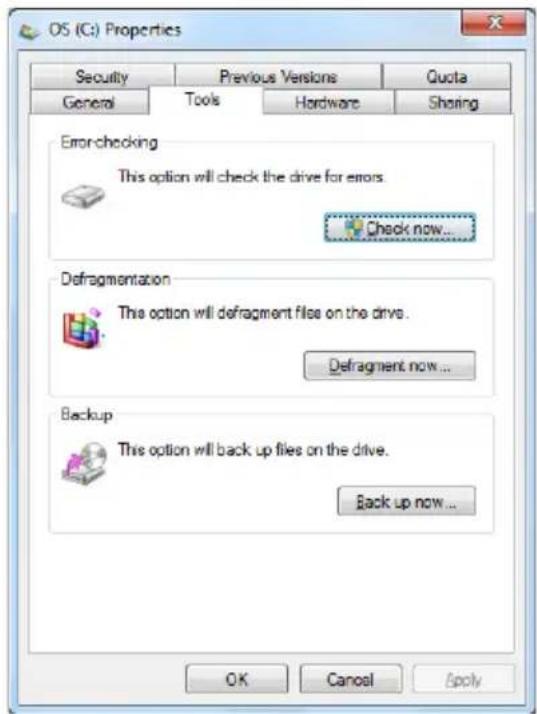
The S.M.A.R.T. (Self Monitoring and Reporting Technology) checks the hard disk drive during POST and gives a warning message if the hard disk drive requires servicing. If any critical hard disk drive warning is given during bootup, backup your data immediately and run Windows disk checking program. To run Window's disk checking program: click Start > select Computer > right-click a hard disk drive icon > choose Properties > click the Tools tab > click Check Now > click Start. You can also select "Scan ... sectors" for more effective scan and repair but the process will run slower.
text_image
OS (C:) Properties Security Previous Versions Quota General Tools Hardware Sharing Error-checking This option will check the drive for errors. Check now... Defragmentation This option will defragment files on the drive. Defragment now... Backup This option will back up files on the drive. Back up now... OK Cancel Apply
IMPORTANT! If warnings are still given during bootup after running a software disk checking utility, you should take your Notebook PC in for servicing. Continued use may result in data loss.
Checking Battery Power
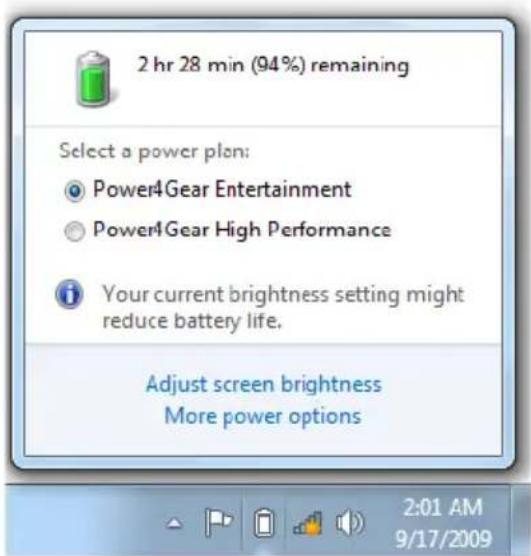
The battery system implements the Smart Battery standard under the Windows environment, which allows the battery to accurately report the amount of charge left in the battery. A fully-charged battery pack provides the Notebook PC a few hours of working power. But the actual figure varies depending on how you use the power saving features, your general work habits, the CPU, system memory size, and the size of the display panel.

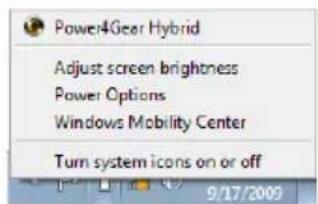
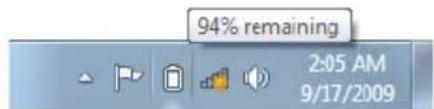
Screen captures shown here are examples only and may not reflect what you see in your system.

You will be warned when battery power is low. If you continue to ignore the low battery warnings, the Notebook PC eventually enters suspend mode (Windows default uses STR).
text_image
2 hr 28 min (94%) remaining Select a power plan: Power4Gear Entertainment Power4Gear High Performance Your current brightness setting might reduce battery life. Adjust screen brightness More power options 2:01 AM 9/17/2009Left-click the battery icon
text_image
Power4Gear Hybrid Adjust screen brightness Power Options Windows Mobility Center Turn system icons on or off 9/17/2009Right-click the battery icon
text_image
94% remaining 2:05 AM 9/17/2009Pointer over the battery icon without power adapter.
text_image
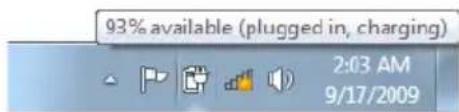
93% available (plugged in, charging) 2:03 AM 9/17/2009Pointer over the battery icon with power adapter.

WARNING! Suspend-to-RAM (STR) does not last long when the battery power is depleted. STR is not the same as power OFF. STR requires a small amount of power and will fail and lose data if no power is available due to complete battery depletion or no power supply (e.g. removing both the power adapter and battery pack).
Charging the Battery Pack
Before you use your Notebook PC on the road, you will have to charge the battery pack. The battery pack begins to charge as soon as the Notebook PC is connected to external power using the power adapter. Fully charge the battery pack before using it for the first time. A new battery pack must completely charge before the Notebook PC is disconnected from external power. It takes a few hours to fully charge the battery when the Notebook PC is turned OFF and may take twice the time when the Notebook PC is turned ON. The battery status indicator on the Notebook PC turns OFF when the battery pack is charged.

The battery starts charging when the charge remaining in the battery drops below 95%. This prevents the battery from charging frequently. Minimizing the recharge cycles helps prolong battery life.

The battery stops charging if the temperature is too high or the battery voltage is too high.

WARNING! DO NOT leave the battery pack discharged. The battery pack will discharge over time. If not using a battery pack, it must continued to be charged every three months to extend recovery capacity or else it may fail to charge in the future.
Power Options
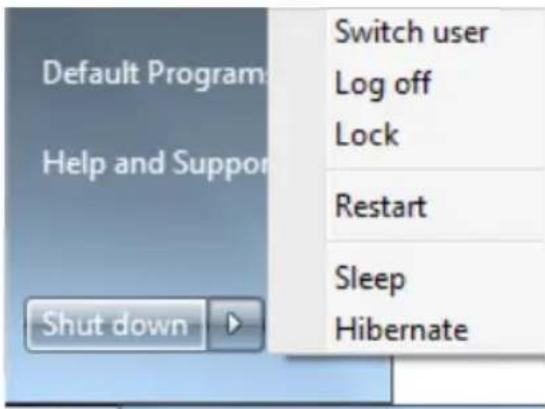
The power switch turns ON and OFF the Notebook PC or putting the Notebook PC into sleep or hibernation modes. Actual behavior of the power switch can be customized in Windows Control Panel "Power Options." For other options, such as "Switch User, Restart, Sleep, or Shut Down," click the arrowhead next to the lock icon.
text_image
Default Program Help and Support Shut down Switch user Log off Lock Restart Sleep HibernateRestarting or Rebooting
After making changes to your operating system, you may be prompted to restart the system. Some installation processes will provide a dialog box to allow restart. To restart the system manually, choose Restart.

IMPORTANT! To protect the hard drive, wait at least 5 seconds after turning OFF your Notebook PC before turning it back ON.
Emergency Shutdown
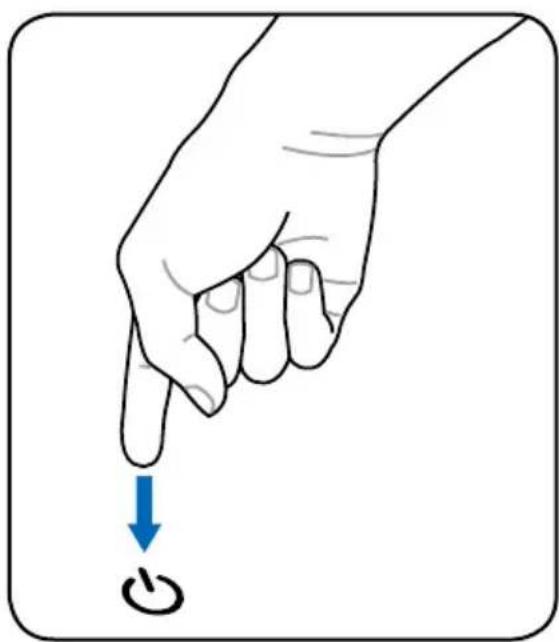
In case your operating system cannot properly turn OFF or restart, there is an additional way to shutdown your Notebook PC:
- Hold the power button over 4 seconds.
natural_image
Illustration of a hand pointing downward with a blue arrow pointing to a button (no text or symbols)
IMPORTANT! DO NOT use emergency shutdown while data is being written; doing so can result in loss or destruction of your data.
Power Management Modes
The Notebook PC has a number of automatic or adjustable power saving features that you can use to maximize battery life and lower Total Cost of Ownership (TCO). You can control some of these features through the Power menu in the BIOS Setup. ACPI power management settings are made through the operating system. The power management features are designed to save as much electricity as possible by putting components into a low power consumption mode as often as possible but also allow full operation on demand.
Sleep and Hibernate
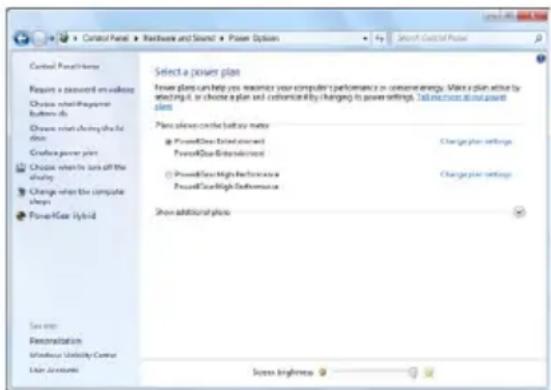
Power management settings can be found in the Windows > Control Panel > Hardware and Sound > Power Options. In Power Options, you can define "Sleep/Hibernate" or "Shut Down for closing the display panel or pressing the power button. "Sleep" and "Hibernate" saves power when your Notebook PC is not in use by turning OFF certain components. When you resume your work, your last status (such as a document scrolled down half way or email typed half way) will reappear as if you never left. "Shut Down" will close all applications and ask if you want to save your work if any are not saved.
text_image
Control Panel Home Resort a standard on valence Choose what frequency button do Choose what charging should do Create power plan Choose what to lock off the shoring Change what the computer shaps PowerGear Hybrid Select a power plan Show plans can help you monitor your computer performance in core energy. Write a plan extra by select it, or choose a plan and enhanced by changing in power settings. Take more than power plans Show allows control battery matrix PowerGear Extended screen1 PowerGear Extended screen2 PowerGear High Performance PowerGear High Performance Show additional plans Screen BrightnessSleep is the same as Suspend-to-RAM (STR). This function stores your current data and status in RAM while many components are turned OFF. Because RAM is volatile, it requires power to keep (refresh) the data. Click the Windows button and the arrowhead next to the lock icon

text_image
Default Program Help and Support Shut down Switch user Log off Lock Restart Sleep Hibernateto see this option. You can also use the keyboard shortcut [Fn F1] to activate this mode. Recover by pressing any keyboard key except [Fn]. (NOTE: The power indicator will blink in this mode.)
Hibernate is the same as Suspend-to-Disk (STD) and stores your current data and status on the hard disk drive. By doing this, RAM does not have to be periodically refreshed and power consumption is greatly reduced but not completely eliminated because certain wake-up components like LAN needs to remain powered. "Hibernate" saves more power compared to "Sleep". Click the Start button and the arrowhead next to the lock icon to see this option. Recover by pressing the power button. (NOTE: The power indicator will be OFF in this mode.)
Thermal Power Control
There are three power control methods for controlling the Notebook PC's thermal state. These power control cannot be configured by the user and should be known in case the Notebook PC should enter these states. The following temperatures represent the chassis temperature (not CPU).
- The fan turns ON for active cooling when the temperature reaches the safe upper limit.
- The CPU decreases speed for passive cooling when the temperature exceeds the safe upper limit.
- The system shut down for critical cooling when temperature exceeds the maximum safe upper limit.
Special Keyboard Functions
Colored Hot Keys
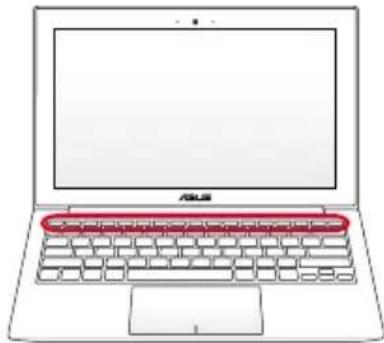
The following defines the colored hot keys on the Notebook PC's keyboard. The colored commands can only be accessed by first pressing and holding the function key while pressing a key with a colored command.
natural_image
Line drawing of a laptop with a red keyboard overlay on the screen (no text or symbols)
The Hot Key locations on the function keys may vary depending on model but the functions should remain the same. Follow the icons instead of the function keys.
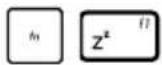
"Z ^z " Icon (F1): Places the Notebook PC in suspend mode (either Save-to-RAM or Save-to-Disk depending on sleep button setting in power management setup).
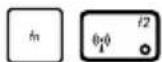
Radio Tower (F2): Wireless Models Only: Toggles the internal wireless LAN or Bluetooth (on selected models) ON or OFF with an on-screen-display. When enabled, the corresponding wireless indicator will light. Windows software settings are necessary to use the wireless LAN or Bluetooth.
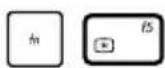
Sun Down Icon (F5): Decreases the display brightness
Sun Up Icon (F6): Increases the display brightness
LCD Icon (F7): Toggles the display panel ON and OFF. (On certain models; stretches the screen area to fill the entire display when using low resolution modes.)
LCD/Monitor Icons (F8): Toggles between the Notebook PC's LCD display and an external monitor in this series: LCD Only -> CRT Only (External Monitor) -> LCD + CRT Clone -> LCD + CRT Extend. (This function does not work in 256 Colors, select High Color in Display Property Settings.) NOTE: Must connect an external monitor "before" booting up.
Crossed-out Touchpad (F9): Toggles the built-in touchpad LOCKED (disabled) and UNLOCKED (enabled). Locking the touchpad will prevent you from accidentally moving the pointer while typing and is best used with an external pointing device such as a mouse. NOTE: Selected models have an indicator between the touchpad buttons will light when the touchpad is UNLOCKED (enabled) and not light when the touchpad is LOCKED (disabled).
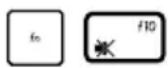
Crossed Speaker Icons (F10): Toggles the speakers ON and OFF (only in Windows OS)
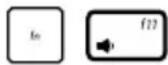
Speaker Down Icon (F11): Decreases the speaker volume (only in Windows OS)

Speaker Up Icon (F12): Increases the speaker volume (only in Windows OS)
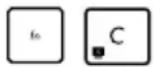
Fn+C: Toggles "Splendid Video Intelligent Technology" function ON and OFF. This allows switching between different display color enhancement modes in order to improve contrast, brightness, skin tone, and color saturation for red, green, and blue independently. You can see the current mode through the onscreen display (OSD).

Fn+V (on selected models): Toggles "Life Frame" software application.

For some models, this function is available only when you enable the camera.
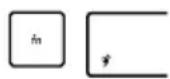
Power4Gear Hybrid (Space Bar): This key toggles power savings between various power saving modes. The power saving modes control many aspects of the Notebook PC to maximize performance versus battery time. Applying or removing the power adapter will automatically switch the system between AC mode and battery mode. You can see the current mode through the on-screen display (OSD).


Pg Up (↑):
Press to scroll up in documents or the web browser.


Pg Dn (↓):
Press to scroll down in documents or the web browser.


Home (←):
Press to move the pointer to the beginning of the line.


End (→):
Press to move the pointer to the end of the line.
Microsoft Windows Keys
There are two special Windows keys on the keyboard as described below.

The key with the Windows Logo activates the Start menu located at the bottom left of the Windows desktop.
The other key, that looks like a Windows menu with a small pointer, activates the properties menu and is equivalent to pressing the right mouse button on a Windows object.
Status Indicators
text_image
east 2" 1" + - 1 2 3 4 5 6 7 8 9 0 - = backspace tab Q W E R T Y U I O P ! J \ caps lock A S D F C H J K L : " enter shift Z X C V B N M <, > / shift ctrl In alt aigr ctrl1 Power Indicator
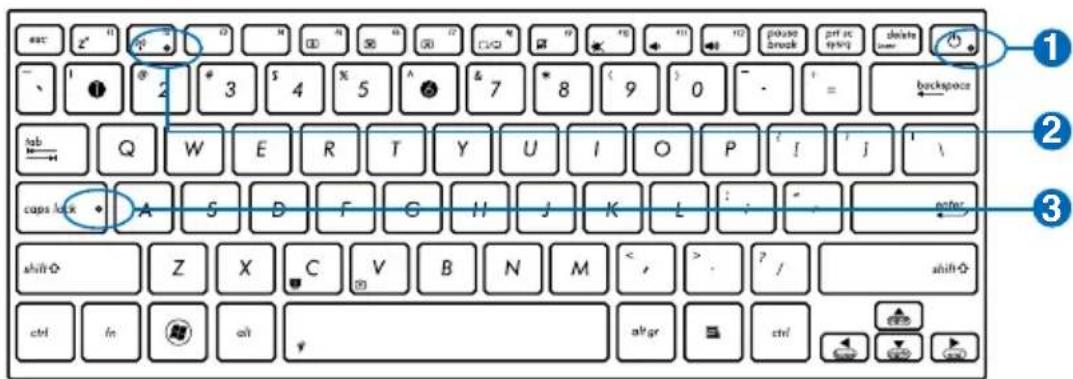
The power indicator lights when the Notebook PC is turned ON and blinks slowly when the Notebook PC is in the Suspend-to-RAM (Sleep) mode. This indicator is OFF when the Notebook PC is turned OFF or in the Suspend-to-Disk (Hibernation) mode.
2 Bluetooth / Wireless Indicator
This is only applicable on models with internal Bluetooth (BT) and built-in wireless LAN. This indicator will light to show that the Notebook PC's built-in Bluetooth (BT) function is activated. When the built-in wireless LAN is enabled, this indicator will also light. (Windows software settings are necessary.)
3 Capital Lock Indicator
Indicates that capital lock [Caps Lock] is activated when lighted. Capital lock allows some of the keyboard letters to type using capitalized letters (e.g. A, B, C). When the capital lock light is OFF, the typed letters will be in the lower case form (e.g. a,b,c).
Using the Notebook PC
Pointing Device
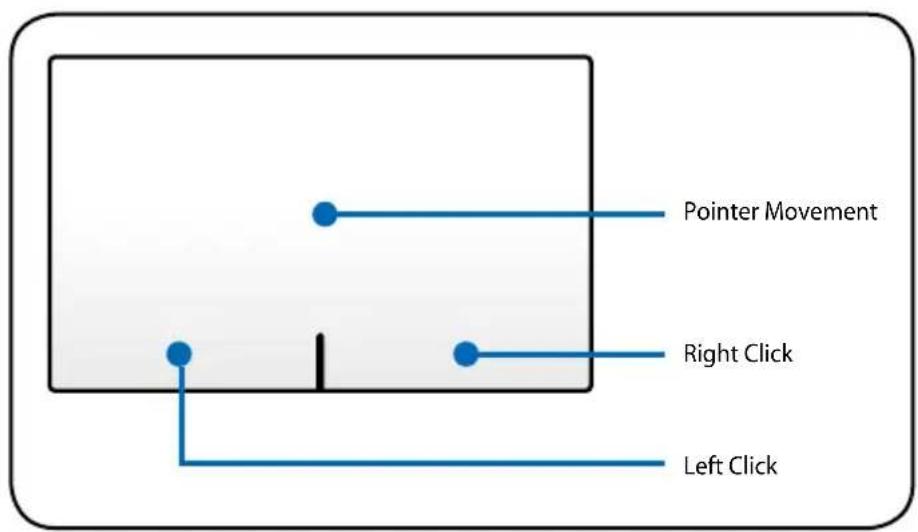
The Notebook PC's integrated touchpad pointing device is fully compatible with all two/three-button and scrolling knob PS/2 mice. The touchpad is pressure sensitive and contains no moving parts; therefore, mechanical failures can be avoided. A device driver is still required for working with some application software.
text_image
Pointer Movement Right Click Left Click
IMPORTANT! DO NOT use any objects in place of your finger to operate the touchpad or else damage may occur to the touchpad's surface.
Using the Touchpad
The touchpad allows you to use your fingers to move the pointer around or select onscreen items instead of using a standard mouse. To use the touchpad, lightly press or tap your finger on the touchpad.
Moving The Pointer
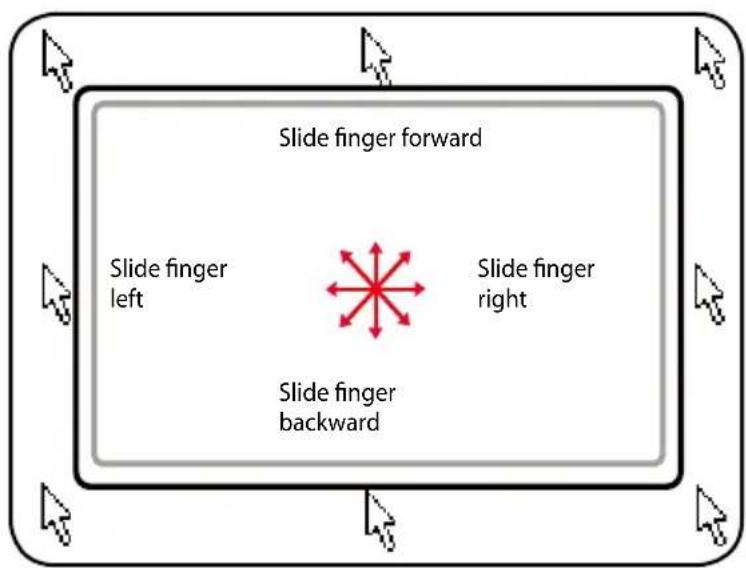
Place your finger in the center of the touchpad and slide in a direction to move the pointer.
flowchart
graph TD
    A["Slide finger left"] --> B["Slide finger forward"]
    C["Slide finger right"] --> D["Slide finger backward"]
    B --> E["Red Star Symbol"]
    D --> E
    style B fill:#f9f,stroke:#333
    style D fill:#f9f,stroke:#333
Touchpad Usage Illustrations
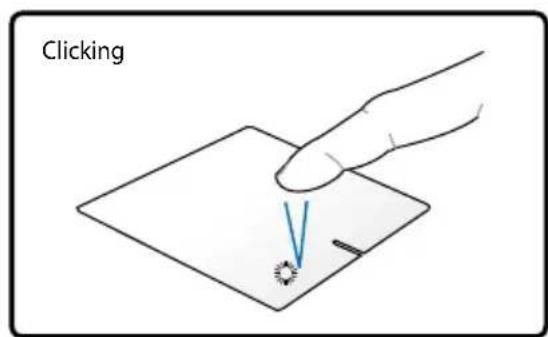
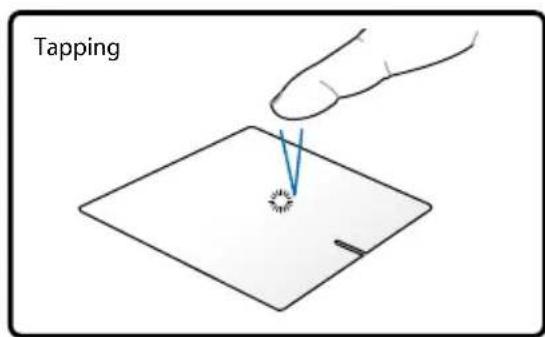
Clicking/Tapping - With the pointer over an item, press the left button or use your fingertip to touch the touchpad lightly, keeping your finger on the touchpad until the item is selected. The selected item will change color. The following two examples produce the same results.
text_image
ClickingPress the left pointer button and release.
text_image
TappingLightly but rapidly strike the touchpad.
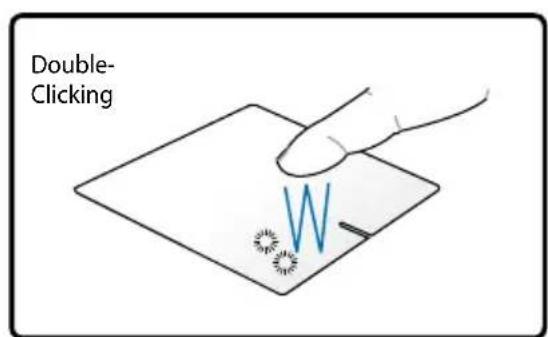
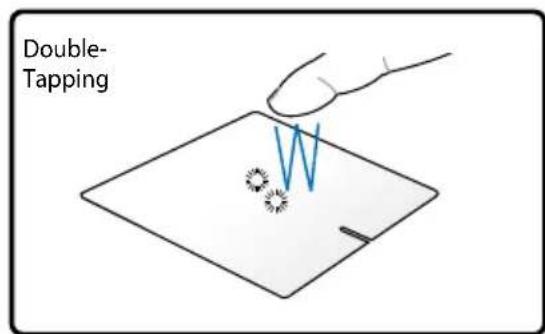
Double-clicking/Double-tapping - These actions allows you to launch your selected program. Move your finger over the program that you want to launch, press the left button or tap the pad twice in rapid succession, and the system launches your selected program. If the interval between the clicks or taps is too long, the operation will not be executed. You can set the double-click speed using the Windows Control Panel "Mouse." The following two examples produce the same results.
text_image
Double- ClickingPress the left button twice and release.
text_image
Double- TappingLightly but rapidly strike the touchpad twice.
Dragging - Dragging refers to moving an item to another location. Move your finger over an item, while simultaneously pressing the left button, move the item to your desired location, then release the left button. You can also double-tap and hold the item while dragging it with your finger. The following illustrations produce the same results.
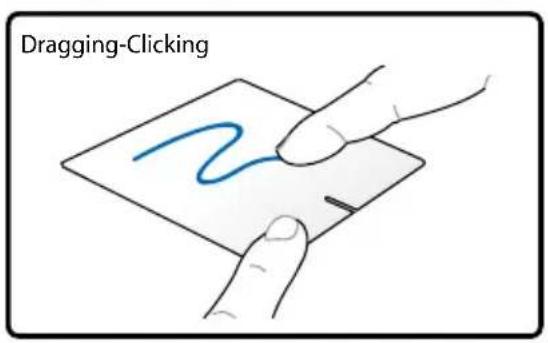
text_image
Dragging-ClickingHold left button and slide finger on touchpad.
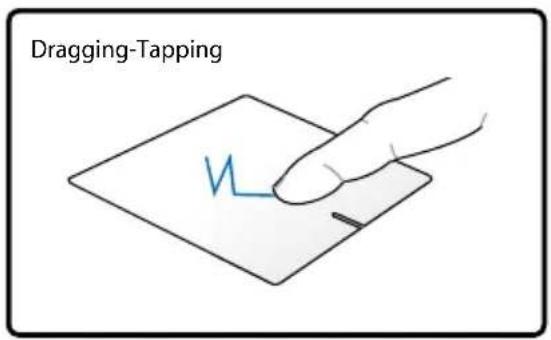
text_image
Dragging-TappingLightly strike the touchpad twice, sliding finger on touchpad during second strike.
Two-finger scrolling - Use two fingertips to slide up/down/left/right on the touchpad to scroll a window up/down/left/right. If your display window includes several sub-windows, move the pointer on that pane before scrolling.
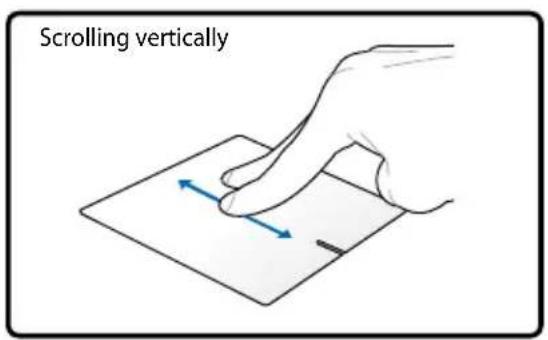
text_image
Scrolling vertically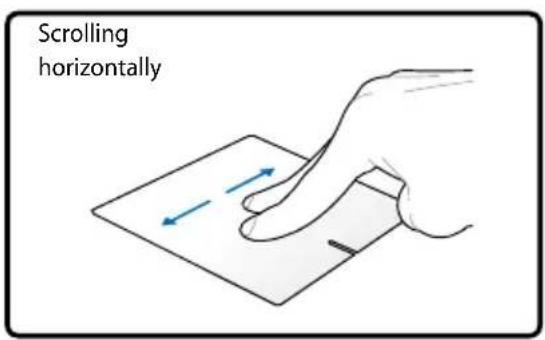
text_image
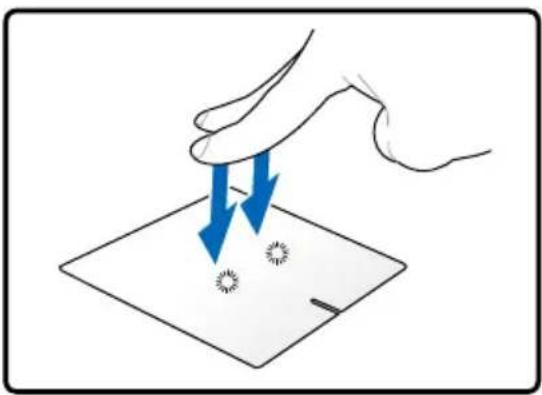
Scrolling horizontallyTwo-finger tapping - Use two fingers to tap the touchpad. This action mimics the right-click function of a mouse.
natural_image
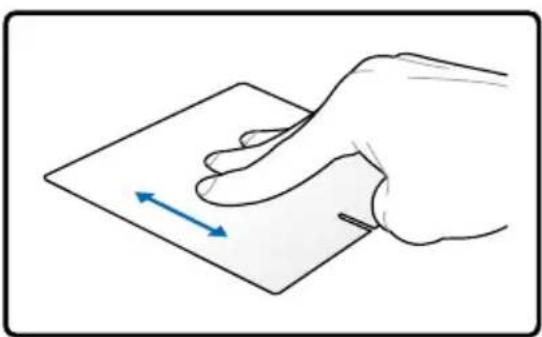
Illustration of a hand holding two blue arrows pointing downward to a surface with small circular marks (no text or symbols)Three-finger sliding - Slide three fingertips up on th touchpad to show all applications. Slide down to show desktop. Slide left/right to swipe pages. Swipe from left to the right to view the next page or right to the left to return to the previous pages.
natural_image
Illustration of a hand holding a card with a blue double-headed arrow indicating horizontal movement (no text or symbols)
natural_image
Illustration of a hand pressing down on a flat sheet with two blue arrows indicating movement (no text or symbols)Caring for the Touchpad
The touchpad is pressure sensitive. If not properly cared for, it can be easily damaged. Take note of the following precautions.
- Ensure the touchpad does not come into contact with dirt, liquids or grease.
- Do not touch the touchpad if your fingers are dirty or wet.
- Do not rest heavy objects on the touchpad or the touchpad buttons.
- Do not scratch the touchpad with your finger nails or any hard objects.

The touchpad responds to movement not to force. There is no need to tap the surface too hard. Tapping too hard does not increase the responsiveness of the touchpad. The touchpad responds best to light pressure.
Automatic Touchpad Disabling
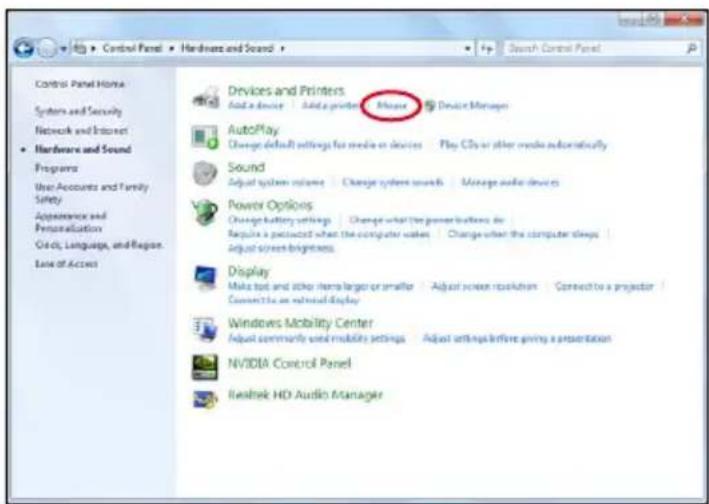
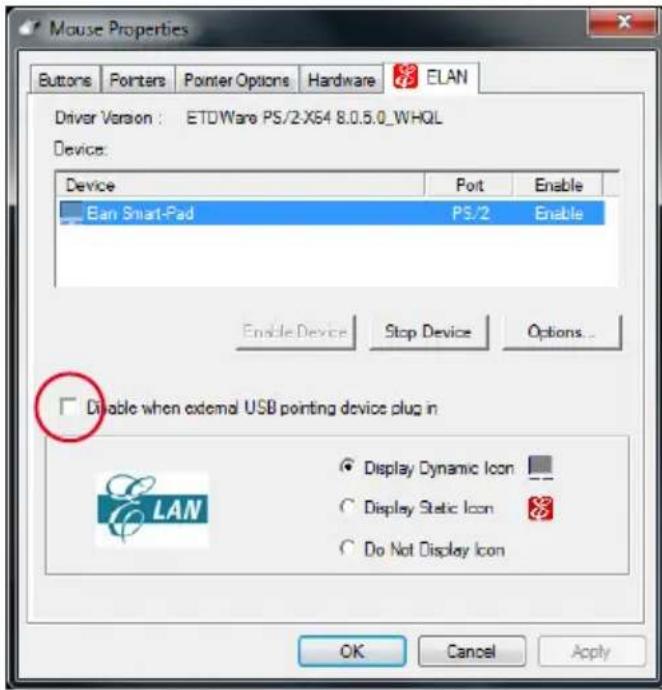
Windows can automatically disable the Notebook PC's touchpad when an external USB mouse is attached.
This feature is normally OFF, to turn ON this feature:
- Select the option in Windows Control Panel > Hardware and Sound > Mouse.
text_image
Control Panel Home System and Security Network and Internet Hardware and Sound Programs User Accounts and Family Safety Appearance and Personalization Gray, Language, and Region. Ease of Access Devices and Printers Add a device Add a printer Mouse Device Manager AutoPlay Change default settings for media or devices Play CDs or other media automatically Sound Adjust system volume Change system sounds Manage audio devices Power Options Change battery settings Change what the power buttons do Regulate a previous when the computer wakes Change when the computer always adjust screen brightness Display Make top and other items larger or smaller Adjust screen resolution Connect to a projector Connect to an external display Windows Mobility Center Adjust community and mobility settings Adjust settings before giving a presentation NVidia Control Panel Realtek HD Audio Manager- For models with the ELAN touchpad, click ELAN on the top and click Disable when external USB pointing device plug in check box.
text_image
Mouse Properties Buttons Pointers Pointer Options Hardware ELAN Driver Version : ETDWare PS/2-X54 8.0.5.0_WHQL Device: Device Port Enable Ban Smart-Pad PS/2 Enable Enable Device Stop Device Options... Disable when external USB pointing device plug in Display Dynamic Icon Display Static Icon Do Not Display Icon OK Cancel Apply-
Click OK to finish the configuration.
-
For models with the Sentelic touchpad, click Finger Sensing Pad on the top and click Configure.
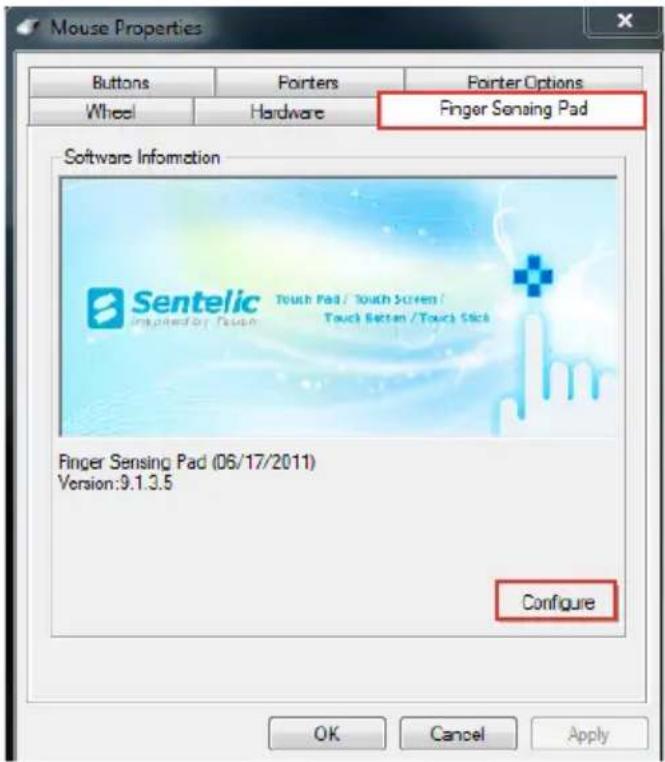
text_image
Mouse Properties Buttons Pointers Pointer Options Wheel Hardware Finger Sensing Pad Software Information Sentelic Impeded by: Touch Touch Pad / Touch Screen / Touch Button /Touch Stick Finger Sensing Pad (06/17/2011) Version:9.1.3.5 Configure OK Cancel Apply- In the left configuration items, find USB Mouse Detection under Enable/Disable Pad, and click the Disable pad while external USB mouse is plugged in check box.
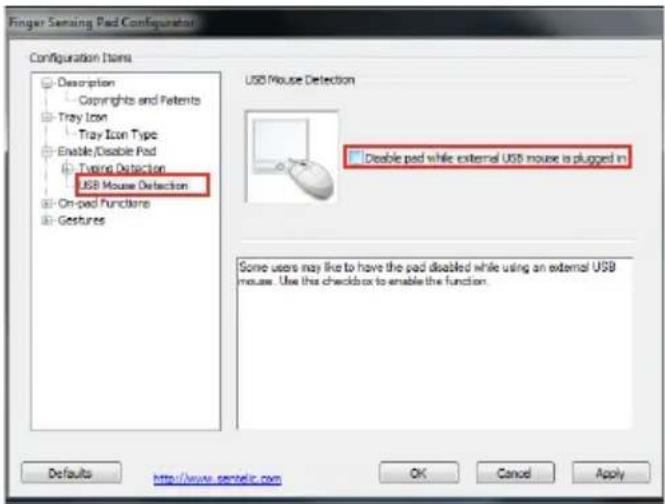
text_image
Finger Sensing Pad Configurator Configuration Items Description Copyrights and Patents Tray Icon Tray Icon Type Enable/Disable Pad Typing Detection USB Mouse Detection On-pad Function Gestures USB Mouse Detection □ Deable pad while external USB mouse is plugged in Some users may like to have the pad disabled while using an external USB mouse. Use this checkbox to enable the function. Defaults http://www.scntelc.com OK Cancel ApplyConnecting External Display Monitor
Follow the illustrations below to connect the external display monitor using the bundled VGA adapter.
13.3" model
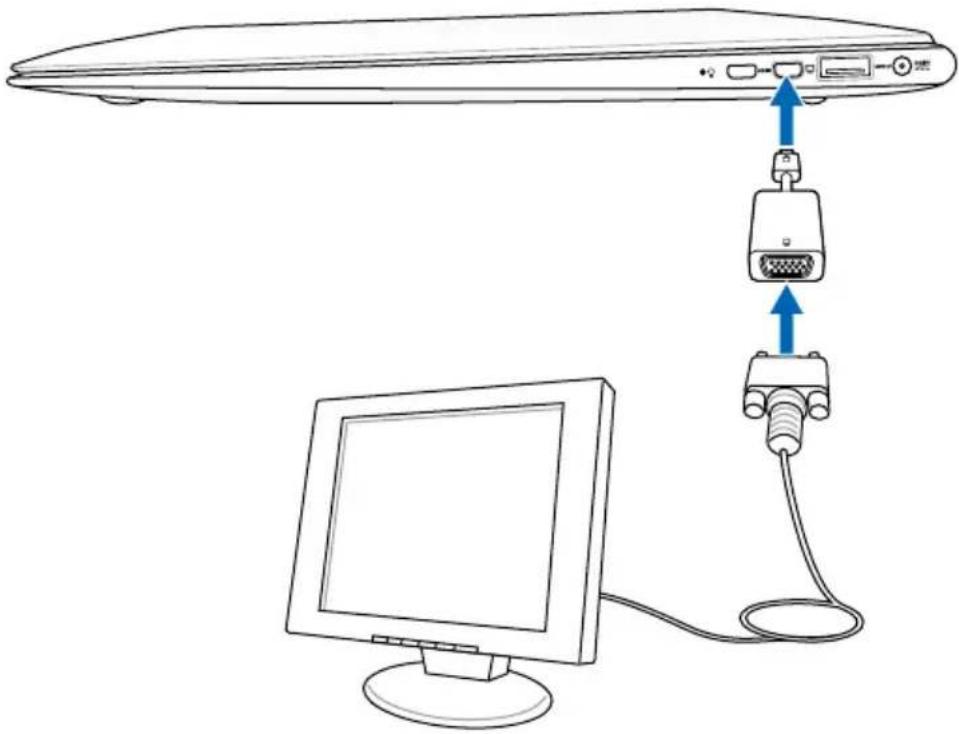
natural_image
Line drawing of a computer monitor connected to an VGA via cable, with no text or symbols present.11.6" model
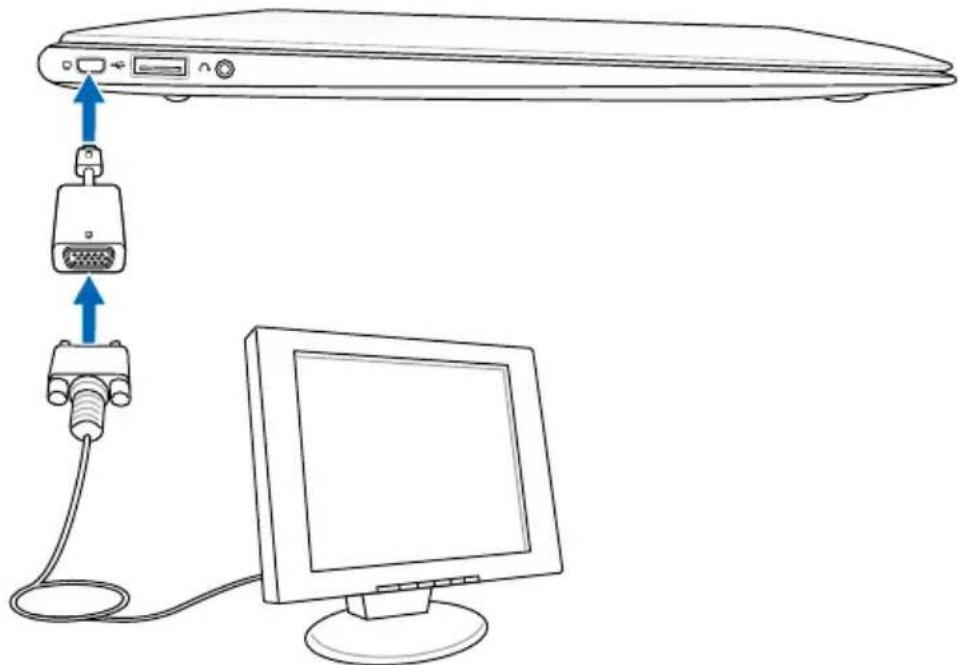
natural_image
Line drawing of a computer monitor connected to a server via an VGA cable, with no text or symbols present.Storage Devices
Storage devices allow the Notebook PC to read or write documents, pictures, and other files to various data storage devices.
Flash Memory Card Reader
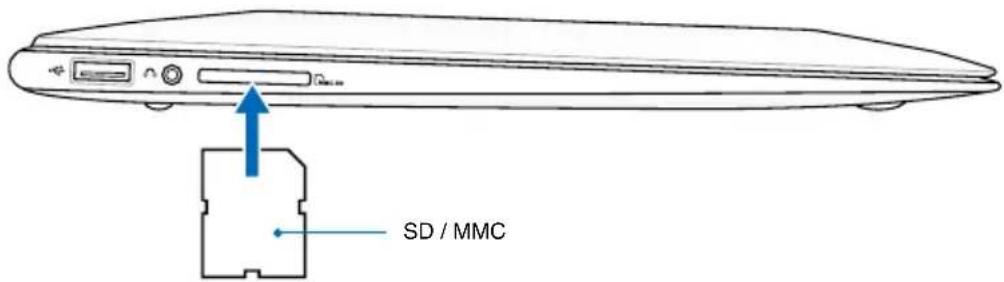
Normally a memory card reader must be purchased separately in order to use memory cards from devices such as digital cameras, MP3 players, mobile phones, and PDAs. This Notebook PC has a single built-in memory card reader that can use flash memory cards as shown in the example below. The built-in memory card reader is not only convenient, but also faster than most other forms of memory card readers because it utilizes the internal high-bandwidth PCI bus.

IMPORTANT! Flash memory card compatibility varies depending on Notebook PC model and flash memory card specifications. Flash memory card specifications constantly change so compatibility may change without warning.
text_image
SD / MMC
The actual location of the Flash Memory Slot differs by models. Refer to the previous chapter to locate the Flash Memory Slot.

IMPORTANT! Never remove cards while or immediately after reading, copying, formatting, or deleting data on the card or else data loss may occur.

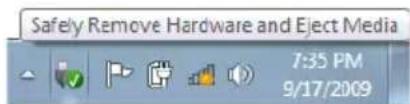
WARNING! To prevent data loss, use "Safely Remove Hardware
and Eject Media" in the Windows notification area before removing the flash memory card.
text_image
Safely Remove Hardware and Eject Media 7:35 PM 9/17/2009Connections

The built-in network cannot be installed later as an upgrade. After purchase, network can be installed as an expansion card.
Network Connection
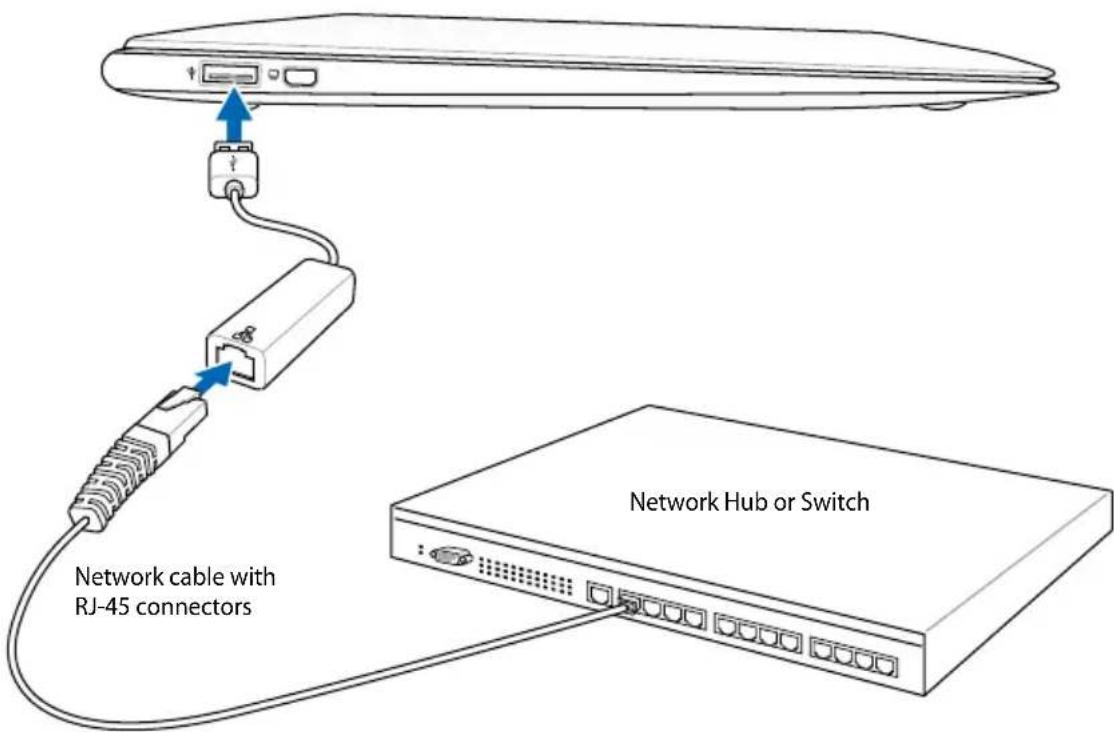
Connect a network cable, with RJ-45 connectors on each end, to the modem/network port on the Notebook PC and the other end to a hub or switch. For 100 BASE-TX / 1000 BASE-T speeds, your network cable must be category 5 or better (not category 3) with twisted-pair wiring. If you plan on running the interface at 100/1000Mbps, it must be connected to a 100 BASE-TX / 1000 BASE-T hub (not a BASE-T4 hub). For 10Base-T, use category 3, 4, or 5 twisted-pair wiring. 10/100 Mbps Full-Duplex is supported on this Notebook PC but requires connection to a network switching hub with “duplex” enabled. The software default is to use the fastest setting so no user-intervention is required.

1000BASE-T (or Gigabit) is only supported on selected models.
Twisted-Pair Cable
The cable used to connect the Ethernet card to a host (generally a Hub or Switch) is called a straight-through Twisted Pair Ethernet (TPE). The end connectors are called RJ-45 connectors, which are not compatible with RJ-11 telephone connectors. If connecting two computers together without a hub in between, a crossover LAN cable is required (Fast-Ethernet model). (Gigabit models support auto-crossover so a crossover LAN cable is optional.)
Example of the Notebook PC connected to a Network Hub or Switch for use with the built-in Ethernet controller.
text_image
Network hub or Switch Network cable with RJ-45 connectors
The actual location of the LAN port differs by models. Refer to the previous chapter to locate the LAN port.

USB 2.0 supports Wake-on-LAN.
Wireless LAN Connection (on selected models)
The optional built-in wireless LAN is a compact easy-to-use wireless Ethernet adapter. Implementing the IEEE 802.11 standard for wireless LAN (WLAN), the optional built-in wireless LAN is capable of fast data transmission rates using Direct Sequence Spread Spectrum (DSSS) and Orthogonal Frequency Division Multiplexing (OFDM) technologies on 2.4GHz/5GHz frequencies. The optional built-in wireless LAN is backward compatible with the earlier IEEE 802.11 standards allowing seamless interfacing of wireless LAN standards. The optional built-in wireless LAN is a client adapter that supports Infrastructure and Ad-hoc modes giving you flexibility on your existing or future wireless network configurations for distances up to 40 meters between the client and the access point.
To provide efficient security to your wireless communication, the optional built-in wireless LAN comes with a 64-bit/128-bit Wired Equivalent Privacy (WEP) encryption and Wi-Fi Protected Access (WPA) features.

For security concerns, DO NOT connect to the unsecured network; otherwise, the information transmission without encryption might be visible to others.

WLAN supports 801.11 b/g/n.
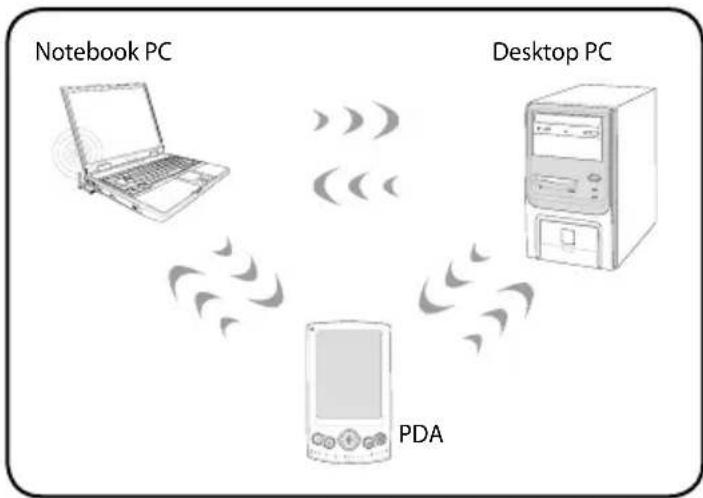
Ad-hoc mode
The Ad-hoc mode allows the Notebook PC to connect to another wireless device. No access point (AP) is required in this wireless environment.
(All devices must install optional 802.11 wireless LAN adapters.)
flowchart
graph TD
    A["Notebook PC"] -->|Wireless Signal| B["Desktop PC"]
    B -->|Wireless Signal| C["PDA"]
    C -->|Wireless Signal| A
    style A fill:#f9f,stroke:#333
    style B fill:#ccf,stroke:#333
    style C fill:#cfc,stroke:#333
Infrastructure mode
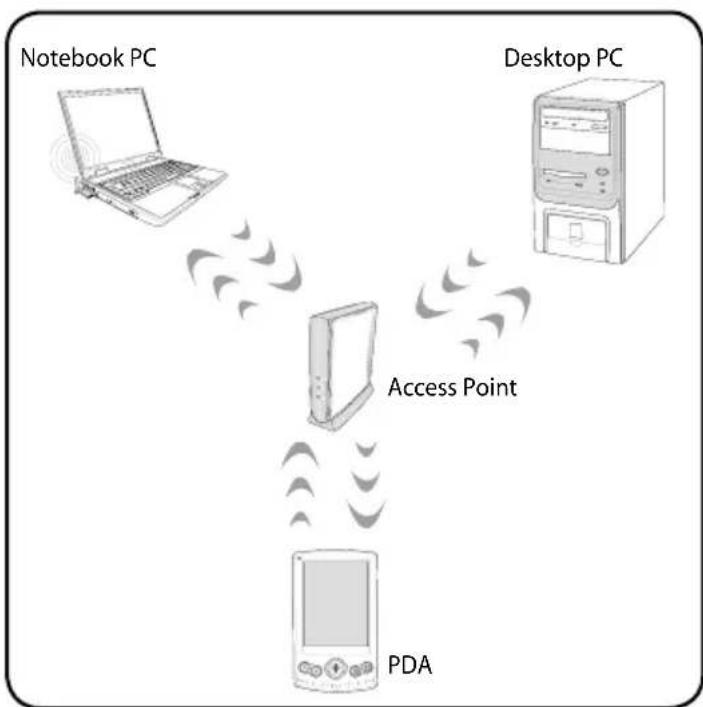
The Infrastructure mode allows the Notebook PC and other wireless devices to join a wireless network created by an Access Point (AP) (sold separately) that provides a central link for wireless clients to communicate with each other or with a wired network.
(All devices must install optional 802.11 wireless LAN adapters.)
flowchart
graph TD
    A["Notebook PC"] -->|Data Flow| B["Desktop PC"]
    B -->|Access Point| C["PDA"]
    C -->|Data Flow| A
Windows Wireless Network Connection
Connecting to a network
- Switch ON the Wireless function if necessary for your model (see
switches in Chapter 3).
- Press [FN+F2] repeatedly until wireless LAN icon and Bluetooth icon are shown.

natural_image
Blue 3D tower icon with radiating golden waves and a checkmark below (no text or symbols)
natural_image
Blue Bluetooth symbol icon with checkmark (no text or symbols)Or double click the Wireless Console icon in Windows notification area and select the wireless LAN icon.
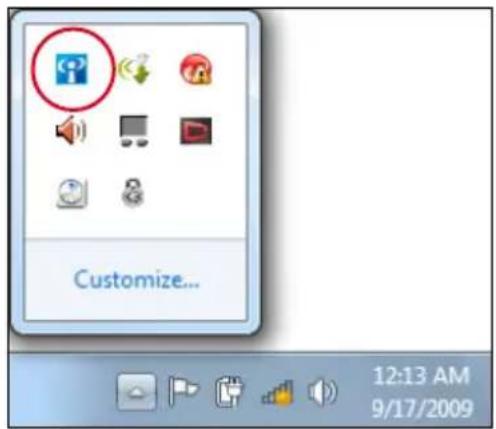
text_image
Customize... 12:13 AM 9/17/2009-
Click the wireless network icon with an orange star in the Windows® Notification area.
-
Select the wireless access point you want to connect to from the list and click Connect to build the connection.

If you cannot find the desired access point, click the Refresh icon on the upper right corner to refresh and search in the list again.

text_image
Currently connected to: Unidentified network No Internet access Wireless Network Connection Steven Office Connect automatically Connect Joshua_Peng WL-520GC ASUS_GUEST Open Network and Sharing Center-
When connecting, you may have to enter a password.
-
After a connection has been established, the connection is shown on the list.
-
You can see the wireless network icon in the Notification area.

The crossed wireless network icon appears when you press
Bluetooth Wireless Connection (on selected models)
Notebook PCs with Bluetooth technology eliminates the need for cables for connecting Bluetooth-enabled devices. Examples of Bluetooth-enabled devices may be Notebook PCs, Desktop PCs, mobile phones, and PDAs.

If your Notebook PC did not come with built-in Bluetooth, you need to connect a USB or ExpressCard Bluetooth module in order to use Bluetooth.
Bluetooth-enabled mobile phones
You can wireless connect to your mobile phone. Depending on your mobile phone's capabilities, you can transfer phone book data, photos, sound files, etc. or use it as a modem to connect to the Internet. You may also use it for SMS messaging.
Bluetooth-enabled computers or PDAs
You can wireless connect to another computer or PDA and exchange files, share peripherals, or share Internet or network connections. You may also make use of Bluetooth-enabled wireless keyboard or mouse.
Turning ON and Launching Bluetooth Utility
This process can be used to add most Bluetooth devices.
- Switch ON the Wireless function if necessary for your model (see switches in Chapter 3).
- Press [FN+F2] repeatedly until wireless LAN icon and bluetooth icon are shown.

natural_image
Blue triangular tower icon with radiating golden waves and a checkmark below (no text or symbols)
natural_image
Blue lightning bolt icon with a checkmark below it (no text or symbols)Or double click the Wireless Console icon in the Windows notification area and select the Bluetooth icon.
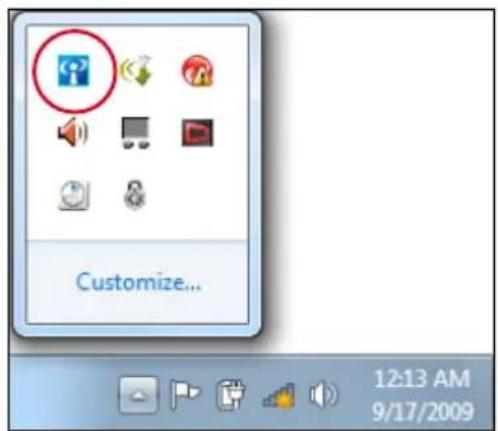
text_image
Customize... 12:13 AM 9/17/2009- From Control Panel, go to Network and Internet > Network and Sharing Center and then click Change adapter settings in the left blue pane.
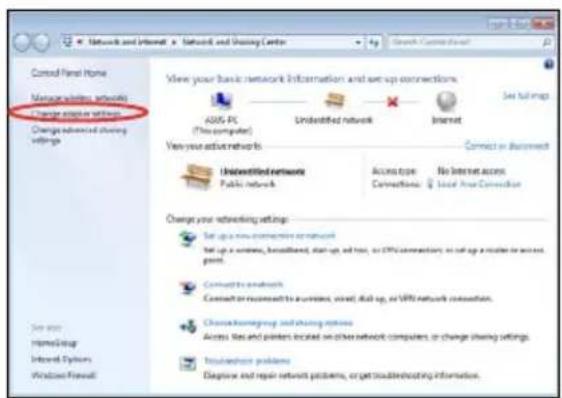
text_image
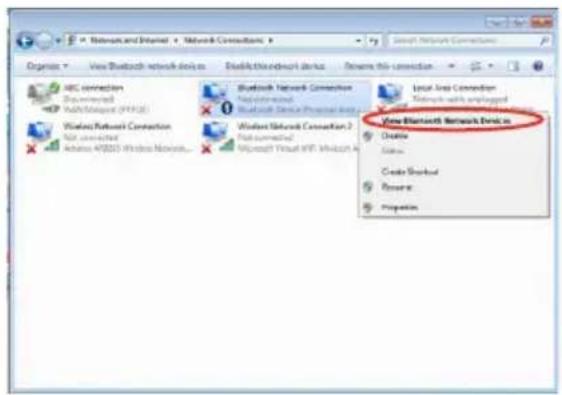
Control Panel Home Manage your network Change access settings Change advanced sharing settings View your basic network information and are up connections. ASOS PC (This computer) Unidentified network Internet Set full map View your active network to: Connect or disconnect Unidentified network Access type Connections: No Internet access Social Area Connection Change your networking settings: Set up a new connected network Set up a network, bus/ulbit, start-up, add-on, or WiFi connection; on set up a router or access print. Connect or reconnect to a wireless, street, disk up, or WiFi network connection. Choose homegroup and sharing options Access files and printers located on other network computers, or change sharing settings. To switch these problems Diagnose and repair network problems, or get troubleshooting information.- Right-click Bluetooth Network Connection and select View Bluetooth Network Devices.
text_image
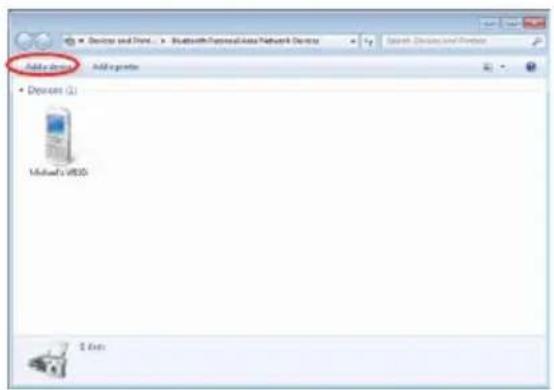
View Bluetooth Network Devices Local Area Connection Network with upplugged Windows Network Connection Microsoft Visual MRT - Microsoft A View Bluetooth Network Devices Create Create Bookout Reserve Properties- Click Add a device to look for new devices.
text_image
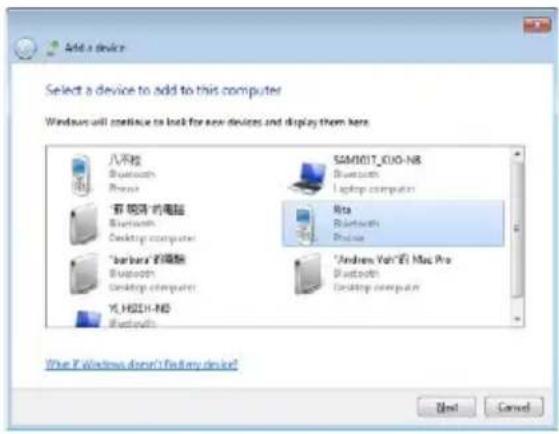
Add to Devices Add to printer • Devices (1) Microsoft's V826 $ Text- Select a Bluetooth-enabled device from the list and click Next.
- Enter the Bluetooth security code into your device and start pairing.
- The paired relationship is successfully built. Click Close to finish the setting.
text_image
Add a device Select a device to add to this computer Windows will continue to lock for new devices and display them here. 八井胜 Bluetooth Risla SMM017_CIO-N8 Bluetooth Risla "新 Windows 的电脑" Bluetooth Desktop computer Rita Bluetooth Risla "barbara 的电脑" Bluetooth Desktop computer "Andrew Vah-6i Mac Pro" Bluetooth Desktop computer YL HSDH-ND Bluetooths [View F:\Windows doesn't factory device? Next Cancel
text_image
Add a device Type the following code into your device This will verify that you are connecting to the correct device. 78702199 Note: After you type this code, you might need to press Enter, OK, or a similar button on your device. ○ Waiting for you to enter this pairing code on your device... How do I enter this order on my device! Finish Cancel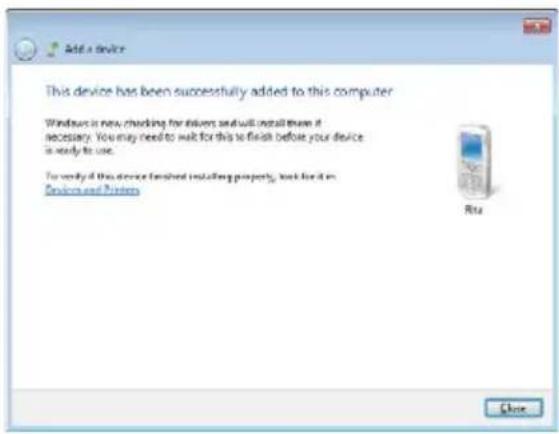
text_image
Add a device This device has been successfully added to this computer Windows is now checking for drivers and will install them if necessary. You may need to walk for this to finish before your device is ready to use. To verify if the device finished including property, but it is in Devices and Providers Ritu CloseUSB Charger+
USB Charger+ helps charge your USB devices compatible with Battery Charging Version 1.1 (BC 1.1) specifications whether your Notebook PC is powered on or off. You can decide and set the battery threshold for stopping charging according to your needs.
With Adapter
USB Charger+ is always available on the designated USB 3.0 port when your Notebook PC is connected with the adapter.
Without Adapter
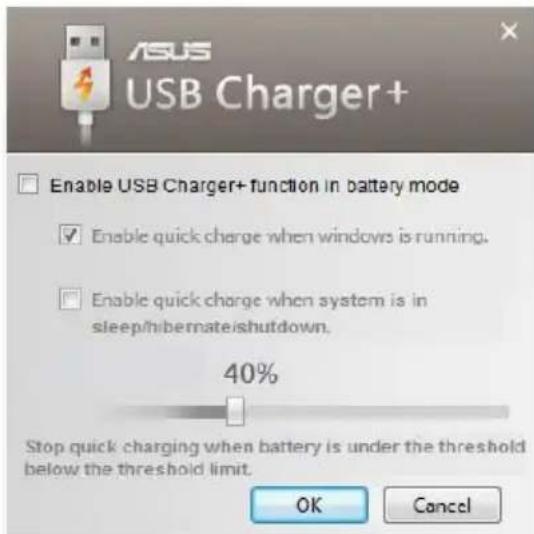
To enable the USB Charger+
-
Click the USB Charger+ icon in the notification area and select Settings.
-
Click Enable USB Charger function in battery mode.
-
According to your needs, click to enable quick charge when the Notebook PC is powered ON or in sleep/hibernation/shutdown.
-
Move the slider to set the battery charge threshold to stop the USB Charger+ function.
text_image
ASUS USB Charger+ Enable USB Charger+ function in battery mode Enable quick charge when windows is running. Enable quick charge when system is in sleep/hibernate/shutdown. 40% Stop quick charging when battery is under the threshold below the threshold limit. OK Cancel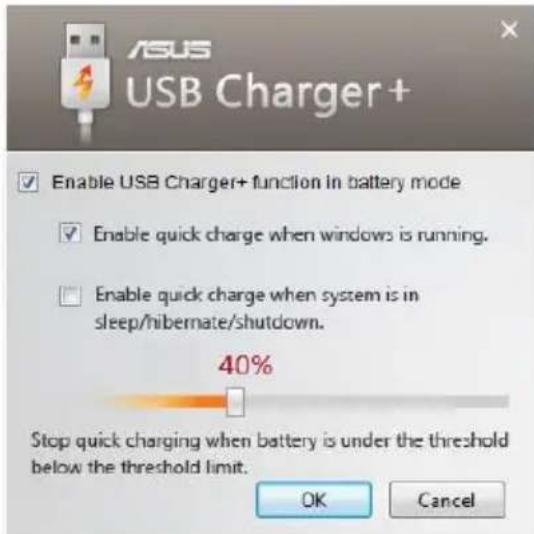
text_image
ASUS USB Charger+ Enable USB Charger+ function in battery mode Enable quick charge when windows is running. Enable quick charge when system is in sleep/nibernate/shutdown. 40% Stop quick charging when battery is under the threshold below the threshold limit. OK Cancel
- The Notebook PC stops charging your connected USB device when the battery charge drops below your set threshold.
- The USB port that supports USB Charger+ does not support USB device wake up function.
- If your connected device is overheated, smoking, or has abnormal odors, remove the device immediately.
Instant On
Zero-wait system restarting gets you immediately back to work and play with saved system status. After activating it, the SHUT DOWN button in the Start Menu will be changed to SLEEP so you could enjoy fast resume to your last working state.

During WINDOWS UPDATE, the "Instant On" feature will be automatically disabled so the SHUT DOWN button in the Start Menu will not be changed to the SLEEP function before all updates are completed. When Instant On function is enabled, "Wake on USB/LAN" function will be disabled.
Appendix
Optional Accessories
These items, if desired, come as optional items to complement your Notebook PC.
USB Hub (Optional)
Attaching an optional USB hub will increase your USB ports and allow you to quickly connect or disconnect many USB peripherals through a single cable.
USB Flash Memory Disk
A USB flash memory disk is an optional item that can provide storage up to several hundred megabytes, higher transfer speeds, and greater durability. When used in current operating systems, no drivers are necessary.
USB Floppy Disk Drive
An optional USB-interface floppy disk drive can accept a standard 1.44MB (or 720KB) 3.5-inch floppy diskette.

WARNING! To prevent system failures, use Windows "Safely Remove Hardware" on the taskbar before disconnecting the USB floppy disk drive. Eject the floppy disk before transporting the Notebook PC to prevent damage from shock.
Optional Connections
These items, if desired, may be purchased from third-parties.
USB Keyboard and Mouse
Attaching an external USB keyboard will allow data entry to be more comfortable. Attaching an external USB mouse will allow Windows navigation to be more comfortable. Both the external USB keyboard and mouse will work simultaneously with the Notebook PC's built-in keyboard and touchpad.
Printer Connection
One or more USB printers can be simultaneously used on any USB port or USB hub.
Operating System and Software
This Notebook PC may offer (depending on territory) its customers the choice of a pre-installed Microsoft Windows operating system. The choices and languages will depend on the territory. The levels of hardware and software support may vary depending on the installed operating system. The stability and compatibility of other operating systems cannot be guaranteed.
Support Software
This Notebook PC comes with a support disc that provides BIOS, drivers and applications to enable hardware features, extend functionality, help manage your Notebook PC, or add functionality not provided by the native operating system. If updates or replacement of the support disc is necessary, contact your dealer for web sites to download individual software drivers and utilities.
The support disc contains all drivers, utilities and software for all popular operating systems including those that have been pre-installed. The support disc does not include the operating system itself. The support disc is necessary even if your Notebook PC came pre-configured in order to provide additional software not included as part of the factory pre-install.
A recovery disc is optional and includes an image of the original operating system installed on the hard drive at the factory. The recovery disc provides a comprehensive recovery solution that quickly restores the Notebook PC's operating system to its original working state provided that your hard disk drive is in good working order. Contact your retailer if you require such a solution.

Some of the Notebook PC's components and features may not work until the device drivers and utilities are installed.
System BIOS Settings

The BIOS screens in this section are for reference only. The actual screens may differ by models and territories.
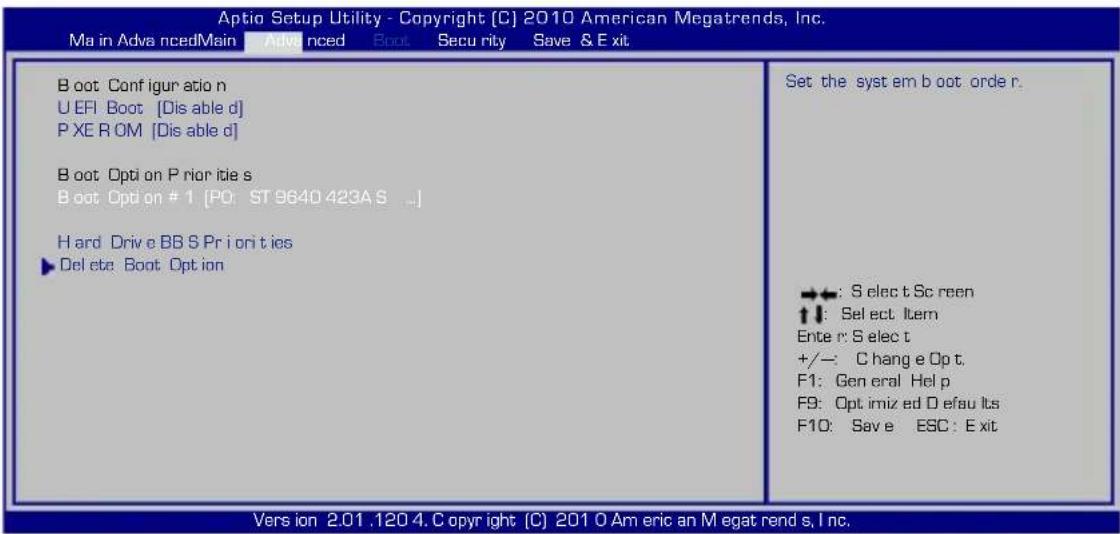
Boot Device
- On the Boot screen, select Boot Option #1.
text_image
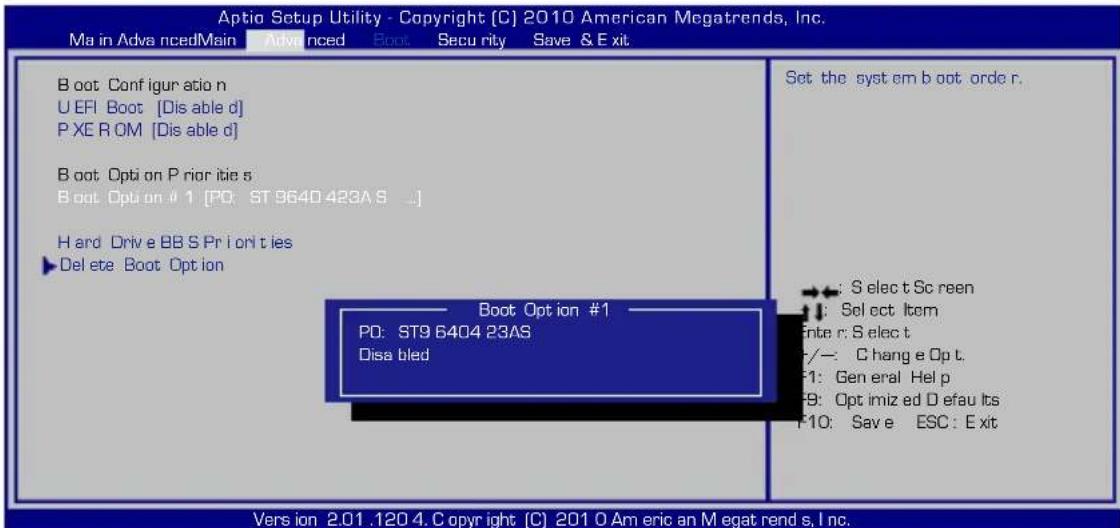
Aptio Setup Utility - Copyright (C) 2010 American Megatrends, Inc. Ma in AdvancedMain Advanced Boot Security Save & Exit Boot Config ur atio n U EFI Boot [Dis able d] P XE R OM [Dis able d] Boot Opti on P rior itie s Boot Opti on # 1 [PO: ST 9640 423A S ...] Hard Drive BB S Pr i or ities ► Delete Boot Opt ion Set the syst em b oot order r. ←→ : S elec t Sc reen ↑↓ : Select Item Ente r: S elec t +/-: Chang e Op t. F1: General Help F9: Opt imiz ed D efau lts F10: Save ESC : Exit Vers ion 2.01.120 4. Copyright (C) 2010 O Am eric an M egat rend s, I nc.- Press [Enter] and select a device as the Boot Option #1.
text_image
Aptio Setup Utility - Copyright [C] 2010 American Megatrends, Inc. Ma in Advanced Main Advanced Boot Security Save & Exit Boot Config ur atio n U EFI Boot [Dis able d] P XE R OM [Dis able d] Boot Opti on P rior itie s Boot Opti on # 1 [PO: ST 9640 423A S ...] Hard Drive BB S Pr i on ties ►Del ete Boot Option Boot Opt ion #1 PD: ST9 6404 23AS Disa bled Set the syst em b oot order r. : S ele c t Sc reen : Sel ect l item Enter r: S elec t r/—: Chang e Op t. F1: Gen eral Help F8: Opt imiz ed D efau its F10: Save ESC: Exit Vers ion 2.01 .120 4. C opry itg (C) 201 O Am eric an M egat rend s, Inc.Security Setting
| Aptio Setup Utility - Copyright [C] 2010 American Megatrends, Inc. | |
| Main Advanced Boot Security Save & Exit | |
| Password Description If ONLY the Administrator's password is set, then this only limits access to Setup and is only asked for when entering Setup. If ONLY the user's password is set, then this is a power on password and must be entered to boot or enter Setup. In Setup, the User will have Administrator rights. Administrator Password NOT INSTALLED User Password Status NOT INSTALLED Setup administrator password User Password HDD User Password Status : NOT INSTALLED Set Master Password Set User Password I/O Interface Security | Set the system boot order. →←: Select Screen ↑↓: Select Item Enter: Select +/-: Change Opt. F1: General Help F2: Previous Values F9: Optimized Defaults F10: Save ESC: Exit |
| Version 2.01.1204. Copyright [C] 2010 American Megatrends, Inc. | |
To set the password:
- On the Security screen, select Setup Administrator Password or User Password.
- Type in a password and press [Enter].
- Re-type to confirm the password and press [Enter].
- Password is then set.
To clear the password:
- On the Security screen, select Setup Administrator Password or User Password.
- Enter the current password and press [Enter].
- Leave the Create New Password field blank and press [Enter].
- Leave the Confirm New Password field blank and press [Enter].
- Password is then cleared.
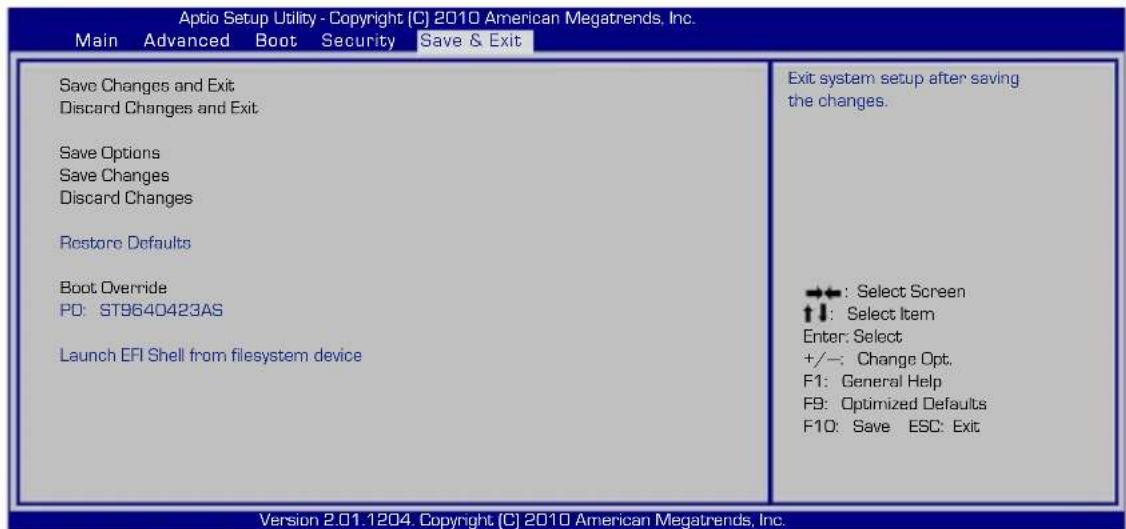
Save Changes
If you want to keep your configuration settings, you must save changes before exiting the BIOS setup utility.
If you want to restore default settings, choose Restore Defaults. You must then save changes to keep the manufacture default settings.
text_image
Aptio Setup Utility - Copyright (C) 2010 American Megatrends, Inc. Main Advanced Boot Security Save & Exit Save Changes and Exit Discard Changes and Exit Save Options Save Changes Discard Changes Restore Defaults Boot Override PD: ST9640423AS Launch EFI Shell from filesystem device Exit system setup after saving the changes. →: Select Screen ↑: Select Item Enter: Select +/-: Change Opt. F1: General Help F9: Optimized Defaults F10: Save ESC: Exit Version 2.01.1204. Copyright (C) 2010 American Megatrends, Inc.Common Problems and Solutions
Hardware Problem - Optical Disc
The optical disc drive is not able to read or write discs.
- Update the BIOS to the latest version and try again.
- If updating the BIOS does not help, try better quality discs and try again.
- If the problem still exist, contact your local service center and ask an engineer for assistance.
Unknown Reason - System Unstable
Cannot wake up from the hibernation.
- Remove upgraded parts (RAM, HDD, WLAN, BT) if they were installed after purchase.
- If not the case, try MS System Restore to an earlier date.
- If problem still persists, try restoring your system using the recovery drive.

You must backup all your data to another location before recovering.
- If the problem still exist, contact your local service center and ask an engineer for assistance.
Hardware Problem - Keyboard / Hotkey
The Hotkey (FN) is disabled.
A. Reinstall the "ATK0100" driver from the driver CD or download it from the ASUS website.
Hardware Problem - Built-in Camera
The built-in camera does not work correctly.
- Check "Device Manager" to see if there are any problems.
- Try reinstalling the webcam driver to solve the problem.
- If the problem is not solved, update the BIOS to the latest version and try again.
- If the problem still exist, contact your local service center and ask an engineer for assistance.
Hardware Problem - Battery
Battery maintenance.
- Register the Notebook PC for a one-year-warranty using the following website:
http://member.asus.com/login.aspx?SLanguage=en-us
- Do NOT remove the battery pack while using the Notebook PC with the AC adaptor to prevent damage caused by the accidental power loss. The ASUS battery pack has protection circuitry to prevent over-charging so it will not damage the battery pack if it is left in the Notebook PC.
Hardware Problem - Power ON/OFF Error
I cannot power ON the Notebook PC.
Diagnostics:
- Power On by Battery only? (Y = 2, N = 4)
- Able to see BIOS (ASUS Logo)? (Y = 3, N = A)
- Able to load the OS? (Y = B, N = A)
- Adapter power LED ON? (Y = 5, N = C)
- Power ON by Adapter only? (Y = 6, N = A)
- Able to see BIOS (ASUS Logo)? (Y = 7, N = A)
- Able to load the OS? (Y = D, N = A)
Symptom & Solutions:
A. Problem might be in the MB, HDD, or NB; visit a local service center for assistance.
B. Problem caused by the operating system, try restoring your system using the recovery partition or disc.

IMPORTANT! You must backup all your data to another location before recovering.
C. Adapter problem; check the power cord connections, otherwise visit a local service center for replacement.
D. Battery problem; please check the battery contacts, otherwise visit a local service center for repair.
Hardware Problem - Wireless Card
How to check whether a Notebook PC is equipped with a wireless card?
A. Enter Control Panel -> Device Manager. You will see whether the Notebook PC has a WLAN card under the "Network Adapter" item.
Mechanical Problem - FAN / Thermal
Why is the cooling fan always ON and the temperature high?
- Make sure that the FAN works when the CPU temperature is high and check whether there is air flow from the main air vent.
- If you have many applications running (see taskbar), close them to decrease system load.
- The problem may also be caused by some viruses, use anti-virus software to detect them.
- If none of the above help, try restoring your system using the recovery partition or DVD.

IMPORTANT! You must backup all your data to another location before recovering.
Software Problem - ASUS bundled software
When I power ON the Notebook PC, there will be an “Open policy file error” message.
A. Reinstall the latest version "Power4 Gear" utility to solve your problem. It is available on the ASUS website.
Unknown Reason - Blue screen with white text
A blue screen with white text appears after system bootup.
- Remove additional memory. If additional memory was installed after purchase, power OFF, remove the additional memory, and power ON to see if the problem is due to incompatible memory.
- Un-install software applications. If you have installed software applications recently, they may not be compatible with your system. Try to un-install them in Windows Safe Mode.
- Check your system for viruses.
- Update the BIOS to the latest version with Easy Flash in Windows or AFLASH in DOS mode. These utilities and BIOS files can be downloaded from the ASUS website.

WARNING! Ensure your Notebook PC does not lose power during the BIOS flashing process.
- If problem still cannot be solved, use the recovery process to reinstall your entire system.

IMPORTANT! You must backup all your data to another location before recovering.

CAUTION! DO NOT connect to the Internet before you have installed an anti-virus software and Internet firewall to protect yourself from viruses.

Ensure that you install the "Intel INF Update" and "ATKACPI" drivers first so that hardware devices can be recognized.
- If the problem still exist, contact your local service center and ask an engineer for assistance.
Software Problem - BIOS
Updating the BIOS.
- Please verify the Notebook PC's exact model and download the latest BIOS file for your model from the ASUS website and save it in your flash disk drive.
- Connect your flash disk drive to the Notebook PC and power on the Notebook PC.
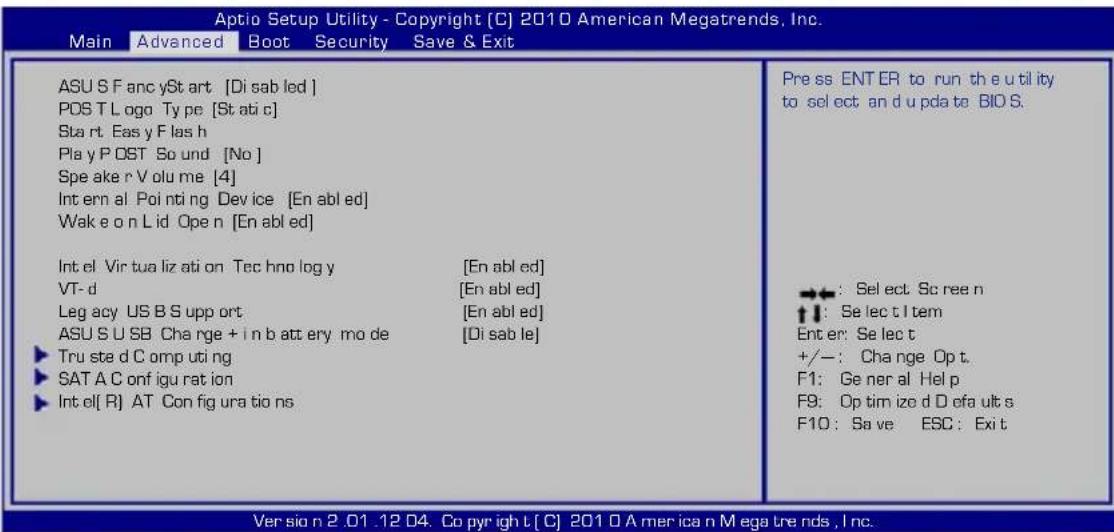
- Use the "Start Easy Flash" function on the Advanced page of the BIOS Setup Utility. Follow the instructions shown.
text_image
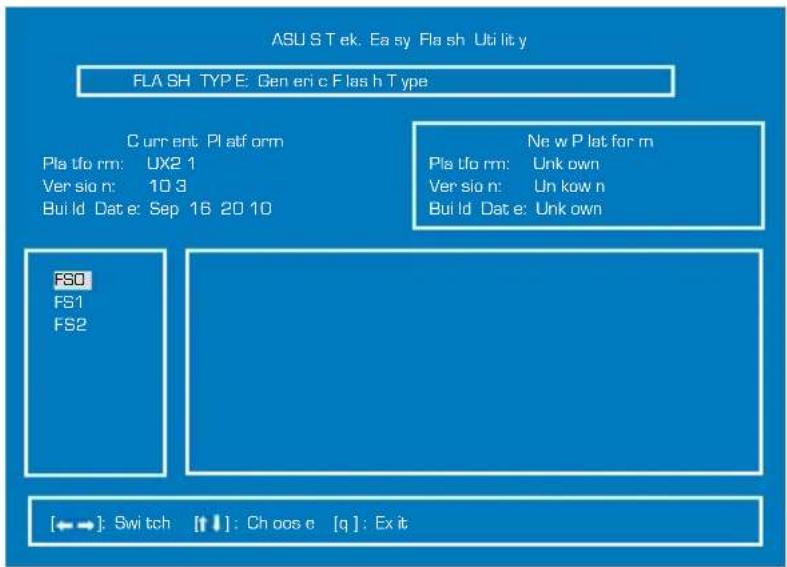
Aptio Setup Utility - Copyright [C] 2010 American Megatrends, Inc. Main Advanced Boot Security Save & Exit ASU S F anc ySt art [Di sab led ] POST L logo Type [St ati c] Start Eas y F las h Play P OST So und [No ] Spe ake r V olu me [4] Int ern al Poi nt i ng Dev ice [En abl ed] Wake o n L id Open [En abl ed] Int el Vir tua liz ati on Tec hno log y [En abl ed] VT-d [En abl ed] Leg acy US B S upp ort [En abl ed] ASU S U SB Charge + i n b att ery mo de [Di sab le] ► Tru ste d C omp uti ng ► SAT A C onf igu rat ion ► Int el(R) AT Con fig ura tio ns Press ENTER to run the u itl ity to select an d up da te BIO S. ←→: Select Sc ree n ↑↓: Se lec t I tem Ent er: Se lec t +/-: Change Op t. F1: Ge ner al Help F9: Op tim ize d D efa ult s F10: Save ESC: Exit Ver si o n 2.01.12 04. Co pyr igh t [C] 2010 A mer ic a n M ega tre nds , l nc.- Locate the latest BIOS file and start updating (flashing) the BIOS.
text_image
ASU S Tek. Easy Flash Utility FLA SH TYPE: Gen en c Flas h Type Current Platform Pla tfo rm: UX2 1 Ver si o n: 10 3 Build Date: Sep 16 20 10 Ne w P lat for m Pla tfo rm: Un k own Ver si o n: Un k ow n Build Date: Un k own FSO FS1 FS2 [←→]: Swtch [↑↓]: Cho os e [q]: Exit- You must "Restore Defaults" on the Exit page after updating (flashing) the BIOS.
Recovering Your Notebook PC
Using Recovery Partition
The Recovery Partition quickly restores your Notebook PC's software to its original working state. Before using the Recovery Partition, copy your data files (such as Outlook PST files) to USB storage devices or to a network drive and make note of any customized configuration settings (such as network settings).
About the Recovery Partition
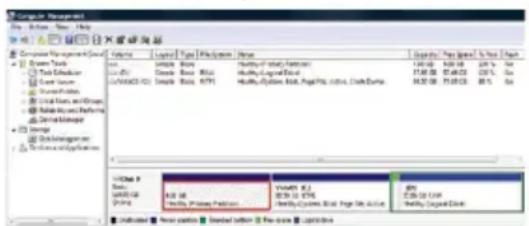
The Recovery Partition is a reserved space on your hard disk drive used to restore the operating system, drivers, and utilities installed on your Notebook PC at the factory.

IMPORTANT! DO NOT delete the partition named RECOVERY. The Recovery Partition is created at the factory and cannot be
restored if deleted. Take your Notebook PC to an authorized ASUS service center if you have problems with the recovery process.
text_image
Computer Management Form 103 - New York System Tools Test Edifier Event Source SourceFoods Initial Data, and Groups Database/Analysis Perform Database Manage Storage Database Manager Database Performance Volume Layer Type File System Name Name: Image Size: 500 Class: Normal Class: Normal Type: Normal Default: Normal Default: Default Default: Default Default: Default Default: Default Default: Default Default: Default Default: Default Default: Default Default: Default Default: Default Default: Default Default: Default Default: Default Default: Default Default: Default Default: Default Default: Default Default: Default Default: Default Default: Default Default: Default Default: Default Default: Default Default: Default Default: Default Default: StatusUsing the Recovery Partition:
- Press [F9] during bootup.
- Press [Enter] to select Windows Setup [EMS Enabled].
- Select the language you want to recover and click Next.
- Read the ASUS Preload Wizard messages and click Next.
- Select a partition option and click Next. Partition options:
Recover Windows to first partition only.
This option deletes only the first partition and allows you to keep other partitions, and to create a new system partition as drive "C".
Recover Windows to entire HD.
This option deletes all partitions from your hard disk drive and creates a new system partition as drive "C".
Recover Windows to entire HD with two partitions.
This option deletes all partitions from your hard drive and creates two new partitions "C" (40%) and "D" (60%).
- Follow the onscreen instructions to complete the recovery process.

Visit the ASUS website at www.asus.com for updated drivers and utilities.

Contents after recovery may vary by region or country.
Using Recovery DVD (on selected models)
Creating the Recovery DVD:
-
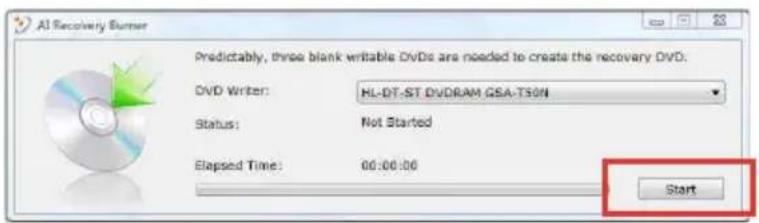
Double-click the AI Recovery Burner icon on the Window desktop.
-
Insert a blank writable DVD into the optical drive and click Start to start creating the Recovery DVD.
text_image
AI Recovery Burner Predictably, three blank writable DVDs are needed to create the recovery DVD: DVD Writer: HL-DT-ST.DVDRAM.GSA-T50N Status: Not Started Elapsed Time: 00:00:00 Start- Follow the onscreen instructions to complete creating the recovery DVD.

Prepare enough blank writable DVDs as instructed to create the Recovery DVD.

IMPORTANT! Remove the external hard disk drive before performing system recovery on your Notebook PC. According to Microsoft, you may lose important data because of setting up Windows on the wrong disk drive or formatting the incorrect drive partition.
Using the Recovery DVD:DVD::
- Insert the Recovery DVD into the optical drive. Your Notebook PC needs to be powered ON.
- Restart the Notebook PC and press [Esc] on bootup and select the optical drive (may be labeled as "CD/DVD") and press [Enter] to boot from the Recovery DVD.
- Select OK to start to restore the image.
- Select OK to confirm the system recovery.

Restoring will overwrite your hard drive. Ensure to back up all your important data before the system recovery.
- Follow the onscreen instructions to complete the recovery process.

WARNING: DO NOT remove the Recovery disc, unless instructed to do so, during the recovery process or else your partitions will be unusable.

Ensure to connect the power adapter to your Notebook PC when performing system recovery. Unstable power supply may cause recovery failure.

Visit the ASUS website at www.asus.com for updated drivers and utilities.
DVD-ROM Drive Information
The Notebook PC comes with an optional DVD-ROM drive or a CD-ROM drive. In order to view DVD titles, you must install your own DVD viewer software. Optional DVD viewer software may be purchased with this Notebook PC. The DVD-ROM drive allows the use of both CD and DVD discs.
Regional Playback Information
Playback of DVD movie titles involves decoding MPEG2 video, digital AC3 audio and decryption of CSS protected content. CSS (sometimes called copy guard) is the name given to the content protection scheme adopted by the motion picture industry to satisfy a need to protect against unlawful content duplication.
Although the design rules imposed on CSS licensors are many, one rule that is most relevant is playback restrictions on regionalized content. In order to facilitate geographically staggered movie releases, DVD video titles are released for specific geographic regions as defined in “Region Definitions” below. Copyright laws require that all DVD movies be limited to a particular region (usually coded to the region at which it is sold). While DVD movie content may be released for multiple regions, CSS design rules require that any system capable of playing CSS encrypted content must only be capable of playing one region.

The region setting may be changed up to five times using the viewer software, then it can only play DVD movies for the last region setting. Changing the region code after that will require factory resetting which is not covered by warranty. If resetting is desired, shipping and resetting costs will be at the expense of the user.
Region Definitions
Region 1
Canada, US, US Territories
Region 2
Czech, Egypt, Finland, France, Germany, Gulf States, Hungary, Iceland, Iran, Iraq, Ireland, Italy, Japan, Netherlands, Norway, Poland, Portugal, Saudi Arabia, Scotland, South Africa, Spain, Sweden, Switzerland, Syria, Turkey, UK, Greece, Former Yugoslav Republics, Slovakia
Region 3
Burma, Indonesia, South Korea, Malaysia, Philippines, Singapore, Taiwan, Thailand, Vietnam
Region 4
Australia, Caribbean (Except US Territories), Central America, New Zealand, Pacific Islands, South America
Region 5
CIS, India, Pakistan, Rest of Africa, Russia, North Korea
Region 6
China
Blu-ray ROM Drive Information (on selected models)
Region Definitions
Region A
North, Central and South American countries, and their territories; Taiwan, Hong Kong, Macao, Japan, Korea (South and North), South East Asian countries and their territories.
Region B
European, African, and South West Asian countries and their territories; Australia and New Zealand.
Region C
Central, South Asian, Eastern European countries and their territories; China and Mongolia.

Refer to Blu-ray Disc website at www.blu-raydisc.com/en/Technical/FAQs/Blu-rayDsicforVideo.html for more details.
Internal Modem Compliancy
The Notebook PC with internal modem model complies with JATE (Japan), FCC (US, Canada, Korea, Taiwan), and CTR21. The internal modem has been approved in accordance with Council Decision 98/482/EC for pan-European single terminal connection to the public switched telephone network (PSTN). However due to differences between the individual PSTNs provided in different countries, the approval does not, of itself, give an unconditional assurance of successful operation on every PSTN network termination point. In the event of problems you should contact your equipment supplier in the first instance.
Overview
On 4th August 1998 the European Council Decision regarding the CTR 21 has been published in the Official Journal of the EC. The CTR 21 applies to all non voice terminal equipment with DTMF-dialling which is intended to be connected to the analogue PSTN (Public Switched Telephone Network).
CTR 21 (Common Technical Regulation) for the attachment requirements for connection to the analogue public switched telephone networks of terminal equipment (excluding terminal equipment supporting the voice telephony justified case service) in which network addressing, if provided, is by means of dual tone multifrequency signalling.
Network Compatibility Declaration
Statement to be made by the manufacturer to the Notified Body and the vendor: "This declaration will indicate the networks with which the equipment is designed to work and any notified networks with which the equipment may have inter-working difficulties"
Network Compatibility Declaration
Statement to be made by the manufacturer to the user: "This declaration will indicate the networks with which the equipment is designed to work and any notified networks with which the equipment may have inter-working difficulties. The manufacturer shall also associate a statement to make it clear where network compatibility is dependent on physical and software switch settings. It will also advise the user to contact the vendor if it is desired to use the equipment on another network."
Up to now the Notified Body of CETECOM issued several pan-European approvals using CTR 21. The results are Europe's first modems which do not require regulatory approvals in each individual European country.
Non-Voice Equipment
Answering machines and loud-speaking telephones can be eligible as well as modems, fax machines, auto-dialers and alarm systems. Equipment in which the end-to-end quality of speech is controlled by regulations (e.g. handset telephones and in some countries also cordless telephones) is excluded.
This table shows the countries currently under the CTR21 standard.
Country Applied More Testing
Austria ^1 Yes No
Belgium Yes No
Czech Republic No Not Applicable
Denmark ^1 Yes Yes
Finland Yes No
France Yes No
Germany Yes No
Greece Yes No
Hungary No Not Applicable
Iceland Yes No
Ireland Yes No
Italy Still Pending Still Pending
Israel No No
Lichtenstein Yes No
Luxemburg Yes No
The Netherlands ^1 Yes Yes
Norway Yes No
Poland No Not Applicable
Portugal No Not Applicable
Spain No Not Applicable
Sweden Yes No
Switzerland Yes No
United Kingdom Yes No
This information was copied from CETECOM and is supplied without liability. For updates to this table, you may visit http://www.cetecom.de/technologies/ctr_21.html
1 National requirements will apply only if the equipment may use pulse dialling (manufacturers may state in the user guide that the equipment is only intended to support DTMF signalling, which would make any additional testing superfluous).
In The Netherlands additional testing is required for series connection and caller ID facilities.
Declarations and Safety Statements
Federal Communications Commission Statement
This device complies with FCC Rules Part 15. Operation is subject to the following two conditions:
- This device may not cause harmful interference.
- This device must accept any interference received, including interference that may cause undesired operation.
This equipment has been tested and found to comply with the limits for a class B digital device, pursuant to Part 15 of the Federal Communications Commission (FCC) rules. These limits are designed to provide reasonable protection against harmful interference in a residential installation. This equipment generates, uses, and can radiate radio frequency energy and, if not installed and used in accordance with the instructions, may cause harmful interference to radio communications. However, there is no guarantee that interference will not occur in a particular installation. If this equipment does cause harmful interference to radio or television reception, which can be determined by turning the equipment off and on, the user is encouraged to try to correct the interference by one or more of the following measures:
- Reorient or relocate the receiving antenna.
- Increase the separation between the equipment and receiver.
- Connect the equipment into an outlet on a circuit different from that to which the receiver is connected.
- Consult the dealer or an experienced radio/TV technician for help.

The use of a shielded-type power cord is required in order to meet FCC emission limits and to prevent interference to the nearby radio and television reception. It is essential that only the supplied power cord be used. Use only shielded cables to connect I/O devices to this equipment. You are cautioned that changes or modifications not expressly approved by the party responsible for compliance could void your authority to operate the equipment.
(Reprinted from the Code of Federal Regulations #47, part 15.193, 1993.
Washington DC: Office of the Federal Register, National Archives and
Records Administration, U.S. Government Printing Office.)
FCC Radio Frequency (RF) Exposure Caution Statement

Any changes or modifications not expressly approved by the party responsible for compliance could void the user's authority to operate this equipment. "The manufacture declares that this device is limited to Channels 1 through 11 in the 2.4GHz frequency by specified firmware controlled in the USA."
This equipment complies with FCC radiation exposure limits set forth for an uncontrolled environment. To maintain compliance with FCC RF exposure compliance requirements, please avoid direct contact to the transmitting antenna during transmitting. End users must follow the specific operating instructions for satisfying RF exposure compliance.
Declaration of Conformity (R&TTE directive 1999/5/EC)
The following items were completed and are considered relevant and sufficient:
• Essential requirements as in [Article 3]
- Protection requirements for health and safety as in [Article 3.1a]
- Testing for electric safety according to [EN 60950]
- Protection requirements for electromagnetic compatibility in [Article 3.1b]
- Testing for electromagnetic compatibility in [EN 301 489-1] & [EN 301 489-17]
• Effective use of the radio spectrum as in [Article 3.2]
• Radio test suites according to [EN 300 328-2]
CE Mark Warning
CE
CE marking for devices without wireless LAN/Bluetooth
The shipped version of this device complies with the requirements of the EEC directives 2004/108/EC "Electromagnetic compatibility" and 2006/95/EC "Low voltage directive".
CE!
CE marking for devices with wireless LAN/ Bluetooth
This equipment complies with the requirements of Directive 1999/5/EC of the European Parliament and Commission from 9 March, 1999 governing Radio and Telecommunications Equipment and mutual recognition of conformity.
IC Radiation Exposure Statement for Canada
This equipment complies with IC radiation exposure limits set forth for an uncontrolled environment. To maintain compliance with IC RF exposure compliance requirements, please avoid direct contact to the transmitting antenna during transmitting. End users must follow the specific operating instructions for satisfying RF exposure compliance.
Operation is subject to the following two conditions:
• This device may not cause interference and
- This device must accept any interference, including interference that may cause undesired operation of the device.
To prevent radio interference to the licensed service (i.e. co-channel Mobile Satellite systems) this device is intended to be operated indoors and away from windows to provide maximum shielding. Equipment (or its transmit antenna) that is installed outdoors is subject to licensing.
Wireless Operation Channel for Different Domains
N. America 2.412-2.462 GHz Ch01 through CH11
Japan 2.412-2.484 GHz Ch01 through Ch14
Europe ETSI 2.412-2.472 GHz Ch01 through Ch13
France Restricted Wireless Frequency Bands
Some areas of France have a restricted frequency band. The worst case maximum authorized power indoors are:
- 10mW for the entire 2.4 GHz band (2400 MHz–2483.5 MHz)
• 100mW for frequencies between 2446.5 MHz and 2483.5 MHz

Channels 10 through 13 inclusive operate in the band 2446.6 MHz to 2483.5 MHz.
There are few possibilities for outdoor use: On private property or on the private property of public persons, use is subject to a preliminary authorization procedure by the Ministry of Defense, with maximum authorized power of 100mW in the 2446.5–2483.5 MHz band. Use outdoors on public property is not permitted.
In the departments listed below, for the entire 2.4 GHz band:
• Maximum authorized power indoors is 100mW
• Maximum authorized power outdoors is 10mW
Departments in which the use of the 2400–2483.5 MHz band is permitted with an EIRP of less than 100mW indoors and less than 10mW outdoors:
01 Ain 02 Aisne 03 Allier
05 Hautes Alpes 08 Ardennes 09 Ariège
11 Aude 12 Aveyron 16 Charente
24 Dordogne 25 Doubs 26 Drôme
32 Gers 36 Indre 37 Indre et Loire
41 Loir et Cher 45 Loiret 50 Manche
55 Meuse 58 Nièvre 59 Nord
60 Oise 61 Orne
This requirement is likely to change over time, allowing you to use your wireless LAN card in more areas within France. Please check with ART for the latest information (www.arcep.fr)

Your WLAN Card transmits less than 100mW, but more than 10mW.
UL Safety Notices
Required for UL 1459 covering telecommunications (telephone) equipment intended to be electrically connected to a telecommunication network that has an operating voltage to ground that does not exceed 200V peak, 300V peak-to-peak, and 105V rms, and installed or used in accordance with the National Electrical Code (NFPA 70).
When using the Notebook PC modem, basic safety precautions should always be followed to reduce the risk of fire, electric shock, and injury to persons, including the following:
- DO NOT use the Notebook PC near water, for example, near a bath tub, wash bowl, kitchen sink or laundry tub, in a wet basement or near a swimming pool.
- DO NOT use the Notebook PC during an electrical storm. There may be a remote risk of electric shock from lightning.
- DO NOT use the Notebook PC in the vicinity of a gas leak.
Required for UL 1642 covering primary (nonrechargeable) and secondary (rechargeable) lithium batteries for use as power sources in products. These batteries contain metallic lithium, or a lithium alloy, or a lithium ion, and may consist of a single electrochemical cell or two or more cells connected in series, parallel, or both, that convert chemical energy into electrical energy by an irreversible or reversible chemical reaction.
- Do not dispose the Notebook PC battery pack in a fire, as they may explode. Check with local codes for possible special disposal instructions to reduce the risk of injury to persons due to fire or explosion.
- Do not use power adapters or batteries from other devices to reduce the risk of injury to persons due to fire or explosion. Use only UL certified power adapters or batteries supplied by the manufacturer or authorized retailers.
Power Safety Requirement
Products with electrical current ratings up to 6A and weighing more than 3Kg must use approved power cords greater than or equal to: H05VV-F, 3G, 0.75mm ^2 or H05VV-F, 2G, 0.75mm ^2 .
TV Tuner Notices (on selected models)
Note to CATV System Installer—Cable distribution system should be grounded (earthed) in accordance with ANSI/NFPA 70, the National Electrical Code (NEC), in particular Section 820.93, Grounding of Outer Conductive Shield of a Coaxial Cable – installation should include bonding the screen of the coaxial cable to the earth at the building entrance.
REACH
Complying with the REACH (Registration, Evaluation, Authorization, and Restriction of Chemicals) regulatory framework, we publish the chemical substances in our products at ASUS REACH website at http://csr.asus.com/english/REACH.htm.
Nordic Lithium Cautions (for lithium-ion batteries)
CAUTION! Danger of explosion if battery is incorrectly replaced. Replace only with the same or equivalent type recommended by the manufacturer. Dispose of used batteries according to the manufacturer's instructions. (English)
Optical Drive Safety Information
Laser Safety Information
Internal or external optical drives sold with this Notebook PC contains a CLASS 1 LASER PRODUCT. Laser classifications can be found in the glossary at the end of this user's manual.

WARNING! Making adjustments or performing procedures other than those specified in the user's manual may result in hazardous laser exposure. Do not attempt to disassemble the optical drive. For your safety, have the optical drive serviced only by an authorized service provider.
Service warning label

CAUTION! INVISIBLE LASER RADIATION WHEN OPEN. DO NOT STARE INTO BEAM OR VIEW DIRECTLY WITH OPTICAL INSTRUMENTS.
CDRH Regulations
The Center for Devices and Radiological Health (CDRH) of the U.S. Food and Drug Administration implemented regulations for laser products on August 2, 1976. These regulations apply to laser products manufactured from August 1, 1976. Compliance is mandatory for products marketed in the United States.

WARNING! Use of controls or adjustments or performance of procedures other than those specified herein or in the laser product installation guide may result in hazardous radiation exposure.
Macrovision Corporation Product Notice
This product incorporates copyright protection technology that is protected by method claims of certain U.S.A. patents and other intellectual property rights owned by Macrovision Corporation and other rights owners. Use of this copyright protection technology must be authorized by Macrovision Corporation, and is intended for home and other limited viewing uses only unless otherwise authorized by Macrovision Corporation. Reverse engineering or disassembly is prohibited.
CTR 21 Approval (for Notebook PC with built-in Modem)
| Danish | ·Udstyret er i henhold til Rådets beslutning 98/482/EF EU-godkendt til at blive opkoblet på de offentlige telefonnet som enkeltforbundet terminal. På grund af forskelle mellem de offentlige telefonnet i de forskellige lande giver godkendelsen dog ikke i sig selv ubetinget garanti for, at udstyret kan fungere korrekt på samtlige nettermineringspunkter på de offentlige telefonnet.I tilfælde af problemer bør De i første omgang henvende Dem til leverandøren af udstyret. |
| Dutch | „Dit apparaat is goedgekeurd volgens Beschikking 98/482/EG van de Raad voor de pan-Europese aansluiting van enkelvoudige eindapparatuur op het openbare geschakelde telefoonnetwerk (PSTN). Gezien de verschillen tussen de individuele PSTN’s in de verschillende landen, biedt deze goed- keuring op zichzelf geen onvoorwaardelijke garantie voor een succesvolle werking op elk PSTN-netwerkaansluitpunt.Neem bij problemen in eerste instantie contact op met de leverancier van het apparaat.” |
| English | ‘The equipment has been approved in accordance with Council Decision 98/482/EC for pan-European single terminal connection to the public switched telephone network (PSTN). However, due to differences between the individual PSTNs provided in different countries, the approval does not, of itself, give an unconditional assurance of successful operation on every PSTN network termination point.In the event of problems, you should contact your equipment supplier in the first instance.’ |
| Finnish | “Tilmå laite on hyväksytty neuvoston pälätöksen 98/482/EY mukaisesti liitentäväksi yksittäisenä laitteena yleiseen kytkentaliseen puhelinverkkoon (PSTN) EU:n jäsenvaltionissa. Eri maiden yleisten kytkentalisten puhelinverkkojen välillä on kuitenkin eroja, joten hyväksyntä ei sellaisenaan takaa häiriötöntä toimintaa kaikkien yleisten kytkentalisten puhelinverkkojen liityntäpisteissä.Ongelmien ilmetessä ottakaa viipymättä yhteyttä laitteen toimittajan.” |
| French | •Cet équipement a reçu l’agrément, conformément à la décision 98/482/CE du Conseil, concernant la connexion paneuropéenne de terminal unique aux réseaux téléphoniques publics commutés (RTPC). Toutefois, comme il existe des différences d’un pays à l’autre entre les RTPC, l’agrément en soi ne constitue pas une garantie absolue de fonctionnement optimal à chaque point de terminaison du réseau RTPC.En cas de problème, vous devez contacter en premier lieu votre fournisseur. |
| German | „Dieses Gerät wurde gemäß der Entscheidung 98/482/EG des Rates europoweit zur Anschaltung als einzelne Endeinrichtung an das öffentliche Fernsprechnerz zugelassen. Aufgrund der zwischen den öffentlichen Fernsprechnetzen verschiedener Staaten bestehenden Unterschiede stellt diese Zulassung an sich jedoch keine unbedingte Gewähr für einen erfolgreichen Betrieb des Geräts an jedem Netzabschlußpunkt dar.Falls beim Betrieb Probleme auftreten, sollten Sie sich zunächst an ihren Fachhändler wenden.“ |
| Greek | «O ešopliusmús éxei eykrüdei yua πεντηρεσταϊκή σύνδεση μεμονομάποι τερματικού με το δημόσιο τηλερωνικό δικτυο μεταγωγής (PSTN), σύμφωνα με την απόφαση 98/482/EK του Συμβουλίου ωστόσο, επειδή υπάρχουν διαφορές μεταζύ τον επιμίρους PSTN που παρέχουναι σε διώφορες χώρες η έγκριση δεν παρέχει αφ’ αυτής ανεπιφίλακτη εξασφάλιση επιτυχούς λειτουργίας σε κάδε σημείο απόληξης του δυετίου PSTN.Eáv ανυκύψουν προδλήματα, Θα πρέπα κατ’ υρχύς να απευθύνεστε στον αρομηδευτή του εξοπλισμού πας» |
| Italian | •La presente apparecchiatura terminale è stata approvata in conformità della decisione 98/482/CE del Consiglio per la connessione paneuropea come terminale singolo ad una rete analogica PSTN. A causa delle differenze tra le reti dei differenti paesi, l’approvazione non garantisce però di per sé il funzionamento corretto in tutti i punti di terminazione di rete PSTN.In caso di problemi contattare in primo luogo il fornitore del prodotto. |
| Portuguese | •Este equipamento foi aprovado para ligação pan-europeia de um único terminal à rede telefónica pública comutada (RTPC) nos termos da Decisão 98/482/CE. No entanto, devido às diferenças existentes entre as RTPC dos diversos países, a aprovação não garante incondicionalmente, por si só, um funcionamento correcto em todos os pontos terminais da rede da RTPC.Em caso de problemas, deve entrar-se em contacto, em primeiro lugar, com o fornecedor do equipamento. |
Spanish
This Notebook PC has been awarded the EU Flower label, which means that this product has the following characteristics:
- Decreased energy consumption during use and stand-by modes.
- Limited use of toxic heavy metals.
- Limited use of substances harmful to the environment and health.
- Reduction of the use of natural resources by encouraging recycling.
-
Designed for easy upgrades and longer lifetime through providing compatible spare parts such as batteries, power supplies, the keyboard, the memory, and if available the CD drive or DVD drive.
-
Reduced solid waste through takeback policy.
For more information on the EU Flower label, please visit the European Union Eco-label website at http://www.ecolabel.eu.
ENERGY STAR complied product

text_image
energy ENERGY STARENERGY STAR is a joint program of the U.S. Environmental Protection Agency and the U.S. Department of Energy helping us all save money and protect the environment through energy efficient products and practices.
All ASUS products with the ENERGY STAR logo
comply with the ENERGY STAR standard, and the power management feature is enabled by default. The monitor and computer are automatically set to sleep after 15 and 30 minutes of user inactivity. To wake your computer, click the mouse or press any key on the keyboard. Please visit http://www.energy.gov/powermanagement for detail information on power management and its benefits to the environment. In addition, please visit http://www.energystar.gov for detail information on the ENERGY STAR joint program.
NOTE: Energy Star is NOT supported on Freedos and Linux-based products.
Global Environmental Regulation Compliance and Declaration
ASUS follows the green design concept to design and manufacture our products, and makes sure that each stage of the product life cycle of ASUS product is in line with global environmental regulations. In addition, ASUS disclose the relevant information based on regulation requirements.
Please refer to http://csr.asus.com/english/Compliance.htm for information disclosure based on regulation requirements ASUS is complied with:
Japan JIS-C-0950 Material Declarations EU REACH SVHC
Korea RoHS
Swiss Energy Laws
ASUS Recycling/Takeback Services
ASUS recycling and takeback programs come from our commitment to the highest standards for protecting our environment. We believe in providing solutions for you to be able to responsibly recycle our products, batteries, other components as well as the packaging materials. Please go to http://csr.asus.com/english/Takeback.htm for detailed recycling information in different regions.
Copyright Information
No part of this manual, including the products and software described in it, may be reproduced, transmitted, transcribed, stored in a retrieval system, or translated into any language in any form or by any means, except documentation kept by the purchaser for backup purposes, without the express written permission of ASUSTeK COMPUTER INC. ("ASUS").
ASUS PROVIDES THIS MANUAL "AS IS" WITHOUT WARRANTY OF ANY KIND, EITHER EXPRESS OR IMPLIED, INCLUDING BUT NOT LIMITED TO THE IMPLIED WARRANTIES OR CONDITIONS OF MERCHANTABILITY OR FITNESS FOR A PARTICULAR PURPOSE. IN NO EVENT SHALL ASUS, ITS DIRECTORS, OFFICERS, EMPLOYEES OR AGENTS BE LIABLE FOR ANY INDIRECT, SPECIAL, INCIDENTAL, OR CONSEQUENTIAL DAMAGES (INCLUDING DAMAGES FOR LOSS OF PROFITS, LOSS OF BUSINESS, LOSS OF USE OR DATA, INTERRUPTION OF BUSINESS AND THE LIKE), EVEN IF ASUS HAS BEEN ADVISED OF THE POSSIBILITY OF SUCH DAMAGES ARISING FROM ANY DEFECT OR ERROR IN THIS MANUAL OR PRODUCT.
Products and corporate names appearing in this manual may or may not be registered trademarks or copyrights of their respective companies, and are used only for identification or explanation and to the owners' benefit, without intent to infringe.
SPECIFICATIONS AND INFORMATION CONTAINED IN THIS MANUAL ARE FURNISHED FOR INFORMATIONAL USE ONLY, AND ARE SUBJECT TO CHANGE AT ANY TIME WITHOUT NOTICE, AND SHOULD NOT BE CONSTRUED AS A COMMITMENT BY ASUS. ASUS ASSUMES NO RESPONSIBILITY OR LIABILITY FOR ANY ERRORS OR INACCURACIES THAT MAY APPEAR IN THIS MANUAL, INCLUDING THE PRODUCTS AND SOFTWARE DESCRIBED IN IT.
Copyright © 2011 ASUSTeK COMPUTER INC. All Rights Reserved.
Limitation of Liability
Circumstances may arise where because of a default on ASUS' part or other liability, you are entitled to recover damages from ASUS. In each such instance, regardless of the basis on which you are entitled to claim damages from ASUS, ASUS is liable for no more than damages for bodily injury (including death) and damage to real property and tangible personal property; or any other actual and direct damages resulted from omission or failure of performing legal duties under this Warranty Statement, up to the listed contract price of each product.
ASUS will only be responsible for or indemnify you for loss, damages or claims based in contract, tort or infringement under this Warranty Statement.
This limit also applies to ASUS' suppliers and its reseller. It is the maximum for which ASUS, its suppliers, and your reseller are collectively responsible.
UNDER NO CIRCUMSTANCES IS ASUS LIABLE FOR ANY OF THE FOLLOWING: (1) THIRD-PARTY CLAIMS AGAINST YOU FOR DAMAGES; (2) LOSS OF, OR DAMAGE TO, YOUR RECORDS OR DATA; OR (3) SPECIAL, INCIDENTAL, OR INDIRECT DAMAGES OR FOR ANY ECONOMIC CONSEQUENTIAL DAMAGES (INCLUDING LOST PROFITS OR SAVINGS), EVEN IF ASUS, ITS SUPPLIERS OR YOUR RESELLER IS INFORMED OF THEIR POSSIBILITY.
Service and Support
Visit our multi-language web site at http://support.asus.com
EC Declaration of Conformity
We, the undersigned,
| Manufacturer: | ASUSTek COMPUTER INC. |
| Address, City: | No. 150, LI-TE RD., PEITOU, TAIPEI 112, TAIWAN R.O.C. |
| Country: | TAIWAN |
| Authorized representative in Europe: | ASUS COMPUTER GmbH |
| Address, City: HARKORT STR. 21-23, 40880 R | ATINGEN |
| Country: | GERMANY |
declare the following apparatus:
| Product name : Notebook P.C. | |
| Model name : UX21E |
conform with the essential requirements of the following directives:
2004/108/EC-EMC Directive
| EN 55022:2006+A1:2007EN 61000-3-2:2006EN 55013:2001+A1:2003+A2:2006 | EN 55024:1998+A1:2001+A2:2003EN 61000-3-3:2008EN 55020:2007 |
1999/5/EC-R &TTE Directive
| ☒ EN 300 328 V1.7.1(2006-05)☐ EN 300 440-1 V1.4.1(2008-05)☐ EN 300 440-2 V1.2.1(2008-03)☐ EN 301 511 V9.0.2(2003-03)☐ EN 301 908-1 V3.2.1(2007-05)☐ EN 301 908-2 V3.2.1(2007-05)☐ EN 301 893 V1.5.1(2008-12)☐ EN 302 544-2 V1.1.1(2009-01)☐ EN 62209-2(2010-06)☒ EN 62311:2008☐ EN 50360:2001 | ☒ EN 301 489-1 V1.8.1(2008-04)☐ EN 301 489-3 V1.4.1(2002-08)☐ EN 301 489-4 V1.3.1(2002-08)☐ EN 301 489-7 V1.3.1(2005-11)☐ EN 301 489-9 V1.4.1(2007-11)☒ EN 301 489-17 V2.1.1(2009-05)☐ EN 301 489-24 V1.4.1(2007-09)☐ EN 302 326-2 V1.2.2(2007-06)☐ EN 302 326-3 V1.3.1(2007-09)☐ EN 301 357-2 V1.3.1(2006-05)☐ EN 302 623 V1.1.1(2009-01) |
2006/95/EC-LVD Directive
| ☐ EN 60950-1:2006☒ EN 60950-1:2006+A11:2009 | ☐ EN 60065:2002+A1:2006+A11:2008 |
2009/125/EC-ErP Directive
| Regulation (EC) No. 1275/2008☒ EN 62301:2005Regulation (EC) No. 642/2009☐ EN 62301:2005 | Regulation (EC) No. 278/2009☒ EN 62301:2005Ver. 110101 |
CE marking

(EC conformity marking)
Position : CEO
Name: Jerry Shen
Signature : ____
Year to begin affixing CE marking:2011
EC Declaration of Conformity

We, the undersigned,
| Manufacturer: | ASUSTek COMPUTER INC. |
| Address, City: | No. 150, LI-TE RD., PEITOU, TAIPEI 112, TAIWAN R.O.C. |
| Country: | TAIWAN |
| Authorized representative in Europe: | ASUS COMPUTER GmbH |
| Address, City: HARKORT STR. 21-23, 40880 R | ATINGEN |
| Country: | GERMANY |
declare the following apparatus:
| Product name : Notebook P.C. | |
| Model name : UX31E |
conform with the essential requirements of the following directives:
2004/108/EC-EMC Directive
| EN 55022:2006+A1:2007EN 61000-3-2:2006EN 55013:2001+A1:2003+A2:2006 | EN 55024:1998+A1:2001+A2:2003EN 61000-3-3:2008EN 55020:2007 |
1999/5/EC-R &TTE Directive
| ☒ EN 300 328 V1.7.1(2006-05)☐ EN 300 440-1 V1.4.1(2008-05)☐ EN 300 440-2 V1.2.1(2008-03)☐ EN 301 511 V9.0.2(2003-03)☐ EN 301 908-1 V3.2.1(2007-05)☐ EN 301 908-2 V3.2.1(2007-05)☐ EN 301 893 V1.5.1(2008-12)☐ EN 302 544-2 V1.1.1(2009-01)☐ EN 62209-2(2010-06)☒ EN 62311:2008☐ EN 50360:2001 | ☒ EN 301 489-1 V1.8.1(2008-04)☐ EN 301 489-3 V1.4.1(2002-08)☐ EN 301 489-4 V1.3.1(2002-08)☐ EN 301 489-7 V1.3.1(2005-11)☐ EN 301 489-9 V1.4.1(2007-11)☒ EN 301 489-17 V2.1.1(2009-05)☐ EN 301 489-24 V1.4.1(2007-09)☐ EN 302 326-2 V1.2.2(2007-06)☐ EN 302 326-3 V1.3.1(2007-09)☐ EN 301 357-2 V1.3.1(2006-05)☐ EN 302 623 V1.1.1(2009-01) |
2006/95/EC-LVD Directive
| ☐ EN 60950-1:2006☒ EN 60950-1:2006+A11:2009 | ☐ EN 60065:2002+A1:2006+A11:2008 |
2009/125/EC-ErP Directive
| Regulation (EC) No. 1275/2008☒ EN 62301:2005Regulation (EC) No. 642/2009☐ EN 62301:2005 | Regulation (EC) No. 278/2009☒ EN 62301:2005Ver. 110101 |
CE marking

(EC conformity marking)
Position : CEO
Name: Jerry Shen
Year to begin affixing CE marking:2011
Signature : ____