
Eee PC 1005HAG - Laptop ASUS - Free user manual and instructions
Find the device manual for free Eee PC 1005HAG ASUS in PDF.


User questions about Eee PC 1005HAG ASUS
0 question about this device. Answer the ones you know or ask your own.
Ask a new question about this device
Download the instructions for your Laptop in PDF format for free! Find your manual Eee PC 1005HAG - ASUS and take your electronic device back in hand. On this page are published all the documents necessary for the use of your device. Eee PC 1005HAG by ASUS.
USER MANUAL Eee PC 1005HAG ASUS
natural_image
Line drawing of a laptop computer with visible screen, keyboard, and mouse (no text or symbols)Table of Contents
Table of Contents ...... ii
About This User's Manual ......iv
Notes for This Manual ....iv
Safety Precautions....v
Chapter 1: Knowing the Parts
Top Side 1-2
Bottom Side....1-5
Front Side 1-6
Right Side 1-7
Left Side 1-8
Keyboard Usage....1-9
Special Function Keys 1-9
Touchpad Usage 1-11
Multi-finger gesture input (on selected models) 1-11
Chapter 2: Getting Started
Powering on your Eee PC 2-2
First-time Startup 2-3
Desktop....2-5
Network Connection....2-6
Configuring a wireless network connection....2-6
Local Area Network 2-7
Browsing web pages 2-10
Chapter 3: Using the Eee PC
ASUS Update....3-2
Updating the BIOS through the Internet 3-2
Updating the BIOS through a BIOS file 3-3
Bluetooth Connection (on selected models) 3-4
Super Hybrid Engine 3-6
Super Hybrid Engine Modes....3-6
Eee Docking 3-7
Eee Amuse 3-7
Eee Sharing 3-8
Eee Xperience 3-8
Eee Tools 3-9
Boingo (on selected models) 3-9
Microsoft ^® Office Trial....3-10
Chapter 4: Support DVD & System Recovery
Support DVD information....4-2
Running the support DVD 4-2
Drivers menu....4-3
Utilities menu....4-3
Contact 4-3
Other information 4-3
System Recovery....4-4
Using Recovery Partition (F9 Recovery) 4-4
Using the Support DVD 4-4
Boot Booster....4-6
Appendix
Declarations and Safety Statements ......A-2
Federal Communications Commission Statement ......A-2
FCC Radio Frequency (RF) Exposure Caution Statement ......A-3
Declaration of Conformity(R&TTE directive 1999/5/EC)......A-4
IC Radiation Exposure Statement for Canada ......A-4
CE Mark Warning ......A-6
Wireless Operation Channel for Different Domains ......A-7
France Restricted Wireless Frequency Bands ......A-7
UL Safety Notices....A-8
Power Safety Requirement ......A-9
REACH Notice....A-9
Nordic Lithium Cautions (for lithium-ion batteries)......A-10
Copyright Information......A-12
Limitation of Liability....A-13
Service and Support....A-13
About This User's Manual
You are reading the Eee PC User's Manual. This User's Manual provides information regarding the various components in the Eee PC and how to use them. The following are major sections of this User's Manual:
1. Knowing the Parts
Provides information on the Eee PC's components.
2. Getting Started
Provides information on getting started with the Eee PC.
3. Using the Eee PC
Provides information on using the Eee PC's utilities.
4. Support DVD and System Recovery
Gives you information on support DVD contents and system recovery.
5. Appendix
Gives you safety statements.

The actual bundled applications differ by models and territories. There may be differences between your Eee PC and the pictures shown in this manual. Please accept your Eee PC as being correct.
Notes for This Manual
A few notes and warnings are used throughout this guide, allowing you to complete certain tasks safely and effectively. These notes have different degrees of importance as follows:

WARNING! Important information that must be followed for safe operation.

IMPORTANT! Vital information that must be followed to prevent damage to data, components, or persons.

TIP: Tips for completing tasks.

NOTE: Information for special situations.
Safety Precautions
The following safety precautions will increase the life of the Eee PC. Follow all precautions and instructions. Except as described in this manual, refer all servicing to qualified personnel. Do not use damaged power cords, accessories, or other peripherals. Do not use strong solvents such as thinners, benzene, or other chemicals on or near the surface.

Disconnect the AC power before cleaning. Wipe the Eee PC using a clean cellulose sponge or chamois cloth dampened with a solution of nonabrasive detergent and a few drops of warm water and remove any extra moisture with a dry cloth.
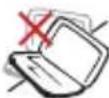
DO NOT place on uneven or unstable work surfaces. Seek servicing if the casing has been damaged.

DO NOT place or drop objects on top and do not shove any foreign objects into the Eee PC.

DO NOT expose to dirty or dusty environments. DO NOT operate during a gas leak.
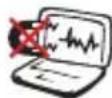
DO NOT expose to strong magnetic or electrical fields.
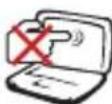
DO NOT press or touch the display panel. Do not place together with small items that may scratch or enter the Eee PC.
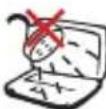
DO NOT expose to or use near liquids, rain, or moisture. DO NOT use the modem during electrical storms.
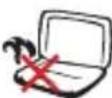
DO NOT leave the Eee PC on your lap or any part of the body to prevent discomfort or injury from heat exposure.

Battery safety warning: DO NOT throw the battery in fire. DO NOT short circuit the contacts. DO NOT disassemble the battery.
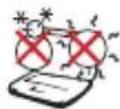
SAFE TEMP: This Eee PC should only be used in environments with ambient temperatures between 5°C (41°F) and 35°C (95°F)
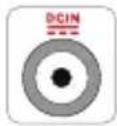
INPUT RATING: Refer to the rating label on the bottom of the Eee PC and be sure that your power adapter complies with the rating.

DO NOT carry or cover a Eee PC that is powered ON with any materials that will reduce air circulation such as a carrying bag.
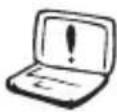
Incorrect installation of battery may cause explosion and damage the Eee PC.
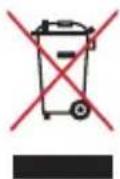
DO NOT throw the Eee PC in municipal waste. This product has been designed to enable proper reuse of parts and recycling. The symbol of the crossed out wheeled bin indicates that the product (electrical, electronic equipment and mercury-containing button cell battery) should not be placed in municipal waste. Check local regulations for disposal of electronic products.

DO NOT throw the battery in municipal waste. The symbol of the crossed out wheeled bin indicates that the battery should not be placed in municipal waste.
Transportation Precautions
To prepare your Eee PC for transport, you should turn it OFF and disconnect all external peripherals to prevent damage to the connectors. The hard disk drive's head retracts when the power is turned OFF to prevent scratching of the hard disk surface during transport. Therefore, you should not transport your Eee PC while the power is still ON. Close the display panel to protect the keyboard and display panel.
The Eee PC's surface is easily dulled if not properly cared for. Be careful not to rub or scrape surfaces when transporting your Eee PC. You can put your Eee PC in a carrying case for protection from dirt, water, shock, and scratches.
Charging Your Batteries
If you intend to use battery power, be sure to fully charge your battery pack before going on long trips. Remember that the power adapter charges the battery pack as long as it is plugged into the computer and an AC power source. Be aware that it takes much longer to charge the battery pack when the Eee PC is in use.
Remember to fully charge the battery (8 hours or more) before first use and whenever it is depleted to prolong battery life. The battery reaches its maximum capacity after a few full charging and discharging cycles.
Airplane Precautions
Contact your airline if you want to use the Eee PC on the airplane. Most airlines have restrictions for using electronic devices. Most airlines allow electronic use only between and not during takeoffs and landings.

There are three main types of airport security devices: X-ray machines (used on items placed on conveyor belts), magnetic detectors (used on people walking through security checks), and magnetic wands (hand-held devices used on people or individual items). You can send your Eee PC and diskettes through airport X-ray machines. However, it is recommended that you do not send your Eee PC or diskettes through airport magnetic detectors or expose them to magnetic wands.
Top Side
Bottom Side
Front Side
Right Side
Left Side
Keyboard Usage
Touchpad Usage
Knowing the Parts
Top Side
Refer to the illustration below to identify the components on this side of the Eee PC.

The top side may vary in appearance depending on models.
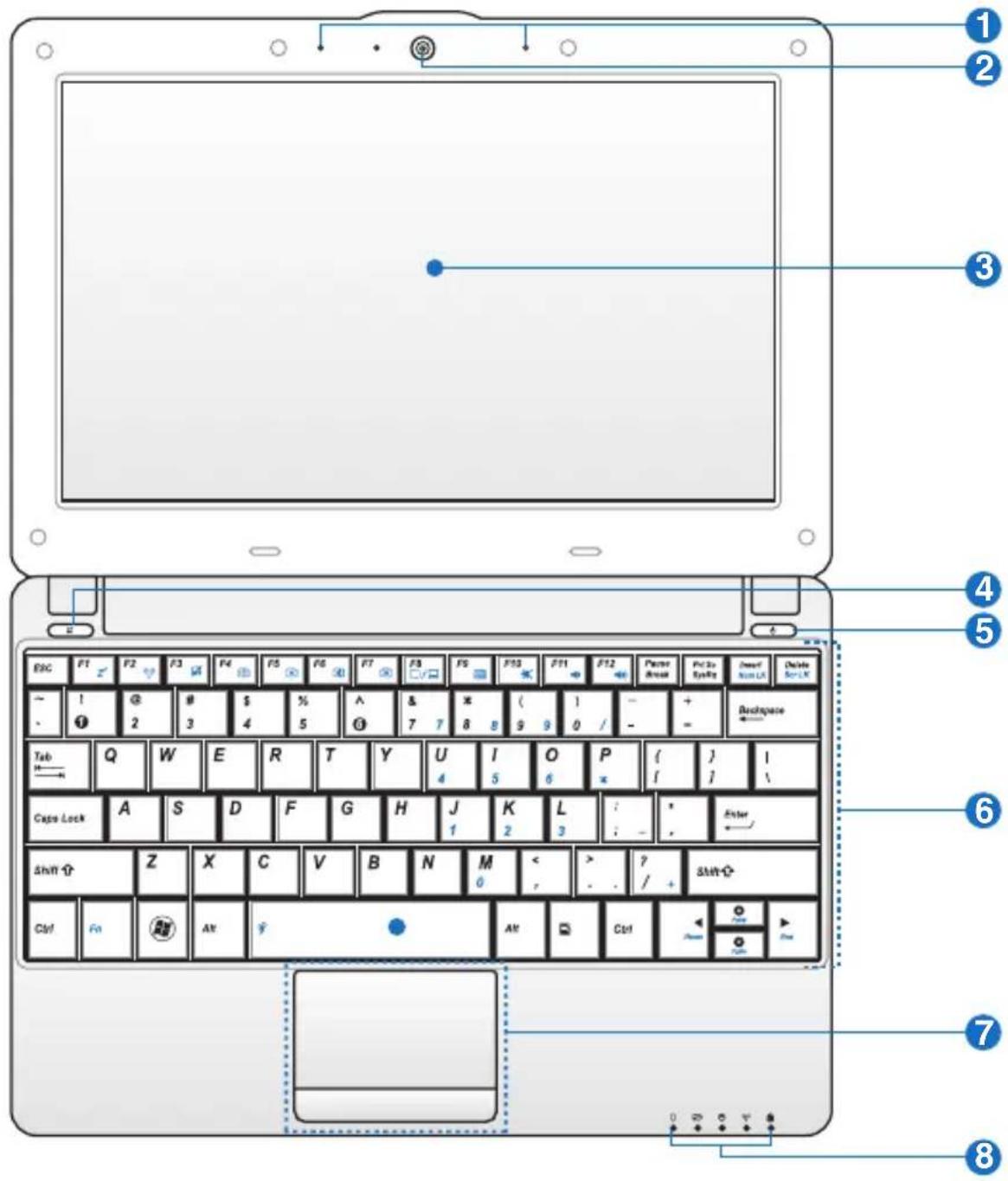
text_image
1 2 3 4 5 6 7 8
The keyboard differs for each territory.
1 Microphone (Built-in)
2 Built-in Camera
3 Display Panel
4 Touchpad key
Toggles the touchpad ON/OFF. You can also turn on/off the function by pressing
5 Power Switch
The power switch allows powering ON and OFF the Eee PC and recovering from STR. Press the switch once to turn ON and hold it to turn OFF the Eee PC. The power switch only works when the display panel is opened.
Power Indicator
The power indicator lights when the Eee PC is turned ON and blinks slowly when the Eee PC is in the Save-to-RAM (Suspend) mode. This indicator is OFF when the Eee PC is turned OFF.
6 📋 Keyboard
The keyboard provides keys with comfortable travel (depth at which the keys can be depressed) and palm rest for both hands.

The keyboard differs depending on models.
7 Touchpad and Buttons
The touchpad and its buttons comprises a pointing device that provides the same functions as a desktop mouse.
8 Status Indicators
Power Indicator
The power indicator lights when the Eee PC is turned ON and blinks slowly when the Eee PC is in the Save-to-RAM (Suspend) mode. This indicator is OFF when the Eee PC is turned OFF.

Battery Charge Indicator
The battery charge indicator (LED) shows the battery charging status as follows:
Powered ON
| With Adapter Without Adapter | ||
| High battery power (95%-100%) | Green ON Off | |
| Medium battery power (11%-94%) | Orange ON Off | |
| Low battery power (0%-10%) | Orange Blinking Orange Blinking | |
Powered OFF / Standby mode
| With Adapter Without Adapter | ||
| High battery power (95%-100%) | Green ON Off | |
| Medium battery power (11%-94%) | Orange ON Off | |
| Low battery power (0%-10%) | Orange Blinking Off | |

Hard Disk Drive (HDD) Indicator
The hard disk drive indicator blinks when data is written to or read from the disk drive.

Wireless/Bluetooth Indicator
This is only applicable on models with built-in wireless LAN/Bluetooth (on selected models). When the built-in wireless LAN/Bluetooth is enabled, this indicator lights.

Capital Lock Indicator
Indicates that capital lock [Caps Lock] is activated when lighted.
Bottom Side
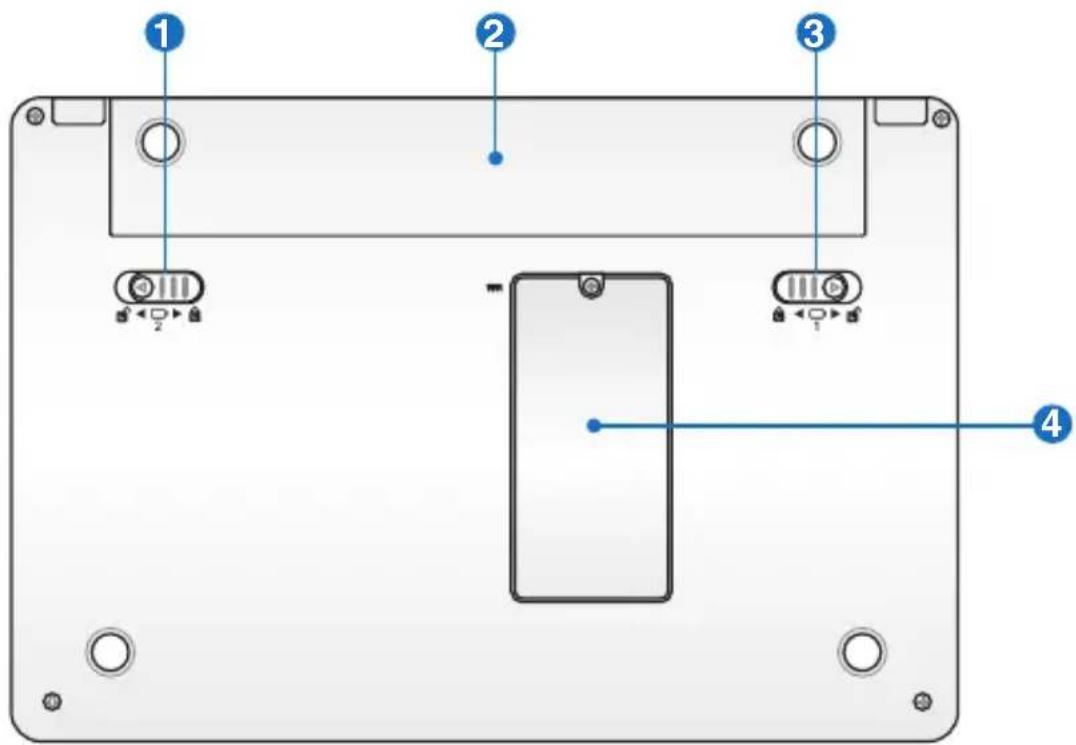
Refer to the illustration below to identify the components on this side of the Eee PC.

The bottom side may vary in appearance depending on model.
text_image
Diagram of a device rear panel with labeled components and directional arrows indicating movement or positioning.
The bottom of the Eee PC can get very hot. Be careful when handling the Eee PC while it is in operation or recently been in operation. High temperatures are normal during charging or operation. DO NOT use on soft surfaces such as beds or sofas, which may block the vents. DO NOT PUT THE Eee PC ON YOUR LAP OR OTHER PARTS OF THE BODY TO AVOID INJURY FROM THE HEAT.


Battery Lock - Spring
The spring battery lock keeps the battery pack secure. When the battery pack is inserted, it will automatically lock. When removing the battery pack, this spring lock must be retained in the unlocked position.
2 Battery Pack
The battery pack is automatically charged when connected to an AC power source and maintains power to the Eee PC when AC power is not connected. This allows use when moving temporarily between locations. Battery time varies by usage and by the specifications for this Eee PC. The battery pack cannot be disassembled and must be purchased as a single unit.
3 Battery Lock - Manual
The manual battery lock is used to keep the battery pack secured. Move the manual lock to the unlocked position to insert or remove the battery pack. Move the manual lock to the locked position after inserting the battery pack.
4 Memory Compartment
The memory module is secured in a dedicated compartment.
Front Side
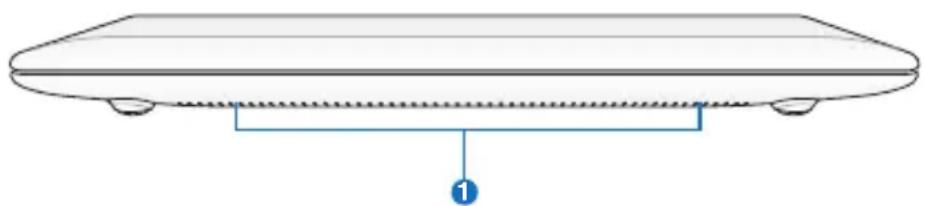
Refer to the illustration below to identify the components on this side of the Eee PC.
natural_image
Simple line drawing of a flat rectangular object with a blue arrow pointing to a labeled point (no text or symbols on the object itself)1 Audio Speaker System
The built-in stereo speaker system allows you to hear audio without additional attachments. The multimedia sound system features an integrated digital audio controller that produces rich, vibrant sound (results improved with external stereo headphones or speakers). Audio features are software controlled.
Right Side
Refer to the illustration below to identify the components on this side of the Eee PC.

text_image
Diagram of a computer rear panel with labeled ports and connectors, showing internal components and blue markers for ports 1 and 2.1 Memory Card Slot
The built-in memory card reader can read SD/SDHC/MMC cards.
2 Headphone Output Jack
The 1/8" stereo headphone jack (3.5mm) connects the Eee PC's audio out signal to amplified speakers or headphones. Using this jack automatically disables the built-in speakers.
3 Microphone Jack
The microphone jack is designed to connect the microphone used for Skype, voice narrations, or simple audio recordings.
4 USB Port (2.0/1.1)
The USB (Universal Serial Bus) port is compatible with USB 2.0 or USB 1.1 devices such as keyboards, pointing devices, cameras, and storage devices, connected in a series up to 12Mbits/sec (USB 1.1) and 480Mbits/sec (USB 2.0). Also, the USB supports hot-swapping function.
5 LAN Port
The eight-pin RJ-45 LAN port (10/100M bit) supports a standard Ethernet cable for connection to a local network. The built-in connector allows convenient use without additional adapters.
Left Side
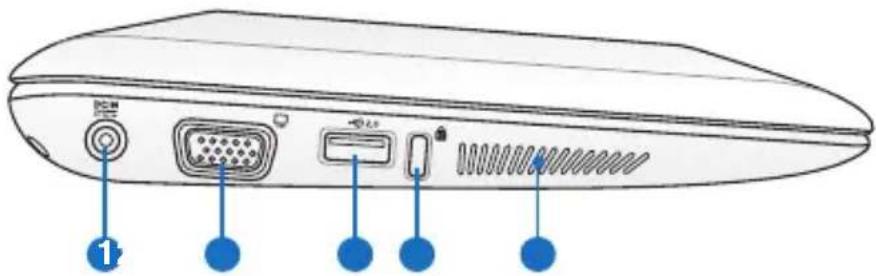
Refer to the illustration below to identify the components on this side of the Eee PC.
text_image
Diagram of a computer rear panel with labeled ports and connectors, showing port 1 pointing to the front panel.1 DCIN Power (DC) Input
The supplied power adapter converts AC power to DC power for use with this jack. Power supplied through this jack supplies power to the Eee PC and charges the internal battery pack. To prevent damage to the Eee PC and battery pack, always use the supplied power adapter.

THE ADAPTER MAY BECOME WARM TO HOT WHEN IN USE. BE SURE NOT TO COVER THE ADAPTER AND KEEP IT AWAY FROM YOUR BODY.
2 □ Display (Monitor) Output
The 15-pin D-sub monitor port supports a standard VGA-compatible device such as a monitor or projector to allow viewing on a larger external display.
③ 2.0 USB Port (2.0/1.1)
4 Kensington® Lock port
The Kensington® lock port allows the Eee PC to be secured using Kensington® compatible security products. These security products usually include a metal cable and lock that prevent the Eee PC to be removed from a fixed object.
5 Air Vents
The air vents allow cool air to enter and warm air to exit the Eee PC.

Ensure that paper, books, clothing, cables, or other objects do not block any of the air vents or else overheating may occur.
Keyboard Usage
Special Function Keys
The following defines the colored hot keys on the Eee PC's keyboard. The colored commands can only be accessed by first pressing and holding the function key while pressing a key with a colored command. Some function icons appear in the Notification area after activation.

The Hot Key locations on the function keys may vary depending on model but the functions should remain the same. Follow the icons whenever your hot key locations do not match the manual.


Z ^z Icon (F1): Places the Eee PC in suspend mode
(Save-to-RAM).


Radio Tower (F2) (Wireless Models Only): Toggles
the internal wireless LAN or Bluetooth (on selected models) ON or OFF with an on-screen-display.
When enabled, the corresponding wireless indicator will light.

The default setting is WLAN ON / Bluetooth OFF.


Touchpad (F3): Toggles the touchpad ON/OFF.


Resolution Selection (F4): Press to adjust the display
resolution.


Sun Down Icon (F5): Decreases the display brightness.


Sun Up Icon (F6): Increases the display brightness.


Crossed Screen Icon (F7): Turns off the display backlight.

LCD/Monitor Icons (F8): Toggles between the Eee PC's
LCD display and an external monitor.


Task Manager Icon (F9): Initiates the Task Manager to
view the application process or terminates applications.


Crossed Speaker Icon (F10): Mutes the speaker.


Volume Down Icon (F11): Decreases speaker volume.


Volume Up Icon (F12): Increases the speaker volume.


Other Hybrid Engine (Fn+Space Bar): Toggles among
various power saving modes. The selected mode is shown on the display.


Num Lk (Insert): Toggles the numeric keypad
(number lock) ON and OFF. Allows use of a larger portion of the keyboard for number entering.


Scr Lk (Delete): Toggles the "Scroll Lock" ON and OFF.
Allows you to use a larger portion of the keyboard for cell navigation.


Pg Up (↑): Press to scroll up in documents or the web
browser.


Pg Dn ( ↓ ): Press to scroll down in documents or the web
browser.


Home ( ← ): Press to move the pointer to the beginning of
the line.


End ( ): Press to move the pointer to the end of the line.
Windows icon: Displays the start menu.
Menu with pointer icon : Activates the properties menu
and is equivalent to right-clicking the touchpad/mouse on an object.
Touchpad Usage
Multi-finger gesture input (on selected models)
| Finger gesture Applications | |
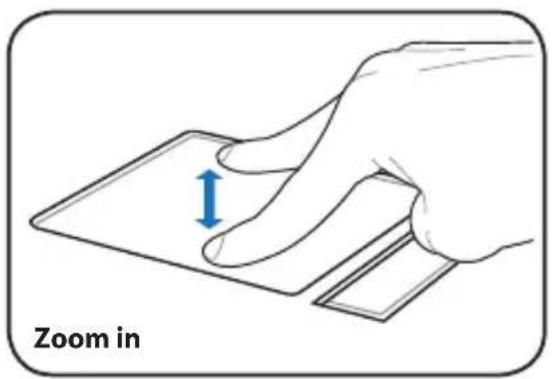
| Two-finger zooming in/out Adobe reader, Windows Photo Viewer | |
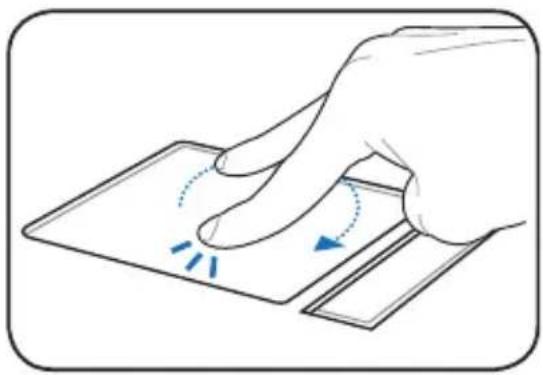
| Two-finger rotating Adobe reader, Windows Photo Viewer | |
| Two-finger scrolling up/down or left/right | Adobe reader, MS Word, MS Excel |
| Three-finger page up/down Adobe reader, MS Word, MS Excel | |
Two-finger zooming in/out - Moving two fingertips apart or together on the touchpad to zoom in or zoom out. This is convenient when viewing photos or reading documents.
text_image
Zoom in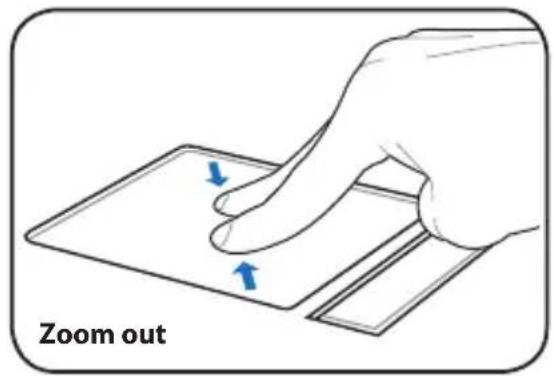
text_image
Zoom outTwo-finger rotating- Fix one fingertip on the touchpad and make an arc with the other to rotate the photo or the document you are viewing. You can make a clockwise or counterclockwise rotation based on your needs.
natural_image
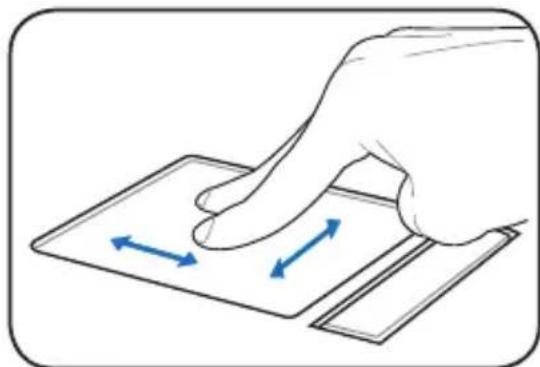
Illustration of a hand pressing down on a flat surface with motion arrows indicating movement (no text or symbols)Two-finger scrolling up/down or left/right- Use two fingertips to slide up/down or left/right on the touchpad to scroll a window up/down or left/right. If your display window includes several sub-windows, move the pointer on that pane before scrolling.
natural_image
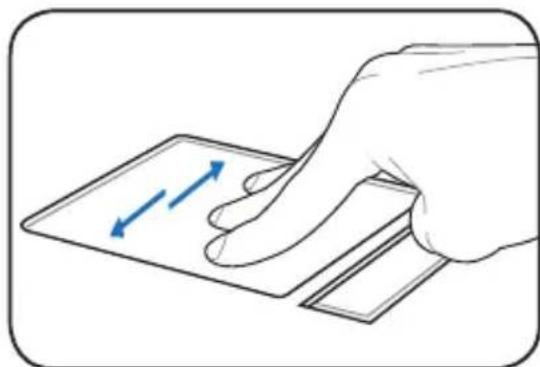
Illustration of a hand pressing down on a flat surface with two blue arrows indicating direction (no text or symbols)Three-finger page up/down- Use three fingers to move horizontally on the touchpad to swipe pages. Swipe from left to the right to view the next page or right to the left to return to the previous pages.
natural_image
Illustration of a hand pressing down on a flat surface with two blue arrows indicating direction (no text or symbols)Powering on your Eee PC
First-time Startup
Desktop
Network Connection
Getting Started
Powering on your Eee PC
These are only quick instructions for using your Eee PC.
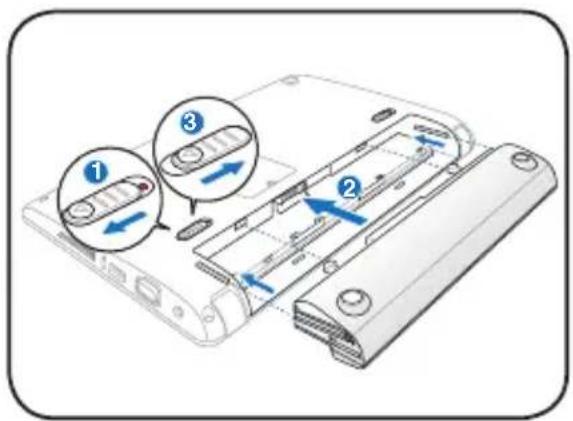
1. Install the battery pack 2. Connect the AC power adapter
text_image
Diagram showing three labeled views of a device's internal structure with arrows indicating movement or assembly.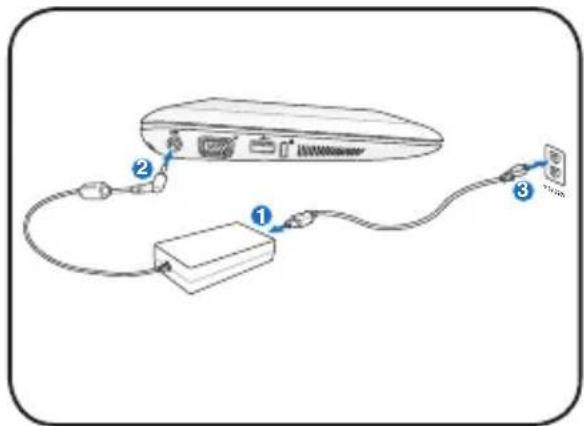
text_image
Diagram showing cable connection between a device with labeled ports and cable links3. Turn ON the Eee PC
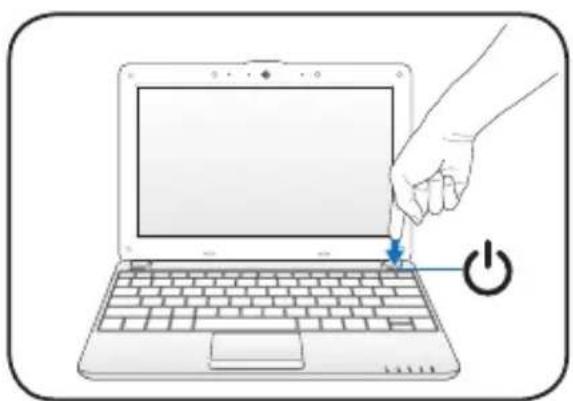
natural_image
Illustration of a hand pressing down on a laptop keyboard with a power button (no text or symbols)
Damage may occur if you use a different adapter to power the Eee PC. You may damage both your battery pack(s) and the Eee PC with a faulty AC-DC adapter.

- When you open the display panel, do not force it down to the table or else the hinges may break! Never lift the Eee PC by the display panel!
- Only use battery packs and power adapters supplied with this Eee PC or specifically approved by the manufacturer or retailer for use with this model or else damage may occur to the Eee PC. The output voltage of this adapter is +19Vdc, 2.1A.
- Never attempt to remove the battery pack while the Eee PC is turned ON, as this may result in the loss of working data.

Remember to fully charge the battery before first use and whenever it is depleted to prolong battery life.
First-time Startup
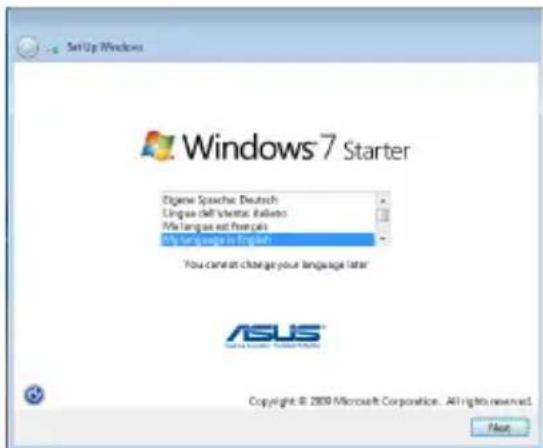
For the first time you start your Eee PC, the Windows wizard will launch automatically and lead you through setting up your preferences and some basic information.
Follow the wizard instructions to finish the initialization:
-
Select the language you use. Click Next to continue.
-
Select you system settings by specifying the region you are in, the time zone you are in, and the keyboard type you use. Click Next to continue.
text_image
Setup Windows Windows 7 Starter Zigene Spachech Deutsch Lingua cell version: Bases My language format By the language in Europe You can't change your language later ASUS Copyright © 2009 Microsoft Corporation. All rights reserved. File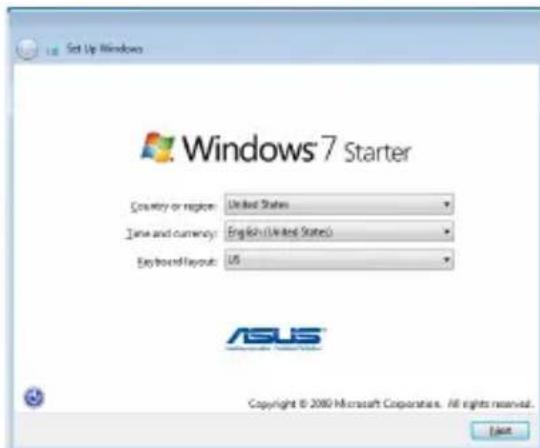
text_image
Set Up Windows Windows® 7 Starter Country or region: United States Time and currency: English (United States) Keyboard Layout: US ASUS® Copyright © 2080 Microsoft Corporation. All rights reserved. Finish-
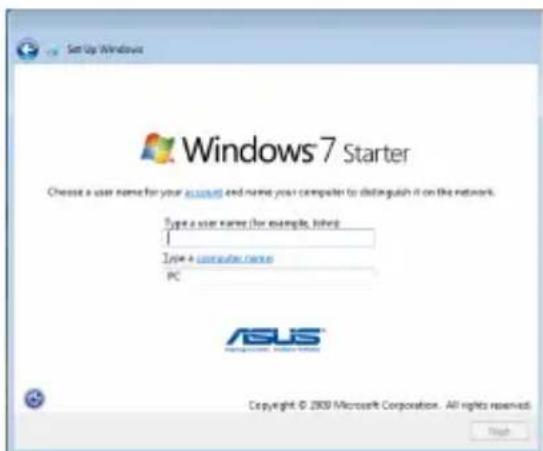
Type your user account name and your computer's name, then click Next to continue.
-
Set a password for your user account if you want. Click Next to continue.
text_image
Set Up Windows Windows® 7 Starter Choose a user name for your Windows and name your computer to distinguish it on the network. Type a user name (for example, logged) Type + computer name PC ASUS Copyright © 2009 Microsoft Corporation. All rights reserved. High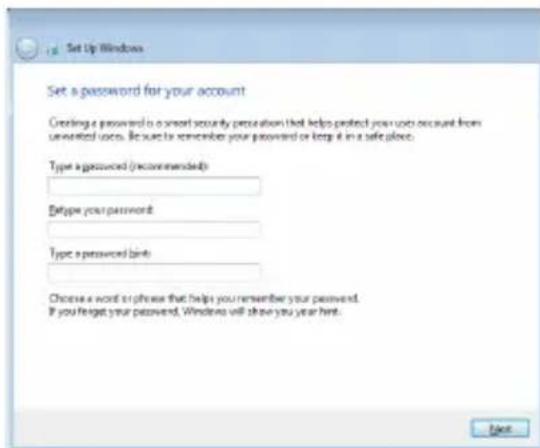
text_image
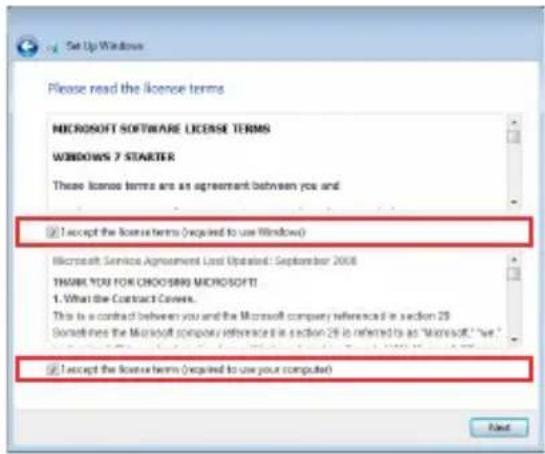
Set Up Windows Set a password for your account Creating a password to a smart security protection that helps protect your user account from unmeted users. Be sure to remember your password or keep it in a safe place. Type a password (recommended) Delete your password: Type a password link: Choose a word or phone that helps you remember your password. If you forget your password, Windows will show you year here.- Read the end user license agreement and check the two boxes before I accept the license terms. Click Next to continue.
text_image
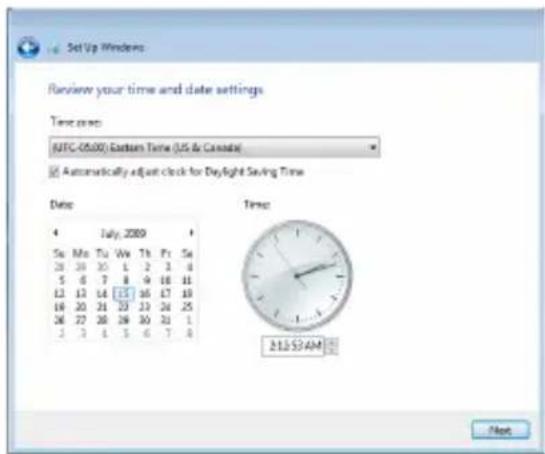
Set Up Windows Please read the licence terms MICROSOFT SOFTWARE LICENSE TERMS WINDOWS 7 STARTER These licence terms are an agreement between you and: I accept the license terms (required to use Windows) Microsoft Service Agreement Last Updated: September 2008 THANK YOU FOR CHOOSING MICROSOFT! 1. What the Contract Creates. This is a contract between you and the Microsoft company references in section 29 Sometimes the Microsoft company references in section 29 is referred to as "Microsoft." We I accept the license terms (required to use your computer)- Specify the time zone you are in and the local date and time. Click Next to continue.
text_image
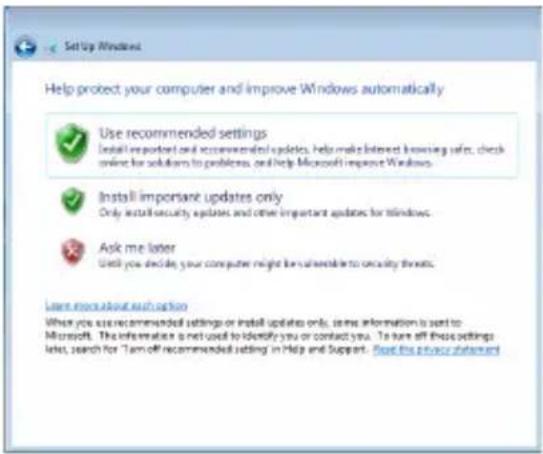
Set Up Windows Review your time and date settings Time zone: AIFC-05.00) Eastern Time (US & Canada) Automatically adjust clock for Daylight Saving Time Date 4 July 2009 Su Ma Tu We Th Pr Sa 28 28 30 1 2 3 4 5 6 7 8 9 10 11 12 13 14 [15] 16 17 18 19 20 21 22 23 24 25 26 27 28 29 30 31 1 3 3 4 5 6 7 8 Time 213:57:4M Next- Click Use recommended settings to get the latest important updates.
text_image
Help protect your computer and improve Windows automatically Use recommended settings Install important oral recommendations updates, help make interest in accessing safe, check online for solutions to problems, or help Microsoft improve Windows. Install important updates only Only install security updates and other important updates for windows. Ask me later Until you decide your computer might have considerable to security threats. Learn more about installation When you are recommended settings or install updates only, some information is sent to Microsoft. The information is not used to identify you or contact you. To have off these settings later, search for "Turn off recommended setting" in Help and Support. Read the answer statement- Connect to a wireless network and click Next to continue, or click Skip to set up the wireless connection later.
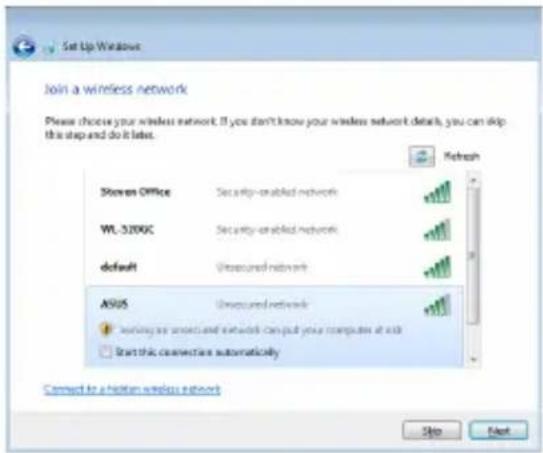
text_image
Set Up Windows Join a wireless network Please choose your wireless network. If you don't know your wireless network details, you can skip this step and do it take. Steven Office Security-enabled network WL-3200C Security-enabled network default Unsecured network ASUS Unsecured network Starting any wireless network can put your computer at risk Start this connection automatically Connect to a hidden wireless network Skip Next-
Select the network's location. Click Next to continue.
-
The initialization is finished.
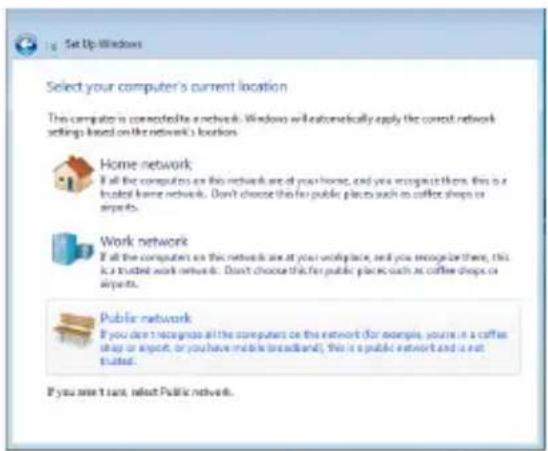
text_image
Set Up Windows Select your computer's current location This computer is connected to a network. Windows will automatically apply the current network settings based on the network's locations. Home network If all the computers are this network are at your home, and you recognize them, this is a trusted home network. Don't choose this for public places such as coffee shops or airports. Work network If all the computers are at your workplace, and you recognize there, this is a trusted work network. Don't choose this for public places such as coffee shops or airports. Public network If you don't recognize all the computers on the network (for example, you're in a coffee shop or airport, or you have mobile broadband), this is a public network and is not trusted. If you are it sure, adjust Public network.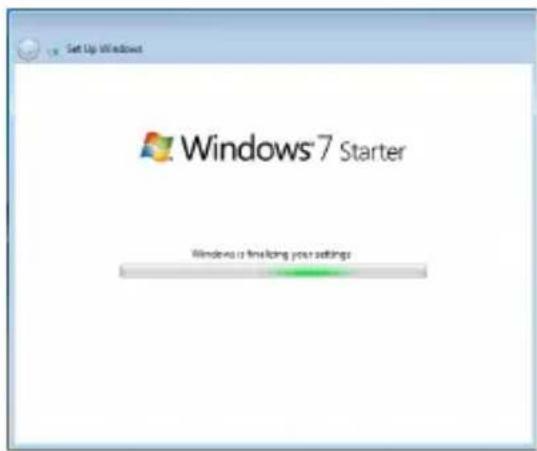
text_image
Set Up Windows Windows® 7 Starter Windows is following your settingsDesktop
There are several shortcuts on the desktop. Double-click them to launch the corresponding applications and enter the specified folders. Some applications would form minimized icons in the Notification area.

The actual Desktop screen may vary according to different models.
Network Connection
Configuring a wireless network connection
- Click the wireless network icon with an orange star in the Windows® Notification area.

If the wireless connection icon does not show in the Notification area, activate the wireless LAN function by pressing + 2 (
- Select the wireless access point you want to connect to from the list and click Connect to build the connection.

If you cannot find the desired access point, click the Refresh icon on the upper right corner to refresh and search in the list again.
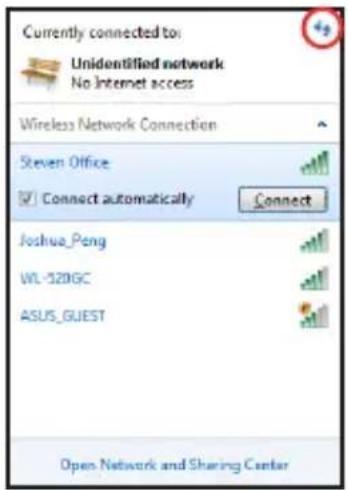
text_image
Currently connected to: Unidentified network No Internet access Wireless Network Connection Steven Office Connect automatically Connect Joshua_Peng WL-520GC ASUS_GUEST Open Network and Sharing Center-
When connecting, you may have to enter a password.
-
After a connection has been established, the connection is shown on the list.
-
You can see the wireless network icon in the Notification area.

The crossed wireless network icon appears when you press
Local Area Network
To establish a wired network, follow the instructions below:
Using a dynamic IP / PPPoE network connection:
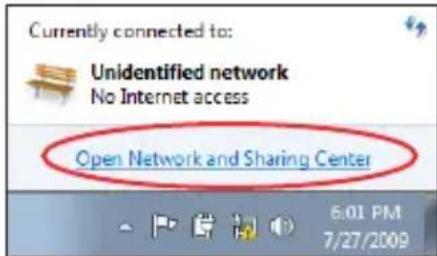
- Click the network icon with a yellow warning triangle in the Windows® Notification area and select Open Network and Sharing Center.
text_image
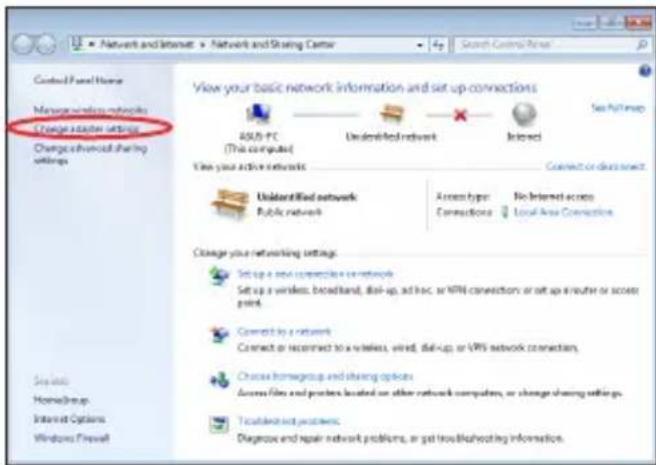
Currently connected to: Unidentified network No Internet access Open Network and Sharing Center 6:01 PM 7/27/2009- Click Change adapter settings in the left blue pane.
text_image
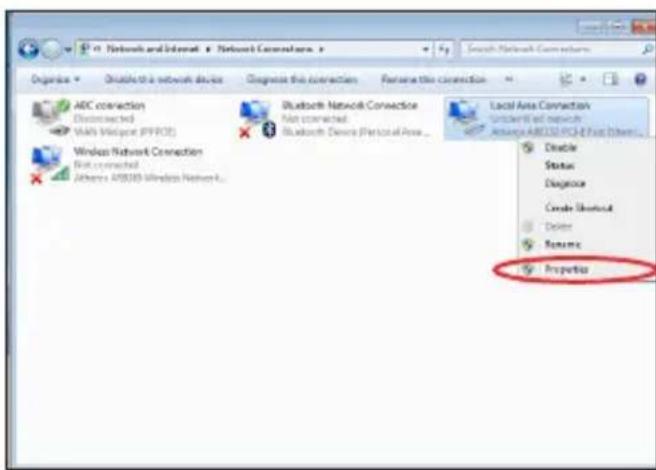
Network and Internet > Network and Stracing Center Search Control Press Control Panel Home Manage wireless networks Change existing settings Change advanced sharing Settings View your basic network information and set up connections ASU-PC (This computer) Unidentified network Intersect See FullMap Use your active network Connect or download Unidentified network Public network Access type: No Internet access Connections Local Area Connection Change your networking settings. Set up a new connection to network Set up a wireless, broadband, dial-up, ad-line, or VPSI connections or set up a router or socket port. Connect by a network Connect or recommend to a wireless, wired, dial-up, or VPSI network connections. Choose homegroup and sharing options Access files and ports located on other network computers, or change sharing settings. Tradelet not applicable Diagnosis and repair network problems, or get trouble/heating information.- Right-click Local Area Connection and select Properties.
text_image
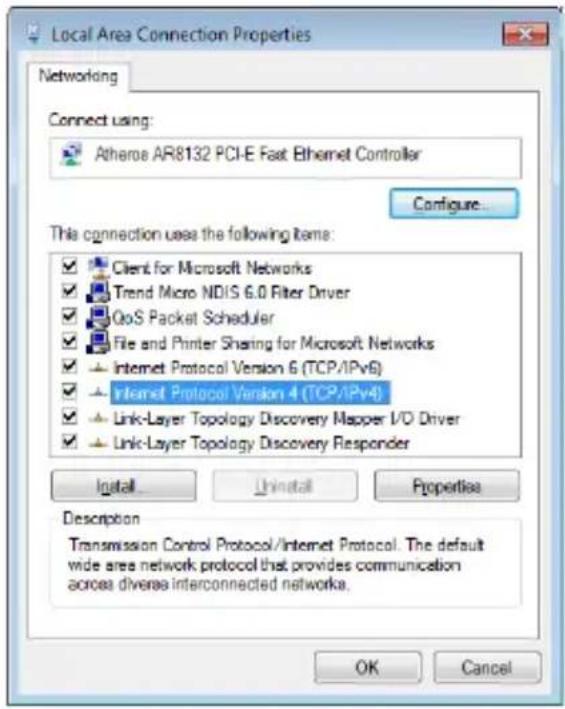
Network and Internet Network Connection Organize Dissected to a network device Diagnose this connection False name the connection ADC connection Disconnected WAVs Wireless (PPFCE) Windows Network Connection First connected Jacobs A10339 Wireless Network... Bluetooth Network Connection First connected Bluetooth Devices (Personal Area... Local Area Connection Unfilled and network Advance A10339 Wireless Disable Status Diagnosis Create Shortout Driver Resource Properties- Click Internet Protocol Version 4(TCP/IPv4) and click Properties.
text_image
Local Area Connection Properties Networking Connect using: Atheroa AR8132 PCI-E Fast Ethernet Controller Configure... This connection uses the following items: ✓ Client for Microsoft Networks ✓ Trend Micro NDIS 6.0 Filter Driver ✓ QoS Packet Scheduler ✓ File and Printer Sharing for Microsoft Networks ✓ Internet Protocol Version 6 (TCP/IPv6) ✓ Internet Protocol Version 4 (TCP/IPv4) ✓ Link-Layer Topology Discovery Mapper I/O Driver ✓ Link-Layer Topology Discovery Responder Install... Uninstall Properties Description Transmission Control Protocol/Internet Protocol. The default wide area network protocol that provides communication across diverse interconnected networks. OK Cancel- Click Obtain an IP address automatically and click OK.
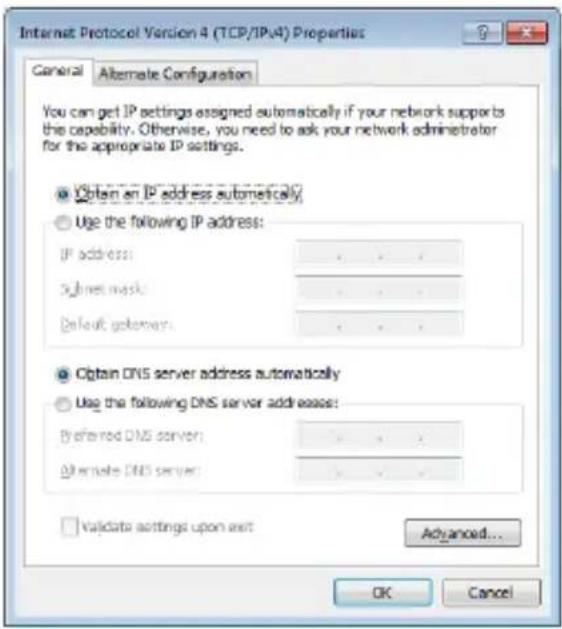
text_image
Internet Protocol Version 4 (TCP/IPv4) Properties General Alternate Configuration You can get IP settings assigned automatically if your network supports the capability. Otherwise, you need to ask your network administrator for the appropriate IP settings. ● Obtain an IP address automatically ○ Use the following IP address: IP address: ... Submit mask: ... Default gateway: ... ● Obtain DNS server address automatically ○ Use the following DNS server addresses: Preferred DNS server: ... Alternate DNS server: ... □ Validate settings upon exit Advanced... OK Cancel(Continue the following steps if using PPPoE)
- Return to the Network and Sharing Center and then click Set up a new connection or network.
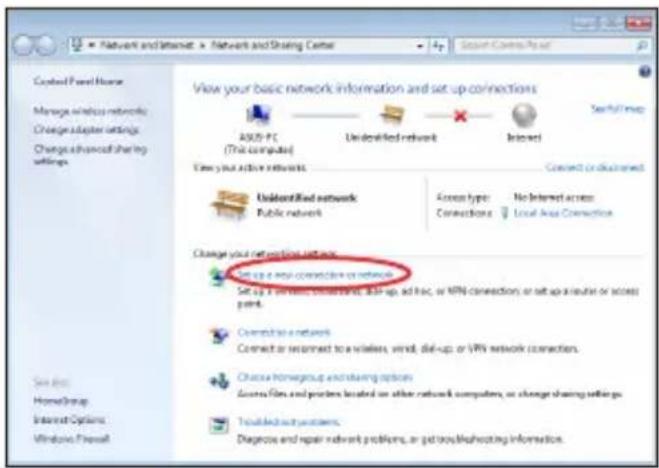
text_image
Network and Internet > Network and Sharing Center Control Panel House Manage wireless networks Change adapter settings Change advanced sharing settings View your basic network information and set up connections ASOS-PC (This computer) Unidentified network Internet Case your active network Contact or distinguished Unidentified network Public network Access type: No Internet access Connections Local Area Connection Change your networking settings Set up a new connection or network Set up a network, which is fixed, split-up, add back, or VPN connection, or set up a router or access port. Connect to a network Connect or reconnect to a wireless, wind, die-up, or VPN network connections. Choose homegroup and sharing options Access files and ports located on other network computers, or change sharing settings. Troubleshoot problems. Diagnose and repair network problems, or get troubleshooting information.7. Select Connect to the Internet and click Next.
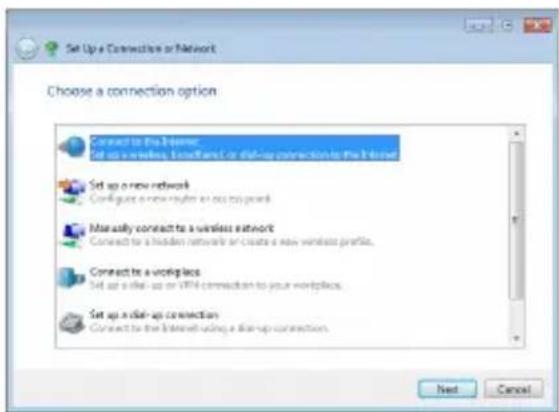
text_image
Set Up a Connection or Network Choose a connection option Connect to the Internet Set up a wireless, Local/Local or Drip-up connection to the Internet Set up a new network Configure a new router on our top coast Mainly connect to a wireless network Connect to a hidden network or create a new wireless profile. Connect to a workplace Set up a dial-up or WiFi connection to your workplace. Set up a dial-up connection Connect to the Internet using a dial-up connection. Next Cancel9. Enter your User name and, Password, and Connection name. Click Connect.
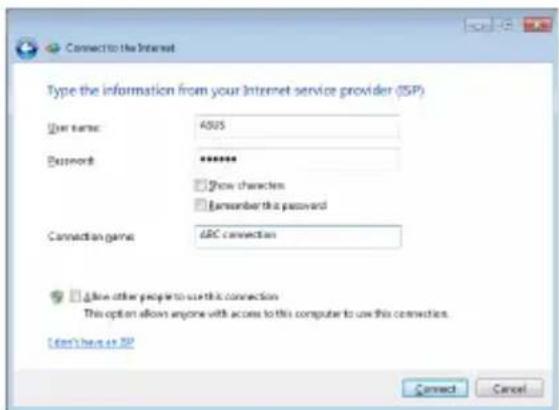
text_image
Connect to the Internet Type the information from your Internet service provider (ISP) User name: 4005 Password: ******** Show characters Remember this password Connection name: dRC connection Allow other people to use this connection This option allows anyone with access to this computer to use this connection. Don't have an ISP Connect Cancel11. Click the network icon in the taskbar and click the connection you just created.
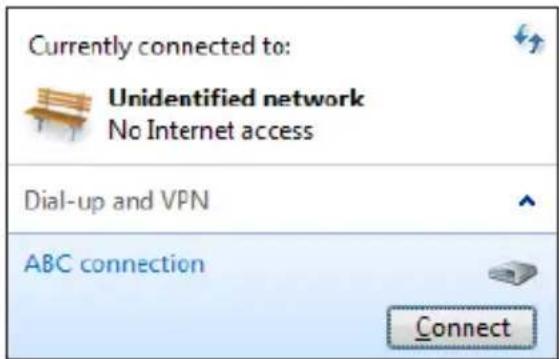
text_image
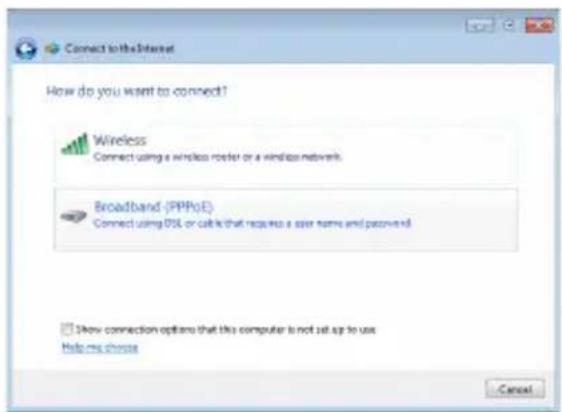
Currently connected to: Unidentified network No Internet access Dial-up and VPN ABC connection Connect8. Select Broadband (PPPoE) and click Next.
text_image
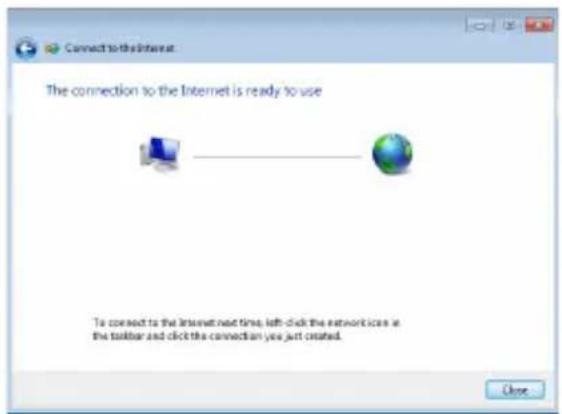
Connect to the Internet How do you want to connect? Wireless Connect using a wireless router or a wireless network. Broadband (PPPoE) Connect using DSL or cable that requires a user name and password. Show connection options that this computer is not set up to use Help me choose Cancel10. Click Close to finish the configuration.
text_image
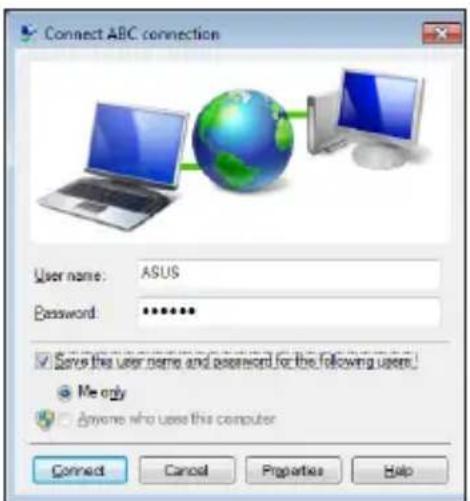
Connect to the Internet The connection to the Internet is ready to use To connect to the Internet next time, left-click the network icas in the toolbar and click the connection you just created. Close12. Enter your user name and password. Click Connect to connect to the Internet.
text_image
Connect ABC connection User name: ASUS Password: ****** ✓ Save the user name and password for the following user! ● Me only □ Anyone who uses this computer Connect Cancel Properties HelpUsing a static IP:
- Repeat the step 1–4 of Using a dynamic IP to start the static IP network configuration.
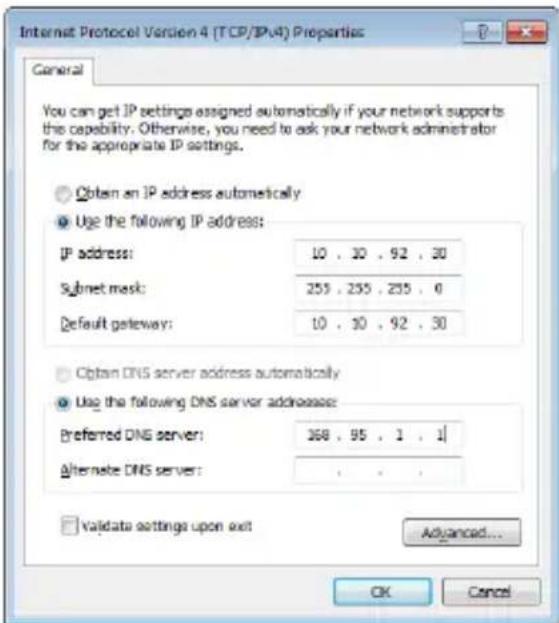
2 Click Use the following IP address. - Enter the IP address, Subnet mask and Gateway from your service provider.
- If needed, enter the preferred DNS Server address and alternative address.
- After entering all the related values, click OK to build the network connection.
text_image
Internet Protocol Version 4 (TCP/IP/4) Properties General You can get IP settings assigned automatically if your network supports the capability. Otherwise, you need to ask your network administrator for the appropriate IP settings. Obtain an IP address automatically Use the following IP address: IP address: 10 . 30 . 92 . 30 Submit mask: 255 . 255 . 255 . 0 Default gateway: 10 . 30 . 92 . 30 Obtain DNS server address automatically Use the following DNS server addresses: Preferred DNS server: 368 . 95 . 1 . 1 Alternate DNS server: Validate settings upon exit Advanced... OK Cancel
Contact your Internet Service Provider (ISP) if you have problems connecting to the network.
Browsing web pages
After you finish the network setup, click Internet Explorer on the desktop and start enjoying net surfing.

Visit our Eee PC homepage (http://eeepc.asus.com) to obtain the latest information and register at http://vip.asus.com for full service of your Eee PC.
ASUS Update
Bluetooth Connection
Super Hybrid Engine
Eee Docking
Boingo
Microsoft® Office Trial
Using the Eee PC
ASUS Update
The ASUS Update is a utility that allows you to manage, save, and update the Eee PC BIOS in Windows® environment. The ASUS Update utility allows you to:
- Save the current BIOS file
- Download the latest BIOS file from the Internet
- Update the BIOS from an updated BIOS file
- Update the BIOS directly from the Internet, and
• View the BIOS version information.
This utility is pre-loaded in your Eee PC and is also available in the support DVD that comes with the Eee PC package.

ASUS Update requires an Internet connection either through a network or an Internet Service Provider (ISP).
Updating the BIOS through the Internet
To update the BIOS through the Internet
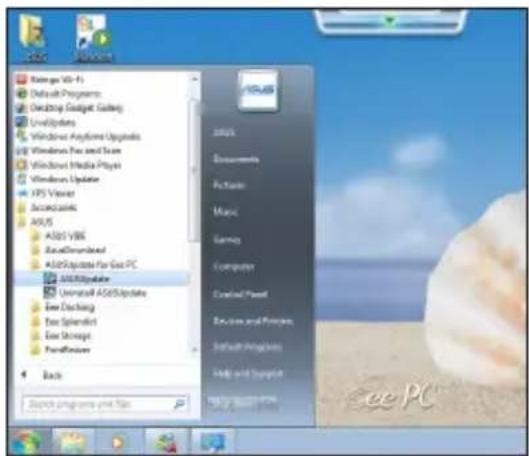
- Launch the ASUS Update utility from the Windows® desktop by clicking Start > All Programs > ASUS > ASUSUpdate for Eee PC> ASUSUpdate. The ASUS Update main window appears.
text_image
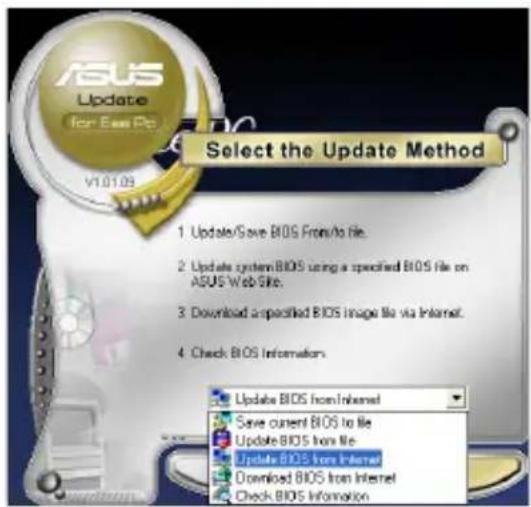
Start Menu Microsoft Default Programs Desktop Desktop Gateway LocalSystem Windows AnyForm Updates Windows Fox and Team Windows Media Player Windows Update XPS Viewer Accessories ASOS V86 AutoDownload Add/Update For Gas PC Add/Update Univariate ASP/Update Eave Dischg Eave Splendorf Eave Storage PanelPanics Back Start Programs and Files Add/Update Documents Actonic Music Gameg Computer Control Panel Services and Features Default Programs Help and Apply Add/Update- Select Update BIOS from Internet from the drop-down menu, then click Next.
text_image
ASUS Update for Easy Pp v1.01.09 Select the Update Method 1 Update/Save BIOS From/to file. 2 Update system BIOS using a specified BIOS file on ASUS Web Site. 3 Download unspecified BIOS image file via Internet. 4 Check BIOS Information. Update BIOS from Internet Save current BIOS to file Update BIOS from file Update BIOS from Internet Download BIOS from Internet Check BIOS Information-
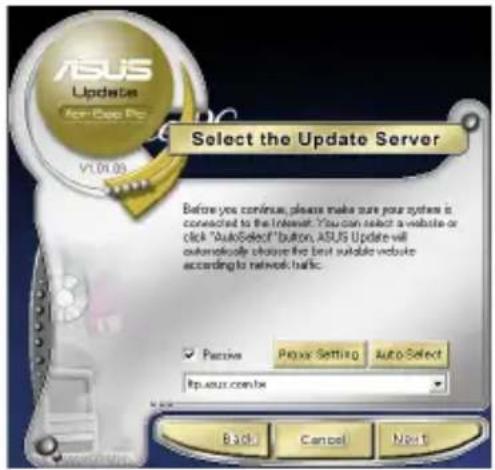
Select the ASUS FTP site nearest you to avoid network traffic, or click Auto Select. Click Next.
-
From the FTP site, select the desired BIOS version and click Next.
-
Follow the screen instructions to complete the update process.
text_image
Select the Update Server Before you continue, please make sure your system is connected to the Internet. You can select a website or click "AutoSelect" button, ASUS Update will automatically choose the best suitable website according to network.haftc. ✓ Passive Proxy Setting Auto-Select http://usr.com.be Back Cancel Next
The ASUS Update utility is capable of updating itself through the Internet. Always update the utility to avail all its features.
Updating the BIOS through a BIOS file
To update the BIOS through a BIOS file:
-
Launch the ASUS Update utility from the Windows ^® desktop by clicking Start > Programs > ASUS > ASUSUpdate for EeePC> ASUSUpdate. The ASUS Update main window appears.
-
Select Update BIOS from file from the drop-down menu, then click Next.
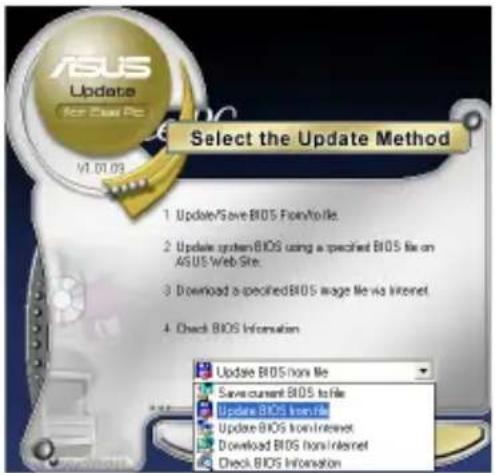
text_image
ASUS Update for Class PC V1.01.03 Select the Update Method 1 Update/Save BIOS Form/File. 2 Update system BIOS using a specified BIOS file on AGUS Web Site. 3 Download a specified BIOS image file via Internet. 4 Check BIOS Information Update BIOS non file Save current BIOS to file Update BIOS Inon file Update BIOS Inon Internet Download BIOS non Internet Check BIOS Information- Locate the BIOS file from the Open window, then click Open.
- Follow the screen instructions to complete the update process.
Bluetooth Connection (on selected models)

This device contains FCC ID: TLZ-BT253 and IC ID:6100A-AWBT253.
Bluetooth technology eliminates the need for cables for connecting Bluetooth-enabled devices. Examples of Bluetooth-enabled devices may be Notebook PCs, Desktop PCs, mobile phones, and PDAs.
To connect to a Bluetooth-enabled device:
-
Press
+ repeatedly until Bluetooth ON or WLAN & Bluetooth ON is shown. -
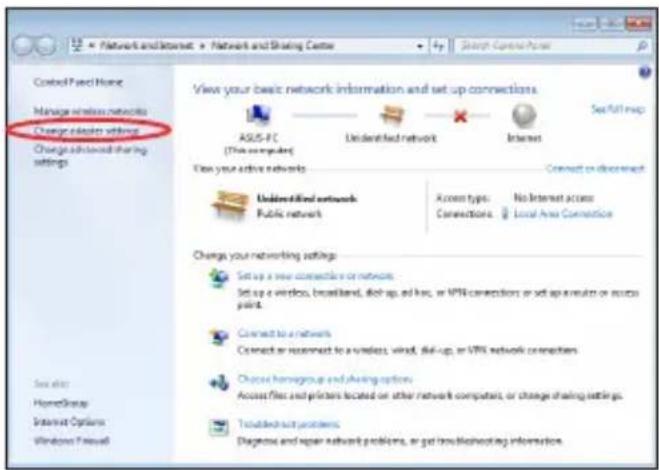
From Control Panel, go to Network and Internet > Network and Sharing Center and then click Change adapter settings in the left blue pane.
text_image
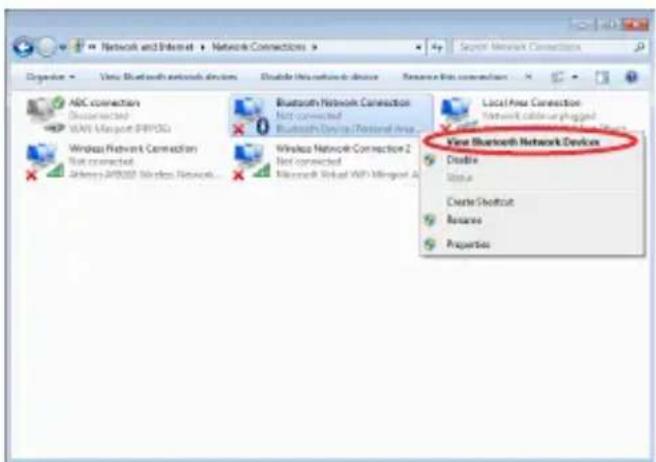
Control Panel Home Manage wireless networks Change drivers without Change advanced sharing settings View your basic network information and set up connections ASUS-PC (This computer) Unidentified network Internet Set Full map Use your active networks Connect or disconnect Unidentified network Public network Access types: No Internet access Connections: Local Area Connection Changes your networking settings Set up a new connection or network. Set up a wireless, broadband, disk-up, and link, or VPN connections or set up a module or access point. Connect to a network Connect or reconnect to a wireless, wind, disk-up, or VPN network connections Choose homegroup and sharing options Access files and printers located on other network computers, or change sharing settings. Troubled out problems Diagnosis and repair network problems, or get troubleshooting information.- Right-click Bluetooth Network Connection and select View Bluetooth Network Devices.
text_image
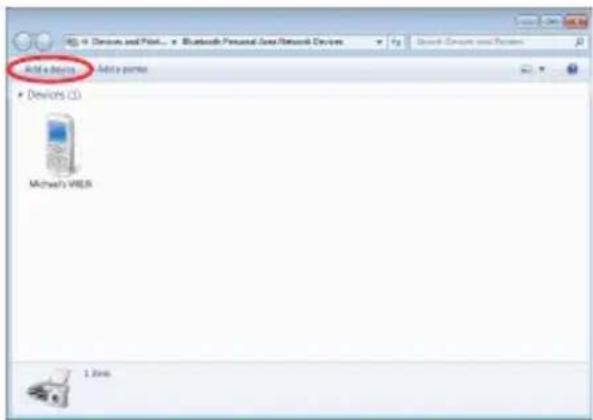
Network and Internet Network Connections Source: Bluetooth Connection Objective View Bluetooth network devices Enable this network device Resource This connection ABC connection Disconnected WLAN Mongolia (PIP)OG Bluetooth Network Connection Not connected Wireless APDDR Wireless Network Bluetooth Network Connection 2 Not connected Microsoft WiFi Wireless A Local Area Connection Network cable or plugged Wireless Network Connection 1 Not connected Wireless Network Connection 2 Not connected Microsoft WiFi Wireless A View Bluetooth Network Devices Disable Apply Create Shortcut Remove Properties- Click Add a device to look for new devices.
text_image
Add devices Add ports Devices (C) Michael's WESR 1 Rent- Select a Bluetooth-enabled device from the list and click Next.
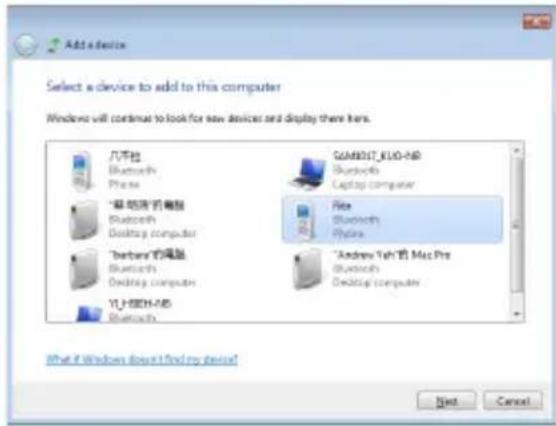
text_image
Add a device Select a device to add to this computer Windows will continue to look for new devices and display there here. 月不挂 Bluetooth Phone "基坑机"的电脑 Bluetooth Desktop computer "berban"的电脑 Bluetooth Desktop computer YL-1807-MS Bluetooth GAMDDT_KLIO-MS Bluetooth Captop computer Fiat Bluetooth Phydras "Andrew Yeh" Mac Pro Bluetooth Desktop computer What if Windows does I find my device? Next Cancel- Enter the Bluetooth security code into your device and start pairing.
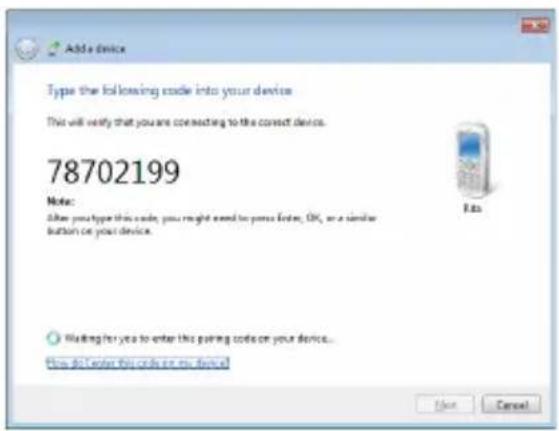
text_image
Add a device Type the following code into your device This will verify that you are connecting to the correct device. 78702199 Note: After your type this code, you might need to press Enter OK, or a similar button on your device. Waiting for you to enter this pairing code on your device... How do enter this code on your device.- The paired relationship is successfully built. Click Close to finish the setting.
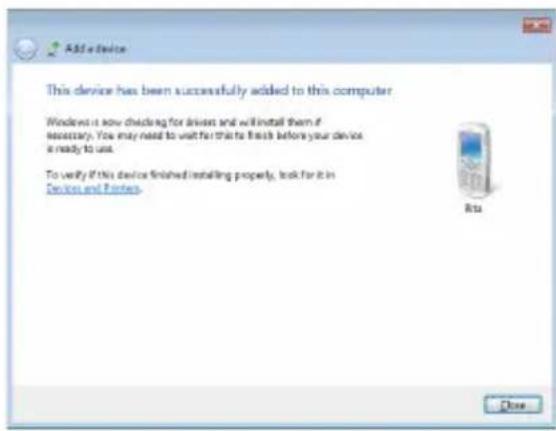
text_image
Add a device This device has been successfully added to this computer Windows is now checking for drivers and will install them if necessary. You may need to wait for that to finish before your device is ready to use. To verify if this device finished installing properly, look for it in Devices and Fines. Rta CloseSuper Hybrid Engine
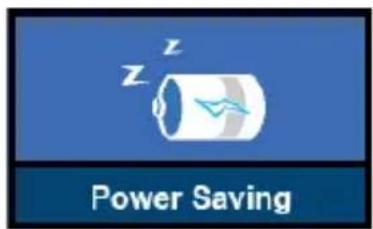
Super Hybrid Engine offers different power modes. The assigned instant key toggles power savings between various power saving modes. The power saving modes control many aspects of your Eee PC to maximize performance versus battery time. The selected mode is shown on the display.
To change the power mode
- Click Start > All Programs > ASUS > SuperHybridEngine.
- Press
+ repeatedly to switch power modes.
- Right-click the Super Hybrid Engine icon in the Notification area, and select a preferred power mode.
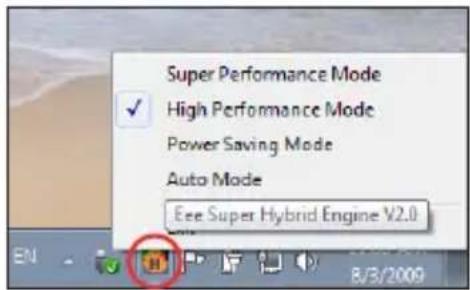
text_image
Super Performance Mode ✓ High Performance Mode Power Saving Mode Auto Mode Eee Super Hybrid Engine V2.0 EN 8/3/2009Super Hybrid Engine Modes
text_image
Power Saving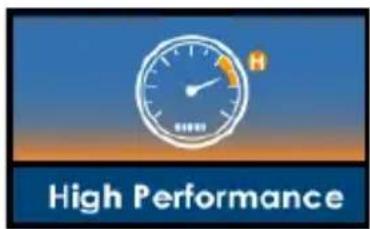
text_image
High Performance
text_image
Super Performance
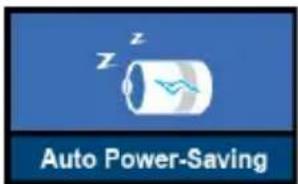
Auto High Performance and Auto Power-Saving mode are available only when applying or removing the power adapter.
text_image
Auto Power-Saving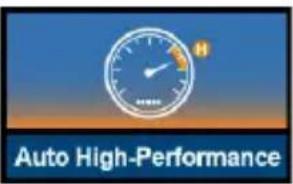
text_image
Auto High-Performance
If your external monitor functions abnormally in Power Saving mode at a resolution of 1024 x 768 pixels or higher, press
Eee Docking
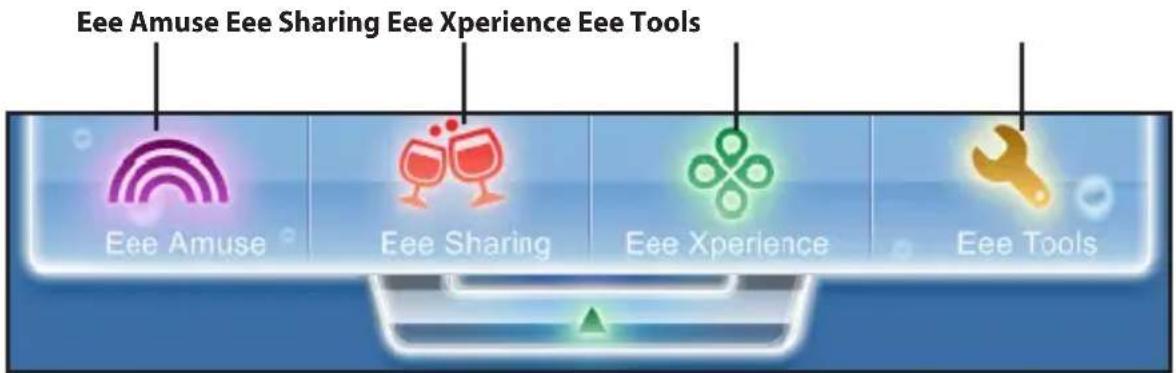
Eee Docking contains multiple useful applications. The Eee Docking tool bar is at the top of the desktop.
text_image
Eee Amuse Eee Sharing Eee Xperience Eee Tools Eee Amuse Eee Sharing Eee Xperience Eee Tools
• The applications in Eee Docking may vary depending on models.
- The names of the applications in Eee Docking are subject to change without notice.
Eee Amuse

ASUS @Vibe
ASUS @Vibe allows you to enjoy online entertainment contents including Radio, Live TV and Games, etc.

The ASUS @Vibe service contents differ for each territory.
Game Park
Game Park includes multiple interesting games.
ASUS AP Bank
ASUS AP Bank offers various software applications and multimedia enjoyment online.
Eee Sharing

ASUS WebStorage (on selected models)
Eee PC users can enjoy free online space. With Internet connection, you can access and share any files whenever you want and wherever you are. The ASUS WebStorage help file is accessible only when your Eee PC connects to the Internet.
Eee Xperience

Eee Splendid
Eee Splendid helps improve your Eee PC display in terms of the contrast, brightness, skin tone, and color saturation for red, green, and blue independently.
SRS Premium Sound (on selected models)
SRS Premium offers the rich and immerse audio experience in any listening environment.
Voice Command (Dr. Eee) (on selected models)
Dr. Eee is a voice command tool which allows you to launch a commonly used function with your voice.
YouCam / E-Cam
YouCam / E-Cam, working alone or with instant messaging software (Windows Live Messenger, Skype, etc.), provides interesting effects and useful add-ons for your webcam.
Eee Tools

Live Update
Live Update keeps your Eee PC up-to-date by checking the online updates.
Font Resizer
Font Resizer allows you to adjust the font/text size on your Eee PC screen.
LocaleMe
LocaleMe is a web mapping service application, offering easy search for streets or companies sorted by multiple categories all over the world.
System Setting
System Setting offers you quick access to the configuration of the desktop background and the Ad-hoc mode.
Boingo (on selected models)
Boingo gives you easy access to global Wi-Fi services with a special price via the pre-installed Boingo utility. Use one account at more than 100,000 hotspots around the world, including airports, hotels, cafes and restaurants.
Microsoft® Office Trial
Eee PC users can enjoy Microsoft Office Suite free trial for 60 days. Do the following instructions to start the free trial.
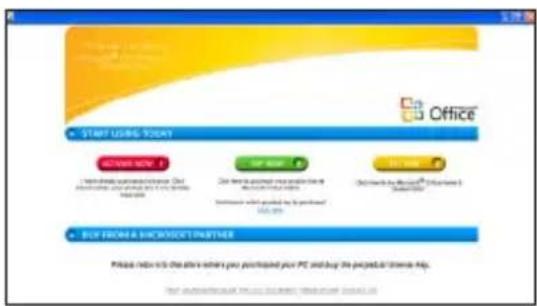
- Ensure that your Eee PC is connected to the Internet and double-click Microsoft Office 60 Day Trial - Online on the desktop.
- Click TRY NOW.
text_image
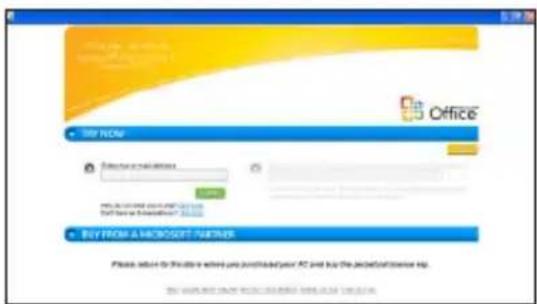
START USING TODAY CREATE VIEW 2 I have been satisfied with the company. Our Copyright is your own website, but it is not your main website. Our items are available to you in the Microsoft Office. Details which provided by the website? BUY from a Microsoft Partner Please refer to the above order you participated your PC and buy the project online http. The following course is: Microsoft Office (www.mcp.com)- Enter your E-mail address and click SUBMIT.
text_image
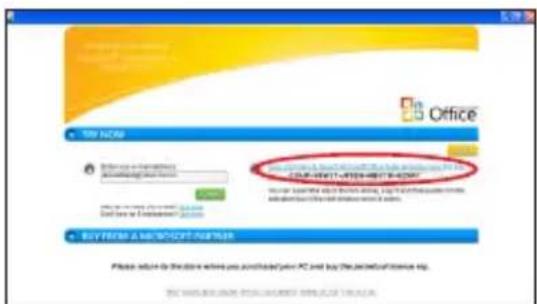
Office TRY NOW BY FROM A MERCICIT PARTNER Please submit to the Office when you built your PC and buy the product or service help.- Copy your product key and click the link.
text_image
Office TAY AUTO Advance in hospitality investigation your own BUY BUY FROM A MSCI-COT SUPPER. Please submit for the store where you can't have your PC and buy the next service app. THE WORLD'S HOME IS UNTAINED ONLY. Please click your right to scan the website at www.mci-cotsupper.com.- Enter your product key and follow the onscreen instructions to finish the activation process before starting the free trial.
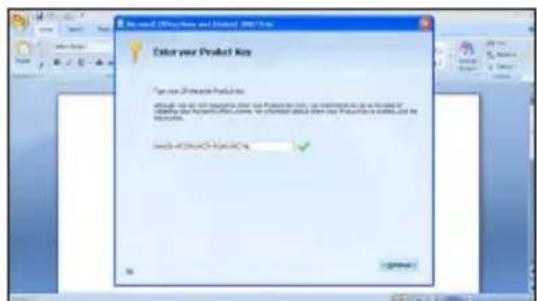
text_image
Enter your Product Key Enter your Product Key Enter your Product Key Enter your Product Key Enter your Product Key
If you want to use other applications in the Microsoft Office Suite, click start and point to All Programs > Microsoft Office to select a desired application.
Support DVD information
System Recovery
Boot Booster
Support DVD & System Recovery
Support DVD information
The support DVD that comes with the Eee PC package contains the drivers, software applications, and utilities that you can install to avail all the features.
Running the support DVD
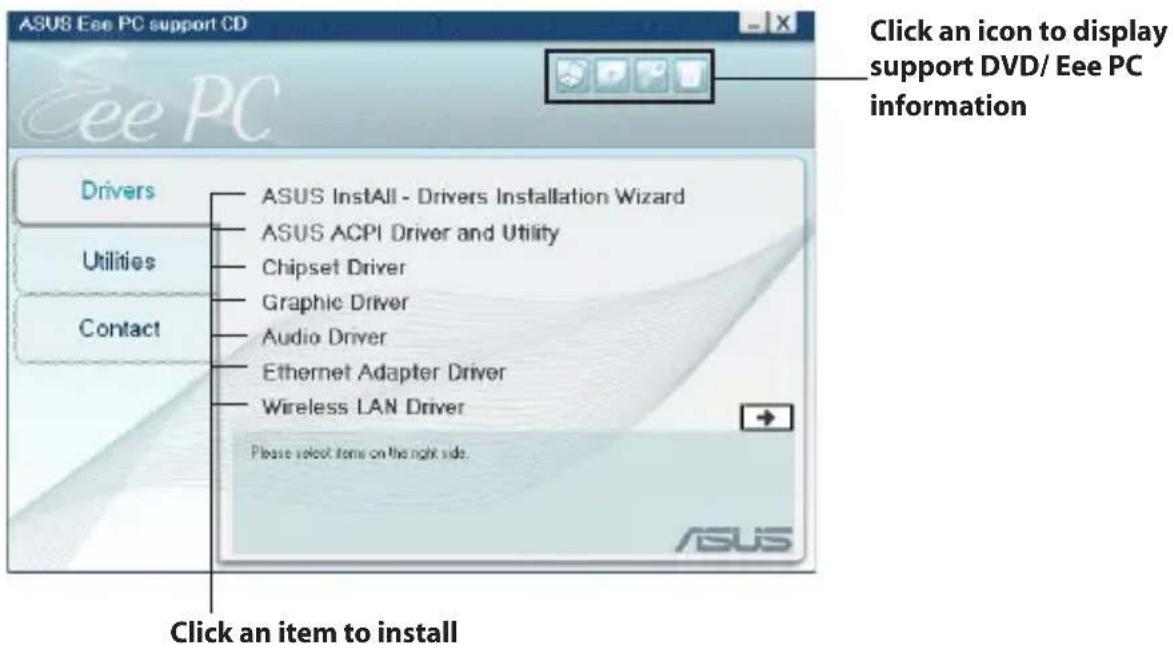
Insert the support DVD in the external optical drive. The DVD automatically displays the Drivers menu if Autorun is enabled in your computer.
text_image
ASUS Eee PC support CD Click an icon to display support DVD/ Eee PC information Drivers ASUS InstAll - Drivers Installation Wizard Utilities ASUS ACPI Driver and Utility Chipset Driver Graphic Driver Audio Driver Contact Ethernet Adapter Driver Wireless LAN Driver Please select items on the right side. Click an item to install
If Autorun is NOT enabled in your computer, browse the contents of the support DVD to locate the file ASSETUP.EXE from the BIN folder. Double-click the ASSETUP.EXE file to run the DVD.

The drivers and utilities bundled in the support DVD may vary by models and are subject to change without notice.
Drivers menu
The Drivers menu shows available device drivers when the system detects installed devices. Install the necessary drivers to activate the devices.
Utilities menu
The Utilities menu shows the applications that the Eee PC supports.
Contact
Click the Contact tab to display the ASUS contact information.
Other information
The icons on the top right corner of the screen provide additional information on the Eee PC and the contents of the support DVD. Click an icon to display the specified information.

System information

Technical support

DVD content

File list
System Recovery

Disable Boot Booster in BIOS setup before you perform system recovery from USB flash disk, external optical drive or hidden partition. Refer to the end of this chapter for details.
Using Recovery Partition (F9 Recovery)
About the Recovery Partition
The Recovery Partition is a space reserved on your hard disk drive used to restore the operating system, drivers, and utilities installed on your Eee PC at the factory.

Ensure to connect your Eee PC to the AC power adapter before using F9 recovery to avoid recovery failure.
Using the Recovery Partition:
- Press
during bootup (requires a Recovery Partition)

Ensure to press
-
Click Recovery in the Recovery System dialog box to start the system recovery.
-
The system starts system recovery automatically and follows the onscreen instructions to complete the recovery process.
Using the Support DVD
The Support DVD includes the pure operating system. The Support DVD provides a comprehensive recovery solution that quickly restores the pure operating system without drivers and utilities being installed. Before using the Support DVD, copy your data files to a USB storage device or to a network drive and make note of any customized configuration settings (such as network settings).

When you restore your Eee PC to the pure operating system, no drivers and utilities are installed. You need to manually install the drivers and utilities you want on your Eee PC.
-
Connect an external optical drive to your Eee PC and insert the Support DVD into the optical drive (System needs to be powered ON).
-
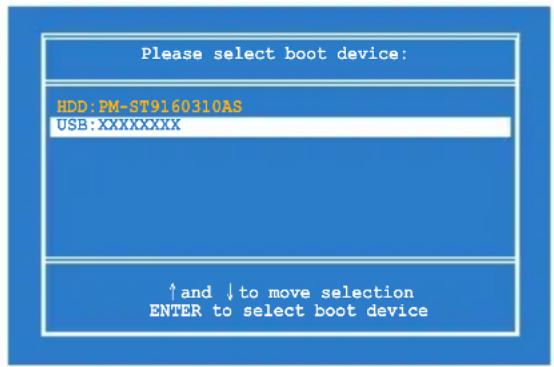
Press
on bootup and the Please select boot device screen appears. Select USB: XXXXXX (may be labeled as the ODD brand name) to boot from the optical drive. Press and then press any key to continue.
text_image
Please select boot device: HDD:PM-ST9160310AS USB:XXXXXXXX ↑and ↓to move selection ENTER to select boot device- The ASUS Recovery CD/DVD window appears. Select where to install a new system. Options are:
Recover system to a partition
This option will delete only the partition you select from below, allowing you to keep other partitions. Select a partition and click NEXT.
Recover system to entire HD
This option will delete all partitions from your hard disk drive and restore the pure OS. Select and click Yes.

If you select Recover system to entire HD, the entire hard disk drive will be a partition with the pure OS and the F9 recovery function will no longer exist. Therefore, we highly recommend that you use the F9 recovery to restore the system.
- Follow the onscreen instructions to complete the recovery process.

You will lose all your data during the system recovery. Ensure that you make a backup of it before recovering the system.
-
After the system recovery is completed, restart the computer.
-
Set up your language, time zone, keyboard, computer name, and user name to enter the Windows® OS.

This support DVD is for Eee PC only. DO NOT use it on other computers. Visit the ASUS website at www.asus.com for any updates.
Boot Booster
The Boot Booster item in BIOS setup helps shorten your Eee PC bootup time. However, you MUST disable this BIOS item before you change any Eee PC components or perform system recovery (from USB flash disk, external optical drive or hidden partition). Follow the instructions below to disable Boot Booster:
-
Start the system and press
on bootup to show the POST screen. Press again to enter the BIOS setup. -
Set Boot Booster to [Disabled].

If you fail to see the POST screen or enter the BIOS setup by doing the instruction above, restart the system and try pressing
| Main Advanced Security Boot Exit BIOS SETUP UTILITY | |
| ▶ Boot Device Priority ▶ Boot Settings Configuration OnBoard LAN Boot ROM [Enabled] Boot Booster [Disabled] | Specifies the Boot Device Priority sequence. A virtual floppy disk drive (Floppy Drive B: ) may appear when you set the CD-ROM drive as the first boot device. ←→ Select Screen ↑↓ Select Item Enter Go to Sub Screen F1 General Help F10 Save and Exit ESC Exit |
| v02.58 (C)Copyright 1985-2005, American Megatrends, Inc. | |
- Press
to save the configuration and restart Eee PC.

Remember to enable Boot Booster after you complete hardware change or system recovery.
Declarations and Safety Statements
Copyright Information
Limitation of Liability
Service and Support
Declarations and Safety Statements
Federal Communications Commission Statement
This device complies with FCC Rules Part 15. Operation is subject to the following two conditions:
- This device may not cause harmful interference, and
- This device must accept any interference received, including interference that may cause undesired operation.
This equipment has been tested and found to comply with the limits for a class B digital device, pursuant to Part 15 of the Federal Communications Commission (FCC) rules. These limits are designed to provide reasonable protection against harmful interference in a residential installation. This equipment generates, uses, and can radiate radio frequency energy and, if not installed and used in accordance with the instructions, may cause harmful interference to radio communications. However, there is no guarantee that interference will not occur in a particular installation. If this equipment does cause harmful interference to radio or television reception, which can be determined by turning the equipment off and on, the user is encouraged to try to correct the interference by one or more of the following measures:
- Reorient or relocate the receiving antenna.
- Increase the separation between the equipment and receiver.
- Connect the equipment into an outlet on a circuit different from that to which the receiver is connected.
- Consult the dealer or an experienced radio/TV technician for help.

The use of a shielded-type power cord is required in order to meet FCC emission limits and to prevent interference to the nearby radio and television reception. It is essential that only the supplied power cord be used. Use only shielded cables to connect I/O devices to this equipment. You are cautioned that changes or modifications not expressly approved by the party responsible for compliance could void your authority to operate the equipment.
(Reprinted from the Code of Federal Regulations #47, part 15.193, 1993. Washington DC: Office of the Federal Register, National Archives and Records Administration, U.S. Government Printing Office.)
FCC Radio Frequency (RF) Exposure Caution Statement

Any changes or modifications not expressly approved by the party responsible for compliance could void the user's authority to operate this equipment. "The manufacture declares that this device is limited to Channels 1 through 11 in the 2.4GHz frequency by specified firmware controlled in the USA."
This equipment complies with FCC radiation exposure limits set forth for an uncontrolled environment. To maintain compliance with FCC RF exposure compliance requirements, please avoid direct contact to the transmitting antenna during transmitting. End users must follow the specific operating instructions for satisfying RF exposure compliance.
Eee PC 1005 Series
Max. SAR Measurement (1g)
AR5B95(AW-NE785H)
- 11b: 0.056 W/kg
802.11g: 0.061 W/kg
-
11n (20M): 0.06 W/kg
-
11n (40M): 0.048 W/kg
RT3090(AW-NE762H)
Max. SAR Measurement (1g)
0.073 W/kg
Declaration of Conformity (R&TTE directive 1999/5/EC)
The following items were completed and are considered relevant and sufficient:
• Essential requirements as in [Article 3]
- Protection requirements for health and safety as in [Article 3.1a]
- Testing for electric safety according to [EN 60950]
- Protection requirements for electromagnetic compatibility in [Article 3.1b]
- Testing for electromagnetic compatibility in [EN 301 489-1] & [EN 301 489-17]
• Effective use of the radio spectrum as in [Article 3.2]
• Radio test suites according to [EN 300 328-2]
IC Radiation Exposure Statement for Canada
This equipment complies with IC radiation exposure limits set forth for an uncontrolled environment. To maintain compliance with IC RF exposure compliance requirements, please avoid direct contact to the transmitting antenna during transmitting. End users must follow the specific operating instructions for satisfying RF exposure compliance.
Operation is subject to the following two conditions:
• This device may not cause interference and
- This device must accept any interference, including interference that may cause undesired operation of the device.
To prevent radio interference to the licensed service (i.e. co-channel Mobile Satellite systems) this device is intended to be operated indoors and away from windows to provide maximum shielding. Equipment (or its transmit antenna) that is installed outdoors is subject to licensing.
Eee PC 1005 Series
Max. SAR Measurement (1g)
AR5B95(AW-NE785H)
802.11b: 0.056 W/kg
802.11g: 0.061 W/kg
-
11n (20M): 0.06 W/kg
-
11n (40M): 0.048 W/kg
RT3090(AW-NE762H)
Max. SAR Measurement (1g)
0.073 W/kg
This device and its antenna(s) must not be co-located or operating in conjunction with any other antenna or transmitter.
Country Code selection feature to be disabled for products marketed to the US/CANADA.
This Class [B] digital apparatus complies with Canadian ICES-003.
This is a Class B product, in a domestic environment, this product may cause radio interference, in which case the user may be required to take adequate measures.

CE marking for devices without wireless LAN/Bluetooth
The shipped version of this device complies with the requirements of the EEC directives 2004/108/EC “Electromagnetic compatibility” and 2006/95/EC “Low voltage directive”.

CE marking for devices with wireless LAN/ Bluetooth
This equipment complies with the requirements of Directive 1999/5/EC of the European Parliament and Commission from 9 March, 1999 governing Radio and Telecommunications Equipment and mutual recognition of conformity.
Wireless Operation Channel for Different Domains
N. America 2.412-2.462 GHz Ch01 through CH11
Japan 2.412-2.484 GHz Ch01 through Ch14
Europe ETSI 2.412-2.472 GHz Ch01 through Ch13
France Restricted Wireless Frequency Bands
Some areas of France have a restricted frequency band. The worst case maximum authorized power indoors are:
- 10mW for the entire 2.4 GHz band (2400 MHz–2483.5 MHz)
• 100mW for frequencies between 2446.5 MHz and 2483.5 MHz

Channels 10 through 13 inclusive operate in the band 2446.6 MHz to 2483.5 MHz.
There are few possibilities for outdoor use: On private property or on the private property of public persons, use is subject to a preliminary authorization procedure by the Ministry of Defense, with maximum authorized power of 100mW in the 2446.5–2483.5 MHz band. Use outdoors on public property is not permitted.
In the departments listed below, for the entire 2.4 GHz band:
• Maximum authorized power indoors is 100mW
• Maximum authorized power outdoors is 10mW
Departments in which the use of the 2400–2483.5 MHz band is permitted with an EIRP of less than 100mW indoors and less than 10mW outdoors:
01 Ain 02 Aisne 03 Allier
05 Hautes Alpes 08 Ardennes 09 Ariège
11 Aude 12 Aveyron 16 Charente
24 Dordogne 25 Doubs 26 Drôme
This requirement is likely to change over time, allowing you to use your wireless LAN card in more areas within France. Please check with ART for the latest information (www.art-telecom.fr)

Your WLAN Card transmits less than 100mW, but more than 10mW.
UL Safety Notices
Required for UL 1459 covering telecommunications (telephone) equipment intended to be electrically connected to a telecommunication network that has an operating voltage to ground that does not exceed 200V peak, 300V peak-to-peak, and 105V rms, and installed or used in accordance with the National Electrical Code (NFPA 70).
When using the Eee PC modem, basic safety precautions should always be followed to reduce the risk of fire, electric shock, and injury to persons, including the following:
- DO NOT use the Eee PC near water, for example, near a bath tub, wash bowl, kitchen sink or laundry tub, in a wet basement or near a swimming pool.
- DO NOT use the Eee PC during an electrical storm. There may be a remote risk of electric shock from lightning.
- DO NOT use the Eee PC in the vicinity of a gas leak.
Required for UL 1642 covering primary (nonrechargeable) and secondary (rechargeable) lithium batteries for use as power sources in products. These batteries contain metallic lithium, or a lithium alloy, or a lithium ion, and may consist of a single electrochemical cell or two or more cells connected in series, parallel, or both, that convert chemical energy into electrical energy by an irreversible or reversible chemical reaction.
- Do not dispose the Eee PC battery pack in a fire, as they may explode. Check with local codes for possible special disposal instructions to reduce the risk of injury to persons due to fire or explosion.
- Do not use power adapters or batteries from other devices to reduce the risk of injury to persons due to fire or explosion. Use only UL certified power adapters or batteries supplied by the manufacturer or authorized retailers.
Power Safety Requirement
Products with electrical current ratings up to 6A and weighing more than 3Kg must use approved power cords greater than or equal to: H05VV-F, 3G, 0.75mm ^2 or H05VV-F, 2G, 0.75mm ^2 .
REACH Notice
Complying with the REACH (Registration, Evaluation, Authorisation, and Restriction of Chemicals) regulatory framework, we published the chemical substances in our products at ASUS REACH website at http://green.asus.com/english/REACH.htm.
Nordic Lithium Cautions (for lithium-ion batteries)

CAUTION! Danger of explosion if battery is incorrectly replaced. Replace only with the same or equivalent type recommended by the manufacturer. Dispose of used batteries according to the manufacturer's instructions.
(English)

natural_image
National flag of Norway featuring red and blue vertical stripes (no text or symbols)No part of this manual, including the products and software described in it, may be reproduced, transmitted, transcribed, stored in a retrieval system, or translated into any language in any form or by any means, except documentation kept by the purchaser for backup purposes, without the express written permission of ASUSTeK COMPUTER INC. ("ASUS").
ASUS PROVIDES THIS MANUAL "AS IS" WITHOUT WARRANTY OF ANY KIND, EITHER EXPRESS OR IMPLIED, INCLUDING BUT NOT LIMITED TO THE IMPLIED WARRANTIES OR CONDITIONS OF MERCHANTABILITY OR FITNESS FOR A PARTICULAR PURPOSE. IN NO EVENT SHALL ASUS, ITS DIRECTORS, OFFICERS, EMPLOYEES OR AGENTS BE LIABLE FOR ANY INDIRECT, SPECIAL, INCIDENTAL, OR CONSEQUENTIAL DAMAGES (INCLUDING DAMAGES FOR LOSS OF PROFITS, LOSS OF BUSINESS, LOSS OF USE OR DATA, INTERRUPTION OF BUSINESS AND THE LIKE), EVEN IF ASUS HAS BEEN ADVISED OF THE POSSIBILITY OF SUCH DAMAGES ARISING FROM ANY DEFECT OR ERROR IN THIS MANUAL OR PRODUCT.
Products and corporate names appearing in this manual may or may not be registered trademarks or copyrights of their respective companies, and are used only for identification or explanation and to the owners' benefit, without intent to infringe.
SPECIFICATIONS AND INFORMATION CONTAINED IN THIS MANUAL ARE FURNISHED FOR INFORMATIONAL USE ONLY, AND ARE SUBJECT TO CHANGE AT ANY TIME WITHOUT NOTICE, AND SHOULD NOT BE CONSTRUED AS A COMMITMENT BY ASUS. ASUS ASSUMES NO RESPONSIBILITY OR LIABILITY FOR ANY ERRORS OR INACCURACIES THAT MAY APPEAR IN THIS MANUAL, INCLUDING THE PRODUCTS AND SOFTWARE DESCRIBED IN IT.
Copyright © 2009 ASUSTeK COMPUTER INC. All Rights Reserved.
Limitation of Liability
Circumstances may arise where because of a default on ASUS' part or other liability, you are entitled to recover damages from ASUS. In each such instance, regardless of the basis on which you are entitled to claim damages from ASUS, ASUS is liable for no more than damages for bodily injury (including death) and damage to real property and tangible personal property; or any other actual and direct damages resulted from omission or failure of performing legal duties under this Warranty Statement, up to the listed contract price of each product.
ASUS will only be responsible for or indemnify you for loss, damages or claims based in contract, tort or infringement under this Warranty Statement.
This limit also applies to ASUS' suppliers and its reseller. It is the maximum for which ASUS, its suppliers, and your reseller are collectively responsible.
UNDER NO CIRCUMSTANCES IS ASUS LIABLE FOR ANY OF THE FOLLOWING: (1) THIRD-PARTY CLAIMS AGAINST YOU FOR DAMAGES; (2) LOSS OF, OR DAMAGE TO, YOUR RECORDS OR DATA; OR (3) SPECIAL, INCIDENTAL, OR INDIRECT DAMAGES OR FOR ANY ECONOMIC CONSEQUENTIAL DAMAGES (INCLUDING LOST PROFITS OR SAVINGS), EVEN IF ASUS, ITS SUPPLIERS OR YOUR RESELLER IS INFORMED OF THEIR POSSIBILITY.
Service and Support
Visit our multi-language web site at http://www.asus.com
| Manufacturer ASUSTek COMPUTER INC. | |
| Address, City No. 150, LI-TE RD., PEITOU, TAIPEI 112, TAIWAN R.O.C | |
| Country TAIWAN | |
| Authorized Representative in Europe | ASUS COMPUTER GmbH |
| Address, City HARKORT STR. 21-23, 40880 RATINGEN | |
| Country GERMANY | |