Echo Express SE III - Network card / adapter Sonnet - Free user manual and instructions
Find the device manual for free Echo Express SE III Sonnet in PDF.


User questions about Echo Express SE III Sonnet
0 question about this device. Answer the ones you know or ask your own.
Ask a new question about this device
Download the instructions for your Network card / adapter in PDF format for free! Find your manual Echo Express SE III - Sonnet and take your electronic device back in hand. On this page are published all the documents necessary for the use of your device. Echo Express SE III by Sonnet.
USER MANUAL Echo Express SE III Sonnet
for Echo™ Express SE III
Thunderbolt™ 3 to PCI Express® Card Expansion Chassis
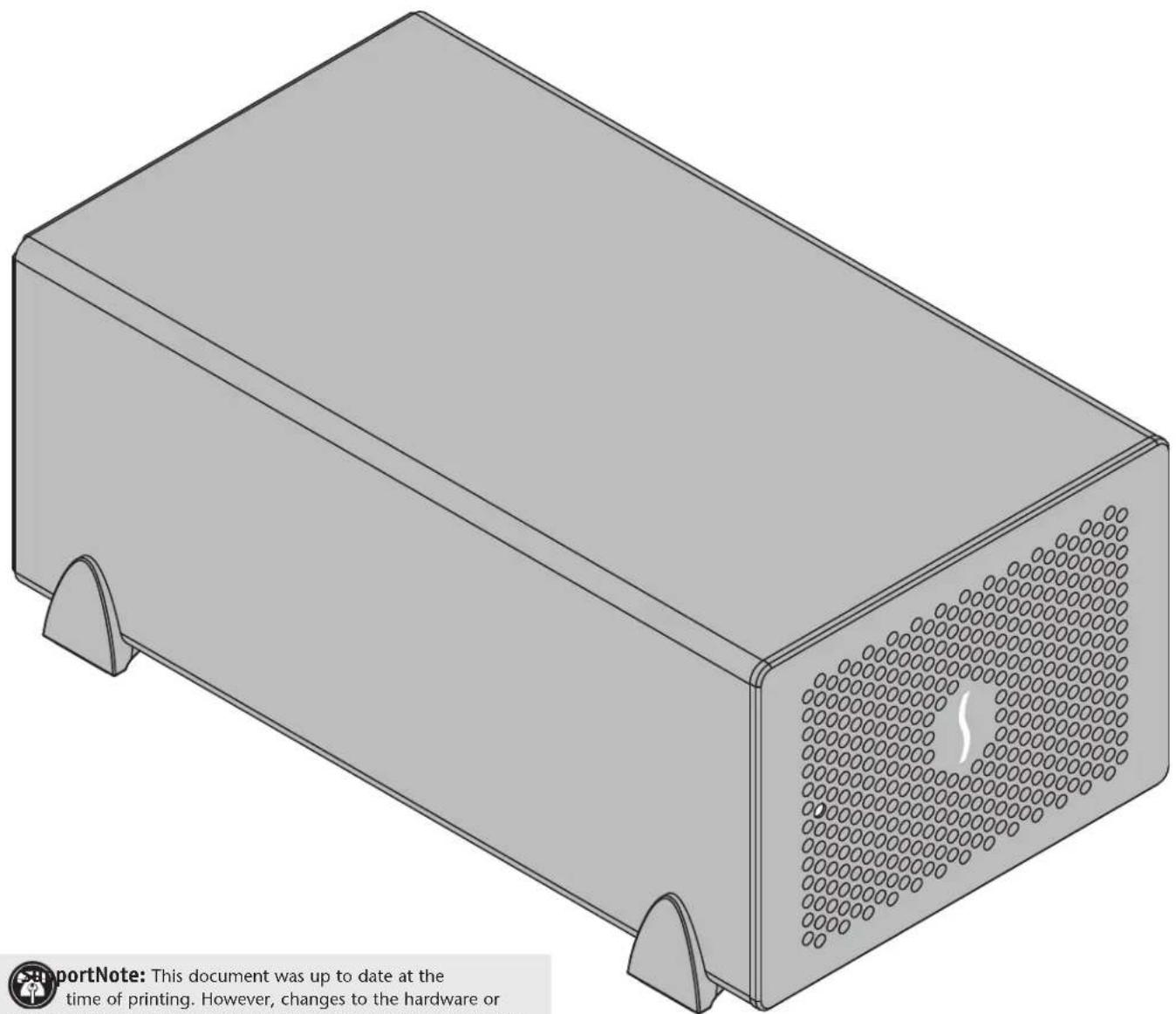
natural_image
3D rendering of a rectangular electronic device with perforated top and side ports, no visible text or symbols on the device itself.
portNote: This document was up to date at the
time of printing. However, changes to the hardware or software may have occurred since then. Please check the Sonnet website for the latest documentation.
- Go to www.sonnettech.com/support/kb/kb.php
- Click the Thunderbolt Product link.
- Click the Echo Express SE III link, and then click the Manual link.
- Click the Echo Express SE III User's Guide [English] link and then check the Document Version information. If the version listed is later than this document (revision E), click the Download Now button for the latest version.

THUNDERBOLT™

EXPRESS®


SIMPLYFAST
www.sonnettech.com
Contents
1 Introduction and System Requirements 1
Introduction
Mac Compatibility
System Requirements
Preparing to Use the Echo Express Chassis
2 Echo Express SE III Description 2
Echo Express SE III Extererior
Echo Express SE III Inner Assembly
Power Adapter and Cord
Thunderbolt 3 (40Gbps) Cable
Thunderbolt Connector Retainer Clip
3 PCIe Card Installation and Chassis Setup Steps 5
4 Complete Setup and Configuration 8
Setup and Configuration Steps
5 Tips, General Information, and Known Issues 9
Tips, General Information
Known Issues
6 Saftety Precautions, FCC Compliance, and Support Information 10
Safety Precautions
FCC Compliance
Underwriters Laboratories (UL) Listed Power Adapter
Contacting Customer Service
Visit Our Website
Chapter 1 – Introduction and System Requirements
Introduction
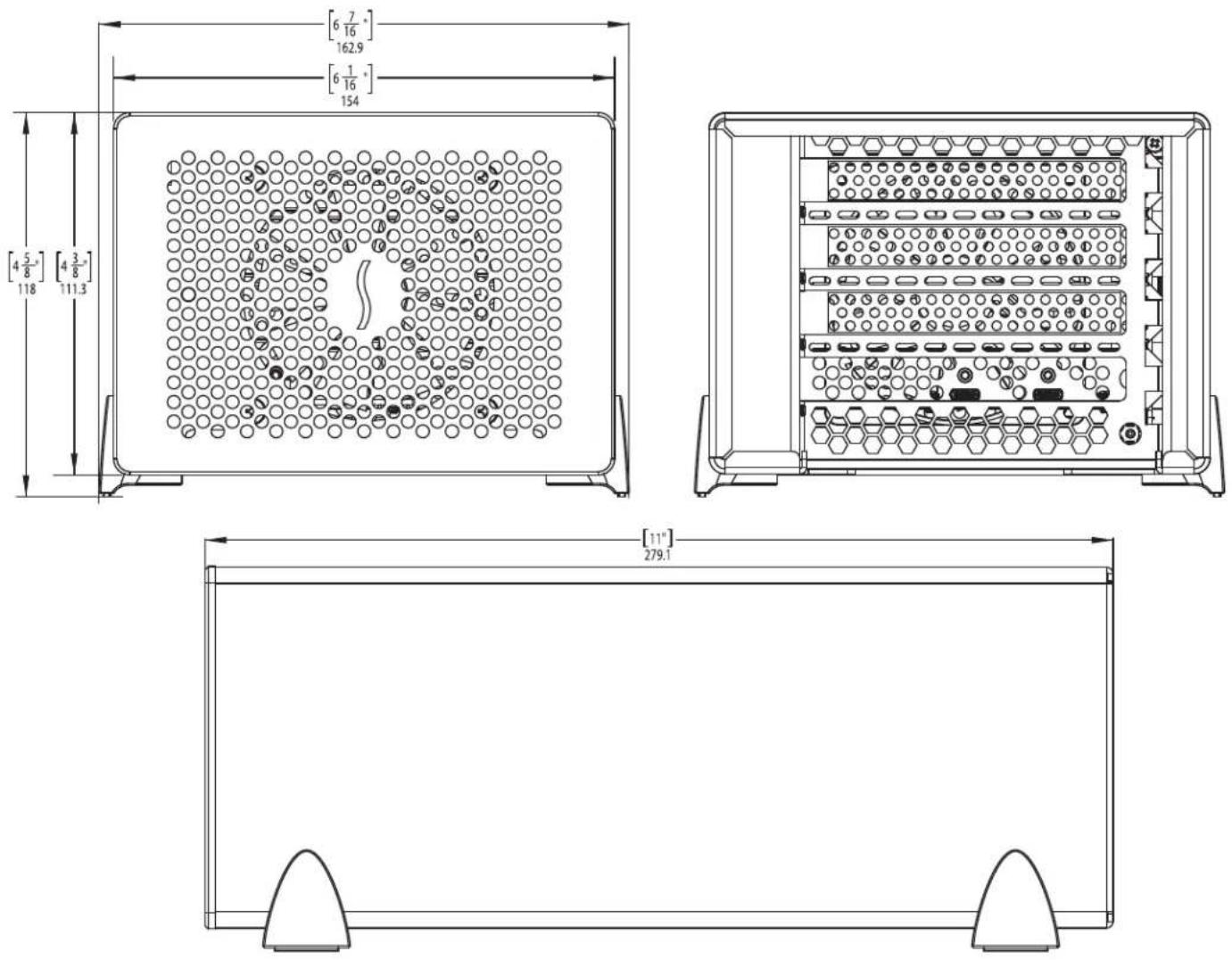
Congratulations on your purchase! The Echo Express SE III is a Thunderbolt 3 expansion system for PCIe cards. Through its PCIe slots, you may connect three adapter cards to any Mac® with Thunderbolt 3 ports to expand its capabilities and add connectivity beyond what's offered through its native ports.
Mac Compatibility
• Macs with Thunderbolt 3 ports
• Macs with Thunderbolt 2 or Thunderbolt ports and Apple Thunderbolt 3 (USB-C) to Thunderbolt 2 Adapter plus Thunderbolt cable (both sold separately)
•macOS ^® 10.12.6+
macOS Mojave compatible
System Requirements
While the Echo Express SE III requires no drivers, most expansion cards you install do; Thunderbolt-compatible drivers to enable them to work properly through the Thunderbolt interface are required. More information on which cards are compatible with Echo Express SE III is available at: https://sonnettech.com/support
Preparing to Use the Echo Express Chassis
The drivers required to support the Echo Express chassis are installed as part of macOS; there are no preparation steps beyond updating your computer to macOS 10.12.6 or newer.
Chapter 2 – Echo Express SE III Description
natural_image
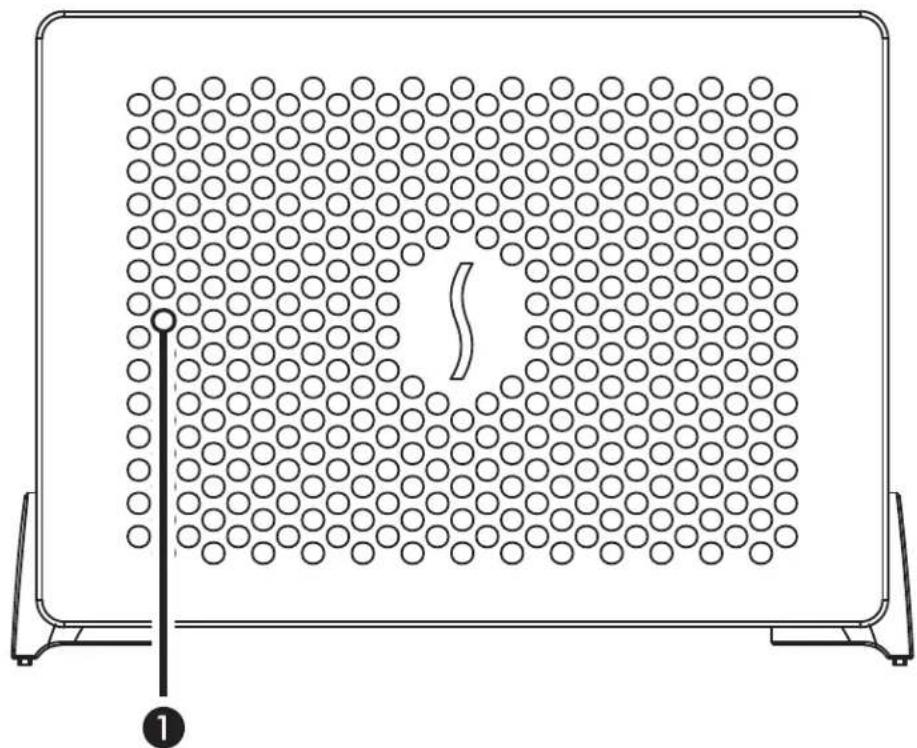
Diagram of a device with circular elements arranged in a grid pattern, no text or symbols presentEcho Express SE III Exterior
1 - Power Indicator
This lights when the Echo Express SE III is powered, the Thunderbolt cable between the Echo chassis and your computer is plugged in securely, and the computer powered on. Note that if the Echo chassis is connected to another Thunderbolt device instead of directly to the computer, any other Thunderbolt devices connected between the computer and Echo chassis must also be powered on before the Echo chassis' power indicator will light up.
text_image
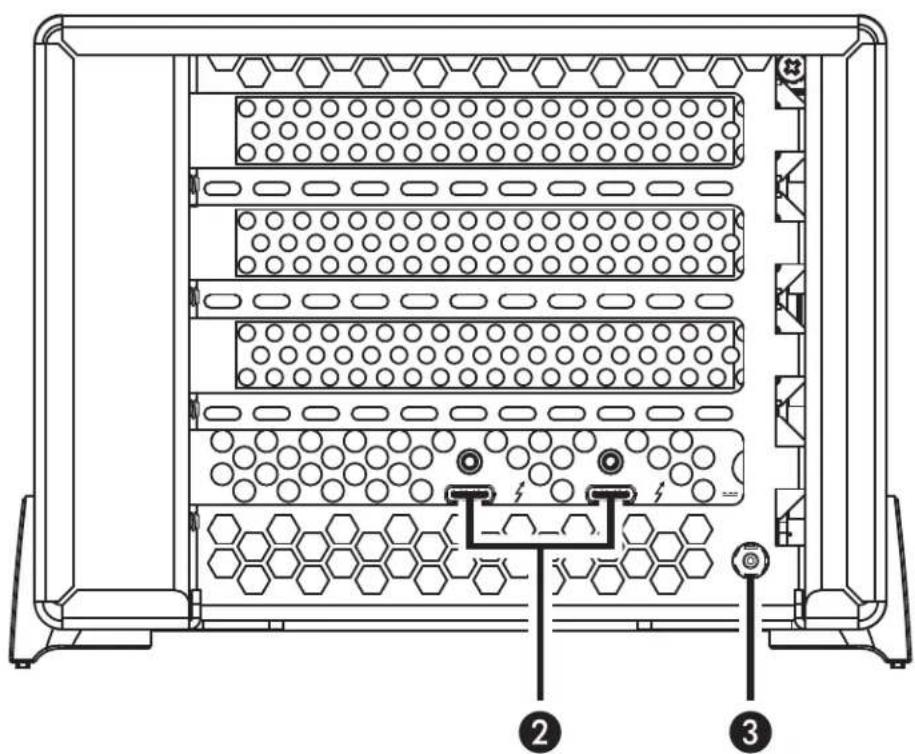
Technical diagram of a multi-tiered storage unit with hexagonal patterns and labeled components 2 and 32 - Thunderbolt 3 Ports
Connect the included Thunderbolt cable, or comparable Thunderbolt 3 (40Gbps) cable, between either port and your computer's Thunderbolt port (or other Thunderbolt device in the chain connected to the computer).
The second port may be used to connect to another Thunderbolt peripheral device, display(s), or USB device (when connected with the proper cable or adapter).
3 - 12V DC Socket
Connect the included DC power adapter between this socket and the included power cord.
Chapter 2 – Echo Express SE III Description
natural_image
Technical line drawing of a computer tower case with visible fan and drive components (no text or labels)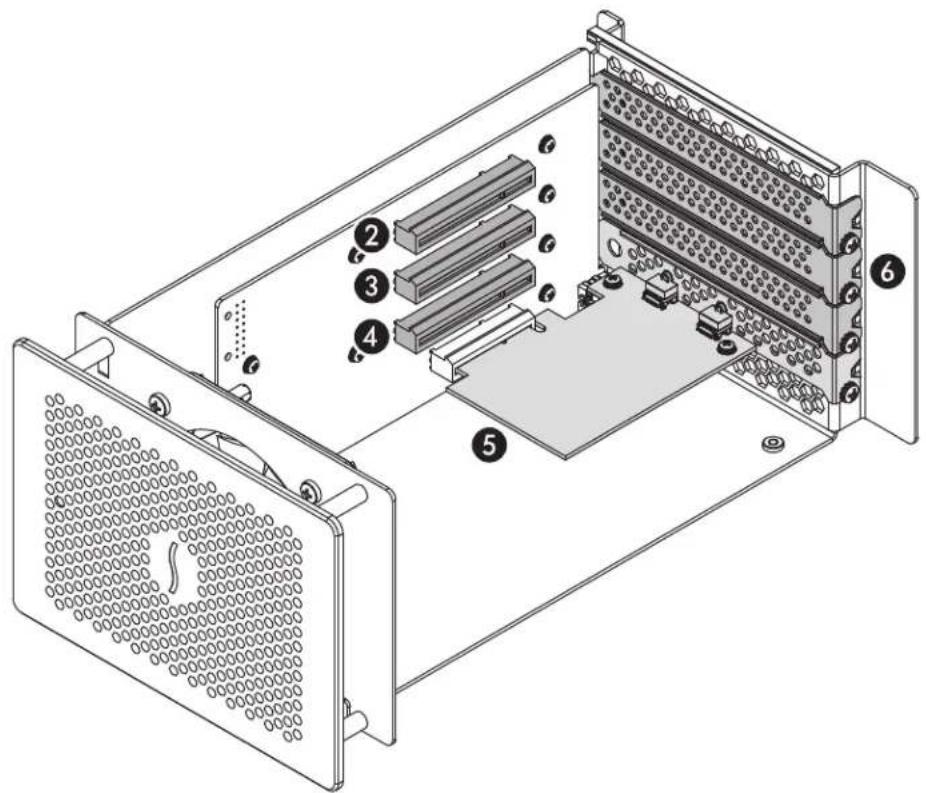
text_image
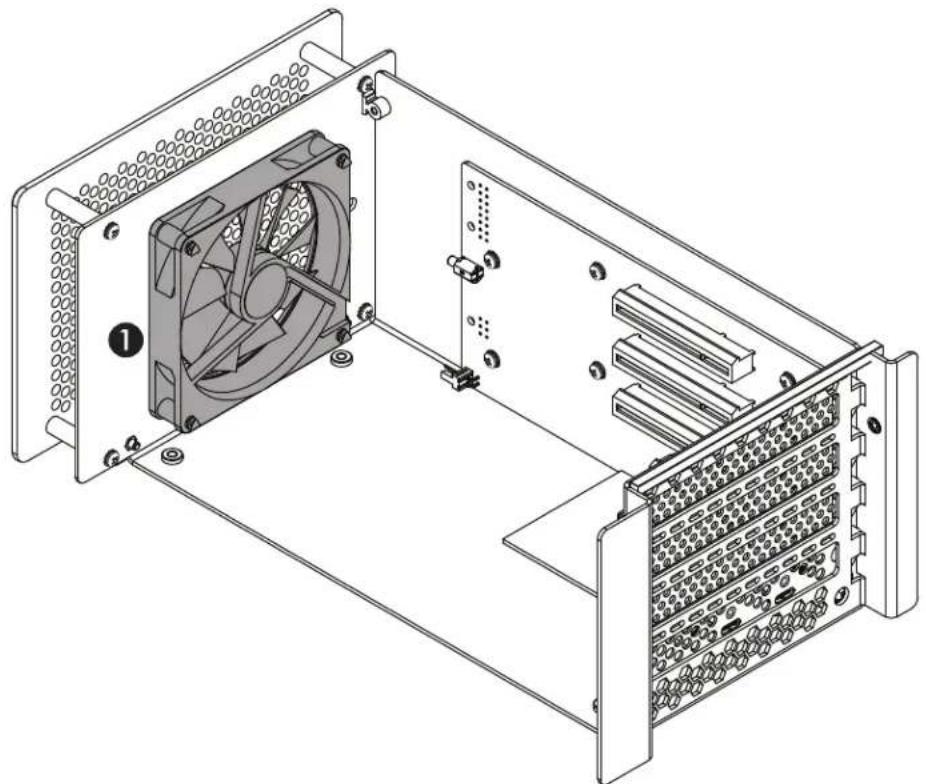
Technical diagram of a server rack with numbered components for identificationEcho Express SE III Inner Assembly
1 - Fan
The temperature-controlled fan provides cooling for the installed PCIe cards and the chassis' supporting Thunderbolt circuitry. It operates quietly when the card is running cool, and automatically speeds up in steps as the temperature rises. Do not block the vent holes on the front or back of the chassis to prevent overheating.
2 - PCIe Slot 1
This is an x8 mechanical (x4 electrical) PCIe 3.0 slot. It is also compatible with PCIe 2.0 and 1.1 cards.
3 - PCIe Slot 2
This is an x8 mechanical (x8 electrical) PCIe 3.0 slot. It is also compatible with PCIe 2.0 and 1.1 cards.
4 - PCIe Slot 3
This is an x8 mechanical (x8 electrical) PCIe 3.0 slot. It is also compatible with PCIe 2.0 and 1.1 cards.
5 - Thunderbolt 3 Interface Card
This is installed into its own slot and may not be moved to another slot.
6 - Port Access Covers
These cover openings in the chassis when PCIe slots are unoccupied.
Chapter 2 – Echo Express SE III Description
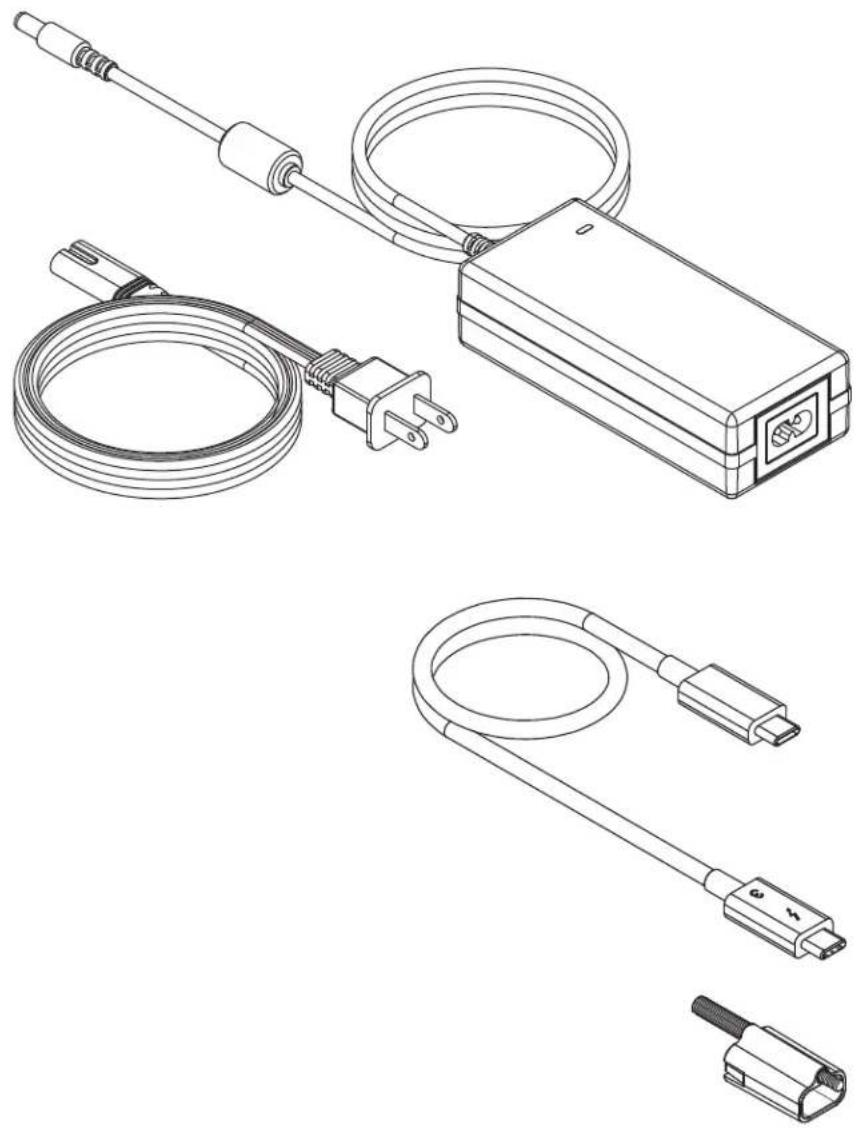
Power Adapter and Cord
Connect the adapter to the SE III's 12VDC socket. Connect the cord between a power outlet and the power adapter. Note that the power cord included with your product may appear different than the one pictured here, depending on where the product was purchased.
Thunderbolt 3 (40Gbps) Cable
Connect this cable between the Echo Express SE III and your computer (or other Thunderbolt device in the chain connected to the computer). Connecting the Echo chassis to a computer port marked with the USB icon
(→) is NOT supported.
Thunderbolt Connector Retainer Clip
This secures a Thunderbolt 3 connector plugged into the Echo chassis' Thunderbolt 3 port to prevent accidental cable disconnection. This clip is compatible with Sonnet 0.7- and 0.5-meter Thunderbolt 3 cables, but not with Sonnet 2-meter Thunderbolt 3 cables.
Chapter 3 – PCIe Card Installation and Chassis Setup Steps
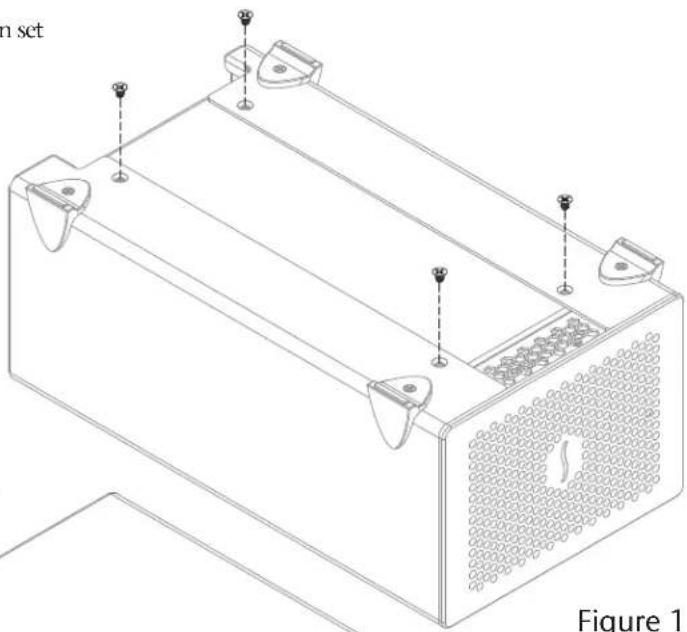
- Remove the Echo Express SE III chassis from its packaging, and then set it upside-down on a soft, flat, level surface.
- Using a Phillips screwdriver, remove and set aside the four screws securing the outer case to the inner assembly (Figure 1).

Support Note: To avoid damaging components due to static electricity discharge, wear an antistatic wrist strap while working
inside Echo Express SE III.
-
Flip the Echo chassis over. Place one hand on top of the outer case. Remove the inner assembly by gently grasping its faceplate by the edges and pulling (Figure 2). Set aside the outer case.
-
Turn the inner assembly on its side with the PCIe slots facing up. Remove and set aside the screw securing a port access cover from the Echo Express SE III chassis' inner assembly (Figure 3).
- Remove and set aside the loose port access cover (Figure 3).
- Repeat steps 4 and 5 as necessary with the remaining port access covers.
natural_image
Technical line drawing of a rectangular electronic device with mounting points and a perforated base (no text or symbols)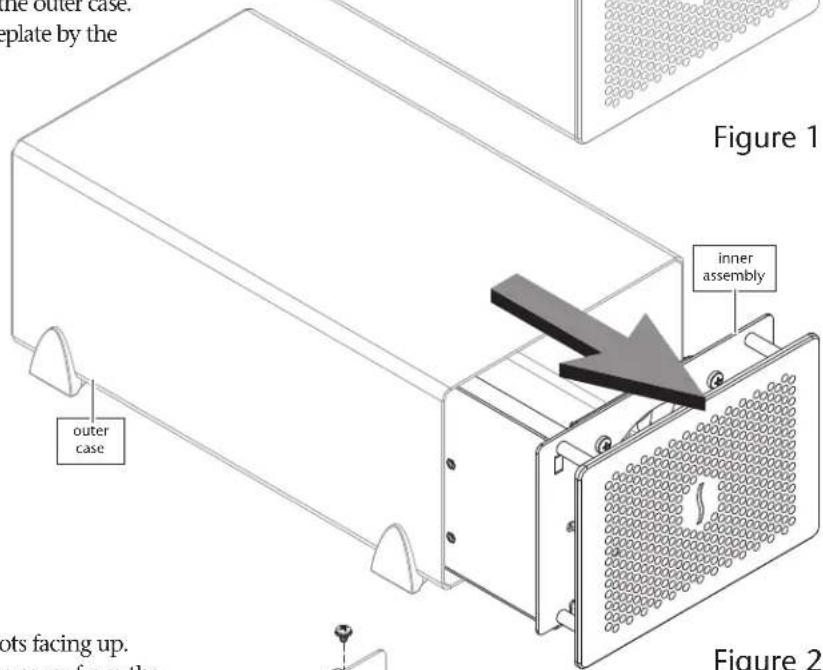
text_image
the outer case. plate by the Figure 1 inner assembly outer case ots facing up. s cover from the Figure 2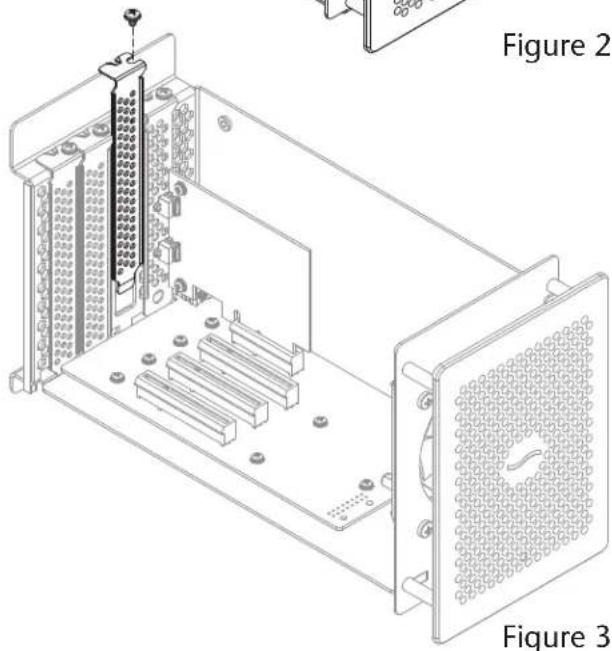
natural_image
Technical line drawing of an electronic device chassis showing internal components and mounting points (no text or symbols)Chapter 3 – PCIe Card Installation and Chassis Setup Steps

WARNING: When handling computer products, take care to prevent components from being damaged by static electricity; avoid working
in carpeted areas. Handle expansion cards only by their edges and avoid touching connector traces and component pins. Also, avoid touching the Echo Express SE III chassis' circuit boards and any of its components.
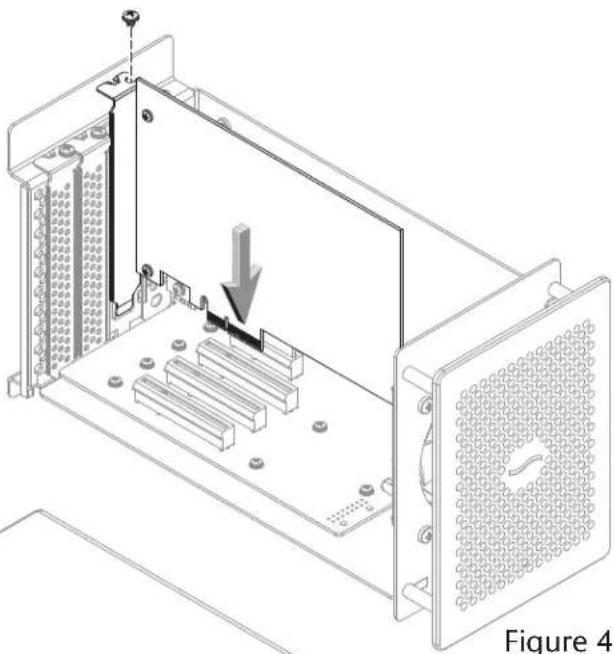
- Remove a PCIe card from its packaging, handling the card by its edges and without touching any components or gold connector pins.

ortNote: If you are installing an x8 PCIe 1.1 card like certain 10 Gigabit Ethernet cards, installing it into slot 1 (furthest from the
Thunderbolt interface card) may result in reduced performance. We recommend you install it into either slot 1 or 2 for best performance.
- Line up the card's connector with the slot, and then gently but firmly press the card straight into the slot; do not rock the card or force the card into the slot. If you encounter excessive resistance, check the card's connector and the slot for damage, and then try inserting the card again (Figure 4).
- Secure the card using the screw you removed previously; do not overtighten the screw (Figure 4).
- Repeat steps 7 – 9 if you are installing any additional cards. Replace and secure any port access covers where an empty slot remains.
- Flip the inner assembly back over to its upright position. Place your hand on top of the outer case, and then gently insert the inner assembly back into the outer case (Figure 5).
- Turn the Echo Express SE III chassis upside-down, and then using the four screws you removed previously, secure the outer case to the inner assembly; do not overtighten the screws (Figure 6).
natural_image
Technical line drawing of an electronic device chassis showing internal components and a downward arrow indicating a process (no text or symbols present)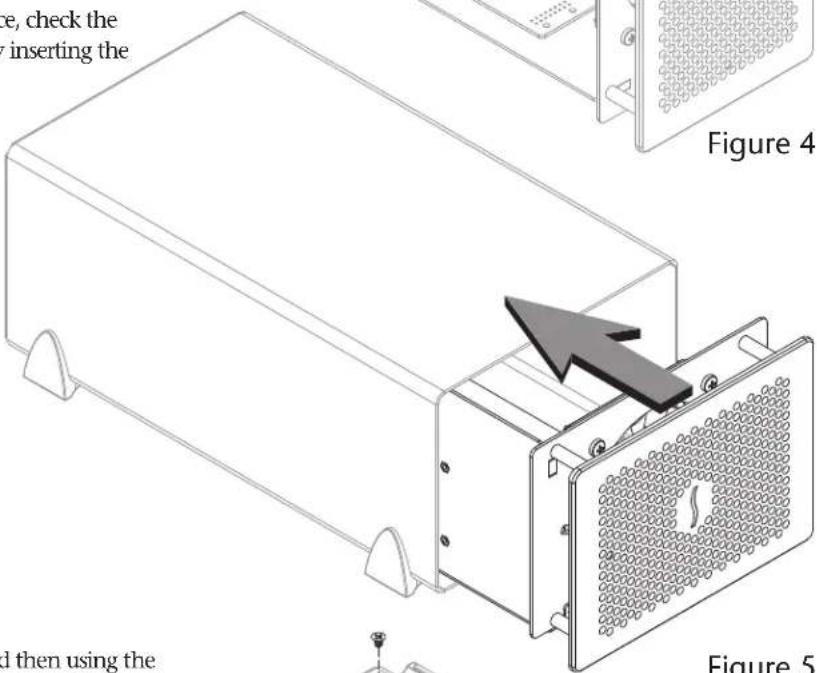
text_image
e, check the inserting the Figure 4 d then using the Figure 5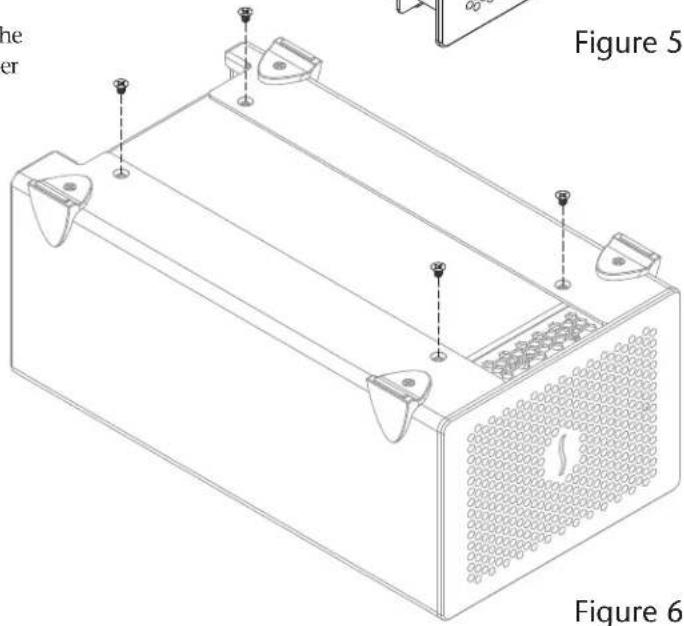
text_image
the er Figure 5 Figure 6Figure 6
Chapter 3 – PCIe Card Installation and Chassis Setup Steps
- Turn the Echo Express SE III right-side-up.

ortNote: Sonnet's ThunderLok™ 3 Thunderbolt connector retainer clip secures the included Thunderbolt 3
(40Gbps) cable to the Echo chassis to prevent accidental disconnects. The included clip is compatible with Sonnet 0.7 and 0.5-meter Thunderbolt 3 (40Gbps) cables, but it is not compatible with Sonnet 2-meter Thunderbolt 3 (40Gbps) cables.
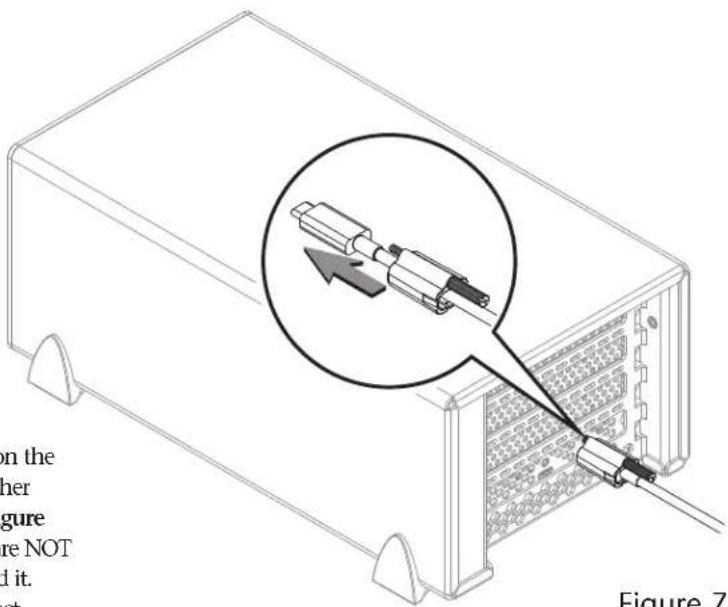
To attach the clip to the cable, remove both items from their packaging, and then insert the connector through the connector clip as shown (Figure 7). Note that the connector will pass all the way through the clip; when you connect the cable to the chassis, the clip will secure the connector.
-
Connect the included Thunderbolt cable (or a comparable Thunderbolt 3 |40Gbps| cable) between a Thunderbolt 3 port on the Echo chassis and a Thunderbolt 3 port on your computer, or other Thunderbolt device in the chain connected to the computer (Figure 7). Note that cables or ports marked with the USB icon (●) are NOT compatible. Secure the retainer clip to the chassis if you attached it. If you are daisy chaining additional Thunderbolt devices, connect another Thunderbolt cable between the downstream device and the open Thunderbolt port on the Echo chassis.
-
Connect the included power cord between a wall outlet or power strip and the power adapter; verify the connector is plugged in securely. Note that the power adapter's power indicator will light at this time.
-
Connect the power adapter cable to the Echo Express SE III's 12V power socket. Note that the power indicator on the Echo Express SE III chassis will not light until the computer, and any other Thunderbolt device connected between it and the Echo chassis, is powered on.
text_image
on the her figure re NOT d it. act Figure 7Figure 7
Chapter 4 – Complete Setup and Configuration
SETUP AND CONFIGURATION STEPS
This page instructs you how to verify the Echo chassis and installed cards are recognized by the computer.
A - Confirm the Echo Express SE III is Recognized
- With the Echo chassis powered and connected to the computer, turn on the computer.
- Press and hold down the Option key, and then from the Apple menu, select System Information; a System Information window will open.
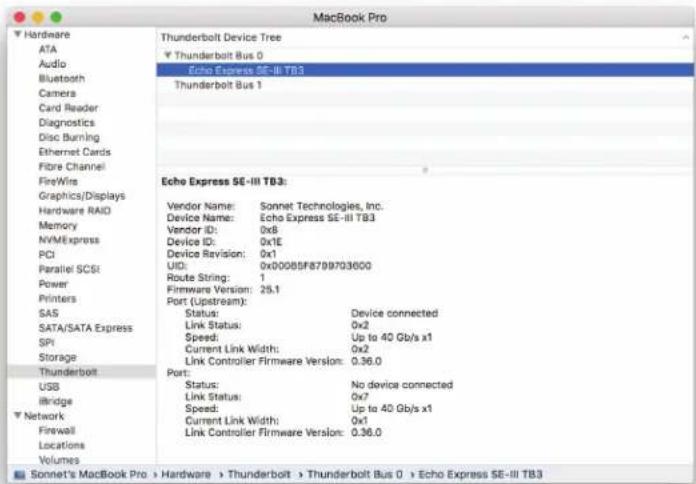
- In the System Information window, click Thunderbolt under the Hardware header in the left column (Figure 8).
- In the top right column under the Thunderbolt Device Tree header, you will see Thunderbolt Bus, and then "Echo Express SE-III TB3" (Figure 8).

FortNote: If "Echo Express SE-III TB3" is not listed, disconnect and reconnect the Thunderbolt between the computer and Echo chassis. Note that not necessary to shut down the computer before connecting and reconnecting the cable, so long as the red card is Thunderbolt-compatible.
B – Confirm the Installed Cards are Recognized
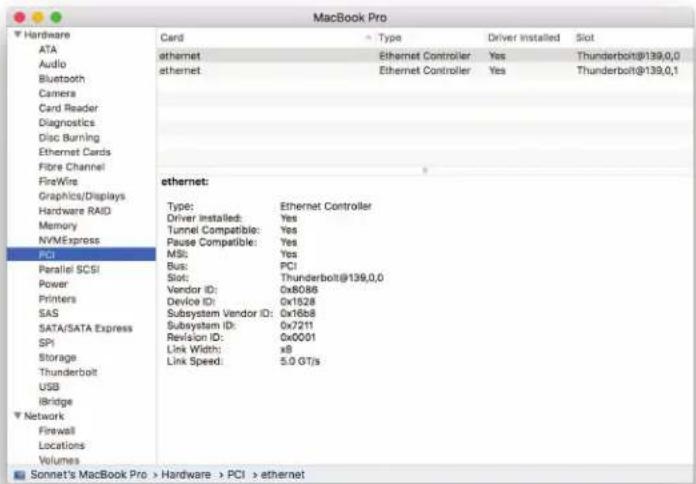
- In the System Information window click PCI under the Hardware header in the left column (Figure 9).
- At the top of the right column, the installed cards are listed (if not, you may to install drivers before the cards are recognized). Click one of the cards; you should see "Yes" next to Driver Installed and Tunnel Compatible, otherwise the card or driver may not be Thunderbolt-compatible (Figure 9).

ortNote: While the Echo Express SE III expansion chassis requires no drivers, installed cards e Thunderbolt-compatible drivers to enable their use.
C - Install Card Drivers (If Necessary)
- Launch a web browser, and then go to your card manufacturer's website. Download and install the latest drivers according to the manufacturer's directions.
- Restart your computer; your Echo chassis is ready to use!
text_image
MacBook Pro Hardware ATA Audio Bluetooth Camera Card Reader Diagnostics Disc Burning Ethernet Cards Fibre Channel FireWire Graphics/Displays Hardware RAID Memory NVMExpress PCI Parallel SCSI Power Printers SAS SATA/SATA Express SPI Storage Thunderbolt USB Illbridge Network Firewall Locations Volumes Thunderbolt Device Tree Thunderbolt Bus 0 Echo Express SE-III TB3 Thunderbolt Bus 1 Echo Express SE-III TB3: Vendor Name: Sonnet Technologies, Inc. Device Name: Echo Express SE-III TB3 Vendor ID: 0x8 Device ID: 0x1E Device Revision: 0x1 UID: 0x000BSF8799703600 Route String: 1 Firmware Version: 25.1 Port (Upstream): Status: Device connected Link Status: 0x2 Speed: Up to 40 Gb/s x1 Current Link Width: 0x2 Link Controller Firmware Version: 0.36.0 Port: Status: No device connected Link Status: 0x7 Speed: Up to 40 Gb/s x1 Current Link Width: 0x1 Link Controller Firmware Version: 0.36.0Figure 8
text_image
Hardware ATA Audio Bluetooth Camera Card Reader Diagnostics Disc Burning Ethernet Cards Fibre Channel FireWire Graphics/Displays Hardware RAID Memory NVMExpress PCI Parallel SCSI Power Printers SAS SATA/SATA Express SPI Storage Thunderbolt USB Bridge Network Firewall Locations Volumes Sonnet's MacBook Pro > Hardware > PCI > ethernet Card Type Driver Installed: Yes Tunnel Compatible: Yes Pause Compatible: Yes MSI: Bus: PCI Slot: Thunderbolt@139,0,0 Vendor ID: 0x8088 Device ID: 0x1828 Subsystem Vendor ID: 0x1658 Subsystem ID: 0x7211 Revision ID: 0x0001 Link Width: x8 Link Speed: 5.0 GT/sFigure 9
Chapter 5 – Tips, General Information, and Known Issues
TIPS, GENERAL INFORMATION
Keeping the Cards Cool
With its optimized airflow design and temperature-controlled fan providing cooling at all times, Echo Express SE III provides adequate cooling for the installed cards. Do not operate the Echo chassis with its cover off, and do not block any of the vents! Otherwise, the installed cards and Echo chassis' components may overheat.
Hot Plugging the Echo Express SE III
When a certified Thunderbolt-compatible card (used with Thunderbolt-compatible drivers) is installed in the Echo chassis, you may connect and disconnect it while the computer is on. Of course, if you have anything connected to the cards, such as storage devices, cameras, etc., follow proper procedures for disconnecting those devices before unplugging the Echo chassis.
There's No Need to Unplug the Power Adapter
Because Echo Express SE III automatically powers on and off with the computer to which it's connected, there's no power switch, nor is there any need to disconnect the power cable under normal use.
Echo Express SE III Power Indicator LED Operation
The chassis automatically powers on and off with the computer to which it's connected, and its power indicator only lights when the computer is on, and turns off when the computer is sleeping or powered off. Note that the power adapter's power indicator remains lit as long as the adapter is connected to a live power outlet.
Connecting Additional Thunderbolt 3 Peripheral Devices
The Echo Express SE III includes two Thunderbolt 3 ports; the first is reserved for connection to your computer, while the second supports daisy-chaining of up to five additional Thunderbolt peripheral devices.
Using Expansion Cards Without Drivers
Some Thunderbolt-compatible expansion cards, like Sonnet's Allegro™ Pro USB 3.1 PCIe and Sonnet's Solo10G™ PCIe card, use drivers built into macOS, and are ready to use out of the box.
Replacing a Card After Initial Installation
Shut down the computer, and then disconnect the power adapter and Thunderbolt cables from the Echo Express SE III before opening the chassis and replacing the card.
PCIe CARDS ARE NOT HOT-PLUGGABLE!
Never install a PCIe card into Echo chassis while it is connected to a computer or power outlet! If you do, you risk injury, and damage to the card, chassis, and computer.
Echo Express SE III Provides Upstream Power
The Echo chassis can provide up to 15 watts to bus-powered Thunderbolt 3 peripheral devices, enabling them to operate without connecting an additional power adapter.
Using the Echo Chassis to Charge Your Notebook Computer Apple® MacBook Air® and MacBook Pro® computers with Thunderbolt 3 may be charged slowly via the Echo chassis' Thunderbolt 3 port (via 15W Power Delivery). Computers with Thunderbolt 2 or Thunderbolt ports cannot be charged via Thunderbolt.
How to Identify Thunderbolt 3 (40Gbps) Cables
Look for the Thunderbolt icon (✗) AND the number 3 on the connector housings to identify these cables. Cables with USB-C connectors that only have the Thunderbolt icon without the number 3 support 20Gbps speeds, and are not recommended for PCIe cards with high bandwidth requirements. Cables marked with the USB icon (✗) are NOT compatible for connecting the Echo chassis to the computer.
KNOWN ISSUES
Not All Computers' Thunderbolt 3 Performance is Equal While this product features a 40Gbps Thunderbolt 3 interface, some computers equipped with Thunderbolt 3 use an implementation of Thunderbolt 3 that limits PCIe performance to 20Gbps. Mid-2017 and earlier 13-inch MacBook Pro computers with four Thunderbolt 3 ports have this limitation in the two right-hand Thunderbolt 3 ports, while offering full performance from the left-hand ports.
Not all PCIe Cards Will Perform at 100%
Thunderbolt 3's PCIe bandwidth is limited to 40Gbps. While most cards will operate at full performance, some may not due to the fact they require more bandwidth than Thunderbolt 3 is capable of supporting.
Not All Thunderbolt 3 Cables Deliver Full Performance
Full performance from the Echo chassis requires the use of the included Thunderbolt 3 (40Gbps) cable (which also supports up to 100W power delivery), or a comparable Thunderbolt 3 cable. When shopping for a Thunderbolt 3 cable, please be aware that some support only lower data transfer speeds (20Gbps).
Operating System (OS) Updates May Break Compatibility
Specific device drivers that work under one OS version may not work under a later version. Before updating your computer to the latest OS, we recommend that you contact Sonnet or your PCIe card's manufacturer to verify that the existing drivers work. Note that other software updates for the computer may also break compatibility.
Some Devices' Performance May be Affected by Where They Are Connected in a Thunderbolt Chain
However small, Thunderbolt introduces latency to a device chain. If you expand with additional Thunderbolt expansion chassis, you may need to experiment with which cards work better in chassis closer to or farther from the computer in the chain.
Chapter 6 – Safety Precautions, FCC Compliance, and Support Information
SAFETY PRECAUTIONS
Please read this section carefully before proceeding. These precautions explain the correct and safe use of this device, thereby helping to prevent injury to you or others, and also help you to minimize the risk of damaging the device.
Warnings
Always follow the basic warnings listed here to avoid the risk of serious injury or death from electrical shock, short-circuiting, fire, and other hazards. These warnings include, but are not limited to:
- Do not attempt to modify the enclosure. If this device appears to be malfunctioning, contact your reseller or local distributor.
- Do not drop the chassis; dropping or mishandling the chassis may result in a malfunction leaving the product inoperable.
- Do not expose the device to rain, use it near water or containers that contain liquids which might spill into any openings, or in damp or wet conditions.
- If unusual smells, sounds, or smoke come from the device, or if liquids enter it, switch it off immediately and unplug it from the electrical outlet.
- Follow the instructions in this manual carefully; contact your reseller or local distributor for additional advice not covered in this User's Guide.
FCC Compliance
Echo Express SE III complies with Part 15 of the FCC Rules. Operation is subject to the following two conditions: This device may not cause harmful interference, AND this device must accept any interference received, including interference that may cause undesired operation.
Underwriters Laboratories (UL) Listed Power Adapter
The 100-240 VAC to 12VDC power adapter included with the Echo Express SE III is UL Listed.
Contacting Customer Service
The Sonnet Web site located at www.sonnettech.com has the most current support information and technical updates. Before you call Customer Service, please check our Web site for the latest updates and online support files, and check this User's Guide for helpful information.
Email support requests generally receive the fastest responses, and are usually processed within a 24-hour period during normal business hours, excluding holidays. When you contact Customer Service, have the following information available so the customer service staff can better assist you:
- Product name
• Date and place of purchase - Computer model
- PCIe card models
- Operating system version
- Software/firmware versions
- A macOS System Report, along with a description of the issue(s) you are encountering with your device.
USA Customers
If further assistance is needed, please contact Sonnet Customer Service at:
E-mail: support@sonnettech.com
Tel: 1-949-472-2772
(Monday–Friday, 9 a.m.–4 p.m. Pacific Time)
For Customers Outside the USA
For support on this product, contact your reseller or local distributor.
Visit Our Web Site
For the most current product information and online support files, visit the Sonnet Web site at www.sonnettech.com/support/. Register your product online at https://registration.sonnettech.com to be informed of future upgrades and product releases.