
Essential G550 - Laptop LENOVO - Free user manual and instructions
Find the device manual for free Essential G550 LENOVO in PDF.


User questions about Essential G550 LENOVO
0 question about this device. Answer the ones you know or ask your own.
Ask a new question about this device
Download the instructions for your Laptop in PDF format for free! Find your manual Essential G550 - LENOVO and take your electronic device back in hand. On this page are published all the documents necessary for the use of your device. Essential G550 by LENOVO.
USER MANUAL Essential G550 LENOVO
- Before using this information and the product, it supports, be sure to read important safety information on page 11 and Notices in Appendix E first.
- Some instructions in this guide may assume that you are using Windows Vista. If you are using other Windows operating system, some operations may be slightly different. If you are using other operating systems, some operations may not apply to you, but it wasn't substantially affect your use of this computer.
- The features described in this guide are common to most models. Some features may not be available on your computer and/or your computer may include features that are not described in this user guide.
- The illustrations used in this manual are for Lenovo G550 unless otherwise stated.
- The illustrations in this manual may differ from the actual product. Please refer to the actual product.
lenovo.

If your product is not working correctly, DO NOT RETURN IT TO THE STORE.
For technical assistance, contact a Lenovo support specialist 24 hours a day by calling toll free 1-877-4 LENOVO (1-877-453-6686).
Additionally, you can find support information and updates on the Lenovo Web site located at http://consumersupport.lenovo.com.
Second Edition (July 2009)
© Copyright Lenovo 2009.
LENOWO products, data, computer software, and services have been developed exclusively at private expense and are sold to governmental entities as commercial items as defined by 48 C.I.R. 2.101 with limited and restricted rights to use, reproduction and disclosure. LIMITED AND RESTRICT RIGHTS NOTICE: If products, data, computer software, or services are delivered pursuant a General Services Administration "GSA" contract, use, reproduction, or disclosure is subject to restrictions set forth in Contract No. GS-359-15925.
* Only for the users from the United States.
Respective Users
Dear user,
Thanks for purchasing Lenovo notebook! Before using this product, please make sure to read this User Guide carefully.
We are most honored to have you as our customer. In order to make sure you master the usage of Lenovo notebook soon, we have prepared this User Guide for you. This manual has been made very simple and comprehensive. In this manual, you can get information on the system configuration, installation steps and the basic operating systems. We strongly recommend that in using this product, please be sure to carefully read the manual. It will actually help you make better use of the computer.
We have done our best to avoid human errors in making sure that the information provided in the manual is accurate and reliable. However we cannot completely guarantee that there will not be any mistakes that were not found and checked out before printing.
Please bear with us because there might also be some uncontrolled omissions while printing, binding or distributing.
Because we are trying to improve the full performance and reliability of our equipment, the hardware and software components might need some little adjustment. In this case, this might lead to an inconsistency in the actual makeup of the equipment to that of the information stated in the manual, but it will not substantially affect your use.
Thanks for your cooperation!
natural_image
Pure geometric diagram with intersecting lines and circles, no text or symbols present
natural_image
Pure geometric diagram with intersecting lines and circles, no text or symbols presentExplanation of hard disk capacity
Dear user,
While using your computer, you may find that the nominal hard disk capacity indicated is somewhat different from the disk capacity displayed by the operating system. For example, a nominal 40GB hard disk will appear as less than 40GB in the operating system. This discrepancy is not an error in hard disk installation nor any other problem, but a normal phenomenon of computers. This phenomenon is primarily due to the following reasons:
I. Different standards used by the manufacturer and operating system when calculating hard disk capacity
Hard disk manufacturers use a radix of 1000, i.e., 1G = 1,000MB, 1MB = 1,000KB, 1KB = 1,000 bytes. However, when identifying hard disk capacity, operating systems use a radix of 1024, i.e. 1GB = 1,024MB, 1MB = 1,024KB, 1KB = 1,024 bytes. The standard adopted by your computer is that of the hard disk manufacturers. Since the standards adopted by the hard disk manufacturer and operating system are different, the hard disk capacity displayed by the operating system will be different from the nominal hard disk capacity.
For example, if the hard disk is nominally X G, even when it is completely empty, the capacity displayed by the operating system will be:
$$ \mathrm{X} \times 1 0 0 0 \times 1 0 0 0 \times 1 0 0 0 / (1 0 2 4 \times 1 0 2 4 \times 1 0 2 4) \approx \mathrm{X} \times 0. 9 3 1 \mathrm{G} $$
In addition, if a portion of the hard disk space has been used for some specific purpose, then the capacity indicated by the operating system will be even less than X × 0.931 G .
II. A portion of the hard disk space is used for specific purposes
Lenovo computers may come with preinstalled OneKey Rescue System, so the hard disk has a special portion partitioned before delivery, which is used to store hard disk mirror and OneKey Rescue System program files. The size of the reserved space for this partition varies according to the model, operating system and software of the computer. For the sake of safety, this partition is not apparent, which is commonly referred to as a “hidden partition”.
In addition, after the hard disk is partitioned or formatted, the system will assign a certain amount of hard disk space for the system files.
For the above reasons, the available hard disk space indicated by the operating system is always less than the computer's nominal hard disk capacity.
natural_image
Pure geometric diagram with intersecting lines and circles, no text or symbols present
natural_image
Pure geometric diagram with intersecting lines and circular shapes, no text or symbols presentContents
Important safety information......ii
Important safety information .....ii
Chapter 1. Getting to know your
computer....1
Top view....1
Left-side view 4
Right-side view....5
Front view 6
Bottom view 7
Chapter 2. Learning the basics .....9
First use....9
Using AC adapter and battery .....11
Using the touchpad....12
Using the keyboard....13
Special keys and buttons....15
System status indicators....16
Securing your computer....17
Connecting external devices....18
Chapter 3. Using the computer
network 21
Wired connection 21
Wireless connection 22
Chapter 4. OneKey Rescue System.....23
OneKey Rescue System 23
Chapter 5. Troubleshooting .....24
Frequently asked questions 24
Troubleshooting 26
Chapter 6. Upgrading and replacing
devices 30
Replacing the battery....30
Replacing the hard disk drive ....31
Replacing memory 33
Removing the optical drive ....35
Appendix A. Getting help and service.....37
Getting help on the Web 37
Calling the customer support center .....37
Getting help around the world .....38
Lenovo warranty service telephone
numbers 39
Appendix B. Use, and care
information 40
Caring your computer....40
Accessibility and comfort....43
Maintenance....44
Appendix C. Lenovo limited
warranty 46
Warranty information 50
Appendix D. Customer replaceable units
(CRUs) 53
Appendix E. Notices.... 54
Notices 54
ENERGY STAR model information ..... 56
Wireless related information.... 57
Electronic emissions notices 59
WEEE and recycling statements ...... 62
Turkish statement of compliance 62
EU WEEE statements 63
Japan recycling statements 63
Notice for users in the U.S.A....64
Notice on deleting data from your hard
disk....64
Appendix F. Lenovo regulatory notice .... 65
Lenovo regulatory notice.... 65
Appendix G. Features and
specifications 96
Trademarks 97
Index 98
natural_image
Pure geometric diagram with intersecting lines and circular shapes, no text or symbols present
natural_image
Pure electrical circuit lines without any symbolsImportant safety information
Important safety information
This information can help you safely use your notebook personal computer. Follow and retain all information included with your computer. The information in this document does not alter the terms of your purchase agreement or the Lenovo Limited Warranty. For more information, see "Appendix C. Lenovo limited warranty" on page 46.
Read this first
Personal computers are electronic devices. Power cords, power adapters, and other features can create potential safety risks that can result in physical injury or property damage, especially if misused.
The safety risks are categorized as follows:
\* Danger:
Physical injury or even death may be caused.
- Attention:
Property damage or even minor injury may be caused.
To protect yourself from hazards and create a safer computer work environment, follow the instructions hereafter.
Unpack

Inspect the covers of the computer and AC adapter, especially parts with the following labels attached for any crack or damage.

\* Danger:
- Hazardous voltage, current, and energy levels are present inside any component that has this label attached.
Working place

Do NOT use the computer in humid places such as a bathroom. Keep the computer and other parts away from liquids.
\* Danger:
- An electric shock may be caused by spilled liquid.
Do NOT use the computer during a lightning storm.
- Attention:
• Lightning storm may damage the computer and result in an electric shock.
ii
natural_image
Pure electrical circuit lines without any symbols
natural_image
Pure geometric diagram with intersecting lines and circles, no text or symbols presentImportant safety information

Keep a good ventilation of the computer and other parts.
\* Danger:
- Placing the working computer or other parts on a bed, sofa or other flexible surface may block the ventilation slots causing overheat of your computer or other parts to overheat or even catch a fire.

Turn off wireless devices where they may cause interference, such as in a hospital or at an airport.
On using

Use ONLY the power cord, power adapter and battery pack shipped with the computer and never use them with another product.
Be sure the power outlet is suitable for the plug and provides the correct voltage and current for the product you are installing.
\* Danger:
- An unsuitable power supply may damage your computer or cause an electric shock or fire.

Do NOT use a power outlet, power cord, power adapter or battery pack that appears to be damaged or corroded.

Do NOT share an electrical outlet with other home or commercial appliances that draw large amounts of electricity.
If a power strip is used, the load should NOT exceed its rating. Unplug the power cord if there is a cracking, hissing, or a popping sound, or a strong odor comes from the computer.
\* Danger:
• Overloading the power supply may cause unstable voltages which might damage the computer, data, or attached devices, or even cause a fire.

Do NOT wrap the power cord around the power adapter or other object.
Do NOT squeeze or pinch the cord, or place heavy objects on it.
- Attention:
- Stressing the cord may cause the cord to fray, crack or crimp which may present a safety hazard.

Avoid keeping your hands, your lap, or any other part of your body in contact with a hot section of the working computer for any extended length of time.
- Attention:
- Extended contact with your body, even through clothing, could cause discomfort or even a skin burn.

iii
natural_image
Pure geometric diagram with intersecting lines and circular shapes, no text or symbols present
natural_image
Pure electrical circuit lines without any symbolsImportant safety information

Do not drop, bump, scratch, hit or place heavy objects on the liquid crystal display (LCD) of your computer.
- Attention:
- Direct contact with liquid crystal material from a broken LCD is hazardous; if contact occurs, rinse with large amount of running water for more than 15 minutes.
Service and upgrades

Do NOT attempt to service a product yourself unless instructed to do so by the customer support center or your documentation.
- Attention:
- DO NOT take risks or attempt to diagnose the situation yourself. Contact the customer support center for further guidance.
Lenovo provides documentation with instructions when it is appropriate for customers to install options or replace units (CRUs). Closely follow all instructions when installing or replacing parts.
Disconnect the attached power cords, battery pack, and all the cables before you open the device covers, unless instructed otherwise in the installation and configuration procedures. Keep the covers closed whenever the computer is plugged in.

Do NOT remove the cover of CD/DVD drive, power adapter, battery pack or other unserviceable parts.
\* Danger:
- Open the cover of CD/DVD drive or power adapter may result in an electric shock, laser radiation or even a explosion.
iv
natural_image
Pure geometric diagram with intersecting lines and circles, no text or symbols present
natural_image
Pure geometric diagram with intersecting lines and circles, no text or symbols present
natural_image
Pure geometric diagram with circular and crosshair elements, no text or symbols presentLenovo G450-550 UG V2.0_en.book Page 1 Wednesday, September 2, 2009 9:29 AM
natural_image
Pure geometric diagram with intersecting lines and circles, no text or symbols presentChapter 1. Getting to know your computer
Top view
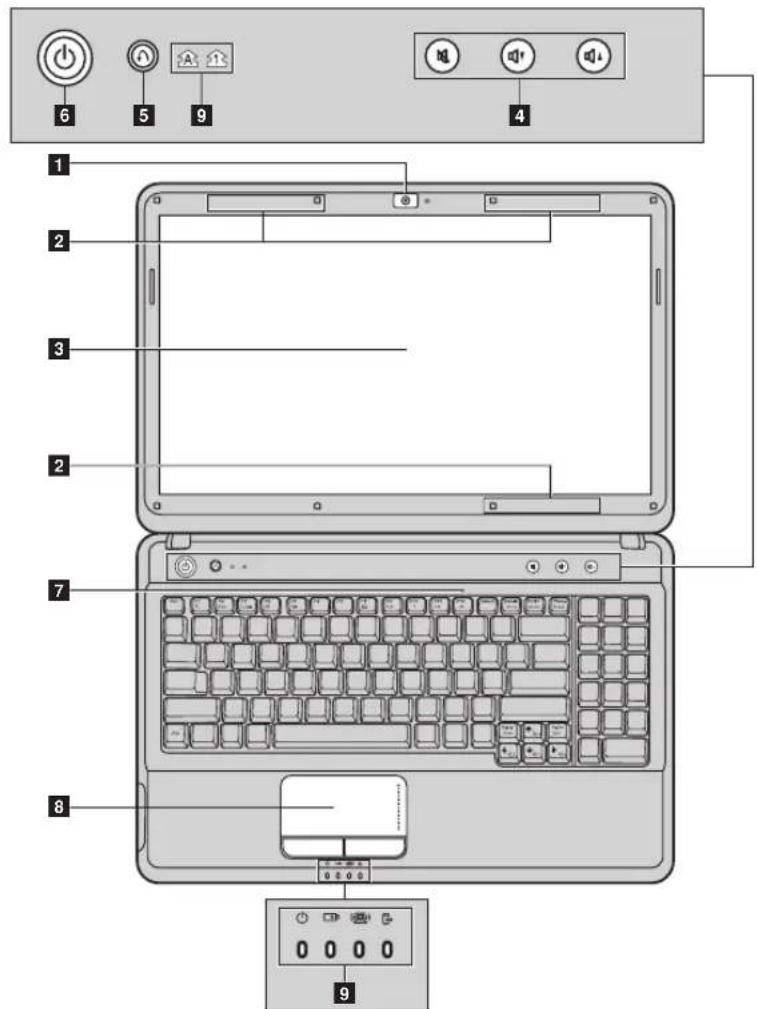
Lenovo G550
text_image
6 5 9 4 1 2 3 2 7 8 9Note: The illustrations in this manual may differ from the actual product. Please refer to the actual product.
- Attention:
- Do NOT open the display panel beyond 130 degree. When closing the display panel, be careful NOT to leave pens or any other objects in between the display panel and the keyboard. Otherwise, the display panel may be damaged.
natural_image
Pure geometric diagram with intersecting lines and circles, no text or symbols present
natural_image
Pure electrical circuit lines without any symbols
text_image
LendoLenovo G450-550 UG V2.0_en.book Page 2 Wednesday, September 2, 2009 9:29 AM
natural_image
Pure geometric diagram with intersecting lines and circles, no text or symbols presentChapter 1. Getting to know your computer
Lenovo G450
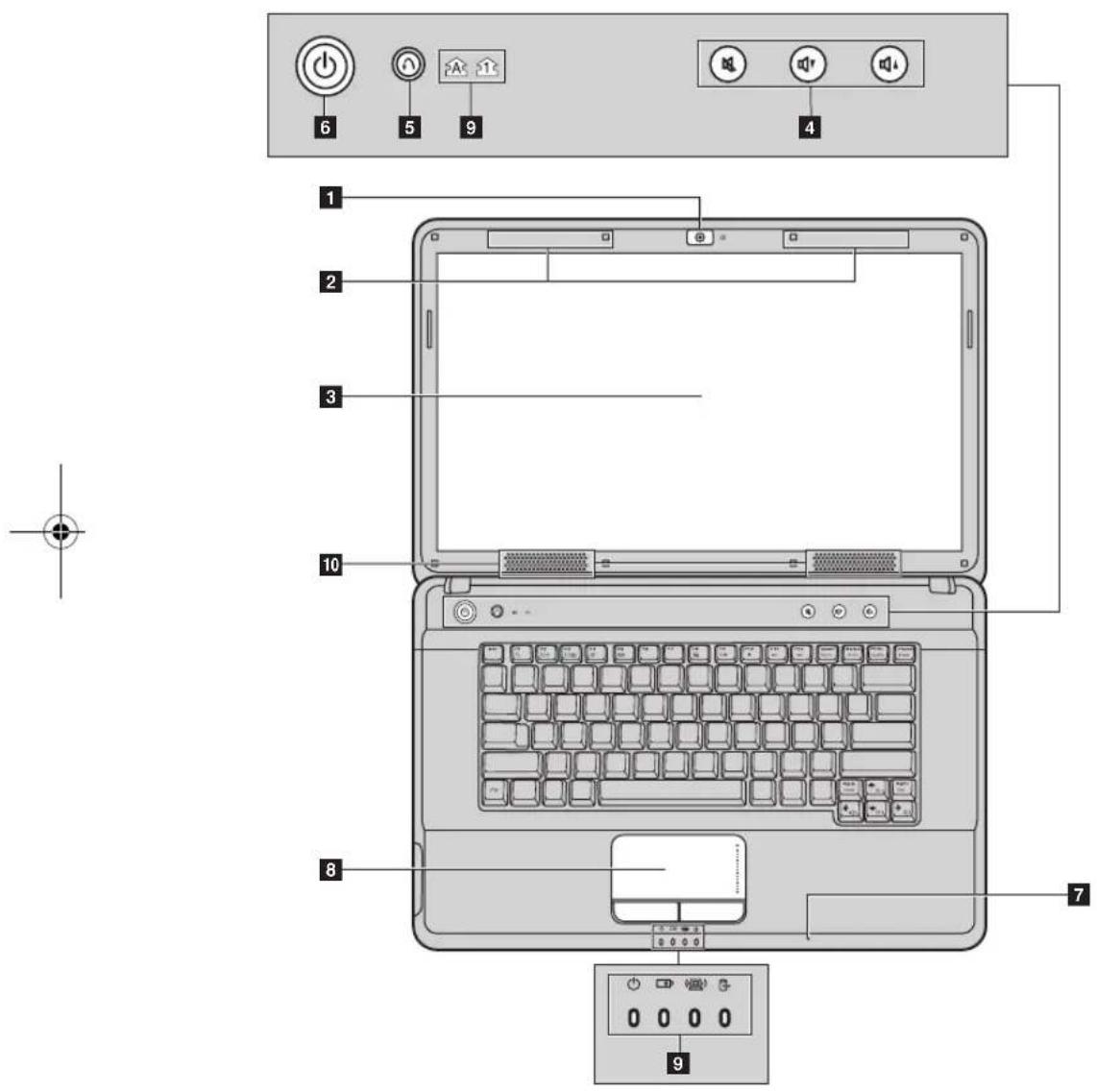
text_image
6 5 9 4 1 2 3 10 8 7 9
natural_image
Pure electrical circuit lines without any symbols
natural_image
Pure geometric diagram with intersecting lines and circles, no text or symbols presentChapter 1. Getting to know your computer
1 Integrated camera (specific models only) Use the camera for video communication.
2 Wireless module antennas (specific models only) The built-in antennas ensure optimal reception of wireless radio.
3 Computer display The LCD display with LED backlight provides brilliant visual output.
4 Volume buttons Use these buttons to adjust volume.
(specific models only)
5 OneKey Rescue Press this button to open OneKey Rescue System (If OneKey Rescue System has been preinstalled) when the computer is powered off.
Note: For details, see "Chapter 4. OneKey Rescue System" on page 23.
6 Power button Press this button to turn on the computer.
7 Built-in microphone The built-in microphone (with noise reduction) can be used for video conferencing, voice narration, or simple audio recordings.
8 Touchpad The touchpad functions as a conventional mouse.
Note: For details, see "Using the touchpad" on page 12.
9 System status indicators For details, see "System status indicators" on page 16.
10 Speakers The stereo speakers provide rich and powerful sound.

natural_image
Pure geometric diagram with intersecting lines and circles, no text or symbols present
natural_image
Pure electrical circuit lines without any symbols
natural_image
Pure geometric diagram with circular and crosshair elements, no text or symbols presentLenovo G450-550 UG V2.0_en.book Page 4 Wednesday, September 2, 2009 9:29 AM
natural_image
Pure geometric diagram with intersecting lines and circles, no text or symbols presentChapter 1. Getting to know your computer
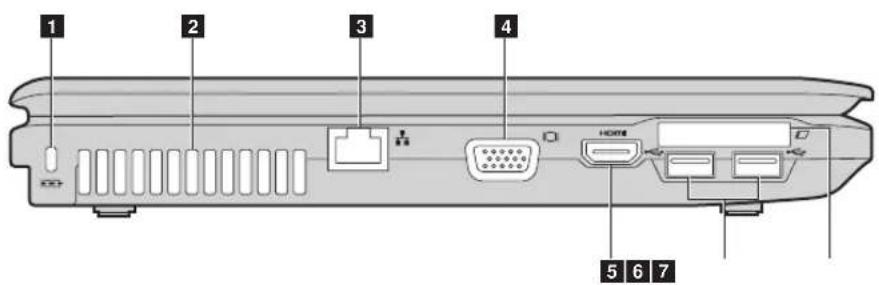
Left-side view
text_image
1 2 3 4 5 6 71 Kensington slot Attach a security lock (not supplied) here.
Note: For details, see "Attaching a security lock (not supplied)" on page 17.
2 Fan louvers Dissipate internal heat.
Note: Make sure that none of the fan louvers are blocked or else overheating of the computer may occur.
3 RJ-45 port Connects to a wired network.
Note: For details, see "Wired connection" on page 21.
4 VGA port Connects to external display devices.
5 HDMI port (specific models only) Connects to devices with HDMI input such as a TV or a display.
Note: Press Fn+F3 to shift to other connected display devices.
6 USB port Connects to USB devices.
Note: For details, see "Connecting a universal serial bus (USB) device" on page 18.
7 ExpressCard ^® slot (specific models only) Insert ExpressCard device here.
Note: For details, see "Inserting an ExpressCard/34 device" on page 19.
natural_image
Pure geometric diagram with intersecting lines and circles, no text or symbols present
natural_image
Pure geometric diagram with intersecting lines and shapes, no text or symbols presentChapter 1. Getting to know your computer
Right-side view
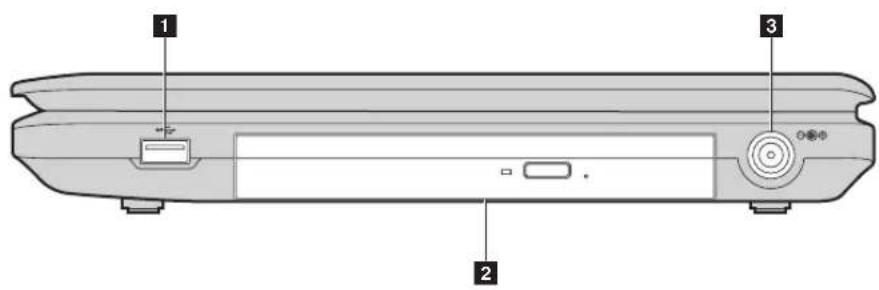
text_image
Diagram of a device rear panel with labeled components including ports, buttons, and indicators1 USB port Connects to USB devices.
Note: For details, see "Connecting a universal serial bus (USB) device" on page 18.
2 Optical drive Reads/Burns optical disks.
3 AC power adapter Jack Connect the AC adapter here.
Note: For details, see "Using AC adapter and battery" on page 11.
natural_image
Pure geometric diagram with intersecting lines and circles, no text or symbols present
natural_image
Pure geometric diagram with intersecting lines and circles, no text or symbols present
text_image
LendoLenovo G450-550 UG V2.0_en.book Page 6 Wednesday, September 2, 2009 9:29 AM
natural_image
Pure geometric diagram with intersecting lines and circles, no text or symbols presentChapter 1. Getting to know your computer
Front view
Lenovo G550
text_image
1 2 3 4 5 1Lenovo G450

text_image
2 3 4 5
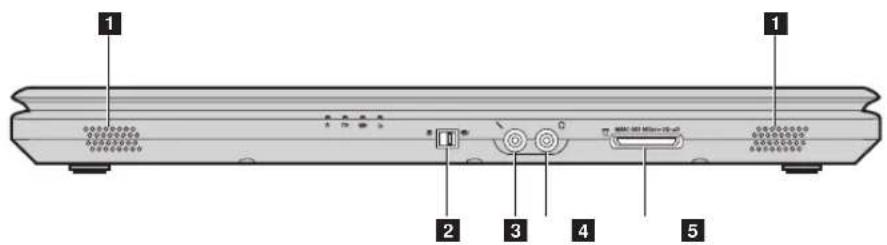
1 Speakers The stereo speakers provide rich and powerful sound.
2 Integrated wireless device switch Use this switch to turn on/off the wireless radio of all wireless devices on your computer.
3 Microphone jack Connects to an external microphone.
4 Headphone jack Connects to an external headphone.
- Attention:
- Listening to music at high volume over extended periods of time may damage your hearing.
5 Memory card slot (specific models only) Insert memory cards (not supplied) here.
Note: For details, see "Using memory cards (not supplied)" on page 18.
6
natural_image
Pure geometric diagram with intersecting lines and circles, no text or symbols present
natural_image
Pure geometric diagram with intersecting lines and circles, no text or symbols present
text_image
LendoLenovo G450-550 UG V2.0_en.book Page 7 Wednesday, September 2, 2009 9:29 AM
natural_image
Pure geometric diagram with intersecting lines and circles, no text or symbols presentChapter 1. Getting to know your computer
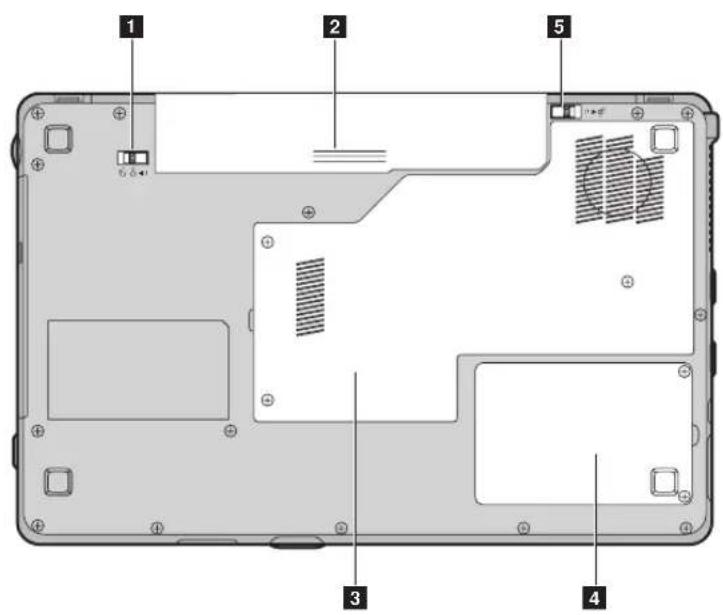
Bottom view
Lenovo G550
text_image
Labeled diagram of a laptop back panel showing numbered components for identification
natural_image
Pure geometric diagram with intersecting lines and circles, no text or symbols present
natural_image
Pure electrical circuit lines without any symbols
text_image
LendoLenovo G450-550 UG V2.0_en.book Page 8 Wednesday, September 2, 2009 9:29 AM
Chapter 1. Getting to know your computer
Lenovo G450
text_image
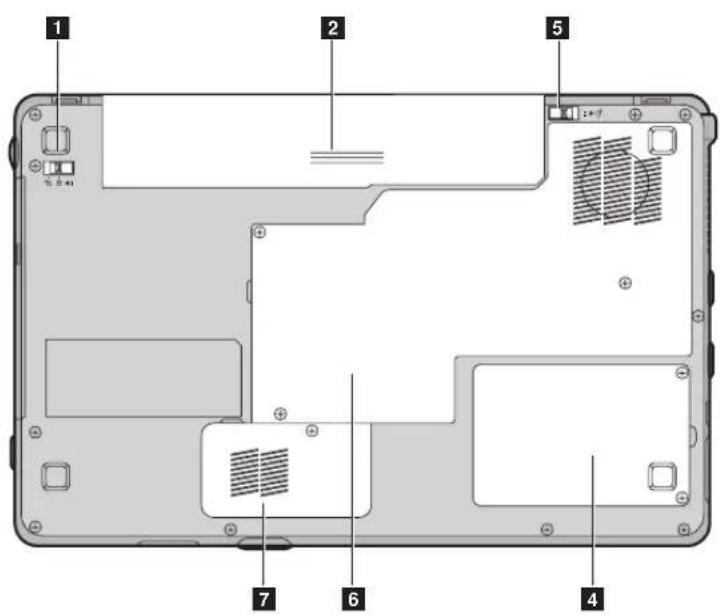
Labeled diagram of a computer chassis showing internal components and connectors1 Battery latch - manual The manual battery latch is used to keep the battery pack secured in place.
2 Battery pack For details, see "Using AC adapter and battery" on page 11.
3 Memory/Wireless module/CPU (central processing unit) compartment (G550) Houses the computer's main memory and wireless module.
4 Hard disk drive (HDD) compartment Hard disk drive is secured in this compartment.
5 Battery latch - spring loaded The spring-loaded battery latch keeps the battery pack secured in place.
6 Memory/CPU (central processing unit) compartment (G450) Houses the computer's main memory.
7 Wireless module compartment (G450) Wireless module is secured in this compartment.

natural_image
Pure geometric diagram with intersecting lines and circles, no text or symbols present
natural_image
Pure geometric diagram with intersecting lines and circles, no text or symbols present
natural_image
Pure geometric diagram with intersecting lines and circles, no text or symbols presentChapter 2. Learning the basics
First use
Read the manuals
Read the supplied manuals before using your computer.
■ Connect to the power
The supplied battery pack is not fully charged at purchase.
To charge the battery and begin using your computer, insert the battery pack and connect the computer to an electrical outlet. The battery is automatically charged while the computer is running on AC power.
Install the battery pack
Refer to the supplied Setup Poster to install the battery pack.
Connect the computer to an electrical outlet
1 Connect the power cord to the AC adapter.
② Connect the AC adapter to the AC power adapter jack of the computer.
③ Plug the power cord into an electrical outlet.
■ Turn on the computer
Press the power button to turn on the computer.
■ Configure the operating system
You may need to configure the operation system when it is first used. The configuration process may include the procedures below.
- Accepting the end user license agreement
- Configuring the Internet connection
- Registering the operating system
- Creating a user account
natural_image
Pure geometric diagram with intersecting lines and circles, no text or symbols present9
natural_image
Pure geometric diagram with circular and crosshair elements, no text or symbols presentLenovo G450-550 UG V2.0_en.book Page 10 Wednesday, September 2, 2009 9:29 AM
natural_image
Pure geometric diagram with intersecting lines and circles, no text or symbols presentChapter 2. Learning the basics
- Putting your computer into sleep state or shutting it down
When you finish working with your computer, you can put it into sleep state or shut it down.
Putting your computer into sleep state
If you will be away from your computer for only a short time, put the computer into sleep state. When the computer is in sleep state, you can quickly wake it to resume use, and bypass the startup process.
To put the computer into sleep state, do one of the following.
- Click and select Sleep from the Start menu.
- Press Fn + F1.
- Attention:
Wait until the power indicator light starts blinking (indicating that the computer is in sleep state) before you move your computer. Moving your computer while the hard disk is spinning can damage the hard disk, causing loss of data.
To wake the computer, do one of the following.
- Press the power button.
- Press any key on the keyboard.
■ Shutting down your computer
If you are not going to use your computer for a day or two, shut it down.
To shut down your computer, click 📋 and select Shut Down from the Start menu.
natural_image
Pure geometric diagram with intersecting lines and circles, no text or symbols present
natural_image
Pure geometric diagram with intersecting lines and circles, no text or symbols present■ Using AC adapter and battery
- Checking battery status
You can determine the percentage of battery power remaining by using Windows Power Options.
Note: As each computer user has different habits and needs, it is difficult to predict how long a battery charge will last. There are two main factors:
- The amount of energy stored in the battery when you commence work.
- The way you use your computer: for example, how often you access the hard disk drive and how bright you make the computer display.
- Charging the battery
When you find that the battery power is low, you need to charge the battery or replace it with a fully charged one.
The battery is charged when the AC adapter is connected to the computer and the battery is installed.
Charging time will depend on the usage environment.
You need to charge the battery in any of the following situations:
- When you purchase a new battery
- If the battery status indicator starts blinking
- If the battery has not been used for a long time
Notes:
- You are advised to insert the battery pack when using your computer to prevent small particles from entering the inside of your computer.
- To increase the life of the battery pack, the computer does not start recharging the battery immediately after it drops from fully charged.
- Charge the battery at a temperature between 50 °F and 80 °F (10 °C-30 °C).
• Full charge or discharge is not required.
■ Removing the battery pack
If you are not going to use the computer for an extended period of time, or if you need to send your computer to Lenovo for service, etc. remove the battery pack from the computer. Before removing the battery pack, make sure the computer has been shut down.
natural_image
Pure geometric lines and shapes without any text, numbers, or symbols11
natural_image
Pure geometric diagram with circular and crosshair elements, no text or symbols presentLenovo G450-550 UG V2.0_en.book Page 12 Wednesday, September 2, 2009 9:29 AM
natural_image
Pure geometric diagram with intersecting lines and circles, no text or symbols presentChapter 2. Learning the basics
■ Handling the battery
If the rechargeable battery pack is replaced with an incorrect type, there may be danger of an explosion. The battery pack contains a small amount of harmful substances. To avoid possible injury and detriment to the environment, pay attention to the following points.
Notes:
- Replace only with a battery of the type recommended by Lenovo.
- Keep the battery pack away from fire.
- Do not expose the battery pack to water or rain.
- Do not attempt to disassemble the battery pack.
- Do not short-circuit the battery pack.
- Keep the battery pack away from children.
- Do not put the battery pack in trash that is disposed of in landfills. When disposing of the battery, comply with local ordinances or regulations and your company's safety standards.
Using the touchpad
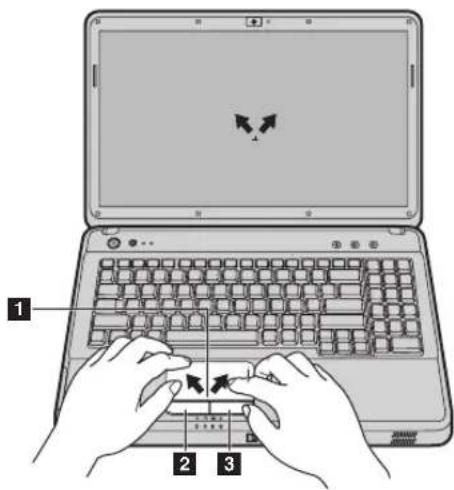
text_image
Diagram of hands typing on a laptop keyboard with labeled parts and directional arrows indicating typing behavior1 Touchpad
To move the cursor on the screen, slide your fingertip over the pad in the direction in which you want the cursor to move.
2 Left click button
The function corresponds to that of the left mouse button on a conventional mouse.
3 Right click button
The function corresponds to that of the right mouse button on a conventional mouse.
Note: You can enable/disable the touchpad using Fn+F8.
12
natural_image
Pure geometric diagram with intersecting lines and circles, no text or symbols present
natural_image
Pure geometric diagram with intersecting lines and circles, no text or symbols presentUsing the keyboard
Numeric keypad
G450
The keyboard has keys that, when enabled, work as a 10-key numeric keypad. To enable or disable the numeric keypad, press Fn+Insert.
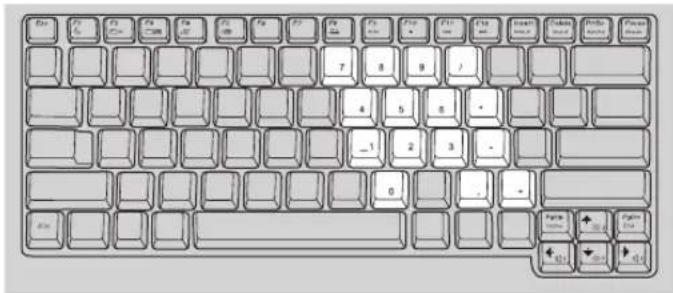
text_image
C:\Program Files\Program Files\Program Files\Program Files\Program Files\Program Files\Program Files\Program Files\Program Files\Program Files\Program Files\Program Files\Program Files\Program Files\Program Files\Program Files\Program Files\Program Files\Program Files\Program Files\Program Files\Program Files\Program Files\Program Files\Program Files\Program Files\Program Files\Program Files\Program Files\Program Files\Program Files\Program Files\Program Files\Program Files\Primer\Primer\Primer\Primer\Primer\Primer\Primer\Primer\Primer\Primer\Primer\Primer\Primer\Primer\Primer\Primer\Primer 7 8 9 / 4 5 6 * -1 2 3 - 0 . - Open Help Finish Help FinishG550
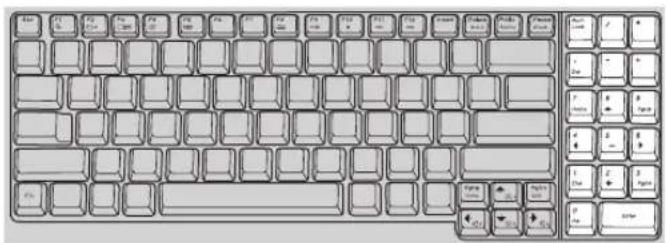
The keyboard has a separate numeric keypad. To enable or disable the numeric keypad, press the Num Lock key.
text_image
Diagram of a standard computer keyboard layout with labeled keys and control buttonsNote: The ⏻ indicator will light on if the numeric keypad is enabled.
natural_image
Pure geometric lines and shapes without any text, numbers, or symbols
natural_image
Pure electrical circuit lines without any symbolsChapter 2. Learning the basics
■ Function key combinations
Through the use of the function keys, you can change operational features instantly. To use this function, press and hold Fn 1; then press one of the function keys 2.
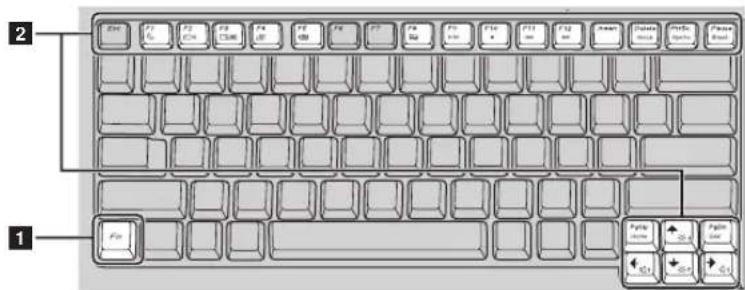
The following describes the features of each function key.
Fn + F1: Enter sleep mode.
Fn + F2: Turn on/off the backlight of the LCD screen.
Fn + F3: Shift to other connected display devices.
Fn + F4: Open the interface for display resolution settings.
Fn + F5: Open the interface for integrated wireless devices settings (enable/disable).
Fn + F8: Enable/Disable the touchpad.
Fn + F9: Start/Pause playback of Windows Media Player.
Fn + F10: Stop playback of Windows Media Player.
Fn + F11: Skip to the previous track.
Fn + F12: Skip to the next track.
Fn + Insert (G450) Enable/Disable the numeric keypad.
Fn + Delete Enable/Disable the scroll lock.
Fn + PrtSc: Activate the system request.
Fn + Pause Activate the break function.
Fn + ↗: Increase/Decrease display brightness.
Fn + ♦:+ Increase/Decrease sound volume.
natural_image
Pure geometric lines and symbols without any text, numbers, or symbols
natural_image
Pure geometric diagram with intersecting lines and circles, no text or symbols presentSpecial keys and buttons
Your computer has several special keys and buttons.
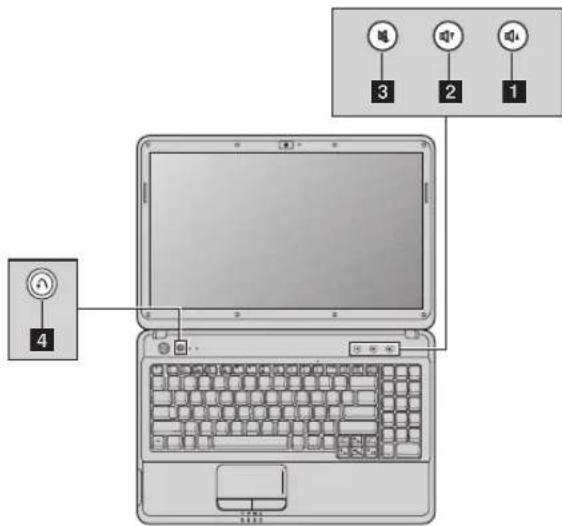
Volume buttons and OneKey Rescue System button
text_image
4 1 2 3Volume buttons (1) specific models only)
1 Volume up
2 Volume down
3 Mute/Unmute
OneKey Rescue System button (☐)
- When the computer is powered-off, press this button to enter the OneKey Rescue System if Lenovo OneKey Rescue System has been preinstalled.
- In Windows operating system, press this button to start Lenovo OneKey Recovery.

natural_image
Pure electrical circuit lines without any symbolsLenovo G450-550 UG V2.0_en.book Page 16 Wednesday, September 2, 2009 9:29 AM
natural_image
Pure geometric diagram with intersecting lines and circles, no text or symbols presentChapter 2. Learning the basics
System status indicators
These indicators inform you of the computer status.
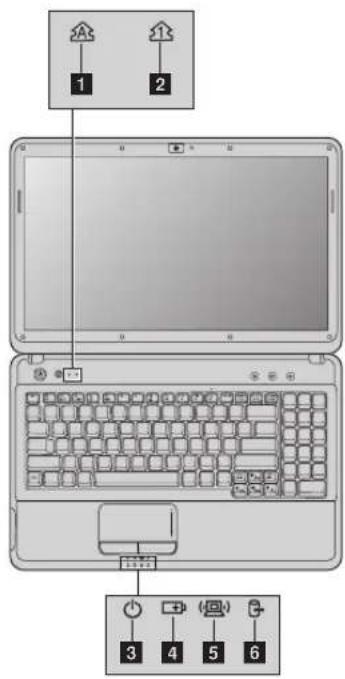
text_image
1 2 3 4 5 61 Caps lock indicator A
2 Num lock indicator 1
3 Power status indicator
4 Battery status indicator
5 Wireless communication indicator (回)
6 Hard disk indicator
16
natural_image
Pure geometric diagram with intersecting lines and circles, no text or symbols present
natural_image
Pure geometric diagram with intersecting lines and circles, no text or symbols presentSecuring your computer
This section provides information about how to help protect your computer from theft and unauthorized use.
■ Attaching a security lock (not supplied)
You can attach a security lock to your computer to help prevent it from being removed without your permission. For details on installing the security lock, please refer to the instructions shipped with the security lock that you have purchased.
Refer to the "Left-side view" on page 4 for the location of the Kensington slot.
Notes:
• Before purchasing any security product, verify that it is compatible with this type of security keyhole.
- You are responsible for evaluating, selecting, and implementing the locking devices and security features. Lenovo offers no comment judgement or warranty regarding the function, quality or performance of locking devices and security features.
Using VeriFace™
VeriFace is a face recognition software which takes a digital snapshot, extracts key features of your face, and creates a digital map that becomes the system's "password".
Note: The face registration and verification works best in an environment with steady and even light.
For more instructions on VeriFace, see the help file on your software.
■ Using passwords
Using passwords helps prevent your computer from being used by others. Once you set a password and enable it, a prompt appears on the screen each time you power on the computer. Enter your password at the prompt. The computer cannot be used unless you enter the correct password.
Note: This password can be from one to seven alphanumeric characters in any combination.
For details about how to set the password, see the help to the right of the screen in BIOS setup utility.
Note: To enter BIOS setup utility, press F2 when the Lenovo logo appears during starting up your computer.
natural_image
Pure geometric diagram with intersecting lines and circles, no text or symbols present
Chapter 2. Learning the basics
Connecting external devices
Your computer has a wide range of built-in features and connection capabilities.
■ Using memory cards (not supplied)
Your computer supports the following types of memory cards:
- Secure Digital (SD) card
• MultiMediaCard (MMC) - Memory Stick (MS)
• Memory Stick PRO (MS PRO)
• xD-Picture Card (xD)
Notes:
- Insert ONLY one card in the slot at a time.
• This card reader does not support SDIO devices (e.g. SDIO Bluetooth, etc.).
Inserting a memory card
① Push the dummy card until you hear a click. Gently pull the dummy card out of the memory card slot.
② Slide the memory card in until it clicks into place.
Note: The dummy card is used for preventing dust and small particles from entering the inside of your computer when the memory card slot is not in use. Retain the dummy card for future use.
Removing a memory card
1 Push the memory card until you hear a click.
② Gently pull the memory card out of the memory card slot.
Note: Before removing the memory card, unable it by Windows Safely Remove Hardware utility to avoid data corruption.
■ Connecting a universal serial bus (USB) device
Your computer comes with three USB ports compatible with USB devices.
Note: When using a high power consumption USB device such as USB ODD, use the external device's power adapter. Otherwise, the device may not be recognized, or system shut down may result.
■ Connecting an ExpressCard device (specific models only)
Your computer comes with an ExpressCard/34 slot used for connecting ExpressCard devices.
Note: Only use the ExpressCard/34 devices.
natural_image
Pure geometric diagram with intersecting lines and circles, no text or symbols present
natural_image
Pure geometric diagram with intersecting lines and circular shapes, no text or symbols presentInserting an ExpressCard/34 device
① Push the dummy card until you hear a click. Gently pull the dummy card out of the ExpressCard slot.
② Slide the ExpressCard device in with the front label facing upward until it clicks into place.
Removing an ExpressCard/34 device
① Push the ExpressCard device until you hear a click.
② Gently pull the ExpressCard device out of the ExpressCard slot.
Notes:
- Before removing the ExpressCard/34 device, unable it by Windows Safely Remove Hardware utility. - The dummy card is used for preventing dust and small particles from entering the inside of your computer when the ExpressCard slot is not in use. Retain the dummy card for future use.
■ Connecting a Bluetooth enabled device (specific models only)
If your computer has an integrated Bluetooth adapter card, it can connect to and transfer data wirelessly to other Bluetooth enabled devices, such as laptop computers, PDAs and cell phones. You can transfer data between these devices without cables and up to 10 meters range in open space.
Note: The actual maximum range may vary due to interference and transmission barriers. To get the best possible connection speed, place the device as near your computer as possible.
Enabling Bluetooth communications
① Slide the integrated wireless device switch to (回)
② Press Fn + F5 to make configuration.
Note: When you do not need to use the Bluetooth function, turn it off to save battery power.
Pairing with a Bluetooth enabled device
1 Enable the Bluetooth function of the device that you need to connect to the computer.
② Open Bluetooth Devices in the Control Panel, click Add Wireless Device, select the device to connect, and click Next.
3 Select a pairing option, and whether to pair with or without a pairing code.
4 Pairing is completed. Files can be transferred between the device and computer.
Notes:
- If you make a Bluetooth connection from a Bluetooth enabled device, open Bluetooth File Transfer Wizard from Accessories of All programs in the Start menu and then click Receive a file to search other devices.
- For details on pairing with Bluetooth enabled devices, refer to their instructions.
- Pairing methods may vary by operating systems.
natural_image
Pure geometric diagram with intersecting lines and circles, no text or symbols present
natural_image
Pure electrical circuit lines without any symbols
natural_image
Pure electrical circuit lines without any symbolsLenovo G450-550 UG V2.0_en.book Page 20 Wednesday, September 2, 2009 9:29 AM
natural_image
Pure geometric diagram with intersecting lines and circles, no text or symbols presentChapter 2. Learning the basics
To send files from the computer to the paired device
① Open Bluetooth File Transfer Wizard from Accessories of All programs in the Start menu.
② Click Send a file, select the paired device where you want to save the file and click Next.
③ Select the file and send it.
To receive files from the paired wireless device to the computer
Refer to the instructions shipped with the paired devices to send files to the computer. The files are saved in Bluetooth Exchange Folder.
Note: You can change the path of Bluetooth Exchange Folder in Control Panel → Bluetooth Devices → Bluetooth Settings → Share.
natural_image
Pure electrical circuit lines without any symbols20

natural_image
Pure geometric diagram with intersecting lines and circles, no text or symbols presentChapter 3. Using the computer network
As a global network, the Internet connects computers worldwide, providing services such as e-mailing, information searching, electronic commerce, Web browsing and entertainment.
You can connect the computer to the Internet in the following ways:
Wired connection: uses physical wiring to connect.
Wireless network technology: connect without wiring.
Wired connection
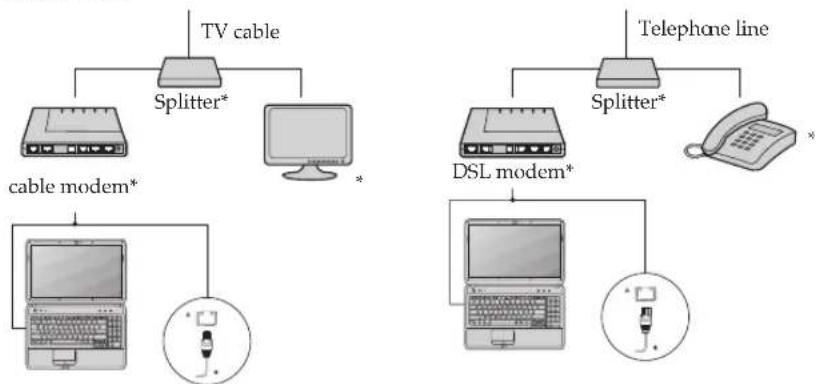
Wired connection is a reliable and safe way to connect the computer to the Internet. Generally, the following two accessing methods are widely used.
| Cable Cable Internet service uses a cable modem connected to the residential cable TV line. | |
| DSL | DSL is a family of related technologies that bring high-speed network access to homes and small businesses over ordinary telephone lines. |
Hardware connection:
Cable DSL
flowchart
graph TD
    A["TV cable"] --> B["Splitter*"]
    A --> C["cable modem*"]
    D["Telephone line"] --> E["Splitter*"]
    D --> F["DSL modem*"]
    G["DSL modem*"] --> H["Laptop with mouse icon"]
    I["Phone with telephone symbol"] --> J["Laptop with connector icon"]
* Not supplied.
Note: The above diagrams are for reference only. Actual connection method may vary.
■ Software configuration
Ask your Internet Service Provider (ISP) for details on how to configure your computer.
natural_image
Pure geometric diagram with intersecting lines and circles, no text or symbols present
natural_image
Pure electrical circuit lines without any symbolsChapter 3. Using the computer network
Wireless connection
Wireless connection provides a mobile access to the Internet, allowing you to stay online anywhere the wireless signal covers.
Wireless connection to the Internet can be built by the following methods.
| Wi-Fi | Wi-Fi networks cover a small physical area, like a home, office, or small group of buildings. An access point (ex. wireless router) is necessary for the connection. |
| WiMAX | WiMAX networks connect several Wireless LAN systems to cover a metropolitan area, providing high-speed broadband access without the need for cables. |
Note: Your computer may not support all wireless connection methods.
■ Using Wi-Fi/WiMax (specific models only)
Enabling wireless connection
To enable wireless communications, do the following:
① Slide the integrated wireless device switch to (回)
② Press Fn + F5 to make configuration.
Hardware connection
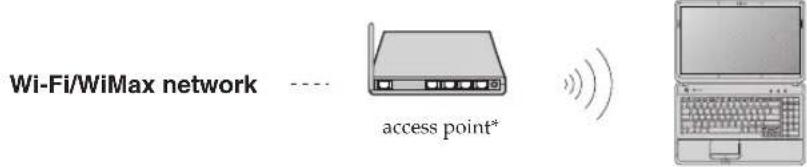
text_image
Wi-Fi/WiMax network ---- access point** Not supplied.
■ Software configuration
Consult your Internet Service Provider (ISP) for details on how to configure your computer.
Chapter 4. OneKey Rescue System
OneKey Rescue System
Introduction
The Lenovo OneKey Rescue System is an easy-to-use application that can be used to back up the data on your system partition (C drive) for easy restore when required. You can run Lenovo OneKey Recovery under the Windows operating system, and the OneKey Rescue System without starting the Windows operating system.
- Attention:
In order to utilize the features of the OneKey Rescue System, your hard disk already includes a hidden partition by default to store the system image file and OneKey Rescue System program files. This default partition is hidden for security reasons and is the reason the available disk space is less than it claims. The exact available hard disk space depends on the file size of the mirror image file (based on the size of operating system and preinstalled software).
■ Using Lenovo OneKey Recovery (Within Windows operating system)
In Windows operating system, double click the OneKey Recovery System Icon on the desktop to launch Lenovo OneKey Recovery.
Within the program, you can back up the system partition on the hard disk drive, other storage devices, or by creating recovery discs.
Notes:
- The backup process and creation of recovery discs may take some time, connect the AC adapter and battery pack to your computer.
• After the recovery discs are burned, please number them so that you can use them in the correct order. - Computers without an integrated optical drive support the creation of recovery discs; however an appropriate external optical drive is needed to physically create the recovery discs.
For more instructions, see the help file of Lenovo OneKey Recovery.
■ Using Lenovo OneKey Rescue System (Without Windows operating system)
In the event that the operating system cannot be loaded, follow the steps below to access OneKey Rescue System.
- Shut down your computer.
- Press the key to launch OneKey Rescue System.
Within the program, you can choose to restore your system partition to the original factory status, or to a previously generated backup.
Note: The recovery process is irreversible. Make sure to back up any critical data before using the recovery feature.
natural_image
Pure geometric lines and shapes without any text, numbers, or symbols
natural_image
Pure electrical circuit lines without any symbolsChapter 5. Troubleshooting
Frequently asked questions
This section lists frequently asked questions and tells where you can find detailed answers. For details about each publication included in the package with your computer, see Lenovo G450/G550 Setup Poster.
What safety precautions should I follow when using my computer?
See "Important safety information" on page ii of this guide.
How can I prevent problems with my computer?
See "Appendix B. Use, and care information" on page 40 of this guide. More tips can be found in Chapter 1 and 2.
What are the main hardware features of my new computer?
More information can be found in Chapter 1 and 2.
Where can I find the detailed specifications for my computer?
See http://consumersupport.lenovo.com.
I need to upgrade a device or I need to replace one of the following: the hard disk drive, memory, or the keyboard.
See "Appendix D. Customer replaceable units (CRUs)" on page 53 of this guide.
Where are the recovery discs?
Your computer did not come with a recovery disc. For an explanation of the alternative recovery methods offered by Lenovo, see "Chapter 4. OneKey Rescue System" on page 23.
How can I contact the customer support center?
See "Appendix A. Getting help and service" on page 37 of this guide.
Where can I find warranty information?
For the warranty applicable to your computer, including the warranty period and type of warranty service, see "Appendix C. Lenovo limited warranty" on page 46.
How can I install the device drivers?
A compatible device driver is a requirement to ensure correct operation and performance of each component in your computer. If your computer is pre-installed with an operating system, Lenovo provides all drivers that you need in your hard disk.
natural_image
Pure geometric diagram with intersecting lines and circles, no text or symbols present
natural_image
Pure geometric diagram with intersecting lines and shapes, no text or symbols presentChapter 5. Troubleshooting
What can I do if the backup process fails?
If you can start the backup feature without a problem, but it fails during the backup process, please try the following steps:
1 Close other applications, then restart the backup process.
② Check if the destination media is damaged, try to select another path and then try again.
When do I need to restore the system to the factory status?
You can use this feature when your system fails or you need to re-install your operating system. This will restore your computer back to the initial status when you first booted up your computer after receiving it from the store. If there is critical data on your current partition, back it up before you run this recovery feature.
natural_image
Pure geometric lines and crosshair symbols without any text or labels
natural_image
Pure geometric diagram with intersecting lines and circles, no text or symbols presentChapter 5. Troubleshooting
Troubleshooting
If you do not find your problem here, see Chapter 2. The following section only describes problems that might negate the need to refer to the more comprehensive information in Chapter 2.
Display problems
| When I turn on the computer, nothing appears on the screen. | ·If the screen is blank, make sure that:- The battery is installed correctly.- The AC adapter is connected to the computer and the power cord is plugged into a working electrical outlet.- The computer power is on. (Press the power button again for confirmation.)- The memory is installed correctly.·If these items are properly set, and the screen remains blank, have the computer serviced. |
| When I turn on the computer, only a white cursor appears on a blank screen. | ·Restore backed-up files to your Windows environment or the entire contents of your hard disk to the original factory contents using OneKey Recovery. If you still see only the cursor on the screen, have the computer serviced. |
| My screen goes blank while the computer is on. | ·Your screen saver or power management may be enabled. Do one of the following to exit from the screen saver or to resume from sleep or hibernation mode:- Touch the touchpad.- Press any key on the keyboard.- Press the power button. |
| A Password problem | |
| I forgot my password. | ·If you forget your user password, you must take your computer to a Lenovo authorized servicer or a marketing representative to have the password changed.·If you forget your HDD password, a Lenovo authorized servicer cannot reset your password or recover data from the hard disk. You must take your computer to a Lenovo authorized servicer or a marketing representative to have the hard disk drive replaced. Proof of purchase is required, and a fee will be charged for parts and service.·If you forget your supervisor password, a Lenovo authorized servicer cannot reset your password. You must take your computer to a Lenovo authorized servicer or a marketing representative to have the system board replaced. Proof of purchase is required, and a fee will be charged for parts and service. |
| Keyboard problems | |
| A number appears when you enter a letter (G450). | ·The numeric lock function is on. To disable it, press Fn + Insert. |
Sleep or hibernation problems
| The computer enters sleep mode unexpectedly. | · If the processor overheats, the computer automatically enters sleep mode to allow the computer to cool and to protect the processor and other internal components. Check the settings for sleep mode. |
| The computer enters sleep mode immediately after Power-on self-test (POST). | · Make sure that:- The battery is charged.- The operating temperature is within the acceptable range. See “Appendix B. Use, and care information” on page 40. |
Note: If the battery is charged and the temperature is within range, have the computer serviced.
| The critical low-battery error message appears, and the computer immediately turns off. | The battery power is getting low. Connect the AC adapter to the computer, or replace the battery with a fully charged one. |
| The computer does not return from sleep mode and the computer does not work. | If the computer does not return from sleep mode, it may have entered hibernation mode automatically because the battery is depleted. Check the power indicator.If your computer is in sleep mode connect the AC adapter to the computer, then press any key or the power button.If your computer is in hibernation mode or power-off state. Connect the AC adapter to the computer, then press the power button to resume operation. |
Note: If the system still does not return from sleep mode, your system has stopped responding, and you cannot turn off the computer; reset the computer. Unsaved data may be lost. To reset the computer, press and hold the power button for 4 seconds or more. If the computer is still not reset, remove the AC adapter and the battery.
Computer screen problems
| The screen is blank. • Do the following: | |
| - If you are using the AC adapter, or using the battery, and the battery status indicator is on, press Fn + ↑ to make the screen brighter.- If the power indicator is in blinking, press the power button to resume from the sleep mode.- If the problem persist, follow the solution in the following problem “The screen is unreadable or distorted.” | |
| The screen is unreadable or distorted. | • Make sure that:- The display device driver is installed correctly.- The screen resolution and color quality are correctly set.- The monitor type is correct. |
| Incorrect characters appear on the screen. | • Did you install the operating system or application program correctly? If they are installed and configured correctly, have the computer serviced. |
| A message, “Unable to create overlay window,” appears when you try to start DVD playback.-or-You get poor or no playback of video, DVD or game applications. | • Do either of the following:- If you are using 32-bit color mode, change the color depth to 16-bit mode.- If you are using a desktop resolution over the optimum, reduce the display resolution and the color depth. |
Chapter 5. Troubleshooting
Sound problems
| No sound can be heard from the speaker even when the volume is turned up. | Make sure that:- The Mute function is off.- The headphone jack is not used.- Speakers is selected as a playback device. |
| Battery problems | |
| Your computer shuts down before the battery status indicator shows empty.-or-Your computer operates after the battery status indicator shows empty. | Discharge and recharge the battery. |
| The operating time for a fully charged battery is short. | For details, see “Handling the battery” in Chapter 2. |
| The computer does not operate with a fully charged battery. | The surge protector in the battery might be active. Turn off the computer for one minute to reset the protector; then turn on the computer again. |
| The battery does not charge. | For details, see “Handling the battery” in Chapter 2. |
| A hard disk drive problem | |
| The hard disk drive does not work. | In theBootmenu inBIOS Setup Utility, make sure that the hard disk drive is included in theBoot priority ordercorrectly. |
| A startup problem | |
| The Microsoft® Windows operating system does not start. | Use the OneKey Rescue System to help solve or identify your problem. For details about OneKey Rescue System, see “Chapter 4. OneKey Rescue System” on page 23. |
| OneKey Rescue System problems | |
| Backup cannot be made. | You are not currently using a Windows operating system.There is not enough space to store the backed up data. You will need to free more hard disk space on your system partition (C drive). |
| Fail to restore system partition to factory default. | The system partition, such as the partition size or the drive capacity of C, has been modified. |

Other problems
Your computer does not respond.
- To turn off your computer, press and hold the power button for 4 seconds or more. If the computer still does not respond, remove the AC adapter and the battery.
- Your computer might lock when it enters sleep mode during a communication operation. Disable the sleep timer when you are working on the network.
The computer does not start from a device you want.
- See the Boot menu of the BIOS Setup Utility. Make sure that the Boot priority order in the BIOS Setup Utility is set so that the computer starts from the device you want.
- Also make sure that the device from which the computer starts is enabled. In the Boot menu in the BIOS Setup Utility, make sure that the device is included in the Boot priority order list.
The connected external device does not work.
- Do not connect or disconnect any external device cables other than USB while the computer power is on; otherwise, you might damage your computer.
- When using a high power consumption external devices such as an external USB optical disk drive, use external device power adapter. Otherwise, the device may not be recognized, or system shut down may result.
natural_image
Pure geometric lines and shapes without any text, numbers, or symbols
Chapter 6. Upgrading and replacing devices
Notes:
• The illustrations used in this chapter are of the Lenovo G550, unless otherwise stated.
- The following steps about upgrading and replacing devices are the same for the G450 and G550.
Replacing the battery
Note: Use only the battery provided by Lenovo. Any other battery could ignite or explode.
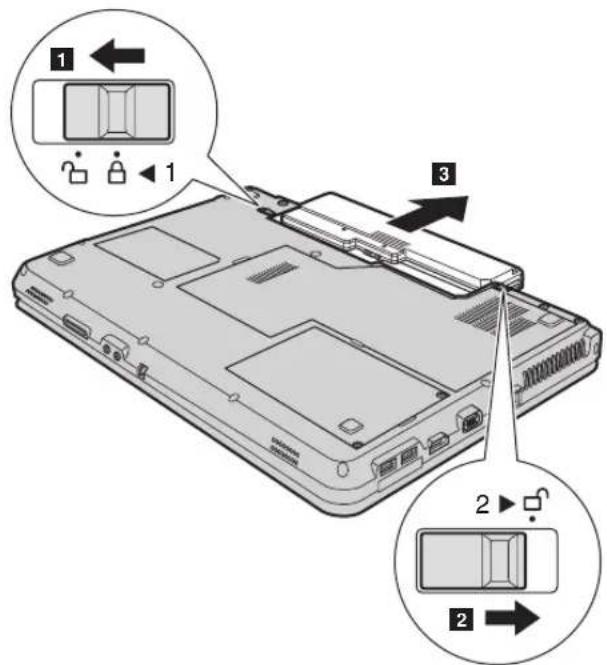
■ To replace the battery
① Turn off the computer, or enter hibernation mode. Disconnect the AC adapter and all cables from the computer.
Note: If you are using an ExpressCard device, the computer might not be able to enter hibernation mode. If this happens, turn off the computer.
② Close the computer display, and turn the computer over.
③ Unlock the manual battery latch 1 Hold the spring-loaded battery latch in the unlocked position 2 remove the battery pack in the direction shown by the arrow . 3
text_image
Diagram of a laptop rear panel with labeled components and directional arrows indicating assembly or navigation steps.4 Install a fully charged battery.
⑤ Slide the manual battery latch to the locked position.
6 Turn the computer over again. Connect the AC adapter and the cables to the computer again.
natural_image
Pure geometric lines and symbols without any text, numbers, or symbols
natural_image
Pure geometric diagram with intersecting lines and circles, no text or symbols presentReplacing the hard disk drive
You can increase the storage capacity of your computer by replacing the hard disk drive with one of greater capacity. You can purchase a new hard disk drive from your reseller or Lenovo marketing representative.
Notes:
- Replace the hard disk drive only if you upgrade it or have it repaired. The connectors and bay of the hard disk drive were not designed for frequent changes, or drive swapping.
- The preinstalled softwares are not included on an optional hard disk drive.
Handling a hard disk drive
- Do not drop the drive or subject it to physical shocks. Put the drive on a material, such as soft cloth, that absorbs the physical shock.
- Do not apply pressure to the cover of the drive.
- Do not touch the connector.
The drive is very sensitive. Incorrect handling can cause damage and permanent loss of data on the hard disk. Before removing the hard disk drive, make a backup copy of all the information on the hard disk, and then turn the computer off. Never remove the drive while the system is operating, in sleep mode, or in hibernation mode.
To replace the hard disk drive, do the following:
1 Turn off the computer; then disconnect the AC adapter and all cables from the computer.
② Close the computer display, and then turn the computer over.
③ Remove the battery pack.
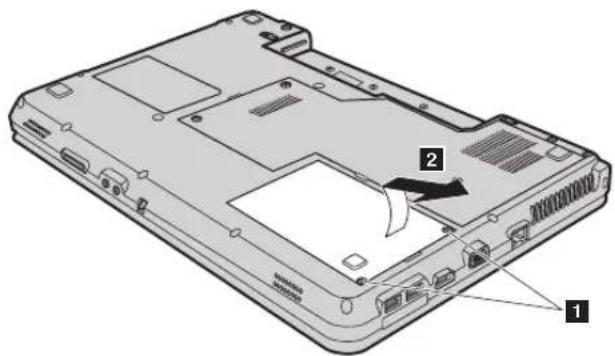
4 Remove the screws that secure the hard disk drive slot cover 1
⑤ Remove the cover 2
text_image
Laptop rear panel diagram with labeled components and directional arrow indicating movement or flow
natural_image
Pure geometric diagram with intersecting lines and circles, no text or symbols present
natural_image
Pure electrical circuit lines without any symbols
natural_image
Pure electrical circuit lines without any symbolsLenovo G450-550 UG V2.0_en.book Page 32 Wednesday, September 2, 2009 9:29 AM
natural_image
Pure geometric diagram with intersecting lines and circles, no text or symbols presentChapter 6. Upgrading and replacing devices
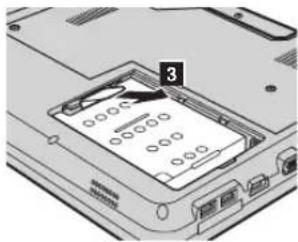
6 Pull the tab in the direction shown by arrow 3
natural_image
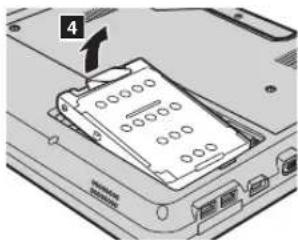
Top-down view of a laptop's internal storage compartment showing drive bays and ports (no text or symbols visible)⑦ Take out the hard disk drive secured in a metal frame 4
text_image
48 Remove the screws and detach the metal frame from the hard disk drive.
9 Attach the metal frame to a new hard disk drive; then tighten the screws.
10 Put the hard disk drive gently into the hard disk drive bay with the tab facing upwards and the connectors facing each other; then push it firmly into space.
11 Reinstall the cover of the hard disk drive slot.
12 Reinstall the screws.
13 Reinstall the battery pack.
14 Turn the computer over again. Connect the AC adapter and the cables to the computer again.
natural_image
Pure geometric diagram with intersecting lines and circles, no text or symbols present
natural_image
Pure geometric diagram with intersecting lines and circles, no text or symbols presentReplacing memory
You can increase the amount of memory in your computer by installing a double data rate (DDR 3) small outline dual inline memory module (SO-DIMM)-available as an option-in the memory slot of your computer. SO-DIMMs are available in various capacities.
Note: Use only the memory types supported by your computer. If you incorrectly install the optional memory or install an unsupported memory type, a warning beep will sound when you try to start the computer.
To install an SO-DIMM, do the following:
① Touch a metal table or a grounded metal object to reduce any static electricity in your body, which could damage the SO-DIMM. Do not touch the contact edge of the SO-DIMM.
2 Turn off the computer. Disconnect the AC adapter and all cables from the computer.
③ Close the computer display, and turn the computer over.
4 Remove the battery pack.
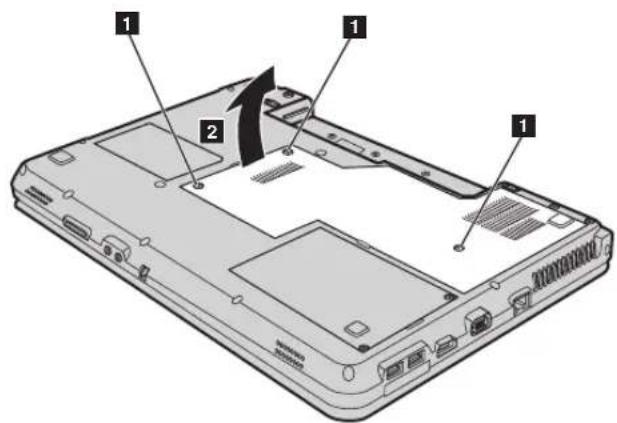
5 Remove the Memory/Wireless module/CPU (central processing unit) compartment cover.
a. Remove the screws that secure the compartment cover 1
b. Remove the compartment cover 2
text_image
Labeled diagram of a computer rear panel showing internal components and a directional arrow indicating movement or force.
natural_image
Pure geometric diagram with intersecting lines and circles, no text or symbols present
natural_image
Pure electrical circuit lines without any symbols
natural_image
Pure electrical circuit lines without any symbolsLenovo G450-550 UG V2.0_en.book Page 34 Wednesday, September 2, 2009 9:29 AM
natural_image
Pure geometric diagram with intersecting lines and circles, no text or symbols presentChapter 6. Upgrading and replacing devices
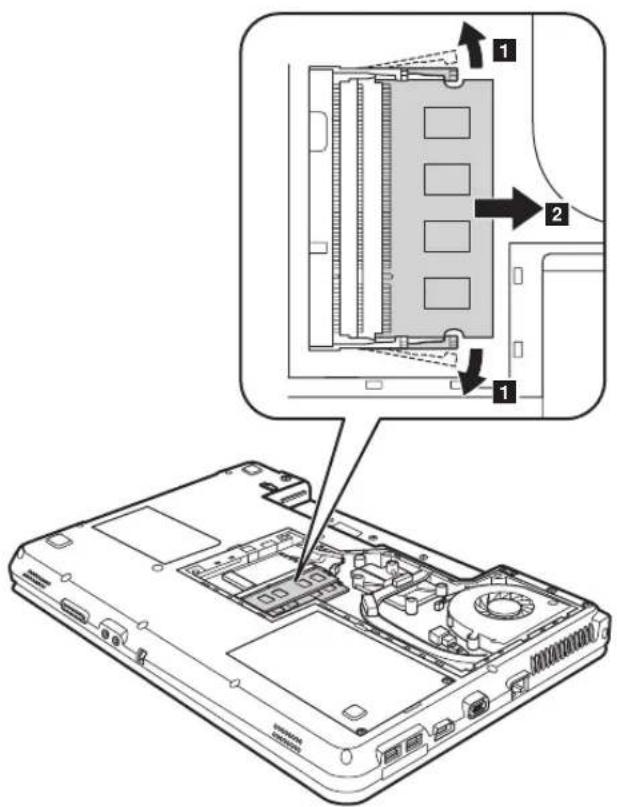
6 If two SO-DIMMs are already installed in the memory slot, remove one of them to make room for the new one by pressing out on the latches on both edges of the socket at the same time. Be sure to save the old SO-DIMM for future use.
text_image
Diagram showing a computer motherboard with labeled components and an inset view of the internal structure.⑦ Insert the notched end of the DIMM into the socket.
Press the DIMM firmly, and pivot it until it snaps into the place. Make sure that it is firmly fixed in the slot and does not move easily.
⑧ Reinstall the compartment cover.
⑨ Reinstall the battery.
10 Turn the computer over, and reconnect the AC adapter and the cables to the computer.
natural_image
Pure geometric diagram with intersecting lines and circles, no text or symbols present
natural_image
Pure geometric diagram with intersecting lines and circles, no text or symbols presentChapter 6. Upgrading and replacing devices
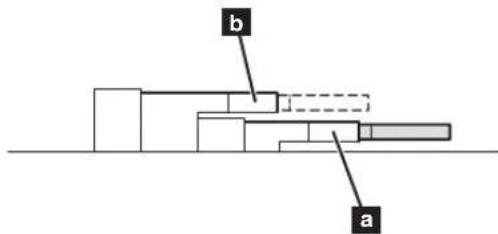
Note: If only one DIMM is used on the computer you are servicing, the card must be installed in SLOT-0
( a wer slot), but not in SLOT-1 ( : u b er slot).
text_image
b aTo make sure that the SO-DIMM is installed correctly, do as follows:
1 Turn the computer on.
② Hold F2 during startup. The BIOS Setup Utility screen opens. The Total Memory item shows the total amount of memory installed in your computer.
Removing the optical drive
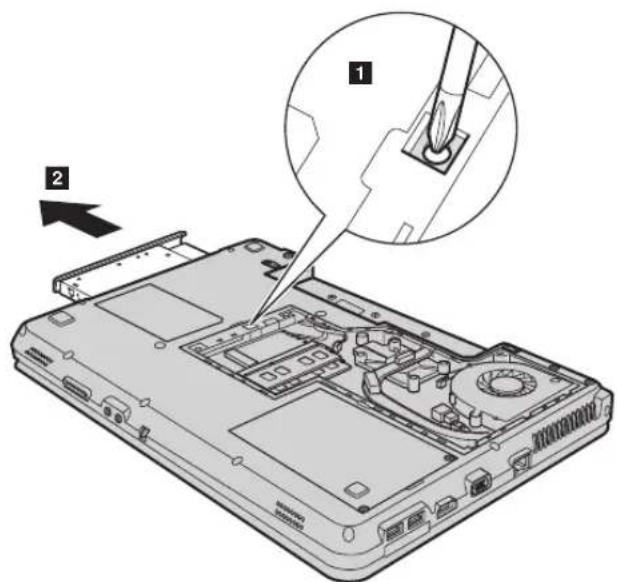
To remove the optical drive, do the following:
1 Remove the Memory/Wireless module/CPU (central processing unit) compartment cover.
② Remove the screw shown in the figure 1
③ Gently pull the optical drive out 2
text_image
Diagram of a laptop rear panel with labeled parts and an inset showing a screwdriver inserted into the chip.
natural_image
Pure geometric diagram with intersecting lines and circles, no text or symbols present
natural_image
Pure electrical circuit lines without any symbols
natural_image
Pure geometric diagram with circular and crosshair elements, no text or symbols presentLenovo G450-550 UG V2.0_en.book Page 36 Wednesday, September 2, 2009 9:29 AM
natural_image
Pure geometric diagram with intersecting lines and circles, no text or symbols presentChapter 6. Upgrading and replacing devices
The following table provides a list of CRUs (Customer Replaceable Units) for your computer and tells where to find the replacement instructions.
| Setup Poster User Guide | ||
| Self-service CRUs | ||
| AC adapter O | ||
| Power cord for AC adapter | O | |
| Battery O O | ||
| Bottom access doors O | ||
| Hard disk drive O | ||
| Memory O | ||
| Optical drive O | ||
natural_image
Pure geometric diagram with intersecting lines and circles, no text or symbols present
natural_image
Pure geometric diagram with intersecting lines and circles, no text or symbols presentAppendix A. Getting help and service
If you need help, service, technical assistance, or just want more information about Lenovo computers, you will find a wide variety of sources available from Lenovo to assist you. This section contains information about where to go for additional information about Lenovo computers, what to do if you experience a problem with your computer, and whom to call for service should it be necessary.
Microsoft Service Packs are the latest software source for Windows product updates. They are available by means of a Web download (connection charges may apply) or from a disc. For more specific information and links, go to the Microsoft Web site at http://www.microsoft.com Lenovo offers Up and Running technical assistance with installation of, or questions related to, Service Packs for your Lenovo-preinstalled Microsoft Windows product.
Getting help on the Web
The Lenovo Web site on the World Wide Web has up-to-date information about Lenovo computers and support. The address for the Lenovo home page is http://consumersupport.lenovo.com.
You can find support information for your Lenovo computer at http://consumersupport.lenovo.com. Research this Web site to learn how to solve problems, find new ways to use your computer, and learn about options that can make working with your Lenovo computer even easier.
- Calling the customer support center
If you have tried to correct the problem yourself and still need help, during the warranty period, you can get help and information by telephone through the customer support center. The following services are available during the warranty period:
- Problem determination - Trained personnel are available to assist you with determining if you have a hardware problem and deciding what action is necessary to fix the problem.
- Lenovo hardware repair - If the problem is determined to be caused by Lenovo hardware under warranty, trained service personnel are available to provide the applicable level of service.
- Engineering change management - Occasionally, there might be changes that are required after a product has been sold. Lenovo or your reseller, if authorized by Lenovo, will make selected Engineering Changes (ECs) available that apply to your hardware.
The following items are not covered:
- Replacement or use of parts not manufactured for or by Lenovo or non warranted parts
- Identification of software problem sources
- Configuration of BIOS as part of an installation or upgrade
• Changes, modifications, or upgrades to device drivers
• Installation and maintenance of network operating systems (NOS)
• Installation and maintenance of application programs
natural_image
Pure geometric diagram with intersecting lines and circles, no text or symbols present
natural_image
Pure electrical circuit lines without any symbolsAppendix A. Getting help and service
To determine if your Lenovo hardware product is under warranty and when the warranty expires, go to http://consumersupport.lenovo.com.
Refer to your Lenovo hardware warranty for a full explanation of Lenovo warranty terms. Be sure to retain your proof of purchase to obtain warranty service.
If possible, be near your computer when you make your call in case the technical assistance representative needs to help you resolve a computer problem. Please ensure that you have downloaded the most current drivers and system updates, and recorded information before you call. When calling for technical assistance, please have the following information available:
• Machine Type and Model
- Serial number of your computer and your proof of purchase
• Description of the problem
- Hardware and software configuration information for your system
Note: For the latest list of customer support center telephone numbers and hours of operation, visit the Support Web site at http://consumersupport.lenovo.com. If the number for your country or region is not listed, contact your Lenovo reseller or Lenovo marketing representative.
Getting help around the world
If you travel with your computer or relocate it to a country where your Lenovo machine type is sold, your computer might be eligible for International Warranty Service, which automatically entitles you to obtain warranty service throughout the warranty period. Service will be performed by service providers authorized to perform warranty service.
Service methods and procedures vary by country, and some services might not be available in all countries. Service centers in certain countries might not be able to service all models of a particular machine type. In some countries, fees and restrictions might apply at the time of service.
To determine whether your computer is eligible for International Warranty Service and to view a list of the countries where service is available, go to http://consumersupport.lenovo.com.
natural_image
Pure electrical circuit lines without any symbolsLenovo G450-550 UG V2.0_en.book Page 39 Wednesday, September 2, 2009 9:29 AM
natural_image
Pure geometric diagram with intersecting lines and circles, no text or symbols presentAppendix A. Getting help and service
Lenovo warranty service telephone numbers
Warranty Service Telephone Numbers
A list of warranty service telephone numbers is available at www.lenovo.com/support/phone. For the latest warranty service number in a country or region please contact Lenovo, or your reseller in your country or region.
natural_image
Pure geometric lines and crosshair symbols without any text or labels
natural_image
Pure electrical circuit lines without any symbols39
Appendix B. Use, and care information
Caring your computer
Though your computer is designed to function reliably in normal work environments, you need to use common sense in handling it. By following these important tips, you will get the most use and enjoyment out of your computer.
■ Be careful about where and how you work
- Do not eat or smoke over your keyboard. Particles that fall into your keyboard can cause damage.
- Store packing materials safely out of the reach of children to prevent the risk of suffocation from plastic bags.
- Keep your computer away from magnets, activated cellular phones, electrical appliances, or speakers (within 13 cm or 5 in).
- Avoid subjecting your computer to extreme temperatures (below 5^ / 41^ or above 35^/ 95^) .
- Some appliances, such as certain portable desktop fans or air purifiers, can produce negative ions. If a computer is close to such an appliance, and is exposed for an extended time to air containing negative ions, it may become electrostatically charged. Such a charge may be discharged through your hands when you touch the keyboard or other parts of the computer, or through connectors on I/O devices connected to it. Even though this kind of electrostatic discharge (ESD) is the opposite of a discharge from your body or clothing to the computer, it poses the same risk of a computer malfunction.
Your computer is designed and manufactured to minimize any effects of electrostatic charge. An electrostatic charge above a certain limit, however, can increase the risk of ESD. Therefore, when using the computer close to an appliance that can produce negative ions, give special attention to the following: - Avoid directly exposing your computer to the air from an appliance that can produce negative ions.
- Keep your computer and peripherals as far as possible from such an appliance.
- Wherever possible, ground your computer to facilitate safe electrostatic discharge.
■ Notice of static-electricity
When you handle options or CRUs, or perform any work inside the computer, take the following precautions to avoid static-electricity damage:
- Limit your movement. Movement can cause static electricity to build up around you.
- Always handle components carefully. Handle adapters, memory modules, and other circuit boards by the edges. Never touch exposed circuitry.
- Prevent others from touching components.
- When you install a static-sensitive option or CRU, touch the static-protective package containing the part to a metal expansion-slot cover or other unpainted metal surface on the computer for at least two seconds. This reduces static electricity in the package and your body.
Appendix B. Use, and care information
- Whenever possible, remove the static-sensitive part from the static-protective packaging and install the part without setting it down. When this is not possible, place the static-protective packaging on a smooth, level surface and place the part on it.
- Do not place the part on the computer cover or other metal surface.
■ Be gentle with your computer
- Avoid placing any objects (including paper) between the display and the keyboard or under the keyboard.
- Do not drop, bump, scratch, twist, hit, vibrate, push, or place heavy objects on your computer, display, or external devices.
- Avoid turning the display beyond 130^ .
- Carry your computer properly
- Before moving your computer, be sure to remove any media, turn off attached devices, and disconnect cords and cables.
- Be sure your computer is in sleep or hibernation mode, or turned off, before moving it. This will prevent damage to the hard disk drive and data loss.
- When picking up your open computer, hold it by the bottom. Do not pick up or hold your computer by the display.
- Use a quality carrying case that provides adequate cushion and protection. Do not pack your computer in a tightly packed suitcase or bag.
For outdoor use
- Backup your critical data before you take your computer outdoors.
- Ensure that the battery is full.
- Be sure to turn off the power and close the LCD well.
- When you leave the computer in your car, place it on the back seat to avoid being insulated.
- Carry the AC adapter and power cord with the computer.
■ Handle storage media and drives properly
- If your computer comes with an optical drive, do not touch the surface of a disc or the lens on the tray.
- Wait until you hear the CD or DVD click into the center pivot of an optical drive before closing the tray.
- When installing your hard disk, follow the instructions shipped with your hardware, and apply pressure only where needed on the device.

natural_image
Pure geometric lines and shapes without any text, numbers, or symbols
natural_image
Pure electrical circuit lines without any symbolsAppendix B. Use, and care information
Data safety
- Do not delete unknown files or change the name of files or directories that were not created by you; otherwise, your computer software might fail to work.
- Be aware that accessing network resources can leave your computer vulnerable to computer viruses, hackers, spyware, and other malicious activities that might damage your computer, software, or data.
- It is your responsibility to ensure that you have adequate protection in the form of firewalls, antivirus software, and anti-spyware software and keep this software up to date.
■ Take care in setting passwords
- Remember your passwords. If you forget a supervisor or hard disk password, Lenovo authorized service providers will not reset it, and you might have to replace your system board or hard disk drive.
■ Other important tips
- Do not put the battery pack in trash that is disposed of in landfills. When disposing of the battery, comply with local ordinances or regulations and your company's safety standards.
- Your computer might have both an Ethernet connector and a modem connector. If so, be sure to connect your communication cable to the correct one, so your connector is not damaged.
- Register your Lenovo products with Lenovo (refer to the Web page: http://consumersupport.lenovo.com). This can help authorities return your computer to you if it is lost or stolen. Registering your computer also enables Lenovo to notify you about possible technical information and upgrades.
- Only an authorized Lenovo repair technician should disassemble and repair your computer.
- Do not modify or tape the latches to keep the display open or closed.
• Take care not to turn your computer over while the AC adapter is plugged in. This could break the adapter plug. - Turn off your computer if you are replacing a device, or else verify that the device is warm- or hot-swappable.
- Before you install any of the following devices, touch a metal table or a grounded metal object. This action reduces any static electricity from your body. The static electricity could damage the device.
- ExpressCard
- Memory Card, such as SD Card, Memory Stick, MultiMediaCard, xD-Picture Card, and Memory Stick Pro card.
- Memory module
- When transferring data to or from a Flash Media Card, such as an SD card, do not put your computer in sleep or hibernation mode before the data transfer is complete. To do so might cause damage to your data.
- Accessibility and comfort
■ Ergonomic information
Working in the virtual office may mean adapting to frequent changes in your environment. Following some simple rules will make things easier and bring you the maximum benefits of your computer. Keeping in mind such basics as good lighting and proper seating, for example, can help you improve your performance and achieve greater comfort.
Note: This example shows someone in a conventional setting. Even if you work in a casual, less conventional setting, many of the tips in this section still apply. Develop good habits, and they will serve you well.
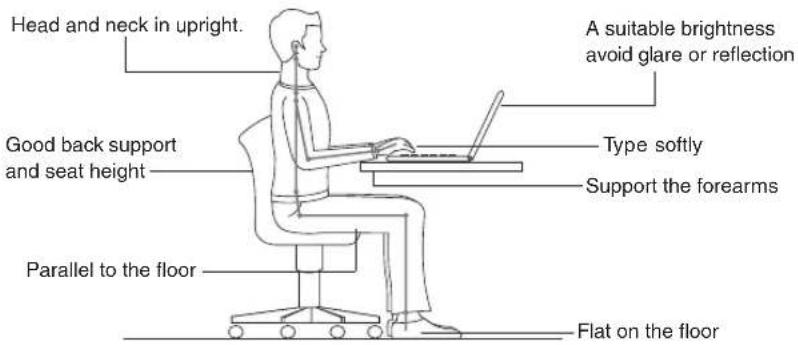
text_image
Head and neck in upright. A suitable brightness avoid glare or reflection Good back support and seat height Type softly Support the forearms Parallel to the floor Flat on the floor■ What if you are traveling?
It may not be possible to observe the best ergonomic practices when you are using your computer while on the move or in a casual setting. Regardless of the setting, try to observe as many of the tips as possible. Sitting properly and using adequate lighting, for example, will help you maintain desirable levels of comfort and performance.
■ Questions about vision?
Your computer's visual display screen is designed to meet the highest standards and to provide you with clear, crisp images and large, bright displays that are easy to see, yet easy on the eyes. Of course, any concentrated and sustained visual activity can be tiring. If you have questions on eye fatigue or visual discomfort, consult a vision care specialist for advice.
Appendix B. Use, and care information
Maintenance
An important part of owning your computer is maintenance. With proper care, you can avoid common problems. The following sections provide information that can help you to keep your computer running smoothly.
■ General tips for maintenance
Check the capacity of your hard disk drive from time to time. If the hard disk drive gets too full, Windows ^® will slow down and might produce errors.
② Empty your recycle bin on a regular basis.
③ Use Diskeeper Lite or the Microsoft Disk Defragmenter on your hard disk drive on a regular basis to improve data seek and read time.
- To free up disk space, uninstall unused application programs.
- Clean out your Inbox, Sent, and Trash folders from your e-mail client program.
- At least once a week, make a point to back up your data. If critical data is present, it is a good idea to perform a daily backup. Lenovo has many backup options available for your computer. CD-RW drives and CD-RW/DVD drives are available for most computers and are easily installed.
- Use or schedule System Restore to take a system snapshot periodically.
Note: Always take a system snapshot before installing new drivers, updating software, or installing new software.
- Update device drivers and BIOS when needed.
- Profile your machine at http://consumersupport.lenovo.com to keep up to date with current drivers and revisions.
- Keep up to date on device drivers on other non-Lenovo hardware. You might want to read the device driver information release notes prior to updating for compatibility or known issues.
- Keep a log book. Entries might include major hardware or software changes, driver updates, minor issues you have experienced and how you resolved them.
- If you ever need to run a recovery operation on your computer by Onekey Rescue System, see "Chapter 4. OneKey Rescue System" on page 23.
- If required, you can find your country's customer support center at the following Web address: http://consumersupport.lenovo.com.
When calling the customer support center, please make sure you have your machine type, model, and serial number available and the computer is in front of you. Also, if the machine is producing error codes, it is helpful to have the error screen on or the message written down.
natural_image
Pure geometric diagram with intersecting lines and circles, no text or symbols present
natural_image
Pure geometric diagram with intersecting lines and circles, no text or symbols present■ Cleaning the cover of your computer
Occasionally clean your computer as follows:
Prepare a mixture of a gentle kitchen-use detergent (one that does not contain abrasive powder or strong chemicals such as acid or alkaline). Use 5 parts water to 1 part detergent.
② Absorb the diluted detergent into a sponge.
③ Squeeze excess liquid from the sponge.
4 Wipe the cover with the sponge, using a circular motion and taking care not to let any excess liquid drip.
⑤ Wipe the surface to remove the detergent.
⑥ Rinse the sponge with clean running water.
⑦ Wipe the cover with the clean sponge.
⑧ Wipe the surface again with a dry, soft lint-free cloth.
9 Wait for the surface to dry completely and remove any cloth fibers from the computer surface.
Note: Shut down the computer and then disconnect the power cord before cleaning the computer.
■ Cleaning your computer keyboard
① Absorb some isopropyl rubbing alcohol on a soft, dust-free cloth.
② Wipe each keytop surface with the cloth. Wipe the keys one by one; if you wipe several keys at a time, the cloth may hook onto an adjacent key and possibly damage it. Make sure that no liquid drips onto or between the keys.
③ Allow to dry.
4 To remove any crumbs and dust from beneath the keys, you can use a camera blower with a brush or cool air from a hair drier.
Note: Avoid spraying cleaner directly on the display or the keyboard.
■ Cleaning your computer display
Gently wipe the display with a dry, soft lint-free cloth. If you see a scratchlike mark on your display, it might be a stain transferred from the keyboard when the cover was pressed from the outside.
② Wipe or dust the stain gently with a soft, dry cloth.
③ If the stain remains, moisten a soft, lint-free cloth with water or a 50-50 mixture of isopropyl alcohol and water that does not contain impurities.
4 Wring out as much of the liquid as you can.
⑤ Wipe the display again; do not let any liquid drip into the computer.
6 Be sure to dry the display before closing it.
natural_image
Pure geometric diagram with intersecting lines and circles, no text or symbols present
natural_image
Pure electrical circuit lines without any symbolsAppendix C. Lenovo limited warranty
This Lenovo Limited Warranty applies only to Lenovo branded hardware products you purchased for your own use and not for resale.
This Lenovo Limited Warranty is available in other languages at www.lenovo.com/warranty
■ What this warranty covers
Lenovo warrants that each hardware product that you purchase is free from defects in materials and workmanship under normal use during the warranty period. The warranty period for the product starts on the original date of purchase specified on your sales receipt or invoice unless Lenovo informs you otherwise in writing. The warranty period and type of warranty service that apply to your product are designated below under the section titled "Warranty information."
THIS WARRANTY IS YOUR EXCLUSIVE WARRANTY AND REPLACES ALL OTHER WARRANTIES OR CONDITIONS, EXPRESS OR IMPLIED, INCLUDING, BUT NOT LIMITED TO, THE IMPLIED WARRANTIES OR CONDITIONS OF MERCHANTABILITY AND FITNESS FOR A PARTICULAR PURPOSE. SOME STATES OR JURISDICTIONS DO NOT ALLOW THE EXCLUSION OF EXPRESS OR IMPLIED WARRANTIES, SO THE ABOVE EXCLUSION MAY NOT APPLY TO YOU. IN THAT EVENT, SUCH WARRANTIES APPLY ONLY TO THE EXTENT REQUIRED BY LAW AND ARE LIMITED IN DURATION TO THE WARRANTY PERIOD. NO WARRANTIES APPLY AFTER THAT PERIOD. SOME STATES OR JURISDICTIONS DO NOT ALLOW LIMITATIONS ON HOW LONG AN IMPLIED WARRANTY LASTS, SO THE ABOVE LIMITATION ON DURATION MAY NOT APPLY TO YOU.
■ How to obtain warranty service
If the product does not function as warranted during the warranty period, you may obtain warranty service by contacting Lenovo or an approved service provider. Each of them is referred to as a "Service Provider." A list of Service Providers and their telephone numbers is available at www.lenovo.com/support/phone.
Warranty service may not be available in all locations and may differ from location to location. Charges may apply outside a Service Provider's normal service area. Contact a local Service Provider for location-specific information.
■ What your service provider will do to correct problems
When you contact a Service Provider, you must follow the problem determination and resolution procedures specified.
Your Service Provider will attempt to diagnose and resolve your problem over the telephone, e-mail or through remote assistance. Your Service Provider may direct you to download and install designated software updates.
Appendix C. Lenovo limited warranty
Some problems can be resolved with a replacement part that you can install yourself called a "Customer Replaceable Unit" or "CRU." If so, your Service Provider will ship the CRU to you to install.
If your problem cannot be resolved over the telephone or remotely, through your application of software updates or the installation of a CRU by you, your Service Provider will arrange for service under the type of warranty service designated for the product under the section titled "Warranty information."
If your Service Provider determines that it is unable to repair your product, your Service Provider will replace it with one that is at least functionally equivalent.
If your Service Provider determines that it is unable to either repair or replace your product, your sole remedy is to return the product to your place of purchase or to Lenovo for a refund of your purchase price.
■ Replacement of a product or part
When the warranty service involves the replacement of a product or part, the replaced product or part becomes Lenovo's property and the replacement product or part becomes your property. Only unaltered Lenovo products and parts are eligible for replacement. The replacement product or part provided by Lenovo may not be new, but it will be in good working order and at least functionally equivalent to the original product or part. The replacement product or part shall be warranted for the balance of the period remaining on the original product.
Before your Service Provider replaces a product or part, you agree to:
① remove all features, parts, options, alterations, and attachments not under warranty service;
② ensure that the product or part is free of any legal obligations or restrictions that prevent its replacement; and
③ obtain authorization from the owner to have your Service Provider service a product or part if you do not own it.
■ Your additional responsibilities
Where applicable, before service is provided, you agree to:
① follow the service request procedures that your Service Provider specifies;
② backup or secure all programs and data contained in the product;
③ provide your Service Provider with all system keys or passwords and sufficient, free, and safe access to your facilities to perform service; and
4 ensure that all information about identified or identifiable individuals ("Personal Data") is deleted from the product or that, with respect to any Personal Data that you did not delete, you are in compliance with all applicable laws.
natural_image
Pure geometric lines and shapes without any text, numbers, or symbols
natural_image
Pure electrical circuit lines without any symbolsAppendix C. Lenovo limited warranty
■ Use of personal information
If you obtain service under this warranty, Lenovo will store, use and process information about your warranty service and your contact information, including name, phone numbers, address, and e-mail address. Lenovo will use this information to perform service under this warranty and to improve our business relationship with you. We may contact you to inquire about your satisfaction regarding our warranty service or to notify you about any product recalls or safety issues. In accomplishing these purposes, we may transfer your information to any country where we do business and may provide it to entities acting on our behalf. We may also disclose it where required by law.
■ What this warranty does not cover
This warranty does not cover the following:
- uninterrupted or error-free operation of a product;
- loss of, or damage to, your data;
- any software programs, whether provided with the product or installed subsequently;
- failure or damage resulting from misuse, accident, modification, unsuitable physical or operating environment, natural disasters, power surges, or improper maintenance by you;
• damage caused by a non-authorized service provider; - failure of, or damage caused by, any third party products, including those that Lenovo may provide or integrate into the Lenovo product at your request; and
- any technical or other support, such as assistance with "how-to" questions and those regarding product set-up and installation.
This warranty is voided by removal or alteration of identification labels on the product or its parts.
■ Limitation of liability
Lenovo is responsible for loss or damage to your product only while it is: 1) in your Service Provider's possession; or 2) in transit in those cases where the Service Provider is responsible for the transportation.
Neither Lenovo nor your Service Provider is responsible for any of your data including confidential, proprietary, or personal data contained in a product. You should remove and/or backup all such information from the product prior to its service or return.
Circumstances may arise where, because of a default on Lenovo's part or other liability, you may be entitled to recover damages from Lenovo. In each such instance, regardless of the basis of your claim against Lenovo (including breach, negligence, misrepresentation, or other contract or tort claim), except and to the extent that liability cannot be waived or limited by applicable laws, Lenovo shall not be liable for more than the amount of actual direct damages suffered by you, up to the amount you paid for the product. This limit does not apply to damages for bodily injury (including death) and damage to real property or tangible personal property for which Lenovo is liable under law.
This limit also applies to Lenovo's suppliers, resellers, and your Service Provider. It is the maximum amount for which Lenovo, its suppliers, resellers, and your Service Provider are collectively responsible.
UNDER NO CIRCUMSTANCES SHALL LENOVO, ITS SUPPLIERS, RESELLERS, OR SERVICE PROVIDERS BE LIABLE FOR ANY OF THE FOLLOWING EVEN IF INFORMED OF THEIR POSSIBILITY: 1) THIRD PARTY CLAIMS AGAINST YOU FOR DAMAGES; 2) LOSS OR DAMAGE TO YOUR DATA; OR 3) SPECIAL, INCIDENTAL, INDIRECT OR CONSEQUENTIAL DAMAGES, INCLUDING LOST PROFITS, BUSINESS REVENUE, GOODWILL OR ANTICIPATED SAVINGS. AS SOME STATES OR JURISDICTIONS DO NOT ALLOW THE EXCLUSION OR LIMITATION OF INCIDENTAL OR CONSEQUENTIAL DAMAGES, THE ABOVE LIMITATION OR EXCLUSION MAY NOT APPLY TO YOU.
■ Dispute resolution
If you acquired the product in Cambodia, Indonesia, Philippines, Vietnam or Sri Lanka, disputes arising out of or in connection with this warranty shall be finally settled by arbitration held in Singapore and this warranty shall be governed, construed and enforced in accordance with the laws of Singapore, without regard to conflict of laws. If you acquired the product in India, disputes arising out of or in connection with this warranty shall be finally settled by arbitration held in Bangalore, India. Arbitration in Singapore shall be held in accordance with the Arbitration Rules of Singapore International Arbitration Center ("SIAC Rules") then in effect. Arbitration in India shall be held in accordance with the laws of India then in effect. The arbitration award shall be final and binding on the parties without appeal. Any award shall be in writing and set forth the findings of fact and the conclusions of law. All arbitration proceedings, including all documents presented in such proceedings, shall be conducted in the English language, and the English language version of this warranty prevails over any other language version in such proceedings.
Other rights
THIS WARRANTY GIVES YOU SPECIFIC LEGAL RIGHTS AND YOU MAY HAVE OTHER RIGHTS WHICH VARY FROM STATE TO STATE OR JURISDICTION TO JURISDICTION. YOU MAY ALSO HAVE OTHER RIGHTS UNDER APPLICABLE LAW OR WRITTEN AGREEMENT WITH LENOVO. NOTHING IN THIS WARRANTY AFFECTS STATUTORY RIGHTS, INCLUDING RIGHTS OF CONSUMERS UNDER NATIONAL LEGISLATION GOVERNING THE SALE OF CONSUMER GOODS THAT CANNOT BE WAIVED OR LIMITED BY CONTRACT.
■ European Economic Area (EEA)
Customers in the EEA may contact Lenovo at the following address: EMEA Service Organisation, Lenovo (International) B.V., Floor 2, Einsteinova 21, 851 01, Bratislava, Slovakia. Service under this warranty for Lenovo hardware products purchased in EEA countries may be obtained in any EEA country in which the product has been announced and made available by Lenovo.
natural_image
Pure geometric diagram with intersecting lines and circles, no text or symbols present
natural_image
Pure geometric diagram with intersecting lines and circles, no text or symbols presentAppendix C. Lenovo limited warranty
Lenovo Turkey address
LENOVO TECHNOLOGY B.V.
TURKIYE ISTANBUL SUBESI
Beybi Giz Plaza, Dereboyu cad., Meydan Sok.,
No: 28, Kat: 10, Daire 35 Maslak
Posta Kodu: 34398
Tel:3658900-99
Fax: 2902750
Warranty information
| Product or machine type | Country or region of purchase | Warranty period | Type of warranty service |
| Notebook: 20022, 2949 20023, 2958 | Taiwan | 3, 4 | |
| India, China (Hong Kong S.A.R.), China (Macau S.A.R.) | parts and labor - 1 year battery pack - 1 year | 1, 4 | |
| Indonesia, Malaysia, Singapore, Thailand, Philippines, Vietnam, South Africa, France, Austria, Belgium, Croatia, Czech Republic, Denmark, Egypt, Finland, Germany, Greece, Hungary, Israel, Ireland, Italy, Lithuania, Latvia, Netherlands, Norway, Romania, Spain, Sweden, Switzerland, the United Kingdom, Saudi Arabia, UAE | |||
| Australia, New Zealand, Japan | 1, 3 | ||
| United States of America, Canada, Mexico, Brazil | parts and labor - 1 year limited warranty * battery pack - 1 year | 1, 4 | |
| Russia, Ukraine, the republic of Kazakhstan | parts and labor - 1 year battery pack - 1 year | 4 | |
| Poland, Turkey | parts and labor - 2 years battery pack - 1 year | 1, 4 |
* Excludes some components. 90-day limited warranty for power adapters, keyboards, plastics and hinges.
If required, your Service Provider will provide repair or exchange service depending on the type of warranty service specified for your product and the available service. Scheduling of service will depend upon the time of your call, parts availability, and other factors.
■ Types of warranty service
① Customer Replaceable Unit ("CRU") Service
Under CRU Service, your Service Provider will ship CRUs to you for installation by you. CRU information and replacement instructions are shipped with your product and are available from Lenovo at any time upon request. CRUs that are easily installed by you are called Self-service CRUs, while Optional-service CRUs may require some technical skill and tools. Installation of Self-service CRUs is your responsibility. You may request that a Service Provider install Optional-service CRUs under one of the other types of warranty service designated for your product. An optional service offering may be available for purchase from Lenovo to have Lenovo install Self-service CRUs for you. You may find a list of CRUs and their designation in the publication that ships with your product or at www.lenovo.com/CRUs The requirement to return a defective CRU, if any, will be specified in the materials shipped with a replacement CRU. When return is required: 1) return instructions, a prepaid return shipping label, and a container will be included with the replacement CRU; and 2) you may be charged for the replacement CRU if your Service Provider does not receive the defective CRU within thirty (30) days of your receipt of the replacement.
② On-site Service
Under On-Site Service, your Service Provider will either repair or exchange the product at your location. You must provide a suitable working area to allow disassembly and reassembly of the Lenovo product. For some products, certain repairs may require your Service Provider to send the product to a designated service center.
③ Courier or Depot Service
Under Courier or Depot Service, your product will be repaired or exchanged at a designated service center, with shipping arranged by your Service Provider. You are responsible for disconnecting the product. A shipping container will be provided to you for you to return your product to a designated service center. A courier will pick up your product and deliver it to the designated service center. Following its repair or exchange, the service center will arrange the return delivery of the product to you.
④ Customer Carry-In or Mail-In Service
Under Customer Carry-In or Mail-In Service, your product will be repaired or exchanged at a designated service center, with delivery or shipping arranged by you. You are responsible to deliver or mail, as your Service Provider specifies, (prepaid by you unless specified otherwise) the product, suitably packaged to a designated location. After the product has been repaired or exchanged, it will be made available for your collection. Failure to collect the product may result in your Service Provider disposing of the product as it sees fit. For Mail-in Service, the product will be returned to you at Lenovo's expense, unless your Service Provider specifies otherwise.
natural_image
Pure geometric diagram with intersecting lines and circular shapes, no text or symbols present51

natural_image
Pure electrical circuit lines without any symbols
natural_image
Pure electrical circuit lines without any symbolsLenovo G450-550 UG V2.0_en.book Page 52 Wednesday, September 2, 2009 9:29 AM
natural_image
Pure geometric diagram with intersecting lines and circles, no text or symbols presentAppendix C. Lenovo limited warranty
⑤ Product Exchange Service
Under Product Exchange Service, Lenovo will ship a replacement product to your location. You are responsible for its installation and verification of its operation. The replacement product becomes your property in exchange for the failed product, which becomes the property of Lenovo. You must pack the failed product in the shipping carton used to ship the replacement product and return it to Lenovo. Transportation charges, both ways, are paid by Lenovo. Failure to use the carton in which the replacement product was received may result in your responsibility for damage to the failed product during shipment. You may be charged for the replacement product if Lenovo does not receive the failed product within thirty (30) days of your receipt of the replacement product.
natural_image
Pure geometric lines and shapes without any text, numbers, or symbols52

natural_image
Pure geometric diagram with intersecting lines and circles, no text or symbols presentAppendix D. Customer replaceable units (CRUs)
Customer Replaceable Units (CRUs) are computer parts that can be upgraded or replaced by the customer. There are two types of CRUs: internal and external. External CRUs are easy to install, whereas internal CRUs require some technical skills and in some cases might require tools such as a screwdriver. However, both internal and external CRUs are safe for removal by the customer.
Customers are responsible for replacing all external CRUs. Internal CRUs can be removed and installed by customers or by a Lenovo service technician during the warranty period.
Your computer contains the following types of external CRUs:
- External CRUs (pluggable): These CRUs unplug from the computer. Examples of these types of CRUs include the AC adapter and power cord.
- External CRUs with latches: These CRUs include a latch to help you remove and replace the part. Examples of these types of CRUs include the notebook main battery, an optical drive, a hard-disk drive, and an extended battery.
Your computer contains the following types of internal CRUs:
- Internal CRUs (located behind an access panel): These CRUs are isolated parts within the computer that are concealed by an access panel that is typically secured by either one or two screws. Once the access panel is removed, only the specific CRU is visible. Examples of these types of CRUs include memory modules and hard disk drives.
- Internal CRUs (located within the product): These CRUs are accessible only by opening the computer's outer case. Examples of these CRUs include PCI Express Mini Cards and the integrated keyboard.
natural_image
Pure geometric lines and shapes without any text, numbers, or symbols
Appendix E. Notices
Notices
Lenovo may not offer the products, services, or features discussed in this document in all countries. Consult your local Lenovo representative for information on the products and services currently available in your area. Any reference to a Lenovo product, program, or service is not intended to state or imply that only that Lenovo product, program, or service may be used. Any functionally equivalent product, program, or service that does not infringe any Lenovo intellectual property right may be used instead. However, it is the user's responsibility to evaluate and verify the operation of any other product, program, or service.
Lenovo may have patents or pending patent applications covering subject matter described in this document. The furnishing of this document does not give you any license to these patents. You can send license inquiries, in writing, to:
Lenovo (United States), Inc.
1009 Think Place - Building One
Morrisville, NC 27560
U.S.A.
Attention: Lenovo Director of Licensing
LENOVO PROVIDES THIS PUBLICATION "AS IS" WITHOUT WARRANTY OF ANY KIND, EITHER EXPRESS OR IMPLIED, INCLUDING, BUT NOT LIMITED TO, THE IMPLIED WARRANTIES OF NON-INFRINGEMENT, MERCHANTABILITY OR FITNESS FOR A PARTICULAR PURPOSE. Some jurisdictions do not allow disclaimer of express or implied warranties in certain transactions, therefore, this statement may not apply to you.
This information could include technical inaccuracies or typographical errors. Changes are periodically made to the information herein; these changes will be incorporated in new editions of the publication. Lenovo may make improvements and/or changes in the product(s) and/or the program(s) described in this publication at any time without notice.
The products described in this document are not intended for use in implantation or other life support applications where malfunction may result in injury or death to persons. The information contained in this document does not affect or change Lenovo product specifications or warranties. Nothing in this document shall operate as an express or implied license or indemnity under the intellectual property rights of Lenovo or third parties. All information contained in this document was obtained in specific environments and is presented as an illustration. The result obtained in other operating environments may vary.
Lenovo may use or distribute any of the information you supply in any way it believes appropriate without incurring any obligation to you.
Any references in this publication to non-Lenovo Web sites are provided for convenience only and do not in any manner serve as an endorsement of those Web sites. The materials at those Web sites are not part of the materials for this Lenovo product, and use of those Web sites is at your own risk.
Any performance data contained herein was determined in a controlled environment.
Therefore, the result obtained in other operating environments may vary significantly. Some measurements may have been made on development-level systems and there is no guarantee that these measurements will be the same on generally available systems. Furthermore, some measurements may have been estimated through extrapolation. Actual results may vary. Users of this document should verify the applicable data for their specific environment.
The software interface and hardware configuration described in all the manuals included with your computer may not match the actual configuration of the computer you purchased.
■ Export classification notice
This product is subject to the United States Export Administration Regulations (EAR) and has an Export Classification Control Number (ECCN) of 4A994.b. It can be re-exported except to any of the embargoed countries in the EAR E1 country list.
natural_image
Pure geometric lines and symbols without any text, numbers, or labels
natural_image
Pure geometric diagram with intersecting lines and circles, no text or symbols presentENERGY STAR model information

ENERGY STAR
ENERGY STAR ^® is a joint program of the U.S. Environmental Protection Agency and the U.S. Department of Energy aimed at saving money and protecting the environment through energy efficient products and practices.
Lenovo ^® is proud to offer our customers products with an ENERGY STAR compliant designation. Lenovo computers of the following machine types, if the ENERGY STAR mark is affixed, have been designed and tested to conform to the ENERGY STAR 5.0 program requirements for computers.
• 20022, 2949
• 20023, 2958
By using ENERGY STAR compliant products and taking advantage of the power-management features of your computer, you reduce the consumption of electricity. Reduced electrical consumption contributes to potential financial savings, a cleaner environment, and the reduction of greenhouse gas emissions.
For more information about ENERGY STAR, visit
http://www.energystar.gov
Lenovo encourages you to make efficient use of energy an integral part of your day-to-day operations. To help in this endeavor, Lenovo has preset the following power-management features to take effect when your computer has been inactive for a specified duration:
Table 1. ENERGY STAR power-management features, by operating system
Windows® XP Windows Vista
Power plan: Balanced
• Turn off monitor: After 10 minutes
•Turn off hard disks: After 30 minutes
•System standby: After 20 minutes
• System hibernates: After 2 hours
®
Power plan: Energy Star
- Turn off the display: After 10 minutes
- Put the computer to sleep: After 25 minutes
• Advanced power settings:
- Turn off hard disks: After 20 minutes
- Hibernate: After 1 hour
Windows® 7
Power plan: Energy Star
•Turn off the display: After 10 minutes
- Put the computer to sleep: After 25 minutes
- Advanced power settings:
Turn off hard disks: After 20 minutes
- Hibernate: After 1 hour
To awaken your computer from a Sleep or System Standby mode, press any key on your keyboard. For more information about these settings, refer to your Windows Help and Support information system.
Wireless related information
■ Wireless interoperability
Wireless LAN PCI Express Mini Card is designed to be interoperable with any wireless LAN product that is based on Direct Sequence Spread Spectrum (DSSS), Complementary Code Keying (CCK), and/or Orthogonal Frequency Division Multiplexing (OFDM) radio technology, and is compliant to:
- The IEEE 802.11a/b/g/n Standard on Wireless LANs, as defined and approved by the Institute of Electrical and Electronics Engineers.
- The Wireless Fidelity (WiFi) certification as defined by the Wi-Fi Alliance.
Bluetooth Daughter Card is designed to be interoperable with any Bluetooth product that is compliant to Bluetooth Specification 2.1 + EDR as defined by the Bluetooth SIG. Following profiles are supported by Bluetooth Daughter Card:
- Generic Access
• Service Discovery - Serial Port
• Dial-up Networking
• FAX
• LAN Access using PPP
• Personal Area Network - Generic Object Exchange
- Generic Object Push
- File Transfer
- Synchronization
• Audio Gateway - Headset
- Printer
• Human Interface Devices (Keyboard/Mouse) - Basic Image
- Handsfree
• AV
natural_image
Pure geometric lines and symbols without any text, numbers, or labels
Appendix E. Notices
■ Usage environment and your health
Wireless LAN PCI Express Mini Card and Bluetooth Daughter Card emit radio frequency electromagnetic energy like other radio devices. However, the level of energy emitted is far much less than the electromagnetic energy emitted by wireless devices like for example mobile phones.
Due to the fact that wireless LAN PCI Express Mini Card and Bluetooth Daughter Card operate within the guidelines found in radio frequency safety standards and recommendations, Lenovo believes the integrated wireless cards are safe for use by consumers. These standards and recommendations reflect the consensus of the scientific community and result from deliberations of panels and committees of scientists who continually review and interpret the extensive research literature.
In some situation or environment, the use of wireless LAN PCI Express Mini Card or Bluetooth Daughter Card may be restricted by the proprietor of the building or responsible representatives of the organization. These situations may for example include:
- Using the integrated wireless cards on board of airplanes, or in hospitals
- In any other environment where the risk of interference to other devices or services is perceived or identified as harmful.
If you are uncertain of the policy that applies on the use of wireless devices in a specific organization (e.g., airport or hospital), you are encouraged to ask for authorization to use wireless LAN PCI Express Mini Card or Bluetooth Daughter Card prior to turning on the computer.
■ Safety information related to Mobile Broadband
Do not use the Mobile Broadband feature on your computer in highly flammable areas (e.g. gas station) or near blasting. Though it is rare, the Mobile Broadband module, like other cellular network devices, could generate a spark.
2 Avoid using Mobile Broadband feature outdoors during a thunderstorm.
3 Use of mobile devices on board aircraft is explicitly prohibited by many airlines companies, especially during take-off and landing. The built-in Mobile Broadband module on your computer is a low-power radio transceiver. When it is turned on, it intermittently receives and transmits radio frequency (RF) energy which could cause interference with the operation of the airplane communication or navigation system. Refer to rules or regulations of your airline company for Mobile Broadband use. Never enable Mobile Broadband feature on your computer unless you are explicitly permitted to do so.
4 Follow restrictions when using your computer in hospitals. Some equipments in hospitals are sophisticated and are susceptible to electromagnetic interference. Do not enable Mobile Broadband feature near medical equipment without requesting permission.
5 The Mobile Broadband communication may affect the operation of implanted cardiac pacemakers and other medically implanted equipment. Patients with cardiac pacemakers should be well aware that use of Mobile Broadband feature on this computer may cause the implanted device to malfunction. If patients have any doubt that there is interference taking place, immediately disable the wireless radio on the computer and contact the doctor for more information.
6 The Mobile Broadband module embedded in your computer does not support voice calls, hence their use for essential communications is not possible. Therefore you should never rely upon the device for essential communications.
Electronic emissions notices
The following information refers to Lenovo G450/G550, machine type 20022, 2949, 20023, 2958.
■ Federal Communications Commission (FCC) Statement
This equipment has been tested and found to comply with the limits for a Class B digital device, pursuant to Part 15 of the FCC Rules. These limits are designed to provide reasonable protection against harmful interference in a residential installation. This equipment generates, used, and can radiate radio frequency energy and, if not installed and used in accordance with the instructions, may cause harmful interference to radio communications. However, there is no guarantee the interference will not occur in a particular installation. If this equipment does cause harmful interference to radio or television reception, which can be determined by turning the equipment off and on, the user is encouraged to try to correct the interference by one or more of the following measures:
- Reorient or relocate the receiving antenna.
- Increase the separation between the equipment and receiver.
- Connect the equipment into an outlet on a circuit different from that to which the receiver is connected.
- Consult an authorized dealer or service representative for help.
Properly shielded and grounded cables and connectors must be used in order to meet FCC emission limits. Proper cables and connectors are available from Lenovo authorized dealers. Lenovo is not responsible for any radio or television interference caused by using other than recommended cables or connectors or by unauthorized changes or modifications to this equipment. Unauthorized changes or modifications could void the user's authority to operate the equipment.
This device complies with Part 15 of the FCC Rules. Operation is subject to the following two conditions: (1) this device may not cause harmful interference, and (2) this device must accept any interference received, including interference that may cause undesired operation.
Responsible party:
Lenovo (United States) Incorporated
1009 Think Place - Building One
Morrisville, NC 27560
U.S.A.
Telephone: (919) 294-5900

natural_image
Pure geometric diagram with intersecting lines and circular shapes, no text or symbols present
Appendix E. Notices
Industry Canada Class B Emission Compliance Statement
This Class B digital apparatus complies with Canadian ICES-003.
German Class B Compliance Statement
■ European Union Compliance Statement Class B Compliance
European Union - Compliance to the Electromagnetic Compatibility Directive
CE
This product is in conformity with the protection requirements of EU Council Directive 2004/108/EC on the approximation of the laws of the Member States relating to electromagnetic compatibility. Lenovo cannot accept responsibility for any failure to satisfy the protection requirements resulting from a non-recommended modification of the product, including the installation of option cards from other manufacturers.
This product has been tested and found to comply with the limits for Class B Information Technology Equipment according to European Standard EN 55022. The limits for Class B equipment were derived for typical residential environments to provide reasonable protection against interference with licensed communication devices.
Properly shielded and grounded cables and connectors must be used in order to reduce the potential for causing interference to radio and TV communications and to other electrical or electronic equipment. Such cables and connectors are available from Lenovo authorized dealers. Lenovo cannot accept responsibility for any interference caused by using other than recommended cables and connectors.
■ Lenovo Product Service Information
台灣 Lenovo 產品服務資訊如下:
荷蘭商聯想股份有限公司台灣分公司
台北市信義區信義路五段七號十九樓之一
服務電話: 0800-000-700
■ Japanese VCCI Class B Statement
natural_image
Pure geometric diagram with intersecting lines and circles, no text or symbols present61
natural_image
Pure geometric diagram with circular and crosshair elements, no text or symbols presentLenovo G450-550 UG V2.0_en.book Page 62 Wednesday, September 2, 2009 9:29 AM
natural_image
Pure geometric diagram with intersecting lines and circles, no text or symbols presentAppendix E. Notices
Japan Compliance Statement for Power line Harmonics
A statement of compliance to the IEC 61000-3-2 harmonics standard is required for all products connecting to the power mains and rated less than 20A per phase.
WEEE and recycling statements
■ General recycling statement
Lenovo encourages owners of information technology (IT) equipment to responsibly recycle their equipment when it is no longer needed. Lenovo offers a variety of programs and services to assist equipment owners in recycling their IT products. Information on product recycling offerings can be found on Lenovo's Internet site at http://www.lenovo.com/lenovo/environment/recycling/
Turkish statement of compliance
The Lenovo product meets the requirements of the Republic of Turkey Directive on the Restriction of the Use of Certain Hazardous Substances in Electrical and Electronic Equipment (EEE).
natural_image
Pure geometric diagram with intersecting lines and circles, no text or symbols present
natural_image
Pure geometric diagram with intersecting lines and circles, no text or symbols presentEU WEEE statements
The Waste Electrical and Electronic Equipment (WEEE) mark applies only to countries within the European Union (EU) and Norway. Appliances are labeled in accordance with European Directive 2002/96/EC concerning waste electrical and electronic equipment (WEEE). The Directive determines the framework for the return and recycling of used appliances as applicable throughout the European Union. This label is applied to various products to indicate that the product is not to be thrown away, but rather reclaimed upon end of life per this Directive.
Users of electrical and electronic equipment (EEE) with the WEEE marking per Annex IV of the WEEE Directive must not dispose of end of life EEE as unsorted municipal waste, but use the collection framework available to them for the return, recycle, recovery of WEEE and minimize any potential effects of EEE on the environment and human health due to the presence of hazardous substances. For additional WEEE information go to:
http://www.lenovo.com/lenovo/environment/recycling/
Japan recycling statements
■ Collecting and Recycling a Disused Lenovo Computer or Monitor
If you are a company employee and need to dispose of a Lenovo computer or monitor that is the property of the company, you must do so in accordance with the Law for Promotion of Effective Utilization of Resources. Computers and monitors are categorized as industrial waste and should be properly disposed of by an industrial waste disposal contractor certified by a local government. In accordance with the Law for Promotion of Effective Utilization of Resources, Lenovo Japan provides, through its PC Collecting and Recycling Services, for the collecting, reuse, and recycling of disused computers and monitors. For details, visit the Lenovo Web site at
www.ibm.com/jp/pc/service/recycle/pcrecycle
http://www.ibm.com/jp/pc/service/recycle/pcrecycle
Pursuant to the Law for Promotion of Effective Utilization of Resources, the collecting and recycling of home-used computers and monitors by the manufacturer was begun on October 1, 2003. This service is provided free of charge for home-used computers sold after October 1, 2003. For details, visit the Lenovo Web site at www.ibm.com/jp/pc/service/recycle/personal http://www.ibm.com/jp/pc/service/recycle/personal
■ Disposing of a Lenovo Computer Components
Some Lenovo computer products sold in Japan may have components that contain heavy metals or other environmental sensitive substances. To properly dispose of disused components, such as a printed circuit board or drive, use the methods described above for collecting and recycling a disused computer or monitor.
Appendix E. Notices
■ Disposing a Disused Battery Pack from Lenovo Notebook Computers
Your Lenovo notebook computer has a lithium ion battery pack or a nickel metal hydride battery pack. If you are a company employee who uses a Lenovo notebook computer and need to dispose of a battery pack, contact the proper person in Lenovo sales, service, or marketing, and follow that person's instructions. You also can refer to the instructions at
www.ibm.com/jp/pc/environment/recycle/battery
http://www.ibm.com/jp/pc/environment/recycle/battery
If you use a Lenovo notebook computer at home and need to dispose of a battery pack, you must comply with local ordinances and regulations. You also can refer to the instructions at www.ibm.com/jp/pc/environment/recycle/battery
http://www.ibm.com/jp/pc/environment/recycle/battery
Notice for users in the U.S.A.
California Perchlorate Information:
Products containing CR (manganese dioxide) lithium coin cell batteries may contain perchlorate.
Perchlorate Material — special handling may apply.
See http://www.dtsc.ca.gov/hazardouswaste/perchlorate.
Notice on deleting data from your hard disk
As computers spread into every corner of life, they process more and more information. The data on your computer, some of it sensitive, is stored on a storage device called the hard disk. Before you dispose of, sell, or hand over your computer, you need to delete that data.
Handling your computer over to someone else without deleting the loaded software, such as operating systems and application software, may even violate License Agreements. You are advised to check the terms and conditions of those Agreements.
Deleting the data from the hard disk is not easy.
There are methods that seem to delete the data:
- Move the data to the recycle bin, and then choose the Empty recycle bin command.
- Use the Delete command.
- Format your hard disk, using the software for initializing it.
- Using the preinstalled recovery program, bring the hard disk back to factory-ship state.
These operations, however, only change the file allocation of the data; they do not delete the data itself. In other words, the data retrieval processing is disabled under an operating system such as Windows. The data is still there, even though it seems to be lost. Thus, it is sometimes possible to read the data by use of special software for data recovery. There is a risk that people of bad faith may read and misuse the critical data on hard disks for unexpected purposes.
To prevent the leakage of data, it becomes very important that you take responsibility for deleting all the data from the hard disk when you dispose of, sell, or hand over your computer. You can destroy the data physically by smashing the hard disk with a hammer, or magnetically by means of strong magnetic power, thus making the data unreadable. But we recommend that you make use of the software (payware) or service (pay service) specifically developed for the purpose.
Appendix F. Lenovo regulatory notice
Lenovo regulatory notice
Read first — regulatory information
Please read this document before you use the Lenovo computer. Lenovo computer complies with the radio frequency and safety standards of any country or region in which it has been approved for wireless use. You must install and use your computer in strict accordance with the instructions as described hereafter.
You are prohibited to replace or remove the preinstalled Wireless LAN Mini PCI Express Card and the Bluetooth module in your computer, it is not a Customer Replaceable Unit (CRU). If one of your cards requires replacement or repair, Lenovo will request you to send your computer with the preinstalled card(s) to Lenovo so that Lenovo will repair it.
■ USA — Federal Communications Commission (FCC)
I. Factory preinstalled Wireless LAN/WiMAX module
• FCC ID: PD9LEN512ANMU (Model: 512AN_MMW)
• FCC ID: PD9533ANMU (Model: 533AN_MMW)*
• FCC ID: QDS-BRCM1028 (Model: BCM94312MCG)
• FCC ID: PD9512ANXMU (Model: 512ANXMMW)
Wireless LAN Mini PCI Express Cards marketed in the USA and Canada do not support nor function in the extended channels (12ch, 13ch).
i) The FCC RF Exposure compliance:
The radiated output power of the Wireless LAN/WiMAX Mini PCI Express Card authorized to use for the your Lenovo computer is far below the FCC radio frequency exposure limits. Nevertheless, it shall be used in such a manner that the potential for human contact during normal operation is minimized as follows:
Caution: To comply with FCC RF exposure compliance requirements, a separation distance of at least 20 cm (8 inches) must be maintained between the antennas for the integrated Wireless LAN/WiMAX Mini PCI Express Cards built into the screen section and all persons. You are not allowed to disable "sleep (standby) mode" for the power management function, if you cannot maintain the sufficient antenna separation (at least 20 cm) in any case the LCD is left opened or closed.
Appendix F. Lenovo regulatory notice
Note: The transmission diversity function is implemented for this product. For WLAN card (Model: BCM94312MCG) using Main and Auxiliary antennas for transmission in the IEEE 802.11 b/g transmission mode, radio frequency energy is not emitted simultaneously from both Main and Auxiliary antennas. One of the antennas is selected automatically or manually (by users) to have good quality of radiocommunication (transmission diversity function). For WLAN cards (Model: 512AN_MMW, 512ANXMMW, 533AN_MMW*) in the IEEE 802.11 a/b/g, or MIMO (Multiple In Multiple Out) transmission mode, the radio frequency energy is emitted from Main antenna.
ii) FCC ID of wireless module:
There is no FCC ID for Mini PCI Express Card shown on the enclosure of your Lenovo computer. Instead you will find an indicator label pointing to the location of the FCC ID on the bottom side of your Lenovo computer. This label will be of the format "Contains Transmitter Module: FCC ID: XXXX", where XXXX represents the FCC ID that corresponds to your preinstalled Wireless LAN/WiMAX module.
iii) Radio Frequency interference requirements:
- The devices have been tested and found to comply with the limits for a Class B digital device pursuant to FCC Part 15 Subpart B. The model BCM94312MCG was subject to DoC. Refer to "Electronic emission notices" on page 69. The models 512AN_MMW, 512ANXMMW, 533AN_MMW* underwent the certification process with each respective FCC ID number listed in "I. Factory preinstalled Wireless LAN/WiMAX module" on page 65.
- Each device is restricted to indoor use due to its operation in the 5.15 to 5.25 GHz frequency range. FCC requires these products to be used indoors for the frequency range 5.15 to 5.25 GHz to reduce the potential for harmful interference to co-channel Mobile Satellite systems.
- High power radar are allocated as primary users of the 5.25 to 5.35 GHz and 5.65 to 5.85 GHz bands. These radar stations can cause interference with and/or damage this device.
II. Preinstalled integrated Bluetooth module
• FCC ID: MCLBCM92046 (Model: BCM92046)
i) FCC ID and installation of the module:
If you find an indication "Contains Transmitter Module: FCC ID: MCLBCM92046" on the label at the bottom side of your computer, your computer contains the Bluetooth transmitter module (Model: BCM92046). The Bluetooth module is preinstalled by Lenovo, and is not removable by users.
ii) The FCC RF safety requirement:
The radiated output power of the Bluetooth module is far below the FCC radio frequency exposure limits. Therefore, a 20 cm of separation between the Bluetooth antenna and human body is not required.
iii) Radio Frequency interference requirements:
The device has been tested and found to comply with the limits for both a Class B digital device regarding FCC Part 15 Subpart B and an intentional radiator regarding FCC Part 15 Subpart C; then it underwent the certification processes for both rules. Thus the FCC ID MCLBCM92046 of this device includes both certifications of Part 15 Subpart B and C.
Appendix F. Lenovo regulatory notice
III. Simultaneous use of RF transmitters
Your Lenovo computer is approved for simultaneous use of the transmitters listed below:
- Wireless LAN adapter (FCC ID: PD9LEN512ANMU, PD9512ANXMU, PD9533ANMU, or QDS-BRCM1028).
- Bluetooth module (FCC ID: MCLBCM92046)
Please make sure of the following conditions on use of these wireless features:
- When you use any other RF option device, all other wireless features including the above integrated devices in your Lenovo computer are required to be turned off.
- Users must follow the RF Safety instructions on wireless option devices that are included in the RF option device's user's manual.
* The Wireless LAN module (Model: 533AN_MMW) is not used in Lenovo G550.
Canada — Industry Canada (IC)
IC Certification number
I) Factory preinstalled Wireless LAN modules:
• IC: 1000M-512ANMU (Model: 512AN_MMW)
• IC: 4324A-BRCM1028 (Model: BCM94312MCG)
- IC: 1000M-533ANMU (Model: 533AN_MMW)*
Wireless LAN Mini PCI Express Cards marketed in the USA and Canada do not support nor function in the extended channels (12ch, 13ch).
There is no certification number of Industry Canada for Mini PCI Express Card shown on the enclosure of your Lenovo computer. Instead you will find an indicator label pointing to the location of the IC Certification number on the bottom side of your Lenovo computer. This label will be of the format "Contains Transmitter Module: Canada IC: XXXX", where XXXX represents the IC ID that corresponds to your preinstalled WLAN module.
II) Preinstalled integrated Bluetooth module:
• IC: 2878D-BCM92046 (Model: BCM92046)
If you find an indication "Contains Transmitter Module: Canada IC: 2878D-BCM92046" on the label at the bottom side of your computer, your computer integrates the Bluetooth transmitter module. The Bluetooth module is preinstalled by Lenovo, and is not removable by users.
III) Low power license-exempt radiocommunication devices (RSS-210):
Operation is subject to the following two conditions:
-
This device may not cause interference, and
-
this device must accept any interference, including interference that may cause undesired operation of the device.
The transmitter devices have been designed to operate with the antennas integrated in Lenovo computer, and having a maximum gain of within 3 dBi.
The maximum antenna gain permitted for devices in the 5250-5350 MHz, 5470-5725 MHz, and 5725-5825 MHz bands complies with the e.i.r.p. limit in section A9.2 of RSS-210.
natural_image
Pure geometric diagram with intersecting lines and circles, no text or symbols present
natural_image
Pure electrical circuit lines without any symbolsAppendix F. Lenovo regulatory notice
When you use the models 512AN_MMW, 533AN_MMW*:
- The devices for the band 5150–5250 MHz are only for indoor usage to reduce potential for harmful interference to co-channel Mobile Satellite systems.
- High power radars are allocated as primary users (meaning they have priority) of 5250–5350 MHz and 5650–5850 MHz and these radars could cause interference and/or damage to LELAN (Licence-Exempt Local Area Network) devices.
IV) Exposure of humans to RF fields (RSS-102):
Lenovo computers employ low gain integral antennas that do not emit RF field in excess of Health Canada limits for the general population; consult Safety Code 6, obtainable from Health Canada's Web site at www.hc-sc.gc.ca/rpb
The radiated energy from the antennas connected to the wireless adapters conforms to the IC limit of the RF exposure requirement regarding IC RSS-102, Issue 2 clause 4.2.
* The Wireless LAN module (Model: 533AN_MMW) is not used in Lenovo G550.
Electronic emission notices
Federal Communications Commission (FCC) Statement
• Model: 512AN_MMW
• Model: 512ANXMMW
• Model: 533AN_MMW*
Note: The compliance of the FCC Part 15 Subpart B for Models: 512AN_MMW, 533AN_MMW*, 512ANXMMW was proceeded by certification, thus the FCC ID: PD9LEN512ANMU, PD9533ANMU, PD9512ANXMU respectively include both compliances of Part 15 Subpart B and C/E.
* The Wireless LAN module (Model: 533AN_MMW) is not used in Lenovo G550.
This equipment has been tested and found to comply with the limits for a Class B digital device, pursuant to Part 15 of the FCC Rules. These limits are designed to provide reasonable protection against harmful interference in a residential installation. This equipment generates, uses, and can radiate radio frequency energy and, if not installed and used in accordance with the instructions, may cause harmful interference to radio communications. However, there is no guarantee that interference will not occur in a particular installation. If this equipment does cause harmful interference to radio or television reception, which can be determined by turning the equipment off and on, the user is encouraged to try to correct the interference by one or more of the following measures:
- Reorient or relocate the receiving antenna.
- Increase the separation between the equipment and receiver.
Appendix F. Lenovo regulatory notice
- Connect the equipment into an outlet on a circuit different from that to which the receiver is connected.
- Consult an authorized dealer or service representative for help.
Lenovo is not responsible for any radio or television interference caused by unauthorized changes or modifications to this equipment. Unauthorized changes or modifications could void the user's authority to operate the equipment.
This device complies with Part 15 of the FCC Rules. Operation is subject to the following two conditions: (1) this device may not cause harmful interference, and (2) this device must accept any interference received, including interference that may cause undesired operation.
Responsible Party:
Lenovo (United States) Incorporated
1009 Think Place - Building One
Morrisville, NC 27560
Telephone: 1-919-294-5900

Tested To Comply
With FCC Standards
FOR HOME OR OFFICE USE
Industry Canada Class B Emission Compliance Statement
This Class B digital apparatus complies with Canadian ICES-003.
■ Europe — EU Declaration of Conformity
Products intended for sale within the European Union are marked with the Conformité Européenne (CE) Marking, which indicates compliance with the applicable Directives and European Norms, and amendments, identified below.
For model: 512AN_MMW
CE 1856 !
For model: 533AN_MMW
CE 1856 !
For model: BCM94312MCG
CE 0984
For model: BCM92046
CE
Short declaration for 1999/95/EC Compliance
| Българсон [Bulgarian] | Lenovo G450&G550 отговаре на съществените изисквания и приложими клаузи на Директива 1999/5/EC. |
| Česky [Czech]: | Lenovo G450&G550 je v souladu se základními a ostatními odpovídajícími ustanovenimi Směmice 1999/5/EC. |
| Dunak [Danish] | Lenovo G450&G550 er i overensstemmelse med de væsentlige krav og andre relevante bestemmelser i Direktiv 1999/5/EF. |
| Deutsch [German]: | Das Lenovo G450&G550 entspricht den grundlegenden Anforderungen und den weiteren entsprechenden Vorgaben der Richtlinie 1999/5/EU. |
| Eesti [Estonian]: | Lenovo G450&G550 vastab direktivi 1999/5/EÜ olistele nõutele ja teistele asjakohastele såtetele. |
| English | This Lenovo G450&G550 is in compliance with the essential requirements and other relevant provisions of Directive 1999/5/CE. |
| Español [Spanish]: | Este Lenovo G450&G550 cumple con los requisitos esenciales asi como con otras disposiciones de la Directiva 1999/5/CE. |
| Ελλρυσιή [Greek]: | Ο "Lenovo G450&G550" είναι σε συμμόρφωση με τις ουσιώδεις απαιτήσεις και άλλες σχετικές διατάξεις της Οδηγίας 1999/5/EC. |
| Français [French]: | Le Lenovo G450&G550 est conforme aux exigences essentielles et aux autres dispositions pertinentes de la Directive 1999/5/EC. |
| Idenska [Icelandic]: | Lenovo G450&G550 uppfyllir grunnkröfur og önnur viðeigandi ákvæði Tilskipunar 1999/5/EB. |
| Italiano [Italian]: | Lenovo G450&G550 é conforme ai requisiti essenziali ed agli altri principi sancitii dalla Direttiva 1999/5/CE. |
| Latvieša [Latvian]: | Lenovo G450&G550 tenkina 1999/5/EB Direktyvos esminius reikalavimus ir kitas šios direktyvos nuostatas. |
| Lietovin [Lithuanian]: | Lenovo G450&G550 tenkina 1999/5/EB Direktyvos esminius reikalavimus ir kitas šios direktyvos nuostatas. |
Appendix F. Lenovo regulatory notice
| Nederlands[Dutch]: | Deze Lenovo G450&G550 voldoet aan de essentiële eisen en andere van toepassing zijnde bepalingen van de Richtlijn 1999/5/EC. |
| Malti[Maltese]: | Lenovo G450&G550 hu konformi mal-htigliet essenzjali u l-provvedimenti l-oħra rilevanti ta' Direttiva 1999/5/KE. |
| Magyar[Hungarian]: | A Lenovo G450&G550 teljesíti az alapvető követelményeket és más 1999/5/EK irányelvben meghatározott vonatkozó rendelkezéseket. |
| Norsk[Norwegian]: | Lenovo G450&G550 er l samsvar med de grunnleggende krav og andre relevante bestemmelser i EU-direktiv 1999/5/EF. |
| Polski[Polish]: | Urządzenie Lenovo G450&G550 jest zgodne z ogólnymi wymaganiami oraz szczególnymi warunkami określonymi Dyrektywą UE: 1999/5/EC. |
| Portuguðs[Portuguese]: | Lenovo G450&G550 está em conformidade com os requisitos essenciais e outras provisões relevantes da Diretiva 1999/5/EC. |
| Románá[Romanian]: | Lenovo G450&G550 este în conformitate cu cerințele esentiale si cu alte prevederi relevance ale Directivei 1999/5/EC. |
| Slovensko[Slovenian]: | Lenovo G450&G550 je skladna z bistvenimi zahtevami in ostalimi relevant-nimi pogoji Direktive 1999/5/EC. |
| Slovensky[Slovak]: | Lenovo G450&G550 je v zhode so základnými požiadavkami a inými príslušnými nariadeniami direktiv: 1999/5/EC. |
| Suomi[Finnish]: | Támá Lenovo G450&G550 täyttää direktiivin 1999/5/EY olennaiset vaatimuk-set ja on silnä asetettujen muiden laitetta koskevien määräysten mukainen. |
| Svenska[Swedish]: | Denna Lenovo G450&G550 är l överensstämmelse med de väsentliga kraven och andra relevanta bestämmelser i Direktiv 1999/5/EC. |
For model: 512AN\_MMW

Declaration of Conformity (1999/5/EC)
We, INTEL CORPORATION SAS
Address: Les Taissounières B3, 1681 route des Dolines – BP 293 06905 – Sophia Antipolis, France
declare under our sole responsibility that the product:
Name: Intel® WiFi Link 5100
Model: 512AN_MMW
to which this declaration relates, is in compliance with all the applicable essential requirements, and other provisions of the European Council Directive:
| 1999/5/EC | Radio and Telecommunications Terminal Equipment Directive (R&TTE) |
The conformity assessment procedure used for this declaration is Annex IV of this Directive
This product will bear the CE Mark label CE 1856!
Product compliance has been demonstrated on the basis of:
| - IEC 60950-1:2001, and EN 60950-1: 2001· Council Recommendation 1999/519/IEC of 12 July 1999 on the limitation of exposure to the general public to electromagnetic fields (GHz to 300GHz) based on SAR measurements (Table 1 basic restrictions) | For article 3.1(a) : Health and Safety of the User |
| - EN 301 489-1 V1.6.1 (2005-09)- EN 301 489-17 V1.2.1 (2002-08) | For article 3.1(b) : Electromagnetic Compatibility |
| - EN 300 328 V1.7.1 (2006-10)- EN 301 893 V1.4.1 (2007-07) | For article 3.2 : Effective use of the spectrum allocated |
The technical construction file is kept available at:
INTEL CORPORATION SAS
Branch Office: 1681 route des Dolines, 06905 - Sophia Antipolis, France
Authorized Signature by
Date: 29 April 2008
Gilles Catala,
Regulatory Manager
Intel Mobile Wireless Group
natural_image
Pure geometric diagram with intersecting lines and circular shapes, no text or symbols present
text_image
LendoLenovo G450-550 UG V2.0_en.book Page 74 Wednesday, September 2, 2009 9:29 AM
Appendix F. Lenovo regulatory notice
For model: 533AN_MMW

Declaration of Conformity (1999/5/EC)
We, INTEL CORPORATION SAS
Address: Les Taissounières B3, 1681 route des Dolines – BP 293
06905 – Sophia Antipolis, France
declare under our sole responsibility that the product:
Name: Intel® WiFi Link 5300
- Model: 533AN_MMW
to which this declaration relates, is in compliance with all the applicable essential requirements, and other provisions of the European Council Directive:
| 1999/5/EC | Radio and Telecommunications Terminal Equipment Directive (R&TTE) |
The conformity assessment procedure used for this declaration is Annex IV of this Directive
This product will bear the CE Mark label CE 1856!
Product compliance has been demonstrated on the basis of:
| ·IEC 60950-1:2001, and EN 60950-1:2001·Council Recommendation 1999/519/EC of 12 July 1999 on the limitation of exposure to the general public to electromagnetic fields (GHz to 300GHz) based on SAR measurements (Table 1 basic restrictions) | For article 3.1(a) : Health and Safety of the User |
| ·EN 301 489-1 V1.6.1 (2005-09)-EN 301 489-17 V1.2.1 (2002-08) | For article 3.1(b) : Electromagnetic Compatibility |
| ·EN 300 328 V1.7.1 (2006-10)-EN 301 893 V1.4.1 (2007-07) | For article 3.2 : Effective use of the spectrum allocated |
The technical construction file is kept available at:
INTEL CORPORATION SAS
Branch Office: 1681 route des Dolines,
06905 - Sophia Antipolis, France
Authorized Signature by
Date: 29 April 2008
Gilles Catala,
Regulatory Manager
Intel Mobile Wireless Group
natural_image
Pure geometric lines and shapes without any text, numbers, or symbols
natural_image
Pure geometric diagram with intersecting lines and circles, no text or symbols present
natural_image
Pure geometric diagram with intersecting lines and circles, no text or symbols presentFor model: BCM94312MCG

190 Mathilda Place, Sunnyvale, CA 94086.
Tel: 408 543 3300, Fax 408 543 3399
Declaration of Conformity
We
Broadcom Corporation
190 Mathilda Place
Sunnyvale, CA 94086
USA
Contact: Daniel Lawless
Tel: +1 408 922 5870
Fax: +1 408 543 3399
Hereby declare under our sole responsibility that the product:
Product Name:
Broadcom 802.11g WLAN PCI-E Mini Card
Model No:
BCM94312MCG
To which this declaration relates, is in conformity with the following standards and/or other normative documents:
EN 300 328 V1.7.1 (2006-10)
EN 301 489-17 V1.2.1 (2002-08)
EN 60950-1/IEC 60950-1:2001 First Edition
EN50385:2002
We hereby declare that all essential radio test suites have been carried out and that the above named product is in conformity with all the essential requirements of Directive 1999/5/EC.
The conformity assessment procedure referred to in Article 10(5) and detailed in Annex IV of Directive 1999/5/EC has been followed with the involvement of the following Notified Body:
Compliance Certification Services (ID# 0984)
47173 Benicia Street
Fremont, CA 94538 USA
July 27, 2007
Daniel Lawless
Senior Manager, Compliance Engineering
Broadcom Corporation
75
natural_image
Pure geometric diagram with intersecting lines and circles, no text or symbols present
Appendix F. Lenovo regulatory notice
For model: BCM92046

HON HAI Precision IND.CO.,LTD.
Headquarters: 5F-1, 5 Hsin-An Road, Hsinchu
Science-Based Industria Park Taiwan,
TEL: +886 3 5784975
FAX: +886 3 5775100
Talpel Branch: 4-1. Ming-Shen Street, Tu Chen 236
Tu Chen Industrial District, Taiwan, R.O.C.
TEL:+886-2-2267 6511
Declaration of Conformity
We,
HON HAI Precision IND.CO.,LTD.
5F-1, 5 Hsin-An Road, Hsinchu Science-Based
Industrial Park, Taiwan, R.O.C
Contact Person: Rio Chen
Tel: 886-3-5784975 Fax: 886-3-5775100
E-mail: rio.chen@foxconn.com.tw
Herewith declare that the product:
Equipment: Bluetooth Module
Model: BCM92046
Is in conformity with the provisions of the following EC directive(s)
meets the requirements of the council of the European communities relating to and.
Reference NO. Title
1999/05/EC Radio & Telecommunications Terminal Equipment Directive (R&TTE)
Standard: EN 300 328 V1.7.1
2006/95/EEC Low Voltage Directive (LVD)
Standard: EN 60950-1:2001+A11:2004
2004/108/EEC Electromagnetic Compatibility (EMC-Directive)
Standard: EM 301 489-1 V1.6.1/-17 V1.2.1
and that standards and/or technical specifications referenced above have been applied.
Rio Chen
Compliance Deputy Manager
HON HAI Precision IND.CO.,LTD.
Date: June 2, 2008
■ Notice for users in French
■ Notice for users in German
■ Notice for users in Polish
■ Notice for users in Portuguese
natural_image
Pure geometric lines and shapes without any text, numbers, or symbols
Appendix F. Lenovo regulatory notice
■ Notice for users in Spanish
Notice for users of a Wireless LAN Mini PCI Express Card, preinstalled by Lenovo
EU Frequency band restriction
- This device is intended for indoor use in the frequency band 2400 to 2483 MHz.
- Usage of this device is limited to indoor in the band 5.15 to 5.35 GHz (channels 36, 40, 44, 48, 52, 56, 60, 64).
■ Notice for users in Czech
■ Notice for users in Danish
■ Notice for users in Finnish
■ Notice for users in Greek
■ Notice for users in Hungarian
■ Notice for users in Dutch
■ Notice for users in Norwegian
natural_image
Pure geometric lines and shapes without any text, numbers, or symbols
text_image
LendoLenovo G450-550 UG V2.0_en.book Page 80 Wednesday, September 2, 2009 9:29 AM
natural_image
Pure geometric diagram with intersecting lines and circles, no text or symbols presentAppendix F. Lenovo regulatory notice
■ Notice for users in Swedish
■ Notice for users in Estonian
Teadaanne Lenovo poolt eelinstallitud Wireless LAN Mini PCI Express Card kasutajatele
■ Notice for users in Latvian
■ Notice for users in Lithuanian
natural_image
Pure geometric lines and shapes without any text, numbers, or symbols
natural_image
Pure geometric diagram with intersecting lines and circles, no text or symbols presentAppendix F. Lenovo regulatory notice
■ Notice for users in Icelandic
Tilkynning til notenda Mini PCI Express netkorts fyrir bráðlaus staðarnet, foruppsett af Lenovo.
■ Notice for users in Slovak
■ Notice for users in Slovenian
■ Notice for users in Italian
natural_image
Pure geometric lines and shapes without any text, numbers, or symbols
natural_image
Pure electrical circuit lines without any symbolsAppendix F. Lenovo regulatory notice
■ Notice for users in Maltese
Avviż ghall-utenti ta' Wireless LAN Mini PCI Express Card, installata minn qabel minn Lenovo
■ Notice for users in Romanian
■ Notice for users in Bulgarian
natural_image
Pure geometric diagram with intersecting lines and circles, no text or symbols present
natural_image
Pure geometric diagram with intersecting lines and circles, no text or symbols presentAppendix F. Lenovo regulatory notice
■ Notice for users in Pakistan
For model: BCM92046, BCM94312MCG, 512AG_MMW
Pakistan Telecommunication Authority (PTA) approved
■ Notice for users in Ukraine
For models: BCM92046, BCM94312MCG, 512AG_MMW

natural_image
Abstract geometric symbol with arrow-like shape inside a rounded square frame (no text or symbols)■ Notice for users in Morocco
For model: 512AN_MMW, 533AN_MMW
The operation of this product in the radio channel 2 (2417 MHz) is not authorized in the following cities: Agadir, Assa-Zag, Cabo Negro, Chaouen, Goulmima, Oujda, Tan Tan, Taouirt, Taroudant and Taza.
The operation of this product in the radio channels 4, 5, 6 et 7 (2425 - 2442 MHz) is not authorized in the following cities: Aéroport Mohamed V, Agadir, Aguelmous, Anza, Benslimane, Béni Hafida, Cabo Negro, Casablanca, Fès, Lakbab, Marrakech, Merchich, Mohammédia, Rabat, Salé, Tanger, Tan Tan, Taounate, Tit Mellil, Zag.
Due to the channel restrictions above, the operation of this product using the fat channel mode (40MHz of channel bandwidth) is not allowed at the 2.4GHz frequency band.
natural_image
Pure geometric diagram with intersecting lines and circles, no text or symbols present
natural_image
Pure electrical circuit lines without any symbolsAppendix F. Lenovo regulatory notice
■ Notice for users in Brazil
For model: 512AN_MMW
■ Notice for users in Saudi Arabia
For model: 512AN_MMW
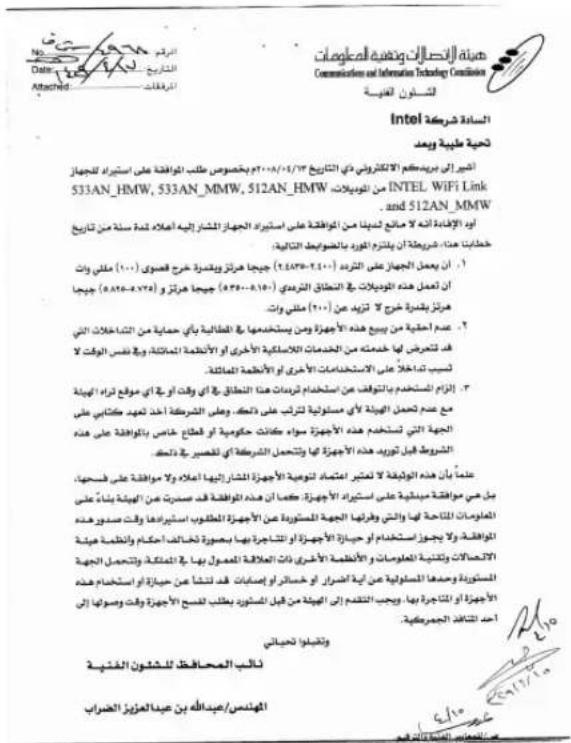
natural_image
Pure geometric diagram with intersecting lines and circles, no text or symbols present85
natural_image
Pure electrical circuit lines without any symbolsLenovo G450-550 UG V2.0_en.book Page 86 Wednesday, September 2, 2009 9:29 AM
Appendix F. Lenovo regulatory notice
For model: 533AN_MMW
natural_image
Pure geometric diagram with intersecting lines and circles, no text or symbols present
natural_image
Pure geometric diagram with intersecting lines and circles, no text or symbols present
text_image
LendoLenovo G450-550 UG V2.0_en.book Page 87 Wednesday, September 2, 2009 9:29 AM
natural_image
Pure geometric diagram with intersecting lines and circles, no text or symbols presentAppendix F. Lenovo regulatory notice
For model: BCM94312MCG
natural_image
Pure geometric diagram with intersecting lines and circles, no text or symbols present87
natural_image
Pure electrical circuit lines without any symbolsLenovo G450-550 UG V2.0_en.book Page 88 Wednesday, September 2, 2009 9:29 AM
Appendix F. Lenovo regulatory notice
For model: BCM92046
PCSaside_text شركية
بعد التحية
natural_image
Pure geometric diagram with intersecting lines and circles, no text or symbols present
natural_image
Pure geometric diagram with intersecting lines and shapes, no text or symbols present
natural_image
Pure electrical circuit lines without any symbolsLenovo G450-550 UG V2.0_en.book Page 89 Wednesday, September 2, 2009 9:29 AM
natural_image
Pure geometric diagram with intersecting lines and circles, no text or symbols presentAppendix F. Lenovo regulatory notice
■ Notice for users in UAE
For models: BCM94312MCG, 512AN_MMW, 533AN_MMW, and BCM92046 Telecommunications Regulatory Authority (TRA) approved.
natural_image
Pure geometric lines and symbols without any text, numbers, or labels
natural_image
Pure electrical circuit lines without any symbols
text_image
LendoLenovo G450-550 UG V2.0_en.book Page 90 Wednesday, September 2, 2009 9:29 AM
natural_image
Pure geometric diagram with intersecting lines and circles, no text or symbols presentAppendix F. Lenovo regulatory notice
■ Notice for users in India
For model: BCM92046
ETA-124/2008
For model: BCM94312MCG
ETA-145/2007
For model: 512AN_MMW
ETA-206/2008
For model: 533AN_MMW
ETA-216/2008
■ Notice for users in Indonesia
For model: BCM92046

text_image
08686/POSTEL/2008 2029For model: BCM94312MCG
text_image
08683/POSTEL/2007 2029For model: 512AN_MMW
text_image
08682/POSTEL/2008 2029For model: 533AN_MMW
text_image
06983/POSTEL/2008 2029Users in Indonesia must never configure any channels in the 5GHz band, it is strictly forbidden. Due to this restriction, users must only select any channels on 2.4 GHz 11Mbps (802.11b) or 2.4GHz 54 Mbps (802.11g) wireless mode when configuring their Profile Management with Lenovo Access Connections program (in any Infrastructure or Adhoc Mode).
natural_image
Pure geometric lines and shapes without any text, numbers, or symbols
natural_image
Pure geometric diagram with intersecting lines and circles, no text or symbols present■ Notice for users in Malaysia
For model: BCM92046
Complies with SIRIM
Registration number: SQASI/NA/08/0861
For model: BCM94312MCG
Complies with SIRIM
Registration number: SQASI/NA/07/2179
For model: 512AN_MMW
Complies with SIRIM
Registration number: SQASI/NA/08/0835
For model: 533AN_MMW
Complies with SIRIM
Registration number: SQASI/NA/08/0831
■ Notice for users in the Philippines
For model: BCM94312MCG

NTC
Type Accepted ESD-0703169C
For model: BCM92046

NTC
Type Accepted ESD-0803538C
For model: 512AN_MMW

NTC
TypeAccepted ESD-0803606C
natural_image
Pure geometric diagram with intersecting lines and circles, no text or symbols present91

text_image
LendoLenovo G450-550 UG V2.0_en.book Page 92 Wednesday, September 2, 2009 9:29 AM
Appendix F. Lenovo regulatory notice
For model: 533AN_MMW

NTC
TypeAccepted
ESD-0803608C
■ Notice for users in Singapore
For model: BCM92046
Complies with
IDA Standards
DA103861
For model: 512AN_MMW
Complies with
IDA Standards
DB02941
For model: BCM94312MCG
Complies with
IDA Standards
DA102889
For model: 533AN_MMW
Complies with
IDA Standards
DB02941
92
natural_image
Pure geometric diagram with intersecting lines and circles, no text or symbols present
natural_image
Pure geometric diagram with intersecting lines and circles, no text or symbols presentOPERATING CONDITIONS UNDER WHICH THE RADIOCOMMUNICATION EQUIPMENT ARE EXEMPTED FROM LICENSING
To maximize frequency sharing while minimizing radio interference, the following operating conditions are imposed to confine the propagation of radio signals within a building or at a localised site:
a) The radiocommunication equipment shall be used for in-building or localised on-site operations;
b) The radiocommunication equipment shall operate at frequencies or frequency bands designated by IDA on non-exclusive basis;
c) The radiocommunication equipment shall not operate beyond the maximum permissible output power designated by IDA to confine the propagation of radio signals to a small localised area;
d) For an on-site localised operation with little obstruction by the nearby buildings or terrain, height of any external antenna, if
installation approved by IDA, shall not be more than 10 metres above ground level to limit the radio wave propagation; and
e) No repeater station shall be used to extend the radio coverage.
■ Notice for users in Taiwan
For models: BCM92046, 512AN_MMW, 533AN_MMW, BCM94312MCG
低功率電波輻射性電機管理辦法
natural_image
Pure geometric lines and shapes without any text, numbers, or symbols
Appendix F. Lenovo regulatory notice
Notice for users in Korea
For models: BCM92046, BCM94312MCG, 512AN_MMW, and 533AN_MMW
Please note that this device has been certified for residential use and may be used in any environment.
(It means that this wireless device may cause radio wave interference during operation)
natural_image
Pure geometric lines and shapes without any text, numbers, or symbols
Appendix G. Features and specifications
Model Name: Lenovo G450 Machine Type • 20022, 2949
Lenovo G550 • 20023, 2958
Note: Information of the specifications may contain technical inaccuracies or typographical errors. Lenovo reserved the right to improvements and/or changes at this specifications at any time without notice.
G450 G550
Form Factor
| Size Appr. 345 x 235 x 26.2 ~ 35.9 mm Appr. 381 x 245 x 26.5 ~ 36.2 mm |
Weight Appr. 2.2\~2.4kg Appr. 2.7\~2.75kg
System
| CPU Intel Penryn/Intel Penryn-Celeron Intel Penryn/Intel Penryn-Celeron |
| Memory DDR3, 800/1066MHz support,2x SODIMM, up to 8 GB Max | DDR3, 800/1066MHz support,2x SODIMM , up to 8 GB Max | |
| LCD 14.0" HDLED 16:9 LED 15.6" HDLED 16:9 LED | ||
| HDD 2.5 SATA HDD | 2.5 SATA HDD | |
| Keyboard | 6-row Lenovo Keyboard | 6-row Lenovo Keyboard |
| Integrated Camera(specific models only) | 0.3M | 0.3M |
| Battery | 53Wh/57Wh/48Wh, 6 cell Li-ionBattery or 35Wh, 4 cell Li-ion Battery | 53Wh/57Wh/48Wh, 6 cell Li-ionBattery or 35Wh, 4 cell Li-ion Battery |
| AC Adapter | 65W/90W | 65W/90W |
I/O Ports
| HDMI (specific models only) | HDMI x 1 | HDMI x 1 |
| USB | USB 2.0 x 3 ports | USB 2.0 x 3 ports |
| Communication | 10/100Mb Ethernet | 10/100Mb Ethernet |
| Audio | Headphone/Mic-In jack | Headphone/Mic-In jack |
| Video | VGA x 1 | VGA x 1 |
| ExpressCard Slot (specific models only) | 34mm width x 1 | 34mm width x 1 |
| Media Slot (specific models only) | 5 in 1 slot x 1 (MMC/ SD/ MS/ MS PRO/xD) | 5 in 1 slot x 1 (MMC/ SD/ MS/ MS PRO/xD) |
| Kensington slot | Yes | Yes |
text_image
LendoLenovo G450-550 UG V2.0_en.book Page 97 Wednesday, September 2, 2009 9:29 AM
natural_image
Pure geometric diagram with intersecting lines and circles, no text or symbols presentTrademarks
Lenovo, Lenovo logo, IdeaPad, VeriFace, OneKey are either registered trademarks or trademarks of Lenovo in the United States and/or other countries.
Microsoft and Windows, Windows Vista are trademarks of Microsoft Corporation in the United States, other countries, or both.
Other company, product or service names may be trademarks or service marks of others.
All other trademarks and registered trademarks are trademarks or registered trademarks of their respective holders. In this manual, ^TM and ^® marks are not specified.
natural_image
Pure geometric lines and symbols without any text, numbers, or labels
natural_image
Pure geometric diagram with intersecting lines and circles, no text or symbols present97
Index
A
AC adapter
Jack....5
Using....11
B
Battery
Charging....11
Bluetooth
Connecting 19
Interoperability ....57
Usage environment....58
C
Camera 3
Card reader 18
Caring your computer ....40
Cleaning
Computer cover 45
Computer display 45
Computer keyboard....45
Customer Replaceable Unit (CRU) parts list .....53
Customer support center....37
D
Display
Cleaning 45
E
ExpressCard/34 slot 18
F
FCC Statement....59
Frequently Asked Questions 24
Function key combinations....14
H
Hard disk drive
Problems 28
Help
Customer support center.... 37
Help and service 37
on the Web 37
Hibernation mode problems....27
K
Keyboard
Cleaning 45
Problems 26
Using 13
L
Lenovo Limited Warranty.... 46
M
Maintenance.... 44
Microphone
Built-in.... 3
N
network 21
Notice
Electronic emissions 59
for US users....64
Numeric keypad (G450) 13
0
OneKey Rescue System button 3
natural_image
Pure geometric diagram with intersecting lines and circles, no text or symbols present
natural_image
Pure geometric diagram with intersecting lines and circles, no text or symbols presentP
Password Problems....26
Using 17
Power button....3
Problems Battery ....28
Computer screen....27
Display 26
Hard disk drive....28
Hibernation mode....27
Keyboard 26
Password 26
Sleep mode 27
Sound....28
Startup 28
S
Security....17
Storage media Handling ....41
T
Touchpad 12
Trademarks 97
Troubleshooting....26
U
USB port 4
V
VeriFace....17
Volume button 15
W
Warranty information 50
Web Help .... 37
Wireless LAN Antennas....3 Interoperability....57 Usage environment....58
Lenovo G450-550 UG V2.0_en.book Page 100 Wednesday, September 2, 2009 9:29 AM