Fone - Smartphone GARMIN - Free user manual and instructions
Find the device manual for free Fone GARMIN in PDF.


| Product Type | Smartphone with integrated GPS navigation |
| Brand | Garmin |
| Model | Fone (Garminfone) |
| Dimensions (W × H × D) | 62.30 × 116 × 12.75 mm (2.45 × 4.57 × 0.50 in) |
| Weight | 150 g (5.29 oz) |
| Display | 3.5 in HVGA touchscreen, 320 × 480 pixels |
| Battery | User-replaceable 1150 mAh lithium-ion, talk time 4 h, standby 250 h, charge time ~3 h |
| Power Input | AC via mini-USB charger or DC via vehicle power cable |
| Processor | Qualcomm? (unspecified, Android platform) |
| Operating System | Android (version unspecified, likely 1.6 or 2.1) |
| Storage | Internal memory + microSD card (removable) |
| Connectivity | GSM 850/900/1800/1900, 3G Bands I & IV, Bluetooth 2.0+EDR, Wi-Fi 802.11 b/g, mini-USB 2.0 |
| Camera | 3.0 MP with auto-focus, geo-tagging |
| Navigation | High-sensitivity GPS, preloaded maps, turn-by-turn directions, traffic (subscription) |
| Key Features | Phone, messaging (SMS/MMS), email, web browser, music player, video recording, Ciao! location sharing, calendar, document viewer |
| Audio | Speakerphone, 3.5 mm headset via adapter, Bluetooth headset support |
| Protection | IP51 (not waterproof) |
| Operating Temperature | 5°F to 104°F (-15°C to 40°C) |
| Maintenance | Avoid drops, water, extreme temperatures; clean with lint-free cloth; remove from vehicle when parked to avoid heat |
| Safety | Refer to Important Safety and Product Information document; do not use sharp objects to remove battery; keep out of direct sunlight when charging |
| Spare Parts & Repairability | Battery SBP-20 (replaceable), accessories available at www.garminasus.com; user-replaceable battery |
| Additional Info | Free one-time map update (nüMaps Guarantee) upon registration; software updates at www.garminasus.com |
Frequently Asked Questions - Fone GARMIN
User questions about Fone GARMIN
0 question about this device. Answer the ones you know or ask your own.
Ask a new question about this device
Download the instructions for your Smartphone in PDF format for free! Find your manual Fone - GARMIN and take your electronic device back in hand. On this page are published all the documents necessary for the use of your device. Fone by GARMIN.
USER MANUAL Fone GARMIN
© 2010 Garmin Ltd. or its subsidiaries and ASUSTeK Computer, Inc.
All rights reserved. Except as expressly provided herein, no part of this manual may be reproduced, copied, transmitted, disseminated, downloaded or stored in any storage medium, for any purpose without the express prior written consent of Garmin and ASUS. Garmin and ASUS hereby grant permission to download a single copy of this manual onto a hard drive or other electronic storage medium to be viewed and to print one copy of this manual or of any revision hereto, provided that such electronic or printed copy of this manual must contain the complete text of this copyright notice and provided further that any unauthorized commercial distribution of this manual or any revision hereto is strictly prohibited.
Information in this document is subject to change without notice. Garmin and ASUS reserve the right to change or improve their products and to make changes in the content without obligation to notify any person or organization of such changes or improvements. Go to www.garminasus.com for current updates and supplemental information concerning the use and operation of this and other Garmin-Asus products.
The combined Garmin-Asus logo is a trademark of Garmin Ltd. and ASUSTeK Computer, Inc.
Garmin ^® is a trademark of Garmin Ltd. or its subsidiaries, registered in the USA and other countries. cityXplorer ^™ , Ciao! ^™ , Garminfone ^™ , nüMaps Guarantee ^™ , and are trademarks of Garmin Ltd. or its subsidiaries. These trademarks may not be used without the express permission of Garmin.
The Bluetooth® word mark and logos are owned by the Bluetooth SIG, Inc. and any use of such marks by Garmin or ASUS is under license. Wi-Fi is a registered mark of the Wi-Fi Alliance. Adobe is a registered trademark of Adobe Systems Incorporated. Mac is a trademark of Apple Inc., registered in the U.S. and other countries. Microsoft, Exchange ActiveSync, Excel, Outlook, and PowerPoint are either registered trademarks or trademarks of Microsoft Corporation in the United States and/or other countries. Google, Panoramio, and Android are trademarks of Google Inc. Other trademarks and trade names are those of their respective owners.
Introduction
The Garminfone ^™ is a multi-media mobile phone with integrated navigation and services.
Getting Support
- Go to www.t-mobile.com.
- Click Support.
Registering Your Product
- Go to www.garminasus.com.
- Follow the on-screen instructions.
- Keep the original sales receipt, or a photocopy, in a safe place.
Updating the Software
- Go to www.garminasus.com.
- Follow the on-screen instructions.
nüMaps Guarantee™
To receive one free map update (if available), register your device at www.garminasus.com within 60 days of acquiring satellites while driving with your device. You are not eligible for the free map update if you register by phone or wait longer than 60 days after the first time you acquire satellites while driving with your device.
Buying Additional Maps
Go to www.garminasus.com.
CE0700①
Table of Contents
Table of Contents
Introduction ......i
Getting Support ......i
Registering Your Product ......i
Updating the Software ....i
nüMaps Guarantee™ ......i
Buying Additional Maps ......i
Getting Started ....1
Device Features ....1
Setting Up the Device ......2
Turning On Your Device ....4
Mounting Your Device......4
Completing the Setup ....5
Getting to Know Your Device 6
Using the Home Screen ......6
About the Keys ....7
Rotating the Device ....7
Using the Touchscreen 8
Viewing the Application Tray .....8
Setting Your Wallpaper ......9
Viewing Notifications ......9
Using the Widgets ......10
Using the On-screen Keyboard ...10
Using the Scroll Arrows ...... 11
Changing the Volume .....12
About the Automatic Screen Lock 12
About the Headset 13
Getting Help....13
Status and Notification Icons .....14
Using the Phone ......16
Dialing a Number 16
Calling a Contact 16
Calling a Found Location .....16
Answering a Call....16
Silencing an Incoming Call .....16
Sending an Incoming Call to Voice Mail 17
Using the In-Call Options......17
Ending a Call ......17
Activating Call Waiting 18
Using Call Waiting ......18
Calling Voice Mail ....18
Using Call History ......18
Placing a Conference Call .....20
Setting the Default Ringtone......21
Forwarding Calls....21
Barring Calls 21
Checking Your Phone Usage.....22
Turning On Airplane Mode .....22
Multitasking......23
Managing Your Contacts .....24
Adding a Contact ......24
Calling a Contact ......24
Searching for a Contact .....24
Editing and Deleting Contacts .....24
Starting a Route to a Contact .....26
Managing Your SIM Contacts .....27
Searching for Locations .....29
Acquiring Satellites ......29
Finding a Point of Interest......29
Working with Found Locations ....30
Changing the Search Area .....31
Saving and Editing Locations .....31
Sharing Locations ....33
Finding Your Parking Spot .....34
Finding Nearby Locations and Your Current Location ....34
Setting Your Home Location .....35
Finding an Address 35
Finding Local Businesses ......36
Finding Saved Locations ....36
Finding Recently Found Locations ....37
Finding Upcoming Events......37
Finding Panoramio™ Photos ......38
Finding Gas Prices ......38
Finding Cities ......38
Using the White Pages Phone Directory ....39
Entering Coordinates ....39
Finding Intersections ....40
About Extras 40
About the Map ......41
Browsing the Map ....41
About Usage Modes 42
Navigating in Driving Mode......43
Table of Contents
About Traffic 45
Navigating in Walking Mode .....47
Taking a Detour 49
Stopping the Route 49
Working with Routes 49
Viewing Your Trip Log ....51
Sending and Receiving
Messages 52
Sending an Text Message .....52
About Multimedia Messages .....53
Reading Messages ....54
Using E-mail 56
Using Ciao!™ 59
Registering Your Device and Joining Ciao! 59
Changing Your Display Name.....61
Inviting a Friend 61
Accepting or Declining an Invitation 61
Sending a Location Update ......61
Automatically Sending Location Updates ....61
Updating Your Status ....62
Viewing Friends ......62
Adding a Friend to Contacts ......62
Sending a Message to a Friend ..62
Starting a Route to a Friend's Location 62
Removing an Invitation ......63
Removing a Friend 63
Hiding Your Location......63
Viewing Ciao! Networks ......63
Disabling Ciao! 63
Browsing the Web ......64
Saving a Web Page to Favorites .66
Viewing Your History 66
Sharing a URL 67
Opening a Web Site in a New Window 67
Deleting a Web Site from a List ...67
Table of Contents
Setting Your Browser Home Page 67
Downloading Files ......68
Playing Music......69
Music Player File Types ......69
Playing a Song 69
Changing the Music Player View .70
About Playlists ....70
Searching the Music Player .....72
Saving a Song as a Ringtone .....72
Streaming Online Music .....72
Taking and Viewing Pictures and Videos ....73
Taking a Picture 73
Taking a Picture with GPS Information ....73
Recording a Video 74
Changing the Camera and Video Settings 74
About Picture and Video File Types ....75
About the Gallery 75
Viewing Pictures ....75
Viewing a Video 76
Viewing a Slideshow 76
Sharing Pictures and Videos .....76
Setting Your Wallpaper ......76
Editing Pictures and Videos .....77
Adding a Picture to a Contact .....77
Starting a Route to a Photograph 77
Organizing Your Life ......79
Using the Calendar 79
Viewing a Document 81
Checking the Weather Forecast ..82
Using the Clock 83
Using the Converter......85
Checking Flight Status......87
Finding Movie Times......87
Connecting with Other Devices 89
Synchronizing Your Device with Your Computer 89
Synchronizing Your Device with an Exchange Server ....90
Table of Contents
Synchronizing with a Google™ Account 91
Using Bluetooth Technology .....92
Transferring Files ......94
About Wi-Fi 95
Customizing Your Device ....97
General Device Settings .....97
Location Settings 97
Security Settings......98
Changing the Text Language .....99
Keyboard Settings 99
Date and Time Settings .....99
Changing the Storage Settings..100
Data Connection Settings .....100
Phone Settings 101
Audio Settings 102
Navigation Settings.....102
Application Settings ......104
Display Settings ......108
Viewing Software Information ....109
Restoring Settings ......109
Clearing All User Data .....109
Appendix ......111
About Satellite Signals...... 111
About Connected Services ..... 111
Battery Information ......112
Mounting on Your Dashboard ....113
Removing the Device and Mount 113
Resetting the Device .....114
Caring for Your Device...... 114
Specifications ......115
Troubleshooting 117
Index 119
Getting Started
! WARNING
See the Important Safety and Product Information document in the product box for product warnings and other important information.
Download the latest owner's manual at www.garminasus.com.
Device Features
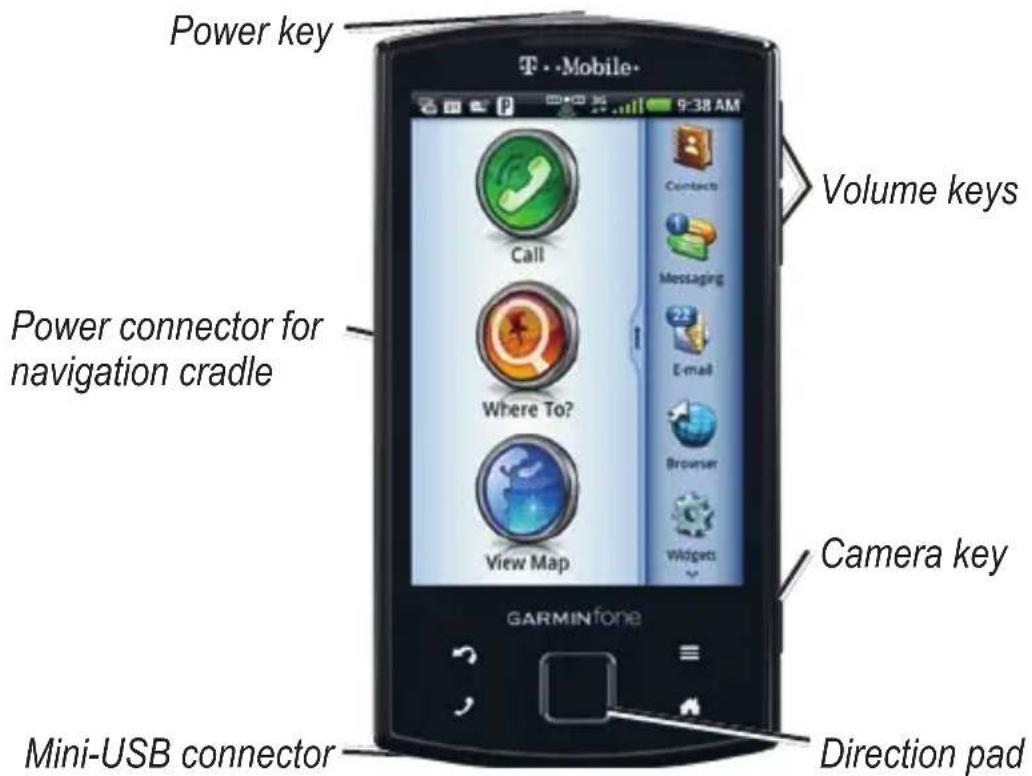
Garminfone Owner's Manual 1
Setting Up the Device
- Remove the battery cover.
- Install the SIM card.
- Install the microSD card.
- Install the battery (page 3).
- Replace the battery cover (page 3).
- Charge the battery (page 3).
Removing the Battery Cover
Slide the battery cover off the back of the device.
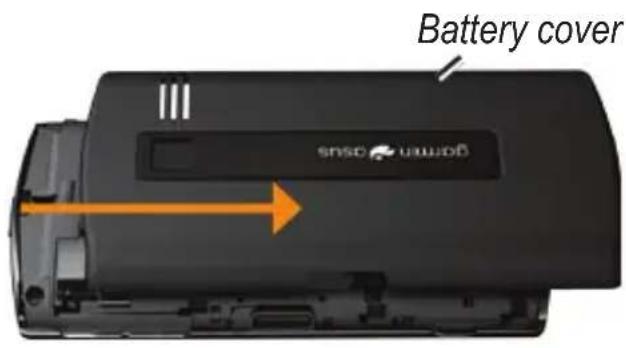
Installing the SIM Card
Insert the SIM card in the holder with the gold contacts facing down and the notched corner toward the center of the device.
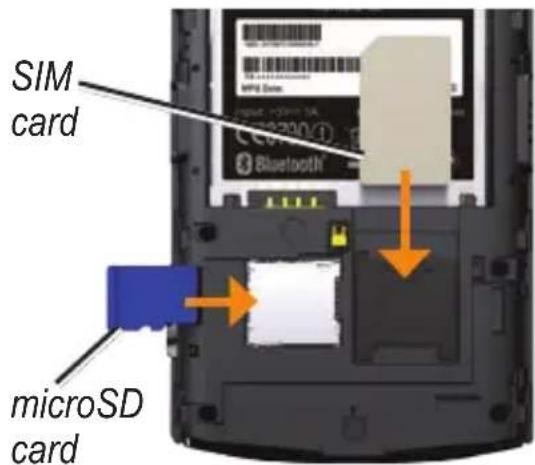
Installing the microSD Card
Insert the microSD card in the microSD slot with the gold contacts facing down.
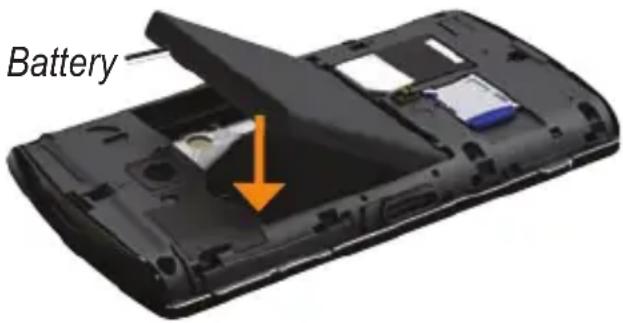
Installing the Battery
- Locate the battery that came in the product box.
- Locate the metal contacts on the end of the battery and in the battery compartment.
- Insert the battery with the Garmin-Asus logo facing up and the metal contacts on the battery aligned with the contacts in the battery compartment.
Replacing the Battery Cover
Slide the battery cover onto the back of the device until it clicks.
Charging the Battery
NOTICE
Your device will not charge if the temperature has exceeded 140^ F ( 60^ C). If the device is mounted in the windshield, remove it from the mount and place it somewhere out of direct sunlight to allow the battery to charge.
Charge the battery for at least four hours before using the device for the first time.
- Insert the plug into the AC power adapter, if necessary.
- Plug the USB cable into the AC adapter.
- Connect the mini-USB end of the USB cable to the connector on the bottom of the device.
- Plug the AC adapter into a power outlet.
If you completely discharge the battery, recharge it for at least 20 minutes before turning on your device.
Charging Methods
There are several ways to charge the device in addition to the method described on page 3.
- (Preferred) Use the vehicle power cable connected to the cradle, with the device in the cradle.
- Use the vehicle power cable connected to the device (not the cradle).
- Use the USB cable to a computer and your device.
- Use the battery charger accessory. For more information about accessories, go to www.garminasus.com.
Turning On Your Device
Press and hold the Power key.
Mounting Your Device
! WARNING
This product contains a lithium-ion battery. To prevent the possibility of personal injury or product damage caused by battery exposure to extreme heat, remove the device from the vehicle when exiting or store it out of direct sunlight.
NOTICE
Before mounting the device, see the Important Safety and Product information document in the product box for information about laws pertaining to windshield mounting.
To learn how to install the device using the dashboard disc, see page 113.
-
Plug the vehicle power cable into the power connector on the back of the cradle.
-
Remove the clear plastic from the suction cup.
- Clean and dry your windshield and the suction cup with a lint-free cloth.
- Place the suction cup on the windshield.
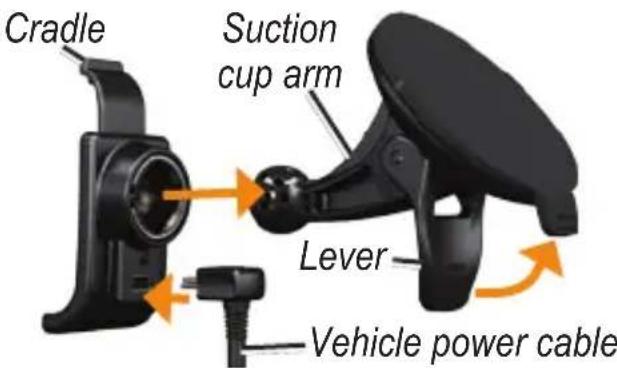
- Flip the lever back, toward the windshield.
- Snap the cradle onto the suction cup arm.
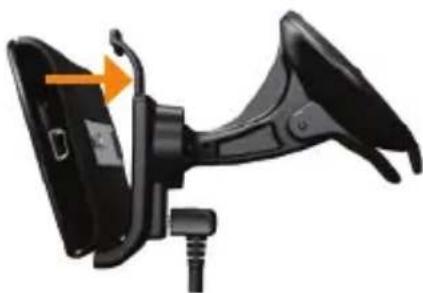
- Fit the gold contacts on the left side of your device into the cradle.
-
Tilt the device back until it snaps into the cradle.
-
Plug the other end of the vehicle power cable into a power outlet in your vehicle.
natural_image
Close-up of a black handheld device with a cable and orange arrow indicating a component (no text or symbols visible)TIP: To learn how to remove the device from the mount, see page 113.
Completing the Setup
Complete the following optional tasks to finish setting up your device:
• Set up an e-mail account (page 56).
- Synchronize the device with your computer (page 89).
- Synchronize the device with a Microsoft® Exchange ActiveSync® account (page 90).
Getting to Know Your Device
Using the Home Screen
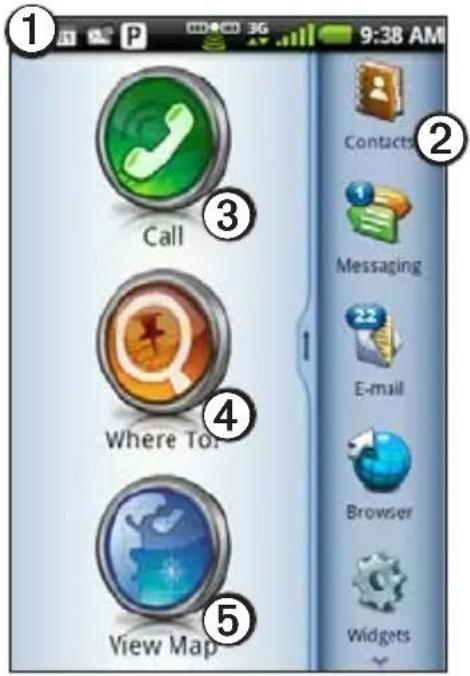
① Touch and drag the status bar down to view notifications (page 9). The status bar displays notification icons, status icons (page 14), and the current time.
② Touch a shortcut icon in the application tray to start an application (page 8). Touch and drag the bar to scroll through all of the shortcuts.
③ Touch to place a phone call and access contacts.
④ Touch to find and navigate to a location.
⑤ Touch to view the map.
About the Keys
| Key Use | |
 | Touch to use the phone. |
| Touch to send a call. | |
 | Touch to return to the Home screen. |
| Touch and hold to open the widgets. | |
 | Touch to go back to the previous screen or to exit the current application. |
 | Touch to view a menu of options for the current screen or application. |
| Volume Up and Down | Press to increase or decrease the audio level. |
| Direction pad | Press up, down, left, or right to highlight items or to scroll through lists. |
| Press the center of the directional pad to select a highlighted item. | |
| Camera Press | to use the camera. |
| Press to take a screenshot, when enabled. |
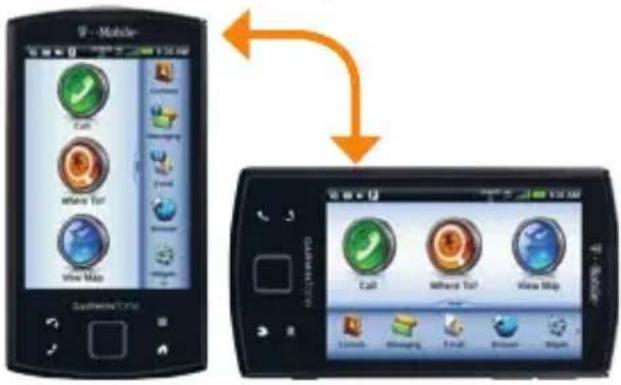
Rotating the Device
NOTE: Some applications can only be viewed in one orientation. For example, the camera is only available in landscape mode.
- From vertical mode, rotate your device to the left or the right to view in horizontal (landscape) mode.
- From horizontal mode, rotate your device to the left or the right to view in vertical (portrait) mode.
Using the Touchscreen
NOTE: The touchscreen requires direct contact with your skin. The device will not respond if you touch the touchscreen with your fingernail or with a glove.
- Touch and drag your finger to slowly scroll the screen.
- Scroll the screen both vertically and horizontally, when available.
- Touch, drag, and quickly remove your finger (flick the screen) to quickly scroll the screen.
- Touch the screen to stop scrolling.
- Touch two points near the center of the page, and drag your fingers apart to zoom in, when available.
- Touch two points near opposite edges of the page, and drag your fingers toward the center of the page to zoom out, when available.
Viewing the Application Tray
The application tray contains shortcuts for the applications on the device. The first row or column of shortcuts is always visible on the Home screen.
- Scroll the application tray up and down to view more shortcuts.
- Touch and drag the application tray toward the opposite side of the screen.
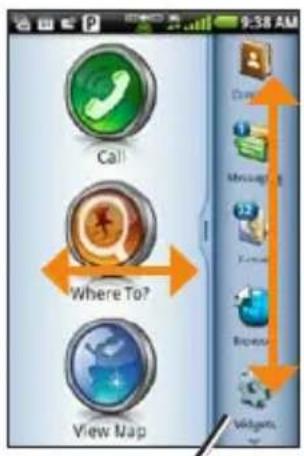
Application tray Application t
The application tray expands, and a second section of shortcuts appears.
Arranging Shortcuts
You can change the order of shortcuts, and you can move shortcuts into or out of the first section of the application tray.
- Expand the application tray.
- Touch and hold the shortcut until the device vibrates.
- Drag the shortcut to a new location.
Setting Your Wallpaper
-
From the application tray, touch Settings > Display > Wallpaper.
TIP: You can also open the Gallery to select an image. -
Touch a picture.
-
Touch and drag the edges of the rectangle to crop the photo.
-
Touch Save.
Viewing Notifications
When a notification icon appears in the status bar, open the notification window to view more information.
- Touch and drag the status bar toward the bottom of the screen.
The notification window expands to fill the screen. - Touch an item to view more details or to go to the application.
Hiding the Notification Window
Touch and drag the bottom of the notification window to the top of the screen.
Setting the Notification Tone
- From the application tray, touch Settings > Audio > Notifications.
- Touch a tone.
- Touch Done.
Using the Widgets
Widgets provide quick access to frequently used tasks and information.
- Touch and hold

- Touch and drag the screen to the left or to the right to view additional widgets.
Customizing the Widgets
- Touch and hold

-
Customize the widgets panel:
-
To add widgets, touch and touch an item.
- To move a widget, touch and hold the widget until the device vibrates, and drag the widget to a new location.
- To remove a widget, touch [X] > [X]
Using the On-screen Keyboard
A keyboard appears when you need to enter text.
- Touch a key to enter text.
- Touch to backspace.
- Touch to shift.
- Touch and hold to turn on caps lock.
- Touch to close the keyboard.
- Touch 150 display numbers and symbols.
- Touch to display an alphabetic keyboard.
- Touch to change the keyboard, when enabled (page 99).
- To insert a cursor to edit text, touch the text or numbers in the field.
- Touch and hold the text in a field to open a text editing menu.
• To move the cursor, use the
direction pad.
Using Text Completion
The device includes a text-completion feature that recognizes words you are typing.
NOTE: To adjust the text-completion settings, see page 99.
- Begin typing a word.
A row of suggested auto-text words appears above the keyboard. The closest match is highlighted.
- Continue typing.
The text-completion words may change or disappear.
- Touch a text-completion word to accept it.
NOTE: The underlined word is inserted automatically when you enter a space or a punctuation mark.
Selecting an Input Method
The device includes multiple input methods, such as language-specific keyboards and handwriting recognition, when available.
NOTE: To enable additional input methods in the keyboard settings, see page 99.
- Touch and hold a text field.
- Touch Input Method.
- Select an option.
Using the Scroll Arrows
- Touch for, or touch and drag the screen, to scroll.
- Quickly touch ↑ or to scroll faster.
- Touch and hold for to slowly scroll.
Changing the Volume
You can change the volume for certain features, such as the ringer, navigation, and media.
- Open the application.
-
Adjust the volume:
-
Press the Volume Up or Volume Down key to adjust the volume.
- Press the Volume Down key until appears, to set your device to vibrate mode, when available.
- Press the Volume Down key until 📋 appears, to set your device to silent mode, when available.
TIP: You can also access the volume settings from the application tray, touch Settings > Audio.
About the Automatic Screen Lock
The device automatically locks if you do not use it for a specified amount of time. You can still use the device to contact emergency services.
If the device is in the mount with external power, the screen will not automatically lock.
Manually Locking the Device
Press the Power key.
Unlocking the Device
NOTE: To adjust the unlock settings, see page 98.
- Quickly press the Power key, if necessary.
- Double-tap
Adjusting the Screen Timeout Length
- From the application tray, touch Settings > Display > Screen Timeout.
- Touch a time.
- Touch OK.
About the Headset
You can use the wired headset (included in some packages) or a Bluetooth wireless headset to listen to audio and talk on the phone.
Connecting the Headset
NOTE: To connect a Bluetooth headset, see page 92.
- Connect 3.5 mm headphones to the 3.5 mm adapter on the headset.
- Connect the mini-USB connector on the headset to the device.
Using the Headset
- Press to answer a call.
- Press to end a call.
- Speak into the adapter on the headset, which contains the microphone.
- Use the Volume knob to adjust the audio volume.
- Press to pause and play music.
For information on using a Bluetooth headset, see the instructions that came with the headset.
Getting Help
- From the application tray, touch Help.
- Touch a topic.
Status and Notification Icons
| Icon Description | |
 | Current time. The time is based on the location of the device or on the selected time zone. |
 | Battery life. |
 | External power is connected, and the battery is charging. |
 | Mobile signal strength. The more colored bars that appear, the stronger the signal. A red bar indicates there is no mobile signal. |
 | Airplane mode. |
| [A2XW] | Wi-Fi®connectivity. This icon appears in place of the network connectivity icon when the device is using Wi-Fi. |
| [CH96] | Bluetooth wireless technology is enabled, but the Garminfone is not connected to a device. |
| [H0DA] | The Garminfone is connected to a device using Bluetooth®wireless technology. |
| [CT64] | Teletypewriter (TTY) mode is activated (page 101). |
| [3XSW] | Network connectivity. This icon appears when the device is connected for Internet access. The connection types are as follows: G—GPRS, E—Edge, 3G—3G. |
 | GPS satellite strength. The more colored bars that appear, the stronger the satellite signal. A red “X” indicates no satellite signals. |
| [4XWG] | Vibrate mode. |
[VGGK] | Silent mode.Speaker phone. |
| [ACZ] | In a phone call. |
| [CCC0] | Text or MMS message received. |
 | E-mail message received. |
| Appointment reminder. |
| [YX37] | New voice mail message. |
 | Parking spot has been saved. |
 | You are currently navigating a route. |
| [08TC] | An alarm is enabled. |
| [1937] | Connected to the computer using the USB cable. |
| [8407] | Synchronizing data with your computer. |
| [0057] | There is an error synchronizing data with your computer. |
Using the Phone
Dialing a Number
- Touch 🔊 .
TIP: You can also open the phone application by touching Call from the Home screen.
- Dial the number.
- Touch
Calling a Contact
Before you can call a contact, you must add a contact (page 24).
- Touch ↗ .
- Touch a contact.
- Touch Call.
- If the contact has more than one phone number, touch the phone number to call.
Calling a Found Location
You can call a location that you have found in the Where To? menu, if the location has a phone number associated with it.
- From the Home screen, touch Where To?.
- Search for a location (see pages 30–41).
- Touch Call.
Answering a Call
- If the screen is locked, double-tap
- If the screen is not locked, touch Answer.
Silencing an Incoming Call
When you receive a call, press the Volume Up or Volume Down key.
Sending an Incoming Call to Voice Mail
- If the screen is not locked, touch Ignore.
- If the screen is locked, press the Power key.
NOTE: When you send a call straight to voice mail, a sound is emitted. This is not a silent method of ignoring a call.
Using the In-Call Options
While you are in a call, use the following options:
- Touch Speakerphone to activate the speakerphone.
- Touch Audio to select audio output, when a wireless hands-free is connected (page 92).
-
Touch Mute to mute the audio input.
-
Touch Add Call to place a new call.
- Touch Hold to place the current call on hold.
- Touch to display a numeric keypad for automated systems that require numeric entries.
Ending a Call
Touch End Call.
Activating Call Waiting
From the application tray, touch Settings > Phone > Call Waiting > On > OK.
Using Call Waiting
Before you can use call waiting, it must be activated.
-
When an you receive an incoming call, touch Answer + Hold to answer the new call and place the original call on hold.
-
If necessary, select an option:
-
Touch Merge to create a conference call with the original call and the new call.
- Touch Switch to switch between the original call and the new call.
Calling Voice Mail
When you have new voice mail, appears in the status bar.
- Touch and drag the status bar toward the bottom of the screen.
TIP: You can also touch 📋 to call your voice mail.

- Touch New voicemail.
Using Call History
- Touch 📋.
Calls are organized into three categories:
| Icon Description | |
| Dialed call | |
| Received call | |
| Missed call | |
- Touch a call.
- Select an option.
Deleting a Call from the Call History
- Touch 🔒 . ↗
- Touch a call.
- Touch ▶ Delete from Call History > OK.
Saving a Number to Contacts
- Touch .
- Touch a call.
- Touch ▶ Add to Contacts > Create new contact.
- Touch a phone type
- Touch Name.
- Enter a name, and touch Done.
- Touch Save.
Viewing Related Calls
Related calls are calls made to or received from the same number.
- Touch 📋.
-
Touch a call.
-
Touch □> View Related Calls.
A list of related calls appears displaying the length of each call or a status message.
Using Reverse Lookup
This service is not available in all areas. This service may be available as a paid subscription. A data connection is required for this feature. Your regular data usage charges apply.
A reverse lookup allows you to search for the address of a phone number that called you.
- Touch 🔍 .
- Touch a call.
- Touch ▶ Reverse Lookup.
Deleting All Calls from the Call History
Touch 📋 >> Clear Call Log.
Placing a Conference Call
You can host a conference call with two other callers.
TIP: If you receive a call while you are already on another call, you can start a conference call by touching Merge.
- Place a call to the first phone number.
- Touch Add Call.
- Place a call to the second phone number.
- Touch Merge.
- Touch to view the other members of the conference call (optional).
Speaking Privately During a Conference Call
You can speak privately with another member of the conference call.
- During the conference call, touch

- Touch next to the contact with whom you would like to speak with privately.
The other members of the conference call can continue to speak to each other.
To end the private conversation, touch Merge.
Setting the Default Ringtone
- From the application tray, touch Settings > Audio > Ringtone.
- Touch a ringtone.
- Touch Done.
Forwarding Calls
- From the application tray, touch Settings > Phone > Call Forwarding.
- Touch a call type.
- Select an option:
• Enter a number to forward calls.
- Touch to select a contact to forward calls.
- Touch Disable to disable call forwarding for that call type.
Barring Calls
You can block incoming calls and outgoing calls.
NOTE: You must obtain the call barring password from your service provider.
- From the application tray, touch Settings > Phone > Call Barring.
- Touch a call type.
- Select an option.
- Touch OK.
- Enter the call barring password, and touch OK.
Checking Your Phone Usage
You can check the amount of call minutes and data that you have used.
TIP: To track your approximate monthly usage, reset the call time and the data usage at the beginning of each billing cycle.
-
From the application tray, touch Settings > ☐ About > Phone.
-
Select an option:
-
Touch Total Time, This Session, or Total Data to see usage details.
- Touch ☐ Reset Call Time to reset the Call Time values.
- Touch → Reset Data Usage to reset the Data Usage values.
Turning On Airplane Mode
Airplane mode turns off the phone and data connections for situations such as an airplane flight.
From the application tray, touch Settings > Wireless Manager > Airplane Mode.
When Airplane mode is on, the telephone, the network, and Bluetooth features are deactivated. You cannot send or receive calls, e-mail messages, or SMS/MMS messages.
Multitasking
Use the keys to help you multitask.
Placing a Call While Navigating
- If you are driving, pull over and stop.
- Touch 📋 and place the call.
- Touch ➕ View Map to return to the map.
- Carry on your conversation using the speakerphone.
Answering a Call While on the Web
- While browsing the Internet, touch Answer when the phone rings.
- Touch 📄 return to the browser.
- Carry on your conversation using the speakerphone.
Placing a Call While on the Web
- While browsing the Internet, touch 📋, and place the call.
- Touch 📄 to return to the browser.
- Carry on your conversation using the speakerphone.
Ending a Call While Multitasking
To hang up, touch 📋 End Call.
Managing Your Contacts
Adding a Contact
- From the application tray, touch
- Touch an item.
- Enter the information.
- Touch Done > Done.
$$ \text { Contacts } > \text { + } $$
Calling a Contact
- From the application tray, touch Contacts.
- Touch a contact.
- Touch Call.
Searching for a Contact
-
From the application tray, touch Contacts >
-
Enter part of the contact name.
-
Touch the contact.
Editing and Deleting Contacts
-
From the application tray, touch Contacts.
-
Touch a contact.
-
Touch ▷ Edit.
-
Edit the contact:
-
Touch an item to edit the information.
-
Touch to delete the information.
-
Touch Done.
Adding a Picture for a Contact
- From the application tray, touch Contacts.
- Touch a contact.
- Touch ▲ Edit.
- Touch the picture of the contact.
-
Select an option:
-
Touch Take Picture to take a picture using the device camera.
-
Touch Select Picture to select a saved picture.
-
Touch and drag the square to crop the picture.
-
Touch Save > Done.
Assigning a Location to a Contact
- From the application tray, touch Contacts.
- Touch a contact.
- Touch ▲ Edit.
- Touch next to Add Address.
- Touch Add Location.
-
Select the location:
-
Touch the location on the map.
-
Touch, and search for the location.
-
Touch Select this Location > Done > Done.
Setting a Ringtone for a Contact
- From the application tray, touch Contacts.
- Touch a contact.
- Touch ▲ Edit > Ringtone.
- Touch a ringtone.
- Touch Done > Done.
Deleting a Contact
- From the application tray, touch Contacts.
- Touch a contact.
- Touch ▶ Delete > OK.
Starting a Route to a Contact
- From the application tray, touch Contacts.
- Touch a contact.
- Touch Go!.
-
If necessary, select an option to enter a location:
-
Enter the full address or location name, and touch Done.
-
Touch Add Location, find a location, and touch Select this Location.
-
Touch Done.
Managing Your SIM Contacts
Exporting Contacts to Your SIM Card
- From the application tray, touch Contacts.
- Touch ▶ SIM Phone Book > Export Contacts to SIM.
-
Touch a method to export contacts:
-
Touch Export All Contacts.
-
Select the check box for the contact.
-
Touch Export.
Importing Contacts from Your SIM Card
- From the application tray, touch Contacts.
-
Touch ▶ SIM Phone Book > Import Contacts from SIM.
-
Touch a method to import contacts:
-
Touch Import All Contacts.
-
Select the check box for the contact.
-
Touch Import.
Creating a New SIM Contact
- From the application tray, touch Contacts.
- Touch SIM Phone Book > View SIM Contacts > Create New SIM Contact.
- Touch Name, enter the name, and touch Done.
- Touch Primary Number, enter the name, and touch Done > Done.
Call or Send a Message to a SIM Contact
- From the application tray, touch Contacts > SIM Phone Book > View SIM Contacts.
- Touch a contact.
- Touch Call or Send Message.
Editing Contacts on Your SIM Card
- From the application tray, touch Contacts > SIM Phone Book > View SIM Contacts.
- Touch a contact.
- Touch ▲ Edit.
- Edit the name and phone number, and touch Done > Done.
Deleting Contacts on Your SIM Card
- From the application tray, touch Contacts > SIM Phone Book > View SIM Contacts
- Touch a contact.
- Touch ▶ Delete > OK.
Searching for Locations
The Where To? menu provides several different categories you can use to search for locations and destinations.
Acquiring Satellites
Before you can navigate with your device, you must acquire satellites.
- Turn on your device.
- If necessary, go outdoors to an open area, away from tall buildings and trees.
Acquiring satellite signals can take a few minutes.
Finding a Point of Interest
The detailed maps loaded in your device contain points of interest, such as restaurants, hotels, and auto services.
Finding by Category
- From the Home screen, touch Where To? > Points of Interest.
- Touch a category.
- Touch a subcategory, if necessary.
TIP: To narrow the search, touch the data entry field along the top of the screen, enter the text, and touch Done.
A list of items near your current location appears.
- Touch an item.
Finding by Spelling the Name
- From the Home screen, touch Where To? > Points of Interest > Spell Name.
- Enter all or part of the name.
- Touch an item.
Working with Found Locations
After you find a location, the location appears on the map. An information balloon displays the name of the location.
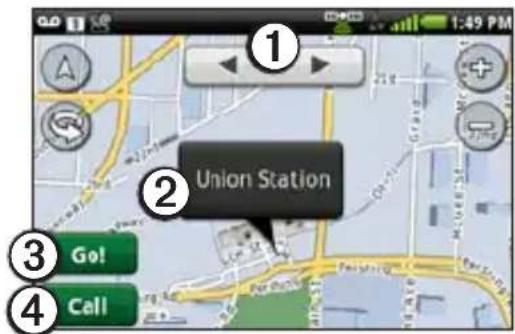
① Touch to view the other items in the search list on the map.
② Touch to view additional details, such as the address and the phone number, if known.
③ Touch to create a route to the location.
④ Touch to dial the phone number of the location, if available.
Starting a Route to a Location
- From the Home screen, touch Where To?.
- Find a location.
- Touch Go!.
- Touch a navigation mode, if necessary.
Calling a Location
- From the Home screen, touch Where To?.
- Find a location.
- Touch Call.
Finding a Nearby Location
- From the Home screen, touch Where To?.
- Find a location.
- Touch ▶ Search Near.
- Select an option.
Viewing the Location in Street View
You can view the location on a photograph of the street surrounding the location.
- From the Home screen, touch Where To?.
- Find a location.
- Touch ▶ Street View.
Assigning a Location to a Contact
- From the Home screen, touch Where To?.
- Find a location.
- Touch the information balloon.
- Touch ➕ Add to Contacts.
-
Select an option:
-
Touch Create New Contact.
- Touch an existing contact to add the information to it, and touch Save.
Changing the Search Area
By default, your device finds locations near your current location.
- From the Home screen, touch Where To?.
- Touch ▶ Change Location.
-
Select the location:
-
Touch the location on the map.
-
Touch, and search for the location.
-
Touch Select this Location.
Saving and Editing Locations
Saving a Found Location
- From the Home screen, touch Where To?.
- Find a location.
- Touch the information balloon.
- Touch Save.
Saving Your Current Location
- From the Home screen, touch View Map.
- Touch the vehicle icon.
- Touch Save.
- Enter a name, and touch OK.
Editing Saved Locations
- From the Home screen, touch Where To? > Saved Locations.
- Touch and hold a location.
- Touch Edit.
- Touch an item to edit it.
- Touch Save.
Deleting a Saved Location
- From the Home screen, touch Where To? > Saved Locations.
- Touch and hold a location.
- Touch Delete > Confirm.
Creating Categories
When you save a location, it is automatically assigned to a category. You can create your own categories to help organize your saved locations.
- From the Home screen, touch Where To? > Saved Locations.
- Touch and hold a location.
- Touch Edit > Categories > Enter New Category.
- Enter a name for the category.
- Touch Done > OK > Done > Save.
Assigning Saved Locations to Categories
- From the Home screen, touch Where To? > Saved Locations.
- Touch and hold a location.
- Touch Edit > Categories.
- Touch the categories to assign to this location.
- Touch Done > Save.
Sharing Locations
Sharing a Found Location
- From the Home screen, touch Where To?.
- Find a location.
- Touch the information balloon.
- Touch Share.
- Select an option to send the location.
- Touch To.
-
Add a recipient, and touch Done.
-
Touch Message.
- Enter a message.
- Touch Done > Send.
Sharing Your Current Location
- From the application tray, touch Where Am I? > Share.
- Select an option to send the location.
- Touch To.
- Add a recipient, and touch Done.
- Touch Message.
- Enter a message.
- Touch Done > Send.
Finding Your Parking Spot About the Parking Spot Feature
When the My Parking Spot feature is enabled, the location of your parking spot is saved automatically if you are receiving satellite signals when you remove the device from the cradle.
When your parking spot is saved, P appears in the status bar.
Starting a Route to Your Parking Spot
-
Touch and drag the status bar toward the bottom of the screen.
TIP: You can also access your Parking Spot by touching Where To? > Saved Locations. -
Touch Saved Parking Spot > Go!.
Finding Nearby Locations and Your Current Location
Use the Where Am I? page to view information about your current location. This is a helpful feature if you need to tell emergency personnel your location.
-
From the application tray, touch Where Am I?.
-
Touch the information balloon.
TIP: You can also open the Where Am I? page by touching the vehicle icon on the map.
The Where Am I? page opens, displaying your present location coordinates and nearby items, such as fuel stations.
Setting Your Home Location
You can save a home location and quickly generate a route to it.
- From the Home screen, touch Where To? > Home.
- Select an option.
Starting a Route to Your Home
Before you can create a route to your home location, you must set your home location (page 35).
Touch Where To? > Home > Go!.
Finding an Address
NOTE: Depending on the version of the built-in map data on your device, the button names and the order of steps could be different than the steps below.
- From the Home screen, touch Where To? > Address. TIP: To change the search area, touch Change State/Country, and touch a state, a province, or a country.
- Touch Enter House Number.
- Enter the house number, and touch Next.
- Enter all or part of the street name or number, and touch Done.
- Touch the street.
- Enter and touch the correct city, if necessary.
- Touch the correct address, if necessary.
Finding Local Businesses
This service is not available in all areas. A data connection is required for this feature. Your regular data usage charges apply.
- From the Home screen, touch Where To? > Local Search.
- Enter your search term, and touch
TIP: You can also spell the names of categories, like salon or coffee. - Touch an item.

Finding Saved Locations
To learn how to save a location, see page 31.
- From the Home screen, touch Where To? > Saved Locations.
- Touch the arrows to search different categories, if necessary.
- Touch an item.
Finding Recently Found Locations
Your device stores the last 50 locations you have found.
- From the Home screen, touch Where To? > Recently Found.
- Touch a location.
Clearing the Recently Found List
Touch Where To? > Recently Found > □ Clear > OK.
The list of recently found locations is cleared. These locations are not deleted from the map data.
Finding Upcoming Events
This service is not available in all areas. This service may be available as a paid subscription. A data connection is required for this feature. Your regular data usage charges apply.
- From the Home screen, touch Where To? > Upcoming Events.
- Touch a category.
- Touch the arrows or the date to select a different date, if necessary.
- Touch an event to view more information.
- Select an option:
- If the event begins within two hours, touch Go! to navigate to the event.
- If the event begins in more than two hours, touch Remind Me! to add the event as an appointment on your calendar.
Finding Panoramio™ Photos
Panoramio photographs contain information about the location where the photograph was taken. You can use this information to navigate to locations and landmarks shown in Panoramio photographs.
This service is not available in all areas. A data connection is required for this feature.
- From the Home screen, touch Where To? > Panoramio.
- A list of photographs from nearby locations appears.
- Touch a photograph.
Finding Gas Prices
This service is not available in all areas. This service may be available as a paid subscription. A data connection is required for this feature. Your regular data usage charges apply.
From the Home screen, touch Where To? > Gas Prices.
A list of fuel prices near your current location appears.
Changing the Fuel Type
- From the Home screen, touch Where To? > Gas Prices.
- Touch
- Touch a fuel type.
Finding Cities
- From the Home screen, touch Where To? > Cities.
- Enter the name, and touch Done.
TIP: To view a list of nearby cities, touch ➕ Nearby Cities.
- Touch a city.
Using the White Pages Phone Directory
This service is not available in all areas. This service may be available as a paid subscription. A data connection is required for this feature. Your regular data usage charges apply.
Finding by Name
- From the Home screen, touch Where To? > White Pages > By Name.
- Enter all or part of the last name, and touch Next.
- Enter all or part of the first name (optional), and touch Next.
- Touch Search.
- Enter the postal code, if necessary.
Finding by Phone Number
This service may not be available for all phone numbers.
-
From the Home screen, touch Where To? > White Pages > By Phone Number.
-
Enter the area code and phone number, and touch Search.
Entering Coordinates
If you know the geographic coordinates of your destination, you can use your device to navigate there. This can be especially helpful when geocaching.
- From the Home screen, touch Where To? > Coordinates.
- Touch a cardinal direction button to change the direction.
- Touch a field to enter the latitude and longitude data.
- Touch View Map.
Changing the Map Coordinate Format
- From the Home screen, touch Where To? > Coordinates > Coordinate Format.
- Touch a format.
Finding Intersections
- From the Home screen, touch Where To? > Intersections.
- If necessary, touch Change State/Country to change the state, country, or province.
- Touch Enter Street 1
- Enter all or part of the street name, and touch the correct street.
- Repeat for the second street.
- Touch the correct intersection, if necessary.
About Extras
You can download additional content, such as custom POIs, from www.garminasus.com.
Custom POIs are customized points on the map. They can contain alerts that let you know if you are near a designated point or if you are traveling faster than a specified speed.
You can create or download custom POI lists and install them on your device using POI Loader software available at www.garminasus.com. See the POI Loader Help file for more information.
Finding Extras
- From the Home screen, touch Where To? > Extras.
- Touch a category.
About the Map
NOTICE
The speed-limit icon feature is for information only and does not replace the driver's responsibility to abide by all posted speed limit signs and to use safe driving judgment at all times. Garmin will not be responsible for any traffic fines or citations that you may receive for failing to follow all applicable traffic laws and signs.
Before you can view your present location on the map, you must acquire satellites (page 29).
From the Home screen, touch View Map to display a default 3-D view of your current location. The vehicle icon displays your position on the map.
You can only see detailed map information for areas for which you have maps loaded on your device. A speed-limit icon may appear as you travel on major roadways.
Browsing the Map
- Touch View Map.
- Touch anywhere on the map.
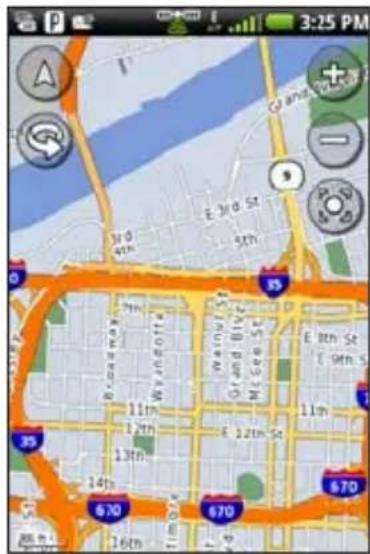
- Touch and drag to view different parts of the map.
-
Touch and to zoom in and out.
-
As you zoom out, the map changes to a digital elevation map showing the contours of the area.
-
Zoom far out to view a globe. Touch and drag to spin the globe.
-
Touch to rotate the map.
- Touch to view the map in two-dimensions (2-D).
- Touch to view the map in three-dimensions (3-D).
- Touch to center the map on your location.
- Touch anywhere on the map. An arrow points to the location.
- Touch for more options.
About Usage Modes
You can navigate to a destination in Driving mode or in Walking mode. The navigation tools vary slightly based on your usage mode.
In Driving mode, your device calculates routes for automobiles. These routes obey traffic rules, such as for one-way streets. Your device uses typical automobile speeds when estimating your arrival time.
In Walking mode, your device calculates routes for walking. These routes avoid highways in favor of smaller streets. Your device uses typical walking speeds when estimating your arrival time. If you have cityXplorer™ maps installed, your device may include public transit systems in walking routes.
Navigating in Driving Mode
Before you can navigate with your device, you must acquire satellites (page 29).
- Find a location.
- Touch Go! > Driving.
NOTE: When the device is in the mount, Driving is automatically selected.
The device creates a route to the location and opens the map.
As you travel, your device guides you to your destination with voice prompts, arrows on the map, and directions at the top of the map.
If you deviate from the original route, your device recalculates the route and provides new directions.
Using the Driving Map
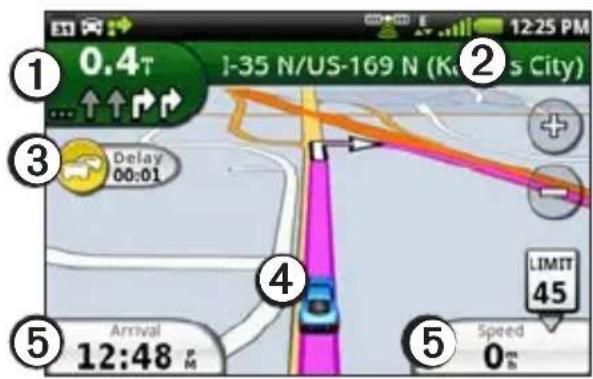
① Touch to view the next turn.
② Touch to view the route details.
③ Touch to view the Traffic menu, when available. Traffic services require an additional subscription and data plan charges.
④ Touch to open the Where Am I? page.
⑤ Touch to view the trip computer.
About the Map
Viewing the Route Details
When you are navigating in Driving mode, you can view all of the turns for your entire route and the distance between turns.
- While navigating to a destination, touch the text bar on the top of the map.
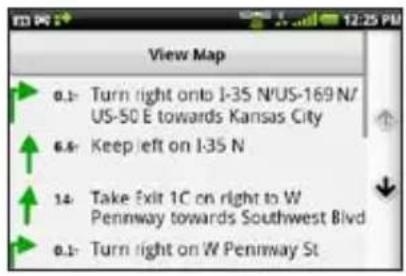
- Touch a turn on the list to view details for the turn.
Viewing the Entire Route on the Map
- While navigating to a destination, touch the text bar on the top of the map.
- Touch View Map.
The map appears with your route marked with a magenta line.
Viewing the Next Turn
When you are navigating in Driving mode, you can view the turn on the map and the distance and time left before you reach the turn.
- While navigating to a destination, touch the upper-left corner of the map.
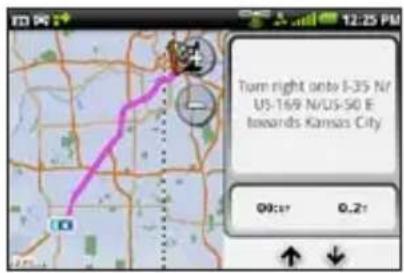
- Touch the arrows to see more turns in the route.
Viewing the Trip Computer in Driving Mode
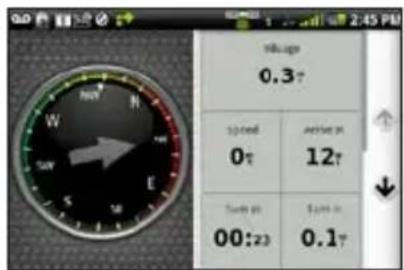
The trip computer displays a compass, your current speed, and other helpful statistics about your trip.
While you are navigating in Driving mode, from the map, touch Speed or Arrival.
Resetting the Trip Computer in Driving Mode
Reset the trip computer before beginning a trip.
- When you are navigating in Driving mode, from the map, touch Speed or Arrival >
- Touch an item to reset.
Avoiding Road Features
- From the application tray, touch Settings > Navigation > Automobile > Avoidances.
- Select the check boxes to mark the road features to avoid.
About Traffic
This service is not available in all areas. This service may be available as a paid subscription. A data connection is required for this feature. Your regular data usage charges apply.
NOTE: Garmin and ASUS are not responsible for the accuracy of the traffic information.
About the Traffic Icon
The traffic icon on the map changes color to indicate the severity of traffic conditions.
| Icon Definition | |
| Gray Traffic information is not available. | |
| Green Traffic is flowing freely. | |
| Yellow Traffic is moving but there is a delay. There is moderate traffic congestion. | |
| Red Traffic is not moving or is moving very slowly. There is a severe delay. |
Traffic on Your Route
When calculating your route, the device examines the current traffic and automatically optimizes the route for the shortest time. If a severe traffic delay occurs on your route while you are navigating, the device automatically recalculates the route. You might still be routed through traffic if no better alternative routes exist.
If a non-severe traffic delay occurs on your route, the traffic icon displays how much time the delay has added
to your route. This time is already included in your estimated arrival time.
Changing Traffic Avoidance Settings
-
From the application tray, touch Settings > Navigation. > Automobile > Avoidances.
-
Select or clear the Traffic check box.
Manually Avoiding Traffic on Your Route
- On the Map page, touch the traffic icon.
- Touch Traffic On Route.
- Touch the arrows to select a traffic delay, if necessary.
- Touch ☑ Avoid to avoid the selected traffic delay.
You might still be routed through traffic if no better alternative routes exist.
Viewing the Traffic Map
The traffic map displays color-coded traffic flow and delays on nearby roads.
- On the Map page, touch the traffic icon.
- Touch Show Traffic Map.
To return to the normal map, touch the traffic icon, and touch Show Normal Map.
Viewing Traffic Delays
- On the Map page, touch the traffic icon.
- Touch Traffic Search to view a list of traffic delays.
- Touch an item to view the delay on a map and details about the delay.
- If there is more than one delay, touch the arrows to view the additional delays.
Disabling Traffic
- From the application tray, touch Settings >Navigation.
- Clear the Traffic Service check box.
Navigating in Walking Mode
Before you can navigate with your device, you must acquire satellites (page 29).
- Find a location.
-
Touch Go! > Walking.
NOTE: The device must be out of the mount to be able to select Walking.
The device creates a route to the location and opens the map. -
If you deviate from the original route, touch 📋 Recalculate.
Using the Walking Map
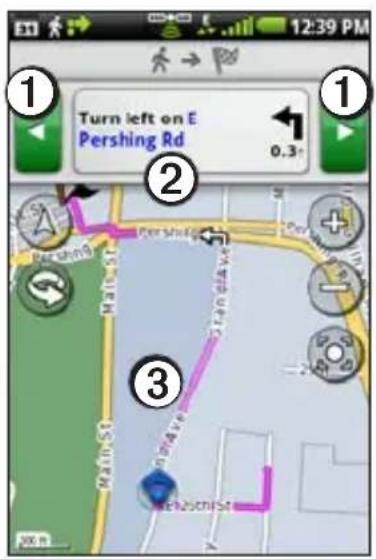
① Touch to view the next or previous turn.
② Touch to view the itinerary page.
③ Touch to view the Where Am I? page.
Viewing the Itinerary Page
While navigating a route in Walking mode, touch ➕ View Itinerary.
Using the Compass to Navigate
- From the Map page, touch ▶ Trip Computer.
As you travel, the compass rotates to indicate your direction of travel.
- Move in a circle until the arrow points at the bug indicator.
The bug indicator is the inverted triangle at the top of the compass, which indicates your current heading.
- Continue traveling in this direction, toward your destination.
Calibrating the Compass
-
From the Home screen, touch View
Map > ☐ Trip Computer > ☐ > Calibrate Compass. -
Follow the on-screen instructions.
Resetting the Trip Computer in Walking Mode
Reset the trip computer before beginning a trip.
-
From the Home screen, touch View Map > Trip Computer > .
-
Touch an item to reset.
Taking a Detour
While navigating a route, you can use detours to avoid obstacles ahead of you, such as construction zones.
-
While navigating a route, touch
-
Select an option:
• From the application tray, touch Detour when in Driving mode.
- From the application tray, touch Recalculate when in Walking mode.
If the route you are currently taking is the only reasonable option, the device might not calculate a detour.
Stopping the Route
- While navigating a route, touch
- From the application tray, touch Stop.
Working with Routes
Adding Points to the Active Route
-
While navigating a route, touch
-
From the Home screen, touch Where To?.
-
Select an option for the search area.
-
Touch the intermediate location.
-
Touch Go! > Insert Via Point.
Saving the Active Route
- While navigating a route, touch
- From the application tray, touch Routes > Current Route > Edit > Save.
Planning a Route
-
From the application tray, touch Routes > Create New Route > Add Location.
-
Select the location:
-
Touch the location on the map.
-
Touch, and search for the location.
-
Touch Select this Location > Add Location.
-
Repeat steps 2 and 3.
-
Touch Save.
Editing a Saved Route
- From the application tray, touch Routes.
- Touch a route.
- Touch Edit.
-
Edit the route:
-
Touch Add Location to add more locations.
- Touch and drag or to move the location down or up in the route.
- Touch to delete a location.
Optimizing and Reversing a Saved Route
- From the application tray, touch Routes.
- Touch a route.
- Touch Edit > ☑ Optimize Route or Reverse Route.
- Touch Save.
Deleting a Saved Route
- From the application tray, touch Routes.
- Touch a route.
- Touch Edit > Delete Route > OK.
Starting Navigation of a Saved Route
- From the application tray, touch Routes.
- Touch a route.
- Touch Go!.
Viewing Your Trip Log
You can record the path you travel (called a trip log) and display it as a dotted line on the map.
- From the application tray, touch Settings >Navigation.
- Select Automobile or Pedestrian.
- Select the Trip Log check box.
The trip log appears on the map.
Clearing the Trip Log
From the application tray, touch Settings > Navigation > Clear Trip Log.
Sending and Receiving Messages
Your regular messaging fees apply when sending and receiving messages.
Sending an Text Message
You can send Short Message Service (SMS) text messages.
-
From the application tray, touch Messaging > New Text Message.
-
Touch To to enter a recipient:
-
Enter a phone number or a contact name, and touch Done.
-
Touch Add from Contacts, and touch a contact from your Contacts list.
-
Touch Message.
-
Enter the text message.
-
Touch for additional options:
-
Touch Attach to add attachments such as media, contacts, or events.
- Touch Add Subject to add a subject line.
- Touch Add CC to add carbon-copy recipients.
- Touch Call to place a phone call.
- Touch Add to Contacts to add the number to your contacts list.
- Touch View Contact to view the contact information for the recipient, if available.
- Touch Discard to discard the text message without saving.
-
Touch Delete Thread to delete the entire text thread.
-
Touch Send.
About Multimedia Messages
A multimedia (MMS) message is similar to a text message, but it includes an attachment, such as a photo, video, contact, or calendar event.
While creating a text message, touch ☐ > Attach to add a multimedia attachment.
The following multimedia attachments are available:
- Photo/Video—a saved photo or saved video.
- Camera—a new photo or new video.
• Slideshow—a series of photographs or videos.
• Audio—a saved audio recording. -
Record Audio—a new audio recording.
-
Contact—a contact you have saved in Contacts.
- Calendar Event—an event you have scheduled in the Calendar.
Sending an MMS
- From the application tray, touch Messaging > New Text Message.
- Touch To.
- Enter a recipient.
- Touch ☒ Attach.
- Touch a media type.
- Touch the file to attach.
- Touch Message.
- Enter the text message.
- Touch Send.
Sending a Location Message
CAUTION
Use caution when sharing your location information with others.
Location messages allow you to send your current location information to other people.
- From the application tray, touch Messaging > New Text Message.
- Touch a recipient.
- Touch ☐ Attach > Location.
-
Select the location:
-
Touch the location on the map.
-
Touch, and search for the location.
-
Touch Select this Location.
- Touch Message.
- Enter the text message.
- Touch Send.
Reading Messages
A number on the Messaging icon displays the number of unread messages in your inbox.
- From the Home screen, touch Messaging. The inbox opens, containing SMS and MMS messages received from other devices. Unread messages are displayed in bold.
- Touch a message to read it. TIP: Touch and hold a message to view more options.
- Touch for more options.
Replying to a Message
- From the Home screen, touch Messaging.
- Touch a message.
- Touch the data entry field.
- Enter a message, and touch Send.
Forwarding a Message
- From the Home screen, touch Messaging.
- Touch a message.
- Touch and hold a message in the thread.
- Touch Forward Message.
- Touch To.
- Touch a recipient.
- Touch Message to edit the message, if necessary.
- Touch Send.
Deleting a Message
- From the Home screen, touch Messaging.
- Touch a message.
- Touch and hold a message in the thread.
- Touch Delete Message.
Deleting a Thread
- From the Home screen, touch Messaging.
- Touch a message.
- Touch ☒ Delete Thread.
Using E-mail
Setting up an Exchange ActiveSync E-mail Account
To set up an Exchange ActiveSync account, see page 90.
Setting up an E-mail Account
The device can automatically configure account information for some e-mail accounts. These accounts only require you to enter minimal account information, such as your e-mail address and password.
If additional information is required, the device prompts you to enter the required information. Contact your e-mail account provider for configuration information.
- From the application tray, touch E-mail > Other (POP3/IMAP4).
- Enter the e-mail address and the e-mail password, and touch Done > Save.
- If necessary, enter account-configuration information from your service provider.
- Touch Next > Save.
Sending an E-mail Message
- From the application tray, touch E-mail > Compose.
- Touch the fields on the screen to select recipients, enter a subject, and add attachments.
- Touch Message.
- Enter the text message.
- Touch for more options (optional).
- Touch Send.
Viewing an E-mail Message
- From the application tray, touch E-mail.
- Touch to check for new e-mail messages, if necessary.
- Touch an e-mail message.
- Select an option, if necessary:
- Touch to view the location information, if available.
- Touch to open the attachment, if available.
Deleting E-mail Messages
- From the application tray, touch
$$ \mathrm{E-mail} > \text { ✕ } $$
- Touch the messages to delete.
- Touch Delete > OK.
The message is deleted from the online e-mail account.
Changing Folders
- From the application tray, touch E-mail.
- Touch ➕ View Folders.
- Touch a folder.
Searching a Folder
NOTE: This only searches the headers of the messages, not the message text.
- From the application tray, touch E-mail.
TIP: To search a different folder, touch ➕ View Folders, and touch a folder, if necessary.
- Touch ☒ Search Current Folder.
- Enter the search text, and touch Done.
Adding Another E-mail Account
- From the application tray, touch Settings > Applications > E-mail > Add Account.
- Select the account type.
- Follow on the on-screen prompts to complete the setup.
Setting the Default E-mail Account
- From the application tray, touch Settings > Applications > E-mail > Set Default Account.
- Touch an account.
- Touch Done.
Changing E-mail Accounts
- From the application tray, touch E-mail.
- Touch and .
Setting an E-mail Signature
You can set an e-mail signature for each e-mail account you have added.
- From the application tray, touch Settings > Applications > E-mail.
- Touch an account.
- Select the Use Signature check box.
- Touch Signature.
- Enter a signature, and touch OK.
- Touch Done.
Using Ciao!™
Ciao! periodically sends your location to our partner networks and downloads the most recent location of your friends. This application only submits your location when you tell it to, unless you enable automatic updates.
This service is not available in all areas. A data connection is required for this feature. Your regular data usage charges apply.

CAUTION
Use caution when sharing your location information with others.
Registering Your Device and Joining Ciao!
To use Ciao!, you must follow these steps:
- Create a myGamin Account and log in (page 59).
Garminfone Owner's Manual 59
- Register your device with myGarmin (page 59).
- Complete the Ciao! registration (page 60).
- Set up Ciao! (page 60).
Creating a myGarmin Account and Registering Your Device
- From the application tray, touch Ciao! > OK.
- Touch Create New Account. NOTE: If you already have a myGarmin account, sign in and register your device.
- Read the Terms of Use and the Privacy Statement.
- Touch Accept All.
- Enter a user name, a password, and re-enter the password.
- Touch Next.
- Enter the necessary information.
Using Ciao!
- Verify that the Send me a text message so I can start using Ciao! check box is selected.
- Tap Register > OK.
Completing the Ciao Registration
When you receive the Ciao Activation text message, you can complete the registration process.
- Form the application tray, touch Messaging.
- Touch the Ciao! Activation message to open it.
- Touch the link to complete the registration.
- Enter your myGarmin user name and password.
- Touch Sign In > Done.
Setting Up Ciao!
The first time you use Ciao, you are guided through the set up.
- From the application tray, touch Ciao!.
- Select the check box to verify that you are of legal age to use Ciao!.
- Touch Next.
- Enter a display name, and touch OK.
- Touch a type of location update (Manual or Automatic), and touch Done.
- Touch the link to read the terms of service for the displayed network or networks.
- Touch Accept.
Your location is updated and becomes available to your friends.
Changing Your Display Name
- From the application tray, touch Ciao! > My Details > ☑ Change Name.
- Enter a new name, and touch Done.
Inviting a Friend
- From the application tray, touch Ciao! > Invite.
- Select an option to find a friend.
- Touch Done.
Your invited friend must accept the invitation before you can receive location updates from that friend.
Accepting or Declining an Invitation
- From the application tray, touch Ciao!.
- Touch the friend that sent you the invitation.
Garminfone Owner's Manual 61
- Touch Accept or Decline.
Sending a Location Update
From the application tray, touch Ciao! > My Details > Send Update.
Automatically Sending Location Updates
CAUTION
Use caution when sharing your location information with others.
By default, your location is only sent when you manually send it.
- From the application tray, touch Ciao! > My Details.
- Touch ☑ Change Location Updates > Automatic > Done.
Updating Your Status
- From the application tray, touch Ciao! > My Details > Change Status.
- Enter a new status message, and touch Done.
Viewing Friends
Your list of friends displays the status of, the distance to, and the direction to your friends.
- From the application tray, touch Ciao!.
- Touch a friend.
The location for the friend appears on a map.
Viewing All Friends on the Map From the application tray, touch Ciao! > View Map.
Adding a Friend to Contacts
- From the application tray, touch Ciao!.
- Touch a friend.
- Touch ▶ Add to Contacts.
Sending a Message to a Friend
- From the application tray, touch Ciao!.
- Touch a friend.
- Touch Message.
Starting a Route to a Friend's Location
- From the application tray, touch Ciao!.
- Touch a friend.
- Touch Go!.
Removing an Invitation
- From the application tray, touch Ciao!.
- Touch an invited friend.
- Touch Uninvite.
Removing a Friend
- From the application tray, touch Ciao!.
- Touch a friend.
- Touch the information balloon.
- Touch □ > Remove Friend > Yes.
Hiding Your Location
- From the application tray, touch Ciao! > ≧ Hide > Hide.
Your current location is hidden from your friends. - To stop hiding, touch Ciao! > Stop Hiding > Stop Hiding.
Viewing Ciao! Networks
- From the application tray, touch Ciao!.
- Touch ➕ Privacy > ➕ Networks.
Disabling Ciao!
- From the application tray, touch Ciao!.
- Touch ☑ Privacy > ☑ Disable Ciao! > OK.
All the Ciao! information stored on your device is removed. You no longer send any position updates.
To enable Ciao!, you must join Ciao! again.
Browsing the Web
- From the application tray, touch Browser.
- Touch the URL bar.
- Enter a search term or URL, and touch Go.
Using the Browser
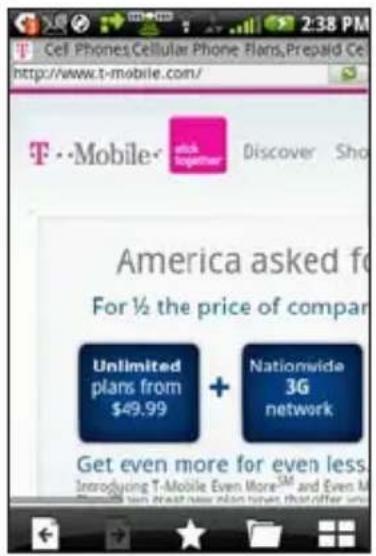
- Touch to refresh the current Web page.
- Touch stop loading the Web page.
- Touch and drag the screen to scroll the Web page.
- Touch two points near the center of the page, and drag your fingers apart to zoom in.
- Touch two points near opposite edges of the page, and drag your fingers toward the center of the page to zoom out.
- Touch interactive items, such as links and text-entry boxes, to activate them.
-
Touch and hold interactive items, such as links and text-entry boxes,, to view a menu of additional options.
-
Touch ← to return to the previous Web page in your history.
- Touch to go to the next to the Web page in your history.
- Touch to add this Web page to your favorites, if it is not already added.
- Touch to remove this Web page from your favorites, if it is already added.
- Touch to view a list of recently viewed Web sites (), favorite Web sites (), and most viewed Web sites ().
- Touch to view other active browser windows.
- Touch ☐ to use the following options:
- Touch Share to send the URL in a text message or e-mail.
- Touch Find on Page to find text in the current Web page.
- Touch Select Text to copy text from the current Web page to the system clipboard. Touch and drag across the text to copy. When you lift your finger, the selected text is copied to the clipboard.
- Touch View Downloads to view your Download History.
Viewing Multiple Browser Windows
You can view another Web page without closing the current page by launching another browser window.
- From the application tray, touch Browser > ☐New Page.
- Touch the URL bar to enter a web address, and open the new Web page.
- Touch
- Touch an active browser window.
Saving a Web Page to Favorites
- Open to the Web page to save.
- Touch ★
When you view one of your favorite Web pages, appears gold.
Opening a Favorite Web Page
-
From the application tray, touch
Browser > . -
Touch a Web page to view in the browser.
Removing a Web Site from Favorites
- Open to the Web page to remove.
- Touch ★
Viewing Your History
-
From the application tray, touch Browser > ▶.
-
Touch a Web page to view in the browser.
Clearing Your Web Page History
From the application tray, touch Settings > Applications > Browser > Clear History > Yes.
Sharing a URL
- From the application tray, touch Browser >
- Touch a category.
- Touch and hold a Web page.
- Touch Share.
- Select an option to send the URL.
Opening a Web Site in a New Window
- From the application tray, touch Browser >
- Touch a category.
- Touch and hold a Web page.
- Touch Open in New Window.
Deleting a Web Site from a List
- From the application tray, touch Browser >
- Touch a category.
- Touch
- Touch 📄xt to the Web site to remove from the list.
- Touch again to delete.
- Touch Done.
Setting Your Browser Home Page
- From the application tray, touch Settings > Applications > Browser > Set Home Page.
- Enter a URL, and touch OK.
Downloading Files
- From the application tray, touch Browser.
- Open a Web page that contains a download link.
-
Touch the download link. The download history page appears, and a progress bar indicates the status of the download.
-
Touch ☐ use the following options:
-
Touch Clear All to clear the download history. This option does not remove downloaded files from the device.
- Touch Pause All to pause all in-progress downloads.
-
Touch Resume All to resume all paused downloads.
-
Touch Cancel All to cancel all in-progress downloads. This option does not remove downloads that have already completed.
-
When the progress bar is full, touch the file name to view the downloaded file.
View Download History
From the application tray, touch Browser > ☐ View Downloads.
Playing Music
Music Player File Types
The music player supports the following file types:
• MP3
- MPEG4
- WMA
- AAC/AAC+/eAAC+
- WAV
- MIDI
All supported music files on your device are displayed in the Music Player.
Playing a Song
You must transfer music files to your device before playing songs or creating playlists (page 94).
- From the application tray, touch Music.
2 Select an option:
- Touch All Songs.
- Touch a category and subcategory, if necessary.
All the songs in the selected category are added to the current playlist.
-
Select an option:
-
Touch a song.
- Touch
The music player plays the song and the following songs.
Changing the Music Player View
While playing a song, touch the following icons to change the music player view:
- Touch to view the current playlist.
- Touch to view the current track, cover art, and a progress slider.
- When using the playlist view, touch 📄>Browse Music Library to browse the music library without stopping the music.
About Playlists
A playlist is a list of songs that can be saved. The current playlist appears on the playlist screen of the music player. You can also create and save playlists for future playback.
Creating a Playlist
- From the application tray, touch Music > Playlists > +
- Enter a new name, and touch Save.
- Touch the new playlist.
- Touch +
- Touch a category and subcategories, if necessary.
- Select the check box next to each song to add to the playlist, and touch Add to Playlist.
- Repeat steps 5–6 to add additional songs.
- Touch Done > Save.
- To change the order of the playlist, touch and drag the song to a new position in the list (optional).
- Touch Save.
Playing a Playlist
- From the application tray, touch Music > Playlists.
- Touch a playlist.
-
Select an option:
-
Touch
- Touch a song to begin playing the playlist.
Editing a Playlist
- From the application tray, touch Music > Playlists.
- Touch a playlist.
- Touch ▶ Edit Playlist.
-
Select an option to edit the playlist:
-
Touch to add songs to the playlist.
- Touch remove a song from the playlist.
-
Touch and hold, and drag the song to a new position in the playlist.
-
Touch Save.
Searching the Music Player
- From the application tray, touch Music.
- Touch
- Enter all or part of the song, album, or artist.
- Touch Done.
Saving a Song as a Ringtone
- From the music player playlist view, touch and hold the song.
- Touch Use as phone ringtone.
Streaming Online Music
You can stream supported music files without saving them on the device.
- From the application tray, touch Browser.
-
Select an option:
-
Enter a URL.
-
Navigate to a page with a link to a supported music file.
-
Touch the music file link.
The music player launches and plays the song. The URL for the song appears.
- If possible, touch Save to save the song.
Taking and Viewing Pictures and Videos
NOTE: If it is not already removed, remove the plastic film from the camera lens before using the camera.
Taking a Picture
- Press the Camera key on the side of the device.
- Use the screen as a viewfinder, and point the camera lens at the subject to photograph.
- Lightly press the Camera key. A flashing gray box appears on the screen. The device focuses on the object inside of the box. When the camera is in focus, the box turns green and stops flashing.
- Press and hold the Camera key, and hold the camera still.
When you hear the camera click, the photo is taken and displayed for review for 3 seconds.
-
Select an option:
-
Touch ifor more options, such as to set the image as the wallpaper or a contact photo.
- Touch to share the image.
- Touch to erase the image.
- Wait for the image to clear to take a new image.
Taking a Picture with GPS Information
If you are receiving GPS signals, the device can assign a GPS location to the photo.
-
Press the Camera key on the side of the device.
-
Touch ✗ Yes.
Taking and Viewing Pictures and Videos
- Use the screen as a viewfinder, and point the camera lens at the subject to photograph.
- Press and hold the Camera key, and hold the camera still. When you hear the camera click, the photo is saved.
Recording a Video
- Press the Camera key on the side of the device.
- Use the screen as a viewfinder, and point the camera lens at the subject to photograph.
- Touch to begin recording.
- Touch to stop recording. The video is saved automatically. TIP: Touch to find and view the video.
Changing the Camera and Video Settings
- Press the Camera key on the side of the device.
- Touch ≧ Options.
- Select an option to change the setting:
- Touch Lighting Adjustment to select a lighting condition, or select Automatic.
- Touch Picture Resolution to select the resolution to capture photos. Higher settings use more storage memory to provide better-quality photos.
- Touch Shutter Sound to turn the shutter sound on or off.
- Touch Auto Review to turn the review page on or off. The review page displays the photo briefly after you take it.
- Touch Video Quality to select the resolution to record video.
NOTE: Video Quality can only be adjusted when MP4 is selected as the Video Format.
- Touch Video Format to select the video format to use when saving videos.
About Picture and Video File Types
Your device supports the following file types:
• Picture: JPEG, PNG, BMP
• Video: 3GP, WMV, MP4
For more information on copying files from your computer to your device, see page 94.
About the Gallery
You can view and edit pictures and videos using the Gallery.
Opening the Gallery from the application tray allows you to view all pictures and videos stored on the device.
Opening the Gallery from the Camera allows you to view only pictures and videos that you have taken with the device camera.
Viewing Pictures
- From the application tray, touch Gallery.
- Touch a picture.
- Touch the arrows to view additional photos.
Viewing a Video
- From the application tray, touch Gallery.
- Touch a video.
Videos are indicated by - Touch to play the video.
- Touch the screen to view the playback controls.
Viewing a Slideshow
- From the application tray, touch Gallery.
- Touch
Adjusting the Slideshow Interval
- From the application tray, touch
Gallery > Settings > Slideshow Interval. - Touch an interval, and touch OK.
Sharing Pictures and Videos
- From the application tray, touch Gallery.
- Touch the picture or video.
- Touch
- Select an option to send the image.
Setting Your Wallpaper
You can select and prepare a photo to serve as wallpaper when the device screen is locked.
- From the application tray, touch Gallery.
- Touch a picture.
- Touch ⬆ Set As > Wallpaper.
- Touch and drag the edges of the rectangle to crop the photo.
- Touch Save.
Editing Pictures and Videos
- From the application tray, touch Gallery.
- Touch a picture or video.
-
Touch and select an option:
-
Touch Set As to set the photo as the wallpaper or a contact photo.
- Touch Rotate to turn the photo left or right.
- Touch Crop, touch and drag the edges of the rectangle to crop the photo, and touch Save.
- Touch Rename, enter a new name for the photo or video, and touch Save.
Adding a Picture to a Contact
- From the application tray, touch Gallery.
- Touch a picture.
- Touch ⬆ Set As > Contact icon.
- Touch a contact.
- Touch and drag the edges of the square to crop the photo.
- Touch Save.
Starting a Route to a Photograph
You can route to photographs that have GPS location information (see page 73).
- From the application tray, touch Gallery.
- Touch a picture.
- Touch ⚠ Go!.
MPEG-4 EULA
This product is licensed under the MPEG-4 Visual Patent Portfolio License for the personal and non-commercial use of a consumer for (i) encoding video in compliance with the MPEG-4 visual standard (“MPEG-4 Video”) and/or (ii) decoding MPEG-4 video that was encoded by a consumer engaged in a personal and non-commercial activity and/or was obtained from a video provider licensed by MPEG LA to provide MPEG-4 video. No license is granted or shall be implied for any other use. Additional information including that relating to promotional, internal, and commercial uses and licensing may be obtained from MPEG LA, LLC. See www.MPEGLA.com.
AVC EULA
This product is licensed under the AVC Patent Portfolio License for the personal and non-commercial use of a consumer to (i) encode video in compliance with the AVC standard (“AVC Video”) and/or (ii) decode AVC video that was encoded by a consumer engaged in a personal and non-commercial activity and/or was obtained from a video provider licensed to provide AVC video. No license is granted or shall be implied for any other use. Additional information may be obtained from MPEG LA, LLC. See www.MPEGLA.com.
Organizing Your Life
You can synchronize your phone with your computer or Exchange account to keep your in-box and calendar up-to-date in both locations (page 89 and page 90).
Using the Calendar
- From the application tray, touch Calendar.
-
Use any of the following options:
-
Touch to add an appointment.
- Touch to view to the current day. The number in the circle is the current day of the month.
- Touch to view your upcoming appointments.
-
Touch to view the daily calendar.
-
Touch to view the monthly calendar. The current day is circled in red.
- Touch or to change the day or month.
Creating an Appointment
- From the application tray, touch Calendar.
- Touch +
- Touch Subject, enter a subject, and touch Done.
- Touch Location.
-
Select an option to enter a location:
-
Enter the full address or location name, and touch Done.
-
Touch Add Location, find a location, and touch Select this Location > Done.
-
Select the duration of the appointment:
- Select a start and end time.
Organizing Your Life
- Select the All Day check box to create an all-day appointment.
- Touch Repeat, select how often the appointment recurs, and touch Save, if necessary.
- Touch Calendar to select a calendar, if you have more then one calendar on the device.
- Touch Invites to invite people to the appointment, if necessary.
- Touch Note to make notes about the meeting (optional).
- Touch Save.
Viewing an Appointment
- From the application tray, touch Calendar.
-
Select an option, if necessary:
-
Touch or to change the day or month.
- Touch to view an agenda of upcoming appointments.
- Touch to view appointments for today.
-
Touch to select a date on the monthly calendar.
-
Touch an appointment to view details.
Starting a Route to an Appointment
If the appointment has location information, you can start a route to the location.
- From the application tray, touch Calendar.
- Touch the appointment.
- Touch Go!.
Viewing a Document
You can view the following document types using the document viewer: Microsoft® Word, Excel®, PowerPoint®, Adobe® PDF, HTML, and plain text files. For more information on transferring files, see page 94.
- From the application tray, touch Document Viewer.
TIP: To display files of a certain type, touch ☑ Show By File Type, and touch a file type.
- Touch the document.
NOTE: You can also open a document attached to an e-mail or linked on a Web page.
-
Use any of the following options:
-
Touch or to move backward or forward one page.
- Touch Page, and enter a page number.
- Touch two points near the center of the page, and drag your fingers apart to zoom in.
- Touch two points near opposite edges of the page, and drag your fingers toward the center of the page to zoom out.
Organizing Your Life
- Touch → Search to search the document.
- Touch ☐ Rotate to rotate the document 90° clockwise.
- Touch Share to e-mail the document.
Searching a Document
- Open the document in the Document Viewer (see page 81).
- Touch ▶ Search.
- Enter a search term, and touch 🔒
- Touch or to find the next occurrence or the previous occurrence of the search term.
- Touch ☐ to close the search bar.
Checking the Weather Forecast
This service is not available in all areas. A data connection is required for this feature. Your regular data usage charges apply.
TIP: To change the units of measure, see page 97.
- From the application tray, touch Weather.
The current local weather conditions and a six-day forecast are displayed. - Touch a day to view a detailed forecast for that day.
Viewing the Forecast in Other Cities
- From the application tray, touch Weather > Edit Favorite Cities > Add City.
- Enter the city name, and touch Done.
- Touch the city.
- Touch Done.
- Touch or to view the forecast in your favorite cities.
Using the Clock
For information on manually changing the time or time zone, see page 99.
Adding Cities to the Time List
- From the application tray, touch Clock > ▶ . +
- Enter all or part of a city name, and touch Done.
- Touch the city.
Setting an Alarm
- From the application tray, touch Clock > Add New Alarm.
- Touch Alarm Message, enter a message for the alarm, and touch OK.
- Touch Start, select an alarm time, and touch Done.
- If necessary, touch Repeat, select how often the alarm should repeat, and touch OK.
- Select the Enabled check box.
- Touch Ringer, touch a ringer, and touch Done (optional).
- Touch Save.
Managing Alarms
- Select or clear the check box next to an alarm to enable or disable the alarm.
- To delete an alarm, touch an alarm, and touch ➕ Delete Alarm.
- When the alarm sounds, touch Snooze to hear the alarm again in 10 minutes, or touch Dismiss.
Using the Stop Watch
- From the application tray, touch Clock >
- Touch Start to start the timer.
- Touch Lap to record the lap time and split time (optional).
- Touch Stop to stop the timer.
- Touch the Split and Lap times to view details (optional).
- Touch Reset to reset timer (optional).
Viewing the World Map
- From the application tray, touch
Clock >
The globe displays areas of daylight and night across the world.
-
Use any of the following options:
-
Touch and drag the globe to change the speed or the direction of rotation.
-
Touch the globe to stop the rotation.
-
When the globe is stopped, touch again to view a flat map view.
- Touch the map to switch back to the globe view.
Using the Converter
Converting Units
- From the application tray, touch Converter.
- Touch the button next to Convert.
- Touch the type of items to be converted, and touch Done.
- Touch a unit of measurement.
- Touch the unit type, and touch Done.
- Touch a number.
- Enter the number of units to be converted.
- Touch Done.
TIP: To clear the number of units, touch ≧ Clear.
Converting Currency
- From the application tray, touch Converter.
- Touch the button next to Convert.
- Touch Currency > Done.
- Touch a currency button.
TIP: Touch and drag the tab to quickly scroll through the currencies. - Touch a currency, and touch Done
- Touch the amount below the currency to convert.
- Enter the amount, and touch Done.
Updating the Currency Rates
A data connection is required for this feature.
- From the application tray, touch Converter.
- Touch the button next to Convert.
- Touch Currency > Done > Update.
Setting Conversion Rates Manually
- From the application tray, touch Converter.
- Touch the button next to Convert.
- Touch Currency > Done.
- Touch a currency button.
-
Touch the currency for which you want to set the conversion rate, and touch Done.
-
Repeat step 5 to set the other currency, if necessary.
- Touch ➕ Custom.
- Touch a conversion tab to change how the currencies are converted.
- Touch a conversion rate.
- Enter a new conversion rate, and touch Done.
Checking Flight Status
A data connection is required for this feature. Your regular data usage charges apply.
- From the application tray, touch Flight Status.
- Touch a search option:
- Touch Current Location to search for flights in airports near your current location.
- Touch Another City to search for flights in airports near the city you select.
A list of airports appears. Major airports are listed first, and all other airports are sorted by distance.
- Touch an airport.
TIP: Touch to view the airport on the map.
- Select an option.
- Touch a flight.
Finding Movie Times
This service is not available in all areas. A data connection is required for this feature. Your regular data usage charges apply.
Finding a Movie by the Title
- From the application tray, touch Movie Times > Movies.
- Touch the arrows or the date to select a different date, if necessary.
- Touch a movie.
- Touch Theaters.
- Touch a theater.
- Select an option.
Finding a Movie by Theater
- From the application tray, touch Movie Times > Theaters.
- Touch a theater.
- Touch the arrows or the date to select a different date, if necessary.
- Touch a movie.
- Select an option.
Starting a Route to a Movie Theater
After you select a movie and theater, you can create a route to the theater.
Touch Go!.
Setting an Appointment for a Movie
After you select a movie and theater, you can set an appointment for the movie time.
- Touch ≧ Remind Me.
- Touch a movie time.
Connecting with Other Devices
Synchronizing Your Device with Your Computer
Synchronize your device with your computer to transfer your contacts and calendar events to your device.
Downloading and Installing Garmin-Asus PC Sync
NOTE: Garmin-Asus PC Sync software is not compatible with Mac® computers.
- Go to www.garminasus.com /pcsync.
- Follow the on-screen instructions to download and install Garmin-Asus PC Sync software.
Synchronizing With Your Computer
- Verify that you have downloaded and installed Garmin-Asus PC Sync software on your computer.
- Connect the mini-USB cable to the connector on the bottom of the device.
- Connect the mini-USB cable to a USB port on your computer.
The USB Connected page should open on the Garminfone.
NOTE: If the USB Connected page does not open, open the Notification bar, and touch USB Connected.
4. Touch Sync.
Your Microsoft Outlook® contacts, calendar events, and tasks are synchronized with your device contact list and calendar.
Synchronizing Your Device with an Exchange Server
Synchronize your contacts, calendar, and e-mail with an Exchange ActiveSync account. You must have a data connection to use this feature.
Setting Up your Exchange ActiveSync Account
Contact your network administrator to obtain the necessary information for your network.
- From the application tray, touch E-mail > Exchange ActiveSync.
- Enter your e-mail address and your e-mail password, and touch Next.
- Enter the necessary information.
- Touch Next.
The device verifies the account settings.
About Exchange ActiveSync
The device will not synchronize with your Exchange ActiveSync account until the account is verified. You can edit your account settings to update or verify your account.
You can select which types of data to synchronize in the sync settings.
Editing your Exchange ActiveSync Account
Contact your network administrator to obtain the necessary information for your network.
-
From the application tray, touch Settings > Sync > Exchange ActiveSync > Account Info.
-
Edit the fields as necessary.
-
Touch
-
Select an option:
- Touch Yes to verify your account.
- Touch No to save the changes without verifying.
Synchronizing with a Google™ Account
You can synchronize your Google account data with the calendar, contacts, and Google Mobile wireless services.
- From the application tray, touch Settings > Sync > Google > Next.
-
Select an option:
-
Touch Sign In to sign into an existing Google account. Enter your user name and password, and touch Sign In.
- Touch Create to create a new Google account. Follow the on-screen instructions.
NOTE: After you associate your device with a Google account, you cannot associate it with a different Google account unless you clear all user data.
- Select the types of data you want to synchronize.
Data in your Google account synchronizes automatically with the applications on your device.
Adjusting the Google Sync Settings
After you have set up the Google synchronization, you can change how your device synchronizes data in the sync settings.
From the application tray, touch Settings > Sync > Google.
Using Bluetooth Technology
Use Bluetooth wireless technology to connect with other devices wirelessly.
Turning On Bluetooth
- From the application tray, touch Settings > Wireless Manager > Bluetooth.
- Select the Bluetooth check box.
Making Your Device Discoverable
- From the application tray, touch Settings > Wireless Manager > Bluetooth.
- Select the Bluetooth check box.
- Select the Discoverable check box.
Pairing with a Device
You can wirelessly connect to a device with Bluetooth technology.
- Place the device to pair with in discoverable/pairing mode.
- From the application tray, touch Settings > Wireless Manager > Bluetooth.
- Select the Bluetooth check box.
- Touch Scan for Devices.
NOTE: You might have to wait a moment for the names of the devices to appear. - Select the device to pair with in the list.
- Enter the passkey of the device, and touch Done.
Connecting to a Paired Device
Before you can connect to another device, you must pair it with your device.
- From the application tray, touch Settings > Wireless Manager > Bluetooth.
- Touch a paired device.
- Touch Connect.
Changing Your Device Name
You can change the name that identifies your device on other Bluetooth devices.
- From the application tray, touch Settings > Wireless Manager > Bluetooth.
- Select the Bluetooth check box.
- Touch Device name, enter a name, and touch OK.
Disconnecting a Device
- From the application tray, touch Settings > Wireless Manager > Bluetooth.
- Touch the device.
- Touch Disconnect.
The device is disconnected, but it remains paired with your device.
Removing a Paired Device
- From the application tray, touch Settings > Wireless Manager > Bluetooth.
- Touch the device.
- Touch Unpair.
Deactivating Bluetooth
- From the application tray, touch Settings > Wireless Manager > Bluetooth.
- Clear the Bluetooth check box.
Transferring Files
You can transfer files, such as MP3s and JPEGs, to your device.
- Insert the microSD card (page 2).
- Connect the mini-USB cable to the connector on the bottom of the device (not the cradle).
- Connect the cable to your computer. The USB Connected page opens on the Garminfone.
NOTE: If the USB Connected page does not open, open the Notification bar, and touch USB Connected.
- Touch File Transfer.
Two additional drives (volumes) appear in the list of drives on your computer. One is the internal memory of the device. The other is the memory card.
- Copy and paste the files to be transferred into the appropriate folders in the new drives.
About File Transfer Mode
NOTICE
If you are not sure about the purpose of a file, do not delete the file. Your device memory contains important system files that should not be deleted. Be especially cautious of files located in folders entitled “Garmin.”
File transfer mode is also referred to as USB mass storage mode. Use file transfer mode to add files to the device. The computer does not need Garmin-Asus PC Sync installed to use file transfer mode.
About Wi-Fi
Connect to the Internet using a Wi-Fi connection. You must be in a Wi-Fi coverage area (Wi-Fi hotspot) to use Wi-Fi.
Connecting to a Wi-Fi Network
- From the application tray, touch Settings > Wireless Manager > Wi-Fi.
- Select the Wi-Fi check box. The device searches for Wi-Fi networks.
- If necessary, touch ☐ Scan.
- Touch a network.
- Enter the network encryption key, if necessary.
- Touch Connect.
Adding a Network
You can add non-broadcasting networks or other networks that your device does not automatically detect.
- From the application tray, touch Settings > Wireless Manager > Wi-Fi.
- Select the Wi-Fi check box.
- Touch next to Add Wi-Fi network.
- Enter the network SSID, and touch Done.
- Touch the button below Security.
- Select a security type.
- Enter a password, and touch Done.
- Touch Save.
Removing a Remembered Network
After you have connected to a Wi-Fi network, the device remembers the network for future use. Remembered networks appear in the network list even when they are out of range.
- From the application tray, touch Settings > Wireless Manager > Wi-Fi.
- Touch the network.
- Touch Forget.
Turning Off Wi-Fi
- From the application tray, touch Settings > Wireless Manager > Wi-Fi.
- Clear the Wi-Fi check box.
Customizing Your Device
General Device Settings
From the application tray, touch Settings > System > General.
- Distance—units of measure for distance.
- Temperature—units of measure for temperature.
- Coordinates—units of measure for the coordinates format.
- Safe Mode—prevents you from entering data when your vehicle is in motion.
- Saved Parking Spot—saves your parking spot when you remove the device from the mount while power is applied to it.
• Share Feedback—allows Garmin-Asus to collect your
speed, your direction, and your location information and share it with strategic partners and service providers.
NOTE: This service requires the use of your data plan, and any associated charges would apply.
Location Settings
From the application tray, touch Settings > System > Security & Location.
- Use Wireless Networks—determines your location using Wi-Fi and mobile networks.
- Enable GPS Satellites—determines your location using GPS satellites.
- Share with Google—allows Google applications to use location information.
NOTE: This service requires the use of your data plan, and any
associated charges would apply.
Security Settings
Using a Pattern to Unlock the Screen
When the screen-unlock pattern is turned on, the user must enter a pattern to unlock the device. You can still use the device to contact emergency services without using the screen-unlock pattern.
- From the application tray, touch Settings > System > Security & Location > Set Unlock Pattern.
- Follow the on-screen instructions to create an unlock pattern.
If you forget your pattern, contact Product Support. Your device can be unlocked, but all personal information is erased in the process. See page 109 for more information.
Locking the SIM Card
Use these settings to require a PIN to enable all non-emergency features of the device. You can still use the device to contact emergency services without a PIN. You can remove the SIM card to use the non-telephone features of the device.
-
From the application tray, touch Settings > System > Security & Location > Lock SIM card.
-
Enter a PIN, and touch OK.
If you forget your SIM PIN, contact your service provider to obtain a Personal Unblocking Key (PUK).
Viewing Passwords as you Type Them
-
From the application tray, touch Settings > System > Security & Location.
-
Select the Visible Passwords check box.
Setting a Credential Storage Password
You can store security credentials, such as passwords and certificates, for quick access.
- From the application tray, touch Settings > System > Security & Location > Set Password.
- Enter a password, and touch OK. Use Secure Credentials is automatically selected.
Changing the Text Language
NOTE: Changing the text language does not change the language of map data, such as street names, or user-entered data.
-
From the application tray, touch Settings > System > Language > Text.
-
Touch a language for all on-screen text.
Keyboard Settings
From the application tray, touch Settings > System > Keyboard.
• Auto Capitalization—
automatically capitalizes the first
word in a field.
- Text Completion—displays suggested words as you enter text.
• Vibrate on Key Press
- Portrait Keyboard—sets the keyboard mode used when the device is in portrait view: Phone Pad or QWERTY.
- Enable Keyboards—enables keyboards for different languages.
Date and Time Settings
From the application tray, touch Settings > System > Date/Time.
- Automatic—uses the network settings for the date and time. If you clear the Automatic check box, you can set the following items:
- Set Date—allows you to set the date manually.
- Set Time—allows you to set the time manually.
-
Set Time Zone—allows you to select a time zone manually.
-
Date Format—sets the date format.
- Time Format—sets the time format to 12-Hour, 24-Hour, or UTC.
Changing the Storage Settings
-
From the application tray, touch Settings > System > Storage.
-
Scroll to view the total space and available space for each storage type.
- Touch Change Default Storage.
- Select Internal Storage or SD Card.
- Touch OK.
Data Connection Settings
NOTICE
There may be additional charges from your service provider to use the data connection while roaming.
From the application tray, touch Settings > Wireless Manager > Data.
- Data Connection—turns on the data connection.
NOTE: Data charges apply when the data connection is On. -
Data Roaming—turns on the data connection when roaming.
-
Access Point Names—displays connected data service access points.
- Internet Sharing—shares the device’s data connection with the computer. Requires USB cable connection.
Phone Settings
From the application tray, touch Settings > Phone.
• Call Forwarding—see page 21.
• Call Barring—see page 21.
• Call Waiting—see page 18.
- Send My Caller ID—sets a preference for sending caller ID information when you make phone calls.
- Voice Mail Number—sets the number to access voice mail, usually the same as your phone number.
- TTY—enables TTY (teletypewriter) mode. This requires the use of a TTY adapter (part number 010-11371-04), available at www.garminasus.com/a50 /tty_adapter.
- Hearing Aid Mode—optimizes the phone speaker for use with hearing aids.
- Fixed Dialing Numbers—enables you to set up your device so that it can only dial certain phone numbers (page 101).
- Network Operators—searches for local networks.
Enabling and Adding Fixed Dialing Numbers
To change Fixed Dialing Numbers (FDN) settings, you must acquire the FDN PIN for your SIM card from your service provider.
Customizing Your Device
- From the application tray, touch Settings > Phone > Fixed Dialing Numbers > Enable FDN.
- Enter the FDN PIN, and touch OK.
- Touch Manage FDN List > Add Contact.
- Enter a name and number, and touch Save.
- Enter the FDN PIN to add the contact to the FDN phone number list.
NOTE: You must enter the FDN PIN to disable FDN.
Audio Settings
From the application tray, touch Settings > Audio.
- Ring Style—sets the ring style (page 102).
- Ringtones—allows you to select a ringtone for phone calls.
- Notifications—sets the ringtone for
notifications, such as text messages.
- Touchtones—plays a tone when you touch the screen.
- Ringer, Navigation, or Media—allows you to adjust the volume levels of each output.
Changing the Ring Style
- From the application tray, touch Settings > Audio > Ring Style.
- Select an option: Ring Only, Vibrate Only, Ring + Vibrate, or Silent.
Navigation Settings
You can use different navigation settings for Automobile (Driving) and Pedestrian (Walking) usage modes.
Automobile and Pedestrian Navigation Settings
From the application tray, touch Settings > Navigation > Automobile or Pedestrian.
- Route Preference—sets the preference for calculating routes.
- Notification Type—sets the method for which you are notified of maneuvers in the route, available for Pedestrian (Walking) mode only.
- Map Detail—sets the level of detail on the map. More detail may result in slower map drawing.
-
Map View—sets the perspective of the Map page.
-
Track Up displays the map in two dimensions (2-D) with your direction of travel at the top.
- North Up displays the map in 2-D with North at the top.
- 3-D displays the map in three dimensions, with Track Up orientation (default).
- Avoidances—types of roads and maneuvers the device should attempt to avoid when creating
routes, available for Automobile (Driving) mode only available in usage mode.
- Vehicle or Avatar—changes the icon to represent your position on the map.
- Trip Log—displays the path of your travels on the map.
Changing Public Transportation Navigation Settings
If you have cityXplorer ^™ maps installed, your device may include public transit systems in walking routes.
- From the application tray, touch Settings > Navigation > Public Transportation.
- Select Bus, Train, Metrorail, or Long Walks.
Changing the Navigation Voice
- From the application tray, touch Settings > Navigation > Voice.
- Select a language.
TIP: Touch Preview to play a sample of the voice.
- Touch OK.
Viewing Map Information
From the application tray, touch Settings > Navigation > Map Info.
A list of installed maps appears.
NOTE: Clear the check box next to a map to disable the map.
Application Settings
Calendar Settings
From the application tray, touch Settings > Applications > Calendar.
- Set Alerts & Notifications—sets how the device notifies you of an
upcoming appointment.
- Select Ringtone—sets the ringtone that notifies you of an upcoming appointment.
- Vibrate—sets if the device vibrates to notify you of an upcoming appointment.
- Set Default Reminder—sets the default number of minutes before an appointment that the device should notify you of the appointment.
- Set Snooze Time—sets the amount of time to snooze when you touch Snooze on a calendar notification.
Changing the E-mail Account Settings
- From the application tray, touch Settings > Applications > E-mail.
-
Select an account.
-
Touch Account Info, if you are editing an Exchange Active Sync account.
-
Edit the items as necessary:
-
Your Name
- E-mail Address
- User Name
- Password
- Account Name
- E-mail Notifications—sets how you are notified when you receive an e-mail.
- Select Ringtone
- Vibrate
- Protocol
- Incoming Settings
- Outgoing Settings
- Use Signature
- Signature
-
Advanced Settings:
-
Check Interval—sets the interval to wait before checking for new e-mail.
- From Address
- Reply To Address
Messaging Settings
From the application tray, touch Settings > Applications > Messaging.
- Delivery Reports—requests a delivery report for each SMS and MMS message you send.
- Manage SIM Card Messages—allows you to copy or delete SMS messages stored on your SIM card.
- Read Reports—requests a read report for each MMS message you send.
- Auto-retrieve—retrieves MMS messages automatically when you are not roaming.
• Roaming Auto-retrieve—retrieves MMS messages automatically when
you are roaming.
- Creation Mode—limits the size and type of MMS message attachments for compatibility with all service providers.
- Notifications—displays a notification in the status bar when you receive a message.
- Select Ringtone—sets a ringtone to play when you receive a message.
- Vibrate—sets how the device vibrates when you receive a message.
General Browser Settings
From the application tray, touch Settings > Applications > Browser.
- Set Home Page—sets the browser home page.
- Block Pop-ups—blocks pop-up windows while browsing.
-
Auto-fit Web Pages—resizes Web pages to fit the screen.
-
Load Web Page Images—allows you to view images on Web pages.
- Set Text Size—sets the size of text that the Browser uses to display Web pages.
- Enable JavaScript—allows JavaScript.
- Map URL Handling—adjusts how map URLs are opened:
- Enable Support—allows map URLs to be opened in Garmin maps.
- Set as Default—opens map URLs in Garmin maps by default.
Browser Privacy Settings
From the application tray, touch Settings > Applications > Browser.
- Accept Cookies
- Remember Form Data
-
Clear Cache
-
Clear History
- Clear Cookies
- Clear Form Data
Browser Security Settings
From the application tray, touch Settings > Applications > Browser.
- Remember Passwords—saves user names and passwords for Web sites.
- Show Warnings—displays a warning when the browser detects a problem with the security of a Web site.
- Clear Passwords—clears saved password information.
Advanced Browser Settings
From the application tray, touch Settings > Applications > Browser.
- Enable Gears—enables Gears for browser applications. Gears applications add functionality to the
browser.
• Gears—changes settings for installed Gears applications.
Quick Search Settings
From the application tray, touch Settings > Applications > Quick Search.
- Searchable items—sets what is searched when using the Search widget.
- Clear search shortcuts—clears the shortcuts to recently selected search results.
- Google search settings—changes the search settings for Google Mobile Services.
Managing Applications
NOTICE
Cleared data cannot be restored.
- From the application tray, touch Settings > Applications > Manage Applications.
A list of applications appears, showing the amount of memory used for each application.
- Touch ☐ sort or filter the list (optional).
- Touch an application to view details, including storage size, cache size, defaults, and permissions.
-
Select one or more options:
-
Touch Uninstall to remove the application from your device.
- Touch Clear data to clear stored data associated with the application.
- Touch Clear cache to clear cached data for the application.
- Touch Clear defaults to clear application defaults.
Allowing the Installation of Applications
You can allow the installation of applications from outside the Android ^™ Market.
- From the application tray, touch Settings > Applications.
- Select the Unknown Sources check box.
Display Settings
From the application tray, touch Settings > Display.
- Wallpaper—change the image that appears when the screen is locked
- Brightness—changes the brightness of the screen. Decreasing the brightness can save battery power. Auto Brightness sets the brightness based on the ambient lighting.
• Color Mode—sets a light
background (Daytime), a dark background (Nighttime), or automatically switches between the two based on the sunrise time and sunset time for your current location (Auto).
- Screen Timeout—sets how the screen automatically shuts off if the device is inactive for the selected length of time.
- Orientation—allows the phone to rotate the screen display as you rotate the device.
- Animation—enables animations when you open or close windows.
- Screenshot—allows you to take a picture of the device screen.
Taking a Screen Shot
- From the application tray, touch Settings > Display > Screenshot.
- Touch the Camera key to take a picture of a screen.
Screen shots are saved in the Screenshot directory on the device.
Viewing Software Information
- From the application tray, touch Settings > ☐ About.
- Touch an item.
Restoring Settings
From the application tray, touch Settings > ≧ Restore.
Clearing All User Data
NOTICE
This process restores all settings to factory defaults and removes all user data.
Any items that you have saved on your device, such as Saved Locations, photos, and contacts, are erased.
Customizing Your Device
Any applications you have purchased and downloaded are removed. You should be able to download and install the applications again.
Map data is not erased.
Deleted information cannot be recovered.
From the application tray, touch Settings > Master Clear.
Appendix
About Satellite Signals
The 📄 in the upper-right corner of the status bar indicates the GPS signal strength. When at least one of the lines is green, your device has acquired satellite signals.
The more green lines, the stronger the GPS signal. If the device is not receiving GPS signals, 📄pears.
For troubleshooting information about acquiring satellites, see page 117.
Viewing Detailed GPS Signal Information
- From the application tray, touch Where Am I?.
- Touch the information balloon.
- Touch ≧ Satellite Info.
About Connected Services
Use connected services to search for location-relevant information such as traffic, weather data, and flight status.
These services are not available in all areas. A data connection is required for these services. Your regular data usage charges apply.
Additional services may be available with a subscription. For more information, go to www.garminasus.com.
Battery Information
The icon in the status bar indicates the status of the internal battery. To increase the accuracy of the battery gauge, fully discharge the battery and then fully charge it. Do not unplug the device until it is totally charged.
Maximizing the Battery Life
- From the application tray, touch Settings > Display > Brightness to turn down the backlight.
- From the application tray, touch Settings > Display > Screen Timeout to reduce the timeout length.
- Do not leave your device in direct sunlight.
- Avoid prolonged exposure to excessive heat.
About Battery Replacement
CAUTION
Do not use a sharp object to remove the battery. A sharp object may puncture the battery, which may present a risk of fire, chemical burn, electrolyte leak, and/or injury.
Only use the correct battery type. Using an incorrect battery may present a risk of explosion.
NOTICE
To avoid losing your customized settings, replace the battery within five minutes of removing it from your device.
Contact your local waste disposal department for information on properly disposing of the battery and device.
If you need to replace the battery in the device, use an SBP-20 lithium-ion battery. For more information on purchasing a replacement battery, go to www.garminasus.com.
Mounting on Your Dashboard
NOTICE
The permanent mounting adhesive is extremely difficult to remove after it is installed.
A mounting disk is included in some device packages. Use the mounting disk to mount your device to the dashboard and comply with certain state and local regulations.
- Clean and dry the dashboard where you are placing the disk.
- Remove the backing from the adhesive on the bottom of the disk.
- Place the disk on the dashboard.
Garminfone Owner's Manual 113
- Remove the clear plastic cover from the top of the disk.
- Place the suction cup mount on top of the disk.
- Flip the lever down (toward the disk).
Removing the Device and Mount
Removing the Device from the Cradle
- Press up on the tab on the top of the cradle.
- Tilt the device forward.
Removing the Cradle from the Mount
- Turn the cradle to the right or left.
- Apply pressure until the socket on the cradle releases the ball on the mount.
Removing the Suction Cup Mount from the Windshield
- Flip the lever on the suction cup mount toward you.
- Pull the tab on the suction cup toward you.
Resetting the Device
CAUTION
Do not use a sharp object to remove the battery. A sharp object may puncture the battery which may present a risk of fire, chemical burn, electrolyte leak, and/or injury.
If the device stops functioning, you may need to reset the device.
- Turn off the device, and then turn on the device.
- If necessary, remove and replace the battery (see page 112).
The device should restart and operate normally.
Caring for Your Device
- Avoid dropping your device and operating it in high-shock and high-vibration environments.
- Do not expose the device to water. Contact with water can cause this device to malfunction.
- Do not store the device where prolonged exposure to extreme temperatures can occur, because it can cause permanent damage.
- Never use a hard or sharp object to operate the touchscreen, or damage may result.
- To help avoid theft, remove the device and mount from sight when not in use.
- Remove the residue on the windshield left by the suction cup.
Specifications
Physical size (W × H × D): 2.45 × 4.57 × 0.50 in. (62.30 × 116 × 12.75 mm)
Weight: 5.29 oz. (150 g)
Display: 3.5 in. diagonal, 320 × 480 pixels; HVGA display with white backlight and touchscreen
Case: IP51 (Not waterproof)
Operating temperature range: from 5°F to 104°F (from -15°C to 40°C)
Storing temperature Range: from -4°F to 158°F (from -20°C to 70°C)
Battery charging temperature range: from 32°F to 140°F (from 0°C to 60°C)
Connector: Mini-USB for power, computer, or audio headphones
Battery type: User-replaceable 1150 mAh lithium-ion battery
Battery life: 4 hours talk time, 250 hours standby time, depending on usage and settings
Charge time: Approximately 3 hours
Power input: AC input using mini-USB connector and AC charger, or DC input using vehicle power cable
Usage: 3 W max.
GPS receiver: High-sensitivity
Acquisition times\*:
Warm: <1 sec. Cold: <38 sec. Factory Reset: <45 sec.
*Average acquisition times for a stationary receiver with a clear view of the sky.
Appendix
Frequency band: 3G Bands I and IV; 2G (GSM) 850/900/1800/1900
Other connectivity: Bluetooth 2.0+EDR; 802.11 b/g (Wi-Fi); mini-USB 2.0
Platform: Android™ platform
Camera: 3.0 MP camera
Computer interface: Plug-and-play USB mass storage
Data storage: Internal memory and removable microSD card. Data stored indefinitely.
Troubleshooting
| Issue/Question Solution | |
| How can I acquire satellite signals? | From the application tray, touch Settings > System > Security & Location. Select the Enable GPS Satellites check box. |
| Ensure that the GPS has enough time to initialize. When the GPS is turned on for the first time, it may take a few minutes to initialize. | |
| The device will not turn on. | Charge the battery (page 3 and page 4). |
| Replace the battery (page 112). | |
| The device will not charge. | Replace the fuse in the vehicle power cable. |
| As a safety precaution in high temperature environments, the device will suspend charging and use battery power.If the device is mounted in a vehicle, remove the device from the mount and place it out of direct sunlight. | |
| I cannot place a phone call. | The call function may have been suspended because of low battery power. In low battery situations, you might be prompted to turn off the call functions. You can still navigate in these situations. |
| From the application tray, touch Settings > Wireless Manager.Clear the Airplane Mode check box. | |
| Do not delete necessary files. | In mass storage mode, do not delete or format the original directories, such as Garmin and Documents. Do not delete files for which you do not know the purpose. |
Appendix
| How can I improve the cell signal? | Step outside your vehicle. |
| Use a hands-free headset. | |
| Move the device outside, to an open area. | |
| Walk to a window to improve indoor reception. | |
| Avoid windows with reflective metal film. | |
| Move to a higher elevation. | |
| Move the device away from electronic equipment. |
Index
Symbols
12-hour time format 100
2-D map view 103
3-D map view 103
3GP 75
A
additional maps i
address, finding 35
airplane mode 22
alarm, setting 84
answering a call 16
applications
managing 107
settings 104
appointment
adding 79
routing to 81
saving local event as 37,88
setting movie time as 88
settings 104
audio
notifications 9
record 53
ring style 102
ringtone 21
send audio 53
settings 102
volume 7,12
avoiding
road closures 49
road features 45, 103
traffic 46
B
backlight
brightness 108
battery
charging 3
information 112
removing 112
Bluetooth technology 92–93
BMP 75
brightness 108
browsing the map 41
browsing the Web 64–68, 106
cookies 106
history 107
home page 67
security 107
settings 106–107
bus 103
C
calendar 79–81
settings 104
call 16
ending 17
forwarding 101
history 18
options 17
waiting 18, 101
caller ID 101
calls
barring 21
forwarding 21
camera 73
screen shot 109
care information 114
Index
cell signal 118
Ciao! 59–63
accepting invite 61
hiding location 63
inviting 61
joining 59
registering 59
removing a friend 63
status 62
viewing friends 62
clock 83–85, 99
setting 99
compass 48
calibrating 49
computer
connecting to 89
synchronizing with 89
conference call 20
contacts 24–28
adding 24
assigning location 25
calling 16
deleting 24
editing 24
managing SIM 27–28
navigating to 26
ringtone 26
saving 19
setting picture for 25, 73, 77
converting
currency 86
units 85
cookies 106
coordinates 39
cradle 4,5
D
data usage 22
date, setting 99
deleting
all user data 110
call history 19
recently found locations 37
detour 49
device hardware 1
keys 7
digital elevation map 42
display settings 108
document
searching 82
transferring 94
viewing 81–82
driving route 42, 43, 49
settings 102–104
E
e-mail 56, 56–58
signature 105
emergency assistance 34
emergency mode 98
entering data 10
Exchange ActiveSync
Server
sync with 90–91
F
files, transferring 94
file types
media gallery 75
music 69
finding locations.
See searching for
locations
Fixed Dialing
Numbers 101
flight mode 22
flight status 87
forwarding a message 55
G
gallery 75–78
geocache 39
globe view 42
go home 35
Google account sync with 91
Google search settings 107
H
headset 13
hearing aid 101
Help file 13
history 107
holding a phone call 17
home location 35
Home screen 6
|
ignore 16, 17
Internet
connection icon 14
J
JPEG 75
K
keyboard 10,99
keys on the device 7
L
language
keyboard 99–110
text 99–110
lithium-ion battery 112
local events 37
local search 36
location information 30
changing update
method 61
location messages 54
locking the device 12
settings 98
M
making a phone call 16
map
additional i
browse 41
moving 41
settings 102–103
update i
zoom 41
map contours 42
map detail 103
MapSource i
maximum speed, resetting 45, 49
media gallery 75–78
messages (SMS/MMS)
new 52
read 54
messaging
forward 55
metrorail 103
mini-USB 1
MMS 53
money exchange rates 86
Index
mounting
on windshield 4
removing from
mount 113
movie times 87
MP4 75
mute 17
N
navigation. See route
settings 102–103
voice 104
volume 102
nüMaps Guarantee i
0
odometer 45, 49
on-screen keyboard 10
P
Panoramio photos 38
parking spot 34
phone 16–23
turn off (airplane) 22
usage 22
phone signal 118
picture
file types 75
take 73
view 75
playing music 69
PNG 75
Power key 1
public transportation 103
R
receiving a call
16
recently found locations 37
registering i, 59
removing the mount 113
resetting 114
device 114
maximum speed 45, 49
odometer 45, 49
trip computer 45, 49
restoring settings 109
restrict dialing 101
reverse lookup 19
ring style 102
ringtone
for a contact 26
for appointments 104
for calls 21, 102
for e-mail 105
for messages 106
for notifications 102
save song as 72
rotating screen 4,7
route
add points to 49
add stops 49
all turns in 44
details 44
edit 49, 50
home 35
navigate saved
route 51
next turn 44
plan 50–51
save 50
starting driving
route 43
starting walking
route 47
stop 49
take saved route 51
to a Ciao friend's location 62
to a contact 26
to a found location 30
to a friend's location 62
to a location 30
to a movie 88
to an appointment 81
to an upcoming event 37, 88
to a photograph location 77
to your home 35
to your parking spot 34
turn list 44
view on map 44
S
safe mode 97
saved locations 36
save location to
Favorites 31
save your current
location 32
screen
brightness 108
color mode 108
Home 6
lock 12
orient 7
rotate 7
use the touchscreen 8
screen shot 109
scroll 11
searching for locations 29
address 35
by category 29
change the search area 31
favorites 36
item on the map 41
navigate to a contact 26
points of interest 29
recently found 37
spell name 29
security settings 98–99
sending
e-mail 56
found location 33
SMS 52
text 52
your location 54
setting picture as 77
contact photo 25, 77
wallpaper 9,76
settings 97–110
restore 109
sharing
documents 82
feedback 97
found location 33
picture 73
pictures and videos 76
URL 65, 67
your location 33
shortcuts 10
signal strength 118
signature, e-mail 105
silence 16
silent 12, 102
Index
SIM card
copy contacts 27
slideshow 76
SMS 52–58
software
update i
view information 109
speakerphone 17
specifications 115
spell the location 29
status bar 14
stop watch 84
storage
available 100
default 100
storing the device 114
synchronizing 89
with a Google
account 91
with computer 89
with Exchange
Server 90–91
system settings 97
T
teletypewriter 101
text completion 11, 99
text message 52–58
theft, ways to avoid 114
time, setting 99
traffic 45–51
avoid 46–51
icon 45
train 103
transfer files 94
trip computer 45, 49
trip log 51
clearing 51
TTY 101
turn off data 22
turn off phone 4
U
units of measure 97
updating
maps i
software i
USB cable 3
user data, deleting 109
V
vehicle routes. See driving route
vibrate 12, 102
for alarm 84
for appointments 104
for e-mail
messages 105
for messages 106
for phone call 102
on keypress 99
video
file types 75
recording 74, 74–78
voice mail 17, 18
volume 12
audio 12
keys 1
ringer 12
W
walking routes
settings 102
wallpaper 9, 73, 76
weather 82–83
Where Am I? 34
white pages 39
Wi-Fi 95–96
widgets 10
WMV 75
Z
zoom 8, 41, 42, 64, 81
For the latest free software updates (excluding map data) throughout the life of your device, go to www.garminasus.com.
garmin asus
© 2010 Garmin Ltd. or its subsidiaries and ASUSTeK Computer, Inc.
For model 01000846
May 2010 Part Number 190-01171-00 Rev. B Printed in China