
EasyShare ESP 2170 - Printer KODAK - Free user manual and instructions
Find the device manual for free EasyShare ESP 2170 KODAK in PDF.


| Product Type | All-in-One Printer (Print, Copy, Scan, Fax) |
| Brand | Kodak |
| Model | EasyShare ESP 2170 |
| Functions | Print, copy, scan, fax with automatic document feeder |
| Print Technology | Inkjet |
| Connectivity | USB 2.0, Wi-Fi, phone line for fax |
| Display | LCD screen |
| Paper Input Capacity | 150 sheets plain paper, 20 sheets photo paper |
| Automatic Document Feeder Capacity | Up to 25 sheets (plain paper, 16-24 lb / 60-90 gsm) |
| Supported Paper Sizes | 4 x 6 in. to 8.5 x 14 in. (10 x 15 cm to 22 x 36 cm) |
| Ink Type | KODAK ink cartridges (color and black) |
| Scanner | Flatbed and ADF |
| Fax | With auto answer and redial |
| Power Source | AC power (use included power cord) |
| Safety | Follow all warnings; use only provided power cord; keep away from liquids |
| Maintenance | Clean LCD with dry soft cloth; keep cartridges out of reach of children |
| Warranty | 1 year limited warranty |
| Software | KODAK Home Center Software |
| Ordering Supplies | Via Home Center Software online |
| Support | www.kodak.com/go/aiosupport |
Frequently Asked Questions - EasyShare ESP 2170 KODAK
User questions about EasyShare ESP 2170 KODAK
0 question about this device. Answer the ones you know or ask your own.
Ask a new question about this device
Download the instructions for your Printer in PDF format for free! Find your manual EasyShare ESP 2170 - KODAK and take your electronic device back in hand. On this page are published all the documents necessary for the use of your device. EasyShare ESP 2170 by KODAK.
USER MANUAL EasyShare ESP 2170 KODAK
natural_image
Illustration of a Kodalk printer with app icons and control panel, set against a yellow background (no text or symbols on the device itself)Kodak ESP Office 2100 Series
All-in-One Printers • Imprimantes tout-en-un Impresoras multifunción • Impressoras Multifuncionais
KODAK ESP Office 2100 Series All-in-One Printers
Your KODAK All-in-One Printer combines ease-of-use and affordable inks to provide high-quality pictures and documents.
Resources
Support is available! Go to www.kodak.com/go/aiosupport for:
■Answers to questions
■Software or firmware upgrades
■Extended User Guide
■And more!
If you prefer, you can chat online, send us an e-mail, or call for technical support. Go to www.kodak.com/go/contact.
Contents
1 Printer Overview .... 1
Components 1
Control panel.... 4
Home Center Software 6
Paper....6
Paper types 7
Paper sizes 7
Loading paper 8
2 Basic Functions ....11
Loading originals.... 11
Using the scanner glass 11
Using the Automatic Document Feeder (ADF).... 12
Printing.... 14
Printing documents.... 14
Printing pictures 14
Copying 15
Scanning.... 16
Faxing.... 17
Sending faxes.... 17
Receiving faxes.... 17
Ordering supplies 18
3 Troubleshooting 19
Basic troubleshooting.... 19
Getting help on the Web 23
4 Safety and Warranty Information 24
Safety Information.... 24
LCD Screen Safety 25
Ink Cartridge Safety....25
Warranty Information.... 26
Declaration of Conformity.... 28
1 Printer Overview
This printer lets you print, copy, scan, and fax pictures and documents.
Components
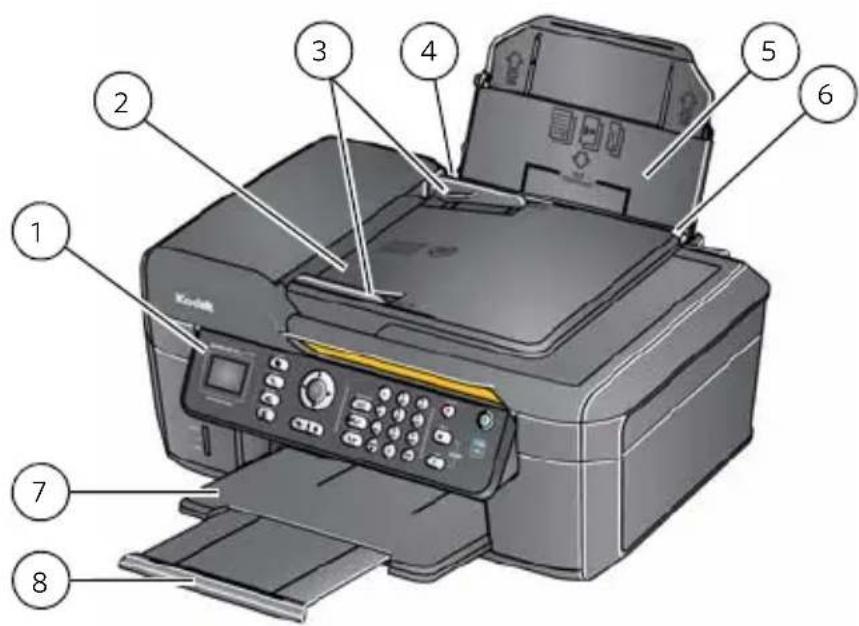
1 Control panel 5 Paper input tray
2 Automatic document feeder (ADF) 6 Right paper-edge guide
3 ADF paper-edge guides 7 Output tray
4 Left paper-edge guide 8 Output tray extender
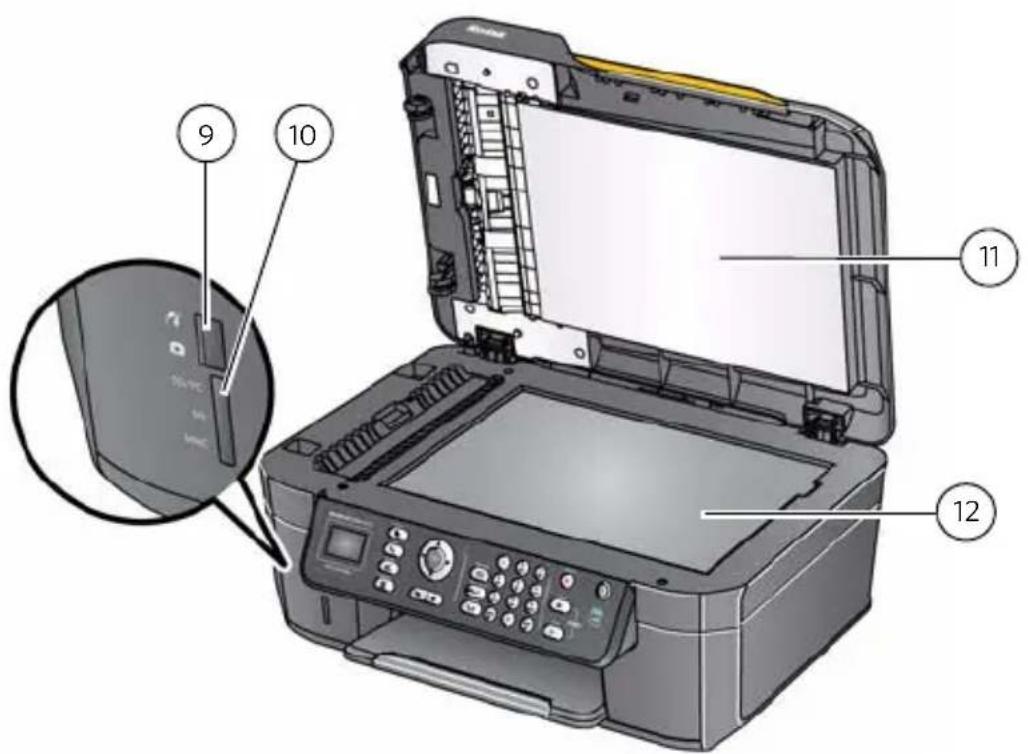
9 Front USB port (ESP Office 2170 only) 11 Scanner lid 10 Memory card slot 12 Scanner glass
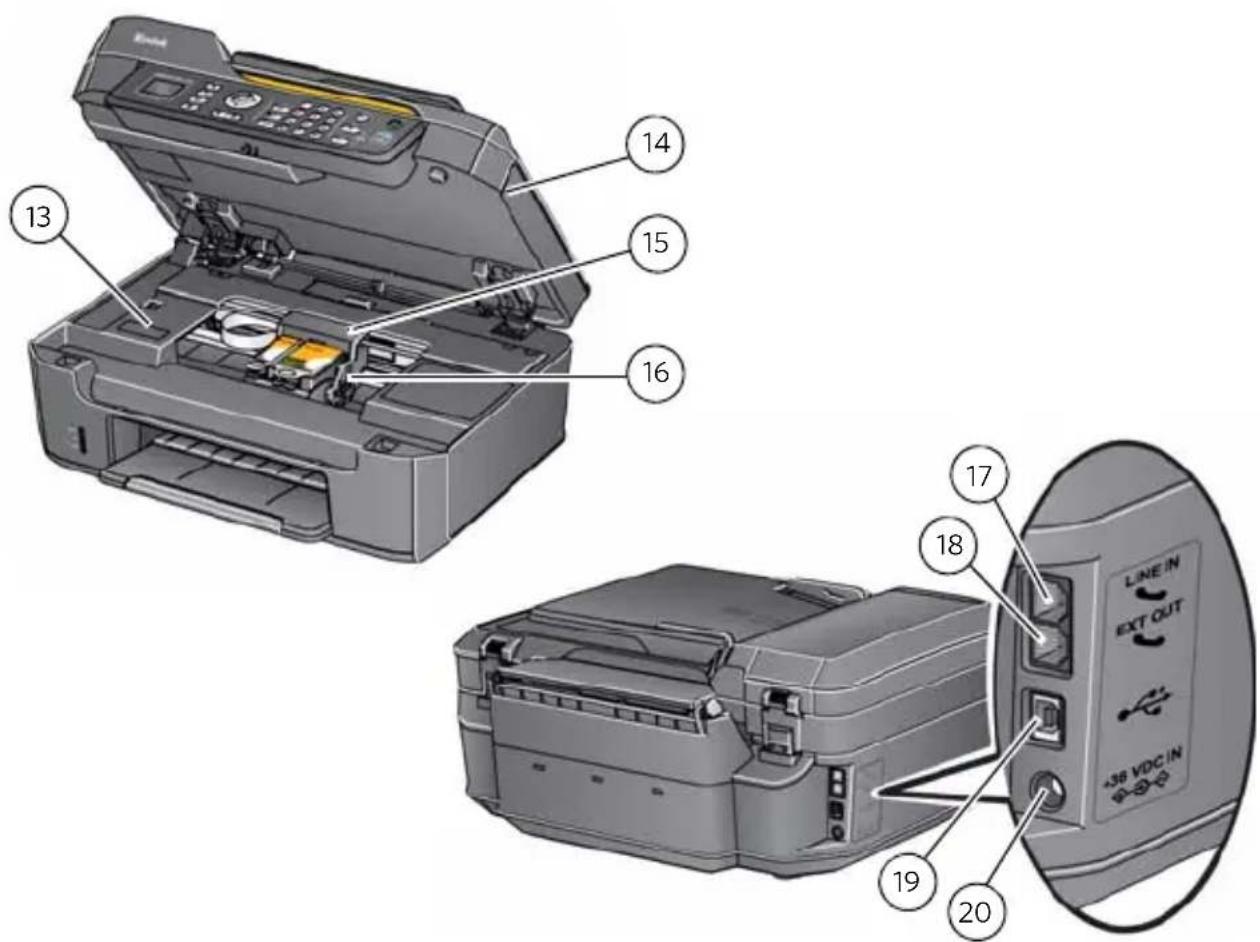
13 KODAK Service Number 17 Line in phone port
14 Access door 18 Ext out phone port
15 Carriage 19 USB port (for connecting to computer)
16 Printhead with ink cartridges installed 20 Power cord connection port
Control panel
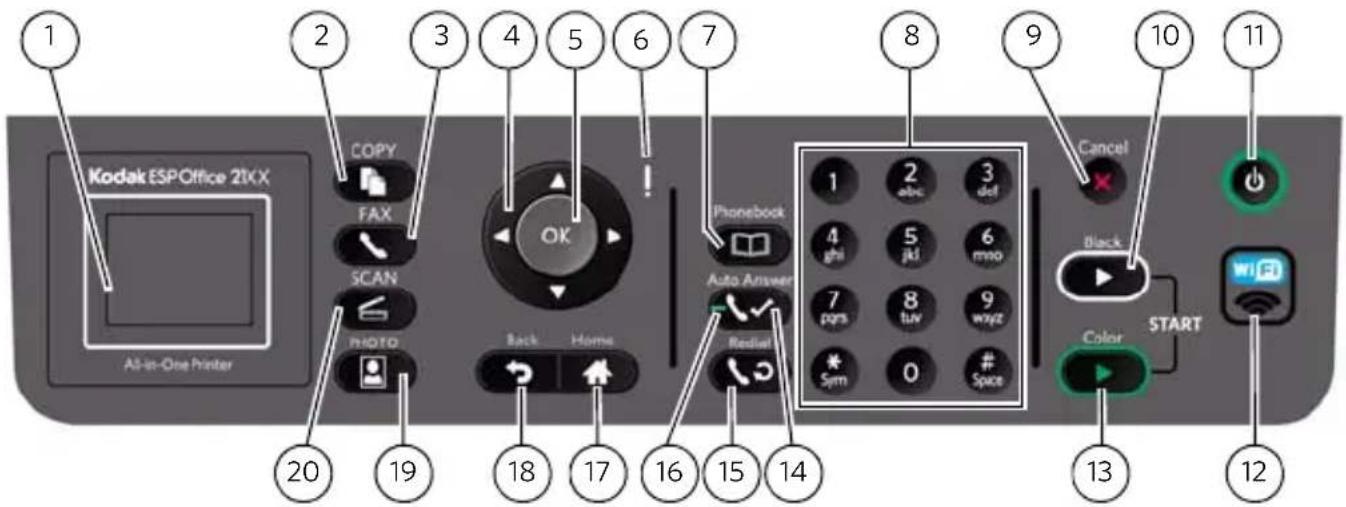
FeatureDescription
1 LCD Displays pictures, messages, and menus
2 Copy button Displays the Copy Document menu
3 Fax button Lets you enter a phone number for sending a fax, or choose the Fax Options menu
4 Navigation buttons Used to navigate menus and scroll through pictures
5 OK button Selects a menu item, accepts a setting, or continues with the current operation
6 Attention light Blinks when an error occurs
7 Phonebook button Displays the phonebook of fax numbers; lets you enter or edit phone numbers
4 www.kodak.com/go/aiosupport
| Feature | Description | |
| 8 | Numeric keypad | Used to dial a phone number or a Quick Dial number for faxing; to enter information and Quick Dial settings into the fax phonebook; to specify a quantity for making copies; and to enter information for accessing a network |
| 9 | Cancel button | Stops the current operation and returns to the menu; clears certain errors to allow scanning or sending a fax |
| 10 | Start Black button | Starts the selected print, copy, scan, or fax in black and white |
| 11 | Power button Turns the printer on or off | |
| 12 | Wi-Fi connectivity LED | When lit, signals that the printer is connected to a wireless (Wi-Fi) network; blinks when searching for an available Wi-Fi network or when the existing signal is too weak to transmit or receive wireless signals |
| 13 | Start Color button | Starts the selected print, copy, scan, or fax in color |
| 14 | Auto Answer button | Turns the fax auto answer feature on or off; when on, the fax answers all incoming calls automatically |
| 15 | Redial button Dials the last phone number dialed | |
| 16 | Auto answer LED | Lights when the fax auto answer feature is on |
| 17 | Home button Displays the main menu | |
| 18 | Back button | Displays the next higher screen in the menu structure |
| 19 | Photo button Displays the Print Photo Options menu | |
| 20 | Scan button | Displays the Scan Options menu |
Home Center Software
KODAK Home Center Software is installed with your KODAK All-in-One Printer Software, unless you choose otherwise. The Home Center icon will appear on your desktop.
On a computer with WINDOWS Operating System (OS), you can use Home Center Software to browse and edit pictures, print, copy, scan, order supplies, access the Extended User Guide, and configure your all-in-one printer from your computer.
On a computer with MAC OS, you can use Home Center Software to scan, order supplies, access the Extended User Guide, and configure your printer from your computer.
Paper
For the best photo printing results, use KODAK Photo Papers, which are optimized to work with KODAK All-in-One Printers.
For the best document printing results, use KODAK Document Papers or a paper with the COLORLOK Technology logo on the package. Use only paper that is designed for inkjet printers.
Paper types
You can print on:
■Plain paper — 16 to 24 lb / 60 to 90 gsm
■Photo paper — up to 12 mils / 290 gsm
■Card stock — 110 lb / 200 gsm, max
■Envelopes — most standard types
■ Labels — all commercially available inkjet varieties on 8.5 x 11-in. or A4 sheets
■ Iron-on transfers — all inkjet varieties on 8.5 x 11-in. or A4 sheets
■ Transparencies — inkjet variety with white stripe on short edge
Paper sizes
You can print on the following paper sizes:
Minimum size Maximum size
English units 4 x 6 in. 8.5 x 14 in.
Metric units 10 x 15 cm 22 x 36 cm
For more information about paper types and sizes, see the Extended User Guide at www.kodak.com/go/esp2150manuals or www.kodak.com/go/esp2170manuals.
Loading paper
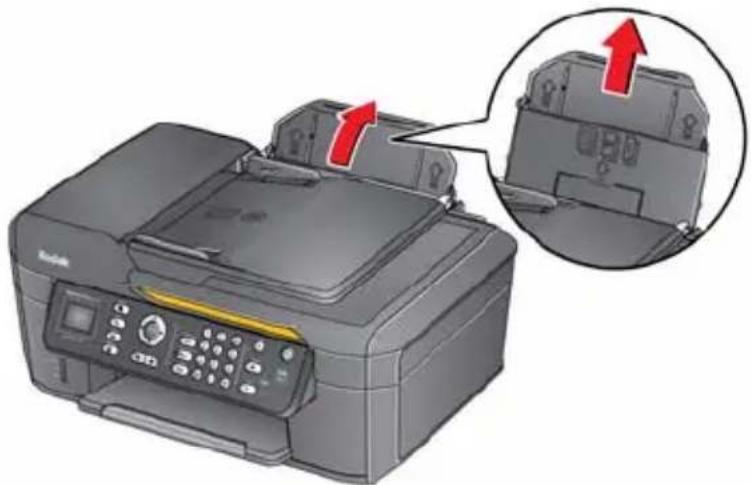
1 Open and lift the paper input tray.
natural_image
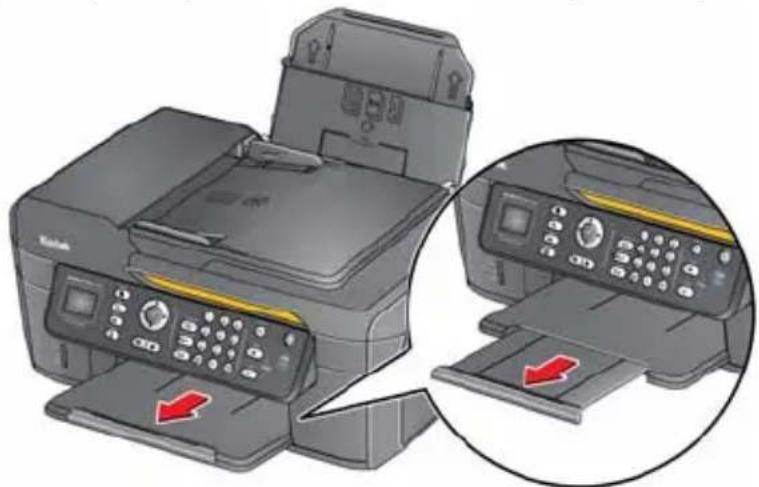
Illustration of a printer with an arrow pointing to a component, showing internal structure and control panel (no text or symbols)2 Pull out the paper output tray and the extender until they are fully extended.
natural_image
Illustration of a printer with an open lid and a close-up view showing the printer's internal components (no text or symbols present)8 www.kodak.com/go/aiosupport
Loading plain paper
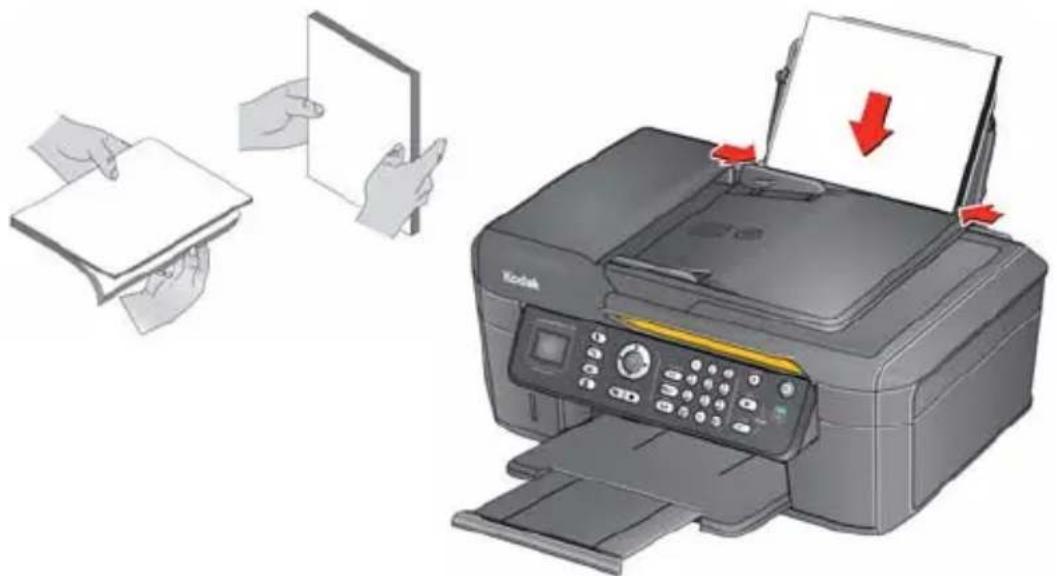
The input paper tray capacity is 150 sheets of plain paper.
To load plain paper:
1 Fan and stack the paper.
2 Make sure the left and right paper-edge guides are to the far left and far right, then insert the paper (short side first) into the input tray.
3 Move the paper-edge guides until they touch the paper.
Loading photo paper
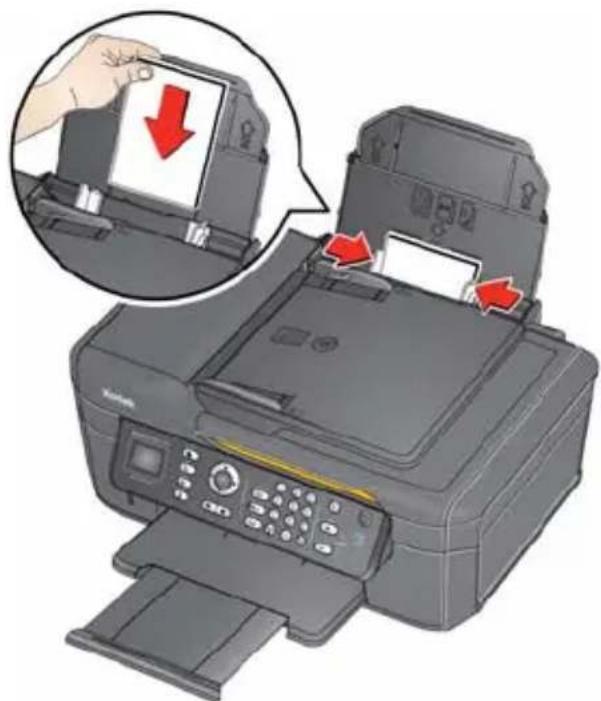
The input paper tray capacity is 20 sheets of photo paper.
To load photo paper:
1 Remove any paper from the input tray.
2 Insert the paper (short side first) into the input tray with the logo side facing toward the tray and the glossy side toward you.
IMPORTANT: If the photo paper is loaded the wrong way, the image quality will be affected.
3 Move the paper-edge guides until they touch the paper.
2 Basic Functions
Loading originals
You can place originals for copying, scanning, or faxing on the scanner glass or in the ADF (automatic document feeder). The ADF automatically feeds the originals into the printer when you begin copying, scanning, or faxing.
Using the scanner glass
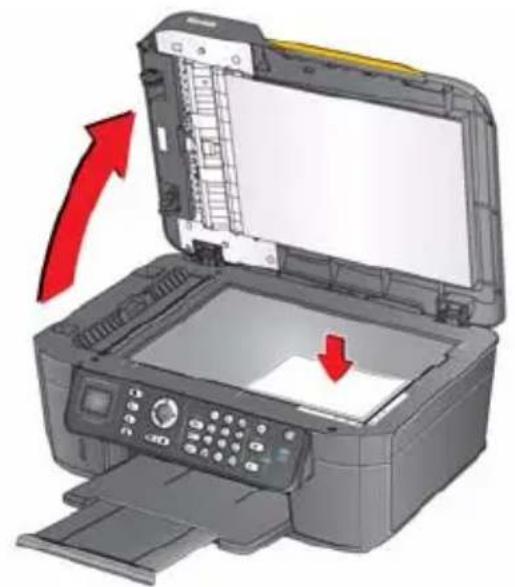
To place an original on the scanner glass:
1 Remove any originals from the automatic document feeder (ADF).
2 Lift the scanner lid, and place the document or picture face down in the right-front corner.
3 Close the scanner lid.
natural_image
Illustration of a printer with open lid and red arrows indicating process flow (no text or symbols)Using the Automatic Document Feeder (ADF)
You can load up to 25 originals (16 to 24 lb / 60 to 90 gsm plain paper) in the automatic document feeder (ADF).
The ADF accepts originals from B5 (6.9 x 9.8 in. / 176 x 250 mm) to legal size (8.5 x 14 in. / 216 x 356 mm).
IMPORTANT: Do not load photographs, cards, or any paper stock heavier than 24 lb / 90 gsm in the ADF.
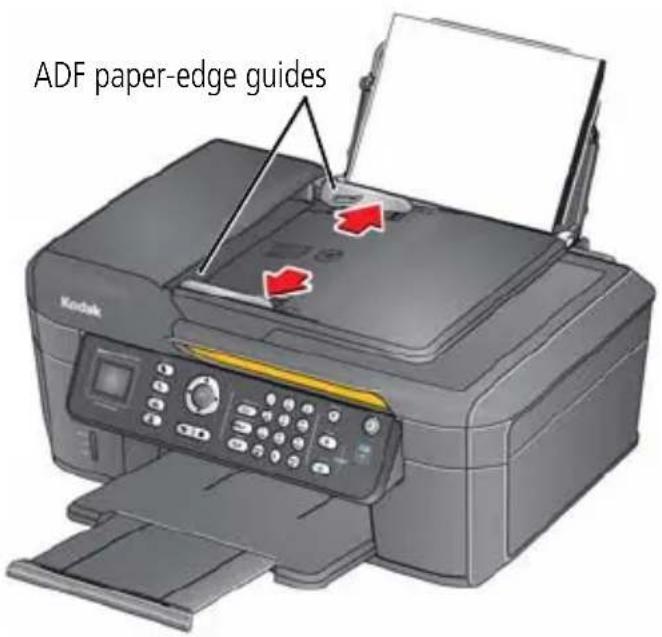
1 Move the ADF paper-edge guides outward.
12 www.kodak.com/go/aiosupport
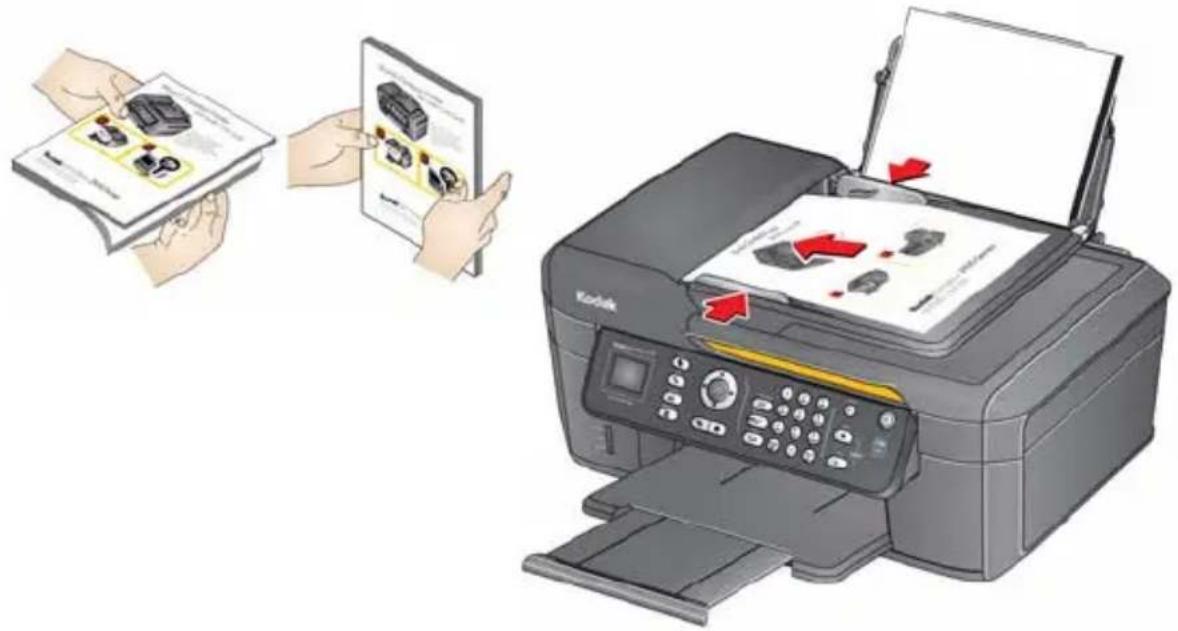
2 Fan and stack the originals, then insert them face up in the ADF.
3 Move the ADF paper-edge guides until they touch the paper.
Printing
Printing documents
To print a document from your computer:
1 Open the document.
2 Select File > Print.
3 In the Print window, select your KODAK Printer.
4 Choose the pages to print, number of copies, etc, then click OK (on a computer with WINDOWS OS) or Print (on a computer with MAC OS).
Printing pictures
You can print pictures using Home Center Software from your computer with WINDOWS OS. Home Center Software lets you edit and enhance your pictures quickly.
On a computer with either MAC OS or WINDOWS OS, you can print pictures from KODAK EASYSHARE Software or any picture-editing or photo-management software.
For more information about printing, see the Extended User Guide at www.kodak.com/go/esp2150manuals or www.kodak.com/go/esp2170manuals.
Copying
To make a copy:
1 Place the original(s) on the scanner glass or in the automatic document feeder.
IMPORTANT: Do not load photographs, cards, or any paper stock heavier than 24 lb / 90 gsm in the ADF.
2 Press Home.
3 Press ▼ or ▲ to select Copy Document or Copy Photo.
4 Press Start Black to make a black-and-white copy, or press Start Color to make a color copy.
For more information about copying, see the Extended User Guide at www.kodak.com/go/esp2150manuals or www.kodak.com/go/esp2170manuals.
Scanning
Before scanning, make sure that the printer is connected to your computer with a USB 2.0 cable or through a wireless network.
To scan a document or picture:
1 Place the original(s) on the scanner glass or in the automatic document feeder.
IMPORTANT: Do not load photographs, cards, or any paper stock heavier than 24 lb / 90 gsm in the ADF.
2 Open Home Center Software.
3 Select Scan Pictures and Documents (on a computer with WINDOWS OS), or select the Tools tab, then click Scan Application (on a computer with MAC OS).
4 Follow the instructions on the computer screen.
For more information about scanning, see the Extended User Guide at www.kodak.com/go/esp2150manuals or www.kodak.com/go/esp2170manuals.
Faxing
Before sending or receiving faxes, make sure that a wall phone line is plugged into the Line in port on the back of the printer.
Sending faxes
To send a fax:
1 Press Fax.
2 Enter a fax number using the numeric keypad.
3 Place the original(s) on the scanner glass or in the automatic document feeder.
IMPORTANT: Do not load photographs, cards, or any paper stock heavier than 24 lb in the ADF.
4 Press Start Black to send a black-and-white fax, or press Start Color to send a color fax.
Receiving faxes
To receive a fax:
1 Load plain paper into the printer.
2 Make sure the Auto Answer LED is on. (If not, press Auto Answer to turn it on.) The printer will receive all incoming faxes automatically.
NOTE: You can receive an incoming fax manually, even if Auto Answer is turned on. When you hear the phone ring, press Start Black or Start Color.
For more information about faxing, see the Extended User Guide at www.kodak.com/go/esp2150manuals or www.kodak.com/go/esp2170manuals.
Ordering supplies
You can order ink cartridges, paper, and accessories online.
To order supplies, make sure that your computer is connected to the Internet, then:
1 Open Home Center Software.
2 Select Order Supplies (on a computer with WINDOWS OS) or select the Tools tab, then click Order Supplies (on a computer with MAC OS).
3 Select the item(s) you want to buy, then follow the on-screen instructions.
3 Troubleshooting
Basic troubleshooting
Some problems can be resolved quickly by power cycling the printer: Turn off your printer. Wait five seconds. Turn on the printer.
Use the following information to help troubleshoot problems with your printer.
| Problem Possible | Solutions |
| Wireless connectivity | For wireless connectivity issues, go to www.kodak.com/go/inkjetnetworking. |
| Printer does not power on | Make sure you are using the power cord that came with your printer.Make sure the power cord is connected to the AC adapter and is plugged into an outlet or power strip. |
| Printer not detected | Make sure that your printer is plugged in and turned on.If you are using a USB cable, make sure that:– it is a USB 2.0 high-speed cable.– it is connected to both your printer and your computer.– you restart the computer if the USB cable was disconnected from the printer then reconnected, or if power to the printer was interrupted.If you are using a wireless connection, make sure that:– the printer is connected to your wireless network.To check:a On the printer, pressHome.b Press▼to selectNetwork Settings, then pressOK.c Pr e s s to selectView Network Configuration, then press OK.d Make sure that the Active Connection Type is Wi-Fi, and that the IP Address is not 0.0.0.0.– your router is transmitting data.– the firewall (excluding WINDOWS Firewall) is allowing the services needed for your printer.For more information, go towww.kodak.com/go/inkjetnetworking. |
| Carriage jam • Open | the access door and clear any obstructions.Do not move the carriage by force or pull any cables.Check that the printhead and ink cartridges are installed correctly. (The printhead and ink cartridges are installed correctly when you hear them click into place.) |
| Print quality • For | best results, use KODAK Paper or a paper with the COLORLOK Technology logo on the package.Make sure the paper is loaded correctly. See Loading plain paper, page 9 and Loading photo paper, page 10.For more help, go to www.kodak.com/go/troubleshooting. |
| Ink cartridge errors | Check that KODAK Ink Cartridge(s) are installed. Do not use non-Kodak brand or refilled ink cartridges.Remove, then install the cartridges again. Make sure the cartridges click into place. |
| Paper jam • Open | the printer access door and gently remove any paper from inside the printer.Make sure the paper in the input tray is free of tears or creases.Make sure you do not overload the paper input tray. For more information, go to www.kodak.com/go/troubleshooting. |
| Cannot send or receive a fax | Make sure that the wall phone line is plugged into the Line in port.Verify that the wall jack works by plugging in a phone and checking for a dial tone.Verify that Region is set to the correct country code.1 Press Home.2 Press ▼ or ▲ to select Printer Settings, then press OK.3 Press ▼ to select Country/Region, then press OK.4 Press ▼ or ▲ to select your country, then press OK.If you are connected to a DSL phone line, make sure you have a DSL filter connected to the phone jack.For more information, go to www.kodak.com/go/troubleshooting. |
| Error codes/messages | G o t o www.kodak.com/go/esp2150support or www.kodak.com/go/esp2170support, then type your error code or message. |
Getting help on the Web
For more troubleshooting information:
| Get help with wireless networking. | www.kodak.com/go/inkjetnetworking |
| Search our knowledge base for answers. | www.kodak.com/go/esp2150support or www.kodak.com/go/esp2170support |
| Download the latest firmware and software for optimal printer performance. | www.kodak.com/go/esp2150downloads or www.kodak.com/go/esp2170downloads |
| Check the Extended User Guide for detailed instructions and recommended system requirements. | www.kodak.com/go/esp2150manuals or www.kodak.com/go/esp2170manuals |
| Get help with problems you cannot resolve. | Contact Kodak at www.kodak.com/go/contact and have the following information available: - KODAK Service Number (located inside the printer when you open the access door) - Printer model number (located on the control panel above the LCD) - Computer model, operating system, and version of Home Center Software |
4 Safety and Warranty Information
Safety Information
■Always follow all warnings and instructions marked on the product.
■ Use only the power source indicated on the product regulatory label.
■ Use only the power cord that comes with the product. Using another power cord may cause fires and or shock. Do not use the included power cord with any other equipment.
If you do not use this product for a long period of time, unplug it from the electrical outlet.
■ Always turn this product off by using the On/Off button. Wait until the On/Off button stops flashing before removing the power plug from the outlet.
■Do not allow the power cord to become damaged or frayed.
If you need to use an extension cord with this product, make sure that the ampere rating of the product does not exceed the ampere rating of the extension cord.
Place the product on a flat, stable surface that extends beyond the product's base in all directions. This product will not operate properly if tilted or at an angle.
- When storing or transporting this product, do not tilt or stand it on its side. Never turn this product upside down (ink can leak out of the product).
- Avoid placing this product in an environment that is subject to rapid changes in temperature or humidity, mechanical shocks, vibration, or dust. Do not place near radiators, heating vents, or in direct sunlight.
■Leave enough room around this product for sufficient ventilation.
- Do not block this product's covers or openings, or insert any objects through slots.
■Do not use aerosol products inside or around this product.
■Do not spill any liquid on this product.
■Do not attempt to repair or service this product.
If the power cord or plug is damaged, if any liquid has been spilled onto the product, if the product has been dropped or the case damaged, or if the product does not operate normally or exhibits a major change in performance level, unplug this product and contact Kodak at www.kodak.com/go/contact.
LCD Screen Safety
■ Use only a dry, soft cloth to clean the LCD screen. Do not use any liquid or chemical cleaners.
If the LCD screen is damaged, contact Kodak immediately. If any of the solution from the display gets on your hands, wash them thoroughly with soap and water.
Ink Cartridge Safety
- Keep all ink cartridges out of the reach of children.
If ink gets on your skin, wash with soap and water. If ink gets into your eyes, flush immediately with water. If any discomfort or change in vision persists after washing, seek medical attention immediately.
For Material Safety Data Sheets on inks, go to www.kodak.com/go/MSDS.
Warranty Information
Limited Warranty
Kodak warrants Kodak consumer electronic products and accessories ("Products"), excluding batteries, to be free from malfunctions and defects in both materials and workmanship for one year from the date of purchase. Retain the original dated sales receipt. Proof of the date of purchase will be required with any request for warranty repair.
Limited Warranty Coverage
Warranty service is only available from within the country where the Products were originally purchased. You may be required to send Products, at your expense, to the authorized service facility for the country where the Products were purchased. Kodak will repair or replace Products if they fail to function properly during the warranty period, subject to any conditions and/or limitations stated herein. Warranty service will include all labor as well as any necessary adjustments and/or replacement parts. If Kodak is unable to repair or replace a Product, Kodak will, at its option, refund the purchase price paid for the Product provided the Product has been returned to Kodak together with proof of the purchase price paid. Repair, replacement, or refund of the purchase price are the sole remedies under this warranty. If replacement parts are used in making repairs, those parts may be remanufactured or may contain remanufactured materials. If it is necessary to replace the entire Product, it may be replaced with a remanufactured Product.
Remanufactured Products, parts and materials are warranted for the remaining warranty term of the original Product, or 90 days after the date of repair or replacement, whichever is longer.
Limitations
This warranty does not cover circumstances beyond Kodak's control. This warranty does not apply when failure is due to shipping damage, accident, alteration, modification, unauthorized service, misuse, abuse, use with incompatible accessories or attachments (such as third party ink or ink tanks), failure to follow Kodak's operation, maintenance or repacking instructions, failure to use items supplied by Kodak (such as adapters and cables), or claims made after the duration of this warranty. KODAK MAKES NO OTHER EXPRESS OR IMPLIED WARRANTY FOR THIS PRODUCT, AND DISCLAIMS THE IMPLIED WARRANTIES AND CONDITIONS OF MERCHANTABILITY AND FITNESS FOR A PARTICULAR PURPOSE. In the event that the exclusion of any implied warranty is ineffective under the law, the duration of the implied warranty will be one year from the purchase date or such longer period as required by law. The option of repair, replacement, or refund is Kodak's only obligation. Kodak will not be responsible for any special, consequential or incidental damages resulting from the sale, purchase, or use of this product regardless of the cause. Liability for any special consequential or incidental damages (including but not limited to loss of revenue or profit, downtime costs, loss of the use of the equipment, cost of substitute equipment, facilities or services or claims of your customers for such damages resulting from the purchase, use or failure of the Product), regardless of cause, or for breach of any written or implied warranty is expressly disclaimed.
Your Rights
Some states or jurisdictions do not allow exclusion or limitation of incidental or consequential damages, so the above limitation or exclusion may not apply to you. Some states or jurisdictions do not allow limitations on how long an implied warranty lasts, so the above limitation may not apply to you. This warranty gives you specific rights, and you may have other rights which vary from state to state or by jurisdiction. Your statutory rights are not affected.
Outside the United States and Canada
In countries other than the United States and Canada, the terms and conditions of this warranty may be different. Unless a specific Kodak warranty is communicated to the purchaser in writing by a Kodak company, no warranty or liability exists beyond any minimum requirements imposed by law, even though defect, damage, or loss may be by negligence or other act.
Declaration of Conformity
See www.kodak.com/go/declarationofconformity
Kodak
Eastman Kodak Company
Rochester, NY 14650 U.S.A.
© Eastman Kodak Company, 2010.
MC/MR/TM: Kodak, ESP, EasyShare.
Printed in China.

- Kodak ESP Office 2100 Series
- KODAK ESP Office 2100 Series All-in-One Printers
- Resources
- Contents
- Printer Overview .... 1
- Basic Functions ....11
- Troubleshooting 19
- Safety and Warranty Information 24
- Printer Overview
- Components
- Control panel
- FeatureDescription
- Home Center Software
- Paper
- Paper types
- Paper sizes
- Minimum size Maximum size
- Loading paper
- Loading plain paper
- Loading photo paper
- Basic Functions
- Loading originals
- Using the scanner glass
- Using the Automatic Document Feeder (ADF)
- Printing
- Printing documents
- Printing pictures
- Copying
- Scanning
- Faxing
- Sending faxes
- Receiving faxes
- Ordering supplies
- Troubleshooting
- Basic troubleshooting
- Getting help on the Web
- Safety and Warranty Information
- Safety Information
- LCD Screen Safety
- Ink Cartridge Safety
- Warranty Information
- Limited Warranty
- Limited Warranty Coverage
- Limitations
- Your Rights
- Outside the United States and Canada
- Declaration of Conformity
- Kodak
Brand : KODAK
Model : EasyShare ESP 2170
Category : Printer