
Business Inkjet 2230 - Printer HP - Free user manual and instructions
Find the device manual for free Business Inkjet 2230 HP in PDF.


| Product Type | Color Inkjet Printer |
| Model | HP Business Inkjet 2230 |
| Dimensions (W x H x D) | 20.2 x 8.2 x 20.3 in (512 x 208 x 517 mm) without Tray 2 |
| Weight | 10 kg (22 lb) without Tray 2, printheads, or ink cartridges |
| Power Input | 100-240 VAC (±10%), 50/60 Hz (±3 Hz) |
| Power Consumption | Less than 2 W (off), 8 W max (non-printing), 68 W max (printing) |
| Print Speed (Black Text) | Fast: 15 ppm, Normal: 11 ppm, Best: 6.5 ppm |
| Print Speed (Mixed Text/Color) | Fast: 14 ppm, Normal: 7.5 ppm, Best: 1.5 ppm |
| Print Speed (Full Page Color) | Fast: 6.0 ppm, Normal: 2.5 ppm, Best: 0.5 ppm |
| Print Resolution (Black) | Up to 1200 x 600 dpi |
| Print Resolution (Color) | Up to 1200 x 600 dpi with PhotoREt III |
| Printer Languages | PCL3; optional PCL 5C and PostScript 3 emulation with personality card |
| Memory | 16 MB built-in RAM; optional expansion up to 176 MB (2280: 32 MB) |
| Monthly Duty Cycle | Up to 10,000 pages |
| Recommended Monthly Volume | Not specified; duty cycle up to 10,000 pages |
| Paper Input Capacity | Tray 1: 250 sheets; Tray 2 (optional): 250 sheets; Envelope feed: 1 envelope |
| Output Capacity | Up to 150 sheets |
| Media Sizes Supported | Letter, Legal, A4, B5, Executive, envelopes (No. 10, Monarch, DL, C5, C6), cards, labels, transparencies |
| Media Weight | Plain paper: 60 to 105 g/m²; Cards: 110 to 200 g/m² |
| Interfaces | IEEE 1284 parallel port; EIO slot for HP Jetdirect print server |
| Control Panel | 2-line LCD display, buttons (Menu, Item, Value, Resume, Cancel, Power), LED |
| Operating Temperature | 41 to 104°F (5 to 40°C) |
| Operating Humidity | 20 to 80% RH non-condensing |
| Warranty | 1 year limited |
| Key Features | Manual duplexing, watermark printing, HP ColorSmart, ZoomSmart, Handout (N-up), printheads and ink cartridges replaceable |
| Maintenance | Printhead cleaning and alignment via control panel; diagnostic and configuration pages printable |
Frequently Asked Questions - Business Inkjet 2230 HP
User questions about Business Inkjet 2230 HP
0 question about this device. Answer the ones you know or ask your own.
Ask a new question about this device
Download the instructions for your Printer in PDF format for free! Find your manual Business Inkjet 2230 - HP and take your electronic device back in hand. On this page are published all the documents necessary for the use of your device. Business Inkjet 2230 by HP.
USER MANUAL Business Inkjet 2230 HP
text_image
3ALCONY 45TH STREuser's guide
hp business inkjet 2230/2280
user's guide
Copyright Information
© 2002 Hewlett-Packard Company
All Rights Reserved. Reproduction, adaptations, or translation without prior written permission is prohibited except as allowed under copyright laws.
Edition 1, 4/2002
Warranty
The information contained in this document is subject to change without notice. Hewlett-Packard makes no warranty of any kind with respect to this information. HEWLETT-PACKARD SPECIFICALLY DISCLAIMS THE IMPLIED WARRANTY OF MERCHANTABILITY AND FITNESS FOR A PARTICULAR PURPOSE.
Hewlett-Packard shall not be liable for any direct, indirect, incidental, consequential, or other damage alleged in connection with the furnishing or use of this information.
No part of this document may be photocopied, reproduced, or translated to another language without the prior written consent of Hewlett-Packard Company.
Trademark Credits
Adobe ^® , Adobe ^® PostScript ^® 3 ^TM , Acrobat ^® , and PostScript ^® are trademarks of Adobe Systems Incorporated.
AutoCAD™ is a U.S. trademark of Autodesk, Inc.
HP-UX Release 10.20 and later and HP-UX Release 11.00 and later (in both 32 and 64-bit configurations) on all HP 9000 computers are Open Group UNIX 95 branded products.
Microsoft ^® , MS-DOS ^® , MS Windows ^® , Windows ^® , and Windows NT ^® are U.S. registered trademarks of Microsoft Corporation.
*PANTONE® is Pantone, Inc.'s check-standard trademark for color.
UNIX ^® is a registered trademark of the Open Group.

Contents
Welcome
Getting Started
Understanding the Printer's Parts and Functions ..... 2-1
Understanding the Control Panel Buttons
and LED 2-2
Understanding the LCD Display 2-3
Setting Up. 2-3
Software Installation
Printer Drivers Features 3-1
Making Copies of the Printer Software 3-2
Installing the Printer Software for Local Printing. 3-2
Installing under Windows 95, Windows 98, Windows Me,
Windows NT 4.0, Windows 2000, and Windows XP . . . 3-3
Installing the Printer Software for Network Printing 3-3
Setting Up Your Printer on a Macintosh Computer 3-4
Mac OS 8.6 to 9.1 3-5
Mac OS X. 3-5
Setting Up Your Printer in a Unix Environment 3-6
Network Printing
Installing the Printer on a Network with an HP Jetdirect Print Server
(Recommended).... 4-1
Installing the HP Jetdirect Internal Print Server Card. . . . . . 4-1
Sharing the Printer on a Network 4-3
Using the embedded Web server.... 4-5
Gaining access to the embedded Web server 4-5
Embedded Web server pages 4-5
Information 4-6
Settings 4-6
Networking 4-8
E-services 4-8
Network Support Materials 4-9
Paper Handling
Selecting and Loading Paper 5-1
Loading Paper in Tray 1 or Tray 2 .... 5-2
Printing Envelopes or Cards through the Envelope Feed . . 5-3
Printing Paper in Tray 2 (Optional Tray) 5-4
Using the Tray Lock 5-4
Advanced Paper Setting....5-5
Manual Duplexing....5-6
LCD Messages
Information Menu 6-1
Paper Handling Menu. 6-2
Configuration Menu 6-2
Printing Menu 6-3
I/O Menu. 6-4
Jetdirect Menu 6-4
Resetting the EIO Card 6-5
Maintenance Menu. 6-6
Reset Menu 6-6
Understanding Printer Messages 6-6
Troubleshooting
General Troubleshooting Tips 7-1
Printing a Configuration Page....7-1
Printing a Diagnostic Page 7-2
Cleaning the Printheads 7-3
Aligning the Printheads. 7-4
Printing a Sample Page 7-4
Paper is Jammed in the Printer 7-4
Tips for Avoiding Paper Jams. 7-7
Unexpected Printer Shutdown 7-8
Nothing is Printed 7-8
A Blank Page is Printed 7-9
Placement of the Text or Graphics is Wrong 7-9
Something on the Page is Missing or Incorrect 7-10
Printer Takes a Long Time to Print a Job. 7-10
Printing Takes a Long Time Over the Network. 7-11
Specifications
Printer Specifications 8-1
Support
Contacting customer support 9-1
Finding HP help on the Web 9-1
Telephone support 9-1
Accessories
Ordering Information....10-1
HP Supplies and Accessories 10-1
Ink Cartridges....10-1
HP No. 11 Printheads 10-1
HP Premium Transparency Film 10-2
HP Premium Plus Inkjet Transparency Film 10-2
HP Premium Inkjet Paper....10-2
HP Premium Inkjet Heavyweight Paper. 10-2
HP Premium Photo Paper 10-2
HP Photo Paper 10-3
HP Professional Brochure and Flyer Paper 10-3
Accessories 10-3
Networking Accessories.... 10-3
Media
Supported Media A-1
Minimum Printing Margins A-2
Installing Memory
Installing Additional Memory. B-1
Postscript
Postscript Printing....C-1
Installation Notes ...... C-1
Installing the Printer Driver Only C-2
Current HP Business Inkjet users C-2
Specific Printer Features/Issues C-2
Hewlett-Packard Limited Warranty Statement
Index
Regulatory Notices
DECLARATION OF CONFORMITY
1 Welcome
The HP Business Inkjet 2230/2280 provides for quick, professional printing when connected directly to your PC or on a network. Its high-quality output and vibrant colors on paper up to 8.5 in x 14 in (216 x 356 mm) will help bring creativity and professionalism to any document you print. These resources provide more information about the printer:
- Setup Poster — The setup poster provides illustrated setup information. A printed version of this document is provided with the printer. Also, an electronic version is available as an Adobe® Acrobat® Portable Document Format (PDF) file on the Starter CD.
- Reference Guide — The reference guide provides information about setting up the printer. This guide is provided with the printer in a printed format.
- Regulatory Booklet — The regulatory booklet provides important safety and radio interference compliance information.
- Printer Driver Online Help (Windows ^ only) — The online help provides information about using the printer driver.
HP Jetdirect Print Server Administrator's Guide — The HP Jetdirect Print Server Administrator's Guide provides information for configuring and troubleshooting the HP Jetdirect print server. This guide is available as a PDF file on the Starter CD. - Embedded Web Server — The embedded Web server provides configuration, status, and diagnostic information about the printer. The embedded Web server can be used from a standard Web browser or from the Toolbox.
- hp instant support — The hp instant support is a web-based tool that provides self-help troubleshooting tips and printer usage information. This e-service is enabled by the embedded Web server within the printer. hp instant support provides information that can help diagnose and solve printer problems. It also includes myPrintMileage, which helps you understand your printing patterns.
- World Wide Web — Visit http://www.hp.com for the latest printer software, product information, and support information available for the printer.
2
Getting Started
Understanding the Printer's Parts and Functions
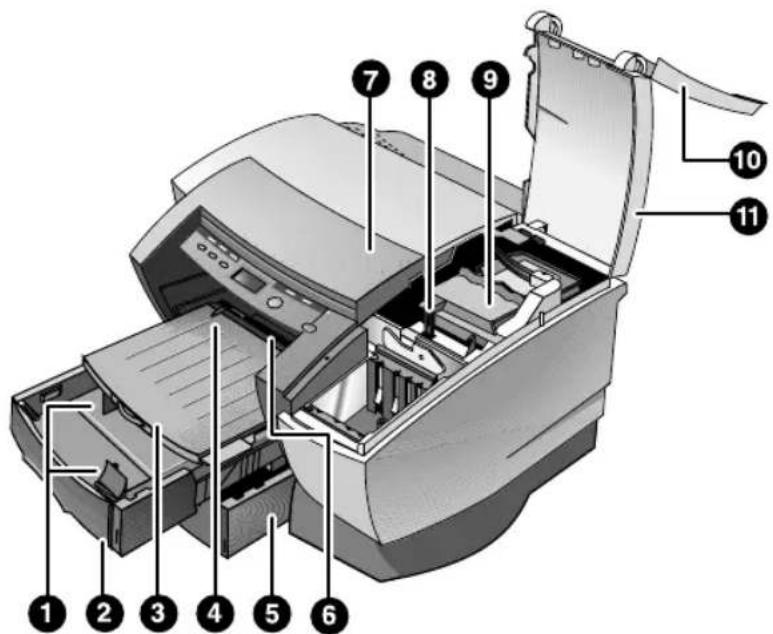
text_image
Labeled diagram of a printer internal structure with numbered parts for identification1 Paper guides – Guides the paper into the printer.
2 Tray 1 – Holds the standard paper.
3 Output tray – Collects the printed pages.
4 Envelope guide – Slides to fit the width of an envelope.
5 Tray 2 – Optional paper tray (standard with the HP Business Inkjet 2280TN).
6 Envelope feed – Holds a single envelope to feed into the printer.
7 Top cover – Allows you to access paper jams.
8 Carriage lock – Secures the printhead access latch.
9 Printhead access latch – Lifts for removing each printhead from its color-coded socket. Includes a hook that must be engaged with the carriage lock for the printer to operate.
10 Ink cartridge cover – Gives access to the ink cartridges. This cover must be closed to print.
11 Printhead cover – Gives access to the printhead access latch. This cover must be closed to print.
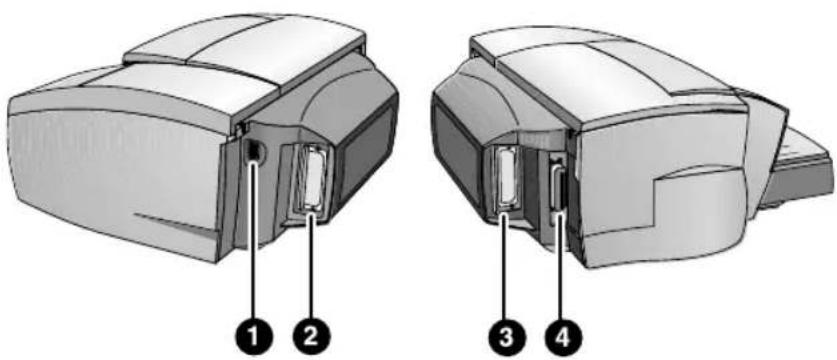
text_image
Technical diagram of a device with four labeled parts, showing internal components and assembly views.1 Power input – Attach power cord here.
2 EIO Slot – Install an HP Jetdirect EIO print server or the HP PCL 5C/Postscript 3 emulation card.
3 EIO Slot – Install an HP Jetdirect EIO print server or the HP PCL 5C/Postscript 3 emulation card.
4 Parallel port – Attach parallel cable here.

Do not install two HP Jetdirect EIO print server cards. Cards can be installed in either slot. You can install two cards at the same time, but one must be an HP PCL 5C/Postscript 3 emulation card and the other an HP Jetdirect EIO print server card.
Understanding the Control Panel Buttons and LED
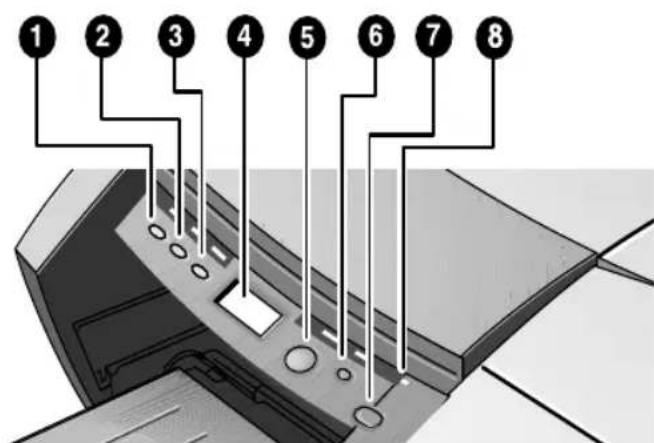
text_image
Diagram of a device with numbered parts labeled 1 through 8, showing internal components and connections.1 MENU – Cycles through the Control Panel menus.
2 | TEM – Cycles through the selected menu's items.
3 V ALUE – Cycles through the selected menu item's values.
4 LCD Panel – Displays printer messages.
5 R ESUME – Continues a print job that is waiting and selects values from item menus.
6 C ANCEL – Cancels the current print job. The time it takes to cancel depends on the size of the print job. Press this button once only to cancel a queued print job.
7 P OWER – Turns the printer OFF and ON.
8 LED – Lights up when the printer is online (green). Blinks when the printer is printing (green) and when the printer is in an error state (amber).
Understanding the LCD Display
The LCD display shows status messages and the remaining ink levels in the ink cartridges.
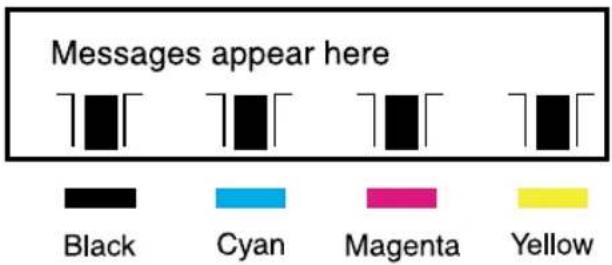
text_image
Messages appear here Black Cyan Magenta YellowSetting Up
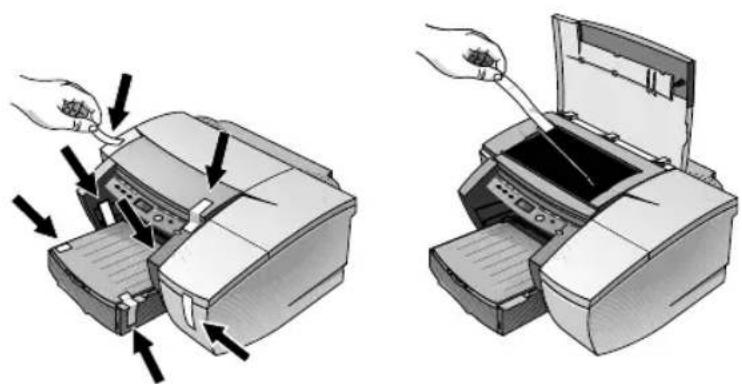
Step 1:
Unpack the printer and remove the packing tape and any shipping foam inside the paper trays.
natural_image
Illustration of two printer printing or disassembly steps showing paper handling and packaging (no text or symbols)Step 2:
Install Tray 2 (optional).

natural_image
Illustration of a printer being inserted into a slot, showing the printer's internal structure and base panel (no text or symbols present)
Tray 2 (C8230A) is a standard feature of the HP Business Inkjet 2280TN. It can be ordered separately for other HP Business Inkjet 2230/2280 printers.
A Position Tray 2 in the location where you want to place the printer. The printer is designed to rest directly on top of the tray.
B Lift the printer and align the printer's base with the paper tray.
C Set the printer on top of the paper tray. There is a small gap between the base of the printer and Tray 2.
Step 3:
Connect the power cord.
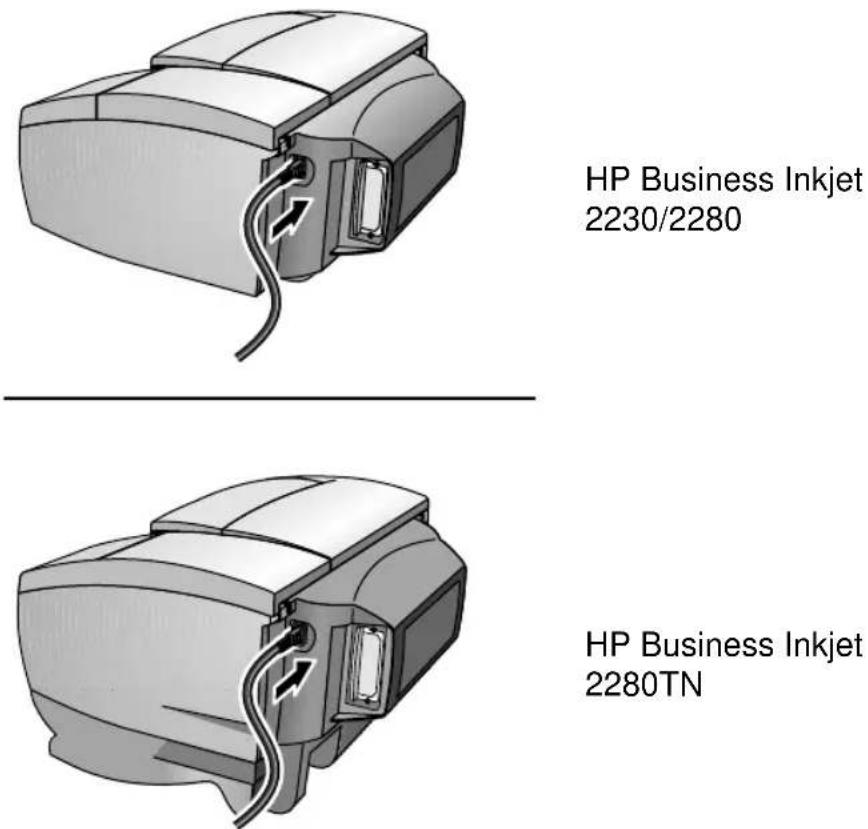
HP Business Inkjet
2230/2280
HP Business Inkjet
2280TN
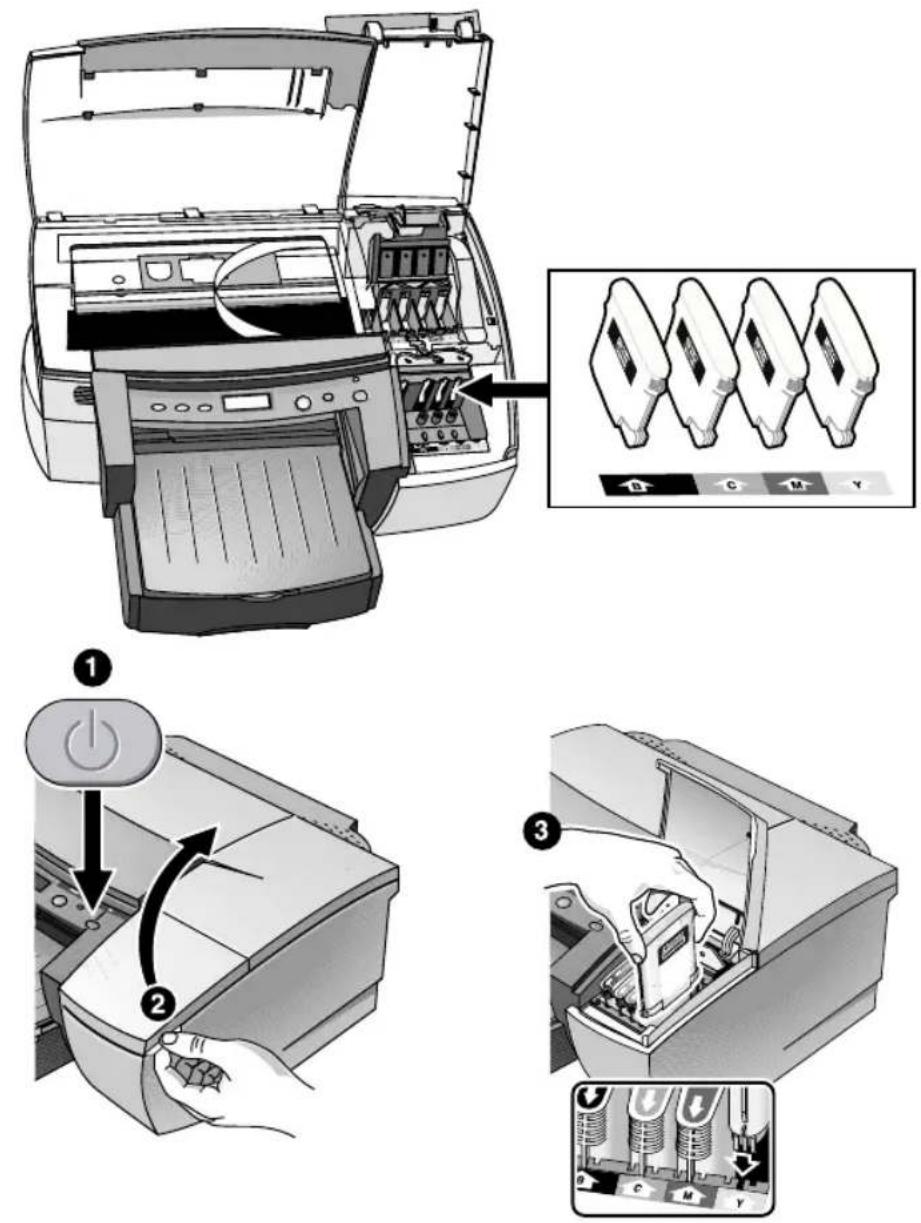
Step 4:
Turn on the printer and install the four ink cartridges.
A Lift the ink cartridge cover.
B Remove each ink cartridge from its package.
C Align the colored arrows, and then insert each ink cartridge into its color-coded socket.
text_image
Diagram illustrating the process of printer tooling and internal components, showing steps from opening to disassembly with labeled parts.D Press firmly on the cartridges to ensure proper contact.
Step 5:
Install the printheads.
A Make sure the printer is turned on.
B Lift the printhead cover.
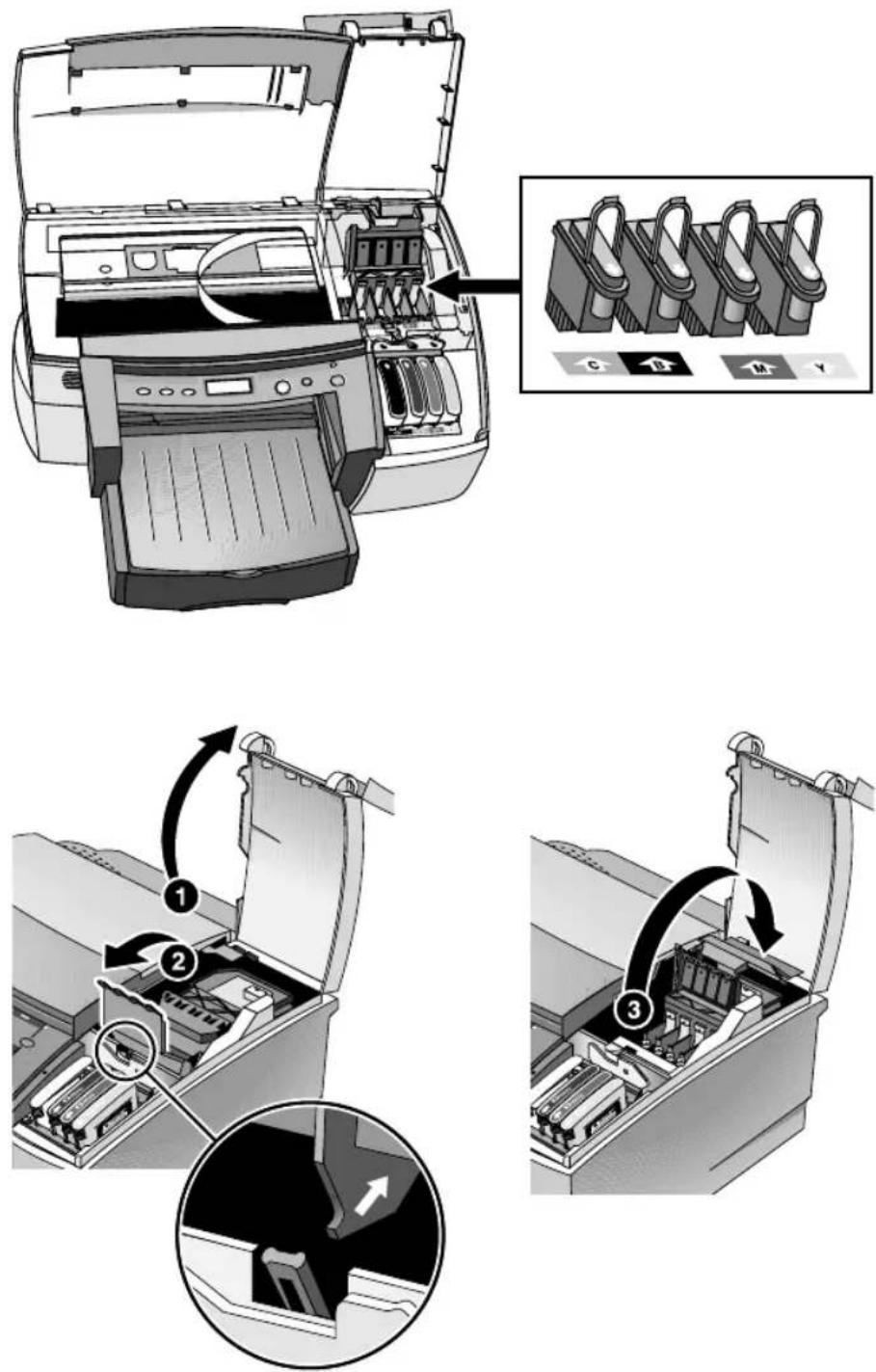
C Open the printhead access latch by lifting it from the rear and then pulling it forward and down to release the hook from the carriage lock.
D Lift and push the printhead access latch toward the back of the printer.
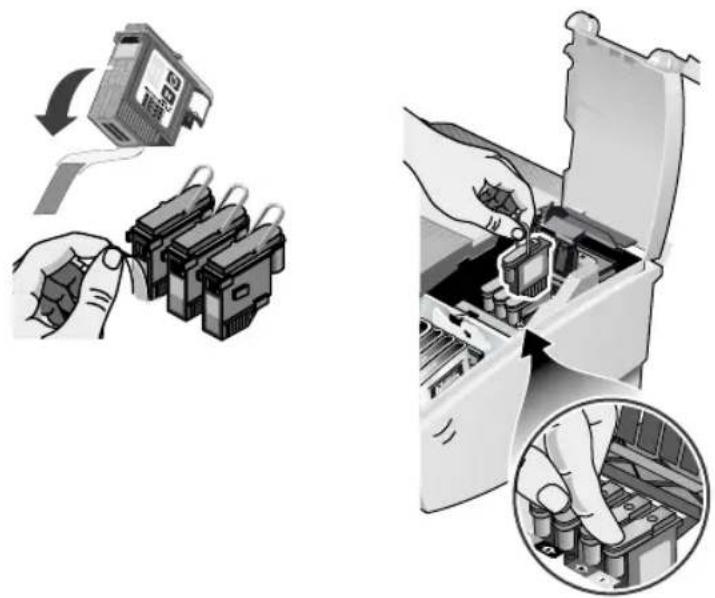
E Remove each printhead from its package.
F Remove the protective tape from each printhead.
natural_image
Illustration showing a hand inserting batteries into a device with an inset close-up of the internal components (no text or symbols present)G Insert each printhead into its color-coded socket.

The color positioning of the printheads does not correspond to the color positioning of the ink cartridges.
H Press firmly on each printhead to ensure proper contact after installation.
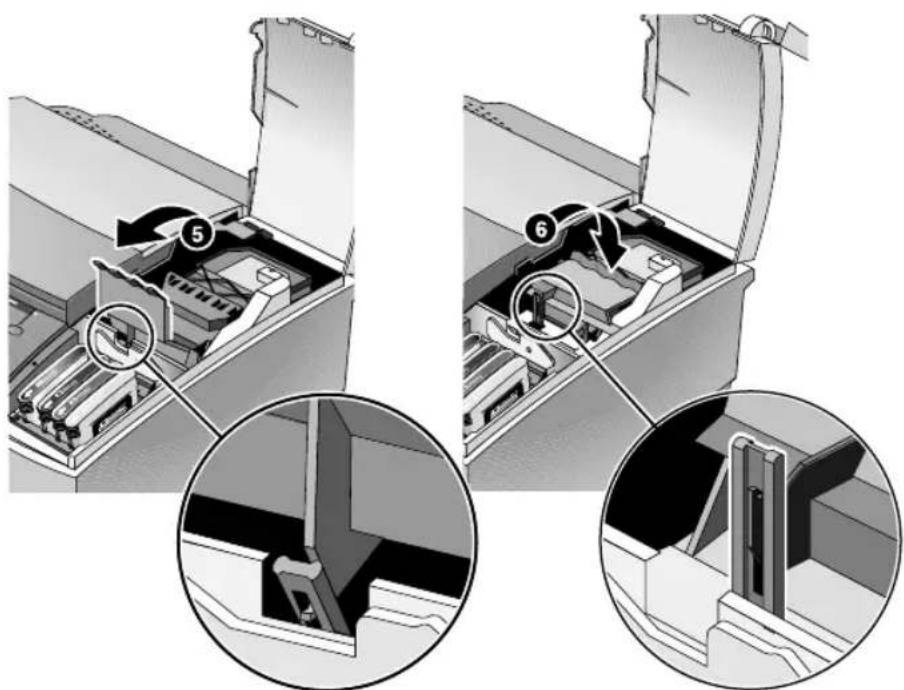
I Lift the latch so that the hook catches the carriage lock, and then
text_image
Technical diagram showing mechanical assembly steps with numbered components and magnified viewspush the latch towards the back of the printer. You might have to apply some pressure to close the printhead access latch.
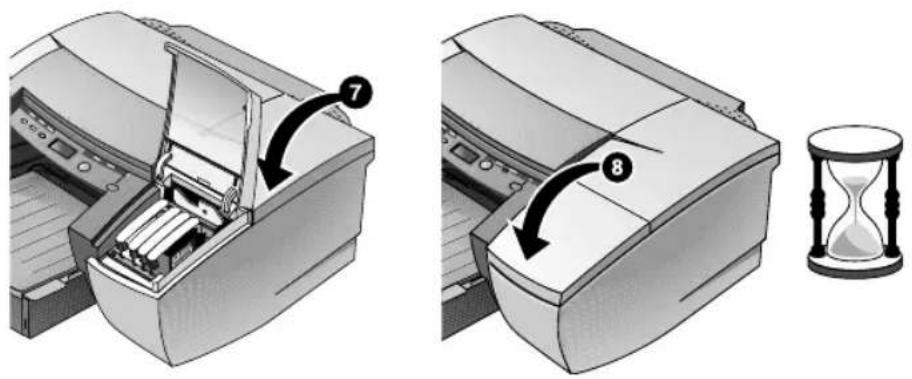
J Close the printhead cover and the ink cartridge cover.
text_image
Diagram illustrating the process of printing a printer with labeled parts and an hourglass symbol indicating the same step.K Wait while the printer initializes the printheads. This can take up to 8 minutes. When initialization is complete, an alignment page prints. If no alignment page prints, check to make sure there is media in the trays.
Step 6:
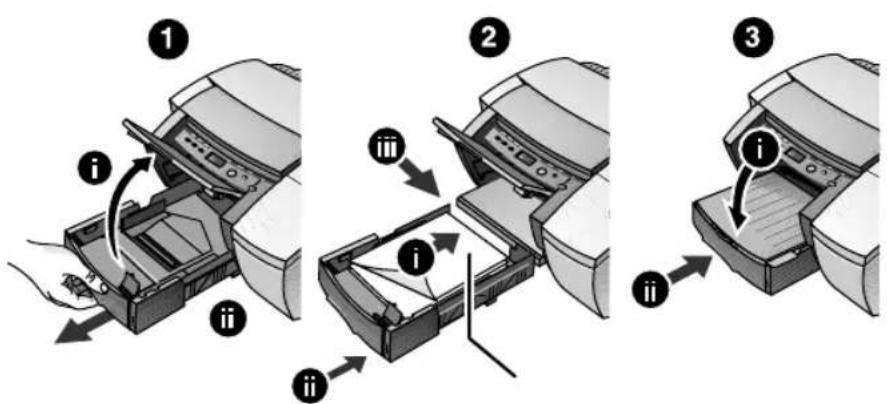
A Load paper in Tray 1. To load Tray 1, lift up the output tray (do not
text_image
Diagram illustrating three-step printer operation sequence with labeled parts and directional arrowsremove the output tray).
B Pull out Tray 1 and insert the paper.
C Before reinserting the tray, make sure the printer is plugged in and powered ON.
natural_image
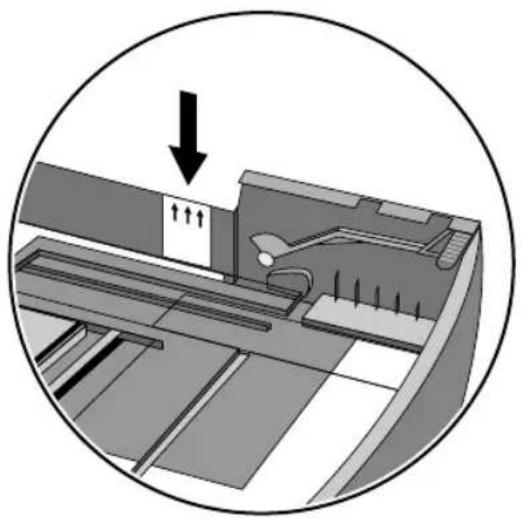
Diagram of a mechanical device with an arrow indicating downward motion, showing internal components and no readable text or symbols.D Do not load paper above the horizontal mark on the yellow sticker attached to the side of the tray.
other
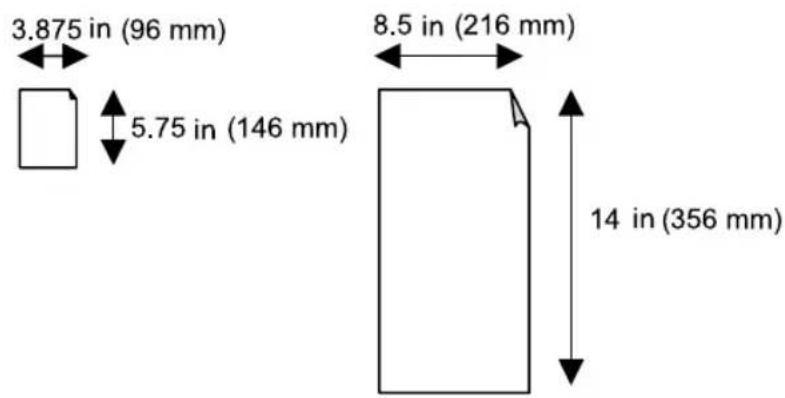
| Dimension | Value (in mm) | | ----------------- | ------------- | | Top Left | 3.875 | | Top Right | 8.5 | | Bottom Right | 14 | | Bottom Rectangle | 5.75 |To print on paper greater than 11 in (279 mm) in length, see chapter 5.
Step 7:
Set the LCD language preference.
A Ensure that the printer is turned OFF.
B Press and hold the V ALUE button and turn ON the printer.
C Press the V ALUE button to scroll through the language list.
D Press the R ESUME button to confirm the language selection.
Step 8:
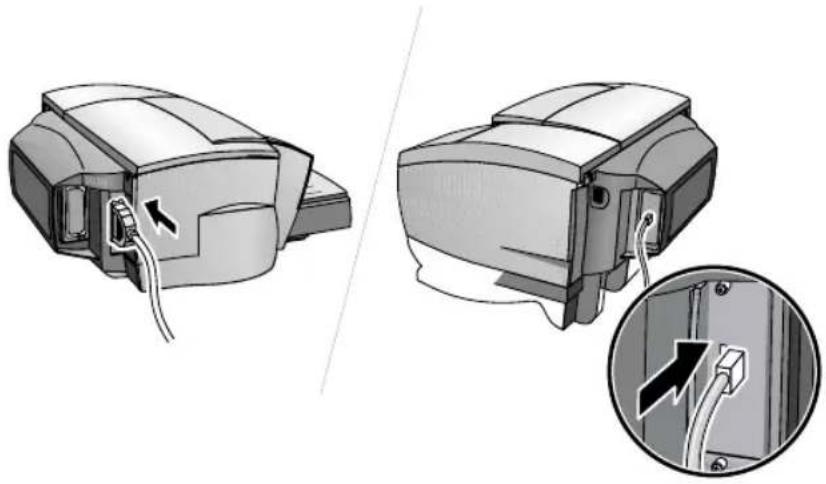
Connect the parallel cable or network cable.
natural_image
Diagram showing two views of a device with cable and plug connections, one with an arrow indicating direction (no text or symbols present)
To connect the printer to a network, plug the network cable into the network port on the HP Jetdirect print server. For an overview of printing in a network environment, see the Administrator's Guide on the Starter CD.
Step 9:
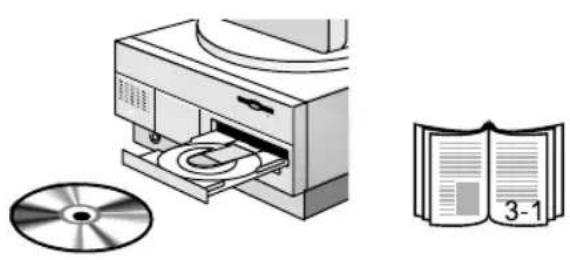
Install the printer software from the Starter CD (recommended).
natural_image
Illustration of a CD printer with an open disc and a separate open book labeled '3-1' (no text or symbols on the objects)3
Software Installation
Printer Drivers Features
| PCL3 | PCL 5C PS | ||
| ColorSmart | √ | √ | √ |
| Concept Preview | √ | √ | |
| Emulate LaserJet Margins | √ | √ | |
| Handout (N-up printing) | √ | ||
| Pages per Sheet | √ | ||
| Image Enhancement | √ | ||
| Manual Duplex | √ | ||
| Optimized for Fax | √ | ||
| Print in Grayscale | √ | √ | √ |
| Print Preview | √ | ||
| Quick Sets | √ | √ | |
| Symmetrical Margins | √ | √ | |
| Tiling | √ | ||
| Watermark | √ | √ | √ |
| ZoomSmart | √ | √ | |
| Scaling | √ | ||
| NT Form | √ | √ | |
| Normal: Speed-Optimized | √ | √ | √ |
| Print Text as Black | √ | √ | |
| Reconfigurable Installer | √ | √ |
Making Copies of the Printer Software
The Starter CD contains a utility that lets you copy the printer software onto floppy disks. The utility is called the Customization Utility. You can also use the Customization Utility to copy the printer software to your hard drive or a network drive for customized installations. This includes driver pre-configuration. After the files are copied to another location, you can install the printer software from that location. See the Customization Utility online help for more information.
Installing the Printer Software for Local Printing
natural_image
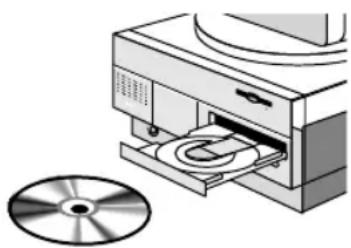
Illustration of a CD or DVD disc being inserted into a printer, with no visible text or symbols.During installation you can choose Typical or Custom installation. Custom installation lets you choose the components you want to install. The following table shows which components are installed for each installation type.
| Component Description 2230 2280 | ||||
| HP Business Inkjet 2230/2280 Printer Driver | Installs the printer driver for your printer. | PCL3 Custom | √ | |
| PCL 5C | √ | |||
| PS | √ | |||
| HP Business Inkjet 2230/2280 Toolbox | Installs the Toolbox. The Toolbox provides additional printer controls, status windows, and troubleshooting information. | √ | √ | |
| Program Group | Adds an HP Business Inkjet program group to the start menu. | √ | √ | |
| Screen Fonts | Installs fonts on your computer that match the fonts in the printer. | √ | √ | |
Installing under Windows 95, Windows 98, Windows Me, Windows NT 4.0, Windows 2000, and Windows XP

Windows NT 4.0/Windows 2000/Windows XP users must have administrator privileges to install a printer driver.
To Install the printer driver:
1 Start Microsoft Windows and make sure no other Windows applications are running.
2 Insert the Starter CD into your CD-ROM drive. The installation program runs automatically.
If the installation program does not run automatically, click Start, select Run, and at the command line box, type the letter of your computer's CD-ROM drive followed by: \SETUP (for example, type D:\SETUP).
3 Click Install Printer Driver from the Starter CD menu.
4 Select the language of the printer software that you want to install and click OK.
5 Click Next and then click Accept to accept the terms of the license agreement.
6 Select Connected directly to this computer. Follow the instructions that appear on the screen to complete the printer driver installation.
Installing the Printer Software for Network Printing
Before installing the printer software, make sure the HP Jetdirect EIO print server card is installed in your printer and connected to the network.

The HP Business Inkjet 2280TN comes with an HP Jetdirect EIO print server card preinstalled.
To Install the printer driver:
1 Start Microsoft Windows and make sure no other Windows applications are running.
2 Insert the Starter CD into your CD-ROM drive. The installation program runs automatically.
If the installation program does not run automatically, click Start, select Run, and at the command line box, type the letter of your computer's CD-ROM drive followed by: \SETUP (for example, type D:\SETUP).
3 Click Install Printer Driver from the Starter CD menu.
4 Select the language of the printer software that you want to install and click OK.
5 Click Next and then click Accept to accept the terms of the license agreement.
6 Select Connected via the network.
7 Select Client Setup if your computer will print through a network server or someone's machine. Select Server or Peer-to-Peer Setup if your computer will print over a network directly to your printer. If you are not sure how to connect your network printer, ask your network administrator.
Setting Up Your Printer on a Macintosh Computer
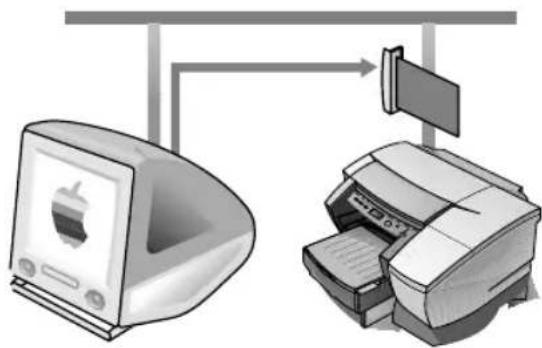
Connect your printer to a Macintosh computer via an HP Jetdirect print server.
natural_image
Illustration of a desktop computer and printer with an apple icon, showing no text or symbols.Before connecting your printer to the network, make sure your printer is an:
• HP Business Inkjet 2280 printer with an HP Jetdirect card, or
• HP Business Inkjet 2230 printer with the HP PCL 5C/Postscript 3 emulation card and an HP Jetdirect card.
These cards can be purchased as accessories (see HP Supplies and Accessories for more information).
1 Connect the Ethernet cable between the network and the Jetdirect server.

When connecting the printer to a network, make sure the HP Jetdirect print server is installed in the printer before you install the printer software.
2 Insert the Starter CD into the CD-ROM drive. The CD menu runs automatically.
If the CD menu does not run automatically, double-click the CD icon on the desktop, and then double-click the ClassicInstaller icon (if you are using Mac OS 8.6 to 9.1) or the CarbonInstaller icon (if you are using Mac OS X). This icon is located in the Installer:
3 Follow the instructions on the screen.
4 If you are using Mac OS 8.6 to 9.1, complete steps 5 through 9.
-Or-
If you are using Mac OS X, complete steps 10 through 13.
Mac OS 8.6 to 9.1
5 Open the Desktop Printer Utility:
- Mac OS 8.6 to 9.0.x: On the hard drive, double-click the Desktop Printer Utility icon in the Apple Extras: Apple LaserWriter Software folder.
- Mac OS 9.1: On the hard drive, double-click the Desktop Printer Utility icon in the Applications (Mac OS 9): Utilities folder.
6 Select LaserWriter8 from the pop-up menu, select Printer (AppleTalk) from the list, and then click OK.
7 In the PostScript Printer Description (PPD) File section of the window that appears, click Auto Setup.
8 Make sure HP Business Inkjet 2280 is selected and click Select.
9 Click Create. The printer icon appears on the desktop.
Mac OS X
10 Open the Print Center (located in the Dock at the bottom of the screen), and then click Add Printer.
11 If you are using an AppleTalk network, select AppleTalk from the pop-up menu.
-Or-
If you are using an LPR network, select LPR Printer using IP from the pop-up menu, and then type the IP address for the printer.
12 If necessary, select the Zone.
13 Select HP Business Inkjet 2280 from the list, and then click Add. A blue dot appears beside the printer name, indicating that this printer is now the default printer.
Setting Up Your Printer in a Unix Environment
To print in Unix, you must have an:
• HP Business Inkjet 2280 printer, or
- HP Business Inkjet 2230 printer with the HP PCL 5C/Postscript 3 emulation card.
For more information refer to the readme in the UNIX/PS folder on the Starter CD.
4
Network Printing
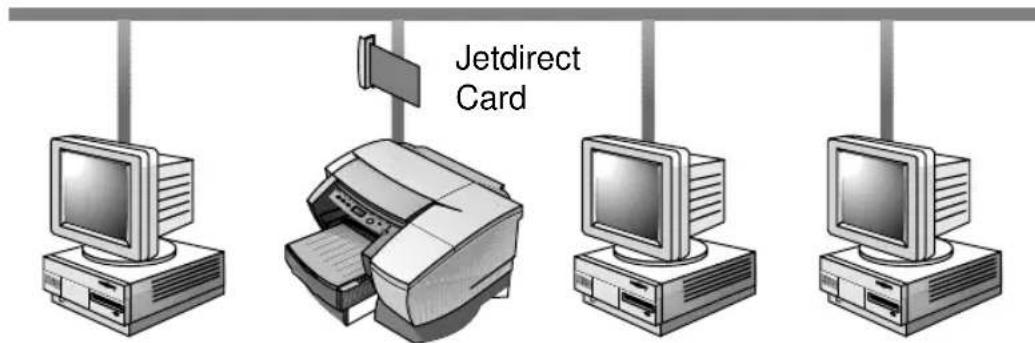
The HP Business Inkjet 2230/2280 can be shared on a network. It can be connected directly to a network using an HP Jetdirect print server or attached to a computer that is connected to a network.
Installing the Printer on a Network with an HP Jetdirect Print Server (Recommended)
text_image
Jetdirect CardYour printer can be shared in a network environment by connecting it directly to the network via an HP Jetdirect external or internal print server. This configuration provides better performance than printing through a computer, as well as flexibility in preparing a location for the printer.
The HP Jetdirect print server can be used in both client-server and peer-to-peer network configurations.
Installing the HP Jetdirect Internal Print Server Card

The HP Business Inkjet 2280TN comes with an internal EIO Jetdirect print server card preinstalled. It is recommended that the printer be shared on a network through the print server. If you own the HP Business Inkjet 2280TN, skip this section.
If you own an HP Business Inkjet 2230/2280 printer other than the HP Business Inkjet 2280TN, you can purchase an internal Jetdirect print server for it. For the list of HP Jetdirect EIO print servers, see "Networking Accessories".
Step 1: Install the HP Jetdirect EIO Print Server Card

The HP Jetdirect card contains electronic components that can be damaged by static electricity. To prevent buildup of static electricity, maintain frequent contact with any bare sheet metal surface on the printer. If possible, wear a grounding wrist strap (or similar device). Handle the card carefully at all times.
natural_image
Two diagrams showing a device with internal components and a magnified inset highlighting a cable installation detail (no text or symbols present)Avoid touching electronic components or circuit paths.
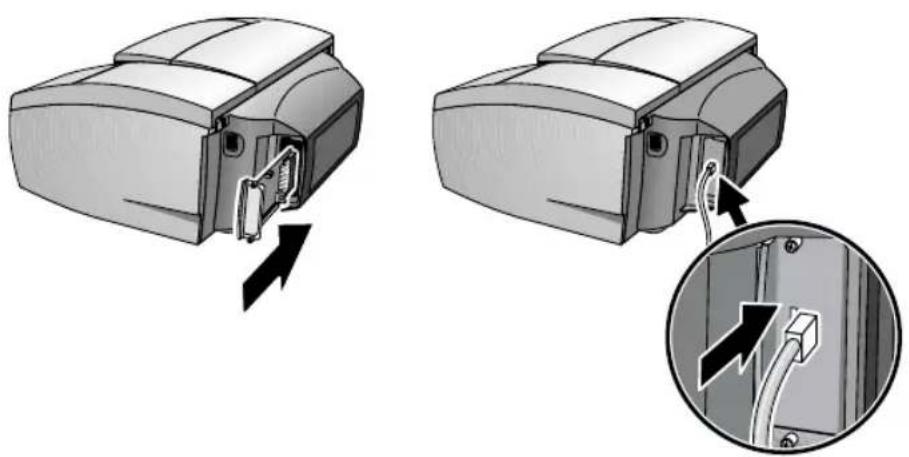
1 Turn OFF the printer and unplug the power cord.
2 Unscrew and remove the metal plate on either side of the printer.
3 Insert the card. Align the card with the guide rails in the printer.
4 Press the card into the slot until the card is firmly seated.
5 Tighten each thumbscrew a little at a time, alternating between each side until both screws are secure.
6 Connect the network cable to the card.

The Jetdirect card can be installed on either side of the printer.
Step 2: Verify that the Printer Works
1 Connect the power cord and turn ON the printer.
2 Press the M ENU button repeatedly until INFORMATION appears.
3 Press the I TEM button repeatedly until PRINT CONFIGURATION PAGE appears.
4 Press the R ESUME button to print the configuration page.

Because you have installed an HP Jetdirect card, two configuration pages will print. The Jetdirect Configuration Page contains setup information (for example, LAN HW ADDRESS) that may be needed for the next step.
Step 3: Install the Printer Software
1 Install the PCL5 and PS printer driver from the Starter CD. For more information on using the Starter CD to install printer drivers, see "Software Installation".

(Client Server printing) If your computer is a network server, share the printer to allow network clients to access the printer.
Sharing the Printer on a Network

This procedure is for enabling a PC to use a shared printer. It assumes that the printer driver is already installed on the PC and that the printer is currently being shared on a network.
In this configuration, the printer is connected directly to the parallel port of a selected computer (or server) on the network and is shared by the other computers (or clients). The server could be a computer running Windows 95, Windows 98, Windows Me, Windows NT 4.0, Windows 2000, or Windows XP.
Use this configuration only in small groups or when usage is low. The shared computer is slowed down when many users print to its shared printer.
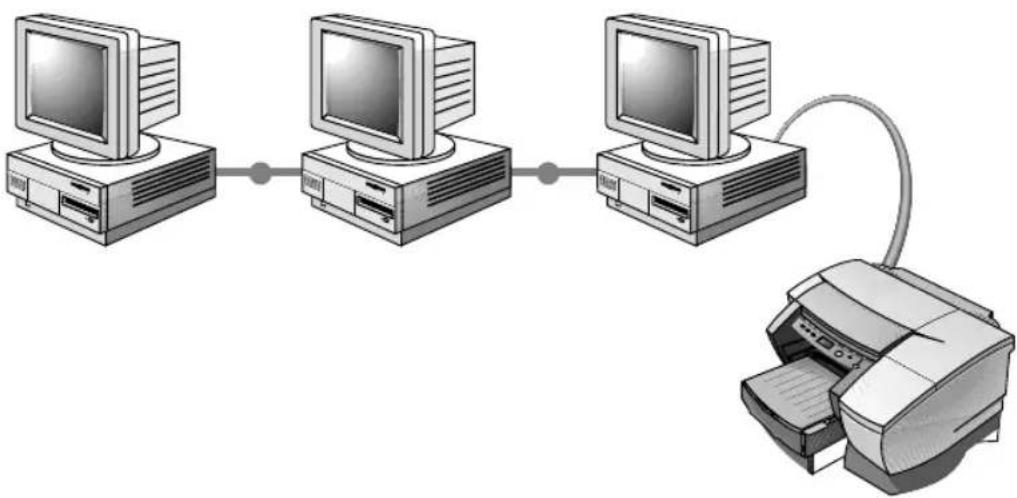
flowchart
graph LR
    A["Computer 1"] --> B["Computer 2"]
    B --> C["Computer 3"]
    C --> D["Printer"]
    D -->|Cable| C
Clients can connect to the printer in three different ways:
- Install the printer software from the Starter CD and connect as a client using the network installation.
- Browse to the printer on the network and drag the printer to your Printers folder. The printer software is not installed on your computer; the shared computer controls the printer driver software.
- Add the printer and install the software from the INF file located on your network. Ask your network administrator where the INF is located.
On the Starter CD the INF files are stored in folders using the following format
Refer to the following table for a list of language abbreviations.
| Language Abbreviation Language Abbreviation | |||
| Chinese (Simplified) | CHS Italian ITA | ||
| Chinese (Traditional) | CHT Korean KOR | ||
| Czech CZE Norwegian NOR | |||
| Danish DAN Polish POL | |||
| Dutch DUT Portuguese | (Brazilian) | POB | |
| English ENU Russian | RUS | ||
| Finnish FIN | Spanish | SPA | |
| French FRE Swedish | SWE | ||
| German | GER | ||
Using the embedded Web server
This printer comes equipped with an embedded Web server. Using a standard Web browser, this remote management tool allows you to do the following:
• View printer and ink supplies status
• View the usage and event log
- Send alerts notifications
- Configure printer, events, and security information
- Perform printer diagnostics
Gaining access to the embedded Web server

To use the embedded Web server, you must have a Web browser, and the printer must be connected to an IP-based network and Web browser. (IPX/SPX networks are not supported.) You cannot use the embedded Web server when the printer is connected directly to a computer.
You can gain access to the embedded Web server:
- From the Toolbox (Windows only)
Launch the embedded Web server from the Information tab in the Toolbox. The default Web browser for the computer opens and displays the embedded Web server information.
- From a Web browser
Type the IP address assigned to the printer into the Web browser to gain access to the embedded Web server. For example, if the printer's IP address were 123.123.123.123, you would type http://123.123.123.123 into your Web browser.
If you do not know the IP address for the printer, it is listed on the printer configuration page. For more information about the configuration page, see "Printing a Configuration Page."
Embedded Web server pages
The embedded Web server has three tabs that contain detailed information about the printer. It also provides links to other e-services.
• Information
- Settings
- Networking
The current printer status appears in the top-right corner of the Web browser screen.
Information
The Information pages of the embedded Web server provide a summary of the configuration and status of the printer and its supplies.
Status
Printer
This page displays information about the printer, such as the model and serial number for the printer, the version number of the personality card, and the memory installed. Ink supplies levels are also shown.
- Ink Supplies
This page shows the current ink cartridge levels and printhead health status for the printer.
• Usage
This page shows how much of each media type has been used by the printer, as well as how much media has been printed from each tray.
Event Log
This page shows the 10 most recent items in the printer event log. The most recent item appears at the top of the list.
Settings
The device pages of the embedded Web server allow you to configure the printer from your computer. These pages can be password protected. Always consult with your network administrator before changing the printer's configuration.
Alerts
- Notification
This page allows you to add the e-mail addresses of the people who will receive electronic notification of printer events (ink supplies and media path events). You are provided with three e-mail lists, which you can rename as needed. You can also add up to two e-mail addresses to each list. In addition, this page lets you configure the outgoing e-mail server settings that the embedded Web server uses when sending e-mail notification of printer events.
AutoSend
This page allows you to send printer usage information to HP automatically. With this information, you can estimate the amount of ink and paper you use each month, thus allowing you to manage your printing supplies more effectively. If AutoSend is enabled, the embedded Web server sends this usage information to HP.

Before you use AutoSend, you must configure the outgoing e-mail server settings on the Notification page.
HP will treat this information in the manner set out in the Hewlett-Packard Online Privacy Statement (http://www.hp.com/country/us/eng/privacy.htm).
Configuration
- Asset Tracking
This page lets you name the device for network management needs and assign an asset number.
Media Handling
This page lets you configure the printer's media-handling settings:
- Enabling the “Advanced Paper Handling” setting
- Enabling the "Tray Lock" setting
- Selecting the media type and media size in each tray
- Enabling the “Transparency Sensor” setting
For more information about these settings, see the Paper Handling menu.
•Security
This page allows you to set a password to control access to the Device pages. After a password has been set, users will be prompted to enter a password when they access the Device pages.
Maintenance
• Diagnostic
This page allows you to perform printer troubleshooting and maintenance tasks, such as testing paper paths in the printer, aligning printheads, and cleaning printheads.
Networking
The network pages of the embedded Web server allow the network administrator to configure the HP Jetdirect card for the printer. Refer to the online help and to the HP Jetdirect Print Server Administrator's Guide for more information. This guide is located on the Starter CD.
E-services
The following e-services are available from each embedded Web server page.

You must have an Internet connection to use these e-services.
- hp instant support
This page provides information that can help diagnose and solve your printer problems. It also includes myPrintMileage, which helps you understand your printing patterns.
- Order Supplies
This page shows the remaining life of the different ink supplies and the links to the HP website for ordering supplies.
Network Support Materials
If you encounter any problems or difficulty printing over a network, see the following documentation:
| Document Document Contents | |
| HP Jetdirect Print Server Administrator's Guide | Included on the Starter CD. It provides detailed information on setting up and using your HP Jetdirect EIO Print Server.It also provides information on:HP Software Solutions for HP Jetdirect print serversTCP/IP ConfigurationsUsing LPD (Line Printer Daemon) services on the HP Jetdirect print serverFTP PrintingTroubleshooting and Jetdirect configuration page messagesEmbedded Web Server to access configuration and management pages for the print server and device |
| HP Jetdirect setup manual | Included with the purchase of an HP Jetdirect print server. It describes setup and configuration of your HP Jetdirect print server. Note that the HP Jetdirect setup manual does not come with the printer. |
| The NOS (network operating system) and OS Manual. | These came with your computer or your NOS. They describe basic network printing common to all network printers. |
For more detailed information about configuration and troubleshooting the HP Jetdirect EIO print server, see the HP Jetdirect Print Server Administrator's Guide on the Starter CD.
5 Paper Handling
Selecting and Loading Paper
The printer prints on plain paper and most other types of paper. Most plain paper used for photocopying yields good results.
- Always use paper that conforms to the printer specifications. For a list of supported media, see “Supported Media”.
- Do not use media that is damaged, curled, or wrinkled. Do not use paper with cutouts or perforations or paper that is heavily textured or embossed.
- Do not use multiple-part forms.
- Load only one paper type at a time into any of the trays.
●Always load paper print-side down with the right edge of the paper aligned against the right edge of the tray. - Do not load more than 250 sheets of paper or a stack of paper more than 0.98 in (25 mm) thick (whichever is lower) into either of the paper trays.
Loading Paper in Tray 1 or Tray 2

1 If you are loading paper in Tray 1, lift up the output tray.
2 Pull the media tray out of the printer.
3 To print on paper from 11 in (279 mm) in length up to 14 in (356 mm) unlatch the front of the tray and open it.
4 Insert the paper and adjust the paper width and length guides to fit snug against the stack.
5 Insert the media tray.
6 Lower the output tray. If long paper is being used, pull out the paper extension.
7 Select the appropriate media in the printer driver or your application.
Printing Envelopes or Cards through the Envelope Feed
text_image
Diagram showing printer operation with labeled parts and directional arrows indicating process flow
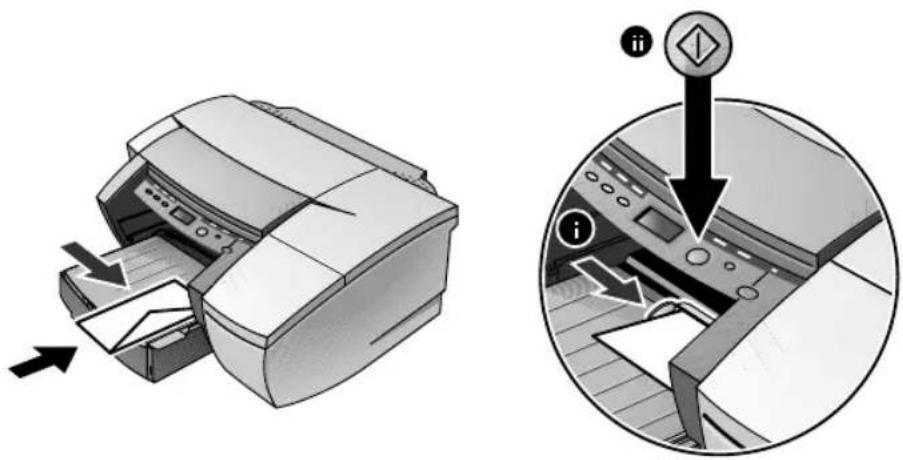
Use the envelope feed to print a single envelope or card. If you need to print more than one, you can use Tray 1. If you have two trays, remember to select Tray 1 in the printer driver.
1 In the Print Settings dialog box, click Setup and select Manual feed in the Paper Source box. Change other print settings, if necessary, and click OK.
2 When the LED blinks, insert one envelope with the flap facing upwards (or one card) into the envelope feed. Ease the envelope or card to the right edge. Move the envelope guide until it is flush against the envelope or card.
3 Press the R ESUME button to continue printing.
Printing Paper in Tray 2 (Optional Tray)
Tray 2 is an optional paper tray designed to print only on plain paper.
natural_image
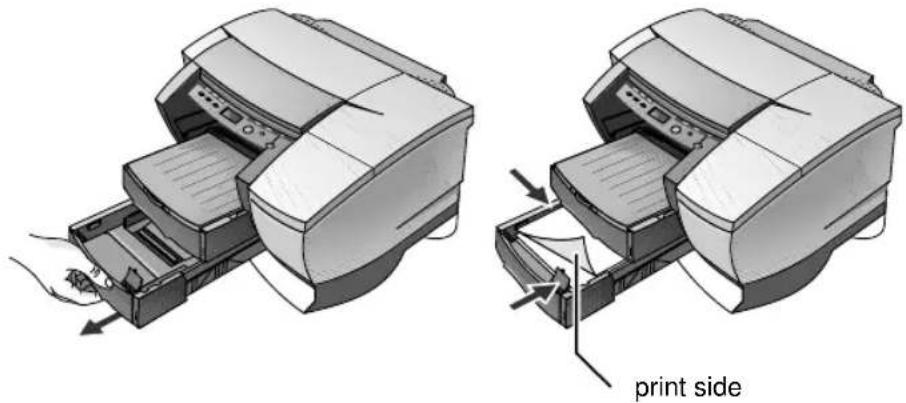
Illustration of two printer machines with arrows indicating print side and paper feed (no text or symbols)1 Open Tray 2 by grasping the handle under the front of the tray and pulling the tray completely out.
2 Slide the paper width and length adjusters to their outermost positions and insert up to 250 sheets of paper or up to a 0.98 in (25 mm) (whichever is lower) stack of paper into the tray. Readjust the paper width and length adjusters to fit snugly against the stack of paper.
3 Align the tray with the opening and slide it back in to place.
By default, the printer draws paper from Tray 2. If Tray 2 is empty, the printer draws paper from Tray 1.
Using the Tray Lock
Use the tray lock to protect special media such as letterhead or transparencies from accidental use. If the printer runs out of paper while printing a document, it will not use paper from a locked tray to complete the print job.

This feature is only available if Tray 2 is installed in your printer.
1 Turn on the printer.
2 Press the M ENU button repeatedly until PAPER HANDLING MENU appears.
3 Press the I TEM button repeatedly until LOCK TRAY = appears.
4 Press the V ALUE button until the tray you want to lock appears.
5 Press the R ESUME button to make your selection.
Advanced Paper Setting

This feature is only available if Tray 2 is installed in your printer.
This feature allows you to specify the media type and size loaded in the printer trays so that the printer can auto-select the right media to print. The default setting is OFF.

The Lock Tray feature will not be available when you use the Advanced Paper Setting.
To set the media loaded to the trays
1 Turn on the printer.
2 From the printer's LCD panel, press the M ENU button repeatedly until the PAPER HANDLING MENU appears.
3 Press the I TEM button repeatedly until ADVANCED PAPER SETTING appears.
4 Press the V ALUE button to turn on this feature.
5 Press the R ESUME button to confirm your selection.
6 Press the I TEM button to set the media type for Tray 1 and press VALUE button to select the media.
7 Press the R ESUME button to confirm your selection.
8 Repeat steps 6 and 7 to set the media size for Tray 1, and do likewise to set the media for Tray 2.
Manual Duplexing
This feature is only available in the PCL3 printer driver. Follow the steps below, only if you have previously deselected this option.
To print on both sides of the paper:
1 Place the media in the selected tray.
2 From the Effects tab, click Manual Duplex.
3 Click OK and print the document.
The printer will notify you when to reinsert the printed pages (printed side up) into the tray.
Supported HP Media for Manual Duplexing
Tray 1 Tray 2
| HP Plain Paper, HP Heavyweight Paper, HP Prochure (Glossy and Matte) | HP Plain Paper |
6
LCD Messages
The most convenient way to change settings on the printer is from your computer through the printer driver.
You can also change the printer settings from the printer's Control Panel. The following tables list the menu items and possible values for the printer. Additional menu items can appear in the Control Panel, depending on the hardware modules installed in the printer.
To print a complete menu map from the Control Panel:
1 Press the M ENU button until INFORMATION MENU appears.
2 Press the I TEM button until PRINT MENU MAP appears.
3 Press the R ESUME button to print the menu map.
Information Menu
| Message Value Description | |
| PRINT MENU MAP N.A. Prints a single-page map of the menu structure of the printer. | |
| PRINT CONFIGURATION | N.A. Prints a single reference page describing current configuration settings (firmware version, model, accessories installed, fonts installed, I/O support, cartridge and printhead information). |
| PRINT PCL FONT LIST (PCL5/PS only) | N.A. Prints the number with corresponding PCL5 fonts. |
| PRINT PS FONT LIST (PCL5/PS only) | N.A. Prints the number with corresponding PS fonts (only available if postscript card is present). |
| PRINT DEMO N.A. Prints a sample page. | |
| PRINT DIAGNOSTIC PAGE | N.A. Prints a page that contains information for basic troubleshooting. |
| PRINT DIAGNOSTIC+PAGE | N.A. Prints a page that contains information for advanced troubleshooting. |
| TEST PAPER PATH1 1-10, 20, 30, 40, 50 | Tests the Tray 1 paper feed mechanism. |
| TEST PAPER PATH2 1-10,20, 30,40, 50 | Tests the Tray 2 paper feed mechanism. |
Paper Handling Menu

These menu options are only available when Tray 2 is installed.
| Message Value Description | ||
| ADVANCED PAPER SETTING | OFF ON | When ON is selected, paper types must match the settings defined in the printer driver. If not, the printer prompts users for the correct paper. Not available when LOCK TRAY is set. Default = OFF. |
| LOCK TRAY NONE | 12 | When a tray is locked, paper will only be drawn from that tray if it is selected in the printer driver. Not available when ADVANCED PAPER SETTING is ON. Default = NONE. |
Configuration Menu
| Message Value Description | ||
| PERSONALITY AUTO | PCL5 ONLYPS ONLY | Sets the personality used to process the job. The PCL5 and PS option is only available if the personality card is inserted. Default = AUTO. |
| CLEARABLE WARNINGS | AUTO ON When ON is selected, clearable warnings are displayed until RESUME is pressed.JOB When JOB is selected, clearable warnings are displayed until end of job. Default = Auto. | |
| INK LOW WARNINGS | ON When ON is selected, ink low condition is displayed.OFF When OFF is selected, ink low condition is not displayed. | |
| PRINT PS ERRORS | OFFON | Select ON to print the PS error page when PS errors occur. |
Printing Menu
| Message Value Description | ||
| NUMBER OF COPIES (PCL5/PS only) | 1-999 Sets the number of copies to print. Default = 1. | |
| QUALITY LEVEL FAST NORMAL:SPEED - OPTIMIZED NORMAL BEST | Sets the default print quality level. | |
| PAPER SIZE Set of options. Select media size. Default = Letter. | ||
| PAPER TYPE Set of options. Select media type. Default = Plain. | ||
| ORIENTATION PORTRAIT LANDSCAPE | Page orientation. Default = Portrait | |
| PAGE LENGTH 5-128 Set the page length in terms of numbers of lines. Default = 60. | ||
| PCL FONT NUMBER (PCL5/PS only) | 0-89 Set the PCL font for printing from DOS or UNIX without defining the personality. Default = 0. | |
| PCL FONT PITCH 0.44 - 99.99 Set the font pitch. Default = 10. | ||
| ISE FONTS (PCL5/PS only) | NO YES | Include ISE fonts in the available PCL 5C symbol sets. |
| PCL SYMBOL SET Set of options. Select the PCL symbol set. | ||
| APPEND CR TO LF NO YES | Configure whether or not a carriage return (CR) is appended to each line feed (LF) encountered in a backward compatible PCL job (pure text, no job control). Default = No. | |
| PCL FONT POINT SIZE (PCL5/PS only) | 4.00 - 99.00 Set the font point size. Default = 12. | |
| Message Value Description | |
| I/O TIMEOUT 5 to 300 Set the length of time (in seconds) that the printer waits for remaining data for a print job. After this time, the printer cancels the print job.Default = 45. |
Jetdirect Menu

This menu is only available on HP Business Inkjet 2230/2280 printers with an HP Jetdirect EIO print server card installed.
| Message Value Description | ||
| CFG NETWORK NO | YES | Selects whether or not you want to access the Jetdirect menu items. You must change this option to YES each time you want to access the Jetdirect EIO menu. |
| IPX/SPX | ON | Selects whether or not a protocol is enabled or disabled. Change it to OFF to disable a protocol. |
| DLC/LLC | OFF | |
| TCP/IP | ||
| ATALK | ||
| CFG IPX/SPX NO | YES | Selects whether you want to access the IPX/SPX menu and set the IPX/SPX protocol parameters.In the IPX/SPX menu, you can specify the Frame Type parameter used on your network.The default is AUTO, which automatically sets and limits the Frame type to the one detected.For Ethernet cards, frame type selections include EN_8023, EN_II, EN_8022, EN_SNAP.For Token Ring cards, frame type selections include TR_8022, TR_SNAP.In the IPX/SPX menu for Token Ring cards, you can also specify NetWare Source Routing parameters, which include SRC RT=AUTO (default), OFF, SINGLE R or ALL RT. |
| CFG TCP/IP NO | YES | Selects whether you want to access the TCP/IP menu and set the TCP/IP protocol parameters.In the TCP/IP menu, you can specify BOOTP=YES or DHCP=YES for TCP/IP parameters to be automatically configured by a BootP or DHCP server when the printer is turned on.If you specify BOOTP=NO and DHCP=NO, you can manually set the following TCP/IP parameters from the control panel:Each byte of the IP address (IP)Subnet Mask (SM)Syslog Server (LG)Default Gateway (GW)Idle Timeout period (default is 90 seconds, 0 disables the timeout)When setting IP numbers, press the Value button to increase the number by 1. Hold down the Value button to increase the number by 10. Press the Resume button to make your selection. |
| CFG LINK NO | YES | Selects whether you want to access the LINK menu and set the network speed parameters.AUTO(default):The print server detects the network speed. If it fails, 100T HALF is set.100T HALF: 100Mbps, half-duplex.100T FULL: 100Mbps, full-duplex.10T HALF: 10Mbps, half-duplex.10T FULL: 10Mbps, full-duplex. |
Resetting the EIO Card
To restore the factory default values to HP Jetdirect EIO print server card:
1 Turn off the printer.
2 While holding down the Item and R ESUME buttons on the printer's control panel, turn on the printer.
All previously stored EIO settings will be lost.

Maintenance Menu
| Message Value Description | |
| CALIBRATE COLOR N.A. Calibrate printer's color intensity against the black intensity by selecting the closest matching calibration pair. | |
| CALIBRATE PAPER FEED | N.A. Prints a block calibration page. If evenly spaced horizontal lines appear on printouts, use this page to correct this type of problem. After the page prints, enter the block value that has the least number of noticeable light or dark lines. Default is 0. |
| CLEAN PRINTHEADS N.A. Initiates the printhead cleaning process. | |
| ALIGN PRINTHEADS N.A. Initiates the alignment process. | |
| SHOW PRINTHEAD HEALTH | N.A. Displays the health of the printhead on the LCD. |
Reset Menu
| Message Value Description | |
| RESTORE | N.A. Restores all values to the printer's |
| FACTORY | predetermined factory values. |
| SETTINGS | |
Understanding Printer Messages
| Message Explanation Solution | ||
| CANCELLING JOB | The printer is canceling the current print job. | |
| PAPER JAM, OPEN COVER AND CLEAR PAPER | Paper is jammed in the printer. | Clear the jammed paper.For more information, see “Paper is Jammed in the Printer”. |
| [COLOR] INK CARTRIDGE EMPTY | The cartridge is out of ink and the printer will not print until the cartridge is replaced. | Remove the ink cartridge.Reinstall the cartridge and try to print. If the error persists, replace the empty cartridge. |
| REPLACE [COLOR] INK CARTRIDGE | The printer detects a faulty ink cartridge. | Reinstall the faulty ink cartridge and try to print. If the error persists, replace the cartridge. |
| [COLOR] INK CARTRIDGE MISSING | The printer cannot detect the ink cartridge because it is missing, improperly installed, or defective. | Open the ink cartridge door and check if the cartridge is missing, improperly installed, or the wrong cartridge. If none of these solutions work, replace the cartridge. |
| REPLACE [COLOR] PRINTHEAD | The printer detects a faulty printhead.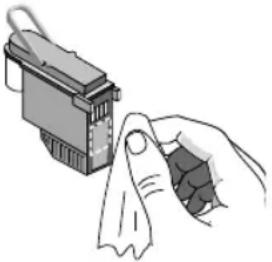 | Reinstall the faulty printhead and try to print. Make sure the shipping tape has been removed. If the error persists, remove the printhead and use a dry, lint-free, soft cloth to gently clean any ink off the contact pads. Reinstall the printhead and try to print. If the error persists, replace the printhead. |
| [COLOR] PRINTHEAD MISSING | The printer cannot detect the printhead because it is missing, improperly installed, or defective. | Open the printhead door and check if the printhead is missing, improperly installed, or the wrong printhead. If none of these solutions work, replace the printhead. If the error persists, call HP. |
| BAD INK CARTRIDGE OR PRINTHEAD | The printer detects a faulty ink cartridge or printhead. | Follow the instructions in the printer message. |
| LOAD [TRAY] WITH [MEDIA TYPE] [MEDIA SIZE] | Printer requires media of a specific type and size to be loaded in specified paper tray. | Follow the instructions in the printer message. |
| PRINTED PAGE IS DRYING... PRESS RESUME TO CONTINUE | Printer is letting the current page dry. | Remove the wet page and press the Resume button to continue printing. |
| PERSONALITY CARD NOT RECOGNIZED | The printer cannot detect the card because it is missing, improperly installed, or defective. | Reinstall the personality card or replace it. If the error message persists, call HP. |
| RESET JETDIRECT CARD | Prompts user to reset the internal parameters of the Jetdirect card. | From the RESET Menu, press the Value button to select EIO RESET. |
| CLOSE ALL COVERS | The printer will not print until all access covers are properly closed. | Follow the instructions in the printer message. |
| OUT OF MEMORY | The printer is out of memory and cannot print the current job. | Cancel the current print job, and add additional memory, or reduce the complexity of the document you are trying to print. |
7 Troubleshooting
General Troubleshooting Tips
1 Check the printer LCD panel. If the printer LCD panel displays a recoverable error message, see "Understanding Printer Messages" on page 6-6 for instructions on how to resolve the problem.
| Example Solution | |
| BAD INK CARTRIDGE OR PRINTHEAD, CLOSE ALL COVERS, etc. | See “Understanding Printer Messages” for information on how to resolve such errors. |
| E: XXXX E: XXXX-X-Y-Z E: XX | Your printer may have a hardware problem. Turn OFF the printer, wait for a few seconds and then turn it ON again. If the message persists, your printer may need servicing, write down the error code and contact HP. |
2 If the LED is flashing and the printer does not print, lift up the printhead access cover and make sure the hook on the printhead cover is properly secured by the carriage latch.
Printing a Configuration Page

If an HP Jetdirect EIO print server card is installed, two pages will print.
To print a Configuration page:
1 Press the M ENU button until INFORMATION MENU appears.
2 Press the I TEM button repeatedly until PRINT CONFIGURATION appears.
3 Press the R ESUME button to print the Configuration page.
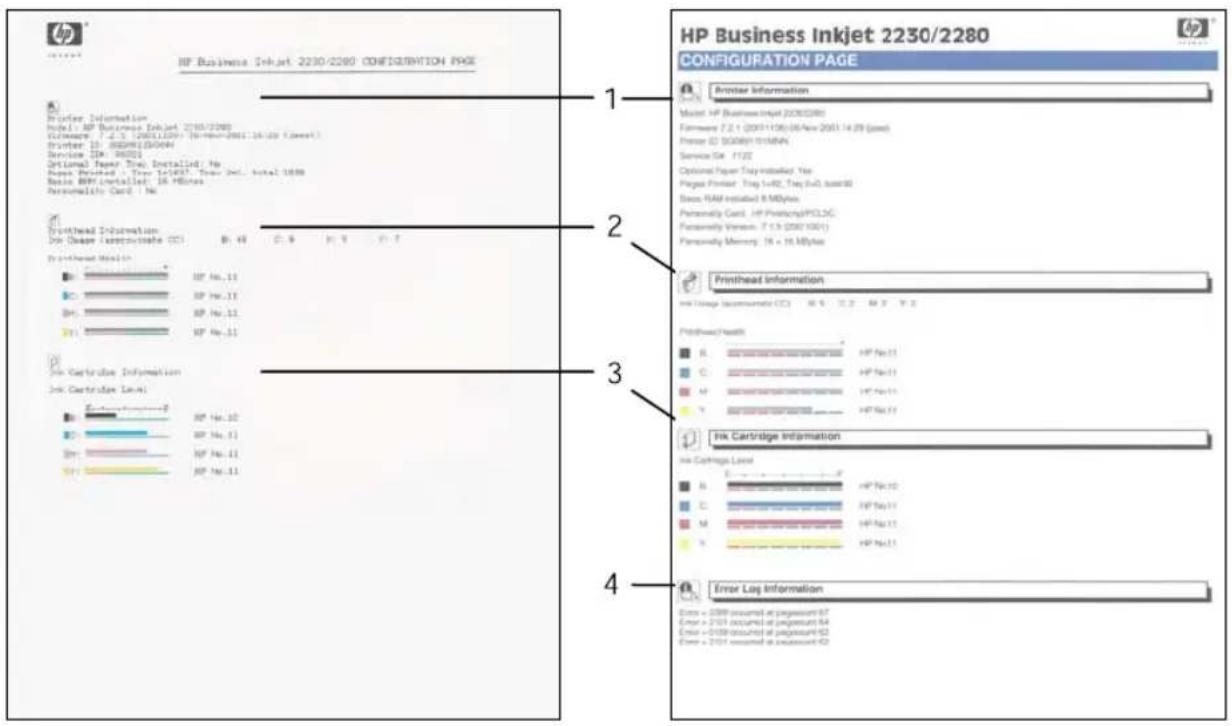
The Configuration page will look similar to one of the following examples. If the PCL 5C/Postscript 3 emulation card is installed (included with the 2280), the Configuration Page look like the page on the right.
text_image
HP Business Inkjet 2230/2280 CONFIGURATION PAGE 1 2 3 4 HP Business Inkjet 2230/2280 CONFIGURATION PAGE 1 Printer Information Model: HP Business Inkjet 2230/2280 Framework: 7.2.1 (2001-11/06) (66-New 2001-14-29) (pack) Printhead Information Model: HP Business Inkjet 2230/2280 Software ID: 500001/500001 Service Date: F1/22 Optional Paper Tray installed Yes Pages Printer: Trap 1=0, Trap 3=0, size=0 Basic RAM installed 8 MB/Hz Personality Card: HP Printstyle/PICLNC Personality Version: 7.5 (2007-1001) Personality Memory: 16 x 16 MB/Hz Printhead Information Ink Storage Information (C): 4.9 4.9 4.9 4.9 Printhead Model: HP No.11 HP No.11 HP No.11 HP No.11 Ink Cartridge Information Ink Cartridge Level: HP No.10 HP No.11 HP No.11 HP No.11 HP No.11 Ink Cartridge Information Ink Cartridge Level: HP No.10 HP No.11 HP No.11 HP No.11 Ink Cartridge Information Ink Cartridge Level: HP No.10 HP No.11 HP No.11 HP No.11 Ink Cartridge Information Ink Cartridge Level: HP No.10 HP No.11 HP No.11 HP No.11 Ink Cartridge Information InkCartridge Level: HP No.10 HP No.11 HP No.11 HP No.11 Ink Cartridge Information Ink Cartridge Level: HP No.10 HP No.11 HP No.11 HP No.11 Ink Cartridge Information Ink Cartridge Level: HP No.10 HP No.11 HP No.11 HP No.11 Error = 0.00% occurred at pagecount:67 Error = 2.0% occurred at pagecount:44 Error = -0.0% occurred at pagecount:63 Error = 2.0% occurred at pagecount:67The Configuration page is divided into the following sections:
Item Description
1 Printer Information shows general printer information such as Firmware version number, Model and Service ID. Also shows personality card information, if present, such as version number and memory installed.
2 Printhead Information displays information on printhead health.
3 Ink Cartridge Information displays the amount of ink left in each ink cartridge.
4 Error Log Information displays printer error information.
Printing a Diagnostic Page

The information on the diagnostic page is useful to our Customer Care Center in helping you to troubleshoot any printer problem.
To print a Diagnostic Test page:
1 Press the M ENU button until INFORMATION MENU appears.
2 Press the I TEM button repeatedly until PRINT DIAGNOSTIC PAGE appears.
3 Press the R ESUME button to print the diagnostic page.
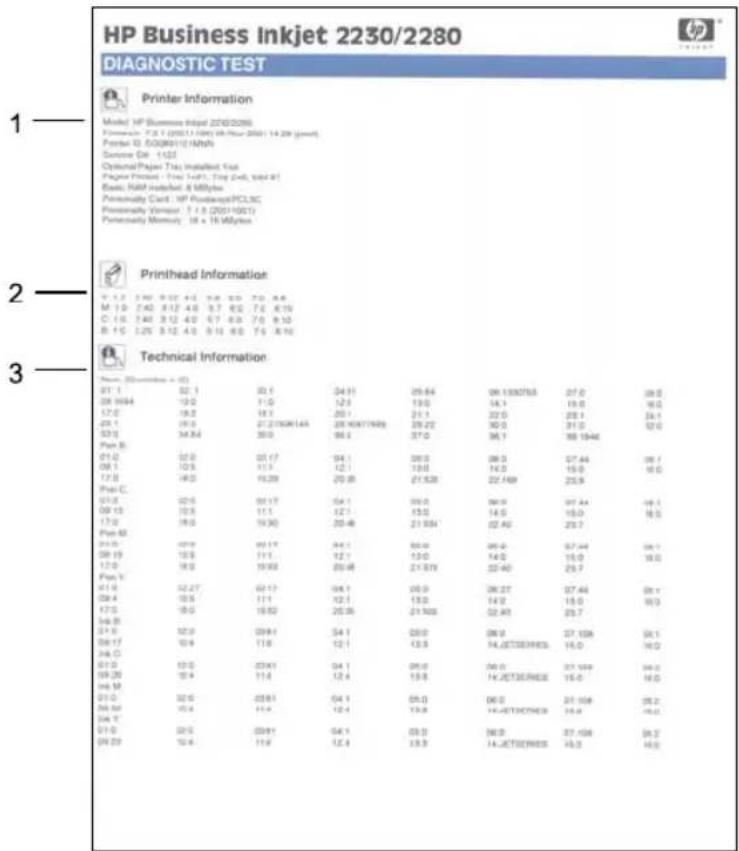
The Diagnostic Page looks similar to this:
text_image
HP Business Inkjet 2230/2280 DIAGNOSTIC TEST Printer Information Model: HP Business Inkjet 2230/2280 Performance: 7.2.1 (2011.11.20) @ Time 2001 14:28 (pmol) Portion ID: 00095116/Math System Name: IP Optional Paper Type: Installed, Yes Page Printout - Time 1x1, Sync 2x6, total #1 Basic RAM installed: 6 MBytes Personality Card: HP Wireless/PCLNC Personality Version: 1 / 3 (2011/05/1) Personality Memory: 18 x 16 MBytes Printhead Information V 1.2 1.90 9.12 4.0 9.8 9.3 7.0 8.6 M 1.0 2.40 8.12 4.0 9.7 8.5 7.6 8.19 C 1.0 2.40 8.12 4.0 9.7 8.6 7.0 8.10 B 1.0 2.25 8.12 4.0 9.11 8.5 7.6 8.10 Technical Information Name: (S) Commission = (S) 01-1 52-1 33-1 34-31 26-64 09-133075A 37-0 29-0 39-1694 13-0 1-0 12-3 13-0 14-1 15-0 16-0 17-0 18-2 18-1 20-1 21-1 22-0 23-1 24-1 23-1 34-34 35-9 36-22 36-0 37-0 38-0 53-5 Pon B: 51-0 52-0 53-17 54-1 56-3 56-3 57-44 58-1 09-1 10-5 11-7 12-1 13-0 14-0 15-0 16-0 17-3 18-0 19-29 20-85 21-528 22-149 23-9 Pon C: 51-0 52-0 53-17 54-1 56-3 56-3 57-44 58-1 09-13 10-5 11-7 12-1 13-0 14-0 15-0 16-0 17-0 18-0 19-30 20-46 21-954 22-46 23-7 Pon M: 51-0 52-0 53-17 54-1 56-3 56-3 57-44 58-1 09-19 10-5 11-7 12-1 13-0 14-0 15-0 16-0 17-0 18-0 19-33 20-46 21-979 22-46 23-7 Pon Y: 51-0 52-27 53-17 54-1 56-3 56-37,57,48,49,49,49,49,49,49,49,49,49,49,49,49,49,49,49,49,49,49,49,49,49,49,49,49,49,49,49,49,49,49,49,49,49,49, 58-4 57-5 56-17 57-6 56-C: 57-D: 57-E: 56-F: 56-G: 56-H: 56-I: 56-J: 56-K: 56-L: 56-M: 56-N: 56-O: 56-P: 56-Q: 56-R: 56-S: 56-T: 56-U: 56-V: 56-W: 56-X: 56-Y: 56-Z: 56-W: 56-X: 56-Y: 56-Z: 56-W: 56-X: 56-Y: 56-Z: 56-W: 56-X: 56-Y: 56-Z: 56-W: 56-X: 56-Y: 56-Z: 56-W: 56-X: 56-Y: 56-Z: 56-W: 56-X: 56-Y: 56-Z: 56W: 56-X: 56-Y: 56-Z: 56-W: 56-X: 56-Y: 56-Z: 56-W: 56-X: 56-Y: 56-Z: 56-W: 56-X: 56-Y: 56-Z: 56-W: 56-X: 56-Y: 56-Z: 56-W: 56-X: 56-Y: 56-Z: 56-W: 56-Q: 56-Q: 56-Q: 56-Q: 56-Q: 56-Q: 56-Q: 56-Q: 56-Q: 56-Q: 56-Q: 56-Q: 56-Q: 56-Q: 56-Q: 56-Q: 56-Q: 56-Q: 56-Q: 56-Q: 56-Q: 56-Q: 56-Q: 56-Q: 56-Q: 56-D: 57-D 57-E 57-F 57-G 57-H 57-I 57-J 57-K 57-L 57-M 57-N 57-Q 57-Q 57-Q 57-Q L:\ Printhead Information V: V: V: V: V: V: V: V: V: V: V: V: V: V: V: V: V: V: V: V: V: V: V: V: V: V: V: V: V: V: V: V: V: V: V: V: V: V: V: V: V: V: V: V: V: V: V: V: V: V: V: M: V: V: V: V: V: V: V: V: V: V: V: V: V: V: V: V: V: V: V: V: V: V: V: V: V: V: V: V: V: V: V: V: V: V: V: V: V: V: V: V: V: V: V: V: V: V: V: C: I: B : Printhead Information V : Printhead Information V : Printhead Information V : Printhead Information V : Printhead Information V : Printhead Information V : Printhead Information V : Printhead Information V : Printhead Information V : Printhead Information V : Printhead Information V : Printhead Information V : Printhead Information V : Prinshead Information V : Prinshead Information V : Prinshead Information V : Prinshead Information V : Prinshead Information V : Prinshead Information V : Prinshead Information V : Prinshead Information V : Prinshead Information V : Prinshead Information V : Prinshead Information V : Prinshead Information V : Prinshead Information V : Prinshead Information V : Prinshead Information V : Prinshead Information V : Prinshead Information V : Prinshead Information V : Prinshead Information V : Prinshead Information V : Prinshead Information V : Prinshead Information V : Prinshead Information V : Prinshead Information V : Prinshead Information V : Prinshead Information V : Prinshead Information V : Printhead Information V : / Printhead Information V : / Printhead Information V : / Printhead Information V : / Printhead Information V : / Printhead Information V : / Printhead Information V : / Printhead Information V : / Printhead Information V : / Printhead Information V : / Printhead Information V : / Printhead Information V : / Printhead Information V : / Printhead information. V : / Printhead information. V : / Printhead information. V : / Printhead information. V : / Printhead information. V : / Printhead information. V : / Printhead information. V : / Printhead information. V : / Printhead information. V : / Printhead information. V : / Printhead information. V : / Printhead information. V : / Printhead information. V : / Proknote Data Packed Data Packed Data Packed Data Packed Data Packed Data Packed Data Packed Data Packed Data Packed Data Packed Data Packed Data Packed Data Packed Data Packed Data Packed Data Packed Data Packed Data Packed Data Packed Data Packed Data Packed Data Packed Data Packed Data Packed Data Packed Data Packed Data Packed Data Packed Data Packed Data Packed Data Packed Data Packed Data Packed Data Packed Datsd A B C D E F G H H I K L M N N O P Q R S T U S U S U S U S U S U S U S U S U S U S U S U S U S U S U S U S U S U S U S U S U S U S U S U S U S U S U S U S U S U S U S U S U S U S U S U S U S U S U S U S U S U S U S U S U S U S U S U S U S U S U/S U S U/S U S U/S U S U/S U S U/S U S U/S U/S U/S U/S U/S U/S U/S U/S U/S U/S U/S U/S U/S U/S U/S U/S U/S U/S U/S U/S U/S U/S U/S U/S U/S U/S U/S U/S U/S U/S U/S U/S U/S U/S U/S U/S U/S U/S U/S U/S U/S U/S U/S U/S U/S U/S U/S U/S U/S U/S U/FThe Diagnostic page is divided into the following sections:
| Item Description |
| 1 Printer Information. Shows general printer information such as Firmware version number, Model and Service ID. |
| 2 Printhead Information. Shows technical information on the printhead performance. For use by HP technical support only. |
| 3 Technical Information. Displays detailed technical information on the printheads and ink cartridges. For use by HP technical support only. |
Cleaning the Printheads
Clean the printheads when lines or dots are missing from printed text or graphics.
1 Press the M ENU button repeatedly until MAINTENANCE MENU appears.
2 Press the I TEM button repeatedly until CLEAN PRINTHEADS appears.
3 Press the RESUME button.
4 Press Y ES or No when prompted. There are 3 levels of cleaning.
Aligning the Printheads
The printheads are automatically aligned upon installation. If your printouts look like the printheads are misaligned, you can align them through the control panel.
1 Press the M ENU button repeatedly until MAINTENANCE MENU appears.
2 Press the I TEM button repeatedly until ALIGN PRINTHEADS appears.
3 Press the R ESUME button.
4 The printer prints a page with alignment patterns.
Printing a Sample Page
Print a Sample page without being connected to a computer. This allows you to see that your printer is set up correctly.
1 Press the M ENU button until INFORMATION MENU appears.
2 Press the I TEM button repeatedly until PRINT DEMO appears.
3 Press the R ESUME button to print the Sample page.
Paper is Jammed in the Printer
If paper is jammed in the printer, follow these instructions to clear the jam.

Information on Tray 2 is only applicable if your printer comes with Tray 2 or if you have purchased Tray 2 as an accessory.
1 Remove all paper from the Output Tray.
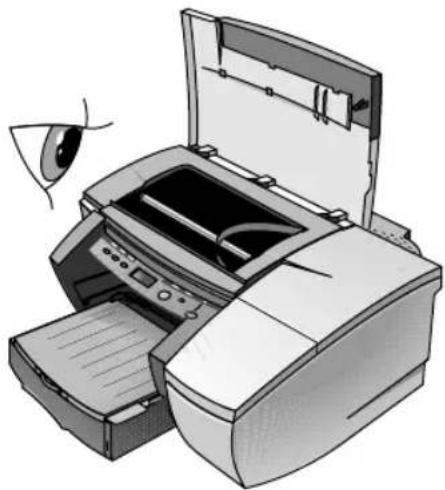
2 Open the Top Cover to locate the paper jam.
natural_image
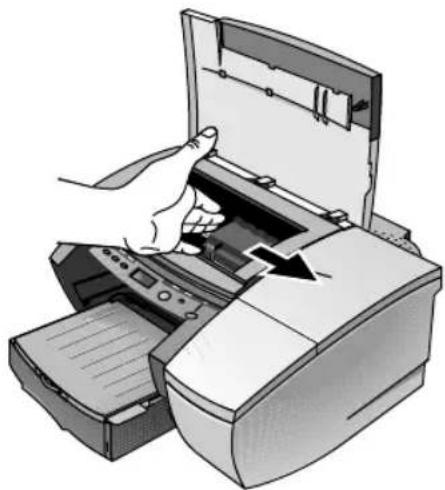
Illustration of a printer with an open lid and paper feed, showing internal components and a close-up of the eye (no text or symbols present)3 If the Printhead Cradle is blocking the paper path, gently push it to the side.
natural_image
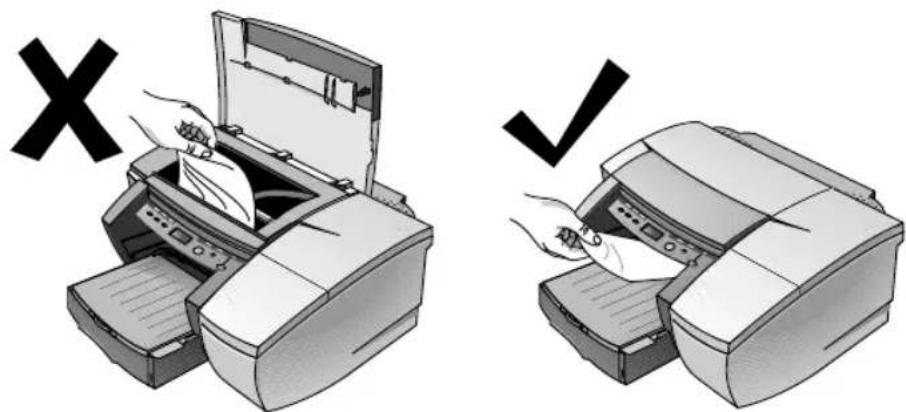
Illustration of a printer being inserted into a paper airplane (no text or symbols visible)4 Free any wrinkled paper and pull the sheet of paper towards you through the front of the printer.

Do not remove jammed paper through the Top Cover. If you cannot access the jammed paper, proceed to Step 6.
text_image
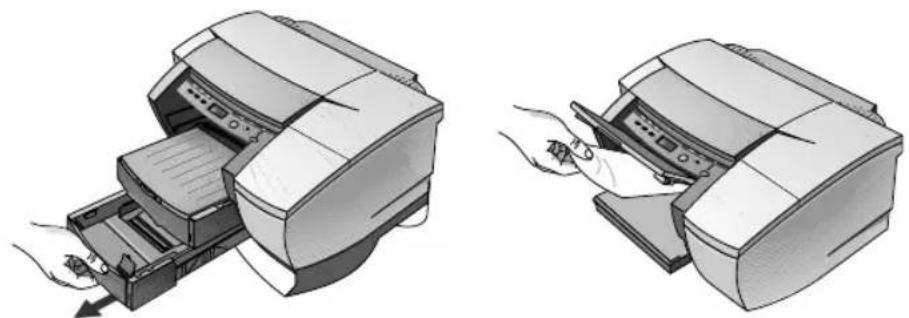
Illustration showing printer printing process with X and ✓ symbols indicating cancellation or rejection5 If the bulk of the paper is jammed in Tray 1 or Tray 2:
a Lift the Output Tray and check for the paper jam.
b If the paper is jammed in Tray 1, pull out Tray 1. If not, check Tray 2 for the paper jam.
c If the paper is jammed in Tray 2, pull out Tray 2. If not, proceed to Step 6.
d Pull the paper towards you as shown in the diagram.
natural_image
Illustration of two printer machines with hands operating the lid (no text or symbols present)e Close the Top Cover and press the R ESUME button on the printer to continue.
f Replace the tray. g If this does not work, turn off the printer and then turn it on again.
6 If you cannot locate the jammed paper in any of the trays:
a Turn off the printer and remove the power cord.
b Lift the printer off Tray 2.
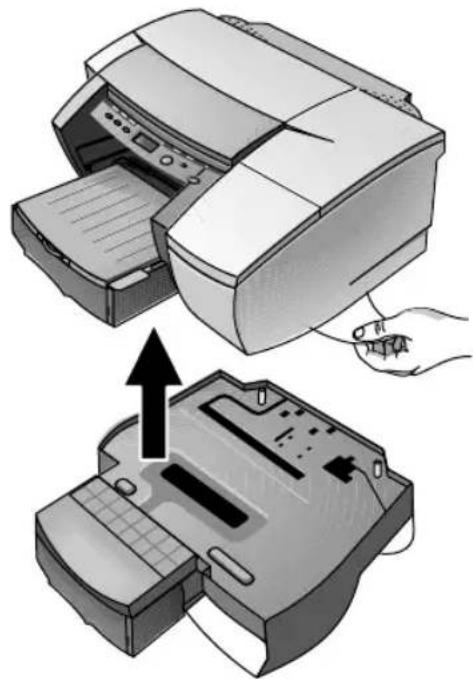
natural_image
Illustration of a printer being inserted into a paper airplane, showing the printer's internal structure and the paper airplane's open base (no text or symbols present)c Remove the jammed paper from the bottom of the printer or from Tray 2.
d Replace the printer on top of Tray 2.
Tips for Avoiding Paper Jams
- Make sure nothing is blocking the paper path.
- Do not overload the paper trays. Both paper trays hold up to 250 sheets of plain paper or other print material measuring 0.98 in (25 mm) in total paper stack height (whichever is less).
- Load paper properly.
- Do not use paper that is curled or crumpled.
●Always use paper that conforms with those listed in the Printer Specifications section.
●Always stack paper neatly when printing on both sides of the page (manual duplex).
Unexpected Printer Shutdown
- Check the power
Make sure the power cord is connected firmly to the printer and to a working outlet, and that the printer is turned on. The LED on the front panel of the printer should be green. Try turning the printer OFF, then ON again.
- Check the printer's vents
If the printer's vents are covered, and the printer overheats, it automatically turns off. Make sure the vents are not covered and the printer is in a cool, dry location.
Nothing is Printed
- Be patient
Complex documents containing many fonts, graphics, and/or color photos take longer to begin printing. The LED blinks green when the printer is processing information.
- Check the power
Make sure the power cord is connected firmly to the printer and to a working outlet, and that the printer is turned on. The LED on the front panel of the printer should be green. Try turning the printer OFF, then ON again.
- Check the paper
Make sure paper is loaded correctly in the tray and that the paper is not jammed in the printer.
- Check the ink cartridges and printheads
Make sure the ink cartridges and printheads are properly installed. Properly close the printhead cover and printhead access cover. Make sure the shipping tape has been removed from the printheads.
- Try printing a Sample page
1 Press the M ENU button until INFORMATION MENU appears.
2 Press the I TEM button repeatedly until PRINT DEMO appears.
3 Press the R ESUME button to print the demo page.
- Check the printer setup
Make sure your HP Business Inkjet printer is selected as the current or default printer and that Pause Printing is not checked.
- Check the network setup
Make sure that your printer is properly setup in the network environment.
A Blank Page is Printed
- Check the printheads for tape
Make sure you have removed the printhead shipping tape that covers the ink nozzles.
- Check the printer setup
Make sure your printer is selected as the current or default printer.
- Check the parallel port on your computer
Make sure your printer is connected directly to the parallel port. Do not share the port with other devices such as a Zip drive.
Placement of the Text or Graphics is Wrong
- The paper size or orientation settings may be incorrect
Make sure the paper size and page orientation selected in the software program match the settings in the HP print settings dialog box.
• The paper may not be loaded correctly
If everything on the page is slanted or skewed, make sure the paper width and length adjusters fit snugly against the left and bottom edges of the paper stack, and that there are no more than 250 sheets of paper or a stack of paper 0.98 in (25 mm) thick loaded in either of the paper trays.
• The margin settings may be wrong
If the text or graphics are cut off at the edges of the page, make sure the margin settings for the document do not exceed the printable area of your printer.
- Printable area is not set correctly for a LaserJet document
When printing documents formatted for a LaserJet, pages in your document may get cropped, truncated or the content of one page may overflow to the next. Set the Emulate LaserJet Margins option in the printer driver.
Something on the Page is Missing or Incorrect
• The margin settings may be wrong
Make sure the margin settings for the document do not exceed the printable area of your printer.
•Color print settings may be wrong
Grayscale may be selected in the HP print settings dialog box.
• The wrong printer may be selected
Make sure the correct printer is selected as the current or default printer.
- The Symmetrical Margins option makes the left and right margins equal and top and bottom margins equal. If the page appears incorrect, make sure this setting is not selected in the printer driver.
Printer Takes a Long Time to Print a Job
- Check your system configuration
The minimum system configuration for your printer is 486-66 MHz with 8 MB RAM. However, the printer performance is optimized for Pentium machines.
- There may be insufficient hard disk space in your system
If you are printing graphics-intensive files, make sure you have enough (more than 50 MB) hard disk space.
- The port setting configuration in your system is not set to ECP (Windows 95/98 only).
See the manual that comes with your computer for information on how to change your port setting or contact your computer manufacturer.
Printing Takes a Long Time Over the Network
- Set the print queue to accept only RAW data
In a Windows NT 4.0 client-server environment, the print server can be configured to accept only RAW data. In this configuration the client computer creates the RAW data instead of the print server. To enable this option:
1 Click Start and select Settings, followed by Printers.
2 Right-click the printer icon and select Properties.
3 Click the General tab.
4 Click Print Processor.
5 Check Always Spool RAW Datatype and click OK.
- Set the port monitor
Use the port software that comes with HP Web JetAdmin, instead of Microsoft LPR port software. Also, for optimal printing and spooling of 8.5 in x 14 in (216 x 356 mm) size jobs, the TCP/IP Idle time out value of the EIO card should be set to at least 360 seconds. To enable this option, access the printer's settings from the embedded Web server described in chapter 4, or use the CFG TCP/IP menu from the printer's Control Panel.
- Reduce the complexity of the file
Reduce the complexity of the file by reducing the number of colors used to create it.
- Print the file from a different application
Some applications handle complex print files more efficiently than others. Try printing your file from another application.
Printer Specifications
| Print Method | Plain paper drop on-demand thermal inkjet printing | |||
| Print Speed:(Letter/A4) | Fast Normal Best | |||
| Black text | 15 ppm | 11 ppm | 6.5 ppm | |
| Mixed text with color graphics | 14 ppm | 7.5 ppm | 1.5 ppm | |
| Full page color | 6.0 ppm | 2.5 ppm | 0.5 ppm | |
| Glossy color photo 4 in by 6 in (101 x 152 mm) | N/A | 1.0 | 0.5 ppm | |
| Approximate figures. Exact speed dependent on the system configuration, software program, and document complexity. Normal-Speed Optimized mode prints up to 50% faster than normal mode with comparable print quality. | ||||
| Black Resolution | Max. 1200 x 600 dpi | |||
| Color Resolution | HP's enhanced Color Layering Technology with PhotoREt III for photo quality. Max. 1200 x 600 dpi | |||
| Printer Languages | HP Business Inkjet 2230 family: PCL3 with HP High Performance ArchitectureTM (HPA)HP Business Inkjet 2280 family: PCL3 with HP HPA, PCL 5C, HP Postscript 3 emulation, Automatic language switching | |||
| Software Compatibility | Windows 95, Windows 98, Windows Me, Windows NT 4.0, Windows 2000, and Windows XPMac OS 8.6 and later (including Mac OS X)AutoCAD releases 13, 14, and AutoCAD 2000 | |||
| Fonts | 45 TrueType and 35 Postscript fonts built-in; all Postscript emulation and HP PCL 5C-accessible.Intellifont and TrueType rasterizer built into PCL 5C.Built-in support for Arabic, Cyrillic, Greek and Hebrew symbol sets. | |||
| Smart Software Features | Ink Gauge Indicator Auto Pen Alignment Transparency sensor Built-in printer driver features: Enhanced Windows Drivers with Configurable, Remote and Unattended setup options. HP ZoomSmart Scaling technology, Handout (N-up printing), Manual Duplex, Watermark, Concept Preview, Quick Sets, Emulate LaserJet Margins, Symmetrical Margins, Optimized for Fax, and Tiling. Note: Not all features available with each printer driver. | |||
| E-Services | Embedded Web Server hp instant support | |||
| Media Size/ Type | Paper U.S. Legal 8.5 in x 14 in (216 x 356 mm), U.S. Letter 8.5 in x 11 in (216 x 279 mm), U.S. Executive 7.25 in x 10.5 in (184 x 267 mm), A4 210 x 297 mm, B5 182 x 257 mm | |||
| Transparencies U.S. Letter 8.5 in x 11 in (216 x 279 mm), European A4 210 x 297 mm | ||||
| Envelopes (Tray 1 and Envelope Feed only) | U.S. No. 10 4.12 in x 9.5 in (105 x 241 mm), Monarch 3.87 in x 7.5 in (98 x 191 mm), European DL 200 x 110 mm, A2 Baronial 111.1 x 146 mm, C5 162 x 229 mm, C6 114 x 162 mm | |||
| Cards (Tray 1 and Envelope Feed only) | Index card 4 in x 6 in (102 x 152 mm), Index card 5 in x 8 in (127 x 203 mm), European A6 card 105 x 149 mm, A5 148 x 210 mm | |||
| Labels U.S. Legal 8.5 in x 11 in, European A4 210 x 297 mm | ||||
| Media Handling | Tray 1/ Tray 2 | Sheets: up to 250 or 0.98 in (25 mm) thick, Cards (Tray 1 only): up to 60 (or 15mm stacked), Envelopes (Tray 1 only): up to 15 (or 15 mm stacked) | ||
| Envelopes feed Single envelope or card feed only | ||||
| Output tray capacity | Sheets: up to 150 (text printing) | |||
| Recommended Media Weight | Tray 1/ Tray 2 | Paper: 60 to 105 g/m2(16 to 28 lb. Bond) Cards (Tray 1 only): 110 to 200 g/m2(110 lb. Index) | ||
| Media Supported (maximum number of pages supported) | Tray 1 Plain paper (250 sheets), HP Premium InkJet Paper (200 sheets), HP Premium InkJet Heavyweight Paper (100 sheets), HP Premium Transparency (50 sheets), HP Premium Plus Transparency (50 sheets), HP Premium Photo Paper (15 sheets), HP Photo Paper (20 sheets), HP Professional Brochure (Glossy and Matte) (100 sheets) |
Tray 2 Plain paper (250 sheets)
| I/O Interface | Centronics parallel, IEEE 1284 compliant |
| Printer Memory | HP Business Inkjet 2230 family: 16 MB of built-in RAMHP Business Inkjet 2280 family: 32 MB of built-in RAM, up to 176 MB with optional 64/128 MB (SDRAM,100MHz) DIMM |
| Control Panel | Intuitive operation and easy-to-understand messages. Messages can be displayed in 14 languages: English, French, Italian, German, Spanish, Portuguese, Dutch, Norwegian, Finnish, Swedish, Danish, Polish, Czech, and Russian. |
| Dimensions | 20.2 in (512 mm) W x 8.2 in (208 mm) H x 20.3 in (517 mm) D without Tray 2 installed. |
| Weight | 10 kilograms (22 lb.) without Tray 2, printheads, or ink cartridges |
| Duty Cycle | 10,000 pages/month |
| Power Supply | Built-in Universal Power Supply |
| Power Requirements | Input Voltage: 100 - 240 AC ( ± 10% ), 50/60 Hz ( ± 3 Hz) |
| Power Consumption | Less than 2 watts when off, 8 watts maximum non-printing, 68 watts maximum printing, 65 watts average printing |
| Operating Environment | Operating temperature: 41 to 104 degrees F(5 to 40 degrees C)Recommended operating conditions: 59 to 95 degrees F(15 to 35 degrees C)Storage temperature: -40 to 140 degrees F(-40 to 60 degrees C)Relative humidity: 20 to 80 percent RH non-condensingNoise levels:HP Business Inkjet 2230/2280:Sound Power: LWAm 59 dB(A) per ISO 9614-1Sound Pressure: LpAm 49 db(A)(by-stander position)HP Business Inkjet 2280TN:Sound Power: LWAm 61 dB(A) per ISO 9614-1Sound Pressure: LpAm 50 db(A)(by-stander position) |
| System Requirements | Minimum Windows 95 and Windows 98:486DX-100 Mhz, 16 MB RAM, 30 MB free hard-disk spaceWindows Me:Pentium® 166 Mhz, 32MB RAM, 30 MB free hard-disk spaceWindows XP:Pentium 233MHz, 64MB RAM, 30 MB free hard-disk spaceWindows NT 4.0:Pentium 100Mhz, 32MB RAM, 30 MB free hard-disk spaceWindows 2000:Pentium 166MHz, 64MB RAM, 30 MB free hard-disk spaceMac OS 8.6 or later:16MB RAM |
| Recommended Windows 95, Windows 98, and WindowsMe:Pentium 266Mhz, 32MB RAM, 40 MB free hard-disk spaceWindows XP:Pentium 300MHz, 128MB RAM, 40 MB free hard-disk spaceWindows NT 4.0:Pentium 266Mhz, 64MB RAM, 40 MB free hard-disk spaceWindows 2000:Pentium 266Mhz, 64MB RAM, 40 MB free hard-disk spaceMac OS 8.6 or later:32MB RAM | |
| Warranty 1 year limited warranty | |
| Product Certifications | Safety Certifications: CCIB (China), CSA (Canada),PSB (Singapore), UL (USA), NOM-1-NYCE (Mexico),TUV-GS (Germany), JUN (Korea)EMC/EMC Certifications: FCC Title 47 CFR Part 15 Class B computing device (USA) (Class A when connected to Local Area Network devices), CTICK (Australia and New Zealand),VCCI (Japan), CE (European Union), B mark (Poland),GOST (Russia), BCIQ (Taiwan), RRL (Korea)Pantones Calibrated |
9
Support
Contacting customer support
If your printer is not operating properly and the troubleshooting suggestions in this guide do not solve your problem, try using one of the following support services to obtain assistance.
Finding HP help on the Web

There are no user-serviceable parts inside the printer.
HP provides several resources on the Web to provide help with your printer whenever you want.
The embedded web server provides quick access to support information via hp instant support. To access the embedded web server, see chapter 4.
Visit http://www.hp.com/go/cposupport to find information for your printer model. Once you enter the section that covers your printer model, you will be able to choose information about setting up and using your printer, downloading printer drivers, solving a problem, ordering, and the warranty.
Telephone support
During the warranty period, you can obtain assistance from the HP Customer Care Center. This phone service is available at no charge during the printer warranty period.
Customer support representatives can answer your questions regarding the setup, configuration, installation, and operation of your printer. They can also help troubleshoot and diagnose printer problems and give instructions for service and repair.
By calling a telephone number listed here, you will be connected to a response team waiting to help you.

In most situations, you can receive support for a fee through the same telephone number if you require support after your warranty has expired. The fee is charged on a per-incident basis.
Before you call
Before calling, print a Configuration Page. This page includes information that the HP Customer Care Center representative will need to help diagnose and solve your problem.
Also, note the following information and provide this to the representative.
1 What is the brand and model of your computer?
2 What operating system is the computer running?
3 Which printer driver are you using (PCL 5C or Postscript)?
North America
| During warranty U.S.: | |
| (208) 323 2551Monday through Friday, 6 am to 6 pm (MST) | |
| Canada:(905) 206 4663Monday through Friday, 8 am to 8 pm (EST) | |
| After warranty U.S.: | |
| (208) 323 2551Monday through Friday, 6 am to 6 pm (MST) | |
| Canada:toll free (877) 621 4722 (Visa, MasterCard, or American Express)Monday through Friday, 8 am to 8 pm (EST) | |
Outside North America

In many European countries, HP provides toll-free telephone support during the warranty period. However, some of the phone numbers listed below might not be toll-free. Please refer to the Support Web Page (http://www.hp.com/cpso-support/guide/psd/cscemea.html) for any associated fees.
| Africa/Middle East 41 22 780 71 11 | ArgentinaBuenos Aires: 11 4778 8380Outside Buenos Aires: 0810 555 5520 |
| AustraliaDuring warranty: 3 8877 8000After warranty: If your product is not under warranty, you can call 613 8877 8000. A per-incident, out-of-warranty support fee of 27.50(inc GST) will be charged to your credit card. You can also call 1902 910 910 (27.50 charged to your phone account) from 9:00 am to 5:00 pm, Monday to Friday. (Charges and support hours are subject to change without notice.) | |
| Austria 0660 6386 Belgium | Dutch: 02 626 88 06French: 02 626 88 07 |
| BrazilSão Paulo: 11 3747 7799 or11 4197 4998Outside São Paulo: 0800 15 7751 or0800 13 0999 | Chile 800 36 0999 |
| China 010 6564 5959 or800 810 5959 | Colombia 9 800 91 9477 |
| Czech Republic 02 471 7327 | Denmark 39 29 4099 |
| Finland 0203 4 7 288 | France 01 43 62 34 34 |
| Germany 0180 52 58 143 | Greece 01 6189890 |
| Hong Kong 300 28555 | Hungary 36 1 252 4505 |
| India 9111 682 6035 | Indonesia 21 350 3408 |
| Ireland 01 662 5525 | Italy 02 264 10350 |
| Japan 0570-000510 Korea | Seoul: 02 3270 0700Outside Seoul: 080 999 0700 |
| Malaysia 03 295 2566 Mexico | Mexico City: 5258 9922Outside Mexico City: 01 800 472 6684 |
| New Zealand 09 356 6640 | Norway 22 11 6299 |
| Peru 0 800 10111 | Philippines 2 867 3551 |
| Poland 22 865 98 00 | Portugal 1 441 7 199 |
| Puerto Rico 1 877 232 0589 | Russia 095 923 50 01 |
| Singapore 272 5300 | Spain 902 321 123 |
| Sweden 8 619 2170 | Switzerland 0 848 80 11 11 |
| Taiwan 2 2717 0055 | Thailand 2 6614000 |
| The Netherlands 020 606 8751 | Turkey 1 216 579 71 71 |
| United Kingdom 0870 842 2339 | VenezuelaCaracas: 207 8488Outside Caracas: 800 10111 |
| Vietnam 8 823 4530 | |
Calling from elsewhere in the world
Contact your local dealer or nearest HP Sales and Support Office for technical assistance or hardware repair services.
10 Accessories
Ordering Information
You can order HP products from the HP World Wide Web site. Visit HPshopping.com (http://www.hpshopping.com) for more information.
| Number Description |
| C8119A HP Business Inkjet 2230 |
| C8120A HP Business Inkjet 2280 |
| C8121A HP Business Inkjet 2280TN |
HP Supplies and Accessories
Availability of product listed below depends on the country. Please visit your local HP web site for detailed information.
Ink Cartridges
HP No. 10 Black C4844A (69 ml)
HP No. 11 Cyan C4836A (28 ml)
HP No. 11 Magenta C4837A (28 ml)
HP No. 11 Yellow C4838A (28 ml)
HP No. 11 Printheads
Black C4810A
Cyan C4811A
Magenta C4812A
Yellow C4813A
HP Premium Transparency Film
US Letter, 50 sheets: 8.5 in x 11 in (216 x 279 mm) C3834A
US Letter, 20 sheets: 8.5 in x 11 in (216 x 279 mm) C3828A
A4, 50 sheets: 210 x 297 mm C3835A
A4, 20 sheets: 210 x 297 mm C3832A
HP Premium Plus Inkjet Transparency Film
US Letter, 50 sheets: 8.5 in x 11 in (216 x 279 mm) C7028A
US Letter, 20 sheets: 8.5 in x 11 in (216 x 279 mm) C7030A
A4, 50 sheets: 210 x 297 mm C7029A
A4, 20 sheets: 210 x 297 mm C7031A
HP Premium Inkjet Paper
US Letter, 200 sheets: 8.5 in x 11 in (216 x 279 mm) 51634Y
A4, 200 sheets: 210 x 297 mm Q1936A
A4 (Japan), 200 sheets: 210 x 297 mm Q1948A
HP Premium Inkjet Heavyweight Paper
US Letter, 100 sheets: 8.5 in x 11 in (216 x 279 mm) C1852A
A4, 100 sheets: 210 x 297 mm C1853A
A4 (Japan), 100 sheets: 210 x 297 mm Q1931A
HP Premium Photo Paper
US Letter, 50 sheets: 8.5 in x 11 in (216 x 279 mm) C6979A
US Letter, 15 sheets: 8.5 in x 11 in (216 x 279 mm) C6039A
A4(European), 50 sheets: 210 x 297 mm C7040A
A4 (European), 15 sheets: 210 x 297 mm C6040A
A4 (Asian), 15 sheets: 210 x 297 mm C6043A
HP Photo Paper
US Letter, 50 sheets: 8.5 in x 11 in (216 x 279 mm) C7896A
US Letter, 20 sheets: 8.5 in x 11 in (216 x 279 mm) C1846A
A4 (European), 50 sheets: 210 x 297 mm C7897A
A4 (European), 20 sheets: 210 x 297 mm C1847A
A4 (Japan), 20 sheets: 210 x 297 mm C7898A
Glossy A4 (Asian), 20 sheets: 210 x 297 mm C6765A
HP Professional Brochure and Flyer Paper
Tri-fold Brochure Glossy, US Letter, 100 sheets: 8.5 in x 11 in (216 x 279 mm) C7020A
Glossy, US Letter, 50 sheets: 8.5 in x 11 in (216 x 279 mm) C6817A
Glossy, A4, 50 sheets: 210 x 297 mm C6818A
Matte, US Letter, 50 sheets: 8.5 in x 11 in (216 x 279 mm) C6955A
Accessories
HP IEEE-1284 Compliant A-B Parallel Cable (2 m) C2950A
HP IEEE-1284 Compliant A-B Parallel Cable (3 m) C2951A
250 Sheet Input Tray (Tray 2) C8230A
HP 64 MB SDRAM PC-100 Module C2387A
HP 128 MB SDRAM PC-100 Module C2388A
HP PCL 5C/Postscript 3 emulation card C8229A, C8229C
Networking Accessories
HP Jetdirect 615N (EIO) Internal Print Servers
Fast Ethernet, RJ-45 (10/100Base-TX) J6057A
HP Jetdirect 610N (EIO) Internal Print Servers
Token Ring (RJ-45 & DB-9) J4167A
HP Jetdirect 600N (EIO) Internal Print Servers
Ethernet/802.3 RJ-45 (10Base-T) J3110A
Ethernet/802.3 BNC (10Base2), RJ-45 (10Base-T),
LocalTalk J3111A
HP Jetdirect 500X External Print Servers
Token Ring 802.5, DB9, RJ-45 J3264A
Fast Ethernet/802.3, BNC (10Base2), RJ-45 (10/100Base-TX) J3265A
HP Jetdirect 300X External Print Servers
Fast Ethernet/802.3 RJ-45 (10/100Base-TX) J3263A
Visit http://www.hp.com/net_printing for more information.
Supported Media
| HP Media Tray 1 Tray 2 | ||
| Plain Paper | √ | √ |
| HP Premium Inkjet Paper | √ | |
| HP Premium Inkjet Heavyweight Paper | √ | |
| HP Premium Transparency Film | √— | |
| HP Premium Plus Inkjet Transparency Film | √ | |
| HP Premium Photo Paper | √ | |
| HP Photo Paper | √ | |
| HP Professional Brochure | √ | |
| Paper Size Tray 1 Tray 2 Envelope | ||
| Feed | ||
| U.S. Letter 8.5 in x 11 in (216 x 279 mm) | ✓ | ✓ |
| U.S. Legal 8.5 in x 14 in (216 x 356 mm) | ✓ | ✓ |
| U.S. Executive 7.25 in x 10.5 in (184 x 266 mm) | ✓ | ✓ |
| A4 210 x 297 mm | ✓ | ✓ |
| A5 148 x 210 mm | ✓ | ✓ |
| B5 182 x 257 mm | ✓ | ✓ |
| Envelope no. 10 4.12 in x 9.5 in (105 x 241 mm) | ✓ | ✓ |
| Envelope DL 200 x 110 mm | ✓ | ✓ |
| Envelope C5 162 x 229 mm | ✓ | ✓ |
| Envelope C6 114 x 162 mm | ✓ | ✓ |
| Paper Size Tray 1 Tray 2 Envelope | Feed | |
| Envelope Monarch 3.87 in x 7.5 in (98 x 191 mm) | √ | √ |
| Envelope A2 111.1 x 146 mm | √ | √ |
| Index card 4 in x 6 in (102 x 152 mm) | √ | √ |
| Index card 5 in x 8 in (127 x 203 mm) | √ | √ |
| A6 card 105 x 149 mm | √ | √ |
| Custom Size: 3.875 in x 5.75 in (98 x 146 mm) | √ | √ |
Minimum Printing Margins
The following are the minimum printer margins based on portrait orientation.
| Paper Size Left and Right Top Bottom | |
| Letter, Legal, Executive, Custom Size Paper | 0.25 in (6.35 mm) 0.04 in (1 mm) 0.46 in (11.77 mm) |
| A4, Cards, Envelopes, Other Paper Sizes | 0.133 in (3.38 mm) 0.04 in (1 mm) 0.46 in (11.77 mm) |
B
Installing Memory
Installing Additional Memory
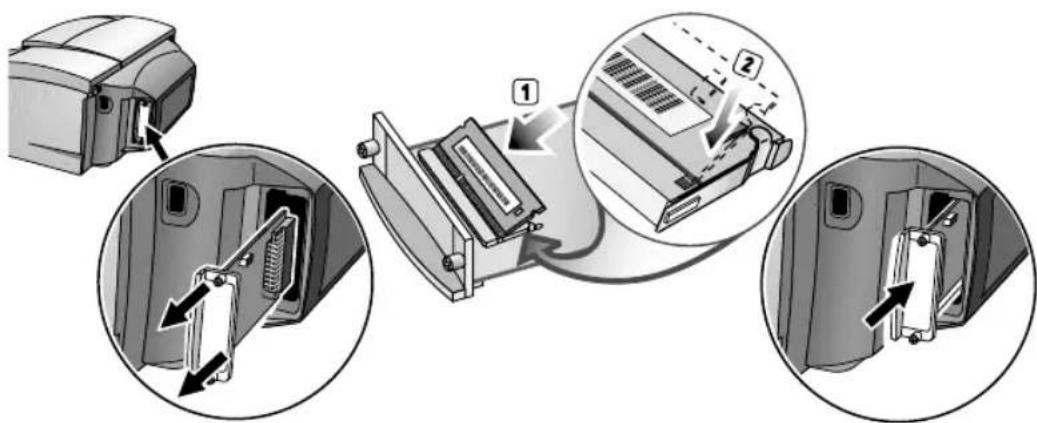
text_image
Diagram illustrating the process of inserting a device into a folder, with numbered steps and directional arrows indicating movement.If your printer has the HP PCL 5C/Postscript 3 emulation card installed, you may install up to 128 MB of additional memory which is available for purchase as an accessory (part number C2388A).

The HP PCL 5C/Postscript 3 emulation card comes with the HP Business Inkjet 2280 printer. It can also be purchased as an accessory (part number C8229A, C8229C). The card can be installed in the EIO slot on either side of the printer.
1 Put on an anti-static wrist strap and clip the other end to a grounded metal piece.
2 Switch OFF your printer and remove all cables from the printer.
3 Loosen the two screws on the HP PCL 5C/Postscript 3 emulation card and remove it from the EIO slot (the card may be installed in either side of the printer).
4 Insert the SIMM into the memory module slot on the card.
5 Replace the HP PCL 5C/Postscript 3 emulation card into the EIO slot and fasten the screws.
6 Reconnect all cables to the printer and turn ON the printer.
Postscript Printing
Operating System Version Number
Windows 9x, Windows Me Microsoft PScript Driver Version 4.00 and HP Business Inkjet 2280 PPD
Windows NT 4.0 Microsoft PScript Driver Version 4.01 and HP Business Inkjet 2280 PPD
Windows 2000, Windows XP HP Business Inkjet 2280 PPD
Installation Notes
When you are operating in a Windows environment, the setup software will detect the version of the operating system that you are running. The software will be installed in the language that you have selected in your Windows Control Panel. This means that you can be running an English version of Windows and have the language preference set to Spanish, and the installation utility will install the Spanish version of the printing software.
Upgrading from an older version of Windows
After completing the upgrade to a new version of Windows, you must reinstall the printer driver. For Example, if you upgrade from Windows NT 4.0 to Windows 2000 or Windows XP, you must reinstall the printer driver.
Identifying different printer drivers in Windows NT 4.0
If you have already installed a printer driver that was supplied with your Windows operating system for the printer, and you have also installed the printing software supplied with the printer, multiple printer drivers might exist on your computer system. Use these steps to find out which drivers are installed.
1 From the Start menu, click Settings and then click Printers.
2 Right-click on the printer name and then click Properties.
3 At the Properties window, click the General tab and then click the Print Test Page button.
If you are using the printer driver that is provided for the printer, the Printer Test Page will include the following information (shown with sample data).
Printer Name:
Printer Model: HP Business Inkjet 2230/2280
Driver Name: PSCRIPT4.DLL
Driver Version: 4.00
Installing the Printer Driver Only
If you obtained only a printer driver and its associated files (for example, through HP's web page), install them using the following steps.
1 Close all applications, terminate-and-stay-resident (TSR) programs, and virus checkers.
2 From the Start menu, click Settings, then Printers, and then double-click Add Printer.
3 When prompted to select a printer, click Have Disk. Use Browse to enter the appropriate path to where the driver files are located.
4 Follow the instructions on your screen to complete the installation.
Current HP Business Inkjet users
If you currently have an HP Business Inkjet printer driver installed on your computer system, this printing software can be safely installed. It can coexist with drivers for different printers. It will replace and update only previous versions of the printing software for this printer. The new printer driver will have property pages similar to your older printer driver, but it will reflect the features and capabilities of the current driver.
Specific Printer Features/Issues
The printer driver provides default properties for most applications. You need to change these properties only if you are installing a new printer option, such as the optional Tray 2, or more memory; or if you are changing a specific feature.
To complete the request for property changes, use either the Apply button or the OK button. The Apply button activates the changes without closing the Properties dialog box. The OK button activates the changes and closes the Properties dialog box.
The following table shows which features are available for each Windows OS.
| Windows 9x Windows Me | Windows NT 4.0 | Windows 2000 Windows XP | |
| Paper Type | √ | √ | √ |
| Print Quality | √ | √ | √ |
| Print in Grayscale | √ | √ | √ |
| ColorSmart | √ | √ | √ |
| CMYK Inks | √ | √ | √ |
| Manual Color Options | √ | √ | √ |
| Handout (N-up printing) | √ | √ | √ |
| Watermark | √ | √ | √ |
Paper Type (Windows 9x) or Media Type (Windows NT 4.0)
| Operating System Location in Printer Driver |
| Windows 9x, Windows Me Paper tab, More Options... |
| Windows NT 4.0 Advanced tab, Printer Features |
| Windows 2000, Windows XP Advanced tab, Printing Defaults, Paper/Quality tab |
Options: HP Plain Paper, HP Premium Inkjet Paper, HP Premium Inkjet Heavyweight Paper, HP Photo Paper, HP Premium Photo Paper, HP Premium Transparency, HP Premium Plus Transparency, HP Professional Brochure, Glossy, HP Professional Brochure, Matte
The Paper Type feature allows you to specify the type of paper on which you will be printing, such as plain paper or transparencies. Do not click HP Premium Transparencies when printing on regular paper.
HP does not recommend using stiff media, such as card stock.

Print Quality
| Operating System Location in Printer Driver |
| Windows 9x, Windows Me Paper tab, More Options... |
| Windows NT 4.0 Advanced tab, Printer Features |
| Windows 2000, Windows XP Advanced tab, Printing Defaults, Advanced, Printer Features |
Options: Best, Normal-Speed Optimized, Normal, Fast
Best prints the best quality possible. Normal-Speed Optimized prints letter-quality up to 50% faster than Normal mode for color documents. Uses less ink and delivers comparable output to Normal mode. Only available for printing on plain paper. Normal is the recommended mode for everyday printing. Fast uses less ink, but the quality is not as high as normal.
Print Color as Gray
| Operating System Location in Printer Driver |
| Windows 9x, Windows Me Device Options tab, Printer Features |
| Windows NT 4.0 Advanced tab, Printer Features |
| Windows 2000, Windows XP Advanced tab, Printing Defaults, Advanced, Printer Features |
Options: On and Off
To activate grayscale printing, change the Print Color as Gray setting to on. This overrides your color settings and prints your documents in black and white (monochrome, grayscale). Grayscale means shades of gray, starting with white and ending with black. When a color document is printed in grayscale, colors are converted to their grayscale equivalents, which means that different colors are represented as different shades of gray. This printer can produce up to 256 shades of gray. Color images that are printed as monochrome print faster and are easier to reproduce on monochrome devices such as copiers and fax machines. When Print Color as Gray is on, ALL of your documents will print as grayscale until the setting is changed to off.
HP ColorSmart
| Operating System Location in Printer Driver |
| Windows 9x, Windows Me Device Options tab, Printer Features |
| Windows NT 4.0 Advanced tab, Printer Features |
| Windows 2000, Windows XP Advanced tab, Printing Defaults, Advanced, Printer Features |
Options: Automatic and Manual
HP ColorSmart technology is a set of defaults that automatically tune your color printer output. The HP ColorSmart defaults provide high-quality output when colored objects (text, graphics, or images) are printed.
Choose from the following HP ColorSmart options:
Automatic lets the printer driver optimize the color settings for text, graphics, and images (photos). Color is optimized based on the type of data being sent to the printer. This option automatically selects the appropriate color settings for the document you are printing. This provides you with screen-matched or WYSIWYG color output without any changes to the printer driver. The automatic setting is best for most applications.
Manual lets you adjust the color control independently for printed text, graphics, and images. The color options are vivid or screen match.
Click the Restore Defaults button at any time to return HP ColorSmart to its default setting of Automatic color selection.
CMYK Inks
| Operating System Location in Printer Driver |
| Windows 9x, Windows Me Device Options tab, Printer Features |
| Windows NT 4.0 Advanced tab, Printer Features |
| Windows 2000, Windows XP Advanced tab, Printing Defaults, Advanced, Printer Features |
Options: FAST, EURO, SWOP, TOYO
CMYK Inks is the type of color treatment used during printing.
FAST uses sRGB. There is no special color treatment. This is the fastest way to send data.
EURO (Eurostandard) is a color treatment used to match the equivalent 3M matchprint.
SWOP color treatment is used primarily for Web offset publications.
TOYO is a color ink standard used in Japan.
Manual Color Options for Text, Graphics, and Image
| Operating System Location in Printer Driver |
| Windows 9x, Windows Me Device Options tab |
| Windows NT 4.0 Advanced tab, Printer Features |
| Windows 2000, Windows XP Advanced tab, Printing Defaults, Advanced, Printer Features |
Options: Screen Match (sRGB), Vivid
The Text, Graphics, and Images options allow you to specify settings for the type of job you are printing. The color control setting is vivid and screen match.
Color Control (Vivid and Screen Match)
Color control is a Manual Color Option that controls the type of color produced by the printer.
The Vivid color option produces colors that are very bright and vivid. When you use Vivid color, your color output is brighter than the colors that appear on your screen.
The Screen Match color option provides the best match between screen and printer. It produces colors that are close to the colors you see on your screen. Screen Match can be useful when you are retouching photographs or when you have created colors that you wish to reproduce in your printed output. Note that factors such as the type of monitor you use and the room's lighting can affect the appearance of colors on your screen.
Text
In some applications, colored, filled, or rotated text is treated as a graphic or as a photo.
Graphics
Graphics include items such as bar graphs, pie charts, or tables.
Image
Images (photos) can be in the form of raster images, bitmaps, and device-independent bitmaps (DIBs). Some examples of photos are pictures from a CD-ROM, pictures taken by a digital camera, and images that were scanned by a desktop scanner.
Pages per Sheet
| Operating System Location in Printer Driver |
| Windows 9x, Windows Me Paper tab, Layout |
| Windows NT 4.0 Advanced tab, Printer Features |
| Windows 2000, Windows XP Advanced tab, Printing Defaults, Layout tab |
Options: 1, 2, and 4 pages per sheet; Windows NT 4.0/2000 also offers 6, 9, and 16 pages per sheet, with all NT 4.0/2000 settings in both portrait and landscape and rotated landscape orientation.
The Pages per Sheet option, sometimes called layout or n-up, specifies the number of pages to print on a single sheet of paper. The multiple pages appear decreased in size and arranged based on the number of pages printed on the sheet. The Pages per Sheet option does not work effectively with all page setup options. Some applications request a different resolution, page size, or paper source, or orientations for different pages of a document. Combining page setup options while using the Pages per Sheet option might produce unexpected print results.
Watermark Printing
| Operating System Location in Printer Driver |
| Windows 9x, Windows Me Device Options tab |
| Windows NT 4.0 Advanced tab, Printer Features |
| Windows 2000, Windows XP Advanced tab, Printing Defaults, Advanced, Printer Features |
The Watermark options allow you to specify that text be placed underneath (in the background) of an existing document or on top (in the foreground). For example, you may want to have large gray letters reading Draft or Confidential placed diagonally across the first page or all pages of a document. You can also specify the following options for the watermark.
Watermark/Overlay
Options: None, Watermark, Overlay
Specifies whether or not a watermark is printed. Overlay prints the watermark on top of any text or graphics, so that what appears beneath is not visible.
Watermark Page
Options: All Pages, First Page Only
The First Page Only option prints only on the first page of the current document.
Watermark
Options: Draft, Company Confidential, Company Proprietary, Company Private, Confidential, Copy, Copyright, File Copy, Final, For Internal Use Only, Preliminary, Proof, Review Copy, Sample, Top Secret, Urgent, Custom.
The options listed are the available words that can be printed as a watermark. To turn watermark printing off, click None. If watermark printing is turned off, then the following watermark features are ignored.
Watermark Font
Options: Courier Bold, Helvetica Bold, Times Bold
If you are printing a watermark, click on one of the three font types.
Watermark Size
Options: 24, 30, 36, 42, 48, 54, 60, 66, 72, 78, 84, 90
All option values are in points. The watermark size represents the point size of the watermark word printed.
Watermark Angle
Options: 90, 75, 60, 45, 30, 15, 0, -15, -30, -45, -60, -75, -90
All option values are in degrees. The watermark can be positioned on the page at an angle in 15-degree increments. With zero (0) as normal readable text, the positive angles will rotate the text counter clockwise up to 90 degrees (vertical). The negative angles will rotate the text clockwise up to 90 degrees (vertical).
Watermark Style
Options: Narrow Outline, Medium Outline, Wide Outline, Wide Halo Outline
The style of the watermark defines the line thickness of the watermark word.
Watermark Color
Options: Gray, Red, Orange, Yellow, Green, Blue, Violet
Sets the color of the watermark.
Watermark Intensity
Options: Darkest, Darker, Dark, Medium Dark, Medium, Medium Light, Light, Lighter, Lightest.
Sets the intensity of the watermark.
Hewlett-Packard Limited Warranty Statement
| HP product Duration of Limited Warranty |
| Software 90 days |
| Accessories 1 year |
| Ink cartridges 90 days |
| Printer peripheral hardware (see below for details) 1 year |
Extent of Limited Warranty
1 Hewlett-Packard warrants to the end-user customer that the HP products specified above will be free from defects in materials and workmanship for the duration specified above, which duration begins on the date of purchase by the customer.
2 For software products, HP's limited warranty applies only to a failure to execute programming instructions. HP does not warrant that the operation of any product will be uninterrupted or error free.
3 HP's limited warranty covers only those defects that arise as a result of normal use of the product, and does not cover any other problems, including those that arise as a result of:
f Improper maintenance or modification;
g Software, media, parts, or supplies not provided or supported by HP;
h Operation outside the product's specifications.
4 For HP printer products, the use of a non-HP ink cartridge or a refilled ink cartridge does not affect either the warranty to the customer or any HP support contract with the customer. However, if printer failure or damage is attributable to the use of a non-HP or refilled ink cartridge, HP will charge its standard time and materials charges to service the printer for the particular failure or damage.
5 If HP receives, during the applicable warranty period, notice of a defect in any product which is covered by HP's warranty, HP shall either repair or replace the product, at HP's option.
6 If HP is unable to repair or replace, as applicable, a defective product which is covered by HP's warranty, HP shall, within a reasonable time after being notified of the defect, refund the purchase price for the product.
7 HP shall have no obligation to repair, replace, or refund until the customer returns the defective product to HP.
8 Any replacement product may be either new or like new, provided that it has functionality at least equal to that of the product being replaced.
9 HP products may contain remanufactured parts, components, or materials equivalent to new in performance.
10 HP's Limited Warranty Statement is valid in any country where the covered HP product is distributed by HP. Contracts for additional warranty services, such as on-site service, are available from any authorized HP service facility in countries where the product is distributed by HP or by an authorized importer.
Limitations of Warranty
TO THE EXTENT ALLOWED BY LOCAL LAW, NEITHER HP NOR ITS THIRD PARTY SUPPLIERS MAKES ANY OTHER WARRANTY OR CONDITION OF ANY KIND, WHETHER EXPRESS OR IMPLIED WARRANTIES OR CONDITIONS OF MERCHANTABILITY, SATISFACTORY QUALITY, AND FITNESS FOR A PARTICULAR PURPOSE.
Limitations of Liability
1 To the extent allowed by local law, the remedies provided in this Warranty Statement are the customer's sole and exclusive remedies.
2 TO THE EXTENT ALLOWED BY LOCAL LAW, EXCEPT FOR THE OBLIGATIONS SPECIFICALLY SET FORTH IN THIS WARRANTY STATEMENT, IN NO EVENT SHALL HP OR ITS THIRD PARTY SUPPLIERS BE LIABLE FOR DIRECT, INDIRECT, SPECIAL, INCIDENTAL, OR CONSEQUENTIAL DAMAGES, WHETHER BASED ON CONTRACT, TORT, OR ANY
OTHER LEGAL THEORY AND WHETHER ADVISED OF THE POSSIBILITY OF SUCH DAMAGES.
Local Law
1 This Warranty Statement gives the customer specific legal rights. The customer may also have other rights which vary from state to state in the United States, from province to province in Canada, and from country to country elsewhere in the world.
2 To the extent that this Warranty Statement is inconsistent with local law, this Warranty Statement shall be deemed modified to be consistent with such local law. Under such local law, certain disclaimers and limitations of this Warranty Statement may not apply to the customer. For example, some states in the United States, as well as some governments outside the United States (including provinces in Canada), may:
a Preclude the disclaimers and limitations in this Warranty Statement from limiting the statutory rights of a customer (e.g. the United Kingdom);
b Otherwise restrict the ability of a manufacturer to enforce such disclaimers or limitations; or
c Grant the customer additional warranty rights, specify the duration of implied warranties which the manufacturer cannot disclaim, or allow limitations on the duration of implied warranties.
3 FOR CONSUMER TRANSACTIONS IN AUSTRALIA AND NEW ZEALAND, THE TERMS IN THIS WARRANTY STATEMENT, EXCEPT TO THE EXTENT LAWFULLY PERMITTED, DO NOT EXCLUDE, RESTRICT, OR MODIFY, AND ARE IN ADDITION TO, THE MANDATORY STATUTORY RIGHTS APPLICABLE TO THE SALE OF THE HP PRODUCTS TO SUCH CUSTOMERS.
Index
A
alerts, settings 4-6
aligning printheads 7-4
Asset Tracking 4-7
auto-duplex unit
weight specifications 8-3
AutoSend 4-7
avoiding paper jams 7-7
B
blank page prints 7-9
browsers, embedded Web server 4-5
C
cancel button 2-3
carriage lock 2-1
cartridges
status information 4-6
warranty
changing printer settings 6-1
cleaning printheads 7-3
configuration page 7-1
control panel menus 6-1
Customer Care, HP 9-1
customer support 7-11
hp instant support 4-8
telephone 9-1
websites 9-1
D
declaration of conformity
diagnostic page 7-2
embedded Web server 4-7
dimensions, printer 8-3
documentation 1-1
dots per inch (dpi) 8-1
dpi (dots per inch) 8-1
drivers
system requirements 8-4
warranty
duty cycle 8-3
E
EIO slot 2-2
e-mail alerts 4-6
embedded Web server
accessing 4-5
e-services 4-8
Information pages 4-6
Network pages 4-8
Settings pages 4-6
energy consumption 8-3
envelope feed 2-1
envelope guide 2-1
environmental specifications 8-3
error messages
e-mail alerts 4-6
log 4-6
e-services 4-8
event log
viewing with embedded Web server 4-6
F
fonts, included 8-1
G
graphics are wrong 7-9
guides, reference 1-1
H
help, online
customer support 9-1
HP Instant Support 4-8
HP Customer Care 9-1
hp instant support 4-8
HP JetAdmin 7-11
HP Jetdirect print server card 4-2
HP PCL 3 8-1
HP supplies 10-1
humidity specifications 8-3
|
I/O interfaces 8-3
Information pages, embedded Web server 4-6
ink cartridge cover 2-1
ink cartridges
status information 4-6
warranty
instant support 4-8
interfaces, I/O 8-3
IP address 4-5
item button 2-2
L
languages, printer 8-1
LCD messages 6-1
LED 2-3
limited warranty
M
Macintosh
system requirements 8-4
Macintosh information 3-4
manual duplexing 5-6
manuals 1-1
media
usage information 4-6
weight specifications 8-2
media size 8-2
media supported A-1
memory type 10-3
memory, adding B-1
memory, included 8-3
menu button 2-2
messages
e-mail alerts 4-6
log 4-6
missing images 7-10
monthly duty cycle 8-3
N
network basics 4-1
network printing 4-1
network support materials 4-9
networks
configuring 4-8
embedded Web server 4-5
noise specifications 8-3
nothing prints 7-8
O
online help
customer support 9-1
HP Instant Support 4-8
operating environment specifications 8-3
operating systems
system requirements 8-4
ordering information 10-1
ordering supplies 4-8
output tray 2-1
P
pages per month 8-3
paper 5-1, 10-2
usage information 4-6
weight specifications 8-2
paper guides 2-1
paper loading 2-9
parallel port 2-2
parts 2-1
passwords, embedded Web server 4-7
PCL languages, included 8-1
phone numbers, support 9-1
power
specifications 8-3
power button 2-3
print server 4-1
print server card 4-2
printer 8-1
printer drivers
system requirements 8-4
warranty
printer languages 8-1
printer shutdown unexpected 7-8
printer software 3-3
printer specifications 8-1
printhead access latch 2-1
printhead cover 2-1
printheads
status information 4-6
printing a configuration page 7-1
printing a diagnostic page 7-2
printing a sample page 7-4
R
Reference Guide 1-1
relative humidity specifications 8-3
resolution 8-1
resume button 2-3
S
safety specifications 8-4
sample page 7-4
Security page, embedded Web server 4-7
selecting paper 5-1
settings
embedded Web server, configuring with 4-6
size specifications
printer 8-3
slow network printing 7-11
slow printing 7-10
software
system requirements 8-4
warranty
specifications 8-1, 10-1
printer 8-1
status information
embedded Web server 4-6
storing printer 8-3
supplies 10-3
ordering 4-8
status information 4-6
support, customer
hp instant support 4-8
telephone 9-1
websites 9-1
system requirements 1-1, 8-4
T
telephone numbers, support 9-1
temperature specifications 8-3
text wrong 7-9
top cover 2-1
transparencies 10-2
Tray 1 2-1
Tray 2 2-1, 2-4
weight specifications 8-3
tray lock 5-4
troubleshooting 7-1
customer support 9-1
typefaces, included 8-1
U
Unix information 3-6
usage information 4-6, 4-7
using the tray lock 5-4
V
value button 2-2, 2-3
voltage requirements 8-3
W
warranty
Web server, embedded
accessing 4-5
e-services 4-8
Information pages 4-6
Network pages 4-8
Settings pages 4-6
websites
customer support 9-1
weight specifications
media 8-2
printer 8-3
Windows
system requirements 8-4
Regulatory Notices
Japan
Refer to the Regulatory Booklet for additional regulatory information.
DECLARATION OF CONFORMITY
according to ISO/IEC Guide 22 and EN 45014
Manufacturer's Name: Hewlett-Packard Singapore (Pte) Ltd
Manufacturer's Address: Inkjet and Imaging Solutions, Asia Operations
Consumer Business, Asia Operations
20 Gul Way, Singapore 629196
declares, that the product
Product Name: HP Business Inkjet 2230, HP Business Inkjet 2280,
HP Business Inkjet 2280TN*, Accessory Paper Tray.
Model Number: C8119A, C8120A,
C8121A*, C8230A
Product Options: All
conforms to the following Product Specifications:
Safety: IEC 60950: 1991+A1+A2+A3+A4/
EN 60950: 1992+A1+A2+A3+A4+A11
IEC 60825-1: 1993 / EN 60825-1:1994 Class I for LEDs
EMC: CISPR 22: 1997 Class B / EN 55022: 1998 Class B
CISPR 22: 1997 Class A / EN 55022: 1998 Class A*
CISPR 24: 1997 / EN 55022: 1998
FCC Title 47 CFR, Part 15 Class B / VCCI-2
FCC Title 47 CFR, Part 15 Class A / VCCI-1*
AS / NZS 3548: 1995 / ICES-003, Issue 2
IEC 61000-3-2:1995 / EN 61000-3-2: 1995
IEC 61000-3-3:1994 / EN 61000-3-3: 1995
Supplementary Information:
(1) The product herewith complies with the requirements of the Low Voltage Directive 73/23/EEC and the EMC Directive 89/336/EEC, and carries the CE marking accordingly.
(2) The product was tested in a typical configuration with Hewlett-Packard personal computer systems.
(3) This Device complies with Part 15 of the FCC Rules. Operation is subject to the following two conditions: (1) this device may not cause harmful interference, and (2) this device must accept any interference received, including interference that may cause undesired operation.
* This printer series contains Local Area Network (LAN) options. When the interface cable is attached to the printer's LAN connector, the printer meets the requirements of CISPR 22: 1997 Class A / EN 55022: 1998 Class A and FCC Title 47 CFR, Part 15 Class A.
Singapore, March 2002 Chan Kum Yew, Quality Manager
Australia Contact: Product Regulations Manager, Hewlett-Packard Australia Ltd, 31-41 Joseph Street, Blackburn, Victoria 3130, Australia.
European Contact: Your Local Hewlett-Packard Sales and Service Office or Hewlett-Packard GmbH, Department, HQ-TRE / Standards Europe, Herrenberger Strasse 130, D-71034 Boblingen (FAX: +49-7031-14-3143).
USA Contact: Corporate Product Regulations Manager, Hewlett-Packard Company, 3000 Hanover Street, Palo Alto, CA 94304 (Phone: 415-857-1501).