
LHB335 - Home Theater LG - Free user manual and instructions
Find the device manual for free LHB335 LG in PDF.


User questions about LHB335 LG
0 question about this device. Answer the ones you know or ask your own.
Ask a new question about this device
Download the instructions for your Home Theater in PDF format for free! Find your manual LHB335 - LG and take your electronic device back in hand. On this page are published all the documents necessary for the use of your device. LHB335 by LG.
USER MANUAL LHB335 LG
Please read this manual carefully before operating your set and retain it for future reference.
MODEL
LHB335
P/NO : MFL65220898
www.lgusa.com
1 Safety Information

CAUTION
RISK OF ELECTRIC SHOCK DO NOT OPEN

CAUTION: TO REDUCE THE RISK OF ELECTRIC SHOCK DO NOT REMOVE COVER (OR BACK) NO USER-SERVICEABLE PARTS INSIDE REFER SERVICING TO QUALIFIED SERVICE PERSONNEL.

This lightning flash with arrowhead symbol within an equilateral triangle is intended to alert the user to the presence of uninsulated dangerous voltage within the product's enclosure that may be of sufficient magnitude to constitute a risk of electric shock to persons.

The exclamation point within an equilateral triangle is intended to alert the user to the presence of important operating and maintenance (servicing) instructions in the literature accompanying the product.
Cautions and Warnings
WARNING: TO PREVENT FIRE OR ELECTRIC SHOCK HAZARD, DO NOT EXPOSE THIS PRODUCT TO RAIN OR MOISTURE.
WARNING: Do not install this equipment in a confined space such as a book case or similar unit.
CAUTION: Do not block any ventilation openings. Install in accordance with the manufacturer's instructions.
Slots and openings in the cabinet are provided for ventilation and to ensure reliable operation of the product and to protect it from over heating. The openings shall be never be blocked by placing the product on a bed, sofa, rug or other similar surface. This product shall not be placed in a built-in installation such as a bookcase or rack unless proper ventilation is provided or the manufacturer's instruction has been adhered to.
CAUTION: This product employs a Laser System. To ensure proper use of this product, please read this owner's manual carefully and retain it for future reference. Shall the unit require maintenance, contact an authorized service center.
Use of controls, adjustments or the performance of procedures other than those specified herein may result in hazardous radiation exposure.
To prevent direct exposure to laser beam, do not try to open the enclosure. Visible laser radiation when open. DO NOT STARE INTO BEAM.
CAUTION concerning the Power Cord
Most appliances recommend they be placed upon a dedicated circuit;
That is, a single outlet circuit which powers only that appliance and has no additional outlets or branch circuits. Check the specification page of this owner's manual to be certain. Do not overload wall outlets. Overloaded wall outlets, loose or damaged wall outlets, extension cords, frayed power cords, or damaged or cracked wire insulation are dangerous. Any of these conditions could result in electric shock or fire. Periodically examine the cord of your appliance, and if its appearance indicates damage or deterioration, unplug it, discontinue use of the appliance, and have the cord replaced with an exact replacement part by an authorized service center. Protect the power cord from physical or mechanical abuse, such as being twisted, kinked, pinched, closed in a door, or walked upon. Pay particular attention to plugs, wall outlets, and the point where the cord exits the appliance. To disconnect power from the mains, pull out the mains cord plug. When installing the product, ensure that the plug is easily accessible.
CAUTION: The apparatus shall not be exposed to water (dripping or splashing) and no objects filled with liquids, such as vases, shall be placed on the apparatus.
This device is equipped with a portable battery or accumulator.
Safety way to remove the battery or the battery
from the equipment: Remove the old battery or battery pack, follow the steps in reverse order than the assembly. To prevent contamination of the environment and bring on possible threat to human and animal health, the old battery or the battery put it in the appropriate container at designated collection points. Do not dispose of batteries or battery together with other waste. It is recommended that you use local, free reimbursement systems batteries and accumulators. The battery shall not be exposed to excessive heat such as sunshine, fire or the lile.
FCC Compliance Statement
This device complies with part 15 of the FCC rules. Operation is subject to the following two conditions:
(1) This device may not cause harmful interference, and
(2) This device must accept any interference received, including interference that may cause undesired operation.
NOTE: This equipment has been tested and found to comply with the limits for a Class B digital device, pursuant to Part 15 of the FCC Rules. These limits are designed to provide reasonable protection against harmful interference in a residential installation. This equipment generates, uses, and can radiate radio frequency energy and, if not installed and used in accordance with the instructions, may cause harmful interference to radio communications. However, there is no guarantee that interference will not occur in a particular installation.
If this equipment does cause harmful interference to radio or television reception, which can be determined by turning the equipment off and on, the user is encouraged to try to correct the interference by one or more of the following measures:
• Reorient or relocate the receiving antenna.
- Increase the separation between the equipment and receiver.
- Connect the equipment into an outlet on a circuit different from that to which the receiver is connected.
- Consult the dealer or an experienced radio/TV technician for help.
CAUTION: Any changes or modifications not expressly approved by the party responsible for compliance could void the user's authority to operate this equipment.
Notes on Copyrights
- Because AACS (Advanced Access Content System) is approved as content protection system for BD format, similar to use of CSS (Content Scramble System) for DVD format, certain restrictions are imposed on playback, analog signal output, etc., of AACS protected contents. The operation of this product and restrictions on this product may vary depending on your time of purchase as those restrictions may be adopted and/or changed by AACS after the production of this product.
- Furthermore, BD-ROM Mark and BD+ are additionally used as content protection systems for BD format, which imposes certain restrictions including playback restrictions for BD-ROM Mark and/or BD+ protected contents. To obtain additional information on AACS, BD-ROM Mark, BD+, or this product, please contact an authorized Customer Service Center.
- Many BD-ROM/DVD discs are encoded with copy protection. Because of this, you should only connect your player directly to your TV, not to a VCR. Connecting to a VCR results in a distorted picture from copy-protected discs.
- This product incorporates copyright protection technology that is protected by U.S. patents and other intellectual property rights. Use of this copyright protection technology must be authorized by Macrovision, and is intended for home and other limited viewing uses only unless otherwise authorized by Macrovision. Reverse engineering or disassembly is prohibited.
- Under the U.S. Copyright laws and Copyright laws of other countries, unauthorized recording, use, display, distribution, or revision of television programs, videotapes, BD-ROM discs, DVDs, CDs and other materials may subject you to civil and/or criminal liability.
IMPORTANT SAFETY INSTRUCTIONS
- Read these instructions.
- Keep these instructions.
- Heed all warnings.
- Follow all instructions.
- Do not use this apparatus near water.
- Clean only with dry cloth.
- Do not block any ventilation openings. Install in accordance with the manufacturer's instructions.
- Do not install near any heat sources such as radiators, heat registers, stoves, or other apparatus (including amplifiers) that produce heat.
- Do not defeat the safety purpose of the polarized or grounding-type plug. A polarized plug has two blades with one wider than the other. A grounding type plug has two blades and a third grounding prong. The wide blade or the third prong are provided for your safety. If the provided plug does not fit into your outlet, consult an electrician for replacement of the obsolete outlet.
- Protect the power cord from being walked on or pinched particularly at plugs, convenience receptacles, and the point where they exit from the apparatus.
-
Only use attachments/accessories specified by the manufacturer.
-
Use only with the cart, stand, tripod, bracket, or table specified by the manufacturer, or sold with the apparatus. When a cart is used, use caution when moving the cart/apparatus combination to avoid injury from tip-over.

- Unplug this apparatus during lightning storms or when unused for long periods of time.
- Refer all servicing to qualified service personnel. Servicing is required when the apparatus has been damaged in any way, such as power-supply cord or plug is damaged, liquid has been spilled or objects have fallen into the apparatus, the apparatus has been exposed to rain or moisture, does not operate normally, or has been dropped.
Contents
1
Safety Information
2 Cautions and Warnings
5 IMPORTANT SAFETY INSTRUCTIONS
2
Preparation
8 Introduction
8 About the "
∅" Symbol
Display
8 Symbols Used in this Manual
9 Supplied Accessories
9 Playable Discs
11 File compatibility
12 Regional Code
12 AVCHD (Advanced Video Codec High Definition)
12 Certain System Requirements
12 Compatibility Notes
13 Remote control
14 Front panel
15 Rear panel
3
Installation
16 Speaker Connection
16 Attaching the speakers to the player
17 Positioning the system
18 Connecting to Your TV
18 HDMI Connection
19 What is SIMPLINK?
20 Component Video Connection
20 Video Connection
21 Resolution Setting
21 Antenna connection
22 Connections with external device
22 AUX Connection
22 PORT. IN connection
23 OPTICAL IN 1/2 connection
23 HDMI IN 1/2 connection
24 Connecting to your Home Network
24 Wired network connection
25 Wired Network Setup
27 USB device connection
28 Settings
28 Adjust the Setup Settings
29 [DISPLAY] Menu
30 [LANGUAGE] Menu
31 [AUDIO] Menu
32 [LOCK] Menu
33 [NETWORK] Menu
34 [OTHERS] Menu
35 Sound Effect
4
Operation
36 General Playback
38 Advanced Playback
41 On-Screen display
44 Enjoying BD-LIVE
45 Playing a movie file and VR disc
47 Viewing a photo
49 Listening to music
52 Playing the iPod
54 Radio Operations
55 Using NetCast™ Entertainment Access
55 Using Netflix
58 VUDU
61 CinemaNow
65 Playing MLB.TV®
67 YouTube™
70 Enjoying Pandora internet radio
73 Enjoying Napster
75 Picasa™ Web Albums
78 Using the AccuWeather
5
Maintenance
80 Notes on Discs
80 Handling the Unit
6
Troubleshooting
81 General
82 Picture
82 Sound
83 Network
7
Appendix
84 Controlling a TV with the supplied remote control
85 Area Code List
86 Language code List
87 Network Software Update
87 Network update notification
87 Software Update
89 Video output resolution
90 Trademarks and Licenses
92 Specifications
94 Important Information Relating to Network Services
95 Open source software notice
96 Gracenote® End User License Agreement
8
Warranty
97 Warranty
2 Preparation
Introduction
About the "∅" Symbol Display
"may appear on your TV display during operation and indicates that the function explained in this owner's manual is not available on that specific media.
Symbols Used in this Manual

NOTE
Indicates special notes and operating features.

CAUTION
Indicates cautions for preventing possible damages from abuse.
A section whose title has one of the following symbols are applicable only to the disc represented by the symbol.
| BD | BD-ROM disc |
| DVD | DVD-Video, DVD±R/RW in Video mode or VR mode and finalized |
| AVCHD | DVD±R/RW in AVCHD format |
| ACD | Audio CDs |
| MOVIE | Movie files |
| MUSIC | Music files |
| PHOTO | Photo files |
Supplied Accessories
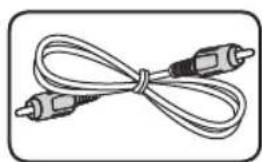
natural_image
Coiled cable with two connectors, no text or symbols visible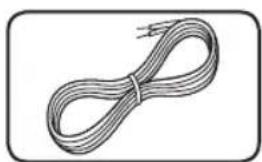
natural_image
Illustration of a coiled cable or wire with two leads, no text or symbols presentVideo cable (1) Color-coded Speaker
Cables (6)
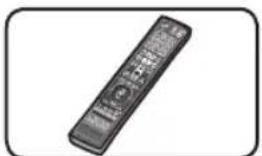
natural_image
Black remote control device with control buttons and display (no visible text or symbols)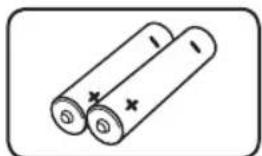
natural_image
Simple line drawing of two cylindrical batteries with one partially open and marked with a plus sign (no text or symbols)Remote control (1) Batteries (2)
natural_image
Simple line drawing of a cable with two connectors (no text or symbols)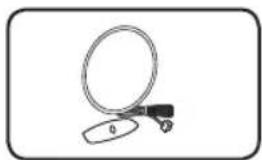
natural_image
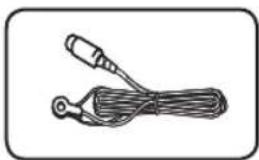
Simple line drawing of a magnifying glass with a small handle and a small oval object (no text or symbols)FM antenna (1)
AM antenna (1)
playable Discs

Blu-ray Disc
- Discs such as movies that can be purchased or rented.
- BD-R/RE discs that contain, Movie, Music or Photo files.

DVD-VIDEO
8 / 12 cm (3.2/ 4.7 inches) disc Discs such as movies that can be purchased or rented.

DVD±R
8 / 12 cm (3.2/ 4.7 inches) disc
- Video mode and finalized only
- Supports the dual layer disc also
- Finalized AVCHD format
- DVD±R discs that contain Movie, Music or Photo files

DVD-RW
8 / 12 cm (3.2/ 4.7 inches) disc
- VR mode, Video mode and finalized only
- Finalized AVCHD format
- DVD-RW discs that contain Movie, Music or Photo files.

DVD+RW
8 / 12 cm (3.2/ 4.7 inches) disc
- Video mode and finalized only
- AVCHD format
- Finalized AVCHD format
- DVD+RW discs that contain Movie, Music or Photo files.

Audio CD
8 / 12 cm (3.2/ 4.7 inches) disc

CD-R/RW
8 / 12 cm (3.2/ 4.7 inches) disc
- CD-R/RW discs that contain audio titles, Movie, Music or Photo files.

NOTE
- Depending on the conditions of the recording equipment or the CD-R/RW (or DVD±R/RW) disc itself, some CD-R/RW (or DVD±R/RW) discs cannot be played on the unit.
- Depending on the recording software & the finalization, some recorded discs (CD-R/RW, DVD±R/RW, BD-R/RE) may not be playable.
- BD-R/RE, DVD±R/RW and CD-R/RW discs recorded using a personal computer or a DVD or CD Recorder may not play if the disc is damaged or dirty, or if there is dirt or condensation on the player's lens.
- If you record a disc using a personal computer, even if it is recorded in a compatible format, there are cases in which it may not play because of the settings of the application software used to create the disc. (Check with the software publisher for more detailed information.)
- This player requires discs and recordings to meet certain technical standards in order to achieve optimal playback quality.
- Pre-recorded DVDs are automatically set to these standards. There are many different types of recordable disc formats (including CD-R containing MP3 or WMA files) and these require certain pre-existing conditions to ensure compatible playback.
- Customers should note that permission is required in order to download MP3 / WMA files and music from the Internet. Our company has no right to grant such permission. Permission should always be sought from the copyright owner.
- You have to set the disc format option to [Mastered] in order to make the discs compatible with the LG players when formatting rewritable discs. When setting the option to Live System, you cannot use it on LG player. (Mastered/Live File System : Disc format system for windows Vista)
File compatibility
Overall
Available File extensions:
".jpg", ".jpeg", ".png", ".avi", ".divx", ".mpg", ".mpeg", ".mkv", ".mp4", ".mp3", ".wma", ".wav"
- Some "wav" files are not supported on this player.
• The file name is limited to 180 characters. - Depending on the size and number of the files, it may take several minutes to read the contents on the media.
Maximum Files/Folder: Less than 2000 (total number of files and folders)
CD-R/RW, DVD±R/RW, BD-R/RE Format:
ISO 9660+JOLIET, UDF and UDF Bridge format
Video files
Available resolution size:
ess than 1920 x 1080 (W x H) pixels
Playable subtitle: SubRip (.srt/.txt), SAMI (.smi), SubStation Alpha (.ssa/.txt), MicroDVD (.sub/.txt), VobSub (.sub), SubViewer 1.0 (.sub), SubViewer 2.0 (.sub/.txt), TMPlayer (.txt), DVD Subtitle System (.txt)
playable Codec format: "DIVX3.xx", "DIVX4.xx", "DIVX5.xx", "XVID", "DIVX6.xx" (Standard playback only), H.264/MPEG-4 AVC, MPEG1 SS, MPEG2 PS, MPEG2 TS
Playable Audio format: "Dolby Digital", "DTS", "MP3", "WMA", "AAC", "AC3"
• Not all the WMA and AAC Audio format is compatible with this unit.
Sampling frequency:
within 32 kHz to 48 kHz (WMA), within 16 kHz to 48 kHz (MP3)
Bit rate:
within 20 kbps to 320 kbps (WMA), within 32 kbps to 320 kbps (MP3)

NOTE
- HD movie files contained on the CD or USB 1.0/1.1 may not played properly. BD, DVD or USB 2.0 are recommended to play back HD movie files.
- This player supports H.264/MPEG-4 AVC profile Main, High at Level 4.1. For a file with higher level, the warning message will appear on the screen.
- This player does not support the files that are recorded with GMC*1 or Qpel*2. Those are video encoding techniques in MPEG4 standard, like DivX or XVID have.
*1 GMC - Global Motion Compensation
*2 Qpel - Quarter pixel
Audio files
Sampling frequency:
within 8 kHz to 48 KHz (WMA),
within 11 kHz to 48 kHz (MP3)
Bit rate:
within 8 kbps to 320 kbps (WMA, MP3)

NOTE
- This unit cannot support the ID3 Tag embedded MP3 file.
- The total playback time indicated on the screen may not correct for VBR files.
Photo files
Recommended size:
Less than 4,000 x 3,000 x 24 bit/pixel
Less than 3,000 x 3,000 x 32 bit/pixel
• Progressive and lossless compression photo image files are not supported.
Regional Code
This unit has a regional code printed on the rear of the unit. This unit can play only BD-ROM or DVD discs labeled same as the rear of the unit or "ALL".
AVCHD (Advanced Video Codec High Definition)
- This player can playback AVCHD format discs. These discs are normally recorded and used in camcorders.
- The AVCHD format is a high definition digital video camera format.
- The MPEG-4 AVC/H.264 format is capable of compressing images at higher efficiency than that of the conventional image compressing format.
- Some AVCHD discs use the "x.v.Color" format.
- This player can playback AVCHD discs using "x.v.Color" format.
• Some AVCHD format discs may not play, depending on the recording condition.
• AVCHD format discs need to be finalized. - "x.v.Color" offers a wider color range than normal DVD camcorder discs.
Certain System Requirements
For high definition video playback:
• High definition display that has COMPONENT or HDMI input jacks.
• BD-ROM disc with high definition content.
- HDMI or HDCP capable DVI input on your display device is required for some content (as specified by disc authors).
- For up-conversion of standard definition DVD, a HDMI or HDCP capable DVI input on your display device is required for copy protected content.
Compatibility Notes
- Because BD-ROM is a new format, certain disc, digital connection and other compatibility issues are possible. If you experience compatibility problems, please contact an authorized Customer Service Center.
- Viewing high-definition content and up-converting standard DVD content may require a HDMI-capable input or HDCP-capable DVI input on your display device.
- Some BD-ROM and DVD discs may restrict the use of some operation commands or features.
- You can use a USB device that is used to store some disc related information, including downloaded on-line content. The disc you are using will control how long this information is retained.
Remote control
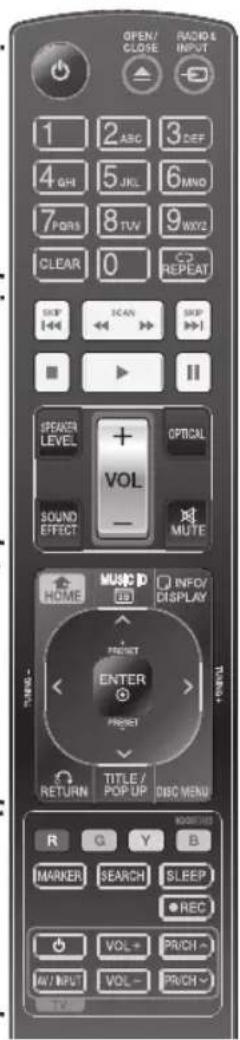
1
text_image
OPEN/ CLOSE RADIO 4 INPUT 1 2 ABC 3 DEF 4 GH 5 JKL 6 MND 7 PDRS 8 TW 9 WX2 CLEAR 0 C2 REPEAT SKIP SCAN SKIP I ■ ■ ■ ■ ■ SPEAKER LEVEL + VOL OPTICAL SOUND EFFECT MUTE TWO MUSIC D (O) INFOY DISPLAY + PRESET ENTER * PRESET RETURN TITLE / POP UP DISC MENU R G Y B MARKER SEARCH SLEEP ● REC ○ VOL- PUNCH - MV INPUT VOL- PUNCH - TV2
3
4
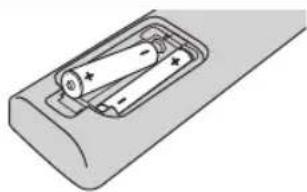
Battery Installation
natural_image
Diagram of a battery pack with an external resistor and two positive charges (no text or symbols)Remove the battery cover on the rear of the Remote Control, and insert two R03 (size AAA) batteries with + and -matched correctly.
1
(POWER): Switches the player ON or OFF.
▲ OPEN/CLOSE: Opens and closes the disc tray.
RADIO&INPUT: Changes input mode.
0-9 numerical buttons: Selects numbered options in a menu.
CLEAR: Removes a mark on the search menu or a number when setting the password.
REPEAT: Repeats a desired section or sequence.
2
◀◀/▶▶ SCAN: Searches backward or forward.
I ◀◀/▶▶ I SKIP: Goes to the next or previous chapter / track / file.
■ (STOP): Stops playback.
▶ (PLAY): Starts playback.
II (PAUSE): Pauses playback
SPEAKER LEVEL: Sets the sound level of desired speaker.
SOUND EFFECT: Selects a sound effect mode.
VOL +/- : Adjusts speaker volume.
OPTICAL: Changes input mode to optical directly.
MUTE: Mute the unit.
3
HOME: Displays or exits the [Home Menu].
MUSIC ID: When connected to the network, can provide information about the current song while movie playback.
INFO/DISPLAY: Displays or exits On-Screen Display.
Direction buttons: Selects an option in the menu.
ENTER: Acknowledges menu selection.
RETURN: Exits the menu or resumes playback.
TITLE/POP-UP: Displays the DVD title menu or BD-ROM's pop-up menu, if available.
DISC MENU: Accesses menu on a disc.
4
Colored (R, G, Y, B) buttons: Use to navigate on menus.
B button: Selects mono/ stereo in FM mode.
MARKER: Marks any point during playback.
SEARCH: Displays or exits the search menu.
SLEEP: Sets a certain period of time after which the unit will switch to off.
● REC: Records an audio CD.
TV Control Buttons: See page 84.
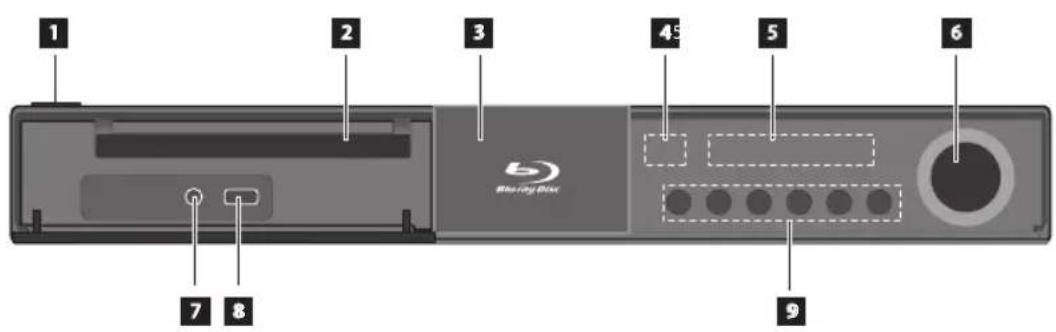
Front panel
2
Preparation
text_image
1 2 3 45 5 6 Blue ring disk 7 8 91 ⏻/I (POWER) Button
2 Disc Tray
3 iPod Dock
4 Remote sensor
5 Display window
6 Volume control
7 PORT.IN
8 USB Port
9 Operation buttons
▲ (OPEN/CLOSE)
▶/■ (PLAY / PAUSE)
■ (STOP)
◀◀/▶◀ (SKIP)
F (Function)
Changes the input source or function.
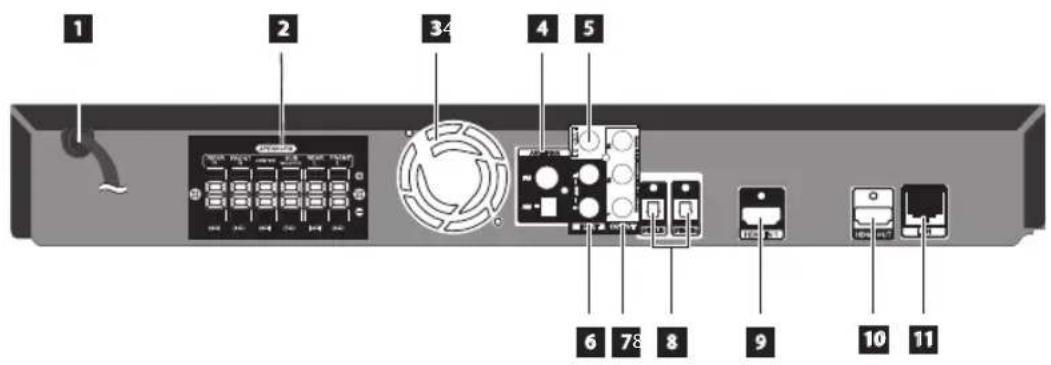
Rear panel
text_image
1 2 34 4 5 6 78 8 9 10 11
Preparation
1 AC Power cord
Plug into the power source.
2 Speakers connectors
3 Cooling Fan
4 Antenna Connector
5 VIDEO OUT
6 AUX (L/R) INPUT
7 COMPONENT VIDEO (Y P_B P_R ) OUTPUT (PROGRESSIVE SCAN)
8 OPTICAL IN 1(TV) / 2
9 HDMI IN (type A, Version 1.3)
10 HDMI OUT (type A, Version 1.3) Connect to TV with HDMI inputs.
11 LAN port
3 Installation
Speaker Connection
Attaching the speakers to the player
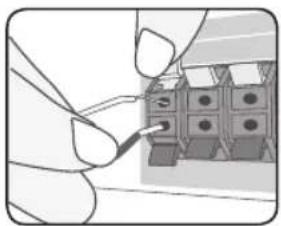
- Connect speaker wires to the main unit. Each speaker wire is color-coded. Use matching color wires for corresponding speakers.
natural_image
Illustration of a hand holding a small electronic component with a grid-like structure (no text or symbols visible)Color Speaker Position
| Grey Rear Rear right | |
| Blue Rear Rear left | |
| Green Center Center | |
| Orange Sub woofer | Any front position |
| Red Front Front right | |
| White Front Front left | |
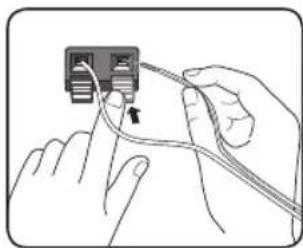
- Connect the speaker wire to the terminal on the speaker.
Make sure the wire marked black goes in to the terminal marked “-” (minus) and the other wire goes in to the terminal marked “+” (plus).
natural_image
Illustration of hands connecting a cable to a small electronic component (no text or symbols visible)
CAUTION
- Be careful to make sure children not to put their hands or any objects into the *speaker duct.
*Speaker duct: A hole for plentiful bass sound on speaker cabinet (enclosure). - Place the center speaker at a safe distance from the child's reach. Otherwise it may result in the speaker falling down and causing personal injury and/or property damage.
Positioning the system
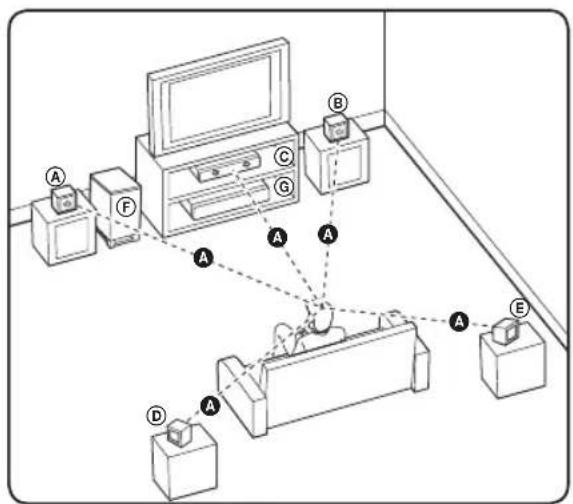
The following illustration shows an example of positioning the system. Note that the illustrations in these instructions differ from the actual unit for explanation purposes. For the best possible surround sound, all the speakers other than the subwoofer should be placed at the same distance from the listening position (A).
text_image
Diagram of a laboratory setup with labeled equipment and connections, including a monitor, control panel, and apparatus A-E.Ⓐ Front left speaker (L)/
⑧ Front right speaker (R):
Place the front speakers to the sides of the monitor or screen and as flush with the screen surface as possible.
© Center speaker:
Place the center speaker above or below the monitor or screen.
(D) Surround left speaker (L)/
© Surround right speaker (R):
Place these speakers behind your listening position, facing slightly inwards.
⑤ Subwoofer:
The position of the subwoofer is not so critical, because low bass sounds are not highly directional. But it is better to place the subwoofer near the front speakers. Turn it slightly toward the center of the room to reduce the wall reflections.
© Unit

Connecting to Your TV
Make one of the following connections, depending on the capabilities of your existing equipment.
• HDMI connection (pages 18-19)
• Component Video connection (page 20)
• Video connection (page 20)

NOTE
• Depending on your TV and other equipment you wish to connect, there are various ways you could connect the player. Use only one of the connections described in this manual.
- Please refer to the manuals of your TV, stereo system or other devices as necessary to make the best connections.
- Make sure the player is connected directly to the TV. Tune the TV to the correct video input channel.
- Do not connect your player via your VCR. The image could be distorted by the copy protection system.
HDMI Connection
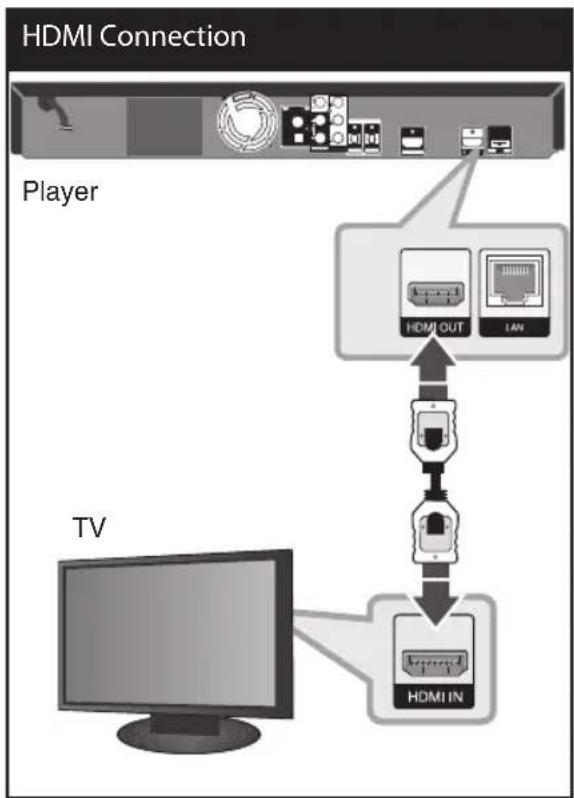
If you have a HDMI TV or monitor, you can connect it to this player using a HDMI cable(Type A, Version 1.3). Connect the HDMI OUT jack on the player to the HDMI IN jack on a HDMI compatible TV or monitor.
flowchart
graph TD
    A["HDMI Connection"] --> B["Player"]
    B --> C["HDMI OUT"]
    B --> D["LAN"]
    C --> E["TV"]
    D --> F["Internet"]
    E --> G["HDMI IN"]
    F --> G
Set the TV's source to HDMI (refer to TV's Owner's manual).

NOTE
- Changing the resolution when the connection has already been established may result in malfunctions. To solve the problem, turn off the player and then turn it on again.
- When the HDMI connection with HDCP is not verified, TV screen is changed to black screen. In this case, check the HDMI connection, or disconnect the HDMI cable.
- If there is noise or lines on the screen, please check the HDMI cable (length is generally limited to 4.5 m (15 ft.) and use a high speed HDMI cable (version 1.3).
- If a connected HDMI device does not accept the audio output of the player, the HDMI device's audio sound may be distorted or may not output.
- When you use HDMI connection, you can change the resolution for the HDMI output. (Refer to "Resolution Setting" on page 21.)
- Select the type of video output from the HDMI OUT jack using [HDMI Color Setting] option on the [Setup] menu (see page 30).
-
When you connect a HDMI or DVI compatible device make sure of the following:
-
Try switching off the HDMI/DVI device and this player. Next, switch on the HDMI/DVI device and leave it for around 30 seconds, then switch on this player.
- The connected device's video input is set correctly for this unit.
- The connected device is compatible with 720x480p, 1280x720p, 1920x1080i or 1920x1080p video input.
- Not all HDCP-compatible HDMI or DVI devices will work with this player.
- The picture will not be displayed properly with non-HDCP device.
- This player does not playback and TV screen is changed to black screen.
What is SIMPLINK?
SIMPLINK
Some functions of this unit are controlled by the TV's remote control when this unit and LG TV's with SIMPLINK are connected through HDMI connection.
Controllable functions by LG TV's remote control; Play, Pause, Scan, Skip, Stop, Power Off, etc.
Refer to the TV owner's manual for the details of SIMPLINK function.
LG TV's with SIMPLINK function has the logo as shown above.

NOTE
- Depending on the disc type or playing status, some SIMPLINK operation may differ from your purpose or not work.
- When you use SIMPLINK function, you have to connect to the OPTICAL IN 1 jack to enjoy TV sound to your speaker system.

Installation
Component Video Connection
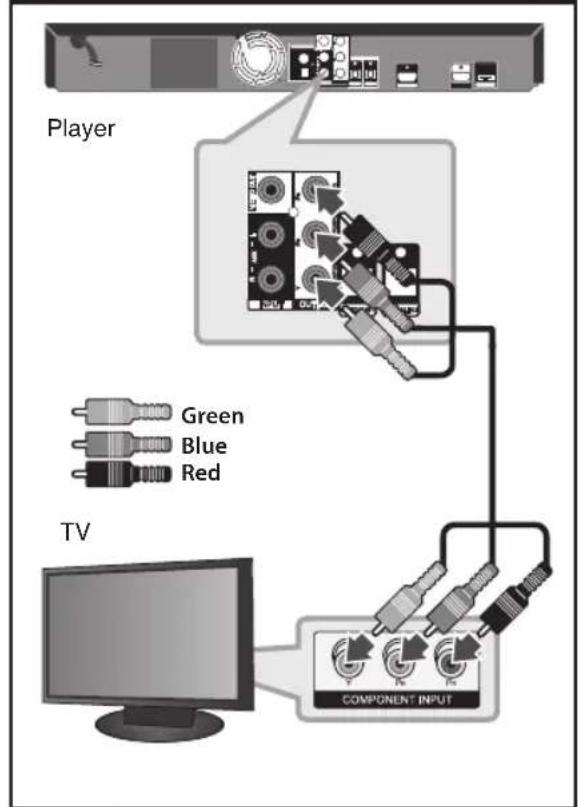
Connect the COMPONENT VIDEO OUT jacks on the player to the corresponding input jacks on the TV using Y Pb Pr cables. You can hear the sound the through the system's speaker.
Component Connection
text_image
Player Green Blue Red TV COMPONENT INPUT
NOTE
When you use COMPONENT VIDEO OUT connection, you can change the resolution for the output. (Refer to "Resolution setting" on page 21.)
Video Connection
Connect the VIDEO OUT jack on the player to the video in jack on the TV using a video cable. You can hear the sound through the system's speakers.
Video Connection
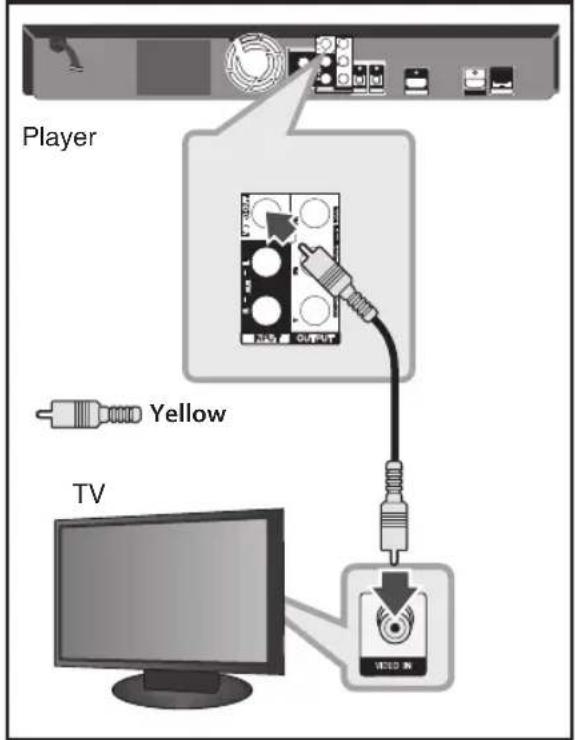
text_image
Player Yellow TVResolution Setting
The player provides several output resolutions for HDMI OUT and COMPONENT VIDEO OUT jacks. You can change the resolution using [Setup] menu.
- Press HOME (↑).
- Use </> to select the [Setup] and press ENTER (☐). The [Setup] menu appears.
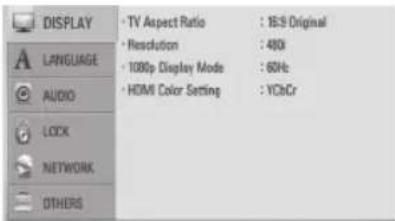
text_image
DISPLAY LANGUAGE AUDIO LOCK NETWORK OTHERS • TV Aspect Ratio : 16:9 Original • Resolution : 480s • 1080p Display Mode : 60Hz • HDMI Color Setting : YCbCr- Use /V to select [DISPLAY] option then press > to move to the second level.
- Use /V to select the [Resolution] option then press ENTER (●) or > to move to the third level.
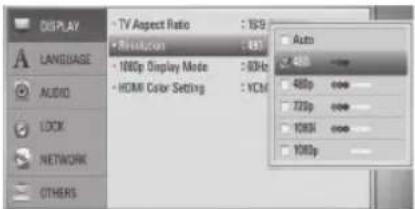
text_image
DISPLAY LANGUAGE AUDIO LOCK NETWORK OTHERS TV Aspect Ratio : 15.9 Rout/Com : 837 100p Display Mode : 80Hz HDMI Color Setting : HCM Auto 480 480p 725p 106K 1060p- Use /V to select the desired resolution then press ENTER (●) to confirm your selection.

NOTE
- If your TV does not accept the resolution you have set on the player, you can set resolution to 480p as follows:
- Press ▲ to open the disc tray.
- Press ■ for more than 5 seconds.
- Since several factors affect the resolution of video output, see "Video Output Resolution" on page 89.
Antenna connection
Connect the supplied antenna for listening to the radio.
Antenna Connection
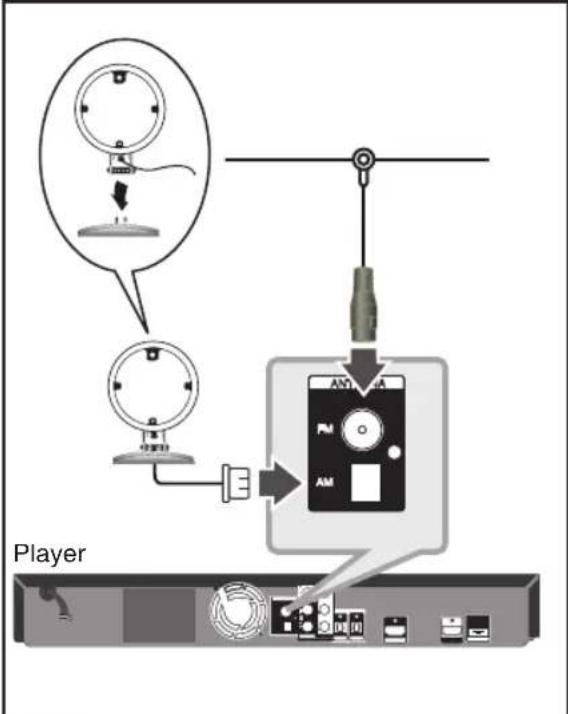
text_image
Player
NOTE
• To prevent noise pickup. keep the AM Loop antenna away from the unit and other components.
• After connecting the FM wire antenna, keep it as horizontal as possible. Be sure to fully extend the FM wire antenna.
Connections with external device

AUX Connection
You can enjoy the sound of your component with the analog audio output jacks from the speakers of the system.
Connect the analog audio output jacks of your component into the AUX L/R (INPUT) on this unit. And then select the [AUX] option by pressing RADIO&INPUT and ENTER (●).
You can also use F button on the front panel to select the input mode.
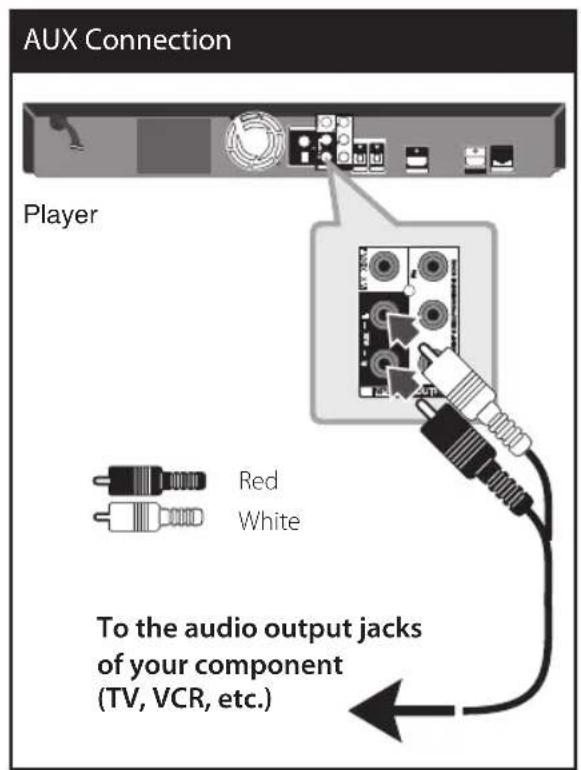
text_image
AUX Connection Player Red White To the audio output jacks of your component (TV, VCR, etc.)
PORT. IN connection
You can enjoy the sound of your portable audio player from the speakers of the system.
Connect the headphones (or line out) jack of the portable audio player into the PORT. IN of this unit. And then select the [PORTABLE] option by pressing RADIO&INPUT and ENTER (●).
You can also use F button on the front panel to select the input mode.
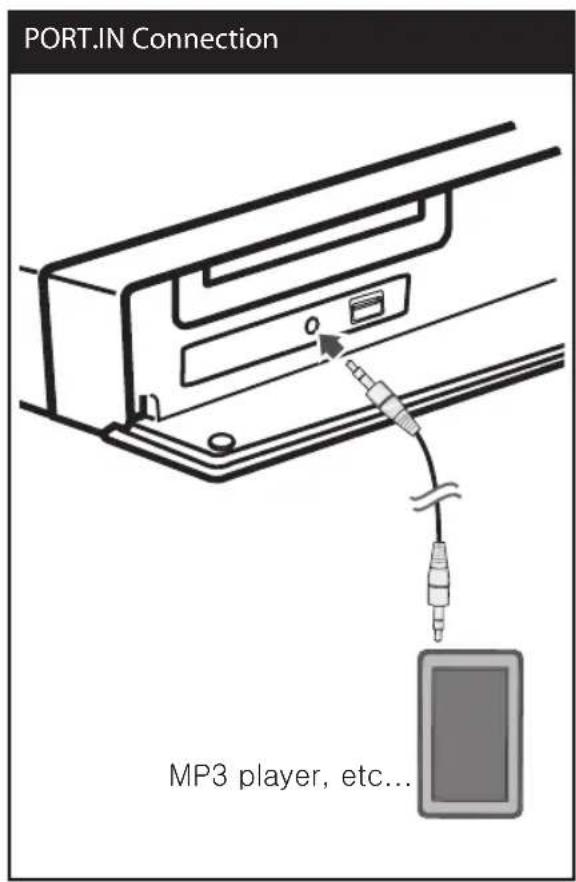
text_image
PORT.IN Connection MP3 player, etc...
OPTICAL IN 1/2
connection
You can enjoy the sound of your component with the digital optical connection from the speakers of the system.
Connect the optical output jack of your component into the OPTICAL IN 1/2 jacks on the unit. And then select the [OPTICAL] option by pressing RADIO&INPUT and ENTER (●). Or press OPTICAL to select directly.
You can also use F button on the front panel to select the input mode.
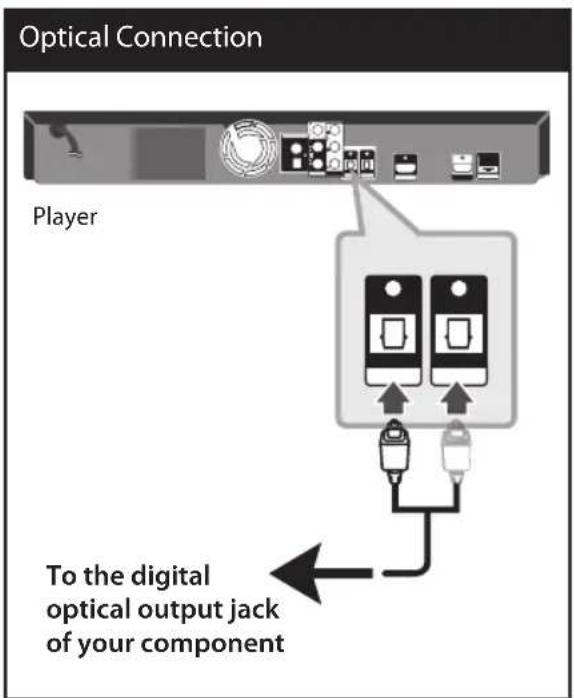
text_image
Optical Connection Player To the digital optical output jack of your component
HDMI IN 1/2 connection
You can enjoy the pictures and sound of your component with this connection.
Connect the HDMI OUT jack of your component into the HDMI IN jack on this unit. And then select the [HDMI IN] option by pressing RADIO&INPUT and ENTER.
You can also use F button on the front panel to select the input mode.
HDMI IN 1/2 Connection
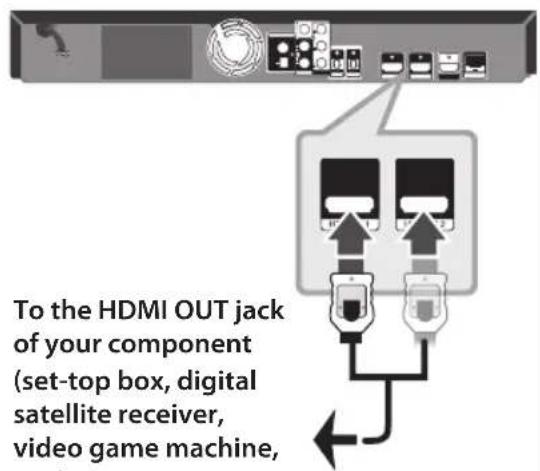
text_image
To the HDMI OUT jack of your component (set-top box, digital satellite receiver, video game machine,
NOTE
- You cannot change the video resolution at the HDMI IN 1/2 mode. Change the video resolution of the connected component.
- If the video output signal is abnormal when your personal computer is connected to HDMI IN 1/2 jack, change the resolution of your personal computer to 480p, 720p, 1080i or 1080p.
- The video signal from the HDMI input cannot be output from the component or composite video outputs.
- The player sends audio from the HDMI inputs to both the HDMI output and to the unit's speakers.
Connecting to your Home Network
This player can be connected to a local area network (LAN) via the LAN port on the rear panel.
By connecting the unit to a broadband home network, you have access to services such as software updates, Home Link, BD-LIVE interactivity and streaming services.
Wired network connection
Using a wired network provides the best performance, because the attached devices connect directly to the network and are not subject to radio frequency interference. Please refer to the documentation for your network device for further instructions. Connect the player's LAN port to the corresponding port on your Modem or Router using a commercially available LAN or Ethernet cable (CAT5 or better with RJ45 connector). In the example configuration for wired connection below, this player would be able to access content from either of the PCs.
Wired Network Connection
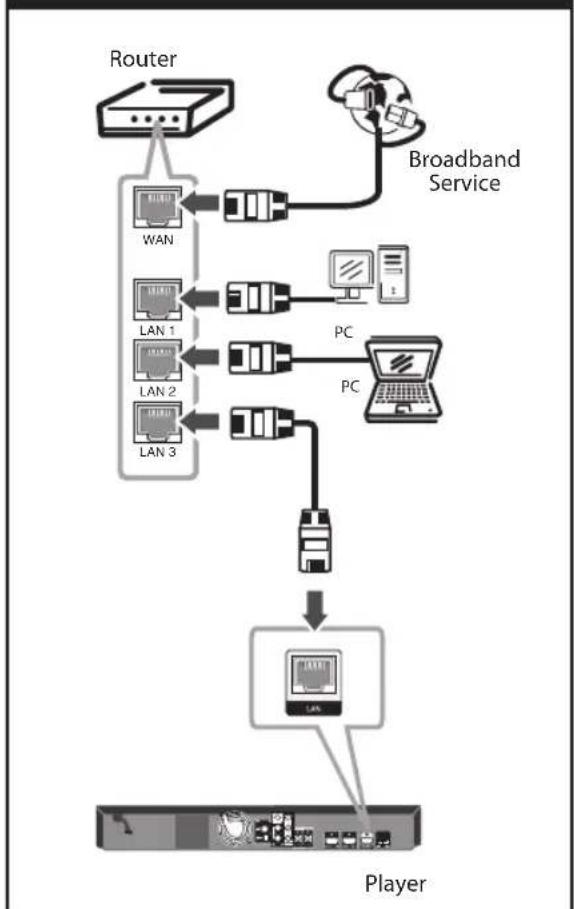
flowchart
graph TD
    A["Router"] --> B["WAN"]
    A --> C["LAN 1"]
    A --> D["LAN 2"]
    A --> E["LAN 3"]
    B --> F["PC"]
    C --> G["PC"]
    D --> H["PC"]
    E --> I["PC"]
    F --> J["Player"]
    G --> J
    H --> J
    I --> J
    K["Broadband Service"] --> B
    K --> C
    K --> D
    K --> E

NOTE
- When plugging or unplugging the LAN cable, hold the plug portion of the cable. When unplugging, do not pull on the LAN cable but unplug while pressing down on the lock.
- Do not connect a modular phone cable to the LAN port.
- Since there are various connection configurations, please follow the specifications of your telecommunication carrier or internet service provider.
- If you want to access content from PCs or DLNA servers, this player must be connected to the same local area network with them via a router.
Wired Network Setup
Before setting the wired network, you need to connect the broadband internet to your home network.
If there is a DHCP server on the local area network (LAN) via wired connection, this player will automatically be allocated an IP address. After making the physical connection, a small number of home networks may require the player's network setting to be adjusted. Adjust the [NETWORK] setting as follow.
- Select [Connection Setting] option in the [Setup] menu then press ENTER (●).
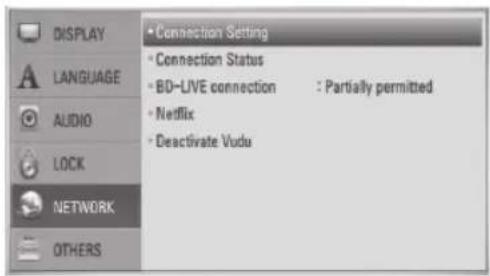
text_image
DISPLAY LANGUAGE AUDIO LOCK NETWORK OTHERS • Connection Setting • Connection Status • BD-LIVE connection : Partially permitted • Netflix • Deactivate Vudu- Use / V / < / > to select the IP mode between [Dynamic] and [Static]. Normally, select [Dynamic] to allocate an IP address automatically.
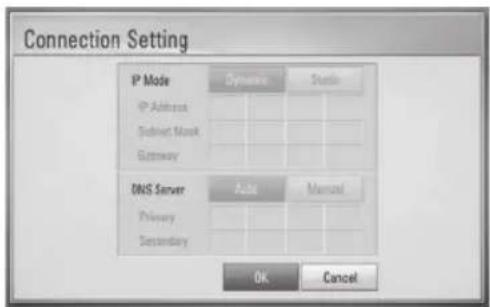
text_image
Connection Setting IP Mode Dynamics Sterile IP Address Subunit Mask Gateway DNS Server Auto Manual Primary Secondary Ok Cancel
NOTE
If there is no DHCP server on the network and you want to set the IP address manually, select [Static] then set the [IP Address], [Subnet Mask], [Gateway] and [DNS Server] using /V/</> and numerical buttons. If you make a mistake while entering a number, press CLEAR to clear the highlighted part.
- Select [OK] and press ENTER (▶to apply network settings.
- The player will ask you to test the network connection. Select [OK] and press ENTER (◎) to complete the network connection.
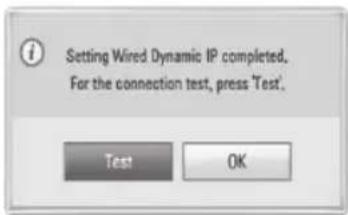
text_image
Setting Wired Dynamic IP completed. For the connection test, press 'Test'.- If you select [Test] and press ENTER (▶ at step 4 above, the network connection status is displayed on the screen. You can also test it on the [Connection Status] in the [Setup] menu.
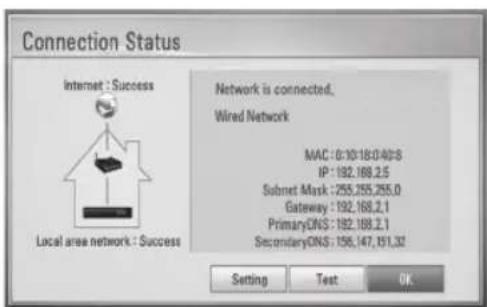
text_image
Connection Status Internet : Success Local area network : Success Network is connected. Wired Network MAC: 0:10:18:0:40:8 IP: 192.168.2.5 Subnet Mask: 255.255.255.0 Gateway: 192.168.2.1 PrimaryDNS: 192.168.2.1 SecondaryDNS: 156.147.151.32 Setting Test OKNotes on Network Connection:
- Many network connection problems during set up can often be fixed by re-setting the router or modem. After connecting the player to the home network, quickly power off and/or disconnect the power cable of the home network router or cable modem. Then power on and/or connect the power cable again.
- Depending on the internet service provider (ISP), the number of devices that can receive internet service may be limited by the applicable terms of service. For details, contact your ISP.
- Our company is not responsible for any malfunction of the player and/or the internet connection feature due to communication errors/malfunctions associated with your broadband internet connection, or other connected equipment.
- The features of BD-ROM discs made available through the Internet Connection feature are not created or provided by our company, and our company is not responsible for their functionality or continued availability. Some disc related material available by the Internet Connection may not be compatible with this player. If you have questions about such content, please contact the producer of the disc.
• Some internet contents may require a higher bandwidth connection. - Even if the player is properly connected and configured, some internet contents may not operate properly because of internet congestion, the quality or bandwidth of your internet service, or problems at the provider of the content.
-
Some internet connection operations may not be possible due to certain restrictions set by the Internet service provider (ISP) supplying your broadband Internet connection.
-
Any fees charged by an ISP including, without limitation, connection charges are your responsibility.
- A 10 Base-T or 100 Base-TX LAN port is required for wired connection to this player. If your internet service does not allow for such a connection, you will not be able to connect the player.
• You must use a Router to use xDSL service. - A DSL modem is required to use DSL service and a cable modem is required to use cable modem service. Depending on the access method of and subscriber agreement with your ISP, you may not be able to use the internet connection feature contained in this player or you may be limited to the number of devices you can connect at the same time. (If your ISP limits subscription to one device, this player may not be allowed to connect when a PC is already connected.)
- The use of a "Router" may not be allowed or its usage may be limited depending on the policies and restrictions of your ISP. For details, contact your ISP directly.
- Turn off all unused network equipment in your local home network. Some devices may generate network traffic.
- For the purpose of the better transmission, placing the player from the access point as close as possible.
- Move closer to the access point if possible or re-orient the player so there is nothing between it and the access point.
USB device connection
This player can play movie, music and photo files contained in the USB device.
- Insert a USB device to the USB port until it fits into place.
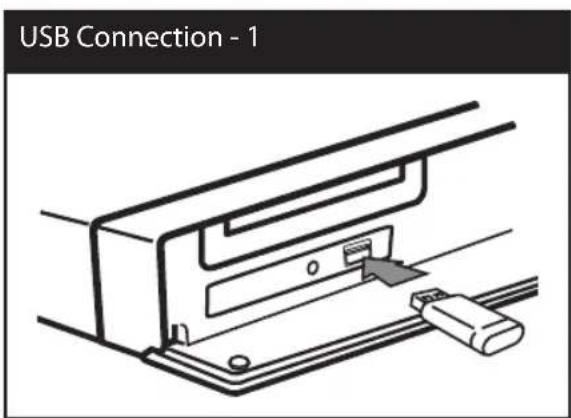
text_image
USB Connection - 1When you connect the USB device on the HOME menu, the player plays a music file contained in the USB storage device automatically. If the USB storage device is containing various types of files, a menu for the file type selection will appear.
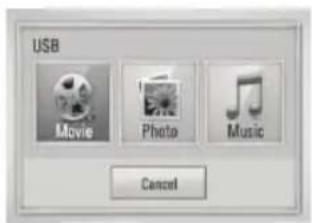
text_image
USB Movie Photo Music CancelFile loading may takes few minutes depending on the number of content stored in the USB storage device. Press ENTER (●while [Cancel] is selected to stop loading.
-
Select [Movie], [Photo] or [Music] using </>, and press ENTER (●).
-
Select a file using / / < / > , and press PLAY or ENTER (○) to play the file. You can check the space of the USB device on the screen.
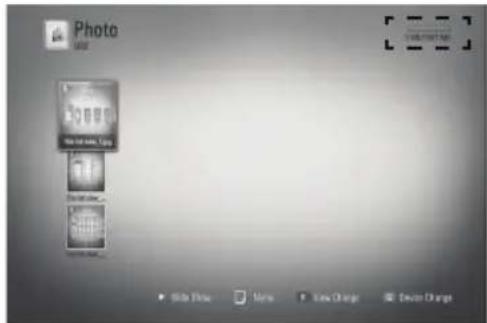
text_image
Photo Add Add Add Add Add Add Add Add Add Show Drive View New Change New Change- Select the other mode. And withdraw the USB device carefully.
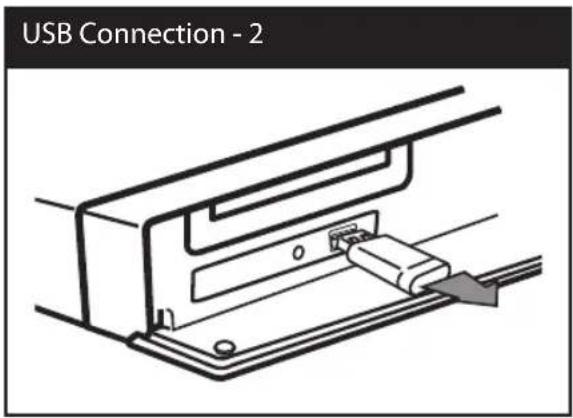
text_image
USB Connection - 2
NOTE
- This player supports USB flash memory/external HDD formatted in FAT16, FAT32 and NTFS when accessing files (music, photo, movie). However, for BD-LIVE and Audio CD recording, only FAT16 and FAT32 formats are supported. Use the USB flash memory/external HDD formatted in either FAT16 or FAT32 when using BD-LIVE and Audio CD recording.
- The USB device can be used for the local storage for enjoying BD-LIVE discs with Internet.
- This unit can support up to 4 partitions of the USB device.
- Do not extract the USB device during operation (play, etc.).
- An USB device which requires additional program installation when you have connected it to a computer, is not supported.
- USB device: USB device that support USB 1.1 and USB 2.0.
• Movie, music and photo files can be played. For details of operations on each file, refer to relevant pages. - Regular back up is recommended to prevent data loss.
- If you use a USB extension cable, USB HUB or USB Multi-reader, the USB device may not be recognized.
• Some USB device may not work with this unit. - Digital camera and mobile phone are not supported.
- USB Port of the unit cannot be connected to PC. The unit cannot be used as a storage device.
Settings
Adjust the Setup Settings
You can change the settings of the player in the [Setup] menu.
- Press HOME (♠).
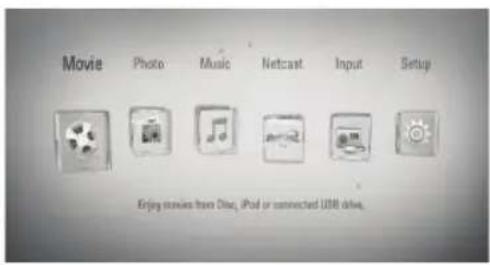
text_image
Movie Photo Music Netcast Input Setup Enjoy movies from Disk, iPod or connected USB drive,- Use </> to select the [Setup] and press ENTER (The [Setup] menu appears.
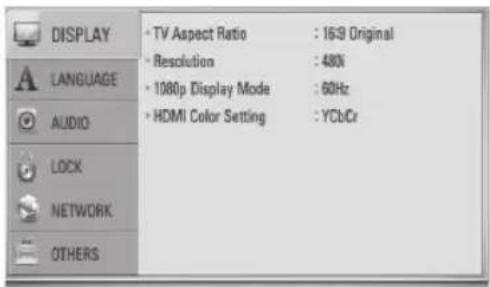
text_image
DISPLAY LANGUAGE AUDIO LOCK NETWORK OTHERS • TV Aspect Ratio : 1639 Original • Resolution : 480% • 1080p Display Mode : 60Hz • HDMI Color Setting : YCbCr- Use /V to select a first setup option, and press > to move to the second level.
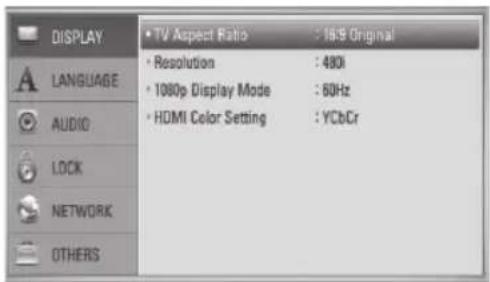
text_image
DISPLAY • TV Aspect Ratio : 16.9 Original • Resolution : 480i • 1080p Display Mode : 60Hz • HDMI Color Setting : YCbCr LANGUAGE AUDIO LOCK NETWORK OTHERS- Use /V to select a second setup option, and press ENTER (●) to move to the third level.

text_image
DISPLAY • TV Aspect Ratio : 16.5 • Resolution : 480 • 1000p Display Mode : 60Hz • HDMI Color Setting : YCb LANGUAGE AUDIO LOCK NETWORK OTHERS 4:3 Letter Box 4:3 Pan Scan 16:5 Original 16:9 Full- Use /V to select a desired setting, and press > or ENTER (to confirm your selection.

[DISPLAY] Menu
TV Aspect Ratio
Select a TV aspect ratio option according to your TV type.
[4:3 Letter Box]
Select when a standard 4:3 TV is connected. Displays theatrical images with masking bars above and below the picture.
[4:3 Pan Scan]
Select when a standard 4:3 TV is connected. Displays pictures cropped to fill your TV screen. Both sides of the picture are cut off.
[16:9 Original]
Select when a 16:9 wide TV is connected. The 4:3 picture is displayed with an original 4:3 aspect ratio, with black bars appearing at the left and right sides.
[16:9 Full]
Select when a 16:9 wide TV is connected. The 4:3 picture is adjusted horizontally (in a linear proportion) to fill the entire screen.
![LG LHB335 - [16:9 Full] - 1](/content/2026/05/817252/images/62b2d5368d6467ddde2483c11b610b29c902f1d41dbcfdce128801531836b0f7.jpg)
NOTE
You cannot select [4:3 Letter Box] and [4:3 Pan Scan] option when the resolution is set to higher than 720p.
Resolution
Sets the output resolution of the Component and HDMI video signal. Refer to page 21 and 89 or details about the resolution setting.
[Auto]
If the HDMI OUT jack is connected to TVs providing display information (EDID), automatically selects the resolution best suited to the connected TV. If the COMPONENT VIDEO OUT is only connected, this changes the resolution to 1080i as default resolution.
[1080p]
Outputs 1080 lines of progressive video.
[1080i]
Outputs 1080 lines of interlaced video.
[720p]
Outputs 720 lines of progressive video.
[480p]
Outputs 480 lines of progressive video.
[480i]
Outputs 480 lines of interlaced video.
1080p Display Mode
When the resolution is set to 1080p, select [24 Hz] for smooth presentation of film material (1080p/24 Hz) with a HDMI-equipped display compatible with 1080p/24 Hz input.

NOTE
- When you select [24 Hz], you may experience some picture disturbance when the video switches video and film material. In this case, select [60 Hz].
- Even when [1080p Display Mode] is set to [24 Hz], if your TV is not compatible with 1080p/24 Hz, the actual frame frequency of the video output will be 60 Hz to match the video source format.
HDMI Color Setting
Select the type of output from the HDMI OUT jack. For this setting, please refer to the manuals of your display device.
[YCbCr]
Select when connecting to a HDMI display device.
[RGB]
Select when connecting to a DVI (RGB) display device.
![LG LHB335 - [RGB] - 1](/content/2026/05/817252/images/0f7e9a51c4ef094f3654e777d754b661cffbb8af87be6181cd31296d6b045754.jpg)
[LANGUAGE] Menu
Display Menu
Select a language for the [Setup] menu and on-screen display.
Disc Menu/ Disc Audio/ Disc Subtitle
Select the language you prefer for the audio track (disc audio), subtitles, and the disc menu.
[Original]
Refers to the original language in which the disc was recorded.
[Other]
Press ENTER (●) to select another language. Use number buttons then ENTER (●) to enter the corresponding 4-digit number according to the language code list on page 86.
[Off] (for Disc Subtitle only)
Turn off Subtitle.
![LG LHB335 - [Off] (for Disc Subtitle only) - 1](/content/2026/05/817252/images/4faeaee9fd9306152bc5c6ac0096845541b09e62f4873dcd753efbafbe373de5.jpg)
NOTE
Depending on the disc, your language setting may not work.

[AUDIO] Menu
Speaker Setup
To obtain the best possible sound, use the speaker setup display to specify the volume of the speakers you have connected and their distance from your listening position. Use the test to adjust the volume of the speakers to the same level.
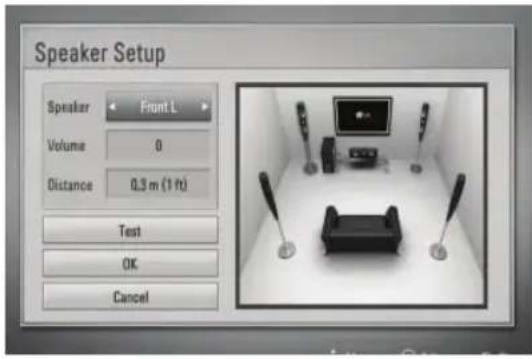
text_image
Speaker Setup Speaker Front L Volume 0 Distance 0.3 m (1 ft) Test OK Cancel[Speaker]
Select a speaker that you want to adjust.
[Volume]
Adjust the output level of each speaker.
[Distance]
Adjust the distance between each speaker and the listening position.
[Test/ Stop test tone]
The speakers will emit a test tone.
[OK]
Confirms the setting.
[Cancel]
Cancels the setting.
HD AV Sync
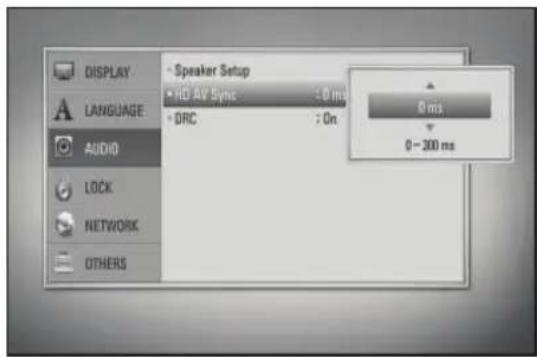
Sometimes Digital TV encounters a delay between picture and sound. If this happens you can compensate by setting a delay on the sound so that it effectively 'waits' for the picture to arrive: this is called HD AV Sync. Use to scroll up and down through the delay amount, which you can set at anything between 0 and 300m sec.
text_image
DISPLAY LANGUAGE AUDIO LOCK NETWORK OTHERS Speaker Setup HD AV Sync : 0 ms DRC : On 0 ms 0 - 300 msThe delay will vary depending on which digital TV channel you are on. If you change channel you may need to readjust the HD AV Sync.
DRC (Dynamic Range Control)
When a content encoded in Dolby Digital or Dolby Digital Plus is playing back, you may wish to compress the dynamic range of the audio output (the difference between the loudest sounds and the quietest ones). This allows you to listen to a movie at a lower volume without losing clarity of sound. Set [DRC] to [On] for this effect.

NOTE
The DRC setting can be changed only when a disc is not inserted or the unit is in complete stop mode.

[LOCK] Menu
To access the any features in [LOCK] settings, you must enter the 4-digit security code you have created.
If you have not entered a password yet, you are prompted to do so. Enter a 4-digit password twice, and press ENTER (●) to create a new password.
Password
You can create or change the password.
[None]
Enter a 4-digit password twice, and press ENTER (●) to create a new password.
[Change]
Enter the current password and press ENTER (●). Enter a 4-digit password twice, and press ENTER (●) to create a new password.
![LG LHB335 - [Change] - 1](/content/2026/05/817252/images/25488fc319022c8b394023ed027be619c2d95b6bc793ba1425ea354b83984a40.jpg)
NOTE
If you make a mistake before pressing ENTER (☑), press CLEAR. Then input the correct password.
If you forget your password,
If you forget your password, you can clear it using the following steps:
- Remove any disc that might be in the player.
- Select [Lock] option in the [Setup] menu.
- Use number buttons to enter "210499" on the [Lock] Menu. The password is cleared.
DVD Rating
Blocks playback of rated DVD based on their content. (Not all discs are rated.)
[Rating 1-8]
Rating one (1) has the most restrictions and rating eight (8) is the least restrictive.
[Unlock]
If you select this, parental control is not active and the disc plays in full.
BD Rating
Set an age limit of BD-ROM play. Use number buttons to input an age limit for BD-ROM viewing.
[255]
All BD-ROM can be played.
[0-254]
Prohibits play of BD-ROM with corresponding ratings recorded on them.
![LG LHB335 - [0-254] - 1](/content/2026/05/817252/images/f66d3fb4004da5ba2ba0a753818f3f3a114d735d56b515a7061c6b84937616cf.jpg)
NOTE
- The [BD Rating] will be applied only for the BD disc that containing the Advanced Rating Control.
- For the region using MPAA rating level, refer to the table below as an example.
| BD Rating MPAA Rating | |
| 0 | G |
| 8 | PG |
| 13 PG-13 | |
| 17 | R |
| 18 NC-17 | |
| 255 Not restricted | |
Area Code
Enter the code of the area whose standards were used to rate the DVD video disc, based on the list on page 85.

[NETWORK] Menu
The [NETWORK] settings are needed to use the software update, BD-LIVE and on-line features.
Connection Setting
If your home network environment is ready to connect the player, the player needs to be set the network connection for network communication. (See "Connecting to your Home Network" on pages 24.)
Connection Status
If you want to check the network status on this player, select the [Connection Status] options and press ENTER (☐) to check whether a connection to the network and the internet have been established.
BD-LIVE connection
You can restrict Internet access when BD-LIVE functions are used.
[Permitted]
Internet access is permitted for all BD-LIVE contents.
[Partially permitted]
Internet access is permitted only for BD-LIVE contents which have content owner certificates. Internet access and AACS Online functions are prohibited for all BD-LIVE contents without a certificate.
[Prohibited]
Internet access is prohibited for all BD-LIVE contents.
Netflix
[Netflix ESN]
Display its unique Netflix ESN (Electronic Serial Number) that allows you to use the Netflix streaming.
[Deactivate Netflix]
Deactivates your player. To activate the Netflix again, see page 55.
Deactivate Vudu
You can deactivate your player from your Vudu account. It is recommended that you do this if you give your player to someone else who should not share your Vudu account.

[OTHERS] Menu
DivX VOD
ABOUT DIVX VIDEO: DivX® is a digital video format created by DivX, Inc. This is an official DivX Certified device that plays DivX video. Visit www.divx.com for more information and software tools to convert your files into DivX video.
ABOUT DIVX VIDEO-ON-DEMAND: This DivX Certified® device must be registered in order to play DivX Video-on-Demand (VOD) content. To generate the registration code, locate the DivX VOD section in the device setup menu. Go to vod.divx.com with this code to complete the registration process and learn more about DivX VOD.
[Register]
Displays the registration code of your player.
[Deregister]
Deactivate your player and display the deactivation code.
![LG LHB335 - [Deregister] - 1](/content/2026/05/817252/images/a560ed76839908244666de334876d200c778d243097dbe8e6387b59fe7e0941a.jpg)
NOTE
All the downloaded videos from DivX VOD with this player's registration code can only be played back on this unit.
Auto Power Off
The screen saver appears when you leave the player in Stop mode for about five minutes. If you set this option to [On], the unit automatically turns itself off after the Screen Saver is displayed for 25 minutes. Set this option to [Off] to leave the screen saver until the unit is operated by the user.
Initialize
Factory Set
You can reset the player to its original factory settings.
BD Storage Clear
Initializes the BD contents from the connected USB storage.

NOTE
If you reset the player to its original factory settings using [Factory Set] option, you have to set all the activation for the on-line services and network settings again.
Software
Information
Displays the current software version.
Update
You can update the software by connecting the unit directly to the software update server (see page 87).
Disclaimer Notice
Press ENTER (●) to view the notice of Network Service Disclaimer on page 94.
Sound Effect
You can select a suitable sound mode. Press SOUND EFFECT repeatedly until the desired mode appears on the front panel display or the TV screen. The displayed items for the equalizer maybe different depending on sound sources and effects.
[Natural]: You can enjoy comfortable and natural sound.
[Bypass]: Software with multichannel surround audio signals is played according to the way it was recorded.
[Bass Blast]: Reinforce the bass sound effect from front left and right speaker and subwoofer.
[PL II Movie]: Performs Pro Logic II movie mode decoding to the input signal and produces five full-bandwidth output channels from 2 channel sources. This setting is ideal for watching videos of overdubbed or old movies. This mode is available only to 2 channel sources.
[PL II Music]: Performs Pro Logic II music mode decoding to the input signal and produces five full-bandwidth output channels from 2 channel sources. This setting is ideal for normal stereo sources such as CD. This mode is available only to 2 channel sources.
[Clear Voice]: This mode makes voice sound clear, improving the quality of voice sound.
[Virtual]: You can enjoy more dynamic sound with improved center channel.
[Game]: You can enjoy more virtual sound while playing video games.
[Night]: This may be useful when you want to watch movies at low volumes late at night.
[Mus. ReTouch]: When listening to MP3 files or other compressed music, you can enhance the sound. This mode is available only to 2 channel sources.
[Loudness]: Improves bass and treble sound.
[Natural Plus]: You can enjoy the natural sound effect same as 5.1 channel.
4 Operation
General Playback
Playing Discs
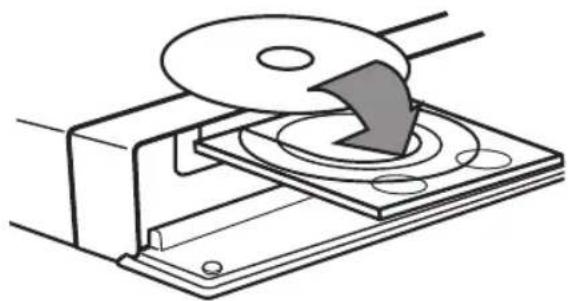
- Press OPEN/CLOSE (▲), and place a disc on the disc tray.
natural_image
Technical line drawing of a mechanical assembly with a disc and cutting tool (no text or symbols)- Press OPEN/CLOSE(▲) to close the disc tray.
For the most Audio CD, BD-ROM and DVD-ROM discs, playback starts automatically.
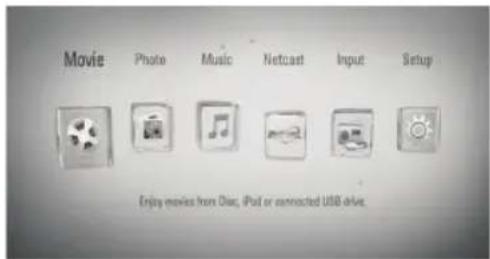
- Press HOME (衆).
text_image
Movie Photo Music Netcast Input Setup Enjoy movies from Diaz, iPad or connected USB drive-
Select [Movie], [Photo] or [Music] using </>, and press ENTER
-
Select the [Disc] option using </>, and press ENTER (●).
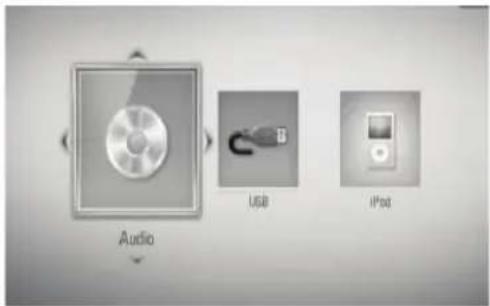
text_image
Audio USB iP50When you connect up to two devices, it appears as above.
- Select a file using //</> , and press ▶ (PLAY) or ENTER (◎) to play the file.

NOTE
- Playback functions described in this manual are not always available in every files and medium. Some functions can be restricted depending on many factors.
- Depending on the BD-ROM titles, a USB device connection may be needed for the proper playback.
To stop playback
Press ■ (STOP) while playback.
To pause playback
Press ■ (PAUSE) while playback. Press ▶ (PLAY) to resume playback.
To play frame-by-frame
Press ■ (PAUSE) while movie playback. Press ■ (PAUSE) repeatedly to play Frame-by-Frame playback.
To scan forward or backward
Press ◀◀ or ▶▶ to play fast forward or fast reverse during playback. You can change the various playback speeds by pressing ◀◀ or ▶▶ repeatedly.
To slow down the playing speed
While the playback is paused, press ▶▶ repeatedly to play various speeds of slow motion.
To skip to the next/previous chapter/track/file
During playback, press ◀◀◀ or ▶▶◀ to go to the next chapter/track/file or to return to the beginning of the current chapter/track/file. Press ◀◀◀ twice briefly to step back to the previous chapter/track/file.
Using the disc menu
BD
DVD
AVCHD
To display the disc menu
The menu screen may be displayed first after loading a disc which contains a menu. If you want to display the disc menu while playback, press DISC MENU.
Use ∧/∨/</> buttons to navigate through menu items.
To display the Pop-up menu
Some BD-ROM discs contain a Pop-up menu that appears while playback.
Press TITLE/POPUP while playback, and use /V/</> buttons to navigate through menu items.
Resume playback
BD
DVD
AVCHD
MOVIE
ACD
MUSIC
The unit records the point where you pressed the ■ (STOP) depending on the disc.
If "■■■ (Resume Stop)" appears on the screen briefly, press ▶ (PLAY) to resume playback (from the scene point).
If you press ■(STOP) twice or unload the disc, "■"(Complete Stop) appears on the screen. The unit will clear the stopped point.
!
NOTE
- The resume point may be cleared when a button is pressed (for example; ⏻ (POWER), ▲ (OPEN/CLOSE), etc).
- On BD-Video discs with BD-J, the resume playback function does not work.
- If you press ■ (STOP) once during BD-ROM interactive title playback, the unit will be in Complete Stop mode.
Advanced Playback
Repeat Playback
BD
DVD
AVCHD
ACD
MUSIC
During playback, press REPEAT repeatedly to select a desired repeat mode.
BDs/DVDs
A- - Selected portion will be repeated continually.
Chapter – The current chapter will be played back repeatedly.
Title – The current title will be played back repeatedly.
To return to normal playback, press REPEAT repeatedly to select [Off].
Audio CDs/Music files
Track – The current track or file will be played back repeatedly.
All – All the tracks or files will be played back repeatedly.
✗ – The tracks or files will be played back in random order.
✗ All – All the tracks or files will be played back repeatedly in random order.
A-B - Selected portion will be repeated continually. (Audio CD only)
To return to normal playback, press CLEAR.

NOTE
- If you press▶▶ once during Repeat Chapter/Track playback, the repeat playback cancels.
• This function may not work on some disc or title.
Repeating a specific portion
BD
DVD
AVCHD
ACD
This player can repeat a portion you have selected.
- While playback, press REPEAT to select [A-] at the beginning of the portion you wish to repeat. And then press ENTER (●).
- Press ENTER (☐) at the end of the portion. Your selected portion will be repeated continually.
- To return to normal playback, press REPEAT repeatedly to select [OFF] or press CLEAR.

NOTE
• You cannot select a portion less than 3 seconds.
• This function may not work on some disc or title.
Marker Search
BD
DVD
AVCHD
MOVIE
You can start playback from up to nine memorized points.
To enter a marker
- While playback, press MARKER at the desired point. The Marker icon appears on the TV screen briefly.
- Repeat step 1 to add up to nine markers.
To recall a marked scene
- Press SEARCH and the search menu appears on the screen.
- Press a number button to select a marker number that you want to recall. Playback starts from the marked scene.
To delete a Marker
- Press SEARCH and the search menu appears on the screen.
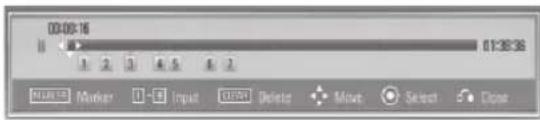
text_image
00:00:16 01:30:36 1 2 3 4 5 6 7 Marker Input Update Delete Move Select Close- Press V to highlight a marker number. Use </> to select a marked scene that you want to delete.
- Press CLEAR and the marked scene is erased from the search menu.

NOTE
• This function may not work depending on discs, titles.
- All marked points are cleared if the title is in complete stop (■) mode, the title is changed or if you unload the disc.
• If the total length of the title is less than 10 seconds, this function is not available.
To start playback from a marked scene
- Press SEARCH and the search menu appears on the screen.
- Press V to highlight a marker number. Use </> to select a marked scene that you want to start playback from.
- Press ENTER (◎) to start playback from the marked scene.

NOTE
This function may not work on some disc or title.
Using the search menu

Using search menu, you can easy to find the point where you want to start playback.
To search a point
- During playback, press SEARCH to display the search menu.
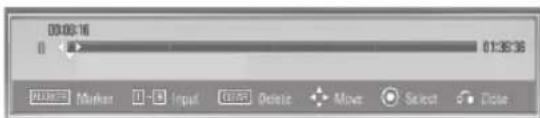
text_image
00:00:16 01:39:36 Marker Input Delete Select Close- Press </> to skip the playback 15 seconds forward or backward. You can select a point that you want to skip by pressing and holding </> button.

Operation
Changing content list view MOVIE MUSIC PHOTO
On the [Movie], [Music] or [Photo] menu, you can change the content list view.
Method 1
Press red (R) colored button repeatedly.
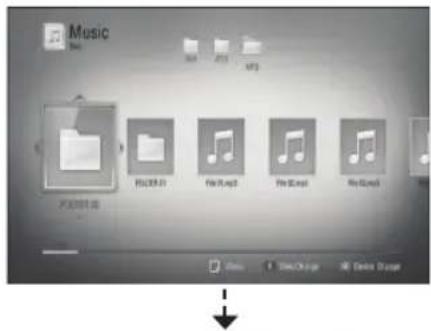
text_image
Music PDF001 F5003.01 File Map3 FileMap3 MyCloud MyCloud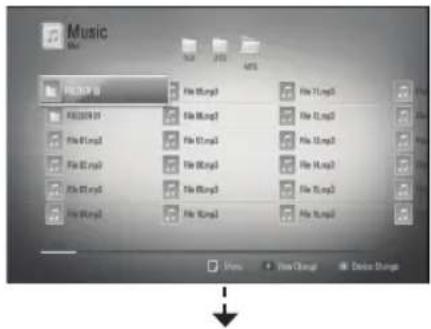
text_image
Music File View View Change Delete Changes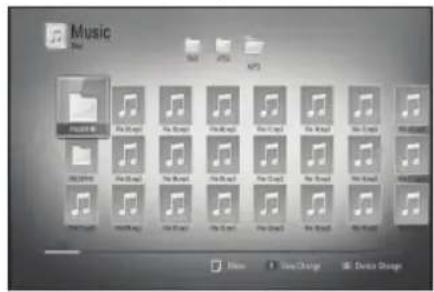
text_image
Music File BOS JPG APTS Music File Edit File Sound File Print File Print File Print File Print File Print File Print File Print File Print File Print File Print File Print File Print File Print File Print File Print File Print File Print File Print File Print File Print File Print File Print File Print File Print File Print File Print File Print File Print File Print File Print File Print File Print File Print File PrintMethod 2
- On the content list, press INFO/DISPLAY ☐ to display the option menu.
- Use /V to select the [View Change] option.
- Press ENTER (◎) to change the content list view.
Viewing content information MOVIE
The player can display the content information.
- Select a file using /V/</> .
- Press INFO/DISPLAY ☐) to display the option menu.
- Select the [Information] option using /V , and press ENTER (●).
The file information appears on the screen.
While movie playback, you can display the file information by pressing TITLE/POPUP.

NOTE
The information displayed on the screen may not correct comparing actual content information.
Last Scene Memory
BD
DVD
This unit memorizes the last scene from the last disc that is viewed. The last scene remains in memory even if you remove the disc from the unit or switch off the unit. If you load a disc that has the scene memorized, the scene is automatically recalled.

NOTE
- This function may not work depending on discs, titles, server ability.
- This function may not work on some [Home Link] content depending on the file type and ability of the DLNA server.
- This unit does not memorize settings of a disc if you switch off the unit before commencing to play it.
On-Screen display
You can display and adjust various information and settings about the content.
Displaying content information on-screen
BD
DVD
AVCHD
MOVIE
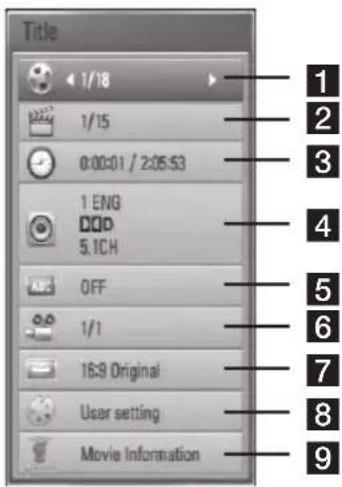
- While playback, press INFO/DISPLAY (☐) to show various playback information.
text_image
Title 1/18 1/15 0:00:01 / 2:05:53 1 ENG DQD 5.1CH OFF 1/1 16:9 Original User setting Movie Information1 Title – Current title number/total number of titles
2 Chapter – Current chapter number/total number of chapters
3 Time – Elapsed playing time/Total playback time
4 Audio – Selected audio language or channel.
5 Subtitle – Selected subtitle
6 Angle – Selected angle/total number of angles
7 TV Aspect Ratio – Selected a TV aspect Ratio
8 Picture Mode – Selected picture mode
9 Movie Information – Select this option and press ENTER (●to display movie information
- Select an option using /V .
- Use </> to adjust the selected option value.
- Press RETURN (♂) to exit the On-Screen display.

NOTE
- If no button is pressed for a few seconds, the on-screen display disappears.
- A title number cannot be selected on some discs.
• Available items may differ depending on discs or titles. - If BD interactive title is playing back, some setting information is displayed on the screen but prohibited to be changed.
- To use the [Movie Information] option, the player must be connected to the broadband internet for accessing the Gracenote Media Database.
- If the music information from the Gracenote® media database is either not correct or not exist, please contact Gracenote® at http://www.gracenote.com for support.
- LG is a license of Gracenote® technology and is not responsible or reliable for information from the Gracenote® media database.
Playing from selected time
BD
DVD
AVCHD
MOVIE
- Press INFO/DISPLAY (☐) during playback. The time search box shows the elapsed playing time.
- Select the [Time] option and then input the required start time in hours, minutes, and seconds from left to right.
For example, to find a scene at 2 hours, 10 minutes, and 20 seconds, enter "21020".
Press </> to skip the playback 60 seconds forward or backward.
- Press ENTER (●) to start playback from selected time.

NOTE
This function may not work on some disc or titles.
Hearing a different audio
BD
DVD
AVCHD
MOVIE
- During playback, press INFO/DISPLAY (☐) to display the on-screen display.
- Use /V to select the [Audio] option.
- Use </> to select desired audio language, audio track or audio channel.

NOTE
- Some discs allow you to change audio selections only via the disc menu. If this is the case, press TITLE/POPUP or DISC MENU button and choose the appropriate audio from the selections on the disc menu.
- Immediately after you have switched sound, there may be a temporary discrepancy between the display and actual sound.
- On BD-ROM disc, the multi audio format (5.1CH or 7.1CH) is displayed with [MultiCH] in the on-screen display.
Selecting a subtitle language
BD
DVD
AVCHD
MOVIE
- During playback, press INFO/DISPLAY (☐) to display the playback menu.
- Use A/V to select the [Subtitle] option.
- Use </> to select desired subtitle language.
- Press RETURN (💡) to exit the On-Screen display.

NOTE
Some discs allow you to change subtitle selections only via the disc menu. If this is the case, press TITLE/POPUP or DISC MENU button and choose the appropriate subtitle from the selections on the disc menu.
Watching from a different angle
BD
DVD
If the disc contains scenes recorded at different camera angles, you can change to a different camera angle during playback.
- During playback, press INFO/DISPLAY (☐) to display the on-screen display.
- Use /V to select the [Angle] option.
- Use </> to select desired angle.
- Press RETURN (💡) to exit the On-Screen display.
Changing the TV Aspect Ratio
BD
DVD
AVCHD
MOVIE
You can change the TV aspect ratio setting while playback.
- During playback, press INFO/DISPLAY (☐) to display the on-screen display.
- Use /V to select the [TV Aspect Ratio] option.
- Use </> to select desired option.
- Press RETURN (💡) to exit the On-Screen display.

NOTE
Even if you change the value of the [TV Aspect Ratio] option in On-Screen display, the [TV Aspect Ratio] option in the [Setup] menu is not changed.
Changing the Picture Mode
BD
DVD
AVCHD
MOVIE
You can change the [Picture mode] option while playback.
- During playback, press INFO/DISPLAY (☐) to display the on-screen display.
- Use /V to select the [Picture Mode] option.
- Use </> to select desired option.
- Press RETURN (💡) to exit the On-Screen display.
Setting the [User setting] option
- During playback, press INFO/DISPLAY (D) to display the on-screen display.
- Use /V to select the [Picture Mode] option.
- Use </> to select the [User setting] option, and press ENTER (◎).
![LG LHB335 - Setting the [User setting] option - 1](/content/2026/05/817252/images/74e8503c1d161cd31de7f83589ee5b3282e6138df52bbd458dfba6e1fb96b9b2.jpg)
text_image
Picture Mode Contrast 0 Brightness 0 Color 0 Sharpness 0 Noise Reduction 2 Default Close- Use / V / < / > to adjust the [Picture Mode] options.
Select [Default] option then press ENTER (◎) to reset the all adjustments.
- Use /V/</> to select the [Close] options, and press ENTER (◎) to finish setting.
Enjoying BD-LIVE
This unit allows you to enjoy functions such as picture-in-picture, secondary audio and Virtual packages, etc., with BD-Video supporting BONUSVIEW (BD-ROM version 2 Profile 1 version 1.1/ Final Standard Profile).
Secondary video and audio can be played from a disc compatible with the picture-in-picture function. For the playback method, refer to the instructions in the disc.
In addition to the BONUSVIEW function, BD-Video supporting BD-LIVE (BD-ROM version 2 Profile 2) that has a network extension function allows you to enjoy more functions such as downloading new movie trailers by connecting this unit to the internet.
- Check the network connection and settings (pages 24-26).
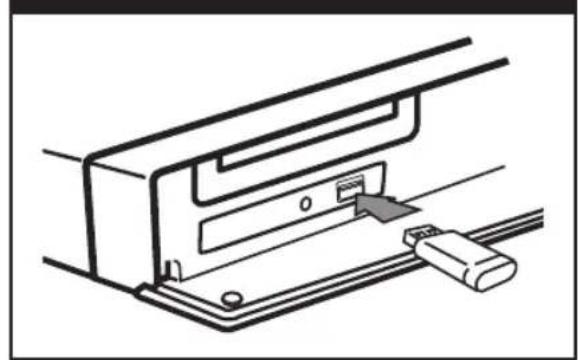
- Insert a USB storage device to the USB port on the front panel.
A USB storage device is needed to download bonus content.
USB Connection
natural_image
Technical line drawing of a mechanical component with a connector inserted (no text or symbols)- Press Home (▲ and set the [BD-LIVE connection] option on the [Setup] menu (page 33).
Depending on a disc, the BD-LIVE function may not be operated if [BD-LIVE connection] option is set to [Partially Permitted].
- Insert a BD-ROM with BD-LIVE.
The operations are differ depending on the disc. Refer to the manual supplied with the disc.

CAUTION
Do not extract the connected USB device while content is being downloaded or a Blu-ray disc is still in the disc tray. Doing so may damage the connected USB device and BD-LIVE features may not operate properly with the damaged USB device anymore. If the connected USB device seems damaged from such an action, you can format the connected USB device from the PC and reuse it with this player.

NOTE
- Some BD-LIVE contents may be restrictively accessed in some territories by contents provider's own decision.
• It may take up to several minutes to load and start enjoying BD-LIVE contents.
Playing a movie file and VR disc
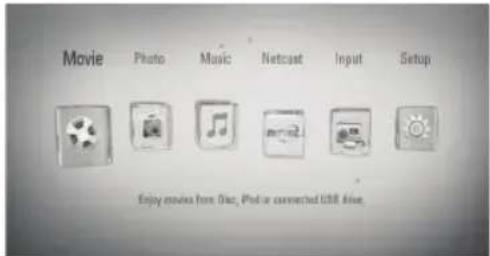
You can play DVD-RW discs that are recorded in Video Recording (VR) format and movie files contained in a disc or USB device.
- Press HOME (↑).
text_image
Movie Photo Music Netcast Input Setup Enjoy movies from One, iPod or connected USB drive.- Select [Movie] using </>, and press ENTER (◎).
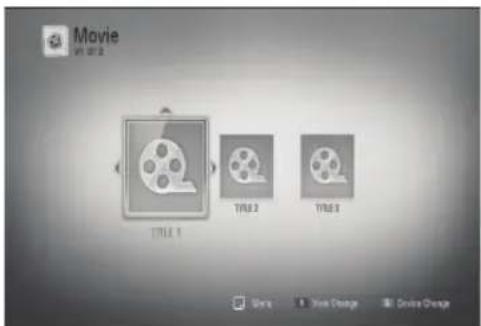
- Select the device using </>, and press ENTER (◎).

natural_image
Three electronic devices: a CD, USB, and iPod, shown in grayscale with no visible text or symbols on the devices themselves.When you connect up to two devices, it appears as above.
- Select a file using /V/</> , and press PLAY or ENTER (◎) to play the file.
text_image
Movie V1 01.2 TIRLS 1 TIRLS 2 TIRLS 3 Units Book Change Online Change
NOTE
• The file requirements are described on page 11.
- You can use various playback functions. Refer to pages 36-43.
• Unfinalized DVD VR format discs may not be played in this player.
- Some DVD-VR disc are made with CPRM data by DVD recorder. This unit cannot support these kinds of discs.
What is CPRM?
CPRM is a copy protection system (with scramble system) only allowing the recording of 'copy once' broadcast programs. CPRM stands for Content Protection for Recordable Media.

4
Operation
Selecting a subtitle file MOVIE
If a movie file name and the subtitle file name are the same, subtitle file is played automatically when playing the movie file.
If the subtitle file name is different with the movie file name, you need to select the subtitle file on the [Movie] menu before playing the movie.
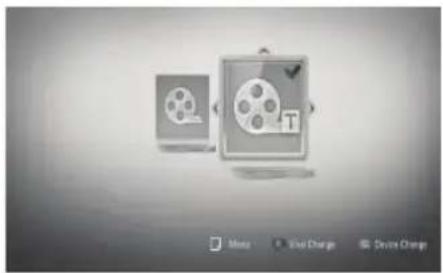
-
Use ∧/∨/</> to select the subtitle file you wish to play in the [Movie] menu.
-
Press ENTER (◎).
text_image
Movie Live Change Device ChangePress ENTER (●) again to deselect the subtitle file. Selected subtitle file will be displayed when you play the movie file.

NOTE
- If you press ■ (STOP) while playback, the subtitle selection is cancelled.
- This function may not work in the [Home Link] feature.
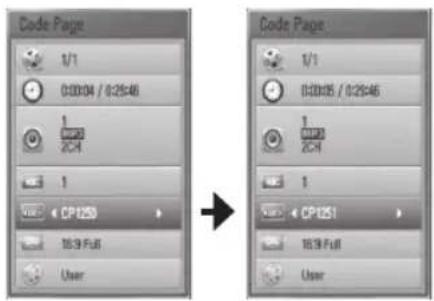
Changing subtitle code page MOVIE
If the subtitle is not displayed properly, You can change the subtitle code page to view the subtitle file properly.
- During playback, press INFO/DISPLAY (☐) to display the playback menu.
- Use A/V to select the [Code Page] option.
- Use </> to select desired code option.
text_image
Code Page 1/1 0:00:04 / 0:25:46 1 ZC4 1 CP1250 18.9 Full User Code Page 1/1 0:00:05 / 0:25:46 1 ZC4 1 CP1251 18.9 Full User- Press RETURN (💡) to exit the On-Screen display.
Viewing a photo
You can view photo files using this player.
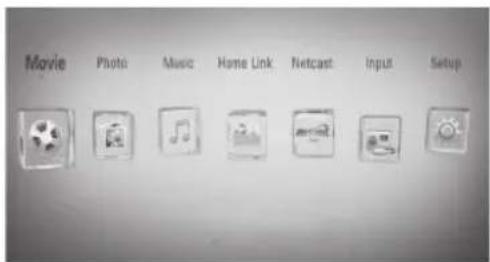
- Press HOME (↑).
text_image
Movie Photo Music Home Link Netcast Input Setup-
Select [Photo] using </>, and press ENTER (◎).
-
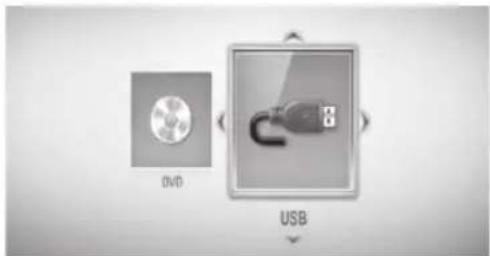
Select the device using </>, and press ENTER (●).
text_image
DVD USBWhen you connect up to two devices, it appears as above.
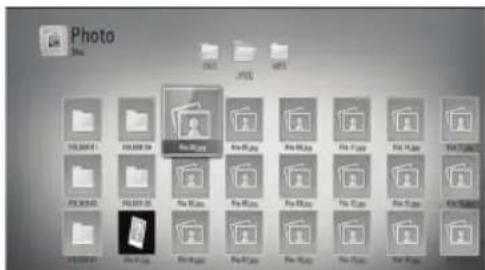
- Select a file using /V/< , and press ENTER (◎) to view the photo.
text_image
Photo File 100 KB 100 KB File 01.jpg File 02.jpg File 03.jpg File 04.jpg File 05.jpg File 06.jpg File 07.jpg File 08.jpg File 09.jpg File 10.jpg File 11.jpg File 12.jpg File 13.jpg File 14.jpg File 15.jpg File 16.jpg File 17.jpg File 18.jpg File 19.jpg File 20.jpg File 21.jpg File 22.jpg File 23.jpg File 24.jpg File 25.jpg File 26.jpg File 27.jpg File 28.jpg File 29.jpg File 30.jpg File 31.jpg File 32.jpg File 33.jpg File 34.jpg File 35.jpg File 36.jpg File 37.jpg File 38.jpg File 39.jpg File 40.jpg File 41.jpg File 42.jpg File 43.jpg File 44.jpg File 45.jpg File 46.jpg File 47.jpg File 48.jpg File 49.jpg File 50.jpg File 51.jpg File 52.jpg File 53.jpg File 54.jpg File 55.jpg File 56.jpg File 57.jpg File 58.jpg File 59.jpg File 60.jpg File 61.jpg File 62.jpg File 63.jpg File 64.jpg File 65.jpg File 66.jpg File 67.jpg File 68.jpg File 69.jpg File 70.jpg File 71.jpg File 72.jpg File 73.jpg File 74.jpg File 75.jpg File 76.jpg File 77.jpg File 78.jpg File 79.jpg File 80.jpg File 81.jpg File 82.jpg File 83.jpg File 84.jpg File 85.jpg File 86.jpg File 87.jpg File 88.jpg File 89.jpg File 90.jpg File 91.jpg File 92.jpg File 93.jpg File 94.jpg File 95.jpg File 96.jpg File 97.jpg File 98.jpg File 99.jpgTo play a slide show
Press ▶ (PLAY) to start slide show.
To stop a slide show
Press ■ (STOP) while slide show.
To pause a slide show
Press III (PAUSE) while slide show.
Press ▶ (PLAY) to re-start the slide show.
To skip to the next/previous photo
While viewing a photo in full screen, press < or > to go to the previous or next photo.

NOTE
• The file requirements are described on page 11.
• You can use various playback functions. Refer to pages 36-43.
Options while viewing a photo
You can use various options during viewing a photo in full screen.
- While viewing a photo in full screen, press INFO/DISPLAY (☐) to display the option menu.
- Select an option using /V .
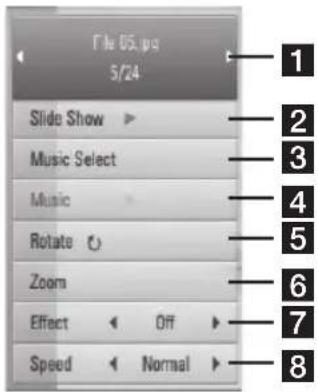
text_image
File 05.jpg 5/24 Slide Show ▶ Music Select Music Rotate ○ Zoom Effect ▶ Off ▶ Speed ▶ Normal ▶ 1 2 3 4 5 6 7 81 Current photo/Total number of photos
- Use </> to view previous/next photo.
2 Slide Show – Press ENTER (◎) to start or pause slide show.
3 Music Select – Select the background music for the slide show.
4 Music –Press ENTER (◎) to start or pause background music.
5 Rotate – Press ENTER (◎) to rotate the photo clockwise.
6 Zoom – Press ENTER (●) to display the [Zoom] menu.
7 Effect – Use </> to select a transition effect between photos in a slide show.
8 Speed - Use </> to select a delaying speed between photos in a slide show.
3. Press RETURN (💡) to exit the option menu.
Listening to music while slide show
You can display photo files while listening to music files.
- Press HOME (↑).
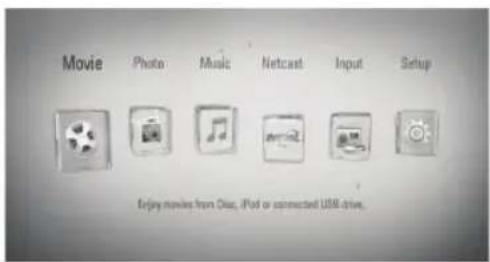
text_image
Movie Photo Music Netcast Input Setup Enjoy movies from One, iPod or connected USB drive.- Select [Photo] or [Home Link] using </>, and press ENTER (●).
- Select the [Disc] or [USB] option using </>, and press ENTER (●).
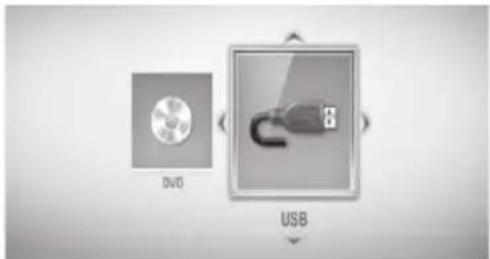
text_image
DVD USBSelecting a server or a share folder is needed for [Home Link] menu.
- Select a file using ∧/∨/</>, and press ENTER (○) to view the photo.
- Press INFO/DISPLAY ☐) to display the option menu.
-
Use /V to select [Music Select] option, and press ENTER (●) to display the [Music Select] menu.
-
Use /V to select a device, and press ENTER (☐).
Device that you can select are differ depending on the location of the photo file you are displaying in full screen.
| Photo location Available Device | |
| Disc Disc, USB | |
| USB Disc, USB | |
| Share Folder on your PC (CIFS) | CIFS |
| DLNA server DLNA server | |
- Use /V to select a file or a folder you wish to play.
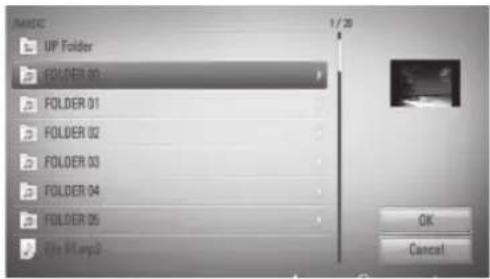
text_image
UP Folder FOLDER 01 FOLDER 01 FOLDER 02 FOLDER 03 FOLDER 04 FOLDER 05 File: 01.vy.2 1 / 20 OK CancelSelect a folder and press ENTER (●) to display the lower directory.
Select 📊 and press ENTER (💡 to display the upper directory.

NOTE
When selecting music from [Home Link], folder selection is not available. Only file selection is available on the [Home link].
- Use > to select [OK], and press ENTER (☑) to complete music selection.
Listening to music
The player can play Audio CDs and music files
- Press HOME (↑).
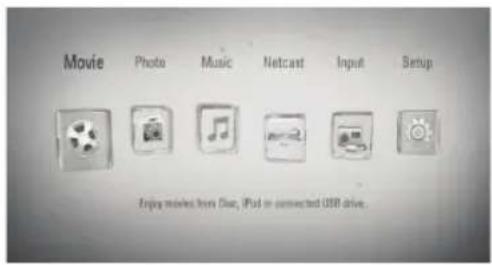
text_image
Movie Photo Music Netcast Input Setup Enjoy movies from One, iPod or connected USB drive.-
Select [Music] using </>, and press ENTER (◎).
-
Select the device using </>, and press ENTER (●).
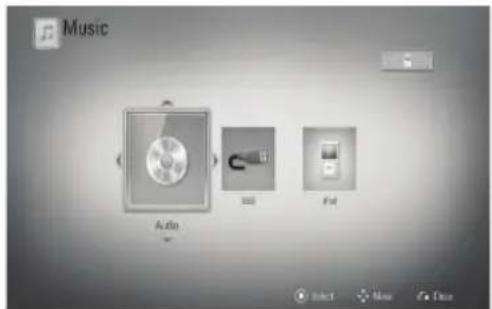
text_image
Music Audio FileWhen you connect up to two devices, it appears as above.
- Select a music file or audio track using ∧/∨/</>, and press ENTER (◎) to play the music.

NOTE
• The file requirements are described on page 11.
• You can use various playback functions. Refer to pages 36-43.
Audio CD Recording
You can record one desired track or all of the tracks in Audio CD to a USB storage device.
- Insert a USB storage device to the USB port on the front panel.
- Press ▲ (OPEN/CLOSE), and place an Audio CD on the disc tray.
Press ▲ (OPEN/CLOSE) to close the disc tray. The playback starts automatically. - Press INFO/DISPLAY (☐) to display the option menu.
Or
Press ● REC button on the remote control. You can record all musics in the audio CD.
- Use /V to select [CD Recording] option, and press ENTER (●) to display the [CD Recording] menu.
Repeat this step to select tracks as many as you can.
- Use ∧∨ to select a track you wish to copy on the menu, and press ENTER (○).
Repeat this step to select tracks as many as you can.
| Select All | Select all the tracks on an Audio CD. |
| Option | Selects an encoding option from the pop-up menu (128 kbps, 192 kbps, 320 kbps or Lossless). |
| Close | Cancels the recording and returns to the previous screen. |
-
Use //</> to select [Start], and press ENTER (◎).
-
Use /V/<> to select the destination folder to be copied.
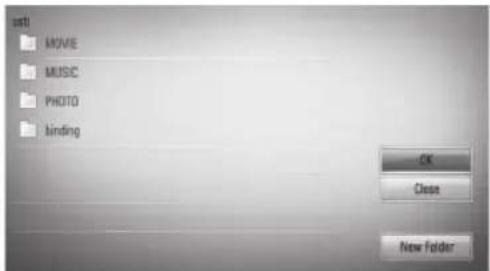
text_image
UST MOVIE MUSIC PHOTO binding OK Close New FolderIf you want to create a new folder, use / / < / > to select [New Folder] and press ENTER (●).
Enter a folder name using virtual keyboard, and press ENTER (●) while [OK] is selected.
- Use N/V/<> to select [OK], and press ENTER (●) to start Audio CD recording.
If you want to stop in progressing Audio CD recording, press ENTER (●) while [Cancel] is highlighted.
- A message appears when Audio CD recording is completed. Press ENTER (●) to check the music file created in the destination folder.

NOTE
- The table below shows the average recording time from an audio track with 4 minutes of playback time to a music file with 192 kbps as an example.
| stop mode while playback | |
| 1.4 min. 2 min. | |
• All times in the above table are approximate.
- Actual recording time for USB storage device varies depending on the USB storage device's ability.
• Make sure that there is minimum of 50 MB free space is needed when recording into the USB storage device.
• The length of the music should be longer than 20 seconds for the proper recording.
- Do not turn off this player or extract the connected USB storage device during Audio CD recording.
- All times in the above table are approximate. - Actual recording time for USB storage device varies depending on the USB storage device's ability. - Make sure that there is minimum of 50 MB free space is needed when recording into the USB storage device. - The length of the music should be longer than 20 seconds for the proper recording. - Do not turn off this player or extract the connected USB storage device during Audio CD recording.
The making of unauthorized copies of copy-protected material, including computer programs, files, broadcasts and sound recordings, may be an infringement of copyrights and constitute a criminal offense. This equipment should not be used for such purposes. Be responsible Respect copyrights
Viewing information from Gracenote Media Database
The player can access to the Gracenote Media Database and loads the music information so that Track name, Artist Name, Genre and other text information can be displayed on the list.
Audio CD
When you insert an Audio CD, the player starts playback automatically and load the music title from the Gracenote® Media Database.
If there is no music information from the database, music titles will not appear on the screen.
Music file
- Select a music file or audio track using N/V/</>.
- Press INFO/DISPLAY (☐) to display the option menu.
- Select the [Information] option using /V , and press ENTER (◎).
The player accesses to Gracenote Media Database for the music information.
BD/DVD
While listening to a music from the movie playback, press MUSIC ID to start loading music information from the Gracenote Media Database.

NOTE
- The player must be connected to the broadband internet for accessing the Gracenote® Media Database.
- If the music information is not in the Gracenote® Media Database, message appears on the screen.
- If the music information from the Gracenote® media database is either not correct or not exist, please contact Gracenote® at http://www.gracenote.com for support.
- Depending on the cases, it will takes a few minutes to load music information from the Gracenote® media database.
• Information may be displayed in broken letters, if your language you selected is not available on the Gracenote media database. - This function is not available for NetCast on-line content.
- LG is a license of Gracenote® technology and is not responsible or reliable for information from the Gracenote® media database.
- Audio CDs that users made for their only private purposes cannot be supported in this feature because they are not in the Gracenote Media Database.
Playing the iPod
You can enjoy the sound with your iPod. For details about iPod, refer to the iPod's User Guide.
Preparation
- To view iPod's Videos and Photos on the TV screen.
- Be sure to use the video connection through the VIDEO OUT jack on the rear panel of this unit. Select the appropriate video input mode on the TV.
- Depending on the iPod, make sure that select Videos > Video settings, and then set TV Out to Ask or On from your iPod. For details about Video Settings, refer to the iPod User Guide.
- The viewing photos is available only if this unit is in iPod IN mode and you can view photos only as a slide show. You have to start a slide show on your iPod to view a photo on a TV. For details about a slide show, refer to the iPod User Guide.
- Before connecting the iPod, turn this unit off and reduce the volume of this unit to its minimum.
- Connect the iPod firmly. To open the iPod Dock, pull iPod dock.
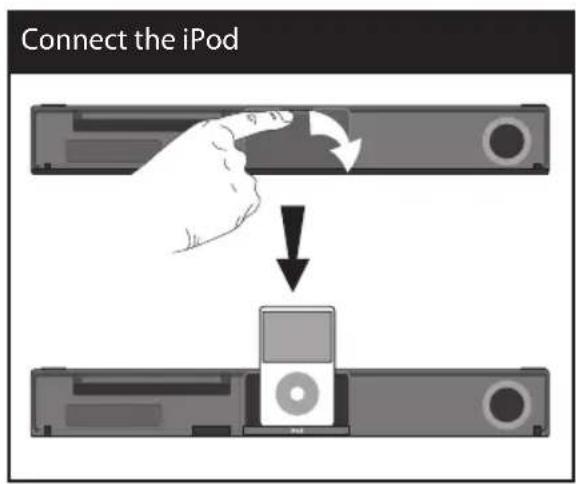
text_image
Connect the iPodWhen you connect the iPod on the HOME menu, the player plays a music automatically. Or a menu for the file type selection will appear.
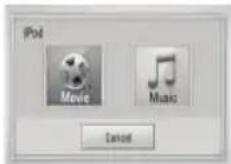
- Select a file using //</> , and press ENTER (●to play the file.
Enjoying iPod on the screen
- Connect the iPod firmly.
- Press HOME (↑).
- Select [Music] or [Movie] using <//>, and press ENTER (●). If you connected the other device (CD or USB), select the iPod on the menu.
- Select a content using ∧N/</>, and press ENTER (●) to play.
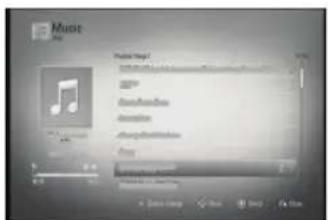
text_image
Music Play Track Map Music Player Music Player Audio Player Audio Player Audio Player Audio Player Audio Player Audio Player Audio Player Audio Player Audio Player Audio Player Audio Player Audio Player Audio Player Audio Player Audio Player Audio Player Audio Player Audio Player Audio Player Audio Player Audio Player Audio Player Audio Player Audio Player Audio Player Audio Player Audio Player Audio Player Audio Player Audio Player Audio Player Audio Player Audio Player Audio Entity Audio Entity Audio Entity Audio Entity Audio Entity Audio Entity Audio Entity Audio Entity Audio Entity Audio Entity Audio Entity Audio Entity Audio Entity Audio Entity Audio Entity Audio Entity Audio Entity Audio Entity Audio Entity Audio Entity Audio Entity Audio Entity Audio Entity Audio Entity Audio Entity Audio Entity Audio Entity Audio Entity Audio Entity Audio Entity Audio Entity Audio Entity Audio Entity Audio EntityYou can search easily a content by power scroll on the screen.
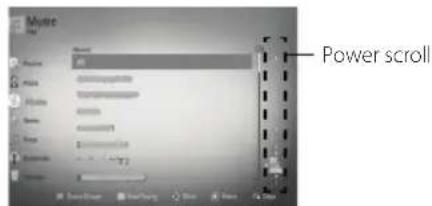
text_image
Power scroll
NOTE
If the iPod's OSD language is selected to simple chinese, the power scroll function is not operated correctly.
Enjoying the iPod IN mode
You can operate your iPod by using the supplied remote control and controls on your iPod.
-
Connect the iPod firmly. If you turn this unit on, your iPod is automatically turned on and recharging starts.
-
Press RADIO&INPUT to select iPod IN mode.
| /V/ < / > | Selects an option in the menu. |
| ▶/ENTER | Starts playback the music or video. |
| || | To pause while it is playing. To resume playing, press ▶ (PLAY) again. |
| ◀◀/▶▶ | Fast-forward or rewind a song or video |
| |◀◀/▶▶| | Skip the playback forward or backward. |
| REPEAT To select a desired repeat mode: Track (○), All (○), Off (No display). | |

NOTE
- An error message "CHECK IPOD" or "Connected iPod model is not supported." appears when: - your iPod is not available for the function to be operated.
- An error message "CHECK IPOD" or "Please update iPod's software." appears when:
- your iPod has an old software version. → Update your iPod software to latest version.
- If this unit displays an error message, follow the message. An error message "CHECK IPOD" or "Please check your iPod." appears when:
- the communication between this unit and your iPod is failed. → Undock & re-dock your iPod in this unit.
- your iPod is not connected firmly.
- this unit recognizes your iPod as unknown device.
- your iPod is exceptionally low on power. → The battery needs to be charged. → If you charge the battery while iPod is extremely low in power, it may take longer to charge.
- You may use the dock adapter which should be supplied with your iPod to the dock for the stable use of the iPod. If you need an adapter, consult your iPod dealer.
- Compatibility with your iPod may vary depending on the type of your iPod.
- iPod touch and iPhone have any difference in operation other than iPod. You may need any additional control to use them with this unit. (e.g. "slide to unlock")
- If you use an application, make a call, or send and receive SMS text message, etc. on iPod touch or iPhone, disconnect it from iPod dock of this unit and then use it.
- Depending on your iPod's software version, it may not be possible to control your iPod from this unit. We recommend installing the latest software version.
- The video quality depends on the video sources on your iPod.
• If you have a problem with your iPod, please visit www.apple.com/support/ipod.
Radio Operations
Be sure that both antennas are connected. (Refer to the page 21)
Listening to the radio
- Press RADIO&INPUT until TUNER (FM/AM) appears in the display window. The last received station is tuned in.
- Press and hold TUNING (-/+) for about two seconds until the frequency indication starts to change. Scanning stops when the unit tunes in a station. Or Press TUNING (-/+) repeatedly.
- Adjust the volume by rotating VOLUME on the front panel or by pressing VOL (+/-) on the remote control
Presetting the Radio Stations
You can preset 50 stations for FM and AM (MW). Before tuning, make sure that you have turned down the volume.
- Press RADIO&INPUT until the TUNER (FM/AM) appears in the display window.
- Select the desired frequency by using TUNING (-/+).
- Press ENTER (●) a preset number will flash in the display window.
- Press PRESET (-/+) to select the preset number you want.
- Press ENTER (●). The station is stored.
- Repeat the steps 2 to 5 to store other stations.
Deleting all the saved stations
Press and hold CLEAR for two seconds. "ERASE ALL" will flash up. Press CLEAR again. Then all the saved stations are deleted.
Improving poor FM reception
Press B (blue) (MONO/STEREO) colored button on the remote control. This will change the tuner from stereo to mono and usually improve the reception.
Using NetCast™ Entertainment Access
You can use various content services via Internet with NetCast Entertainment Access feature.
- Check the network connection and settings (pages 24-26).
- Press HOME (↑).
- Select the [NetCast] using </>, and press ENTER (●).
- Select an option using </>, and press ENTER (◎).
Netflix – See page 55
Vudu - See page 58
CinemaNow – See page 61
MLB.TV® – See page 65
YouTube™ – See page 67
Pandora – See page 70
Napster – See page 73
Picasa™ Web Albums – See page 75
AccuWeather – See pages 78
- While enjoying on-line content from NetCast, press blue (B) colored button to go to the NetCast Home screen.

NOTE
- The content of NetCast services and service related information, including user interface, is subject to changes. Please refer to the web site of each service for most up-to-date information.
- Using NetCast features with wireless network connection may result in improper streaming speed by interference from household devices that are using radio frequencies.
Using Netflix

You can instantly watch movies (very few new releases) & TV episodes from Netflix streamed over the internet to your TV via your LG Blu-ray disc player.
Activating your player
You must activate your player before you can use it to watch movies streamed over the INTERNET from Netflix.
- To watch movies and TV episodes instantly form Netflix, you must be a netflix member. If you are already a member of Netflix, this step is not needed.
On your computer, visit:
www.netflix.com/LG
Follow the instructions to become a Netflix member and get a free trial.
- On the player, select the [Netflix] option in the [NetCast] menu using </>, and press ENTER (◎).
- Follow the on-screen instruction until you see an activation code.
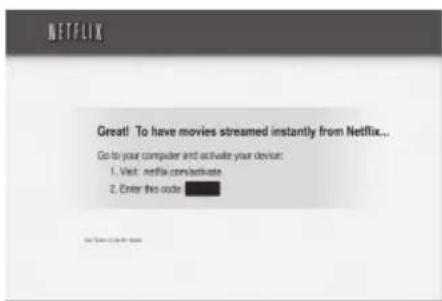
text_image
NETFLIX Great! To have movies streamed instantly from Netflix... Go to your computer and activate your device: 1. Visit . netflix.com/activate 2. Enter this code ....The activation code appears on the screen. Note the activation code.
- On your computer, visit: www.netflix.com/activate
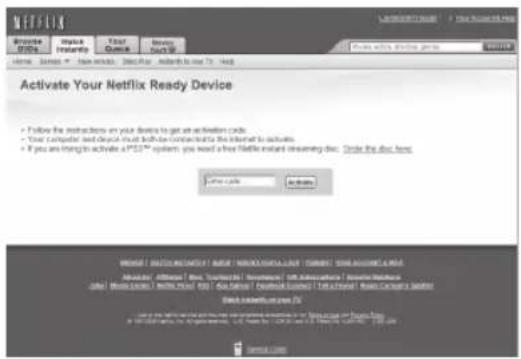
text_image
Netflix Activate Your Ready Device • Follow the instructions on your device to get an activation card. • Your computer send desktop to all the devices next to the Internet to activate. • If you are trying to activate a PSS™ system, you need a free Netflix instant streaming disc. Include the disc here. Other links Active Microsoft (Microsoft) 2008 Microsoft Excel 2008 Microsoft Excel 2008 Microsoft Excel 2008 Microsoft Excel 2008 Microsoft Excel 2008 Microsoft Excel 2008 Microsoft Excel 2008 Microsoft Excel 2008 Microsoft Excel 2008 Microsoft Excel 2008 Microsoft Excel 2008 Microsoft Excel 2008 Microsoft Excel 2008 Microsoft Excel 2008 Microsoft Excel 1999 Microsoft Excel 2008 Microsoft Excel 2008 Microsoft Excel 2008 Microsoft Excel 2008 Microsoft Excel 2008 Microsoft Excel 2008 Microsoft Excel 2008 Microsoft Excel 2008 Microsoft Excel 2008 Microsoft Excel 2008 Microsoft Excel 2008 Microsoft Excel 2008 Microsoft Excel 2008 Microsoft Excel 2008 MicrosoftExcel Server 2008 Microsoft Excel 2008 Microsoft Excel 2008 Microsoft Excel 2008 Microsoft Excel 2008 Microsoft Excel 2008 Microsoft Excel 2008 Microsoft Excel 2008 Microsoft Excel 2008 Microsoft Excel 2008 Microsoft Excel 2008 Microsoft Excel 2008 Microsoft Excel 2008 Microsoft Excel 2008 Microsoft Excel 3654567 Microsoft Excel Server 2008 Microsoft Excel 2008 Microsoft Excel 2008 Microsoft Excel 2008 Microsoft Excel 2008 Microsoft Excel 2008 Microsoft Excel 2008 Microsoft Excel 2008 Microsoft Excel 2008 Microsoft Excel 2008 Microsoft Excel 2008 Microsoft Excel 2008 Microsoft Excel 2008 Microsoft Excel 2008 Microsoft Excel Microsoft Excel Server 2008 Microsoft Excel Server 2008 Microsoft Excel Server 2008 Microsoft Excel Server 2008 Microsoft Excel Server 2008 Microsoft Excel Server 2008 Microsoft Excel Server 2008 Microsoft Excel Server 2008 Microsoft Excel Server 2008 Microsoft Excel Server Microsoft Excel Server Microsoft Excel Server Microsoft Excel Server Microsoft Excel Server Microsoft Excel Server Microsoft Excel Server Microsoft Excel Server Microsoft Excel Server Microsoft Excel Server Microsoft Excel Server Microsoft Excel Server Microsoft Excel Server Microsoft Excel Server Microsoft Excel Server Microsoft Excel Server Microsoft Excel Server Microsoft Excel Server Microsoft Excel Server Microsoft Excel Server Microsoft Excel Server Microsoft Excel Server Microsoft Excel Server Microsoft Excel Server Microsoft Excel Server Microsoft Excel Server MSI - Microsoft Excel Server MSI - Microsoft Excel Server MSI - Microsoft Excel Server MSI - Microsoft Excel Server MSI - Microsoft Excel Server MSI - Microsoft Excel Server MSI - Microsoft Excel Server MSI - Microsoft Excel Server MSI - Microsoft Excel Server MSI - Microsoft Excel Server MSI - Microsoft Excel Server MSI - Microsoft Excel Server MSI - Microsoft Excel Server MSI - Microsoft Excel Server MSI - Microsoft Excel VersionYou need to log into your account.
- Enter the activation code, and click [Activate] icon.
After you activate your player, you're ready to add movies & TV episodes to your instant Queue. You can then use your player's remote to browse your instant Queue and to select and watch titles on your TV.
For questions regarding the Netflix service please visit:
www.netflix.com/help or call 1-866-579-7113

NOTE
- If a newer software is needed, a software update screen will automatically appear when you select [Netflix] from NetCast menu. For details on software updates, see page 87.
- You can deactivate streaming from Netflix to your player using [Deactivate Netflix] option on the setup menu (page 33).
Filling your instant Queue from the Netflix web site
Add and manage the movies & TV episodes in your instant Queue from the Netflix web site. Your instant Queue also appears on your TV via your player, so your selections are available to watch anytime.
- On your computer, visit:
www.netflix.com
You need to log into your account.
- Click [Watch Instantly] tab.
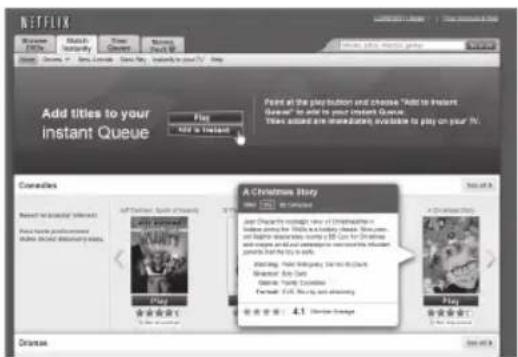
text_image
NETFLIX Add titles to your instant Queue Play Add it Instant Find all the play button and choose "Add to Instant Gave" as add to your instant Queue. There asked are merchandise, available to play on your 16. Comedies A Christmas Story Add Play in the next one of Christmas in instant queue for the United States. Show some and maybe away from US$ to Christmas and places and other locations in the United States. I am here! Starting: New York City, New Jersey, Director: John Davis, George: Young Location, Former: E.M., New York City, New Jersey. Beijing: 4.1, Beijing: Beijing Play Comedies: Drazea- Find a movie or TV episode you want to watch, and mouse over the [Play] icon to reveal additional option.
- Click [Add to Instant Queue] to add to your Queue.

text_image
Play Add to Instant Quote Not Interested- Repeat step 4 to add more movies & TV episodes to your instant Queue.
Filling your instant Queue from your player
You can add and manage the movies & TV episodes in your instant Queue from the player.
- On the player, select the [Netflix] option in the [NetCast] menu using </>, and press ENTER (◎).
- On the [Instant Queue] screen, press to select categorized menu bar.
- Use </> to select a menu, and press V to display movies & TV episodes.
- Use </> to select a movie or a TV episode, and press ENTER (●).

NOTE
On the movies or TV episodes screen, you can move to the next 7 posters using ◀◀/▶▶.
- Use A/V to select [add to instant Queue], and press ENTER (●to add to your Queue.
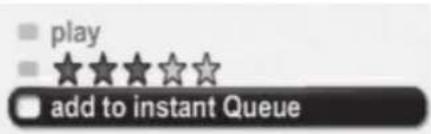
text_image
■ play ■ ★★★★☆☆ □ add to instant Queue
NOTE
Even if you use a high-resolution setup, audio/video quality may be compromised based on the speed of your broadband internet connection. Your Internet Service Provider (ISP) determines your broadband speed. We recommend a minimum connection speed of 1.5 Mbps. For the best quality picture, a connection speed of 4.0 Mbps is required. Sometimes your broadband speed varies based on your ISP's network conditions. Contact your ISP if you have problems maintaining a fast connection that is reliable, or if you want to increase your connection speed. Many ISPs offer a variety of broadband speed options.
Watch Netflix movies & TV episodes on your TV
After you set up your player and add movies & TV episodes, you can browse and watch them on your TV.
- On the player, select the [Netflix] option in the [NetCast] menu using </>, and press ENTER (◎).
- Use </> to select a movie or a TV episode, and press ENTER (●).
- Use /V to select [Play], and press ENTER (☐) to start playback.
| Button Operation | |
| ▶ | Starts playing back the movie. |
| || | Pause a movie while it's playing.To resume playing a pausedmovie, press ▶ (Play) again. |
| ■/^ | Stops the movie and displaysyour instant Queue. |
| ENTER Pauses playing the movie andenters frame scanning mode. | |
| </> | Pauses playing the movie andenters frame scanning mode.To scan forward one frame at atime, press the button again. |
| ◀◀/▶▶ | Pauses playing the movie andscans forward or backwardthrough the movie. To scanfaster, press the button again.To play the highlighted scene,press ENTER (◎) or ▶(Play).To resume playing from thepoint you paused the movie,press ^. |
VUDU

text_image
vdu™You can browse, search and watch movies & TV episodes from VUDU streamed over the internet to your TV via your LG Blu-ray disc player.
Activating your player
You must activate your player before using the player to watch movies streamed over the internet from VUDU.
- Select [Vudu] in the [NetCast] menu and press ENTER (◎).
- Use </> to select the [FREE HD Rental] and press ENTER (◎).
- Enter your e-mail address for the activation on the virtual keyboard, and press ENTER (While [Done] icon is highlighted.
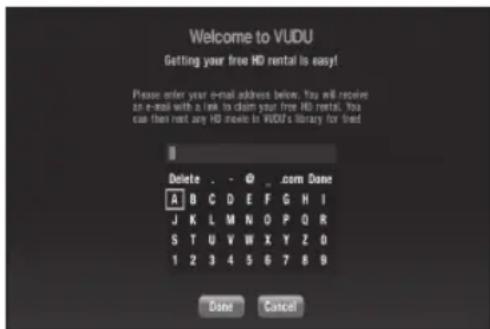
text_image
Welcome to VUDU Getting your free HD rental is easy! Please order your e-mail address below. You will receive an e-mail with a link to claim your free HD rental. You can then next any HD movie in VUDU's library for free Delete . - @ _ .com Done A B C D E F G H I J K L M N O P Q R S T U V W X Y Z O 1 2 3 4 5 6 7 8 9 Date CancelAn e-mail will be sent to your e-mail address for the activation.
-
After you submit your e-mail, you will receive an activation e-mail from Vudu to that e-mail address. Click on the activation URL in the e-mail to activate VUDU.
-
If you are not a member of Vudu yet, complete the required fields and click [Create an Account] to become a member. If you already have a Vudu account, enter the password in the [Password] field, and click [login] to complete the activation.
Please visit www.vudu.com/docs for the latest documentation related to this product.
For questions regarding the Vudu service please visit:
www.vudu.com/support or call 1-888-554-VUDU(8838)

NOTE
- You can deactivate streaming from Vudu to your player using [Deactivate Vudu] option on the setup menu (see page 33).
- If a newer software is needed, a software update screen will automatically appear when you select [Vudu] from the [NetCast] menu. For details on software updates, see page 87.
Vudu Home menu
After activating your player, you're ready to use the Vudu service.
Most Watched – Displays the top 100 movies rented or purchased the previous week on the service.
New on Vudu – Displays newly available movies to buy or upcoming movies.
New Trailers – Displays newly available movie trailers.
Explore Catalog – You can browse movies or TV shows you want to search from the categorized options or search by entering name of the title, actor or director.
My Vudu - Displays the movies and TV shows you have bought or rented from categorized options. You can also browse the movies and TV shows that you have added to the [MY WISH LIST].
Parental Controls
Vudu has a flexible parental control feature which controls the MPAA rating levels to control browsing, purchasing and viewing as separate settings.
-
Use </> to select [Info & Settings] on the [My Vudu] menu and press ENTER (●).
-
Use /V to select [Parental Control] and press ENTER (☐).
-
Use /V to select a setting you want to change, and press ENTER (☐).
-
Enter the passcode using numerical buttons to change the setting.
If it is the first time to use parental controls, you will be asked to create passcode. Enter a 4-digit passcode and enter it again to verify.
Once you have opted to receive the AVN channel at http://my.vudu.com, you can access the [After Dark] option from the [Explore Catalog] menu.
To manage the visibility of [After Dark], use the [Parental Controls] menu available in [Info & Settings]. Use /V to select [Adult Settings] option from the [Parental Controls] menu, and press ENTER (●) to display the [ADULT CONTENT SETTINGS] menu.

NOTE
• To disable adult content completely, please visit http://my.vudu.com.
- If you forget your passcode, call Vudu customer service to have your passcode reset. Once your passcode is reset, you can choose a new passcode in the settings page.
Overscan Settings
Most TVs shift the edges of the television image, either insetting or cutting off part of the picture. The Adjust Overscan screen will provide you with instructions for maximizing the on-screen viewing surface of your TV.
Select [Overscan Settings] option from the [Info & Settings] menu. You will use the remote to move the arrows on the screen and change the size you are specifying.

Renting and Purchasing videos
After activating your player, you are ready to buy or rent movies & TV episodes. You can then use your player's remote to browse, search and watch directly on your TV.
- Select a video you want to buy or rent from [Vudu] menu. Press ENTER (☑) while selecting the video thumbnail to display the [MOVIE DETAILS] or [EPISODE DETAILS]. The [MOVIE DETAILS] or [EPISODE DETAILS] screen shows the information of the video such as rating, run time, etc.
- Use /V to select [Buy], and press ENTER (☐).
- Use /V to select a quality level (HDX, HD or SD), and press ENTER ( ).

NOTE
• Available quality levels and purchase types on each movie may differ depending on the content owner restrictions.
- Vudu offers you a free 2-minute preview of any movie. By watching the preview, you can also determine which quality level (HDX, HD or SD) best suits your available network bandwidth prior to renting a movie.
- If there is the Preview icon below the movie poster, press ▶ (PLAY) to play trailer of the movie.
- Use /V to select [Own for \x.xx] or [Rent for \x.xx], and press ENTER (to confirm you rental or purchase.

NOTE
-
Rental videos are available for up to 30 days. Once you start to play the movie, your viewing period is initiated. Viewing periods differ by movie, but are typically either 24 or 48 hours. You may watch the movie as many times as you like within that time period.
• Movies and TV shows are available for rental or purchase depending on the rights provided by the content owner. -
Use /V to select [Watch Now], and press ENTER (○) to play the video immediately. Select [Watch later] to continue browsing.
| Button Operation | |
| || | Pause a movie while it's playing. To resume playing a paused video, press ▶ (PLAY). |
| ■ | Stops the movie and displays previous screen. |
| ENTER or INFO/ DISPLAY | Displays the movie info bar which indicate chapter icon, quality levels, video quality indicator and progress bar on the screen. |
| ◀◀/▶▶ | Scans forward or backward through the movie. To scan faster, press the button again. To return to the normal playback, press ▶. |

NOTE
The smooth playback of movies on the Vudu service requires a Broadband Internet connection. Please consult the grid below to determine which quality level (HDX, HD or SD) best suits your available network bandwidth.
| Video Quality Internet | Bandwidth |
| SD (480p) 1Mbps to 2.25 | Mbps |
| HD (720p) 2.25Mbps to 4.5 | Mbps |
| HDX (1080p) 4.5Mbps to 9 | Mbps |
Sometimes your broadband speed varies based on your ISP's network conditions. Contact your ISP if you have problems maintaining a fast connection that is reliable, or if you want to increase your connection speed. Many ISPs offer a variety of broadband speed options.
CinemaNow

ROXIO CinemaNow™
You can browse, search and watch movies & TV episodes from CinemaNow streamed over the internet to your TV via your LG Blu-ray disc player.
Activating your player
You must activate your player before using the player to watch movies streamed over the internet from CinemaNow.
- On your computer, visit: www.cinemanow.com/activate
- Enter your [user name] and [password] to log into your account.
- On your computer, visit: www.cinemanow.com/activate
- Enter your [user name] and [password] to log into your account.
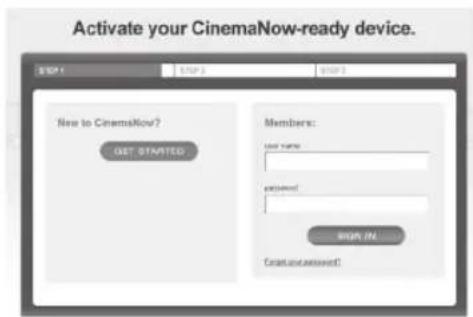
text_image
Activate your CinemaNow-ready device. NEW TO CinemaNow? GET STARTED Members: Last name: created: SHOP IN... Created/answered:If you are not a member of CinemaNow yet, click [GET STARTED] to be a member.
- Enter the Personal Information, Payment Information, Gift Code Redemption and Adult Access Restrictions, and then click [CONTINUE].

NOTE
To learn more about controlling access to adult content, please visit: www.cinemanow.com/adultcheck
-
The activation code number appears. Note the activation code number.
-
On the player, select [CinemaNow] in the [NetCast] menu and press ENTER (●).
- Use /V/</> to select the [Settings] and press ENTER (○).
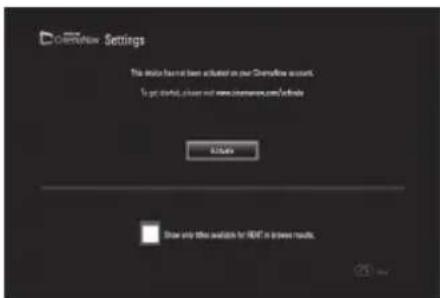
text_image
COMFlow Settings This option has been installed on our COMflow account. To get installed, you can see www.comflow.com/are/make Add Do not only offer available for Reddit in power works.- Select [Activate] and press ENTER (☐) to display the activation code input screen.
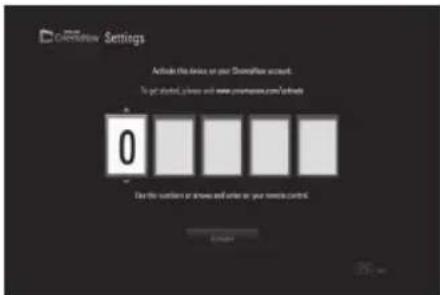
text_image
COSMOSW Settings Activate this device on your COSMOSW account. To get installed, please add new COSMOSW accounts?e-mail 0 Use the settings or arrows and enter on your network control.- Enter the activation code you have noted using /V/</> or numerical buttons, and press ENTER (●while [Activate] is selected.
For questions regarding the CinemaNow service please visit: www.cinemanow.com/support

NOTE
- You can deactivate streaming from the CinemaNow service on your player using [De-activate] option on the [settings] menu item.
- User must log in CinemaNow web site to activate your player. To watch the stream video, you should browse and buy titles at the player.
About the CinemaNow menu
After activating your player, you're ready to use the CinemaNow service.
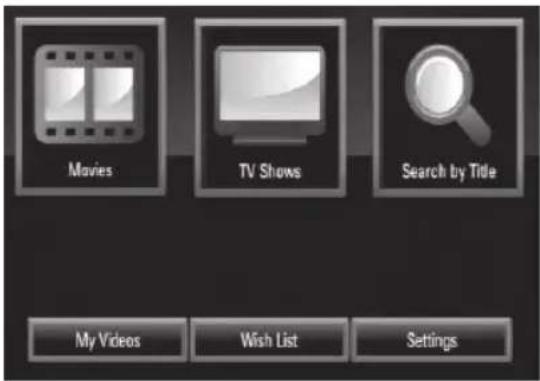
text_image
Movies TV Shows Search by Title My Videos Wish List SettingsMovies – The movie list appears on the screen. Browse movies you want to buy/rent from the categorized options or search by selecting the [Search by Title] option.
TV Shows – The TV show list appears on the screen. You can browse TV episodes you want to buy from the categorized options or search by selecting the [Search by Title] option.
Search by Title – Search movies & TV episodes by entering the title name on the keyboard menu. (page 63)
My Videos - Displays the movies & TV episodes you have bought or rented. You can browse the videos from categorized options as well as play the videos from this screen. The My videos screen is where you can get access to all your previously rented or purchased content from any CinemaNow powered by device.
Wish List – Displays the movies & TV episodes you have added to your CinemaNow Wish List. You can buy, rent or remove videos from the list.
Settings – You can activate or de-activate the CinemaNow Service from your player. You can set the check box to only show the titles that are available for rent.
Searching for videos
You can search for videos by entering search words up to 128 characters.
- Select [Search by title] in the [CinemaNow] menu and press ENTER (●).
You can select the [Serach by title] menu from [Movies]/[TV Shows]
- Use /V/</> to select a character then press ENTER (◎) to confirm your selection on the keyboard menu.
When you entering the characters, titles that starts with the letters you are entering will be displayed on the right.
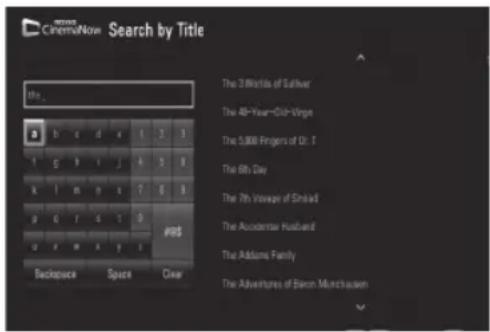
text_image
Search by Title the... The 3 Worlds of Suffer The 48-Year-Old-Vinga The 5,000 Fingers of Dr. I The 6th Day The 7th Vssage of Shindad The Accidental Husband The Addams Family The Adventures of Baron Munchausen Backspace Space Clear[Clear] – Clear all entered characters.
[Space] – Inserts a space at the cursor position.
[Backspace] – Deletes the previous character at the cursor position.
[ABC / abc / #@\$] – Change the keyboard menu settings to capital letters, small letters or symbols.
- When you finish entering the search words, Use /V/</> to select a title from the list shown on the right, and then press ENTER (◎) to display the [Title details] screen of the video.
Renting and Purchasing videos
After activating your player, you are ready to buy or rent movies & TV episodes. You can then use your player's remote to browse, search and watch directly on your TV.
- Select a video you want to buy or rent from [Movies] or [TV Shows] menu. Press ENTER (●) while selecting the video thumbnail to display the [Title Details].
- The [Title Details] screen shows the information of the video such as rating, run time, etc.
- Use //</> to select [Buy] or [Rent] and press ENTER (◎).


NOTE
- If you select [Add to Wish List] from [Title Details] menu, the video will be stored in the [Wish List]. You can buy, rent or remove this video from the [Wish List] menu.
-
For [Title Details] menu of [TV Shows], use A/V/ </> to select an episode, and then select [Buy] to purchase each episode.
-
Select [Place order] to confirm your purchase. Any gift code balance you have previously redeemed will be applied automatically. If you want to redeem a new gift code, select [Redeem Gift Code] and press ENTER (▶) to enter the gift code on the keyboard menu.
-
Select [Watch Now] to play the video immediately.
Select the [Continue Browsing] to add the movie to the [My Videos] and return to the [Movies] menu.
| Button Operation | |
| ▶ | Starts playing back the movie. |
| || | Pause a movie while it's playing.To resume playing a pausedmovie, press ▶ again. |
| ■ | Stops the movie and displaysprevious screen. |
| ENTER Dis | plays the video qualityindicator and progress bar onthe screen. |
| ◀◀/▶▶ | Scans forward or backwardthrough the movie. To scanfaster, press the button again. Toreturn to the normal playback,press ▶. |

NOTE
- Rental videos are available to watch for a 24 hour period (in most cases), starting from the first time they are played.
- If you have a CinemaNow gift code, you can redeem it by selecting the [Redeem Gift Code] button at checkout.
- While most videos are available for rental and purchase, some are available for purchase only due to content owner restrictions. If you want to view content that is only available to rent, you may do so by going to the settings menu, and checking the "Show only titles available for RENT in browse results".
- Please note that there may be a difference between the content offered to buy and watch on the CinemaNow service on the LG player, and that on www.cinemanow.com. This is due to content owner restrictions.
- The playback of CinemaNow videos may be paused, stopped or buffering occurring often depending on your broadband speed. We recommend a minimum connection speed of 1.5 Mbps. For the best playback condition, a connection speed of 4.0 Mbps is required. Sometimes your broadband speed varies based on your ISP's network conditions. Contact your ISP if you have problems maintaining a fast connection that is reliable, or if you want to increase your connection speed. Many ISPs offer a variety of broadband speed options.
Playing MLB.TV®

text_image
MLB.tvYou can instantly watch regular season MLB ^® games from MLB.TV ^® streamed over the internet via your LG Blu-ray disc player.
Activating your player
You must activate your player before watching MLB games on the player.
- To activate your player, you must be a MLB.TV ^ or MLB.TV ^ Premium subscriber. If you are already a MLB.TV ^ or MLB.TV ^ Premium subscriber, this step is not needed.
On your computer, visit: http://www.mlb.com/LG
Follow the instructions to become a MLB.TV ^® or MLB.TV ^® Premium subscriber.
- On the player, select the [MLB.TV®] option in the [NetCast] menu using < / > , and press ENTER (◎).
- Use /V to select [Link Device] and press ENTER (☐) to display an activation code.
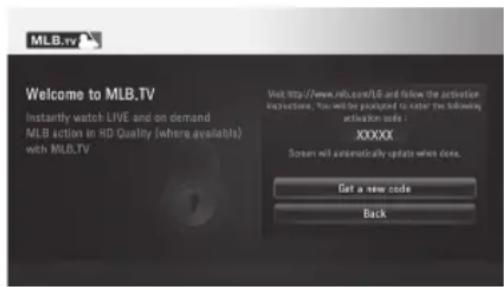
text_image
MLB.tv Welcome to MLB.TV Instantly watch LIVE and on demand MLB action in HD Quality (where available) with MLB.TV Visit http://www.mlb.com/UG and follow the activation instructions, You will be prompted to enter the following activation code : XXXXXX Screen will automatically update when does. Get a new code BackThe activation code appears on the screen. Note the activation code.
- On your computer, visit: http://www.mlb.com/LG
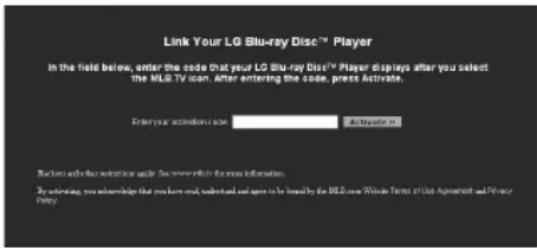
text_image
Link Your LG Blu-ray Disc™ Player In the field below, enter the code that your LG Blu-ray Disc™ Player displays after you select the MLLG TV icon. After entering the code, press Activate. Enter your activities code Auth Invest in Backprop add other activities up to: See www.infor the more information. By authorising, you acknowledge that you have read, understand and agree to be issued by the MLLG New Private Terms of Unit Agreement and Privacy Policy.You need to log into your account.
- Enter the activation code, and click [Activate] icon.
After you activate your player, you're ready to watch MLB® games instantly.
For questions regarding the MLB.TV® service please contact: customerservice@website.mlb.com or call 1-866-800-1275

NOTE
- Blackout and other restrictions may apply. To see if blackout restrictions apply to you, visit http://www.mlb.com/LG for current information."
- You can deactivate your player using [Deactivate] option on the [Settings] menu (page 66).
Watching MLB ^® games
After activating your player, you are ready to watch live or on demand MLB® games. Use your player's remote to browse, search and watch directly on your TV.
Select a game you want to watch from [Today's Games] or [Calendar] menu. Press ENTER (◎) while selecting the game to start playback.
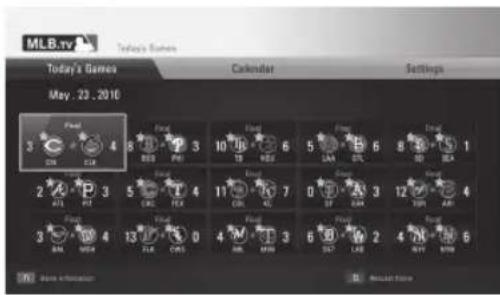
text_image
MLB.tv Today's Games Today's Games Calendar Settings May. 23, 2010 3 4 5 6 7 8 9 10 11 12 13 14 15 16 17 18 19 20 21 22 23 24 25 26 27 28 29 30 31 32 33 34 35 36 37 38 39 40 41 42 43 44 45 46 47 48 49 50 51 52 53 54 55 56 57 58 59 60 61 62 63 64 65 66 67 68 69 70 71 72 73 74 75 76 77 78 79 80 81 82 83 84 85 86 87 88 89 90 91 92 93 94 95 96 97 98 99 100Press red (R) colored button to display the information for the selected game.
| Button Operation | |
| II | Pauses a game while it's playing. To resume the paused game, press ▶. |
| ■ | Stops playback and displays previous screen. |
| ENTER (◎) | Displays the progress bar on the screen. |
| ◀◀/▶▶ | Move the cursor on the progress bar backward or forward. Press ENTER (◎) or ▶ at the point you want to start playback. |
| Red (R) colored button | Use ∧/∨/</> to select an inning you want to start playback. And then press ENTER (◎) or ▶ to play games. |
| Yellow (Y) colored button | Use ∧/∨ to select a broadcast between the national, home and away. And then press ENTER (◎) or ▶ to play games. |

NOTE
The playback of MLB.TV ^® may be paused, stopped or buffering occurring often depending on your broadband speed.
We recommend a minimum connection speed of 3 Mbps. Sometimes your broadband speed varies based on your ISP's network conditions.
Contact your ISP if you have problems maintaining a fast connection that is reliable, or if you want to increase your connection speed. Many ISPs offer a variety of broadband speed options.
Adjusting MLB.TV ^® settings
In the [Settings] menu, you can set several options or deactivate your player.
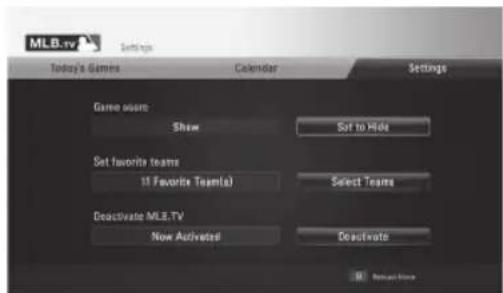
text_image
MLB.tv Settings Today's Games Calendar Settings Game store Show Set to Hide Set favorite teams 11 Favorite Teams(s) Select Teams Deactivate MLB.TV Now Activated Deactivate Return homeGame score – Select [Set to Show] or [Set to Hide] option and press ENTER (to show or hide game scores in the [Today's games] or [Calendar] menu.
Set favorite teams – You can set your favorite teams in this menu. Your favorite teams will be displayed with the star mark in the [Today's games] or [Calendar] menu.
Deactivate MLB.TV – Select [Deactivate] option and press ENTER (◎) to deactivate your player.
YouTube™

You can browse, search and watch YouTube ^™ videos over the internet to your TV via your LG Blu-ray disc player.
Watch YouTube™ videos on your TV
- On the player, select the [YouTube™] option in the [NetCast] menu using </>, and press ENTER (
- Press ∧ to select the option menu bar.
- Use </> to select an option and press ENTER (◎) to search for videos.
- Use </> to select a video and press ENTER (◎) or ▶ (play) to play the video.
| Button Operation | |
| ► or ENTER | Starts playback of the video with content detail. |
| INFO/ DISPLAY | Toggle between playback in full screen and playback screen with content detail. |
| ■ | To pause a video while it is playing. To resume playing a paused video, press ► again. |
| ■ | Stops the video and displays related videos list. |
| |◄◄/►► | Skip the playback forward or backward . |
About the YouTube™ menu
There are various options on the YouTube ^1M menu. Use /V/<> to select an option and press ENTER (○) to select the options as described below.
Featured – The featured videos list will be displayed.
Recent Videos – The most recently updated videos list will be displayed.
Most Viewed – The most viewed videos list will be displayed. The period option appears at the bottom of the screen.
Top Rated – The best rated videos list from YouTube ^™ server will be displayed. The period option appears at the bottom of the screen.
Search – The virtual keyboard will be displayed. See "Searching videos" on page 69 for more detail.
History – The videos list that you previously played on this unit will be displayed. Maximum of 25 videos can be stored.
Favorites – This option will be appeared only when the unit is in sign-in status. Displays the videos list that is arranged in the YouTube ^™ server with your account. Some videos may not appear on the [Favorites] list, even if the videos are arranged in the server.
Sign in (Sign Out) – Displays the virtual keyboard to sign in or returns to the sign-out status. See "Sign in with your YouTube™ account" on page 70 for more details.
Local site – Choose which country's videos you would like to view. The countries listed on the [Local Site] menu may be different with those listed on the YouTube™ web site.

NOTE
- The YouTube™ menu can display 5 videos in the videos list. Press green (G) or yellow (Y) buttons to display previous/next 5 videos.
- If you select the [Most Viewed] or [Top Rated] option in the YouTube™ menu, the period options appear at the bottom of the screen. Use A/V/<> to select a period option and press ENTER (○) to display the videos list within the selected period.
- The videos list searched from the player may differ with the list searched from a web browser on PC.
- The playback of YouTube videos may be paused, stopped or buffering occurring often depending on your broadband speed.
We recommend a minimum connection speed of 1.5 Mbps. For the best playback condition, a connection speed of 4.0 Mbps is required. Sometimes your broadband speed varies based on your ISP's network conditions.
Contact your ISP if you have problems maintaining a fast connection that is reliable, or if you want to increase your connection speed. Many ISPs offer a variety of broadband speed options.
Using the virtual keyboard
On the virtual keyboard, there are two input mode for the entering a character. Press the yellow (Y) colored button to toggle the display between keyboard mode and keypad mode.
Keyboard Mode
Use / / < / > to select a letter on the screen, and press ENTER (●) to confirm your selection.
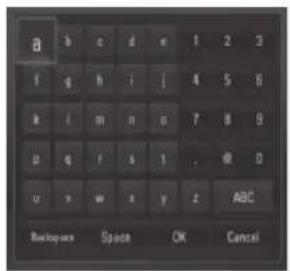
text_image
B b c d e 1 2 3 f g h i j 4 5 6 k l m n o 7 8 9 p q r s t . @ 0 u v w x y z ABC Backup set Space OK Cancel[Cancel] – Return to the previous screen.
[Space] – Inserts a space at the cursor position.
[Backspace] – Deletes the previous character at the cursor position.
[ABC / abc / #+-=&] - Changes the virtual keyboard settings to capital letters, small letters or symbols.
Press CLEAR to clear all entered characters.
To enter a letter with an accent mark:
- Select a letter using /V/</> on the virtual key board.
- Press INFO/DISPLAY ☐) to display the extended character set.
- Use </> to select a character then press ENTER (◎).
Available languages to enter on the keyboard mode are as follows: English, Spanish, Italian, French, German, Dutch, Portuguese, Swedish, Polish and Czech.
Keypad Mode
This mode allows you to enter letters by pressing the buttons on the remote control. Press the buttons with the required letter once, twice, three or four times until the letter is displayed.
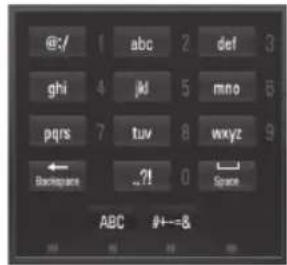
text_image
@-/ 1 abc 2 def 3 ghi 4 jkl 5 mno 6 pqrs 7 tuv 8 wxyz 9 Backspace ?! 0 Space ABC #←&Button Operation
| CLEAR Deletes the previous character at the cursor position. | |
| REPEAT Inserts a space at the cursor position. | |
 | Change the character set of the remote control ( \#+-=\& , 123, ABC or abc) |

NOTE
The keypad mode is available only in the [YouTube™] and [Picasa™ Web Albums] features.
Searching videos
You can search for videos by entering search words of up to 128 characters.
- Use </> to select [Search] option from the menu and press ENTER (☐) to display the virtual keyboard.
Refer to "Using the virtual keyboard" on page 68 for using the virtual keyboard.
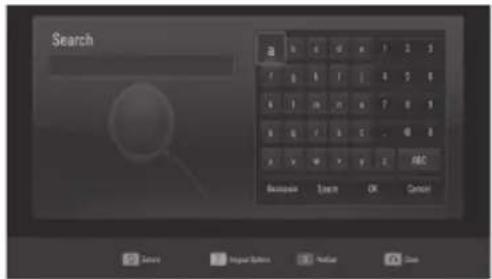
text_image
Search B A B C D E F G H I J K L M N O P Q R S T U V W X Y Z ABC Baccupain Touch OK CancelWhen you are entering a character, a maximum of 5 suggestion words will be displayed.
- When you finish entering the search words, select [OK] and press ENTER (☐) to display the related video list.
Sign in with your YouTube account
To watch videos from your [Favorites] video list on the YouTube ^TM server with your account, you need to sign in with your YouTube ^TM account.
- Use </> to select the [Sign In] option from the menu and press ENTER (◎) to display the virtual keyboard.
- Use /V/</> to select a character then press ENTER (◎) to confirm your selection on the virtual keyboard.
Refer to "Using the virtual keyboard" on page 68 for using the virtual keyboard.
- When you finish entering the user name and the password, select [OK] and press ENTER (☐) to sign in.
- If you want to sign out, select the [Sign Out] from the YouTube ^™ menu and press ENTER (◎).
This unit can automatically store up to 5 user names which were previously signed-in. The user name list appears when you select the [Sign In] option.
Select a stored user name on the list and press ENTER (◎) to display the keyboard menu with the selected user name is entered. You will then only need to enter the password to sign in.
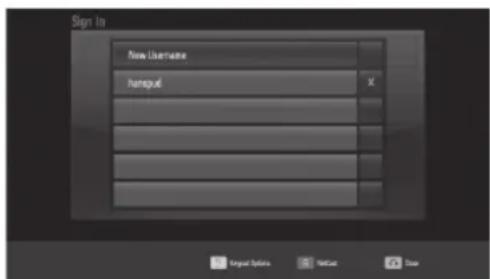
text_image
Sign To New Username hangout X Target Options Match CloseSelect the [X] symbol and press ENTER (●to delete the stored user name.
Enjoying Pandora internet radio
PANDORA®
internet radio
You can instantly listen to personalized radio stations, streamed over the internet, from Pandora via your LG Blu-ray Disc player.
Activating Pandora radio
You must activate your player before using the player to listen to internet radio streamed over the INTERNET from Pandora.
- On the player, select the [Pandora] option in the [NetCast] menu using </>, and press ENTER (●).
- If you don't have a Pandora account, you will need to create one. Select [No] by pressing</>, and then press ENTER (●).
- On the player, select the [Pandora] option in the [NetCast] menu using </>, and press ENTER (●).
- If you don't have a Pandora account, you will need to create one. Select [No] by pressing</>, and then press ENTER (●).
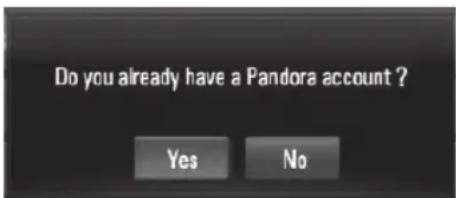
text_image
Do you already have a Pandora account ? Yes NoIf you already have an account, select [Yes] and press ENTER (Enter the E-mail and password to sign in your account.
- On your TV screen you will see an activation code. Note the activation code and web site address.
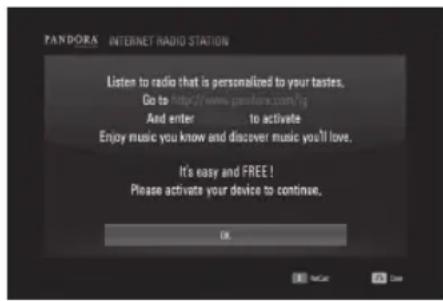
text_image
PANORA INTERNET RADIO STATION Listen to radio that is personalized to your tastes. Go to http://www.panadora.com/tp And enter to activate Enjoy music you know and discover music you'll love. It's easy and FREE! Please activate your device to continue. OK- On your computer, visit web site address you have noted at step 3.
- Complete the Pandora registration process with the activation code you have noted at step 3.
- On your player, press ENTER (●) to complete the activation.
For questions regarding the Pandora service please visit:
http://www.pandora.com/help or e-mail:
pandora-support@pandora.com
Adding multiple Pandora user accounts
You can add more than one Pandora user account on this device. Everyone in your household can create their own Pandora accounts so they can create and listen to their own stations.
- On the player, select the [Pandora] option in the [NetCast] menu using <//>, and press ENTER (●).
- Use /V to select [New username], and press ENTER (●) to display the virtual keyboard.
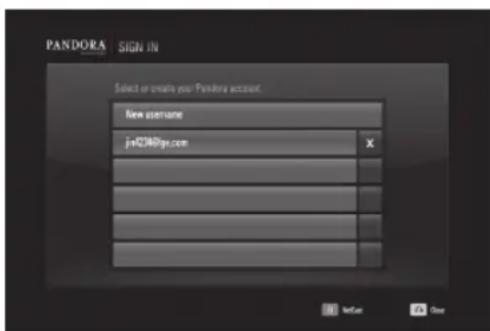
text_image
PANDORA SIGN IN Select or create your PANDORA account. New username jx004@gs.com X Y Z O S N E U C O ASelect a stored user name on the list and press ENTER (●) to display your station list.
Select the [X] symbol and press ENTER (◎) to delete the stored user name.
- Use ∧/∨/<> to enter a username, and press ENTER (▶while [OK] option is selected.
- Use //</> to enter a password, and press ENTER (◎) while [OK] option is selected.
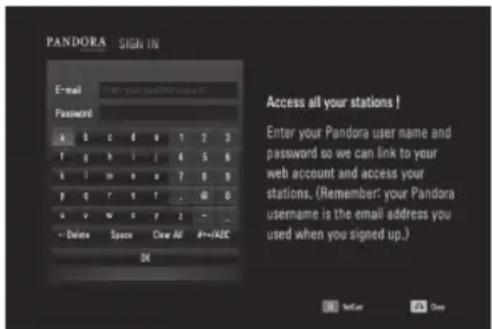
text_image
PANDORA SIGN IN E-mail Password a b c d e f g h i l j k l m n o p r o q s t f g h i l / 4 5 6 k l m e x y z 8 9 y q ? ? ! . @ 0 + v # + - - Delete Space Clear All #=FACC 34 Access all your stations ! Enter your Pandora user name and password so we can link to your web account and access your stations. (Remember: your Pandora username is the email address you used when you signed up.) NetCur OneYour station list appears on the screen.
- If you want to sign out the current user name, press yellow (Y) colored button.

Creating a Pandora station
You can create stations by entering your favorite artist or song. After entering, Pandora offers you a radio station featuring that music and more like it.
- On the [Station List] menu press red (R) colored button.
Virtual keyboard screen appears on the screen.
- Enter a name of your favorite artist or song, and press ENTER (◎) while [OK] is selected.
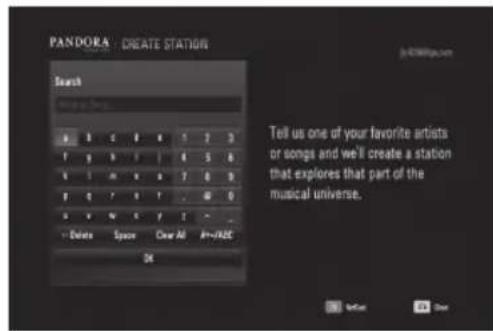
text_image
PANDORA : CREATE STATION Search Make New Tell us one of your favorite artists or songs and we'll create a station that explores that part of the musical universe. Delete Space Clear All Add/Add OK- Use </> to select an option between [Artist] or [Song], and press ENTER (●) to display the [Search Result].
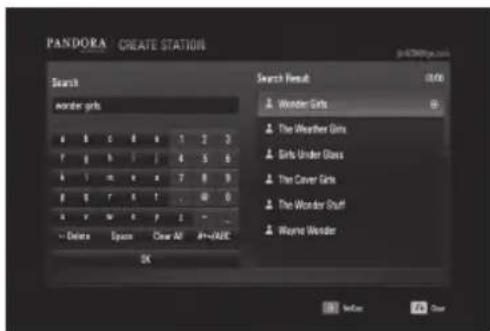
text_image
PANDORA CREATE STATION Search Wonder Girls 4 8 6 4 6 7 2 3 7 9 5 1 1 4 5 6 4 1 6 7 8 9 8 1 7 1 1 . . . . . . . . . . . . . . . . . . . . . . . . . . . . . . . . . . . . . . . . . . . . . . . . . . . . . -> Delete Ebox Clear At #=0000 OK Search Result: 0/00 Wonder Girls The Weather Girls Girls Under Glass The Cover Girls The Wonder Stuff Wearful Wonder- Use A/V to select a station in the [Search Result], and press ENTER (▶to start the music playback.
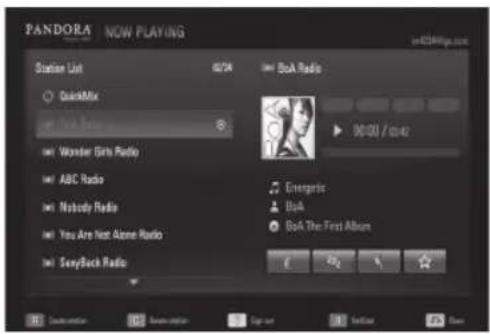
text_image
PANDORA NOW PLAYING Station List 02/24 BoA Radio QuickMix @ NBC Radio Wonder Girls Radio ABC Radio Nobody Radio You Are Next Alone Radio SonyBack Radio Energistic BoA BoA The First Album| Button Operation | |
| ■ or ■ | Pause a music while it is playing. To resume playing a paused music, press ▶ (PLAY). |
| ▶▶ | Skips to the next song. (This is limited to at most 6 times.) |
- If you want to delete the station from the list, select a station using /V and press green (G) colored button to delete the station.
Using the station screen
While listening to musics from Pandora via your player, you can set various options to the currently playing song.
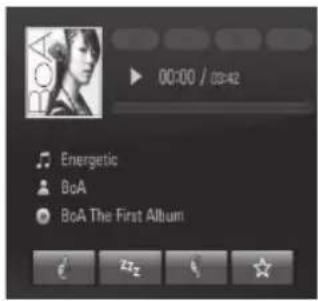
text_image
00:00 / 03:42 Energetic BoA BoA The First Album
Tells Pandora that you like the currently playing song. Pandora will then play you more songs that are similar.
Tells Pandora that you do not like the currently playing song. Pandora will immediately skip to the next song and won't play you the song, or others like it, again.
Excludes the selected song from the all stations for a month.

Bookmarks the currently playing song. You can view all of your bookmarks by logging into Pandora on the web at www.pandora.com and clicking on the "Your Profile" link.

NOTE
- Pandora will pause a playback after eight hours without any input. At this point, Pop-up message appears and you have to press ENTER (●) to resume the music.
- You may not get the song information according to the network conditions.
Enjoying Napster

You can enjoy the ultimate digital music service offering unlimited on-demand streaming.
Signing in
You must sign in before enjoying the service.
- Use /V to select the option from the menu and press ENTER (☐).
To sign in, you must be a member. If you are already a member, select the "Sign in for Existing Members"
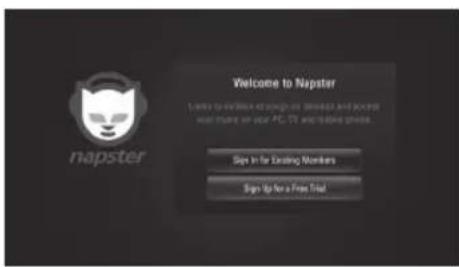
text_image
Welcome to Napster LIFE TO EXCELLE AS PUGHS OR BUSINESS AND PC/MS will learn to your PC-CT and/or this group. Sign In for Existing Members Sign Up For a Free TrialIf not, sign up for a free trial on the web site, http://www.napster.com/lg
Select the "Sign Up for a Free Trial".
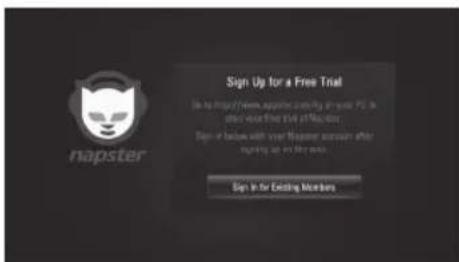
text_image
Sign Up for a Free Trial Up to https://www.napster.com/ir your PC in other over the trial of Napster. Sign or wait with user response answer after waiting up on the next. Sign in for Existing MembersFollow the instructions to become a member.
- Use ∧/∨/</> to select a character then press ENTER (○Fill up the username and the password.
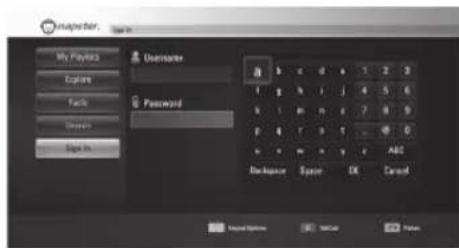
text_image
MapNet Bar My Playbox Explore Facts Directs Sign In Overwrite Password Backspace Space OK Cancel Real-Options Save Cancel- When you finish entering the user name and the password, select [OK] and press ENTER (to sign in.
About the menu
There are various options on the menu. Use /V/</> to select an option and press ENTER (▶to select the options as described below.
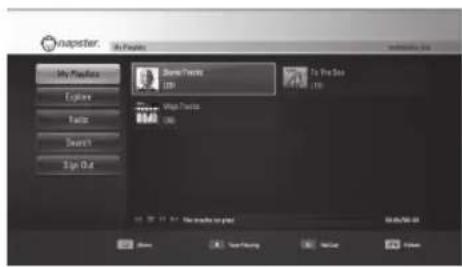
text_image
My Puzzle Explore Music Search Spin Out Track Tools (2) To Pro See (1) Music Tools (3) 00:27:11 4:15 New Make on post 00:26:08:24 Show Send to Spring Send to FinishMy Playlists - My Playlists menu is the first screen of Napster service and shows the playlists created by user. Displays the list that is arranged in the Napster server with your account.
Explore - You can browse New Releases, Top Albums, Top Artists.
Radio - You can browse the radio stations categorized with genre.
Search - Searching Keyword. The recent searched keywords will be displayed to the numbers of 10. If there are multiple search results, you can select a category of Artists, Albums or Tracks. Refer to "Using the virtual keyboard" on page 68 for using the virtual keyboard.
Sign In/ Out - Sign out resets your sign-in history.
For questions regarding the service please visit: www.napster.com/support

NOTE
- The playback may be paused, stopped or buffering occurring often depending on your broadband speed. We recommend a minimum connection speed of 500 kbps. For the best playback condition, a connection speed of 1 Mbps is required. Sometimes your broadband speed varies based on your ISP's network conditions. Contact your ISP if you have problems maintaining a fast connection that is reliable, or if you want to increase your connection speed. Many ISPs offer a variety of broadband speed options.
Picasa™ Web Albums

Picasa™
Web Albums
Enjoy photo albums from friends and family on the Picasa™ Web Albums on-line service.
View Picasa™ Web Albums on your TV
- On the player, select the [Picasa™ Web Albums] option in the [NetCast] menu using </>, and press ENTER (✗)
Featured photos are appeared on the screen.
- Use /V/<> to select a photo and press ENTER (☐) to view the photo in full screen.
| Button Operation | |
| ▶ | Starts a slide show. |
| INFO/ DISPLAY | Displays the photo option menu. |
| ■ | Pauses a slide show. To resume slide show, press ▶ again. |
| ■ | Stops the slide show and return to the PicasaTM Web Albums menu. |
| < / > | Moves to the next or previous photo. |
Options while viewing a photo
You can use various options during viewing a photo in full screen.
-
While viewing a photo in full screen, press INFO/DISPLAY (☐) to display the option menu.
-
Select an option using /V .
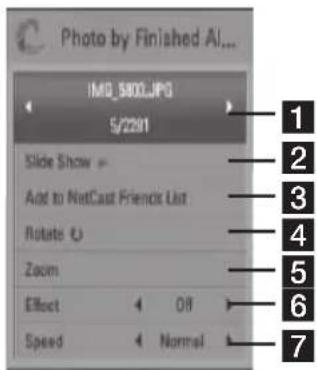
text_image
Photo by Finished AI... IMG_5800.JPG 5/2291 Slide Show → Add to NetCast Friends List Rotate ○ Zoom Effect Off Speed Normal1 Current photo/Total number of photos
- Use </> to view previous/next photo.
2 Slide Show – Press ENTER (◎) to start or pause slide show.
3 Add to NetCast Friends List – Add the current photo owner to my friend list.
4 Rotate – Press ENTER (◎) to rotate the photo clockwise.
5 Zoom – Press ENTER (◎) to display the [Zoom] menu.
6 Effect – Use </> to select a transition effect between photos in a slide show.
7 Speed – Use </> to select a delaying speed between photos in a slide show.
3. Press RETURN (○) to exit the option menu.
About the Picasa™ Web Albums menu
There are various options on the Picasa™ Web Albums menu. Use /V/</> to select an menu option and press ENTER (●) to select the options as described below.
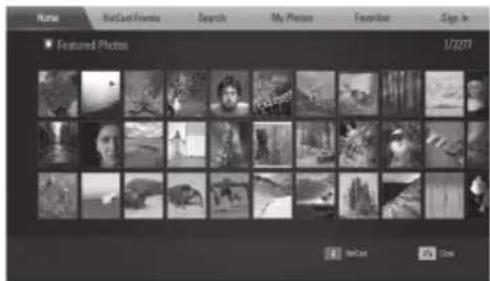
text_image
Horse NetCash Friends Search My Photos Favorite Sign In Featured Photos 172277 NetCast ClassHome – The featured photo list will be displayed.
NetCast Friends – List of your friends will be displayed.
Search – Enter a search word to find related photos. The virtual keyboard will be displayed (page 77).
My Photos – Displays the photos organized in my Picasa™ Web Albums. This option is available only when the unit is in sign-in status.
Favorites – Displays up to 50 favorite web albums that are arranged in the Picasa™ Web Albums server with your account. This option is available only when the unit is in sign-in status.
Sign in (Sign Out) – Displays the virtual keyboard to sign in or returns to the sign-out status (page 77)

NOTE
Photos displayed in [My Photos] and [Favorites] may differ with the photos from a web browser on PC.
Adding friends
If you add your friends on the [NetCast Friends] menu, you can see the photos of your friend's public photos directly.
- Select the [NetCast Friends] on the Picasa™ Web Albums menu using ∧/∨/</>, and press ENTER
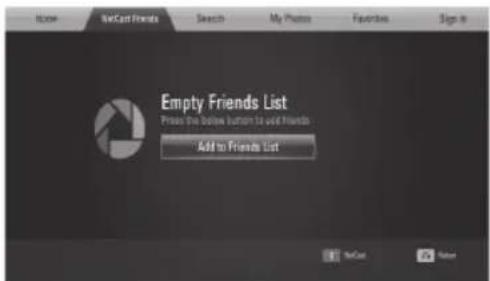
text_image
Home NewCast Friends Search My Photos Favorites Sign In Empty Friends List Press the Online Button to add Friends Add to Friends List-
Press ENTER (●) to display the virtual keyboard.
-
Enter a name using the virtual keyboard. Refer to "Using the virtual keyboard" on page 68 for using the virtual keyboard.
-
Select [OK] using ∧/∨/</>, and press ENTER (●) to display the web album of your friend.

NOTE
- If you want to delete your friend from the list, press green (G) colored button while the web album is selected.
• If you want to add more friends, press red (R) colored button on the list. - You can add more web albums of your friends up to 50.
Searching photos
You can enter a search word to find related photos.
- Select the [Search] on the Picasa™ Web Albums menu using ∧/∨/</>, and press ENTER (●)
- Enter a search word using the virtual keyboard.
Refer to "Using the virtual keyboard" on page 68 for using the virtual keyboard.
- Select [OK] using /V/</> , and press ENTER (◎) to display the search result.

NOTE
The search result from the player may differ with the result searched from a web browser on PC.
Signing in with your account
To display photos in your web album on the screen, you need to sign in with your Picasa™ Web Albums account.
- Select the [Sign In] on the Picasa™ Web Albums menu using ∧/∨/</>, and press ENTER (○)
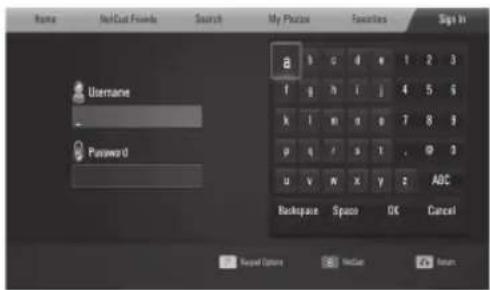
text_image
Name No/Cust Fodds Search My Photo Favorites Sign In Username Password Backspace Space OK Cancel Send Options SendGo Return- Enter your user name using the virtual keyboard, and press ENTER (●) while [OK] is selected.
Refer to "Using the virtual keyboard" on page 68 for using the virtual keyboard.
- Enter the password using the virtual keyboard, and press ENTER (●while [OK] is selected.
Your web album is appeared on the screen.
- If you want to sign out, select the [Sign Out] from the Picasa™ Web Albums menu and press ENTER (▶)
This unit can automatically store up to 5 user names which were previously signed-in. The user name list appears when you select the [Sign In] option.
Select a stored user name on the list and press ENTER (◎) to display the virtual keyboard with the selected user name is entered. You will then only need to enter the password to sign in.
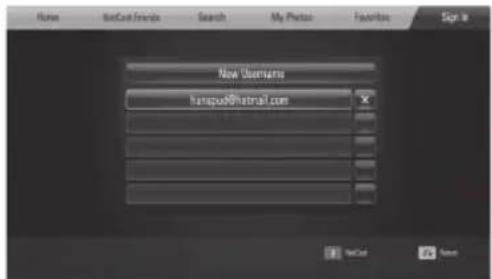
text_image
New Domains tempus@hotmail.comSelect the [X] symbol and press ENTER (●to delete the stored user name.
Using the AccuWeather

See on-line local and global weather forecasts from AccuWeather.com.
Viewing weather information
- On the player, select the [AccuWeather] option in the [NetCast] menu using </>, and press ENTER (©)
The city selection menu appears on the screen.
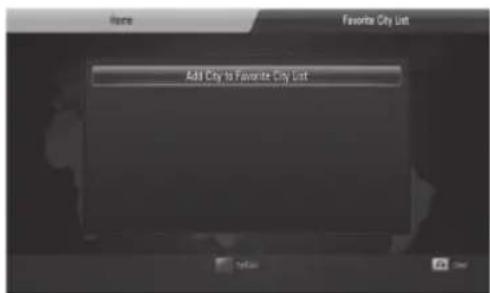
text_image
Add City to Favorite City List-
Press ENTER (◎) while [Add City to Favorite City List] is selected.
-
Select a region using /V , and press ENTER (●).
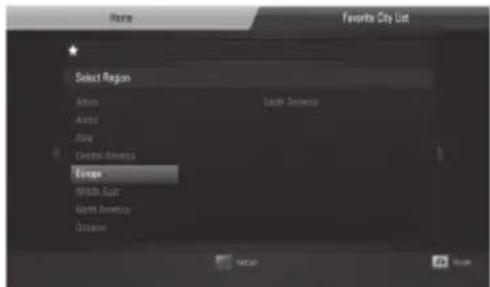
text_image
Home Favorite City List Select Region Asia North America Europe North America North America Europe-
Select a, country using //</> , and press ENTER (D)
-
Select a city using ∧/V/</>, and press ENTER (●).
-
Use /V/</> to select [Home] and press ENTER (●) to display weather information of the selected city.
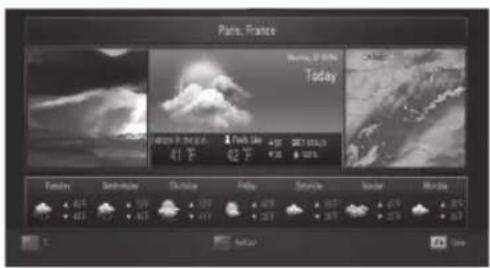
text_image
Pains, France Morning: 01:00 PM Today 41 F 62 F 35 37 38 39 40 41 42 43 44 45 46 47 48 49 50 51 52 53 54 55 56 57 58 59 60 61 62 63 64 65 66 67 68 69 70 71 72 73 74 75 76 77 78 79 80 81 82 83 84 85 86 87 88 89 90 91 92 93 94 95 96 97 98 99 100Press red (R) colored button to toggle display between Fahrenheit or Celsius thermometer.
- Use </> to select previous or next city, and press ENTER (●) to display the weather information.
This step works only when you add more than 1 cities to the [Favorite city List].

NOTE
• The weather information is not always correct.
- The weather information may be displayed in English, if your own language is not available on the AccuWeather service.
- The background image on the NetCast home indicates the weather of your favorite city in the AccuWeather feature.
Adding more cities
- Use </> to select [Favorite City List] on the AccuWeather menu, and press ENTER (●).
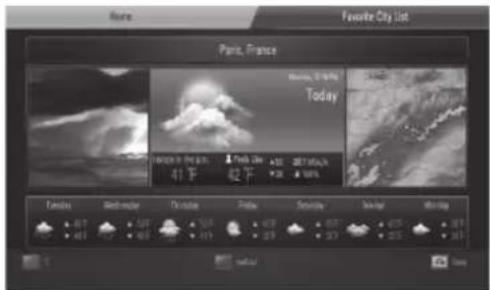
text_image
France, France Monday, 0:00 PM Today 41 F 42 F 38.7 MHz 38.7 MHz 40.7 MHz 40.7 MHz 40.7 MHz 40.7 MHz 40.7 MHz 40.7 MHz 40.7 MHz 40.7 MHz 40.7 MHz 40.7 MHz 40.7 MHz 40.7 MHz 40.7 MHz 40.7 MHz 40.7 MHz 40.7 MHz 40.7 MHz- Press ENTER (◎) while [Add City to Favorite City List] is selected.
- Select a region, country and city using ∧/∨/<> and ENTER (●).
- Repeats step 2-3 to add up to 5 cities. Select the [X] symbol and press ENTER (●) to delete the stored favorite city.
- Use A/V to select a city from the [Favorite City List], and press ENTER (●) to display the weather information.
5 Maintenance
Notes on Discs
Handling Discs
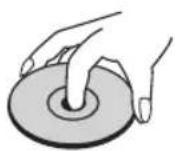

Never stick paper or tape on the disc.
Storing Discs
After playing, store the disc in its case. Do not expose the disc to direct sunlight or sources of heat and never leave it in a parked car exposed to direct sunlight.
Cleaning Discs
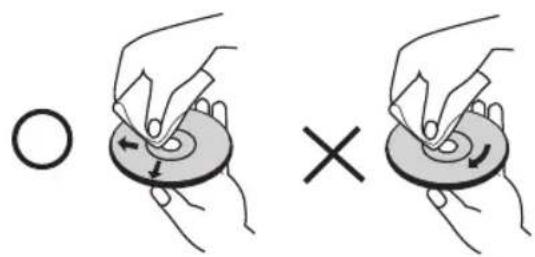
text_image
Diagram showing two hand positions on a circular object with arrows indicating movement, labeled with 'O' and an 'X' symbol.Do not use strong solvents such as alcohol, benzine, thinner, commercially available cleaners, or anti-static spray intended for older vinyl records.
Handling the Unit
When shipping the unit
Please save the original shipping carton and packing materials. If you need to ship the unit, for maximum protection, re-pack the unit as it was originally packed at the factory.
Keeping the exterior surfaces clean
• Do not use volatile liquids such as insecticide spray near the unit.
- Wiping with strong pressure may damage the surface.
- Do not leave rubber or plastic products in contact with the unit for a long period of time.
Cleaning the unit
To clean the player, use a soft, dry cloth. If the surfaces are extremely dirty, use a soft cloth lightly moistened with a mild detergent solution. Do not use strong solvents such as alcohol, benzine, or thinner, as these might damage the surface of the unit.
Maintaining the Unit
The unit is a high-tech, precision device. If the optical pick-up lens and disc drive parts are dirty or worn, the picture quality could be diminished. For details, please contact your nearest authorized service center.
6
Troubleshooting
General
| The Power does not turned on. | Plug the power cord into the wall outlet securely. |
| The unit does not start playback. | Insert a playable disc. (Check the disc type, color system, and regional code.)Place the disc with the playback side down.Place the disc on the disc tray correctly inside the guide.Clean the disc.Cancel the rating function or change the rating level. |
| The angle cannot be changed. | Multi-angles are not recorded on the DVD Video being played. |
| The subtitle language cannot be changed or turned off. | Subtitles are not recorded on the DVD Video being played. |
| Cannot play MP3/WMA/ JPEG/DivX files. | The files are not recorded in a format that the unit can play.The unit does not support the codec of the movie file. |
| The remote control does not work properly. | The remote control is not pointed at the remote sensor of the unit.The remote control is too far from the unit.There is an obstacle in the path of the remote control and the unit.The batteries in the remote control are exhausted. |
Picture
| There is no picture. | Select the appropriate video input mode on the TV so the picture from the unit appears on the TV screen.Connect the video connection securely.Check the [HDMI Color Setting] in the [Setup] menu is set to the appropriate item that conforms to your video connection.Your TV may not support the resolution you have set on the player. Change the resolution that your TV accepts.The player's HDMI OUT jack is connected to a DVI device that does not support copyright protection. |
| Picture noise appears | You are playing a disc recorded in a color system that is different from your TV.Set the resolution which your TV accepts. |
Sound
| There is no sound or the sound is distorted. | The unit is in scan, slow motion, or pause mode.The sound volume is low.Check the speaker cable connection. (page 16) |
Network
| BD-LIVE feature does not work. | The connected USB storage may not have enough space. Connect the USB storage with at least 1GB free space.Ensure that the unit is correctly connected to the local area network and can access the internet (see pages 24).Your broadband speed may not fast enough to use the BD-LIVE features. Contact your Internet Service Provider (ISP) and increase the broadband speed is recommended.The [BD-LIVE connection] option in the [Setup] menu is set to [Prohibited]. Set the option to [Permitted]. |
| Streaming video services (such as YouTubeTM, etc.) are often stopped or "buffer" during playback. | Your broadband service speed may not be fast enough to stream video services. Contact your Internet Service Provider (ISP) and increase the broadband speed is recommended. |
| Shared folder or files from your PC or a media server are not displayed on the [Home Link] menu. | The firewall or anti-virus software on your media server is running. Turn off the firewall or anti-virus software running on your PC or media server.The player is not connected to the local area network that your PC or the media server are connected. |
| Cannot connect the player to the access point or wireless LAN router. | The wireless communication may be interrupted from household devices that are using radio frequencies. Move the player away from them. |
| Access point is not displayed on the "Access point name" list. | The access point or wireless LAN router may not broadcast its SSID. Set your access point to broadcast its SSID through your computer. |
Design and specifications are subject to change without notice.
Customer Support
You can update the Player using the latest software to enhance the products operation and/or add new features. To obtain the latest software for this player (if updates have been made), please visit http://lgservice.com or contact LG Electronics customer care center.
7 Appendix
Controlling a TV with the supplied remote control
You can control your TV using the buttons below.
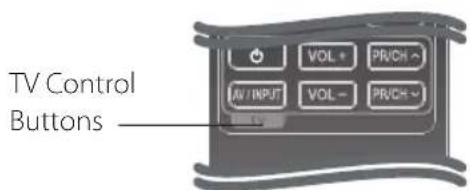
text_image
TV Control ButtonsBy pressing You can
| (TV Power) | Turn the TV on or off. |
| AV/ INPUT | Switch the TV's input source between the TV and other input sources. |
| VOL +/- | Adjust the volume of the TV. |
| PR/CH ∧/V | Scan up or down through memorized channels. |

Depending on the unit being connected, you may not be able to control your TV using some of the buttons.
Setting up the remote to control your TV
You can operate your TV with the supplied remote control. If your TV is listed in the table below, set the appropriate manufacturer code.
- While holding down ⏻ (TV POWER) button, and press the manufacturer code for your TV with the numerical buttons (see the table below).
| Manufacturer Code Number | |
| LG 1(Default), 2 | |
| Zenith 1, 3, 4 | |
| GoldStar 1, 2 | |
| Samsung 6, 7 | |
| Sony 8, 9 | |
| Hitachi | 4 |
- Release the ⏻ (TV POWER) button to complete setting.
Depending on your TV, some or all buttons may not function on the TV, even after entering the correct manufacturer code. When you replace the batteries of the remote, the code number you have set may be reset to the default setting. Set the appropriate code number again.
Area Code List
Choose an area code from this list.
| Area Code Area Code Area Code Area Code | |||||||
| Afghanistan AF | Fiji | FJ | Monaco | MC | Singapore | SG | |
| Argentina AR | Finland | FI | Mongolia | MN | Slovak Republic | SK | |
| Australia AU | France | FR | Morocco | MA | Slovenia | SI | |
| Austria AT | Germany | DE | Nepal | NP | South Africa | ZA | |
| Belgium BE | Great Britain | GB | Netherlands | NL | South Korea KR | ||
| Bhutan BT | Greece | GR | Netherlands | Spain | ES | ||
| Bolivia BO | Greenland GL | Antilles AN | Sri Lanka | LK | |||
| Brazil BR | Hong Kong | HK | New Zealand | NZ | Sweden SE | ||
| Cambodia KH | Hungary | HU | Nigeria | NG | Switzerland CH | ||
| Canada CA | India | IN | Norway | NO | Taiwan | TW | |
| Chile CL | Indonesia | ID | Oman | OM | Thailand TH | ||
| China CN | Israel | IL | Pakistan | PK | Turkey | TR | |
| Colombia | CO | Italy | IT | Panama PA | Uganda | UG | |
| Congo | CG | Jamaica | JM | Paraguay | PY | Ukraine | UA |
| Costa Rica | CR | Japan | JP | Philippines | PH | United States | US |
| Croatia | HR | Kenya | KE | Poland PL | Uruguay | UY | |
| Czech Republic | CZ | Kuwait | KW | Portugal | PT | Uzbekistan | UZ |
| Denmark | DK | Libya | LY | Romania | RO | Vietnam | VN |
| Ecuador | EC | Luxembourg | LU | Russian Federation | RU | Zimbabwe | ZW |
| Egypt | EG | Malaysia | MY | Saudi Arabia | SA | ||
| El Salvador SV | Maldives | MV | Senegal | SN | |||
| Ethiopia | ET | Mexico | MX | ||||
Language code List
Use this list to input your desired language for the following initial settings: [Disc Audio], [Disc Subtitle] and [Disc Menu].
| Language Code Language | Language Code Language | Code Language | Code | ||||
| Afar 6565 | French | 7082 | Lithuanian | 7684 | Sindhi | 8368 | |
| Afrikaans 6570 | Frisian | 7089 | Macedonian | 7775 | Singhalese | 8373 | |
| Albanian 8381 | Galician | 7176 | Malagasy | 7771 | Slovak 8375 | ||
| Ameharic 6577 | Georgian | 7565 | Malay | 7783 | Slovenian | 8376 | |
| Arabic 6582 | German | 6869 | Malayalam | 7776 | Spanish | 6983 | |
| Armenian 7289 | Greek | 6976 | Maori | 7773 | Sudanese | 8385 | |
| Assamese 6583 | Greenlandic | 7576 | Marathi 7782 | Swahili 8387 | |||
| Aymara 6588 | Guarani | 7178 | Moldavian | 7779 | Swedish | 8386 | |
| Azerbaijani 6590 | Gujarati | 7185 | Mongolian | 7778 | Tagalog | 8476 | |
| Bashkir 6665 | Hausa | 7265 | Nauru | 7865 | Tajik | 8471 | |
| Basque 6985 | Hebrew | 7387 | Nepali 7869 | Tamil | 8465 | ||
| Bengali; Bangla 6678 | Hindi | 7273 | Norwegian | 7879 | Telugu | 8469 | |
| Bhutani 6890 | Hungarian | 7285 | Oriya | 7982 | Thai | 8472 | |
| Bihari 6672 | Icelandic 7383 | Panjabi | 8065 | Tonga | 8479 | ||
| Breton 6682 | Indonesian 7378 | Pashto, Pushto | 8083 | Turkish 8482 | |||
| Bulgarian 6671 | Interlingua | 7365 | Persian | 7065 | Turkmen 8475 | ||
| Burmese 7789 | Irish | 7165 | Polish | 8076 | Twi | 8487 | |
| Byelorussian 6669 | Italian | 7384 | Portuguese | 8084 | Ukrainian | 8575 | |
| Chinese 9072 | Japanese | 7465 | Quechua | 8185 | Urdu | 8582 | |
| Croatian 7282 | Kannada | 7578 | Rhaeto-Romance | Uzbek | 8590 | ||
| Czech 6783 | Kashmiri | 7583 | 8277 | Vietnamese | 8673 | ||
| Danish 6865 | Kazakh 7575 | Rumanian | 8279 | Volapük | 8679 | ||
| Dutch 7876 | Kirghiz | 7589 | Russian | 8285 | Welsh | 6789 | |
| English 6978 | Korean 7579 | Samoan | 8377 | Wolof | 8779 | ||
| Esperanto 6979 | Kurdish | 7585 | Sanskrit | 8365 | Xhosa | 8872 | |
| Estonian 6984 | Laothian | 7679 | Scots Gaelic | 7168 | Yiddish | 7473 | |
| Faroese 7079 | Latin | 7665 | Serbian | 8382 | Yoruba | 8979 | |
| Fiji 7074 | Latvian, Lettish | 7686 | Serbo-Croatian | 8372 | Zulu | 9085 | |
| Finnish 7073 | Lingala | 7678 | Shona 8378 | ||||
Network Software Update
Network update notification
From time to time, performance improvements and/or additional features or services may be made available to units that are connected to a broadband home network. If there is new software available and the unit is connected to a broadband home network, the player will inform you about the update as follows.
Option 1:
- The update menu will appear on the screen when you turn on the player.
- Use </> to select a desired option and then press ENTER (☐)
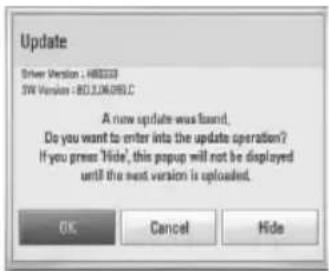
text_image
Update Driver Version : H80000 SW Version : BD3.06.095.C A new update was found. Do you want to enter into the update operation? If you press Hide, this popup will not be displayed until the next version is uploaded. OK Cancel Hide[OK]
Starts the software update.
[Cancel]
Exits the update menu and displays it next booting.
[Hide]
Exits the update menu and it does not appear until next software is uploaded in the update server.
Option 2:
If the software update is available from the update server, the "Update" icon appears at the bottom of the Home menu. Press blue (B) colored button to start the update procedure.
Software Update
You can update the player using the latest software to enhance the products operation and/or add new features. You can update the software by connecting the unit directly to the software update server.

CAUTION
• Before updating the software in your player, remove any disc and USB Device from the player.
- Before updating the software in your player, turn the player off and then turn it back on.
- During the software update procedure, do not turn off the player or disconnect AC power, or do not press any button.
- If you cancel the update, turn off the power and turn it on for stable performance.
- This unit cannot be updated to previous software version.
- Check the network connection and settings (pages 24-26).
- Select [Software] option in the [Setup] menu then press ENTER (●).
- Select [Update] option, and press ENTER (◎).
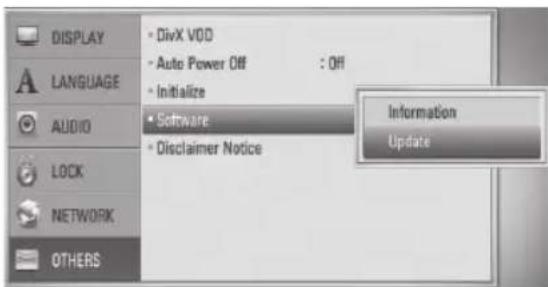
text_image
DISPLAY • DivX VDD • Auto Power Off : Off • Initialize • Software • Disclaimer Notice Information Update LANGUAGE AUDIO LOCK NETWORK OTHERSThe player will check for the newest update.

NOTE
- Pressing ENTER(●) while checking for the update will end the process.
-
If there is no update available, the Message, "No update is found." appears. Press ENTER (●) to return to the [Home Menu].
-
If newer version exists, the message "A new update was found. Do you want to download it?" appears.
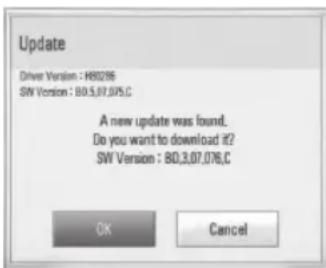
text_image
Update Driver Version : H80286 SW Version : B0.5,07,075.C A new update was found. Do you want to download it? SW Version : B0.3,07,076.C OK Cancel-
Select [OK] to download the update. (Selecting [Cancel] will end the update.)
-
The player starts downloading the newest update from the server. (Downloading will takes several minutes depending on your home network condition)
-
When downloading is completed, the message, "Download is complete. Do you want to update?" appears.
-
Select [OK] to start updating. (Selecting [Cancel] will end the update and downloaded file will not be re-usable. To update software the next time, the software update procedure has to be started from the beginning again.)

CAUTION
Do not turn off the power during the software update.

NOTE
If the software includes the driver update, disc tray may open during the process.
- When update is completed, the message, "Update is complete." will appear, and then power will turn off automatically after 5 seconds.
- Turn the power back on. The system now operates with the new version.

NOTE
The Software Update function may not work properly depending on your internet environment. In this case, you can obtain the latest software from the authorized LG Electronics Service Center then update your player. Refer to "Customer Support" on page 83.
Video output resolution
When the non-copy protected media is playing back
| Resolution\Video Out | HDMI OUT | COMPONENT VIDEO OUT | |
| HDMI connected HDMI disconnected | |||
| 480i 480p 480i | |||
| 480p 480p 480p | |||
| 720p 720p 720p | |||
| 1080i 1080i 1080i | |||
| 1080p / 24 Hz 1080p | / 24 Hz 480i 1080i | ||
| 1080p / 60 Hz 1080p | / 60 Hz 480i 1080i | ||
When the copy protected media is playing back
| Resolution\Video Out | HDMI OUT | COMPONENT VIDEO OUT | |
| HDMI connected HDMI disconnected | |||
| 480i 480p 480i | |||
| 480p 480p | 480p | ||
| 720p 720p | 480i | 480p | |
| 1080i | 1080i | 480i | 480p |
| 1080p / 24 Hz | 1080p / 24 Hz | 480i | 480p |
| 1080p / 60 Hz | 1080p / 60 Hz | 480i | 480p |
HDMI OUT connection
- For the 480i resolution setting, real output resolution of HDMI OUT will change to 480p.
- If you select a resolution manually and then connect the HDMI jack to TV and your TV does not accept it, the resolution setting is set to [Auto].
- If you select a resolution that your TV does not accept, the warning message will appear. After resolution change, if you cannot see the screen, please wait 20 seconds and the resolution will automatically revert back to the previous resolution.
- The 1080p video output frame rate may be automatically set to either 24 Hz or 60 Hz depending both on the capability and preference of the connected TV and based on the native video frame rate of the content on the BD-ROM disc.
COMPONENT VIDEO OUT connection
BD, DVD, Netflix or CinemaNow video stream could prevent up-scaling on analog output.
VIDEO OUT connection
The resolution of the VIDEO OUT jack is always outputted at 480i resolution.
Trademarks and Licenses

"Blu-ray Disc" is a trademark.

"BD-LIVE" logo is a trademark of Blu-ray Disc Association.
"BONUSVIEW" is trademark of Blu-ray Disc Association.

Java and all Java-based trademarks and logos are trademarks or registered trademarks of Sun Microsystems, Inc. in the United States and other countries.

Manufactured under license from Dolby Laboratories. Dolby, Pro Logic, and the double-D symbol are trademarks of Dolby Laboratories.


Manufactured under license under U.S. Patent #'s: 5,451,942; 5,956,674; 5,974,380; 5,978,762; 6,226,616; 6,487,535; 7,392,195; 7,272,567; 7,333,929; 7,212,872 & other U.S. and worldwide patents issued & pending. DTS is a registered trademark and the DTS logos, Symbol, DTS-HD and DTS-HD Master Audio | Essential are trademarks of DTS, Inc. © 1996-2008 DTS, Inc. All Rights Reserved.

HDMI, the HDMI logo and High-Definition Multimedia Interface are trademarks or registered trademarks of HDMI licensing LLC.

"DVD Logo" is a trademark of DVD Format/Logo Licensing Corporation.

DivX is a registered trademark of DivX, Inc., and is used under license.
"x.v.Color" is a trademark of Sony Corporation.


Picasa™ Web Albums is a trademark of Google Inc.

YouTube ^™ is a trademark of Google Inc.
AVCHD TM
"AVCHD" and the "AVCHD" logo are trademarks of Panasonic Corporation and Sony Corporation.
This product is licensed under the AVC patent portfolio license and VC-1 patent portfolio license for the personal and non-commercial use of a consumer to (i) encode video in compliance with the AVC Standard and VC-1 Standard ("AVC/VC-1 Video") and/or (ii) decode AVC/VC-1 Video that was encoded by a consumer engaged in a personal and non-commercial activity and/or was obtained from a video provider licensed to provide AVC/VC-1 Video. No license is granted or shall be implied for any other use. Additional information may be obtained from MPEG LA, LLC. See http://www.mpegla.com.

iPod is a trademark of Apple Inc., registered in the U.S. and other countries.
iPhone is a trademark of Apple Inc.
"Made for iPod" means that an electronic accessory has been designed to connect specifically to iPod and has been certified by the developer to meet Apple performance standards.
"Works with iPhone" means that an electronic accessory has been designed to connect specifically to iPhone and has been certified by the developer to meet Apple performance standards.
Apple is not responsible for the operation of this device or its compliance with safety and regulatory standards.

gracenote.
Gracenote®, Gracenote logo and logotype, and the "Powered by Gracenote" logo are either registered trademarks or trademarks of Gracenote, Inc. in the United States and/or other countries.
Music recognition technology and related data are provided by Gracenote®.
Portions of the content is copyright © Gracenote or its providers.
Energy Saving
(Extremely Low Power Consumption)

On the LG products, an innovative power consumption system in stand-by mode is built. It consumes less than 0.09 watts in that mode. Therefore, the small amounts of electricity are consumed even though the power plug is inserted.
Specifications
General
• Power requirements: AC 120 V, 60 Hz
• Power consumption: 150 W
- Dimensions (W x H x D): Approx. 430 x 63 x 281 mm (17 x 2.5 x 11 inches) without foot
• Net Weight (Approx.): 4.0 kg (8.8 lbs)
• Operating temperature: 5 °C to 35 °C (41 °F to 95 °F)
• Operating humidity: 5 % to 90 %
- Bus Power supply (USB): DC 5V = 500 mA
Tuner
• FM Tuning Range: 87.5 to 108.0 MHz
• AM Tuning Range: 520 to 1,710 kHz
Amplifier
• Power output (4 Ω/ PEAK)
Total 1100 W
Front 180 W x 2
Center 180 W
Rear 180 W x 2
Sub-Woofer 200 W (Passive)
• Power output (4 Ω/ RMS) THD 10 % (4 Ω / 3 Ω)
Total 980 W
Front 160 W x 2
Center 160 W
Rear 160 W x 2
Sub-Woofer 180 W (Passive)
Inputs/ Outputs
• VIDEO OUT:
1.0 V (p-p), 75 Ω, sync negative, RCA jack x 1
• COMPONENT VIDEO OUT:
(Y) 1.0 V (p-p), 75 Ω, sync negative, RCA jack x 1, (Pb)/(Pr) 0.7 V (p-p), 75 Ω, RCA jack x 2
• HDMI IN/OUT (video/audio): 19 pin (HDMI standard, Type A, Version 1.3)
• ANALOG AUDIO IN:
2.0 Vrms (1 kHz, 0 dB), 600 Ω, RCA jack (L, R) x 1
• DIGITAL IN (OPTICAL IN 1/2): 3 V (p-p), Optical jack x 2
• PORT. IN:
0.5 Vrms (3.5 mm stereo jack)
System
- Laser:
Semiconductor laser
Wavelength: 405 nm / 650 nm - Signal system:
Standard NTSC color TV system
• Frequency response: 20 Hz to 20 kHz (48 kHz, 96 kHz, 192 kHz sampling)
• Signal-to-noise ratio: More than 85 dB
• Total harmonic distortion: 0.05 % at 1 W
• Dynamic range: More than 95 dB
• LAN port: Ethernet jack x 1, 10 BASE-T/ 100 BASE-TX
Speakers
• Front speaker (Left/ Right)
Type: 2 Way 2 speaker
Impedance Rated: 4 Ω
Input Power: 180 W
Max. Input power: 360 W
Net Dimensions 100 x 186 x 97mm
(W x H x D): (3.9 x 7.3 x 3.8 inches)
Net Weight: 0.5 kg (1.1 lbs)
• Rear speaker (Left/ Right)
Type: 1 Way 1 speaker
Impedance 4 Ω
Input Power: 180 W
Max. Input power: 360 W
Net Dimensions 100 x 186 x 97mm
(W x H x D): (3.9 x 7.3 x 3.8 inches)
Net Weight: 0.45 kg (1 lbs)
- Center speaker
Type: 1 Way 1 speaker
Impedance Rated: 4 Ω
Input Power: 180 W
Max. Input power: 360 W
Net Dimensions 200 x 103 x 86 mm
(W x H x D): (7.8 x 4 x 3.4 inches)
Net Weight: 0.5 kg (1.1 lbs)
- Subwoofer
Type: 1 Way 1 speaker
Impedance Rated: 3 Ω
Input Power: 200 W
Max. Input power: 400 W
Net Dimensions 198 x 385 x 275 mm
(W x H x D): (7.8 x 15.2 x 11 inches)
Net Weight: 4.3 kg (9.5 lbs)
Important Information Relating to Network Services
PLEASE READ CAREFULLY. USE OF THE NETWORK SERVICES IS SUBJECT TO THE FOLLOWING TERMS AND CONDITIONS.
Use of the Network Services requires an Internet connection which is sold separately and for which you are solely responsible. The Network Services may be limited or restricted depending upon the quality, capabilities and technical limitations of your Internet service.
The Network Services belong to third parties and may be protected by copyright, patent, trademark and/or other intellectual property laws. The Network Services are provided solely for your personal and noncommercial use. Unless expressly authorized by the respective content owner or service provider, you shall not modify, copy, republish, upload, post, transmit, translate, sell, create derivative works, exploit, or distribute in any manner or medium any content or services accessible through this product. LG IS NOT RESPONSIBLE FOR YOUR USE OF THE NETWORK SERVICES. THE NETWORK SERVICES ARE PROVIDED "AS IS." TO THE FULLEST EXTENT PERMISSIBLE BY LAW, LG MAKES NO REPRESENTATIONS OR WARRANTIES OF ANY KIND WHATSOEVER (i) FOR THE ACCURACY, VALIDITY, TIMELINESS, LEGALITY, OR COMPLETENESS OF ANY NETWORK SERVICE MADE AVAILABLE THROUGH THIS PRODUCT; OR (ii) THAT THE NETWORK SERVICES ARE FREE OF VIRUSES OR OTHER COMPONENTS THAT MAY INFECT, HARM, OR CAUSE DAMAGE TO THIS PRODUCT, YOUR COMPUTER, TELEVISION, OTHER EQUIPMENT, OR ANY OTHER PROPERTY. LG EXPRESSLY DISCLAIMS ANY IMPLIED WARRANTIES, INCLUDING BUT NOT LIMITED TO, WARRANTIES OF MERCHANTABILITY OR FITNESS FOR A PARTICULAR PURPOSE.
UNDER NO CIRCUMSTANCES AND UNDER NO LEGAL THEORY, WHETHER IN CONTRACT, TORT, STRICT LIABILITY OR OTHERWISE, SHALL LG BE LIABLE TO YOU OR ANY THIRD PARTY FOR ANY DIRECT, INDIRECT, INCIDENTAL, SPECIAL, STATUTORY, CONSEQUENTIAL OR OTHER DAMAGES OR ATTORNEY FEES OR EXPENSES RELATING TO OR ARISING OUT OF THE NETWORK SERVICES EVEN IF ADVISED OF THE POSSIBILITY OF SUCH DAMAGES OR IF SUCH DAMAGES COULD HAVE BEEN REASONABLY FORESEEN.
The Network Services may be terminated or interrupted at any time, and LG makes no representation or warranty that any Network Service will remain available for any period of time. Use of the Network Services may be subject to additional terms and conditions of the respective third party service provider. The Network Services are transmitted by third parties by means of networks and transmission facilities over which LG has no control. LG EXPRESSLY DISCLAIMS ANY RESPONSIBILITY OR LIABILITY FOR ANY INTERRUPTION OR SUSPENSION OF ANY NETWORK SERVICE.
LG shall be neither responsible nor liable for customer service related to the Network Services. Any question or request should be made directly to the respective Network Service providers.
"Network Service(s)" means the third party services accessible through this product including but not limited to all data, software, links, messages, video and other content found thereon or used in connection therewith.
“LG” means LG Electronics, Inc. its parent company and all of their respective subsidiaries, affiliates and related companies worldwide.
Open source software notice
The following GPL executables and LGPL libraries used in this product are subject to the GPL2.0/LGPL2.1 License Agreements:
GPL EXECUTABLES: Linux kernel 2.6, bash, busybox, cramfs, dhcpcd, e2fsprogs, fdisk, mkdosfs, mtd-utils, net-tools, procps, samba-3.0.25b, sysutils, tcpdump, tftpd, tinylogin, unzip, utelnetd
LGPL LIBRARIES: uClibc, DirectFB, blowfish, cairo, ffmpeg, iconv, libusb, mpg123
gSOAP Public License 1.3 LIBRARY: gsoap
LG El electronics offers to provide source code to you on CD-ROM for a charge covering the cost of performing such distribution, such as the cost of media, shipping and handling upon e-mail request to LG Electronics at: opensource@lge.com This offer is valid for a period of three(3) years from the date of the distribution of this product by LG Electronics.
You can obtain a copy of the GPL, LGPL licenses from http://www.gnu.org/licenses/old-licenses/gpl-2.0.html and http://www.gnu.org/licenses/old-licenses/lgpl-2.1.html.
Also you can obtain a copy of gSOAP public license from http://www.cs.fsu.edu/\~engelen/license.html.
This software is based in part on the work of the Independent JPEG Group copyright © 1991 - 1998, Thomas G. Lane.
This product includes
• boost C++: copyright © Beman Dawes 1999-2003
• c-ares : copyright © 1998 by the Massachusetts Institute of Technology
• curl: copyright © 1996 - 2008, Daniel Stenberg
• expat: copyright © 2006 expat maintainers
- freetype: copyright © 2003 The FreeType Project (www.freetype.org).
- jpeg: This software is based in part on the work of the Independent JPEG Group copyright © 1991 – 1998, Thomas G. Lane.
- mng: copyright © 2000-2007 Gerard Juyn, Glenn Randers-Pehrson
- ntp:copyright © David L. Mills 1992-2006
- OpenSSL:
- cryptographic software written by Eric Young (eay@cryptsoft.com).
- software written by Tim Hudson (tjh@cryptsoft.com).
- software developed by the OpenSSL Project for use in the OpenSSL Toolkit. (http://www.openssl.org)
• png: copyright © 2004 Glenn Randers-Pehrson
• portmap : copyright © 1990 The Regents of the University of California
• ptmalloc: copyright © 2001-2006 Wolfram Gloger
- UnitTest++: copyright © 2006 Noel Llopis and Charles Nicholson
• UPnP SDK: copyright © 2000-2003 Intel Corporation
- strace:
copyright © 1991, 1992 Paul Kranenburg
copyright © 1993 Branko Lankester
copyright © 1993 Ulrich Pegelow
copyright © 1995, 1996 Michael Elizabeth Chastain
copyright © 1993, 1994, 1995, 1996 Rick Sladkey
copyright © 1999,2000 Wichert Akkerman
- xml2:copyright © 1998-2003 Daniel Veillard
- XML-RPC For C/C++:
copyright © 2001 by First Peer, Inc. All rights reserved.
copyright © 2001 by Eric Kidd. All rights reserved.
- zlib: copyright © 1995-2002 Jean-loup Gailly and Mark Adler.
All rights reserved.
Permission is hereby granted, free of charge, to any person obtaining a copy of this software and associated documentation files (the "Software"), to deal in the Software without restriction, including without limitation the rights to use, copy, modify, merge, publish, distribute, sublicense, and/or sell copies of the Software, and to permit persons to whom the Software is furnished to do so, subject to the following conditions:
THE SOFTWARE IS PROVIDED "AS IS", WITHOUT WARRANTY OF ANY KIND, EXPRESS OR IMPLIED, INCLUDING BUT NOT LIMITED TO THE WARRANTIES OF MERCHANTABILITY, FITNESS FOR A PARTICULAR PURPOSE AND NONINFRINGEMENT. IN NO EVENT SHALL THE AUTHORS OR COPYRIGHT HOLDERS BE LIABLE FOR ANY CLAIM, DAMAGES OR OTHER LIABILITY, WHETHER IN AN ACTION OF CONTRACT, TORT OR OTHERWISE, ARISING FROM, OUT OF OR IN CONNECTION WITH THE SOFTWARE OR THE USE OR OTHER DEALINGS IN THE SOFTWARE.
Gracenote® End User License Agreement
This application or device contains software from Gracenote, Inc. of Emeryville, California ("Gracenote"). The software from Gracenote (the "Gracenote Software") enables this application to perform disc and/or file identification and obtain music-related information, including name, artist, track, and title information ("Gracenote Data") from online servers or embedded databases (collectively, "Gracenote Servers") and to perform other functions. You may use Gracenote Data only by means of the intended End-User functions of this application or device.
You agree that you will use Gracenote Data, the Gracenote Software, and Gracenote Servers for your own personal non-commercial use only. You agree not to assign, copy, transfer or transmit the Gracenote Software or any Gracenote Data to any third party. YOU AGREE NOT TO USE OR EXPLOIT GRACENOTE DATA, THE GRACENOTE SOFTWARE, OR GRACENOTE SERVERS, EXCEPT AS EXPRESSLY PERMITTED HEREIN.
You agree that your non-exclusive license to use the Gracenote Data, the Gracenote Software, and Gracenote Servers will terminate if you violate these restrictions. If your license terminates, you agree to cease any and all use of the Gracenote Data, the Gracenote Software, and Gracenote Servers. Gracenote reserves all rights in Gracenote Data, the Gracenote Software, and the Gracenote Servers, including all ownership rights. Under no circumstances will Gracenote become liable for any payment to you for any information that you provide. You agree that Gracenote, Inc. may enforce its rights under this Agreement against you directly in its own name.
The Gracenote service uses a unique identifier to track queries for statistical purposes. The purpose of a randomly assigned numeric identifier is to allow the Gracenote service to count queries without knowing anything about who you are. For more information, see the web page for the Gracenote Privacy Policy for the Gracenote service.
The Gracenote Software and each item of Gracenote Data are licensed to you "AS IS." Gracenote makes no representations or warranties, express or implied, regarding the accuracy of any Gracenote Data from in the Gracenote Servers. Gracenote reserves the right to delete data from the Gracenote Servers or to change data categories for any cause that Gracenote deems sufficient. No warranty is made that the Gracenote Software or Gracenote Servers are error-free or that functioning of Gracenote Software or Gracenote Servers will be uninterrupted. Gracenote is not obligated to provide you with new enhanced or additional data types or categories that Gracenote may provide in the future and is free to discontinue its services at any time.
GRACENOTE DISCLAIMS ALL WARRANTIES EXPRESS OR IMPLIED, INCLUDING, BUT NOT LIMITED TO, IMPLIED WARRANTIES OF MERCHANTABILITY, FITNESS FOR A PARTICULAR PURPOSE, TITLE, AND NON-INFRINGEMENT. GRACENOTE DOES NOT WARRANT THE RESULTS THAT WILL BE OBTAINED BY YOUR USE OF THE GRACENOTE SOFTWARE OR ANY GRACENOTE SERVER. IN NO CASE WILL GRACENOTE BE LIABLE FOR ANY CONSEQUENTIAL OR INCIDENTAL DAMAGES OR FOR ANY LOST PROFITS OR LOST REVENUES.
© Gracenote, Inc. 2009

LG
Life's Good
LG Electronics, Inc. Limited Warranty - USA
This LG Electronics product, will be repaired or replaced, at LG's option, if it proves to be defective in material or workmanship, under normal use, during the warranty period ("Warranty Period") listed below, effective from the date ("Date of Purchase") of original consumer purchase of the product. This warranty is good only to the original purchaser of the product and effective only when used in the United States, excluding U.S. Territories.
WARRANTY PERIOD:
LABOR: 90 days from the Date of Purchase.
PARTS: One Year from the Date of Purchase.
- Parts replaced are warranted for the remaining portion of the original warranty period
HOW SERVICE IS HANDLED:
Call 1-800-243-0000 for instructions on getting the defective unit repaired or replaced.
Please retain dated sales receipt and your box to return the unit to LG for repair or replacement.
Shipping both ways will be paid by LG during the Warranty Period. After the Warranty Period, you pay inbound shipping charges and LG pays return shipping charges.
Visit our web site at: http://us.lgservice.com
THIS WARRANTY IS IN LIEU OF ANY OTHER WARRANTIES, EXPRESS OR IMPLIED, INCLUDING WITHOUT LIMITATION, ANY WARRANTY OF MERCHANTABILITY OR FITNESS FOR A PARTICULAR PURPOSE. TO THE EXTENT ANY IMPLIED WARRANTY IS REQUIRED BY LAW, IT IS LIMITED IN DURATION TO THE EXPRESS WARRANTY PERIOD ABOVE. LG ELECTRONICS WILL NOT BE LIABLE FOR ANY INCIDENTAL, CONSEQUENTIAL, INDIRECT, SPECIAL OR PUNITIVE DAMAGES OF ANY NATURE, EVEN IF ADVISED OF THE POSSIBILITY OF SUCH DAMAGES, INCLUDING WITHOUT LIMITATION, LOST REVENUES OR PROFITS, LOST OR CORRUPTED PROGRAMMING OR DATA, OR ANY OTHER DAMAGE WHETHER BASED IN CONTRACT, TORT OR OTHERWISE. Some states do not allow the exclusion or limitation of incidental or consequential damages or limitation on how long an implied warranty lasts, so the above exclusion or limitation may not apply to you. This warranty gives you specific legal rights and you may also have other rights that may vary from state to state.
THIS LIMITED WARRANTY DOES NOT APPLY TO:
- Damages or operating problems that result from shipping, installation, adjustment of user controls, calibration, maintenance or failure to maintain, or separate system components; and
- Damages or operating problems that result from normal wear and tear, misuse, abuse, operation outside environmental specifications or contrary to the requirements or precautions in the Operating Guide, accident, lightning strikes or other natural causes, unauthorized modification or alteration, incorrect electrical current or voltage, reception problem caused by inadequate home antenna or faulty antenna connections, computer software, institutional or commercial use, or other causes not arising out of defect in material or workmanship.
Therefore, the cost of repair or replacement of such defective product shall be borne by the consumer. CUSTOMER INTER-ACTIVE CENTER NUMBERS:
For nearest Authorized Service Center, Where to buy, Product Assistance, or Customer Assistance
Call 1-800-243-0000 (24 hours a day, 365 days per year) and select appropriate options from the menu.
Or visit our web site at http://us.lgservice.com
LG ELECTRONICS U.S.A., INC.
1000 SYLVAN AVENUE
ENGLEWOOD CLIFFS, NJ

LG
Life's Good
LG Customer Information Center
Register your product Online!
www.lg.com
Printed in Indonesia