
LIFE E89030 (MD 86097) - USB Hub MEDION - Free user manual and instructions
Find the device manual for free LIFE E89030 (MD 86097) MEDION in PDF.


| Brand | Medion |
| Model | LIFE E89030 (MD 86097) |
| Product Type | USB Hub |
| Number of Ports | 4 |
| USB Standard | USB 3.0 |
| Data Transfer Rate | Up to 5 Gbps |
| Power Supply | Bus-powered via USB |
| Dimensions (W x D x H) | 80 x 50 x 15 mm |
| Weight | 50 g |
| Material | Plastic |
| LED Indicators | Power and port activity |
| Compatible Operating Systems | Windows, macOS, Linux, Chrome OS |
| Plug and Play | Yes |
| Overcurrent Protection | Yes |
| Temperature Range | 0°C to 40°C (operating) |
| Humidity Range | 20% to 80% (non-condensing) |
| Cleaning Instructions | Wipe with a soft, dry cloth |
| Safety Certification | CE, FCC |
| Warranty | 2 years |
Frequently Asked Questions - LIFE E89030 (MD 86097) MEDION
User questions about LIFE E89030 (MD 86097) MEDION
0 question about this device. Answer the ones you know or ask your own.
Ask a new question about this device
Download the instructions for your USB Hub in PDF format for free! Find your manual LIFE E89030 (MD 86097) - MEDION and take your electronic device back in hand. On this page are published all the documents necessary for the use of your device. LIFE E89030 (MD 86097) by MEDION.
USER MANUAL LIFE E89030 (MD 86097) MEDION
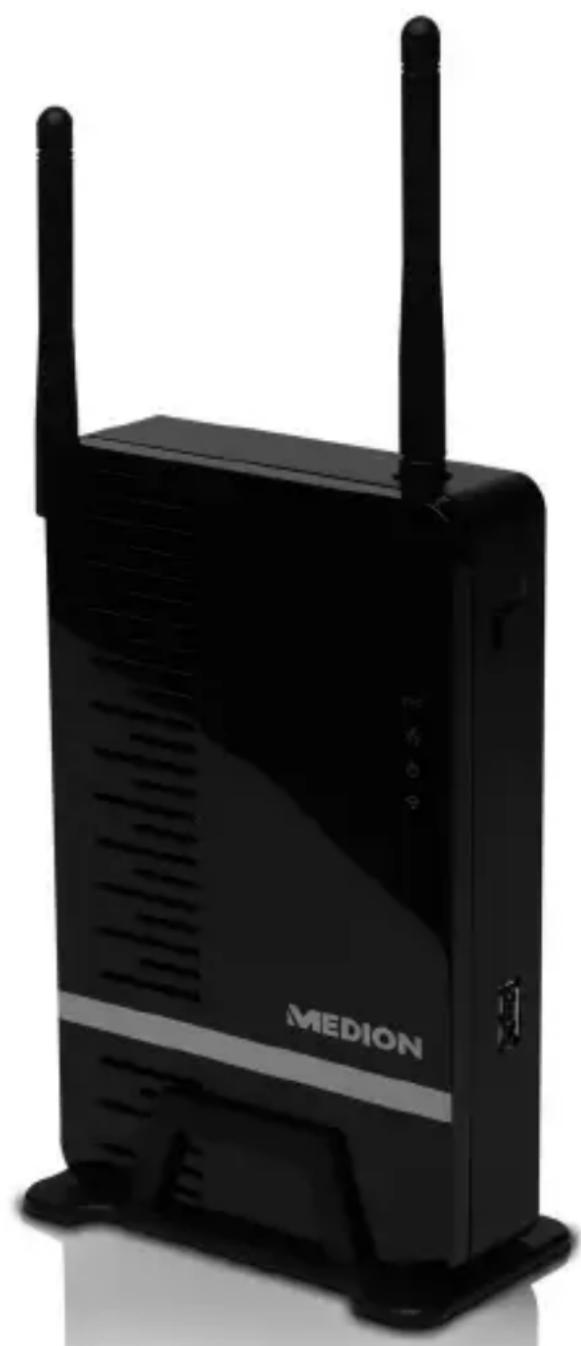
Design W-LAN USB Remote Hub
MEDION® E89030 (MD 86097)
natural_image
Black wireless router device labeled 'MEDION' with two antennas and ventilation slots (no additional text or symbols visible)Instruction manual
Contents
Contents 1
Overview....3
About this device .... 5
Scope of supply 5
Use in accordance with regulations....6
Safety information 6
Safety in operation 7
Installing the USB hub software....9
Bringing the device into operation....13
Mains connection 13
WLAN-Connection (Access Point Mode) 14
Integrating the USB-Hub into an existing network (Station Mode) 17
Using the Control Utility 21
The Menu Bar 22
Connecting and Removing Devices 25
Using the Remote USB Audio 27
Requesting a Device and Disconnecting it for Others to Use 28
Setting up the USB-Hub 30
Accessing the configuration page 30
Wireless setting 31
System Setting 36
Wi-Fi Protected Setup (WPS) 41
Reset the unit 43
Customer service 44
First aid in the case of malfunctions 44
Technical Data 46
Cleaning 48
Recycling and Disposal 48
Licence disclaimer 49
Downloading Source Code 50
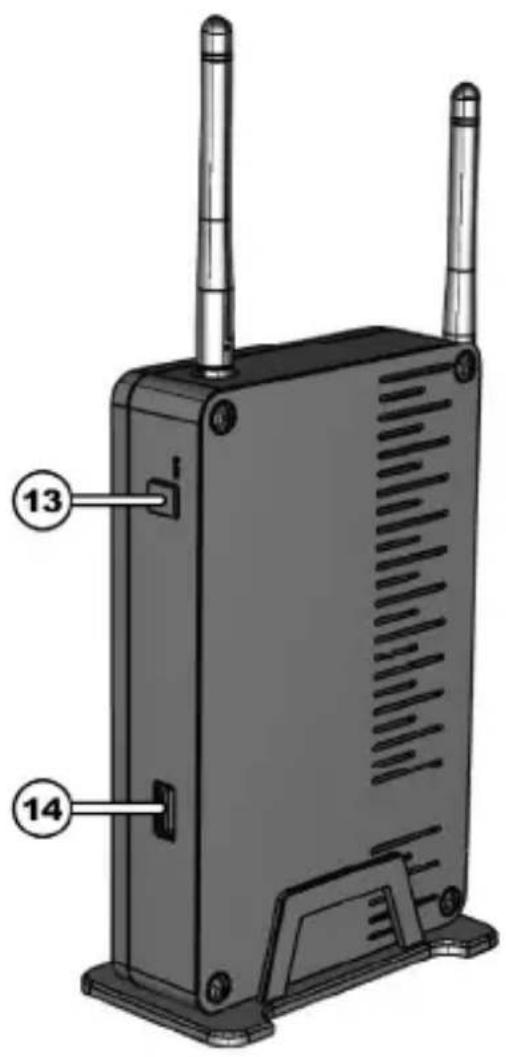
Overview
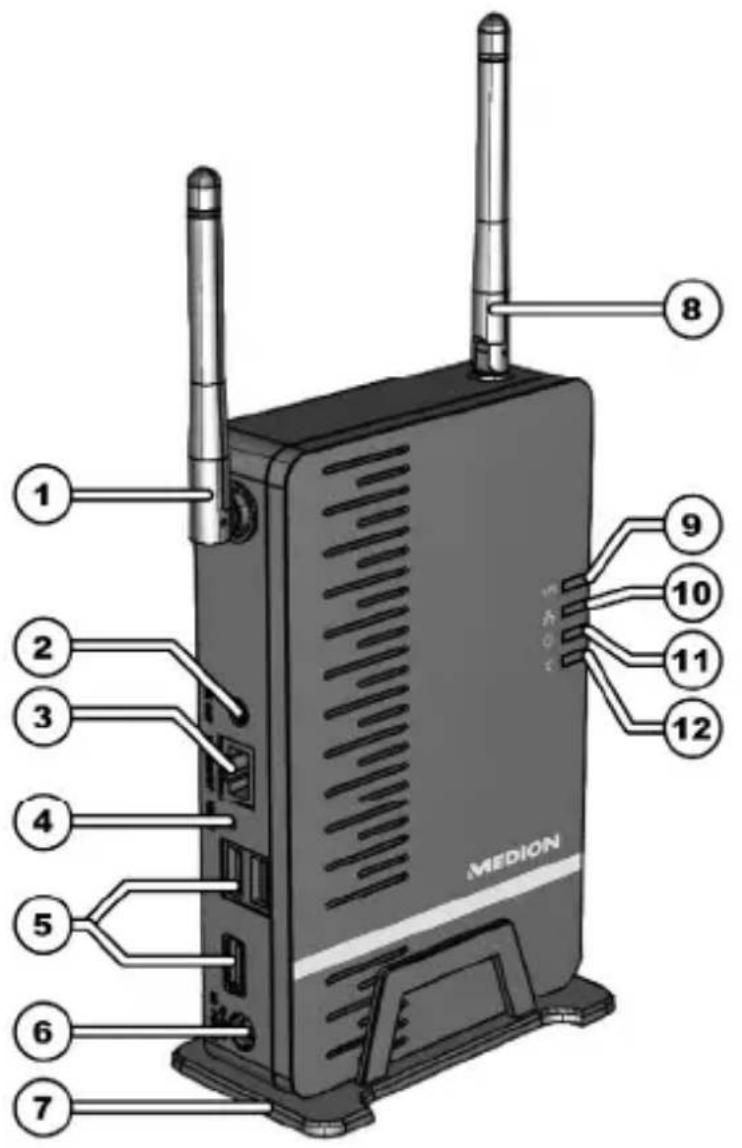
- WLAN aerial
-
LINE OUT (A): For the connection of a device for remote audio reproduction
(e. g. an amplifier or an active loudspeaker) -
ETHERNET: LAN connection
- RESET: Reset switch
- USB 1,2,3: USB connections
- DC POWER: Connection for a mains adapter
- Stand
- WLAN aerial
- WPS LED: Lights up during the WPS function
- LAN LED: Lights up during a LAN connection, flashes during data transmission
- Operating LED: Lights up during power supply
- WLAN LED: Lights up when the system has booted, flashes during data transmission
- WPS button: To make a WPS connection
- USB (F): USB connection
About this device
Scope of supply
Please check the completeness of the delivery and inform us within 14 days after purchase, if the delivery is not complete. You will have received the following with the package purchased by you:
- Wireless USB hub
- Mains adapter (Ktec KSAD1200150W1UK)
- Stand
- CD with software
• These Operating Instructions
• Guarantee documents
Copying this manual
This document contains legally protected information. All rights reserved. Copying in mechanical, electronic and any other form without the written approval of the manufacturer is prohibited.
Use in accordance with regulations
The wireless USB hub serves to connect USB devices * (USB-mass storage devices like external harddrives, USB sticks as the connection of USB-printers and -scanners) and will transfer the USB signals to computers connected to the USB hub by means of WLAN or LAN across a WLAN connection. USB devices can be connected wirelessly to a computer in this way. Apart from this, the device has an audio output through which the audio signal of a registered computer can be output, in the case of a corresponding setting.
This device is intended exclusively for private use and not for commercial purposes.
Safety information

natural_image
Gray icon of an open book with a lowercase 'i' on the right page, representing information (no text or symbols present)Please read this Chapter and the whole Introduction through carefully and follow all the information given. You will guarantee reliable operation and a long useful life of your USB hub in this way.
Always keep these Operating Instructions ready to hand close to your device and keep them well, in order to be able to pass them on to the new owner in the case of a disposal.
Please contact our authorised service partners exclusively, if you have problems with the device.
Safety in operation
- The device is not intended to be used by individuals with restricted physical sensory or intellectual abilities or a lack of experience and/or knowledge (including children), unless they are supervised by an individual responsible for their safety or have received instructions from such an individual about how the device is to be used. Children should be supervised to ensure that they do not play with the device.
- Also follow the instructions for use of devices that you connect to the USB hub.
- Do not place any containers filled with liquid, such as vases, on the device or in its closer surroundings. The container could tip over and the liquid could impair electrical safety.
- Keep the device away from moisture, drops of water and spray. Avoid vibrations, dust, heat and direct solar radiation, to prevent disruptions to operation. The operating temperature is +5 to +40 °C.
- Never open the casing. This will terminate any guarantee claim and will possibly lead to the destruction of the device.
- Wait until the device has reached the surrounding temperature after transportation. Moisture, which can cause electric shock, can form because of condensation in the case of wide fluctuations in temperature or moisture.
- The device is intended to be connected to computers with protected connection (Limited power source in the sense of EN60950).
- Only use the Ktec KSA1200150W1UK type mains adapter supplied.
- The socket must be close to the device and easily accessible.
- Lay the cable so that no-one can step on it or trip over it.
- Do not place any objects on the cable, because they could be damaged.

You should not operate the device under extremely dry conditions, in order to avoid static charges.
Incorrect functions of the device can arise under conditions with electrostatic charge. In this case, it will be necessary to set the device back to the factory settings.
Data security
The assertion of compensation claims for data loss and consequential damage arising because of it is excluded. Make security copies on external media (e.g. CD-R) after every updating of your data.
Electromagnetic compatibility
The Guidelines for Electromagnetic Compatibility (EMC) must be observed during connection. Maintain a minimum distance of one metre from high-frequency and sources of magnetic interference (TV device, loudspeakers, mobiles, etc.), in order to avoid disruptions to function and data loss.
Installing the USB hub software
The software must be installed on all computers intended to use the USB hub, before you will be able to receive USB signals through the network.
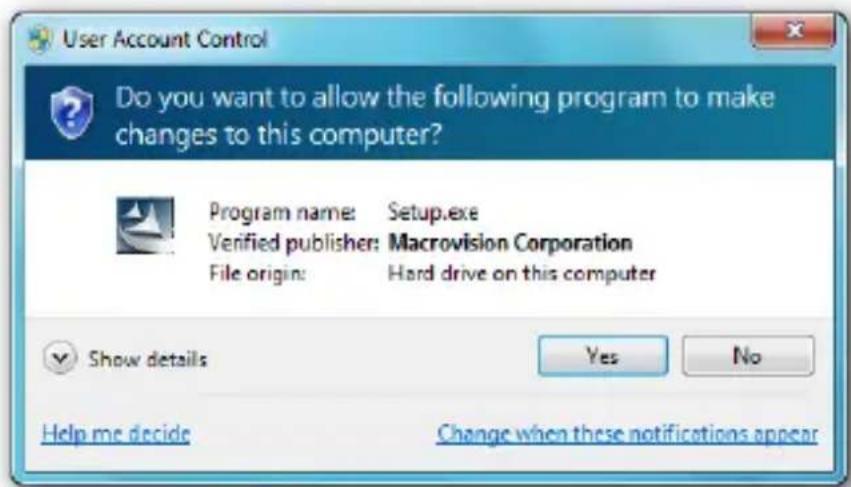
- Launch the setup application. The Windows User Account Control will prompt for permission to install. Click Yes.
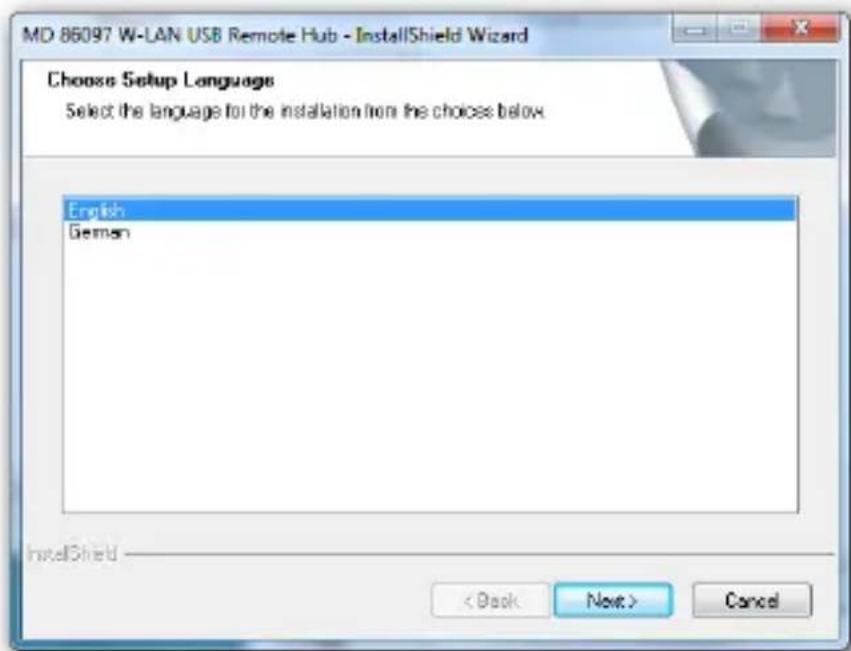
- You will then see the Language Selection screen. Click Next.
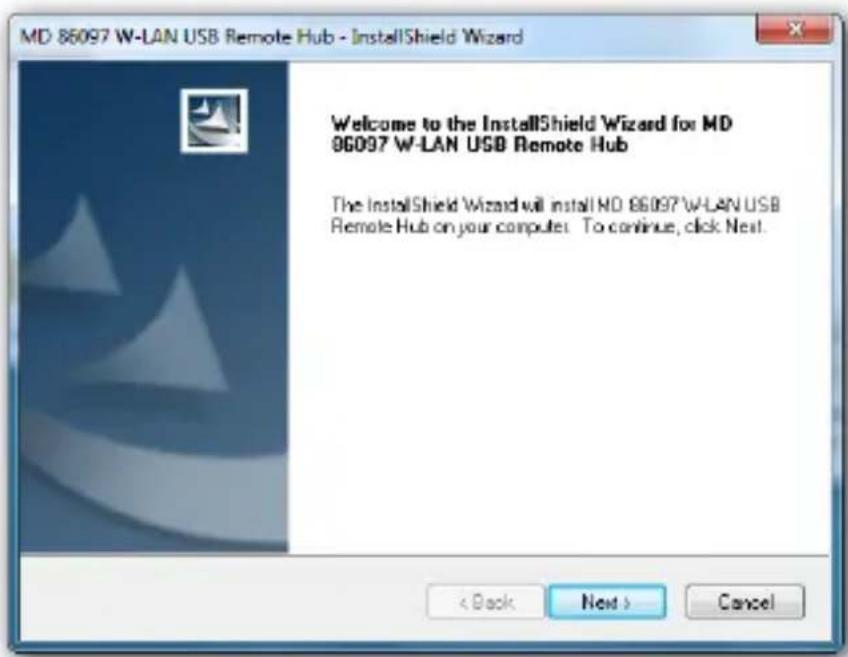
- The Welcome screen appears. Click Next.
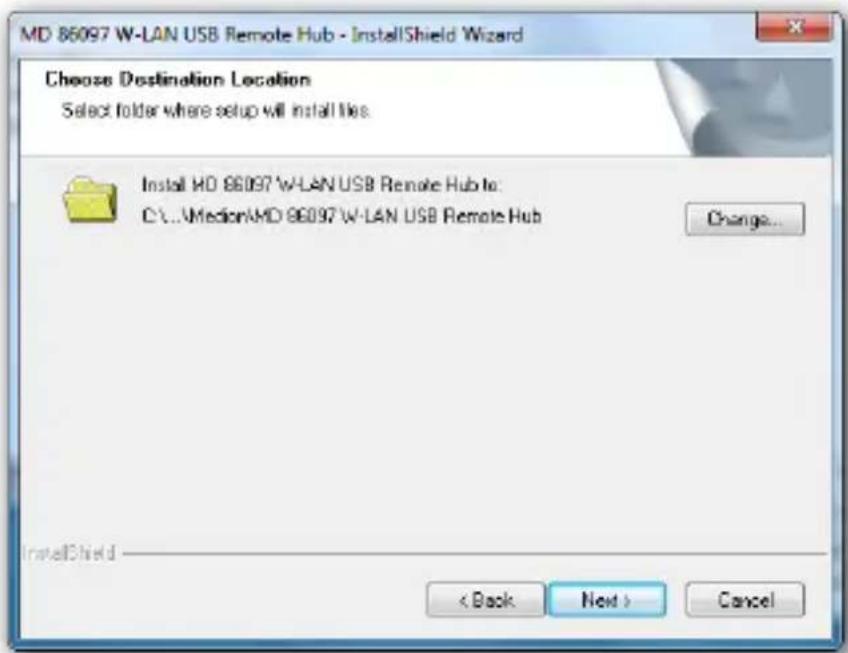
- You can accept the default installation path and click Next to proceed. Instead, you can change the destination folder for the utility by clicking Change....
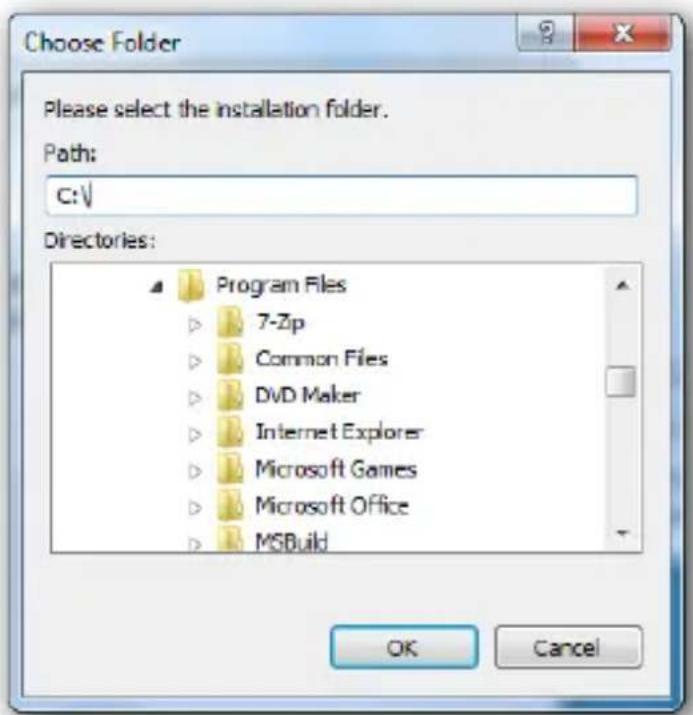
- Choose the folder where you want to install the software into and click OK.
- You are now ready to install the software. Click Install.
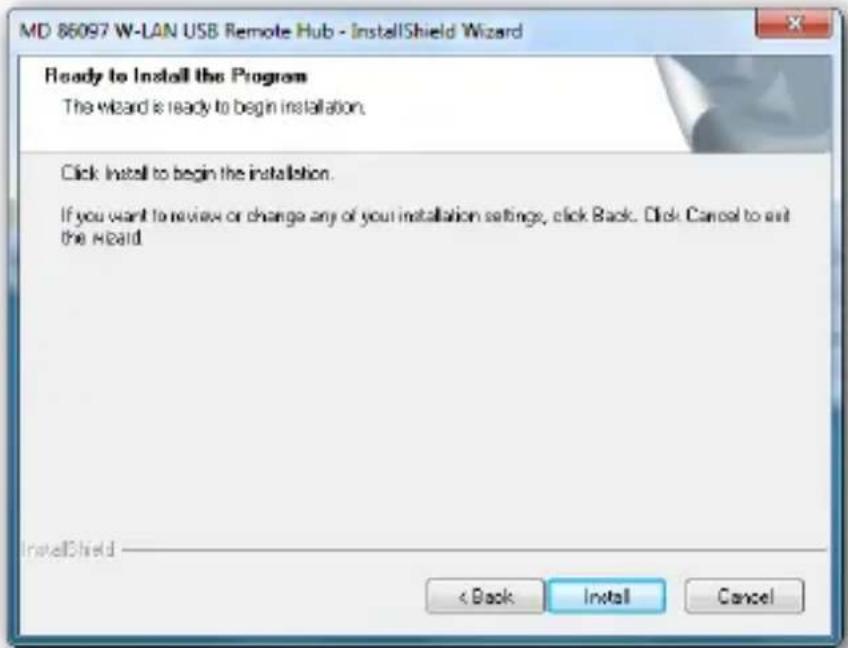
- Wait for the installation to complete. Click Finish.
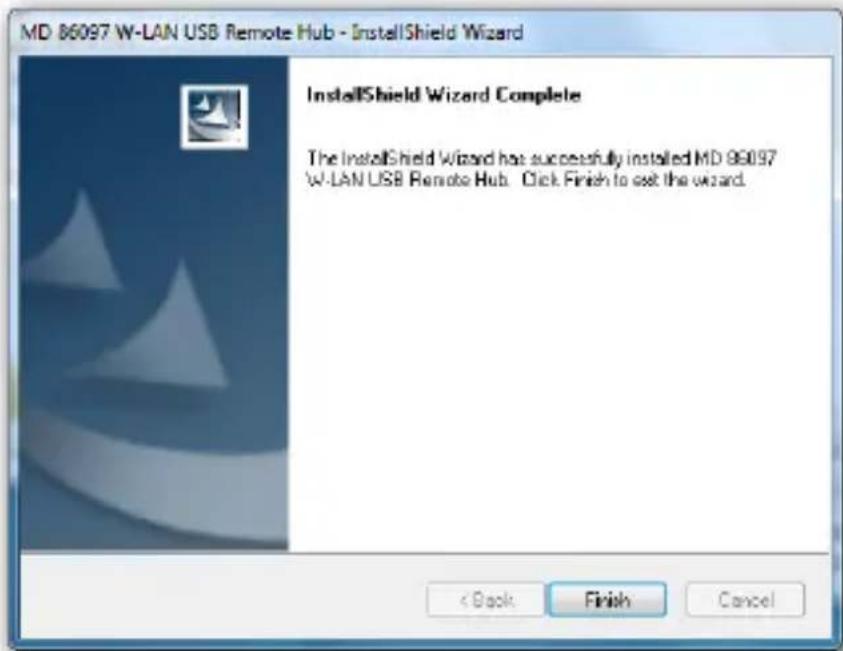
After installation, an icon will appear on your desktop, and a tray icon will appear:
- Now you can double click on the desktop icon or the tray icon to launch the Control Utility.
Bringing the device into operation
Mains connection
-
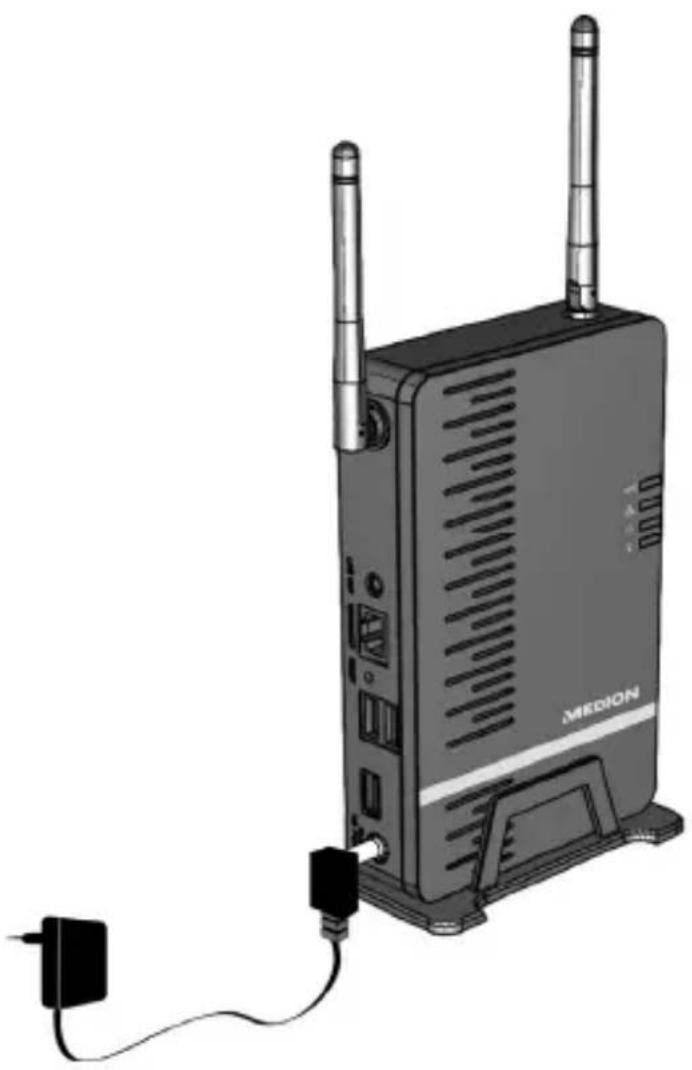
Connect the hollow jack of the mains adapter to the DC POWER socket on the device.
-
Plug the mains adapter into an easily accessible AC 230 v 50/60 Hz socket. The device is now ready for operation and the green POWER LED will shine continuously.
natural_image
Illustration of a wireless router with two antennas and a power outlet connected to the right (no text or symbols visible)WLAN-Connection (Access Point Mode)
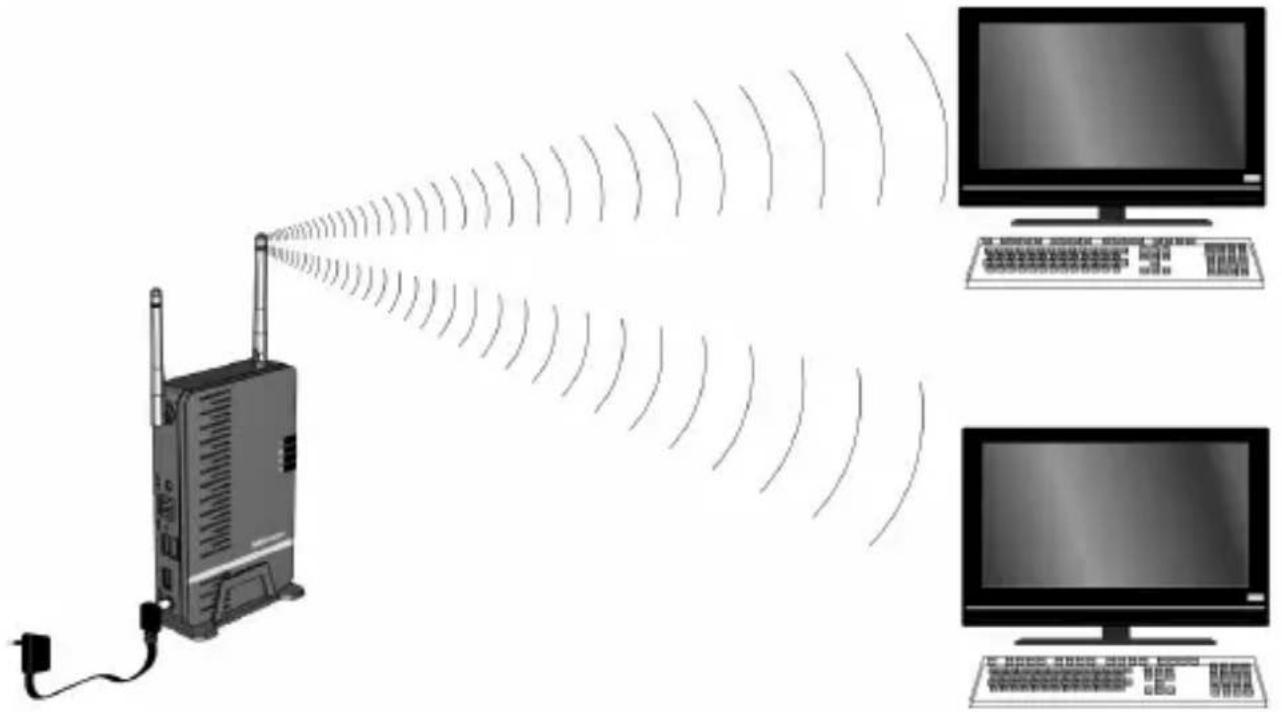
A simple WLAN connection is sensible if your PC is connected to a router by a cable (e.g. for access to the Internet) and your PC has an unused wireless network adapter apart from this.
natural_image
Illustration of a wireless router emitting signal waves to two computer monitors (no text or symbols)- Switch the USB hub on by connecting the mains adapter as described on Page 13.
-
Install the USB hub software as described on Page 9.
-
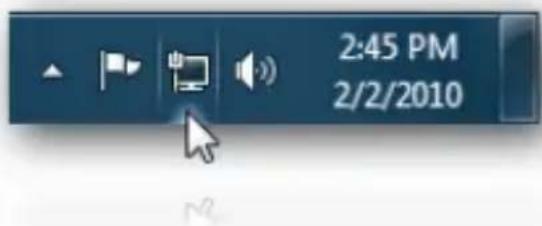
Click on the symbol for wireless networks in the Taskbar of your operating system.
-
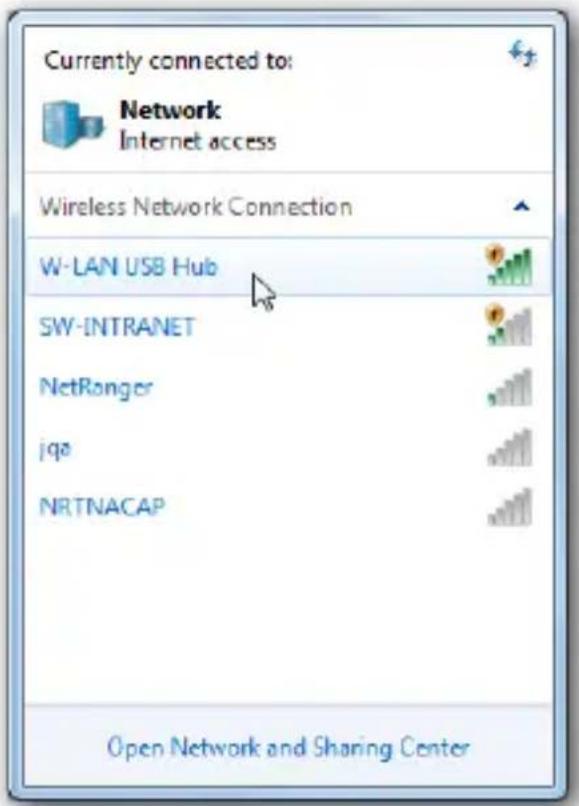
The Network Connection window appears. Select W-LAN USB HUB and click on it.
-
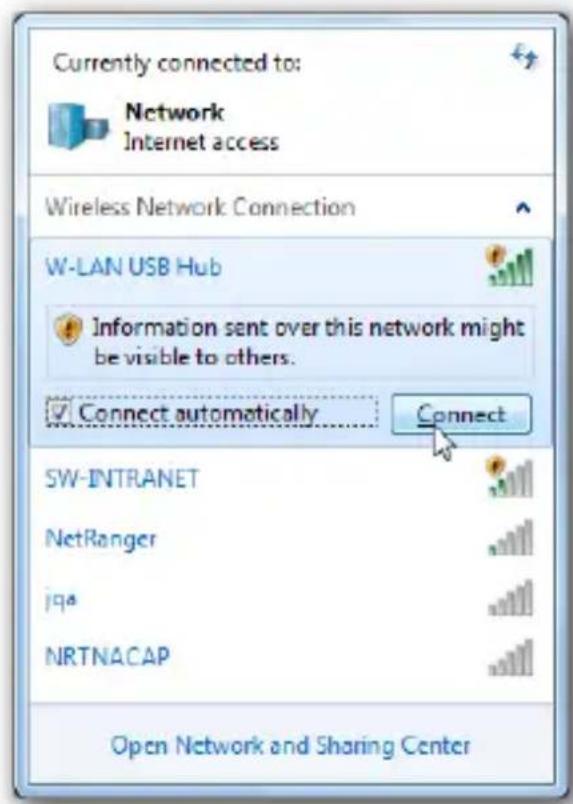
As no encryption is set by default, Windows will notify that this connection is insecure. Click Connect. About how to enable an encryption mode see page 32.
-
Wait until the connection is established. Now you will see your PC is connected to the Hub over Wi-Fi.
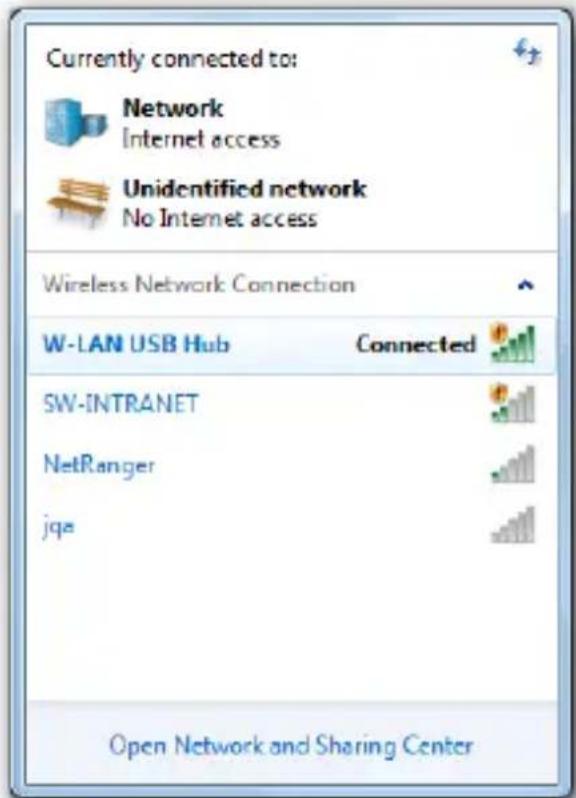
- To configure the USB-Connections, start the USB Control Utility (See page 21).
Integrating the USB-Hub into an existing network (Station Mode)
The integration of the device into an existing network is only sensible if your PC is already receiving access to an Internet router by means of a wireless network connection (WLAN) and it is additionally intended to connect the USB hub by means of WLAN.
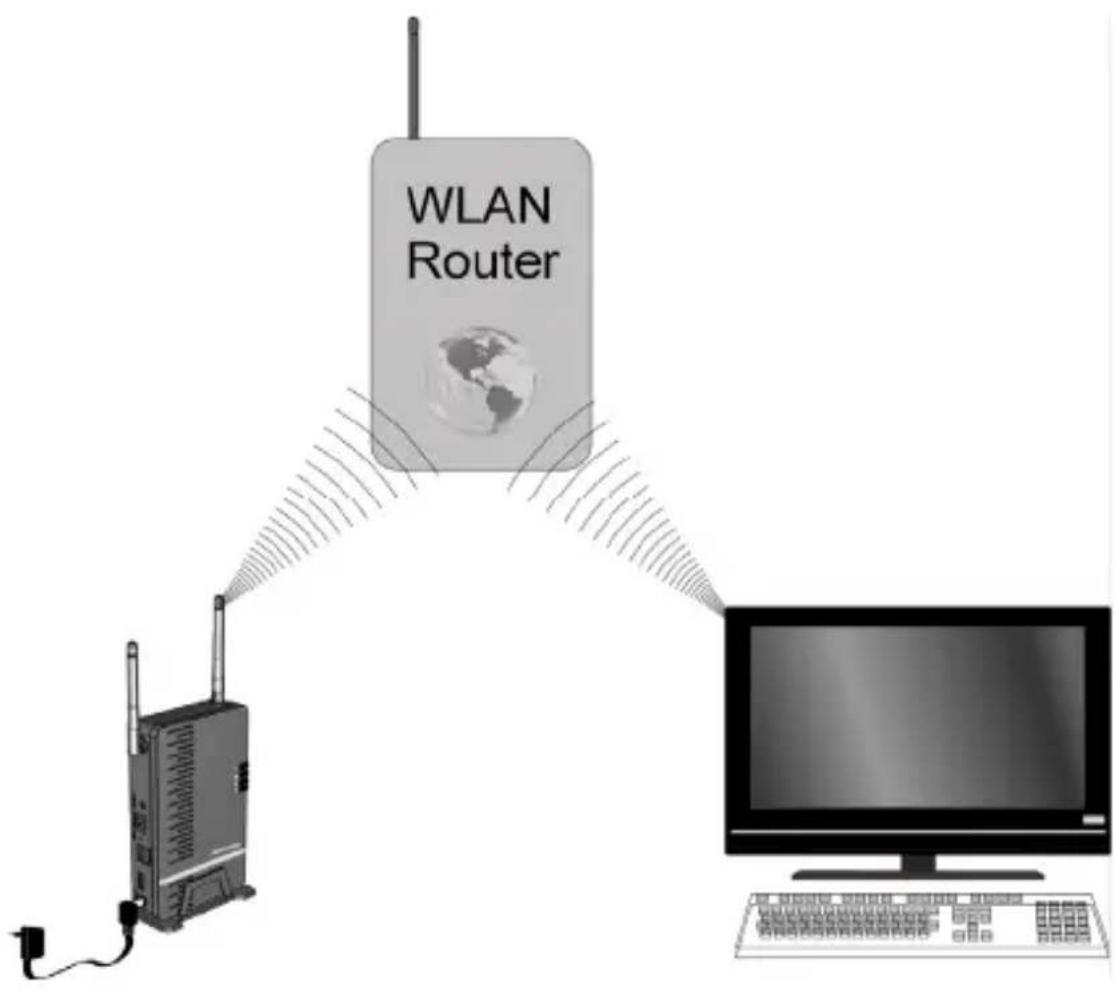
Setting up the Station mode
If you are connected to a network router that uses Dynamic Host Configuration Protocol (DHCP), which most networks do, you do not need to set up your router. Please follow up the setting as below
- Please plug the AC adapter into the Hub.
- Check the Power LED (green). It should be illuminated.
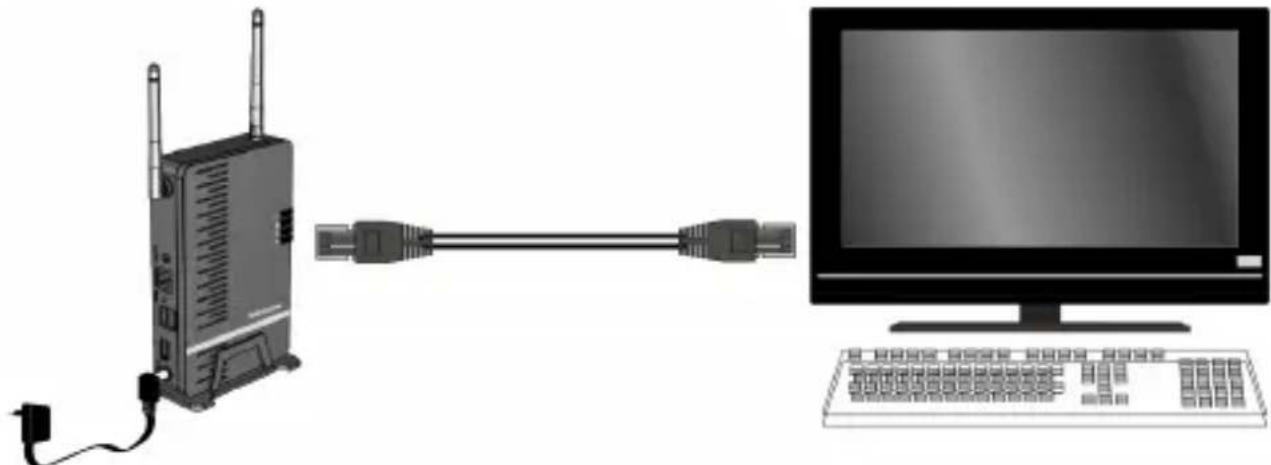
- Plug the Ethernet cable into the Hub (only needed for configuration of the USB-Hub).
natural_image
Illustration of a wireless router connected to a computer monitor via cable (no text or symbols present)-
Plug the other side of the Ethernet cable into the socket of your PC.
-
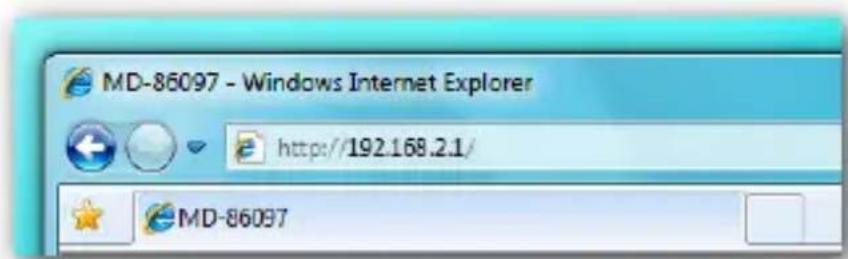
Open your preferred Internet browser and enter the IP address of the Hub in the address bar. Press Enter.
NOTE: the IP address of the Hub is displayed in the Control Utility (See page 21).
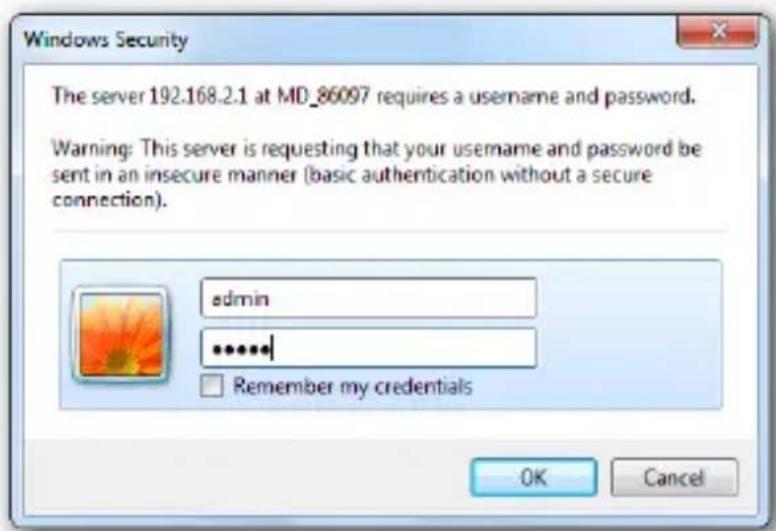
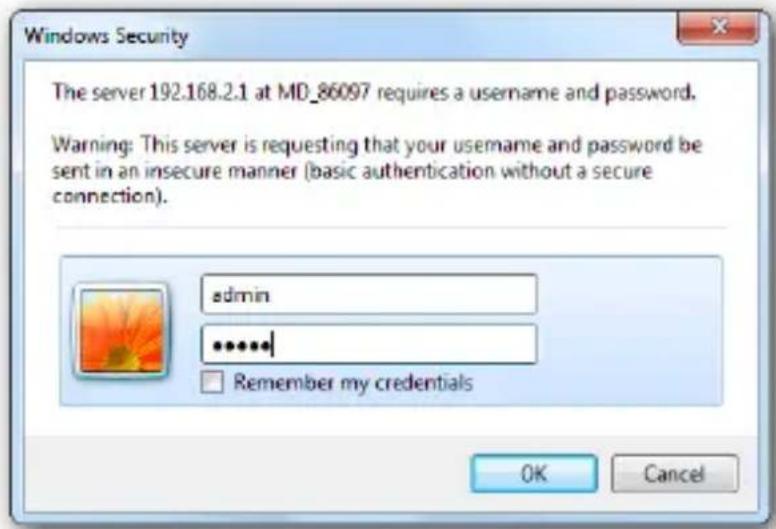
- Enter username and password and click OK to enter the configuration page. The default username and password are both admin.
- Check the LAN LED will be illuminated if the Ethernet connection is working.
- In the Setup Menu of the USB-Hub choose Wireless -> Wireless Operation Mode and set Station.
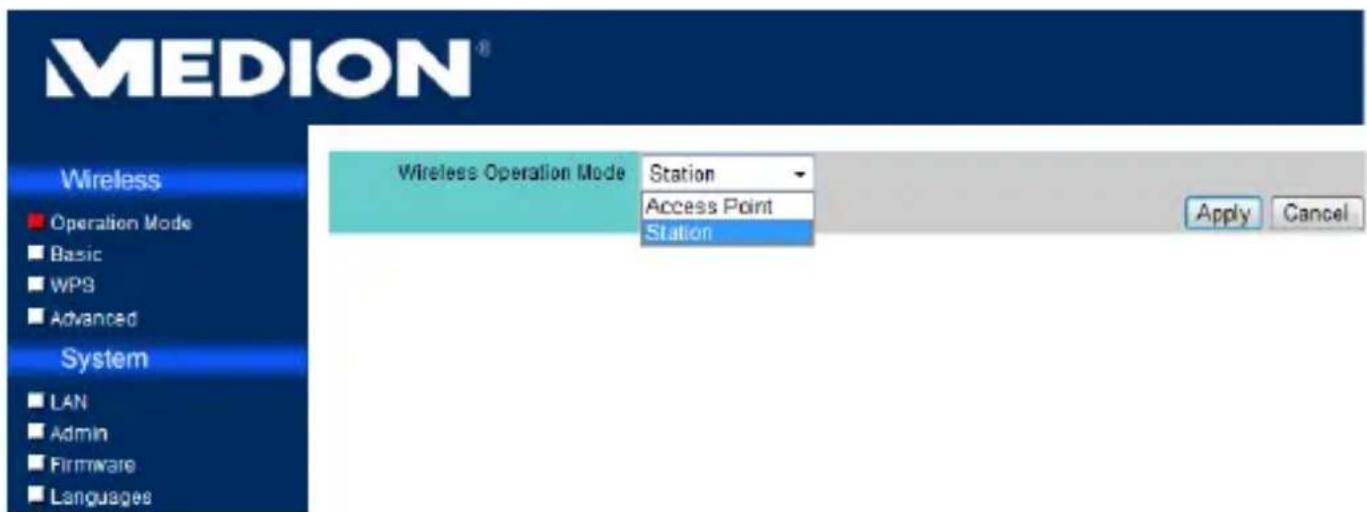
- After you selected Station, click on Apply and a message for rebooting the device will prompt.
- After the device rebooted, it will be operating under Station mode.
Scan for available wireless networks
- After the device rebooted, start the Setup-Menu of the USB-Hub and choose the menu item Wireless -> Basic.
Click on Scan Wireless Network to display all the Access Point or Router signals found within your area.
Rescan: Scan for more AP/Router signals within your area.
Join: Join the network you selected from the list.
Close : Close the Wireless Network window.
| SSID | BSSID | Ch | W-Mode | WPS | Enc | Auth | Signal |
| W-LAN USB Hub | 1C-4B-D6-68-57-9B | 6 | unknow | NO | NONE | OPEN | 50% |
| Linksys350 | 00-1C-10-11-E3-A0 | 2 | unknow | YES | WEP | Unknown | 34% |
| Dlink_855 | 00-24-01-41-FF-5E | 11 | unknow | YES | NONE | OPEN | 100% |
| bgtaipei | 00-22-15-5E-CE-EB | 11 | 11a/n | NO | TKIP | WPA-PSK | 24% |
| SunskyWireless | 00-1D-73-A9-C1-78 | 11 | unknow | YES | TKIP | WPA-PSK | 20% |
| ACECAD-WL | 06-22-B0-E8-CF-6D | 11 | 11a/n | NO | WEP | Unknown | 29% |
| sunskydomeap | 00-1B-B1-01-A3-D5 | 12 | 11a/n | NO | TKIP | WPA-PSK | 20% |
- Select the WLAN network into which the USB hub is intended to be integrated and click on Join. The wireless connection between the USB hub and the WLAN router will be made and the USB-Hub will be integrated into the WLAN network.

Please note that some networks may be encrypted and require you to know the right encryption key or password.
- Remove the Ethernet cable from the USB-Hub.
Using the Control Utility
Once the setup is completed, you can launch the Control Utility through the Start menu, the desktop icon or the tray icon. From the Control Utility you can connect/disconnect a USB device, view its status and request to use a device if it's
already in use by other computers.
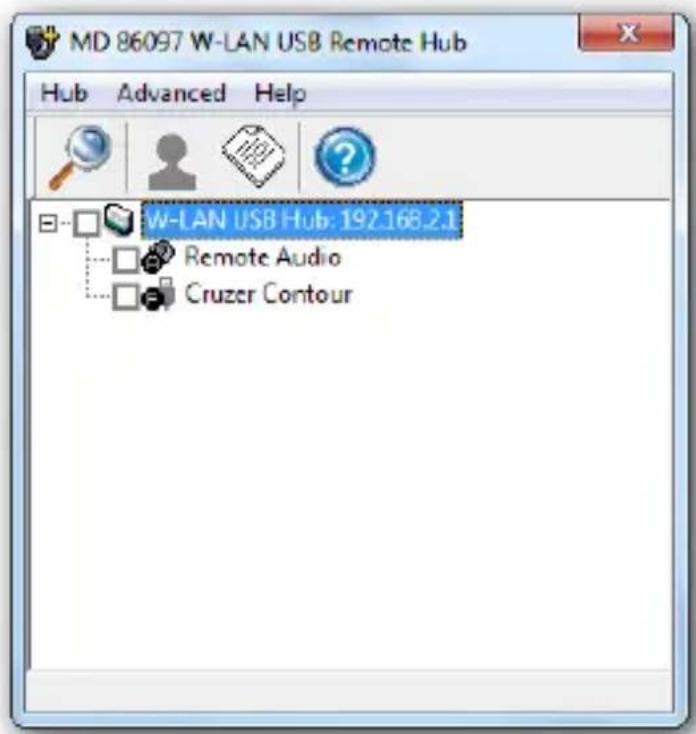
The Control Utility (see image below) gives you a visual depiction of your connection configuration.
The Menu Bar
Hub
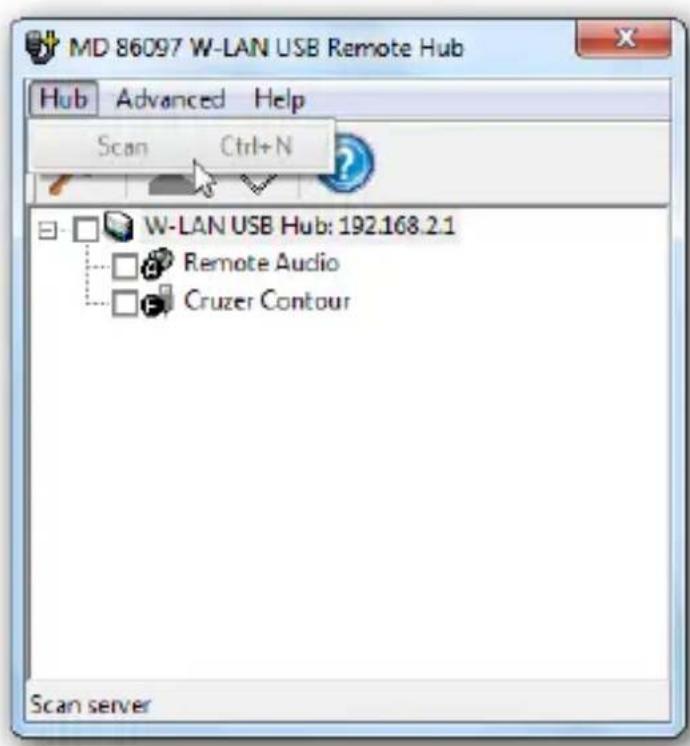
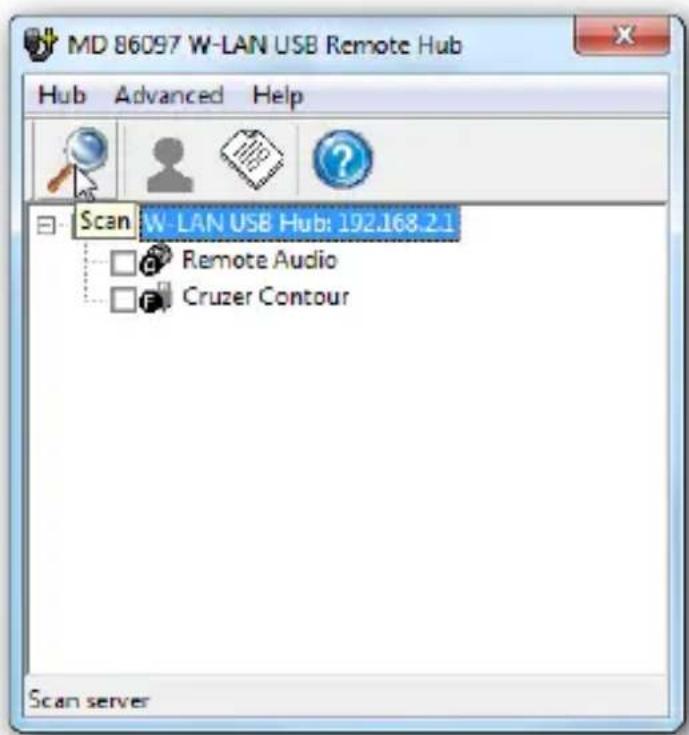
From the Control Utility you can scan for other Hubs by clicking Hub > Scan. Instead, you can click the Scan icon on the toolbar.
Advanced
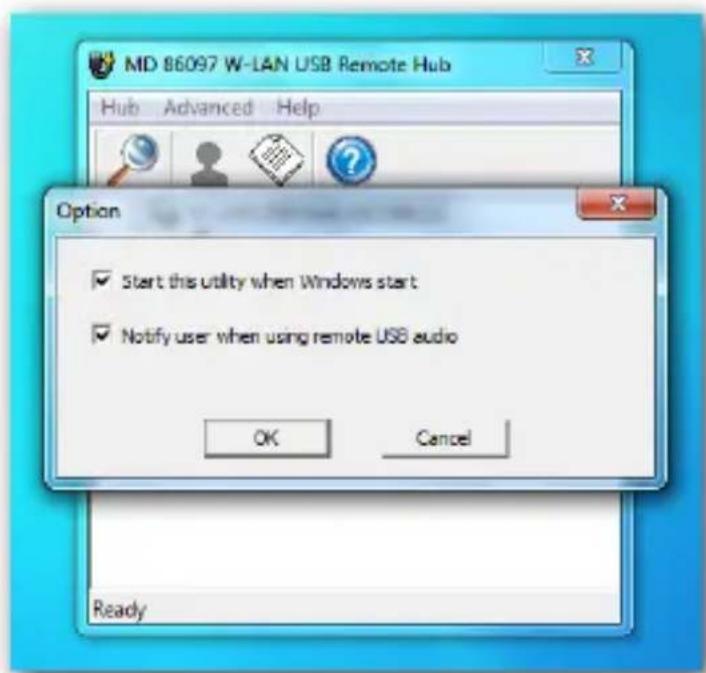
You can set advanced options by clicking Advanced > Option.
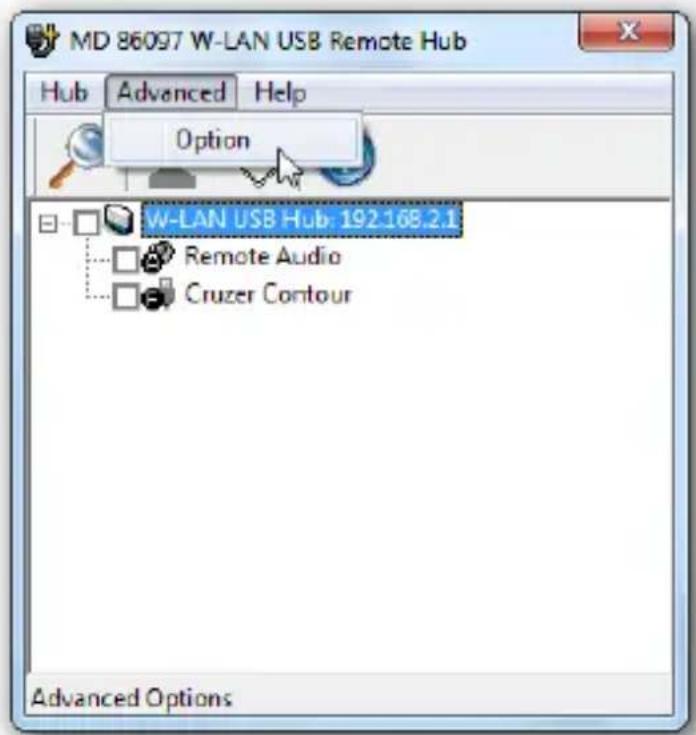
The Option window appears and allows you to set if the Utility should start when Windows starts, or if you want to be notified when using remote USB audio.
Help
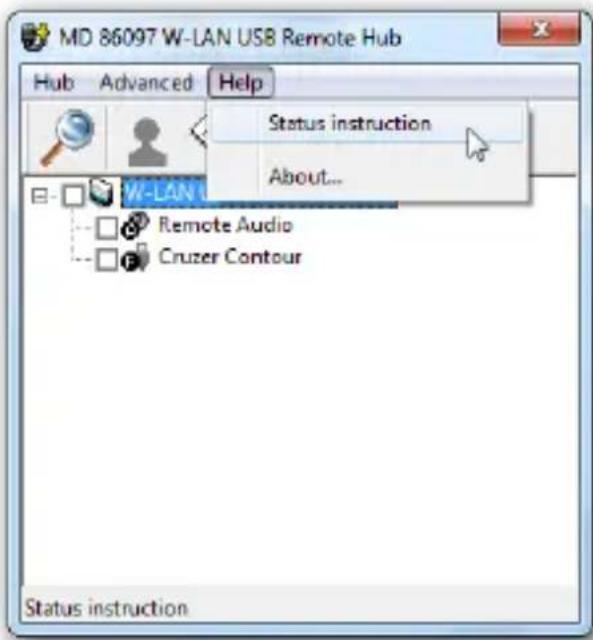
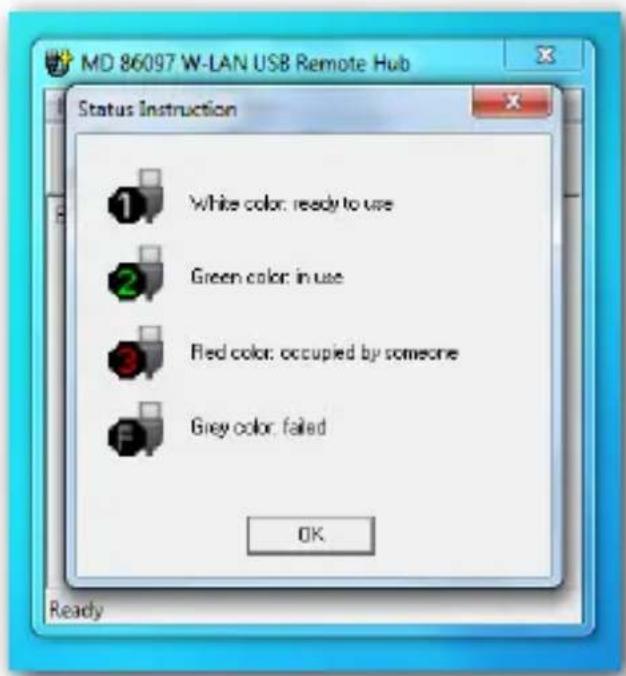
- A white icon means the device is not in use and is ready to use.
- Green means the device is already in use by you.
- Red means the device is in use by others, and if you want to use this device, you can send a request to the person who is using it to disconnect it.
- If the status icon is grayed out, it means the device has failed to work properly and you should contact its manufacturer for support.
You can check what device status icons represent by clicking Help > Status instruction.
The Status Instruction window appears. There are 4 statuses for the devices connected to the Hub:
Connecting and Removing Devices
To connect a device attached to the Hub, simply click the checkbox in front of each of the devices displayed in the Utility. In addition, you can click the checkbox in front of the Hub to connect all the displayed devices.
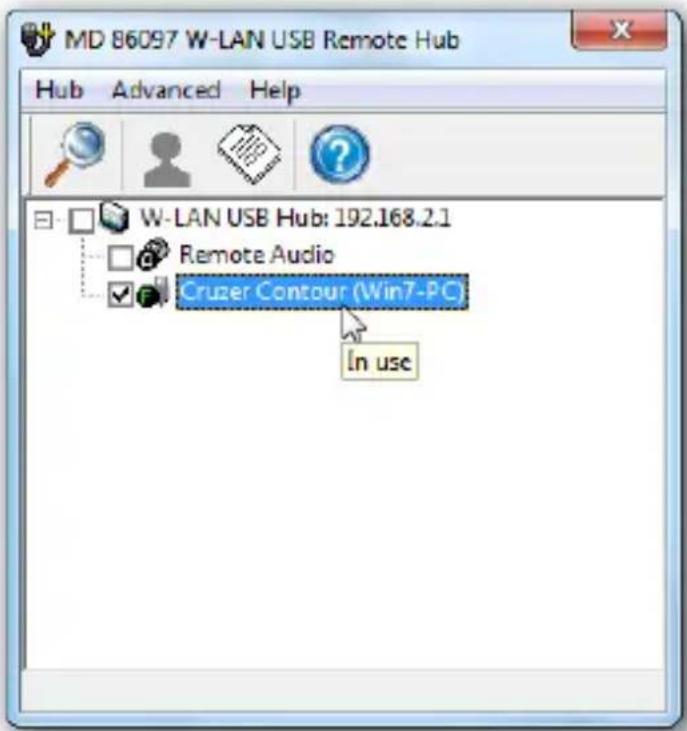
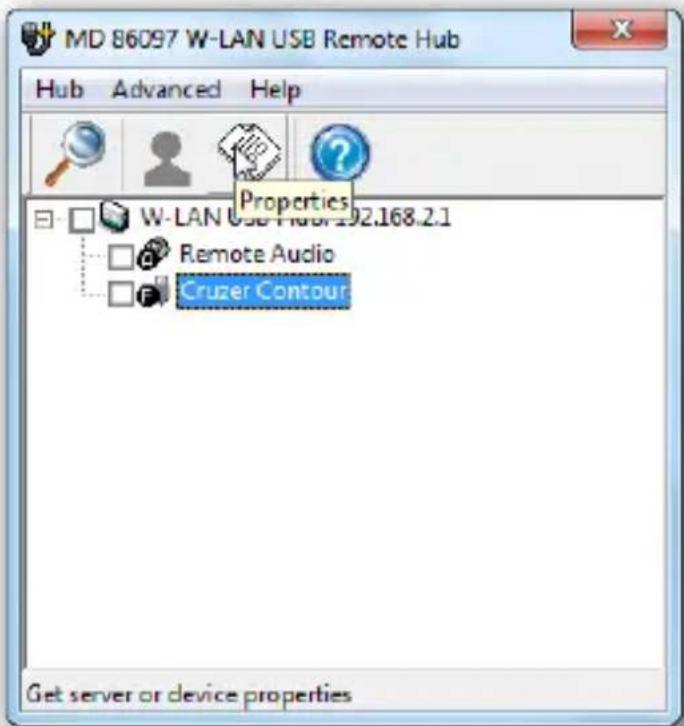
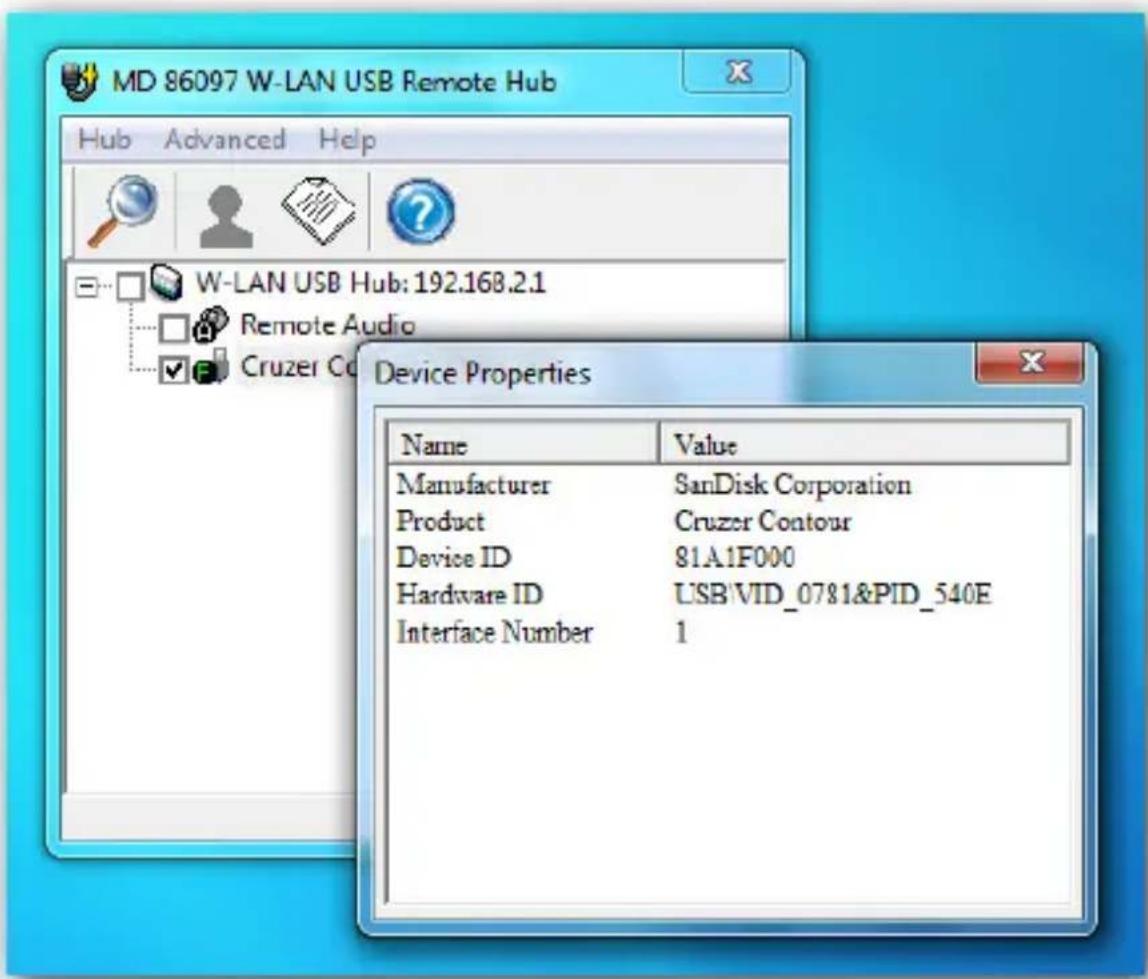
You can view the properties of a connected device by selecting it in the Utility and click the Properties icon on the toolbar.
The Device Properties window appears with information on the selected device.
To disconnect a device, uncheck the check box in front of it.
Using the Remote USB Audio
The Hub can be used as a remote USB audio device as well. Simply check the box in front of the Remote Audio device in the Utility, and you can listen to music through any speaker or headphone attached to the Hub. When the remote audio device is connected, a dialogue will appear to notify you that the Hub will now be used as your PC's audio playback device. You can turn this notification on or off in the Advanced > Option menu.
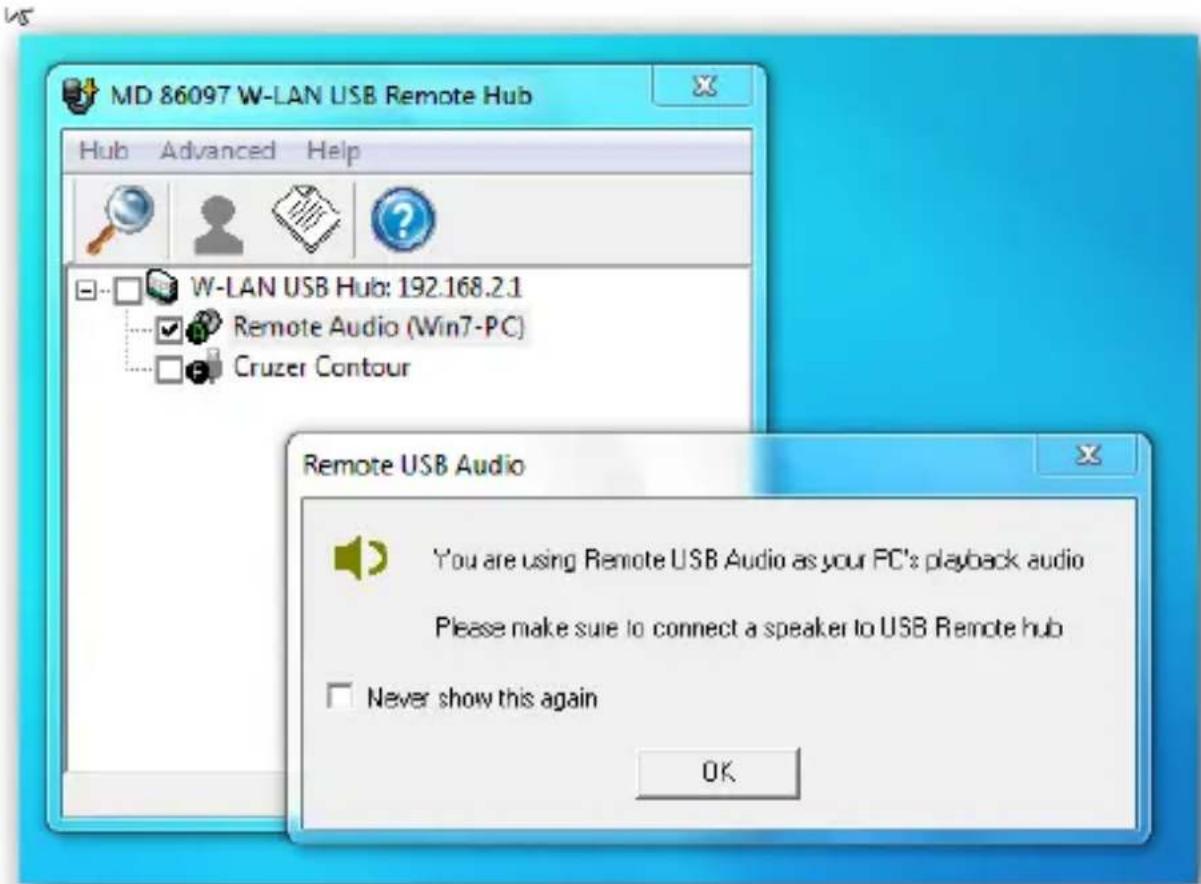
NOTE: If the Remote Audio function is activated, your PC-Speakers or speakers connected directly to the PC-Audio Out will be muted.
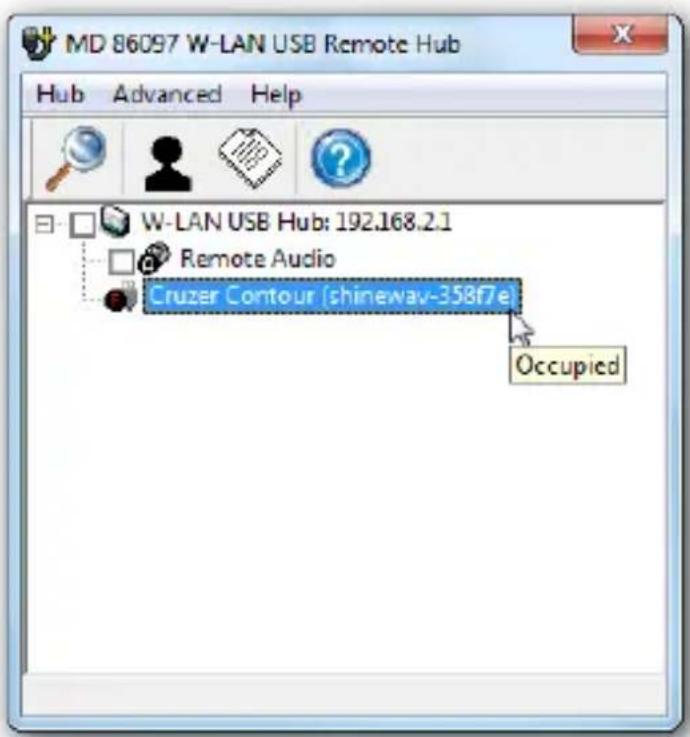
Requesting a Device and Disconnecting it for Others to Use
If you want to use a device that is in use by another person, you can send a request to that person to disconnect the device so you can use it.
![MD 86097 W-LAN USB Remote Hub Hub Advanced Help Request disconnect W-USB Connection 68.2.1 Remote Audio Cruzer Contour [shineway-358f7e] Request other to disconnect a device](/content/2026/05/817068/images/96886e185961d82c62fc92d289942bce59991fe92a89abb6dbda8bcf18e29add.jpg)
To do so, first select a device in use, and click the Request icon on the tool bar.
The person who is using the device will see a popup asking to disconnect the device.
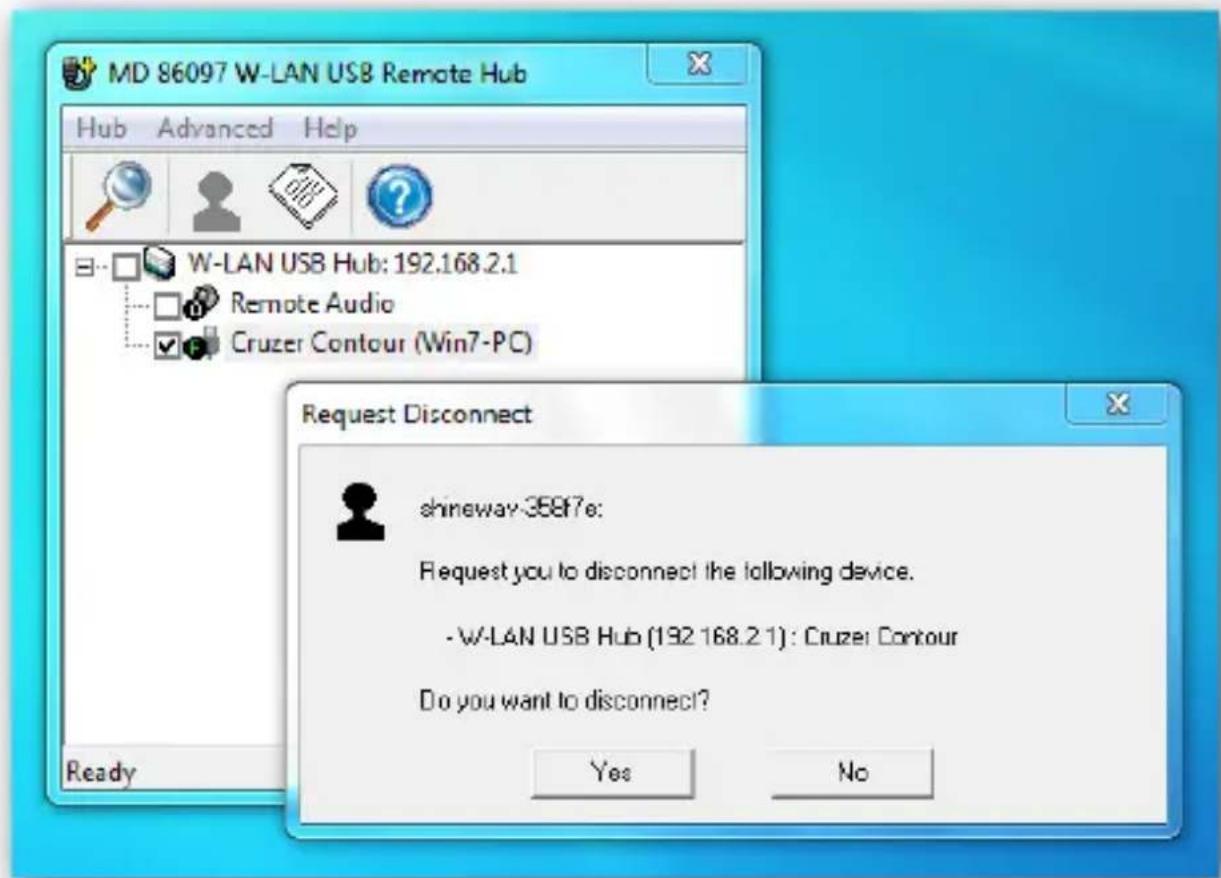
If the other person clicks Yes, the device will be disconnected from his/her Hub, and you will be able to connect it for use.
Setting up the USB-Hub
Accessing the configuration page
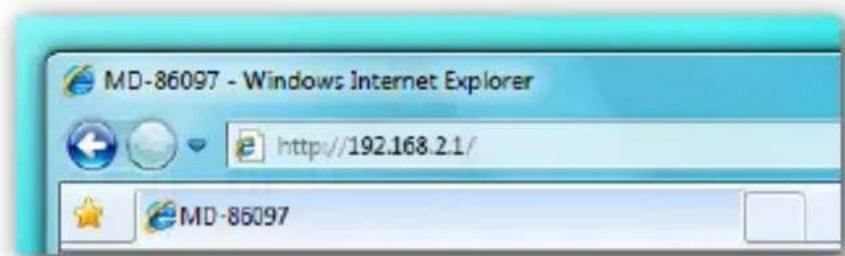
- Open your preferred Internet browser and enter the IP address of the Hub in the address bar. Press Enter.
NOTE: the IP address of the Hub is displayed in the Control Utility (See page 21).
- Enter username and password and click OK to enter the configuration page. The default username and password are both admin. You can change the password later in the configuration page (See page 37).
The configuration page appears (See next page).
The configuration page is divided into two sections:
Wireless setting and System setting.
Wireless setting
The wireless setting is divided into 4 sections.
Operation Mode
The first section is the Operation Mode setting. You can change the wireless operation mode here.
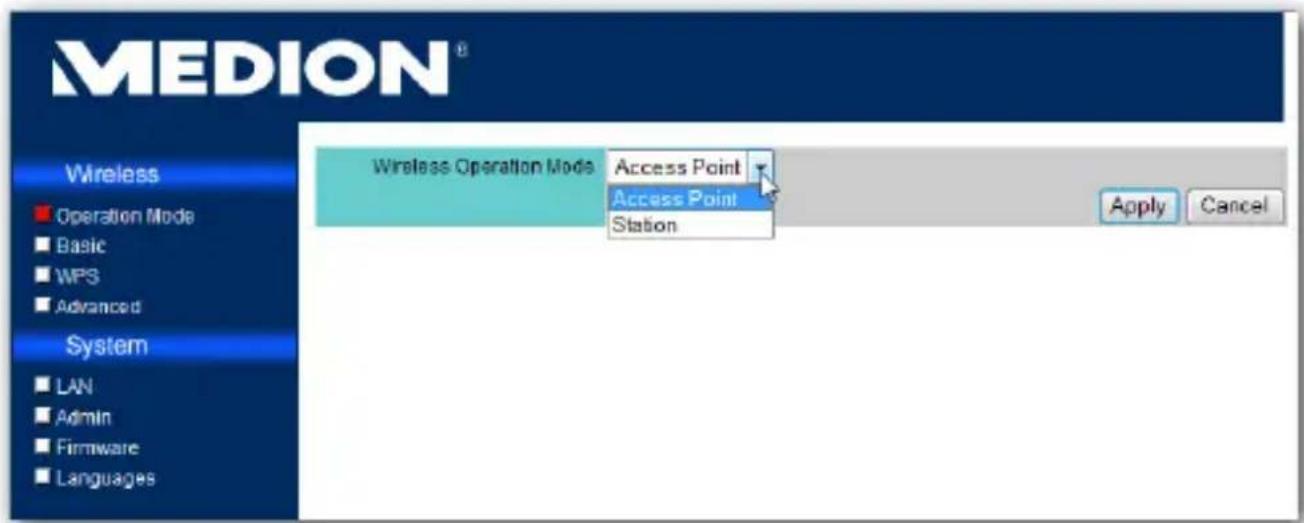
Select Access Point (standard setting), to make a connection to the respective computer, if the USB hub is intended to represent an independent wireless network.
Select Station, if you want to integrate the USB hub into an existing network as a client. You will find further information about client configuration under Integrating the USB-Hub into an existing network (Station Mode) on Page 17.
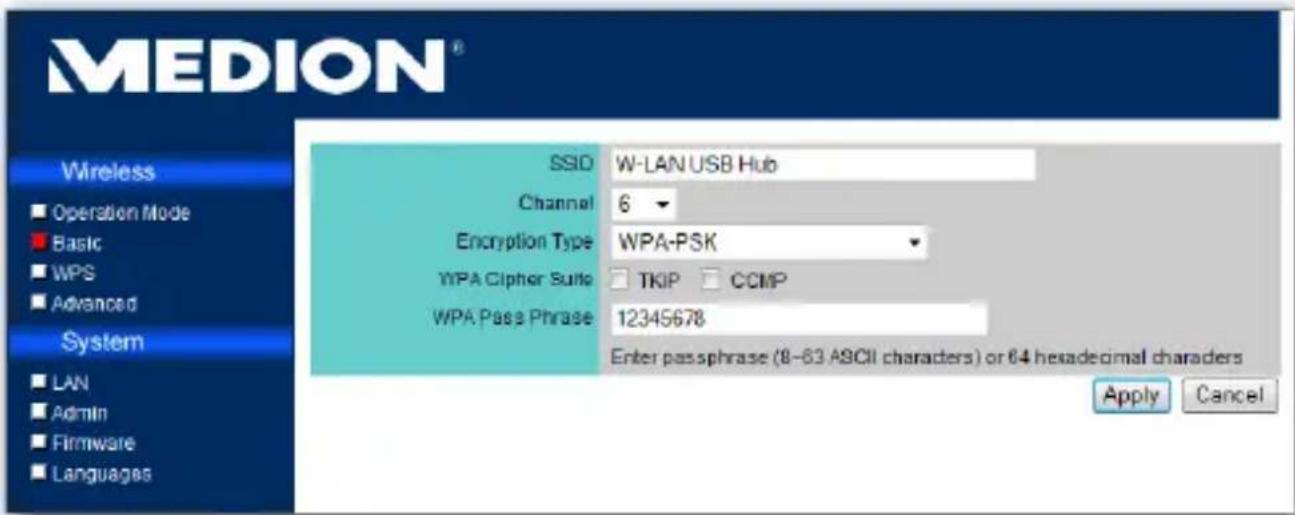
Basic Setting
The second section is the Basic setting. You can change the SSID (Network Name), the wireless channel (1-13) and the encryption type here.
▶ Change the settings to your needs and click Apply.
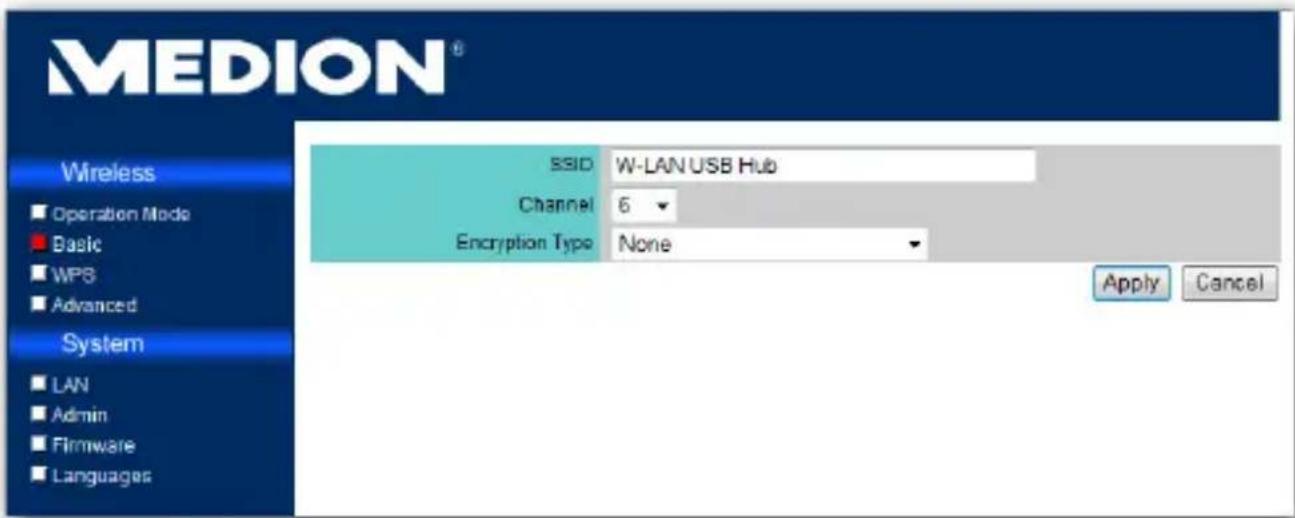

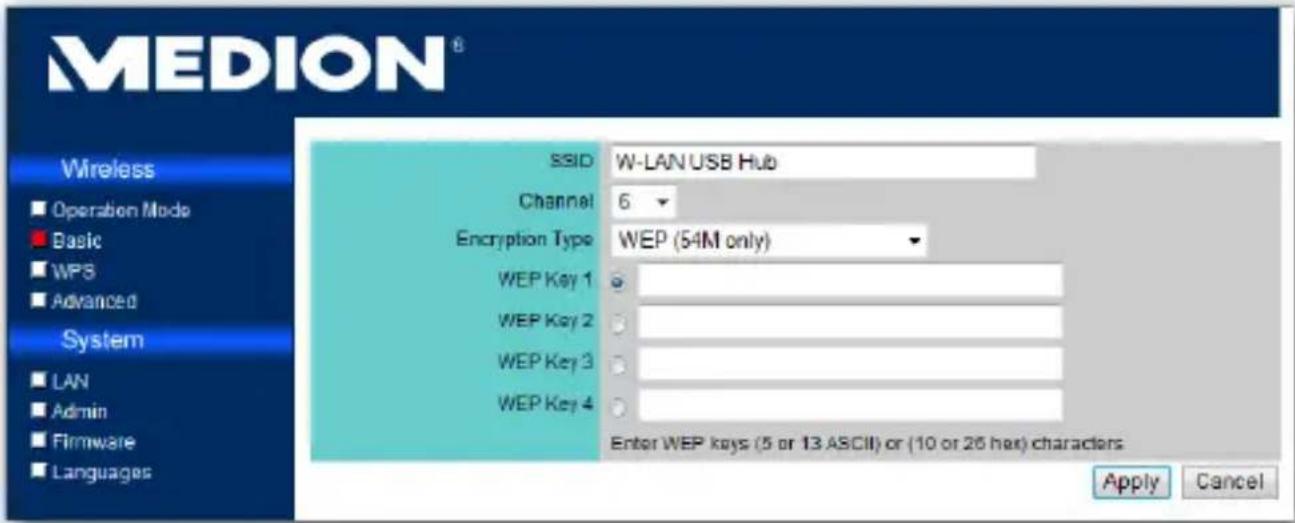
If you set the encryption to WEP or WPA-PSK encryption, you will also need to set a security key or a passphrase.
WPS
The Hub also supports the latest WPS encryption. The support is disabled by default (How to use the WPS-function: See page 41).
You can enable the feature in the WPS setting by selecting the Enabled radio button and click Apply.
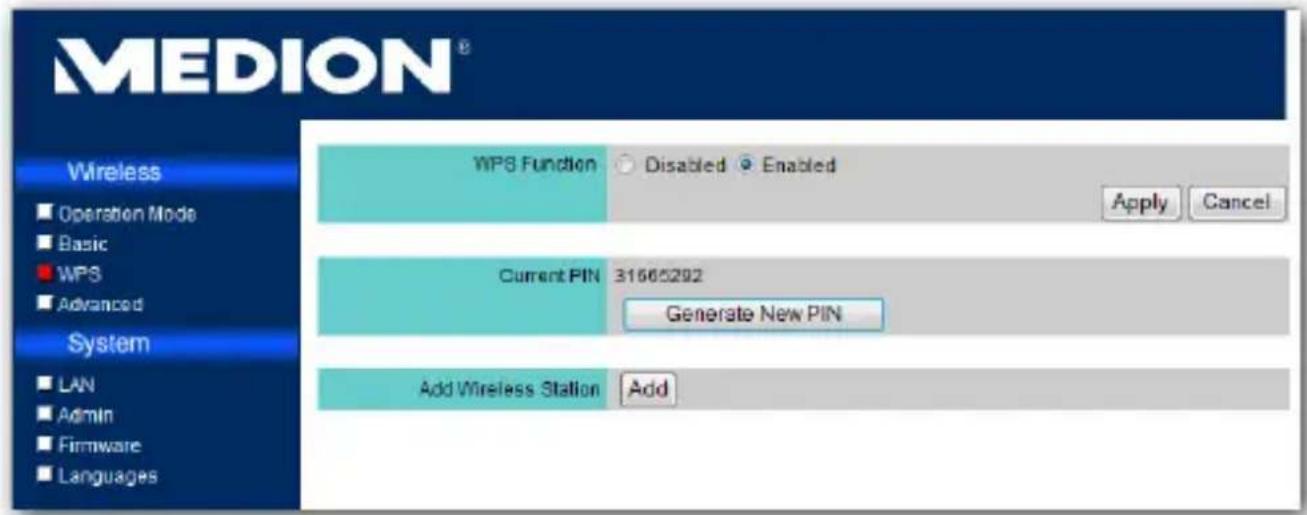
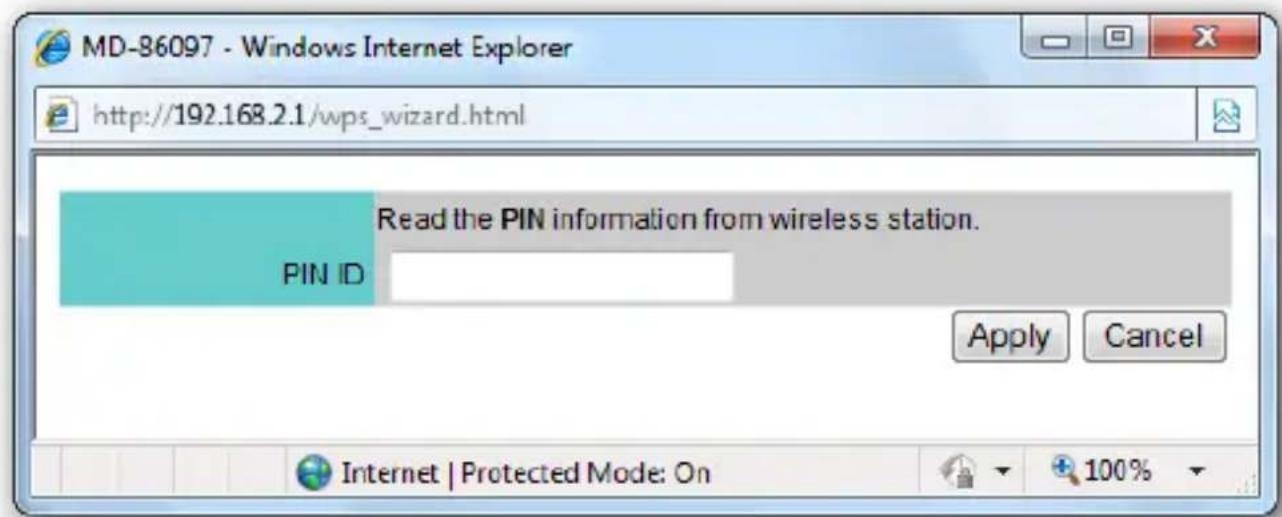
You can also change the PIN number by clicking Generate New PIN. If you need to add another WPS station for easy connection, click Add. Enter the PIN ID in the popup and click Apply.
Advanced
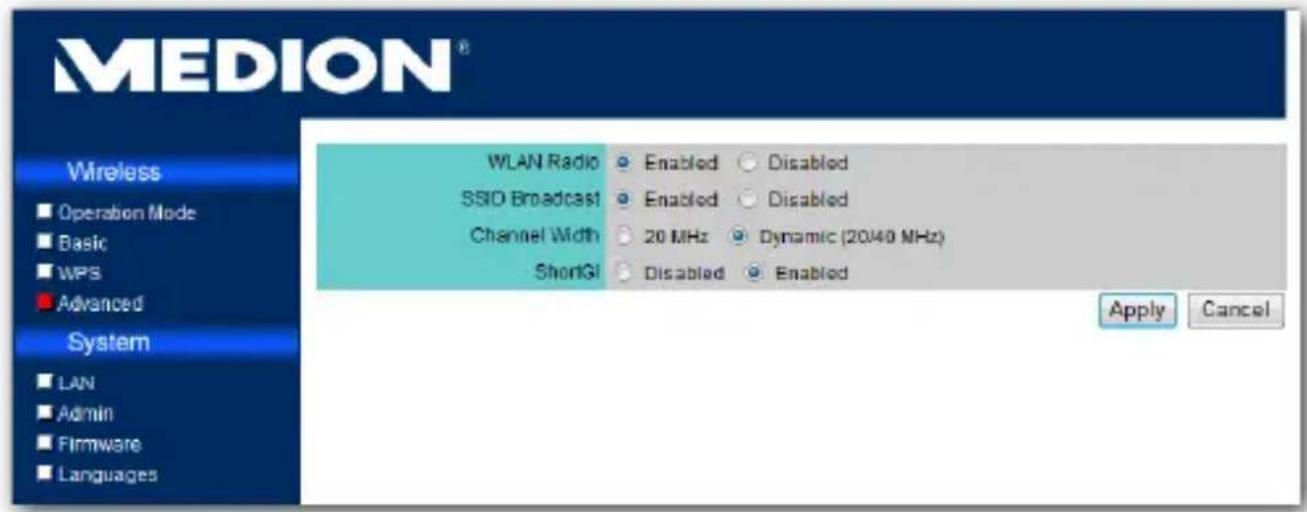
In the Advanced setting, you can enable or disable WLAN and SSID broadcasting, and change other advanced settings.
System Setting
The system setting is divided into 4 sections as well.
LAN
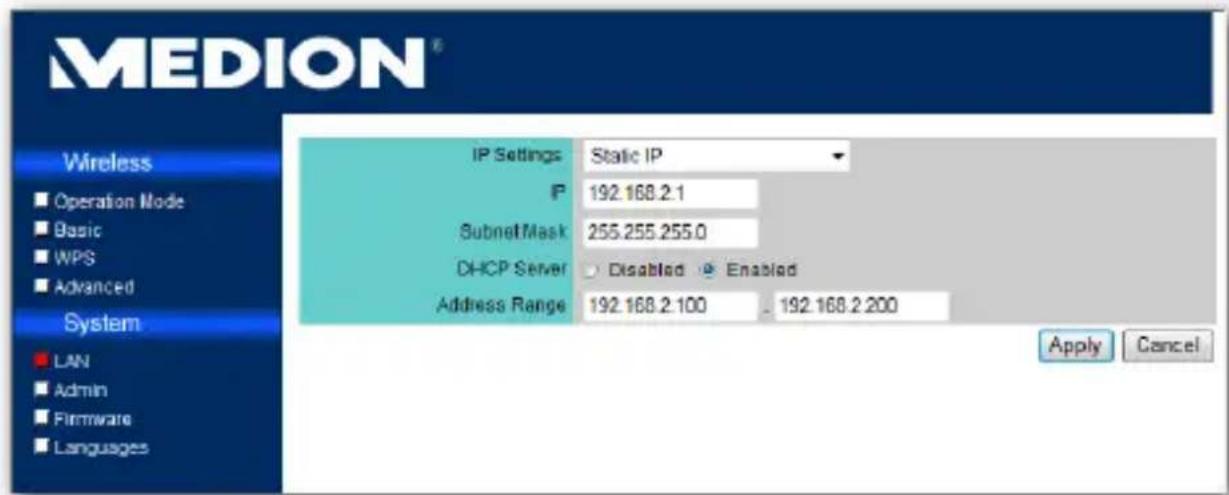
The first section is LAN setting. You can change how the Hub acquires an IP address. By default this is set to Static IP and no further configuration is needed.
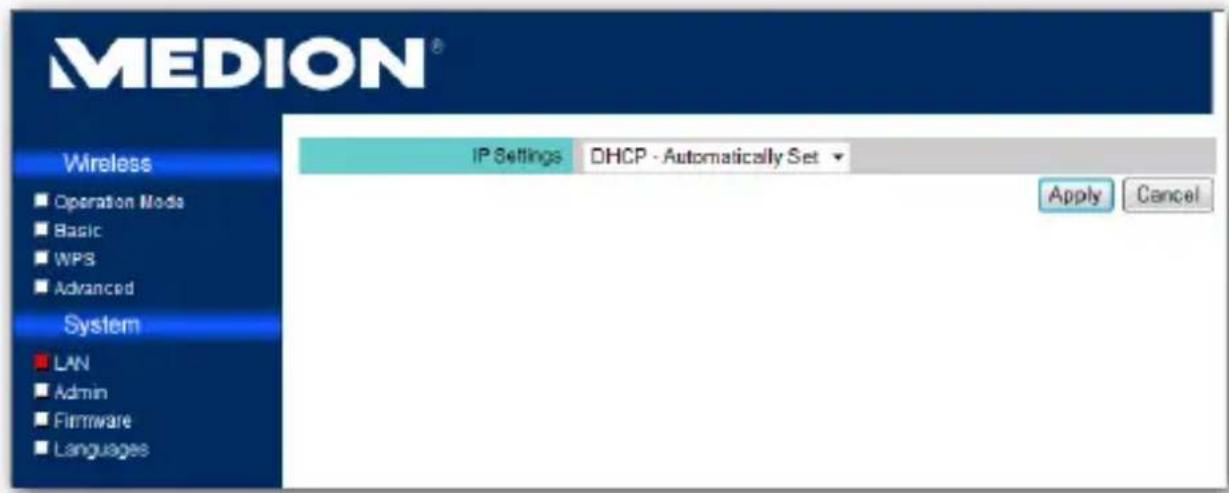
You can also enable or disable the built-in DHCP server and configure the IP address range which will be used by DHCP.
Admin
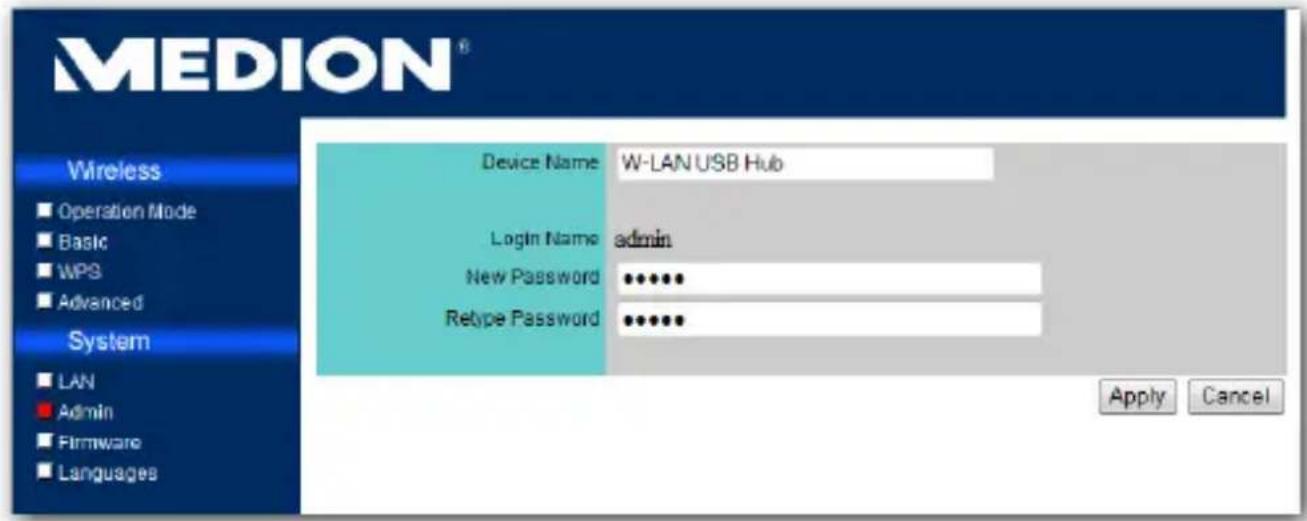
In the Admin section you can change the display name you will see in the Control Utility. You can also change the login password by entering the new password into New Password and Retype Password fields and click Apply.
Firmware
The Firmware section allows you to upgrade the firmware of the Hub, to restore all Hub settings and to reboot the Hub. Have a look on the MEDION website www.medion.com for updates or ask the Medion service.
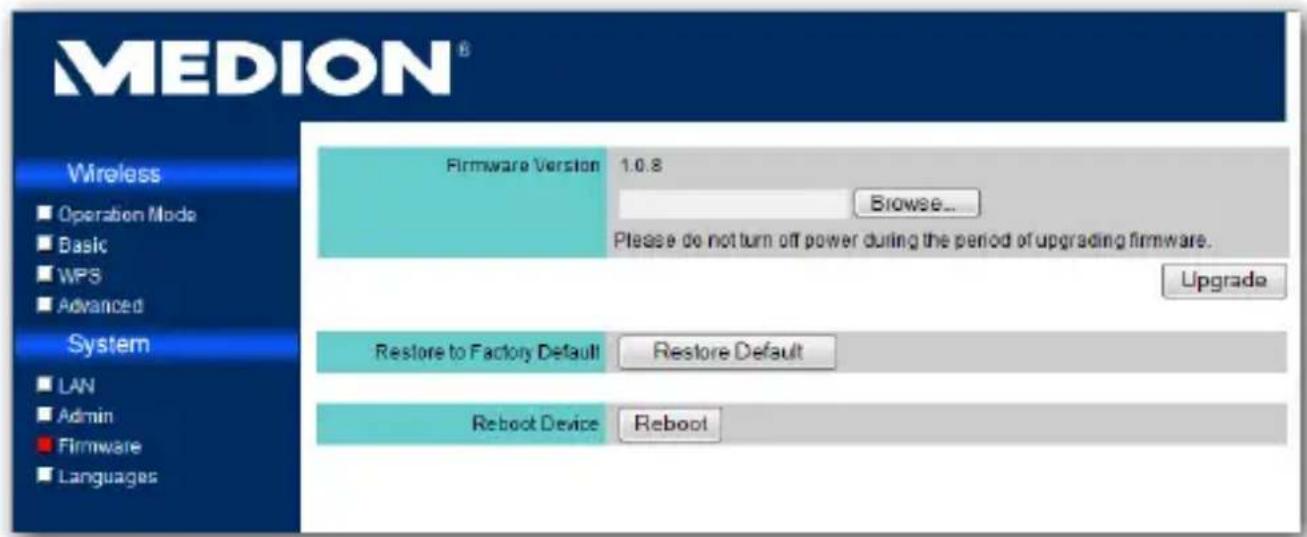
- If you need to upgrade the firmware, first click Browse... to locate the firmware file. Once the correct file is located, click Upgrade to start upgrading.
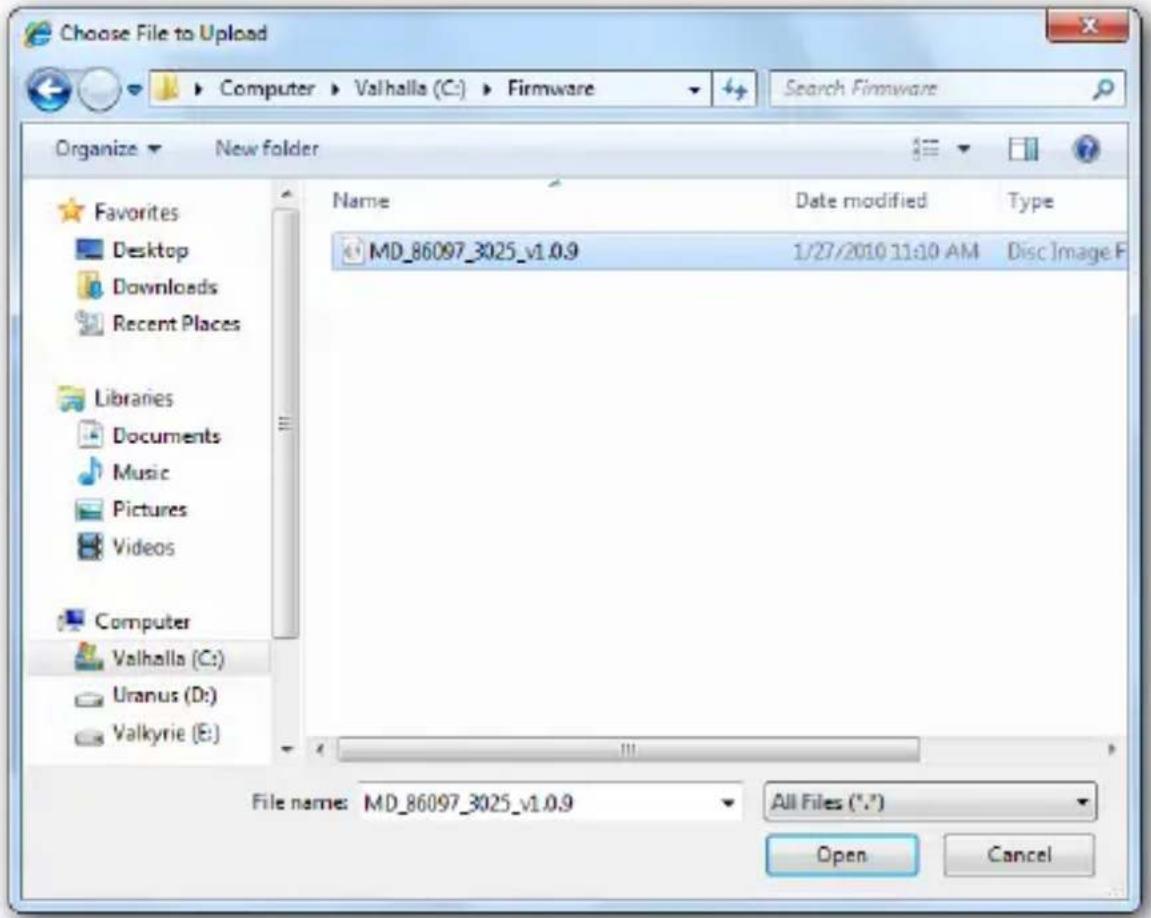
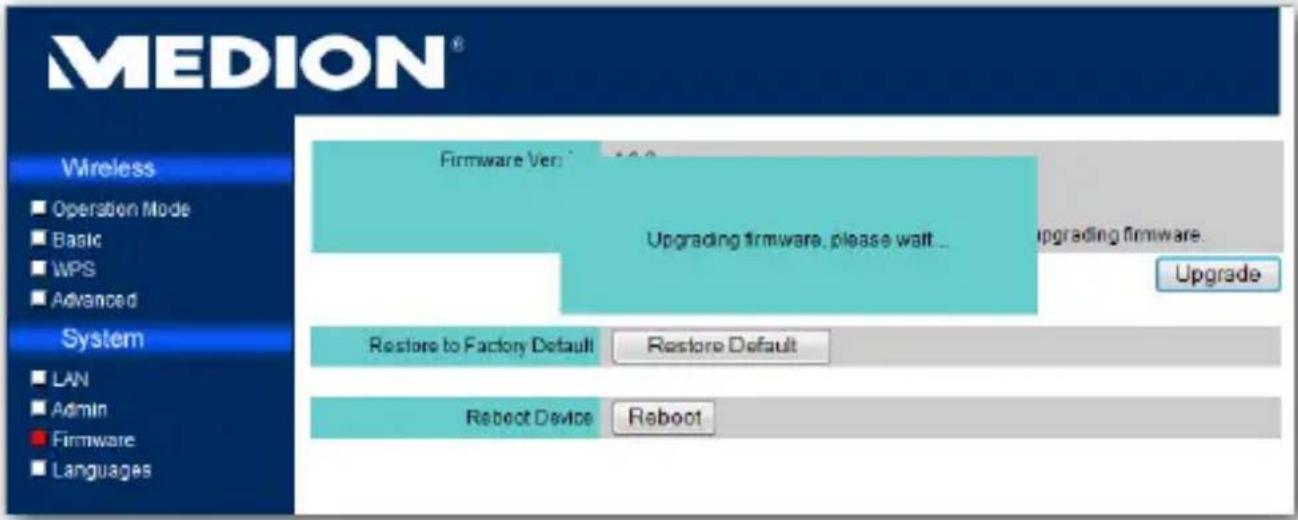
- The upgrade will begin. Please wait for the process to finish.

IMPORTANT: Do not power off the Hub during firmware upgrade. It may cause the Hub to stop operating normally.
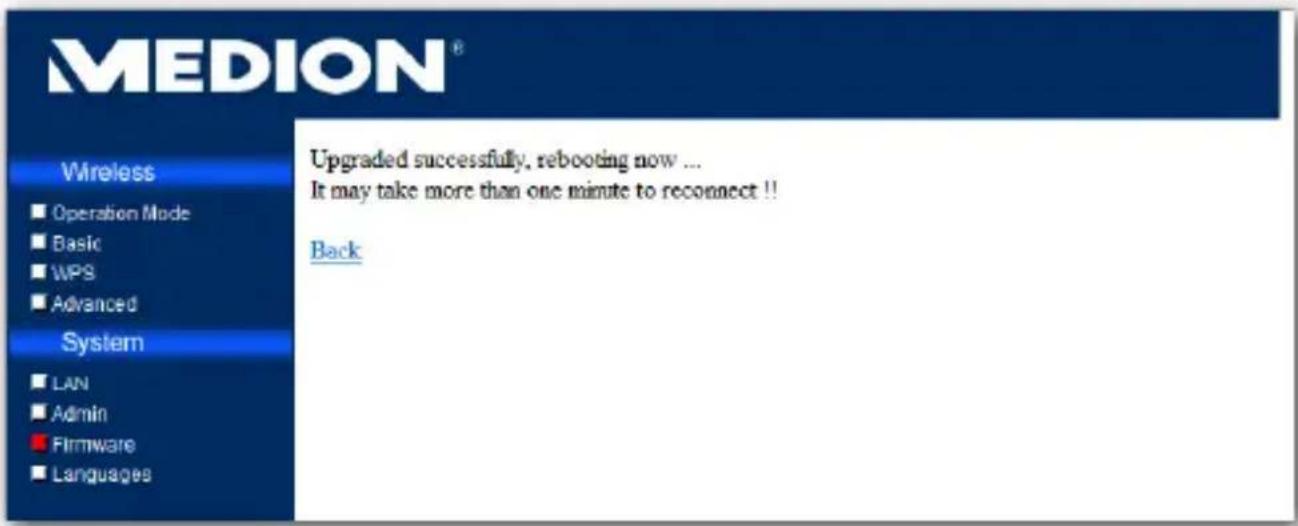
- Once the upgrade is complete, the Hub will automatically be rebooted with the new firmware.
Languages
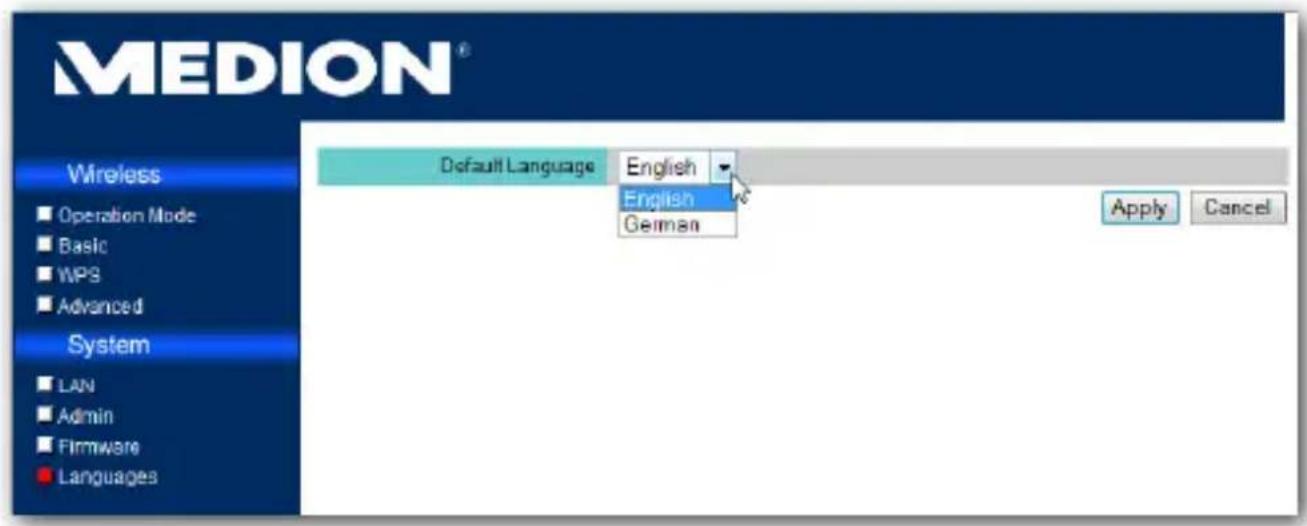
In the Language section you can change the display language for the configuration page. Select the desired language and click Apply.
Wi-Fi Protected Setup (WPS)
Wi-Fi Protected Setup (WPS) is an industry standard of LAN connecting defined by Wi-Fi Alliance. It allows devices with an WPS-function to connect automatically without entering a PIN manually.

The WPS function must have been activated in the Setup Menu of the USB hub or of the other WPS-capable device (see Page 33), before you will be able to use the WPS function.
Generally, WPS can be accomplished by two methods, and we support both of them. The true benefit is that you may connect different devices of different manufacturers with minimum effort and time as long as they support WPS function.
Push Button Configuration (PBC)
The steps below demonstrate how the PBC works:
- Push the button on the USB-Hub.
- Push the button on the WPS-device.
- The device will be found and configured automatically.
Personal Identification Number (PIN)
There are two ways to demonstrate how the PIN method works:
- One of enter the PIN code into your computer requested. You can find the W-LAN USB Remote Hub PIN code on the firmware under WPS setting page.
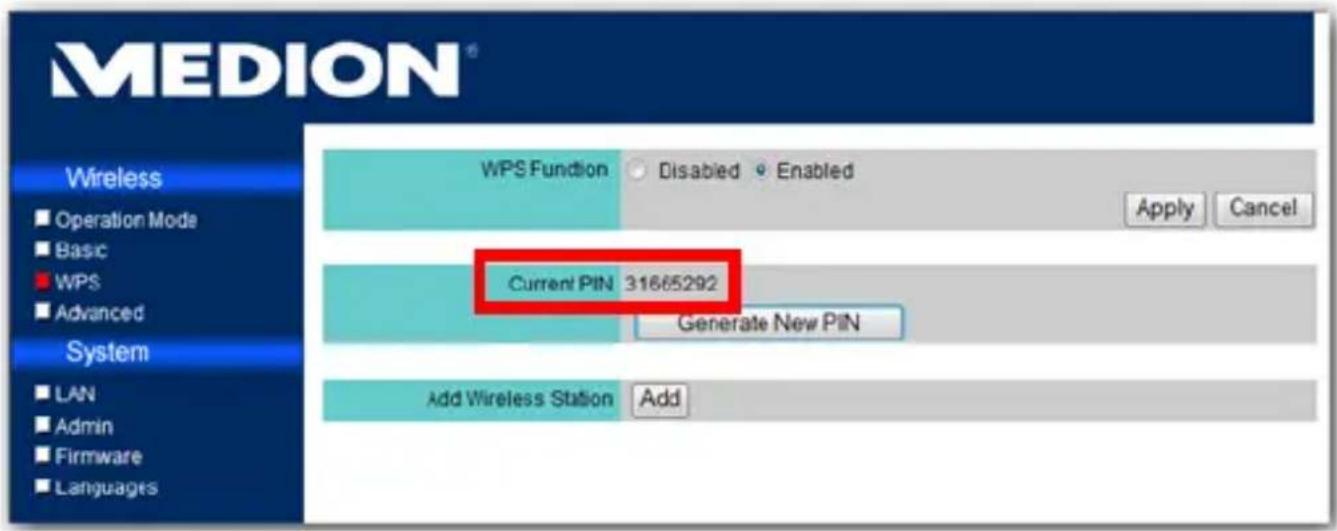
- Either of enter the PIN code of the device that you want to connect to through Add Wireless Station on the firmware under WPS setting page.
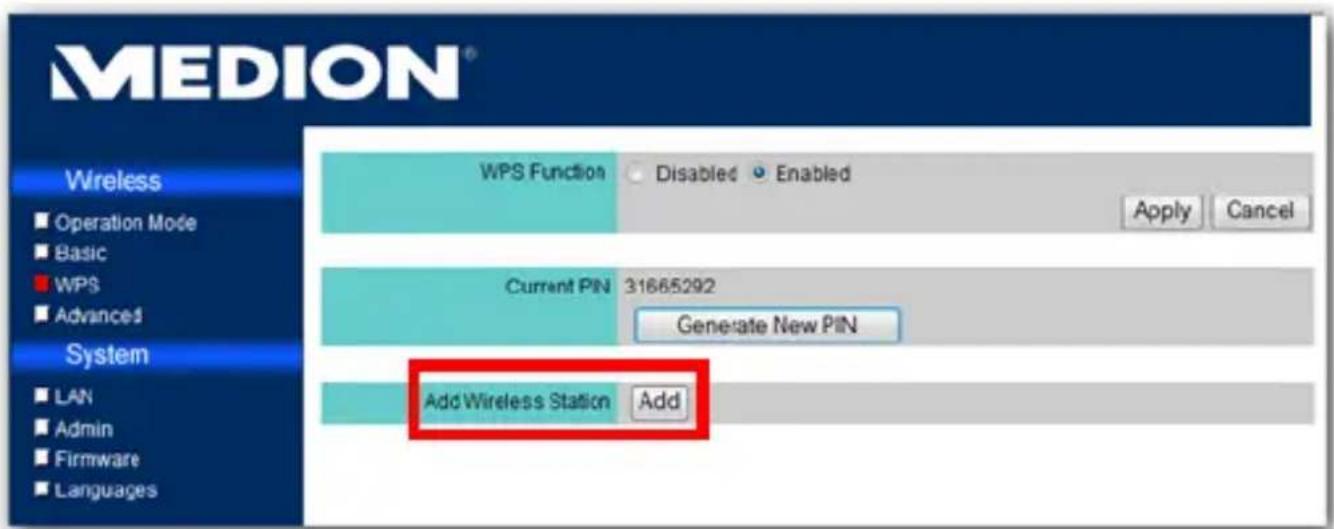
- Two devices will be found and connected whenever enter the right PIN code.

To use WPS for your device, your operating system should be Windows Vista or Windows 7.
To use WPS for your device, your wireless LAN card, station, router or Access Point should support WPS function
Reset the unit
You can set the device back to the status at delivery, if it can no longer be operated or errors arise.
▶ Press on the RESET button with a pointed object (e.g. a ball-point) for longer than 5 seconds to do this. After 10 seconds the WLAN-LED and afterwards the POWER-LED will turn off and then on again.
Customer service
First aid in the case of malfunctions
I have connected a USB device to the USB hub; however, it is not visible on the PC.
- The Control Utility software has not been installed.
▶ Install the software and start it. - The connection at the USB hub to which you have connected the USB device is being used by another PC.
▶ Start the Control Utility software and release the connection for your PC (see Page 25). - Your PC is not connected to the USB hub. The wireless connection to the USB hub has been separated.
▶ Recreate the connection to the wireless network of the USB hub.
▶ Check whether the WLAN adapter of your PC is possibly switched off and switch it on, if necessary.
The network into which I want to integrate the USB hub cannot be seen.
- The SSID of the network is invisible and it does not appear, even during the search for available wireless networks, for this reason.
▶ Set the identification of the SSID to visible, in the router of the network into which it is intended to integrate the USB hub.
The USB hub is not recognized by the PC
- The USB Hub is not being supplied with electricity.
- Switch on the USB hub by connecting the plug of the mains adapter and connecting the mains adapter with the electricity network.
No sound is output through the LINE OUT connection
- The Remote Audio function is not activated in your operating system.
▶ Switch on the Remote Audio function in your operating system.
No connection to a selected network can be made
- The network to which it is intended to make a connection is encrypted and requires the entry of a password.
Enquire about the access data for the encrypted connection from the administrator of the respective network.
Technical Data
Model Name MD 86097
Audio
Output 3.5 mm Stereo Line out
LAN
10/100 Ethernet One 10/100 RJ45 Ethernet port
USB
USB 4 Type A USB 1.1/2.0 ports
Wireless
Standard IEEE 802.11 n/g/b
Operation Modes Infrastructure
Range Outdoor: 100m (may vary according to the environment)
RF Power 11g/n:13 dBm (+1.0 / -1.0 dBm) 11b: 16 dBm (+1.0 / -1.0 dBm)
Encryptions WEP 64-bit and 128-bit WPA-PSK / WPA2-PSK
Frequency 2.4 GHz ISM radio band (2.412\~2.472
Antenna Two 1.8 dBi dipole antenna
Power Adaptor
Model No:
KSAD1200150W1UK
Manufacturer: Ktec
Input: 100\~240 AC, 0.4 A
Output: 12 V/1.5 A DC
Dimensions
Exterior 12 x 18 x 3.3 cm
Subject to technical changes!
Information about conformity in accordance with R&TTE
The use of the device in France is only permitted within buildings, as a result of the performance of the installed LAN wireless solution (>100mW).
There are currently no restrictions in other EU countries. Find out locally about the respectively applicable legal regulations for the use of the device in other countries.
MEDION AG herewith declares that these devices are in accordance with the basic requirements and the other relevant terms of the 1999/5/EG Guideline. Complete Declarations of Conformity are obtainable at www.medion.com/conformity.

Cleaning

Attention!
This device does not contain any parts to be maintained or cleaned.
Pay attention to the fact that the USB hub is not soiled. Do not use any solvents, corrosive or gas-forming cleaning agaents. Clean the casing with a moistened cloth, if necessary.
Recycling and Disposal
Packaging

The packaging from your flat bed scanner is produced mostly from materials which can be disposed of in an environmentally friendly manner and be professionally recycled.
Device
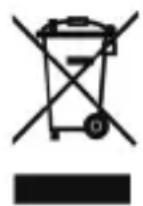
At the end of its life, the appliance must not be disposed of in household rubbish. Enquire about the options for environmentally-friendly disposal at your retail store.
Licence disclaimer
This product includes certain copyrighted third-party software components licensed under the terms of the GNU General Public License, PSF LICENSE AGREEMENT FOR PYTHON 2.3, and other similar license agreements offering free distribution of these software components, offered by organizations such as Free Software Foundation, Python Software Foundation and the X.Org Foundation, etc.
Copies of these license agreements can be found at this file or by visiting the respective website of these components as provided in the documentation. You may also visit http://www.gnu.org/copyleft/gpl.html for a copy of GNU General Public License Agreement. GPL components and other components listed are licensed without warranties of any kind, either express or implied warranties, including without limitation of the implied warranty of merchantability and fitness for a particular purpose. The entire risk as to the quality and performance of these components lies with you. Please check the respective license agreement for more details. Copyright holders under GPL and/or other license agreement mentioned herein shall not be responsible for any damage, general, special, incidental or consequential, arising out of the use or inability to use these components/software. Please check the respective license agreement for more details.
Downloading Source Code
You can download the machine-readable full source code of the corresponding licensed components, including any scripts to control compilation and installation of the object code, at the following website link. Please pay attention to the copyright notice, warranty disclaimer and the copy of the license agreement accompanying these source codes. http://www.medion.com
Medion Electronics Ltd.
120 Faraday Park, Faraday Road, Dorcan
Swindon SN3 5JF, Wiltshire
United Kingdom
Hotline: 0871 37 61 020
(calls are charged at 7p per min from a standard landline, calls from mobiles could be higher)
Fax: 01793 71 57 16