
PDV-0820T - Portable DVD Player POLAROID - Free user manual and instructions
Find the device manual for free PDV-0820T POLAROID in PDF.


| Product Type | Portable DVD Player |
| Brand | Polaroid |
| Model | PDV-0820T |
| Screen Size | 8 inches |
| Dimensions (W x H x D) | Approx. 25 x 4 x 18 cm |
| Weight | Approx. 1.2 kg |
| Power Supply | AC Adapter (100-240V, 50/60Hz) and Rechargeable Li-ion Battery (7.4V, 2000mAh) |
| Playback Formats | DVD, DVD±R/RW, CD, CD-R/RW, MP3, JPEG, DivX |
| Outputs | Audio/Video (AV) out, Headphone jack (3.5mm), DC in |
| Inputs | SD/MMC card slot, USB 2.0 (for media files) |
| Controls | On-unit buttons, Infrared Remote Control |
| Battery Playtime | Up to 2.5 hours (depending on usage) |
| Additional Features | Swivel screen (180° or 270°), Parental lock, Region free (multiregion) |
| Accessories Included | AC Adapter, Car charger, Remote control, AV cable, User manual |
| Maintenance | Clean the exterior with a soft, dry cloth. Avoid liquids and abrasive cleaners. |
| Safety | Do not expose to moisture or extreme temperatures. Do not dismantle. |
| Repairability | Battery and remote control are replaceable. Contact service for major repairs. |
| Spare Parts | Battery (mod. PDV-BAT2), AC adapter (12V, 2A), Remote (PDV-RMT). |
| General Information | Designed for portable entertainment. Suitable for travel and home use. |
Frequently Asked Questions - PDV-0820T POLAROID
User questions about PDV-0820T POLAROID
0 question about this device. Answer the ones you know or ask your own.
Ask a new question about this device
Download the instructions for your Portable DVD Player in PDF format for free! Find your manual PDV-0820T - POLAROID and take your electronic device back in hand. On this page are published all the documents necessary for the use of your device. PDV-0820T by POLAROID.
USER MANUAL PDV-0820T POLAROID
8" Portable DVD Player
PDV-0820T
Operation Manual

natural_image
Exterior view of a modern open-screen computer with a CD and front panel (no visible text or symbols)
Polaroid®
Contents
Important Safety Instructions---- 3
Precautions with Moisture 4
Function Features 5
Screen and main unit 6
Remote Control 8
Connections---- 10
Playback Preparations---- 11
Using the Remote Control 11
Disc Formats Supported by this player 12
Using the Power Adapter 13
Power Supply 14
Using and Charging the Battery Pack---- 14
Detaching the Battery Pack 15
Using a Car Adapter---- 15
Using Headphones 15
About Rechargeable Battery 16
Playing a DVD 17
System Setup 19
Playback Functions 22
Special Features of the Revolving LCD Screen 25
Connecting to a Gaming System 26
Carrying Case 27
Care of Discs 28
Troubleshooting 29
Specifications 30

The lighting flash with arrowhead symbol, alerts the user to "dangerous voltage" which could cause electric shock.

The exclamation point indicates to the user to read important operating and maintenance instructions in the manual.
-
Read and heed all these instructions and warnings, keep the manual book for future use.
-
Do not operate the product near water or expose it into rain or moisture.
-
Clean only with dry cloth, and do not block any ventilation openings or holes. Install according to the manufacturer's instructions.
-
Maintain well-ventilated conditions around the product, avoiding heat. Do not put product on bed, sofa or anything that blocks ventilation.
-
Do not install near any heat sources such as radiators, heat registers, stoves or other apparatus including amplifiers that produce heat.
-
Must be plugged into a polarized or grounding type plug. A polarized plug has two blades with one wider than the other. A grounding type plug has two blades and a third grounding prong. The wide blade or the third prong is provided for your safety. If the provided plug does not fit into your outlet, consult an electrician for replacement of the obsolete outlet.
-
Protect the power cord from being walked on or pinched, particularly the plugs, convenience receptacles, and
the point where they exit from the machine.
-
Only use attachments/accessories specified by the manufacturer.
-
Use only with cart, stand, tripod, bracket, or table specified by manufacturer, or sold with product. When cart is used, use caution when moving cart/product combination to avoid tip-over injury.
-
Unplug the product during lightning storms or when unused for long periods of time.
-
Servicing should be referred to qualified service personnel and is required when product has been damaged in any way, such as; damaged power-supply cord or plug, objects have fallen into the product, exposed to rain, moisture or spills, item was dropped or doesn't operate normally.
-
Do not expose product to dripping or splashing. Objects filled with liquids, such as vases, should not be placed on the product.
IMPORTANT FOR LASER PRODUCTS
-
CLASS 1 LASER PRODUCT
-
DANGER: Visible laser radiation when open and interlock failed or defeated. Avoid direct exposure to beam.
-
CAUTION: Do not open the top cover. There are no user service-able parts inside the unit. Leave all servicing to qualified service personnel. This unit complies with FDA regulation for radiation control of laser products.
Precautions with Moisture
Under the following circumstances, moisture may appear on the lens of the product, which is the most sensitive part of the DVD player:

• The DVD player is suddenly moved from a cold place to a warm place.
- A room is heated while the DVD player starts operating, or the DVD is placed by an air-conditioner.
- In the hot summer season, the DVD player is moved from an air-conditioned room to a hot, damp place to be used.
- The DVD player is being operated in a damp place.

natural_image
Cartoon illustration of a car with eyes and a bandaged head, holding an umbrella and waving, under a sun (no text or symbols)- If moisture appears on the player, discontinue use.
- If the player is operated under said conditions, or the disc is loaded, certain interior components could be damaged.
• Take disc out, plug power in and power up the DVD player for two to three hours to let it dry.

natural_image
Cartoon illustration of a person using a device to interact with a TV, showing shockwave and alarm (no text or symbols)1. EXCELLENT SOUND
Dolby Digital output for great sound.
2 HIGH RESOLUTION
MPEG2 decoding format achieves more than 500 lines of horizontal resolution.
3. SPECIAL FUNCTIONS
Supports multi-angle, excessive language caption.
4. COMPATIBILITY
Plays DVD, CD, CD-R, CD-RW, MP3 and Picture CD discs.
5. PARTICULAR PERFORMANCE
Multi-speed, fast forward, fast backward, slow play and step playback, repeat playback and programming playback.
6. SEARCH BY TIME
Search for a certain time on a disc.
7. LAST MEMORY PLAYBACK
It remembers where you last stopped.
8. ON-SCREEN DISPLAY
On-screen displays in your choice of English/Spanish/French.
9. AUDIO OUT
Audio output terminal for connection to audio amplifiers.
10. EARPHONE OUTPUT
Lets you listen to movies or music without disturbing others.
11. REVOLVING LCD SCREEN
Turn the screen 180 degrees and then flip it down so the screen is facing up like a picture - ideal for viewing while it's in your lap!
12. SWITCHING POWER ADAPTER
The supplied adapter automatically adapts to the voltage requirements in nearly any country.
DVD players and discs are coded by region. These regional codes must match the discs they play. If the codes don't match, the disc won't play. This player's code is region 1.
This product incorporates copyright protection technology that is protected by method claims of certain U.S. patents and other intellectual property rights owned by Macrovision Corporation and other rights owners. Use of this copyright protection technology must be authorized by Macrovision Corporation, and is intended for home and other limited viewing uses only unless otherwise authorized by Macrovision Corporation. Reverse engineering or disassembly is prohibited.
Screen and main panel
Unit drawing

- Power switch
- Disc tray cover
- Open
Opens the disc tray - Remote sensor
- Direction buttons
Selects menu items - Prev skip button
Skips to previous chapter/track. - ▶▶ Next skip button
Skips to next chapter/track. - ENT button
Confirms selections - AUDIO button
Choose AUDIO languages - STOP button
Stops play back - PLAY/PAUSE button
- MENU button
- Title button
Displays DVD titles - INFO button
Press for detailed information.
Keep pressing to retreat.
- BRIGHT up/down
- Speaker
- Rotate button
Rotates the screen picture - LCD screen
- Latch hook
-
COLOR up/down
Adjusts the screen colors -
MODE button
Press to toggle between 3 display sizes: normal (4:3), widescreen (16:9), and widescreen stretched (16:9).
- LCD Screen
20" TFT LCD Screen can be rotated 180 degrees and folded flat (Refer to Page 25 for details).
Screen and main panel
Right side

- Earphone volume adjusting knob
Used to adjust the earphone and speaker volume.
- Earphone jack
HI-FI earphone output (turn down the speaker volume when connecting)
-
Audio output/input jack
-
Video output/input jack
-
Switch position between AV 'IN' and AV 'OUT'
IN means the player is in audio and video input mode.
OUT means the player is in normal playback mode.
- Direct current 12V input jack
Left side

natural_image
Technical line drawing of a mechanical component with a labeled dimension (no text or symbols present)- Earphone jack

1. PWR button
Press to enter standby mode.
2. INFO button
Press for detailed information on disc. Press again to remove information from screen.
3. TITLE button
Press to display CD titles (if present) Press again for random play
4. Direction buttons
Press to select menu items.
5. ENTER button
Press to confirm items or setting.
6. SETUP button
Press to access the DVD player's setup menu.
7. 0-9 number buttons
Selects track numbers
8. PREV SKIP button
Press to enter beginning of current track.
Press again for previous track.
Press to go to next chapter.
10. SUBT button (DVD use)
Press to select a subtitle language or to turn subtitles off.
11. ANGLE button (DVD use)
Press to access various camera angles (when available on your DVD)
12. A-B button
Press to mark a segment to repeat between A and B.
13. ZOOM button
Press to cycle through zoom function.
14. REP button
Press to repeat a chapter, track, title, or all content.
15. MENU button
Press to select the disc menu.
16. PAUSE button
Press to pause playback.
Press PLAY button to resume.
17. STOP button
Press once to stop playback
Press PLAY button to resume
Press STOP twice to stop playback completely.
18. PLAY button
Press to begin playback.
19. GOTO button
Press to select the desired disc starting time, track or title.
20. +10 button
Select numbers greater than 9 by pressing the (+10) button first, then an additional number.
21. ▶ FWD SCAN button
Press to search forward.
22. ◀️ REV SCAN button
Press to search backward.
23. SLOW button
For slow forward or slow rewind.
24. AUDIO button (DVD use)
Press to access available audio languages
Connections
Connecting to a TV
Audio/video connections
Always ensure that the DVD player, TV and any other electrical equipment that you are connecting to the DVD player is turned off and unplugged from the power supply. The easiest way to connect the DVD player to a television is via the supplied Audio/Video connections. Connect the audio/video cable from the DVD player to the TV's audio/video inputs.

Connecting to an Amplifier with Dolby Digital Decoder
The DVD player can be connected to an AV amplifier with a Dolby digital decoder via the Digital Optical output. Please refer to your Audio equipment's manual before connecting.

Using the Remote Control

flowchart
graph TD
    A["Left Component"] --> B["Downward Arrow"]
    C["Right Component"] --> D["Upward Arrow"]
    B --> E["Bottom Ring with + symbol"]
    D --> F["Bottom Ring with + symbol"]
    E --> G["Return Arrow"]
    F --> H["Return Arrow"]
- Refer to the drawing, take the back cover off of the remote control and remove the empty battery receptacle.
- Prior to shipping, a separating film was applied to the battery. Remove this film.
- Insert the battery into the receptacle and insert the receptacle into the remote.
- For best results, aim the remote directly at the player's receiving window. Stay within 15 feet and angles of 60 degrees or less.
- Under normal use the battery will last for one year.
- Remove battery during storage or when you aren't using the DVD for long periods of time.
Playback Prepar a tions
Disc Formats Supported by this Player
| DISC | LOGO | PLAYBACK TIME/ PLAYABLE SIDES | |
| DVD |  | 12cm | 133 min (SS-SL) |
| 242 min (SS-DL) | |||
| 266 min (DS-SL) | |||
| 484 min (DS-DL) | |||
| 8cm | 41 min (SS-SL) | ||
| 75 min (SS-DL) | |||
| 82 min (DS-SL) | |||
| 150 min (DS-DL) | |||
| CD |  | 12cm | 74 |
| 8cm | 20 | ||
| MP3 | 12cm |
DIAMETER
The operating method of some DVD discs is specified by the software maker. Please refer to the instruction manual of the disc.
The DVD Player will play most recordable (CD-R) or erasable (CD-RW) CDs, but playback of CD-R or CD-RW discs created on a computer requires proper formatting and finalization of the disc for audio playback. Some computers and/or software programs may not be capable of creating compatible discs.
Disc Terminology
Title
Generally, pictures or music compressed on a DVD are divided into several sections, called "titles".
Chapter
Some discs break titles into smaller story sections called chapters. Usually, chapters are numbered so they can be found easily during a search.
Track
A picture or music segment on a CD. Each track is numbered so it can be found easily during a search.
Using the Power Adapter
The DVD player is powered via the switching power adapter or the battery pack (both are included). Directions for connections are found below:

- Connect the AC adapter to the DVD player in the slot marked "Power In".
- Connect the rabbit joint end of the AC adapter to the power cord.
- Plug the two-prong end of the power cord to a grounded electrical socket.
- When you want power down, turn off the player's power off first, then unplug the power supply to prevent malfunctions.
Operation
- Make your power connections.
- Lift up the screen on the DVD player.
- Switch "POWER" to the "ON" position.
- Adjust the volume with the "VOLUME" adjust knob (also adjusts earphone volume).
- Press the "Open" button to open the disc tray cover.
- Put disc into the tray house with the printed side up.
- Gently push down and close the disc cover.
Power Supply
Using and Charging the Battery Pack
Charge the Battery Pack before using it the first time. Charging time is normally about 4 hours. Do not charge the Battery Pack more than 8 hours as it could reduce service life. Normally, the Battery Pack can be charged approximately 300 times. When fully charged, the Battery Pack delivers 2.5 hours of continuous power.
Battery Pack should be fully charged before initial use!
1. Attaching the Battery Pack
Turn the player upside down on a smooth, clean surface. Direct the battery so that the battery contacts and the five plastic tabs are aligned with the matching contacts and tab recesses on the player.
2. Lock the Battery Pack to the Player
With one hand on the player to prevent it from moving, push the battery pack on to the player then slide the Battery Pack toward the front of the Player until you hear it click and lock into place.
3. Charging the Battery Pack
Plug the Power Adapter into the Player's DC-IN 12 V Jack (located on Right Side of Player). Plug the other end of the Power Cord into a household wall Power Outlet.

natural_image
Diagram of a device with a component being inserted, showing a downward arrow indicating compression or disassembly (no text or symbols present)
natural_image
Line drawing of a mechanical device with labeled section '2 a' and directional arrow (no text or symbols on the device itself)
natural_image
Line drawing of a rectangular electronic device with buttons and a label '和上' (no text or symbols on the device itself)
Recommended Recharging and Charging Times
Your new battery should be fully charged before it is used for the first time. Charging time is normally about 4 hours. A fully charged battery delivers 2.5 hours of use. Therefore, we recommend that you only charge the battery when the battery is down to its last hour of charge or completely out of power. Unnecessary charging of the Battery Pack will reduce service life. When the Battery Pack is being charged, the battery indicator will turn red. After charging is complete, the red light will turn to green.
Power Supply
Detaching the Battery Pack
Detaching the Battery Pack from the unit:
If the player is not going to be used for a long period of time, we recommend that you detach the Battery Pack. Even if the unit is powered down, the unit is still consuming some power in STANDBY mode. This could lead to over discharging the battery. Make sure the power is turned off before detaching the Battery Pack. After detaching the battery pack, take care when handling the unit.
- Slide and hold in position.
Press the tab towards the front of the unit. Hold the tab in the up position.

- Taking off the Battery Pack
Gently slide the Battery Pack toward the back of the Unit. Carefully lift the Battery Pack from your player.
Using a Car Adapter
You can use Car Adapter while in a vehicle:
Connecting the Car Adapter Power Plug into the unit's Power Jack and the other end to the Vehicle Cigarette Lighter Socket:

Quick Tips
- Do not operate the unit or view video software while driving a vehicle.
- Place the unit in a secure position for viewing.
- Do not leave battery attached when using car adaptor as power supply.
- Do not play a DVD while using the car adaptor to charge the battery.
Using Headphones
Using Headphones while you are in a quiet area:
Connecting Headphone Connector into right side of the unit's Headphone Jack:

natural_image
Pure electrical circuit lines without any symbolsQuick Tips
- Excessive loud usage of headphones could damage your hearing.
- Turn down the Volume before you connect the headphones, then raise the volume to suit your level.
● Sound from the unit's external speaker will cease when headphones are connected.
Power Supply
About Rechargeable Battery
Your portable DVD player comes with a lithium ion rechargeable battery that attaches to the bottom of the player.


natural_image
Simple line drawing of a rectangular object with a small rectangular cutout on top (no text or symbols)Rechargeable battery properties: 7.4 Volts, with a capacity of 4200mAh, interior lithiumionic electric circuit protection for recharge and discharge.
- If the battery is not used it will automatically discharge gradually within one month.
- If the battery loses power during play, stop playing the DVD, otherwise damage may occur.
Working conditions and precautions:
- Battery should only be used and charged when temperatures are between 32-95F.
- Never put the battery in fire or water.
- Do not expose the battery to high temperatures or store in hot, sunny places.
- Maintain well-ventilated conditions around the product, avoiding heat.
- Don't put the product on bed, sofa or anything that may block ventilation to the product.
- Don't use metal to link positive pole to negative.
- Do not open the battery.
- Do not leave battery attached when using alternative power source such as car adaptor.
- Detach battery when not in use.
Please read these instructions carefully before using your DVD player for the first time.
- Turn on the player's power by switching the POWER switch on the side of the player to "ON".
- Press OPEN button on front panel to open the disc cover.
- Remove the protective lens cover.
- Load disc with the label facing up to prevent damage to the player or disc.
- Close the disc cover. The player will automatically search for the disc and when it finds it, play will begin.
Warning: Do not play poor quality discs to prevent damage to the lens.
Start to Playback
- Press the PLAY button on the remote control.
- Press ◀ ▲ ▼ ▶ (direction button) or the number buttons to select a scene.
- Press ENTER or PLAY button to start playback.
Pause
- Press the PAUSE button on remote to pause.
- Press the PLAY button to resume normal playback.
Zoom
- Press the ZOOM button on remote to cycle through to different zoom settings.
- Normal - 2x - 3x - 4x - 1/2 - 1/3 - 1/4.
- While in zoom mode use direction keys to move around to different positions on the picture.
Playing a DVD
Stop
During playback, press the STOP button on the remote control to stop playing. Press the PLAY button, then the player will play from the point where it stopped.
Mode
During playback, press the MODE button on the control panel to change the aspect ratio on the screen.
Title Menu
- Press the TITLE button on the remote control during payback. The title menu will appear on the TFT screen.
- Press ◀ ▲ ▼ ▶ (direction button) or the number buttons to select the title or disc option you wish to play.
- Press the PLAY button to start playback.
NOTE: Title and Menu are only available for DVD discs.
Previous and Next
- Press the ◀◀ PREV button on the remote control, and playback will start from the previous track.
- Press the ➤ NEXT button on the remote control, and playback will start from the next track.
System Setup
General Set-Up
Change the default settings to your own preferences.
- Remove the disc from the DVD drive and press the 'SETUP' button on the remote control, the settings menu will appear. It includes General Setup, Speaker Setup, Dolby Digital Setup, Video Setup and Preference setup.
- Press ◀ ▲ ▼ ▶ (direction buttons) on the remote control to select a category.
- All the items in the category will appear on the TV screen. Press the 'ENTER' button to confirm your selection.
Category
- When you enter a category all the items under this category will appear, and the items placed in the middle (or highlighted) will be the current set up.
- Press ▶ (right direction button) on the remote control to select the correct category.
- Press the direction button to select your preference. The item you select will be highlighted.
- Press the 'ENTER' button for confirmation.
- Press ◀ (left direction button) to enter the other setup menu.
General Setup
The general setup is shown as follows:
TV Display
Select Normal/PS or Normal/LB when a 4:3 TV is connected.
Select Normal/PS, when playing a wide screen picture, the left and right edges will be cut off. Select Normal/LB, display images with marking bars above and below the picture.
Angle Mark
If the scene was shot from multiple angles, then you can easily change the camera angle of the scene you are watching. When switched on, the disc will indicate if alternative viewing angles are available.
On Screen Displays (OSD)
There are five kinds of different OSD languages for selection. You can select it according to your preference.
System Setup
SPDIF Output
This item is used to set the format of digital audio. 'SPDIF OFF' turns off the digital audio; 'SPDIF/RAW' outputs the original. For example, if the disc being played is Dolby Digital, then the digital audio output is also Dolby Digital. Select 'SPDIF/PCM' when you connect with a 2 channel digital stereo amplifier.
Captions
You can choose captions on or off on screen during playback.
Screen Saver
When activated, the screen saver automatically works if there has been no operation for a period of time.
Speaker Setup
Downmix
Select "LT/RT" in DOWNMIX, then the player will output mixed audio in a way prescribed by Dolby. Select "Stereo", then the player will output a stereo signal.
Dolby Digital Setup
Dual Mono
The function is used to set the output mode of channel left/right, stereo and mixed sound.
Dynamic
Use this item to adjust linear dynamic compression rate to get different signal compression
Video Setup
Sharpness
Use this item to adjust sharpness setting.
Brightness
Use this item to adjust brightness level.
Contrast
Use this item to adjust contrast level.
Preferences
TV Type
Most countries around the world use one of the following TV broadcast standards: NTSC, PAL and SECAM. NTSC is used in North America and many Asian countries including Japan. PAL is used in nearly every other country. France uses SECAM. Set your DVD player accordingly, or to be safe, set it on multi.
Audio, Subtitle, Disc Menu
These settings allow you to listen or read subtitles of a DVD in your choice of English, Spanish or French.
Default Reset
Use this function to reset all the settings.
Version
Displays software version information.
NOTE: this menu function is not available while a disc is playing.
Audio
DVD discs contain up to 8 audio bit streams. For Example: English, French etc. To select the audio bit stream you prefer press the AUDIO button on the remote control during playback. The DVD player will play the next audio bit stream every time you press the AUDIO button in succession.
NOTE: This function is only available for discs that have actually recorded several of the audio bit streams.
Playback Functions
Fast Forward & Rewind
Press the ◀ and ▶ buttons to active fast forward or rewind.
Slow Forward & Rewind
Press the SLOW button to slow forward or rewind.
Repeat
Repeat a title, chapter or track. Press the REP button on the remote control. Continually pressing the REPEAT button will display a menu as follows: Chapter, Title and All.
You can temporarily mark your own section of a DVD that you would like to play repeatedly. You do this by marking the start and the end of the section using the A/B button. During playback press the A-B button on the remote control at the beginning of the segment (point A) you wish to play repeatedly. Press the A-B button again at the end of the segment (point B).
The DVD player will automatically return to point A and repeat playback of the selected segment. (A-B). To resume normal playback, press the A-B button again.
Subtitle
A DVD disc can be recorded with up to 32 subtitles.
Press the SUBT button on the remote control, the mode of subtitles will recycle as follows: SUBTITLE 1/N: Subtitle 1 appears on the screen. SUBTITLE 2/N: Subtitle 2 appears on the screen.
SUBTITLE N/N: Subtitle N (N is the total number of subtitles that the current disc contains) appears on the screen. SUBTITLE OFF: No subtitle.
NOTE: This function is available on DVD disc that recorded with multi-subtitles.
Angle
If the scene was recorded from multiple angles, you can easily change the camera angle of the scene you are watching.
Press the ANGLE button on the remote control during playback. Playback will shift to another angle. If the disc menu gives the options of angles items, you can switch angles for viewing by pressing the number buttons on the remote control.
NOTE: This function is only available if a disc is a multi-angles recorded disc.
Search by time
You can use the GOTO button to search by time, namely to play from a specific time. During DVD playback, press the GOTO button once and TV screen will display the title or chapter, then you can use number buttons to select any one of them. Press the GOTO button twice, then you can use number buttons to input the time you desired (hour, minute, second), and the player will play from the inputted time.
NOTE: This function is only available for DVD discs.
Resume Playback
Press the STOP button at the location if you wish to interrupt playback. The player memorizes the location where playback was stopped.
Press the PLAY button to resume normal playback. The player resumes playback from the location where you stopped playback. This function does not operate if the disc is removed.
Press the STOP button twice or open the disc tray, playback will then be stop and when PLAY button is pressed, the playback will begin from the beginning of disc.
Playing an MP3
MP3 is the third audio compression format of international standard MPEG, which compresses the audio signal at the rate of 12:1. Using MP3 format, one disc can record more than 600 minutes music, the sound quality is similar to that of CD discs.
There are many different formats for storing MP3 songs. Usually, one MP3 disc includes many folders (directories) and every folder includes several files (songs).
In stop status, use the LEFT/RIGHT directional navigation arrows to move cursor to "PLAY MODE" column, and use the UP/DOWN directional navigation arrows to select the play mode. Press the LEFT/RIGHT directional navigation arrows to confirm. Similarly, use the UP/DOWN directional navigation arrows to select the directory you want and press the ENTER button to enter it. Press the PLAY button to play the song you selected. In playing status, you can use the ◀◀ and ▶▶ buttons to select other songs.
NOTE: The player can only output stereo signal when playing MP3 discs.
There is no search by time and slow playback function for MP3 discs.
Playback Functions
Playing a JPEG
JPEG is a common picture format that has few bytes and low loss rate of picture. Hundreds of pictures can be stored in a disc in this format. In order to realize real digital album, use film to make "PICTURE CD", namely JPEG format.
OPERATION
Normal Playback
Load a JPEG disc in. After reading the disc, OSD will display the menu (the left side is the main menu and the right side is its submenu). Use the direction buttons and ENTER button to choose items.
Many discs have other items besides pictures.
Use left/right button to move cursor to playback mode column, use the up/down button to confirm.
Picture Rotation
It can be operated when the picture is normally displayed. Once another picture is selected, rotating function will not be effective.
There are four kinds of rotational modes, you can use direction button to choose: LEFT ---- Inversion/Normal
RIGHT ---- Enantiomorphism/Normal
UP ---- Rotate up
DOWN---- Rotate down
Zoom of Picture
ZOOM button is used to turn on/off zoom and move function.
As the zoom function is turned on, use the fast forward or reverse scan button to display relevant zoom proportion. Use the direction buttons to change and enlarge the point of the picture ratio.
When zoom function is not available, the picture will display normally. Press the MENU button to return to the root menu.
Press the STOP button to activate preview mode.
NOTE: Influenced by making method, some JPEG discs can only be played normally with no rotate or zoom functions.
Special Features of the Revolving LCD Screen
| The revolving LCD screen is one of the outstanding features about this product. You are suggested to take the following steps for proper operation. | |
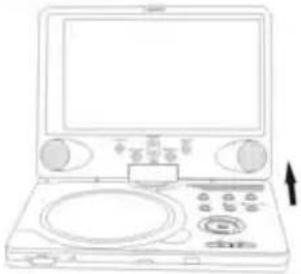 Pos A Pos A | 1. Open the screen cover to position (A) as shown in left figure at which the screen is vertical to the operation panel. |
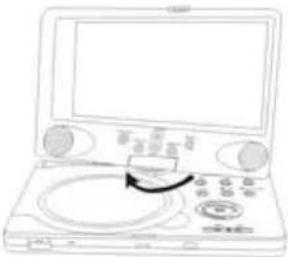 Pos B Pos B | 2. Revolving the screen horizontally about its axis in the clockwise only. The maximum revolving degree is 180 (position C) at which you will hear a click and the screen faces backward. If you want to return to initial position (A) please revolve screen counter clockwise until it clicks. |
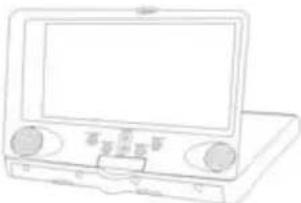 Pos C Pos C | 3. You can rotate the screen vertically from position C to operation panel as indicated in left fig. |
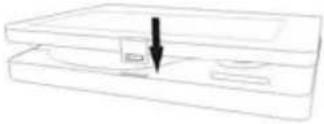 Pos D Pos D | 4. The final rotating position (position D) at which the screen facing upward and back to operation panel. |
Connecting to a Gaming System
What you'll need:
- Two pigtailed RCA audio cables (the ones with the red and white ends)
- Two RCA video cables (the one with the yellow end)
- Three RCA couplers (not included)
NOTE: One set of audio and video cables are included with your portable DVD player. Check to see if your game system also includes a set of audio and video cables.
- Using the two pigtailed RCA audio cables and two RCA couplers, connect both cables together making sure red goes to red and white goes to white (with an RCA coupler serving as a bridge between each connection)
- Connect one end of the audio cable into the Audio/Optical Out port on your portable DVD player and the other end into the Audio/Optical Out port on your game system.
- Using the two RCA video cables (the ones with the yellow ends) and one RCA coupler, connect the cables together (with the RCA coupler serving as a bridge between the two cables)
- Connect one end of the video cable into the Video Out port on your portable DVD player and the other end into the Video Out port on your game system.
- Move the AV switch on your portable DVD player to the "IN" position.
- You are ready for action!
Carrying Case

natural_image
Interior view of a car backseat with a black tablet device mounted on the seat, no visible text or symbols.Your Portable DVD Player includes a sturdy carrying bag/headrest mount for the ultimate in portable convenience! The bag/mount is easy to attach and fits on nearly any car or truck headrest (see photo above).
Care of Discs
How to hold discs
When loading or removing discs, try not to touch their playing surfaces.

natural_image
Illustration of a hand holding a circular object with a checkmark (no text or symbols present)Cleaning
Fingerprints or other dirt on the disc may affect sound and picture quality.
To clean your discs, use a soft clean cloth to wipe them. If necessary, moisten a soft cloth with diluted neutral detergent to remove heavy dirt or fingerprints.

Do not wipe in a circular direction (Concentric scratches in the disc groove tend to cause noise.)
Gently wipe from the inside to the outer edge.

natural_image
Illustration of a hand holding a circular object with directional arrows, no text or symbols presentCleaning Care
Use a soft, dry cloth for cleaning. For stubborn dirt, soak the cloth in a detergent solution; ring well first and wipe. Use a dry cloth to wipe it dry. Do not use any volatile agents such as benzine or paint thinner, as they may damage the surface of the player.
Lens cleaner
The player's pickup lens should not become dirty under normal use, but is for some reason it should malfunction due to soiling, contact your nearest WACA authorized service center. Lens cleaners are commercially available, but special care should be exercised in their use since some may cause damage to the lens.
Troubleshooting
| Symptom What | To Check |
| The player cannot play. | Make sure the AV IN/OUT switch on the side of the player unit is in the OUT position for standard play.Make sure the disc cover is closed.Make sure a disc is loaded.Make sure the disc isn't loaded upside down.Disc should be clean, not dirty or warped.Player's region code should be the same as region code of DVD disc.Has water condensation has occurred? If it has, remove the disc and keep the player powered up for at least two hours. |
| There is no sound. | Make sure system connection is correct.Make sure the speakers are turned on.Make sure the sound setup of DVD disc is correct.If the disc is dirty or warped? Clean or replace disc. |
| There is no picture. | Make sure unit is turned on and in correct video mode.Make sure your system connection is correct. |
| Poor AV performance. | If the disc is dirty or warped? Clean or replace disc. |
| Cannot continue to play and play a section repeatedly. | Make sure the player is not in A-B repeat status.Press A-B button to cancel it A-B repeat status.If the disc is dirty or warped? Clean or replace disc. |
| The remote control does not work. | Make sure there aren't any obstructions between the remote control and the player.Make sure you are pointing the remote control at the player.Make sure batteries are inserted correctly (check polarity).Replace weak batteries. |
WARNING: Do not touch any metal objects to the battery connectors, as it will put the battery in standby mode. To get out of standby mode please connect the battery and portable DVD player to AC or DC power.
Other possibilities:
Static or other external interfere may cause the player to function abnormally. In this circumstance unplug the power-supply cord from the outlet and plug it in again to reset the player so that normal operation can resume. If you are still having problems, then please disconnect the power and consult your service center or a qualified technician.
Specifications
| TFT screen size 8 inches | ||
| Laser Wavelength Wavelength: 780/650nm | ||
| Video System NTSC | ||
| Frequency Response 20Hz~20KHz ±2.5dB | ||
| Audio Signal-to-noise Rate ≥ 85Db | ||
| Audio distortion + noise | ≤ -70dB (1KHz) | |
| Channel Separation | ≥ 70dB (1KHz) | |
| Dynamic Range | ≥ 80dB (1KHz) | |
| Audio Out | Analog Audio Out | Out Level: 2V_± 1.0^0.2 , Load: 10K _S |
| Video Out Video Out | Out Level: 1V_p,p ± 0.2 , Load:75 _S Unbalanced Negative | |
| Power | AC100-240V~50/60Hz | |
| Power Consumption <25W | ||
| Dimension w/o battery | 8.47" x 6.3" x 1.37" | |
| Weight w/o battery 0.95 kg or 2.09 lbs. | ||
| Compliance with FCC, FDA - cUL listed E209155 | ||
DESIGN AND SPECIFICATIONS ARE SUBJECT TO CHANGE WITHOUT NOTICE
Manufactured under license from Dolby Laboratories.
"Dolby" and the double-D symbol are trademarks of Dolby Laboratories. Confidential unpublished works. © 1992 -1997 Dolby Laboratories.
All rights reserved.
For service, support and warranty information, visit www.polaroidelectronics.com or in the US call 1-866-289-5168, in Canada call 1-866-301-7922 and in Mexico call 01-800-400-2443.
"Polaroid" is a registered trademark of Polaroid Corporation of Waltham, MA USA and licensed for use on the PDV-0820T to Petters Consumer Brands, LLC.