
PDM-0822BD - Portable DVD Player POLAROID - Free user manual and instructions
Find the device manual for free PDM-0822BD POLAROID in PDF.


| Product type | Portable DVD Player |
| Brand | Polaroid |
| Model | PDM-0822BD |
| Display size | 8.2 inches |
| Dimensions (W x H x D) | 9.8 x 7.1 x 1.2 inches (25 x 18 x 3 cm) |
| Weight | 1.2 kg (2.65 lbs) |
| Power supply | Rechargeable lithium-ion battery, AC adapter (100-240V) |
| Battery life | Up to 3 hours of playback |
| Disc compatibility | DVD, DVD±R/RW, CD, CD-R/RW |
| Video output | Composite AV output, headphone jack |
| Audio output | Built-in speakers, headphone jack |
| Additional features | Swivel screen, parental lock, progressive scan |
| Cleaning and maintenance | Wipe with dry soft cloth; do not use liquids or abrasive cleaners |
| Safety | Do not expose to moisture or extreme temperatures; use only approved charger |
| Spare parts and repairability | Contact Polaroid customer service for replacement battery or accessories |
| General information | Portable DVD player for entertainment on the go |
Frequently Asked Questions - PDM-0822BD POLAROID
User questions about PDM-0822BD POLAROID
0 question about this device. Answer the ones you know or ask your own.
Ask a new question about this device
Download the instructions for your Portable DVD Player in PDF format for free! Find your manual PDM-0822BD - POLAROID and take your electronic device back in hand. On this page are published all the documents necessary for the use of your device. PDM-0822BD by POLAROID.
USER MANUAL PDM-0822BD POLAROID
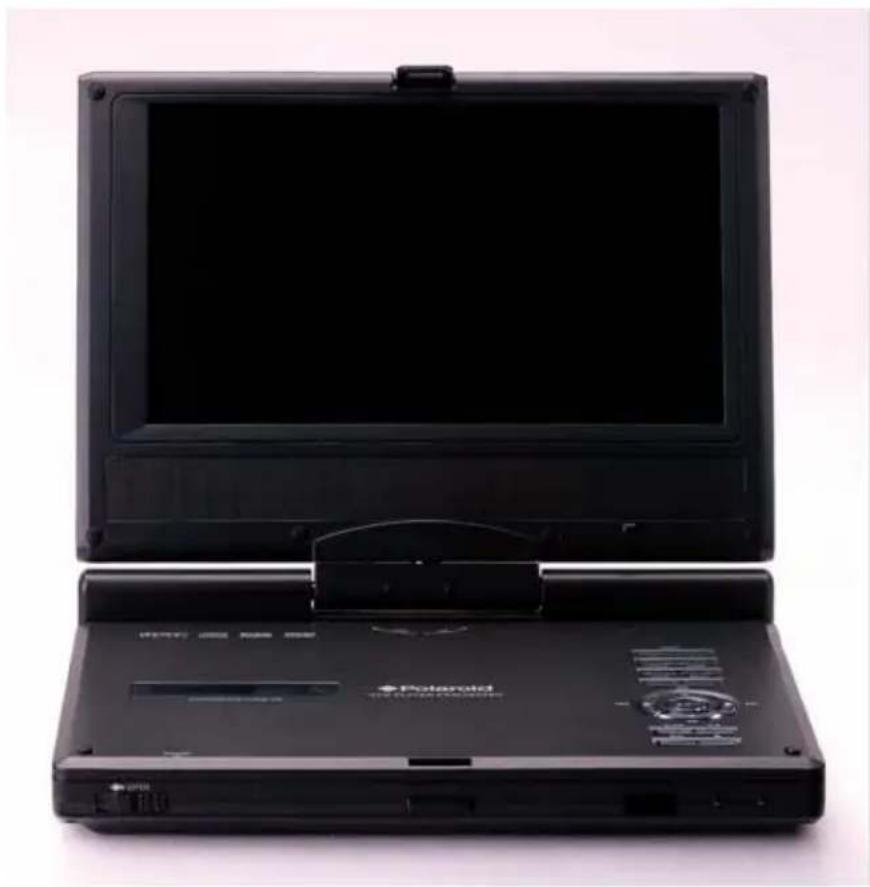
8" Portable DVD Player
PDM-0822BD
Operation Manual
natural_image
Black portable electronic device with open lid and front panel, no visible text or symbols on body20050308

Polaroid®
Safety Instructions
Warning: This indicates that "There is a risk of injury or death".
Caution: This indicates that "There is a risk of injury or physical damage".
Before operation
Warning
| Read and keep the operation manual. Before using the the product, please carefully read this manual and follow all safety and operation instructions Keep this manual for future reference. |  |
| Power supply: The power supply must correspond to the standard indicated on the product. If you are not sure of the power supply, please refer to the supplier or the local power company. |  |
| Ventilation: Do not place this unit on a bed, sofa, cloth or similar. Make sure there is adequate ventilation around the unit before operation. | 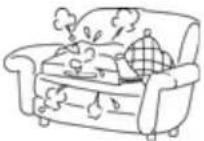 |
| Prevent objects and liquid from contacting the playerIn order to avoid the risk of electric shock and fire caused by short circuits, do not insert objects into the player and do not spill liquids on the player. Do not place objects such as vases filled with liquids on the apparatus. | 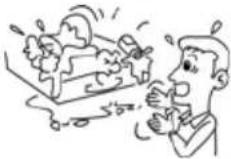 |
| Do not use the product where it will get wet.This could cause the product to ignite, or cause electrical shock or other malfunction. | |
| Do not disassemble, repair or modify the product.Do not cut the power cord to connect it to the power supply for another device. This could cause fire, electrical shock or other malfunction. | 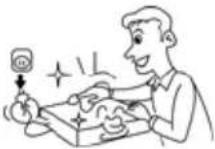 |
| Always use only the accessories provided with the product.Only use attachment/accessories specified by the manufacturer. Use only with the cart, stand, tripod, bracket, or table specified by the manufacture, or sold with the apparatus. | |
Safety Instructions
| Do not install the product in a position where it will interfere with the operation of an automotive air bag.The air bag may fail to operate properly or the product could become dislodged by airbag operation, causing an accident and/or injury. |
| Do not expose the product to excessive heat.This could cause the product to start smoking or ignite, or cause electrical shock or other malfunction. |
| Unplug all the equipment before connecting.Always ensure that the DVD player and any other electrical equipment connected to the DVD player is switched off and unplugged from the power supply before the player is connected. |
| Do not, under any circumstances, install the product in a place in a vehicle where the driver's ability to drive the car or the driver's field of vision will be impaired.Install the product in a place where it doesn't interfere with the driver's field of vision either in front or behind or in a place where it interferes with the driver's ability to drive the car. This may lead to traffic accidents and/or injury. |
| Follow the instructions to connect the product to other electrical equipments.To prevent damage to the unit, be sure to follow the connection diagram. Do not connect power to the unit until all other connections are completed. |
| Danger of explosion if battery is incorrectly replaced.Replace the rechargeable lithium battery only with the same or equivalent type. |
Caution
| Install the product securely so that it will not shift out of place or fall. Loose screws or insecure installation may cause the product to shift out of position or fall while a vehicle is moving, resulting in an accident and/or injury. |
| Region code information: DVD players and discs are coded by region. If the region number described on the DVD disc does not correspond to the region number of this product, this product cannot play the disc. The region code of this unit is 1. |
Safety Instructions
This product has been listed as class 1 laser product. The mark is on the rear panel.
The apparatus shall be connected to an AC power outlet with a protective grounded connection. Visible laser radiation when open and interlock failed or defeated. Avoid direct exposure to beam. Do not open the top cover while the unit is operating. There are no user serviceable parts inside the unit. Leave all servicing to qualified service personnel.
Beware of unit falling or tipping over when moving.
When a cart is used, use caution when moving the cart/apparatus combination to avoid injury from tip-over.

Before operation
Warning
Unplug the apparatus during lightning storms.
Never operate the product during lightning storms as this could cause the product to malfunction.
Do not operate the product if there is visible damage to the product.
If damage occurs, immediately stop using the product and contact the store from which you purchased your product. Continuing to use the product in this condition could cause accidents, fire or electrical shock.
The driver of a vehicle must not operate this product or watch the monitor.
It may distract the driver and cause an accident.
Refer all servicing to qualified service personnel.
Servicing is required when the apparatus has been damaged in any way, such as: damage to the power supply cord or plug, liquid spilled on the player, objects have fallen into the player, exposure to rain or moisture, the unit does not operate normally or has been dropped.
Safety Instructions
Caution
| Notes on discs: Do not play discs that are damaged or warped, including discs with cracks, scratches or parts missing; discs with burrs; poor quality discs. | 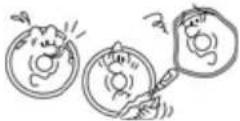 |
| Route all cords so that they do not interfere with driving or with entering or exiting the car. Run the cords so that they do not wrap around the steering wheel, brake pedal, etc. or around your feet. Secure all the cords together. | |
| Use the product at the proper volume setting.Driving while you are unable to hear sounds around you or from outside the car can cause accidents. | |
| Do not touch the color TFT LCD screen. | |
| Do not place any heavy objects on the product.Never put any heavy objects on the product. Doing so may cause damage to product. | |
| Do not damage the cords.Broken wires and short circuits can cause electrical shock or fire. Run the cords so that they do not get tangled in moving parts. Do not damage, tighten up, twist, or work on the cords. Do not place the cords near heat sources or put heavy objects on the cords. | |
| Do not play discs in the wrong format.For instance, if you add the ".cda" extension to a file that is not formatted as a CD file, a loud noise may be heard through the speakers, possibly damaging them and hurting your eardrums. | |
| Do not swing from the product or pull it.This may cause an accident, injury and/or malfunction. Be particularly careful that children follow this rule. | |
IMPORTANT FOR LASER PRODUCTS
- CLASS 1 LASER PRODUCT
- DANGER: Visible laser radiation when open and interlock failed or defeated. Avoid direct exposure to beam.
- CAUTION: Do not open the top cover. There are no user service-able parts inside the unit. Leave all servicing to qualified service personnel. This unit complies with FDA regulation for radiation control of laser products.
Safety Instructions
Preservation and Cleaning
Warning
Do not use any volatile agents such as gasoline or paint thinners to clean the product. Never use any volatile materials to clean the product, because they may damage the surface of the player. Use a soft, dry cloth for cleaning.
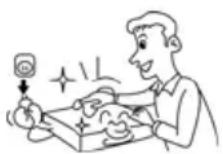
Store in a proper place
Store the product in clean, dry place, avoid direct sunlight and moisture.
Caution
Unplug the product when not used for a long period of time.
Copyright Protection
This product incorporates copyright protection technology that is protected by U.S. patents and other intellectual property rights. Use of this copyright protection technology must be authorized by Macrovision, and is intended for home and other limited viewing uses only unless otherwise authorized by Macrovision. Reverse engineering or disassembly is prohibited.
Features
High-quality audio and video
Excellent sound: Dolby Digital delivers great sound.
AV In: External Audio, Video input can be connected to most external AV sources. AV Out: Analog Audio output and video output.
Advanced Playing Functions
Compatibility: Compatible with DVD, CD and Picture CD disks.
On-screen Display: You can choose from English, Spanish or French for the On-screen Display language.
Particular Performance: Multi-speed, fast forward, fast backward and slow forward, slow backward.
Search by Time: Search for a certain track of a disk by selected time.
Last Memory Playback: Memorizes the stopped playback track and continues playing the disk from this spot when power is restored if the disc tray cover is not opened.
Special Functions: Supports screen aspect ratio changing, zooming in or out, multi-language caption, multi-angle viewing.
Other Special Functions
High Resolution: MPEG-2 decoding format achieves more than 500 lines of horizontal resolution.
Revolving LCD Screen: Adjust the screen by revolving it horizontally about its axis, or lay it flat with the screen facing.
Power Adapter Switch: Automatically adapts to voltage requirements in U.S and other countries.
Docking Jack: This unit features a docking jack on the bottom for connecting with an optional docking station. The docking station is integrated with connectors for peripheral devices to eliminate complicated connections and save valuable space around the player
Accessories
Accessories List
| ITEM | NAME | QTY |
 | Remote Control (with battery) 1 | |
 | Operation Manual 1 | |
 | Power Supply Cord with AC Adapter 1 | |
 | Audio/Video Cable 1 | |
 | Rechargeable Battery Pack 1 | |
 | DC Adapter (Car Adapter) 1 | |
 | Carrying Case 1 |
NOTE
Accessories and their parts numbers are subject to change without prior notice.
Contents
Safety Instructions 2
Features 7
Accessories 8
View of Unit 1 10
View of Side Panels 1 12
View of Unit Bottom 1 13
Revolving LCD Screen 14
Remote Control 15
System Connections 18
Power Supply Preparation 20
Rechargeable Battery 21
Notes on Discs 24
Playback Operation 25
DVD Playback 26
CD Playback 30
Picture CD Playback 32
System Setup 35
Car Bag 41
Definitions 42
Troubleshooting 43
Specifications 45
View of Unit
Front View
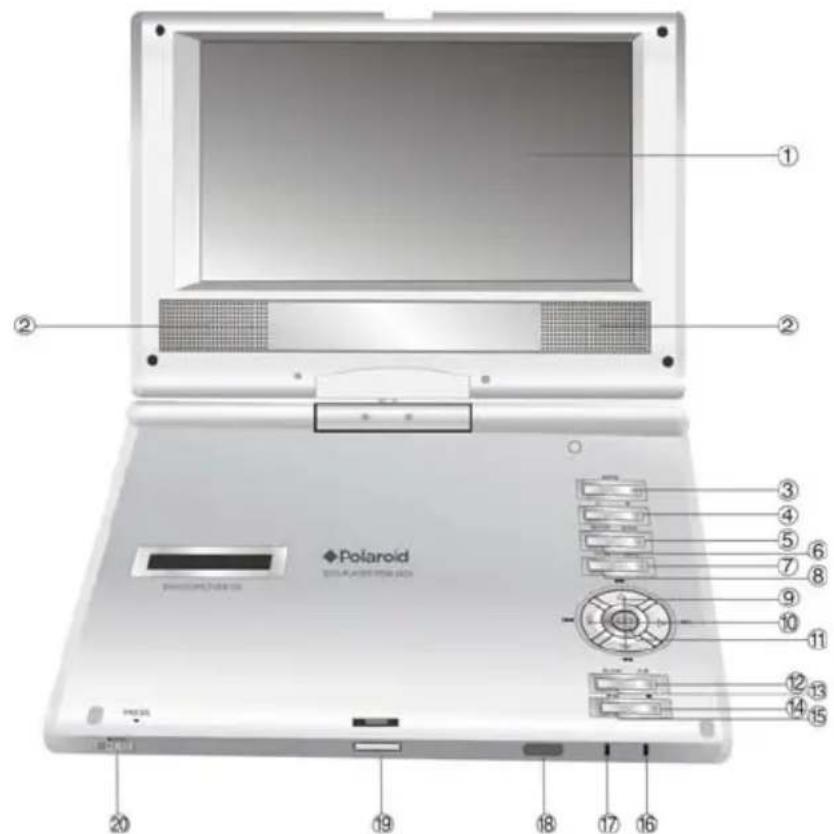
- TFT LCD
8" color TFT screen presents high resolution picture.
- Speakers
Two speakers output high quality sound.
- MODE button
Press to change the brightness, contrast and color level or change the aspect ratio. (See page24)
- +/- button
Press to increase/decrease the level of the selected item.
- ZOOM button
Press to activate the zoom function to zoom in or out the current image.
View of Main Unit
6. SETUP button
Press to access the DVD setup menu.
7. MENU button
Press to enter to the disc menu
8. TITLE button
Press to display the disc title menu if the titles are coded in the disc
9. ▼/◀,▲/▶ button
▼/▲ :press the direction buttons to select items.
«/»: press to fast search backward and forward during disc playback.
10. ◀ /◀◀, ▶ /▶▶ button
◀ / ▶ : press the direction button to select items.
◀◀/▶◀: press to play the previous track or the next track.
11. ENT button
Press to confirm your selection
12. A-B button
Press to mark a segment to repeat between A and B
13. SLOW
Press to activate slow playback.
14. ■ STOP button
Press to stop playback. Press the ▶ button to resume playback.
15. PLAY/PAUSE button
Press to start playback or pause the playback.
16. Main unit Power indicator
Light turns green when the unit is under operation; turns red in standby mode.
17. Battery charge indicator
Light turns red when the battery is in charging; turns green when the battery is fully charged.
18. Remote sensor
Receive the signal from the remote control for operation.
19. Unit latch hook
20. OPEN button
Press to open disc tray cover.
View of Side Panels
Right Side View
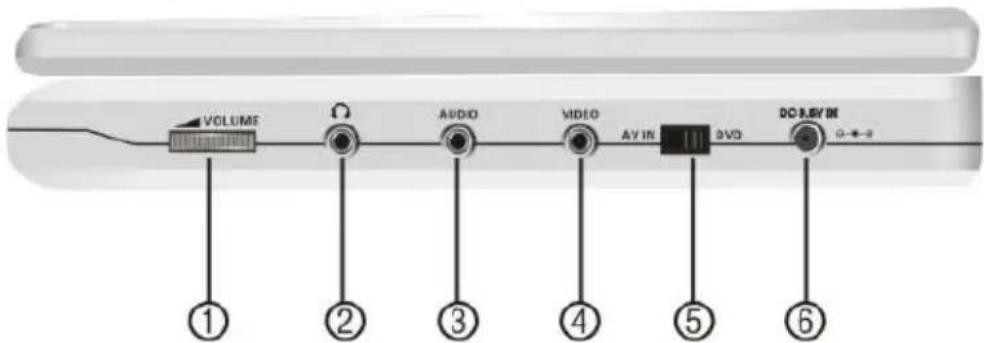
- VOLUME Control
For adjusting the sound level of speakers or headphones.
- Headphone Jack
When headphones are plugged into the unit, the speakers automatically turn off.
- AUDIO input/output Jack
For connecting to an external amplifier or audio source
- VIDEO input/output Jack
For connecting to an external monitor or video source
- DVD/AV IN Switch
Switch to AV IN to input the external AV source; switch to DVD to playback the disc
- DC 9.5V IN Jack
For connecting to power supply, including Car Adapter. (See page15)
Left Side View
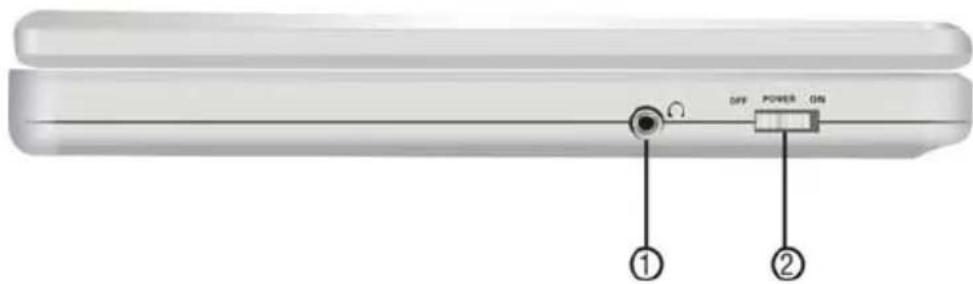
- Headphone Jack
When headphones are plugged into the unit, the speakers automatically turn off.
- POWER ON/OFF Switch
Switch the power on or off.
View of Unit Bottom
View of the bottom
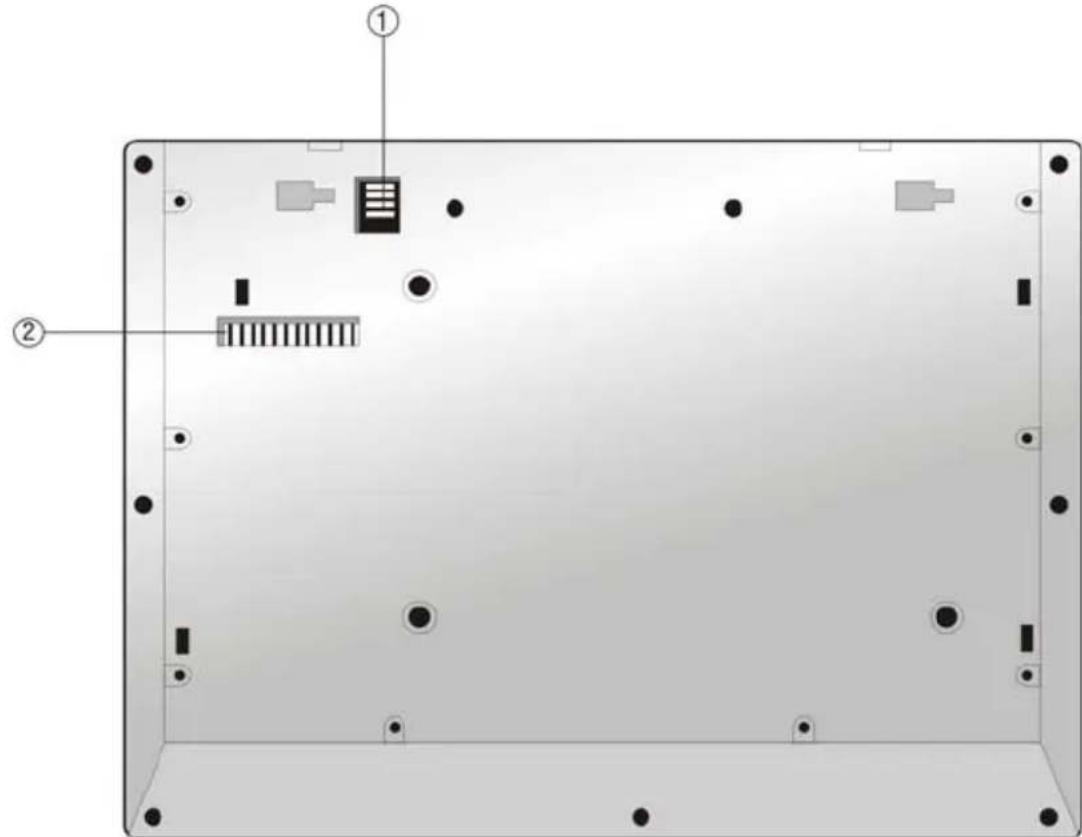
1. Rechargeable Battery Contacts
For connecting the rechargeable battery pack.
2. Docking Jack
This portable DVD player is designed with a Docking Jack on the bottom. The Docking Jack is designed for connecting to an optional external Docking Station for expanded functions. The Docking Station features an electrical connection interface that enables the portable DVD to effectively serve as a desktop DVD. It is integrated with connectors for peripheral devices to eliminate complicated connections and save valuable space around the unit. With a Docking Station, you can enjoy the expansion possibilities of desktop DVD with the portability of a portable DVD.
Revolving LCD Screen
Revolving Steps
| The revolving LCD screen is one of the outstanding features about this product. We'd like to suggest you to take the following steps for proper operation. | |
A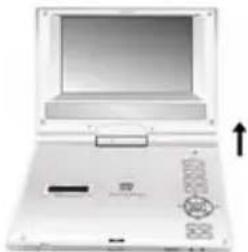 | 1. Open the screen cover to position (A) as shown in the left figure at which the screen is vertical to the operation panel. |
B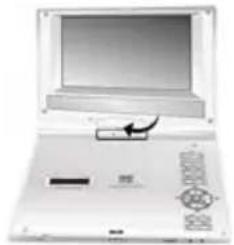 | 2. Revolving the screen horizontally around it's axis in the clockwise only. The maximum revolving degree is 180 (position C). If you want to return to initial position (A), please revolve screen counter clockwise. |
C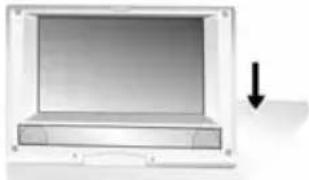 | 3. You can rotate the screens vertically from position C to operation panel as indicated in left fig. |
D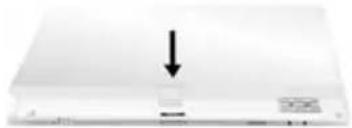 | 4. The final rotating position (position D) at which the screen facing upward and back to operation panel. |
Remote Control
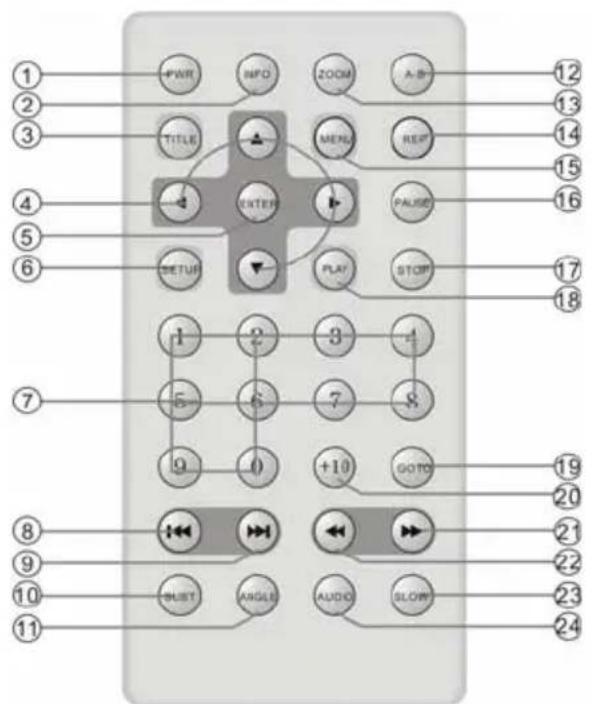
- PWR button
Press to access standby mode or playback mode.
- INFO button
Press to display the detailed information of the disc during playing. Press this button again to exit from the information display.
- TITLE button
Press to display title menu if it exists in the disc.
- Direction buttons
Press to select different options.
- ENTER button
Press to access playback, or confirm your selection
- SETUP button
Press to enter the player's system setup.
- 0-9 Number buttons
Press to select an option in the menu.
- PREV button
Press to return to the previous list or the previous track or chapter. If it is a DVD disc, it needs to press this button twice to return to the previous track.
- ➤ NEXT button
Press to skip to the next list, track or chapter.
Remote Control
10. SUBT button
Press to select different subtitle languages if there are multiple subtitle languages existing in the disc.
11. ANGLE button
Press to access various camera angles playback if the DVD disc contains multiple camera angles.
12. A-B Repeat button
Press to play a certain selected segment repeatedly.
13. ZOOM button
Press to realize various zoom effects.
14. REP button
Press to repeat a chapter, a title, a track or the whole disc.
15. MENU button
Press to display or cancel the menu.
16. PAUSE button
Press to pause the playback.
17. STOP button
Press to stop the playback. Then press PLAY button to resume playback from the stopped spot. Press this button twice to stop playback completely.
18. PLAY button
Press to begin to play.
19. GOTO button
Press to select the desired disc starting time, track or title.
20. +10 button
Press this button and the additional number buttons to select item numbers which are greater than 9.
21. ▶ FWD SCAN button
Press to search forward fast.
22. ← REV SCAN button
Press to search backward fast.
23. SLOW button
Press to activate slow playback function.
24. AUDIO button
Press to select different languages
when a DVD disc which contains multiple audio languages is played. Press to select different audio track when a CD disc is played.
Battery Installation for Remote Control
Installation Steps
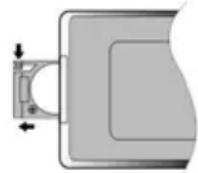
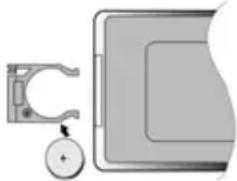
Follow the steps below to install the battery.
Step1: Pull the battery holder out from the remote control in the direction of the arrow.
Step 2: Load a new battery properly with the (+) side up.
Step3: Insert the battery holder back into the remote control.
natural_image
Pure mechanical assembly diagram without any text, numbers, or symbols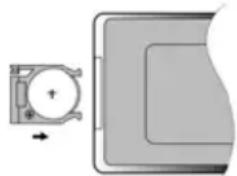
natural_image
Pure mechanical component diagram without any text, numbers, or symbolsBattery Property
Battery Type: CR2025 3V
Battery Life: Approximately 1 year under normal use (at room temperature).
Caution
- Improper use of the battery may cause overheating, explosion or ignition, which can result in an injury or fire. Battery leakage may damage the remote control.
- Do not expose the remote control unit to direct sunlight.
- Do not recharge, disassemble, deform or heat the battery.
- Do not put the battery in fire or water.
- Immediately replace the exhausted battery.
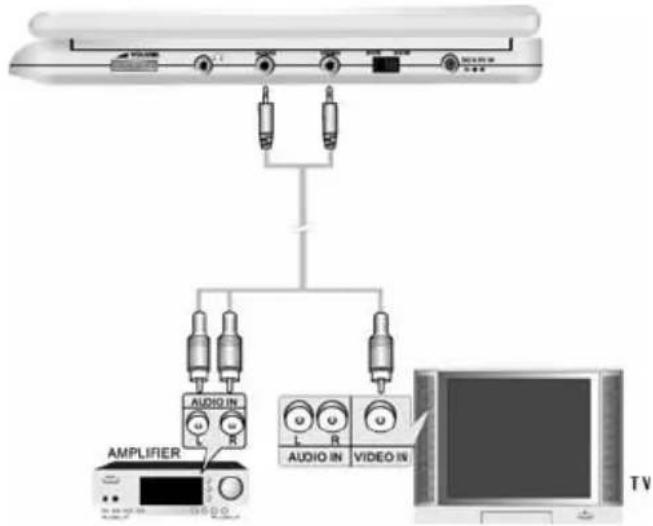
System Connections
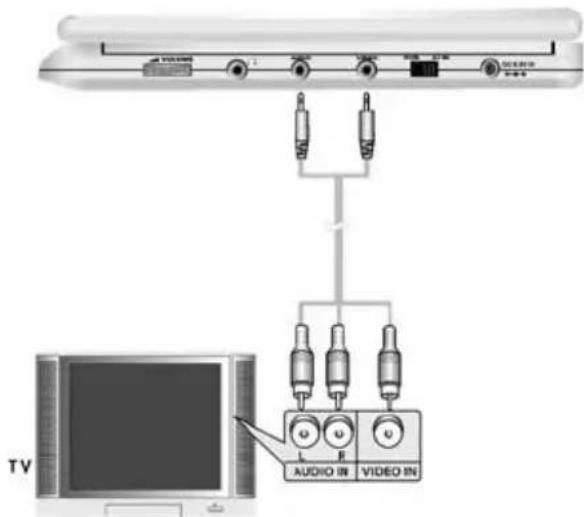
- Always ensure that the DVD player, TV and any other electrical equipment to be connected with are switched off and unplugged from the power supply.
- Ensure that you observe the color coding when connecting audio and video cables.
Connecting to TV
Audio/Video connections
Follow the drawings below to connect the DVD player to a TV's Audio/Video inputs with Audio/Video cables.
Connecting to Amplifier
Refer to your Audio equipment's manual before connection.
Follow the drawings below to connect the DVD player to an AV amplifier.
System Connections
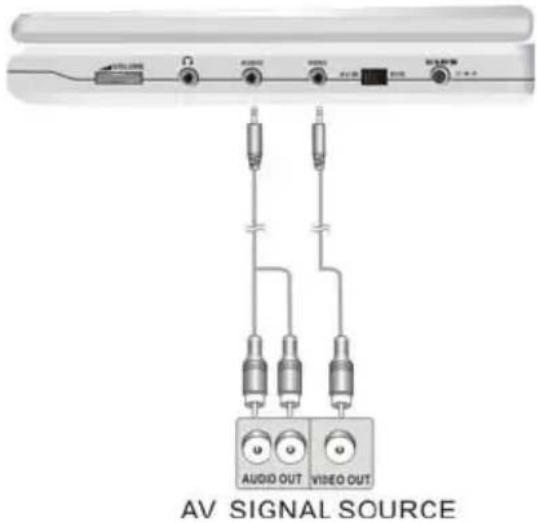
Connecting to External AV Source
The player supports an AV signal input function. Use the audio/video cable to connect the unit to an external AV signal source such as a DVD, VCR etc. After connecting, switch the DVD/AV IN to AV IN.
NOTE: Noise may occur in speakers when there is an external audio signal input while playing a DVD disc. Unplug the audio cord to clear the noise.
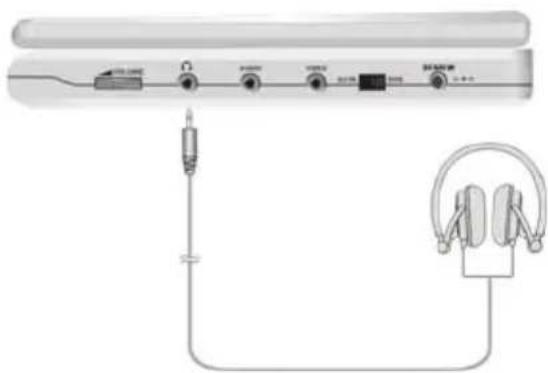
Connecting to Headphone
Connect headphones to the headphone jack on the right side of the unit.
natural_image
Diagram of a portable electronic device with earphones and cable connections (no text or symbols)When headphone is connected, the speakers will automatically turn off.
Power Supply Preparation
Using the AC Adapter
The player is supplied with an AC adapter for pow
- Connect AC adapter to the right side of the DVD player in the jack marked DC 9.5V IN, as shown on the right.
- Plug the two-prong end of the power cord into a grounded electrical outlet. The power indicator lights red.
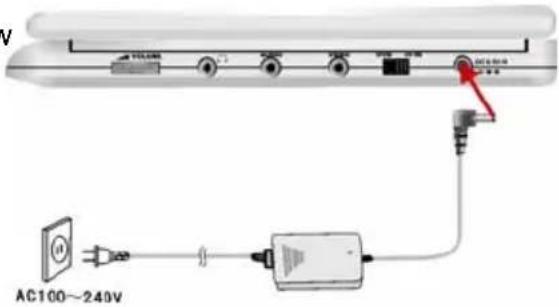
Note: Turn player's power off before unplugging.
Note: In the case of using the adapter, the LCD screen will be lighter than with the rechargeable battery.
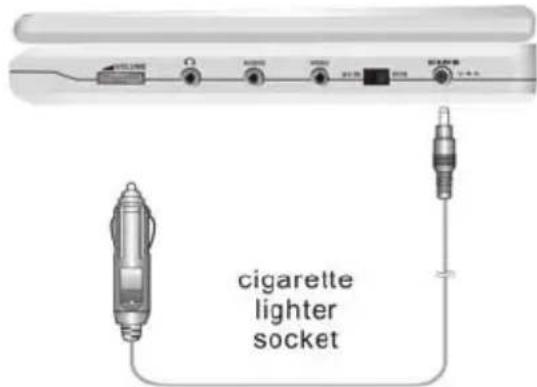
Using the Car Adapter
The player is supplied with a Car Adapter for powering the unit and charging the battery while in a vehicle.
Connect the Car Adapter Power Plug to the unit's power jack and plug the other end to the vehicle's 12V accessory / cigarette socket, as shown on the right figure.
Attention
Do not operate the unit or view video software while driving a vehicle.
Place the unit in a proper position for viewing.
➢ Detach the battery pack when using the AC or car adapter as the power source.
➢ Disconnect the player from the Car Adapter when starting the vehicle.
Rechargeable Battery
About Rechargeable Battery Pack
Your portable DVD player comes with a lithium ion rechargeable battery that attaches to the rear of the DVD player. Charge the battery fully before initial use. Charging time is normally about 5 hours. A fully charged battery delivers about 3 hours of use, but playing time varies from disc to disc. If the battery will not be used for a long period of time, fully charge the battery prior to storage.
Working conditions and precautions for the rechargeable battery
New batteries should be fully charged before initial use.
Battery should only be used and charged when temperatures are between 32 - 100F.
▶ Never put the battery in fire or water.
Do not expose the battery to high temperatures or store in hot, sunny places.
Maintain well-ventilated conditions around the product to avoid overheating. Don't put the product on a bed, sofa or anything that may block ventilation to the product.
Do not short the battery terminals.
Do not open the battery.
➢ Detach the battery after charging is complete. When charging the battery pack, the charge light will turn red, when the charging is complete, the light will turn green.
➢ Detach the battery when it is not in use.
When the battery is weak, "Low Power" will appear on the LCD screen and about one minute later, the player will power OFF automatically.
Warning:
Do not touch any metal objects to the battery connectors, as it will put the battery in standby mode. To exit the standby mode, connect the battery and DVD player to AC or DC power
Rechargeable Battery
Attaching the Battery Pack
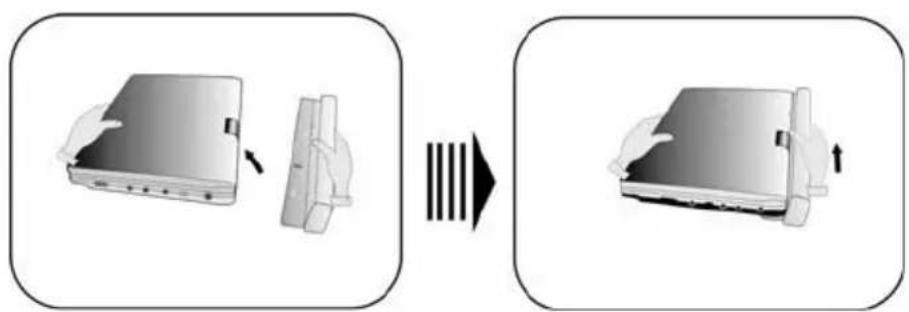
Refer to the following steps for attaching the Battery Pack:
- Make sure the player is off and the AC or car adapter is disconnected.
- Place the DVD player on a soft and smooth surface with the bottom of the unit facing up.
- With one hand on the DVD player to prevent it from moving, take the battery and align the plastic tabs on the battery pack with holes on the player, and push the battery pack into the DVD player.
- The battery pack will click into place.
Charging the Battery Pack
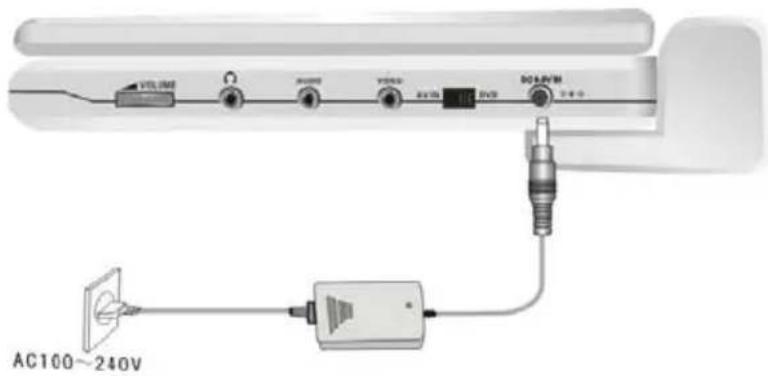
The battery pack must be attached to the DVD player to charge it using the supplied AC or car power adapter.
- Attach the battery pack to the DVD player, as shown above.
-
Plug the supplied AC Power Adapter into the player's power jack marked "DC 9.5V IN", located on right side of the DVD Player.
-
Plug the other end of the AC Power Adapter Cord into a household AC Outlet as shown below.
Rechargeable Battery
Detaching the Battery Pack
If the DVD Player is not going to be used for long periods of time, the battery pack should first be fully charged and then detached. When the DVD Player is turned OFF, the DVD Player is still consuming some power in STANDBY mode. This will eventually discharge the battery.
Make sure the power is turned OFF and the AC or car adapter is disconnected before detaching the Battery Pack.
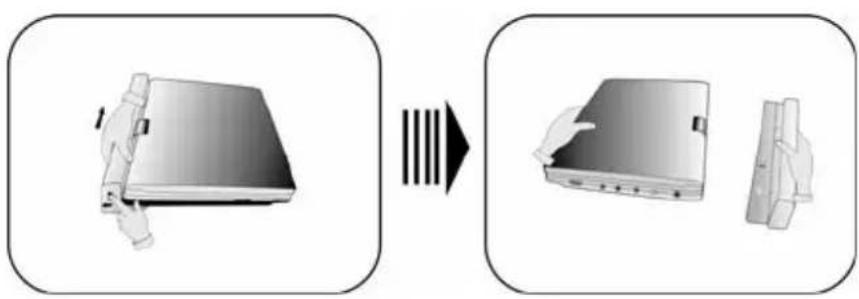
To detach the Battery Pack:
-
Push the battery pack latch toward the rear of the player and slide the rechargeable battery from the main unit (see drawings below).
-
Store the rechargeable battery in a safe place.
natural_image
Diagram showing a device being processed into two views, one with a handle and the other with a clasp (no text or symbols present)Notes on Discs
Compatible Disc Formats
| DISC | LOGO | PLAYBACK TIME/PLAYABLE SIDES | DIAMETER | |
| DVD | [IMAGE] | 12cm | 133 min (SS-SL) | |
| 242 min (SS-DL) | ||||
| 266 min (DS-SL) | ||||
| 484 min (DS-DL) | ||||
| 8cm | 41 min (SS-SL) | |||
| 75 min (SS-DL) | ||||
| 82 min (DS-SL) | ||||
| 150 min (DS-DL) | ||||
| CD | [IMAGE] | 12cm | 74 | min |
| 8cm | 20 | min | ||
| JPEG | 12cm |
Operation methods of some DVD discs are specified by the software manufacturer. Please follow the instructions for the disc.
Care of Discs
Handling Discs
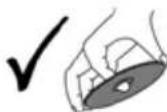
When loading or removing discs, do not touch their playing surfaces. Hold the disk as shown at the right.
Cleaning
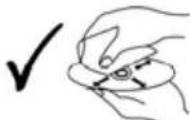
Fingerprints or stains on the disc may affect the quality of sound and picture. To clean your discs, wipe the surface with a soft clean cloth. If necessary, moisten a soft cloth with diluted mild detergent to remove heavy dirt or fingerprints.

Do not wipe in a circular direction as shown on the right (concentric scratches on the playing surface can cause noise). Gently wipe from the center of the disc to the outer edge as the lower figure.
Playback Operation
READ THE FOLLOWING INSTRUCTIONS CAREFULLY BEFORE USING YOUR DVD PLAYER FOR THE FIRST TIME.
WARNING: Do not play poor-quality discs to avoid damaging the lens.
Pre-operation
- Connect the unit to power supply through the provided AC adapter.
- Switch "POWER ON/OFF" to "ON" on the left panel to turn on the DVD player. The main unit power indicator lights green and screen displays the logo.
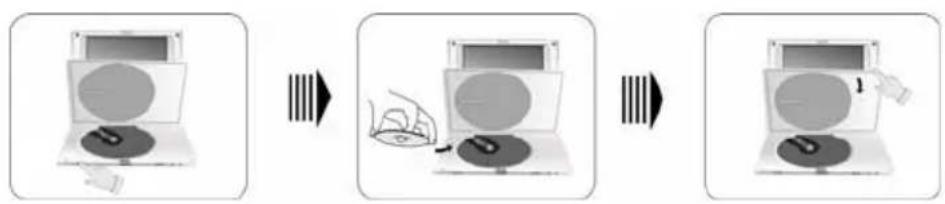
- Press the OPEN button on the unit to open the disc tray cover, put a disc in the disc tray with printed side facing up. Close the disc cover. (See below.)
flowchart
graph LR
    A["Device 1"] --> B["Add CD"]
    B --> C["CD Screen"]
    C --> D["Add Computer Screen"]
- The player will search the disc and play it automatically.
- Adjust the volume with the VOLUME control on the right panel to the desired level.
- To turn the player off, switch the "POWER ON/OFF" on the left panel to "OFF".
Basic Operation
MODE button

Press the MODE button to enter the brightness, contrast or color adjustment mode. Adjust these levels with + and - buttons. Press the MODE button and hold it for 1-2 seconds to change the aspect ratio between 16:9 and 4:3. See below for details:
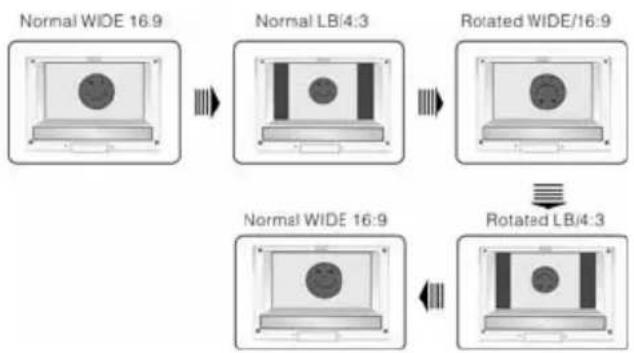
flowchart
graph TD
    A["Normal WIDE 16:9"] --> B["Normal LB/4:3"]
    B --> C["Rotated WIDE/16:9"]
    C --> D["Rotated LB/4:3"]
    D --> E["Normal WIDE 16:9"]
    E --> F["Rotated WIDE/16:9"]
Playback Operation
DVD Playback
Play


Press ENTER button to start playing, or ◀ ▶ ▲ ▼ (Direction buttons) or 0-9 buttons to select a Title and Chapter directly.

Press ENT button to start playing.
Pause

Press PAUSE button to pause during playback, then press PLAY button to resume normal playback.

Press button to pause during play, then press it again to resume normal play.
Stop

During playback, press STOP button once to stop playing, then press PLAY button to resume normal playback from the stopped point. Press STOP button twice repeatedly to stop playback completely. Then when you press PLAY button, the player will play from the beginning.

During playback, press ■ button once to stop playing, then press ▶ button to resume normal playback from the stopped point. Press it twice repeatedly to stop playback completely. Then when you press ▶ button, the player will play from the beginning.
Zoom button

Press ZOOM button repeatedly to shift among 2X, 3X, 4X, 1/2, 1/3, 1/4 zooming effect and normal playback.
A-B Button

Press A-B button once to set the starting point A, press it again to set the end point B. Then the player will play the segment between A and B continuously. Press this button a third time to stop the A-B repeat.
Playback Operation
DVD Playback (continued)
TITLE button


Press TITLE button during play. The title menu will appear on the screen.

Press ◀▶▶▼ (direction buttons) to select the title or disc menu item you wish to play, then press ENTER button to confirm your selection. Or press 0-9 buttons to select the item you prefer directly.
MENU button


Press MENU button during play. The root menu will appear on the screen.

Press ◀ ▶ ▲ ▼ (direction buttons) to select the item you wish to play, then press ENTER button to confirm your selection. Or press 0-9 buttons to select the item you prefer directly.
◀◀&▶▶ buttons

Press ◀ button once to go to the beginning of the current chapter. Press it twice repeatedly to go to the beginning of the previous chapter.
Press ▶ button to play the next chapter.
▶&◀ buttons

Press ▶ button to play fast forward. Press it repeatedly and fast forward playback will start at the speed of 2X, 4X, 8X, 16X, 32X and normal in sequence. Press◀ button to fast reverse. Press it repeatedly and fast reverse playback will start at the speed of 2X, 4X, 8X, 16X, 32X and normal in sequence.
Press PLAY button on the remote control to return to normal playback.
SLOW button

Press SLOW button repeatedly and slow playback will start at the speed of 1/2, 1/4, 1/8, 1/16 forward, 1/2, 1/4, 1/8, 1/16 backward or normal playback in sequence. Press PLAY button to resume normal playback.
Playback Operation
DVD Playback (continued)
INFO button


Press INFO button for detailed information about the disc during disc playback. Press it repeatedly to display as follows:
Title Elapsed Title Remain Chapter Elapsed
→ Chapter Remain → Display Off
AUDIO button


DVD discs can contain up to 8 audio bit streams.
For example: English, Spanish, French etc.
To select the audio bit stream you prefer, press AUDIO button during playback. The DVD player will play the next bit stream every time you press AUDIO button in succession, if they exist.
SUBT button


When a DVD disc is playing, press SUBT button to select a subtitle language or to turn the subtitle off. A DVD disc can be recorded with up to 32 subtitles.
Press SUBT button repeatedly, the mode of subtitles will cycle as follows:
SUBTITLE 1/N: Subtitle 1 appears on the screen.
SUBTITLE 2/N: Subtitle 2 appears on the screen.
SUBTITLE */N: Subtitle * appears on the screen
SUBTITLE OFF: No subtitle.
“N” refers to the total number of subtitles that the current disc contains.
NOTE: This function is only available for DVD discs recorded with multi-subtitles
REP button


Press REP button to repeat a Chapter, Title, All or cancel repeat in sequence.
Playback Operation
DVD Playback (continued)
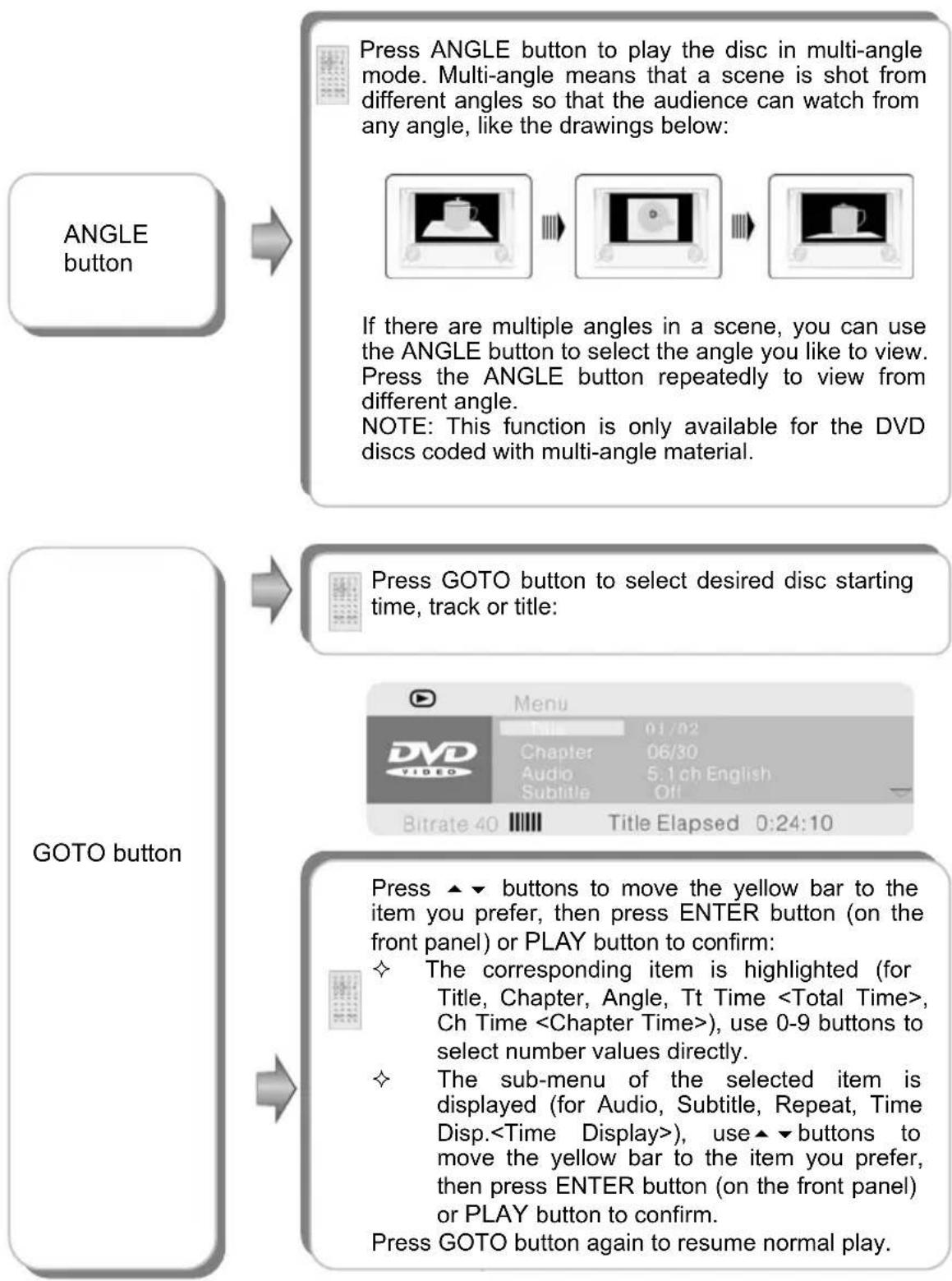
flowchart
graph TD
    A["ANGLE button"] --> B["Press ANGLE button to play the disc in multi-angle mode. Multi-angle means that a scene is shot from different angles so that the audience can watch from any angle, like the drawings below:"]
    B --> C["If there are multiple angles in a scene, you can use the ANGLE button to select the angle you like to view. Press the ANGLE button repeatedly to view from different angle.<br>NOTE: This function is only available for the DVD discs coded with multi-angle material."]
    D["GOTO button"] --> E["Press GOTO button to select desired disc starting time, track or title:"]
    E --> F["Press ENTER button (on the front panel) or PLAY button to confirm:"]
    F --> G["Press ▲▼ buttons to move the yellow bar to the item you prefer, then press ENTER button (on the front panel) or PLAY button to confirm:"]
    G --> H["The corresponding item is highlighted (for Title, Chapter, Angle, Tt Time <Total Time>, Ch Time <Chapter Time>), use 0-9 buttons to select number values directly."]
    H --> I["The sub-menu of the selected item is displayed (for Audio, Subtitle, Repeat, Time Disp.<Time Display>), use ▲▼ buttons to move the yellow bar to the item you prefer, then press ENTER button (on the front panel) or PLAY button to confirm."]
    I --> J["Press GOTO button again to resume normal play."]
Playback Operation
CD Playback
When a CD disc is loaded, the player will play it automatically by the default sequence of the disc. You can use ◀◀, ▶▶ or number buttons to select a certain track to play.
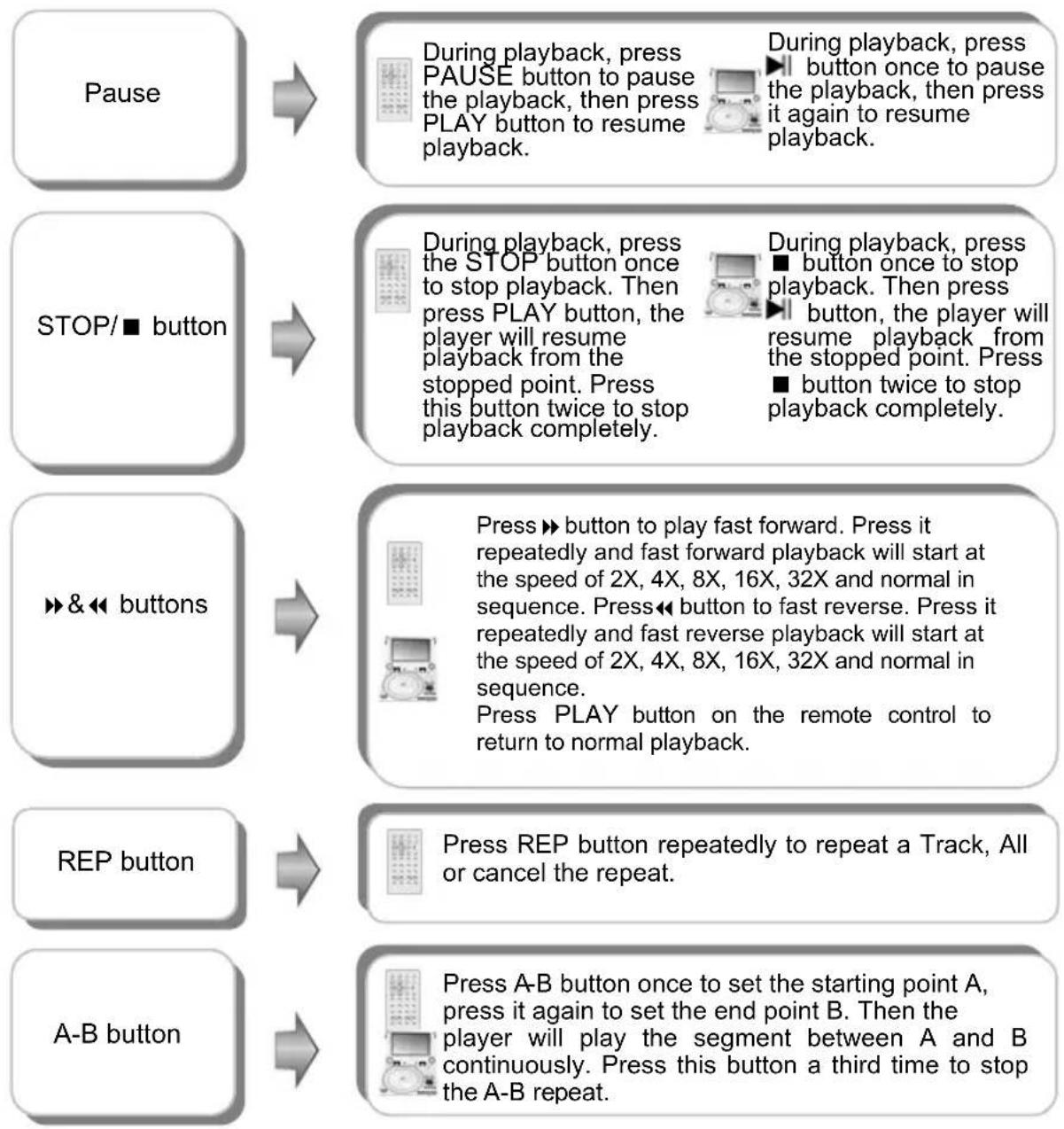
flowchart
graph TD
    A["Pause"] --> B["During playback, press PAUSE button to pause the playback, then press PLAY button to resume playback."]
    B --> C["During playback, press button once to pause the playback, then press it again to resume playback."]
    D["STOP/■ button"] --> E["During playback, press the STOP button once to stop playback. Then press PLAY button, the player will resume playback from the stopped point. Press this button twice to stop playback completely."]
    E --> F["During playback, press button once to stop playback. Then press button, the player will resume playback from the stopped point. Press button twice to stop playback completely."]
    G["▶&◀ buttons"] --> H["Press button to play fast forward. Press it repeatedly and fast forward playback will start at the speed of 2X, 4X, 8X, 16X, 32X and normal in sequence. Press◀ button to fast reverse. Press it repeatedly and fast reverse playback will start at the speed of 2X, 4X, 8X, 16X, 32X and normal in sequence. Press PLAY button on the remote control to return to normal playback."]
    I["REP button"] --> J["Press REP button repeatedly to repeat a Track, All or cancel the repeat."]
    K["A-B button"] --> L["Press A-B button once to set the starting point A, press it again to set the end point B. Then the player will play the segment between A and B continuously. Press this button a third time to stop the A-B repeat."]
Playback Operation
CD Playback (continued)
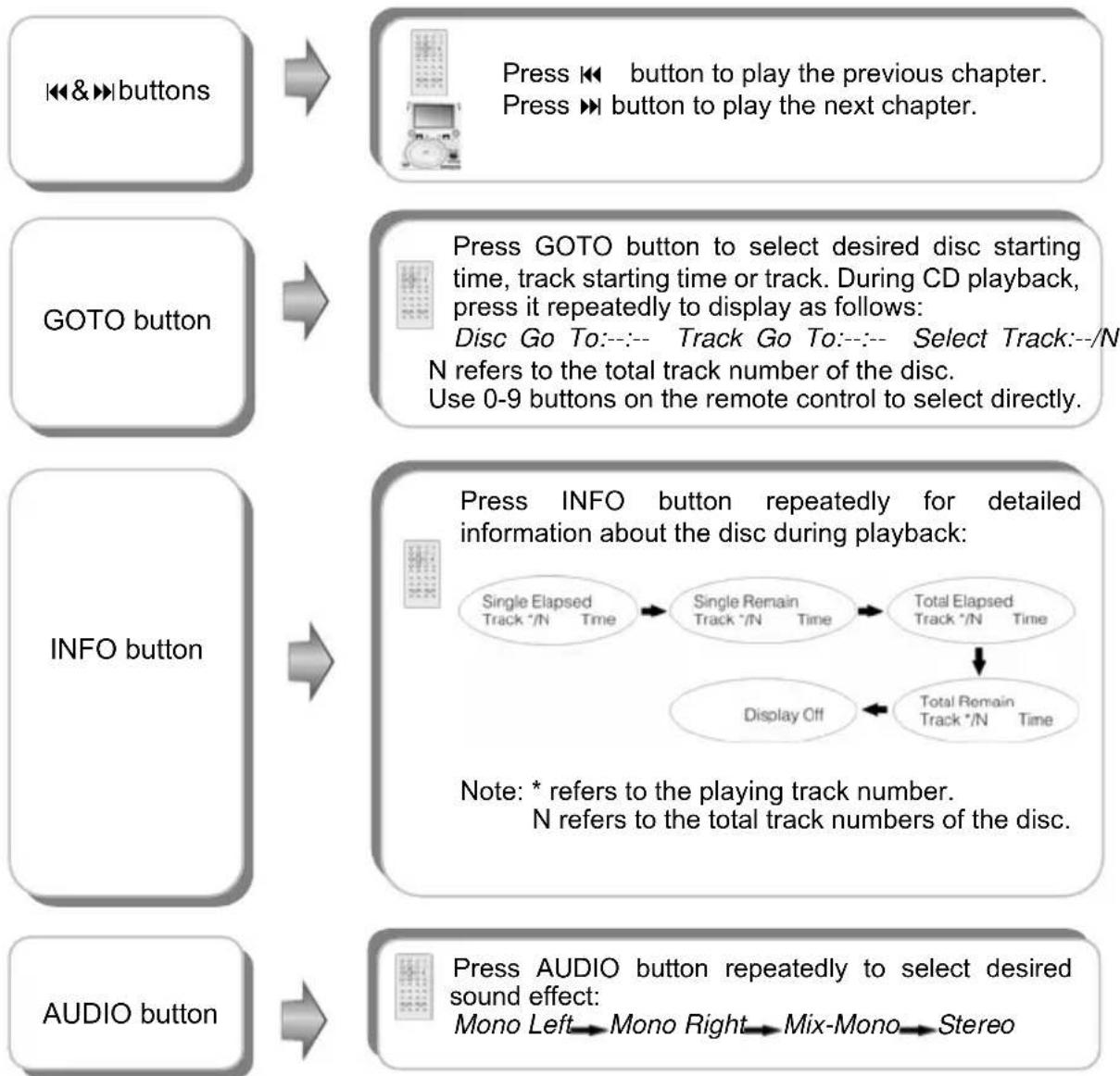
flowchart
graph TD
    A["<<&>>buttons"] --> B["Press ↔ button to play the previous chapter.<br>Press ➡ button to play the next chapter."]
    C["GOTO button"] --> D["Press GOTO button to select desired disc starting time, track starting time or track. During CD playback, press it repeatedly to display as follows:<br>Disc Go To:--:-- Track Go To:--:-- Select Track:--/N N refers to the total track number of the disc.<br>Use 0-9 buttons on the remote control to select directly."]
    E["INFO button"] --> F["Press INFO button repeatedly for detailed information about the disc during playback:<br>Single Elapsed Track */N Time → Single Remain Track */N Time → Total Elapsed Track */N Time<br>Display Off ← Total Romain Track */N Time"]
    G["AUDIO button"] --> H["Press AUDIO button repeatedly to select desired sound effect:<br>Mono Left → Mono Right → Mix-Mono → Stereo"]
Playback Operation
Picture CD Playback
Pre-operation
- Load a Picture CD in the disc tray. The player will search for the disc automatically.
- The screen displays the root folder with several subdirectories/subfolders. Use ▲, ▼ buttons to select a desired folder. Then press ▶, ENTER, PLAY or ▶ button on the remote control or front panel to confirm your selection.
- The screen enters the selected subfolder to view the files. Use ▲, ▼ buttons to select the desired file. Then press ENTER, PLAY or ▶ button on the remote control or front panel to confirm your selection.
- Press ◀ button to return to last folder or directory, or move the yellow bar to ☐ .., then press ENTER, PLAY or ▶ button on the remote control or front panel to return to the last folder or directory.
Note: Many discs have other items besides pictures.
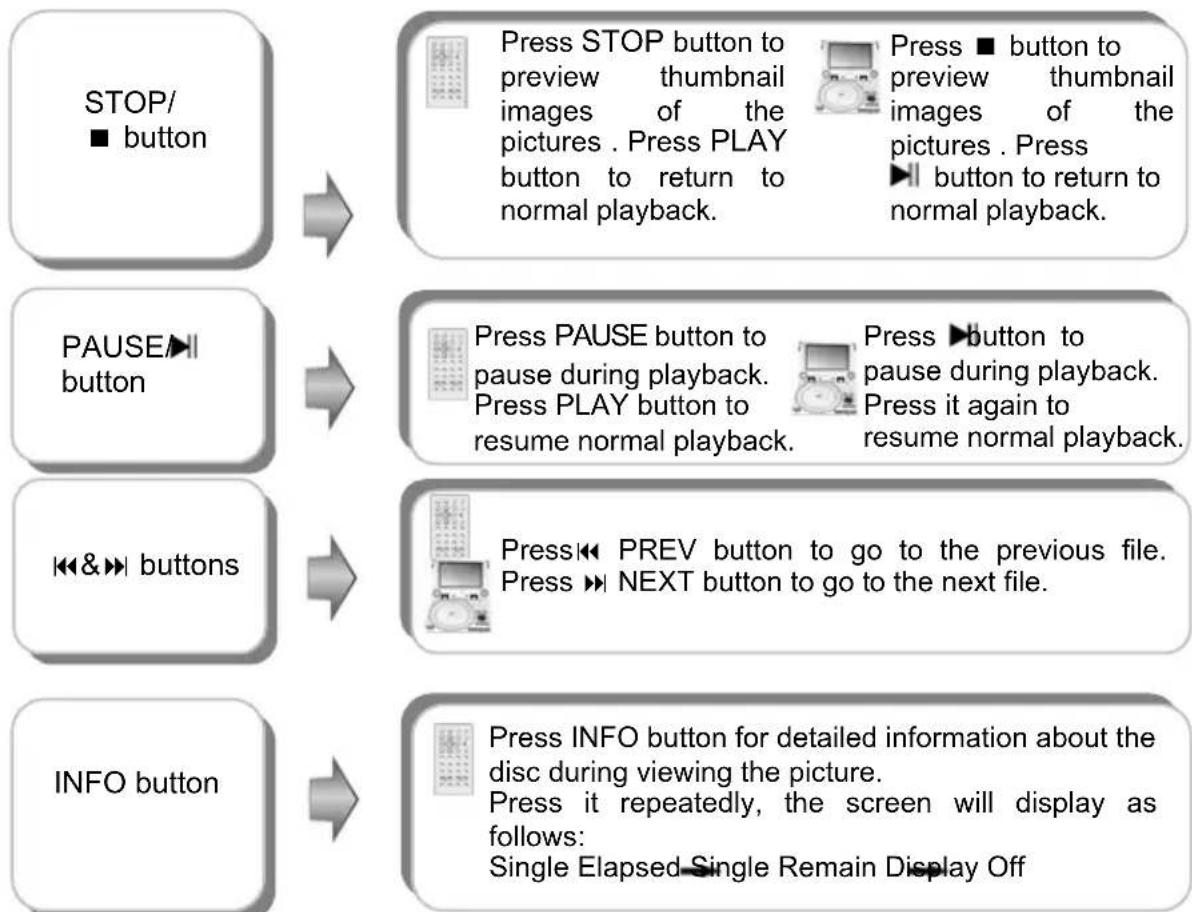
flowchart
graph TD
    A["STOP/■ button"] --> B["Press STOP button to preview thumbnail images of the pictures . Press PLAY button to return to normal playback."]
    A --> C["Press ■ button to preview thumbnail images of the pictures . Press ▶ button to return to normal playback."]
    D["PAUSE/■ button"] --> E["Press PAUSE button to pause during playback. Press PLAY button to resume normal playback."]
    D --> F["Press ▶ button to pause during playback. Press it again to resume normal playback."]
    G["◀&▶ buttons"] --> H["Press ◀ PREV button to go to the previous file. Press ▶ NEXT button to go to the next file."]
    I["INFO button"] --> J["Press INFO button for detailed information about the disc during viewing the picture. Press it repeatedly, the screen will display as follows: Single Elapsed Single Remain Display Off"]
Playback Operation
Picture CD Playback (continued)
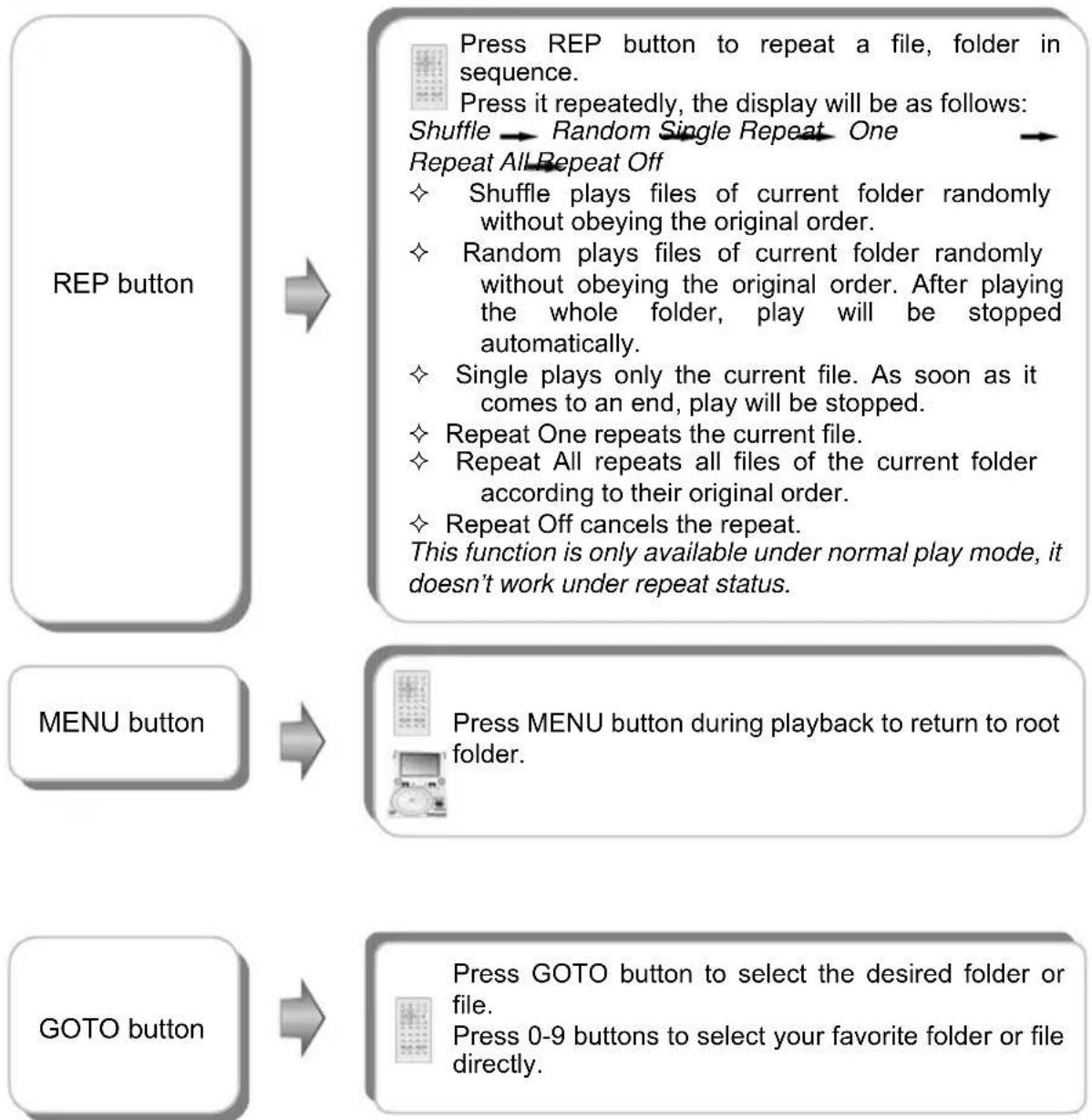
flowchart
graph TD
    A["REP button"] --> B["Press REP button to repeat a file, folder in sequence.<br>Press it repeatedly, the display will be as follows:<br>Shuffle → Random Single Repeat One<br>Repeat All Repeat Off<br>✧ Shuffle plays files of current folder randomly without obeying the original order.<br>✧ Random plays files of current folder randomly without obeying the original order. After playing the whole folder, play will be stopped automatically.<br>✧ Single plays only the current file. As soon as it comes to an end, play will be stopped.<br>✧ Repeat One repeats the current file.<br>✧ Repeat All repeats all files of the current folder according to their original order.<br>✧ Repeat Off cancels the repeat.<br>This function is only available under normal play mode, it doesn't work under repeat status."]
    C["MENU button"] --> D["Press MENU button during playback to return to root folder."]
    E["GOTO button"] --> F["Press GOTO button to select the desired folder or file.<br>Press 0-9 buttons to select your favorite folder or file directly."]
Playback Operation
Picture CD Playback (continued)
Picture Rotate

While viewing a picture, use direction buttons ▲, ▼, ▶, ◀ to rotate the picture.
Press ▶ button to rotate the current picture clockwise:

flowchart
graph LR
    A["Computer Screen Icon"] --> B["Computer Screen Icon"]
    B --> C["Computer Screen Icon"]
    C --> D["Computer Screen Icon"]
    D --> E["Normal"]
Press ◀ button to rotate the current picture anti-clockwise:

flowchart
graph LR
    A["Flower Icon"] --> B["Flower Leaf Icon"]
    B --> C["Flower Leaf Icon"]
    C --> D["Normal"]
Press ▲ button to rotate the current picture flip horizontal:
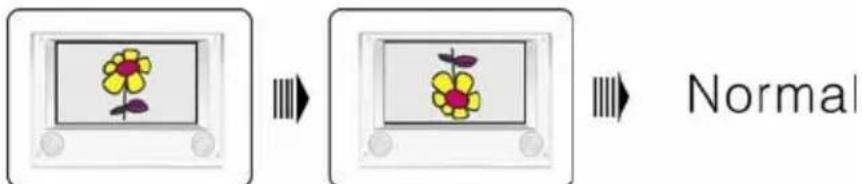
Press ▼ button to rotate the current picture flip vertical:
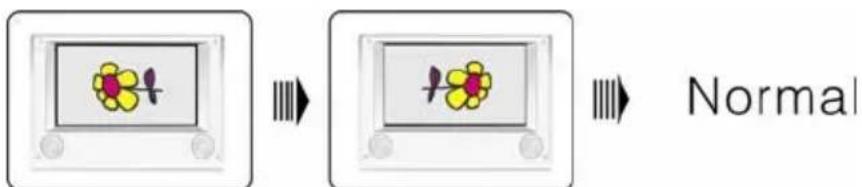
System Setup
You can change the default settings of this unit to customize its performance to your own preferences.
Note: Set the system up while play is stopped or there is no disk in the player.
To set up your system:
- Press the SETUP button on the front panel.
- The setup menu will appear on the screen. It includes General Setup Page, Speaker setup page, Dolby digital setup, Video setup page and Preference page. You can exit the setup menu by pressing the SETUP button again at any time.
- Press the ◀ or ▶ (direction buttons) on the front panel to select a sub-menu to set up.
- Press the ▲ or ▼ button on the front panel to select the item that you want to set up in the sub-menu.
General Setup Page
| -- General Setup Page -- | |
| Tv Display | Ps |
| Angle Mark | On |
| Osd Lang | Eng |
| Captions | Off |
| Screen Saver | On |
| Last Memory | Off |
The items included in this sub-menu are shown as the left.
| -- General Setup Page -- | ||
| Tv Display | Ps | Normal/PS |
| Angle Mark | On | Normal/LB |
| Osd Lang | Eng | Wide |
| Captions | Off | |
| Screen Saver | On | |
| Last Memory | Off | |
1.TV Display
This item is used to set TV display mode.
Press the ▲ or ▼ button to highlight this item.
Press the ENT or ▶ button to enter the item.
It includes Normal/PS, Normal/LB and Wide, Wide by default. Press the ▲ or ▼ button to choose the proper one. Press the ENT button to confirm your selection. Press the ◀ direction button to exit from this item.
Note: Select Normal/PS or Normal/LB when a 4:3 TV is connected.
Select Wide when a 16:9 wide screen TV is connected.
System Setup
General Setup Page (continued)
| -- General Setup Page -- | ||
| Tv Display | Ps | |
| Angle Mark | On | On |
| Osd Lang | Eng | Off |
| Captions | Off | |
| Screen Saver | On | |
| Last Memory | Off | |
| -- General Setup Page -- | ||
| Tv Display | Ps | |
| Angle Mark | On | |
| Osd Lang | Eng | English |
| Captions | Off | French |
| Screen Saver | On | Spanish |
| Last Memory | Off | German |
| Italian | ||
| General Setup Page | ||
| Tv Display | Ps | |
| Angle Mark | On | |
| Osd Lang | Eng | |
| Captions | Off | On |
| Screen Saver | On | Off |
| Last Memory | Off | |
| -- General Setup Page -- | ||
| Tv Display | Ps | |
| Angle Mark | On | |
| Osd Lang | Eng | |
| Captions | Off | |
| Screen Saver | On | On |
| Last Memory | Off | Off |
2.Angle Mark
This item is used to turn the Angle Mark on or off. Press the ▲ or ▼ button to highlight this item. Press the ENT or ▶ to enter the item.
Press the ▲ or ▼ button to choose angle mark on or off.
Press the ENT button to confirm your selection. Press the ◀ direction to exit this item.
3.OSD Language
This item is used to set the OSD (on-screen display) language. Press the ▲ or ▼ button to highlight this item. Press the ENT or ▶ to enter the setup of this item.
It includes English, French, Spanish, German and Italian, English by Default.
Press the ▲ or ▼ button to choose the proper one. Press the ENT button to confirm your selection. Press the ◀ direction button to exit this item.
4. Captions
This item is used to turn the captions on or off during playing. Press the ▲ or ▼ button to highlight this item. Press the ENT or ▶ to enter the setup of this item.
The default setting of this item is off. Press the ▲ or ▼ button to choose on or off. Press the ENT button to confirm your selection. Press the ◀ direction button to exit this item
5.Screen Saver
This item is used to turn the screen saver on or off. Press the ▲ or ▼ button to highlight this item. Press the ENT or ▶ to enter the setup of this item. The default setting of this item is on.
Press the ▲ or ▼ button to choose on or off. Press the ENT button to confirm your selection. Press the ◀ direction button to exit this item.
System Setup
General Setup Page (continued)
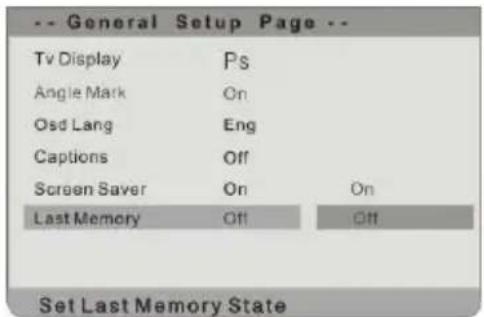
6. Last Memory
This item is used to set last memory state.
Note: The last memory refers to resume playback from the point that you stopped last time.
Press the ▲ or ▼ button to highlight this item.
Press the ENT or ▶ to enter the item.
The default setting of this item is off.
Press the ▲ or ▼ button to choose on or off.
Press the ENT button to confirm your selection.
Press the ◀ direction button to exit this item.
Speaker Setup Page
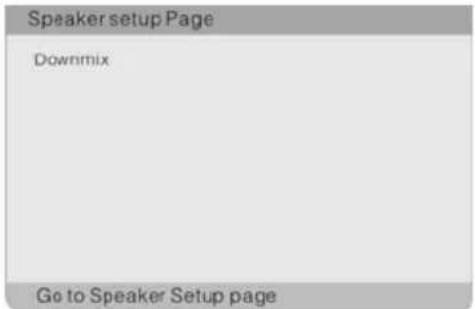
The item included in this sub-menu is shown as the left.
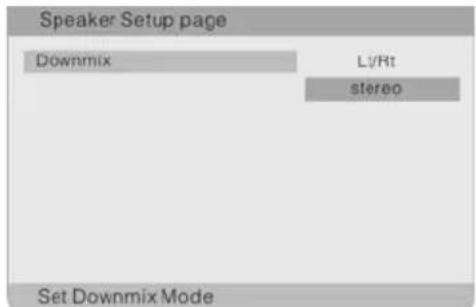
1. Downmix
This item is used to set downmix mode.
Press the ▲ or ▼ button to highlight this item.
Press the ENT or ▶ to enter the item.
It includes Lt/Rt and stereo, stereo by default.
Note: The function of Lt/Rt is to output mixed audio in the format provided by Dolby. The function of stereo is to output stereo signal.
Press the ▲ or ▼ button to choose the proper one.
Press the ENT button to confirm your selection.
Press the ◀ direction button to exit this item.
Dolby Digital Setup
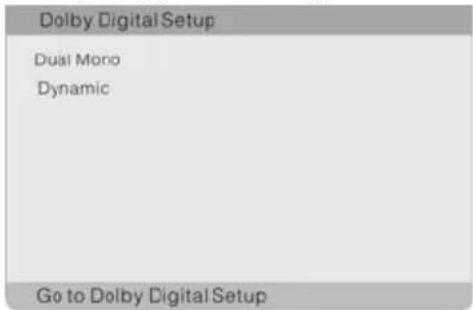
The items included in this sub-menu are shown as the left.
System Setup
Dolby Digital Setup (continued)
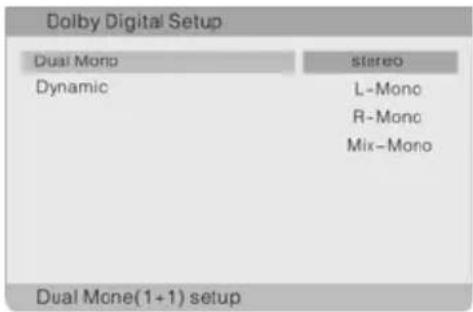
1. Dual Mono
This item is used to set the channel output mode.
Press the ▲ or ▼ button to highlight this item.
Press the ENT or ▶ to enter the item.
It includes stereo, L-Mono, R-Mono and Mix-Mono,
Stereo by default.
Press the ▲ or ▼ button to choose the proper one.
Press the ENT button to confirm your selection.
Press the ◀ direction button to exit this item.
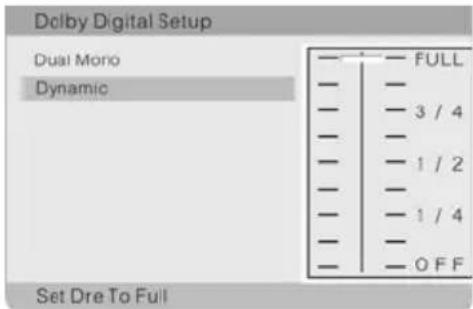
2.Dynamic
This item is used to adjust linear dynamic compression rate to get different signal compression effects.
Press the ▲ or ▼ button to highlight this item.
Press the ENT or ▶ to enter the setup of this item.
Then the item will show as the left.
Press the ▲ or ▼ to choose the proper level.
Press the ENT button to confirm your selection.
Press the ◀ direction button to exit this item.
Video Setup Page
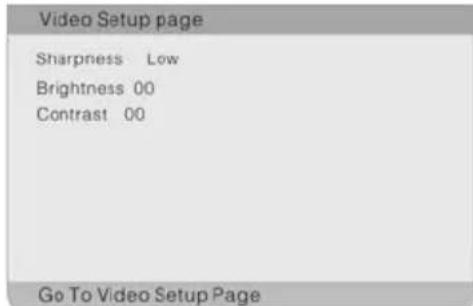
The items included in this sub-menu are shown as the left.
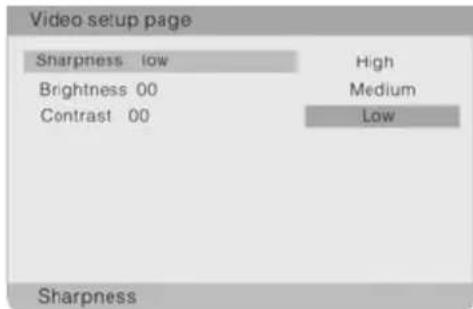
1.Sharpness
This item is used to adjust the sharpness of the Screen.
Press the ▲ or ▼ button to highlight this item.
Press the ENT or ▶ to enter the item.
It included High, Medium and Low, Low by default.
Press ▲ or ▼ button to choose the proper one.
Press ENT button to confirm your selection.
Press ◀ direction button to exit this item.
System Setup
Video Setup Page (continued)
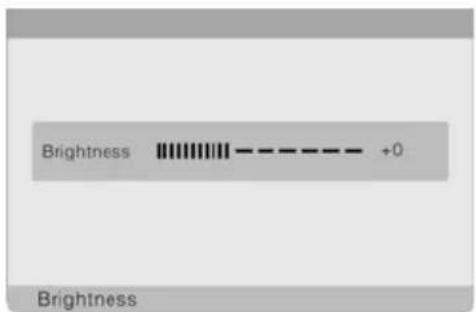
2. Brightness
This item is used to adjust brightness level of the Screen.
Press the ▲ or ▼ button to highlight this item.
Press the ENT or ▶ to enter the item.
Press the ▲ or ▼ button to adjust to desired level.
The default level is 00.
Press the ENT button to confirm your selection.
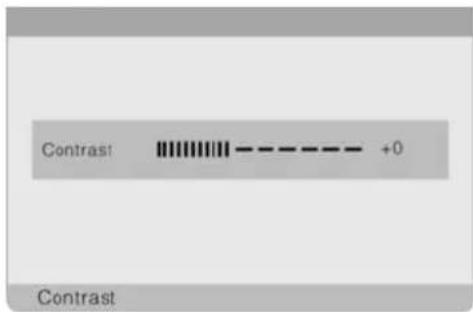
3. Contrast
This item is used to adjust contrast level of the Screen.
Press the ▲ or ▼ button to highlight this item.
Press the ENT or ▶ to enter the item.
Press the ▲ or ▼ button to adjust to desired level.
The default level is 00.
Press the ENT button to confirm your selection.
Preference page
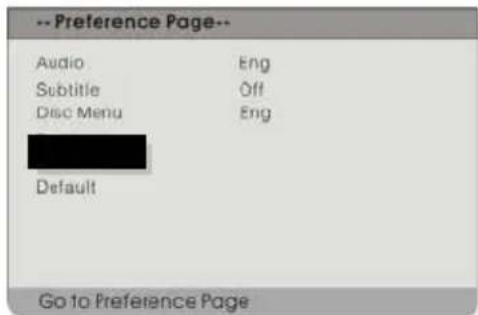
The items included in this sub-menu are Shown as the left.
Note: This sub-title can only appear in the state that no disc is in the DVD drive.
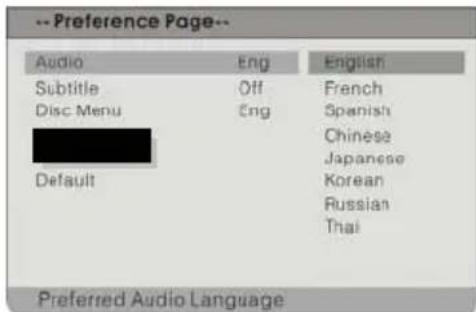
1. Audio
This item is used to set the audio output language.
Press ▲ or ▼ button to highlight this item.
Press the ENT or ▶ button to enter the item.
The available languages are English, French,
Spanish, Chinese, Japanese, Korean, Russian and Thai, English by default.
Press the ▲ or ▼ button to choose the preferred Language.
Press the ENT button to confirm your selection.
Press the ◀ button to exit this item.
System Setup
Preference page (continued)
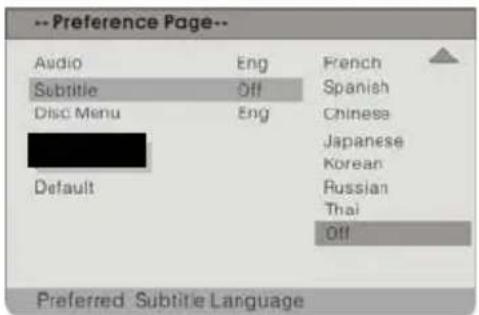
2. Subtitle
This item is used to set the subtitle language.
Press the ▲ or ▼ button to highlight this item.
Press the ENT or ▶ button to enter the item.
The available languages are English, French,
Spanish, Chinese, Japanese, Korean, Russian and Thai, English by default.
Press the ▲ or ▼ button to choose the preferred Language.
Press the ENT button to confirm your selection.
Press the ◀ direction button to exit this item.
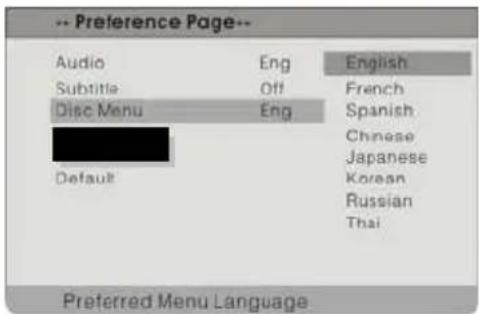
3. Disc Menu
This item is used to set the language of disc menu.
Press the ▲ or ▼ button to highlight this item.
Press the ENT or ▶ button to enter the item.
The available languages are English, French,
Spanish, Chinese, Japanese, Korean, Russian and Thai, English by default.
Press the ▲ or ▼ button to choose the preferred Language.
Press the ENT button to confirm your selection.
Press the ◀ direction button to exit this item.
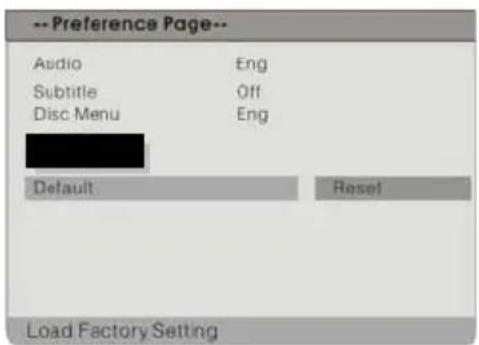
4. Default
This item is used to reset the unit.
Press the ▲ or ▼ button to highlight this item.
Press the ENT or ▶ button to enter this item.
Press the ENT button to reset.
Then all the settings of your unit will return to the original status.
Car Bag
natural_image
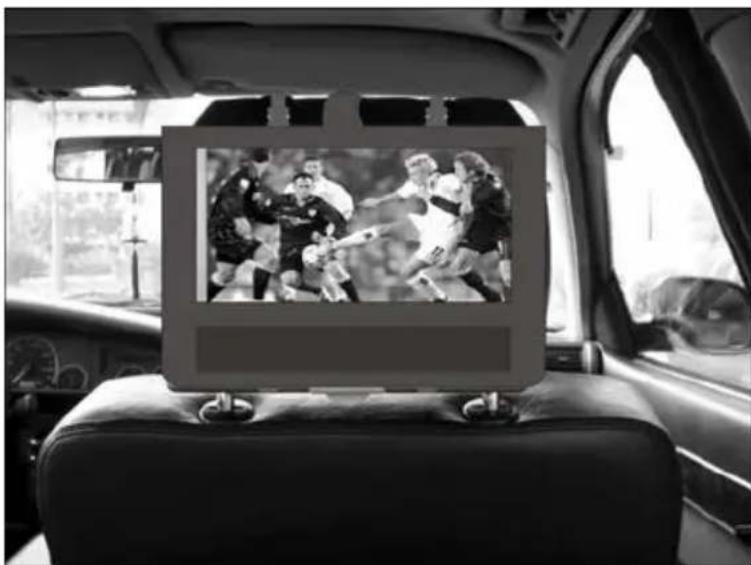
Interior view of a car showing a backseat with a framed picture of soccer players in action (no text or symbols visible)Your Portable DVD Player includes a sturdy carrying bag/headrest mount for the ultimate in portable convenience! The bag/mount is easy to attach and fits on nearly any car or truck headrest (see photo above)
Definitions
Dolby Digital
Dolby Digital is a technology developed by Dolby Laboratories.
Audio tracks encoded in Dolby Digital can reproduce from one to 5.1 discrete channels of excellent quality audio.
Letterbox screen
This refers to a screen on which the playback picture of wide-screen DVDs appears with black bands running along the top and bottom.
Pan & Scan screen
This refers to a screen on which the playback picture of wide-screen DVDs is cut off at the left and right sides.
Title, Chapter (DVD)
DVDs are divided into some large sections (titles) or some small sections (chapters). Each section is numbered: these numbers are called "Title number" or "Chapter number".
| Title 1 | Title 2 |
| Chapter 1 | Chapter 1 |
| Chapter 2 | Chapter 2 |
| ...... | ...... |
Track (CD)
CDs are divided into some sections (tracks). Each section is numbered; these numbers are called "Track numbers".
Track 1 Track 2 Track 3 ....
JPEG
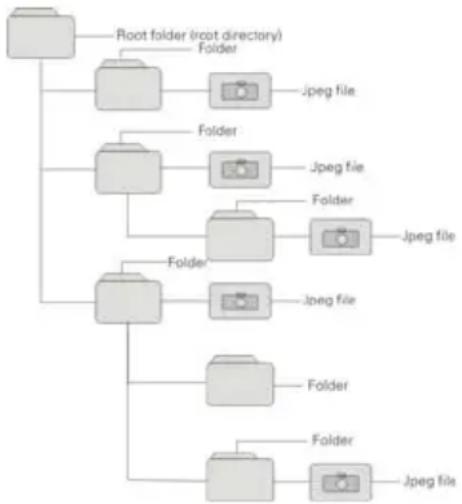
JPEG is a common picture format that has small file size and low quality loss rate of picture. Hundreds of pictures can be stored on a disc in this format. To create a digital photo album from film pictures, have a photo processing shop make a "PICTURE CD" in JPEG format.
The figure on the right displays the root folder, folders and files of a typical picture CD.
flowchart
graph TD
    A["Root folder (root directory)"] --> B["Folder"]
    B --> C["Jpeg file"]
    A --> D["Folder"]
    D --> E["Jpeg file"]
    A --> F["Folder"]
    F --> G["Jpeg file"]
    A --> H["Folder"]
    H --> I["Jpeg file"]
    A --> J["Folder"]
    J --> K["Jpeg file"]
Troubleshooting
If you suspect there is something wrong with the DVD player, immediately turn the power off. Disconnect the power connector and check that there is no smoke or excessive heat coming from the unit.
Never open or try to repair the unit yourself. There are no user serviceable parts inside.
| PROBLEM |
| The player cannot play. |
| POSSIBLE CAUSE | POSSIBLE SOLUTION |
| The disc cover may not be closed. | Close the disc cover. |
| There may not be a disc in the DVD drive. | Put a disc into the DVD drive. |
| The disc may not be put in the right way. | Put the disc in with the label side up. |
| The disc may be dirty or warped. | Clean or change the disc. |
| The player's region code may not be the same as the region code of DVD disc. | Make sure the player's region code is the same as the code of DVD disc. |
| There may be water on the lens. | Remove the disc and shut the player off for at least two hours to dry. |
| The battery may be dead. | Charge the battery or use the AC or car adapter. |
| There is no sound. |
| The system connection may be not correct. | Connect the system correctly. |
| The speaker volume may be turned down. | Turn the volume up with the volume control. |
| The sound setup of the DVD disc may be not correct. | Setup the sound of the DVD correctly. |
| The disc may be dirty or warped. | Clean or change the disc. |
Troubleshooting
PROBLEM
POSSIBLE CAUSE
POSSIBLE SOLUTION
There is no picture.
| The LCD may be off or not be in correct video mode. | Turn on the LCD and choose the correct video mode. |
| The system connection may be not correct. | Connect the system correctly. |
| The unit may not be in DVD mode. | Switch the DVD/AV IN switch to DVD. |
Poor AV performance.
The disc may be dirty or warped.
Clean or change the disc.
Other possibilities:
Static or other external interference may cause the player function abnormally. In order to recover normal status, unplug the power supply cord and then plug it into the outlet again to reset the player. If the problems still exist consult your service center or qualified technician.
Specifications
| TFT screen size 8 inches | ||
| Laser Wavelength 780/650 nm | ||
| Video System NTSC | ||
| Frequency Response | 20Hz~20kHz ±2.5dB | |
| Audio Signal-to-noise Rate | ≥85dB | |
| Audio distortion+noise | ≤-70dB (1kHz) | |
| Channel Separation | ≥70dB (1kHz) | |
| Dynamic Range | ≥80dB (1kHz) | |
| Audio Out Analog Audio | Out | Out Level: 1.5V±0.21, Load: 10KΩ |
| Video Out Video Out | Out Level: 1VP-P±0.1, Load: 75Ω Unbalanced Negative | |
| Power | AC 100-240V ~ 50/60Hz | |
| Power Consumption < 25W | ||
| Dimensions 195mmX149mmX38.5mm (L*W*D) | ||
| Weight About 1.2 kg | ||
| Compliance with FCC, FDA - cUL listed E209155 | ||
DESIGN AND SPECIFICATIONS ARE SUBJECT TO CHANGE WITHOUT NOTICE
Manufactured under license from Dolby Laboratories. "Dolby" and the double-D symbol are trademarks of Dolby Laboratories. Confidential unpublished works. © 1992 -1997 Dolby Laboratories. All rights reserved.
For service, support and warranty information, visit www.polaroidelectronics.com or in the US call 1-866-289-5168, in Canada call 1-866-301-7922 and in Mexico call 01-800-400-2443.
"Polaroid" is a registered trademark of Polaroid Corporation of Waltham, MA USA and licensed for use on the PDM-0822BD to Petters Consumer Brands, LLC.