SportsCam EVH528 - Camcorder Ematic - Free user manual and instructions
Find the device manual for free SportsCam EVH528 Ematic in PDF.


User questions about SportsCam EVH528 Ematic
0 question about this device. Answer the ones you know or ask your own.
Ask a new question about this device
Download the instructions for your Camcorder in PDF format for free! Find your manual SportsCam EVH528 - Ematic and take your electronic device back in hand. On this page are published all the documents necessary for the use of your device. SportsCam EVH528 by Ematic.
USER MANUAL SportsCam EVH528 Ematic
Please read the this user manual before using this video camera for proper and safe operation, and for optimum performance and to extend its service life.
Do not expose the video camera to sunshine directly. Aiming the lens directly into sunshine may damage the sensor.
Do not allow water or sand particles from entering the video camera when it is used on the beach or near water. Water, sand particles, dust or component containing salt may damage the video camera.
◆ Keep the video camera free of dust and chemicals. Place it in a cool, dry, and well ventilated place. Do not place the video camera in a high temperature, moist or dusty place to avoid failure of the video camera.
◆ Be sure to use the video camera regularly during its long time storage. Please check if the video camera can operate normally before use.
If dirt or stains are accumulated on the video camera or on its lens, use a soft, clean and dry rag to wipe it away gently. If the video camera or its lens is stained with sand particles, blow them away gently. Do not use a cloth to wipe arbitrarily. Otherwise, it may scratch the surface of video camera or its lens.
If it is required to clean camera surface, firstly blow away the sand or dust accumulated on the surface. Then wipe the camera gently with a rag or tissue. Please use video camera cleaning agent for wiping if necessary. Do not use organic solvents to clean the video camera.
◆ Do not touch the lens surface with fingers.
◆ Please back up the data if the memory card inside this digital camera is used for the first time. After that, format the memory card of this video camera at one time.
◆ The external SD memory card is made of precision electronic components. The following situations may cause loss or damage of your data:
1. Improper use of the memory card
2. The memory card is bent, dropped or collided.
3. Place it under high temperatures, moist environments or expose it to sunshine directly.
4. Electrostatic or electromagnetic field exists around the memory card.
5. Take out this memory card or interrupt the power supply when this camera or computer is connected to the memory card (i.e. during reading, writing and formatting).
6. Touch the metal contact surface of the memory card with fingers or metal materials.
7. The service life of the memory card expires (please replace the memory card regularly).
Product Introduction
With high-performance chips, this product can produce high-definition video with excellent quality images even under low light conditions, and supports H.264 HD video format.
◆ The video mode supports four modes, i.e. VGA (120FPS), HD (60FPS), HD (30FPS) and FHD (1920x1080
30FPS).
◆ The photo mode supports four sizes, i.e. 12M, 10M, 8M and 5M.
◆ Support high-speed USB2.0
◆ It supports a MicroSD card with a capacity expansion up to 32G.
This product supports video output and live playback functions. Videos can be output to high-definition TVs for playing clear and sharp pictures.
System Requirements
| System Requirements | |
| Operating System | Microsoft Windows2000, XP, Vista, 7 |
| CPU | Intel Pentium III of more than 800MHz or other CPU with equivalent performance |
| Internal Memory | Larger than 512MB |
| Sound Card and Display Card | The sound card and video card shall support DirectX8 or higher version. |
| CD Driver | Speed of 4 times or faster |
| Hard Disk | Free space of more than 500MB |
| Others | One standard USB1.1 or USB2.0 port |
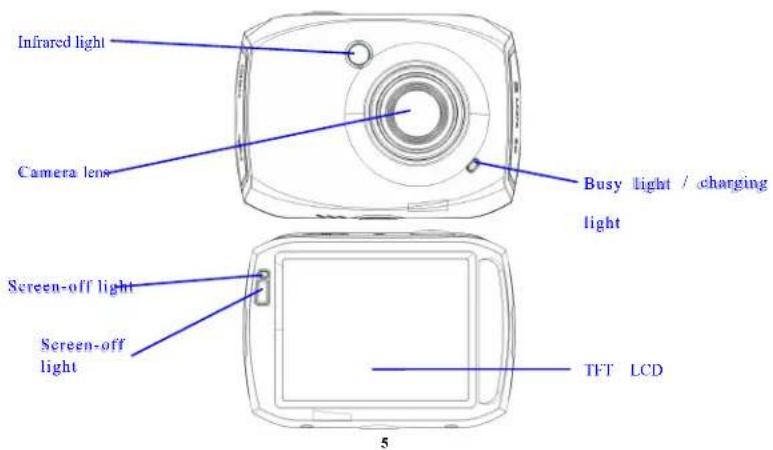
Introduction to Appearance and Keypad
text_image
Infrared light Camera lens Busy light / charging light Screen-off light Screen-off light TFT LCD 5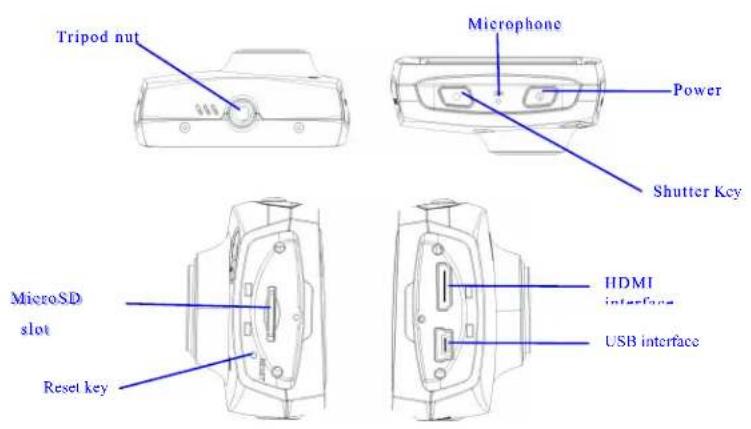
text_image
Tripod nut Microphone Power Shutter Key MicroSD slot Reset key HDMI interface USB interface- Charge the built-in lithium battery
text_image
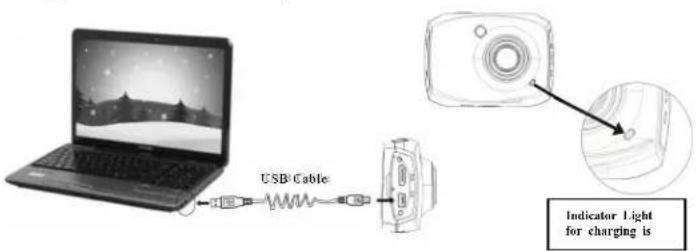
USB Cable Indicator Light for charging isTo charge the camera, connect it to the computer. Then, the charge indicator light (red) will be on. After the camera is fully charged, the charge indicator light will be off. In general, it can be fully charged after 2-4 hours.
2. Use of Memory Card
-
Push the Micro SD card into the card slot according to the concave lettering beside the slot of memory card till it is completely inserted.
-
To take out the Micro SD card, gently press the end of the memory card inward and it will pop up.
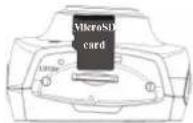
Note: No built-in memory is available in this video camera. Make sure to insert a memory card before using. (We recommend using a MicroSD card higher speed than class 4)
3. Startup/Shutdown
3.1 Startup: Press and hold the POWER button for 2 seconds. The screen of the display is activated and the camera is turned on.
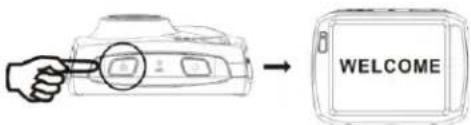
text_image
WELCOME3.2 Shut down: Press the POWER Key once under idle condition, and the camera will be shut down.
3.3 Auto Screen-off: When the idle time of the camera reaches the automatic screen-off time, it will automatically turn off the screen to save power. After turning off the screen, the screen-off light will becon.3.4. Shutdown at low battery level: When the battery capacity drops to a low level, the icon: Z will appear on the LCD display. Please charge the battery timely. When the icon turns red and flickering, the video camera will be shut down automatically.
4. Conversion Between Function Modes
The camera has three modes: video recording mode, photo mode and playback mode. These modes can be switched over by tapping the icon in the upper left corner of the LCD display after startup.
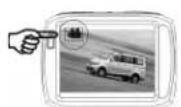
Video recording mode
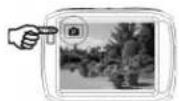
Photo mode
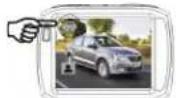
Vehicle mode
Playback mode
5. Indicator light
Busy indicator light (blue): When the camera is working (e.g.: recording videos, shooting pictures, automatic screen-off, etc.), the busy indicator light will blink.
Charging indicator light (red): It indicates the camera is being charged when it is on permanently. After the camera is fully charged, it will be off automatically.
6. Video recording mode
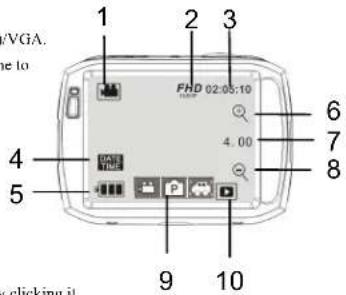
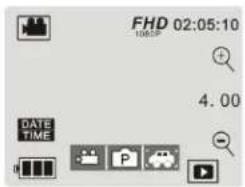
After turning on the DV camera, it will directly get to the video recording mode. You can start recording videos by pressing the shutter button in the preview state. To stop video recording, just press this shutter button again. When the memory card is full or the battery drops to a low level, the camera will also automatically stop video recording:
1 Mode icon: indicating currently in the AVI mode.
2 Video size: available in FHD/HD(60FPS)/HD(30FPS)/VGA.
3 Recording time: indicating the length of remaining time to be recorded.
4 Icon of setting the time and date.
5 Battery icon: indicating the current capacity of the battery.
6 Digital zoom-in icon: to zoom in by clicking it.
7 Digital zoom magnification (x).
8 Digital zoom-out icon: to recover by clicking it.
9 Menu icon: to be activated by clicking other icons.
10 Playback icon: to activate the corresponding menu by clicking it.
text_image
1 2 3 FND 02:05:10 4 5 6 7 8 9 107. Photo mode:
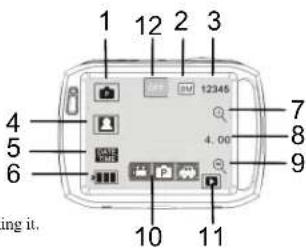
After turning on the DV camera, it will directly get to the video recording mode. To switch to the photo mode, click the mode icon in the upper left corner of the LCD display. You can shoot a photo by pressing the shutter button in the preview state.
1 Mode icon: indicating currently in the photo mode.
2 Photo size: available in 5M/8M/10M/12M.
3 Counter: Indicating the number of photos to be taken.
4 Indicating the face detection function is activated.
5 Icon for setting the time and date.
6 Battery icon: indicating the current capacity of the battery.
7 Digital zoom-in icon: to zoom in by clicking it.
8 Digital zoom magnification (x).
9 Digital zoom-out icon: to recover by clicking it.
10 Menu icon: to be activated by clicking other icons.
11 Playback icon: to activate the corresponding menu by clicking it.
12 Photo mode: (Normal/10s Self-Timer/Triple Sequence)
text_image
1 12 2 3 4 7 5 8 6 9 10 11 ing it.8. Vehicle mode:
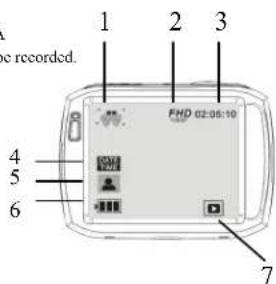
1 Mode icon: indicating currently in the vehicle mode.
2 Video size: available in FHD/HD(60FPS)/HD(30FPS)/VGA
3 Recording time: indicating the length of remaining time to be recorded.
4 Icon of setting time and date.
5 click this icon, the camera can be flipped 180 degrees to take video normally.
6 Battery icon: indicating the current capacity of the battery.
7 Playback icon: to activate the corresponding menu by clicking it.
text_image
1 2 3 e recorded. FHD 02:08:10 4 5 6 7Note:

click this icon, the camera can be flipped 180 degrees to take video normally, click again to
recover it. This feature is available only in vehicle mode.
9. Playback mode:
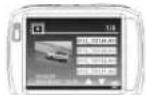
9.1 After turning on the camera and enabling the Preview state, press the Playback icon ( ) in the lower right corner of the LCD display to activate the menu ( ). Tap the /to switch to the file list mode. Then you can playback video clips by clicking a file name in the list.
text_image
FHD 02:05:10 10:35P 4.00 DATE TIME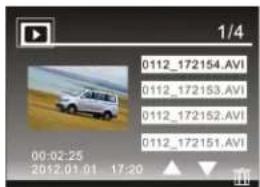
text_image
1/4 0112_172154.AVI 0112_172153.AVI 0112_172152.AVI 0112_172151.AVI 00:02:25 2012.01.01 17:20
Indicate normal video files Indicate vehicle video files Indicate photo files
9.2 Playback movie clips:
natural_image
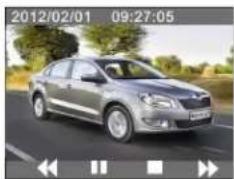
Silver sedan driving on a road with greenery and trees in the background (no visible text or symbols)In the playback mode, lap ☐ to pause. After selecting the fast playback function ☐, click it ☐ to fast rewind. Click STOP ☐ to exit the playback mode to return to the list mode.
9.3 Playback photos:
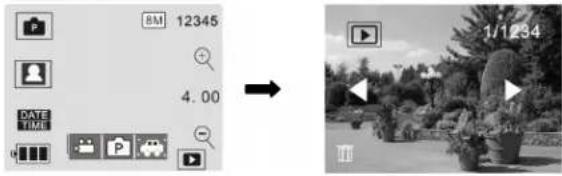
After turning on the camera and enabling the Preview state, press the Playback icon (☐) in the lower right corner of the LCD display to activate the menu (☐). Click the ☐ to switch to the photo playback mode. Then you can view photos by clicking the icon "◀" or "▶".
text_image
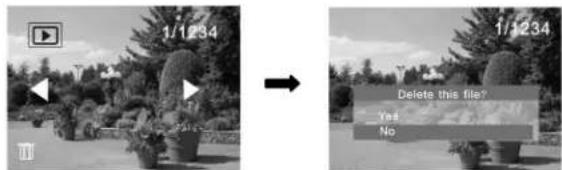
8M 12345 4.00 DATE TIME 1/1/2349.4 File deletion:
After clicking the Delete File icon

en will appear as shown in the right figure:
text_image
1/1234 1/1234 Delete this file? Yes NoClick YES to delete the current file immediately, or click NO to cancel the deletion operation.
Connecting the camera to a high-definition TV:
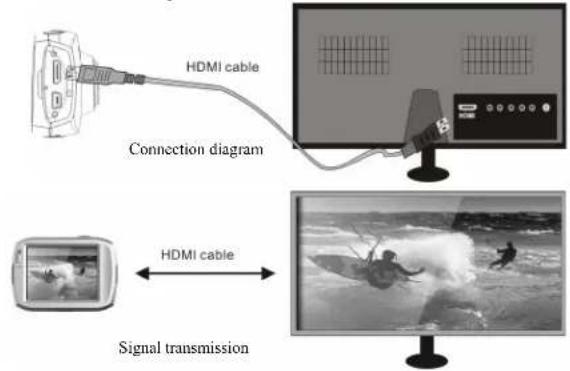
Connect the camera to a high-definition TV with a HD cable (as shown below). Then video signals from the camera will be automatically output to the high-definition TV, and you can enjoy HD videos and photos that you have recorded on the high-definition TV.
text_image
HDMI cable Connection diagram HDMI cable Signal transmissionConnect the camera to a PC
The camera is provided with the plug and play function. Connect the device to the computer with USB line under turning-on state, then it will be switched into the movable hard disk mode.
Icon of movable disk will appear on the window of "my computer". The photos you have taken can be saved in the removable disk under the file folder L3jpg ("l" is the removable disk of the camera). Your video files will be saved under the folder of L3video. Note: if movable disk function is used in windows 2000 or windows operating system with a higher edition, it is unnecessary to install drivers.
Application of remote control:
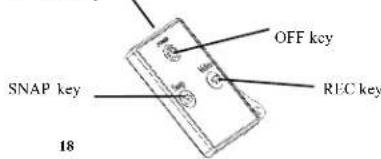
1 Keys of remote control
The keys on the remote control are shown in the right figure
Signal transmission port
text_image
OFF key SNAP key REC key 182 Use of remote control:
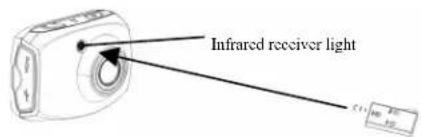
Using the remote control will help you start video recording, shoot photos and turn off the camera without operating the camera itself. While using the remote control, place its signal transmitter port toward the infrared signal receiver light of the camera. Then you can record videos, take photos or shut down the camera by pressing the corresponding buttons.
text_image
Infrared receiver light C10 100-100Waterproof Case Using Notice
Before scaling the waterproof case, keep the camera housing's rubber seal clean, a single hair or grain of sand can cause a leak. You can test by closing the case without inserting the camera. Submerse the case completely in water for about a minute. Remove the case from the water, dry off its exterior with a towel, then open the case. If the entire interior is dry, the case is safe for use under water.
Remember to put the Mode Switch in your desired recording position before inserting the camera in the waterproof case. There is no external button for the Mode Switch.
◆ After every use in salt water you will need to rinse the outside of the housing with non-salt water and dry. Not doing this can eventually cause corrosion of the hinge pin and salt buildup in the seal, which can cause failure.
◆ To clean the seal, rinse in fresh water and shake dry (drying with a cloth may cause lint to compromise the seal). Re-install the seal into the grooves in the backdoor of the housing.
Technical parameters
| Image scnsor | 5M pixels (CMOS) |
| Function mode | Video recording, photo, removable disk |
| Camera lens | F3.1 f=2.9mm |
| Digital zooming | 4X |
| Shutter | Electronic shutter |
| LCD display screen | 2.4-inch touch screen |
| Image resolution | 12M (4000 × 3000), 10M (3648x2736), 8 M (3264x2448), 5M (2560×1920) |
| Video resolution | VGA: 640x480 (120 frames / sec), HD: 1280x720 (60 frames/sec.) HD: 1280x720 (30 frames/sec), F1ID: 1920x1080 (30 frames/sec.) |
| White balance | Automatic |
| Exposure | Automatic |
| File formats | Vidco | AVI |
| Photo | JPEG | |
| Storage medium | MicroSD card (Supporting up to 32GB),( without build-in flash memory) | |
| USB interface | High-speed USB 2.0 interface | |
| Power Supply | Built-in 3.7V rechargeable lithium | |
| Dimension (length × width × height) | 74*52*33mm | |
| Weight | Approx. 72g | |
Standard packaging
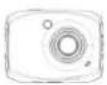
Camera

User manual
USB cable

Remote control
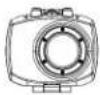
waterproof case