
HR-S101 - Hi-Fi TEAC - Free user manual and instructions
Find the device manual for free HR-S101 TEAC in PDF.


User questions about HR-S101 TEAC
0 question about this device. Answer the ones you know or ask your own.
Ask a new question about this device
Download the instructions for your Hi-Fi in PDF format for free! Find your manual HR-S101 - TEAC and take your electronic device back in hand. On this page are published all the documents necessary for the use of your device. HR-S101 by TEAC.
USER MANUAL HR-S101 TEAC
TEAC HR Audio Player
Music Playback Software for TEAC USB AUDIO DAC Devices
OWNER'S MANUAL
ASIO
Table of contents
Overview....3
Anyone can easily enjoy high-quality audio file playback....3
Supported models and operating systems....3
Features....4
Easy music playback with high audio quality
using supported TEAC equipment....4
Simple screen design reduces CPU load
and contributes to higher sound quality 4
Other features....4
Making settings in Windows....5
Installing the software....5
Starting the software 6
Setting up the USB DAC device....6
Enabling playback with even higher audio quality ....7
Selecting the DSD decode mode....7
Selecting the data loading method....7
Making settings in Mac OS....8
Installing the software....8
Starting the software 9
Deleting the software....9
Setting up the USB DAC device....9
Enabling playback with even higher audio quality .....10
Selecting the DSD decode mode....10
Selecting the data loading method....10
Making settings 11
Preparing audio files....11
Playing back audio files....12
Managing playlists 13
Saving playlists....13
Loading playlists 13
Software update history 14
Windows version....14
Mac version 15
"DSD" is a registered trademark. "Direct Stream Digital", DSD and their logos are trademarks of Sony Corporation.
ASIO is a trademark and software of Steinberg Media Technologies GmbH.
Microsoft, Windows and Windows Vista are either registered trademarks or trademarks of Microsoft Corporation in the United States and/or other countries.
Apple, Macintosh, Mac and Mac OS are trademarks of Apple Inc., registered in the U.S. and other countries. Other company names and product names in this document are the trademarks or registered trademarks of their respective owners.
Other company names, product names and logos in this document are the trademarks or registered trademarks of their respective owners.
Anyone can easily enjoy high-quality audio file playback
This Windows/Mac application supports playback of 11.2MHz DSD and 384kHz PCM audio files.
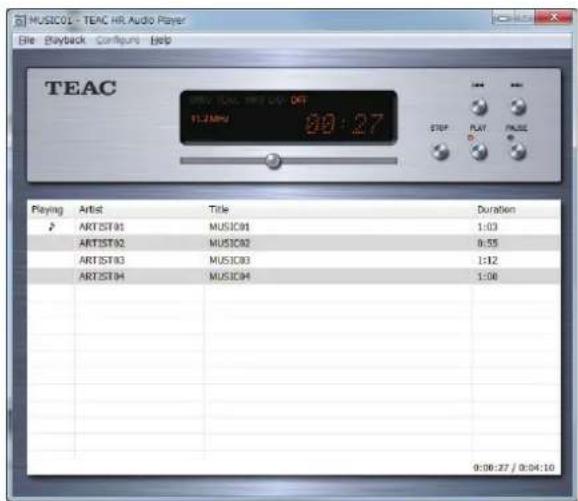
TEAC HR Audio Player, which is available for both Windows and Mac operating systems, is a high-quality audio playback application that can handle high-resolution audio files. You will be able to enjoy the playback of high-resolution audio files, including DSD, at high audio quality without a complicated setup by using this application in combination with a TEAC UD-503 or another TEAC D/A converter with USB that supports such files.
While many previous DSD playback applications have been specialized, requiring a high level of understanding and complicated setups in order to play back high-quality audio, the TEAC HR Audio Player allows you to complete a high-quality audio playback environment by simply installing the application and selecting the connected device. After doing this, you will be able to play back high-resolution files with high audio quality by simply dragging and dropping the music files into order in the player.
In addition to providing a playback environment for high-resolution files with little difficulty, this application has also been designed to maximize the potential of supported devices with high-quality audio playback. Simplifying the application screen and reducing CPU load contribute to enabling even smoother playback.
DoP format and DSD native playback are supported for DSD files.* Each listener can set the playback method according to personal preference.
For listeners that desire even better audio quality, the included RAM buffer playback function prevents the degradation of audio quality due to fluctuations in CPU load by loading the data temporarily into the computer's memory.
TEAC HR Audio Player is a free audio playback application for use with TEAC USB DAC devices. This free software allows anyone to easily enjoy the high-quality audio provided by high-resolution file playback.
*DSD file playback is limited to models that support it.
See the Owner's Manual for the device that you are using for information about the playback methods and file formats that it supports.
Supported models and operating systems
(as of May 2015)
Devices that support PCM playback
AI-501DA, HA-P50, UD-H01, A-H01, NP-H750, AI-101DA
●DSD file playback is not supported.
Supported operating systems
Windows: Windows Vista (32/64-bit)
Windows 7 (32/64-bit)
Windows 8 (32/64-bit)
Windows 8.1 (32/64-bit)
Mac OS: OS X Lion (10.7)
OS X Mountain Lion (10.8)
OS X Mavericks (10.9)
OS X Yosemite (10.10)
Devices that support PCM/DSD playback
HA-P90SD, UD-503\*, UD-501, UD-301, AI-301DA
Supported operating systems
Windows: Windows Vista (32/64-bit)
Windows 7 (32/64-bit)
Windows 8 (32/64-bit)
Windows 8.1 (32/64-bit)
Mac OS: OS X Lion (10.7)
OS X Mountain Lion (10.8)
OS X Mavericks (10.9)
OS X Yosemite (10.10)
●The HA-P90SD does not support Windows Vista.
- For information about the operating systems that each product supports, see their operation manuals and our website.
*Supports 11.2MHz DSD native playback.
Easy music playback with high audio quality using supported TEAC equipment
Anyone will be able to enjoy the playback of high-resolution audio files simply by installing this application and using it with a UD-503 or another TEAC USB DAC device. Unlike specialized applications, this application uses very simple settings and does not require other plug-ins, for example, to be installed.


11.2MHz DSD native playback is supported for units capable of it on both Windows and Mac operating systems
When using Windows or Mac with a UD-503 or another device that can handle 11.2MHz DSD, DSD native playback, which converts DSD directly to analog without conversion to a PCM format, is supported.
- Select DSD native format when playing 11.2MHz DSD files.
2.8/5.6MHz DSD file playback in native format or using DoP is possible with devices that support 5.6MHz DSD
When using Windows with a UD-503 or another device that can handle DSD playback, DSD native playback, which converts DSD directly to analog without conversion to a PCM format, is supported. Playback using DoP (DSD Audio over PCM Frames) is also possible, and both 2.8MHz and 5.6MHz DSD files are supported.
DSD file playback also supported on Mac OS X
DSD file playback using DoP is also supported on the Mac OS with a UD-503 or another device that can handle DSD playback. You can create a stylish listening set up using a Mac and a UD-503.
Playback also supported for various other high-resolution file formats
In addition to 2.8MHz and 5.6MHz DSD files, playback of PCM files is supported for resolutions up to 384 kHz. Furthermore, the playback of FLAC files with resolutions up to 384 kHz is also supported.
Supported file formats
DSF (.dsf) 2.8/5.6/11.2 MHz
DSDIFF (.dff) 2.8/5.6/11.2 MHz
PCM (.wav) 44.1 kHz - 384 kHz, 16 bit - 32 bit
FLAC (.flac) 44.1 kHz - 384 kHz, 16 bit - 32 bit
MP3 (.mp3) 32 kbps - 320 kbps
●DSD file playback is limited to models that support it.
A file cannot be played back if it exceeds the supported format specifications of the equipment.
For details, see the operation manual for the model being used.
Simple screen design reduces CPU load and contributes to higher sound quality
Not only does this unit make it easy to enjoy high-resolution file playback, it also provides high-quality audio output. The application screen is designed to be used in combination with an audio device without impeding audio quality. The simple screen design reduces the CPU load, enabling the computer to focus resources on higher audio quality. For listeners that desire even better audio quality, the RAM buffer playback loads the data temporarily into the computer's memory before playback to enable playback with even higher audio quality.
Other features
●Playlists can be created, saved and loaded
- Repeat playback function for playlists and single tracks
●Shuffle playback function for playlists
(This function is only available with devices that support it.)
Installing the software
1 Uncompress the downloaded file.
2 Double-click "Setup TEAC HR Audio Player.exe" to start the installation wizard.
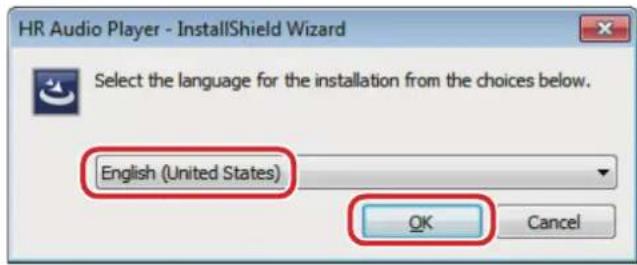
3 Select the language to use during installation and click the "OK" button.
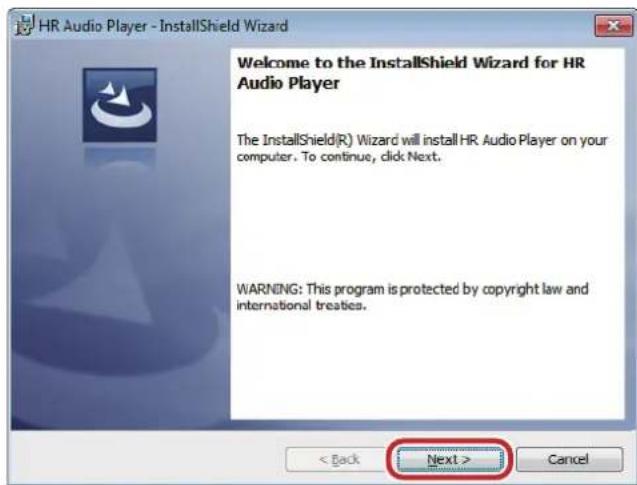
4 Click the "Next" button.
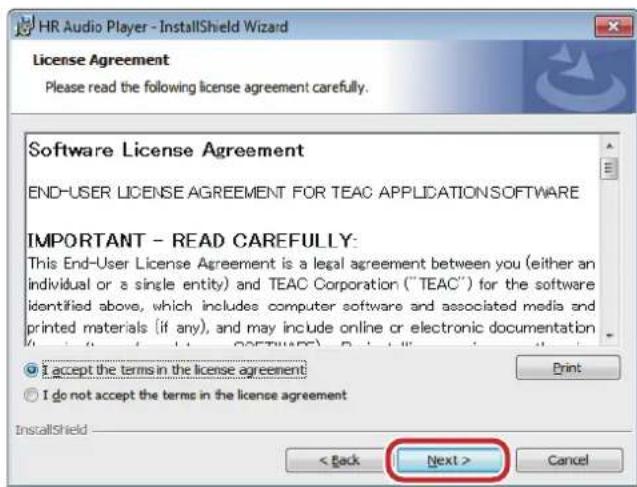
5 Check the contents of the Software License Agreement, select "I accept the terms in the license agreement" and click the "Next" button.
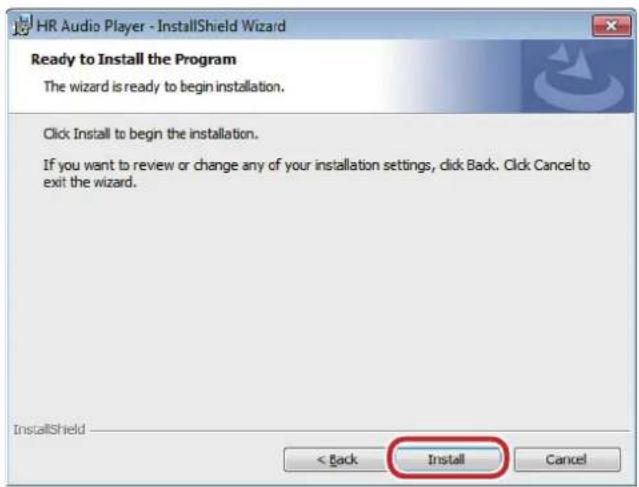
6 Click "Install".
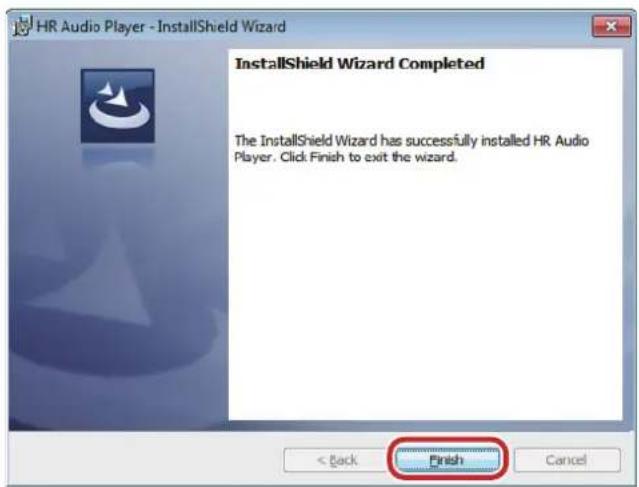
7 When the wizard completion screen appears, click "Finish" to complete installation.
Starting the software
Start this software after connecting the USB DAC device.
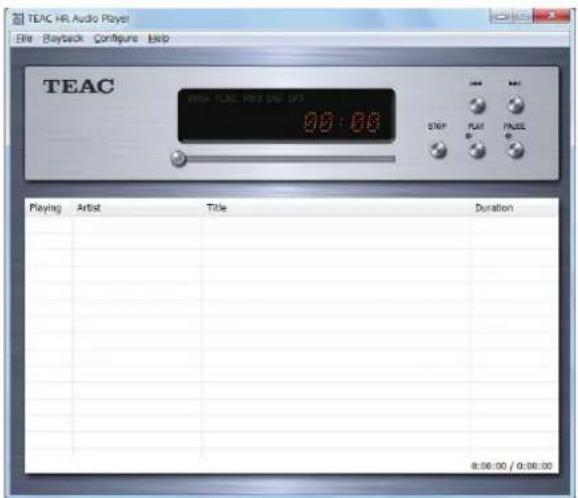
The main screen appears when TEAC HR Audio Player is launched.
Setting up the USB DAC device
Select [Device] from the [Configure] menu.
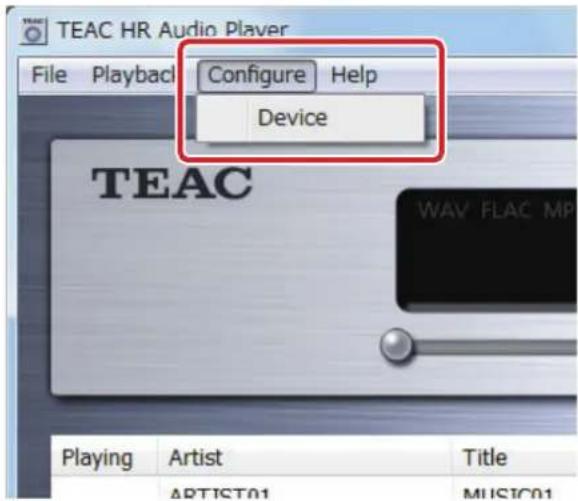
When the Configure window opens, set the Device item to the connected USB DAC (device name, etc.).
![Configure Device TEAC/ASJO USB DRIVER Decode mode ○ DSO over PCM ○ DSD Native Audio Data Handling ● Normal ○ Expand to RAM [Need more memory] OK Cancel](/content/2026/05/816764/images/1e0e6e35fea004e64b59448160f5b8aad26ac1a7f456bbaf5cd677695249ddcb.jpg)
This enables TEAC HR Audio Player to output audio from the USB DAC.
- If this software is started before the USB DAC device, the device settings might be erased.
If this occurs, after connecting the device, start the software and then set up the device again.
Enabling playback with even higher audio quality
Selecting the DSD decode mode
With the TEAC HR Audio Player, you can choose the playback format.
Select [Device] from the [Configure] menu to open the [Configure] window.
Set the [Decode mode] item to [DSD over PCM] or [DSD Native], as you prefer.
ATTENTION
●To play 11.2MHz DSD files when a UD-503 or another device that supports DSD native playback is connected, select "DSD Native".
- When a device that does not support DSD native playback is connected, "DSD Native" can be selected and 11.2MHz DSD files can be played, but no sound will be output from the connected device.
![Configure Device TEAC ASIO USB DRIVER Decode mode • DSD over PCM • DSD Native Audio Data Handling • Normal • Expand to RAM [Need more memory] OK Cancel](/content/2026/05/816764/images/1a118708fb07d18f875e72210a0bd5f54060cf37e95de228e2cdb840fcaea1ef.jpg)
DSD over PCM
Using the DoP (DSD Audio over PCM Frames) playback method, the DSD signal is embedded into an ordinary PCM format signal for transfer.
- DoP is not compatible with 11.2MHz DSD file playback.
DSD Native
Using the ASIO 2.1 driver, the DSD data is transferred directly without PCM conversion or other change.
Selecting the data loading method
You can set how files are accessed for playback.
Select [Device] from the [Configure] menu to open the [Configure] window.
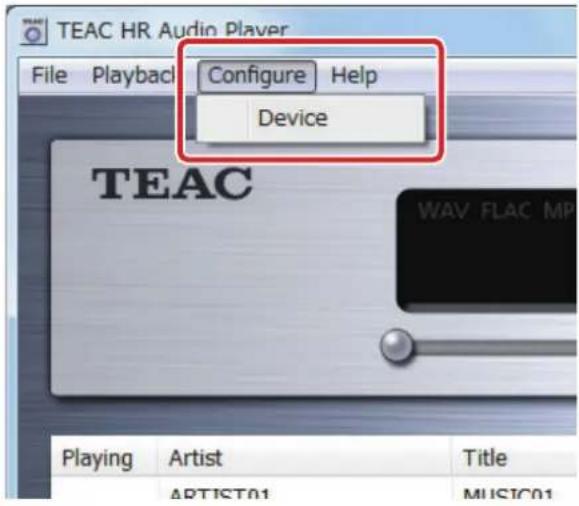
Set the [Audio Data Handling] item to [Normal] or [Expand to RAM]. For playback with even higher audio quality, select [Expand to RAM].
![Configure Device TEAC ASIO USB DRIVER Decode mode • DSD over PCM ○ DSD Native Audio Data Handling • Normal ○ Expand to RAM [Need more memory] OK Cancel](/content/2026/05/816764/images/fa353dc4a25d00589683e0323d7f4928c20c2e32fcf93b23e0cb29600f660022.jpg)
Normal
Data is loaded in the same manner as ordinary file access.
Expand to RAM
The file to be played back is loaded into RAM once before playback. Playback can be made more stable because loading does not occur at the same time, and this enables playback with higher audio quality.
- When [Expand to RAM] is selected, it may take some time to start playback if the processing speed of the computer is slow.
Installing the software
1 Uncompress the downloaded file.
2 Double-click "Setup TEAC HR Audio Player.pkg" to start the installer.

Setup TEAC HR Audio Player.pkg
3 Click the "Continue" button.
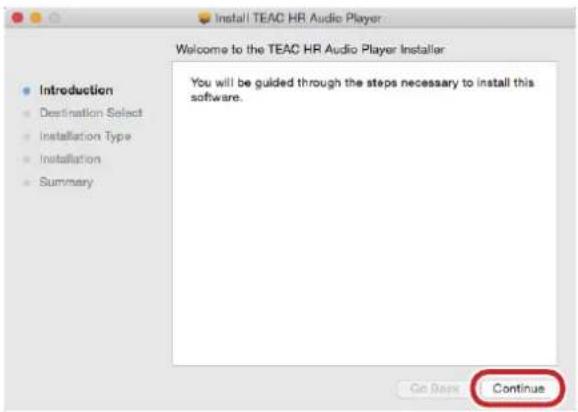
4 Select the hard disk where the software will be installed, and click the "Continue" button.
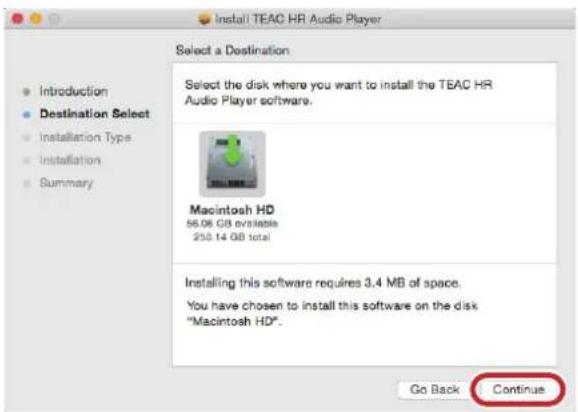
5 Confirm that the hard disk selected for software installation has enough open space, and click the "Install" button.
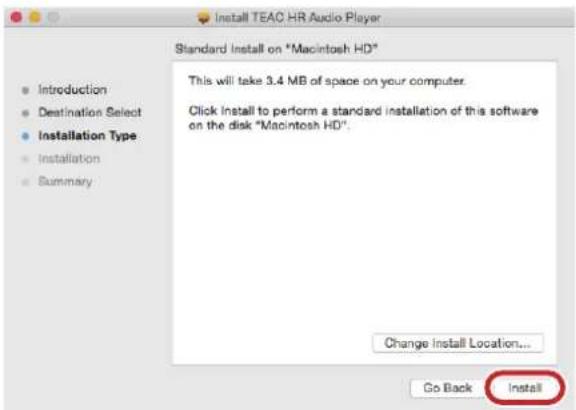
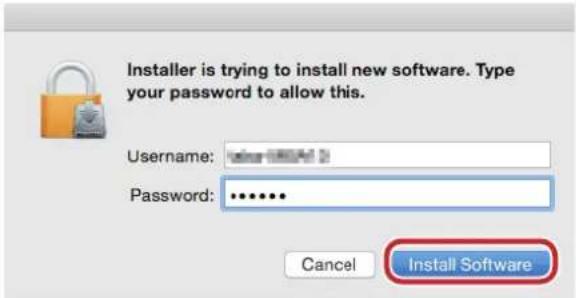
An administrator account and password must be input to install the software.
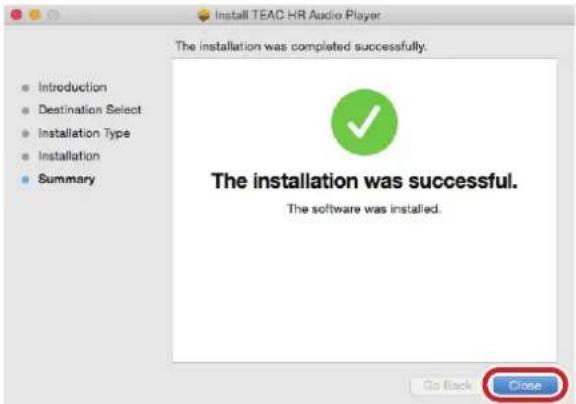
6 When "The installation was successful." appears, click the "Close" button to quit the installer.
Starting the software
Double-click the TEAC HR Audio Player icon inside the Applications folder to launch it.
NOTE: Start this software after connecting the USB DAC device.
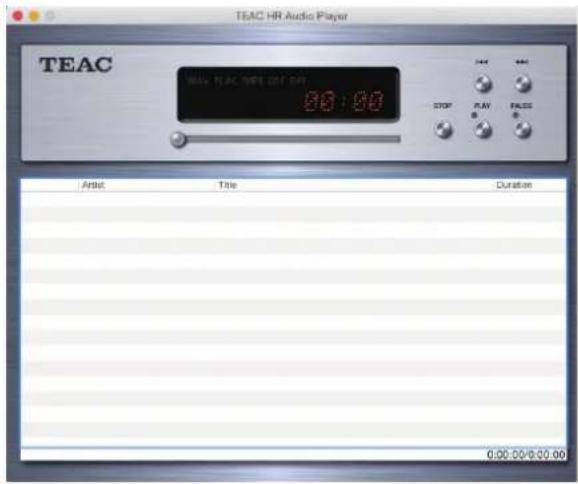
The main screen appears when TEAC HR Audio Player is launched.
Deleting the software
If you want to delete the TEAC HR Audio Player software, delete the TEAC HR Audio Player icon inside the Applications folder.
Setting up the USB DAC device
Select "Preferences..." from the "TEAC HR Audio Player" menu.
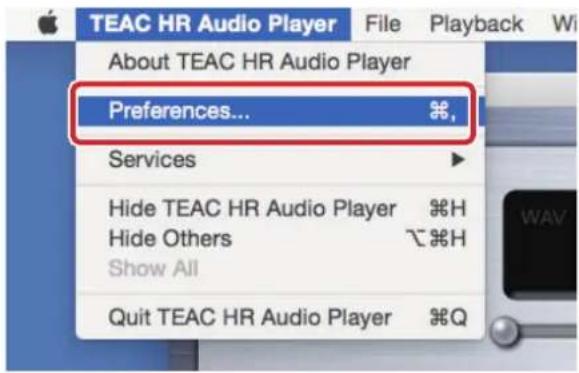
When the Preference window opens, set the Device item to the connected USB DAC (device name, etc.).
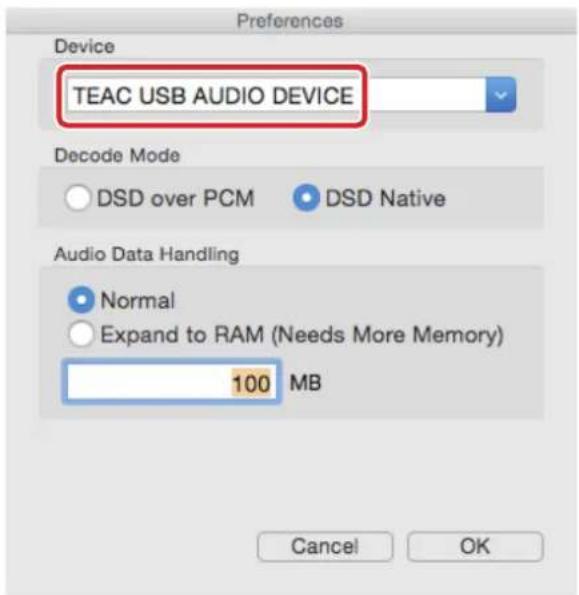
This enables TEAC HR Audio Player to output audio from the USB DAC.
- If this software is started before the USB DAC device, the device settings might be erased.
If this occurs, after connecting the device, start the software and then set up the device again.
Enabling playback with even higher audio quality
Selecting the DSD decode mode
With the TEAC HR Audio Player, you can choose the playback format.
Select [Preferences...] from the [TEAC HR Audio Player] menu to open the Preferences window.
Set the [Decode mode] item to [DSD over PCM] or [DSD Native], as you prefer.
ATTENTION
- Select "DSD Native" to play 11.2MHz DSD files when a UD-503 or another device that supports DSD native playback is connected. Playback is possible when "DSD over PCM" is selected, but no sound will be output from the connected device.
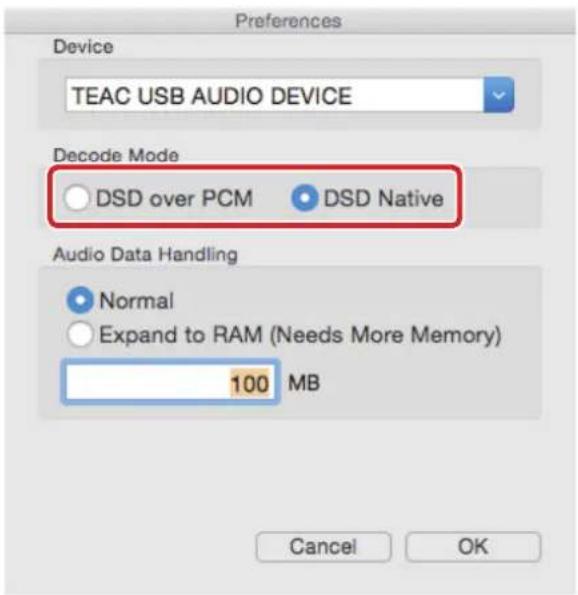
DSD over PCM
Using the DoP (DSD Audio over PCM Frames) playback method, the DSD signal is embedded into an ordinary PCM format signal for transfer.
- DoP is not compatible with 11.2MHz DSD file playback.
DSD Native
The DSD data is transferred directly without PCM conversion or other change.
Selecting the data loading method
You can set how files are accessed for playback.
Select [Preferences...] from the [TEAC HR Audio Player] menu to open the Preferences window.
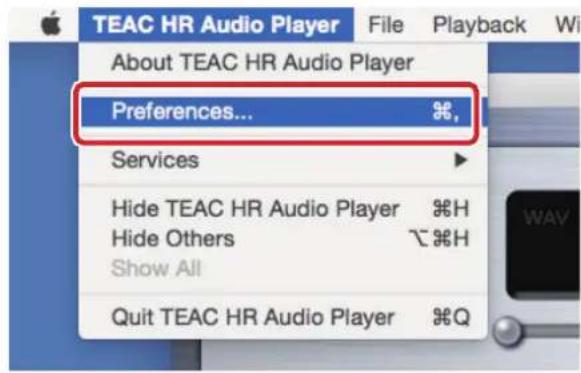
Set the [Audio Data Handling] item to [Normal] or [Expand to RAM]. For playback with even higher audio quality, select [Expand to RAM].
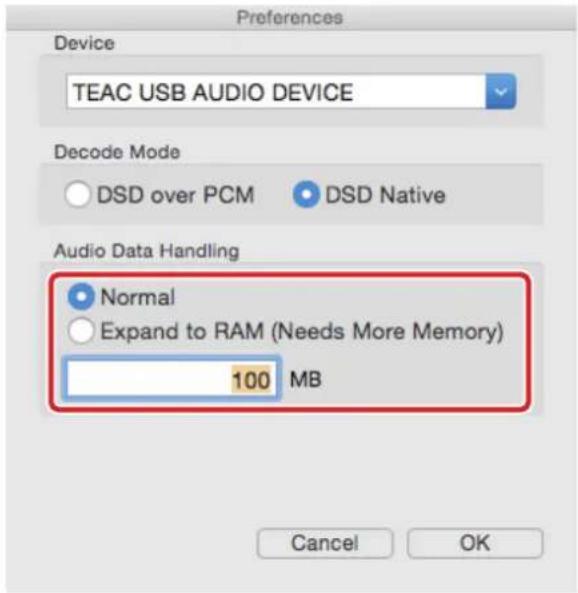
Normal
Data is loaded in the same manner as ordinary file access.
Expand to RAM
The file to be played back is loaded into RAM once before playback. Playback can be made more stable because loading does not occur at the same time, and this enables playback with higher audio quality. When [Expand to RAM] is selected, you can set the maximum amount of memory to be used with this function. Set the amount of memory used to load audio files according to the formats of the files that you play back often.
- When [Expand to RAM] is selected, it may take some time to start playback if the processing speed of the computer is slow.
Settings are made in the same way for both the Windows and Mac OS versions.
In this manual, we explain these procedures using the Windows version.
Preparing audio files
Prepare the audio files that you want for playback using TEAC HR Audio Player.
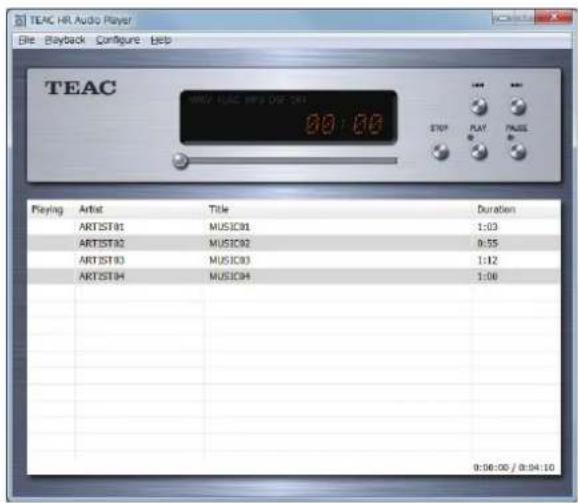
The playlist appears in the lower part of the main window. First, add the tracks that you want to play to the playlist.
- You can also add files on the computer by dragging and dropping them here.
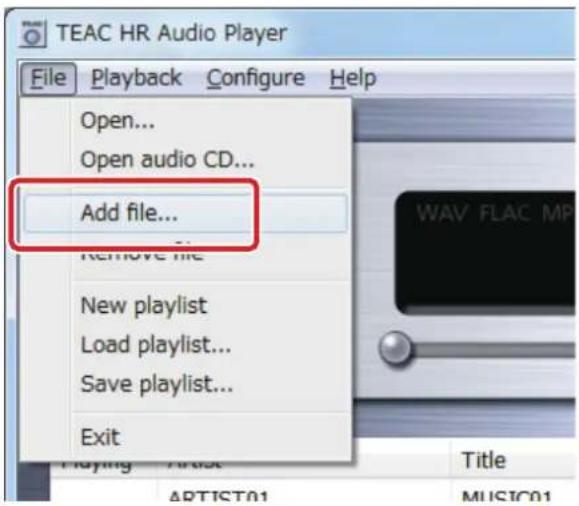
Select [Add file...] from the [File] menu at the top-left of the main screen to open the [Add file] window.
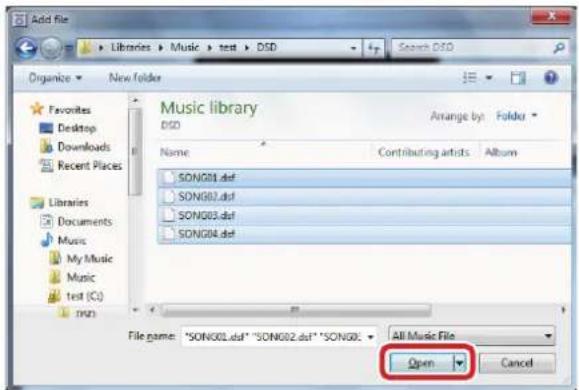
Select the desired file in the window and then click the [Open] button to add it to TEAC HR Audio Player.
During selection, you can also select multiple files and then click the [Open] button to add them all at once.
Playing back audio files
After creating a playlist, click the [PLAY] button to start playback from the beginning of the list.
Click the [STOP] button to stop playback or the [PAUSE] button to pause playback.
After stopping playback with the [STOP] button, press the [PLAY] button again to start playback from the beginning of the file where playback was stopped.
To start playback of a specific file, double-click that file's line in the list.
During playback, you can use the mouse to move the slider below the time display to change the playback position as desired.
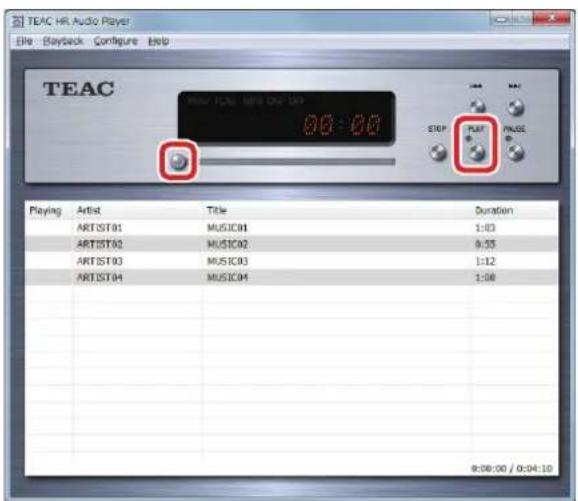
You can also control playback from the Playback menu on the main screen.
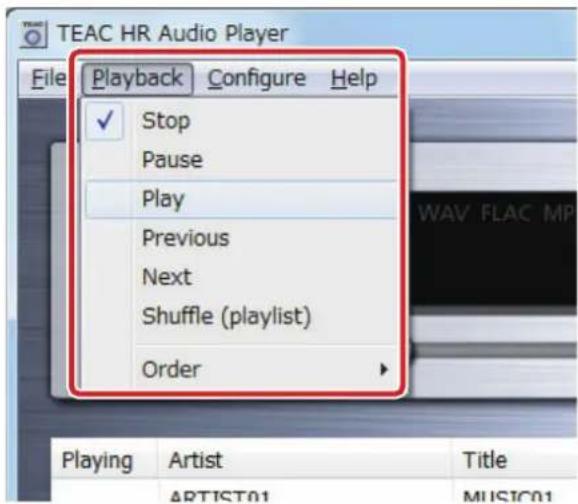
Stop
Stops the file that is currently playing. This has the same function as the [STOP] button.
Pause
Pauses the file that is currently playing. This has the same function as the [PAUSE] button.
Play
Start playback. This has the same function as the [PLAY] button.
Previous
Skips to the previous track (one above the current track in the playlist).
Next
Skips to the next track (one below the current track in the playlist).
Shuffle (playlist)
Starts shuffle (random) playback of the tracks in the playlist.
Order
Use this submenu to set the type of repeat playback.
Order > Default
Playback does not repeat.
Order > Repeat (playlist)
The playlist tracks are played back repeatedly.
Order > Repeat (title)
Only the currently selected track is played back repeatedly.
Managing playlists
Tracks that have been added to the playlist can be saved as a playlist. This function is convenient for creating playlists of tracks that you play frequently.
- If you do not save a playlist, it will be cleared when you quit TEAC HR Audio Player.
Saving playlists
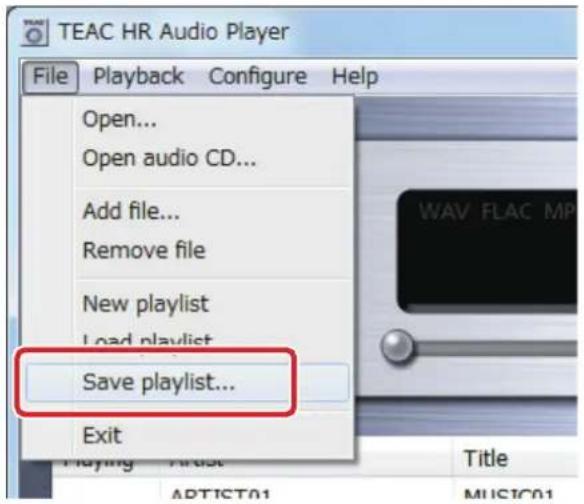
After adding the desired tracks to the playlist, select [Save playlist...] from the [File] menu. When the [Save playlist] window opens, choose the desired location and click the [Save] button to save the playlist.
Loading playlists
Immediately after TEAC HR Audio Player is launched, no tracks appear in the playlist. By loading a previously saved playlist you can conveniently prepare for playback. You can also load another playlist when a playlist has already been created (tracks have been added). Creating multiple playlists according to genres and audio file formats can make playback more convenient.
Select [Load playlist...] from the [File] menu.
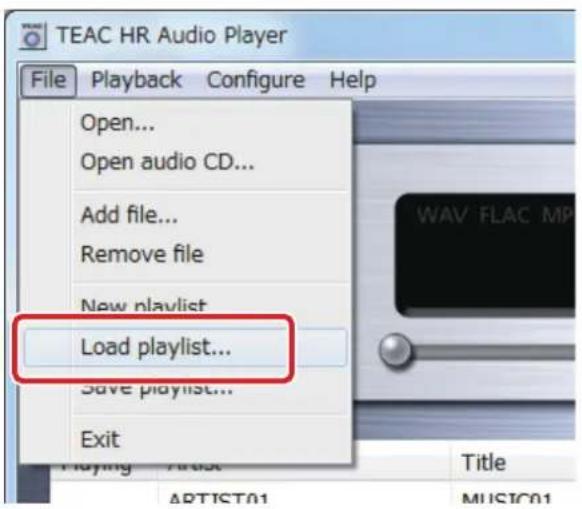
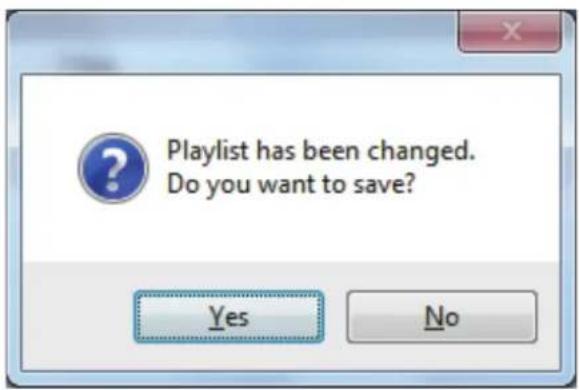
If a playlist has already been created (tracks added), the following window will open.
Click [Yes] to save this playlist. Click [No] to not save this playlist.
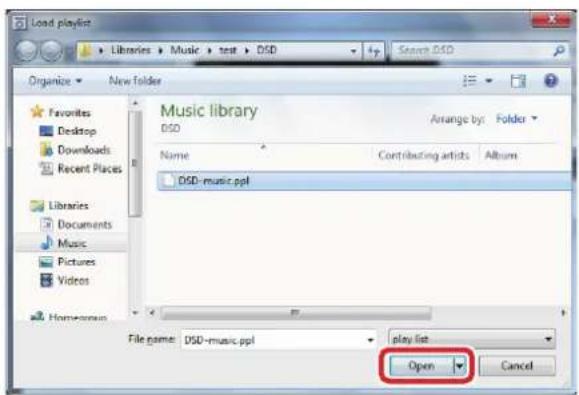
When the [Load playlist] window opens, select the desired playlist (".ppl" extension on Windows or ".xml" extension on Mac OS) from where it is saved, and click the [Open] button to load it.
Windows version
Version 1.0.0.12
●An installer is now used.
●The UD-503 is now supported.
●11.2MHz DSD files are now supported.
- MP3 files with artwork did not play properly sometimes. This has been fixed.
Version 1.0.0.10
●Noise occurred when resuming playback from a paused state. This has been fixed.
Version 1.0.0.9
●Support has been added for the HR-S101 amplifier (Al-101DA).
●Support has been added for the HA-P90SD.
Version 1.0.0.8
●Support has been added for the UD-301, AI-301DA and HA-P50 models.
- Support has been added for some MP3 files that could not be played back before.
- Support was added for the latest USB driver (version 1.1.2.2) for models that do not support DSD file playback.
Use TEAC HR Audio Player version 1.0.0.8 when using USB driver version 1.1.2.2 or newer.
- When playing back using EXPAND to RAM mode, the maximum amount of memory that can be used has been increased. This allows more data to be loaded when playing back highquality audio with a computer that has a large amount of RAM.
●Windows 8.1 is now supported.
Version 1.0.0.5
- Track titles and artist names in WAV files that have been set using UTF-8 (Unicode) character encoding can now be shown properly.
- If the tag information (track title and artist name) of a file in a playlist included a double quotation mark ("") character, that file would be removed from the playlist during saving. This has been fixed. This fix applies to new playlists created using version 1.0.0.5 or later.
Version 1.0.0.4
- When using DFS files, the software would fail to detect song title and artist name information resulting in only the file name being shown in the playlist. This has been fixed. (This problem occurred when the amount of character data for an information item exceeded 127 bytes.)
Version 1.0.0.3
●The NP-H750 is now supported.
- If a USB connection was ended and then reconnected while the TEAC HR Audio Player was still operating (playback stopped), Windows would freeze. This has been fixed.
Mac version
Version 1.0.0.5
●An installer is now used.
●The UD-503 is now supported.
●11.2MHz DSD files are now supported.
●OS X Yosemite (10.10) is now supported.
Version 1.0.0.4
●Support has been added for the HA-P90SD and HR-S101 amplifier (AI-101DA).
Version 1.0.0.2
●Support has been added for the UD-301, AI-301DA and HA-P50 models.
●OS X Marverics (10.9) is now supported.
Version 1.0.0.1
- The track titles and artist names of WAV files can now be shown. (Support for display of UTF-8 (Unicode) character encoding is also supported as in Windows version 1.0.0.5.)

- TEAC HR Audio Player
- Table of contents
- Anyone can easily enjoy high-quality audio file playback
- Supported models and operating systems
- Devices that support PCM playback
- AI-501DA, HA-P50, UD-H01, A-H01, NP-H750, AI-101DA
- Supported operating systems
- Devices that support PCM/DSD playback
- HA-P90SD, UD-503\*, UD-501, UD-301, AI-301DA
- Easy music playback with high audio quality using supported TEAC equipment
- 11.2MHz DSD native playback is supported for units capable of it on both Windows and Mac operating systems
- 2.8/5.6MHz DSD file playback in native format or using DoP is possible with devices that support 5.6MHz DSD
- DSD file playback also supported on Mac OS X
- Playback also supported for various other high-resolution file formats
- Supported file formats
- Simple screen design reduces CPU load and contributes to higher sound quality
- Other features
- Installing the software
- Starting the software
- Setting up the USB DAC device
- Enabling playback with even higher audio quality
- Selecting the DSD decode mode
- ATTENTION
- DSD over PCM
- DSD Native
- Selecting the data loading method
- Normal
- Expand to RAM
- Deleting the software
- Preparing audio files
- Playing back audio files
- Stop
- Pause
- Play
- Previous
- Next
- Shuffle (playlist)
- Order
- Order > Default
- Order > Repeat (playlist)
- Order > Repeat (title)
- Managing playlists
- Saving playlists
- Loading playlists
- Windows version
- Version 1.0.0.12
- Version 1.0.0.10
- Version 1.0.0.9
- Version 1.0.0.8
- Version 1.0.0.5
- Version 1.0.0.4
- Version 1.0.0.3
- Mac version
- Version 1.0.0.2
- Version 1.0.0.1
Brand : TEAC
Model : HR-S101
Category : Hi-Fi