BlackSilver - Dictaphone Mikme - Free user manual and instructions
Find the device manual for free BlackSilver Mikme in PDF.


User questions about BlackSilver Mikme
0 question about this device. Answer the ones you know or ask your own.
Ask a new question about this device
Download the instructions for your Dictaphone in PDF format for free! Find your manual BlackSilver - Mikme and take your electronic device back in hand. On this page are published all the documents necessary for the use of your device. BlackSilver by Mikme.
USER MANUAL BlackSilver Mikme
Search for answers...
All Collections Mikme First Steps Quick Start Guide
Quick Start Guide
Learn the basic features and start creating with Mikme.

Written by Laura Helm
Updated over a week ago
1 – First, charge your Mikme
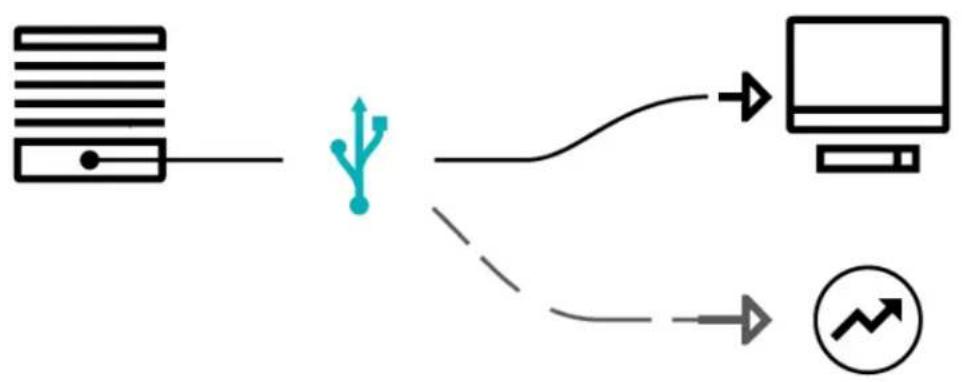
We're going to get Mikme ready to perform. Use the included USB cable to charge your Mikme via USB plug (either a computer or a wall plug). The power LED will start blinking orange after some minutes.
flowchart
graph TD
    A["Server"] --> B["USB Symbol"]
    B --> C["Computer"]
    C --> D["Directional Arrow"]
    D --> E["Arrow pointing right"]
! Let Mikme charge for approximately 4 hours. While charging, the Power LED will flash orange. Once Mikme is fully charged the Power LED light turns off.

text_image
LED blinking BATTERY STATUS while charging plug-in USB charger computer2 - Power on
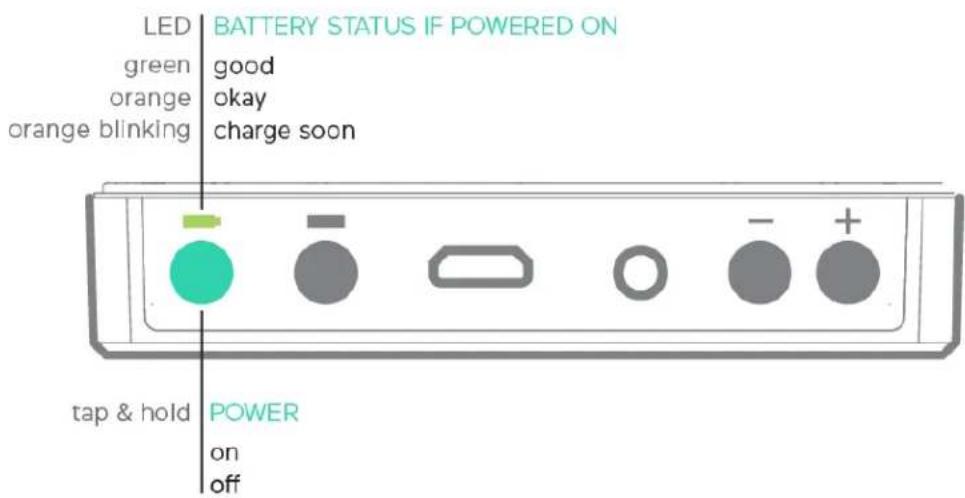
First, disconnect the USB cable. Then press the power button for 1 second. Hence the power LED and top LED will light up.
text_image
LED green orange orange blinking BATTERY STATUS IF POWERED ON good okay charge soon tap & hold POWER on off3 - Record
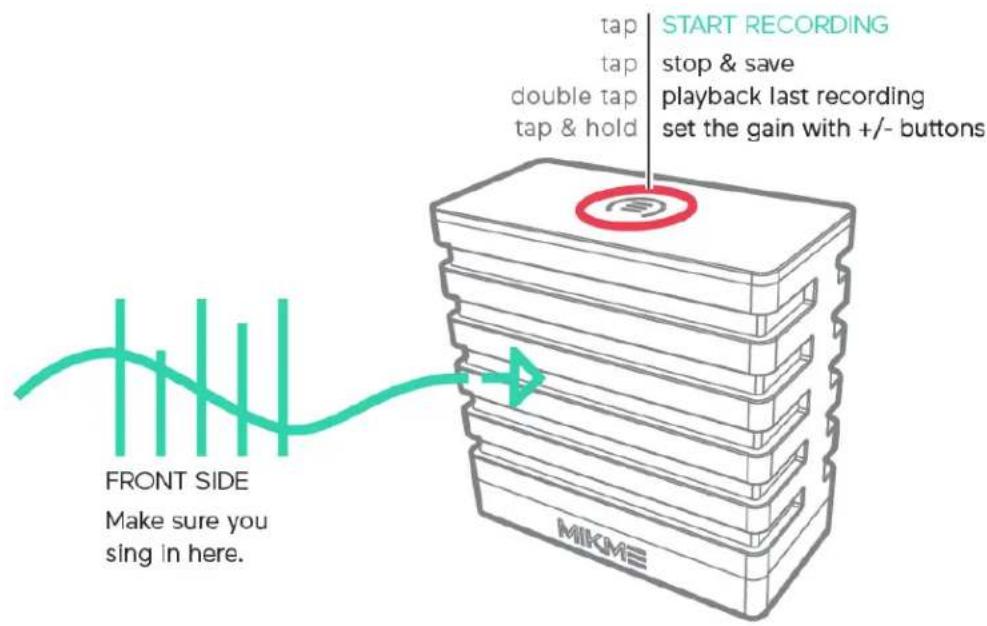
Tap the button to start recording: the top LED will be red.
text_image
FRONT SIDE Make sure you sing in here. tap tap double tap tap & hold START RECORDING stop & save playback last recording set the gain with +/- buttons MIKMETap the top button again to stop and save the recording. The top LED will be white.
To turn off Mikme, just hold down the Power button for 5 seconds.
4 – Pair Mikme with your iOS device
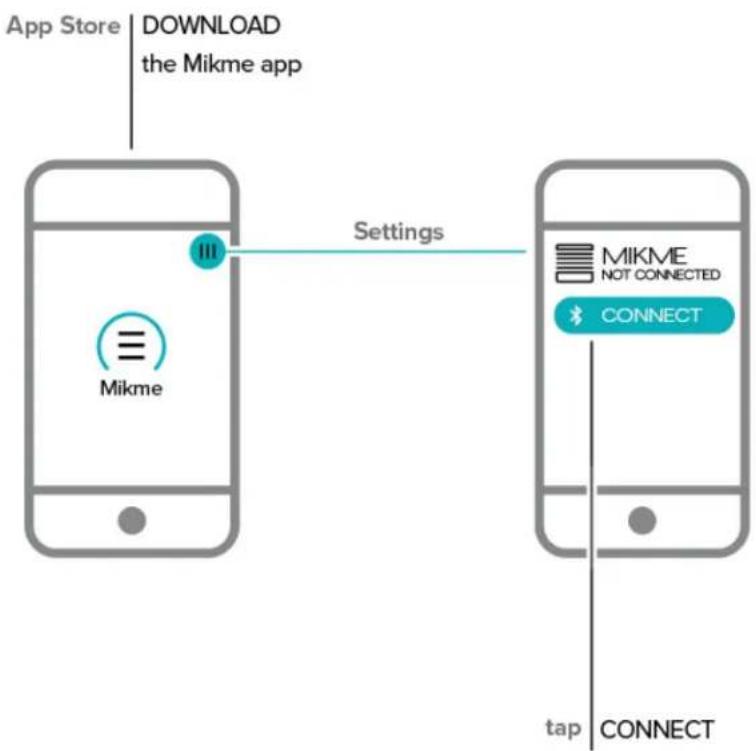
Download the App from the App store (Mikme Audio Recording App). As the app is in a public beta stage, it is recommended to make regular backups of your recordings and check the AppStore for the latest version on a regular basis.
Learn how to link your Mikme Microphone wirelessly with your iOS device. You can either pair it directly from the App or do it manually switching on the iPhone Bluetooth.
- Go to "Settings" in the Mikme App tap "Pair new Mikme".
• Follow the instructions in the App
CONNECT THE MIKME MICROPHONE WITH THE APP
flowchart
graph LR
    A["App Store"] --> B["DOWNLOAD the Mikme app"]
    B --> C["Mikme"]
    C --> D["Settings"]
    D --> E["MIKME NOT CONNECTED"]
    E --> F["CONNECT"]
    F --> G["tap"]
    G --> H["CONNECT"]
- Press and hold the Bluetooth for 2 seconds.
- Mikme goes into pairing mode.
CONNECT VIA BLUETOOTH
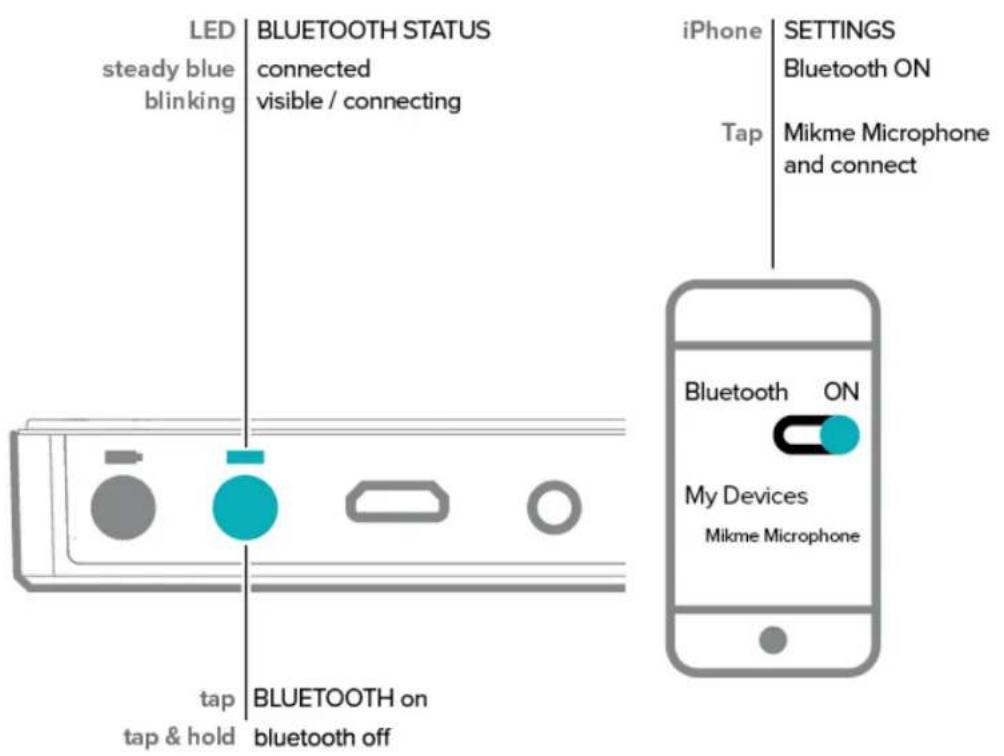
text_image
LED steady blue blinking BLUETOOTH STATUS connected visible / connecting iPhone SETTINGS Bluetooth ON Tap Mikme Microphone and connect tap & hold BLUETOOTH on bluetooth off Bluetooth ON My Devices Mikme Microphone5 – Play around with the App
The Mikme Recording App works seamlessly with the Mikme Microphone and lets you capture audio with ease.
See the Mikme App's main features at a glance:
• Remote control local recordings
You can control your Mikme Microphone remotely. Start and stop local audio recordings and change settings of the microphone. The recording will be streamed right away to the app.
• Wirelessly record audio
Record and stream audio from the Mikme Microphone completely wireless to your iPhone. Then edit, mix and share right from App.
• Wirelessly record and sync audio & video
Record audio from the Mikme Microphone wirelessly while capturing video with the camera of your iPhone. The App will automatically synchronise the audio with the video. You can then modify your creation with the different editing options available.
For much information see the article
6 – Getting familiar with your Mikme
Below a quick recap. Let's take a look at some important buttons, nooks and crannies we'll need, such as:
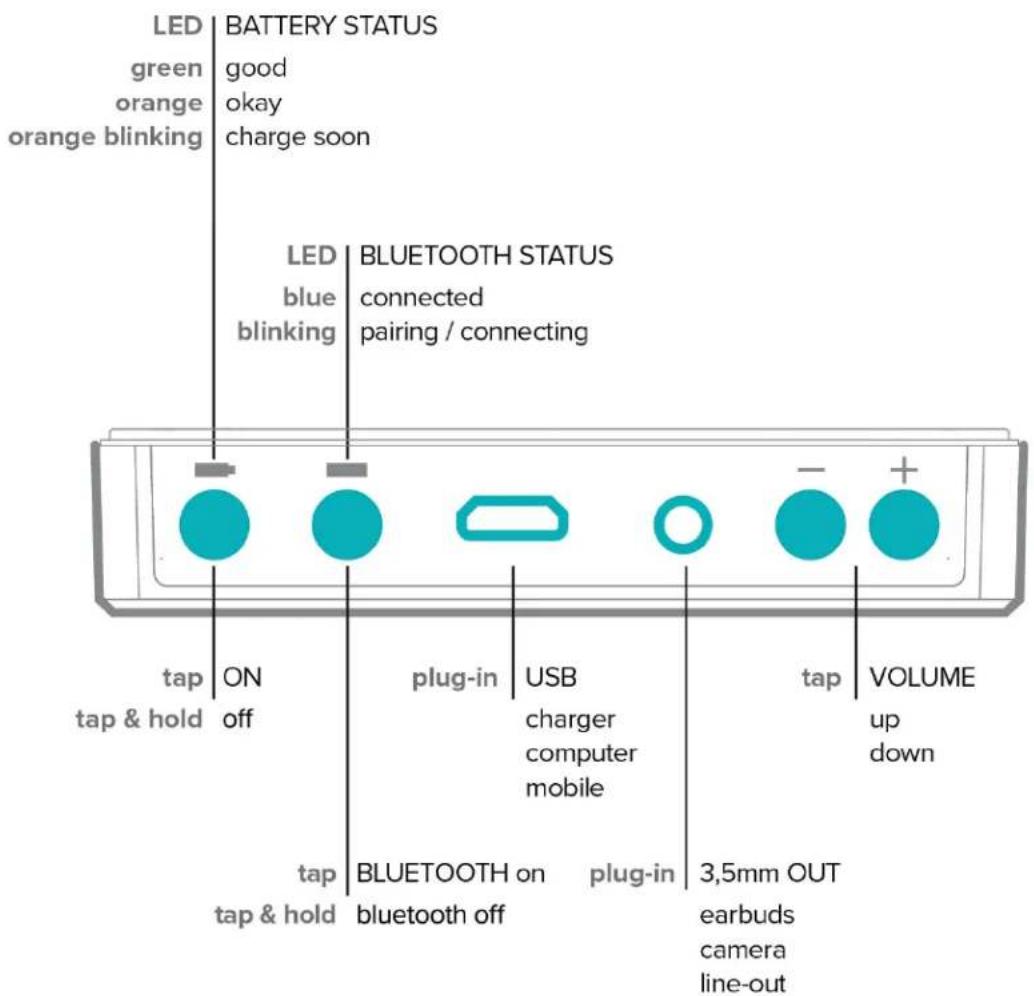
text_image
LED green orange orange blinking BATTERY STATUS good okay charge soon LED blue blinking BLUETOOTH STATUS connected pairing / connecting tap ON tap & hold off plug-in USB charger computer mobile tap VOLUME up down tap BLUETOOTH on bluetooth off plug-in 3,5mm OUT earbuds camera line-outOnce you're familiar with all buttons, it looks like Mikme is ready to take center stage.
Happy Creating!
Did this answer your question?
mikm≡

We run on Intercom