
47LW650G - TV LG - Free user manual and instructions
Find the device manual for free 47LW650G LG in PDF.


User questions about 47LW650G LG
0 question about this device. Answer the ones you know or ask your own.
Ask a new question about this device
Download the instructions for your TV in PDF format for free! Find your manual 47LW650G - LG and take your electronic device back in hand. On this page are published all the documents necessary for the use of your device. 47LW650G by LG.
USER MANUAL 47LW650G LG
Please read this manual carefully before operating the set and retain it for future reference.
LICENSES
Supported licenses may differ by model. For more information about licenses, visit www.lg.com.
DOLBY.
DIGITAL PLUS
PULSE
Manufactured under license from Dolby Laboratories. "Dolby" and the double-D symbol are trademarks of Dolby Laboratories.
HDMI
HDMI, the HDMI logo and High-Definition Multimedia Interface are trademarks or registered trademarks of HDMI Licensing LLC.
DIVX+
HD
ABOUT DIVX VIDEO: DivX® is a digital video format created by DivX, Inc. This is an official DivX Certified® device that plays DivX video. Visit www.divx.com for more information and software tools to convert your files into DivX video.
ABOUT DIVX VIDEO-ON-DEMAND: This DivX Certified® device must be registered in order to play purchased DivX Video-on-Demand (VOD) movies. To obtain your registration code, locate the DivX VOD section in your device setup menu. Go to vod.divx.com for more information on how to complete your registration.
"DivX Certified® to play DivX® and DivX Plus ™ HD (H.264/MKV) video up to 1080p HD including premium content."
"DivX®, DivX Certified® and associated logos are trademarks of DivX, Inc. and are used under license."
"Covered by one or more of the following U.S. patents : 7,295,673; 7,460,668; 7,515,710; 7,519,274"

NOTE
• Image shown may differ from your TV.
- Your TV's OSD (On Screen Display) may differ slightly from that shown in this manual.

TABLE OF CONTENTS
2 LICENSES
6 ASSEMBLING AND PREPARING
6 Unpacking
9 Separate purchase
10 Parts and buttons
15 Lifting and moving the TV
15 Setting up the TV
15 - Attaching the stand
19 - Mounting on a table
21 - Mounting on a wall
22 - Tidying cables
23 REMOTE CONTROL
26 Magic Motion Remote Control Functions
27 - Installing RF Dongle
27 - Registering Magic Motion Remote Control
27 - How to use Magic Motion Remote Control
27 - Precautions to Take when Using the Magic Motion Remote Control
28 WATCHING TV
28 Connecting to an antenna
28 - Connecting an antenna
28 - Connecting with a satellite dish
29 Turning the TV on for the first time
29 Watching TV
30 Accessing Home menu
31 Managing programmes
31 - Automatically setting up programme
34 - Cable DTV Setting
34 - Satellite DTV Setting
35 - Tivu Programme List Update
36 - Manually setting up programme (In digital mode)
37 - Manually setting up programme (In analogue mode)
39 - Editing your programme list
40 - Booster
40 - Using favourite programmes
40 - CI [Common interface] Information
41 Using additional options
41 - Adjusting aspect ratio
42 - Changing AV modes
43 - Using the input list
44 Using the quick menu
45 ENTERTAINMENT
45 Network Connection
45 - Connecting to a wired network
46 - Connecting to a wireless network
48 - When a security code is already set
51 - Network Status
52 Premium Account Function
52 - Notice
54 LG Apps Function
54 - Registration LG Apps
55 - Sign in with your LG Apps account
56 - Using LG Apps
57 - Using My Apps
58 Web Browser Function
59 - Browsing Favourite Websites
60 - Browsing Websites by Directly Entering Address
60 - Viewing Visited Website List
61 Smart Share Function
61 - Connecting USB storage devices
62 - Connecting DLNA DMP (Digital Living Network Alliance, Digital Media Player)
65 - Connecting DLNA DMR (Digital Living Network Alliance, Digital Media Render)
66 - Browsing files
67 - Viewing Videos
70 - DivX registration code
71 - Viewing Photos
73 - Listening to music
75 Media Link Function
75 - Media Link Connection
76 - Using Media Link
76 - Viewing Movies
77 - Using Music Section
77 - Using TV Programme Section
78 - Installing Plug-Ins
79 DVR Function
79 - Precautions when using the USB Device
80 - Timeshift (PAUSE & REPLAY OF LIVE TV)
83 - RECORDING
84 - SCHEDULE
87 - RECORDED TV
90 EPG (Electronic Programme Guide) Func-Function (In digital mode)
90 - Switch on/off EPG
90 - Select a programme
91 - NOW/NEXT Guide Mode
91 - 8 Day Guide Mode
91 - Date Change Mode
91 - Extended Description Box
92 3D IMAGING
92 3D Technology
93 When using 3D Glasses
93 3D Imaging Viewing Range
94 Viewing 3D Imaging
94 - Setting 3D Imaging
96 CUSTOMIZING TV SETTINGS
96 The SETUP Menu
97 Customizing Settings
97 - SETUP Settings
98 - PICTURE Settings
103 - AUDIO Settings
106 - TIME Settings
108 - LOCK Settings
109 - OPTION Settings
112 - NETWORK Settings
113 - SUPPORT Settings
114 MAKING CONNECTIONS
115 Connection Overview
116 Connecting to a HD receiver, DVD, or VCR player
116 - HDMI Connection
116 - DVI to HDMI Connection
117 - Component Connection
117 - Euro Scart Connection
118 - Composite Connection
118 Connecting to a PC
119 - HDMI Connection
119 - DVI to HDMI Connection
120 - RGB Connection
121 Connecting to an Audio System
121 - Digital Optical Audio Connection
121 Connecting to Headphone Connection
122 Connecting to a USB
122 Connecting to a CI Module
123 Connecting the Wireless Media Box
123 SIMPLINK Connection
124 - Activating and Using the SIMPLINK menus
125 TELETEXT
125 Switch On/Off
125 Simple Text
125 - Page selection
125 Top Text
125 - Block / Group / Page Selection
125 - Direct Page Selection
126 Fastext
126 - Page selection
126 Special Teletext Function
127 DIGITAL TELETEXT
127 Teletext within digital service
127 Teletext in digital service
128 MAINTENANCE
128 Updating the TV Firmware
129 Cleaning Your TV
129 - Screen and frame
129 - Cabinet and stand
129 - Power cord
130 Preventing "Image burn" or "Burn-in" on your TV screen
131 TROUBLESHOOTING
133 SPECIFICATIONS
145 IR CODES
146 EXTERNAL CONTROL DEVICE SETUP
146 RS-232C Setup
146 Type of connector; D-Sub 9-Pin Male
147 RS-232C Configurations
148 Communication Parameters
148 Command reference list
149 Transmission / Receiving Protocol
155 OPEN SOURCE LICENSE
156 - GNU GENERAL PUBLIC LICENSE
160 - GNU Lesser General Public License
166 - Mozilla Public License 1.1 (MPL 1.1)
172 - Apache License Version 2.0
175 - MIT license
177 - Expat license
177 - The FreeType Project LICENSE
179 - JPEG license
179 - OpenSSL License
181 - zlib/libpng License
181 - Portmap license
182 - Pixman license
182 - X.net license
183 - BSD license
184 - RSA Data Security license
185 - JSON license
185 - MS92 license
ASSEMBLING AND PREPARING
Unpacking
Check your product box for the following items. If there are any missing accessories, contact the local dealer where you purchased your product. The illustrations in this manual may differ from the actual product and item.
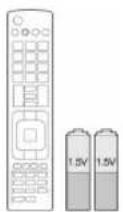
Remote control and batteries (AAA)

Nero MediaHome 4 Essentials CD

Owner's manual

Polishing cloth ^1 (Depending on model)
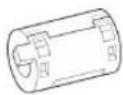
Ferrite core (Depending on model)

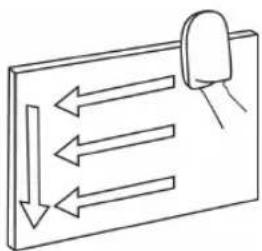
Cleansing Cloths (Mitt) ^2 (Depending on model)
1 Gently wipe the spots on the cabinet with the polishing cloth.
2 Wipe spots on the exterior only with the cleansing cloths.
Do not wipe roughly when removing stains. Excessive pressure may cause scratches or discolouration.
For cleaning front frame, please slowly wipe in one direction after spraying water 1-2 times on cleansing cloths. Please remove excessive moisture after cleaning. Excessive moisture may cause water stains on the frame.

natural_image
Simple line drawing of a directional arrow with arrows pointing outward, no text or symbols presentOnly 32/37/42/47LV55**, 32/37/42/47/55LV57**, 42/47/55LV77**, 32/37/42/47/55LW55**, 32/37/42/47/55LW57**, 32/42/47/55LW65**, 42/47/55LW75**, 42/47/55LW77**, 47/55LW95**, 72LZ97**
text_image
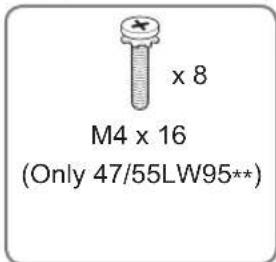
x 8 M4 x 16 (Only 47/55LW95**)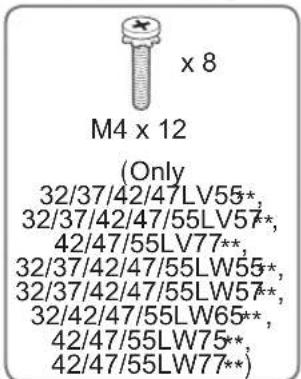
text_image
x 8 M4 x 12 (Only 32/37/42/47LV55*, 32/37/42/47/55LV57*, 42/47/55LV77**, 32/37/42/47/55LW55*, 32/37/42/47/55LW57*, 32/42/47/55LW65**, 42/47/55LW75*, 42/47/55LW77**)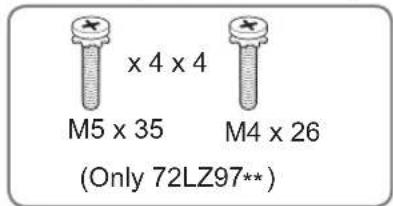
text_image
x 4 x 4 M5 x 35 M4 x 26 (Only 72LZ97**)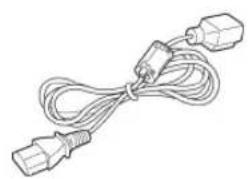
natural_image
Line drawing of a cable with two connectors (no text or symbols)Power Cord (Only 72LZ97**)
Screw for assembly
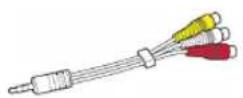
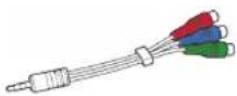
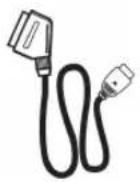
Composite gender cable Component gender cable
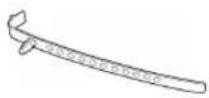
SCART Gender Cable Cable holder
(Depending on model)
natural_image
Illustration of a remote control with two batteries and a cable, no text or symbols present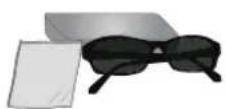

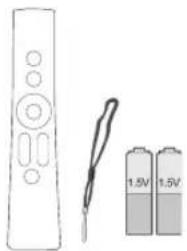
Magic Motion Remote Control, Strap, Batteries (AA) (Only 42/47/55LV77**, 42/47/55LW75**, 42/47/55LW77**, 47/55LW95**, 72LZ97**
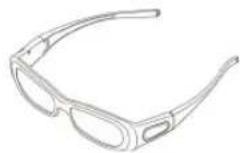
FPR 3D Glasses ^1 (Only 2/37/42/47/55LW55 ^ , 2/37/42/47/55LW57 ^ , 32/42/47/55LW65 ^* )
3D Glasses (AG-S250) (Only 42/47/55LW75 ^ , 42/47/55LW77 ^ , 47/55LW95 ^ , 72LZ97 ^** )
Screw for fixing (Only 32/37LV55**, 32/37LV57**, 32/37LW55**, 32/37LW57**, 32LW65**)
1 The number of 3D glasses may differ depending on the country.
Only 32/37/42/47/55LV571S, 32/37/42/47/55LW573S, 32/37/42/47/55LW575S
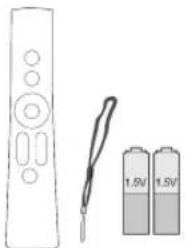
natural_image
Illustration of a remote control unit, a cable with 1.5V power supply, and two batteries (no text or symbols)Magic Motion Remote Control, Strap, Batteries (AA)

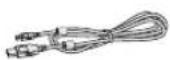

RF Dongle RF Dongle Cable Velcro

CAUTION
- Do not use any unapproved items to ensure the safety and product life span.
- Any damages or injuries by using unapproved items are not covered by the warranty.

NOTE
The items supplied with your product may vary depending on the model.
Product specifications or contents of this manual may be changed without prior notice due to upgrade of product functions.
How to use the ferrite core (Depending on model)
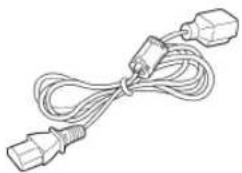
- Use the ferrite core to reduce the electromagnetic waves that interfere with the TV. Place the ferrite core on the power cable close to the wall plug.
natural_image
Line drawing of a cable with two connectors (no text or symbols)- Install the ferrite core as shown in the following picture.(Only 72LZ97*)
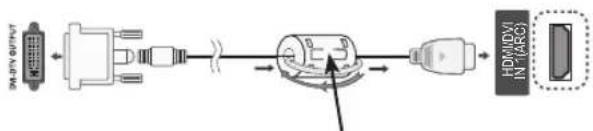
Use the ferrite core to reduce the electromagnetic waves in the HDMI to DVI cable.
flowchart
graph LR
    A["HD/DVD/INTASC"] --> B["Device"]
    B --> C["Switch"]
    C --> D["Neural Motor"]
    D --> E["Output"]
Please set up the ferrite core 15 cm away from HDMI/DVI IN cable.
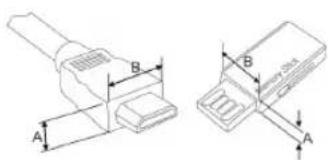
For an optimal connection, HDMI cables and USB devices should have bezels less than 10 mm thick and 18 mm width.
text_image
Technical drawing of two electronic component packages with labeled dimensions A and B*A≤40mm
*B≤48mm
Separate purchase
Separate purchase items can be changed or modified for quality improvement without any notification. Contact your dealer for buying these items.
These devices only work with compatible LG LED LCD TV.
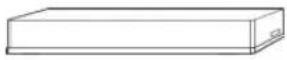
Wireless Media Box (AN-WL100E, AN-WL100ET)
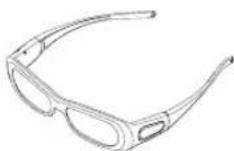
3D Glasses
(AG-S230, AG-S250, AG-S270) (Only 42/47/55LW75**, 42/47/55LW77**, 47/55LW95**, 72LZ97**)
LG USB for VOD (AN-UM200) (Only France)
Wireless LAN for Broadband /DLNA Adaptor (AN-WF100) (Except for 47/55LW95**)
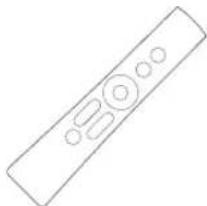
natural_image
Simple line drawing of a remote control with three buttons (no text or symbols)Magic Motion Remote Control (AN-MR200)
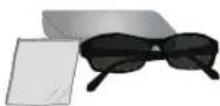
FPR 3D Glasses ^1 (AG-F2**) (Only 32/37/42/47/55LW55*, 32/37/42/47/55LW57*, 32/42/47/55LW65*)
1 The model name or design may be changed depending on the upgrade of product functions, manufacturer's circumstances or policies.

Parts and buttons
Image shown may differ from your TV.

NOTE
TV can be placed in standby mode in order to reduce the power consumption. And TV should be turned off if it will not be watched for some time, as this will reduce energy consumption.
The energy consumed during use can be significantly reduced if the level of brightness of the picture is reduced, and this will reduce the overall running cost.

CAUTION
- Do not step on the glass stand or subject it to any impact. It may break, causing possible injury from fragments of glass, or the TV may fall.
- Do not drag the TV. The floor or the product may be damaged.
- In case of some model, the thin film on screen is a part of TV, So don't take it off.
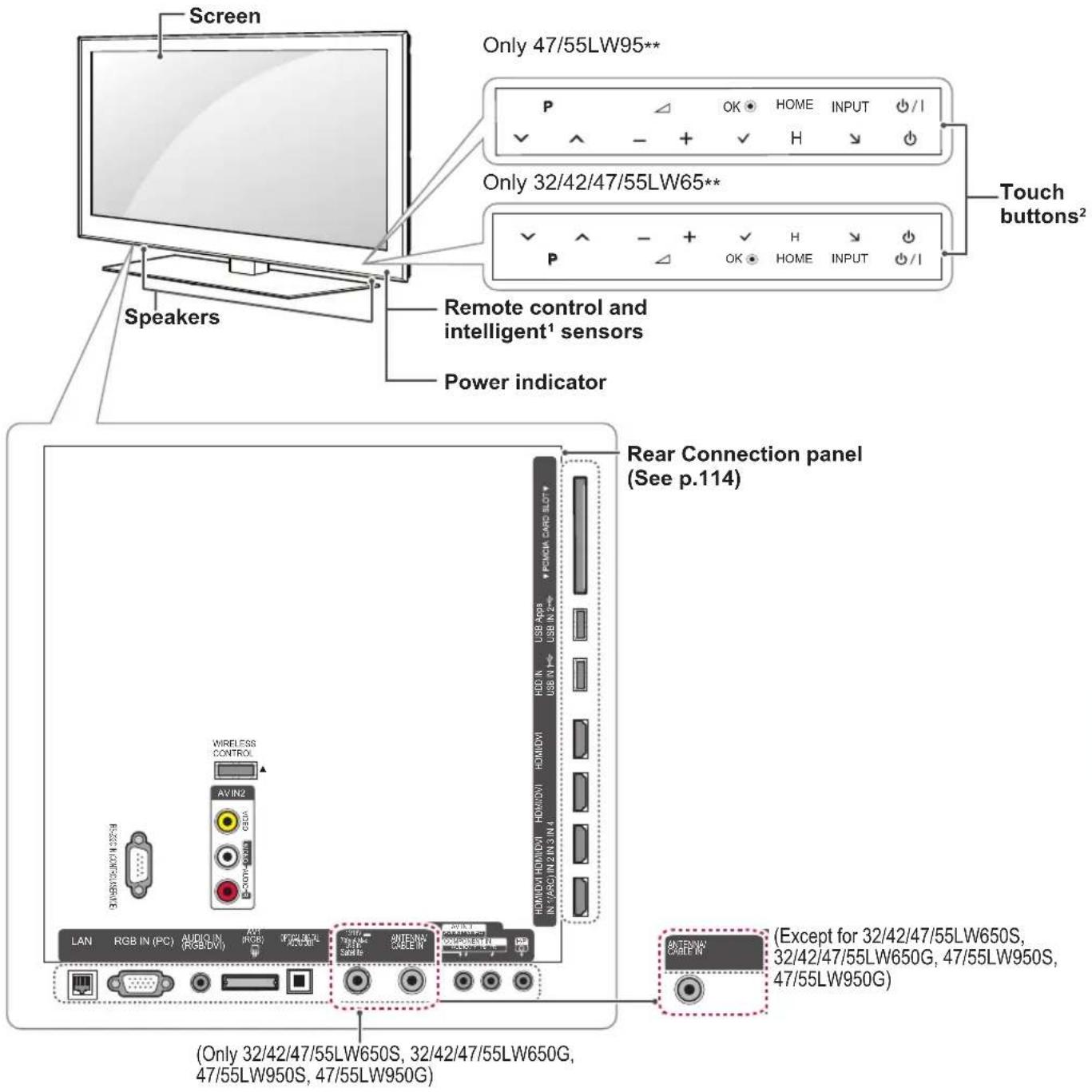
Only 32/42/47/55LW65**, 47/55LW95**
text_image
Screen Only 47/55LW95** Only 32/42/47/55LW65** Touch buttons² Speakers Remote control and intelligent¹ sensors Power indicator Rear Connection panel (See p.114) WIRELESS CONTROL AVIN2 USB APPS USB IN 2-# USB IN HOMOW HOMOW HOMOW HOMOW HOMOW HOMOW HOMOW HOMOW HOMOW HOMOW HOMOW HOMOW HOMOW HOMOW HOMOW HOMOW HOMOW HOMOW HOMOW HOMOW HOMOW HOMOW HOMOW HOMOW HOMOW HOMO RGB IN (PC) AUDIO IN (RGB/DY) MHz kHz kHz kHz kHz kHz kHz kHz kHz kHz kHz kHz kHz kHz kHz kHz kHz kHz kHz kHz kHz kHz kHz kHz kHz kHz kHz kHz kHz kHz kHz kHz kHz kHz kHz kHz kHz kHz kHz kHz kHz kHz kHz kHz kHz kHz kHz kHz kHz kHz kHz kHz kHz kHz kHz kHz kHz kHz kHz kHz kHz kHz kHz kHz kHz kHz kHz kHz kHz kHz kHz kHz kHz kHz kHz kHz kHz kHz kHz kHz kHz kHz kHz kHz kHz kHz kHz kHz kHz kHz kHz kHz kHz kHz kHz kHz kHz kHz kHz kHz kHz kWh (Except for 32/42/47/55LW650S, 32/42/47/55LW650G, 47/55LW950S, 47/55LW950G) (Only 32/42/47/55LW650S, 32/42/47/55LW650G, 47/55LW950S, 47/55LW950G)| Touch button2 | Description |
| ∅/I | Turns the power on or off. |
| INPUT Changes the input source. | |
| HOME Accesses the Home menu, or saves your input and exits the menus. | |
| OK ⊙ | Selects the highlighted menu option or confirms an input. |
| - ∠+ | Adjusts the volume level. |
| √ P ⚫ scrolls through the saved programmes. | |
1 Intelligent sensor - Adjusts the image quality and brightness based on the surrounding environment.
2 All of the buttons are touch sensitive and can be operated through simple touch with your finger.

NOTE
- You can set the power indicator light to on or off by selecting OPTION in the Home menu - SETUP.

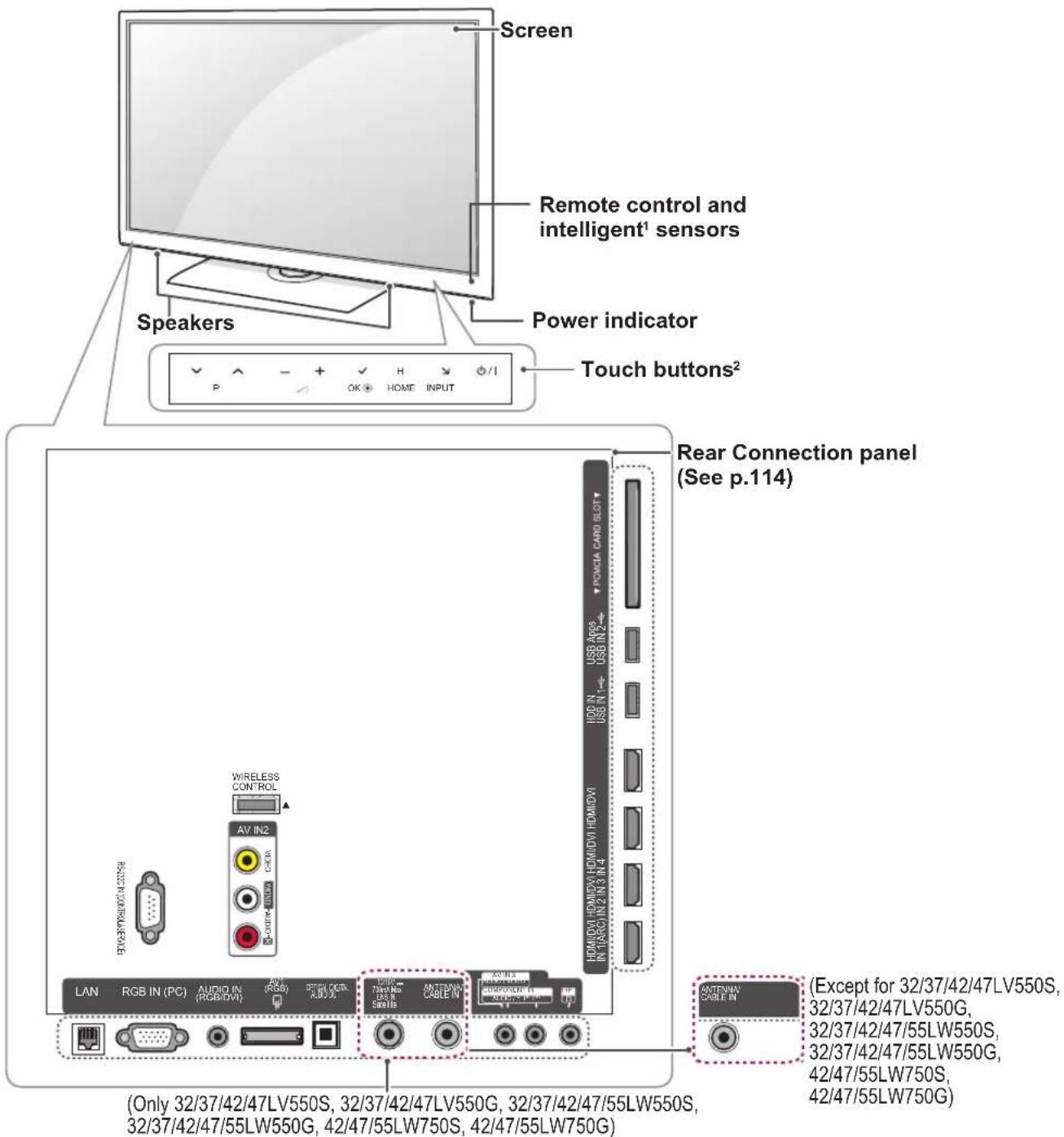
Only 32/37/42/47LV55**, 32/37/42/47/55LW55**, 42/47/55LW75**
text_image
Screen Remote control and intelligent¹ sensors Power indicator Touch buttons² Speakers Rear Connection panel (See p.114) WireLESS CONTROL AV IN2 USB/ACOS USB IN2 HOMOVI HOMOVI HOMOVI HOMOVI IN1A/C1 IN2 IN3 IN4 LAN RGB IN (PC) AUDIO IN (RGB/0V) USB C/C/DI C/C/DI ANTENIX CABLE IN (Except for 32/37/42/47LV550S, 32/37/42/47LV550G, 32/37/42/47/55LW550S, 32/37/42/47/55LW550G, 42/47/55LW750S, 42/47/55LW750G) (Only 32/37/42/47LV550S, 32/37/42/47LV550G, 32/37/42/47/55LW550S, 32/37/42/47/55LW550G, 42/47/55LW750S, 42/47/55LW750G)| Touch button ^2 | Description |
| ⏻/I | Turns the power on or off. |
| INPUT Changes the input source. | |
| HOME Accesses the Home menu, or saves your input and exits the menus. | |
| OK Ⓞ | Selects the highlighted menu option or confirms an input. |
| - + | Adjusts the volume level. |
| v P Scrolls through the saved programmes. | |
1 Intelligent sensor - Adjusts the image quality and brightness based on the surrounding environment.
2 All of the buttons are touch sensitive and can be operated through simple touch with your finger.

NOTE
- You can set the power indicator light to on or off by selecting OPTION in the Home menu - SETUP.
Only 32/37/42/47/55LV57**, 42/47/55LV77**, 32/37/42/47/55LW57**, 42/47/55LW77**

text_image
Screen Speakers Buttons Remote control and intelligent¹ sensors, Power indicator Rear Connection panel (See p.114) WIRELESS CONTROL AV IN2 LAN RGB IN (PC) AUDIO IN (RGB/DM) AV1 (RGB) OPTI/LDL/SLV/DC 100/100 50/100 CODE IN (Only 32/37/42/47/55LV570S, 32/37/42/47/55LV571S, 32/37/42/47/55LV570G, 42/47/55LV770S, 32/37/42/47/55LV570S, 32/37/42/47/55LW573S, 32/37/42/47/55LW575S, 32/37/42/47/55LW570G, 42/47/55LW770S, 42/47/55LW770G) (Accept for 32/37/42/47/55 32/37/42/47/55 32/37/42/47/55 42/47/55LV770 32/37/42/47/55 32/37/42/47/55 32/37/42/47/55 42/47/55LW770 42/47/55LW770G)| Button Description | |
| ∅/I | Turns the power on or off. |
| INPUT Changes the input source. | |
| HOME Accesses the Home menu, or saves your input and exits the menus. | |
| OK ⊙ | Selects the highlighted menu option or confirms an input. |
| - ∠+ | Adjusts the volume level. |
| √ P ⚠Scrolls through the saved programmes. | |
1 Intelligent sensor - Adjusts the image quality and brightness based on the surrounding environment.

NOTE
- You can set the power indicator light to on or off by selecting OPTION in the Home menu - SETUP.
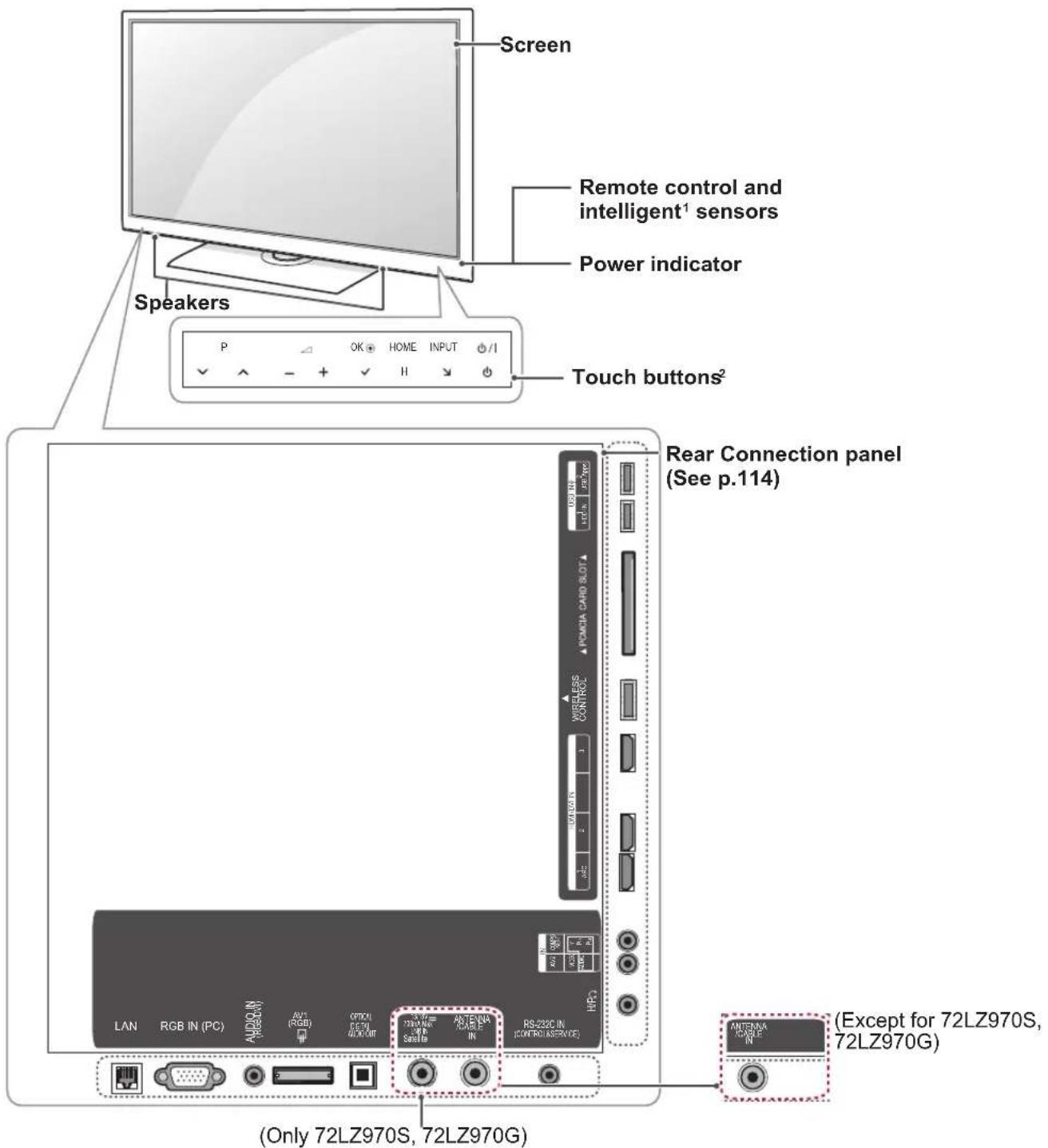
Only 72LZ97**
text_image
Screen Remote control and intelligent¹ sensors Power indicator Speakers Touch buttons² Rear Connection panel (See p.114) LAN RGB IN (PC) AUDIOIN AVS (RGB) OPTON OFFOL 400X OUT ANTenna 500V/250V INTenna CONTROL & SERVICE RS-235C IN (HIPC) (Only 72LZ970S, 72LZ970G) Antenna CONTROL (Except for 72LZ970S, 72LZ970G)| Touch button2 | Description |
| ∅/I | Turns the power on or off. |
| INPUT Changes the input source. | |
| HOME Accesses the Home menu, or saves your input and exits the menus. | |
| OK ⊙ | Selects the highlighted menu option or confirms an input. |
| - ∠+ | Adjusts the volume level. |
| √ P ⚠rolls through the saved programmes. | |
1 Intelligent sensor - Adjusts the image quality and brightness based on the surrounding environment.
2 All of the buttons are touch sensitive and can be operated through simple touch with your finger.

NOTE
- You can set the power indicator light to on or off by selecting OPTION in the Home menu - SETUP.
Lifting and moving the TV
When moving or lifting the TV, read the following to prevent the TV from being scratched or damaged and for safe transportation regardless of its type and size.

CAUTION
- Avoid touching the screen at all times, as this may result in damage to the screen.
It is recommended to move the TV in the box or packing material that the TV originally came in.
Before moving or lifting the TV, disconnect the power cord and all cables.
When holding the TV, the screen should face away from you to avoid damage.
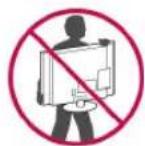
Hold the top and bottom of the TV frame firmly. Make sure not to hold the transparent part, speaker, or speaker grill area.
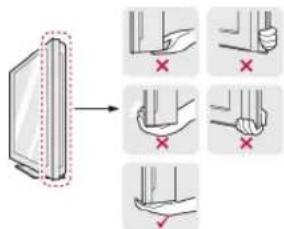
text_image
Diagram illustrating hand positioning and movement of a device, with labeled X marks indicating specific positions.When transporting a large TV, there should be at least 2 people.
When transporting the TV by hand, hold the TV as shown in the following illustration.

When transporting the TV, do not expose the TV to jolts or excessive vibration.
When transporting the TV, keep the TV upright, never turn the TV on its side or tilt towards the left or right.
Setting up the TV
Put your TV on a pedestal stand and mount the TV on a table or wall.
Attaching the stand
If you are not mounting the TV to a wall, use the following instructions to attach the stand.
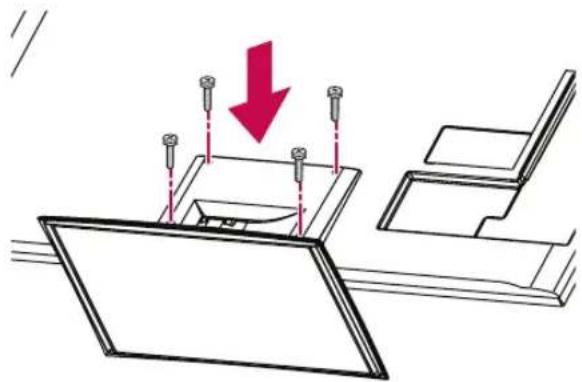
Only 47/55LW95**
1 Lay the TV with the screen side down on a flat surface.

CAUTION
Lay a foam mat or soft protective cloth on the surface to protect the screen from damage. Make sure no objects press against the screen.
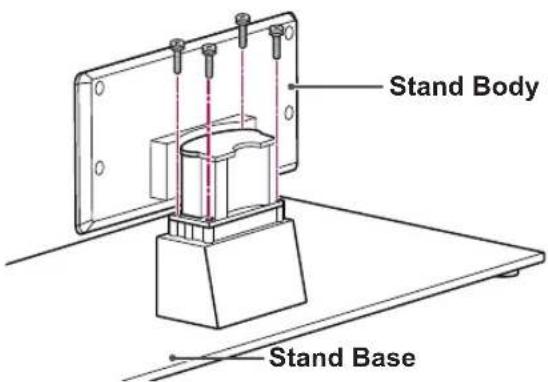
2 Assemble the parts of the Stand Body with the Stand Base of the TV.
| Model Screw for | assembly | Number of screws |
| 47/55LW95** | M4 x 16 4 |
text_image
Stand Body Stand Base3 Assemble the parts of the Stand Rear Cover with the TV.
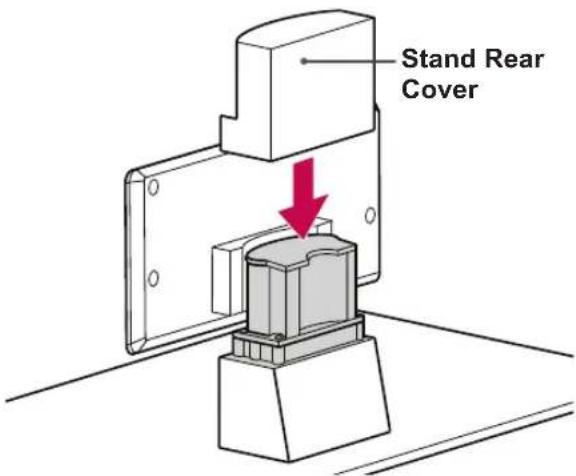
text_image
Stand Rear Cover4 Secure the TV and the stand with the 4 screws.
| Model Screw for | assembly | Number of screws |
| 47/55LW95** | M4 x 16 4 |
natural_image
Diagram showing a mechanical assembly with pins and a red downward arrow indicating force or direction (no text or symbols present)
CAUTION
- Tighten the screws firmly to prevent the TV from tilting forward. Do not over tighten.
Only 32/37/42/47LV55**, 32/37/42/47/55LV57**, 42/47/55LV77**, 32/37/42/47/55LW55**, 32/37/42/47/55LW57**, 32/42/47/55LW65**, 42/47/55LW75**, 42/47/55LW77**
1 Lay the TV with the screen side down on a flat surface.

CAUTION
Lay a foam mat or soft protective cloth on the surface to protect the screen from damage. Make sure no objects press against the screen.
2 Assemble the parts of the Stand Body with the Stand Base of the TV.
| Model Screw for | assembly | Number of screws |
| 32/37/42/47LV55**, 32/37/42/47/55LV57**, 42/47/55LV77** 32/37/42/47/55LW55**, 32/37/42/47/55LW57**, 42/47/55LW75**, 42/47/55LW77** 32/42/47/55LW65** | M4 x 12 4 |
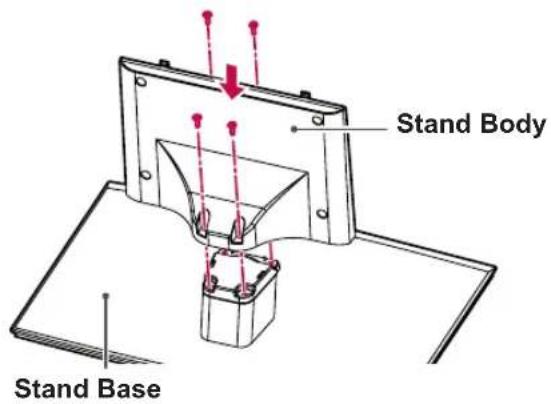
text_image
Stand Body Stand Base3 Assemble the TV as shown.
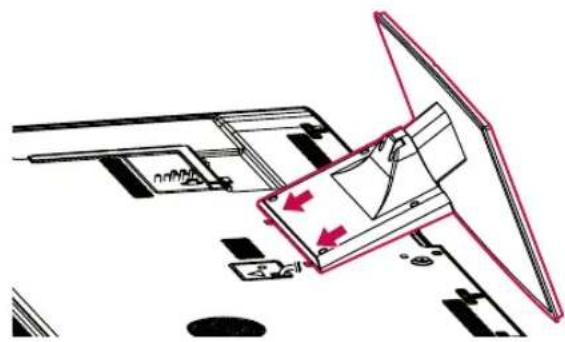
natural_image
Diagram of a mechanical assembly with arrows indicating motion or force direction (no text or symbols present)4 Secure the TV and the stand with the 4 screws.
| Model Screw for | assembly | Number of screws |
| 32/37/42/47LV55**, 32/37/42/47/55LV57**, 42/47/55LV77** 32/37/42/47/55LW55**, 32/37/42/47/55LW57**, 42/47/55LW75**, 42/47/55LW77** 32/42/47/55LW65** | M4 x 12 4 |
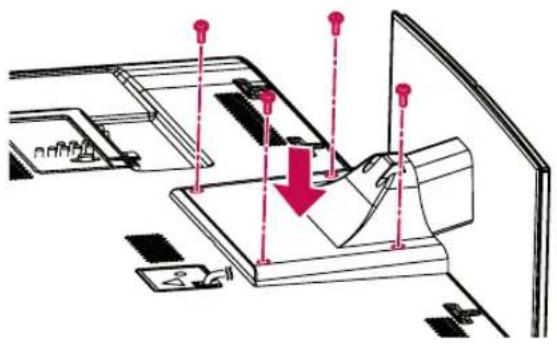
natural_image
Diagram of a mechanical device with red arrows indicating a downward motion or force, no text or symbols present.
CAUTION
- Tighten the screws firmly to prevent the TV from tilting forward. Do not over tighten.

Only 72LZ97**
1 Lay the TV with the screen side down on a flat surface.

CAUTION
Lay a foam mat or soft protective cloth on the surface to protect the screen from damage. Make sure no objects press against the screen.
2 Assemble the parts of the Stand Body with the Stand Base of the TV.
| Model Screw for | assembly | Number of screws |
| 72LZ97** | M5 x 35 4 |
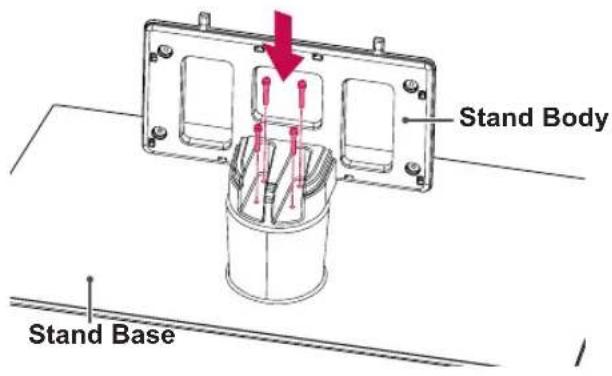
text_image
Stand Body Stand Base3 Assemble the TV as shown.
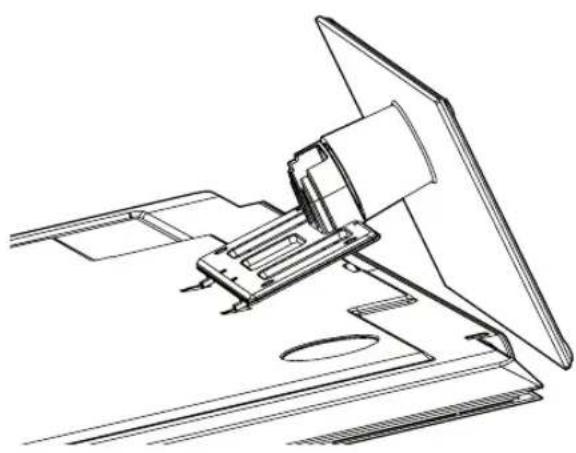
natural_image
Technical line drawing of a mechanical assembly or assembly (no text or symbols visible)4 Assemble the parts of the Stand Rear Cover with the TV.
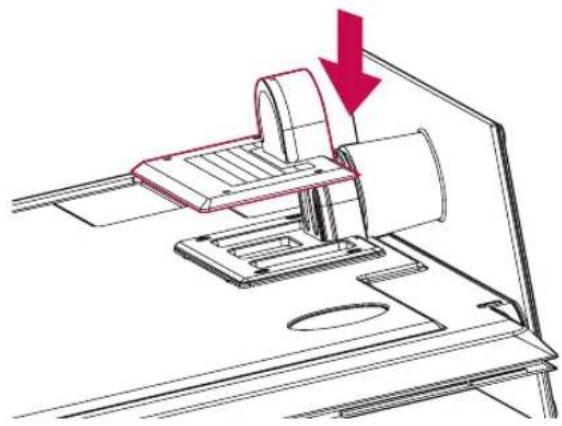
natural_image
Technical line drawing of a mechanical device with a red arrow indicating downward motion (no text or symbols present)5 Secure the TV and the stand with the 4 screws.
| Model Screw for | assembly | Number of screws |
| 72LZ97** | M4 x 26 4 |
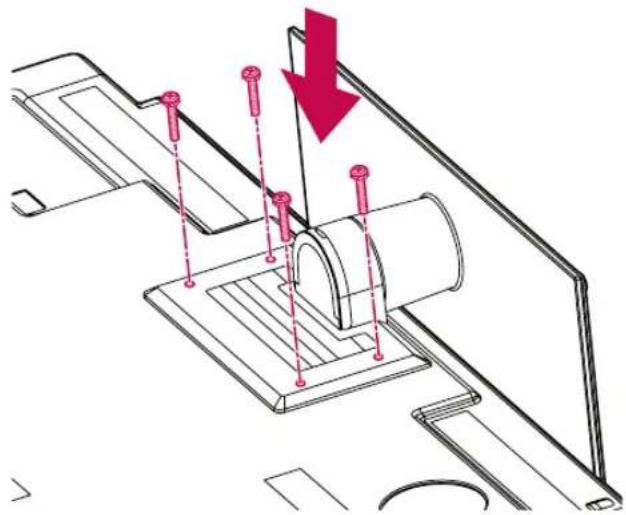
natural_image
Technical line drawing of a mechanical assembly with red arrows indicating direction (no text or symbols)
CAUTION
- Tighten the screws firmly to prevent the TV from tilting forward. Do not over tighten.
Mounting on a table
1 Lift and tilt the TV into its upright position on a table.
- Leave a 10 cm (minimum) space from the wall for proper ventilation.
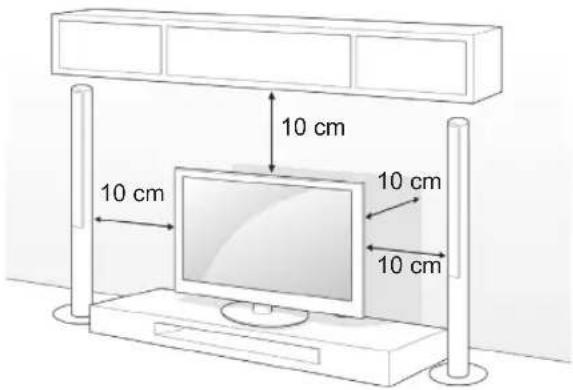
text_image
10 cm 10 cm 10 cm 10 cm2 Connect the power cord to a wall outlet.

CAUTION
- Do not place the TV near or on sources of heat, as this may result in fire or other damage.

NOTE
- Swivel 20 degrees to the left or right and adjust the angle of the TV to suit your view.

text_image
20° 20°Securing the TV to a table
Only 32/37LV55**, 32/37LV57**, 32/37LW55**, 32/37LW57**, 32LW65**
Fix the TV to a table to prevent from tilting forward, damage, and potential injury.
Mount the TV on a table, and then insert and tighten the supplied screw on the rear of the stand.
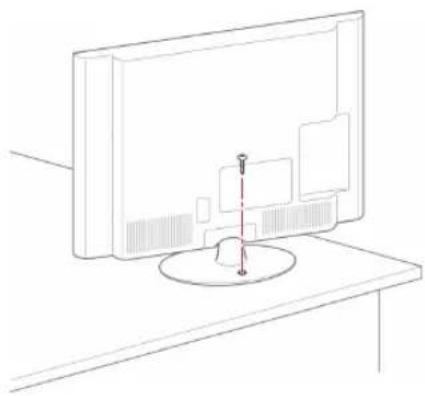
natural_image
Line drawing of a monitor mounted on a table with a circular base and a pointer, no text or symbols present.
WARNING
• To prevent TV from falling over, the TV should be securely attached to the floor/wall per installation instructions. Tipping, shaking, or rocking the TV may cause injury.
Securing the TV to a wall
(This feature is not available for all models.)
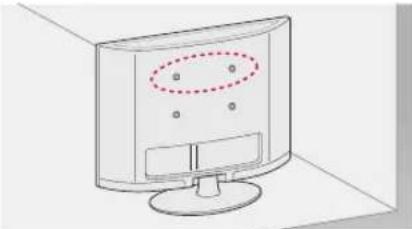
natural_image
Line drawing of a computer monitor with a dotted oval highlight on the screen (no text or symbols)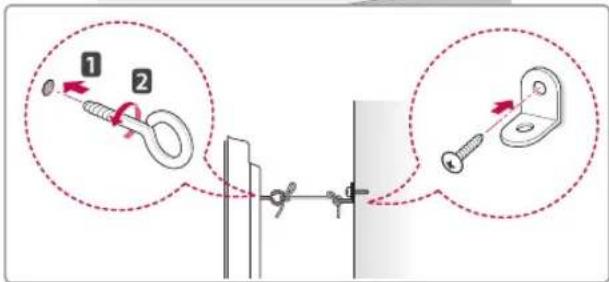
text_image
Diagram illustrating two methods of hanging chains with labeled steps and directional arrows1 Insert and tighten the eye-bolts, or TV brackets and bolts on the back of the TV.
- If there are bolts inserted at the eye-bolts position, remove the bolts first.
2 Mount the wall brackets with the bolts to the wall.
Match the location of the wall bracket and the eye-bolts on the rear of the TV.
3 Connect the eye-bolts and wall brackets tightly with a sturdy rope.
Make sure to keep the rope horizontal with the flat surface.

CAUTION
• Make sure that children do not climb on or hang on the TV.

NOTE
• Use a platform or cabinet that is strong and large enough to support the TV securely.
Using the Kensington security system
(This feature is not available for all models.)
The Kensington security system connector is located at the rear of the TV. For more information of installation and using, refer to the manual provided with the Kensington security system or visit http://www.kensington.com.
Connect the Kensington security system cable between the TV and a table.
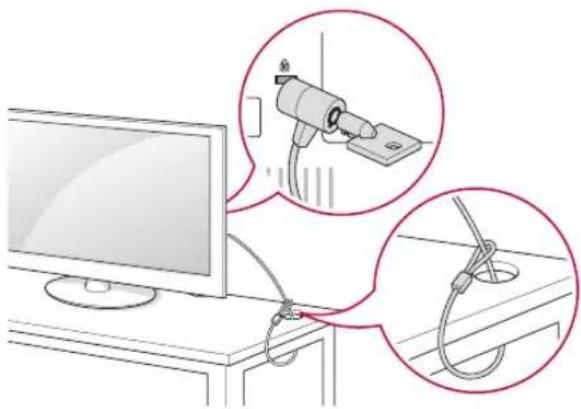
natural_image
Illustration of a computer monitor connected to a cable with two magnified insets showing a device and rope (no text or symbols present)Mounting on a wall
Attach a wall mount bracket at the rear of the TV carefully and install the wall mount bracket on a solid wall perpendicular to the floor. When you attach the TV to other building materials, please contact qualified personnel.
LG recommends that wall mounting be performed by a qualified professional installer.
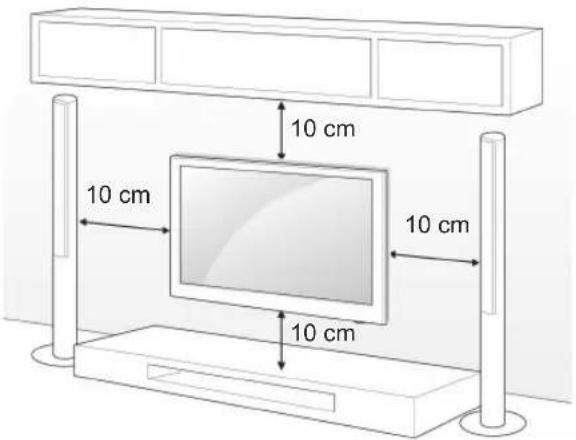
text_image
10 cm 10 cm 10 cm 10 cmMake sure to use screws and wall mount bracket that meet the VESA standard. Standard dimensions for the wall mount kits are described in the following table.
Separate purchase(Wall Mounting Bracket)
| Model 32LV55 | **32LV57**32LW55**32LW57**32LW65** | 37LV55**37LV57**37LW55**37LW57** |
| VESA (A x B) 200 x | 100 200 x 200 | |
| Standard screw M4 | M6 | |
| Number of screws | 4 4 | |
| Wall mount bracket | LSW100B,LSW100BG | LSW200B,LSW200BG |
| Model | 42/47LV55**42/47/55LV57**42/47/55LV77**,42/47/55LW55**42/47/55LW57**42/47/55LW65**42/47/55LW75**42/47/55LW77**47/55LW95** | 72LZ97** |
| VESA (A x B) 400 x | 400 600 x 400 | |
| Standard screw M6 | M8 | |
| Number of screws | 4 | 4 |
| Wall mount bracket | LSW400B,LSW400BG,DSW400BG | LSW600B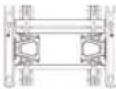 |

text_image
A B
CAUTION
- Disconnect the power first, and then move or install the TV. Otherwise electric shock may occur.
- If you install the TV on a ceiling or slanted wall, it may fall and result in severe injury. Use an authorized LG wall mount bracket and contact the local dealer or qualified personnel.
- Do not over tighten the screws as this may cause damage to the TV and void your warranty.
- Use the screws and wall mount bracket that meet the VESA standard. Any damages or injuries by misuse or using an improper accessory are not covered by the warranty.

NOTE
• Use the screws that are listed on the VESA standard screw specifications.
- The wall mount kit includes an installation manual and necessary parts.
- The length of screws may differ depending on the wall mount. Make sure to use the proper length.
- For more information, refer to the manual supplied with the wall mount bracket.
Tidying cables
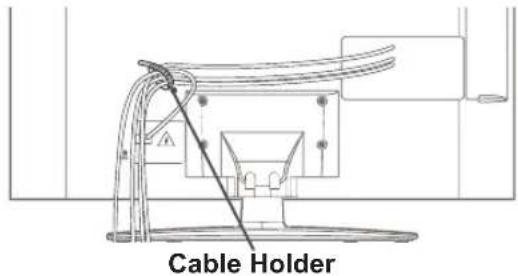
Only 32/37/42/47LV55**, 32/37/42/47/55LV57**, 42/47/55LV77**, 32/37/42/47/55LW55**, 32/37/42/47/55LW57**, 32/42/47/55LW65**, 42/47/55LW75**, 42/47/55LW77**, 47/55LW95**
1 Gather and bind the cables with the Cable Holder on the TV back cover.
text_image
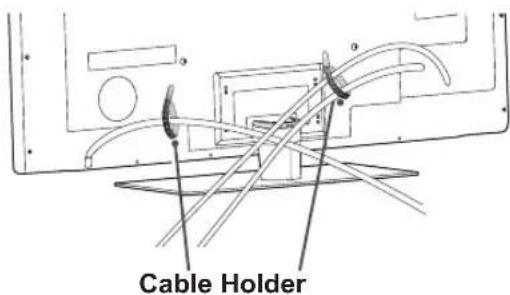
Cable HolderOnly 72LZ97**
1 Gather and bind the cables with the cable holder.
text_image
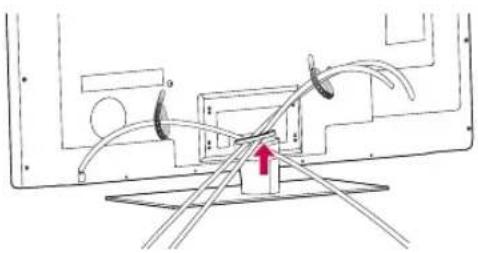
Cable Holder2 Pull the cable management on the stand cover and organize cables. Then, put it back.
natural_image
Pure mechanical diagram showing a bracket with internal components and intersecting lines, no text or symbols present.
CAUTION
Do not move the TV by holding the cable management clip, as the cable management clip may break, and injuries and damage to the TV may occur.
REMOTE CONTROL
The descriptions in this manual are based on the buttons on the remote control. Please read this manual carefully and use the TV correctly.
To replace batteries, open the battery cover, replace batteries (1.5 V AAA) matching and ends to the label inside the compartment, and close the battery cover. Be sure to point the remote control toward the remote control sensor on the TV.
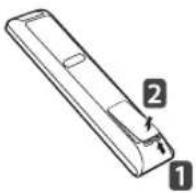
To remove the batteries, perform the installation actions in reverse.

CAUTION
Do not mix old and new batteries, as this may damage the remote control.
text_image
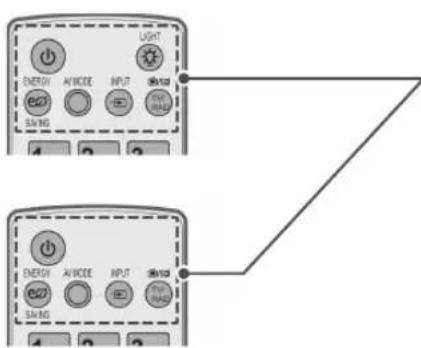
LIGHT ENERGY AVICIDE INPUT SW100 SWING 4 2 2 ENERGY AVICIDE INPUT SW100 SWING 4 2 2(POWER)
Turns the TV on or off.
LIGHT
Illuminates the remote control buttons.
ENERGY SAVING (See p.98)
Adjusts the brightness of the screen to reduce energy consumption.
AV MODE (See p.42)
Selects an AV mode.
INPUT (See p.43)
Changes the input source; Turns the TV on.
TV/RAD
Selects Radio, TV and DTV programme.
text_image
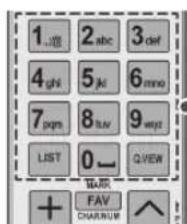
1._i# 2._abc 3._def 4_ghi 5_jk 6_mno 7_pqs 8_bw 9_wzt LIST 0_ Q:\VIEW + FAV CHANNEL^Alphanumeric buttons
Enters letters and numbers.
LIST (See p.39)
Accesses the saved programme list.
—(Space)
Opens an empty space on the screen keyboard.
Q.VIEW
Returns to the previously viewed programme.
flowchart
graph TD
    A["+"] --> B["FAV CHAVINUM"]
    B --> C["3D DELETE MUTE SET"]
    D["−"] --> E["P"]
    F["+"] --> G["FAV CHAVINUM"]
    G --> H["RATIO DELETE MUTE SET"]
    I["−"] --> J["P"]
    K["+"] --> L["FAV CHAVINUM"]
    L --> M["RATIO DELETE MUTE SET"]
    N["+"] --> O["P"]
    P["+"] --> Q["FAV CHAVINUM"]
    Q --> R["RATIO DELETE MUTE SET"]
    S["+"] --> T["P"]
    U["+"] --> V["FAV CHAVINUM"]
    V --> W["RATIO DELETE MUTE SET"]
    X["+"] --> Y["P"]
    Z["+"] --> AA["FAV CHAVINUM"]
    AB["+"] --> AC["RATIO DELETE MUTE SET"]
    AD["+"] --> AE["P"]
    AF["+"] --> AG["FAV CHAVINUM"]
    AH["+"] --> AI["RATIO DELETE MUTE SET"]
    AJ["+"] --> AK["P"]
    AL["+"] --> AM["FAV CHAVINUM"]
    AN["+"] --> AO["RATIO DELETE MUTE SET"]
    AP["+"] --> AQ["P"]
    AR["+"] --> AS["FAV CHAVINUM"]
    AT["+"] --> AU["RATIO DELETE MUTE SET"]
    AV["+"] --> AW["P"]
    AX["+"] --> AY["P"]

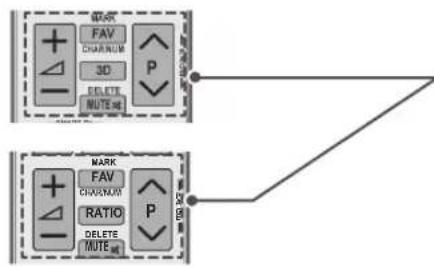
Adjusts the volume level.
MARK
Selects a menu or option.
FAV (See p.40)
Accesses your favourite programme list.
CHAR/NUM
Switches between Letter and Number input modes.
3D (Only 3D models) (See p.92)
Uses for viewing 3D video.
RATIO (See p.41)
Resizes an image
DELETE
Deletes letters and numbers.
MUTE
Mutes all sounds.

Scrolls through the saved programmes.
PAGE
Moves to the previous or next screen.
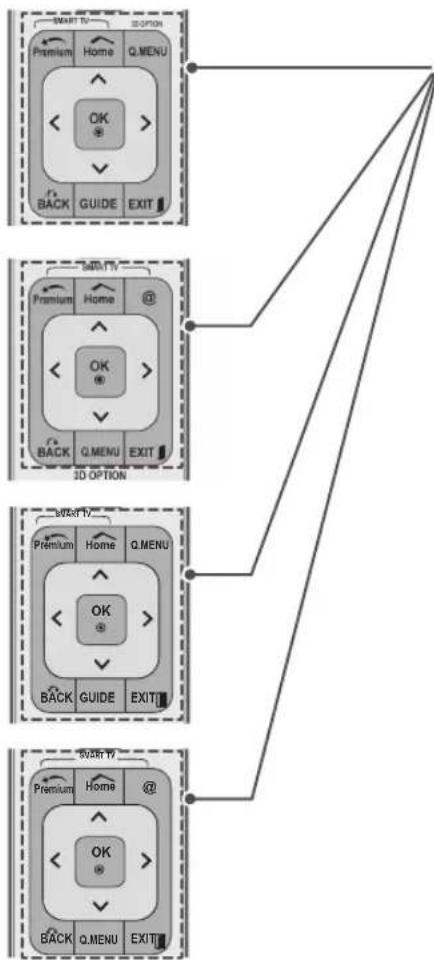
flowchart
graph TD
    A["3D OPTION"] --> B["OK"]
    A --> C["PREMIUM"]
    A --> D["HOME"]
    A --> E["Q. MENU"]
    A --> F["BACK GUIDE EXIT"]
    G["3D OPTION"] --> H["OK"]
    G --> I["PREMIUM"]
    G --> J["HOME"]
    G --> K["Q. MENU"]
    G --> L["BACK GUIDE EXIT"]
    M["3D OPTION"] --> N["OK"]
    M --> O["PREMIUM"]
    M --> P["HOME"]
    M --> Q["Q. MENU"]
    M --> R["BACK GUIDE EXIT"]
    S["3D OPTION"] --> T["OK"]
    S --> U["PREMIUM"]
    S --> V["HOME"]
    S --> W["Q. MENU"]
    S --> X["BACK GUIDE EXIT"]
Premium
Accesses the Premium menus.
Home
Accesses the Home menu.
Q. MENU (See p.44)
Accesses the quick menus.
3D OPTION (Only 3D models) (See p.92)
Used for viewing 3D video.

Direct access to your internet portal of entertainment and news services developed by Orange. (Only France)
Navigation buttons (up/down/left/right)
Scrolls through menus or options.
OK
Selects menus or options and confirms your input.
BACK
Returns to the previous level.
GUIDE
Shows programme guide.
EXIT
Clears all on-screen displays and return to TV viewing.
Coloured buttons
These access special functions in some menus.

TELETEXT BUTTONS (See p.125)
These buttons are used for teletext. For further details, see the 'Teletext' section.
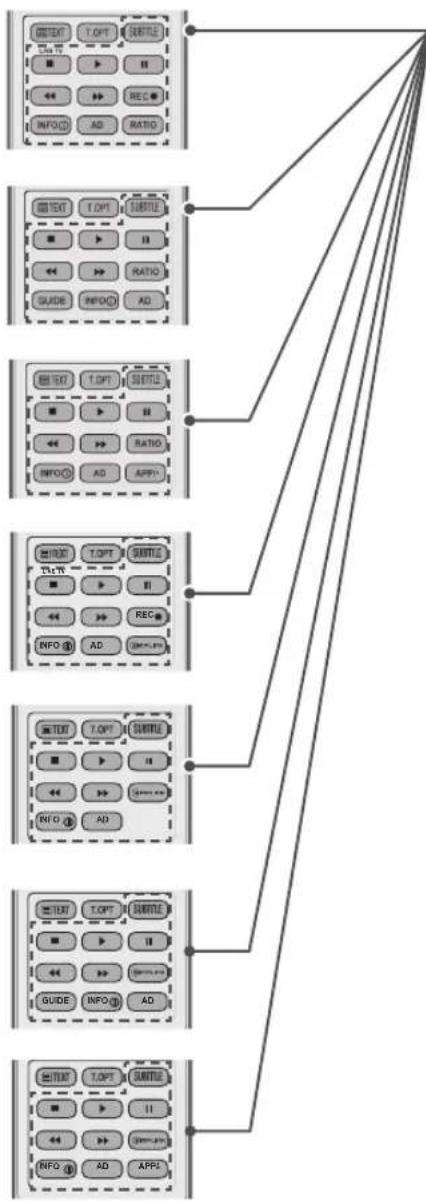
flowchart
graph TD
    A["RESET"] --> B["T.OPT"]
    B --> C["SURPLE"]
    C --> D["TIME"]
    D --> E["RECO"]
    E --> F["INFO"]
    F --> G["AD"]
    G --> H["RATIO"]
    H --> I["GUIDE"]
    I --> J["INFO"]
    J --> K["AD"]
    K --> L["APP1"]

    M["TEXT"] --> N["T.OPT"]
    N --> O["SURPLE"]
    O --> P["TIME"]
    P --> Q["RECO"]
    Q --> R["INFO"]
    R --> S["AD"]
    S --> T["APP1"]

    U["TEXT"] --> V["T.OPT"]
    V --> W["SURPLE"]
    W --> X["TIME"]
    X --> Y["RECO"]
    Y --> Z["INFO"]
    Z --> AA["AD"]
    AA --> AB["APP1"]

    AC["TEXT"] --> AD["T.OPT"]
    AD --> AE["SURPLE"]
    AE --> AF["TIME"]
    AF --> AG["RECO"]
    AG --> AH["INFO"]
    AH --> AI["AD"]
    AI --> AJ["APP1"]
SUBTITLE
Recalls your preferred subtitle in digital mode.
Views the information of the current programme and screen.
AD
Switches the Audio Description On or Off.
RATIO (See p.41)
Resizes an image.
GUIDE
Shows programme guide.
SIMPLINK (See p.123)
Accesses the AV devices connected to the TV;
Opens the SIMPLINK menu.
APP/\*
Select the MHP TV menu source. (Only Italy)
(Depending on model)
Magic Motion Remote Control Functions
This item is not included for all models.
Refer to the Magic Motion Remote Control manual for operating instructions. Please read this manual carefully and use the TV correctly. When the message "Magic motion remote control battery is low. Change the battery." is displayed, replace the battery.
To replace batteries, open the battery cover, replace batteries (1.5 V AA) matching and ends to the label inside the compartment, and close the battery cover. Be sure to point the remote control toward the remote control sensor on the TV.
To remove the batteries, perform the installation actions in reverse.
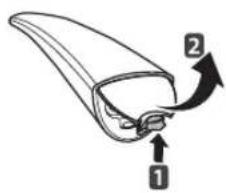
text_image
Diagram of a curved object with labeled parts 1 and 2, showing directional arrows indicating movement or rotation.
CAUTION
Do not mix old and new batteries, as this may damage the remote control
text_image
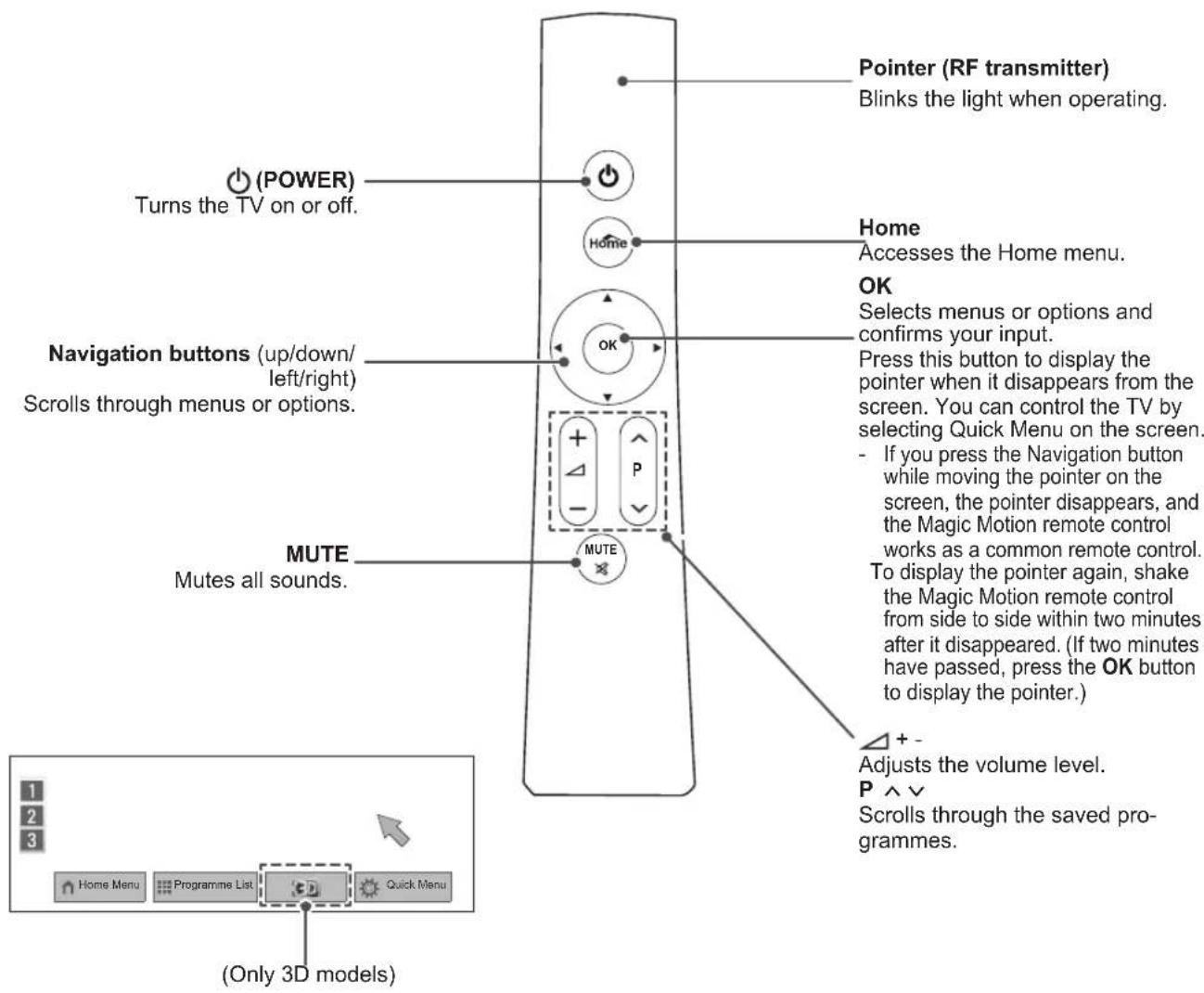
Pointer (RF transmitter) Blinks the light when operating. Home Accesses the Home menu. OK Selects menus or options and confirms your input. Press this button to display the pointer when it disappears from the screen. You can control the TV by selecting Quick Menu on the screen. - If you press the Navigation button while moving the pointer on the screen, the pointer disappears, and the Magic Motion remote control works as a common remote control. To display the pointer again, shake the Magic Motion remote control from side to side within two minutes after it disappeared. (If two minutes have passed, press the OK button to display the pointer.) MUTE Mutes all sounds. (Only 3D models) Turns the TV on or off. Navigation buttons (up/down/ left/right) Scrolls through menus or options. 1 2 3 Home Menu Programme List Quick Menu (Only 3D models)Installing RF Dongle
(Only 32/37/42/47LV55*, 32/37/42/47/55LV57*, 32/37/42/47/55LW55*, 32/37/42/47/55LW57*, 32/42/47/55LW65*)
Image shown may differ from your TV.
1 Locate the designated Velcro attachment location on the TV. Then tear off the protection paper and attach the Velcro. (The attachment location is different depending on the TV model you own)
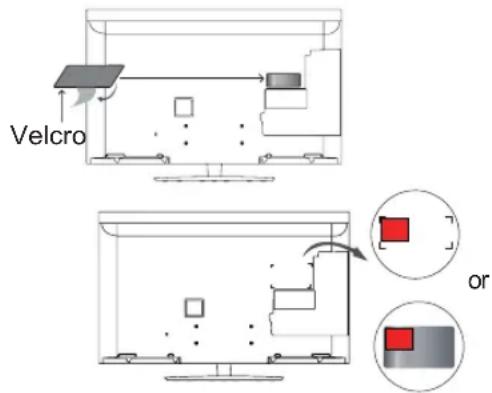
text_image
Velcro or* Attach the RF dongle aligning with the upper left corner bracket.
2 Connect the RF Dongle Cable plug on the RF Dongle to a USB jack on the TV.
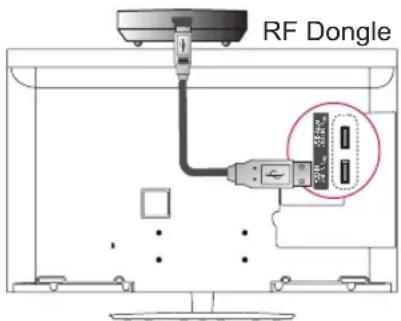
text_image
RF Dongle3 Attach the RF Dongle to the velcro as shown below and then turn on the TV.
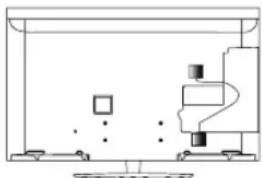
natural_image
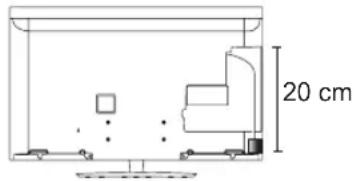
Pure technical diagram of a mechanical assembly without any text, numbers, or symbols* If the RF dongle for the wireless media box is attached, attach the RF dongle for the Magic Motion remote control on the upper right of the back of the TV.
* To avoid wireless interference, keep the distance between the RF dongle for the Magic Motion remote control and the Wi-Fi dongle at 20 cm.
text_image
20 cm
NOTE
Separate purchase : Except for 32/37/42/47/55LV571S, 32/37/42/47/55LW573S, 32/37/42/47/55LW575S
Registering Magic Motion Remote Control
The Magic Motion Remote Control operates by pairing with your TV. Register the Magic Motion Remote Control to use.
How to register the Magic Motion Remote Control
To register the remote control, press the OK button on the remote control while aiming it at your TV.
How to Re-register the Magic Motion Remote Control after Registration Failure
Reset the remote control by pressing and holding both the OK and MUTE buttons for 5 seconds. (Once the reset is complete, the light on the Pointer blinks.) Then repeat the above procedure to register the remote control.
How to use Magic Motion Remote Control
1 Press OK button if there is no pointer on your TV screen. The pointer will then appear on the screen. If the pointer has not been used for a certain period of time, it will disappear.
2 You can move the pointer by aiming the Pointer Receiver of the remote control at your TV then move it left, right, up or down. If the pointer does not work properly after clicking the OK button, leave the remote control for 10 seconds then use it again.
Precautions to Take when Using the Magic Motion Remote Control
- Use the remote control within the maximum communication distance (10 m). Using the remote control beyond this distance, or with an object obstructing it, may cause a communication failure.
- A communication failure may occur due to nearby devices. Electrical devices such as a microwave oven or wireless LAN product may cause interference, as this will use the same bandwidth (2.4 GHz) as the Magic Motion Remote Control.
- The Magic Motion Remote Control may be damaged or may malfunction if it is dropped or receives a heavy impact.
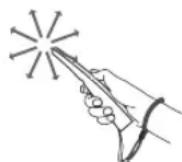
- When playing a game using the Magic Motion Remote Control, hold it securely by wrapping its strap around your wrist and adjusting the length with the adjustable ring.
• Take care not to bump into nearby furniture or other people when using the Magic Motion Remote Control.
• Manufacturer and installer cannot provide service related to human safety as the applicable wireless device has possibility of electric wave interference.
- It is recommended that an Access Point (AP) be located more than 1 m away from the TV. If the AP is installed closer than 1 m, the magic motion remote control may not perform as expected due to frequency interference.
WATCHING TV
Connecting to an antenna
Connect an antenna to watch TV while referring to the following.
To prevent damage do not connect to the mains outlet until all connections are made between the devices.
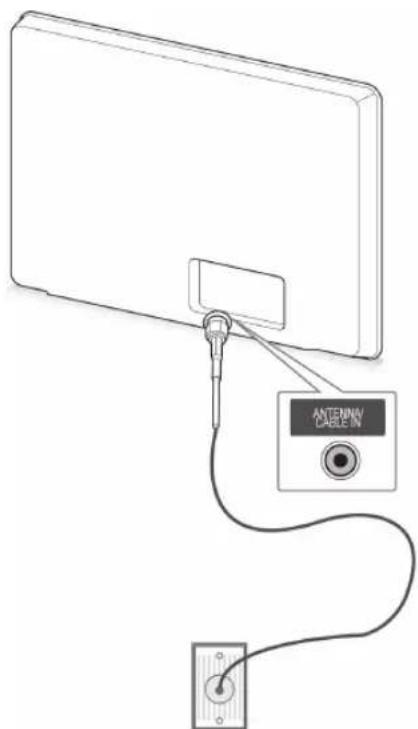
Connecting an antenna
Connect the TV to a wall antenna socket with an RF cable (75 Ω).
text_image
ANTENNY CABLE INWall Antenna Socket
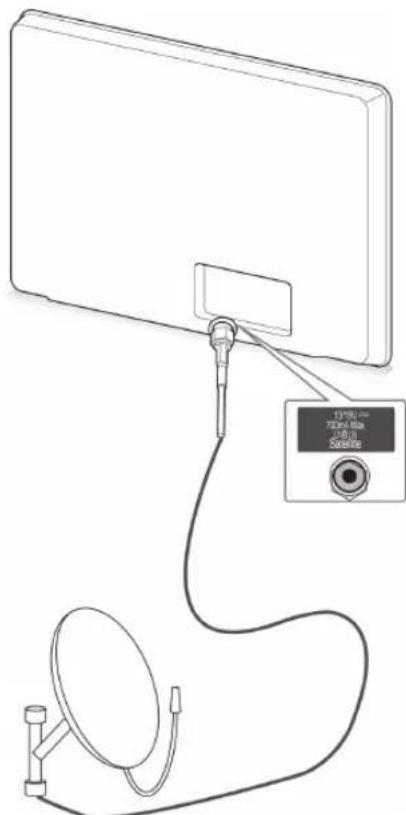
Connecting with a satellite dish
(Only Satellite models)
Connect the TV to a satellite dish to a satellite socket with a satellite RF cable (75 Ω)
text_image
17:00 = 7200 m/s 2500 m SatelliteSatellite Dish

NOTE
Use a signal splitter to use more than 2 TVs.
If the image quality is poor, install a signal amplifier properly to improve the image quality.
If the image quality is poor with an antenna connected, aim the antenna to the correct direction.
An antenna cable and converter are not supplied.
Turning the TV on for the first time
When you turn the TV on for the first time, the Initial setting screen appears. Select a language and customize the basic settings.
1 Connect the power cord to a power outlet.
2 In Standby mode, press ⏻ (POWER) to turn the TV on.
The Initial setting screen appears if you turn the TV on for the first time.

NOTE
You can also access Factory Reset by accessing OPTION in the Home menu-SETUP.
3 Follow the on-screen instructions to customize your TV settings according to your preferences.
| Language |
| ↓ |
| Mode Setting |
| ↓ |
| Power Indicator |
| ↓ |
| Country |
| ↓ |
Selects a language to display.
Selects Home Use for the home environment.
Sets the power indicator. (When you select Home Use from the Mode Setting)
Selects a country to display. (Depending on model)
| Time Zone |
| ↓ |
| Set Password |
| ↓ |
| Network Setting |
| ↓ |
Selects the time zone and daylight saving. (When Russia is selected for Country)
Sets the password. (When France is selected for Country)
Sets your network to enable network-related feature on the TV. (Only 47/55LW95**)
| Auto Tuning |
Scans and saves available programmes automatically.

NOTE
For those countries without confirmed DTV broadcasting standards, some DTV features might not work, depending on the DTV broadcasting environment.
When France is selected for Country, password is not '0', '0', '0', '0' but '1', '2', '3', '4'.
To display images in the best quality for your home environment, select Home Use.
Store Demo is suitable for the retail environment.
If you select Store Demo, any customized settings will switch back to the default settings of Store Demo in 5 minutes.
4 When the basic settings are complete, press OK.

NOTE
- If you do not complete the Initial setting, it will appear whenever the TV turns on.
- Disconnect the power cord from the power outlet when you do not use the TV for a long period of time.
5 To turn the TV off, press ⏻ (POWER).
Watching TV
1 In Standby mode, press ⏻ (POWER) to turn the TV on.
2 Press INPUT and select Antenna.
3 To turn the TV off, press ⏻ (POWER). The TV switches to Standby mode.
Accessing Home menu
1 Press Home to access the Home menu.
2 Press the Navigation buttons to scroll to one of the following menus and press OK.
3 Press the Navigation buttons to scroll to the setting or option you want and press OK.
4 When you are finished, press EXIT.
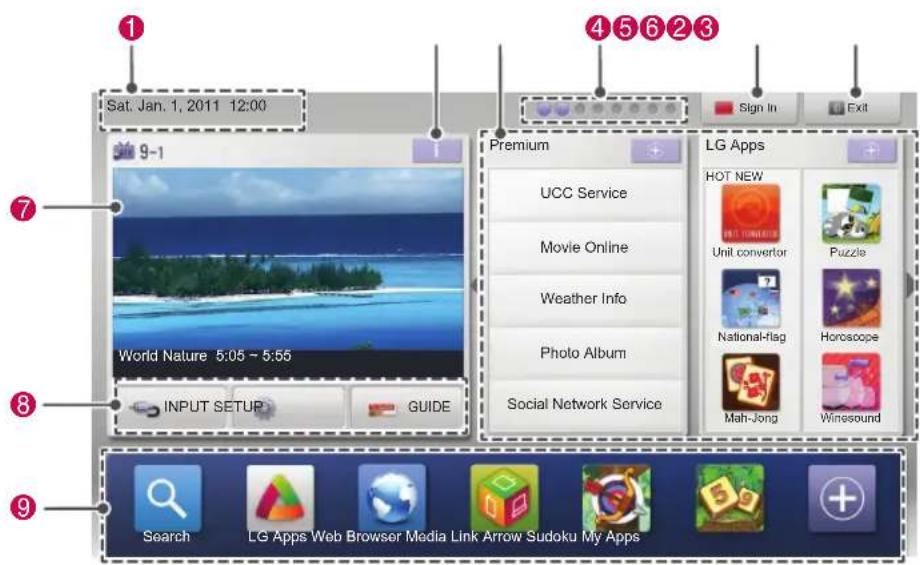
text_image
Sat. Jan. 1, 2011 12:00 9-1 World Nature 5:05 - 5:55 INPUT SETUP GUIDE Premium UCC Service Movie Online Weather Info Photo Album Social Network Service LG Apps HOT NEW Unit convertor Puzzle National-flag Horoscope Mah-Jong Winesound Search LG Apps Web Browser Media Link Arrow Sudoku My Apps| Option Description | |
| 1 | Current Date, Time |
| 2 | Channel programme info |
| 3 | Function card: You can enjoy various content files by selecting each card and you can edit the premium card by selecting 5 items. |
| 4 | Function card position |
| 5 | Sign In |
| 6 | Exit |
| 7 | Current watching channel screen |
| 8 | INPUT, SETUP, GUIDE menu. |
| 9 | Launcher bar |
Managing programmes
Automatically setting up programme
Selecting Antenna,
Use this to automatically find and store all available programmes.
When you start auto programming, all previously stored service information will be deleted.
1 Press Home to access the Home menu.
2 Press the Navigation buttons to scroll to SETUP and press OK.
3 Press the Navigation buttons to scroll to SETUP and press OK.
4 Press the Navigation buttons to scroll to Auto Tuning and press OK.
5 Press the Navigation buttons to scroll to Antenna and press OK.
6 Select Start to start automatic tuning.
The TV scans and saves available programmes automatically.
7 When you are finished, press EXIT.
When you return to the previous menu, press BACK.

NOTE
- If the TV scans a blocked programme, you will be prompted to enter your password to keep the programme scanned.
ou can store up to 1,200 programmes (Except for Satellite models) or 6,000 programmes(Only Satellite models). The number of programmes that you can store differs depending on the broadcasting signal environment.
- When select Italy in the Country menu, if the pop up is displayed when the conflicted programme after Auto Tuning, select a broadcaster for conflicting programme number to solve. When select UK in the Country menu, if the pop up is displayed when the conflicted programme after Auto Tuning, select a regions, country for conflicting programme number to solve.
- When selected Norway in the Country menu, If Network name is recognized more than two after Auto Tuning, you can select your desired one. Programme lists are arranged based on the selected Network name. (Only Nordic models)
• In the following country, DVB cable can be used
: Germany, Netherlands, Sweden, Switzerland, Denmark, Austria, Finland, Norway, Slovenia, Hungary, Ukraine, Bulgaria, Ireland, Poland, Romania, Russia, Lithuania, Estonia, Latvia, Spain. (The supported country can be added.)
Selecting Cable,
1 Press Home to access the Home menu.
2 Press the Navigation buttons to scroll to SETUP and press OK.
3 Press the Navigation buttons to scroll to SETUP and press OK.
4 Press the Navigation buttons to scroll to Auto Tuning and press OK.
5 Press the Navigation buttons to scroll to Cable and press OK.
6 Press the Navigation buttons to scroll to Service Operator and press OK.
7 Press the Navigation buttons or Number buttons to scroll make appropriate adjustments and press OK.
8 Select Start to start automatic tuning. The TV scans and saves available programmes automatically.
9 When you are finished, press EXIT.
When you return to the previous menu, press BACK.

NOTE
- If the TV scans a blocked programme, you will be prompted to enter your password to keep the programme scanned.
- Use this to automatically find and store all available programmes. When you start auto programming, all previously stored service information will be deleted.
- When you select the Cable, the Cable Service Operator selection screen can differ or not exist by the Cable situation of the applicable country.
- The popup window to select Service Operator is only shown initially for the 3 cases when you accessing the Initial Setting menu, when you change from Antenna to Cable or when you access the menu after changing the Country.
- When you want to select Service Operator aside from the above 3 cases, you can do so by selecting Setup->Cable DTV Setting->Service Operator.
• Acquired certification SO : Sweden(Comhem, Canal Digital), Denmark(YouSee, Canal Digital, Stofa), Norway(Canal Digital), Netherlands(Ziggo, UPC Digitaal), Ukraine(Volia-Cable), Germany(KDG), Switzerland(CableCom, UPC), Austria(UPC Digital), Hungary(UPC Digital), Ireland(UPC Digital), Poland(UPC Digital), Romania(UPC Digital), Russia(OnLime).
- If there are not any Service Operator that you want, select Other Operators. - If you select "Other Operators", or the selected country supports "Other Operators" only, it may take some time to search all the channels, or it may not search some of the channels.
The following values are needed in order to search all available programmes quickly and correctly.
The commonly used values are provided as "default".
However, for correct settings, please inquire of the cable service provider.
When running Auto Tuning in DVB cable mode, selecting Full will search through all frequencies to find available channels.
In the case when the programme is not searched by selecting the Default, perform the searching by selecting the Full.
However, in the case when the programme is searched by selecting the Full, the Auto Tuning time can be taken too much.
- Frequency : Enter a user-defined frequency.
- Symbol rate : Enter a user-defined symbol rate (Symbol rate: Speed at which a device such as modem sends symbols to a channel).
- Modulation : Enter a user-defined modulation. (Modulation: Loading of audio or video signals onto carrier).
- Network ID : Unique identifier allocated for each user.
- Start Frequency : Enter a user-defined start frequency range.
- End Frequency : Enter a user-defined end frequency range.
Selecting Satellite,
(Only Satellite models)
1 Press Home to access the Home menu.
2 Press the Navigation buttons to scroll to SETUP and press OK.
3 Press the Navigation buttons to scroll to SETUP and press OK.
4 Press the Navigation buttons to scroll to Auto Tuning and press OK.
5 Press the Navigation buttons to scroll to Satellite and press OK.
6 Press the Navigation buttons to scroll make appropriate adjustments and press OK.
7 Select Start to start automatic tuning. The TV scans and saves available programmes automatically.
8 When you are finished, press EXIT.
When you return to the previous menu, press BACK.

NOTE
- Programme Type : You can select All Programmes, FTA Programme or Paid Programme.
• Network Search : You can search through both an existing Transponder List and the Transponder List that was transmitted via NIT. - You can change the Setting ID Info from the Setting menu.
- You can Add/Delete the Setting ID from the SETUP -> Satellite DTV Setting menu.
- If more than 6000 programmes are stored, you cannot store any more programmes. To add programmes, delete the unused setting IDs in SETUP -> Satellite DTV Setting and tune the TV again.
Selecting Antenna & Satellite,
(Only Satellite models)
1 Press Home to access the Home menu.
2 Press the Navigation buttons to scroll to SETUP and press OK.
3 Press the Navigation buttons to scroll to SETUP and press OK.
4 Press the Navigation buttons to scroll to Auto Tuning and press OK.
5 Press the Navigation buttons to scroll to Antenna & Satellite and press OK.
6 Press the Navigation buttons to scroll make appropriate adjustments and press OK.
7 Select Start to start automatic tuning. The TV scans and saves available programmes automatically.
8 When you are finished, press EXIT.
When you return to the previous menu, press BACK.
Selecting Cable & Satellite,
(Only Satellite models)
1 Press Home to access the Home menu.
2 Press the Navigation buttons to scroll to SETUP and press OK.
3 Press the Navigation buttons to scroll to SETUP and press OK.
4 Press the Navigation buttons to scroll to Auto Tuning and press OK.
5 Press the Navigation buttons to scroll to Cable & Satellite and press OK.
6 Press the Navigation buttons to scroll to Service Operator and press OK.
7 Press the Navigation buttons to select your desired cable setting and press OK.
8 Press the Navigation buttons to select your desired satellite setting and press OK.
9 Select Start to start automatic tuning. The TV scans and saves available programmes automatically.
10 When you are finished, press EXIT.
When you return to the previous menu, press BACK.

Cable DTV Setting
(In Cable, Cable & Satellite(-Only Satellite models) mode only)
The range that a user can select from the Service Operator menu differs depending on number of Service Operator supported by each country, and if number of supported Service Operator for each country is 1, corresponding function becomes non-activation.
1 Press Home to access the Home menu.
2 Press the Navigation buttons to scroll to SETUP and press OK.
3 Press the Navigation buttons to scroll to SETUP and press OK.
4 Press the Navigation buttons to scroll to Cable DTV Setting and press OK.
5 Press the Navigation buttons to scroll to Service Operator or Channel Auto update and press OK.
6 Select your desired Source.
7 When you are finished, press EXIT. When you return to the previous menu, press BACK.

NOTE
- When Channel Auto Update is On, you can update information for all the programmes that can be updated, including the programme currently being watched.
- When Channel Auto Update is Off, you can only update information for the programme currently being watched.
- You can not select the Cable DTV Setting when the service operator is set to "Ziggo".
Satellite DTV Setting
(In Satellite, Antenna & Satellite, Cable & Satellite mode only-Only Satellite models)
You can add or delete a satellite setting ID.
1 Press Home to access the Home menu.
2 Press the Navigation buttons to scroll to SETUP and press OK.
3 Press the Navigation buttons to scroll to SETUP and press OK.
4 Press the Navigation buttons to scroll to Satellite DTV Setting and press OK.
5 Select your desired setting ID.
You can change the following settings for each setting ID for your preferences.
| Option Description | |
| Satellite Select your desired Satellite. | |
| LNB Frequency | Select one value from Universal, 9750, 10600, 5150.If you select Universal for LNB Frequency which is 9750/10600(MHz), 22KHz Tone is disabled.If you cannot find the LNB frequency value from the list, select User and manually enter the frequency. |
| 22KHz Tone | When using 22KHz Tone switch, select A or B. If you use 22KHz Tone, Tone Burst and Motorized System are disabled. |
| Tone Burst W | When using Tone Burst switch, select A or B. If you use Tone Burst, 22KHz Tone and Motorized System are disabled. |
| LNB Power T | To enable the power supply for the LNB, select On.If you select Off, Motorized System is disabled. |
| DiSEqC When | using DiSEqC, select one option from DiSEqC A~D. If you use DiSEqC, Motorized System is disabled. |
| Motorized System | When using the motor, select On. To set the antenna position, press OK button and move the motor. If you use the motor, 22KHz Tone, Tone Burst and DiSEqC are disabled. |
6 If you select Motorized System to On, select your desired source.
| Option Description | |
| Drive Direction | Select the direction in which you want to move the motor. |
| Drive Mode | Two modes are available: Step and Continuous.Step: The motor moves based on the value you enter (from 1 to 128).Continuous: The motor moves continuously until you press the "Stop". |
| Test TP Select | the test TP you want to tune. |
| Set Limit Set | the motor movement to east or west to have the motor move only within the direction set.On: You can limit the movement to the current direction by selecting the "West/East".Off: You can cancel the limit you set. |
| Go To Zero | You can move the motor to "Zero". |
| Store You can | save the motor's current direction. |
7 When you are finished, press EXIT.
When you return to the previous menu, press BACK.

NOTE
- If you set Satellite to Others when adding a setting ID, you must add a transponder using Manual Tuning.
• You can add up to 16 setting IDs.
- All setting IDs can be deleted, except for Setting ID 1.
- When selecting 22KHz Tone and DiSEqc, or Tone Burst and DiSEqc, you must connect them in the same position as displayed on the OSD.
- If you delete a setting ID, all programmes stored in the setting ID are deleted.
Tivu Programme List Update
(In Satellite, Antenna & Satellite, Cable & Satellite mode only-Only Satellite models)(Only Italy)
1 Press Home to access the Home menu.
2 Press the Navigation buttons to scroll to SETUP and press OK.
3 Press the Navigation buttons to scroll to SETUP and press OK.
4 Press the Navigation buttons to scroll to Tivu Programme List Update and press OK.
5 Press the Navigation buttons to scroll to Off or On.

NOTE
- It updates the changed Programme List information by based on country broadcasting circumstance and satellite.
- It updates the Programme List when the TV turn off all the time. After updates, the Programme List may be changed. If not want, select Off.
Manually setting up programme (In digital mode)
Manual Tuning lets you manually add a programme to your programme list.
Selecting Antenna,
1 Press Home to access the Home menu.
2 Press the Navigation buttons to scroll to SETUP and press OK.
3 Press the Navigation buttons to scroll to SETUP and press OK.
4 Press the Navigation buttons to scroll to Manual Tuning and press OK.
5 Press the Navigation buttons to scroll to DTV.
6 Scroll through the programme types, and then add programmes.
7 When you are finished, press EXIT.
When you return to the previous menu, press BACK.

NOTE
- If the TV scans a blocked programme, you will be prompted to enter your password to keep the programme scanned.
- You can select SBAND when the country is set to "Norway, Latvia."
Selecting Cable,
(In Cable, Cable & Satellite(-Only Satellite models) mode only)
1 Press Home to access the Home menu.
2 Press the Navigation buttons to scroll to SETUP and press OK.
3 Press the Navigation buttons to scroll to SETUP and press OK.
4 Press the Navigation buttons to scroll to Manual Tuning and press OK.
5 Press the Navigation buttons to scroll to Cable DTV.
6 Make appropriate adjustments.
7 When you are finished, press EXIT. When you return to the previous menu, press BACK.

NOTE
- If the TV scans a blocked programme, you will be prompted to enter your password to keep the programme scanned.
- Symbol rate : Enter a user-defined symbol rate (Symbol rate: Speed at which a device such as modem sends symbols to a channel).
- Modulation : Enter a user-defined modulation. (Modulation: Loading of audio or video signals onto carrier).
- You can not select the Cable DTV when the service operator is set to "Ziggo" or "Other Operators" of Netherlands.
Selecting Satellite,
(In Satellite, Antenna & Satellite, Cable & Satellite mode only-Only Satellite models)
1 Press Home to access the Home menu.
2 Press the Navigation buttons to scroll to SETUP and press OK.
3 Press the Navigation buttons to scroll to SETUP and press OK.
4 Press the Navigation buttons to scroll to Manual Tuning and press OK.
5 Press the Navigation buttons to scroll to Satellite DTV.
6 Make appropriate adjustments.
7 When you are finished, press EXIT.
When you return to the previous menu, press BACK.

NOTE
- If the TV scans a blocked programme, you will be prompted to enter your password to keep the programme scanned.
- Transponder : If there is no transponder to use, you can add a transponder by logging in as User.
- If more than 2000 transponders are stored you cannot add any more transponders. To add transponders, delete the unused setting IDs in SETUP > Satellite DTV Setting and try again.
- If there is no transponder, you cannot use Auto Tuning. In this case, you must add a transponder using Manual Tuning.
Manually setting up programme (In analogue mode)
Manual Tuning lets you manually tune and arrange the stations in whatever order you desire.
1 Press Home to access the Home menu.
2 Press the Navigation buttons to scroll to SETUP and press OK.
3 Press the Navigation buttons to scroll to SETUP and press OK.
4 Press the Navigation buttons to scroll to Manual Tuning and press OK.
5 Press the Navigation buttons to scroll to TV or Cable TV or Cable DTV or Satellite DTV.
6 Scroll through the programme types, and then add or delete programmes.
7 Press the Navigation buttons to scroll to TV System.
8 Press the Navigation buttons to scroll to V/UHF or Cable.
9 Press the Navigation buttons or Number buttons to scroll to the desired channel number.
10 Press the Navigation buttons to scroll and start searching.
11 Press the Navigation buttons to scroll to Store and press OK.
12 When you are finished, press EXIT.
When you return to the previous menu, press BACK.

NOTE
- If the TV scans a blocked programme, you will be prompted to enter your password to keep the programme scanned.
• L : SECAM L/L' (France) (Except for DVB-T2 support models)
• BG : PAL B/G, SECAM B/G (Europe / East Europe / Asia / New Zealand / M.East / Africa)
• I : PAL I (U.K. / Ireland / Hong Kong / South Africa)
- DK : PAL D/K, SECAM D/K (East Europe / China / Africa / CIS)
• To store another channel, repeat steps 6 to 11.
Assigning a station name
You can assign a station name with five characters to each programme number.
1 Press Home to access the Home menu.
2 Press the Navigation buttons to scroll to SETUP and press OK.
3 Press the Navigation buttons to scroll to SETUP and press OK.
4 Press the Navigation buttons to scroll to Manual Tuning and press OK.
5 Press the Navigation buttons to scroll to TV or Cable TV.
6 Press the Navigation buttons to scroll to Name and press OK.
7 Press the Navigation buttons to scroll to select the position and make your choice of the second character, and so on. You can use an the alphabet A to Z, the number 0 to 9, +/- , and blank and press OK.
8 Press the Navigation buttons to scroll to Close and press OK.
9 Press the Navigation buttons to scroll to Store and press OK
10 When you are finished, press EXIT.
When you return to the previous menu, press BACK.
Fine Tuning
(Except for Satellite models)
Normally fine tuning is only necessary if reception is poor.
1 Press Home to access the Home menu.
2 Press the Navigation buttons to scroll to SETUP and press OK.
3 Press the Navigation buttons to scroll to SETUP and press OK.
4 Press the Navigation buttons to scroll to Manual Tuning and press OK.
5 Press the Navigation buttons to scroll to TV or Cable TV.
6 Press the Navigation buttons to scroll to Fine.
7 Fine tune for the best picture and sound.
8 Press the Navigation buttons to scroll to Store and press OK
9 When you are finished, press EXIT.
When you return to the previous menu, press BACK.
Editing your programme list
When a programme number is skipped, it means that you will be unable to select it using P ∧ ∨ button during TV viewing.
If you wish to select the skipped programme, directly enter the programme number with the NUMBER buttons or select it in the Programme edit menu.
This function enables you to skip the stored programmes.
1 Press Home to access the Home menu.
2 Press the Navigation buttons to scroll to SETUP and press OK.
3 Press the Navigation buttons to scroll to SETUP and press OK.
4 Press the Navigation buttons to scroll to Programme Edit and press OK.
5 Edit programmes using the following buttons.
| Button Description | |
| ^ | Highlight the programme type. |
| ^ v <> | Scrolls through programme types or programmes. |
| OK Edits programmes. | |
6 When you are finished, press EXIT.
When you return to the previous menu, press BACK.
Selecting a programme on the programme list
1 Press LIST to access the programme list.
| Button Description | |
| < > | Selects programme list or recent programme list. |
| ^ v | Scrolls through programme. |
| OK | Selects the highlighted programme to view. |
| P ^ v | Moves to the previous or next page. |
| Red button Ed its programme. | |
| TV/RAD Selects a desired programme mode. | |
| FAV | Moves to the favourite programme list. |
2 When you are finished, press EXIT.
When you return to the previous menu, press BACK.

NOTE
- If you select the blocked programme, you will be prompted to enter your password.

Booster
(Except for Satellite models)
If reception is poor select Booster to On. When the signal is strong, select Off.
1 Press Home to access the Home menu.
2 Press the Navigation buttons to scroll to SETUP and press OK.
3 Press the Navigation buttons to scroll to SETUP and press OK.
4 Press the Navigation buttons to scroll to Booster and press OK.
5 Select On or Off.
Using favourite programmes
Add the programmes that you watch frequently to the favourite list.
1 Select a programme to add to the favourite list.
2 Press FAV.
| Button Description | |
| <> | Selects a desired favourite programme group. |
| P^v | Moves to the previous or next page. |
| Red button Moves to the Programme Edit. | |
| Green button | Register or cancel the current programme. |
| TV/RAD Selects a desired programme mode. | |
| FAV Moves to the Programme List. | |
3 When you are finished, press EXIT.
CI [Common interface] Information
This function enables you to watch some encrypted services (pay services). If you remove the CI Module, you cannot watch pay services.
When the module is inserted into the CI slot, you can access the module menu.
To purchase a module and smart card, contact your dealer. Do not repeatedly insert or remove a CI module from the TV. This may cause a malfunction. When the TV is turned on after inserting a CI Module, you may not have any sound output.
This may be incompatible with the CI module and smart card.
CI (Common Interface) functions may not be possible depending upon the country broadcasting circumstances.
When using a CAM(Conditional Access Module), please make sure it meets fully the requirements of either DVB-CI or CI plus.
A abnormal process of CAM(Conditional Access Module) may cause a bad picture.
1 Press Home to access the Home menu.
2 Press the Navigation buttons to scroll to SETUP and press OK.
3 Press the Navigation buttons to scroll to SETUP and press OK.
4 Press the Navigation buttons to scroll to CI Information and press OK.
5 Select the desired item: Module information, smart card information, language, or software download etc and press OK.
6 When you are finished, press EXIT.
![LG 47LW650G - CI [Common interface] Information - 1](/content/2026/05/816267/images/ec15d81b906408b62d2f17c375614a95fb7b66ac026ffbf2e2d2bf7c919a5569.jpg)
NOTE
- This OSD is only for illustration and the menu options and screen format will vary according to the Digital pay services provider.
- It is possible for you to change CI (Common Interface) menu screen and service by consulting your dealer.
Using additional options
Adjusting aspect ratio
Resize an image to view at its optimal size by pressing RATIO while you are watching TV.

NOTE
- You can also change the image size by pressing Q. MENU or accessing Aspect Ratio in the PICTURE menus.
-
You can adjust the enlarge proportion using the Navigation buttons.
-
You can only select 4:3, 16:9 (Wide), 14:9, Cinema Zoom in Component mode.
- You can only select 4:3, Original, 16:9 (Wide), 14:9, Cinema Zoom in HDMI mode.
-
You can only select 4:3, 16:9 (Wide) in RGB-PC, HDMI-PC mode only.
-
In DTV/HDMI/Component (over 720p) mode, Just Scan is available.
- In Analogue/DTV/AV/Scart mode, Full Wide is available.
- 16:9: Resizes images to fit the screen width.
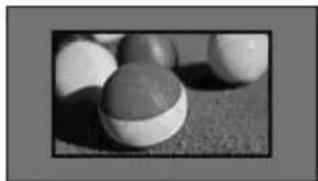
natural_image
Black and white photo of a ball on a gravel surface (no text or symbols visible)- Just Scan: Displays video images in the original size without removing parts of the edge of the image.
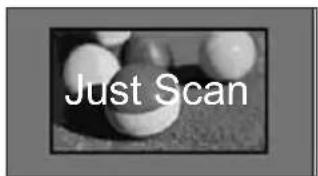
text_image
Just Scan
NOTE
- If you select Just Scan, you may see image noises at the edge or edges of the screen.
- Original: When your TV receives a wide screen signal it will automatically change to the picture format broadcasted.
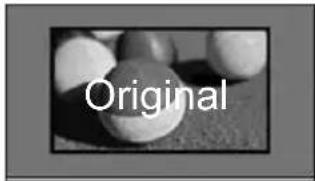
text_image
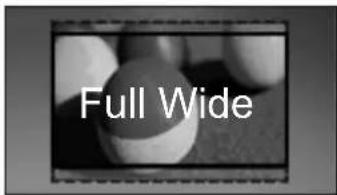
Original- Full Wide: When TV receives the wide screen signal, it will let you adjust the picture horizontally or vertically, in a linear proportion, to fill the entire screen fully.
4:3 and 14:9 video is supported in full screen without any video distortion through DTV input.
text_image
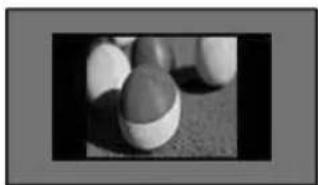
Full Wide- 4:3: Resizes images to the previous standard 4:3.
natural_image
Close-up of a ball with a pointed tip, showing surface texture and no visible text or symbols
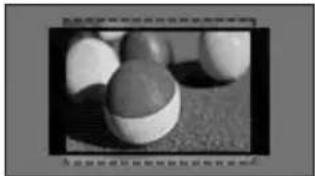
- 14:9 : You can view a picture format of 14:9 or a general TV programme in the 14:9 mode. The 14:9 screen is viewed in the same way as in 4:3, but is moved to the up and down.
natural_image
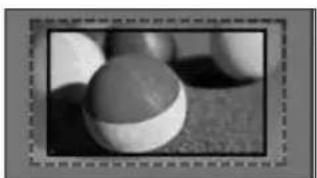
Black and white photo of a ball on a textured surface (no visible text or symbols)- Cinema Zoom: Choose Cinema Zoom when you want to enlarge the picture in correct proportion. To change the ratio of the cinema zoom, press <> and its range is from 1 to 16. To move the zoom focus up or down, press ^ v.
natural_image
Black and white photo of a ball on a surface, no visible text or symbols
NOTE
- If you enlarge or reduce an image, the image may be distorted.
Changing AV modes
Each AV mode has optimized image and sound settings.
Press AV MODE repeatedly to select an appropriate mode.
| Mode Description | |
| Off Changes to the previously customized settings. | |
| Cinema Use the optimized image and sound settings for the cinematic look. | |
| Game Use the optimized image and sound settings for fast gaming.When playing a video game using PlayStation or Xbox, it is recommended to use the Game mode.When in Game mode, functions related to picture quality will be optimized for playing games. |
Using the input list
Selecting an input source
1 Press INPUT to access the input sources.
- The connected device displays on each input source.

NOTE
- You can also access the input source list by selecting INPUT in the Home menu.
2 Press the Navigation buttons to scroll to one of the input sources and press OK.
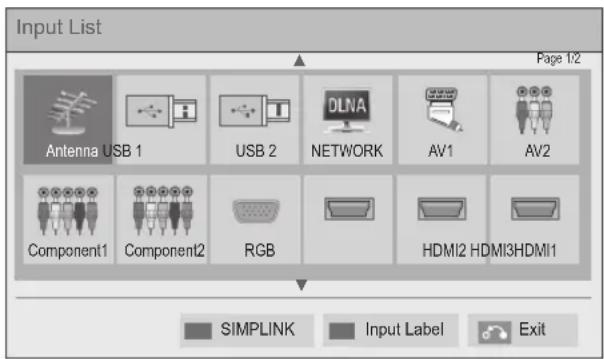
text_image
Input List Page 1/2 Antenna USB 1 USB 2 DLNA NETWORK AV1 AV2 Component1 Component2 RGB HDMI2 HDM13HDMI1 SIMPLINK Input Label Exit| Input source | Description |
| Antenna or Cable or Satellite | Watch TV over the air, cable, and digital cable broadcast. |
| USB Play media | files from a thumb drive. |
| NETWORK Play | media files from your home network. |
| AV Watch video | from a VCR or other external devices. |
| Component Watch | watch video from a DVD or other external devices, or through a digital set-top box. |
| RGB Use the TV | as a computer monitor. |
| HDMI Watch video | from a HTS or other high definition devices. |
The disconnected input sources will be gray.
- To add an input label, press the Green button. You can easily identify a device connected to each input source.
- If you connect a new external device to the TV, a pop-up window appears. Select Yes on the pop-up window to select an input source.
- To access the SIMPLINK, press the Red button. If you select "SIMPLINK and On", the pop-up window for the HDMI input will not display.

Adding an Input label
Add a label to an input source so that you can easily identify a device connected to each input source.
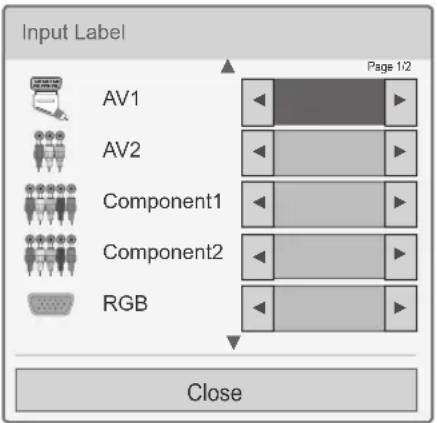
text_image
Input Label AV1 AV2 Component1 Component2 RGB Page 1/2 Close1 Press INPUT to access the input sources.
2 Press Green button.
3 Press the Navigation buttons to scroll to one of the input sources.
4 Press the Navigation buttons to scroll to one of the input labels.
5 When you are finished, press EXIT.
When you return to the previous menu, press BACK.
Using the quick menu
Customize frequently used menus.
1 Press Q. MENU to access the quick menus.
2 Press Navigation buttons to scroll through the following menus and press OK.
| Menu Description | |
| Aspect Ratio Ch | anges the image size (16:9, Just Scan, Original, Full Wide, 4:3, 14:9, Cinema Zoom) |
| Picture Mode Ch | anges the image mode (Intelligent Sensor, Vivid, Standard, Cinema, Game, Expert1, Expert2) |
| Sound Mode Ch | anges the sound mode (Standard, Music, Cinema, Sport, Game) |
| Sleep Timer Sets | the length of time until the TV to turns off |
| Subtitle Language | Recalls your preferred subtitle in digital mode. |
| Audio or Audio Language | Changes the sound output. |
| Audio Description | Switches the Audio Description On or Off. |
| Energy Saving R | Reduces the power consumption by adjusting the screen brightness. (Auto, Off, Minimum, Medium, Maximum, Screen Off) |
| AV Mode Sets the | the optimized image and sound settings (Off, Cinema, Game) |
| Skip Off/On Sets | the Skip Off/On. |
| MULTIFEED(Only Satellite models) | Select video from List for a Multifeed Service. |
| USB Device Eject | a USB device.The menu is displayed only when the USB device is connected. |

NOTE
The available menus and options may differ from the input source that you are using.
3 Press Navigation buttons to scroll to the option you want.
4 When you are finished, press Q. MENU.
ENTERTAINMENT
Network Connection
Connecting to a wired network
Connect the TV to a local area network (LAN) via the LAN port as shown in the following illustration and set up the network settings.
If wired and wireless networks are both available, wired is the preferred method.
After making a physical connection, a small number of home networks may require the TV network settings to be adjusted. For most home networks, the TV will connect to automatically without any adjustments.
For detail information, contact your internet provider or router manual.
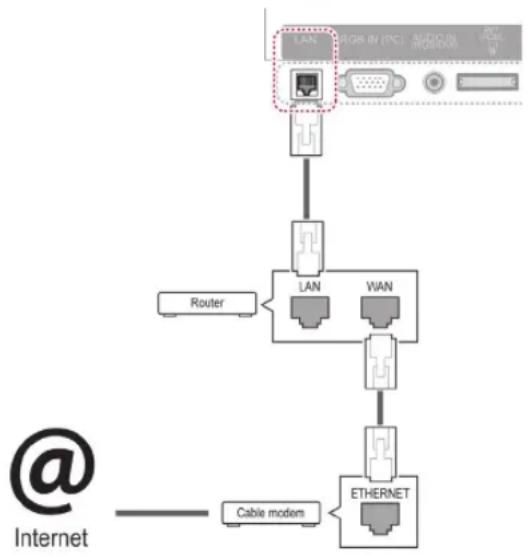
flowchart
graph TD
    A["Internet"] --> B["Cable modem"]
    B --> C["Ethernet"]
    C --> D["WAN"]
    D --> E["LAN"]
    E --> F["Router"]
    G["LAN"] --> H["QR IN (PC)"]
    H --> I["AUDIO IN (R/WOM)"]

CAUTION
- Do not connect a modular phone cable to the LAN port.
- Since there are various connection methods, please follow the specifications of your telecommunication carrier or internet service provider.
• After connecting the LAN port, use the Premium or LG Apps menu.
To set up the network settings: (Even if your TV has already connected automatically, running setup again will not harm anything),
1 Press Home to access the Home menu.
2 Press the Navigation buttons to scroll to SETUP and press OK.
3 Press the Navigation buttons to scroll to NETWORK and press OK.
4 Press the Navigation buttons to select Network Setting and press OK.
5 If wired and wireless are simultaneously connected, press the Navigation buttons to select Wired and press OK.
6 If you have already set the Network Setting, select Resetting. The new connection settings will reset the current network settings.
7 Select IP Auto Setting or IP Manual Setting.
- If selecting IP Manual Setting, press the Navigation and Number buttons. IP addresses will need to be input manually.
- IP Auto Setting: Select this if there is a DHCP server (Router) on the local area network (LAN) via wired connection, the TV will automatically be allocated an IP address. If you're using a broadband router or broadband modem that has a DHCP (Dynamic Host Configuration Protocol) server function. The IP address will automatically be determined.
- IP Manual Setting: Select if there is no DHCP server on the network or you want to set the IP address manually.
8 When you are finished, press EXIT.

NOTE
- If you want to access the Internet directly on your TV, the broadband internet connection should always be on.
- If you cannot access the Internet, check the network conditions from a PC on your network.
- When you use Network Setting, check the LAN cable or check if DHCP in the router is turned on.
- If you do not complete the network settings, the network may not work properly.
Connecting to a wireless network
The LG Wireless LAN for Broadband/DLNA Adaptor, which is sold separately, allows the TV to connect to a wireless LAN network.
The network configuration and connection method may vary depending on the equipment in use and the network environment. Refer to the setup instructions supplied with your access point or wireless router for detailed connection steps and network settings.
Setting up the AP (Access Point) or the wireless router is required before connecting the TV to the network. The easiest method is the WPS button method (Third method in this section).
(Only 47/55LW95** : Built-in the Wi-Fi Module, Unnecessary Wireless LAN for Broadband/DLNA adaptor setup)
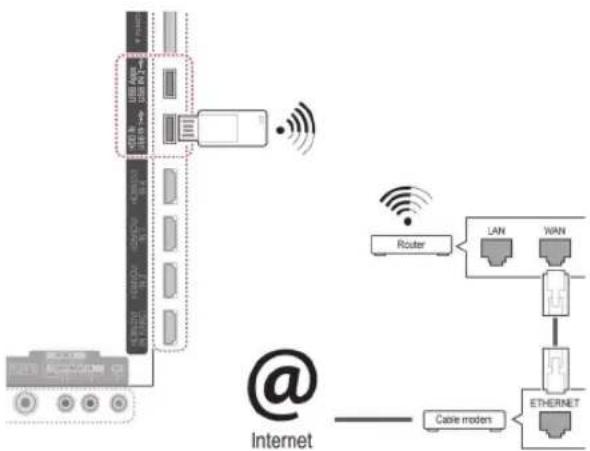
flowchart
graph TD
    A["Internet"] --> B["Cable modules"]
    B --> C["EtherNET"]
    C --> D["LAN"]
    C --> E["WAN"]
    D --> F["Router"]
    E --> F
    F --> G["Wireless signal"]
    style A fill:#f9f,stroke:#333
    style B fill:#ccf,stroke:#333
    style C fill:#cfc,stroke:#333
    style D fill:#fcc,stroke:#333
    style E fill:#cff,stroke:#333
    style F fill:#ffc,stroke:#333
    style G fill:#fcc,stroke:#333

NOTE
- For enjoying pictures, music, or video stored on a PC using the router, a wired connection is recommended.
- When the wireless port of the router is used, there may be restrictions on some functions.
- It is recommended that an Access Point (AP) be located more than 1 m away from the TV. If the AP is installed closer than 1 m, the magic motion remote control may not perform as expected due to frequency interference.
To set up the network settings,
1 Press Home to access the Home menu.
2 Press the Navigation buttons to scroll to SETUP and press OK.
3 Press the Navigation buttons to scroll to NETWORK and press OK.
4 Press the Navigation buttons to select Network Setting and press OK.
5 Press the Navigation buttons to select Wireless and press OK.
6 If you already set Network Setting, select Resetting and press OK.
The new connection settings resets the current network settings.
7 Press the Navigation buttons to select Setting from the AP list and press OK.
- Scan the all available AP (Access Point) or wireless routers within range and display them as a list.
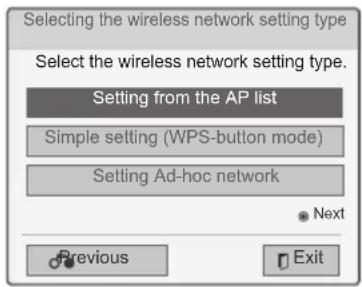
text_image
Selecting the wireless network setting type Select the wireless network setting type. Setting from the AP list Simple setting (WPS-button mode) Setting Ad-hoc network Next Previous Exit8 Press the Navigation buttons to select an AP (Access Point) or wireless router on the list. (If your AP is secured, you will prompted for the key.) And press OK.
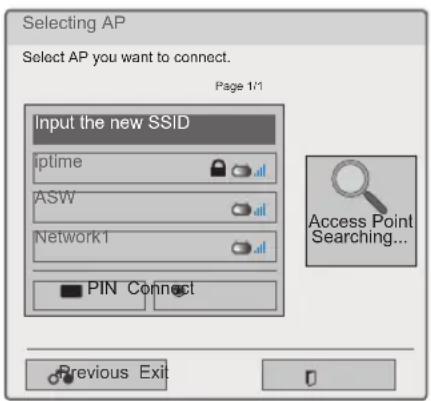
text_image
Selecting AP Select AP you want to connect. Page 1/1 Input the new SSID iptime ASW Network1 PIN Connect Access Point Searching... Previous Exit9 Press the Number buttons to Input the security key of AP and press OK.
9 Press the Number buttons to Input the security key of AP and press OK.

When a security code is already set
PIN (Personal Identification Number)
If your router is set to use a PIN, use the following instructions.
1 Repeat step 1-7 on "Connecting to a wireless network".
2 Press Red button to connect the access point with PIN mode.
3 You can see the Network ID and Security Key on your TV screen.
Enter the PIN number to your device.
PIN number is the unique 8 digit number of the dongle.
4 Press OK to select Connect.
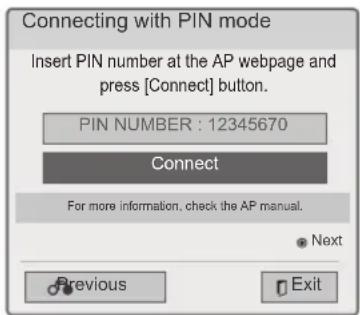
text_image
Connecting with PIN mode Insert PIN number at the AP webpage and press [Connect] button. PIN NUMBER : 12345670 Connect For more information, check the AP manual. Next Previous Exit5 Repeat step 6-7 on "Connecting to a wired network".
WPS (Wi-Fi Protected Setup)
If your router or AP has a WPS button, it is the easiest connection method. You simply press the button on the router and then select the WPS on the TV within 120 seconds.
1 Repeat step 1-7 on "Connecting to a wireless network".
2 Press the Navigation buttons to select the Simple setting (WPS-button mode).
3 Press the WPS button on your router.
4 Go back to the TV and select Connect.
5 Repeat step 6-7 on "Connecting to a wired network".
Ad-hoc Mode
Ad-hoc mode allows the TV to use a wireless to connect to a computer without using a router or access point.
1 Repeat step 1-5 on "Connecting to a wireless network".
2 Press the Navigation buttons to select Setting Ad-hoc network and press OK.
3 Press the Navigation buttons to select OK and press OK.
4 Press OK to select Connect to connect Ad-hoc network.
- You can see the Network ID and Security Key on your TV screen.
- Enter this Network ID and Security Key to your device.
- When needed, you can change the setting information using the Red button.

NOTE
When searching for wireless networks on your PC using ad-hoc, the TV is named LGTV10.
- LGTV10 that appears in the list. (Select the same name as the network ID that appears on your TV screen.)
5 Press the Navigation buttons to type in an IP address and press OK.
| Option Description | |
| PC Setting | Internet Protocol(TCP/IP) of PC needs to be set manually. IP address, Subnet Mask, and default Gateway can be set with your own discretion.e.g.) IP address: 192.168.0.1 / Subnet Mask: 255.255.255.0 / default Gateway: 192.168.0.10 |
| TV Setting | Verify IP address and gateway of PC. Input Gateway address of PC to IP Address, and IP Address of PC to Gateway, and selectOK.e.g.) IP address: 192.168.0.10 / Subnet Mask: 255.255.255.0 / default Gateway: 192.168.0.1 |
6 Press the Navigation buttons to select Close after Network setting is completed.
7 Press the OK.

Tips for Network setting
- Use a standard LAN cable with this TV. Cat5 or better with a RJ45 connector.
- Many network connection problems during set up can often be fixed by re-setting the router or modem. After connecting the player to the home network, quickly power off and/or disconnect the power cable of the home network router or cable modem. Then power on and/or connect the power cable again.
- Depending on the internet service provider (ISP), the number of devices that can receive internet service may be limited by the applicable terms of service. For details, contact your ISP.
- LG is not responsible for any malfunction of the TV and/or the internet connection feature due to communication errors/malfunctions associated with your broadband internet connection, or other connected equipment.
- LG is not responsible for problems within your internet connection.
- Some content available through the network connection may not be compatible with the TV. If you have questions about such content, please contact the producer of the content.
- You may experience undesired results if the network connection speed does not meet the requirements of the content being accessed.
- Some internet connection operations may not be possible due to certain restrictions set by the Internet service provider (ISP) supplying your broadband Internet connection.
- Any fees charged by an ISP including, without limitation, connection charges are your responsibility.
- A 10 Base-T or 100 Base-TX LAN port is required when using a wired connection to this TV. If your internet service does not allow for such a connection, you will not be able to connect the TV.
- A DSL modem is required to use DSL service and a cable modem is required to use cable modem service. Depending on the access method of and subscriber agreement with your ISP, you may not be able to use the internet connection feature contained in this TV or you may be limited to the number of devices you can connect at the same time. (If your ISP limits sub-scription to one device, this TV may not be allowed to connect when a PC is already connected.)
- The use of a “Router” may not be allowed or its usage may be limited depending on the policies
and restrictions of your ISP. For details, contact your ISP directly.
- The wireless network operates at 2.4 GHz radio frequencies that are also used by other household devices such as cordless telephone, Bluetooth® devices, microwave oven, and can be affected by interference from them. It can be interrupted by the device using 5 Ghz radio frequencies. It is same device with LG wireless media box, cordless telephone, other Wi-Fi device.
- It may decrease the service speed using Wireless network by surrounding wireless condition.
- Turn off all unused network equipment in your local home network. Some devices may generate network traffic.
- In some instances, placing the access point or wireless router higher up away from the floor may improve the reception.
- The reception quality over wireless depends on many factors such as type of the access point, distance between the TV and access point, and the location of the TV.
- To connect wireless AP, an AP that supports the wireless connection is necessary, and the wireless connection function of the AP needs to be activated. Please enquire to the AP supplier for the possibility of AP wireless connections.
- Please verify the security settings of AP SSID for wireless AP connection, and enquire to the AP supplier for the AP SSID security settings.
- The TV can become slower or malfunction with wrong settings of network equipments (wired/ wireless router, hub, etc). Please install correctly by referring to the manual of the equipment, and set the network.
- When AP is set to include 802.11 n(Except for Russia), and if Encryption is designated as WEP(64/128bit) or WPA(TKIP/AES), the connection may not be possible. There may be different connection methods according to the AP manufacturers.
Network Status
1 Press Home to access the Home menu.
2 Press the Navigation buttons to scroll to SETUP and press OK.
3 Press the Navigation buttons to scroll to NETWORK and press OK.
4 Press the Navigation buttons to select Network Status.
5 Press OK to check the network status.
| Option Description | |
| Setting | Return to the network setting menu or wireless network setting type menu. |
| Test | Test the current network status after setting the network. |
| Close Return to the previous menu. | |

Premium Account Function
LG's Premium technology allows you to access a variety of online services or content directly on your TV. Your TV offers instant streaming of movies, weather, videos, and photo album services with a Premium account and an Internet connection. Enjoy entertainment including not only entertainment content, but also up-to-the minute news, weather updates, photo management, and more by simply using the TV's remote control without a separate PC.
1 Press Premium to access the Premium option.
2 Press the Navigation buttons to scroll to the content you want and press OK.
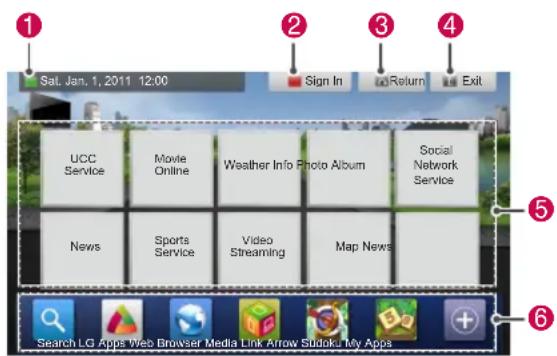
text_image
Sat. Jan. 1, 2011 12:00 UCC Service Movie Online Weather Info Photo Album Social Network Service News Sports Service Video Streaming Map News Search LG Apps Web Browser Media Link Arrow Sudoku, My Apps| Option Description | |
| 1 | Moves to the weather setting screen. |
| 2 | Sign into the premium service. |
| 3 | Moves to the previous menu screen. |
| 4 | Returns to TV viewing. |
| 5 | Selects your desired online service.• If a service requires you to log in, y must first sign up for the service on your computer and then log into the service on the TV. |
| 6 | Launcher bar |
3 Enjoy the premium features.
Notice
• These services are provided by separate content providers.
- Please visit the content providers web site for specific information on their service.
- Premium menu can differ by country.
- Note that content may be updated automatically depending on the service provider, so the content layout or operation method may change without notice. Please refer to the help menu on the screen.
- All information, data, documents, communications, downloads, files, text, images, photographs, graphics, videos, webcasts, publications, tools, resources, software, code, programmes, applets, widgets, applications, products and other content (“Content”) and all services and offerings (“Services”) provided or made available by or through any third party (each a “Service Provider”) is the sole responsibility of the Service Provider from whom it originated.
- The availability of and access to Content and Services furnished by the Service Provider through the LGE Device are subject to change at any time, without prior notice, including, but not limited to the suspension, removal or cessation of all or any part of the Content or Services.
- Should you have any inquiry or problem related to the Content or Services, you may refer to the Service Provider's website for the most up-to-date information. LGE is neither responsible nor liable for customer service related to the Content and Services. Any question or request for service relating to the Content or Services should be made directly to the respective Content and Service Providers.
- Please note that LGE is not responsible for any Content or Services provided by the Service Provider or any changes to, removal of, or cessation of such Content or Services and does not warrant or guaranty the availability of or access to such Content or Services.
- Some content may be harmful to minors depending on the service provider. Parental guidance is necessary.
- The service may be interrupted if the Internet connection is unstable. Please check the connection status if you experience this problem.
- The videos list searched from the TV may different with the list searched from a web browser on PC.
- The playback of videos may pause, stop, or buffer depending on your broadband speed.
- For service that requires log in, join the applicable service on the website using a PC and log in through the TV to enjoy various additional functions.
Legal Notice
IMPORTANT NOTICE RELATING TO NETWORK SERVICE
All content and services accessible through this device belong to third parties and are protected by copyright, patent, trademark and/or other intellectual property laws. Such content and services are provided solely for your personal noncommercial use. You may not use any content or services in a manner that has not been authorized by the content owner or service provider. Without limiting the foregoing, unless expressly authorized by the applicable content owner or service provider, you may not copy, upload, post, transmit, translate, sell, modify, create derivative works, or distribute in any manner or medium any content or services displayed through this device.
YOU EXPRESSLY ACKNOWLEDGE AND AGREE THAT THE DEVICE AND ALL THIRD PARTY CONTENT AND SERVICES ARE PROVIDED "AS IS" WITHOUT WARRANTY OF ANY KIND, EITHER EXPRESS OR IMPLIED. LG ELECTRONICS EXPRESSLY DISCLAIMS ALL WARRANTIES AND CONDITIONS WITH RESPECT TO ANY CONTENT AND SERVICES, EITHER EXPRESS OR, IMPLIED, INCLUDING BUT NOT LIMITED TO, WARRANTIES OF MERCHANTABILITY, OF SATISFACTORY QUALITY, FITNESS FOR A PARTICULAR PURPOSE, AND NON-INFRINGEMENT OF THIRD PARTY RIGHTS. LG DOES NOT GUARANTEE THE ACCURACY, VALIDITY, TIMELINESS, LEGALITY, OR COMPLETENESS OF ANY CONTENT OR SERVICE MADE AVAILABLE THROUGH THIS DEVICE AND DOES NOT WARRANT THAT THE DEVICE OR SERVICES WILL MEET YOUR REQUIREMENTS, OR THAT OPERATION OF THE DEVICE OR SERVICES WILL BE UNINTERRUPTED OR ERROR-FREE. UNDER NO CIRCUMSTANCES, INCLUDING NEGLIGENCE, SHALL LG BE LIABLE, WHETHER IN CONTRACT OR TORT, FOR ANY
DIRECT, INDIRECT, INCIDENTAL, SPECIAL OR CONSEQUENTIAL DAMAGES, OR ANY OTHER DAMAGES ARISING OUT OF, ANY INFORMATION CONTAINED IN, OR ANY CONTENT OR SERVICE ACCESSED BY YOU OR ANY THIRD PARTY, EVEN IF ADVISED OF THE POSSIBILITY OF SUCH DAMAGES.
Third party services may be changed, suspended, removed, terminated or interrupted, or access may be disabled at any time, without notice, and LG makes no representation or warranty that any content or service will remain available for any period of time. Content and services are transmitted by third parties by means of networks and transmission facilities over which LG has no control. LG may impose limits on the use of or access to certain services or content, in any case and without notice or liability. LG expressly disclaims any responsibility or liability for any change, interruption, disabling, removal of or suspension of any content or service made available through this device. LG is neither responsible nor liable for customer service related to the content and services. Any question or request for service relating to the content or services should be made directly to the respective content and service providers.
LG Apps Function
Additional applications can be downloaded from the LG App Store.
These functions may be not available for a certain period of time depending on country or set. In such cases, the buttons may be disabled.
They are enabled when the services are available. New features may be added to this smart TV in the future.
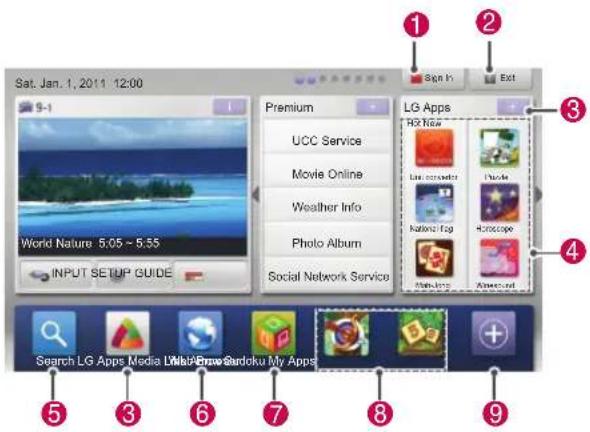
text_image
Sat. Jan. 1, 2011 12:00 9-1 World Nature 5:05 - 5:55 INPUT SETUP GUIDE Premium UCC Service Movie Online Weather Info Photo Album Social Network Service LG Apps HKEY Link converter Chrome Natixic Fog Riscope Mobileapp Awards.net Search LG Apps Media Web Browse Cardoku My Apps| Option Description | ||
| 1 | Sign In, Sign Out | Sign in or sign out to the premium service. |
| 2 | Exit Returns to | TV viewing. |
| 3 | LG Apps Moves | to LG Apps. |
| 4 | Moves to the LG Apps you want directly. | |
| 5 | Search These functions may be not available for a certain period of time depending on country or set. In such cases, the buttons may be disabled. They are enabled when the services are available. | |
| 6 | Web Browser | |
| 7 | Media Link | |
| 8 | Quick Apps. Stores the most frequently used apps among all downloads. To change the list of Quick Apps, see the "Using My Apps". | |
| 9 | My Apps Moves to My Apps.You can browse all apps installed, change the list of Quick Apps, and select and play the app you want. | |
Registration LG Apps
1 Press Home to access the Home menu.
2 Press Red button to register.
- You can only register as a free member from your TV.
3 Create your ID and password.
Press the Navigation buttons to select alphabet and number and select OK.
4 The registration is completed.

NOTE
- If you wish to become a paid member or change your information, please use your PC and visit http://www.lgtvapp.com
Sign in with your LG Apps account
To enjoy your LG Apps with your account, you need sign in with your LG Apps account.
1 Press Home to access the Home menu.
2 Press Red button to sign in. It displays the keyboard menu for entering ID and password.
- If you are not a member, press Red button again. You can only register as a free member from your TV.
3 Press the Navigation buttons to scroll to the alphabet or number and press OK.
- If you check "Auto Sign In", you are automatically logged in whenever you turn on TV.
4 Enjoy LG Apps. You can enjoy Premium service, LG Apps, My Apps and much more.

NOTE
- You can download a paid app on up to five TVs.
ID Management
1 After sign in, press Red button again. A pop-up window will appears.
2 Press the Navigation buttons to scroll to the desired menu option and press OK.
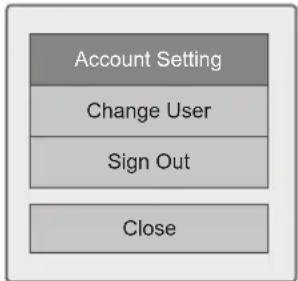
flowchart
graph TD
    A["Account Setting"] --> B["Change User"]
    B --> C["Sign Out"]
    C --> D["Close"]
3 Manage the ID by using following menu.
| Option Description | |
| Account Setting | Check basic information, apps you purchased and apps installed on your TV. |
| Change User | Changes your account. |
| Sign Out Sign | out the premium service. |
Using LG Apps
1 Press Home to access the Home menu.
2 Sign in on your TV.
3 Press the Navigation buttons to scroll to the LG Apps and press OK.
4 Edit the Apps by using following menu.
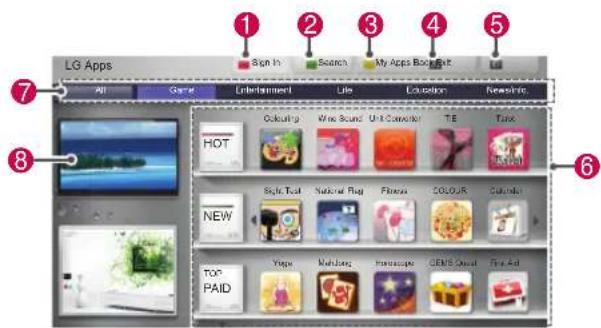
text_image
LG Apps All Game Entertainment Life Education Newsprint 1 2 3 4 5 6 7 8 Colouring Wire Sound Unit Computer TE Turks HOT Satic Tual Satical Flag Fibrosis COLOUR Colorful NEW Top PAID Vega Modems Transcope CDMS Cloud First Aid| Option Description | ||
| 1 | Sign In, Sign Out | Sign in or out to use the LG Apps. |
| 2 | Search Search the LG Apps. | |
| 3 | My Apps Move to My Apps. | |
| 4 | Back Move to the previous screen. | |
| 5 | Exit Exit LG Apps. | |
| 6 | Apps Sorting | Hot: Most downloaded apps in the past 7 daysNew: Most recently released appsTop Paid: Most downloaded paid appsTop Free: Most downloaded free appsALL: Alphabetical orderMoves to the previous or next page using P ∧ ∨ button. |
| 7 | Apps Category | Shows the LG Apps category (All, Game, Entertainment, Life, Education, News/info.) |
| 8 | Live TV Watches the current programme. | |
Purchasing and Installing Apps.
Log in first to purchase apps.
1 Press the Navigation buttons to select Apps you want and press OK. You can see the information of the App.
2 Press Purchase to buy a App.
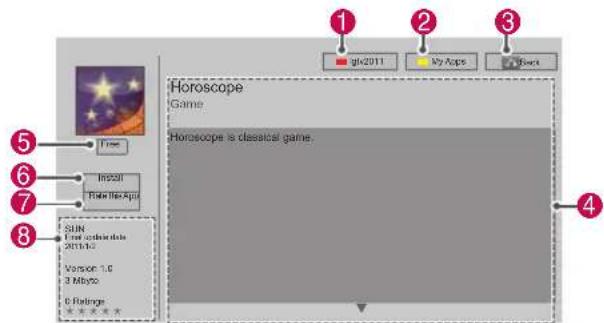
text_image
1 2 3 4 5 6 7 8 Time In9001 Real Time Apps Sun First projectile 2016.12 Version 1.0 3 Myto 6 Ratings Horoscope Game: Horoscope is classical game.| Option | Description | |
| 1 | Sign In, Sign Out | Sign in or out to use the LG Apps. |
| 2 | My Apps | Move to My Apps. |
| 3 | Back | Move to the previous screen. |
| 4 | App description | Shows the description of the current Apps. |
| 5 | Fee | Shows the fee of the current app. |
| 6 | Install | Install or purchase the App.You can purchase an app on either your PC or TV, but it can be installed and played only on the TV.If you want to purchase a paid app, you need to sign up as a paid member on www.lgtvapp.com.If the available space of your TV is not enough, you can download apps in the USB storage device by connecting it to the USB IN 2 port.You can play, delete or move the apps stored in the USB storage device on the My Apps screen. |
| 7 | Rate this App | Rate the app you purchased with stars. |
| 8 | App info. | Shows the creator/programme version/update date/volume/rating of the current Apps. |

NOTE
• To store apps in the USB storage device, make sure that it is connected to the USB IN 2/USB Apps port.
- Up to 1000 apps can be stored as USB apps.
- The USB storage device containing apps cannot be used for storing other types of data.
Using My Apps
1 Enter the LG Apps after sign in.
2 Press the Navigation buttons to scroll to the My Apps and press OK.
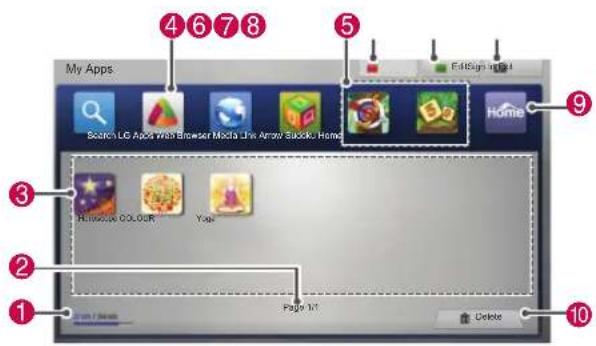
text_image
My Apps Search LG Apps With Browser Media Live Arrow Stocks, Home Editing Help Home Windows COLOR Yoga Page 14 Delete| Option Description | |
| 1 | Shows the amount of used and available memories. |
| 2 | Current page number/total number of pages of My Apps. |
| 3 | Shows the downloaded apps.Moves to the previous or next page using P ∧ ∨ button. |
| 4 | Moves the LG Apps. |
| 5 | Quick Apps. |
| 6 | Sign In the LG Apps.After sign in, manage the ID option (Account Setting, Change User, Sign Out). |
| 7 | Edit the My Apps. |
| 8 | Exit the My Apps. |
| 9 | Move to the Home menu. |
| 10 | Delete the Apps. |

Web Browser Function
The Web Browser allows you to view Web pages on your TV.
Tips for using Web Browser
- The web browser on this device supports Flash 8 and earlier.
- The web browser on this device does not support platform-dependent technologies such as ActiveX.
- The web browser on this device only supports preinstalled plug-ins.
- The web browser on this device may not support media formats other than the following : JPEG / PNG / GIF / WMV (ASF) / WMA / MP3 / MP4
- Some Web pages may exceed the memory allotment of the Web Browser. The Web Browser will close when this happens.
- The web browser on this device uses a single built-in font. Some text may not be displayed as intended.
- The web browser on this device does not support downloading of files or fonts.
- The web browser on this device is a TV browser. It may work differently to PC browsers.
Using Web Browser
1 Connect to the network.
2 Press Home to access the Home menu.
3 Press the Navigation buttons to scroll to the Web Browser and press OK.
4 Press the Navigation buttons to scroll to the URL and press OK.
5 Press the Navigation buttons to scroll to the desired the URL address and press OK.
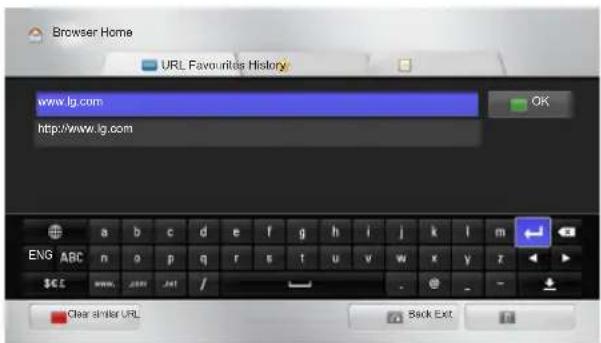
text_image
Browser Home URL Favourites History www.lg.com http://www.lg.com OK a b c d e f g h i j k l m ENG ABC n o p q r s t u v w x y z SCE www. com .net / Clear styler URL Back Ext6 You can browse websites on your TV.
Select the browser input window to display the keyboard at the bottom of the screen.
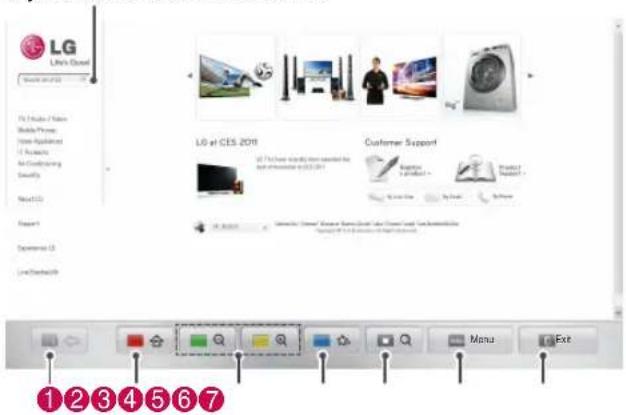
text_image
LG United Excel Search of EPS PLT Module / Sales Mobile Provider Video AppWizard iT Services Air Conditioning Security Next 13.5 Support Experience 13 Live/Checklist LG at ICES 2018 All the new products were converted to the manufacturer in US$'2017 Customer Support Buyout is preferred by Product Made in Print By Print By Store Product Support Hi Search Useable Software - Open a Software Help Window Help Frameworks Use your PC to access your PC to access your PC to access your PC to access your PC to access your PC to access your PC to access your PC to access your PC to access your PC to access your PC to access your PC to access your PC to access your PC to access your PC to access your PC to access your PC to access your PC to access your PC to access your PC to access your PC to access your PC to access your PC to access your PC to access your PC to access your PC to Access your PC to Access your PC to Access your PC to Access your PC to Access your PC to Access your PC to Access your PC to Access your PC to Access your PC to Access your PC to Access your PC to Access your PC to Access your PC to Access your PC to Access your PC to Access your PC to Access your PC to Access your PC to Access your PC to Access your PC to Access your PC to Access your PC to Access your PC to Access your PC to Access your PC to Annex ①②③④⑤⑥⑦| Button | Description |
| 1 | Move to the previous page. |
| 2 | Move to the Favourites screen. |
| 3 | Zoom the screen in or out. |
| 4 | Add the current web page to Favourites. |
| 5 | Move to the search screen. |
| 6 | Move to the previous/next page in the list of recently viewed web pages.You can change the URL address to move to other websites.You can delete the list and cookies of recently viewed web pages. |
| 7 | Exit the web browser. |
Browsing Favourite Websites
1 Connect to the network.
2 Press Home to access the Home menu.
3 Press the Navigation buttons to scroll to the Web Browser and press OK.
4 Press the Navigation buttons to scroll to the Favourites and press OK.
By adding frequently visited websites to Favourites, you can browse them easily.
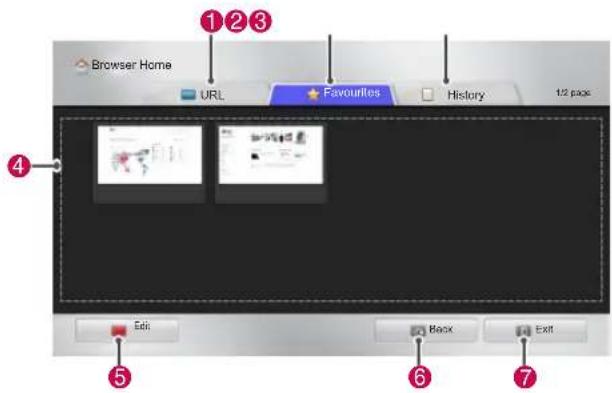
text_image
Browser Home URL Favourites History 1/2 page Edit Back Exit| Option | Description |
| 1 | Browse a website by directly entering the URL address. |
| 2 | Select a website in Favourites. |
| 3 | View the list of recently viewed web pages. |
| 4 | Select a site to browse. |
| 5 | Edit Favourites.-Move: Change the order in Favourites.-Rename: Rename the sites added to Favourites.-Delete: Remove the sites from Favourites. |
| 6 | Move to the previous page. |
| 7 | Exit the web browser. |
Browsing Websites by Directly Entering Address
1 Connect to the network.
2 Press Home to access the Home menu.
3 Press the Navigation buttons to scroll to the Web Browser and press OK.
4 Press the Navigation buttons to scroll to the URL and press OK.
You can browse a website by directly entering the URL address.
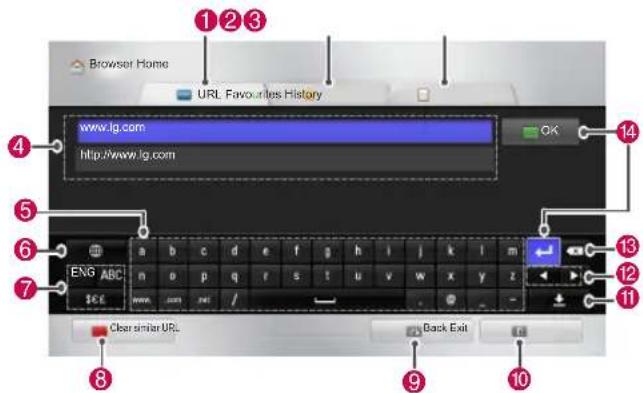
text_image
Browser Home URL Favourites History www.lg.com http://www.lg.com OK 14 13 12 11 10 9 8 7 6 5 4 3 2 1 0 Back Exit| Option | Description |
| 1 | Browse a website by directly entering the URL address. |
| 2 | Select a website in Favourites. |
| 3 | View the list of recently viewed web pages. |
| 4 | Enter the URL address. If the address entered is similar to any of the sites previously visited, a drop-down list will be displayed. |
| 5 | Use the keyboard to enter the address. Select characters to enter. |
| 6 | Select the keyboard language. |
| 7 | Change the keyboard. |
| 8 | Clear the similar addresses appearing below the address input field. |
| 9 | Move to the previous page. |
| 10 | Exit the web browser. |
| 11 | Hide the keyboard. Select the address input field to display the keyboard again. |
| 12 | Move the cursor left or right. |
| 13 | Delete the text before the cursor, one character at a time. |
| 14 | Press this after entering the address to go to the website. |
Viewing Visited Website List
1 Connect to the network.
2 Press Home to access the Home menu.
3 Press the Navigation buttons to scroll to the Web Browser and press OK.
4 Press the Navigation buttons to scroll to the History and press OK.
You can view the addresses of the websites you visited previously. Select an item to move to the page.
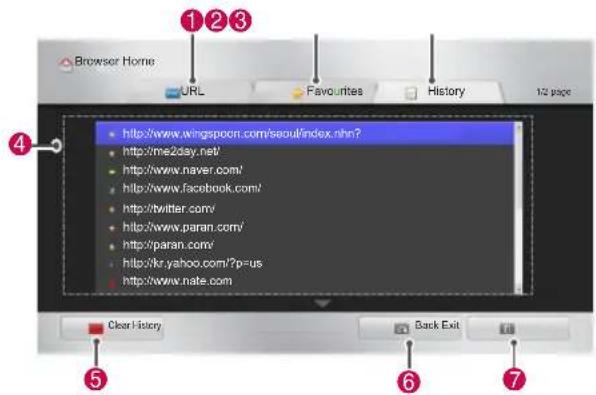
text_image
Browser Home URL Favourites History 1/2 page http://www.whingspoon.com/seauk/index.nhn? http://me2day.net/ http://www.naver.com/ http://www.facebook.com/ http://twitter.com/ http://www.paran.com/ http://paran.com/ http://kr.yahoo.com/?p=us http://www.nate.com Clear History Back Exit| Option | Description |
| 1 | Browse a website by directly entering the URL address. |
| 2 | Select a website in Favourites. |
| 3 | View the list of recently viewed web pages. |
| 4 | Display a list of recently visited pages. Select an item to move to the page. |
| 5 | Clear the visited website list. |
| 6 | Move to the previous page. |
| 7 | Exit the web browser. |
Smart Share Function
Connecting USB storage devices
Connect USB storage devices such as a USB flash drive or external hard drive to the TV and use multimedia features (See "Browsing files"). Connect a USB flash drive or USB memory card reader to the TV as shown in the following illustration.
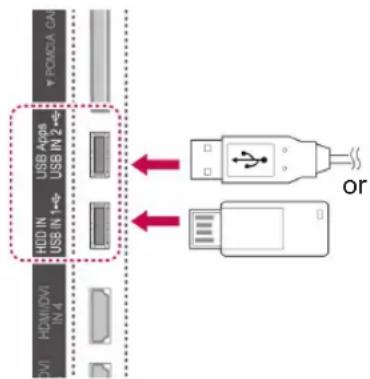
text_image
POMCA CA USB A-10s USB I/O 1-5 HDMI USB I/O 4 orTo disconnect a USB storage device, make sure to end the connection properly to prevent damages to the TV or files.
1 Press Q.MENU to access the quick menus.
2 Press the Navigation buttons to scroll to USB Device and press OK.
3 Disconnect the USB storage device only when the message says that it is safe to remove.

CAUTION
- Do not turn the TV off or remove a USB storage device while the USB storage device is connected to the TV, as this could result in loss of files or damage to the USB storage device.
- Back up your files saved on a USB storage device frequently, as you may lose or damage the files and this may be not covered by the warranty.
Tips for using USB storage devices
- The TV recognizes only a USB storage device.
- If you connect a USB storage device to the TV through a USB hub, your TV may not recognize the USB storage device.
- The TV may not recognize a USB storage device that requires a special driver.
- The recognition speed of a USB storage device may differ depending on the device.
- Only use a USB storage device which has normal music or image files.
- Use only USB storage devices that are formatted as a FAT 32 or NTFS file system.
- You may need to connect a USB storage device to an external power supply with a power adapter.
- If the TV does not recognize a connected USB storage device, replace the cable and try again. Do not use an excessively long cable.
- The TV does not support some USB storage devices properly.
- You can use a multi-partition (up to 4) USB storage device.
- You can use up to 4 USB storage devices at a time by using a USB multi-card reader.
- The file alignment method of a USB storage device is similar to the one of Window XP.
- You cannot create or delete a folder saved in a USB storage device directly on the TV.
- The number of characters for a file name is up to 100 English characters.
- Up to 1000 including folders and files can be recognized.
- If there are too many folders and files in one folder, it may not operate properly.
- The recommended capacity for a USB external hard disk is 1 TB or less and for a USB storage device is 32 GB or less.
- If a USB external hard disk with the Energy Saving feature does not work, turn the USB external hard disk off and on again to make it work properly. For more information, refer to the user manual of the USB external hard disk.
- USB storage devices below USB 2.0 are supported as well. But they may not work properly in the movie list.
- The electrostatic can cause USB device's malfunction. In this case, USB Device has to be plugged again.
Connecting DLNA DMP (Digital Living Network Alliance, Digital Media Player)
This TV can display and play many types of movie, photo and music files from your DLNA server and has been certified by DLNA for movies, photos and music.
The Digital Living Network Alliance (DLNA) is a cross-industry organization of consumer electronics, computing industry and mobile device companies. Digital Living provides consumers with easy sharing of digital media through a wired or wireless network in the home.
The DLNA certification logo makes it easy to find products that comply with the DLNA Interoperability Guidelines. This unit complies with DLNA Interoperability Guidelines v1.5. When a PC running DLNA server software or other DLNA compatible device is connected to this TV, some setting changes of software or other devices may be required. Please refer to the operating instructions for the software or device for more information.
Please refer to "Smart Share Function" for additional information on supported file types and other instructions.

NOTE
- The supplied Nero MediaHome 4 Essentials CD-ROM is a customized software edition only for sharing files and folders to this TV.
- The supplied Nero MediaHome 4 Essentials software does not support following functions: Transcoding, Remote UI, TV control, Internet services and Apple iTunes
- This manual explains operations with the English version of Nero MediaHome 4 Essentials as examples. Follow the explanation referring to the actual operations of your language version.
- If there are too many folders and files in one folder, it may not operate properly.
- For the DLNA option, use the Nero Media-Home programme that is provided with the TV. However, we cannot guarantee that third party programme will work perfectly.
- You can select a programme while viewing the small preview programme list on your TV screen.
- Check your network settings when the DLNA option does not work properly.
- If there is an abnormal operation or an error occurs in Nero Media Home, the DLNA option may not work properly. In this case, exit Nero Media Home and restart the programme. You can download the latest version of Nero Media Home by clicking the question mark at the bottom-left of the programme.
- When the network is unstable, the device may be slower or may need to load during playback.
- When playing a video in DLNA mode, the Multi Audio and Closed Caption features are not supported.
- When selecting Full Screen in DLNA mode, the ratio of the outputted screen may differ from the original.
- When more than one TV is connected to a single server in DLNA mode, a file may not play properly, depending on the server performance.
- If the play time information is not provided by the server, it is displayed as "- -."
Installing Nero MediaHome 4 Essentials
Nero MediaHome 4 Essentials is an easy to use DLNA server software for Windows.
Computer requirements for Nero MediaHome 4 Essentials
- Windows® XP (Service Pack 2 or higher), Windows Vista® (no Service Pack required), Windows® XP Media Center Edition 2005 (Service Pack 2 or higher), Windows Server® 2003 (Service Pack 1 or higher)
- Windows® 7 Home Premium, Professional, Enterprise or Ultimate(32 and 64-bit)
- Windows Vista® 64-bit edition (application runs in 32-bit mode)
- Windows® 7 64-bit edition (application runs in 32-bit mode)
- Hard drive space: 200 MB hard drive space for a typical installation of Nero MediaHome stand-alone
- 1.2 GHz Intel® Pentium® III or AMD Sempron™ 2200+ processors
• Memory: 256 MB RAM
- Graphics card with at least 32 MB video memory, minimum resolution of 800 x 600 pixels, and 16-bit colour settings
- Windows® Internet Explorer® 6.0 or higher
- DirectX® 9.0c revision 30 (August 2006) or higher
• Network environment: 100 Mb Ethernet, WLAN (IEEE 802.11g), or faster
1 Start up your computer.
2 Close all Microsoft Windows programmes and exit any anti-virus software that may be running.
3 Insert the Nero MediaHome 4 Essentials CD-ROM into your computer's CD-ROM drive.
4 Click Nero MediaHome 4 Essentials. The installation wizard will appear.
5 Click the Next button to display the serial number input screen. Click Next to go to the next step.
6 If you accept all conditions, click I accept the License Conditions check box and click Next. Installation is not possible without this agreement.
7 Click Typical and click Next. The installation process is started.
8 If you want to take part in the anonymous collection of data, select the check box and click the Next button.
9 Click the Exit button to complete the installation.
Sharing files and folders
After installing Nero MediaHome, you must add folders you wish to share.
1 Double-click the Nero MediaHome 4 Essentials icon on the desktop.
2 Click Network icon on the left and define your network name in the Network name field. The Network name you enter will be recognized by your TV.
3 Click Shares icon on the left.
4 Click Local Folders tab on the Shared screen.
5 Click Add icon to open the Browse Folder window.
6 Select the folder containing the files you want to share. The selected folder is added to the list of shared folders.
7 Click Start Server icon to start the server.

NOTE
- If the shared folders or files are not displayed on the TV, click the folder on the Local Folders tab and click Rescan Folder at the More button.
- http://www.nero.com for more information and software tools.
Playing Shared Media
You can display and play movie, photo and music content stored on your computer or other DLNA media servers.
1 Press Home to access the Home menu.
2 Press the Navigation buttons to scroll to Smart Share and press OK.
3 Press the Navigation buttons to scroll to the device you want and press OK.
4 Press the Navigation buttons to select DLNA. Depending on the media server, this TV may need to get the permission from the server.
Tips for using DLNA DMP
- The DLNA function is not available in some routers which do not support multicasting.
For more information, refer to your router manual or contact the manufacturer. - To play the file on the media server, the TV and the media server must be connected to the same access point.
- File requirements and playback functions on the Smart Share may differ depending on the media server used.
- There may be some restrictions by file features and the media server that restrict playback.
- Movie thumbnail is only supported when DLNA server supports a Movie thumbnail.
- If there is an unplayable music file in the Smart Share menu, the TV will skip the file and play next file.
- Files in a folder can be played only when they are of the same type.
- The file information indicated on the screen may not always correct for music and movie files in Smart Share menu.
- This TV only supports movie subtitle files supplied by Nero MediaHome 4.
- The subtitle file name and movie file name have to be the same and located in the same folder.
- If subtitle files have been added after a directory has been indexed already, the user has to remove and re-add the folder to the list of shares.
-
The DRM/*.tp/*.trp file in DLNA server is not played while Movie List is in operation.
-
MPO files are not played when Photo List is in operation.
- The playback and operating quality of the Smart Share function may be affected by your home network condition.
- The files from removable media such as USB drive, DVD-drive etc. on your media server may not share properly.
- When playing the Media through DLNA connection, it does not support files protected by DRM.
- Up to 1000 including folders and files can be recognized.
- If there are too many folders and files in one folder, it may not operate properly.
Connecting DLNA DMR (Digital Living Network Alliance, Digital Media Render)
This supports remote playing of media files. Media from a compatible device (Windows 7, Mobile Phone with PlayTo, or other compatible DLNA-DMC device) can be "pushed" to the TV.
The DMR function only works properly when the TV and PC are on the same local network.
1 To play a file, select the file by using the "Remote Play" feature in Windows 7.
To do this, right-click on the file you want to play.
2 You can play a file only on a single TV set or device even though multiple devices are connected. The playback speed depends on the network status.
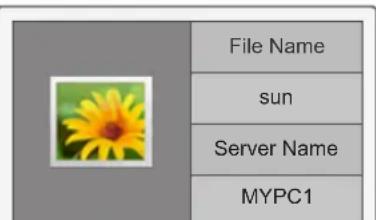
text_image
File Name sun Server Name MYPC1Picture display request from an external device.
NOTE
Subtitle is supported only on some DMC devices.
The DMR function may not work properly in a wireless network.
- The seek function of the DMC only works on video files.
- The DMR is not available when another function is operating (recording, playback or Smart Share work etc.).
- Refer to the owner's manual of the mobile phone or other device to find out how to use it to play a file.
- You can change the name of a connected TV by double-clicking the item you want to change in Control Panel > Network and Internet > View network computers and devices. (Only Windows 7)
- You cannot change the name of a TV while DMR media is playing. Change it when playback is stopped.

Browsing files
Access the photo, music, or movie lists and browse files.
1 Connect a USB storage device.
2 Press Home to access the Home menu.
3 Press the Navigation buttons to scroll to Smart Share and press OK.
4 Press the Navigation buttons to scroll to the device you want and press OK.
5 Press Navigation buttons to scroll to All Media, Movie List, Photo List, or Music List and press OK.
- All Media: Shows all files in the file list.
- Movie List, Photo List, or Music List: Shows only one type of file in the file list.
6 Press Navigation buttons to select a folder or file you want.
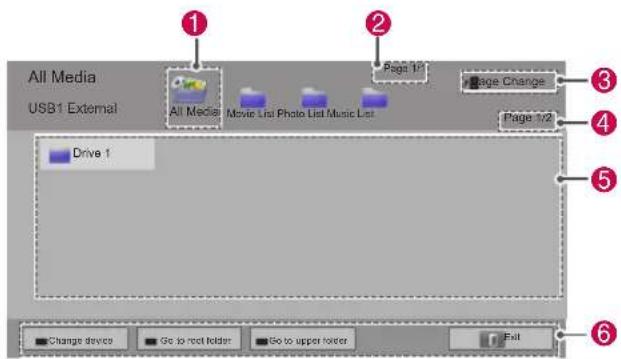
text_image
All Media USB1 External Page 1/1 Page Change Page 1/2 Drive 1 Change device Go to next folder Go to upper folder Exit| No. | Description |
| 1 | Shows all media folders. |
| 2 | Current page number/total number of pages. |
| 3 | Moves to the previous or next page. |
| 4 | Current page number/total number of pages. |
| 5 | Files info or thumbnail. |
| 6 | Available buttons on the remote control. |
Thumbnail information
| Type Abnormal files Non-supported files | ||
| Video |  |  |
| Photo |  |  |
| Music |  |  |
Tips for using USB storage devices
| Type Supported file format | ||||
| Video | ·MPG, MPEG, DAT, TS, TRP, TP, VOB, MP4, MOV, MKV, DivX, AVI, ASF, WMV, M4V·Max bitrate of playable movie file: 20 Mbps (Mega bit per second)·Bit rate of audio format: within 32 kbps to 320 kbps (MP3)·Supported external subtitle format: *.smi, *.srt, *.sub (MicroDVD, SubViewer 1.0/2.0), *.ass, *.ssa, *.txt (TMPlayer), *.psb (PowerDivX)·Supported Internal subtitle format: only XSUB (It is the subtitle format made in DivX files), Text UTF-8, SRT, ASS, SSA (It is the subtitle format used in DivX-Plus HD files) | |||
| Photo | ·Do not use the progressive option when saving JPG files on your PC.·It may take some time to open high-resolution images in full screen. | |||
| File Extensions | Item Profile | |||
| 2D jpeg | jpg jpe | Supported file format | ·SOF0: baseline·SOF1: Extend Sequential·SOF2: Progressive | |
| Photo size | ·Min: 64 x 64·Max - Normal Type: 15360 (W) x 8640 (H)·Progressive Type: 1920 (W) x 1440 (H) | |||
| 3D (Only 3D models) | mpo Supported file format | ·mpo | ||
| Photo size | ||||
| Music | ·MP3·Bit rate range 32 Kbps to 320 Kbps·Sampling rate (Sampling Frequency) MPEG1 layer 3: 32 kHz, 44.1 kHz, 48 kHz MPEG2 layer 3: 16 kHz, 22.05 kHz, 24 kHz * A copy-protected file will not play. | |||
Viewing Videos
Play video files on the TV. Your TV can display video files from a USB storage device.
1 Press Home to access the Home menu.
2 Press the Navigation buttons to scroll to Smart Share and press OK.
3 Press the Navigation buttons to scroll to the device you want and press OK.
4 Press the Navigation buttons to scroll to Movie List and press OK.
5 Press Navigation buttons to select a folder or file you want and press OK.
6 Play a movie by using the following menus/buttons.
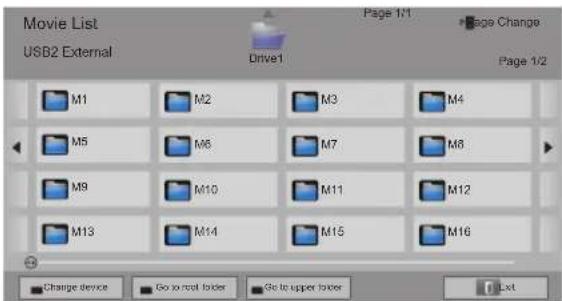
text_image
Movie List USB2 External Drive1 Page 1/1 Page Change Page 1/2 M1 M2 M3 M4 M5 M6 M7 M8 M9 M10 M11 M12 M13 M14 M15 M16 Change device Go to next folder Go to upper folder List| Button Description | |
| Navigation button | Scrolls through the files. |
| OK Plays | the highlighted file. |
| P ∧ ∨ | Moves to the previous or next page. |
| Red button | Change device: Changes to a different input. |
| Green button | Go to root folder. |
| Yellow button | Go to upper folder. |
7 Control playback by using the following buttons.
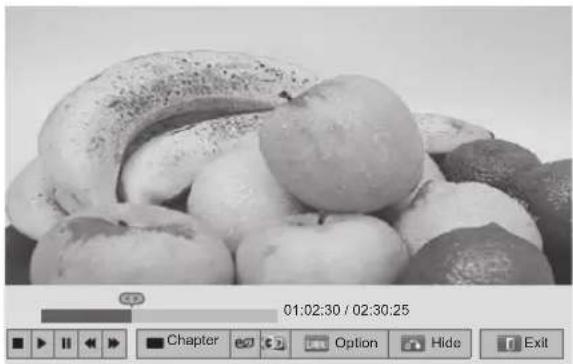
natural_image
Black-and-white photo of assorted fruits and vegetables in a bowl, with no visible text or symbols.| Button Description | |
| ■ | Stops the playback. |
| ▶ | Plays a video. |
| II | Pauses or resumes the playback. |
| ◀ | Scans backward in a file. |
| ▶ | Scans forward in a file. |
| II and ▶ | Plays videos in slow motion. |
| Red button and < > | Selects the frame directly.The entire file is divided into 10 frames.Frames may not be displayed depending on the file. |
| ENERGY SAVING | Increases or decreases the brightness of your screen. |
| 3D | Views the 3D imaging. (Only 3D models) |
| Q.MENU Shows the Option menu (See p.69). | |
| AV MODE Select the desired source. | |
| BACK | Hides the menu on screen.To see the menu again, press OK button to display. |
| EXIT Moves to the previous menu screen. | |
Tips for playing video files
- The TV does not support the files encoded in Motion JPEG. (See p.142)
- Some user-created subtitles may not work properly.
- Subtitles may not display some special characters or HTML tags.
- Changing font and colour in subtitles is not supported.
- Subtitles in non-supported languages are unavailable.
• Video files with subtitle files of 1 MB or larger may not be played properly.
- The screen may suffer from temporary interruptions such as image stoppage or faster playback when you change the audio language.
- If you play a damaged video file, the video file may not be played correctly or some player functions may not be unavailable.
- The TV may not properly play the video files produced with certain encoders.
- If the recorded file does not have video or audio, either video or audio is not outputted
- If the TV plays the recorded file without video or audio, either video or audio is not outputted.
- The TV may not smoothly play the video files with a resolution higher than the supported resolution for each frame.
- The TV may not properly play the video files not included on the specified type and format.
- The TV may not play the files encoded with GMC (Global Motion Compensation) or quarter-pel motion estimation.
- The TV supports the only 10,000 sync blocks within the subtitle file.
- The TV supports the H.264/AVC codec up to the profile level 4.1.
• The TV does not support DTS audio codec.
- The TV cannot play a video file whose size is larger than 30 GB.
- If you play a video file through the USB connection that does not support the high speed, the video player may not work properly.
- The video file and its subtitle should be in the same folder and the name of the video file and subtitle should be identical.
- The TV may not play the video files in the supported file format depending on the en-
coded condition.
- Trick Mode does not support other functions than if video files do not have index information.
• Video file names that contain special characters may not be playable.
- For 3D WMV files encoded in dualstream, 3D mode is not supported. (Only 3D models)
Q.MENU options for movie list
1 Press Q. MENU.
A pop-up window will appears.
2 Press the Navigation buttons to scroll to the option and press OK.
3 Press the Navigation buttons to scroll to one of the following options and press OK.
Set Video Play.
| Option Description | ||
| Picture Size | Selects your desired picture format for videos.Full Mode: Files are played in full screen mode according to the aspect ratio of video.Original Mode: Files are played in their native size. | |
| Audio Language | Changes the Language Group of the audio for video files. Files with a single audio track cannot be selected. | |
| Subtitle Language | The subtitles can be turned on or off. | |
| Language | Activated for SMI subtitles and can select the language within the subtitle. | |
| Code Page | Subtitle font selection. When set to default, contents are displayed in the language set in "Option - Language - Menu Language." | |
| Option Description | ||
| Subtitle Language Group | Latin1 : English, Spanish, French, German, Italian, Swedish, Finnish, Dutch, Portuguese, Danish, Romanian, Norwegian, Albanian, Gaelic, Welsh, Irish, Catalan, ValencianLatin2 : Bosnian, Polish, Croatian, Czech, Slovak, Slovenian, Serbian, HungarianLatin4 : Estonian, Latvian, LithuanianGyrillic : Bulgarian, Macedonian, Russian, Ukrainian, KazakhGreek : GreekTurkish : Turkish | |
| Sync If the | video is not synchronized with the captions, it can be adjusted by 0.5 second. | |
| Position M | move the location of the subtitles. | |
| Size Changes the subtitle font size. | ||
| Repeat | Turn on/off repeat function of movie playback. When turned on, the file within the folder will be played back repeatedly. When turned off, if the next file name is similar to the previous file, it can be played sequentially. | |

NOTE
- Option values changed in Movie List does not affect Photo List and Music List.
- Option value changed in Photo List and Music List are changed likewise in Photo List and Music List excluding Movie List.
- When replaying a video file after stopping, select "Yes" to restart where it previously stopped.
- If continuous series files exist within the folder, the next file will automatically be played. But, this excludes cases when the Repeat function of Movie List Option is turned "On".
Set Video.
Allows you to change Video presets. (Refer to "PICTURE Settings")
Set Audio.
Allows you to change Audio presets. (Refer to "AUDIO Settings")
Set DivX PLUS HD
These options are enabled only when the movie file being played contains the title, edition and authored chapter information.
| Option Description | |
| Title | For files with more than one title, select the title you want to play. |
| Edition | For files with more than one edition, select the edition you want to play.An edition refers to the playback order set based on the chapters. |
| Authored Chapter | Select and play the chapter you want. |
DivX registration code
Registering the DivX code
The DivX registration code allows you to rent or purchase the latest movies at www.divx.com/vod. To play a rented or purchased DivX file, the file's registration code should be same as your TV's DivX registration code.
1 Press Home to access the Home menu.
2 Press the Navigation buttons to scroll to SETUP and press OK.
3 Press the Navigation buttons to scroll to OPTION and press OK.
4 Press the Navigation buttons to scroll to Smart Share Setting and press OK.
5 Press the Navigation buttons to scroll to DivX VOD Registration and press OK.
6 View the registration code of your TV.
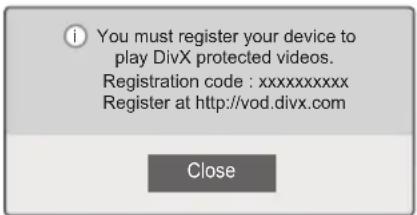
text_image
You must register your device to play DivX protected videos. Registration code : xxxxxxxxxxxx Register at http://vod.divx.com Close7 When you are finished, press EXIT.

NOTE
- While you are checking the registration code, some buttons may not work.
- If you use the DivX registration code of another device, you cannot play the rented or purchased DivX file. Make sure to use the DivX registration code assigned to your TV.
- The video or audio files that are not converted by the standard DivX codec may be corrupted or not be played.
- The DivX VOD code allows you to activate up to 6 devices under one account.
Deregistering the DivX feature
You can deregister all of the devices through the web server and block devices from activating. Delete the existing authentication information to receive a new DivX user authentication for the TV. Once this function is executed, a DivX user authentication is required again to see DivX DRM files.
1 Press Home to access the Home menu.
2 Press the Navigation buttons to scroll to SETUP and press OK.
3 Press the Navigation buttons to scroll to OPTION and press OK.
4 Press the Navigation buttons to scroll to Smart Share Setting and press OK.
5 Press the Navigation buttons to scroll to DivX Deregistration and press OK.
6 Select Yes to confirm.
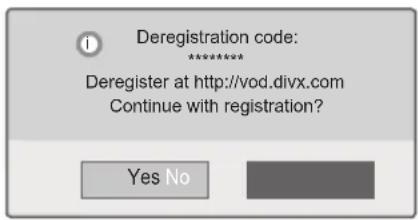
text_image
Deregistration code: ****** Deregister at http://vod.divx.com Continue with registration? Yes No7 When you are finished, press EXIT.
Viewing Photos
You can view image files saved on a USB storage device. The displays on the screen may based on the from the model.
1 Press Home to access the Home menu.
2 Press the Navigation buttons to scroll to Smart Share and press OK.
3 Press the Navigation buttons to scroll to the device you want and press OK.
4 Press the Navigation buttons to scroll to Photo List and press OK.
5 Press the Navigation buttons to scroll to a folder/file you want and press OK.
6 View photos by using the following menus/buttons.
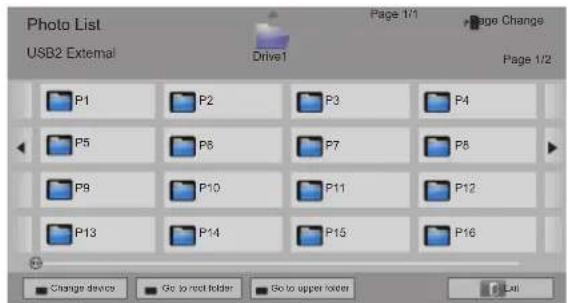
text_image
Photo List USB2 External Drive1 Page 1/1 Page Change Page 1/2 P1 P2 P3 P4 P5 P6 P7 P8 P9 P10 P11 P12 P13 P14 P15 P16 Change devices Go to next folder Go to upper folder List| Button Description | |
| Navigation button | Scrolls the file. |
| OK Views | the highlighted file. |
| P ∧ ∨ | Moves to the previous or next page. |
| Red button | Change device: Changes to a different input. |
| Green button | Go to root folder. |
| Yellow button | Go to upper folder. |
7 The following options are available while viewing photos.
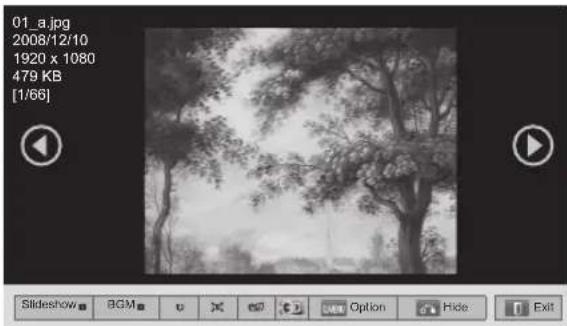
text_image
01_a.jpg 2008/12/10 1920 x 1080 479 KB [1/66] Slideshow BGM Option Hide Exit| Option Description | |
| Slideshow | Starts or stops a slideshow.All photos saved in the current folder display during a slideshow.To set a slideshow speed, select Option. |
| BGM(Background Music) | Turns the background music on or off.To set the background music folder, select Option. |
| ○ (Rotate) | Rotates photos clockwise ( 90^ , 180^ , 270^ , 360^ ).NOTEThe supported photo size is limited. You cannot rotate a photo if the resolution of the rotated width is larger than the supported resolution size. |
| ×× | Views the photo in full mode or original mode. |
| e∅(ENERGY SAVING) | Increases or decreases the brightness of your screen. |
| 3D | Views the 3D images. (Only 3D models) |
| Option | Shows the Option menu (See p.72). |
| Hide | Hides the option window.To display the options, press OK. |
| Exit | Moves to the previous menu screen. |
Q.MENU options for photo list
1 Press Q. MENU.
A pop-up window will appears.
2 Press the Navigation buttons to scroll to the option and press OK.
3 Press the Navigation buttons to scroll to one of the following options and press OK.
Set Photo View.
| Option Description | |
| Slide Speed | Selects a slideshow speed (Fast, Medium, Slow). |
| BGM | Selects a music folder for the back-ground music.Select Repeat or Random option. |

NOTE
- Option values changed in Photo List do not affect Movie List and Music List.
- Option values changed in Photo List or Music List are changed likewise in Photo List and Music List, but not Movie List.
Set Video.
Allows you to change Video settings. (Refer to "PICTURE Settings")
Set Audio.
Allows you to change Audio settings. (Refer to "AUDIO Settings")
Listening to music
1 Press Home to access the Home menu.
2 Press the Navigation buttons to scroll to Smart Share and press OK.
3 Press the Navigation buttons to scroll to the device you want and press OK.
4 Press the Navigation buttons to scroll to Music List and press OK.
5 Press the Navigation buttons to select a folder or file you want and press OK.
6 Play music by using the following menus/buttons.
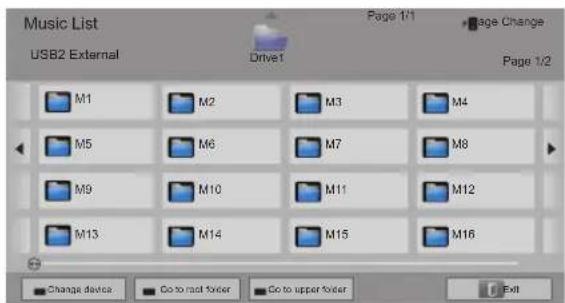
text_image
Music List USB2 External Drive1 Page 1/1 Page Change Page 1/2 M1 M2 M3 M4 M5 M6 M7 M8 M9 M10 M11 M12 M13 M14 M15 M16 Change device Go to root folder Go to upper folder Exit| Button Description | |
| Navigation button | Scrolls through the files. |
| OK Plays | the highlighted file. |
| P ∧ ∨ | Moves to the previous or next page. |
| Red button | Change device: Changes to a different input. |
| Green button | Go to root folder. |
| Yellow button | Go to upper folder. |
| Blue button | Open music player.It is enabled during playing music. |
7 Control playback by using the following buttons.
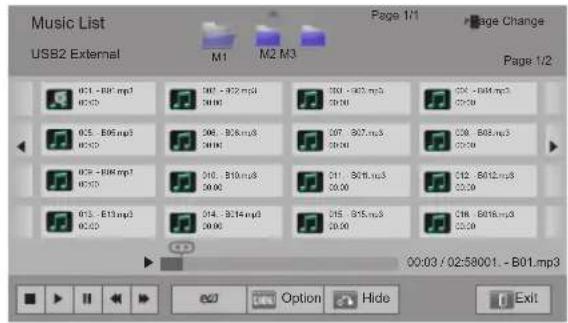
text_image
Music List USB2 External M1 M2 M3 Page 1/1 Page Change 051 - B91.mp3 0520 053 - B95.mp3 0540 055 - B98.mp3 0560 057 - B10.mp3 0580 059 - B11.mp3 0600 061 - B12.mp3 0620 063 - B13.mp3 0640 065 - B14.mp3 0660 067 - B15.mp3 0680 0690 0700 071 - B92.mp3 0720 073 - B93.mp3 0740 075 - B94.mp3 0760 077 - B95.mp3 0780 079 - B96.mp3 0800 081 - B97.mp3 0820 083 - B98.mp3 0840 085 - B99.mp3 0860 087 - B10.mp3 0880 089 - B11.mp3 0900 091 - B12.mp3 0920 093 - B13.mp3 0940 095 - B14.mp3 0960 097 - B15.mp3 0980 099 - B16.mp3 1000 101 - B17.mp3 1020 103 - B18.mp3 1040 105 - B19.mp3 1060 107 - B20.mp3 1080 109 - B21.mp3 1100 111 - B22.mp3 1120 113 - B23.mp3 1140 115 - B24.mp3 1160 117 - B25.mp3 1180 119 - B26.mp3 1200 121 - B27.mp3 1220 123 - B28.mp3 1240 125 - B29.mp3 1260 127 - B30.mp3 1280 129 - B31.mp3 1300 131 - B32.mp3 1320 133 - B33.mp3 1340 135 - B34.mp3 1360 137 - B35.mp3 1380 139 - B36.mp3 1400 141 - B37.mp3 1420 143 - B38.mp3 1440 145 - B39.mp3 1460 147 - B40.mp3 1480 149 - B41.mp3 1500 151 - B42.mp3 1520 153 - B43.mp3 1540 155 - B44.mp3 1560 157 - B45.mp3 1580 159 - B46.mp3 1600| Button Description | |
| ■ | Stops playback. |
| ▶ | Plays a music file. |
| II | Pauses or resumes playback. |
| ◀ | Skips to the previous file. |
| ▶ | Skips to the next file. |
| < > | Indicates a cursor. |
| e∅(ENERGY SAVING) | Increases or decreases the brightness of your screen. |
| Q.MENU Shows the Option menu (See p.74). | |
| BACK | Hides the option window.To display the options, press OK. |
| EXIT Moves to the previous menu screen. | |
Tips for playing music files
- This unit cannot support the ID3 Tag embedded MP3 files.
Q.MENU options for music list
1 Press Q. MENU.
A pop-up window will appears.
2 Press the Navigation buttons to scroll to the option and press OK.
3 Press the Navigation buttons to scroll to one of the following options and press OK.

NOTE
- Option values changed in Movie List does not affect the Photo List and Music List.
- Option value changed in Photo List and Music List are changed likewise in Photo List and Music List.
Set Audio Play.
Select Repeat or Random option.
Set Audio.
Allows you to change Audio settings. (Refer to "AUDIO Settings")

NOTE
• The TV will not play copy protected files.
- If the TV is not in use for some time during playback, the information box as a screen-saver will appear to prevent image burn.
To return to the Music list screen, press OK.
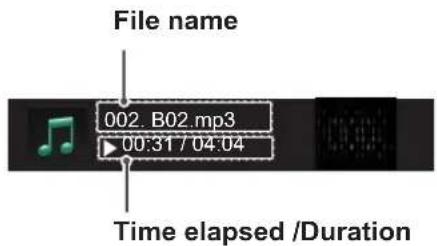
text_image
File name 002. B02.mp3 00:31 / 04:04 Time elapsed /DurationMedia Link Function
The Media Link programme allows you to connect to a Plex Media Server. The Plex Media Server is free download from www.plexapp.com. It will allow to play media files and download Plex apps. The Plex apps download to your computer and do not use any space on the TV.

NOTE
- We recommend that you install version 0.9.1.14 or later of PLEX Media Server on your Mac or PC. (Download the installation file at http://www.plexapp.com/medialink)
- GUI is displayed in English and the data transmitted will not be displayed when using the following languages: Thai, Arabic, Persian, Hebrew, Kurdish.
- When using the video plug-in, initial buffering may take a while if the TV does not support a file to be played and conversion needs to be performed on the computer. The conversion performance may vary depending on the computer's performance and the network speed.
- When playing the files stored on the computer (movies, TV shows, music), the formats supported are the same as those for the DLNA function. The skip to content function is not supported when playing music. (Same for DLNA)
- You may experience problems when playing HD movies over Wi-Fi due to the network slowing down.
- When using a router, the TV may not detect the computer due to the router settings. (For example, when using the multicast forward function in some routers, TVs cannot detect computers via Wi-Fi.)
- Some plug-ins may not work, depending on the media format.
- Plug-ins are subject to change and may stop working without prior notice, at the providers' discretion.
Media Link Connection
1 Your TV must be connected to your home network. Either using a wired or wireless connection. (See p.45 to 51).
2 You can download PLEX at http://www.pl-exapp.com/medialink.
- For more information on how to install it, please visit the website above.
3 When you run PLEX for the first time, the wizard guides you through the steps to set up the programme.
- For information on how to use the wizard, please visit the website above.
Using Media Link
1 Press Home to access the Home menu.
2 Press the Navigation buttons to scroll to the Media Link and press OK.
3 The Media Link sections of the connected computer are displayed. Select an icon to view the shared media in that category.
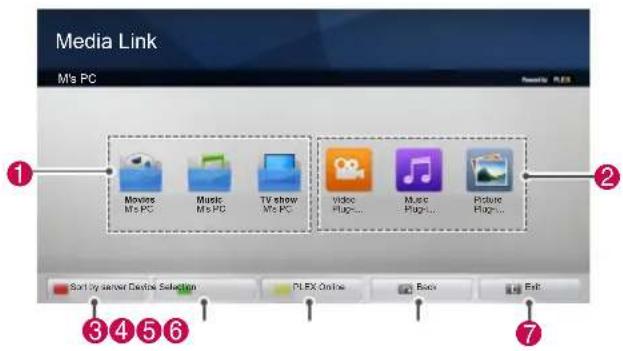
text_image
Media Link M's PC Movies M's PC Music M's PC TV show M's PC Video Play... Music Play... Picture Play... Sort by sensor Diagnostics Selection PU EX Online Back Exit| Option Description | |
| 1 | This is a list of categories you set on the connected computer. |
| 2 | This is a list of plug-ins for online content. |
| 3 | Change the section sorting.- By server name: Sort the list by server name.- By item name: Sort the list by item name. |
| 4 | Select another device. |
| 5 | Using PLEX Online, you can install, remove or update applications on the computer. |
| 6 | Move to the previous page. |
| 7 | Exit Media Link. |
Viewing Movies
Media Link will retrieve information on shared movies as described below.
1 Press Home to access the Home menu.
2 Press the Navigation buttons to scroll to the Media Link and press OK.
3 Press the Navigation buttons to scroll to the Video and press OK.
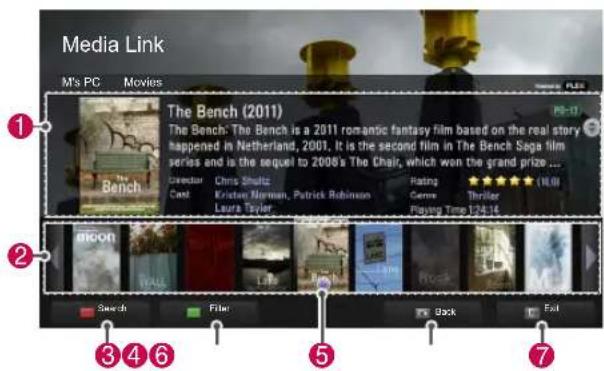
text_image
Media Link M's PC Movies The Bench (2011) The Bench: The Bench is a 2011 romantic fantasy film based on the real story happened in Netherland, 2001. It is the second film in The Bench Saga film series and is the sequel to 2008's The Chair, which won the grand prize... Director Chris Shultz Rating ★★★★ (10.0) Cast Kristian Norman, Patrick Robinson Genre Thriller Laura Taylor Playing Time 124:16 Moon Search Filter Back Full| Option | Description |
| 1 | Show information for the selected movie. |
| 2 | Show images captured from the movie file. |
| 3 | Search movies within the section. |
| 4 | Display the list according to the selected filter. |
| 5 | Select to play the movie in full screen mode. If the movie has already been played, you can continue from the last scene. |
| 6 | Move to the previous page. |
| 7 | Exit Media Link. |
Using Music Section
You can view information for the music files set for the Music section and enjoy them.
1 Press Home to access the Home menu.
2 Press the Navigation buttons to scroll to the Media Link and press OK.
3 Press the Navigation buttons to scroll to the Music section and press OK.
Using TV Programme Section
You can view information for the programmes contained in the TV Show section and enjoy them.
1 Press Home to access the Home menu.
2 Press the Navigation buttons to scroll to the Media Link and press OK.
3 Press the Navigation buttons to scroll to the TV Show section and press OK.
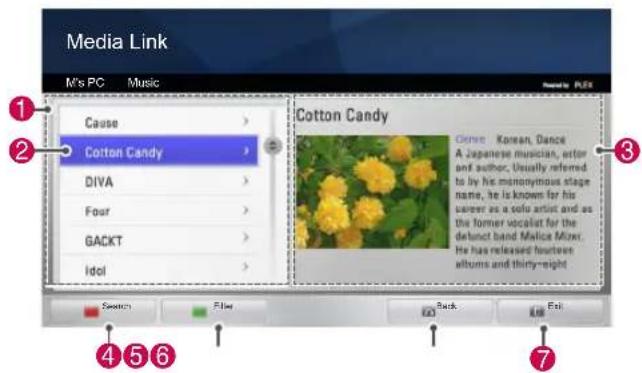
text_image
Media Link M's PC Music Cause Cotton Candy DIVA Four GACKT Idol Cotton Candy Olive Korean Dance A Japanese musician, actor and author. Usually referred to by his mononymous stage name, he is known for his career as a solo artist and as the former vocalist for the delunct band Malice Mixer. He has released fourteen albums and thirty-eight Search Filing Back Exit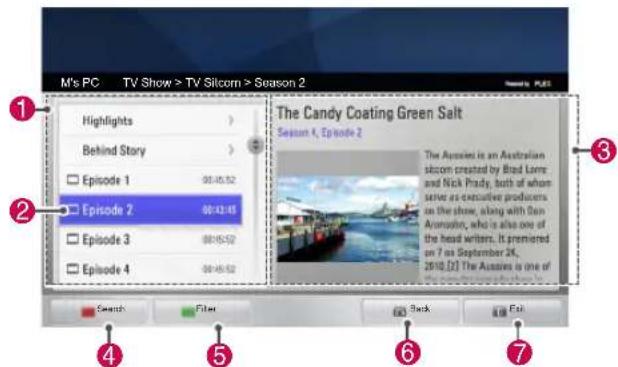
text_image
M's PC TV Show > TV Silcorn > Season 2 Highlights Behind Story Episode 1 00:45:52 Episode 2 00:42:45 Episode 3 00:45:52 Episode 4 00:45:52 The Candy Coating Green Salt Session 1, Episode 2 The Awards is an Australian sitcom created by Brad Love and Nick Prady, both of whom serve as executive producers on the show, along with Dan Aromsden, who is also one of the head writers. It premiered on 7 on September 26, 2018.[2] The Awards is one of the first three episodes. Search Filter Back Edit| Option Description | |
| 1 | Sort the music files in the selected section in the order of artist > album > song title. |
| 2 | Select a folder or a song. |
| 3 | Show the artist, album and information for the selected music. |
| 4 | Search music files within the section. |
| 5 | Display the list according to the selected filter. |
| 6 | Move to the previous page. |
| 7 | Exit Media Link. |
| Option Description | |
| 1 | Sort the TV programme files in the selected section in the order of programme name > season > episode. |
| 2 | Select a folder or a programme. |
| 3 | Show information for the selected programme. |
| 4 | Search TV programmes within the section. |
| 5 | Display the list according to the selected filter. |
| 6 | Move to the previous page. |
| 7 | Exit Media Link. |

Installing Plug-Ins
Media Link allows you to install plug-ins to enjoy media content on the web.
1 Press Home to access the Home menu.
2 Press the Navigation buttons to scroll to the Media Link and press OK.
3 Press yellow button to select to PLEX online.
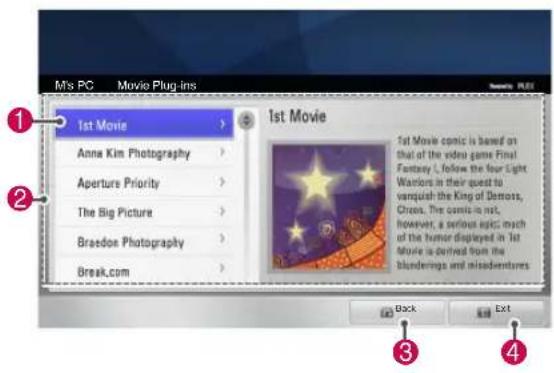
text_image
M's PC Movie Plug-ins 1st Movie Anna Kim Photography Aperture Priority The Big Picture Breedon Photography Break.com 1st Movie Tat Movie comic is based on that of the video game Final Fantasy I, follow the four Light Warriors in their quest to vanquish the King of Detroit, Chess. The comic is not, however, a serious idea: much of the humor displayed in 1st Movie is derived from the blunderings and misadventures.| Option Description | |
| 1 | Move the cursor to a plug-in to view the plug-in information on the right pane.Plug-ins already installed: You can run, up-date, reinstall or remove them.Plug-ins not yet installed: You can install them.Once installed, you can run the plug-in by selecting Video, Music or Picture Plug-in from the Media Link main screen. |
| 2 | A list of plug-ins available for installation. |
| 3 | Move to the previous page. |
| 4 | Exit Media Link. |
DVR Function
(This function is enabled only in Finland, Sweden, Norway, Denmark, Spain, Russia, Ukraine, Kazakhstan, Lithuania, Estonia, Latvia, Czech.)
Precautions when using the USB Device

NOTE
Only a USB storage device is recognizable. If the USB storage device is connected through a USB hub, the device is not recognizable.
A•USB storage device using an automatic recognition programme may not be recognized.
A•USB storage device which uses its own driver may not be recognized.
In case of several partitions or a card reader, up to four memory cards are concurrently recognizable.
The recognition speed of a USB storage device may depend on each device.
Please do not turn off the TV or unplug the USB device when the connected USB storage device is working. When such device is suddenly separated or unplugged, the stored files or the USB storage device may be damaged.
Please connect power to a USB storage device which requires an external power supply. If not, the device may not be recognized.
Please connect a USB storage device with cable is offered by USB maker. If connected with cable is not offered by USB maker or an excessively long cable, the device may not be recognized.
Some USB storage devices may not be supported or operate properly.
The TV will display up to 128 characters of a files name.
Please backup important files because data on USB device may be damaged. Data management is consumer's responsibility and as a result, the manufacturer does not cover data damage.
The recommended capacity is 40 GB or over and 1TB or less for a USB HDD.
Any device with more than the recommended capacity may not work properly.
Playing a movie via a USB connection that doesn't support high speed may not work properly.
USB storage devices below USB 2.0 are supported as well. But they may not work properly in the movie list.
Please maintain the stability of external HDD by using the HDD benchmarking tool in order to guarantee smooth action of HDD.
The HDD benchmarking tools is checking the performance of HDD that is read/write rate, access time, stability. It will be able to search at website and use easily it after download the HDD benchmarking tool.
DVR USB hard disk supports only SSD or HDD disk types. (USB memory is not supported.)
A•SSD (Solid State Drive) has a limited number of write/delete cycles. A HDD (Hard Disk Drive) is recommended for this product.
Timeshift (PAUSE & REPLAY OF LIVE TV)
This function allows the unit to automatically record live TV and make it available for viewing at any time.
With the Timeshift turned on, you may pause and rewind normal TV viewing at any time without missing any of the live broadcast.
Timeshift and Recording functions may not work if the signal strength is weak.
This function is only operated after initializing USB Device.
Connecting USB storage devices
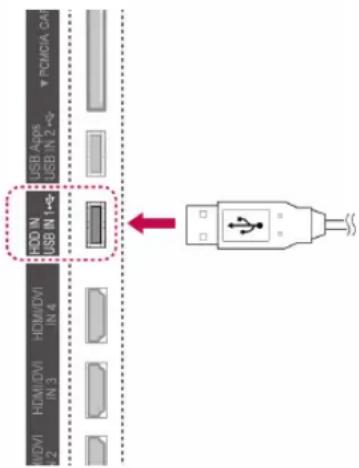
text_image
USB Apps USB IN 2-4- PC/PCIA CA HDMI/DVI IN 1-4 HDMI/DVI IN 3 HDMI/DVI IN 41 Connect the USB device to the USB IN 1/HDD IN jacks on the side of TV.
2 To use the USB device (over 40 GB) for DVR, execute USB Device Initialization.

NOTE
- It initializes the HDD connected to the USB as disk mode for DVR.
- It is activated only when the USB HDD available for DVR is connected.
- When USB Device Initialization is executed, all the data stored in the USB device is deleted.
- While performing USB Device Initialization, do not remove the USB device. It may cause error on the TV and the storage device.
USB device Initialization
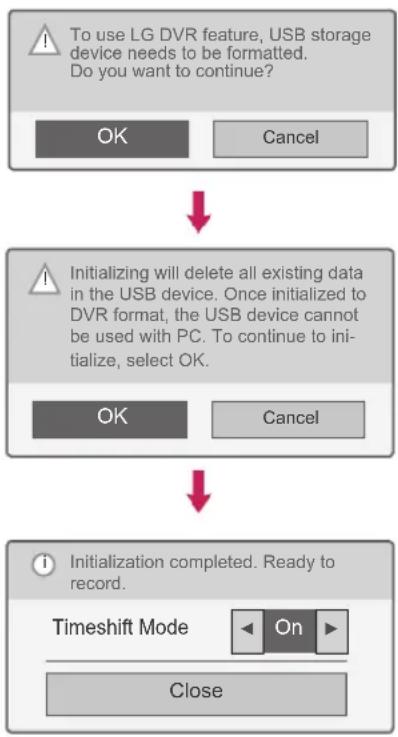
flowchart
graph TD
    A["To use LG DVR feature, USB storage device needs to be formatted. Do you want to continue?"] --> B{OK}
    B -->|Cancel| C["↓"]
    C --> D["Initializing will delete all existing data in the USB device. Once initialized to DVR format, the USB device cannot be used with PC. To continue to initialize, select OK."]
    D --> E{OK}
    E -->|Cancel| F["↓"]
    F --> G["Initialization completed. Ready to record."]
    G --> H["Timeshift Mode: On"]
    H --> I["Close"]
1 Connect an unformatted USB for DVR and press REC to initialize the USB device.
2 Press the Navigation buttons to scroll to OK and press OK.
3 Press Navigation buttons to scroll to On or Off and press OK.

NOTE
- When initialization is completed, a popup notice of completion is displayed and the connected USB HDD is available for DVR.
- Depending on the capacity of the USB device, the initialization time may vary.
- The initialized USB device is not recognized by the PC.
- When a USB device of less than 40 GB is connected, the USB Device Initialization is not activated.
- Supported maximum external HDD size for back-up is up to 1TB.
Timeshift Mode change during using DVR
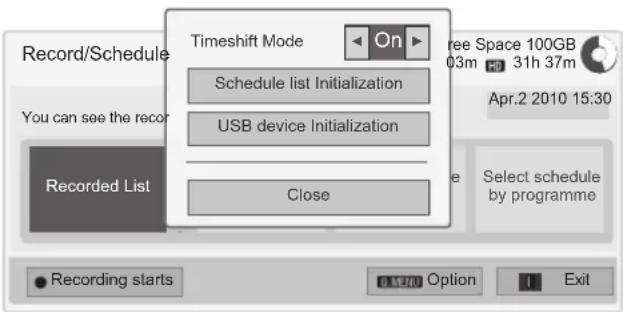
text_image
Record/Schedule Timeshift Mode On Schedule list Initialization USB device Initialization Recorded List Close Recording starts OK/OK Option Exit free Space 100GB 03m 31h 37m Apr.2 2010 15:30 Select schedule by programme1 After connecting USB device, press the OK button.
2 Press Yellow button to show the DVR option menu and press Q.MENU.
3 Press the Navigation buttons to scroll to Timeshift Mode and press OK.
4 Press Navigation buttons to scroll to On or Off and press OK.
5 When you are finished, press EXIT.
When you return to the previous menu, press BACK.
| Menu Description | |
| Recorded List Moves to the Recorded List. | |
| Schedule List Moves to the Schedule List. | |
| Select schedule by date | Moves to the Manual Timer. |
| Select schedule by programme | Set up timer recording by going to the Programme Guide. |
USB Device Reinitialization during using DVR
1 After connecting USB device, press the OK button.
2 Press Yellow button to show the DVR option menu and press Q.MENU.
3 Press the Navigation buttons to scroll to USB device Initialization and press OK.
4 When you are finished, press EXIT.
When you return to the previous menu, press BACK.

Timeshift Progress
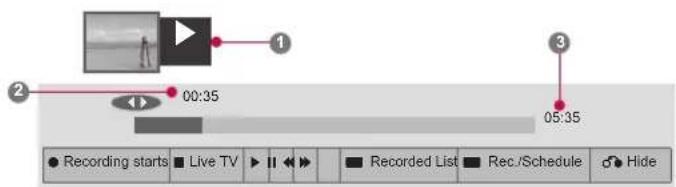
text_image
1 2 00:35 3 05:35 Recording starts ▪ Live TV ▶ ↔ ↔ ▪ Recorded List ▪ Rec./Schedule ◎ Hide1 After connecting USB device, press the OK button.
- As soon as Timeshift starts, a progress bar indicating the current recording status is displayed in the bottom of the screen.
- It Press the BACK button to hide the 'Progress Bar' or press the OK button to display the 'Progress Bar'.
- This function is preserved even though changing a programme on progressing the Timeshift.
The 'Progress Bar'?
This function indicates what Timeshift reviewing is possible, a current on-screen and live broadcasting position.
1 Preview
② Current location and progress time in playback
3 Total progress time of the Timeshift
▶ Playback
Fast forward
Rewind
Pause
Direct view +
Direct view -
By one screen
Slow playback

NOTE
• In order to save hard-disk space, nothing is saved when there is no signal.
- Timeshift can be used for maximum of 2 hours.
- You can't do the programme change or input conversion on recording.
- When turning power on, it may take up to a maximum of 3 minutes to initialize the HDD.
- Recording or playing the recorded programme may not initiate for a copy-protected programme.
- Instant recording time is set to 3 hours and supported maximum time is up to 5 hours.
• A thumbnail is created every 3 minutes for recordings longer than 18 minutes and every 1 to 3 minutes for recordings shorter than 18 minutes.
- Up to 6 thumbnails are created on one screen.
• DVR is available in DTV channel.
• Radio or satellite programmes or some scramble programmes cannot be recorded.
- You can record and enjoy DTV programmes in 3D.
Playback during the Timeshift
During the Timeshift play, the following options are available.
Use of remote control
You can playback the temporarily saved part in various methods during the Timeshift.
| Button Description | |
| During playback, repeatedly, press the REW (◀) or FF (▶) button to speed up.- Every time you press the button, the search speed will increase by stage (up to 4 stages). | |
| II ▶ | During playback, press the Pause(11) button.- Pause screen is displayed.- Every time you press the Pause(11) button from the pause screen, it will move screen by screen (11)▶- Press the Pause(11) button and then use the FF (▶) button for slow motion (1▶). |
| < >, OK | When you move the cursor using the navigation (◀) button during playback, and then press the OK button, the screen will directly play at the applicable screen where the cursor is located. (▶), (▶) |
| LIVE TV To view the current live broadcast, press the LIVE TV button during playback. | |
RECORDING
Use this function when you cannot watch the desired programme due to being out.
Start/Stop record
You can record the programme you are watching.
Start record
1 Press REC to start the recording.
Stop record
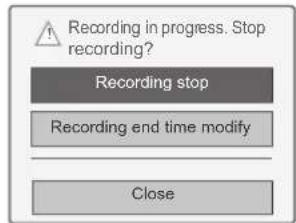
text_image
Recording in progress. Stop recording? Recording stop Recording end time modify Close1 Press REC to stop the recording.
2 Press Navigation buttons to scroll to Recording stop and press OK.

NOTE
- You can also stop the recording by pressing STOP (■).

Modify recording end time
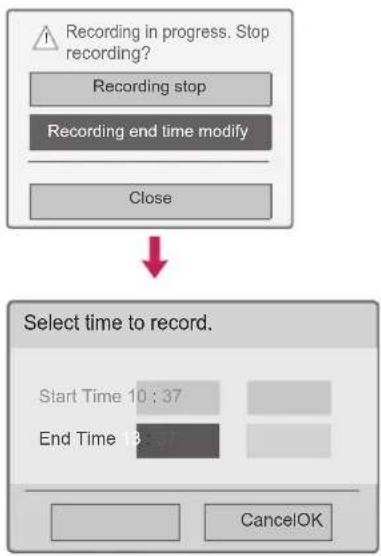
flowchart
graph TD
    A["Recording in progress. Stop recording?"] --> B["Recording stop"]
    B --> C["Recording end time modify"]
    C --> D["Close"]
    E["Select time to record."] --> F["Start Time 10:37"]
    E --> G["End Time 8:37"]
    H["CancelOK"] --> I["End Time"]
1 Press REC on the recording.
2 Press Navigation buttons to scroll to Recording end time modify and press OK.
3 Press Navigation buttons to scroll to set the recording end time and press OK.

NOTE
- When recording, if the available storage space is not sufficient, the recording will automatically Stop.
- Recordings of less than 10 seconds will not be saved.
- Recording available time is maximum 5 hours.
• To save disk space while recording broadcasts, no data will be saved if there is no signal. - The recording function will not initiate for a copy-protected programme.
- The displayed time may differ slightly from the actual time.
- When there is no signal or a film source is being viewed, the displayed time may differ slightly from the actual time.

WARNING
- Broadcast materials are protected by copyright and that recording and playback of certain material would only be permissible by permission of the copyright owner.
• Audio and video recordings you make using this recorder are for your personal use only. You may not sell, lend or rent them to other people.
SCHEDULE
Manual Timer
This function is easy to register to reserved recording. Timer recording is set.
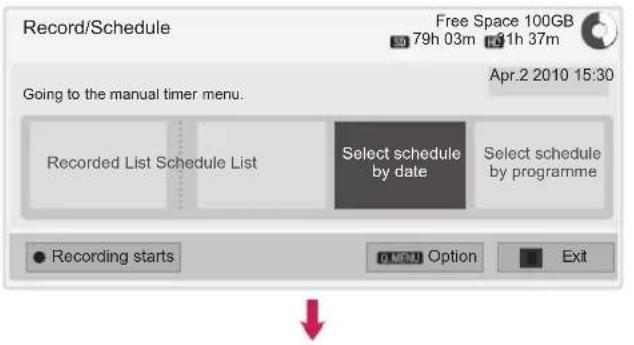
text_image
Record/Schedule Free Space 100GB 79h 03m 61h 37m Going to the manual timer menu. Apr.2 2010 15:30 Recorded List Schedule List Select schedule by date Select schedule by programme Recording starts OK/MEMI Option Exit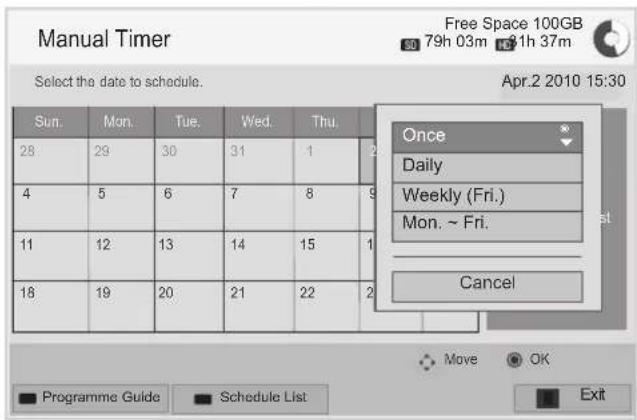
text_image
Manual Timer Free Space 100GB 79h 03m 31h 37m Select the date to schedule. Apr.2 2010 15:30 Sun. Mon. Tue. Wed. Thu. 28 29 30 31 1 2 4 5 6 7 8 9 11 12 13 14 15 1 18 19 20 21 22 2 Once Daily Weekly (Fri.) Mon. ~ Fri. Cancel Programme Guide Schedule List Exit1 After connecting USB device, press the OK button.
2 Press Yellow button.
3 Press Navigation buttons to scroll to Select schedule by date and press OK.
4 Press Navigation buttons to scroll to select a date and press OK.
5 Press Navigation buttons to scroll to select repeat option and press OK.
6 Press Navigation buttons to scroll to set the schedule type, time and programme and press OK.
7 When you are finished, press EXIT.
When you return to the previous menu, press BACK.
Schedule List
This function is used to show scheduled programme. You can store up to 30 programmes.
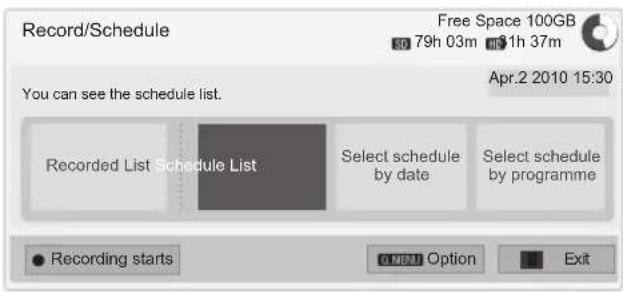
text_image
Record/Schedule Free Space 100GB 50 79h 03m 8h 31h 37m You can see the schedule list. Apr.2 2010 15:30 Recorded List Schedule List Select schedule by date Select schedule by programme Recording starts OK/Cancel Option Exit
| Menu Description | |
| Modify Edit the contents of Start date/Start time/End time/Title/Repeat. You must press the BACK button to save the edited contents. This feature is disabled in reserved reminding. | |
| Delete Delete | the selected item in the list. |
| Delete All Delete | all items in the list. |
| Close Close | the pop-up menu. |
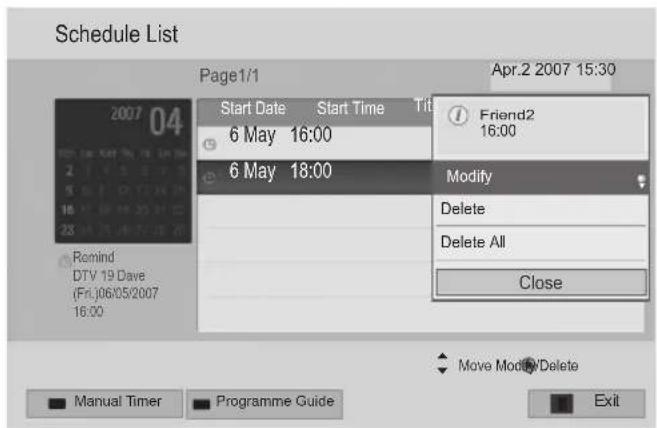
text_image
Schedule List Page1/1 Apr.2 2007 15:30 Start Date Start Time Title 6 May 16:00 6 May 18:00 Modify Delete Delete All Close Remind DTV 19 Dave (Fri.)06/05/2007 16:00 Move Modify Delete Manual Timer Programme Guide Exit1 After connecting USB device, press the OK button.
2 Press Yellow button.
3 Press Navigation buttons to scroll to Schedule List and press OK.
4 Press Navigation buttons to select a desired programme and press OK.
5 When you are finished, press EXIT.
When you return to the previous menu, press BACK.
Schedule List Initialization
This function is to reset the schedule list.
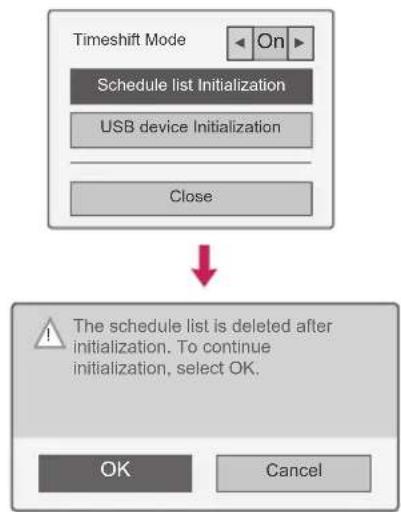
flowchart
graph TD
    A["Timeshift Mode"] --> B["Schedule list Initialization"]
    B --> C["USB device Initialization"]
    C --> D["Close"]
    D --> E{The schedule list is deleted after initialization. To continue initialization, select OK.}
    E -->|OK| F["Cancel"]
    E -->|Cancel| G["End"]
1 After connecting USB device, press the OK button.
2 Press Yellow button to show the DVR option menu and press Q.MENU.
3 Press the Navigation buttons to scroll to Schedule list Initialization and press OK.
4 Press Navigation buttons to scroll to OK and press OK. Start the Schedule List Initialization.
5 When you are finished, press EXIT.
When you return to the previous menu, press BACK.

Programme Guide
This function is easy to register to reserved recording. (Refer to "EPG").
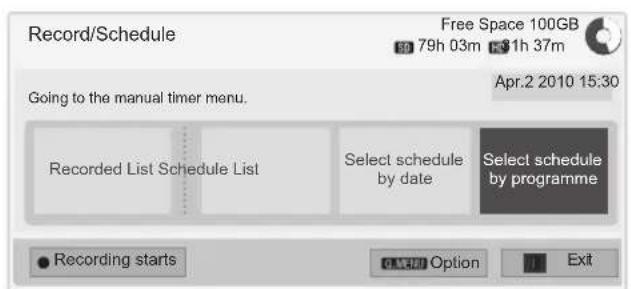
text_image
Record/Schedule Free Space 100GB 79h 03m 31h 37m Going to the manual timer menu. Apr.2 2010 15:30 Recorded List Schedule List Select schedule by date Select schedule by programme Recording starts OK Cancel Option Exit
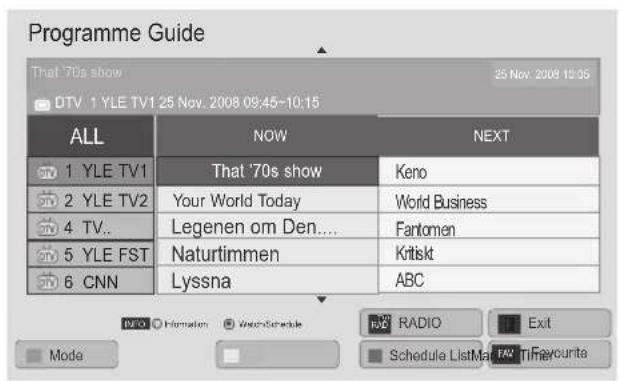
text_image
Programme Guide That '70s show 25 Nov. 2008 10:05 DTV 1 YLE TV1 25 Nov. 2008 09:45-10:15 ALL NOW NEXT 1 YLE TV1 That '70s show Keno 2 YLE TV2 Your World Today World Business 4 TV.. Legenen om Den.... Fantomen 5 YLE FST Naturtimmen Kritiskt 6 CNN Lyssna ABC INFO Information WatchSchedule RADIO Exit Schedule ListMap Reviewa Mode1 After connecting USB device, press the OK button.
2 Press Yellow button.
3 Press Navigation buttons to scroll to Select schedule by programme and press OK.
4 Press Navigation buttons to scroll to select a programme and press OK.
5 When you are finished, press EXIT.
When you return to the previous menu, press BACK.

NOTE
- Recording is not possible with copy-protected programmes.
① Programme with copy protection : failed to record.
- When a poor quality external source is recorded the quality of the recording will not be optimal.
• Manual Recording available time is maximum 5 hours and minimum 2 minutes. - When broadcasting station send the wrong time information, reserved recording may be failed.
- If different programmes are set for the same time for on time and reserved recording, this TV is powered on to the reserved recording programme.
- If you turn off the power during the recording, the programme being recorded may not be saved. Therefore it is good to press the STOP (■) button and check the reserved/recorded list, and then turn off the power.
- Recording cannot be reserved for a period less than 10 seconds.
- Because the title and time of the programme for Record/Remind is based on the information transmitted from the broadcasting station, they may be different than the actual ones depending on the situation of the broadcasting station.
- Recording time may differ depending on resolution of input signal or USB HDD capacity.
- When it is time for the reserved recording to start and the power of the TV is turned off, the TV will turn on the power of the part required for the recording and proceed to the reservation.
- When it is time for the reserved recording to start and the Immediate recording is in progress, the recording of the programme currently being recorded will be stopped and saved, and then proceed to the reserved recording.
- If the TV is unplugged once or turn off, the reserved recording will not work.
RECORDED TV
You can view the recorded programme list at a glance.
The recorded programme stored in the USB device can be played.
Recorded TV List
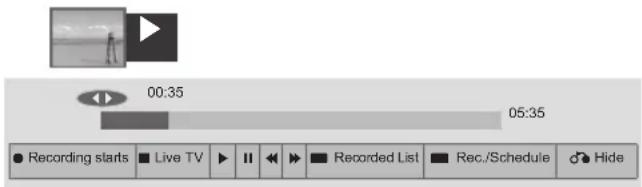
text_image
00:35 05:35 Recording starts ■ Live TV ▶ II ▶ ■ Recorded List ■ Rec./Schedule 🔒 Hide
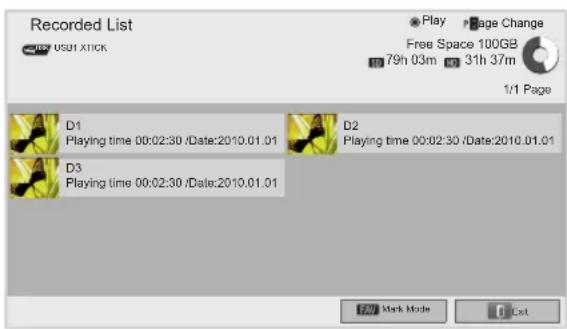
text_image
Recorded List USB1 XTTCK Play Page Change Free Space 100GB 79h 03m 31h 37m 1/1 Page D1 Playing time 00:02:30 /Date:2010.01.01 D2 Playing time 00:02:30 /Date:2010.01.01 D3 Playing time 00:02:30 /Date:2010.01.01 Play Mark Mode Ext1 After connecting USB device, press the OK button.
2 Press Green button to select Recorded List.
3 Press Navigation buttons to recorded programme and press OK.
4 When you are finished, press EXIT.
When you return to the previous menu, press BACK.

NOTE
- If there is a bad sector in the disk, part or all of the items of the Recording list can be deleted.
• Maximum number of recordings within the Recording list is 200. When the number of recordings in the Recording list is 200, you cannot record any more. - When the full duration of the recording is played back, the screen will stay in the stopped condition for 10 seconds and then automatically end the playback.
- The recording can be played back even during the recording/reserved recording.
- During the playback of the recording, the hard disk can generate a certain level of noise.
- This noise is irrelevant from the performance and reliability of the product and is normal for a hard drive to have a certain level of noise.
- The programme recorded at other TV can't be played back in accordance with copyright policy. If you attempt to play back the programme recorded at other TV, you will see a black screen.

Mark Mode
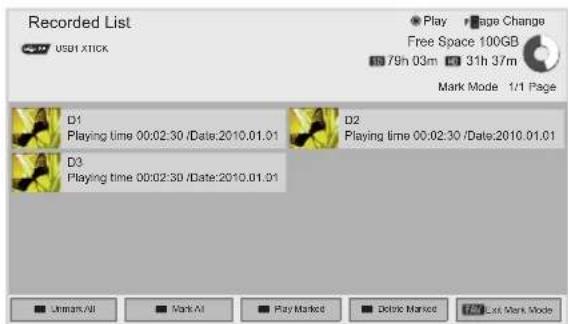
text_image
Recorded List USB1 XTTICK Play Page Change Free Space 100GB 79h 03m 31h 37m Mark Mode 1/1 Page D1 Playing time 00:02:30 /Date:2010.01.01 D2 Playing time 00:02:30 /Date:2010.01.01 D3 Playing time 00:02:30 /Date:2010.01.01 ■ Unmark/All ■ Mark AI ■ Play Market ■ Debris Market ■ List Mark Mode1 After connecting USB device, press the OK button.
2 Press Green button to select Recorded List.
3 Press FAV to mark your desired recorded programme.
4 Press Navigation buttons to select a desired recorded programme.
5 Press Yellow button to play the marked recorded programme.
| Button Description |
| Red button Unmark All: Change marked recorded programmes to unmarked recorded programmes. |
| Green button Mark All: Mark all recorded programmes in the list. |
| Yellow button Play Marked: Play the first selected file. Once recorded programmes finishes playing, the next selected one will be played automatically. |
| Blue button Delete Marked: Delete the marked recorded programmes. |
| FAV Exit Mark Mode. |
Playing Recorded programmes
You can play a selected programme from the recorded list.
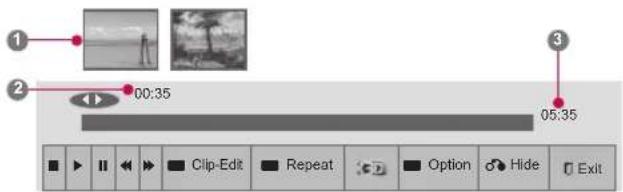
text_image
1 2 00:35 05:35 Clip-Edit Repeat Option Hide Exit1 After connecting USB device, press the OK button.
2 Press Green button to select Recorded List.
3 Press Navigation buttons to recorded programme and press OK.
4 Press Green button to select Option and press OK.
5 When you are finished, press EXIT.
When you return to the previous menu, press BACK.
| Menu | Description |
| Play on previous playtime. | Resumes playing at the previously stopped point. |
| Play from the start | Playback of selected recorded programmes. |
| Rename | Rename the programme. |
| Delete | Delete the programme. |
The 'Progress Bar'?
This function indicates what recorded programme reviewing is possible, a current on-screen and live broadcasting position.

Preview

Current location and progress time in playback

Total progress time of the recorded pro- gramme

Playback

Fast forward

Rewind

Pause

Direct view +

Direct view -

By one screen

Slow playback

(Blue) Start repeat interval

(Yellow) Start clip-edit interval

(Blue) End repeat interval

(Yellow) End clip-edit interval

Repeating interval
Use of remote control
You can adjust various method during the recorded programme play.
| Button Description | |
| During playback,repeatedly, press the REW (◄or FF(►button to speed up.- Every time you press the button, the search speed will increase by stage(up to 4 stages). | |
| Green button Option: Press Green button to input video and audio settings for recorded files. | |
| Yellow button Clip-Edit:Press Yellow button at the starting point where you want to set the Interval clip-edit and press it again at the ending point. To save, select Yes.- The start of the Interval clip-edit is displayed as and end of the Interval clip-edit as in the recording progress bar at the bottom of the screen. Start and end of the Interval clip-edit can be set both in forward and reverse direction.- Interval shorter than 10 seconds cannot be saved. | |
| Blue button | Repeat:Press the Blue button at the starting point where you want to set the Interval repeat and press it again at the ending point. To cancel the playback for the interval repeat, press Blue button one more time.- The start of the Interval repeat is displayed as and end of the Interval repeat as in the recording progress bar at the bottom of the screen. Start and end of the Interval repeat can be set both in forward and reverse direction.- Interval shorter than 10 seconds cannot be set.- When the Interval repeat is cancelled, it will return to normal playback from the end point of the interval. |
| II ► | During playback, press the Pause( ) button.- Pause screen is displayed.- Every time you press the Pause(II) button from the pause screen, it will move screen by screen (II►).- Press the Pause(II) button and then use the FF (►) button for slow motion(►).- If you don't press any button 10 minutes after the pause, it will return to the playback. |
| < >, OK | When you move the cursor using the navigation (< >) button during playback, and then press the OK button, the screen will directly play at the applicable screen where the cursor is located. (○, ○) |
| 3D | Uses for viewing 3D video.(Only 3D models) |
EPG (Electronic Programme Guide) Function (In digital mode)
This system has an Electronic Programme Guide (EPG) to help your navigation through all the possible viewing options.
The EPG supplies information such as programme listings, start and end times for all available services. In addition, detailed information about the programme is often available in the EPG (the availability and amount of these programme details will vary, depending on the particular broadcaster).
This function can be used only when the EPG informationis broadcast by broadcasting companies. You must set the Clock in the Time menu, before using EPG function.
The EPG displays the programme details for 8 days.
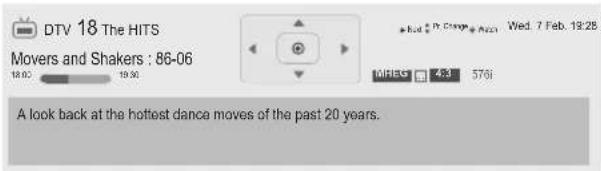
text_image
DTV 18 The HITS Movers and Shakers : 86-06 18:02 19:30 A look back at the hottest dance moves of the past 20 years. Wed. 7 Feb. 19:28 4:3 576i- Press INFO to show current programme information.
| Displayed with a TV or DTV Programme. | |
| Displayed with a Radio Programme. | |
| MHEG | Displayed with a MHEG Programme. |
| HE-AAC | Displayed with a HE-AAC Programme. |
| 4:3 | Aspect ratio of broadcasting programme. |
| 16:9 | Aspect ratio of broadcasting programme. |
| Displayed with a Teletext Programme. | |
| Displayed with a Subtitle Programme. | |
| Displayed with a Scramble Programme. | |
| D | Displayed with a Dolby Digital Programme. |
| D+ | Displayed with a Dolby Digital PLUS Programme. |
| 576i/p, 720p, 1080i/p | Resolution of broadcasting programme. |
| Broadcasted programme with the icon may not be displayed in Monitor Out depending on the information of the programme. | |
| APP | Displayed with a MHP Programme. |
| > | Shows next programme information. |
| ^V | Shows other programme information. |
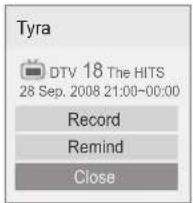
text_image
Tyra DTV 18 The HITS 28 Sep. 2008 21:00-00:00 Record Remind Close| OK Record : A pop-up window for record settings appear.Remind : Reserved. | |
| ^ v | Select Timer Record/Remind setting mode. |
Switch on/off EPG
1 Press GUIDE to switch on or off EPG.
Select a programme
1 Press Navigation buttons or P ∧ ∨ to select desired programme.
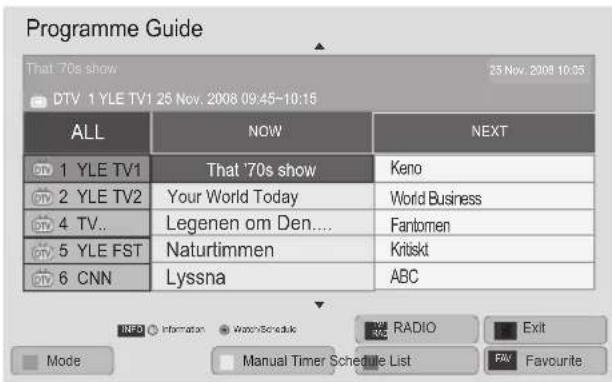
text_image
Programme Guide That '70s show 25 Nov. 2008 10:05 DTV 1 YLE TV1 25 Nov. 2008 09:45-10:15 ALL NOW NEXT 1 YLE TV1 That '70s show Keno 2 YLE TV2 Your World Today World Business 4 TV.. Legenen om Den.... Fantomen 5 YLE FST Naturtimmen Kritskt 6 CNNLyssna ABC INFO Information Water/Schedule RADIO Exit Mode Manual Timer Schedule List FAV FavouriteNOW/NEXT Guide Mode
You can view a programme being broadcasted and one scheduled to follow.
| Button Description | |
| Red button Change EPG mode. | |
| Yellow button Enter Manual Timer mode. (See p.84) | |
| Blue button Enter Schedule List mode. (See p.85) | |
| OK | When 'NOW' is selected, it is moved to selected Programme and EPG disappears.When 'NEXT' is selected, a reservation pop-up window appears. |
| <> | Select NOW or NEXT Programme. |
| ^v | Select the Broadcast Programme. |
| P^v | Page Up/Down. |
| GUIDE | Switch off EPG.BACK |
| EXIT | |
| TV/RAD Select | DTV or RADIO Programme. |
| INFO Detail information on or off. | |
| FAV Change Favourite mode. | |
Date Change Mode
| Button Description | |
| Green button | Switch off Date setting mode. |
| v | |
| BACK | |
| OK Change to the selected date. | |
| <> | Select a date. |
| GUIDE | Switch off EPG. |
| EXIT | |
8 Day Guide Mode
| Button Description | |
| Red button Change EPG mode. | |
| Green button Enter Date setting mode. | |
| Yellow button Enter Manual Timer mode. (See p.84) | |
| Blue button Enter Schedule List mode. (See p.85) | |
| OK | When ‘Currently broadcasting programme’ is selected, it is moved to selected programme and EPG disappears.When ‘Future broadcasting programme’ is selected, a reservation pop-up window appears. |
| <> | Select Programme. |
| ^√ | Select the Broadcast Programme. |
| P ^ ∨ | Page Up/Down. |
| GUIDE | Switch off EPG.BACK |
| EXIT | |
| TV/RAD Select | DTV or RADIO Programme. |
| INFO Detail information on or off. | |
| FAV Change Favourite mode. | |
Extended Description Box
| Button Description | |
| INFO The detail | information on or off. |
| ^ ∨ | Text Up/Down. |
| <> | Select Timer Record/Remind setting mode. |
| GUIDE | Switch off EPG. |
| EXIT | |
3D IMAGING
(Only 3D Models)
3D Technology
This TV can display in 3D via 3D broadcasting or when the TV is connected to a compatible device, such as a Blu-ray 3D Player. The viewer must wear compatible 3D glasses in order to see these images in 3D format.

WARNING
• We recommend that you maintain a distance of at least twice the screen diagonal length when watching 3D videos.
- To watch the TV in 3D, you must put on your 3D glasses. For best results, you should wear LG Brand 3D glasses. The 3D imaging may not display properly when using another brand of 3D glasses. Please see the 3D glasses manual for instructions on how to use the 3D glasses.
- When watching 2D images, it is recommended to take off the 3D glasses. If you watch 2D images with the 3D glasses on, you may see distorted images.
- If you watch the 3D imaging too closely or for a long period of time, it may harm your eyesight.
- Watching the TV or playing video games that incorporate 3D imaging with the 3D glasses for a long period of time can cause drowsiness, headaches or fatigue to you and/or your eyes. If you have a headache, or otherwise feel fatigued or drowsy, stop watching the TV and have a rest.
- Pregnant woman, seniors, persons with heart problems or persons who experience frequent drowsiness should refrain from watching 3D TV.
- Some 3D imaging may cause you to duck or dodge the image displayed in the video. Therefore, it is best if you do not watch 3D TV near fragile objects or near any objects that can be knocked over easily.
- Please prevent children under the age of 5 from watching 3D TV. It may affect their vision development.
- Warning for photosensitization seizure: Some viewers may experience a seizure or epilepsy when exposed to certain factors, including flashing lights or images in TV or
video games. If you or anybody from your family has a history of epilepsy or seizure, please consult with your doctor before watching 3D TV.
Also certain symptoms can occur in unspecified conditions without any previous history. If you experience any of the following symptoms, immediately stop watching the 3D imaging and consult a doctor: dizziness or light-headedness, visual transition or altered vision, visual or facial instability, such as eye or muscle twitching, unconscious action, convulsion, loss of conscience, confusion or disorientation, loss of directional sense, cramps, or nausea. Parents should monitor their children, including teenagers, for these symptoms as they may be more sensitive to the effects of watching 3D TV.
- Risk of photosensitization seizure can be reduced with the following actions.
» Take frequent breaks from watching 3D TV.
» For those who have vision that is different in each eye, they should watch the TV after taking vision correction measures.
» Watch the TV so that your eyes are on the same level as the 3D screen and refrain from sitting too closely to the TV.
» Do not watch the 3D imaging when tired or sick, and avoid watching the 3D imaging for a long period of time.
» Do not wear the 3D glasses for any other purpose than viewing 3D imaging on a 3D TV.
» Some viewers may feel disoriented after watching 3D TV. Therefore, after you watch 3D TV, take a moment to regain awareness of your situation before moving.

NOTE
(Only 42/47/55LW75**, 42/47/55LW77**, 47/55LW95* 72LZ97**)
• After powering on the TV, a few seconds may be needed for your TV to calibrate.
- If there is an obstacle between the TV and the 3D glasses, the 3D imaging may not display properly.
- Do not use the TV in close proximity to other electronic equipments and RF equipments.
- When watching digital TV in 3D imaging mode, monitor out signals cannot be output through the SCART cable.
- If you set the 3D mode to On while a scheduled recording is performed on digital TV, monitor out signals cannot be output through the SCART cable, and the recording cannot be performed.
- The 3D imaging may not display if it is viewed while you are lying down.
- It may take a moment for you to see the 3D imaging if you look away from the TV and then revert your eyes back to the 3D programme.

NOTE
(Only 32/37/42/47/55LW55*, 32/37/42/47/55LW57*, 32/42/47/55LW65**)
- When watching digital TV in 3D imaging mode, monitor out signals cannot be output through the SCART cable.
- If you set the 3D mode to On while a scheduled recording is performed on digital TV, monitor out signals cannot be output through the SCART cable, and the recording cannot be performed.
When using 3D Glasses

CAUTION
- Do not use the 3D glasses to replace your corrective glasses, sunglasses or protective goggles.
- Do not store the 3D glasses in hot or cold locations.
- Do not drop objects onto the 3D glasses. Do not drop or bend the glasses.
- Since the lenses of the 3D glasses are easily scratched, make sure to clean only with a soft cloth. Shake off any dust before using the cloth since the glasses are easily scratched.
- A communication failure may occur if the glasses are near electronic devices that use the same bandwidth (2.4 GHz), such as a microwave oven or wireless LAN product.
3D Imaging Viewing Range
(Only 42/47/55LW75**, 42/47/55LW77**, 47/55LW95** 72LZ97**)
TV size, viewing angle & other circumstances may change the viewing distance and the angle of view.
| Viewing Distance Maximum Viewing Distance | |
| 2 m to 7 m 10 m | |
Viewing 3D Imaging
1 Play the video produced in 3D.
2 Press 3D to watch 3D imaging.
3 Wear the 3D glasses.
4 Press the Navigation buttons to scroll the OK and press OK.
5 Press the Navigation buttons to scroll the shape and press OK.
| Mode Description | |
| 2D »3D | Changed from 2D imaging to 3D imaging.2D-to-3D converted videos may appear less realistic than titles originally produced as 3D videos. |
| Side by Side | 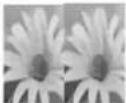 |
| Top & Bottom |  |
| Checker Board | 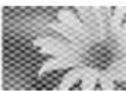 |
| Frame Sequential |  |
6 Press 3D button to 2D Off or 3D Off.
| Option Description | |
| 3D -> 2D | Displays images in 2D without any 3D effects. |
| 3D Off | Displays images in original format. |
| 2D -> 3D | Displays images in 3D. |
| Cancel | Close the pop-up window. |
Setting 3D Imaging
1 Press the 3D OPTION while viewing 3D imaging. A pop-up window will appears.
2 Press the Navigation buttons to scroll to one of the following options and press OK.
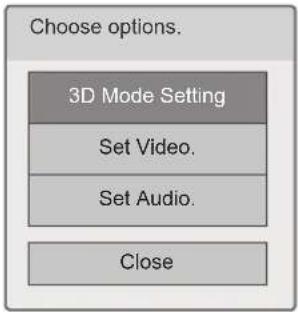
text_image
Choose options. 3D Mode Setting Set Video. Set Audio. Close3D Mode Setting
| Option (Depending on model) | Description |
| 3D Picture Correction | Select Left/Right or Right/Left. Select the screen with 3D video with better visibility. |
| 3D Depth | Adjusts the stereoscopic effect of the 3D image converted from a 2D image. |
| 3D Viewpoint | Moves the 3D image to the front and back to adjust the 3D perspective view. |
| 3D Optimization | Optimizes the 3D image screen for the viewing environment. |
Set Video.
Allows you to change Video settings. (Refer to "PICTURE Settings").
Set Audio.
Allows you to change Audio settings. (Refer to "AUDIO Settings").

CAUTION
• Some menus may not work while viewing 3D imaging.
- The 3D imaging is disabled automatically when switching DTV channels or input source.
- The screen may not be displayed properly if you view 2D images in 3D imaging mode.
• 3D effect can be seen when 3D Mode is selected appropriately for the 3D input signal supplied to the TV.
- For *mpo files (3D camera files), the 3D imaging mode is enabled automatically.

NOTE
- If you select 3D mode, "Power indicator" is turned off automatically.
- You can only choose "Off or Cinema" with the AV MODE button on the remote control.
• Energy Saving is disabled while playing in 3D.
- You cannot enter the Home menu while watching 3D files.

CUSTOMIZING TV SETTINGS
The SETUP Menu
1 Press Home to access the Home menu.
2 Press the Navigation buttons to select the SETUP menu and press OK.
3 Press the Navigation buttons to scroll to one of the following menus and press OK.
4 Press the Navigation buttons to scroll to the setting or option you want and press OK.
5 When you are finished, press EXIT.
| Menu Description | ||
 | SETUP Sets up and edit programmes. | |
 | PICTURE Adjusts the image size, quality, or effect. | |
 | AUDIO Adjusts the sound quality, effect, or volume level. | |
 | TIME Sets the time, date, or timer feature. | |
 | LOCK Locks or unlocks channels and programmes. | |
 | OPTION Customizes the general settings. | |
 | NETWORK Sets up the network setting. | |
 | SUPPORT Checks the customer information. | |
Customizing Settings
SETUP Settings
1 Press Home to access the Home menu.
2 Press the Navigation buttons to scroll to SETUP and press OK.
3 Press the Navigation buttons to scroll to SETUP and press OK.
4 Press the Navigation buttons to scroll to the setting or option you want and press OK.
- To return to the previous level, press BACK.
5 When you are finished, press EXIT.
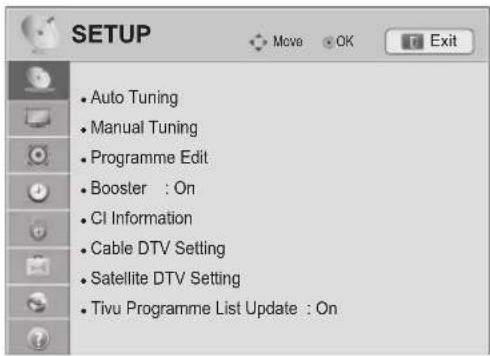
text_image
SETUP • Auto Tuning • Manual Tuning • Programme Edit • Booster : On • CI Information • Cable DTV Setting • Satellite DTV Setting • Tivu Programme List Update : OnThe available programme settings are described in the following:
| Setting Description | |
| Auto Tuning | Tunes and stores all available programmes through antennas or cable or satellite inputs (See p.31). |
| Manual Tuning Tunes | and stores the programmes you want manually (See p.36). |
| Programme Edit Edits | programmes (See p.39). |
| Booster Sets to the optimised sensitivity depending on the signal reception. (See p.40). | |
| CI Information Enables you to watch some encrypted services (pay services).(See p.40). | |
| Cable DTV Setting(In Cable, Cable & Satellite(-Only Satellite models) mode only) | Sets various options for viewing cable DTV. (See p.34). |
| Satellite DTV Setting(In Satellite, Antenna & Satellite, Cable & Satellite mode only-Only Satellite models) | Sets various options for viewing satellite DTV. (See p.34). |
| Tivu Programme List Update(In Satellite, Antenna & Satellite, Cable & Satellite mode only-Only Satellite models, Only Italy) | It updates the changed Programme List information by based on country broadcasting circumstance and satellite. (See p.35). |
PICTURE Settings
1 Press Home to access the Home menu.
2 Press the Navigation buttons to scroll to SETUP and press OK.
3 Press the Navigation buttons to scroll to PICTURE and press OK.
4 Press the Navigation buttons to scroll to the setting or option you want and press OK.
- To return to the previous level, press BACK.
5 When you are finished, press EXIT.
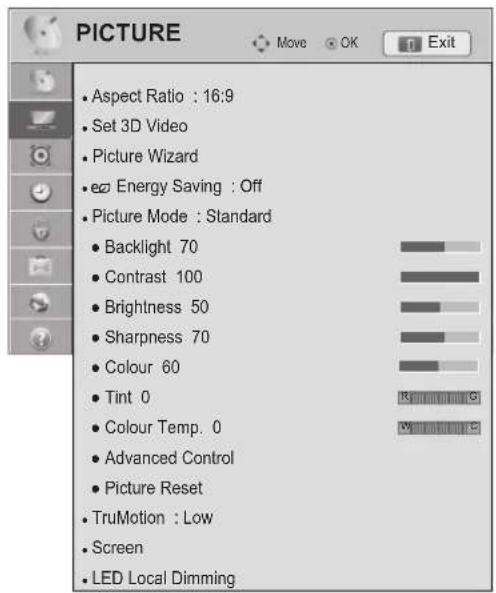
text_image
PICTURE Aspect Ratio : 16:9 Set 3D Video Picture Wizard Energy Saving : Off Picture Mode : Standard Backlight 70 Contrast 100 Brightness 50 Sharpness 70 Colour 60 Tint 0 Colour Temp. 0 Advanced Control Picture Reset TruMotion : Low Screen LED Local DimmingThe available picture settings are described in the following.
| Setting | Description | |
| Aspect Ratio | Changes the image size to view images at its optimal size (See p.41). | |
| Set 3D Video(Only 3D models) | Sets the 3D imaging option. (See p.92) | |
| Picture Wizard | Adjusts the image quality and calibrates the screen.The customized options will be saved asExpert1in thePicture Mode.NOTEIf you usePicture Wizard, the Energy saving feature will turn off automatically.To reset changes made byPicture Wizard, operatePicture ResetwhenPicture Modeis onExpert1.In RGB-PC/HDMI-PC/DVI-PC mode, the changedColour, Tintand H/V Sharpnessvalues are not applied. | |
| Energy Saving Reduces the power consumption by adjusting the screen brightness.NOTEWhen adjusting Energy Saving in MHEG/MHP mode, the Energy Saving setting is appliedafter MHEG/MHP is finished.Selecting ‘Screen Off’ while tuned to a radio station channel will reduce power consumption.When selectingAutoorMaximum,Backlightwill not work. | ||
| Setting Description | |
| Picture Mode | Selects one of the preset image or customizes options in each mode for the best TV screen performance. You are also able to customize advanced options of each mode.The available preset picture modes vary depending on the TV. |
| NOTEIf·you select Intelligent Senesor, the Energy saving feature will switch to Auto automatically.If·you select Cinema, the Aspect ratio feature will switch to Just scan automatically. | |
| Mode (Depending on model) | |
| Intelligent Sensor Sets the TV to adjust the image settings, such as contrast, brightness, sharpness, colour, or tint, automatically corresponding to the surrounding environments. | |
| Vivid Adjusts the video image for the retail environment by enhancing the contrast, brightness, colour, and sharpness. | |
| Standard Adjusts the image for the normal environment. | |
| Cinema Optimizes video images for a cinematic look to enjoy movies as if you are in a movie theatre. | |
| Game Optimizes the video image for a fast gaming screen for PCs or games. | |
| Expert Adjusts the detailed video image settings for video experts as well as general viewers. | |
| NOTEISFccc (ISFccc: Imaging Science Foundation Certified Calibration Control) : This TV contains the detailed calibrations necessary for professional certification by the Imaging Science Foundation. The resulting ISF “day” and “night” modes will then be accessible by the user to experience the best their LG HDTV has to offer.Sophisticated and detailed calibrations can be made through the ISFccc mode.Detailed calibration requires a licensed technician. Please contact your local dealer to inquire about an ISF certified technician. | |
| TruMotion | Advance video technology that provides clearer, smoother images, even during fast action scenes creating a more stable structure for a crisper picture.TruMotion works with all inputs except PC mode. |
| NOTEIf you enable TruMotion, noise may appear on the screen. If this occurs, set TruMotion to Off.If you select Picture Mode-Game, set TruMotion to Off. | |
| Mode | |
| High Provides smoother picture movement. | |
| Low Provides smooth picture movement. Use this setting for standard use. | |
| Off Turn off TruMotion operation. | |
| User De-Judder: Adjusts noise of the screen.De-Blur: Adjusts after-image of the screen. | |

| Setting Description | |
| SCREEN Customizes the PC display options. | |
| LED Local Dimming(Depending on model) | After analysing the signal of the input video by areas of the screen, it adjusts the backlight to improve the contrast ratio. |
| Mode | |
| Off Turn off LED Local Dimming operation. | |
| Low Brightens the picture and deepens black levels using the soft local dimming. | |
| Medium Deepens black levels using the strong local dimming. | |
| High Clears the picture and deepens black levels using the strong local dimming. | |
Basic image options
| Setting Description | |
| Backlight | Adjusts the brightness of the screen by controlling the LCD backlight. If you decrease the brightness level, the screen becomes darker and the power consumption will be reduced without any video signal loss. |
| NOTEIf you use the “Energy saving - Off, Minimum, Medium”, Backlight will be available. | |
| Contrast | Increases or decreases the gradient of the video signal. You may use Contrast when the bright part of the picture is saturated. |
| Brightness Adjusts the base level of the signal in the picture. | |
| Sharpness | Adjusts the level of crispness in the edges between the light and dark areas of the picture. The lower the level, the softer the image. |
| Colour Adjusts intensity of all colours. | |
| Tint Adjusts the balance between red and green levels. | |
| Colour Temp. | Set to warm to enhance hotter colours such as red, or set to cool to enhance cooler colours such as blue. |
| Advanced Control or Expert Control | Customizes the advanced options. |
| Picture Reset Restores the options of each mode to the factory default. | |
 NOTEIt is not available to use this function in “Intelligent Sensor”.You cannot adjust colour, sharpness and tint in the RGB-PC/HDMI-PC mode.When the Expert 1/2 is selected, you can select Backlight, Contrast, Brightness, H Sharpness, V Sharpness, Colour or Tint. NOTEIt is not available to use this function in “Intelligent Sensor”.You cannot adjust colour, sharpness and tint in the RGB-PC/HDMI-PC mode.When the Expert 1/2 is selected, you can select Backlight, Contrast, Brightness, H Sharpness, V Sharpness, Colour or Tint. | |
Advanced image options (Depending on model)
| Setting Description | |
| Dynamic Contrast | Adjusts the contrast to keep it at the best level according to the brightness of the screen. The picture is improved by making bright parts brighter and dark parts darker. |
| Dynamic Colour | Adjusts screen colours so that they look livelier, richer and clearer. This feature enhances hue, saturation and luminance so that red, blue and green white look more vivid. |
| Clear White | Make the white area of screen brighter and more white. |
| Skin Colour | It detects the skin area of video and adjusts it to express a natural skin colour. |
| Noise Reduction | Reduces screen noise without compromising video quality. |
| Super Resolution | Provides a crystal-clear picture by improving the details in an area that has a blurry or unclear picture. |
| MPEG Noise Reduction | Removes noise caused by compressing video. |
| Gamma | You can adjust brightness of dark area and middle gray level area of the picture.»Low: Make the dark and middle gray level areas brighter.»Medium: Express the original picture level.»High: Make the dark and middle gray level area darker. |
| Black Level | Sets black level of the screen to proper level. This function is available in the following modes: TV(NTSC-M/J, PAL-M, PAL-N), AV (NTSC-M/J, PAL-M, PAL-N), HDMI or Component.»Auto: Sets black level of the screen to High or Low automatically according to the input signal level.»Low: The reflection of the screen gets darker.»High: The reflection of the screen gets brighter. |
| Eye Care | Adjusts the brightness of the screen to prevent the screen from being too bright. Dims extremely bright pictures.This feature is enabled in “Picture Mode-Standard, Game”. |
| Real Cinema Makes video clips recorded in film look more natural by eliminating judder effect.Uses this function when you watch film-originated movie contents.This function can also work when TruMotion is off. | |
| Colour Gamut Advanced ControlMaximizes the utilization of colour to increase colour quality.»Standard: Displays standard set of colours.»Wide: Increase number of colours used. | |
| Edge Enhancer Shows clearer and distinctive yet natural edges of the video.This function works well over Sharpness UI 60 value. | |
| xvYCC This feature is not available for all models.This is produces richer colours.This feature represents rich colours as much as a conventional video signal.This function is enabled in “Picture mode - Cinema, Expert” when xvYCC signal is inputted through HDMI. | |
| Colour Filter This is the function to filter the specific colours of the video.You can use the RGB filter to set colour saturation and hue accurately. | |
| Expert Pattern This is the pattern used for expert adjustmentThis function is enabled in “Picture Mode - Expert” when you watch DTV. | |
| Colour Temperature Adjusts the overall colour of the screen by changing the white baseline.a. Gamma : Select 1.9, 2.2, 2.4b. Method : 2 PointsPattern: Inner, OuterRed/Green/Blue Contrast, Red/Green/Blue Brightness : The adjustment range is -50 to +50.c. Method : 10 Point IREPattern: Inner, OuterIRE (Institute of Radio Engineers) is the unit to display the size of the video signal and can be set among 10, 20, 30 to 100. You can adjust Red, Green or Blue according to each setting.Luminance: This function displays calculated luminance value for 2.2 gamma. You can input luminance value you want at 100 IRE, than the target luminance value for 2.2 gamma is displayed at every 10 steps from 10 IRE to 90 IRE.Red/Green/Blue: The adjustment range is -50 to +50.d. Apply to all inputs | |
| Colour Management System | As the tool used by the experts to make adjustments by using the test patterns, this does not affect other colours but can be used to selectively adjust the 6 colour areas (Red/Green/Blue/Cyan/Magenta/Yellow).Colour difference may not be distinctive even when you make the adjustments for the general video.Adjusts Red/Green/Blue/Yellow/Cyan, Magenta.d/Green/Blue/Yellow/Cyan, Magenta Colour: The adjustment range is -30to +30.Red/Green/Blue/Yellow/Cyan, Magenta Tint: The adjustment range is -30to +30.This feature is disabled in RGB-PC and HDMI-PC mode. |
AUDIO Settings
1 Press Home to access the Home menu.
2 Press the Navigation buttons to scroll to SETUP and press OK.
3 Press the Navigation buttons to scroll to AUDIO and press OK.
4 Press the Navigation buttons to scroll to the setting or option you want and press OK.
- To return to the previous level, press BACK.
5 When you are finished, press EXIT.
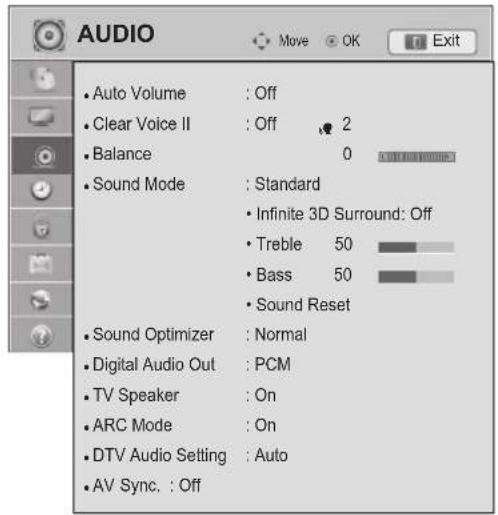
text_image
AUDIO • Auto Volume : Off • Clear Voice II : Off 2 • Balance 0 • Sound Mode : Standard • Infinite 3D Surround: Off • Treble 50 • Bass 50 • Sound Reset • Sound Optimizer : Normal • Digital Audio Out : PCM • TV Speaker : On • ARC Mode : On • DTV Audio Setting : Auto • AV Sync. : OffThe available audio settings are described in the following.
| Setting Description | |||
| Auto Volume | Activates the Auto Volume feature to keep the volume level consistent whenever you change channels. The volume level may not be consistent due to different signal conditions of broadcasting stations. | ||
| Clear Voice II | Sets whether to enhance human voice clarity. You can adjust the level of clarity when you set this feature on. | ||
| Balance Adjust balance between the left and right speakers according to your room environment. | |||
| Sound Mode Selects one of the preset sound modes or customizes options in each mode. | |||
| Mode | |||
| Standard Select when you want standard-quality sound. | |||
| Music Select when you listen to music. | |||
| Cinema Select when you watch movies. | |||
| Sport Select when you watch sports events. | |||
| Game Select when you play games. | |||
| NOTEIf sound quality or volume is not at the level you want, it is recommended to use a separate home theatre system or amplifier to cope with different user environments.If you select “On” for Clear Voice II, Infinite 3D Surround feature will not work. | |||
| Option | |||
| Infinite 3D Surround Patents LG proprietary sound processing technology that strives immersive 5.1 surround sound with just two front speakers. | |||
| Treble Controls the dominant sounds in the output. When you turn up the treble, it will increase the output to the higher frequency range. | |||
| Bass | Controls the softer sounds in the output. When you turn up the bass, it will increase the output to the lower frequency range. | ||
| Sound Reset | Resets the sound mode to the default setting. | ||
| Sound Opti-mizer | Optimizes the sound depending on the environment in which the TV is installed. | ||
| Option | |||
| Normal | Normal sound mode. | ||
| Wall Mount Type | Optimized sound mode for a wall-mounted TV. | ||
| Stand Type | Optimized sound mode for a stand-type TV. | ||
| Digital Audio Out | This function allows you to select your preferred Digital Audio Output.When Dolby Digital is available, selecting Auto in the Digital Audio Out menu will set SPDIF(Sony Philips Digital InterFace) output to Dolby Digital.If Auto is selected in the digital audio out menu when Dolby Digital is not available, SPDIF output will be PCM(Pulse-code modulation).Even if both Dolby Digital and Audio language have been set in a channel which broadcast Dolby Digital Audio, only Dolby Digital will be played. | ||
| Item Audio Input Digital Audio output | |||
| Auto | MPEGDolby DigitalDolby Digital Plus | PCMDolby DigitalDolby DigitalDolby Digital | |
| PCM | All PCM | ||
| TV Speaker | Turns on the internal speaker of the TV when using an external Hi-Fi system. You can use the TV speaker as an audio output device even if there is no video input. | ||
| ARC Mode (Audio Return Channel) | When using an external audio device with the ARC (Audio Return Channel) feature, SPDIF can be output using only a High Speed HDMI cable without an additional optical cable. | ||
| Option | |||
| On If the device with the ARC | feature is turned on, the device speaker is automatically used when SIMPLINK is enabled. | ||
| Off Even if the device with the | ARC feature is turned on and SIMPLINK is enabled, the device speaker is not automatically used. | ||
| DTV Audio Setting (In digital mode) | When different audio types exist in an input signal, this function allows you to select the audio type you want. | ||
| Mode | |||
| Auto | Automatically outputs in the order HE-AAC > Dolby Digital+ > Dolby Digital > MPEG.(Except for Italy)Automatically outputs in the order HE-AAC > Dolby Digital+ > MPEG > Dolby Digital.(Only Italy) | ||
| HE-AAC,Dolby Digital+, Dolby Digital,MPEG | Allows users to select the audio type they want.ex) If MPEG is selected, MPEG is always outputted.If MPEG is not supported, another audio type is set in that order. | ||
| AV Sync. If the video and sound are not synced, you can adjust it manually.(-) setting: Make audio output faster than the default.(+) setting: Make audio output slower than the default. | |||
Stereo/Dual Reception (In Analogue Mode Only)
When a programme is selected, the sound information for the station appears with the programme number and station name.
1 Press Q. MENU.
2 Press the Navigation button to access the Audio or Audio Language and press OK
3 Press the Navigation button to scroll to the sound output and press OK.
| Broadcast On Screen Display | |
| Mono | MONO |
| Stereo | STEREO |
| Dual | DUAL I, DUAL II, DUAL I + II |
• Mono sound selection
If the stereo signal is weak in stereo reception, you can switch to mono. In mono reception, the clarity of sound is improved.
• Language selection for dual language broadcast
If a programme can be received in two languages (dual language), you can switch to DUAL I, DUAL II or DUAL I+II.
DUAL I Sends the primary broadcast language to the loudspeakers.
DUAL II Sends the secondary broadcast language to the loudspeakers.
DUAL I+I I Sends a separate language to each loudspeaker.
Nicam Reception (In Analogue Mode Only)
If the TV is equipped with a receiver for NICAM reception, high quality NICAM (Near Instantaneous Companding Audio Multiplex) digital sound can be received.
Sound output can be selected according to the type of broadcast received.
1 When NICAM mono is received, you can select NICAM MONO or FM MONO.
2 When NICAM stereo is received, you can select NICAM STEREO or FM MONO. If the stereo signal is weak, switch to FM MONO.
3 When NICAM dual is received, you can select NICAM DUAL I, NICAM DUAL II or NICAM DUAL I+II or FM MONO.
Speaker Sound Output Selection
In AV, Component, RGB and HDMI mode, you can select output sound for the left and right loudspeakers. Select the sound output.
L+R: Audio signal from audio L input is sent to the left loudspeaker and audio signal from audio R input is sent to the right loudspeaker.
L+L: Audio signal from audio L input is sent to left and right loudspeakers.
R+R: Audio signal from audio R input is sent to left and right loudspeakers.
TIME Settings
1 Press Home to access the Home menu.
2 Press the Navigation buttons to scroll to SETUP and press OK.
3 Press the Navigation buttons to scroll to TIME and press OK.
4 Press the Navigation buttons to scroll to the setting or option you want and press OK.
- To return to the previous level, press BACK.
5 When you are finished, press EXIT.
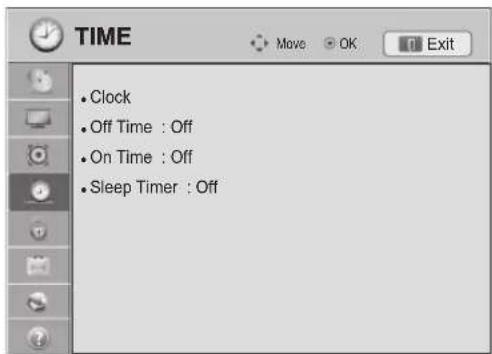
text_image
TIME Clock Off Time : Off On Time : Off Sleep Timer : OffThe available time settings are described in the following
| Setting Description | |
| Clock Sets the time, date, time zone, and daylight-saving time feature.The time will be set automatically according to a digital channel signal which includes time information provided by the broadcasting station. If not, set the time and date manually. | |
| NOTEThe TV time is set by the time offset information based on Time Zone and GMT (Greenwich Mean Time) which is received with the broadcast signal and the time is set automatically by a digital signal.When if the city name in Time Zone is changed into offset, you can change time by 1 hour.Time Zone menu can be changed in Auto mode. | |
| This Table means the Time Zone table of 9 area of Russia, and when the user selects the Time Zone for his or her area, it automatically sets the time for the corresponding area.However, even though the user selected his or her area, if the broadcasting station's local time offset is not offered, or if the region information does not match, then the user may select the Offset from the Time Zone to set the correct time. | |
| Time Zone | |
| Moscow | |
| Yekaterinburg | |
| Omsk | |
| Krasnoyarsk | |
| Irkutsk | |
| Yakutsk | |
| Vladivostok | |
| Magadan | |
| Kaliningrad | |
| Off Time/On Time | Sets the time to turn on or off the TV automatically. To use this function, you should set the current time and date in advance. NOTEIf you do not press any button within 2 hours after the TV turns on by the On Time feature, the TV enters the Standby mode automatically.If you set both Off time and On time features to the same time, the Off time feature over rides the On time feature. NOTEIf you do not press any button within 2 hours after the TV turns on by the On Time feature, the TV enters the Standby mode automatically.If you set both Off time and On time features to the same time, the Off time feature over rides the On time feature. |
| Sleep Timer | Sets the length of time until the TV to turns off. When you turn the TV off and turn it on again, the Sleep timer feature will be set to off. |

LOCK Settings
1 Press Home to access the Home menu.
2 Press the Navigation buttons to scroll to SETUP and press OK.
3 Press the Navigation buttons to scroll to LOCK and press OK.
4 Press the Navigation buttons to scroll to the setting or option you want and press OK.
- To return to the previous level, press BACK.
5 When you are finished, press EXIT.
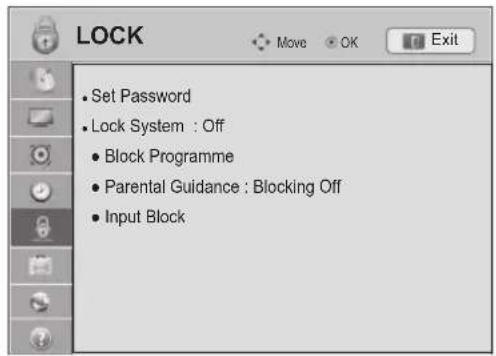
text_image
SET Password Lock System : Off Block Programme Parental Guidance : Blocking Off Input BlockThe available lock settings are described in the following.
| Setting Description | |
| Set Password Changes the 4-digit password. The default PIN is ‘0’,‘0’,‘0’,‘0’.When France is selected for Country, password is not ‘0’,‘0’,‘0’,‘0’ but ‘1’,‘2’,‘3’,‘4’.When France is selected for Country, password cannot be set as ‘0’,‘0’,‘0’,‘0’.If you forget your password, press ‘0’, ‘3’,‘2’, ‘5’ on the remote control handset. | |
| Lock System Activates or deactivates the lock system. | |
| Block Programme | Blocks the programmes that contain inappropriate contents for children. The programmes can be selected but the screen blank and the audio is muted.To watch a locked programme, enter the password.It is available to use this function in Lock System "On". |
| Parental Guidance | This function operates according to information from the broadcasting station. Therefore if the signal has incorrect information, this function does not operate.A password is required to gain access to this menu.This set is programmed to remember which option it was last set to even if you switch the set off.Prevents children from watching certain adult’s TV programmes, according to the ratings limit set.Enter a password to watch a blocked programme.Rating differs by country. |
| Input Block Block the input sources.It is available to use this function in Lock System "On". | |
OPTION Settings
1 Press Home to access the Home menu.
2 Press the Navigation buttons to scroll to SETUP and press OK.
3 Press the Navigation buttons to scroll to OPTION and press OK.
4 Press the Navigation buttons to scroll to the setting or option you want and press OK.
- To return to the previous level, press BACK.
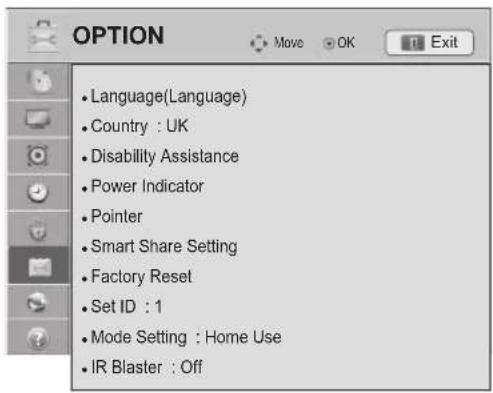
text_image
OPTION Language(Language) Country : UK Disability Assistance Power Indicator Pointer Smart Share Setting Factory Reset Set ID : 1 Mode Setting : Home Use IR Blaster : Off5 When you are finished, press EXIT.
The available general settings are described in the following:
| Setting Description | ||
| Language Selects a language for the display or audio. | ||
| Option | ||
| Menu Language Select your desired language. | ||
| Audio Language The Audio function allows selection of a preferred language.If audio data in a selected language is not broadcast, the default language audio will be played. | ||
| Audio Language OSD Information | ||
| Display | Status | |
| N.A | Not Available | |
| MPEG | MPEG Audio | |
| MD | Dolby Digital Audio | |
| → | Audio for "Visual Impaired" | |
| ABC | Audio for "Hearing Impaired" | |
| ID+ | Dolby Digital Plus Audio | |
| HE-AAC | HE-AAC Audio | |
| Subtitle Language Use the Subtitle function when two or more subtitle languages are broadcast. If subtitle data in a selected language is not broadcast, the default language subtitle will be displayed. | ||
| Subtitle Language OSD Information | ||
| Display | Status | |
| N.A | Not Available | |
| TXT | Teletext Subtitle | |
| ABC | Subtitle for "Hard of Hearing" | |
| Text Language | In Digital mode, use the Text language function when two or more Text languages are broadcast. If teletext data in a selected language is not broadcast, the default Text language page will be displayed. | |
| NOTEWhen the languages you selected as the primary for Audio Language and Subtitle Language and Text Language are not supported, you can select language in secondary category.The audio/subtitles can be displayed in a simpler form with 1 to 3 characters broadcast by the service provider.When you select supplementary Audio (Audio for "Visual/Hearing Impaired") the TV may output a part of the Main audio. | ||
| Country Selects a desired country. (Depending on model)NOTEIf you do not finish the set-up Installation Guide by pressing BACK or if you time out on the OSD (On Screen Display) the installation menu will continuously appear until the set up is completed whenever the TV is switched on.If you select the wrong local country, teletext may not appear correctly on the screen and some problems may occur during teletext operation.The CI (Common Interface) function may not be applied based on country broadcasting circumstances.DTV mode control buttons may not function based on country broadcasting circumstances.In country that Digital broadcasting regulation isn't fixed, some DTV function may not work depending on digital broadcasting circumstances.The Country Setting "UK" should only be activated in UK.If the country setting is set to "--", European terrestrial digital standard broadcasting programmes are available, but some DTV functions may not work properly. | ||
| Disability Assistance(In digital mode) | Audio commentary or subtitles are provided for those who are hard of hearing or visually impaired. | |
| Option | ||
| Hard of Hearing This function if for the hearing impaired.If it is set to on, the subtitle is displayed by default. | ||
| Audio Description This function is for the blind, and provides explanatory audio describing the current situation in a TV programme in addition to the basic audio.When Audio Description On is selected, basic audio and Audio Description are provided only for those programmes that have Audio Description included. | ||
| Volume Changes the Audio Description volume | ||
| Beep Beeps when a programme with Audio Description information is selected | ||
| Power Indicator Sets to turn on or off the indicator light on the TV. | ||
| Option | ||
| Standby Light Set to turn on or off the indicator light in Standby mode. | ||
| Power Light Set to turn on or off the indicator light when you turn on the power. | ||
| Pointer(Depending on model) | Sets the pointer option of the magic motion remote control. | |
| Option | ||
| Speed Changes the pointer speed. | ||
| Shape Selects the pointer shape. | ||
| Size Changes the pointer size. | ||
| Alignment Align the remote control's direction with the pointer on your TV screen by shaking the remote control left and right. Then, the pointer automatically moves to the center of the screen. | ||
| Smart Share Setting | Sets the DivX and DLNA option. | |
| Option | ||
| DivX VOD Registration Registers your TV to play DivX protected videos. (See p.70) | ||
| DivX Deregistration Deregisters your TV. (See p.70) | ||
| DMR Activates or deactivates the DMR (Digital Media Render) connection. | ||
| Data Service(only in Ireland.) | This function allow users to choose between MHEG (Digital Teletext) and Teletext if both exist at the same time.If only one of them exists, either MHEG or Teletext is enabled regardless of which option you selected. | |
| Factory Reset Resets the | TV to factory default and erases all stored programmes.Customizes the TV settings to suit your preference. The factory reset screen will appear when you turn on the TV for the first time. NOTEIn Lock System “On”, if you forget your password, press ‘0’, ‘3’, ‘2’, ‘5’ on the remote control handset. NOTEIn Lock System “On”, if you forget your password, press ‘0’, ‘3’, ‘2’, ‘5’ on the remote control handset. | |
| Set ID Adds an ID to the connected devices | ||
| Mode Setting | Default selection is “Home Use”. We recommend setting the TV to “Home Use” mode for the best picture in your home environment. | |
| Option | ||
| Home Use Selects it for the home environment. | ||
| Store Demo Selects it for the retail environment. | ||
Demo Mode Sets to show special features of the TV.You can cancel the demo mode by pressing any buttons except the Volume and Mute buttons. NOTEIt is not possible to useDemo Modein Home Usemode.In Store Demo, Demo Modeis automatically set to On.Once Demo Modeis set to Off in Store Demo, Demo Mode does not run and only the screen is reset.The screen is reset automatically after 5 minutes in Demo Mode. NOTEIt is not possible to useDemo Modein Home Usemode.In Store Demo, Demo Modeis automatically set to On.Once Demo Modeis set to Off in Store Demo, Demo Mode does not run and only the screen is reset.The screen is reset automatically after 5 minutes in Demo Mode. | ||
| MHP Auto start(Only Italy)(Depending on model) | This menu is enabled only in Italy and MHP services of the other contries may not work properly.This function is Auto Start function of MHP, Italian data broadcast.Use in channel with MHP signal.Data broadcast function may not be smooth due to situation from the broadcasting station. | |
| IR Blaster(Depending on model) | Adjusts when connecting Wireless media box (sold seperate).For further information, refer to the "Wireless media box" manual for operating insturcions. | |

NETWORK Settings
1 Press Home to access the Home menu.
2 Press the Navigation buttons to scroll to SETUP and press OK.
3 Press the Navigation buttons to scroll to NETWORK and press OK.
4 Press the Navigation buttons to scroll to the setting or option you want and press OK.
- To return to the previous level, press BACK.
5 When you are finished, press EXIT.
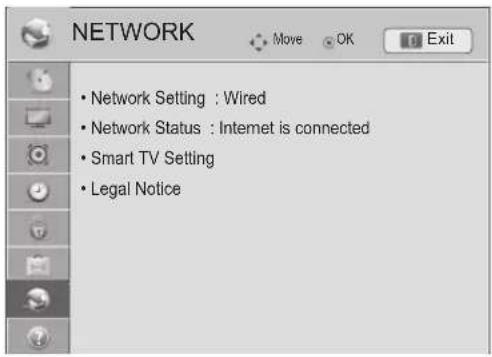
text_image
NETWORK • Network Setting : Wired • Network Status : Internet is connected • Smart TV Setting • Legal NoticeThe available network settings are described in the following.
| Setting Description | |
| Network Setting Configure the network settings (See p.45). | |
| Network Status Display the network status (See p.51). | |
| Smart TV Setting | Set the region for which weather forecast is provided and manage the IDs added to the TV. |
| Setting | |
| Country Setting Set the country for premium services. Different premium services are provided depending on the country you set. | |
| Weather Effect Sets the region for the weather to be displayed on the background of the premium service.Select your region. | |
| Premium Version Display the version of the premium service. | |
| ID Management Manage the login history of the IDs added to the TV. | |
| Reset Delete all IDs added and applications installed on the TV. Please be aware that all your paid applications may be deleted. | |
| Legal Notice | Display the Legal notice. (See p.53) |
SUPPORT Settings
1 Press Home to access the Home menu.
2 Press the Navigation buttons to scroll to SETUP and press OK.
3 Press the Navigation buttons to scroll to SUPPORT and press OK.
4 Press the Navigation buttons to scroll to the setting or option you want and press OK.
- To return to the previous level, press BACK.
5 When you are finished, press EXIT.
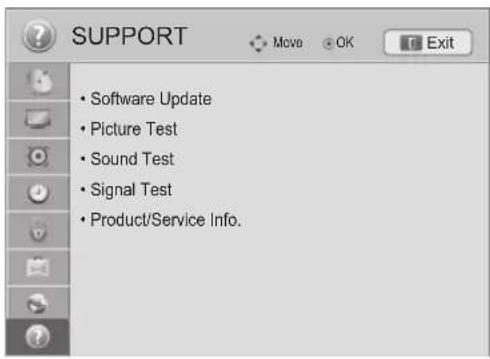
text_image
SUPPORT • Software Update • Picture Test • Sound Test • Signal Test • Product/Service Info.The available support settings are described in the following.
| Setting Description | |
| Software Update Update the TV with the latest firmware. | |
| Picture Test Executes picture or built-in melody sound tests. | » If this test has an error, select Yes. You will see product or service information.» If this test has no errors, check the connection status of external devices and refer to the manual of external devices. |
| Sound Test | |
| Signal Test Shows the MUX and Service information etc. | NOTEThis displays the information and signal strength of the tuned *MUX.This displays the signal information and service name of the selected MUX.(*MUX: A higher directory of channels in digital broadcasting (a single MUX contains multiple channels.)))If·you selectSatelliteas the auto tuning input source, a signal test is not displayed. If you selectAntenna & SatelliteorCable & Satellite, a signal test only forAntenna orCableis displayed. |
| Product/Service Info. | Shows the product or service information.Customer Service Center can differ by country. |

MAKING CONNECTIONS
Connect various external devices to the TV and switch input modes to select an external device. For more information on external device's connection, refer to the manual provided with each device.
Available external devices are: HD receivers, DVD players, VCRs, audio systems, USB storage devices, PC, gaming devices, and other external devices.

NOTE
If you record a TV programme on a DVD recorder or VCR, make sure to connect the TV signal input cable to the TV through a DVD recorder or VCR. For more information on recording, refer to the manual provided with the connected device.
The external device connection may differ from the model.
Connect external devices to the TV regardless of the order of the TV port.
Connection Overview
Connect various external devices to the ports on the TV back panel.
1 Find an external device you want to connect to your TV as shown on the following illustration.
2 Check the connection type of the external device.
3 Go to the appropriate illustration and check the connection details.
HD Receiver DVD VCR
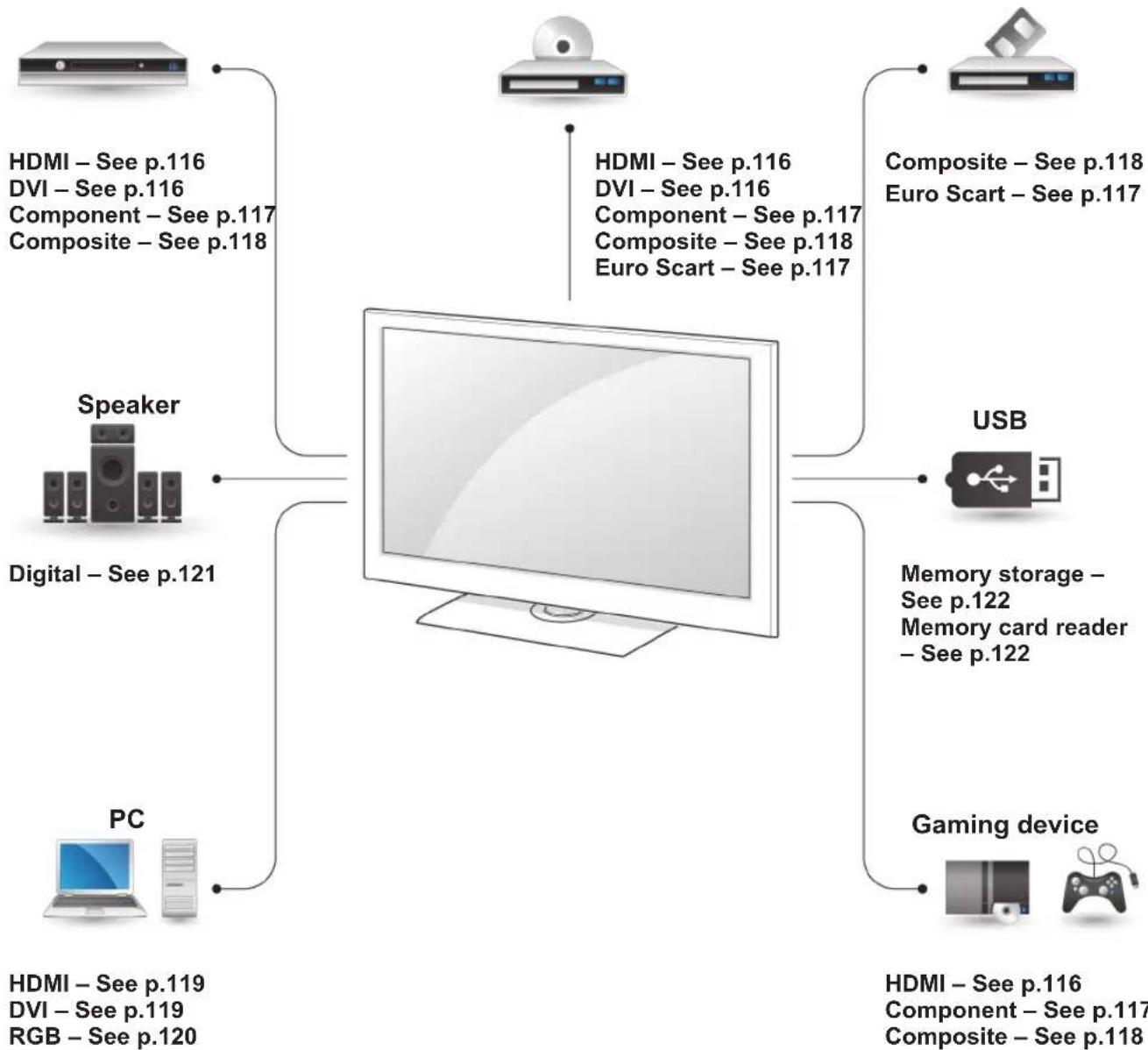
flowchart
graph TD
    A["Speaker"] -->|HDMI – See p.116\nDVI – See p.116\nComponent – See p.117\nComposite – See p.118| B["Computer"]
    C["PC"] -->|HDMI – See p.119\nDVI – See p.119\nRGB – See p.120| B
    D["Composite – See p.118\nEuro Scart – See p.117"] --> E["USB"]
    F["Composite – See p.118\nEuro Scart – See p.117"] --> E
    G["Memory storage – See p.122\nMemory card reader – See p.122"] --> E
    H["Gaming device"] --> I["Computer"]
    J["Computer"] --> K["Composite – See p.118"]

NOTE
If you connect a gaming device to the TV, use the cable supplied with the gaming device. Refer to the external equipment's manual for operating instructions.

This section on MAKING CONNECTIONS
mainly uses diagrams for the 47/55LW95** models.
Image shown may differ from your TV.
Connecting to a HD receiver, DVD, or VCR player
Connect a HD receiver, DVD, or VCR player to the TV and select an appropriate input mode.
HDMI Connection
Transmits the digital video and audio signals from an external device to the TV. Connect the external device and the TV with the HDMI cable as shown in the following illustration.
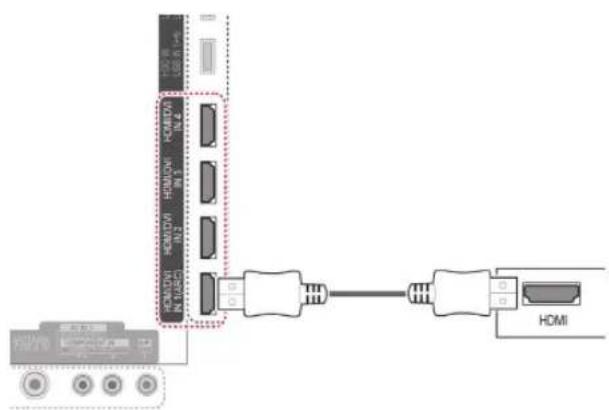
text_image
HUSB HUSB10 HUSB20 HUSB21 HUSB22 HUSB23 HUSB24 HUSB25 HUSB26 HUSB27 HUSB28 HUSB29 HUSB30 HUSB31 HUSB32 HUSB33 HUSB34 HUSB35 HUSB36 HUSB37 HUSB38 HUSB39 HUSB40 HUSB41 HUSB42 HUSB43 HUSB44 HUSB45 HUSB46 HUSB47 HUSB48 HUSB49 HUSB50 HUSB51 HUSB52 HUSB53 HUSB54 HUSB55 HUSB56 HUSB57 HUSB58 HUSB59 HUSB60 HUSB61 HUSB62 HUSB63 HUSB64 HUSB65 HUSB66 HUSB67 HUSB68 HUSB69 HUSB70 HUSB71 HUSB72 HUSB73 HUSB74 HUSB75 HUSB76 HUSB77 HUSB78 HUSB79 HUSB80 HUSB81 HUSB82 HUSB83 HUSB84 HUSB85 HUSB86 HUSB87 HUSB88 HUSB89 HUSB90 HUSB91 HUSB92 HUSB93 HUSB94 HUSB95 HUSB96 HUSB97 HUSB98 HUSB99 HUSB100
NOTE
Use the latest High Speed HDMI™ Cable with CEC (Customer Electronics Control) function.
High Speed HDMI™ Cables are tested to carry an HD signal up to 1080p and higher.
DVI to HDMI Connection
Transmits the digital video signal from an external device to the TV. Connect the external device and the TV with the DVI-HDMI cable as shown in the following illustration. To transmit an audio signal, connect an audio cable.
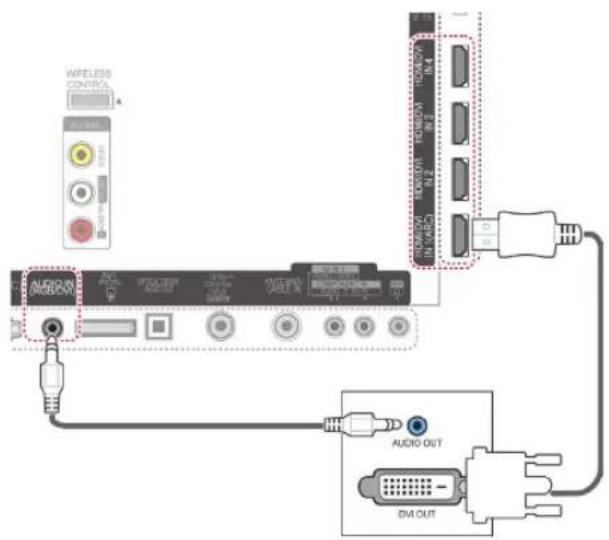
text_image
WIRELESS CONTROL AVI-ALL AUDIO OUT DM OUTComponent Connection
Transmits the analogue video and audio signals from an external device to the TV. Connect the external device and the TV with the component cable as shown in the following illustration.
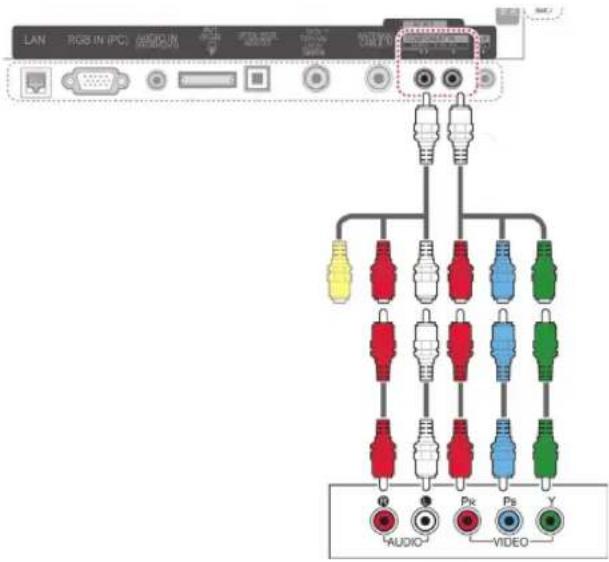
text_image
LAN RGB IN (I/O) AUDIO IN R100000000000000000000000000000000000000000000000000000000000000000000000000000000 AUDIO Video
NOTE
- If cables are installed incorrectly, it could case the image to display in black and white or with distorted colour. Check to ensure the cable are matched with the corresponding colour connection.
Euro Scart Connection
Transmits the video and audio signals from an external device to the TV set. Connect the external device and the TV set with the Euro Scart cable as shown on the following illustration. To display images by using progressive scan, make sure to use the Euro Scart cable.
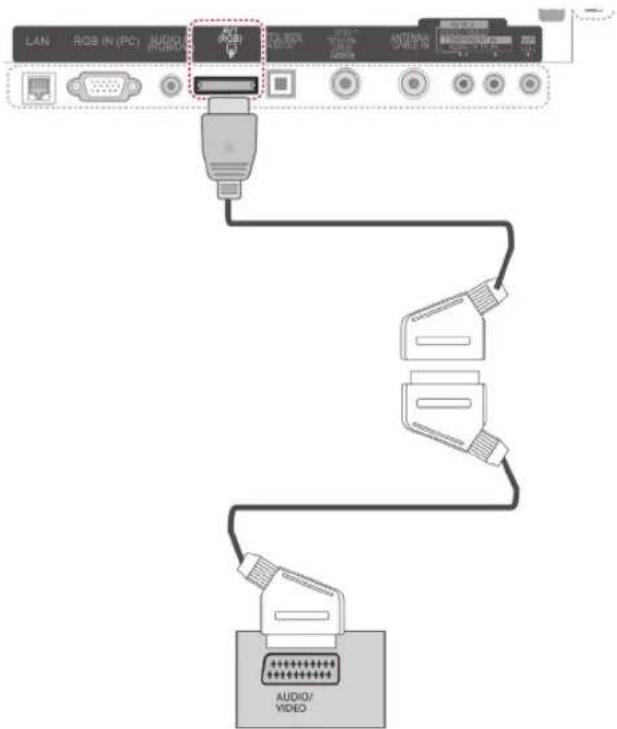
text_image
LAN BOS IN (PC) AUDIO VIDEO TAXO VOUT DATA SUPPORT AUDIO/VIDEO| Output TypeCurrentinput mode | AV1(TV Out ^1 ) | AV1(When DTV scheduled recording is in progress using recording equipment.) |
| Digital TV Digital TV | O | |
| Analogue TV, AV | Analogue TV | O(The input mode is converted to DTV.) |
| Component/RGB | Analogue TV | |
| HDMI X X | ||
1 TV Out : Outputs Analogue TV or Digital TV signals.

NOTE
Any Euro scart cable used must be signal shielded.
When watching digital TV in 3D imaging mode, monitor out signals cannot be output through the SCART cable. (Only 3D models)
If you set the 3D mode to On while a scheduled recording is performed on digital TV, monitor out signals cannot be output through the SCART cable, and the recording cannot be performed. (Only 3D models)
Composite Connection
Transmits the analogue video and audio signals from an external device to the TV. Connect the external device and the TV with the composite cable as shown in the following illustration.
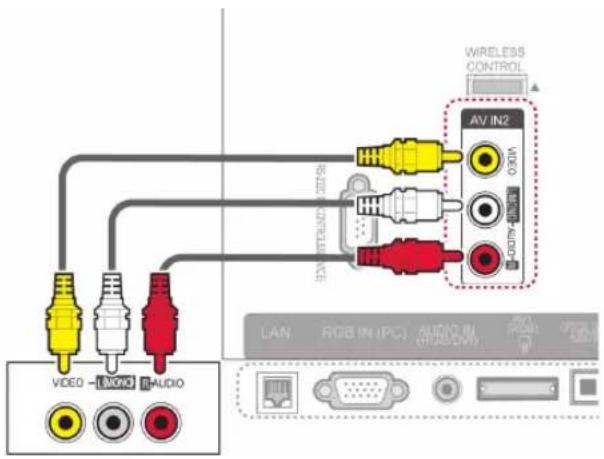
text_image
VIDEO - Audio AV IN2 WIRELESS CONTROL AV IN2 LPG LPG LPG LPG LAN RGB IN (PC) AUDIO IN (RGB/DC)or
Connecting to a PC

NOTE
- It is recommended to use the TV set with the HDMI connection for the best image quality.
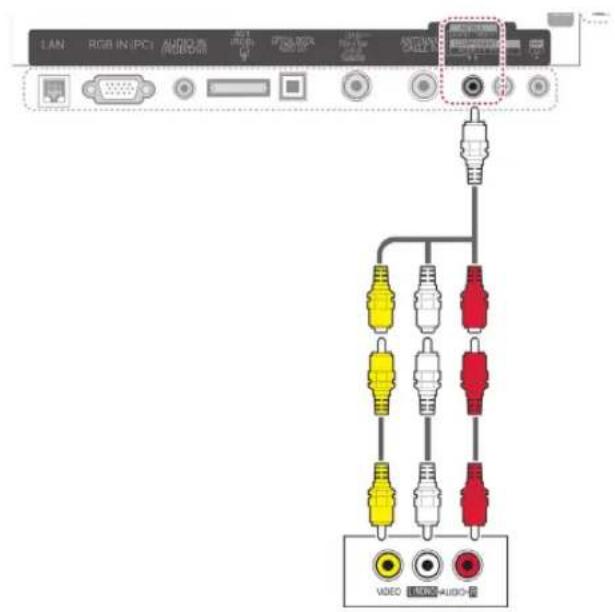
text_image
LAN RGB IN (PCI) AUDIO IN (PCI) 2011 AUDIO VOC VOC VOC VOC VOC VOC VIDEO VIDEO AUDIO
NOTE
If you have a mono VCR, connect the audio cable from the VCR to the AUDIO L/MONO jack of the TV.
HDMI Connection
Transmits the digital video and audio signals from your PC to the TV. Connect the PC and the TV with the HDMI cable as shown in the following illustrations.
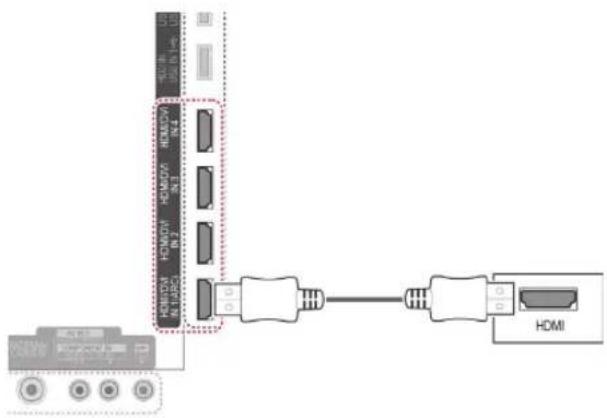
text_image
HDMIDVI to HDMI Connection
Transmits the digital video signal from your PC to the TV. Connect the PC and the TV with the DVI-HDMI cable as shown in the following illustration. To transmit an audio signal, connect an audio cable.
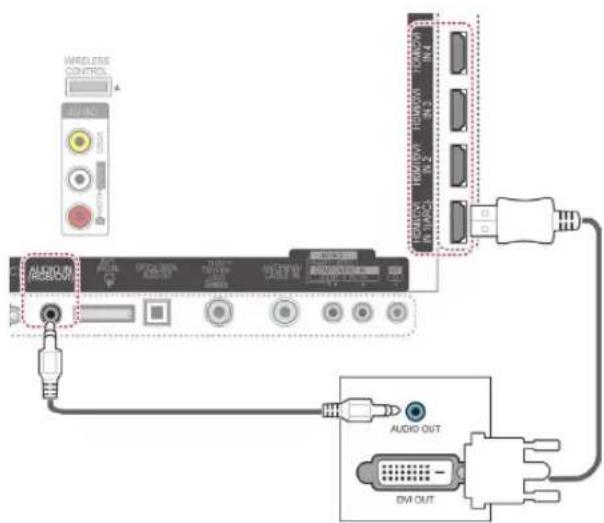
text_image
WIRELESS CONTROL AUDIO OUT AUDIO OUT AVIO OUT AVIO OUT AVIO OUT AVIO OUT AVIO OUT AVIO OUT AVIO OUT AVIO OUT AVIO OUT AVIO OUT AVIO OUT AVIO OUT AVIO OUT AVIO OUT AVIO OUT AVIO OUT AVIO OUT AVIO OUT AVIO OUT AVIO OUT AVIO OUT AVIO OUT AVIO OUT AVIO OUT AVIO OUT AVIOR OUT AVIOR OUT AVIOR OUT AVIOR OUT AVIOR OUT AVIOR OUT AVIOR OUT AVIOR OUT AVIOR OUT AVIOR OUT AVIOR OUT AVIOR OUT AVIOR OUT AVIOR OUT AVIOR OUT AVIOR OUT AVIOR OUT AVIOR OUT AVIOR OUT AVIOR OUT AVIOR OUT AVIOR OUT AVIOR OUT AVIOR OUT AVIOR OUT AVIO OUT AVIO OUT AVIO OUT AVIO OUT AVIO OUT AVIO OUT AVIO OUT AVIO OUT AVIO OUT AVIO OUT AVIO OUT AVIO OUT AVIO OUT AVIO OUT AVIO OUT AVIO OUT AVIO OUT AVIO OUT AVIO OUT
RGB Connection
Transmits the analogue video signal from your PC to the TV. Connect the PC and the TV with the supplied D-sub 15 pin signal cable as shown in the following illustrations. To transmit an audio signal, connect an audio cable.
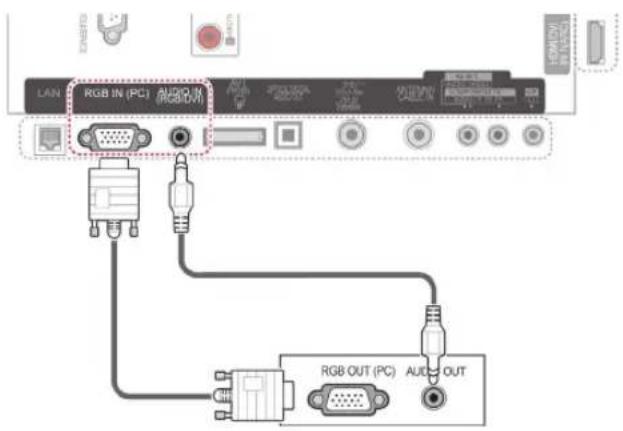
text_image
LAN RGB IN (PC) RGB OUT RGB OUT (PC) AUD OUT
NOTE
There may be interference relating to resolution, vertical pattern, contrast or brightness in PC mode. Change the PC mode to another resolution or change the refresh rate to another rate or adjust the brightness and contrast on the menu until the picture is clear. If the refresh rate of the PC graphic card can not be changed, change the PC graphic card or consult the manufacturer of the PC graphic card.
The synchronization input waveform for Horizontal and Vertical frequencies are separate.
We recommend using 1920x1080, 60 Hz for the PC mode, this should provide the best picture quality.
Connect the signal cable from the monitor output port of the PC to the RGB (PC) port of the TV or the signal cable from the HDMI output port of the PC to the HDMI IN (or HDMI/DVI IN) port on the TV.
Connect the audio cable from the PC to the Audio input on the TV. (Audio cables are not included with the TV).
If using a sound card, adjust PC sound as required.
If the graphic card on the PC does not output analogue and digital RGB simultaneously, connect only one of either RGB or HDMI IN (or HDMI/DVI IN) to display the PC output on the TV.
DOS mode may not work depending on the video card if you use an HDMI to DVI cable. If you use too long an RGB-PC cable, there may be interference on the screen. We recommend using under 5m of cable. This provides the best picture quality.
Connecting to an Audio System
Use an external audio system instead of the built-in speaker.

NOTE
If you use an external audio device instead of the built-in speaker, set the TV speaker feature to off (See p.104).
Digital Optical Audio Connection
Transmits the digital audio signal from the TV to an external device. Connect the external device and the TV with the optical audio cable as shown in the following illustration.
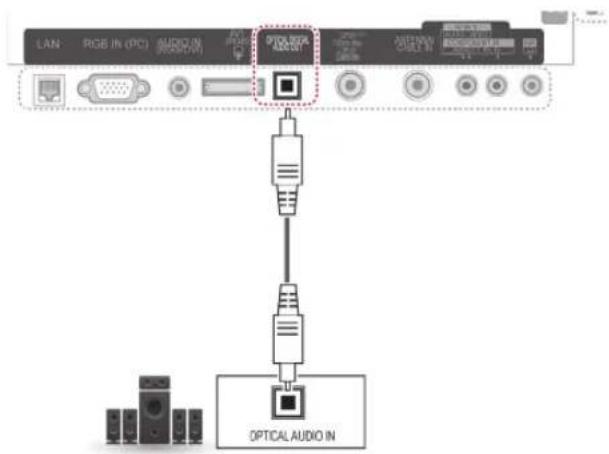
text_image
LAN RGB IN (PTC) AUDIO IN AUDIO IN OPTICAL AUDIO AUDIO IN AUDIO IN AUDIO IN OPTICAL AUDIO IN
CAUTION
- Do not look into the optical output port. Looking at the laser beam may damage your vision.
Connecting to Headphone Connection
Listen to the sound through a headphone.
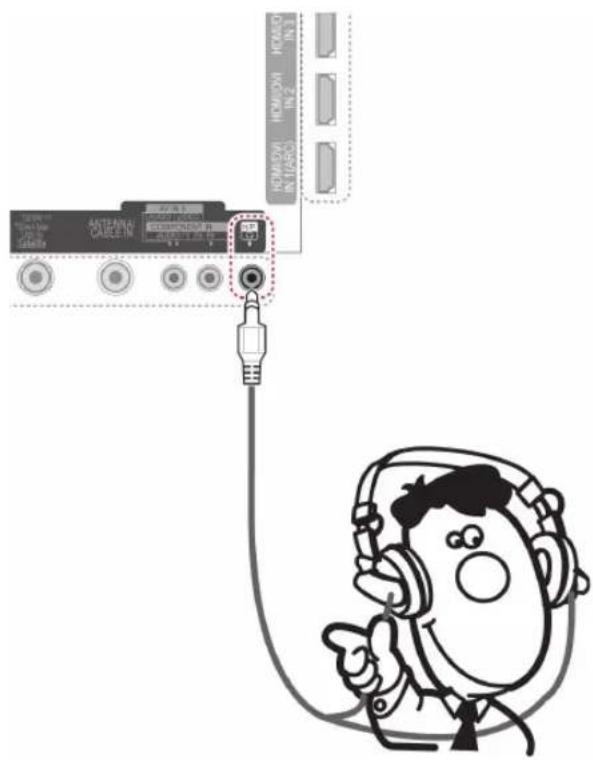
text_image
Diagram showing a person wearing headphones connected to an audio device with labeled ports and a cable, highlighting the connection point.
NOTE
AUDIO menu items are disabled when connecting a headphone.
When changing AV MODE with a headphone connected, the change is applied to video but not to audio.
Optical Digital Audio Out is not available when connecting a headphone.
Headphone impedance: 16 Ω
Max audio output of headphone: 10 mW to 15 mW
Headphone jack size: 0.35 cm
Connecting to a USB
Connect a USB storage device such as s USB flash memory, external hard drive or a USB memory card reader to the TV and access the Smart Share menu to use various multimedia files. See “Connecting USB storage devices” and see “Browsing files”.
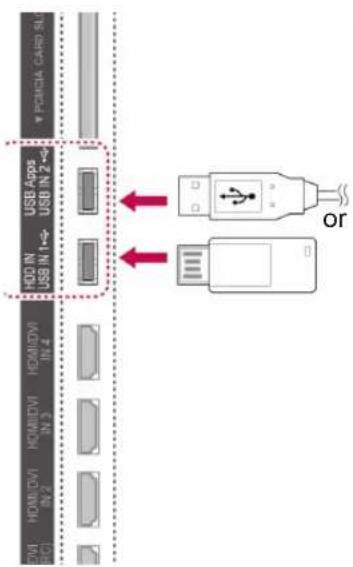
text_image
W POCIA CARD SL USB App USB IN 2 HDD IN USB IN 4 HOMI/OV IN 2 HOMI/OV IN 3 HOMI/OV IN 4 orConnecting to a CI Module
View the encrypted (pay) services in digital TV mode. This feature is not available in all countries. (See p.40).
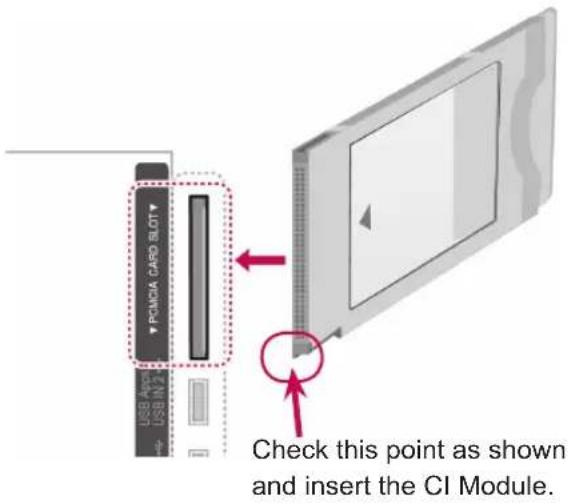
text_image
POMCIA CARD SLOT Check this point as shown and insert the CI Module.
NOTE
Check if the CI module is inserted into the PCMCIA card slot in the right direction. If the module is not inserted properly, this can cause damage to the TV and the PCMCIA card slot.
Connecting the Wireless Media Box
LG TVs with a Wireless Control port support the LG Wireless Media Box, which is sold separately. When you connect the Wireless Ready Dongle (included with the Wireless Media Box) to the TV, external devices can be connected to the LG Wireless Media Box and video and audio will be sent to the TV wirelessly.
Refer to the Wireless Media Box manual for operating instructions.
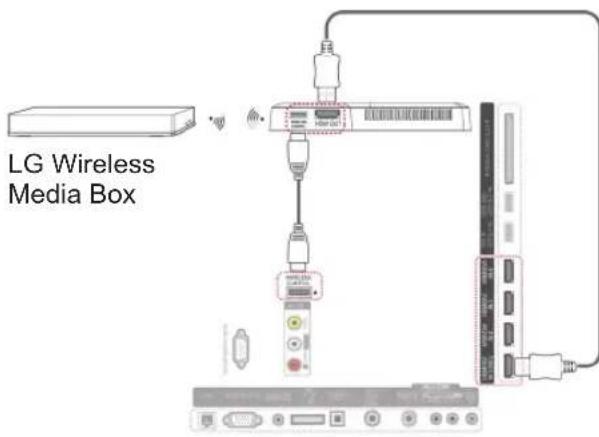
text_image
LG Wireless Media Box
NOTE
When using the external device connected to the Wireless Media Box, some functions of the TV menu may not work.
SIMPLINK Connection
Play and control the AV device connected with the HDMI cable through HDMI-CEC. This TV may work with the devices that support HDMI-CEC, but only devices with the Isgorarefully supported.
Connect one end of the HDMI cable to the HDMI/DVI IN or HDMI IN terminal on the rear of the TV and the other end to the SIMPLINK device.

NOTE
If the connected device does not support HDMI-CEC, the SIMPLINK feature is unavailable.
To operate SIMPLINK, an High Speed HDMI Cable with *CEC function should be used. (*CEC: Consumer Electronics Control).
SIMPLINK may not work properly if you a third-party device that has an HDMI-CEC function.
In wireless external output, SIMPLINK function is not supported.
Activating and Using the SIM- PLINK menus
1 Press INPUT to access the input sources.
2 Press Red button to access the SIMPLINK menus.
3 Press the Navigation buttons to select to On.
4 Press the Navigation buttons to scroll to one of the devices and press OK.
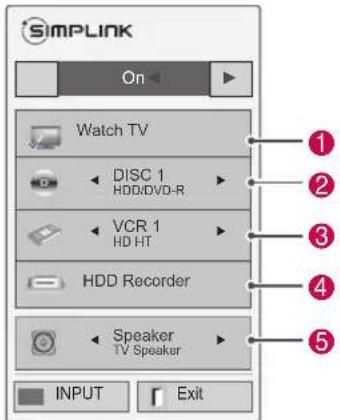
text_image
SIMPLINK On Watch TV DISC 1 HDD/DVD-R VCR 1 HD HT HDD Recorder Speaker TV Speaker INPUT Exit| No. | Description |
| 1 | Displays the previously viewed TV channel. |
| 2 | Plays discs. When multiple discs are available, the title of the disc appears at the bottom of the screen. |
| 3 | Controls the connected VCR. |
| 4 | HDD recordings playback: Controls the recording stored in HDD. |
| 5 | Audio out to home theatre speaker or Audio out to TV: Changes the audio output between Home theatre speaker and TV speaker. |
- A check mark appears in front of the selected device.
- Available devices display in a bright colour.
- Unavailable devices display in grey.
5 Control the selected AV device.
- Direct Play: After connecting AV devices to the TV, you can directly control the devices and play media without additional settings.
- Select AV device: Enables you to select one of the AV devices connected to the TV.
- Disc playback: Control connected AV devices by pressing the Navigation buttons, OK,

- Power off all devices: When you power off the TV, all connected devices are turned off.
- Switch audio-out: Offers an easy way to switch audio-out.
- Sync Power on: When the equipment with SIMPLINK function connected HDMI terminal starts to play, The TV will automatically turn on.

NOTE
If you change the input source by pressing INPUT, the progressing function of the SIMPLINK device will stop. If you select a device that has the home theatre feature, the sound output automatically switches to the home theatre speaker and the TV speaker turns off.
If a connected SIMPLINK home theatre system does not play the audio from the TV, connect the DIGITAL AUDIO OUT terminal on the rear of the TV to the DIGITAL AUDIO IN terminal on the back of the SIMPLINK device with an optical cable.
TELETEXT
- This feature is not available in all countries. Teletext is a free service broadcast by most TV stations which gives up-to-the-minute information on news, weather, television programmes, share prices and many other topics.
The teletext decoder of this TV can support the SIMPLE, TOP and FASTEXT systems. SIMPLE (standard teletext) consists of a number of pages which are selected by directly entering the corresponding page number. TOP and FASTEXT are more modern methods allowing quick and easy selection of teletext information.
Switch On/Off
Press the TEXT button to switch to teletext. The initial page or last page viewed appears on the screen.
Two page numbers, TV station name, date and time are displayed on the screen headline. The first page number indicates your selection, while the second shows the current page displayed.
Press the TEXT button to switch off teletext. The previous mode reappears.
Simple Text
Page selection
1 Enter the desired page number as a three digit number with the NUMBER buttons. If during selection you press a wrong number, you must complete the three digit number and then re-enter the correct page number.
2 The P button can be used to select the preceding or following page.
Top Text
The user guide displays four fields-red, green, yellow and blue at the bottom of the screen. The yellow field denotes the next group and the blue field indicates the next block.
Block / Group / Page Selection
1 With Blue button you can progress from block to block.
2 Use Yellow button to proceed to the next group with automatic overflow to the next block.
3 With Green button you can proceed to the next existing page with automatic overflow to the next group.
4 Alternatively, the P button can be used. The red button returns to the previous selection. Alternatively the P button can be used.
Direct Page Selection
As with SIMPLE teletext mode, you can select a page by entering it as a three digit number using the NUMBER buttons in TOP mode.
Fastext
The teletext pages are colour coded along the bottom of the screen and are selected by pressing the corresponding coloured button.
Page selection
1 Press the T.OPT button and then use the Navigation button to select menu. Display the index page.
2 You can select the pages which are colour coded along the bottom line with corresponding coloured buttons.
3 AS with SIMPLE teletext mode, you can select a page by entering its three digit page number with the NUMBER buttons in FASTEXT mode.
4 The P button can be used to select the preceding or following page.
Time
When viewing a TV programme, select this menu to display the time at the top right hand corner of the screen.
In the teletext mode, press this button to select a sub page number. The sub page number is displayed at the bottom of the screen. To hold or change the sub page, press the Red button, Green button, <or NUMBER buttons.
Hold
Stops the automatic page change which will occur if a teletext page consists of 2 or more sub pages. The number of sub pages and the sub page displayed is, usually, shown on the screen below the time. When this menu is selected the stop symbol is displayed at the top left-hand corner of the screen and the automatic page change is inactive.
Special Teletext Function
Press the T. OPT button and then use the Navigation button to select the Text Option menu.
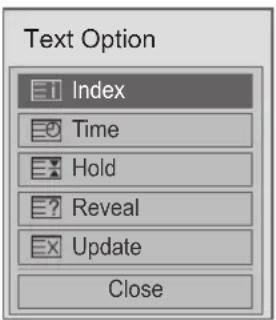
text_image
Text Option Index Time Hold Reveal Update CloseIndex
Select the each index page.
Reveal
Select this menu to display concealed information, such as solutions to riddles or puzzles.
Update
Displays the TV picture on the screen while waiting for a new teletext page. The display will appear at the top left hand corner of the screen. When the updated page is available then display will change to the page number. Select this menu again to view the updated teletext page.

NOTE
In UK(In digital mode), T. OPT button does not work.
DIGITAL TELETEXT
- This function works in UK, Ireland only. The TV gives you access to digital teletext which is greatly improved in various aspects such as text, graphics etc.
This digital teletext can access special digital tele-text services and specific services which broadcast digital teletext.
Teletext within digital service
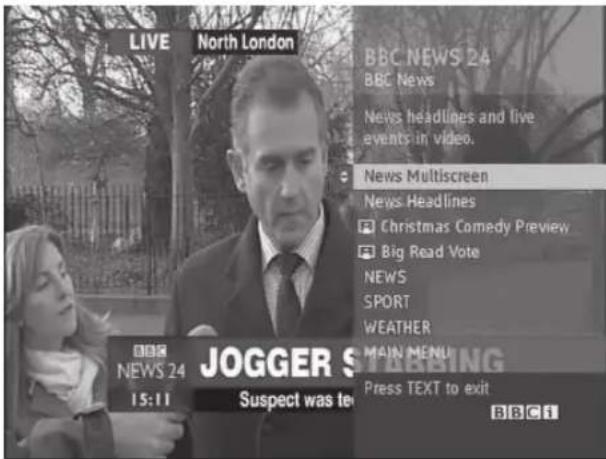
text_image
LIVE North London BBC NEWS 24 BBC News News headlines and live events in video. News Multiscreen News Headlines Christmas Comedy Preview Big Read Vote NEWS SPORT WEATHER MAIN MENU STABBING 15:11 SUSPECT WAS TE JOGGER S Press TEXT to exit BBC i1 Press the numeric or P button to select a digital service which broadcasts digital teletext.
2 Follow the indications on digital teletext and move onto the next step by pressing TEXT, OK, Navigation button, Red button, Green button, Yellow button, Blue button or NUMBER buttons and etc..
3 To change digital teletext service, select a different service by the numeric or P button.
Teletext in digital service
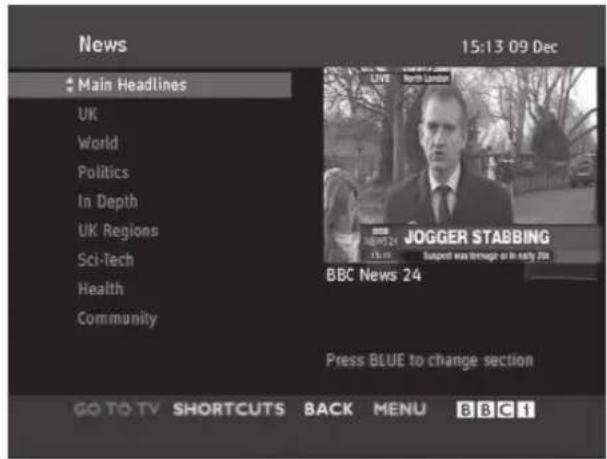
text_image
News 15:13 09 Dec Main Headlines UK World Politics In Depth UK Regions Sci-Tech Health Community Live North London JOGGER STABBING Sustport was brought or in early 2016 BBC News 24 Press BLUE to change section GO TO TV SHORTCUTS BACK MENU BBC i1 Press the numeric or P button to select a certain service which broadcasts digital tele-text.
2 Press the TEXT or coloured button to switch on teletext.
3 Follow the indications on digital teletext and move onto the next step by pressing OK, Navigation button, Red button, Green button, Yellow button, Blue button or NUMBER buttons and so on.
4 Press the TEXT or colour button to switch off digital teletext and return to TV viewing.
Some services may allow you to access text services by pressing Red button.
MAINTENANCE
Update and clean your TV regularly to keep the best performance and to extend the product lifespan.
Updating the TV Firmware
Download and install the latest firmware by connecting to the firmware update server or broadcasting OTA service to enhance or change the product function, or add new features.
The firmware update may not work properly depending on the Internet environment or DTV signal strength. If so, you may obtain the latest firmware update from the authorized LG Electronics service center.
To check the current firmware version or update the firmware,
1 Press Home to access the Home menu.
2 Press the Navigation buttons to scroll to SETUP and press OK.
3 Press the Navigation buttons to scroll to SUPPORT and press OK.
4 Press the Navigation buttons to scroll to Software Update and press OK.
The current firmware version displays.
5 Select Check Update Version to check a new firmware version manually.
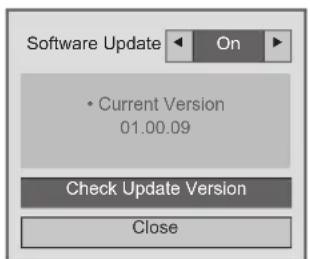
text_image
Software Update On • Current Version 01.00.09 Check Update Version CloseIf selecting Software Update - On, the TV finds a new firmware through the NSU*/OTA* and the update pop-up window will appear on the screen.
* NSU (Network Software Update): If the TV is connected to the internet, the TV finds a new firmware uploaded on the LG server.
* OTA(Over The Air): If watching the digital broadcasting system, the TV is transmitted new firmware thorough DTV signal.

NOTE
- While updating the firmware, do not disconnect the LAN cable, turn the TV off, or unplug the power cord.
- If you change the channel during the firmware update via OTA, the update stops. The process resumes when you go back to the original programme. The update continues even when the power is switched off using the remote control. In this case, it is normal that the colour of the power indicator may change and a dim light may be displayed on the screen. The system operates normally once the update is complete.
- Premium service is disabled while the software is being updated through NSU.
- You can check the software update status in the Software Update menu or from the update information displayed under the channel banner.
- Linkage update service (Only Nordic models): You can check whether LG OTA service is available in the DTV channel by pressing this button on the Magic Motion remote control or the red button as you see the "Update is detected." message under the channel banner.
6 When the update is complete, the TV will automatically restart in 5 seconds.
You may need to reset some SETUP, PICTURE, or AUDIO menus.

NOTE
- You cannot downgrade back to an older firmware version.
- The period of time for the firmware update may be different depending on the firmware size, network condition or DTV signal strength.
- If the firmware update download fails when using wireless, temporarily connect a cable directly to your router. If it still does not download, contact customer service.
Cleaning Your TV

CAUTION
- Make sure to turn the power off and disconnect the power cord and all other cables first.
- When the TV is left unattended and unused for a long time, disconnect the power cord from the wall outlet to prevent possible damage from lightning or power surges.
Screen and frame
To remove dust or light dirt, wipe the surface with a dry, clean, and soft cloth.
To remove major dirt, wipe the surface with a soft cloth dampened in clean water or a diluted mild detergent. Then wipe immediately with a dry cloth.

CAUTION
- Do not push, rub, or hit the surface with your fingernail or a sharp object, as this may result in scratches on the screen and image distortions.
- Do not use any chemicals, such as waxes, benzene, alcohol, thinners, insecticides, air fresheners, lubricants, as these may damage the screen's finish and cause discoloration.
Cabinet and stand
To remove dust or light dirt, wipe the cabinet with a dry, clean, and soft cloth.
To remove major dirt, wipe the cabinet with a soft cloth dampened in a clean water or water containing a small amount of mild detergent. Then wipe immediately with a dry cloth.

CAUTION
- Do not spray liquid onto the surface. If water enters the TV, it may result in fire, electric shock, or malfunction.
- Do not use any chemicals as this may deteriorate the surface.
Power cord
Remove the accumulated dust or dirt on the power cord regularly.
Preventing “Image burn” or “Burn-in” on your TV screen

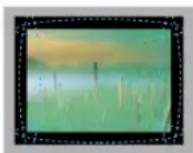
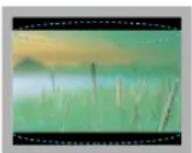
- If a fixed image displays on the TV screen for a long period of time, it will be imprinted and become a permanent disfigurement on the screen. This is “image burn” or “burn-in” and not covered by the warranty.
- If the aspect ratio of the TV is set to 4:3 for a long period of time, image burn may occur on the letterboxed area of the screen.
- Avoid displaying a fixed image on the TV screen for a long period of time (2 or more hours for LCD, 1 or more hours for the Plasma TV) to prevent image burn.
TROUBLESHOOTING
General
| Problem Resolution | |
| Cannot control the TV with the remote control. | Check the remote control sensor on the product and try again.Check if there is any obstacle between the product and the remote control.Check if the batteries are still working and properly installed (⊕ to ⊕,⊖ to⊖).Check if the appropriate input mode such as TV or VCR is set for using the remote control. |
| No image display and no sound is produced. | Check if the product is turned on.Check if the power cord is connected to a wall outlet.Check if there is a problem in the wall outlet by connecting other products. |
| Image appears slowly when the TV turns on. | The image is muted during the product stat up process. This is normal. If the image does not appear in a few minutes, unplug the TV for 30 seconds and try again. If the image still does not appear, contact the authorized service centre in your local area. |
| Cannot connect external devices. | Refer to the “Connection overview” and connect an external device. |
| The TV turns off suddenly. | Check the power control settings. The power supply may be interrupted.Check if the Auto sleep feature is activated in the Time settings.Refer to the “Sleep Timer”.If there is no signal while the TV is on, the TV will turn off automatically after 15 minutes of inactivity. |
Audio
| Problem Resolution | |
| No sound is produced while images are displaying. | Press + or - button.Check if the sound is muted by pressing MUTE.Scroll to other channels. There may a problem with the broadcast.Check if the audio cables are connected properly.Check if the TV Speaker feature is activated in the menu option. |
| No output from one of the speakers | Adjust Balance in the menu option. |
| Unusual sound from inside the TV is produced. | A change in ambient humidity or temperature may result in an unusual noise when the product turns on or off. There is no problem with your product. |

Video
| Problem Resolution | |
| An image displays in black and white or the colour quality is poor. | Adjust the colour setting in the menu option.Keep a sufficient distance between this product and other electronic products.Scroll to other channels. There may a problem with the broadcast. |
| Horizontal or vertical bars appears or images blur | Check if there is local interference such as an electrical appliance or power tool. |
| Lines or streaks appear on images | Check the antenna or aim the antenna to the correct direction. |
| Afterimages (ghosts) appear when the product turns off | Pixels may have been damaged from a fixed image displayed for a long time (image burn). Use a screen saver to prevent the pixel damage on the screen. |
| The power is on but the screen appears extremely dark. | Adjust the brightness and contrast in the menu option. |
| “No Signal” appears on the screen. | Check if the signal cable is connected between the TV and products properly.Check the selected input source by pressing INPUT. |
| Black spots appear on the screen. | Several pixels in red, green, white, or black may appear on the screen that can attribute to the characteristics of the LCD panel.This is normal. |
| The display offset is wrong. | Adjust the position setting in the menu option.Check if the video card resolution and frequency are supported by the product.If the frequency is out of range, set to the recommended resolution using the display settings on the external device. |
| Thin lines appear in the background of the screen. | Check the video cable connections. |
| Horizontal noises appear or characters blur. | Adjust the Phase setting in the menu option.Refer to the “SCREEN”. |
| The reception on some channels is poor | Scroll to other channels. There may a problem with the broadcast.The station signal may be weak. Aim the antenna to the correct direction.Check if there is local interference such as an electrical appliance or power tool. |
SPECIFICATIONS
| MODELS | 32LV55** | 37LV55** | |
| 32LV5500-ZC / 32LV550S-ZE / 32LV550T-ZC / 32LV550W-ZC / 32LV550G-ZC | 37LV5500-ZC / 37LV550S-ZE / 37LV550T-ZC / 37LV550W-ZC / 37LV550G-ZC | ||
| Dimensions(W x H x D) | With stand | 776.0 mm x 549.0 mm x 240.0 mm 896.0 mm x 617.0 mm x 240.0 mm | |
| Without stand | 776.0 mm x 485.0 mm x 34.9 mm 896.0 mm x 553.0 mm x 34.9 mm | ||
| Weight With stand | 10.8 kg 12.6 kg | ||
| Without stand | 8.8 kg 10.8 kg | ||
| Power requirement | AC 100-240 V~ 50 / 60 Hz AC 100-240 V~ 50 / 60 Hz | ||
| Power consumption | 120 W 130 W | ||
| MODELS | 42LV55** | 47LV55** | |
| 42LV5500-ZC / 42LV550S-ZE / 42LV550T-ZC / 42LV550W-ZC / 42LV550G-ZC | 47LV5500-ZC / 47LV550S-ZE / 47LV550T-ZC / 47LV550W-ZC / 47LV550G-ZC | ||
| Dimensions(W x H x D) | With stand | 1012.0 mm x 683.0 mm x 256.0 mm 1121.0 mm x 746.0 mm x 256.0 mm | |
| Without stand | 1012.0 mm x 617.0 mm x 29.9 mm 1121.0 mm x 678.0 mm x 29.9 mm | ||
| Weight With stand | 15.5 kg 20.7 kg | ||
| Without stand | 13.2 kg 18.4 kg | ||
| Power requirement | AC 100-240 V~ 50 / 60 Hz AC 100-240 V~ 50 / 60 Hz | ||
| Power consumption | 140 W 150 W | ||
Product specifications shown above may be changed without prior notice due to upgrade of product functions.

| MODELS | 32LV57** | 37LV57** | |
| 32LV5700-ZA / 32LV571S-ZA / 32LV570S-ZB / 32LV570T-ZA / 32LV570W-ZB / 32LV570G-ZB | 37LV5700-ZA / 37LV571S-ZA / 37LV570S-ZB / 37LV570T-ZA / 37LV570W-ZB / 37LV570G-ZB | ||
| Dimensions(W x H x D) | With stand | 766.0 mm x 545.0 mm x 240.0 mm 896.0 mm x 617.0 mm x 240.0 mm | |
| Without stand | 766.0 mm x 491.0 mm x 41.0 mm 896.0 mm x 558.0 mm x 35.9 mm | ||
| Weight With stand | 10.7 kg 12.8 kg | ||
| Without stand | 8.9 kg 11.0 kg | ||
| Power requirement | AC 100-240 V~ 50 / 60 Hz AC 100-240 V~ 50 / 60 Hz | ||
| Power consumption | 120 W 130 W | ||
| MODELS | 42LV57** | 47LV57** | |
| 42LV5700-ZA / 42LV571S-ZA / 42LV570S-ZB / 42LV570T-ZA / 42LV570W-ZB / 42LV570G-ZB | 47LV5700-ZA / 47LV571S-ZA / 47LV570S-ZB / 47LV570T-ZA / 47LV570W-ZB / 47LV570G-ZB | ||
| Dimensions(W x H x D) | With stand | 999.0 mm x 681.0 mm x 255.0 mm 1109.0 mm x 744.0 mm x 255.0 mm | |
| Without stand | 999.0 mm x 623.0 mm x 30.9 mm 1109.0 mm x 684.0 mm x 30.9 mm | ||
| Weight With stand | 15.7 kg 20.2 kg | ||
| Without stand | 13.4 kg 17.9 kg | ||
| Power requirement | AC 100-240 V~ 50 / 60 Hz AC 100-240 V~ 50 / 60 Hz | ||
| Power consumption | 140 W 150 W | ||
| MODELS | 55LV57** | ||
| 55LV5700-ZA / 55LV571S-ZA / 55LV570S-ZB / 55LV570T-ZA / 55LV570W-ZB / 55LV570G-ZB | |||
| Dimensions(W x H x D) | With stand | 1286.0 mm x 848.0 mm x 338.0 mm | |
| Without stand | 1286.0 mm x 784.0 mm x 30.9 mm | ||
| Weight With stand | 26.2 kg | ||
| Without stand | 22.1 kg | ||
| Power requirement | AC 100-240 V~ 50 / 60 Hz | ||
| Power consumption | 170 W | ||
Product specifications shown above may be changed without prior notice due to upgrade of product functions.
| MODELS | 32LW55** | 37LW55** | |
| 32LW5500-ZE / 32LW550S-ZB / 32LW550T-ZE / 32LW550W-ZE / 32LW550G-ZE / 32LW551C-ZE | 37LW5500-ZE / 37LW550S-ZB / 37LW550T-ZE / 37LW550W-ZE / 37LW550G-ZE / 37LW551C-ZE | ||
| Dimensions(W x H x D) | With stand | 776.0 mm x 549.0 mm x 240.0 mm 896.0 mm x 617.0 mm x 240.0 mm | |
| Without stand | 776.0 mm x 485.0 mm x 34.9 mm 896.0 mm x 553.0 mm x 34.9 mm | ||
| Weight With stand | 10.8 kg 12.6 kg | ||
| Without stand | 8.8 kg 10.8 kg | ||
| Power requirement | AC 100-240 V~ 50 / 60 Hz AC 100-240 V~ 50 / 60 Hz | ||
| Power consumption | 120 W 130 W | ||
| MODELS | 42LW55** | 47LW55** | |
| 42LW5500-ZE / 42LW550S-ZB / 42LW550T-ZE / 42LW550W-ZE / 42LW550G-ZE / 42LW551C-ZE | 47LW5500-ZE / 47LW550S-ZB / 47LW550T-ZE / 47LW550W-ZE / 47LW550G-ZE / 47LW551C-ZE | ||
| Dimensions(W x H x D) | With stand | 1012.0 mm x 683.0 mm x 256.0 mm 1121.0 mm x 746.0 mm x 256.0 mm | |
| Without stand | 1012.0 mm x 617.0 mm x 29.9 mm 1121.0 mm x 678.0 mm x 29.9 mm | ||
| Weight With stand | 15.5 kg 20.7 kg | ||
| Without stand | 13.2 kg 18.4 kg | ||
| Power requirement | AC 100-240 V~ 50 / 60 Hz AC 100-240 V~ 50 / 60 Hz | ||
| Power consumption | 140 W 150 W | ||
| MODELS | 55LW55** | ||
| 55LW5500-ZE / 55LW550S-ZB / 55LW550T-ZE / 55LW550W-ZE / 55LW550G-ZE / 55LW551C-ZE | |||
| Dimensions(W x H x D) | With stand | 1298.0 mm x 849.0 mm x 341.0 mm | |
| Without stand | 1298.0 mm x 778.0 mm x 29.9 mm | ||
| Weight With stand | 26.5 kg | ||
| Without stand | 21.7 kg | ||
| Power requirement | AC 100-240 V~ 50 / 60 Hz | ||
| Power consumption | 170 W | ||
Product specifications shown above may be changed without prior notice due to upgrade of product functions.
| MODELS | 32LW57** | 37LW57** | |
| 32LW5700-ZA / 32LW575S-ZC / 32LW570S-ZD / 32LW570T-ZA / 32LW570W-ZD / 32LW570G-ZD / 32LW573S-ZG | 37LW5700-ZB / 37LW575S-ZC / 37LW570S-ZD / 37LW570T-ZB / 37LW570W-ZD / 37LW570G-ZD / 37LW573S-ZG | ||
| Dimensions(W x H x D) | With stand | 766.0 mm x 545.0 mm x 240.0 mm 896.0 mm x 617.0 mm x 240.0 mm | |
| Without stand | 766.0 mm x 491.0 mm x 41.0 mm 896.0 mm x 558.0 mm x 35.9 mm | ||
| Weight With stand | 10.7 kg 12.8 kg | ||
| Without stand | 8.9 kg 11.0 kg | ||
| Power requirement | AC 100-240 V~ 50 / 60 Hz AC 100-240 V~ 50 / 60 Hz | ||
| Power consumption | 120 W 130 W | ||
| MODELS | 42LW57** | 47LW57** | |
| 42LW5700-ZB / 42LW575S-ZC / 42LW570S-ZD / 42LW570T-ZB / 42LW570W-ZD / 42LW570G-ZD / 42LW573S-ZG | 47LW5700-ZB / 47LW575S-ZC / 47LW570S-ZD / 47LW570T-ZB / 47LW570W-ZD / 47LW570G-ZD / 47LW573S-ZG | ||
| Dimensions(W x H x D) | With stand | 999.0 mm x 681.0 mm x 255.0 mm 1109.0 mm x 744.0 mm x 255.0 mm | |
| Without stand | 999.0 mm x 623.0 mm x 30.9 mm 1109.0 mm x 684.0 mm x 30.9 mm | ||
| Weight With stand | 15.7 kg 20.2 kg | ||
| Without stand | 13.4 kg 17.9 kg | ||
| Power requirement | AC 100-240 V~ 50 / 60 Hz AC 100-240 V~ 50 / 60 Hz | ||
| Power consumption | 140 W 150 W | ||
| MODELS | 55LW57** | ||
| 55LW5700-ZB / 55LW575S-ZC / 55LW570S-ZD / 55LW570T-ZB / 55LW570W-ZD / 55LW570G-ZD / 55LW573S-ZG | |||
| Dimensions(W x H x D) | With stand | 1286.0 mm x 848.0 mm x 341.0 mm | |
| Without stand | 1286.0 mm x 784.0 mm x 30.9 mm | ||
| Weight With stand | 26.9 kg | ||
| Without stand | 22.1 kg | ||
| Power requirement | AC 100-240 V~ 50 / 60 Hz | ||
| Power consumption | 170 W | ||
Product specifications shown above may be changed without prior notice due to upgrade of product functions.
| MODELS | 32LW65** | 42LW65** | |
| 32LW6500-ZA / 32LW650S-ZC / 32LW650T-ZC / 32LW650G-ZC / 32LW650W-ZC | 42LW6500-ZA / 42LW650S-ZC / 42LW650T-ZC / 42LW650G-ZC / 42LW650W-ZC | ||
| Dimensions(W x H x D) | With stand | 775.0 mm x 550.0 mm x 240.0 mm 100 | 9.0 mm x 686.0 mm x 255.0 mm |
| Without stand | 775.0 mm x 489.0 mm x 34.9 mm 1009 | 0 mm x 622.0 mm x 29.9 mm | |
| Weight With stand | 11.8 kg 16.2 kg | ||
| 9.4 kg 13.4 kg | |||
| Power requirement | AC 100-240 V~ 50 / 60 Hz AC 100-240 | V~ 50 / 60 Hz | |
| Power consumption | 120 W 140 W | ||
| MODELS | 47LW65** | 55LW65** | |
| 47LW6500-ZA / 47LW650S-ZC / 47LW650T-ZC / 47LW650G-ZC / 47LW650W-ZC | 55LW6500-ZA / 55LW650S-ZC / 55LW650T-ZC / 55LW650G-ZC / 55LW650W-ZC | ||
| Dimensions(W x H x D) | With stand | 1119.0 mm x 749.0 mm x 255.0 mm 129 | 97.0 mm x 851.0 mm x 341.0 mm |
| Without stand | 1119.0 mm x 684.0 mm x 29.9 mm 129 | 7.0 mm x 785.0 mm x 29.9 mm | |
| Weight With stand | 21.0 kg 27.0 kg | ||
| 18.2 kg 22.0 kg | |||
| Power requirement | AC 100-240 V~ 50 / 60 Hz AC 100-240 | V~ 50 / 60 Hz | |
| Power consumption | 150 W 170 W | ||
Product specifications shown above may be changed without prior notice due to upgrade of product functions.

| MODELS | 42LW75** | 47LW75** | |
| 42LW7500-ZA / 42LW750S-ZA / 42LW750T-ZA / 42LW750W-ZA / 42LW750G-ZA | 47LW7500-ZA / 47LW750S-ZA / 47LW750T-ZA / 47LW750W-ZA / 47LW750G-ZA | ||
| Dimensions(W x H x D) | With stand | 1003.0 mm x 685.0 mm x 263.0 mm 11 | 13.0 mm x 746.0 mm x 263.0 mm |
| Without stand | 1003.0 mm x 614.0 mm x 30.6 mm 11 | 3.0 mm x 676.0 mm x 30.6 mm | |
| Weight With stand | 16.4 kg 21.4 kg | ||
| Without stand | 13.6 kg 18.7 kg | ||
| Power requirement | AC 100-240 V~ 50 / 60 Hz AC 100-240 | V~ 50 / 60 Hz | |
| Power consumption | 140 W 150 W | ||
| MODELS | 55LW75** | ||
| 55LW7500-ZA / 55LW750S-ZA / 55LW750T-ZA / 55LW750W-ZA / 55LW750G-ZA | |||
| Dimensions(W x H x D) | With stand | 1290.0 mm x 849.0 mm x 347.0 mm | |
| Without stand | 1290.0 mm x 776.0 mm x 30.6 mm | ||
| Weight With stand | 27.6 kg | ||
| Without stand | 22.4 kg | ||
| Power requirement | AC 100-240 V~ 50 / 60 Hz | ||
| Power consumption | 170 W | ||
Product specifications shown above may be changed without prior notice due to upgrade of product functions.
| MODELS | 42LW77** | 47LW77** | |
| 42LW7700-ZA / 42LW770S-ZA / 42LW770T-ZA / 42LW770G-ZA / 42LW770W-ZA | 47LW7700-ZA / 47LW770S-ZA / 47LW770T-ZA / 47LW770G-ZA / 47LW770W-ZA | ||
| Dimensions(W x H x D) | With stand | 1003.0 mm x 684.0 mm x 263.0 mm 11 | 14.0 mm x 747.0 mm x 263.0 mm |
| Without stand | 1003.0 mm x 618.0 mm x 31.1 mm 11 | 4.0 mm x 680.0 mm x 31.1 mm | |
| Weight With stand | 20.4 kg 23.7 kg | ||
| Without stand | 17.6 kg 20.9 kg | ||
| Power requirement | AC 100-240 V~ 50 / 60 Hz AC 100-240 | V~ 50 / 60 Hz | |
| Power consumption | 160 W 180 W | ||
| MODELS | 55LW77** | ||
| 55LW7700-ZA / 55LW770S-ZA / 55LW770T-ZA / 55LW770G-ZA / 55LW770W-ZA | |||
| Dimensions(W x H x D) | With stand 1291.0 mm x 860.0 mm x 347.0 mm | ||
| Without stand 1291.0 mm x 780.0 mm x 31.1 mm | |||
| Weight With stand 33.4 kg | |||
| Without stand 28.2 kg | |||
| Power requirement | AC 100-240 V~ 50 / 60 Hz | ||
| Power consumption | 200 W | ||
| MODELS | 42LV77** | 47LV77** | |
| 42LV770S-ZA 47LV770S-ZA | |||
| Dimensions(W x H x D) | With stand | 1003.0 mm x 684.0 mm x 263.0 mm 11 | 14.0 mm x 747.0 mm x 263.0 mm |
| Without stand | 1003.0 mm x 618.0 mm x 31.1 mm 11 | 4.0 mm × 680.0 mm x 31.1 mm | |
| Weight With stand | 20.4 kg 23.7 kg | ||
| Without stand | 17.6 kg 20.9 kg | ||
| Power requirement | AC 100-240 V~ 50 / 60 Hz AC 100-240 | V~ 50 / 60 Hz. | |
| Power consumption | 160 W 180 W | ||
| MODELS | 55LV77** | ||
| 55LV770S-ZA | |||
| Dimensions(W x H x D) | With stand 1291.0 mm x 860.0 mm x 347.0 mm | ||
| Without stand 1291.0 mm x 780.0 mm x 31.1 mm | |||
| Weight With stand 33.4 kg | |||
| Without stand28.2 kg | |||
| Power requirement | AC 100-240 V~ 50 / 60 Hz | ||
| Power consumption | 200 W | ||
Product specifications shown above may be changed without prior notice due to upgrade of product functions.
| MODELS | 47LW95** | 55LW95** | |
| 47LW9500-ZA / 47LW950S-ZA / 47LW950T-ZA / 47LW950G-ZA / 47LW950W-ZA | 55LW9500-ZA / 55LW950S-ZA / 55LW950T-ZA / 55LW950G-ZA / 55LW950W-ZA | ||
| Dimensions(W x H x D) | With stand | 1095.0 mm x 735.0 mm x 235.0 mm 1265.0 mm x 831.0 mm x 285.0 mm | |
| Without stand | 1095.0 mm x 665.0 mm x 27.5 mm 1265.0 mm x 760.0 mm x 27.5 mm | ||
| Weight With stand | 22.5 kg 29.0 kg | ||
| Without stand | 18.2 kg 23.8 kg | ||
| Power requirement | AC 100-240 V~ 50 / 60 Hz AC 100-240 V~ 50 / 60 Hz | ||
| Power consumption | 210 W 250 W | ||
| MODELS | 72LZ97** | ||
| 72LZ9700-ZA / 72LZ970S-ZA / 72LZ970T-ZA / 72LZ970G-ZA / 72LZ970W-ZA | |||
| Dimensions(W x H x D) | With stand | 1721.0 mm x 1126.0 mm x 410.0 mm | |
| Without stand | 1721.0 mm x 1045.0 mm x 69.9 mm | ||
| Weight With stand | 79.1 kg | ||
| Without stand | 64.6 kg | ||
| Power requirement | AC 100-240 V~ 50 / 60 Hz | ||
| Power consumption | 520 W | ||
Product specifications shown above may be changed without prior notice due to upgrade of product functions.
| CI Module Size(W x H x D) | 100.0 mm x 55.0 mm x 5.0 mm | |
| Environment condition | Operating Temperature | 0 °C to 40 °C |
| Operating Humidity Less than 80 % | ||
| Storage Temperature | -20 °C to 60 °C | |
| Storage Humidity Less than 85 % | ||
| Satellite Digital TV1 | Digital TV2 | Digital TV | Analogue TV | |
| Television System | DVB-TDVB-CDVB-S/S2 | DVB-T/T2DVB-C | DVB-TDVB-C | PAL/SECAM B/G/D/K, PAL I/II, SECAM L/L3 |
| Programme Coverage | VHF, UHFC-Band, Ku-Band | VHF, UHF | VHF: E2 to E12, UHF: E21 to E69, CATV: S1 to S20, HYPER: S21 to S47 | |
| Maximum number of storable programmes | 6,000 1,200 | |||
| External Antenna Impedance | 75 Ω | |||
1 Only Satellite models
2 Only DVB-T2 support models
3 Except for DVB-T2 support models
RGB-PC, HDMI/DVI-PC supported mode
| Resolution | Horizontal Frequency (kHz) | Vertical Frequency (Hz) |
| 720x400 31.468 70.08 | ||
| 640x480 31.469 59.94 | ||
| 800x600 37.879 60.31 | ||
| 1024x768 48.363 60.00 | ||
| 1360x768 47.72 59.80 | ||
| 1280x1024 (HDMI-PC) | 63.981 60.02 | |
| 1920x1080 (RGB-PC) | 66.587 59.93 | |
| 1920x1080 (HDMI-PC) | 67.5 60.00 |
HDMI/DVI-DTV supported mode
| Resolution | Horizontal Frequency (kHz) | Vertical Frequency (Hz) |
| 720x480 | 31.469 | 59.94 |
| 31.5 | 60 | |
| 720x576 31.25 50 | ||
| 1280x720 | 37.5 | 50 |
| 44.96 | 59.94 | |
| 45 | 60 | |
| 1920x1080 | 33.72 | 59.94 |
| 33.75 | 60 | |
| 28.125 | 50 | |
| 26.97 | 23.97 | |
| 27 | 24 | |
| 33.716 | 29.976 | |
| 33.75 | 30.00 | |
| 56.25 | 50 | |
| 67.43 | 59.94 | |
| 67.5 | 60 | |
Component port connecting information
| Component ports on the TV | Y | P_B | P_R |
| Video output ports on DVD player | Y | P_B | P_R |
| Y B-Y | R-Y | ||
| Y Cb | Cr | ||
| Y Pb | Pr |
| Signal Component HDMI | ||
| 480i/576i | O | X |
| 480p/576p | O | O |
| 720p/1080i | O | O |
| 1080p | O(50 Hz / 60 Hz only) | O(24 Hz / 30 Hz / 50 Hz / 60 Hz) |

Supported DivX file
| File Extensions | Audio/Video | Codec Profile | Level Support Explanation | |
| .asf.wmv | Video | VC-1 Advanced Profile | Advanced Profile@Level 3 (e.g. 720p60, 1080i60, 1080p30) | Only streams compliant to SMPTE 421M VC-1 standard are supported. |
| VC-1 Simple and Main Profiles | Simple Profile@Medium Level (e.g. CIF, QVGA)Main Profile@High Level (e.g. 1080p30) | |||
| Audio | WMA Standard | |||
| WMA 9 Professional | ||||
| .divx.avi | Video | DivX3.11 | Global motion compensation or quarterpel motion estimation does not supported. Streams using this syntax are not supported. | |
| DivX4DivX5DivX6 | Advanced Simple Profile (e.g. 720p/1080i) | |||
| XViD | ||||
| H.264 / AVC | Main Profile@ Level 4.1High Profile@ Level 4.1(e.g. 720p60, 1080i60, 1080p30) | |||
| Audio | MPEG-1 Layer I, IIMPEG-1 Layer III (MP3)Dolby Digital | |||
| .mp4.m4v.mov | Video | H.264 / AVC | Main Profile@ Level 4.1High Profile@ Level 4.1(e.g. 720p60, 1080i60, 1080p30) | Global motion compensation or quarterpel motion estimation does not supported. Streams using this syntax are not supported. |
| MPEG-4 Part 2 | Advanced Simple Profile (e.g. 720p/1080i) | |||
| Audio | MP3 | |||
| .mkv | Video H | H.264 / AVC | Main Profile@ Level 4.1High Profile@ Level 4.1(e.g. 720p60, 1080i60, 1080p30) | Most of the MKV content available is encoded by the open source x264 codec. |
| Audio | MP3 | |||
| Dolby Digital | ||||
| .ts.trp.tp | Video | H.264 / AVC | Main Profile@ Level 4.1High Profile@ Level 4.1(e.g. 720p60, 1080i60, 1080p30) | |
| MPEG-2 | Main Profile@High Level (e.g. 720p60, 1080i60) | |||
| VC-1 | Simple Profile@Medium Level (e.g. CIF, QVGA)Main Profile@High Level (e.g. 1080p30)Advanced Profile@Level3 (e.g. 720p60, 1080i60, 1080p30) | Only streams compliant to SMPTE 421M VC-1 standard are supported. | ||
| Audio | MPEG-1 Layer I, IIMPEG-1 Layer III (MP3)Dolby DigitalDolby Digital Plus | |||
| MP3 | ||||
| .vob | Video | MPEG-1 | ||
| MPEG-2 | Main Profile@High Level (e.g. 720p60, 1080i60) | |||
| Audio | Dolby DigitalMPEG-1 Layer I, IIDVD-LPCM | |||
| .mpg | Video MPEG-1 | Main Profile@High Level (e.g. 720p60, 1080i60) | Only streams compliant configured properly for TS, PS or ES | |
| Audio MPEG-1 Layer I, II | ||||
3D supported mode
| Input Signal Resolution | Horizontal Frequency (kHz) | Vertical Frequency (Hz) | Playable 3D video format | |
| HDMI | 720p 1280x720 | 45 60 | Top & Bottom, Side by Side, HDMI 3D Top & Bottom | |
| 89.9/90 59.9 | 4/60 HDMI 3D Frame Packing | |||
| 37.5 | 50 | Top & Bottom, Side by Side, HDMI 3D Top & Bottom | ||
| 75 HDMI | 3D Frame Packing | |||
| 1080i 1920X1080 | 33.75 60 | Top & Bottom, Side by Side, HDMI 3D Side by Side (Half) | ||
| 28.125 50 | ||||
| 1080p 1920X1080 | 67.50 60 | Top & Bottom, Side by Side, Checker Board, Single Frame Sequential | ||
| 56.250 50 | Top & Bottom, Side by Side, Checker Board, Single Frame Sequential | |||
| 27 24 | Top & Bottom, Side by Side, Checker Board, HDMI 3D Top & Bottom | |||
| 53.95/54 | 23.98/24 HDMI 3D Frame Packing | |||
| 67.50 30 | HDMI 3D Frame Packing | |||
| 33.75 30 | Top & Bottom, Side by Side, Checker Board | |||
| RGB | 1080p | 1920X1080 | 66.587 | 59.934 |
| USB | 1080p 1920X1080 33.75 30 | Top & Bottom, Side by Side, Checker Board, MPO(Photo) | ||
| DLNA | 1080p 1920X1080 33.75 30 | Top & Bottom, Side by Side, Checker Board | ||
| Signal | Playable 3D video format | |||
| DTV | 720p, 1080i | Top & Bottom, Side by Side | ||
- Media contents and a player need to support HDMI 3D Frame Packing, HDMI 3D Side by Side, HDMI 3D Top & Bottom to play in 3D.
- Video, which is input as HDMI 3D Frame Packing, HDMI 3D Side by Side, HDMI 3D Top & Bottom format, is switched into the 3D screen automatically.

Wireless LAN for Broadband/DLNA Adaptor module(WN8522D1) specification
This device only works with compatible LG LED LCD TV. (Only 47/55LW95**)
| Standard | IEEE802.11a/b/g/nIEEE802.11a/b/g for Russia |
| Frequency Range | 2402 to 2483 MHz5150 to 5250 MHz5725 to 5850 MHz |
| Modulation CCK / OFDM / MIMO | |
| Output Power (Typical) | 802.11a: 14 dBm802.11b: 17 dBm802.11g: 14 dBm802.11n: 13 dBm |
| Data rate | 802.11a/g: 54 Mbps802.11b: 11 Mbps802.11n: 300 Mbps |
| Antenna Gain (Typical) | 2402 to 2483 MHz: 1.17 dBi5150 to 5250 MHz: 4.67 dBi5725 to 5850 MHz: 3.30 dBi |
| Occupied bandwidth | 802.11a/b/g: HT20802.11n: HT20/40 |
- Because band channel used by the country could be different, the user can not change or adjust the operating frequency and this product is set for the regional frequency table.
- FCC ID of Wireless LAN for Broadband/DLNA Adaptor module inside TV FCC ID : BEJWN8522D1

RF module(BM-LDS201) specification
(Only 42/47/55LV77**, 42/47/55LW75**, 42/47/55LW77**, 47/55LW95**, 72LZ97**)
For TV by using a 2.4 GHz bandwidth radio frequency (RF).
• Output: 1 dBm or lower
• Maximum Communication Distance: 10 m in an open space
• Bandwidth: 2.4 GHz (2.4035 GHz to 2.4783 GHz)
• Transfer Rate: 250 kbps
• FCC ID of RF module inside TV
FCC ID : BEJLDS201

IR CODES
(Depending on model)
| Code (Hexa) | Function Note | Code (Hexa) | Function Note | ||
| 08 POWER | Remote control | Button (Power On/Off) | B1 | ■/LIVE TV Remote | control Button |
| 95 ENERGY SAVING | Remote control Button B0 | Remote control Button | |||
| 30 AV MODE | Remote control | Button BA Remote control | Button | II | |
| 0B INPUT | Remote control | Button 8E Remote control Button | ▶▶ | ||
| F0 TV/RAD | Remote control | Button 8F Remote control Button | ◀◀ | ||
| 10-19 | Alphanumeric buttons 0-9 | Remote control Button 7E | SIMPLINK | Remote control Button | |
| 53 | LIST | Remote control Button | 79 | RATIO | Remote control Button |
| 1A | Q.VIEW | Remote control Button | BD | REC | Remote control Button |
| 02 | VOL + | Remote control Button | 91 | AD | Remote control Button |
| 03 | VOL - | Remote control Button | AA | INFO | Remote control Button |
| 1E FAV/MARK/CHAR/NUM | Remote control Button 9F | APP/ | * | Remote control Button | |
| DC | 3D | Remote control Button | |||
| 09 MUTE/DELETE | Remote control Button | ||||
| 00 | P^ | Remote control Button | |||
| 01 P | √ | Remote control Button | |||
| 59 Premium | Remote control Button | ||||
| 43 Home | Remote control Button | ||||
| 45 Q.MENU | Remote control Button | ||||
| 58 @ | Remote control Button | ||||
| 40 | ^ | Remote control Button | |||
| 41 | √ | Remote control Button | |||
| 07 | < | Remote control Button | |||
| 06 | > | Remote control Button | |||
| 44 OK | Remote control Button | ||||
| 28 BACK | Remote control Button | ||||
| AB | GUIDE | Remote control Button | |||
| 5B EXIT | Remote control Button | ||||
| 72 RED | Remote control Button | ||||
| 71 GREEN | Remote control Button | ||||
| 63 YELLOW | Remote control Button | ||||
| 61 BLUE | Remote control Button | ||||
| 20 TEXT | Remote control Button | ||||
| 21 T.OPT(T.Option) | Remote control Button | ||||
| 39 SUBTITLE | Remote control Button | ||||

EXTERNAL CONTROL DEVICE SETUP
RS-232C Setup
Connect the RS-232C (serial port) input jack to an external control device (such as a computer or an A/V control system) to control the product's functions externally.
Connect the serial port of the control device to the RS-232C jack on the product back panel.

NOTE
- RS-232C on this TV is intended to be used with third party RS-232C control hardware and software. The instructions below are provided to help with programming software or to test functionality using telenet software.
• RS-232C connection cables are not supplied with the product.
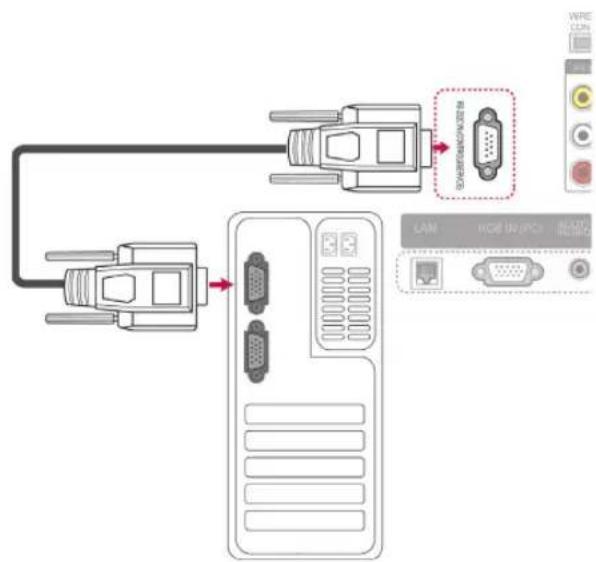
flowchart
graph TD
    A["Port 1"] --> B["Port 2"]
    B --> C["Port 3"]
    C --> D["Port 4"]
    D --> E["Port 5"]
    E --> F["Port 6"]
    F --> G["Port 7"]
    G --> H["Port 8"]
    H --> I["Port 9"]
    I --> J["Port 10"]
    J --> K["Port 11"]
    K --> L["Port 12"]
    L --> M["Port 13"]
    M --> N["Port 14"]
    N --> O["Port 15"]
    O --> P["Port 16"]
    P --> Q["Port 17"]
    Q --> R["Port 18"]
    R --> S["Port 19"]
    S --> T["Port 20"]
    T --> U["Port 21"]
    U --> V["Port 22"]
    V --> W["Port 23"]
    W --> X["Port 24"]
    X --> Y["Port 25"]
Type of connector; D-Sub 9-Pin Male
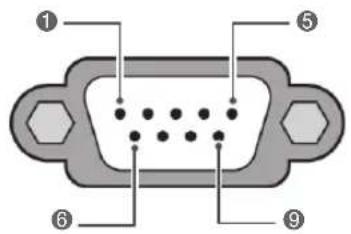
text_image
Diagram of a V12 connector with numbered pins pointing to the internal structure.| No. Pin name | |
| 1 No connection | |
| 2 RXD (Receive data) | |
| 3 TXD (Transmit data) | |
| 4 DTR (DTE side ready) | |
| 5 GND | |
| 6 DSR (DCE side ready) | |
| 7 RTS (Ready to send) | |
| 8 CTS (Clear to send) | |
| 9 No Connection |
RS-232C Configurations
7-Wire Configurations (Standard RS-232C cable)
PC TV
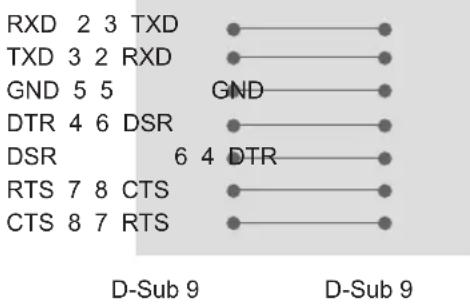
scatter
| Signal | D-Sub 9 | D-Sub 9 | |--------|---------|---------| | RXD | 2 | 3 | | TXD | 3 | 2 | | GND | 5 | 5 | | DTR | 4 | 6 | | DSR | | | | RTS | 7 | 8 | | CTS | 8 | 7 |3-Wire Configurations (Not standard)
PC TV
RXD 2 3 TXD
TXD 3 2 RXD
GND 5 5
DTR 4 6 DTR
DSR 6 4 DSR
RTS 7 7 RTS
CTS 8 8 CTS
D-Sub 9
D-Sub 9
Set ID
Set ID number. "Real Data Mapping". (See p.153).
1 Press Home to access the Home menu.
2 Press the Navigation buttons to scroll to SETUP and press OK.
3 Press the Navigation buttons to scroll to OPTION and press OK.
4 Press the Navigation buttons to scroll to Set ID and press OK.
5 Scroll left or right to select a set ID number and select Close. The adjustment range is 1 to 99.
6 When you are finished, press EXIT.
Communication Parameters
• Baud rate: 9600 bps (UART)
• Data length: 8 bits
- Parity : None
- Stop bit: 1 bit
• Communication code: ASCII code
• Use a crossed (reverse) cable.
Command reference list
| COMMAND1 | COMMAND2 | DATA (Hexadecimal) | COMMAND1 | COMMAND2 | DATA (Hexadecimal) | ||
| 01. Power k a 00 | to 01 14. Bass | k s 00 to 64 | |||||
| 02. Aspect Ratio | k c (See p.150) | 15. Balance | k t 00 to 64 | ||||
| 03. Screen Mute | k d (See p.150) | 16. Colour Temperature | x u 00 to 64 | ||||
| 04. Volume Mute | k e 00 to 01 | 17. Energy Saving | j q 00 to 05 | ||||
| 05. Volume Control | k f 00 to 64 | 18. Auto Configuration | j u 01 | ||||
| 06. Contrast k g | 00 to 64 | 19. Tune Command | m | a (See p.152) | |||
| 07. Brightness | k h 00 to 64 | 20. Programme Add/Skip | m | b 00 to 01 | |||
| 08. Colour | k | i | 00 to 64 | 21. Key | m | c | Key Code |
| 09. Tint | k j 00 to 64 | 22. Control Back Light | m | g 00 to 64 | |||
| 10. Sharpness k | k 00 to 64 | 23. Input select (Main) | x b (See p.153) | ||||
| 11. OSD Select | k l 00 to 01 24. | 3D | x t (See p.154) | ||||
| 12. Remote Control Lock Mode | k m | 00 to 01 | 25. Extended 3D | x v (See p.154) | |||
| 13. Treble | k r | 00 to 64 |
- Note : During USB operations such as DivX or EMF, all commands except Power(ka) and Key(mc) are not executed and treated as NG.
Transmission / Receiving Protocol
Transmission
[Command1][Command2][ ][Set ID][ ][Data][Cr]
[Command 1] : First command to control the TV.(j, k, m or x)
[Command 2] : Second command to control the TV.
[Set ID] : You can adjust the set ID to choose desired monitor ID number in option menu. Adjustment range is 1 to 99. When selecting Set ID '0', every connected set is controlled. Set ID is indicated as decimal (1 to 99) on menu and as Hexa decimal (0x0 to 0x63) on transmission/receiving protocol.
[DATA] : To transmit command data. Transmit 'FF' data to read status of command.
[Cr] : Carriage Return ASCII code '0x0D'
[ ] : ASCII code 'space (0x20)'
OK Acknowledgement
[Command2][ ][Set ID][ ][OK][Data][x]
* The set transmits ACK (acknowledgement) based on this format when receiving normal data. At this time, if the data is data read mode, it indicates present status data. If the data is data write mode, it returns the data of the PC computer.
Error Acknowledgement
[Command2][ ][Set ID][ ][NG][Data][x]
* The set transmits ACK (acknowledgement) based on this format when receiving abnormal data from non-viable functions or communication errors.
Data 00: Illegal Code
01. Power (Command: k a)
▶ To control Power On/Off of the set.
Transmission[k][a][ ][Set ID][ ][Data][Cr]
Data 00 : Power Off 01 : Power On
Ack[a][ ][Set ID][ ][OK/NG][Data][x]
▶ To show Power On/Off.
Transmission [k][a][ ][Set ID][ ][FF][Cr] Ack [a][ ][Set ID][ ][OK/NG][Data][x]
* Similarly, if other functions transmit '0xFF' data based on this format, Acknowledgement data feed back presents status about each function.
* OK Ack., Error Ack. and other message may display on the screen when TV is power On.
02. Aspect Ratio (Command: k c) (Main Picture Size)
▶ To adjust the screen format. (Main picture format) You can also adjust the screen format using the Aspect Ratio in the Q.MENU. or PICTURE menu.
Transmission [k][c][ ][Set ID][ ][Data][Cr]
Data 01 : Normal screen (4:3) 09 : Just Scan 02 : Wide screen (16:9) 0B : Full Wide 06 : Original 10 to 1F : Cinema Zoom 1 to 16 07 : 14:9
Ack[c][ ][Set ID][ ][OK/NG][Data][x]
* Using the PC input, you select either 16:9 or 4:3 screen aspect ratio.
* In DTV/HDMI (1080i 50 Hz / 60 Hz, 720p 50Hz / 60 Hz, 1080p 24 Hz / 30 Hz / 50 Hz / 60 Hz), Component( 720p, 1080i, 1080p 50 Hz / 60 Hz) mode, Just Scan is available.
* Full Wide is supported only for Digital, Analogue AV.
03. Screen Mute (Command: k d)
▶ To select screen mute on/off.
Transmission [k][d][ ][Set ID][ ][Data][Cr]
Data 00: Screen mute off (Picture on) Video mute off
01 : Screen mute on (Picture off)
10: Video mute on
Ack[d][ ][Set ID][ ][OK/NG][Data][x]
* In case of video mute on only, TV will display On Screen Display(OSD). But, in case of Screen mute on, TV will not display OSD.
04. Volume Mute (Command: k e)
▶ To control volume mute on/off. You can also adjust mute using the MUTE button on remote control.
Transmission [k][e][ ][Set ID][ ][Data][Cr]
Data 00 : Volume mute on (Volume off) 01 : Volume mute off (Volume on)
Ack[e][ ][Set ID][ ][OK/NG][Data][x]
05. Volume Control (Command: k f)
▶ To adjust volume.
You can also adjust volume with the VOLUME buttons on remote control.
Transmission [k][f][ ][Set ID][ ][Data][Cr]
Data Min : 00 to Max : 64 * Refer to 'Real data mapping'. (See p.153)
Ack[f][ ][Set ID][ ][OK/NG][Data][x]
06. Contrast (Command: k g)
▶ To adjust screen contrast.
You can also adjust contrast in the PICTURE menu.
Transmission [k][g][ ][Set ID][ ][Data][Cr]
Data Min : 00 to Max : 64 * Refer to 'Real data mapping'.(See p.153)
Ack[g][ ][Set ID][ ][OK/NG][Data][x]
07. Brightness (Command: k h)
▶ To adjust screen brightness. You can also adjust brightness in the PICTURE menu.
Transmission[k][h][ ][Set ID][ ][Data][Cr]
Data Min : 00 to Max : 64 * Refer to 'Real data mapping'.(See p.153)
Ack[h][ ][Set ID][ ][OK/NG][Data][x]
08. Colour (Command: k i)
▶ To adjust the screen colour. You can also adjust colour in the PICTURE menu.
Transmission [k][i][ ][Set ID][ ][Data][Cr]
Data Min : 00 to Max : 64 * Refer to 'Real data mapping'.(See p.153)
Ack [i][ ][Set ID][ ][OK/NG][Data][x]
09. Tint (Command: k j)
▶ To adjust the screen tint.
You can also adjust tint in the PICTURE menu.
Transmission [k][j][ ][Set ID][ ][Data][Cr]
Data Red : 00 to Green : 64
* Refer to 'Real data mapping'.(See p.153)
Ack[j][ ][Set ID][ ][OK/NG][Data][x]
10. Sharpness (Command: k k)
▶ To adjust the screen sharpness.
You can also adjust sharpness in the PICTURE menu.
Transmission [k][k][ ][Set ID][ ][Data][Cr]
Data Min : 00 to Max : 64
* Refer to 'Real data mapping'.(See p.153)
Ack[k][ ][Set ID][ ][OK/NG][Data][x]
11. OSD Select (Command: k I)
▶ To select OSD (On Screen Display) on/off when controlling remotely.
Transmission [k][l][ ][Set ID][ ][Data][Cr]
Data 00: OSD off 01: OSD on
Ack [I][ ][Set ID][ ][OK/NG][Data][x]
12. Remote control lock mode (Command: k m)
▶ To lock the front panel controls on the monitor and remote control.
Transmission [k][m][ ][Set ID][ ][Data][Cr]
Data 00: Lock off 01: Lock on
Ack[m][ ][Set ID][ ][OK/NG][Data][x]
* If you are not using the remote control, use this mode. When main power is on/off, external control lock is released.
* In the standby mode, if key lock is on, TV will not turn on by power on key of IR & Local Key.
13. Treble (Command: k r)
▶ To adjust treble.
You can also adjust treble in the AUDIO menu.
Transmission [k][r][ ][Set ID][ ][Data][Cr]
Data Min : 00 to Max : 64
* Refer to 'Real data mapping'.(See p.153)
Ack[r][ ][Set ID][ ][OK/NG][Data][x]
You can also adjust bass in the AUDIO menu.
Transmission [k][s][ ][Set ID][ ][Data][Cr]
Data Min : 00 to Max : 64
* Refer to 'Real data mapping'.(See p.153)
Ack[s][ ][Set ID][ ][OK/NG][Data][x]
15. Balance (Command: k t)
▶ To adjust balance.
You can also adjust balance in the AUDIO menu.
Transmission [k][t][ ][Set ID][ ][Data][Cr]
Data Min : 00 to Max : 64
* Refer to 'Real data mapping'.(See p.153)
Ack[t][ ][Set ID][ ][OK/NG][Data][x]
16. Colour Temperature (Command: x u)
▶ To adjust colour temperature. You can also adjust Colour Temperature in the PICTURE menu.
Transmission[x][u][ ][Set ID][ ][Data][Cr]
Data Min : 00 to Max : 64
* Refer to 'Real data mapping'.(See p.153)
Ack[u][ ][Set ID][ ][OK/NG][Data][x]
17. Energy Saving (Command: j q)
▶ To reduce the power consumption of the TV. You can also adjust Energy Saving in PICTUREmenu.
Transmission [j][q][ ][Set ID][ ][Data][Cr]
| Power Saving Function | Level | Description | |||||||
| 7 | 6 | 5 | 4 | 3 | 2 | 1 | 0 | ||
| 0 | 0 | 0 | 0 | Low Power | 0 | 0 | 0 | 0 | Off |
| 0 | 0 | 0 | 0 | Low Power | 0 | 0 | 0 | 1 | Minimum |
| 0 | 0 | 0 | 0 | Low Power | 0 | 0 | 1 | 0 | Medium |
| 0 | 0 | 0 | 0 | Low Power | 0 | 0 | 1 | 1 | Maximum |
| 0 | 0 | 0 | 0 | Low Power | 0 | 1 | 0 | 0 | Auto |
| 0 | 0 | 0 | 0 | Low Power | 0 | 1 | 0 | 1 | Screen Off |
Ack[q][ ][Set ID][ ][OK/NG][Data][x]
18. Auto Configure(Command: j u)
▶ To adjust picture position and minimize image shaking automatically. It works only in RGB (PC) mode.
Transmission [j][u][ ][Set ID][ ][Data][Cr]
Data 01: To set
Ack[u][ ][Set ID][ ][OK/NG][Data][x]
19. Tune Command (Command: m a)
▶ Select channel to following physical number.
Transmission [m][a][ ][Set ID][ ][Data0][ ][Data1][ ][Data2][Cr]
Data00 : High channel data
Data01 : Low channel data
ex. No. 47 -> 00 2F (2FH)
No. 394 -> 01 8A (18AH),
DTV No. 0 -> Don't care
Analogue - Min: 00 to Max: C7 (0 to 199)
Digital - Min: 00 to Max: 270F (0 to 9999)
Ack[a][ ][Set ID][ ][OK/NG][Data][x]
Data Min: 00 to Max: 7DH
20. Programme Add/Skip(Command: m b)
▶ To set skip status for the current Programme.
Transmission[m][b][ ][Set ID][ ][Data][Cr]
▶ To Control the back light.
Transmission [m][g][ ][Set ID][ ][Data][Cr]
Data Min : 00 to Max : 64
Ack[g][ ][Set ID][ ][OK/NG][Data][x]
23. Input select (Command: x b) (Main Picture Input)
▶ To select input source for main picture.
Transmission [x][b][ ][Set ID][ ][Data][Cr]
Data Structure
MSB LSB
| 0000000 |
External Input Input Number
| External Input Data | ||||
| 0 0 | 0 0 DTV | |||
| 0 0 | 0 1 Analogue | |||
| 0 0 | 1 0 AV | |||
| 0 1 | 0 0 | Component | ||
| 0 1 | 1 0 RGB | |||
| 0 1 | 1 1 | HDMI | ||
| 1 0 | 0 0 | |||
| 1 0 | 0 1 | |||
| 1 0 | 1 0 | |||
21. Key(Command: m c)
▶ To send IR remote key code.
Transmission [m][c][ ][Set ID][ ][Data][Cr] Data Key code (See p.145)
Ack[c][ ][Set ID][ ][OK/NG][Data][x]
| Input Number | Data | |||
| 0 0 | 0 0 | Input1 | ||
| 0 0 | 0 1 | Input2 | ||
| 0 0 | 1 0 | Input3 | ||
| 0 0 | 1 1 | Input4 | ||
Ack[b][ ][Set ID][ ][OK/NG][Data][x]
* In case external input data is DTV, Input number '0' is AIR, '1' is CATV and '2' is SATELLITE.
24. 3D(Command: x t) (only 3D models)
▶ To change 3D mode for TV.
Transmission[x][t][ ][Set ID][ ][Data01][ ][Data02]
[ ][Data03][ ][Data04][Cr]
Data01 00 : 3D On
01 : 3D Off
02 : 3D to 2D
03 : 2D to 3D
Data02 00 : Top and Bottom
01 : Side by Side
02 : Check Board
03 : Frame Sequential
Data03 00 : Right to Left
01 : Left to Right
Data04 3D Depth : Min: 0 \~ Max: 14
* Refer to 'Real data mapping'.(See p.153)
*If data1 is 00(3D On), data4 has no meaning.
*If data1 is 01(3D off) or 02(3D to 2D), data2, data3 and data4 have no meaning.
*If data1 is 03(2D to 3D), data2 and data3 have no meaning.
| Data1 Data2 Data3 | Data4 | ||
| 00 O | O | X | |
| 01 | XX | X | |
| 02 | XX | X | |
| 03 | XX | O | |
X : don't care
Ack [t][ ][OK][Data01][Data02][Data03][Data04][x]
[t][ ][NG][Data01][x]
25. Extended 3D(Command: x v) (only 3D models)
▶ To change 3D option for TV.
Transmission[x][v][ ][Set ID][ ][Data01][ ][Data02][Cr]
Data01 : 3D option
00 : 3D Picture Correction
01 : 3D Depth (2D to 3D Only)
02 : 3D Viewpoint
05 : 3D Optimization
Data02 It has own range for each 3D option determined by Data01.
1) When Data01 is 00
00 : Right to Left
01 : Left to Right
2) When Data01 is 01
Data Min: 0 \~ Max: 14
3) When Data01 is 02
Data Min: 0 \~ Max: 14 (Except for 72LZ97 **)
Data value range(0 to 20) converts Viewpoint range(-10 to 10) automatically.
Data Min: 0 \~ Max: 06 (Only 72LZ97 **)
Data value range(0 to 20) converts Viewpoint range(-3 to 3) automatically.
4) When Data01 is 05
Data Min: 0 \~ Max: 02
* Refer to 'Real data mapping'.(See p.153)
Ack[v][ ][OK][Data01][Data02][x][v][ ][NG][Data01][x]
* Use the feature depending on your model.
OPEN SOURCE LICENSE
Please be informed that LG Electronics products may contain open source software listed in the tables below.
| License Component | |
| Apache license bonjour | |
| MIT license cares | fontconfiglibcurllibxml2libxsltlua interpreter |
| expat license expat | |
| Freetype license | freetype |
| JPEG license libjpeg | |
| OpenSSL license | openssl |
| Zlib/libpnglicense | libmnglibpngzlib |
| portmap license portmap | |
| pixman license pixman | |
| X.net license libicu | |
| BSD license netBSDSimple XML ParserxySSL | |
| RSA Data secu- rity license | MD5 |
| JSON license JSON | |
| MS92 license snacc | |
LG Electronics products may also contain open source software listed as Components in the table below, and you may download the complete source code thereof free of charge, from LG Electronics website (http://opensource.lge.com) for a period of three (3) years from our last shipment of this product. Please be informed that the open source software is subject to the terms and conditions of the applicable open source licenses, which are provided to you herein below.
| License Component | |
| GNU GPL v2.0 Linux kernel 2.6 busybox e2fsprogs gdbserver jfsutils lzo msdl 1.1 mtd-utils ntpclient procps | |
| GNU LGPL v2.1 atk directFB ffmpeg glib gnuTLS gail GTK+ iconv libintl libgcrypt libgpg-error libgphoto2 libsoup pango pyenchant qt uClibc webkit | |
| MPL 1.1 cairo | nanox mozilla firefox zziplib |

GNU GENERAL PUBLIC LI- CENSE
Version 2, June 1991
Copyright (C) 1989, 1991 Free Software Foundation, Inc.
51 Franklin Street, Fifth Floor, Boston, MA 02110-1301, USA
Everyone is permitted to copy and distribute verbatim copies
of this license document, but changing it is not allowed.
Preamble
The licenses for most software are designed to take away your freedom to share and change it. By contrast, the GNU General Public License is intended to guarantee your freedom to share and change free software--to make sure the software is free for all its users. This General Public License applies to most of the Free Software Foundation's software and to any other program whose authors commit to using it. (Some other Free Software Foundation software is covered by the GNU Lesser General Public License instead.) You can apply it to your programs, too.
When we speak of free software, we are referring to freedom, not price. Our General Public Licenses are designed to make sure that you have the freedom to distribute copies of free software (and charge for this service if you wish), that you receive source code or can get it if you want it, that you can change the software or use pieces of it in new free programs; and that you know you can do these things.
To protect your rights, we need to make restrictions that forbid anyone to deny you these rights or to ask you to surrender the rights. These restrictions translate to certain responsibilities for you if you distribute copies of the software, or if you modify it.
For example, if you distribute copies of such a program, whether gratis or for a fee, you must give the recipients all the rights that you have. You must make sure that they, too, receive or can get the source code. And you must show them these terms so they know their rights.
We protect your rights with two steps: (1) copyright the software, and (2) offer you this license which gives you legal permission to copy, distribute and/or modify the software.
Also, for each author's protection and ours, we want to make certain that everyone understands that there is no warranty for this free software. If the software is modified by someone else and passed on, we want its recipients to know that what they have is not the original, so that any problems introduced by others will not reflect on the original authors' reputations.
Finally, any free program is threatened constantly by software patents. We wish to avoid the danger that redistributors of a free program will individually obtain patent licenses, in effect making the program proprietary. To prevent this, we have made it clear that any patent must be licensed for everyone's free use or not licensed at all.
The precise terms and conditions for copying, distribution and modification follow.
TERMS AND CONDITIONS FOR COPYING, DISTRIBUTION AND MODIFICATION
- This License applies to any program or other work which contains a notice placed by the copyright holder saying it may be distributed under the terms of this General Public License. The "Program", below, refers to any such program or work, and a "work based on the Program" means either the Program or any derivative work under copyright law: that is to say, a work containing the Program or a portion of it, either verbatim or with modifications and/or translated into another language. (Hereinafter, translation is included without limitation in the term "modification".) Each licensee is addressed as "you".
Activities other than copying, distribution and modification are not covered by this License; they are outside its scope. The act of running the Program is not restricted, and the output from the Program is covered only if its contents constitute a work based on the Program (independent of having been made by running the Program). Whether that is true depends on what the Program does.
- You may copy and distribute verbatim copies of the Program's source code as you receive it, in any medium, provided that you conspicuously and appropriately publish on each copy an appropriate copyright notice and disclaimer of warranty; keep intact all the notices that refer to this License and to the absence of any warranty; and give any other recipients of the Program a copy of this License along with the Program.
You may charge a fee for the physical act of transferring a copy, and you may at your option offer warranty protection in exchange for a fee.
- You may modify your copy or copies of the Program or any portion of it, thus forming a work based on the Program, and copy and distribute such modifications or work under the terms of Section 1 above, provided that you also meet all of these conditions:
a) You must cause the modified files to carry prominent notices stating that you changed the files and the date of any change.
b) You must cause any work that you distribute or publish, that in whole or in part contains or is derived from the Program or any part thereof, to be licensed as a whole at no charge to all third parties under the terms of this License.
c) If the modified program normally reads commands interactively when run, you must cause it, when started running for such interactive use in the most ordinary way, to print or display an announcement including an appropriate copyright notice and a notice that there is no warranty (or else, saying that you provide a warranty) and that users may redistribute the program under these conditions, and telling the user how to view a copy of this License. (Exception: if the Program itself is interactive but does not normally print such an announcement, your work based on the Program is not required to print an announcement.)
These requirements apply to the modified work as a whole. If identifiable sections of that work are not derived from the Program, and can be reasonably considered independent and separate works in themselves, then this License, and its terms, do not apply to those sections when you distribute them as separate works. But when you distribute
the same sections as part of a whole which is a work based on the Program, the distribution of the whole must be on the terms of this License, whose permissions for other licensees extend to the entire whole, and thus to each and every part regardless of who wrote it.
Thus, it is not the intent of this section to claim rights or contest your rights to work written entirely by you; rather, the intent is to exercise the right to control the distribution of derivative or collective works based on the Program.
In addition, mere aggregation of another work not based on the Program with the Program (or with a work based on the Program) on a volume of a storage or distribution medium does not bring the other work under the scope of this License.
- You may copy and distribute the Program (or a work based on it, under Section 2) in object code or executable form under the terms of Sections 1 and 2 above provided that you also do one of the following:
a) Accompany it with the complete corresponding machine-readable source code, which must be distributed under the terms of Sections 1 and 2 above on a medium customarily used for software interchange; or,
b) Accompany it with a written offer, valid for at least three years, to give any third party, for a charge no more than your cost of physically performing source distribution, a complete machine-readable copy of the corresponding source code, to be distributed under the terms of Sections 1 and 2 above on a medium customarily used for software interchange; or,
c) Accompany it with the information you received as to the offer to distribute corresponding source code. (This alternative is allowed only for noncommercial distribution and only if you received the program in object code or executable form with such an offer, in accord with Subsection b above.)
The source code for a work means the preferred form of the work for making modifications to it. For an executable work, complete source code means all the source code for all modules it contains, plus
any associated interface definition files, plus the scripts used to control compilation and installation of the executable. However, as a special exception, the source code distributed need not include anything that is normally distributed (in either source or binary form) with the major components (compiler, kernel, and so on) of the operating system on which the executable runs, unless that component itself accompanies the executable.
If distribution of executable or object code is made by offering access to copy from a designated place, then offering equivalent access to copy the source code from the same place counts as distribution of the source code, even though third parties are not compelled to copy the source along with the object code.
- You may not copy, modify, sublicense, or distribute the Program except as expressly provided under this License. Any attempt otherwise to copy, modify, sublicense or distribute the Program is void, and will automatically terminate your rights under this License. However, parties who have received copies, or rights, from you under this License will not have their licenses terminated so long as such parties remain in full compliance.
- You are not required to accept this License, since you have not signed it. However, nothing else grants you permission to modify or distribute the Program or its derivative works. These actions are prohibited by law if you do not accept this License. Therefore, by modifying or distributing the Program (or any work based on the Program), you indicate your acceptance of this License to do so, and all its terms and conditions for copying, distributing or modifying the Program or works based on it.
- Each time you redistribute the Program (or any work based on the Program), the recipient automatically receives a license from the original licensor to copy, distribute or modify the Program subject to these terms and conditions. You may not impose any further restrictions on the recipients' exercise of the rights granted herein. You are not responsible for enforcing compliance by third parties to this License.
- If, as a consequence of a court judgment or allegation of patent infringement or for any other rea-
son (not limited to patent issues), conditions are imposed on you (whether by court order, agreement or otherwise) that contradict the conditions of this License, they do not excuse you from the conditions of this License. If you cannot distribute so as to satisfy simultaneously your obligations under this License and any other pertinent obligations, then as a consequence you may not distribute the Program at all. For example, if a patent license would not permit royalty-free redistribution of the Program by all those who receive copies directly or indirectly through you, then the only way you could satisfy both it and this License would be to refrain entirely from distribution of the Program.
If any portion of this section is held invalid or unenforceable under any particular circumstance, the balance of the section is intended to apply and the section as a whole is intended to apply in other circumstances.
It is not the purpose of this section to induce you to infringe any patents or other property right claims or to contest validity of any such claims; this section has the sole purpose of protecting the integrity of the free software distribution system, which is implemented by public license practices. Many people have made generous contributions to the wide range of software distributed through that system in reliance on consistent application of that system; it is up to the author/donor to decide if he or she is willing to distribute software through any other system and a licensee cannot impose that choice.
This section is intended to make thoroughly clear what is believed to be a consequence of the rest of this License.
- If the distribution and/or use of the Program is restricted in certain countries either by patents or by copyrighted interfaces, the original copyright holder who places the Program under this License may add an explicit geographical distribution limitation excluding those countries, so that distribution is permitted only in or among countries not thus excluded. In such case, this License incorporates the limitation as if written in the body of this License.
- The Free Software Foundation may publish revised and/or new versions of the General Public
License from time to time. Such new versions will be similar in spirit to the present version, but may differ in detail to address new problems or concerns.
Each version is given a distinguishing version number. If the Program specifies a version number of this License which applies to it and "any later version", you have the option of following the terms and conditions either of that version or of any later version published by the Free Software Foundation. If the Program does not specify a version number of this License, you may choose any version ever published by the Free Software Foundation.
- If you wish to incorporate parts of the Program into other free programs whose distribution conditions are different, write to the author to ask for permission. For software which is copyrighted by the Free Software Foundation, write to the Free Software Foundation; we sometimes make exceptions for this. Our decision will be guided by the two goals of preserving the free status of all derivatives of our free software and of promoting the sharing and reuse of software generally.
NO WARRANTY
-
BECAUSE THE PROGRAM IS LICENSED FREE OF CHARGE, THERE IS NO WARRANTY FOR THE PROGRAM, TO THE EXTENT PERMITTED BY APPLICABLE LAW. EXCEPT WHEN OTHERWISE STATED IN WRITING THE COPYRIGHT HOLDERS AND/OR OTHER PARTIES PROVIDE THE PROGRAM "AS IS" WITHOUT WARRANTY OF ANY KIND, EITHER EXPRESSED OR IMPLIED, INCLUDING, BUT NOT LIMITED TO, THE IMPLIED WARRANTIES OF MERCHANTABILITY AND FITNESS FOR A PARTICULAR PURPOSE. THE ENTIRE RISK AS TO THE QUALITY AND PERFORMANCE OF THE PROGRAM IS WITH YOU. SHOULD THE PROGRAM PROVE DEFECTIVE, YOU ASSUME THE COST OF ALL NECESSARY SERVICING, REPAIR OR CORRECTION.
-
IN NO EVENT UNLESS REQUIRED BY APPLICABLE LAW OR AGREED TO IN WRITING WILL ANY COPYRIGHT HOLDER, OR ANY OTHER PARTY WHO MAY MODIFY AND/OR REDISTRIBUTE THE PROGRAM AS PERMITTED ABOVE, BE LIABLE TO YOU FOR DAM-
AGES, INCLUDING ANY GENERAL, SPECIAL, INCIDENTAL OR CONSEQUENTIAL DAMAGES ARISING OUT OF THE USE OR INABILITY TO USE THE PROGRAM (INCLUDING BUT NOT LIMITED TO LOSS OF DATA OR DATA BEING RENDERED INACCURATE OR LOSSES SUSTAINED BY YOU OR THIRD PARTIES OR A FAILURE OF THE PROGRAM TO OPERATE WITH ANY OTHER PROGRAMS), EVEN IF SUCH HOLDER OR OTHER PARTY HAS BEEN ADVISED OF THE POSSIBILITY OF SUCH DAMAGES.
END OF TERMS AND CONDITIONS

GNU Lesser General Public License
Version 2.1, February 1999
Copyright (C) 1991, 1999 Free Software Foundation, Inc. 59 Temple Place, Suite 330, Boston, MA 02111-1307 USA Everyone is permitted to copy and distribute verbatim copies of this license document, but changing it is not allowed.
[This is the first released version of the Lesser GPL. It also counts as the successor of the GNU Library Public License, version 2, hence the version number 2.1.]
Preamble
The licenses for most software are designed to take away your freedom to share and change it. By contrast, the GNU General Public Licenses are intended to guarantee your freedom to share and change free software--to make sure the software is free for all its users.
This license, the Lesser General Public License, applies to some specially designated software packages--typically libraries--of the Free Software Foundation and other authors who decide to use it. You can use it too, but we suggest you first think carefully about whether this license or the ordinary General Public License is the better strategy to use in any particular case, based on the explanations below.
When we speak of free software, we are referring to freedom of use, not price. Our General Public Licenses are designed to make sure that you have the freedom to distribute copies of free software (and charge for this service if you wish); that you receive source code or can get it if you want it; that you can change the software and use pieces of it in new free programs; and that you are informed that you can do these things.
To protect your rights, we need to make restrictions that forbid distributors to deny you these rights or to ask you to surrender these rights.
These restrictions translate to certain responsibilities for you if you distribute copies of the library or if you modify it.
For example, if you distribute copies of the library, whether gratis or for a fee, you must give the recipients all the rights that we gave you. You must make sure that they, too, receive or can get the source code. If you link other code with the library, you must provide complete object files to the recipients, so that they can relink them with the library after making changes to the library and recompiling it. And you must show them these terms so they know their rights.
We protect your rights with a two-step method: (1) we copyright the library, and (2) we offer you this license, which gives you legal permission to copy, distribute and/or modify the library.
To protect each distributor, we want to make it very clear that there is no warranty for the free library. Also, if the library is modified by someone else and passed on, the recipients should know that what they have is not the original version, so that the original author's reputation will not be affected by problems that might be introduced by others.
Finally, software patents pose a constant threat to the existence of any free program. We wish to make sure that a company cannot effectively restrict the users of a free program by obtaining a restrictive license from a patent holder. Therefore, we insist that any patent license obtained for a version of the library must be consistent with the full freedom of use specified in this license.
Most GNU software, including some libraries, is covered by the ordinary GNU General Public License. This license, the GNU Lesser General Public License, applies to certain designated libraries, and is quite different from the ordinary General Public License. We use this license for certain libraries in order to permit linking those libraries into non-free programs.
When a program is linked with a library, whether statically or using a shared library, the combination of the two is legally speaking a combined work, a derivative of the original library. The ordinary General Public License therefore permits such linking only if the entire combination fits its criteria of freedom. The Lesser General Public License permits more lax criteria for linking other code with the library.
We call this license the "Lesser" General Public
License because it does Less to protect the user's freedom than the ordinary General Public License. It also provides other free software developers. Less of an advantage over competing non-free programs. These disadvantages are the reason we use the ordinary General Public License for many libraries. However, the Lesser license provides advantages in certain special circumstances.
For example, on rare occasions, there may be a special need to encourage the widest possible use of a certain library, so that it becomes a de-facto standard. To achieve this, non-free programs must be allowed to use the library. A more frequent case is that a free library does the same job as widely used non-free libraries. In this case, there is little to gain by limiting the free library to free software only, so we use the Lesser General Public License.
In other cases, permission to use a particular library in non-free programs enables a greater number of people to use a large body of free software. For example, permission to use the GNU C Library in non-free programs enables many more people to use the whole GNU operating system, as well as its variant, the GNU/Linux operating system.
Although the Lesser General Public License is Less protective of the users' freedom, it does ensure that the user of a program that is linked with the Library has the freedom and the wherewithal to run that program using a modified version of the Library.
The precise terms and conditions for copying, distribution and modification follow. Pay close attention to the difference between a "work based on the library" and a "work that uses the library". The former contains code derived from the library, whereas the latter must be combined with the library in order to run.
TERMS AND CONDITIONS FOR COPYING, DISTRIBUTION AND MODIFICATION
- This License Agreement applies to any software library or other program which contains a notice placed by the copyright holder or other authorized party saying it may be distributed under the terms of this Lesser General Public License (also called
"this License"). Each licensee is addressed as "you".
A "library" means a collection of software functions and/or data prepared so as to be conveniently linked with application programs (which use some of those functions and data) to form executables.
The "Library", below, refers to any such software library or work which has been distributed under these terms. A "work based on the Library" means either the Library or any derivative work under copyright law: that is to say, a work containing the Library or a portion of it, either verbatim or with modifications and/or translated straightforwardly into another language. (Hereinafter, translation is included without limitation in the term "modification".)
"Source code" for a work means the preferred form of the work for making modifications to it. For a library, complete source code means all the source code for all modules it contains, plus any associated interface definition files, plus the scripts used to control compilation and installation of the library.
Activities other than copying, distribution and modification are not covered by this License; they are outside its scope. The act of running a program using the Library is not restricted, and output from such a program is covered only if its contents constitute a work based on the Library (independent of the use of the Library in a tool for writing it). Whether that is true depends on what the Library does and what the program that uses the Library does.
- You may copy and distribute verbatim copies of the Library's complete source code as you receive it, in any medium, provided that you conspicuously and appropriately publish on each copy an appropriate copyright notice and disclaimer of warranty; keep intact all the notices that refer to this License and to the absence of any warranty; and distribute a copy of this License along with the Library.
You may charge a fee for the physical act of transferring a copy, and you may at your option offer warranty protection in exchange for a fee.
- You may modify your copy or copies of the
Library or any portion of it, thus forming a work based on the Library, and copy and distribute such modifications or work under the terms of Section 1 above, provided that you also meet all of these conditions:
a) The modified work must itself be a software library.
b) You must cause the files modified to carry prominent notices stating that you changed the files and the date of any change.
c) You must cause the whole of the work to be licensed at no charge to all third parties under the terms of this License.
d) If a facility in the modified Library refers to a function or a table of data to be supplied by an application program that uses the facility, other than as an argument passed when the facility is invoked, then you must make a good faith effort to ensure that, in the event an application does not supply such function or table, the facility still operates, and performs whatever part of its purpose remains meaningful.
(For example, a function in a library to compute square roots has a purpose that is entirely well-defined independent of the application. Therefore, Subsection 2d requires that any application-supplied function or table used by this function must be optional: if the application does not supply it, the square root function must still compute square roots.)
These requirements apply to the modified work as a whole. If identifiable sections of that work are not derived from the Library, and can be reasonably considered independent and separate works in themselves, then this License, and its terms, do not apply to those sections when you distribute them as separate works. But when you distribute the same sections as part of a whole which is a work based on the Library, the distribution of the whole must be on the terms of this License, whose permissions for other licensees extend to the entire whole, and thus to each and every part regardless of who wrote it.
Thus, it is not the intent of this section to claim
rights or contest your rights to work written entirely by you; rather, the intent is to exercise the right to control the distribution of derivative or collective works based on the Library.
In addition, mere aggregation of another work not based on the Library with the Library (or with a work based on the Library) on a volume of a storage or distribution medium does not bring the other work under the scope of this License.
- You may opt to apply the terms of the ordinary GNU General Public License instead of this License to a given copy of the Library. To do this, you must alter all the notices that refer to this License, so that they refer to the ordinary GNU General Public License, version 2, instead of to this License. (If a newer version than version 2 of the ordinary GNU General Public License has appeared, then you can specify that version instead if you wish.) Do not make any other change in these notices.
Once this change is made in a given copy, it is irreversible for that copy, so the ordinary GNU General Public License applies to all subsequent copies and derivative works made from that copy.
This option is useful when you wish to copy part of the code of the Library into a program that is not a library.
- You may copy and distribute the Library (or a portion or derivative of it, under Section 2) in object code or executable form under the terms of Sections 1 and 2 above provided that you accompany it with the complete corresponding machine-readable source code, which must be distributed under the terms of Sections 1 and 2 above on a medium customarily used for software interchange.
If distribution of object code is made by offering access to copy from a designated place, then offering equivalent access to copy the source code from the same place satisfies the requirement to distribute the source code, even though third parties are not compelled to copy the source along with the object code.
- A program that contains no derivative of any portion of the Library, but is designed to work with
the Library by being compiled or linked with it, is called a "work that uses the Library". Such a work, in isolation, is not a derivative work of the Library, and therefore falls outside the scope of this License.
However, linking a "work that uses the Library" with the Library creates an executable that is a derivative of the Library (because it contains portions of the Library), rather than a "work that uses the library". The executable is therefore covered by this License. Section 6 states terms for distribution of such executables.
When a "work that uses the Library" uses material from a header file that is part of the Library, the object code for the work may be a derivative work of the Library even though the source code is not. Whether this is true is especially significant if the work can be linked without the Library, or if the work is itself a library. The threshold for this to be true is not precisely defined by law.
If such an object file uses only numerical parameters, data structure layouts and accessors, and small macros and small inline functions (ten lines or less in length), then the use of the object file is unrestricted, regardless of whether it is legally a derivative work. (Executables containing this object code plus portions of the Library will still fall under Section 6.)
Otherwise, if the work is a derivative of the Library, you may distribute the object code for the work under the terms of Section 6. Any executables containing that work also fall under Section 6, whether or not they are linked directly with the Library itself.
- As an exception to the Sections above, you may also combine or link a "work that uses the Library" with the Library to produce a work containing portions of the Library, and distribute that work under terms of your choice, provided that the terms permit modification of the work for the customer's own use and reverse engineering for debugging such modifications.
You must give prominent notice with each copy of the work that the Library is used in it and that the Library and its use are covered by this License. You must supply a copy of this License. If the work during execution displays copyright notices, you must include the copyright notice for the Library among them, as well as a reference directing the user to the copy of this License. Also, you must do one of these things:
a) Accompany the work with the complete corresponding machine-readable source code for the Library including whatever changes were used in the work (which must be distributed under Sections 1 and 2 above); and, if the work is an executable linked with the Library, with the complete machine-readable "work that uses the Library", as object code and/or source code, so that the user can modify the Library and then relink to produce a modified executable containing the modified Library. (It is understood that the user who changes the contents of definitions files in the Library will not necessarily be able to recompile the application to use the modified definitions.)
b) Use a suitable shared library mechanism for linking with the Library. A suitable mechanism is one that (1) uses at run time a copy of the library already present on the user's computer system, rather than copying library functions into the executable, and (2) will operate properly with a modified version of the library, if the user installs one, as long as the modified version is interface-compatible with the version that the work was made with.
c) Accompany the work with a written offer, valid for at least three years, to give the same user the materials specified in Subsection 6a, above, for a charge no more than the cost of performing this distribution.
d) If distribution of the work is made by offering access to copy from a designated place, offer equivalent access to copy the above specified materials from the same place.
e) Verify that the user has already received a copy of these materials or that you have already sent this user a copy.
For an executable, the required form of the "work that uses the Library" must include any data and utility programs needed for reproducing the executable from it. However, as a special exception,
the materials to be distributed need not include anything that is normally distributed (in either source or binary form) with the major components (compiler, kernel, and so on) of the operating system on which the executable runs, unless that component itself accompanies the executable.
It may happen that this requirement contradicts the license restrictions of other proprietary libraries that do not normally accompany the operating system. Such a contradiction means you cannot use both them and the Library together in an executable that you distribute.
- You may place library facilities that are a work based on the Library side-by-side in a single library together with other library facilities not covered by this License, and distribute such a combined library, provided that the separate distribution of the work based on the Library and of the other library facilities is otherwise permitted, and provided that you do these two things:
a) Accompany the combined library with a copy of the same work based on the Library, uncombined with any other library facilities. This must be distributed under the terms of the Sections above.
b) Give prominent notice with the combined library of the fact that part of it is a work based on the Library, and explaining where to find the accompanying uncombined form of the same work.
-
You may not copy, modify, sublicense, link with, or distribute the Library except as expressly provided under this License. Any attempt otherwise to copy, modify, sublicense, link with, or distribute the Library is void, and will automatically terminate your rights under this License. However, parties who have received copies, or rights, from you under this License will not have their licenses terminated so long as such parties remain in full compliance.
-
You are not required to accept this License, since you have not signed it. However, nothing else grants you permission to modify or distribute the Library or its derivative works. These actions are prohibited by law if you do not accept this License. Therefore, by modifying or distributing
the Library (or any work based on the Library), you indicate your acceptance of this License to do so, and all its terms and conditions for copying, distributing or modifying the Library or works based on it.
-
Each time you redistribute the Library (or any work based on the Library), the recipient automatically receives a license from the original licensor to copy, distribute, link with or modify the Library subject to these terms and conditions. You may not impose any further restrictions on the recipients' exercise of the rights granted herein. You are not responsible for enforcing compliance by third parties with this License.
-
If, as a consequence of a court judgment or allegation of patent infringement or for any other reason (not limited to patent issues), conditions are imposed on you (whether by court order, agreement or otherwise) that contradict the conditions of this License, they do not excuse you from the conditions of this License. If you cannot distribute so as to satisfy simultaneously your obligations under this License and any other pertinent obligations, then as a consequence you may not distribute the Library at all. For example, if a patent license would not permit royalty-free redistribution of the Library by all those who receive copies directly or indirectly through you, then the only way you could satisfy both it and this License would be to refrain entirely from distribution of the Library.
If any portion of this section is held invalid or unenforceable under any particular circumstance, the balance of the section is intended to apply, and the section as a whole is intended to apply in other circumstances.
It is not the purpose of this section to induce you to infringe any patents or other property right claims or to contest validity of any such claims; this section has the sole purpose of protecting the integrity of the free software distribution system which is implemented by public license practices. Many people have made generous contributions to the wide range of software distributed through that system in reliance on consistent application of that system; it is up to the author/donor to decide if he or she is willing to distribute software through any other system and a licensee cannot impose that choice.
This section is intended to make thoroughly clear what is believed to be a consequence of the rest of this License.
- If the distribution and/or use of the Library is restricted in certain countries either by patents or by copyrighted interfaces, the original copyright holder who places the Library under this License may add an explicit geographical distribution limitation excluding those countries, so that distribution is permitted only in or among countries not thus excluded. In such case, this License incorporates the limitation as if written in the body of this License.
- The Free Software Foundation may publish revised and/or new versions of the Lesser General Public License from time to time. Such new versions will be similar in spirit to the present version, but may differ in detail to address new problems or concerns.
Each version is given a distinguishing version number. If the Library specifies a version number of this License which applies to it and "any later version", you have the option of following the terms and conditions either of that version or of any later version published by the Free Software Foundation. If the Library does not specify a license version number, you may choose any version ever published by the Free Software Foundation.
- If you wish to incorporate parts of the Library into other free programs whose distribution conditions are incompatible with these, write to the author to ask for permission. For software which is copyrighted by the Free Software Foundation, write to the Free Software Foundation; we sometimes make exceptions for this. Our decision will be guided by the two goals of preserving the free status of all derivatives of our free software and of promoting the sharing and reuse of software generally.
NO WARRANTY
- BECAUSE THE LIBRARY IS LICENSED FREE OF CHARGE, THERE IS NO WARRANTY FOR THE LIBRARY, TO THE EXTENT PERMITTED BY APPLICABLE LAW. EXCEPT WHEN OTHERWISE STATED IN WRITING
THE COPYRIGHT HOLDERS AND/OR OTHER PARTIES PROVIDE THE LIBRARY "AS IS" WITHOUT WARRANTY OF ANY KIND, EITHER EXPRESSED OR IMPLIED, INCLUDING, BUT NOT LIMITED TO, THE IMPLIED WARRANTIES OF MERCHANTABILITY AND FITNESS FOR A PARTICULAR PURPOSE. THE ENTIRE RISK AS TO THE QUALITY AND PERFORMANCE OF THE LIBRARY IS WITH YOU. SHOULD THE LIBRARY PROVE DEFECTIVE, YOU ASSUME THE COST OF ALL NECESSARY SERVICING, REPAIR OR CORRECTION.
- IN NO EVENT UNLESS REQUIRED BY APPLICABLE LAW OR AGREED TO IN WRITING WILL ANY COPYRIGHT HOLDER, OR ANY OTHER PARTY WHO MAY MODIFY AND/OR REDISTRIBUTE THE LIBRARY AS PERMITTED ABOVE, BE LIABLE TO YOU FOR DAMAGES, INCLUDING ANY GENERAL, SPECIAL, INCIDENTAL OR CONSEQUENTIAL DAMAGES ARISING OUT OF THE USE OR INABILITY TO USE THE LIBRARY (INCLUDING BUT NOT LIMITED TO LOSS OF DATA OR DATA BEING RENDED INACCURATE OR LOSSES SUSTAINED BY YOU OR THIRD PARTIES OR A FAILURE OF THE LIBRARY TO OPERATE WITH ANY OTHER SOFTWARE), EVEN IF SUCH HOLDER OR OTHER PARTY HAS BEEN ADVISED OF THE POSSIBILITY OF SUCH DAMAGES.
END OF TERMS AND CONDITIONS
How to Apply These Terms to Your New Libraries
If you develop a new library, and you want it to be of the greatest possible use to the public, we recommend making it free software that everyone can redistribute and change. You can do so by permitting redistribution under these terms (or, alternatively, under the terms of the ordinary General Public License).
To apply these terms, attach the following notices to the library. It is safest to attach them to the start of each source file to most effectively convey the exclusion of warranty; and each file should have at least the "copyright" line and a pointer to where the full notice is found.
of author>
This library is free software; you can redistribute it and/or modify it under the terms of the GNU Lesser General Public License as published by the Free Software Foundation; either version 2.1 of the License, or (at your option) any later version.
This library is distributed in the hope that it will be useful, but WITHOUT ANY WARRANTY; without even the implied warranty of MER-CHANTABILITY or FITNESS FOR A PARTICULAR PURPOSE. See the GNU Lesser General Public License for more details.
You should have received a copy of the GNU Lesser General Public License along with this library; if not, write to the Free Software Foundation, Inc., 59 Temple Place, Suite 330, Boston, MA 02111-1307 USA
Also add information on how to contact you by electronic and paper mail.
You should also get your employer (if you work as a programmer) or your school, if any, to sign a "copyright disclaimer" for the library, if necessary. Here is a sample; alter the names:
Yoyodyne, Inc., hereby disclaims all copyright interest in the library 'Frob' (a library for tweaking knobs) written by James Random Hacker.
signature of Ty Coon, 1 April 1990 Ty Coon, President of Vice
That's all there is to it!
Mozilla Public License 1.1 (MPL 1.1)
- Definitions.
1.0.1. "Commercial Use"
means distribution or otherwise making the Covered Code available to a third party.
1.1. "Contributor"
means each entity that creates or contributes to the creation of Modifications.
1.2. "Contributor Version"
means the combination of the Original Code, prior Modifications used by a Contributor, and the Modifications made by that particular Contributor.
1.3. "Covered Code"
means the Original Code or Modifications or the combination of the Original Code and Modifications, in each case including portions thereof.
1.4. "Electronic Distribution Mechanism"
means a mechanism generally accepted in the software development community for the electronic transfer of data.
1.5. "Executable"
means Covered Code in any form other than Source Code.
1.6. "Initial Developer"
means the individual or entity identified as the Initial Developer in the Source Code notice required by Exhibit A.
1.7. "Larger Work"
means a work which combines Covered Code or portions thereof with code not governed by the terms of this License.
1.8. "License"
means this document.
1.8.1. "Licensable"
means having the right to grant, to the maximum extent possible, whether at the time of the initial grant or subsequently
acquired, any and all of the rights conveyed herein.
1.9. "Modifications"
means any addition to or deletion from the substance or structure of either the Original Code or any previous Modifications. When Covered Code is released as a series of files, a Modification is:
(a) Any addition to or deletion from the contents of a file containing Original Code or previous Modifications.
(b) Any new file that contains any part of the Original Code or previous Modifications.
1.10. "Original Code"
means Source Code of computer software code which is described in the Source Code notice required by Exhibit A as Original Code, and which, at the time of its release under this License is not already Covered Code governed by this License.
1.10.1. "Patent Claims"
means any patent claim(s), now owned or hereafter acquired, including without limitation, method, process, and apparatus claims, in any patent Licensable by grantor.
1.11. "Source Code"
means the preferred form of the Covered Code for making modifications to it, including all modules it contains, plus any associated interface definition files, scripts used to control compilation and installation of an Executable, or source code differential comparisons against either the Original Code or another well known, available Covered Code of the Contributor's choice. The Source Code can be in a compressed
or archival form, provided the appropriate decompression or de-archiving software is widely available for no charge.
1.12. "You" (or "Your")
means an individual or a legal entity exercising rights under, and complying with all of the terms of, this License or a future version of this License issued under Section 6.1. For legal entities, "You" includes any entity which controls, is controlled by, or is under common control with You. For purposes of this definition, "control" means (a) the power, direct or indirect, to cause the direction or management of such entity, whether by contract or otherwise, or (b) ownership of more than fifty percent (50%) of the outstanding shares or beneficial ownership of such entity.
2. Source Code License.
2.1. The Initial Developer Grant.
The Initial Developer hereby grants You a worldwide, royalty-free, non-exclusive license, subject to third party intellectual property claims:
(a) under intellectual property rights (other than patent or trademark) Licensable by Initial Developer to use, reproduce, modify, display, perform, sublicense and distribute the Original Code (or portions thereof) with or without Modifications, and/or as part of a Larger Work; and
(b) under Patents Claims infringed by the making, using or selling of Original Code, to make, have made, use, practice, sell, and offer for sale, and/or otherwise dispose of the Original Code (or portions thereof).
(c) the licenses granted in this Section 2.1(a) and (b) are effective on the date Initial Developer first distributes Original Code under the terms of this License.
(d) Notwithstanding Section 2.1(b) above, no patent license is granted: 1) for code that You delete from the Original Code; 2) separate from the Original Code; or 3) for infringements caused by: i) the modification of the Original Code or ii) the combination of the Original Code with other software or devices.
2.2. Contributor Grant.
Subject to third party intellectual property claims, each Contributor hereby grants You a world-wide, royalty-free, non-exclusive license
(a) under intellectual property rights (other than patent or trademark) Licensable by Contributor, to use, reproduce, modify, display, perform, sublicense and distribute the Modifications created by such Contributor (or portions thereof) either on an unmodified basis, with other Modifications, as Covered Code and/or as part of a Larger Work; and
(b) under Patent Claims infringed by the making, using, or selling of Modifications made by
that Contributor either alone and/or in combination with its Contributor Version (or portions of such combination), to make, use, sell, offer for sale, have made, and/or otherwise dispose of: 1) Modifications made by that Contributor (or portions thereof); and 2) the combination of Modifications made by that Contributor with its Contributor Version (or portions of such combination).
(c) the licenses granted in Sections 2.2(a) and 2.2(b) are effective on the date Contributor first makes Commercial Use of the Covered Code.
(d) Notwithstanding Section 2.2(b) above, no patent license is granted: 1) for any code that Contributor has deleted from the Contributor Version; 2) separate from the Contributor Version; 3) for infringements caused by: i) third party modifications of Contributor Version or ii) the combination of Modifications made by that Contributor with other software (except as part of the Contributor Version) or other devices; or 4) under Patent Claims infringed by Covered Code in the absence of Modifications made by that Contributor.
3. Distribution Obligations.
3.1. Application of License.
The Modifications which You create or to which You contribute are governed by the terms of this License, including without limitation Section 2.2. The Source Code version of Covered Code may be distributed only under the terms of this License or a future version of this License released under Section 6.1, and You must include a copy of this License with every copy of the Source Code You distribute. You may not offer or impose any terms on any Source Code version that alters or restricts the applicable version of this License or the recipients' rights hereunder. However, You may include an additional document offering the additional rights described in Section 3.5.
3.2. Availability of Source Code.
Any Modification which You create or to which You contribute must be made available in Source Code form under the terms of this License either on the same media as an Executable version or via an accepted Electronic Distribution Mechanism to anyone to whom you made an Executable version available; and if made available via Electronic Distribution Mechanism, must remain available for at least twelve (12) months after the date it initially became available, or at least six (6) months after a subsequent version of that particular Modification has been made available to such recipients. You are responsible for ensuring that the Source Code version remains available even if the Electronic Distribution Mechanism is maintained by a third party.
3.3. Description of Modifications.
You must cause all Covered Code to which You contribute to contain a file documenting the changes You made to create that Covered Code and the date of any change. You must include a prominent statement that the Modification is derived, directly or indirectly, from Original Code provided by the Initial Developer and including the name of the Initial Developer in (a) the Source Code, and (b) in any notice in an Executable version or related documentation in which You describe the origin or ownership of the Covered Code.
3.4. Intellectual Property Matters
(a) Third Party Claims.
If Contributor has knowledge that a license under a third party's intellectual property rights is required to exercise the rights granted by such Contributor under Sections 2.1 or 2.2, Contributor must include a text file with the Source Code distribution titled "LEGAL" which describes the claim and the party making the claim in sufficient detail that a recipient will know whom to contact. If Contributor obtains such knowledge after the Modification is made available as described in Section 3.2, Contributor shall promptly modify the LEGAL file in all copies Contributor makes available thereafter and shall take other steps (such as notifying appropriate mailing lists or newsgroups) reasonably calculated to inform those who received the Covered Code that new knowledge has been obtained.
(b) Contributor APIs.
If Contributor's Modifications include an application programming interface and Contributor has knowledge of patent licenses which are reasonably necessary to implement that API, Contributor must also include this information in the LEGAL file.
(c) Representations.
Contributor represents that, except as disclosed pursuant to Section 3.4(a) above, Contribu
tor believes that Contributor's Modifications are Contributor's original creation(s) and/or Contributor has sufficient rights to grant the rights conveyed by this License.
3.5. Required Notices.
You must duplicate the notice in Exhibit A in each file of the Source Code. If it is not possible to put such notice in a particular Source Code file due to its structure, then You must include such notice in a location (such as a relevant directory) where a user would be likely to look for such a notice. If You created one or more Modification(s) You may add your name as a Contributor to the notice described in Exhibit A. You must also duplicate this License in any documentation for the Source Code where You describe recipients' rights or ownership rights relating to Covered Code. You may choose to offer, and to charge a fee for, warranty, support, indemnity or liability obligations to one or more recipients of Covered Code. However, You may do so only on Your own behalf, and not on behalf of the Initial Developer or any Contributor You must make it absolutely clear than any such warranty, support, indemnity or liability obligation is offered by You alone, and You hereby agree to indemnify the Initial Developer and every Contributor for any liability incurred by the Initial Developer or such Contributor as a result of warranty, support, indemnity or liability terms You offer.
3.6. Distribution of Executable Versions.
You may distribute Covered Code in Executable form only if the requirements of Section 3.1-3.5 have been met for that Covered Code, and if You include a notice stating that the Source Code version of the Covered Code is available under the terms of this License, including a description of how and where You have fulfilled the obligations of Section 3.2. The notice must be conspicuously included in any notice in an Executable version, related documentation or collateral in which You describe recipients' rights relating to the Covered Code. You may distribute the Executable version of Covered Code or ownership rights under a license of Your choice, which may contain terms different from this License, provided that You are in compliance with the terms of this License and that the license for the Executable version does not attempt to limit or alter the recipient's rights in the Source Code version from the rights set forth in this License. If You distribute the Executable version under a different license You must make it absolutely clear that any terms which differ from this License are offered by You alone, not by the Initial Developer or any Contributor. You hereby agree to indemnify the Initial Developer and every Contributor for any liability incurred by the Initial Developer or such Contributor as a result of any such terms You offer.
3.7. Larger Works.
You may create a Larger Work by combining Covered Code with other code not governed by the terms of this License and distribute the Larger Work as a single product. In such a case, You must make sure the requirements of this License are fulfilled for the Covered Code.
4. Inability to Comply Due to Statute or Regulation.
If it is impossible for You to comply with any of the terms of this License with respect to some or all of the Covered Code due to statute, judicial order, or regulation then You must: (a) comply with the terms of this License to the maximum extent possible; and (b) describe the limitations and the code they affect. Such description must be included in the LEGAL file described in Section 3.4 and must be included with all distributions of the Source Code. Except to the extent prohibited by statute or regulation, such description must be sufficiently detailed for a recipient of ordinary skill to be able to understand it.
5. Application of this License.
This License applies to code to which the Initial Developer has attached the notice in Exhibit A and to related Covered Code.
6. Versions of the License.
6.1. New Versions.
Netscape Communications Corporation ("Netscape") may publish revised and/or new versions of the License from time to time. Each version will be given a distinguishing version number.
6.2. Effect of New Versions.
Once Covered Code has been published under a particular version of the License, You may always continue to use it under the terms of that version. You may also choose to use such Covered Code
under the terms of any subsequent version of the License published by Netscape. No one other than Netscape has the right to modify the terms applicable to Covered Code created under this License.
6.3. Derivative Works.
If You create or use a modified version of this License (which you may only do in order to apply it to code which is not already Covered Code governed by this License), You must (a) rename Your license so that the phrases "Mozilla", "MOZIL-LAPL", "MOZPL", "Netscape", "MPL", "NPL" or any confusingly similar phrase do not appear in your license (except to note that your license differs from this License) and (b) otherwise make it clear that Your version of the license contains terms which differ from the Mozilla Public License and Netscape Public License. (Filling in the name of the Initial Developer, Original Code or Contributor in the notice described in Exhibit A shall not of themselves be deemed to be modifications of this License.)
7. DISCLAIMER OF WARRANTY.
COVERED CODE IS PROVIDED UNDER THIS LICENSE ON AN "AS IS" BASIS, WITHOUT WARRANTY OF ANY KIND, EITHER EXPRESSED OR IMPLIED, INCLUDING, WITHOUT LIMITATION, WARRANTIES THAT THE COVERED CODE IS FREE OF DEFECTS, MERCHANTABILITY, FIT FOR A PARTICULAR PURPOSE OR NON-INFRINGEMENT. THE ENTIRE RISK AS TO THE QUALITY AND PERFORMANCE OF THE COVERED CODE IS WITH YOU. SHOULD ANY COVERED CODE PROVE DEFECTIVE IN ANY RESPECT, YOU (NOT THE INITIAL DEVELOPER OR ANY OTHER CONTRIBUTOR) ASSUME THE COST OF ANY NECESSARY SERVICING, REPAIR OR CORRECTION. THIS DISCLAIMER OF WARRANTY CONSTITUTES AN ESSENTIAL PART OF THIS LICENSE. NO USE OF ANY COVERED CODE IS AUTHORIZED HEREUNDER EXCEPT UNDER THIS DISCLAIMER.
8. TERMINATION.
8.1. This License and the rights granted hereunder will terminate automatically if You fail to comply with terms herein and fail to cure such breach within 30 days of becoming aware of the breach. All sublicenses to the Covered Code which are properly granted shall survive any termination of this License. Provisions
which, by their nature, must remain in effect beyond the termination of this License shall survive.
8.2. If You initiate litigation by asserting a patent infringement claim (excluding declaratory judgment actions) against Initial Developer or a Contributor (the Initial Developer or Contributor against whom You file such action is referred to as "Participant") alleging that:
(a) such Participant's Contributor Version directly or indirectly infringes any patent, then any and all rights granted by such Participant to You under Sections 2.1 and/or 2.2 of this License shall, upon 60 days notice from Participant terminate prospectively, unless if within 60 days after receipt of notice You either: (i) agree in writing to pay Participant a mutually agreeable reasonable royalty for Your past and future use of Modifications made by such Participant, or (ii) withdraw Your litigation claim with respect to the Contributor Version against such Participant. If within 60 days of notice, a reasonable royalty and payment arrangement are not mutually agreed upon in writing by the parties or the litigation claim is not withdrawn, the rights granted by Participant to You under Sections 2.1 and/or 2.2 automatically terminate at the expiration of the 60 day notice period specified above.
(b) any software, hardware, or device, other than such Participant's Contributor Version, directly or indirectly infringes any patent, then any rights granted to You by such Participant under Sections 2.1(b) and 2.2(b) are revoked effective as of the date You first made, used, sold, distributed, or had made, Modifications made by that Participant.
8.3. If You assert a patent infringement claim against Participant alleging that such Participant's Contributor Version directly or indirectly infringes any patent where such claim is resolved (such as by license or settlement) prior to the initiation of patent infringement litigation, then the reasonable value of the licenses granted by such Participant under Sections 2.1 or 2.2 shall be taken into account in determining the amount or value of any payment or license. 8.4. In the event of termination under Sections 8.1 or 8.2 above, all end user license agreements (excluding distributors and
resellers) which have been validly granted by You or any distributor hereunder prior to termination shall survive termination.
9. LIMITATION OF LIABILITY.
UNDER NO CIRCUMSTANCES AND UNDER NO LEGAL THEORY, WHETHER TORT (INCLUDING NEGLIGENCE), CONTRACT, OR OTHERWISE, SHALL YOU, THE INITIAL DEVELOPER, ANY OTHER CONTRIBUTOR, OR ANY DISTRIBUTOR OF COVERED CODE, OR ANY SUPPLIER OF ANY OF SUCH PARTIES, BE LIABLE TO ANY PERSON FOR ANY INDIRECT, SPECIAL, INCIDENTAL, OR CONSEQUENTIAL DAMAGES OF ANY CHARACTER INCLUDING, WITHOUT LIMITATION, DAMAGES FOR LOSS OF GOODWILL, WORK STOPPAGE, COMPUTER FAILURE OR MALFUNCTION, OR ANY AND ALL OTHER COMMERCIAL DAMAGES OR LOSSES, EVEN IF SUCH PARTY SHALL HAVE BEEN INFORMED OF THE POSSIBILITY OF SUCH DAMAGES. THIS LIMITATION OF LIABILITY SHALL NOT APPLY TO LIABILITY FOR DEATH OR PERSONAL INJURY RESULTING FROM SUCH PARTY'S NEGLIGENCE TO THE EXTENT APPLICABLE LAW PROHIBITS SUCH LIMITATION. SOME JURISDICTIONS DO NOT ALLOW THE EXCLUSION OR LIMITATION OF INCIDENTAL OR CONSEQUENTIAL DAMAGES, SO THIS EXCLUSION AND LIMITATION MAY NOT APPLY TO YOU.
10. U.S. GOVERNMENT END USERS.
The Covered Code is a "commercial item," as that term is defined in 48 C.F.R. 2.101 (Oct. 1995), consisting of "commercial computer software" and "commercial computer software documentation," as such terms are used in 48 C.F.R. 12.212 (Sept. 1995). Consistent with 48 C.F.R. 12.212 and 48 C.F.R. 227.7202-1 through 227.7202-4 (June 1995), all U.S. Government End Users acquire Covered Code with only those rights set forth herein.
11. MISCELLANEOUS.
This License represents the complete agreement concerning subject matter hereof. If any provision of this License is held to be unenforceable, such provision shall be reformed only to the extent necessary to make it enforceable. This License shall be governed by California law provisions (except to the extent applicable law, if any, provides otherwise), excluding its conflict-of-law provisions. With respect to disputes in which at least one party is a citizen of, or an entity chartered or registered to do business in the United States of America, any litigation relating to this License shall be subject to the jurisdiction of the Federal Courts of the Northern District of California, with venue lying in Santa Clara County, California, with the losing party responsible for costs, including without limitation, court costs and reasonable attorneys' fees and expenses. The application of the United Nations Convention on Contracts for the International Sale of Goods is expressly excluded. Any law or regulation which provides that the language of a contract shall be construed against the drafter shall not apply to this License.
12. RESPONSIBILITY FOR CLAIMS.
As between Initial Developer and the Contributors, each party is responsible for claims and damages arising, directly or indirectly, out of its utilization of rights under this License and You agree to work with Initial Developer and Contributors to distribute such responsibility on an equitable basis. Nothing herein is intended or shall be deemed to constitute any admission of liability.
13. MULTIPLE-LICENSED CODE.
Initial Developer may designate portions of the Covered Code as Multiple-Licensed. Multiple-Licensed means that the Initial Developer permits you to utilize portions of the Covered Code under Your choice of the MPL or the alternative licenses, if any, specified by the Initial Developer in the file described in Exhibit A.
EXHIBIT A -Mozilla Public License.
“The contents of this file are subject to the Mozilla Public License
Version 1.1 (the "License"); you may not use this file except in
compliance with the License. You may obtain a copy of the License at
http://www.mozilla.org/MPL/
Software distributed under the License is distributed on an "AS IS"
basis, WITHOUT WARRANTY OF ANY KIND, either express or implied. See the
License for the specific language governing rights and limitations under the License.
The Original Code is
The Initial Developer of the Original Code is ____.
Portions created by ____ are Copyright (C) ____.All Rights Reserved.
Contributor(s): ____.
Alternatively, the contents of this file may be used under the terms
of the ____ license (the [____] License), in which case the
provisions of [____] License are applicable instead of those
above. If you wish to allow use of your version of this file only
under the terms of the ____ License and not to allow others to use
your version of this file under the MPL, indicate your decision by
deleting the provisions above and replace them with the notice and
other provisions required by the [____] License. If you do not delete
the provisions above, a recipient may use your version of this file
under either the MPL or the [____] License."
[NOTE: The text of this Exhibit A may differ slightly from the text of the notices in the Source Code files of the Original Code. You should use the text of this Exhibit A rather than the text found in the Original Code Source Code for Your Modifications.]
Apache License Version 2.0
Apache License
Version 2.0, January 2004
http://www.apache.org/licenses/
TERMS AND CONDITIONS FOR USE, REPRODUCTION, AND DISTRIBUTION
1. Definitions.
"License" shall mean the terms and conditions for use, reproduction, and distribution as defined by Sections 1 through 9 of this document.
"Licensor" shall mean the copyright owner or entity authorized by the copyright owner that is granting the License.
"Legal Entity" shall mean the union of the acting entity and all other entities that control, are controlled by, or are under common control with that entity. For the purposes of this definition, "control" means (i) the power, direct or indirect, to cause the direction or management of such entity, whether by contract or otherwise, or (ii) ownership of fifty percent (50%) or more of the outstanding shares, or (iii) beneficial ownership of such entity.
"You" (or "Your") shall mean an individual or Legal Entity exercising permissions granted by this License.
"Source" form shall mean the preferred form for making modifications, including but not limited to software source code, documentation source, and configuration files.
"Object" form shall mean any form resulting from mechanical transformation or translation of a Source form, including but not limited to compiled object code, generated documentation, and conversions to other media types.
"Work" shall mean the work of authorship, whether in Source or Object form, made available under the License, as indicated by a copyright notice that is included in or attached to the work (an example is provided in the Appendix below).
"Derivative Works" shall mean any work, whether in Source or Object form, that is based on (or derived from) the Work and for which the editorial revisions, annotations, elaborations, or other modifications represent, as a whole, an original work of authorship. For the purposes of this License, Derivative Works shall not include works that remain separable from, or merely link (or bind by name) to the interfaces of, the Work and Derivative Works
thereof.
"Contribution" shall mean any work of authorship, including the original version of the Work and any modifications or additions to that Work or Derivative Works thereof, that is intentionally submitted to Licensor for inclusion in the Work by the copyright owner or by an individual or Legal Entity authorized to submit on behalf of the copyright owner. For the purposes of this definition, "submitted" means any form of electronic, verbal, or written communication sent to the Licensor or its representatives, including but not limited to communication on electronic mailing lists, source code control systems, and issue tracking systems that are managed by, or on behalf of, the Licensor for the purpose of discussing and improving the Work, but excluding communication that is conspicuously marked or otherwise designated in writing by the copyright owner as "Not a Contribution." "Contributor" shall mean Licensor and any individual or Legal Entity on behalf of whom a Contribution has been received by Licensor and subsequently incorporated within the Work.
-
Grant of Copyright License. Subject to the terms and conditions of this License, each Contributor hereby grants to You a perpetual, worldwide, non-exclusive, no-charge, royalty-free, irrevocable copyright license to reproduce, prepare Derivative Works of, publicly display, publicly perform, sublicense, and distribute the Work and such Derivative Works in Source or Object form.
-
Grant of Patent License. Subject to the terms and conditions of this License, each Contributor hereby grants to You a perpetual, worldwide, non-exclusive, no-charge, royalty-free, irrevocable (except as stated in this section) patent license to make, have made, use, offer to sell, sell, import, and otherwise transfer the Work, where such license applies only to those patent claims licensable by such Contributor that are necessarily infringed by their Contribution(s) alone or by combination of their Contribution(s) with the Work to which such Contribution(s) was submitted. If You institute patent litigation against any entity (including a cross-claim or counterclaim in a lawsuit) alleging that the Work or a Contribution incorporated within the Work constitutes direct or contributory patent infringement, then any patent licenses granted to You under this License for that Work shall terminate as of the date such litigation
is filed.
- Redistribution. You may reproduce and distribute copies of the Work or Derivative Works thereof in any medium, with or without modifications, and in Source or Object form, provided that You meet the following conditions:
(a) You must give any other recipients of the Work or Derivative Works a copy of this License; and
(b) You must cause any modified files to carry prominent notices stating that You changed the files; and
(c) You must retain, in the Source form of any Derivative Works that You distribute, all copyright, patent, trademark, and attribution notices from the Source form of the Work, excluding those notices that do not pertain to any part of the Derivative Works; and
(d) If the Work includes a "NOTICE" text file as part of its distribution, then any Derivative Works that You distribute must include a readable copy of the attribution notices contained within such NOTICE file, excluding those notices that do not pertain to any part of the Derivative Works, in at least one of the following places: within a NOTICE text file distributed as part of the Derivative Works; within the Source form or documentation, if provided along with the Derivative Works; or, within a display generated by the Derivative Works, if and wherever such third-party notices normally appear. The contents of the NOTICE file are for informational purposes only and do not modify the License. You may add Your own attribution notices within Derivative Works that You distribute, alongside or as an addendum to the NOTICE text from the Work, provided that such additional attribution notices cannot be construed as modifying the License.
You may add Your own copyright statement to Your modifications and may provide additional or different license terms and conditions for use, reproduction, or distribution of Your modifications, or for any such Derivative Works as a whole, provided Your use, reproduction, and distribution of the Work otherwise complies with the conditions stated in this License.
- Submission of Contributions. Unless You explic-
itly state otherwise, any Contribution intentionally submitted for inclusion in the Work by You to the Licensor shall be under the terms and conditions of this License, without any additional terms or conditions. Notwithstanding the above, nothing herein shall supersede or modify the terms of any separate license agreement you may have executed with Licensor regarding such Contributions.
- Trademarks. This License does not grant permission to use the trade names, trademarks, service marks, or product names of the Licensor, except as required for reasonable and customary use in describing the origin of the Work and reproducing the content of the NOTICE file.
- Disclaimer of Warranty. Unless required by applicable law or agreed to in writing, Licensor provides the Work (and each Contributor provides its Contributions) on an "AS IS" BASIS, WITHOUT WARRANTIES OR CONDITIONS OF ANY KIND, either express or implied, including, without limitation, any warranties or conditions of TITLE, NON-INFRINGEMENT, MERCHANTABILITY, or FITNESS FOR A PARTICULAR PURPOSE. You are solely responsible for determining the appropriateness of using or redistributing the Work and assume any risks associated with Your exercise of permissions under this License.
- Limitation of Liability. In no event and under no legal theory, whether in tort (including negligence), contract, or otherwise, unless required by applicable law (such as deliberate and grossly negligent acts) or agreed to in writing, shall any Contributor be liable to You for damages, including any direct, indirect, special, incidental, or consequential damages of any character arising as a result of this License or out of the use or inability to use the Work (including but not limited to damages for loss of goodwill, work stoppage, computer failure or malfunction, or any and all other commercial damages or losses), even if such Contributor has been advised of the possibility of such damages.
- Accepting Warranty or Additional Liability. While redistributing the Work or Derivative Works thereof, You may choose to offer, and charge a fee for, acceptance of support, warranty, indemnity, or other liability obligations and/or rights consistent with this License. However, in accepting such obligations, You may act only on Your own behalf
and on Your sole responsibility, not on behalf of any other Contributor, and only if You agree to indemnify, defend, and hold each Contributor harmless for any liability incurred by, or claims asserted against, such Contributor by reason of your accepting any such warranty or additional liability.
END OF TERMS AND CONDITIONS
MIT license
- cares
Copyright 1998 by the Massachusetts Institute of Technology.
Permission to use, copy, modify, and distribute this software and its documentation for any purpose and without fee is hereby granted, provided that the above copyright notice appear in all copies and that both that copyright notice and this permission notice appear in supporting documentation, and that the name of M.I.T. not be used in advertising or publicity pertaining to distribution of the software without specific, written prior permission. M.I.T. makes no representations about the suitability of this software for any purpose.
It is provided "as is" without express or implied warranty.
- fontconfig
Copyright (c) 2000 Keith Packard
Copyright (c) 2005 Patrick Lam
Permission to use, copy, modify, distribute, and sell this software and its documentation for any purpose is hereby granted without fee, provided that the above copyright notice appear in all copies and that both that copyright notice and this permission notice appear in supporting documentation, and that the name of Keith Packard not be used in advertising or publicity pertaining to distribution of the software without specific, written prior permission. Keith Packard makes no representations about the suitability of this software for any purpose.
It is provided "as is" without express or implied warranty.
KEITH PACKARD DISCLAIMS ALL WARRANTIES WITH REGARD TO THIS SOFTWARE, INCLUDING ALL IMPLIED WARRANTIES OF MERCHANTABILITY AND FITNESS, IN NO EVENT SHALL KEITH PACKARD BE LIABLE FOR ANY SPECIAL, INDIRECT OR CONSEQUENTIAL DAMAGES OR ANY DAMAGES WHATSOEVER RESULTING FROM LOSS OF USE, DATA OR PROFITS, WHETHER IN AN ACTION OF CONTRACT, NEGLIGENCE OR OTHER TORTIOUS ACTION, ARISING OUT OF OR IN CONNECTION WITH THE USE OR PERFORMANCE OF THIS SOFTWARE.
- libcurl
Copyright (c) 1996 - 2010, Daniel Stenberg, daniel@haxx.se.
All rights reserved.
Permission to use, copy, modify, and distribute this software for any purpose with or without fee is hereby granted, provided that the above copyright notice and this permission notice appear in all copies.
THE SOFTWARE IS PROVIDED "AS IS", WITHOUT WARRANTY OF ANY KIND, EXPRESS OR IMPLIED, INCLUDING BUT NOT LIMITED TO THE WARRANTIES OF MERCHANTABILITY, FITNESS FOR A PARTICULAR PURPOSE AND NONINFRINGEMENT OF THIRD PARTY RIGHTS. IN NO EVENT SHALL THE AUTHORS OR COPYRIGHT HOLDERS BE LIABLE FOR ANY CLAIM, DAMAGES OR OTHER LIABILITY, WHETHER IN AN ACTION OF CONTRACT, TORT OR OTHERWISE, ARISING FROM, OUT OF OR IN CONNECTION WITH THE SOFTWARE OR THE USE OR OTHER DEALINGS IN THE SOFTWARE.
Except as contained in this notice, the name of a copyright holder shall not be used in advertising or otherwise to promote the sale, use or other dealings in this Software without prior written authorization of the copyright holder.
- libxml2
Copyright (C) 1998-2003 Daniel Veillard. All Rights Reserved.
Permission is hereby granted, free of charge, to any person obtaining a copy of this software and associated documentation files (the "Software"), to deal in the Software without restriction, including without limitation the rights to use, copy, modify, merge, publish, distribute, sublicense, and/or sell copies of the Software, and to permit persons to whom the Software is furnished to do so, subject to the following conditions:
The above copyright notice and this permission notice shall be included in all copies or substantial portions of the Software.
THE SOFTWARE IS PROVIDED "AS IS", WITHOUT WARRANTY OF ANY KIND, EXPRESS OR
IMPLIED, INCLUDING BUT NOT LIMITED TO THE WARRANTIES OF MERCHANTABILITY, FITNESS FOR A PARTICULAR PURPOSE AND NONINFRINGEMENT. IN NO EVENT SHALL THE DANIEL VEILLARD BE LIABLE FOR ANY CLAIM, DAMAGES OR OTHER LIABILITY, WHETHER IN AN ACTION OF CONTRACT, TORT OR OTHERWISE, ARISING FROM, OUT OF OR IN CONNECTION WITH THE SOFTWARE OR THE USE OR OTHER DEALINGS IN THE SOFTWARE.
Except as contained in this notice, the name of Daniel Veillard shall not be used in advertising or otherwise to promote the sale, use or other dealings in this Software without prior written authorization from him
- libxslt
Copyright (C) 2001-2002 Daniel Veillard. Copyright (C) 2001-2002 Thomas Broyer, Charlie Bozeman and Daniel Veillard.
All Rights Reserved.
Permission is hereby granted, free of charge, to any person obtaining a copy of this software and associated documentation files (the "Software"), to deal in the Software without restriction, including without limitation the rights to use, copy, modify, merge, publish, distribute, sublicense, and/or sell copies of the Software, and to permit persons to whom the Software is furnished to do so, subject to the following conditions:
The above copyright notice and this permission notice shall be included in all copies or substantial portions of the Software.
THE SOFTWARE IS PROVIDED "AS IS", WITHOUT WARRANTY OF ANY KIND, EXPRESS OR IMPLIED, INCLUDING BUT NOT LIMITED TO THE WARRANTIES OF MERCHANTABILITY, FITNESS FOR A PARTICULAR PURPOSE AND NONINFRINGEMENT. IN NO EVENT SHALL THE AUTHORS OR COPYRIGHT HOLDERS BE LIABLE FOR ANY CLAIM, DAMAGES OR OTHER LIABILITY, WHETHER IN AN ACTION OF CONTRACT, TORT OR OTHERWISE, ARISING FROM, OUT OF OR IN CONNECTION WITH THE SOFTWARE OR THE USE OR OTHER DEALINGS IN THE SOFTWARE.
Except as contained in this notice, the name of Daniel Veillard shall not be used in advertising or otherwise to promote the sale, use or other dealings in this Software without prior written authorization from him.
- lua interpreter
Copyright © 1994–2010 Lua.org, PUC-Rio. Permission is hereby granted, free of charge, to any person obtaining a copy of this software and associated documentation files (the "Software"), to deal in the Software without restriction, including without limitation the rights to use, copy, modify, merge, publish, distribute, sublicense, and/or sell copies of the Software, and to permit persons to whom the Software is furnished to do so, subject to the following conditions:
The above copyright notice and this permission notice shall be included in all copies or substantial portions of the Software.
THE SOFTWARE IS PROVIDED "AS IS", WITHOUT WARRANTY OF ANY KIND, EXPRESS OR IMPLIED, INCLUDING BUT NOT LIMITED TO THE WARRANTIES OF MERCHANTABILITY, FITNESS FOR A PARTICULAR PURPOSE AND NONINFRINGEMENT. IN NO EVENT SHALL THE AUTHORS OR COPYRIGHT HOLDERS BE LIABLE FOR ANY CLAIM, DAMAGES OR OTHER LIABILITY, WHETHER IN AN ACTION OF CONTRACT, TORT OR OTHERWISE, ARISING FROM, OUT OF OR IN CONNECTION WITH THE SOFTWARE OR THE USE OR OTHER DEALINGS IN THE SOFTWARE.
Expat license
The source package was downloaded from
The original packager is Adam Di Carlo aph@debian.org.
The current maintainer is Ardo van Rangelrooij ardo@debian.org.
Copyright (c) 1998, 1999, 2000 Thai Open Source Software Center Ltd and Clark Cooper Copyright (c) 2001, 2002, 2003, 2004, 2005, 2006 Expat maintainers.
Permission is hereby granted, free of charge, to any person obtaining a copy of this software and associated documentation files (the "Software"), to deal in the Software without restriction, including without limitation the rights to use, copy, modify, merge, publish, distribute, sublicense, and/or sell copies of the Software, and to permit persons to whom the Software is furnished to do so, subject to the following conditions:
The above copyright notice and this permission notice shall be included in all copies or substantial portions of the Software.
THE SOFTWARE IS PROVIDED "AS IS", WITHOUT WARRANTY OF ANY KIND, EXPRESS OR IMPLIED, INCLUDING BUT NOT LIMITED TO THE WARRANTIES OF MERCHANTABILITY, FITNESS FOR A PARTICULAR PURPOSE AND NONINFRINGEMENT. IN NO EVENT SHALL THE AUTHORS OR COPYRIGHT HOLDERS BE LIABLE FOR ANY CLAIM, DAMAGES OR OTHER LIABILITY, WHETHER IN AN ACTION OF CONTRACT, TORT OR OTHERWISE, ARISING FROM, OUT OF OR IN CONNECTION WITH THE SOFTWARE OR THE USE OR OTHER DEALINGS IN THE SOFTWARE.
The FreeType Project LICENSE
Copyright 1996-2002, 2006 by David Turner, Robert Wilhelm, and Werner Lemberg
Introduction
The FreeType Project is distributed in several archive packages; some of them may contain, in addition to the FreeType font engine, various tools and contributions which rely on, or relate to, the FreeType Project.
This license applies to all files found in such packages, and which do not fall under their own explicit license. The license affects thus the FreeType font engine, the test programs, documentation and makefiles, at the very least.
This license was inspired by the BSD, Artistic, and IJG (Independent JPEG Group) licenses, which all encourage inclusion and use of free software in commercial and freeware products alike. As a consequence, its main points are that:
- We don't promise that this software works. However, we will be interested in any kind of bug reports. ('as is' distribution)
- You can use this software for whatever you want, in parts or full form, without having to pay us. ('royalty-free' usage)
- You may not pretend that you wrote this software. If you use it, or only parts of it, in a program, you must acknowledge somewhere in your documentation that you have used the FreeType code. ('credits')
We specifically permit and encourage the inclusion of this software, with or without modifications, in commercial products. We disclaim all warranties covering The FreeType Project and assume no liability related to The FreeType Project.
Finally, many people asked us for a preferred form for a credit/disclaimer to use in compliance with this license. We thus encourage you to use the following text:
Portions of this software are copyright
Please replace
Legal Terms
0. Definitions
Throughout this license, the terms `package', `FreeType Project' and `FreeType archive' refer to the set of files originally distributed by the authors (David Turner, Robert Wilhelm, and Werner Lemberg) as the `FreeType Project', be they named as alpha, beta or final release.
'You' refers to the licensee, or person using the project, where 'using' is a generic term including compiling the project's source code as well as linking it to form a 'program' or 'executable'. This program is referred to as 'a program using the FreeType engine'.
This license applies to all files distributed in the original FreeType Project, including all source code, binaries and documentation, unless otherwise stated in the file in its original, unmodified form as distributed in the original archive. If you are unsure whether or not a particular file is covered by this license, you must contact us to verify this.
The FreeType Project is copyright (C) 1996-2000 by David Turner, Robert Wilhelm, and Werner Lemberg. All rights reserved except as specified below.
1. No Warranty
THE FREETYPE PROJECT IS PROVIDED 'AS IS' WITHOUT WARRANTY OF ANY KIND, EITHER EXPRESS OR IMPLIED, INCLUDING, BUT NOT LIMITED TO, WARRANTIES OF MER- CHANTABILITY AND FITNESS FOR A PARTICU- LAR PURPOSE. IN NO EVENT WILL ANY OF THE AUTHORS OR COPYRIGHT HOLDERS BE LIABLE FOR ANY DAMAGES CAUSED BY THE USE OR THE INABILITY TO USE, OF THE FREETYPE PROJECT.
2. Redistribution
This license grants a worldwide, royalty-free, perpetual and irrevocable right and license to use, execute, perform, compile, display, copy, create derivative works of, distribute and sublicense the FreeType Project (in both source and object code forms) and derivative works thereof for any purpose; and to authorize others to exercise some or all of the rights granted herein, subject to the following conditions:
- Redistribution of source code must retain this license file ('FTL.TXT') unaltered; any addi-
tions, deletions or changes to the original files must be clearly indicated in accompanying documentation. The copyright notices of the unaltered, original files must be preserved in all copies of source files.
- Redistribution in binary form must provide a disclaimer that states that the software is based in part of the work of the FreeType Team, in the distribution documentation. We also encourage you to put an URL to the FreeType web page in your documentation, though this isn't mandatory.
These conditions apply to any software derived from or based on the FreeType Project, not just the unmodified files. If you use our work, you must acknowledge us. However, no fee need be paid to us.
3. Advertising
Neither the FreeType authors and contributors nor you shall use the name of the other for commercial, advertising, or promotional purposes without specific prior written permission. We suggest, but do not require, that you use one or more of the following phrases to refer to this software in your documentation or advertising materials: 'FreeType Project', 'FreeType Engine', 'FreeType library', or 'FreeType Distribution'.
As you have not signed this license, you are not required to accept it. However, as the FreeType Project is copyrighted material, only this license, or another one contracted with the authors, grants you the right to use, distribute, and modify it. Therefore, by using, distributing, or modifying the FreeType Project, you indicate that you understand and accept all the terms of this license.
4. Contacts
There are two mailing lists related to FreeType: freetype@nongnu.org
Discusses general use and applications of FreeType, as well as future and wanted additions to the library and distribution. If you are looking for support, start in this list if you haven't found anything to help you in the documentation. freetype-devel@nongnu.org
Discusses bugs, as well as engine internals, design issues, specific licenses, porting, etc.
Our home page can be found at http://www.freetype.org
JPEG license
This software is copyright (C) 1991-1998, Thomas G. Lane.
All Rights Reserved except as specified below.
Permission is hereby granted to use, copy, modify, and distribute this software (or portions thereof) for any purpose, without fee, subject to these conditions:
(1) If any part of the source code for this software is distributed, then this README file must be included, with this copyright and no-warranty notice unaltered; and any additions, deletions, or changes to the original files must be clearly indicated in accompanying documentation.
(2) If only executable code is distributed, then the accompanying documentation must state that "this software is based in part on the work of the Independent JPEG Group".
(3) Permission for use of this software is granted only if the user accepts full responsibility for any undesirable consequences; the authors accept NO LIABILITY for damages of any kind.
OpenSSL License
Copyright (c) 1998-2008 The OpenSSL Project. All rights reserved.
Redistribution and use in source and binary forms, with or without modification, are permitted provided that the following conditions are met:
- Redistributions of source code must retain the above copyright notice, this list of conditions and the following disclaimer.
- Redistributions in binary form must reproduce the above copyright notice, this list of conditions and the following disclaimer in the documentation and/or other materials provided with the distribution.
- All advertising materials mentioning features or use of this software must display the following acknowledgment: "This product includes software developed by the OpenSSL Project for use in the OpenSSL Toolkit. (http://www.openssl.org/)
- The names "OpenSSL Toolkit" and "OpenSSL Project" must not be used to endorse or promote products derived from this software without prior written permission. For written permission, please contact openssl-core@openssl.org.
- Products derived from this software may not be called "OpenSSL" nor may "OpenSSL" appear in their names without prior written permission of the OpenSSL Project.
- Redistributions of any form whatsoever must retain the following acknowledgment:
"This product includes software developed by the OpenSSL Project for use in the OpenSSL Toolkit (http://www.openssl.org/)"
THIS SOFTWARE IS PROVIDED BY THE OpenSSL PROJECT ``AS IS'' AND ANY EXPRESSED OR IMPLIED WARRANTIES, INCLUDING, BUT NOT LIMITED TO, THE IMPLIED WARRANTIES OF MERCHANTABILITY AND FITNESS FOR A PARTICULAR PURPOSE ARE DISCLAIMED. IN NO EVENT SHALL THE OpenSSL PROJECT OR ITS CONTRIBUTORS BE LIABLE FOR ANY DIRECT, INDIRECT, INCIDENTAL, SPECIAL, EXEMPLARY, OR CONSEQUENTIAL DAMAGES (INCLUDING, BUT NOT LIMITED TO, PROCUREMENT OF SUBSTITUTE GOODS OR SERVICES; LOSS OF USE, DATA, OR PROFITS; OR BUSINESS INTERRUPTION) HOWEVER CAUSED AND ON ANY THEORY OF LIABILITY, WHETHER IN CONTRACT, STRICT LIABILITY, OR TORT
(INCLUDING NEGLIGENCE OR OTHERWISE) ARISING IN ANY WAY OUT OF THE USE OF THIS SOFTWARE, EVEN IF ADVISED OF THE POSSIBILITY OF SUCH DAMAGE.
This product includes cryptographic software written by Eric Young (eay@cryptsoft.com).
This product includes software written by Tim Hudson (tjh@cryptsoft.com).
Original SSLeay License
Copyright (C) 1995-1998 Eric Young (eay@crypt-soft.com) All rights reserved.
This package is an SSL implementation written by Eric Young (eay@cryptsoft.com).
The implementation was written so as to conform with Netscapes SSL.
This library is free for commercial and non-commercial use as long as the following conditions are aheared to. The following conditions apply to all code found in this distribution, be it the RC4, RSA, lhash, DES, etc., code; not just the SSL code. The SSL documentation included with this distribution is covered by the same copyright terms except that the holder is Tim Hudson (tjh@cryptsoft.com).
Copyright remains Eric Young's, and as such any Copyright notices in the code are not to be removed. If this package is used in a product, Eric Young should be given attribution as the author of the parts of the library used. This can be in the form of a textual message at program startup or in documentation (online or textual) provided with the package.
Redistribution and use in source and binary forms, with or without modification, are permitted provided that the following conditions are met:
- Redistributions of source code must retain the copyright notice, this list of conditions and the following disclaimer.
- Redistributions in binary form must reproduce the above copyright notice, this list of conditions and the following disclaimer in the documentation and/or other materials provided with the distribution.
- All advertising materials mentioning features or use of this software must display the following acknowledgement:
"This product includes cryptographic software written by Eric Young (eay@cryptsoft.com)"
The word 'cryptographic' can be left out if the rouines from the library being used are not cryptographic related :-).
- If you include any Windows specific code (or a derivative thereof) from the apps directory (application code) you must include an acknowledgement:
"This product includes software written by Tim Hudson (tjh@cryptsoft.com)"
THIS SOFTWARE IS PROVIDED BY ERIC YOUNG "AS IS" AND ANY EXPRESS OR IMPLIED WARRANTIES, INCLUDING, BUT NOT LIMITED TO, THE IMPLIED WARRANTIES OF MERCHANTABILITY AND FITNESS FOR A PARTICULAR PURPOSE ARE DISCLAIMED. IN NO EVENT SHALL THE AUTHOR OR CONTRIBUTORS BE LIABLE FOR ANY DIRECT, INDIRECT, INCIDENTAL, SPECIAL, EXEMPLARY, OR CONSEQUENTIAL DAMAGES (INCLUDING, BUT NOT LIMITED TO, PROCUREMENT OF SUBSTITUTE GOODS OR SERVICES; LOSS OF USE, DATA, OR PROFITS; OR BUSINESS INTERRUPTION) HOWEVER CAUSED AND ON ANY THEORY OF LIABILITY, WHETHER IN CONTRACT, STRICT LIABILITY, OR TORT (INCLUDING NEGLIGENCE OR OTHERWISE) ARISING IN ANY WAY OUT OF THE USE OF THIS SOFTWARE, EVEN IF ADVISED OF THE POSSIBILITY OF SUCH DAMAGE.
The licence and distribution terms for any publicly available version or derivative of this code cannot be changed. i.e. this code cannot simply be copied and put under another distribution licence [including the GNU Public Licence.]
zlib/libpng License
This product may contain open source software licensed under zlib/libpng License.
Libmng : Copyright © 2000-2008 Gerard Juyn (gerard@libmng.com)
Libpng : Copyright (c) 1998-2008 Glenn Randers-Pehrson
(Version 0.96 Copyright (c) 1996, 1997 Andreas Dilger)
(Version 0.88 Copyright (c) 1995, 1996 Guy Eric Schalnat, Group 42, Inc.)
Zlib : Copyright (C) 1995-2010 Jean-loup Gailly and Mark Adler
This software is provided 'as-is', without any express or implied warranty. In no event will the authors be held liable for any damages arising from the use of this software.
Permission is granted to anyone to use this software for any purpose, including commercial applications, and to alter it and redistribute it freely, subject to the following restrictions:
-
The origin of this software must not be misrepresented; you must not claim that you wrote the original software. If you use this software in a product, an acknowledgment in the product documentation would be appreciated but is not required.
-
Altered source versions must be plainly marked as such, and must not be misrepresented as being the original software.
-
This notice may not be removed or altered from any source distribution.
Jean-loup Gailly
Mark Adler
Portmap license
Most of the files, fall under the following copyright, and are distributable under the terms of the BSD license.
Copyright (c) 1983, 1991 The Regents of the University of California. II rights reserved.
Some of the RPC code, is copyrighted by Sun Microsystems, and is provided under the following terms:
Sun RPC is a product of Sun Microsystems, Inc. and is provided for unrestricted use provided that this legend is included on all tape media and as a part of the software program in whole or part. Users may copy or modify Sun RPC without charge, but are not authorized to license or distribute it to anyone else except as part of a product or program developed by the user or with the express written consent of Sun Microsystems, Inc.
SUN RPC IS PROVIDED AS IS WITH NO WARRANTIES OF ANY KIND INCLUDING THE WARRANTIES OF DESIGN, MERCHANTABILITY AND FITNESS FOR A PARTICULAR PURPOSE, OR ARISING FROM A COURSE OF DEALING, USAGE OR TRADE PRACTICE.
Sun RPC is provided with no support and without any obligation on the part of Sun Microsystems, Inc. to assist in its use, correction, modification or enhancement.
SUN MICROSYSTEMS, INC. SHALL HAVE NO LIABILITY WITH RESPECT TO THE INFRINGEMENT OF COPYRIGHTS, TRADE SECRETS OR ANY PATENTS BY SUN RPC OR ANY PART THEREOF.
In no event will Sun Microsystems, Inc. be liable for any lost revenue or profits or other special, indirect and consequential damages, even if Sun has been advised of the possibility of such damages.
Sun Microsystems, Inc.
2550 Garcia Avenue
Pixman license
Copyright 1987, 1988, 1989, 1998 The Open Group
Copyright 1987, 1988, 1989 Digital Equipment Corporation
Copyright 1999, 2004, 2008 Keith Packard
Copyright 2000 SuSE, Inc.
Copyright 2000 Keith Packard, member of The XFree86 Project, Inc.
Copyright 2004, 2005, 2007, 2008 Red Hat, Inc.
Copyright 2004 Nicholas Miell
Copyright 2005 Lars Knoll & Zack Rusin, Trolltech
Copyright 2008 Aaron Plattner, NVIDIA Corporation
Copyright 2008 Rodrigo Kumpera
Copyright 2008 André Tupinambá
Copyright 2008 Mozilla Corporation
Copyright 2008 Frederic Plourde
Copyright 2009 Sun Microsystems, Inc.
Permission is hereby granted, free of charge, to any person obtaining a copy of this software and associated documentation files (the "Software"), to deal in the Software without restriction, including without limitation the rights to use, copy, modify, merge, publish, distribute, sublicense, and/or sell copies of the Software, and to permit persons to whom the Software is furnished to do so, subject to the following conditions:
The above copyright notice and this permission notice (including the next paragraph) shall be included in all copies or substantial portions of the Software.
THE SOFTWARE IS PROVIDED "AS IS", WITHOUT WARRANTY OF ANY KIND, EXPRESS OR IMPLIED, INCLUDING BUT NOT LIMITED TO THE WARRANTIES OF MERCHANTABILITY, FITNESS FOR A PARTICULAR PURPOSE AND NONINFRINGEMENT. IN NO EVENT SHALL THE AUTHORS OR COPYRIGHT HOLDERS BE LIABLE FOR ANY CLAIM, DAMAGES OR OTHER LIABILITY, WHETHER IN AN ACTION OF CONTRACT, TORT OR OTHERWISE, ARISING FROM, OUT OF OR IN CONNECTION WITH THE SOFTWARE OR THE USE OR OTHER DEALINGS IN THE SOFTWARE.
X.net license
Copyright (c) 1995-2001 International Business Machines Corporation and others All rights reserved.
Permission is hereby granted, free of charge, to any person obtaining a copy of this software and associated documentation files (the "Software"), to deal in the Software without restriction, including without limitation the rights to use, copy, modify, merge, publish, distribute, and/or sell copies of the Software, and to permit persons to whom the Software is furnished to do so, provided that the above copyright notice(s) and this permission notice appear in all copies of the Software and that both the above copyright notice(s) and this permission notice appear in supporting documentation.
THE SOFTWARE IS PROVIDED "AS IS", WITHOUT WARRANTY OF ANY KIND, EXPRESS OR IMPLIED, INCLUDING BUT NOT LIMITED TO THE WARRANTIES OF MERCHANTABILITY, FITNESS FOR A PARTICULAR PURPOSE AND NONINFRINGEMENT OF THIRD PARTY RIGHTS. IN NO EVENT SHALL THE COPYRIGHT HOLDER OR HOLDERS INCLUDED IN THIS NOTICE BE LIABLE FOR ANY CLAIM, OR ANY SPECIAL INDIRECT OR CONSEQUENTIAL DAMAGES, OR ANY DAMAGES WHATSOEVER RESULTING FROM LOSS OF USE, DATA OR PROFITS, WHETHER IN AN ACTION OF CONTRACT, NEGLIGENCE OR OTHER TORTIOUS ACTION, ARISING OUT OF OR IN CONNECTION WITH THE USE OR PERFORMANCE OF THIS SOFTWARE.
Except as contained in this notice, the name of a copyright holder shall not be used in advertising or otherwise to promote the sale, use or other dealings in this Software without prior written authorization of the copyright holder.
BSD license
- netBSD
Copyright (c) 1998 The NetBSD Foundation, Inc. All rights reserved.
This code is derived from software contributed to The NetBSD Foundation by Lennart Augustsson (lennart@augustsson.net) at Carlstedt Research & Technology.
Redistribution and use in source and binary forms, with or without modification, are permitted provided that the following conditions are met:
- Redistributions of source code must retain the above copyright notice, this list of conditions and the following disclaimer.
- Redistributions in binary form must reproduce the above copyright notice, this list of conditions and the following disclaimer in the documentation and/or other materials provided with the distribution.
- All advertising materials mentioning features or use of this software must display the following acknowledgement:
This product includes software developed by the NetBSD Foundation, Inc. and its contributors. - Neither the name of The NetBSD Foundation nor the names of its contributors may be used to endorse or promote products derived from this software without specific prior written permission.
THIS SOFTWARE IS PROVIDED BY THE NET-BSD FOUNDATION, INC. AND CONTRIBUTORS "AS IS" AND ANY EXPRESS OR IMPLIED WARRANTIES, INCLUDING, BUT NOT LIMITED TO, THE IMPLIED WARRANTIES OF MERCHANTABILITY AND FITNESS FOR A PARTICULAR PURPOSE ARE DISCLAIMED. IN NO EVENT SHALL THE FOUNDATION OR CONTRIBUTORS BE LIABLE FOR ANY DIRECT, INDIRECT, INCIDENTAL, SPECIAL, EXEMPLARY, OR CONSEQUENTIAL DAMAGES (INCLUDING, BUT NOT LIMITED TO, PROCUREMENT OF SUBSTITUTE GOODS OR SERVICES; LOSS OF USE, DATA, OR PROFITS; OR BUSINESS INTERRUPTION) HOWEVER CAUSED AND ON ANY THEORY OF LIABILITY, WHETHER IN CONTRACT, STRICT LIABILITY, OR TORT (INCLUDING NEGLIGENCE OR OTHERWISE) ARISING IN ANY WAY OUT
OF THE USE OF THIS SOFTWARE, EVEN IF ADVISED OF THE POSSIBILITY OF SUCH DAMAGE.
- Simple XML Parser
Copyright (c) 2001-2002 Bruno Essmann essmann@users.sourceforge.net
All rights reserved.
Redistribution and use in source and binary forms, with or without modification, are permitted provided that the following conditions are met:
- Redistributions of source code must retain the above copyright notice, this list of conditions and the following disclaimer.
- Redistributions in binary form must reproduce the above copyright notice, this list of conditions and the following disclaimer in the documentation and/or other materials provided with the distribution.
- The name of the author may not be used to endorse or promote products derived from this software without specific prior written permission.
THIS SOFTWARE IS PROVIDED BY THE AUTHOR ``AS IS" AND ANY EXPRESS OR IMPLIED WARRANTIES, INCLUDING, BUT NOT LIMITED TO, THE IMPLIED WARRANTIES OF MERCHANTABILITY AND FITNESS FOR A PARTICULAR PURPOSE ARE DISCLAIMED. IN NO EVENT SHALL THE AUTHOR BE LIABLE FOR ANY DIRECT, INDIRECT, INCIDENTAL, SPECIAL, EXEMPLARY, OR CONSEQUENTIAL DAMAGES (INCLUDING, BUT NOT LIMITED TO, PROCUREMENT OF SUBSTITUTE GOODS OR SERVICES; LOSS OF USE, DATA, OR PROFITS; OR BUSINESS INTERRUPTION) HOWEVER CAUSED AND ON ANY THEORY OF LIABILITY, WHETHER IN CONTRACT, STRICT LIABILITY, OR TORT (INCLUDING NEGLIGENCE OR OTHERWISE) ARISING IN ANY WAY OUT OF THE USE OF THIS SOFTWARE, EVEN IF ADVISED OF THE POSSIBILITY OF SUCH DAMAGE.
- xyssl
Copyright (C) 2006-2008 Christophe Devine
Copyright (C) 2009 Paul Bakker
Redistribution and use in source and binary forms, with or without modification, are permitted provided that the following conditions are met:
- Redistributions of source code must retain the above copyright notice, this list of conditions and the following disclaimer.
- Redistributions in binary form must reproduce the above copyright notice, this list of conditions and the following disclaimer in the documentation and/or other materials provided with the distribution.
- Neither the names of PolarSSL or XySSL nor the names of its contributors may be used to endorse or promote products derived from this software without specific prior written permission.
THIS SOFTWARE IS PROVIDED BY THE COPYRIGHT HOLDERS AND CONTRIBUTORS "AS IS" AND ANY EXPRESS OR IMPLIED WARRANTIES, INCLUDING, BUT NOT LIMITED TO, THE IMPLIED WARRANTIES OF MERCHANTABILITY AND FITNESS FOR A PARTICULAR PURPOSE ARE DISCLAIMED. IN NO EVENT SHALL THE COPYRIGHT OWNER OR CONTRIBUTORS BE LIABLE FOR ANY DIRECT, INDIRECT, INCIDENTAL, SPECIAL, EXEMPLARY, OR CONSEQUENTIAL DAMAGES (INCLUDING, BUT NOT LIMITED TO, PROCUREMENT OF SUBSTITUTE GOODS OR SERVICES; LOSS OF USE, DATA, OR PROFITS; OR BUSINESS INTERRUPTION) HOWEVER CAUSED AND ON ANY THEORY OF LIABILITY, WHETHER IN CONTRACT, STRICT LIABILITY, OR TORT (INCLUDING NEGLIGENCE OR OTHERWISE) ARISING IN ANY WAY OUT OF THE USE OF THIS SOFTWARE, EVEN IF ADVISED OF THE POSSIBILITY OF SUCH DAMAGE.
RSA Data Security license
Copyright (C) 1991-2, RSA Data Security, Inc. Created 1991. All rights reserved.
License to copy and use this software is granted provided that it is identified as the "RSA Data Security, Inc. MD5 Message-Digest Algorithm" in all material mentioning or referencing this software or this function.
License is also granted to make and use derivative works provided that such works are identified as "derived from the RSA Data Security, Inc. MD5 Message-Digest Algorithm" in all material mentioning or referencing the derived work.
RSA Data Security, Inc. makes no representations concerning either the merchantability of this software or the suitability of this software for any particular purpose. It is provided "as is" without express or implied warranty of any kind.
These notices must be retained in any copies of any part of this documentation and/or software.
JSON license
Copyright (c) 2005 JSON.org
Permission is hereby granted, free of charge, to any person obtaining a copy of this software and associated documentation files (the "Software"), to deal in the Software without restriction, including without limitation the rights to use, copy, modify, merge, publish, distribute, sublicense, and/or sell copies of the Software, and to permit persons to whom the Software is furnished to do so, subject to the following conditions:
The above copyright notice and this permission notice shall be included in all copies or substantial portions of the Software.
The Software shall be used for Good, not Evil.
THE SOFTWARE IS PROVIDED "AS IS", WITHOUT WARRANTY OF ANY KIND, EXPRESS OR IMPLIED, INCLUDING BUT NOT LIMITED TO THE WARRANTIES OF MERCHANTABILITY, FITNESS FOR A PARTICULAR PURPOSE AND NONINFRINGEMENT. IN NO EVENT SHALL THE AUTHORS OR COPYRIGHT HOLDERS BE LIABLE FOR ANY CLAIM, DAMAGES OR OTHER LIABILITY, WHETHER IN AN ACTION OF CONTRACT, TORT OR OTHERWISE, ARISING FROM, OUT OF OR IN CONNECTION WITH THE SOFTWARE OR THE USE OR OTHER DEALINGS IN THE SOFTWARE.
MS92 license
Copyright (C) 1992 Michael Sample and the University of British Columbia
This library is free software; you can redistribute it and/or modify it provided that this copyright/license information is retained in original form.
If you modify this file, you must clearly indicate your changes.
This source code is distributed in the hope that it will be useful, but WITHOUT ANY WARRANTY; without even the implied warranty of MERCHANTABILITY or FITNESS FOR A PARTICULAR PURPOSE.


LG
Life's Good
The model and serial numbers of the TV is located on the back of the TV Record it below should you ever need service.
MODEL
SERIAL
DVB
Digital Video Broadcasting
Trade Mark of the DVB Digital Video Broadcasting Project (1991 to 1996)