
Blackwire C3210 - Headphones PLANTRONICS - Free user manual and instructions
Find the device manual for free Blackwire C3210 PLANTRONICS in PDF.


User questions about Blackwire C3210 PLANTRONICS
0 question about this device. Answer the ones you know or ask your own.
Ask a new question about this device
Download the instructions for your Headphones in PDF format for free! Find your manual Blackwire C3210 - PLANTRONICS and take your electronic device back in hand. On this page are published all the documents necessary for the use of your device. Blackwire C3210 by PLANTRONICS.
USER MANUAL Blackwire C3210 PLANTRONICS
Blackwire 3200 Series
User Guide
Contents
Overview 3
Setup 4
Load software 4
Fit 5
Adjust the headband 5
Position the boom 5
Adjust the boom 5
Use the inline controller 6
Make/take/end calls 6
Volume 6
Mute 6
Troubleshooting 7
Headset 7
Support 8
Overview
text_image
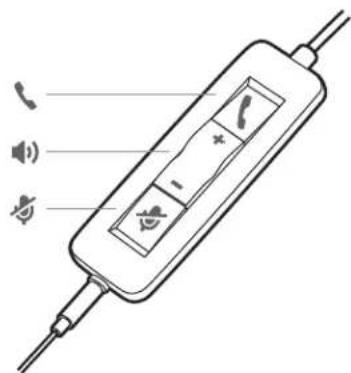
Diagram of a handheld electronic device with labeled ports and indicators for signal, phone, and audio signals.Icons Inline control LEDs Function

Call button Flashes green
Incoming call
Solid green
On a call

Volume up button Increases the listening volume

Volume down button Decreases the listening volume

Mute button Solid red Headset is muted
Setup
Power on your headset by connecting to your computer or mobile device.
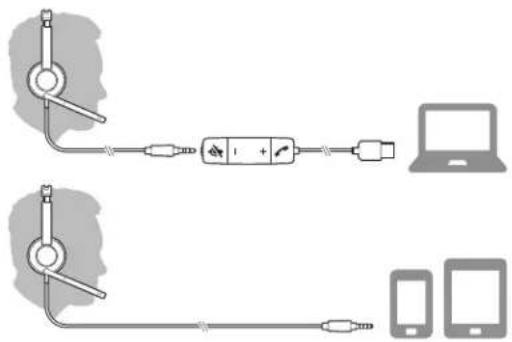
You can connect your headset in 2 ways:
1 Via USB-A/USB-C connector
NOTE Headset call control functionality may vary in mobile devices.
text_image
Diagram showing two connected devices with labeled components and connection points, including a battery icon and smartphone icons.2 Via 3.5 mm connector*
NOTE Headset call control functionality is not available.
text_image
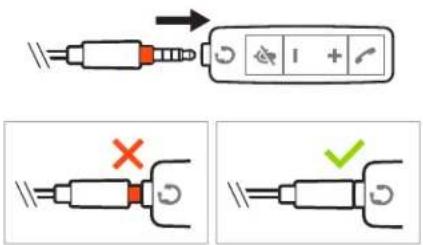
Diagram illustrating electrical switch operation with labeled states and directional arrows* 3.5 mm connector available on Blackwire 3215/3225 only.
Load software
IMPORTANT Some softphones require the installation of Plantronics Hub for Windows/Mac to enable headset call control (answer/end and mute) functionality.
Download Plantronics Hub for Windows/Mac by visiting plantronics.com/software.
Manage your headset settings on your computer with Plantronics Hub:
- Call control for softphones
- Update firmware
- Turn features on/off
- View user guide
Fit
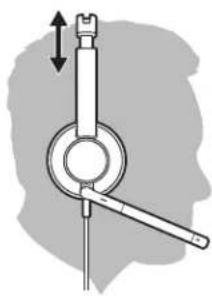
Adjust the headband
Lengthen or shorten the band until it fits comfortably. The cushions should sit comfortably over the center of your ears.
natural_image
Mechanical lever diagram with directional arrows indicating movement (no text or symbols)Position the boom
This headset can be worn on the left or right side.
Rotate the boom to align with your mouth.

natural_image
Mechanical diagram showing a lever mechanism with rotational arrows (no text or labels)CAUTION To avoid breaking the boom, only rotate it up and over 180°.
Adjust the boom
Gently bend the boom in or out so it is approximately two finger widths from the corner of your mouth.
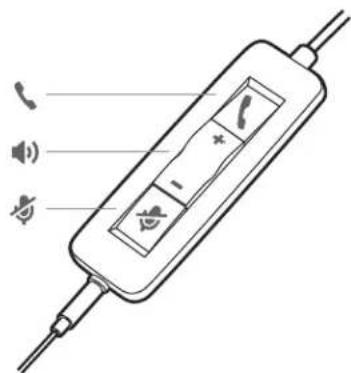
Use the inline controller
text_image
Diagram of a handheld electronic device with labeled buttons and signals, including phone, ear, and signal icons.Make/take/end calls
Headset call control is a software feature and dependent on a compatible softphone. If you have not installed Plantronics Hub or do not have a compatible softphone, press the headset call button first and then make/take/end the call using the softphone application. Download Plantronics Hub for Windows or Mac atplantronics.com/software.
Answer or end a call
Tap the Call button or use your softphone.
Make a call
Dial using your softphone application.
Redial
If not on an active call, double key press the call button to redial the last call.
Hold
Press and hold the call button for 2 seconds to put a call on hold.
Volume
Listening volume
Press the Volume up (+) or Volume down (-) button.
Adjust headset microphone volume (softphone)
Place a test softphone call and adjust softphone volume and PC sound volume accordingly.
Mute
During a call, briefly press the mute button to mute the microphone on the inline controller. To unmute press the button again.
Troubleshooting
Headset
| I cannot hear caller. | ·Listening volume is too low. Press the volume up button on the headset. and/or ensure that the volume setting on your computer is set accurately.·The analog headset is not set as the default audio device. Use the audio settings in your sound control panel/preferences to select your headset as the default audio device. |
| Callers cannot hear me. | ·Headset is muted. Slide the mute button up to unmute the microphone.·Headset microphone boom aligned incorrectly. Align the headset boom with your mouth.·The analog headset is not set as the default Voice device. Use the audio settings in your sound control panel/preferences to change the input device. |
| The sound in the headset is distorted.I can hear an echo in the headset. | ·Lower the listen volume on your softphone until the distortion disappears.·Adjust volume on headset. |
| The other headset I was using to listen to music does not work any more. | ·The analog headset will set itself as the default audio device in Windows. Use the audio settings in your sound control panel/preferences to change the audio device. |
| My phone is not finding my headset during a call or while listening to music. | ·When on a call or listening to music, make sure that audio is routing to the desired headset by going to your settings and ensuring it is defaulted. |
Support
NEED MORE HELP?
plantronics.com/support
habitatsoundscaping@plantronics.com
Plantronics, Inc.
Plantronics B.V.
345 Encinal Street
Scorpius 171
Santa Cruz, CA 95060
2132 LR Hoofddorp
United States
Netherlands
© 2018 Plantronics, Inc. Blackwire and Plantronics are trademarks of Plantronics, Inc. registered in the US and other countries. All other trademarks are the property of their respective owners.
Patents: US 8,504,115; 8,983,081; 9,008,319; D666,993; D667,388; D747,293; IN 245078; 245079; 268129; TW D154413; D154414; D171922.
211088-06 (08.18)