
HOME MUSIC SUPPORT - Alarm Clock NOKIA - Free user manual and instructions
Find the device manual for free HOME MUSIC SUPPORT NOKIA in PDF.

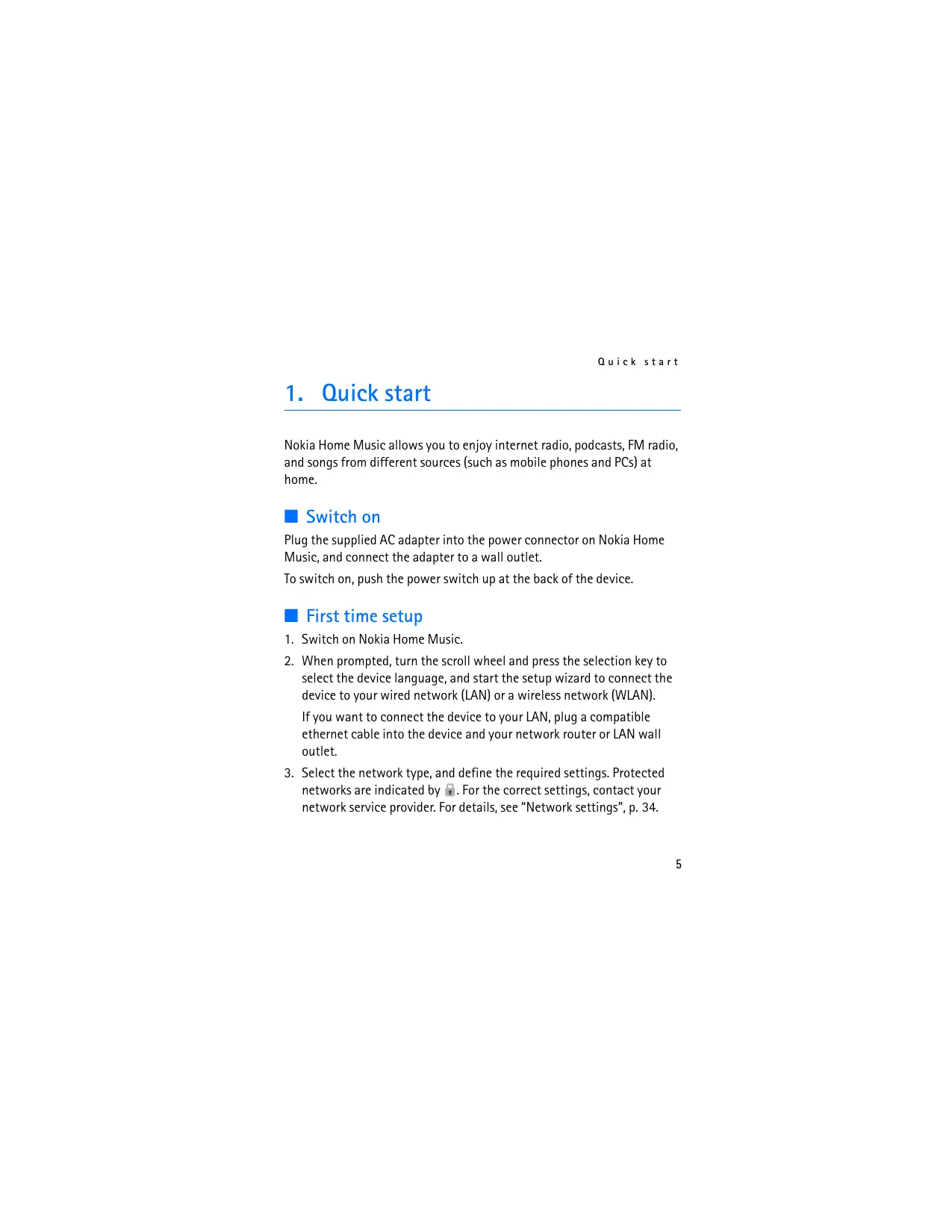

| Brand | NOKIA |
| Model | HOME MUSIC SUPPORT (HD-1) |
| Product Type | Alarm clock radio |
| Power supply | Mains adapter provided (mains plug) |
| Remote control batteries | 2 x AAA (not included) |
| Network connectivity | Ethernet (RJ45), Wi-Fi 802.11 b/g |
| Audio connectivity | USB 2.0, 3.5 mm audio input (AUX IN), RCA outputs, optical S/PDIF output, 3.5 mm headphone output |
| Supported audio formats | AAC, AAC+, MP3, WMA, WAV, LPCM, MP4, M4A, 3GP, WMA9, WMA FULL, WMA BASE |
| Playlist formats | PLS, M3U, ASX, ASF |
| Streaming protocols | WMA Streaming (WMS, MMS), RTSP/RTP (TCP), HTTP Streaming, Shoutcast |
| FM radio | Yes, requires included or compatible FM antenna |
| Internet radio | Yes, via Nokia directory |
| Podcasts | Yes, via Nokia directory or URL |
| Main functions | FM radio, Internet radio, podcasts, jukebox (USB/UPnP/AUX), alarms, sleep timer, remote control |
| Display | Screen with date, time and playback information |
| Controls | Scroll wheel, preset buttons, infrared remote control |
| Speaker | Built-in, with bass-reflex tube |
| Maintenance | Clean the front fabric with a white damp cloth; do not use chemicals |
| Safety | Do not open the device; avoid humidity and extreme temperatures; use only the provided adapter |
| Environment | Recycle the device at end of life at a dedicated collection point |
| Country of origin | Manufactured by Nokia Corporation (Finland) |
Frequently Asked Questions - HOME MUSIC SUPPORT NOKIA
User questions about HOME MUSIC SUPPORT NOKIA
0 question about this device. Answer the ones you know or ask your own.
Ask a new question about this device
Download the instructions for your Alarm Clock in PDF format for free! Find your manual HOME MUSIC SUPPORT - NOKIA and take your electronic device back in hand. On this page are published all the documents necessary for the use of your device. HOME MUSIC SUPPORT by NOKIA.
USER MANUAL HOME MUSIC SUPPORT NOKIA
Nokia Home Music User Guide
natural_image
Line drawing of a NBCA remote control unit with a remote and sounder (no text or symbols)9212926
Issue 2
DECLARATION OF CONFORMITY
Hereby, NOKIA CORPORATION declares that this HD-1 product is in compliance with the essential requirements and other relevant provisions of Directive 1999/5/EC. A copy of the Declaration of Conformity can be found at http://www.nokia.com/phones/declaration_of_conformity/.
CE0560①
© 2009 Nokia. All rights reserved.
Nokia and Nokia Connecting People are trademarks or registered trademarks of Nokia Corporation. Other product and company names mentioned herein may be trademarks or tradenames of their respective owners.
Reproduction, transfer, distribution, or storage of part or all of the contents in this document in any form without the prior written permission of Nokia is prohibited.
Nokia operates a policy of ongoing development. Nokia reserves the right to make changes and improvements to any of the products described in this document without prior notice.
TO THE MAXIMUM EXTENT PERMITTED BY APPLICABLE LAW, UNDER NO CIRCUMSTANCES SHALL NOKIA OR ANY OF ITS LICENSORS BE RESPONSIBLE FOR ANY LOSS OF DATA OR INCOME OR ANY SPECIAL, INCIDENTAL, CONSEQUENTIAL OR INDIRECT DAMAGES HOWSOEVER CAUSED.
THE CONTENTS OF THIS DOCUMENT ARE PROVIDED "AS IS". EXCEPT AS REQUIRED BY APPLICABLE LAW, NO WARRANTIES OF ANY KIND, EITHER EXPRESS OR IMPLIED, INCLUDING, BUT NOT LIMITED TO, THE IMPLIED WARRANTIES OF MERCHANTABILITY AND FITNESS FOR A PARTICULAR PURPOSE, ARE MADE IN RELATION TO THE ACCURACY, RELIABILITY OR CONTENTS OF THIS DOCUMENT. NOKIA RESERVES THE RIGHT TO REVISE THIS DOCUMENT OR WITHDRAW IT AT ANY TIME WITHOUT PRIOR NOTICE.
The availability of particular products and services for these products may vary by region. Please check with your Nokia dealer for details, and availability of language options.
Export controls
This device may contain commodities, technology or software subject to export laws and regulations from the US and other countries. Diversion contrary to law is prohibited.
9212926/Issue 2 EN
Contents
1. Quick start.... 5
Switch on 5
First time setup 5
Listen to different audio sources ..... 6
2. Introduction ...... 7
Broadband internet connection...... 7
3. Your device.... 9
Keys and parts 9
Front view.... 9
Back view.... 10
Remote control 11
Antenna locations 12
Bass reflex tube.... 12
Textile front cover 12
4. Get started.... 13
Connect to a wall outlet.... 13
Install remote control batteries...... 13
Switch on or off 14
Standby mode.... 14
Operate with the remote control.... 14
5. Basic functions...... 15
Main view 15
Folders for different audio sources .... 15
Display indicators.... 16
Scroll and select.... 17
Adjust or mute the volume...... 17
Save a preset or favourite 18
Write text.... 18
Common options.... 19
6. Set up a connection...... 20
Connect to a network.... 20
Connect to a WLAN 20
Connect to a LAN 21
Connect to a UPnP device...... 21
Connect directly to another device 22
Connect to a USB device.... 22
Connect to an RCA or S/PDIF device.... 22
Connect to headphones...... 23
Connect to an audio source device.... 23
7. Podcasts 24
Search for podcasts.... 24
Listen to a podcast 25
Available options.... 25
8. Radio 26
Listen to a radio station.... 26
Search for internet radio stations.. 27
Search for FM radio stations...... 28
9. Jukebox 29
Listen to music from a connected device.... 29
-
Favourites and History..... 31
-
Alarms and sleep timer... 32
Set alarms 32
Sleep timer.... 33
- Tools and settings...... 34
Time and date 34
Device settings.... 34
Network settings.... 34
Maintenance tools.... 35
- Miscellaneous 37
Supported file formats and
protocols.... 37
Digital rights management 37
Care and maintenance...... 39
Additional safety information 41
Open source software notice.... 43
1. Quick start
Nokia Home Music allows you to enjoy internet radio, podcasts, FM radio, and songs from different sources (such as mobile phones and PCs) at home.
Switch on
Plug the supplied AC adapter into the power connector on Nokia Home Music, and connect the adapter to a wall outlet.
To switch on, push the power switch up at the back of the device.
First time setup
- Switch on Nokia Home Music.
- When prompted, turn the scroll wheel and press the selection key to select the device language, and start the setup wizard to connect the device to your wired network (LAN) or a wireless network (WLAN).
If you want to connect the device to your LAN, plug a compatible ethernet cable into the device and your network router or LAN wall outlet. - Select the network type, and define the required settings. Protected networks are indicated by 📋. For the correct settings, contact your network service provider. For details, see "Network settings", p. 34.
After you have defined the settings, the device attempts to connect to the internet through the network.
- Select your time zone, the country and city where you are located, and the time and date.
- After you have defined the settings, the main view is displayed and you can start using the device with the specified connection.
■ Listen to different audio sources
Select one of the following folders in the main view:
- Podcast (💡) — Browse for hundreds of podcasts through the Nokia podcast directory.
- Radio (☐) — Search for FM and internet radio stations from all over the world.
- Favourites (★) — Listen to radio broadcasts, podcasts, songs, and playlists that you have saved as favourites.
- Jukebox (♪) — Access the songs that you have in your mobile phone, PC, USB memory stick, and other compatible devices.
- History (💡) — Access the radio broadcasts, podcasts, songs, and playlists that you have listened to lately.
2. Introduction
With Nokia Home Music, you can listen to internet radio, podcasts, FM radio, and songs from different sources (such as mobile phones and PCs).
The device comes with a remote control that allows you to easily operate the device from a distance.
Read this guide carefully before using Nokia Home Music. Also read the user guides for the other devices that you connect to Nokia Home Music. For the latest guides, additional information, downloads, and services related to your Nokia product, see www.nokia.com/support or your local Nokia website.
Nokia may produce software updates that may offer new features, enhanced functions, or improved performance. To update the device software, see "Maintenance tools", p. 35.
This product may contain small parts. Keep them out of the reach of small children. The surface of this device is nickel-free.
Broadband internet connection
To access podcasts or internet radio stations and to update the device software, you need a broadband internet connection. You must also have a compatible ethernet wired network or an IEEE 802.11 b/g compatible wireless network that is properly set up.
Listening to internet audio sources and downloading software updates may involve the transmission of large amounts of data through your
Introduction
service provider's network. Contact your service provider for information about data transmission charges.
3. Your device
Keys and parts
Parts of the device are magnetic. Metallic materials may be attracted to the device. Do not place credit cards or other magnetic storage media near the device, because information stored on them may be erased.
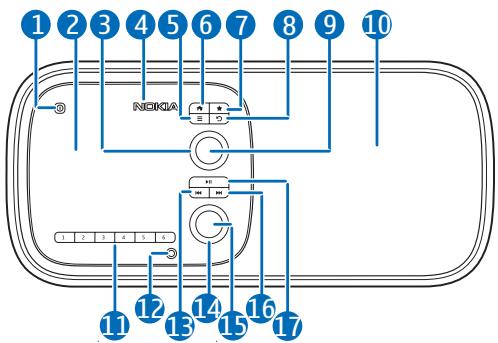
Front view
- Standby key
- Display
- Scroll wheel
- Infrared port
- Option key
- Home key
- Favourites key
- Back key
- Selection key
- Loudspeaker
- Preset keys
- Rewind key
-
Volume wheel
-
3.5 mm headphone connector
Your device
- Mute/Unmute key
- Forward key
- Play/Pause key
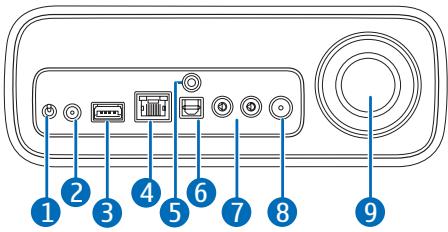
Back view
- Power switch
- Power connector
- USB connector
- Ethernet connector with indicator lights
- 3.5 mm audio input (indicated with AUX IN)
- S/PDIF optical output
- RCA outputs
-
Bass reflex tube
-
Connector for an FM radio antenna
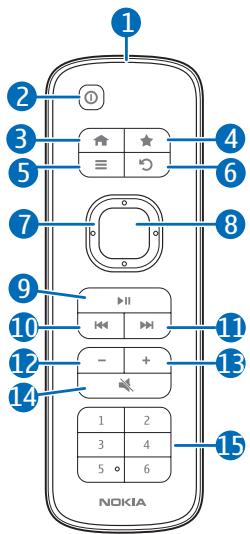
Remote control
- Infrared port
- Standby key
- Home key
- Favourites key
- Option key
- Back key
- Scroll key
- Selection key
- Play/Pause key
- Rewind key
- Forward key
- Volume down key
- Volume up key
- Mute/Unmute key
- Preset keys
Antenna locations
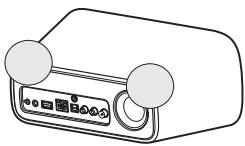
Your device has internal antennas. As with any radio transmitting device, avoid touching the antenna area unnecessarily while the antenna is transmitting or receiving. Contact with such an antenna affects the communication quality and may cause the device to operate at a higher power level than otherwise needed.
natural_image
Line drawing of a portable electronic device with two circular buttons and a display panel (no text or symbols)■ Bass reflex tube
Nokia Home Music has a bass reflex tube that improves the reproduction of low sounds. Do not insert any objects into the tube.
For best sound quality, leave some free space behind the device so that air can flow freely from the tube.
■ Textile front cover
You can dust the textile of the front cover using a soft brush or a dry cloth. To clean the textile, run a slightly damp white cloth over it. Avoid the use of printed absorbent cloths as they can release ink onto the textile. Do not use the product with dirty or greasy hands.
4. Get started
■ Connect to a wall outlet
Nokia Home Music is powered by the supplied AC adapter. The AC adapter is only meant for indoor use.
Plug the adapter into the power connector, and connect the adapter to a wall outlet.
When you disconnect the power cord, grasp and pull the plug, not the cord.
■ Install remote control batteries
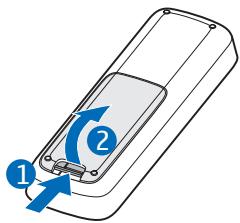
The remote control is powered by two AAA batteries.
- To remove the battery cover, press and hold the release button (1), and lift the cover (2).
- Insert the batteries as indicated in the battery compartment.
- To replace the cover, insert the catch at the top of the cover into the corresponding slot on the remote control, and push the cover against the remote control until it locks into place.
Switch on or off
To switch on, push the power switch up at the back of the device. The display turns on, and Nokia Home Music tries to connect to the internet if you have defined the network settings. When the device is ready for use, the main view is displayed. For details, see "Main view", p. 15.
To switch off, push the power switch down. The display turns off.
Standby mode
To set Nokia Home Music to standby mode, press the standby key. In standby mode, the current date and time are displayed.
To exit standby mode, press the standby key. If you were listening to an audio source when you set the device to standby mode, the source resumes playing.
■ Operate with the remote control
To operate Nokia Home Music with the supplied remote control, point the infrared port on the remote control towards the display.
Do not allow the infrared (IR) beam to interfere with other IR devices.
5. Basic functions
Main view
When you switch on Nokia Home Music, the main view is displayed. The main view shows the folders for different audio sources, date and time, and details of the currently playing source (such as an internet radio station) if the details are provided by the source.
Folders for different audio sources
In the main view, the following folders are available:
- Podcast (💡) — Listen to podcast episodes. See "Podcasts", p. 24.
- Radio (☐) — Listen to internet radio and FM radio stations. See "Radio", p. 26.
- Favourites (★) — Listen to radio broadcasts, podcasts, songs, and playlists that you have saved as favourites. See "Save a preset or favourite", p. 18, and "Favourites and History", p. 31.
- Jukebox (♪) — Listen to music from a compatible USB or Universal Plug and Play (UPnP) device such as a mobile phone and PC. See "Jukebox", p. 29.
- History (💡) — Listen to recently used audio sources. See "Favourites and History", p. 31.
Display indicators
In the main view, the following indicators can be displayed:
The signal strength of the WLAN to which the device is connected is high.
The signal strength of the WLAN to which the device is connected is low.
The signal strength of the WLAN that you configured in the device is too low for use, or the WLAN is not available.
The device is connected to a LAN.
You have saved the current audio source as a favourite.
The currently active audio source is playing.
The currently active audio source is paused.
The currently active audio source is muted.
The device is playing the songs of the currently active playlist repeatedly until you stop playing.
The device is playing the songs of the currently active playlist in a random order.
You have set the device to sound an alarm at the displayed time. See "Set alarms", p. 32.
You have activated the sleep timer. See "Sleep timer", p. 33.


Scroll and select
To select a folder or a list item, turn the scroll wheel to highlight the folder icon or the item, and press the selection key. If you use the remote control, press the scroll key to highlight the folder icon or the item, and press the selection key.
To scroll through a list quickly, press the scroll key of the remote control left or right.
To return to the previous view, press the back key. If you were listening to an audio source in the play view, the source continues to play.
To return to the main view, press the home key. If you were listening to an audio source, the source continues to play; to return to the play view, press the home key.
■ Adjust or mute the volume
To adjust the volume of the currently playing audio source, turn the volume wheel. If you use the remote control, press either volume key.
To mute the volume, press the mute/unmute key, or set the volume level to zero. When the volume is muted, ✗ is displayed.
To unmute the volume, press the mute/unmute key, or increase the volume level from zero.

Warning: Listen to music at a moderate level. Continuous exposure to high volume may damage your hearing. Do not hold the device near your ear when the loudspeaker is in use, because the volume may be extremely loud.
■ Save a preset or favourite
You can save an audio source (such as a podcast or a radio station) as a preset or a favourite.
To save an audio source as a preset while you are playing it, press and hold the desired preset key for about 2 seconds. Alternatively, in a list of audio sources, scroll to the audio source, press the option key, and select Set as preset and the desired preset key. To play a preset, press the preset key that you assigned to it.
To save an audio source as a favourite while you are playing it, press the favourites key. Alternatively, press the option key, and select Add to favourites.
Write text
You can enter letters, numbers and other characters, for example, when you enter an IP address or search for podcasts or internet radio stations by name.
To enter a character, scroll to the character on the displayed keyboard, and press the selection key. To switch between upper and lower case, select Aoa. To enter numbers or special characters, select 1/...; to return to letter mode, select ABC or abc. To enter accented characters, select AAA or äää. To insert a space, select ☐. To delete a character, select clr. To finish writing, select OK or 🔔.
Common options
To access options available in a folder (such as Podcasts or Radio), in the main view, select the folder, scroll to the desired audio source (such as a podcast or radio station), press the option key, and select from the following:
- List order – Sort the audio source list.
- Details – View the details of the audio source.
- Add to favourites – Set the audio source as a favourite. See also "Save a preset or favourite", p. 18.
- Remove from favourites – Remove the audio source from your favourite list.
- Delete — Remove the audio source from the audio source list.
- Clear list – Clear the audio source list.
- Set as preset — Save the audio source as a preset. See also "Save a preset or favourite", p. 18.
6. Set up a connection
Connect to a network
You can connect Nokia Home Music to a wired local area network (LAN), a wireless LAN (WLAN), or a UPnP device through a LAN or WLAN.
To connect Nokia Home Music to your LAN or WLAN, in the main view, press the option key, and select Network > Setup wizard or Manual setup. For details, see "Network settings", p. 34.
Connect to a WLAN
You can connect Nokia Home Music to a WLAN access point device.
Nokia Home Music supports IEEE 802.11 b/g connections and wired equivalent privacy (WEP) with keys of up to 128 bits, Wi-Fi protected access (WPA), and WPA2 encryption methods.
When you configure your WLAN home network, enable an encryption method on your access point device, then on the other devices you intend to connect to your home network. See the documentation of the devices. Keep any passcodes secret and in a safe place separate from the devices.

Note: In France, you are only allowed to use WLAN indoors.
Connect to a LAN
You can connect Nokia Home Music to a LAN using a compatible ethernet cable. Connect the cable to the ethernet connector on the device and to a compatible network router or LAN wall outlet.
For the connection status, check the indicator lights beside the ethernet connector:
- When the yellow LAN indicator light flashes, the device is setting up a LAN connection. When the yellow indicator light is continuously displayed (and 📁 is displayed in the main view), the LAN connection is active.
- When the green LAN indicator light is displayed, the device is streaming data from the network.
- When neither LAN indicator light is displayed, the device is not connected to a LAN. Check that the ethernet cable is properly connected.
Connect to a UPnP device
Nokia Home Music is compatible with the Universal Plug and Play (UPnP) standard and certified by the Digital Living Network Alliance (DLNA).
After you have connected the device to your WLAN home network, you can play audio files (podcasts or songs) or playlist files stored in a compatible UPnP device, such as a mobile phone, PC, or network hard drive.
Set up a connection
In your UPnP device, share the files you want to play with Nokia Home Music, and connect the UPnP device to your LAN or WLAN. For details, see the documentation of the UPnP device.
The UPnP connection uses the same security settings as your LAN or WLAN connection.
■ Connect directly to another device
You can connect Nokia Home Music directly to a compatible audio or storage device.
Connect to a USB device
The USB 2.0 High Speed connector of Nokia Home Music supports the data transfer rates defined in the USB specification version 2.0.
To connect Nokia Home Music to a compatible USB device, plug a compatible USB cable into the USB connector on Nokia Home Music and the other device.
To play an audio or playlist file stored in a connected USB device, see "Listen to music from a connected device", p. 29.
Connect to an RCA or S/PDIF device
To play Nokia Home Music through a home stereo system, connect the device to the stereo system through the analogue RCA outputs or the optical S/PDIF output using a compatible cable, and set the volume on the stereo system.
You can also use the RCA outputs to connect the device to compatible active loudspeakers.
Connect to headphones
To play Nokia Home Music through headphones, connect the headphones to the 3.5 mm headphone connector. The minimum recommended impedance of the headphones is 16 ohms.
Connect to an audio source device
To connect Nokia Home Music to an audio source device such as an MP3 player, connect your compatible audio device to the 3.5 mm audio input at the back of the device, and select Jukebox and the device indicated with 📄.
7. Podcasts
To listen to and manage podcasts, in the main view, select Podcasts. A list of subscribed podcasts is displayed.

If a podcast has no new episodes, 📋 is displayed beside the podcast name. If the podcast has new episodes, a star (*) is displayed beside 🔒.
To see the episodes of a podcast, select the podcast. If you have listened to an episode, 🎨 is displayed beside the episode name. If you have not listened to the episode, ✱ is displayed beside 🎨.
The device automatically updates the episodes of the podcasts that you have added to the podcast list.
Search for podcasts
To search for podcasts by category from the Nokia Podcast Directory, select Find podcasts, the main category, and the subcategory. The podcasts that meet the criteria are displayed. To listen to a podcast episode, select the podcast and the episode. When you listen to a podcast, it is automatically added to the podcast list.
To search for podcasts by name, select Find podcasts > Search by name, enter the name, and select 🔒. For details, see "Write text", p. 18.
To access a podcast by web address, select Find podcasts > Enter URL, enter the address, and select OK.
Listen to a podcast
To listen to an episode of a podcast, in the podcast list, select the podcast and the episode. The device starts to stream the episode, and the play view is displayed.
When you listen to a podcast, you can do the following:
- To switch between the play view and the main view, press the home key.
- To return to the podcast list, press the back key. Alternatively, press the scroll key of the remote control.
• To play the previous episode, press the rewind key.
• To play the next episode, press the forward key. - To pause or resume playing, press the play/pause key.
- To stop playing, press and hold the play/pause key for about 2 seconds.
Available options
To update the episodes of all the podcasts, in the podcast list, scroll to Find podcasts, press the option key, and select Refresh all.
To update the episodes of a podcast, in the podcast list, scroll to the podcast, press the option key, and select Refresh podcast.
To access other options, scroll to a podcast, press the option key, and select the desired option. You can, for example, delete the podcast from the podcast list and mark all the episodes of the podcast as new or heard. See also "Common options", p. 19.
8. Radio
To listen to and manage FM and internet radio stations, in the main view, select Radio. The radio station list is displayed.
FM radio stations are indicated by 📋 and internet radio stations by ⚙.

Before you can listen to an FM radio station, you must connect a compatible FM radio antenna to Nokia Home Music.
The sound quality of FM radio broadcasts depends on the service provider and the signal strength in your location. The sound quality of internet radio broadcasts depends on the service provider, bitrate, and network connection.
To manage the radio station list, scroll to a station in the list, press the option key, and select the desired option. For details, see "Common options", p. 19.
■ Listen to a radio station
To listen to an FM or internet radio station, in the station list, select the desired station. Nokia Home Music starts to play the station, and the play view is displayed.
When you listen to an FM radio station, the radio frequency is displayed; when you listen to an internet radio station, the station name and the bitrate are displayed. You can do the following:
- To switch between the play view and the main view, press the home key.
- To listen to another FM station when you are listening to FM radio, turn the scroll wheel or press the back key (or press the scroll key of the remote control), and select the desired station.
- To listen to the previous or next internet radio station when you are listening to internet radio, press the rewind or forward key.
■ Search for internet radio stations
To search for internet radio stations by category from the Nokia Internet Radio Directory, in the station list, select Find net radio, the category (for example, By genre), and the desired option. The stations that meet the criteria are displayed. To listen to a station and add it to the station list, select the desired station.

Tip: To select another station, turn the scroll wheel or press the back key (or press the scroll key of the remote control), and select the desired station.
To search for internet radio stations by name, select Find net radio > Search by name, enter the name, and select 🔒. For details, see "Write text", p. 18.
To access an internet radio station by web address, select Find net radio > Enter URL, enter the address, and select 🔒.
■ Search for FM radio stations
To add a new FM station, in the station list, select Add FM station(s). Enter the FM frequency of the station, and select OK. For details, see "Write text", p. 18.
To automatically scan for FM stations, in the station list, select Add FM station(s) > Scan stations.
To manually scan for FM stations when you are listening to FM radio, press and hold the rewind or forward key for about a second. To scroll through the frequencies, press the rewind or forward key repeatedly.
9. Jukebox
In Jukebox, you can access the devices that you have connected to Nokia Home Music through a UPnP or USB connection or the 3.5 mm audio input at the back of the device.

To access Jukebox, in the main view, select Jukebox. A list of connected devices is displayed.
In the device list, UPnP devices (such as a mobile phone) are indicated by USB devices (such as a memory stick) by , and devices connected the 3.5 mm audio input by .
See also "Connect directly to another device", p. 22.
■ Listen to music from a connected device
To play an audio or playlist file stored in a device that you have connected through UPnP or USB, select the device where the file is stored and the file. Nokia Home Music starts to stream the file, and the play view is displayed.
In the play view, the played time and total playing time are displayed. When you play a file, you can do the following:
- To switch between the play view and the main view, press the home key.
Jukebox
- To play another file, turn the scroll wheel or press the back key (or press the scroll key of the remote control) to return to the file list, and select the file.
- To restart the current file or play the previous file (at the start of the current file), press the rewind key.
- To play the next file, press the forward key.
- To rewind or fast forward the file, press and hold the rewind or forward key.
- To pause or resume playing, press the play/pause key.
- To stop playing, press and hold the play/pause key for about 2 seconds.
When you listen to a file stored in the connected device, press the option key and select the desired option to activate or deactivate repeat or shuffle (random play), save the file as a preset or favourite, or view the details of the file.
10. Favourites and History
To play and manage audio sources that you have saved as favourites, in the main view, select Favourites.
To play and manage previously used audio sources, in the main view, select History.
Podcasts are indicated by 🎨, internet radio stations by 🎨, FM radio stations by 🎨, playlists by 🎨, and songs by 🎨.
To search for a favourite or history item by name, select Search. For details, see "Write text", p. 18. To accept the name and start the search, select 🔔.
To play a favourite or history item, select the item from the list.
To save an audio source as a favourite, see "Save a preset or favourite", p. 18.
To access options, scroll to a favourite or history item, and press the option key. For details, see "Common options", p. 19.
natural_image
Two grayscale icons: a star above a clock with an hour and minute hands, and a circular icon below (no text or symbols)11. Alarms and sleep timer
Set alarms
In the main view, press the option key, and select Alarm. The alarm view is displayed. Set alarms are displayed at the bottom of the view. Active alarms are indicated by 📋.
To set Nokia Home Music to sound an alarm at a specified time, select New alarm and do the following:
- To set the alarm time, select the default time. To set the hours, turn the scroll wheel (or press the scroll key of the remote control up or down), and press the selection key. Repeat this to set the minutes.
- To set the alarm to repeat, select ⏻ and the weekdays when the alarm is repeated, and press the back key.
- To select an alarm tone, select ♪ and the tone, and press the back key.
- To add or edit a title text that is displayed when the alarm sounds, select 🔔, enter the text, and select OK. For details, see "Write text", p. 18.
• To save the alarm, select Save alarm.
To activate or deactivate an alarm, in the alarm view, select the alarm and OK. To edit or delete an alarm, or to set the snooze interval (time after which the alarm repeats if it is left unnoticed), scroll to the alarm, press the option key, and select the desired option.
Sleep timer
To activate the sleep timer, in the main view, press the option key, and select Alarm > Timer and the time after which the timer activates.
When the timer activates, Nokia Home Music enters standby mode.
12. Tools and settings
Time and date
To set the time and date, in the main view, press the option key, and select Date & time.
You can set the device to get the time and date from the internet or set them manually and select the format and separator for the time and date.
To set the time and date manually, turn the scroll wheel to show the desired number, and press the selection key to move to the next number.
Device settings
To view or edit the device settings, in the main view, press the option key, and select Device.
You can set the display brightness, the device language, and your location (to get the time and date from the internet).
Network settings
To view or edit the network settings, in the main view, press the option key, and select Network and from the following:
- Change connection type – Change the network type if you have connected Nokia Home Music to both a wired (LAN) and wireless (WLAN) network.
- Setup wizard – Define the network settings by following the displayed instructions. For the correct settings, contact your network service provider. If you need to return to the previous view, press the back key. If you select to connect to a WLAN, select the network from a list. Protected networks are indicated by 📄. To connect to a protected network, enter the network key from the displayed keyboard (see "Write text", p. 18), and select OK. To connect to a hidden network, select Enter name (SSID), and enter the correct network name.
If you select to connect to a LAN and you are prompted for an IP address, turn the scroll wheel to show the desired number, and press the selection key to move to the next number.
- Network information – View the details of the network to which Nokia Home Music is connected.
- Device name – Change the device name that is broadcast to connected devices.
- Manual setup — Edit specific settings of your network connection. For the correct settings, contact your network service provider. To connect to the network, select Connect.
Maintenance tools
To use the maintenance tools, in the main view, press the option key, and select Maintenance and from the following:
- Backup — Save your personal settings (such as network settings) and data (such as podcast and radio station lists) as a backup file in the connected USB device.
Tools and settings
- Restore – Restore the settings and data that you saved as a backup file.
- Software update — Update the device software from the internet. Carefully read through the legal notice and select I agree at the end of the notice to start the update.
- Software info – View the details of the current software.
- Restore factory settings – Restore the original settings. When you restore the settings, you lose all your personal settings and data.
13. Miscellaneous
■ Supported file formats and protocols
Nokia Home Music supports the following:
- Audio file formats: AAC, AAC+, LPCM, WAV, MP3, WMA9, MP4, M4A, 3GP, WMA BASE, WMA FULL
- Playlist formats: PLS, M3U, ASX, ASF
- Streaming protocols: WMA Streaming (WMS, MMS), RTSP/RTP (TCP), HTTP Streaming, Shoutcast
However, the device does not necessarily support all the variations of these formats. For the latest list, see www.nokia.com/support or your local Nokia website.
Digital rights management
Content owners may use different types of digital rights management (DRM) technologies to protect their intellectual property, including copyrights. This device uses various types of DRM software to access DRM-protected content. With this device you can access content protected with Cardea DRM (WMDRM-ND). If certain DRM software fails to protect the content, content owners may ask that such DRM software's ability to access new DRM-protected content be revoked. Revocation may also prevent renewal of such DRM-protected content already in your device. Revocation of such DRM software does not affect the use of
Miscellaneous
content protected with other types of DRM or the use of non-DRM-protected content.
Digital rights management (DRM) protected content comes with an associated activation key that defines your rights to use the content.
Care and maintenance
Your device is a product of superior design and craftsmanship and should be treated with care. The following suggestions will help you protect your warranty coverage.
- Keep the device dry. Precipitation, humidity, and all types of liquids or moisture can contain minerals that will corrode electronic circuits. If your device does get wet, allow it to dry completely.
- Do not use or store the device in dusty, dirty areas. Its moving parts and electronic components can be damaged.
- Do not store the device in hot areas. High temperatures can shorten the life of electronic devices and warp or melt certain plastics.
- Do not store the device in cold areas. When the device returns to its normal temperature, moisture can form inside the device and damage electronic circuit boards.
- Do not attempt to open the device.
- Do not drop, knock, or shake the device. Rough handling can break internal circuit boards and fine mechanics.
- Do not use harsh chemicals, cleaning solvents, or strong detergents to clean the device. Only use a soft, clean, dry cloth to clean the surface of the device.
- Do not paint the device. Paint can clog the moving parts and prevent proper operation.
- Use only the supplied or an approved replacement antenna. Unauthorised antennas, modifications, or attachments could damage the device and may violate regulations governing radio devices.
Care and maintenance
These suggestions apply equally to your device or any accessory. If any device is not working properly, take it to the nearest authorised service facility for service.
Recycle
Always return your used electronic products, batteries, and packaging materials to dedicated collection points. This way you help prevent uncontrolled waste disposal and promote the recycling of materials. Check product environmental information and how to recycle your Nokia products at www.nokia.com/werecycle, or nokia.mobi/werecycle.

The crossed-out wheeled-bin symbol on your product, battery, literature, or packaging reminds you that all electrical and electronic products, batteries, and accumulators must be taken to separate collection at the end of their working life. This requirement applies in the European Union. Do not dispose of these products as unsorted municipal waste. For more environmental information, see the product Eco-Declarations at www.nokia.com/environment.
Additional safety information
■ Medical devices
Operation of any radio transmitting equipment, including wireless devices, may interfere with the functionality of inadequately protected medical devices. Consult a physician or the manufacturer of the medical device to determine if they are adequately shielded from external RF energy or if you have any questions. Hospitals or health care facilities may be using equipment that could be sensitive to external RF energy.
Implanted medical devices
Manufacturers of medical devices recommend that a minimum separation of 15.3 centimeters (6 inches) should be maintained between a wireless device and an implanted medical device, such as a pacemaker or implanted cardioverter defibrillator, to avoid potential interference with the medical device. Persons who have such devices should:
- Always keep the wireless device more than 15.3 centimeters (6 inches) from the medical device when the wireless device is turned on.
- Turn the wireless device off immediately if there is any reason to suspect that interference is taking place.
- Read and follow the directions from the manufacturer of their implanted medical device.
If you have any questions about using your wireless device with an implanted medical device, consult your health care provider.
Hearing aids
Some digital wireless devices may interfere with some hearing aids. If interference occurs, consult your service provider.
■ Certification information (SAR)
This device model meets guidelines for exposure to radio waves.
Your device is a radio transmitter and receiver. It is designed not to exceed the limits for exposure to radio waves recommended by international guidelines. These guidelines were developed by the independent scientific organization ICNIRP and include safety margins designed to assure the protection of all persons, regardless of age and health.
The exposure guidelines employ a unit of measurement known as the Specific Absorption Rate or SAR. The SAR limit stated in the ICNIRP guidelines is 2.0 watts/kilogram (W/kg) averaged over ten grams of tissue. Tests for SAR are conducted using standard operating positions with the device transmitting at its highest certified power level in all tested frequency bands.
Open source software notice
This product includes certain free / open source and other software originated from third parties, that is subject to the GNU General Public License (GPL), GNU Library/Lesser General Public License (LGPL), and other different and/or additional copyright licenses, disclaimers, and notices.
The exact terms of GPL, LGPL, and some other licenses, disclaimers, acknowledgements, and notices are provided to you in the product. Please refer to the exact terms of the GPL and LGPL regarding your rights under said licenses. You may obtain a complete corresponding machine-readable copy of the source code of such software under the GPL, LGPL, Mozilla Public License, and some other referred licenses at www.nokia.com/support. All referred licenses, disclaimers, and notices are reproduced and available with said source code. Alternatively, Nokia offers to provide such source code to you on a CD-ROM for a charge covering the cost of performing such distribution, such as the cost of media, shipping, and handling, upon written request to Nokia at:
Nokia Corporation Accessories team P.O. Box 407 FI-00045 Nokia Group Finland
This offer is valid for a period of three (3) years from the date of the distribution of this product by Nokia.
This software is based in part on the work of the Independent JPEG Group.
The Graphics Interchange Format © is the Copyright property of CompuServe Incorporated. GIF (SM) is a Service Mark property of CompuServe Incorporated.
This product includes cryptographic software written by Eric Young (eay@cryptsoft.com). This product includes software written by Tim Hudson (tjh@cryptsoft.com).
This product includes software developed by following copyright holders:
- Glenn Randers-Pehrson and other Contributing Authors (www.libpng.org)
- Jean-loup Gailly and Mark Adler (www.gzip.org/zlib/)
• Julian R Seward (www.bzip.org)
• The FreeType Project (www.freetype.org) - Victor A. Abell, Purdue Research Foundation, West Lafayette – Isof Copyright© 1999–2007, The Board of Trustees of the University of Illinois. All Rights Reserved.
Iperf performance test:
- Mark Gates
- Ajay Tirumala
- Jim Ferguson
- Jon Dugan
-
Feng Qin
-
Kevin Gibbs
- John Estabrook
• National Laboratory for Applied Network Research
• National Center for Supercomputing Applications
• University of Illinois at Urbana-Champaign (www.ncsa.uiuc.edu)
Permission is hereby granted, free of charge, to any person obtaining a copy of this software (lperf) and associated documentation files (the "Software"), to deal in the Software without restriction, including without limitation the rights to use, copy, modify, merge, publish, distribute, sublicense, and/or sell copies of the Software, and to permit persons to whom the Software is furnished to do so, subject to the following conditions:
- Redistributions of source code must retain the above copyright notice, this list of conditions and the following disclaimers.
- Redistributions in binary form must reproduce the above copyright notice, this list of conditions and the following disclaimers in the documentation and/or other materials provided with the distribution.
- Neither the names of the University of Illinois, NCSA, nor the names of its contributors may be used to endorse or promote products derived from this Software without specific prior written permission. THE SOFTWARE IS PROVIDED "AS IS", WITHOUT WARRANTY OF ANY KIND, EXPRESS OR IMPLIED, INCLUDING BUT NOT LIMITED TO THE WARRANTIES OF MERCHANTABILITY, FITNESS FOR A PARTICULAR PURPOSE AND NONINFRINGEMENT. IN NO EVENT SHALL THE CONTRIBUTORS OR COPYRIGHT HOLDERS BE LIABLE FOR ANY CLAIM,
DAMAGES OR OTHER LIABILITY, WHETHER IN AN ACTION OF CONTRACT, TORT OR OTHERWISE, ARISING FROM, OUT OF OR IN CONNECTION WITH THE SOFTWARE OR THE USE OR OTHER DEALINGS IN THE SOFTWARE.
Copyright© 1998-2004 The OpenSSL Project. All rights reserved.
Redistribution and use in source and binary forms, with or without modification, are permitted provided that the following conditions are met:
- Redistributions of source code must retain the above copyright notice, this list of conditions and the following disclaimer.
- Redistributions in binary form must reproduce the above copyright notice, this list of conditions and the following disclaimer in the documentation and/or other materials provided with the distribution.
- All advertising materials mentioning features or use of this software must display the following acknowledgment: "This product includes software developed by the OpenSSL Project for use in the OpenSSL Toolkit. (www.openssl.org/)".
- The names "OpenSSL Toolkit" and "OpenSSL Project" must not be used to endorse or promote products derived from this software without prior written permission. For written permission, contact openssl-core@openssl.org.
-
Products derived from this software may not be called "OpenSSL" nor may "OpenSSL" appear in their names without prior written permission of the OpenSSL Project.
-
Redistributions of any form whatsoever must retain the following acknowledgment: "This product includes software developed by the OpenSSL Project for use in the OpenSSL Toolkit (www.openssl.org/)".
THIS SOFTWARE IS PROVIDED BY THE OpenSSL PROJECT "AS IS" AND ANY EXPRESSED OR IMPLIED WARRANTIES, INCLUDING, BUT NOT LIMITED TO, THE IMPLIED WARRANTIES OF MERCHANTABILITY AND FITNESS FOR A PARTICULAR PURPOSE ARE DISCLAIMED. IN NO EVENT SHALL THE OpenSSL PROJECT OR ITS CONTRIBUTORS BE LIABLE FOR ANY DIRECT, INDIRECT, INCIDENTAL, SPECIAL, EXEMPLARY, OR CONSEQUENTIAL DAMAGES (INCLUDING, BUT NOT LIMITED TO, PROCUREMENT OF SUBSTITUTE GOODS OR SERVICES; LOSS OF USE, DATA, OR PROFITS; OR BUSINESS INTERRUPTION) HOWEVER CAUSED AND ON ANY THEORY OF LIABILITY, WHETHER IN CONTRACT, STRICT LIABILITY, OR TORT (INCLUDING NEGLIGENCE OR OTHERWISE) ARISING IN ANY WAY OUT OF THE USE OF THIS SOFTWARE, EVEN IF ADVISED OF THE POSSIBILITY OF SUCH DAMAGE.
For more information, select Maintenance > Software info.
- Nokia Home Music User Guide
- DECLARATION OF CONFORMITY
- CE0560①
- Export controls
- Contents
- Quick start.... 5
- Introduction ...... 7
- Your device.... 9
- Get started.... 13
- Basic functions...... 15
- Set up a connection...... 20
- Podcasts 24
- Radio 26
- Jukebox 29
- Quick start
- Switch on
- First time setup
- ■ Listen to different audio sources
- Introduction
- Broadband internet connection
- Introduction
- Your device
- Keys and parts
- Front view
- Your device
- Back view
- Remote control
- Antenna locations
- ■ Bass reflex tube
- ■ Textile front cover
- Get started
- ■ Connect to a wall outlet
- ■ Install remote control batteries
- Switch on or off
- Standby mode
- ■ Operate with the remote control
- Basic functions
- Main view
- Folders for different audio sources
- Display indicators
- Scroll and select
- ■ Adjust or mute the volume
- ■ Save a preset or favourite
- Write text
- Common options
- Set up a connection
- Connect to a network
- Connect to a WLAN
- Connect to a LAN
- Connect to a UPnP device
- Set up a connection
- ■ Connect directly to another device
- Connect to a USB device
- Connect to an RCA or S/PDIF device
- Connect to headphones
- Connect to an audio source device
- Podcasts
- Search for podcasts
- Listen to a podcast
- Available options
- Radio
- ■ Listen to a radio station
- ■ Search for internet radio stations
- ■ Search for FM radio stations
- Jukebox
- ■ Listen to music from a connected device
- Jukebox
- Favourites and History
- Alarms and sleep timer
- Set alarms
- Sleep timer
- Tools and settings
- Time and date
- Device settings
- Network settings
- Maintenance tools
- Tools and settings
- Miscellaneous
- ■ Supported file formats and protocols
- Digital rights management
- Miscellaneous
- Care and maintenance
- Recycle
- Additional safety information
- ■ Medical devices
- Implanted medical devices
- Hearing aids
- ■ Certification information (SAR)
- Open source software notice
Brand : NOKIA
Model : HOME MUSIC SUPPORT
Category : Alarm Clock