
DR-635 - Hi-Fi System ONKYO - Free user manual and instructions
Find the device manual for free DR-635 ONKYO in PDF.


| Product Type | Hi-Fi System (DVD Receiver) |
| Dimensions (W x H x D) | 215 x 108 x 348 mm |
| Weight | 4 kg |
| Power Consumption | 36 W (Standby: 0.9 W) |
| Power Supply | AC 220 V / 50 Hz |
| Disc Playback | DVD, VCD, CD, CD-R/RW, DVD-R/RW, DVD-RW (VR mode) |
| File Playback | MP3, WMA, JPEG, DivX |
| USB Playback | FAT12/16/32, max 300 folders, 650 files |
| Radio Tuner | FM (87.5 - 108 MHz), 20 presets, RDS |
| Audio Outputs | HDMI, Component Video, Composite Video, Digital Coaxial, Analog Line Out |
| Speaker Impedance | 4 - 16 ohms |
| Remote Control | RC-774S, effective range 5 m |
| Batteries for Remote | 2 x AAA (R03/UM-4) |
| Video Output Resolution | 480p/576p/720p/1080i/1080p (depending on HDMI) |
| Audio Features | Super Bass Boost, Bass/Treble Adjustment, Muting, Dimmer |
| Playback Modes | Programmed (up to 20 tracks), Repeat (Chapter/Title/All/One), Shuffle, A-B Repeat |
| Timer Functions | Sleep Timer (10/20/30/60/90 min), Wake-up Timer (daily) |
| Parental Control | Password-protected, multiple levels |
| Language Options | On-screen menu, Audio, Subtitle, Disc Menu |
| Accessories Included | FM antenna, RCA video cable, AC cord, Remote control, Batteries, Owner's manual |
Frequently Asked Questions - DR-635 ONKYO
User questions about DR-635 ONKYO
0 question about this device. Answer the ones you know or ask your own.
Ask a new question about this device
Download the instructions for your Hi-Fi System in PDF format for free! Find your manual DR-635 - ONKYO and take your electronic device back in hand. On this page are published all the documents necessary for the use of your device. DR-635 by ONKYO.
USER MANUAL DR-635 ONKYO
Important Safety Instructions.... 2
Connections 5
Basic Operations....12
Settings 24
Listening to the FM Radio.... 28
Troubleshooting.... 32
Thank you for purchasing the Onkyo DVD receiver. Read this manual carefully before using your new DVD receiver. A good understanding of its features and operation will allow you to achieve optimum performance and enjoyment.
Keep this manual for future reference.
IMPORTANT SAFETY INSTRUCTIONS

WARNING
RISK OF ELECTRIC SHOCKRISK OF ELECTRIC DO NODORNT OPEN
SHOCK
CAUTION: TO REDUCE THE RISK OF ELECTRIC SHOCK, DO NOT REMOVE COVER (OR BACK). NO USER-SERVICEABLE PARTS INSIDE. REFER SERVICING TO QUALIFIED SERVICE PERSONNEL.
The lightning flash with arrowhead symbol, within an equilateral triangle, is intended to alert the user to the presence of uninsulated "dangerous voltage" within the product's enclosure that may be of sufficient magnitude to constitute a risk of electric shock to persons.

The exclamation point within an equilateral triangle is intended to alert the user to the presence of important operating and maintenance (servicing) instructions in the literature accompanying the appliance.
SAFETY
1) Read these instructions.
2) Keep these instructions.
3) Heed all warnings.
4) Follow all instructions.
5) Do not use this apparatus near water.
6) Clean only with dry cloth.
7) Do not block any ventilation openings. Install in accordance with the manufacturer's instructions.
8) Do not install near any heat sources such as radiators, heat registers, stoves, or other apparatus (including amplifiers) that produce heat.
9) For countries with a polarized mains, do not defeat the safety purpose of the polarized or grounding-type plug. A polarized plug has two blades with one wider than the other. A grounding-type plug has two blades and a third grounding prong. The wide blade or the third prong is provided for your safety. If the provided plug does not fit into your outlet, consult an electrician for replacement of the obsolete outlet.
Caution: Caution:
To prevent electric shock, match the wide blade of the plug to the wide slot, fully insert.
10) Protect the power cord from being walked on or pinched particularly at plugs, convenience receptacles, and the point where they exit from the apparatus.
11) Only use attachments/accessories specified by the manufacturer.
12) Use only with the cart, stand, tripod, bracket, or table specified by the manufacturer, or sold with the apparatus. When a cart is used, use caution when moving the cart/apparatus combination to avoid injury from tip-over.
13) Unplug this apparatus during lightning storms or when unused for long periods of time.
14) Refer all servicing to qualified service personnel. Servicing is required when the apparatus has been damaged in any way, such as power-supply cord or plug is damaged, liquid has been spilled or objects have fallen into the apparatus, the apparatus has been exposed to rain or moisture, does not operate normally, or has been dropped.
15) Battery usage CAUTION - To prevent battery leakage which may result in bodily injury, property damage, or damage to the apparatus:
- Install all batteries correctly, + and - as marked on the apparatus.
- Do not mix batteries (old and new or carbon and alkaline, etc.).
- Remove batteries when the unit is not used for a long time.
16) The batteries shall not be exposed to excessive heat such as sunshine, fire or the like.
17) Apparatus shall not be exposed to dripping or splashing.
18) Do not place any sources of danger on the apparatus (e.g. liquid filled objects, lighted candles).
19) This product may contain lead and mercury. Disposal of these materials may be regulated due to environmental considerations.
WARNING
- Before operating this system, check the voltage of this system to see if it is identical with the voltage of your local power supply.
- The ventilation should not be impeded by covering the ventilation openings with items such as newspaper, table-cloths, curtains etc. Make sure there is at least 20 cm of space above and at least 5 cm of space on each side of the unit.
- The apparatus shall not be exposed to dripping or splashing and that no objects filled with liquids, such as vases, shall be placed on the apparatus.
- To prevent fire or shock hazard, do not expose this equipment to hot places, rain, moisture or dust.
-
Don't get close to the water source when using this unit, such as near bathtub, bath slot, ish-washing slot, washing machine to use it; also, don't use this unit on damp plinth or nearby swimming pool or similar close to the water source.
-
Do not place this unit close to strong magnetic field.
- Do not place the unit on the amplifier or receiver.
- Don't place this unit close to the damper, or the moisture will affect the life of the laser head.
- If the system is brought directly from a cold to a warm location, or is placed in a very damp room, moisture may condense on the lens inside the player. Should this occur, the system will not operate properly. Remove the disc and leave the system turned on for about an hour until the moisture evaporates.
- To keep the laser pickup clean, do not touch it, and always close the disc tray.
- Should any solid object or liquid fall into the system, unplug the system and have it checked by qualified personnel before operating it any further.
- Do not attempt to clean the unit with chemical solvents as this might damage the finish. Use a clean, dry or slightly damp cloth.
- When removing the power plug from the wall outlet, always pull directly on the plug, never yank on the cord.
- Depending on the electromagnetic waves used by a television broadcast, if a TV is turned on near this unit while it is also on, lines might appear on the TV screen. Neither this unit nor the TV are malfunctioning. If you see such lines, keep this unit well away from the TV set.
Do not move the unit during playback
During playback, the disc rotates at high speed. Do NOT lift or move the unit during playback. Doing so may damage the disc or the unit.
When moving this unit
When changing places of installation or packing the unit for moving, be sure to remove the disc and return the disc tray to its closed position in the player. Then, press the power switch to turn the power off, and disconnect the power cord. Moving this unit with the disc loaded may result in damage to this unit.


DVD is a trademark of DVD Format/Logo Licensing Corporation.
This product incorporates copyright protection technology that is protected by U.S. patents and other intellectual property rights.
Use of this copyright protection technology must be authorized by Macro vision, and is intended for home and other limited viewing uses only unless otherwise authorized by Macro vision. Reverse engineering or disassembly is prohibited.
Manufactured under license from Dolby Laboratories. Dolby, Pro Logic and the double-D symbol are trademarks of Dolby Laboratories.
HDMI, the HDMI logo and High-Definition Multimedia Interface are trademarks or registered trademarks of HDMI Licensing LLC.
DivX® and the associated DivX® logos are registered trademarks of DivX, Inc.
MPEG Layer-3 audio coding technology licensed from Fraunhofer IIS and Thomson.
This product is protected by certain intellectual property rights of Microsoft.
Use or distribution of such technology outside of this product is prohibited without a license from Microsoft. Windows Media is either a registered trademark or trademark of Microsoft Corporation in the United States and/or other countries.
Contents
IMPORTANT SAFETY INSTRUCTIONS ...... 2
SAFETY 2
WARNING 2
Contents 4
FM Antenna 5
Speaker Connection .... 5
Before connection .... 5
How to connect .... 5
Subwoofer 5
Connection to a TV 6
HDMI video/audio output terminal 6
Component video output terminals 6
Composite video output terminal 6
Connection to Audio Equipments etc. 7
Digital audio output terminal 7
Battery Installation 7
Precautions concerning batteries 7
Identifying the Parts 8
Main Unit 8
Remote Control 8
Discs 10
Type of discs that can be played on this unit .... 10
playable file format 11
Example of Icons used on DVD discs 11
Caution 11
Handling precautions 11
Maintenance 11
Storage precautions 11
USB memory device compatibility 12
Setting the Clock 12
Basic Operation 12
Recording a Source 13
Dimmer 13
Muting 13
Super Bass boost 13
Adjusting the bass and treble 13
Listening to a Disc 14
Listening to a USB Memory Device 14
On-screen Menu 15
DVD menus 15
Video CDs with PBC 15
MP3 and Windows Media-formatted audio files ..... 16
JPEG files 16
Basic Operations for a Disc and USB Memory Device
17
Pausing playback (Freezing the picture) 17
Stopping playback (DVD only) 17
Skipping Playback 17
Searching for a part of a chapter or track .... 17
Selecting a Chapter or Track 17
Selecting Audio 18
Selecting Subtitles 18
Changing Camera Angle 18
Picture Zoom 18
Slow Motion 19
Repeat and Shuffle Playback 19
A-B Repeat Playback 19
Changing the Display Mode 20
Time Search (VCD/CD) 20
Time Search (MP3/WMA) 20
Chapter Search/Time Search (DVD) 21
Chapter Search 21
Chapter Search/Time Search (DivX®) 21
Chapter Search 21
Time Search 21
Programmed Playback (DVD, VCD, CD) 22
Programmed Playback (MP3,WMA) 22
Programmed Playback (DivX®) 23
Settings 24
Introduction 24
General Setup 25
Audio Setup 26
Video Setup 26
Preference Setup 27
Password Setup 28
Listening to the FM Radio 28
FM MODE 29
If the reception is poor 29
Preset Tuning 29
Automatic Memory Presetting 29
Manual Memory Presetting 29
How to select preset stations 29
RDS (Display Setting of the FM) 30
Listening to an External Source 30
Sleep Timer 30
Wake Up Timer 31
Troubleshooting 32
Specifications 34
Standard Accessories 35
FM Antenna
Connect the supplied FM wire antenna to the FM Antenna socket on the unit.
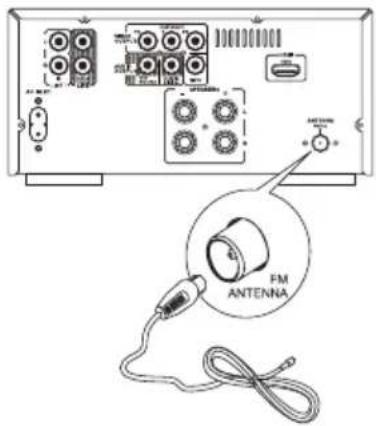
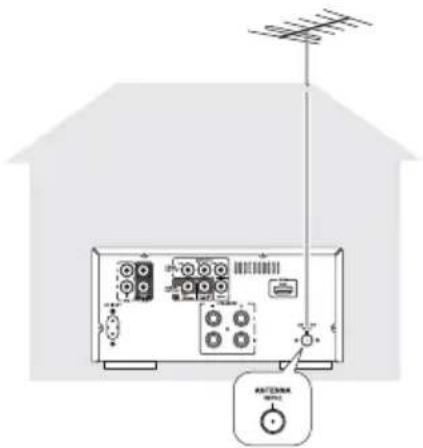
If reception is poor, connect the outside antenna. Note:
Before attaching a 75 ohm coaxial lead (the kind with a round wire going to an outside antenna), disconnect the supplied FM wire antenna.
Caution:
To avoid noise, keep antennas away from the system, the connecting cord and the AC power cord.
Speaker Connection
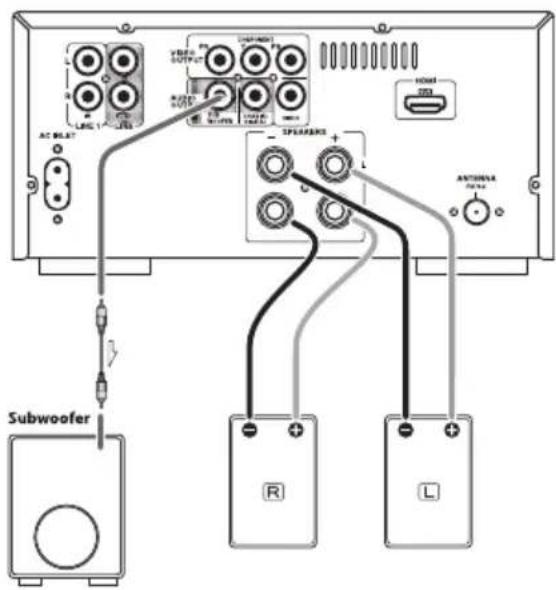
Caution:
To avoid damaging the speakers with a sudden high-level signal, be sure to switch the power off before connecting the speakers.
Before connection
Check the impedance of your speakers. Connect speaker with an impedance of 4 16 .
The black speaker terminals are “-” (negative).
Generally, the "+" side of the speaker cable is marked to make it distinguishable from the "-" side of the cable.
Connect this marked side to the "+" terminal and the unmarked side to the black "-" terminal.
How to connect
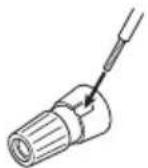
- Turn the terminal cap counterclockwise to loosen it. The speaker terminal caps cannot be fully removed from the base.
- Insert the wire into the terminal fully and turn the terminal cap clockwise to securely connect it:
Subwoofer
Connect a subwoofer using a commercially-available RCA cable. Use a subwoofer with built-in amplifier referred to as a "powered subwoofer".
Connection to a TV
Caution:
- Switch off the power to all equipment before making connections.
- Read the instructions of each component you intend to use with this unit.
- Be sure to insert each plug securely. To prevent hum and noise, avoid bundling the signal interconnection cables together with the AC power cord or speaker cables.
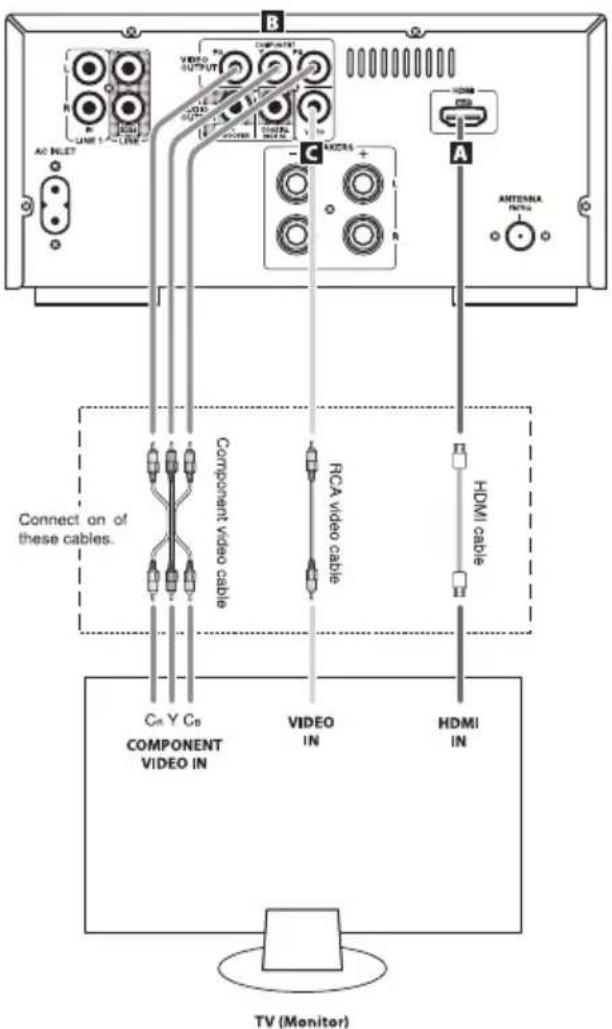
- Adjust the video aspect ratio to match that of the television.
- This unit adopts analog copy protection features. If the unit is connected to a TV through a VCR (video cassette recorder), the resulting playback may be affected. Connect the unit directly to the television.
- In all cases, use the highest quality cables for the best possible picture.
- Select proper setting in the VIDEO OUTPUT setup.
A HDMI video/audio output terminal
Use a HDMI cable to connect the unit to a HDMI compatible television or monitor.
- If the television or monitor is equipped only with a DVI terminal, a suitable adaptor cable or adaptors should be used. Note that the television connected in this way must be HDCP compatible. Also note that this connection outputs no sound.
- Make sure that you read and understand the documentation provided with the HDMI component.
HDMI video output formats
- 480p(60Hz)
• 720p(50Hz) or 720p(60Hz)
• 1080i(50Hz) or 1080i(60Hz)
• 1080p(50Hz) or 1080p(60Hz) - 576p(50Hz)
To output audio from the HDMI terminal
If the connected HDMI component is capable of inputting HDMI audio, digital audio can be output from the HDMI terminal.
- Select "ALL" or "PCM only" in the DIGITAL AUDIO SETUP.
- To enjoy the digital surround audio from DVD-Video discs, connect the HDMI terminal to a surround amplifier and set the DIGITAL AUDIO SETUP to "ALL".
B Component video output terminals
Use component video cables to connect the unit to the component video inputs of a suitably equipped television or monitor to enjoy a high-quality picture. Use these terminals in preference to composite video connections.
- If the component video terminals are connected to a television with progressive scan capabilities, the output can be set to match this.
- Note that these terminals cannot be connected to high definition component terminals.
C Composite video output terminal
Use a RCA (pin) video cable to connect the unit to the composite video connector of a television or monitor. Use this connection only if no other video connection method is available.
Connection to Audio Equipments etc.
Caution:
- Switch off the power to all equipment before making connections.
- Read the instructions of each component you intend to use with this unit.
- Be sure to insert each plug securely. To prevent hum and noise, avoid bundling the signal interconnection cables together with the AC power cord or speaker cables.
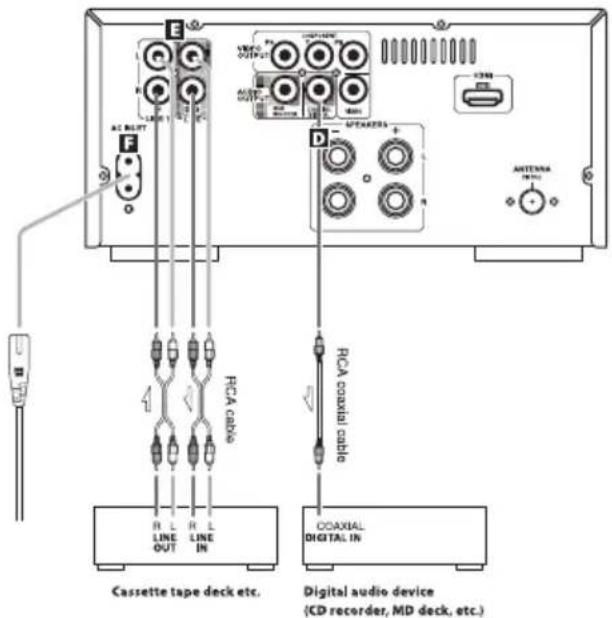
D Digital audio output terminal
Digital audio from DVD-Video, CD and video CD is output from this terminal. Connect an amplifiers including a decoder, or digital audio devices such as CD recorders, etc. to this jack using commercially-available coaxial digital audio cable.
- Select "ALL" or "PCM only" in the DIGITAL AUDIO SETUP.
E LINE 1/LINE OUT jacks
Analog 2-channel audio signal is input or output from these jacks. Connect a cassette tape deck etc. to these jacks using commercially-available RCA cables.
Make sure to connect:
white plug: white jack (L: left channel) red plug: red jack (R: right channel)
F Power cord receptacle
After all other connections have been made, insert the supplied AC power cord into this receptacle, then connect the other end of the power cord into the wall socket.
- In order to avoid the risk of electric shock, fire, and so on, only use the supplied power cord.
- If you are not going to use the unit for some time, disconnect the power cord from the wall socket.
Remote Control
The provided Remote Control allows the unit to be operated from a distance.
When operating the Remote Control, point it towards the remote sensor on the front panel of the unit.
- Even if the Remote Control is operated within the effective range (5m), remote control operation may be impossible if there are any obstacles between the unit and the remote control.
- If the Remote Control is operated near other products which generate infrared rays, or if other remote control devices using infrared rays are used near the unit, it may operate incorrectly. Conversely, the other products may operate incorrectly.
Battery Installation
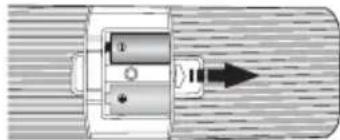
natural_image
Pure mechanical component diagram without any text, numbers, or symbols- Remove the battery compartment cover.
- Insert two "AAA" (R03 or UM-4) dry batteries. Make sure that the batteries are inserted with their positive "⊕" and negative "⊖" poles positioned correctly.
- Close the cover.
Precautions concerning batteries
- Be sure to insert the batteries with correct positive “⊕” and negative “⊖” polarities.
- Use batteries of the same type. Never use different types of batteries together.
- Either rechargeable or non-rechargeable batteries can be used. Refer to the precautions on their labels.
- When the Remote Control is not to be used for a long time (more than a month), remove the battery from the Remote Control to prevent it from leaking.
- If the batteries leak, wipe away the leakage inside the battery compartment and replace the batteries with new ones.
- Do not use any batteries other than those specified. Do not mix new batteries with old ones.
- Do not heat or disassemble batteries. Never throw them in fire or water.
- Do not carry or store batteries with other metallic objects. Doing so could cause batteries to short circuit, leak or explode.
- Never recharge a battery unless it is confirmed to be a rechargeable type.
Identifying the Parts
Main Unit
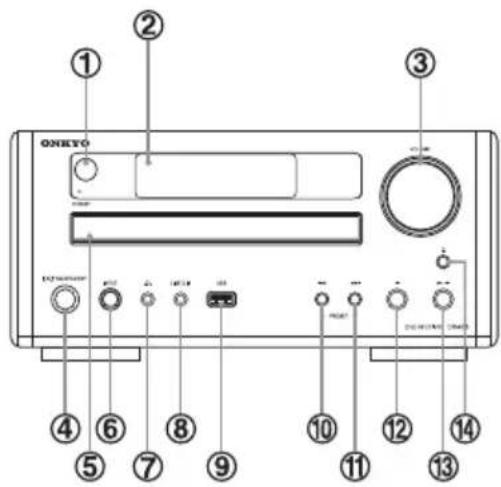
① Remote control sensor
Receives signals from the Remote Control. Point the Remote Control at this sensor when operating the Remote Control.
② Display
③ VOLUME
Turn this knob (or press the VOLUME buttons of the Remote Control) to adjust the volume level.
④ I/ON/STANDBY
Use this button to turn the unit on and standby. The standby indicator lights in the standby mode. It turns off when the unit is turned on.
The equipment draws nominal non-operating The equipment draws nominal non-operating power from the AC outlet with its ON/ST AND BY/AND BY AC outlet with its ON/ST in the standby position. In the standby position:
⑤ Disc tray
⑥ INPUT
Use this button to select a function (DVD, USB, FM, LINE1 or LINE2).
⑦
For private listening, insert the headphones plug into this jack, and adjust the volume using the VOLUME knob.
⑧ LINE 2 IN
You can connect a portable audio player to this jack.
⑨ USB
You can connect a USB memory device to this connector.
⑩
In DVD or USB mode, use this button to skip tracks. In FM mode, use this button to select a preset channel.
⑪
In DVD or USB mode, use this button to skip tracks.
In FM mode, use this button to select a preset channel.
⑫

In DVD or USB mode, use this button to stop playback.
In FM mode, use this button to select Auto mode or Mono mode.
⑬

In DVD or USB mode, use this button to start or pause playback.
14

Use this to open and close the disc tray.
Remote Control
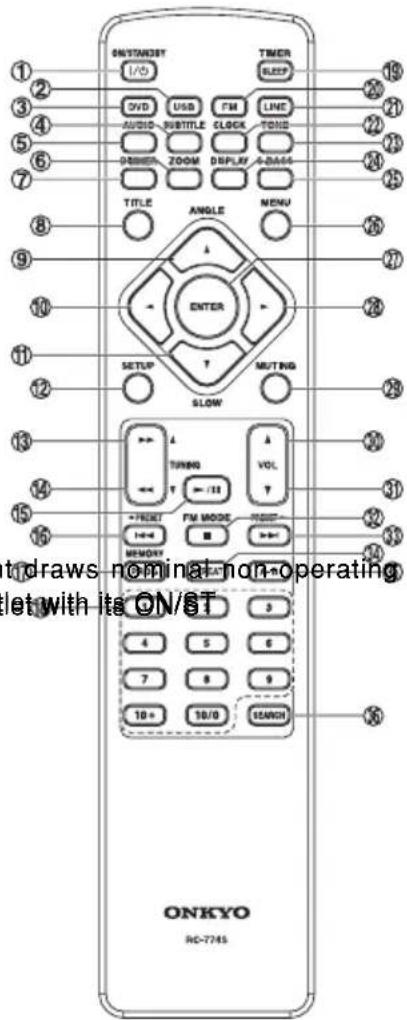
① I/CON/STANDBY
Use this button to turn the unit on and standby. The standby indicator lights in the standby mode. It turns off when the unit is turned on.
② USB
Use this button to select a USB source.
③ DVD
Use this button to select a DVD source.
④ SUBTITLE
Use this button to select the displayed subtitles during DVD playback.
⑤ AUDIO
Use this button to select the audio for playback.
⑥ ZOOM
In DVD or USB mode, use this button to enlarge the image.
⑦ DIMMER
In standby mode, use this button to change the brightness of the front panel display.
⑧ TITLE
During PBC playback, use this button to display a menu.
⑨ ▲/ANGLE
Use ▲ button for navigation of on-screen menus.
Use ANGLE button to select camera angles during DVD playback.
⑩
Use ◀ button for navigation of on-screen menus.
⑪ ▼/SLOW
Use ▼ button for navigation of on-screen menus.
In DVD mode, use SLOW button for slow motion video playback.
⑫ SETUP
Use this button to enter the setup menu where you can setup the parameters of the unit.
⑬ ▶▶/TUNING▲
In DVD or USB mode, use ▶ button to search for a part of a track/file/song.
In FM mode, use TUNING▲ button to tune in a station.
⑭ ◀◀/TUNING▼
In DVD or USB mode, use ◀◀ button to search for a part of a track/file/song.
In FM mode, use TUNING▼ button to tune in a station.
⑮ ▶/■
In DVD or USB mode, use this button to start or pause playback.
⑯ ◀◀/◀PRESET
In DVD or USB mode, use ◀◀ button to skip tracks/files/songs.
In FM mode, use ◀PRESET button to select a pre-set channel
⑰ PROG/MEMORY
In DVD or USB mode, use PROG button to programme tracks.
In FM mode, use MEMORY button to preset stations.
⑱ Number buttons
Use these buttons to enter track numbers, passwords, etc.
⑲ SLEEP/TIMER
When the unit is on, use SLEEP button to set the sleep timer.
In the standby mode, use TIMER button to set the wake up timer.
⑳ FM
Use this button to select a FM source.
②1 LINE
Use this button to select a LINE source.
②2 CLOCK
In the standby mode, use this button to adjust clock.
②3 TONE
Use this button to adjust bass and treble together with the VOLUME buttons.
⑳ DISPLAY
In DVD or USB mode, use this button to display information about the currently playing disc.
In FM mode, use this button to change the information on the second line of the display. (This function only works in areas where RDS broadcasts are available.)
⑳ S.BASS
Use this button to boost low end bass.
②6 MENU
In DVD mode, use this button with menu-enabled DVD discs to bring up the DVD menu.
During playback of MP3/WMA/JPEG files, use this button to switch between the folder list and the file list.
When a VCD (version 2.0) is loaded, use this button to turn the PBC function on or off.
⑳ ENTER
Use this button to confirm menus selections.
⑳
Use ▶ button for navigation of on-screen menus.
⑲ MUTING
Use this button to mute the sound.
③0 VOL ▲ (Volume)
Use this button to adjust the volume level.
③1 VOL ▼ (Volume)
Use this button to adjust the volume level.
③2 ■/FM MODE
In DVD or USB mode, use ■ button to stop playback. In FM mode, use FM MODE button to select auto or monaural.
③3 ▶▶▶/PRESET▶
In DVD or USB mode, use ▶▶▶ button to skip tracks/files/songs.
In FM mode, use PRESET▶ button to select a pre-set channel.
③4 REPEAT
In DVD or USB mode, use this button for repeat playback.
③5 A-B
In DVD or USB mode, use this button to specify a section and play it repeatedly.
③6 SEARCH
Use this button to start time search.
In FM mode, use this button to preset stations automatically.
Discs
Type of discs that can be played on this unit
This player can playback discs bearing any of the following logos:
The DVD receiver does not support disc types not listed.
DVD Vidéodéo

- Single-sided or double-sided discs
- Single layer or dual layer discs
- Dolby Digital, MPEG or Linear PCM digital audio
- MPEG-2 digital video
- This unit can play DVD-R discs recorded in DVD video format.
- This unit can play DVD-RW discs recorded in DVD video format or DVD video recording format.
Discs are generally divided into one or more titles.
Titles may be further subdivided into chapters.

Audio CDAudio CD
• 12cm or 8cm discs
• Linear PCM digital audio
Audio CDs are divided into tracks.
Video CDideo CD
- 12cm or 8cm discs
- MPEG-1 digital audioM
- PEG-1 digital video
Video CDs are divided into tracks.
SVCDSVCD
- 12 cm or 8 cm discs
- MPEG-1 Audio Layer2
- MPEG-2 digital video
Region Number of DVD Video discs
DVD players and discs are designed with region numbers that dictate the regions in which a disc can be played. If the region number on the disc you want to play does not match the region number of your DVD player, you will not be able to play the disc. In that case, an error message will appear on the screen.
The region number is printed on the rear panel of this unit.

Hongkong
About DVD-RW
- DVD-RW discs that were recorded with copy-once only permission cannot be played.
- When playing a DVD-RW disc that was edited on a DVD recorder, the screen may momentarily black out at the edited point.
- When playing a DVD-RW disc that was edited on a DVD recorder, you may see scenes from just before the edited point.
About CD-R/CD-RW
CD-R/CD-RW discs recorded in Audio CD format and finalized correctly are playable. But depending on the quality of the disc and/or the condition of the recording, some CD-R/CD-RW discs may not be playable.
Caution:
- If you record a disc using a personal computer, even if it is recorded in a compatible format, there are cases in which it may not play because of the settings of the application software used to create the disc. (Check with the software publisher for more detailed information.)
- Unfinalized CD-R/CD-RW/DVD-R/RW discs cannot be played.
Caution:
If you attempt to play back such discs, there is a risk that sudden loud noise can blast over the speakers at full volume and cause damage to the speakers and your hearing.
Copy-protected discs, Dual Discs and other discs that do not conform to the CD standard may not play back correctly in this player. If you use such discs in this unit, Onkyo Corporation and its subsidiaries cannot be responsible for any consequences or guarantee the quality of reproduction. If you experience problems with such non-standard discs, you should contact the producers of the disc.
playable file format
This unit can play following files recorded on a CD-R, CD-RW, DVD-R, DVD-RW or USB memory device:
- MP3 files
- Windows Media-formatted audio files
- JPEG files
- DivX ^® video files
(DivX ^® 5, DivX ^® 4, DivX ^® 3 and DivX ^® VOD video content)
- File names should be alphanumeric characters. This unit cannot display symbols and full-size or double-byte characters (such as Japanese, Chinese, etc.) correctly. Also, be sure to use the file extension. (“.mp3” for MP3 files, “.wma” for WMA files, “.avi” or “.divx” for DivX® video files, “.jpg” or “.jpeg” for JPEG files.)
- Files are played in alphabetical order.
- MP3 files must be monaural or stereo MPEG-1 Audio Layer 3 format. This unit can play MP3 files with sampling frequency 44.1 kHz or 48 kHz, bit-rate 320 kbps or less.
- This unit can play WMA files with sampling frequency 44.1 kHz, bit-rate 192 kbps or less.
- This unit cannot display the bit-rate of VBR (variable bit-rate) files correctly.
- The disc must be finalized in order to play.
- This player is NOT compatible with multi-session discs.
- The CD-ROM must be ISO 9660 compatible.
- It may take time to display a progressive JPEG picture.
- Depending on the file size and compression rate, some JPEG pictures cannot be displayed correctly.
Example of Icons used on DVD discs
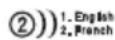
Number of audio tracks recorded on the disc
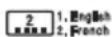
Number of subtitles recorded on the disc

Screen aspect ratio

Disc recorded with multiple camera angles

Region code
Caution
- Do not play any disc that is warped, deformed or damaged. Playing such discs may cause irreparable harm to the playing mechanisms.
- Printable discs are not recommended, as the label side might be sticky and damage the unit.
- Do not stick papers or protective sheets on the discs and do not use any protective coating spray.
-
Use a soft oil-based felt-tipped pen to write the information on the label side. Never use a ball-point or hard-tipped pen, as this may cause damage to the recorded side.
-
Never use a stabilizer. Using commercially available CD stabilizers with this unit will damage the mechanisms and cause them to malfunction.
- Do not use irregular shape discs (octagonal, heart shaped, business card size, etc.). Discs of this sort can damage the unit:
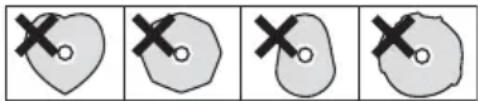
natural_image
Four-panel diagram showing a heart shape with two 'X' marks, each paired with a shaded irregular shape (no text or symbols)Handling precautions
- Always place the disc on the disc tray with the label side up. Compact discs can be played or recorded only on one side.
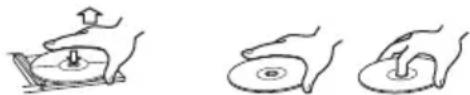
- To remove a disc from its storage case, press down on the center of the case and lift the disc out, holding it carefully by the edges.
natural_image
Three hand-drawn diagrams showing a mechanical device with a knob, no text or symbols presentHow to remove the disc How to hold the disc
Maintenance
- Should the disc become dirty, wipe the surface radially (from the center hole outward towards the outer edge) with a soft, dry cloth.
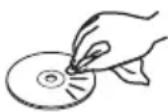
- Never use such chemicals as record sprays, antistatic sprays or fluid, benzine or thinner to clean the discs. Such chemicals will do irreparable damage to the disc's plastic surface.
Storage precautions
- Discs should be returned to their cases after use to avoid dust and scratches that could cause the laser pickup to "skip".
- Do not expose discs to direct sunlight or high humidity and temperature for extended periods. Long exposure to high temperatures will warp the disc.
- CD-R and CD-RW discs are more sensitive to the effects of heat and ultraviolet rays than ordinary CDs. It is important that they are not stored in a location where direct sunlight will fall on them, and away from sources of heat such as radiators or heat-generating electrical devices.
If you are in any doubt as to the care and handling of a disc, read the precautions supplied with the disc, or contact the disc manufacturer.
USB memory device compatibility
- Only USB flash memory can be used.
- Some flash memory players that charge from a USB terminal cannot be played back.
- Hard disk drives, CD/DVD drives, and others connected via USB cannot be used.
- The unit cannot copy, move, or delete files.
- Playable format: FAT12, FAT16, FAT32
- NTFS, HFS, HFS+ cannot be used.
• Max. number of playable folders: 300
• Max. number of playable files: 650 - USB memory device cannot be used by way of the USB hub.
Setting the Clock
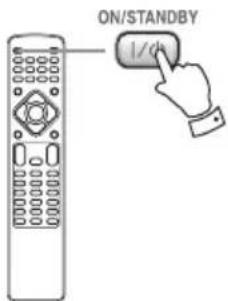
1 If the unit is on, press the ON/STANDBY button to turn it standby.
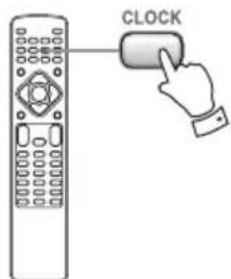
2 Press the CLOCK button to show the time on the display.
- The time appears on the display (If the time is not set after it blackout,"--:--" blinks). Press the CLOCK button again, the "hour" value starts blinking.
- When no button is pressed for 30 seconds, the time setting mode will be cancelled.
3 Press the ▲VOL▼ buttons to set the current hour.
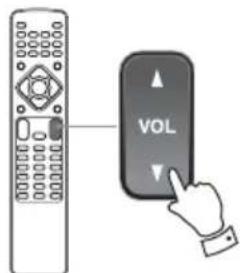
4 Press the CLOCK button.
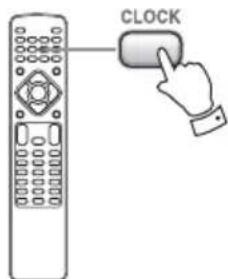
The "minute" value starts blinking.
5 Press the ▲VOL▼ buttons to set the current minute.
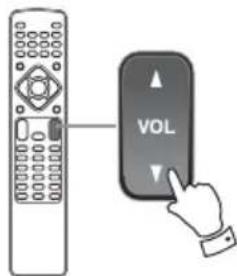
6 Press the CLOCK button.
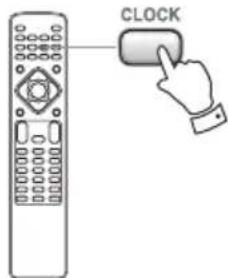
The clock starts.
Basic Operation
1 Press the ON/STANDBY button to turn the unit on.
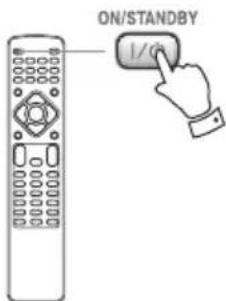
- The unit turns on with the source that was last selected.
2 Press the DVD, USB, FM, or LINE buttons to select a source.
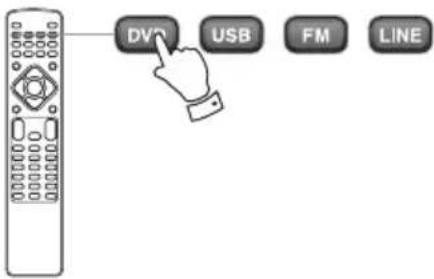
The selected source is shown on the front panel's display.
Press the LINE button repeatedly to switch between LINE1 and LINE2.
Also, each time the INPUT button of the main unit is pressed, the source changes as follows:
DVD Source
USB Source
FM Radio
LINE1 Source
LINE2 Source
3 Play the source, and adjust the volume using the ▲VOL▼ buttons.
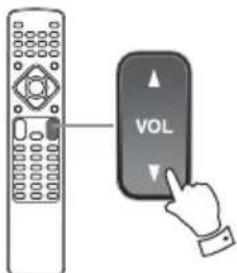
You can rotate the VOLUME knob on the unit to reduce or bring up the volume continuously.
- Press the ON/STANDBY button to put the unit in the standby mode when it is not being used.
Recording a Source
You can record a source onto a CD Recorder or a cassette tape recorder connected to the DIGITAL OUT terminal or the LINE OUT jacks.
- Select a source to be recorded by pressing the DVD, USB, FM, or LINE buttons.
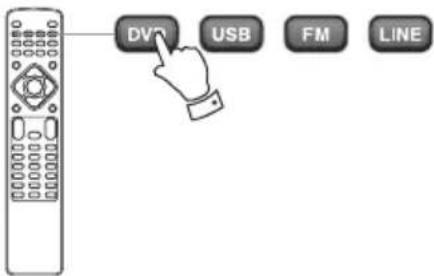
- Start recording.
- When the recording device is connected to the LINE1IN jack and the LINE OUT jack, you cannot select the LINE1Source for the recording source.
Dimmer
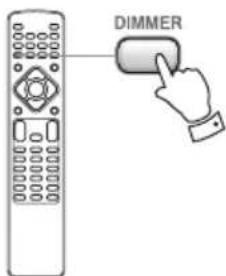
Press the DIMMER button to dim the display. Press the button again to cancel the dimmer function.
Muting
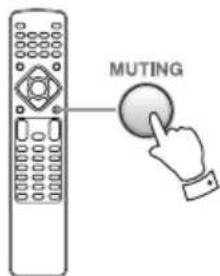
To mute the sound temporarily, press the MUTING button. Press the MUTING button again to restore the sound.
- "MUTING" blinks on the display while muting is engaged.
- If you change the volume when the sound is muted, it will be unmuted.
Super Bass boost
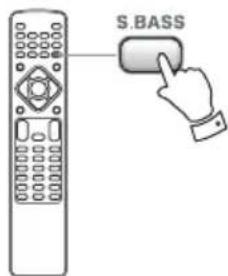
You can reinforce the bass sound to maintain rich, full bass at low volume.
Press the S.BASS button to get the effect. Press this button again to cancel the effect.
Adjusting the bass and treble
You can change the bass and treble sound between "-5" to "+5".
1 Press the TONE button repeatedly to select Bass or Treble.
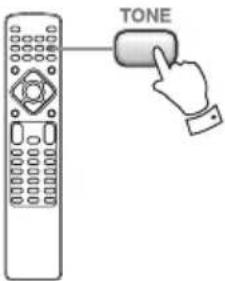
2 Press the ▲VOL▼ buttons to adjust the sound level.
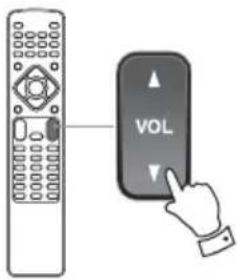
Listening to a Disc
1 Press the DVD button to select "DVD Source".
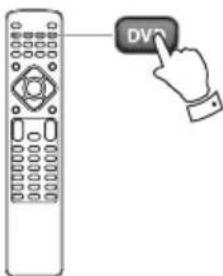
- When no disc is loaded in the disc tray, "NO DISC" is displayed.
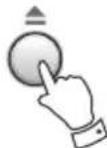
2 Press the ▲ button on the unit to open the tray.

3 Place the disc on the disc tray (with the printed side up).
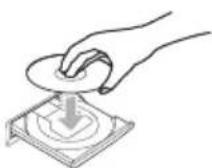
4 Press the ▲ button on the unit again to close the tray.
• Some discs may automatically start playback.
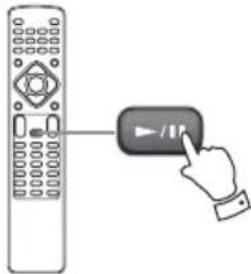
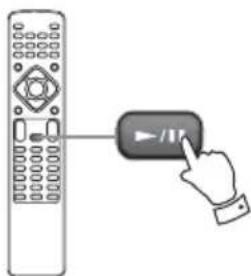
5 Press the ▶/■ button to start playback if playback has not started automatically.
natural_image
Illustration of a hand pressing a button on a remote control (no text or symbols)If a menu is shown on screen (some DVD or video discs may show such a menu), see "On-screen menu".
Listening to a USB Memory Device
Do NOT use a high-capacity USB hard disc with this unit.
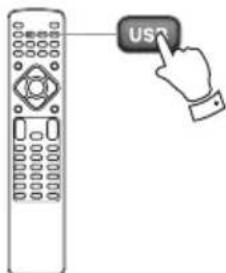
1 Press the USB button to select "USB Source".
2 Plug your USB memory device into the USB connector.
It takes a few seconds for the unit to load the USB memory device. Some files may automatically start playback.
• You can reverse steps 1 and 2.
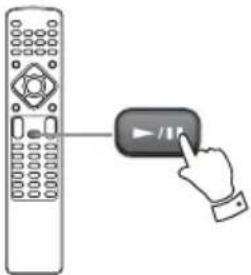
3 Press the ▶/■ button to start playback if playback has not started automatically.
natural_image
Illustration of a hand pressing a button on a remote control (no text or symbols)On-screen Menu
An on-screen menu is shown when a DVD or video CD with playback control (PBC) content is loaded.
The way in which the menu works may differ according to disc.
DVD menus
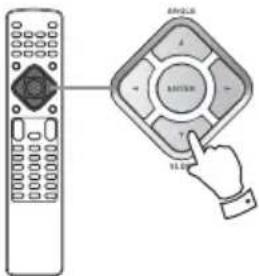
Use the ▲,▼,◀,▶ buttons to select the menu item from a DVD, and confirm the selection using the Enter button.
Returning to the menu screen
Press either the MENU button or the TITLE button.
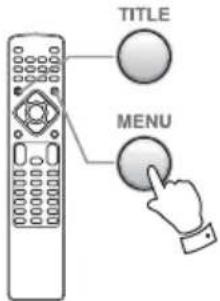
- Depending on the disc, pressing the MENU button during playback may restart playback from the first chapter.
Video CDs with PBC
When a Video CD (Version 2.0) or Super Video CD with Playback Control functions (PBC) is loaded, a menu will appear on the screen.
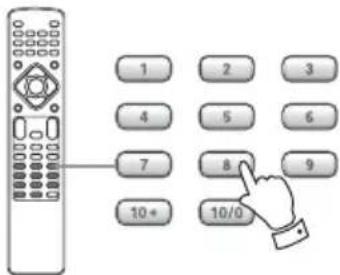
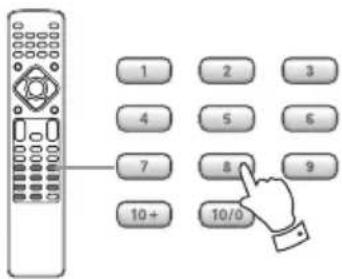
Select an item using the 10/0,1-9,10+ buttons to start playback.
- Press the ▶▶▶ button to advance to the next page. Press the ◀◀◀ button to return to the previous page.
- If you press the TITLE button during playback, the menu will appear on the screen.
Turning on or off the PBC function
Press the MENU button to turn the PBC function on or off. If you press the MENU button during playback, play-back will stop.
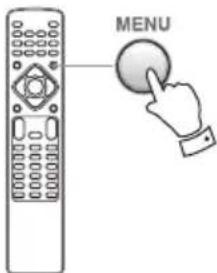
When the PBC function is off:
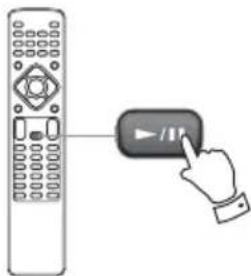
If you press the ▶/■ button in the stop mode, playback will start from the first track.
natural_image
Illustration of a remote control with a hand pressing a button (no text or symbols)When the PBC function is on:
If you press the ▶/■ button in the stop mode, a menu will appear on the screen.
natural_image
Illustration of a hand pressing a button on a remote control (no text or symbols)Select an item using the 10/0,1-9,10+ buttons to start playback.
MP3 and Windows Media-formatted audio files
When a disc or USB is loaded, a list of directories appears on the screen and the first file will automatically start playback.
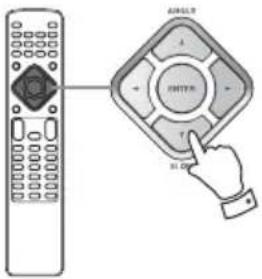
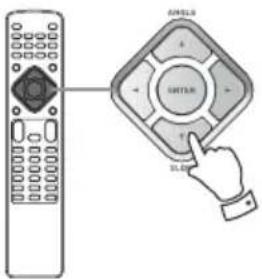
1 Select a directory by pressing the ▲/▼ buttons and press the Enter button.
File names will appear on the screen.
2 Select a file by pressing the ▲/▼ buttons and press the Enter button.
Playback will start from the selected file.
- Press the MENU button to switch between the folder list and the file list.
- If you want to return to the parent folder, display the folder list using the MENU button, select “...” using the ▲,▼,◀,▶ buttons and press the Enter button.
- During playback, elapsed time of the current file is displayed on the front panel display.
JPEG files
- Some discs or USB memory may automatically start playback.
1 When in stop mode, choose a picture in the directory list by pressing the ▲/▼ buttons.
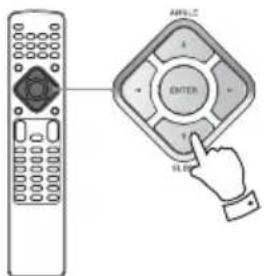
After a short wait a thumbnail of the picture will appear on the right.
- Some photos may appear distorted due to the configuration or characteristics of the disc. Larger photos may take a short while to appear due to their larger data size.
2 Press the Enter or ▶/■ button to viewing the picture at full-screen size.
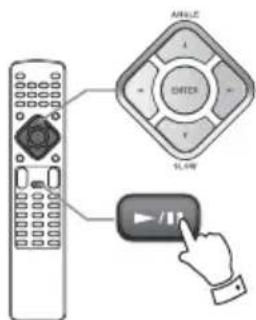
- When viewing at full-screen size, press ◀◀/▶▶ buttons to view a previous or next photo. You can also use the ◀/▶ buttons to rotate the image.
- When viewing at full-screen size, press the ■ button to display a number of thumbnails at a time on the screen.
- You can use the ▲,▼,◀,▶ buttons to select a particular photo and then press the Enter button to view that image at full-screen size.
- Select "Slide Show" to selections played in a random order
- Select "Menu" to display "Remote Key Function" list
- Select "◀Prev" to display previous screen of thumbnail images
- Select "Next ▶" to display next screen of thumbnail images
- Press the MENU button to exit thumbnail or full-screen views.
Basic Operations for a Disc and USB Memory Device
Pausing playback (Freezing the picture)
natural_image
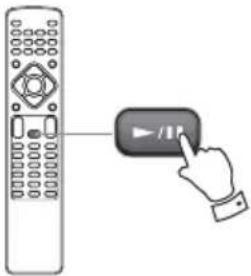
Illustration of a hand pressing a play button on a remote control (no text or symbols)Press the ▶/■ button to pause audio playback.
Any DVD or video CD image is frozen.
Press the ▶/■ button again to restart playback.
Caution:
Do not leave player in the "pause" mode for extended periods of time. Damage to your television or the player may occur.
Stopping playback (DVD only)
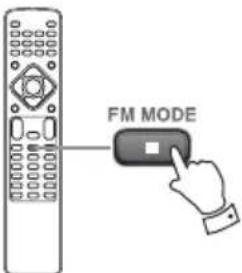
When the ■ button is pressed, playback is stopped, and the display shows "Press Play Key To Continue". Pressing ▶/■ button to continues playback.
Pressing any of the following buttons cancels re- sume mode:
Stop (■) in the stop mode,
Open/Close (▲), INPUT, ON/STANDBY
Skipping Playback
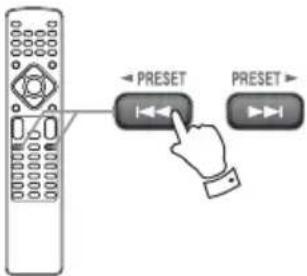
Press the ◄◄/►► button repeatedly until the desired chapter or track is found. The selected chapter or track will be played from the beginning.
Searching for a part of a chapter or track
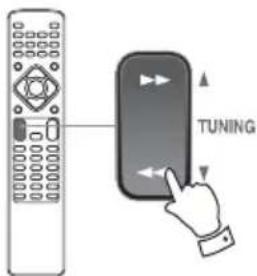
To Search quickly the disc in the forward or reverse direction, press the ◀◀/▶▶ buttons during playback.
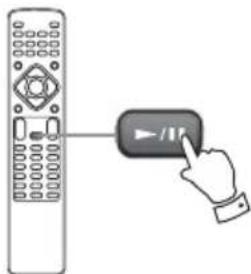
Press the ▶/■ button when the part you want to listen to is found.
natural_image
Illustration of a hand pressing a button on a remote control (no text or symbols)Each time the ◀◀/▶▶ button is pressed, the search speed changes as follows:
x2, x4, x8, x16, x32, normal speed
- The sound is muted during playback of DVD and VCD.
Selecting a Chapter or Track
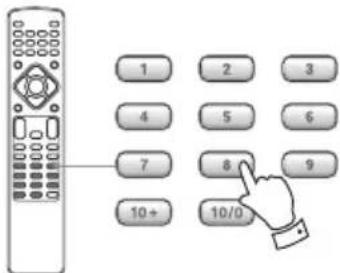
Use the 10/0,1-9,10+ buttons to select tracks or chapters for playback.
For instance, to select track number 35, press "10+", "10+", "10+" and "5".
To select a MP3 or WMA file, enter 3 digit numbers. As an example, to select number 5, press "10/0", "10/0" and "5". (Optionally, you may press just the number "5" and then wait a few seconds.)
Selecting Audio
Many DVD discs include audio in different languages, as well as stereo and multi-channel surround versions of the sound track. CDs and video CDs allow the left, right or stereo channels to be selected.
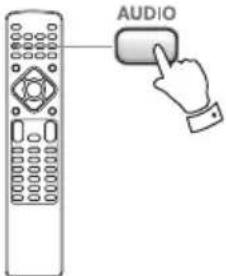
Pressing the AUDIO button changes between the different audio tracks available, and the result is shown on screen.
- It may be necessary to change the audio on some discs using the on-screen disc menu.
- Some discs cannot have their audio changed in the way described here, as well as some discs which only have one audio stream. If you attempt to select different audio with these discs, the prohibit icon "∅" is shown on screen.
Selecting Subtitles
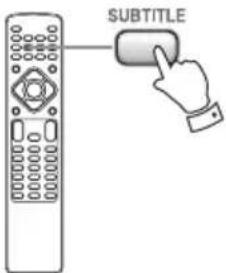
Repeated presses of the SUBTITLE button cycle through available languages on a disc.
- Subtitles do not always appear immediately after the language has been selected. It may take a few seconds until the subtitles appear.
- Some captions on some discs cannot be removed or changed using this button. Some discs may have only one sub-caption language, in which case, the choice is obviously restricted to one subtitle or no subtitles.
- It may be necessary to change the subtitles on some discs using the on-screen disc menu.
- Some discs cannot have their subtitles changed in the way described here. If you attempt to select a different subtitle with these discs, the prohibit icon “∅” is shown on screen.
Changing Camera Angle
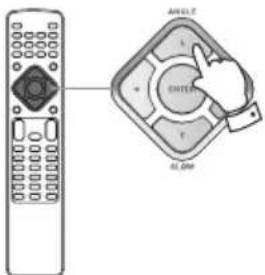
When a scene recorded with multiple angles is played, the angle icon appears on the screen. Each time you press the ANGLE button while the angle icon is displayed, the camera angle changes.
- If you attempt to select a different angle with a disc which no other angle is recorded, the prohibit icon "∅" will be displayed.
- The ANGLE button does not work during pause mode.
Picture Zoom
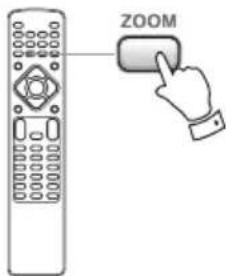
To zoom the picture, press the ZOOM button during playback.
Each time the ZOOM button is pressed, the magnification level changes as follows:
DVD, DivXD, WDC, DivXCD:
2x, 3x, 4x, 1/2, 1/3, 1/4, Normal
JPEG:JPEG:
100%, 125%, 150%, 200%, 150%, 125%, 100%, 75%, 50%, Normal
- You can shift the zoom point by pressing the ◀/▶ buttons during zoom playback.
Slow Motion
For video discs only (DVD and VCD)
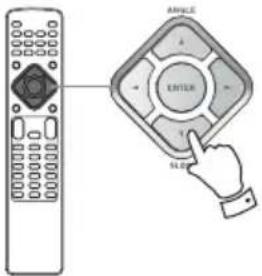
To play a disc in slow motion, press the SLOW button. Each time the SLOW button is pressed, the speed changes as follows:
DVD:DVD:
▶1/2, ▶1/4, ▶1/8, ▶1/16, ◀1/2, ◀1/4, ◀1/8, ◀1/16, ▶
VCD/DivXVCD/DivX
To resume normal playback, press the Play/Pause button (▶/■).
- The sound is muted during slow-motion playback.
Repeat and Shuffle Playback
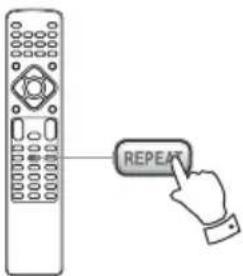
Each time the REPEAT button is pressed, the mode is changed as follows:
DVD:DVD:
Chapter, Title, All, Shuffle, No display
MP3/WMA/DivXMP3/WMA/DivX
Repeat One, Repeat All, Shuffle, Off
VCD/CD:VCD/CD:
Track, All, Shuffle, No display
- This feature is not available for some discs. The "prohibit" mark is shown on screen in such cases.
- If one of the following buttons is pressed, repeat mode will be canceled:
I/ON/STANDBY, Open/Close (▲), INPUT
Repeat chapter/Repeat track/Repeat one
The currently selected chapter/track/file will be played repeatedly. If another chapter/track/file is selected during repeat playback, the newly-selected chapter/track/file will repeat.
Repeat title (DVD only)
The currently selected title will be played repeatedly.
Repeat all
All the contents in the disc will be played repeatedly.
Shuffle
The whole contents of the disc will be played randomly.
A-B Repeat Playback
You can Repeat Playback of a designated section.
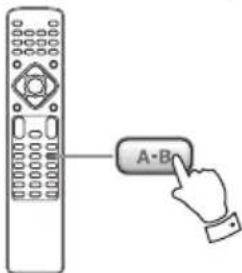
1 Start playback and designate the point at which the A-B repeat should start (point A) by pressing the A-B button.
"A" appears on the screen.
2 When the point at which repeat playback should end (point B) is reached, press the A-B button again. "AB" appears on the screen.
The designated section will be played repeatedly.
- The Search button (▶▶) can be used to fast-forward to point B after designating point A.
- To cancel the A-B Repeat, press the A-B button again.
Changing the Display Mode
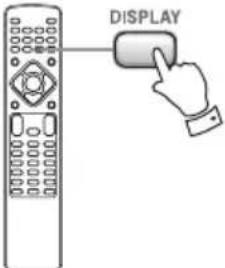
Each time the DISPLAY button is pressed during playback, following information appears on the screen.
DVDDVD
Title Elapsed time
Title Remain time
Chapter Elapsed time
Chapter Remaining time
Display off
CD/VCB/VCDideo CD
Single Elapsed time
Single Remain time
Total Elapsed time
Total Remain time
DivXDivX
Title Elapsed time
Title Remain time
Chapter Elapsed time
Chapter Remaining time
Display off
Time Search (VCD/CD)
You can start playback from the specified hour/minute.
1 During playback, press the SEARCH button.
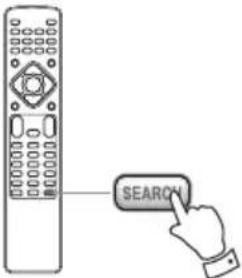
To search within the entire disco search within the entire disc Press the SEARCH button once.
"Disc Go To: - - : - -" is highlighted on the screen.
To search within the current tracko search within the current track Press the SEARCH button twice.
"Track Go To: - - : - -" is highlighted on the screen.
To select a track of the disco select a track of the disc Press the SEARCH button 3 times.
"Select Track: - - / - - " is highlighted on the screen. Then, enter the track number using the 10/0,1-9, 10+ buttons. (For example, when you want to select track 2, press "2".)
2 Enter your desired hour and minute using the 10/0, 1-9,10+ buttons.
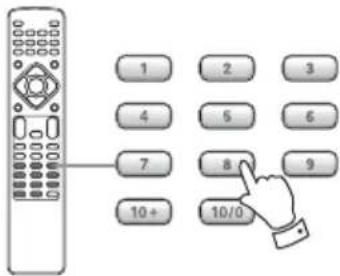
For example, if the length of the current track is 3 minutes, enter a number smaller than 3 minutes. Playback starts from the selected part.
Time Search (MP3/WMA)
You can start playback from the specified hour/minute.
1 During playback, press the SEARCH button.
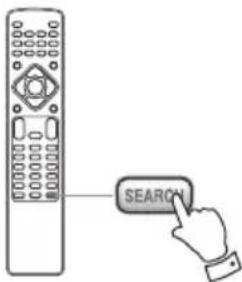
To search within the entire disco search within the entire c Press the SEARCH button once.
“- - -” is highlighted on the screen.
To search within the current tracko search within the curre Press the SEARCH button twice.
“- - : - -” is highlighted on the screen.
2 Enter your desired hour and minute using the 10/0, 1-9,10+ buttons.
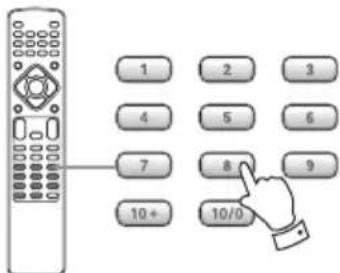
For example, if the length of the current file is 3 minutes, enter a number smaller than 3 minutes. Playback starts from the selected part.
Chapter Search/Time Search (DVD)
Chapter Search
You can start playback from the beginning of the specified chapter.
1 During playback, press the SEARCH button.
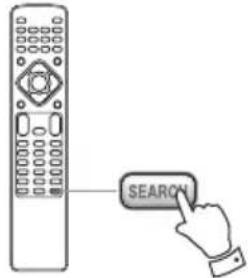
1 During playback, press the SEARCH button.
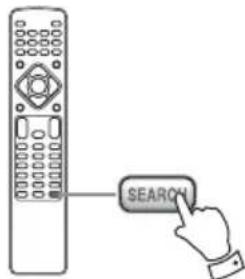
"Select: - - -" appears on the screen.
2 Enter your desired file number (3 digit) using the 10/0,1-9,10+ buttons.
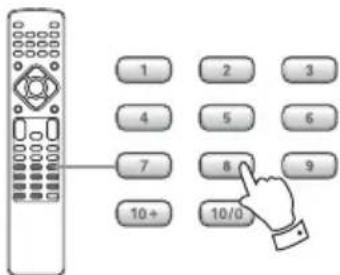
To search within a chapter/title of the disco search within a chapter/title of the disc
Press the SEARCH button once.
"Title: -- / -- Chapter: -- / -- " is highlighted on the screen.
Playback starts from the beginning of selected file.
Time Search
To search within the entire disco search within the entire disc second.
Press the SEARCH button twice.
"Title Time: - - : - -" is highlighted on the screen.
1 During playback, press the SEARCH button twice.
To search within the current chaptero search within the current chapter
Press the SEARCH button 3 times.
"Chapter Time: - - : - -" is highlighted on the screen.
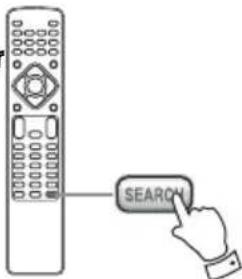
2 Enter your desired title number, chapter number or time using the 10/0,1-9,10+ buttons.
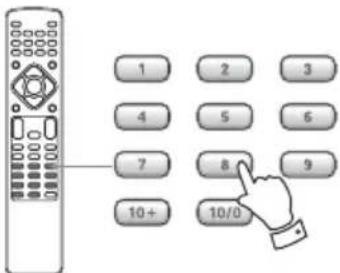
Playback starts from the beginning of selected title number, chapter number or time.
"Go To -:- -:- -" appears on the screen.
2 Enter your desired hour, minute and second using the 10/0,1-9,10+ buttons.
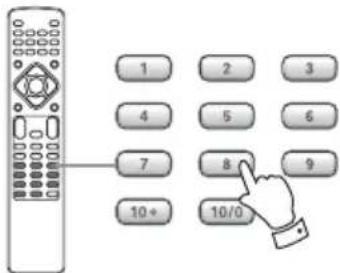
Playback starts from the selected part.
Chapter Search/Time Search (DivX®)
Chapter Search
You can start playback from the beginning of the specified chapter.
Programmed Playback (DVD, VCD, CD)
Up to 20 chapters/tracks can be programmed in the desired order.
1 If another source is selected, press the DVD button to select "DVD Source".
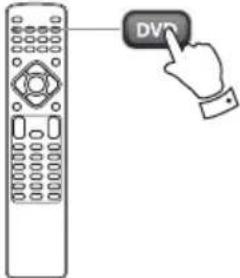
- You can also select "DVD Source" by using the INPUT button on the unit.
2 Press the PROG button.
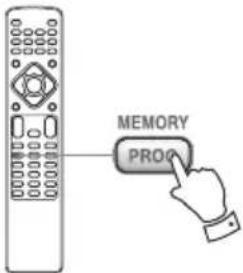
The programme list appears on the screen.
- To cancel the programme mode, press the PROG button again, or select "EXIT" using the ▲,▼,◀,▶ buttons and press the Enter button.
3 Enter your desired "title and chapter number" or "track number" using the 10/0,1-9,10+ buttons.
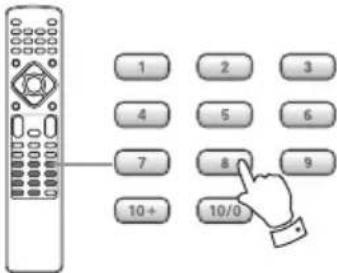
For example, to enter number 5, press "5".
Repeat this step to programme more titles, chapters or tracks.
- If you made a mistake, move the cursor on the track number and overwrite it using the 10/0,1-9,10+ buttons.
- To programme more than 11 chapters/tracks, press the ▶▶I button to advance to the next programme page (or select "Next ☑" using the ▲,▼,◀,▶ buttons and press the Enter button). Press the ◀◀◀ button to return to the previous page(or select "☐ Prev" using the ▲,▼,◀,▶ buttons and press the Enter button).
4 When the selection of chapter/track numbers is completed, select "START" using the ▲,▼,◀,▶ buttons and press the Enter button to start programmed playback.
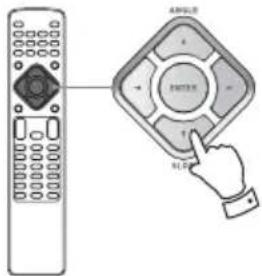
- During programmed playback, the 10/0,1-9,10+ buttons do not work.
- When playback ends, the programme is cleared.
- If you press one of the following buttons, the programmed contents will also be cleared: Open/Close (▲), /ON/STANDBY, Stop (■) INPUT (LINE, USB, FM)
Programmed Playback (MP3,WMA)
1 If another source is selected, press the DVD or USB button to select "DVD Source" or "USB Source".
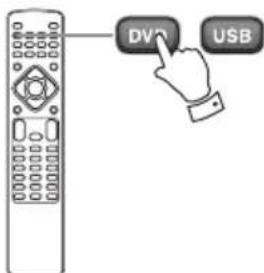
- You can also select "DVD Source" or "USB Source" by using the INPUT button on the unit.
2 Select a file using the ▲,▼,◀,▶ buttons
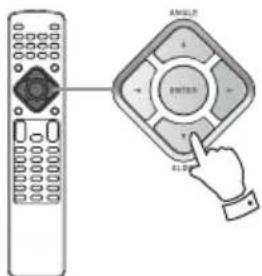
and press the PROG button.
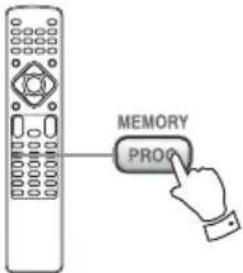
The file is added to the programme list.
3 Press the MENU button once to display the programme list.
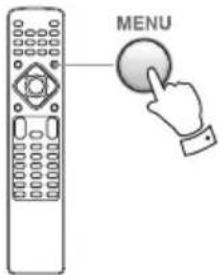
4 Highlight the first file in the programme list using the ▲,▼,◀,► buttons.
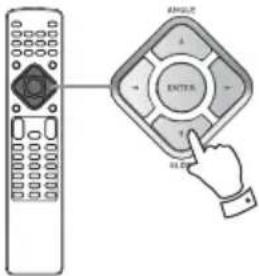
5 Press the Enter button to start programmed playback.
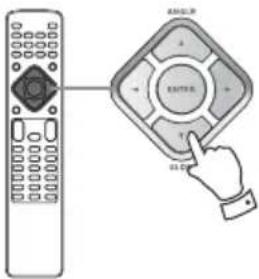
- If you press one of the following buttons, the programmed contents will be cleared. INPUT (LINE, USB, FM) Open/Close (▲) (in DVD mode), ON/STANDBY
Programmed Playback (DivX®)
1 If another source is selected, press the DVD or USB button to select "DVD Source" or "USB Source".
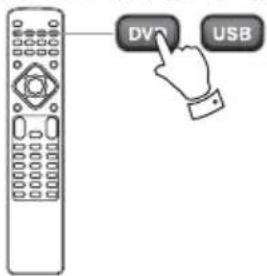
- You can also select "DVD Source" or "USB Source" by using the INPUT button on the unit.
2 Press the ■ button when it starts playing.
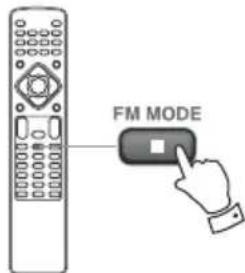
3 Select a file using the ▲,▼,◀,▶ buttons
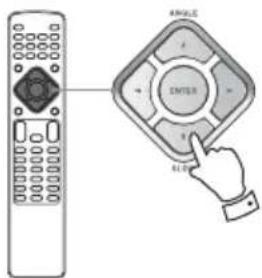
and press the PROG button.
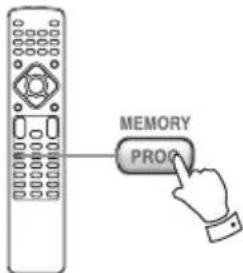
The file is added to the programme list.
4 Press the MENU button once to display the programme list.
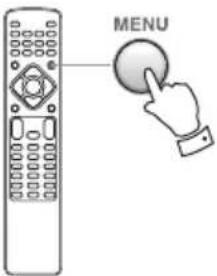
5 Highlight the first file in the programme list using the ▲,▼ buttons.
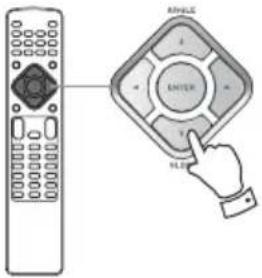
6 Press the Enter button or the ▶/■ button to start programmed playback.
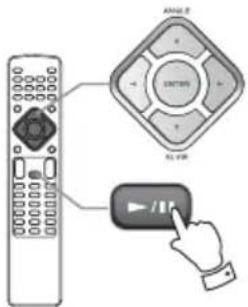
- If you press one of the following buttons, the programmed contents will be cleared. INPUT (LINE, USB, FM) Open/Close (▲) (in DVD mode), ON/STANDBY
Settings
Introduction
This chapter describes how to use the SETUP menu. Most settings and adjustments are required to be set when you first use the system.
1 Turn on the unit, and the connected television or monitor.
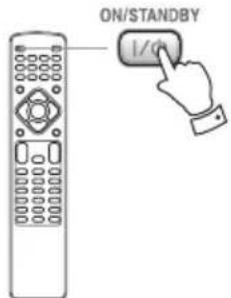
- The SETUP menu is available only in the DVD Source mode or the USB Source mode. If another source is selected, press the INPUT button on the unit to select the DVD Source or the USB Source.
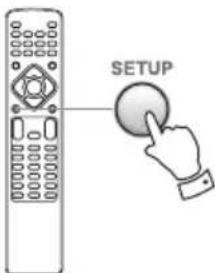
2 Press the SETUP button.
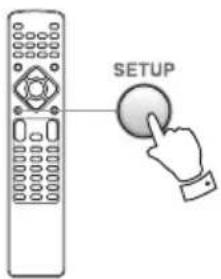
The setup menu appears on the screen.
- To exit the setup mode, press the SETUP button again.
- Although it is possible to enter the setup menu while playback is continuing (or in resume mode), not all menu functions will be available. To expand the number of available functions, press the Stop button (■) twice.
3 Use the ▲,▼,◀,▶ buttons to navigate the menus.
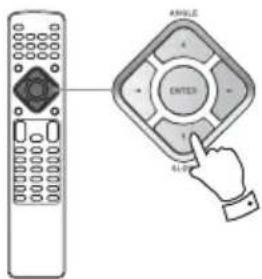
If no cursor is visible on the screen, use the ◀/▶ buttons to select a page.
Use the ▲/▼ buttons to highlight menu items within the selected page.
Press the ◀ button to return to the upper menu.
4 Enter the menu item with the ▶ button.
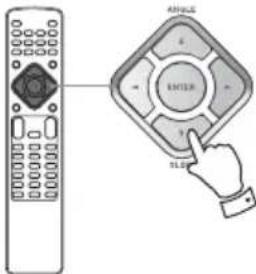
5 Use the ▲/▼ buttons to select the options within the menu item, and press the Enter button to confirm the entry.
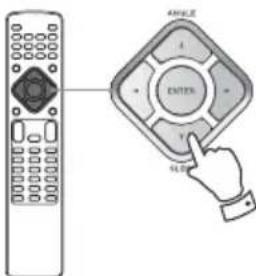
Individual menu functions are described.
Repeat steps 3 through 5 as required.
6 Press the SETUP button to exit the setup mode.
General Setup
TV DISPLAY
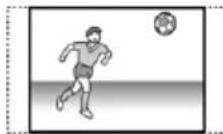
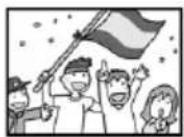
The shape of the television or monitor may not match the shape of the movie frame. To avoid distortion on older televisions, you may need to change the way in which the image is displayed. Televisions use a 4:3 aspect ratio; high-definition televisions use 16:9 aspect ratio (as do movies).
Note:
You may need to read your television's manual in conjunction with this section in order to achieve the best results. Some discs do not allow the aspect ratio to be changed and you will therefore have to change the aspect ratio on the TV.
Make this setting while playback is stopped; you can-Make this not do this while playing back a disc.not do this while playing
Normal/PS
This mode is used with 4:3 televisions. 4:3 images are displayed normally. When showing 16:9 programmes, the full height of the screen is displayed, and the left and right part of the image are cut off.

4:3 picture 16:9 picture
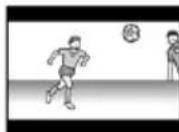
Normal/LB
This mode is used with 4:3 televisions. 4:3 images are displayed normally. 16:9 images are visible at their full width, but there are blank area at the top and bottom of the screen.
4:3 picture 16:9 picture
Wide
Use with a 16:9 wide television.
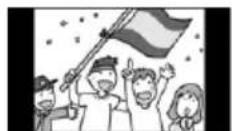
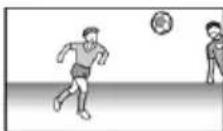
4:3 picture 16:9 picture
- Some wide-screen discs that do not permit the Pan Scan mode playback are automatically played in Letter Box mode.
- Depending on the DVD, 4:3 Letter Box may be selected automatically instead of 4:3 Pan Scan and vice versa.
- If 16:9 (Wide) is selected and a normal TV is connected, 16:9 content will appear distorted during playback (objects look thin).
OSD (On Screen Display) Language
Select the desired language for on screen menus of the unit from the following:
English
Chinesetrad
Screen Saver
On
The screen saver starts up if nothing is played back and no operations are performed for 4 minutes.
Off
The screen saver does not start up.
DivX® VOD
Ok
Display the DivX ^® registration code.
Audio Setup
SPDIF Output (Digital Audio Setup)
Off
Select this when you do not use the DIGITAL OUT. No signal is output from these terminals.
All
Select this when the unit is connected to an audio component equipped with a built-in Dolby Digital decoder via the DIGITAL OUT or the HDMI out terminal.
PCM only
Select this when the unit is connected to an audio component such as amplifier/receiver, CD recorder or MD deck via the DIGITAL OUT or the HDMI out terminal.
Dual Mono (Dolby Digital Setup)
Stereo
Left channel is output from the left speaker, and right channel is output from the right speaker.
L-Mono
Left channel is output from the front left and right speakers.
R-Mono
Right channel is output from the front left and right speakers.
Reverb Mode (3D Processing)
This setting provides following sound effects:
Off
Concert
Living Room
Hall
Bathroom
Cave
Arena
Church
Night Mode
On
Applies dynamic range control to Dolby Digital
material, reducing the volume of loud sounds, and increasing the volume of quiet ones. This is useful for spoken word material, and nighttime listening etc.
Off
Turns off the audio dynamic compression.
- This function is effective only when playing back a DVD disc recorded with Dolby Digital. This control has no effect on other discs.
- The overall effect of this setting depends on the disc being played, the amplifier, and the speakers used for reproduction.
Audio Sync
This setting can cause delays in the sound signal in 10 ms increments ranging from 0 ms to 200 ms (only for digital signals recorded on a disc or stored in a USB device; unavailable for analog signals coming from LINE 1 or 2).
Depending on the TV, it may take approximately 100 ms (0.1 sec.) for an image to appear after video signals are input, causing the image to appear after the sound coming from the unit is heard.
- If this happens or audio and video synchronization creates a less than optimal viewing experience, adjust the delay with the left (decrease) or right (increase) Cursor buttons (◀/▶).
Video Setup
Component
Set the video output according to the video connection.
On
If the component connection is used, select this option.
Off
If the composite connection is used, select this option.
TV Mode
This setting allows the selection of interlaced (Interlace) or progressive-scan (Progressive) video from the component video outputs.
P-Scan
For progressive scan TV: turn on the progressive scan mode.
Interlace
For ordinary TV: turn on the interlace mode.
- When your TV is not compatible with progressive scan, never select "P-scan". No picture will be shown on the monitor.
In case you select "PROGRESSIVE" by mistake, disconnect the connection of the unit and the TV, and then connect in again. And change the setting to "INTERLACE" in the Video Setup menu.
Quality
You can adjust some parameters of video picture.
1 Highlight "Quality" and press the ▶ button.
2 Use the ◀/▶ buttons to select the parameter.
Sharpness
This adjusts the sharpness of the picture shown on the monitor.
Select High, Medium or Low using the Cursor buttons, and press the Enter button.
Brightness
This adjusts the brightness of the picture.
Use the left and right buttons to change the value, and press the Enter button.
Contrast
This adjusts the picture contrast.
Use the left and right buttons to change the value, and press the Enter button.
Gamma
This adjusts the gamma value of the picture.
Select High, Medium, Low or None using the Cursor buttons, and press the Enter button.
Hue
This adjusts the green/red balance of the picture (only for progressive-scan and S-Video output).
Use the left and right buttons to change the value, and press the Enter button.
Saturation
This adjusts the saturation level.
Use the left and right buttons to change the value, and press the Enter button.
Luma Delay
This adjusts the luma delay.
Select 0T or 1T using the Cursor buttons, and press the Enter button.
3 Press the left button (◀) to return to the Video Setup Page.
HDMI Setup
Auto
Select this to have the signal output when your TV or monitor is connected to the HDMI out terminal.
Off
Select this when you do not use the HDMI out terminal.
No signal is output from the HDMI out terminal.
Preference Setup
TV Type
Pal
Select this when the unit is connected to a PAL TV.
Auto
Select this when the unit is connected to a Multi TV.
Ntsc
Select this when the unit is connected to an NTSC TV.
Audio, Subtitle, Disc Menu
You can select a preferred language for audio, subtitle and disc menu.
- When you select a preferred language that is not recorded on the DVD, one of the recorded languages is automatically selected.
- You can override the Audio setting in the Setup menu by pressing the AUDIO button on the remote control unit while a DVD disc is playing.
- You can override the Subtitle setting in the Setup menu by pressing the SUBTITLE button on the remote control while a DVD disc is playing.
- Select OffF to turn subtitles off. Note that subtitles on some discs cannot be removed even when you select Off.
Parental
Playback of some DVD discs can be limited depending on the age of the users. The parental control system allows the playback limitation level to be set by the parent.
Notes:
- The lower the level, the stricter the limitation.
- If the rating of the loaded DVD disc is higher than the level you set, the system will require a password. Enter your password and press the Enter button to start playback.
1 Select the desired parental control level from the menu, then press Enter button.
2 You will be prompted to enter your password. Use the 10/0,1-9,10+ buttons to enter 2580 (or your privacy password if already established).
- No need to enter a password if "Password Mode" is set to OFF.
Default
All the items in the Setup menu (except for the password and parental control) will be reset to the default settings.
Password Setup
Password Mode
You can temporarily unlock discs for playback according to the level.
To change this setting, select On or Off, enter your password, and press the Enter button.
On
You need a password to change the level of parental control.
Off
You can change the level of parental control without a password. You cannot temporarily unlock discs for playback.
Password
You can set a new password for parental control. The default password is 2580.
1 Select "Change" and press the Enter button.
2 Enter 2580 (or your privacy password) using the 10/0,1-9,10+ buttons.
3 Enter a new password.
4 Enter the same password again to confirm.
5 Press the Enter button.
Note that you will need your password to change the level of control in the future as well as to temporarily unlock discs for playback.
If you forget your password, use 2580.
Listening to the FM Radio
1 Select "FM Radio" using the FM button.
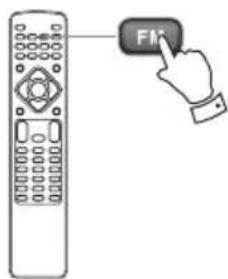
2 Hold down the ▲TUNING▼ buttons for more than 1 seconds to select the station you want to listen to (Auto selection).
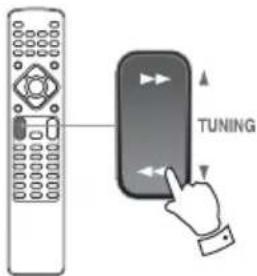
When a station is tuned in, the tuning process will stop automatically.
Repeat this step until the station you want to listen to is found.
- If you want to stop the tuning process, press the ▲TUNING▼ button.
Selecting stations which cannot be tuned automatically (Manual selection)
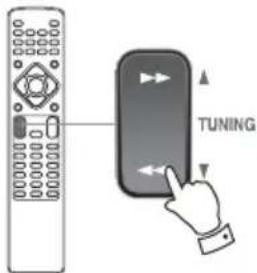
When the ▲ TUNING▼ buttons is pressed momentarily, the frequency changes by a fixed step. Press the ▲TUNING▼ buttons repeatedly until the station you want to listen to is found.
FM MODE
Pressing this button alternates between Auto mode and Mono mode.
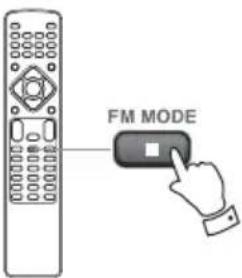
Auto Mode
FM stereo or monaural broadcasts are received in the same mode as the signal.
Mono Mode
To compensate for weak FM stereo reception, select this mode. Reception will now be forced to monaural, reducing unwanted noise.
If the reception is poor
For the best reception, rotate the FM antenna until you get stations clearly.
Preset Tuning
You can store up to 20 FM stations.
Automatic Memory Presetting
1 Select "FM Radio" using the FM button.
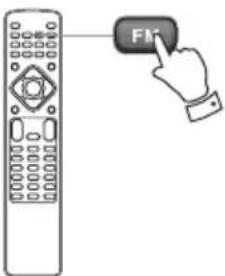
2 Press the SEARCH button.
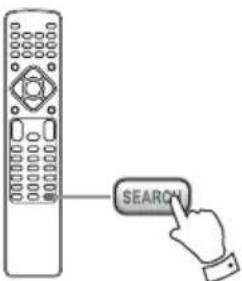
Up to 20 of the received stations in your area will be stored automatically.
Manual Memory Presetting
1 Tune in a station.
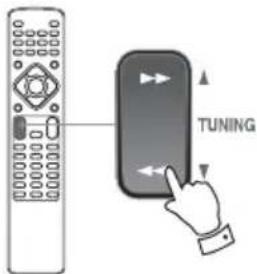
2 Press the MEMORY button.
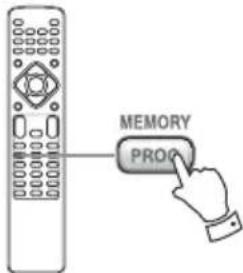
3 Select a preset channel to store the station using the ◀PRESET▶ button,
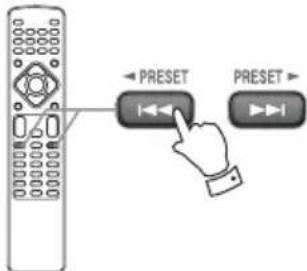
and then press the MEMORY button.
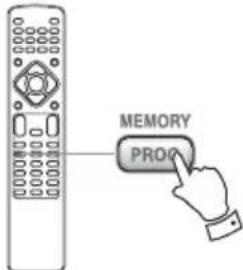
How to select preset stations
1 Select "FM Radio" using the FM button.
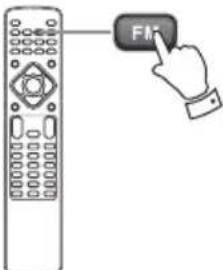
2 Select a preset channel using the ◀PRESET▶ buttons.
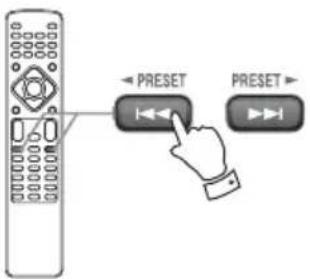
- You can also select a preset channel by using the ◀PRESET▶ button on the unit.
RDS (Display Setting of the FM)
The Radio Data System (RDS) is a broadcasting service which allows stations to send additional information along with the regular radio programme signal.
1 Tune in an FM RDS station (see "Listening to the FM Radio").
2 Press the DISPLAY button.
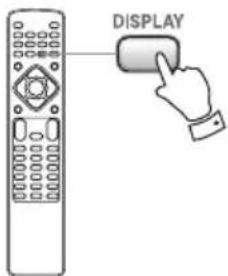
Each time the DISPLAY button is pressed, the RDS mode is changed as follows:
PS (Programme Service name) PS (Programme Service name)
Automatically displays the FM station name when PS data is received.
PROG TYPE (Programme Type)Type (Programme T Displays the programme type. If there is no PTY data, "NO PTY" will be displayed.
ADS CLOCKRDS CLOCK
Displays the information about times provided from the station.
If there is no time data, "NO CT" will be displayed.
- RDS only works in areas where RDS broadcastsRDS only works in areas where RDS broadcasts are available.are available.
Listening to an External Source
1 Connect a cassette tape deck etc. to LINE 1 IN jack of the unit using commercially-available RCA cables. Or Connect the audio output jack of a portable audio player to the LINE 2 IN jack of the unit.
- When you connect the portable audio player to LINE2 IN jack of the unit, use the stereo mini plug cable.
2 Press the LINE button to select "LINE1 Source" or "LINE2 Source".
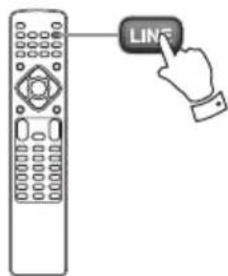
3 Play the source, and adjust the volume using the ▲VOL▼ buttons of the unit and of the audio player.
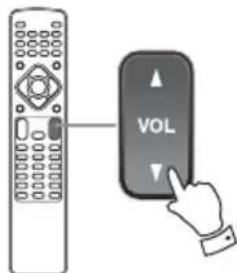
You can also adjust the volume by using the VOLUME knob on the unit.
Sleep Timer
The power can be switched off after a specified amount of time.
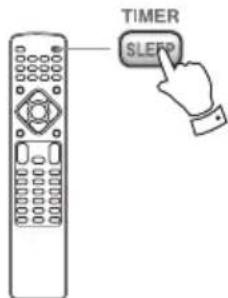
Press the SLEEP button repeatedly until desired time appears on the display.
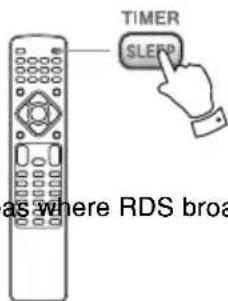
SLEEP 10, 20, 30, 60 or 90
The power will be switched off 90 (60, 30, 20, or 10) minutes later.
SLEEP OFF
The sleep timer is off.
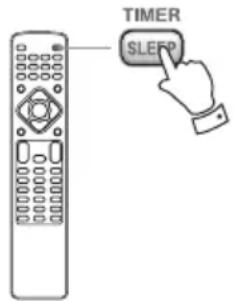
- If you want to check the remaining time, press the SLEEP button once. The remaining time will be displayed for 3 seconds, and then return to the normal display.
Wake Up Timer
The unit can be programmed to turn on at a specified time.
- Adjust the clock before setting the timer.
1 If the unit is on, press the ON/STANDBY button to turn it off (standby).
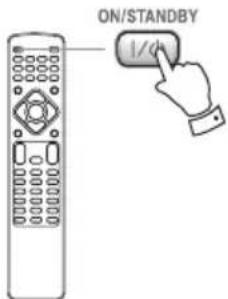
2 Press the CLOCK button to show the time on the display.
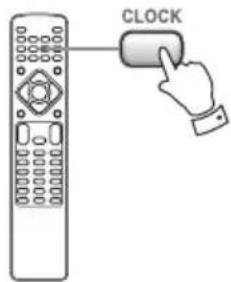
3 Press the TIMER button.
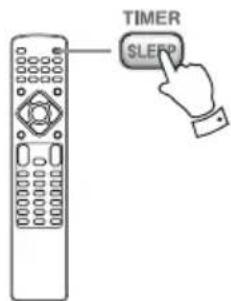
"Timer Set" appears on the display, and the "hour" value starts blinking.
- When no button is pressed for 30 seconds, the timer setting mode will be cancelled.
4 Press the ▲VOL▼ buttons to set the start time (hour),
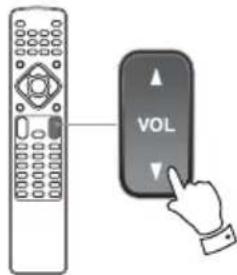
and then press the TIMER button.
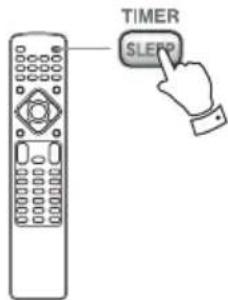
The "minutes" value starts blinking.
5 Press the ▲VOL▼ buttons to set the start time (minute),
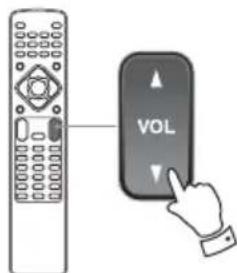
and then press the TIMER button.
The "Off" starts blinking.
6 Press the ▲VOL▼ buttons to turn On or Off the timer function,
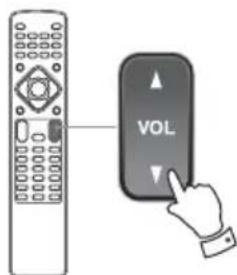
and then press the TIMER button.
Select "On" to turn the timer function on. The TIMER indicator (☐) appears on the display.
When you do not use the timer, select "Off". (The TIMER indicator disappears from the display.)
7 Turn the unit on and prepare the source.
To play a disc, select "DVD Source" using the INPUT button and set a disc.
To play a USB memory device, select "USB Source" using the INPUT button and set a USB memory device.
To listen to the FM, select "FM Radio" using the INPUT button and tune in a station.
8 Press the ON/STANDBY button to turn the unit off (standby).
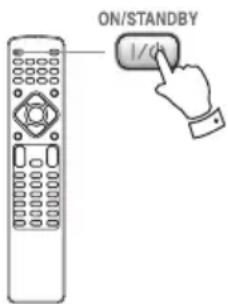
- The unit will turn on at the specified time every day.
- The unit turns on with the source that was last selected.
Do not forget to turn the unit off (standby), or the timer will not work.
If the timer reaches the timer-on time, the unit is set to "SLEEP 60" automatically and the power will be switched off (standby) 60 minutes later.
If you want to listen continuously, press the SLEEP button repeatedly to select "SLEEP OFF" before reaches the timer-off-time.
Troubleshooting
To keep the warranty valid, never try to repair the system yourself. If you encounter problems when using this unit, check the following points before requesting service.
No power.
- Ensure that the AC cord of the apparatus is connected properly.
- Ensure that there is power at the AC outlet.
- Press the 1/ON/STANDBY button to turn the unit on.
No disc detected
- Insert a disc.
- Check if the disc is inserted upside down.
- Wait until the moisture condensation at the lens has cleared.
- Replace or clean the disc.
- Use a finalized CD or correct format disc.
No picture
- Check the video connection.
- Turn on the TV to the correct Video-In channel.
- Progressive scan is activated but the TV does not support progressive scan.
Black and white or distorted picture
- The disc does not match the TV color system standard (PAL/NTSC).
- Sometimes a slight picture distortion may appear. This is not a malfunction.
- Clean the disc.
- A distorted picture may appear during progressive scan setup.
The aspect ratio of the TV screen cannot be changed even though you have set the TV display format.
- The aspect ratio if fixed on the loaded DVD disc.
- The aspect ratio may not be changed for some TV systems.
No sound or poor sound
- Adjust the volume.
- Disconnect the headphones.
- Check that the speakers are connected correctly.
- Check if the stripped speaker wires are clamped.
Remote control does not work
- Before you press any function button, first select the correct source.
- Reduce the distance between the remote control and the unit.
-
Insert the battery with its polarities (+/-) aligned as indicated.
-
Replace the battery.
- Aim the remote control directly at the .sensor on the front of the unit.
Disc does not play
- Insert a readable disc and ensure that the label side faces up.
- Check the disc type, color system and regional code. Check for any scratches or smudges on the disc.
- Press MENU to exit the system setup menu.
- Disable the password for parental control or change the rating level.
- Moisture has condensed inside the system. Remove the disc and leave the system turned on for about an hour. Disconnect and reconnect the AC power plug, and then turn on the system again.
Poor radio reception
- Increase the distance between the unit and your TV or VCR.
- Fully extend the FM antenna.
- Connect an outdoor FM antenna instead.
Unable to select Progressive Scan
- Ensure the video output mode is set to [Pr/Cr Pb/Cb Y].
Audio or subtitle languages cannot be set
- The disc is not recorded with sound or subtitles in multiple languages.
- The audio or subtitle language setting is prohibited on the disc.
Cannot display some files in USB device
- The number of folders or files in the USB device has exceeded a certain limit. This phenomenon is not a malfunction.
- The formats of these files are not supported.
USB device not supported
- The USB device is incompatible with the unit. Try another one.
Timer does not work
- Set the clock correctly.
- Switch on the timer.
Clock/timer setting erased
- Power has been interrupted or the power cord has been disconnected.
- Reset the clock/timer.
Specifications
DVD Player
Pickup ...... Semiconductor laser, Wave length 650/780nm
Signal system.... NTSC/PAL
Video signal horizontal resolution .... More than 480 lines (DVD)
Video signal-to noise ratio .... More than 50dB (DVD)
Component Video Frequency Response 5Hz - 13MHz
Audio frequency response CD: 20Hz to 20kHz (+1 / -3dB)
DVD(96KHz): 20Hz to 44kHz (+1 / -3dB)
Dynamic range 80dB
Video output
Output level 1Vp-p (75Ω)
Jacks .... RCA jack
Component video output (Y, PB, PR)
Y-Output level 1.0Vp-p (75Ω)
PB, PR-output level 0.7Vp-p (75Ω)
Total harmonic distortion 10%(Rated power), 0.05%(1kHz, 1W)
Audio input sensitivity/impedance ..... LINE: 600mV/47kΩ
Output level/impedance (LINE OUT) 1000mV / 1.5kΩ
Frequency response 20Hz to 20kHz, +0 / -3dB
Signal-to-noise ratio 90dB(LINE, IHF-A)
FM Tuner Section
Tuning range 87.5MHz to 108.0MHz
General
Power requirements ...... AC\~220V/50Hz
Power consumption 36W (Standby: 0.9W)
Dimensions (W x H x D) 215 x 108 x 348mm
Weight(net) 4kg
Note:
In catalogs and on packaging, the letter at the end of the product name indicates the color. Specifications and operations are the same regardless of color.
Standard Accessories
FM antenna x 1
RCA video cable x 1
AC Cord x 1
Batteries (AAA, R03, UM-4) x 2
Remote Control (RC-774S) x 1
Warranty Registration Card x 1
Owner's manual (this document) x 1
- Design and specifications are subject to change without notice.
• Weight and dimensions are approximate.
ONKYO CORPORATION
Sales & Product Planning Div. : 2-1, Nisshin-cho, Neyagawa-shi, OSAKA 572-8540, JAPAN Tel: 072-831-8023 Fax: 072-831-8163
18 Park Way, Upper Saddle River, N.J. 07458, U.S.A.
Tel: 800-229-1687, 201-785-2600 Fax: 201-785-2650 http://www.us.onkyo.com/
ONKYO EUROPE ELECTRONICS GmbH
Liegnitzerstrasse 6, 82194 Groebenzell, GERMANY
Tel: +49-8142-4401-0 Fax: +49-8142-4401-555 http://www.eu.onkyo.com/
ONKYO EUROPE ELECTRONICS GmbH (UK BRANCH)
The Coach House 81A High Street, Marlow, Buckinghamshire, SL7 1AB, UK
Tel: +44-(0)1628-473-350 Fax: +44(0)-1628-401-700
ONKYO CHINA LIMITED
Unit 1&12, 9/F, Tower 1, Ever Gain Plaza, 88, Container Port Road, Kwai Chung,
N.T., HONG KONG Tel: 852-2429-3118 Fax: 852-2428-9039
http://www.ch.onkyo.com/

10911-1