USER MANUAL BD-SP807 ONKYO
Thank you for purchasing an Onkyo BLU-RAY DISC PLAYER. Please read this manual thoroughly before making connections and plugging in the unit.
Following the instructions in this manual will enable you to obtain optimum performance and listening enjoyment from your new BLU-RAY DISC PLAYER.
Please retain this manual for future reference.
WARNING:
TO REDUCE THE RISK OF FIRE OR ELECTRIC SHOCK, DO NOT EXPOSE THIS APPARATUS TO RAIN OR MOISTURE.
CAUTION:
TO REDUCE THE RISK OF ELECTRIC SHOCK, DO NOT REMOVE COVER (OR BACK). NO USER-SERVICEABLE PARTS INSIDE. REFER SERVICING TO QUALIFIED SERVICE PERSONNEL.
WARNING
RISK OF ELECTRIC SHOCK DO NOT OPEN
AVIS
RISQUE DE CHOC ELECTRIQUE NE PAS OUVRIR

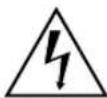
The lightning flash with arrowhead symbol, within an equilateral triangle, is intended to alert the user to the presence of uninsulated "dangerous voltage" within the product's enclosure that may be of sufficient magnitude to constitute a risk of electric shock to persons.

The exclamation point within an equilateral triangle is intended to alert the user to the presence of important operating and maintenance (servicing) instructions in the literature accompanying the appliance.
The caution marking is located on the rear or bottom of the cabinet.
Important Safety Instructions
- Read these instructions.
- Keep these instructions.
- Heed all warnings.
- Follow all instructions.
- Do not use this apparatus near water.
- Clean only with dry cloth.
- Do not block any ventilation openings. Install in accordance with the manufacture's instructions.
- Do not install near any heat sources such as radiators, heat registers, stoves, or other apparatus (including amplifiers) that produce heat.
- Do not defeat the safety purpose of the polarized or grounding-type plug. A polarized plug has two blades with one wider than the other. A grounding type plug has two blades and a third grounding prong. The wide blade or the third prong are provided for your safety. If the provided plug does not fit into your outlet, consult an electrician for replacement of the obsolete outlet.
- Protect the power cord from being walked on or pinched particularly at plugs, convenience receptacles, and the point where they exit from the apparatus.
-
Only use attachments/accessories specified by the manufacturer.
-
Use only with the cart, stand, tripod, bracket, or table specified by the manufacturer, or sold with the apparatus. When a cart is used, use caution when moving the cart/ apparatus combination to avoid injury from tip-over.
-
Unplug this apparatus during lightning storms or when unused for long periods of time.
-
Refer all servicing to qualified service personnel. Servicing is required when the apparatus has been damaged in any way, such as power-supply cord or plug is damaged, liquid has been spilled or objects have fallen into the apparatus, the apparatus has been exposed to rain or moisture, does not operate normally, or has been dropped.
-
Damage Requiring Service
Unplug the apparatus from the wall outlet and refer servicing to qualified service personnel under the following conditions:
A. When the power-supply cord or plug is damaged,
B. If liquid has been spilled, or objects have fallen into the apparatus,
C. If the apparatus has been exposed to rain or water,
D. If the apparatus does not operate normally by following the operating instructions. Adjust only those controls that are covered by the operating instructions as an improper adjustment of other controls may result in damage and will often require extensive work by a qualified technician to restore the apparatus to its normal operation,
E. If the apparatus has been dropped or damaged in any way, and
F. When the apparatus exhibits a distinct change in performance this indicates a need for service.
- Object and Liquid Entry
Never push objects of any kind into the apparatus through openings as they may touch dangerous voltage points or short-out parts that could result in a fire or electric shock.
The apparatus shall not be exposed to dripping or splashing and no objects filled with liquids, such as vases shall be placed on the apparatus.
Don't put candles or other burning objects on top of this unit.
- Batteries
Always consider the environmental issues and follow local regulations when disposing of batteries.
- If you install the apparatus in a built-in installation, such as a bookcase or rack, ensure that there is adequate ventilation.
Leave 20 cm (8") of free space at the top and sides and 10 cm (4") at the rear. The rear edge of the shelf or board above the apparatus shall be set 10 cm (4") away from the rear panel or wall, creating a flue-like gap for warm air to escape.
Do not place the unit on the furniture that is capable of being tilted by a child and an adult leaning, pulling, standing or climbing on it. A falling unit can cause serious injury or even death.
- Recording Copyright—Unless it's for personal use only, recording copyrighted material is illegal without the permission of the copyright holder.
- AC Fuse—The AC fuse inside the unit is not user-serviceable. If you cannot turn on the unit, contact your Onkyo dealer.
- Care—Occasionally you should dust the unit all over with a soft cloth. For stubborn stains, use a soft cloth dampened with a weak solution of mild detergent and water. Dry the unit immediately afterwards with a clean cloth. Don't use abrasive cloths, thinners, alcohol, or other chemical solvents, because they may damage the finish or remove the panel lettering.
4. Power WARNING
BEFORE PLUGGING IN THE UNIT FOR THE FIRST TIME, READ THE FOLLOWING SECTION CAREFULLY.
AC outlet voltages vary from country to country. Make sure that the voltage in your area meets the voltage requirements printed on the unit's rear panel (AC 120 V, 60 Hz).
The power cord plug is used to disconnect this unit from the AC power source. Make sure that the plug is readily operable (easily accessible) at all times.
Pressing ⏻ON// STANDBY] to select Standby mode does not fully shutdown the unit. If you do not intend to use the unit for an extended period, remove the power cord from the AC outlet.
5. Preventing Hearing Loss Caution
Excessive sound pressure from earphones and headphones can cause hearing loss.
6. Batteries and Heat Exposure Warning
Batteries (battery pack or batteries installed) shall not be exposed to excessive heat as sunshine, fire or the like.
7. Never Touch this Unit with Wet Hands—Never handle this unit or its power cord while your hands are wet or damp. If water or any other liquid gets inside this unit, have it checked by your Onkyo dealer.
8. Handling Notes
- If you need to transport this unit, use the original packaging to pack it how it was when you originally bought it.
- Do not leave rubber or plastic items on this unit for a long time, because they may leave marks on the case.
- This unit's top and rear panels may get warm after prolonged use. This is normal.
- If you do not use this unit for a long time, it may not work properly the next time you turn it on, so be sure to use it occasionally.
- When you've finished using this unit, remove all discs and turn off the power.
9. Installing this Unit
• Install this unit in a well-ventilated location.
- Ensure that there's adequate ventilation all around this unit, especially if it's installed in an audio rack. If the ventilation is inadequate, the unit may overheat, leading to malfunction.
- Do not expose this unit to direct sunlight or heat sources, because its internal temperature may rise, shortening the life of the optical pickup.
- Avoid damp and dusty places, and places subject to vibrations from loudspeakers.
- Never put the unit on top of, or directly above a loud-speaker.
- Install this unit horizontally. Never use it on its side or on a sloping surface, because it may cause a malfunction.
-
If you install this unit near a TV, radio, or VCR, the picture and sound quality may be affected. If this occurs, move this unit away from the TV, radio, or VCR.
-
To Obtain a Clear Picture—This unit is a high-tech, precision device. If the lens on the optical pickup, or the disc drive mechanism becomes dirty or worn, the picture quality may be affected. To maintain the best picture quality, we recommend regular inspection and maintenance (cleaning or worn part replacement). Contact your Onkyo dealer.
11. Moisture Condensation
Moisture condensation may damage this unit.
Read the following carefully:
Moisture may condense on the lens of the optical pickup, one of the most important parts inside this unit.
- Moisture condensation can occur in the following situations:
- The unit is moved from a cold place to a warm place.
- A heater is turned on, or cold air from an air conditioner is hitting the unit.
-
In the summer, when this unit is moved from an air conditioned room to a hot and humid place.
– The unit is used in a humid place.
-
Do not use this unit when there's the possibility of moisture condensation occurring. Doing so may damage your discs and certain parts inside this unit.
If condensation does occur, remove all discs and leave this unit turned on for two to three hours. By this time, the unit will have warmed up and any condensation will have evaporated.
12.RegionCodes—The BD/DVD standard uses region codes to control how discs can be played around the world, the world being divided into three regions (BD) or six regions (DVD). This unit will only play BD/DVD discs that match its region code, which can be found on its rear panel (A, B, C, D, E, F, G, H, I, J, K, L, M, N, O, P, Q, R, S, T, U, V, W, X, Y, Z, A, B, C, D, E, F, G, H, I, J, K, L, M, N, O, P, Q, R, S, T, U, V, W, X, Y, Z, A, B, C, D, E, F, G, H, I, J, K, L, M, N, O, P, Q, R, S, T, U, V, W, X, Z, A, B, C,D, E, F, G, H, I, J, K
- About this Manual—This manual explains how to use all of this unit's functions. Although the BD/DVD standard offers many special features, not all discs use them all, so depending on the disc being played, this unit may not respond to certain functions. See the disc's sleeve notes for supported features.
This unit contains a semiconductor laser system and is classified as a "CLASS 1 LASER PRODUCT". So, to use this model properly, read this Instruction Manual carefully. In case of any trouble, please contact the store where you purchased the unit.
To prevent being exposed to the laser beam, do not try to open the enclosure.
CAUTION:
VISIBLE AND INVISIBLE LASER RADIATION WHEN OPEN AND INTERLOCK FAILED OR DEFEATED. DO NOT STARE INTO BEAM.
THIS PRODUCT UTILIZES A LASER. USE OF CONTROLS OR ADJUSTMENTS OR PERFORMANCE OF PROCEDURES OTHER THAN THOSE SPECIFIED HEREIN MAY RESULT IN HAZARDOUS RADIATION EXPOSURE.
The label on the right is applied on the rear panel.
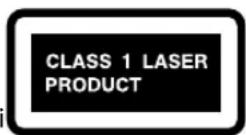
- This unit is a CLASS 1 LASER PRODUCT and employs a laser in the cabinet.
- To prevent the laser from being exposed, do not remove the cover. Refer servicing to qualified personnel.
For U.S. Models
CAUTION:
The user changes or modifications not expressly approved by the party responsible for compliance could void the user's authority to operate the equipment.
NOTE:
This equipment has been tested and found to comply with the limits for a Class B digital device, pursuant to Part 15 of the FCC Rules. These limits are designed to provide reasonable protection against harmful interference in a residential installation.
This equipment generates, uses and can radiate radio frequency energy and, if not installed and used in accordance with the instructions, may cause harmful interference to radio communications. However, there is no guarantee that interference will not occur in a particular installation. If this equipment does cause harmful interference to radio or television reception, which can be determined by turning the equipment off and on, the user is encouraged to try to correct the interference by one or more of the following measures:
- Reorient or relocate the receiving antenna.
- Increase the separation between the equipment and receiver.
- Connect the equipment into an outlet on a circuit different from that to which the receiver is connected.
- Consult the dealer or an experienced radio/TV technician for help.
For Canadian Models
NOTE: THIS CLASS B DIGITAL APPARATUS COMPLIES WITH CANADIAN ICES-003.
Supplied Accessories
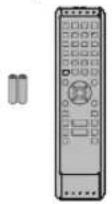
remote control with AA (1 5V) battery x 2
instruction manual
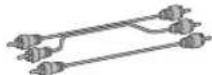
RCA audio / video cables
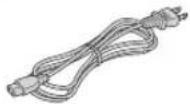
AC cord
quick start guide
Note about Recycling
- This unit's packaging materials are recyclable and can be reused. Please dispose of any materials in accordance with your local recycling regulations.
- Batteries should never be thrown away or incinerated but disposed of in accordance with your local regulations concerning chemical wastes.

Maintenance
Servicing
- Please refer to relevant topics on "TROUBLESHOOTING" on page 50 before returning the product.
- If this unit becomes inoperative, do not try to correct the problem by yourself. There are no user-serviceable parts inside. Turn the unit to the standby mode, unplug the power plug, and please contact your Onkyo dealer.
Disc handling
- For best results, keep your discs clean. Fingerprints and dust can affect the sound and picture quality and should be removed as follows. Using a clean, soft cloth, wipe from the center outwards, as shown. Never wipe in a circular direction.
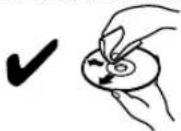
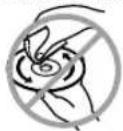
• To remove stubborn dust or dirt, wipe the disc with a damp, soft cloth, and then dry it with a dry cloth.
- Never use solvent-based cleaning fluids, such as thinner or benzine, commercially available cleaners, or antistatic sprays intended for vinyl records, because they may damage the disc.
IR signal check
- If the remote control is not working properly, you can use a digital camera (including a cellular phone with built-in camera) to see if it is sending out an infrared signal.
With a digital camera
(including built-in cell phone cameras):
Point a digital camera towards the remote control. Push any button on the remote control and look through the digital camera. If the infrared light appears through the camera, the remote control is working.
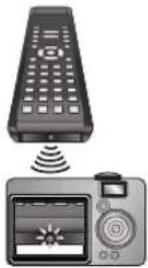
natural_image
Illustration of a remote control with wireless signal and a digital camera (no text or symbols)
Copyright
- It is forbidden by law to copy, broadcast, show, broadcast on cable, play in public, or rent copyrighted material without permission. Commercial BD-video/DVD-video discs are copy-protected, and any recordings made from these discs will be distorted. This product incorporates copyright protection technology that is protected by U.S. patents and other intellectual property rights. Use of this copyright protection technology must be authorized by Macrovision, and is intended for home and other limited viewing uses only unless otherwise authorized by Macrovision. Reverse engineering or disassembly is prohibited.
HDMI ^TM
HIGH-DEFINITION MULTIMEDIA INTERFACE
HDMI, the HDMI logo and High-Definition Multimedia Interface are trademarks or registered trademarks of HDMI Licensing LLC.
TRUEHD
DIGITAL PLUS
Manufactured under license from Dolby Laboratories. Dolby and the double-D symbol are trademarks of Dolby Laboratories.

dts-HD
Master Audio | Essential
Manufactured under license under U.S. Patent #'s: 5,451,942; 5,956,674; 5,974,380; 5,978,762; 6,226,616; 6,487,535; 7,392,195; 7,272,567; 7,333,929; 7,212,872 & other U.S. and worldwide patents issued & pending. DTS is a registered trademark and the DTS logos, Symbol, DTS-HD and DTS-HD Master Audio | Essential are trademarks of DTS, Inc. ©1996-2008 DTS, Inc. All Rights Reserved.

THX and the THX logo are trademarks of THX Ltd. which may be registered in some jurisdictions. All rights reserved.
x.v.Color
"x.v.Color" and "x.v.Color" logo are trademarks of Sony Corporation.
"Blu-ray Disc" and are trademarks.

is a trademark of DVD Format/Logo Licensing Corporation.

Java
POWERED
Java and all other Java trademarks and logos are trademarks or registered trademarks of Sun Microsystems, Inc. in the United States and / or other countries.
AVCHD™
"AVCHD" and the "AVCHD" logo are trademarks of Panasonic Corporation and Sony Corporation.
BONUS VIEW™
"BONUSVIEW" is trademark of Blu-ray Disc Association.
"BD-LIVE" logo is trademark of Blu-ray Disc Association.
CONTENTS
Introduction
PRECAUTIONS 3
FEATURES 8
Features 8
Symbols Used in this Manual 8
FUNCTIONAL OVERVIEW 9
Front Panel 9
Rear Panel 9
Remote Control 10
Front Panel Display.... 12
Connections
CONNECTIONS.... 13
Connection to the TV.... 13
Connection to an Audio System 16
Network Connection with LAN 18
Playback
INFORMATION ON PLAYBACK 19
BASIC PLAYBACK 22
Playing Back a BD, DVD or a Disc with AVCHD files ... 22
Operations Using Title Menu,
Disc Menu, and Pop-up Menu 23
Pause....23
Resume Playback 23
Playing Back an Audio CD or a Disc with MP3 files... 24
Reading the SD Memory Card 25
SPECIAL PLAYBACK 26
Fast Forward / Fast Reverse. 26
Slow Forward Playback.... 26
Step by Step Playback.... 26
Repeat Playback 26
A-B Repeat.... 27
PIP (Picture in Picture) (BONUSVIEW) Setting..... 27
Program Playback 27
Random Playback 28
Rapid Playback.... 29
Camera Angle.... 29
Enjoying BD-Live Discs with Internet. 29
SEARCH 30
SPECIAL SETTINGS 31
Switching Subtitles.... 31
Switching Audio Soundtrack 31
Setting the BD Audio Mode 32
Adjusting the Picture.... 32
Function Setup
FUNCTION SETUP 33
Using the Setup Menu.... 33
Network Connection 45
Software Upgrade.... 48
Others
TROUBLESHOOTING ....50
GLOSSARY 52
LANGUAGE CODE 54
SPECIFICATIONS 55
FEATURES
Features
Full high-definition video playback
Watch movies in the highest picture quality available for your HDTV. This unit offers full high-definition video playback up to 1080p resolution for an amazing viewing experience. A highly detailed picture and increased sharpness delivers a more true-to-life picture.
Upconvert DVD for enhanced picture quality
Your current DVD will look even better than before thanks to video upconversion. Upconversion will increase the resolution of standard definition DVD to high definition up to 1080p over an HDMI connection. The picture will be less jagged and more realistic for a near high-definition experience.
Enjoy your content on different kinds of media
Full backwards compatibility with DVD, CD and SD Card ensures that you can continue to enjoy your current audio-video collection. Additionally, you can enjoy JPEG/MP3 files.
Listen to the rich multi-channel surround sound
Multi-channel surround sound, which realizes real-to-life sound and makes you feel that you are really there.
Easy and simple connection to your HDTV via HDMI
Connect this unit to your HDTV with one single HDMI (high definition multimedia interface) cable. It is recommended to use High Speed HDMI Cable for better compatibility. The high definition video output signal will be transferred to your HDTV without conversion to analog signals, so you will get an excellent picture and sound quality, completely free from noise.
Thanks to other multiple outputs, you can also easily connect to your home theater system or amplifier.
About HDMI CEC (consumer electronics control)
This unit supports HDMI CEC, which allows integrated system control over HDMI and is part of the HDMI standard. Onkyo does not guarantee 100% interoperability with other brands of HDMI CEC compliant devices.
PIP (Picture in Picture) (BONUSVIEW) setting
Some BD-video have the PIP (picture-in-picture) function which enables you to display the secondary video in the primary video. You can call up the secondary video by pressing [PIP] whenever the scene contains the secondary video.
BD-Live
BD-Live (BD-ROM ver. 2 (Profile 2.0/Profile 1.1)) that allows interactive functions to be used when this unit is connected to the Internet in addition to be BONUSVIEW function. The various functions differ depending on the disc.
Some BD-video have pop-up menu which is a navigation menu that can be called up and be operated on the TV screen without interrupting the playback. You can call up the pop-up menu by pressing [POP UP MENU / MENU].
Contents in the pop-up menu vary depending on the disc.
Rapid playback
Playback in slightly faster speed while keeping the sound output.
Rapid playback is available only on discs recorded in the Dolby Digital format.
HDMI Deep Color
Deep Color reduces the posterization effect of the playback image. Refer to "HDMI Deep Color" in "FUNCTION SETUP" on page 36.
HDMI1080p / 24 fps output (BD only)
This unit is equipped with the feature which can provide the smooth movement in the playback of film originated material with the frame rate of 24 frames per second with progressive. (Available only when the TV is connected by an HDMI cable and compatible with 1080p24 frame input.) Refer to "HDMI Video Resolution" in "FUNCTION SETUP" on page 36.
Playing back the contents in SD Memory Card
You can play back AVCHD/MP3/JPEG stored in an SD Memory Card.
You can store picture-in-picture commentary, subtitles or other extras for BD-ROM Ver. 2 (Profile 2.0/Profile 1.1) files in an SD Memory Card and play back with the BD-video.
Playing back AVCHD files
This unit supports playback of AVCHD format files (new format for high definition video camcorders) recorded on disc/SD card. Your high definition personal archive is playable in HD quality.
Analog 7.1ch Surround Output
This player is equipped with analog 7.1-channel surround audio out jacks for playback.
x.v.Color
This unit supports playback of video contents on discs recorded with "x.v.Color" technology. To watch this video content with the "x.v.Color" space, a TV or other display device supporting both video image reproduction using "x.v.Color" standard and capability of manual switching of its color space setting is required. Please refer to the owner's manual of your display device for further information.
Symbols Used in this Manual
To specify for which media type each function is, we put the following symbols at the beginning of each item to operate.
Symbol Description
| BD-V | Description refers to BD-video and BD-RE (ver. 2.1) / BD-R (ver. 1.1/1.2/1.3) recorded in BDMV format |
| DVD-V | Description refers to DVD-video |
| AVCHD | Description refers to DVD-RW/-R and SD Card / SDHC Card with AVCHD files |
| CD | Description refers to audio CD / DTS-CD |
| MP3 | Description refers to BD, DVD, CD-RW/-R and SD Memory Card with MP3 files |
| JPEG | Description refers to BD, DVD, CD-RW/-R and SD Memory Card with JPEG files |
If you do not find any of the symbols listed above under the function heading, the operation is applicable to all media.
FUNCTIONAL OVERVIEW
Front Panel
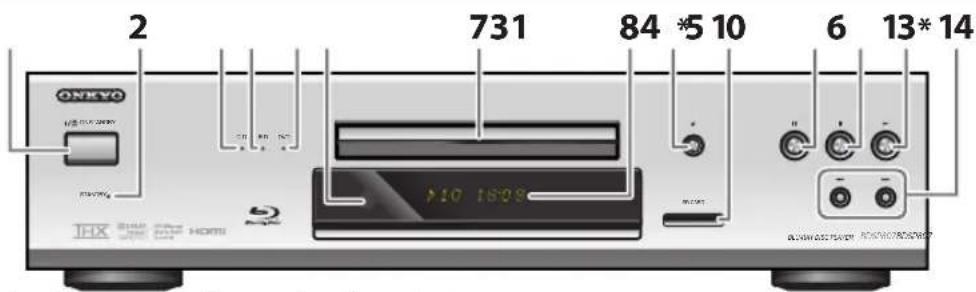
* The unit can also be turned on by pressing these buttons.
- Press to turn on the unit, or to turn the unit into the standby mode. (To completely shut down the unit, you must unplug the AC power cord)
2. STANDBY indicator
- This indicator lights up in red when the unit is in standby mode and turns off when the unit is active.
3. CD indicator
- This indicator lights up in green when a CD is inserted in this unit.
4. BD indicator
- This indicator lights up in blue when a BD is inserted in this unit.
5. DVD indicator
- This indicator lights up in orange when a DVD is inserted in this unit.
6. Infrared sensor window
- Receive signals from your remote control so that you can control the unit from a distance.
7. Disc tray
- Place a disc when opening the disc tray.
8. Display
- Refer to "Front Panel Display" on page 12.
- Press to open or close the disc tray.
10. SD CARD slot
- Insert an SD Memory Card, and play back the contents in it.
- Press to pause playback.
- Press to stop playback.
- Press to start or resume playback.
- Press to skip down / up titles / chapters / tracks/files.
Rear Panel
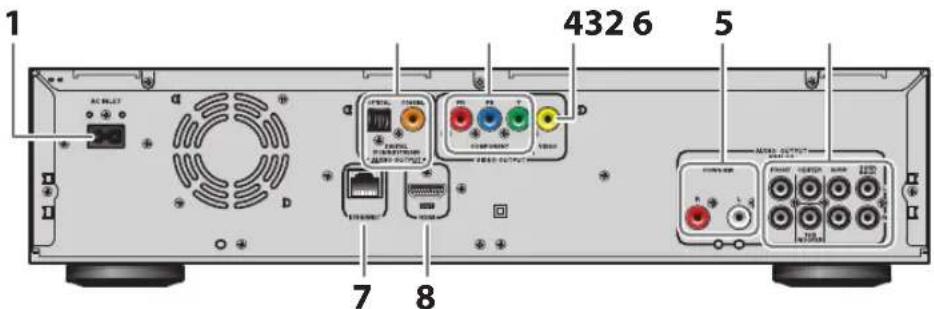
1. AC INLET terminal
- Connect the supplied AC power cord for a standard AC outlet to supply power to this unit.
- Unplug this cord from the AC outlet to completely shut down the unit.
2. AUDIO OUTPUT (DIGITAL OPTICAL / COAXIAL) jacks
- Use to connect an AV receiver / amplifier, Dolby Digital / DTS decoder or other device with a digital audio optical / coaxial input jack with a digital audio optical / coaxial cable.
3. VIDEO OUTPUT (COMPONENT) jacks
- Use to connect a TV or AV receiver with component video inputs with an RCA component video cable.
4. VIDEO OUTPUT (VIDEO) jack
- Use to connect a TV, an AV receiver or other device with an RCA video cable.
5. AUDIO OUTPUT (DOWN MIX L / R) jacks
- Use to connect a TV, an AV receiver / amplifier or other device with an RCA audio cable.
6. AUDIO OUTPUT (ANALOG 7.1ch) jacks
- Use an RCA audio cable to connect these jacks to the 7.1-channel audio input jacks of your amplifier with 7.1-channel input terminals.
7. ETHERNET terminal
- Use to connect a telecommunications equipment with LAN cable.
8. HDMI OUT jack
- Use to connect a TV, an AV receiver / amplifier or other device with an HDMI compatible port with an HDMI cable.
Note
- Do not touch the inner pins of the jacks on the rear panel. Electrostatic discharge may cause permanent damage to the unit.
• This unit does not have the RF modulator.
Remote Control
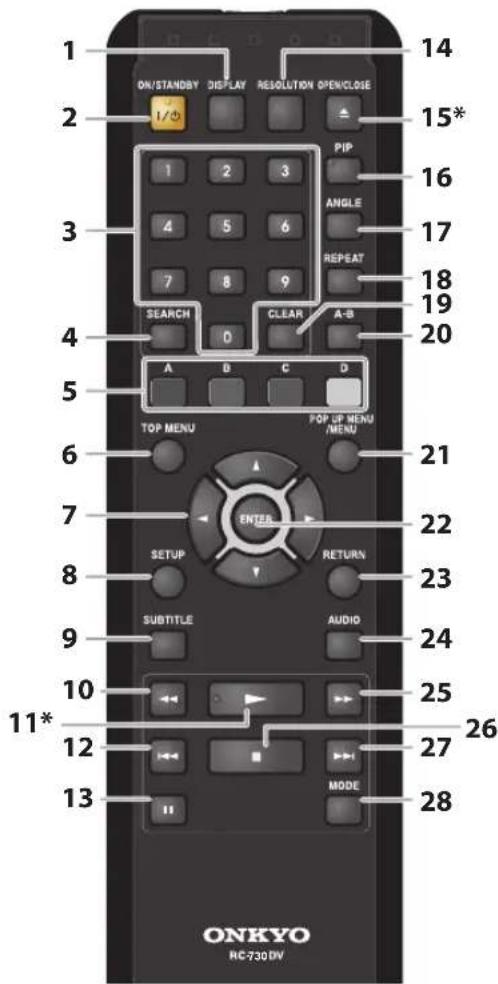
* The unit can also be turned on by pressing these buttons.
- DISPLAY button
- Press to display the on-screen display menu.
- ON/STANDBY I/ ⏻ button
- Press to turn on the unit, or to turn the unit into the standby mode. (To completely shut down the unit, you must unplug the AC power cord)
- Number buttons
- Press to enter the title, chapter, track or file number.
- Press to enter values in the input field.
- SEARCH button
- Press to display the search menu.
- A / B / C / D button
- Press to select items on some BD menus.
- When file list is shown, press to switch between pages.
- TOP MENU button
- Press to display the top menu.
- Cursor ▲ / ▼ / ◀ / ▶ buttons
- Press to select items or settings.
- SETUP button
- Press to display the setup menu.
- SUBTITLE button
- Press to display the subtitle menu.
- REV ◀ button
- During playback, press to fast reverse the playback.
11.PLAY▶ button*
- Press to start playback or resume playback.
12.SKIP|◀◀ button
- During playback, press once to return to the beginning of the current title, chapter, track or file.
- During playback, press twice to return to the previous title, chapter, track or file.
- During the JPEG playback, press to return to the previous file.
13.PAUSE|| button
- Press to pause playback.
- When playback is in pause mode, press repeatedly to forward the playback step by step.
- RESOLUTION button
- Press to set the HDMI output mode.
- OPEN/CLOSE▲ button*
- Press to open or close the disc tray.
- PIP button
- Press to display the setting for picture-in-picture (only applicable to BD-video which supports the PIP function).
- ANGLE button
- Press to access various camera angles on the disc.
- Press to rotate the JPEG files clockwise by 90 degrees.
- REPEAT button
- Press to toggle between various repeat modes.
- CLEAR button
- Press to clear the information once entered, to clear the marker settings, or to cancel the programming for audio CD, etc.
20.A-Bbutton
- Press to play back a defined section between point A and B repeatedly.
- POP UP MENU/MENU button
- Press to display the pop-up menu / disc menu.
- ENTER button
- Press to confirm or select menu items.
- RETURN button
- Press to return to the previously displayed menu screen.
- AUDIO button
- Press to display the audio menu.
25.FWD▶▶ button
- During playback, press to fast forward the playback.
• In pause mode, press to slow forward the playback.
26.STOP■ button
- Press to stop playback.
27.SKIP▶▶| button
- During playback, press to skip to the next title, chapter, track or file.
- MODE button
- During BD, DVD or AVCHD files playback, press to display the setting for the rapid playback and the picture adjustment.
- During BD playback, press to display the setting for the picture-in-picture (only applicable to BD-video which supports the PIP function).
- During the JPEG playback, press to display menus for changing the visual effect for switching the image or changing the size of the image.
- In stop mode with BD inserted, press to display a menu for setting the BD audio mode.
- In stop mode with audio CD, or a disc with MP3 or JPEG files inserted, press to display menus for program and random playback.
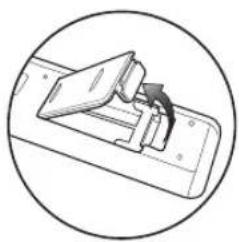
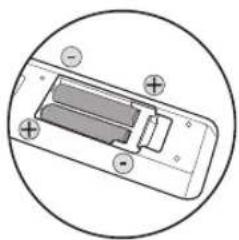
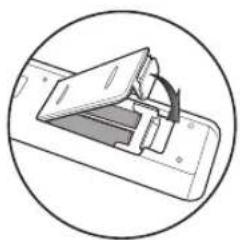
Installing the Batteries in the Remote Control
Install 2 AA (1.5V) batteries matching the polarity indicated inside battery compartment of the remote control.
1 Open the cover.
natural_image
Simple line drawing of a device with a handle and lever, enclosed in a circle (no text or symbols)
2 Insert batteries.
natural_image
Diagram of a battery pack inside a circular housing, showing internal components and polarity indicators (no text or labels)
Make sure to match + and - on the batteries to the marks indicated in the battery compartment.
3 Close the cover.
natural_image
Diagram of a device being inserted into a slot, enclosed in a circular frame (no text or symbols)
Note
Incorrect use of batteries can result in hazards such as leakage and bursting. Please observe the following:
- Do not mix new and old batteries together.
- Do not use different kinds of batteries together. Although they may look similar, different batteries may have different voltages.
- Make sure that the + and - ends of each battery match the indications in the battery compartment.
- Remove batteries from battery compartment that is not going to be used for a month or more.
- When disposing of used batteries, please comply with governmental regulations or environmental public instruction's rules that apply in your country or area.
- Do not recharge, short-circuit, heat, burn or disassemble batteries.
Using a Remote Control
Keep in mind the following when using the remote control:
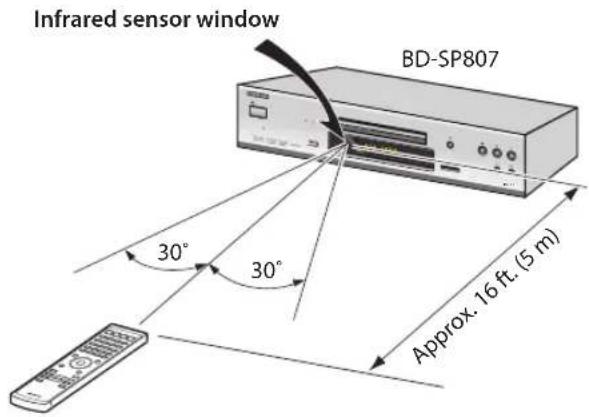
- Make sure that there are no obstacles between the remote control and the infrared sensor window on the unit.
- Remote operation may become unreliable if strong sunlight or fluorescent light is shining on the infrared sensor window of the unit.
- Remote control for different devices can interfere with each other. Avoid using remote control for other device located close to the unit.
- Replace the batteries when you notice a fall off in the operating range of the remote control.
- The maximum operable ranges from the unit are as follows.
Front Panel Display
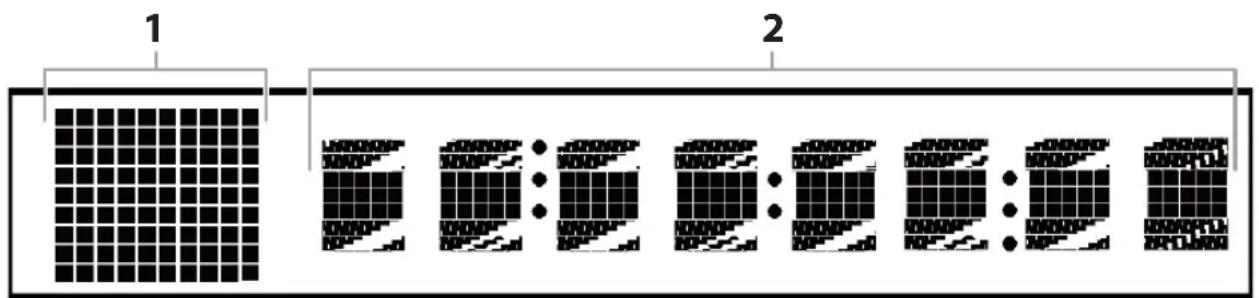
| Playback status icon | Mode |
| Disc SD Memory Card |
 |  | Playback is in progress |
 |  | Stop mode |
 |  | Pause mode |
 |  | Fast forward mode |
| [KD0T] |  | Fast reverse mode |
| [H6A3] |  (for AVCHD only) (for AVCHD only) | Slow forward mode |
| [7224] | Appears while repeat function is set |
Example of Display Message
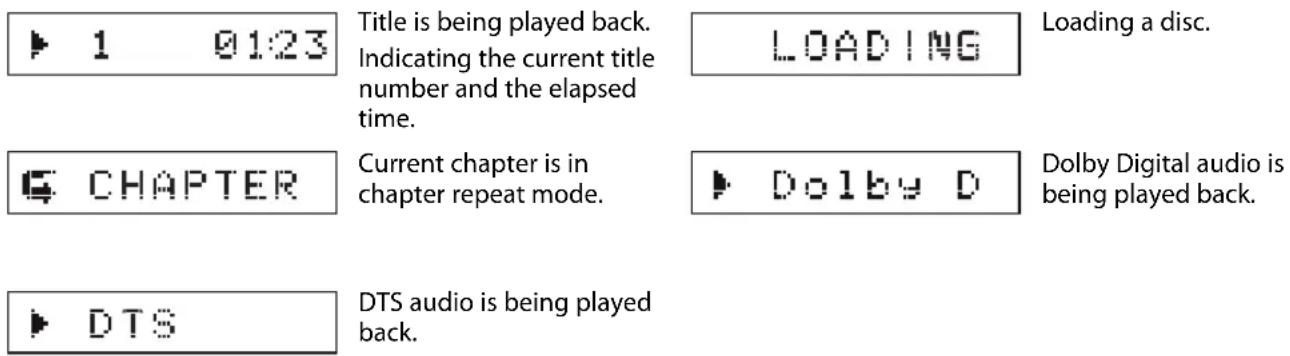
CONNECTIONS
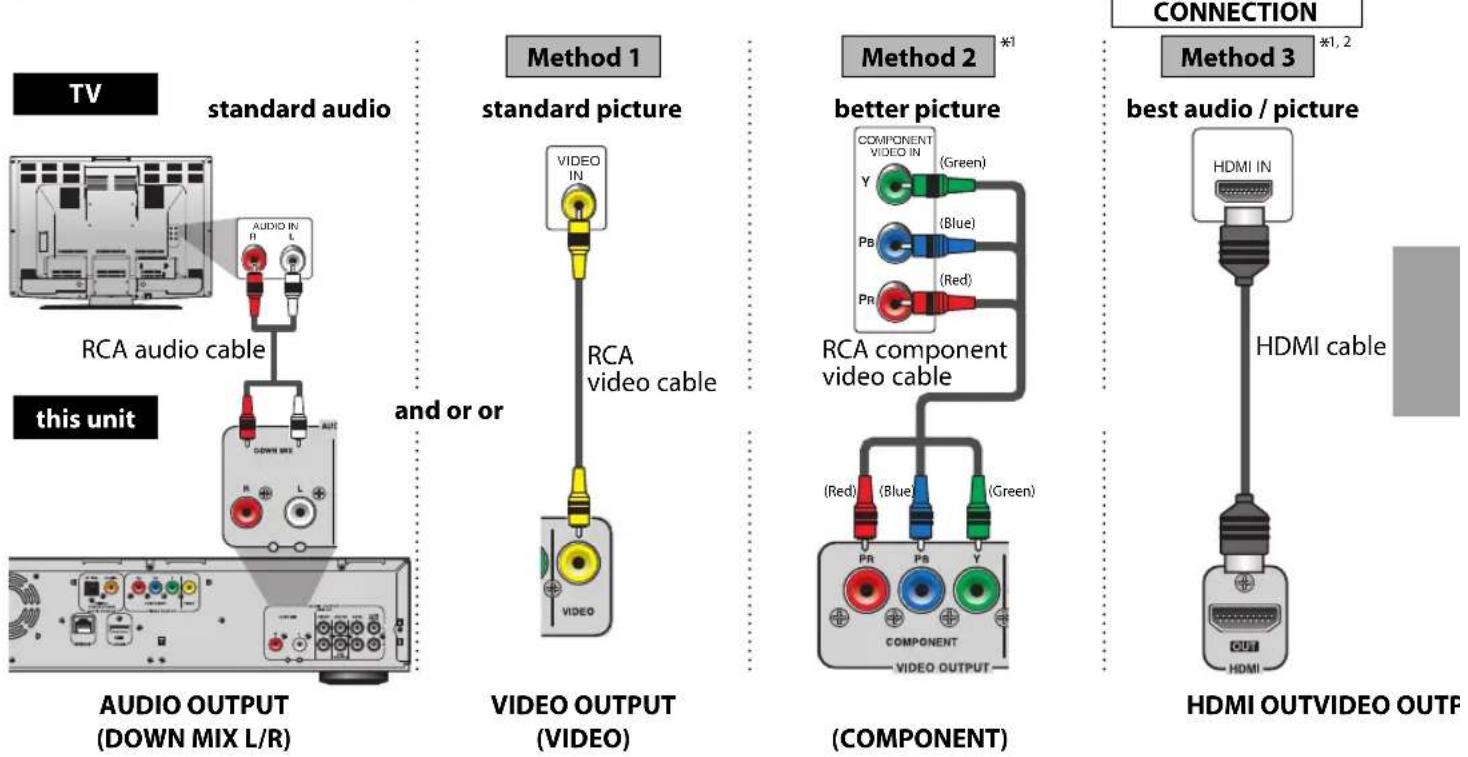
Connection to the TV
- Make one of the following connections, depending on the capabilities of your existing device.
AUDIO CONNECTION
VIDEO CONNECTION
flowchart
graph TD
    A["TV"] --> B["standard audio"]
    B --> C["RACA audio cable"]
    C --> D["down mix L/R"]
    D --> E["VIDEO OUTPUT (DOWN MIX L/R)"]
    F["Method 1"] --> G["standard picture"]
    G --> H["VIDEO IN"]
    H --> I["RACA video cable"]
    I --> J["VIDEO OUTPUT (VIDEO)"]
    K["Method 2"] --> L["better picture"]
    L --> M["COMPONENT VIDEO IN (Green) Y"]
    L --> N["PB (Blue) (Red)"] (Component video cable)
    L --> O["PR (Red) (Blue)"] (Green) (Component video cable)
    P["CONNECTION"] --> Q["best audio / picture"]
    Q --> R["HDMI IN"]
    Q --> S["HDMI"]
    T["this unit"] --> U["VIDEO OUTPUT (VIDEO)"]
    U --> V["VIDEO OUTPUT (VIDEO)"]
    W["VIDEO OUTPUT (COMPONENT)"] --> X["VIDEO OUTPUT (COMPONENT)"]
    X --> Y["VIDEO OUTPUT (COMPONENT)"]
    Z["HDMI OUTVIDEO OUTF"] --> AA["HDMI"]
*1) This unit is compatible with the progressive scan system. The feature provides you with the higher quality pictures than traditional output system does. To utilize this feature, a component or an HDMI connection is required. Refer to "HDMI Video Resolution" or "Component Output" setting on page 36 to set the video resolution.
^*2) Analog audio connection is not required for this connection.
Supplied cables used in this connection are as follows:
• RCA audio cable (L/R) x 1
- RCA video cable x 1
Please purchase the rest of the necessary cables at your local store.
Note
- Connect this unit directly to the TV. If the RCA audio / video cables are connected to a VCR, pictures may be distorted due to the copy-protection system.
- If the picture is not output properly to the TV because of "HDMI Video Resolution" or "Component Output" setting, press and hold [▶(play)] on the front panel for more than 5 seconds. "HDMI Video Resolution" and "Component Output" setting will be reset to the default automatically. You cannot change the video resolution during Blu-ray Disc playback. To change the resolution, stop playback.
- A simple 1-cable connection with a device having an HDMI (high-definition multimedia interface) jack allows digital transfer of both digital video signals and multi-channel audio signals.
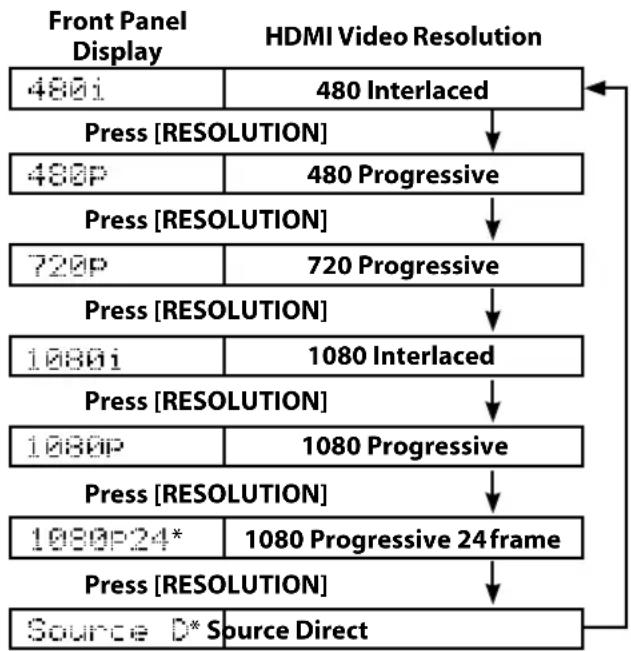
HDMI Output Mode and Actual Output Signals
Press [RESOLUTION] to change the resolution of the video signal being output from HDMI OUT jack. The video resolution changes as follows every time [RESOLUTION] is pressed.
flowchart
graph TD
    A["Front Panel Display 480i"] --> B["480 Interlaced"]
    B --> C["Press [RESOLUTION"]]
    C --> D["480P 480 Progressive"]
    D --> E["Press [RESOLUTION"]]
    E --> F["720P 720 Progressive"]
    F --> G["Press [RESOLUTION"]]
    G --> H["1080i 1080 Interlaced"]
    H --> I["Press [RESOLUTION"]]
    I --> J["1080P 1080 Progressive"]
    J --> K["Press [RESOLUTION"]]
    K --> L["1080P24* 1080 Progressive 24frame"]
    L --> M["Press [RESOLUTION"]]
    M --> N["Source D* Source Direct"]
    N --> A
Press [RESOLUTION]
Copyright protection system
To play back the digital video images of a BD / DVD via an HDMI connection, it is necessary that both the unit and the TV (or an AV receiver) support a copyright protection system called HDCP (high-bandwidth digital content protection system). HDCP is copy protection technology that comprises data encryption and authentication of the connected AV device. This unit supports HDCP. Please read the operating instructions of your TV (or AV receiver) for more information.
* Do not set "HDMI Video Resolution" to "Source Direct" or "1080p24" if the connected display device does not support the video resolution of 1080p24. If "HDMI Video Resolution" is set to "Source Direct", it may take a while to display the playback picture, when the video resolution of a disc material switches during playback.
Note
- When using HDCP-incompatible TV, the image will not be viewed properly.
- The audio signals from HDMI OUT jack (including the sampling frequency, the number of channels and bit length) maybe limited by the device that is connected.
- Among the devices that support HDMI, some do not support audio output (e.g. projectors). In connections with device such as this unit, audio signals are not output from HDMI OUT jack.
• Video and audio signals may be distorted temporarily when switching to / from the HDMI output mode.
- You can change the HDMI output mode with [RESOLUTION] during playback as well. (This is not available during BD/AVCHD playback.)
- You can also change the HDMI output mode from "HDMI Video Resolution" setting in "Video" menu. In this menu, you can confirm what HDMI video resolutions are supported by connected TV. Refer to page 36.
- In order to get natural and high quality film reproduction of 24-frame film material, use an HDMI cable (High Speed HDMI Cable is recommended) and select "1080p24" if the connected TV is compatible with 1080p24 frame input.
- If the disc contains 1080p24 frame material, 60-frame or 50-frame image will be output unless "1080p24" is selected.
- For AVCHD, 24-frame film material will be output as 60 frame, even if the connected device is compatible with 1080p24 frame input and "HDMI Video Resolution" is set to "1080p24", "Auto" or "Source Direct".
- When "HDMI Video Resolution" is set to "1080p", "1080p24" or "Source Direct", the "Component Output" will be set to "480i" automatically.
- If the video is not properly from HDMI OUT jack after you set the "HDMI Video Resolution" setting, change the HDMI video resolution to the compatible resolution by pressing [RESOLUTION] or press and hold [▶(play)] on the front panel for more than 5 seconds to reset the setting.
- HDMI Deep Color" is available only when the display device is connected by HDMI cable and supports HDMI Deep Color.
- For "Auto" in "HDMI Deep Color", using the High Speed HDMI cable is recommended.
HDMI Audio Out Setting
When using HDMI connections make "HDMI Audio Out" setting in "Audio" menu according to the specifications of the device to be connected. Refer to page 38.
| Device to be connected “HDMI Audio Out” setting Output HDMI audio signal |
| Device compatible with Dolby Digital, Dolby Digital Plus, Dolby TrueHD, DTS or DTS-HD decoding | HDMI Multi (Normal) Dolby Digital, Dolby Digital Plus, Dolby TrueHD, DTS, or DTS-HD bitstream are output from HDMI OUT jack. Make the speaker settings on the connected AV receiver, etc. |
| Device compatible with 3 or more channels of audio inputs (not Dolby Digital, Dolby Digital Plus, Dolby TrueHD, DTS or DTS-HD compatible) | HDMI Multi (LPCM) Multi-channel audio signals are output from HDMI OUT jack. Make the speaker settings with the speaker setting items appear after you select “HDMI Multi(LPCM)”. Refer to page 38. |
| Device compatible with 2-channel audio input or device not compatible with audio input | HDMI 2ch Down-mixed 2-channel audio signals are output from HDMI OUT jack. |
| Device to be connected “HDMI | Audio Out” setting Output HDMI | audio signal |
| HDMI connection to a TV and digital audio connection (optical/coaxial) to an AV receiver | Audio Mute HDMI audio will be mute, and DolbyDigital / DTS bitstream or LPCM will be output from AUDIO OUTPUT (DIGITAL OPTICAL / COAXIAL) jacks depending on “Digital Out” setting. Refer to page 39. |
■ Audio signals output from HDMI OUT jack
| “HDMI Audio Out” setting “HDMI → | Multi (Normal)” “HDMI Multi (LPCM)” “HDMI 2ch” | |
| “BD Audio Mode” setting → | “HD Audio Output” | “Mix Audio Output” | “HD Audio Output” | “Mix Audio Output” | “HD Audio Output” | “Mix Audio Output” |
| Media ↓ | Audio Source Wh ↓ | ch audio format can be output depends on the compatibility of the connected device. |
| BD-video | Dolby Digital | Dolby Digital | Dolby Digital | Multi PCM | Multi PCM | Downmix 2ch PCM | Downmix 2ch PCM |
| Dolby Digital Plus | Dolby Digital Plus | Dolby Digital | Multi PCM*1 | Multi PCM*2 | Downmix 2ch PCM*1 | Downmix 2ch PCM*2 |
| Dolby TrueHD | Dolby TrueHD | Dolby Digital | Multi PCM*3 | Multi PCM*4 | Downmix 2ch PCM*3 | Downmix 2ch PCM*4 |
| DTS DTS | DTS | | Multi PCM*6 | Multi PCM*6 | Downmix 2ch PCM | Downmix 2ch PCM |
| DTS-HD | DTS-HD | DTS | Multi PCM*1,6 | Multi PCM*5,6 | Downmix 2ch PCM*1 | Downmix 2ch PCM*5 |
| LPCM | Multi PCM | Multi PCM Multi | PCM Multi PCM | Downmix 2ch PCM | Downmix 2ch PCM |
| AVCHD | Dolby Digital | Dolby Digital | Multi PCM | Downmix 2ch PCM |
| LPCM | Multi PCM | Multi PCM | Downmix 2ch PCM |
| DVD-video | Dolby Digital | Dolby Digital | Multi PCM | Downmix 2ch PCM |
| DTS | DTS | Multi PCM | Downmix 2ch PCM |
| LPCM | 2ch PCM | 2ch PCM | 2ch PCM |
| Audio CD / MP3 | PCM | 2ch PCM | 2ch PCM | 2ch PCM |
| DTS-CD | DTS | DTS | Multi PCM | Downmix 2ch PCM |
^*1 Full decoded.
*2 Only the independent substream is decoded.
*3 Dolby TrueHD stream is decoded.
*4 Only the Dolby Digital substream is decoded.
*5 Only the core substream is decoded.
When audio source is Multi-channel, decoded as 7.1ch. However, number of the output audio channel will depend on the number of the connected speakers.
- If the connected device is not compatible with the HDMI BITSTREAM, audio will be output as multi LPCM or 2-channel down-mixed LPCM depending on the capability of the connected device even if you select "HDMI Multi(Normal)" in "HDMI Audio Out" setting. Refer to page 38.
- When playing back a BD-video which only contains the primary audio, the audio output will be the same case as the "HD Audio Output" even if the "BD Audio Mode" is set to "Mix Audio Output".
Note
- The audio signals from HDMI OUT jack (including the sampling frequency, the number of channels and bit length) maybe limited by the device that is connected.
- Among the devices that support HDMI, some do not support audio output (e.g. projectors). In connections with device such as this unit, audio signals are not output from HDMI OUT jack.
• Video and audio signals may be distorted temporarily when switching to / from the HDMI output mode.
Connection to an Audio System
- When you change the connections, all devices should be turned off.
- Refer to the manual accompanying external devices for more information.
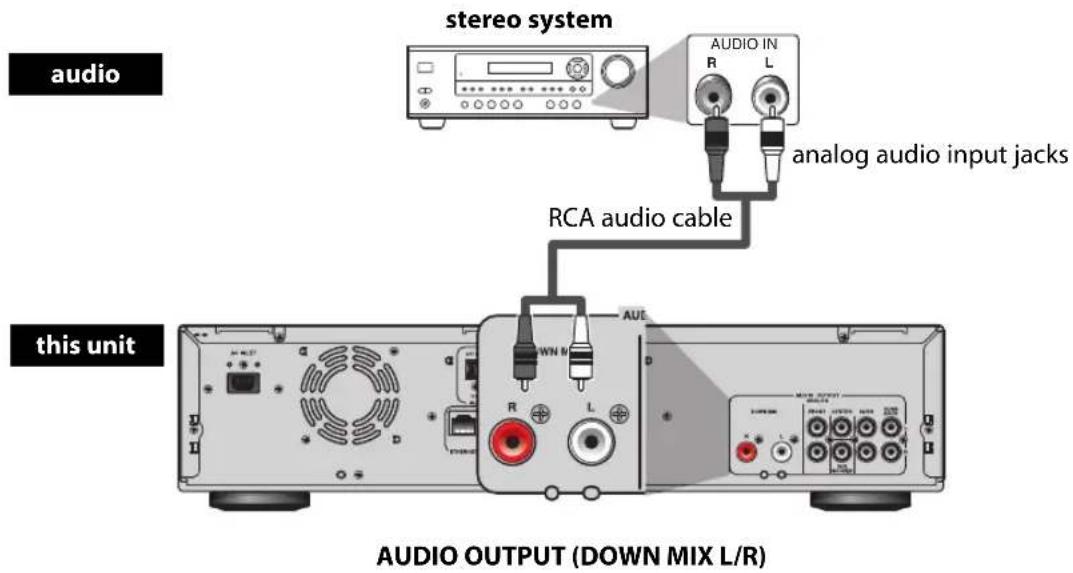
2-Channel Analog Audio Connection
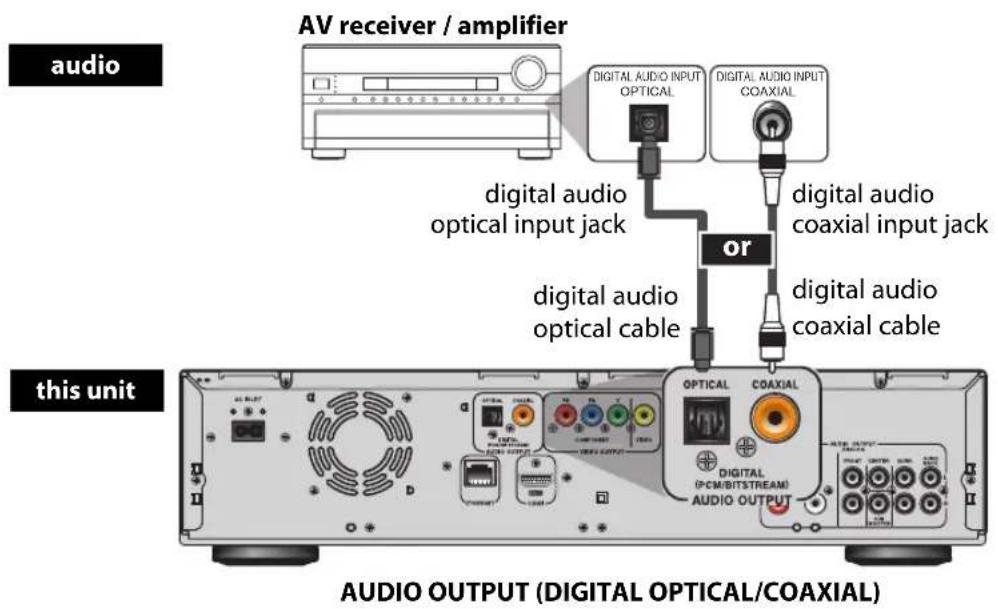
Digital Audio Connection
Supplied cables used in this connection are as follows:
- RCA audio cable (L/R) x 1
Please purchase the rest of the necessary cables at your local store.
Note for Digital Audio Optical Cable
- Digital audio optical cable may be damaged when bent at sharp angles. Endure cables are coiled in loops with a diameter of 6 inches (15cm) or more when storing them.
- Use a cable which is 9.8 feet (3m) or shorter.
- Insert cable plugs firmly into the connectors when making connections.
- If a plug has dust or is dirty, clean it with a soft cloth before inserting it into a connector.
Note
- When connecting to a 2-channel audio stereo device, use the AUDIO OUTPUT (DOWN MIX L/R) jacks. If the AUDIO OUTPUT (ANALOG 7.1ch) jacks are used, set "7.1ch Audio Out" in the "Audio" menu to "2 Channel" (Refer to page 38). For software recorded in multi-channel, analog signals that have been down-mixed into 2 channels are output. (For sources which are prohibited from down-mixing, only the FRONT L/R signals are output.)
■ Audio signals output from AUDIO OUTPUT (DIGITAL OPTICAL / COAXIAL) jacks
For the settings in the "Digital Out" to take effect, "HDMI Audio Out" should be set to "Audio Mute". Otherwise, the settings made in the "HDMI Audio Out" will have a priority, and the same signal as being output from the HDMI OUT jack will be output from the AUDIO OUTPUT (DIGITAL OPTICAL / COAXIAL) jacks as well. (Except that Dolby Digital will be output instead of Dolby Digital Plus and Dolby TrueHD, and DTS signal will be output instead of DTS-HD.)
| “Digital Out” setting→ | “Bitstream” “LPCM” | |
| “BD Audio Mode” setting→ | “HD Audio Output” “Mix Audio Output” “HD Audio Output” “Mix Audio Output” |
| Media↓ | Audio Source↓ | Which audio format can be output depends on the compatibility of the connected device. |
| BD-video | Dolby Digital | Dolby Digital Dolby Digital | Downmix 2ch PCM Downmix 2ch PCM |
| Dolby Digital Plus Dolby Digital | Dolby Digital | Dolby Digital | Downmix 2ch PCM*1 | Downmix 2ch PCM*2 |
| Dolby TrueHD | Dolby Digital Dolby Digital | Downmix 2ch PCM*3 | Downmix 2ch PCM*4 |
| DTS DTS DTS Downmix 2ch PCM Downmix 2ch PCM | | |
| DTS-HD | DTS DTS | Downmix 2ch PCM *1 | Downmix 2ch PCM*5 |
| LPCM | Downmix 2ch PCM | Downmix 2ch PCM | Downmix 2ch PCM Downmix 2ch PCM |
| AVCHD | Dolby Digital | Dolby Digital | Downmix 2ch PCM |
| LPCM | Downmix 2ch PCM | Downmix 2ch PCM |
| DVD-video | Dolby Digital | Dolby Digital | Downmix 2ch PCM |
| DTS | DTS | Downmix 2ch PCM |
| LPCM | 2ch PCM | 2ch PCM |
| Audio CD / MP3 | PCM | 2ch PCM | 2ch PCM |
| DTS-CD | DTS | DTS | Downmix 2ch PCM |
^_1 Full decoded.
^2 Only the independent substream is decoded.
^_3 Dolby TrueHD stream is decoded.
*4 Only the Dolby Digital substream is decoded.
^5 Only the core substream is decoded.
- When playing back a BD-video which only contains the primary audio, the audio output will be the same case as the "HD Audio Output" even if the "BD Audio Mode" is set to "Mix Audio Output".
Note
- In order to output LPCM signal from AUDIO OUTPUT (DIGITAL OPTICAL / COAXIAL) jacks while outputting the HDMI audio signal, set "HDMI Audio Out" setting to "HDMI Multi(LPCM)".
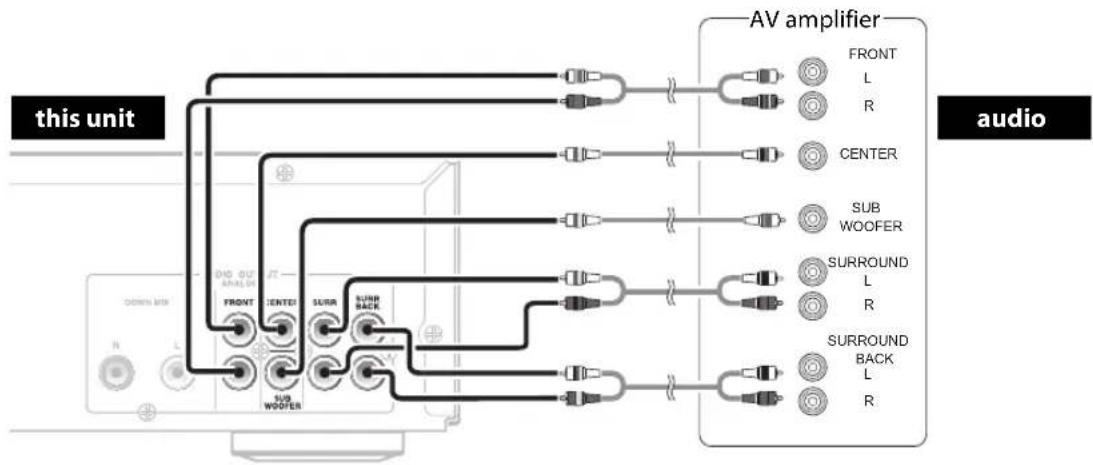
Analog 7.1ch/5.1ch audio signals can be output from AUDIO OUT (ANALOG 7.1ch) jacks.
flowchart
graph TD
    A["down unit"] --> B["AV amplifier"]
    B --> C["FRONT L"]
    B --> D["R"]
    B --> E["CENTER"]
    B --> F["SUB WOOFER"]
    B --> G["SURROUND L R"]
    B --> H["SURROUND BACK L R"]
    I["down unit"] --> J["FRONT L"]
    I --> K["CENTER L"]
    I --> L["SURR BACK L"]
    I --> M["SURROUND BACK L R"]
Supplied cables used in this connection are as follows:
• RCA audio cable (L/R) x 1
Please purchase the rest of the necessary cables at your local store.
Note
- If you connect to 5.1-channel surround system, do not connect to SURR BACK L/R (surround back L/R) jacks, then set "Surround Back" in "Speaker Size" to "None".
Network Connection with LAN
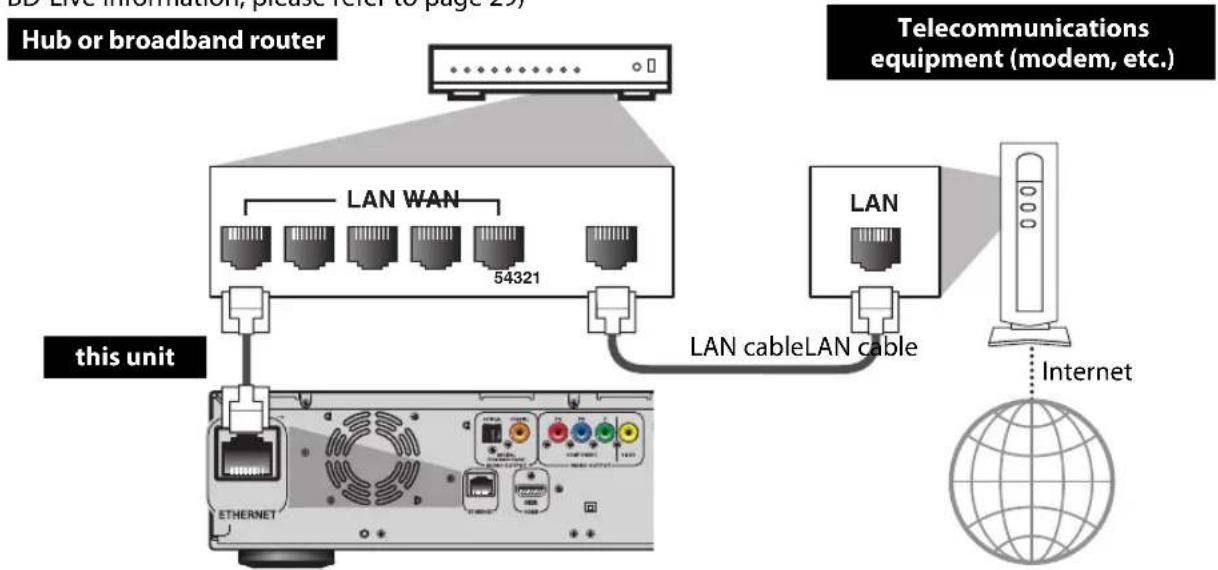
- You can use a disc which offers BD-Live function by connecting the unit to the Internet. (For BD-Live information, please refer to page 29)
flowchart
graph TD
    A["Hub or broadband router"] --> B["LAN WAN"]
    B --> C["54321"]
    D["Telecommunications equipment (modem, etc.)"] --> E["LAN"]
    E --> F["LAN cable"]
    F --> G["LAN"]
    G --> H["Internet"]
    I["this unit"] --> J["ETHERNET"]
    J --> K["Network"]
Make sure to connect the telecommunications equipment (modem, etc.) to the ETHERNET terminal via Hub or broadband router.
No supplied cables are used in this connection:
Please purchase the necessary cables at your local store.
Note
• After connecting to the Internet, set up necessary network settings.
- Do not insert any cable other than a LAN cable to the ETHERNET terminal to avoid damaging the unit.
- If your telecommunications equipment (modem, etc.) does not have broadband router functions, connect a broadband router.
- If your telecommunications equipment (modem, etc.) has broadband router functions but there is no vacant port, use a hub.
- For a broadband router, use a router which supports 10BASE-T/100BASE-TX.
- Do not connect your PC directly to the ETHERNET terminal of this unit.
- For the network setup, refer to "Network Connection" on pages 45-48.
- For more information about cables or connections, see the manual accompanying modem, broadband router and hub you use.
Connecting the AC Cord
After you made all necessary connections, connect the AC cord to the AC INLET. Then connect the AC cord to the AC outlet.
Insert the plugs securely. Incomplete connections will result in the generation of noise.

Supplied cables used in this connection are as follows:
- AC cord x 1
Before you start playing back a disc, read the following information.
playable Discs and Files
This unit is compatible to play back the following discs / files. To play back a disc / file, make sure that it meets the requirements for region codes and color systems as described below. You can play back discs that have the following logos. Other disc types are not guaranteed to play back.
playable discs Logos
Blu-ray Disc
- BD-video
(single / dual layer)
- BD-RE*(ver. 2.1)
(single / dual layer)
(Recorded in BDMV format)
- BD-R (ver. 1.1/1.2/1 3)
(single / dual layer)
(Recorded in BDMV format)
(Unclosed discs may not be played back.)

| DVD-video | DVDVIDEO |
| DVD-RW (single layer)(finalized video mode discsonly) | DVDRW |
| DVD-R (single / dual layer)(finalized video mode discsonly) | DVDR |
| CD-DA (audio CD) | DISCDIGITAL AUDIO |
| CD-RW | COMPACTDISCDIGITAL AUDIOReWritable | COMPACTDISCReWritable |
| CD-R | COMPACTDISCDIGITAL AUDIOLRecordable | COMPACTDISCRecordable |
* Due to the intentional progression of the Blu-ray Disc format by its standard setting authority, the company cannot guarantee or warrant the playability of future extensions of the Blu-ray Disc format with this product.
playable files Media
| AVCHD | DVD, SD Memory Card (including SDHC), miniSD Card, microSD |
| MP3 | BD, DVD, CD-RW/-R, SD Memory Card (including SDHC), miniSD Card, microSD Card |
| JPEG |
Readable cards Playable files / data
| SD Memory Card (8MB - 2GB) | AVCHD, MP3, JPEG, picture-in-picture commentary, subtitles or other extras for BD-ROM ver. 2 (Profile 2.0/Profile 1.1) |
| SDHC Memory Card (4GB - 8GB) |
| miniSD Card (8MB - 2GB) |
| microSD Card (8MB - 2GB) |
Note for SD Memory Cards
- Do not remove the SD Memory Card or turn the unit to the standby mode while the contents of the card is in playback. It may result in malfunction or loss of the card's data.
- Please keep the SD Memory Cards in their cases when you are not using them.
- Do not try to open or modify the card.
- Do not touch the terminal surface with your fingers or any metals.
- Do not attach additional labels or stickers to cards.
- Do not remove the label of the SD Memory Cards.
- This unit supports SD Memory Card with FAT12/FAT16 file system, and SDHC Memory Card with FAT32 file system.
- This unit may not read the SD Memory Cards formatted on computer. If that is the case, please reformat the SD Memory Cards in this unit and try again.
- This unit does not support miniSDHC and microSDHC Memory Card.
- For miniSD Card and microSD Card, the adapter is necessary.

- Portions of this product are protected under copyright law and are provided under license by ARIS / SOLANA / 4C.
Unplayable Discs and Files
The following discs will not be played back in this unit.
- CD-ROM • CD-I (compact disc-interactive)
• DVD-RAM • VSD (video single disc)
• DVD-audio • video CD
• HD DVD • SVCD
- unfinalized disc
- BD / DVD / CD / SD Memory Card contains DivX® and Windows Media™ Audio files.
• BD/DVD hybrid disc (played back as a BD-video only)
• BD that contains AVCHD files
- DVD-RW/-R recorded in VR mode or non compatible recording format.
- super audio CD - Only the sound on the CD layer can be heard. The sound on the high-density super audio CD layer cannot be heard.
- Playability of dual discs are not guaranteed.
- BD-RE/-R recorded in BDAV format or non compatible recording format.
Color Systems
BD-video and DVD-video are recorded in different color systems throughout the world. The most common color system is NTSC (which is used primarily in the United States and Canada).
This unit employs NTSC color system, so the disc you play back must be recorded in the NTSC system. You cannot play back the disc recorded in other color systems.
Region Codes
This unit has been designed to play back BD-video with region "A" and DVD-video with region "1" or "ALL". You cannot play back BD-video or DVD-video that are labeled for other regions. Look for the symbols on the right on your BD-video or DVD-video. If these region symbols do not appear on your BD-video or DVD-video, you cannot play back the disc in this unit. The letter or number inside the globe refers to region of the world. A BD-video or DVD-video labeled for a specific region can only be played back in the unit with the same region code.
BD-video

DVD-video


Structure of Disc / SD Memory Card Contents
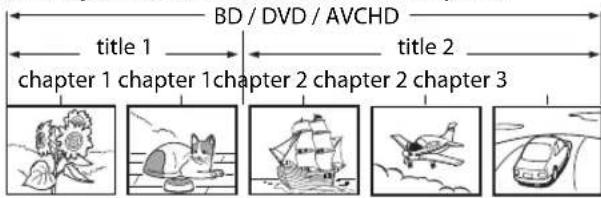
The contents of BD/DVD are generally divided into titles. Titles may be further subdivided into chapters.
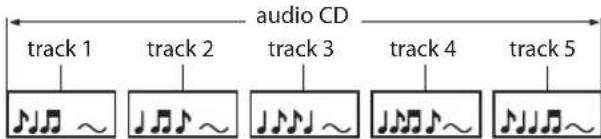
Audio CDs are divided into tracks.
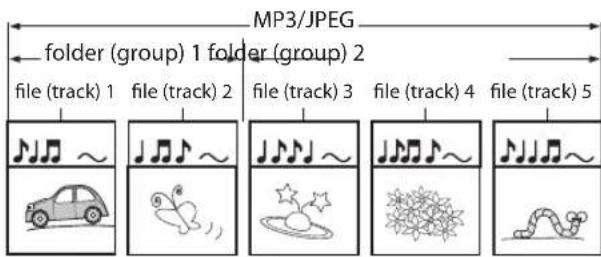
Data discs or SD Memory Cards containing MP3 / JPEG are divided into folders, and the folders are subdi vided into files.
On-Screen Display
You can check information about the current disc by pressing [DISPLAY].
To call the on-screen display menu, press [DISPLAY] during playback. Every time you press [DISPLAY], the information changes. Depending on the media, available information varies.
BD-V AVCHD
off ➔ Title / Chapter information
→ Title information (elapsed time)
→ Title information (remaining time)
→ HDMI information → off
DVD-V
off → Chapter information (elapsed time)
→ Chapter information (remaining time)
→ Title information (elapsed time)
→ Title information (remaining time)
→ Bit rate information → HDMI information → off
CD
off (Track information (elapsed time))
→ Track information (remaining time)
→ Disc information* (elapsed time)
→ Disc information* (remaining time)
→ off (Track information (elapsed time))
(*not available during the program/random playback)
MP3
off (File information (elapsed time))
→ File name information
→ off (File information (elapsed time))
JPEG
off → File information
→ File name information → off
</p>
<p><img alt="" src="images/58ab6a37250b5e88c65fbce68795652523246827e70ce4e573d8c2c7b2b83251.jpg" /></p>
<details>
<summary>text_image</summary>
123
TITLE 1 1/ Chapter
T
4 5
</details>
<p><Chapter information for DVD></p>
<p><img alt="" src="images/6422398ef21fa6955f735869fe6afbb0bb2f1a020d5f0c57525a7ecb92beebd2.jpg" /></p>
<details>
<summary>text_image</summary>
CHAPTER 3 / 5 0 : 01 : 02
</details>
<p>1 Current title number <br />
2 Current chapter number / Total number of chapters <br />
3 Current repeat setting (Only when repeat setting is active)
(C: Chapter repeat, T: Title repeat, AB : A-B repeat) <br />
4 Indicates that the multi camera angle images are available on the scene <br />
5 Current playback status <br />
6 Elapsed time (or remaining time) of the current chapter</p>
<h1 id="title-information">■ Title information</h1>
<p><img alt="" src="images/2dadf0ebe144690dbefb6df5f9c766162788d4381ffa7ef4ffd96919fadb2387.jpg" /></p>
<details>
<summary>text_image</summary>
TITLE 3 / 5 0 : 01 : 02 SD
</details>
<p>1 Current title number / Total number of titles <br />
2 Elapsed time (or remaining time) of the current title <br />
3 Indication of SD Memory Card playback</p>
<h1 id="bit-rate-information">■ Bit rate information</h1>
<p><img alt="" src="images/007b0e8b247909ad505a47d5cd64e113e127c54b050346f5a040700b691ff0fd.jpg" /></p>
<details>
<summary>text_image</summary>
BITRATE
1
L1
2
</details>
<p>1 Bit rate (The amount of video data currently being read) <br />
2 Layer number
(L0: Layer 0 is played back. L1: Layer 1 is played back)</p>
<h1 id="hdmi-information">■ HDMI information</h1>
<p><img alt="" src="images/95826330db50445660ab730416a7692c851ed32c639026f611910f083b552098.jpg" /></p>
<details>
<summary>text_image</summary>
HDMI
Video Info
Audio Info :
Max Channel :
YCbCr/1080I:
PCM
2 ch
1
2
3
4
</details>
<p>1 HDMI video format <br />
2 Resolution of the HDMI output image <br />
3 HDMI audio format <br />
4 Maximum numbers of audio channels that can be accepted by the connected device</p>
<h1 id="note-11">Note</h1>
<p>- If the HDMI cable is not connected, “---” will be displayed for HDMI information.</p>
<h1 id="track-file-information">■ Track / File information</h1>
<p><img alt="" src="images/9be96e451493d745c10bbd34374dc526ee3ae79d4aa54cc58fc3a6b370fc79b5.jpg" /></p>
<details>
<summary>text_image</summary>
1 / 14:00:51 SD G
TRACK
</details>
<p>1 Current track (file) number / Total number of track (file) <br />
② Elapsed time of the current track and file (or remaining time of the current track or file) (except for JPEG files) <br />
3 Indication of SD Memory Card playback <br />
4 Current repeat setting
(Only when repeat setting is active)
(T: Track / File repeat, G: Group repeat,
A: All repeat, AB: A-B repeat)</p>
<h1 id="disc-information">■ Disc information</h1>
<p><img alt="" src="images/ade21f3caf4fe4b0a4430bd6b14f4caa340051ca4b52f87843bb4c31f9a8010c.jpg" /></p>
<details>
<summary>text_image</summary>
1
2
ALL 1 / 14 0 : 00: 51 G
</details>
<p>1 Current track number / Total number of tracks <br />
② Elapsed time (or remaining time) of the current disc</p>
<h1 id="file-name-information">■ File name information</h1>
<p><img alt="" src="images/26ec12cbd5cd2a8b3b6ce3e40980f5b6be4354c101161495fab626fb315f1af3.jpg" /></p>
<details>
<summary>text_image</summary>
1
File_name_001
</details>
<p>1 Media icon and file name</p>
<p><img alt="" src="images/c85ea3a03d8789fb313c91fc9d53bbf2ca9608bf69b64711dd08cd96a23e93da.jpg" /></p>
<h1 id="basic-playback">BASIC PLAYBACK</h1>
<h1 id="playing-back-a-bd-dvd-or-a-disc-with-avchd-files">Playing Back a BD, DVD or a Disc with AVCHD files</h1>
<p>BD-V</p>
<p>DVD-V</p>
<p>AVCHD</p>
<p><img alt="" src="images/4cd57febf6cb3262491738b4e63cb72f8258d9518c8617d3f7bab71df02100c9.jpg" /></p>
<details>
<summary>text_image</summary>
ON/STANDBY DISPLAY RESOLUTION OPEN/CLOSE
1/O
PIP
1 2 3
ANGLE
4 5 6
REPEAT
7 8 9
SEARCH CLEAR A-B
0
A B C D
TOP MENU POP UP MENU
(MENU)
ENTER
RETURN
SETUP
T
SUBTITLE AUDIO
OFF
MODE
ONKYO
RC-7300V
</details>
<p>1</p>
<p>Press [ON /STANDBY I/○].</p>
<p>2</p>
<p>Turn on the TV and select the appropriate input on the TV to which the unit is connected.</p>
<p>3</p>
<p>Press [OPEN / CLOSE ▲] to open the disc tray.</p>
<p>4</p>
<p>Place the disc on the disc tray with its label side facing up.</p>
<p><img alt="" src="images/3be8f70d5155ce62a90282b9613a10f8435fac1f55fc8d1b1698b578e62b4239.jpg" /></p>
<details>
<summary>text_image</summary>
Align the disc to the
disc tray guide.
</details>
<p>5</p>
<p>Press [OPEN / CLOSE ▲] to close the disc tray.</p>
<p>It may take a while to load the disc.</p>
<p>6</p>
<p>Playback may start automatically.</p>
<p>If not, press [PLAY▶].</p>
<p>Some discs may show a title or a disc menu. In this case, refer to "Operations Using Title Menu, Disc Menu, and Pop-up Menu" on page 23.</p>
<p>To pause playback:</p>
<p>Press [PAUSEII].</p>
<p>To return to the normal playback:</p>
<p>Press [PLAY▶].</p>
<p>To stop playback:</p>
<p>Press [STOP ■].</p>
<p>Refer to "Resume Playback" on page 23.</p>
<p><Resume-On-Stop mode></p>
<p>When you press [PLAY▶] next time, the playback will start from the point where it has been stopped.</p>
<h1 id="note-12">Note</h1>
<ul>
<li>may appear at the top-right on the TV screen when the operation is prohibited by the disc or this unit. </li>
<li>During the playback of 2-layered disc, pictures may stop for a moment. This happens when the 1st layer switches to the 2nd layer. This is not a malfunction. <br />
• BD/DVD/AVCHD/menu varies depending on discs </li>
<li>If a disc contains AVCHD files, the playback of other files which are in the same disc is not available.</li>
</ul>
<h1 id="operations-using-title-menu-disc-menu-and-pop-up-menu">Operations Using Title Menu, Disc Menu, and Pop-up Menu</h1>
<p>BD-V DVD-V AVCHD</p>
<p>Many of BD-video and DVD-video disc contains title menu (BD-video / DVD-video / AVCHD), disc menu (DVD-video) or pop-up menu (BD-video) which guides you through the available functions in the disc. The contents of the menus may differ depending on the discs.</p>
<h1 id="title-menu-bd-video-dvd-video-avchd">Title menu (BD-video / DVD-video / AVCHD)</h1>
<p>1 Press [TOP MENU].</p>
<p>• The title menu will appear.</p>
<p>2 Use [▲ / ▼ / ◀/▶] to select an item, then press [ENTER]. <br />
3 Press [TOP MENU] to exit.</p>
<h1 id="disc-menu-dvd-video">Disc menu (DVD-video)</h1>
<p>1 Press [POP UP MENU / MENU]. <br />
• The disc menu will appear. <br />
2 Use [▲ / ▼ / ◀/▶] to select an item, then press [ENTER]. <br />
3 Press [POP UP MENU / MENU] to exit.</p>
<h1 id="pop-up-menu-bd-video">Pop-up menu (BD-video)</h1>
<p>- This is a special feature available for some BD-video. When you press [POP UP MENU / MENU], a menu pops out on the TV screen while the contents still play back.</p>
<p>1 During the playback of BD-video, press [POP UP MENU / MENU]. <br />
• The pop-up menu will appear. <br />
2 Use [▲ /▼ /◄/►] to select an item, then press [ENTER]. <br />
3 Press [POP UP MENU / MENU] to exit.</p>
<h1 id="note-13">Note</h1>
<ul>
<li>Contents of menus and corresponding menu operations may vary among discs. Refer to the manual accompanying the disc for details. </li>
<li>Title menu is also available for SD Card with AVCHD files.</li>
</ul>
<h1 id="pause">Pause</h1>
<h1 id="1-during-playback-press-pause-ii">1 During playback, press [PAUSE II].</h1>
<p>- Playback will be paused.</p>
<p>||</p>
<h1 id="2-press-play-to-return-to-normal-playback">2 Press [PLAY▶] to return to normal playback.</h1>
<h1 id="note-14">Note</h1>
<p>- For BD and DVD, set "Still Mode" setting to "Field" in "Video" menu if pictures in the pause mode are blurred (refer to page 37).</p>
<h1 id="resumeplayback">ResumePlayback</h1>
<h1 id="1-during-playback-press-stop">1 During playback, press [STOP ■].</h1>
<p>- Resume message will appear on the TV screen.</p>
<p>Resume ON</p>
<p>Press 'PLAY' to play from here. To play from the beginning, press 'STOP' first and then 'PLAY'.</p>
<p>e.g.) BD</p>
<h1 id="2-press-play">2 Press [PLAY ▶].</h1>
<ul>
<li>In a few seconds, playback will resume from the point at which it stopped last. To cancel the resume playback and start playback the disc from the beginning, press [STOP ■] again in stop mode. </li>
<li>For MP3, playback will resume from the beginning of the current file.</li>
</ul>
<h1 id="note-15">Note</h1>
<ul>
<li>Resume playback may not be available for the BD that supports Java applications (BD-Java). </li>
<li>
<p>In the "Disc" mode, the resume information will be cleared when;</p>
</li>
<li>
<p>[STOP ■] is pressed while in stop mode. </p>
</li>
<li>the parental level is changed. </li>
<li>the disc tray is opened.</li>
</ul>
<p>- In the "SD Card" mode, the resume information will be cleared when;</p>
<ul>
<li>[STOP ■] is pressed while in stop mode. </li>
<li>the SD Memory Card is removed. </li>
<li>the unit is turned into the standby mode.</li>
</ul>
<h1 id="playing-back-an-audio-cd-or-a-disc-with-mp3-and-jpeg-files">Playing Back an Audio CD or a Disc with MP3 and JPEG files</h1>
<h1 id="cd-mp3-jpeg">CD MP3 JPEG</h1>
<h1 id="1-insert-an-audio-cd-or-a-disc-with-mp3-and-jpeg-files">1 Insert an audio CD or a disc with MP3 and JPEG files.</h1>
<p>• Media filter screen will appear. <br />
- For audio CD and a disc contains only one type of file, skip to step 3.</p>
<h1 id="to-return-to-the-first-item">To return to the first item:</h1>
<p>- Press [TOP MENU].</p>
<h1 id="to-return-to-the-trackfile-played-last">To return to the track/file played last:</h1>
<p>- Press [POP UP MENU / MENU].</p>
<h1 id="2-select-the-type-of-the-file-you-want-to-play-back-in-the-media-filter-screen-then-press-enter-to-display-the-file-list">2 Select the type of the file you want to play back in the media filter screen. Then press [ENTER] to display the file list.</h1>
<h1 id="3-use-to-select-a-desired-folder-or-file-then-press-enter">3 Use [▲ / ▼] to select a desired folder or file, then press [ENTER].</h1>
<h1 id="use-to-go-back-and-forward-between-the-hierarchies">Use [◀/▶] to go back and forward between the hierarchies.</h1>
<p>- If you press [ENTER] on the desired file, playback will start.</p>
<p><img alt="" src="images/9a7fc2fd14a1cefcfdc11cfa03ec700d305993112850d8249f73cee131f9a0f2.jpg" /></p>
<details>
<summary>text_image</summary>
1
2
3
4
5
6
TRACK -- / 20
File List
MP3_DISC
Folder_1
Folder_2
Folder_3
MP3_A
MP3_B
MP3_C
MP3_D
2 / 3
Page Up Page Down
</details>
<p>e.g.) MP3</p>
<p>1 Track / File information <br />
2 audio CD: "CD-DA" will be displayed.
MP3/JPEG: Current folder name (Disc or SD Memory Card name will be displayed for the top of the hierarchies.) <br />
3 audio CD: List of the track number and time MP3/JPEG: List of the file / folder names in the current folder / disc. <br />
4 Operation Press [A] to go to the previous page. guide: Press [B] to go to the next page. <br />
5 Current page / Total page number <br />
6 Playback status</p>
<h1 id="media-icon-and-file-name">Media icon and file name:</h1>
<p><img alt="" src="images/cd44467f766776de67b313da313eaeac263b9c456ae4ef470b0d27931caf0e33.jpg" /></p>
<p>: Folder</p>
<p><img alt="" src="images/5f37795117ba483557c4493023e141931fd472bbfd7f835b55af8c0c5ae3e962.jpg" /></p>
<p>: MP3 file</p>
<p><img alt="" src="images/9ecf23877ed0482557d5ad05c9b7d02aa2ba33a1050f752620d397554b882683.jpg" /></p>
<p>: audio CD track</p>
<p><img alt="" src="images/e738637da919c6991d54c9e1817daa089fce6a9ab7568b8b65514d729dece35e.jpg" /></p>
<p>: JPEG file</p>
<h1 id="it-is-recommended-that-mp3-files-to-be-played-back-in-this-unit-are-recorded-under-the-following-specifications-mp3">It is recommended that MP3 files to be played back in this unit are recorded under the following specifications: <MP3></h1>
<p>• Sampling frequency: 32 kHz, 44.1 kHz or 48 kHz <br />
- Constant bit rate: 112 kbps - 320 kbps</p>
<h1 id="jpeg-2"><JPEG></h1>
<p>• Upper limit: 2,560 x 1,920 dots (sub sampling is 4:4:4)</p>
<p>5,120 x 3,840 dots</p>
<p>(sub sampling is up to 4:2:2)</p>
<ul>
<li>Lower limit: 32 × 32 dots </li>
<li>File size of image</li>
</ul>
<p>maximum:</p>
<p>12</p>
<p>MB</p>
<h1 id="note-16">Note</h1>
<ul>
<li>The system can recognize up to 255 folders / 999 files for CD, 999 folders / 9999 files for BD, DVD and SD Memory Card (including the files other than MP3). When number of folder / files exceeds the limit, they will be recognized by the order recorded. </li>
<li>The name of folder and file can be displayed up to 28 characters. Unrecognizable characters will be replaced with asterisks. </li>
<li>The 9th and deeper hierarchies cannot be displayed for CD and the 10th and deeper hierarchies cannot be displayed for BD, DVD and SD Memory Card. </li>
<li>Extensions other than listed below cannot be recognized: -MP3 :.mp3 / .MP3</li>
</ul>
<p>-JPEG :.jpg / .JPG / .jpeg* / JPEG*</p>
<p>* The extension ".jpeg / JPEG" is not available for SD Memory Card.</p>
<ul>
<li>Some unplayable folders or files may be listed due to the recording status. <br />
• High-resolution JPEG files take longer to be displayed. </li>
<li>Progressive JPEG files (JPEG files saved in progressive format) cannot be played back in this unit. </li>
<li>This unit recognizes up to 8 characters of file name in the SD Memory Card. Characters after 8th will not be displayed. </li>
<li>For the SD Memory Card playback, refer to "Reading the SD Memory Card" on page 25. </li>
<li>If a disc contains AVCHD files, the playback of other files which are in the same disc is not available. </li>
<li>With regard to the multi-border BD-RE/-R, additionally recorded sections cannot be recognized. </li>
<li>With regard to the multi-border DVD-RW/-R, additionally recorded sections may not be recognized.</li>
</ul>
<h1 id="tips-for-jpeg-playback">Tips for JPEG Playback</h1>
<ul>
<li>Every press on [ANGLE] will turn the image clockwise by 90 degrees when an image is displayed. </li>
<li>To change the visual effect for switching the playback image, press [MODE] once, then use [◀/▶] or [ENTER] to switch between "Cut In/Out" and "Fade In/Out". </li>
<li>During JPEG playback, press [MODE] twice to change the size of the playback image, then use [◀/▶] or [ENTER] to switch between "Normal" (100%) and "Small" (95%). The size change may have no effect on some files (e.g. files with a small picture size).</li>
</ul>
<h1 id="reading-the-sd-memory-card">Reading the SD Memory Card</h1>
<p>AVCHD</p>
<p>MP3</p>
<p>JPEG</p>
<p>You can play back the AVCHD, MP3 and JPEG files in an SD Memory Card. With the SD Memory Card, you can also enjoy the special additional contents for BD-ROM ver. 2 (Profile 2.0/Profile 1.1) which can be downloaded from the Internet. You can store the contents on an SD Memory Card via computer and play them back with the BD-video. (For more information about the special additional contents, please refer to the instruction book that came with the disc.)</p>
<p><img alt="" src="images/59605e6ae5ae7a7304aaa5e21810706ffe34e491845978cfb4a34e2a71fd3f19.jpg" /></p>
<details>
<summary>text_image</summary>
SD CARD
</details>
<p>■ Setting the media mode</p>
<p>1 In stop mode, press [SETUP].</p>
<p>2</p>
<p>Use [ ▲ / ▼] to selecten press [ENTER].</p>
<p><img alt="" src="images/a6e1e6884d950d1bd030004cdc40aee6e877a95d7dfd22444b16ad76763e9d19.jpg" /></p>
<details>
<summary>text_image</summary>
Quick
Media Select Disc
HDMI Audio Out HDMI Multi (Normal)
HDMI Video Resolution Auto
Component Output 480i
7,1ch Audio Out Multi Channel
Player Menu English
</details>
<p>3</p>
<p>Use [▲ / ▼] to select "Media Select" setting.</p>
<p>4</p>
<p>Press [ENTER] repeatedly to select "SD Card".</p>
<p><img alt="" src="images/9b5a043842b71252de0b85935f115a5e469bd3dbff8b317a3dccba648f983755.jpg" /></p>
<details>
<summary>text_image</summary>
Quick
Media Select SD Card
HDMI Audio Out HDMI Multi (Norma)
HDMI Video Resolution Auto
Component Output 480i
7.1ch Audio Out Multi Channel
Player Menu English
</details>
<p>- This will set the unit to "SD Card" mode. To play back the contents in any discs, exit "SD Card" mode by selecting "Disc".</p>
<p>5</p>
<p>Press [SETUP] to exit.</p>
<h1 id="inserting-the-sd-memory-card-and-playback">Inserting the SD Memory Card and Playback</h1>
<h1 id="1-insert-an-sd-memory-card-with-the-label-side-facing-up-into-the-sd-card-slot-until-it-clicks">1 Insert an SD Memory Card, with the label side facing up, into the SD CARD slot until it clicks.</h1>
<p>If no disc is in operation, "Media Select" screen will appear on the TV screen.</p>
<p><img alt="" src="images/bde767e8480c827f15f3fd48b7af0cdad858369269f2df157298bf2cba290579.jpg" /></p>
<details>
<summary>text_image</summary>
SD CARD
SD Mew Out
</details>
<p>2</p>
<p>Use [▲ / ▼] to select "SD Card", then press [ENTER].</p>
<p>• Media filter screen will appear. <br />
- When the SD Memory Card contains only one type of file, skip to step 4.</p>
<p>3</p>
<p>Select the type of the file you want to play back in the media filter screen. Then press [ENTER] to display the file list.</p>
<p>Playback of AVCHD files will start right after you select "Video". (The file list is not available for AVCHD files.)</p>
<p>4</p>
<p>Follow the step 2 in "Playing Back an Audio CD or a Disc with MP3 and JPEG files" on page 24.</p>
<h1 id="removing-the-sd-memory-card">Removing the SD Memory Card</h1>
<p>1 In stop mode, push the SD Memory Card and then slowly remove your finger.</p>
<p>2 Grasp the card and pull it out from the SD CARD slot.</p>
<p>This will set the unit to "Disc" mode.</p>
<h1 id="compatible-cards">Compatible Cards:</h1>
<ul>
<li>SD Memory Card (8MB - 2GB) </li>
<li>SDHC Memory Card (4GB - 8GB) </li>
<li>miniSD Card (8MB - 2GB) </li>
<li>microSD Card (8MB - 2GB) </li>
<li>For miniSD Card and microSD Card, the adapter will be required.</li>
</ul>
<h1 id="special-playback">SPECIAL PLAYBACK</h1>
<h1 id="note-17">Note</h1>
<ul>
<li>The "Media Select" screen will disappear under the conditions listed below: </li>
<li>when [RETURN] is pressed. </li>
<li>when the setup menu is called up. </li>
<li>Do not remove the card during its playback. </li>
<li>This unit supports SD Memory Card with FAT12 / FAT16 file system, and SDHC Memory Card with FAT32 file system. </li>
<li>Do not delete the folders or files in the SD Memory Card with your computer. This unit might not read the SD Memory Card. </li>
<li>This unit recognizes up to 8 characters (including "\~1") of file name in the SD Memory Card. Characters after 8th will not be displayed. </li>
<li>If a folder or file name includes one of the following unrecognizable characters, the folder or file name may not be displayed correctly. </li>
<li>Unrecognizable characters: .,"=+[];/\:|¥</li>
</ul>
<h1 id="fast-forward-fast-reverse">Fast Forward / Fast Reverse</h1>
<p><img alt="" src="images/237eb117abd6c3b21dde8dd5b67ca4eea1c432d6817d09939f691c16450f5217.jpg" /></p>
<h1 id="1-during-playback-press-fwd-repeatedly-for-fast-forward">1 During playback, press [FWD▶▶] repeatedly for fast forward.</h1>
<p>During playback, press [REV ◀◀] repeatedly for fast reverse.</p>
<p>Every time you press [FWD▶▶] or [REV◀◀], the playback speed will change.</p>
<h1 id="2-press-play-to-return-to-normal-playback-2">2 Press [PLAY▶] to return to normal playback.</h1>
<h1 id="note-18">Note</h1>
<ul>
<li>For BD, DVD and AVCHD, speed changes in 5 different levels. </li>
<li>For audio CD and MP3, speed changes in 3 different levels. </li>
<li>For audio CD, fast forward / fast reverse search between different tracks are not available during program and random playback. </li>
<li>For MP3, fast forward / fast reverse search between different files are not available.</li>
</ul>
<h1 id="slow-forward-playback">Slow Forward Playback</h1>
<p><img alt="" src="images/dfa6fdbd05ad26f7270d7126f0481bc4a6bc83171d3f92cc2ec7dd76889e8f29.jpg" /></p>
<h1 id="1-during-playback-press-pause-iii-then-press-fwd">1 During playback, press [PAUSE III], then press [FWD ▶▶].</h1>
<p>Every time you press [FWD▶▶], playback speed will change.</p>
<h1 id="2-press-play-to-return-to-normal-playback-3">2 Press [PLAY▶] to return to normal playback.</h1>
<h1 id="note-19">Note</h1>
<ul>
<li>Slow forward speed changes in 3 different levels. </li>
<li>Only slow forward is available. </li>
<li>Set "Still Mode" setting to "Field" in "Video" menu if pictures in the slow forward playback mode are blurred (refer to page 37).</li>
</ul>
<h1 id="step-by-step-playback">Step by Step Playback</h1>
<p><img alt="" src="images/6c55e41cb534d4e68f04f9806e56a53f5ce5135c3d2b4fea00b0ea694ba2e9f9.jpg" /></p>
<h1 id="1-in-pause-mode-press-pause-iii-repeatedly">1 In pause mode, press [PAUSE III] repeatedly.</h1>
<p>Every time you press [PAUSE III], playback will advance one step at a time.</p>
<h1 id="2-press-play-to-return-to-normal-playback-4">2 Press [PLAY▶] to return to normal playback.</h1>
<h1 id="note-20">Note</h1>
<ul>
<li>Only step by step forward is available. </li>
<li>Set "Still Mode" setting to "Field" in "Video" menu if pictures in step by step playback mode are blurred (refer to page 37).</li>
</ul>
<h1 id="repeat-playback">Repeat Playback</h1>
<p>Available repeat functions may vary depending on the discs.</p>
<h1 id="1-during-playback-press-repeat-repeatedly-to-select-the-desired-repeat-mode">1 During playback, press [REPEAT] repeatedly to select the desired repeat mode.</h1>
<table><tr><td>Repeat mode Available media</td><td></td></tr><tr><td>Chapter repeat</td><td rowspan="2">BD-V DVD-VAVCHD</td></tr><tr><td>The current chapter will be played back repeatedly.</td></tr><tr><td>Title repeat</td><td rowspan="2">BD-V DVD-VAVCHD</td></tr><tr><td>The current title will be played back repeatedly.</td></tr><tr><td>Track repeat</td><td rowspan="2">CD MP3JPEG</td></tr><tr><td>The current track or file will be played back repeatedly.</td></tr><tr><td>Group repeat</td><td rowspan="2">MP3 JPEG</td></tr><tr><td>The current folder will be played back repeatedly.</td></tr><tr><td>All repeat</td><td rowspan="2">CD MP3JPEG</td></tr><tr><td>All tracks in the media will be played back repeatedly.</td></tr></table>
<table><tr><td>Repeat mode Available media</td><td></td></tr><tr><td>Chapter repeat</td><td rowspan="2">BD-V DVD-VAVCHD</td></tr><tr><td>The current chapter will be played back repeatedly.</td></tr><tr><td>Title repeat</td><td rowspan="2">BD-V DVD-VAVCHD</td></tr><tr><td>The current title will be played back repeatedly.</td></tr><tr><td>Track repeat</td><td rowspan="2">CD MP3JPEG</td></tr><tr><td>The current track or file will be played back repeatedly.</td></tr><tr><td>Group repeat</td><td rowspan="2">MP3 JPEG</td></tr><tr><td>The current folder will be played back repeatedly.</td></tr><tr><td>All repeat</td><td rowspan="2">CD MP3JPEG</td></tr><tr><td>All tracks in the media will be played back repeatedly.</td></tr></table>
<h1 id="note-21">Note</h1>
<ul>
<li>The repeat setting will be canceled when you stop playback. </li>
<li>The chapter, title, track or group repeat will be cleared when moving to other chapter, title, track / file or folder. </li>
<li>Repeat playback does not function during A-B repeat playback. </li>
<li>Chapter and title repeat are not available with some scenes. </li>
<li>When the repeat setting is set for an MP3 folder, the repeat setting will be cancelled if you select other MP3 folder to playback.</li>
</ul>
<h1 id="a-b-repeat">A-B Repeat</h1>
<p>BD-V DVD-V AVCHD CD</p>
<p>You can play back the specific part (between point A and point B) repeatedly.</p>
<p>1 During playback, press [A-B] at the desired starting point A.</p>
<p>2 During playback, press [A-B] at the desired ending point B.</p>
<p>As soon as you set the point B, the part between point A and point B will start playback repeatedly.</p>
<p>• To cancel the A-B repeat, press [A-B] again.</p>
<h1 id="note-22">Note</h1>
<ul>
<li>Point B should be set within the same title or track as point A. <br />
• A-B repeat is not available with some scenes. </li>
<li>To cancel the A point which was set, press [CLEAR]. </li>
<li>A-B repeat does not function during chapter, title, track, group or all repeat playback.</li>
</ul>
<h1 id="pip-picture-in-picture-bonusview-setting-2">PIP (Picture in Picture) (BONUSVIEW) Setting</h1>
<p>BD-V</p>
<p>Some BD-video have the PIP (picture-in-picture) function which enables you to display the secondary video in the primary video. You can call up the secondary video by pressing [PIP] whenever the scene contains the secondary video.</p>
<p><img alt="" src="images/a3b7f09df6429aefe7d87939fdf300eafc9e228f2dd09ba2b9475cdebfe7f34e.jpg" /></p>
<details>
<summary>text_image</summary>
primary
video
secondary
video
</details>
<p>1 During playback, press [PIP].</p>
<p>PIP information will appear.</p>
<p>2 Use [▲ / ▼] to select the secondary video you want.</p>
<p>- The secondary video will be displayed and the secondary audio will be output.</p>
<p>3 Press [RETURN] or [PIP] to remove the PIP information.</p>
<h1 id="note-23">Note</h1>
<p>• [MODE] can also be used instead of [PIP]. <br />
- The secondary audio will not be output when the secondary audio is set to "Off" or when "BD Audio Mode" is set to "HD Audio Output". Refer to "Switching Audio Soundtrack" on page 31 and "Setting the BD Audio Mode" on page 32.</p>
<h1 id="program-playback">Program Playback</h1>
<p>CD MP3 JPEG</p>
<p>You can play back the disc in your desired order.</p>
<p>1 In stop mode, press [MODE].</p>
<p>• The program screen will appear.</p>
<p>2 Use [▲ / ▼] to select a track / file, then press [ENTER].</p>
<p><img alt="" src="images/4367fa81b5490d3f4417e8e0b915773f97e7f489f961ffd3992e08ebb3d36b74.jpg" /></p>
<details>
<summary>text_image</summary>
1
2
3
4
5
6
TRACK -- / 16
Program
CD-DA
Total 0 : 26 : 24
8 0:36
9 1:14
10 0:45
11 0:50
12 0:53
13 0:20
14 0:54
2 / 3
2 / 3
Page Up Page Down Page Prev Page Next
7
8
</details>
<p>e.g.) audio CD</p>
<p>1 Track / File information <br />
2 audio CD: "CD-DA" will be displayed.
MP3/JPEG: Current disc, SD Memory Card, or folder name will be displayed. <br />
3 Track / File list: Track / File list in the original order <br />
4 Programmed list: Track / File list in the programmed order <br />
5 Cumulative playback time of all tracks in the programmed list <br />
6 Playback status <br />
7 Current page / Total page number <br />
Operation guide: Press [A] to go to the previous page in the track / file list.
Press [B] to go to the next page in the track / file list.
Press [C] to go to the previous page in the programmed list.
Press [D] to go to the next page in the programmed list.</p>
<ul>
<li>For MP3 and JPEG files, use [▲ / ▼] to select a folder, then press [ENTER] first, and then use [▲ / ▼] to select a file, then press [ENTER]. </li>
<li>Press [CLEAR] to erase the last file of the program. </li>
<li>Use [▲ / ▼] to select "All Clear" at the bottom of the list to erase all the tracks / files in the program. </li>
<li>The programmed tracks / files is displayed in the right hand screen. </li>
<li>Use [◀/▶] to go back forward between the hierarchy of folders.</li>
</ul>
<p>3 Press [PLAY▶] to start program playback.</p>
<p>• Program playback will start.</p>
<p>To exit from the program playback mode:</p>
<p>- Press [RETURN] in stop mode.</p>
<h1 id="note-24">Note</h1>
<ul>
<li>During program playback, press [STOP ■] once to set the resume point, and then press [PLAY ▶] to resume program playback from where [STOP ■] was pressed (audio CD) or from beginning of the file where [STOP ■] was pressed (MP3 or JPEG). </li>
<li>
<p>During program playback, press [STOP ■]. To go back to the normal program playback, press [RETURN] to exit from the program screen, then press [PLAY▶]. <br />
• The program will be cleared when;</p>
</li>
<li>
<p>the unit is turned into the standby mode. </p>
</li>
<li>the media mode is switched to the other mode. </li>
<li>the disc / card is removed. (as for "Disc" mode, just opening the disc tray will clear the program info.) </li>
<li>Up to 99 tracks / files can be entered. </li>
<li>To repeat the current track / file in the program, press [REPEAT] repeatedly until " Track" appears during playback. To repeat the entire program, press [REPEAT] repeatedly until " All" appears during playback. </li>
<li>Even if an inserted disc contains mixed MP3 and JPEG files, program function allows 99 files in combination of MP3 and JPEG files. </li>
<li>Playback from a desired track / file and random playback are not available during program playback. </li>
<li>Press [MODE] to switch to the random playback mode.</li>
</ul>
<h1 id="random-playback">Random Playback</h1>
<p>CD</p>
<p>MP3</p>
<p>JPEG</p>
<p>This function shuffles the playback order of tracks / files.</p>
<h1 id="1-in-stop-mode-press-mode-twice">1 In stop mode, press [MODE] twice.</h1>
<p>• The random screen will appear.</p>
<p><img alt="" src="images/b458bc309c31803661530ce2b17197c61518abc4c6adc7613e06ba24920988e3.jpg" /></p>
<details>
<summary>text_image</summary>
1
2
3
4
5
6
TRACK -- / 16
Random
CD-DA
Total 1 : 13 : 29
1 0:36
2 1:14
3 0:45
4 0:50
5 0:53
6 0:20
7 0:54
1 / 3
Page Down
</details>
<p>e.g.) audio CD</p>
<p>Track / File information <br />
2 audio CD: "CD-DA" will be displayed.</p>
<p>MP3/JPEG:</p>
<p>Current disc, SD Memory Card, or folder name will be displayed.</p>
<p>3 Track / File list: Track / File list in the original order <br />
4 Operation guide: Press [A] to go to the previous page in the track / file list. Press [B] to go to the next page in the track / file list.</p>
<p>5 Total playback time of all tracks <br />
6 Playback status</p>
<h1 id="2-press-play-to-start-random-playback">2 Press [PLAY▶] to start random playback.</h1>
<p>To exit from the random playback mode:</p>
<p>- Press [MODE] in stop mode.</p>
<h1 id="note-25">Note</h1>
<ul>
<li>During the random playback, press [STOP ■] once to set the resume point, and then press [PLAY▶] to resume random playback from where [STOP ■] was pressed (audio CD) or from beginning of the file where [STOP ■] was pressed (MP3 or JPEG). </li>
<li>During random playback, press [STOP ■]. To cancel the random playback, press [MODE] when the random playback screen is displayed. </li>
<li>Up to 99 tracks / files can be entered. </li>
<li>To repeat the current track / file in the random selection, press [REPEAT] repeatedly until "Track" appears during playback. To repeat the entire random selection press [REPEAT] repeatedly until "All" appears during playback. </li>
<li>For a disc containing mixed MP3 and JPEG files, random playback of those files will be performed.</li>
<li>You cannot go back to the previous track / file during random playback.</li>
</ul>
<h1 id="rapid-playback-2">Rapid Playback</h1>
<p>BD-V</p>
<p>DVD-V</p>
<p>AVCHD</p>
<p>This function plays back approximately at 1.3 times the normal playback while keeping the sound output. This function is available only on discs recorded in the Dolby Digital format.</p>
<p>1 During playback, press [MODE] repeatedly until the Rapid playback setting appears.</p>
<p><img alt="" src="images/ed3b97918c0e73d84189fc0b7746a66373879ef2d7c54ff009417b37ffbece17.jpg" /></p>
<p>Off</p>
<p>2 Press [ENTER] or [◀/▶] to switch √(x1.3), or off.</p>
<p>"Off": Plays back in normal speed.</p>
<p>“♪”: Plays back approximately at 1.3 times of normal playback.</p>
<p>3 Press [▶] to return to normal playback.</p>
<h1 id="note-26">Note</h1>
<p>• Picture adjustment and audio language setting cannot be changed during this function. <br />
- This function may not work at some points on a disc. <br />
- During this function, 2ch LPCM will be output from HDMI OUT jack and AUDIO OUTPUT (DIGITAL OPTICAL / COAXIAL) jacks.</p>
<h1 id="camera-angle">Camera Angle</h1>
<p>BD-V</p>
<p>DVD-V</p>
<p>Some BD-video and DVD-video contain scenes which have been shot simultaneously from various angles. You can change the camera angle when appears on the TV screen.</p>
<p>1 During playback, press [ANGLE].</p>
<p>- The selected angle will be displayed on the display bar at the top of the TV screen.</p>
<p>2 Use [▲ / ▼] to select your desired angle.</p>
<p><img alt="" src="images/e5e4453c7a437595399c924de122176fc6c1f2f8a5481c834a9a61e3e45f2fad.jpg" /></p>
<p>1/3</p>
<p><img alt="" src="images/70732908a33972f503280d7d9e4446bad98436fb6888e82c1d1aa48ef699b091.jpg" /></p>
<h1 id="note-27">Note</h1>
<p>- If "Angle Icon" setting is "Off" in "Others" menu, will not appear. Refer to page 43.</p>
<h1 id="enjoying-bd-live-discs-with-internet">Enjoying BD-Live Discs with Internet</h1>
<p>BD-V</p>
<p>You can enjoy the BD-Live functions which enable you use the interactive functions when the unit is connected the Internet. (For the Network connection, refer to pages 45-48.) Examples for BD-Live interactive functions :</p>
<ul>
<li>Download the additional contents such as the movie's trailer, subtitles and BD-J, etc. </li>
<li>While downloading, special video data may be played back.</li>
</ul>
<p>Service and functions differ depending on the disc. Follow the instructions given by the disc when using the BD-Live function.</p>
<h1 id="note-28">Note</h1>
<ul>
<li>You must connect the unit to the Internet and set up necessary settings in order to use the BD-Live function. </li>
<li>For certain discs, setting for "BD-Live Setting" may need to be changed. </li>
<li>Depending on your connection environment, it may take time to connect to the Internet or the Internet may not be connected. </li>
<li>When BD-Live functions are used and the unit is connected to the Internet, you may be charged for this communication. </li>
<li>You must insert an SD memory card when using the BD-Live function. (SD memory card of 1GB is recommended.) </li>
<li>Do not remove the SD memory Card when using the BD-Live function. </li>
<li>Some discs with BD-Live function require memory when play back the content. If you cannot play back a disc with BD-Live function, insert an SD card(1GB or more) which is formatted on this unit.</li>
</ul>
<h1 id="note-for-aacs-online">Note for AACS Online</h1>
<ul>
<li>The player or disc IDs may be sent to the content provider when playing back a disc with BD-Live function. </li>
<li>If you save your viewing history on the server by using these IDs, you will be introduced to other similar movies. </li>
<li>You can save game score histories.</li>
</ul>
<h1 id="search">SEARCH</h1>
<p>Using [SKIP |◀◀ /▶▶]</p>
<p>1 During playback, press [SKIP ▶▶] to move to the next track. Press it repeatedly to skip to subsequent tracks. Press [SKIP ◀◀] once to go back to the beginning of the current track. Press it repeatedly to go to the previous tracks.</p>
<h1 id="note-29">Note</h1>
<ul>
<li>For BD and DVD, if title contains no chapters, [SKIP |◀◀ / ▶▶] changes the title. </li>
<li>For JPEG files, [◀] or [▶] is also available.</li>
</ul>
<h1 id="using-search">Using [SEARCH]</h1>
<p>By using [SEARCH], you can select following search modes.</p>
<table><tr><td colspan="4">Search mode Available media</td></tr><tr><td>CHAPTER / TITLEChapter / Title search</td><td>BD-V</td><td>DVD-V</td><td>AVCHD</td></tr><tr><td>TRACK Track search</td><td>CD</td><td>MP3</td><td>JPEG</td></tr><tr><td rowspan="2">TIME Time search</td><td>BD-V</td><td>DVD-V</td><td>AVCHD</td></tr><tr><td>CD</td><td></td><td></td></tr><tr><td>MARKER Marker search</td><td>BD-V</td><td>DVD-V</td><td>AVCHD</td></tr></table>
<p>1 During playback, press [SEARCH] repeatedly until your desired search mode appears. <br />
2 Enter the desired chapter, title, track, file number or time to search for using [the Number buttons].</p>
<p>- Chapter, title, track or time search will start.</p>
<p>- Press [CLEAR] to erase an incorrect input.</p>
<h1 id="note-30">Note</h1>
<ul>
<li>During program and random playback, search functions are not available except the search using [SKIP |◀◀ /▶▶]. </li>
<li>Time search is available only in the same track, file or title. </li>
<li>For BD/AVCHD, chapter and time search are available only during playback.</li>
</ul>
<p>Using [the Number buttons] (Direct Search)</p>
<h1 id="title-search">Title Search</h1>
<p>1 In stop mode, enter the title number you want to search using [the Number buttons].</p>
<p>- Playback of the title will start in a few seconds.</p>
<h1 id="chapter-search">Chapter Search</h1>
<p>1 During playback of a title, enter the chapter number you want to search using [the Number buttons].</p>
<p>- Playback of the chapter will start in a few seconds.</p>
<h1 id="note-31">Note</h1>
<p>- As for the BD-video, how it performs will be strongly determined by the disc, and may not perform as described here.</p>
<h1 id="marker-search">Marker search</h1>
<p>This feature allows you to assign a specific point on a title or track to be called back later.</p>
<p>1 During playback, press [SEARCH] repeatedly until the marker setting menu appears. <br />
2 Use [◀/▶] to select a marker number (1-9).</p>
<p><img alt="" src="images/db7e6529825fb494feaa6be246acef6354a2b59001a307855b487d133363bdae.jpg" /></p>
<p>3 When the disc reaches the point at which you want to set a marker, press [ENTER]. <br />
- The title or track and elapsed playback time will appear on the TV screen. <br />
4 Press [SEARCH] or [RETURN] to exit. <br />
5 To return to the marker later, call the marker setting by pressing [SEARCH] repeatedly during playback or in stop mode, and use [◀/▶] to select a desired marker, then press [ENTER].</p>
<h1 id="note-32">Note</h1>
<ul>
<li>Opening the disc tray, changing to the standby mode or selecting "AC" at step 2 and pressing [ENTER] will erase all markers. </li>
<li>To clear a marker, use [◀/▶] to select the marker number to be cleared and press [CLEAR]. </li>
<li>You can mark up to 9 points. </li>
<li>For BD/AVCHD, marker search between different titles is not available. </li>
<li>For BD/AVCHD, you can return to the maker only during playback.</li>
</ul>
<h1 id="special-settings">SPECIAL SETTINGS</h1>
<p>You can select the format of audio and video as you prefer depending on the contents of the disc you are playing back.</p>
<h1 id="switchingsubtitles">SwitchingSubtitles</h1>
<p>Some BD and DVD may have subtitles in 1 or more languages. For commercially available discs, the supported languages can be found on the disc case. Follow the steps below to switch the subtitle languages during playback.</p>
<p>BD-V</p>
<p>1 During playback, press [SUBTITLE] repeatedly to display "Primary Subtitle", "Secondary Subtitle" or "Subtitle Style".</p>
<p>"Primary Subtitle": Sets the subtitle for the primary video.</p>
<p>"Secondary Subtitle": Sets the subtitle for the secondary video.</p>
<p>"Subtitle Style": Sets style of the subtitle.</p>
<p>2 Use [▲ / ▼] to select your desired subtitle or style.</p>
<p><img alt="" src="images/dac6f553e496c134699d82963507a9ae701ef078e8e80625f39601280f5d58b4.jpg" /></p>
<p>Primary Subtitle / 41 JPN</p>
<p><img alt="" src="images/768230d0cd3dccb37f0be74f24a7a7c0e480c9c9528af204dba1363a0070bd7b.jpg" /></p>
<p>- Use [◀/▶] to switch between current subtitle setting and "Off".</p>
<p>3 Press [SUBTITLE] repeatedly to exit.</p>
<p>DVD-V AVCHD</p>
<p>1 During playback, press [SUBTITLE].</p>
<p>2 Use [▲ / ▼] to select your desired subtitle.</p>
<p><img alt="" src="images/3d1890c228169cfca32ec839194e2f8aabbbe0a2ba0e9e6d88e0c6169926ab91.jpg" /></p>
<p>1 ENG / 4</p>
<p><img alt="" src="images/665c5f9cf28176ba2afdf60b4e825559a037fe3f44c6db1f739ef9f57d9c16ba.jpg" /></p>
<p>- Use [◀/▶] to switch between current subtitle setting and "Off".</p>
<p>3 Press [SUBTITLE] to exit.</p>
<h1 id="note-33">Note</h1>
<ul>
<li>Some discs will only allow you to change the subtitles from the disc menu or pop-up menu. Press [TOP MENU] or [POP UP MENU / MENU] to display the disc menu or pop-up menu. </li>
<li>If 4-digit-language code appears in the subtitle menu, refer to "LANGUAGE CODE" on page 54. </li>
<li>If the disc has no subtitle language or subtitle style, "Not Available" will be displayed on the TV screen. </li>
<li>During playback of the secondary video, the primary subtitle setting is not available except when there is no subtitle for the secondary video. </li>
<li>Secondary subtitle setting is only available during playback of the secondary video. </li>
<li>If you choose a language that has a 3-letter-language code, the code will be displayed every time you change the subtitle language setting. If you choose any other Languages, “---” will be displayed instead (refer to page 54).</li>
</ul>
<h1 id="switching-audio-soundtrack">Switching Audio Soundtrack</h1>
<p>Some BD and DVD contain multiple audio streams. Those are often in different audio languages or audio formats. For BD, available audio varies depending on "BD Audio Mode" setting. Refer to page 38 for more information.</p>
<p>BD-V</p>
<p>1 During playback, press [AUDIO] repeatedly to display "Primary" or "Secondary".</p>
<p>"Primary": Sets the audio for the primary video.</p>
<p>"Secondary": Sets the audio for the secondary video.</p>
<p>2 Use [▲ / ▼] to select your desired audio stream channel.</p>
<p>Primary 1 JPN Dolby D Multi-ch /2</p>
<p>- For "Secondary", use [◀/▶] to switch between current audio setting and "Off".</p>
<p>3 Press [AUDIO] repeatedly to exit.</p>
<p>DVD-V AVCHD CD</p>
<p>1 During playback, press [AUDIO].</p>
<p>2 Use [▲ / ▼] to select your desired audio stream channel.</p>
<p>1 ENG Dolby D 3/2.1ch 48k / 3</p>
<p>e.g.) DVD-video</p>
<ul>
<li>For audio CD, you can select following options. <br />
"Stereo": Both right and left channels are active (stereo). <br />
"L-ch": Only left channel is active. <br />
"R-ch": Only right channel is active.</li>
</ul>
<p>3 Press [AUDIO] to exit.</p>
<h1 id="note-34">Note</h1>
<ul>
<li>The secondary audio will not be output when the secondary video is not displayed or when "BD Audio Mode" is set to "HD Audio Output".(For some BD, secondary audio will be output even when secondary video is off.) </li>
<li>The sound mode cannot be changed during playback of discs not recorded in multiple audio. </li>
<li>Some discs allow to change audio language setting on the disc menu. (Operation varies depending on the discs. Refer to the manual accompanying the disc.) </li>
<li>[AUDIO] may not work on some discs with multiple audio streams or channels (e.g. DVD which allow to change audio setting on the disc menu). </li>
<li>If you select a language that has a 3-letter-language code, the code will be displayed every time you change the audio language setting. If you select any other languages, “---” will be displayed instead (refer to page 54). </li>
<li>If 4-digit-language code appears in the audio menu, refer to "LANGUAGE CODE" on page 54. </li>
<li>If the disc has no audio language, "Not Available" will be displayed on the TV screen. </li>
<li>For DTS-CD (5.1 music disc), "DTS" will be displayed. (Selecting audio streams or channels is not available.)</li>
</ul>
<h1 id="setting-the-bd-audio-mode">Setting the BD Audio Mode</h1>
<p>BD-V</p>
<p>There are 2 ways to set "BD Audio Mode" setting; whether to output the secondary and interactive audio accompanied by the primary audio or only the primary audio. Depending on the setting of the mode, Dolby Digital, Dolby Digital Plus, Dolby TrueHD, DTS, or DTS-HD output changes between multi LPCM and bitstream.</p>
<p>1 In stop mode with BD inserted, press [MODE].</p>
<p>2 Use [▲ / ▼] to select your desired setting.</p>
<p><img alt="" src="images/198c86401271e4c25e92617b041c5b4de6145d37d8464eecd512ef7b57847434.jpg" /></p>
<p>BD Audio Mode Mix Audio Output</p>
<p><img alt="" src="images/6a63ecc9e3128a2cba337aec03f674fb393c232a74753509b782925854bc6ea7.jpg" /></p>
<p>"Mix Audio Output":</p>
<p>If it is available, BD-video's secondary and interactive audio will be output with the primary audio.</p>
<p>- The secondary audio is the audio for the secondary video (Director's comment etc.) and the interactive audio is the audio for the interactive application (Button click sounds etc.).</p>
<p>"HD Audio Output":</p>
<p>Only the primary audio will be output. Set this mode in order to output Dolby Digital, Dolby Digital Plus, Dolby TrueHD, DTS or DTS-HD audio of BD through HDMI connection.</p>
<p>3 Press [RETURN] to exit.</p>
<p>- You can also set "BD Audio Mode" from the setup menu. Refer to page 38.</p>
<h1 id="note-35">Note</h1>
<ul>
<li>In "Mix Audio Output" mode, if there is no secondary and interactive audio, the audio will be output as "HD Audio Output" mode. </li>
<li>In "Mix Audio Output" mode, even if you set "HDMI Multi(Normal)" in "HDMI Audio Out" setting, multi LPCM will be output from HDMI OUT jack for BD audio. Refer to page 14. </li>
<li>In "Mix Audio Output" mode with HDMI audio being output, 2-channel down-mixed LPCM will be output from AUDIO OUTPUT (DIGITAL OPTICAL / COAXIAL) jacks for BD audio. </li>
<li>In "Mix Audio Output" mode with "HDMI Audio Out" setting set to "Audio Mute" and "Digital Out" setting set to "Bitstream", DTS, DTS-HD and LPCM will be output as Dolby Digital for BD audio. Refer to pages 14, 17. </li>
<li>You can also set "BD Audio Mode" setting from the setup menu. Refer to page 38.</li>
</ul>
<h1 id="adjusting-the-picture">Adjusting the Picture</h1>
<p>BD-V</p>
<p>DVD-V</p>
<p>AVCHD</p>
<p>You can adjust the picture quality and store the setting you have adjusted on memory 1-5.</p>
<p>1 During playback, press [MODE] repeatedly until the picture adjustment menu appears.</p>
<p><img alt="" src="images/03fa7a63b73234a5c77fdb2718d87851f998065681c1aa54da22e8861fb98fa2.jpg" /></p>
<p>Memory1</p>
<p>2 Use [▲ / ▼] to select a memory from "Memory 1" to "Memory 5" to store your setting, then press [ENTER]. <br />
3 Use [▲ / ▼] to select a item to be adjusted, then use [◀ / ▶] or [ENTER] to adjust the setting.</p>
<p><img alt="" src="images/47248b3018f396e401086dd7dcbeedfe535b501f6609b7eb6f886a41785aaa98.jpg" /></p>
<ol>
<li>
<p>Brightness</p>
</li>
<li>
<p>Contrast</p>
</li>
<li>
<p>Noise Reduction</p>
</li>
</ol>
<p>0</p>
<p>◀ +1 ▶</p>
<p>Off</p>
<table><tr><td colspan="2">item Description</td><td>adjustment range</td></tr><tr><td>1. Contrast</td><td>Adjusts the difference between the bright and dark parts of the picture.</td><td>-7 to +7(0*)</td></tr><tr><td>2. Brightness</td><td>Adjusts the brightness of the picture.</td><td>0 to +15(0*)</td></tr><tr><td>3. Sharpness</td><td>Adjusts the sharpness of the picture for frequency range.</td><td>-6 to +6(0*)</td></tr><tr><td>4. Gamma Correction</td><td>Detailed adjustment of the picture's brightness.</td><td>0 to +5(0*)</td></tr><tr><td>5. Color</td><td>Adjusts the balance between green and red.</td><td>-7 to +7(0*)</td></tr><tr><td>6. Black Level†</td><td>Adjusts the black level.</td><td>On*: Makes the dark parts brighter.Off :Shows the original picture as recorded.</td></tr><tr><td>7. Noise Reduction (Not available for BD/AVCHD)</td><td>Reduces the noise of the playback picture.</td><td>Off*1: Executes 3D noise reduction which detects and deletes the noise by comparing each picture frames.2: Executes MPEG noise reduction which reduces the block noise and mosquito noise on the subtitle on movie.3: Executes both MPEG noise reduction and 3D noise reduction.</td></tr></table>
<p>* Default setting <br />
*1 Not effective for the video signal of VIDEO OUT (COMPONENT) jacks (480i) and HDMI OUT jack.</p>
<h1 id="note-36">Note</h1>
<ul>
<li>The setting remains even you turn the unit into the standby mode except unplug the AC cord. </li>
<li>For the picture output from HDMI OUT jack, "Black Level" is not effective. </li>
<li>Adjusting the picture is effective for HDMI OUT jack, VIDEO OUTPUT (COMPONENT) jacks, AUDIO OUTPUT (DIGITAL OPTICAL / COAXIAL) jacks and VIDEO OUTPUT (VIDEO) jacks.</li>
</ul>
<h1 id="functionsetup">FUNCTIONSETUP</h1>
<p><img alt="" src="images/0d8e51286e4bc5eba137255b0f077ec8d083b79eb0d1ea81ada93485cfe22f38.jpg" /></p>
<details>
<summary>text_image</summary>
ON/STANDBY
DISPLAY
RESOLUTION
OPEN/CLOSE
1/0
PIP
1
2
3
ANGLE
4
5
6
REPEAT
7
8
9
A-B
SEARCH
0
CLEAR
A
B
C
D
TOP MENU
POP UP MENU
/MENU
ENTER
SETUP
RETURN
SUBTITLE
AUDIO
11
MODE
ONKYO
RC-730DV
</details>
<h1 id="using-the-setup-menu">Using the Setup Menu</h1>
<p>In the setup menu you can change the setting for audio, video, language, etc. You cannot change the setting during playback.</p>
<p>Setting items displayed in gray indicates they are not available under the conditions at the time.</p>
<p><img alt="" src="images/2595ab0da08fccacc9e0d666b8cf1b8c793de37d05086cc3c43086146d4f878e.jpg" /></p>
<h1 id="quick">Quick</h1>
<p>"Quick" menu contains setting items extracted from "Custom" menu which may be used frequently.</p>
<p>1 In stop mode, press [SETUP].</p>
<p>2 Use [▲ / ▼] to select, then press [ENTER].</p>
<p>3 Use [▲ / ▼] to select your desired setting items.</p>
<p><img alt="" src="images/7fcf3b819de5333d04c84676d1a99522a2ce86f043839a989855e6ffdef51787.jpg" /></p>
<details>
<summary>text_image</summary>
Quick
Media Select Disc
HDMI Audio Out HDMI Multi (Normal)
HDMI Video Resolution Auto
Component Output 480i
7.1ch Audio Out Multi Channel
Player Menu English
</details>
<p>4 Follow the procedure below depending on the setting items.</p>
<p>A) If “▶” does not appear on the right side of the setting items when you highlight the items:</p>
<p>Press [ENTER] repeatedly to change options.</p>
<p>B) If "▶" appears on the right side of the setting items when you highlight the items:</p>
<p>1) Press [ENTER].</p>
<p>2) Use [▲ / ▼] to select options, then press [ENTER].</p>
<p>- Use [◀] or [RETURN] to go back to the previous screen.</p>
<p>5 Press [SETUP] to exit.</p>
<p><img alt="" src="images/31f9f9f670117bdf2c2dbd31919f3025c1b9d007478ec51ed8b5a711ef2d0145.jpg" /></p>
<details>
<summary>text_image</summary>
ON/STANDBY
DISPLAY
RESOLUTION
OPEN/CLOSE
I/O
PIP
1
2
3
ANGLE
4
5
6
REPEAT
7
8
9
A-B
SEARCH
0
C
A
B
C
D
TOP MENU
POP UP MENU
/MENU/
ENTER
RETURN
SUTTITLE
AUDIO
ONKYO
RC-730DV
</details>
<h1 id="custom">Custom</h1>
<p>"Custom" menu contains all the setting items.</p>
<h1 id="1-in-stop-mode-press-setup">1 In stop mode, press [SETUP].</h1>
<h1 id="2-use-to-select-then-press-enter">2 Use [▲ / ▼] to select, then press [ENTER].</h1>
<h1 id="3-use-to-select-your-desired-setting-category-then-press-enter">3 Use [▲ / ▼] to select your desired setting category, then press [ENTER].</h1>
<p><img alt="" src="images/e00e9102e8a1a4ed2bb8fecf5b2de4dffea351af5755bfbe915b9b42595c5218.jpg" /></p>
<p>- For "Parental" menu, follow the procedure on page 42.</p>
<h1 id="4-use-to-select-your-desired-setting-items">4 Use [▲ / ▼] to select your desired setting items.</h1>
<p>- The setting items which are not available with current situation of this unit will be displayed in gray and you cannot select them.</p>
<h1 id="5-follow-the-procedure-below-depending-on-the-setting-items">5 Follow the procedure below depending on the setting items.</h1>
<p>A) If "▶" does not appear on the right side of the setting items when you highlight the items:
Press [ENTER] repeatedly to change options.
B) If "▶" appears on the right side of the setting items when you highlight the items:</p>
<p>1) Press [ENTER]. <br />
2) Use [▲ / ▼] to select options, then press [ENTER]. <br />
- Use [◀] or [RETURN] to go back to the previous screen.</p>
<h1 id="6-press-setup-to-exit">6 Press [SETUP] to exit.</h1>
<p><img alt="" src="images/bb6b2ecc3654be18b0d81c90967889d92375138c741b0d76303addf45c1a5cad.jpg" /></p>
<h1 id="language">Language</h1>
<p><img alt="" src="images/526a81669f0d9451737c9aa659046aa4d3d67cf03dc622f736dfbfb33ecfe5d7.jpg" /></p>
<details>
<summary>text_image</summary>
Language
Audio
Subtitle
Disc
Player Menu
Original
Off
Menu
English
</details>
<p>- For how to select the setting items and options, refer to "Custom" on page 34.</p>
<table><tr><td>Setting items Options</td><td></td></tr><tr><td>AudioSets the language for audio.</td><td>Original* / English / French / Spanish / German / Italian / Swedish / Dutch / Russian / Chinese / Japanese / Korean / Danish / Finnish / Norwegian / Icelandic / Hungarian / Romanian / Turkish / Greek / Irish / Portuguese / Polish / Czech / Slovak / Bulgarian / Other</td></tr><tr><td>SubtitleSets the language for subtitle.</td><td>Off* / English / French / Spanish / German / Italian / Swedish / Dutch / Russian / Chinese / Japanese / Korean / Danish / Finnish / Norwegian / Icelandic / Hungarian / Romanian / Turkish / Greek / Irish / Portuguese / Polish / Czech / Slovak / Bulgarian / Other</td></tr><tr><td>Disc MenuSets the language for disc menu or pop-up menu.</td><td>English* / French / Spanish / German / Italian / Swedish / Dutch / Russian / Chinese / Japanese / Korean / Danish / Finnish / Norwegian / Icelandic / Hungarian / Romanian / Turkish / Greek / Irish / Portuguese / Polish / Czech / Slovak / Bulgarian / Other</td></tr><tr><td>PlayerMenu ^[H0H0] Sets the language for OSD(on-screen display).</td><td>Auto(XXXX)* ^1 / English* / Français / Español</td></tr></table>
<p>*) Settings with (*) are the default.</p>
<p>^*1 ) "Auto" activates the Get & Set Menu Language function. (Refer to page 44)</p>
<p>- "Auto" is available only when "HDMI CEC" is set to "On".</p>
<p>- Inside the parentheses next to "Auto" will be the language which is currently selected by your TV.</p>
<ul>
<li>"Quick" menu consists of the setting menus frequently used, and they are accompanied with 📁. </li>
<li>If you select "Other", enter the 4-digit-number code for the desired language (Refer to "LANGUAGE CODE" on page 54). Only the languages supported by the disc can be selected.</li>
</ul>
<p><img alt="" src="images/d323557dbc5eb55da1092496f78162901dc3a0f2a671927fbc04dc219cf9248a.jpg" /></p>
<h1 id="video">Video</h1>
<p><img alt="" src="images/a7e084dd4800848c3f8f790f2d4e8c90d45939c4a38925602bd1333469adc0d2.jpg" /></p>
<details>
<summary>text_image</summary>
Video
TV Aspect
HDMI Select YCbCr
HDMI RGB Setting Normal
HDMI Auto Format Max
HDMI Video Resolution Auto
HDMI Deep Color Auto
Component Output 480i
</details>
<p>- For how to select the setting items and options, refer to "Custom" on page 34.</p>
<table><tr><td>Setting items Options</td><td></td></tr><tr><td rowspan="4">TV AspectSets the picture size according to aspect ratio of the connected TV.</td><td>16:9 Wide*:Select this when a wide-screen TV is connected. Discs recorded in wide-screen format is played back over the entire TV screen.</td></tr><tr><td>4:3 Pan & Scan:Select this to play back the discs recorded in wide-screen format with 4:3 TV in the pan & scan mode (with the sides of the picture cut off). Discs which are not specified for pan & scan are played back in the letter box mode.</td></tr><tr><td>4:3 Letter Box:Select this to play back the discs recorded in wide-screen format with 4:3 TV in the letter box mode. (with black strips at the top and bottom).</td></tr><tr><td>16:9 Squeeze:When playing back 4:3 images, the picture is displayed in the center of the 16:9 screen with a 4:3 aspect ratio.</td></tr><tr><td rowspan="2">HDMI SelectSelect an HDMI output mode between "YCbCr" and "RGB".</td><td>YCbCr*:Component format video signals and audio signals are output from the HDMI OUT jack.</td></tr><tr><td>RGB:RGB format video signals and audio signals are output from the HDMI OUT jack.</td></tr><tr><td rowspan="2">HDMI RGB SettingSets the digital RGB image range (data range) output from the HDMI OUT jack.</td><td>Normal*:Output as "16 (black)" to "235 (white)".</td></tr><tr><td>Enhanced:Output as "0 (black)" to "255 (white)".Depending on the display device you are using, the black colors may seem to stand out when using HDMI connections. If so, set to "Enhanced".</td></tr><tr><td rowspan="2">HDMI Auto FormatMakes the setting of the "Auto" for "HDMI Video Resolution".</td><td>Max*:The maximum resolution that can be input to the connected HDMI device is detected and the HDMI output resolution is selected automatically.</td></tr><tr><td>Panel:The number of pixels of the connected HDMI device's panel is detected and the HDMI output resolution is selected automatically.</td></tr><tr><td rowspan="8">HDMI Video Resolution*1Sets the HDMI video resolution.</td><td>Auto*:HDMI video resolution will be selected automatically depending on the connected HDMI device.</td></tr><tr><td>Source Direct:HDMI video resolution will be set to the recorded resolution of a playback media.</td></tr><tr><td>480i</td></tr><tr><td>480p</td></tr><tr><td>720p</td></tr><tr><td>1080i</td></tr><tr><td>1080p</td></tr><tr><td>1080p24:Gives a natural and high quality film reproduction of 24-frame film material. The connected TV has to be compatible with 1080p24 frame input.</td></tr><tr><td rowspan="2">HDMI Deep ColorSets whether to output the picture from HDMI OUT jack with Deep Color or not.</td><td>Auto*:The picture from HDMI OUT jack will be output with Deep Color to the connected TV which supports HDMI Deep Color.</td></tr><tr><td>Off:The picture from HDMI OUT jack will be output without Deep Color.</td></tr><tr><td rowspan="4">Component OutputSets the video resolution for component output.</td><td>480i*</td></tr><tr><td>480p</td></tr><tr><td>720p</td></tr><tr><td>1080i</td></tr><tr><td rowspan="3">Progressive Mode*2Sets the optimum progressive mode for the image material output from HDMI OUT jack and VIDEO OUTPUT (COMPONENT) jacks.Depending on the video material, image quality may get degraded due to the wrong Progressive Mode setting. In such case, change the setting.</td><td>Auto1*:The progressive mode will be selected automatically depending on the material type (film or video).</td></tr><tr><td>Auto2:Suited for 30-frame progressive video material such as flash animation created on PC.</td></tr><tr><td>Video:Suited for 60-frame video material such as TV dramas or TV animations.</td></tr><tr><td rowspan="3">Still Mode*3Adjusts picture resolution and quality in still mode.</td><td>Auto*:Automatically selects the best resolution setting (“Frame” or “Field”) based on the data characteristics of the pictures.</td></tr><tr><td>Field:Stabilizes the pictures, although the picture quality may become coarse due to the limited amount of data. Select “Field” when the pictures are still unstable even if “Auto” is selected.</td></tr><tr><td>Frame:Displays relatively motionless pictures in higher resolution. “Frame” improves the picture quality, although it may unstabilize the pictures due to alternate output of 2-field data.</td></tr><tr><td rowspan="2">TV Active AreaSets the horizontal display area for interlace (480i) output.</td><td>Normal:Select this if the image is not stable with connecting to professional-use display.</td></tr><tr><td>Full*:Select this for connecting to commonly-marketed display.</td></tr></table>
<p>*) Settings with (*) are the default. <br />
*1) Do not set "HDMI Video Resolution" to "Source Direct" or "1080p24", if the connected display device does not support the video resolution of 1080p24. If "HDMI Video Resolution" is set to "Source Direct", it may take a while to display the playback picture, when the video resolution of a disc material switches during playback. The table below describes the available output resolution when "HDMI Video Resolution" is set to "Source Direct".</p>
<table><tr><td></td><td colspan="6">output resolution</td></tr><tr><td>Media 480i</td><td>480p 720p 1080</td><td>1080p 1080p24</td><td></td><td></td><td></td><td></td></tr><tr><td>BD-video</td><td>○</td><td>○</td><td>○</td><td>○</td><td>○</td><td>○</td></tr><tr><td>AVCHD -</td><td>○</td><td>○</td><td>○</td><td>○</td><td>○</td><td></td></tr><tr><td>DVD-video -</td><td>○ -</td><td>-</td><td>-</td><td>-</td><td></td><td></td></tr><tr><td>JPEG ----</td><td></td><td></td><td></td><td></td><td>○</td><td>-</td></tr></table>
<p>○: available -: not exist <br />
*^2 ) The table below describes the available video resolution when "Progressive Mode" is set to "Auto1" or "Auto2".</p>
<table><tr><td colspan="2"></td><td colspan="6">output resolution</td></tr><tr><td>Media</td><td>Material resolution</td><td>480i</td><td>480p</td><td>720p</td><td>1080i</td><td>1080p</td><td>1080p24</td></tr><tr><td rowspan="6">BD-videoAVCHD</td><td>480i</td><td>×</td><td>×</td><td>×</td><td>×</td><td>×</td><td>-</td></tr><tr><td>480p</td><td>×</td><td>×</td><td>×</td><td>×</td><td>×</td><td>-</td></tr><tr><td>720p</td><td>×</td><td>×</td><td>×</td><td>×</td><td>×</td><td>-</td></tr><tr><td>1080i</td><td>×</td><td>×</td><td>×</td><td>×</td><td>×</td><td>-</td></tr><tr><td>1080p</td><td>×</td><td>×</td><td>×</td><td>×</td><td>×</td><td>-</td></tr><tr><td>1080p24</td><td>×</td><td>×</td><td>×</td><td>×</td><td>×</td><td>×</td></tr><tr><td>DVD-video</td><td>480i</td><td>×</td><td>○</td><td>○</td><td>○</td><td>○</td><td>-</td></tr></table>
<p>○: available ×: not available -: not exist <br />
^*3 An individual picture on the TV screen is called "Frame", which consists of two separate images called "Field". Some pictures may be blurred at the auto setting in "Still Mode" setting due to their data characteristics. <br />
- "Quick" menu consists of the setting menus frequently used, and they are accompanied with <br />
- Even if "HDMI Video Resolution" is set to "1080p24", for the BD that is not recorded by 1080p24 frame or for DVD, a video resolution supported by the disc and the display device will be output instead of 1080p24 frame. <br />
- If the picture is not output properly to the TV because of "HDMI Video Resolution" or "Component Output" setting, press and hold [▶ (play)] on the front panel for more than 5 seconds. Both settings will be reset to the default automatically. <br />
- For "HDMI RGB Setting", select "Enhanced" if the black-white contrast is not clear. The setting is effective only for HDMI RGB output. <br />
- If "Component Output" is set to "480i", "16:9 Squeeze" in "TV Aspect" is not available. <br />
- If HDMI is connected, for video resolution for the component output, you can only select video resolution that currently output from HDMI OUT jack or "480i". <br />
- If the video resolution for the component output and HDMI video resolution do not match, the video resolution for the component output will be switched to "480i". VIDEO OUTPUT (COMPONENT) jacks may not output any signals depending on the disc material. <br />
- If you play back copy-protected DVD-video, 480p signal will be output from VIDEO OUTPUT (COMPONENT) jacks, when "Component Output" setting is set to "720p" or "1080i". <br />
- The setting items which are not available with current situation of this unit will be displayed in gray and you cannot select the items. <br />
- Even if "HDMI Select" is set to "YCbCr", if the display device does not support YCbCr, RGB will be output. <br />
- If "HDMI Video Resolution" is set to "Source Direct", "1080p" or "1080p24", you cannot set "Component Output".</p>
<h1 id="audio">Audio</h1>
<p><img alt="" src="images/05a071a99129a05e4bae7910a196a2989b30b3f9fcf5d7eb26e69f184dea93a9.jpg" /></p>
<details>
<summary>text_image</summary>
Audio
BD Audio Mode HD Audio Output
HDMI Audio Out HDMI Multi (Norma )
7.1ch Audio Out Multi Channel
Down Sampling Off
DRC Auto
</details>
<p>- For how to select the setting items and options, refer to "Custom" on page 34.</p>
<table><tr><td>Setting items Options</td><td></td></tr><tr><td rowspan="2">BD Audio ModeFor BD, selects whether to output the secondary and interactive audio with primary audio if it is available or only the primary audio. Refer to "Setting the BD Audio Mode" on page 32.</td><td>HD Audio Output*:Outputs only the primary audio. Set this mode in order to output Dolby Digital, Dolby Digital Plus, Dolby TrueHD, DTS or DTS-HD audio of BD through HDMI connection.</td></tr><tr><td>Mix Audio Output:Outputs the secondary and interactive audio with primary audio if it is available.</td></tr><tr><td rowspan="4">HDMI Audio OutSets the audio format for the audio output from HDMI OUT and AUDIO OUTPUT (DIGITAL OPTICAL/ COAXIAL) jacks.</td><td>HDMI Multi(Normal)*:The multi-channel audio signals are output from HDMI OUT jack with bitstream or LPCM.</td></tr><tr><td>HDMIMulti(LPCM):The multi-channel audio signals are output from HDMI OUT jack with LPCM.Refer to pages 39-41 for setting options.</td></tr><tr><td>HDMI 2ch:The audio signals are output from the HDMI OUT jack with a downmixed to 2ch LPCM.</td></tr><tr><td>Audio Mute:Mutes the HDMI audio signal, and set the signal format from AUDIO OUTPUT (DIGITAL OPTICAL / COAXIAL) jacks.Refer to "Digital out setting" on page 39 for setting options.</td></tr><tr><td rowspan="2">7.1ch Audio OutSets the audio format for the audio output from the AUDIO OUTPUT (ANALOG 7.1ch) jacks.</td><td>Multi Channel*:The multi-audio signals are output from the AUDIO OUTPUT (ANALOG 7.1ch) jacks. Refer to pages 42-44 for speaker setting options.</td></tr><tr><td>2 Channel:Down-mixed 2-channel audio signals are output from the AUDIO OUTPUT (ANALOG 7.1ch) jacks.</td></tr><tr><td rowspan="2">Down SamplingSets the digital audio output from AUDIO OUTPUT (DIGITAL COAXIAL/OPTICAL) jacks when playing back BD or DVD recorded in LPCM.</td><td>On:LPCM signals are converted to 48 kHz for output.Set to "On" when using digital connections to an AV receiver that is not compatible with sampling frequencies of 96 kHz.</td></tr><tr><td>Off*:For BD and DVD recorded in LPCM without copyright protection, 2-channel audio signals up to 192 kHz are output as LPCM signals with no conversion.</td></tr><tr><td rowspan="3">DRCSets whether to compress the range of sound volume (dynamic range control) when Dolby Digital, Dolby Digital Plus or Dolby TrueHD audio is played back.</td><td>Auto*:When the discs recorded in Dolby TrueHD format are in playback, this unit detects DRC setting of the disc and set "DRC" setting to "On" or "Off" automatically.</td></tr><tr><td>Off</td></tr><tr><td>On</td></tr></table>
<p>*) Settings with (*) are the default. <br />
- "Quick" menu consists of the setting menus frequently used, and they are accompanied with <br />
- Under following circumstances, "HDMI Multi(Normal)", "HDMI Multi(LPCM)" and "HDMI 2ch" are not available. <br />
- HDMI cable is not connected to HDMI OUT jack. <br />
- Connected TV is off. <br />
- Connected TV is not compatible with audio output.</p>
<h1 id="digital-out-setting">■ Digital out setting</h1>
<p>When "Audio Mute" is selected in "HDMI Audio Out" setting, HDMI audio signal will be muted and the audio signals output from AUDIO OUTPUT (DIGITAL OPTICAL / COAXIAL) jacks change depending on "Digital Out" setting.</p>
<h1 id="quick-mdmi-audio-out-audio-mute-digital-out">Quick -MDMI Audio Out Audio Mute Digital Out</h1>
<p>Bitstream*:</p>
<p>When playing back discs recorded in Dolby Digital, Dolby Digital Plus, Dolby TrueHD, DTS or DTS-HD, the corresponding core stream (Dolby Digital or DTS) are output.</p>
<p>LPCM:</p>
<p>Full decoded 2ch PCM signal will be output from AUDIO OUTPUT (DIGITAL OPTICAL / COAXIAL) jacks.</p>
<ul>
<li>This setting is not effective when the HDMI audio signal is output. </li>
<li>When both HDMI OUT jack and AUDIO OUTPUT (DIGITAL OPTICAL / COAXIAL) jacks are connected to other devices, the audio signals currently output from the HDMI OUT will be output from the AUDIO OUTPUT (DIGITAL OPTICAL / COAXIAL) jacks as well, except that HDMI 2ch signal will be output from HDMI OUT jack, when connected device does not support Dolby Digital and DTS. </li>
<li>When "BD Audio Mode" is set to "Mix Audio Output", the audio output from AUDIO OUTPUT (DIGITAL OPTICAL / COAXIAL) jacks will follow the setting in the "HDMI Audio Out". When outputting Multi PCM from HDMI OUT, 2ch Downmix PCM will be output from AUDIO OUTPUT (DIGITAL OPTICAL / COAXIAL) jacks. </li>
<li>Refer to pages 14 - 17 for more information of audio settings.</li>
</ul>
<h1 id="speaker-setting">■ Speaker setting</h1>
<p>This unit allows you to enjoy multi-channel surround sound such as 7.1-channel / 5.1-channel surround.</p>
<p><img alt="" src="images/a50d6dc8283195dfda8cef514a61f8ac040897cdc1285ddc01e82455d27bae7b.jpg" /></p>
<details>
<summary>text_image</summary>
Front left and right speakers
Surround back left and right speakers
Subwoofer
Center speaker
Surround left and right speakers
</details>
<p>e.g.) basic layout with 7.1-channel surround system</p>
<p>To make the most of its feature, set up your speakers appropriately by referring to the following table.</p>
<p>Speaker setting options are available at the following locations;</p>
<p><Speaker setting for the audio signal output from HDMI OUT jack></p>
<p>(Available when you have HDMI cable connected to HDMI OUT jack)</p>
<p>Quick → HDMI Audio Out → HDMI Multi(LPCM)</p>
<p>Custom → Audio → HDMI Audio Out HDMI Multi(LPCM)</p>
<p><Speaker setting for the audio signal output from AUDIO OUT(ANALOG 7.1ch) jacks></p>
<p>Quick → 7.1ch Audio Out → Multi Channel</p>
<p>Custom → Audio → 7.1ch Audio Out Multi Channel</p>
<p>How to navigate through "HDMI Multi(LPCM)" and "Multi Channel" setting.</p>
<p>1 Use [▲ / ▼] to select your desired menu item then press [ENTER].</p>
<p>2 Use [▲ / ▼] to select your setting items.</p>
<p>- Press [RETURN] to go back to the previous screen.</p>
<p>3 Use [◀/▶] to select desired options. (Except for "Test Tone", "Default" and setting options in "Speaker Size" setting.)</p>
<p>For setting options in "Speaker Size" setting:</p>
<p>Press [ENTER] to select desired options.</p>
<p>For "Test Tone":</p>
<p>Use [◀/▶] to select "Off", "Manual" or "Auto", then press [ENTER].</p>
<p>- The test tone will be output. If you select "Manual", use [▲/▼] to select desired speaker, then use [◀/▶] to adjust the volume. If you select "Auto", use [◀/▶] to adjust the volume of the speaker that outputs the test tone.</p>
<p>- If you want to stop the test tone, press [RETURN].</p>
<p>For "Default":</p>
<p>Press [ENTER] to reset to the default.</p>
<p>4 Press [SETUP] to exit.</p>
<table><tr><td colspan="3">Menu Setting items Options Descriptions</td><td></td></tr><tr><td rowspan="10">Speaker SizeSelects the desired speaker to set. Then change the setting appropriately by referring to the descriptions.</td><td rowspan="2">Front Large* Large:</td><td></td><td rowspan="9">For the large speakers with strong low frequency reproduction capabilities. Small: For the small speakers which do not provide strong bass sound. None: No speakers. For "Subwoofer" there is only "On" or "None". You cannot change the setting of "Subwoofer". If connected device is not compatible with subwoofer, "Subwoofer" will be displayed in gray.</td></tr><tr><td>Small</td></tr><tr><td rowspan="2">Center Large*</td><td></td></tr><tr><td>Small / None</td></tr><tr><td>Subwoofer On* / None</td><td></td></tr><tr><td rowspan="2">Surround Large*</td><td></td></tr><tr><td>Small / None</td></tr><tr><td rowspan="2">Surround Back Large*</td><td></td></tr><tr><td>Small / None</td></tr><tr><td colspan="3">Default Select "Default", then press [ENTER] to reset "Speaker Size" setting to the default.</td></tr><tr><td rowspan="12">Channel LevelTests or sets the volume for each speaker.</td><td rowspan="3">Test Tone:"Test Tone" is the test tone which can be output from the speakers so that you can adjust the volume for each speaker.</td><td>Off* Select "Off" to de</td><td rowspan="3">activate "Test Tone". Select "Manual", then press [ENTER] to manually set the volume for the desired speaker. Select "Auto", then press [ENTER] to automatically output the test tone from each speaker.</td></tr><tr><td>Manual</td></tr><tr><td>Auto</td></tr><tr><td>Front Lch 0 dB to -12 dB (0 dB*)</td><td colspan="2" rowspan="4">If you have selected "Manual" in "Test Tone", select the desired speaker to set and adjust the volume for the selected speaker. If you select "Auto" in "Test Tone", test tone will automatically be output in order. Adjust the volume of the speaker that outputs the test tone.</td></tr><tr><td>Center 0 dB to -12 dB (0 dB*)</td></tr><tr><td>Subwoofer 0 dB to -12 dB (0 dB*)</td></tr><tr><td>Front Rch 0 dB to -12 dB (0 dB*)</td></tr><tr><td>Surround Rch</td><td>0 dB to -12 dB (0 dB*)</td><td></td></tr><tr><td>Surround Back Rch</td><td>0 dB to -12 dB (0 dB*)</td><td></td></tr><tr><td>Surround Back Lch</td><td>0 dB to -12 dB (0 dB*)</td><td></td></tr><tr><td>Surround Lch</td><td>0 dB to -12 dB (0 dB*)</td><td></td></tr><tr><td colspan="3">Default Select "Default", then press [ENTER] to reset "Channel Level" setting to the default.</td></tr><tr><td rowspan="7">DelayTimeThis is a parameter for optimizing the timing at which the sound is output from the speakers according to their distance from the listening position.</td><td colspan="2" rowspan="2">Distance Feet* Set the desired measure system</td><td rowspan="2">This measure system will be used for "Delay Time" setting. Press [ENTER] (or [◀/▶]) to switch the settings.</td></tr><tr></tr><tr><td>Front</td><td>0ft to 60ft (12ft*) (0m to 18m (3.6m*))</td><td rowspan="4">Select the distance from the listening position to the speaker to get the ideal delay time.</td></tr><tr><td>Center</td><td>0ft to 60ft (12ft*) (0m to 18m (3.6m*))</td></tr><tr><td>Surround</td><td>0ft to 60ft (10ft*) (0m to 18m (3.0m*))</td></tr><tr><td>Surround Back</td><td>0ft to 60ft (10ft*) (0m to 18m (3.0m*))</td></tr><tr><td colspan="3">Default Select "Default", then press [ENTER] to reset "Delay Time" setting to the default.</td></tr></table>
<p>*) Settings with (*) are the default. <br />
- For HDMI, "None" option for "Speaker Size" is not available. <br />
- For "Speaker Size" setting, the settings of each speaker size may be adjusted automatically corresponding to each setting. (e.g. If "Front" is set to "Small", you cannot set "Center", "Surround", and "Surround Back" to "Large".) <br />
- For "Delay Time", the difference between the value of the "Front", "Surround" and "Surround Back" setting cannot exceed 15 ft (4.5m), and the difference between the value of the "Front" and "Center" setting cannot exceed 5 ft (1.5m). <br />
- For "Delay Time", the value of the "Center", "Surround" and "Surround Back" setting cannot exceed the value of the "Front" setting. <br />
- If you connect to 5.1-channel surround system, set "Surround Back" in "Speaker Size" to "None". <br />
- For "Delay Time", the setting of "Center", "Surround" and "Surround Back" will be changed automatically to the setting value of the "Front". (e.g. If the "Front" is set to 60ft (18m), the setting of "Center", "Surround" and "Surround Back" will be changed to 60ft (18m) as well.) <br />
- If you want to stop the test tone, press [RETURN].</p>
<p><img alt="" src="images/46ce664334653af451ccc2abc5250b2aa9e89ed8e492b2ffb15db95eb843de72.jpg" /></p>
<h1 id="parental">Parental</h1>
<p>Ratings control allows you to set a limit, which prevents your children from viewing inappropriate materials. Playback will be stopped if the ratings exceed the levels you set, and it will require you to enter a password before playing back the disc.</p>
<p><img alt="" src="images/b9428e62d876b0a00c8c7ba9ba958862661f950d39c5360f6903d4d479b3ecb4.jpg" /></p>
<details>
<summary>text_image</summary>
Parental
BD Rating Level All
DVD Rating Level All
Password Change
</details>
<p>1 Use [▲ / ▼] to select ☐, then press [ENTER]. <br />
2 Use [the Number buttons] to enter your 4-digit password.</p>
<p>For the first time use: Use [the Number buttons] to enter any 4-digit number (except for 4737), then press [ENTER].</p>
<p>That number will be used as the password from the second time. Record your password in case you forget it.</p>
<ul>
<li>If you forget the password, enter [4], [7], [3], [7]. The password will be cleared and rating level will be set to "All". </li>
<li>While you input the password, press [CLEAR] to clear the number, then re-enter the password.</li>
</ul>
<p>3 Proceed to A - C</p>
<p>A) BD Rating Level</p>
<p>1) Use [▲ / ▼] to select "BD Rating Level", then press [ENTER]. <br />
2) Use [▲ / ▼] to select your desired option, then press [ENTER].</p>
<p>"All": To release the limitation.</p>
<p>"Age Setting": To set the age limitation. <br />
- After selecting "Age Setting", use [the Number buttons] to enter the age from 0 – 254. (e.g. for age 15, press [0], [1], [5])</p>
<p>3) Press [SETUP] to exit.</p>
<p>B) DVD Rating Level</p>
<p>1) Use [▲ / ▼] to select "DVD Rating Level", then press [ENTER]. <br />
2) Use [▲ / ▼] to select your desired level, then press [ENTER]. <br />
3) Press [SETUP] to exit.</p>
<h1 id="rating-explanations">RATING EXPLANATIONS</h1>
<ul>
<li>All : Parental control is inactive; all discs can be played back. <br />
• 8 [Adult] : DVD software of any grades (adult/general/children) can be played back. <br />
• 7 [NC-17] : No one under 17 admitted. </li>
<li>6 [R] : Restricted; under 17 requires accompanying parent or adult guardian. <br />
• 5 [PGR] : Parental guidance recommended. <br />
• 4 [PG-13] : Unsuitable for children under 13. <br />
• 3 [PG] : Parental guidance suggested. <br />
• 2 [G] : General audience. <br />
• 1 [Kid Safe] : Suitable for children.</li>
</ul>
<p>C) Password Change</p>
<p>1) Use [▲ / ▼] to select "Password Change", then press [ENTER]. <br />
2) Enter a new 4-digit password, then press [ENTER]. <br />
3) Press [SETUP] to exit.</p>
<h1 id="note-37">Note</h1>
<p>- The resume information will be cleared if you change the parental level when the resume information is on.</p>
<h1 id="others-2">Others</h1>
<p><img alt="" src="images/d1a2ef1eb61e43cd83c71ffc586429ea335b2a31212576800b0a913a5035ed84.jpg" /></p>
<details>
<summary>text_image</summary>
Others
Angle Icon
Auto Power Off On
Panel Display Auto
Slide Show
HDMI CEC
Media Select Disc
Network Connection Enable(Easy)
</details>
<p>- For how to select the setting items and options, refer to "Custom" on page 34.</p>
<table><tr><td>Setting items Options</td><td colspan="4"></td></tr><tr><td rowspan="2">AngleIconOn*:</td><td colspan="4">The angle icon appears on the TV screen when playing back the scene with various angle.</td></tr><tr><td colspan="4">Off:The angle icon disappears on the TV screen.</td></tr><tr><td rowspan="2">Auto Power Off</td><td colspan="4">On*:If this unit is left with no activity for more than 30 minutes, this unit turns into the standby mode automatically.</td></tr><tr><td colspan="4">Off:Sets off the auto power off.</td></tr><tr><td rowspan="3">Panel DisplaySets the brightness of the front panel display.</td><td colspan="4">Auto*:Front panel display gets darker during playback.</td></tr><tr><td colspan="4">Bright:Front panel display gets brighter.</td></tr><tr><td colspan="4">Dimmer:Front panel display gets darker.</td></tr><tr><td rowspan="2">Slide ShowSets the display time for the still picture (in JPEG format) playback.</td><td colspan="4">5sec*</td></tr><tr><td colspan="4">10sec</td></tr><tr><td rowspan="2">HDMI CECSets whether to utilize HDMI CEC function.</td><td colspan="4">On*</td></tr><tr><td colspan="4">Off</td></tr><tr><td rowspan="2">Media Select Selects the media to playback.Setting will be back to "Disc" when you turn the unit to the standby mode.</td><td colspan="4">Disc*:Select this when you play back a disc.</td></tr><tr><td colspan="4">SD Card:Select this when you play back an SD Memory Card.</td></tr><tr><td rowspan="6">Network Connection</td><td>Connection Test</td><td rowspan="2" colspan="2"></td><td>Perform the network connection test. After you change the IP address or DNS setting, always perform this test.</td></tr><tr><td>Enable(Easy)*</td><td>If you select "Enable(Easy)", Connection test will automatically start.</td></tr><tr><td rowspan="4">Enable(Custom)</td><td rowspan="4">IP Address Setting</td><td colspan="2">Auto(DHCP)*</td></tr><tr><td rowspan="3">Manual</td><td>IP Address</td></tr><tr><td>Subnet Mask</td></tr><tr><td>Default Gateway</td></tr></table>
<table><tr><td colspan="6">Setting items Options</td></tr><tr><td rowspan="15">Network Connection Enable</td><td rowspan="14">(Custom)</td><td rowspan="3">DNS Setting</td><td colspan="2">Auto(DHCP)*</td><td rowspan="3">Set the DNS setting.In most cases, you can connect to the Internet without making any changes to the default setting.</td></tr><tr><td rowspan="2">Manual</td><td>Primary DNS</td></tr><tr><td>Secondary DNS</td></tr><tr><td rowspan="3">Proxy Setting</td><td colspan="2">Do Not Use*</td><td rowspan="3">Set the proxy server.In most cases, you can connect to the Internet without using proxy server.</td></tr><tr><td rowspan="2">Use Proxy</td><td>Address</td></tr><tr><td>Proxy Port</td></tr><tr><td rowspan="5">Connection Speed</td><td colspan="2">Auto*</td><td rowspan="5">Set the connection speed.In most cases, you can connect to the Internet without making any changes to the default setting.</td></tr><tr><td colspan="2">10BASE Half</td></tr><tr><td colspan="2">10BASE Full</td></tr><tr><td colspan="2">100BASE Half</td></tr><tr><td colspan="2">100BASE Full</td></tr><tr><td rowspan="3">BD-Live Setting</td><td colspan="2">Allow*</td><td rowspan="3">You can restrict Internet accessLimited Allow when BD-Live functions are used.</td></tr><tr><td colspan="2">Limited Allow</td></tr><tr><td colspan="2">Prohibit</td></tr><tr><td colspan="4">Disable Deactivate the network</td><td>connection.</td></tr><tr><td rowspan="3">Software UpgradeAllows you to upgrade this unit's firmware.Refer to page 48.</td><td colspan="5">Current Version:Indicates the current firmware version.</td></tr><tr><td colspan="5">Disc Upgrade:Allows you upgrade this unit's firmware using a disc.</td></tr><tr><td colspan="5">Network Upgrade:You can upgrade the firmware version by connecting this unit to the Internet.</td></tr></table>
<p>*) Settings with (*) are the default. <br />
- HDMI CEC allows integrated system control over HDMI and is part of the HDMI standard. In addition to Onkyo AV components, it allows interoperability with CEC-compatible AV components and TVs made by other manufacturers. <br />
- When "HDMI CEC" setting is set to "On", functions listed below will be available.</p>
<h1 id="direct-change">Direct Change</h1>
<p>When this unit is turned on, the TV also is turned on and the appropriate external input channel will be selected automatically. The appropriate external input channel can also be selected on your TV automatically when you press [PLAY▶] when the unit's power is on.</p>
<h1 id="standby">Standby</h1>
<p>When you press and hold [I/ON/STANDBY] on the front panel for 2 seconds, it turns off the power of the TV first and then turns off the power of this unit also.</p>
<h1 id="system-information">System Information</h1>
<h1 id="get-set-menu-language">Get & Set Menu Language</h1>
<ul>
<li>The unit recognizes the OSD language set for the TV and automatically sets the same language as the player menu language (OSD menu language) for this unit. </li>
<li>This feature is available only when "Auto(XXXX)" is selected in "Player Menu" in the setup menu. (Refer to "Player Menu" on page 35.)</li>
</ul>
<h1 id="note-38">Note</h1>
<p>- HDMI CEC is available only when the display device is connected by an HDMI cable, and when it supports HDMI CEC feature.</p>
<h1 id="networkconnection">NetworkConnection</h1>
<p>Set up the network connection settings in order to use the BD-Live function with a BD-Live disc.</p>
<h1 id="connectiontest">ConnectionTest</h1>
<p>After you made IP address/DNS settings or when a LAN cable is connected, always perform the connection test to check if the connection is correctly made.</p>
<p>1 In stop mode, press [SETUP]. <br />
2 Use [▲ / ▼] to select 📁, then press [ENTER]. <br />
3 Use [▲ / ▼] to select "Others", then press [ENTER]. <br />
4 Use [▲ / ▼] to select "Network Connection", then press [ENTER]. <br />
5 Use [▲ / ▼] to select "Connection Test", then press [ENTER].</p>
<p>Connection test will start automatically and the test result will appear right after the connection test finishes.</p>
<ul>
<li>"Testing..." : The test is in progress. </li>
<li>"Pass": Connection test is successfully comp </li>
<li>"Fail" : Connection test failed. Check the connection settings.</li>
</ul>
<p>Press [ENTER] to go to the list of network status confirmation screen.</p>
<p><img alt="" src="images/f4d0ede1b139a49114130a26831cd4e844a3868cf10b04f01f661b3344db8efb.jpg" /></p>
<details>
<summary>text_image</summary>
Others
Connection Test
IP Address
Subnet Mask xxx.xxx.xxx.xxx
Default Gateway xxx.xxx.xxx.xxx
Primary DNS xxx.xxx.xxx.xxx
Secondary DNS xxx.xxx.xxx.xxx
then press ENTER'.
</details>
<p>6 Press [ENTER] to go back to the previous screen, or press [SETUP] to exit.</p>
<h1 id="note-39">Note</h1>
<ul>
<li>If the connection test passes, you can enjoy the BD-Live functions using the Internet without making any extra settings. </li>
<li>If the connection test fails, you may need to change the MAC address settings of your router. </li>
<li>"Connection Test" is not available when "Disable" is selected in "Network Connection".</li>
</ul>
<h1 id="enableeasy">Enable(Easy)</h1>
<p>Network settings are set to the following settings initially. (In most cases, you can connect to the Internet without making any changes to the default settings.)</p>
<ul>
<li>IP Address Setting Auto(DHCP) </li>
<li>DNS Setting Auto(DHCP) </li>
<li>Proxy Setting Do Not Use </li>
<li>Connection Speed Auto </li>
<li>BD-Live Setting Allow</li>
</ul>
<p>If you want to set the network settings back to the default settings as above (except "BD-Live Setting"), follow the procedure below.</p>
<p>1 Follow steps 1 to 4 in "Connection Test" on this page.
2 Use [▲ / ▼] to select "Enable(Easy)", then press [ENTER].</p>
<ul>
<li>The unit will start the connection test automatically and the test result will appear right after the test finishes. </li>
<li>After the connection test finishes, press [ENTER] to go to network status confirmation screen.</li>
</ul>
<p>Press [ENTER] to activate the network settings and set the network connection automatically. Press [SETUP] to exit.</p>
<h1 id="note-40">Note</h1>
<p>- The setting of "BD-Live Setting" will not be set back to the default, even if you follow the procedure.</p>
<h1 id="enablecustom">Enable(Custom)</h1>
<p>In following cases, select "Enable(Custom)" to set each setting as necessary.</p>
<ul>
<li>When connection test failed with the setting of "Enable(Easy)". </li>
<li>When instructed by your Internet service provider to make specific settings in accordance with your network environment.</li>
</ul>
<p>• IP Address Setting / DNS Setting</p>
<p>1 Follow steps 1 to 4 in "Connection Test" on this page. <br />
2 Use [▲ / ▼] to select "Enable(Custom)", then press [ENTER]. <br />
3 Use [▲ / ▼] to select "IP Address Setting", then press [ENTER] repeatedly to select the desired setting.</p>
<table><tr><td>"Auto(DHCP)":</td><td>If your router has DHCP server function, select "Auto(DHCP)".</td></tr><tr><td>"Manual":</td><td>If your router does not have DHCP server function, select "Manual".</td></tr></table>
<h1 id="if-you-select-manual-follow-the-following-instruction-to-set-the-ip-address-and-dns">If you select "Manual", follow the following instruction to set the IP address and DNS.</h1>
<p>3-a) Use [▲ / ▼] to select "IP Address", "Subnet Mask" or "Default Gateway", then press [ENTER]. IP address setting screen will appear. Enter IP address, subnet mask and default gateway with cursor buttons and number buttons.</p>
<p><img alt="" src="images/ad83cdcb4c406944544ee512d21fcae133cd61cb4975624a539b11e45778d6c4.jpg" /></p>
<details>
<summary>text_image</summary>
Others
IP Address Setting
IP Address
XXX XXX XXX XXX XXX XXX XXX XXX XXX XXX XXX XXX XXX XXX XXX XXX XXX XXX XXX XXX XXX XXX XXX XXX XXX XXX XXX XXX XXX XXX XXX XXX XXX XXX XXX XXX XXX XXX XXX XXX XXX XXX XXX XXX XXX XXX XXX XXX XXX XXX XXX XXX XXX XXX XXX XXX XXX XXX XXX XXX XXX XXX XXX XXX XXX XXX XXX XXX XXX XXX XXX XXX XXX XXX XXX XXX XXX XXX XXX XXX XXX XXX XXX XXX XXX XXX XXX XXX XXX XXX XXX XXX XXX XXX XXX XXX XXX XXX XXX XXX XXX XX
Subnet Mask
XXXXXXXXXXXXXXXXXXXXXXXXXXXXXXXXXXXXXXXXXXXXXXXXXXXXXXXXXXXXXXXXXXXXXXXXXXXXXXXXXXXXXXXXXXXXXXXXXXXXXXXXXXXXXXXXXXXXXXXXXXXXXXXXXXXXXXXXXXXXXXXXXXXXXXXXXXXXXXXXXXXXXXXXXXXXXXXXXXXXXXXXXXXXXXXXXXXXXXXXXXXXXXXXXXXXXXXXXXXXXXXXXXXXXXXXXXXXXXXXXXXXXXXXXXXXXXXXXXXXXXXXXXXXXXXXXXXXXXXXXXXXXXXXXXXXXXXXXXXXXXXXXXXXXXXXXXXXXXXXXXXXXXXXXXXXXXXXXXXXXXXXXXXXXXXXXXXX
Default Gateway
XXXXXXXXXXXXXXXXXXXXXXXXXXXXXXXXXXXXXXXXXXXXXXXXXXXXXXXXXXXXXXXXXXXXXXXXXXXXXXXXXXXXXXXXXXXXXXXXXXXXXXXXXXXXXXXXXXXXXXXXXXXXXXXXXXXXXXXXXXXXXXXXXXXXXXXXXXXXXXXXXXXXXXXXXXXXXXXXXXXXXXXXXXXXXXXXXXXXXXXXXXXXXXXXXXXXXXXXXXXXXXXXXXXXXXXXXXXXXXXXXXXXXXXXXXXXXXXXXXXXXXXXXXXXXXXXXXXXXXXXXXXXXXXXXXXXXXXXXXXXXXXXXXXXXXXXXXXXXXXXXXXXXXXXXXXXXXXXXXXXXXXxxxxxxxxxxxxxxxxxxxxxxxxxxxxxxxxxxxxxxxxxxxxxxxxxxxxxxxxxxxxxxxxxxxxxxxxxxxxxxxxxxxxxxxxxxxxxxxxxxxxxxxxxxxxxxxxxxxxxxxxxxxxxxxxxxxxxxxxxxxxxxxxxxxxxxxxxxxxxxxxxxxxxxxxxxxxxxxxxxxxxxxxxxxxxxxxxxxxxxxxxxxxxxxxxxxxxxxxxxxxxxxxxxxxxxxxxxxxxxxxxxxxxxxxxxxxxxxxxxxxxxxxxxxxxxxxxxxxxxxxxxxxxxxxxxxxxxxxxxxxxxxxxxxxxxxxxx
</details>
<ul>
<li>Enter the IP address number after checking the specifications of your router. </li>
<li>If the IP address number is unknown, check the IP address number of other devices. (e.g. PC connected via LAN cable) and assign a different number from those of other devices.</li>
</ul>
<p>3-b) After you enter all correctly, press [ENTER].</p>
<p>- Confirmation message will appear. Select "Yes" to complete the settings.</p>
<p><img alt="" src="images/0049d05c881ed57dd06db35a367ac19c40b3453fa181e8f87ecf4eabbafc2837.jpg" /></p>
<details>
<summary>text_image</summary>
Others
IP Address Setting
Is Setting OK?
IP Address xxx . xxx . xxx . xxx
Subnet Mask xxx . xxx . xxx . xxx
Default Gateway xxx . xxx . xxx . xxx
No
Yes
</details>
<p>3-c) Use [▲ / ▼] to select "Primary DNS" or "Secondary DNS", then press [ENTER]. DNS setting screen will appear. Enter primary DNS and secondary DNS with cursor buttons and number buttons.</p>
<p><img alt="" src="images/61fdd4851c01580d1e4bc2f2fbee3ea545943e0ab357b79c67daafd18a223852.jpg" /></p>
<details>
<summary>text_image</summary>
Others
DNS Setting
Primary DNS
XXX XXX XXX XXX XXX XXX XXX XXX XXX XXX XXX XXX XXX XXX XXX XXX XXX XXX XXX XXX XXX XXX XXX XXX XXX XXX XXX XXX XXX XXX XXX XXX XXX XXX XXX XXX XXX XXX XXX XXX XXX XXX XXX XXX XXX XXX XXX XXX XXX XXX XXX XXX XXX XXX XXX XXX XXX XXX XXX XXX XXX XXX XXX XXX XXX XXX XXX XXX XXX XXX XXX XXX XXX XXX XXX XXX XXX XXX XXX XXX XXX XXX XXX XXX XXX XXX XXX XXX XXX XXX XXX XXX XXX XXX XXX XXX XXX XXX XXX XXX XXX XX
Secondary DNS
XXXXXXXXXXXXXXXXXXXXXXXXXXXXXXXXXXXXXXXXXXXXXXXXXXXXXXXXXXXXXXXXXXXXXXXXXXXXXXXXXXXXXXXXXXXXXXXXXXXXXXXXXXXXXXXXXXXXXXXXXXXXXXXXXXXXXXXXXXXXXXXXXXXXXXXXXXXXXXXXXXXXXXXXXXXXXXXXXXXXXXXXXXXXXXXXXXXXXXXXXXXXXXXXXXXXXXXXXXXXXXXXXXXXXXXXXXXXXXXXXXXXXXXXXXXXXXXXXXXXXXXXXXXXXXXXXXXXXXXXXXXXXXXXXXXXXXXXXXXXXXXXXXXXXXXXXXXXXXXXXXXXXXXXXXXXXXXXXXXXXXXXXXXXXXXXXXXX
then press 'ENTER'.
</details>
<ul>
<li>Enter the numbers instructed by your Internet provider. </li>
<li>If the number is unknown, check the number of other devices (e.g. PC connected via LAN cable) and assign the same number.</li>
</ul>
<p>3-d) After you enter all correctly, press [ENTER].</p>
<p>- Confirmation message will appear. Select "Yes" to complete the settings.</p>
<p><img alt="" src="images/4df95063b4d96b7568ef4b88d3ac8dbc19bc41713caf46b03b87c46f8117f39f.jpg" /></p>
<details>
<summary>text_image</summary>
Others
DNS Setting
Is Setting OK?
Primary DNS xxx . xxx . xxx . xxx
Secondary DNS xxx . xxx . xxx . xxx
No
Yes
</details>
<h1 id="4-press-return-to-go-back-to-the-previous-screen-or-press-setup-to-exit">4 Press [RETURN] to go back to the previous screen, or press [SETUP] to exit.</h1>
<h1 id="note-41">Note</h1>
<ul>
<li>The range of input number is between 0 and 255. </li>
<li>If you enter a number larger than 255, the number will automatically be 255. </li>
<li>The manually entered number will be saved even if you change the setting to "Auto(DHCP)". </li>
<li>When you enter a wrong number, press [CLEAR] to cancel. (the number will be back to "0".) </li>
<li>If you want to enter 1 or 2 digit number in one cell, press [▶] to move on to the next cell. </li>
<li>If the entered IP address or the default gateway or primary DNS number is same as the default setting, IP address setting will be set to "Auto(DHCP)". (The manually entered number will be saved.) </li>
<li>When IP address setting is set to "Manual", the setting of DNS setting will automatically be "Manual" and when IP address setting is set to "Auto(DHCP)", you can set either "Auto(DHCP)" or "Manual" for DNS setting.</li>
</ul>
<h1 id="proxy-setting">- Proxy Setting</h1>
<p>1 Follow steps 1 to 4 in "Connection Test" on page 45. <br />
2 Use [▲ / ▼] to select "Enable(Custom)", then press [ENTER]. <br />
3 Use [▲ / ▼] to select "Proxy Setting", then press [ENTER] repeatedly to select the desired setting.</p>
<p>- For default settings, select "Do Not Use".</p>
<p>- If you need to change the proxy setting as instructed by your Internet service provider to set the designated proxy address and port, select "Use".</p>
<p>If you select "Use", follow the following instructions to set the proxy address and proxy port.</p>
<p>3-a) Use [▲ / ▼] to select "Proxy Address", then press [ENTER]. Proxy address setting screen will appear. Enter proxy address.
• The keyboard screen will appear.</p>
<p><img alt="" src="images/34edc3fb1731aca0a46d5d33d5015b3edb8efbb89a153722c7d8c4391ce327f0.jpg" /></p>
<details>
<summary>text_image</summary>
Others
Proxy Address
1 2 3 4 5 6 7 8 9 0
a b c d e f g h i j
k m n p r s t o p q r s t
u v y z - x y z O K
Clear All Clear a/A@ OK
</details>
<p>[▲ / ▼/ ◀/ ▶]: Move the highlight.
[the Number buttons]: Enter number.</p>
<p>[ENTER]: Enter the highlighted number/word.</p>
<p>[A]: Clear the entered number or word. <br />
[B]: Clear all the entered numbers or words. <br />
[C]: Switch between abc ? ABC ? @!? <br />
[D]: Set the entered number or word.</p>
<p>3-b) After you enter proxy address correctly, press [D].</p>
<p>- Confirmation message will appear. Select "Yes" to complete the settings.</p>
<p><img alt="" src="images/941f50f8165bbd9bd8606ae52f6d173cb3f14f9057deb54c19349e175cf858ff.jpg" /></p>
<details>
<summary>text_image</summary>
Others
Proxy Address
Is Setting OK?
xxxxx
No
Yes
</details>
<p>3-c) Use [▲ / ▼] to select "Proxy Port", then press [ENTER]. Proxy port setting screen will appear. Enter proxy port number with number buttons.</p>
<p><img alt="" src="images/0b8cf15e33440b076490cff9b65463882aeeece33ab1a41682c47b7ec95bcdfc.jpg" /></p>
<details>
<summary>text_image</summary>
Others
Proxy Port
Please select the input Proxy Port.
then press 'ENTER'.
xxxxx
</details>
<p>3-d) After you enter proxy port correctly, press [ENTER].</p>
<h1 id="4-press-return-to-go-back-to-the-previous-screen-or-press-setup-to-exit-2">4 Press [RETURN] to go back to the previous screen, or press [SETUP] to exit.</h1>
<h1 id="note-42">Note</h1>
<ul>
<li>The range of input number for the port number is between 0 and 65535. (If you enter a number larger than 65535, it will be regarded as 65535.) </li>
<li>For proxy port, the selected ports may be blocked and not be able to use depending on your network environment.</li>
</ul>
<h1 id="connection-speed">- Connection Speed</h1>
<p>You can set connection speed as your preference. (The default setting is "Auto".)</p>
<p>1 Follow steps 1 to 4 in "Connection Test" on page 45. <br />
2 Use [▲ / ▼] to select "Enable(Custom)", then press [ENTER]. <br />
3 Use [▲ / ▼] to select "Connection Speed", then press [ENTER]. <br />
4 Use [▲ / ▼] to select the desired setting, then press [ENTER].</p>
<p>"Auto":</p>
<p>Set the appropriate connection speed automatically, in accordance with your network environment.</p>
<p>"10BASE Half":</p>
<p>Set the connection speed to "10BASE Half".</p>
<p>"10BASE Full":</p>
<p>Set the connection speed to "10BASE Full".</p>
<p>"100BASE Half":</p>
<p>Set the connection speed to "100BASE Half".</p>
<p>"100BASE Full":</p>
<p>Set the connection speed to "100BASE Full".</p>
<h1 id="5-press-return-to-go-back-to-the-previous-screen-or-press-setup-to-exit">5 Press [RETURN] to go back to the previous screen, or press [SETUP] to exit.</h1>
<h1 id="note-43">Note</h1>
<ul>
<li>Choose a connection speed in accordance with your network environment. </li>
<li>The network connection may be disabled depending on the device, when the settings are changed.</li>
</ul>
<h1 id="bd-live-setting">- BD-Live Setting</h1>
<p>You can limit the Internet access from the BD-Live functions. (The default setting is "Allow".)</p>
<p>1 Follow steps 1 to 4 in "Connection Test" on page 45. <br />
2 Use [▲ / ▼] to select "Enable(Custom)", then press [ENTER]. <br />
3 Use [▲ / ▼] to select "BD-Live Setting", then press [ENTER]. <br />
4 Use [▲ / ▼] to select the desired setting, then press [ENTER].</p>
<p>"Allow":</p>
<p>Internet access is permitted from all BD-Live contents.</p>
<p>"Limited Allow":</p>
<p>Internet access is permitted only for BD-Live contents which have content owner certificates. Internet access without the certificates are prohibited.</p>
<p>"Prohibit":</p>
<p>Internet access is prohibited from all BD-Live contents.</p>
<p>5 Press [RETURN] to go back to the previous screen, or press [SETUP] to exit.</p>
<h1 id="disable">Disable</h1>
<p>Deactivate all the network connection and settings.</p>
<p>1 Follow steps 1 to 4 in "Connection Test" on page 45. <br />
2 Use [▲ / ▼] to select "Disable", then press [ENTER]. <br />
3 Press [RETURN] to go back to the previous screen, or press [SETUP] to exit.</p>
<h1 id="note-44">Note</h1>
<p>- The network connection can be reactivated by setting the network connection to "Enable(Easy)" or "Enable(Custom)".</p>
<h1 id="softwareupgrade">SoftwareUpgrade</h1>
<h1 id="current-version">Current Version</h1>
<p>You can confirm the current software version.</p>
<p>1 Follow steps 1 to 3 in "Connection Test" on page 45. <br />
2 Use [▲ / ▼] to select "Software Upgrade", then press [ENTER]. <br />
3 Use [▲ / ▼] to select "Current Version", then press [ENTER].</p>
<p><img alt="" src="images/40775bc536e683747945a6037087ffee48b592298b408bd2e84fb6063be428d4.jpg" /></p>
<details>
<summary>text_image</summary>
Others
Current Version
Current Version x.xxx
If you wish to check latest upgrade
or other product information,
please check our Website.
www.onkyo.com
</details>
<p>4 Press [ENTER] or [RETURN] to exit.</p>
<h1 id="note-45">Note</h1>
<p>- Please visit www.onkyo.com to download the latest firmware version.</p>
<h1 id="disc-upgrade">Disc Upgrade</h1>
<p>You can upgrade the software by using disc.</p>
<p>1 Follow steps 1 to 3 in "Connection Test" on page 45. <br />
2 Use [▲ / ▼] to select "Software Upgrade", then press [ENTER]. <br />
3 Use [▲ / ▼] to select "Disc Upgrade", then press [ENTER]. <br />
4 Use [▲ / ▼] to select "Yes", then press [ENTER].</p>
<p>5 Disc tray will open automatically. <br />
- Insert the disc for software upgrade and then press [OPEN/CLOSE ▲]. <br />
6 After completing loading disc, confirmation message will appear. Select "Yes" and press [ENTER] to start upgrading. <br />
- It may take a while to complete the upgrading. (Please wait until "100%" appears on the front panel display.) <br />
7 After the disc upgrade finishes, this unit will restart and eject the disc.</p>
<h1 id="note-46">Note</h1>
<ul>
<li>Please do not unplug the AC power code while executing the "Disc Upgrade". </li>
<li>All settings will remain the same even if you upgrade the firmware version.</li>
</ul>
<h1 id="networkupgrade">NetworkUpgrade</h1>
<p>You can upgrade the software by connecting the unit to the Internet.</p>
<p>1 Follow steps 1 to 3 in "Connection Test" on page 45. <br />
2 Use [▲ / ▼] to select "Software Upgrade", then press [ENTER]. <br />
3 Use [▲ / ▼] to select "Network Upgrade", then press [ENTER].</p>
<p>4 Use [▲ / ▼] to select "Yes", then press [ENTER].</p>
<p>- This unit will then start checking for the latest firmware version.</p>
<p>5 Confirmation message will appear. Use [▲ / ▼] to select "Yes", then press [ENTER].</p>
<p>- The unit will start downloading the latest firmware version.</p>
<p>6 When the download completes, confirmation message will appear. Press [ENTER].</p>
<ul>
<li>The unit will start upgrading the firmware version. </li>
<li>It may take a while to complete the upgrading. (Please wait until "100%" appears on the front panel display.)</li>
</ul>
<p>7 After upgrading finishes, this unit will restart and open the disc tray automatically.</p>
<h1 id="note-47">Note</h1>
<ul>
<li>Please do not unplug the AC power code or LAN cable while executing the "Network Upgrade". </li>
<li>All settings will remain the same even if you upgrade the software version. </li>
<li>The disc tray will open automatically after upgrading finishes. This is not a malfunction.</li>
</ul>
<p><img alt="" src="images/ad03502ff9fb935aa47b4df6fa017dfbc285452265439fc912062fcf7aee0cfb.jpg" /></p>
<details>
<summary>text_image</summary>
ON/STANDBY DISPLAY RESOLUTION OPEN/CLOSE
I/O
1 2 3
4 5 6
7 8 9
SEARCH CLEAR A-B
A B C D
TOP MENU POP UP MENU/MENU
ENTER
SETUP RETURN
SUBTITLE AUDIO
ONKYO
RC-730DV
</details>
<h1 id="initialize">Initialize</h1>
<p>Initialize the setting or SD Memory Card.</p>
<h1 id="1-in-stop-mode-press-setup-2">1 In stop mode, press [SETUP].</h1>
<h1 id="2-use-to-select-then-press-enter-2">2 Use [▲ / ▼] to select ⏻, then press [ENTER].</h1>
<h1 id="3-use-to-select-a-desired-option-then-press-enter">3 Use [▲ / ▼] to select a desired option, then press [ENTER].</h1>
<p>- Conformation message will appear.</p>
<p>"Setup": Resets the setup menu to the default. The setting for "Parental", "Network Connection" and "Media Select" will not be reset.</p>
<p>"Format SD Card" (Available only when an SD Memory Card is inserted.):</p>
<p>Initializes the SD Memory Card.</p>
<p>"Erase Saved BD-ROM Data (Player)":</p>
<p>Clears the data saved for the BD-ROM contents, such as BD-ROM game scores, from this player.</p>
<p>"Erase Saved BD-ROM Data (SD Card)" (Available only when an SD Memory Card is inserted.):</p>
<p>Clears the supplemental data for the BD-ROM playback, such as subtitle data, from the SD Memory Card.</p>
<p>"Network Settings":</p>
<p>Resets the Network Settings menu to the default.</p>
<p><img alt="" src="images/4f56fbdfad48b10108f588e27ef3c119f26e697c01c6b4404e1750b29e51fcc1.jpg" /></p>
<details>
<summary>text_image</summary>
Initialize
Setup
Format SD Card
Erase Saved BD-ROM Data (Player)
Erase Saved BD-ROM Data (SD Card)
Network Settings
</details>
<h1 id="select-yes-then-press-enter">Select "Yes", then press [ENTER].</h1>
<p>- Press [ENTER] again to complete the settings.</p>
<h1 id="5-press-setup-to-exit">5 Press [SETUP] to exit.</h1>
<h1 id="caution-4">Caution</h1>
<p>- Do not remove the SD Memory Card while executing the "Format SD Card" or the "Erase Saved BD-ROM Data (SD Card)". It damages the card.</p>
<h1 id="troubleshooting">TROUBLESHOOTING</h1>
<p>If the unit does not perform properly when operated as instructed in this manual, check the unit, consulting the following checklist.</p>
<p>Problem Solution </p>
<table><tr><td colspan="2">No power - Check if the AC cord is properly connected.- Unplug the AC cord once, and wait for 5-10 seconds and then plug it in again.</td></tr><tr><td colspan="2">No sound or picture - Check if the connected TV is turned on.- Check if the connections are made securely and correctly.- Check whether the connected TV or other device supports HDCP. (This unit will not output a video signal unless the other device supports HDCP.)- Check whether the output format of this unit (HDMI FORMAT) matches the supported input format of other connected device.- When this unit is connected to the DVI jack on your TV or AV receiver, you cannot hear any sound from the HDMI OUT if your TV or AV receiver only supports DVI.- When the display device does not support the desired video resolution, set "HDMI Video Resolution" to "Auto"- If "HDMI Video Resolution" is set to "Source Direct", it may take a while to display the playback picture, when the video resolution of a disc material switches during playback.</td></tr><tr><td colspan="2">Distorted picture - Sometimes a small amount of picture distortion may appear.This is not a malfunction.- Connect this unit directly to the TV. If the RCA audio / video cables are connected to a VCR, pictures may be distorted due to the copy right protection system.</td></tr><tr><td>Completely distorted picture or black / white picture with BD / DVD</td><td>- Make sure the disc is compatible with this unit.</td></tr><tr><td colspan="2">No sound or distorted sound - Adjust the volume.- Check that the speakers are connected correctly.- Check the HDMI connections.- Check the settings in "Audio" menu.</td></tr><tr><td>Picture freezes momentarily during playback</td><td>- Check the disc for fingerprints / scratches and clean with a soft cloth wiping from center to edge.- Clean the disc.</td></tr><tr><td colspan="2">Disc cannot be played back - Clean the disc.- Ensure the disc label is facing up.- Check if the disc is defective by trying another disc.- Cancel the ratings control or change the control level.- Insert a correct disc that can be played back on this unit.</td></tr><tr><td colspan="2">SD Memory Card cannot be read. - The format of the card does not match to this unit or the card is not compatible.</td></tr><tr><td>No return to start-up screen when disc is removed</td><td>- Reset this unit by turning it off, then on again.</td></tr><tr><td>The unit does not respond to the remote control</td><td>- Aim the remote control directly at infrared sensor window on the front panel.- Reduce the distance to infrared sensor window.- Replace the batteries in the remote control.- Re-insert the batteries with their polarities (+/ - signs) as indicated.- Check if a strong light source is not interfering with this unit's infrared sensor. Make sure that the unit is not subjected to direct sunshine or inverter-type fluorescent lights. Relocate if necessary.- If the BD player is installed in a cabinet with colored glass doors, the remote control may not work reliably when the doors are closed. Open the doors, or use a cabinet without colored glass.</td></tr><tr><td>Buttons do not work or the unit stops responding</td><td>- To completely reset the unit, unplug the AC cord from the AC outlet for 5-10 seconds.</td></tr><tr><td>The unit does not respond to some operating commands during playback</td><td>- Operations may not be permitted by the disc.Refer to the instructions of the disc.</td></tr><tr><td>The unit cannot read BD / DVD / CD</td><td>- Condensation? (Let sit 1 or 2 hours)- You are attempting to playback a disc other than one with one of the marks on page 19.- Wipe the dirt off the disc or replace the disc.</td></tr></table>
<p>Problem Solution </p>
<table><tr><td colspan="2">Angle does not switch - The angle cannot be switched for BD / DVD which do not contain multiple angles. In some cases multiple angles are only recorded for specific scenes.</td></tr><tr><td>Playback does not start when the title is selected</td><td>- Check the settings in “Parental” menu.</td></tr><tr><td>The password for rating level has been forgotten</td><td>- Enter the default password “4737”, then your forgotten password will be cleared.</td></tr><tr><td colspan="2">Cannot connect the network - Check if the LAN cable connection is properly made.- Turn on the modem or broadband router.- Check the network setting.- Check if the broadband router and/or modem is correctly connected.- Check the “BD-Live Setting”.</td></tr><tr><td>Cannot connect to the network while my PC is connected to the network</td><td>- Check the content of your Internet service contract to see if your Internet service provider prevents multiple terminals connecting at the same time.</td></tr><tr><td colspan="2">Cannot use the BD-Live function - Use an SD card with enough space.</td></tr><tr><td>The playback of BD-video or download of data does not perform properly.</td><td>- Check if an SD Card is correctly inserted.Do not remove the card during playback as some BD-videos require an SD Card during playback.</td></tr><tr><td>“HDCP NOK” appears on the front panel display</td><td>“HDCP NOK” appears under the following conditions:- When the connected device does not support HDCP.- When the connected device is recognized as an HDCP incompatible by HDMI SRM.- When the connected device supports HDCP but cannot be recognized as an HDCP compatible for some reason.</td></tr></table>
<p>The BD player contains a microcomputer for signal processing and control functions. In very rare situations, severe interference, noise from an external source, or static electricity may cause it to lockup. In the unlikely event that this happens, unplug the power cord from the wall outlet, wait at least 5 seconds, and then plug it back in again.</p>
<h1 id="note-48">Note</h1>
<ul>
<li>Some functions are not available in specific modes, but this is not a malfunction. Read the description in this manual for details on correct operations. </li>
<li>Some functions are prohibited on some discs.</li>
</ul>
<h1 id="glossary">GLOSSARY</h1>
<h1 id="analog-audio">Analog Audio</h1>
<p>An electrical signal that directly represents sound. Compare this to digital audio which can be an electrical signal, but is an indirect representation of sound. See also "Digital Audio".</p>
<h1 id="aspect-ratio">Aspect Ratio</h1>
<p>The width of a TV screen relative to its height. conventional TVs are 4:3 (in other words, the TV screen is almost square); widescreen models are 16:9 (the TV screen is almost twice as wide as it is high).</p>
<h1 id="avchd">AVCHD</h1>
<p>AVCHD is a new format for high definition video camcorders which can record and play high-resolution HD images.</p>
<h1 id="bd-java">BD-Java</h1>
<p>With some BD which support Java applications, you can enjoy the interactive functions such as games or interactive menus.</p>
<h1 id="bd-live-2">BD-Live</h1>
<p>BD-Live is a BD-video (BD-ROM version 2 Profile 2.0/Profile 1.1) which contains new functions (e.g. Internet connection), in addition to the BONUSVIEW function.</p>
<h1 id="blu-ray-disc-bd">Blu-ray Disc (BD)</h1>
<p>Blu-ray Disc is a next generation optical video disc which is capable of storing much more data than a conventional DVD. The large capacity makes it possible to benefit from the features such as high-definition videos, multi-channel surround sounds, interactive menus and so on.</p>
<h1 id="chapter">Chapter</h1>
<p>Just as a book is split up into several chapters, a title on a BD-video or DVD-video is usually divided into chapters. See also "Title".</p>
<h1 id="component-video-output">Component Video Output</h1>
<p>Each signal of luminance (Y) and component (P_B / C_B,P_R / C_R) is independent to output so that you can experience picture color as it is.</p>
<p>Also, due to compatibility with progressive video (525p/480p), you can experience higher-density picture than that in interlace (525i/480i).</p>
<h1 id="deep-color">Deep Color</h1>
<p>This technology allows expression of more number of colors than the conventional 8 bits and can reproduce colors close to natural ones without color streak.</p>
<h1 id="digital-audio">Digital Audio</h1>
<p>An indirect representation of sound by numbers. During recording, the sound is measured at discrete intervals (44,100 times a second for CD audio) by an analog-to-digital converter, generating a stream of numbers. On playback, a digital-to-analog converter generates an analog signal based on these numbers. See also "Sampling Frequency" and "Analog Audio".</p>
<h1 id="dns-server">DNS Server</h1>
<p>A server which translates Internet domain names into IP addresses.</p>
<h1 id="dolby-digital">Dolby Digital</h1>
<p>The system to compress digital sound developed by Dolby Laboratories. It offers you sound of stereo (2ch) or multi-channel audio.</p>
<h1 id="dolby-digital-plus">Dolby Digital Plus</h1>
<p>Dolby Digital Plus is the next generation digital audio compression technology developed as an extension to Dolby Digital. Blu-ray Disc supports 7.1 multi-channel surround sound output.</p>
<h1 id="dolby-truehd">Dolby TrueHD</h1>
<p>Dolby TrueHD is a lossless coding technology developed for next generation optical discs. Blu-ray Disc supports 7.1 multi-channel surround sound output.</p>
<h1 id="dts-digital-theater-system">DTS (Digital Theater System)</h1>
<p>DTS is a multi-channel surround sound system. You can enjoy movie dynamic and realistic sound like movie theater. DTS surround sound technologies were developed by DTS, Inc.</p>
<h1 id="dts-hd">DTS-HD</h1>
<p>DTS-HD is a lossless coding technology developed as an extension of the original DTS Coherent Acoustics format. Blu-ray Disc supports 7.1 multi-channel surround sound output.</p>
<h1 id="gateway">Gateway</h1>
<p>IP address of the electronic devices (such as router) which provide Internet access.</p>
<h1 id="hdmi-high-definition-multimedia-interface">HDMI (high-definition multimedia interface)</h1>
<p>A digital interface between audio and video source. It can transmit component video, audio, and control signal with one cable connection.</p>
<h1 id="hub">Hub</h1>
<p>A device used for connecting multiple device to the network.</p>
<h1 id="ip-address">IP Address</h1>
<p>A set of numbers which are assigned to devices participating in a computer network.</p>
<h1 id="jpeg-joint-photographic-experts-group">JPEG (Joint Photographic Experts Group)</h1>
<p>JPEG is a method of compressing still picture files. You can copy JPEG files on BD, DVD, CD-RW/-R or SD Memory Card from the computer and play back the files on this unit.</p>
<h1 id="lan-local-area-network">LAN (Local Area Network)</h1>
<p>A group of computer networks covering a small area like a company, school or home.</p>
<h1 id="local-storage">Local Storage</h1>
<p>A storage area of sub contents for playing virtual packages on BD-video.</p>
<h1 id="mp3-mpeg-audio-layer-3">MP3 (MPEG audio layer 3)</h1>
<p>MP3 is a method of compressing files. You can copy MP3 files on BD, DVD, CD-RW/-R or SD Memory Card from the computer and play back the files on this unit.</p>
<h1 id="pcm-pulse-code-modulation">PCM (Pulse Code Modulation)</h1>
<p>The most common system of encoding digital audio, found on CD and DAT. Excellent quality, but requires a lot of data compared to formats such as Dolby Digital and MPEG audio. For compatibility with digital audio recorders (CD, MD and DAT) and AV receivers with digital inputs, this unit can convert Dolby Digital and MPEG audio to PCM. See also "Digital Audio".</p>
<h1 id="proxy-server">Proxy Server</h1>
<p>Proxy server is a server which acts as an intermediary between a workstation user and the Internet to ensure security.</p>
<h1 id="region-code">Region Code</h1>
<p>Regions associate discs and players with particular areas of the world. This unit will only play back discs that have compatible region codes. You can find the region code of your unit by looking on the rear panel. Some discs are compatible with more than one region (or all regions).</p>
<h1 id="router">Router</h1>
<p>A networking device which distinguishes the IP address assigned to each device and routing and forwarding information in the computer network.</p>
<h1 id="sampling-frequency">Sampling Frequency</h1>
<p>The rate which sound is measured by a specified interval to turn into digital audio data. The numbers of sampling in one second defines as sampling frequency. The higher the rate, the better the sound quality.</p>
<h1 id="subnet-mask">Subnet Mask</h1>
<p>A mask which is used to determine what subnet an IP address belongs to.</p>
<h1 id="title">Title</h1>
<p>A collection of chapters on BD-video or DVD-video. See also "Chapter".</p>
<h1 id="track">Track</h1>
<p>Audio CD use tracks to divide up the content of a disc. The BD-video or DVD-video equivalent is called a chapter. See also "Chapter".</p>
<h1 id="virtual-package">Virtual Package</h1>
<p>The function which copies data to other media (local storage) from the Internet and play the secondary video, secondary audio and the subtitle at the same time. The method of the playback varies depending on discs.</p>
<h1 id="xvcolor-2">x.v.Color</h1>
<p>"x.v.Color" is a promotion name given to the products that have the capability to realize a wide color space based on the xvYCC specifications and is a trademark of Sony Corporation.</p>
<h1 id="language-code">LANGUAGE CODE</h1>
<table><tr><td colspan="2">Language Code</td></tr><tr><td colspan="2">A-B</td></tr><tr><td colspan="2">Abkhazian 4748</td></tr><tr><td colspan="2">Afar 4747</td></tr><tr><td colspan="2">Afrikaans 4752</td></tr><tr><td colspan="2">Albanian 6563</td></tr><tr><td colspan="2">Amharic 4759</td></tr><tr><td>Arabic</td><td>4764</td></tr><tr><td colspan="2">Armenian 5471</td></tr><tr><td colspan="2">Assamese 4765</td></tr><tr><td colspan="2">Aymara 4771</td></tr><tr><td colspan="2">Azerbaijani 4772</td></tr><tr><td colspan="2">Bashkir 4847</td></tr><tr><td colspan="2">Basque 5167</td></tr><tr><td colspan="2">Bengali;Bangla 4860</td></tr><tr><td colspan="2">Bhutani 5072</td></tr><tr><td colspan="2">Bihari 4854</td></tr><tr><td colspan="2">Bislama 4855</td></tr><tr><td colspan="2">Breton 4864</td></tr><tr><td colspan="2">Bulgarian [BUL] 4853</td></tr><tr><td>Burmese</td><td>5971</td></tr><tr><td>Byelorussian</td><td>4851</td></tr><tr><td colspan="2">C-E</td></tr><tr><td>Cambodian</td><td>5759</td></tr><tr><td>Catalan</td><td>4947</td></tr><tr><td>Chinese [CHI]</td><td>7254</td></tr><tr><td>Corsican</td><td>4961</td></tr><tr><td>Croatian</td><td>5464</td></tr><tr><td>Czech [CZE]</td><td>4965</td></tr><tr><td>Danish [DAN]</td><td>5047</td></tr><tr><td>Dutch [DUT]</td><td>6058</td></tr><tr><td>English [ENG]</td><td>5160</td></tr><tr><td>Esperanto</td><td>5161</td></tr><tr><td>Estonian</td><td>5166</td></tr><tr><td colspan="2">F-H</td></tr><tr><td colspan="2">Faroese 5261</td></tr><tr><td>Fiji</td><td>5256</td></tr><tr><td>Finnish [FIN]</td><td>5255</td></tr></table>
<table><tr><td colspan="2">Language Code</td></tr><tr><td>French [FRE]</td><td>5264</td></tr><tr><td>Frisian</td><td>5271</td></tr><tr><td>Galician</td><td>5358</td></tr><tr><td>Georgian 5747</td><td></td></tr><tr><td>German [GER]</td><td>5051</td></tr><tr><td>Greek [GRE]</td><td>5158</td></tr><tr><td>Greenlandic</td><td>5758</td></tr><tr><td>Guarani 5360</td><td></td></tr><tr><td>Gujarati</td><td>5367</td></tr><tr><td>Hausa</td><td>5447</td></tr><tr><td>Hebrew</td><td>5569</td></tr><tr><td>Hindi</td><td>5455</td></tr><tr><td>Hungarian [HUN]</td><td>5467</td></tr><tr><td colspan="2">I-K</td></tr><tr><td>Icelandic [ICE]</td><td>5565</td></tr><tr><td>Indonesian</td><td>5560</td></tr><tr><td>Interlingua</td><td>5547</td></tr><tr><td>Interlingue</td><td>5551</td></tr><tr><td>Inupiak</td><td>5557</td></tr><tr><td>Irish [IRI]</td><td>5347</td></tr><tr><td>Italian [ITA]</td><td>5566</td></tr><tr><td>Japanese [JPN]</td><td>5647</td></tr><tr><td>Javanese</td><td>5669</td></tr><tr><td>Kannada</td><td>5760</td></tr><tr><td>Kashmiri</td><td>5765</td></tr><tr><td>Kazakh</td><td>5757</td></tr><tr><td>Kinyarwanda</td><td>6469</td></tr><tr><td>Kirghiz</td><td>5771</td></tr><tr><td>Kirundi 6460</td><td></td></tr><tr><td>Korean [KOR]</td><td>5761</td></tr><tr><td>Kurdish</td><td>5767</td></tr><tr><td colspan="2">L-N</td></tr><tr><td>Laothian</td><td>5861</td></tr><tr><td>Latin</td><td>5847</td></tr><tr><td>Latvian; Lettish</td><td>5868</td></tr><tr><td>Lingala 5860</td><td></td></tr><tr><td>Lithuanian</td><td>5866</td></tr></table>
<table><tr><td colspan="2">Language Code</td></tr><tr><td>Macedonian</td><td>5957</td></tr><tr><td>Malagasy</td><td>5953</td></tr><tr><td>Malay</td><td>5965</td></tr><tr><td>Malayalam</td><td>5958</td></tr><tr><td>Maltese 5966</td><td></td></tr><tr><td>Maori 5955</td><td></td></tr><tr><td>Marathi 5964</td><td></td></tr><tr><td>Moldavian 5961</td><td></td></tr><tr><td>Mongolian</td><td>5960</td></tr><tr><td>Nauru</td><td>6047</td></tr><tr><td>Nepali</td><td>6051</td></tr><tr><td>Norwegian [NOR]</td><td>6061</td></tr><tr><td colspan="2">O-R</td></tr><tr><td>Occitan 6149</td><td></td></tr><tr><td>Oriya</td><td>6164</td></tr><tr><td>Oromo(Afan)</td><td>6159</td></tr><tr><td>Panjabi</td><td>6247</td></tr><tr><td>Pashto;Pushto</td><td>6265</td></tr><tr><td>Persian 5247</td><td></td></tr><tr><td>Polish [POL]</td><td>6258</td></tr><tr><td>Portuguese [POR]</td><td>6266</td></tr><tr><td>Quechua</td><td>6367</td></tr><tr><td>Rhaeto-Romance</td><td>6459</td></tr><tr><td>Romanian [RUM]</td><td>6461</td></tr><tr><td>Russian [RUS]</td><td>6467</td></tr><tr><td colspan="2">S</td></tr><tr><td>Samoan</td><td>6559</td></tr><tr><td>Sangho 6553</td><td></td></tr><tr><td>Sanskrit</td><td>6547</td></tr><tr><td>Scots Gaelic</td><td>5350</td></tr><tr><td>Serbian</td><td>6564</td></tr><tr><td>Serbo-Croatian</td><td>6554</td></tr><tr><td>Sesotho</td><td>6566</td></tr><tr><td>Setswana</td><td>6660</td></tr><tr><td>Shona</td><td>6560</td></tr><tr><td>Sindhi</td><td>6550</td></tr><tr><td>Singhalese</td><td>6555</td></tr></table>
<table><tr><td colspan="2">Language Code</td></tr><tr><td>Siswat</td><td>6565</td></tr><tr><td>Slovak [SLO]</td><td>6557</td></tr><tr><td>Slovenian 6558</td><td></td></tr><tr><td>Somali 6561</td><td></td></tr><tr><td>Spanish [SPA]</td><td>5165</td></tr><tr><td>Sundanese</td><td>6567</td></tr><tr><td>Swahili</td><td>6569</td></tr><tr><td>Swedish [SWE] 6568</td><td></td></tr><tr><td colspan="2">T</td></tr><tr><td>Tagalog</td><td>6658</td></tr><tr><td>Tajik</td><td>6653</td></tr><tr><td>Tamil</td><td>6647</td></tr><tr><td>Tatar</td><td>6666</td></tr><tr><td>Telugu</td><td>6651</td></tr><tr><td>Thai</td><td>6654</td></tr><tr><td>Tibetan</td><td>4861</td></tr><tr><td>Tigrinya</td><td>6655</td></tr><tr><td>Tonga</td><td>6661</td></tr><tr><td>Tsonga 6665</td><td></td></tr><tr><td>Turkish [TUR]</td><td>6664</td></tr><tr><td>Turkmen</td><td>6657</td></tr><tr><td>Twi</td><td>6669</td></tr><tr><td colspan="2">U-Z</td></tr><tr><td>Ukrainian</td><td>6757</td></tr><tr><td>Urdu</td><td>6764</td></tr><tr><td>Uzbek</td><td>6772</td></tr><tr><td>Vietnamese</td><td>6855</td></tr><tr><td>Volapuk</td><td>6861</td></tr><tr><td>Welsh</td><td>4971</td></tr><tr><td>Wolof</td><td>6961</td></tr><tr><td>Xhosa</td><td>7054</td></tr><tr><td>Yiddish</td><td>5655</td></tr><tr><td>Yoruba 7161</td><td></td></tr><tr><td>Zulu</td><td>7267</td></tr></table>
<h1 id="note-49">Note</h1>
<p>- If you choose a language that has a 3-letter-language code (written in bracket), the code will be displayed every time you change the audio or subtitle language setting on page 31. If you choose any other languages, '---' will be displayed instead.</p>
<h1 id="specifications">SPECIFICATIONS</h1>
<p>General </p>
<table><tr><td>Signal system NTSC color</td></tr><tr><td>Power requirements 120V AC, 60Hz</td></tr><tr><td>Power consumption 30W (standby: 0.6W)</td></tr><tr><td>Dimensions (width x height x depth) 17- ^1/_8 x 4^-1/_4 x 12^-5/_16 inches (435 x 108 x 312mm)</td></tr><tr><td>Weight 11.0 lbs (5.0kg)</td></tr><tr><td>Operating temperature 41°F (5°C) to 104°F (40°C)</td></tr><tr><td>Operating humidity Less than 80% (no condensation)</td></tr></table>
<p>Audio </p>
<table><tr><td>BD Linear Audio 4 Hz–88 kHz (192 kHz)</td></tr><tr><td>DVD Linear Audio 4 Hz–44 kHz (96 kHz), 4 Hz–22 kHz (48 kHz)</td></tr><tr><td>Audio CD 4 Hz–20 kHz (44.1 kHz)</td></tr><tr><td>Signal to Noise Ratio 112 dB</td></tr><tr><td>Audio Dynamic Range 98 dB</td></tr><tr><td>THD (Total Harmonic Distortion) 0.004% (1 kHz)</td></tr></table>
<p>Terminals </p>
<table><tr><td colspan="3">Audio output (Analog)</td></tr><tr><td>RCA jack x 2</td><td colspan="2">DOWN MIX L/R: 2Vrms (output impedance: more than 1kΩ)</td></tr><tr><td>RCA jack x 8</td><td colspan="2">FRONT L/R, CENTER, SURR L/R, SURR BACK L/R: 2Vrms (output impedance: more than 1kΩ)SUB WOOFER: 1.1Vrms (output impedance: more than 1kΩ)</td></tr><tr><td colspan="3">Video output</td></tr><tr><td colspan="3">RCA jack x 1 1Vp-p (75Ω)</td></tr><tr><td colspan="3">Component video output</td></tr><tr><td>RCA jack x 3 Y: 1Vp-p (75Ω) P</td><td>B: 700mVp-p (75Ω)</td><td>PR: 700mVp-p (75Ω)</td></tr><tr><td colspan="3">Audio output (Digital)</td></tr><tr><td>RCA jack x 1</td><td>500mVp-p (75Ω)</td><td></td></tr><tr><td>Optical jack x 1</td><td>Digital connector</td><td></td></tr><tr><td colspan="3">HDMI output</td></tr><tr><td>HDMI jack x 1</td><td colspan="2">Video: 480i, 480p, 720p, 1080i, 1080p, 1080p24 / Audio</td></tr><tr><td>ETHERNET terminal</td><td colspan="2">10BASE-T/100BASE-TX</td></tr></table>
<h1 id="note-50">Note</h1>
<p>- The specifications and design of this product are subject to change without notice.</p>
<h1 id="onkyo-corporation">ONKYO CORPORATION</h1>
<p>Sales & Product Planning Div.: 2-1, Nisshin-cho, Neyagawa-shi, OSAKA 572-8540, JAPAN</p>
<p>Tel: 072-831-8023 Fax: 072-831-8163</p>
<h1 id="onkyo-usa-corporation">ONKYO U.S.A. CORPORATION</h1>
<p>18 Park Way, Upper Saddle River, N.J. 07458, U.S.A.</p>
<p>Tel: 201-785-2600 Fax: 201-785-2650 http://www.us.onkyo.com/</p>
<h1 id="onkyo-europe-electronics-gmbh">ONKYO EUROPE ELECTRONICS GmbH</h1>
<p>Liegnitzerstrasse 6, 82194 Groebenzell, GERMANY</p>
<p>Tel: +49-8142-4401-0 Fax: +49-8142-4401-555 http://www.eu.onkyo.com/</p>
<h1 id="onkyo-europe-uk-office">ONKYO EUROPE UK Office</h1>
<p>Suite 1, Gregories Court, Gregories Road, Beaconsfield, Buckinghamshire, HP9 1HQ</p>
<p>UNITED KINGDOM Tel: +44-(0)1494-681515 Fax: +44(0)-1494-680452</p>
<h1 id="onkyo-china-limited">ONKYO CHINA LIMITED</h1>
<p>Unit 1&12, 9/F, Ever Gain PlazaTower 1, 88, Container Port Road, Kwai Chung,</p>
<p>N.T., HONG KONG Tel: 852-2429-3118 Fax: 852-2428-9039</p>
<p>http://www.ch.onkyo.com/</p>
<p><img alt="" src="images/bf231abd15caa9b44dcc5ff74c70669db62f970647c5ca15c57b3612b3ff908d.jpg" /></p>
<p>http://www.onkyo.com/</p>
<p>Printed in China</p>
<p>BD-SP807(B)CDC1N</p>
<p>E5KE0UD / 1VMN28736 ★★★★★</p>


