
O2 PMP - Mp3 player COWON - Free user manual and instructions
Find the device manual for free O2 PMP COWON in PDF.


| Product Type | Portable Media Player (PMP) / MP3 Player |
| Brand | Cowon |
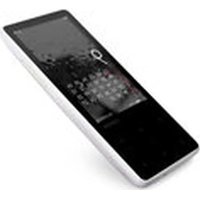
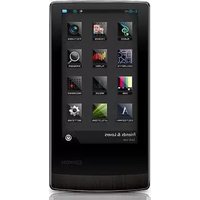
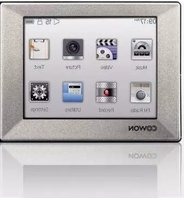
| Model | O2 PMP |
| Display | 4.3 inch TFT LCD, 16.7M colors, 480x272 pixels, brightness ≥ 400 cd/m² |
| Dimensions | 119.5 x 73.4 x 18.0 mm (W x H x D) |
| Weight | 205 g (including battery) |
| Battery Type | Lithium-Polymer rechargeable |
| Charging Time | Approximately 4.5 hours via AC adapter |
| Power Supply | AC adapter: DC 5.0V, 3A |
| Internal Storage | 8 GB / 16 GB / 32 GB Flash memory |
| External Memory | SD card slot (1 x) |
| Audio Output | Stereo earphone: 32 mW + 32 mW (16 Ω), S/N ratio 95 dB; Built-in speaker: 1 W mono |
| Video Playback | Supports AVI, WMV, ASF, MP4, MKV, OGM, MPG, DAT, MTV; codecs: DivX, XviD, H.264, WMV; max resolution 1280x720 @30fps |
| Audio Playback | Supports MP3, WMA, FLAC, OGG, APE, WAV, etc.; max resolution 96 kHz / 1.4 Mbps; playback speed 0.5x–1.5x with pitch compensation |
| Photo Viewer | Formats: JPG, GIF, PNG, TIF, BMP, RAW (up to 59 MP for JPG) |
| Document Viewer | Text files TXT with multiple encoding support (Korean, Japanese, Chinese, Latin, etc.) |
| Recording | Built-in microphone for voice recording |
| Connectivity | USB 2.0 High Speed, TV-Out (Composite, NTSC/PAL), Earphone jack, DC input |
| Additional Features | Multi-tasking (music + photos/docs, video + docs), touchscreen, built-in calculator, notepad, timer, alarm, scheduled recording |
| Operating System Compatibility | Windows Vista/XP/2000/ME, Mac OS 10.X, Linux kernel 2.4+ |
| Battery Life | Up to 8 hours video, up to 18 hours music (manufacturer test) |
| Accessories Included | USB cable, AC adapter, CD, quick guide, earphones, mini holder with stylus |
| Color Options | Black, White, Pink |
| Maintenance & Cleaning | Wipe with a soft cloth; do not use detergents or chemicals |
| Safety Warnings | Do not disassemble; avoid water, extreme temperatures, static electricity; use only included accessories; press RESET if overheating |
| Spare Parts & Service | Battery replacement only by official Cowon service centers; contact batteryreplace@cowon.com |
Frequently Asked Questions - O2 PMP COWON
User questions about O2 PMP COWON
0 question about this device. Answer the ones you know or ask your own.
Ask a new question about this device
Download the instructions for your Mp3 player in PDF format for free! Find your manual O2 PMP - COWON and take your electronic device back in hand. On this page are published all the documents necessary for the use of your device. O2 PMP by COWON.
USER MANUAL O2 PMP COWON
User's Guide ver. 1.4EN
©OWON O2PMP
+COPYRIGHT NOTICE
Thank you for choosing a COWON product.
We will always do our best to provide the "DIGITAL PRIDE" for you.
This manual includes use and safety instructions.
To maximize your digital entertainment experience, please read this manual carefully before using the product.
Introduction of Our Homepage
- For the product's overall introduction, visit http://www.COWON.com
- You can get the company's latest news and download the latest firmware for free at our website.
- For first time users we provide a FAQ section and online user guide.
- Please join us as a registered member by providing the serial number on the rear of the product at our website.
- As a registered member, you can get one-to-one online consultation as well as the latest news and events by e-mail.
+ COPYRIGHT NOTICE
General
- COWON is a registered trademark of COWON SYSTEMS, Inc.
- Information in this document is copyrighted by COWON SYSTEMS, Inc. and unauthorized distribution of any part of this manual is prohibited by law.
- COWON SYSTEMS, Inc. complies with the laws and regulations related to records, videos and games. It is recommended that customers comply with the related laws and regulations.
- Visit our website at http://www.COWON.com and join us as a registered member. You can receive and enjoy various benefits provided only to the registered members.
- The illustrations, charts, photos, and product specifications contained in this manual are subject to change and may be updated without prior notification.
About BBE
- This product is produced under the license of BBE Sound, Inc (USP4638258, 5510752 and 5736897).
- BBE and the BBE symbol are the registered trademarks of BBE Sound, Inc.
About Dolby
- Manufactured under license from Dolby Laboratories.
- "Dolby" and the double-D symbol are trademarks of Dolby Laboratories.
DIGITAL PRIDE.
©OWON
All rights reserved by COWON SYSTEMS, Inc.
+CONTENTS
Before you start! 6
Safety Instructions
Package Contents
Name of Parts
Power Connection / Charging
Connecting to / Disconnecting from the PC
Firmware Upgrade
Basic Use 12
Power On
Playing a File
Volume and Other Settings
Touchscreen Buttons
Multi-tasking
Others 16
Wallpaper (Background Image)
TV-Out (COMPOSITE)
Document Mode
Setup 18
Display
Sound
Video (video player)
Music (music player)
Recorder
System
Information
Additional 21
Product Specification
Converting Video Files Using COWON MediaCenter - JetAudio
Troubleshooting 26
©WON O2PMP
Before you start!
+Safety Instructions
COWON is not responsible for any damages or failures to products that are caused by user misuse of products and by not following the set rules/guidelines that are described in this manual.
- Do not use this product for other purposes than those described in this guide.
- Handle manual, product package materials, accessories, etc with care to prevent cuts and injuries to your hands.
- Do not view videos, pictures and texts stored in your player while driving a vehicle for your safety.
Operating other features of the player is also dangerous and may cause fatal accidents while driving. - The wearing of earphones while operating a vehicle, exercising, or walking may impair driving, masks or prevents recognition of emergency signals, alarms, announcements, the approach of vehicles and human speech. Doing so may also be unlawful depending on the region.
- The elastic strap on the mini holder is not intended to support the product so please carry the product by the hand when you are on the move. Product damage from improper use (dropping product, broken strap, etc) is excluded from the free of charge warranty services.
- Do not use detergent or other chemicals on the product surface as it may cause fading. In this case, wipe the polluted area carefully with a soft cloth.
- Do not expose the player in either cold weather of under 0^ C or hot temperature over 40^ C such as inside automobiles. This may cause fatal damage to your player.
- Do not expose the player to water or keep it in a damp or humid location for a long period of time. If the player is damaged from moisture as described above, product failure is then classified as fail
- Do not attempt to disassemble the player. Any defects resulting from this will void any warranty, and the unit may be permanently disqualified from any warranty services.
- Do not mix directions when connecting cables to your player or PC. Connecting cables incorrectly may damage your player or PC. Do not bend or press connection cables with heavy objects.
- If you smell something burning or feel excessive heat while using the product, press the RESET button to stop operation and contact the purchase place.
- Touching the player with wet hands may cause damage and malfunctions. Handle the power plug only with dry hands (otherwise an electric shock may occur).
- Listening at high volumes (85 dB and above) for extended periods may harm your hearing.
- For your protection, use the player in a well lit area where LCD screen will not overly strain your eyes.
Before you start!
+ Safety Instructions
- Using the player in places with high occurrences of static electricity may cause malfunctions.
- In case of using this device primarily for a storage device, it is recommended to back up all data before use. COWON SYSTEMS Inc. is not responsible for any data loss due to hardware failure.
- All data stored in the player may become deleted when being serviced. Our Service Center does not back up files while repairing players. Please note that COWON SYSTEMS, Inc. is not responsible for any data loss form products entrusted to us for service.
- Keep the player in cool and ventilated places, away from direct sunlight as it may cause deformation and damages to internal circuitry or LCD screen.
- Only use the AC power adaptor and USB cable provided by COWON SYSTEMS, Inc.
- When connecting to a PC, use only USB ports on the mother board or a USB Host card. Using an external USB hub may not guarantee proper operation. (e.g. USB ports on a keyboard or an external USB hub)
- When formatting the built-in hard disk, select FAT32 as the file system. Firmware must be reinstalled according to 'Upgrading Firmware' procedures after format.
- Be sure to disconnect the power supply to the PC and AC adaptor during lightning or thunderstorms, to prevent danger to the user or the risk of fire hazards.
- Keep the player away from magnets and direct magnetic fields, as they can cause malfunctions.
- Do not connect the line-in/out jacks of the cradle (or sub-pack) and the USB port simultaneously. The power of the player may be turned off or cause malfunctions. Only connect the required jacks or ports.
- Do not drop or expose the product to hard impact. This may result in malfunctions and/or unit failure, voiding the warranty.
- If you find any abnormalities with the battery such as swelling, press the RESET button immediately to stop the operation and contact the purchase place.
- The price of the product may fluctuate due to unexpected commercial conditions, and COWON Systems, Inc. will not be responsible to compensate for the price fluctuation.
- If you find any abnormalities with the battery such as swelling, press the RESET button immediately to stop the operation and contact batteryreplace@cowon.com for further instructions.
'EJECT' procedure must be performed when removing the product from the PC.
Before you start!
+Package Contents

natural_image
Blank gray rectangular image with no visible text, symbols, or featuresCOWON O2PMP

natural_image
Line drawing of a medical or laboratory device with a coiled cable and two connectors (no text or symbols)
natural_image
Line drawing of a handheld electronic device with two leads (no text or symbols)

USB 2.0 Cable AC Power Adaptor CD, Quickguide Earphones

natural_image
Line drawing of a multi-pin cable with multiple connectors (no text or symbols)TV-Out Cable (Optional)

Mini Holder
(combined with the stylus)

* The mini holder is two-angle stand and it is recommended to nest the product at the 3/5 point from the left side for secure stand.
* The elastic strap on the mini holder is not intended to support the product so please carry the product by the hand when you are on the move.
Before you start!
+ Names of Parts

*RESET will simply disconnect power against a product malfunction and does not affect its performance.
Before you start!
+Power Connection / Charging

natural_image
Diagram of a USB cable connector with a separate cable and arrow indicating connection (no text or symbols)- Connect the adaptor.

- (When turned off) The charging indicator (LED) is : Red - Charging Tumed Off - Charging completed

-
(When turned on) The charging icon appears.
-
Fully charge the player before first use or after the player was not used for a long period of time.
- For your safety, only use the adaptor included with the product. The adaptor is designed to be used within the voltage range from 100 to 240V.
+ Connecting to / Disconnecting from the PC


- Use the USB cable to connect COWON O2PMP to the PC.
- COWON O2PMP displays the following image if properly connected to the PC (Picture 2).
- Also make sure to check My Computer or Windows Explorer to see if COWON O2PMP is properly connected to the PC (Picture 3).
- Copy video, music or other files to COWON O2PMP (Picture 4).
- When done, click the icon on the tray bar to safely remove COWON O2PMP from the PC.
- Click the popup message.
- Safely remove the hardware and disconnect the USB cable.


Before you start!
- To make your PC recognize the SD card, insert the SD card into the card slot and turn on COWON O2PMP before connecting it to the PC.

- Disconnect the product after performing "Safely remove hardware" function.
- The following message may appear randomly, but it does not indicate that the product is in abnormal condition.

- If your operating system does not display the 'Safe To Remove Hardware' window, disconnect the player after all transfer operations are completed.
- Only simple file transfer operation is available for Linux and Mac OS.
+ Upgrading Firmware
Firmware is an embedded software within the hardware, and upgrading it further enhances system stability and feature sets.
Be advised that Beta(unofficial version) firmwares may cause system malfunctions.
How to upgrade the firmware
- Download the latest firmware from the SUPPORT section of the website (http://www.COWON.com).
- Use the USB cable to connect COWON O2PMP to the PC.
- Unzip the downloaded firmware and copy it to the root folder of COWON O2PMP.
- Perform "Safely remove the hardware" function on your PC and disconnect the USB cable.
- When you turn on the product, the firmware upgrade process will start.
-
The current firmware version can be checked in SETUP - Information.
-
It is recommended that you perform the firmware upgrade if you have formatted the system or the .System folder is deleted.
- Fully charge the player before upgrading the firmware.
- Do not turn off the player before firmware upgrade is complete. Data saved in the memory of COWON O2PMP may be deleted while upgrading firmware.
- Back up any important data before the firmware upgrade as the data in the memory may be deleted during the process. COWON is not responsible for any loss of data, if not backed up.
Basic Use
+Power On
1

2

- Slide down the Power switch to turn on the product.
- Slide down and hold the Power switch to turn it off.
*

- Touchscreen and key operations are disabled in Hold state.
- Setting the product in Hold can prevent unwanted operations.
+Playing a File
(Movie, Music, Photo, Text)
1

natural_image
Simple line drawing of a tool interacting with a device, no text or symbols present2

natural_image
Computer monitor with six app icons arranged in a grid (no visible text or symbols on screens)3

- Connect the earphone to the product and turn it on.
- Select a mode in which you want to play the file.
- Tap the file to start playing it.
- Tapping the bottom menu bar can show options for searching files and changing other settings.
- Each of Video, Music, Picture, and Document mode displays only files available in the specific mode. Method to run the file is the same for all modes.
- If you select "Recent Files", you can play the recently played files continuously.
- You will hear the sound from the speaker if the output is set to Speaker in SETUP - Sound.
- You can view the subtitle only if the .smi file is under the same name as the video file. Both must be located in the same folder.
- Video files in unsupported format can be converted using COWON MediaCenter
- JetAudio for playback.
Basic Use
+ Volume and Other Settings
You can use the button / icon to adjust the volume.

* Tap icons to show the pop-up window for setting.
- Volume

Use the (-/+ ) button to adjust the volume.

Tapping the volume arrows( / > ) also adjusts the volume or mute the sound.
- Switching Output between Speaker and Earphone

You can switch the sound output between speaker and earphone.
- LCD Off

For the power saving purpose, you can use the LCD Off or Power Off function.
- Time Setting

You can set the current time and date.
Basic Use
- Touchscreen Buttons
| Buttons Description | |
| ←· | ■ Cancels operation or moves to the previous step. |
| ... | ■ Changes the menu style. |
| M | ■ Moves to the menu. |
| ■ Moves to the upper folder in File Browser. | |
| ■ Displays your Favorites. | |
| ■ Adds to your Favorites. | |
| ■ Browsers the inserted SD card. | |
| ■ Deletes the selected file or folder. | |
| ■ Displays a popup window. | |
| ■ Performs the TV-Out feature. | |
| ■ Displays the setup window for each mode. | |
| All | ■ Sets the playback section to All Files.■ Sets the playback section to the current music folder.■ Sets the playback section to the current music folder (including its subfolders). .■ Sets the playback section to your Favorites. |
| Buttons Description | |
| ■ Plays the file only once.■ Plays all files in the list to the end and repeats them.■ Repeats playing the current file. | |
| ■ Plays the next track in sequence.■ Sets the random play mode. | |
| 10x | ■ Sets the playback speed(x0.5 ~ x1.5). |
| ■ Repeats playing a specific section (Section Repeat). | |
| ■ Rotates the image. | |
| ■ Plays the previous / next file. | |
| ■ Moves one page up or down. | |
| ■ Displays images continuously.■ Performs the auto-scroll of the current document. | |
| ■ Zoom in or out the image. | |
| ■ Performs recording. | |
| ■ Adds a new scheduled task. | |
Basic Use
+ Multi-tasking
You can perform two modes simultaneously.
Modes available for multi-tasking

Music + Pictures/Documents (see Documents mode)
You can view pictures or documents while listening to music.

Videos + Documents
You can view the document while listening to the sound of a movie.
How to Work
- Run a desired file in Video or Music mode.
- Move to menu screen to select a mode to multitask while playing a video or music file.


- In multi-tasking mode, the currently operating menus appear on the bottom and you can move to each mode by clicking it.
- Multi-tasking between Videos and Music is not available.
Others
+Wallpaper (Background Image)


You can set a desired image as the background image.
Formats of wallpaper images
You can set JPG, PNG, BMP, and TIF files as wallpaper. Images larger than 480x272 will be resized and smaller images will be centered.
Setting Wallpaper
- Select a background image file in Pictures mode.
- Tap the pop-up button ☐ to display the pop-up menu and select 'Setting Wallpaper'.
* If this fails, select SETUP - Display - Wallpaper.
* You can not set the wallpaper during playback of a movie or music file.
Size limitation of the wallpaper
The wallpaper file is limited to 1024x768 or less in size.
+Using TV-Out (COMPOSITE)
- The TV-Out cable is sold separately.

Connecting the cable
- Connect the TV-Out cable to the TV-Out port of the product and to the AV IN (Video IN, Audio IN) port of the external AV device.
- Switch the mode of the AV device to Video IN (see the user manual of the AV device for more information).
-
Play a movie file and press the TV-Out button to display it on the external AV device.
-
If the product does not display the image properly, check the followings.
- Check if you have set Setup - Display - TV System properly (select NTSC or PAL).
- Check if the input port matches the input mode of AV device.
Others
+ Document Mode

You can select to view a .txt file in COWON O2PMP.
Tap the right-hand side scroll bar to scroll through the pages or use the buttons on the bottom to move to a specific text line.

Setting the text font
As the product supports the true-type fonts, you can adjust the font size, character spacing, color and properties to your preference.
Setup


+ Display
+ General
■ You can adjust the screen brightness or change the color.
■ You can change the TV-Out setting.
■ You can recalibrate the touch grid on the touchscreen.
+ Wallpaper (Background Image)
■ You can select to use the background image. The wallpaper can be set in Pictures mode.
+ Appearance
- You can set the menu and/or the system languages. You have to set your preferred language before the subtitle can be displayed properly.
+ Sound
+ General
■ You can adjust the volume of the earphone or the speaker.
- Pitch correction compensates for the change of intonation of an audio signal when adjusting the playback speed in Video or Music mode.
+ Equalizer
■ You can set the preset or custom equalizer in 10 bands.
Setup
+ EQ Filter
■ Each band of the equalizer can be adjusted in detail.
+ BBE
■ BBE is a sound effect that refines the sound quality.
■ Mach3Bass provides deeper, tighter, and more musically accurate bass frequency.
■ MP Enhance restores and enhances the harmonics lost through compression.
■ 3D Surround provides the three-dimensional surround sound effect.
+ Video
+ General
- You can set the 3D stereo sound effect, playback speed, repeat, and skip length in Video mode.
+ Screen
- You can set the aspect ratio of a movie and the type of the TV to use in TV-Out mode.
+ Subtitle
- You can turn on/off the subtitle, select types, font sizes, and colors of the subtitle.
■ Supported formats include .smi, .srt, .sub (text format), DivX and bitmap; the name of the video file should match that of the subtitle file.
+ Music
+ General
■ You can set the boundary, repeat, shuffle mode, and adjust playback speed as you prefer.
+ Display
- You can display any available lyrics for a music file using LDB Manager.
- You can set the time format of the current music file and select to display the album image.
+ Recorder
+ General
■ You can adjust the volume and recording quality.
■ AGC automatically regulates the intonation of the recorded sound; the higher the level is, the more actively it is involved.
+ System
+ General
■ Sets the time of COWON O2PMP.
■ The boot resume continues to play the file from the previously played location. Browser resume returns to the last searched point.
Setup
+ Power
■ For power saving purposes, you can set the timer so that the product automatically turns off in a preset time.
- You can set to turn off the LCD or shut down the system if no input is entered for a certain amount of time.
+ Information
+ General
- You can check the firmware version, additional functions, and the free/total disk space.
Additional
- Product Specification
| Hardware | ||
| Display (Touchscreen) | Display 4.3 inch 16,700,000 Color Digital TFT LCD, 480x272 | |
| Brightness 400cd/m2or higher | ||
| Audio | Channel Stereo | |
| Frequency Range 20Hz ~ 20KHz | ||
| Max Output 16 Ohm earphones : 32mW + 32mW | ||
| S/N Ratio 95dB | ||
| Built-in Speaker Mono 1000mW | ||
| Built-in Microphone Mono | ||
| Power | Built-in Battery Lithium-Polymer Battery | |
| Battery Charging 4.5 Hours by AC Adaptor | ||
| AC Adaptor DC 5.0V, 3A | ||
| Capacity | Flash Memory 8GB / 16GB / 32GB (note 1) | |
| ExternalMemory | SD Card Slot Slot x 1EA | |
| USB Interface | USB Device | USB 2.0 High Speed |
Additional
- Product Specification
| AV OUT | Video COMPOSITE | |
| Audio Stereo | ||
| Format NTSC / PAL | ||
| General | Size 119.5(W) x 73.4(H) x 18.0(T) mm | |
| Color Black, White, Pink | ||
| Weight 205g (battery included) | ||
| System Requirements | CPU : Pentium III 500Mhz or higher | |
| OS : Windows Vista/ XP / 2000 / ME | ||
| Multimedia file transferable in PCs with MAC OS 10.X / Linux v2.4 or above | ||
| USB Port : USB 2.0 High Speed recommended | ||
(note 1) Part of the disk space is used to store Operating System and system files.
Additional
- Product Specification
| Specifications & applications are subject to change without notice by firmware upgrades. | ||
| Movie Player | File Format AVI, WMV, | ASF, MP4, MATROSKA(MKV), OGM, MPG/MPEG, DAT, MTV |
| Video Codec DivX 3.11 | /4/5/6, XviD, MPEG-4 SP/ASP, WMV 9/8/7, H.264, M-JPEG, MPEG 1 | |
| Video Resolution Max | 280x720, 30 fps (note 1) | |
| Audio Codec | MPEG1 Layer 1/2/3, WMA, AC3, OGG Vorbis, FLAC, BSAC, True Audio, WavPack, G.726, PCM | |
| Audio Resolution Max | 96KHz, 1.4Mbps | |
| Playback Speed 0.5 ~ | 1.5 X, supports Pitch Compensation (note 2) | |
| Multi Audio Multi Audio | Track Playback (supports AVI, MKV, OGM Max 8 tracks) | |
| Pan & Scan 70 ~ 150 % | ||
| Subtitle SMI(Color Tag), | SRT, SUB(Text Type), DivX bitmap (note 3) | |
| Sound Effect 3D Stereo | ||
| Playback time Max 8 hours | (note 4) | |
| Music Player | File Format | MP3/2, WMA, ASF, AC3, FLAC, OGG, M4A, MATROSKA(MKA), TTA, APE, MPC, WV, WAV |
| Audio Codec | MPEG1 Layer 1/2/3, WMA, AC3, FLAC, OGG Vorbis, OGG FLAC, APPLE Lossless, True Audio, Monkey Audio, MusePack, WavPack, G.726, PCM | |
Additional
- Product Specification
| Music Player | Audio Resolution Max 96KHz, 1.4Mbps (note 1) |
| Playback Speed 0.5 ~ 1.5 X, supports Pitch Compensation (note 2) | |
| META TAG ID3 V1, ID3 V2.2/V2.3/V2.4, Vorbis Comment, APE Tag V2, MP4 Tag, MATROSKA Tag, WMA Tag | |
| Lyrics LDB | |
| EQ 10Band, 8 set (Normal, Rock, Jazz, Classic, Pop, Metal, Vocal, User) | |
| EQ Filter Selection supports Center Frequency & Bandwidth Control | |
| Sound Effect JetEffect (BBE, Mach3Bass, MP3 Enhance, 3D Surround) | |
| Visualization Sound Spectrum, Album Image | |
| Playback time Max 18 hours (note 4) | |
| Photo Viewer | File Format JPG, GIF, PNG, TIF, BMP, RAW (note 5) |
| Resolution JPG - Max. 59M pixelRAW - UnlimitedEtc. - Max. 5M pixel | |
| Document Viewer | Text Viewer "TXT (EUC-KR(Korean), EUC-JP(Japanese), GB2312(SC), Big5(TC), ISO-8859(1:Latin,2:Central European,4:Baltic,5:Russian,6:Arabic,7:Greek,8:He brew,9:Turkish)" |
| Recording | Recorder recording function with built-in microphone |
Additional
+ Product Specification
| Etc | User Created Program User-created program, built-in Basic/Scientific Calculator & Notepad |
| Timer Scheduled recording, Alarm |
(note 1) The max resolution differs according to the codec and even the same type of codecs may differ according to the encoding option.
OGG Vorbis / FLAC/ MusePack / WavPack (up to the max level), APE (C2000 up to the normal level)
(note 2) Adjusting the playback speed may interrupt the proper playback for certain type of movie and music files.
(note 3) Color tag function enables color subtitle display.
(note 4) Battery performance test was conducted under the company standard of manufacturer. Actual performance may differ.
(note 5) RAW is the camera manufacturer's unique format that can be changed at their discretion, which may cause compatibility problems.
Product Details
+Converting Video Files Using COWON MediaCenter - JetAudio
- Install and run the COWON MediaCenter - JetAudio. 2. Click "Convert" button on the top right hand side.

From drop-down menu, select "Convert Video".

- From the Convert Video window, click "Add File" to select the files to convert.

- Check the selected video files in the list.

Product Details
+ Converting Video Files Using COWON MediaCenter - JetAudio
- After checking the target folder location to save the converted files and other settings, click on "Start" to start the video conversion process.

- Movie files that do not play properly on the product may need to be converted by COWON MediaCenter - JetAudio. Before doing so, please make sure that the movie files play properly on the PC first.
- Files already damaged before conversion may not work on COWON O2PMP even if the conversion process is successful.
- Conversion time may vary depending on PC performance, source file size and codec types.
- "Preview" allows checking the converted video before starting conversion.
- To convert a file with subtitles or to change settings on subtitles, click on "Convert Options".

- SMI files for subtitles must have the same file name as its video file.
+Troubleshooting
+ The player does not turn on or work properly.
- If this is from discharged battery, fully charge the battery before use.
- If the problem persists after the battery has been charged, press the RESET button next to the SD card slot and turn on the player again.
- If the system folder is removed, apply the latest firmware available at COWON's website (http://www.COWON.com).
+ When I turn on the player after formatting the system, it displays "X" on the screen and does not work.
- You must select FAT 32 for the file system when formatting. After formatting, apply the latest firmware available at COWON's website (http://www.COWON.com).
+ The .system folder is removed so the player does not work.
- If the system folder is removed, apply the latest firmware available at COWON's website (http://www.COWON.com).
+ The touchscreen does not work.
- Check if the power switch is positioned to "HOLD". If yes, the touchscreen will not work.
+ There is no sound from the speaker.
- Check if the output is set to Speaker in SETUP - Sound - Output. If it is set to Earphone, there will not be any sound from the speaker.
- Check if the volume level is set to 0. And if so, adjust it to your preference.
+ Key or button operation is delayed during playback of a movie or music file.
- When the player plays a file, it operates in low power mode to save power consumption. It will return to the normal mode in 3-4 seconds.
+ Troubleshooting
+ A movie file does not play.
- Try to play the movie file on the PC. If the movie is properly played on the PC, use COWON MediaCenter - JetAudio to convert it to a supported format.
+ Files that I have stored do not appear in the list.
- Each mode shows you a list of playable files only. To view all files that you have stored, select the Browser mode.
+ The computer does not recognize the player.
- Use the player with Windows 2000 or Windows XP as it does not support Windows 98.
- Please connect the player to the rear USB port of the PC, not the front USB port or hub.
+ The capacity of the flash memory is displayed lower than the original specification.
- The flash memory is normal if the size is about 964MB based on 1GB. This is because there exists a difference between the manufacturer specification and the recognition of the computer. Besides, the actual capacity will be reduced from the original size because some space of the memory should be used as the system area for normal operation.
+ Once hundreds of files are stored in the root folder, the player works abnormally.
- It is recommended to avoid storing many different files in the root directory as the device using the FAT 32 file system has its own limit.
+ For users with MAC OS(version 10.5 or above, Leopard OS), note that it requires formatting the device using MAC OS if the device malfunctions.
+Battery Replacement

natural_image
Gray circular icon with battery symbol and lightning bolt inside, representing energy recycling or cycle (no text)The rechargeable batteries have limited number of charge cycles, and it will require a replacement as capacity to hold power will eventually diminish.
The rechargeable batteries in COWON products should be replaced only by official COWON service centers. Please contact batteryreplace@cowon.com for more information on official COWON service centers.
+Product Disposal

natural_image
Symbol of a trash bin crossed with no text or numbers, representing waste management restrictions (no text present)COWON products contain built-in rechargeable batteries, and must be separately disposed from household waste. Disposing the products with regular waste may cause pollution of environment due to the waste batteries inside. Contact your local authorities for specified locations/guidance of E-waste and waste batteries, and dispose them in compliance with local regulation/guidance.
Notice of GNU GENERAL PUBLIC LICENSE
This product has some free software which are copyrighted by the Free Software Foundation and the library includes the software is subject to the observance of the terms of the GNU General Public License as published
by the Free Software Foundation.
■ GNU General Public License version 2 (http://www.gnu.org/licenses/gpl.html)
■ Free Software Foundation, Inc., 51 Franklin St - Suite 330, Boston, MA 02110, USA (www.fsf.org)
■ Free Software Foundation Europe (www.fdfeurope.org)
■ Free Software Foundation of India (www.fsf.org.in/)
DIGITAL PRIDE.
©WON
DIGITAL PRIDE.

COWON SYSTEMS, Inc.
www.COWON.com
- +COPYRIGHT NOTICE
- Introduction of Our Homepage
- + COPYRIGHT NOTICE
- General
- About BBE
- About Dolby
- +CONTENTS
- Before you start! 6
- Basic Use 12
- Others 16
- Setup 18
- Additional 21
- Troubleshooting 26
- ©WON O2PMP
- +Safety Instructions
- + Safety Instructions
- +Power Connection / Charging
- + Connecting to / Disconnecting from the PC
- Before you start!
- + Upgrading Firmware
- How to upgrade the firmware
- +Power On
- +Playing a File
- + Volume and Other Settings
- + Multi-tasking
- How to Work
- Others
- +Wallpaper (Background Image)
- Formats of wallpaper images
- Setting Wallpaper
- Size limitation of the wallpaper
- +Using TV-Out (COMPOSITE)
- Connecting the cable
- + Document Mode
- Setting the text font
- Setup
- + Display
- + General
- + Wallpaper (Background Image)
- + Appearance
- + Sound
- + Equalizer
- + EQ Filter
- + BBE
- + Video
- + Screen
- + Subtitle
- + Music
- + Recorder
- + System
- + Power
- + Information
- Additional
- + Product Specification
- +Converting Video Files Using COWON MediaCenter - JetAudio
- Product Details
- + Converting Video Files Using COWON MediaCenter - JetAudio
- +Troubleshooting
- + Troubleshooting
- +Battery Replacement
- +Product Disposal
- Notice of GNU GENERAL PUBLIC LICENSE
Brand : COWON
Model : O2 PMP
Category : Mp3 player