E390 - Smartphone Micromax - Free user manual and instructions
Find the device manual for free E390 Micromax in PDF.


User questions about E390 Micromax
0 question about this device. Answer the ones you know or ask your own.
Ask a new question about this device
Download the instructions for your Smartphone in PDF format for free! Find your manual E390 - Micromax and take your electronic device back in hand. On this page are published all the documents necessary for the use of your device. E390 by Micromax.
USER MANUAL E390 Micromax
Thank you for purchasing this Micromax mobile phone. To obtain the best performance of your phone, please read this user manual carefully.
Table of Contents
1 Safety 5
1.1 Safety Precautions 5
2 Introduction....6
2.1 Phone and Accessories 6
2.2 Parts of the Phone....6
2.3 Description of Display Contents....7
2.4 About UIM Card and the Battery 7
2.5 Inputting text 8
2.6 To switch ON and OFF 9
3 Contacts....9
3.1 To add a Contact....9
3.2 To search contact 9
3.3 To dial a number from the Phonebook 10
3.4 To view a Contact....10
3.5 To edit a Contact 10
3.6 To delete a Contact.... 10
3.7 To copy.... 10
3.8 Groups 10
3.9 Send by Bluetooth.... 10
3.10 Speed dial 10
3.11 Import and Export....11
3.12 To view memory status of Phonebook (Contacts) 11
4 Calling....11
4.1 To dial from the Phonebook (contacts)....11
4.2 Call divert....11
4.3 During a call....11
4.4 Call waiting....12
4.5 Conference Call 12
5 Call history 12
6 Messages.... 13
6.1 Write SMS 13
6.2 Inbox....13
6.3 Outbox....13
6.4 Draftbox....13
6.5 Push message.... 13
6.6 Guard list 13
6.7 Memory status.... 13
6.8 SMS settings.... 13
7 My MTS.... 14
User manual
8 UTK for operator 14
9 Bluetooth 14
10 Nimbuzz, Snaptu and Opera MIni 14
11 Profiles.... 15
12 Settings 15
12.1 Display settings 15
12.2 Date and time 15
12.3 Call settings.... 15
12.4 Phone settings.... 15
12.5 Security settings.... 16
12.6 Restore factory settings.... 16
13 Modem 16
14 Data services.... 17
14.1 USB Cable.... 17
15 Voice mail 17
16 Java 17
17 Tools.... 17
17.1 Hi Hello Phrase/Templates 17
17.2 Alarm 17
17.3 World clock 18
17.4 Calendar.... 18
17.5 To-do List.... 18
17.6 Notepad 18
17.7 Converter 18
17.8 Stopwatch.... 18
17.9 Calculator.... 18
18 Multimedia and entertainment 18
18.1 Audio player.... 18
18.2 Taking a photo.... 19
18.3 Image viewer.... 19
18.4 Video recorder.... 19
18.5 Video player.... 19
18.6 Sound recorder 19
18.7 Games.... 19
18.8 eBook reading....20
19 File Manager 20
20 WAP Services 20
20.1 WAP Browser 20
21 Maintenance.... 22
22 Taking Care of your Device.... 23
23 After Services.... 24
24 Inputting Text.... 25
1 Safety
1.1 Safety Precautions
⚠️ Please read through the following briefings carefully, and act in accordance with these rules, so as to prevent causing any danger or violating any law.

Safe driving
1) Do not use the phone while driving. When you have to use the phone, please use the personal hands-free kit.
2) Please put the phone safely in the phone stand. Do not put it onto any passenger seat or any place from which it may fall down in case of vehicular collision or emergency braking.

Turn off during a flight: Flight is influenced by interference caused by the phone. It is illegal to use a phone on the airplane. Please turn off your phone during a flight.

Turn off the phone when within an area where blasting takes place: Be sure to strictly observe the related laws and statutes by turning off the phone when you are within, or in the vicinity of, an area where blasting takes place.

Turn off the phone when any dangerous goods are in vicinity: Please turn off your phone when you are close to a gas station or in the vicinity of any place where fuel and chemical preparations, or any other dangerous goods are stored.

In hospital: Please obey the related rules or bylaws of the hospital when using your phone in a hospital. Be sure to turn off your phone when near any medical equipment. Your use of any wireless transmission equipment, inclusive of the phone, will interfere with any medical equipment that is not protected fully, and other electronic equipment items, too. Should you have any question in this regard, please consult a related physician or medical equipment supplier.

Interference: Each and every phone's performance may be affected due to radio interference.

Professional service: The phone must be installed or repaired by no other personnel than professionals. You are likely to suffer a huge risk when you install or repair this phone by yourself, which also goes against the warranty rules.

Fittings and battery: You shall use the fittings and battery acknowledged by the phone manufacturer only. Using unauthorized accessories may tamper the warranty of the device.

Proper use: Please use the phone in the normal way. Do not touch the antenna unnecessarily after the phone is turned on.

Emergency call: You may enter a telephone number (112, etc.) to ask for emergency help after making sure that the phone has been turned on and is in the service status. Press the Send Key to call out.
Disclaimer: Micromax will not bear any responsibility for any incompliance with the above mentioned guidelines or improper usage of the mobile phone. Microamx keeps the right to make modifications to any of the content here in this user guide without public
User manual
announcement in advance. The content of this manual may vary from the actual content displayed in the mobile phone. In such case, the latter shall govern.
2 Introduction
2.1 Phone and Accessories
Open the packing box of the phone and check that you have the Phone, Charger, Battery, USB cable, Earphone, Service guide, CD and Warranty card.
2.2
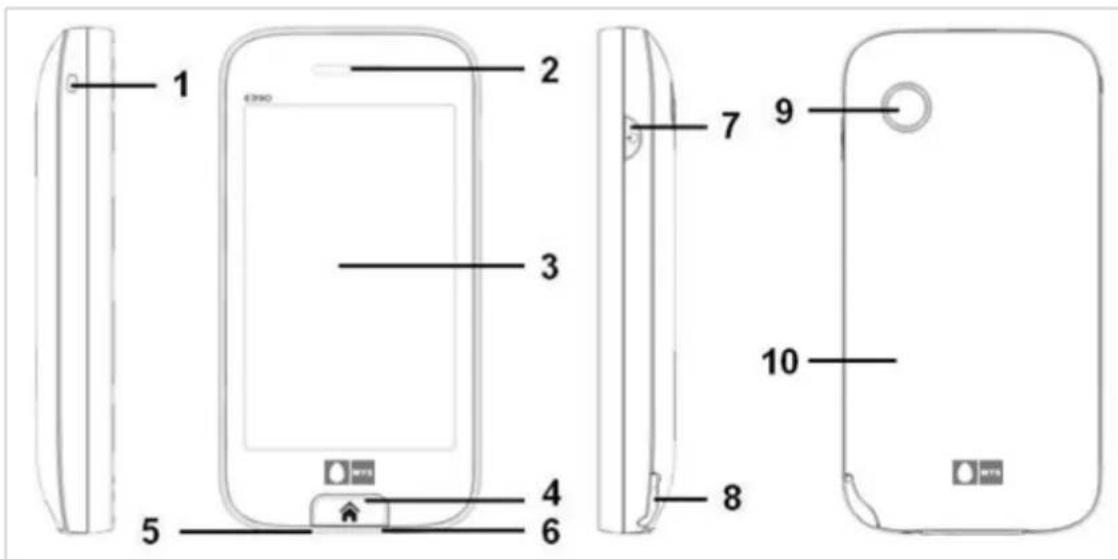
Parts of the Phone
text_image
1 2 3 4 5 6 7 8 9 10| Sno. | Parts of the Phone |
| 1 | Strap hole |
| 2 | Receiver/Speaker |
| 3 | Display |
| 4 | Home key |
| 5 | Earphone interface |
| 6 | USB/charger interface |
| 7 | Power key |
| 8 | Stylus |
| 9 | Camera |
| 10 | Battery cover |
2.3 Description of Display Contents
The table below lists the icons that may appear on the status bar according to the current priority of the phone.
| Icons | Description | |
| 1 |  | Indicates signal strength level of CDMA 1X and more bars means stronger signal |
| 2 |  | Bluetooth connectivity is on |
 | Bluetooth connectivity is off | |
| 3 |  | Indicates missed calls |
| 4 | [4ZAB] | Indicates you have a new SMS |
 | Indicates SMS capacity is full | |
| 5 | [W40H] | Indicates you have new push message |
| 6 | [5D60] | Indicates earphones are plugged in |
 | Indicates Bluetooth headset connected | |
| 8 |  | Indicates alarm is activated |
| 9 |  | Indicates your phone is in roaming status |
| 10 | [2074] | Indicates audio player is active |
| 11 | Indicates the prompt of incoming call: | |
 | Ring only | |
 | Vibration only | |
 | Crescendo | |
| [Y4W5] | Vibrate and ring | |
| [2407] | Vibrate then ring | |
 | Silent (Means the phone will alert with light only, without sound and vibration) | |
| 12 | Indicates the current residual battery power: | |
| [X63H] | Indicates the power is full | |
 | Indicates the power is moderate | |
 | Indicates the power is low | |
 | Indicates the power is to be used up |
2.4 About UIM Card and the Battery
Please store the cards out of childrens reach.
The card and the contacts are vulnerable to damage due to scratching or bending. Therefore, be careful when using, inserting or removing the cards.
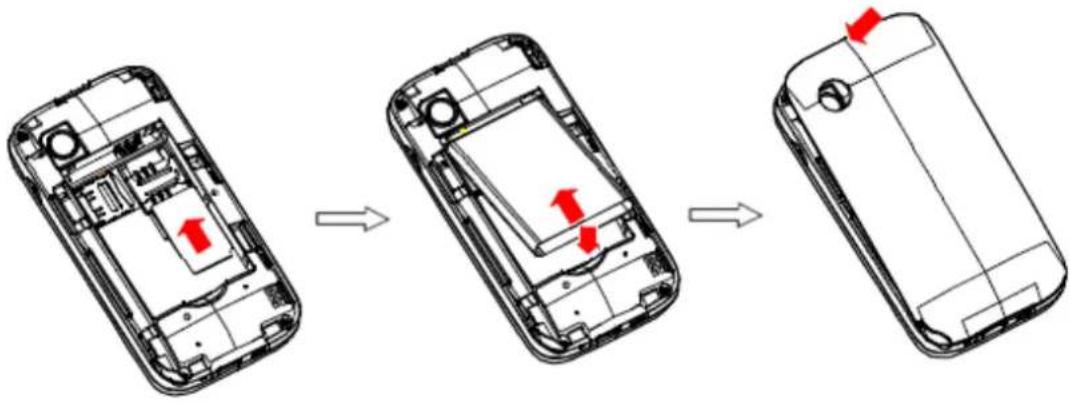
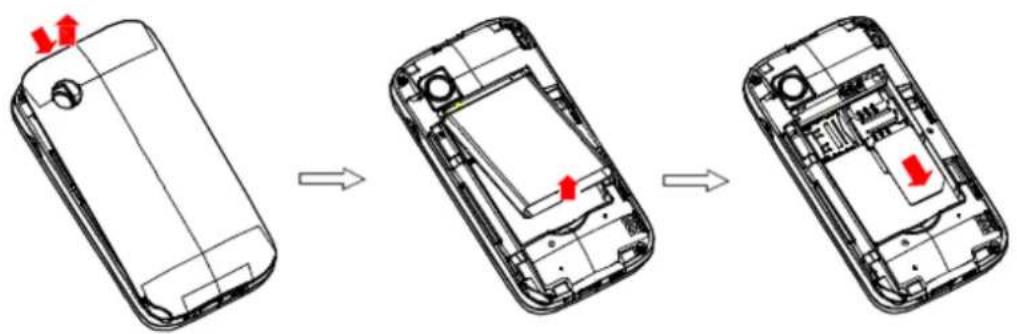
Be sure to switch off the phone before you insert or remove the battery or the card, otherwise, the phone may be damaged.
text_image
Diagram showing the step-by-step disassembly of a smartphone into an open case, with red arrows indicating internal components.Inserting UIM card and battery
text_image
Diagram showing the step-by-step assembly of a smartphone into three views, with red arrows indicating component changes.Insert the plug of the charger into the interface of the phone, and insert the charger into the power socket carefully. The battery icon will blink.
We suggest you recharge the battery when the power is used up so as to increase the life of the battery.
2.5 Inputting text
Handwriting input
Your phone supports handwriting recognition. Press to enable handwriting mode:
1 Use the stylus to write in the blank area. The phone will recognize the inputs automatically.
2 The letters most similar to the characters input are shown in the bottom right-hand corner for your selection. To place a matched word, press the word directly.
3 To switch between English and Numeric input, press


Touch keyboard input
With touch keyboard you can input numbers, symbols and uppercase/lowercase letters in English. You can also use the Smart English input method.
Press En to switch between Smart English and multi-tap ABC/abc input method.
Smart English:
-
The phone will display the most similar words associated with the letters you have just entered, speeding up the input.
-
To view the previous or next matched word, press◀.
- Press the word directly to place the word shown on screen in the textbox. When a word is added to the textbox, a space will be added automatically.
- To switch capitalization mode, press ↗ or ↗.
Input uppercase/lowercase letter in English:
- Press the keypad to input your desired letters.
- Press to type the next single character in uppercase.
- Press or to enable or disable CAPS lock.
Numeric input:
- Switch to multi-tap ABC/abc input Keyboard.
- Input numbers and common symbols.
Symbol input:
Press the switch to Symbols Keyboard. The keyboard will switch back to the previous keyboard after you input a symbol.
2.6 To switch ON and OFF
To switch on: Long press End key when the phone is in the OFF mode.
If the phone lock has been activated, you need to enter the 4-digit password to unlock. (The preset unlock code is 0000.)
If the UIM card has been inserted in the phone, and the related PIN code protection is activated, you need to enter the 4-8 digit password to unlock.
Warning: If you enter three wrong PIN codes in a row, the UIM card will be locked and you need to enter the PUK code to unlock. Both the PIN code and PUK code are provided by the network operator.
To switch off: In the standby mode, long press End key.
3 Contacts
You can store names and phone numbers in the memory of the phone or UIM card.
Main menu > Phonebook
3.1 To Add a Contact
In idle, enter phone numbers.
Options > Save > Select the location for saving
Or: Main menu > Contacts > Add new contact > Select the location for saving
You can edit the name, mobile phone number, home phone number, company name, e-mail address, office phone number, fax number, birthday, photo caller ID, ringtone and group of each contact.
3.2 To Search contact
Main menu > Contacts > Search Name
3.3 To Dial a number from the Phonebook
Or Main menu > Contacts > Search contact > Input characters
Options > Search
The desired contact will be highlighted. Press Send key to make a call.
Tip: If the entry contains more than one numbers, the number selection screen will be displayed. You can select one and press Send key to dial.
3.4 To View a Contact
In the contact list of the contacts, select the required name card:
Options > View
3.5 To Edit a Contact
In the contact list of the phonebook, select the name card to be modified:
Options > Edit
3.6 To Delete a Contact
In Contacts list, select the entry you want to delete: Options > Delete
You can delete all entries from UIM card or Phone by:
Main menu > Contacts> Delete > From UIM/From phone.
And, you can also delete the name one by one:
Main menu > Contacts > Delete > One by one.
3.7 To Copy
In the contact list of the Phonebook, select the name card to be copied.
Menu>Contacts> Copy
Tip: "Copy" means copying to other storage location. You can copy all entries stored in the UIM card to the phone memory: Select Main menu > Contacts > Copy all > From UIM / From phone.
3.8 Groups
Add a contact to a specific group (family, friends, colleagues etc). You could also customize the group settings.
3.9 Send by Bluetooth
Main menu>Contacts>Bluetooth
Allows you to send contacts via Bluetooth.
3.10 Speed dial
Main Menu>Settings>Call settings>Speed dial
You can specify speed dial numbers to frequently used phone numbers.
Long press the number keys 2-9 on the dial plate to display a corresponding phone number on the screen, and press Send key to dial the phone number. (The 1 key correspond with Voice Mailbox.)
Tip: You must have set a speed dial number for that number key, and the Speed Dial function has been activated.
3.11 Import and Export
Import the vCard file from the Phone or the Memory card to the address book or encapsulate the address book into a vCard file and save it to the Phone or the Memory card as backup.
3.12 To view memory status of Phonebook (Contacts)
Main menu > Contacts > View Contacts The screen will display the current memory status of the Phonebooks of the UIM card and the phone memory.
4 Calling
4.1 To dial from the Phonebook (contacts)
Enter the Phonebook, select an entry from the entry list and press Send key to dial.
Tip: If the entry contains more than one numbers, the number selection screen will be displayed. You can select one and press Send key to dial.
4.2 Call divert
Main menu > Settings > Call Settings > Call Divert
With the Call Divert function (needs network support); you may divert incoming calls to another mobile phone or a direct line telephone, but not any extensions of a fixed telephone.
4.3 During a call
During a call, you can press the buttons below for the following operations:

: Turn on/off the microphone so that the correspondent cannot hear you.

: Search a phone number from the Contacts during a call.

: Send DTMF tone.

: Open the dial plate. You can make the second call.

Volume: Adjust the volume of the receiver.
H-Free/ H-Held: Activate handsfree mode/ Deactivate handsfree.
End: Hang up.
4.4 Call waiting
The function needs the support from the local network. In some districts, you can use the function only after you apply with the local network operator. The detailed operations may vary for different networks. For assistance, please consult the local network operator. An example of operation is given below.
If, during a call, a new call comes in, you will hear waiting sound from the receiver. You may:
- Press Answer to answer the incoming call, and the current call will be held automatically.
If the new call is put through, you can press to switch between the two calls.
These two calls do not support single end or a conference call. Press Home key will end them at the same time.
- Press End or Home key will end both the current call and the incoming call.
4.5 Conference Call
Three-party Calling is a service based on call waiting. This function needs support from the local network. In some areas, you can use the function only after you apply with the local network operator.
During a call, you may dial another number without hanging up the current call, and make a three-way call. The detailed operations may vary for different networks. An example of operation is given below.
For instance, you are in a call with B and need to add a third party C. You can input the phone
number of C and pres5s. If C answers, the call with B will be held automatically.
During the call with C, you may press to make a three-way conference calling.
During a three-way calling, you can't only end the call with B. If you press hang up the call with C.

, you may
5 Call history
Main menu > Call Log
The phone registers the phone numbers of missed, received, dialed calls. If you have set numbers in Call guard, you can view all unsolicited incoming calls in "Guard list".
You can select one entry to check specific info through options Main menu.
"Call duration" shows the total time and the last call Time for dialed calls, received calls and
can reset timers. And you can check data usage through "Data counter".
6 Messages
Main menu > SMS
6.1 Write SMS
Press "Write Message" to begin a new SMS message. You can edit the text and recipients (up to 20 numbers), then set the priority. When the message is finished, you can save it in the draftbox or send it directly. A long message will be split into multiple packets.
6.2 Inbox
By default, all received short messages are saved to the Inbox automatically.
In the message list, press Options to choose operations such as Delete, Forward, etc...
While browsing a message, flick left or right to browse the previous or next message. You can also choose the relevant operations in the options Main menu.
6.3 Outbox
This box stores messages that have been sent.
In the message list, press Options to choose operations such as Delete, Multi delete, etc...
While browsing a message, flick left or right to browse the previous or next message. You can also choose the relevant operations in the options Main menu.
6.4 Draftbox
Messages that failed to send and those saved during editing are stored in Draft. Please refer to corresponding instructions in the Inbox/Outbox sections for operation details.
6.5 Push message
The Push messages you received are stored in this box. When reading a push message, you can select Connect to activate the browser and link to the URL.
6.6 Guard list
If you have set numbers in SMS guard, you can view and manage spam messages in this box.
6.7 Memory status
View the SMS storage capacity of the UIM cards and the phone.
6.8 SMS settings
Storage: To select whether you prefer to save a SMS in the UIM cards or the phone memory. Message validity: Select the SMS retention time. The retention time is the period during which the SMS center tries to send the SMS. For details, consult the network operator.
Delivery reports: Set SMS reports, that is, you will receive a status report when the SMS arrives at the receiver.
Signature: Set whether to use signature.
7 My MTS
Main menu > My MTS > WAP Portal
You can surf on the network, the default page is wap.mymts.in.
Before you go online, you need to confirm whether the account information is correct. The settings are all related to the UIM card; please consult your network service provider for more details. You can complete the setup process with their help.
Tips:
- When surfing, the browser supports up to three windows on the screen. You can flick left or right to switch to other screens.
- When surfing, you can press and hold a picture and then choose to save it.
- If necessary, you can select "Page Zoom" in options Main menu, and then drag your finger up or down to adjust the page size.
Main menu > my MTS > Brew Games & Applications
List brew catalogues.
8 UTK for operator
Main menu > MTS Info
This function is provided by your network service provider. Available options depend on the different services provided by the different mobile manufacturers. If the UIM card and network supplier do not support the service, the function will be not available.
9 Bluetooth
Main menu > Bluetooth
Your phone includes built-in Bluetooth technology. To ensure interoperability between other devices supporting Bluetooth technology, select and use the accessory applying to this type mobile telephone or consult your service provider.
You can connect wirelessly to other compatible device with Bluetooth technology.
Compatible devices may include computers, mobile phones. You can use Bluetooth connectivity to send images, music and sound clips, video clips, and vCards.
Since devices with Bluetooth wireless technology communicate using radio waves, your devices and the other devices only need to be within a range of 10 meters of each other, but the connection may be subject to interference from obstruction from such as a wall or from electronic devices. If you are facing problems while connecting to your Bluetooth, please contact your Micromax service/support center.
10 Nimbuzz, Snaptu and Opera MIni
Nimbuzz is a free all-in-one communicator for your internet enabled mobile phone. Call, Chat,
Text with all your Skype, MSN, Google Talk, AIM, Yahoo, Jabber and Nimbuzz friends for free. Stay connected wherever you are.
Snaptu is a fast stylish suite of social networking and lifestyle services including Twitter, Facebook, Flickr, Picasa, News, Accuweather, Sports, Movies and Sudoku. Snaptu combines social networking tools with key information services; tweet, posting and emailing movie reviews, flickr images, news items and more. All with just a simple click on your mobile phone.
Opera Mini is a web browser designed primarily for mobile phone users. It helps in connecting faster to the internet and makes browsing easy and quick.
11 Profiles
Main menu > Profiles
There are 5 user profiles: General, Silent, Meeting, Outdoor and My profile.
Choose different profiles for different situations and set up distinct ringtones, vibration or adjust the volume.
12Settings
Main menu > Settings
12.1 Display settings
Customize settings for:
Wallpaper: Choose a wallpaper from the preset wallpapers or choose a picture saved by you in the images
Operator Name: Display/hide the owner name on the Switch ON/OFF
Date & Time: Choose to display the date & time on the main screen, by selection ON/OFF
LCD backlight: Customize the time for the LCD backlight.
12.2 Date and time
Set up date and time format.
12.3 Call settings
Call divert: Can be set to call forward unconditional or call forward conditional.
Speed dialling: Enable or disable the speed dial function, and edit speed dial lists. Once set up, press and hold one key (2-9) on the dial pad and the stored number will be dialed.
Call waiting: Activate or deactivate it.
Voice encryption: Select Standard or Enhanced.
Edit before dialing: If the set is ON, when you dial a number from Contacts or call log, the number will be placed to dial plate at first, you can edit it before dialing.
International code: Set CDMA ISD.
Send SMS when reject an incoming call: Activate or deactivate it.
12.4 Phone settings
Schedule Power On/Off: The time for auto On/Off can be set, default is off.
Phone number: View or edit the number of your mobile phone.
Handwriting: Choose the reaction time and the color of the handwriting pen.
Pen calibration: To calibrate the touch screen, select this option, then click anywhere on the screen with the stylus to start the calibration.
Flight mode: Flight Mode is used to make sure safety on plane, and it can be set as three models: Normal mode, Flight mode and Query when power on.
12.5 Security settings
This Main menu allows you to establish security items for your phone, to prevent the illegal use of your phone or UIM card. Refer to UIM and phone lock below.
PIN Lock:
- When switching the phone on, the PIN lock password input will be required, otherwise the UIM card will not be recognized.
- When activated, the correct PIN Code needs to be entered. If you enter the wrong PIN three times, you will need a PUK Code (individual unlock code) to unlock the phone. The PUK Code is used to unlock and change locked PIN Codes. Please contact your network provider for your PUK Code.
Phone Lock: the correct password needs to be entered when powering on the phone or restoring original settings.
Call guard
The default password to access the call guard folder is 0000
- Incoming calls guard: You can set the mode, and edit the list of numbers which can only be rejected or accepted. When Reject List is activated, the phone will reject calls from numbers in the Reject List; when Answer List is activated, the phone will reject calls from all numbers except those in the Answer List. "Reject Unknown Call" means rejects calls without Caller ID.
-Outgoing calls guard: If you activate this function, the numbers set in the list will can not be dialed.
- SMS receiving guard: For the relevant operations about this function, please refer to Incoming calls guard.
- SMS sending guard: For the relevant operations about this function, please refer to Outgoing calls guard.
Change password: you can change the PIN and lock passwords of the phone.
Tip: The default password of phone is 0000; you should change the password. The PIN code depends on your service provider.
12.6 Restore factory settings
Some function settings can be reset to factory settings by this option. This function requires the correct password to be executed. The factory password is preset to 0000.
13 Modem
Modem CD installation
Install the modem.exe file. Thereafter follow the onscreen instructions to successfully complete the installation.
Then, connect your Micromax E390 phone to the PC. Follow onscreen instructions to install
the drivers.
Main menu>Data Services>Modem
Click on the Micromax connection manager (on your desktop) and click on 'create' to install the dial-up connection and start browsing.
14 Data services
14.1 USB Cable
Main menu > Data Services > USB cable
Modem: Use your phone as a modem. You must first install the driver.
Mass storage: Use this phone as a USB storage device (in power-on status), just as how you use a USB disk.
Sync: Used to transfer data between PC and your phone. You can download the contacts, pictures, ringtones, multimedia files and short messages from your PC to the phone, as well as upload the contacts and short messages stored in the phone to PC.
15Voice mail
Main menu > Voice Mail
Firstly, set the voice mail number. When connecting, you can call and listen to the voice mail.
Tip: If you have set the voice mail number, press and hold key on dial plate screen to dial it.
16Java
Main menu > Java
You can install Java applications to enhance the multimedia capability of your phone.
17Tools
Access Main menu to use the functions as detailed below.
17.1 Hi Hello Phrase/Templates
Main menu> Hi Hello Phrase
These are preset templates that can be used in messages.
17.2 Alarm
Up to 3 alarm clocks can be set. Open one or all as required (default as off); setup on/off, alarm time, repeat mode and Snooze options (Mins) for each clock separately.
The alert ringtone, alert type, volume and ringtone duration for alarm clock will use the relevant settings in Profiles.
17.3 World clock
View the local time of various cities and enable or disable the Daylight Saving Time.
17.4 Calendar
You can view the calendar by month, jump to specific dates, and view schedules.
17.5 To-do List
You can edit memos as displayed on the screen, and set clock options and reminder styles.
17.6 Notepad
It is used to record and narrate an event simply. You can input some descriptions through a text edition window.
17.7 Converter
Convert weight, length, area, and capacity:
- Choose the units you want to convert between.
- Enter the value of the unit you want to convert from. The phone will show the result automatically.
Exchange rate converter allows you to make conversions between different currencies:
- First set the ratio of the target currency to the original currency.
- Switch the rate, and then enter the sum of the currency to convert from. The phone will show the result automatically.
17.8 Stopwatch
Your phone has the ability to perform Lap Timing.
17.9 Calculator
This function allows you to make simple calculations on numbers up to 8 digits.
18 Multimedia and entertainment
18.1 Audio player
Main menu > Audio Player
The Audio Player can play audio files in MP3/AMR/WAV/MIDI/AAC/AAC+ format stored in "Music" folder under File manager. Before enjoying music for the first time, you need to
create a playlist (press to access playlist, all music, artists and album), and you can
also press key to customize the settings.
18.2 Taking a photo
Main menu > Camera.
The camera function allows you to use the screen as a viewfinder and capture photos by
pressing . The default folder for saving pictures is the "Photos" folder under File manager. Before shooting, you can set the camera parameters according to your personal preferences.
18.3 Image viewer
Select Main menu > Album, your phone will automatically read the images in supported formats from the folder "Photos" in memory card and phone (subfolders under "Photos" will not be read). You can view the photos you have taken and the pictures downloaded from a PC.
Press an entry in the list to view it, and then flick left/right to browse the previous/next entry.
18.4 Video recorder
Main menu > Videos
With this function you can easily create your own video clips. Before recording, you can set
the relevant parameters according to your personal preferences. Press to begin recording.

18.5 Video player
Main menu > Video Player
The video player can be used to play video clips in MP4 or 3GP format. Place videos in the "Movies" folder under File manager so that your phone can find them. You can also browse videos on line.
When a video starts playing, press to realize full-screen play or restore the normal status.
18.6 Sound recorder
Main menu > Recorder
This function allows you to record sound. You can also play or delete the sound you have recorded. The default folder is the "Voice Records" folder under File manager.
18.7 Games
Main menu > Games
There are 3 games preloaded. Before play you can choose the game level or view best scores. After selecting a game to play, you can learn how to play the game from the game help Main menu.
18.8 eBook reading
Main menu > eBook
Please first create a folder named "eBooks" under File manager and then download ".txt" files to it via USB data cable, so you can select a file to browse.
19File Manager
Use this function to manage the files and folders in phone memory or extended card storage. The files in various formats must be placed in the designated folders, otherwise a failure of the relevant application program will occur:
• E-book files: \eBooks
• Video files: \Movies
• Music files such as MP3, midi: \Music
- pctools
- Photos and images: \Photos
- Received
- Sounds
• Voice records: \Voice Records
The Ring Tone file formats supported by your phone are MIDI, AMR, WAV, AAC, AAC+ and MP3. Ring Tone files can be set as rings for incoming calls, contacts and alarms.
The supported picture file formats are BMP, JPG, PNG and GIF. Pictures can be used as Wallpaper and Photo Caller ID.
The supported video file formats are MP4 and 3GP.
The supported eBook file formats is txt.
20WAP Services
20.1 WAP Browser
Main menu > My MTS> WAP Portal
You need to make the relevant settings in WAP Setup before you use the WAP browser to surf the web.
When the WAP browser is activated, if a homepage is set in WAP Setup, the phone will link the website indicated by the homepage; otherwise, you may enter a website and the phone will connect to it.
When surfing the web, select Options >
Enter URL: input a website address.
Forward/Backward: To turn to the next /previous page.
Refresh: To refresh the web page.
Bookmark: Add/delete/edit the bookmark.
History: View the list of all the recently visited pages
Page Folder: View the pages that were saved
Save to Bookmark: Save a page to the bookmark folder.
Save Page: Save a currently viewing page in the 'page folder'
Go to Homepage: view the homepage.
Clear Cache
Clear Cookies
Find in page
Root Certificate
Contacts: View contacts
New SMS: Send a message without exiting the WAP page.
View Details: View the current page's general details
Settings: Select general WAP settings
Reset: Reset the previously set WAP settings
New Window: Open a new window for browsing.
Close Window: Close the currently opened window.
21 Maintenance
Use a dry soft cloth to wipe general dirt.
Do not use a hard cloth, benzene or thinner to wipe the phone, otherwise, the surface of the phone will be scratched or could even result in the fading of colour.
22Taking Care of your Device
-Your device is a product of superior design and craftsmanship and should be handled with care: The following suggestions will help you protect your phone:
•Always keep the small parts of the phone away from children.
- Keep the device dry. Precipitation, humidity, and all types of liquids or moisture can contain minerals that will rust electronic circuits. If your device does get wet, remove the battery, and allow the device to dry completely before replacing it.
- Do not use or store the device in dusty, dirty areas. Its moving parts and electronic components can be damaged.
- Do not store the device in high or cold temperature. High temperatures can shorten the life of electronic devices and damage batteries.
- Do not attempt to open the device other than as instructed in this guide.
- Do not drop, knock, or shake the device. Rough handling can break internal circuit boards and fine mechanics.
- Do not use harsh chemicals, cleaning solvents, or strong detergents to clean the device. Only use a soft, clean, dry cloth to clean the surface of the device.
- Do not paint the device. Paint can clog the moving parts and prevent proper operation.
- Use chargers indoors
23After Services
For details, see the After Service Guide supplied with the phone.
24Inputting Text
You can enter text in English and digit.