
DRX-1 - DVD Recorder YAMAHA - Free user manual and instructions
Find the device manual for free DRX-1 YAMAHA in PDF.


| Product Type | DVD Recorder |
| Brand | Yamaha |
| Model | DRX-1 |
| Dimensions (W x H x D) | 17 x 4.8 x 13 inches |
| Net Weight | 13.9 lb (6.3 kg) |
| Power Supply | AC 100-120V, 50/60 Hz |
| Power Consumption (Operation) | 36 W |
| Power Consumption (Standby) | 3 W (Low Power Standby mode) |
| Disc Types Supported (Recording) | DVD+RW, DVD+R |
| Disc Types Supported (Playback) | DVD+RW, DVD+R, DVD-Video, DVD-R, DVD-RW (Video mode), (Super) Video CD, Audio CD, CD-R, CD-RW |
| Recording Modes (Max Time on 4.7GB Disc) | HQ (60 min), SP+ (150 min), EP (240 min), EP+ (360 min) |
| Video Outputs | Component (YPbPr), Progressive Scan (480p), S-Video, Composite (CVBS) |
| Audio Outputs | Digital coaxial, digital optical, analog stereo (RCA) |
| Audio Decoding | Dolby Digital, DTS, MPEG-2, PCM |
| Tuner | NTSC (US models); PAL/SECAM for other regions |
| Timer Recording | Up to 6 events, 1 year in advance, VCR Plus+ support |
| Special Recording Features | One-Touch Recording (OTR), Safe Recording, Auto Chapter Markers |
| Playback Features | Auto Resume (last 20 discs), Repeat (Chapter/Title/Disc), A-B Repeat, Zoom, Slow Motion, Intro Scan |
| Parental Control | Child Lock (4-digit code), Parental Level (DVD-Video), Country rating |
| Front Connections | i.LINK DV (4-pin), S-Video input, Composite input, Audio L/R input |
| Rear Connections | Component video in/out, Progressive Scan out, S-Video in/out, Composite in/out (2x), Audio L/R in/out (2x), Digital audio out (coaxial + optical), RF antenna in, RF TV out |
| Laser Type / Wavelength | Semiconductor GaAlAs (DVD) 660 nm; AlGaAs (CD) 780 nm |
| Cleaning Instructions | Use soft cloth, wipe from center to edge in straight line; do not use solvents or commercial cleaning discs |
Frequently Asked Questions - DRX-1 YAMAHA
User questions about DRX-1 YAMAHA
0 question about this device. Answer the ones you know or ask your own.
Ask a new question about this device
Download the instructions for your DVD Recorder in PDF format for free! Find your manual DRX-1 - YAMAHA and take your electronic device back in hand. On this page are published all the documents necessary for the use of your device. DRX-1 by YAMAHA.
USER MANUAL DRX-1 YAMAHA
This "bolt of lightning" indicates uninsulated material within your unit may cause an electrical shock. For the safety of everyone in your household, please do not remove product covering.

The “exclamation point” calls attention to features for which you should read the enclosed literature closely to prevent operating and maintenance problems.
WARNING:
TO PREVENT FIRE OR SHOCK HAZARD, DO NOT EXPOSE THIS EQUIPMENT TO RAIN OR MOISTURE.
CAUTION:
To prevent electric shock, match wide blade of plug to wide slot, and fully insert.
ATTENTION:
Important safety instructions
- Read Instructions — All the safety and operating instructions should be read before the appliance is operated.
- Retain Instructions — The safety and operating instructions should be retained for future reference.
- Heed Warnings — All warnings on the appliance and in the operating instructions should be adhered to.
- Follow Instructions — All operating and use instructions should be followed.
- Cleaning — Unplug this product from the wall outlet before cleaning. Do not use liquid cleaners or aerosol cleaners.
Use a damp cloth for cleaning.
Exception: A product that is meant for uninterrupted service and that for some specific reason, such as the possibility of the loss of an authorization code for a CATV converter, is not intended to be unplugged by the user for cleaning or any other purpose, may exclude the reference to unplugging the appliance in the cleaning description otherwise required in item 5.
- Attachments — Do not use attachments not recommended by the video product manufacturer as they may cause hazards.
- Water and Moisture — Do not use this video product near water - for example, near a bath tub, wash bowl, kitchen sink, or laundry tub, in a wet basement, or near a swimming pool, and the like.
- Accessories — Do not place this video product on an unstable cart, stand, tripod, bracket, or table. The video product may fall, causing serious injury to a child or adult, and serious damage to the appliance. Use only with a cart, stand, tripod, bracket, or table recommended by the manufacturer or sold with the video product. Any mounting of the appliance should follow the manufacturer's instructions and should use a mounting accessory recommended by the manufacturer.
8A.

An appliance and cart combination should be moved with care. Quick stops, excessive force, and uneven surfaces may cause the appliance and cart combination to overturn.
- Ventilation — Slots and openings in the cabinet are provided for ventilation, to ensure reliable operation of the video product, and to protect it from overheating. These openings must not be blocked or covered. The openings should never be blocked by placing the video product on a bed, sofa, rug, or other similar surface. This video product should never be placed near or over a radiator or heat register. This video product should not be placed in a built-in installation such as a bookcase or rack unless proper ventilation is provided or the manufacturer's instructions have been adhered to.
- Power Sources — This video product should be operated only from the type of power source indicated on the marking label. If you are not sure of the type of power supply to your home, consult your appliance supplier or local power company. For video products intended to operate from battery power, or other sources, refer to the operating instructions.
- Polarization — This product may be equipped with a polarized alternating-current line plug (a plug having one blade wider than the other). This plug will fit into the power outlet only one way. This is a safety feature. If you are unable to insert the plug fully into the outlet, try reversing the plug.
If the plug should still fail to fit, contact your electrician to replace your obsolete outlet. Do not defeat the safety purpose of the polarized plug. - Power-Cord Protection — Power supply cords should be routed so that they are not likely to be walked on or pinched by items placed upon or against them, paying particular attention to cords at plugs, convenience receptacles, and the point where they exit from the appliance.
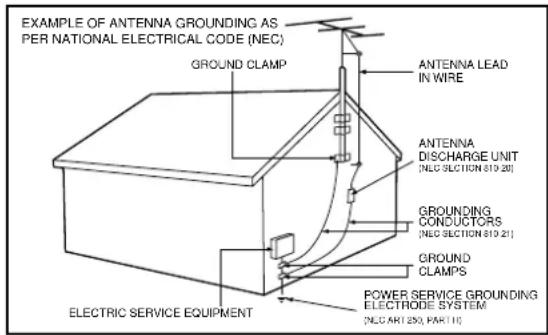
- Outdoor Antenna Grounding — If an outside antenna or cable system is connected to the video product, be sure the antenna or cable system is grounded so as to provide some protection against voltage surges and built-up static charges.
Section 810 of the National Electrical Code, ANSI/NFPA 70, provides information with regard to proper grounding of the mast and supporting
structure, grounding of the lead-in wire to an antenna discharge unit, size of grounding conductors, location of antenna-discharge unit, connection to grounding electrodes, and requirements for the grounding electrode. See Fig.A.
Fig.A.
- Lightning — For added protection for this product during a lightning storm, or when it is left unattended and unused for long periods of time, unplug it from the wall outlet and disconnect the antenna or cable system. This will prevent damage to the product due to lightning and power surges.
- Power lines — An outside antenna system should not be located in the vicinity of overhead power lines or other electric light or power circuits, or where it can fall into such power lines or circuits. When installing an outside antenna system, extreme care should be taken to keep from touching such power lines or circuits as contact with them might be fatal.
- Overloading — Do not overload wall outlets and extension cords as this can result in a risk of fire or electric shock.
- Object and Liquid Entry — Never push objects of any kind into this product through openings as they may touch dangerous voltage points or short-out parts that could result in a fire or electric shock. Never spill liquid of any kind on the product.
- Servicing — Do not attempt to service this product yourself, as opening or removing covers may expose you to dangerous voltage or other hazards. Refer all servicing to qualified service personnel.
- Damage Requiring Service — Unplug this product from the wall outlet and refer servicing to qualified service personnel under the following conditions:
a. When the power-supply cord or plug is damaged.
b. If liquid has been spilled on, or objects have fallen into the product. c. If the product has been exposed to rain or water.
d. If the product does not operate normally by following the operating instructions. Adjust only those controls that are covered by the operating instructions as an improper adjustment of other controls may result in damage and will often require extensive work by a qualified technician to restore the product to its normal operation.
e. If the product has been dropped or the cabinet has been damaged.
f. When the product exhibits a distinct change in performance - this indicates a need for service. - Replacement Parts — When replacement parts are required, be sure the service technician has used replacement parts specified by the manufacturer or which have the same characteristics as the original part. Unauthorized substitutions may result in fire, electric shock or other hazards.
- Safety Check — Upon completion of any service or repairs to this product, ask the service technician to perform safety checks to determine that the product is in proper operating condition.
- Carts and Stands — The appliance should be used only with a cart or stand that is recommended by the manufacturer.
- Heat — The product should be situated away from heat sources such as radiators, heat registers, stoves, or other products that produce heat.
FCC INFORMATION (for US customers)
- IMPORTANT NOTICE: DO NOT MODIFY THIS UNIT!
This product, when installed as indicated in the instructions contained in this manual, meets FCC requirements. Modifications not expressly approved by Yamaha may void your authority, granted by the FCC, to use the product.
-
IMPORTANT: When connecting this product to accessories and/or another product use only high quality shielded cables. Cable/s supplied with this product MUST be used. Follow all installation instructions. Failure to follow instructions could void your FCC authorization to use this product in the USA.
-
NOTE: This product has been tested and found to comply with the requirements listed in FCC Regulations, Part 15 for Class "B" digital devices. Compliance with these requirements provides a reasonable level of assurance that your use of this product in a residential environment will not result in harmful interference with other electronic devices. This equipment generates/uses radio frequencies and, if not installed and used according to the instructions found in the users manual, may cause interference harmful to the operation of other electronic devices. Compliance with FCC regulations does not guarantee that interference will not occur in all installations. If this product is found to be the source of interference, which can be determined by turning the product "OFF" and "ON", please try to eliminate the problem by using one of the following measures:
Relocate either this product or the device that is being affected by the interference.
Utilize power outlets that are on different branch (circuit breaker or fuse) circuits or install AC line filter/s.
In the case of radio or TV interference, relocate/reorient the antenna. If the antenna lead-in is 300 ohm ribbon lead, change the lead-in to coaxial type cable.
If these corrective measures do not produce satisfactory results, please contact the local retailer authorized to distribute this type of product. If you can not locate the appropriate retailer, please contact Yamaha Electronics Corp., 6600 Orangethorpe Ave. Buena Park, CA90622.
The above statements apply ONLY to those products distributed by Yamaha Corporation of America or its subsidiaries.
THIS DIGITAL APPARATUS DOES NOT EXCEED THE CLASS B LIMITS FOR RADIO NOISE EMISSIONS FROM DIGITAL APPARATUS AS SET OUT IN THE RADIO INTERFERENCE REGULATIONS OF THE CANADIAN DEPARTMENT OF COMMUNICATIONS.
CET APPAREIL NUMÉRIQUE N'ÉMET PAS DE BRUITS RADIOÉLECTRIQUES DÉPASSANT LES LIMITES APPLICABLES DANS LA RÈGLEMENT SUR LE BROUILLAGE RADIOÉLECTRIQUES ÉDICTÉ PAR LE MINISTÈRE DES COMMUNICATIONS DU CANADA.
NOTE TO CABLE TV SYSTEM INSTALLER:
This reminder is provided to call the Cable TV (CATV) system installer's attention to Article 820-40 of the NEC (National Electrical Code) that provides guidelines for proper grounding and, in particular, specifies that the cable ground shall be connected to the grounding system of the building, as close to the point of cable entry as practical.
Laser safety
This unit employs a laser. To prevent possible eye injury, only a qualified service person should remove the cover or attempt to service this device.
USE OF CONTROLS OR ADJUSTMENTS OR PERFORMANCE OF PROCEDURES OTHER THAN THOSE SPECIFIED HEREIN MAY RESULT IN HAZARDOUS RADIATION EXPOSURE.
LASER
Type Semiconductor laser GaAlAs (DVD)
Semiconductor laser AlGaAs (CD)
Wavelength 660 nm (DVD)
780 nm (CD)
Output Power 20 mW (DVD +RW writing)
(out of objective) 0,8 mW (DVD reading)
0,3 mW (CD reading)
Beam divergence 82 degrees (DVD)
54 degrees (CD)
For Customer Use:
Read carefully the information located on the back of your DVD recorder and enter below the Serial No. Retain this information for future reference.
Model No.
Serial No.
CAUTION
VISIBLE AND INVISIBLE LASER RADIATION. WHEN OPEN AVOID EXPOSURE TO BEAM. (WARNING LOCATION: INSIDE ON LASER COVERS HIELD)
CAUTION
ONLY QUALIFIED SERVICE PERSONNEL
SHOULD REMOVE THE COVER OR
ATTEMPT TO SERVICE THIS DEVICE.

Read this before operating your unit.
1 To assure the finest performance, please read this manual carefully. Keep it in a safe place for future reference.
2 The recommended operating temperature range for the Recorder is from 60°F-95°F (Fahrenheit). Exceeding these ranges may cause unstable recording results. Do not expose this unit to sudden temperature changes from cold to hot, nor locate this unit in an environment with high humidity (i.e., a room with a humidifier) to prevent condensation inside this unit, which may cause an electrical shock, fire, damage to this unit, and/or personal injury.
3 Locate this unit away from other electrical appliances, motors, or transformers to avoid humming sounds.
4 Install this unit in a well ventilated, cool, dry, clean place — away from direct sunlight, heat sources, vibration, dust, moisture, or cold. In a cabinet, allow about 2.5cm (1 inch) of free space all around this unit for adequate ventilation.
5 Avoid installing this unit in a location where foreign objects may fall onto this unit or where this unit may be exposed to liquid dripping or splashing. On the top of this unit, do not place:
- Other components, as they may cause damage and/or discoloration on the surface of this unit.
- Burning objects (i.e., candles), as they may cause fire, damage to this unit, and/or personal injury.
- Containers with liquid in them, as they may fall, spilling the liquid and causing an electrical shock to the user and/or damage to this unit.
6 Do not cover this unit with a newspaper, tablecloth, curtain, etc. in order not to obstruct heat radiation. If the temperature inside this unit rises, it may cause fire, damage to this unit, and/or personal injury.
7 Do not plug in this unit to a wall outlet until all connections are complete.
8 Do not operate this unit upside-down. It may overheat, possibly causing damage.
9 Do not use excessive force on switches, knobs and/or cords.
10 When disconnecting the power cord from the wall outlet, grasp the plug; do not pull the cord.
11 Do not clean this unit with chemical solvents; this might damage the finish. Use a clean, dry cloth.
12 Use only the voltage specified on this unit. Using this unit with a higher voltage than specified is dangerous and may cause fire, damage to this unit, and/or personal injury. YAMAHA will not be held responsible for any damage resulting from use of this unit with a voltage other than as specified.
13 To prevent damage by lightning, disconnect the power cord from the wall outlet during an electrical storm.
14 Do not attempt to modify or fix this unit. Contact qualified YAMAHA service personnel when any service is needed. The cabinet should never be opened for any reason.
15 When not planning to use this unit for long periods of time (i.e., vacation), disconnect the AC power plug from the wall outlet.
16 Be sure to read the "TROUBLESHOOTING" section on common operating errors before concluding that this unit is faulty.
17 Before moving this unit, press STANBY/ON to set the unit in standby mode, then disconnect the AC power plug from the wall outlet.
FOR CANADIAN CUSTOMERS
To prevent electric shock, match wide blade of plug to wide slot and fully insert.
This Class B digital apparatus complies with Canadian ICES-003.
This digital apparatus does not exceed the Class B limits for radio noise emissions from digital apparatus as set out in the Radio Interference Regulations of the Canadian Department of Communications.
Supplied Accessories
- Remote Control with separately-packed batteries
- 2-core power cord
- Component video cable
- S-Video cable
- Antenna cable
- Audio cable (2x)
- Video cable
- DVD+RW disc
If any item is damaged or missing, please inform your supplier without delay.
Keep the packaging materials; you may need them to transport your Recorder in the future.

VCR Plus+ and PlusCode are registered trademarks of Gemstar Development Corporation. The VCR Plus+ system is manufactured under license from Gemstar Development Corporation. Pats. 5,307,173; 5,335,079; 4,908,713; 4,751,578; and 4,706,121
Manufactured under license from Dolby Laboratories. "Dolby," "Pro Logic" and the double-D symbol are trademarks of Dolby Laboratories. Confidential Unpublished Works. ©1992-1997 Dolby Laboratories, Inc. All rights reserved.
"DTS" and "DTS Digital Out" are trademarks of Digital Theater Systems, Inc.
DCDi is a trademark of Faroudja, a division of Sage Inc.
This product incorporates copyright protection technology that is protected by method claims of certain U.S. patents and other intellectual property rights owned by Macrovision Corporation and other rights owners. Use of this copyright protection technology must be authorized by Macrovision Corporation, and is intended for home and other limited viewing uses only unless otherwise authorized by Macrovision Corporation. Reverse engineering or disassembly is prohibited.
TRUSURROUND, SRSd symbol (●) are trademarks of SRS Labs, Inc. TRUSURROUND technology is manufactured under license from SRS Labs, Inc.
| Introduction | 2 |
| DVD Recorder | 2 |
| Cleaning discs | 2 |
| Remote control | 2 |
| Installation | 3 |
| Connections - back of your DVD Recorder | 3 |
| Step 1: Connecting to the antenna or Cable TV signal | 3 |
| Step 2: Connecting to a TV | 3 |
| Step 3: Connecting to audio equipment | 4 |
| Step 4: Connecting to other equipment (optional) | 5 |
| Step 5: Connections - Front of your DVD Recorder (optional) | 6 |
| Step 6: Power supply | 6 |
| Switching on | 6 |
| First time setup: Initial setup | 7 |
| Functional overview | 9 |
| Front of recorder | 9 |
| Back of Recorder | 10 |
| Display | 11 |
| Remote control | 12 |
| Operation | 13 |
| Important notes for operation | 13 |
| Loading discs | 13 |
| Disc types | 13 |
| On-screen display information | 14 |
| Index Picture Screen | 18 |
| User preferences | 19 |
| Recording | 24 |
| Before you start recording | 24 |
| Manual recording of a TV channel or from a video camera | 24 |
| Timer programming | 26 |
| If a timer recording is incorrect | 28 |
| Playback | 30 |
| Playing a DVD+RW/+R disc | 30 |
| Playing a pre-recorded DVD-Video disc | 30 |
| Playing a (Super) Video CD | 30 |
| General features | 31 |
| Special DVD+RW/+R features | 34 |
| Special DVD-Video features | 34 |
| Special VCD features | 35 |
| Playing an Audio CD | 36 |
| Access control | 37 |
| Child Lock (DVD and VCD) | 37 |
| Parental Level (DVD-Video only) | 38 |
| Country | 39 |
| Changing the 4-digit code | 39 |
| Managing disc content (DVD+RW/+R only) | 40 |
| Title settings | 40 |
| Disc Information Screen | 40 |
| Disc Settings | 41 |
| Editing | 42 |
| Troubleshooting | 45 |
| Diagnosis program | 47 |
| DVD Recorder system notes | 47 |
| Glossary | 48 |
| Appendix | 49 |
| Using your DVD Recorder remote control with your TV | 49 |
Specifications 51
DVD Recorder
DVD (Digital Versatile Disc) is the new storage medium that combines the convenience of the Compact Disc with the latest advanced digital video technology.
DVD Video uses state-of-the-art MPEG2 data compression technology to register an entire movie on a single 5-inch disc. DVD's variable bitrate compression, running at up to 9.8 Mbits/second, captures even the most complex pictures in their original quality.
The crystal-clear digital pictures have a horizontal resolution of over 500 lines, with 720 pixels (picture elements) to each line. This resolution is more than double that of VHS, superior to Laser Disc, and entirely comparable with digital masters made in recording studios.
DVD recording is the next step in video technology. DVD+ReWritable (DVD+RW) uses phase-change media, the same technology that formed the basis for CD-ReWritable. A high-power laser is used to change the reflectivity of the recording layer. This process can be repeated more than a thousand times. DVD+Recordable (DVD+R) uses discs based on an organic dye, a technology pioneered with the successful CD-Recordable format, to produce discs that keep your data for a lifetime.
Your DVD Recorder is a Recorder and player for digital video discs, with a two-way compatibility to the universal DVD Video standard. This means that:
- existing pre-recorded DVD Video discs can play on your DVD Recorder and
- recordings, made on your DVD Recorder, can play on most DVD Video players and DVD-ROM drives.
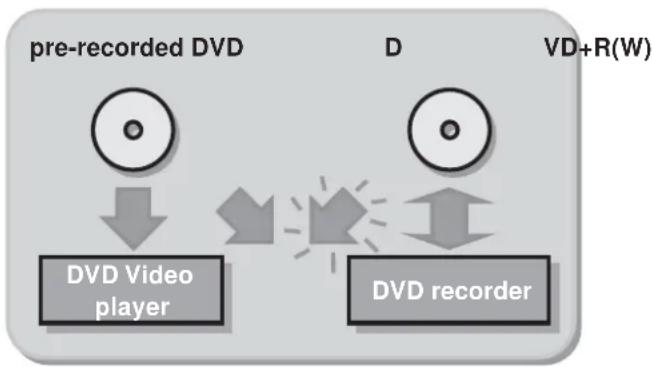
flowchart
graph TD
    A["pre-recorded DVD"] --> B["DVD Video player"]
    C["D"] --> D["DVD recorder"]
    style A fill:#f9f,stroke:#333
    style C fill:#f9f,stroke:#333
    style D fill:#f9f,stroke:#333
With it, you will be able to record TV programs or edit and archive your own video camera recordings. Superb digital picture and sound quality, quick access to the tracks you have recorded and extensive playback features contribute to a completely new video experience.
From now on you will enjoy full-length movies with true cinema picture quality and stereo or Multi-channel sound (depending on the disc and on your playback set-up). You will find your Recorder remarkably easy to use, with the on-screen display on your TV, the display on the DVD recorder and remote control.
Cleaning discs
Some problems occur because the disc inside the Recorder is dirty. To avoid these problems, clean your discs regularly in the following way:
- When a disc becomes dirty, clean it with a cleaning cloth. Wipe the disc in a straight line from the center out to the edge.
Caution:
Do not use solvents such as benzine, thinner, commercially available cleaners, or anti-static spray intended for analog discs.
Do not use commercially available cleaning discs to clean the lens, as these discs may damage the optical unit.
Remote control
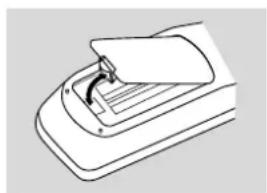
Loading the batteries
natural_image
Line drawing of a mechanical device with a paper clip inserted into a tray (no text or symbols)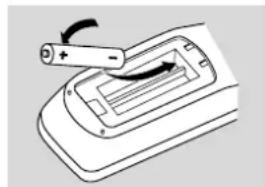
natural_image
Diagram of a battery being inserted into a motor (no text or symbols present)1 Remove the battery compartment cover.
2 Insert two 'AA' (LR-6) batteries as indicated inside the battery compartment.
3 Replace the cover.
Caution:
Do not mix old and new batteries. Never mix different types of batteries (standard, alkaline, etc.). This may reduce the lifetime of the batteries.
Connections - back of your DVD Recorder
- Please refer to your TV, VCR, Stereo and any other User Manual(s) as necessary to make the optimal connections.
- Do not connect the power cords until all other connections are made.
- Do not connect your DVD Recorder to your TV via your VCR. The video quality could be distorted by the copy protection system.
- For better sound, connect the Recorder's audio outputs to your amplifier, receiver, stereo system or A/V equipment. See 'Connecting to an A/V receiver or A/V amplifier.'
Caution:
Do not connect the Recorder's audio output to the phono input of your audio system. This could damage your equipment.
Step 1: Connecting to the antenna or Cable TV signal
1 Remove the antenna cable from your TV and connect it to the ANTENNA jack at the back of the DVD Recorder.
2 Connect one end of the antenna cable supplied (1) to the TV jack on the DVD Recorder and the other end to the antenna input jack on your TV.
The antenna connection transmits TV channels through the Recorder to the TV. You still need a video connection to send DVD playback from the Recorder to the TV. See 'Connecting to a TV.'
Step 2: Connecting to a TV
This DVD Recorder is equipped with Directional Correlational Deinterlacing, known as DCDi™. DCDi was developed by Faroudja Laboratories for ultra-high-end home theater equipment to eliminate the jagged edges that appear when standard interlaced video is viewed on Progressive Scan displays. This patented technology identifies edges at any angle in moving video images and interpolates along the edge, pixel-by-pixel, to produce smooth, natural looking images.
To obtain the highest possible picture and sound quality from your TV, use the Progressive Scan video jacks on the DVD Recorder and TV.
Progressive Scan connection
- Connect the PROG SCAN OUT (YP BPR ) jacks on the Recorder to the corresponding IN jacks on the TV, using the Component Video cable supplied (2) as shown in the drawing.
- Connect the audio Left (white) and Right (red) OUT jacks on the Recorder to the corresponding AUDIO IN jacks on the TV using the audio cables supplied (4).
Note:
The PROG SCAN OUT jacks do not carry Closed Captioning or V-chip signals. These features will not be available if you use the Progressive Scan connection.
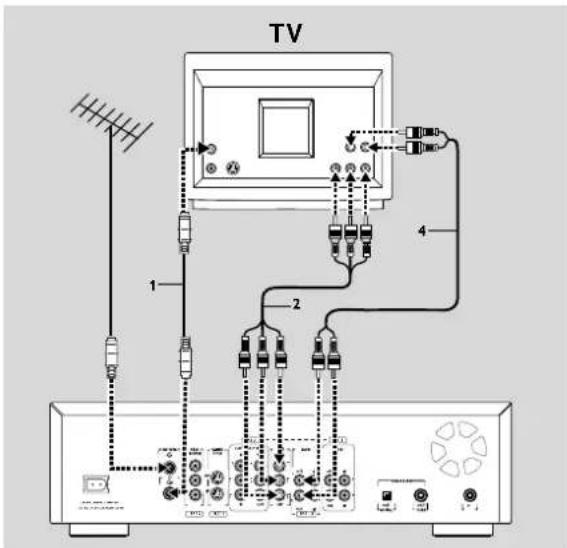
Component Video (YP _B P _R ) connection
If your TV does not have Progressive Scan, connect the DVD Recorder with the Component Video jacks.
- Connect the COMPONENT VIDEO (YP _B PR) OUT jacks to the corresponding IN jacks on the TV, using the Component Video cable supplied (2) as shown in the drawing.
- Connect the AUDIO Left (white) and Right (red) OUT jacks to the corresponding AUDIO IN jacks on the TV using the audio cable supplied (4).
- Do not connect a Progressive Scan video source to the Component Video IN jacks on your TV.
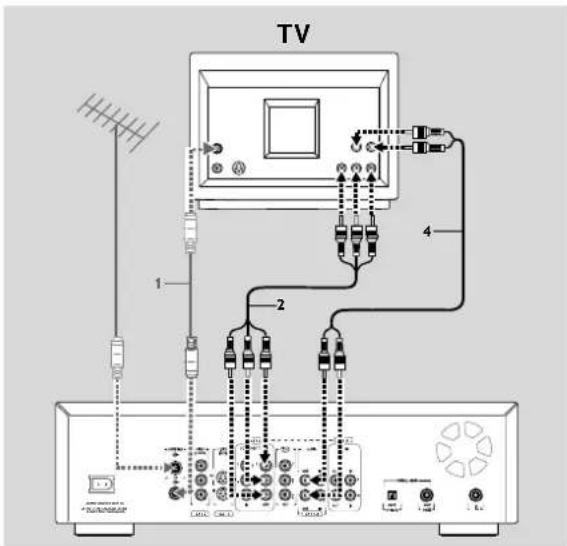
S-Video (Y/C) connection
If your TV is not equipped with COMPONENT VIDEO inputs, connect the DVD Recorder with the S-Video (Y/C) jacks.
- Connect the S-Video (Y/C) OUT jack to the corresponding IN jacks on the TV, using the S-Video cable supplied (3) as shown in the drawing.
- Connect the AUDIO Left (white) and Right (red) OUT jacks to the corresponding IN jacks on the TV using the audio cable supplied (4).
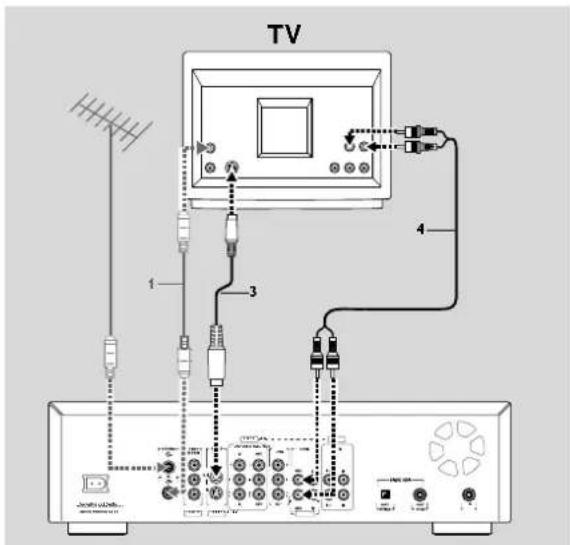
Video (CVBS) connection
If your TV is not equipped with a S-Video jack, then connect the DVD Recorder's VIDEO (CVBS) OUT jack to your TV.
- Connect the VIDEO (CVBS) OUT jacks (yellow) to the corresponding IN jacks on the TV using the video cable supplied (5) as shown in the drawing.
- Connect the AUDIO Left (white) and Right (red) OUT jacks to the corresponding IN jacks on the TV using the audio cable supplied (4).
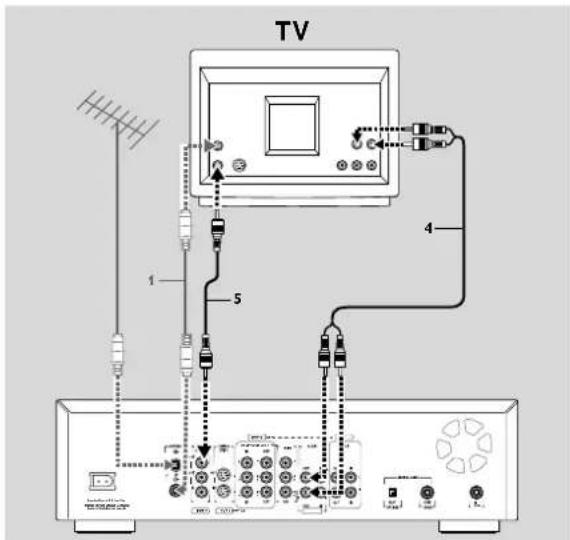
Step 3: Connecting to audio equipment
Connecting to an A/V receiver or A/V amplifier with a digital Multi-channel decoder
The best possible sound quality is obtained by connecting your DVD Recorder to an Audio/Video receiver with Multi-channel decoder (Dolby Digital, MPEG 2 and DTS).
Digital Multi-channel sound
A digital Multi-channel connection provides the optimum sound quality. For this you need a Multi-channel A/V receiver that supports one or more of the audio types supported by your DVD Recorder (MPEG 2, Dolby Digital and DTS). Check the receiver manual and the logos on the front of the receiver.
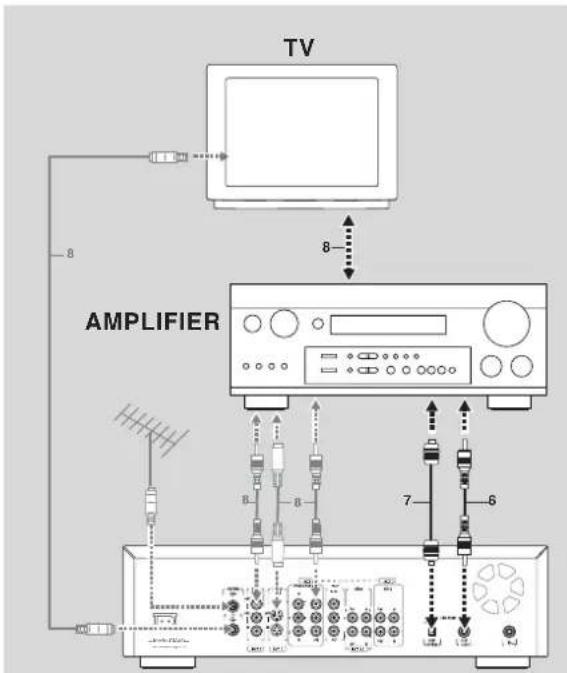
- Connect one of the DVD Recorder's DIGITAL AUDIO OUT jacks to the corresponding IN jacks on the receiver. Use a digital coaxial cable (6) or a digital optical audio cable (7).
- Connect the recorder's component video, S-Video or Video (CVBS) OUT jack to the corresponding IN jack of your amplifier. Then make the same connection between your amplifier and your TV (8).
- You can connect your VCR's audio/video IN/OUT jacks to your amplifier. Refer to the manual supplied with your amplifier.
Note:
If you use a connection that does not match the capabilities of your receiver, the receiver will produce a strong, distorted sound. The audio type of the current DVD disc will appear in the Status Window when you change the language.
Six Channel Digital Surround Sound via digital connection can only be obtained if your receiver has a Digital Multi-channel decoder.
If you cannot connect your DVD Recorder to an A/V receiver with a Multi-channel decoder, choose one of the following alternatives.
Connecting to a receiver equipped with two channel digital stereo (PCM)
- Connect one of the Recorder's DIGITAL AUDIO OUT jacks to the corresponding IN jack on your receiver. Use the supplied yellow video (CVBS) cable or an optional digital optical audio cable.
- After installation set Digital Output to PCM only (see 'User preferences.')
Connecting to a receiver equipped with Dolby Pro Logic
- Make a video connection between the DVD Recorder and the TV.
- Then connect the Recorder's Left and Right AUDIO OUT jacks to the corresponding inputs on the Dolby Pro Logic Audio/Video receiver, using the audio cable supplied (4).
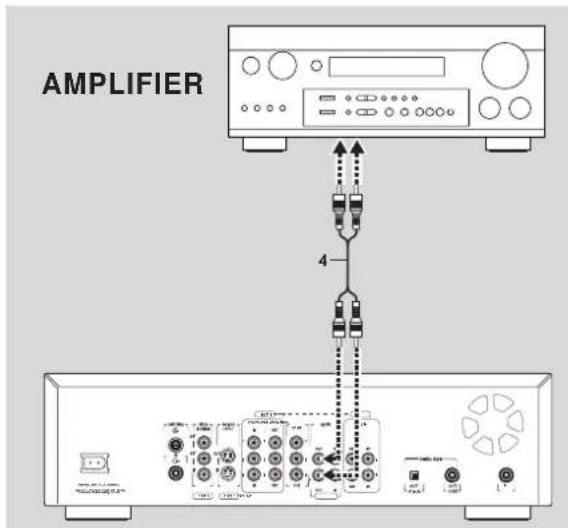
- Make the appropriate Sound settings for Analog Output in the user preferences menu.
Connecting to a TV with a Dolby Pro Logic decoder
- Connect the Recorder to the TV as described in chapter ‘Connecting to a TV.’
Connecting to a receiver with two channel analog stereo
- If you have a receiver with only two-channel analog stereo and none of the above mentioned sound systems, connect the Left and Right AUDIO OUT jacks of the DVD Recorder to the corresponding AUDIO IN jacks on your receiver, amplifier or stereo system. Use the audio cable supplied (4).
Step 4: Connecting to other equipment (optional)
To connect other devices to the Recorder, use the available IN jacks on the back of the Recorder.
-Set top box (cable box or satellite receiver) -VCR
-DVD Video player
Most pre-recorded video cassettes and DVD discs are copy protected. If you try to copy them, the DVD Recorder display will show 'COPY PROTECT.'
This recorder is not equipped with CBCT or C3 technology to select channels on a set top box automatically.
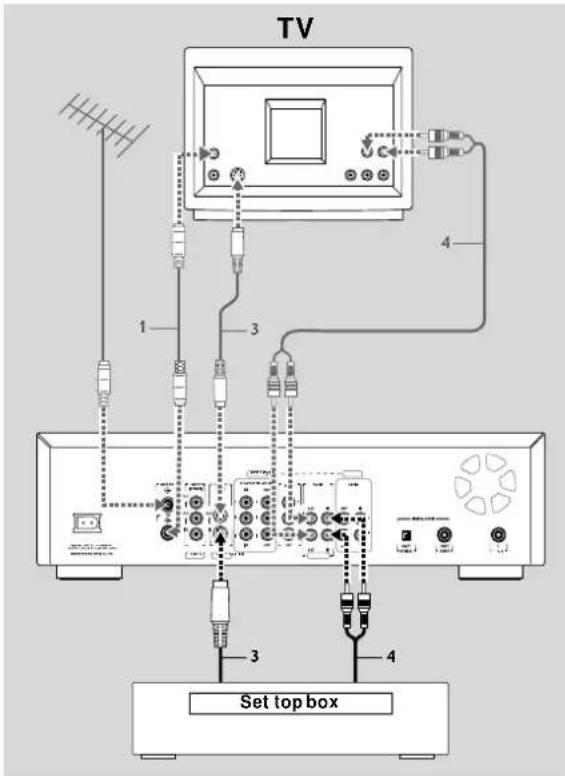
Do not connect a Progressive Scan video source to the COMPONENT VIDEO IN jacks (EXT3). The DVD Recorder cannot record Progressive Scan video signals.
Do not connect the Recorder to a VCR, then connect the VCR directly to the TV. If you are not using the DVD Recorder, turn off its power to avoid interfering with VCR playback.
Step 5: Connections - Front of your DVD Recorder (optional)
Video camera connection
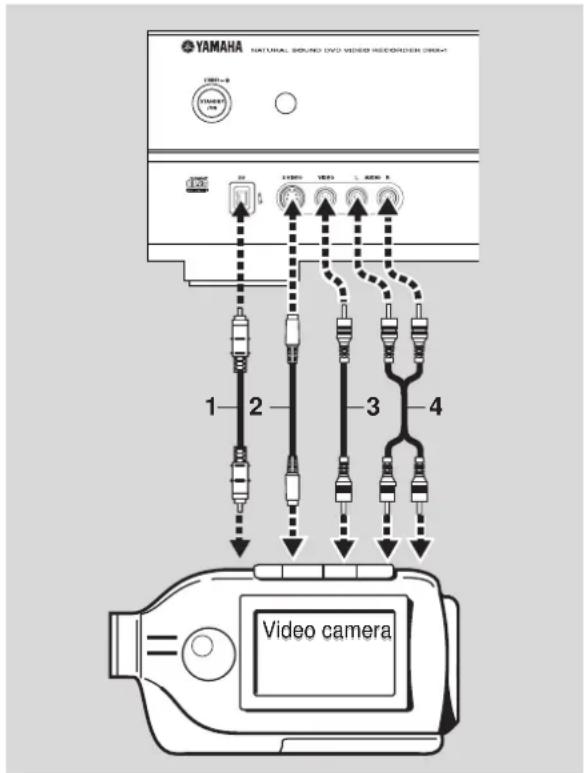
- If you have a DV or Digital 8 video camera, connect the i-link DV input jack on the Recorder (1) to the corresponding output jack on the video camera using the i-link cable of your video camera. This connection enables digital recording from the following devices:
- D V or Digital 8 video camera
- Digital video deck
- P ersonal computer with DV output
- D VD recorder with DV output
- If you have a Hi-8 or S-VHS(C) video camera, connect the DVD Recorder's S-VIDEO IN jack to the corresponding OUT jack on the video camera. Use the S-Video cable supplied (2). Then connect the AUDIO Left (white) and Right (red) IN jacks of the DVD Recorder to the corresponding OUT jacks on the video camera using the AUDIO cable supplied (4).
- Otherwise, connect the VIDEO IN jack on the DVD Recorder (yellow) to the corresponding OUT jack on the video camera. Use the video cable supplied (3). Then connect the AUDIO Left (white) and Right (red) IN jacks of the DVD Recorder to the corresponding OUT jacks on the video camera using the AUDIO cable supplied (4).
- If your video camera has mono sound, use only the left audio connector. In this case the sound will be recorded on both audio channels.
Notes
You will need only one video connection and one audio connection: only the i-link DV connection carries both video and audio. You may not use all the jacks on the DVD Recorder.
Step 6: Power supply
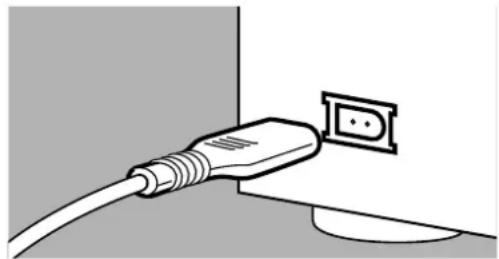
natural_image
Illustration of a cable inserted into a wall socket (no text or symbols)- Make sure all necessary connections are made before connecting the DVD Recorder to the power supply.
- Plug the supplied power cable into the Power jack on the back of the Recorder.
- Connect the power cord to an AC outlet.
Note:
Make sure the local power voltage matches the required 110V.
When the Recorder is in the 'standby/power off' position, it is still consuming some power. If you wish to disconnect your DVD Recorder completely from power, remove the power cord from the AC Outlet.
When the DVD Recorder is disconnected from the power, TV channels and timer data usually will be stored one year.
Switching on
- Switch on the TV and the amplifier, then select the TV's Video In channel or the channel you have chosen for video playback
- Press STANDBY/ON to turn on the Recorder.
The Recorder display lights. If you have not yet installed your DVD Recorder, it will enter 'Initial setup.' You will have to set your personal preferences.
First time setup: Initial setup
After switching on the DVD Recorder for the very first time, the 'Initial setup screen' will appear. In initial setup, you may have to set your preferences for some of the Recorder features. If the initial setup screen does not appear, your DVD Recorder has been installed already. You may still change the preferences via the 'installation menu.'
Note:
Preferences have to be set in the order in which the item menus will appear on the screen.
The 'Initial setup' will only be concluded after the preferences for the last item have been confirmed.
If the Recorder is switched off while setting user preferences, all preferences have to be set again after switching on the Recorder again.
Manual setting
When a menu is displayed:
- Use ▼/▲ (down/up cursor) to go through the options in the menu. The selected option will be highlighted in white text.
- Use ENTER/OK to confirm your selection and move to the next menu.
The following items may be set in Initial setup:
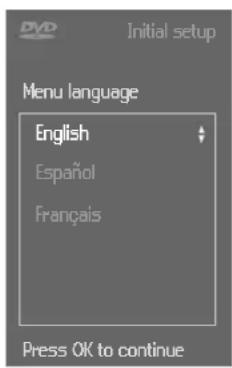
Menu language
The DVD Recorder's system menus will be displayed in the language you choose.
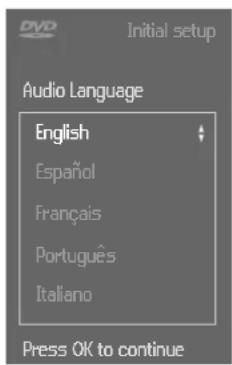
Audio language
The sound of DVD-Video discs will be in the language you choose, if it is available on the current disc. If not, speech will revert to the first spoken language on the disc. Also, the DVD disc menu will be in the language you choose, if it is available on the disc.
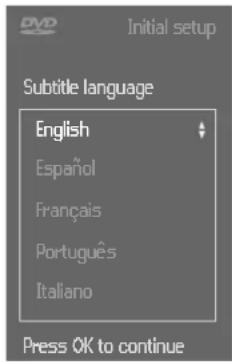
Subtitle language
The subtitles of DVD-Video discs will be in the language you choose if it is available on the current disc. If not, there will be no subtitles, or the subtitles will revert to the default subtitle language on the disc.
TV Shape
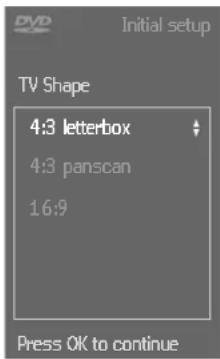
You can choose:
- 16:9 if you have a wide screen (16:9) TV.
-
4:3 if you have a regular (4:3) TV. In this case you can also choose between:
-
Letterbox for a ‘wide-screen’ picture with black bars at the top and bottom,
- Pan Scan, for a full-height picture with the sides trimmed. If a disc has Pan Scan, the picture moves (pans) horizontally to keep the main action on the screen.
Automatic TV Channel Search
Make sure the antenna is connected to the DVD Recorder. See 'Connecting to the antenna.' Your DVD Recorder will search for all TV channels that are available in your area. It stores channels in the order in which they are found.
- Press ENTER/OK to confirm.
▶ Automatic search and installation starts. This can take several minutes.
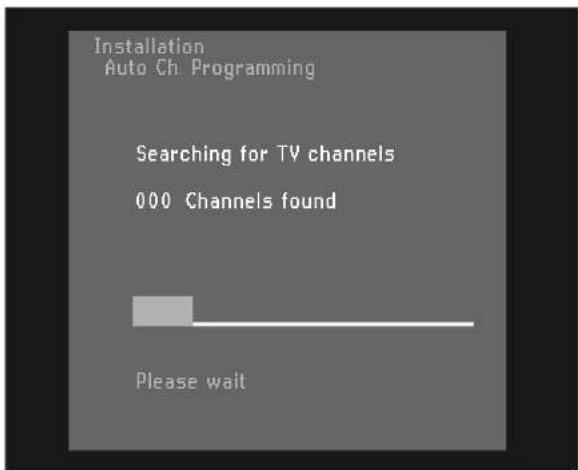
- When Automatic search and installation is complete 'Auto ch. search complete XXX Channels found' appears on the TV screen.
- Press SYSTEM MENU to exit the Auto channel programming menu.
Initial setup is now complete. You can still adjust the settings. See 'User preferences.'
Front of recorder
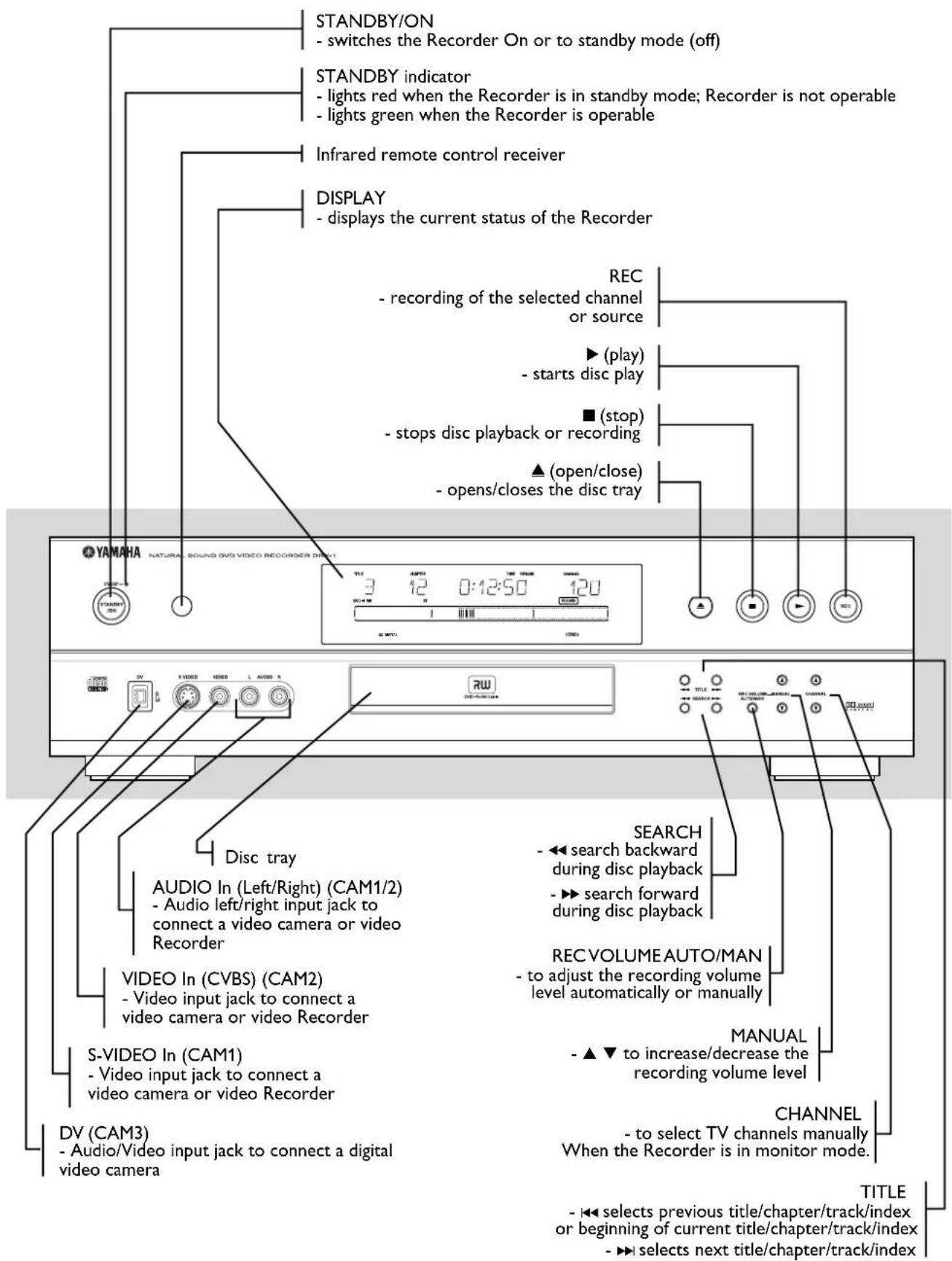
Back of Recorder
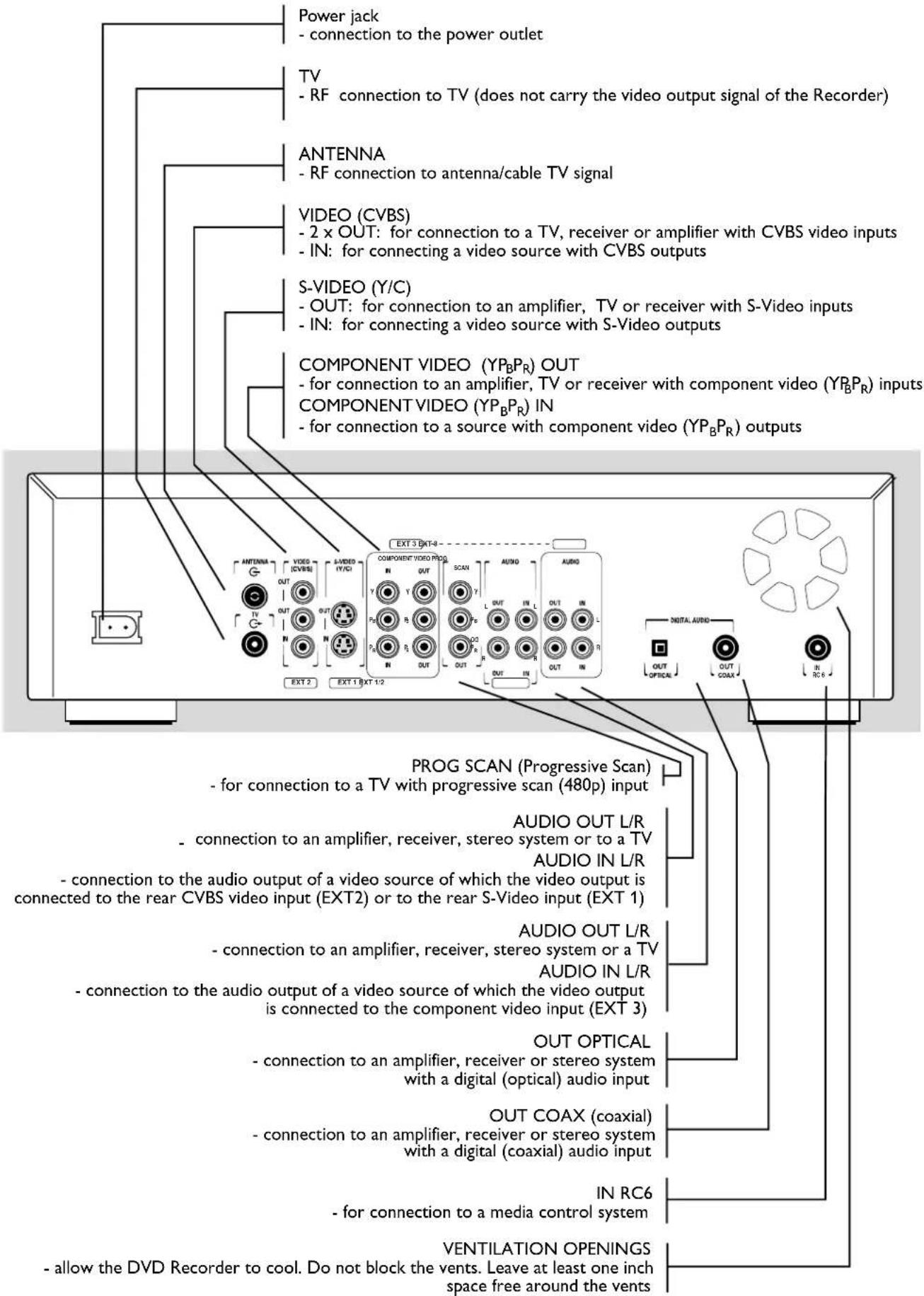
Display
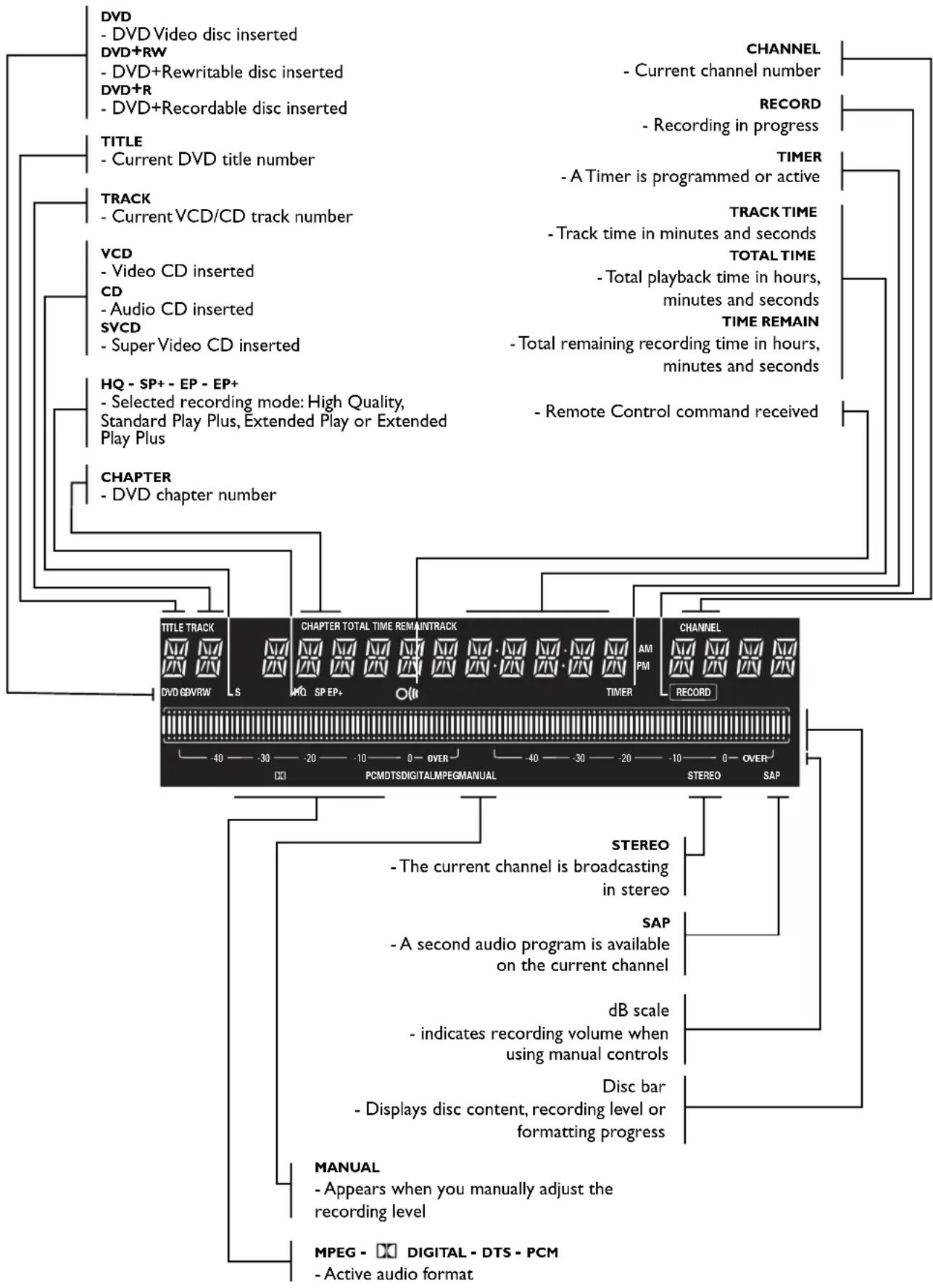
flowchart
graph TD
    A["Title"] --> B["Current DVD title number"]
    C["TRACK"] --> D["Current VCD/CD track number"]
    E["VCD"] --> F["Video CD inserted"]
    G["SVCD"] --> H["Audio CD inserted"]
    I["HQ"] --> J["Super Video CD inserted"]
    K["CHAPTER"] --> L["DVD chapter number"]
    M["TITLE TRACK"] --> N["AM PM"]
    O["CHAPTER TOTAL TIME REMAINTRACK"] --> P["SP EP+"]
    Q["CHANNEL"] --> R["RECORD"]
    S["STEREO"] --> T["SAP"]
    U["dB scale"] --> V["Disc bar"]
    W["MPEG"] --> X["Digital - DTS - PCM"]
    Y["MANUAL"] --> Z["Appears when you manually adjust the recording level"]
    AA["STEREO"] --> AB["SAP"]
    AC["STEREO"] --> AD["dB scale"]
    AE["STEREO"] --> AF["Disc bar"]
Remote control
POWER ( ⏻/1 )
- switches the Recorder On or to standby mode (off)
MONITOR
- switches between disc mode and monitor mode
A/CH (Alternate Channel)
- switches to previous TV channel
0-9
- numerical buttons to enter information or select channels
SELECT
- switches between different values in a menu
CLEAR
- delete last entry/clear a timer
TIMER
- displays the timer menu
SKIP
- select a previous chapter, track or title
SKIP
- skip to next chapter, track or title
PLAY
- begin disc playback
SEARCH/SLOW
- search backward on a disc during playback
SEARCH/SLOW
- search forward on a disc during playback
□□ PAUSE
- pause playback or recording, press repeatedly for step-by-step disc playback
□ STOP
- stop playback or recording
DIMMER
- changes the brightness of the display
TV SHIFT
- press and hold while using other remote control buttons to work the TV
● REC
- direct recording of the currently selected program channel
REC MODE
- switches recording modes
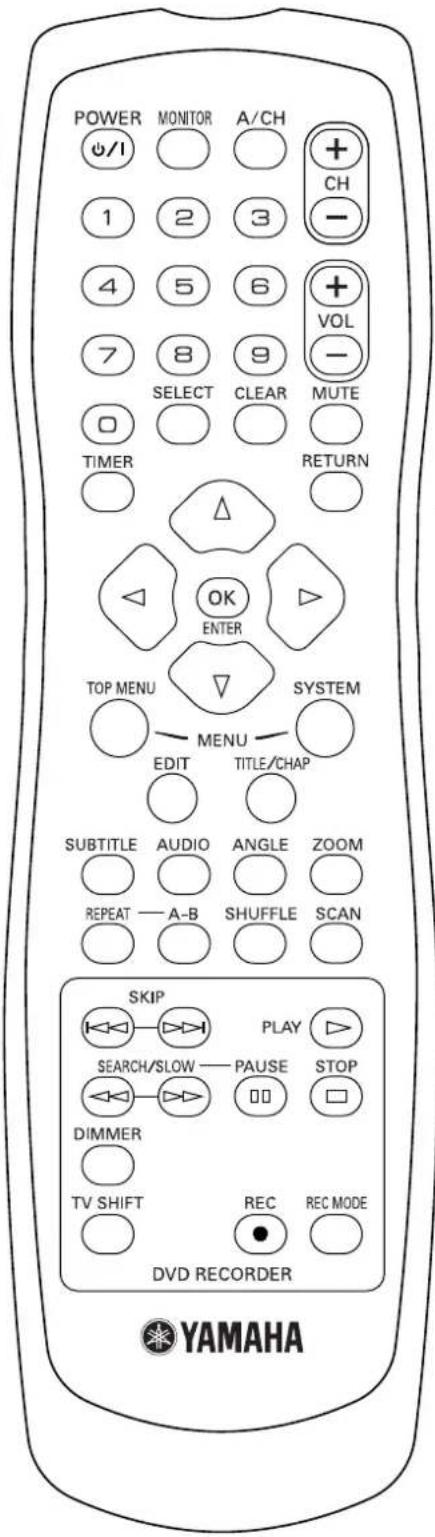
CH+/-
- change channel up/down
VOL +/−
- TV volume up/down
MUTE
- TV Mute ON/OFF
RETURN
- go back to previous menu step
▼▲◀▶
- move cursor down/up/left/right
ENTER/OK
- acknowledge menu selection
TOP MENU
- displays DVD disc menu or Index Picture Screen for a DVD+RW
SYSTEM MENU
- displays Recorder system menu bar
EDIT
- displays edit menu for DVD+RW or DVD+R disc
TITLE/CHAP
- select title
- select chapter
SUBTITLE
- select subtitle language on a DVD
AUDIO
- select audio language on a DVD
ANGLE
- select DVD camera angle on a DVD
ZOOM
- enlarge video image on a DVD
REPEAT
- repeat chapter, track, title, disc
A-B
- repeat a specific sequence
SHUFFLE
- play tracks in random order
SCAN
- play the first 10 seconds of each chapter within a title (DVD) or the first 10 seconds of each track on disc (VCD/CD) or each Title on a DVD+RW / DVD+R
Important notes for operation
You can switch on the DVD Recorder with the STANDBY/ON button on the front of the Recorder or POWER (☐/I) button on the remote control to interrupt a function. Keep your DVD Recorder connected to the power outlet at all times to ensure programmed recordings can be made.
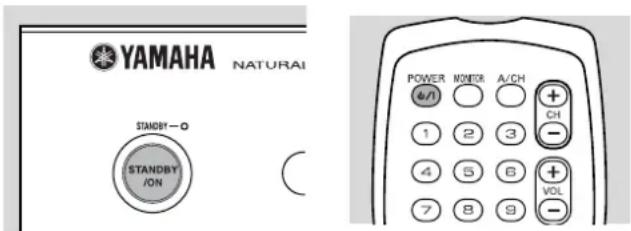
Notes:
- Never turn the recorder on right after connecting the power jack to a wall outlet, while the STANDBY indicator lights green. Wait until the indicator turns red.
- When you switch off the DVD Recorder, the display will briefly show 'WAIT.'
Loading discs
1 Press ▲ on the front of the Recorder. The disc tray opens.
2 Lay your chosen disc in the tray, label side up. If the disc is two side, make sure the side you want to play is facing up.
Make sure it is sitting properly in the correct recess.
3 Press ▲ to close the tray.
- 'READING' appears on the Recorder display. If the disc is pre-recorded or erase-protected, playback will start automatically.
You can unload a disc by pressing ▲ again or by pressing and holding ■ for two seconds.
Note:
If 'Child Lock' is 'On' and the disc inserted is not in the 'child safe' list (not authorized), the PIN code must be entered and/or the disc has to be authorized. (see 'Access control')
Disc types
You will recognize the different types of discs that can be used in your DVD Recorder by the logo. Depending on the disc type you can either use it for recording and playback or playback only. Some discs are not suitable to be used in the DVD Recorder at all.
The following information summarizes existing disc types and their DVD Recorder compatibility.
Discs for recording and playing:
DVD+RW
Records and plays. In case of a new blank disc, after the first recording, some more time (up to two minutes) is needed by the Recorder to automatically make the disc compatible with DVD video players.
DVD+R
Records and plays.
Discs for playing only:
DVD-Video


DVD-R (DVD-Recordable)
These play only if they contain DVD-Video.
DVD-RW
Plays only if it is recorded in Video mode and has been finalized.
CD Digital Audio
You can play digital audio CDs in conventional style through a stereo system, using the buttons on the remote control and/or front panel of the DVD Recorder.

Super Audio CD
Of hybrid SACD discs, the CD layer can play.
(Super) Video CD
Depending on the material on the disc (a movie, video clips, a drama series, etc.), these discs may have one or more tracks. Tracks may have one or more indexes as indicated on the disc case. To make access easy and convenient, your Recorder lets you move between tracks and indexes.


CD-R (Recordable) / CD-RW (Rewritable)
These play only if it contain Audio CD material.


Discs unsuitable for recording or playing:
DVD-RAM

DVD-Audio


On-screen display information
System menu bar
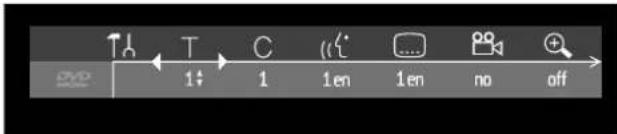
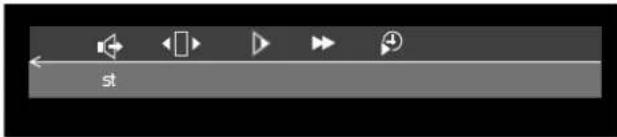
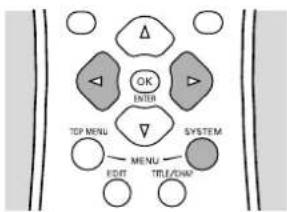
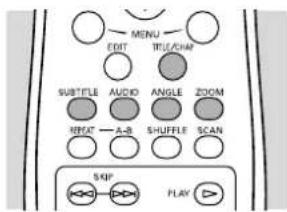
Access the system menu bar by pressing any of the following buttons on the remote control: SYSTEM MENU, TITLE/CHAP, ANGLE, SUBTITLE, AUDIO and ZOOM.
flowchart
graph TD
    A["TOP MENU"] --> B["MENU"]
    B --> C["EDIT"]
    B --> D["TRU/RUN"]
    B --> E["SYSTEM"]
    E --> F["ENTER"]
    F --> G["Δ"]
    F --> H["▶"]
    F --> I["◀"]
    F --> J["◀"]
    style A fill:#f9f,stroke:#333
    style B fill:#f9f,stroke:#333
    style C fill:#f9f,stroke:#333
    style D fill:#f9f,stroke:#333
    style E fill:#f9f,stroke:#333
    style F fill:#f9f,stroke:#333
    style G fill:#f9f,stroke:#333
    style H fill:#f9f,stroke:#333
    style I fill:#f9f,stroke:#333
    style J fill:#f9f,stroke:#333
Widescreen (16:9) TV sets may show only part of the system menu bar in certain screen modes. Select a different screen mode on the TV to see the full menu.
A number of Recorder functions can be controlled via the system menu bar. You can move between the two parts of the system menu bar with ◀ (left cursor) and ▶ (right cursor).
Note:
Certain televisions may not show the entire DRX-1 menu on the TV screen. If the upper or top portion of the Recorder's menu is not displayed properly, this is a TV-related issue and is not an improper functioning of the DRX-1.
System menu bar icons
Part 1 Part 2
User preferences Sound
T Current Title/Track Step motion
○ Current Chapter/Index ▶ Slow motion
Audio language ▶ Fast motion
Subtitle language Time search
Angle
+ Zoom
Temporary feedback icons

These symbols may appear in the top left corner of the TV screen when you access a feature.

Scan first 10 seconds of each Chapter/Track
Repeat entire Disc
Repeat current Title
Repeat current Track
Repeat current Chapter
Point A for Repeat A-B playback is set.
Repeat A-B playback
Alternate camera Angle
Child Lock On
Child Safe
Resume
Action prohibited
User preference menu operation
1 Press SYSTEM MENU on the remote control.
2 Press ◀ (left cursor) to select ↑ in the system menu bar, then press ▼ (down cursor).
▶ The user preference menu appears.
3 Use ◀/▶/▲/▼ (left/right/up/down cursor) to move through the menus, sub menus and sub menu options.
▶ When a menu item is selected, the cursor buttons (on the remote control) to operate the item are displayed next to the item.
4 Press ENTER/OK, repeatedly if necessary, to confirm and return to the main menu.
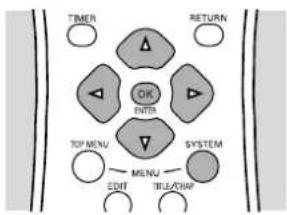
flowchart
graph TD
    Timer["Timer"] --> OK["OK"]
    Timer --> ENTER["ENTER"]
    Timer --> SYSTEM["SYSTEM"]
    Return["RETURN"] --> OK
    Return --> ENTER
    Return --> SYSTEM
    TopMenu["TOP MENU"] --> MENU["MENU"]
    MENU --> EDIT["EDIT"]
    System --> TELEGRAM["TILE/DRAM"]
The following functions can be operated in the user preference menu:
User preference menu icons
Picture settings
Sound settings
Language settings
Feature settings
Remote control settings
Record settings
Installation
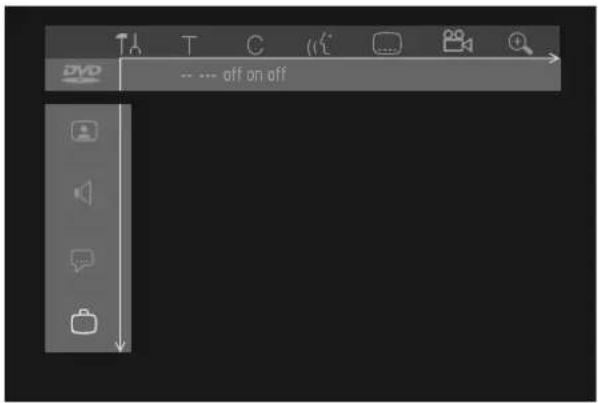
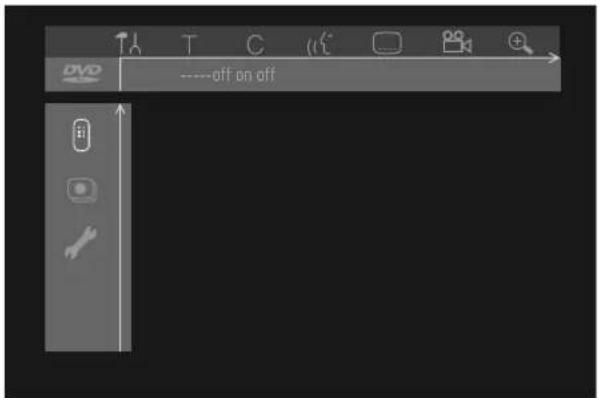
- Press SYSTEM MENU to remove the system menu bar from the screen.
Status box
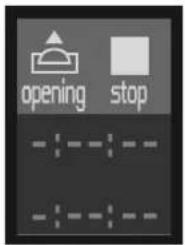
The status box displays the current status of the Recorder and information about the current disc, including disc type, total playing time, and elapsed playing time. Set status Box to 'On,' if you want to see following icons when you access a feature.
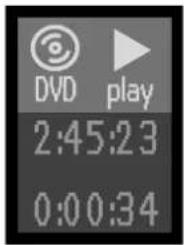
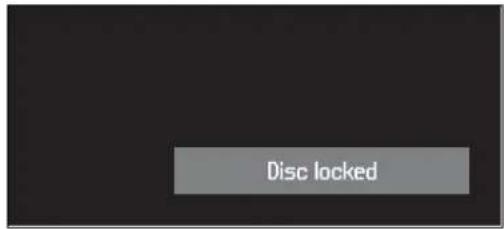
A warning box will be displayed near the bottom on the screen when appropriate. For instance: 'Disc locked'
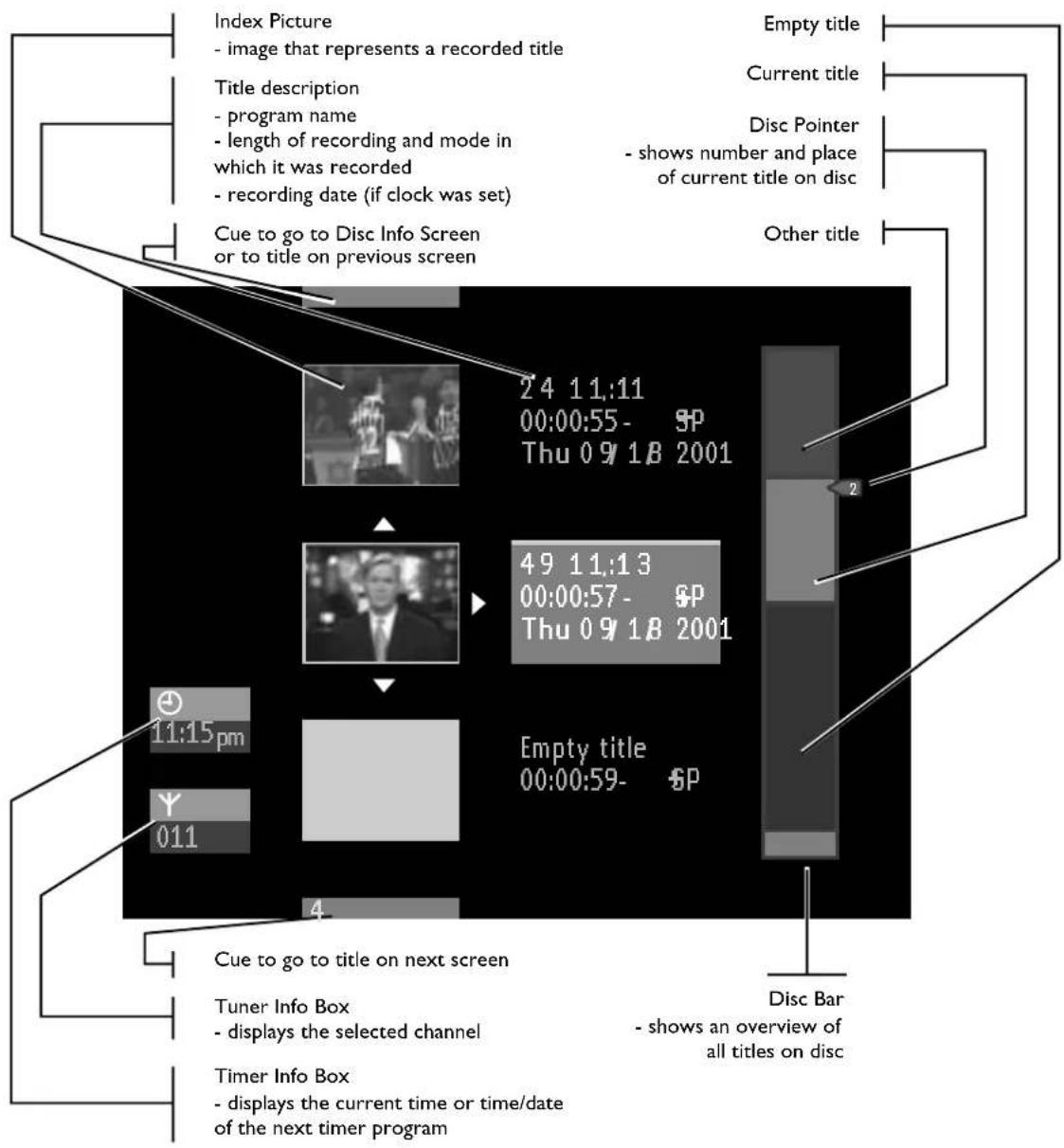
Tuner info box
The tuner info box appears at the bottom left of the TV screen during monitor mode (see 'Manual recording - Checking input'). It displays the currently selected signal, or which device you are viewing or recording from. When TV channel is selected, it shows the channel number and/or channel name. For example, if the tuner info box shows EXT 1, you are viewing or recording the material that is playing on the equipment that is connected to the EXT 1 AUDIO and VIDEO IN jacks on the back of the Recorder.
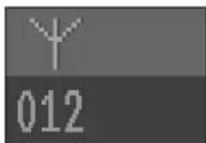
Current TV channel
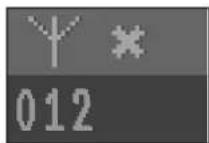
No signal
Make sure you have connected an antenna or cable signal to the ANTENNA jack on the Recorder as described in "Installation - Update/Re-install TV channels." If you have selected an external input, make sure the source device is connected and switched on.
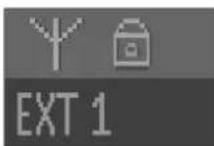
Copy-protected signal
The tuner info box appears on the screen at all times if you are watching TV channels through the Recorder (press MONITOR on the remote control).
Timer info box
The timer info box appears on the TV screen with the Index Picture Screen, it displays the current status of the timer recordings.
When a timer is set, it shows a timer indication and the start time or date of the first recording.
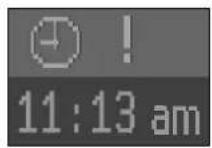
Timer event due today
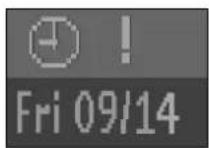
Timer event due on another day
When an OTR is in progress, the end time appears.
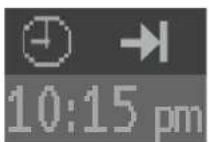
End time of the OTR
When no timer recording is scheduled, the current time appears.
Current time
Note:
The Tuner info box and Timer info box will disappear automatically.
Index Picture Screen
The Index Picture Screen displays an overview of the titles recorded on the disc. It appears automatically when playback or recording is stopped and a DVD+RW / DVD+R is in the Recorder. (The DVD+RW / DVD+R must have recorded content.) Each title is represented by an index picture. Next to the index picture, the program name, length of recording and mode in which it was recorded and recording date of the title are shown. If no name is known, the DVD Recorder will fill in the source (i.e. channel recorded) and the time of the recording instead. Empty spaces (erased titles or blank space at the end of the disc) are also shown.
- A maximum of three titles will be shown on the screen at once. If more titles are present, you can move to those with ▼/▲ (down/up cursor).
- On the right side of the Index Picture Screen, you can see the disc bar. This gives an overview of all titles on the disc, as well as any empty spaces.
On the disc bar, an arrow – the disc pointer – indicates your current position on the disc. From this point you may resume playback or recording.
- If you move through the list of titles with ▼/▲ (down/up cursor) or k the disc pointer will move.
- Press to put the disc pointer at the beginning of the disc.
- To move the disc pointer to the end of the last title, press and hold ▶□
- If you move from an Index Picture to the box beside it (containing name, record mode, etc.), you enter the title settings menu (see 'Managing disc content - Title settings').

User preferences
Setting user preferences
You can set your user preferences for some of the Recorder features. (See 'Operation - User preference menu operation')
The following items can be adapted:

Picture settings
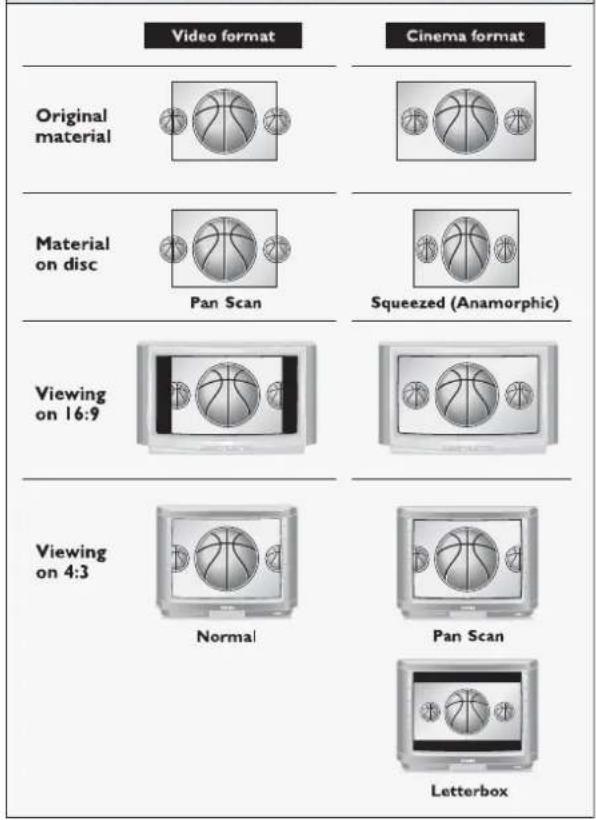
TV Shape
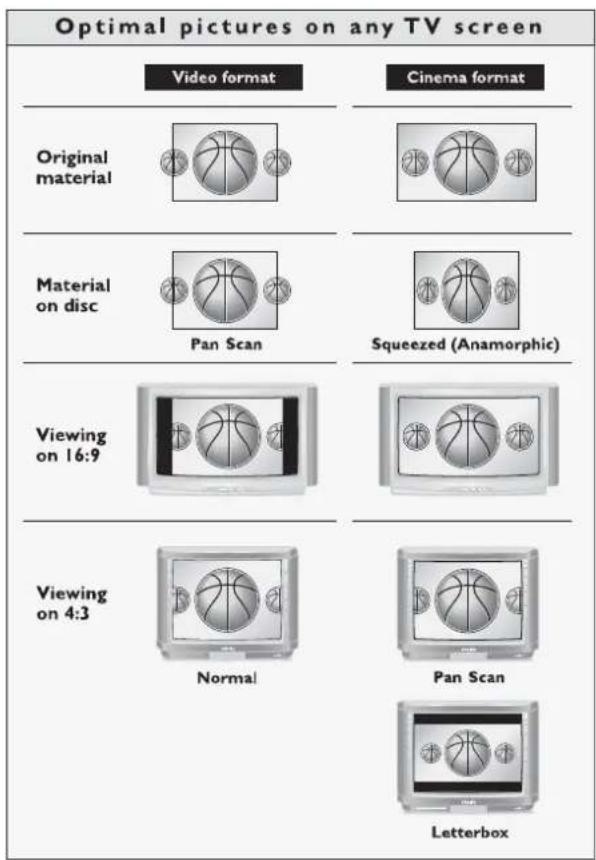
With TV Shape you can adjust the image from your DVD Recorder to fit your TV screen.
You can choose:
- 16:9 if you have a wide screen (16:9) TV.
- 4:3 Letterbox: if you have a regular TV and you want a 'wide-screen' picture with black bars at the top and bottom,
- 4:3 Panscan: if you have a regular TV and you want full-height picture with the sides trimmed. If a disc has Pan Scan, the picture then moves (pans) horizontally to keep the main action on the screen.
Optimal pictures on any TV screen
Black level shift (NTSC OUTPUT only)
Adapts the color dynamics to obtain richer contrasts. Select On or Off. This setting does not effect progressive video signals.
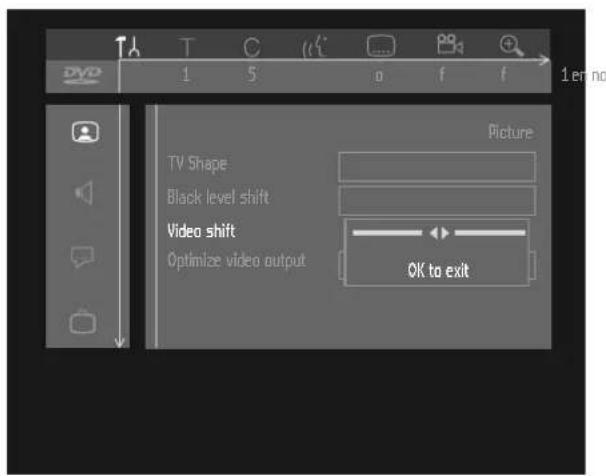
Video shift
The factory setting centers the video on your screen. Or, use Video shift to adjust the position of the picture on your TV to the left or right.
Optimize video output
Select Progressive scan if you used the PROG SCAN OUT jacks on the DVD Recorder for video connection.
Otherwise, select Interlaced.
CONSUMERS SHOULD NOTE THAT NOT ALL HIGH DEFINITION TELEVISION SETS ARE FULLY COMPATIBLE WITH THIS PRODUCT AND MAY CAUSE ARTIFACTS TO BE DISPLAYED IN THE PICTURE.IN CASE OF 525 PROGRESSIVE SCAN PICTURE PROBLEMS, IT IS RECOMMENDED THAT THE USER SWITCH THE CONNECTION TO THE "STANDARD DEFINITION" OUTPUT. IF THERE ARE QUESTIONS REGARDING OUR VIDEO MONITOR COMPATIBILITY WITH THIS MODEL 525P DVD PLAYER, PLEASE CONTACT OUR CUSTOMER SERVICE CENTER.
This unit is compatible with YAMAHA digital cinema projector DPX-1.

Sound settings
Digital output
Factory setting 'All' means that both coaxial and optical outputs are switched on, and that Dolby Digital Multi-channel or DTS is fed to the outputs as such MPEG audio is converted to PCM. If your equipment doesn't include a digital Multi-channel decoder, set the digital output to 'PCM only' (Pulse Code Modulation). Both coaxial and optical outputs are then switched on, and Dolby Digital and MPEG audio are converted to PCM. If you are not connecting equipment with a digital input, change the setting to 'Off.'
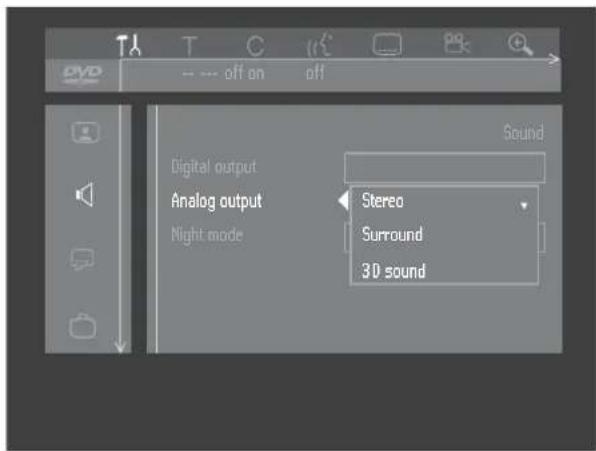
Analog output
Select Stereo, Surround or 3D Sound. Factory setting is Stereo.
Surround : Select this setting when using equipment with a Dolby Surround Pro Logic decoder. In this setting the 5.1 audio channels (Dolby Digital, MPEG-2) are downmixed to a Dolby Surround-compatible 2-channel output.
3D Sound : In a setup without rear speakers (analog stereo output), this option remixes the six channels of digital multichannel (Dolby Digital, MPEG-2) into a two speaker output, while retaining the original audio information.
The result is the listening sensation of being surrounded by multiple speakers.
Connected audio system Digital out
Analog out
| Amplifier or TV with two channel analog stereo | Off Stereo |
| Amplifier or TV with Dolby Surround or Dolby Pro Logic | Off Surround |
| Amplifier with two channel digital stereo | PCM only Stereo |
| A/V receiver with Multi-channel decoder (Dolby Digital, MPEG, DTS) | All Stereo or Sur-round |
Night mode
Night mode optimizes the dynamics of the sound with low volume playback for less disturbance in quiet environments. This only works for Dolby Digital audio on DVD video discs.

Language settings
The preferred language can be adapted via the system menu bar. Also see 'Initial setup Language.' Settings can be changed for:
- Playback audio
- Recording audio
- Subtitle
- Menu (DVD Recorder system menus only)
Recording audio
You can set a preference for recording a stereo or secondary audio program. Select 'Stereo' or 'SAP.' This setting applies only if the broadcast contains stereo or SAP. SAP usually means a program is broadcast in a different language or with additional information.

Feature settings
Access Control
Access Control contains the following features: Child Lock - When Child Lock is on, a 4-digit code needs to be entered in order to play discs. Parental Level - Allows the conditional presentation of DVD-Video discs rated according to Parental Level information. Change Country - Allows conditional presentation of DVD-Video discs rated according to country information. Change Code - To change the 4-digit code.
Adapt disc format
This option is only available when a DVD+RW/+R disc recorded on a different brand of recorder is loaded. You can adapt the menu to your own recorder.
A DVD+RW/+R disc recorded on a different type of Recorder can play, but may not provide all features commonly available, such as the on-screen disc bar, disc settings menu, title settings menu, and editing. If the disc is not write protected,
the disc format can be adapted to this Recorder, after which these functions are available.
Status box
The status box displays the current status of the Recorder and the disc type loaded (see 'Operation - On-screen display information - Status box'). You can switch it on or off.
Off = always Off. Status boxes do not appear.
On = Status box appears with the system menu bar or is displayed temporarily (disappears after timeout) when changing the playback or record status.
Factory setting is 'On.'
Auto resume
The Auto resume setting only applies to the last 20 pre-recorded DVD Video and Video CD discs you played. If Auto resume is 'On,' playback will start from the point where it stopped the last time the disc played. When Auto resume is 'Off,' the Recorder will start playing from the beginning of a disc. In this case, you can still resume from the last point it stopped when appears on the TV screen by pressing ▶ Factory setting is 'On.'
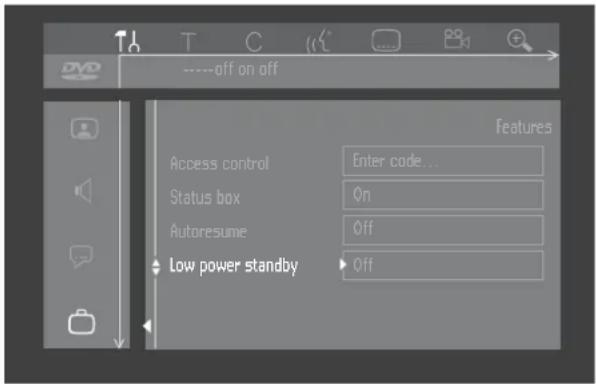
Low Power Standby
If Low Power Standby is 'On,' the Recorder will consume minimum power in standby mode. It is recommended to set the Low power standby setting to "On." Standby power consumption is 3 W when the setting is "On" and 6 W when the setting is "Off."
Notes:
When the Recorder is in low power standby mode:
- the display will be off,
- the standby indicator on the recorder will still light up in standby mode.
PBC
This feature is only available when a (Super) Video CD is loaded. It allows you to disable or enable the PBC (Playback Control) menu of VCD discs. See under 'Special VCD features': Factory settings is 'On.'
Finalize disc
This option is only available on unfinalized DVD+R discs. See 'Managing disc content - Finalizing a DVD+R disc.'

Remote Control setting
Key sound
The Recorder beeps each time you press a button on the Recorder or remote control.
Select 'Off' to disable this sound. The factory setting is On.
Note:
When you move further down in the Remote Control setting menu, the system status screen will appear. Press ▲ (up cursor) to go back.

Record Settings
Record mode
By selecting a recording mode you define the picture quality of recordings and the maximum recording time for a disc.
| Mode | Picture quality | Total recording time |
| HQ(High Quality) | best possible picture quality | 60 minutes |
| SP+(Standard Play+) | better than S-VHS picture quality | 150 minutes |
| EP(Extended Play) | better than VHS picture quality | 240 minutes |
| EP+(Extended Play+) | VHS picture quality | 360 minutes |
In practice, the DVD recorder may record a few minutes more than indicated.
You can only play a disc in the mode in which it was recorded.
1 In the Record settings menu, select 'Record mode.'
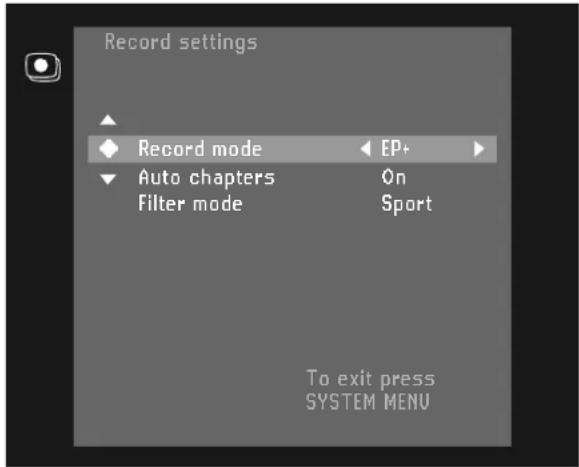
2 Select the recording mode by pressing ◀ or ▶ (left or right cursor).
3 Confirm your selection by pressing the ENTER/OK.
4 Press SYSTEM MENU to return to the previous menu.
You can also select record mode on the Index Picture Screen and in monitor mode, or by pressing the
REC MODE button on the remote control:
- Press SELECT.
▶ The new record mode appears on the screen and the display.
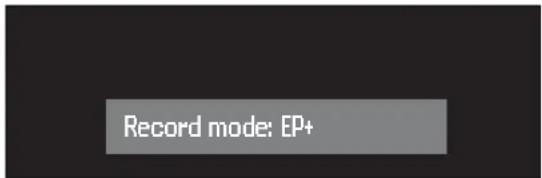
It is not possible to switch record modes during recording.
Auto chapters
If Auto chapters is ‘On,’ every five to six minutes a chapter marker (beginning of a new chapter) is inserted during recording. This enables easy navigation through a title during playback. Or, you can manually insert chapter markers after recording. (See ‘Managing disc content - Editing’)
Filter mode
When recording EP or EP+, select the 'Sport' setting to optimize the video recording for images that contain fast movement, like sports programs. The setting does not influence recording when using HQ or SP+ mode. The factory setting is 'Stndrd.'

Installation
Update/Re-install TV channel
After initial installation is complete, it is possible to perform the installation procedure again. If, for example, your cable company adds TV channels, you may wish to update the channel screen.
Note:
All previously stored channels will be erased and replaced.
1 In the installation menu, select 'Auto Ch. Programming' with ▼/▲ (down/up cursor), then press ENTER/OK or ▶ (right cursor).
▶ Automatic search and installation starts.
'Searching for TV channels,' the number of channels found so far and 'Please wait' appear on the TV screen.
When Automatic search and installation is complete, 'Auto ch.search complete - XXX channels found' appears on the TV screen.
2 Press SYSTEM MENU to return to the previous menu.
Now, when you press the CH+, CH- buttons on the remote control, you'll only scan through the channels you receive. You can still select other channel numbers using the 0-9 buttons.
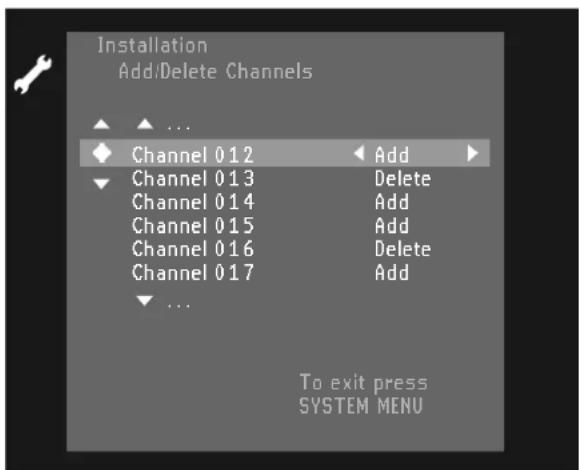
Add and delete TV channels
You can add channels that were not installed automatically due to poor reception or delete channels that you find not interesting. To customize the list of channels available
1 In the installation menu, select 'Add/Delete Channels' with ▼/▲ (down/up cursor), then press ENTER/OK or ▶ (right cursor).
▶ The channel screen appears, and the cursor is on the first channel.
2 Press ▼ (down cursor) as often as required to select the channel to be changed.
3 Press ◀/▶ (left/right cursor).
▶ The selected channel toggles to Add or Delete.
4 Press ENTER/OK to store your choice.
5 Repeat steps 2-4 as often as necessary to add or delete all the channels you want.
6 Press SYSTEM MENU twice to return to the previous menu.
VCR Plus+® ch
If you intend to use the VCR Plus+ system, you need to manually assign channel numbers to Guide channel numbers.
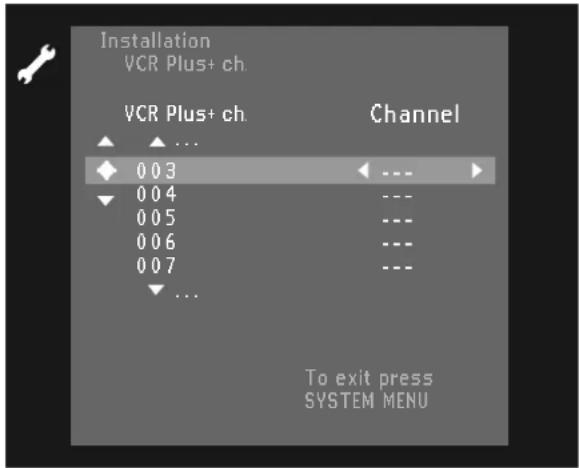
1 In the Installation menu select 'VCR Plus+ ch.' using the ▼/▲ (down/up cursor). Then press ENTER/OK or the ▶ (right cursor).
2 Select a VCR Plus+ Guide channel with ▼/▲ (down/up cursor).
3 Enter the correct channel number with ◀/▶ (left/right cursor) or 0-9. Refer to a channel mapping list in your newspaper or TV guide. Enter channel numbers as a three-digit number. For example, to enter channel seven, press 0,0,7 or, press 0,1,2 for channel twelve.
4 Confirm your selection by pressing ENTER/OK.
5 Press the SYSTEM MENU button twice to return to the previous menu.
Time/Date Automatic
The automatic Time/Date feature allows you to select a channel from which the date and time are obtained (e.g. because the currently selected channel is unreliable or inaccurate). If you don't know the correct channel for the PBS station that can send Time and Date information in your area, see 'Time/Date Manually.'
1 In the Installation menu, select 'Time/Date' with ENTER/OK or ▼ (down cursor) or ▲ (up cursor), then press ▶ (right cursor).
The Automatic/Manual screen is displayed, with the cursor on the currently selected option.
2 Press the ▼/▲ (down/up cursor) to select 'Automatic.'
Note:
Usually, the PBS station in your area broadcasts the time and date. You may want to try the PBS channel number as your first choice.
3 Press ENTER/OK or the ▶ (right cursor) to confirm.
▶ The Time/date Automatic screen is displayed.
4 Select the field you want to change with ▼/▲ (down/up cursor).
5 Enter the correct digits or press ◀/▶ (left/right cursor) to enter information.
6 Select the time zone if the DVD Recorder is tuned to the PBS channel of a different time zone than yours.
7 Confirm each entry with ENTER/OK.
8 To end, press SYSTEM MENU repeatedly to remove the menus.
The time and date will be set by the specified channel the next time you switch to Standby power mode.
The DVD Recorder downloads from the specified channel, if possible. If the specified channel does not carry date and time information, the message appears 'Clock not set.'
The Automatic Time and Date screen will reappear automatically. You can repeat the procedure with a new channel number.
Time/Date Manually
If the time in the DVD Recorder display is not correct, the clock must be set manually.
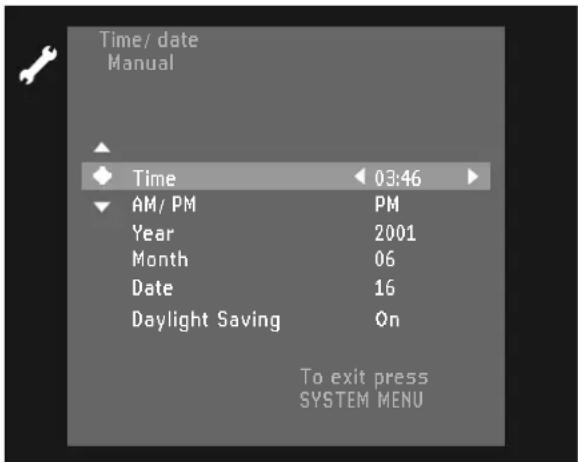
1 In the installation menu, select Time/Date with ▼/▲ (down/up cursor), then press ▶ (right cursor).
The Automatic/Manual screen is displayed, with the cursor on the currently selected option.
2 Press the ▼ (down cursor) to select 'Manual.'
3 Press ENTER/OK.
▶ The Time/Date screen appears.
4 Adjust 'Time,' 'AM/PM,' 'Year,' 'Month,' 'Date,' and 'Daylight saving' if required. Select ▼/▲ (down/up cursor). Change values with ◀/▶ (left/right cursor) or the 0-9 digit buttons.
5 When the information is all correct, press ENTER/OK.
6 Press SYSTEM MENU repeatedly to remove all menus.
Cable/Antenna
The Cable/Antenna option allows you to overrule the Auto Cable Defect feature in case misdetection took place.
1 In the Installation menu, select 'Cable/Antenna' with
▼/▲ (down/up cursor), then press ENTER/OK or ▶ (right cursor).
The Cable/Antenna' screen is displayed.
2 Select 'Cable' or 'Anten.' using ◀/▶ (left/right cursor). Factory setting is 'Auto.'
3 Press ENTER/OK to store the setting.
4 Press SYSTEM MENU to exit the Cable/Antenna menu.
▶ If you have selected 'Cable' or 'Anten.', the Auto Channel Search starts. Only after a new channel search, the new setting will take effect.
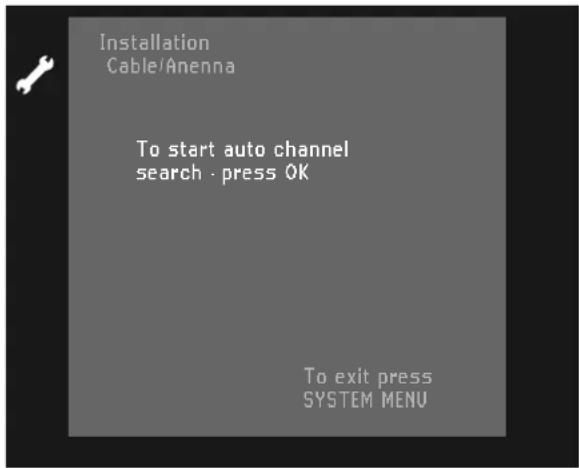
5 Press ENTER/OK to confirm. If you press SYSTEM MENU, you will return to the Installation menu.
When Auto Channel Search is complete, press SYSTEM MENU repeatedly to remove all menus.
Before you start recording
Recordings on a DVD+RW disc are called 'titles.' Every title consists of one or more chapters.
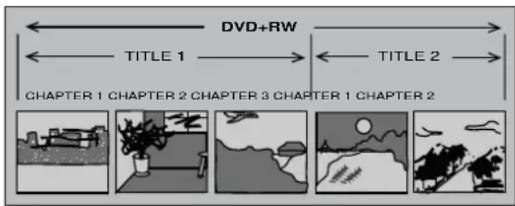
For more information about how to go to other titles or chapters see ‘Playback - General features.’
Important:
Recordings on a DVD+RW begin at the disc pointer, the point where the last recording stopped. Other recordings may be overwritten without notice, unless the disc is write protected. In this respect, your DVD Recorder behaves just like a Video Cassette Recorder.
If you want to make a recording without the risk of overwriting earlier recordings use the safe Record Function (see 'Manual Recording - Safe Recording').
In the Index Picture Screen you can select the point where you want to start your recording. Use ▼/▲ (down/up cursor) and ▲ to select a location on the disc bar at the right of the Index Picture Screen.
Your DVD Recorder always checks the disc that you have inserted:
▶ When a DVD+RW/+R disc is inserted on which recordings have been made, the Index Picture Screen is shown on your TV screen.
▶ If the inserted disc is a completely empty recordable disc, the message EMPTY DISC appears on the display.
▶ If the inserted disc is a DVD+RW disc with a content that is not DVD video compatible (e.g. a data disc), a dialog box is shown with the option to erase or eject the disc. You can only record on this disc after erasing it with the REC.
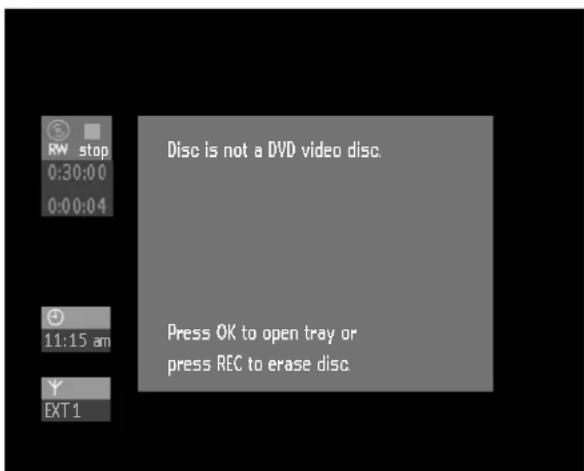
A disc can hold up to 48 titles (including empty titles). When this maximum is reached, the on-screen message 'Too many titles' appears if you want to make a new recording. You have to erase a title first. See 'Managing Disc Content - Erasing a Title.'
Notes:
- You can not access the system menu while recording.
- On a disc containing PAL recordings, no NTSC recordings can be made and vice versa. On an empty disc, either type of recordings can be made.
- No recordings can be made from so-called 'Pseudo-PAL' or PAL-60 sources.
- Power interruption to the Recorder while recording on a DVD+R or a unit failure/system crash may destroy all material recorded on the Disc.
Manual recording of a TV channel or from a video camera
Checking input
Normally, the DVD Recorder displays the contents of the current disc on the screen, allowing you to select a place on the disc to start recording. However, if you want to view TV channels, press the MONITOR so that TV programming appears on the TV. In this mode you can choose channels directly with the digit buttons 0-9 on the remote control.
Make sure your TV is on the correct Video In channel. Press MONITOR again to return to disc viewing only at the Recorder.
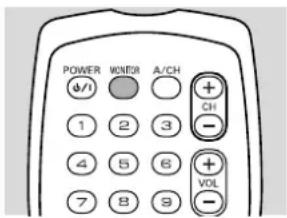
Recording
1 Press ▲ to open the disc tray.
2 Insert a recordable DVD+RW or DVD+R disc.
3 Press ▲ to close the disc tray.
4 Select the position from which you want to record using the ▷.
5 Press MONITOR to see TV channels through the DVD Recorder.
6 Use CHANNEL ▲ and CHANNEL ▼ (on the Recorder) or CH+ and CH- (on the remote control) to select the channel you wish to record.
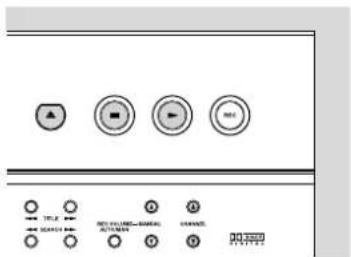
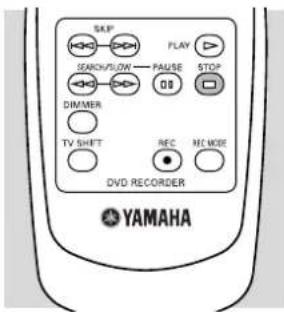
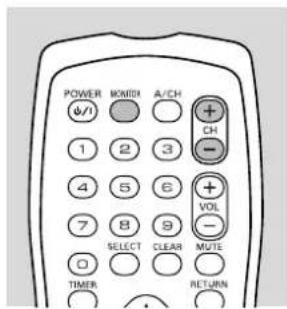
The following channel numbers are provided for recording from external sources that are connected to these jacks on the DVD Recorder:
'EXT1': r ear S-Video (Y/C) 'EXT2': r ear Video (CVBS) 'EXT3': r ear component video (YP _B PR) 'CAM1': f r ont S-Video (Y/C) 'CAM2': f r ont Video (CVBS) 'CAM3': f r ont DV.
These channels are located between channels 125 and 1 when choosing TV channels at the Recorder while the Recorder is in monitor mode.
7 Press REC.
▶ 'RECORD' shows on the display.
8 Press to pause recording. You can resume recording by pressing once more. The DVD recorder will make seamless connection.
9 Press to stop recording. If you are recording from a video camera watch the video output of the DVD recorder on the TV - instead of the video camera viewer - to determine the right moment to stop.
▶ 'MENU UPDATE' shows on the display.
10 The Index Picture Screen appears showing the most recent recording.
Note:
After a short recording on a new disc, a few minutes will be needed to complete the formatting of the disc ('POST FORMAT').
Safe Recording
When you start recording on a DVD+RW disc by briefly pressing REC, a recording on DVD+RW will be made from the current position of the disc pointer. To prevent this do the following:
- Hold the REC for about two seconds until 'SAFE RECORD' appears on the display.
- The recorder automatically jumps to the end of the last title on the disc and starts recording.
▶ If no free space is left. The display will show 'DISC FULL.' Safe record is not possible then.
Recordings on DVD+R are always automatically made after the last title on the disc.
Manual audio control
You can control the audio volume recording level of your DVD Recorder manually.
1 In monitor mode, press RECVOLUMEAUTO/MAN on the front of the DVD Recorder.
The display will show the current audio level, and 'MANUAL' appears.
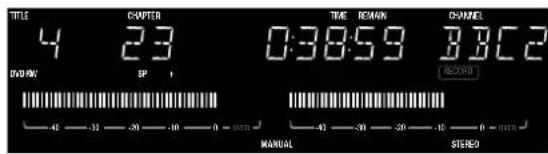
2 Adjust the recording level with MANUAL ▲ or ▼ on the DVD Recorder so that the '0 dB' mark lights up during the loudest parts of the recording.
3 Return to automatic audio level control by pressing RECVOLUMEAUTO/MAN again.
The display will show the current disc position, and 'MANUAL' disappears.
Note:
When recording from the equipment connected to DV, the manual audio control is disabled. The REC VOLUME AUTO/ MAN is active only during monitor mode or while recording.
Recording with automatic switch-off (OTR One-Touch Recording)
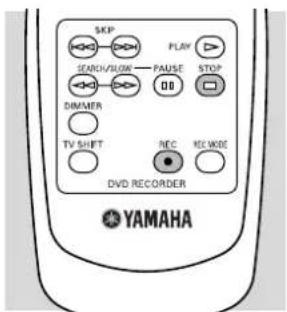
1 Insert a recordable DVD+RW or DVD+R disc.
2 Normally, the DVD Recorder displays the contents of the disc on the screen to see the currently selected TV channel.
3 Use CHANNEL ▲ or CHANNEL ▼ (on the Recorder) or CH+, CH- (on the remote control) to select the channel you wish to record.
4 Press REC twice.
▶ A 30 minute recording will be made.
The end time of the recording shows briefly in the timer box on the TV screen. The remaining recording time shows on the display.
5 To increase the recording time in 30-minute increments, press REC repeatedly.
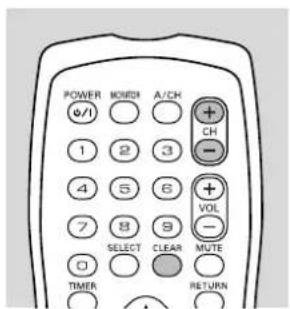
6 Shortly after pressing REC, an OTR can be cancelled by pressing CLEAR.
Timer programming
The DVD Recorder needs the following information for every programmed recording:
- the date on which the recording is to be made;
- the channel;
- the start and stop time of the recording;
- the recording mode
The DVD Recorder stores all the information mentioned above in a timer block. You can program up to six timer blocks, one year in advance.
When you have programmed the timer, a red line on the disc bar (both on the display and on the Index Picture Screen) indicate what part of the disc will be overwritten by the programmed recording from the current disc position.
When all timer blocks are full, timer programming and VCR Plus+ system cannot be accessed. For clearing a timer block, see 'Cleaning a Timer block.'
When using timer recording.
We recommend that you set the timer recording at least 1-2 minutes ahead of the actual published program start time to ensure the recording of all the desired broadcast material.
This is due to the initial 20 seconds of spin time required for the Disc to ready itself for operation. Also, it is normal for networks to begin the broadcast of programs about one minute prior to the announced time. This is done to possibly catch the viewer's attention as they channel scan or surf through available channel selections.
Timer programming with the VCR Plus+® system
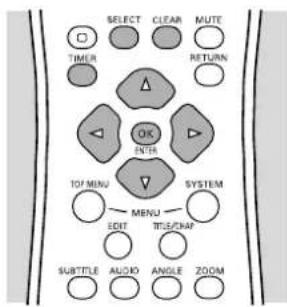
A PlusCode number is a number of up to eight digits, printed in most TV guides next to the start time of a TV program. It contains all the information you need for programming a timer.
1 Press TIMER on the remote control.
2 Select 'VCR Plus+ system' with ▼/▲ (down/up cursor).
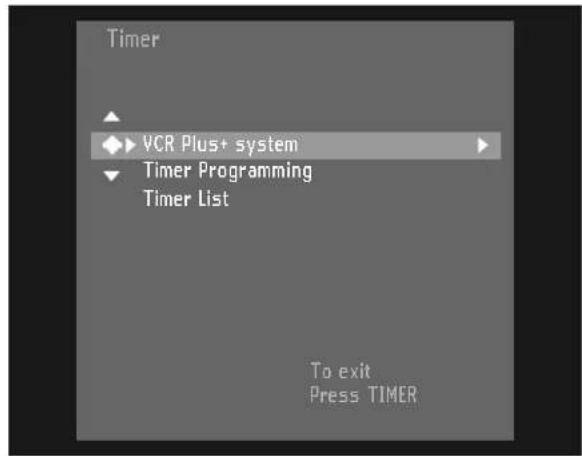
3 Press ▶ (right cursor).
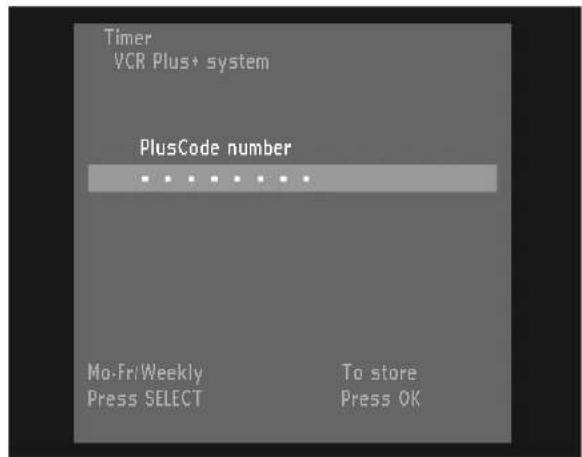
4 Use the 0-9 buttons to enter the entire PlusCode number (up to eight digits) as printed in your TV guide. If you make a mistake, press CLEAR.
5 Confirm with ENTER/OK.
6 If the VCR Plus+ channel has not been set, the DVD Recorder will ask you to enter the channel number. Refer to a channel mapping list. You may find this in your TV Guide or newspaper. Use ◀/▶ (left/right cursor) or the 0-9 buttons to select the correct channel, then confirm with ENTER/OK.
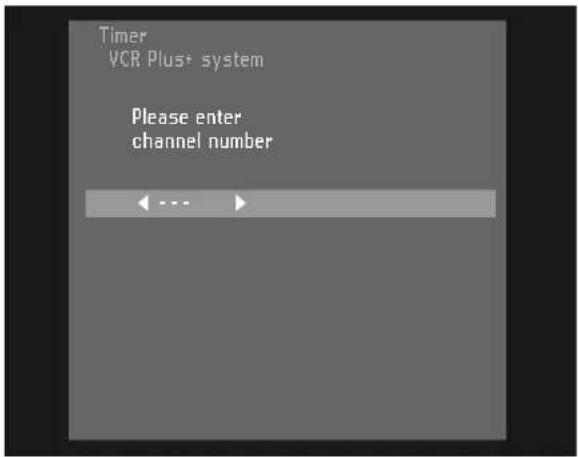
The timer programming information will appear on the TV screen.
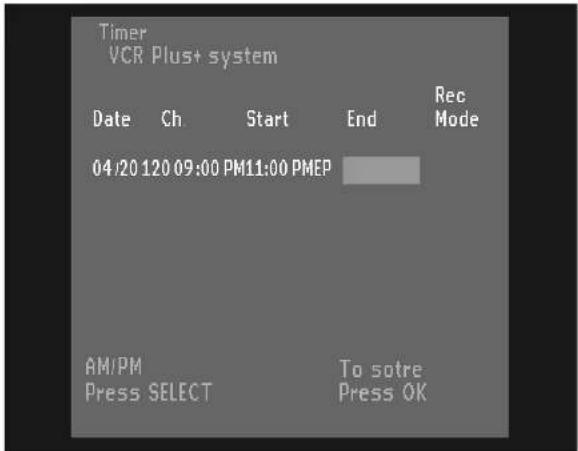
7 Use SELECT to select the programming key at daily or weekly intervals. Select 'Mo-Fr' for recording at daily intervals from Mondays to Fridays inclusive. Select an individual day of the week for recording at weekly intervals on the same day of the week.
8 Press ▶ (right cursor).
9 Use ▼/▲ (down/up cursor) to select the Recording mode.
10 Press ENTER/OK to conform.
The information has been stored in a timer block.
11 To end, press TIMER.
12 Make sure that you inserted a recordable disc. If you inserted a write-protected discs recording will not occur.
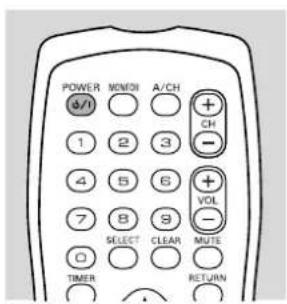
13 Turn the Recorder to standby mode by pressing POWER (☐/I).
Timer programming without the VCR Plus+ system
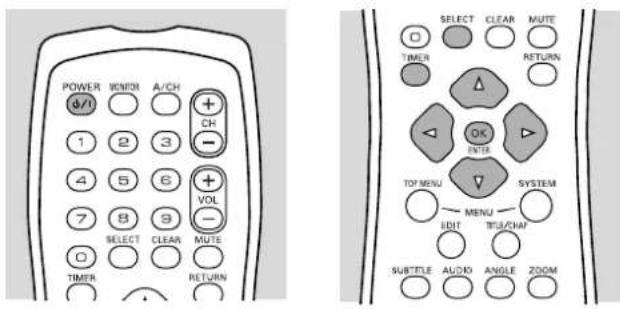
1 Press TIMER on the remote control.
2 Select Timer programming with ▼/▲ (down/up cursor).
3 Press ▶ (right cursor).
4 Enter a specific month and date with ▼/▲ (down/up cursor) or with the digit 0-9 buttons.
5 If desired, select recording at daily or weekly intervals in the field 'Date' with SELECT. Select 'Mo-Fr' for recording to be made from Mondays to Fridays inclusive. Select an individual day of the week for recording at weekly intervals on the same day of the week.
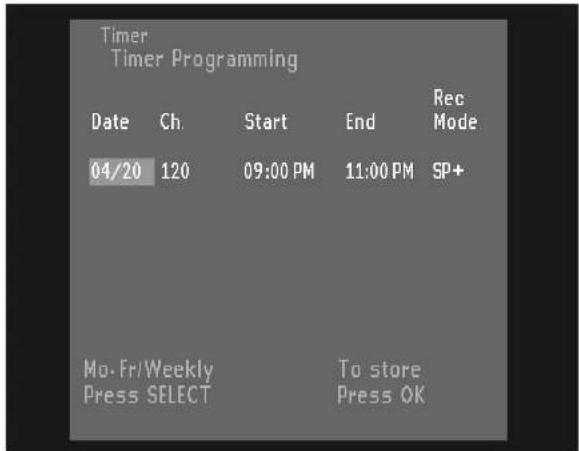
6 Press ▶ (right cursor) to move to Ch. (Channel).
7 Enter the channel number you want to record with ▼/▲ (down/up cursor) or the digit buttons 0-9. Enter channel numbers as a three digit number.
For example, for channel 12, press 0,1,2. A cross (X) will appear if invalid information is entered.
8 Press ▶ (right cursor) to move to Start.
9 Enter the Start time with ▼/▲ (down/up cursor) or the digit buttons 0-9.
10 Press SELECT repeatedly to choose AM or PM.
11 Press ▶ (right cursor) to move to the End time.
12 Enter the End time with ▼/▲ (down/up cursor) or the digit buttons 0-9.
13 To choose AM or PM, press SELECT when the cursor is on the End time.
14 Press ▶ (right cursor) to move to Record mode.
15 Select the recording mode with ▼/▲ (down/up cursor).
▶ The recorder will not warn if you program a longer timer recording than possible in the selected record mode from the present disc position.
16 If you make a mistake, go back with ◀ (left cursor) and re-enter the information.
17 Confirm with ENTER/OK.
▶ When all information is correct, the data is stored in a timer block.
18 To end, press TIMER.
19 Make sure you inserted a disc without write protection. If you inserted a write protected disc, recording will not occur.
20 Turn the Recorder to standby mode by pressing POWER (⏻/l).
If a timer recording is incorrect
The following messages may appear in the timer menu when you set a timer recording:
Collision
The Timer recording overlaps with another timer recording.
Solution:
- Ignore by pressing TIMER again. The program with the earlier start time will record completely. Then the remainder of the later program will record.
- Edit one or both timer recordings.
- Delete one of the timer recordings.
Please enter channel number
The VCR Plus+ system does not recognize the TV channel.
Solution:
- Select the required channel number with ◀/▶ (left/right cursor).
- Press ENTER/OK to confirm.
PlusCode number wrong
You entered an incorrect PlusCode number.
Solution:
- Enter the correct information or quit by pressing TIMER.
Weekend programming - not possible
Date was incorrectly entered. Daily programming can only be used for recordings from Mondays to Fridays.
Memory full
All the timer blocks are in use.
Solution:
- Delete one of the Timer recordings.
Clock not set-check Clock channel
The clock is not set. Set it manually (See 'Time/Date Manually') or adjust the Clock channel (See 'Time/Date Automatic.')
Data error
Solution:
- Make sure all information is correct and complete.
Checking or altering a Timer Recording
1 Press TIMER on the remote control.
2 Select 'Timer list' with ▼/▲ (down/up cursor).
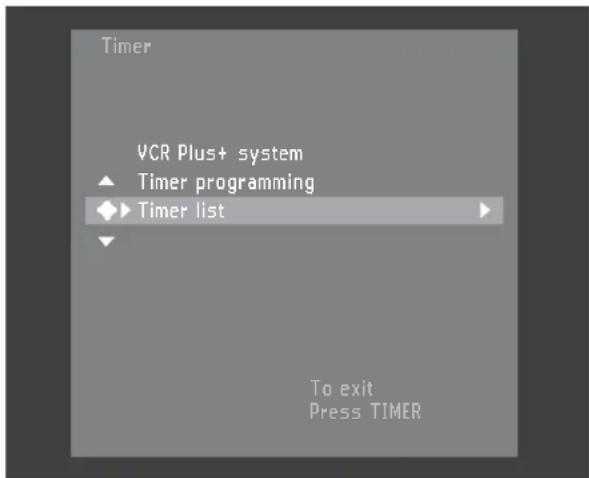
3 Press ▶ (right cursor).
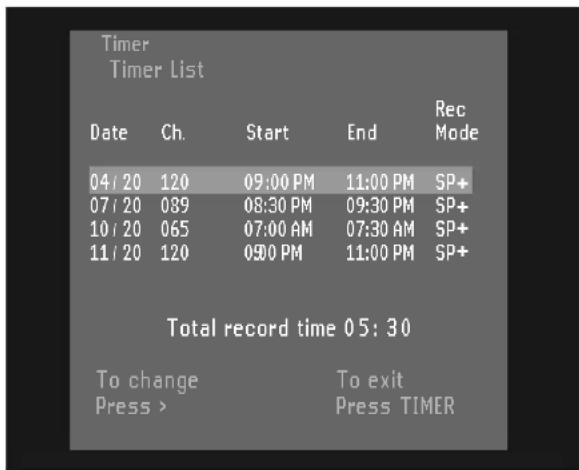
4 Select the timer recording you want to check or alter with ▼/▲ (down/up cursor).
▶ The selected timer recording will be highlighted in blue.
5 Press ▶ (right cursor).
6 Select what you want to check or alter with ◀/▶ (left/right cursor).
7 Alter data with ▼/▲ (down/up cursor) or with the digit buttons 0-9.
8 Press ENTER/OK to conform.
9 To end, press TIMER, repeatedly if necessary to remove the menus.
10 Turn the Recorder to standby mode by pressing POWER (⏻/l).
Clearing a timer block
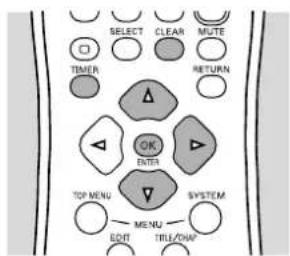
1 Press TIMER on the remote control.
2 Select 'Timer list' with ▼/▲ (down/up cursor).
3 Press ▶ (right cursor).
4 Select the Timer Recording you want to clear with ▼/
▲ (down/up cursor). The selected Timer Recording will be highlighted in blue.
5 Press CLEAR.
The Recording you selected will appear alone on the screen.
6 Confirm with ENTER/OK.
▶ Timer Cleared will appear at the bottom of the screen briefly. Then the Timer List will reappear.
7 Remove the menus by pressing TIMER, repeatedly if necessary.
Note:
If Timer Recordings overlap or conflict with each other, they will be highlighted in red in the Timer List.
How to stop a Timer Recording in progress
- A Timer Recording that is already in progress can only be aborted by pressing POWER (☐/I) on the remote control or STANDBY/ON on the front of the Recorder.
Playing a DVD+RW/+R disc
1 Insert a DVD+RW or a DVD+R disc.
▶ If the inserted disc is erase-protected, playback starts automatically. Otherwise, the Index Picture Screen appears.
2 Press ▼/▲ (down/up cursor) to select the Title you want to play.
▶ If you do not select a Title, playback starts from the point where it stopped the last time the disc was played or recorded.
▶ If the disc is a new blank disc, the display will show 'EMPTY DISC.'
3 Press ▷.
4 To stop playback at any time, press □
▶ The Index Picture Screen will appear.
Playing a pre-recorded DVD-Video disc

Some DVD discs are produced in a way that requires specific operation or allows only limited operation during playback. In these cases the Recorder may not respond to all operating commands. When this occurs, please refer to the instructions in the disc jacket or case. When an ☒ appears in the top left corner of the TV screen, the operation is not permitted by the Recorder or the disc.
1 Insert a pre-recorded DVD-Video disc. Make sure the label is facing up. If the disc is two-sided, make sure the label of the side you want to play is facing down.
- When 'Auto resume' is 'On' (see 'User preferences') playback starts automatically from the point at which it stopped the last time the disc played. - When 'Auto resume' is 'Off' the disc will play from the start of the disc. You can resume play from the point at which it stopped the last time by pressing ▷ shortly while [appears in the top left corner of the TV screen. When pressing ▷ at beginning of disc playback an "X" may show on the screen.
The currently playing title and chapter number will appear on the Recorder display. The elapsed playing time appears also.
Notes:
- DVD movies are released at different times in different regions of the world. All players have region codes, and discs can have an optional region code. If you load a disc that has a different region code than your Recorder, you will see the region code notice on the screen. The disc will not play and should be unloaded.

- The region code of this Recorder is one (1). This is stated on a label on the back of your Recorder.
- Regional coding is not applicable for DVD+RW/+R discs.
2 The disc may invite you to select an item from a menu. If the selections are numbered, press the appropriate numerical button; if not, use ▼/▲/▶/◀ (down/up/right/left cursor) to highlight your selection, then press ENTER/OK.
3 To stop play at any time, press □
▶ The default screen will appear, giving information about the current status of the Recorder.
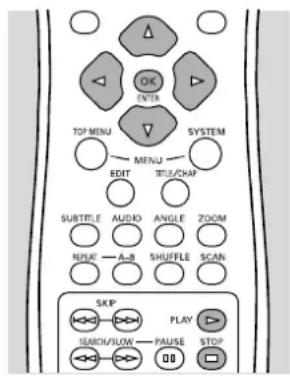
Note:
During playback you can display and enter the DVD disc menu by pressing TOP MENU.
Playing a (Super) Video CD


1 Insert a (Super) Video CD.
- When 'Auto resume' is 'On' (see 'User preferences'), playback starts automatically from the point at which it stopped the last time the disc played.
- The disc may invite you to select an item from a menu. If the selections are numbered, press the appropriate numerical button.
2 To stop play at any time, press □
▶ The default screen will appear.
General features


Note:
Unless stated otherwise, all operations described are based on remote control operation. A number of operations can also be carried out via the system menu bar on the screen.
Moving to another title/track
When a disc has more than one title or track, you can move to another title in any one of the following ways.
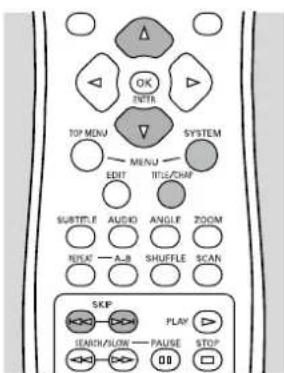
- Press TITLE/CHAP. With T selected in the menu bar for Title or Track, press ▼/▲ (down/up cursor) to select the Title or Track number you want. Playback will begin automatically at the Title or Track you selected.
- Press during play to step forward to the next title.
- Press during play to return to the beginning of the current title. Rapidly press again to step back to the previous title.
- To go directly to any title or track, enter the title number using the numerical buttons 0-9 when playback is stopped.
Notes:
- If the Title number has more than one digit, press the buttons in rapid succession.
- If the system menu bar is on screen, make sure the T is selected. If it is not, press ◆ (left/right cursor) to select T.
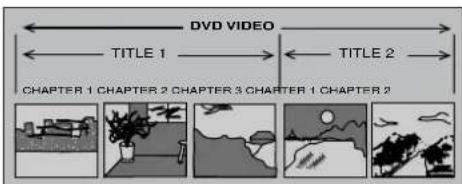
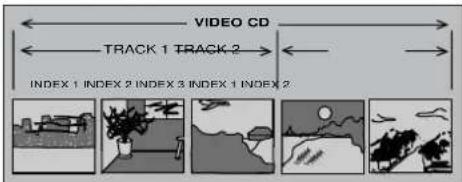
Moving to another chapter/index
When a title on a disc has more than one chapter or a track has more than one index, you can move to another chapter/index in one of the following ways.
- Press during play to select the next chapter/index.
- Press during play to return to the beginning of the current chapter/index. Rapidly press twice to step back to the previous chapter/index.
- To go directly to any chapter or index, enter the chapter or index number using the numerical buttons 0-9 during disc playback.
- Press TITLE/CHAP or SYSTEM MENU to access the system menu bar. Then, press ◀/▶ (left/right cursor) to select ○. Press ▼/▲ (down/up cursor) to select the chapter number you want. Playback will begin automatically at the Chapter you selected.
Notes:
- If the Chapter or Index number has more than one digit, press the buttons in rapid succession.
- If the system menu bar is on the screen, make sure the is selected. If not, press (left/right cursor) to select .
Slow Motion
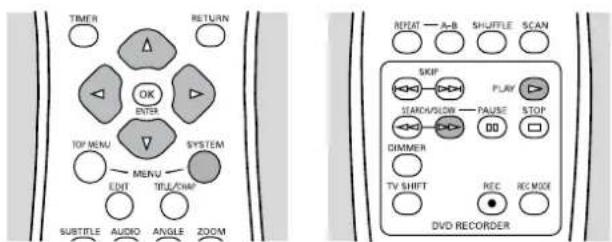
1 Press SYSTEM MENU to access the system menu bar.
2 Press ◀/▶ (left/right cursor) to select ▶ (Slow motion) in the system menu bar.
3 Use ▼ (down cursor) to enter the slow motion menu. ▶ Playback will pause.
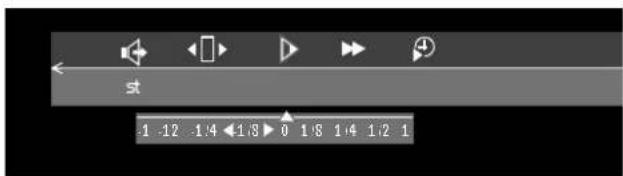
4 Use ◀/▶ (left/right cursor) to select the required speed: -1, -1/2, -1/4 or -1/8 (backward); 1/8, 1/4, 1/2 or 1 (forward).
- Select 1 to play at normal speed again.
- Select 0 to pause playback.
5 Press to exit slow motion mode and return to normal playback.
6 Press SYSTEM MENU to remove the system menu bar.
You can also select Slow Motion speeds by using □ and ▶ on the remote control.
1 Press during playback.
2 Press Repeatedly to make the disc play at 1/2, 1/4 or 1/8 the regular speed.
3 Press ▶ resume normal playback.
Still Picture and Frame-by-Frame Playback
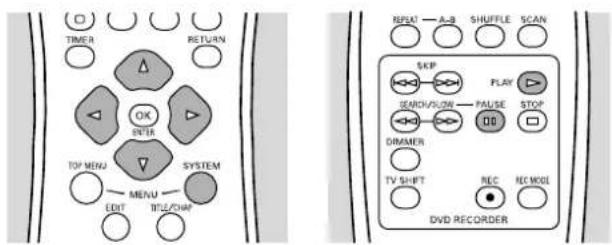
1 Press SYSTEM MENU to access the system menu bar.
2 Press ◀/▶ (left/right cursor) to select ◀□▶ (frame by frame) in the system menu bar.
3 Use ▼ (down cursor) to enter the frame by frame menu.
▶ Playback will pause.
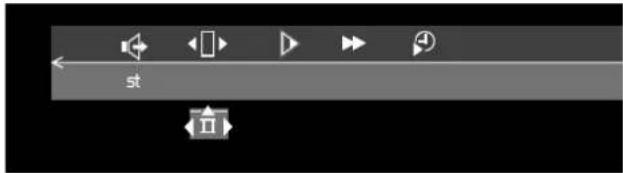
4 Use ◀/▶ (left/right cursor) to move the picture backward or forward one frame at a time.
5 Press ▶to resume regular playback.
6 Press SYSTEM MENU to remove the system menu bar.
You can also advance the picture forward one frame at a time by pressing repeatedly on the remote control.
Search
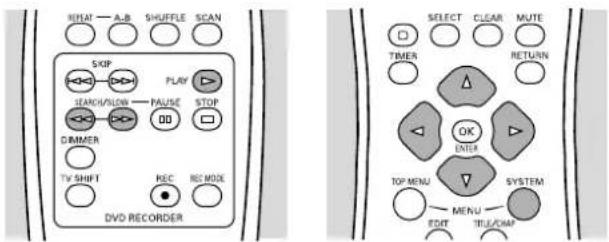
1 Press SYSTEM MENU to access the system menu bar.
2 Select (Fast motion) in the system menu bar.
3 Use ▼ (down cursor) to enter the fast motion menu.
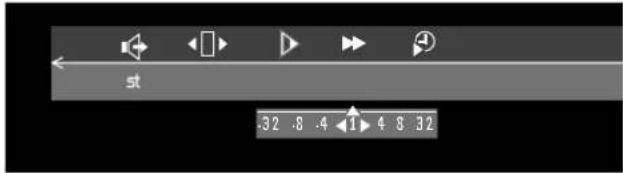
4 Use ◀/▶ (left/right cursor) to select the required speed: -32, -8 or -4 (backward); 4, 8, 32 (forward).
5 Select 1 to play at normal speed again. Or, press ▷to exit fast motion mode and resume normal playback.
6 Press SYSTEM MENU to remove the system menu bar.
To search forward or backward at 4 or 32 times the normal speed, you can also press <or repeatedly on the remote control.
Repeat
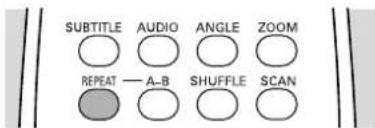
DVD Discs - Repeat chapter/title/disc
- To repeat the currently playing chapter, press REPEAT.
chapter appears on the TV screen.
- To repeat the currently playing title, press REPEAT a second time.
title appears on the TV screen.
• To repeat the entire disc, press REPEAT a third time.
repeat appears on the TV screen.
• To exit repeat mode, press REPEAT a fourth time.
Video CDs - Repeat track/disc
• To repeat the currently playing track, press REPEAT.
track appears on the TV screen.
- To repeat the entire disc, press REPEAT a second time.
repeat appears on the TV screen.
• To exit the repeat mode, press REPEAT a third time.
Repeat A-B
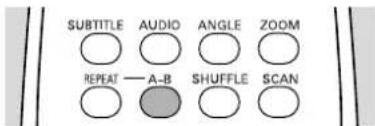
To repeat a segment within a title:
1 Press A-B at your chosen starting point.
appears on the TV screen.
2 Press A-B again at your chosen end point.
▶ appears on the TV screen, and the sequence begins to play repeatedly.
3 To exit the sequence and return to normal playback, press A-B.
Scan
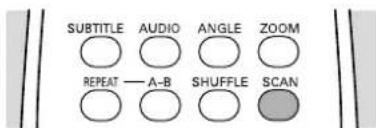
Play the first 10 seconds of each chapter/index on the disc.
1 Press SCAN. The first 10 seconds of each chapter will play, beginning with the current chapter.
2 To continue play at your chosen chapter/index, press SCAN again or press ▷
Time search
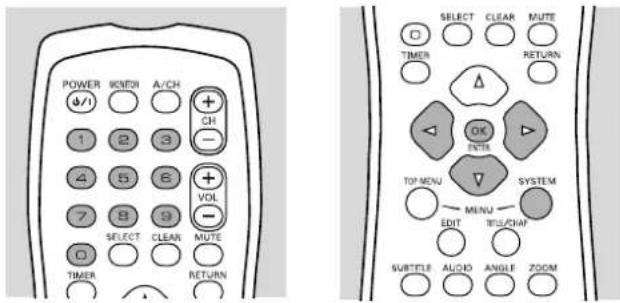
Time Search allows you to start playing a disc at a specific time.
1 Press SYSTEM MENU to access the system menu bar.
2 Press ◀/▶ (left/right cursor) to select ⏻ (Time Search) in the system menu bar.
3 Press ▼ (down cursor).
▶ Playback will pause.
▶ A time entry box appears on the screen showing the elapsed playing time of the current disc.
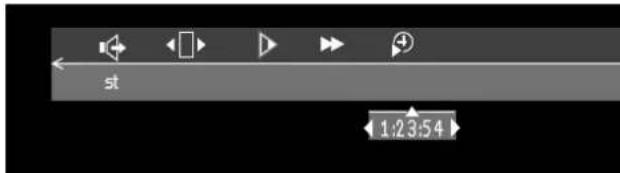
4 Use the digit buttons 0-9 to enter the desired start time. Enter hours, minutes and seconds in the box.
▶ Each time an item has been entered, the next item will be highlighted.
5 Press ENTER/OK to confirm the start time.
The time entry box will disappear and play starts from the selected time position.
6 Press SYSTEM MENU to remove the system menu bar.
Zoom
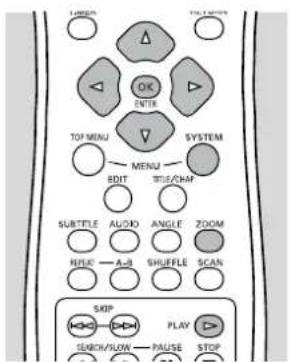
The Zoom function allows you to enlarge the video image and pan through the enlarged image.
1 Press ZOOM.
▶ The system menu bar appears with Zoom selected.
2 Press ▼/▲ (down/up cursor) to activate the Zoom function and select the required zoom factor; 1.33, 2 or 4.
▶ Playback will pause.
▶ The picture will change accordingly.
The selected zoom factor appears below the Zoom icon in the system menu bar. 'Press OK to pan' appears below the system menu bar.
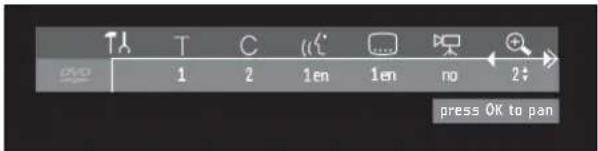
3 Press ENTER/OK.
The panning icons ▼/▲/▶/◀ (down/up/right/left cursor) and ENTER/OK appear on the screen.
4 Use ▼/▲/▶/◀ (down/up/right/left cursor) to move the zoomed image around the screen.
5 Press ENTER/OK and only the zoomed picture will show on the screen.
6 Press to exit zoom mode and return to normal playback.
7 Press SYSTEM MENU to remove the system menu bar.
Shuffle
DVD Discs
This shuffles the playing order of chapters within a title, if the title has more than one chapter.
1 Press SHUFFLE during playback.
2 To return to normal playback, press SHUFFLE again.
Video CDs
This shuffles the playing order of tracks within a disc, if the disc has more than one tracks.
1 Press SHUFFLE during playback.
2 To return to normal playback, press SHUFFLE again.
Special DVD+RW/+R features
Recording date and time
If a recording was made from a digital video camera using the i.LINK DV input, the original recording date and time are automatically stored as DVD subtitles.
- Press SUBTITLE to display the recording date and time.
The recording date and time are displayed in the right bottom corner of the screen.
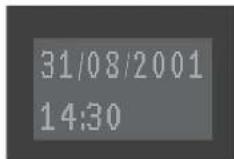
Special DVD-Video features
Menus on the disc
Some DVDs include disc menus for Title or Chapter selection or special playback features. You can make selections from these menus.
Title menus
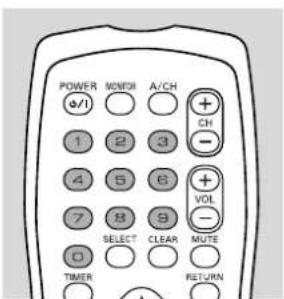
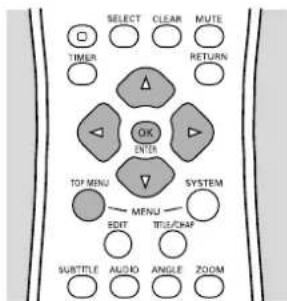
1 Press TOP MENU.
▶ If the current title has a menu, the menu will appear on the screen. Otherwise, the disc menu will be displayed.
2 The menu can list camera angles, spoken language and subtitle options, and chapters for the title.
Press the appropriate numerical button to choose a numbered item or use ▼/▲/▶/◀ (down/up/right/left cursor) to highlight your selection, then press ENTER/OK.
3 To exit the menu, press TOP MENU again.
Note:
Most DVDs do not have separate disc and title menus.
Disc menu
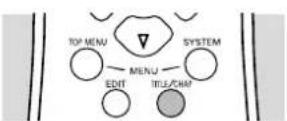
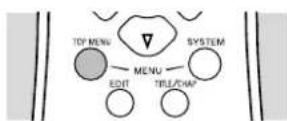
If a DVD-Video disc has separate disc and title menus, you can navigate to the disc menu as follows:
1 Press TITLE/CHAP followed by TOP MENU.
▶ The disc menu is displayed.
2 To remove the disc menu, press TOP MENU again.
Camera Angle
If the disc contains sequences recorded from different camera angles, the angle icon appears, showing the number of available angles, and the current angle. You can change the camera angle if you wish.
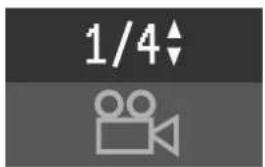
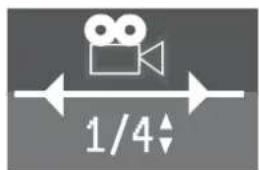
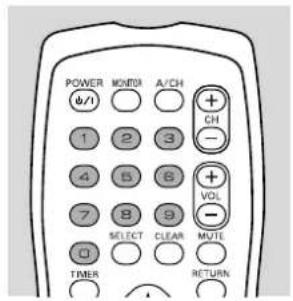
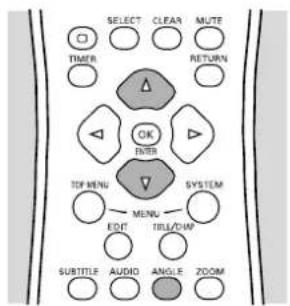
1 Press ANGLE.
2 Use ▼/▲ (down/up cursor) to select the required angle.
3 To go to any angle directly, enter the angle number using the numerical buttons 0-9.
▶ After a small delay, play changes to the selected angle. The angle icon remains displayed until multiple angles are no longer available.
Changing the audio language
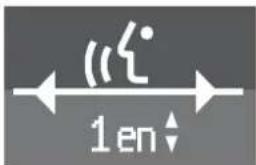
1 Press AUDIO on the remote to select (Audio) in the system menu bar.
2 Within five seconds, press AUDIO or ▼/▲ (down/up cursor) repeatedly to see the different languages.
▶ You can enter the required language number directly using the numerical buttons 0-9.
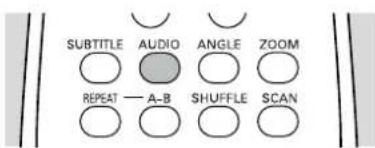
Subtitles
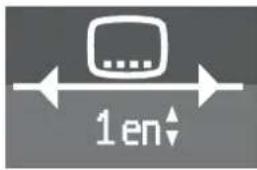
1 Press the SUBTITLE to select ☐ (Subtitle) in the system menu bar.
2 Within five seconds, press SUBTITLE or ▼/▲ (down/up cursor) repeatedly to see the different subtitles or to switch the subtitles off.
▶ You can enter a subtitle number directly using the numerical buttons 0-9.
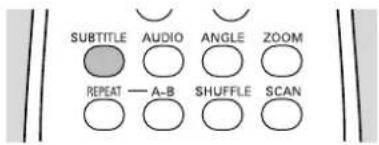
Special VCD features
Playback Control (PBC)
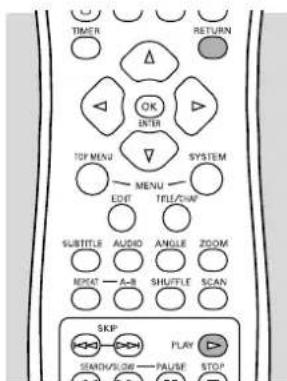
1 Make sure PBC is On. See 'User preferences - Feature settings.'
2 Load a (Super) Video CD with PBC and press ▷ ▶ The PBC menu appears on the TV screen.
3 Go through the menu with the buttons indicated on the TV screen until your chosen passage starts to play.
4 If a PBC menu consists of a list of titles, you can select a title directly. Enter your choice with the numerical buttons 0-9.
5 Press RETURN to go back to the previous menu.
Playing an Audio CD
1 Insert the disc.
▶ After loading the disc, playback starts automatically.
▶ If the TV is on, the Audio CD screen appears.
▶ During play, the current track number and its elapsed playing time will show on the TV screen and on the Recorder display.
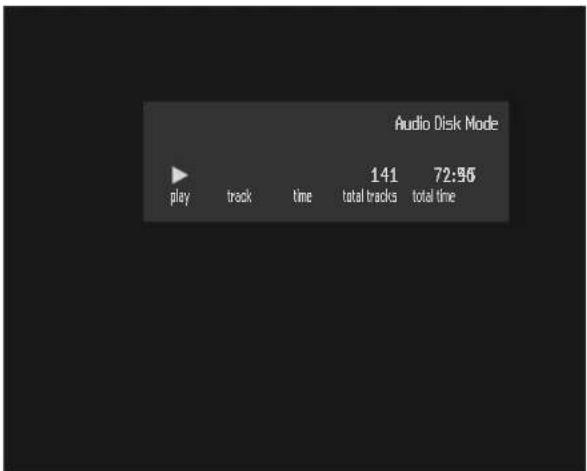
2 To stop play at any time, press □
The number of tracks and the total playing time will show on the TV screen and on the Recorder display.
Pause
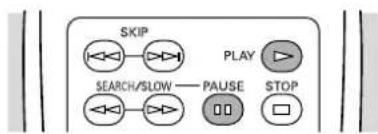
1 Press during play.
2 To return to play, press ▷
Search
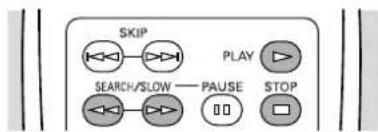
1 To search forward or backward through the disc at four times the normal speed, press
▶ Search begins and the sound is intermittent.
2 To step up to eight times the normal speed, press ◀◀◀ or ▷▶ again.
▶ Search goes to 8x speed, and the sound is mute.
3 To return to four times the normal speed, press or again. If the TV is on, search speed and direction are indicated on the screen each time or is pressed.
4 To end the search, press ▷ or □ as desired.
Moving to another track
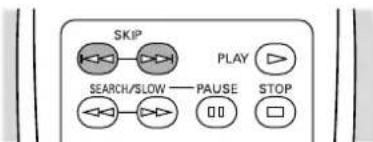
- Press during play to step forward to the next track.
- Press during play to return to the beginning of the current track. Rapidly press repeatedly to step back to previous tracks.
- To go directly to any track, enter the track number using the numerical buttons 0-9.
Repeat track/disc
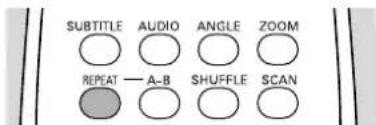
• To repeat the currently playing track, press REPEAT.
▶ 'Repeat track' appears on the TV screen in the Audio Disc Mode box.
- To repeat the entire disc, press REPEAT a second time.
▶ 'Repeat disc' appears on the TV screen in the Audio Disc Mode box.
• To exit repeat mode, press REPEAT a third time.
Repeat A-B
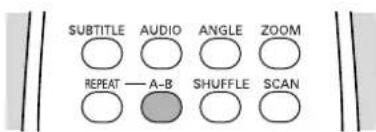
To repeat a specific segment of a Track:
1 Press A-B at your chosen starting point.
▶ 'Repeat A' appears on the TV screen in the Audio Disc Mode box.
2 Press A-B again at your chosen end point.
▶ 'Repeat A-B' appears on the TV screen in the Audio Disc Mode box and the segment begins to play repeatedly.
3 To exit the segment and return to normal playback, press A-B again.
Scan
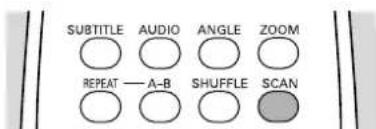
Scan plays the first 10 seconds of each track on the disc.
1 Press SCAN. The first 10 seconds of each track will play, beginning with the current track.
2 To continue play at your chosen track, press SCAN again or press ▷
• This function may not be available with some discs
Child Lock (DVD and VCD)
When activating Child Lock, only discs that are authorized can be played without entering a code.
The Recorder memory maintains a list of 50 authorized ('Child safe') disc titles. A disc will be placed in the list when you select 'Play always.' Each time a 'Child safe' disc is played, it will be placed on top of the list. When the list is full and a new disc is added, the last disc in the list will be removed.
Activating/deactivating the child lock
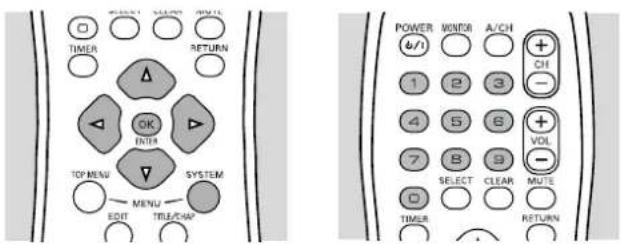
1 Press SYSTEM MENU.
2 Press ◀ (left cursor) to select ↑ in the system menu bar.
3 Press ▼ (down cursor) repeatedly to select ,then press ▶ (right cursor).
4 Access control will be selected in the features menu .Press ▶ (right cursor).
![DVD 1 5 off! en no off Access control Status box Auto resume Low power standby [ ] [ ] [ ] Enter code](/content/2026/05/814875/images/82abd9caee1ed7b888494814a0da51ae0259c24d78df529b7a4ec2435cf58f14.jpg)
5 Enter a 4-digit code of your own choice (the first time) using the digit buttons 0-9.
6 Enter the code a second time.
7 Move to Child lock using ▼/▲ (down/up cursor).
8 Move to ☐ / ☐ using ▶ (right cursor).
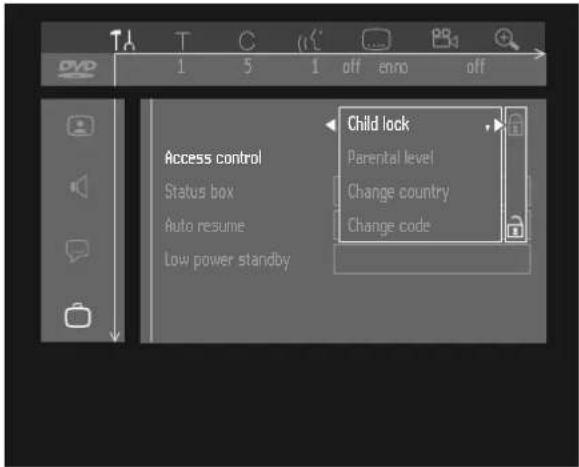
9 Select ⏻ using ▲ (up cursor) if you want to lock the disc.
▶ Select ☐ to deactivate the Child Lock.
10 Press ENTER/OK or ◀ (left cursor) to confirm.
Press SYSTEM MENU to remove the menu.
▶ If you locked the disc, unauthorized discs will not be played unless the 4-digit code is entered.
The disc will be locked and the Recorder will ask for your 4-digit code the next time you try to play the disc. You must turn the Recorder power Off, then On, for the Lock to take effect.
Notes:
- Reconfirmation of the 4-digit code is necessary when: the code is entered for the very first time;
the code is changed (see 'Changing the 4-digit code'); the code is cancelled (see 'Changing the 4-digit code').
- If you forgot your code, press four times while in the access control PIN code box and exit with ENTER/OK.
Access control is now switched off. You can then enter a new code as described above.
Authorizing discs when Child Lock is activated
1 Insert the disc.
The 'Access Control box' will appear. You will be asked to enter your code for 'Play once' or 'Play always.'
![locked Access Control • Play once [ ] [ ] [ ] [ ] Play always [ ] [ ] [ ] [ ] Choose 'Play always' to insert the disk in the child-safe list](/content/2026/05/814875/images/249d780636aacad8bcb77a2f16425238f4bdad600597a2ce570b9b488ad7eace.jpg)
2 Press ▼/▲ (down/up cursor) to choose 'Play once' or 'Play always.' Then use the 0-9 buttons to enter your code.
3 Play will begin. If you select 'Play once,' the disc can be played as long as it is in the Recorder and the Recorder is On. If you select 'Play always,' the disc will become Child safe (unlocked) and can always be played even if the Child lock is On as described left.
Notes:
- If you stop playback, the access control box pops up. 'Play once' is shaded. You can now add the disc to the play always list or return to the Index Picture Screen by pressing □ second time.
- Double sided DVD discs may have a different ID for each side. In order to make the disc 'child safe,' authorize each side.
- Multi volume Video CDs may have a different ID for each volume. In order to make the complete set 'child safe,' authorize each volume.
Locking Discs that were formerly unlocked
1 Insert the disc.
▶ Playback starts automatically.
2 Press □ while 😊 is visible.
▶ 😊 will appear and the disc is now locked.
However, the disc will continue to play. The disc will be locked and the Recorder will ask for your 4-digit code the next time you try to play the disc. You must turn the Recorder power Off, then On, for the Lock to take effect.
Parental Level (DVD-Video only)
Movies on pre-recorded DVD discs may contain scenes not suitable for children. Therefore, some discs may contain 'Parental Control' rating information that applies to the complete disc or to certain scenes on the disc. If the disc is rated, scenes are rated from 1 to 8, alternative, more suitable scenes may be available on the disc. Ratings vary among countries. The 'Parental Control' feature allows you to prevent your children from playing discs or play certain discs with alternative scenes.
Activating/Deactivating Parental Control
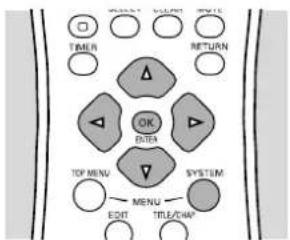
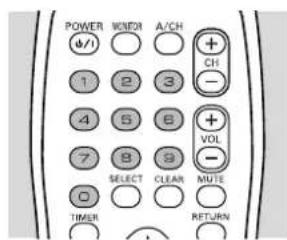
1 Press SYSTEM MENU.
2 Press ◀ (left cursor) to select ↑ in the system menu bar.
3 Press ▼ (down cursor) repeatedly to select then press ▶ (right cursor).
4 'Access control' will be selected in the features menu .Press ▶ (right cursor).
5 Enter your 4-digit code using the digit buttons 0-9. If necessary enter the code a second time.
6 Move to 'Parental level' using ▼/▲ (down/up cursor).
7 Select the Value Adjustment bar at the right of the screen by pressing ▶ (right cursor).
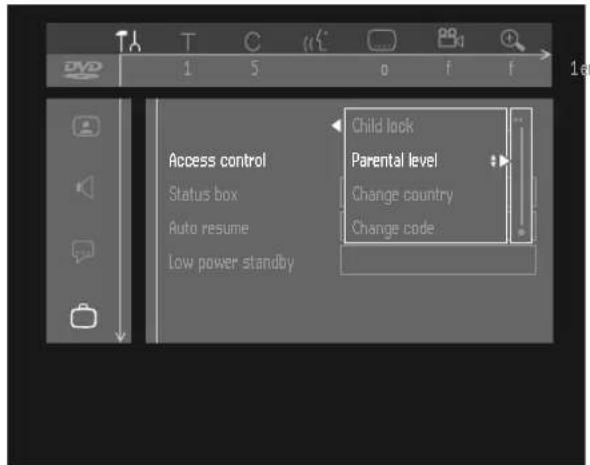
8 Use ▼/▲ (down/up cursor) or the numerical buttons 1-8 on the remote control to select a rating from 1 to 8 for the currently inserted disc.
Rating 0 (displayed as ‘—’):
Parental Control is not active. The disc will play in full. Ratings 1 to 8 (1 = childsafe - 8 = adults only):
The disc contains scenes not suitable for children. If you set a rating for the Recorder, all scenes with the same rating or lower will play. Higher rated scenes will not play unless an alternative is available on the disc. The alternative must have the same rating or a lower one. If no suitable alternative is found, play will stop and you must enter the 4-digit code.
9 Press ENTER/OK or ◀ (left cursor) to confirm and press SYSTEM MENU to move the menu.
Country
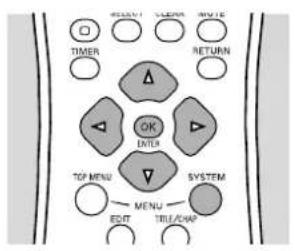
flowchart
graph TD
    A["TIMER"] --> B["OK"]
    B --> C["ENTER"]
    C --> D["SYSTEM"]
    D --> E["MENU"]
    E --> F["EDIT"]
    F --> G["TILL/SHIP"]
    style A fill:#f9f,stroke:#333
    style B fill:#ccf,stroke:#333
    style C fill:#cfc,stroke:#333
    style D fill:#fcc,stroke:#333
    style E fill:#cff,stroke:#333
    style F fill:#ffc,stroke:#333
    style G fill:#cfc,stroke:#333
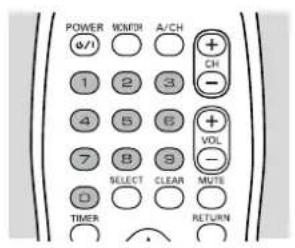
See the disc case for details on whether it has Parental Level settings for specific countries. If it does not, this procedure is not necessary.
1 Press SYSTEM MENU.
2 Press ◀ (left cursor) to select ↑ in the system menu bar.
3 Press ▼ (down cursor) repeatedly to select ,then press ▶ (right cursor).
4 'Access control' will be selected in the features menu. Press ▶ (right cursor).
5 Enter the four digit code using the 0-9 buttons.
6 Move to 'Change country' using ▼ (down cursor).
7 Press ▶ (right cursor).
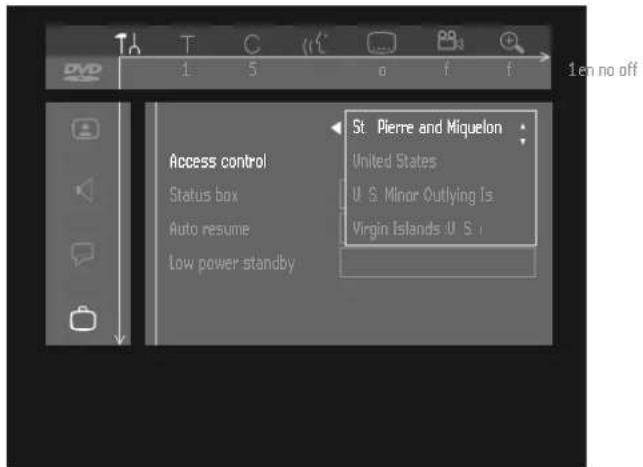
8 Select the country for which your disc is coded using ▼/▲ (down/up cursor).
9 Press ENTER/OK or ◀ (left cursor) to confirm.
Press SYSTEM MENU to exit the menu.
Changing the 4-digit code
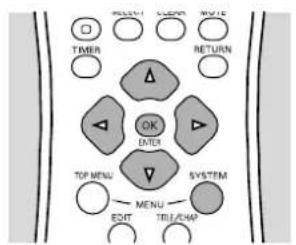
flowchart
graph TD
    Timer["Timer"] --> OK["OK"]
    OK --> System["SYSTEM"]
    System --> Menu["Menu"]
    Menu --> TopMenu["TOP MENU"]
    TopMenu --> OK
    OK --> Return["RETURN"]
    OK --> OK_Later["OK Later"]
    OK Later --> OK Later
    OK Later --> OK Later
    OK Later --> OK Later
    OK Later --> OK Later
    OK Later --> OK Later
    OK Later --> OK Later
    OK Later --> OK Later
    OK Later --> OK Later
    OK Later --> OK Later
    OK Later --> OK Later
    OK Later --> OK Later
    OK Later --> OK Later
    OK Later --> OK Later
    OK Later --> OK Later
    OK Later --> OK Later
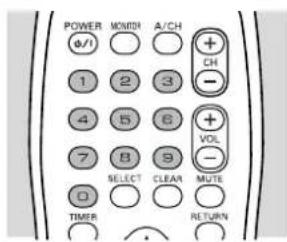
1 Press SYSTEM MENU.
2 Press ◀ (left cursor) to select ↑ in the system menu bar.
3 Press ▼ (down cursor) repeatedly to select ,then press ▶ (right cursor).
4 'Access control' will be selected in the features menu .Press ▶ (right cursor).
5 Enter the old 4-digit code using the 0-9 buttons.
6 Move to 'Change code' using ▼ (down cursor).
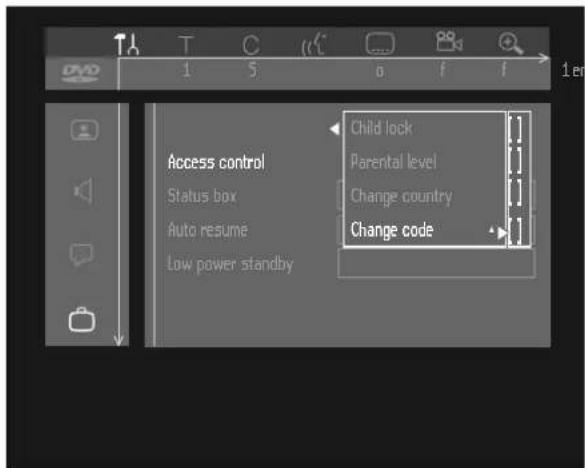
7 Press ▶ (right cursor).
8 Enter the new 4-digit code using the 0-9 buttons.
9 Enter the exact same code a second time and reconfirm by pressing ENTER/OK.
10 Press SYSTEM MENU to exit the menu.
Title settings
You can change each title on the DVD+RW/+R to your personal preference in the title settings menu.
1 Stop disc playback if necessary. In the Index Picture Screen, select the required title with ▼/▲ (down/up cursor).
2 Press ▶ (right cursor) to enter the title settings menu for that title.
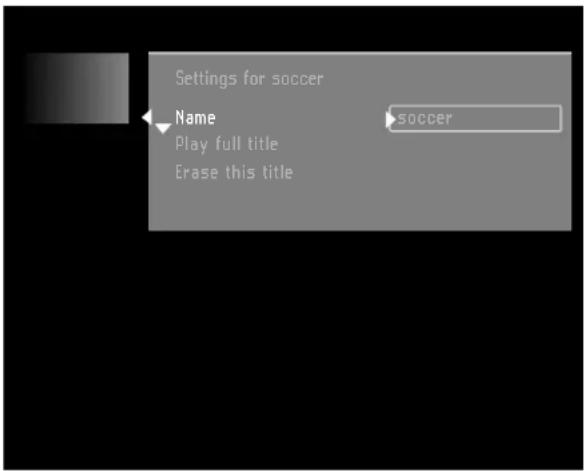
3 Use ▼/▲ (down/up cursor) to select the item you wish to change, then follow the steps as directed below.
Changing name of a recording
Perform steps 1, 2 and 3 as explained above.
4 Press ▶ (right cursor) to select Name.
5 Enter the new name. A name may contain a maximum of 64 characters.
- Use ◀/▶ (left/right cursor) for the position of the characters. Use ▼/▲ (down/up cursor) to change characters.
- Use SELECT to toggle between capital and lower case characters.
- Use CLEAR to erase a character.
6 Confirm by pressing ENTER/OK.
Play full title
Perform steps 1, 2 and 3 as explained above.
4 Press ▶ (right cursor) to select 'Play full title.'
When this item is selected, the title will be played in full, including hidden chapters, beginning immediately.
Follow the instructions on the screen. (See 'Operation - Managing disc content - Editing')
Erase this title
You may simply erase a title by recording over it, but if you want to erase the whole title instantly, do the following:
Perform steps 1, 2 and 3 as explained above.
4 Press ▶ (right cursor) to select 'Erase this title,' then press ENTER/OK.
The message 'This will completely erase this title,' 'Press OK to confirm' is shown.
5 Press ENTER/OK a second time.
▶ 'Erasing title' is shown until the action is completed.
▶ After the title has been erased, the Index Picture Screen will show an empty space instead of the Title. If there was an empty space in front of or behind this title, then these are combined into one empty space. Empty spaces of less than one minute will not be shown.
Disc Information Screen
1 When in the Index Picture Screen, press □
▶ This selects the first title on the DVD+RW.
2 Press ▲ (up cursor).
▶ You enter the Disc Information Screen.
3 Press ▼ (down cursor) to exit the Disc Information Screen and return to the Index Picture Screen. The Disc Information Screen contains the following information:
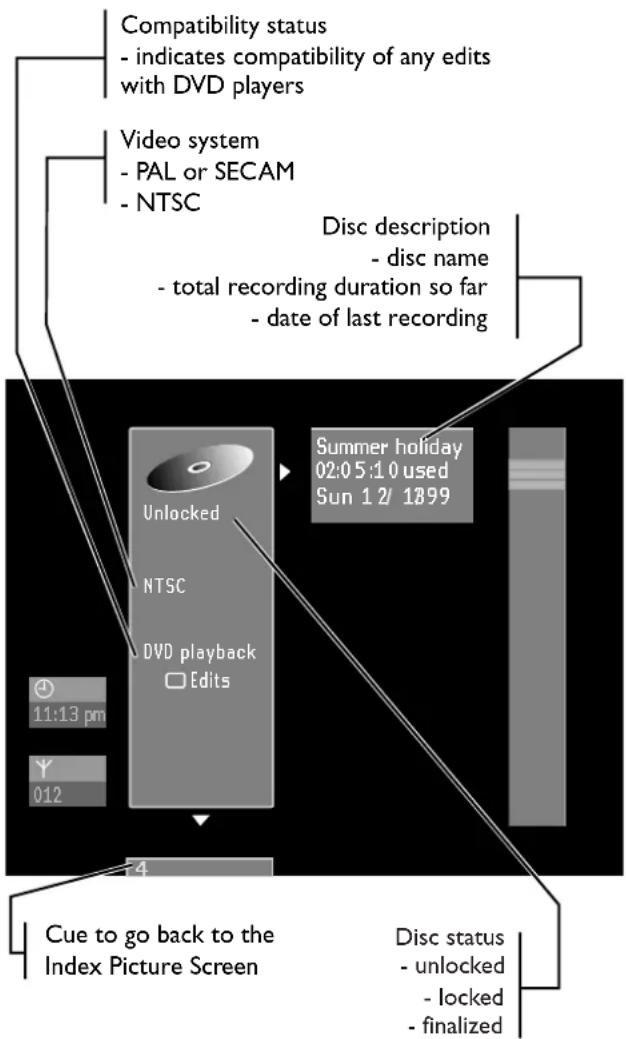
Disc Settings
You can change disc settings for a DVD+RW/+R from the Disc Information Screen.
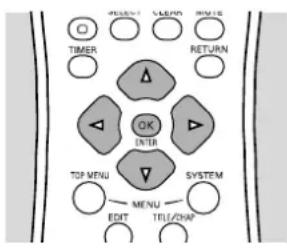
flowchart
graph TD
    A["TIMER"] --> B["OK"]
    B --> C["ENTER"]
    C --> D["TOP MENU"]
    D --> E["MENU"]
    E --> F["SYSTEM"]
    F --> G["TITLE/CHAP"]
    H["RETURN"] --> I["△"]
    I --> J["△"]
    J --> K["△"]
    K --> L["△"]
    L --> M["△"]
    M --> N["△"]
    N --> O["△"]
    O --> P["△"]
    P --> Q["△"]
    Q --> R["△"]
    R --> S["△"]
    S --> T["△"]
    T --> U["△"]
    U --> V["△"]
    V --> W["△"]
    W --> X["△"]
    X --> Y["△"]
1 When in the Index Picture Screen, press or press and hold for about two seconds.
▶ This selects the first title on the DVD+RW.
2 Press ▲ (up cursor).
▶ You enter the Disc Information Screen.
3 In the Disc Information Screen, press ▶ (right cursor).
▶ You will enter the 'Settings' menu.
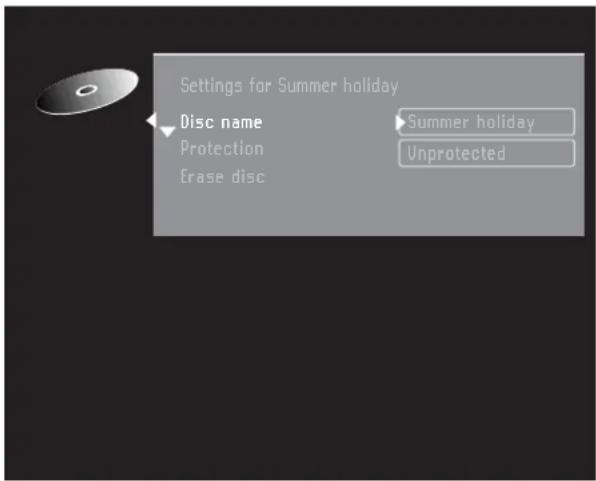
4 Use ▼/▲ (down/up cursor) to select the item you wish to change, then follow the steps below for each item.
Disc name
Perform steps 1, 2, 3 and 4 as explained above.
5 Press ▶ (right cursor) to select 'Disc name.'
6 Enter the new name. A name may contain a maximum of 64 characters.
Use ◀/▶ (left/right cursor) for the position of the characters. Use ▼/▲ (down/up cursor) to change characters.
- Use SELECT to toggle between capitals and lower case characters.
7 Confirm the name by pressing ENTER/OK when you are finished.
Protection
Perform steps 1, 2, 3 and 4 as explained above.
5 Press ▶ (right cursor) to select Protection.
6 Select 'Protected' with ▼/▲ (down/up cursor).
7 Press ENTER/OK.
▶ No further changes can be made to the disc including recording. 'Disc Locked' will appear on the TV screen if you attempt recording. It will also disable most title/disc manipulation screen entries, as well as the complete edit menu.
Future editing or recording is only possible after resetting the Protection feature to 'Unprotected' again.
Erase disc
Perform steps 1, 2, 3 and 4 as explained above.
5 With 'Erase disc' selected press ENTER/OK.
The message 'This will erase all titles' is displayed.
- Press ENTER/OK again to confirm and begin erasing or press ◀ (left cursor) to cancel.
▶ 'Erasing disc' is shown until the action is completed.
▶ After the disc has been erased the Index Picture Screen will show the free space on the disc.
Finalizing a DVD+R disc
While a DVD+RW disc can be played instantly on most DVD players, a DVD+R disc can be played only on the DVD recorder until it is finalized. After finalization no changes can be made to the disc anymore.
- In the Disc Info Screen press ▶ (right cursor).
▶ You will now enter the 'disc settings' menu.
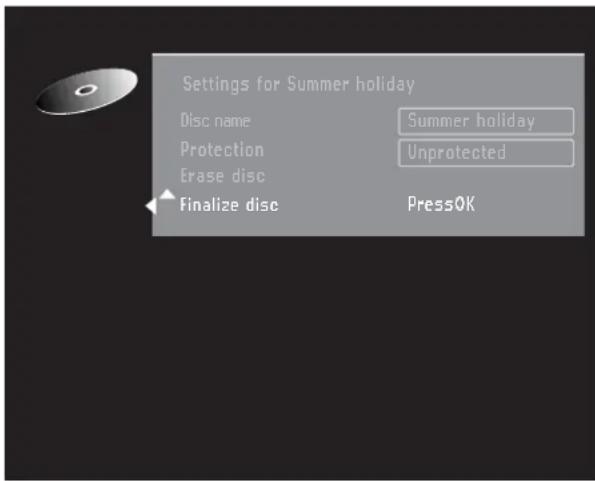
- Select 'finalize disc' and press OK to confirm.
▶ 'finalize disc' is shown until the action is completed.
▶ After finalization the Index Picture Screen will appear.
If the DVD+R disc was recorded on a different brand of DVD recorder you may not be able to access the Disc Settings screen. In this case you can use the 'finalize disc' option in the features menu of the user preferences menu.
Make edits DVD-compatible
If titles have been edited (See 'Editing'), the edits will play on your DVD Recorder. However a DVD player may show the original versions instead of the edits. You can prepare your discs so that a DVD player will also play the edited version.
Perform steps 1, 2, 3 and 4 as explained above.
5 If the Disc Information Screen shows the option 'Make edits DVD-compatible,' press ▶ (right cursor) to select this option. If the menu does not show this option, your disc is already compatible. No conversion is needed.
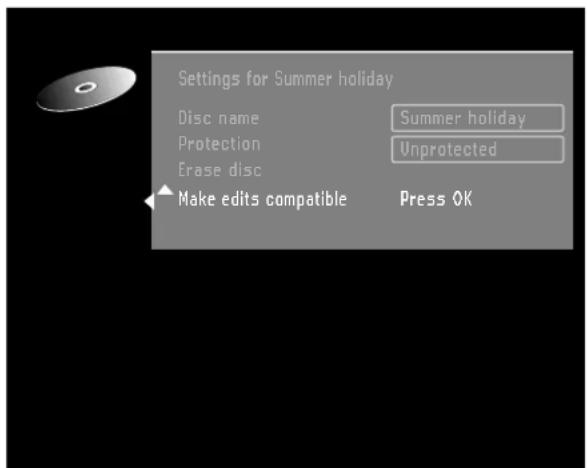
6 Press ENTER/OK.
The messages 'This will take ...' and 'Press OK to confirm' will appear to indicate how long the action will take.
7 Press ENTER/OK again.
- 'Working' and a progress bar are shown until the action is completed.
Editing
Editing improves accessibility and handling of your recordings. For instance; scenes you do not want to see during playback (e.g. commercials during a movie) can be marked as chapters and hidden. During playback you will watch your recording without the hidden chapters.
Note:
The picture may freeze briefly between scenes.
Each title consists of chapters. With the Edit menu, any chapter can be hidden or made visible. Normally during recording, chapter markers are inserted automatically every five to six minutes. (This setting can be changed in the record settings menu. See 'User preferences - Record Settingss - Auto chapters.') After the recording is finished, you can manually add and remove chapter markers via the Edit menu. Both automatically generated and manually inserted chapter markers can be removed.
After editing, the modified version of a title is the default playback version. The original can be accessed via the 'Play full title' option in the title settings menu. Other DVD
players may still play the original. To guarantee that the edited version will play on these DVD players, choose 'Make edits DVD-compatible' in the disc settings menu.
Calling up the Edit menu
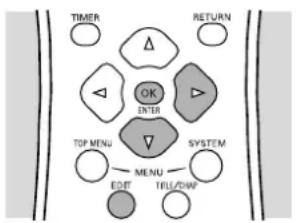
flowchart
graph TD
    A["TIMER"] --> B["Δ"]
    C["RETURN"] --> D["Δ"]
    E["SYSTEM"] --> F["▼"]
    G["TOP MENU"] --> H["MENU"]
    I["EDIT"] --> J["TRILL/DWG"]
    K["OK"] --> L["ENTER"]
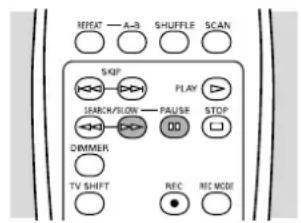
1 During DVD+RW/+R playback, press the EDIT on the remote control.
The video image is overlayed with a transparent edit menu. Current title and chapter information appear in an information box at the top of the screen.
Note:
The Edit menu may disappear after about five minutes if you do not edit any information.
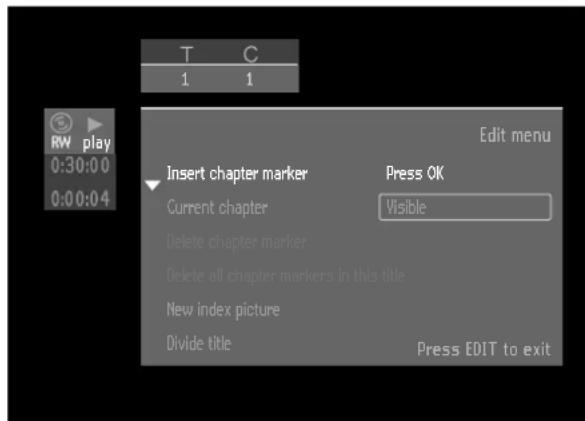
S
2 Use ▼ or ▲ (down or up cursor) to select an item, then continue as directed for each feature hereafter.
Inserting a chapter marker
To insert a chapter marker on the current position of the title that is playing:
Perform steps 1 and 2 to call up the Edit menu.
3 Select 'Insert chapter marker.'
4 Press ENTER/OK on the remote control to insert a marker.
The maximum number of chapter markers per title is 99. When the maximum number is reached, the on-screen message 'Too many chapters' appears. You will have to delete some before inserting new chapter markers.
During recording you can add chapter markers by pressing EDIT on the remote control. The message 'Inserting a chapter marker' will be appear on the screen.
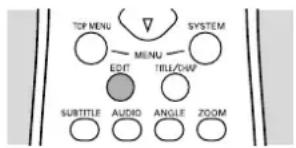
Hiding a chapter
Initially all chapters are visible. You can hide chapters or make them visible again during playback. When playing a disc while the Edit menu is on the screen, hidden chapters play through in a dimmed mode.
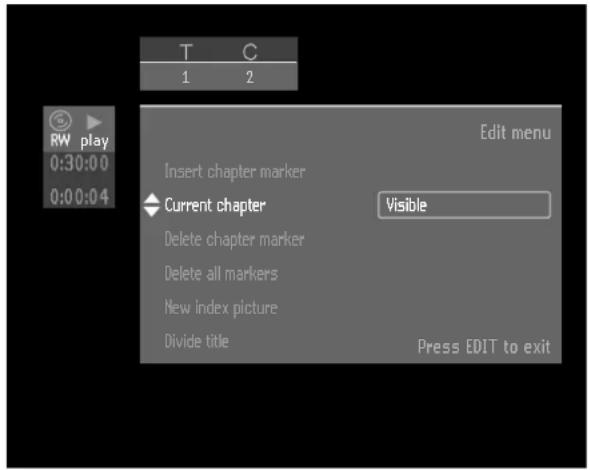
Perform steps 1 and 2 to call up the Edit menu.
3 Select 'Current chapter.'
4 Press ▶ (right cursor) repeatedly to select 'Visible' or 'Hidden.'
- You can toggle between 'Visible' and 'Hidden' directly from any line in the Edit menu with the SELECT on the remote control.
Deleting chapter markers
You can combine a chapter with the previous chapter in the current title by deleting the chapter at the beginning of the current chapter.
Perform steps 1 and 2 to call up the Edit menu.
3 Select 'Delete chapter marker.'
4 Press ENTER/OK on the remote control to confirm
▶ 'Delete markers' will appear.
You can delete all chapter markers (manually and automatically generated) fin the current title.
Perform steps 1 and 2 to call up the Edit menu.
3 Select 'Delete all markers in this title.'
4 Press ENTER/OK on the remote control to confirm
- 'This will delete all markers in this title' will appear.
- 'This will delete all markers in this title' will appear.
5 Press ENTER/OK again to confirm.
▶ 'Deleting markers' will appear.
Changing the index picture
To define the current video frame as a miniature picture to be used for this titles entry in the Index Picture Screen: Perform steps 1 and 2 to call up the Edit menu.
3 You can use and/or, to accurately choose the desired picture.
4 Select 'New index picture.'
5 Press ENTER/OK.
- This will update the index picture. Press OK to confirm' will appear.
6 Press ENTER/OK again.
- 'Updating menu.' will appear, then the Index picture screen will reappear.
Dividing a title
If you want to divide one title into two separate titles, do the following:
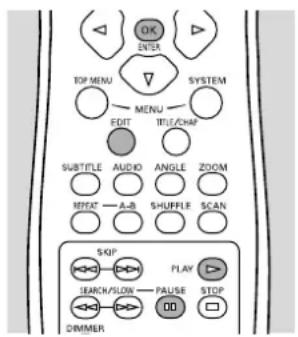
1 On the Index Picture Screen, press ▼/▲ (down/up cursor) to select the title you want to divide.
2 Press ▷.
3 Play the disc to the point where you want to divide the title and press □□
4 Press EDIT.
▶ The Edit menu is shown.
5 Press ▼ (down cursor) to select 'Divide title.'
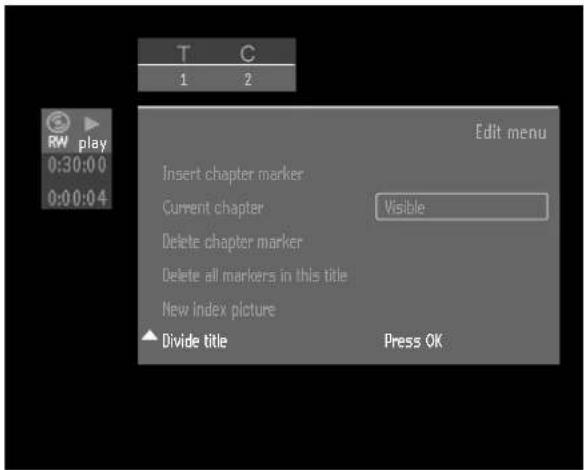
6 Press ENTER/OK. 'This will divide this title into two separate titles. Press OK to confirm' will appear.
▶ 'Dividing title' is shown until the action is completed.
7 Press ENTER/OK again.
The Index Picture Screen will show two titles instead of one. Both will have the same name. If you want to change the name, you can do so in the title settings menu. For one of the two resulting titles, a new index picture is created at the point at which you divided the title.
If you want to divide one title into more than two titles, use the above procedure several times.
Append recording
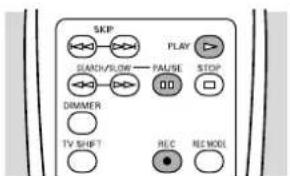
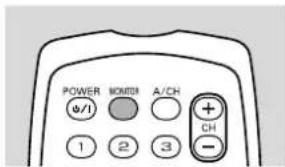
If you want to append a video recording to an earlier recorded title, do the following.
1 On the Index Picture Screen, select the title to which you want to add a video recording.
2 Press ▷.
3 At the point where you want to append the new recording press □□
4 Press MONITOR then press CH+/- to select the channel (or source) you want to record.
5 Press REC.
The new video recording will be appended at the point you selected. Video material beyond this point is overwritten. This may include titles following the current title.
Any remaining video material that is not overwritten, which may include the last part of the original title, is maintained. You can access these titles from the Index Picture Screen.
6 Press to stop recording.
If it appears that the DVD Recorder is faulty, first consult this checklist. It may be that something has been overlooked. Under no circumstances attempt to repair the system yourself; this will invalidate the warranty. Look for the specific symptom(s). Then perform only the actions listed to remedy the specific symptom(s).
Symptom Remedy
| The Recorder does not respond to the remote control | Aim the remote control directly at the sensor on the front of the Recorder. Avoid all obstacles which may interfere with the signal path. Inspect or replace the batteries in the remote control. |
| No power Make sure power cord is properly connected. Check if there is power at the AC outlet by plugging in another appliance. | |
| No picture Check if the TV is switched on. | Check the video connection. |
| Distorted picture / distorted sound | Check the disc for fingerprints and clean the disc with a soft cloth, wiping from the center to the edge in a straight line. Sometimes a small amount of picture distortion may appear. This is not a malfunction. |
| Recorder does not play disc | Ensure the disc label is facing upward and the right disc type is inserted. Clean the disc. Check if the disc is defective by trying another disc. Check if the region code of the disc matches the region code of the Recorder (pre-recorded DVD discs only). See 'playing a pre-recorded DVD-Video disc.' Check if Child Lock is activated. |
| No sound Check audio connections. | If using a HiFi amplifier, try another sound source. |
| Distorted sound from HiFi amplifier | Check to make sure that no audio connections are made to the amplifier's phono input. Check to make sure that analog input of the amplifier is not connected to the digital output of the DVD Recorder. |
| Distorted or black and white picture with DVD or Video CD disc | The disc format does not match the color system of the TV (PAL/NTSC). |
| No audio at digital output Check the digital connections. Check the settings menu to make sure the digital output is set to on. Check if the audio format of the selected audio language matches your receiver capabilities. | |
| The recorder cannot find any channels higher than 13 | Auto Cable Detect has erroneously selected cable or antenna. Select the correct type in the Installation menu. See User preferences - Installation - Cable/Antenna.' |
| Buttons on the DVD Recorder do not work | Disconnect and reconnect the DVD Recorder from the power outlet. If this does not solve the problem, check if the remote control still works. If so, the Recorder is probably in trade mode. Disconnect the Recorder from the power source and reconnect it while pressing and holding ▲ and ■ for a few seconds. |
| Recorder does not respond to all operating commands during playback | Some operations are not permitted by the disc. Refer to the instructions in the disc jacket or case. |
| No new title can be recorded | Check if the maximum number of titles has been reached (message: 'Too many titles' on screen). If so, delete a title next to a free space. Check if the disc is write protected. If so, unlock the disc in the disc settings menu (message: 'Disc locked' on screen). |
Symptom Remedy
| The disc can not be erased because the Index Picture Screen does not appear | Open the tray while leaving the disc in.Press and hold CLEAR for about five seconds until the tray closes. The disc is technically not yet erased but you can start a new recording like on a blank disc. |
| The Index Picture Screen does not appear but the titles on the disc still a play period | Take out the disc. Clean the disc. Insert the disc.If available choose ‘Adapt disc format’ (see User preferences - Feature settings). |
| A DVD player shows the Index Picture Screen but does not react to the ▶ | Press ■ to exit the Index Picture Screen, then press ▶. |
| A DVD+RW disc does not play on a certain DVD player | There are DVD Players that will not play recordings made with a DVD Recorder. With a special procedure the recorder will solve this problem for some players. Proceed as follows:Put the disc in the drawer (do not close the tray).Press and hold the 2 key on the remote control for several seconds until the tray closes. The disc is now modified.If the change has no effect, you may perform the same procedure with the 3 key on the remote control.Note:Modifying the disc can solve the problem for a specific player model, but playback in other DVD players may no longer be possible.It is therefore recommended to use this procedure carefully and only when needed.T o revert the disc to the original state, follow the same procedure with the 1 key on the remote control.Note:To achieve maximum compatibility, make sure the disc contains at least 5 minutes recorded in HQ mode, 12 minutes in SP+, 20 minutes in EP or 30 minutes in EP+ mode. For more information about compatibility with DVD players refer to ‘Troubleshooting’ in the instructions for Use. |
Diagnosis program
If the Recorder is still faulty you can start the Diagnosis Program in the Recorder.
You can operate the Diagnosis Program by following these instructions step by step.
Instructions
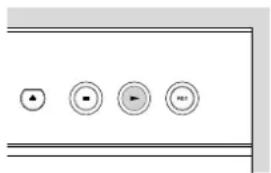
1 Unplug the power cord of the Recorder.
2 Press and hold the ▶ while you reconnect the power cord of the Recorder.
▶ On the display, BUSY appears with a counter number. Release the ▶.
▶ After a few minutes, the message changes from 'BUSY' to 'FAIL' or 'PASS.'
3 If FAIL appears on the display, there is apparently a failure in your Recorder. Your Recorder should be repaired. Consult your authorized YAMAHA dealer or Service Center for assistance.
4 If 'PASS' appears on the display, there is apparently no failure in your Recorder. In this case, the failure can be caused by incorrect interpretation of the operating instructions, a wrong disc in use, or incorrect connections. Consult your authorized YAMAHA dealer or Service Center for assistance.
5 Unplug the power cord, then reconnect it to a power source and use the DVD Recorder again as usual.
DVD Recorder system notes
DVD+RW and DVD+R discs recorded on your DVD recorder can be played on most DVD players and DVD-ROM drives, with the following issues:
- The time search function will not be available.
- The screen will display twice as many titles as there are on the disc.
This is due to the 'DVD+RW Video Format Specifications' and the 'DVD+R Video Format Specifications.' It is not a malfunction.
A DVD+RW/+R disc may not play on certain DVD Video players.
A DVD+RW/+R disc recorded on a different type or brand of Recorder can play, but may not provide all features commonly available to it, such as the on-screen disc bar, the disc settings menu, the title settings menu, and editing.
Refer to ‘Adapt disc format.’ If the disc is erase-protected, the status cannot be changed.
When using manual recording, the DVD Recorder will advise you before adapting the format of the disc or removing non-video data (See 'Before you start recording'). When using timer recording, however, the DVD Recorder will always start to record, unless the disc is write-protected. Menus, edits and other data recorded on a different device (e.g. a PC) may be lost.
Because of the Variable Bit Rate, a title map takes up less or more space than the overwritten title, even though the duration is the same. As a result, part of the original title may remain, or part of the next title may be lost. The maximum deviation is five minutes.
When you connect a remote control to the IN RC6 Remote Control Input on the back of the Recorder, the first signals from the remote control may be lost.
After a power interruption during recording, the Index Picture Screen may not match the actual video content on the disc. The last recorded title may be lost.
This section explains most important terms, abbreviations, and acronyms used in this document.
Term Explanation
| AC-3 | Audio Coding 3, also known as Dolby Digital. Multi-channel digital audio compression system from Dolby Labs. |
| A/V Audio/Video | |
| Chapter A part of a title. | |
| Disc Bar A graphical representation of the contents of a (DVD+RW) disc. | |
| Disc Pointer | An arrow indicating the current playback/recording position on the DVD+RW disc, appears on the 'disc bar.' |
| DTS Digital Theater System. A high-end Multi-channel audio compression format. | |
| DV | Digital Video.A video camera format for high-quality video, different from MPEG. It is converted into MPEG 2 video when recorded on DVD-RW. |
| DVD Digital Versatile Disc | |
| DVD+RW | DVD+ReWritable. The disc standard used by the DVD Recorder. |
| i.LINK | Also known as 'FireWire' and 'IEEE 1394.' A cable for transfer of high band width digital signals as used by Digital video camera. |
| Index Picture Screen | A screen that gives an overview of a DVD+RW disc, with 'index pictures' that each represent a recording. |
| MPEG | Motion Picture Experts Group.A collection of compression systems for digital audio and video. |
| NTSC | See TV system. NTSC is the most common color system in the U.S. |
| OSD | On-screen Display.The menus by which you can control the DVD Recorder via the TV screen. |
| OTR | One-Touch Recording.With this feature you can easily start a recording (by pushing just one button) and select the switch-off time in intervals of 30 minutes. |
| PAL | See TV system. |
| PBS | Public Broadcast Service.The channel that transmits data for Auto Clock Set and VCR Plus+ system. |
| PCM | Pulse Code Modulation. A digital audio encoding system. |
| RGB | Red-Green-Blue.A top-quality video connection where red, green and blue components of a video signal are carried through separate wires. |
| SECAM | See TV system. |
| S-Video | Sometimes called S-VHS or Super-VHS.A high-quality video connection standard. |
| Title | The name given to the unit of recording on the disc.A title, typically, represents one recording. |
| TruSurround | A system for simulating Multi-channel sound reproduction via a two-channel set-up, by SRS Labs, Inc. |
| TV system | There are various systems for transmitting television signals, for example PAL, PAL-I, PAL-BG, SECAM, SECAM-DK, NTSC, etc. The TV system is country dependent. The Recorder automatically selects the right TV system. |
| VCD | Video Compact Disc |
| VCR Video Cassette Recorder | |
| VCR Plus+ | Allows you to set a timer recording by entering a PlusCode number found in participating TV listings. |
Using your DVD Recorder remote control with your TV
Your DVD Recorder remote control has limited control of TVs of different brands.
The following buttons will operate TVs:
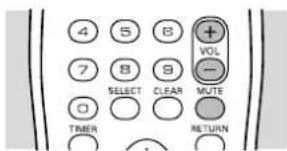
- VOL + increase TV volume
- VOL - decrease TV volume
- MUTE mute TV sound
Other buttons normally operate the DVD Recorder but will operate the TV if you press and hold TV SHIFT.
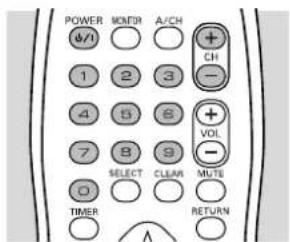
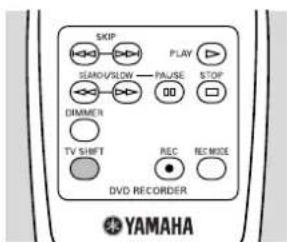
- CH + next higher TV channel
- CH - next lower TV channel
- 0 - 9 choose TV channel directly
- POWER (⏻/I)
switch TV to standby or power off or on If your TV does not respond to the Recorder's remote control, reprogram your remote control. Below are the remote control codes for various TV brands. Follow these steps to reprogram the remote control.
1 Look up the setup code for your TV in the code list in the following pages.
2 Pointing the remote control at the TV, press and hold ◀ and ▶ (left and right cursor) simultaneously for at least three seconds.
3 Release both buttons.
4 Within 30 seconds, enter the correct four digit code by using the digit buttons 0-9.
5 See if the remote works as described at left. If the remote does not work your TV, try other codes for your brand. If the brand of your TV is not in the list, try the codes for other brands one after the other or follow the alternative process as described below.
Remote control codes for television
Abex....1066
Admiral 1013, 1028, 1075
Aiko 1012
Akai 1005
Alaron 1022
American Action 1023
Anam 1023, 1079
AOC 1003, 1005, 1048
Audiovox....1012, 1023, 1027, 1029
Baysonic 1023
Belcor 1003
Bell & Howell....1016, 1075
Bradford....1023
Brocksonic....1024, 1028
Brockwood 1003
Candle 1005, 1009
Carnivale 1005
Carver 1000
Celebrity 1001
Cineral 1012, 1027
Citizen .....1005, 1009, 1010, 1012, 1044,
1046, 1064
Concerto 1009
Contec. 1023, 1063, 1065
Craig 1023
Crosley....1000
Crown 1023, 1064
Curtis Mathes ..... 1000, 1005, 1006, 1007, .....1009, 1010, 1013, 1014, 1016, .....1019, 1027, 1034, 1036, 1046, 1064
CXC....1023
Daewoo....1003, 1012, 1027, 1029, ....1030, 1064
Daytron 1003, 1064
Denon 1014
Dumont....1002, 1003
Electroband 1001
Electrohome 1079
Emerson..... 1003, 1016, 1021, 1022, 1023, .....1024, 1026, 1028, 1029, 1030, 1044, ..... 1045, 1063, 1064, 1067, 1068, 1069
Envision 1005
Fisher 1016, 1055, 1056
Fujitsu....1022, 1032
Funai. 1020, 1022, 1023
Futuretech 1023
GE....1004, 1006, 1007, 1013, 1021, ....1026, 1027, 1034, 1036, 1047, ....1060, 1061, 1062, 1079
Gibraltar 1002, 1003, 1005, 1063
Goldstar....1003, 1005, 1009, 1021, 1064, 1066
Gradiente....1008, 1009
Grundy....1064
Grunpy....1022, 1023
Hallmark 1021
Hardvard 1023
Harley Davison 1022
Harman Kardon....1000
Hitachi ..... 1009, 1014, 1063, 1065
Infinity 1000, 1077
Inteq. 1002
JBL 1000, 1077
JCB 1001
JVC....1008, 1060, 1063, 1065
JVC RMC383 1043
KEC 1023
Kenwood 1003, 1005
Kloss. 1057, 1058, 1059
KTV 1005, 1023, 1044, 1064
LG....1009
Loewe....1077
Luxman....1009
LXI ..... 1000, 1006, 1016, 1017, 1021, 1077
Magnavox....1000, 1005, 1022, 1049, ....1050, 1057, 1058, 1059, 1077
Marantz. 1000, 1005, 1077
Matsushita....1025
Megatron....1014, 1021
Memorex....1009, 1015, 1016, 1021, ....1025, 1028, 1075
MGA....1003, 1005, 1015, 1021, 1056
Midland. . . 1002, 1006, 1007, 1060, 1064, 1066
Minutz. 1004
Mitsubishi .....1003, 1013, 1015, 1021, 1056
Motorola. 1013, 1079
MTC....1003, 1005, 1009, 1010, 1046
Multitech 1019, 1023
NAD....1017, 1021
NEC....1003, 1005, 1009, 1079
Nikko 1005, 1012, 1021
NTC 1012
Onwa 1023
Optimus 1016, 1019, 1025
Optonica....1013, 1018
Orion....1022, 1024, 1028
Panasonic .....1007, 1025, 1060, 1077, 1079
Penney ..... 1003, 1004, 1005, 1006, 1007, ..... 1009, 1010, 1017, 1021, 1036, ..... 1046, 1060, 1063, 1064, 1066, 1076
Philco . . . 1000, 1003, 1005, 1014, 1028, 1049. .....1057, 1058, 1059, 1059, 1077, 1079
Philips....1000, 1049, 1050, 1057, ....1058, 1063, 1073, 1077, 1079
Pilot 1003, 1005, 1064
Pioneer 1019, 1031
Price Club....1046
Portland....1003, 1012, 1064
Prism. 1007, 1060
Proscan....1006
Proton 1021, 1063
Pulsar 1002, 1003
Quasar .....1007, 1018, 1025, 1060, 1079
Radio Shack.... 1003, 1005, 1006, 1009, .... 1016, 1018, 1021, 1023, 1063, .... 1064, 1066
RCA....1003, 1006, 1007, 1011, 1013, ....1033, 1034, 1035, 1036, 1037, ....1038, 1048, 1052, 1071, 1072, 1079
Realistic 1003, 1005, 1009, 1016, 1018, 1021, 1023, 1063, 1064
Runco 1002, 1005
Sampo....1005, 1064, 1066
Samsung ..... 1003, 1005, 1009, 1010, 1021, ..... 1046, 1063, 1064, 1066, 1078
Samsunx 1064
Sansei 1027
Sansui 1028
Sanyo 1016, 1055
Scimitsu....1003
Scotch 1021, 1063
Scott....1003,1021,1022,1023,1024
Sears . . . 1000, 1006, 1009, 1016, 1017, 1020, 1021, 1022, 1053, 1055, 1056, 1065
Semivox....1023
Semp....1017
Sharp . . . 1013, 1018, 1031, 1051, 1063, 1064
Shogun....1003
Signature 1075
Sony....1001, 1042
Sounddesign 1021, 1022, 1023
Squareview....1020
SSS. 1003, 1023
Starlite....1023
Supreme....1001
Sylvania ..... 1000, 1005, 1049, 1050, 1054, 1058, 1059, 1077
Symphonic....1020
Tandy....1013
Tatung....1079
Technics. 1007, 1025, 1060, 1063
Technol Ace. 1022
Techwood 1007, 1009, 1060
Teknika ..... 1000, 1003, 1009, 1010, 1012, ..... 1015, 1022, 1023, 1046, 1064, 1065
Telecaption 1074
Telefunken....1009
Thomson....1039
TMK 1009, 1021
Toshiba....1010, 1016, 1017, 1040, 1041, 1046, 1054, 1070, 1074
Totevision....1064
Vector Research....1005
Victor 1008
Vidikron....1000
Vidtech....1003, 1021
Wards ..... 1000, 1003, 1004, 1005, 1009, ..... 1018, 1021, 1022, 1049, 1050, 1054, ..... 1057, 1058, 1075, 1077
White_Westinhouse..... 1029, 1028, 1030
Yamaha 1003, 1005
Zenith 1002, 1012, 1028
DISC FORMATS SUPPORTED
| Disc type Playback Recording |
| DVD+RW • • |
| DVD+R • • |
| DVD-RW (Video format) • — |
| DVD-R • — |
| DVD-Video • — |
| SVCD • — |
| Video CD • — |
| Audio CD • — |
| CD-R • — |
| CD-RW • — |
| Medium DVD+RW: Phase-Change ReWritable DVD+R: dye-based | |||
| Diameter 12 cm | |||
| Capacity (single side) 4.7 Gbyte | |||
| Recording time | HQ | 60' | 9.72 Mbit/s |
| SP+ | 150' | 4.06 Mbit/s | |
| EP | 240' | 2.54 Mbit/s | |
| EP+ | 360' | 1.69 Mbit/s | |
| TV Standard | PAL/SECAM | NTSC | |
| Scan Frequency | 50Hz | 60Hz | |
| Number of lines | 625 | 525 | |
| Playback • • | |||
| Recording • • | |||
| Internal tuner | — | • | |
VIDEO FORMAT
| Digital Compression | MPEG2 for DVD |
| MPEG1 for VCD |
VIDEO RESOLUTION 50Hz 60Hz
| DVD-Video/ DVD+RW(HQ/SP+) | ||
| • Horiz. Resolution | 720 pixels1 | 720 pixels1 |
| • Vertical Resolution | 576 lines | 480 lines |
| DVD+RW (EP/EP+) | ||
| • Horiz. Resolution | 360 pixels2 | 360 pixels2 |
| • Vertical Resolution | 576 lines | 480 lines |
| VCD | ||
| • Horiz. Resolution | 352 pixels | 352 pixels |
| • Vertical Resolution | 288 lines | 240 lines |
| 1 equivalent to 500 lines on your TV | ||
| 2 equivalent to 250 lines on your TV | ||
VIDEO PERFORMANCE
| DA Converter | 10-bit |
| AD Converter | 9-bit |
| Signal handling | Components |
| Video Output | 1Vpp into 75 Ohm |
| S-video Output | Y:1 Vpp into 75 OhmC: 0.300 Vpp into 75 Ohm |
| Component/Progressive out | Y: 1Vpp into 75 OhmPb: 0.7 Vpp into 75 OhmPr: 0.7Vpp into 75 Ohm |
AUDIO FORMAT
| Compressed digital• Dolby Digital (AC-3) | Playback Recording | |
| Multi-channel | 2-channel16 bit, fs 48 kHz | |
| • DTS | Multi-channel | — |
| • MPEG1 | 2-channel | — |
| • MPEG2 | Multi-channel | — |
| Uncompressed digital (SPDIF) | ||
| • PCM | 2-channel16, 20, 24 bitfs 48 kHz | — |
AUDIO PERFORMANCE
| DA Converter | 24 bit | |
| AD Converter | 16 bit | |
| DVD | fs 96 kHz | 4 Hz - 44 kHz |
| fs 48 kHz | 4 Hz - 22 kHz | |
| Video CD fs 44.1 kHz | 4 Hz - 20 kHz | |
| Audio CD fs 44.1 kHz | 4 Hz - 20 kHz | |
| Signal-Noise (1kHz) | 105 dB | |
| Dynamic Range (1kHz) | 100 dB | |
| Crosstalk (1kHz) | 110 dB | |
| Distortion/Noise (1kHz) | 90 dB | |
FRONT CONNECTIONS
| i.LINK DV IEEE 1394 4-pin | |
| S-video Input | Hosiden 4-pin* |
| Video Input Cinch (yellow)* | |
| Audio Left/Right Input | Cinch (white/red)* |
REAR CONNECTIONS
| Component Video In | Cinch (green/blue/red)* |
| Component Video Out | Cinch (green/blue/red)* |
| Progressive Scan Out | Cinch (green/blue/red)* |
| S-video In | Hosiden 4-pin |
| S-video Out | Hosiden 4-pin |
| Video In Cinch (yellow)* | |
| Video Out (2x) | Cinch (yellow)* |
| Audio L/R In (2x) | Cinch (white/red)* |
| Audio L/R Out (2x) | Cinch (white/red)* |
| Digital Audio Out | 1 coaxial*, 1 opticalIEC958 for CDDA / LPCMIEC1937 for MPEG2, Dolby Digital |
| RF Antenna In | Coaxial 75 ohms |
| RF TV Out | Coaxial 75 ohms |
| Power | Standard (IEC type) |
| * gold-plated | |
PROGRAMMING
| Number of events | 6; 1 year; Daily/Weekly |
| Programming mode | OTR, Remote |
| Timer programming | Manual, the VCR Plus+ system |
DISC RECORDING
| - One-Touch Recording (OTR) |
| - Safe Recording |
| - Append |
| - Divide |
| - Erase |
| - Automatic/Manual Chapter Marker insertion |
| - Disc write lock |
| - Index Picture Screen |
| - Custom Index Pictures |
| - Automatic/Manual Audio Recording Level |
DISC PLAYBACK
| - Auto Resume (20 disc) |
| - Play / Stop / Pause |
| - Fast Forward/Backward (three speeds) |
| - Step Forward/Backward |
| - Slow (three speeds) |
| - Title / Track Select |
| - Next / Previous Title / Track / Chapter |
| - Repeat (Chapter / Title / All) or (Track / All) |
| - A-B Repeat |
| - Intro Scan |
| - Perfect Still with digital multi-tap filter |
| - Zoom (x1.33, x2, x4) with picture enhancement |
| - Pan |
GENERAL FUNCTIONALITY
| - 3D sound (SRS TruSurround) |
| - Beep Feedback for Remote Control |
| - Backup Presets & Timer Events: 1 year |
| - Backup Clock & Calendar: 7 hours |
| - Time & Date Download from PBS channel |
POWER SUPPLY
| AC power: | polarized (IEC) | |
| Power supply | 100 - 120V AC50/60 Hz | |
| Power consumption | Operation | 36 W |
| Low-power standby | 3 W |
CABINET
| Dimensions (WxHxD) | 17x4.8x13 inches |
| Net Weight | 13.9 lb. (6.3 kg) |
| Front Panel | 3mm Aluminum |

YAMAHA
- WARNING:
- CAUTION:
- ATTENTION:
- Important safety instructions
- FCC INFORMATION (for US customers)
- NOTE TO CABLE TV SYSTEM INSTALLER:
- Laser safety
- USE OF CONTROLS OR ADJUSTMENTS OR PERFORMANCE OF PROCEDURES OTHER THAN THOSE SPECIFIED HEREIN MAY RESULT IN HAZARDOUS RADIATION EXPOSURE.
- LASER
- For Customer Use:
- CAUTION
- Read this before operating your unit.
- FOR CANADIAN CUSTOMERS
- Supplied Accessories
- DVD Recorder
- Cleaning discs
- Remote control
- Connections - back of your DVD Recorder
- Step 1: Connecting to the antenna or Cable TV signal
- Step 2: Connecting to a TV
- Progressive Scan connection
- Note:
- Component Video (YP _B P _R ) connection
- S-Video (Y/C) connection
- Video (CVBS) connection
- Step 3: Connecting to audio equipment
- Connecting to an A/V receiver or A/V amplifier with a digital Multi-channel decoder
- Digital Multi-channel sound
- Connecting to a receiver equipped with two channel digital stereo (PCM)
- Connecting to a receiver equipped with Dolby Pro Logic
- Connecting to a TV with a Dolby Pro Logic decoder
- Connecting to a receiver with two channel analog stereo
- Step 4: Connecting to other equipment (optional)
- -Set top box (cable box or satellite receiver) -VCR
- -DVD Video player
- Step 5: Connections - Front of your DVD Recorder (optional)
- Video camera connection
- Step 6: Power supply
- Switching on
- First time setup: Initial setup
- Manual setting
- Menu language
- Audio language
- Subtitle language
- Automatic TV Channel Search
- Display
- POWER ( ⏻/1 )
- MONITOR
- A/CH (Alternate Channel)
- 0-9
- SELECT
- CLEAR
- TIMER
- SKIP
- PLAY
- SEARCH/SLOW
- □□ PAUSE
- □ STOP
- DIMMER
- TV SHIFT
- ● REC
- REC MODE
- CH+/-
- VOL +/−
- MUTE
- RETURN
- ▼▲◀▶
- ENTER/OK
- TOP MENU
- SYSTEM MENU
- EDIT
- TITLE/CHAP
- SUBTITLE
- AUDIO
- ANGLE
- ZOOM
- REPEAT
- A-B
- SHUFFLE
- SCAN
- Important notes for operation
- Notes:
- Loading discs
- Disc types
- Discs for recording and playing:
- DVD+RW
- DVD+R
- Discs for playing only:
- DVD-Video
- DVD-R (DVD-Recordable)
- DVD-RW
- CD Digital Audio
- Super Audio CD
- (Super) Video CD
- CD-R (Recordable) / CD-RW (Rewritable)
- Discs unsuitable for recording or playing:
- DVD-RAM
- DVD-Audio
- On-screen display information
- System menu bar
- System menu bar icons
- Temporary feedback icons
- User preference menu operation
- User preference menu icons
- Status box
- Tuner info box
- Timer info box
- Index Picture Screen
- User preferences
- Setting user preferences
- Picture settings
- TV Shape
- Black level shift (NTSC OUTPUT only)
- Video shift
- Optimize video output
- Sound settings
- Digital output
- Analog output
- Night mode
- Language settings
- Recording audio
- Feature settings
- Access Control
- Adapt disc format
- Auto resume
- Low Power Standby
- PBC
- Finalize disc
- Remote Control setting
- Key sound
- Record Settings
- Record mode
- Auto chapters
- Filter mode
- Installation
- Update/Re-install TV channel
- Add and delete TV channels
- VCR Plus+® ch
- Time/Date Automatic
- Time/Date Manually
- Cable/Antenna
- Before you start recording
- Important:
- Manual recording of a TV channel or from a video camera
- Checking input
- Recording
- Press REC.
- Safe Recording
- Manual audio control
- Recording with automatic switch-off (OTR One-Touch Recording)
- Timer programming
- When using timer recording.
- Timer programming with the VCR Plus+® system
- Timer programming without the VCR Plus+ system
- If a timer recording is incorrect
- Collision
- Please enter channel number
- PlusCode number wrong
- Weekend programming - not possible
- Memory full
- Clock not set-check Clock channel
- Data error
- Checking or altering a Timer Recording
- Clearing a timer block
- Press CLEAR.
- Confirm with ENTER/OK.
- How to stop a Timer Recording in progress
- Playing a DVD+RW/+R disc
- Playing a pre-recorded DVD-Video disc
- Playing a (Super) Video CD
- General features
- Moving to another title/track
- Moving to another chapter/index
- Slow Motion
- Still Picture and Frame-by-Frame Playback
- Search
- DVD Discs - Repeat chapter/title/disc
- Video CDs - Repeat track/disc
- Repeat A-B
- Time search
- Press ZOOM.
- Press ENTER/OK.
- DVD Discs
- Video CDs
- Special DVD+RW/+R features
- Recording date and time
- Special DVD-Video features
- Menus on the disc
- Title menus
- Press TOP MENU.
- Disc menu
- Camera Angle
- Changing the audio language
- Subtitles
- Special VCD features
- Playback Control (PBC)
- Playing an Audio CD
- Pause
- Moving to another track
- Repeat track/disc
- Child Lock (DVD and VCD)
- Authorizing discs when Child Lock is activated
- Locking Discs that were formerly unlocked
- Parental Level (DVD-Video only)
- Activating/Deactivating Parental Control
- Country
- Changing the 4-digit code
- Title settings
- Changing name of a recording
- Play full title
- Erase this title
- Disc Information Screen
- Disc Settings
- Disc name
- Protection
- Erase disc
- Finalizing a DVD+R disc
- Make edits DVD-compatible
- Press ENTER/OK.
- Press ENTER/OK again.
- Editing
- Inserting a chapter marker
- Hiding a chapter
- Deleting chapter markers
- Changing the index picture
- Press ENTER/OK.
- Dividing a title
- Append recording
- Diagnosis program
- Instructions
- DVD Recorder system notes
- Using your DVD Recorder remote control with your TV
- Remote control codes for television
- YAMAHA
Brand : YAMAHA
Model : DRX-1
Category : DVD Recorder