
VLOG Pocket - Tripod FeiyuTech - Free user manual and instructions
Find the device manual for free VLOG Pocket FeiyuTech in PDF.


| Product Type | Three-Axis Handheld Smartphone Gimbal (Foldable) |
| Model | VLOG Pocket by FeiyuTech |
| Dimensions (Folded) | 108.5 x 91 x 145.5 mm |
| Dimensions (Unfolded) | 242 mm (height) |
| Weight | 272 g (without smartphone) |
| Payload | 240 g |
| Smartphone Compatibility | Width 42–88 mm; iOS 9.0+ / Android 6.0+ |
| Battery Operating Time | Up to 8 hours |
| Battery Standby Time | Up to 14 hours |
| Charging | Via Micro-USB, red light charging, green fully charged |
| Pan Range | 330° |
| Roll Range | 240° |
| Tilt Range | 165° |
| Modes | Panning (default), Lock, Follow, Manual Lock, Landscape/Portrait |
| Key Features | Foldable design, Bluetooth control, Feiyu ON app support, face/object tracking, time-lapse, panorama |
| Accessories Included | Tripod, Micro-USB cable |
| Maintenance | Keep dry; do not disassemble; store in cool, dry place |
| Safety | Remove phone case before mounting; unlock clamps before powering on |
| Disclaimers | Read full manual before use; no liability for misuse |
Frequently Asked Questions - VLOG Pocket FeiyuTech
User questions about VLOG Pocket FeiyuTech
0 question about this device. Answer the ones you know or ask your own.
Ask a new question about this device
Download the instructions for your Tripod in PDF format for free! Find your manual VLOG Pocket - FeiyuTech and take your electronic device back in hand. On this page are published all the documents necessary for the use of your device. VLOG Pocket by FeiyuTech.
USER MANUAL VLOG Pocket FeiyuTech
- Overview 1
- Start to Use 2
2.1 Fold and Unfold 2
2.2 Charging 3
2.3 Smartphone Installation 3
2.4 Power on / off 4
2.5 Landscape Switching 4
- Function Operation 5
3.1 Function / Modes Introduction 5
3.2 Function Button Operation 6
3.3 Shutter Button Operation 7
3.4 Trigger Button Operation 8
3.5. Landscape and Portrait Shot Switching 8
3.6 Light Indicator 9
-
Gimbal Initialization 10
-
Download and Connect App 11
5.1 Download the App 11
5.2 Connect the App 11
5.3 Shooting / control interface 12
5.4 Firmware Upgrade 12
- Specifications 13
VLOG pocket is a three-axis handheld gimbal suitable for mobile phones. It is small and foldable which can be folded into a pocket. The gimbal supports landscape and portrait shooting, which can also control phone shooting.
Suggestion
Vlog pocket includes below information, please read the information before using the gimbal
- Quick start guide
- Online instruction
- Tutorial
The tutorial videos can be watched at FeiyuTech official website or scan the QR code as below: http://www.feiyu-tech.com/play/

Download the Feiyu ON App
Please download Feiyu ON at your smartphone app store or can the QR code below.
* Requires iOS 9.0 or later, Android 6.0 or later.


iOS Version Android Version
1. Overview
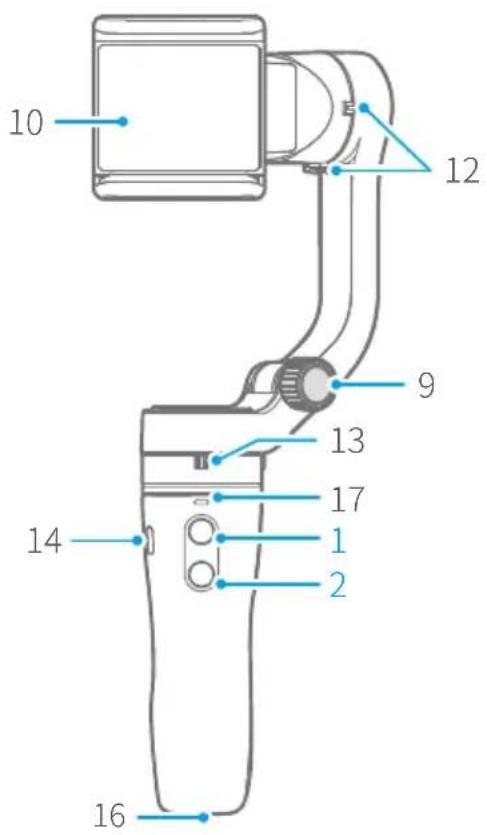
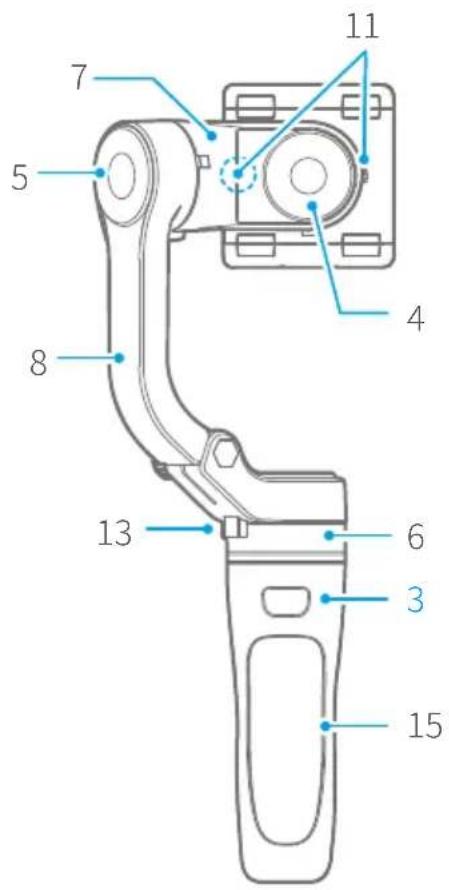
-
Function button
-
Shutter button
-
Cross arm
-
Vertical arm
-
Pan axis clamp
-
Micro-USB port
-
Handle3. Trigger button 9. F
-
Smartphone holder4. Roll axis 16. 1/4 inch thread hole
-
Tilt axis 17. Status indicator 11. Roll axis clamp
-
Pan axis
-
Tilt axis clamp
Accessories

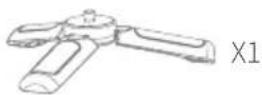
TripodMicro-USB Cable
2. Start to Use

TIPS
(1) Please fully charge the battery before powering on the gimbal for the first time.
(2) If the power is too low, the red light will flash three times every five seconds that indicating you should charge it immediately.
(3) When not in use, power off the gimbal.
(4) Unlock the three axis clamp before powering on the gimbal.
(5) Landscape to mount smartphone.
2.1. Fold and Unfold
Unfold
(1) Loosen the folding knob and tighten the knob after unfolding the vertical arm.
(2) Unlock the three axis clamp.
Fold
(1) Lock the three axis clamp.
(2) Loosen the folding knob, and then tighten the knob after folding the vertical arm.
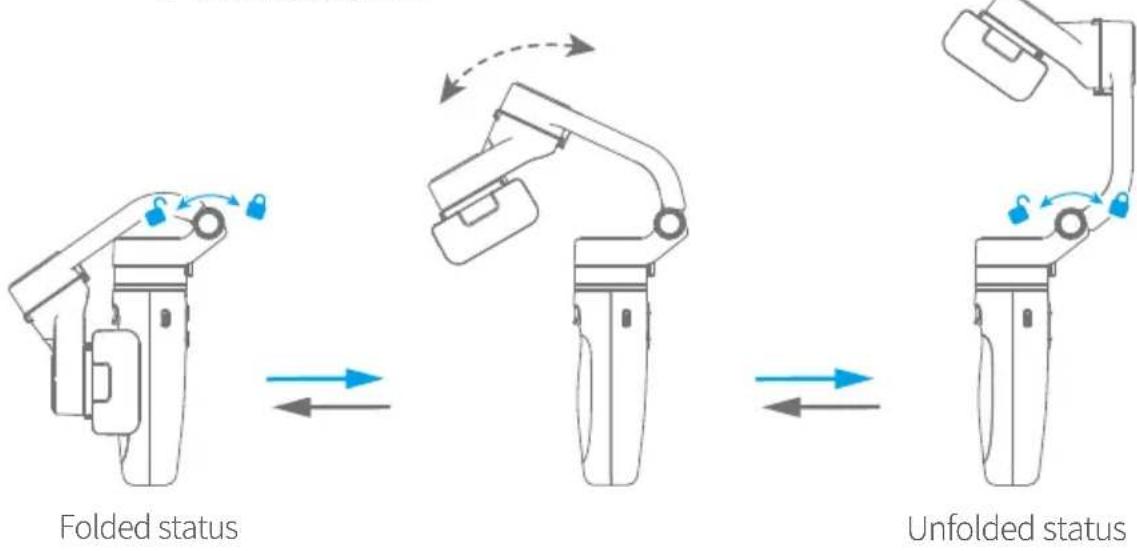
flowchart
graph LR
    A["Folded status"] --> B["Unfolded status"]
    B --> C["Unfolded status"]
Unlock / Lock the clamp
Take the pan axis clamp for example.
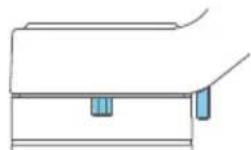
Unlock status
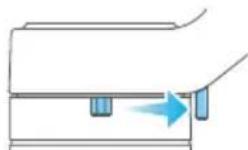
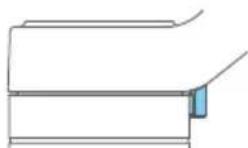
Lock status
2.2 Charging
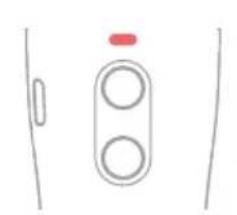
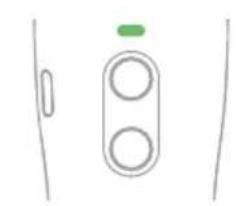
Connect the USB cable to charge. The indicator light is red when charging, and green when fully charged.
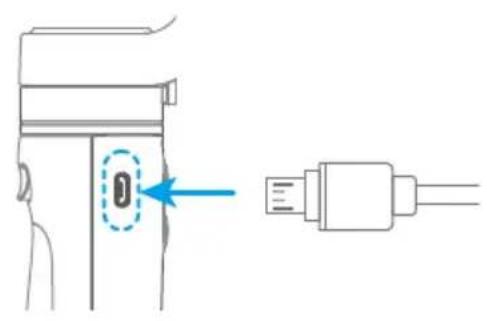
natural_image
Simple line drawing of a vertical bar with two circular cutouts and a red dot on top (no text or symbols)Charging
natural_image
Simple line drawing of a vertical tube with two circular ports and a green indicator on top (no text or symbols)Charge complete
2.3 Smartphone Installation
It is recommended to remove the smartphone case before installation and keep the logo VLOGpocket of the smartphone holder upward.
Keep the smartphone holder in center.
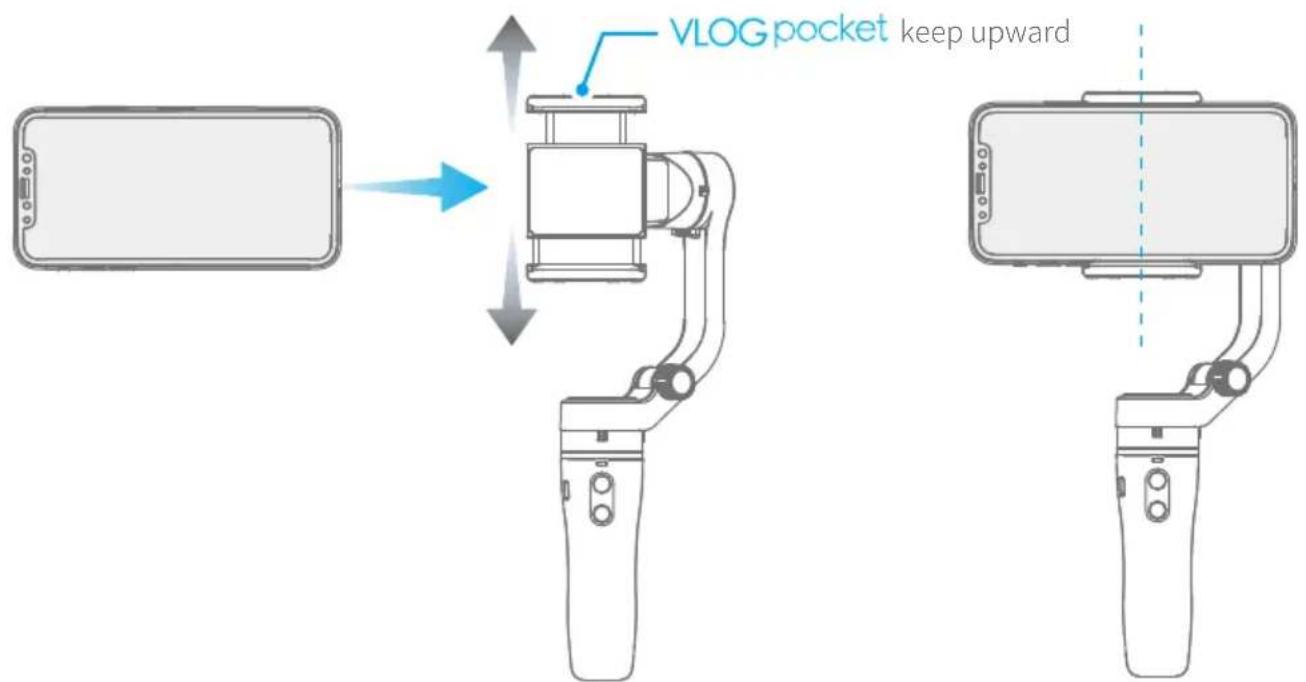
Installation complete
2.4 Power on / off
Unlock the three axis clamp before powering on the gimbal.
Turn on the smartphone only after it is installed securely.
Power on
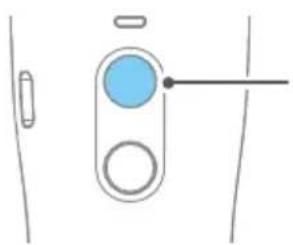
Long time press the function button and release it when you hear the tone. (Green light will change to blue)
Power off
Long time press the function button and release it when you hear the tone. (The red light will turn off)
natural_image
Simple line drawing of a blue circular button with an arrow pointing to it, no text or symbols presentLong time press
2.5 Landscape Switching
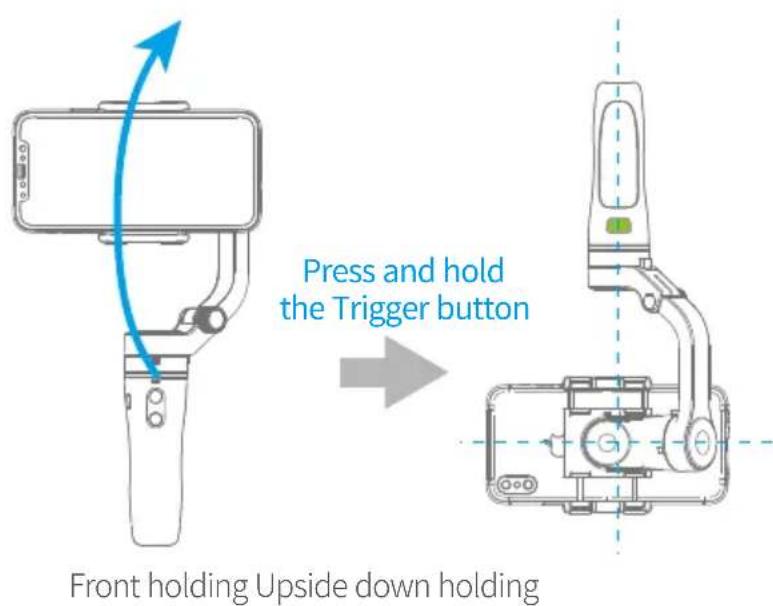
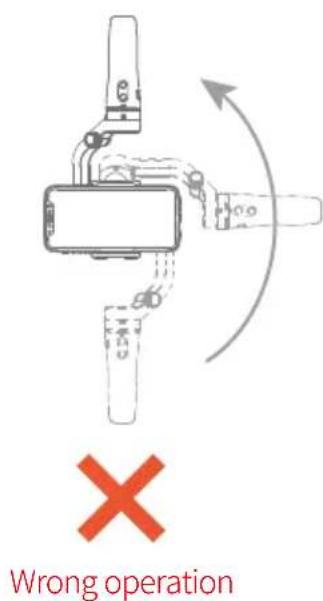
Holding the gimbal, press and hold the trigger button, turn the handle forward to the inverted holding, and release the trigger button after adjusting the phone to the appropriate angle. Upside-down handheld can be used to take low angle pictures.
Double click trigger button is recommended before operating the landscape mode.
Please do not rotate the gimbal from your right side to upside down position.
3. Function Operation
3.1 Function / Modes Introduction
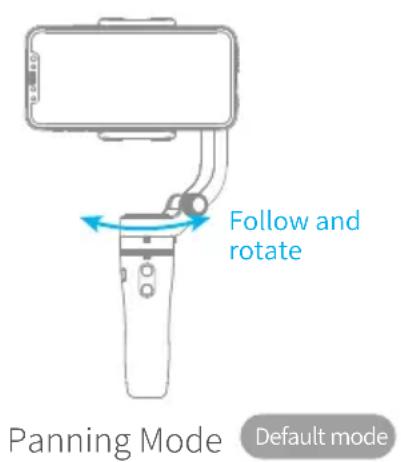
Panning Mode (Default mode)
The roll and tilt direction are fixed, and the smartphone moves according to the left-right movements of the user's hand.
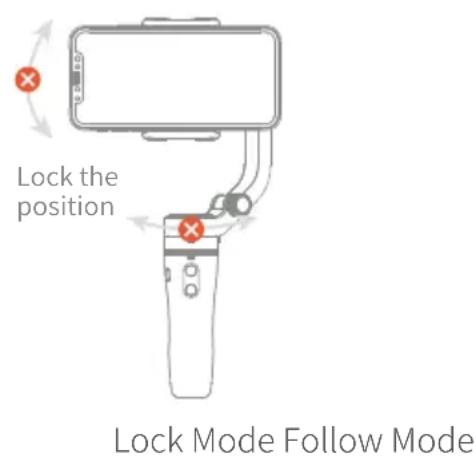
Lock Mode
The orientation of the camera is fixed.
Follow Mode
The roll direction is fixed, and the smartphone moves according to the left-right movements, up-down movements of the user's hand.
Reset
Return to panning mode, three axises return to default position.
Manual Lock
Slide the tilt axis to one position for shooting.
Landscape and Portrait Shot
Assist landscape or portrait shooting.

Single click the function button

Click again the function button
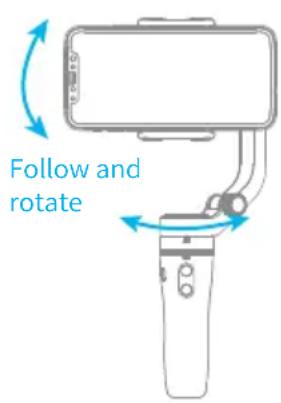

Press and hold the Shortcut button
3.2 Function Button Operation
| Function button | Function | Status Indicator | ||
| Single click | Click once | Panning Mode |  | |
| Click again | Lock Mode |  | ||
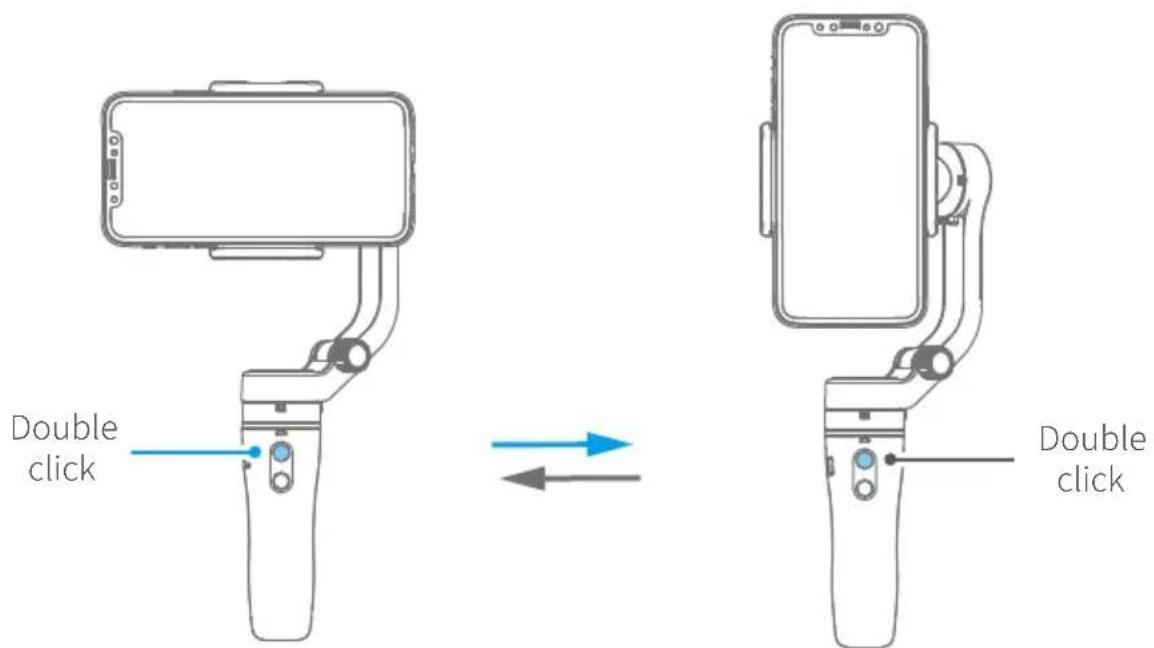
| Double click | Landscape and portrait shot switching | Keep current status | ||
| Five click | Gimbal Initialization(Single click the function button to wake up) |  | ||
| Long time press | Power on / off | Power on |  | |
| Power off |  | |||
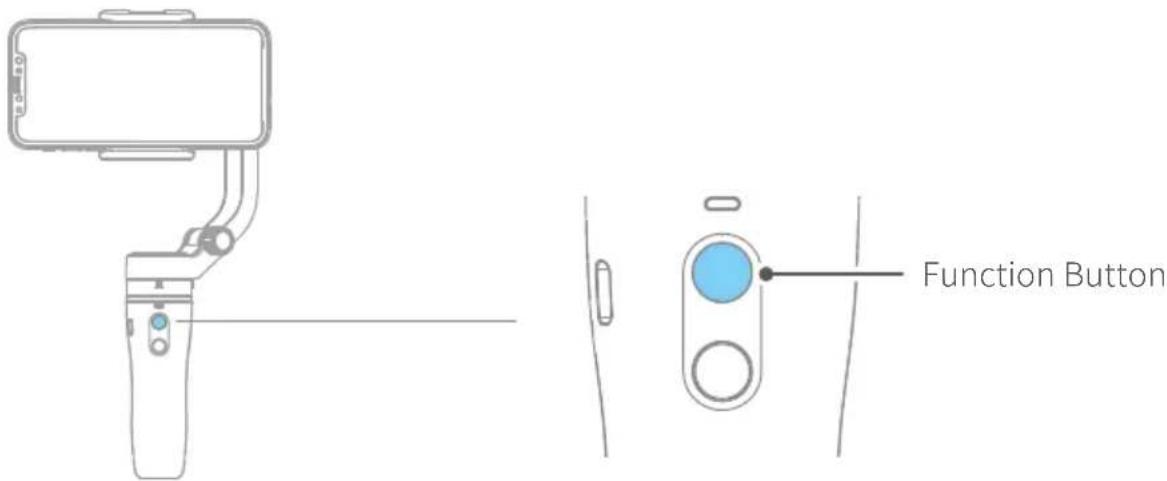
3.3 Shutter Button Operation
The gimbal can control the photography after only Bluetooth is connected with smartphone.
Connect Smartphone
Bluetooth connection
(1) Power on VLOG pocket, open smartphone bluetooth.
(2) Choose below Bluetooth connection way:
a. Choose VLOG pocket Bluetooth to connect like FY_PocketV_xx.
b. Open Feiyu ON app, logon or register via tips to connect.
(3) After Bluetooth connecting successful, the shutter button is activated. The green light flashes once while other indicator status (About every 5 seconds flashes once)
| Shutter Button | Function | Control the App | Control smartphone camera* via bluetoothFeiyu ON |
| Single click | Photography | √ | √ |
| Video (Click again to finished the video) | √ | √ | |
| Double click | Switch to photo / video mode | √ | × |
| Triple click | Switch front and rear camera | √ | × |
| Long time press | Video recording in shooting mode (Long press the shutter button again to end the recording) | √ | × |
* We suggest close Feiyu ON App when you control smartphone camera.
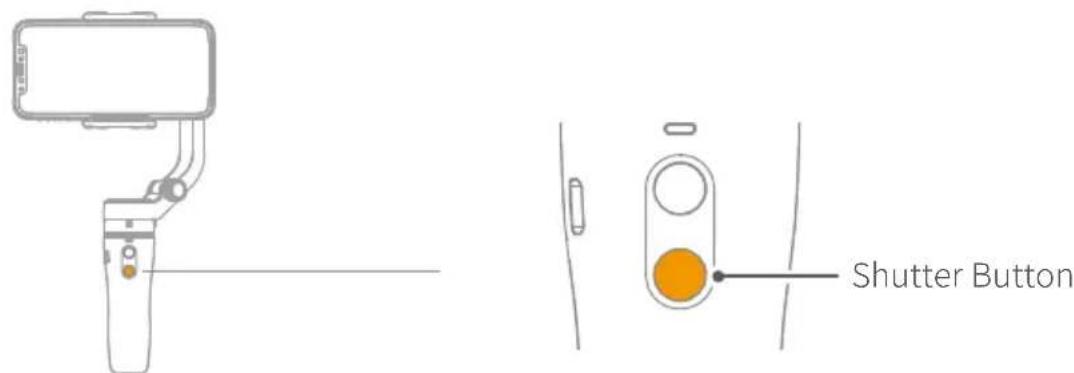
3.4 Trigger Button Operation
| Trigger Button | Function | Status Indicator |
| Press and hold | Enter follow mode( Release trigger button enter into previous mode ) |  |
| Double click | Reset |  |
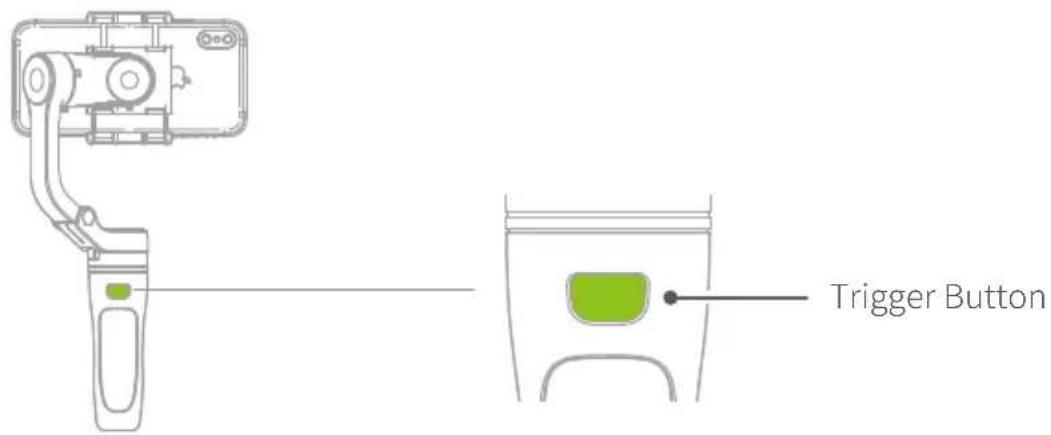
3.5 Landscape and Portrait Shot Switching
Double click the function button to switch modes between landscape and portrait.
3.6 Light Indicator
| Indicator | Instruction | |
| Blue light flashes once | Panning mode / Reset | |
| Constant blue light | Lock mode / Initialization | |
| Blue light flash two times | Follow mode | |
| Green light flashes once | Photo / Video | |
| Green light flashed once in 5 secondsWhile other indicator status | Bluetooth connected | |
| Green light change to blue | Power on | |
| Red light turn off | Power off | |
| Red light flashes three times | Low power | |
| Red light keeps flashing | Gimbal powering off | |
| Constant red light until turn off | MalfunctionPower off with prompt sound | |
4. Gimbal Initialization
You can initialize your gimbal when:
When smartphone is not level
If not used for a long period of time
In case of extreme temperature variations
Steps
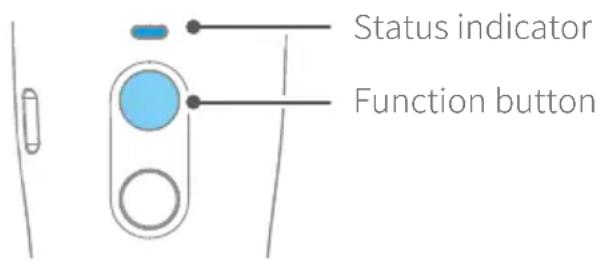
(1) Click the function button five times. The motors will stop working. Status indicator turns solid blue.
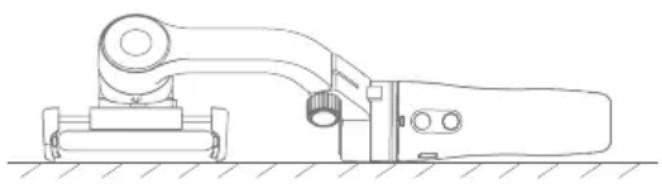
(2) Place the gimbal on a flat, horizontal surface. The gimbal will automatically reset after a few seconds detecting no movement. The blue light will flash three times to indicate end of the reset process.
natural_image
Technical line drawing of a mechanical assembly with no visible text or symbols(3) After the initialization is successful, click the function button to wake up.
Note: if the initialization is not successful, click the function button to wake up. restart initialization process.
5. Connect and Use Feiyu ON App
5.1 Download the App

Feiyu ON
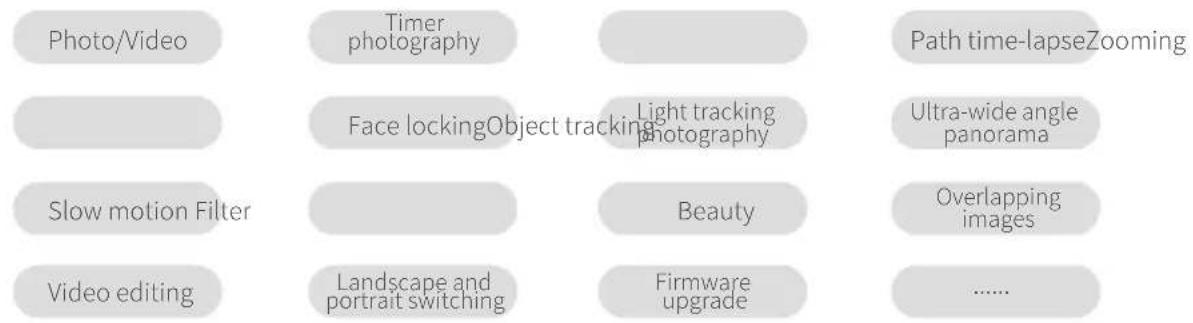
flowchart
graph TD
    A["Photo/Video"] --> B["Timer photography"]
    C["Face lockingObject tracking"] --> D["Light tracking photography"]
    E["Slow motion Filter"] --> F["Beauty"]
    G["Video editing"] --> H["Landscape and portrait switching"]
    I["Path time-lapseZooming"] --> J["Ultra-wide angle panorama"]
    K["Firmware upgrade"] --> L["Overlapping images"]
    M["......"]
Please download Feiyu ON at your smartphone app store or can the QR code below.
* Requires iOS 9.0 or later, Android 6.0 or later.


iOS Version Android Version
5.2 Connect the App
Open Feiyu ON app and connect the gimbal via tips.
Format Bluetooth of gimbal: FY_PocketV_XX
5.3 Shooting / control interface
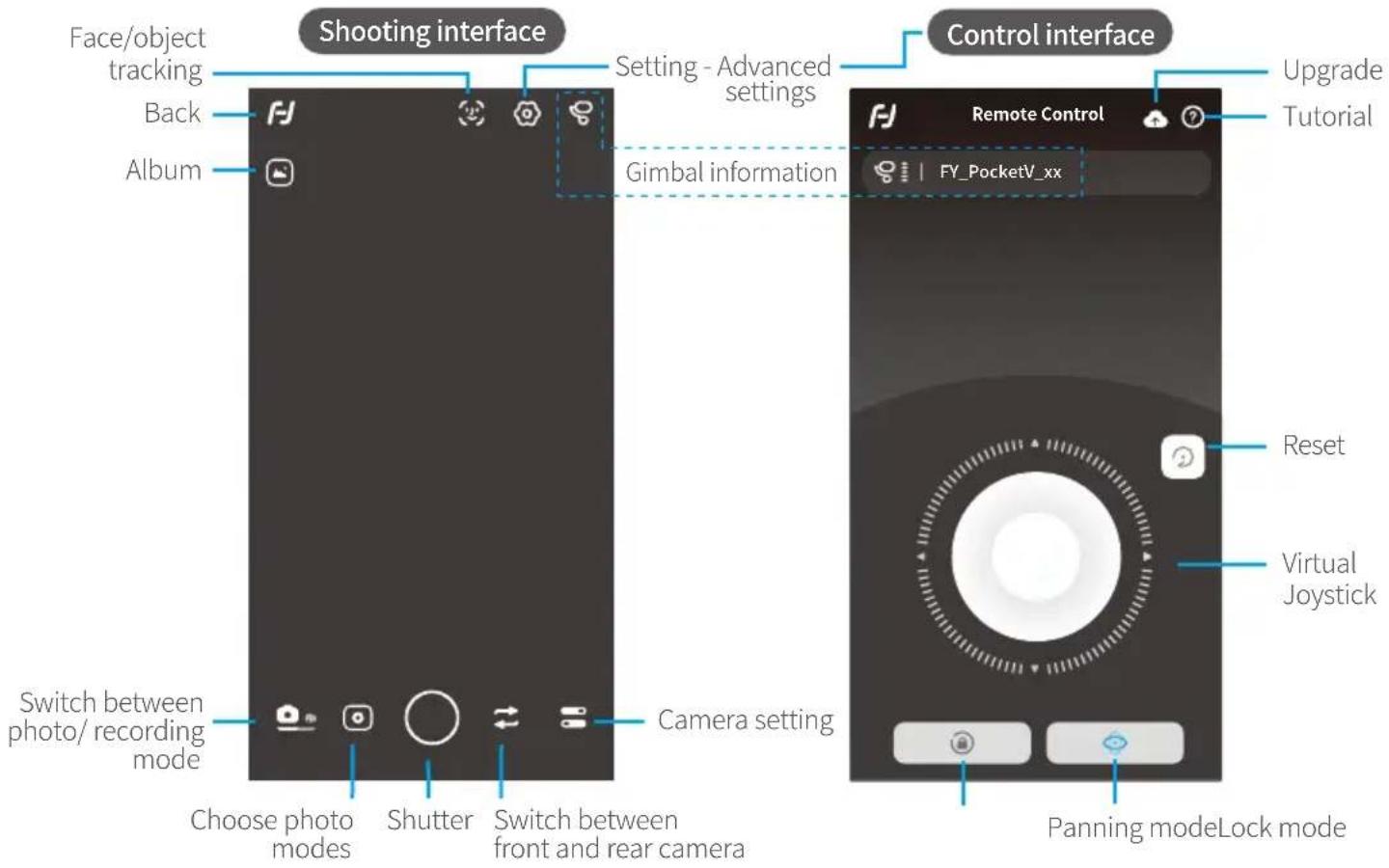
5.4 Firmware Upgrade
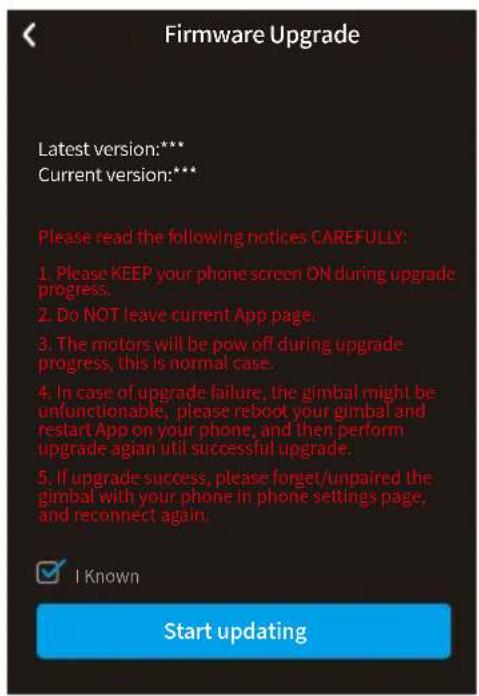
Upgrade the firmware through the App.

(1) Click the icon
(2) Select upgrade type.
(3) Follow the prompts to upgrade the firmware.
Upgrade type introductions:
Keyboard firmware update: Repair / update or newly add button/touch screen/interaction functions, update more compatibility cameras which can be controlled through WIFI, repair few bugs about camera control through WIFI, and etc.
Bluetooth firmware update: Repair / update or newly add Bluetooth functions, update more compatibility cameras, and etc.
6. Specifications
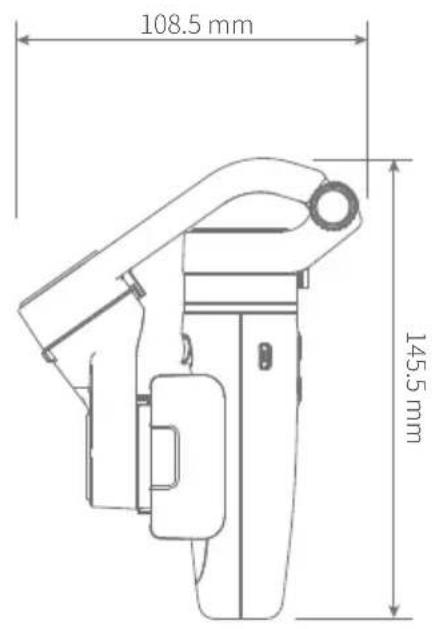
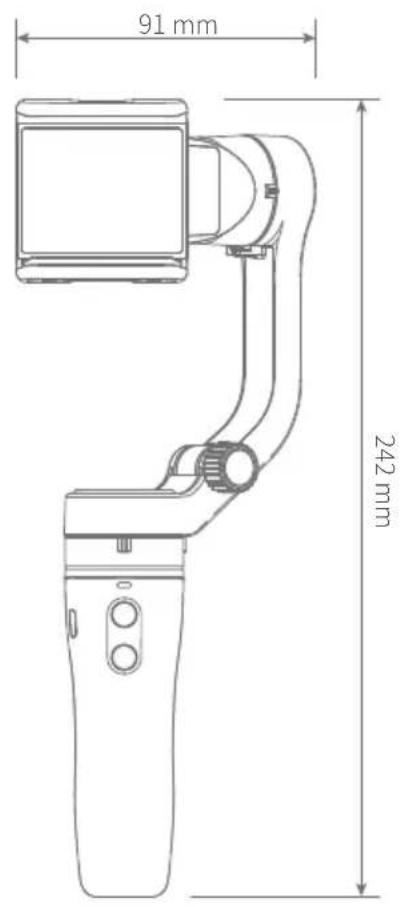
Product Name VLOG pocket Foldable Smartphone Gimbal
Max. Tilting Range 165°
Max. Rolling Range 240°
Max. Panning Range 330°
Operation Time 8 Hours
Standby Time 14 Hours
Weight 272g (Not including the smartphone)
Payload 240g
Adapter iPhone and Android phones smartphones (The width of the phone is between 42\~88mm)
Disclaimer
Thanks for using Feiyu Gimbal. The information in this document affects your safety and your legal rights and responsibilities. Read the entire document carefully to ensure proper configuration before use, Failure to read and follow instructions and warnings in this document may result in serious injury to yourself or others, or damage to your products or damage to other objects in the vicinity.
By using this product, you hereby signify that you have read this disclaimer and warning carefully and that you understand and agree to abide by the terms and conditions herein. You agree that you are solely responsible for your own conduct while using this product, and for any consequences thereof. You agree to use this product only for purposes that are proper and in accordance with all applicable laws, rules, and regulations, and all terms, precautions, practices, policies and guideline FeiyuTech has made and may make available. FeiyuTech accepts no liability for damage, injury or any legal responsibility incurred directly or indirectly from the use of product.
FeiyuTech will not provide any service for any product obtained from abnormal channels.
Notice
- Make sure motor spinning is not blocked by external force when gimbal is power on.
- Gimbal DO NOT contact water or other liquid if the gimbal is not mark waterproof or splash-proof. Waterproof and splash-proof product DO NOT contact sea water or other corrosive liquid.
- DO NOT disassembly the gimbal except marked detachable. It need send to FeiyuTech after-sales or authorized service center to fix it if you accidentally disassembly and cause abnormal work. The relevant costs are borne by user.
- Prolonged continuous operation may cause the motor surface temperature to rise, please operate carefully.
- DO NOT drop or strike batteries. If the battery is abnormal, contact Feiyu After-sales support.
Storage and Maintenance
- Keep the gimbal and battery out of the reach of children and pets.
- DO NOT leave the gimbal and battery near heat sources such as a furnace or heater. DO NOT leave the gimbal and battery inside of a vehicle on hot days.
- Please storage the battery in dry environment.
- DO NOT overcharge or overuse the battery, otherwise it will cause damage to the battery core
- Never use the gimbal and battery when the temperature is too high or too low.
Official Social Media





Website Facebook Youtube Twitter Instagram
Facebook: www.facebook.com/feiyutech
YouTube Channel: www.youtube.com/c/Feiyu-tech
Twitter: www.twitter.com/feiyutech
Instagram: www.instagram.com/FeiyuTech
YouTube Channel: www.youtube.com/c/Feiyu-tech
Guilin Feiyu Technology Incorporated Company
For more information, please visit our official website www.feiyu-tech.com
E-mail: service@feiyu-tech.com Tel: +86 773 2320865
Due to software and hardware improvements, your actual product might differ from the descriptions and pictures in this user manual. You can get the latest user manual from the official website.

- Suggestion
- Download the Feiyu ON App
- Overview
- Accessories
- Start to Use
- TIPS
- Fold and Unfold
- Unfold
- Fold
- Unlock / Lock the clamp
- Charging
- Smartphone Installation
- Power on / off
- Power on
- Power off
- Landscape Switching
- Function Operation
- Function / Modes Introduction
- Panning Mode (Default mode)
- Lock Mode
- Follow Mode
- Reset
- Manual Lock
- Landscape and Portrait Shot
- Function Button Operation
- Shutter Button Operation
- Connect Smartphone
- Bluetooth connection
- Trigger Button Operation
- Landscape and Portrait Shot Switching
- Light Indicator
- Gimbal Initialization
- Steps
- Connect and Use Feiyu ON App
- Download the App
- Connect the App
- Shooting / control interface
- Firmware Upgrade
- Specifications
- Disclaimer
- Notice
- Storage and Maintenance
- Official Social Media
Brand : FeiyuTech
Model : VLOG Pocket
Category : Tripod