
AVIC-F90BT - Gps PIONEER - Free user manual and instructions
Find the device manual for free AVIC-F90BT PIONEER in PDF.


| Product Type | In-Dash Car Navigation System |
| Model | AVIC-F90BT |
| Display Size | 7-inch touchscreen |
| Dimensions (Main Unit) | 200 x 100 x 165 mm (approx.) |
| Weight | ~2.5 kg (including box) |
| Power Consumption | 12V DC (<10A) |
| GPS Receiver | Built-in, SiRFstarIII chipset |
| Map Coverage | Preloaded with maps for North America/Europe (varies by region) |
| Audio/Video Playback | DVD, CD, MP3, WMA, JPEG, DivX |
| Bluetooth | Hands-free calling and audio streaming |
| Navigation Features | Turn-by-turn directions, voice guidance, 3D landmarks |
| Traffic Information | TMC-ready (traffic receiver optional) |
| Rear View Camera Input | Yes (RCA input) |
| Maintenance | Clean with dry cloth; avoid solvents |
| Safety | Designed for safe driving; park to use full functions |
| Spare Parts Availability | Discontinued; find used parts online |
| Repairability | Service by authorized Pioneer centers |
| Languages Supported | Multiple languages (including English) |
| Warranty | Check original purchase documents |
Frequently Asked Questions - AVIC-F90BT PIONEER
User questions about AVIC-F90BT PIONEER
0 question about this device. Answer the ones you know or ask your own.
Ask a new question about this device
Download the instructions for your Gps in PDF format for free! Find your manual AVIC-F90BT - PIONEER and take your electronic device back in hand. On this page are published all the documents necessary for the use of your device. AVIC-F90BT by PIONEER.
USER MANUAL AVIC-F90BT PIONEER
Besuretoread "ImportantInformationfortheuser" first! "ImportantInformationfortheuser" include the importantinformationthatyoumustunderstandbefore using this navigation system.
Thissoftwareerequiresthatthenavigationsystemis properlyconnectedtoyourvehicle'sparkingbrakeand dependingonyourvehicle,additionalinstallationmay berequired.Formoreinformation,pleasecontactyour AuthorizedPioneerElectronicsretailerorcallusat (800)421-1404.



Contents
ThankyouforbuyingthisPioneerproduct.
Pleasereadthroughtheseoperatinginstructionsssoyouwillknowhowtooperate yourmodelproperly.Afteryouhavefinishedreadingtheinstructions,keepthismanualinasafeplaceforfuturereference.

Important
Thescreensshownintheexamplesmaydiffer fromtheactualscreens.
The actual screens may be changed without notice for performance and function improvements.

Introduction
Manualoverview8
-Howtoreadthismanual8
-Terminology8
-Aboutthedefinitionofterminology8
Features9
Mapcoverage11
ProtectingtheLCDpanelandscreen11
ViewingtheLCDcomfortably11
Notesforinternalmemory11
-Beforeeremovingthevehicle battery11
-Aboutthedatabeingdeleted11
-Resettingthemicroprocessor11

Basicoperation
Checkingpartnamesandfunctions13
Inserting/ejectingadisc14
-Insertingadisc14
-Ejectingadisc14
InsertingandejectinganSDmemory card14
-InsertinganSDmemorycard15
-EjectinganSDmemorycard15
PluggingandunpluggingaUSBstorage device15
-PlugginginaUSBstoragedevice15
-UnpluggingaUSBstoragedevice15
ConnectinganddisconnectingiPod16
-ConnectingyouriPod16
-DisconnectingyouriPod16
Flowfromstartuptotermination16
Onfirst-timestartup16
Regularstartup17
Howtousethenavigationmenu screens18
-Screenswitchingoverview18
-Whatyoucandooneachmenu19
-Displayingtherearcameraimage19
Howtousethemap20
-Howtoreadthemapscreen20
-Switchingthemapbetween2Dand 3D22
-Changingthescaleofthemap22
-Scrollingthemaptothepositionyou wanttosee22
-Changingthetiltandrotationangleof themap23
Thebasicflowofcreatingyourroute23
Theoperationsofalistscreen(e.g.city list)24
Theoperationoftheon-screenkeyboard24

Searchingforandselectingalocation
Searchingforalocationbyaddress25
SearchingforthevicinityPointsofInterest (POI)27
-SearchingforPOIsaroundthe cursor27
-SearchingforanearbyPOI28
-SearchingforPOIsalongthecurrent route28
-SearchingforPOIsaroundthe destination28
-Using"SavedCriteria"29
SearchingforPOIsbyusingthedataon externalstoragedevices(USB,SD)31
Searchingforalocationbycoordinates32
Selectingalocationyousearchedfor recently33
-Deletinganentryin"History"33
Selectingalocationstoredin"Favorites"33
- Deleting an entry in "Favorites" 34
Settinguparoutetoyourhome34
Settingaroutebyrecallingasavedroute34
Searchingforalocationbyscrollingthe map35
04 Afterthelocationisdecided(Map ConfirmationScreen)
Whatyoucandowiththe"MapConfirmation Screen"36
Route...36
Saveas...37
Settingthelocationasanewdestination37
Settingthelocationasawaypoint37
Replacingthelocationasthenewfinal destination37
Settingthelocationasthestartpoint37
Viewingtheinformationofaspecified location38
Placingamappinonthelocation38 -Removingamappin39
Registeringthelocationasacustomized POI39
Storingthelocationin"Favorites"40
Deletinganentryin"Favorites"40
05 Checkingthecurrentroute
Checkingthecurrentrouteconditions41
-Playingsimulatedtravelathigh speed42
-Checkingtheentirerouteoverview themap42
Checkingthecurrentitinerary42
06 Editingwaypointsandthedestination
Editingwaypoints44
-Addingawaypoint44
-Sortingwaypoints44
-Deletingawaypoint44
Storingthecurrentroute44
-Deletingtheentryin"Saved Routes"45
Deletingthecurrentroute45
07 BrowsinginformationonMSNDirect
Activatingtheservice46
-Checkingyourproductkey46
-SubscribingtotheMSNDirect service47
-ActivatingtheMSNDirect function47
Browsinggasprices47
Browsingmovietimes48
-Searchingforatheaterbyselectinga movietitle48
-Searchingforamovietitlebyselecting atheater49
Browsingweatherinformation50
-Checkingthelocalweather information50
-Checkingworldwideweather conditions50
Usingtrafficinformation50
-Viewingthetrafficlist50
-Howtoreadtrafficinformationonthe map51
-Settingthetrafficinformation51
08 Usinghands-freephoning
Hands-freephoningoverview52
Preparingcommunicationdevices52
DisplayingthePhoneMenu52
Registeringyourcellularphone52
-Searchingfornearbyphones53
-Searchingforaspecifiedphone53
-Pairingfromyourmobilephone54
Connectingaregisteredcellularphone55
-Disconnectingacellularphone55
-Deletingaregisteredphone55
Receivingaphonecall56
-Answeringanincomingcall56
-Rejectinganincomingcall56
Makingaphonecall56
-Directdialing57
-Dialingfromthehistory57
-Callinganumberinthe"Contacts" screen58
-Dialingaphonenumberonthe"Map ConfirmationScreen"58
-Makingacallhomeeasily58
-DialingGOOG-41159
Announcingincomingsshortmails59
Transferringthephonebook59
Clearingmemory60
Settingthephone61
-Settingthephonevolume61
-StoppingBluetoothwave transmission61
-Answeringacallautomatically61
-Settingtheautomaticrejection function62
-Echocancelingandnoise reduction62
-Settingtheautomaticconnection62
-Editingthedevicename62
Notesforhands-freephoning63
UpdatingtheBluetoothwirelestechnology software64
09 PlayingtheaudioCD
Readingthescreen65
Usingthetouchpanelkeys65
Selectingatrackfromthelist66
Usingthe"Function"menu66
10 PlayingmusicfilesonROM
Readingthescreen67
Usingthetouchpanelkeys67
-Selectingatrackfromthelist68
-Browsingembeddedtext information68
Usingthe"Function"menu69
11 PlayingaDVD-Video
Readingthescreen70
Usingthetouchpanelkeys70
-Resumingplayback(Bookmark)72
-Searchingforadesiredsceneand startingplaybackfromaspecified time72
-Directnumbersearch72
-OperatingtheDVDmenu72
-Frame-by-frame playback73
-Slowmotionplayback73
Usingthe"Function"menu73
12 PlayingaDVD-VR
Readingthescreen75
Usingthetouchpanelkeys75
-Searchingforadesiredsceneand startingplaybackfromaspecified time76
-Switchingtheplaybackmode77
-Usingtheshort-timeskipfunction77
-Playingbyselectingfromthetitle list77
-Frame-by-frame playback77
-Slowmotionplayback77
Usingthe"Function"menu78
13 PlayingaDivX
Readingthescreen79
Usingthetouchpanelkeys79
-Frame-by-frame playback80
-Slowmotionplayback80
-Searchingforadesiredsceneand starting playbackfromaspecified time80
Usingthe"Function"menu81
14 DVD-Video,DVD-VR,DivXsetup
DisplayingDVDSetupmenu82
Settingthetop-prioritylanguages82
Settingassistsubtitlesonoroff82
Settingtheangleicondisplay83
Settingtheaspectratio83
Settingtheparentallock83
-Settingthecodenumberandlevel83
DisplayingyourDivX®VODregistration code84
Setting "Auto Play" 84
SettingthesubtitlefileforDivX®85
LanguagecodechartforDVDs86
15 Playingthemusicfile(USB,SD)
Startingprocedures87
Readingthescreen87
Usingthetouchpanelkeys(Music)88
-Selectingatrackfromthelist89
-Browsingembeddedtext information89
Usingthe"Function"menu89
16 Playingthemoviefile(USB,SD)
Startingprocedures91
Readingthescreen91
Usingthetouchpanelkeys(Video)92
-Searchingforadesiredsceneand starting playbackfromaspecified time92
Usingthe"Function"menu93
17 UsingtheiPod®(iPod)
Startingprocedures94
Readingthescreen94
Usingthetouchpanelkeys(Music)95
-Browsingforasong95
Startingthevideoplayback96
Usingthetouchpanelkeys(Video)97
-Browsingforavideo97
Usingthe"Function"menu98
18 Usingtheradio(FM)
Readingthescreen100
Usingthetouchpanelkeys100
-Switchingbetweenthedetailed informationdisplayandthepresetlist display101
-Storingandrecallingbroadcast frequencies101
Usingthe"Function"menu101
-Storingthestrongestbroadcast frequencies101
-Tuninginstrongsignals102
19 UsingtheHDRadio(DigitalRadio)
Readingthescreen103
Usingthetouchpanelkeys103
-Switchingbetweenthedetailed informationdisplayandthepresetlist display104
-Storingandrecallingbroadcast frequencies104
Switchingthedisplay104
Usingthe"Function"menu104
-Storingthestrongestbroadcast frequencies105
-Switchingtheseekmode105
-Tuninginstrongsignals105
-Switchingthereceptionmode105
20 Usingtheradio(AM)
Readingthescreen106
Usingthetouchpanelkeys106
-Switchingbetweenthedetailed informationdisplayandthepresetlist display106
-Storingandrecallingbroadcast frequencies107
Usingthe"Function"menu107
-Storingthestrongestbroadcast frequencies107
-Tuninginstrongsignals107
21 UsingtheXMtuner
Readingthescreen109
Usingthetouchpanelkeys109
-SelectinganXMchanneldirectly110
-DisplayingtheRadiolD110
-Storingandrecallingbroadcast stations111
-Selectingachannelfromthelist111
- Using "My Mix" function 111
-Usingthedirecttrafficannouncement function112
Usingthe"Function"menu112
-Settingthememorizedsongs113
22 UsingtheSIRIUSTuner
Readingthescreen114
Usingthetouchpanelkeys114
-SelectingaSIRIUSchannel directly115
-DisplaytheRadiolD115
-Storingandrecallingbroadcast stations116
- Using "My Mix" function 116
-Usingthedirecttrafficannouncement function116
-Usingthe"InstantReplay" function117
Usingthe"Function"menu117
—Settingthememorized songs118
-UsingtheGameAlertfunction118
-DisplayingGamelnformation119
23 UsingtheAVinput
UsingtheAV1120
UsingtheAV2120
Usingthetouchpanelkeys120
24 Usingtheexternalunit(EXT1,EXT2)
Readingthescreen121
Usingthetouchpanelkeys121
25 Customizingpreferences
Theoptionsinthe"NaviSettings" menu123
-Basicoperationsinthe"NaviSettings" menu123
-GPS&TimeSettings123
-TimeSettings124
-3DSettings125
-MapSettings125
-DisplayedInfo126
-SmartZoom126
-OverviewMode127
-ManagePOI127
-ManageTrackLogs127
-Route127
-Warnings128
-RegionalSettings129
-RestoreFactorySettings129
-SetHome129
-DemoMode129
-Soundsettings130
-About130
-SettingthePOlappearance131
-Creatingnewcategories131
-EditingyourcustomizedPOI132
-Recordingyourtravelhistory133
-Settingyourhomeposition134
Theoptionsonthe"SystemSettings" menu135
-Displayingthe"SystemSettings" menu135
-Selectingthelanguage135
-Changingthesplashscreen135
-Settingtherearviewcamera136
-Adjustingtheresponsepositionsofthe touchpanels(touchpanel calibration)136
-Adjustingthescreenbrightness137
-Settingtheilluminationcolor137
-Checkingtheversioninformation138
-Turningoffthescreen138
The "AV Sound" menu options 138
- Displaying the "AV Sound" menu 138
-Usingbalanceadjustment139
-Usingtheequalizer139
-Adjustingloudness141
-Usingsubwooferoutput141
-Usingthehighpassfilter141
-Adjustingsourcelevels142
-Enhancingbass(BassBooster)142
The options on the "AV Settings" menu 143
-Displayingthe"AVSettings" menu143
-Settingvideoinput1(AV1)143
-Settingvideoinput2(AV2)143
-Switchingtheautoantenna setting143
-Changingthewidescreenmode144
-Switchingthesoundmuting/attenuation144
-Settingtherearoutput145
-Acquiring/CatalogingiPodmusic information145
26 OperatingYourNavigationSystemwith Voice
ToEnsureSafeDriving147
BasicsofVoiceOperation147
-Flowofvoiceoperation147
-Startingvoiceoperation148
OperatingiPodbyvoice148
Callingtheentryon"Contacts"148
AvailableBasicVoiceCommands149
-Basiccommands149
—VoiceoperationfortheiPod149
-VoiceoperationforAVsource(other thaniPod)150
-Voicecommandsrelatedtohands-free phoning151
TipsforVoiceOperation152
27 Otherfunctions
Settingtheanti-theftfunction153
-Settingthepassword153
-Enteringthepassword153
-Deletingthepassword153
-Forgotten passwords153
- Positioning by "Dead Reckoning" 165
-HowdoGPSand"DeadReckoning" worktogether?165
Handlinglargeerrors166
-WhenpositioningbyGPSis impossible166
- Conditions likely to cause noticeable positioning errors 167
Routesetting information168
-Routesearchspecifications168
Handlingandcareofthedisc170
-Built-indriveandcare170
-Ambientconditionsforplayinga disc170
Playablediscs171
-AboutDVD-VideoandCD171
-AboutAVCHDrecordeddiscs171
-AboutplayingDualDisc171
-AboutDolbyDigital171
-AboutDTSsound171
Detailedinformationforplayablemedia171
-Compatibility171
-Mediacompatibilitychart175
AboutBluetooth179
AbouttheSATRADIOREADYLogo179
AboutHDRadio179
AboutSDandSDHClogo179
AboutWMA180
AboutDivX180
AboutAAC180
Detailed information regarding connectable iPods180
UsingtheLCDscreencorrectly180
-HandlingtheLCDscreen180
-Liquidcrystaldisplay(LCD) screen181
-MaintainingtheLCDscreen181
-LED(light-emittingdiode) backlight181
Displayinformation182
-DestinationMenu182
- PhoneMenu182
-SettingsMenu183
-Shortcutmenu185
-DVDSetup186
Glossary187
Specifications190
Manualoverview
Beforeusing this product, besuretoread "Important Information for the user" (aseparate manual) which contains warnings, cautions, and other important information that you should note.
Thismanualprovidesimportantinformation youneedtomakefulluseofyournewnavigationsystem.
The beginning chapters outline this navigation system. Thelaterchapters describe details of the navigation functions.
Chapter8describestheoperationsrelatedto hands-freephoningbyusingacellularphone featuringBluetooth® technology.
Chapter9toChapter23describehowtocontroltheAVsources.Pleasereadthesechapterswhenyouusethevariousfunctionsinthe built-inaudioandvisualsourceoroperatethe audioequipmentconnectedtothenavigation system.
Chapter25describeshowtochangetheset- tingssoastosuityourtastes.Thebehaviorof yournavigationsystemdependsthesettings fornavigationandaudio-visualfunctions.
Howtoreadthismanual
Findingtheoperationprocedurefrom whatyouwanttodo
When you have decided what you want to do, you can find the page you need from the "Contents".
Finding the operation procedure from amenuname
If you want to check the meaning of each item displayed on the screen, you will find the necessary page from the "Display information" at the end of the manual.
Glossary
Seetheglossarytofindthemeaningofa term.
Terminology
Beforemovingon, takeafewminutestoread the following information about the conventions used in this manual. Familiarity with these conventions will help you greatly as you learn how to use your new equipment.
- ButtonsonyournavigationsystemaredescribedinALLCAPITAL,BOLDlettering: e.g.) MENUbutton,MAPbutton.
- Itemsindifferentmenus, screentitles, and functional components are described in boldwithdoublequotationmarks"": e.g.) "DestinationMenu" screenor "AV Source" screen
- Touchpanelkeysthatareavailableonthe screenaredescribedinboldinbrackets[]: e.g.) [Destination],[Settings].
- Extrainformation, alternatives and other notes are presented in the following format: e.g.)
□Ifthehomelocationhasnotbeenstored yet,setthelocationfirst.
- References are indicated likethis: e.g.)
- Fordetails, refertoSettingyourhome positiononpage134.
Aboutthedefinitionof terminology
"FrontDisplay" and "RearDisplay"
In this manual, the screen that is attached to the body of this navigation unit will be referred to the "Front Display". Any additional options screen that is purchased for use in conjunction with this navigation unit will be referred to the "Rear Display".
"Videoimage"
"Videoimage"in this manual indicates the moving images of DVD-Video, DivX, iPod, and any equipment that is connected to this system with an RCAable, such as general-purpose AV equipment.
"Externalstoragedevice(USB,SD)"
TheSDmemorycard, SDHCmemorycard, USBmemorydevice and USBportableaudio playerarecollectively referred to asthe "external storage device (USB, SD)". If it indicates the USB memory and USB portable audio player only, they are referred to asthe "USB storage device".
Features
Touchpanelkeyoperation
Itispossibletooperatethenavigation and audiofunctionsbyusingthetouchpanelkey.
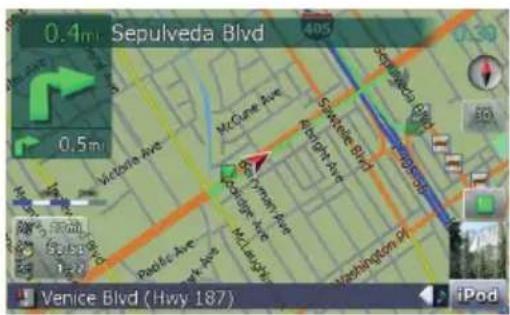
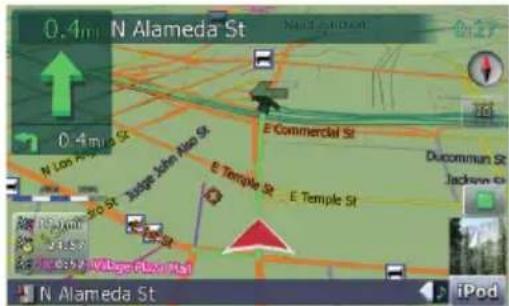
2Dand3Dmapviewmodes
Varioustypesofscreendisplayscanbese- lectedfornavigationguidance.
2Dmapscreen
3Dmapscreen
AwidevarietyofPointsofInterest (POI)information
Morethan100typesofPOIcategoriesareincludedinthedatabase.YoucanalsocreateyouowncustomizedPOIsandcategories.
Autoreroutefunction
Ifyoudeviatefromthesetroute,thesystem willre-calculatetheroutefromthatpointso thatyouremainontracktothedestination.
☐Thisfunctionmaynotworkundercertain conditions.
Assignyouroriginalimageasasplash screen
Youcanstoreyourownpicturesonanexternal storagedevice(USB,SD)inJPEGorBMPfor- matandimportanoriginalsplashscreento thisnavigationsystem.Theseimported imagescanbesetupascustomizedsplash screens.
Importedoriginalimageswillbestoredin thebuilt-inmemory,buttheabilitytosave theseimagescannotbeguaranteedcompletely.Ifyouroriginalimagedataisdeleted,settheexternalstoragedevice(USB, SD)againandre-importtheoriginalimage.
Awidevarietyofplayablefileformats
• Built-inDVDdrive(AVIC-F900BT and AVIC-F90BT)
DVD-Video(commercial-releaseDVD-Video), DVD-R/-RW/-RDL(DVD-Video, DVD-VR, Data
• Built-inCDdrive(AVIC-F700BT and AVIC-F7010BT)
CD(commercial-releaseaudioCD), CD-R/-RW(CD-DA, Data < MP3, WMA, AAC, DivX, WAV>)
- Externalstoragedevice(USB,SD)
Followingfiletypesisplayableontheexternalstoragedevice(USB,SD). MP3,WMA,AAC,WAV,MPEG-4,AVI
—Noticeregardingvideoviewing
Remember that use of this system for commercial or public viewing purposes may constitute an infringement on the author's rights as protected by the Copyright Law.
—NoticeregardingDVD-Videoviewing
Thisproductincorporatescopyrightprotectiontechnologythatisprotectedbymethodclaimsof certainU.S.patentsandotherintellectualpropertyrightsownedbyMacrovisionCorporationandotherrights owners.Useofthiscopyrightprotection technologymustbeauthorizedby MacrovisionCorporation,andisintended forhomeandotherlimitedviewinguses onlyunlessotherwiseauthorizedby MacrovisionCorporation.Reverseengineeringordisassemblyisprohibited.
—NoticeregardingMP3fileusage
Supplyofthisnavigationsystemconveys onlyalicenseforprivate,non-commercial useanddoesnotconveyalicensenor implyanyrighttousethisproductinany commercial(i.e.revenue-generating),real timebroadcasting(terrestrial,satellite, cableand/oranyothermedia),broadcasting/streamingviainternet,intranetsand/or othernetworksorinotherelectroniccontentdistributionsystems,suchaspay-audiooraudio-on-demandapplications.An independentlicenseforsuchuseisrequired.Fordetails,pleasevisit http://www.mp3licensing.com.
Autofilenamelisting
Thetracknamewillbeautomaticallylisted whenthisfunctionisavailable. This system provides easy-to-operate audiofunction that
allowplaybacksimplybyselectinganitem fromthelist.
iPod® compatibility
ThisproductsupportsonlythefollowingiPod modelsandiPodsoftwareversions.Others maynotbeworkcorrectly.
- iPodnanofirstgeneration;Ver.1.3.1
- iPodnanosecondgeneration;Ver.1.1.3
- iPodnanothirdgeneration;Ver.1.1
• iPodfifthgeneration; Ver.1.3 - iPodclassic;Ver.1.1.1
- iPodtouch;Ver.1.1.4
□Whenyouusethisnavigationsystemwith aPioneerUSBinterfacecableforiPod(CD-IU230V)(soldseparately),youcancontrol aniPodcompatiblewiththisnavigation system.
□Toobtainmaximumperformance, were- commend that you usethelatestsoftware for theiPod.
☐Operationsmayvarydependingonthe iPodmodelsandthesoftwareversionof iPod.
FormoredetailsaboutiPodcompatibility withthisnavigationsystem, refertotheinformationonourwebsite.
□iPodisatrademarkofAppleInc.,registeredintheU.S.andothercountries.
Hands-freephoning
AcellularphonefeaturingBluetooth ^® technologycanbeconnectedwirelessly.
—Thecellularphoneusedmustbocompatiblewiththeprofileofthisnavigationsystem.
—When using Bluetooth wireless technology, this navigation system may not be able to operate all of the functions on the cellular phone.
Reardisplayentertainment
Videosourcescanbedisplayedontherear display.
— “Videoimage”thatisoutputfromthebuilt-inDVDdrive(DVD-V,DVD-VR,DivX)and AVinput(AV1,AV2)canbedisplayedon thereardisplay.
—ThisfunctionisavailableforAVIC-F900BT andAVIC-F90BT.
Rearviewcameraready
Youcandisplaywhatisbehindthevehicleif connectedtoarearviewcamera(e.g.ND-BC2)(soldseparately).
Mapcoverage
Formoredetailsaboutthemapcoverageof thisnavigationsystem, refertotheinformation onourwebsite.
ProtectingtheLCDpanel andscreen
☐Donotallowdirectsunlighttofallonthe LCDscreenwhenthisproductisnotbeing used. Extendedexposuretodirectsunlight canresultinLCDscreenmalfunctiondue totheresultinghightemperatures.
□When using acellular phone, keep the antenna of the cellular phone away from the LCD screen to prevent disruption of the video in the form of spots, colored stripes, etc.
☐ToprotecttheLCDscreenfromdamage,be suretotouchthetouchpanelkeyswith yourfinger.(Thestylusissuppliedforspecialcalibrations.Donotusethestylusfor normaloperations.)
ViewingtheLCDcomfortably
Duetoitsconstruction, theviewingangle of theLCDscreenislimited. However, "Brightness" maybeusedtoadjusttheblackdensity ofthevideo. When using thescreenforthe
firsttime, the adjustment of the black density for clearviewing is recommended.
Notesforinternalmemory Beforeremovingthevehicle battery
If the battery is disconnected, discharged, them memory will be erased and must bere programmed.
☐ Somedataremains.ReadReturningthenavigationsystemtothedefaultorfactorysettingsbeforeyouoperatethisfunction.
Formoredetailedinformationaboutthe itemstobedeleted,refertoReturning thenavigationsystemtothedefaultor factorysettingsonpage154.
Aboutthedatabeingdeleted
TheinformationiserasedbypressingRESET buttonordisconnectingtheyellowleadfrom thebattery(orremovingthebatteryitself). However, someitemsremain.
☐ Somedataremains.ReadReturningthenavigationsystemtothedefaultorfactorysettingsbeforeyouoperatethisfunction.
Formoredetailedinformationaboutthe itemstobedeleted,refertoReturning thenavigationsystemtothedefaultor factorysettingsonpage154.
Resettingthemicroprocessor
CAUTION
PressingRESETbuttonclearsthesettingsforthe AVsourcewithoutclearingallthenavigation functionitems.Pleaserefertotherelatedsection beforeclearing.
Formoredetailedinformationabouttheitems tobedeleted,refertoReturningthenavigation systemtothedefaultorfactorysettings page154.
Themicroprocessormustberesetunderthe followingconditions:
- Prioritously this product for the first time after installation.
- If the product fails to operate properly.
- Ifthereappeartobeproblemswiththeoperationofthesystem.
- When changing the combination of the equipment.
- Whenadding/removingadditionalproductsthatconnecttothenavigationsystem.
- If your vehicle positions shown on them map with a significant positioning error.
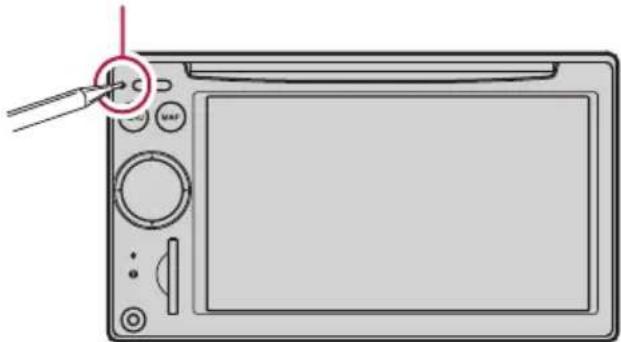
1TurntheignitionswitchOFF.
2PressRESETbuttonwithapentipor otherpointedinstrument.
RESETbutton
natural_image
Line drawing of a digital camera with a screen and adjustment knob (no text or symbols)□Ifyouhaveconnectedotherequipmentto thisnavigationsystemwithIP-BUS,besure toresetthatequipmenttoo.
Checkingpartnamesandfunctions
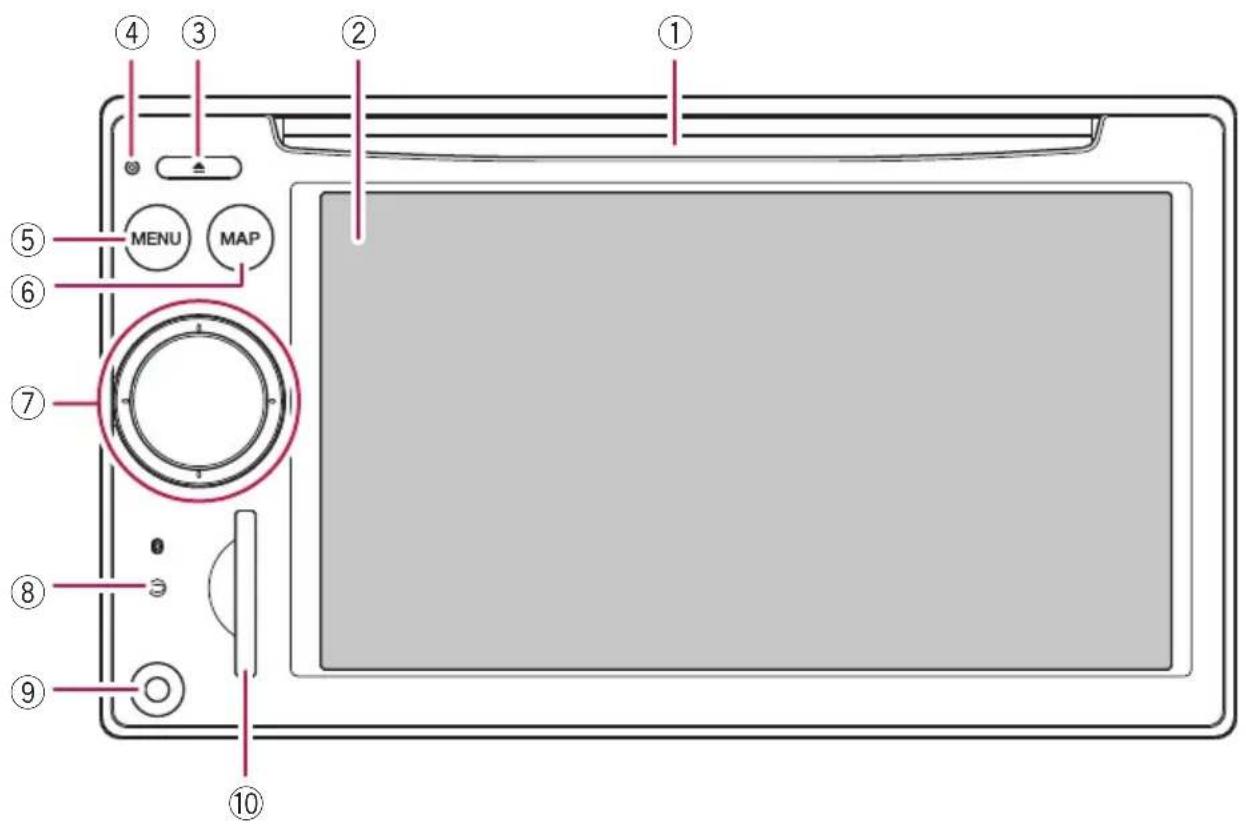
Thischaptergivesinformationaboutthe namesofthepartsandthemainfeatures usingthebuttons.
①Discloadingslot
Insertadisctoplay.
- Fordetailsconcerningoperations, refer to/nserting/ejectingadisconthenext page.
②LCDscreen
③EJECTbutton
④RESETbutton
- Fordetailsconcerningoperations, refer toResettingthemicroprocessoronpage 11.
⑤MENUbutton
PressMENUbuttontodisplaythe"Top Menu".
Pressandholdtodisplaythe"ScreenCalibration"screen.
Fordetailsconcerningoperations, refer toAdjustingtheresponsepositionsofthe touchpanels(touchpanelcalibration)on page136.
⑥MAPbutton
Presstoviewthemapscreen.
Pressandholdtodisplaythe"PictureAdjustment"screen.
Fordetailsconcerningoperations, refer toAdjustingthescreenbrightnesson page137.
⑦ MULTI-CONTROL
Rotating;
AdjuststheAV(AudioandVideo)sourcevolume.
Movingupwardordownwardonce;
Changesthemapscaleonestepatatime.
Keepmovingupwardordownward;
Changesthemapscalecontinuously.
Thisoperationisavailableonlywhilethe mapscreenisdisplayed.
MovingMULTI-CONTROLtotheleftor right;
Allowsyoutochangethefrequencyone stepatatime;operatestracksearchcontrols.
KeepmovingMULTI-CONTROLtothe leftorright;
Allowsyoutoperformmanualseektuning, fastforwardorreverse.
PressingthecenterofMULTI-CONTROL;
Enablesyoutostartthevoiceoperation when "English" is selected in "Program lan-
guage:".(Whenalanguageotherthan
"English"isselected,pressingthecenterallowsyoutohearthepreviousrouteguidance.)
□Whenyourphoneispairedtothenavigationsystem,pressingitscenterallows youtoansweranincomingcallorend thephonecall.
KeepressingthecenterofMULTI-CONTROL:
MutestheAV(AudioandVideo)source.To cancelthemuting,pressandholditagain.
⑧Bluetoothconnectionstatusindicator
Lightsupwhenyourphoneispairedtothe navigationsystembyBluetoothwireless technology.
⑨"AV2"inputjack
Thisisthe"AV2"inputterminal. Use the CD-RM10(soldseparately)toconnectthe externalvideocomponent.
ToconnectyouriPodbyusingUSBinterfacecableforiPod(CD-IU230V),use "AV1"input(RCA)onthebackside.
⑩SDcardslot
Formoredetailedinformation, referto/n- sertingandejectinganSDmemorycard onthispage.
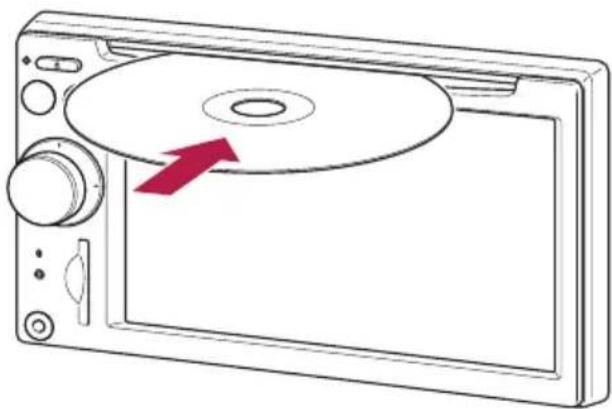
Inserting/ejectingadisc Insertingadisc
- Insertadiscintothediscloadingslot.
natural_image
Line drawing of a CD-ROM device with an arrow pointing to its disc (no text or symbols present)☐Thebuilt-indriveplaysonestandard12-cm or8-cm(single)discatatime.Donotuse anadapterwhenplaying8-cmdiscs.
□Donotinsertanythingotherthanadisc intothediscloadingslot.
Ejectingadisc
- PressEJECTbutton.
Thediscisejected.
Insertingandejectingan SDmemorycard
CAUTION
- KeepthedummySDcardoutofthereachof smallchildrentopreventthemfromaccidentallyswallowingit.
- Topreventdatalossanddamagetothesto-ragedevice,neverremoveitfromthisnaviga-tionsystemwhiledataisbeingtransferred.
- Ifdatalossorcorruptionoccursonthestos- ragedeviceforanyreason,itisusuallynot possibletorecoverthedata.Pioneeraccepts noliabilityfordamages,costsorexpenses arisingfromdatalossorcorruption.
InsertinganSDmemorycard
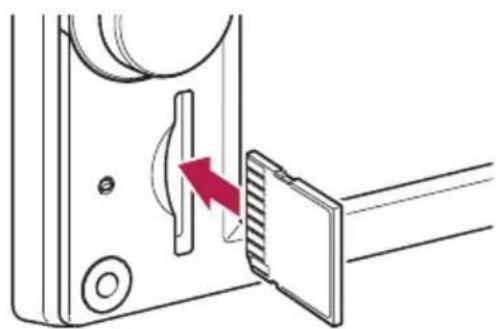
- InsertanSDmemorycardintotheSD cardslot.
Insertitwiththecontactsurfacefacingtothe leftandpressthecarduntilitclicksandcompletelylocks.
natural_image
Diagram of a device with a red arrow pointing to a component, showing no text or symbols.ThereisocompatibilityforMultiMedia Card(MMC).
□CompatibilitywithallSDmemorycardis notguaranteed.
☐Optimumperformanceofthisunitmaynot beobtaineddependingontheSDmemory card.
☐DonotinsertanythingotherthanSDmemorycardsordummySDcardsintotheSD cardslot.
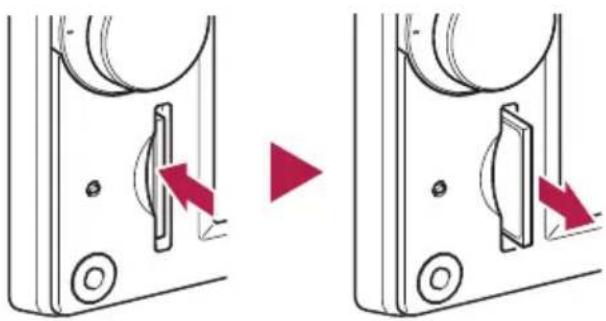
EjectinganSDmemorycard
1PresstheSDmemorycarduntilitclicks.
TheSDmemorycardisejected.
natural_image
Diagram showing two views of a device with red arrows indicating movement or change, no text or symbols present.2PullouttheSDmemorycard.
InsertthedummySDcardtokeeptheSD cardslotfreeofdustwhentheSDmemory cardisnotinserted.
Pluggingandunplugginga USBstoragedevice
CAUTION
- Topreventdatalossanddamagetothesto-ragedevice,neverremoveitfromthisnaviga-tionsystemwhiledataisbeingtransferred.
- Ifdatalossorcorruptionoccursonthesto-ragedeviceforanyreason,itisusuallynot possibletorecoverthedata.Pioneeraccepts noliabilityfordamages,costsorexpenses arisingfromdatalossorcorruption.
PlugginginaUSBstoragedevice
●PlugaUSBstoragedeviceintotheUSB connector.
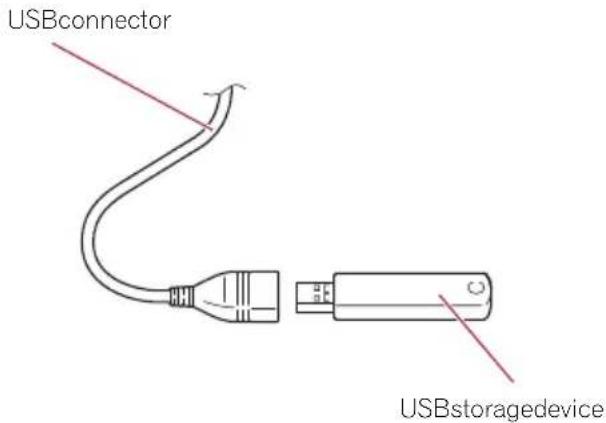
- CompatibilitywithallUSBstoragedeviceis notguaranteed.
Optimumperformanceofthisnavigation systemmaynotbeobtaineddependingon theUSBstoragedevicethatisconnected.
☐ConnectionviaUSBhubisnotavailable.
UnpluggingaUSBstoragedevice
●PullouttheUSBstoragedeviceafter checkingthatnodataisbeingaccessed.

Connecting and disconnectingiPod

CAUTION
- Topreventdatalossanddamagetothesto-ragedevice,neverremoveitfromthisnaviga-tionsystemwhiledataisbeingtransferred.
- If datalossorcorruption occurs on the storage device for any reason, it is usually not possible to recover the data. Pioneer accepts no liability for damages, costsorexpenses arising from datalossorcorruption.
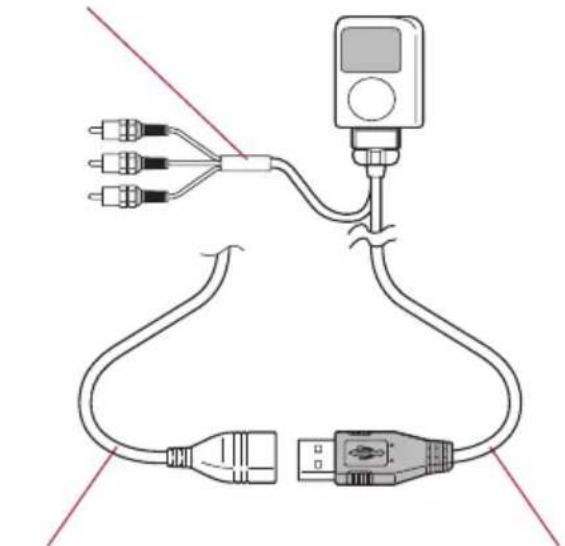
ConnectingyouriPod
UsingtheUSBinterfacecableforiPodenablesyoutoconnectyouriPodtothenavigationsystem.
Forconnection, USBinterfacecable for iPod(CD-IU230V)(soldseparately)isrequired.
☐USBinterfacecableforiPodissupplied withAVIC-F90BT.
1PullouttheUSBstoragedeviceafter checkingthatnodataisbeingaccessed.
ToAVinputonthebackofthenavigationsystem
natural_image
Pure electrical circuit lines without any symbolsUSBconnectorUSBinterfacecablefor
iPod
FormoredetailsaboutiPodcompatibility withthisnavigationsystem, refertotheinformationonourwebsite.
□ConnectionviaUSBhubisnotavailable.
2ConnectyouriPod.
DisconnectingyouriPod
●PullouttheUSBinterfacecableforiPod aftercheckingthatnodataisbeingaccessed.
Flowfromstartupto termination
1Starttheenginetobootupthesystem.
Afterashortpause, thenavigationsplash screencomesonforafewseconds.
☐ ToprotecttheLCDscreenfromdamage, be suretouseyourfingerstotouchthetouch panelkeys.(Thestylusissuppliedforspecialcalibrations.Donotusethestylusfor normaloperations.)
2Turnoffthevehicleenginetoterminatethesystem.
Thenavigationsystemisalsoturnedoff.

Onfirst-timestartup

CAUTION
Therearviewcamerafunctionisnotavailablefor safetyreasonsuntilthenavigationsystemboots upcompletely.
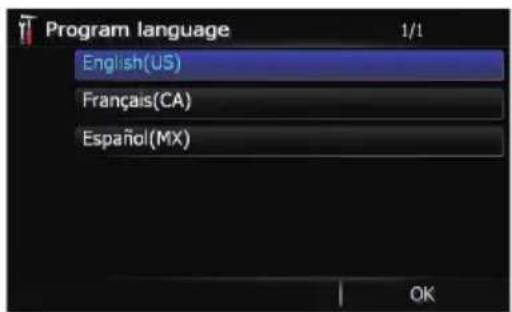
Whenyouusethenavigationsystemforthe firsttime,selectthelanguagethatyouwantto use.
1Starttheenginetobootupthesystem.
Afterashortpause, thenavigationsplash screencomesonforafewseconds.
2Touchthelanguagethatyouwantto useonthescreen.
Basicoperation
3Touchthelanguagethatyouwantto useforthevoiceguidance.
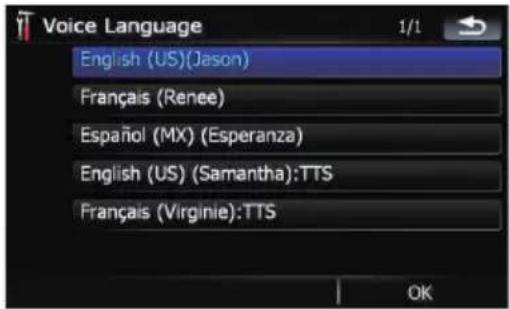
Thenavigationsystemwillnowrestart.
4Readthedisclaimercarefully,checking itsdetails,andthentouch[OK]ifyou agreeetotheconditions.
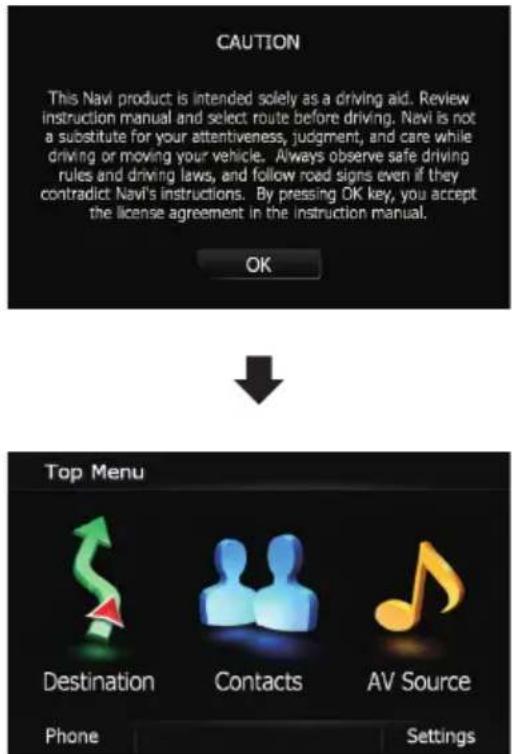
The "Top Menu" appears.
Regularstartup

CAUTION
Therearviewcamerafunctionisnotavailablefor safetyreasonsuntilthenavigationsystemboots upcompletely.
●Starttheenginetobootupthesystem.
Afterashortpause, thenavigationsplash screencomesonforafewseconds.
☐ Thescreenshownwilldifferdependingon thepreviousconditions.
□Ifthenavigationscreenwasshownpre-
viously,thedisclaimerappears.
Readthedisclaimercarefully,checkingits
details,andthentouch[OK]ifyouagreeto
theconditions.
☐Ifotherscreenswereshownpreviously,the disclaimerscreenwillbeskipped.
□Iftheanti-theftfunctionisactivated,you mustenteryourpassword.Afterunlocking the navigation system, the "Top Menu" appears.Ifyouenterthenavigationscreen first,thedisclaimerscreenwillappear. Readthedisclaimercarefully,checking its details,andthentouch[OK]ifyouagreeto theconditions.
Howtousethenavigationmenuscreens
The "Top Menu" appears when you boot up the navigation system for the first time.
Screenswitchingoverview
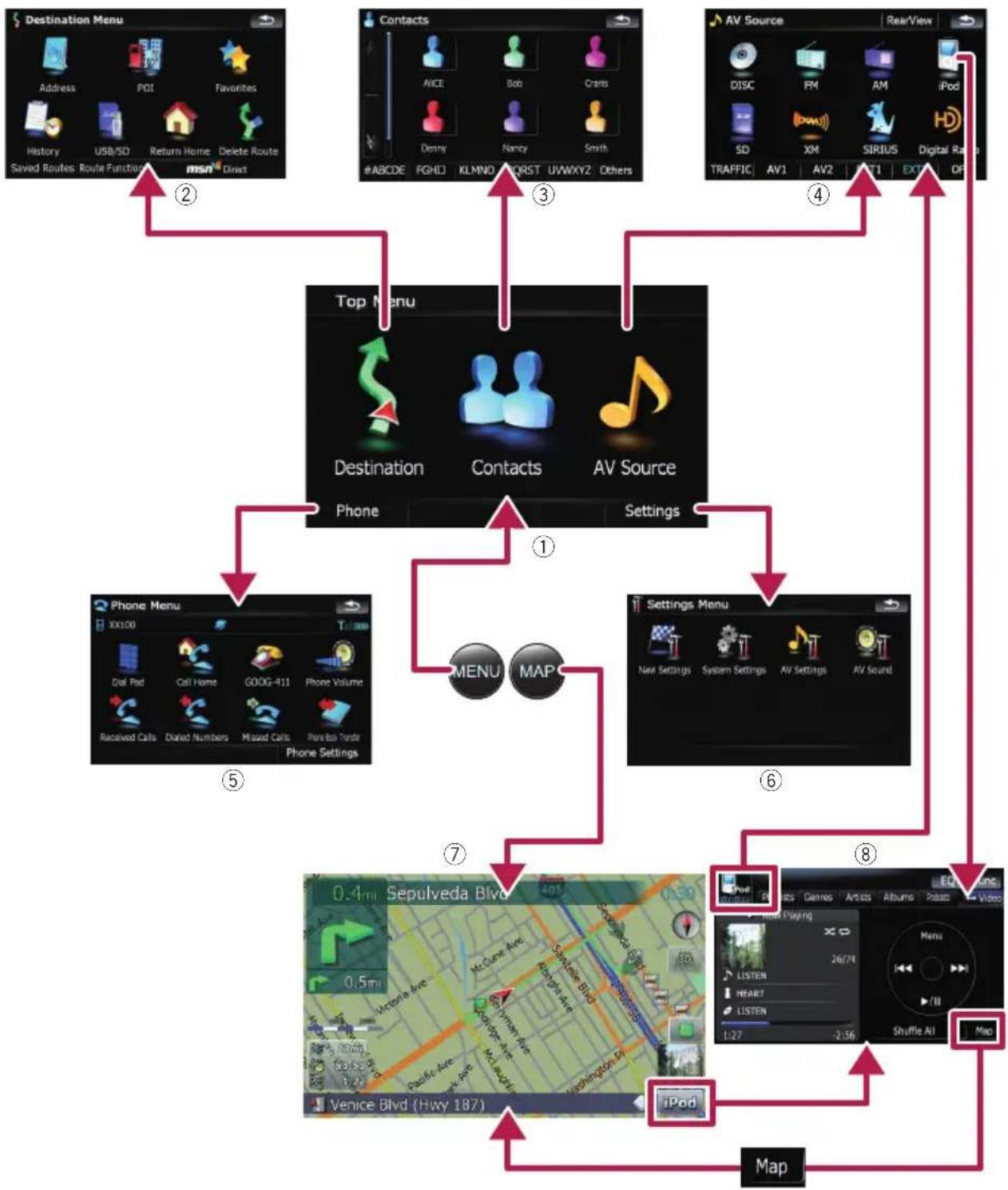
flowchart
graph TD
    A["Destination Menu"] -->|②| B["Contact"]
    B -->|③| C["AV Source"]
    C -->|④| D["Top Menu"]
    D -->|①| E["Phone"]
    E -->|⑤| F["Phone Menu"]
    F -->|⑥| G["Settings Menu"]
    G -->|⑦| H["Venice Blvd (Hwy 187)"]
    H -->|⑧| I["Map"]
    I --> J["Shuffle All"]
    J --> K["iPod"]
    K --> L["Menu"]
    L --> M["Display"]
    style A fill:#f9f,stroke:#333
    style B fill:#f9f,stroke:#333
    style C fill:#f9f,stroke:#333
    style D fill:#f9f,stroke:#333
    style E fill:#f9f,stroke:#333
    style F fill:#f9f,stroke:#333
    style G fill:#f9f,stroke:#333
    style H fill:#f9f,stroke:#333
    style I fill:#f9f,stroke:#333
    style J fill:#f9f,stroke:#333
    style K fill:#f9f,stroke:#333
    style L fill:#f9f,stroke:#333
    style M fill:#f9f,stroke:#333
Whatyoucandooneachmenu
① TopMenu
PressMENUbuttontodisplaythe"Top Menu".
Thisisthestartingmenutoaccessthedesired screensandoperatethevariousfunctions.
②DestinationMenu
Youcansearchforyourdestinationonthis menu.Youcanalsocheckorcancelyourset routefromthismenu.
☐[MSNDirect]isavailableforAVIC-F900BTandAVIC-F90BT.
③Contactsscreen
Youcanaccessthelistofcontactstocallup anentry.
④AVSourcemenu
Youcanaccessthescreenforselectingthe audioandvisualsourcetoplay.
⑤PhoneMenu
Youcanaccessthescreenthatisrelatedto hands-freephoningtoseecallhistoriesand changethesettingsontheBluetoothwireless technologyconnection.
⑥SettingsMenu
Youcanaccessthescreentocustomizesettings.
⑦Mapscreen
PressMAPbuttontodisplaythenavigation mapscreen.
⑧AVoperationscreen
WhenyouplaytheAVsource, this screen appears regularly. Touching the icon on the top left corner display the "AVSource" menu.
Toreturntothepreviousscreen,touch

Displayingtherearcameraimage
[RearView]canbedisplayedthefull-screen rearcameraimage.[RearView]isusefulif youwanttomonitoranattachedtrailer,etc.
- Fordetails, refertoSettingtherearview cameraonpage136.
1PressMENUbuttontodisplaythe"Top Menu", andthentouch[Settings].
2Touch[SystemSettings]andthentouch[BackCamera].
3Touch[On]nextto"Camera"toactivatethecamerasetting.
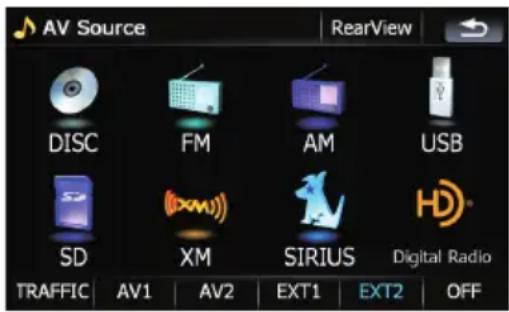
4PressMENUbuttontodisplaythe"Top Menu"andthentouch[AVSource].
5Touch[RearView]onthe"AVSource" menu.

Howtousethemap
Mostoftheinformationprovidedbyyournavigationsystemcanbeseenonthemap.Youneedtobe-comefamiliarwithhowtheinformationappearsonthemap.
Howtoreadthemapscreen
Thisexampleshowsanexampleofa2Dmapscreen.
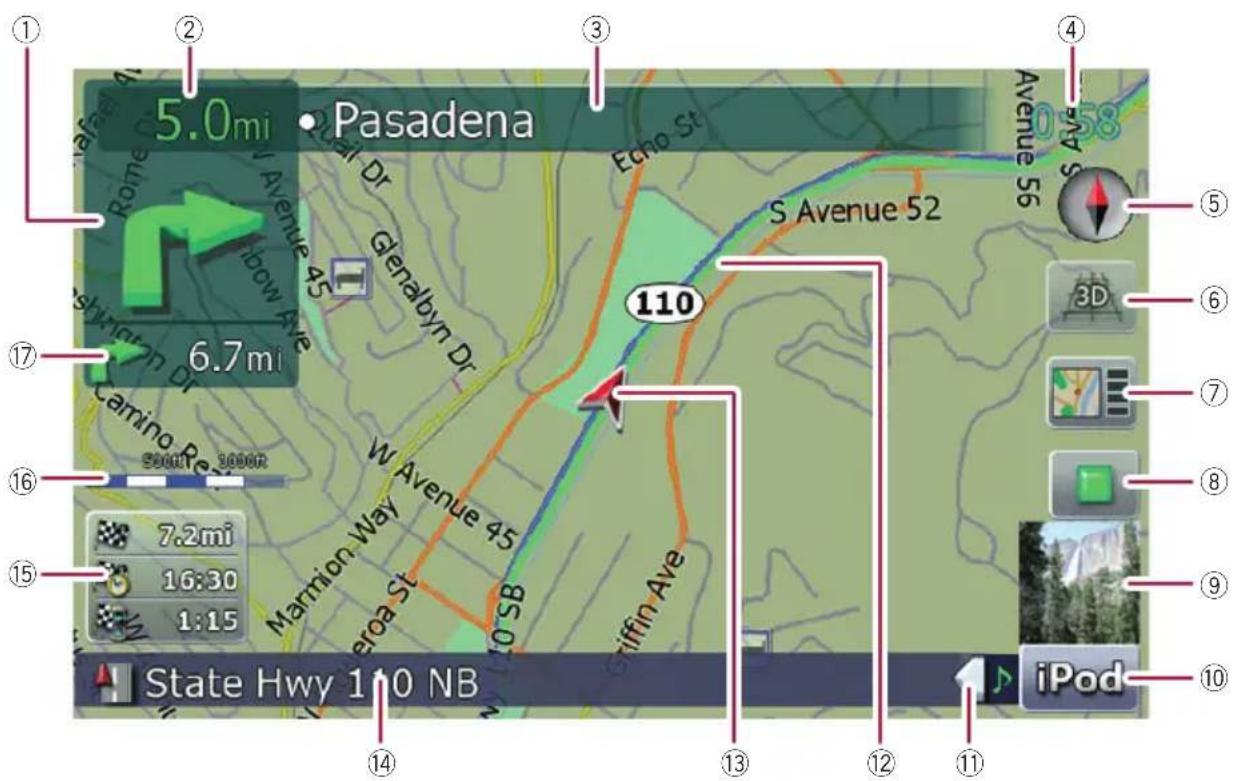
Informationwiththemark(*)appearsonly whentherouteisset.
☐Dependingontheconditionsandsettings, someitemsmaynotbedisplayed.
①Nextdirectionoftravel*
Whenyouapproachaguidancepoint,thisappearsgreen.Touchingthisitemenablesyou tohearthepreviousguidanceagain.
Formoreinformationaboutthedirectionsymbol,refertoSupplementalinformationaboutdirectionsonpage169.
②Distancetotheguidancepoint*
Showsthedistancetothenextguidance point.
③Nameofthestreettobeused(ornextguidancepoint)*
④Currenttime
⑤Compass
Theredarrowindicatesnorth.
⑥Mapmodeselector
- Fordetails,refertoSwitchingthemap between2Dand3Donpage22.
⑦Shortcuttothe"MapConfirmation Screen"
Touchingthisshortcutenablesthescreento switchtothe"MapConfirmationScreen"directlywiththecurrentpositionorthecursor positioncentered.
Fordetails, refertoWhatyoucandowith the "MapConfirmationScreen" on page 36.
⑧Stopkeyforthedummyrun
Basicoperation
Thiskeywillbedisplayedwhileyouactivate the dummy run ("Fly over" or "Demo
Mode").Touchingthekeytocancelthe dummyrun.
Fordetails, referto DemoModeon page129.
- Fordetails, refertoPlayingsimulatedtravelathighspeedonpage42.
⑨AlbumartworkoniPod
If you connect youri Podto this navigations system, the albumartwork that is playing appears.
⑩ShortcuttotheAVoperationscreen
TheAVSourcecurrentlyselectedidsshown. TouchingtheindicatordisplaytheAVoperationscreenofthecurrentsourcedirectly.
⑪ ExtensiontabfortheAVinformationbar
TouchingthistabopenstheAVinformation barandenablesyoutobrieflyviewthecurrent statusontheAVsource.Touchingitagainretractsthebar.
⑫Currentroute\*
Theroutecurrentlysetishhighlightedinbright coloronthemap.Ifawaypointissetonthe route,therouteafterthenextwaypointis highlightedinothercolor.
⑬Currentposition
Indicate the current location of your vehicle. The apexofthetriangular mark indicates your orientation and the display moves automatically as you drive.
☐Theapexofthetriangulararmarkisthe propercurrentposition.
⑭Streetname(orcityname)thatyourvehicleistravelingalong
⑮Multi-Infowindow
Showsthevalueontheitemsselectedon "DisplayedInfo".Touchingthisareaallows youtodisplaythe"RoutelInformation" screen.
Fordetails, referto DisplayedInfoon page126.
- Fordetails, referto Checking the current route condition on page 41.
Thisitemisnotshownwhen"Full Screen Cockpit" is set to "On".
Fordetails, refertoMapSettings page125.
☐Theestimatedtimeofarrivalisanideal valuethatthenavigationsystemcomputesinternallyastherouteiscalculated.Theestimatedtimeofarrival shouldbereadjustasareferencevalue, anddoesnotguaranteearrivalatthe timeindicated.
⑯Mapscale
Thescaleofthemapisindicatedbydistance.
⑰SecondManeuverArrow\*
Showsteturningdirectionafternextandthe distancetothere.
☐Thisitemisnotshownwhen "Full Screen Cockpit" is set to "On".
Fordetails, refertoMapSettings page125.
Meaningofguidanceflags

:Destination
Thecheckeredflagindicatesyour destination.

:Waypoint
Theyellowflagsindicateyourwaypoints.

:Startpoint
Thebrightgreenflagindicates yourstartpoint.
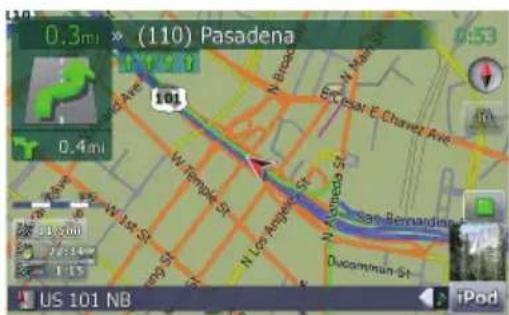
Whenyoudriveonamulti-laneroad
Appearswheremulti-laneroadsexistwhen youaredrivingonyourroute.Thehighlighted laneindicatetherecommendedlane.
Basicoperation
Thisinformationisbasedonthemapdatabase.Thus,theinformationmaybedifferentfromwhatactualconditionexists.Use itasjustadirectionalreferenceforyour driving.
Noteregardingtheroutehighlighted inpurple
☐Aroutehighlightedinpurpleonthemap indicate that your route includes a road not matching your preference on the following settings in "Route"; "Unpaved Roads", "Highways", "Ferries", "U-turns", "Permit Needed", "Toll Roads".
Foryoursafety, pleasereviewandobeyall localtrafficrulesalongthehighlighted route.
Switchingthemapbetween2D and3D
2Dmapscreen
3Dmapscreen
1PressMAPbuttontodisplaythenavigationmapscreen.
2Touch mode.

ortoswitchthemap
Changingthescaleofthemap
1PressMAPbuttontodisplaythenavigationmapscreen.
2MoveMULTI-CONTROLdownorupto zoominorout.
MovingMULTI-CONTROLupwardordownwardonceallowsyoutochangethemap scaleonestepatatime.HoldingMULTI-CONTROLwhilemovingitupordownallowsyou tochangethescalesequentially.
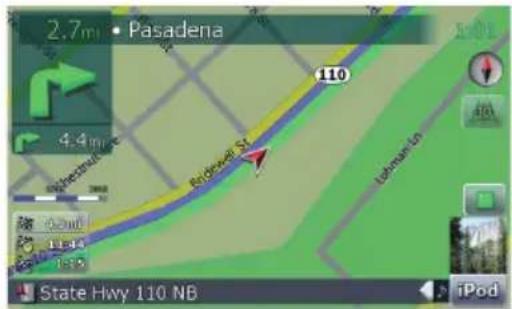

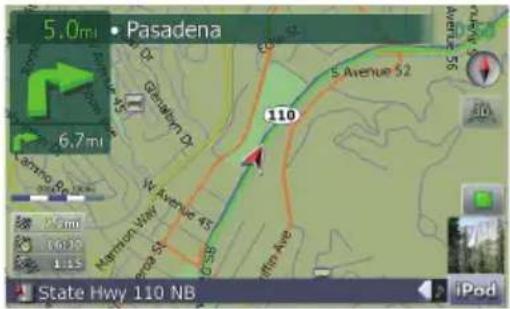
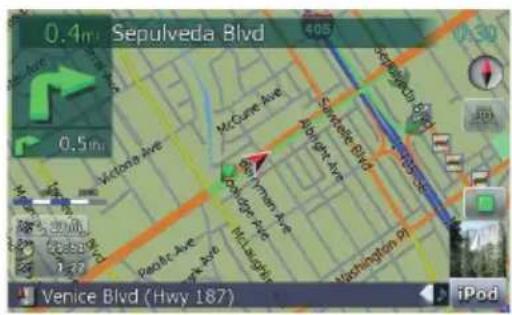
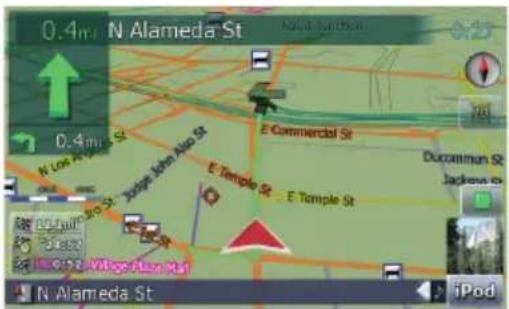
☐Zoomingoutwillreducethesizeoftheicon andfurtherzoomingoutwillhideit.However,thepin-shapediconisnotresizedand keepsdisplayed.
☐ Furtherzoomingouthidesthelinesoftrafficinformation.
Scrollingthemaptothe positionyouwanttosee
1PressMAPbuttontodisplaythenavigationmapscreen.
2Touchtoswitchthe2Dmapmode.
3Touchthemapbriefly.
Brieflytouchingthepositiononthemapthat youwanttoseepositionsthecursorthere.
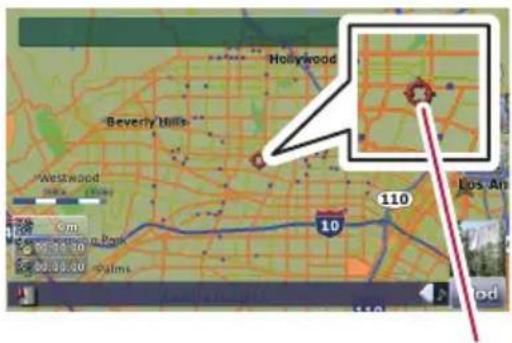
Cursor
Positioning the cursor to the desired location results in a brief informational overview about the location being displayed at the bottom of screen, with street name and other information for this location being shown. (The information shown varies depending on the position.)
4Touchanddragthemapinthedesired directiontoscroll.
Draggingthemapscrollsit.Thescrollingincrementdependsonyourdragginglength.
☐PressingMAPbuttonreturnsthemapto thecurrentposition.
Changingthetiltandrotation angleofthemap
Onthe3Dmapscreen,brieflytouchingthe mapshowsthetiltcontrolsandrotationangle.
1PressMAPbuttontodisplaythenavigationmapscreen.
2Touch toswitchthe3Dmapmode.
3Touchanywhereonthemapbrieflyto showthetiltcontrolsandrotationangle.
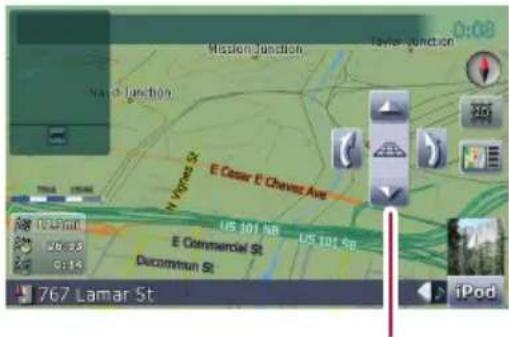
Controlsfortiltandrotationangle
4Touchthecontrolstoadjustthetiltand rotationangle.
Thebasicflowofcreating yourroute
1 Parkyourvehicleinasafeplace, and apply theparkingbrake.
2 Displaythe"DestinationMenu".
3 Selectthemethodofsearchingforyour destination.
4 Entertheinformationforthedestination andnarrowdowncandidatestoone.
5 Touch[GoHereNow]onthe"MapConfirmationScreen".
6 Thenavigationsystemcalculatetheroute toyourdestination, and thenshowsthe routeonthemap.
7 Afterreleasing the parking brake, drive in accordance with navigation guidance.


Theoperationsofalist screen(e.g.citylist)
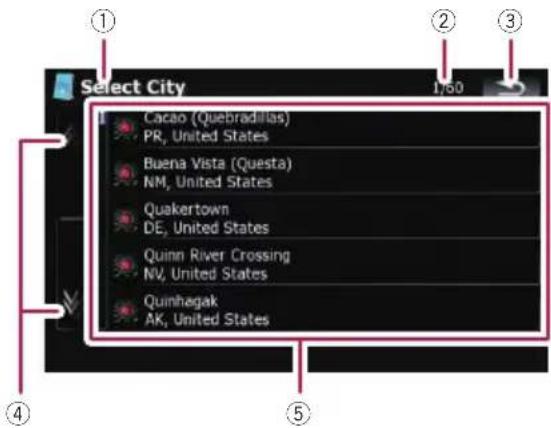
①Screentitle
This description will provide you with a reference for then next operation.
②Currentpage/totalpages
③
Returnsthepreviousscreen.
④
Touching 7 oronthescrollbarscrolls throughthelistandallowsyoutoviewtheremainingitems.
⑤Listeditems:
Touchinganitemonthelistallowsyoutonarrowdowntheoptionsandproceedtothenext operation.
Theoperationoftheon-screenkeyboard
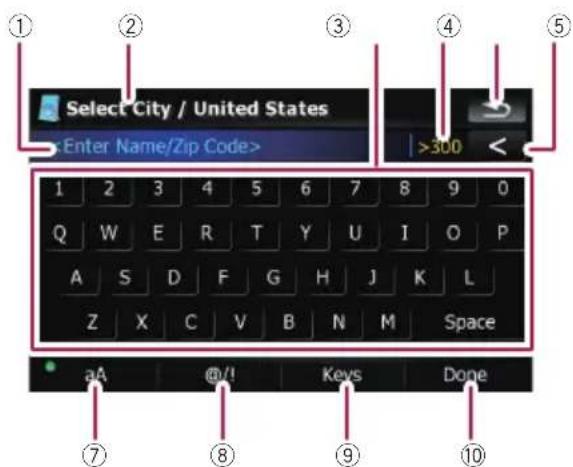
①Textbox:
Displaysthecharactersthatareentered.If thereisnotextinthebox,aninformative guidewithtextappears.
②Screentitle
Thisdescriptionwillprovideyouwithareferenceforthenextoperation.
③Keyboard:
Touchingthekeysenablesyoutoenterthe characters.
④Numberofpossiblechoices
⑤ :
Returnstheprevioussscreen.
⑥ < :
Delete the input text one letter at a time, beginning at the end of the text. Continuing to touch the button delete sal of the text.
⑦Capslockcontrol
Switchesthekeyboardbetweenlowercaselettersanduppercaseasletters.
Eachtouchof[aA]changesthesettingsas follows:
aA —enablesyoutocapitalizethefirst letterofaword.
aA —enablesyoutoenterlettersin lower-case.(Whenaspaceisentered.it
switches aA automatically.)
aA —enablesyoutoenterletterswith capitals(caps)lock.
⑧[@/!]:
Displaysthekeytoenterspecialcharacters, suchas[!].
☐Theappearanceofthiskeyandtypeable characterschangeaccordingtothecurrentkeyboardlayout.
⑨[Keys]:
Switchestheon-screenkeyboardlayout.
⑩[Done]:
Confirmstheentryandallowsyoutoproceeds tothenextstep.
Searchingforandselectingalocation

CAUTION
Forsafetyreasons,theseroute-settingfunctions arenotavailablewhileyourvehicleisinmotion. Toenablethesefunctions,youmuststopina safeplaceandputontheparkingbrakebefore settingyourroute.
Someinformationregardingtrafficregulationsdependsonthetimewhentheroute calculationisperformed. Thus, the informationmaynotcorrespondwithacertain trafficregulationwhenyourvehicleactually passesthroughthelocationinquestion. Also, the informationonthetrafficregulationsprovidedwillbeforapassengervehicle, and not for a truck or other delivery vehicles. Always follow the actual traffic regulationswhendriving.
Searchingforalocationby address
Themostfrequentlyusedfunctionis[Address],inwhichtheaddressisspecifiedand thedestinationissearched.
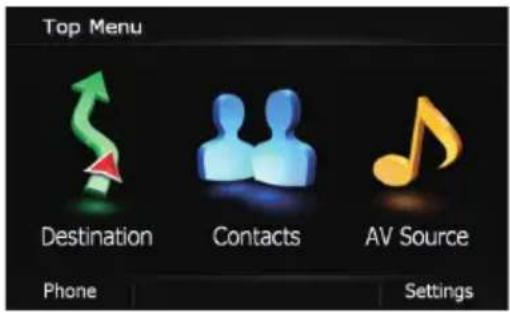
1Touch[Destination]onthe"TopMenu".
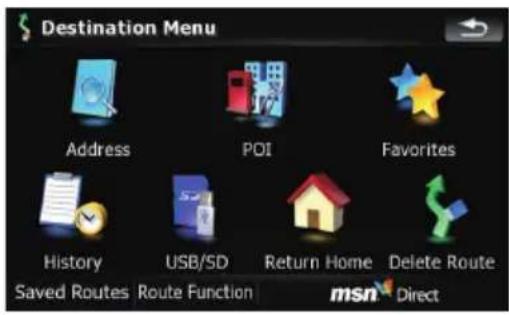
2Touch[Address].
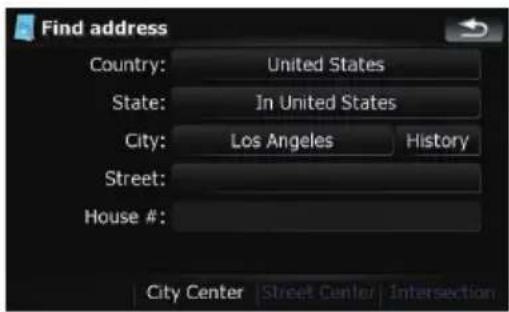
3Touchthekeynextto"Country:"todisplaythecountrylist.
4Touchoneoftheitemsonthelisttoset thecountryassearcharea.
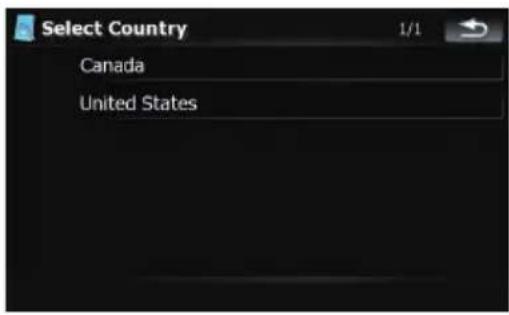
Thescreenreturnstothepreviousscreen.
Searchingforandselectingallocation
5Touchthekeynextto"State:"and touchthedesiredstate,province,orterritoryonthelist.
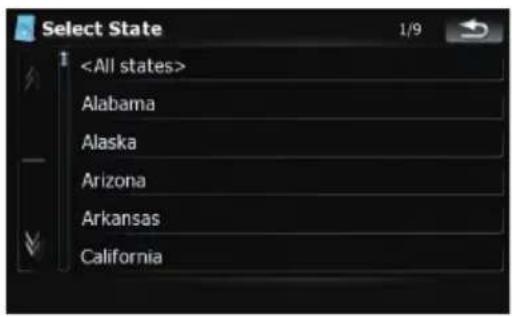
Thescreenreturnstothepreviousscreen.
6Touchthekeynextto"City:"toenter thecityname.
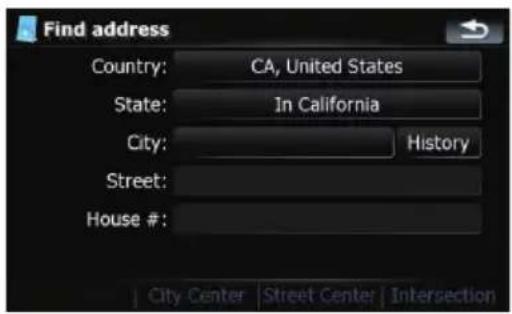
7EnterthecitynameorZipcode.
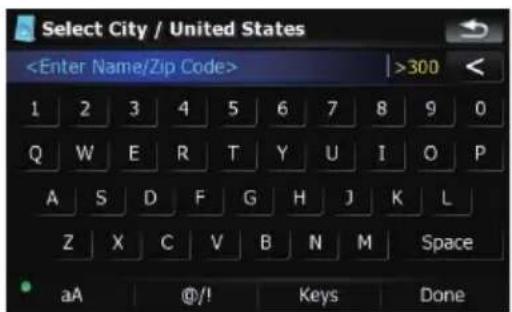
- Whentheoptionsarenarroweddowntosix orless,thoseareautomaticallylisted.
- If you want to list the options matching to the current information entered, touch [Done].
- Touching[History]displaysthelistofcities thatyouselectedbefore.
8Touchthedesiredcityname.
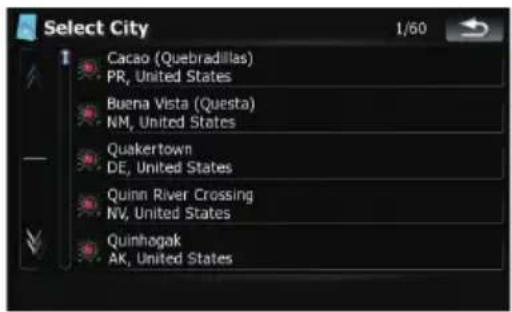
- When acityisalreadyset, touching [City Center] allows youtoselecttherepresenta-tivelocationofthecityandproceedtothe "MapConfirmationScreen".
9Enterthestreetnameandtouchthede- siredonefromthelist.
- Whenastreetisalreadyset,touching [StreetCenter]allowsyoutoselectthere-presentativepointofthestreetandproceed tothe"MapConfirmationScreen".
- Whenastreetisalreadyset,touching[Intersection]allowsyoutosearchforanintersection.Afterenteringthesecondstreet nameandselectingthedesiredintersection,the"MapConfirmationScreen"appears.Thisisusefulwhenyoudon'tknow thehousenumberorcannotinputthe housenumberoftheselectedstreet.
10Enterthehousenumberandthen touch[Done].
- If the house number you have entered this, not found, am message appears. In that case, touch [OK] and try entering the existing house number.
Searchingforandselectingalocation
11Touchonoftheoptionsatthebottom ofthe"MapConfirmationScreen"toselect thenextoperation.
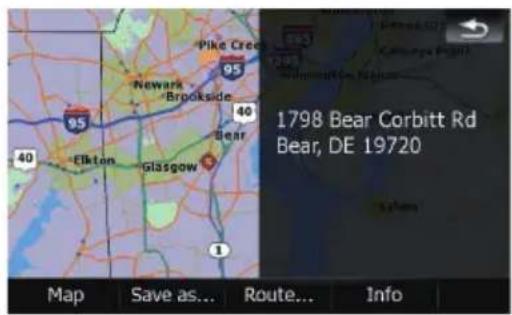
Touching[Route...]and[GoHereNow]sequentiallyenablesyoutosetyourselectedpositionasyourdestinationandcalculatetherouteupthatpoint.
Fordetailsconcerningotheroperationson the"MapConfirmationScreen",referto Whatyoucandowiththe"MapConfirmation Screen"onpage36.
Ifonlyoneoptionisappropriateforyouentry, thescreenwilljumptothe"MapConfirmation Screen"directlyandtheprocessofenteringthe streetnameorhousenumberwillbeskipped.If thisisanundesirablelocation,touch toetry withanotheraddress.
Searchingforthevicinity PointsofInterest(POI)
Informationaboutvariousfacilities(PointsOf Interest-POI),suchasgasstations,parkings orrestaurants,isavailable.Byselectingthe category(orenteringthePOIName),youcan searchforaPOI.
SearchingforPOIsaroundthe cursor
1Touch[Destination]onthe"TopMenu", andthentouch[POI].
2Touch[AroundCursor].
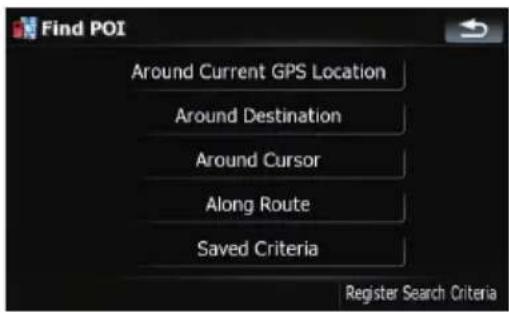
3Dragthemaptomovethecursorortothe desiredpositionandtouch[OK].
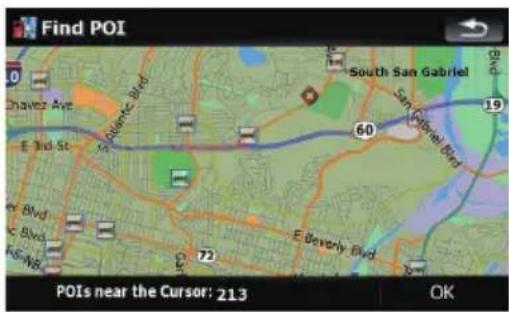
ThenumberofnearbyPOIswillappearatthe bottomofthescreen.
4Touchyourdesiredcategory.
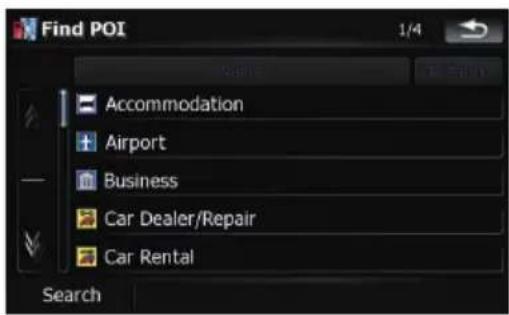
If there are more detailed categories within the selected category, repeat this step as many times as necessary.
Touch[Search]tosearchforaPOIbyentering thePOInameintheselectedcategory.
5TouchyourdesiredPOI.
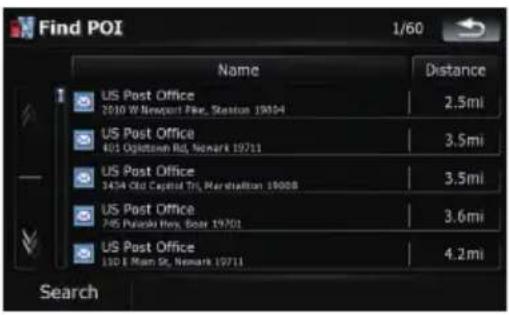
- TouchingNametabsortstheoptionsin thelistinalalphabeticalorder.
- Touching[Distance]tabsortstheoptionsin thelistinorderbydistance.
□Iconsarehelpfulforquicklytellingthecate-goryoffacilitieswiththesamename.
6Touchonoftheoptionsatthebottom ofthe"MapConfirmationScreen"toselect thenextoperation.
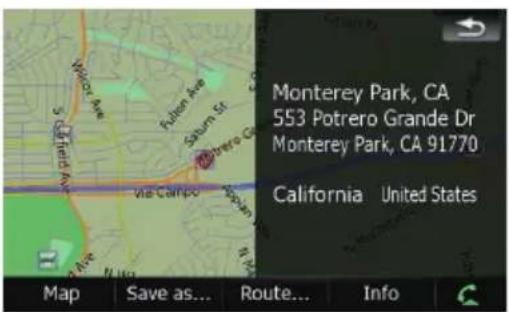
Touching[Route...]and[GoHereNow]sequentiallyenablesyoutosetyourselectedpositionasyourdestinationandcalculatethe routeupthatpoint.
Fordetailsconcerningotheroperationson the"MapConfirmationScreen",referto Whatyoucandowiththe"MapConfirmation Screen"onpage36.
☐Searchingforaspotandtouching[Info] on the"MapConfirmationScreen"alsoallows youtosearchfornearbyPOIsaroundthe cursor.
Fordetails, refertoViewingtheinformation ofaspecifiedlocationonpage38.
SearchingforanearbyPOI
1Touch[Destination]onthe"TopMenu", andthentouch[POI].
2Touch[AroundCurrentGPSLocation].
ThelistofPOIcategoriesappears.
- Forthesubsequentoperations,referto SearchingforPOIsaroundthecursoronthe previouspage.
SearchingforPOIsalongthe currentroute
☐Thisfunctionisavailablewhentherouteis set.
1Touch[Destination]onthe"TopMenu", andthentouch[POI].
2Touch[AlongRoute].
ThelistofPOIcategoriesappears.
- Forthesubsequentoperations,referto SearchingforPOIsaroundthecursoronthe previouspage.
SearchingforPOIsaroundthe destination
☐Thisfunctionisavailablewhentherouteis set.
1Touch[Destination]onthe"TopMenu", andthentouch[POI].
2Touch[AroundDestination].
ThelistofPOIcategoriesappears.
- Forthesubsequentoperations,referto SearchingforPOIsaroundthecursoronthe previouspage.
Searchingforandselectingalocation
Using"SavedCriteria"
Memorizingyourselectionsequence
Youcanstoretheselectedsearchmethodand oneofthecategoriesastheshortcuttorecall itlater.ItallowsyoutosearchforaPOlinthe samewayasyoudidbefore.Youcanalsodeletetheshortcuts.
1Touch[Destination]onthe"TopMenu", andthentouch[POI].
2Touch[RegisterSearchCriteria].
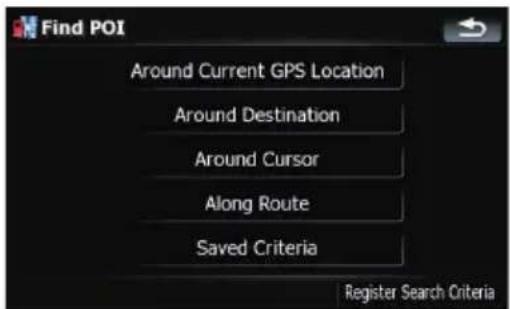
3Touchoneoftheitemsonthelist.
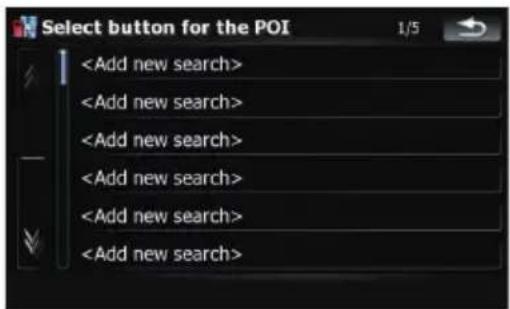
- Selectinganitemthathasalreadybeen storedallowsyoutooverwriteit.
4Touchthesearchmethodthatyou wanttoputitintomemory.
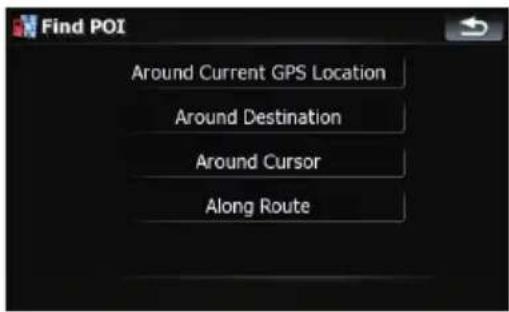
ThelistofPOIcategoriesappears.
5Touchthecategorythatyouwantto putitintomemory.
If there are more detailed categories within the selected category, select the desired category from the list repeatedly until your desired category appears.
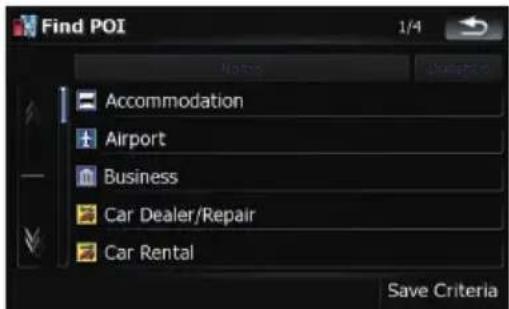
Yourselectionsequenceisshownonthetop ofthescreen.
6Recheckthesequenceandtouch[Save Criteria]toputitintomemory.
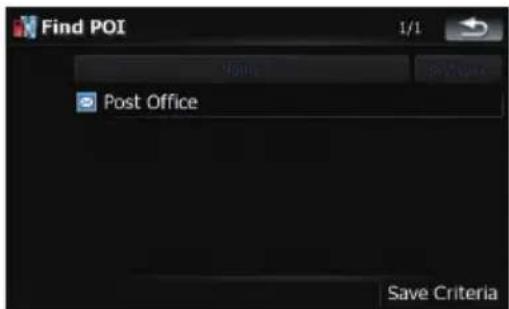
Searchingforandselectingallocation
- Touching[SaveCriteria]withoutselecting acategoryallowsyoutostoreonlyyourselectedsearchmethodincludingallcategories.
- If therearen'tanymoredetailedcategories, ablanklistappears.Insuchcase,touching [SaveCriteria]allowsyoutostoreitasthe currentlyselectedcategory.Toknowthe statesofthecurrentsequence,refertothe topofthescreen.
7Enterthedesirednameandthentouch [Done]tocompletetheentry.
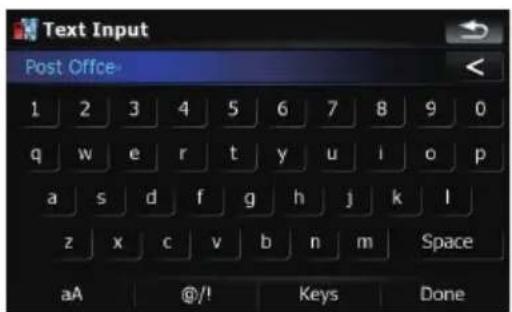
Thestoringprocesshascompletedandthe shortcutisavailableon"SavedCriteria".
SearchingforPOIsbyusingthe memorizedsequence
YoucansearchforPOIswithusingthepre- storedshortcut.
1Touch[Destination]onthe"TopMenu", andthentouch[POI].
2Touch[SavedCriteria].
3Touchoneoftheitemsonthelist.
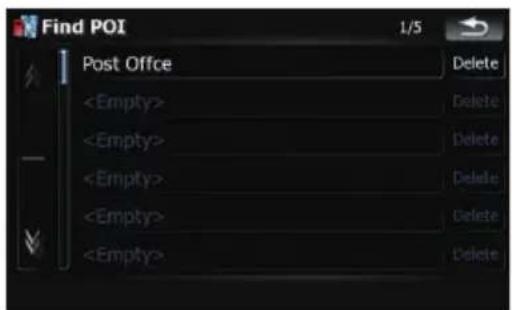
4TouchthedesiredPOI.
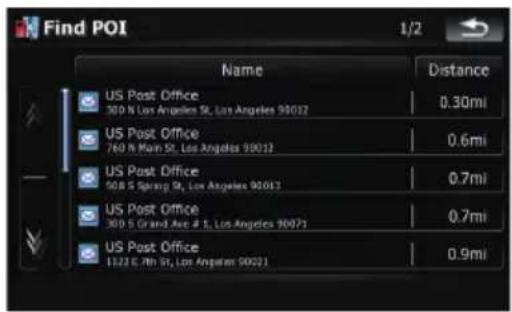
5Touchonoftheoptionsatthebottom ofthe"MapConfirmationScreen"toselect thenextoperation.
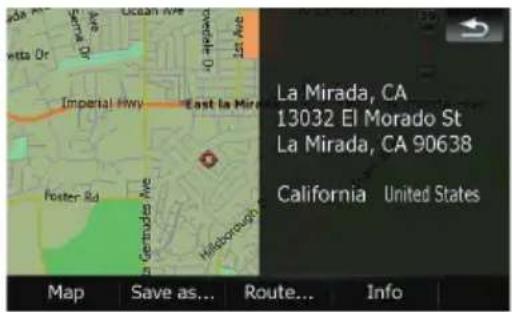
Touching[Route...]and[GoHereNow]sequentiallyenablesyoutosetyourselectedpositionasyourdestinationandcalculatethe routeupthatpoint.
Fordetailsconcerningotheroperationson the"MapConfirmationScreen",referto Whatyoucandowiththe"MapConfirmation Screen"onpage36.
DeletingthememorizedPOIshortcuts
1Touch[Destination]onthe"TopMenu", andthentouch[POI].
2Touch[SavedCriteria].
Searchingforandselectingalocation
3Touch[Delete]ontherightoftheitem thatyouwanttodelete.
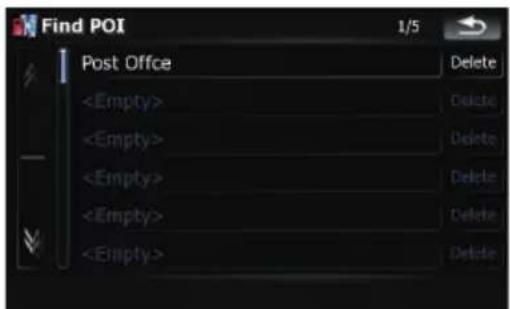

4Touchthefolderthatincludesthede-sireditemonthelist.
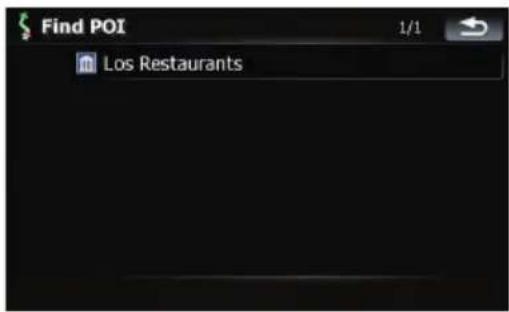
5Touchoneoftheitemsonthelist.
SearchingforPOIsbyusing thedataonexternal storagedevices(USB,SD)
CreatingacustomizedPOlispossibleby usingtheutilityprogramme"AVICFEEDS" whichisavailableseparately,onyourPC. ("AVICFEEDS"willbeavailableonourwebsite.)StoringthecustomizedPOIproperlyand connectingtheexternalstoragedevice(USB, SD)enablesthesystemtousethedatafor searches.
1ConnecttheUSBdeviceorinserttheSD card.
2Touch[Destination]onthe"TopMenu", andthentouch[USB/SD].
3Touchthedesiredstoragethatyou wanttoload.
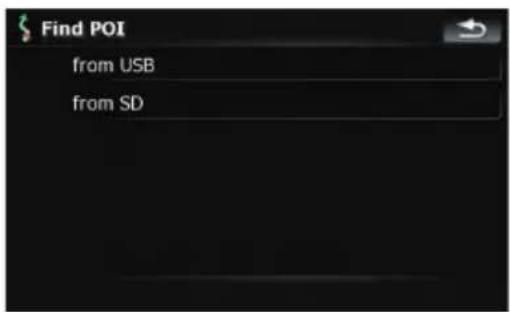

6Touchonoftheoptionsatthebottom ofthe"MapConfirmationScreen"toselect thenextoperation.
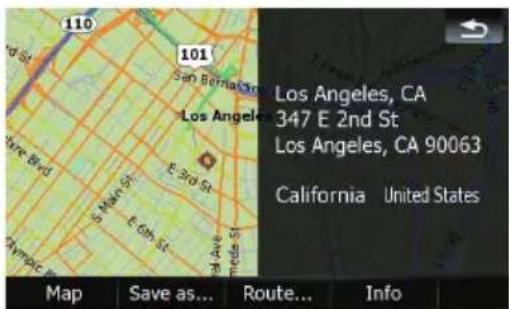
Touching[Route...]and[GoHereNow]sequentiallyenablesyoutosetyourselectedpositionasyourdestinationandcalculatethe routeupthatpoint.
Fordetailsconcerningotheroperationson the"MapConfirmationScreen",referto Whatyoucandowiththe"MapConfirmation Screen"onpage36.
Searchingforandselectingallocation
Searchingforalocationby coordinates
Enteringlatitudeandlongitudepinpoints thelocation.
1Touch[Destination]onthe"TopMenu", andthentouch[RouteFunction].
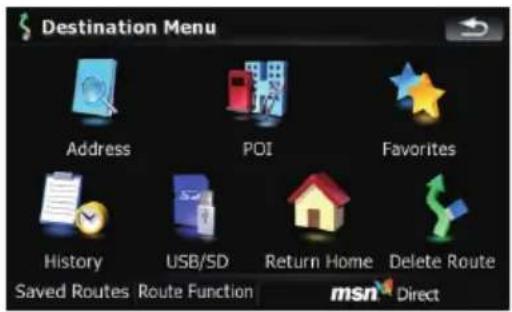
2Touch[Coordinate].
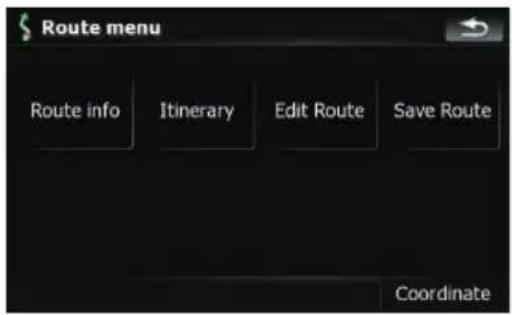
3Toucheitherthelatitudekeyorthe longitudekey,whicheveryouwantto enter.
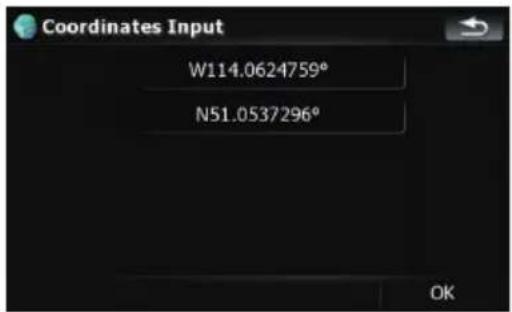
The valuesonthelatitudekeyorlongitudekey showsthecoordinatesonthecursorjustbeforeenteringthisscreen.
4Touch < todeletethecurrentvalue andenterthedesiredcoordinate.
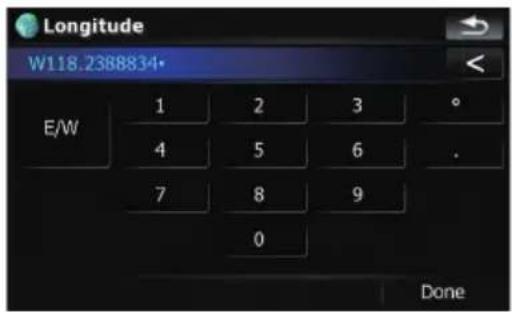
- Touching [N/S] or [E/W] changes the hemisphere.
5Touch[Done].
Thescreenreturnstothepreviousscreen. Touchtheotherkeythatyouhavenotentered yet,enterthelatitudeorlongitudeandthen touch[Done]tofinishtheentry.
6Touch[OK].
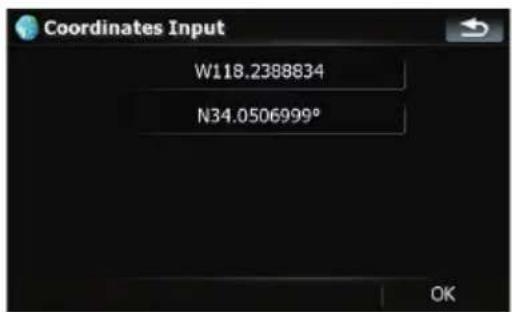
The "MapConfirmationScreen" appears.
7Touchonoftheoptionsatthebottom ofthe"MapConfirmationScreen"toselect thenextoperation.
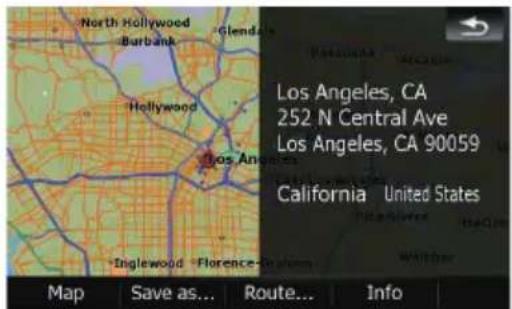
Searchingforandselectingalocation
Touching[Route...]and[GoHereNow]sequentiallyenablesyoutosetyourselectedpositionasyourdestinationandcalculatetherouteupthatpoint.
Fordetailsconcerningotheroperationson the"MapConfirmationScreen",referto Whatyoucandowiththe"MapConfirmation Screen"onpage36.
Selectingalocationyou searchedforrecently
The place that you have searched for in the past are automatically stored in "History". Selecting the item on the list provides an easy way to specify the position.
□"History" can store up to 32 locations. If the entries reach them maximum, thenew entry over writestheoldestone.
1Touch[Destination]onthe"TopMenu", andthentouch[History].
2Touchthedesiredentry.
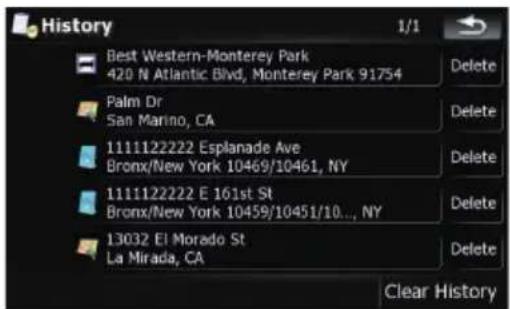
3Touchonoftheoptionsatthebottom ofthe"MapConfirmationScreen"toselect thenextoperation.
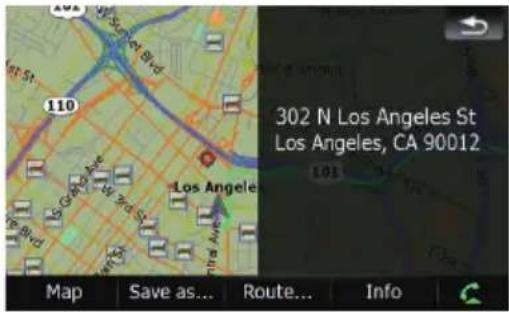
Touching[Route...]and[GoHereNow]sequentiallyenablesyoutosetyourselectedpositionasyourdestinationandcalculatetherouteupthatpoint.
Fordetailsconcerningotheroperationson the"MapConfirmationScreen",referto Whatyoucandowiththe"MapConfirmation Screen"onpage36.
Deletinganentryin"History"
Itemsin"History"canbedeleted.Allentries in"History"canalsobedeletedatonce.
1Touch[Destination]onthe"TopMenu", andthentouch[History].
2Touch[Delete]ontherightoftheitem thatyouwanttodelete.
3Touch[Yes].
Amessagewillappearaskingyoutoconfirm thedeletion.
□Touching[ClearHistory]allowsyoutode-
letealltheentries.
☐Becausedeleteddatacannotberestored, takeextracarenottomistakenlydelete item.
Selectingalocationstored in "Favorites"
Storinglocationsyouvisitfrequently saves timeandeffort.
Searchingforandselectingallocation
Selectingtheitemonthelistprovidesaneasy waytospecifytheposition.
□"Favorites" canstoreupto30 locations.
1Touch[Destination]onthe"TopMenu", andthentouch[Favorites].
2Touchthedesiredentry.
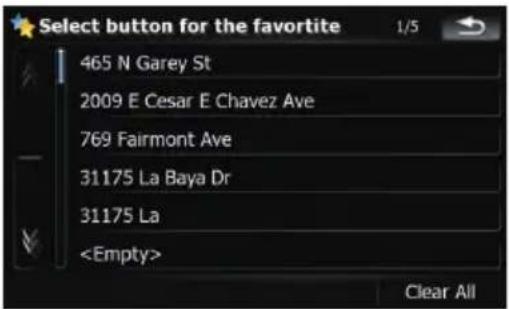
3Touchonoftheoptionsatthebottom ofthe"MapConfirmationScreen"toselect thenextoperation.
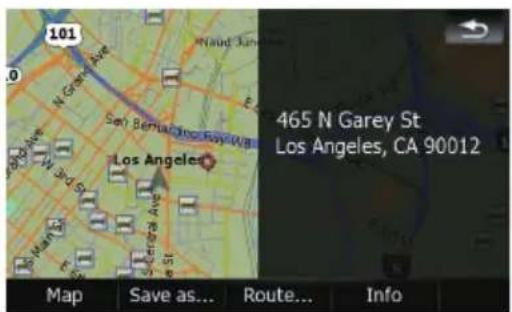
Touching[Route...]and[GoHereNow]sequentiallyenablesyoutosetyourselectedpositionasyourdestinationandcalculatethe routeupthatpoint.
Fordetailsconcerningotheroperationson the"MapConfirmationScreen",referto Whatyoucandowiththe"MapConfirmation Screen"onpage36.
Deletinganentryin"Favorites"
Allentriesin "Favorites" can bedeleted at once.
1Touch[Destination]onthe"TopMenu", andthentouch[Favorites].
2Touch[ClearAll].
Amessagewillappearaskingyoutoconfirm thedeletion.
3Touch[Yes].
☐Because deleted data cannot be restored, take extracarenottomistakenly delete item.
Settinguparoutetoyour home
If your homelocation is stored, theroute home can be calculated by touching a single key.
- Touch[Destination]onthe"TopMenu", andthentouch[ReturnHome].
Whentherouteisnotset, routecalculation startsimmediately.
Whentherouteisalreadyset, amessagewill appearaskingyoutocancelthecurrentroute. Touch[Yes]tostarttheroutecalculation.
□Ifthehomelocationhasnotbeenstored yet,setthelocationfirst. →Fordetails,refertoSettingyourhomepositiononpage134.
Settingaroutebyrecalling asavedroute
Savingarouteenablesyoutorecallthesame route.Selectingtheitemonthelistprovides aneasywaytosetthesavedroute.
Selectingtheitemonthelistprovidesaneasy waytospecifytheposition.
- If there are no entries on the list, save the route first.
Fordetailsconcerningotheroperations, refer to Storing the current route on page 44.
1Touch[Destination]onthe"TopMenu", andthentouch[SavedRoutes].
Searchingforandselectingalocation
2Touchthedesiredentry.
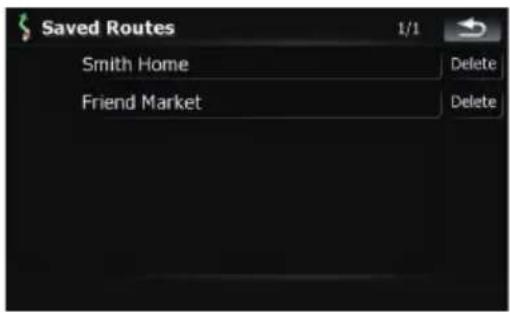
Whentherouteisnotset,thesavedrouteis recalledandtheguidancewillstartimmediately.
Searchingforalocationby scrollingthemap
Specifyingalocationafterscrollingthemap enablesyoutosetthepositionasanoperable targetinthe"MapConfirmationScreen".
1PressMAPbuttontodisplaythenavigationmapscreen.
2Touchanddragthescreentoscrollthe maptothedesiredposition.
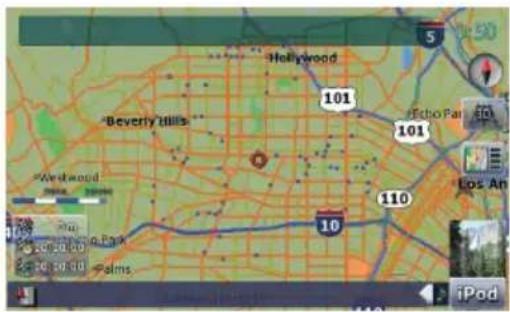
3Touchtodisplaythe"MapConfirmationScreen".
The"MapConfirmationScreen"appears.
4Touchonoftheoptionsatthebottom ofthe"MapConfirmationScreen"toselect thenextoperation.
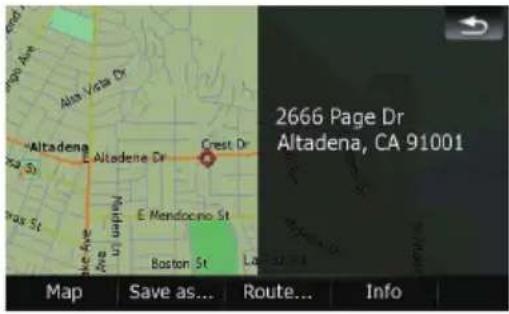
Touching[Route...]and[GoHereNow]sequentiallyenablesyoutosetyourselectedpositionasyourdestinationandcalculatethe routeupthatpoint.
Fordetailsconcerningotheroperationson the"MapConfirmationScreen",referto Whatyoucandowiththe"MapConfirmation Screen"onthenextpage.
Afterthelocationisdecided(MapConfirmationScreen)
Whatyoucandowiththe"MapConfirmationScreen"
Under most conditions after searching for a location, the "Map Confirmation Screen" appears to let you selectthenextoperation.Theoptionsshownbelowareavailableonthisscreen:
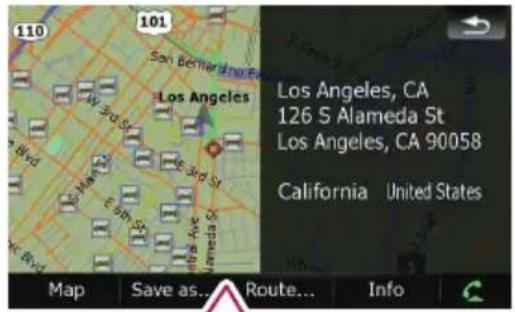
Map
Save as...
Route...
Info

Map
Showsafull-screen2Dmapcenteredonthe cursorposition.
Saveas...
Placesamappin, and savestheposition.
Formoredetailsconcerningtheoperation, referetoSaveas...onthenextpage.
Route...
Setsthedestination, waypoints, and starting pointpositions.
Formoredetailsconcerningtheoperation, refertoRoute...onthispage.
Info
Showsdetailedinformationaboutthelocation ofthecursorposition.
Formoredetailsconcerningtheoperation, referitoViewingtheinformationofaspecifiedlocationonpage38.
C
Enablesyoutocallthepositionifatelephone numberisavailable.(Pairingwithcellular phonefeaturingBluetoothwirelesstechnology isrequired.)
Formoredetailsconcerningtheoperation, refertoDialingaphonenumberonthe "MapConfirmationScreen" onpage58.
Route...
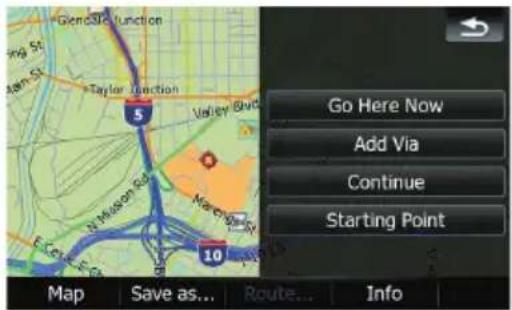
GoHereNow
Calculatesthenewroutebysettingthecursor positionasthenewdestination.
Formoredetailsconcerningtheoperation, refertoSettingthelocationasanewdestinationonthenextpage.
AddVia
Recalculatestheroutebyaddingthecursor positionasawaypoint.
Formoredetailsconcerningtheoperation, referoSettingthelocationasawaypoint onthenextpage.
Continue
Recalculatestheroutebysettingthecursor positionasthenewdestination.Theprevious destinationbecomesawaypoint.
Afterthelocationisdecided(MapConfirmationScreen)
Formoredetailsconcerningtheoperation, refertoReplacingthelocationasthenew finaldestinationonthispage.
StartingPoint
Setsthelocationasastartingpoint.
Formoredetailsconcerningtheoperation, refertoSettingthelocationasthestart pointonthispage.
Saveas...
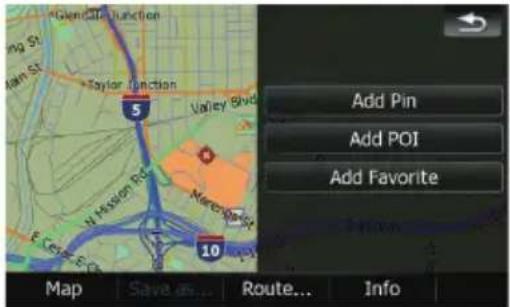
AddPin
Putsamappinatthecursorpositionasa markup.
Fordetails, referto Placingamappinonthe locationonthenextpage.
AddPOI
StoresthecursorpositionasaPOI.
- Fordetails, refertoRegisteringthelocation asacustomizedPOlonpage39.
AddFavorite
Storesthecursorpositionasoneofthe"Favorites".
Fordetails, referto Storing the location in "Favorites" on page 40.
Settingthelocationasa newdestination
1Touch[Route...]onthe"MapConfirmationScreen".
2Touch[GoHereNow].
Whentherouteisnotset, routecalculation startsimmediately.
Whentherouteisalreadyset,amessagewill appearaskingyoutocancelthecurrentroute.
Touch[Yes]tostarttheroutecalculation.
☐Whenthecursoroverlapswithadestinationthathasalreadybeenset,touch[RemoveDest.]tocancelthecurrentrouteor recalculatetheroutebysettingoneofthe remainingwaypointsasthedestination.
![PIONEER AVIC-F90BT - 2Touch[GoHereNow]. - 1](/content/2026/05/814290/images/230ea2ca95794564d9854e8f7478a38bea81a704126aa24d9ecd40b4d46360d1.jpg)
Settingthelocationasa waypoint
1Touch[Route...]onthe"MapConfirmationScreen".
2Touch[AddVia].
Whennowaypointisset, routecalculation startsimmediately.
□When the cursor overlaps awaypointal-readyset, touch [RemoveVia] to delete the waypoint and recalculate etheroute.
Replacingthelocationas thenewfinaldestination
1Touch[Route...]onthe"MapConfirmationScreen".
2Touch[Continue].
☐ Recalculatestheroutebysettingthecursor positionasthenewdestination. Thepreviousdestinationbecomesawaypoint.
![PIONEER AVIC-F90BT - 2Touch[Continue]. - 1](/content/2026/05/814290/images/38e673e3695355ccf9b45559ad05c2d80c0c1461dafee257013d117dc5baf250.jpg)
Settingthelocationasthe startpoint
Onlysettingthestartingpointisperformed whenthereisnoroute. Otherwise, thenew routefromthestartingpointtothecurrent destinationwillberecalculated.
Afterthelocationisdecided(MapConfirmationScreen)
1Touch[Route...]onthe"MapConfirmationScreen".
2Touch[StartingPoint].
☐Whenthecursoroverlapswithastarting pointalreadyset,Itchangesto[Remove Start].Allwaypointsalreadysetare deleted.
Viewingtheinformationof aspecifiedlocation
Locating the cursor to your desired position enables you to view detailed information about the location by using the "Map Confirmation Screen".
1PressMAPbuttontodisplaythenavigationmapscreen.
2Touchanddragthescreentoscrollthe maptothedesiredposition.
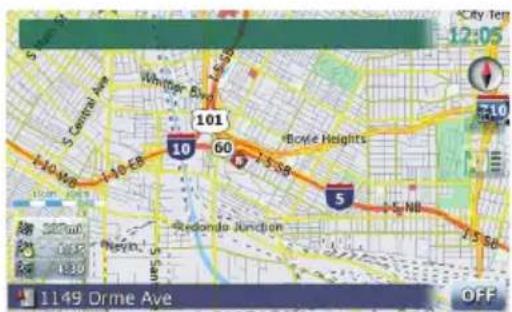
3Touchtodisplaythe"MapConfirmationScreen".
The "MapConfirmationScreen" appears.
4Touch[Info]atthebottomofthe"Map ConfirmationScreen".
The "PointInfo" screenappears.
![Point Info 1/65 1997 W Newport Pike, Wilmington, DE 19804 [N 39.71593° x W 75.63534°] POIs near the Cursor: 193 US Post Office 2010 W Newport Pike, Stanton 19804 Vivians Personal Touch 2002 W Newport Pike, Wilmington 19804 Pat's Pizzeria 2004 W Newport Pike, Stanton 19804](/content/2026/05/814290/images/af6926d265d60643dba4c6bec4bde835db8f04a73f7f822d0b6814c49378cb33.jpg)
①Theaddressandcoordinates ②InformationaboutanearbyPOI
5TouchortscrollthenearbyPOllist andthentouchthedesiredPOI.
TouchingoneofthelistedPOIsenablesyouto viewmoredetailedinformationaboutthePOI.
6Touch[OK].
Ifyoutouch[OK], the "MapConfirmation Screen" appears with a focus on these selected POI.
Placingamappinonthe location
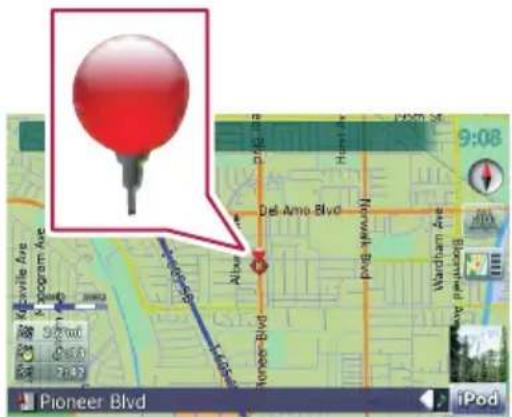
Thepin-shapediconscalled "mappins" can be used just likemarkers. Placing the colored pinson themap make the position standout and helps you to find the position easily later.
Afterthelocationisdecided(MapConfirmationScreen)
1Searchforalocationorpositionthe cursoronthedesiredareabyscrollingthe mapanddisplayingthe"MapConfirmation Screen".
2Touch[Saveas...]onthe"MapConfirmationScreen".
3Touch[AddPin].
Thepin-shapediconisplacedonthemapand thescreenreturnstothemapscreen.
☐Thecolorofpin-shapediconisassigned automaticallywithinpredefinedcolors whenyousetitup.
Removingamappin
Whenthecursoroverlapsamappinthathas alreadybeenset,youcanremovethemappin.
1Locatethecursoratthepin-shaped iconanddisplaythe"MapConfirmation Screen".
2Touch[Saveas...]onthe"MapConfirmationScreen".
3Touch[RemovePins].
Thepin-shapediconisremovedandthe screenreturnstothemapscreen.
Registeringthelocationas acustomizedPOI
Ifanewbusinesshasopened, it may not be found in the database. Registering the location as anew POI allows you to set the item just like a preinstalled POI.
1Searchforalocationorpositionthe cursoronthedesiredareabyscrollingthe mapanddisplayingthe"MapConfirmation Screen".
2Touch[Saveas...]onthe"MapConfirmationScreen".
3Touch[AddPOI].
ThelistofPOIcategoriesappears.
4Touchthedesiredcategorytowhich thelocationistobeassigned.
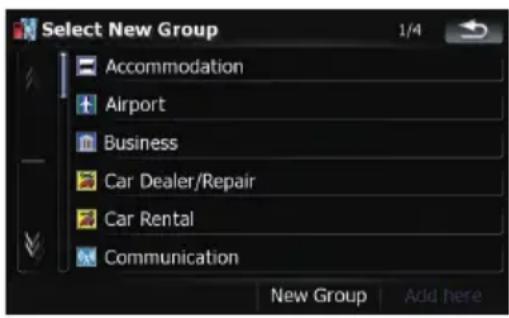
If there are more detailed categories within the selected category, repeat this step as many times as necessary.
5Touch[Addhere]whenthedesiredcategorylistappearstoaddtheitemtoit.
If therearen'tanymoredetailedcategories, theblanklistappears.Insuchcase,touching [Addhere]allowsyoutoaddtheitemand registeritasanitembelongingtothecategory thatyouselectedonthepreviousscreen.
□Touching[Addhere]withoutselectingany categoryisinvalid.
6Enterthedesirednameandthentouch [Done]tocompletetheentry.
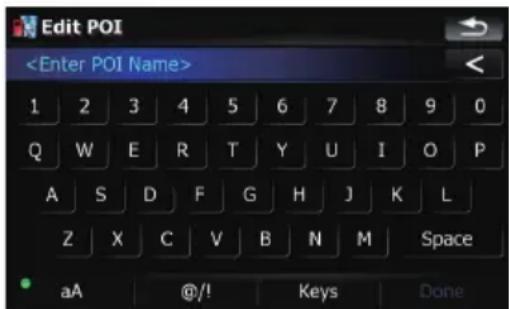
Theregistrationisnowcompleteandtheitem isavailableasacustomizedPOI.
☐YoucaneditthestoredPOllaterin"ManagePOI".
Formoredetailsconcerningtheoperation, refertoEditingyourcustomizedPOlon page132.
Afterthelocationisdecided(MapConfirmationScreen)
Storingthelocationin "Favorites"
Storingyourfavoritelocationsas"Favorites" providesyouwiththeopportunitytosavethe timeandeffortofre-enteringthisinformation. Storeditemscanbemadeavailableon"Favorites"later.
Formoredetailsconcerningtheoperation, refertoSelectingalocationstoredin"Favorites"onpage33.
□"Favorites" canstoreupto30 locations.
1Searchforalocationorpositionthe cursoronthedesiredareabyscrollingthe mapanddisplayingthe"MapConfirmation Screen".
2Touch[Saveas...]onthe"MapConfirmationScreen".
3Touch[AddFavorite].
4Touchthedesiredentry.
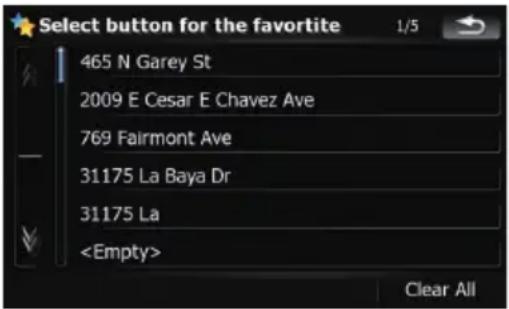
Selectinganitemthathasalreadybeenstored allowsyoutooverwriteit.
5Enterthedesirednameandthentouch [Done]tocompletetheentry.
Storagehasbeencompletedandtheitemis availableasapresetentryon"Favorites".

Deletinganentryin "Favorites"
Allentriesin "Favorites" can bedeleted at once.
1Touch[Destination]onthe"TopMenu", andthentouch[Favorites].
2Touch[ClearAll].
Amessagewillappearaskingyoutoconfirm thedeletion.
3Touch[Yes].
☐ Because deleted data cannot be restored, take extracarenottomistakenly delete item.
Checking the current route conditions
The "RouteInformation" screen provides you with various detailed information about the current route.
Thisisanexampleshowingaroutewithtwo waypoints.
Thisfunctionisavailableonlywhenthe routeissetandyourvehiclepositionison theroute.
☐Youcanalsodisplaythe"RouteInformation"screenbytouching"Multi-Infowindow"onthemapscreen.
- Fordetails, refertoMulti-Infowindow onpage21.
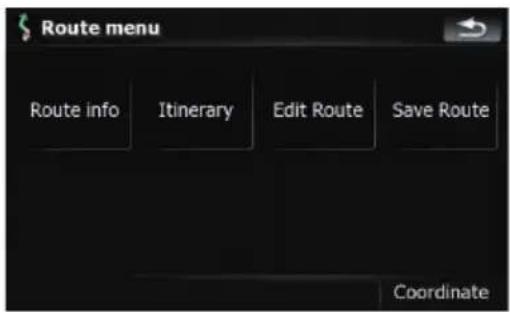
1Touch[Destination]onthe"TopMenu", andthentouch[RouteFunction].
2Touch[Routeinfo].
The "Routelnformation" screenappears.
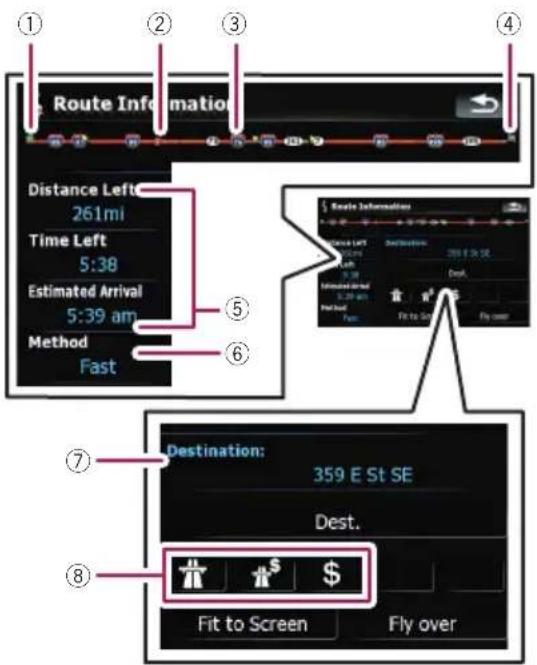
①Startingpoint
②Currentposition
③Waypoint
④Destination
⑤Timeanddistanceuptothepointcurrently shown
Theremainingdistanceandtime,aswellas theestimatedtimeofarrivalaredisplayed.
⑥Theroutecalculationmethodthatiscurrentlyset"Method:"
Fordetails, refertoRouteonpage127.
⑦Pointcurrentlyshownandinformationregardingthepoint
⑧Therouteconditionsuptothepointcurrentlyshown
Touchingtheiconenablesyoutocheckthe details.Iftherearefiveormoreicons,touch
→ toshowthenextfouricons.
3Touch[Dest.]toswitchtothescreenfor firstwaypoint.
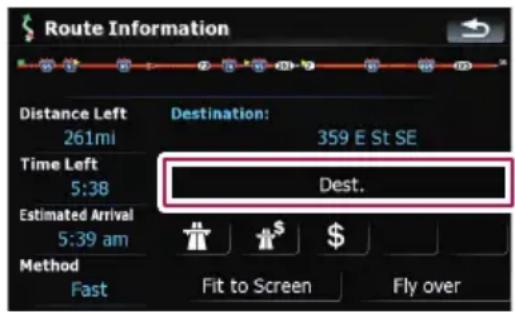
The "RouteInformation(tovia)" screenappears.
4Touch[Via]toswitchtothesecond waypointscreen.
The "RoutelInformation(tovia)" screenfor nextwaypointappears.
5Touch[Via]toreturntothescreenfor wholeroute.
The "RoutelInformation" screenappears.
□Ifthreeormorewaypointsareset,each touchof[Via]showsthescreenforthenext waypoint.
Playingsimulatedtravelat highspeed
Thisfunctionallowsyoutoplaythesimulated navigationfunctionathighspeedwithout voiceguidance. Thisfunctionisusefulify you wanttobrowsehowthecurrentroutewillbe navigated.
1Touch[Destination]onthe"TopMenu", andthentouch[RouteFunction].
2Touch[Routeinfo].
The "RouteInformation" screenappears.
3Touch[Flyover].
Thesimulationwillstart.
□Ifyouwanttostopthesimulation,touch
![PIONEER AVIC-F90BT - 3Touch[Flyover]. - 1](/content/2026/05/814290/images/3d7617868505fc137ec77ae826a8150b3331b45b300aff0babd483d23626f582.jpg)
onthemap.
Checkingtheentireroute overviewonthemap
You can check the entire outline of the current route.
1Touch[Destination]onthe"TopMenu", andthentouch[RouteFunction].
2Touch[Routeinfo].
The "RoutelInformation" screenappears.
3Touch[FittoScreen].
A2Dmapscreenwillappearwiththecurrent overallroutefittedontothescreen.
Checking the current itinerary
Youcanchecktheroutedetails.
☐Thisfunctionisavailableonlywhenthe routeissetandyourvehiclepositionison theroute.
1Touch[Destination]onthe"TopMenu", andthentouch[RouteFunction].
2Touch[Itinerary].
3Touch

scrollthelist.
Scrollthelistasnecessary.
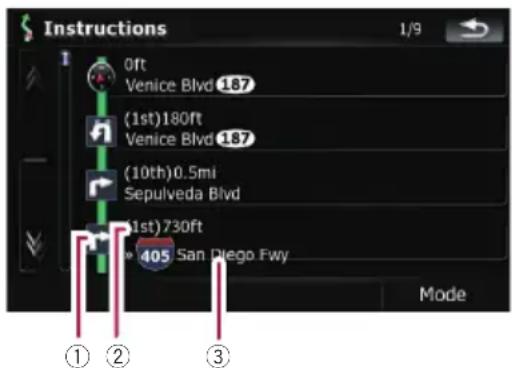
①Turningdirection
②Drivingdistance
③Namesofthestreetsyouaredriving through
4Touch[Mode].
Eachtouchof[Mode]changesthelistmode.
Checkingthecurrentroute
Alternativeoptions:
• DetailedInstructions
Allturningpoints, passedstreetsandother informationisshown.
- Instructions
Allturningpoints(wherevoiceguidanceis given)areshown.
- RoadList
Displaystheturningpointswiththemost simplifiedcondition(theduplicateroute namesaremergedintoone.).
Whenalongdistancerouteiscalculated, yournavigationsystemmaynotbeable to listallroads.(Inthiscase,theremaining roadswillbeshowninthelistasyoudrive on.)
Editingwaypoints
You can edit waypoints (locations you want to visit on the way to your destination) and calculate ether routes that is pass through these locations.
Addingawaypoint
1Searchforalocation.
Formoredetails, refertothedescriptions frompage25topage35.
2Touch[Route...]onthe"MapConfirmationScreen".
3Touch[AddVia].
Whennowaypointisset, routecalculation startsimmediately.
Formoredetailsconcerningtheoperation, refertoSortingwaypointsonthispage.
□Whenyousetwaypointsintheroutetoyour destination,therouteuptothenextwaypointwillappearinlightgreen.Therestof theroutewillappearinlightblue.
Sortingwaypoints
Youcansortwaypointsandrecalculatethe route.
1Touch[Destination]onthe"TopMenu", andthentouch[RouteFunction].
2Touch[EditRoute].
The "EditRoute" screenappears.
3 Touch [↑] or [↓] to move the waypoint ordestination.
Puttheminthedesiredorder.
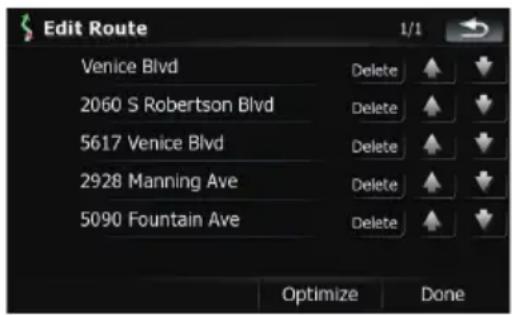
Touching[Optimize]sortsthowaypointsautomaticallysothattheroutewillcompromise theleasttimeanddistance.
4Touch[Done].
Therouteisrecalculatedandthemapofthe currentpositionappears.
Deletingawaypoint
Youcandeletewaypointsfromtherouteand thenrecalculatetheroute.(Youcandelet waypointssuccessively.)
1Touch[Destination]onthe"TopMenu", andthentouch[RouteFunction].
2Touch[EditRoute].
The "EditRoute" screenappears.
3Touch[Delete]ontherightofthewaypointthatyouwanttodelete.
Thewaypointwillbedeletedfromthelist.
4Touch[Done].
Therouteisrecalculatedandthemapofthe currentpositionappears.
Storingthecurrentroute
Storing the current route allows youtorecall and set the stored route.
☐Thisfunctionisavailableonlywhenthe routeissetandyourvehiclepositionison theroute.
1Touch[Destination]onthe"TopMenu", andthentouch[RouteFunction].
Editingwaypointsandthedestination
2Touch[SaveRoute].
3Enterthedesirednameandthentouch [Done]tocompletetheentry.
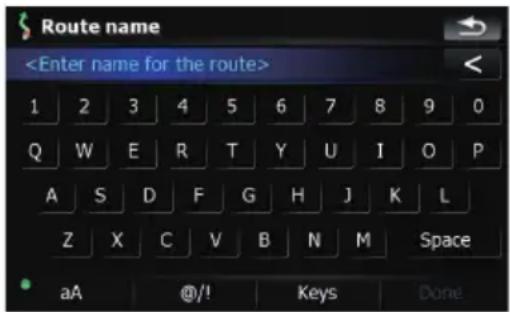
The previous screen appears.
Deletingtheentryin"Saved Routes"
1Touch[Destination]onthe"TopMenu", andthentouch[SavedRoutes].
2Touch[Delete]ontherightoftheitem thatyouwanttodelete.
☐Becausedeleteddatacannotberestored, takeextracarenottomistakenlydelete item.
Deletingthecurrentroute
If you nolongerneed to travel to your destination, follow the steps below to delete the current route and cancel the route guidance.
1Touch[Destination]onthe"TopMenu", andthentouch[DeleteRoute].
Amessageconfirmingthecancellationofthe currentrouteappears.
2Touch[Yes].
If you have an active subscription to MSNDirectservice, you can check and browse various information on your navigation system, such as gas prices, movietimes, weather conditions and traffic information. The information will be updated periodically.
—ThisfunctionisavailableforAVIC-F900BT andAVIC-F90BT.
NoticeaboutMSNDirect™
Pioneerisnotresponsiblefortheaccuracyof theMSNDirectcontent.TheMSNDirectcontentmaynotbecurrentoravailableattimes, andissubjecttochangewithoutnotice.ToreceiveMSNDirectcontent,youmustsubscribe totheMSNDirectservice,andyoumustbe withintheMSNDirectcoveragearea.Coveragemayalsobeaffectedbytheavailabilityand relativestrengthofFMtransmissions,aswell asreceptionlimitationsofMicrosoft'sDirect-Bandnetwork.
Pleasevisit http://www.msndirect.com/pioneer orcurrentcoverageareamaps,subscription details,andotherimportantinformationabout MSNDirect.
Activatingtheservice
YouhavetoactivateMSNDirectfirst.
☐Aweb-connectedcomputerisrequiredfor theonlinesubscription.
□If you have difficulty for the online subscription, please call toll-free 1-866-658-7032.
Generalflowchart:
1 Checkyourproductkey.
Youhavetoknowyourproductkeyforthe
subscription.
(RefertoCheckingyourproductkeyonthis
page.)
② MakeanonlinesubscriptiontoMSNDirect serviceusingyourPC.
(RefertoSubscribingtotheMSNDirectserviceonthenextpage.)
③ActivatetheMSNDirectserviceonthisproduct.
(RefertoActivatingtheMSNDirectfunction onthenextpage.)
4 Activationiscomplete.
Checkingyourproductkey
Theproductkeythatyoucanfindhereisused intheonlinesubscription.
1Touch[Destination]onthe"TopMenu", andthentouch[MSNDirect].
The "MSNDirect" screenappears.
2Touch[Status].
3Writeyourproductkeydowninthefollowingbox;
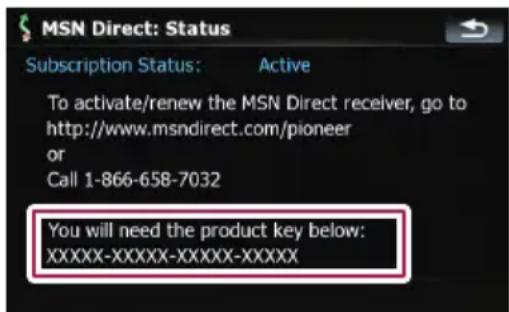
SubscribingtotheMSNDirect service
Withintwodaysofcompletingthesubscription, executeActivatingtheMSNDirectfunction.
1AccessthefollowingURLandreadthe description. http://www.msndirect.com/pioneer
2Besuretocheckthecoverageareaand otheravailabilitiesofMSNDirectonthe webpage.
3Movetothepageforactivationand enteryourproductkey.
4Followthedirectionsonthewebpage tocompletethesubscription.
ActivatingtheMSNDirectfunction
Aftertheonlinesubscription,completetheactivationsothatthenavigationsystemcanreceivetheinformation.
This operation must be performed under the following conditions
—You are currently in the coverage area of MSNDirect.
—Thesignalstrength( screenisnotweak. ) on "MSNDirect"
1Boot-upyournavigationsystem.
2Touch[Destination]onthe"TopMenu", andthentouch[MSNDirect].
The "MSNDirect" screenappears.
Checkthesignalstrength.Ifthesignalis weak,movetoanotherlocationwhereastrongersignalcanbereceived.
3Touch[Status].
4Waituntiltheactivationstatuschanges to"Active".
It may take approximately 20 or 30 minutes to complete the activation.
Afteractivationiscomplete, theinformation willbeavailableoneachmenu.
Browsinggasprices
Recent gas prices of near by gas stations are displayed in alist.
Thisinformationsdoesnotnecessarilycorrespondtoactualinformation.Utilizetheinformationforyourreference.
It may take up to 24 hours for all the data to become available under the following conditions:
- WhenyouuseMSNDirectforthefirsttime.
- When you havenot performed this function previously around the current area.
• Afterthenavigationsystemhasbeen turnedoffforafewdays.
1Touch[Destination]onthe"TopMenu", andthentouch[MSNDirect].
The "MSNDirect" screenappears.
2Touch[GasPrices].
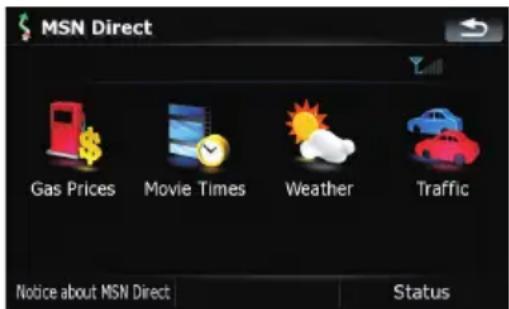
3Touchthedesiredtabtochangethe sortorder.
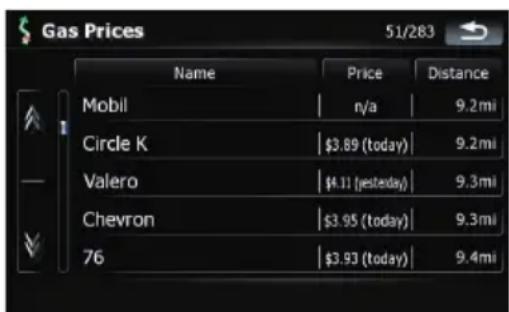
Availableoptions;
• Distance:
BrowsinginformationonMSNDirect
Sortstheitemsinthelistinorderbydistancefromthevehicleposition.
- • [Price]:
Sortstheitemsinthelistbyprice.
4Touchontheitemthatyouwantto viewindetail.
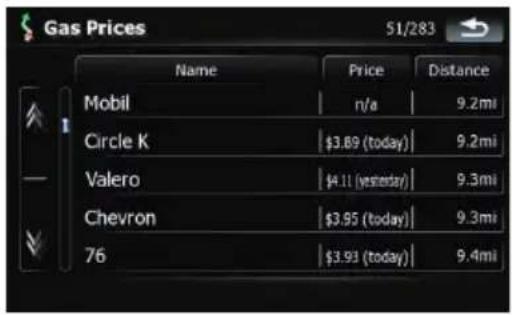
①Thenamesofgasstationsandtheirlocations
②Gasprices
Theinformationin()showshowcurrent theinformationis.
③Distancefromthecurrentposition
5Touchonoftheoptionsatthebottom ofthe"MapConfirmationScreen"toselect thenextoperation.
Fordetailsconcerningotheroperationson the"MapConfirmationScreen",referto Whatyoucandowiththe"MapConfirmation Screen"onpage36.
Browsingmovietimes
Nearbytheaterscanbedisplayedonalist. Switchingthescreenallowsyoutoseethe movietitlenowshowing.
Thisinformationsdoesnotnecessarilycorrespondtoactualinformation.Utilizetheinformationforyourreference. Itmaytakeupto6hoursforallthedatatobecomeavailableunderthefollowingconditions:
- WhenyouuseMSNDirectforthefirsttime.
- When you havenot performed this function previously around the current area.
• Afterthenavigationsystemhasbeen turnedoffforafewdays.
Searchingforatheaterby selectingamovietitle
1Touch[Destination]onthe"TopMenu", andthentouch[MSNDirect].
2Touch[MovieTimes].
3Touch[AllMovieTitles].
Themovietitlesnowshowingaredisplayed.
4Touchthedesiredmovietitle.
The theater that are currently showing these selected movie are displayed.
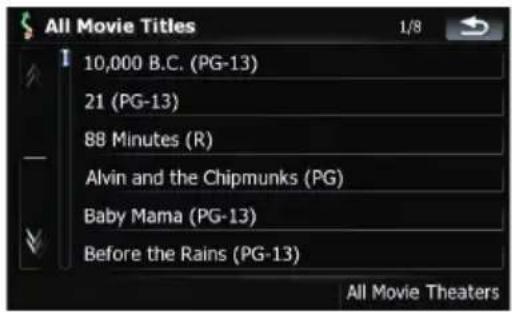
BrowsinginformationonMSNDirect
5Touchthedesiredtabtochangethe sortorder.
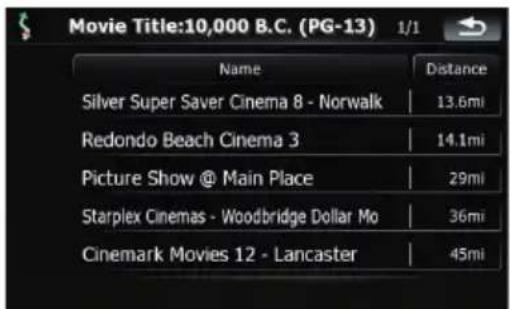
Availableoptions;
• Distance:
Sortstheitemsinthelistinorderbydistancefromthevehicleposition.
- Name:
Sortstheitemsinthelistalphabetically.
6Touchontheitemthatyouwantto viewindetail.
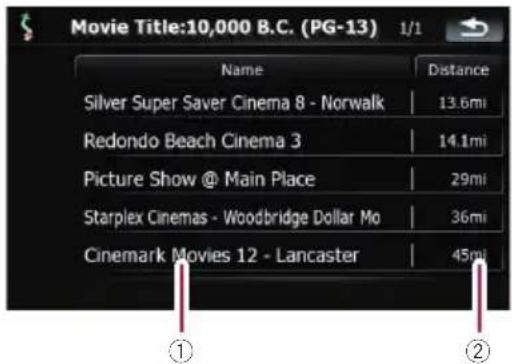
①Thenamesoftheatersandtheirlocations
②Distancefromthecurrentposition
7Touchonoftheoptionsatthebottom ofthe"MapConfirmationScreen"toselect thenextoperation.
Fordetailsconcerningotheroperationson the"MapConfirmationScreen",referto Whatyoucandowiththe"MapConfirmation Screen"onpage36.
Searchingforamovietitleby selectingatheater
1Touch[Destination]onthe"TopMenu", andthentouch[MSNDirect].
2Touch[MovieTimes].
Thenearbytheatersaredisplayed.
3Touchthedesiredtabtochangethe sortorder.
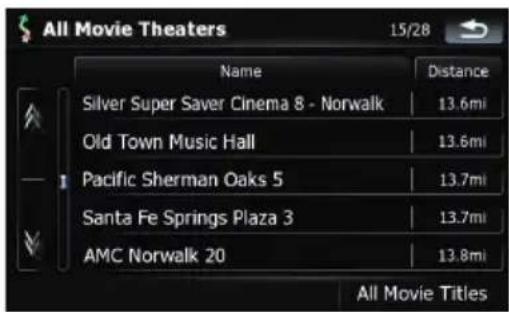
Availableoptions;
• Distance:
Sortstheitemsinthelistinorderbydistancefromthevehicleposition.
• Name:
Sortstheitemsinthelistalphabetically.
4Touchthedesiredtheater.
Themovietitlescurrentlyshownonthese- lectedtheateraredisplayed.
5Touchontheitemthatyouwantto viewindetail.
6Touchonoftheoptionsatthebottom ofthe"MapConfirmationScreen"toselect thenextoperation.
Fordetailsconcerningotheroperationson the"MapConfirmationScreen",referto Whatyoucandowiththe"MapConfirmation Screen"onpage36.
Browsingweather information
Localweatherinformationcanbedisplayed onalist.Switchingthescreenallowsyouto seeworldwideweatherconditions.
Thisinformationsdoesnotnecessarilycorrespondtoactualinformation.Utilizetheinformationforyourreference.
Checkingthelocalweather information
1Touch[Destination]onthe"TopMenu", andthentouch[MSNDirect].
2Touch[Weather].
The local weather information is displayed. The areaname, distance and direction from current position are displayed on the list. The item on the list are sorted by distance.
Detailedinformationisdisplayed.
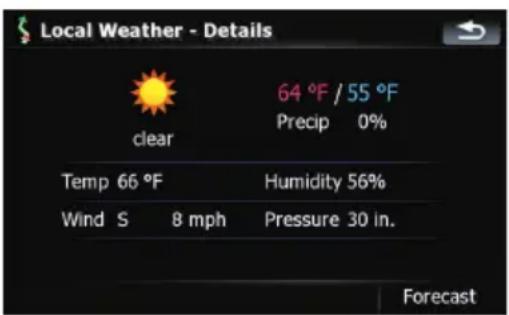
Touching[Forecast]displaytheweatherforecastsforthesethreedays.
Checkingworldwideweather conditions
1Touch[Destination]onthe"TopMenu", andthentouch[MSNDirect].
2Touch[Weather].
The local weather information is displayed.
3Touch[Worldwide].
Worldwideweatherconditionsaredisplayed. Theareaname, distance and direction from currentpositionaredisplayedonthelist. The listissortedalphabetically by theareaname.
Detailedinformationisdisplayed.
Usingtrafficinformation
You can view current traffic conditions and information. When the navigation system receives updated traffic information, it will overlay the traffic information on your map and also display detailed text information when available.
Inthedefaultsetting, thenavigationsystem takes into account traffic information and tries to avoid traffic jam and suggests better routes. Also, when you are traveling along a route and the system finds another better route for avoiding the traffic jam, the current route will be calculated automatically.
The term "trafficjam" in this section indicates the following types of traffic conditions:
—Stop-and-gotraffic
—Stoppedtraffic
—Closed/blockedroads
Viewingthetrafficlist
TrafficInformationisdisplayedonascreenin theformofalist. This allowsyoutocheckhow manytrafficincidentshaveoccurred, their locationandtheirdistancefromyourcurrentposition.
1Touch[Destination]onthe"TopMenu", andthentouch[MSNDirect].
2Touch[Traffic].
Alistwithtrafficinformationthathasbeenreceivedisshown. Thelistissortedbydistance fromyourcurrentposition.
Places(streetnames)whereincidentshave occurredaredisplayedonthelist.
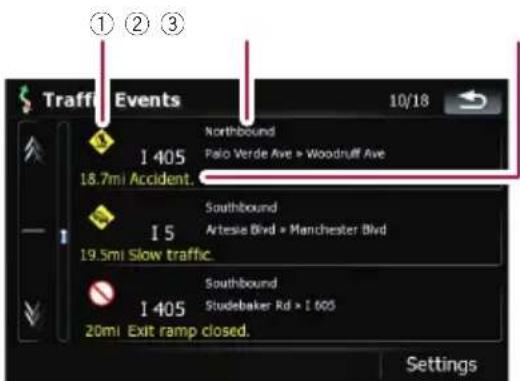
①Event-relatedicon
②Streetorlocationanddirection
③Distancetothelocationandevent
Touchingthedesireditemallowsyoutocheck itspositiononthemap.
Howtoreadtrafficinformation onthemap
Thetrafficeventinformationdisplayedonthe mapisasfollows.
☐ Furtherzoomingouthidesthelinesand iconsoftrafficinformation.
Trafficeventicon
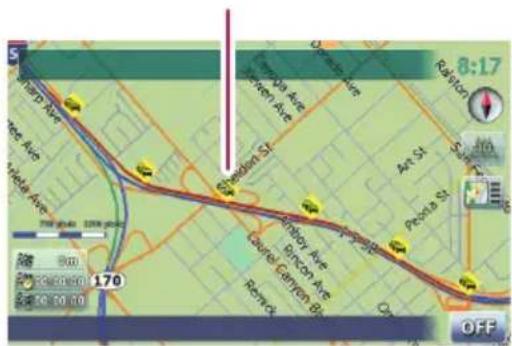
- withredline:
Stop-and-gotraffic
• withredline:
Stoppedtraffic
- withredline:
Closed/blockedroads
• ① etc.:
Accidents, constructions, etc.
Settingthetrafficinformation
Preferredfunctionsrelatedtotrafficinformationcanbeset.
1Touch[Destination]onthe"TopMenu", andthentouch[MSNDirect].
2Touch[Traffic]andthentouch[Settings].
The "Traffic Settings" screen appears.
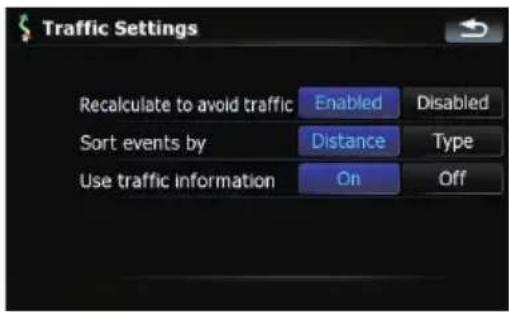
Availableoptions;
- "Recalculatetoavoidtraffic"
[Enabled]:
Calculatesthenewroutewiththetraffic congestiontakenintoaccountwhenrerouting.
[Disabled]:
Calculatesthenewroutewithoutthetraffic congestiontakenintoaccountwhenrerouting.
- "Sorteventsby"
[Distance]:
Sortsthetrafficeventitemsinthelistby distance.
[Type]:
Sortsthetrafficeventitemsinthelistby eventtype.
- "Usetrafficinformation"
[On]:
Calculatestheroutewiththetrafficcongestiontakenintoaccountintheinitialcalculation.
[Off]:
Calculatestheroutewithoutthetrafficcongestiontakenintoaccountintheinitial calculation.
Hands-freephoningoverview

CAUTION
Foryoursafety, avoid talking on the phone as much as possible while driving.
If your cellular phone features Bluetooth ^ technology, this navigation system can be connected to your cellular phonewirelessly. Using this hands-free function, you can operate the navigation system to make or receive phone calls. You can also transfer the phonebook data stored in your cellular phoneto then navigation system. This section describes how to setup a Bluetooth connection and how to operate a cellular phone featuring Bluetooth technology on then navigation system.
Formoreinformationabouttheconnectivity withthemobilephonefeaturingBluetooth wirelesstechnology, refertotheinformation onourwebsite.

Preparingcommunication devices
Thisnavigationsystemhasabuilt-infunction tousecellularphonesfeaturingBluetooth wirelesstechnology.
While your cellular phone featuring Bluetooth wirelessstechnology is connected, the Bluetooth connection status indicator lights.
- Fordetails, referto Notes for hands-free phoning on page 63.
☐Whenthepowerofthenavigationsystem turnsoff,theBluetoothconnectionisalso disconnected.Whenthesystemrestarts, thesystemautomaticallyattemptstoreconnectthepreviously-connectedcellular phone.Evenwhentheconnectionisseveredforsomereason,thesystemautomatically reconnectsthespecifiedcellular phone(exceptwhentheconnectionisseveredduetocellularphoneoperations).
DisplayingthePhoneMenu
Usethe"PhoneMenu"ifyouconnectthecel- lularphonetothenavigationsystemforutiliza- tion.
1PressMENUbuttontodisplaythe"Top Menu".
2Touch[Phone].
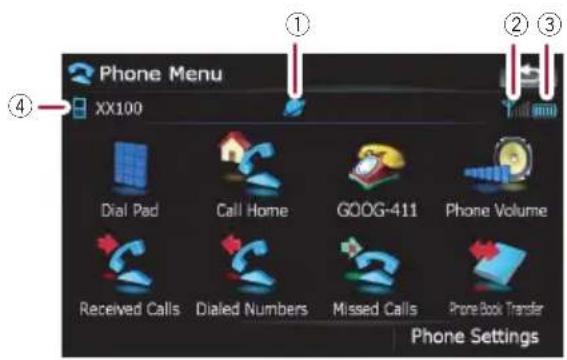
①: Networknameofthecellularphone company
②: Receptionstatusofthecellularphone
③: Batterystatusofthecellularphone
④:Nameofconnectedcellularphone
Registeringyourcellular phone
YouneedtoregisteryourcellularphonefeaturingBluetoothwirelesstechnologywhenyou connectitforthefirsttime.Atotalofthree phonescanberegistered.Threeregistration methodsareavailable:
- Searchingfornearbyphones
- Searchingforaspecifiedphone
• Pairingfromyourmobilephone
□Ifyoutrytoregistermorethanthreecellularphones,thesystemwillaskyoutoselect oneoftheregisteredcellularphonesto overwrite.
- Fordetails,refertoConnectingaregisteredcellularphoneonpage55.
☐Thedefaultdevicenamedisplayedonthe cellularphoneis"PioneerNavi".ThePIN codeis"1111".
Searchingfornearbyphones
Thesystemsearchesforavailablecellular phonesnearthenavigationsystemanddisplaystheminalist,andregistersthemfor connection.
1ActivatetheBluetoothwirelestechnologyyourcellularphone.
Forsomecellularphones,nospecificationis necessarytoactivateBluetoothwirelestechnology.Fordetails,refertotheinstruction manualofyourcellularphone.
2Touch[PhoneSettings]onthe"Phone Menu".
- Fordetails, refertoDisplayingthePhone Menu on the previous page.
3Touch[Connection].
4Touch[AddDevice], and then [Search devices].
Thesystemsearchesforcellularphoneswith Bluetoothtechnologythatarewaitingforthe connectionanddisplaystheminthelistifthe devicehasfound.
☐Upto10cellularphoneswillbelistedinthe orderthatthecellularphoneisfound.
5Waituntilyourcellularphoneappears inthelist.
If you cannot find the cellular phone you want to connect, check that the cellular phone is waiting for the Bluetooth wireless technology connection.
6Touchthecellularphonenumberyou wanttoregister.
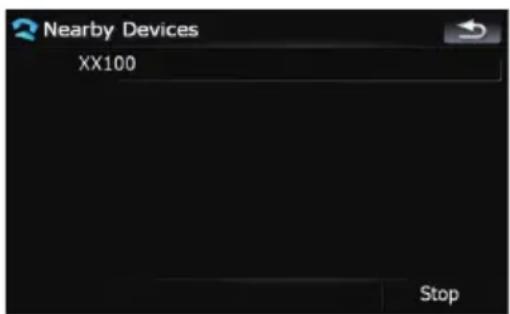
AmessagepromptingsyoutoenteraPIN codeappears.
7EnterthePINcode"1111"usingthecellularphone.
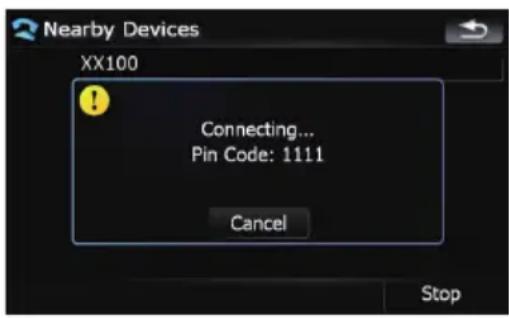
When a connection is successfully established, a connection completely messages appears, the screen return to the "Phone Settings" men by touching [OK].
Searchingforaspecifiedphone
If you cannot connect your phone in the regular twomethods previously described, try this methodify your phone is found in the list.
1ActivatetheBluetoothwirelestechnologyyourcellularphone.
Forsomecellularphones,nospecificationis necessarytoactivateBluetoothwirelestechnology.Fordetails,refertotheinstruction manualofyourcellularphone.
2Touch[PhoneSettings]onthe"Phone Menu".
Fordetails, refertoDisplayingthePhone Menuonthepreviouspage.
3Touch[Connection].
4Touch[AddDevice], and then[Select specific devices].
5Touchthemodelnameofthecellular phonetobeconnected.
Thesystemsearchesforcellularphoneswith Bluetoothtechnologythatarewaitingforthe connectionanddisplaystheminthelistifthe devicehasfound.
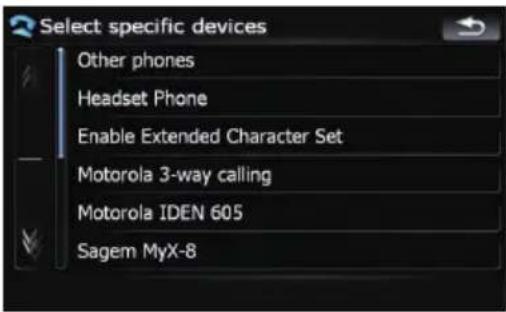
□If you cannot find the desired model name on the list, touch [Otherphones] to search the cellular phones available near by.
6Selectthecellularphoneyouwantto registerfromthelist.
AmessagepromptingsyoutoenteraPIN codeappears.
7EnterthePINcode"1111"usingthecellularphone.
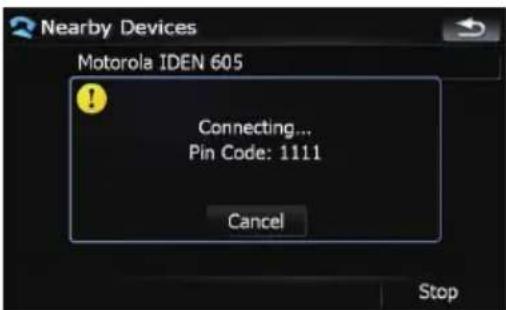
When a connection is successfully established, a connection completes message appears, the screen return to the "Phone Settings" men by touching [OK].
Pairingfromyourmobilephone
Youcanregisterthecellularphonebysetting thenavigationsystemtostandbymodeandrequestingconnectionfromthecellularphone.
1ActivatetheBluetoothwirelestechnologyyourcellularphone.
Forsomecellularphones,nospecificationis necessarytoactivateBluetoothwirelestechnology.Fordetails,refertotheinstruction manualofyourcellularphone.
2Touch[PhoneSettings]onthe"Phone Menu".
Fordetails, refertoDisplayingthePhone Menuonpage52.
3Touch[AddDevice], and then [Pairfrom themobilephone].
ThenavigationsystemwaitsforaBluetooth wirelessstechnologyconnection.
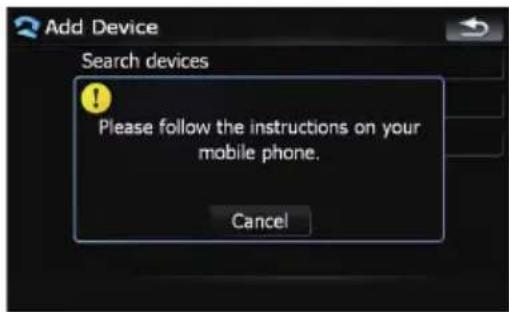
4Registerthenavigationsystemonyour cellularphone.
If your cellular phone asks you to enter a password, enter the PIN code (password) of then a navigation system.
Aftertheregistrationiscompleted, thefollowingscreenappears.
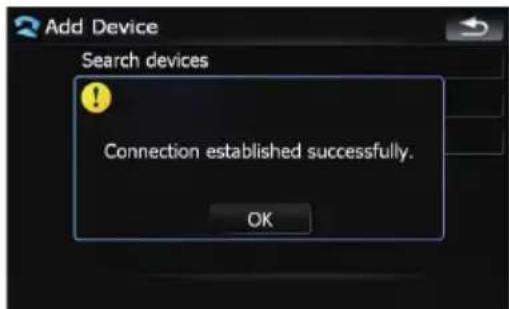
□Ifregistrationfailsrepeattheprocedure fromthebeginning.
Connectingaregistered cellularphone
Thenavigationsystemautomaticallyconnects thecellularphoneselectedasthetargetof connection. However, connect the cellular phonemanually in the following cases:
- Twoormorecellularphonesareregistered, andyouwanttomanuallyselectthecellularphonetobeused.
- Youwanttoreconnectadisconnectedcellularphone.
- Connection cannot be established automatically for somereason.
If you start connection manually, carry out the following procedure. You can also connect the phone by having then navigation system detect it automatically. - Fordetails, refertoSettingtheautomatic connectiononpage62.
1ActivatetheBluetoothwirelestechnologyyourcellularphone.
Forsomecellularphones,nospecificationis necessarytoactivateBluetoothwirelestechnology.Fordetails,refertotheinstruction manualofyourcellularphone.
2Touch[PhoneSettings]onthe"Phone Menu".
Fordetails, refertoDisplayingthePhone Menuonpage52.
3Touch[Connection].
4Touchthenameofthecellularphone thatyouwanttoconnect.
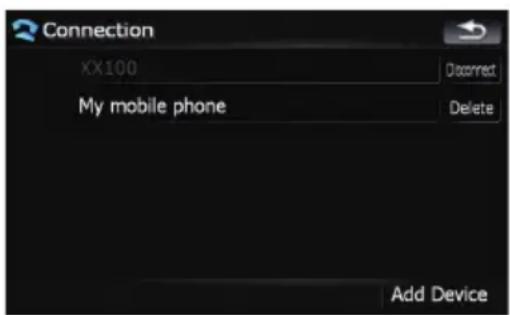
Connectionstarts.
When a connection is successfully established, a connection completely message appears, the screen return to the "Phone
Settings" menu by touching [OK].
□Ifanothercellularphoneisalreadyconnected,touch[Disconnect]nexttothecellularphonenametodisconnectit,andstart connection.
☐Tocanceltheconnectiontoyourcellular phone,touch[Cancel].
□Ifconnectionfails, checktoseewhether yourcellularphoneiswaitingforaconnectionandthenretry.
Disconnectingacellularphone
1Touch[PhoneSettings]onthe"Phone Menu".
Fordetails, refertoDisplayingthePhone Menuonpage52.
2Touch[Connection].
3Touch[Disconnect]nexttothecellular phonename.
Deletingaregisteredphone
If you nolongerneedtousearegistered phonewiththenavigationsystem,youcande- leteitfromtheregistrationassignmenttofree thisspotupforanotherphone.
☐Ifaregisteredphoneisdeleted,allthe phonebookentriesandcallhistorylists thatcorrespondtothephonewillbealso cleared.
1Touch[PhoneSettings]onthe"Phone Menu".
→Fordetails,refertoDisplayingthePhone Menuonpage52.
2Touch[Connection].
3Touch[Delete]nexttothecellular phonename.
Theregistrationiscanceled.
Receivingaphonecall
Youcanperformhands-freeansweringby usingthenavigationsystem.
Answeringanincomingcall
Thesysteminformsyouthatitisreceivinga callbydisplayingamessageandproducinga ringsoundonce.
If[AutoAnswerPreference]issetto[Off], answerthecallmanually.Answeringisavailableifanyscreenisdisplayed,suchasthe mapscreenorthesettingscreen.
☐Youcansetthisnavigationsystemtoautomaticallyanswerincomingcalls.
- Fordetails, refertoAnsweringacall automaticallyonpage61.
1Whenacallcomesin,theanswering operationmenuappearsonthebottomof thescreen.
☐You cannot carry out operations other than answering calls.
2Toansweranincomingcall,touch.

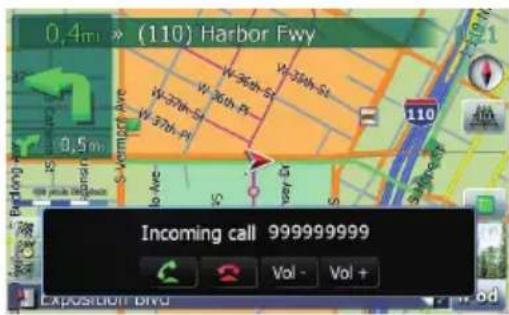
When there is an incoming call, you can reject the call by touching 📄.
☐You can adjust volumewhen you are talking. To adjust volume, touch [Vol] and [Vol+] displayed on the screen (like below) when you are talking.
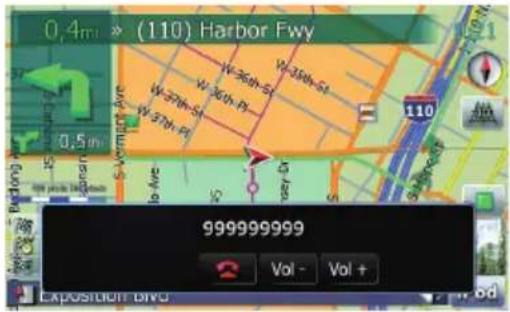
3Touchtoendthecall.
Thecallends.
☐Whenthereisanincomingcall,pressing MULTI-CONTROLanswersthecall.During thecall,pressingMULTI-CONTROLgets youoffthephone.
□Ifthevoiceontheotherendofthecallis tooquiettohear,youcanadjustthevolume ofthereceivedvoice.
Formoredetailsabout"PhoneVolume",refertoSettingthephonevolume onpage61.
☐Youmayhearanoisewhenyouhangup thephone.
Rejectinganincomingcall
You can reject an incoming call.
Fordetails, refertoAnsweringacallautomaticallyonpage61.
●Whenacallcomesin,touch

Thecallisrejected.
☐Therejectedcallisrecordedinthemissed callhistorylist.
Fordetails, referto Dialing from the history on thenextpage.
Makingaphonecall
Youcanmakeaphonecallinmanydifferent ways.
Directdialing
1Touch[DialPad]onthe"PhoneMenu".
- Fordetails, refertoDisplayingthePhone Menuonpage52.
Thedirectdialscreenappears.
2Touchthenumberkeystoenterthe phonenumber.
Thephonenumberthatwasinputdisplayed.
Inputnumber
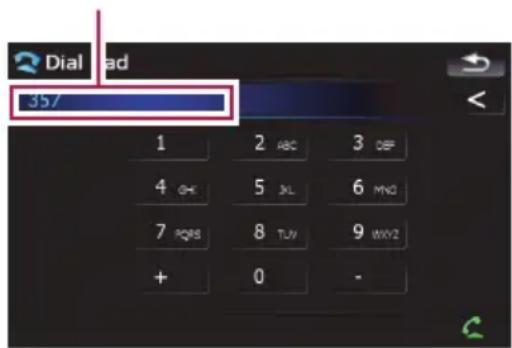

Theinputnumberisdeletedletter-by-letter fromtheendofthenumber.Continuingto pressthisdeletesallofthenumbers.

Returntothepreviousscreen.
3Touch

☐Tocancelthecallafterthesystemstarts dialing,touch 📄.
4Touchtoendthecall.
Dialingfromthehistory
Themostrecentcallsmade(dialed),received andmissedarestoredinthecallhistorylist. Youcanbrowsethecallhistorylistandcall numbersfromit.
Makingaphonecallusingthedialed numberhistory
Thedialednumberhistorysaves30callsper registeredcellularphone.Iftheentriesexceed 30,theoldestonewillbedeleted.
1Touch[DialedNumbers]onthe"Phone Menu".
Fordetails, refertoDisplayingthePhone Menuonpage52.
2Ifyoutouchanentryonthelist,dialing starts.
□Ifyoutouch[Detail],youcancheckthedetailsofthepartybeforemakingaphone call.
☐Tocancelthecallafterthesystemstarts dialing,touch
3Touchtoendthecall.
Makingaphonecallusingthe receivedcallhistory
Thereceivedcallhistorysaves30callsperregisteredcellularphone.Ifthenumberofcalls exceeds30,theoldestentrywillbedeleted.
1Touch[ReceivedCalls]onthe"Phone Menu".
Fordetails, refertoDisplayingthePhone Menuonpage52.
2Ifyoutouchanentryonthelist,dialing starts.
□Ifyoutouch[Detail],youcancheckthedetailsofthepartybeforemakingaphone call.
☐Tocancelthecallafterthesystemstarts dialing,touch
3Touchtoendthecall.
Makingaphonecallusingmissed callhistory
Themissedcallhistorysaves20callsperregisteredcellularphone.Ifthenumberofcalls exceeds20,theoldestentrywillbedeleted.
1Touch[MissedCalls]onthe"Phone Menu".
Fordetails, refertoDisplayingthePhone Menuonpage52.
Usinghands-freephoning
2Ifyoutouchanentryonthelist,dialing starts.
□Ifyoutouch[Detail],youcancheckthedetailsofthepartybeforemakingaphone call.
☐Tocancelthecallafterthesystemstarts dialing,touch 📄.
3Touchtoendthecall.
Callinganumberinthe "Contacts" screen
Afterfindingtheentryyouwanttocallinthe "Contacts"screen,youcanselectthenumber andmakethecall.
1PressMENUbuttontodisplaythe"Top Menu".
2Touch[Contacts].
The "Contacts" screenappears.
3Switchthepageofthelisttodisplay thedesiredentry.
Ifyoutouchanalphabettab,youcanjumpto thefirstpageofthecontactswhosenames startwiththatletter.
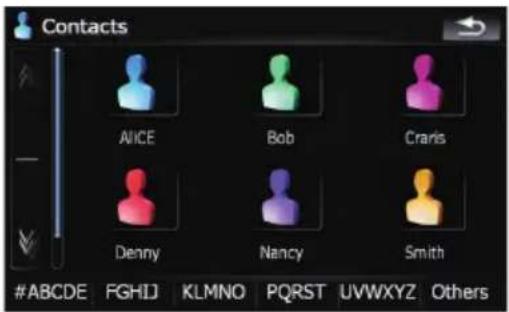

Showsthenextorpreviouspage.
Alphabettabs
Makeesthescreenjumptothebeginningof thepageincludingtheentrywhosenames startwithanyofselectedalphabets. Touching[#ABCDE]alsodisplaysthepageincludingtheentrywhosenamesstartwithprimarysymbolsornumbers.
Touching[Others]displaysthepageincluding entriesthatarenotassignedtoanyofthe othertabs.
4Touchthedesiredentryonthelistto makeacall.
5Touch

toendthecall.
Dialingaphonenumberonthe "MapConfirmationScreen"
You can make a call to these searched location orthelocation that you are selecting on the mapscreen if the telephone number exists.
1Todisplaythe"MapConfirmation Screen",searchforalocationsormoves thecursorandtouch .
2Touch

tomakeacall.
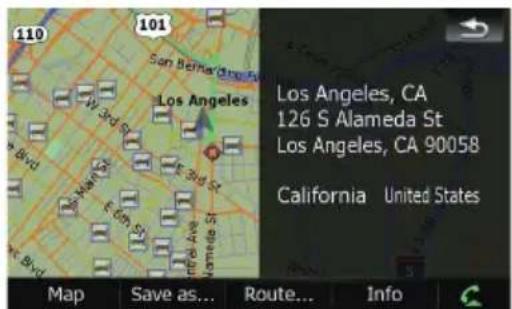
Tocancelthecallafterthesystemstartsdialing,touch
3Touch

toendthecall.
Makingacallhomeeasily
Youcancallhomewithouttakingthetimeto enterthephonenumberifthephonenumber hasbeenregistered.
- Touch[CallHome]onthe"Phone Menu".
Dialinghomestarts.
- Fordetails, refertoDisplayingthePhone Menuonpage52.
Usinghands-freephoning
□Ifyouhavenotregisteredyourhomenumber,amessageappears.Touch[Yes] to startregistration.
Formoredetailsabout"SetHome", refertoSettingyourhomepositionon page134.
DialingGOOG-411

CAUTION
Localand/orlongdistancechargesformakinga phonecallmayapply.
YoucandialGOOG-411todialthefreebusinesslistingserviceavailablefromGooglebyonetouch.
1Touch[GOOG-411]onthe"Phone Menu".
- Fordetails, refertoDisplayingthePhone Menuonpage52.
DialingGOOG-411starts.
2YoucannowusetheGOOG-411phone service.
FordetailsaboutGOOG-411serviceandavailability,contactGoogle.
Announcingincoming shortmails
While the cellular phone and then navigation system are connected, the following notice is displayed when you get an new SMS message.
"New mail from: (sender's name)" is displayed and then noticed disappears after eight seconds.
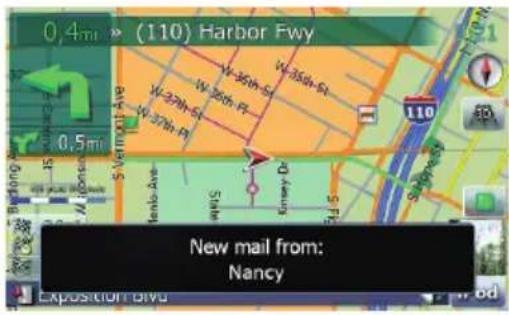
□Ifyouwanttodeletethemessage,touch anywhereonthescreen.
□IfthevoicelanguagewithTTSiscurrently used,theaudiblemessagecanbeoutput.
Fordetails, refertoSelectingthelanguageonpage135.
Transferring the phonebook
Youcantransferthenumbersinaregistered userphone'saddressbookintothephone book.
□Withsomecellularphones,itmaynotbe possibletotransfertheentirephonebook atonce.Inthiscase,transferaddresses oneatatimefromyourphonebookusing yourcellularphone.
☐Themaximum400entriescanbetrans- ferredpercellularphone.Iftheentriesex- ceed400,theextraentrieswillnotbe transferred.Ifmorethanonenumberisre- gisteredforoneperson,suchasworkplace andhome,eachnumberiscountedseparately.
□Eachentrycanholdupto3phonenumbers.
Usinghands-freephoning
☐Depending on the cellular phonethatis connected to this navigation system via Bluetooth technology, this navigation system may not be able to display the phone book correctly. (Some characters maybe garbled.)
□If the phonebook in the cellular phone contains imagedata, the phonebook may not be correctly transferred.
1Connectthecellularphonethathasthe phonebooktotransfer.
- Fordetails, refertoConnectingaregistered cellularphoneonpage55.
2Touch[PhoneBookTransfer]onthe "PhoneMenu".
Theconfirmationmessagesappear.
□Ifthereisaphonebookalreadytransferred, amessageaskingwhetheryoucanaccept thedatareplacementappears.
4Checkthatthefollowingscreenisdis- played, and operate your cellular phoneto transfer the phone book entries.
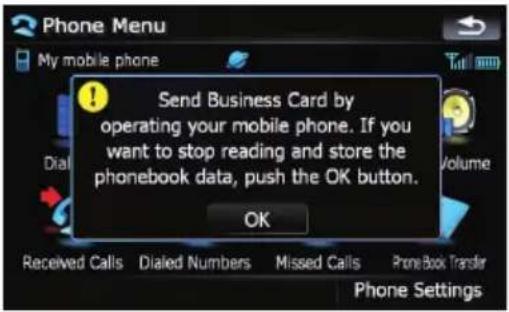
Transferstarts.Itmaytaketimedependingon howmanyentrieswillbetransferred.
☐Youcansendthephonebookentriesrepeatedlybeforetouching[OK].Ifyourcellularphonesupportsone-by-onetransfer only,sendalltheentriesthatyouwantto transferbeforetouching[OK].
□Ifyourphonehasacapabilityforautomatic transferofphonebook,thisscreenis skippedandtransferwillstart.
☐Thetransferreddatacannotbeeditedon thenavigationsystem.
5Whenthecompletionmessageappears, checkthemessageandtouch[OK].
Transferends.
Clearingmemory
Youcanclearthememoryofeachitemthat correspondstothecconnectedcellularphone: phonebook,dialled/received/missedcallhistorylistandpresetdials.
1Touch[PhoneSettings]onthe"Phone Menu".
- Fordetails, refertoDisplayingthePhone Menuonpage52.
2Touch[ClearMemory].
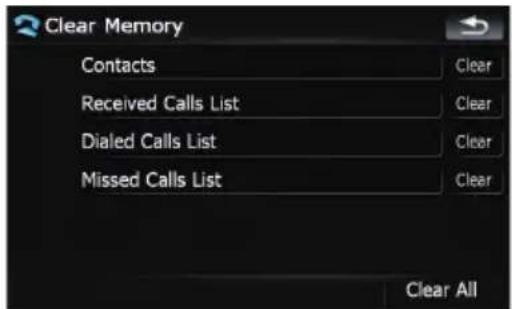
Onthisscreen,youcanselectthefollowing items:
Contacts:
Youcancleartheregisteredphonebook.
ReceivedCallsList:
Youcanclearthereceivedcallhistorylist.
DialedCallsList:
Youcanclearthedialedcallhistorylist.
MissedCallsList:
Youcanclearthemissedcallhistorylist.
□Touching[Clear]displaystheconfirmation messageforclearingthememory.
□Touching[ClearAll]clearsallthedatathat correspondtotheconnectedcellular phone.
3Touch[OK].
Dataontheselecteditemisclearedfromthis navigationsystem'smemory.
□If you donotwant to clear memory that you have selected, touch [Cancel].
Setting the phone
Setting the phone volume
The volume level related with the hands-free phoning can be adjusted.
1Touch[PhoneVolume]onthe"Phone Menu".
Fordetails, refertoDisplayingthePhone Menuonpage52.
2Adjustvolumetotouchtheslidersof [PhoneRingtone] and [PhoneVoice].
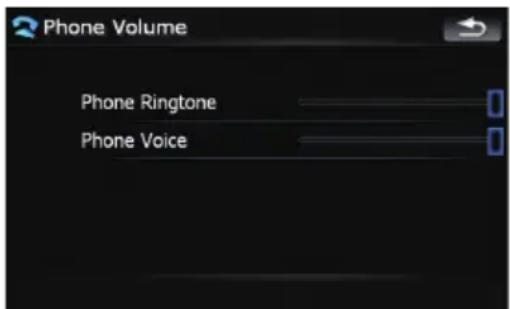
[PhoneRingtone]:
This setting control the incoming ringtone volume.
[PhoneVoice]:
Thissettingcontrolstheincomingvoicevolume.
☐Phonevolumevariesdependingonthein-comingcaller'sphone,volumesettingand otherconditions.
- Fordetailsconcerningoperations, refer toAnsweringanincomingcallonpage 56.
StoppingBluetoothwave transmission
Youcanstoptransmissionofelectricwavesby turningofftheBluetoothfunction.Ifyoudo notusetheBluetoothwirelesstechnology,we recommendselecting[Off].
1Touch[PhoneSettings]onthe"Phone Menu".
Fordetails, refer to Displaying the Phone Menu on page 52.
2Touch[Off]on[BluetoothOn/Off].
Touching[BluetoothOn/Off]switchingbetween[On]and[Off].
Answeringacallautomatically
Thenavigationsystemautomaticallyanswers anincomingcalltothecellularphone.You canansweracallwhileholdingthesteering wheelwhileyouaredriving.
1Touch[PhoneSettings]onthe"Phone Menu".
Fordetails, refertoDisplayingthePhone Menuonpage52.
2Touchanykeynextto[AutoAnswer Preference](suchas[Off],[After3seconds] keys).
AutoAnswerPreferenceselectionappears.
3Touchtheitemtoconfigure.
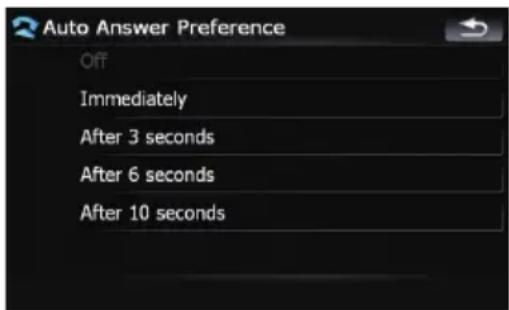
[Off]: No automatic response. Respond manually
onds
Settingtheautomaticrejection function
If this function is on, then navigation system automatically rejects all incoming calls.
1Touch[PhoneSettings]onthe"Phone Menu".
→Fordetails, refertoDisplayingthePhone Menuonpage52.
2Touch[RefuseAllCalls].
Touching[RefuseAllCalls]switchesbetween [On]and[Off].
□If both the automatic reject and automatic answer functions a reset to [On], automatic reject is prioritized and all incoming calls are automatically rejected.
☐ If the [Refuse All Calls] is set to [On], rejected incoming callswillnotbestored in themissedcalllist.
Echocancelingandnoisereduction
When you are operating hands-free phoning in the vehicle, you may hear an undesired echo. This function reduces the undesired echo and noisewhile you are doing hands-free phoning, and maintains acertainsound quality.
1Touch[PhoneSettings]onthe"Phone Menu".
Fordetails, refertoDisplayingthePhone Menuonpage52.
2Touch[EchoCancel].
Touching[EchoCancel]switchesbetween [On] and [Off].
Settingtheautomaticconnection
When an automatic connection is active, the navigation system will automatically establish a connection with a registered phone when it comes into orange. Using this feature will release you from allof the processes forest establishing a connection.
□Withsomecellularphones,itmaynotbe possibletopperformautomaticconnection.
Thisunitdoesnotinitiateanautomatic connectiontoyourregisteredphonewhile youareoperatinginthe"Function"menu forhands-freephoning.
1Touch[PhoneSettings]onthe"Phone Menu".
- Fordetails, refer to Displaying the Phone Menu on page 52.
2Touch[AutoConnect].
Touching[AutoConnect]switchesbetween [On]and[Off].
□Automaticconnectionisperformedinthe registrationnumberorder.
☐ Somecellularphonesdonotsupportautomaticconnection.
Editingthedevicename
Youcanchangethedevicenametobedisplayedonyourcellularphone.(Defaultis [PioneerNavi].)
1Touch[PhoneSettings]onthe"Phone Menu".
→Fordetails, refertoDisplayingthePhone Menuonpage52.
2Touch[EditName].
Thekeyboardtoenterthenameappears.
3Touchtodeletethecurrentname, andenterthenewnamebyusingthekeyboard.
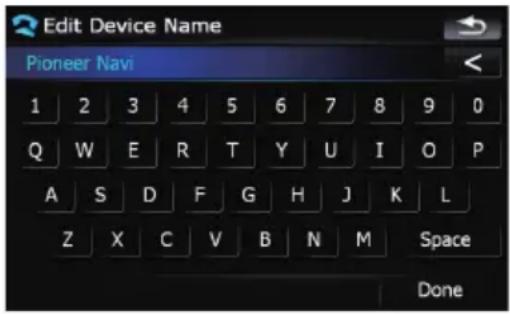
4Touch[Done].
Thenameischanged.
☐Upto30characterscanbeenteredforade- vicename.
Notesforhands-freephoning
Generalnotes
- Connectiontoallcellularphonesfeaturing Bluetoothwirelesstechnologyisnotguaranteed.
- Theline-of-sightdistancebetweenthisnavigationsystemandyourcellularphone mustbe10metersorlesswhensending andreceivingvoiceanddataviaBluetooth technology. However, thetransmissiondistancemaybecomeshorterthantheestimateddistance, dependingonthe environmentinuse.
- Withsomecellularphones,thespeakersof thesystemmaynotproducearingsound.
- Ifprivatemodeisselectedonthecellular phone,hands-freephoningmaynotbeperformed.
Registrationandconnection
- Cellularphoneoperationsvarydepending onthetypeofcellularphone. Refertothe instructionmanualthatcamewithyourcellularphonefordetailedinstructions.
- Dependingonthemobilephone,transferringphonebookmaynotworkeventoughyourphonecanbepairingwiththenaviga-
tionsystem.Insuchcase,disconnectyour phone,performpairingagainfromyour phonetothenavigationsystem,andthen performthephonebooktransfer.
Makingandreceivingcalls
- Youmayhearanoiseinthefollowingsituations:
—Whenyouanswerthephonebyusing thebuttononthephone.
—Whenthepersonontheotherendof linehangsupthephone. - If the person on the other end of the phone call can not hear the conversation dueto an echo, decrease the volume level for hands-free phoning. This may reduce the effects of the echo.
- Withsomecellularphones,evenify you presstheacceptbuttononthecellular phonewhenacallcomesin,hands-free phoningmaynotbeperformed.
- Theregisterednameappearsifthephone numberofthereceivedcallisalreadyregisteredinthephonebook.Whenonephone numberisregisteredunderdifferent names,thenamethatcomesfirstalphabeticallyisdisplayed.
- If the phonenumberofthereceivedcallis not registered in the phonebook, the phonenumberofthereceivedcallappears.
Thereceivedcallhistoryandthedialed numberhistory
- Callsmadeoreditingperformedonlyon yourcellularphonewillnotbereflectedto thedialednumberhistoryorphonebookin thenavigationsystem.
- You cannot make acall to the entry of an unknown user (nophonenumber) in there received call history.
- Ifcallsaremadebyoperatingyourcellular phone, nohistorydatawillberecordedin thenavigationsystem.
Aboutphonebooktransfers
- Iftherearemorethan400phonebookentriesonyourmobilephone,allentriesmay notbeabletobedownloadedcompletely.
- Withsomecellularphones, it may not be possible to transfer all items in the phone bookatonetime. In this case, transfer items one by one from your cellular phone.
- Depending on the cellular phone, this navigation system may not display the phone book correctly. (Some characters maybe garbled for firstname and lastname are in reverse order.)
- If the phone book in the cellular phone contains imagedata, the phone book may not be transferred correctly. (Imagedata cannot be transferred from the cellular phone.)
- Depending on the cellular phone, phone book transfer may not be available.
UpdatingtheBluetooth wirelesstechnologysoftware
Downloadingthefilesofupdatingwillbeavailableinthefuture.Youwillbeabletodownload thelatestupdatefromappropriatewebsiteby usingyourPC.
Before you download the files and install the update, read through the instructions on the website. For the procedure before you display the screen used for updating, follow the instructions on the website.
1Touch[PhoneSettings]onthe"Phone Menu".
→Fordetails, refertoDisplayingthePhone Menuonpage52.
2Touch[BluetoothSoftwareUpdate].
The current version is displayed.
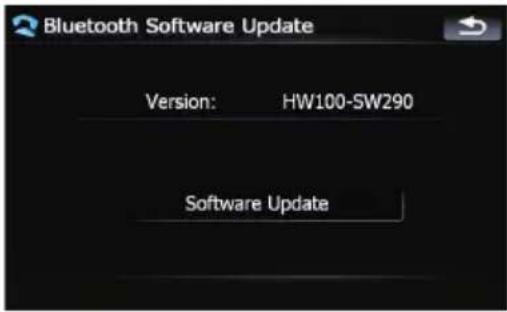
3Touch[SoftwareUpdate].
Updatestarts.
PlayingtheaudioCD
YoucanplayanormalmusicCDusingthe built-indriveofthenavigationsystem.This sectiondescribestheseoperations.
1Insertthediscyouwanttoplayinto disc-loadingslot.
PlaybackstartsfromthefirsttrackoftheCD.
2Touch[DISC]onthe"AVSource"menu todisplaythe"CD"screen.
→Fordetailsconcerningoperations,referto Screenswitchingoverviewonpage18.
3Usethetouchpanelkeysonthescreen tocontrolthedisc.
Readingthescreen
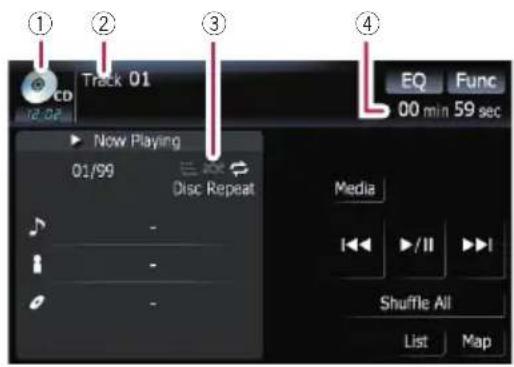
①Sourceicon
Showswhichsourcehasbeenselected.
②Tracknumberindicator
Showsthenumberofthetrackcurrentlyplaying.
③Repeat/Random/Scanindicator
Themarksshownbelowindicatethecurrent playbackstatus.
andrepeatrange: Displaysthecurrent repeatrange
:Random
:Scan
④Playtimeindicator
Showstheelapsedplayingtimeofthecurrent track.
Usingthetouchpanelkeys
Touchpanelkeys
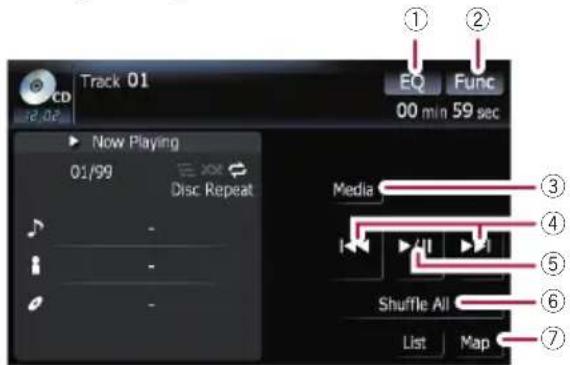
①Recallsequalizercurves
- Fordetails, refertoRecallingequalizer curvesonpage139.
②Displayingthe"Function"menu
Fordetails, refertoUsingthe "Function"menuonthenextpage.
③Switchingtheplayingpart
Fordetails, referto Switching the play- ing part on page 67.
④Skippingthetrackforwardorbackward
Touching[▶▶]skipstothestartofthenext track.Touching[◀◀]onceskipstothestart ofthecurrenttrack.Touchingitagainwillskip totheprevioustrack.
Fastrewindorforward
Keep touching [◀◀] or [▶▶] to perform fast rewindorforward.
Fastrewindiscanceledwhenitreaches thebeginningofthefirsttrackonthe disc.
□MovingMULTI-CONTROLleftorright enablesyoutoperformtheequivalent operations.
⑤PlaybackandPause
Touching[▶/■]switchesbetween"playback" and"pause".
⑥ShuffleAll
Allofthesongsinthedisccanbeplayedat randombytouchingonlyonekey.
□[ShuffleAll]isnotavailableforAVIC-F700BTandAVIC-F7010BT.
☐Tocanceltherandomplay,switch[Ran-dom] to [Off] on the "Function" menu.
⑦Displayingthemapscreen

Selectingatrackfromthelist
Thelistletsyouseethelistoftracktitles, file namesorfoldernamesonadiscandselect oneofthemtoplay.
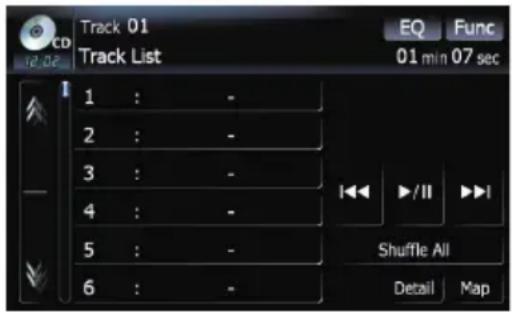
2Toreturntothepreviousscreen,touch [Detail].
Touchingorswitchestheselectionto thenextorpreviouspageinthelist.
☐The“-”markisdisplayedifthereisnocorrespondinginformation.
Usingthe"Function"menu
1Touch[DISC]onthe"AVSource"menu todisplaythe"CD"screen.
- Fordetailsconcerningoperations,referto Screenswitchingoverviewonpage18.
2Touch[Func].
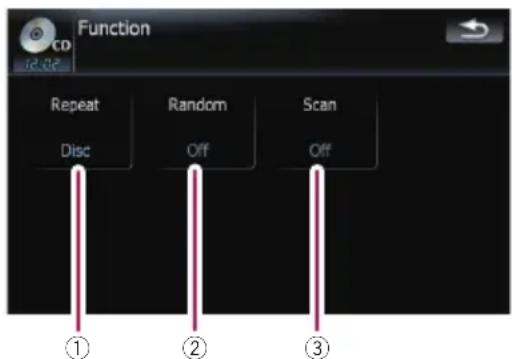
①Repeatingplay
Eachtouchof[Repeat]changesthesettingsasfollows:
•Disc—Repeatsthecurrentdisc
- Track—Repeatsjustthecurrenttrack
□Ifyouperformtracksearchorfastforward/rewind,repeatplayisautomatically canceled.
②Playtracksinarandomorder
Touching[Random]switchesbetween[On] and[Off].
③ScantracksofaCD
Touching[Scan]switchesbetween[On] and[Off].Scanplayletsyouhearthefirst 10secondsofeachtrackontheCD.When youfindthedesiredtracktouch[Scan] to turnscanplayoff.
□AfterthescanningofaCDisfinished, normal playbackofthetrackswillbegin again.
PlayingmusicfilesonROM
Youcanplayandiscthatcontainscompressedaudiofilesusingthebuilt-indriveof thenavigationsystem. Thissectiondescribes theseoperations.
☐AVIC-F900BTandAVIC-F90BTcannotplay WAVfiles.
In the following description, the MP3, WMA, AAC, WAV files are collectively referred to as "Compressed audio file".
1Insertthediscyouwanttoplayinto disc-loadingslot.
PlaybackstartsfromthefirstfileoftheROM.
2Touch[DISC]onthe"AVSource"menu todisplaythe"ROM"screen.
Fordetailsconcerningoperations,referto Screenswitchingoverviewonpage18.
3UsethisROMscreentoplaythedisc.
- Fordetails, refertoUsingthetouchpanel keysonthispage.
Readingthescreen
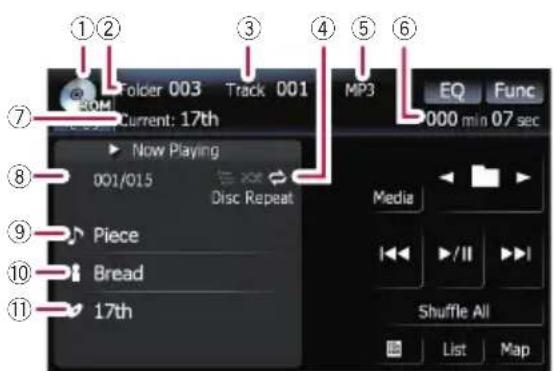
①Sourceicon
Showswhichsourcehasbeenselected.
②Foldernumberindicator
Showsthefoldernumbercurrentlyplaying.
③Trackindicator
Showsthetracknumbercurrentlyplaying.
④Repeat/Random/Scanindicator
Themarksshownbelowindicatethecurrent playbackstatus.
andrepeatrange: Displaysthecurrent repeatrange
:Random
:Scan
⑤Filetypeindicator
Showsthetypeofaudiofilecurrentlyplaying.
⑥Playtimeindicator
Showstheelapsedplayingtimeofthecurrent track.
⑦Foldernameindicator
Showsthefoldernamecurrentlyplaying.
⑧Songnumberindicator
Showsthenumberofthesongplayinginthe selectedlist.
⑨Songtitleindicator
Showsthetitleofthecurrentsong.
⑩Artistnameindicator
Showstheartistnameofthecurrentsong.
⑪Albumtitleindicator
Showsthetitleofthealbumforthecurrent song.
Usingthetouchpanelkeys
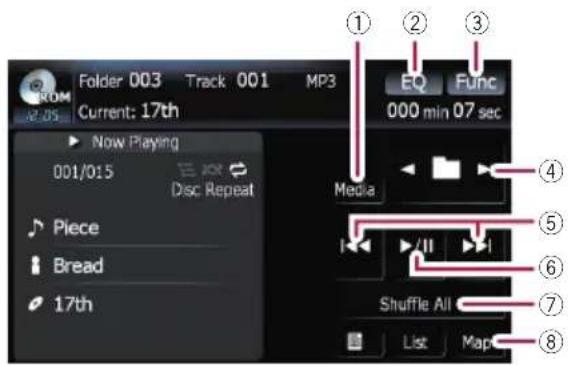
①Switchingtheplayingpart
Whenplayingadiscccontainingamixtureof variousmediafiletypessuch,youcanswitch betweenmediafilestypestoplay.
Touch[Media]repeatedlytoswitchbetween the following media file types:
CD(audiodata(CD-DA))—ROM(compressedaudiofile)—DivX(DivXvideofiles)
☐Thistouchpanelkeyappearsonlywhen playingadiscccontainingamixtureof variousmediafiletypes.
②Recallsequalizercurves
- Fordetails, refertoRecallingequalizer curvesonpage139.
③Displayingthe“Function”menu
- Fordetails, refertoUsingthe "Function"menuonthenextpage.
④Selectthepreviousornextfolder
☐Touchingthesekeysenablesyoutose-lectthepreviousornextfolderandplay-backthefirsttrackonthefolder.You cannotselectafolderthatdoesnot haveacompressedaudiofile.
⑤Skippingthetrackforwardorbackward
Touching[▶▶]skipstothestartofthenext track.Touching[◀◀]onceskipstothestart ofthecurrenttrack.Touchingitagainwillskip totheprevioustrack.
Fastrewindorforward
Keep touching [I◄◄] or [►►I] to perform fast rewindorforward.
Fastrewindiscancelledwhenitreaches thebeginningofthefirstfileonthere-peatrange.
□Inthecaseofcompressedaudiofiles, thereisnosoundonfastrewindorforward.
☐ Moving MULTI-CONTROL left or right enables youtoperform the equivalent operations.
⑥PlaybackandPause
Touching[▶/■]switchesbetween" playback" and "pause".
⑦ShuffleAll
Allofthesongsinthedisccanbeplayedat randombytouchingonlyonekey.
☐Ifthedisccontainsamixtureofvarious mediafiletypes,alltrackswithinthe current part ("CD" or "ROM") are played randomly.
□[ShuffleAll]isnotavailableforAVIC-F700BTandAVIC-F7010BT.
☐Tocanceltherandomplay, switch [Random] to [Off] on the "Function" menu.
⑧Displayingthemapscreen
Selectingatrackfromthelist
Thelistletsyouseethelistoftracktitlesor foldernamesonadisc.Ifyoutouchafolder onthelist,youcanviewitscontents.Youcan playatrackonthelistbytouchingit.
1Touch[List].
Thelistoftracktitlesandfoldernamesappears.
2Touchyourdesiredfolderortrackon thelist.
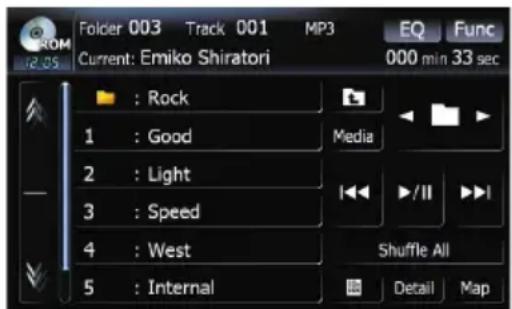
Touchingarswchestheselectiontothe nextorpreviouspageinthelist.
Touching □ displaysthecontentoftheupper folder(parentfolder).Iftheuppermostfolder islisted, □ cannotbeused.
□Iftheselectedfolderdoesnotcontainany playabletrack,thetracklistisnotdis- played.
Browsingembeddedtext information
Textinformationrecordedinacompressed audiofiledisccanbedisplayed.
●Touch

Thenextpieceofinformationisdisplayed.
• AlbumTitle:(albumtitle)
- TrackTitle:(tracktitle)
- FolderTitle:(foldertitle)
- FileName:(filename)
- ArtistName:(artistname)
If specific information has not been recorded on compressed audiofilesondisc, nothing may be displayed.
PlayingmusicfilesonROM
□Ifyoudonotoperatefunctionswithinabout 30seconds,thedisplayautomaticallyreturnstotheordinarydisplay.
Usingthe"Function"menu
1Touch[DISC]onthe"AVSource"menu todisplaythe"ROM"screen.
- Fordetailsconcerningoperations,referto Screenswitchingoverviewonpage18.
2Touch[Func].
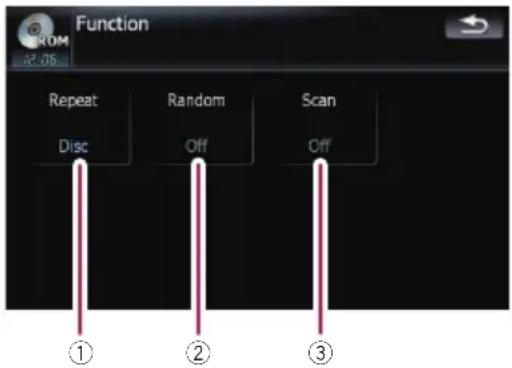
①Repeatingplay
Eachtouchof[Repeat]changesthesettingsasfollows:
- Folder—Repeatsthecurrentfolder
•Disc—Repeatsallcompressedaudio files - Track—Repeatsjustthecurrenttrack
□Ifyouselectanotherfolderduringrepeat play,therepeatplayrangechangesto [Disc].
□Ifyouperformfastforward/rewindduring[Track],therepeatplayrange changesto[Folder].
□When[Folder]isselected,itisnotpossibletoplaybackasubfolderofthat folder.
□Whenplayingdiscswithcompressed audiofilesandaudiodata(CD-DA),repeatplayisperformedwithinthecurrentlyplayingdatasessionevenif[Disc] isselected.
②Playtracksinarandomorder
Touching[Random]switchesbetween[On] and[Off].WhenusingROM,thetracksin thecurrentrepeatplayrangearerandomly played.
☐ If you turn [Random] to [On] when the repeatplayrangeissetto[Track],therepeatplayrangechangesto[Folder] automatically.
③Scanfoldersandtracks
Scanplayletsyouhearthefirst10seconds ofeachtrack.Scanplayisperformedinthe currentrepeatplayrange.
Touching[Scan]switchesbetween[On] and[Off].Whenyoufindthedesiredtrack touch[Scan]toturnscanplayoff.
□Aftercompletionoftrackorfolderscanning,normalplaybackofthetrackswill beginagain.
☐ If you turn [Random] to [On] when the repeatplayrangeissetto[Track],there-peatplayrangechangesto[Folder] automatically.
☐ If you turn [Scan] to [On] while the repeatplayrangeissetto[Disc],scan playisperformedforonlythefirsttracks ofeachfolder.
YoucanplayaDVD-Videousingthebuilt-in driveofthenavigationsystem. ThissectiondescribesoperationsforplayingaDVD-Video.
□AVIC-F700BTandAVIC-F7010BTcannot playDVDs.
Readingthescreen
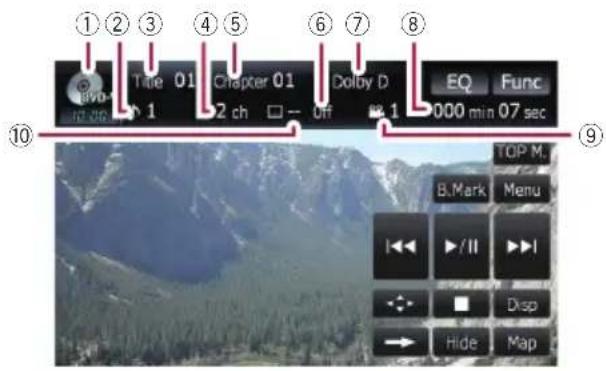
①Sourceicon
Showswhichsourcehasbeenselected.
②Audiotrackindicator
Showstheaudiotracknumberandaudiolanguagecurrentlyselected.
③Titlenumberindicator
Showsthetitlenumbercurrentlyplaying.
④Audiochannelindicator
Showsthecurrentaudiochanneltype,such as"Mch"(Multi-channel).
⑤Chapternumberindicator
Showsthechaptercurrentlyplaying.
⑥Subtitlelanguageindicator
Showsthesubtitlelanguagecurrentlyselected.
⑦Digitalsoundformatindicator
Showsthedigitalsoundformat(surround soundformat)hasbeenselected.
⑧Playtimeindicator
Showstheelapsedplayingtimeofthecurrent title.
⑨Viewingangleindicator
Showswhatviewinganglehasbeenselected.
⑩ Subtitlnumberindicator
Showsthesubtitlenumbercurrently selected.
Usingthetouchpanelkeys
Playbackscreen(page1)
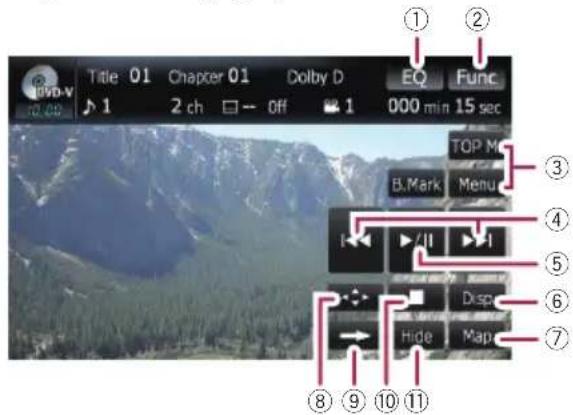
Playbackscreen(page2)
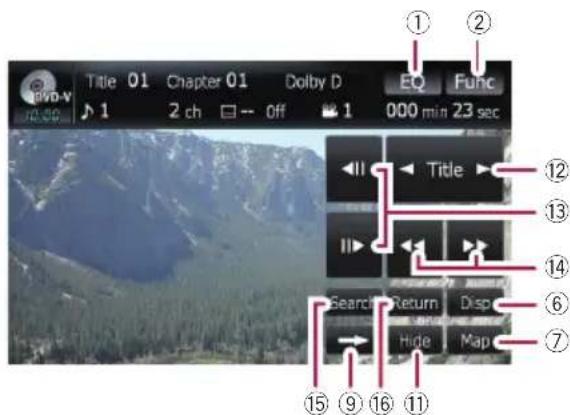
Playbackscreen(page3)
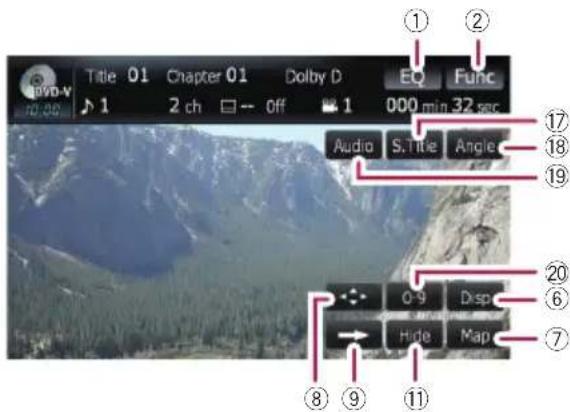
□Withsomediscs,theicon maybedis-played,meaningthattheoperationisnot valid.
①Recallsequalizercurves
- Fordetails, refertoRecallingequalizer curvesonpage139.
②Displayingthe“Function”menu
- Fordetails, refertoUsingthe "Function"menuonpage73.
③DisplaytheDVDmenu
Youcandisplaythemenubytouching[Menu] or[TOPM.]whileadiscisplaying.Touching eitherofthesekeysagainletsyoustartplay-backfromthelocationselectedfromthe menu.Fordetails,refertotheinstructionsprovidedwiththedisc.
④Skipforwardorbackward
Touching[▶▶▶]skipstothestartofthenext chapter.Touching[▶▶▶]onceskipstothestartofthecurrentchapter.Touchingitagain willskiptothepreviouschapter.
□ MovingMULTI-CONTROLleftorright enablesyoutoperformtheequivalent operations.
⑤PlaybackandPause
Touching[▶/■]switchesbetween" playback" and "pause".
⑥Switchthedisplay
Touching[Disp]changestheindicationonthe informationplateasfollows: Disinformationdisplay—Repeatrangeand L/Rselectdisplay
⑦Displayingthemapscreen
⑧DisplaytheDVDmenukeypad
- Fordetails, refertoUsingDVDmenuby touchpanelkeysonpage73.
⑨Switchnextpageoftouchpanelkeys
⑩Stop playback
⑪Hidesthetouchpanelkeys
Touching[Hide]hidesthetouchpanelkeys. TouchanywhereontheLCDscreentodisplay thetouchpanelkeysagain.
⑫Skipthetitleforwardorbackward
Touching[▶]skipstothestartofthenexttitle. Touching[◀]skipstothestartoftheprevious title.
⑬Frame-by-frame playback(orslow-motion playback)
- Fordetails, refertoFrame-by-frameplay-backonpage73.
- Fordetails, refertoSlowmotion playback onpage73.
⑭Fastreverseorforward
Touching [◀◀] or [▶▶] to perform fast reverseorforward.
If you keep touching [◀◀] or [▶▶] for five seconds, fastreverse/fastforward continues evenifyoureleaseeitherofthesekeys. Toresumepaybackatadesiredpoint, touch [▶/■], [◀◀] or [▶▶].
⑮Specifythechapteryouwanttoplayback orthetimetostartplaybackbyenteringa number
☐ Fordetails, refer to Searching for adesiredscene and starting playback from a specified time on then next page.
^16 Performtheoperation(suchasresuming) storedinthedisc
When using a DVD that has a point recorded that indicates where to return to, the DVD return to the specified point and begins play back from that point.
⑰Changethesubtitlelanguage(Multi-subtitle)
Eachtouchof[S.Title]switchesbetweenthe subtitlelanguages.
⑱Changetheviewingangle(Multi-angle)
Eachtouchof[Angle]switchesbetweenviewingangles.
□During playbackofasceneshotfrom multipleangles,theangleicon is displayed.Turntheangleicondisplay onoroffusingthe“DVDSetup”menu.
- Fordetails, refertoSettingtheangleicon displayonpage83.
^19 Changeaudiolanguageandaudiosystems(Multi-audio)
Eachtouchof[Audio]switchesbetween audiolanguageandaudiosystem.
☐DTSaudiocannotbeoutput,soselectanaudiosettingotherthanDTS.
□DisplayindicationssuchasMPEG-A andMchindicatetheaudiosystemrecordedontheDVD.Dependingonthe setting, playbackmaynotbewiththe sameaudiosystemasthatindicated.
⑳Enteringthenumericalcommands
- Fordetails, refertoDirectnumbersearch onthenextpage.
Resuming playback(Bookmark)
TheBookmarkfunctionletsyouresumeplay-backfromaselectedscenethenexttimethediscisloaded.
Touching[B.Mark]:
Youcanbookmarkapointforeveryfivediscs. Ifyoutrytomemorizeapointforthesame disc, theoldestbookmarkwillbeoverwritten bythenewestone.
□Toclearthebookmarkonadisc, keep touching[B.Mark]during playback.
PressandholddownEJECTbutton:
Youcanalsobookmarkapointforonediscby pressingandholdingdownEJECTbutton.The nexttimeyouloadthesamedisc, playback willresumefromthebookmarkedpoint.When younewlybookmarkapointwiththismethod, anypreviouslybookmarkedpoint(s)willbe overwritten.
☐For playback, thepointbookmarked with this method is given priority over the pointbook marked by using [B.Mark].
Searchingforadesiredscene andstarting playbackfroma specifiedtime
Youcansearchforadesiredscenebyspecifyingatitleorachapter,andthetime.
Chaptersearchandtimesearcharenot possiblewhendiscplaybackhasbeen stopped.
1Touch[Search]andthentouchTitle,Chapter,Time.
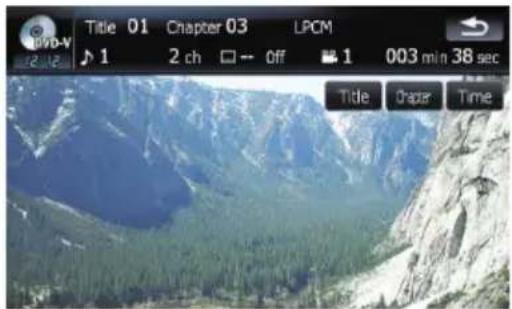
2Touchthekeystoinputthedesired numberortimeandthentouch[Enter].
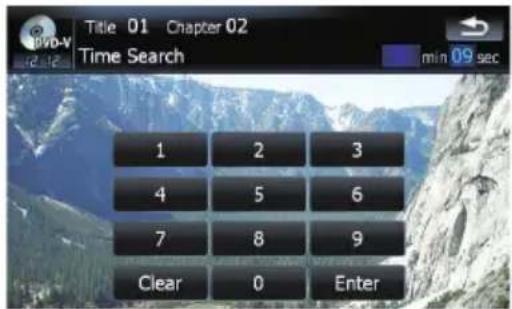
Fortitles, chapters
- To select 3, touch [3] and [Enter] in order. - To select 10, touch [1] and [0] and [Enter] in order.
Fortime(timesearch)
- Toselect5minutes03seconds,touch[5], [0], [3]and[Enter]inorder. - Toselect71minutes00seconds,touch[7], [1], [0], [0] and [Enter] in order. □Tocanceltheinputnumbers,touch[Clear].
Directnumbersearch
Youcanusethisfunctionwhenyouneedto enteranumericalcommandduringDVDplayback.
1Touch[0-9].
2Touch[0]to[9]toinputthedesired number.
3Whiletheinputnumberisdisplayed, touch[Enter].
OperatingtheDVDmenu
YoucanoperatetheDVDmenubytouching themenuitemonthescreendirectly. ☐DependingonthecontentsofDVDdiscs, thisfunctionmaynotworkproperly.Inthis case,usetouchpanelkeystooperatethe DVDmenu.
1Touchthescreentodisplaythetouch panelkeys.
PlayingaDVD-Video
2Touch[TOPM.]or[Menu]todisplay touchpanelkeystooperatetheDVD menu.
□IfthetouchpanelkeysforDVDmenuselectiondisappears,touchinganywhereand touching 🎨 displaysthemagain.
2Touch[Enter].
Playbackstartsfromtheselectedmenuitem. Thewaytodisplaythemenudiffersdepending onthedisc.
Frame-by-frame playback
Thisletsyoumoveaheadoneframeatatime during playback.
●Touch[11▶]during playback.
Eachtimeyoutouch[▶],youmoveahead oneframe.
Toreturntonormal playback, touch [▶/III].
□Withsomediscs,imagesmaybeunclear duringframe-by-frame playback.
Slowmotionplayback
Thisletsyouslowdownplaybackspeed.
1Keeptouching[▶]until isdisplayed during playback.
Theicon isdisplayed, forwardslowmotion playbackbegins.
☐Toreturntonormal playback,touch[▶/■].
2 Touch [◀II] or [III▶] to adjust playback speedduringslowmotionplayback.
Each time you touch [◀▶] or [▶▶] it changes the speed in four steps in the following order:
1/16↔1/8↔1/4↔1/2
☐Thereisnosoundduringslowmotionplay-back.
□Withsomediscs,imagesmaybeunclear duringslowmotion playback.
☐Reversingslowmotionplaybackisnotpossible.
Usingthe"Function"menu
1Touch[DISC]onthe"AVSource"menu todisplaythe"DVD-V"screen.
- Fordetailsconcerningoperations,referto Screenswitchingoverviewonpage18.
2Touchthescreentodisplaythetouch panelkeys.
3Touch[Func].
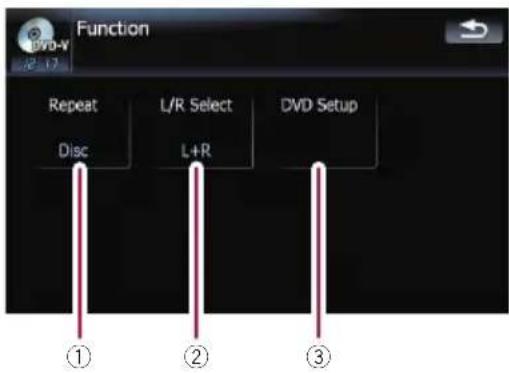
①Repeatingplay
Eachtouchof[Repeat]changesthesettingsasfollows:
•Title—Repeatsjustthecurrenttitle
• Chapter—Repeatsjustthecurrent chapter
•Disc—Playsthroughoutthecurrent disc
PlayingaDVD-Video
□Ifyouperformchapter(title)search,fast forward/rewindorslowmotion playback, therepeatplayrangechangesto[Disc].
②Selectingaudiooutput
WhenplayingDVDsrecordedwithLPCM audio,youcanswitchtheaudiooutput.
Touch[L/RSelect]repeatedlyuntilthedesiredaudiooutputappearsinthedisplay.
Eachtouchof[Repeat]changesthesetingsasfollows:
•L+R—Leftandright
•L—Left
•R—Right
• L/R—Mixingleftandright
☐Thisfunctionisnotavailablewhendisc playbackhasbeenstopped.
③DVDsetupadjustments
- Fordetails, refertoConfiguretheDVD-Video/DVD-VR/DivXplayer. on page82.

YoucanplayaDVD-VR(DVDVideoRecording Format)usingthebuilt-indriveofthenavigationsystem. Thissectiondescribesoperations forDVD-VR.
☐AVIC-F700BTandAVIC-F7010BTcannot playDVD-VR.
Readingthescreen
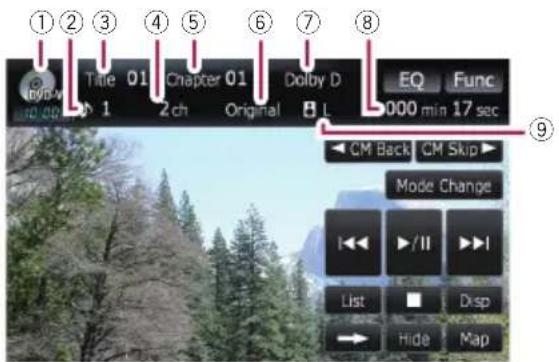
①Sourceicon
Showswhichsourcehasbeenselected.
②Audiotrackindicator
Showstheaudiotracknumbercurrentlyselected.
③Titlenumberindicator
Showsthetitlenumbercurrentlyplaying.
④Audiochannelindicator
Showsthecurrentaudiochanneltype,such as"Mch"(Multi-channel).
⑤Chapternumberindicator
Showsthechaptercurrentlyplaying.
⑥Playmodeindicator
Showsthecurrentplaymode.
Fordetails, referto Switching the play-backmode on page 77.
⑦Digitalsoundformatindicator
Showsthedigitalsoundformat(surround soundformat)hasbeenselected.
⑧Playtimeindicator
Showstheelapsedplayingtimeofthecurrent title.
⑨Mixingconditionindicator
Showsthecurrentmixingcondition.

Usingthetouchpanelkeys
Playbackscreen(page1)
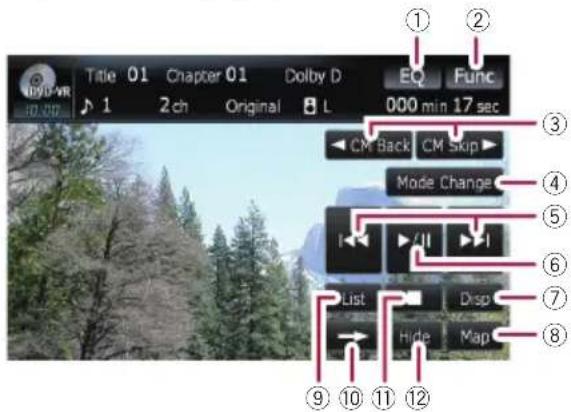
Playbackscreen(page2)
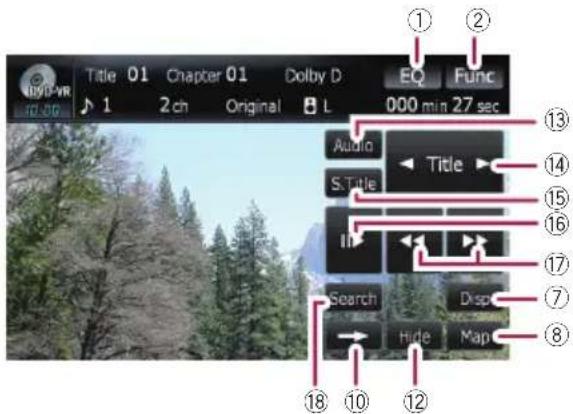
□Withsomediscs, theicon maybedis-played, meaning that the operation is not valid.
①Recallsequalizercurves
- Fordetails, refertoRecallingequalizer curvesonpage139.
②Displayingthe"Function"menu
Fordetails, refertoUsingthe "Function"menuonpage78.
③◀CMBack/CMSkip▶
Fordetails, referto Usingtheshort-timeskipfunctiononpage77.
④Switchingtheplaybackmode
Fordetails, referto Switching the play-backmode on page 77.
⑤Skipforwardorbackward
Touching[▶▶▶]skipstothestartofthenext chapter.Touching[▶▶▶]onceskipstothe startofthecurrentchapter.Touchingitagain willskiptothepreviouschapter.
□MovingMULTI-CONTROLleftorright enablesyoutoperformtheequivalent operations.
⑥PlaybackandPause
Touching[▶/■]switchesbetween" playback" and "pause".
⑦Switchthedisplay
Touching[Disp]changestheinformationas follows: Discinformationdisplay—Repeatrangedisplay
⑧Displayingthemapscreen
⑨Displaythetitlelist
Displaysthetitlelistrecordonthedisc.
⑩Switchnextpageoftouchpanelkeys
⑪Stop playback
⑫Hidesthetouchpanelkeys
Touching[Hide]hidesthetouchpanelkeys. TouchanywhereontheLCDscreentodisplay thetouchpanelkeysagain.
⑬Changeaudiolanguageandaudiosystems(Multi-audio)
Eachtouchof[Audio]switchesbetween audiolanguageandaudiosystem.
□DisplayindicationssuchasMPEG-A and MchindicatetheaudiosystemrecordedontheDVD. Depending on the setting, playback may not bewith the same audiosystemasthat indicated.
⑭Skipthetitleforwardorbackward
Touching[▶]skipstothestartofthenexttitle. Touching[◀]skipstothestartoftheprevious title.
⑮Changethesubtitlelanguage(Multi-subtitle)
Eachtouchof[S.Title]switchesbetweenthe subtitlelanguages.
⑯Frame-by-frame playback(orslow-motion playback)
Fordetails, refertoFrame-by-frameplay-backonthenextpage.
- Fordetails, refertoSlowmotion playback onthenextpage.
⑰Fastreverseorforward
Touching [◀◀] or [▶▶] to perform fast reverseorforward.
If you keep touching [◀◀] or [▶▶] for five seconds, fastreverse/fastforward continues
evenifyoureleaseeeitherofthesekeys.Tore- sumeplaybackatadesiredpoint,touch
[▶/Ⅱ], [◀◀] or [▶▶].
⑱Specifythechapteryouwanttoplayback orthetimetostartplaybackbyenteringa number
Fordetails, refer to Searching for adesiredscene and starting playback from a specified time on this page.
Searchingforadesiredscene andstarting playbackfroma specifiedtime
Youcansearchforadesiredscenebyspecifyingatitleorachapter,andthetime.
☐Chaptersearchandtimesearcharenot possiblewhendiscplaybackhasbeen stopped.
1Touch[Search]andthentouchTitle,Chapter,Time.
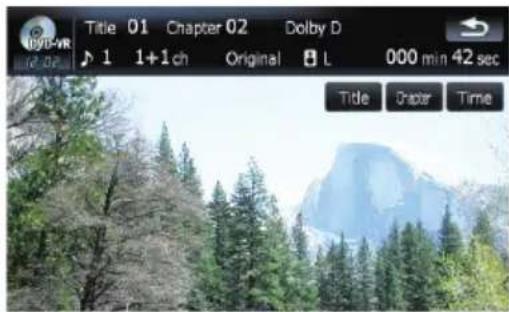
2Touchthekeystoinputthedesired numberortimeandthentouch[Enter].
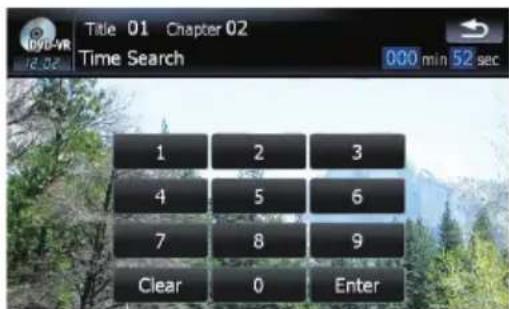
Fortitles, chapters
• To select 3, touch [3] and [Enter] in order.
- To select 10, touch [1] and [0] and [Enter] in order.
Fortime(timesearch)
- Toselect5minutes03seconds,touch[5], [0],[3]and[Enter]inorder.
- Toselect71minutes00seconds,touch[7], [1], [0], [0] and [Enter] in order.
☐Tocanceltheinputnumbers,touch[Clear].
Switchingtheplaybackmode
YouhavetwomethodsforplayingDVD-VR discs;Original(original)andPlaylist(playlist).
■TitlescreatedwithDVDrecordersare calledoriginal.Thosebasedonoriginal,rearrangedtitlesarecalledplaylist.Playlists arecreatedonDVD-R/-RWdiscs.
- Touch[ModeChange]toswitchthe playmode.
If the playmode is changed, playback starts from the beginning of these selected playmode.
Usingtheshort-timeskipfunction
This function enables youtoskipoveryour specified interval on the videoplayback. This is useful to skip commercial, only your recorded DVD-VRdisc.
● Toskip progressively backward forward, touch[◄CMBack]or[CMSkip►].
Each touch of [◀ CM Back] or [CM Skip ▶] changes steps in the following order:
◄CMBack
5 sec. — 15 sec. — 30 sec. — 1 min. — 2 min. —3min.—0sec.
CMSkip▶
30 sec. — 1 min. — 1.5 min. — 2 min. — 3 min. —5min.—10min.—0sec.
Playingbyselectingfromthe titlelist
Youcanselectandplayadesiredtitlefromthe list.
1Touch[List]ontheplaybackscreen.
2Touchthetitletoplayfromthelist.
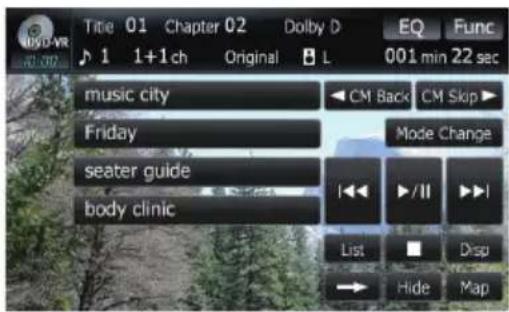
□Touchingorswitchestheselectionto thenextorpreviouspageinthelist.
3Toreturntothepreviousscreen,touch [List].
Frame-by-frame playback
Thisletssyoumoveaheadoneframeatatime during playback.
●Touch[11▶]during playback.
Eachtimeyoutouch[▶],youmoveahead oneframe.
Toreturntonormal playback, touch [▶/■].
□Withsomediscs,imagesmaybeunclear duringframe-by-frame playback.
Slowmotionplayback
Thisletsyouslowdownplaybackspeed.
1Keeptouching[▶]until isdisplayed during playback.
Theicon isdisplayed, forwardslowmotion playbackbegins.
□Toreturntonormal playback, touch [▶▶] or [◀◀], etc.
2Touch[11▶]toadjustplaybackspeed duringslowmotion playback.
Eachtouchof[III]changesthespeedinfour stepsasbelow:
$$ 1 / 1 6 \rightarrow 1 / 8 \rightarrow 1 / 4 \rightarrow 1 / 2 $$
☐Thereisnosoundduringslowmotionplay-back.
□Withsomediscs,imagesmaybeunclear duringslowmotion playback.
Reversingslowmotion playback is not possible.
Usingthe"Function"menu
1Touch[DISC]onthe"AVSource"menu todisplaythe"DVD-VR"screen.
- Fordetailsconcerningoperations,referto Screenswitchingoverviewonpage18.
2Touchthescreentodisplaythetouch panelkeys.
3Touch[Func].
Functionmenu
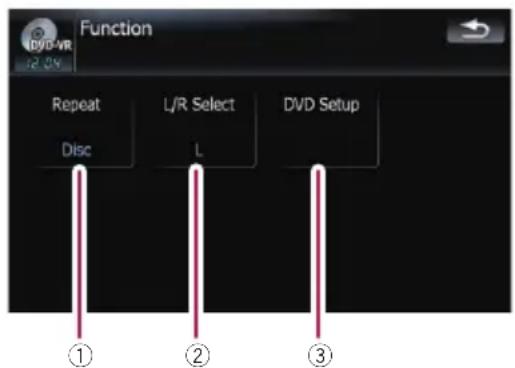
①Repeatingplay
Eachtouchof[Repeat]changesthesettingsasfollows:
• Title—Repeatsjustthecurrenttitle
• Chapter—Repeatsjustthecurrent chapter
•Disc—Playsthroughoutthecurrent disc
□Ifyouperformchapter(title)search,fast forward/rewindorslowmotion playback, therepeatplayrangechangesto[Disc].
②Selectingaudiooutput
WhenplayingDVDsrecordedwithLPCM audio,youcanswitchtheaudiooutput. Touch[L/RSelect]repeatedlyuntilthedesiredaudiooutputappearsinthedisplay.
- L+R—Leftandright
•L—Left
•R—Right
• L/R—Mixingleftandright
☐Thisfunctionisnotavailablewhendisc playbackhasbeenstopped.
③DVDsetupadjustments
- Fordetails, refertoConfiguretheDVD-Video/DVD-VR/DivXplayer.onpage82.

YoucanplayaDivXusingthebuilt-indriveof thenavigationsystem. Thissectiondescribes thatoperations.
☐AVIC-F700BTandAVIC-F7010BTcannot playDivXfiles.
Readingthescreen
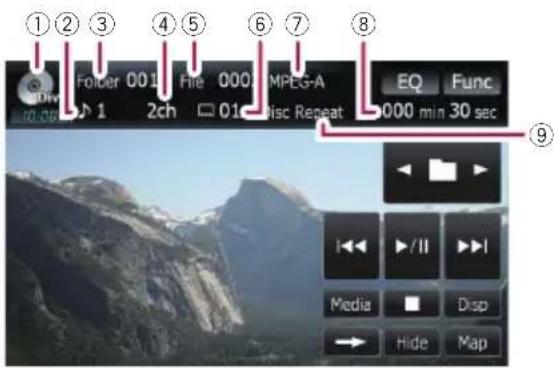
①Sourceicon
Showswhichsourcehasbeenselected.
②Audiotrackindicator
Showstheaudiotracknumbercurrentlyselected.
③Foldernumberindicator
Showsthefoldernumbercurrentlyplaying.
④Audiochannelindicator
Showsthecurrentaudiochanneltype, such as "Mch" (Multi-channel).
⑤ Filenumberindicator
Showsthefilenumbercurrentlyplaying.
⑥Subtitlenumberindicator
Showsthesubtitlenumbercurrentlyselected.
⑦Digitalsoundformatindicator
Showsthedigitalsoundformat(surround soundformat)currentlyselected.
⑧Playtimeindicator
Showstheelapsedplayingtimeofthecurrent title.
⑨Repeatrangeindicator
Showswhichrepeatrangehasbeen selected.
Usingthetouchpanelkeys
Playbackscreen(page1)
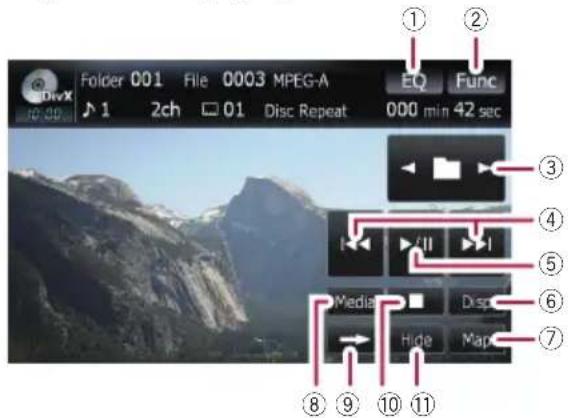
Playbackscreen(page2)
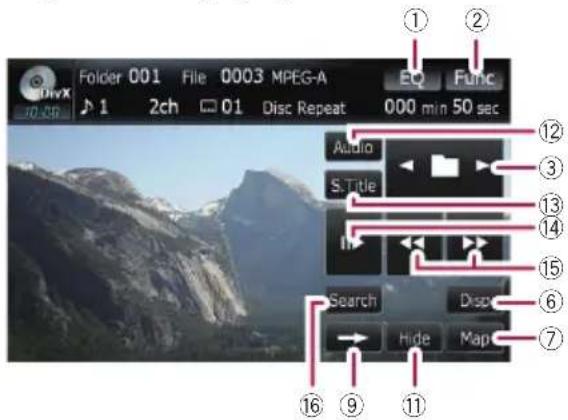
□Withsomediscs, theicon maybedis-played, meaning that the operation is not valid.
①Recallsequalizercurves
- Fordetails, refertoRecallingequalizer curvesonpage139.
②Displayingthe"Function"menu
Fordetails, refertoUsingthe "Function"menuonpage81.
③Selectthepreviousornextfolder
Touch [◀] or [▶] to select the desired folder.
④Skipforwardorbackward
Touching[▶▶]skipstothestartofthenext file.Touching[◀◀]onceskipstothestartof thecurrentfile.Touchingagainwillskiptothe previousfile.
□ Moving MULTI-CONTROL leftor right enables youtoperfm the equivalent operations.
⑤PlaybackandPause
Touching[▶/■]switchesbetween" playback" and "pause".
⑥Switchtheinformation
Touching[Disp]changestheindicationonthe informationplateasfollows: Disinformationdisplay—Currentfolderdisplay—Filenamedisplay
⑦Displayingthemapscreen
⑧Switchingtheplayingpart
Whenplayingadiscccontainingamixtureof variousmediafiletypessuch,youcanswitch betweenmediafilestypestoplay.
Touch[Media]repeatedlytoswitchbetween the followingmediafiletypes:
CD(audiodata(CD-DA))—ROM(compressedaudiofile)—DivX(DivXvideofiles)
☐Thistouchpanelkeyappearsonlywhen playingadisccontainingamixtureof variousmediafiletypes.
⑨Switchnextpageoftouchpanelkeys
⑩Stop playback
⑪Hidesthetouchpanelkeys
Touching[Hide]hidesthetouchpanelkeys. TouchanywhereontheLCDscreentodisplay thetouchpanelkeysagain.
⑫Changeaudiolanguageandaudiosystems(Multi-audio)
Eachtouchof[Audio]switchesbetween audiolanguageandaudiosystem.
⑬Changethesubtitlelanguage(Multi-subtitle)
Eachtouchof[S.Title]switchesbetweenthe subtitlelanguages.
⑭Frame-by-frame playback(orslow-motion playback)
- Fordetails, refertoFrame-by-frameplay-backonthispage.
- Fordetails, refertoSlowmotion playback onthispage.
⑮Fastreverseorforward
Touching [◀◀] or [▶▶] to perform fast reverseorforward.
If you keep touching [◀◀] or [▶▶] for five seconds, fastreverse/fastforward continues even if you release either of these keys. Tore-sume playback at a desired point, touch
[▶/■], [◀◀] or [▶▶].
⑯Specifythechapteryouwanttoplayback orthetimetostartplaybackbyenteringa number
- Fordetails,refertoSearchingforade-siredsceneandstartingplaybackfroma specifiedtimeonthispage.
Frame-by-frame playback
Thisletyoumoveaheadoneframeatatime during playback.
●Touch[11▶]during playback.
Eachtimeyoutouch[▶],youmoveahead oneframe.
Toreturntonormal playback, touch [▶/■].
□Withsomediscs,imagesmaybeunclear duringframe-by-frame playback.
Slowmotionplayback
Thisletsyouslowdownplaybackspeed.
- Keeptouching[▶]until isdisplayed during playback.
Theicon isdisplayed, forwardslowmotion playbackbegins.
□Toreturntonormal playback,touch[▶▶] or[◀◀],etc.
Thereisnosoundduringslowmotionplayback.
□Withsomediscs,imagesmaybeunclear duringslowmotion playback.
Reversingslowmotionplaybackisnotpossible.
Searchingforadesiredscene andstarting playbackfroma specifiedtime
Youcansearchforadesiredscenebyspecifyingafolderorafile,andthetime.
☐Chaptersearchandtimesearcharenot possiblewhendiscplaybackhasbeen stopped.
1Touch[Search]andthentouchFolder, File, Time.
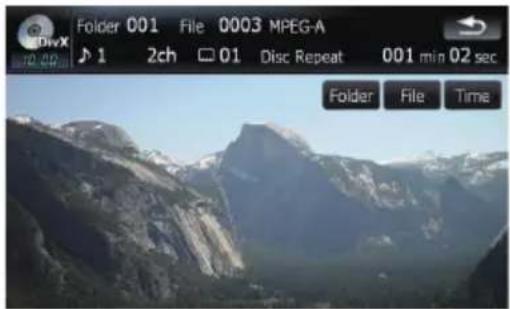
2Touchthekeystoinputthedesired numberortimeandthentouch[Enter].
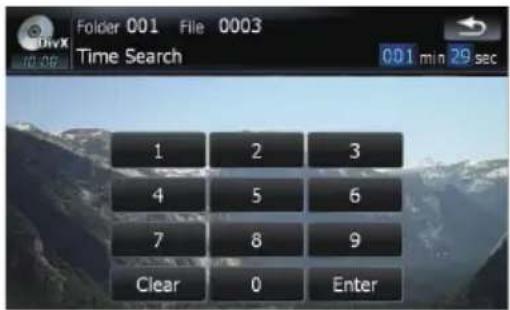
Forfolders,files
• To select 3, touch [3] and [Enter] in order.
- To select 10, touch [1] and [0] and [Enter] in order.
Fortime(timesearch)
- Toselect5minutes03seconds,touch[5], [0],[3]and[Enter]inorder.
- Toselect71minutes00seconds,touch[7], [1], [0], [0] and [Enter] in order.
Tocanceltheinputnumbers,touch
[Clear].
Usingthe"Function"menu
1Touch[DISC]onthe"AVSource"menu todisplaythe"DivX"screen.
Fordetailsconcerningoperations,referto Screenswitchingoverviewonpage18.
2Touchthescreentodisplaythetouch panelkeys.
3Touch[Func].
Functionmenu
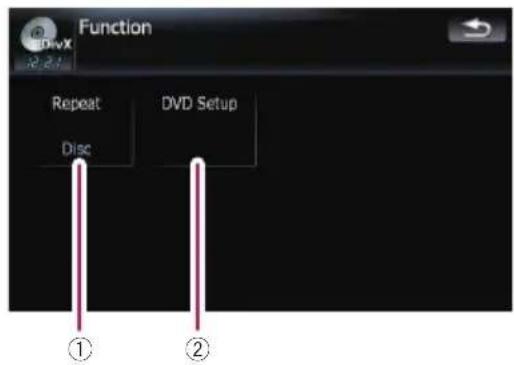
①Repeatingplay
Eachtouchof[Repeat]changesthesettingsasfollows:
- File—Repeatjustthecurrentfile
- Folder—Repeatjustthecurrentfolder
•Disc—Playsthroughoutthecurrent disc
□Ifyouperformfolder(file)search,fast forward/rewindorslowmotion playback, therepeatplayrangechangesto[Disc].
②DVDsetupadjustments
Fordetails, refer to Configure the DVD-Video/DVD-VR/DivXplayer. on then next page.
ConfiguretheDVD-Video/DVD-VR/DivXplayer.
DisplayingDVDSetupmenu
1PlaythediscthatcontainsDVD-Video, DVD-VRorDivX.
2Touch[DISC]onthe"AVSource"menu todisplaythenormalplaybackscreen.
- Fordetailsconcerningoperations,referto Screenswitchingoverviewonpage18.
3Touch[Func].
The "Function" menuappears.
4Touch[DVDSetup].
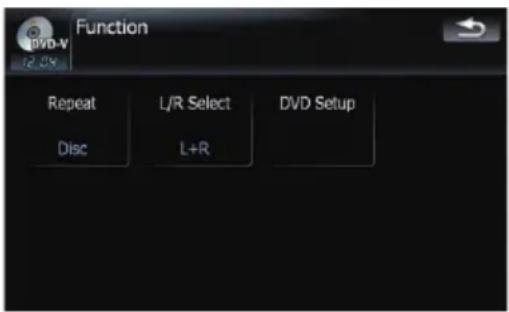
5Touchthedesiredfunction.
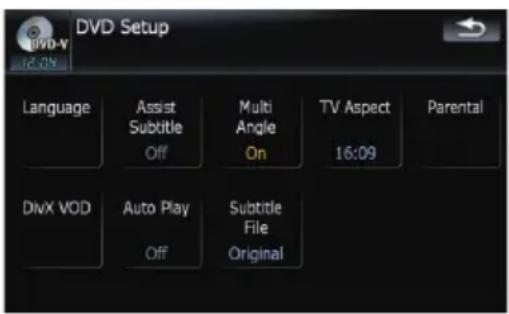

Settingthetop-priority languages
Youcanassignthetop-prioritylanguagetothe top-prioritysubtitle, audioandmenuinitial playback. If theselectedlanguageisrecorded onthedisc, subtitles, audioandmenuaredisplayedoroutputinthatlanguage.
1Touch[DVDSetup]onthe"Function" menu.
Fordetails, refertoDisplayingDVDSetup menuonthispage.
2Touch[Language].
Youcanselectthelanguagepreferenceofthe subtitle, audio, and menus.
3Touchthekeynextto[SubtitleLanguage],[AudioLanguage]or[MenuLanguage].
Each linguagemenuisdisplayedandthecurrentlysetlanguageisselected.
4Touchthedesiredlanguage.
Whenyouselect[Others],alanguagecode inputdisplayisshown.Inputthefourdigit codeofthedesiredlanguagethentouch [Enter].
RefertoLanguagecodechartforDVDson page86.
□Iftheselectedlanguageisnotrecordedon thedisc,thedefaultlanguagespecifiedon thediscisoutputanddisplayed.
☐Youcanalsoswitchthesubtitleandaudio language by touching [S.Title] or [Audio] during playback.
□ Even if you use [S.Title] or [Audio] to switch the subtitle or audiolanguage, this does not affect these settings here.
Settingassistsubtitleson oroff
Assistsubtitlesofferexplanationsfortheaurallyimpaired. However, they are only displayed if they are recorded on the DVD. You can turn assists subtitles on or off as desired.
1Touch[DVDSetup]onthe"Function" menu.
Fordetails, refertoDisplayingDVDSetup menuonthispage.
2Touch[AssistSubtitle].
Touching[AssistSubtitle]switchesbetween [On]and[Off].
Settingtheangleicondisplay
Youcansettheangleicontodis in sceneswheretheanglecanbeswitched.
1Touch[DVDSetup]onthe"Function" menu.
- Fordetails, refertoDisplayingDVDSetup menu on the previous page.
2Touch[MultiAngle].
Touching[MultiAngle]switchesbetween
[On]and[Off].
Settingtheaspectratio
Therearetwokindsofdisplays.Awidescreen displayhasawidth-to-heightratio(TVaspect) of16:9,whilearegulardisplayhasaTVaspect of4:3.Ifyouusearegularreardisplaywitha TVaspectof4:3,youcansettheaspectratio suitableforyourreardisplay.(Werecommend useofthisfunctiononlywhenyouwanttofit tothereardisplay.)
□When using aregulardisplay, select either "Letter Box" or "Panscan". Selecting "16:09" may result in an unnatural picture.
1Touch[DVDSetup]onthe"Function" menu.
- Fordetails, refertoDisplaying DVD Setup menu on the previous page.
2Touch[TVAspect].
Eachtouchof[TVAspect]changestesettingsasfollows:
• 16:09—Widescreenpicture(16:9)isdisplayedasitis(initialsetting)
- LetterBox—Thepictureisintheshapeof aletterboxwithblackbandsatthetopand bottomofthescreen
- Panscan—Thepictureiscutshortatthe rightandleftofthescreen
□Whenplayingdiscsthatdonothaveapan-scansystem,thediscisplayedbackwith [LetterBox]evenifyouselect[Panscan] setting. Confirmwhetherthediscpackage bearsthe 16:9 LB mark.
■Somediscsdonotenablechangingofthe TVaspect.Fordetails,refertothedisc's instructions.
Settingtheparentallock
SomeDVD-Videodiscsletyouuseparental locktosetrestrictionssothatchildrencannot watchviolentoradultorientedscenes.You cansettheparentallocklevelinstepsasdesired.
☐Whenyousetaparentallocklevelandthen playadiscfeaturingparentallock,code numberinputindicationsmaybedisplayed.Inthiscase, playbackwillbegin whenthecorrectcodenumberisinput.
Settingthecodenumberandlevel
Whenyoufirstusethisfunction,registryour codenumber.Ifyoudonotregisteracode number,parentallockwillnotoperate.
1Touch[DVDSetup]onthe"Function" menu.
Fordetails, refertoDisplaying DVDSetup menuonthepreviouspage.
2Touch[Parental].
3Touchthekeynextto"Parental".
4Touch[0]to[9]toinputafourdigit codenumber.
5Whiletheinputnumberisdisplayed, touch[Enter].
Thecodenumberisregistered, and you can now set the level.
6Touchanyof[1]to[8]toselectthedesiredlevel.
Theparentallocklevelisset.
•Level8—Playbackoftheentirediscis possible(initialsetting)
- Level 7 to Level 2 — Playback of discs for children and non-adultoriented discsis possible
DVD-Video, DVD-VR, DivXsetup
•Level1—Only playback of discs for children is possible
□Ifyouwanttochangetheparentallevelal-readyset,entertheregisteredcodenumber andthenselecttheparentallevel.
□Werecommendthatyoukeeparecordof yourcodenumberincaseyouforgetit.
☐Theparentallocklevelisrecordedonthe disc.Youcanconfirmitbylookingatthe discpackage,theincludedliteratureorthe discitself.Withdiscsthatdonotfeaturea recordedparentallocklevel,youcannot useparentallock.
■Withsomediscs,parentallockoperatesto skipcertainscenesonly,afterwhichnormal playbackresumes.Fordetails,refertothe disc'sinstructions.
□Ifyouforgettheregisteredcodenumber, touch[Clear]10timesonthenumberinput screen. Theregisteredcodenumberiscanceled, lettingyouregisteranewone.
DisplayingyourDivX ^® VOD registrationcode
InordertoplayDivXVOD(videoondemand) contentonthisnavigationsystem,youfirst needtoregistertheunitwithyourDivXVOD contentprovider.Youdothisbygeneratinga DivXVODregistrationcode,whichyousubmit toyourprovider.
1Touch[DVDSetup]onthe"Function" menu.
Fordetails, refertoDisplaying DVD Setup menuonpage82.
2Touch[DivXVOD].
Your8-digitregistrationcodeisdisplayed.
☐ Makeanoteofthecodeasyouwillneedit whenyouregisterwithaDivXVOD provider.
Setting"AutoPlay"
WhenaDVDdiscwithDVDmenuisinserted, thisunitwillcanceltheDVDmenuautomati-
callyandstart playbackfromthefirstchapter ofthefirsttitle.
ThisfunctionisavailableforDVD-Video.
SomeDVDsmaynotoperateproperly. If thisfunctionisnotfullyoperable,turnthis functionoffandstartplayback.
1Touch[DVDSetup]onthe"Function" menu.
- Fordetails, refertoDisplayingDVDSetup menuonpage82.
2Touch[AutoPlay].
Touching[AutoPlay]switchesthissettigbetween[On]and[Off].
☐ When [Auto Play] is [On], repeat play cannot be used.
Settingthesubtitlefilefor DivX®
YoucanselectwhethertodisplayDivXexternalsubtitlesornot.
□IfnoDivXexternalsubtitlefilesexist,the originalDivXsubtitlesaredisplayedeven when[Custom]isselected.
1Touch[DVDSetup]onthe"Function" menu.
Fordetails, refertoDisplayingDVDSetup menuonpage82.
2Touch[SubtitleFile].
Touching[SubtitleFile]switchesthissetting between[Original]and[Custom].
☐Upto42characterscanbedisplayedon oneline.Ifmorethan42charactersareset, thelinebreaksandthecharactersaredisplayedonthenextline.
☐Upto126characterscanbedisplayedon onescreen.Ifmorethan126charactersare set,theexcesscharacterswillnotbedisplayed.
☐TheDivXsubtitleswillbedisplayedeven whenthesubtitlefilesettingisonifnocorrespondingsubtitlefilesexist.
☐Uptothreelinescanbedisplayedat once.
LanguagecodechartforDVDs
Language(code),inputcodeLanguage(code),inputcodeLanguage(code),inputcode
Japanese(ja),1001Guarani(gn),0714Pashto,Pushto(ps),1619
English(en),0514Gujarati(gu),0721Quechua(qu),1721
French(fr),0618Hausa(ha),0801Rhaeto-Romance(rm),1813
Spanish(es),0519Hindi(hi),0809Kirundi(rn),1814
German(de),0405Croatian(hr),0818Rumanian(ro),1815
Italian(it),0920Hungarian(hu),0821Kinyarwanda(rw),1823
Chinese(zh),2608Armenian(hy),0825Sanskrit(sa),1901
Dutch(nl),1412Interlingua(ia),0901 Sindhi(sd),1904
Portuguese(pt),1620Interlingue(ie),0905 Sango(sg),1907
Swedish(sv),1922Inupiak(ik),0911Serbo-Croatian(sh),1908
Russian(ru),1821 Indonesian(in),0914 Shinghalese(si),1909
Korean(ko),1115 Icelandic(is),0919 Slovak(sk),1911
Greek(el),0512Hebrew(iw),0923Slovenian(sl),1912
Afar(aa),0101 Yiddish(ji),1009Samoan(sm),1913
Abkhazian(ab),0102 Javanese(jw),1023 Shona(sn),1914
Afrikaans(af),0106 Georgian(ka),1101 Somali(so),1915
Amharic(am),0113 Kazakh(kk),1111 Albanian(sq),1917
Arabic(ar),0118 Greenlandic(kl),1112 Serbian(sr).1918
Assamese (as), 0119 Cambodian (km), 1113 Siswati (ss), 1919
Aymara(ay),0125Kannada(kn),1114 Sesotho(st),1920
Azerbaijani(az),0126Kashmiri(ks),1119Sundanese(su),1921
Bashkir(ba),0201 Kurdish(ku),1121 Swahili(sw),1923
Belorussian(be).0205 Kirghiz(ky).1125 Tamil(ta).2001
Bulgarian(bg),0207 Latin(la),1201 Telugu(te),2005
Bihari (bh), 0208 Lingala (In), 1214 Tajik (tg), 2007
Bislama(bi),0209 Laotian(lo),1215 Thai(th),2008
Bengali, Bangla (bn), 0214 Lithusnian (lt), 1220 Tigrinya (ti), 2009
Tibetan (bo), 0215 Latvian, Lettish (lv), 1222 Turkmen (tk), 2011
Breton (br), 0218 Malagasy (mg), 1307 Tagalog (tl), 2012
Catalan(ca),0301 Maori(mi),1309Setswana(tn),2014
Corsican (co), 0315 Macedonian (mk), 1311 Tongan (to), 2015
Czach (cs), 0319 Malayalam (ml), 1312 Turkish (tr), 2018
Welsh(cy),0325Mongolian(mn),1314 Tsonga(ts),2019
Danish (da), 0401 Moldavian (mo), 1315 Tatar (tt), 2020
Bhutani(dz),0426 Marathi(mr),1318Twi(tw),2023
Esperanto(eo),0515 Malay(ms),1319 Ukrainian(uk),2111
Estonian(et),0520Maltese(mt),1320Urdu(ur),2118
Basque(eu),0521 Burmese(my),1325 Uzbek(uz),2126
Persian(fa),0601 Nauru(na),1401 Vietnamese(vi),2209
Finnish(fi),0609 Nepali(ne),1405 Volapük(vo),2215
Fiji(fj),0610 Norwegian(no),1415Wolof(wo),2315
Faroese (fo), 0615 Occitan (oc), 1503 Xhosa (xh), 2408 Frisian(fy),0625Oromo(om),1513 Yoruba(yo),2515
Irish(ga),0701 Oriya(or),1518Zulu(zu),2621
ScottishGaelic(gd),0704 Panjabi(pa),1601
Galician(gl),0712Polish(pl),1612

Playingthemusicfile(USB,SD)
Youcanplaythecompressedaudiofiles stored in the external storage device (USB, SD).
In the following description, the SD memory card, USB memory device and USB portable audioplayer are collectively referred to as the external storage device (USB, SD)". If it indicates the USB memory device and USB portable audioplayer only, they are referred to as the USB storage device".
☐ When "SD" or "USB" selected as the AV source, the AV sounds, thenavigationguidance and beepsounds are mixed and the volumecan beadjustedsimultaneously.
ImportantNoticeregardingVolumeof NavigationVoiceGuidancewhen PlayingAudioFilesfromUSBorSD
Ifmusicfilesstoredonanexternalstoragedevice(USBorSD)areplayedwhenthesystem isinRouteGuidanceMode(i.e.,adestination hasbeenselectedandthesystemisrouting youtoadestination),thevolumeofthenavigationguidancevoicewillbethesameasthevolumeofthemusicfilesbeingplayed,evenifa different "Master" volume or "Voice" volume or "Dynamic"volumehasbeenselectedinthe "SoundSettings"menu.Thisconditiononly appliestomusicfilesstoredonaUSBdevice orSDcard;itdoesnotapplytomusicfiles storedonaniPodoradisc,nordoesitapply tobroadcastcontent(FM,AM,XM,Sirius, HD).
Startingprocedures
- InserttheSDmemorycardintotheSD cardslotorplugtheUSBstoragedeviceto theUSBconnector.
Thesourcechangesandthenplaybackwill startifthereisaplayablefileontheexternal storagedevice.
- Fordetails, refertoPlugginginaUSBstoragedeviceonpage15.
Fordetails, refertoInsertingandejectingan SDmemorycardonpage14.
□Iftheexternalstoragedeviceisalreadyset, touch [USB] or [SD] on the "AV Source" menu.
Fordetailsconcerningoperations, refer to Screenswitchingoverviewonpage18.
☐Playbackisperformedinorderoffolder number.Foldersareskippediftheycontainsnonplayablefiles.(lftherearenoplayablefilesonfolder001(rootfolder), playbackstartsfromfolder002.)
Readingthescreen
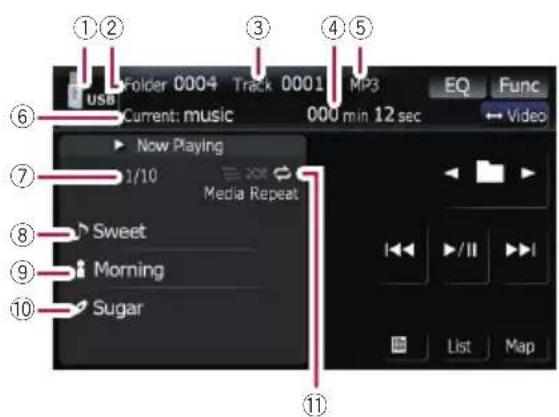
☐Optimumperformanceofthisunitmaynot beobtaineddependingontheconnected externalstoragedevice.
☐Youcan playback the files on a USB storage device compliant with Mass Storage Class. Ford details about the USB Class, referto them an manuals supplied with USB storage device.
① Sourceicon
Showswhichsourcehasbeenselected.
② Foldernumberindicator
③ Tracknumberindicator
④ Playtimeindicator
Showstheelapsedplayingtimeofthecurrent track.
⑤ Filetypeindicator
Showsthetypeofaudiofilecurrentlyplaying.
⑥ Currentfoldernameindicator
Showsteholdernamecurrentlyplaying.
Playingthemusicfile(USB,SD)
⑦Currentfilenumberandtotalnumberof files
Showsthefilenumbercurrentlyplayedand thetotalnumberofplayableaudiofiles.
⑧Tracktitleindicator\*
Showsthetitleofthetrackcurrentlyplaying (whenavailable).
⑨Artistnameindicator\*
Showstheartistnamecurrentlyplaying (whenavailable).
⑩Albumtitleindicator\*
Showsthetitleofthealbumforthecurrent track(whenavailable).
⑪Playbackconditionindicator
Themarksshownbelowappearsandindicatesthecurrentplaybackcondition.

:Repeatplay

:Randomplay

:Scanplay
Indicator Implication
| MediaRepeat | Allaudiofilesinthecurrent externalstoragedevice (USB,SD)areplayedrepeatedly.Thisisdefaultcondition. |
| FolderRepeat | Currentfolderisplayedrepeatedly. |
| TrackRepeat | Currentfileisplayedrepeatedly. |
| MediaRandom | Allaudiofilesinthecurrent externalstoragedevice (USB,SD)areplayedinrandomorder. |
| FolderRandom | Allaudiofilesinthecurrent folderareplayedinrandom order. |
| MediaScan | Thebeginningofeachaudio fileisplayedforabout10 seconds. |
| FolderScan | Thebeginningofeachtrack inthecurrentfolderis playedforabout10seconds. |
Formoreinformation, refertoUsingthe "Function"menuonthenextpage.
☐Theinformationmarkedwithanasterisk(*) isdisplayedonlywhentheinformationhas beenencodedonthecompressedaudio files.Ifspecificinformationhasnotbeen encodedonthefiles,“—”isdisplayedinstead.
Usingthetouchpanelkeys (Music)
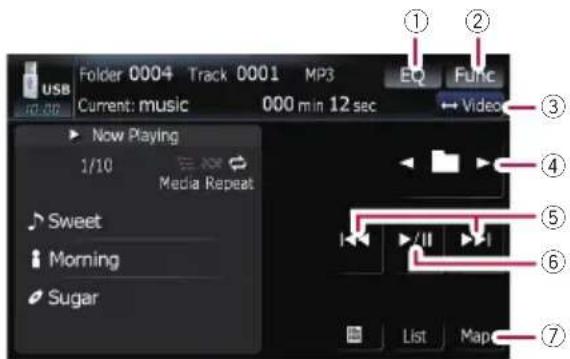
①Recallsequalizercurves
- Fordetails, refertoRecallingequalizer curvesonpage139.
②Displayingthe“Function”menu
- Fordetails, refertoUsingthe "Function"menuonthenextpage.
③Switchtheoperationscreen
Touchingthekeyswitchesbetweenthescreen tooperatemusicfilesandthescreentooperatemoviefiles. Thisouchpanelkeyisavailableonlywhentherearebothaudioandvideo fileintheexternalstoragedevice(USB,SD).
④Selectthepreviousornextfolder
Touching [◀] or [▶] play the first playable file onthepreviousornextfolder. The folder that there is non-playable files are skipped.
⑤Skipforwardorbackward
Touching[▶▶]skipstothestartofthenext file.Touching[1◀◀]onceskipstothestartof thecurrentfile.Touchingagainwillskiptothe previousfile.
Fastrewindorforward
Keep touching [I◄◄] or [►►I] to perform fast rewindorforward.
Thereisnosoundonfastrewindorforward.
Playingthemusicfile(USB,SD)
□Moving MULTI-CONTROL leftor right enables youtoperform the equivalent operations.
⑥PlaybackandPause
Touching[▶/■]switchesbetween playback and pause.
⑦Displayingthemapscreen
Selectingatrackfromthelist
Thelistletsyouseethelistoftracktitlesor foldernamesonaexternalstoragedevice (USB,SD).Ifyoutouchafolderonthelist,you canviewitscontents.Ifyoutouchatrackon thelist,youcanplaytheselectedtrack.
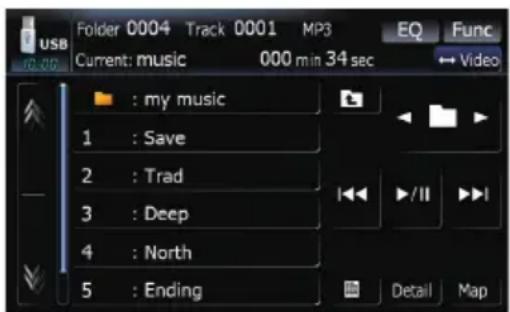
1Touch[List].
2Touchthefolderthatyouwanttoview.
Touching 📁 or switchestheselectiontothe nextorpreviouspageinthelist. Touching 📁 showsacontentoftheparent folder.
If theselectedfolderdoesnotcontainany trackthatcanbeplayed, thetracklistisnot displayed.
3Touchthetrackyouwanttoplay.
☐Tocancelthelistscreen,touch[Detail].
Browsingembeddedtext information
Textinformationrecordedonancompressed audiofilecanbedisplayed.
●Touch
Thenextpieceofinformationisdisplayed.
- AlbumTitle:(albumtitle)
- TrackTitle:(tracktitle)
- FolderTitle:(foldertitle)
- FileName:(filename)
- ArtistName:(artistname)
□Iftheinformationhasnotbeenrecordedon files,nothingmaybedisplayed.
☐ForWAVfiles,onlytheinformationmarked with(*)canbedisplayed.
□Ifthecharactersrecordedonthecom- pressedaudiofilearenotcompatiblewith thisnavigationsystem,thosecharacters mayturnintogarbledcharacters.
Usingthe"Function"menu
1Touch[USB]or[SD]onthe"AVSource" menu to display the "USB" or "SD" screen.
- Fordetailsconcerningoperations,referto Screenswitchingoverviewonpage18.
2Touch[Func].
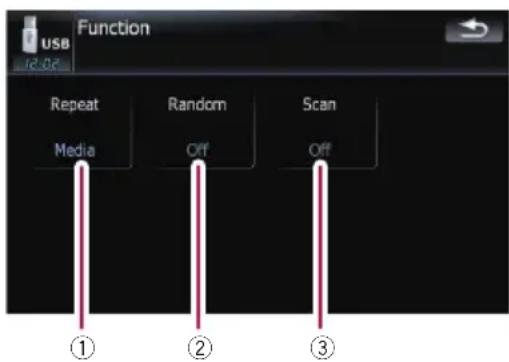
①Repeatingplay
Eachtouchof[Repeat]changesthesettingsasfollows:
- Media—Repeatallcompressedaudio filesinthesetectedexternalstoragedevice(USB,SD)
- Track—Repeatjustthecurrenttrack
- Folder—Repeatthecurrentfolder
☐Ifyouskipthefileforwardorbackward when the repeat play range in "Track", therepeatplayrangechangesto "Folder".
②Playtracksinarandomorder
Playingthemusicfile(USB,SD)
Randomplayletsyou playbacktracksin randomorderwithinthecurrentrepeat range.
Touching[Random]switchesbetween"On" and "Off".
☐ If you turn [Random] to "On" while the repeat play range is set to "Track", the repeatplayrangechangesto"Folder" automatically.
③Scanfoldersandtracks
Scanplayletsyouhearthefirst10seconds ofeachtrack.Scanplayisperformedinthe currentrepeatplayrange.
Touching[Scan]switchesbetween"On" and "Off".When you find the desired track touch[Scan]toturnscanplayoff.
After all tracks or foldersscanning are finished, normal playback will begin again.
☐ If you turn [Scan] to "On" while the repeat play range is set to "Track", the repeatplayrangechangesto"Folder" automatically.
Playingthemoviefile(USB,SD)
Youcanplaythevideofilesstoredintheexternalstoragedevice(USB,SD).
In the following description, the SD memory card, USB memory device and USB portable audioplayer are collectively referred to as the "external storage device (USB, SD)". If it indicates the USB memory device and USB portable audioplayer only, they are referred to as the "USB storage device".
When "SD" or "USB" selected as the AV source, the AV sounds, thenavigationguidance and beepsounds are mixed and the volumecan beadjusted simultaneously.
ImportantNoticeregardingVolumeof NavigationVoiceGuidancewhen PlayingAudioFilesfromUSBorSD
Ifmusicfilesstoredonanexternalstoragedevice(USBorSD)areplayedwhenthesystem isinRouteGuidanceMode(i.e.,adestination hasbeenselectedandthesystemisrouting youtoadestination),thevolumeofthenavigationguidancevoicewillbethesameasthevolumeofthemusicfilesbeingplayed,evenifa different "Master" volume or "Voice" volume or "Dynamic" volumehasbeenselectedinthe "SoundSettings"menu.Thisconditiononly appliestomusicfilesstoredonaUSBdevice orSDcard;itdoesnotapplytomusicfiles storedonaniPodoradisc,nordoesitapply tobroadcastcontent(FM,AM,XM,Sirius, HD).
Startingprocedures
- InserttheSDmemorycardintotheSD cardslotorplugtheUSBstoragedeviceto theUSBconnector.
Thesourcechangesandthen playbackwill startifthereisaplayablefileontheexternal storagedevice.
- Fordetails, refertoPlugginginaUSBstoragedeviceonpage15.
- Fordetails, refertoInserting and ejecting an SDmemorycardonpage14.
□Iftheexternalstoragedeviceisalreadyset, touch [USB] or [SD] on the "AV Source" menu.
☐Playbackisperformedinorderoffolder number.Foldersareskippediftheycontainsnonplayablefiles.(Iftherearenoplayablefilesonfolder001(rootfolder), playbackstartsfromfolder002.)
Readingthescreen
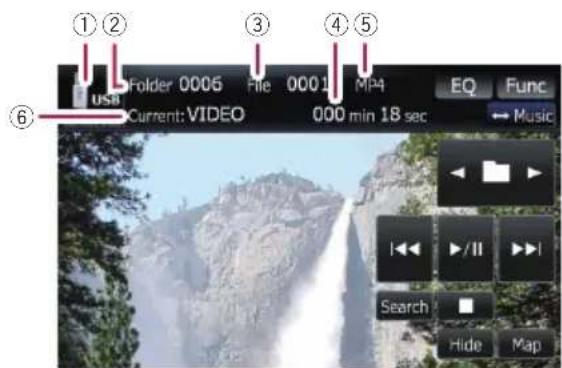
☐Optimumperformanceofthisunitmaynot beobtaineddependingontheconnected externalstoragedevice.
☐Youcan playback the filesona USB storage device compliant with Mass Storage Class. Ford details about the USB Class, referto them anuals supplied with USB storage device.
① Sourceicon
Showswhichsourcehasbeenselected.
② Foldernumberindicator
③ Filenumberindicator
④ Playtimeindicator
Showstheelapsedplayingtimeofthecurrent track.
⑤ Filetypeindicator
Showsthetypeofaudiofilecurrentlyplaying.
⑥ Currentfoldernameindicator
Showsthefoldernamecurrentlyplaying.
Usingthetouchpanelkeys (Video)
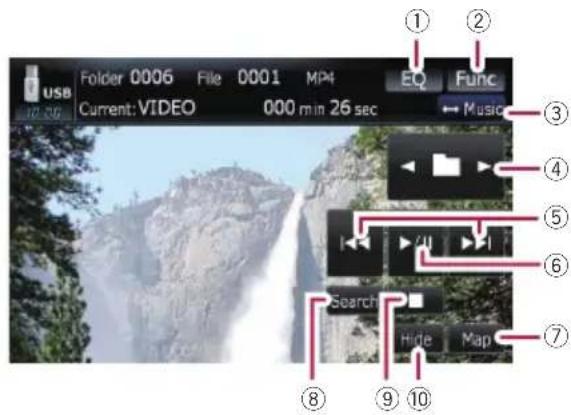
①Recallsequalizercurves
Fordetails, refertoRecallingequalizer curvesonpage139.
②Displayingthe"Function"menu
- Fordetails, refertoUsingthe "Function"menuonthenextpage.
③Switchtheoperationscreen
Touchingthekeyswitchesbetweenthescreen tooperatemusicfilesandthescreentooperatemoviefiles. Thisouchpanelkeyisavailableonlywhentherearebothaudioandvideo fileintheexternalstoragedevice(USB,SD).
④Selectthepreviousornextfolder
Touching [◀] or [▶] play the first playable file onthepreviousornextfolder. The folder that there is non-playable files are skipped.
⑤Skipforwardorbackward
Touching[▶▶]skipstothestartofthenext file.Touching[1◀◀]onceskipstothestartof thecurrentfile.Touchingagainwillskiptothe previousfile.
Fastrewindorforward
Keep touching [I◄◄] or [►►I] to perform fast rewindorforward.
Thereisnosoundonfastrewindorforward.
□MovingMULTI-CONTROLleftorright enablesyoutoperformtheequivalent operations.
⑥PlaybackandPause
Touching[▶/■]switchesbetween playback and pause.
⑦Displayingthemapscreen
⑧Specifythechapteryouwanttoplayback orthetimetostartplaybackbyenteringa number
Fordetails, refertoSearchingforade-siredscene and starting playback from a specified time on this page.
⑨Stopplayback
⑩Hidesthetouchpanelkeys
Touching[Hide]hidesthetouchpanelkeys. TouchanywhereontheLCDscreentodisplay thetouchpanelkeysagain.
Searchingforadesiredscene andstarting playbackfroma specifiedtime
Youcansearchforadesiredscenebyspecifyingafoldernumber,filenumberorthetime.
1Touch[Search]andthentouch[Folder], [File]or[Time].
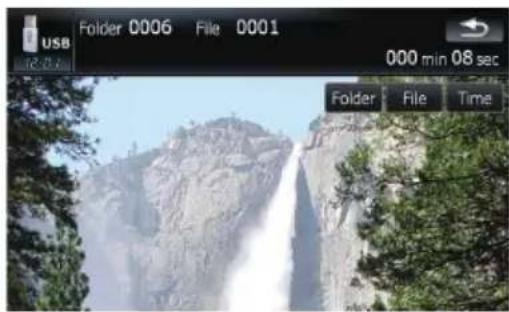
2Touchthekeystoinputthedesired numberortimeandthentouch[Enter].
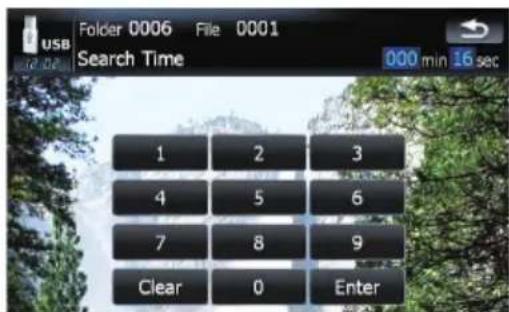
Forfolders,files
• To select 3, touch [3] and [Enter] in order.
Playingthemoviefile(USB,SD)
- To select 10, touch [1] and [0] and [Enter] in order.
Fortime(timesearch)
- Toselect5minutes03seconds,touch[5], [0],[3]and[Enter]inorder.
- Toselect71minutes00seconds,touch[7], [1], [0], [0] and [Enter] in order.
□Tocleartheinputnumbers,touch [Clear].
Usingthe"Function"menu
1Touch[USB]or[SD]onthe"AVSource" menu to display the "USB" or "SD" screen.
- Fordetailsconcerningoperations,referto Screenswitchingoverviewonpage18.
2Touchthescreentodisplaythetouch panelkeys.
3Touch[Func].
□Ifthetouchpanelkeysarenotshown, touchinganywheretodisplaythem.
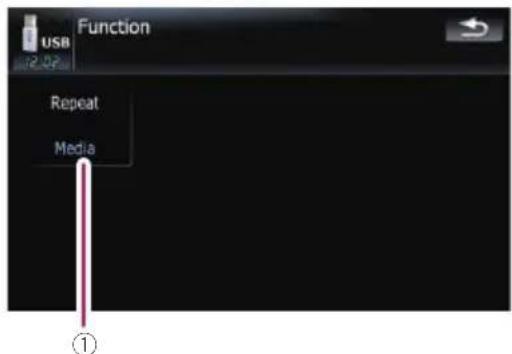
①Repeatingplay
Eachtouchof[Repeat]changestheset- tingsasfollows:
• Media—Repeatallvideofilesinthese-lectedexternalstoragedevice(USB,SD)
- File—Repeatjustthecurrentfile
- Folder—Repeatthecurrentfolder
□Ifyouskipthefileforwardorbackward when the repeat play range in "Track", therepeatplayrangechangesto
"Folder".
UsingtheiPod ^® (iPod)
UsingtheUSBinterfacecableforiPodenablesyoutoconnectyouriPodtothenavigationsystem.
☐Forconnection,USBinterfacecablefor iPod(CD-IU230V)(soldseparately)isrequired.
USBinterfacecableforiPodissupplied withAVIC-F90BT.
□iPodisatrademarkofAppleInc.,registeredintheU.S.andothercountries.
Startingprocedures
1Touch[AV1Input]onthe"AVSettings" menutoselectthe"iPod".
- Fordetails, refertoSettingvideoinput1 (AV1) on page 143.
2ConnectyouriPod.
Thesourcechangesandthenplaybackwill start.
- Fordetails, refer to Connecting youri Podon page16.
□IftheiPodisalreadyconnected,touch[iPod]onthe"AVSource"menu.
Fordetailsconcerningoperations,referto Screenswitchingoverviewonpage18.
Readingthescreen
Music
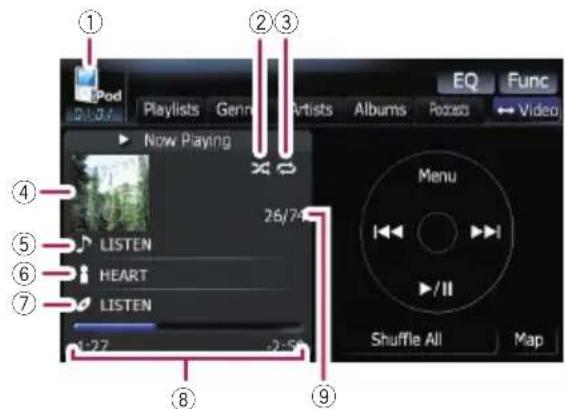
Video
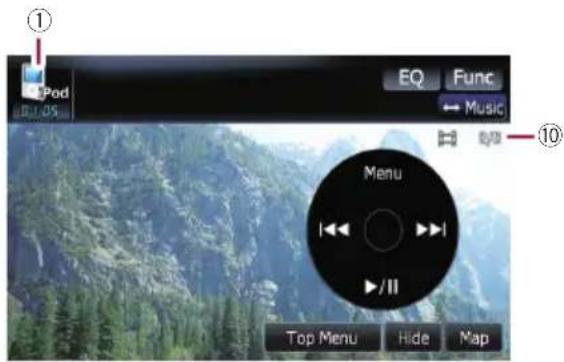
①Sourceicon
Showswhichsourcehasbeenselected.
②Shuffleplayindicator Appearswhentheshuffleplayisactivated.
③Repeatplayindicator Appearswhentherepeatplayisactivated.
All-tracksrepeat
:One-trackrepeat
④Albumartwork
Albumartofthecurrentsongisdisplayedifit isavailable.
⑤Songtitle(episode)indicator Showsthetitleofthecurrentsong.Whenthe podcastisplayed,theepisodeisdisplayed.
⑥Artistname(podcasttitle)indicator Showstheartistnamecurrentlyplaying. Whenthepodcastisplayed,thepodcasttitle isdisplayed.
⑦Albumtitle(releasedate)indicator Showsthetitleofthealbumforthesong. Whenthepodcastisplayed,thereleasedate isdisplayed.
⑧Playtimeindicator Showstheelapsedplayingtimeofthecurrent song.
⑨ Songnumberindicator Showsthenumberofthesongcurrentlyplayingandtotalnumberofsongsintheselected list.
⑩ Chapternumberindicator Showsthecurrentchapternumberandtotal numberofchapterswhenthevideowithchaptersplayed.
UsingtheiPod ^® (iPod)
□IfthecharactersrecordedontheiPodare notcompatiblewiththisnavigationsystem, thosecharactersmayturnintogarbled characters.
Usingthetouchpanelkeys (Music)
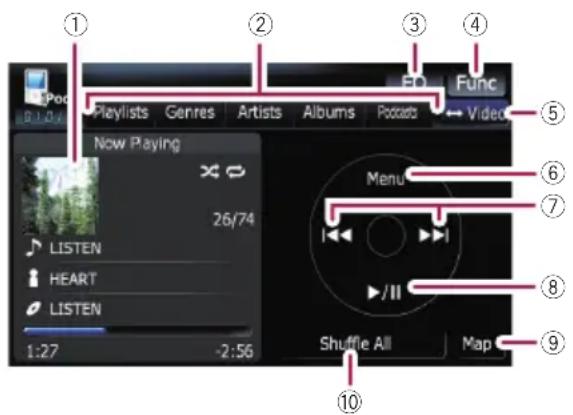
①Albumartwork
Touchthekeytoenlargethealbumartwork.If youtouchagain,theartworkreturnstoanormalsize.
②Categorytabs
Showsthelisttonarrowdownthesongs. If youwanttousethelistof"Audiobooks" or "Composers", touch [Menu] to display the lists.
③Recallsequalizercurves
- Fordetails, refertoRecallingequalizer curvesonpage139.
④Displayingthe“Function”menu
- Fordetails, refertoUsingthe "Function"menuonpage98.
⑤Switchtheoperationscreen
Touchingthekeyswitchesbetweenthescreen tooperatemusicfilesandthescreentooperatemoviefiles.Aftertouchingthekey,thetop categorymenuappearstoletyouselectthe itemfor playback.
☐Thistouchpanelkeyisavailableonly whentherearebothaudioandvideofile inyouriPod.
⑥Displaythetopcategorymenu
Touchingthekeydisplaysthetopcategorybeforeyouusethecategorytabs.Ifyouselectthesongusingthecategorytabstoplay,touchingthekeydisplaysthepreviouslist.
⑦Skipbackorforwardtoanothersong
Touching[▶▶▶]skipstothestartofthenext song.Touching[▶▶▶]onceskipstothestart ofthecurrentsong.Touchingagainwillskip totheprevioussong.Whenthetrackwith chaptersplayed,chaptercanbeskippedback andforward.
Fastrewindorforward
Keep touching [◀◀] or [▶▶] to perform fast rewindorforward.
□ MovingMULTI-CONTROLleftorright enablesyoutoperfmtheequivalent operations.
⑧PlaybackandPause
Touching[▶/■]switchesbetween playback and pause.
⑨Displayingthemapscreen
⑩ShuffleAll
Allsongs(exceptforthetrackin"Audiobook-s"and "Podcasts") in your iPod can be played randomly.
☐Tocanceltherandomplay,switch [Shuffle]onthe"Function"menutothe "Off".
Browsingforasong
Touchingtheitemonlistallowsyoutosearch forasongandplayitinyouriPod.
Narrowingdownasongwiththelist
1 Touch your desired category tabtodis- playthesongortracklist.
- Playlists( playlists)
- Genres(genres)
- Artists(artists)
•Albums(albums) - Podcasts(podcasts)
Thesearchscreenisdisplayed.
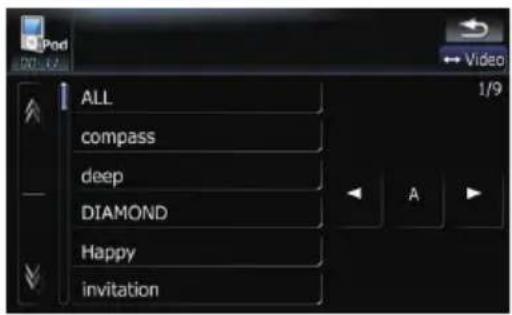
2Touchingswitchestheselection tothenextorpreviouspageinthelist.
3Touchtheitemthatyouwanttorefine.
Refinetheitemuntilthetracktitleisdisplayed onthelist.
□Touching[All]onthelistincludesalloptionsinthecurrentlist. Forexample, if you touch[All]aftertouching[Artists], you can proceedtonextscreenwithselectingallartistsinthelist.
□ After you select Artists, Albums, or Genres, continued touching one of the list allows you to start playing the first songs in these selected list and display them next options.
4Onthesong(orepisode)list,touchthe trackyouwanttoplay.
□Afteryouselectthetrackusingthisfunction,touching[Menu]displaysthelistpreviouslyselected.
Searchingforapplicableitemsby alphabet
Using thesearch controldisplaysthepageincludesthefirstapplicableoption.
Thisfunctionisavailableforthealphabeticallistonly.
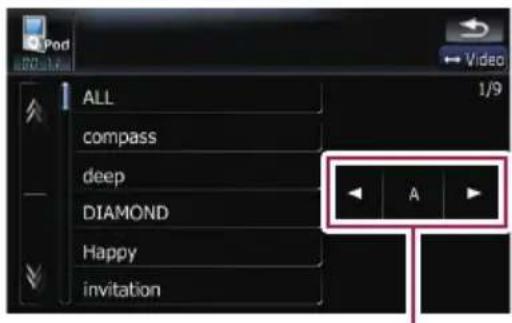
Searchcontrol
1Touchyourdesiredcategorytabtodisplaythelist.
2Touchtheitemthatyouwanttorefine.
3 Touch [◀] or [▶] to select the character.
☐ "THE" or "The" and space at the beginning of the artist namewill be ignored and the next character will betaken into account for searching.
4Touchthecharacterkeytodisplaythe pageincludesapplicableoptions.
5Onthesong(orepisode)list,touchthe trackyouwanttoplay.
Startingthevideoplayback
Thisnavigationsystemcanplayvideoifan iPodwithvideocapabilitiesisconnected.
1Touch[Video].
2Touchoneofthecategoriesinthatcontainsthevideoyouwanttoplay.
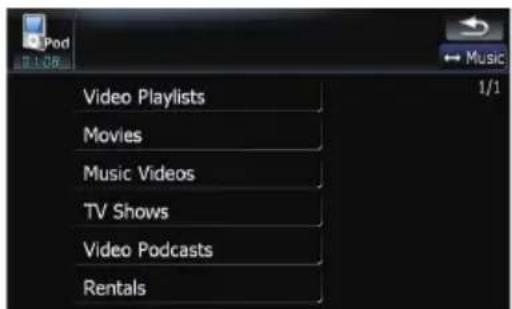
Videoplaybackwillstart.
UsingtheiPod ^® (iPod)
3Touchyourdesireditemonthelistto narrowdownthemuntilthevideolistappears.
- Fordetailsconcerningoperations,referto Browsingforavideoonthispage.
4Onthevideolist,touchthevideoyou wanttoplay.
5Touchthescreentodisplaytotouch panelkeys.
Fordetailsconcerningoperations,referto Usingthetouchpanelkeys(Video)onthis page.
Usingthetouchpanelkeys (Video)
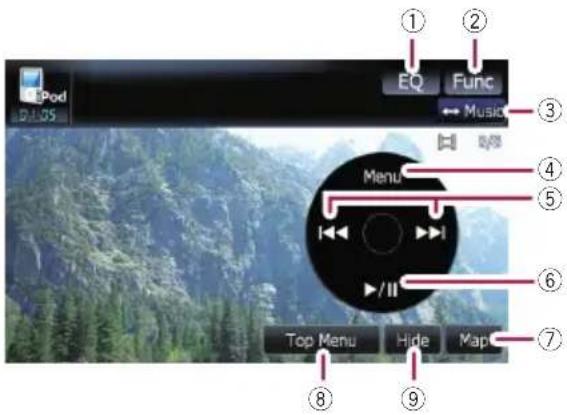
①Recallsequalizercurves
- Fordetails, refertoRecallingequalizer curvesonpage139.
②Displayingthe"Function"menu
- Fordetails, refertoUsingthe "Function"menuonthenextpage.
③Switchtheoperationscreen
Touchingthekeyswitchesbetweenthescreen tooperatemusicfilesandthescreentooperatemoviefiles.Aftertouchingthekey,thetop categorymenuappearstoletyouselectthe itemfor playback.
☐Thisouchpanelkeyisavailableonly whentherearebothaudioandvideofile inyouriPod.
④ Displaythepreviousselectedlist
Ifyouselectthevideofromthelisttoplay aftertouchingTopMenu,touchingthekey displaysthepreviouslist.(Ifyoutouch Top Menuagainbutdonotselectavideo,thiskey isdisableduntilyouselectavideowiththelistnexttime.)
⑤Skipbackorforwardtoanothersong
Touching[▶▶▶]skipstothestartofthenext video.Touching[▶◀◀]onceskipstothestart ofthecurrentvideo.Touchingagainwillskip tothepreviousvideo.Whenthevideowith chaptersplayed,chaptercanbeskippedback andforward.
Fastrewindorforward
Keep touching [◀◀] or [▶▶] to perform fast rewindorforward.
□ MovingMULTI-CONTROLleftorright enablesyoutoperformtheequivalent operations.
⑥PlaybackandPause
Touching[▶/■]switchesbetween playback and pause.
⑦Displayingthemapscreen
⑧Displaythetopcategorymenuforvideo
Touchingthekeydisplaysthetopcategoryfor videoplayback.
⑨Hidesthetouchpanelkeys
Touching[Hide]hidesthetouchpanelkeys. TouchanywhereontheLCDscreentodisplay thetouchpanelkeysagain.
Browsingforavideo
Touchingtheitemonlistallowsyoutosearch foravideoandplaytinyouriPod.
Narrowingdownavideowiththelist
1Touchyourdesiredcategory.
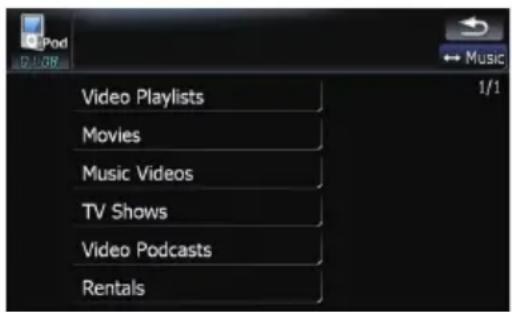
2Touchingswitchestheselection tothenextorpreviouspageinthelist.
3Touchtheitemthatyouwanttorefine.
Refinetheitemuntilthetracktitleisdisplayed onthelist.
4Onthevideolist,touchthevideoyou wanttoplay.
□Afteryouselectthevideousingthisfunction,touching[Menu]displaysthelistpreviouslyselected.
Searchingforapplicableitemsby alphabet
Using thesearch controldisplaysthepageincludesthefirstapplicableoption.
☐Thisfunctionisavailableforthealphabeticallistonly.
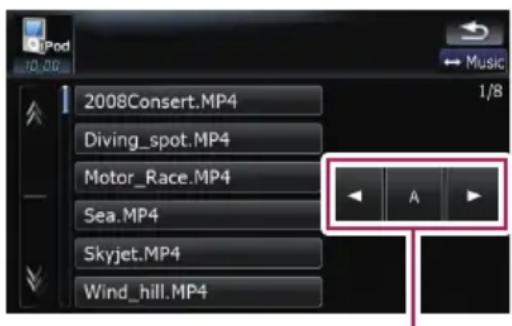
Searchcontrol
1 Touch your desired category.
2Touchtheitemthatyouwanttorefine.
3 Touch [◀] or [▶] to select the character.
☐ "THE" or "The" and space at the beginning of the artist namewill be ignored and the next character will betaken into account for searching.
4Touchthecharacterkeytodisplaythe pageincludesapplicableoptions.
5Onthevideolist,touchthevideoyou wanttoplay.
Usingthe"Function"menu
1Touch[iPod]onthe"AVSource"menu todisplaythecontrolscreenfor"iPod".
Fordetailsconcerningoperations,referto Screenswitchingoverviewonpage18.
2Touch[Func].
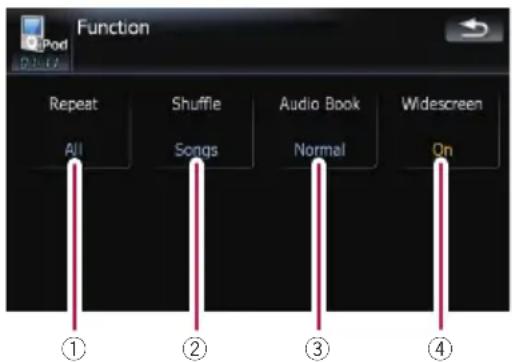
①Settingtherepeatplay
There are two repeat play types for the play-back.
Eachtouchof[Repeat]changesthesettingsasfollows:
• One—Repeatsjustthecurrenttrack
- All—Repeatsalltracksintheselected list
②Settingtheshuffleplayformusic
This functions huffless songs or albums and play them in random order.
Eachtouchof[Shuffle]changestheset- tingsasfollows:
- Off—Doesnotshuffle.
- Songs—Playbacksongsinrandom orderwithintheselectedlist
UsingtheiPod ^® (iPod)
• Albums—Selectanalbumrandomly, and then playbackallsongsinthat albuminorder
③Settingtheaudiobookplayspeed
While listening to an audiobook on iPod, playback speed can be changed.
Eachtouchof[AudioBook]changesthe settingsasfollows:
• Normal—Playbackinnormalspeed
- Slower—Playbackslowerthannormal speed
- Faster—Playbackfasterthannormal speed
④Playbackthevideoonthewidescreen mode
If the video is compatible with widescreen format, set [Widescreen] to [On] in order to view the video image in the widescreen.
Eachtouchof[Widescreen]changesthe settingsasfollows:
- On—Outputsthewide-screenvideo fromiPod
- Off—Outputsthenormal-sizedvideo fromiPod
☐Displaysizeischangedafteryou change "Widescreen" setting and select thevideotoplay.
☐Thissettingisavailableonlyduringthe videooperation.
Youcanlistentotheradiobyusingthenavigationsystem. Thissectiondescribesoperations forradio(FM).
- Touch[FM]onthe"AVSource"menuto displaythe"FM"screen.
- Fordetailsconcerningoperations,referto Screenswitchingoverviewonpage18.
Readingthescreen
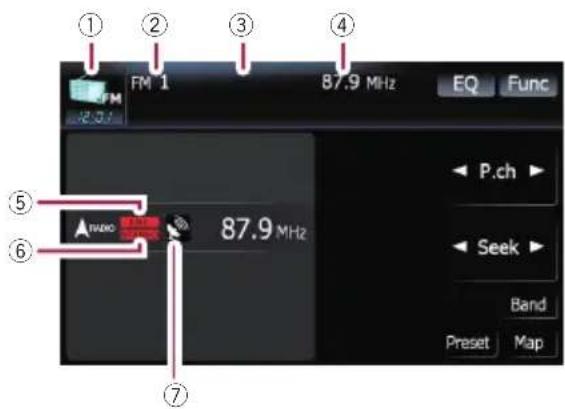
①Sourceicon
Showswhichsourcehasbeenselected.
②Bandindicator
Showswhichbandtheradioistunedto:FM1 toFM3.
③Presetnumberindicator
Showswhatpresetitemhasbeenselected.
④Frequencyindicator
⑤LOCALindicator
Showswhenlocalseektuningison.
⑥STEREOindicator
Showsthatthefrequencyselecteddisbeing broadcastinstereo.
⑦Signallevelindicator

Usingthetouchpanelkeys
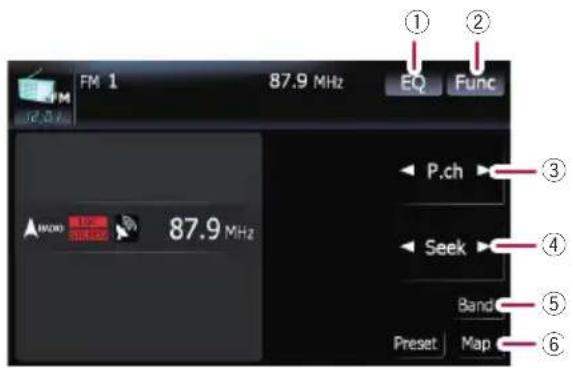
①Recallsequalizercurves
Fordetails, refertoRecallingequalizer curvesonpage139.
②Displayingthe"Function"menu
Fordetails, refertoUsingthe "Function"menuonthenextpage.
③Selectapresetchannel
[◀] or [▶] can be used to switch preset channels.
④Performmanualtuning
To perform manual tuning, touch [◀] or [▶] briefly. The frequencies move up on down one step at a time.
Performseektuning
Toperformseektuning, keeptouching[◀] or
[▶]foraboutonesecondandrelease.The tunerwillscanthefrequenciesuntilabroad-caststrongenoughforgoodreceptionis found.
☐Youcancancelseektuningbytouching either [◀] or [▶] briefly.
☐ If you keep touching [◀] or [▶], you can skipbroadcastingfrequencies.Seek tuningwillstartassoonasyourelease thekeys.
□MovingMULTI-CONTROLleftorright enablesyoutoperformtheequivalent operations.
⑤SelectanFMband
Touch[Band]repeatedlyuntilthedesiredFM band is displayed, FM1, FM2 or FM3.
☐Thisfunctionisconvenientforpreparing differentpresetlistsforeachband.
⑥Displayingthemapscreen
Switchingbetweenthe detailedinformationdisplay andthepresetlistdisplay
Youcanswitchtheleftsideofthebasicscreen accordingtoyourpreference.
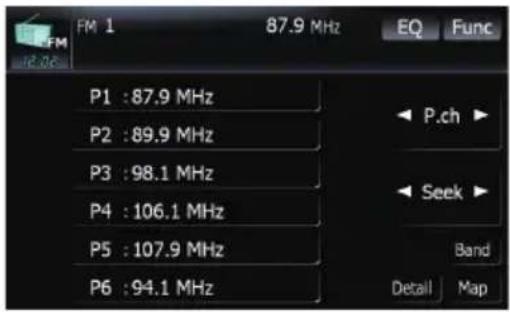
●Touch[Preset](or[Detail]).
EachtouchofPresetchanges the detailed information display or preset list display.
Storingandrecallingbroadcast frequencies
Withatouchofanyofthepresettuningkeys ([P1] to [P6]), you can easily store up to six broadcastfrequenciesforlaterrecall(also withthetouchofakey).
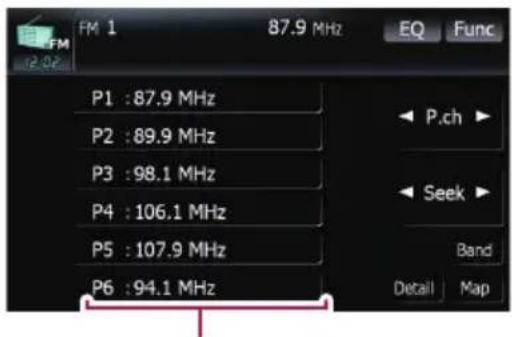
Presettuningkeys
1Whenyoufindafrequencythatyou wanttostoreinmemory,keeptouchinga presettuningkey[P1]to[P6]untilthepresetnumber(e.g.,P.ch1)stopsflashing.
Theselected radiostation has been stored in memory.
☐Upto18FMstations,6foreachofthethree FMbands,and6AMstationscanbestored inmemory.
2Thenexttimeyoutouchthesamepre-settuningkey[P1]to[P6],theradiostation frequenciesarerecalledfrommemory.
☐ You can also use [◀] and [▶] to recall radio stationsassignedtopresettuningkeys[P1] to[P6].
Usingthe"Function"menu
1Touch[FM]onthe"AVSource"menuto displaythe"FM"screen.
→Fordetailsconcerningoperations,referto Screenswitchingoverviewonpage18.
2Touch[Func].
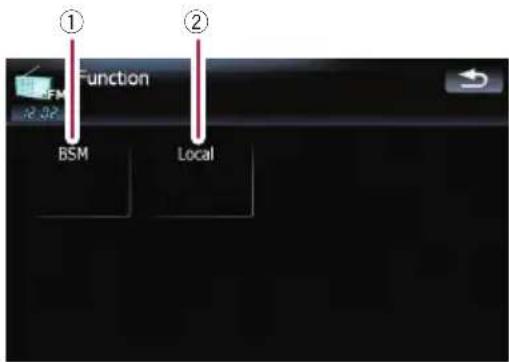
①Storingthestrongestbroadcastfrequencies
→Fordetails, refertothispage.
②Tuninginstrongsignals
→Fordetails, refertothenextpage.
Storingthestrongestbroadcast frequencies
"BSM"(beststationsmemory)letsyouautomaticallystorethesixstrongestbroadcastfrequenciesunderthepresettuningkeys[P1] to [P6]and,oncestoredthere,youcantuneinto thesefrequencieswiththetouchofakey.
1Touch[BSM].
2Touch[Start]tostart"BSM".
BSMbeginstoflash. While BSMisflashing, thesixstrongestbroadcastfrequencieswillbe storeunderthepresettuningkeys[P1] to [P6]inorderoftheirsignalstrength.When thisiscomplete, BSMstopsflashing.
☐Tocancelthestorageprocess,touch [Stop].
□StoringbroadcastfrequencieswithBSM mayreplacebroadcastfrequenciesyou have already saved by using [P1] to [P6].
Tuninginstrongsignals
Localseektuningallowsyoutotuneinonly thoseradiostationswithsufficientlystrong signalsforgoodreception.
1Touch[Local].
2Touch[On]toturnlocalseektuningon.
Toturnlocalseektuningoff,touch[Off].
3Touch[◀Prev]or[Next▶]tosetthesensitivity.
TherearefourlevelsofsensitivityforFM. Level:1—2—3—4
☐ The level "4" setting allows reception of only the strongest stations, while lower settings let you receive weaker stations.
UsingtheHDRadio(DigitalRadio)
Youcanlistentotheradiobyusingthenavigationsystem. Thissectiondescribesoperations forHDRadio™.
□Fordetailsconcerningoperation,referto theHDRadiotuner'soperationmanual.
- Touch[DigitalRadio]onthe"AV Source"menutodisplaythe"Digital Radio"screen.
- Fordetailsconcerningoperations,referto Screenswitchingoverviewonpage18.
Readingthescreen
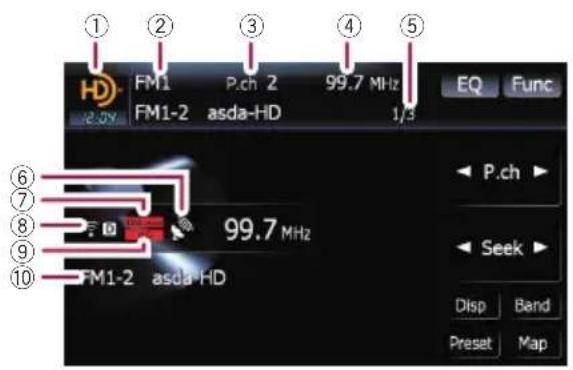
①Sourceicon
Showswhichsourcehasbeenselected.
②Bandindicator
Showswhichbandtheradioistunedto:FM1, FM2,FM3orAM.
③Presetnumberindicator
Showswhatpresetitemhasbeenselected.
④Frequencyindicator
⑤Multicastingindicator
Showsthenumberofmulticastchannelsin thecurrentfrequency.
⑥Signallevelindicator
⑦Blendingmodeindicator
Fordetails, referto Switching there-ceptionmode on page 105.
⑧Signaltypeindicator
Showsthetypeofsignalcurrentlybeingreceived.Ifadigitalbroadcastingisreceived, "D" appears. Otherwise, "A" appears.
⑨Seektypeindicator
Fordetails, referto Switching these seek mode on page 105.
⑩Detailedinformation
- Fordetails, referto Switchingthedisplay onthenextpage.
Usingthetouchpanelkeys
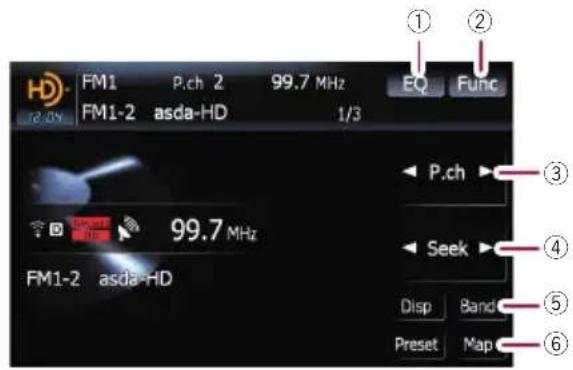
①Recallsequalizercurves
- Fordetails, refertoRecallingequalizer curvesonpage139.
②Displayingthe"Function"menu
- Fordetails, refertoUsingthe "Function"menuonthenextpage.
③Selectapresetchannel
[◀] or [▶] can be used to switch presets channels.
④Performmanualtuning
To perform manual tuning, touch [◀] or [▶] briefly. The frequencies move up on down one step at time.
Performseektuning
Toperformseektuning, keeptouching[◀] or
[▶]foraboutonesecondandrelease.The tunerwillscanthefrequenciesuntilabroad-caststrongenoughforgoodreceptionis found.
☐Youcancancelseektuningbytouching either [◀] or [▶] briefly.
☐ If you keep touching [◀] or [▶], you can skipbroadcastingfrequencies.Seek tuningwillstartassoonasyourelease thekeys.
⑤Selectaband
Touch[Band]repeatedlyuntilthedesired band is displayed: FM1, FM2, FM3 or AM.
☐Thisfunctionisconvenientforpreparing differentpresetlistsforeachband.
⑥Displayingthemapscreen
Switchingbetweenthe detailedinformationdisplay andthepresetlistdisplay
Youcanswitchtheleftsideofthebasicscreen accordingtoyourpreference.
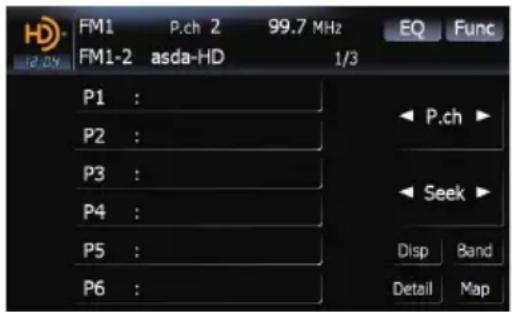
- Touch[List](or[Detail]).
EachtouchofListchangesthe detailedinformationdisplayorpresetlistdisplay.
Storingandrecallingbroadcast frequencies
Withatouchofanyofthepresettuningkeys ([P1] to [P6]), you can easily store up to six broadcastfrequenciesforlaterrecall(also withthetouchofakey).
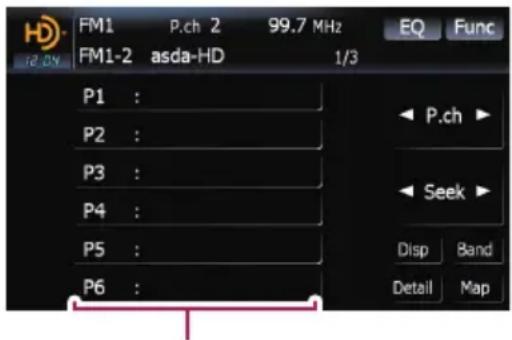
Presettuningkeys
1Whenyoufindafrequencythatyou wanttostoreinmemory,keptouchinga presettuningkey[P1]to[P6]untilthepresetnumber(e.g.,P.ch1)stopsflashing.
Theselectedradiostationhasbeenstoredin memory.
2Thenexttimeyoutouchthesamepre-settuningkey[P1]to[P6],theradiostation frequenciesarerecalledfrommemory.
☐ You can also use [◀] and [▶] to recall radio stationsassignedtopresettuningkeys[P1] to[P6].
Switchingthedisplay
Desiredinformationcanbedisplayed.
- Touch[Disp].
Touch[Disp]repeatedlytoswitchbetweenthe followingsettings:
Callsignorfrequency—Artistname—Song title—Programtype
☐ Onlywhenthetunerhasbeenuned into an HDRadiobroadcasting, displaycanbe changed.
☐ WhenthetunerhasbeentunedintoanHD Radiobroadcasting, defaultdisplayischangedintostationnameinsteadof frequency.
Usingthe"Function"menu
1Touch[DigitalRadio]onthe"AV Source"menutodisplaythe"Digital Radio"screen.
- Fordetailsconcerningoperations,referto Screenswitchingoverviewonpage18.
2Touch[Func].
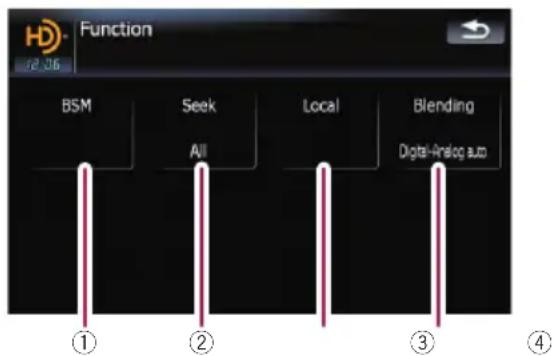
①Storingthestrongestbroadcastfrequencies
→Fordetails, refertothenextpage.
②Switchingtheseekmode
→Fordetails, refertothispage.
③Tuninginstrongsignals
→Fordetails, refertothispage.
④Switchingthereceptionmode
→Fordetails, refertothispage.
Storingthestrongestbroadcast frequencies
"BSM"(beststationsmemory)letsyouautomaticallystorethesixstrongestbroadcastfrequenciesunderthepresettuningkeys[P1] to [P6]and,oncestoredthere,youcantuneinto thesefrequencieswiththetouchofakey.
●Touch[Start]toturnBSMon.
BSMbeginstoflash. While BSMisflashing, thesixstrongestbroadcastfrequencieswillbe storeunderthepresettuningkeys[P1] to [P6]inorderoftheirsignalstrength.When thisiscomplete, BSMstopsflashing.
☐Tocancelthestorageprocess,touch [Stop].
□StoringbroadcastfrequencieswithBSM mayreplacebroadcastfrequenciesyou have already saved by using [P1] to [P6].
Switchingtheseekmode
Youcanselectthemethodofseektuning.
- Touch[Seek]toselectthedesiredsetting.
• [All]: Seeksstationsfrombothanaloganddigital broadcasting.
• [HD]: Seeksfromdigitalbroadcastingonly.
□Ifyouselect"HD"onthissettingly [Blending]issetto"Analog",thesetting on[Blending]turnsto"Digital-Analog auto"automatically.
Tuninginstrongsignals
Localseektuningallowsyoutotuneinonly thoseradiostationswithsufficientlystrong signalsforgoodreception.
1Touch[On]toturnlocalseektuningon.
Toturnlocalseektuningoff,touch[Off].
2Touch[◀Prev]or[Next▶]tosetthesensitivity.
Thereare four level of sensitivity for FM and two levels for AM:
FM:1—2—3—4
AM:1—2
☐ The FM "4" (AM "2") setting allows receptionofonlythestrongeststations,while lowersettingsletyoureceiveweakerstations.
Switchingthereceptionmode
Ifadigitalbroadcastreceptionconditiongets poor, the tunerautomatically switch the analog broadcast of the same frequency level in default. If you want to prevent a frequent automatic switching, switch this setting to [Analog].
●Touch[Blending]toswitchthereceptionmode.
• [Analog]: Receivesanalogbroadcastingonly.
- [Digital-Analogauto]: Automatically switch the analog broadcast of the same frequency level, the digital broadcast.
☐ If you select "Analog" on this setting while [Seek] is set to "HD", the setting on [Seek] turnsto"All" automatically.
Youcanlistentotheradiobyusingthisnavigationsystem. Thissectiondescribesoperationsforradio(AM).
- Touch[AM]onthe"AVSource"menu todisplaythe"AM"screen.
→Fordetailsconcerningoperations,referto Screenswitchingoverviewonpage18.
Readingthescreen
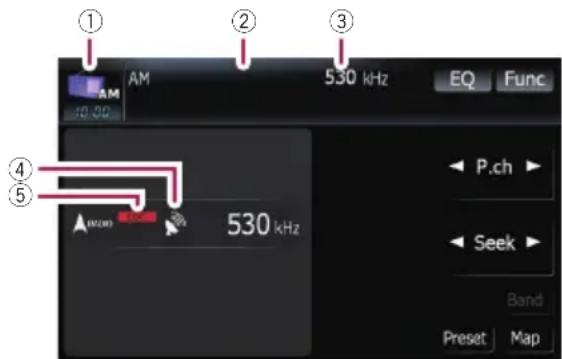
①Sourceicon
Showswhichsourcehasbeenselected.
②Presetnumberindicator
Showswhatpresetitemhasbeenselected.
③Frequencyindicator
④Signallevelindicator
⑤LOCALindicator
Showswhenlocalseektuningison.

Usingthetouchpanelkeys
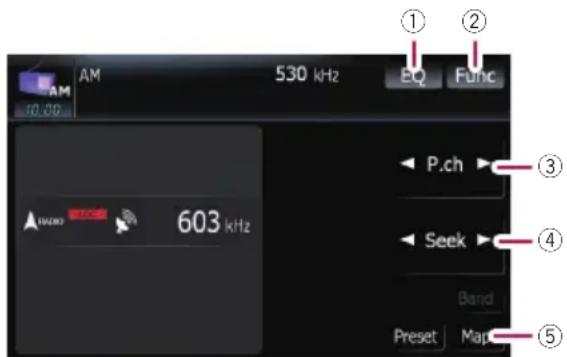
①Recallsequalizercurves
- Fordetails, refertoRecallingequalizer curvesonpage139.
②Displayingthe“Function”menu
Fordetails, refertoUsingthe
"Function"menuonthenextpage.
③Selectapresetchannel
◀or▶canbeusedtoswitchpresets.
④Performmanualtuning
To perform manual tuning, touch [◀] or [▶] briefly. The frequencies move up on down one step at time.
Performseektuning
Toperformseektuning, keeptouching[◀] or
[▶]foraboutonesecondandrelease.The tunerwillscanthefrequenciesuntilabroadcaststrongenoughforgoodreceptionis found.
☐Youcancancelseektuningbytouching either [◀] or [▶] briefly.
☐ If you keep touching [◀] or [▶], you can skipbroadcastingfrequencies.Seek tuningwillstartassoonasyourelease thekeys.
□Moving MULTI-CONTROL leftor right enables youtoperform the equivalent operations.
⑤Displayingthemapscreen
Switchingbetweenthe detailedinformationdisplay andthepresetlistdisplay
Youcanswitchtheleftsideofthebasicscreen accordingtoyourpreference.
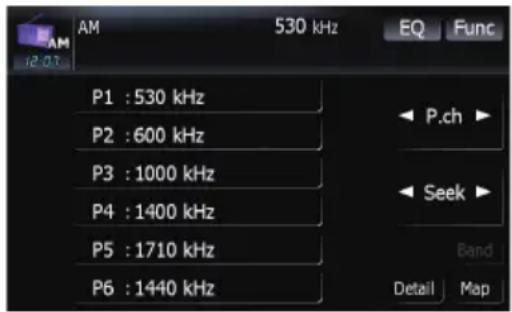
●TouchPreset.
EachtouchofPresetchanges the detailed information display or preset list display.
Storingandrecallingbroadcast frequencies
Withatouchofanyofthepresettuningkeys ([P1] to [P6]), you can easily store up to six broadcastfrequenciesforlaterrecall(also withthetouchofakey).
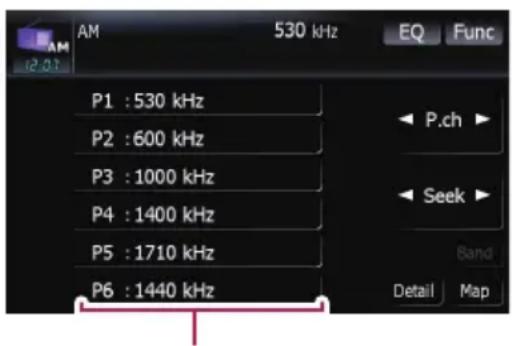
Presettuningkeys
1Whenyoufindafrequencythatyou wanttostoreinmemory, keeptouchinga presettuningkey[P1]to[P6]untilthepresetnumber(e.g.,P.ch1)stopsflashing.
Theselected radiostation has been stored in memory.
2Thenexttimeyoutouchthesamepre-settuningkey[P1]to[P6],theradiostation frequenciesarerecalledfrommemory.
☐ You can also use [◀] and [▶] to recall radio stationsassignedtopresettuningkeys[P1] to[P6].
Usingthe"Function"menu
1Touch[AM]onthe"AVSource"menu todisplaythe"AM"screen.
- Fordetailsconcerningoperations,referto Screenswitchingoverviewonpage18.
2Touch[Func].
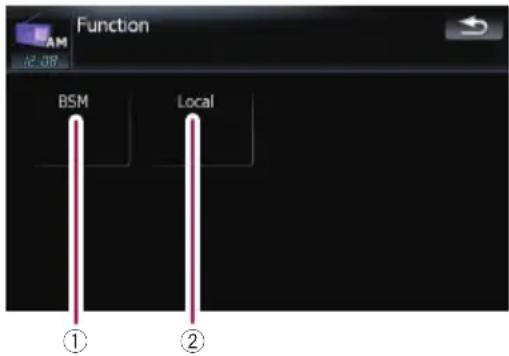
①Storingthestrongestbroadcastfrequencies
→Fordetails, refertothispage.
②Tuninginstrongsignals
→Fordetails, refertothispage.
Storingthestrongestbroadcast frequencies
"BSM"(beststationsmemory)letsyouautomaticallystorethesixstrongestbroadcastfrequenciesunderthepresettuningkeys[P1] to [P6]and,oncestoredthere,youcantuneinto thesefrequencieswiththetouchofakey.
●Touch[Start]toturnBSMon.
BSMbeginstoflash. While BSMisflashing, thesixstrongestbroadcastfrequencieswillbe storeunderthepresettuningkeys[P1] to [P6]inorderoftheirsignalstrength.When thisiscomplete, BSMstopsflashing.
Tocancelthestorageprocess,touch [Stop].
☐ Storing broadcast frequencies with BSM may replace broadcast frequencies you have already saved by using [P1] to [P6].
Tuninginstrongsignals
Localseektuningallowsyoutotuneinonly thoseradiostationswithsufficientlystrong signalsforgoodreception.
1Touch [On]toturnlocalseektuningon.
Toturnlocalseektuningoff, touch[Off].
2Touch[◀Prev]or[Next▶]tosethesensitivity.
TherearetwolelsofsensitivityforAM.
Level:1—2
☐ The level "2" setting allows reception of only the strongest stations, while lower settings let you receive weaker stations.
UsingtheXMtuner
Youcanusethenavigationsystemtocontrol anXMsatellitedigitaltuner, whichissoldseparately.
Fordetailsconcerningoperation, refertothe XMtuner'soperationmanuals. This section provides information on XMoperations with the navigation system which differs from that described in the XMtuner's operation manual.
FollowingXMsatellitedigitaltunerunitscan-notbeconnected:
GEX-P900XM,GEX-P910XM
Readingthescreen
ALLCHMODE
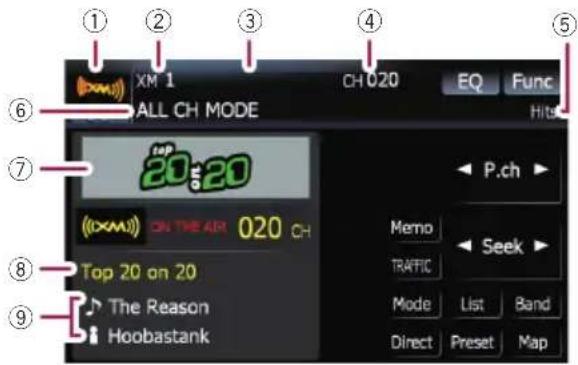
CATEGORYMODE
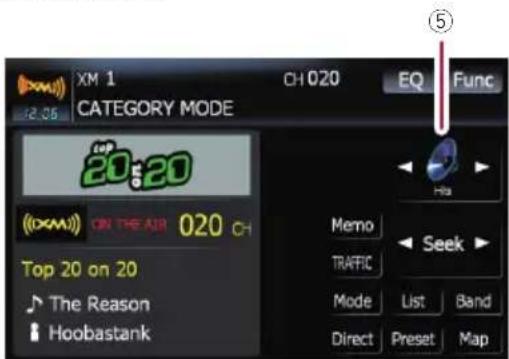
Aboutthelogoforchannelname
Onlythelogodatathatiscontainedinthena- gationsystemcanbedisplayedforeach channel.Thelogoofanewlyestablishedchan- nelthatisnotcontainedcannotbedisplayed. Whennologomaybedisplayed,thefollowing substituteiconisdisplayed.
Substituteicon

①Sourceicon
Showswhichsourcehasbeenselected.
②XMbandindicator
ShowstheXMbandthathasbeenselected.
③ Presetnumberindicator Showswhatpresetitemhasbeenselected.
④XMchannelnumberindicator ShowstheXMchannelnumberthetuneris currentlytunedto.
⑤XMchannelcategory Showsthecategoryofbroadcastchannel.
⑥XMchannelselectmodeindicator Showswhatchannelselectmodehasbeen selected.Youcanselectachannelfromall channelsinALLCHMODE,andselecta channelfromselectedcategory in CATEGORYMODE.
⑦XMstationnamelogo □Themessage“ONTHEAIR”disappears ifthenavigationsystemcannotreceive XMtunerreceptionforsomereason.
⑧XMstationnameindicator ShowstheXMbroadcaststationnamethe tuneriscurrentlytunedin.
⑨Detailinformation Showsthedetailedinformationofthebroad- castchannelcurrentlybeingreceived.
Usingthetouchpanelkeys
- Touch[XM]onthe"AVSource"menu todisplaythe"XM"screen.
Fordetailsconcerningoperations,referto Screenswitchingoverviewonpage18.
ALLCHMODE
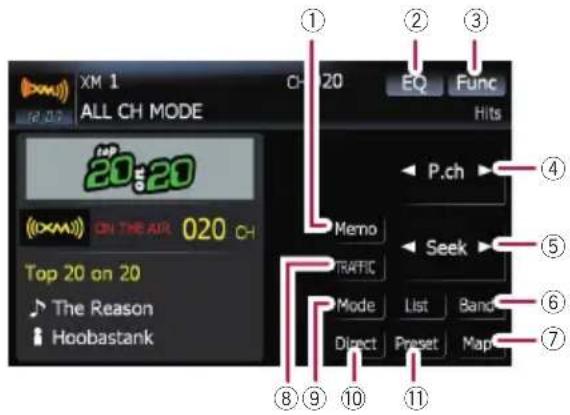
CATEGORYMODE
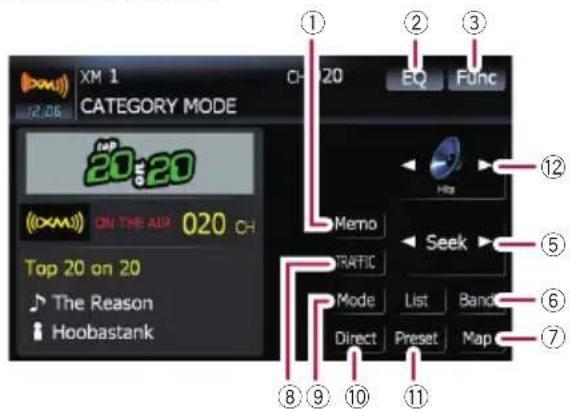
①Memorizethecurrentsong
Fordetails, refertoMemorizingthesong onthenextpage.
②Recallsequalizercurves
Fordetails, refertoRecallingequalizer curvesonpage139.
③Displayingthe"Function"menu
For details, refer to Using the "Function" menuonpage112.
④Recallingchannelsfromthepreset
Touchtorecallthepresetchannel.
⑤Performmanualtuning
Thechannelsmoveupordownoneata time.
☐ If you keep touching [◀] or [▶] you can skipthebroadcastingchannels.
⑥SelectanXMband
Touch[Band]repeatedlyuntilthedesired XMbandisdisplayed:XM1,XM2or
XM3. This is useful for switching the preset item.
⑦Displayingthemapscreen
⑧Presetkeyforreceivingthetraffic audioservice
Fordetails, refertoUsingthedirecttraffic announcementfunctiononpage112.
⑨SwitchingtheXMchannelselectmode
Youcanswitchthemodebetweenthetwo methodsforselectingandlistingthechannel.
ALLCHMODE:
Youcanselectachannelfromallchannels whenyouoperatethisfunction.
CATEGORYMODE:
Youcanselectachannelwithinaselected categorythatyouoperatethisfunction.
⑩SelectinganXMchanneldirectly
Fordetails, refertoSelectinganXMchannel directly on this page.
⑪ Switchingtothelistdisplay
Youcanselectthedesiredchannelfromthe listdisplay.
Fordetails, refertoSelectingachannel fromthelistonthenextpage.
⑫Switchingthechannelcategory
Touch [◀] or [▶] to select the desired category.
SelectinganXMchanneldirectly
YoucanselectanXMchanneldirectlybyenteringthedesiredchannelnumber.
1Touch[Direct].
2Touch[0]to[9]toinputthedesired channelnumber.
Tocanceltheinputnumbers,touch[Clear].
3Whiletheinputnumberisdisplayed, touch[Enter].
TheXMchannelthatwasenteredisselected.
4Touch

Youreturntothepreviousdisplay.
Displayingthe Radio ID
IfyouselectCH:000,theRadiolDisdis- played.
UsingtheXMtuner
1Touch[Direct].
2Input[000]andthentouch[Enter].
If you select another channel, display of the RadioIDiscanceled.
Storingandrecallingbroadcast stations
Withayoutouchofanyofthepresettuning keys ([P1] to [P6]), you can easily store up to sixbroadcastchannelsforlaterrecall(also withthetouchofakey).
1Selectthechannelthatyouwantto storeinmemory.
2Touch[Preset]todisplaythepresetlist.
3Keeptouchingapresettuningkey[P1] to[P6].
Theselectedstation has been stored in memory.
Thenexttimeyoutouchthesamepresetuning key [P1] to [P6] the station is recalled from memory.
Upto18stations,6foreachofthreeXM bandscanbestoredinmemory.
☐ You can also touch [◀] or [▶] to recall stationsassignedtopresettuningkeys[P1] to [P6]inthedetailedinformationdisplayduringthe"ALLCHMODE".
Selectingachannelfromthelist
Thelistcontentcanbeswitchedsoyoucan searchforthetrackyouwanttolistentonot onlybythechannelnamebutalsobytheartist nameorsongtitle.
☐Thechannellistshowsallchannelsduring ALLCHMODE, and the channels included in theselected category during
CATEGORYMODE.Toswitchthechannel mode,touch[Mode].
1Touch[List].
XMchannellistappearsinthedisplay.
Eachtouchof[List]changesthescreenasfollows:
DetailinformationdisplayorPresetlist display—CHnamelist(Channelname)—Songtitlelist(Songtitle)—Artistnamelist(Artistname)
2Touchthedesiredchannelthatyou wanttolistento.
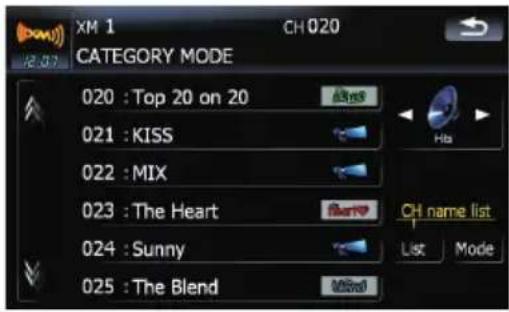
Touchartoswitchtothenextpageorpreviouspage.
During CATEGORY MODE, touch [◀] or [▶]toswitchtoanothercategory.
☐ Whenthelistswitchingoperationisstarted fromthedetailedinformationdisplay,the presetlistappearsintheendofthelistselection.
Using"MyMix" function
"MyMix" function memorizes song title and artist name of the song currently being received. When the song that matches them memorized song title and artist name is being broadcast on a station other than the one you are listening to, you will be alerted, and you can switch the station to list to that songs.
AtrackitselfisNOTdownloadd.ONLYthe songtitleandtheartistnamearememorized.
Memorizingthesong
Thesongtitleandartistnameofthesongyou arelisteningtocanbememorizedto"MyMix".
- Touch[Memo].
Thesongtitleandartistnameofcurrentsong youarelisteningtoarememorized,andaconfirmationmessageappears.
☐ Thesongtitleandartistnameofupto12 songscanbememorized.Tryingtosave morethan12songswillresultinolderones beingoverwritten.
☐Youcannotmemorizethesongtitleorthe artistnamewhen“----”isdisplayonthetitleinformation.
☐Thisfunctionisinvalidforthechannel "000".
☐Thememorizedtitlemaynotbedisplayed correctlydependingontheconditions.
☐Youcancustomizethesettingforthememorizedsongslater.
Formoredetailsconcerningtheoperation,refertoSettingthememorized songsonthenextpage.
Whenthememorizedsongisbroadcast
Abeepsounds, and a message is displayed. Touch [Yes] to switch to that station and listen to that track.
☐Ifthememorizedsongisnotcheckedor when[Off]isselectedon[Alert] on "MEMOEdit"screen,noalertwillbeprovided.
RefertoSettingthememorized songs onthenextpage.
□NotificationmaynotbeprovideddependingonthestatusoftheNavigationSystem.
□Ifthereisevenaslightdifferencebetween thememorizedtitleandthetitleofthe songbeingbroadcast,nonotificationwill beprovidedeventhoughttheyarethesame song.
Usingthedirecttraffic announcementfunction
Youcanlistentothememorized"InstantTraffic&Weather"channelbydirectlycallingitup with[TRAFFIC].(Onlyonestationcanbe memorized.)
Memorizingan "InstantTraffic& Weather" channel
1Tuneinto"InstantTraffic&Weather" channel.
2Touchandhold[TRAFFIC]fortwosecondsormore.
That "InstantTraffic&Weather" channel will bememorized.
EvenifyousetheSiriusConnectuniversal tunertogether,onlyonestationcanbe memorized.Thestationmemorizedafterwardwilloverwritetheexistingone.
Tuningintothememorizedchannel
●Touch[TRAFFIC].
☐Youcanalsoperformthisoperationby touching[TRAFFIC]onthe"AVSource" menu.
☐Youcanevencallupa"InstantTraffic&Weather"channelfromasourceotherthantheXMsource.
□Tocanceltheannouncement,touch[TRFC Off]onthescreen.
Usingthe"Function"menu
1Touch[XM]onthe"AVSource"menu todisplaythe"XM"screen.
Fordetailsconcerningoperations,referto Screenswitchingoverviewonpage18.
2Touch[Func].
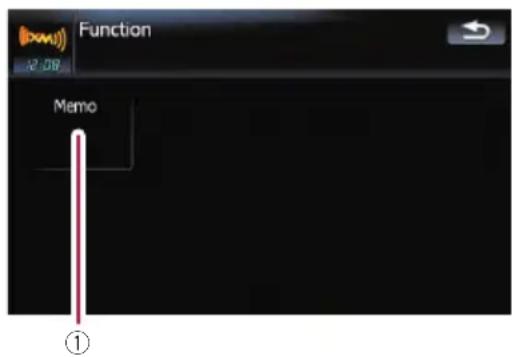
①Settingthememorized songs
Settingthememorizedsongs
Selectingthesongstoalert
ThelistofsongtitlesmemorizedfortheMyMix Function(MyMixlist)isdisplayed.Youcan changethenotificationsettingwhenthesong isbroadcastagain.Youcanenableordisable notificationforeachsong.
1Touch[Memo].
2Touchthesongtitlethatyouwantto excludefromthenotificationlist.
Thecheckmarkisremoved, and the song title is excluded from thenotificationlist.
Changingthealertsetting
Youcanenableordisablealertsforallitemsat thesametime.Thisfunctionisusefulwhen youwanttoturnalertsofftemporarilywithout changingeachmemorizedsong.
1Touch[Memo].
2Touch[AlertOn]or[AlertOff].
Touchtotoggletheselection.
Deletingthememorizedsongs
Youcandeleteeachoneofthememorized songsfromthesongtitlelist.
1Touch[Memo].
2Touchandholdthesongyouwantto delete.
☐Todeleteallsongsthatarememorized, touch[DeleteAll].
3Touch[Yes].
UsingtheSIRIUSTuner
Youcanusethenavigationsystemtocontrola PioneerSiriussatellitedigitaltuner,whichis soldseparately.
Fordetailsconcerningoperation, refertothe SIRIUSTuner'soperationmanuals. This section provides information on SIRIUSoperations with navigationsystem which differs from that described in the SIRIUSTuner's operation manual.
When you use the Sirius Connect universal tuner (sold separately) with this navigation system, Pioneer SIRIUSBUS INTERFACE is required. Ford details concerning operation, referto the owner's manual of Pioneer SIRIUSBUS INTERFACE and Sirius Connect universaltuner.
Readingthescreen
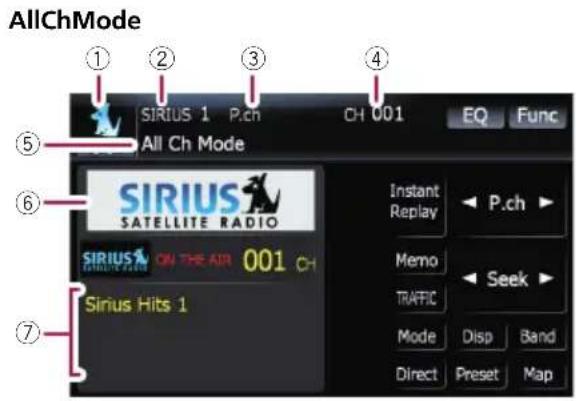
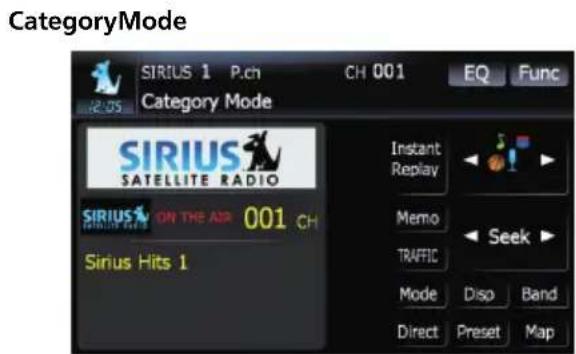
①Sourceicon
Showswhichsourcehasbeenselected.
②SIRIUSbandindicator
ShowstheSIRIUSbandthathasbeense-
lected.
③Presetnumberindicator
Showswhatpresetitemhasbeenselected.
④SIRIUSchannelnumberindicator
ShowstheSIRIUSchannelnumberthatthe tuneristunedto.
⑤SIRIUSchannelselectmodeindicator
Showswhatchannelselectmodehasbeen selected.Youcanselectachannelfromall channelsinAllChMode,andselectachannelfromtheselectedcategoryin
CategoryMode.
Fordetails, referto SwitchtheSIRIUS channelselectmodeonthenextpage.
☐Themessage"ONTHEAIR"disappears ifthenavigationsystemcannotreceive SIRIUSTunerreceptionforsomereason.
⑦Variableinformationarea
Showsvariousinformationaboutthebroadcastchannelcurrentlybeingreceived.
Formoredetailsaboutthedisplayedin- formation,refertoSwitchtheSIRIUS displayonthenextpage.
Usingthetouchpanelkeys
●Touch[SIRIUS]onthe"AVSource" menutodisplaythe"SIRIUS"screen.
Fordetailsconcerningoperations,referto Screenswitchingoverviewonpage18.
AllChMode
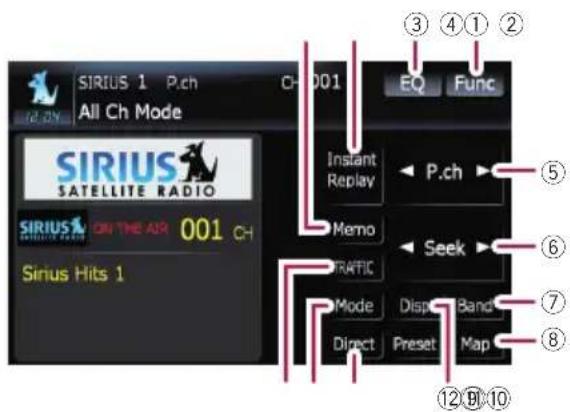
CategoryMode
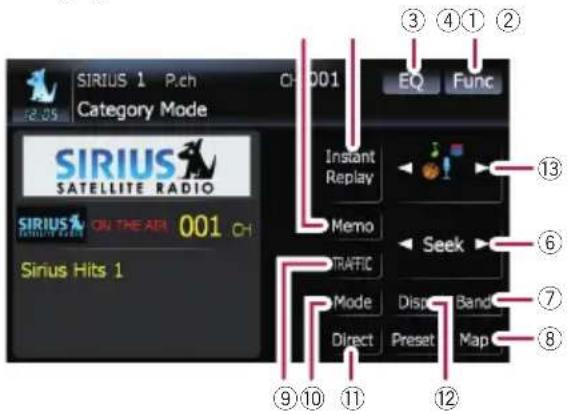
①Memorizethecurrentsong
Fordetails, refertoMemorizingthesong onthenextpage.
②SwitchtheSIRIUSInstantreplaymode
For details, refer to Using the "Instant Replay" function on page 117.
③Recallsequalizercurves
- Fordetails, refertoRecallingequalizer curvesonpage139.
④ Displayingthe“Function”menu
For details, refer to Using the "Function" menuonpage117.
⑤Recallingchannelsfromthepreset
Touchtorecallthepresetchannel. Storingbroadcaststations
Youcanregisterthechannelcurrently beingbroadcasttothepresetlist.
⑥Performmanualtuning
Thechannelsmoveupordownoneata time.
☐ If you keep touching [◀] or [▶] you can skipthebroadcastingchannels.
⑦SelectaSIRIUSband
Touch[Band]repeatedlyuntilthedesired SIRIUSbandisdisplayed,SIRIUS1,
SIRIUS 2, or SIRIUS 3. This is useful for switching the preset.
⑧Displayingthemapscreen
⑨ Presetkeyforreceivingthetraffic audioservice
Fordetails, refertoUsingthedirecttraffic announcementfunctiononthenext page.
⑩SwitchtheSIRIUSchannelselect mode
Youcanswitchthemodebetweenthetwo methodsforselectingandlistingthechannel.
AllChMode:
Youcanselectachannelfromallchannels whenyouoperatethisfunction.
CategoryMode:
Youcanselectachannelwithinaselected categorythatyouoperatethisfunction.
⑪SelectaSIRIUSchanneldirectly
- Fordetails,refertoSelectingaSIRIUS channeldirectlyonthispage.
⑫SwitchtheSIRIUSdisplay
Eachtouchof[Disp]changesthedisplay information. Channelnumber—Channelname— Channelcategory—Artistname/feature— Song/programtitle—Composer
⑬Switchthechannelcategory
Touch [◀] or [▶] to select the desired category.
SelectingaSIRIUSchanneldirectly
YoucanselectaSIRIUSchannel directly by entering the desired channel number.
1 Touch[Direct].
2 Touch[0]to[9]toinputthedesired channelnumber.
Tocanceltheinputnumbers,touch[Clear].
3 While the input number is displayed, touch[Enter].
TheSIRIUSchannelthatwasenteredselected.
4 Touch
Youreturntothepreviousdisplay.
DisplaytheRadioID
If you select CH:000, the RadioIDisplayed.
Using the SIRIUS tuner
1Touch[Direct].
2Input[000]andthentouch[Enter].
If you select another channel, display of the Radiol Discanceled.
Storingandrecallingbroadcast stations
Withatouchofanyofthepresettuningkeys [P1] to [P6], you can easily store up to six broadcaststationsforlaterrecall(alsowith thetouchofakey).
1Selectthechannelthatyouwantto storeinmemory.
2Touch[Preset]todisplaythepresetlist.
3Keeptouchingapresettuningkey[P1] to[P6].
Theselectedstationhasbeenstoredinmemory.
Thenexttimeyoutouchthesamepresetuning key [P1] to [P6] the station is recalled from memory.
Upto18stations,6foreachofthreeSIRIUS bandscanbestoredinmemory.
☐ You can also touch [◀] or [▶] to recall stationsassignedtopresettuningkeys[P1] to [P6]inthedetailedinformationdisplayduring"AllChMode".
Using"MyMix" function
TheMyMixfunctionmemorizesthesongtitle andartistnameofthesongcurrentlybeingreceived.Whenatrackthatmatchesthememorizedsongtitleandartistnameisbeing broadcastonastationotherthantheoneyou arelisteningto,youwillbealerted,andyou canswitchthestationtolistentothatsong.
☐ThetrackitselfisNOTdownloaded;only thesongtitleandtheartistnamearememorized.
Memorizingthesong
Thesongtitleandartistnameofthesongyou arelisteningtocanbememorized.
- Touch[Memo].
Thesongtitleandartistnameofthesongyou arelisteningtoarememorized,andaconfirmationmessageappears.
☐Upto10songtitlesandartistnamescanbe memorized.
☐Youcannotmemorizethesongtitleorthe artistnamewhen"----" isdisplayedonthetitleinformation.
☐Youcannotmemorizethesongtitleorthe artistnameofchannel"000".
☐Thememorizedtitlemaynotbedisplayed correctly.
Whenthememorizedsongisbroadcast
Abeepsounds, andamessage is displayed. Touch [Yes] to switch to that station and listen to that track.
☐ If the alert for the song is "Off" or [Alert Off]isselected,nonotificationwillbepro-videdevenwhenthatsongisbroadcast.
Fordetails, refer to Settingthememor- izedsongsonpage118.
□NotificationmaynotbeprovideddependingonthesituationoftheNavigationSystem.
- Fordetails,refertoSelectingthesongs toalertonpage118.
□Ifthereisevenaslightdifferencebetween thememorizedtitleandthetitleofthe trackbeingbroadcast,nonotificationwill beprovidedeventhoughttheyarethesame song.
Usingthedirecttraffic announcementfunction
Youcanlistentoamemorizedtrafficchannel bydirectlycallingitupwiththe[TRAFFIC] (Onlyonestationcanbememorized).
Memorizingantrafficchannel
1Tuneintoatrafficchannel.
2Touchandhold[TRAFFIC]fortwosec- ondsormore.
Thetrafficchannelwillbememorized.
□EvenifyouusethiswiththeXMsatellite radiotuner,onlyonestationcanbememorized.Thestationmemorizedafterwardwill overwritetheexistingone.
☐Thechannels000cannotbememorized.
Tuningintothememorizedchannel
●Touch[TRAFFIC].
☐Youcanalsoperformthisoperationby touching [TRAFFIC] on the "AV Source" menu.
☐Tocancelatrafficannouncement,touch [TRFCOff].
Using the "Instant Replay" function
The "InstantReplay" function allows you to replay the restored broadcast on the SIRIUS tuner (if the tunercapable for this function). As soon as you to manage the SIRIUS tuner automatically begins storing the broadcast. It can store approximately up to 44 minutes previous (depending on these selected channel and the memory capacity of connected tuner).
1Touch[InstantReplay]ontheSIRIUS screentoactivatethe"InstantReplay" mode.
2Touchkeysfor"InstantReplay".
| [◀◀] | Returntothestartofthecurrent songorprogram.Touchingagain willskipbacktotheprevioussong orprogram. |
| [◀◀]andholdFastreverses. | |
| [▶▶] | Forwardsplaytothenextsongor program |
[▶▶▶]andholdFast-forwards.

Touching[▶/■]switchesbetween playbackandpause.
☐ During "InstantReplay" mode, each touch of [Disp]changesthedisplayinformation as follows;
Timeposition—Channelnumber—Channelname—Channelcategory—Artist name/feature—Song/programtitle—Composer
☐Youcannot replay the broadcast prior to the beginning of store data.
Usingthe"Function"menu
1Touch[SIRIUS]onthe"AVSource" menutodisplaythe"SIRIUS"screen.
Fordetailsconcerningoperations,referto Screenswitchingoverviewonpage18.
2Touch[Func].
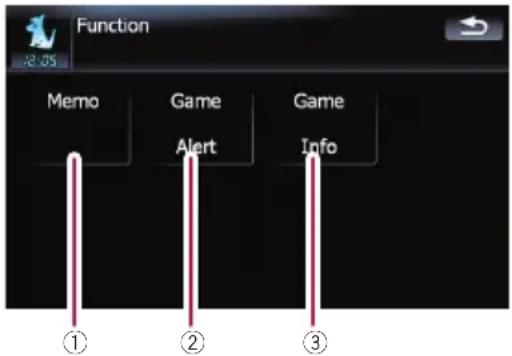
①Settingthememorized songs
→Fordetails, refertothenextpage.
②UsingtheGameAlertfunction
→Fordetails, refertothenextpage.
③DisplayingGameInformation
→Fordetails, refertopage119.
Settingthememorizedsongs Selectingthesongstoalert
Displaythesongtitlelistmemorizedforthe MyMixFunction(MyMixlist).Youcanchange the setting of thenotificationwhenthesongis broadcastagain.Youcanenableordisableno-tificationforeachsong.
1Touch[Memo].
2Touch[◀Prev]or[Next▶]toselectthe desiredsong.
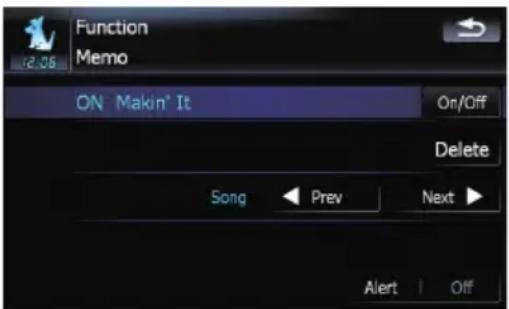
3Touch[On/Off]toturnthesettingon.
Whenthealertforthesongisactivated,[ON] appearsatthebeginningoftheselectedtitle.
☐Touch[On/Off]againtoturnthesettingoff.
Changingthealertsetting
Youcanenableordisablealertsforallitemsat thesametime.Thisfunctionisusefulwhen youwanttoturnalertsofftemporarilywithout changingeachmemorizedsong.
1Touch[Memo].
2Touch[AlertOn]or[AlertOff].
☐Touchtotoggletheselection.
Deletingthememorizedsongs
Youcandeleteeachoneofthememorized tracksfromthesongtitlelist.
1Touch[Memo].
2Touch[◀Prev]or[Next▶]toselectthe songtitlethatyouwanttodelete.
3Touch[Delete]whenthesongyou wanttodeleteisdisplayed.
Amessagewillappearaskingyoutoconfirm thedeletion.
4Touch[Yes].
UsingtheGameAlertfunction SelectingteamsforGameAlert
Thisnavigationsystemcanalertyouwhen gamesinvolvingyourfavoritesportsteamsare abouttostart.Tousethisfunctionyouneedto storetheteamsyouwanttofollowinadvance.
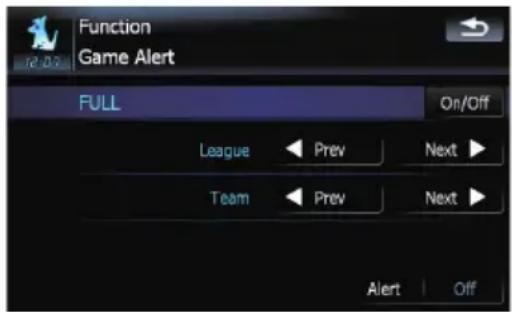
1Touch[GameAlert].
2Touch[◀Prev]or[Next▶]toselectthe league.
3Touch[◀Prev]or[Next▶]toselectthe team.
4Touch[On/Off].
Theteamdisplayedas[ON]isthealerttarget. □Whentheselectedteamisexcludedfrom thealerttarget,theteamisdisplayedas [OFF].Upto12teamscanbeselected. Whenyouhavealreadymade12teamselections,"FULL"isdisplayedandadditional teamselectionisnotpossible.Inthiscase, firstdeletetheteamselectionandthentry again.
5Touch[AlertOn].
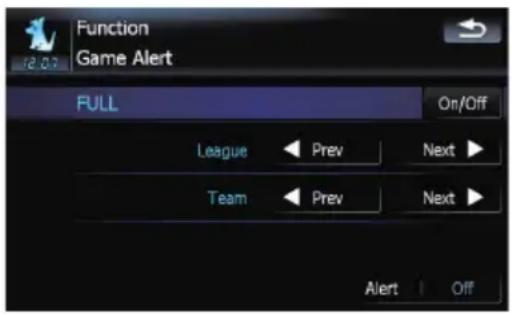
Changingthealertsetting
Youcanenableordisablethealertforselected items. This function is useful when want to turn the alert of temporarily without changing the setting of each selected team.
1Touch[GameAlert].
2Touch[AlertOn]or[AlertOff].
☐Touchtotoggletheselection.
Whenagameinvolvingoneofyour teamsisbroadcast
Amessageisdisplayed.Touch[Jump] to switchthestation, and you can view the game information. If you touch [Stay], the channel does not switch.
☐Alertsmaynotbeprovideddependingon thestatusofthenavigationsystem.
DisplayingGameInformation
Analertwillbedisplayedwhenagamewith theteamyouselectedisabouttostart(oris currentlyunderway).Youcanalsodisplay gameinformationandchangestothebroadcastchannel.
☐TheGameInformationfunctionisavailable when [Alert] is [On] in "Game Alert".
1Touch[GameInfo].
2Touch[Prev]or[Next]toviewthegame scoreinformationwhichisregistered.
☐Thegamescorewillbeupdatedautomatically.
□Touch[TuneTo]toswitchtothechannel thatbroadcaststhedisplayedgame.
□Ifyouhavenotmadeanyteamselections, "NotSet"isdisplayed.
□When nogamesinvolvingyourfavorite teamsarecurrentlybeingplayed "NOGAME"isdisplayed.
You can display "video image" output by AV1 InputorAV2Inputtothescreenofthenavigationsystem.Fordetailsoftheconnection method,referto"InstallationManual".
![PIONEER AVIC-F90BT - 2Touch[Prev]or[Next]toviewthegame scoreinformationwhichisregistered. - 1](/content/2026/05/814290/images/f06d111655271ae12e007d230b37ad91576315f9940638a89f33815c3e5b8937.jpg)
CAUTION
Forsafetyreasons,videoimagescannotbe viewedwhileyourvehicleisinmotion.Toview videoimages,youmuststopinasafeplaceand applytheparkingbrake.
UsingtheAV1
Youcandisplay"videoimage"outputbythe equipment connected to "AV1 Input".
1Touch[AV1Input]onthe"AVSettings" menu.
- Fordetails, refertoSettingvideoinput1 (AV1) on page 143.
2Touch[AV1]onthe"AVSource"menu. The image is displayed on the screenshot.
Fordetailsconcerningoperations, refer to Screenswitchingoverviewonpage18.
UsingtheAV2
Youcandisplay"videoimage"outputbythe equipment connected to "AV2 Input".
1Touch[AV2Input]onthe"AVSettings" menu.
- Fordetails, refertoSettingvideoinput2 (AV2) on page 143.
2Touch[AV2]onthe"AVSource"menu.
The image is displayed on the mescreen.
Fordetailsconcerningoperations,referto Screenswitchingoverviewonpage18.
Usingthetouchpanelkeys
- Touchthescreentodisplaythetouch panelkeys.
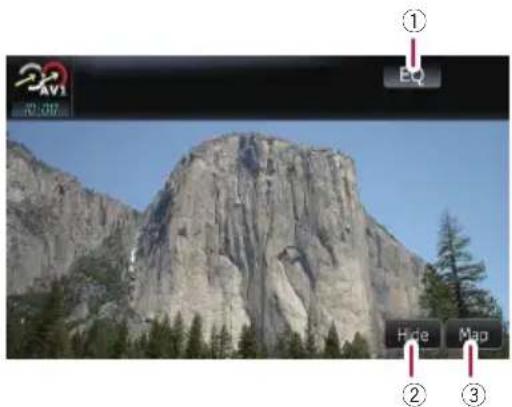
①Recallsequalizercurves
- Fordetails, refertoRecallingequalizer curvesonpage139.
②Hidesthetouchpanelkeys
Touching[Hide]hidesthetouchpanel keys.TouchanywhereontheLCDscreento displaythetouchpanelkeysagain.
③Displayingthemapscreen

Theterm"externalunit"referstofuture Pioneerdevicesthatarenotcurrentlyplanned for,ortodevicesthatallowcontrolofbasic functionsalthoughtheyarenotfullycontrolledbythenavigationsystem.Twoexternal unitscanbecontrolledbythisnavigationsystem.Whentwoexternalunitsareconnected, thenavigationsystemallocatethemasexternalunit1orexternalunit2.
Fordetailsoftheconnectionmethod, referto "InstallationManual".
Fordetailsconcerningoperation, refertothe externalunit'soperationmanual. Thissection providesinformationonexternalunitoperationswiththenavigationsystemthatdiffer fromthosedescribedintheexternalunit'soperationmanual.
Operationvariesdependingontheexternal unitconnected.(Insomecases,theexternalunitmaynotrespond.)
Readingthescreen
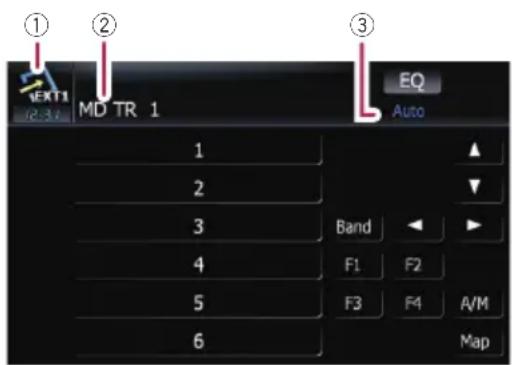
①Sourceicon
Showswhichsourcehasbeenselected.
②Externalunitindicator
Display the information that send by connected external units.
③Auto/Manualmodeindicator
Showsthecurrentmode.
Usingthetouchpanelkeys
●Touch[EXT1]or[EXT2]onthe"AV
Source"menutoselecttheexternalunit.
- Fordetailsconcerningoperations,referto Screenswitchingoverviewonpage18.
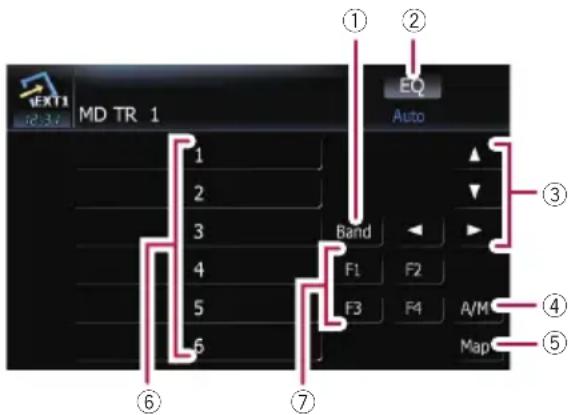
①Sendabandcommand
Touchtosendabandcommandtotheexternalunit.
Operationvariesdependingontheexternalunitconnected.(Insomecases,the externalunitmaynotrespond.)
②Recallsequalizercurves
- Fordetails, refertoRecallingequalizer curvesonpage139.
③ Send an [▲], [▼], [◀], or [▶] command Touchtooperatetheexternalunit.
☐Operationvariesdependingontheexternalunitconnected.(Insomecases, somefunctionsmaynotbeuseduntilyoutouchandholdthekey.)
④Switchingtheautomaticandmanual function
Youcanturnautomaticandmanualfunctiononoroff.
YoucanswitchbetweenAutoandManual functionsoftheexternalunitconnected. Initially,thisfunctionissettoAuto.
☐Operating commandssetforAuto and Manual operations vary depending on the external unit connected.
⑤Displayingthemapscreen
⑥ Send a 1 key to 6 key command
Usingtheexternalunit(EXT1,EXT2)
The external unit can be operated by transmitting the operating commands set to key—6 key.
☐Operationvariesdependingontheexternalunitconnected.(Insomecases, somefunctionsmaynotbeuseduntilyoutouchandholdthekey.)
⑦OperatetheexternalunitbyusingF1—F4
The external unit can be operated by transmitting the operating commands set to F1—F4.
☐TheoperatingcommandssettoF1— F4 varydependingontheexternalunit.
☐Somefunctionsmaynotbeuseduntilyoutouchandholdthekey.
Customizingpreferences
Theoptionsinthe"Navi Settings"menu
Basicoperationsinthe"Navi Settings"menu
Preferencesrelatedtothenavigationfunctions canbeset.
Amethodforchangingthevolumesettingfor thenavigationguidanceandbeepisdescribed here,alongwithanoperationalexample.
1PressMENUbuttontodisplaythe"Top Menu", andthentouch[Settings].
2Touch[NaviSettings].
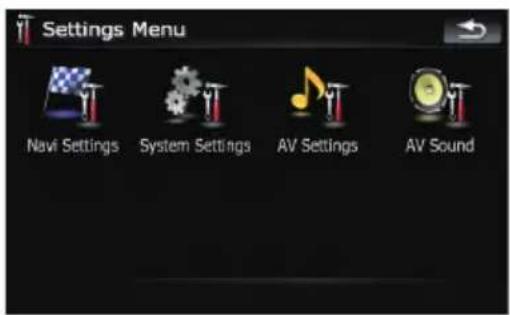
The "NaviSettings" menuappears.
3Touch[Soundsettings].
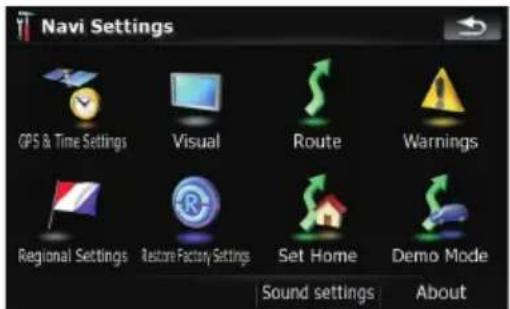
The "Soundsettings" menuappears.
4Usethetoolassignedtothedesiredoptiontochangethesettings.
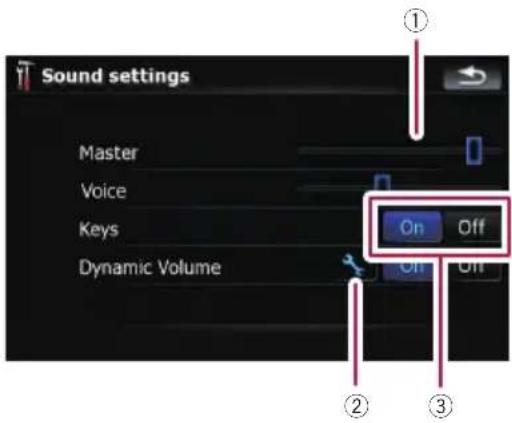
①Slider
Touchingthedesiredpointonthebaror draggingtheslidertothedesiredpointallowsyoutochangethevalue.
②Detailedsetupkey
Displaysthescreenforsettingtheprefer-encesindetail.
③On-offcontrol
Touching [On] or [Off] enables activation or deactivation of this function.
5Touchtoreturntothe"NaviSet- tings"menu.
GPS&TimeSettings
Indicate the connection status of the GPS antenna, its reception sensitivity, and from how many satellites these signal is being received.
- Touch[GPS&TimeSettings]onthe "NaviSettings"menu.
The "GPSSstatus" screenappears.
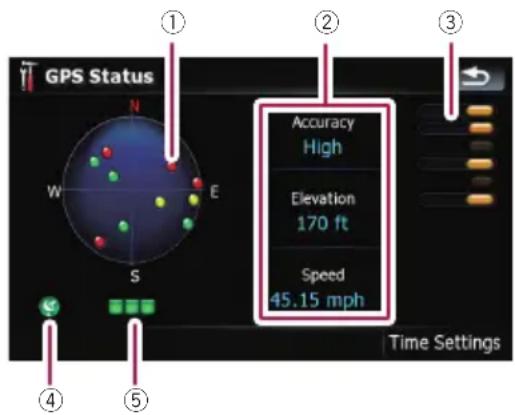
①PositionsoftheGPSconstellationbeingreceivedbythenavigationsystem
| Color | Signalcommunication | Usedinpositioning |
| GreenYesYes | ||
| GrayYesNo | ||
| RedNoNo |
②Showsthecurrentcomprehensiveaccuracy, altitudeandspeed.
③Showseachsatellite'ssignalstrength.
④Showstheconnectionstatusorreception conditionofGPSantenna.
ColorCondition
| Green | 3Dreception(Normalpositional accuracy) |
| Yellow | 2Dreception(lowerpositionalaccuracy) |
| RedConnectedandnoreception | |
| Black withx | Noconnection |
⑤ShowstheGPSreceptionstatus.Ablinking greenlampindicateswhetherpositioningis worksnormally.lfthelamplightsupinan-othercolor,thereisaproblemrelatedwith GPSreception.Insuchcase,checkwhether theconnectionandinstallationarecorrect.
TimeSettings
The "TimeSettings" screen provides youto setthetimemanually.
1Touch[GPS&TimeSettings]onthe "NaviSettings"menu.
The "GPSSstatus" screenappears.
2Touch[TimeSettings].
The "TimeSettings" screenappears.
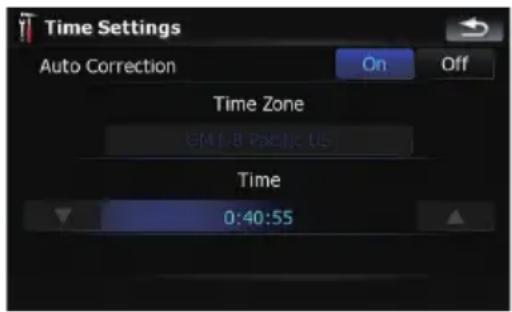
Availableoptions;
- "AutoCorrection"
SynchronizestheinternalclockofthisnavigationsystemwiththeaccuratetimetransmittedfromGPS(GMT).Changingthis preferenceallowsyoutosetthetimemanually.

CAUTION
Turning "Auto Correction" to "Off" disablestheautomaticchangetotheappropriatetimezone. Notethatheproperroute may not be calculated if the time you set does not match the time zone of the area that your route passes through.
[On]:
Correctsthecurrenttimebychangingthe timezoneautomaticallyaccordingtothis system'swhereabouts.
[Off]:
Correctsthecurrenttimeaccordingtothe settings on "Time Zone" and "Time".
• "TimeZone"
Enablesyoutosetthetimezonemanually. Touchthekeytoshowthelistandthen touchthecurrenttimezone.
Customizingpreferences
• "Time"
Enablesyoutoadjustthetimedifferenceby onehour.Touch▲or▼toadjustit.
☐ "Time Zone" and "Time" are activated onlywhen[Off]isselected.
3DSettings
The3Dmapscreensettingscanbecustomized.
1Touch[Visual]onthe"NaviSettings" menu.
The "VisualSettings" screenappears.
2Touch[3DSettings].
The "3DVisualSettings" screenappears.
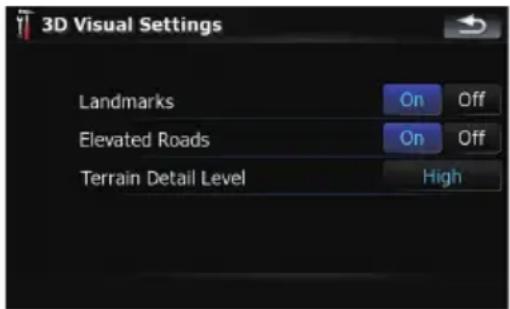
Availableoptions;
- "Landmarks"
Youcanselectwhethertodrawsorrefrain fromdrawinggraphical3Dlandmarkson themap.
- "ElevatedRoads"
Youcanselectwhethertodrawsorrefrain fromdrawingelevatedroads,interchanges, andbridgesonthemap.
- "TerrainDetailLevel"
[High], [Medium], [Low]:
Drawstheterrain(e.g.mountainchains)on themapwiththeselectedfineness.
[Off]:
Doesnotdrawtheterrainonthemap.
MapSettings
Thegeneralsettingsrelatedwithamapscreen canbecustomized.
1Touch[Visual]onthe"NaviSettings" menu.
The "VisualSettings" screenappears.
2Touch[MapSettings].
The "MapSettings" screenappears.
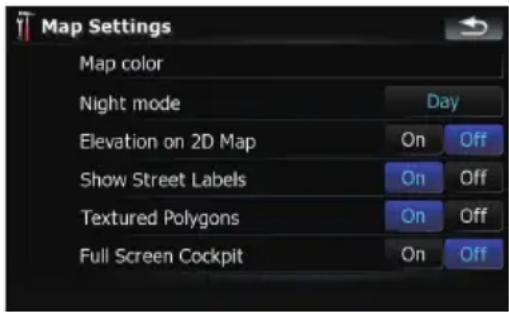
Availableoptions;
• [Mapcolor]
Enablesyoutodefinethemapcolorfordday-timeandnighttimeuse.Touchthiskeyto showthenextscreen.
"Daylightcolorprofile:"
Thedaytimemapcolorcanbeset.Touch thekeyandselectthedesiredprofilefrom thelist.
"Nightcolorprofile:"
Thenighttimemapcolorcanbeset.Touch thekeyandselectthedesiredprofilefrom thelist.
• "Nightmode"
Changesthesettingsforthenighttime map.
[Automatic]:
Switchesthemapcolordefinedon"Map color"automaticallybetweendaytimeand nighttime.
[Night]:
Alwaysdisplaysthemapinthecolordefinedon "Nightcolorprofile:".
[Day]:
Alwaysdisplaysthemapinthecolordefinedon"Daylightcolorprofile:",
- "Elevationon2DMap"
You can select whether to draw or refrain from drawing the terrain with a realistic landscape on them, such as a green space, water place, undulating surface.
Customizingpreferences
- "ShowStreetLabels"
Showsorhidesthestreetnamesandcity names. - "TexturedPolygons"
Youcanselectwhethertodrawsorrefrain fromdrawingthemapmoregraphically. - "FullScreenCockpit"
Shows-hidesthe"Multi-Infowindow"and "Secondmanoeuvrearrow".
DisplayedInfo
Allowsyoutoselectwhatoptionsyouwantto displayoneachpartofthe"Multi-Infowindow".
☐Theestimatedtimeofarrivalisanideal valuethatthenavigationsystemcomputes internallyastherouteiscalculated. Theestimatedtimeofarrivalshouldbereadjust asareferencevalue, anddoesnotguaranteearrivalatthetimeindicated.
AmethodforchangingthevalueofTopfield: isdescribedherealongwithanoperationalexample.
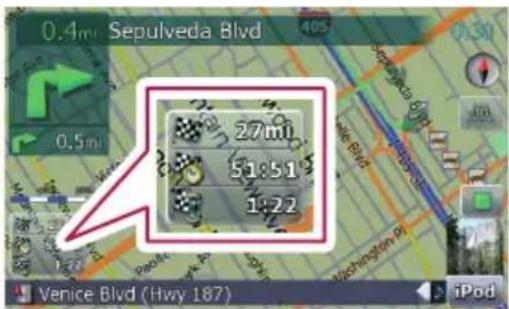
1Touch[Visual]onthe"NaviSettings" menu.
The "VisualSettings" screenappears.
2Touch[DisplayedInfo].
The "DisplayedInfo" screenappears.
3Touchthekeyontherightof"Top field:"todisplaytheoptions.
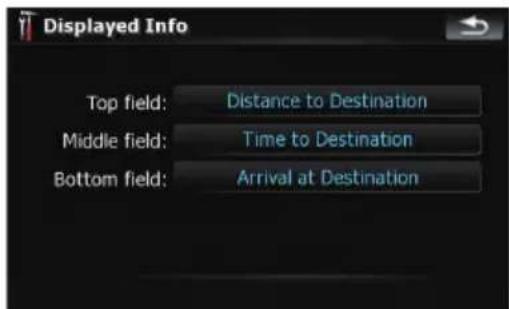
4Touchyourdesiredoption.
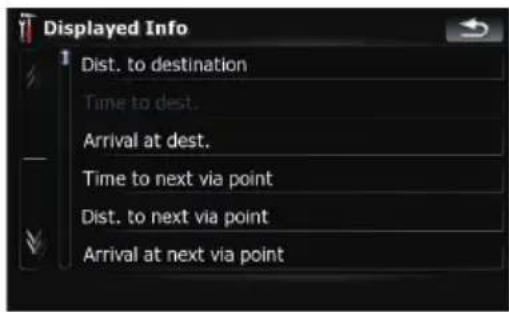
SmartZoom
Enablesthenavigationsystemtozoomin automaticallywhenyouapproachaguidance pointandzoomoutafteryoupassthroughit. Youcansetupthebehaviorwhile"Smart
Zoom"isactivated.
☐Whentherouteisnotset,thenavigation systemwillsimplyzoominoroutdependingonyourspeed.
1Touch[Visual]onthe"NaviSettings" menu.
The "VisualSettings" screenappears.
2Touch[On]or[Off]toactivateordeactivate"SmartZoom".
Touching 📁 allowsyoutoenterthedetailed settingscreenonlywhen[On]hasbeenselected.
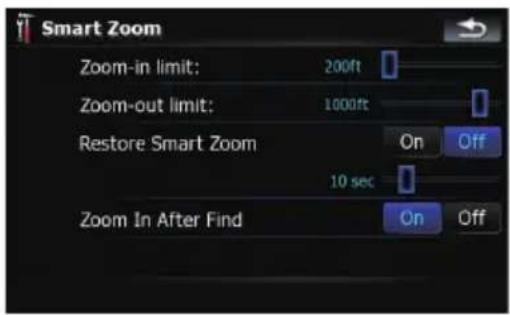
Availableoptions;
- "Zoom-inlimit:" Allowsyoutosetthelimitforzoom-inbehavior.
- "Zoom-outlimit:" Allowsyoutosetthelimitforzoom-outbehavior.
- "RestoreSmartZoom" Allowsyoutosetwhether"SmartZoom"is tobereactivatedafterchangingthemap scale,tilt,orrotation. Also,enablesyoutosethowsoon"Smart Zoom"intervalwillbereactivatedafter completionoftheoperationsdescribedpreviously.
- "ZoomInAfterFind" Showsthe"MapConfirmationScreen"with thepresetmapscaleafteryouhave searchedforapositionusingoneofthe methodsonthe"DestinationMenu".
OverviewMode
Enablesthenavigationsystemtozoomout automaticallyuptotheselectedmapscale whenthenextguidancepointisdistant.
1Touch[Visual]onthe"NaviSettings" menu.
The"VisualSettings" screenappears.
2Touch[On]or[Off]toactivateordeactivate"OverviewMode".
Touching 📁 allowsyoutoenterthedetailed settingscreenonlywhen[On]hasbeense-lected.
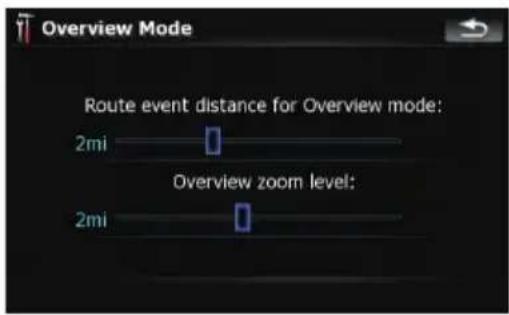
Availableoptions;
- "RouteeventdistanceforOverview mode:" Allowsyoutosetadistancetoactivate "OverviewMode".Themapstartszoomingoutwhenthedistancetothenextguidancepointisfurtherthanthedistanceset here.
- "Overviewzoomlevel:" Allowsyoutosetthemapscaleforzoom- outbehaviorin"OverviewMode".
ManagePOI
Formoredetailsconcerningtheoperation, refer toSettingthePOlappearanceonpage 131.
ManageTrackLogs
Formoredetailsconcerningtheoperation, refertoRecordingyourtravelhistoryon page133.
Route
Thesettingsrelatedtoroutecalculationcan becustomized.
- Touch[Route]onthe"NaviSettings" menu.
The"RouteSettings" screenappears.
Customizingpreferences
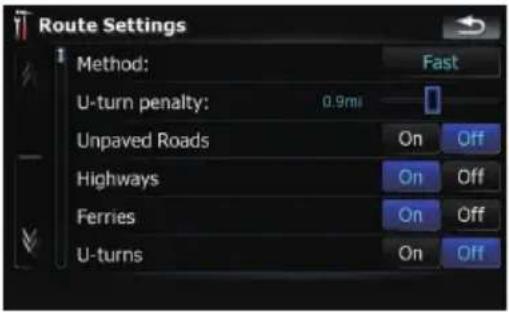
Availableoptions;
- "Method:"
Determines which condition takes priority for route calculation.
[Fast]:
Calculatesaroutewiththeshortesttravel timetoyourdestinationasapriority.
[Short]:
Calculatesaroutewiththeshortestdistancetoyourdestinationasapriority.
[Easy]:
Calculatesaroutetoyourdestinationwith thefewestturningpointspossibleasa priority.
[Economical]:
Calculatesarouteonthebasisofleastfuel consumption.
- "U-turnpenalty:"
Allowsyoutolimitthedistanceincreasefor U-turns.
- "UnpavedRoads"
[On]:
Calculatesaroutewithoutavoidanceofun-pavedroads.
[Off]:
Calculatesaroutewithavoidanceofun-pavedroadstotheextentpossible.
• "Highways"
[On]:
Calculatesaroutewithoutavoidanceof freeways.
[Off]:
Calculatesaroutewithavoidanceoffreewaystotheextentpossible.
• "Ferries"
[On]:
Calculatesaroutewithoutavoidanceofferries.
[Off]:
Calculatesaroutewithavoidanceofferries totheextentpossible.
- "U-turns"
[On]:
CalculatesaroutewithoutavoidanceofU-turns.
[Off]:
CalculatesaroutewithavoidanceofU-turnstotheextentpossible.
□Turningbackondividedhighwayisnot consideredaU-turn.
• "TollRoads"
[On]:
Calculatesaroutewithoutavoidanceoftoll roadsareas.
[Off]:
Calculatesaroutewithavoidanceoftoll roadsareastotheextentpossible.
- "PermitNeeded"
[On]:
Calculatestheroutewithouttakingintoaccountroadsandareaswherepermissionis neededforentry.
[Off]:
Calculatestheroutetakingintoaccountthe roadsandareaswherepermissionis neededforentry.
Warnings
Thesettingsrelatedtowarningoperationscan becustomized.
- Touch[Warnings]onthe"NaviSettings"menu.
The "Warning settings" screen appears.
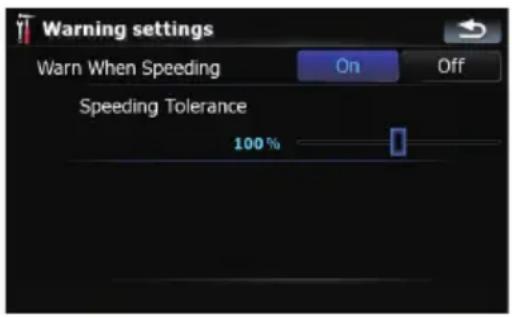
Availableoptions;
- "WarnWhenSpeeding"
Establisheswhetherornottoenabletheexcessivespeedwarningsforwhenyouexceedthespeedlimit.

CAUTION
Thespeedlimitisbasedonthemapdatabase. Thespeedlimitinthedatabasemay notmatchtheactualspeedlimitofthecurrentroad. Thisisnotadefinitevalue. Be suretodriveaccordingtotheactualspeed limit.
- "SpeedingTolerance"
Setsthetoleranceforthespeedlimit withapercentage.
RegionalSettings
Thedisplayformatforthedistanceunit, latitudeandlongitude,andothersettingsrelated to timeanddatecanbecustomized.
- Touch[RegionalSettings]onthe"Navi Settings"menu.
The "RegionalSettings" screenappears.
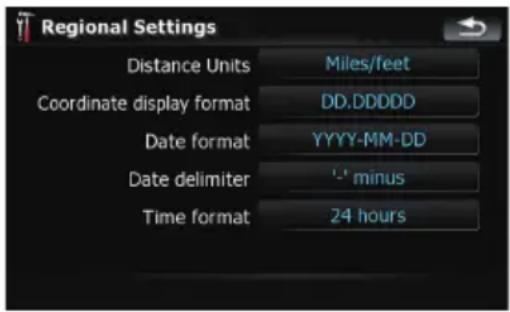
Availableoptions;
- "DistanceUnits"
Controlstheunitofdistanceandspeed shown.
- "Coordinatedisplayformat"
Controlstheformatoflatitudeandlongitudeshown.
- "Dateformat"
Controlstheformatofdateshown.
- "Datedelimiter"
Controlsthedelimiterformatforthedate shown.
- "Timeformat"
Controlsthetimeformatshown.
RestoreFactorySettings
Resetsvarioussettingsregisteredtothenavigationsystemandrestoresthemtothedefault orfactorysettings.
☐ Somedataremains.ReadReturningthenavigationsystemtothedefaultorfactorysettingsbeforeyouoperatethisfunction.
Formoredetailedinformationaboutthe itemstobedeleted,refertoReturning thenavigationsystemtothedefaultor factorysettingsonpage154.
1Touch[RestoreFactorySettings]onthe "NaviSettings"menu.
2Touch[Yes].
Thenavigationsystemwillnowrestart.
SetHome
Formoredetailsconcerningtheoperation, refertoSettingyourhomepositiononpage 134.
DemoMode
Thisisademonstrationfunctionforretail stores. Afterarouteisset, touching this key to start the simulation of other out guidance.
1Touch[DemoMode]onthe"NaviSettings"menu.
Customizingpreferences
2The demonstrationguidance will begin.
□Ifyouwanttoperformthesimulationatfasterspeed,touch[Flyover]onthe"Route Information"screen.
Formoredetailsconcerningtheoperation, refertoPlayingsimulatedtravelathigh speedonpage42.
Soundsettings
Allsettingshereareeffectiveonlyforthenavigationguidanceandbeep.
- Touch[Soundsettings]onthe"Navi Settings"menu.
The "Soundsettings" menuappears.
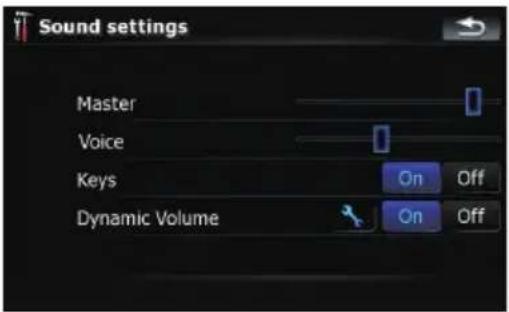
Availableoptions;
- "Master"
Controlsthemastervolumeofboththenavigationguidanceandbeep.
• "Voice"
Controlsthevolumeofthenavigationguidance.
• "Keys"
Controlsthebeeptonevolume.
• "DynamicVolume"
Increasesanddecreasesthemastervolumeofthenavigationguidanceandbeep automaticallyaccordingtothecurrent speed.Thisfunctionisveryhelpfulwhen youaredrivingathighspeedandthereis toomuchnoisytoheartheguidanceinstructionsandbeep.
Touching 📁 allowsyoutoenterthedetailedsettingscreenonlywhen[On]has beenselected.
"Minimumspeed:"
Enablesthenavigationsystemtoautomaticallystartturningthevolumeupasthecurrentspeedreachesthevaluesethere.
"Maximumspeed:"
Enablesthenavigationsystemtoautomaticallymaximizethevolumewhenthecurrent speedreachesthevaluesethere.
ImportantNoticeregardingVolumeof NavigationVoiceGuidancewhenPlaying AudioFilesfromUSBorSD
Ifmusicfilesstoredonanexternalstoragedevice (USBorSD)areplayedwhenthesystemisin RouteGuidanceMode(i.e.,adestinationhas beenselectedandthesystemisroutingyoutoa destination),thevolumeofthenavigationguidancevoicewillbethesameasthevolumeofthe musicfilesbeingplayed,evenifadifferent"Master" volume or "Voice" volume or "Dynamic" volumehasbeenselectedinthe"SoundSettings" menu.Thisconditiononlyappliestomusicfiles storedonaUSBdeviceorSDcard;itdoesnot applytomusicfilesstoredonaniPodoradisc, nordoesitapplytobroadcastcontent(FM,AM, XM,Sirius,HD).
About
Enablesyoutocheckthecopyrightandother informationaboutthemapdatabase.
1Touch[About].
Copyrightinformationofthedatabaseisdisplayed.
2Touch[Maps].
Touching[Maps]allowsyoutoviewtheinformationregardingthemapdatabaseindetail. Afterthat,touchingthedesireditemonthe listallowsyoutoviewmoredetailedinformationabouttheselectedmapdatabase.
SettingthePOlappearance
YoucandisplayorhidethePOI(pointsofinterest)iconsonthemap.ToavoidthescreenbecomingcrowdedwithPOIcons,alltheicons havebeenmadeinvisibleasadefaultsetting.Youcansettheconditionsforeachcategoryhereandalsocreatenewcategories.
□IfthecustomPOlisfoundonanexternal storagedevice(USB,SD),thenavigation systemwillshowaPOllistwhichincludes them.
1Touch[Visual]onthe"NaviSettings" menu.
The "VisualSettings" screenappears.
2Touch[ManagePOI].
3Touchthedesiredcategorythatyou wanttodisplay.
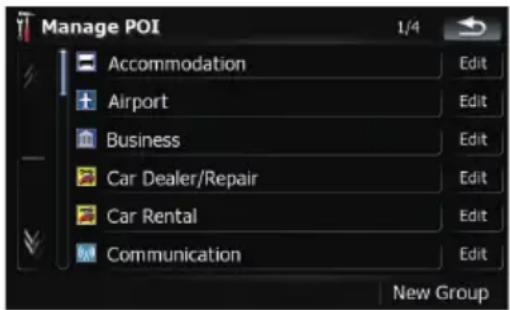
If there are more detailed categories within the selected category, repeat this step as many times as necessary.
If therearen 'tanymoredetailedcategories, a blanklistappears. In this case, you can only createthenewcategory by touching [New Group].
4Touch[Edit]ontherightofthedesired sub-categorytosettheappearance.
5Touchthedesiredkeytocustomizeit.
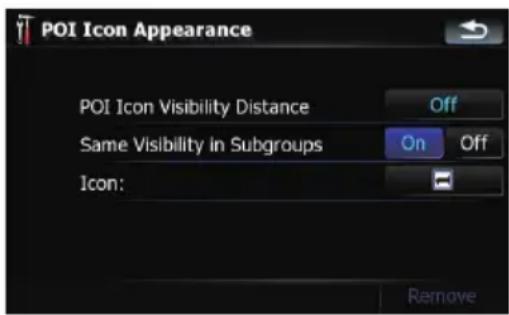
Availableoptions;
- "POllconVisibilityDistance"
Touchingthekeyshowstheoption.Touch oneofthemtosetthedesiredvisibility. When "Satellite"isselected,thePOlicons willappeareventhoughttheyarefaraway fromyourcurrentposition.When "Close"is selected,onlythenearestPOliconswillappear.Selecting"Off"hidesthePOliconsof thiscategory.
- "SameVisibilityinSubgroups"
[On]:
Alsoappliesthisvisibilitytoallsub-categoriesbelongingtothiscategory.
[Off]:
Doesnotapplythisvisibilitytoallsub-categoriesbelongingtothiscategory.
- "Icon:"
Touchingthekeyshowstheoptionsavailable.Touchoneofthemtosetthedesired icon.
- [Remove]:
Touchingthekeyallowsyoutodeletethe selectedcategory.
☐[Remove]isavailableonlyforPOIcategoriesthatarecreatedonthisnavigationsystem.
Creatingnewcategories
If your customized POI does not match any pre-installed categories, creating anewcagory allows you to do it your customized POI so that it can belong to this newly-created category.
Customizingpreferences
□IfthecustomPOlisfoundonanexternal storagedevice(USB,SD),thenavigation systemwillshowaPOllistwhichincludes them.
1Touch[Visual]onthe"NaviSettings" menu.
The "VisualSettings" screenappears.
2Touch[ManagePOI].
3Touchthedesiredcategory.
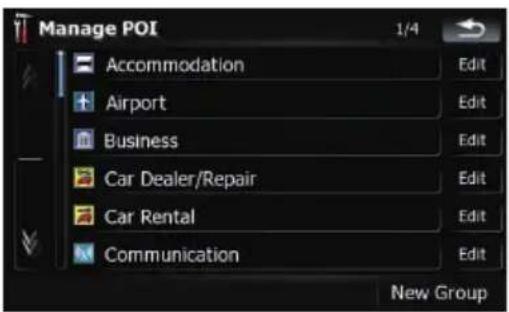
If there are more detailed categories within the selected category, repeat this step as many times as necessary.
If therearen 'tanymoredetailedcategories, a blanklistappears. In this case, touching [NewGroup] allows you to create an new category.
4Touch[NewGroup]atthescreenwhere youwanttocreateanewcategory.
5Enterthecategorynameandtouch [Done]tocompletetheentry.
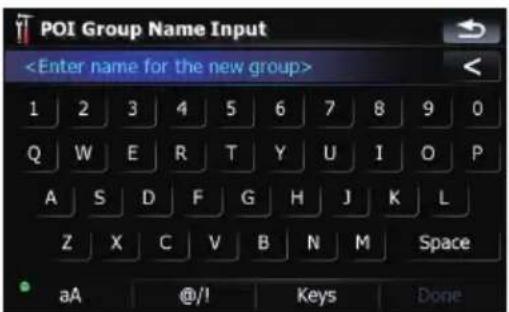
EditingyourcustomizedPOI
If you have already stored the customized POI, you can edit the POI property.
□IfthecustomPOlisfoundonanexternal storagedevice(USB,SD),thenavigation systemwillshowaPOllistwhichincludes them.
1Touch[Visual]onthe"NaviSettings" menu.
The "VisualSettings" screenappears.
2Touch[ManagePOI].
3Touchthedesiredcategoryforediting.
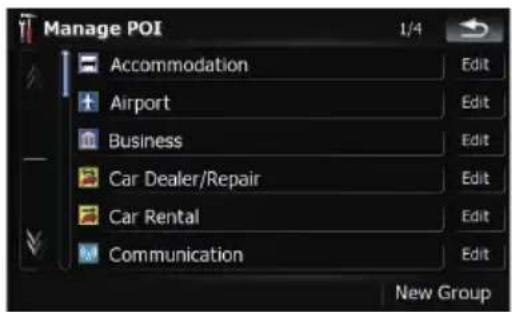
If there are more detailed categories within the selected category, repeat this step until the desired POlappears.
4TouchthedesiredPOI.
The "EditPOI" screenappears.
5Touchthedesiredkeytocustomizeit.
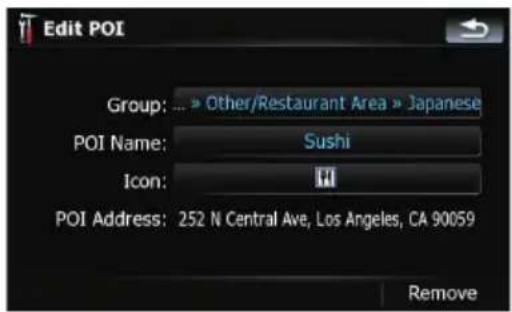
Availableoptions;
- "Group:" Thecategorythattheitemcurrentlyselectedbelongstocanbechanged.Touchingthekeyshowstheoptionsavailable. Touchoneofthemtosetthedesiredcategory.
- "POIName:"
Customizingpreferences
TouchingthekeydisplaysthescreenforenteringanewPOIname.Enterthename andthentouch[Done]tocompletethe entry.
- "Icon:"
Touchingthekeyshowstheoptionsavailable.Touchoneofthemtosetthedesired icon.
- [Remove]:
Touchingthekeyallowsyoutodeletethe selectedPOI.
☐[Remove]isavailableonlyforPOIsthatare createdonthisnavigationsystem.
□ThePOladdressisnoteditable.
Recordingyourtravelhistory
Activatingthetrackloggerenablesyoutore-cordyourdrivinghistory(hereinaftercalled "tracklog").Youcanreviewthetravelhistory laterandreplaythetravelforyourreference.
Activatingtrackloggertemporarily
One-timeactivationisusefulifyouwantto createalogonlyforthattrip.
1Touch[Visual]onthe"NaviSettings" menu.
The "VisualSettings" screenappears.
2Touch[ManageTrackLogs].
Alistoftracklogsalreadyrecordedappears.A blanklistappearsifyouhavenotrecordedit yet.
3Touch[Record]toactivatethetracklogger.
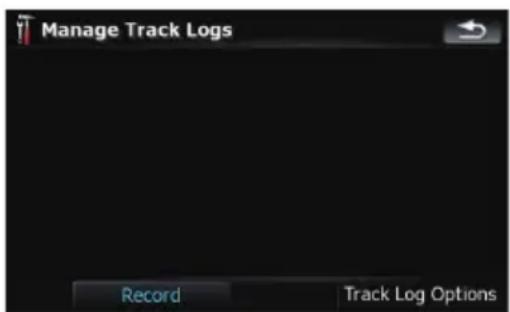
The key then changesto [Stop Recording]. Touching [Stop Recording] allows out-of-activatethetracklogger.
□Ifthereisnotenoughspaceinthebuilt-in memory,theoldesttracklogwillbeoverwrittenbythenewone.
☐Ifyouwanttopermanentlyactivatethe trackloggerwhenevertheGPSsignalis available,switch"EnableAuto-saving"to "On".
- Fordetails, refertoSettingthetrackloggeroptionsonthenextpage.
Browsingandreplayingthetracklog
1Touch[Visual]onthe"NaviSettings" menu.
The "VisualSettings" screenappears.
2Touch[ManageTrackLogs].
Alistoftracklogsalreadyrecordedappears. Touching ▶ enablesyoutoreplaythetrack logwith“Flyover”.
3Touchthedesiredtracklogonthelist.
Moredetailsaboutthetracklogappears.
4Touchthedesiredkeytooperateit.
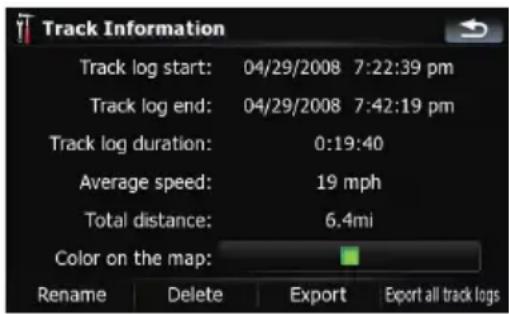
Availableoptions;
• [Rename]:
Touchingthiskeydisplaysthescreenforenteringanewnameforthetracklog.Enter thenameandthentouch[Done]tocompletetheentry.
- [Delete]:
Touchingthiskeydeletesthetracklog.
• [Export]:
Touching this key export sthetrack log currently selected to the external storage device (USBorSD).
Customizingpreferences
• [Exportalltracklogs]:
Touching this key exports all track logs currently stored to the external storage device (US Bor SD) at once.
- The key next to "Color on the map:":
Touchingthiskeydisplaysthescreenfor changingthecolorusedfortheroutehigh-lightingofthetracklog.Touchthedesired coloronthecolorlist.Thecoloroftrack logsisassignedautomaticallywithinpredefinedcolorswhenthissettingisestablished.
Settingthetrackloggeroptions
1Touch[Visual]onthe"NaviSettings" menu.
The "VisualSettings" screenappears.
2Touch[ManageTrackLogs].
3Touch[TrackLogOptions].
4Touchthedesiredkeytooperateit.
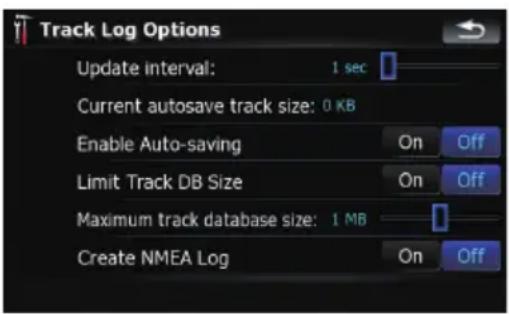
Availableoptions;
- "Updateinterval:"
Setshowoftenthesystemupdatesthelog.
- "Currentautosavetracksize:"
Setsasizelimitonautomaticlogging. This settingwillbeeffectiveonlywhen "Enable Auto-saving" is "On".
- "EnableAuto-saving"
Setswhethertheautomaticloggingisactivatedornot.
- "LimitTrackDBSize"
Limitsthetotaldatasizeforlogging.
- "Maximumtrackdatabasesize:"
Setsasizelimitonlogging. This parameter can be adjustable only when "LimitTrack DBSize" is "On".
- "CreateNMEALog"
CreatesthelogfilesintheSDmemory card. Whenthissettingis"On", thesystem outputsthelogfileswithNMEA-0183formatontotheSDmemorycard.
Settingyourhomeposition
Registering your home positions savestime and effort. Also, route to home positions can be calculated easily with a single touch of the key from the "DestinationMenu". There is registered home position can also be modified later.
1Touch[SetHome]onthe"NaviSettings"menu.
2Touchthekeynextto"Address:".
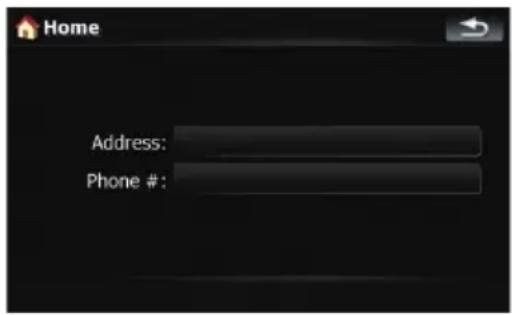
3Performoneofthesearchmethodsand locatethecursoronyourdesiredposition.
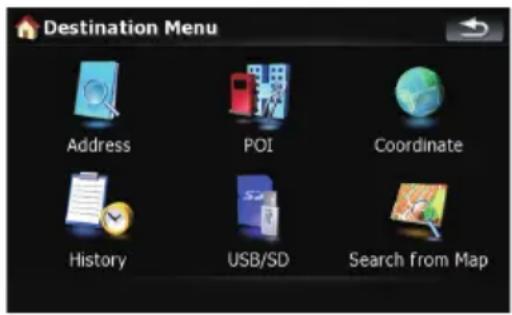
4Touch[OK].
5Touchthekeynextto"Phone#".
6Enteryourhomephonenumber,then touch[Done].
Theoptionsonthe"System Settings"menu
Displayingthe"System Settings"menu
1PressMENUbuttontodisplaythe"Top Menu", andthentouch[Settings].
2Touch[SystemSettings].
The "SystemSettings" menuappears.
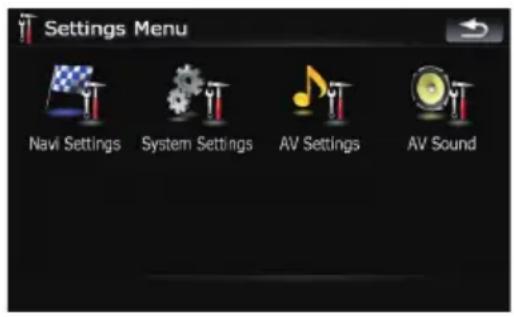

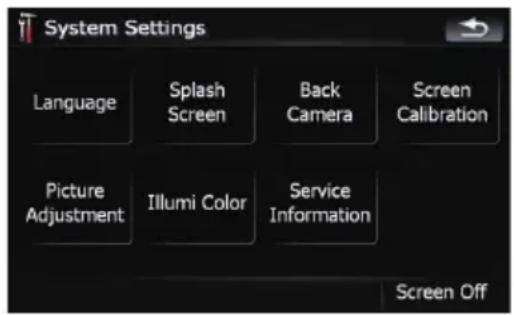
Selectingthelanguage
Youcansetthelanguagesusedontheprogramandvoiceguidance.Eachlanguagecan besetseparately.
☐Ifyouusevoiceoperation,select[English] in [Program language:] of "Language". If youselectotherlanguages,voiceoperation will not be available.
- Fordetails,refertoBasicsofVoiceOperationonpage147.
1Touch[Language]onthe"SystemSettings"menu.
For details, refer to Displaying the "System Settings"menuonthispage.
2Touchthekeynextto"Voicelanguage:".
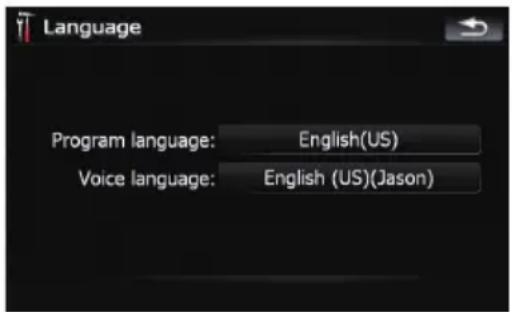
Thelanguagelistisdisplayed.
3Touchthedesiredlanguage.
Afterthelanguageisselected,thescreenreturnstothepreviewousscreen.
4Touchthekeynextto"Programlanguage:".
5Touchthedesiredlanguage.
If you change [Program language:], ames-sage prompting out to reboot appears. Touch [OK] reboot sthesystem.
Changingthesplashscreen
Youcanchangethesplashscreenthatappearswhenthenavigationsystemstarts.Copy yourfavoriteimagetotheexternalstoragedevice(USB,SD),andselecttheimagetoimport.
☐Splashscreenimagesshouldbeusedwith- inthefollowingformats;
—BMPorJPEGfiles
—Allowablehorizontalandverticalsize are2592x1944orsmaller
—Allowabledatasizeis15MBorsmaller
☐Propercompatibilitywithallowablefilesis notguaranteed.
Importedoriginalimageswillbestoredin thebuilt-inmemory,buttheabilitytosave theseimagescannotbeguaranteedcompletely.Ifyouroriginalimagedataisdeleted,settheexternalstoragedevice(USB, SD)againandre-importtheoriginalimage.
Customizingpreferences
1Createafoldernamed"Pictures"onthe top-mostdirectoryoftheexternalstorage device(USB,SD)andstorethepicturefiles inthisfolder.
2InserttheSDmemorycardintotheSD cardslotorplugtheUSBstoragedeviceto theUSBconnector.
3Touch[SplashScreen]onthe"System Settings"menu.
For details, refer to Displaying the "System Settings"menuonthepreviouspage.
Thenavigationsystemcheckstheexternalstoragedevice(USB,SD).Ifanappropriatefileis found,thefilelistwillbedisplayed.
☐ If there is no "Pictures" folder or loadable file, amessageappears.
☐Youcanswitchthelistbytouching[Import fromSD]and[ImportfromUSB].
4Touchtheimagetouseasthesplash screenfromthelist.
The image is displayed on the mescreen.
5Touch[OK].
The image is a set of the System Settings menu.
Settingtherearviewcamera
The following two functions are available. The rearviewcamera feature requires separately sold rearview camera (e.g. ND-BC2). (For details, consult your dealer.)
Backupcamera
Thenavigationsystemfeaturesafunctionthat automaticallyswitchestothefull-screenrear cameraimageinstalledonyourvehicle.When theshiftleverisintheREVERSE(R)position, thescreenautomaticallyswitchestofull-screenrearviewcamera.
Camerafor"RearView"
[RearView]canbedisplayedthefull-screen rearcameraimageanytimewithoutrelation totheshiftleverpositionaftertouching[Rear-View] on the "AV Source" menu. [RearView]
isusefulifyouwanttomonitoranattached trailer,etc.

CAUTION
Pioneerrecommendstheuseofacamerawhich outputsmirrorreversedimages,otherwisethe screenimagemayappearreversed.
☐Immediatelyverifywhetherthedisplay changestoarearviewcameraimagewhen theshiftleverismovedtoREVERSE(R) fromanotherposition.
☐ Whenthewholescreenchangestoarear viewcameraimagedduringnormaldriving, switchtoanothersetting.
☐Initially,thisfunctionissetto"Off".
1Touch[BackCamera]onthe"System Settings"menu.
For details, refer to Displaying the "System Settings"menuonthepreviouspage.
The "CameralInput" screenappears.
2Touch[On]nextto"Camera"toactivatethecamerasetting.
☐Unlessthissettingis[On],youcannot switchto"RearView".
3Touch[Battery]or[GND]nextto "Polarity" to select the appropriate polarity setting.
- Battery—Whenthepolarityoftheconnectedleadispositivewhiletheshiftlever isintheREVERSE(R)position
• GND—Whenthepolarityoftheconnected leadisnegativewhiletheshiftleverisin theREVERSE(R)position
Adjustingtheresponse positionsofthetouchpanels (touchpanelcalibration)
If you feel that the touch panel key on the screendeviate from the actual position that respond to your touch, adjust the response position of the touch panel screen.
Customizingpreferences
□Makesuretousethesuppliedstylusforadjustmentandgentlytouchthescreen.If youpressthetouchpanelforcefully,the touchpanelmaybedamaged.Donotuse asharppointedtoolsuchasaballpoint penoramechanicalpen.Otherwisethe screenmaybecomedamaged.
Stylus(suppliedwiththenavigation system)

1Touch[ScreenCalibration]onthe"SystemSettings"menu.
Amessageconfirmingwhethertostartthecalibrationappears.
☐Youcanalsostartthecalibrationbykeep pressing MENU button on the "Top Menu".
2Touch[OK].
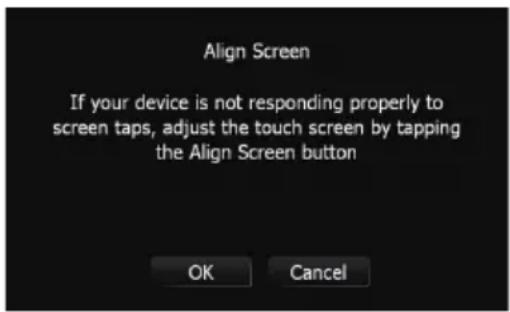
3Withthestylus,touchandholdthearrowsthatpointtothecenterandcorners oftheLCDscreen.
Thearrowindicatestheorder.
4Touchanywhereonthescreen.
Theadjustedpositiondatawillbesaved.
☐ Donotturnofftheenginewhilesavingthe adjustedpositiondata.
5Touch[OK].
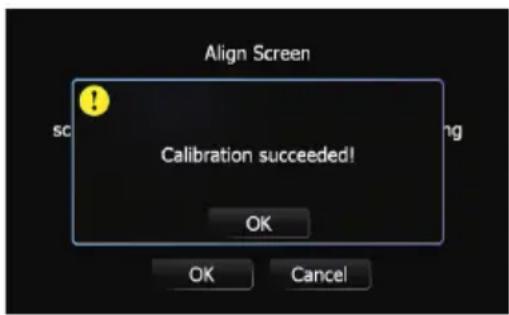
Adjusting the screen brightness
"Brightness" modifiestheblacklevelofthe screen.
1Touch[PictureAdjustment]onthe"SystemSettings"menu.
For details, refer to Displaying the "System Settings"menuonpage135.
2Touch[+]or[-]toadjustthebrightness.
Each time you touch [+] or [-] increases or decreasesthelevel.10to00isdisplayedasthe levelisincreasedordecreased.
3Touch → toreturntotheprevious screen.
☐Youcanalsostarttheadjustmentbykeep pressingMAPbutton.
Settingtheilluminationcolor
Theilluminationcolorcanbeselectedfrom11 differentcolors. Furthermore, theillumination colorcanswitchedbetweenthese11 colorsin order.
Selectingthecolorfromthepreset colors
1Touch[llumiColor]onthe"SystemSettings"menu.
For details, refer to Displaying the "System Settings"menuonpage135.
2Touchdesiredcolor.
Currentcolorbalance
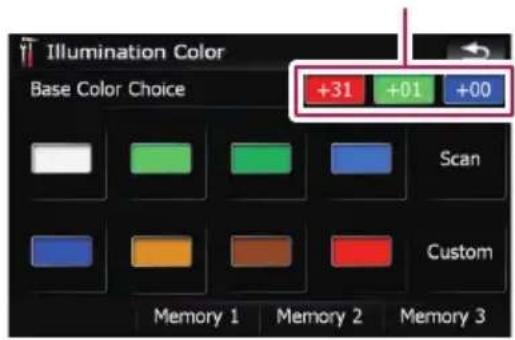
Availableoptions;
- Coloredkeys—Selectsthedesiredpreset color
• Memory 1/Memory 2/Memory 3 — Colorsregisteredinthememory
Fordetails, referto Creating a favorite color and storing it to memory on this page.
- Scan—Shiftsbetweentheeightdefault colorsinsequencegradually.
Creatingafavoritecolorandstoring ittomemory
Youcancreateafavoritecolorandsetitasthe illuminationcolor.
1Touch[IllumiColor]onthe"SystemSettings"menu.
For details, refer to Displaying the "System Settings"menuonpage135.
2Touch[Custom].
□If[Scan]isset,[Custom]cannotbeselected.
3Touch[+]or[-]toadjustthevaluesfor Red,GreenandBluetocreateafavorite color.
Watchtheilluminationofhardwarekeyswhile adjustingthecolor.
Each time you touch [+] or [-] increases or decreasesthevalueofselecteditem.+31to+00 isdisplayedasthevalueisincreasedordecreased.
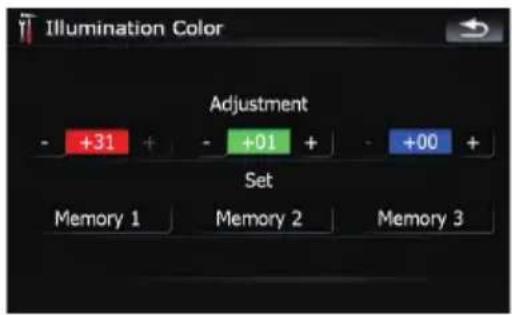
□Anentrycannotbestoredwithallofthevaluessetto"+00".
4Touch[Memory1], [Memory2] or [Memory3] to store the illumination color.
5Touch screen.

toreturntotheprevious
Checkingtheversioninformation
1Touch[ServiceInformation]onthe "SystemSettings"menu.
For details, refer to Displaying the "System Settings"menuonpage135.
2Checktheversioninformation.
Turningoffthescreen
ByturningoffthebacklightoftheLCDscreen, youcanturnoffthescreendisplaywithout turningoffthevoiceguidance.
- Touch[ScreenOff]onthe"SystemSettings"menu.
For details, refer to Displaying the "System Settings"menuonpage135.
Thescreenisturnedoff.
☐Toturnonthescreen,touchanywhereon thescreen.
The "AV Sound" menu options Displaying the "AV Sound" menu
1PressMENUbuttontodisplaythe"Top Menu",andthentouch[Settings].
2Touch[AVSound].
The "AV Sound" menu appears.
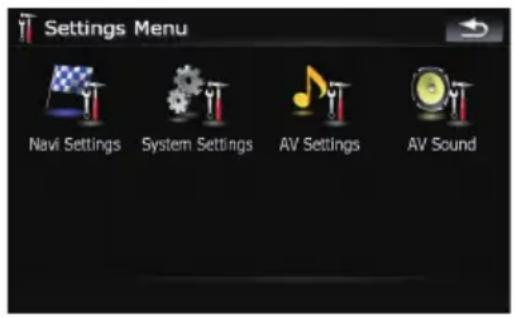
![PIONEER AVIC-F90BT - 2Touch[AVSound]. - 2](/content/2026/05/814290/images/7720d511b1d70704e4a77e771ad41004c894363930051f0b039c69f06f5ff9b7.jpg)
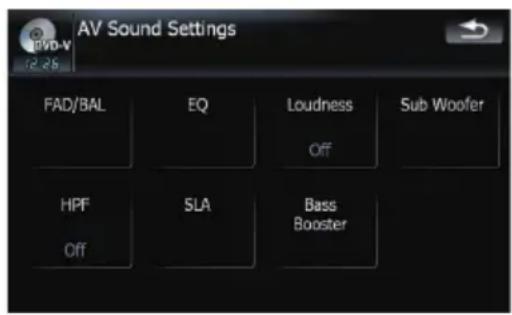
□WhenAVsourceis"OFF",youcannotperformadjustments.
□WhenselectingtheFMtunerastheAV source,youcannotselect[SLA].
Usingbalanceadjustment
Youcanselectafader/balancesettingthat providesanideallisteningenvironmentinall occupiedseats.
1Touch[FAD/BAL]onthe"AVSound" menu.
For details, refer to Displaying the "AV Sound"menuonthepreviouspage.
Whentherearoutputsettingis[RearSP] [SubW], [Balance] will bedisplayed instead of [FAD/BAL].
RefertoSettingtherearoutputpage145.
2 Touch [▲] or [▼] to adjust front/rear speakerbalance.
Each time you touch [▲] or [▼], the front/rear speakerbalancemovestowardsthefrontor therear.
"Front:15" to "Rear:15" is displayed as the front/rearspeakerbalancemovesfromfrontto rear.
Setting "Front:" and "Rear:" to "0" is proper if twospeakersystembeingused.
Whentherearoutputsettingis[RearSP
SubW], you cannot adjust front/rearspeaker balance.
RefertoSettingtherearoutputpage145.
3 Touch [◀] or [▶] to adjust left/right speakerbalance.
Each time you touch [◀] or [▶], the left/right speakerbalancemovestowardstheleftorthe right.
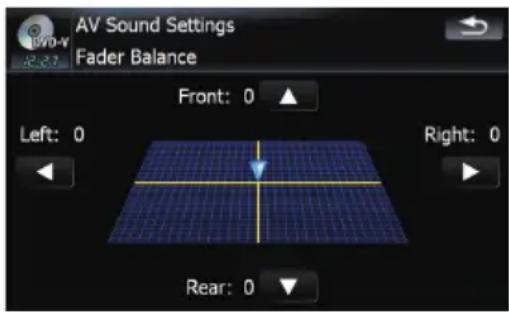
Left:15toRight:15isdisplayedastheleft/rightspeakerbalancemovesfromlefttoright.
Usingtheequalizer
Theequalizerletsyouadjustequalizationto matchvehicleinterioracousticcharacteristics asdesired.
Recallingequalizercurves
Therearesevenstoredequalizercurvesthat youcaneasilyrecallatanytime. Hereisalist oftheequalizercurves:
Equalizercurve
S.Bass
S.Bassisacurveinwhichonlylow-pitchedsoundis boosted.
Powerful
Powerful is a curve in which low-pitched and high-pitched sounds are boosted.
Natural
Naturalisacurveinwhichlow-pitchedandhigh-pitchedsoundsareslightlyboosted.
Customizingpreferences
Vocal
Vocalisacurveinwhichthemidrange,whichisthe humanvocalrange,isboosted.
Flat
Flatisaflatcurveinwhichnothingisboosted.
Custom1
Custom1 is an adjusted equalizer curve that you create. A separate custom curve can be created for each source.
Custom2
Custom2isanadjustedequalizercurvethatyoucreate.Ifyouselectthiscurve,theeffectisreflectedallAVsource.
1Touch[EQ]onthe"AVSound"menu.
For details, refer to Displaying the "AV Sound"menuonpage138.
2Touchdesiredequalizer.
☐Youcanalsosequentiallyselectthedesired equalizercurvebytouching[EQ]ontheAV operationscreenofeachsource.
Adjustingtheequalizercurves
You can adjust the currently selected equalizer curvesetting as desired. Adjustments can be made with a 3-band parametric equalizer.
Thedifferencebetween"Custom1" and "Custom2"
- AseparateCustom1curvecanbecreated foreachsource.Ifyoumakeadjustments whenacurveS.Bass,Powerful,Natural, Vocal, Flat, or Custom1 is selected, the equalizercurvesettingswillbememorized inCustom1.
- ACustom2curvecanbecreatedcommon toallsources.Ifyoumakeadjustments whenCustom2curveisselected,theCustom2curvewillbeupdated.
- TheadjustedCustom1curveismemorized foreachofthesourceselected, butone curveissharedforthefollowingsources.
— CD, ROM, DVD-V, DVD-VR, DivX (for AVIC-F900BT and AVIC-F90BT)
—CD,ROM(forAVIC-F700BTandAVIC-F7010BT)
—XMandSIRIUS
—AV1andAV2
—EXT1andEXT2
- Thedifferentsourcevolumelevelcanbe setbetweeniPodandUSB.
- When[Flat]isselected,nosupplementor correctionismadetothesound.This is useful to check the effect of the equalizer curves by switching alternatively between [Flat] and a set equalizer curve.
Adjustableparameters
You can adjust the center frequency, level and the Q factor (curve characteristics) of each currently selected curve band (Low/Mid/High).
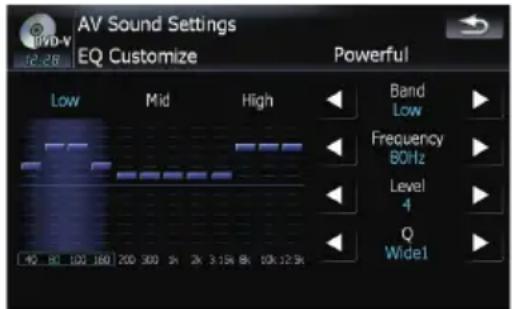
- Band: Youcanselecttheequalizerband.
- Frequency: You can select which frequency to be set as the center frequency.
- Level: Youcanselectthedecibel(dB)levelofthe selectedEQ.
•Q: Youcanselectthedetailsofthecurvecharacteristics.(Thefollowingfigureshowsthecharacteristicimage.)
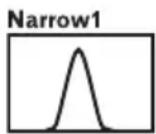
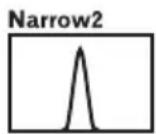
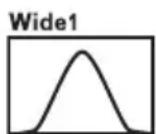
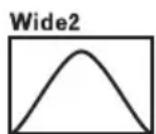
1Touch[EQ]onthe"AVSound"menu.
For details, refer to Displaying the "AV Sound"menuonpage138.
2Touchtheoneofkeystoselectacurve thatyouwanttouseasthebasisofcustomizing.
3Touch[Customize].
4 Touch [◀] or [▶] to select the equalizer bandtoadjust.
Each time you touch [◀] or [▶] selects equalizerbandsinthefollowingorder:
Low—Mid—High
5 Touch [◀] or [▶] to select the desired frequency.
Touch [◀] or [▶] until the desired frequency appearsinthedisplay.
Low: 40 Hz — 80 Hz — 100 Hz — 160 Hz
Mid: 200 Hz — 500 Hz — 1 kHz — 2 kHz
High: 3.15 kHz — 8 kHz — 10 kHz — 12.5kHz
6 Touch [◀] or [▶] to adjust the level of theequalizerband.
Each time you touch [◀] or [▶], the level of the equalization band increases or decreases.
+6 to -6 is displayed as the level is increased or decreased.
7 Touch [◀] or [▶] to select the desired Q factor.
Touch [◀] or [▶] until the desired Q factor appearsinthedisplay.
Wide2—Wide1—Narrow1—Narrow2
Adjustingloudness
Loudnesscompensatesfordeficienciesinthe low-andhigh-soundrangesatlowvolume.
1Touch[Loudness]onthe"AVSound" menu.
For details, refer to Displaying the "AV Sound"menuonpage138.
2Touch[Loudness]toselectadesired level.
Eachtimeyoutouch[Loudness], thelevelis selected in the following order:
Off—Low—Mid—High
Usingsubwooferoutput
Thenavigationsystemisequippedwithasubwooferoutputmechanism,whichcanbe turnedonoroff.
☐ Only when "Sub Woofer" is [On], you can adjust "Phase", "Level" and "Frequency".
1Touch[SubWoofer]onthe"AVSound" menu.
For details, refer to Displaying the "AV Sound"menuonpage138.
2Touch[On]toturnsubwooferoutput on.
Toturnsubwooferoutputoff,touch[Off].
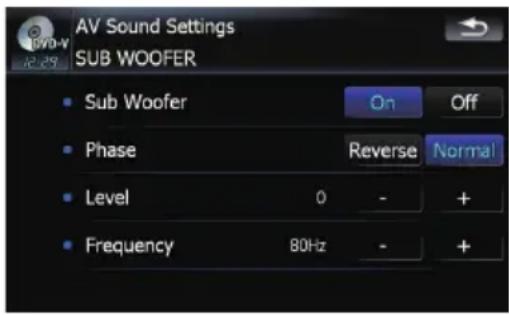
3Touch[Reverse]or[Normal]toselect thephaseofsubwooferoutput.
4Touch[+]or[-]nextto"Level"toadjust theoutputlevel.
+6 to -24 is displayed as the level is increased or decreased.
5Touch[+]or[-]nextto"Frequency" to selectcut-offfrequency.
Each time you touch [+] or [-] , cut-off frequencies are selected in the following order:
50 Hz — 63 Hz — 80 Hz — 100 Hz — 125 Hz
Only frequencies lower than those in these selected range are output from the subwoofer.
Usingthehighpassfilter
When you donotwantlowsounds from the subwoofer output frequency rangetoplay from the frontorrearspeakers, activate HPF (high pass filter). Only frequencies higher than those in these selected range are output from the frontorrearspeakers.
1Touch[HPF]onthe"AVSound"menu.
For details, refer to Displaying the "AV Sound"menuonpage138.
2Touch[HPF]toselectcut-offfrequency.
Eachtimeyoutouch[HPF]selectscut-offfrequenciesinthefollowingorder:
Off — 50 Hz — 63 Hz — 80 Hz — 100 Hz — 125Hz
Adjustingsourcelevels
SLA(sourceleveladjustment)letsyouadjust thevolumelevelofeachsourcetopreventradicalchangesinvolumewhenswitchingbetweensources.
□SettingsarebasedontheFMtunervolume level,whichremainsunchanged.
1 Compare the FM tunervolume level with the level of the source you wish to adjust.
2Touch[SLA]onthe"AVSound"menu.
For details, refer to Displaying the "AV Sound"menuonpage138.
3Touch[+]or[-]toadjustthesourcevolume.
+4to-4isdisplayedasthesourcevolumeis increasedordecreased.
FollowingAVsourcesaresettothesame sourceleveladjustmentvolumeautomatically.
- CD, ROM, DivX (for AVIC-F900BT and AVIC-F90BT)
- CD, ROM (forAVIC-F700BT and AVIC-F7010BT)
• XMandSIRIUS
•AV1andAV2 - EXT1andEXT2
☐ Thedifferentsourcevolumelevelcanbeset betweeniPodandUSB.
ForAVIC-F900BT and AVIC-F90BT, the source volume level can be set to DVD-V and DVD-VR respectively as well as differently from the others or sources of the built-in DVD drive previously mentioned.
Enhancingbass(BassBooster)
The "BassBooster" enhances bass sounds, which can be muted by driving noise.
1Touch[BassBooster]onthe"AV Sound"menu.
For details, refer to Displaying the "AV Sound"menuonpage138.
2Touch[+]or[-]toadjusttherangefrom 0 to 6
Theoptionsonthe"AV Settings"menu
Displaying the "AV Settings" menu
1PressMENUbuttontodisplaythe"Top Menu", andthentouch[Settings].
2Touch[AVSettings].
The "AV Settings" menu appears.
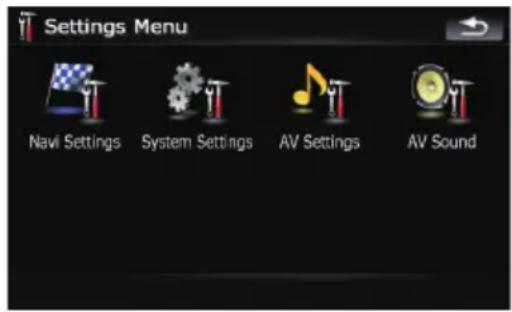

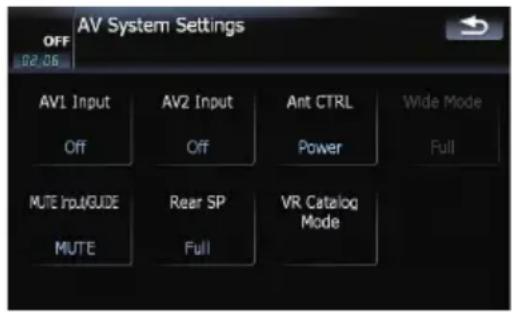
□OnlywhenselectingtheAVsourcewith video,youcanadjust[WideMode].
☐OnlywhentheAVsourceis“OFF”, the followingitemscanbeadjusted;
[MUTEInput/GUIDE] and [RearSP]
Settingvideoinput1(AV1)
Youcanswitchthissettingaccordingtothe connectedcomponent.
☐ ThissettingiseffectiveforRCAinputs (AUDIOINPUTandVIDEOINPUT)onback-side.
- Touch[AV1Input]onthe"AVSettings" menu.
For details, refer to Displaying the "AV Settings"menuonthispage.
Eachtouchof[AV1Input]changesthesettingsasfollows:
- Off—Novideocomponentisconnected
- iPod—iPodconnectedwiththeUSBInterfacecableforiPod(CD-IU230V)
•Video—Externalvideocomponent - EXT—Pioneerexternalunitconnected withtheRCAvideocable
Settingvideoinput2(AV2)
Youcanswitchthissettingaccordingtothe connectedcomponent.
☐ Thissettingiseffectiveformini-jackinput onfrontpanel.
- Touch[AV2Input]onthe"AVSettings" menu.
For details, refer to Displaying the "AV Settings"menuonthispage.
Eachtouchof[AV2Input]changesthesettingsasfollows:
- Off—Novideocomponentisconnected
•Video—Externalvideocomponent
☐ Use AV2Input when connecting CD-RM10 (sold separately) through the external video component.
Switchingtheautoantenna setting
If the blue lead of then navigation system is connected to the antenna control terminal of the vehicle, select either of the following settings.
- Radio—Theantennaextendsorturnson onlywhentheaudiosourceisFMorAM. Theantennaisstoredorturnedoffwhen theAVsourceisswitchedtoanother source.
- Power—Theantennaextendsorturnson whentheignitionswitchisturnedon.The antennaisstoredorturnedoffwhenthe ignitionswitchisturnedoff.
Customizingpreferences
- Touch[AntCTRL]onthe"AVSettings" menu.
For details, refer to Displaying the "AV Settings"menuonthepreviouspage.
Touching[AntCTRL]switchesbetween [Radio]and[Power].
☐ Regardless of whether [Radio] or [Power] isselected, turningofftheignitionswitch willcausetheantennatoautomaticallyretractorturnoff.
Changingthewidescreenmode
- Touch[WideMode]onthe"AVSettings"menu.
For details, refer to Displaying the "AV Settings"menuonthepreviouspage.
Eachtouchof[WideMode]changesthesettingsasfollows:
Full—Normal Full(full)
A4:3pictureisenlargedinthehorizontaldirectiononly,enablingyoutoenjoya4:3TVpicture(normalpicture)withoutanyomissions. Normal(normal)
A4:3pictureisdisplayednormally,givingyou nosenseofdisparitysinceitsproportionsare thesameasthatofthenormalpicture.
☐ Differentsettingscanbememorizedfor eachvideosource.
☐Thesamesettingisautomaticallyapplied forthefollowinggrouping.
- SD, USB, iPod
•AV1andAV2
-EXT1andEXT2
Whenvideoisviewedinawidescreen modethatdoesnotmatchitsoriginalaspectratio, it may appeardifferently.
Remember that use of this system for commercial or public viewing purposes may constitute an infringement on the author's rights protected by the Copyright Law.
☐ThenavigationmapandtherearviewcamerapictureisalwaysviewedatFull.
Switchingthesoundmuting/attenuation
You can select themuting method when the navigation guidance is output. This setting is also effective for amutesignalthathas been received from the MUTElead connected to the navigation system.
□Whenyouuseacellularphoneconnected withBluetoothtechnology(dialing,talking, incomingcall),theAVsourcevolumeisalwaysmutedindependentlyofthissetting.
□Whenthevoicerecognitionmodeisactivated,theAVsourcevolumeisalways mutedindependentlyofthissetting.
- Touch[MUTEInput/GUIDE]onthe"AV Settings"menu.
For details, refer to Displaying the "AV Settings"menuonthepreviouspage.
Eachtouchof[MUTEInput/GUIDE]changes thesettingsasfollows:
•MUTE—Muting
- ATT—Attenuation
• Normal—Volumedoesnotchange
☐Operationreturnstonormalwhenthecorrespondactionisended.
When "SD" or "USB" selected as the AV source, the sounds are not muted or attenuated even when then navigation guidance and beep outputs.
When "SD" or "USB" selected as the AV source, the AV sounds, thenavigationguidance and beepsounds are mixed and the volumecan beadjusted simultaneously.
ImportantNoticeregardingVolumeof NavigationVoiceGuidancewhenPlaying AudioFilesfromUSBorSD
Ifmusicfilesstoredonanexternalstoragedevice (USBorSD)areplayedwhenthesystemisin RouteGuidanceMode(i.e.,adestinationhas beenselectedandthesystemisroutingyoutoa destination),thevolumeofthenavigationguidancevoicewillbethesameasthevolumeofthe musicfilesbeingplayed,evenifadifferent“Master” volume or “Voice” volume or “Dynamic” volumehasbeenselectedinthe“SoundSettings” menu.Thisconditiononlyappliestomusicfiles storedonaUSBdeviceorSDcard;itdoesnot applytomusicfilesstoredonaniPodoradisc, nordoesitapplytobroadcastcontent(FM,AM, XM,Sirius,HD).
Settingtherearoutput
Thenavigationsystem'srearoutputcanbe usedforafull-rangespeakerorsubwoofer connection.IfyouswitchRearSPtoSubW, youcanconnectarearspeakerleaddirectlyto asubwooferwithoutusinganauxiliaryamp. Initially,thenavigationsystemissetforarear full-rangespeakerconnection(Full).
1Touch[RearSP]onthe"AVSettings" menu.
For details, refer to Displaying the "AV Settings"menuonpage143.
2Touch[RearSP]toswitchtherearoutputsetting.
When nosubwooferisconnectedtotherear output, selectFull.
Whenasubwooferisconnectedtotherear output,selectSubW.
☐BothrearspeakerleadsoutputandRCA rearoutputareswitchedsimultaneously in thissetting.(Whenyouusetheproduct withoutRCArearoutput,thissettingiseffectiveforrearspeakerleadsonly.)
Acquiring/CatalogingiPod musicinformation
If you always set the language other than "English" on "Program language:", this setting is unnecessary.
Unless[VRCatalogMode]isturnedoff, this navigationsystemtriestoacquiretheinformationneededtooperateiPodwithvoicecommands.Itmaytakeashortperiodoftimeto transfertheinformation.Changethesetting accordingtoyourusage.
Thenavigationsystemstartsacquiring/catalogingmusicinformation(1)whentheiPodis connectedorwhenthesystembootsupwhile theiPodisconnectedand(2)wheniPodisthe selectedanddisplayedAVSource,unless[VR CatalogMode]isturnedoff.
□IfyoudonotuseiPod, thissettingisunnecessary.
☐Duringtransfer,iPodoperations(suchas [Shuffle],[Menu],or[Video])arenot available.
☐Oncethecatalogingiscompleted,youcan deactivate[VRCatalogMode]untilyou updatethecontent/dataoniPod.IfyouupdatetheiPoddata,activate[VRCatalog Mode]againtotransferthemusicinformationandsynchronizethemusicinformation forvoicecommandswiththedataoniPod.
☐ After you select "Off" in [VR Catalog Mode], the system doesn't catalog the data on the iPod. Insuch case, the previously cataloged data are available as voice commands.
Once you start the cataloging process, only afew basic voice command scan be used for iPod until the process has completely finished.
□Ifunreadablecharactersareincludedin thedataonyouriPod,namesortypesmay notbeavailableasvoicecommands.
ImportantNoticeregardingVoice ControlforiPods
VoiceControlforiPodsmaybelimitedifcatalogingofiPodcontentisnotcompleted.CatalogingofiPodcontentonlyoccurswhenthe system is in "AV Source" mode and the "iPod" istheselectedanddisplayedAVsource.CatalogingofiPodcontentwillnotoccurifthesystem is off, if any other "AV Source" is selected (asidefromiPod),orithesystemisinany othermode(asidefrom"AVSource"mode) such as "Destination" mode, "Contacts" mode, "Settings" mode, "Phone" mode or "Map" mode.IfyouwishtouseVoiceControlforall iPodcontent,itisrecommendedthatyoufirst connectyouriPod,select"iPod"astheAV source,andkeeptheiPodscreendisplayed untilcatalogingiscompleted—catalogingofiPodcontentshouldonlytakeafewminutes, andwilldependonthesizeofthecontent storedonyouriPod.Amessagewillbedisplayedwhencatalogingiscompleted.
1Touch[VRCatalogMode]onthe"AV Settings"menu.
For details, refer to Displaying the "AV Settings"menuonpage143.
2Touch[On]or[Off]toactivateordeactivate"VRCatalogMode".
OperatingYourNavigationSystemwithVoice
ToEnsureSafeDriving
Somefunctionsofthenavigationsystemsupportsvoiceoperation.
☐Thenavigationfunctionisnotavailable usingvoiceoperation.

CAUTION
Foryoursafety, avoid viewing the screen in the voice operation as much as possible while driving.
If you use voice operation, select [English] in [Program language:] of "Language". If you select other languages, voice operation will not be available.

BasicsofVoiceOperation
YourPioneernavigationsystemusesthelatest invoicerecognitiontechnology.Youcanuse voicecommandstoooperatemanyofitsfunc- tions.Thischapterdescribeswhereyoucan usevoicecommands,andalsowhatcom- mandsthesystemaccepts.
Flowofvoiceoperation
Youcanstartvoiceoperationanytimeeven whenthemapscreenisdisplayedoraudiois operating.(Someoperationsarenotavailable.) Thebasicstepsofvoiceoperationsareas follows.
1SwitchthescreentomapscreenorAV operationscreen.
- Fordetailsconcerningoperations,referto Screenswitchingoverviewonpage18.

2PressMULTI-CONTROLtoactivatevoice operations.

3Speakacommandintothemicrophone afterthebeep.

4Whenthecommandisrecognized, the navigationsystemdisplaysnextoptionson thescreen, andpronouncesitinsomecases.

5Repeatpreviousstepasnecessary.

6Therequestedoperationwillbecarried out.
☐Thevoiceoperationmaynotbeoperablefora minuteafterthenavigationsystemhasbooted up.
OperatingYourNavigationSystemwithVoice
Startingvoiceoperation
% PressMULTI-CONTROLonmapscreen ortheAVoperationscreen.
The voice operation screen appears.
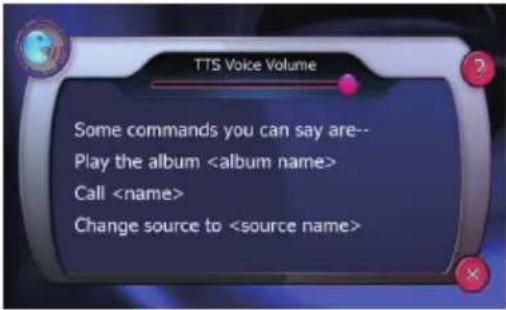
Ifyouloseyourway...
You can listen to the brief operating instruction by touching ⚙.
Tocancelvoiceoperation
You can cancel the voice operation feature at any time by saying "Cancel". After you cancel voice operations, the display returns to the screen displayed before the voice operation screen appeared.
☐You can also cancel voice operation if you touch ⚙ on the voice operation screen, or press MENUbutton or MAPbutton.
OperatingiPodbyvoice
You can play music using voice operation from the iPod connected to the navigation system.
☐Playback of iPod movies is not available using voice commands.
☐To use the content/data on the iPod for voice operation, transfer the data to this system first.
= For details, refer to Acquiring/Cataloging iPodmusicinformation on page 145.
Examples of voice operation of the iPod are shown below. (A method for playing the album title named "Pioneer" is described here, along with an operational example.)
1PressMULTI-CONTROLtostartvoiceoperation.
2Say"ChangeSource"todisplaytheAV sourceselectionscreen.
3Say"iPod"ontheselectionscreento switchtheAVsourcetoiPod.
☐Touching the item on the screen also enables you to select the desired AV source.
4PressMULTI-CONTROLtostartvoiceoperation.
5Say"PlaythealbumPioneer"toplay-backthealbumname"Pioneer".
If the command is recognized properly, play-back starts from the first song of "Pioneer".

Callingtheentryon"Contacts"
A method for dialing the entry named "Nancy" is described here along with an operational example.
1PressMULTI-CONTROLtostartvoiceoperation.
2Say"CallNancy"tomakeacall.
Dialing starts.
OperatingYourNavigationSystemwithVoice
AvailableBasicVoiceCommands
Thenavigationsystemcanalsorecognizethe wordsinthefollowinglist.
Basiccommands
Voice commands and operations
Back→Returnsthepreviousscreen. Cancel→Cancelsthevoiceoperation. Help→Outputsthebriefoperatinginstructionbyvoice.
VoiceoperationfortheiPod
For
□PlaybackofiPodmoviesisnotavailable usingvoicecommands.
Voicecommandsandoperations
Shuffleplay→Playsallsongsrandomly.
Pause the music, Stop the music → Pauses the song currently playing.
Resumethemusic→Resumesthesongcurrentlyplaying.
Nextsong→Playsthenextsong.
Previous song → Plays the previous song or return to the beginning of the song currently playing.
Play songs → Start playback from the top of "Songs".
Play artists → Start playback from the top of "Artists".
Play the artist
Play albums → Start playback from the top of "Albums".
Play the album
Play playlists → Start playback from the top of "Playlists".
Play the playlist
Play genres → Start playback from the top of "Genres".
Play the genre
Show artists → Displays the artist list together with sub-screen to continue the voice operation. → Touch the desired itemonthelistorsaythedesiredvoicecommands.
Show the artist
Show albums → Displays the album list together with sub-screen to continue the voice operation. → Touch the desireditemonthelistorsaythedesiredvoicecommands.
Show the album
OperatingYourNavigationSystemwithVoice
| Show playlists → Displays the playlist together with sub-screen to continue the voice operation. → Touch the desired itemonthelistorsaythedesiredvoicecommands.Show the playlist → Displays the song list of the selected playlist together with sub-screen to continue the voice operation. → Touch the desired item on the list or say the desired voice commands. |
| Show genre → Displays the genre list together with sub-screen to continue the voice operation. → Touch the desired itemonthelistorsaythedesiredvoicecommands.Show the genre → Displays the song list of the selected genre list together with sub-screen to continue the voice operation. → Touch the desired item on the list or say the desired voice commands. |
| Show songs → Displays the song list together with sub-screen to continue the voice operation. → Touch the desired itemonthelistorsaythedesiredvoicecommands. |
| Page down, Page up → Displays the previous or next page of the selection list. (Note 1) |
(Note1)Thevoicecommandsisavailableonlywhentheselectionlistisdisplayed.
VoiceoperationforAVsource(otherthaniPod)
AVsourceselection
Voice commands and operations
| Change Source to DISC → Switch the AV source to DISC. |
| Change Source to FM → Switch the AV source to FM. |
| Change Source to AM → Switch the AV source to AM. |
| Change Source to XM Satellite Radio → Switch the AV source to XM. |
| Change Source to SIRIUS Satellite Radio → Switch the AV source to SIRIUS. |
| Change Source to HD Radio → Switch the AV source to Digital Radio. |
| Change Source to SD Media → Switch the AV source to SD. |
| Change Source to USB → Switch the AV source to USB. |
| Change Source to iPod → Switch the AV source to iPod. |
Change Source → Switch to the AV source selection screen. → Touch the desired AV source or say the desired AV sourcename.
Externalstoragedevice(USB,SD)
Voice commands and operations
Shuffleplay→Playsallsongsrandomly.
Pause the music, Stop the music → Pauses the song currently playing.
Resumethemusic→Resumesthesongcurrentlyplaying.
Nextsong→Playsthenextsong.
Previous song → Plays the previous song or return to the beginning of the song currently playing.
OperatingYourNavigationSystemwithVoice
Voicecommandsrelatedtohands-freephoning
☐Youcanmakeaphonecallbyvoicedialing ifthecellularphonefeaturingBluetooth wirelesstechnologyisbeingpairedwith thenavigationsystem.
☐For
☐For
Voicecommandsandoperations
| Call → Make a call to the entry (Note 2). |
| Call mobile → Dial the mobile phone number of the entry (Note 3). |
| Call home → Dial the home phone number of the entry (Note 3). |
| Call office → Dial the office phone number of the entry (Note 3). |
| Call → Dial the phonenumber. |
| Make a call → Say the phone number you want to call → The system starts dialing to the number. |
| Make a call → Say the name of entry stored on "Contacts" you want to call → The system starts dialing to the num-ber(Note2). |
| List outgoing calls → Display the list of recent outgoing calls ("Dialed Numbers") to select the number and call. |
| List recent calls → Incoming calls (Note 4) → Display the list of recently received calls ("Received Calls") to select thenumberandcall. |
| List recent calls → Outgoing calls (Note 4) → Display the list of recent outgoing calls ("Dialed Numbers") to select thenumberandcall. |
| List recent incoming calls → Display the list of recently received calls ("Received Calls") to select the number and call. |
(Note 2) If the entry has multiple phone number data, selection list may appear. In such case, say the type of phone numberortouchtheoneoflisteditemthatyouwanttodial.
(Note3) If there is nocorrespondingtypeontheentry, thesystemmaysuggestyouotherphonenumbersoftheentry.
Insuchcase, say the typeof phonenumberortouchtheoneoflisteditemthatyouwanttodial.
(Note4)Touchingtheitemonthescreenalsoenablesyoutoselectthedesiredlist.

OperatingYourNavigationSystemwithVoice
TipsforVoiceOperation
Foryourvoicecommandstobecorrectlyrecognizedandinterpreted,ensurethatconditionsaresuitableforrecognition.
Closethevehiclewindows
Pleasenotethatwindthroughthevehiclewindowwormiscellaneousnoisefromoutsidethe vehiclecaninterferewithvoiceoperation.
Positionthemicrophonecarefully
Foroptimumpick-up, themicrophones should be fixed data suitable distanced directly in front of the driver.
Pausebeforegivingacommand
Speakingtoosoonmaycausetherecognition tofail.
Pronounceyourcommandscarefully
Speakslowly,deliberately,andclearly.
Settingtheanti-theftfunction
Youcansetapasswordforthenavigationsystem.Iftheback-upleadiscutorRESETbutton ispressedafterthepasswordisset,thenavigationsystempromptsforthepasswordatthe timeofnextbootup.
Settingthepassword
1Withthemapdisplayed,pressMENU button.
2Touch[Settings]onthe"TopMenu".
3TouchArea1,followedbyArea2,and thentouchandholdArea3.
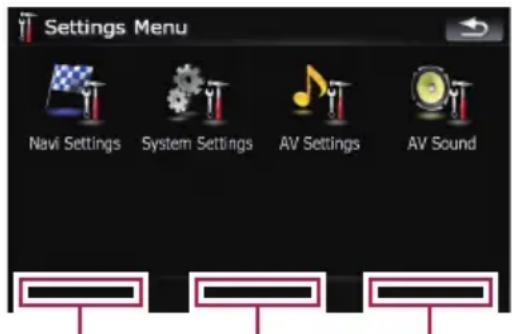
Area1Area2Area3
4Touch[SetPassword].
Thepasswordsettingscreenappears.
5Enterthepasswordyouwanttoset.
☐Fivetosixteencharacterscanbeentered forapassword.
6Touch[Done].
7Reenterthepasswordtoconfirmthe setting.
8Touch[Done].
Password-protectingiscompleted.
□Ifyouwanttochangethepasswordcurrentlyset,enterthecurrentpasswordand thenenterthenewone.
Entering the password
Onthepasswordinputscreen,youmustenter thecurrentpassword.Ifyouentertheincorrectpasswordthreetimes,thescreenis lockedandoperationswithusingtouchpanel keyscannotbeperformed.
1Enterthepassword.
2Touch[Done].
Themessage"Antitheftisbeing unlocked.
Donotswitchoffduringtheprocess."appearsifyoucanenterthecorrectpassword andthenavigationsystemwillbeunlocked.
Deletingthepassword
The current password can be deleted.
1Withthemapdisplayed,pressMENU button.
2Touch[Settings]onthe"TopMenu".
3TouchArea1,followedbyArea2,and thentouchandholdArea3.
4Touch[Clearpassword].
Thepasswordsettingscreenappears.
5Enterthecurrentpassword.
6Touch[Done].
7Touch[Yes].
Themessagefordeletionappearsandthen thecurrentpasswordisdeleted.
Forgotten passwords
ContactthenearestauthorizedPioneerServiceStation.
Returningthenavigation systemtothedefaultor factorysettings
You can return settings or recorded content to the default factory settings. There are three method to clear user data, and the situations and the cleared content are different for each method. For information regarding the content that is cleared by each method, seethelist presented later.
Method1:PressRESETbutton
PressingRESETbuttonclearalsalmostallsettingsoftheaudiofunction.
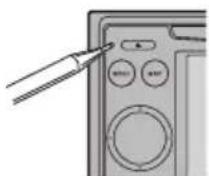
This transformsthesystemintothesamestate aswhenthebatteryofthevehicleisremoved ortheyellowleadofthenavigationsystemis disconnected.
- Fordetailsconcerningoperations,referto Resettingthemicroprocessoronpage11.
Method2:RestoreFactorySettings
Clearssomeitemsinthe"NaviSettings" menu.
Fordetails, refertoRestoreFactorySettingsonpage129.
Method3:Rebootthesoftware
Somesettingsareresetwhenthesoftware- boots. Forexample, the setting sof [Program language:] in "Language" is changed.
Fordetails, refertoSelectingthelanguage onpage135.
Settingitemstobedeleted
Theitemstobedeletedvarydependingonthe resetmethod.Theitemslistedinthefollowing tablereturntothedefaultorfactorysettings.
Almostallitemsnotlistedbelowwillbere- tained. However, someitemstobereturned tothedefaultvaluearenotlistediftheset- tingvaluecanbeeasilyrecoveredbyuser, suchasthelastmapscale,thelaststatus ofAVoperationscreen,etc.
—:Thesettingwillberetained.
√: Thesettingwillbeclearedandreturnedto thedefaultorfactorysettings.
| NavigationfunctionsMethod1Method2Method3 | ||||
| Destination Menu | All settings on “MSN Direct” (*) | — | √ | — |
| NaviSettings | [SetHome]— — — | |||
| [GPS & Time Settings], [Visual], [Route], [Warnings],[RegionalSettings] | —√— | |||
| [Soundsettings]“Voice”, “Keys”, “Dynamic Volume (On/Off)” | —√— | |||
| [Soundsettings]“Master”, “Dynamic Volume(Maximum speed:, Minimumspeed:)” | — | — | — | |
| SystemSettings | [Language]—√— | |||
| Othersettings | — | — | — | |
(*)ThisfunctionisavailableforAVIC-F900BT and AVIC-F90BT.
| Audiofunctions | Method1 | Method2 | Method3 | |
| AVSettings | [Wide Mode], [VR Catalog Mode] | — | — | — |
| Othersettings | √— | — | ||
| AV Sound | All settings | √ | — | — |
| CD,ROM,DVD-V,DVD-VR,DivX,FM,AM,SD,USB | Allsettings(*1) | √— | — | |
| VolumesettingforAVsources | √— | — | ||
(*1) All settings including the setting on the "Function" menu are to be deleted.

Appendix
Troubleshooting
If you have problems operating your navigation system, referto this section. Themost common problems are listed below, along with likely causes and solutions. While this list is not comprehensive, it should answer your most common problems. If a solution to your problem cannot be found here, contact your dealer or the nearest authorized Pioneerservice facility.
Problemswiththenavigationscreen
| SymptomCauseAction(See) | ||
| Thepowerdoesn'tturnon.The navigationsystemdoesn'toperate. | Leadsandconnectorsareincorrectlyconnected. | Confirmonethatal connections are correct. |
| Thefuseisblown.Rectifythereasonforthefuseblowing,then replacethefuse.Beversuretoinstallacorrectfusewiththesamerate. | ||
| Noiseandotherfactorsarecausing thebuilt-inmicroprocessortooperateincorrectly. | PressRESETbutton.(Page11) | |
| Youcannotpositionyourvehicle onthemapwithoutasignificant positioningerror. | ThequalityofsignalsfromtheGPS satellitesispoor,causingreduced positioningaccuracy.Suchalossof signalqualitymayoccurforthefollowingreasons:•TheGPSantennaisinanunsuitablelocation.•Obstaclesareblockingsignals fromthesatellites.•Thepositionofsatellitesrelativeto yourvehicleisinadequate.•SignalsfromtheGPSsatellites havebeenmodifiedtoreduceaccuracy.(GPSsatellitesareoperatedby theUSDepartmentofDefense,and theUSgovernmentreservesthe righttodistortpositioningdatafor militaryreasons.Thismayleadto greaterpositioningerrors.)•Ifvehiclephoneorcellular phoneisusedneartheGPSantenna,GPSreceptionmaybelosttemporarily. | ChecktheGPSsignalreceptionandthepositionoftheGPSantennaifnecessary,orcontinuedrivinguntilreceptionimproves.Keep theantennaclear. |
| SomethingcoverstheGPSantenna.DonotcovertheGPSantennawithspraypaintorvehiclewax,becausethismayblock thereceptionofGPSsignals.Snowbuildup canalsodegradethesignals. | ||
| Signalsfromthevehicle'sspeed pulsearenotbeingpickedupproperly.(Thisinformationisintended forAVIC-F900BTandAVIC-F90BT.) | Checkthatthecablesareproperlyconnected. Ifnecessary,consultthedealerthatinstalled thesystem. | |
Appendix
| Youcannotpositionyourvehicle onthemapwithoutasignificant positioningerror. | Thenavigationsystemmaynotbe mountedsecurelyinyourvehicle. | Checkthatthenavigationsystemissecurely mountedand,ifnecessary,consultthedealer thatinstalledthesystem. | |
| Thenavigationsystemisinstalled withanextremeangleexceeding theinstallationanglelimitations. | Confirmtheinstallationangle.(Thenavigationsystemmustbeinstalledwithintheallowedinstallationangle.Fordetails,referto "InstallationManual".) | ||
| IndicationofthepositionofyourvehicleismisalignedafteraU-tumor reversing. | Checkwhetherornotherversegearsignal inputlead(violet)isconnectedproperly.(The navigationsystemworksproperlywithoutthe leadconnected,butpositioningaccuracywill beadverselyaffected.) | ||
| Themapcolordoesnotswitch automaticallybetweendaytime andnighttime. | [Night mode] is set to [Day]. | Check [Night mode] setting and make sure [Automatic]isselected.(Page125) | |
| Theorange/whiteleadisnotconnected. | Checktheconnection. | ||
| Thescreenistoobright.Animpropervaluehasbeenseton "Brightness". | Checkthesettings. | ||
| The display is very dim. | [Night] is selected in "Night mode". | Checkthesettingof[Nightmode]andselect [Automatic] or [Day]. (Page 125) | |
| Animpropervaluehasbeenselon "Brightness". | Checkthesettings. | ||
| NosoundsofAVsourceareproduced. Thevolumelevelwillnotrise. | Thevolumelevelislow.Adjustthevolumelevel. | ||
| Theattenuatorormuteison.Turntheattenuatorormuteoff. | |||
| Aspeakerleadisdisconnected.Checktheconnection. | |||
| Adjustingthevolumeofnavigationguidanceandbeepsisnot possible. | Youcannotadjustthesewith MULTI-CONTROL. | Turnthevolumeupordownaccordingto [Sound settings] on the "Navi Settings" menu.(Page130) | |
| Thepersonontheotherendof thephonecallcannothearthe conversationduetoanecho. | Thevoicefromthepersononthe otherendofthephonecallisoutput fromthespeakersandthenpicked upbythemicrophoneagain,creatinganecho. | Usethefollowingmethodstoreducethe echo: —Lowerthevolumeonthereceiver —Havebothspeakerspauseslightlybefore speaking | |
| There'snopicture.Theparkingbrakecordisnotconnected. | Connecttheparkingbrakecord,andapply theparkingbrake. | ||
| Theparkingbrakeisnotapplied.Connecttheparkingbrakecord,andapply theparkingbrake. | |||
| ThebacklightoftheLCDpanelis turnedoff. | Turnonthebacklight.(Page138) | ||
| "Reardisplay"picturedisappears.(ThisinformationisintendedforAVIC-F900BTand AVIC-F90BT.) | Thesourcediscbeinglistenedtoin thenavigationsystemhasbeen ejected. | Beforeejectingthedisc,switchthesource. Thisproblemmayoccurwhencertaincon- nectionmethodsareused. | |
| Thereisaproblemwiththe"Rear display",forexampleafaultywiring connection. | Checkthe"Reardisplay"anditsconnection. | ||
| TheAVsourcethatcannotoutputto thereardisplayisselected. | SelecttheappropriateAVsource. | ||
Appendix
| Nothingisdisplayedandthe touchpanelkeyscannotbe used. | Thesettingfortherearviewcamera isincorrect. | Selecttheappropriatesettingfortherear viewcamera. |
| Theshiftleverwasplacedin[R] whentherearviewcamerawasnot connected. | PressMAPbutton,andthenpressMENU button to return to the "Top Menu" and then selectthecorrectpolaritysettingfor[Back Camera].(Page136) | |
| Thereisnoresponsewhenthe touchpanelkeyaretouchedor adifferentkeyresponds. | Thetouchpanelkeysdeviatefrom theactualpositionsthatrespondto yourtouchforsomereason. | Performthetouchpanelcalibration.(Page 136) |
ProblemsintheAVscreen
| SymptomCauseAction(See) | ||
| CDorDVD playback is not possible. | Thediscis inserted upsidedown. Insert the disc with the label upward. | |
| Thediscis dirty. Cleandisc. | ||
| Thediscis cracked or other wiseda-maged. | Insert anormal, round disc. | |
| The files on the disc are an irregular file format. | Check the file format. | |
| Thedisc format cannot be played back. | Replaced disc. | |
| Theloaded disc is atypethissystem cannot play. | Check what type of disc it is. (Formorecau-tions about handling each type of media, refer to Page 171.) | |
| Thescreen is covered with the caution message and the video cannot beshown. | The parking brake lead is not con- nected or applied. | Connect the parking brake lead correctly, and apply the parking brake. |
| The parking brake interlock is acti-vated. | Park your vehicle in as afe place and apply the parking brake. | |
| Novideo output from connected equipments. | [AV1 Input] or [AV2 Input] setting is incorrect. | Pleaseread the following page and establish the setting correctly. (Page 120) |
| Novideo output from connected iPod. | The connection of the USB interface cable for i Pod is incorrect. | Connect both USB plug and RCableside. (If only either connection has made, iPod will not works properly.)(Page 16) |
| The audio or videos kips. Thenavigations system is not firmly secured. | Secure thenavigations system firmly. | |
| Nosounds are produced. The volume level will not rise. | Cables are not connected correctly. Connect the cables correctly. | |
| Thesystemisperforming still, slow motion, or frame-by-frame playback with DVD-Video. | There is nosound during still, slow motion, or frame-by-frame playback with DVD-Video. | |
| Thesystem is paused or performing, fast reverse or forward during the disc playback. | For themedia other than music CD (CD-DA), there is nosound on fast reverse or forward. | |
| The icon is displayed, and operation is not possible. | The operation is not compatible with the video configuration. | This operation is not possible. (Forexample, the DVD playing does not feature that angle, audiosystem, subtitle language, etc.) |
| The picture stops (pauses) and thenavigations system cannot be operated. | Thereading of data is impossible during disc playback. | After touching once, start playback once more. |
Appendix
| Thepictureisstretched,theaspectisincorrect. | Theaspectsettingisincorrectfor thedisplay. | Selecttheappropriatesettingforthatimage. (Page144,Page83) |
| AparentallockmessageisdisplayandDVD playbackisnot possible. | Parentallockison.Turnparentallockofforchangethelevel. (Page83) | |
| ParentallockforDVD playback cannotbecanceled. | Thecodenumberisincorrect.Inputthecorrectcodenumber.(Page83) | |
| Playbackisnotwiththeaudio languageandsubtitlelanguage settingsselectedin[DVD Setup]. | TheDVDplayingdoesnotfeature dialogorsubtitlesinthelanguage selectedin[DVDSetup]. | Switchingtoaselectedlanguageisnotpossibleifthelanguageselectedin[DVDSetup] isnotrecordedonthedisc. |
| Thepictureisextremelyunclear/distortedanddarkduringplay-back. | Thedisfeaturesasignaltoprohibit copying.(Somediscsmayhave this.) | Sincethenavigationsystemiscompatible withthecopyguardanalogcopyprotectsystem.whenplayingadiscthathasasignal prohibitingcopying.thepicturemaysuffer fromhorizontalstripesorotherimperfections whenviewedonsomedisplays.Thisdoesnot meanthenavigationsystemismalfunction-ing. |
| Cannotbeoperated.TheiPodisfrozen. | •ReconnecttheiPodwiththeUSBinterface cableforiPod.•UpdatethesoftwareversionofiPod. | |
| Anerorhasoccurred.•ReconnecttheiPodwiththeUSBinterface cableforiPod.•Parkyourvehicleinasafeplace.andcut offtheengine.Turntheignitionkeyback to “Accoff”.Thenstarttheengineagain,and turnthepowertothenavigationsystemback on.Ifthisdoesnotsolvetheproblem,press RESETbuttononthenavigationsystem.•UpdatethesoftwareversionofiPod. | ||
| SongsoniPodconnectedwith thissystemcannotbeavailable asvoicecommandsordifferent songortitlefromtheonethat yousaidisrecognized. | iPodcontent/datahasbeenupdated,butthedataonthissystem’s memoryhasnotbeenupdatedyet. (i.e.,systemhasnotcatalogednew iPodcontent),orcatalogingwasnot completed) | IfyouupdatetheiPoddata,activate[VRCatalogMode]tocatalog/transferthemusicinformationtothissystemandsynchronizeth musicinformationforvoicecommandswith thedataoniPod.(Page145) |
Problemswiththephonescreen
| SymptomCauseAction(See) | ||
| Dialingisnotpossiblebecausethetouchpanelkeysfordialingareinactive. | Yourphoneisoutofrangeforservice. | Retryafterre-enteringtherangeforservice. |
| Theconnectionbetweenhecellular phoneandthenavigationsystem cannotbeestablishednow. | Performtheconnectionprocess. | |
Appendix
If the screen becomes frozen...
Parkyourvehicleinasafeplace,andcutoff theengine.Turntheignitionkeybackto"Acc off".Thenstarttheengineagain,andturnthe powertothenavigationsystembackon.Ifthis doesnotsolvetheproblem,pressRESETbuttononthenavigationsystem.
Messagesandhowtoreacttothem
The following messages may be displayed by your navigation system.
Thereareoccasionswhenyoumayseeerrormessagesotherthanthoseshownhere.Insucha case,followtheinstructionsgivenonthedisplay.
Messagesfornavigationfunctions
| MessageWhenWhattodo(See) | ||
| Thereisno"Pictures"folder.Pleasecreate/Pictures/folder andstoretheappropriatefile imagestobeuploadedinthat Folder. | Cannotloadtheimagebecause "Pictures"folderisnotfoundinthe insertedexternalstoragedevice. | Usetheappropriatedataandstorethedata properly.(Page135) |
| "Pictures"folderexistsontheexternalstoragedevice(USB,SD)but thereisnoloadabledatainthe folder. | Usetheappropriatedataandstorethedata properly.(Page135) | |
| DataReaderor.Failedtoreadthedataforsomerea-son. | Usetheappropriatedataandstorethedata properly.(Page135) | |
| ThefileiscorruptThedataisdamagedoranattempt wasmadetosetanimagefilethat wasnotmadetospecificationsas thesplashscreen. | Usetheappropriatedataandstorethedata properly.(Page135) | |
| Connection failed. | The cellular phone's Bluetooth wirelesstechnologyisturnedoff. | Activatethetargetphone'sBluetoothwirelesstechnology. |
| Thecellularphoneispaired(connected)withanotherdevice. | Cancelthepairing(connection)andretry. | |
| Rejectionhasbeenreceivedfrom thecellularphone. | Operatethetargetphoneandaccepttheconnectionrequestfromthenavigationsystem. (Furthermore,checktheconnectionsettings onyourcellularphone.) | |
| Thetargetcellularphonecannotbe found. | Checkwhetheryourcellularphoneisactivatedand,whetherthedistancetoyourcellularphoneisnottoofar. | |
| Couldnotfindanyavailable phone. | Noavailablephoneexistsinthesurroundingswhenthesystem searchesforconnectablecellular phonesfeaturingBluetoothwireless technology. | Activate the target phone's Bluetooth wirelestechnology.Checkwhetheryourcellularphoneisactivatedand,whetherthedistancetoyourcellularphoneisnottoofar. |
| Dataloadingfailed.Ifyoutransferredthedatafromyour cellularphoneinaformatcannot bereceivedwithnavigationsystem. | Selectjustasuitableitem,format,andthen retry.(Page64)Connectyourcellularphonewithanother methodagainandretry.(Page52) | |
| Yourmobilephonecannot supportthisfeature. | Connectedcellularphonehasno compatibilitywiththephonebook transferfunctionofthisnavigation system. | Dependingonthecellularphone,phone booktransfermaynotbeavailable. |

Appendix
MessagesforAudioFunctions
WhenproblemsoccurwithAVsource playback, an error message appears on the display. Refer to the table below to identify the problem, thentakethes suggested corrective action. If the error persists, contact your dealer or your nearest Pioneer Service Center. The messages in “()” will appear on the “Rear display”.
Built-inDVDdrive(AVIC-F900BTandAVIC-F90BT)
| MessageCauseAction(See) | ||
| Readingerror(ERROR-02-XX) | DirtyCleandisc. | |
| ScratcheddiscReplacedisc. | ||
| ThediscisloadedupsidedownCheckthatthediscisloadedcorrectly. | ||
| Mechanism error | Electrical or mechanical | Press RESET button. (Page 11) |
| Regioncodeerror(DIFFERENT REGIONDISC) | Thedisdoesnothavethesamere-gionnumberasthenavigationsys-tem. | ReplacetheDVD-Videowithonebearingthe correctregionnumber. |
| NON-PLAYABLEDISC | Thistypeofdisc cannotbeplayed bythenavigationsystem | Replacethediscwithonethenavigationsys-temcanplay. |
| Thermalerror(THERMALPRO-TECTIONINMOTION) | Thetemperatureofthenavigation systemisoutsideofthenormaloperatingrange | Waituntiltheunit'stemperaturereturnsto withinnormaloperatinglimits. |
| Errornotdefined(ERROR-FF-FF) | Undefined error | Press RESET button. (Page 11) |
| Non-playabletracksare skipped.(FILESKIPPED) | Filesthatareprotectedbydigital rightsmanagement. | Theprotectedfilesareskipped. |
| Impossibleoplayalltracks.(PROCETEDDISC) | Allthefilesontheinserteddiscare securedbyDRM. | Replacedisc. |
| Flashwritingerror.Impossible towriteontheflash.(CAN NOTSAVEDATA) | The playbackhistoryforVODcontentscannotbesavedforsomerea-son. | Trysavingagain.Ifthemessageappearsfrequently,consult yourdealer. |
| AuthorizationError(AUTHOR-IZATIONERROR) | ThedeviceIdoesnotmatchthede-viceregisteredwiththeVODprovider.VODcontentscannotbeplayed back. | Checkwhetherthisdevicehasbeenregis-teredwiththeVODprovider. |
| File Error NON-PLAYABLE FILE | VOD rental contents file error | Try saving again.Ifthemessageappearsfrequently,consult yourdealer. |
| Playedbackadiscwithincompatibleformat. | Playbackadiscwithcompatibleformat. | |
| Presstracklisttoplayand titlewillappear. | Thediscthathasmanyfilesare playedandalltitlescannotbedis-playedatonce. | Touchtheoneoflisteditemstoplay. |
Built-inCDdrive(AVIC-F700BT and AVIC-F7010BT)
| MessageCauseAction(See) | ||
| Readingerror (ERROR-11,12,17,30) | DirtyCleandisc. | |
| Scratcheddisc | Replacedisc. | |
Appendix
| Readingerror(ERROR-10,11,12,15,17,30,A0) | ElectricalormechanicalTurntheignitionswitchOFFandbackON,orswitchtoadifferentsource,thenbacktotheCDplayer. | |
| Readingerror(ERROR-15) | Theinserteddiscdoesnotcontainanydata. | Replacedisc. |
| Readingerror(ERROR-23) | TheCDformatcannotbeplayedback. | Replacedisc. |
| Readingerror(ERROR-22) | Theinserteddiscdoesnotcontainanyfilesthatcanbeplayedback | Replacedisc. |
| Non-playabletracksareskipped. | TheinserteddisccontainsfilesthatareprotectedbyDRM | Replacedisc. |
| Impossibletoplayalltracks.AllthefilesontheinserteddiscaresecuredbyDRM. | Replacedisc. | |
SD/USB/iPod
| MessageCauseAction(See) | ||
| Non-playabletracksare skipped. | Filesthatareprotectedbydigital rightsmanagement. | Theprotectedfilesareskipped. |
| Impossibletoplayalltracks.Allthefilesontheinsertedexternal storagedevicearesecuredbyDRM. | Storeplayablefiles. | |
| AerrororccurredonUSBconnection.USBdevicesarenot availabletouseandiPod powersupplyisalsounavailable. | TheUSBconnectororUSBcableis short-circuited. | ConfirmthattheUSBconnectororUSB cableisnotcaughtinsomethingordamaged. |
| TheconnectedUSBstoragedevice consumesmorethan500mA(maxi-mumallowablecurrent). | DisconnecttheUSBstoragedeviceanddo notuseit.TurntheignitionswitchtoOFF, thentoACCorONandthenconnectthe compliantUSBstoragedevice. | |
| TheUSBinterfacecableforiPodis short-circuited. | ConfirmthatUSBinterfacecableforiPodor USBcableisnotcaughtinsomethingordamaged. | |
| ConnectediPodisnotsupported.Pleasecheckinstructionmanual. | TheiPodisnotcompatiblewiththis navigationsystem. | UseaniPodwithacompableversion. |
| iPodconnectionfailed.Please reconnect. | Communicationfailure•DisconnectthecablefromiPod.OnceiPod mainmenuisdisplayed,connectthecable again.•Ifthemessageappearsfrequently,consult yourdealer. | |
| UpdatingVRdictionary. Pleasewait. | iPodfunctionisrestrictedbecause thenavigationsystemistryingto acquiretheinformationneededto operateiPodwithvoicecommands fromtheiPodcurrentlyconnected. | •WaitontheiPodbasicscreen(Music)until "iPodVRactivationprocesscomplete."appears.•Switchthescreentoanotherscreentocanceltheacquiringprocess.(Insuchcase,the acquiringprocesswillresumewhentheiPod basicscreen(Music)isdisplayed.)(Page145) |
Appendix
| VoiceSynching...Myvoice systemwillbebusyuntil'm finished,butyoucanusethetouchinterface | Voiceoperationisrestrictedbe- causethenavigationsystemistry- ingtoacquiretheinformation neededtooperateiPodwithvoice commandsfromtheiPodcurrently connected. | •WaitontheiPodbasicscreen(Music)until "iPodVRactivationprocesscomplete."ap- pears.•Switchthescreentoanotherscreentocan- celtheacquiringprocess.(Insuchcase,the acquiringprocesswillresumewhentheiPod basicscreen(Music)isdisplayed.)(Page145) |
Othersources
| MessageCauseAction(See) | ||
| Systemdetectedimproper connectionofParkingBrake lead.Pleasecheckyourconfigurationforsafety.Please seeOperationManualfor moreinformationregarding safeoperation. | Parkingbrakeleadisincorrectly connected. | Confirmoncemorethattheirconnectionsare correct. |
| UPDATINGTheselectedchannelisnotin-cludedinyoursubscription. | Selectanotherchannel. | |
| Radioisbeingupdatedwiththelat-estencryptioncode. | ||

Appendix
Positioningtechnology
AVIC-F900BTandAVIC-F90BTaccuratelymeasuresyourcurrentlocationbycombiningthe positioningbyGPSandby"DeadReckoning". AVIC-F700BTandAVIC-F7010BTaccurately measuresyourcurrentlocationbytheGPSpositioning.
PositioningbyGPS
TheGlobalPositioningSystem(GPS)usesa networkofsatellitesorbitingtheEarth.Each ofthesatellites,whichorbitataheightof 21000km,continuallybroadcastsradiosignalsgivingtimeandpositioninformation.This ensuresthatsignalsfromatleastthreecanbe pickedupfromanyopenareaontheearth's surface.
The accuracy of the GPS information depends on how good thereception is. When the signals are strong and reception is good, GPS candeterminelatitude, longitude and altitude for accurate positioning in three dimensions. But if signal quality is poor, only twodimensions, latitude and longitude, can be obtained and positioning errors are somewhat greater.
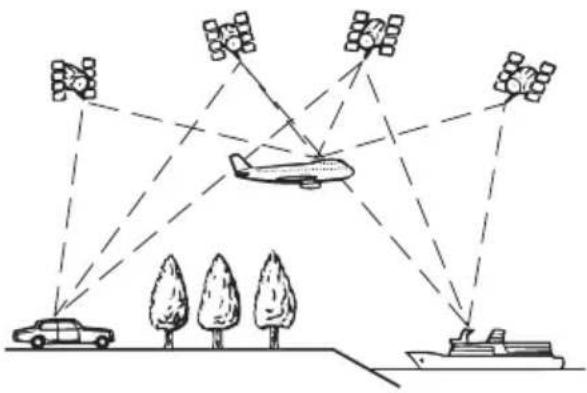
Positioningby"DeadReckoning"
The built-insensor in then navigation system alsocalculates your position. The current location is measured by detecting driving distance with the speed pulse, the turning direction with the "Gyrosensor" and inclination of the road with the "Gsensor".
Thebuilt-insensorcanevencalculate changesofaltitude,andcorrectsfordiscrepanciesinthedistancetraveledcausedby drivingalongwindingroadsorupslopes. IfyouuseAVIC-F900BTandAVIC-F90BTwith connectingthespeedpulse,thesystemwill becomemoreaccuratethannoconnectionof speedpulse.Soyouconnectthespeedpulse withoutfailtogettheaccuracyofpositioning.
☐Thepositionofthespeeddetectioncircuit varydependingonthevehiclemodel. For details, consultyourauthorizedPioneer dealeroraninstallationprofessional.
☐Sometypesofvehiclesmaynotoutputa
speedsignalwhiledrivingatjustafewkilometersperhour.Insuchacase, thecurrent locationofyourvehiclemaynotbedis-
playedcorrectlywhileinatrafficcongestionorinaparkinglot.
HowdoGPSand"Dead Reckoning"worktogether?
Formaximumaccuracy,yournavigationsystemcontinuallycomparesGPSdatawithyour estimatedpositionascalculatedfromthedata ofbuilt-insensor.However,ifonlythedata fromthebuilt-insensorisavailableforalong period,positioningerrorsaregradually compoundeduntiltheestimatedpositionbecomes unreliable.Forthisreason,wheneverGPSsignalsareavailable,theyarematchedwiththe dataofthebuilt-insensorandusedtocorrect itforimprovedaccuracy.
□Ifyouusechainsonyourwheelsforwinter drivingorputonthesparewheel,errors maysuddenlyincreasebecauseofdiffer- enceinwheeldiameter.Insuchcase, pressingRESETbuttoninitializethesensor statusanditmayrecovertheaccuracy to normalcondition.
Appendix
Mapmatching
Asmentioned, thepositioningsystemsused by this navigationsystemaresusceptible to certain errors. Their calculations may, on occasion, place you initial location on themap where noroadexists. In this situation, the processing system understands that vehicle travel only on roads, and can correctly your position by adjusting it to an rear by road. This is called map matching.
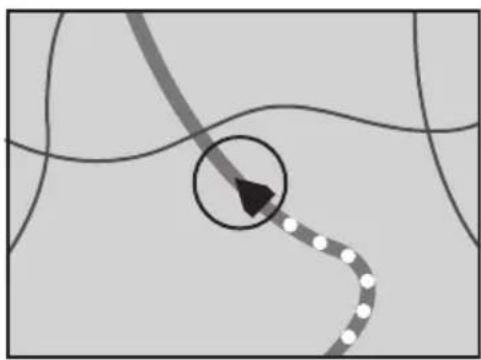
natural_image
Abstract diagram with curved lines and a dotted path, no text or symbols presentWithmapmatching
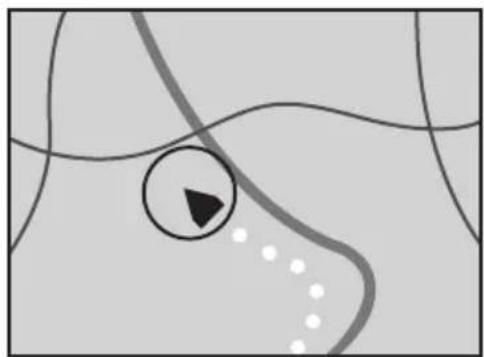
natural_image
Abstract diagram with curved lines, a play button icon, and scattered dots (no text or symbols)Withoutmapmatching

Handlinglargeerrors
Positioningerrorsarekepttoaminimumby combiningGPS, "DeadReckoning" andmap matching. However, insomesituations, these functionsmaynotworkproperly, and the error maybecome bigger.
WhenpositioningbyGPSis impossible
- If signals cannot be received from more than two GPS satellites, GPS positioning does not take place.
- Insomedrivingconditions,signalsfrom GPSsatellitesmaynotreachyourvehicle. Inthiscase,itisimpossibleforthesystem touseGPSpositioning.
natural_image
Illustration of a car entering a tunnel with an archway and ceiling sign (no text or symbols)Intunnelsoren- closedparking garages
natural_image
Line drawing of a car driving under a covered structure (no text or symbols)Underelevated roadsorsimilar structures
natural_image
Simple line drawing of a car parked in front of tall buildings (no text or symbols)Whendriving amonghighbuild- ings
natural_image
Simple line drawing of a car parked in front of two trees (no text or symbols)Whendrivingthrough adenseforestortall trees
- Ifacarphoneorcellularphoneisused neartheGPSantenna,GPSreceptionmay belosttemporarily.
- DonotcovertheGPSantennawithspray paintorcarwax, because this may block thereception of GPS signals. Snowbuildup can also degrade the signals, so keep the antennacular.
□IfaGPSsignalhavenotbeenreceivedfora longtime,yourvehicle'sactualposition andthecurrentpositionmarkonthemap maydivergeconsiderablyormaynotbeupdated.Insuchcase,onceGPSreceptionis restored,accuracywillberecovered.
Appendix
Conditionslikelytocause noticeablepositioningerrors
Forvariousreasons,suchasthestateofthe roadyouaretravelingonandthereception statusoftheGPSsignal,theactualpositionof yourvehiclemaydifferfromthepositiondisplayonthemapscreen.
- Ifyoumakeashallowturn.
natural_image
Diagram of a car driving on a road with a dashed arrow indicating direction (no text or symbols)- Ifthereisaparallelroad.
natural_image
Isometric view of a car driving on a multi-lane road intersection (no text or symbols)- If there is another road very near by, such as in the case of an elevated freeway.
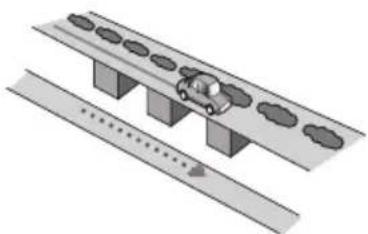
natural_image
Illustration of a car driving on an elevated road with traffic flow indicators (no text or symbols)- Ifyoutakearecentlyopenedroadthatis notonthemap.
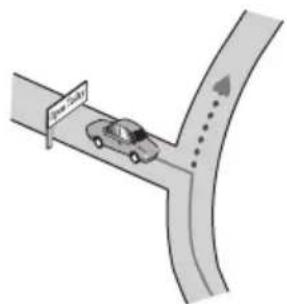
- Ifyoudriveinzigzags.
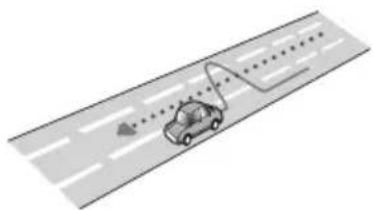
natural_image
Diagram of a car driving on a road with a lane marked, showing no text or symbols.- Iftheroadhasconnectedhairpinbends.
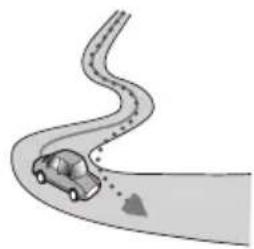
natural_image
Illustration of a car driving on a curved road with a dotted path and arrow (no text or symbols)- Ifthereisalooporsimilarroadconfiguration.
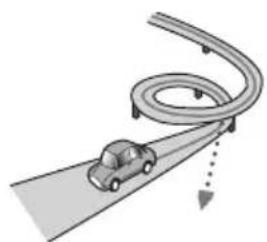
natural_image
Diagram of a car driving on a curved road with an arrow indicating direction (no text or symbols)- Ifyoutakeaferry.
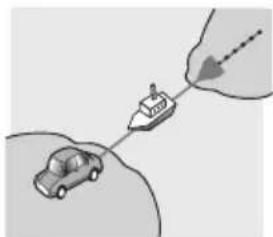
natural_image
Illustration of a car and a boat with a hand pointing to it (no text or symbols)- If you are driving on a long, straight road or agently curving road.
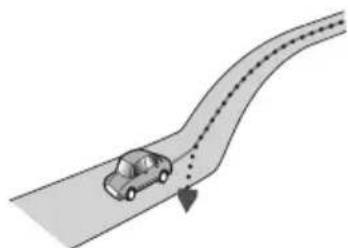
natural_image
Illustration of a car driving on a curved road with dashed trajectory lines (no text or symbols)Appendix
- If you are on a steep mountain road with many height changes.
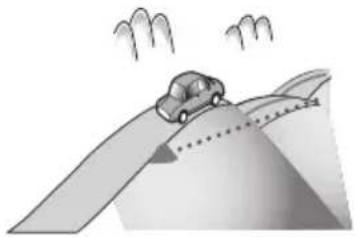
natural_image
Illustration of a car driving on a curved road with motion lines and clouds (no text or symbols)- Ifyouenterorexitamulti-storeyparkinglot orsimilarstructureusingaspiralramp.
natural_image
Diagram of a car driving on a road with two cars inside a vehicle enclosure (no text or symbols)- If your vehicle is turned on a turntable or similar structure.
natural_image
Illustration of a car moving in a circular motion path near a TV wall (no text or symbols)- If your vehicle's wheelsspin, such as a gravel road or in snow.
natural_image
Illustration of a car driving through a narrow road with scattered clouds (no text or symbols)- If you put on chains, or change your tires for ones with different size.
- IftreesorotherobstaclesblocktheGPS signalsforaconsiderableperiod.
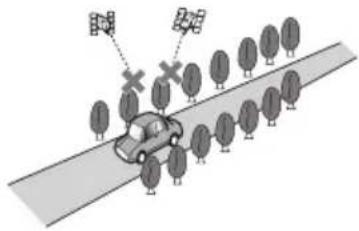
- If you drive very slowly, or in a start-and-stop manner, as in a traffic congestion.
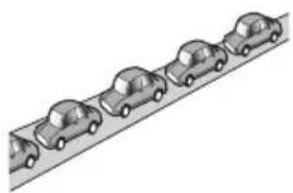
natural_image
Illustration of a row of cars on an inclined plane (no text or symbols)- If you join the road after driving around a large parking lot.
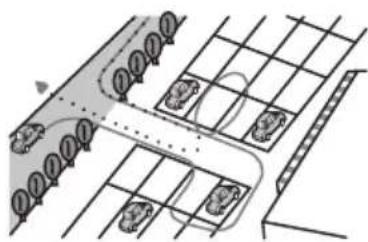
natural_image
Diagram of a parking lot with cars and parking areas, no text or symbols present- When you pass around traffic circle.
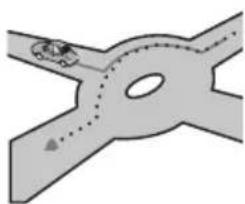
natural_image
Diagram of a road intersection with a car and a dashed path (no text or symbols)- When starting driving immediately after starting the engine.
Routesettinginformation Routesearchspecifications
Yournavigationsystemsetsaroutetoyour destinationbyapplyingcertainbuilt-inrulesto themapdata.Thissectionprovidessomeusefulinformationabouthowarouteisset.

CAUTION
Whenarouteiscalculated,therouteandvoice guidancefortherouteareautomaticallyset. Also,fordayortimetrafficregulations,onlyinformationabouttrafficregulationsatthetimewhen theroutewascalculatedisshown.One-way streetsandstreetclosuresmaynotbetakeninto consideration.Forexample,ifastreetisopenduringthemorningonly,butyouarrivelater,itwould beagainststthetrafficregulationssoyoucannot drivealongthesetroute.Whendriving,please followtheactualtrafficsigns.Also,thesystem maynotknowsometrafficregulations.
- Thecalculatedrouteisoneexampleoftheroutetoyourdestinationdecidedbythenavigationsystemwhiletakingthetypeofstreetsortrafficregulationsintoaccount.Itisnotnecessarilyanoptimumroute.(Insomecases,youmaynotbeabletosethestretsyouwanttopass.Ifyouneedtopassacertainstreet,setthewaypointonthatstreet.)
- If the destination is too far, there may be instances where there cannot be set. (If you want to set along distancer out going across several areas, set waypoints along the way.)
- Duringvoiceguidance,turnsandintersectionsfromthefreewayareannounced. However,ifyoupassintersections,turns, andotherguidepointsinrapidsuccession, somemaydelayornotbeannounced.
- Itispossiblethatguidancemaydirectyou offafreewayandthenbackonagain.
- Insomecases,theroutemayrequireyou totravelintheoppositedirectiontoyour currentheading.Insuchcases,youareinstructedtoturnaround,sopleaseturn aroundsafelybyfollowingtheactualtraffic rules.
-
In some cases, a routem may begin on the oppositeside of a railway or river from your actual current location. If this happens, drivetowards your destination for awhile, and try route calculation again.
-
Whenthereisatrafficcongestionahead,if drivingthroughthetrafficcongestionis betterthantakingthedetour,adetour routemaynotbesuggested.
- Theremaybeinstanceswhenthestarting point,thewaypointandthedestination pointarenotonthehhighlightedroute.
- Thenumberoftrafficcircleexitsdisplayed onthescreenmaydifferfromtheactual numberofroads.
Routehighlighting
- Onceset,therouteishhighlightedinbright coloronthemap.
- Theimmediatevicinityofyourstarting pointanddestinationmaynotbehigh-lighted,andneitherwillareaswithparticularlycomplexroadlayouts.Consequently,theroutemayappeartobecutoffthe display,butvoiceguidancewillcontinue.
Supplementalinformationabout directions
SymbolMeanings
| Highway | |
| Motorwayexitleft/right | |
| Roudabout(clockwiseandanti-clock-wise) | |
| Ferry(startandend) | |
| Caronlyroad(startandend) | |
| Cartrain(startandend) | |
| Otherinformation |
Appendix
Supplementalinformationabout trafficicon
IconMeanings
| Stop-and-gotraffic | |
| Stoppedtraffic | |
| Closed/blockedroads | |
| Accidents, constructions, etc. | |
| Roadworks | |
| Roadnarrows, laneclosures | |
| Warnings, other dangers | |
| Badweather condition | |
| Policeahead |

Handlingandcareofthedisc
Somebasicprecautionsarenecessarywhen handlingyourdiscs.
Built-indriveandcare
- Useonlyconventional,fullycirculardiscs. Donotuseshapeddiscs.

natural_image
Two mechanical components with no visible text or symbols, one resembling a gear or bracket and the other a CD or DVD-like object (no text or symbols present)- Use12-cmor8-cmdisc.Donotusean adapterwhenplaying8-cmdiscs.
- Donotusecracked, chipped, warped, or otherwisedamaged discsastheymaydamagethebuilt-indrive.
- Donottouchtherecordedsurfaceofthe discs.
-
Storediscsintheircaseswhennotinuse.
-
Avoidleavingdiscsinexcessivelyhotenvir- onmentsincludingunderdirectsunlight.
- Donotattachlabels, writeonorapplychemicalstothesurfaceofthediscs.
- Tocleanadisc,wipethediscwithasoft clothoutwardfromthecenter.
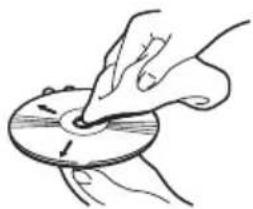
natural_image
Illustration of a hand pressing down on a circular disc with arrows indicating direction (no text or symbols)- Condensationmaytemporarilyimpairthe built-indrive'sperformance.Leaveittoadjusttothewarmertemperatureforabout onehour.Also,wipeanydampdiscswitha softcloth.
- Playbackofdiscsmaynotbepossiblebe- causeofdisc characteristics, disc format, recorded application, playbackenvironment, storage conditions and soon.
• Roadshocksmayinterruptdiscplayback. - Read the precautions for discs before using them.
Ambientconditionsforplaying adisc
- Atextremelyhightemperatures,atemperaturecutoutprotectsthisproductbyswitchingitoffautomatically.
- Despiteourcarefuldesignoftheproduct, smallscratchesthatdonotaffectactual operationmayappearonthediscsurface asaresultofmechanicalwear,ambient conditionsforuseorhandlingofthedisc. Thisisnotasignofthemalfunctionofthis product.Considerittobenormalwearand tear.
Appendix
Playablediscs
AboutDVD-VideoandCD
DVDandCDdiscsthatdisplaythelogos shownbelowgenerallycanbeplayedonthis built-inDVDdrive.
DVD-Video

CD


□isalademarkofDVDFormat/Logo LicensingCorporation.
ItisnotpossibletoplayDVD-Audiodiscs. ThisDVDdrivemaynotbeabletoplayall discsbearingthemarksshownabove.
AboutAVCHDrecordeddiscs
Thisunitisnotcompatiblewithdiscsrecorded inAVCHD(AdvancedVideoCodecHighDefinition)format.DonotinsertAVCHDdiscs.If inserted,thediscmaynotbeejected.
AboutplayingDualDisc
- DualDiscsaretwo-sideddiscsthathavea recordableCDforaudioononesideanda recordableDVDforvideoontheother.
- PlaybackoftheDVDsideispossiblewith thisnavigationsystem. However, since the CDsideofDualDiscsisnotphysically compatible with the general CD standard, it may not be possible to play the CD side with this navigation system.
-
FrequentloadingandejectingofaDual-Discmayresultinscratchestothedisc.
-
Serioussscratchescanleadtoplaybackproblemsonthisnavigationsystem.Insome cases,aDualDiscmaybecomestuckin thediscloadingslotandwillnoteject.To preventthis,werecommendyourefrain fromusingDualDiscwiththisnavigation system.
- Pleaserefertothemanufacturererformore detailedinformationaboutDualDiscs.
AboutDolbyDigital
AVIC-F900BTandAVIC-F90BTwilldown-mix DolbyDigitalsignalsinternallyandthesound willbeoutputbythestereo.(Equippedwith opticaloutputforfutureextension.)
□ManufacturedunderlicensefromDolby Laboratories."Dolby"andthedouble-D symbolaretrademarksofDolby Laboratories.

AboutDTSsound
OnlydigitaloutputofDTSsounddispossible.If thisunit'sopticaldigitaloutputscannotbe used,DTSsoundwillnotbeoutput,soselect anaudiotrackotherthanDTSsound. "DTS" and "DTS Digital Out" are registered trademarksofDTS,Inc.
Detailedinformationfor playablemedia
Compatibility
Commonnotesaboutdisccompatibility
- Certainfunctionsofthisproductmaynot beavailableforsomediscs.
- Compatibilitywithalldiscsisnotguaranteed.
Appendix
- ItisnotpossibletoplaybackDVD-ROM/DVD-RAMdiscs.
- Playbackofdiscsmaybecomeimpossible withdirectexposureosunlight,hightemperatures,ordependingonthestorage conditionsinthevehicle.
DVD-Videodiscs
- DVD-VideodiscsthathaveincompatibleregionnumberscannotbeplayedonthisDVDdrive.Theregionnumberoftheplayer canbefoundonthisproduct'schassis.
DVD-R/DVD-RW/DVD-RDL(Dual Layer)discs
- UnfinalizeddiscswhichhavebeenrecordedwiththeVideoformat(videomode) cannotbeplayedback.
- Discswhichhavebeenrecordedwiththe VideoRecordingformat(VRmode)canbe playedback.However,unfinalizeddiscmay notbeplayedback.Unplayablediscshould befinalized.
- DVD-RDL(DualLayer)discswhichhave beenrecordedwithLayerJumprecording cannotbeplayedback.
- Formoreinformationaboutrecording mode,pleasecontactthemanufacturerof media,recorders,orwritingsoftware.
- The following logo indicates that this unit is compatible with DVD-RWdiscs which have been recorded with the Video Recording format (VRmode).
RW COMPATIBLE
CD-R/CD-RWdiscs
- Unfinalizeddiscscannotbeplayedback.
- ItmaynotbepossibletoplaybackCD-R/CD-RWdiscsrecordedonamusicCDrecorderorapersonalcomputerbecauseof disccharacteristics,scratchesordirton
thedisc,ordirt,scratchesorcondensation onthelensofthebuilt-indrive.
- Playbackofdiscsrecordedonapersonal computermaynotbepossibledepending ontherecordingdevice,writingsoftware, theirsettingandanotherenvironment.
- Pleaserecordwiththecorrectformat.(For moredetails,pleasecontactmanufacturer ofmedia,recorders,orwritingsoftware.)
- Titlesandothertextinformationrecorded onaCD-R/CD-RWdiscmaynotbedisplayedbythisproduct(inthecaseofaudio data(CD-DA)).
- Read the precautions with CD-R/CD-RW discs before using them.
Commonnotesabouttheexternal storagedevice(USB,SD)
- Dependingonthekindoftheexternalstoragedevice(USB,SD)youuse,thisnavigationsystemmaynotrecognizethestorage deviceorfilesmaynotbeplayedbackproperly.
- Donotleavetheexternalstoragedevice (USB,SD)inanylocationwithhightemperatures.
- Thetextinformationofsomeaudioand videofilesmaynotbecorrectlydisplayed.
- Fileextensionsmustbeusedproperly.
- Theremaybeaslightdelaywhenstarting playbackoffilesonanexternalstoragedevice(USB,SD)withnumerousfolderhierarchies.
- Operationsmayvarydependingonthe kindofanexternalstoragedevice(USB, SD).
- Itmaynotbepossibletoplaysomemusic filesfromSDorUSBbecauseoffilecharacteristics,fileformat,recordedapplication,playbackenvironment,storage conditions,andsoon.
- VideoplaybackfromSDorUSBwillbe pausedwhenthenavigationisdisplayed.
USBstoragedevicecompatibility
FormoredetailsaboutUSBstoragedevice compatibilitywiththisnavigationsystem, refertoSpecificationsonpage190.
Protocol:bulk Subclass:SCSI(06h)
- You cannot connect a USB storage device to this navigation system via a USB hub.
- PartitionedUSBmemoryisnotcompatible withthisnavigationsystem.
- FirmlysecuretheUSBstoragedevicewhen driving.DonotlettheUSBstoragedevice fallontothefloor,whereitmaybecome jammedunderthebrakeorgaspedal.
- Theremaybeaslightdelaywhenstarting playbackofaudiofilesencodedwithimage data.
- Depending on the USB storage devices connected to this navigation system, noise may be generated on the radio.
- Donotconnectanythingotherthanthe USBportableaudioplayer/USBmemory device.
ThesequenceofaudiofilesonUSBmemory
ForUSBportableaudioplayers,thesequence isdifferentfromthatofUSBmemorydevice anddependsontheplayer.
SDmemorycardandSDHCmemorycard
- FormoredetailsaboutSDmemorycard compatibilitywiththisnavigationsystem, refertoSpecificationsonpage190.
Handlingguidelinesand supplementalinformation
- ThereisocompatibilityforMultiMedia Card(MMC).
• Copyrightprotectedfilescannotbeplayed back.
NotesuniquetoDivXfiles
- OnlyDivXfilesdownloadedfromDivXpartnersiteareguaranteeforproperoperation.
UnauthorizedDivXfilemaynotoperate properly.
- DRMrentalfilescannotbeoperateduntil playingbackisstarted.
- Thenavigationsystemcorrespondstoa DivXfiledisplayofupto1590minutes43 seconds.Searchoperationsbeyondthis timelimitareprohibited.
- DivXVODfile playback requiressupplying theIDcode of this navigationsystem to the DivXVODprovider. Regarding the IDcode, referto Displaying your DivX ^ VODregistration code on page 84.
- PlaysallversionsofDivX ^ video(including DivX ^ 6)withstandardplaybackofDivX ^ mediafiles.
- FormoredetailsaboutDivX,visitthefollowingsite: http://www.divx.com/
DivXsubtitlefiles
- Srtformatsubtitlefileswiththeextension ".srt" canbeused.
- Onlyonesubtitlefilecanbeusedforeach DivXfile.Multiplesubtitlefilescannotbe associated.
- Subtitlefilesthatarenamedwiththesame characterstringastheDivXfilebeforethe extensionareassociatedwiththeDivXfile. Thecharacterstringsbeforetheextension mustbeexactlythesame. However, ifthere isonlyoneDivXfileandonesubtitlefilein asinglefolder, thefilesareassociatedeven ifthefilenamesarenotthesame.
- Thesubtitlefilemustbestoredinthesame folderastheDivXfile.
- Upto255subtitlefilesmaybeused.Any moresubtitlefileswillnotberecognized.
- Upto64characterscanbeusedforthe nameofthesubtitlefile,includingtheextension.Ifmorethan64charactersare usedforthefilename,thesubtitlefilemay notberecognized.
- Thecharactercodeforthesubtitlefile shouldcomplywithISO-8859-1.UsingcharactersotherthanISO-8859-1maycausethe characterstobedisplayedincorrectly.
Appendix
- Thesubtitlesmaynotbedisplayedcorrectly ifthedisplayedcharactersinthesubtitle fileincludecontrolcode.
- Formaterialsthatuseahightransferrate, thesubtitlesandvideomaynotbecompletely synchronized.
- If multiples subtitles are programmed to display within a very short timeframe, such as 0.1 seconds, the subtitles may not be displayed at the correct time.
Mediacompatibilitychart
General
| Media | CD-R/-RWAVIC-F700BT,AVIC-F7010BT | CD-R/-RWAVIC-F900BT,AVIC-F90BT | DVD-R/-RW/-R DLAVIC-F900BT,AVIC-F90BT | USBstorage device(Allmodels) | SDmemory card(Allmodels) |
| Filesystem | ISO9660level1,ISO9660level2,RomeoandJoliet | ISO9660level1,ISO9660level2,Romeo,Joliet andUDF1.02 | FAT16/FAT32 | ||
| Maximumnumber offolders | 99255 | FAT32:Nolimit.FAT16:512(includingfiles) | |||
| Maximumnumber offiles | 9993500 | FAT32:Nolimit.FAT16:512(includingfolders) | |||
| Playablefiletypes | MP3,WMA,AAC,WAV | MP3,WMA,AAC,DivX | MP3,WMA,AAC,WAV,AVI,MPEG-4 | ||
MP3compatibility
| Media | CD-R/-RWAVIC-F700BT,AVIC-F7010BT | CD-R/-RWAVIC-F900BT,AVIC-F90BT | DVD-R/-RW/-R DLAVIC-F900BT,AVIC-F90BT | USBstorage device(Allmodels) | SDmemory card(Allmodels) |
| Fileextension.mp3 | |||||
| Bitrate8kbpsto320kbps(CBR),VBR | |||||
| Samplingfrequency | 16kHzto48kHz(32kHz,44.1kHz,48kHzforemphasis) | 16kHzto48kHz | |||
| ID3tagID3TagVer.1.0,1 | .1,2.2,2.3ID3TagVer.1.0,1.1,2.3 | ||||
| Notes:Ver.2.xofID3TagisgivenprioritywhenbothVer.1.xandVer.2.xexist.Thereisnocompatibilitywiththefollowings:MP3i(MP3interactive),mp3PRO,m3uplaylist | |||||
Appendix
WMAcompatibility
| Media | CD-R/-RWAVIC-F700BT,AVIC-F7010BT | CD-R/-RWAVIC-F900BT,AVIC-F90BT | DVD-R/-RW/-R DLAVIC-F900BT,AVIC-F90BT | USBstorage device(Allmodels) | SDmemory card(Allmodels) |
| Fileextension.wma | |||||
| Bitrate | 48kbpsto320kbps(CBR),VBR | 5kbpsto320kbps(CBR),VBR | Ver.9:5kbpsto320kbps(CBR),VBRVer.7or8:128kbpsto192kbps(CBR),VBR | ||
| Samplingfrequency32kHzto48kHzHzto48kHz | |||||
| Note:Thereisocompatibilitywiththefollowings:WindowsMediaAudio9Professional,Lossless,Voice | |||||
WAVcompatibility
| Media | CD-R/-RWAVIC-F700BT,AVIC-F7010BT | CD-R/-RWAVIC-F900BT,AVIC-F90BT | DVD-R/-RW/-R DLAVIC-F900BT,AVIC-F90BT | USBstorage device(Allmodels) | SDmemory card(Allmodels) |
| Fileextension.wav | AVIC-F900BTandAVIC-F90BTcan-notplayWAVfilesonthebuilt-in DVDdrive. | .wav | |||
| Format | LinearPCM(LPCM),MSADPCM | LinearPCM(LPCM),IMA-ADPCM | |||
| Samplingfrequency | LPCM:16kHzto48kHzMSADPCM:22.05kHzand44.1kHz | LPCM:16kHzto48kHzIMA-ADPCM:22.05kHzand44.1kHz | |||
| Quantizationbits | LPCM:8bits and16bitsMSADPCM:4bits | LPCM:8bitsand16bitsIMA-ADPCM:3bitsand4bits | |||
| Note:Thesamplingfrequencyshowninthedisplaymayberounded. | |||||
Appendix
AACcompatibility
| Media | CD-R/-RWAVIC-F700BT,AVIC-F7010BT | CD-R/-RWAVIC-F900BT,AVIC-F90BT | DVD-R/-RW/-R DLAVIC-F900BT,AVIC-F90BT | USBstorage device(Allmodels) | SDmemory card(Allmodels) |
| Fileextension.m4a | |||||
| Bitrate16kbpsto320kbps(CBR)8kbpsto320kbps(CBR) | |||||
| Samplingfrequency | 11kHzto44.1kHz | 8kHzto44.1kHz | |||
| Notes:ThenavigationsystemplaysbackAACfilesencodedbyiTunes®.Thereisnocompatibilitywiththefollowings:AppleLossless,filesencodedwithVBR | |||||
DivXcompatibility
| Media | CD-R/-RWAVIC-F700BT,AVIC-F7010BT | CD-R/-RWAVIC-F900BT,AVIC-F90BT | DVD-R/-RW/-R DLAVIC-F900BT,AVIC-F90BT | USBstorage device(Allmodels) | SDmemory card(Allmodels) |
| Fileextension | AVIC-F700BT and AVIC-F7010BT cannot playDivXfiles. | .avi/.divx | DivXfilesontheexternalstorage device(USB,SD) cannotbeplayed. | ||
| Profile(DivXversion) | HomeTheaterVer.3.11/Ver.4.x/Ver.5.x/Ver.6.x | ||||
| Compatibleaudio codec | MP3,DolbyDigital | ||||
| Bitrate(MP3)8kbpsto320kbps(CBR),VBR F7010BT | . | ||||
| Samplingfrequency (MP3) | 16kHzto48kHz(32kHz,44.1kHz,48kHzforeemphasis) | ||||
| Maximumimage size | 720×576pixels. | ||||
| Maximumfilesize4GB | |||||
| Notes:Thereisocompatibilitywiththefollowings:DivXUltraformat,DivXfileswithoutvideodata,DivXfilesencodedwithLPCM(LinearPCM)audiocodecDepending on the file information composition such as the number of audio streams, there may be a slight delayinthestartofplaybackondiscs.Ifafilecontainsmorethan4GB, playbackisstoppedhalfway.SomespecialoperationsmaybeprohibitedbecauseofthecompositionofDivXfiles.Files with high transfer rates may not be played back correctly. The standard transfer rate is 4 Mbps for CDs and 10.08MbpsforDVDs. | |||||
Appendix
AVIcompatibility
| Media | CD-R/-RWAVIC-F700BT,AVIC-F7010BT | CD-R/-RWAVIC-F900BT,AVIC-F90BT | DVD-R/-RW/-R DLAVIC-F900BT,AVIC-F90BT | USBstorage device(Allmodels) | SDmemory card(Allmodels) |
| Fileextension | AVIfilescannotbeplayedonthebuilt-indrive. | .avi | |||
| Compatiblevideo codec | MPEG-4 | ||||
| Compatibleaudio codec | ADPCM | ||||
| Recommended videospecifications | Imagesize:VGA(640x480)Bitrate:480kbpsFramerate:24fps | ||||
MPEG-4compatibility
| Media | CD-R/-RWAVIC-F700BT,AVIC-F7010BT | CD-R/-RWAVIC-F900BT,AVIC-F90BT | DVD-R/-RW/-R DLAVIC-F900BT,AVIC-F90BT | USBstorage device(Allmodels) | SDmemory card(Allmodels) |
| Fileextension | MPEG-4filescannotbeplayedonthebuilt-indrive. | .mp4 | |||
| Compatiblevideo codec | MPEG-4 | ||||
| Compatibleaudio codec | AAC | ||||
| Recommended videospecifications | Imagesize:VGA(640x480)Bitrate:480kbpsFramerate:24fps | ||||
Commonnotes
- Thenavigationsystemmaynotoperatecor- rectlydependingontheapplicationusedto encodeWMAfiles.
- DependingontheversionofWindows MediaPlayerusedtoencodeWMAfiles, albumnamesandothertextinformation maynotbecorrectlydisplayed.
- Theremaybeaslightdelaywhenstarting playbackofaudiofilesencodedwithimage data.
- Thereisnocompatibilitywithpacketwrite datatransfer.
- Thisnavigationsystemcanrecognize32 charactersbeginningwiththefirstcharac ter,includingextensionforthefileand
foldername. Dependingonthedisplay area, thenavigationsystemtrytodisplay themwithchangingthefontsizetosmaller. However, the maximum number of the character that you can display varies according to the width of each character display area.
- Folderselectionsequenceorotheroperationmaybealtereddependingontheencodingorwritingsoftware.
- Regardless of the length of blank section between the song so for original recording, compressed audiodiscs play with short pause between songs.
Appendix
Exampleofahierarchy
The following figure is an example of the structure in the disc. Then numbers in the figure indicate the order in which foldernumbers are assigned and the order to be played back.
:Folder
File
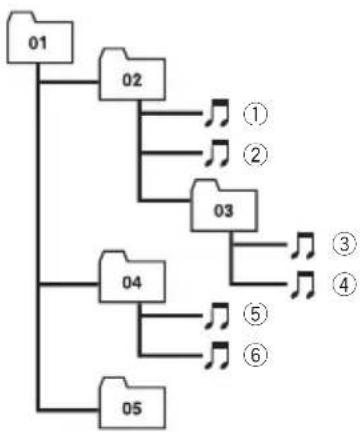
flowchart
graph TD
    A["01"] --> B["02"]
    A --> C["03"]
    A --> D["04"]
    A --> E["05"]
    B --> F["①"]
    B --> G["②"]
    C --> H["③"]
    C --> I["④"]
    D --> J["⑤"]
    D --> K["⑥"]
Level 1 L level 2 L level 3 L level 4

Notes
- Thisproductassignsfoldernumbers.Theuser cannotassignfoldernumbers.
- If thereisafolderthatdoesnotcontainany playablefile, thefolderitselfwilldisplayinthe folderlistbutyoucannotcheckanyfilesin thefolder.(Theblanklistwillappear.) Also, thesefolderswillbeskippedwithoutdisplayingthefoldernumber.
AboutBluetooth

Bluetooth®
Bluetoothisashort-rangewirelessradioconnectivitytechnologythatisdevelopedasa cablereplacementformobilephones,hand-heldPCsandotherdevices.Bluetoothoperatesin2.4GHzfrequencyrangeandtransmits voiceanddataatspeedsupto1megabitper second.Bluetoothwaslaunchedbyaspecial interestgroup(SIG)thatcomprisesofEricsson
Inc., Intel Corp., Nokia Corp., Toshiba and IBM in 1998, and it is currently developed by nearly 2000 companies worldwide.
•TheBluetoothwordmarkandlogosare ownedbytheBluetoothSIG,Inc.andany useofsuchmarksbyPioneerCorporation isunderlicense.Othertrademarksand tradenamesarethoseoftheirrespective owners.
AbouttheSATRADIO READYLogo

TheSATRADIOREADYlogoindicatesthatthe SatelliteRadioTunerforPioneer(i.e.,XM tunerandSiriussatellitetunerwhicharesold separately)canbecontrolledbythisnavigation system.Pleaseinquirewithyourdealeror nearestauthorizedPioneerservicestationregardingthesatelliteradiotunerthatcanbe connectedtothisnavigation system.
Note:
Thesystemwillusedirectsatellite-to-receiver broadcastingtechnologytoprovidelisteners intheircarsandathomewithcrystal-clear soundseamlesslyfromcoasttocoast.Satelliteradiowillcreateandpackageover100 channelsofdigital-qualitymusic,news, sports,talkandchildren'sprogramming. "SATRadio",theSATRadiologoandallrelatedmarksaretrademarksofSiriusSatellite Radioinc.,andXMSatelliteRadiolnc.
AboutHDRadio
TheHDRadioReadylogoisaproprietarytrademarkofiBiquityDigitalCorp.
AboutSDandSDHClogo

Appendix
SDLogoisattrademark.

SDHCLogoisattrademark.
AboutWMA

TheWindowsMedia™logoprintedonthebox indicatesthatthisunitcanplaybackWMA data.WMAisshortforWindowsMediaAudio andreferstoanaudiocompressiontechnologythatisdevelopedbyMicrosoft Corporation.WMAdatacanbeencodedby usingWindowsMediaPlayerversion7or later.WindowsMediaandtheWindowslogo aretrademarksorregisteredtrademarksof MicrosoftCorporationintheUnitedStates and/orothercountries.
AboutDivX

DivXisacompresseddigitalvideoformatcreatedbytheDivX ^® videoodecfromDivX,Inc. ThisunitcanplayDivXvideofilesrecordedon CD-R/RW/ROMandDVD-R/RW/ROMdiscs. KeepingthesameterminologyasDVDvideo, individualDivXvideofilesarecalled"Titles". Whennamingfiles/titlesonaCD-R/RWora DVD-R/RWdiscpriortoburning, keepinmind thatbydefaulttheywillbeplayedalphabeticalorder. OfficialDivX ^® Certifiedproduct. PlaysallversionsofDivX ^® video(including
DivX® 6)withstandard playback of DivX mediafiles.
☐DivX, DivXCertified, and associated logos are trademarksofDivX, Inc. and are used underlicense.
AboutAAC
AACisshortforAdvancedAudioCodingand referstoanaudiocompressiontechnology standardusedwithMPEG-2andMPEG-4.SeveralapplicationscanbeusedtoencodeAAC files,butfileformatsandextensionsdifferdependingontheapplicationwhichisusedto encode.ThisunitplaysbackAACfilesencodedbyiTunes® version4.6.
☐iTunesisattrademarkofAppleInc.,registeredintheU.S.andothercountries.
Detailedinformation regardingconnectableiPods
CAUTION
- Pioneeracceptsnoresponsibilityfordatalost ontheiPodevenifthatdataislostwhile usingthenavigationsystem.
- DonotleavetheiPodindirectsunlightforex-tendedamountsoftime.Extendedexposure todirectsunlightcanresultiniPodmalfunc-tionduetotheresultinghightemperature.
- DonotleavetheiPodinanylocationwith hightemperatures.
- FirmlysecuretheiPodwhendriving.Donot lettheiPodfallontothefloor,whereitmaybe-comejammedunderthebrakeorgaspedal.
Fordetails, refertotheiPod'smanuals.
UsingtheLCDscreencorrectly HandlingtheLCDscreen
- WhentheLCDscreenissubjectedtodirect sunlightforalongperiodoftime, itwillbecomeveryhot, resultinginpossibledamagetotheLCDscreen. Whennotusing thisnavigationsystem, avoidexposingitto directsunlightasmuchaspossible.
Appendix
- The LCD screens should be used within the temperaturerangesshownin "Specifications".
- DonotusetheLCDscreenattemperatures higherorlowerthantheoperatingtemperaturerangebecausetheLCDscreen maynotoperatenormallyandtheLCD screencanbedamaged.
•TheLCDscreenisexposedinordertoincreaseitsvisibilitywithinthevehicle. Pleasedonotpressstronglyonitasthis maydamageit. - DonotpushtheLCDscreenwithexcessive forceasthismayscratchit.
- NevertouchtheLCDscreenwithanything besidesyourfingerwhenoperatingthe TouchPanelfunctions.TheLCDscreencanscratcheasily.(Thestylusissuppliedfor specialcalibrations.Donotusethestylus fornormaloperation.)
Liquidcrystaldisplay(LCD)screen
- If the LCD screen is near the event of fan air conditioner, makes sure that air from the air conditioner is not blowing on it. Heat from the heater may break the LCD screen, and cool air from the cooler may cause moisture to form inside the navigation unit, resulting in possible damage.
- Smallblackdotsorwhitedots(brightdots) mayappearontheLCDscreen.Theseare duetothecharacteristicsoftheLCD screenanddonotindicateaproblemwith theLCDscreen.
•TheLCDscreenwillbedifficulttoseeifitis exposedtodirectsunlight. - When using acellular phone, keep the antenna of the cellular phone away from the LCD screentoprevent disruption of the video in the form of disturbance such as spots or colored stripes.
MaintainingtheLCDscreen
- When removing dust from the LCD screen or cleaning it, first turn the system power off, then wipewith as of t dry cloth.
- WhenwipingtheLCDscreen,takecarenot toscratchthesurface.Donotuseharshor abrasivechemicalcleaners.
LED(light-emittingdiode) backlight
Alightemittingdiodeisusedinsidethedis- playtoilluminatetheLCDscreen.
- Atlowtemperatures, using the LED backlight may increase image lag and degrade the image quality because of the characteristics of the LCD screen. Image quality will improve with an increase in temperature.
• The product lifetime of the LED backlight is more than 10000 hours. However, it may decrease if used in high temperatures. - If the LED backlightreachestheendofits product lifetime, the screen will become dark and the image will no longer be projected. In this case, please consult your dealer orthenearest authorized PIONEER Service Station.
Displayinformation
DestinationMenu
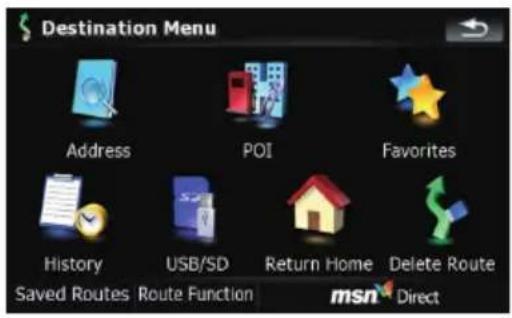
PhoneMenu
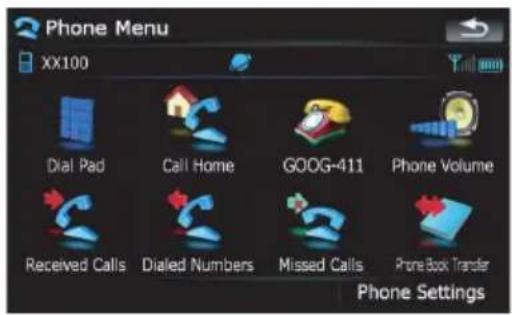
| Page | ||
| [Address] | 2 | |
| [POI] | ||
| [AroundCurrentGPSLocation] | 2 8 | |
| [AroundDestination] | 2 | |
| [AroundCursor] | 2 | |
| [AlongRoute] | 2 | |
| [SavedCriteria] | 3 | |
| [RegisterSearchCriteria] | 2 | |
| [Favorites] | 3 | |
| [History] | 3 | |
| [USB/SD] | 3 | |
| [ReturnHome] | 3 | |
| [DeleteRoute] | 4 | |
| [SavedRoutes] | 3 | |
| [RouteFunction] | ||
| [Routeinfo] | 41 | |
| [Itinerary] | 42 | |
| [EditRoute] | 44 | |
| [SaveRoute] | 44 | |
| [Coordinate] | 32 | |
| [MSNDirect] | 46 | |
| Page | ||
| [DialPad] | 5 | 57 |
| [CallHome] | 58 | |
| [GOOG-411] | 59 | |
| [Phone Volume] | 61 | |
| [ReceivedCalls] | 57 | |
| [DialedNumbers] | 57 | |
| [MissedCalls] | 57 | |
| [Phone Book Transfer] | 59 | |
| [PhoneSettings] | 3 | |
| [Connection] | 3 | |
| [BluetoothOn/Off] | 61 | |
| [AutoAnswerPreference] | 61 | |
| [RefuseAllCalls] | 62 | |
| [EchoCancel] | 62 | |
| [AutoConnect] | 62 | |
| [EditName] | 62 | |
| [ClearMemory] | 60 | |
| [BluetoothSoftwareUpdate] | 64 | |
Appendix
SettingsMenu
NaviSettings
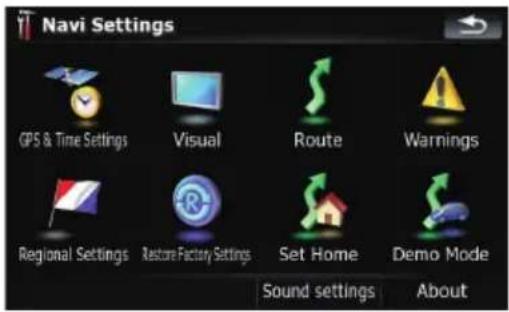
| Page | |
| [GPS&TimeSettings]123 | |
| [TimeSettings]124 | |
| [Visual] | |
| [3DSettings]125 | |
| [MapSettings]125 | |
| [DisplayedInfo]126 | |
| [SmartZoom]126 | |
| [OverviewMode]127 | |
| [ManagePOI]131 | |
| [ManageTrackLogs]133 | |
| [Route]127 | |
| [Method:]128 | |
| [U-turnpenalty:]128 | |
| [UnpavedRoads]128 | |
| [Highways]128 | |
| [Ferries] 128 | |
| [U-turns] 128 | |
| [PermitNeeded] 128 | |
| [TollRoads] 128 | |
| [Warnings] | 128 |
| [WarnWhenSpeeding] 129 | |
| [RegionalSettings] | 129 |
| [RestoreFactorySettings] | 129 |
| [SetHome] | 134 |
| [DemoMode] | 129 |
| [Soundsettings] | 130 |
| [About] | 130 |
Appendix
SystemSettingsmenu
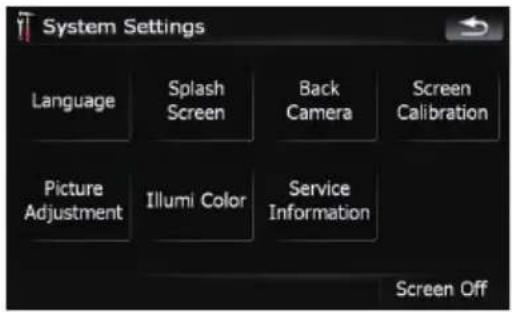
| Page | |
| [Language]135 | |
| [SplashScreen]135 | |
| [BackCamera]136 | |
| [ScreenCalibration]136 | |
| [PictureAdjustment]137 | |
| [IllumiColor]137 | |
| [ServiceInformation]138 | |
| [ScreenOff]138 | |
AVSettingsmenu
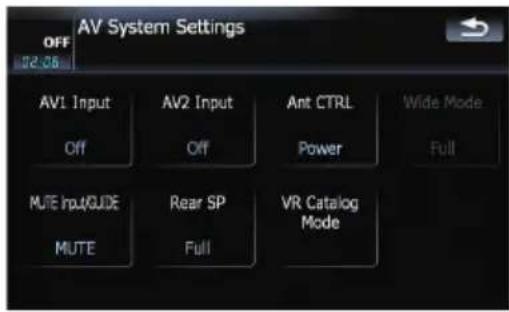
| Page | |
| [AV1Input]143 | |
| [AV2Input]143 | |
| [AntCTRL]143 | |
| [WideMode]144 | |
| [MUTEInput/GUIDE]144 | |
| [RearSP]145 | |
| [VRCatalogMode]145 |
AVSoundmenu
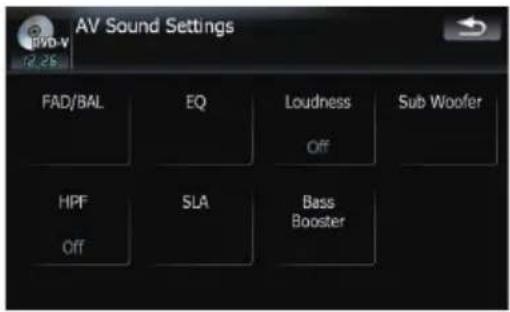
| Page | |
| [FAD/BAL] ([Balance]) | 139 |
| [EQ]139 | |
| [Loudness]141 | |
| [SubWoofer]141 | |
| [HPF]141 | |
| [SLA]142 | |
| [BassBooster]142 |
Shortcutmenu
MapConfirmationScreen
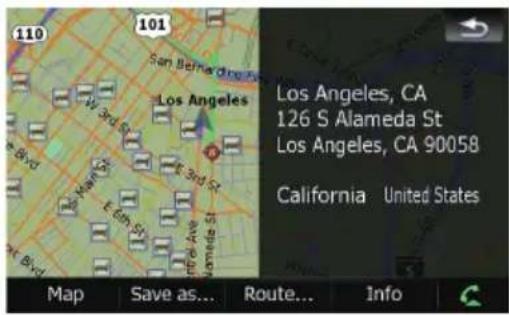
| Page | |
| [Map] | 3 |
| [Saveas...] | 3 |
| [AddPin] | 3 |
| [AddPOI] | 3 |
| [AddFavorite] | 4 |
| [Route...] | 36 |
| [GoHereNow] | 37 |
| [AddVia] | 37 |
| [Continue] | 37 |
| [StartingPoint] | 37 |
| [Info] | 38 |
Appendix
DVDSetup
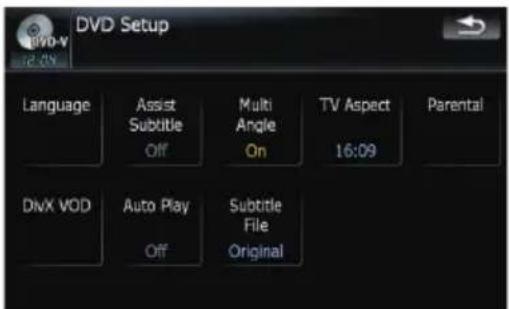
| Page | |
| [Language] | 8 |
| [AssistSubtitle] | 8 |
| [MultiAngle] | 8 |
| [TVAspect] | 8 |
| [Parental] | 8 |
| [DivXVOD] | 8 |
| [AutoPlay] | 8 |
| [SubtitleFile] | 8 |

2
2
3
3
3
4
4
5
Appendix
Glossary
AAC
AACisshortforAdvancedAudioCodingand referstoanaudiocompressiontechnology standardusedwithMPEG-2andMPEG-4.
Aspectratio
Thisisthewidth-to-heighttratioofaTVscreen. Aregulardisplayhasanaspectratioof4:3. Widescreendisplayshaveanaspectratioof 16:9, providingabiggerpictureforexceptional presenceandatmosphere.
Bitrate
Thisexpressesdatavolumepersecond,orbps units(bitspersecond).Thehighertherate, themoreinformationisavailabletoreproduce thesound.Usingthesameencodingmethod (suchasMP3),thehighertherate,thebetter thesound.
Built-insensor
The built-insensorthatenablesthesystemto estimateyourvehicle'sposition.
CD-DA
ThisstandsforageneralmusicCD(commercial-releaseaudioCD).Inthismanual,this wordissometimeusedforadistinctionbetweendataCD(includesthecompressed audiofile)andthegeneralmusicCD.
Chapter
TitlesofDVD-VideoorDVD-VRareinturndividedintochapterswhicharenumberedinthesamewayasthechaptersofabook.With discsfeaturingchapters,youcanquicklyfind adesiredscenewithchaptersearch.
Currentlocation
The present location of your vehicle; your current location is shown on them by a red triangle mark.
Destination
Alocationyouchooseastheendpointofyour journey.
DivX
DivXisapopularmediatechnologycreatedby DivX,Inc.DivXmediafilescontainhighlycompressedvideowithhighvisualqualitythat maintainsarelativelysmallfilesize.DivXfiles canalsoincludeadvancedmediafeatureslike menus, subtitles, and alternateaudiotracks. ManyDivXmediafilesareavailablefordownloadonline, and you can create your own using your personal content and easy-to-use tools from DivX.com.
DivXCertified
DivXCertifiedproductsareofficiallytestedby thecreatorsofDivXandguaranteedtoplayall versionsofDivXvideo,includingDivX6.
Favorites
Afrequentlyvisitedlocation(suchasyour workplaceorarelative'shome)thatyoucan registertoalloweasyrouting.
GPS
GlobalPositioningSystem.Anetworkofsatellitesthatprovidesnavigationsignalsforavarietyofpurposes.
Guidancemode
Themodeinwhichguidanceisgivenasyou drivetoyourdestination;thesystemautomaticallyswitchestothismodeassoonasaroute hasbeenset.
Guidancepoint
These are important landmarks along your route, generally intersections. Then next guidance point along your route is indicated on them by the yellow flag icon.
Homelocation
Yourregisteredhomelocation.
Appendix
ID3tag
Thisisamethodofembeddingtrack-related informationinaMP3file. Thisembeddedinformationcanincludethetracktitle, theartist'sname, thealbumtitle, themusicgenre, theyearofproduction, commentsandother data. Thecontentscanbefreelyedited using softwarewithID3Tageditingfunctions. Althoughthetagsarerestrictedbythenumberofcharacters, theinformationcanbe viewedwhentetrackisplayedback.
ISO9660format
ThisistheinternationalstandardfortheformatlogicofDVD/CD-ROMfoldersandfiles. ForthelISO9660format,thereareregulations forthefollowingtwolevels:
Level1:
Thefilenameisin8.3format(thenameconsistsofupto8characters,half-byteEnglish capitalletters,half-bytenumeralsandthe“_” sign,withafile-extensionofthreecharacters).
Level2:
The filename can have up to 31 characters (including these separation mark "and a file extension). Each folder contains less than 8 hierarchies.
Extendedformats
Joliet:
Filenamescanhaveupto64characters.
Romeo:
Filenamescanhaveupto128characters.
•Level1:
Thefilenameisin8.3format(thename consistsofupto8characters,half-byte Englishcapitalletters,half-bytenumerals andthe"_"sign,withafile-extensionof threecharacters).
•Level2:
Thefilenamecanhaveupto31 characters (includingtheseparationmark"."andafile extension).Eachfoldercontainslessthan8 hierarchies.
- Extendedformats
Joliet:
Filenamescanhaveupto64characters. Romeo:
Filenamescanhaveupto128characters.
JPEG
ThisstandsforJointPhotographicExperts Group, and is an international still image compression standard.
MP3
MP3isshortforMPEGAudioLayer3.Itisan audiocompressionstandardestablishedbya workinggroup(MPEG)oftheISO(InternationalStandardsOrganization).MP3isableto compressaudiodatatoabout1/10ththesize ofaconventionaldisc.
MPEG
ThisstandsforMovingPicturesExperts Group, and is an international video image compression standard.
Multi-angle
WithregularTVprograms,althoughmultiple camerasareusedtosimultaneouslyshoot scenes,onlyimagesfromonecameraata timearetransmittedtoyourTV.SomeDVDs featurescenesshotfrommultipleangles,lettingyouchooseyourviewingangleasdesired.
Multi-audio(Multilingualdialog)
Somevideosfeaturedialogrecordedinmultiplelanguagesoraudiorecordedinmultipletracks.Forexample,dialoginupto8languagescanberecordedonasingDVD-Video,lettingyouchoosethelanguageasdesired.
Multi-session
Multi-sessionisarecordingmethodthatal- lowsadditionaldatatoberecordedlater. WhenrecordingdataonaCD-ROM,CD-Ror CD-RW,etc.,alldatafrombeginningtoendis treatedasasingleunitorsession.Multi-ses- sionisamethodofrecordingmorethan2ses- sionsinonedisc.
Multi-subtitle
Forexample, subtitlesinupto32languages canberecordedonasingleDVD-Video, letting youchooseasdesired.
Appendix
Packetwrite
Thisisageneraltermforamethodofwriting onCD-R,etc.atthetimerequiredforafile, justasisdonewithfilesonfloppyorhard disks.
Parentallock
SomeDVD-Videodiscswithviolentoradult-orientedscenesfeatureparentallockwhichpreventschildrenfromviewingsuchscenes.With thiskindofdisc,ifyousettheunit'sparental locklevel,playbackofscenesinappropriatefor childrenwillbedisabled,orthesesceneswill beskipped.
Phonebook
Anaddressbookonuser'sphoneiscollectivelyreferredtoas"Phonebook".Depending on the cellular phone, "Phonebook" maybe called names such as "Contacts", "Business card" or something else.
PointofInterest(POI)
PointOfInterest;anyofarangeoflocations storedinthedata,suchasrailwaystations, shops,restaurants,andamusementparks.
Regionnumber
DVDplayersandDVDdiscsfeatureregion numbersindicatingtheareainwhichthey werepurchased.PlaybackofaDVDisnotpossibleunlessitfeaturesthesameregionnumberastheDVDplayer.
Routesetting
The process of determining the ideal route to a specific location; routesetting is done automatically by the system when you specify a destination.
Setroute
Theroutemarkedoutbythesystemtoyour destination.Itishhighlightedinbrightcoloron themap.
Title
DVD-VideoorDVD-VRdiscshaveahighdata capacity, enabling recording of multiple movies on a singled disc. If, forexample, onedisc containsthreeseparatemovies,theyaredividedintotitle1,title2andtitle3.Thisletsoyouenjoytheconvenienceoftitlesearchandotherfunctions.
Tracklog
Yournavigationsystemlogsyourcourse that you already pas through if the track logger is activated. This recorded course is called "track log". It is handy when you want to check a routetraveled or if returning along a complex route.
VBR
VBRisshortforvariablebitrate. Generally speakingCBR(constantbitrate)ismore widelyused. But by flexibly adjusting the bit rate according to the need of audiocompression, it is possible to achieve compression-priority sound quality.
Voiceguidance
Thegivingofdirectionsbynavigationvoice whileinguidance.
Waypoint
Alocationthatyouchoosetovisitbeforeyour destination;ajourneycanbebuiltupfrom multiplewaypointsandthedestination.
WMA
WMAisshortforWindowsMedia™Audio andreferstoanaudiocompressiontechnologythatisdevelopedbyMicrosoft Corporation.
Appendix
Specifications
General
Ratedpowersource......14.4VDC (allowablevoltagerange: 10.8Vto15.1VDC)
Groundingsystem......Negativetype
Max.currentconsumption 10.0A
Dimensions(W×H×D): Chassis....178mm×100mm× 157mm (7in.×3-7/8in.×6-1/8in.) Nose....170mm×96mm×8mm (6-3/4in.×3-3/4in.× 3/8in.)
Weight: AVIC-F900BT,AVIC-F90BT ....2.2kg(4.9lbs) AVIC-F700BT,AVIC-F7010BT ....2.1kg(4.6lbs)
NANDflashmemory......2GB
Navigation
GPSReceiver: System......L1,C/AcodeGPS SPS(StandardPositioning Service) Receptionsystem......30-channelmulti-channel reception system Receptionfrequency....1575.42MHz Sensitivity......-140dBm(typ) Positionupdatefrequency .....Approx.oncepersecond
GPSantenna: Antenna....Microstripflatantenna/right-handedhelicalpolari-sation Antennacable....5.0m(16ft.5in.) Dimensions(W×H×D) ....33mm×15mm×36mm(1-1/4in.×5/8in.×1-3/8in.) Weight.....96g(0.2lbs)
Display
Screensize/aspectratio.....5.8inchwide/16:9 (effectivedisplayarea: 128mm×72mm)
Pixels....384000(800×480)
Displaymethod.....TFTActivematrixdriving
Colorsystem....NTSC/PALcompatible
Durabletemperaturerange: Poweron....+14°Fto+140°F
Poweroff....-4°Fto+176°F
Audio
Maximumpoweroutput.....50W×4 50W×2ch/4Ω + 70W × 1ch/2Ω(forsubwoofer)
Continuouspoweroutput...22W×4(50Hz to 15kHz, 5% THD, 4Ω LOAD, Both Channels Driven)
Load impedance ....4Ω (4Ω to 8Ω [2Ω for 1 ch] allowable)
Preoutputlevel(max): AVIC-F90BT....4.0V AVIC-F900BT,AVIC-F700BT,AVIC-F7010BT .....2.2V
Preoutimpedance: AVIC-F90BT......100ohm AVIC-F900BT,AVIC-F700BT,AVIC-F7010BT ....1kohm
Equalizer(3-BandParametricEqualizer): Low
Frequency.....40Hz/80Hz/100Hz/160Hz
QFactor....0.35/0.59/0.95/1.15(+6dB whenboosted) Gain....±12dB
Mid Frequency.....200Hz/500Hz/1kHz/2kHz QFactor.....0.35/0.59/0.95/1.15(+6dB whenboosted) Gain.....±12dB
High Frequency....3.15kHz/8kHz/10kHz/ 12.5kHz QFactor....0.35/0.59/0.95/1.15(+6dB whenboosted) Gain....±12dB
Loudnesscontour: Low.....+3.5dB(100Hz), +3dB (10kHz) Mid.....+10dB(100Hz), +6.5dB (10kHz) High.....+11dB(100Hz), +11dB (10kHz) (volume:-30dB)
HPF: Frequency.....50Hz/63Hz/80Hz/100Hz/ 125Hz Slope.....-12dB/oct
Subwoofer: Frequency.....50Hz/63Hz/80Hz/100Hz/ 125Hz Slope.....-18dB/oct Gain.....-24/+6dB Phase.....Normal/Reverse
Appendix
Bassboost: Gain.....0dBto+12dB
DVDdrive(AVIC-F900BTandAVIC-F90BT)
System......DVD-Video,CD,MP3,WMA, AAC,DivXsystem
Usablediscs......DVD-Video,CD,MP3,WMA. AAC,DivX
Regionnumber......1
Signalformat: Samplingfrequency.....44.1kHz/48kHz/96kHz Numberofquantizationbits .....16bit/20bit/24bit;linear
Frequencyresponse......5Hzto44000Hz(withDVD, atsamplingfrequency 96kHz)
Signal-to-noiseratio....97dB(1kHz)(IHF-Anetwork) (CD:96dB(1kHz)(IHF-Anetwork))
Dynamicrange....95dB(1kHz)(CD:94dB (1kHz))
Distortion....0.008%(1kHz)
Outputlevel: Video.....1.0Vp-p/75Ω(±0.2V) Audio.....1.0V(1kHz,0dB)
Numberofchannels......2(stereo) MP3decodingformat......MPEG-1&2AudioLayer3 WMAdecodingformat......Ver.9.0L3
AACdecodingformat......MPEG-4AAC(onlyencoded byiTunes): .m4a
DivXdecodingformat......HomeTheaterVer.3.11, Ver.4.X, Ver.5.X, Ver.6.X: .avi, divx
CDdrive(AVIC-F700BTandAVIC-F7010BT)
WAVESIGNALFORMAT.....Linear-PCM,MSADPCM (NonCompressed)
USB
USBstandardspec....USB2.0HighSpeed Maxcurrentsupply....500mA Maxcapacitymemory.....2GB
Filesystem....FAT16,FAT32 USBclass....Massstorageclass Decodingformat....MP3/WMA/AAC/WAVE/ MPEG4
SD
Compatiblephysicalformat ....Version2.00
Maxcapacitymemory......8GB
Filesystem.....FAT16,FAT32
Decodingformat....MP3/WMA/AAC/WAVE/MPEG4
Bluetooth
Version.....Bluetooth1.2certified Outputpower.....+4dBmMax. (Powerclass2)
FMtuner
Frequencyrange.....87.9MHzto107.9MHz Usable sensitivity ..... 8 dBf (0.7 μV/75Ω, mono, S/N:30dB) Signal-to-noiseratio.....75dB(IHF-Anetwork)
Distortion....0.3%(at65dBf,1kHz, stereo) 0.1%(at65dBf,1kHz, mono)
Frequencyresponse.....30Hzto15000Hz(±3dB)
Stereoseparation.....45dB(at65dBf,1kHz)
AMtuner
Frequencyrange....530kHz to 1710kHz (10kHz)
Usablesensitivity.....18μV(S/N:20dB)
Signal-to-noiseratio......65dB(IHF-Anetwork)
CEA2006Specifications

Poweroutput....14WRMS×4Channels (4Ω and ≤ 1% THD+N) S/Nratio....91dBA(reference:1Winto 4Ω)

Note
Specificationsanddesignaresubjecttopossible modificationswithoutnoticeduetoim-provements.
Register your product at
http://www.pioneerelectronics.com
in Canada http://www.pioneerelectronics.ca
See "Visit our website" page
PIONEERCORPORATION
4-1,MEGURO1-CHOME,MEGURO-KU
TOKYO153-8654,JAPAN
PIONEERELECTRONICS(USA)INC.
P.O.Box1540, LongBeach, California90801-1540, U.S.A.
TEL:(800)421-1404
PIONEEREUROPENV
Haven1087, Keetberglaan1, B-9120Melsele, Belgium
TEL:(0)3/570.05.11
PIONEERELECTRONICSASIACENTREPTE.LTD.
253AlexandraRoad,#04-01,Singapore159936
TEL:65-6472-7555
PIONEERELECTRONICSAUSTRALIAPTY.LTD.
178-184BoundaryRoad, Braeside, Victoria3195, Australia
TEL:(03)9586-6300
PIONEERELECTRONICSOFCANADA, INC.
300AllstateParkway, Markham, OntarioL3R0P2, Canada
TEL:1-877-283-5901
TEL:905-479-4411
PIONEERELECTRONICSDEMEXICO,S.A.deC.V.
Blvd.ManuelAvilaCamacho13810piso
Col.LomasdeChapultepec,Mexico,D.F.11000
TEL:55-9178-4270
先鋒股份有限公司
總公司:台北市中山北路二段44號13樓
電話:(02)2521-3588
先鋒電子(香港)有限公司
PublishedbyPioneerCorporation.
Copyright©2008byPioneerCorporation.
Allrightsreserved.