nüvi 3410 - Gps GARMIN - Free user manual and instructions
Find the device manual for free nüvi 3410 GARMIN in PDF.


| Product Type | GPS Navigator |
| Brand | Garmin |
| Model | nüvi 3410 |
| Dimensions (approx.) | 4.8 x 2.9 x 0.8 in (122 x 74 x 20 mm) |
| Weight (approx.) | 5.8 oz (164 g) |
| Power Source | Vehicle power cable (12V) and rechargeable lithium-ion battery |
| Battery Life | Up to 4 hours (typical use) |
| Display | 4.3-inch color touchscreen |
| Navigation Features | Turn-by-turn directions, lane assist, junction view, speed limit indicator, detour, route recalculation |
| Traffic | Built-in traffic receiver (included in some packages) with subscription-free traffic alerts |
| Connectivity | Bluetooth, micro-USB |
| Search Functions | Search bar for addresses, points of interest, cities, coordinates; search near another location |
| Map Updates | nüMaps Guarantee offers one free map update if registered within 90 days of first satellite acquisition |
| Software Updates | Via myDashboard on computer |
| Registration | Required via myDashboard for updates and warranty |
| Mounting | Windshield suction cup mount with adjustable arm |
| Safety Warnings | Keep battery away from extreme heat; follow windshield mounting laws; do not rely solely on speed limit indicator |
| Maintenance and Cleaning | Clean with a soft, damp cloth; avoid chemical cleaners |
| Spare Parts / Accessories | Vehicle power cable, suction cup mount, micro-USB cable, traffic receiver (optional) |
| Repairability | Contact Garmin support for service; no user-replaceable parts |
| Warranty | One-year limited warranty (see product box for details) |
Frequently Asked Questions - nüvi 3410 GARMIN
User questions about nüvi 3410 GARMIN
0 question about this device. Answer the ones you know or ask your own.
Ask a new question about this device
Download the instructions for your Gps in PDF format for free! Find your manual nüvi 3410 - GARMIN and take your electronic device back in hand. On this page are published all the documents necessary for the use of your device. nüvi 3410 by GARMIN.
USER MANUAL nüvi 3410 GARMIN
July 2011 190-01357-01_0A Printed in Taiwan
Getting Started

WARNING
See the Important Safety and Product Information guide in the product box for product warnings and other important information.
Setting Up Your Device
When using your device for the first time, complete the following tasks.
1 Connect the device to vehicle power (page 2).
2 Mount the device (page 2).
3 Register the device (page 3).
4 Check for updates.
- Software updates (page 3).
• Free map update (page 4).
5 Download the full owner's manual (page 4).
Connecting the Device to Vehicle Power

WARNING
This product contains a lithium-ion battery. To prevent the possibility of personal injury or product damage caused by battery exposure to extreme heat, remove the device from the vehicle when exiting or store it out of direct sunlight.
NOTICE
Before mounting the device, see the Important Safety and Product Information guide for information about laws pertaining to windshield mounting.
Charge your device before using it on battery power.
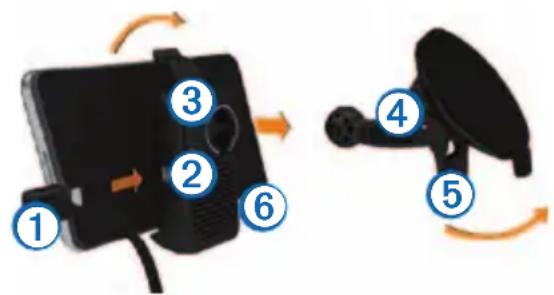
1 Plug the vehicle power cable ① into the USB port on the mount ②.
text_image
Diagram showing a device with numbered components and rotation arrows, likely illustrating a mechanical or electronic assembly.2 Snap the mount ③ onto the suction cup ④.
3 Press the suction cup to the windshield.
4 While pressing, flip the lever ⑤ back toward the windshield.
5 Fit the bottom of your device ⑥ into the mount.
6 Tilt your device back until it snaps into place.
7 Plug the other end of the vehicle power cable into a power outlet in your vehicle.
8 If necessary, connect the external antenna to the traffic receiver and secure it to the windshield using the suction cups.
About myDashboard
You can use myDashboard to register your device, check for software and map updates, access product manuals and support, and more.
Setting Up myDashboard
1 Connect the micro-USB cable to the micro-USB port on the device (page 2).
2 Connect the micro-USB cable to the USB port on your computer.
3 Go to www.garmin.com/dashboard.
4 Follow the on-screen instructions.
Registering your Device
1 From myDashboard, click Register Now.
2 Follow the on-screen instructions.
3 Keep the original sales receipt, or a photocopy, in a safe place.
nüMaps Guarantee™
If you register the device at http://my.garmin.com within 90 days of acquiring satellites while driving, your device could be eligible for one free map update. Go to www.garmin.com/numaps for terms and conditions.
Using myDashboard Services
1 Open myDashboard (page 3).
2 Select an option:
• To update the software, click Update Now under Software Updates.
• To update the maps, click Update Now under Map Updates.
- To download the owner's manual, click Manuals, and then click Download next to the manual you want.
3 Follow the on-screen instructions.
Using the Power Key
text_image
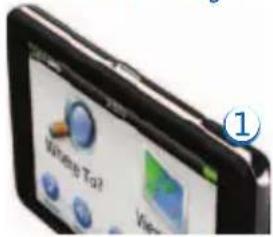
White Tag View• To turn off the device, hold the Power key ① for 4 seconds.
• To reset the device, hold the Power key for 10 seconds.
- To put the device in sleep mode, quickly press and release the Power key.
NOTE: Use sleep mode to conserve battery power when your device is not in use.
• To bring the device out of sleep mode, press the Power key and double-top.
Finding a Location Using the Search Bar
You can use the search bar to search for locations by entering a category, brand name, address, or city name.
1 Select Where To?.
2 Select the search bar.
3 Enter all or part of the search term.
Suggested search terms appear below the search bar.
- To search for a type of business, enter a category name (for example, “movie theaters”).
- To search for a business by name, enter all or part of the name.
-
To search for an address near you, enter the street number and street name.
-
To search for an address in another city, enter the street number, street name, city, and state.
- To search for a city, enter the city and state.
- To search for coordinates, enter latitude and longitude coordinates.
4 Select an option:
- To search using a suggested search term, select the term.
- To search using the text you entered, select 🔒.
5 If necessary, select a location.
Searching Near Another Location
1 From the main menu, select Where To?.
2 Select Searching Near.
3 Select an option.
Your Route on the Map
NOTICE
The speed limit icon feature is for information only and does not replace the driver's responsibility to abide by all posted speed limit signs and to use safe driving judgment at all times. Garmin will not be responsible for any traffic fines or citations that you may receive for failing to follow all applicable traffic laws and signs.
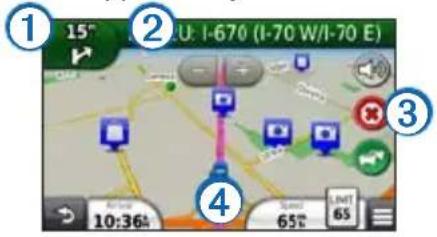
Your route is marked with a magenta line on the map. If you depart from the original route, your device recalculates the route. A speed limit icon could appear as you travel on major roadways.
text_image
① 15° ② U: I-670 (I-70 W/I-70 E) ③ ④ 10:36% 65° SWEET 65- Select to view the next turn.
If a view of a junction exists, the junction view appears. - Select ② to view the turn list.
- Select ③ to stop the route you are currently navigating.
- Select ④ to view the Where Am I? page.
Adding a Stop
Before you can add a stop, you must be navigating a route.
1 From the map, select Points of Interest.
2 Search for the extra stop.
3 Select the stop from the search results.
4 Select Go!.
5 Select Add to Active Route.
Taking a Detour
While navigating an automobile route, you can use detours to avoid obstacles ahead of you, such as construction zones.
NOTE: If the route you are currently taking is the only reasonable option, your device might not calculate a detour.
While navigating, select ≡ > Detour.
About Traffic
NOTICE
Garmin is not responsible for the accuracy or timeliness of the traffic information.
Traffic information may not be available in all areas or countries.
A traffic receiver is included in some packages. It is built into the vehicle power cable. The traffic receiver and device must be powered and in data range of a station transmitting traffic data to receive traffic information. You do not need
to activate the subscription included with your traffic receiver.
The traffic icon (💡) changes color to indicate the severity of traffic conditions on your route or on the road you are currently traveling.
Go to www.garmin.com/traffic for more information.
www.garmin.com/support

913-397-8200
1-800-800-1020
00 32 2672 5254
0180 5 / 42 76 46 - 880
0180 5 / 42 76 46 - 550
00800 4412 454
+44 2380 662 915

0808 2380000
+44 (0) 870.8501241
00 45 4810 5050
00 39 02 3669 9699
00 35 1214 447 460
1-866-429-9296
00 358 19 311 001
0800-0233937
00 902 00 70 97
43 (0) 3133 3181 0
00 33 1 5517 81 89
815 69 555
00 46 7744 52020
Garmin International, Inc.
1200 East 151st Street,
Olathe, Kansas 66062, USA
Garmin (Europe) Ltd.
Liberty House, Houndown Business Park
Southampton, Hampshire, SO40 9LR UK
Garmin Corporation
No. 68, Zhangshu 2nd Road, Xizhi Dist.
New Taipei City, 221, Taiwan (R.O.C.)
Garmin ^® , the Garmin logo, and nüvi ^® are trademarks of Garmin Ltd. or its subsidiaries, registered in the USA and other countries. nüMaps Guarantee ^™ is a trademark of Garmin Ltd. or its subsidiaries. These trademarks may not be used without the express permission of Garmin.
The Bluetooth ^® word mark and logos are owned by the Bluetooth SIG, Inc., and any use of such name by Garmin is under license. HD Radio ^™ is a proprietary trademark of iBiquity Digital Corporation.