
Dallas - Mobile Phone ZTE - Free user manual and instructions
Find the device manual for free Dallas ZTE in PDF.


User questions about Dallas ZTE
0 question about this device. Answer the ones you know or ask your own.
Ask a new question about this device
Download the instructions for your Mobile Phone in PDF format for free! Find your manual Dallas - ZTE and take your electronic device back in hand. On this page are published all the documents necessary for the use of your device. Dallas by ZTE.
USER MANUAL Dallas ZTE
Copyright © 2011 Orange
All Rights Reserved
No part of this guide may be reproduced or transmitted in any form or by any means without the prior written consent of Orange.
The information in this guide is subject to change without notice. Every effort has been made in the preparation of this guide to ensure accuracy, but all statements, information, and recommendations in this guide do not constitute a warranty of any kind, expressed or implied.
We reserve the right to make modifications on print errors or update specifications without prior notice.
Trademarks
Orange and the Orange logos are trademarks of Orange.
Version No.: R1.0
Edition Time: 2011.09.02
Manual No: 079584503676
what's in it for you...
security 6
understanding exposure to radio frequency (rf) energy 15
limitation of liability 16
how to follow this guide....17
getting to know your phone....18
locking and unlocking the keypad....20
what the icons mean 21
installing the battery....22
removing the battery 23
inserting your sim....24
inserting a memory card 26
charging the battery 27
powering your phone on/off 29
turning the torch on/off 29
writing text....29
adding contacts to your phonebook....32
making and receiving calls 33
sending messages....34
receiving messages....34
setting user profiles....35
viewing call history....35
call settings 35
setting up your phone 36
bluetooth....37
setting your alarm....38
managing files....39
taking pictures 39
viewing images 39
playing music....40
using the fm radio....40
other services 41
declaration of rohs compliance....42
disposal of your old appliance 43
ec declaration of conformity....44
security
- There are three ways to make sure the wrong people don’t use your phone:
Set a PIN for the SIM.
You can go to Menu > Settings > Security settings > SIM security to set the PIN.
- Create a password so only you can access your phone.
You can go to Menu > Settings > Security settings > Phone security to set the password.
▶ Set call restrictions.
You can go to Menu > Settings > Call settings > Call barring to set the restrictions.
safety precautions
This section includes all the important ‘dos and don’ts’ about using your phone safely and efficiently. It might not be the most interesting thing you’ve ever read, but it could prevent you from damaging your phone, yourself, or even someone else. So please spare a moment to take it all in. Thank you.
safe operation
- Keep the phone at least 1.5cm from your body when making or receiving a call.
- Keep the phone out of the reach of small children. They could hurt themselves.
- Don’t touch the phone with wet hands because this might give you an electric shock, hurting you and/or your phone.
vehicles and driving
- Please obey the traffic laws and regulations on the use of your phone in the country where you're driving.
- Only make or receive calls using the hands-free feature of the phone. – and only if legal where you’re driving.
If you're not making or taking a legal hands-free call, pull off the road, park and switch off the engine before using your phone.
■ Switch off your phone at petrol stations, even if you are not filling your own tank.
Electronic systems in vehicles, such as anti-lock brakes, airbags, speed control and fuel injection equipment, aren't normally affected by the radio transmissions from your phone. The manufacturer of such equipment can tell you whether it's adequately shielded from radio transmissions. However, if you suspect that problems are being caused by radio transmissions, don't turn on the phone until the problem has been checked out by a qualified technician.
- Don’t put your phone in the area over an airbag or where it could be deployed. An airbag inflates with great force and serious injury could result if you place your phone – or any other object, such as hands-free equipment – over it.
health and hospitals
- When your phone is switched on, keep it more than eight inches (20cm+) from a pacemaker. If you have a pacemaker, don’t carry the phone in your breast pocket. Also, use your ear furthest from the pacemaker to minimise the potential for interference. If you experience any problems at all, switch off the phone immediately.
Some people are susceptible to epileptic seizures or blackouts when exposed to flashing lights. For example, when watching television or playing video games. If you’ve ever had seizures or blackouts, or if you have a family history of them, please consult your doctor before playing video games on your phone or using any feature that involves flashing lights.
■ Hearing aids can be affected by phones. If that's happening to you, consult the hearing aid manufacturer to discuss alternatives.
If you use any personal medical device, please consult the manufacturer to make sure it won't be affected by RF (radio frequency) energy.
- Whenever you're in a hospital or a healthcare facility, pay attention to the restrictions on the use of your phone. Please switch it off if asked.
care and cleaning
- Only use original accessories or accessories approved by your phone’s manufacturer. Using unauthorised accessories could affect your phone’s performance, damage it, cause injury or break local telecoms regulations.
■ Turn off the phone before you clean it. Use an anti-static cloth. Don’t use an ordinary dry cloth or electrostatic cloth. And don’t use chemical or abrasive cleaners, as they could damage it.
- Your phone can produce an electromagnetic field, so don’t place it near magnetic items, such as computer disks.
■ Using your phone near electrical devices such as TVs, telephones, radios and personal computers can cause interference. If you're
concerned about how your phone might affect them, consult the manufacturers before using it.
- High temperatures can shorten phone life. Don’t expose yours to direct sunlight or leave it in hot places – like on a radiator or on the dashboard of a car parked in the sunshine.
- Keep your phone dry. Liquid may damage it.
- Don’t drop, knock or harshly treat your phone. It’s a sensitive device.
- Don’t take apart the phone or its battery.
- Don’t store the phone with flammable or explosive articles.
- Don’t charge your phone without its battery.
- Don’t touch the antenna when you’re on the phone – it’ll affect call quality and possibly make it use more power than necessary.
- Don’t use other sharp objects to operate the keys or the touchscreen.
- Don’t use or leave your phone in a dusty or dirty environment.
explosives and inflammables
■ Switch off your phone before entering any potentially explosive environments, such as petrol stations, chemical depots or storage facilities.
■ Do not remove, install, or charge batteries in explosive environments.
- To avoid possible interference with blasting operations, switch off your phone when you're near electrical blasting caps, in a blasting area, or any areas where signs ask you to switch off electronic devices.
■ Obey all signs and instructions about phone usage.
flying
It's forbidden to use your mobile when flying, as it could interfere with the plane's communication systems. Please switch off your phone before take-off. You also need permission from a crew member to use your phone while the plane is on the tarmac.
If your phone has an automatic power-on feature, please check that it won't automatically switch itself on during the flight.
battery use
- Don't short-circuit the battery, as this can cause overheating or fire.
- Don't store the battery in hot places or throw it in a fire. It may explode.
- Don’t take the battery apart. It could leak chemicals, overheat, explode or ignite.
If you don't intend to use it for a while, store the battery in a cool, dry place.
■ The battery can be recharged many times, but it will eventually wear out. When the operating time (talk time and standby time) is noticeably shorter than normal, the battery should be replaced.
■ Stop using the charger and battery when either get damaged or show evidence of ageing. - Dispose of the battery according to local environmental regulations. Don’t throw it in your household rubbish.
■ Always use the original rechargeable battery or a battery approved by the phone manufacturer. Using an unauthorised battery could be dangerous and costly – damaging your phone and/or causing fires.

WARNING
In the unlikely event of a battery leak, keep the chemical discharge well away from your eyes and skin. If it does come into contact with either, immediately flush thoroughly with clean water and consult a doctor.
understanding exposure to radio frequency (RF) energy
Your mobile device is a radio transmitter and receiver. It is designed not to exceed the limits for exposure to radio waves recommended by international guidelines. These guidelines were developed by the International Commission on Non-Ionizing Radiation Protection (ICNIRP) to make sure everybody stays safe, regardless of age and health.
The guidelines use a unit of measurement known as Specific Absorption Rate (SAR). The SAR limit for mobile devices is 2.0 W/kg and the highest SAR value for this one when tested for use at the ear was 1.11 W/kg (carried out in accordance with EN 62209-1). (Mobiles can, of course, be used in other positions as described in this guide.)
As SAR is measured at your phone's highest transmitting power, the actual SAR of this phone while operating is typically below that indicated above. This is because it automatically chooses the lowest power level required to communicate with the network.
IMPORTANT: To comply with RF exposure guidelines, please use phone no closer than of 15mm away from your body. Otherwise your RF exposure could exceed the guideline limits.
limitation of liability
Orange shall not be liable for any loss of profits or indirect, special, incidental or consequential damages resulting from, arising out of, or in connection with using this product, whether or not Orange had been advised, knew or should have known the possibility of such damages. The user should refer to the enclosed warranty card for full warranty and service information.
IMPORTANT: The pictures and icons in the guide are meant for illustrative purposes only and might not look exactly like your phone or the features on it.
how to follow this guide
You'll find that in the next pages, every step you need to perform a task, or reach a menu, is shown in a straightforward condensed form, with arrows taking you from one step to another. For example: Settings > Phone settings > Time and date.
When you're asked to ‘press’ a key, it means pressing and releasing it immediately.
And the instruction to ‘hold’ a key, means you should press the key for at least two seconds before releasing it.
Makes sense? We hope so. Let's go for it...
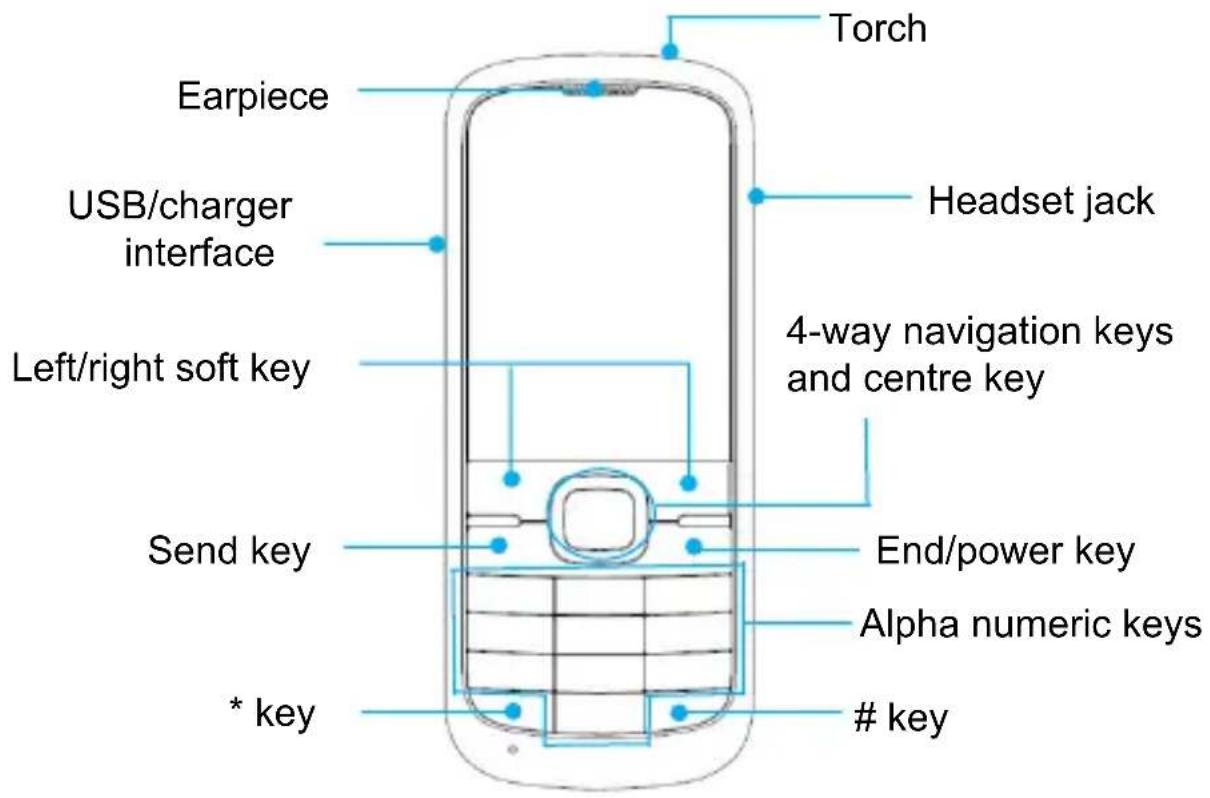
getting to know your phone
text_image
Torch Earpiece USB/charger interface Headset jack Left/right soft key 4-way navigation keys and centre key Send key End/power key Alpha numeric keys * keykey
| Function Description | |
| Left soft key | Does what's shown at the left bottom of the screen. |
| Right soft key | Does what's shown at the right bottom of the screen. |
| Centre key | Press to confirm and make selections. |
| 4-way navigation keys | Navigate – up down, left and right – through the menu. |
| Send key | Press to dial or answer a call, or view the call history in the standby mode. |
| End/Power key | Press to exit to the standby mode.Hold to switch phone on/off. |
| Alpha numeric keys | Press to enter numbers 0-9 or letters from a-z. |
locking and unlocking the keypad
Locking the keypad stops you doing things by mistake. In the standby mode, press the left soft key and then press the * key within two seconds to lock the keypad. Do the same to unlock it.
And – don't worry – you can answer an incoming call normally even when the keypad is locked.
what the icons mean
 | Signal strength | New | SMS / text,message. (The textbox is full when itblinks.) |
 | Keypad locked |  | Silent |
 | Battery status |  | Sound on / normalstatus |
 | Alarm clock set |  | Headset |
 | Outdoor |  | Meeti |
 | Missed call |  | Call diverti |
installing the battery
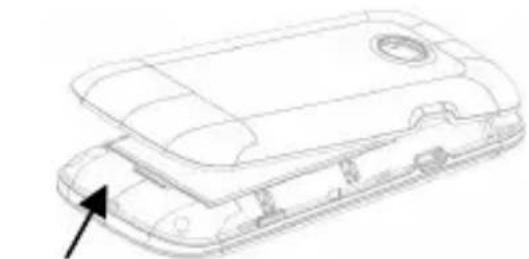
- Lift up the battery cover up from the little notch on the bottom of the back cover and remove.
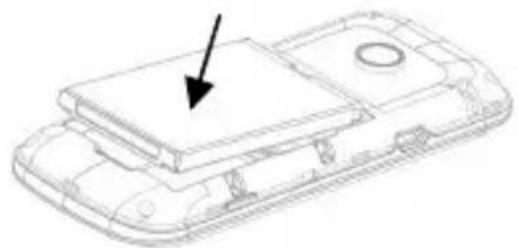
- Insert the battery by aligning the gold-coloured contacts with the contacts in the battery slot.
- Push the battery down into place.
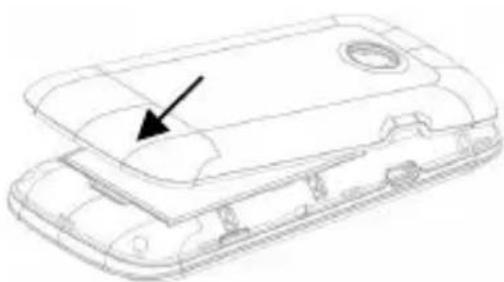
- Replace the battery cover and close it gently until you hear a click.
natural_image
Line drawing of a vehicle chassis with an arrow pointing to the front panel (no text or symbols present)Remove the battery cover
natural_image
Technical line drawing of a mechanical component with an arrow pointing to a specific part (no text or symbols present)Push down the battery
natural_image
Line drawing of a vehicle chassis with an arrow pointing to the front panel (no text or symbols present)Replace the battery cover
removing the battery
- Make sure your phone is switched off.
- Remove the battery cover.
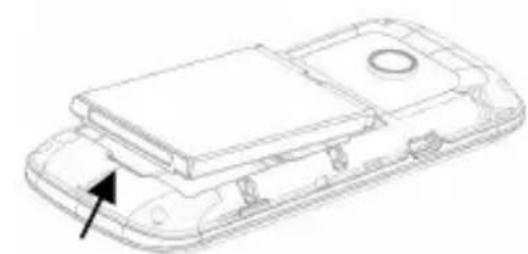
- Pull the battery up and out.

natural_image
Line drawing of a vehicle chassis with an arrow pointing to the front panel (no text or symbols present)Remove the battery cover
natural_image
Technical line drawing of a vehicle chassis with no visible text or symbolsPull up the battery from here
inserting your SIM
The SIM (Subscriber Identity Module) is a microchip that holds your personal information, such as names and phone numbers. Your phone won't work without it. If you already have contacts on your SIM, they can usually be transferred.
- Make sure your phone is switched off and the charger is disconnected.
- Turn the phone over and remove the battery cover.
-
Slide the SIM into the slot as shown below with the gold contacts facing downwards.
-
Replace the battery.
- Replace the back cover.
To remove the SIM, simply reverse the process.
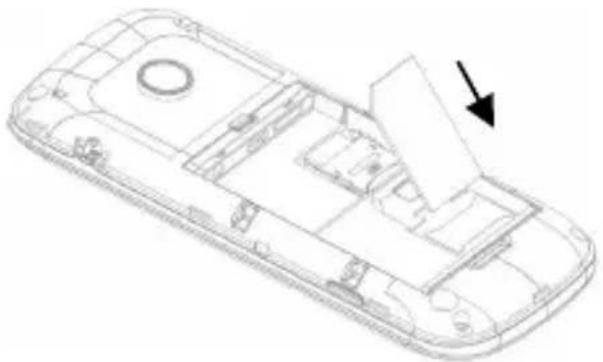
natural_image
Technical line drawing of a mobile phone casing with internal compartments and a directional arrow indicating assembly (no text or symbols present)inserting a memory card
You can use a memory card to expand the storage of your phone – storing or copying files such as photos, music, etc.
Do not remove the card or switch off the phone while transmitting or saving data, because it may cause data loss and damage the phone or the card.
Insert the memory card as follows:
- Open the battery cover and remove the battery.
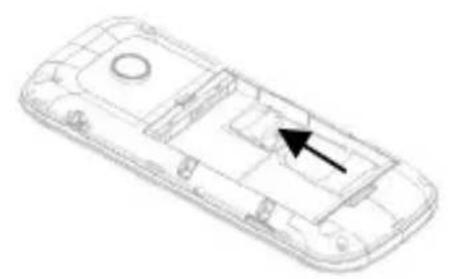
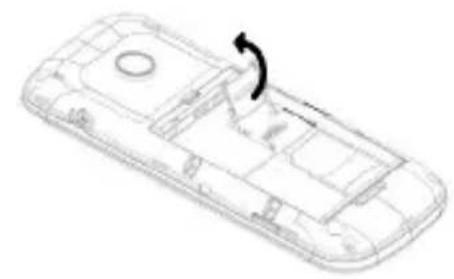
- Follow the OPEN arrow to slide back the metal card holder, and flip it up.
- Insert the card into the metal slot with the metal contacts facing downward until it clicks to the right position.
- Following the direction of the LOCK arrow, click the card holder back into place.
natural_image
Technical line drawing of a mobile phone casing with an arrow indicating a component (no text or symbols present)Slide the metal card holder
natural_image
Line drawing of a mobile phone casing with an arrow indicating rotation (no text or symbols)Flip up the metal card holder
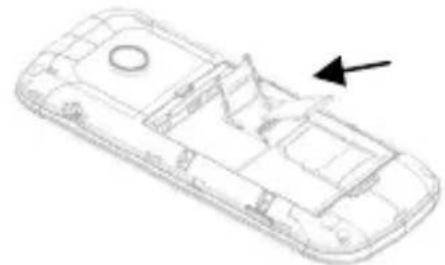
natural_image
Line drawing of a 3D car body with internal compartments and a black arrow pointing to the side (no text or symbols)Insert the memory card
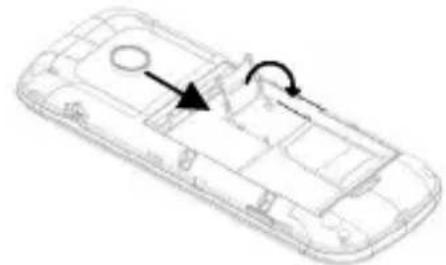
natural_image
Line drawing of a car interior with a circular component and directional arrows indicating rotation (no text or symbols)Flip the card holder back and lock it
charging the battery
Your phone is powered by a lithium ion rechargeable battery. To give it a long and healthy life, use it straight from the pack without charging. Then exhaust it completely and then recharge it completely... at least three
times. Your new battery's top performance is achieved only after three complete charge and discharge cycles.
- Connect the charger cable to the phone as shown in the diagram below.
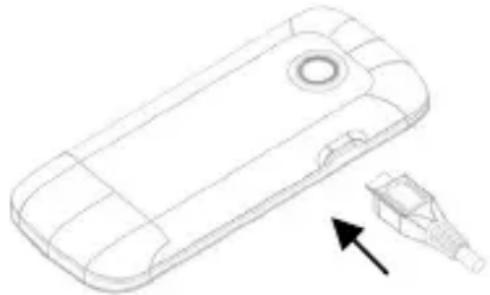
natural_image
Line drawing of a mobile phone casing with a connector pin and arrow indicator (no text or symbols)- Plug it into a mains socket.
- The battery charging indicator will appear on the screen.
- When the indicator shows the battery is fully charged, disconnect the charger.
powering your phone on/off
Make sure your SIM is in your phone. Then hold the End/Power key to power on/off the phone. The phone will automatically search for the network.
turning the torch on/off
The torch is on the top of your phone. In the standby mode, hold the 0 key.
writing text
To select your preferred language (English, French or Spanish), go to Menu > Settings > Phone settings > Language. Press the # key to change the input mode.
In English you can use these input methods: eZi abc, eZi ABC, eZi Abc, ABC, abc, Abc, 123.
In French you can use these input methods: eZi fr, eZi FR, eZi Fr, FR, fr, Fr, 123.
In Spanish you can use these input methods: eZi es, eZi ES, eZi Es, ES, es, Es, 123.
- Inputting letters: In ABC/abc/Abc/FR/fr/Fr/ES/es/Es, keep pressing the letter key you want until the letter appears.
In eZi ABC/eZi abc /eZi Abc/eZi FR/eZi fr/eZi Fr/eZi ES/eZi es/eZi Es, press the corresponding letter key, then choose the letter you want using the Navigation keys, and press the Left soft key, Centre key or 0 key to confirm your choice. - Inputting words: In eZi ABC/eZi abc /eZi Abc/eZi FR/eZi fr/eZi Fr/eZi ES/eZi es/eZi Es, input any letter with just a single key press. The word changes after each key stroke. Predictive text input is based on a built-in dictionary. When you see the correct word, confirm it with the Left soft key, Centre key or 0 key. If the word is incorrect, use the Navigation keys to view other matching words found in the dictionary.
- Inputting numbers: In 123 mode, press a digit key once to input a digit. In eZi ABC/eZi abc /eZi Abc/eZi FR/eZi fr/eZi Fr/eZi ES/eZi es/eZi Es, press the digit key, and select the number using the Navigation keys. You cannot input 0 in eZi ABC/eZi abc /eZi Abc/eZi FR/eZi fr/eZi Fr/eZi ES/eZi es/eZi Es.
In ABC/abc/Abc/FR/fr/Fr/ES/es/Es, keep pressing the digit key until the number you want appears.
- Inputting symbols: Press the * key to enter symbol mode, select the required symbol using Navigation keys and then press the Left soft key or Centre key to confirm it.
In eZi ABC/eZi abc /eZi Abc/eZi FR/eZi fr/eZi Fr/eZi ES/eZi es/eZi Es, press the 1 key, and select the required symbol using the Navigation keys. In ABC/abc/Abc/FR/fr/Fr/ES/es/Es, keep pressing the 1 key until the required symbol appears.
- Inputting a space: Press the 0 key. (It does not work in 123 mode.)
- Deleting a character: Press the Right soft key to clear a character. Hold the Right soft key to delete all characters and clear the display.
- Moving the cursor: Use the Left/Right navigation keys to move the cursor to left or right in the text.
adding contacts to your phonebook
There are some numbers that you may want to call again and again, so it makes sense to add these numbers to your Phonebook. You can then access these numbers quickly and easily.
- Go to Menu > Phonebook > Add new contact.
- Select to save the number to SIM or phone.
- Edit the information and save it.
- You can also save a number right after you've made or received a phone call or a message from someone who is not yet in your Phonebook list.
- To delete someone from your Phonebook list, first select the name, and then select Options > Delete.
making and receiving calls
The most basic way to make a call is to input a number in standby mode and press the Send key. You can also make a call from your Phonebook.
- To call someone: Go to Menu > Phonebook. Use the Up/Down Navigation keys to find the name of the person you want to call. You can also type in the first letter of the name of the person you want to call to find the right name, and press the Send key.
• To receive a call, press the Send key.
• To end a call, press the End/Power key.
• To reject a call, press the End/Power key.
Make sure that you are in an area with sufficient coverage to make calls. The strength of the network signal is indicated on the Status Bar of the screen.
sending messages
- Go to Menu > Messaging > Write message.
- Write your message. (For information on how to do it, see ‘writing text’.) To add the recipient after you’ve written your message, press Options > Send to.
- Select Options to send or save the message.
receiving messages
Your phone will alert you with a ringtone, prompt, or a new message icon when you receive a message.
- Press View to open the new message. You can also go to Inbox to read the message.
- Use the Up/Down Navigation keys to view the message.
- While the message is open, use Options to reply, delete, or forward the message. You can also call back the sender or go to Advanced > Use number to save the sender's number.
setting user profiles
Go to Menu→User profiles. You can select Options→Activate to activate a profile. Or you can select Options→Customize to edit a profile.
(For Silent mode you only have a choice of Activate or not).
viewing call history
Go to Menu > Call center.
Dialled calls, received calls and missed calls are all saved in Call history. If the records are full, the earliest saved records will be deleted automatically.
call settings
Go to Menu > Settings > Call settings.
Here you can choose call waiting, call divert and call barring.
In Advanced settings, you can set auto redial, call time reminder, etc.
setting up your phone
To adjust the various settings of your phone, go to Menu > Settings. Here you'll have the following options:
- Phone settings: set the time and date; schedule power on/off; select language; set preferred writing language; display; Flight mode, and LCD backlight.
- Network settings: automatically or manually select a network, and set your preferred networks.
- Security settings: set the security features to protect you from unauthorised use of your phone and SIM card.
- Bluetooth: See chapter "Bluetooth".
- Restore factory settings: enter your phone's password to restore the factory settings. Some personal information might be lost if you use this function, so be careful.
IMPORTANT: You may be required to input the phone password in some of the security setting screens. The default password is 1234. Go to Security settings > Phone security > Change password to change the phone password.
Bluetooth
Go to Menu > Settings > Bluetooth. The Bluetooth devices must be paired before the communication is performed.
- Turn on or off the Bluetooth on your phone Go to Power, you can turn on or off Bluetooth.
- Make your phone visible Go to Visibility, you can choose to be visible or not. When your phone is visible, and the Bluetooth is turned on, all other Bluetooth-enabled devices within range can detect your phone.
-
Create a Bluetooth partnership
-
Go to My device > Search new device to search other Bluetooth-enabled devices and list them.
- Select the desired device name in the list and press Pair.
- Enter a passcode (1 up to 16 characters), and then press OK. When the opposite party enters the same passcode, the connection will be established. Sometimes the devices can be paired automatically without entering password.
- Beam information using Bluetooth
After the Bluetooth partnership is established, you can beam information, such as files from your phone to another Bluetooth-enabled device.
For example, if you want to send a multimedia file, find the file from the media folder and then press Options > Send > Via Bluetooth, and then select the device name.
- Connect a Bluetooth hands-free or stereo headset
For hands-free phone conversations or to listen to music, you can use a Bluetooth hands-free or stereo headset.
Go to Search audio device to search for the Bluetooth hands-free or stereo headset.
setting your alarm
Go to Menu > Organiser > Alarm. Here you can view and edit the alarm clock settings. You can also enable or disable the alarms.
managing files
Go to Menu > File manager. You can check all the folders in the phone or memory card, create new ones or rename, delete the folders, etc.
IMPORTANT: When you select Format memory, data will be lost, so please be careful with this function.
taking pictures
Go to Menu > Camera.
Aim the camera (it will appear on the phone screen) and when you're happy with the picture you see, press the Centre key to take the shot.
To configure your camera settings, go to Camera as above and press the Left soft key.
viewing images
Go to Menu > Multimedia > Image viewer.
The images you want to view in Image viewer must be put in the ..\Photos folder in the phone's memory or – if you've got one
installed – the memory card. Go to Options > Storage where you can choose which one. Then you can select an image and view it.
playing music
Go to Menu > Multimedia > Audio player. You can play music from your phone's memory or from a memory card. You can choose which in List > Options > Settings > Pre. Playlist.
Also, in List > Options, you can refresh your playlist and make personal settings.
using the FM radio
Go to Menu > Multimedia > FM radio.
The first thing to do is plug in the earphones that come with your phone. They act as the antenna to catch radio signals.
Now you can search for, listen to, and save radio channels. (The quality of reception will depend on the signal strength of the radio station where you are.)
Use the Up/Down navigation keys to adjust volume, the Left/Right
navigation keys to tune the frequency, and the Centre key to pause.
Select Options to enter the submenu where you will find:
• Channel list: edit up to 30 channels.
- Manual input: manually input a channel.
• Auto search: automatically search for channels.
- Settings: turn on/off background play. You can also turn on the Loudspeaker when headset is inserted.
other services
In Multimedia, you can use STK (SIM card Toolkit)
services. These are value-added services that may be provided by your network.
Declaration of RoHS Compliance
To minimise the environmental impact and take more responsibility for the earth we live on, this document shall serve as formal declaration that the Dallas manufactured by ZTE CORPORATION is compliant with Directive 2002/95/EC of the European Parliament -RoHS (Restriction of Hazardous Substances) with respect to the following substances:
(1) Lead (Pb)
(2) Mercury (Hg)
(3) Cadmium (Cd)
(4) Hexavalent Chromium (Cr (VI))
(5) Polybrominated biphenyls (PBB's)
(6) Polybrominated diphenyl ethers (PBDE's)
(Compliance is evidenced by written declaration from our suppliers, assuring that any potential trace contamination levels of the substances listed above are below the maximum level set by EU 2002/95/EC, or are exempt due to their application.)
Dallas manufactured by ZTE CORPORATION, meets the require-ments of EU 2002/95/EC.
Disposal of Your Old Appliance
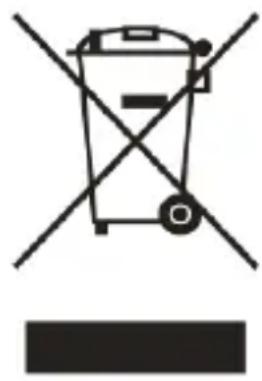
natural_image
Symbol of a trash bin crossed with no text or numbers, representing environmental protection (no text present)- When this crossed-out wheeled bin symbol is attached to a product, it means the product is covered by the European Directive 2002/96/EC.
- All electrical and electronic products should be disposed of separately from the municipal waste stream via designated collection facilities appointed by the government or the local authorities.
- The correct disposal of your old appliance will help prevent potential negative consequences for the environment and human health.
For this product's recycling information based on WEEE directive, please send an e-mail to weee@zte.com.cn
Always remember to recycle: the cardboard packing that comes with your phone is ideal for recycling too.
EC DECLARATION OF CONFORMITY
It is hereby declared that following designated product:
Product Type: GSM Dual-Band GPRS Digital Mobile Phone
C€1588
Model No: Dallas
Complies with the essential protection requirements of the Radio and Telecommunication Terminal Equipment Directive (EC Directive 1999/5/EC) and the Electromagnetic Compatibility Directive (2004/108/EC).
This declaration applies to all specimens manufactured identical to the samples submitted for testing/evaluation.
Assessment of compliance of the product with the requirements relating to the Radio and Telecommunication Terminal Equipment Directive (EC Directive 1999/5/EC) and the Electromagnetic Compatibility
Directive(2004/108/EC) was performed by American TCB (Notified Body No.1588), based on the following standards:
| Safety | EN 60950-1:2006; |
| EMC | EN 301 489-1 V1.8.1; EN 301 489-7 V1.3.1; EN301489-17V2.1.1;EN55020:2007;EN55013:2001/A2 |
| Radio | EN 301 511 V9.0.2;EN300328 V1.7.1; |
| Health | EN 50360:2001; EN 62209-1:2006; EN 62209-2:2010; EN50332-1:2000;EN50332-2:2003 |
This declaration is the responsibility of the manufacturer:
ZTE Corporation
ZTE Plaza, Keji Road South, Hi-Tech, Industrial Park,
Nanshan District, Shenzhen, Guangdong, 518057, P.R. China
Authorised person signing for the company:
Xu feng Quality Director Of ZTE Corporation
Name in block letters & position in the company
Shenzhen, 5th Aug 2011
徐峰
Place & date
Legally valid signature