
nüvi 2370 - Gps GARMIN - Free user manual and instructions
Find the device manual for free nüvi 2370 GARMIN in PDF.


User questions about nüvi 2370 GARMIN
0 question about this device. Answer the ones you know or ask your own.
Ask a new question about this device
Download the instructions for your Gps in PDF format for free! Find your manual nüvi 2370 - GARMIN and take your electronic device back in hand. On this page are published all the documents necessary for the use of your device. nüvi 2370 by GARMIN.
USER MANUAL nüvi 2370 GARMIN
text_image
Where To? View Map Stop Detour Phone Volume Tools GARMIN for use with these nüvi models:for use with these nüvi models: 2300, 2310, 2340, 2350, 2360, 2370
Getting Started
! WARNING
See the Important Safety and Product Information guide in the product box for product warnings and other important information.
When using your device for the first time, complete the following tasks.
- Mount the device (page 3).
- Connect the device to vehicle power (page 4).
- Register the device (page 5).
- Check for updates.
- Software updates (page 5).
• Free map update (page 6). - Download the full owner's manual (page 6).
Power Cables
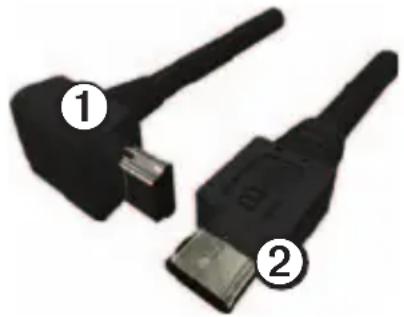
On most models, the device comes with two power cables. Each connector fits in only the matching port.
- The vehicle power cable ① connects the mount to vehicle power. The vehicle power cable has a right-angle connector.
- The micro-USB cable ② connects the device to a computer. A “B” is inscribed on the head of the micro-USB cable.
natural_image
Two black USB connectors labeled ① and ②, showing different sizes (no text or symbols beyond labels)Mounting Your Device
NOTICE
Before mounting the device, see the Important Safety and Product Information guide for information about laws pertaining to windshield mounting.
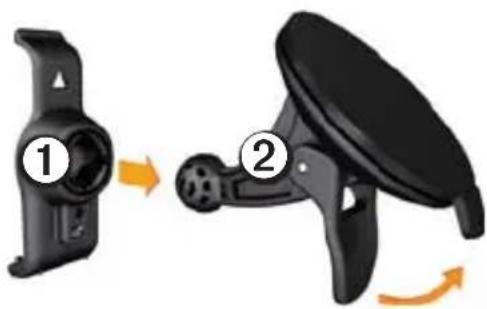
- Remove the clear plastic from the suction cup.
- Clean and dry your windshield and the suction cup with a lint-free cloth.
- Press the suction cup to the windshield.
- While pressing, flip the lever back toward the windshield.
- Snap the mount ① onto the suction cup arm ②.
natural_image
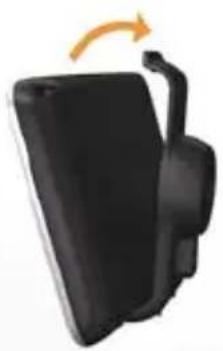
Two black mechanical components with orange arrows indicating motion, no text or symbols present- Fit the bottom of your device into the mount.
- Tilt your device back until it snaps into place.
natural_image
Black electronic device with a handle and orange arrow indicating rotation (no text or symbols)Connecting the Device to Vehicle Power
! WARNING
This product contains a lithium-ion battery. To prevent the possibility of personal injury or product damage caused by battery exposure to extreme heat, remove the device from the vehicle when exiting or store it out of direct sunlight.
Charge your device before using it on battery power.
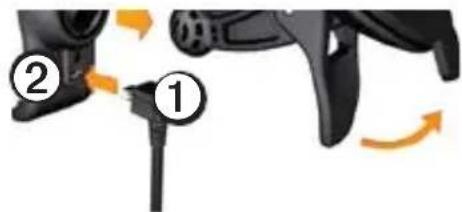
- Plug the vehicle power cable ① into the vehicle power cable port ② on the mount.
text_image
Diagram showing two labeled mechanical components with directional arrows indicating motion or movement, numbered ① and ②.-
Plug the other end of the vehicle power cable into a power outlet in your vehicle.
-
If you are using a traffic receiver in Europe, connect the external antenna to the traffic receiver and secure it to the windshield using the suction cups.
After the device has been connected to vehicle power, the following occurs.
• The device turns on.
- The device acquires satellite signals. When at least one of the bars is green, your device has acquired satellite signals.
NOTE: The device may need a clear view of the sky to acquire satellite signals.
- The device charges as you drive. the status bar indicates the status of the internal battery.
About myDashboard
Use myDashboard to register your device, check for software and map updates, access product manuals and support, and more.
Setting Up myDashboard
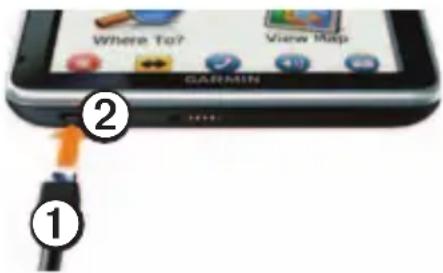
- Connect the micro-USB cable ① to the micro-USB port ② on the device (page 2).
text_image
Where To? View Map GARMIN ① ②- Connect the micro-USB cable to the USB port on your computer.
- Double-click to open the myDashboard Web page.
NOTE: If does not appear, or you are using Windows ^® 7 or a Mac ^® computer, go to www.garmin.com/dashboard.
- Follow the on-screen instructions.
Registering the Device
- From myDashboard, click Register Now.
- Follow on-screen instructions.
- Keep the original sales receipt, or a photocopy, in a safe place.
Updating the Software
- Open myDashboard (page 5).
- Register the device (page 5).
- Under Software Updates, click Update Now.
- Follow the on-screen instructions.
nüMaps Guarantee™
Your device is eligible for one free map update within 60 days of acquiring satellites while driving with your nüvi. You are not eligible for the free map update if you register by phone or wait longer than 60 days after the first time you acquire
satellites while driving with your nüvi. For more information, go to www.garmin.com/numaps.
Updating Maps
- Open myDashboard (page 5).
- Register the device (page 5).
- Under Map Updates, click Update Now.
- Follow the on-screen instructions.
Downloading the Owner's Manual
The owner's manual for your device is available on the Garmin Web site.
- Open myDashboard (page 5).
- Register the device (page 5).
- Click Manuals.
A list of the product manuals in several languages appears.
-
Click Download next to the manual you want.
-
Click to save the file to your computer.
Device Overview
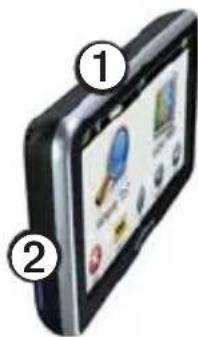
text_image
Image of a mobile phone with labeled app interface elements in Chinese| 1 | Power key |
| 2 | microSDTM card slot |
Using the Power Key
Press and quickly release the Power key to view additional options.
- Touch and drag the scroll bar to adjust screen brightness.
-
Touch Lock to prevent accidental screen touches (nüvi 2360 only).
-
Touch Power Off to turn off your device.
- Press and hold the Power key to reset the device.
- Press and quickly release the Power key to exit the menu.
About Points of Interest
The detailed maps loaded in your device contain points of interest, such as restaurants, hotels, and auto services.
Finding a Point of Interest by Category
- From the Main menu, touch Where To? > Points of Interest.
- Select a category.
- If necessary, select a subcategory.
- Select a destination.
- Touch Go!.
You can touch ≡ > Save on this page to save the location to a Favorites folder on the device. Use the Favorites folder to save the location of your workplace, home, and other common destinations.
-
If necessary, select an option.
-
Touch Drive to calculate a route you will navigate by driving.
- Touch Walk to calculate a route you will navigate by walking.
- Touch Public Transit to calculate a route that combines public transit and walking.
NOTE: You must have cityXplorer™ maps loaded to navigate using public transit. Go to www.garmin.com to purchase cityXplorer maps.
Using the Main Menu
text_image
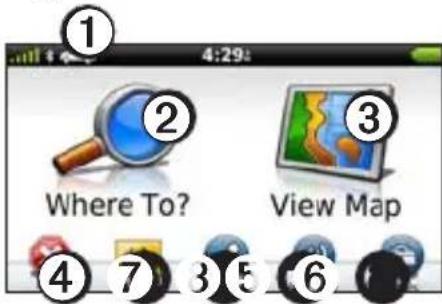
① 4:29: Where To? View Map ② ③ ④ ⑦ ③ ⑤ ⑥- Touch ① to select a transportation mode.
- Touch ② to find a destination.
- Touch ③ to view the map.
- Touch ④ to stop a route.
- Touch ⑤ to detour a route.
- On some models, touch ⑥ to make a call when connected to a compatible mobile phone.
See www.garmin.com/bluetooth for information.
- Touch ⑦ to adjust the volume.
- Touch ⑧ to open the menu of tools and settings.
Your Route on the Map
NOTICE
The speed limit icon feature is for information only and does not replace the driver's responsibility to abide by all posted speed limit signs and to use safe driving judgment at all times. Garmin will not be responsible for any traffic fines or citations that you may receive for failing to follow all applicable traffic laws and signs.
text_image
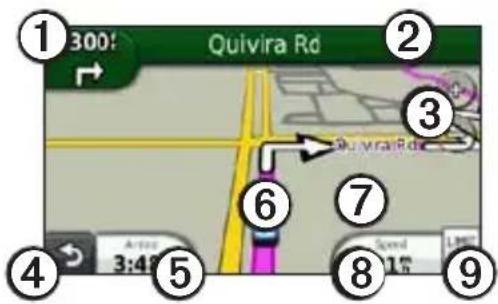
1 300' Quivira Rd 2 3 6 7 4 5 6 Speed 1km 8 9Your route is marked with a magenta line on the map. If you depart from the original route, your device recalculates the route. A speed limit icon could appear as you travel on major roadways.
- Touch ① to view the next turn. If a view of the junctions exists, the junction view appears.
- Touch ② to view the turn list.
- Touch ③ to zoom in and out.
- Touch ④ to return to the Main menu.
Touch and hold from any screen to return to the Main menu.
- Touch ⑤ to change the data field.
- Touch ⑥ to view the Where Am I? page.
- Touch and drag ⑦ to view a different area of the map.
- Touch ⑧ to view the trip computer.
- Touch ⑨ to change the speed limit if the speed limit icon shown on the map is incorrect.
Using myTrends
As you drive with the device on, myTrends™ gathers information that allows the device to predict when you are traveling to a common destination, like your workplace or home. When myTrends is activated, the destination and estimated time of travel will appear in the navigation bar on the map.
myTrends only works for locations that are saved as Favorites (page 7).
When myTrends information appears in the navigation bar, touch the navigation bar to view route information.
About the Transportation Modes
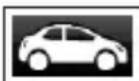
Automobile mode

Pedestrian mode
Routes are calculated differently based on your transportation mode.
For example, in Automobile mode, estimated time of arrival is calculated using the speed limit of the roads on the route. Pedestrian mode calculates time of arrival based on walking speed.
Changing Your Transportation Mode
- From the Main menu, touch the transportation mode icon.
- Select a mode.
- Touch Save.
About Traffic
NOTICE
Garmin is not responsible for the accuracy or timeliness of the traffic information.
Some models can receive FM Traffic Message Channel (TMC) traffic content. The FM TMC traffic subscription is automatically enabled and does not require an addition subscription purchase to activate. The FM TMC traffic receiver is integrated in the vehicle power cable included in the box.
For information about traffic receivers and coverage areas, go to www.garmin.com/traffic.
Manually Avoiding Traffic on Your Route
- From the map, touch
- Touch Traffic On Route.
- If necessary, touch the arrows to view other traffic delays on your route.
- Touch Avoid.

Viewing the Traffic Map
The traffic map shows color-coded traffic flow and delays on nearby roads.
- From the map, touch
- Touch Traffic Map to view the traffic incidents on a map.

Pairing Your Phone
Hands-free calling is available on some nüvi models. Before you can pair, your phone and the device must be turned on and within 33 ft. (10 m) of each other.
- Enable the Bluetooth ^® component on your phone.
- Touch Tools > Settings > Bluetooth.
- Touch Bluetooth > Enabled > Save.
- Touch Add Phone > OK.
- Select your phone, and touch OK.
- Enter the Bluetooth PIN (1234) for your device in your phone.
Getting More Information
You can find more information about this product on the Garmin Web site.
- Go to www.garmin.com /ontheroad.
- Go to http://buy.garmin.com to purchase accessories.
- Touch Tools > Help.
Contacting Garmin Product Support
Contact Garmin Product Support if you have any questions about this product:
- In the USA, go to www .garmin.com/support, or call Garmin USA at (800) 800.1020.
• In the UK, call Garmin (Europe) Ltd. at 0808 2380000.
- In Europe, go to www.garmin.com/support and click Contact Support for in-country support information, or contact Garmin (Europe) Ltd. by phone at +44 (0) 870.8501241.
Garmin ^® , the Garmin logo, and nüvi ^® are trademarks of Garmin Ltd. or its subsidiaries, registered in the USA and other countries. cityXplorer ^™ , myTrends ^™ , and nüMaps Guarantee ^™ are trademarks of Garmin Ltd. or its subsidiaries. These trademarks may not be used without the express permission of Garmin. The Bluetooth ^® word mark and logos are owned by the Bluetooth SIG, Inc., and any use of such name by Garmin is under license. Mac ^® is a trademark of Apple Computer, Inc., registered in the U.S. and other countries.

© 2010–2011 Garmin Ltd. or its subsidiaries