
Diva HD - Tablet BOOKEEN - Free user manual and instructions
Find the device manual for free Diva HD BOOKEEN in PDF.


User questions about Diva HD BOOKEEN
0 question about this device. Answer the ones you know or ask your own.
Ask a new question about this device
Download the instructions for your Tablet in PDF format for free! Find your manual Diva HD - BOOKEEN and take your electronic device back in hand. On this page are published all the documents necessary for the use of your device. Diva HD by BOOKEEN.
USER MANUAL Diva HD BOOKEEN
e-reader designed in France by BOOKEEN
© 2019 Booken. All rights reserved
Bookeen Diva HD User Manual
The information contained in this document is provided “as is” without warranty of any kind and is subject to change without notice. No part of this user manual may be reproduced, in any form or by any means, without the written permission of Bookeen. All brands and product names trademarks or registered trademarks of their respective companies.
Version 1
© 2019 Bookeen. All rights reserved.
1. Introduction
1.1 Welcome
Congratulations on your purchase of a Bookeen Diva HD e-reader, based on E Ink® technology. This device allows you to keep all your digital texts close at hand and read them from wherever you are in a wide range of lighting conditions, including direct sunlight. The Bookeen Diva HD e-reader screen has a very clear contrast that is strikingly similar to paper.
1.2 About this manual
This manual contains complete information on your Bookeen Diva HD e-reader to help you operate the device. The following conventions are used throughout the manual to distinguish text elements.
Note : Text written in this manner indicates important information that requires special attention or that helps you make better use of your Bookeen Diva HD e-reader.
Warning : Text written this way indicates important information which, if not followed, may result in data loss or damage to your device.
All the menu names, controls, icons or buttons that you can see on the screen are displayed. For example: "Text size...".
1.3 Where to find information
- Tutorial: Present by default in your Bookeen Diva HD e-reader, this "tutorial" allows you to discover and understand how your device works. This "tutorial" can be found at any time in the settings of your e-reader.
2. First steps
2.1 In the box
When you receive your Bookeen Diva HD e-reader, check the contents of the box. In the box you will find :
Default components :
• Bookeen Diva HD e-reader
• USB cable (USB charger not included)
- Quick Start Guide
2.2 About your Bookeen Diva HD e-reader
The illustration below shows you the different buttons, ports and physical features of your Bookeen Diva HD e-reader.

text_image
1 2 3 4natural_image
Line drawing of a rectangular electronic device with a screen and buttons, labeled with numbers 5 and 6 (no text or symbols on the device itself)natural_image
Illustration of a rectangular electronic device with a screen and buttons, labeled '7' at the bottom (no text or symbols on the device itself)- Lumière de charge Charging light
[1] Lighting button: This button allows you to quickly turn the light of the e-reader on an Briefly press the button to turn the e-reader on or off. Press and hold for one second to display the pop-up menu.
[2] Forward button: This button turns pages forward
[3] Main menu button: This button takes you back to the main menu, wherever you are.
[4] Backward button: This button turns pages backwards.
[5] Micro USB port: This feature allows you to connect your e-reader to a computer or to a USB charger (not included) via the USB cable.
[6] Charging light: When the battery is charging via USB, the light turns white. When the battery is charged, the light flickers.
[7] Power button: To turn on your Bookeen Diva HD e-reader, press the power button fo second. When your e-reader is switched on, pressing on the button for 3 seconds will dis message to switch off the device and a long press of 12 seconds will restart the device.
2.3 General advice
To keep your Bookeen Diva HD e-reader in good condition and to keep it working properly, please follow these tips.
Directions for use
- Keep your Bookeen Diva HD e-reader away from moisture and extreme temperatures.
- Keep your Bookeen Diva HD e-reader away from liquids or precipitation.
- Avoid exposing your Bookeen Diva HD e-reader to direct sunlight or strong ultraviolet light for long periods.
- Using your e-reader outside recommended temperatures may alter its use. For example in a cold environment, the quality of the screen rendering will be worse (afterglows and shadow areas)
- Do not subject your Bookeen Diva HD e-reader to sudden and severe temperature changes. The condensation caused as a result inside the device could damage your e-reader.
- In case of moisture, let your Bookeen Diva HD e-reader get dry completely.
- Do not place anything on top of your Bookeen Diva HD e-reader and avoid letting objects fall on top of your Bookeen Diva HD e-reader.
- Do not drop your Bookeen Diva HD e-reader or expose it to a strong shock.
- The screen surface can easily get scratched. Avoid touching it with pens, pencils, or any other sharp object.
- Clean your Bookeen Diva HD e-reader by wiping the screen and the outside with a soft cloth.
- Keep your Bookeen Diva HD e-reader away from sand and dust.
- Do not apply protective liquid on the E Ink® screen.
Warning : Never attempt to disassemble, repair or make any changes to your Bookeen Diva HD e-reader. Disassembling, changing or attempting to carry out any repair could cause damage to your Bookeen Diva HD e-reader, or even bodily or material damage, resulting in an automatic loss of warranty.
Recommendations during a trip
- Make sure the e-reader's battery is fully charged.
- Take a power adaptor with you, preferably. Use the power adaptor* with the USB cable that comes with it to charge the battery.
- If you plan on traveling abroad with your e-reader, make sure you have the appropriate power adaptor for the outlets in the country you are visiting.
*Not included in the box.
2.4 Setting up your Bookeen Diva HD e-reader
INITIAL START-UP
The initial start-up involves plugging in the Bookeen Diva HD e-reader, charging the battery, and switching the Bookeen Diva HD e-reader on and off.
Plugging in the e-reader and charging the battery
The Bookeen Diva HD e-reader comes with an internal rechargeable Li-Polymer battery which gives it a very long battery life (battery life that can last for weeks); however, the use of V may shorten this duration. Before using your device for the first time, you will need to fully charge the battery.
- If you have a power adaptor, plug it into an outlet and connect the USB connector of the cable to the adaptor.
- If you do not have a power adaptor, connect the USB connector of the cable to the USB port on your computer.
- Connect the other end of the cable to the bottom of your Bookeen Diva HD e-reader.
Charging time
• 3 hours: 85%
- 5 hours: 100%
During charging, the light emitting diode (LED) on the Bookeen Diva HD e-reader emits w light. When the battery is fully charged, the LED flickers and the charging stops automatic (there is no risk of overheating).
Warning: An image may continue to appear on the screen of your Bookeen Diva HD e-reader even if the battery is completely discharged.
Switching the Bookeen Diva HD e-reader on and off
To switch your Bookeen Diva HD reader on and off, use the On/Off button located at the top right corner of the device.
Switching off
- "Completely switched off" mode: The Bookeen Diva HD e-reader's screen is white with a logo in the middle. In this mode, the energy consumption is zero, and your device is completely switched off. To reach this state, you need to press the power button for three seconds or that of the "Home page", then "Settings", then "General", then "Switch off the device". Answer "Switch off the device" to the question asked by the pop-up window, and the screen will flicker before displaying the white screen with the logo.
Switching on
- Switch on after the "completely switched off" mode: To switch on your Bookeen Diva HD e-reader, press the On/Off button at the top right corner of the screen for at least three seconds.
- Switch on after "immediate reading" mode: As the Bookeen Diva HD e-reader is equipped with a cover, you just need to open the cover flap (like opening a book). The device will switch on in less than a second and take you back to where you left off. You may also press the On/Off button.
Putting your Bookeen Diva HD e-book reader on standby
To put your Bookeen Diva HD e-reader on standby, press the power button at the top right corner of the screen. Your e-reader then goes into "Standby" mode. In this mode, the energy consumption is very low but not zero. A device in standby mode may switch back on in second, allowing you to quickly resume reading where you left off. You may also set up a standby mode of your Bookeen Diva HD e-reader when it is inactive for a certain period of time from the "Settings" menu, then "General", then "Standby", and then "Enter sleep mode after". You may choose to adjust automatic standby after 5, 10, 15, 30, 45, 60 minutes of inactivity or disable automatic standby by choosing the "No standby" control.
Exiting your Bookeen Diva HD e-reader from the standby mode
To exit your Bookeen Diva HD e-reader from the standby mode, press the power button located at the top right corner of the screen. Standby exit is very fast and allows you to resume reading in a second.
Note: When unpacking your Bookeen Diva HD e-reader, your device has to be in "completely switched off" mode. Follo the procedure "Switch on after completely switched off" mode to switch on your device (e.g., press the On/Off button,
3. Discovery of your Bookeen Diva HD e-reader
This chapter will help you become familiar with the basic operations of your Bookeen Diva HD e-reader, such as discovering the E Ink® screen, using the touch screen and buttons, understanding the pop-up menu and connection principles.
3.1 Forward page and backward page
Press the buttons on the right side of the screen to turn the pages.
3.2 E Ink ^® screen
The Bookeen Diva HD e-reader has a remarkable black and white screen that uses a revolutionary technology, i.e., the E Ink® electronic ink screen. This screen is like a page of paper made of tiny ink particles that can move and change the display of content in an instant. This screen flash (very fast display of a black screen) at regular intervals to refresh these particles and thus maintain the best possible contrast between black and white. An e-ink screen is endowed with an extremely low power consumption mechanism. This consumption occurs mainly when the in particles are organized on the page to display a text or an image. Once the content of the page is displayed, consumption is almost zero. The E Ink® display technology therefore allows the Bookeen Diva HD e-reader to brag about a battery life that can last for several weeks.
Note: Even if your battery is empty, your e-reader may continue to display an image on the screen. If your device seen blocked, first remember to plug it in to recharge the battery.
3.3 Touch screen interface
The touch screen of the Bookeen Diva HD e-reader is built on a capacitive technology:
- This touch screen may be operated only with fingers or a suitable stylus.
- The screen is very sensitive and you don't need to press hard to make it react.
- In fact, the screen is so sensitive that it can respond even if you touch it lightly (like a caress).
The Bookeen Diva HD e-reader touch interface follows a few simple and intuitive rules outlined in details below.
Light touch: You may select or confirm a choice by simply touching the screen with your fingertip. As mentioned above, you don't need to press hard on the screen, just touch it lightly.
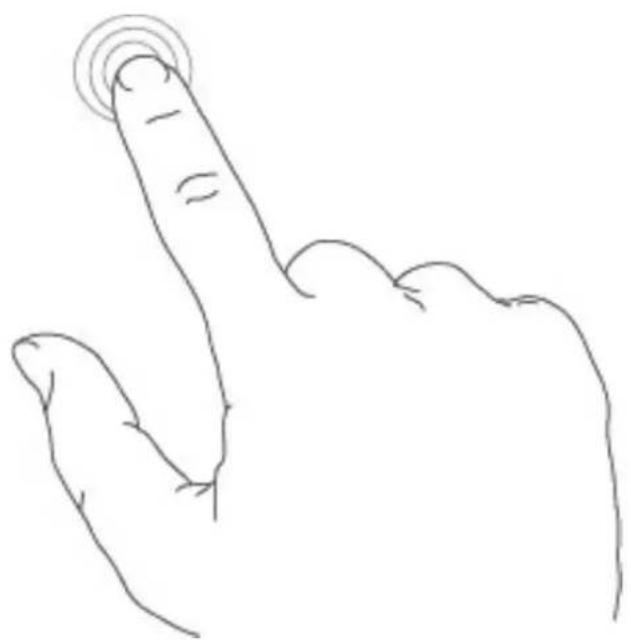
natural_image
Line drawing of a human hand with a finger pointing upward (no text or symbols)Swiping from right to left: This gesture is used to turn the pages of the library, in a book or a document, to view the right side of a PDF, or a zoomed image.
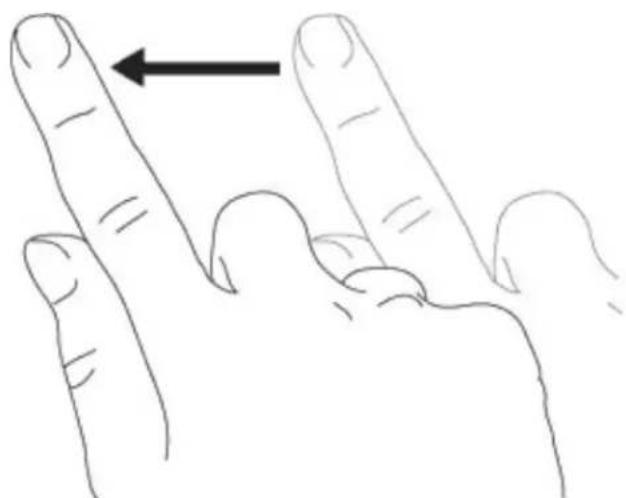
natural_image
Line drawing of two fingers with one finger pointing right (no text or symbols)Swiping from left to right: This gesture is used to turn pages backward in the library, in a book or document, to view the left side of a PDF, or a zoomed image.
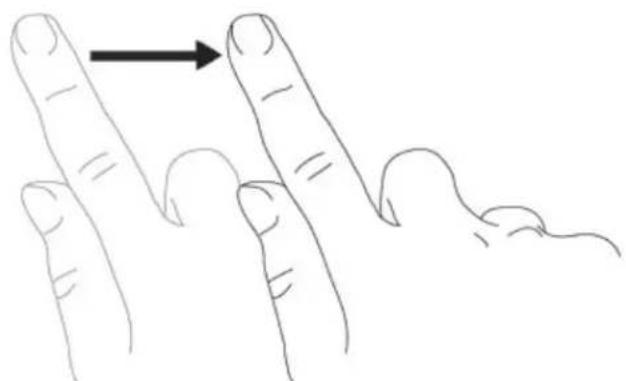
natural_image
Line drawing of two fingers with one finger pointing right (no text or symbols)Swiping from top to bottom: This gesture is used to view images or PDF files.
Swiping from bottom to top: This gesture is used to view images or PDF files.
Swiping diagonally: This gesture is used to view images or PDFs, or turn pages forward or backward.
3.4 Main menu button
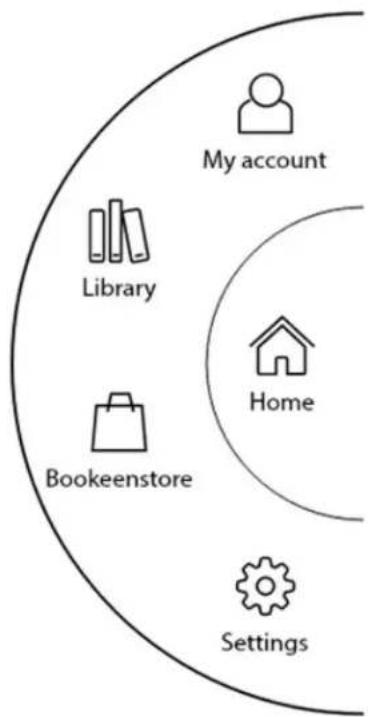
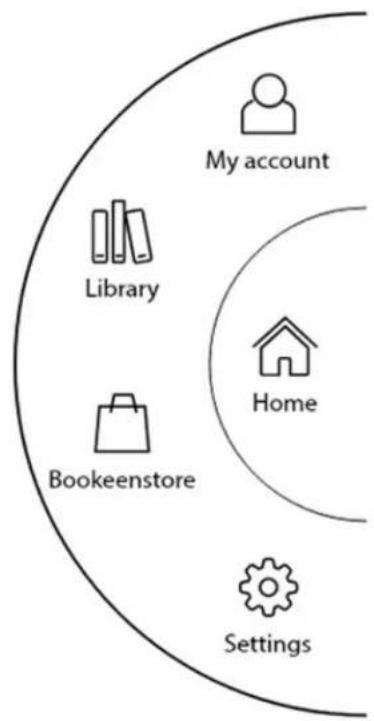
The central menu button, located on the right corner of your screen, is used for returning to the main menu whenever you feel like doing so. Just press the central menu button to display menu and its tabs: "Home", "My Account", "Library", "Bookeenstore" and "Settings.".
flowchart
graph TD
    A["My account"] --> B["Library"]
    B --> C["Bookenstore"]
    C --> D["Home"]
    D --> E["Settings"]
Here are the different access points of the main menu button:
1. My account
You can access your "ordered books", your "pre-orders" and your "personal data." This last page allows you to create an account and enter your billing address and means of payment.
2. Library
You can access all of your books on your device.
3. CYBOOK (or the name of the online bookstore from your e-reader)
You can access your online bookstore.
4. Settings
You can access the different settings of your e-reader (see 4.6 Settings).
3.5 On-screen keyboard
When using your device, you will need to use a keyboard to fill in text fields (usernames passwords, search, URLs, notes). The Bookeen Diva HD e-reader on-screen keyboard automatically pops up when it is needed at the bottom of your screen. At the top of the keyboard, you will find a location where the text will pop up as you type. This keyboard is very close to a physical keyboard. Just press the keys lightly to type your text.
| Quote and note | |
| Quote: "that tiresome little boy?" | |
| Note: Add a note to the quote (optional) |
| Q | W | E | R | T | Y | U | I | O | P |
| A | S | D | F | G | H | J | K | L | |
| ↑ | Z | X | C | V | B | N | M | ☒ |  |
4. Start-up
4.1 Loading
The Bookeen Diva HD e-reader switches on after pressing the On/Off button. A static image will be displayed in the background for about 15-20 seconds. An image will pop up on the screen for period of two to several seconds depending on the number of documents stored in the device memory.
4.2 Choose your language
When your e-reader is switched on for the first time, it displays a language menu. Select one of them to use the interface in the language of your choice.

Language
български
Deutsch
British English

français
magyar
italiano
Nederlands
polski
русский
Note: This menu has no effect on the language of the books found in your Bookeen Diva HD e-reader. You may change the interface language using the pop-up menu at any time. Choose "Settings", then "General", and then "Language." I see all available languages, just press "previous" or "next."
4.3 Choosing your Wi-Fi network
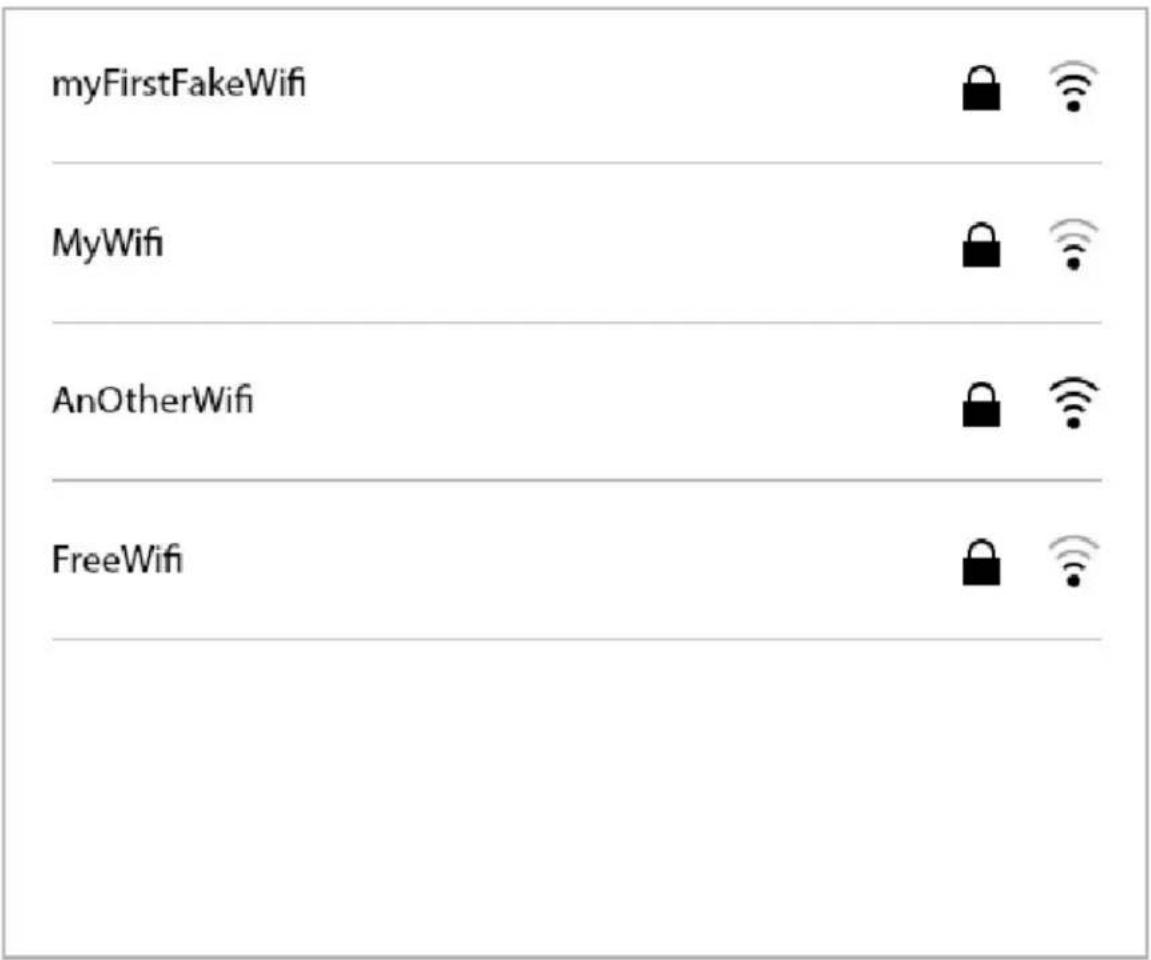
After switching on, your Bookeen Diva HD e-reader displays choice of your Wi-Fi network.
Note: You can change the Wi-Fi network to which you are connecting your e-reader at any time using the pop-up menu. Choose "Settings", and then "Wi-Fi."

Select a network
In order to make the most of your e-reader and buy ebooks, you have to connect to a Wi-Fi network!

Add a Wi-Fi network

Refresh list of available Wi-Fi networks
text_image
myFirstFakeWifi MyWifi AnOtherWifi FreeWifiLater
4.4 Date and time
Your Bookeen Diva HD e-reader will then display the Date and time page.
Note: You can change the date and time at any time using the context menu. Choose "Settings", then "General", and then "Date and time."

Date and time
The date, time and timezone must be configured in order to use all the features of your e-reader.
Date Monday, 27 April 2020
Timezone UTC 01:00
Time 05:06 pm
Submit
4.5 Home page
After these steps, your Bookeen Diva HD e-reader will display the Home page.
Q Search by title, author or publisher.
READING IN PROGRESS >
text_image
The Picture of Dorian Gray Oscar Wilde 0%
text_image
Emma Jane Austes 0%
text_image
Jacob's Room Virginia W 2%MY LIBRARY >
Martin Eden by Jack London
The War of the Worlds by H. G. Wells
The Idiot by Fyodor Mikhailovic...
The Great Gatsby by Francis Scott Fitzgerald
The Nose by Nikolai Gogol
Dracula by Bram Stoker
OUR EBOOKSELLER RECOMMENDS >

text_image
GILLY MACHMILLAN LA NANNY LE BEST-SELLER ANGLAIS
text_image
DES MOTS PAR LA FENÊTRE LES ÉCRIVAINS SE MOBILISSENT POUR LES HÉPITAUX
After switching on, your Bookeen Diva HD e-reader displays the Home page and is presented in three parts: "Reading in progress", "My library" and "Bookstore".
Reading in progress
The upper left corner shows the book being read as well as the progress of reading in the book. If you touch this area, reading will resume on the last page you read.
My library
The library displays all the books or documents added to the e-reader. Pressing "My Library" allows you access to all the books in the library. On this page, the navigation arrows on the right of the screen, and the "backward" and "forward" buttons at the bottom of the page, allow you to see a selection of your latest books.
The "Search" option located above "Reading in progress" and "My library" allows you to directly search for the author, title or publisher of a book.
Bookstore
The lower part displays the recommendations of the bookstore. Touching this area allows the display of the library.
You may enable or disable these recommendations by going to "Settings" then "Library", and finally "Book recommendations".
4.6 Settings
Selecting "Settings" via the main menu button gives access to:
• Wi-Fi
Switches Wi-Fi on and off.
- General
•
- Information
All information on the Bookeen Diva HD e-reader (firmware version, serial number of the device, etc.).
- E-reader update
Checks for device updates.
- Storage space used
Shows the available and used storage space.
- Date and time
This feature allows you to choose the date, time and time zone.
- Language
Select language from the list.
- Standby mode
Programs standby mode and allows you to choose a screen saver.
- Dictionaries
This feature allows you to enable and disable the dictionaries available in the proposed list.
- Switch off the device
This feature allows the device to stop completely.
- Reset
This feature allows you to return to the factory settings, erase all user data and switch off the Bookeen Diva HD e-reader.
- Brightness and display
- Lighting adjustment
This feature allows you to enable, disable or adjust the intensity level of the e-reader's
illumination.
2. Night mode
This feature allows you to enable or disable night mode, program schedules and adjust the intensity of color warmth. This feature allows you to enable or disable night mode, program schedules and adjust the intensity of color warmth.
3. Black and white switch
This feature allows you to switch between the black and white pages of the book.
4. Screen refresh
This feature allows you to choose the refresh rate of pages. The flash can be done on each page, every 3 pages, every 5 pages, every 10 pages, or every 20 pages.
5. Interface rotation
This feature allows you to enable or disable automatic rotation of the interface.
- Library
Allows you to enable or disable parental control and display book recommendations on the home page.
- Tutorial
This feature launches the tutorial of the e-reader.
- FAQ and Support
This feature redirects you to our Frequently Asked Questions and Support
4.7 Battery indicator
The battery status is indicated at the upper right corner on the home page. The battery level is an estimate of the actual status of the battery.
5. Lighting
The screen is lit by an invisible light-diffusing film.
When should you use lighting?
- Switch it on in a gloomy or totally dark environment to illuminate your readings.
- Switch it on when you want to make your screen whiter.
The advantages of lighting
- Your device's lighting is soft and comfortable for your eyes.
- The lighting allows you to read in the dark without straining your eyes.
- The touch interface makes it adjustable and easy to use.
5.1 Switching on the lighting
You can switch the lighting on or off with the physical button on the left side of the screen.

Briefly press the button to switch on the lighting.
5.2 Adjusting the lighting
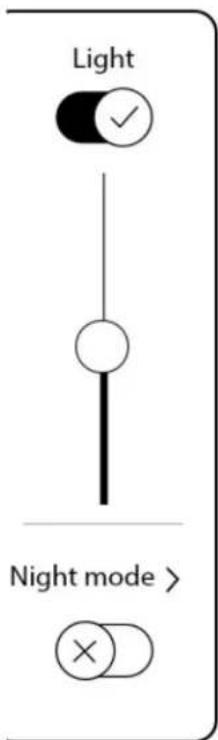
You may adjust the lighting by pressing the intensity level in the pop-up menu, even when you have disabled the system. This manipulation will automatically enable the lighting.
text_image
Light Night mode > ×Press the button on the left side of the screen and keep it pressed for one second to display the Lighting menu
Swipe your finger on the adjustment bar to control the intensity of the lighting. The mini intensity level is located at the bottom, while the maximum intensity level is located at the top.
Press the button again to close the menu.
5.3 Switching off the lighting
To switch off the lighting, press the button on the left side of the screen. The light goes out.
5.4 Enabling/disabling night mode
Press the activation button below the lighting to launch the device's night mode. The "Night mode" tab under the lighting allows you to adjust the intensity of the color warmth and to sche events.
6. Library
The Bookeen Diva HD e-reader can contain many digital elements (books, documents, images). To access the library, first press "My library" located at the top right corner of the home page, or by the main menu button. This will take you to a new page with the list of your books.
When you press the tab on the top left corner "All my books", a new menu will pop up.
- Reading in progress
- To read
- Finished
- All my books
- My reading list
- My folders
To browse the content of the library, you should either use the physical navigation buttons located on the right side of the screen, or swipe your finger from right to left or from left to right, or press "Previous" and "Next" at the bottom of the screen. To open a book, all you need to do is touch its cover. Some larger files may take some time to open.
6.2 Library management
Pressing the "Title" tab located above the list of books allows you to reorganize your books by:
- Title
- Author
- Date of publication
- Date added
- File name
By default, the sort order of your books is optimized according to the active view.
Touching the search bar at the top of the screen allows you to search for documents by keywords on the keyboard.
Touching these icons 📄️ displays the books in list or details view.
Touching this icon allows you to synchronize or delete books.
Touching this icon, located on the right side of your books, displays a new menu.
- Read
- Indicating as "to read"
- Indicating as "finished"
- Book information
- Add to a reading list
- Remove from device
7. Reading
7.1 Supported file formats
An eBook file is considered a digital document. It can be a book, journal, user guide, etc. These documents are distinguished by their type or file format. Different types of formats can be played on your device. You may identify the file type (Book, PDF, Document, Image) found in the library by reading the information entered under the title of the book.
- ePub file
- PDF file
- HTML file
- TXT file
- FB2 file
7.2 Reading a book
On the "Library" page, once you've selected a file or book, tap its cover to open it. The first page of the book or the last page you read will pop up.
To turn the pages, touch the right part of the screen to go to the next page, and the left part of the screen to go to the previous page. Using the navigation arrows on the right side of the screen, or swiping the finger from right to left or from left to right, also make it possible to turn the pages. Once the book is finished, you cannot go back to the first page by going to the next page.
Some pages contain hypertext links which allow you to go directly to a reference. Maintain your finger on the link allows you to go to the desired reference.
7.3 Reading environment
The page not only shows text or images, but also additional information (such as page nu title of book and author, or indication of reading time) in reserved areas of the screen.
When reading, all you need to do is touch the middle of the screen to bring up a pop-up menu. The choices offered by this pop-up menu will depend on the file format of the document you are reading. The reading environment therefore depends on the format of the open document, the context menu of a PDF file is different from that of an ePub file because you cannot change the font size of a PDF file (See ePub context menu and PDF context menu).
The reading environment for ePub/FB2/HTML/TXT files (with dynamic layout)
Fields of the page
The page header displays the title of your document. For an HTML and TXT document, this is the name of the file. The footer displays the pageometer. The pageometer is a progress bar which indicates the progress of your reading. The page header can be hidden via the pop-up menu that appears at the bottom of the page. As you read, you may also be informed of the time remaining before the end of the chapter/end of the book by accessing the pop-up menu settings. To resume reading, touch the center of your screen.
Note: The number of pages is calculated based on the average number of characters per page. So the total number of pages is not related to the number of screens you have to display to read the entire book. In general, you need to display several screens to read a page. The direct consequence is that the number of pages does not vary with the size of the characters.
Dictionaries: dictionaries use the same procedure as "Search in the text." To search for a word in the dictionary, just touch the word and maintain your finger on it for one second. Two options pop up: "Search in the text", and the dictionary entries corresponding to the selected word. To obtain a definition, simply select the desired entry.
ePub pop-up menu
Dracula
05:10 PM

0%

of splendid bridges over the Danube, which is her of noble width and depth, took us among the tra ditions of Turkish rule.

We left in pretty good time, and came after nightfall to Klausenburgh. Here I stopped for the night at the Hotel Royale. I had for dinner, or rather supper, a chicken done up some way with red pepper, which was very good but thirsty. (Mem. get recipe for Mina.) I asked the waiter, and he said it was called "paprika hendl," and that, as it was a national dish, I should be able to get it anywhere along the Carpathians.
I found my smattering of German very useful


Current page: 4 of 429
End of chapter: 16 pages (16 min)
End of ebook: 425 pages (7 hr 4 min)


- The icon displays the time remaining before the end of the chapter and the book and allows you to directly access certain parts of a document. Using the pageometer allows you to
go directly to the desired entry.
- The icon :≡ allows you to access the tabs "Table of Contents", "Quotes and Notes" and "Bookmarks".
1. Table of Contents
This feature allows you to find a chapter directly and access it by placing your finger on it.
2. Quotes and Notes
This feature allows you to add notes. To annotate the text, all you need to do is select the text box on which you want to write a note. Position your finger at the start of the selected area and highlight the text until the end. The area will be highlighted and the annotations interface will pop up automatically. Subsequently, you may write a note by pressing the pencil icon, or save the quotation text by pressing the bubble icon. You may change/delete the note by pressing the pencil/bubble icon or directly via the "Quotes and Notes" tab in the pop-up menu.
3. Bookmarks
This feature allows you to add a bookmark that will appear in the upper right corner of the current page.
- The icon allows you to search for any word in a text. Just press the magnifying glass in the pop-up menu and a keyboard will appear.
- The icon allows you to display the different text settings.
1. Text size
You can change the size of the text by pressing the "-" and "+" icons.
2. Leading
This feature increases or decreases the space between lines.
3. Alignment
This feature adjusts text alignment.
4. Margins
Choice of margin size.
5. Editor style
This feature enables or disables the editor style.
6. Text font
Choosing the text font can be done among the available fonts.
- The icon ⚙️ allows access to "information" and "reading settings.".
- Reading information : in this menu you will find the following options to enable or disable:
- Display the book title in the page header
- Display the title and author of the book in the page header
- Display the current chapter in the header of the page
-
Display the page in the footer
-
Display the page and the remaining pages before the end of the chapter
- Display the page and the reading time remaining before the end of the book
- Reading settings: in this menu you will find the following options:
•
1. Character font
Select your preferred font from the list of available fonts, including those supplied by default and those added manually in the "Fonts" folder.
2. Caesura
This feature allows you to reinstate the hyphens in the text.
3. Bold text
This feature displays text in bold.
- The icon shows the summary and the technical specifications sheet of the book you're currently reading.
- Directly touching the pageometer is a shortcut to choosing the page you want to reach using an on-screen keyboard.
Reading environment for PDF files (without a dynamic layout)
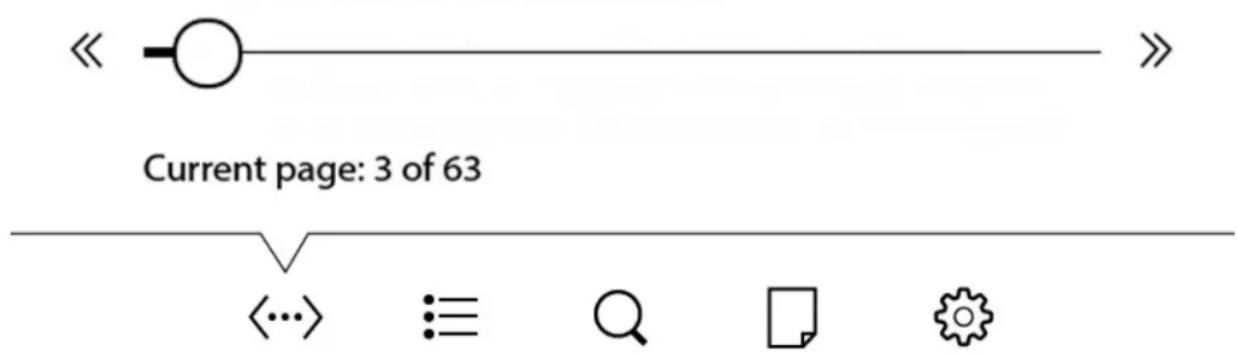
By default, PDF files are displayed with their original layout and they adapt to the screen size of your e-reader. You may enable the simplified layout to get a closer rendering of the text of a book in ePUB format by accessing the pop-up menu at the bottom of the screen. The status bar at the bottom of the screen displays your position in the document (current page/total number of pages) and the pop-up menu dedicated to the PDF format.
PDF pop-up menu
text_image
<< Current page: 3 of 63 <...> ≡ Q □ gearSeveral new functions are found in this menu by pressing the "PDF" icon
- Zoom
This feature allows you to change the zoom level of the page. Reducing the level of the segment on the left decreases the zoom and increasing the level of the segment on the right makes it possible to enlarge the file and adapt it to the screen of the e-reader.
- Simplified page layout
This feature allows you to simplify texts to obtain a rendering closer to the text of a book in ePub format.
- Removing margins
PDF margins may be trimmed to maximize the size of the content visible on the screen.
7.4 Opening a password protected document
Some PDF and ePub documents may be password protected. When opening such files, the virtual keyboard pops up for you to enter the password. You just have to type and validate. On unlocked, the password will no longer be requested for this file.
8. Viewing images
Image files may be integrated into your Diva HD HD e-reader by connecting it directly to computer. Drag the files from your desktop onto the device and find them in the library pressing the “My folders” tab and then “My e-reader”. Tap an image to view it. In this case, JPG, PNG, GIF or TIF files are considered to be image files.
8.1 Image viewing page
Once the image file is open, the image is displayed. Press the middle of the screen to directional arrows to move from one image to another or use the physical buttons on the side of the screen. If you swipe the screen, you will also switch between images.
If the image is larger than the screen (arrows will appear on the sides of the images), you may use your fingers to drag the image. In this case, you will switch between images.
8.2 Image viewing menu
• Actual size : Displays the image in its actual size.
- Set as screen saver : Displays the image as wallpaper when the device is in standby mode.
- Reading information:
In this menu you will find the following options which you may enable or disable.
- Display the name of the file in the page header
- Display the zoom in the page header
- Display the name of the file and the zoom in the header of the page
- Display the image number in the footer
- Display the image in portrait format
- Display the image in landscape format
9. Orientation of the user interface
Your Bookeen Diva HD e-reader is endowed with an automatic rotation that allows you to change the orientation of the screen by tilting your e-reader, depending on whether you are right-handed or left-handed. Be default, the orientation is in the right-hand mode. Automatic rotation is active by default, and you may disable this option by going to Menu>Settings>Brightness and display>Interface rotation>Disable automatic interface rotation.
10. Wi-Fi connection
Your Bookeen Diva HD e-reader is endowed with a Wi-Fi module that allows you to connect to a Wi-Fi access point. Once connected, you will then be able to download content.
10.1 Starting Wi-Fi connection
You can start the Wi-Fi module from the main menu button on the right side of the screen. Select "Settings", and then "Wi-Fi" when the menu pops up. Wi-Fi will automatically try to connect to an already configured network, or it will detect available networks. Wi-Fi will launch automatically at startup when the setting is enabled. Once the Wi-Fi network has been enabled the first ti after starting the Diva HD e-reader, your device will connect automatically to the network when it is switched on.

Select a network
In order to make the most of your e-reader and buy ebooks, you have to connect to a Wi-Fi network!

Add a Wi-Fi network

Refresh list of available Wi-Fi networks
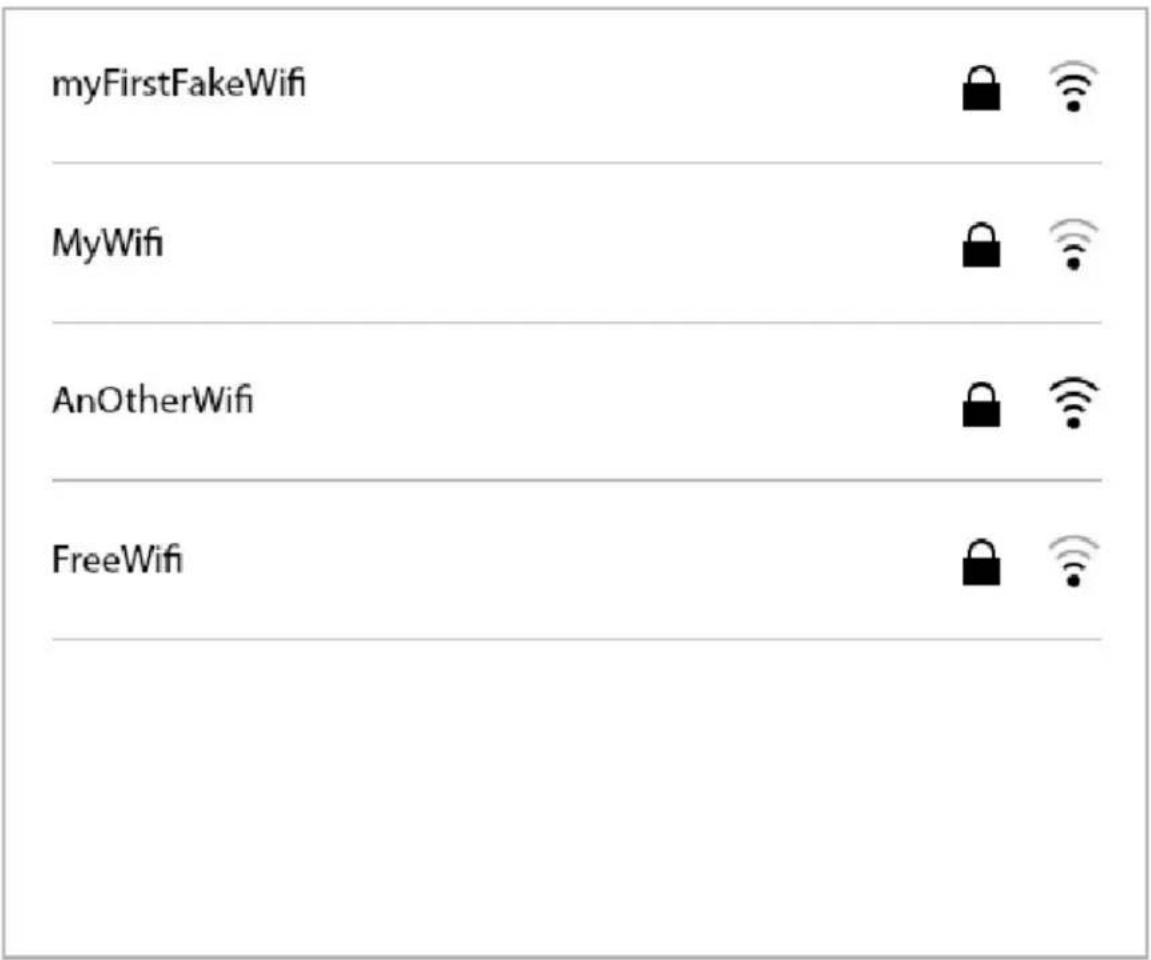
text_image
myFirstFakeWifi MyWifi AnOtherWifi FreeWifiLater
10.2 Detecting available networks
When connecting for the first time or if no Wi-Fi network has been configured, a menu showing all the available networks will pop up. Choose the network to which you want to connect. If selected network is secure, you will be asked for a password and the on-screen keyboard will pop up.
10.3 Wi-Fi signal quality
If the signal quality is poor or if you are too far from the terminal, the Bookeen Diva HD e-reader may lose connection. An alert window will open and detect networks to allow you to choose a new one. If you notice too many time-out messages during your browsing, we suggest you get closer to your terminal or choose a new terminal.
10.4 Free connection to Wi-Fi hotspots
The page where you have to enable Wi-Fi automatically pops up as soon as the e-reader connects to a network. If required, you will be asked for a username and password. Once you enter your username and password, your e-reader will connect to the Internet.
10.5 Updates and downloads
If new downloads or software are available, a window will pop up right after connecting to Wi-Fi to inform you that a new download is available. Of course, you may choose not to download this new data to your device. However, the question will be repeated the next time you connect.
The update process is automatic and will take less than a minute. A message will pop up on your screen to notify you when the update is ready to install. Once you accept the update, the device will delay its response until you are sent back to the Home Page, i.e., after updating. During the process, an automatic sequence will bring up several messages to inform you of the upda progress and when it's done.
10.6 Turning off Wi-Fi
If you want to turn off Wi-Fi, press the main menu button and select "Settings". When the menu pops up, press "Wi-Fi" and then the "Enable Wi-Fi" button to disable it, and the different Wi-Fi networks will disappear. When the e-reader is in standby mode, Wi-Fi is automatically disabled.
11. Download ebooks from your Bookeen Diva HD e-reader
You may download ebooks directly from your Bookeen Diva HD e-reader by connecting your device to a Wi-Fi network.
11.1 First connection to the library
11.1.1 Accessing the library
You may access the online bookstore (Bookenstore, Leclerc...) from the home page of your Bookeen Diva HD e-reader by pressing the “Ebook store” banner located at the bottom of screen. This banner is regularly updated to present recommendations to discover on your bookstore.
Q Search by title, author or publisher.
READING IN PROGRESS >
text_image
The Picture of Dorian Gray Oscar Wilde 0%
text_image
Emma Jane Austes 0%
text_image
Jacob's Room Virginia W 2%MY LIBRARY >
Martin Eden by Jack London
The War of the Worlds by H. G. Wells
The Idiot by Fyodor Mikhailovic...
The Great Gatsby by Francis Scott Fitzgerald
The Nose by Nikolai Gogol
Dracula by Bram Stoker
OUR EBOOKSELLER RECOMMENDS >

text_image
GILLY MACHMILLAN LA NANNY LE BEST-SELLER ANGLAIS
text_image
DES MOTS PAR LA FENÊTRE LES ÉCRIVANTS SE MOBILISSENT POUR LES HÉPITAUX
You may also go to the e-bookstore using the main menu button located on the right side of your Bookeen Diva HD e-reader screen and press the "Cybook" icon (or the name of the e-bookstore to which you are connected).
flowchart
graph TD
    A["Home"] --> B["Settings"]
    C["Bookenstore"] --> D["Library"]
    E["My account"] --> F["User icon"]
    style A fill:#f9f,stroke:#333
    style B fill:#ccf,stroke:#333
    style C fill:#cfc,stroke:#333
    style D fill:#fcc,stroke:#333
    style E fill:#cff,stroke:#333
    style F fill:#ffc,stroke:#333
11.1.2 Se connecter au Wi-Fi
To visit the e-bookstore, the Bookeen Diva HD e-reader must be connected to a Wi-Fi network. If you have not yet set up a connection to a Wi-Fi network on your device, or if the configured Wi-Fi network is not in range, your device will provide you with a list of detected networks. Choose your Wi-Fi network by pressing the network name.
If your Wi-Fi network is protected, enter the Wi-Fi key using the keyboard in the field provided. Ensure that you respect upper and lower case when entering your Wi-Fi key.
11.1.3 Enabling Bookeen Diva HD (Bookeenstore)
If you already have a username and a password on the online bookstore, press "My account" via the pop-up menu, then "My personal information", "Account used" and "Use an existing account". A new page opens where you are required to enter your login details and press "Connect".
If you do not yet have login details, press "My account", "My personal information", "Account used" and "Create an account" before filling out the form.
11.2 Download books
Have you found a book you would like to read? Follow the directions in your bookstore to download the book.
Once validation is done, a download window opens automatically. Wait a few seconds for progress of the black bar in this window. The new book will be in the library on the home page of the Bookeen Diva HD e-reader.
Press the book title to open it. Happy reading!
Important : new files are downloaded directly to the "Digital Editions" folder. The new files also appear in the "Library" section of the home page.
11.3 Other Bookstores
The Bookeen Diva HD e-reader may be linked to the Bookeenstore or other partner bookstores. To get help on any other bookstore, please contact the support of the relevant bookstore.
11.4 Type text
In certain circumstances, you may have to type a text in a text field (username, search, Type in the text field and in the on-screen keyboard (see On-screen keyboard) which will automatically pop up at the bottom of your screen.
11.5 Returning to the home page
Open the main menu by pressing the button on the right side of the screen of your Bookeen Diva HD e-reader and press "Home".
12. Your e-reader's permission
To download content protected by Adobe DRM, you will need to authorize the Bookeen Diva HD e-reader.
The identification process takes place when you try to reach the bookstore, after touching ebookstore link on the Home Page and connecting yourself via Wi-Fi. If you are a new user (without Adobe ID), the process is automatic, i.e., a "Vendor ID" account linked to your Bookeenstore account and to "eBookPass" provider is created. This account creation process authenticate your device and allow you to purchase DRM-protected content.
This Vendor ID automatic account creation option may be uninstalled from your e-reader, especially if you do not have access to Bookeenstore. You will then need to create or connect an "Adobe ID" account via the pop-up displayed when opening an Adobe DRM-protected ebook.
12.1 DRMs
DRMs are technical devices applied to digital book files to restrict their use under certain conditions. Some files sold on the Bookeenstore bookstore (as in other bookstores) have DRMs. To read digital books with DRMs, you must have an Adobe ID or a Vendor ID (« eBookPass »).
12.2 Adobe ID/Vendor ID/Adobe DRM
The DRM system used by the Bookeen Diva HD e-reader and certain stages of download developed by Adobe.
If you are using the Bookeenstore and you are a new user, you will be given a Vendor ID and we will take care of managing the DRM with Adobe.
If you are not using the Bookeenstore, you will have to create or sign up an Adobe ID which will be used to manage ebooks with DRM.
12.3 Creation of an account
When creating your Bookeenstore account, you will be asked for an email and password which will be used to create your Vendor ID « eBookPass ».
If an Adobe pop-up appears during the creation of your account, you will have two options.
- Case 1: If you don't yet have an Adobe ID, you may create one.
- Case 2: If you already have an Adobe ID, you will be required to enter the email address and password associated with your Adobe ID.
Note: Once an account is created and the e-reader is enabled, the account creation page will no longer pop up. If problems are encountered with Adobe ID, you may follow the link below and click on "Connection problem?"
https://www.adobe.com/cfusion/membership/index.cfm
13. Transferring an ebook from the computer
You may also download an ebook from a computer and copy it to the Bookeen Diva HD e-reader via a USB cable.
13.1 Installing Adobe Digital Editions (ADE)
Just go to http://www.adobe.com/products/digital-editions.html, then download and install ADE.
13.2 Opening ADE
Once ADE is launched, connect the Bookeen Diva HD e-reader to the computer using a USB cable so that ADE can offer to authorize the Bookeen Diva HD e-reader with the AdobeID or Vendor ID login details. The authorization of the device is required to read DRM-protected files.
If you have a Vendor ID, the name of the provider is eBookPass. Your username and password are the same as the ones you used to create your Bookeenstore account.
The e-reader icon pops up on the left to indicate that it has been recognized by ADE.
13.3 Transferring of ebook from ADE to the Bookeen Diva HD e-reader
After downloading a book with ADE, the book is added to the computer library, and it is possible to transfer this book to the e-reader by following the steps below:
- Open ADE and connect the Bookeen Diva HD e-reader to the computer.
- ADE recognizes the e-reader and the icon pops up on the left.
- Click/drop the desired book toward the e-reader icon. The book will now pop up in the "Digital Editions" folder of the Bookeen Diva HD e-reader.
Important note: Authorizing the e-reader for a computer only allows you to transfer files in DRM to the e-reader, provided you have previously authorized the computer (ADE> Help>Authorize computer) with the same Adobe or Vendor ID account, before downloading books. Warning: Do not check the box "I want to authorize my computer without username" when you authorize your computer.
For you to download books directly from the e-reader, you will need to go through the identification/authorization phase of the e-reader. Please refer to the following section for this: Authorization of your e-reader.
14. Get the most from your e-reader
14.1 Get the most from your battery
Charging the battery
To charge your e-reader, connect it via a USB cable to the port of your computer with the call provided by Bookeen. You may also use a USB charger (not included).
Once in a while, connect the Bookeen Diva HD e-reader to an outlet. In so doing, you will keep the battery always charged. When the battery is fully charged, charging stops automatically. In the way, the battery will not be overcharged.
Tips for optimizing the battery charge
To optimize the usage time of the battery:
- We recommended you switch off the e-reader when it is not in use.
- Turn off your Wi-Fi when you are not browsing the Internet
- Lighting consumes your e-reader's battery so switch your device off when you no longer need it.
14.2 Performing a restart
Once in a while, you may need to reboot your Bookeen Diva HD e-reader. Rebooting your Bookeen Diva HD e-reader is the same as restarting your computer. It stops all running apps, restarts the operating systems but does not erase any program or data.
Reboot using the reset button (ON/OFF button)
To forcefully reboot your Bookeen Diva HD e-reader, press and hold the power button and p the "Switch off the device" button which pops up on the screen (the last image displayed remains on the screen, which is normal). Press the power button again for three seconds: your device will restart.
15. Technical specifications of Bookeen Diva HD e-readers
Dimensions
134 mm x 155mm x 15mm
Weight
<240g
Silicone case
Button to turn the pages / access the menu / lighting
Multi-point touch screen
- 6" E Ink HD screen
- Legible outdoors
• Resolution : 1448 x 1072 (300 PPP)
• 16 gray levels, REAGL mode (afterglow reduction) - Touch screen: Capacitive multi-touch screen
- Screen with frame
Battery life
- Battery (1900 mAh)
- Battery life can last for weeks (depends on the use of Wi-Fi and lighting)
Fast and powerful microprocessor
- Invisible light-diffusing film
• Anti-reflective treatments
• 20 lighting intensity levels
• LED lighting from the front that can be enabled by a physical button or touch menu
NightWatch technology adjusts the color of your screen to move to warmer tones of the light spectrum, thus alleviating eyestrain.
Storage
16 Go (+10000 ebooks)
Updates
OTA (Over The Air)
Orientation
Automatic orientation (accelerometer)
Connectivity
- USB (Micro USB 2.0)
- WiFi (802.11 b/g/n)
Software
- New interface available in several languages
- Adobe/LCP compatible
- Web browser / OS : Linux 4 / Adobe
- Reader Mobile SDK 11 / ebook standards : ePub, PDF, HTML, TXT, FB2
- Photos : JPG, PNG, GIF, BMP, ICO, TIF, PSD
- Software features: reflow PDF / notes / bookmarks / highlights / dictionary (depending on the language settings) / search / 18 font sizes / export of annotations
Cases
- Separate magnetic cases sold as accessories
- Smart covers (e-reader's wake/sleep mode)
16. Additional information
Accessories
Please contact your seller or visit www.bookeen.com for the availability of accessories for your Bookeen Diva HD e-reader.
Using unauthorized accessories renders the warranty null and void. For more information on the use of accessories, refer to the instructions provided on the accessories.
If you have any questions or problems relating to your e-reader, please contact our customer service by filling out a form on our online support at the following address: www.bookeen.com/contact
Adobe and Reader are registered trademarks of Adobe Systems Inc.